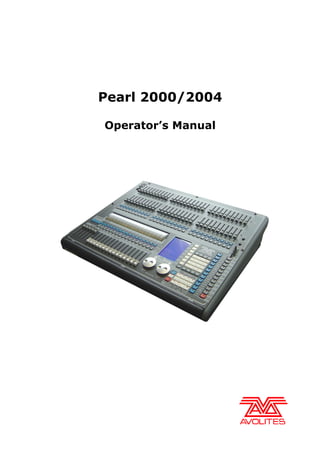
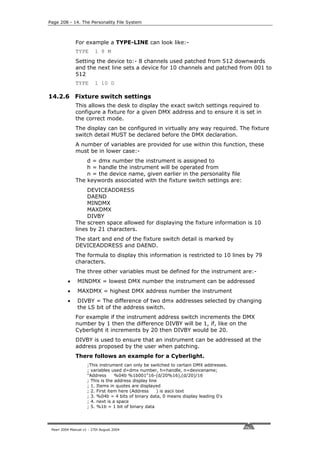
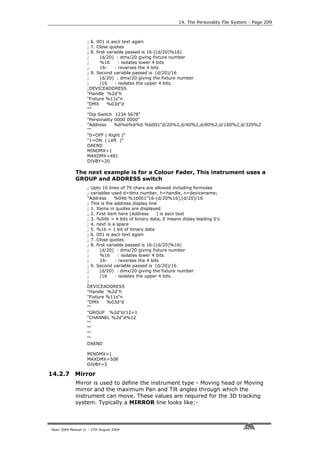
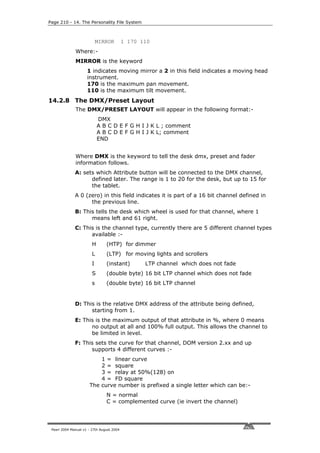
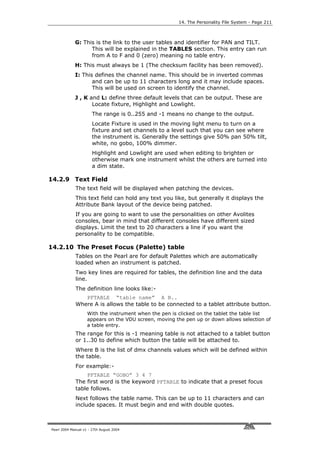
Pearl 2000/2004

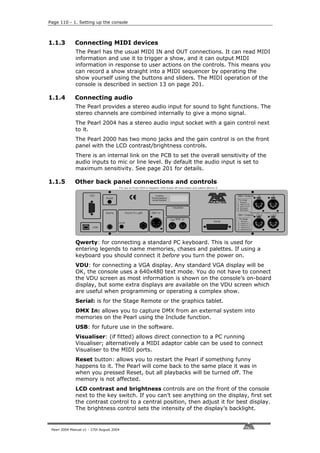
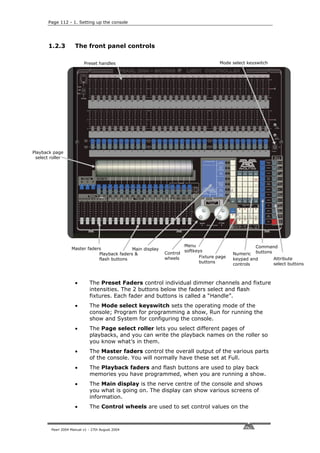
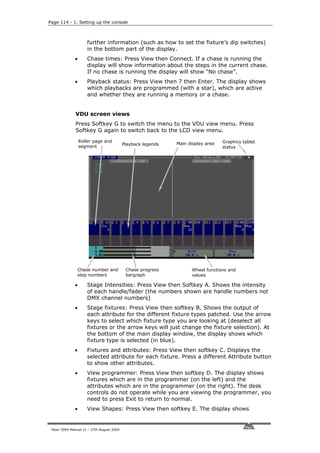
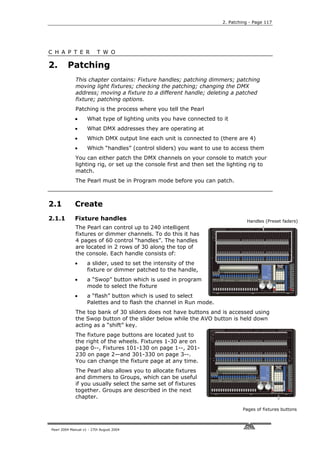
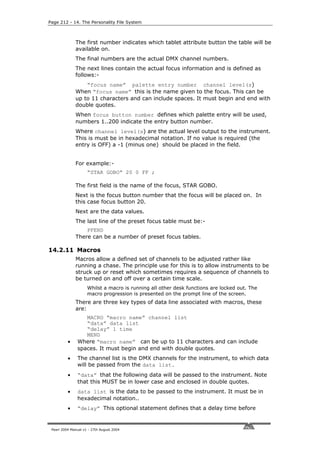
Operator’s Manual
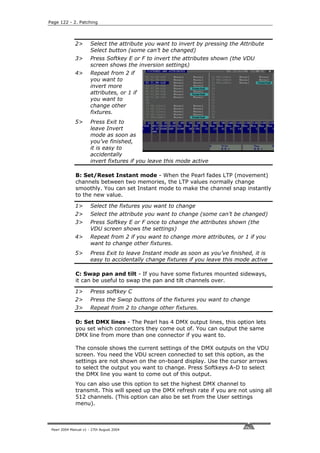
Pearl 2004 Manual v1 - 27th August 2004
Useful Avolites phone numbers:-
             Avolites England
             Sales and service*               (+44) (0) 20 8965 8522
             Service out of hours*            (+44) (0) 831 17 8888
             Fax                              (+44) (0) 20 8965 0290
             Email                            name@avolites.com
             Website                          http://www.avolites.com
             Distribution of Avolites products in USA:-
             Avolites America
             Sales and service*               (+1) 423 938 2057
             Fax                              (+1) 423 938 2059
             *Before contacting Avolites for service enquiry please ensure that you have the
             product serial number and the Software version. The serial number can be
             found on the back of the desk and the software version can be found by turning
             the key to “System” and reading the version from the top line of the display.
             The latest version of this manual and Pearl Software can be downloaded
             from the Avolites website.
             The small print :
             No Liability for Consequential Damages
             Avolites has a policy of continuous product and documentation improvement. As such the
             detail within this manual may not match the operation of the Pearl 2004.
             In no event shall Avolites be liable for any direct, indirect, special, incidental, or
             consequential damages or loss whatsoever (including, without limitation, damages for loss
             of profits, business interruption, or other pecuniary loss) arising out of the use or inability
             to use the Pearl even if Avolites Ltd. has been advised of the possibility of such damages.
             Because some jurisdictions do not allow the exclusion or limitation of liability for
             consequential or incidental damages, the above limitation may not apply to you.
             Avolites Ltd recognise that all trademarks within the manual are the property of their
             respective owners.


                                          Reprint and revision history:
                                            First produced July 2004


Pearl 2004 Manual v1 - 27th August 2004
This manual was written by Tim Mitchell, Sabre Technology Ltd
                                    http://www.sabretechnology.co.uk


Pearl 2004 Manual v1 - 27th August 2004
T U T O R I A L              C O N T E N T S

1.    WELCOME TO THE PEARL                                                 1
2.    PATCHING                                                             7
3.    CONTROLLING DIMMERS AND FIXTURES                                    15
4.    PALETTES                                                            19
5.    SHAPES                                                              24
6.    MEMORIES                                                            28
7.    CHASES                                                              36
8.    THEATRE STACK                                                       42
9.    THE GRAPHICS TABLET                                                 46
10. RUNNING YOUR SHOW                                                     48
11. ADVANCED FEATURES                                                     52
12. INTRODUCTION TO INTELLIGENT LIGHTING                                  54
13. INTRODUCTION TO AVOLITES CONSOLES                                     57
14. CHANGES IN THE LATEST PEARL SOFTWARE                                  61


R E F E R E N C E                 M A N U A L   C O N T E N T S

1.    SETTING UP THE CONSOLE                                             109
2.    PATCHING                                                           117
3.    CONTROLLING DIMMERS AND FIXTURES                                   125
4.    PALETTES                                                           135
5.    SHAPES                                                             141
6.    MEMORIES                                                           147
7.    CHASES                                                             157
8.    THEATRE STACK                                                      168
9.    THE GRAPHICS TABLET                                                175
10. RUNNING THE SHOW                                                     180
11. AUTOMATED PLAYBACK (SCRIPT FILES)                                    184
12. SETUP                                                                192
13. OTHER FEATURES                                                       196
14. THE PERSONALITY FILE SYSTEM                                          206
15. GLOSSARY OF TERMS                                                    218
16. INDEX                                                                225


              Pages in the Tutorial section have numbers below 100. Pages in
              the Reference manual have numbers above 100.


 Pearl 2004 Manual v1 - 27th August 2004
Pearl 2004 Manual v1 - 27th August 2004
Pearl 2000/2004

    Tutorial
Pearl 2004 Manual v1 - 27th August 2004
1. Welcome to the Pearl - Page 1


I N T R O D U C T I O N

1.       Welcome to the Pearl
             This manual is designed to help you get the most out of your Pearl
             console. We have divided it into two sections.
             •      This first section is a tutorial which gives you a step by step guide
                    of how to carry out the most common functions of the Pearl. If you
                    are new to the console, working through this part will give you a
                    good introduction.
             •      The second section is a reference manual which tells you
                    everything there is to know about the Pearl.
             To help you move between the two sections, we have made the chapter
             numbering the same, so if you are using the tutorial and you want
             more information, just look for the same chapter number in the
             reference manual.
             At the back of the reference manual there is a Glossary, explaining
             some of the technical terms used in the manual, and an Index which
             can be used to find what you need in either section of the manual.
             This manual applies to both the Pearl 2000 and the Pearl 2004
             consoles.

1.1          Setting up the Pearl
             Before you can use the Pearl, you need to connect various things to it.
             Ensure the power is off while making these connections.
             Important: Firstly check if your console has a voltage selector switch
               on the back of the console next to the power socket. If it has, make
               sure it matches your mains power. You can set it to 230V or 120V.
                 If you plug in the power with the switch set wrongly, you will
                 probably blow up the power supply. This would be a Bad Thing To Do
                 a few hours before a show.
             Connect the mains inlet to an AC power supply.
             If you are using the optional external VDU screen, connect a VGA
             monitor (640x480 text mode) to the VDU output on the back of the
             console. You don’t have to use the VDU screen but it does show some
             additional information that is not shown on the console display.
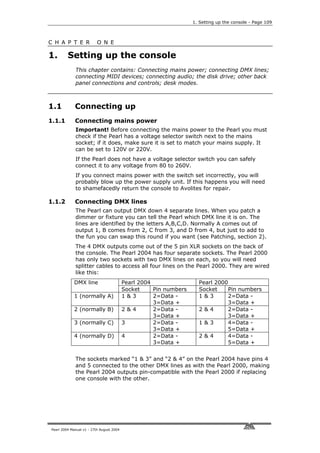
             Connect the DMX output(s) to your lighting fixtures or dimmers. The
             Pearl 2004 has four DMX output sockets. The Pearl 2000 has only two
             DMX sockets, but four DMX lines may be connected to them using a
             splitter cable. Chapter 1 in the reference manual has more details on
             DMX connections.
             Plug in the desk light to the socket on the top left of the console. If you
             have a QWERTY keyboard, plug it into its socket. You do not have to
             connect a keyboard if you don’t want.
             Turn on the power. The console display and VDU screen (if you are
             using one) should come alive.


Pearl 2004 Manual v1 - 27th August 2004
Page 2 - 1. Welcome to the Pearl


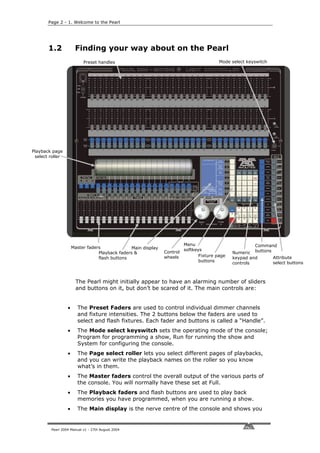
       1.2            Finding your way about on the Pearl
                          Preset handles                                                 Mode select keyswitch


Playback page
 select roller


                                                                         Menu                           Command
                     Master faders              Main display             softkeys                       buttons
                                 Playback faders &             Control                         Numeric
                                                               wheels           Fixture page                     Attribute
                                 flash buttons                                                 keypad and
                                                                                buttons                          select buttons
                                                                                               controls


                       The Pearl might initially appear to have an alarming number of sliders
                       and buttons on it, but don’t be scared of it. The main controls are:


                 •     The Preset Faders are used to control individual dimmer channels
                       and fixture intensities. The 2 buttons below the faders are used to
                       select and flash fixtures. Each fader and buttons is called a “Handle”.
                 •     The Mode select keyswitch sets the operating mode of the console;
                       Program for programming a show, Run for running the show and
                       System for configuring the console.
                 •     The Page select roller lets you select different pages of playbacks,
                       and you can write the playback names on the roller so you know
                       what’s in them.
                 •     The Master faders control the overall output of the various parts of
                       the console. You will normally have these set at Full.
                 •     The Playback faders and flash buttons are used to play back
                       memories you have programmed, when you are running a show.
                 •     The Main display is the nerve centre of the console and shows you


        Pearl 2004 Manual v1 - 27th August 2004
1. Welcome to the Pearl - Page 3


              what is going on. The display can show various screens of information.
         •    The Control wheels are used to set control values on the fixtures,
              and to set chase speeds and fades.
         •    The Menu softkeys (labelled A – G) are used to select control options.
              The display next to the buttons shows what each one will do. The
              options for each key change depending on what the console is doing.
              Softkey commands are shown in the manual with square brackets like
              this: A [Chase Parameters]
         •    The Numeric keypad and other control buttons are used to enter
              values and change controls on the console.
         •    The Fixture Page buttons are below the keypad, which select 4 pages
              for the Preset Faders.
         •    The blue Command buttons are used to carry out functions such as
              storing memories, copying, saving to disk, etc. These buttons have
              lights on to indicate when they are active.
         •    The Attribute select buttons are used to select which attributes of a
              fixture (e.g. colour, gobo, pan, focus) are going to be controlled using
              the Control wheels. The buttons have lights on to show you which
              attributes are active. The bottom (red) button allows you to reduce the
              intensity of a fixture if it loses position during a show.


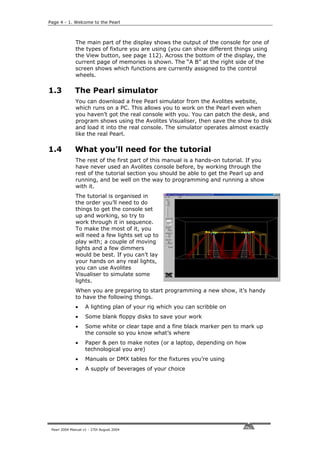
             The VDU screen shows more information than the on-board displays.
             It is useful when setting up the console and programming shows. When
             entering text or numbers, what you are typing is shown only on the
             VDU screen. If you are short of space you can often manage without it
             when you are running a show.

                                           Memory contents                       Today’s date and time
                Fixture output values


                                                             Function of       Function of
                                                             left wheel        right wheel


Pearl 2004 Manual v1 - 27th August 2004
Page 4 - 1. Welcome to the Pearl


              The main part of the display shows the output of the console for one of
              the types of fixture you are using (you can show different things using
              the View button, see page 112). Across the bottom of the display, the
              current page of memories is shown. The “A B” at the right side of the
              screen shows which functions are currently assigned to the control
              wheels.

1.3           The Pearl simulator
              You can download a free Pearl simulator from the Avolites website,
              which runs on a PC. This allows you to work on the Pearl even when
              you haven’t got the real console with you. You can patch the desk, and
              program shows using the Avolites Visualiser, then save the show to disk
              and load it into the real console. The simulator operates almost exactly
              like the real Pearl.

1.4           What you’ll need for the tutorial
              The rest of the first part of this manual is a hands-on tutorial. If you
              have never used an Avolites console before, by working through the
              rest of the tutorial section you should be able to get the Pearl up and
              running, and be well on the way to programming and running a show
              with it.
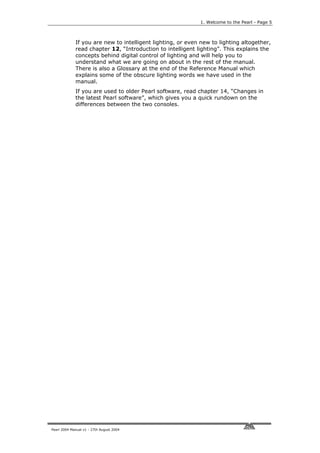
              The tutorial is organised in
              the order you’ll need to do
              things to get the console set
              up and working, so try to
              work through it in sequence.
              To make the most of it, you
              will need a few lights set up to
              play with; a couple of moving
              lights and a few dimmers
              would be best. If you can’t lay
              your hands on any real lights,
              you can use Avolites
              Visualiser to simulate some
              lights.
              When you are preparing to start programming a new show, it’s handy
              to have the following things.
              •     A lighting plan of your rig which you can scribble on
              •     Some blank floppy disks to save your work
              •     Some white or clear tape and a fine black marker pen to mark up
                    the console so you know what’s where
              •     Paper & pen to make notes (or a laptop, depending on how
                    technological you are)
              •     Manuals or DMX tables for the fixtures you’re using
              •     A supply of beverages of your choice


 Pearl 2004 Manual v1 - 27th August 2004
1. Welcome to the Pearl - Page 5


             If you are new to intelligent lighting, or even new to lighting altogether,
             read chapter 12, “Introduction to intelligent lighting”. This explains the
             concepts behind digital control of lighting and will help you to
             understand what we are going on about in the rest of the manual.
             There is also a Glossary at the end of the Reference Manual which
             explains some of the obscure lighting words we have used in the
             manual.
             If you are used to older Pearl software, read chapter 14, “Changes in
             the latest Pearl software”, which gives you a quick rundown on the
             differences between the two consoles.


Pearl 2004 Manual v1 - 27th August 2004
Page 6 - 1. Welcome to the Pearl


 Pearl 2004 Manual v1 - 27th August 2004
2. Patching - Page 7


C H A P T E R             T W O

2.       Patching
             In   this chapter: how to set up the Pearl to control dimmers and fixtures.
             •     patching dimmers
             •     patching moving light fixtures
             •     setting addresses on the fixtures


             So, you have your fixtures and dimmers all connected up with DMX
             cables and the Pearl connected to the end of it. (If you have a big rig,
             you might find it easier to learn the basics
             using a few dimmers and a few moving
             lights, and leave the rest of it till you’re an
             expert).
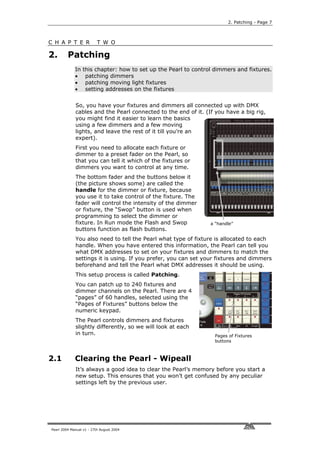
             First you need to allocate each fixture or
             dimmer to a preset fader on the Pearl, so
             that you can tell it which of the fixtures or
             dimmers you want to control at any time.
             The bottom fader and the buttons below it
             (the picture shows some) are called the
             handle for the dimmer or fixture, because
             you use it to take control of the fixture. The
             fader will control the intensity of the dimmer
             or fixture, the “Swop” button is used when
             programming to select the dimmer or
             fixture. In Run mode the Flash and Swop             a “handle”
             buttons function as flash buttons.
             You also need to tell the Pearl what type of fixture is allocated to each
             handle. When you have entered this information, the Pearl can tell you
             what DMX addresses to set on your fixtures and dimmers to match the
             settings it is using. If you prefer, you can set your fixtures and dimmers
             beforehand and tell the Pearl what DMX addresses it should be using.
             This setup process is called Patching.
             You can patch up to 240 fixtures and
             dimmer channels on the Pearl. There are 4
             “pages” of 60 handles, selected using the
             “Pages of Fixtures” buttons below the
             numeric keypad.
             The Pearl controls dimmers and fixtures
             slightly differently, so we will look at each
             in turn.                                             Pages of Fixtures
                                                                  buttons


2.1          Clearing the Pearl - Wipeall
             It’s always a good idea to clear the Pearl’s memory before you start a
             new setup. This ensures that you won’t get confused by any peculiar
             settings left by the previous user.


Pearl 2004 Manual v1 - 27th August 2004
Page 8 - 2. Patching


              Clearing the Pearl
                     Turn the mode keyswitch to “System”
                     Select softkey A [Service]
                     Select softkey F [Wipe].
                     Press F [“Wipeall], to confirm. The
                     memory will be wiped.
                     Turn the key to “Program” to prepare
                     for programming.

                                                                            Mode keyswitch
              The Pearl is now pristine and new, with all
              options set to default, and all memories empty, ready for you to start
              your show.

2.2           Patching dimmers
              Each dimmer channel you want to use has to be allocated to one of the
              handles. Then, when you want to control the dimmer channel, you just
              fade up the slider.

              Patching dimmer channels
                     Make sure the key is set to “Program”
                     Press Patch (one of the blue “command” buttons).
                     Press A [Dimmer]
                     The Pearl will start at DMX address 001 (shown on
                     the top line of the display). If your dimmer rack is
                     at a different address, you can change this by
                     typing in the new address on the numeric keypad.
                     Press the blue preset “Swop” button below preset
                     fader number 1. The fader and flash/swop buttons
                     will become the “handle” used to control that
                     dimmer channel.
                     The Pearl will update the DMX address to the next
                     free channel, so you can just press another button
                     to patch the next dimmer.                                  Swop button
                     Press Exit when you have finished patching.


              You can now control the dimmer channel on handle 1 using the fader
              (the buttons do not operate as flash buttons in Program mode, only in
              Run mode).
              If you have lots of dimmers to patch, there are some quicker ways. If
              you just want to patch 10 dimmers in sequence on to handles 21-30,
              you can do it this way:

              Patching a range of dimmers to buttons
                     Enter Dimmer Patch mode
                     Enter the DMX channel you want the range to start at, if it’s
                     different to the one the Pearl is displaying
                     Hold down the Swop button of the first handle to be patched
                     (handle 21)


 Pearl 2004 Manual v1 - 27th August 2004
2. Patching - Page 9


                    Press the last Swop button (handle 30)
                    Release the first Swop button, then the last Swop button
                    Each handle will be patched in order to a dimmer channel.
                    Press Exit when you have finished patching.


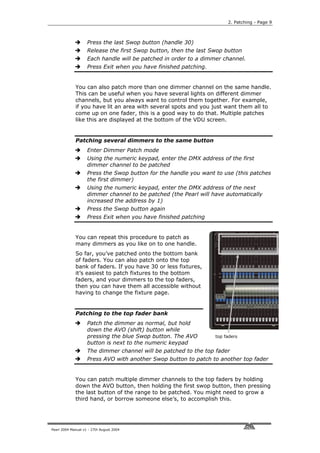
             You can also patch more than one dimmer channel on the same handle.
             This can be useful when you have several lights on different dimmer
             channels, but you always want to control them together. For example,
             if you have lit an area with several spots and you just want them all to
             come up on one fader, this is a good way to do that. Multiple patches
             like this are displayed at the bottom of the VDU screen.


             Patching several dimmers to the same button
                    Enter Dimmer Patch mode
                    Using the numeric keypad, enter the DMX address of the first
                    dimmer channel to be patched
                    Press the Swop button for the handle you want to use (this patches
                    the first dimmer)
                    Using the numeric keypad, enter the DMX address of the next
                    dimmer channel to be patched (the Pearl will have automatically
                    increased the address by 1)
                    Press the Swop button again
                    Press Exit when you have finished patching


             You can repeat this procedure to patch as
             many dimmers as you like on to one handle.
             So far, you’ve patched onto the bottom bank
             of faders. You can also patch onto the top
             bank of faders. If you have 30 or less fixtures,
             it’s easiest to patch fixtures to the bottom
             faders, and your dimmers to the top faders,
             then you can have them all accessible without
             having to change the fixture page.


             Patching to the top fader bank
                    Patch the dimmer as normal, but hold
                    down the AVO (shift) button while
                    pressing the blue Swop button. The AVO        top faders
                    button is next to the numeric keypad
                    The dimmer channel will be patched to the top fader
                    Press AVO with another Swop button to patch to another top fader


             You can patch multiple dimmer channels to the top faders by holding
             down the AVO button, then holding the first swop button, then pressing
             the last button of the range to be patched. You might need to grow a
             third hand, or borrow someone else’s, to accomplish this.


Pearl 2004 Manual v1 - 27th August 2004
Page 10 - 2. Patching


              While you are in
              Patch mode, the
              VDU screen shows a
              DMX channel grid to
              tell you which
              channels you have
              patched so far and
              which are free.
              Dimmers and
              fixtures are
              identified by
              different letters,
              dimmers are always
              “a”.
              You can also display the patch on the LCD screen by pressing View (on
              the numeric keypad) then C [DMX patch] (shows which handle each
              DMX channel is allocated to) or D [Fixture patch], which shows a list in
              handle order.

2.3           Patching moving light fixtures
              Moving light fixtures are controlled slightly differently to dimmers; a
              dimmer only has one controllable attribute, intensity. But a moving
              light fixture can have many attributes, such as pan, tilt, colour, gobo
              etc. When you patch a fixture, you will see on the VDU screen that it
              occupies a block of DMX channels rather than just one. However, the
              principle is still the same.
              The Pearl has personality files for most lighting fixtures in the known
              universe, and these are stored internally in the console. If you want to
              use a personality not available in the console, you can load it from a
              personality disk, a wide range of which can be downloaded from the
              Avolites website. See section 12 in the reference manual for details of
              how to download personalities.
              Note:        To use the internal personality files, make sure there is no disk
                           in the disk drive.

              Patching a fixture
                     Make sure there is no disk in the disk drive
                     Press Patch
                     Press B [Choose a fixture]
                     The display will show “Please select an instrument” on the top line.
                     A list of known fixtures will appear next to the softkeys after a
                     pause.
                     Use Softkeys F and G to go up and down the list and find the
                     correct fixture, then press the Softkey next to the fixture to select
                     it.
                     The Pearl will load the fixture information (this may take a few
                     seconds). The display shows information about the fixture.
                     The Pearl will ask “Use preset palettes?”.
                     Press A [Yes]. (This is explained later)
                     The Pearl will offer you the first free DMX address (on the top line
                     of the display). You can change this using the numeric keypad if
                     you want the fixture at a different address.


 Pearl 2004 Manual v1 - 27th August 2004
2. Patching - Page 11


                    Press the Swop button on handle 11 to patch the fixture you have
                    selected to handle 11.
                    The display will show the block of channels occupied by the fixture.
                    Patch more fixtures, or press Exit when you have finished.


             You can continue to patch this type of fixture at the next free DMX
             address by pressing the next Swop button you want to use. You can
             also patch a range of fixtures by holding down the first button in the
             range and pressing the last button, as with dimmers.
             You can patch fixtures to the top faders by holding down the AVO
             button, but if you do this you will need to hold down the AVO button to
             select them when programming as well, so it’s easiest to only patch
             dimmers to the top faders as you can control dimmers just with the
             fader.
             If you want to patch a different type of fixture, you can change the type
             of fixture to be patched very easily.

             To change the fixture type
                    Press A [Select another fixture]
                    Choose the fixture type from the list on the softkeys
                    Patch as before


             Note:        The “preset palettes” contain 9 position, 10 colour and 10 gobo
                          settings. You can call back these settings instantly from the
                          palette buttons when you are programming. This allows you to
                          select, for example, “Yellow” or “Blue” instead of setting up the
                          value using the wheels. You can only load the preset palettes
                          during patching.
             The Pearl has four physical DMX output lines, identified as A, B, C, D.
             You can patch onto any of the four lines using E [Select a DMX line].
             However, to keep it simple, stick to line A while you are learning.

2.4          Labelling the console
             It’s a good idea to stick a strip of tape above the handle Swop buttons,
             and write on it what is patched on each handle, such as “Mac SL”, “Mac
             Centre” etc. This will help you greatly when programming as you try
             and remember where you patched everything.

2.5          Addressing lights to match the Pearl
             When you are patching, it’s easiest to let the Pearl allocate all the DMX
             addresses, then go round to the actual dimmers and fixtures and set
             the addresses to match the Pearl’s settings. This makes sure that there
             are no overlaps or gaps in the DMX addresses.
             You can also work out the DMX map yourself and tell the Pearl what
             DMX channels to use while you’re patching, but then you need to make
             sure yourself that nothing overlaps.
             The Pearl can tell you the DMX address it is using for each fixture, and
             in some cases can show you how to set the dip switches on the fixture.
             Write down the addresses for all the fixtures, then go and set them.


Pearl 2004 Manual v1 - 27th August 2004
Page 12 - 2. Patching


              Displaying the DMX address for fixtures
                     Press the View button (next to the
                     numeric keys)
                     Press D [Fixture Patch]
                     The display will show a list of the
                     handles to which you have patched
                     fixtures or dimmers, with the DMX line
                     and address (e.g. A24 is address 24 on
                     DMX line A).
                     One handle on the list has an arrow next
                     to it. In the lower part of the screen,
                     more information is shown for this
                     fixture.
                     Use the Arrow keys to move the arrow
                     up and down the list, and show
                     information for the other fixtures in the
                     list.
                     You can also press View then C [DMX Patch] to display a list of
                     DMX channels and which fixture is patched at that address.


2.6           Changing what you have done
              If you need to change the patching you have done, it’s possible to re-
              patch a fixture to a different DMX address using the Repatch Fixtures
              softkey. You can also move a fixture onto a different handle, and delete
              a fixture from a handle, but this loses any programming for the fixture.
              How to change the patching is described in detail in section 2 of the
              reference manual on page 120.

2.7           Patch Utilities
              You can invert the operation of channels and set various other fixture-
              specific options using the Patch Utilities softkey. Inverting pan and tilt
              channels can be useful to mirror fixtures on opposite sides of the stage,
              or to correct for hanging a fixture the wrong way round. Section 2 of
              the reference manual on page 121 describes how to set these options.

2.8           Completing the patch
              When you have patched all your dimmers and fixtures, press the Exit
              button on the numeric keypad to go back to normal mode. You have
              now completed the setting up of the lighting system, and it’s time to
              get to work on programming a show. But there’s one important thing to
              do first…

2.9           Saving the contents of the Pearl to disk
              The Pearl has a built in floppy disk drive which allows you to save
              everything you have done. You should get into the habit of saving your
              show regularly to guard against that unexpected moment when the
              worst happens.


 Pearl 2004 Manual v1 - 27th August 2004
2. Patching - Page 13


             The disk drive is in the front left hand corner of the console, beneath
             the master faders. If you’re using the
             console in its flightcase, you might need to
             lift it slightly to access the disk drive.
             It only takes a minute or so to save the
             contents of the Pearl to disk. You can then
             reload it if you mess up the show by
             accidentally changing something, or if some
             helpful person steals the Pearl you can load
             your programming into a replacement
                                                                        Disk button
             console and the show can go on.


             Backing up the Pearl to disk
                    Press the Disk button in the bottom right hand corner of the Pearl
                    Insert a blank formatted 1.44MB disk into the disk drive (anything
                    on the disk will be wiped).
                    Select B [Save show to disk].
                    The Pearl will ask for a filename for the show. Type this on the
                    QWERTY keyboard then press Enter. If you don’t have a keyboard
                    connected you can just accept the default showname by pressing
                    Enter.
                    The Pearl will ask if you want to make the show compatible with
                    Sep 2000 software. Press B [No].
                    The Pearl will save your current show onto the disk. The display will
                    tell you when the Pearl has finished.
                    The Pearl will not respond to any buttons or sliders while saving or
                    loading a show. The DMX output will be frozen in its last state.
                    If you need to reload the show, press Disk then A [Load show from
                    disk].


2.10         Examples
             How do I patch a 6 channel DMX dimmer pack to faders 31-36?
             Press Patch, then A [Dimmer]. Note the DMX address where the Pearl is
             going to patch (on the top line of the display). Hold down the AVO
             button. Press the blue Swop buttons for channels 1, 2, 3, 4, 5 and 6.
             Let go of the AVO button. Because you were holding down AVO, the
             dimmers are patched to the top set of faders, 31-36. Press Exit twice to
             leave Patch mode. Finally set your dimmer pack’s DMX address to
             match the Pearl (if you are not sure of the address, press View then D
             [Fixture patch], then use the Down Arrow button to scroll to show
             Handle 31; the display shows the DMX address where the handle is
             patched).
             How do I patch a Mac600 to handle 10?
             Press Patch, then B [Choose a fixture]. (Ensure there is no disk in the
             disk drive). Press F [More] until one of the softkey options is
             MMac600m4. Press the softkey for that option. Wait for the Pearl to


Pearl 2004 Manual v1 - 27th August 2004
Page 14 - 2. Patching


              load the personality. When the Pearl asks “Use preset palettes?” press
              A [Yes]. Note the DMX address where the Pearl is going to patch (on
              the top line of the display). Press Swop button 10 to patch the fixture.
              Press Exit twice to leave Patch mode. Finally set the Mac 600’s DMX
              address to match the Pearl (we have used the Mode 4 personality so it
              will also need to be in Mode 4).


 Pearl 2004 Manual v1 - 27th August 2004
3. Controlling dimmers and fixtures - Page 15


C H A P T E R             T H R E E

3.       Controlling dimmers and fixtures
             In this chapter: how to control dimmers and fixtures manually.
             •    controlling fixtures and dimmers
             •    changing attributes
             •    using and creating groups
             •    align and fan functions
             •    viewing the console output


             Having patched all the dimmers and fixtures you want to use, you are
             ready to start operating them. This chapter explains how you do this.
             To manually control fixtures and dimmers, you need to be in Program
             mode, so ensure the key is set to Program. There’s also a special Run
             mode which lets you “take over” fixtures during a show, which is
             described later.

3.1          Controlling dimmer channels
             Controlling dimmer channels is simple – you just push up the fader of
             the handle where the dimmer is patched. Dimmers work just like a
             normal “preset” lighting desk on the Pearl. If you want to turn on lots of
             dimmer channels at the same time, you can also “select” the dimmers
             and use the Dimmer attribute button and control wheels as described
             below.

3.2          Controlling fixtures
             Controlling fixtures is nearly as simple, except there are a few more
             functions to control than just intensity.
             The first thing you have to do is to “select” the fixtures that you want
             to control. The Pearl then knows that any changes you make are only
             to be sent to these fixtures. You can select fixtures individually, or
             several at once.

             Selecting fixtures or dimmers
                    Press the Swop buttons for the fixtures you want to control. (For
                    dimmers and fixtures on the top bank of faders, hold down the AVO
                    button and press the Swop buttons below the faders you want)
                    The Swop button LEDs will light for the fixtures which are selected.
                    They are shown in dark blue on the VDU screen.
                    If you select a fixture you don't want, press its Swop button again
                    to deselect it.
                    You can select a range of fixtures by holding down the Swop button
                    for the first fixture in the range, then pressing the Swop button for
                    the last fixture.
                    Press the ML Menu button then A [Locate Fixture] to position the
                    selected fixtures at a central position with the light on, so you can
                    see where they are. Dimmer channels are set to 100%.


             You can change the fixture page, if you need to, by pressing one of the
             other Fixture Page buttons.


Pearl 2004 Manual v1 - 27th August 2004
Page 16 - 3. Controlling dimmers and fixtures


              You can select dimmers or fixtures patched to the top faders by holding
              down the AVO button and pressing the Swop button for the fader
              below.

3.3           Changing attributes of fixtures
              Having selected the fixtures you want to control, you
              then need to select the attributes (pan, tilt, colour
              etc.) of that fixture that you want to change.
              The attributes are selected using the buttons on the
              lower right corner of the Pearl and controlled using
              the wheels. The attributes you can control will vary
              depending on the type of fixture you are using. For
              dimmer channels, you can only change the “Dimmer”
              attribute (intensity). For scans, you can control the
              pan, tilt, colour, gobo and other functions.

              Controlling pan and tilt of a fixture
                     Select some fixtures using the Swop buttons
                     Use the Locate Fixture function (press ML Menu
                     then Softkey A) to position the fixtures at a
                     central position with the lamp on (you don’t have
                     to do this, but it helps you see what’s happening)
                     Press the Pan/Tilt attribute button
                                                                          Attribute buttons
                     Control the tilt using the left hand wheel and the
                     pan using the right hand wheel. You should see the selected
                     fixtures move.
                     The display area just above the wheels
                     shows you which attribute is being
                     controlled by each wheel.


              Any other attribute of the fixtures you selected can be controlled by
              pressing the appropriate button and turning the wheels. The display will
              show which functions the left and right wheels are going to control.
              Very few fixture types have the full range of attributes; if the display
              doesn’t show a function when you select an attribute button, that
              function is not available on the fixtures you selected.
              You can view the attribute settings on the LCD screen by pressing the
              View button then B [Fixture Attributes]. You can change which attribute
              you are viewing by pressing a different Attribute button.
              If the fixture personality supports range tables and Intelligent Attribute
              Display is turned on (Hold AVO and press 1) then for some attributes,
              rather than showing a percentage value above the wheels, the current
              colour or gobo name will be displayed. This only happens on some
              fixtures.
              You can use the Dimmer attribute to control the intensity channel of the
              fixture, or you can use the fader of the handle. The effect is the same.
              Note: Once you have changed any attributes, all the fixtures will be
                     automatically deselected the next time you press a fixture
                     select button.


 Pearl 2004 Manual v1 - 27th August 2004
3. Controlling dimmers and fixtures - Page 17


3.4          Using groups
             If you’ve got several units of one fixture type, you often want to select
             them all at the same time. To avoid lots of swop-button-pressing, the
             Pearl allows you to put fixtures or dimmer channels into groups, which
             you can then use to select all the fixtures just by typing the group
             number. If you are using the graphics tablet you just press one button
             on the tablet and all the fixtures in the group are magically selected.

             Making a group
                    Select the fixtures or dimmer channels you want to put into the
                    group
                    Press the ML Menu button, then E [Record Group].
                    Type the group number 1-200 on the numeric keypad and press
                    Enter.


             Once you have created a group, you can then quickly select all the
             fixtures in the group:

             Selecting a group of fixtures
                    Type the group number on the keypad
                    Press A [Recall Group].
                    The fixtures in the group are selected, all other fixtures are
                    deselected.


             If you are using the graphics tablet, you can save and recall groups
             with one touch of the pen. This is described in more detail in the
             Graphics Tablet chapter.

3.5          Copying settings from other fixtures – Align
             If you’ve set a nice colour on one of your fixtures, and you want to
             copy it to all the other fixtures of the same type, the Pearl’s Align
             function can do that. You can also use it to make all pan and tilt
             positions the same for a range of units or to make dimmer levels the
             same.

             Copying settings from other fixtures
                    Press an attribute button to select the attribute you want to copy
                    Select the fixture or dimmer channel you want to copy from
                    Select the fixtures or dimmer channels you want to copy to
                    Press the ML Menu button, then D [Align <attribute name>]”.
                    Or you can press C [Align Fixtures], to align all attributes.


3.6          Fan mode
             Fan mode automatically spreads out a selected range of fixtures to
             produce a fan of light beams, like rays of sunlight. The first and last
             fixtures of the range are affected most, and the central fixtures are
             affected least. The amount of fan can be set using the wheels.


Pearl 2004 Manual v1 - 27th August 2004
Page 18 - 3. Controlling dimmers and fixtures


              Note: The order in which you select the fixtures sets how the fan effect
                     works. The fixtures you select first and last will be the ones
                     which change most.
              The fan effect, while normally used on pan or tilt attributes, can be
              applied to any attribute.

              Fanning out a range of fixtures
                     Select the range of fixtures you want to fan
                     Select the attribute to fan (pan, tilt, colour etc)
                     Press the Fan button (one of the blue command buttons)
                     Set the amount of fan using the wheels
                     The display shows which attribute is being controlled by each wheel
                     Press the Fan button again to exit Fan mode when you’ve finished


              You will be able to see the effect of fan mode best if you have a row of
              at least 4 fixtures. If you have an odd number of fixtures, the central
              fixture will not move in fan mode.
              Remember to turn off Fan mode when you have finished (by pressing
              the Fan button again), or you will get confused when the controls don’t
              do what you expect.


3.7           Examples
              How do I fade up the dimmer on handles 31-36?
              Just push up the faders 31-36 (make sure the Grand Master and A/B
              Master faders are up)
              How do I make the mac 600 on handle 10 go blue and point at
              the cyclorama?
              Select the fixture by pressing Swop button 10. Press ML Menu then A
              [Locate fixture] to turn on the mac600 and centre it. Press the
              “Cyan/Magenta” attribute button. Turn the A wheel anticlockwise to
              make the amount of Cyan change (you can turn B wheel anticlockwise
              to make the Magenta change which will give a darker blue). Press the
              “Tilt-Pan” attribute button. Turn the A and B wheels (the mac600
              should move) until it points in the direction you want.


 Pearl 2004 Manual v1 - 27th August 2004
4. Palettes - Page 19


C H A P T E R             F O U R

4.       Palettes
            In this chapter: how to use palettes to set colours, gobos and positions.
            • Using palettes to set values
            • Creating your own palettes
            • Setting which attributes are recorded in a palette
            • Shared and individual palettes


             When you are controlling your lighting, it would be nice to instantly call
             back a position such as centre stage, or a particular colour like red,
             blue etc, rather than having to set the value on the wheels every time.
             The Pearl has pages of preset values, called “palettes”, which allow you
             to do this. The Pearl loads 10 colours, 10 gobos and 10 pre-
             programmed positions when you patch a fixture (unless you tell it not
             to when it asks “Use preset palettes?”). You can use these palettes as
             they are, modify them to your own settings, or save new settings.
             Palettes have another big advantage. If for example you program a
             “centre stage spot” position as a palette, when you use this position in
             memories the Pearl remembers the palette you used, rather than the
             actual value. This means that if you move to another venue, you can
             just reprogram the “centre stage spot” palette entry and every memory
             using that position will automatically be updated. If you’d programmed
             all your memories directly using the wheels, you would need to go
             through and reposition every memory.
             Palettes are also useful when you are programming using Visualiser and
             you don’t know exactly where the lights will point; you can program
             your memories using palette positions, then you just update a few
             palettes when you get the real lights in the real venue and the show
             programming is done.


4.1          Using palettes to set values
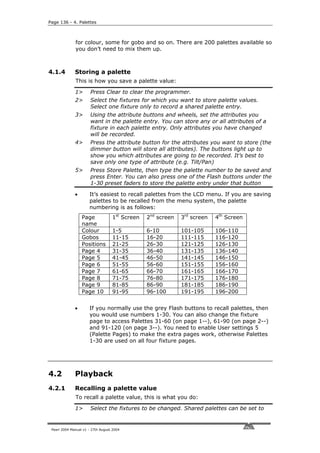
             The easiest way to use a palette value is by the menu on the LCD
             screen. We’ll use the preset palettes which the Pearl loaded when you
             patched the fixtures to set some fixtures to Red.

             Using palettes
                    Select the fixtures you want to control by
                    pressing their Swop buttons
                    Press the Focus button above the
                    numeric keypad
                    Select the page of palettes you want to
                    use by pressing one of the A-F softkeys
                    (such as [Colour])
                    Press one of the A-E softkeys to use one
                    of the palette values (such as [Red]). The
                    value will be set to all the fixtures which
                    are selected. The lights should turn red.
                    To go back to the list of palette pages,
                    press G [Pages].


Pearl 2004 Manual v1 - 27th August 2004
Page 20 - 4. Palettes


                     Press Exit when you have finished with palettes, as other functions
                     don’t work while in Palette Select mode


              You can also apply palettes 1-30 by pressing the grey Palette/Flash
              buttons below the preset faders. While you hold the button, the top line
              of the display shows the legend for the attribute (White, Green etc).
              When you release the button, the palette is applied. If you decide you
              don’t want to apply the palette, press the Focus button before you
              release the grey Flash button.

4.2           Creating your own palettes
              You can easily save your own palettes, or modify existing ones. We’ll
              create a position palette.

              Storing your own palette
                     Press Clear (next to the numeric keys) to clear all the changes you
                     have made so far
                     Select a couple of fixtures and press ML menu then A [Locate
                     fixture]
                     Press the “Tilt-Pan” attribute button.
                     Position the fixtures using the wheels.
                     Press the Store Palette button (one of the blue Command buttons)
                     Type “21” (the palette number to be stored) on the keypad and
                     press Enter. The position of the fixtures is stored as a palette


              You can also store a palette by pressing one of the grey Palette/Flash
              buttons below the presets. If you had pressed the grey button for
              preset 21, that would have been the same as what we did above.

4.3           What’s stored in a palette
              Although you can store all attributes of a fixture in a single palette, it’s
              easiest to store some palettes which only affect colour, others which
              only affect position, and so on. This means when you recall a palette
              entry, you know which attributes of the fixture are going to change.
              You do this using the Attribute buttons when saving the palette. In the
              example above, we had the “Tilt-Pan” attribute selected when storing
              the palette, so only the Tilt & Pan values were recorded.

              Setting which attributes will be recorded in the palette
                     Press Clear to clear all the changes you have made so far
                     Select a couple of fixtures and press ML menu then A [Locate
                     fixture]
                     Set a colour using the “colour” attribute button and wheels.
                     Position the fixtures using the “tilt-pan” attribute button and
                     wheels.
                     Press the Store Palette button
                     Press the Colour attribute button. The Colour button & the
                     Yellow/Cyan/Magenta buttons will light, showing that these
                     attributes will be recorded.


 Pearl 2004 Manual v1 - 27th August 2004
4. Palettes - Page 21


                    Type “101” on the keypad and press Enter to store the colour.
                    Press Store Palette again.
                    Press the Tilt-Pan attribute button.
                    Type “22” on the keypad and press Enter to store the position.


             If you press the “Dimmer” attribute button before storing, this will store
             in the palette all the attributes which you have changed. The lights on
             the attribute buttons come on to show you what will be stored.
             There are ways of extracting only, say, colour information from palettes
             which have other attributes as well, which are described in the
             reference manual.

4.4          Shared and individual palettes
             For some attributes, such as colour, you want to set the same control
             values to all the fixtures of the same type. So if you pick Red, you want
             the control value for “Red” to go to all fixtures.
             For other attributes, like position, each fixture needs a different setting
             to get the light beams to point where you want.
             If you only select one fixture when creating a palette, that palette is
             known as a “shared” palette, and the value will be available to all
             fixtures of that type. So to create a shared palette, you press Clear
             then select and modify only one fixture.
             If you change more than one fixture, the Pearl creates an “individual”
             palette which stores a different value for each fixture. This is normally
             used for positioning palettes, and sometimes for image focusing. You
             can add positions for more fixtures to an individual palette just by
             saving the palette again with the new fixtures set.


             Note:        The Pearl may sometimes call palettes “focuses” or “preset
                          focuses”. This is the term previously used for a palette on
                          Avolites consoles. The meaning is the same.

4.5          Examples
             How do I make the Mac600 on handle 10 go Red using a
             palette?
             Press the handle 10 Swop button to select the fixture. Press ML Menu
             then A [Locate Fixture] to turn it on so you can see what’s happening.
             Press Focus then A [Color] (If softkey G option is [Pages] then press
             that to show the list of palette pages). Press B [Red]. The fixture should
             change to Red. Press Exit once you’ve finished applying palettes.
             How do I store a palette which makes my Mac 600’s point at the
             cyclorama?
             Press Clear to clear any changes. Press the swop buttons for the Mac
             fixtures. Press ML menu then A [Locate fixture] to turn them on. Press
             the Tilt/Pan attribute button. Press the “ ” button. The first fixture will
             be selected. Use the wheels to point the fixture where you want. Press
             the “ ” button again and point the next fixture. When all fixtures are
             positioned, press Store Palette and type 21 on the keypad, then press
             Enter. The position only (because the Tilt/Pan button was selected) will


Pearl 2004 Manual v1 - 27th August 2004
Page 22 - 4. Palettes


              be stored in palette 21.


 Pearl 2004 Manual v1 - 27th August 2004
4. Palettes - Page 23


Pearl 2004 Manual v1 - 27th August 2004
Page 24 - 5. Shapes


C H A P T E R              F I V E

5.        Shapes
          In   this chapter: how to use the shape generator
          •     selecting a shape
          •     positioning
          •     setting size and speed
          •     coarse and fine spread


               The Pearl, in common with other Avolites consoles, has a shape
               generator (sometimes known as an Effects Generator on other
               consoles). This allows you to quickly create exciting light shows using
               lots of movement and changes, with the minimum of programming.
               There are a large number of pre-programmed shapes available, which
               can be used on the fixture’s position, colour, gobo, dimmer, iris, focus
               and more. You can control the size, speed and positioning of the shape,
               and how the shape is allocated across a range of fixtures.
               To understand how shapes work and how they can be spread across
               multiple fixtures, it’s best to set up at least four fixtures next to each
               other. Once you have mastered the basics, you can try some more
               interesting arrangements.

5.1            How shapes work
               A shape is a pre-programmed movement sequence which usually
               repeats over and over again. Typical shapes are circles, spirals,
               squares, etc. There are also random shapes, which do not repeat. A
               circle shape, for example, would cause the beam of the fixture to move
               in a circular path on the stage.
               When you apply a shape, it works on the current settings of the fixture.
               So if you apply a circle to the pan and tilt attributes of a fixture, the
               centre of the circle will be at the current pan and tilt position. You can
               change the size of the circle, and the speed of the circle. By moving the
               pan and tilt position of the fixture, you can move the whole shape
               around the stage.
               Shapes can be applied to other attributes of a fixture, not just pan and
               tilt. You can use them to create colour changes, gobo changes, iris
               changes and a variety of other attributes. Each shape is designed to
               modify one particular attribute.

5.2            Selecting a shape
               Selecting a shape is very similar to selecting a value from a palette.
               When you choose a shape, it will be applied to all selected fixtures.

               Selecting a shape
                     Select the fixtures you want to apply the shape to by pressing the
                     Swop buttons (you’ll need at least 4 fixtures to see the effects
                     properly)
                     Use Locate Fixtures (Press ML Menu then Softkey A) to turn on the
                     fixtures and move them to a central position


 Pearl 2004 Manual v1 - 27th August 2004
5. Shapes - Page 25


                    Enter the Shape Generator menu by pressing Softkey G (from the
                    main menu).
                    Press A [Playback a shape]
                    Press A [Circle 1] to select a circle shape
                    The shape will be applied to all selected
                    fixtures.


             There are a wide range of different shapes
             available in the list, use Softkeys F and G to
             look through the different pages. “Rainbow”
             shapes only work on fixtures capable of
             colour mixing, and there are other shapes
             such as Iris and Focus which will only work if
             your fixtures have those functions.
             The best way to find out what all the shapes
             are like is to try them out. Sometimes it’s
             hard to describe the effect in the few letters which fit on the display.

5.3          Changing the size and speed of a shape
             It is easy to change the size and speed of a shape after it has first been
             selected.

             Changing the size and speed of a shape
                    If you aren’t already in it, enter the Shape Generator menu by
                    pressing G [Shape Generator].
                    Press D [Set wheels A=Size B=Speed]
                    Control the size of the shape using the left hand wheel
                    Control the speed of the shape using the right hand wheel
                    The size and speed is shown above the wheels on the display.


             The minimum size is zero. Obviously, you won’t see the shape, and the
             fixture will resume its previous settings. The minimum speed is Stop.
             Again, you will not see the shape moving, though it will offset the
             positioning of the fixture.

5.4          Changing the positioning of a shape
             Pan/tilt shapes are based on the current settings of the fixture. This
             means that the movements will be centred around the current position
             of the fixture.

             Changing the positioning of a shape
                    Select the fixtures you want to change
                    Set the wheels to Size/Speed and reduce the shape size to 0 (it’s
                    difficult to see the position when everything is moving)
                    Press the Pan/Tilt attribute button
                    Set the position using the wheels.
                    Set the wheels back to Size/Speed and change the size of the
                    shape back to where you want it.


Pearl 2004 Manual v1 - 27th August 2004
Page 26 - 5. Shapes


              Shapes on other attributes such as colour, gobo, focus, dimmer and iris
              are absolute and are not affected by the current attribute setting,
              unless the shape description includes “User” or “Usr”. User shapes are
              relative and are centred around the fixture’s current settings.

5.5           How a shape works across multiple fixtures
              Shapes get more interesting (and look more impressive) when you
              apply them to multiple fixtures. The Pearl lets you set how a shape is
              spread across several fixtures.
              In the case of a circle, this can vary from all fixtures moving identically
              (a spread of None), fixtures working in pairs (a spread of 1) through to
              all fixtures being distributed evenly through the shape, so the first
              fixture is just starting the shape as the last one finishes (an Even
              spread). This is the same as the number of fixtures, so if you have 4
              fixtures doing the shape, a spread of 4 would be the same as an Even
              spread.
              You can also set the Fine Spread value, which introduces a slight offset
              into the timing of the shape across each fixture.

              Changing the spread of a shape
                     In the Shape Generator menu, press C [Set wheels to Spread]
                     Set the coarse spread using the right hand wheel. The minimum is
                     Even (the shape spread evenly across the fixtures), then Zero (all
                     the same), then 1, 2, etc.
                     Set the fine spread using the left hand wheel.


              To start with, keep the Fine Spread set to zero, and work with the
              Coarse Spread setting, or everything will get confusing.
              Note: The order in which you select the fixtures determines how the
                     shapes are applied; the “first” fixture is the one you select first
                     and the “last” fixture is the one you select last.


5.6           Examples
              How do I make my Mac600’s wave around in a trendy manner?
              Select the Mac600’s by pressing the swop buttons. Press ML menu then
              A [Locate Fixture] to light them up. Press G [Shape Generator]. Press A
              [Playback a shape]. Press A again [Circle 1]. The fixtures will move.
              Press D [Set wheels A=Size B=Speed] and use the wheels to set the
              speed of movement and the size of the movement.
              How do I make my Mac600’s change colour in a rainbow?
              Select the Mac600’s by pressing the swop buttons. Press ML menu then
              A [Locate Fixture] to light them up. Press G [Shape Generator]. Press A
              [Playback a shape]. Press D [Rainbow Spread]. The fixtures will change
              in rainbow colours. Press Softkey D and use the wheels to set the speed
              of changes and the number of colours used (the size of the shape).
              Note: Rainbow shapes only work with fixtures capable of RGB colour
              mixing.


 Pearl 2004 Manual v1 - 27th August 2004
5. Shapes - Page 27


Pearl 2004 Manual v1 - 27th August 2004
Page 28 - 6. Memories


C H A P T E R              S I X

6.        Memories
          In   this chapter: how to record memories into the playback faders
          •     explanation of HTP and LTP channels
          •     how the Pearl works when programming
          •     recording and playing back memories
          •     playback pages
          •     flash button modes
          •     naming memories
          •     setting fade times for memories
          •     copying and clearing memories
          •     the include function
          •     editing memories
          •     record by fixture or by channel


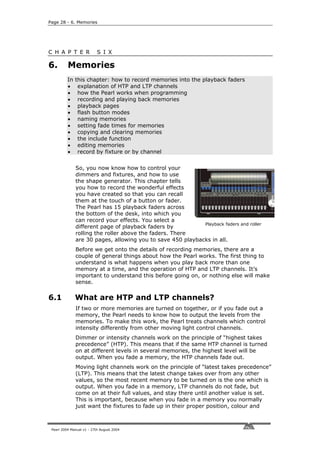
               So, you now know how to control your
               dimmers and fixtures, and how to use
               the shape generator. This chapter tells
               you how to record the wonderful effects
               you have created so that you can recall
               them at the touch of a button or fader.
               The Pearl has 15 playback faders across
               the bottom of the desk, into which you
               can record your effects. You select a
                                                             Playback faders and roller
               different page of playback faders by
               rolling the roller above the faders. There
               are 30 pages, allowing you to save 450 playbacks in all.
               Before we get onto the details of recording memories, there are a
               couple of general things about how the Pearl works. The first thing to
               understand is what happens when you play back more than one
               memory at a time, and the operation of HTP and LTP channels. It’s
               important to understand this before going on, or nothing else will make
               sense.

6.1            What are HTP and LTP channels?
               If two or more memories are turned on together, or if you fade out a
               memory, the Pearl needs to know how to output the levels from the
               memories. To make this work, the Pearl treats channels which control
               intensity differently from other moving light control channels.
               Dimmer or intensity channels work on the principle of “highest takes
               precedence” (HTP). This means that if the same HTP channel is turned
               on at different levels in several memories, the highest level will be
               output. When you fade a memory, the HTP channels fade out.
               Moving light channels work on the principle of “latest takes precedence”
               (LTP). This means that the latest change takes over from any other
               values, so the most recent memory to be turned on is the one which is
               output. When you fade in a memory, LTP channels do not fade, but
               come on at their full values, and stay there until another value is set.
               This is important, because when you fade in a memory you normally
               just want the fixtures to fade up in their proper position, colour and


 Pearl 2004 Manual v1 - 27th August 2004
6. Memories - Page 29


             gobo, you don’t want the fixtures moving and changing colour (though
             you can do this if you need to).
             The fixture personality file tells the Pearl which channels of a fixture are
             HTP and which are LTP. Normally, only dimmer attributes are HTP, and
             everything else is LTP.

6.2          How the Pearl works when programming
             When you start setting dimmers and moving fixtures, the Pearl
             remembers what you have changed. Fixtures and dimmers you have
             changed are stored in “the programmer” which is a special area of
             memory. When you record a memory, only the settings in the
             programmer (i.e. the things you have changed) are stored in the
             memory.
             When you press Clear (by the numeric keypad), all fixtures are cleared
             from the programmer. You should get into the habit of pressing Clear
             before you start to program a memory, or you can end up recording
             fixtures you don’t want. You also need to press Clear when you finish
             programming, because any functions in the programmer will override
             playbacks.
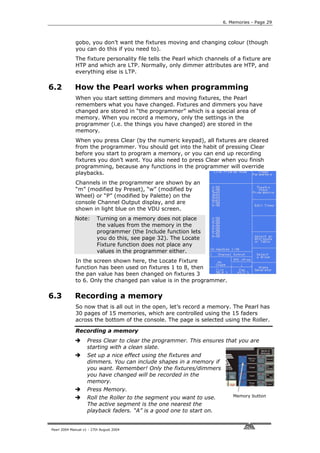
             Channels in the programmer are shown by an
             “m” (modified by Preset), “w” (modified by
             Wheel) or “P” (modified by Palette) on the
             console Channel Output display, and are
             shown in light blue on the VDU screen.
             Note:        Turning on a memory does not place
                          the values from the memory in the
                          programmer (the Include function lets
                          you do this, see page 32). The Locate
                          Fixture function does not place any
                          values in the programmer either.
             In the screen shown here, the Locate Fixture
             function has been used on fixtures 1 to 8, then
             the pan value has been changed on fixtures 3
             to 6. Only the changed pan value is in the programmer.

6.3          Recording a memory
             So now that is all out in the open, let’s record a memory. The Pearl has
             30 pages of 15 memories, which are controlled using the 15 faders
             across the bottom of the console. The page is selected using the Roller.

             Recording a memory
                    Press Clear to clear the programmer. This ensures that you are
                    starting with a clean slate.
                    Set up a nice effect using the fixtures and
                    dimmers. You can include shapes in a memory if
                    you want. Remember! Only the fixtures/dimmers
                    you have changed will be recorded in the
                    memory.
                    Press Memory.
                    Roll the Roller to the segment you want to use.       Memory button
                    The active segment is the one nearest the
                    playback faders. “A” is a good one to start on.


Pearl 2004 Manual v1 - 27th August 2004
Page 30 - 6. Memories


                     Empty playbacks flash.
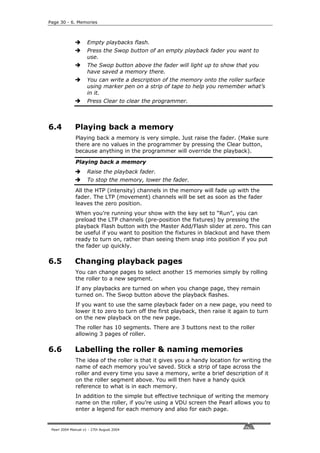
                     Press the Swop button of an empty playback fader you want to
                     use.
                     The Swop button above the fader will light up to show that you
                     have saved a memory there.
                     You can write a description of the memory onto the roller surface
                     using marker pen on a strip of tape to help you remember what’s
                     in it.
                     Press Clear to clear the programmer.


6.4           Playing back a memory
              Playing back a memory is very simple. Just raise the fader. (Make sure
              there are no values in the programmer by pressing the Clear button,
              because anything in the programmer will override the playback).

              Playing back a memory
                     Raise the playback fader.
                     To stop the memory, lower the fader.
              All the HTP (intensity) channels in the memory will fade up with the
              fader. The LTP (movement) channels will be set as soon as the fader
              leaves the zero position.
              When you’re running your show with the key set to “Run”, you can
              preload the LTP channels (pre-position the fixtures) by pressing the
              playback Flash button with the Master Add/Flash slider at zero. This can
              be useful if you want to position the fixtures in blackout and have them
              ready to turn on, rather than seeing them snap into position if you put
              the fader up quickly.

6.5           Changing playback pages
              You can change pages to select another 15 memories simply by rolling
              the roller to a new segment.
              If any playbacks are turned on when you change page, they remain
              turned on. The Swop button above the playback flashes.
              If you want to use the same playback fader on a new page, you need to
              lower it to zero to turn off the first playback, then raise it again to turn
              on the new playback on the new page.
              The roller has 10 segments. There are 3 buttons next to the roller
              allowing 3 pages of roller.

6.6           Labelling the roller & naming memories
              The idea of the roller is that it gives you a handy location for writing the
              name of each memory you’ve saved. Stick a strip of tape across the
              roller and every time you save a memory, write a brief description of it
              on the roller segment above. You will then have a handy quick
              reference to what is in each memory.
              In addition to the simple but effective technique of writing the memory
              name on the roller, if you’re using a VDU screen the Pearl allows you to
              enter a legend for each memory and also for each page.


 Pearl 2004 Manual v1 - 27th August 2004
6. Memories - Page 31


             The legend for each memory is shown at the bottom of the VDU screen,
             so you can see at a glance what is stored in each fader.

             Labelling a memory
                    Hold down the AVO button and press G [Set Legend].
                    Press the Swop button of the playback you want to label.
                    Enter the label using the external QWERTY keyboard. The VDU
                    screen shows you what you are typing.
                    Press Enter to save the label.
                    You can label another memory by pressing another Swop button,
                    or finish by pressing Exit.


             You can also label the playback pages, palette pages and palette entries
             using the other softkeys.
             Note:        If you don’t have a QWERTY keyboard connected, you can enter
                          letters using the Swop and Flash buttons on Preset Faders 1-26.
                          The Swop buttons enter capitals and the Flash buttons enter
                          lower case letters.
                          If you don’t have a VDU screen, there is no point entering
                          memory legends as you need the VDU screen to see them. You
                          can, however, make use of Palette names on the LCD display.


6.7          Copying a memory
             Copying a memory is very fast and simple.

             Copying a memory
                    Hold down the Flash button of the memory you want to copy.
                    Press the Swop button of the playback you want to store it in
                    You can change the Roller page while you are holding down the
                    Flash button, if you want to copy a memory to a different page.
             The new memory will be a linked copy of the old one. If you change a
             memory which is linked, all the other memories linked to it will change
             too.
             You can create a completely separate copy of the memory using the
             “Photocopy” function. Just press the Photocopy button (one of the blue
             command buttons) before you start the copy. If you have named the
             memory, the name will not be copied, indicating that it is a “new”
             memory.

6.8          Deleting a memory
             If you want to clear a memory so you can store something else in it:

             Deleting a memory
                    Press Delete (one of the blue command buttons)
                    Press the Swop button of the playback you want to delete
                    Press the Swop button again to confirm the delete.
             If the memory is linked to other memories, the others will not be


Pearl 2004 Manual v1 - 27th August 2004
Page 32 - 6. Memories


              affected.


6.9           Editing memories
              You can edit any part of a memory you have already saved simply by
              making the changes and saving the new information on top of the
              memory.

              Editing a memory
                     Press Clear to empty the programmer.
                     Turn on the memory you want to edit, so you can see what you are
                     doing.
                     Select the fixtures you want to change, and make the changes.
                     Press Memory.
                     Press the playback swop button for the memory you are editing to
                     save the changes.
                     The Pearl will warn you “A memory already exists on playback!”
                     Press A [Merge memory].
              The changes you have made are saved into the memory. None of the
              other information in the memory is affected.
              If you want to replace the memory with a new memory, you can use B
              [Replace memory].
              If you need to remove fixtures or individual attributes of fixtures from
              the memory, you can use the “Off” function to do this. The “Off”
              function is described in the reference manual.


6.10          The Include function
              Sometimes it’s useful to be able to re-use some aspects of a memory
              you have already created in another memory. If you’ve created a really
              nice pattern of criss-crossing light beams, for example, you might want
              to use it again in another memory with different gobos and colours.
              Normally when you play back a memory, the information is not loaded
              into the programmer, so you can’t simply turn on a memory, modify it
              and save it to a new memory. The Include function lets you reload a
              memory back into the programmer. You can then use it in a new
              memory.
              The Include function loads selected attributes of selected fixtures into
              the programmer. So, for example, if you have a memory which
              contains position, colour and gobo information for 8 fixtures, you can
              use the Include function to load only the colour information for 4 of the
              fixtures into the programmer. You could then “include” position
              information from another memory into the programmer, and build up a
              new memory using information from several existing memories.

              Using Include
                     Press the Include button.
                     Select the fixtures from which you want to
                     take settings. If you don’t select any
                     fixtures, all fixtures will be used.
                     Select the Attributes you want to include.


 Pearl 2004 Manual v1 - 27th August 2004

                                                                          Include button
6. Memories - Page 33


                    The Dimmer attribute will include all other attributes (the lights on
                    the buttons show which attributes will be loaded).
                    Press the Swop button for the memory you want to include.
                    The selected attributes of the selected fixtures will be loaded into
                    the programmer.
             You can Include an entire memory by ensuring no fixtures are selected
             and selecting the Dimmer attribute.
             If the memory you are including contains shapes, the shapes and all
             the fixtures they are applied to will be loaded, whether they are
             selected or not.
             Include is also useful when you are programming chases, which is
             described in the next section.

6.11         Setting fade times for a memory
             You can set a fade in and fade out time independently for every
             memory. The fades only affect HTP (intensity) channels, and are set
             using softkey C for fade in and D for fade out. There is also a separate
             LTP timer which allows you to set movement times for fancy sweeps or
             colour fades, set using softkey E.

             Setting fade times for a memory
                    Press C [Edit Time].
                    Press the Swop button of the playback you want to set times for
                    The display shows you the times you can set.
                    Press C to set Fade In time, or D to set Fade Out time.
                    Use the numeric keypad to enter the new time. Press Enter to save
                    it.
                    Press Enter when you have finished. If you press Exit, the changes
                    you have made will not be stored.


             There are some other timing functions available as well, which are
             described in the reference manual.

6.12             Record by fixture, record by channel modes
             Normally, if you change one attribute of a fixture, the Pearl records all
             the other attributes of that fixture even if you haven’t changed those
             attributes. So if you change the pan position, the Pearl will also record
             the tilt, colour, gobo, iris, and so on. However, the Pearl also has a
             more selective mode of operation where it only records the changed
             attributes. You can choose the mode by holding down the Avo button
             and pressing Softkey C. The display shows the current setting of the
             option.
             •       Record by fixture: This is the normal mode of the Pearl. It
                     means that when you record a memory, all attributes of every
                     fixture that you have changed are recorded in the memory. So if
                     you change only the position of a fixture, the colour, gobo,
                     intensity and all other attributes of that fixture are recorded as
                     well. This is useful because you know that when you recall the
                     memory, it will look exactly as it did when you saved it. However,
                     it can be slightly inflexible if you want to combine memories.


Pearl 2004 Manual v1 - 27th August 2004
Page 34 - 6. Memories


              •       Record by channel: This means that only attributes you have
                      changed are recorded in the memory. So if you change the
                      position of a fixture, only the position is recorded. When you recall
                      the memory, the colour, gobo etc will remain as they were last
                      set. This means you can use a memory to change the position of
                      some fixtures while leaving the colour set from a previous
                      memory, allowing more variety when you are running a show. It is
                      a powerful feature but you can easily get yourself into trouble with
                      it, so you need to be sure which attributes you need to record and
                      which you want to “show through”. When you’re learning, it’s best
                      to have some memories “recorded by fixture” which turn on the
                      fixtures in a known state, then have some colour memories to
                      modify just the colour, or some gobo memories to set the gobo, or
                      other attributes.


6.13          Using shapes in memories
              As you would expect, any shapes you have set up will be saved as part
              of the memory. If you are using Record by Channel mode, there are
              some interesting possibilities.
              If you have changed the position of the fixture, then the new position
              will be stored in the programmer. When you recall the memory, the
              fixture will start the shape at the position you set in the memory.
              If you have not changed the position of a fixture, when you recall the
              memory the shape will run at whatever the current position of the
              fixture is. This allows you to make a “shape only” memory which
              overlays shapes on the current positioning of the fixtures.


6.14          Examples
              How do I save my dimmer settings as a scene?
              Press Clear to remove any changes you’ve made so far. Set the
              dimmers as you want them using the faders. Press Memory. The free
              playbacks will flash. Press one of the flashing Swop buttons to save the
              scene in the playback.
              Why don’t my Mac 600’s move to the position I’ve programmed
              when I turn on a memory?
              You have not pressed clear, and the Mac600’s are already positioned in
              the programmer. The programmer overrides memories. If you press
              Clear your memories should work.
              How do I save a memory using the positions from another
              memory?
              Select the fixtures you want to use with the Swop buttons. Press ML
              Menu then Softkey A to turn on the fixtures. Press Include, then the
              Tilt/Pan attribute button. Press the Swop button of the memory whose
              positions you want to use. The position information for the selected
              fixtures will be recalled from the memory. Then save the memory by
              pressing Memory and an empty (flashing) Swop button.


 Pearl 2004 Manual v1 - 27th August 2004
6. Memories - Page 35


Pearl 2004 Manual v1 - 27th August 2004
Page 36 - 7. Chases


C H A P T E R              S E V E N

7.        Chases
              In this chapter: how to record chases
              •    explanation of chases
              •    programming a chase
              •    running a chase
              •    setting speed and crossfade
              •    stacks and sequence control
              •    editing a chase
              •    sound activation of chases


              As well as being used for recalling static memories, the playback faders
              on the Pearl can also be used for recalling chases. All the same page
              select, copy and delete functions are available.

7.1           What is a chase?
              A chase is simply a memory with a sequence of static positions. Each
              position is known as a “step”. It is normally used to flash lights in a
              sequence without you having to keep pressing buttons, or to move
              fixtures around. Chases can run automatically, or by pressing a “Go”
              button. If you are using the Pearl for theatrical lighting, you can use a
              chase to store cues for a show. The Pearl also has a dedicated theatrical
              lighting mode which has a section of its own.
              Don’t get shapes confused with chases. A shape simply moves one
              attribute of the fixture around in a pattern. A chase allows you to define
              each attribute of the fixture in a step-by-step controlled manner.
              However, you will find that using shapes saves you a lot of work, and
              you won’t have to program as many chases as you would on a
              conventional lighting desk.

7.2           Recording a chase
              To program a chase, you have to set up the lighting state for each step
              of the chase. You can either set all the fixtures and dimmers manually
              for each step, or you can use Include to load in the information from
              memories you have already recorded. Remember, if you just turn on a
              memory, it does not go into the programmer and won’t get saved as
              part of a chase step.
              Note: From the July 2004 version of Pearl software, you can now use
                      shapes in a chase.

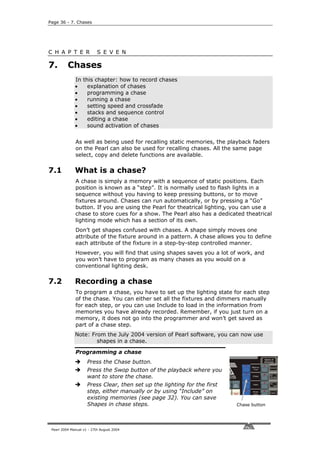
              Programming a chase
                     Press the Chase button.
                     Press the Swop button of the playback where you
                     want to store the chase.
                     Press Clear, then set up the lighting for the first
                     step, either manually or by using “Include” on
                     existing memories (see page 32). You can save
                     Shapes in chase steps.                                Chase button


 Pearl 2004 Manual v1 - 27th August 2004
7. Chases - Page 37


                    The display shows the step number
                    Press the playback Swop button to record the step. The
                    information from the programmer is stored as Step 1 of the chase.
                    Press Clear, set up the lighting for the second step, then press
                    Swop again to save step 2.
                    When you have saved as many steps as you want, press Clear,
                    then press Exit or Softkey F to finish.
             If you don’t press Clear at the end of programming, the settings for the
             last step will remain in the programmer and will override the chase
             when you turn it on, so you won’t see the chase properly.

7.3          Running a chase
             Running a chase is just like turning on a memory. Just raise the fader
             and the chase will start to run.
             The HTP (intensity) channels in the chase will be controlled by the
             position of the fader. The other channels (LTP) will be set as soon as
             the fader moves above zero. When in Run mode you can pre-position
             the LTP channels to the first step by lowering the Add/Flash Master
             fader to zero and pressing the Flash button of the
             playback.
             The chase normally starts at step 1, and runs
             forward. You can pause the chase and change
             the direction of the chase using the Sequence
             control buttons to the right of the wheels.
             There are lots of options you can set which let      Sequence buttons
             you do fancy things with chases, such as
             Random, One-shot, special timing, and manual step mode. The details
             are in the reference manual.

7.4          Setting speed and crossfade
             When you run a chase, the wheels are assigned to control the Speed
             and Crossfade of the chase (crossfade is the “slope” between steps,
             from instant switching to continuous fading). The display above the
             wheels shows the step time and the crossfade setting.
             You can save a speed with the chase, so that every time you play it
             back, it runs at the same speed.

             Saving chase speed
                    Turn on the chase you want, and set the speed to the setting you
                    want.
                    Press A [Chase Parameters].
                    Again press A [Save Speed]
                    The display will show “Saved”.


             You can also save the current direction of the chase by pressing softkey
             B.
             If you are running several chases, the wheels are assigned to the most
             recently selected chase. You can “connect” the wheels to one of the
             other chases by pressing the Connect button to the right of the wheels,


Pearl 2004 Manual v1 - 27th August 2004
Page 38 - 7. Chases


              then the playback Swop button for the chase you want to connect to.
              If you’ve changed the speed using the wheels and you want to go back
              to the saved speed, press Connect then A [Clear temporary speed].

7.5           Naming chases
              You can set a legend for chases in exactly the same way as you did for
              a memory. In addition, you can label individual steps of a chase if you
              are using the steps as cues. The reference manual tells you how to do
              this.

              Labelling a chase
                     Hold down the AVO button and press G [Set Legend].
                     Press the Swop button of the playback you want to label.
                     Enter the label using the external QWERTY keyboard (the VDU
                     screen shows you what you are typing) and press Enter.
                     You can label another memory by pressing another Swop button,
                     or finish by pressing Exit.


7.6           Editing a chase using Unfold
              The Pearl has a powerful chase editing system. The Unfold button
              places each step of a chase on one of the playback faders, allowing you
              to examine and edit each step individually as if it was a normal
              memory.
              If your chase has more than 15 steps, you can swap to the next 15
              steps using softkey F, or the previous 15 steps using softkey E.

              Editing a chase using Unfold
                     Press the Unfold button (one of the blue command buttons)
                     Press the playback Swop button of the chase to be edited
                     The first 15 steps of the chase are loaded into playback faders 1-15
                     Raise a playback fader to view the contents of the step
                     The softkeys show a list of options which can be used for the step
                     To edit the contents of the step, make the changes then use
                     softkey A
                     To change the times of the step, use softkey B.
                     Press the Unfold button again to finish.


              You can also edit chase steps while you are running the chase, without
              using unfold. The “Rec Step” button allows you to record the current
              programmer settings directly into the current step of the chase. This is
              described in more detail in the reference manual.


7.7           Copying a chase
              Chases can be copied in exactly the same way as memories.

              Copying a chase


 Pearl 2004 Manual v1 - 27th August 2004
7. Chases - Page 39


                    Hold down the Flash button of the chase you want to copy.
                    Press the Swop button of the playback you want to store it in
                    You can change the Roller page while you are holding down the
                    Flash button, if you want to copy a chase to a different page.
             The new chase will be a linked copy of the old one. If you want to
             create a completely separate copy of the memory, press the Photocopy
             button before you start the copy.

7.8          Deleting a chase
             If you want to clear a chase so:

             Deleting a chase
                    Press Delete
                    Press the Swop button of the chase you want to delete
                    Press the Swop button again to confirm the delete.


7.9          Timing, Stacks and sequence control
             The most common use of a chase is as an automatic continuous
             sequence. However, the Pearl lets you step chases manually using the
             Go button, which allows you to use them for theatrical lighting cues or
             “One shot” chases. When you use a chase like this, it is sometimes
             known as a “Stack”.
             The Pearl has a dedicated theatrical lighting mode which is described in
             detail in the next chapter.

             Creating a stack
                    Save each cue state as a step in a chase.
                    Press C [Edit Times]
                    Press the playback Swop button for the chase
                    Press G [Links] to set LINK = OFF for the whole chase
                    Press Enter to save the setting.
                    Raise the playback fader to activate the chase.
                    Press the Go button to run each cue.


             You can set the fade in and fade out times independently for each cue
             using the Live Time button.

             Setting cue times on a stack
                    Start the chase by raising the fader.
                    Press the Live Time button to set the times for the current cue.
                    Use softkeys A-G to set the times you want
                    Press Enter to save the settings or Exit to abandon them.
                    Press the Go button to go on to the next cue.


             You can also set a text label for each cue. The Pearl will show you the
             label for the current cue and the next one coming up. The reference


Pearl 2004 Manual v1 - 27th August 2004
Page 40 - 7. Chases


              manual tells you more details about this.


7.10          Sound activation of chases
              The Pearl can use bass, mid or treble (low, medium or high)
              frequencies from its audio input to trigger chases. Any chase can be
              programmed to respond to Bass, Mid or Treble frequency triggers.
              There is also a master “Sound to light enable” option.
              Sound mode only works with the key turned to Run, but you need to be
              in Program mode to set up the chase for sound activation.

              Sound activating chases
                     In Program mode, turn on the chase to “connect” it.
                     Press A [Chase Parameters]
                     Press E [Sound to light] to select Sound to Light Low, Medium or
                     High
                     Turn the key to Run mode.
                     Press E [Sound to light]. (This is the master sound to light enable
                     control) The option will highlight.
                     All chases with sound enabled will step in time to the sound signal
                     The Speed wheel controls the maximum speed of the chase
                     Press E, again, to turn off sound activation.


              Also while in Run mode you can set the speed of the connected chase
              manually by tapping Softkey G [Tap twice to set tempo] in time with
              the music.

7.11          Examples
              How do I program a dimmer chase?
              Create the chase by pressing Chase then one of the flashing (empty)
              playback swop buttons. Press Clear, and turn on the dimmers for step
              1. Press the Swop button for the chase to save the step. Press clear,
              then turn on the dimmers for step 2, and press the Swop button to
              save. When you have saved all the steps, press Chase to end.
              I’ve programmed a chase using memories but when I turn it on,
              nothing happens
              To use existing memories in a chase, you must use the Include function
              to load the memory into the programmer. If you just turn on a memory
              and then try and save that as a chase step, nothing will be saved
              because the memory will not be in the programmer.
              The last step of my chase doesn’t play back
              You need to press Clear to clear the programmer (which overrides the
              chase output).


 Pearl 2004 Manual v1 - 27th August 2004
7. Chases - Page 41


Pearl 2004 Manual v1 - 27th August 2004
Page 42 - 8. Theatre stack


C H A P T E R              E I G H T

8.        Theatre stack
              In this chapter: the Pearl’s theatre mode
              •    Setting theatre mode
              •    Theatre controls
              •    Plotting a cue
              •    Naming a cue
              •    Setting fade times for a cue
              •    Jumping to a cue
              •    Running the show


              Theatre mode makes the Pearl behave like a standard theatrical
              console, allowing you to program your whole show as a sequence of
              cues, and play it back just by pressing the Go button. Playback faders
              12-15 become dedicated cue masters. The rest of the console continues
              to operate as normal, so you can run the main cues from the theatre
              mode, and spot effects from the other playback faders.

8.1           Setting theatre stack mode
              In program mode, select Softkey B [Theatre stack programming], then
              press Enter.
              Note:        When theatre mode is enabled, you can’t access playbacks 12-
                           15 on any page; if you intend to use Theatre mode it is
                           advisable not to program these playbacks. Any programs are
                           kept and when you turn off Theatre mode you will be able to
                           access them again.
              You can get out of the Theatre menu by pressing G [Quit]. The Exit
              button does not operate in this mode.
              To turn off theatre mode completely, press softkey B from the main
              menu then press D [Exit theatre programming] When Theatre mode is
              enabled, the swop button of Playback 12 flashes when the playback is
              turned off.
              Theatre mode programming is not deleted when theatre mode is turned
              off.

8.2           Theatre controls
              Fader 12 is the Master fader, controlling the overall intensity of all
              lights.
              The Go button next to the wheels makes a cue start.
              If you stop a fade part-way by pressing the Stop button, or one of the
              stop buttons above the faders, then Fader 13 controls the Fade In of
              the next step, fader 14 controls the Fade Out of the previous step, and
              fader 15 controls the LTP (movement) fade timer.
              The buttons above 13, 14 and 15 are Stop (blue) and Go (grey) buttons
              for each of these functions.

8.3           Plotting a cue
              You can set up the levels for a cue either by using the preset faders and


 Pearl 2004 Manual v1 - 27th August 2004
8. Theatre stack - Page 43


             control wheels to set the levels you want, or by typing in the channel
             number and the level. You can store moving light positions in theatre
             cues as well as dimmers.

             Entering dimmer levels
                    Press Channel (at the top of the numeric keys)
                    On the numeric keypad, enter the fader/handle number of the
                    dimmer (not the DMX address of the channel)
                    Press G [At %]
                    Enter the value to be set as 0 – 9, or Softkey G for Full. You can
                    enter a decimal point and another number if you want more
                    accurate level control.
                    The channel you entered will be set to the level you entered.
                    Press the Channel button to go back to the normal menu


             The softkeys offer you a few more options such as up by 5%, down by
             5%, blackout.
             Pressing Clear will take all channels you’ve set using the keypad to
             blackout. Any channels turned on using the faders will stay on, but will
             be removed from the programmer.
             You can also set multiple channels to the same level using F [through].
             Enter first channel, “through”, last channel, “at %”, level.

             Entering multiple dimmer levels
                    Press Channel
                    On the numeric keypad, enter the first dimmer handle number of
                    the range
                    Press F [Through]
                    Enter the last dimmer handle number of the range
                    Press G [At %]
                    Enter the value to be set as 0 – 9, or.Softkey G for Full.
                    The channels you entered will all be set to the level you entered.


             When you have set all the levels as you want them, type the cue
             number, then press D [Record Menu]. You then need to press B
             [Record Stage] to record all the intensity channels that are currently
             turned on, plus anything in the programmer, or D [Record
             Programmer] to record just the contents of the programmer (i.e. what
             you have manually changed). The cue will be saved.
             It’s best to use whole numbers for cues. Then if you need to insert a
             cue between two existing cues, you can use a fractional number in
             between. The Pearl will automatically increase the cue number by 1
             every time you record a cue.

8.4          Naming a cue
             Type the step number to be named, then press E [Set Legend]. Enter
             the legend on the QWERTY keyboard. While you are typing, the input is
             shown on the VDU screen.
             The name of the live cue and the next cue is displayed in the cue list on


Pearl 2004 Manual v1 - 27th August 2004
Page 44 - 8. Theatre stack


              the VDU screen.


8.5           Setting fade times for a cue
              You can set fade in, fade out and “wait” times for each cue. Press C
              [Set Times] to show the options. This will set the times for the current
              cue. You can also use the “Live Time” and “Next Time” buttons (to the
              right of the wheels) to set the times for the current and next cues. See
              page 165 for details of times.

8.6           Jumping to a cue
              You can change the cue being edited by typing the cue number then
              pressing Enter. If you want to output this cue, press F [Cut to Live]
              (fade times are ignored).

8.7           Running the show
              If you have just been editing, you may need to type 1 then Softkey F to
              set the console to cue 1.
              The display above the control wheels shows the current cue number,
              the next cue number, and the progress of the wait and fade times for
              fade in, fade out and LTP.
              For automatic cues, you can simply press
                                                               In HTP fade     Out HTP fade
              the Go button next to the wheels. The
              console will carry out the fade with the
              times you programmed.
              If you want to manually control a fade, you
              can use the in, out and LTP faders or
              Go/Stop buttons to operate the cue. The
              display just above wheel A shows the
              percentage of fade (9 - 0) left to go (shown
              as “5” in the picture). When Fade In, Fade
              Out and LTP all show “0”, the console
                                                              cue numbers    LTP fade
              moves on to the next cue.


 Pearl 2004 Manual v1 - 27th August 2004
8. Theatre stack - Page 45


Pearl 2004 Manual v1 - 27th August 2004
Page 46 - 9. The graphics tablet


C H A P T E R              N I N E

9.        The graphics tablet
              In this chapter: using the graphics tablet with the Pearl
              •    Using the tablet
              •    Functions available on the tablet


              The graphics tablet is an accessory to the Pearl. On “Touring” versions
              of the Pearl it is fitted to the right of the console in the flight case. It
              allows you to use a pen to select fixtures, groups, colours, and position
              the fixtures by simply drawing with the pen. You will be amazed how
              much easier your programming and show operating becomes when you
              use the graphics tablet.
              The graphics tablet needs to be plugged into the serial port of the unit,
              and User Setting 7 (press AVO and Softkey C) needs to be set to “G
              Tablet.

9.1           Using the tablet
              To use the tablet, you simply press the pen onto it. The button on the
              side of the pen doesn’t do anything. A quick press is like pushing a
              button on the Pearl. You can also draw on the tablet by keeping the pen
              pressed down while moving it. This is used to move fixtures or change
              attributes.
              The tablet has a paper overlay on it with pads which simulate various
              buttons on the Pearl. You can write your fixture names, group names,
              attributes, palette entries and even draw your stage layout on the
              overlay so that you know what’s what. Spare overlays are available
              from Avolites.
              The Pearl will behave as if you are pressing buttons on it in the normal
              way, so the LEDs and the displays will change as you use the tablet.
              Many of the functions of the Pearl are quicker and easier using the
              tablet. Sometimes you might find it easier to do part of the function on
              the tablet and part on the console. The end result is the same.

                                   Position control          Colour control


                        Attributes


                          Groups

                         Palettes

                         Fixtures


 Pearl 2004 Manual v1 - 27th August 2004
9. The graphics tablet - Page 47


9.2          Functions available on the tablet
             To select a fixture or a group, just press the pen onto one of the fixture
             pads or group pads. The first 60 fixtures are available on the tablet.
             Only the first 30 groups are available on the tablet. The Swop button
             LEDs on the handles will light up to show you which fixtures are
             selected, as if you had pressed the actual console buttons.
             You can control the position of the fixture by drawing on the Stage area
             of the tablet.
             You can “train” the Pearl so that it knows how all the lights are set up.
             Then when you point at the stage area of the tablet, all the lights will
             point at the same place on the stage. This is called “Tracking mode”.
             The Reference manual tells you how to do this and how to use tracking
             mode.
             If you press the pen on the Nudge pad, when you draw on the tablet
             the fixture will move relative to its current position. This can be useful if
             you want to slightly reposition a fixture. Press on the Absolute pad to
             turn off this mode.
             You can control the intensity of the selected fixtures by drawing on the
             Dimmer area.
             If the fixture can do CMY colour mixing, you can set the colour by
             drawing in the colour mix area of the tablet (you will need to set the
             Luminosity on the luminosity slider to maximum).
             You can recall the first 60 palette entries by pressing the pen on the
             Focuses pads.
             You can change individual attributes of selected fixtures by pressing the
             pen on to one of the attribute pads, then (without lifting the pen)
             drawing up and down on the tablet. The attribute lights on the console
             will come on to show you which attribute is selected.
             On the right hand side of the tablet, a range of pads make some of the
             programmer functions are available, such as Clear and Locate Fixtures.
             You can also record groups and memories using the tablet exactly as if
             you were pressing buttons on the console. The details are in the
             reference manual.
             The “Fixtures or Mimics” pad allows you to set whether the LEDs in the
             Swop buttons show you which fixtures are selected, or the intensity of
             the channel.


Pearl 2004 Manual v1 - 27th August 2004
Page 48 - 10. Running your show


C H A P T E R              T E N

10. Running your show
          In   this chapter: running your show with the Pearl 2004
          •     Showtime
          •     Run modes
          •     Master faders
          •     Channel mimics
          •     Manual control during a show


10.1           It’s showtime…
               When you have finished programming (or you’ve run out of time) and
               it’s showtime, the most important thing is to back up the show to disk
               (see end of section 2 on page 12 for instructions). Having done that,
               turn the key to Run. This means you can’t accidentally change your
               programming when you get into a button-pressing frenzy.

10.2           Temporarily locking the console
               In Run mode you can temporarily lock the console (to stop the sound
               guys playing with it while you nip to the loo). Type in a 4 digit number
               then press C [Lock Desk] then Enter. The display will show the code.
               Press Enter to lock it. All buttons and faders are now ignored. Re-enter
               the code to unlock the console.
               If you repower or reset the Pearl, the lock is cancelled. It’s just to
               discourage tampering.

10.3           Run modes
               When you are running a show, there are two modes available to you,
               normal Run mode, which just allows you to play back memories, and
               Takeover run mode, which allows you to play back memories and also
               take manual control of fixtures. The mode also affects how the Swop
               and Flash buttons on the console operate.
               You can select the mode by pressing A [Toggle mode]. The mode is
               shown on the top line of the display.
          •    What’s not affected: The playback faders work the same in either
               mode. The Preset Faders work as handles to control the intensity of
               the device they are patched to.
          •    Normal Run mode: the Flash and Swop buttons on the handles and
               playbacks work as flash buttons. The “Flash” button adds the function
               into anything else which is on. The “Swop” button turns on the
               function, but turns off everything else while the button is held down.
               The programmer is cleared and you can’t manually control any LTP
               channels.
          •    Takeover run mode: the Swop buttons on the handles allow you to
               select dimmers or fixtures for manual control. This lets you add to or
               change your programming in real time during the show. The faders still
               control the intensity of the dimmers and fixtures. The Flash and Swop
               buttons on the playbacks are disabled.


 Pearl 2004 Manual v1 - 27th August 2004
10. Running your show - Page 49


10.4         Manual control during a show (“busking”)
             If you have not had as much programming time as you would have
             liked, you might need to make up some additional effects during the
             show. This is sometimes called “busking”.
             You can create instant variations by recalling palette values to modify
             your existing programs. The Pearl can fade to the palette values for
             added effect.
             You need to be in Takeover Run mode to do any of this .

             Fading palettes over time in Run mode
                    Select some fixtures which are already in use on stage
                    Press “2” (or any time, in seconds) on the numeric keypad
                    Press the Focus button
                    Select the Colour palette page
                    Press a softkey to recall a different colour from the Colour palette
                    The selected fixtures will change to the new colour over a time of 2
                    seconds.


             If you don’t select any fixtures in the first step, the palette value will be
             applied to all fixtures (if this is enabled in User Setting 6, see page
             192).
             To save having to select fixtures, you can apply the palette to all
             fixtures in a memory.

             Setting a palette value to fixtures in a memory
                    Press the Focus button
                    Select the Colour palette page
                    Hold down a softkey for a different colour from the Colour palette
                    Press the Swop button of the memory you want to use
                    Release the softkey
                    The palette value will be set to all the fixtures in the memory.


             You can apply this palette to fade over a time by pressing a number
             before you press the Focus button.
             If you apply palettes over a time, they do not get put in the
             programmer. This means that the next time you turn on a playback,
             the new playback settings will override the old palette.
             If you apply palettes with time=0, then they do go into the
             programmer, and the palette value will override any new playbacks
             until you press Clear. If you want to apply the palette instantly, but
             don’t want it in the programmer (so that turning on a new playback will
             override the palette), enter a time of 0.1.


             You can also change the position of fixtures; the easiest way to do this
             is to use “Nudge” on the graphics tablet. This allows you to sweep
             selected fixtures around their programmed position by drawing with the
             pen, so you can alter the height of a chase or shape in real time.


Pearl 2004 Manual v1 - 27th August 2004
Page 50 - 10. Running your show


              You can use “Record by channel” mode when programming to set some
              memories to only affect position, and other memories to set colours,
              gobos, add shapes, and so on. By combining two or more memories
              you can produce a much wider range of effects than if all your
              memories set all the attributes. However, for this to work well you need
              to make sure you know what attribute is going to be affected by each
              memory, as if you turn on two “colour only” memories then nothing is
              going to light up.

10.5          Master faders
              In the bottom left hand corner of the console are the Master Faders.
              These allow overall intensity control of the whole console.
              •      The Add/Flash and Swop masters control the intensity of the Flash
                     and Swop buttons on the playbacks.
              •      The Preset Master controls the overall intensity of any channels
                     turned on in the Preset faders.
              •      The Grand Master controls the intensity of all output from the
                     console.

10.6          Channel mimics
              If you are in normal Run mode, the LEDs on each handle mimic the
              intensity of the fixture or dimmer controlled by that handle (i.e. they
              are lit if it is turned on).
              If you are in Takeover Run mode (or Program mode), you can choose
              between “Mimic” mode or “Fixture” mode, where the LEDs show you
              which fixtures are selected for manual control.
              You select the mode by holding down the Avo button and pressing
              Softkey A. The button shows “Preset LEDs = Fixtures” (or mimics)
              depending on the mode. You can also change this mode using the
              Graphics Tablet.


 Pearl 2004 Manual v1 - 27th August 2004
10. Running your show - Page 51


Pearl 2004 Manual v1 - 27th August 2004
Page 52 - 11. Advanced features


C H A P T E R              E L E V E N

11. Advanced features
              Hopefully, by working through this tutorial manual, you now know how
              to set up the Pearl, control fixtures with it, save memories and chases
              and use them in a show.
              We have tried to stick to the basics, but the Pearl can do many more
              things than we have told you so far. The reference manual expands on
              all the information in the previous chapters. There’s also some subjects
              we have not touched on yet, and these are described in the reference
              manual. Just so you know, they are:
              •      User Settings - Some console options you can change
              •      Setting the real time clock
              •      Disk functions
              •      Tracking - You can train the Pearl so it knows how the fixtures are
                     positioned relative to the stage. You can then point all the fixtures
                     at one part of the stage by clicking on the graphics tablet. Training
                     is described in Chapter 3.2 of the reference manual and use of the
                     graphics tablet in tracking mode is described in Chapter 9.
              •      MIDI - The Pearl has a very comprehensive MIDI control system
              •      Script files - You can tell the Pearl how to run a show from a list of
                     instructions which you can enter or record in real time. This is
                     described in chapter 10 of the reference manual.
              •      Changing the operating system - From time to time Avolites release
                     a new version of operating software, which you can load into the
                     Pearl
              •      Personality files - if the Pearl doesn’t have a personality file for your
                     fixture you can write your own. These are described in chapter 11
                     of the reference manual.
              •      Devious hardware tricks for wiping the console


 Pearl 2004 Manual v1 - 27th August 2004
11. Advanced features - Page 53


Pearl 2004 Manual v1 - 27th August 2004
Page 54 - 12. Introduction to intelligent lighting


C H A P T E R              T W E L V E

12. Introduction to intelligent lighting
              This section is for those who have not used intelligent lighting much
              before, who are put off by dip switches, lights that move unexpectedly
              and strange digital control systems that fly down microphone cables.

12.1          Ordinary lighting
              Standard lighting consists of a variety of light bulbs connected to
              dimmers. The lights may be anything from par cans to theatrical
              lanterns, and the dimmer controls the intensity of the light. A typical
              controller for standard lighting has a set of sliders, and each slider
              controls the intensity of one dimmer using a low-voltage control signal
              of 0 to 10 volts. The standard way to link the sliders to the dimmers is
              by using a multicore cable with one core for each dimmer channel.

12.2          So what is intelligent lighting?
              Intelligent lighting usually contains more functions than just intensity; a
              typical intelligent light, often called a “fixture”, can also change colour,
              project different patterns (called “gobos”) and direct the light beam in
              any direction using a movable mirror or by motorised control of the
              light unit itself. The fixtures are called “intelligent” because they contain
              a small computer which controls the movement of the internal motors
              in response to the control signals. Some fixtures can also listen to
              music and produce their own light show, sometimes synchronising
              themselves with other intelligent fixtures. However they are actually
              not all that intelligent and usually need a user to make them do
              something interesting.

12.3          How do you control it?
              Each function of an intelligent fixture requires its own control signal, so
              the user can select the colour, position, gobo etc. You can use 0 to 10
              volt control signals on some fixtures, but the cable carrying the control
              signals again has to be a multicore with one core for each function, so
              each fixture might need 8 or more cores in the control cable. Some of
              the more complicated fixtures use 20 channels.
              When several fixtures are used, the number of cores needed in the
              control cable soon becomes large. The cable also has to split at each
              fixture. It all gets a bit complicated.

12.4          The DMX control system
              Fortunately, there is an easy to use system for controlling intelligent
              lighting and dimmers. It is called DMX-512, which stands for Digital
              MultipleX, and it sends up to 512 control signals down a twisted pair
              screened cable. The cable can be simply daisy-chained from each
              fixture to the next. Microphone-style XLR connectors are usually used,
              sometimes 3-pin and sometimes 5-pin. More recently RJ45 computer
              network type connectors are being used.
              The DMX system sends out the level for channel 1, followed by the level
              for channel 2, then 3, then 4 and so on, all the way up to a maximum
              of 512 (though not all DMX systems send out all the channels). It then


 Pearl 2004 Manual v1 - 27th August 2004
12. Introduction to intelligent lighting - Page 55


             goes back to channel 1 again. All the units connected to the DMX
             receive all the channels, and you tell them which channels to respond
             to by setting the “base channel” or “DMX address” on each unit. The
             computer inside the fixture waits for the correct channels to come up,
             then reads in the levels for those channels.
             Dimmers can also understand DMX; some dimmers can read it directly,
             others use a demultiplexer or “demux” to convert the DMX into the
             normal 0 to 10 volt analogue signals they are used to.

12.5         Moving light control desks
             Sliders are ideal for controlling dimmers. More complicated dimmer
             control desks have memories to record the level of all the dimmers, so
             you can recall a setting without having to set all the sliders again during
             a show.
             However, once you start controlling lights that move and change colour,
             sliders become less ideal, because it is the movement rather than the
             end level which is important. Dedicated moving light desks such as the
             Pearl include many helpful functions which makes the programming of
             intelligent lighting much easier, such as palettes of pre-programmed
             colours and positions, and a shape generator to create movements.

12.6         A few cautions about using DMX
             DMX is a robust system which normally works very well, but sometimes
             it can be problematic. Here are a few tips for making DMX work well.
             •      DMX cabling should be twisted-pair data cable. Microphone cable is
                    not recommended because it doesn’t transmit the signal as well.
                    You will probably get away with it, but equally you might have
                    problems.
             •      Always ensure the last fixture in the DMX line is terminated. On
                    some fixtures this can be done by flipping a switch, others are self-
                    terminating, but often you will have to fit a terminating plug into
                    the vacant socket on the last unit. This has a 120 ohm resistor
                    across the DMX line and prevents data interference on the line. It
                    might work without but…
             •      Don’t split the DMX cable. Loop it from one unit to the next. If you
                    have to split it, use a proper active splitter unit.
             •      The DMX specification says that you should not run more than 32
                    fixtures from one DMX line unless the fixtures are buffered or
                    optically isolated. Either use several DMX lines (the Pearl has four)
                    or use a DMX repeater unit. In practice, most fixtures do not put
                    maximum loading on the DMX line and you will probably get away
                    with using more if you have to, but the DMX signal may be weaker
                    than it should be.
             •      Don’t run your DMX lines near high voltage cables or neon. They
                    may pick up interference which will stop the system working, or
                    worse, blow up the receiver electronics in the fixtures (this really
                    does happen, and usually at the most inconvenient moment).


Pearl 2004 Manual v1 - 27th August 2004
Page 56 - 12. Introduction to intelligent lighting


 Pearl 2004 Manual v1 - 27th August 2004
13. Introduction to Avolites consoles - Page 57


C H A P T E R             T H I R T E E N

13. Introduction to Avolites consoles
             If you have used intelligent lighting before, this section explains the
             thinking behind how Avolites consoles work and tells you what
             everything is called.

13.1         Operating the console
             The console has three main modes, set using the keyswitch; these are
             Program (used for programming a show, allows everything to be
             changed), Run (used when running a show, allows limited user
             override but no changes to programming) and System (used for
             configuring the console).
             The operation of the console is based around the LCD screen. Seven
             Softkeys allow you to select the options down the right hand side of
             the screen. These options change depending on what the console is
             doing. In addition there are the blue Command Buttons which give one-
             button access to some functions.

13.2         Controlling lights
             To an Avolites console, a light is either a Dimmer (single intensity
             control channel) or a Fixture (Multiple control channels)
             All Fixtures have a Personality File which tells the console how to
             control the fixture. You don’t need to know how the fixture works, you
             just tell the console what you want to do with the fixture (such as
             change colour) and it knows which controls to change to get the effect.
             You tell the console what fixtures/dimmers you have and their DMX
             addresses by Patching them. When you patch, you allocate a Handle
             to the device. The handle is one of the Faders and Select buttons across
             the top of the console. You can allocate several dimmers to one handle
             if you want to group them, but only one fixture can be allocated to any
             one handle.
             To control a fixture, you need to select the fixture you want to control
             by pressing the Select button of the handle. The button lights up to tell
             you that the fixture/dimmer is selected.
             Additionally you can control a dimmer, or the intensity of a fixture,
             using the Fader of the handle. If you change pages so that the fader
             has been controlling something else, you will need to Match the fader
             to the current dimmer level before it operates the dimmer (normally by
             lowering the fader to zero then fading it up until you gain control of the
             dimmer).
             All control of fixtures uses the two Wheels. To change the fixture(s)
             you’ve selected, you select the Attribute (colour, pan, gobo etc) you
             want to control using the buttons on the right hand side of the console.
             Then turn the wheels to change the attribute.

13.3         Programming the console
             To store the settings of fixtures and dimmers, the console provides
             Memories and Chases (sequences). These are stored in the 15
             Playback Faders across the near edge of the console. Up to 30


Pearl 2004 Manual v1 - 27th August 2004
Page 58 - 13. Introduction to Avolites consoles


              different Pages of playbacks are available using the Roller and Roller
              Page buttons. The roller provides a handy surface for writing a note of
              what is stored in each playback.
              When you save a memory or chase, the console only saves settings you
              have changed using the wheels (it does not save the current output
              state). Whenever you change a fixture using the wheels and attribute
              buttons, your changes are stored in a special memory called the
              Programmer. The console allows you to save just the changed
              attributes (Record by Channel), or if you change one attribute of a
              fixture it can save all other attributes of that fixture as well (Record by
              Fixture). Record by Channel mode is often called “Tracking” on other
              consoles; in this mode, fixture attributes remain in their last state
              unless you specifically change them.
              The programmer records all changes in the console until you press the
              Clear button. You should press the Clear button before setting up the
              lighting for a memory, otherwise there may be all sorts of changes you
              don’t want in the programmer, which would end up in your memory.
              You can reload information from memories and chases into the
              programmer, if you want to save them in another memory, using the
              Include function. This function allows you to reload the whole memory,
              or only certain fixtures from the memory, or only certain attributes of
              certain fixtures.
              When you play back a memory or chase, the console sets the fixtures
              to their programmed positions as soon as the fader rises above zero.
              The intensity of the fixtures, and any dimmers, rises with the fader. The
              intensity channels are called HTP (highest takes precedence) channels,
              because if the channel is turned on in more than one memory, the
              highest level will be output. The movement channels are called LTP
              (latest takes precedence) channels, because if the channel is turned on
              in more than one memory, the most recent change will be output.
              You can program the LTP/movement channels to fade with the fader if
              you want to.
              Avolites consoles have a Shape Generator (sometimes called an
              effects generator on other consoles). This automatically changes
              attributes in a preprogrammed pattern. Fixtures can be made to move
              their light beams around in a circle, or to fade colours, or move in and
              out of focus. When a shape is applied to more than one fixture, the
              shape can be Spread so that the fixtures run through in a sequence
              giving wave-type effects.
              Shapes you apply go into the programmer and are saved if you save a
              memory or a chase.
              Avolites consoles allow you to save frequently-used positions, colours
              etc. into a Palette (sometimes called a Focus or Preset Focus on other
              consoles). When you want that setting, you simply recall the palette. If
              you use palettes when programming memories, the console remembers
              the palette number rather than the actual fixture settings. This means
              that if you change venues, or fixtures are moved, you can quickly
              reprogram your position palettes and all memories using those palettes
              will be updated. This can save you having to reprogram many
              memories.
              Palettes can be recalled from a menu on the console display so you can
              see what colour, position etc. you are going to get. This is useful when
              “busking” the lighting (modifying your programming) during a show.


 Pearl 2004 Manual v1 - 27th August 2004
13. Introduction to Avolites consoles - Page 59


             The console allows you to fade between palettes (Timed Palettes) to
             give smooth live changes.


Pearl 2004 Manual v1 - 27th August 2004
Page 60 - 13. Introduction to Avolites consoles


 Pearl 2004 Manual v1 - 27th August 2004
14. Changes in the latest Pearl software - Page 61


C H A P T E R             F O U R T E E N

14. Changes in the latest Pearl software
             If you are used to using the Avolites Pearl console, this section gives
             you a quick rundown of the differences between the Pearl you know
             and love and the new version of software. There are some exciting new
             features.

14.1         Wheel acceleration
             16 bit attributes now always work in 16 bit mode. If you spin the
             wheels faster, the Pearl will skip values to change the attribute faster.
             If you spin the wheels slowly the attribute will change with maximum
             resolution. You can change the acceleration factor on the wheels, see
             page 194.

14.2         Preset Focuses are now Palettes
             Preset Focuses are now called Palettes, in line with other Avolites
             consoles (except for the “Focus” button, which remains stubbornly
             engraved).
             You can now recall Palettes from the softkeys by pressing the Focus
             button and the display shows you what the palette contains. This is
             similar to the Palette displays on the Sapphire, if you’re used to that
             console.
             You can apply a palette to all fixtures, without having to select them. If
             you recall a palette with no fixtures selected it will be applied to all
             fixtures (but the palette is not entered into the programmer).
             You can apply a palette to all fixtures in a memory, by holding down
             the button for the palette and then pressing the memory’s Swop
             button. Again the palette is not entered into the programmer.
             Each page of fixtures now has a separate page of palettes accessible
             from the handle “Flash” buttons. (previously the same 30
             palettes/focuses appeared on all fixture pages). This option needs to be
             enabled in the user settings, see page 196.

14.3         Chases can include shapes
             You can now include shapes in a chase and in cues of the Theatre
             Stack. Each step can include different shape settings. If the shape is
             also present with unchanged parameters in the next step, it will
             continue, otherwise it will stop at the end of the step time.

14.4         Intelligent Attribute display
             The display above the wheels can now show the attribute value name;
             for example, on a colour wheel you may see “Open”, “Red” etc
             displayed as you turn the wheel.
             This function requires Range information to be supported by the
             personality file for the fixture. If an updated personality file including
             the Range information becomes available, there is a function to update
             the Range table for the patched personalities in the console, so you
             don’t have to repatch. This is in the Utilities section of the System


Pearl 2004 Manual v1 - 27th August 2004
Page 62 - 14. Changes in the latest Pearl software


              menu.


14.5          Legends
              You can enter legends for memories, chases, groups, roller pages,
              palette pages and palette entries. Memory and chase legends are
              shown on the VDU screen, the other legends are used on both the VDU
              screen and the on-board LCD display.

14.6          Sound to light
              Any chase can be triggered by low, mid or high frequency sound from
              the audio input (previously this was fixed to chases 1 2 and 3). Chases
              can be set to trigger on a given beat out of a number of beats, e.g. on
              the 2nd beat of every 4 beats.

14.7          Other features
              You can temporarily lock out the controls the desk in Run mode by
              typing a 4 digit code and pressing Softkey C.
              The Include function has been improved to allow you to include a chase
              step, a cue from the theatre stack, and incoming DMX from the DMX In
              socket.
              A “locate no pan and tilt” option has been added to allow you to locate
              a fixture without changing its position.
              Many options are now quickly accessible by holding down the AVO
              button.
              You can selectively Wipe parts of the console; just the programming,
              just the palettes, the patch and the programming, or the original
              Wipeall option.


 Pearl 2004 Manual v1 - 27th August 2004
14. Changes in the latest Pearl software - Page 63


Pearl 2004 Manual v1 - 27th August 2004
Pearl 2000/2004

Reference Manual
Pearl 2004 Manual v1 - 27th August 2004
R E F E R E N C E                 M A N U A L   C O N T E N T S

1.     SETTING UP THE CONSOLE                                     109

     1.1 Connecting up                                            109
       1.1.1  Connecting mains power                              109
       1.1.2  Connecting DMX lines                                109
       1.1.3  Connecting MIDI devices                             110
       1.1.4  Connecting audio                                    110
       1.1.5  Other back panel connections and controls           110
       1.1.6  The desk lamp                                       111
     1.2 Operating                                                111
       1.2.1   Operating modes                                    111
       1.2.2   The disk drive                                     111
       1.2.3   The front panel controls                           112
       1.2.4   View screens                                       113
2.     PATCHING                                                   117

     2.1 Create                                                   117
       2.1.1   Fixture handles                                    117
       2.1.2   Patching dimmers                                   118
       2.1.3   Patching moving light fixtures                     118
       2.1.4   Checking the patching                              120
     2.2 Edit 120
       2.2.1    Changing the DMX address of a fixture             120
       2.2.2    Moving a fixture to a different handle            121
     2.3 Delete                                                   121
       2.3.1    Deleting a patched fixture                        121
     2.4 Advanced options                                         121
       2.4.1  Patch Utilities                                     121
3.     CONTROLLING DIMMERS AND FIXTURES                           125

     3.1 Create                                                   125
       3.1.1   Selecting fixtures and dimmers for control         125
       3.1.2   Changing attributes of the selected fixtures       126
       3.1.3   Selecting attributes from the softkeys             127
       3.1.4   Using groups                                       127
       3.1.5   Stepping through selected fixtures one at a time   127
       3.1.6   The Align and Flip functions                       128
       3.1.7   “Killing off” a fixture or dimmer                  129
       3.1.8   Entering intensity levels as numbers               129
       3.1.9   Controlling fixtures by entering values            130
       3.1.10    Fan mode                                         130
     3.2 Advanced options                                         131
       3.2.1  The ML menu and Tracking                            131
       3.2.2  Training the console for Tracking mode              132
4.     PALETTES                                                   135

     4.1 Create                                                   135
       4.1.1   Palette values stored as a reference               135
       4.1.2   Shared and individual palettes                     135
       4.1.3   Which attributes are stored in palettes            135
       4.1.4   Storing a palette                                  136


 Pearl 2004 Manual v1 - 27th August 2004
4.2 Playback                                                             136
       4.2.1   Recalling a palette value                                      136
       4.2.2   Palette pages                                                  137
       4.2.3   Setting a palette to all fixtures (Quick palette)              137
       4.2.4   Recalling only some attributes from a palette                  137
       4.2.5   Setting a palette to fixtures in a memory (Filtered palette)   138
     4.3 Edit 138
       4.3.1    Editing and deleting palettes                                 138
       4.3.2    Naming a palette value or page                                138
       4.3.3    Viewing the contents of a palette                             139
     4.4 Timing                                                               139
       4.4.1   Recalling a palette with a fade time                           139
       4.4.2   Master fade time                                               140
     4.5 Advanced options                                                     140
       4.5.1  Palette options                                                 140
5.     SHAPES                                                                 141

     5.1 Playback                                                             141
       5.1.1   Selecting a shape                                              141
       5.1.2   Changing the size and speed of a shape                         142
       5.1.3   Spreading a shape across multiple fixtures                     142
       5.1.4   Relative and Absolute shapes                                   143
     5.2 Edit 143
       5.2.1    Editing shapes which are running                              143
     5.3 Advanced options                                                     144
       5.3.1  Shape options                                                   144
       5.3.2  Updating the shape file                                         145
6.     MEMORIES                                                               147

     6.1 Create                                                               147
       6.1.1   How the Pearl works when programming                           147
       6.1.2   Creating a memory                                              148
       6.1.3   Recording the stage using Snapshots                            149
       6.1.4   Using shapes in memories                                       149
       6.1.5   Viewing the programmer contents                                150
     6.2 Playback                                                             150
       6.2.1   HTP and LTP channels                                           150
       6.2.2   Playing back a memory                                          151
       6.2.3   Changing playback pages                                        151
     6.3 Edit 151
       6.3.1    Editing a memory                                              151
       6.3.2    The Include function                                          152
       6.3.3    The “Off” button                                              153
       6.3.4    Viewing a memory                                              154
     6.4 Copy                                                                 154
       6.4.1  Copying a memory                                                154
     6.5 Delete                                                               155
       6.5.1    Deleting a memory                                             155
     6.6 Timing                                                               155
       6.6.1   Setting fade times for a memory                                155
     6.7 Advanced options                                                     156
       6.7.1  Recording in Blind mode                                         156


 Pearl 2004 Manual v1 - 27th August 2004
7.     CHASES                                                    157

     7.1 Create                                                  157
       7.1.1   Programming a chase                               157
     7.2 Playback                                                158
       7.2.1   Running a chase                                   158
       7.2.2   Connecting a chase to the controls                159
       7.2.3   Setting speed, crossfade and direction            159
       7.2.4   Manually controlling the chase steps              159
       7.2.5   Viewing chase steps                               161
     7.3 Edit 161
       7.3.1    Adding more steps to the end of a chase          161
       7.3.2    Editing a chase using Unfold                     161
       7.3.3    Editing a chase which is running                 162
     7.4 Copy                                                    163
       7.4.1  Copying chases                                     163
     7.5 Delete                                                  163
       7.5.1    Deleting chases                                  163
       7.5.2    Deleting a step from a chase                     163
     7.6 Timing                                                  163
       7.6.1   Speed and crossfade controlled by wheels          163
       7.6.2   Setting global step or fade times and unlinking   164
       7.6.3   Setting times and links for individual steps      165
       7.6.4   Viewing timing information                        165
       7.6.5   Sound activation of chases                        166
     7.7 Advanced options                                        166
       7.7.1  Chase options                                      166
8.     THEATRE STACK                                             168

     8.1 Create                                                  168
       8.1.1   Setting theatre stack mode                        168
       8.1.2   Theatre controls                                  168
       8.1.3   Plotting a cue                                    169
       8.1.4   Running a chase or memory with a cue (Autoload)   170
       8.1.5   Naming a cue                                      170
     8.2 Timing                                                  170
       8.2.1   Setting fade times for a cue                      170
       8.2.2   Displaying the cue timings                        171
     8.3 Playback                                                172
       8.3.1   Running a theatrical show                         172
     8.4 Edit 173
       8.4.1    Editing a cue                                    173
       8.4.2    Jumping to a cue                                 173
       8.4.3    Inserting a cue                                  173
       8.4.4    Renumbering cues                                 173
       8.4.5    Copying a cue                                    173
     8.5 Delete                                                  173
       8.5.1    Deleting a cue                                   173
     8.6 Advanced options                                        174
       8.6.1  Advanced theatre options                           174
9.     THE GRAPHICS TABLET                                       175


 Pearl 2004 Manual v1 - 27th August 2004
9.1 Create                                                          176
   9.1.1   Connecting the tablet                                     176
   9.1.2   Using the tablet                                          176
   9.1.3   Selecting fixtures on the tablet                          176
   9.1.4   Changing the position of the fixtures                     176
   9.1.5   Changing colours and other attributes                     177
   9.1.6   Recalling palette entries (focuses)                       177
   9.1.7   Storing palette entries (focuses)                         177
   9.1.8   Programming functions on the tablet                       177
   9.1.9   Tablet status on the VDU monitor                          178
 9.2 Advanced options                                                178
   9.2.1  Extending the tablet cable                                 178
10. RUNNING THE SHOW                                                 180

 10.1    Playback                                                    180
   10.1.1    Run modes                                               180
   10.1.2    Master faders                                           180
   10.1.3    Manual control during a show (“Busking”)                181
 10.2    Options                                                     182
   10.2.1    Two-preset mode                                         182
   10.2.2    Temporarily locking the console                         182
   10.2.3    Channel mimics                                          182
11. AUTOMATED PLAYBACK (SCRIPT FILES)                                184

 11.1    Create                                                      184
   11.1.1    Recording Script files                                  184
   11.1.2    What is recorded in the script file                     185
 11.2    Playback                                                    185
   11.2.1    Selecting a script file for testing                     185
   11.2.2    Testing the script file                                 185
   11.2.3    Using Script files in Run mode                          186
   11.2.4    Looping and running script files on power up            187
 11.3    Edit                                                        187
   11.3.1            The script file edit display                    187
   11.3.2            Editing an action                               188
   11.3.3            Inserting a step into the script file           188
   11.3.4            “On-the-fly” editing                            188
 11.4    Timing                                                      188
   11.4.1    Editing a timecode                                      188
   11.4.2    Changing timecode for a group of steps                  189
   11.4.3    Changing the start timecode for the whole script file   189
   11.4.4    Sorting the steps into time order                       189
 11.5    Copy                                                        190
   11.5.1    Copying a script file                                   190
 11.6    Delete                                                      190
   11.6.1    Deleting a step                                         190
   11.6.2    Deleting a script file                                  190
 11.7         Options                                                190
12. SETUP                                                            192

 12.1    User Settings                                               192
   12.1.1    The User Settings menu                                  192
   12.1.2    Setting the Wheel acceleration                          194


Pearl 2004 Manual v1 - 27th August 2004
12.2    User functions                                                 194
   12.2.1    The Wipe menu                                              194
   12.2.2    Disk functions                                             194
13. OTHER FEATURES                                                      196

 13.1    System Configuration                                           196
   13.1.1    Utility menu                                               196
   13.1.2    Service mode                                               196
   13.1.3    AVOS2 functions                                            198
   13.1.4    Upgrading the Pearl’s internal software                    198
   13.1.5    Hardware WIPEALL mode                                      199
   13.1.6    Audio gain links                                           201
 13.2    MIDI functions                                                 201
   13.2.1    What a MIDI command looks like                             201
   13.2.2    MIDI commands used by the Pearl                            201
   13.2.3    MIDI Time Code                                             202
   13.2.4    MIDI Problems                                              202
 13.3         The stage remote (riggers remote)                         203
14. THE PERSONALITY FILE SYSTEM                                         206

 14.1         Help, I can’t find a personality for my fixture           206
 14.2    Create                                                         206
   14.2.1    What is and how do I write or change a Personality file?   206
   14.2.2    Personality file naming conventions                        206
   14.2.3    Personality File Keyword Order                             207
   14.2.4    The Instrument Name                                        207
   14.2.5    The Device Type                                            207
   14.2.6    Fixture switch settings                                    208
   14.2.7    Mirror                                                     209
   14.2.8    The DMX/Preset Layout                                      210
   14.2.9    Text Field                                                 211
   14.2.10   The Preset Focus (Palette) table                           211
   14.2.11   Macros                                                     212
   14.2.12   Range tables                                               213
   14.2.13   Example Personality File for the High End Cyberlight       213
15. GLOSSARY OF TERMS                                                   218
16. INDEX                                                               225


Pearl 2004 Manual v1 - 27th August 2004
1. Setting up the console - Page 109


C H A P T E R             O N E

1.       Setting up the console
             This chapter contains: Connecting mains power; connecting DMX lines;
             connecting MIDI devices; connecting audio; the disk drive; other back
             panel connections and controls; desk modes.


1.1          Connecting up
1.1.1        Connecting mains power
             Important! Before connecting the mains power to the Pearl you must
             check if the Pearl has a voltage selector switch next to the mains
             socket; if it does, make sure it is set to match your mains supply. It
             can be set to 120V or 220V.
             If the Pearl does not have a voltage selector switch you can safely
             connect it to any voltage from 80 to 260V.
             If you connect mains power with the switch set incorrectly, you will
             probably blow up the power supply unit. If this happens you will need
             to shamefacedly return the console to Avolites for repair.

1.1.2        Connecting DMX lines
             The Pearl can output DMX down 4 separate lines. When you patch a
             dimmer or fixture you can tell the Pearl which DMX line it is on. The
             lines are identified by the letters A,B,C,D. Normally A comes out of
             output 1, B comes from 2, C from 3, and D from 4, but just to add to
             the fun you can swap this round if you want (see Patching, section 2).
             The 4 DMX outputs come out of the 5 pin XLR sockets on the back of
             the console. The Pearl 2004 has four separate sockets. The Pearl 2000
             has only two sockets with two DMX lines on each, so you will need
             splitter cables to access all four lines on the Pearl 2000. They are wired
             like this:
             DMX line                     Pearl 2004                 Pearl 2000
                                          Socket     Pin numbers     Socket     Pin numbers
             1 (normally A)               1&3        2=Data -        1&3        2=Data -
                                                     3=Data +                   3=Data +
             2 (normally B)               2&4        2=Data -        2&4        2=Data -
                                                     3=Data +                   3=Data +
             3 (normally C)               3          2=Data -        1&3        4=Data -
                                                     3=Data +                   5=Data +
             4 (normally D)               4          2=Data -        2&4        4=Data -
                                                     3=Data +                   5=Data +


             The sockets marked “1 & 3” and “2 & 4” on the Pearl 2004 have pins 4
             and 5 connected to the other DMX lines as with the Pearl 2000, making
             the Pearl 2004 outputs pin-compatible with the Pearl 2000 if replacing
             one console with the other.


Pearl 2004 Manual v1 - 27th August 2004
Page 110 - 1. Setting up the console


1.1.3         Connecting MIDI devices
              The Pearl has the usual MIDI IN and OUT connections. It can read MIDI
              information and use it to trigger a show, and it can output MIDI
              information in response to user actions on the controls. This means you
              can record a show straight into a MIDI sequencer by operating the
              show yourself using the buttons and sliders. The MIDI operation of the
              console is described in section 13 on page 201.

1.1.4         Connecting audio
              The Pearl provides a stereo audio input for sound to light functions. The
              stereo channels are combined internally to give a mono signal.
              The Pearl 2004 has a stereo audio input socket with a gain control next
              to it.
              The Pearl 2000 has two mono jacks and the gain control is on the front
              panel with the LCD contrast/brightness controls.
              There is an internal link on the PCB to set the overall sensitivity of the
              audio inputs to mic or line level. By default the audio input is set to
              maximum sensitivity. See page 201 for details.

1.1.5         Other back panel connections and controls


              Qwerty: for connecting a standard PC keyboard. This is used for
              entering legends to name memories, chases and palettes. If using a
              keyboard you should connect it before you turn the power on.
              VDU: for connecting a VGA display. Any standard VGA display will be
              OK, the console uses a 640x480 text mode. You do not have to connect
              the VDU screen as most information is shown on the console’s on-board
              display, but some extra displays are available on the VDU screen which
              are useful when programming or operating a complex show.
              Serial: is for the Stage Remote or the graphics tablet.
              DMX In: allows you to capture DMX from an external system into
              memories on the Pearl using the Include function.
              USB: for future use in the software.
              Visualiser: (if fitted) allows direct connection to a PC running
              Visualiser; alternatively a MIDI adaptor cable can be used to connect
              Visualiser to the MIDI ports.
              Reset button: allows you to restart the Pearl if something funny
              happens to it. The Pearl will come back to the same place it was in
              when you pressed Reset, but all playbacks will be turned off. The
              memory is not affected.
              LCD contrast and brightness controls are on the front of the console
              next to the key switch. If you can’t see anything on the display, first set
              the contrast control to a central position, then adjust it for best display.
              The brightness control sets the intensity of the display’s backlight.


 Pearl 2004 Manual v1 - 27th August 2004
1. Setting up the console - Page 111


1.1.6        The desk lamp
             The desk lamp plugs into the socket in the top left hand corner of the
             Pearl and can be switched to Off, Dim or Full using the switch next to it.
             The desk lamp uses a 12V, 5W halogen lamp.


1.2          Operating
1.2.1        Operating modes
             The Pearl has a key-operated switch on the right hand side of the panel
             which allows you to select the operating mode of the console.
             When running a show, you normally select Run mode. You can run
             playbacks and (in Takeover run mode) manually control fixtures (see
             page 180). You cannot change any programming. This is the best mode
             if others are operating the console and you want to make sure they
             can’t mess up your programming. Just take the key with you!!
             When programming, you need to be in Program mode, which you
             access by turning the key to Program. This manual assumes you are in
             program mode.
             System mode allows you to clear parts or all of the console using
             softkey F [Wipe], to access AVO mode, various diagnostics and to load
             a new operating system. There are more details about AVO mode in
             Section 13 on page Error! Bookmark not defined..

1.2.2        The disk drive
             The Pearl has a 1.44MB floppy disk drive which is used to load and save
             shows, personality files and system software. The standard PC disk
             format is used, so you can transfer data to and from your PC. You can
             use the smaller 720KB disks, but large shows may not fit!
             You should get into the habit of backing up your show to disk regularly
             to guard against that moment when something goes wrong. It doesn’t
             take long.

             1>       Press the Disk button in the bottom right hand corner of the Pearl
             2>       Insert a blank formatted 1.44M disk into the disk drive.
             3>       Press B [Save show to disk]. Enter a name on the QWERTY
                      keyboard (or press Enter on the console to use the default name).
                      The Pearl will save the show.
             4>       To reload the show, use softkey A [Load show from disk].

             Other disk drive functions are available when you have pressed the
             Disk button. The disk drive functions are described in section 13 on
             page 194.


Pearl 2004 Manual v1 - 27th August 2004
Page 112 - 1. Setting up the console


       1.2.3         The front panel controls

                          Preset handles                                             Mode select keyswitch


Playback page
 select roller


                                                                     Menu                           Command
                   Master faders              Main display           softkeys
                               Playback faders &             Control                       Numeric buttons
                                                             wheels         Fixture page                   Attribute
                               flash buttons                                               keypad and
                                                                            buttons                        select buttons
                                                                                           controls


                     •       The Preset Faders control individual dimmer channels and fixture
                             intensities. The 2 buttons below the faders select and flash
                             fixtures. Each fader and buttons is called a “Handle”.
                     •       The Mode select keyswitch sets the operating mode of the
                             console; Program for programming a show, Run for running the
                             show and System for configuring the console.
                     •       The Page select roller lets you select different pages of
                             playbacks, and you can write the playback names on the roller so
                             you know what’s in them.
                     •       The Master faders control the overall output of the various parts
                             of the console. You will normally have these set at Full.
                     •       The Playback faders and flash buttons are used to play back
                             memories you have programmed, when you are running a show.
                     •       The Main display is the nerve centre of the console and shows
                             you what is going on. The display can show various screens of
                             information.
                     •       The Control wheels are used to set control values on the


        Pearl 2004 Manual v1 - 27th August 2004
1. Setting up the console - Page 113


                     fixtures, and to set chase speeds and fades.
             •       The Menu softkeys (labelled A – G) are used to select control
                     options. The display next to the buttons shows what each one will
                     do. The options for each key change depending on what the
                     console is doing. Softkey commands are shown in the manual with
                     square brackets like this: A [Chase Parameters]
             •       The Numeric keypad and other control buttons are used to enter
                     values and change controls on the console.
             •       The Fixture Page buttons are below the keypad, which select 4
                     pages for the Preset Faders.
             •       The blue Command buttons are used to carry out functions such
                     as storing memories, copying, saving to disk, etc. These buttons
                     have lights on to indicate when they are active.
             •       The Attribute select buttons are used to select which attributes
                     of a fixture (e.g. colour, gobo, pan, focus) are going to be
                     controlled using the Control wheels. The buttons have lights on to
                     show you which attributes are active. The bottom (red) button
                     allows you to reduce the intensity of a fixture if it loses position
                     during a show.

1.2.4        View screens
             The Pearl can display a wide range of different information screens on
             its inbuilt LCD and on the external VDU screen.
             LCD views
                                                             Message area       Softkey functions
             •      Channel Output: Press
                    View then Softkey A.
                    Shows the output of the
                    selected attribute for each
                    handle. You can change         Main
                    the attribute by pressing a    display
                    different attribute button     area
                    (Dimmer, tilt/pan etc).
                    The display only shows the
                    first 30 handles, press the
                    current Pages Of Fixtures
                    button to show 31-60.
             •      Fixture attributes: Press
                                                    View
                    View then Softkey B.            screen
                    Shows which attributes of       number
                    the currently selected
                    fixture are allocated to        Chase
                                                    info
                    wheel A and wheel B. The
                    view will be blank if no
                    fixtures are selected.                    Wheel functions       free memory
                                                              and values
             •      DMX Patch: Press View
                    then Softkey C. Shows
                    which fixture each DMX output channel is patched to, the attribute
                    of that fixture, and the actual DMX value being output on that
                    channel. Use the arrow keys to show different pages of the patch.
             •      Fixture Patch: Press View then Softkey D. The top part of the
                    display shows a list of handles with the fixtures patched to them.
                    An arrow shows the active fixture; some fixture types will display


Pearl 2004 Manual v1 - 27th August 2004
Page 114 - 1. Setting up the console


                     further information (such as how to set the fixture’s dip switches)
                     in the bottom part of the display.
              •      Chase times: Press View then Connect. If a chase is running the
                     display will show information about the steps in the current chase.
                     If no chase is running the display will show “No chase”.
              •      Playback status: Press View then 7 then Enter. The display shows
                     which playbacks are programmed (with a star), which are active
                     and whether they are running a memory or a chase.


              VDU screen views
              Press Softkey G to switch the menu to the VDU view menu. Press
              Softkey G again to switch back to the LCD view menu.
                  Roller page and                                                 Graphics tablet
                                           Playback legends   Main display area
                  segment                                                         status


               Chase number and             Chase progress          Wheel functions and
               step numbers                 bargraph                values

              •      Stage Intensities: Press View then Softkey A. Shows the intensity
                     of each handle/fader (the numbers shown are handle numbers not
                     DMX channel numbers)
              •      Stage fixtures: Press View then softkey B. Shows the output of
                     each attribute for the different fixture types patched. Use the arrow
                     keys to select which fixture type you are looking at (deselect all
                     fixtures or the arrow keys will just change the fixture selection). At
                     the bottom of the main display window, the display shows which
                     fixture type is selected (in blue).
              •      Fixtures and attributes: Press View then softkey C. Displays the
                     selected attribute for each fixture. Press a different Attribute button
                     to show other attributes.
              •      View programmer: Press View then softkey D. The display shows
                     fixtures which are in the programmer (on the left) and the
                     attributes which are in the programmer (on the right). The desk
                     controls do not operate while you are viewing the programmer, you
                     need to press Exit to return to normal.
              •      View Shapes: Press View then softkey E. The display shows


 Pearl 2004 Manual v1 - 27th August 2004
1. Setting up the console - Page 115


                    information about active shapes.
             •      View Fixture Notes: Press View then softkey F, then select a
                    patched fixture type from one of the softkeys. Fixture notes from
                    the personality file (if it contains any) will be displayed on the VDU.
                    Press Exit to get back to normal.


Pearl 2004 Manual v1 - 27th August 2004
Page 116 - 1. Setting up the console


 Pearl 2004 Manual v1 - 27th August 2004
2. Patching - Page 117


C H A P T E R             T W O

2.       Patching
             This chapter contains: Fixture handles; patching dimmers; patching
             moving light fixtures; checking the patching; changing the DMX
             address; moving a fixture to a different handle; deleting a patched
             fixture; patching options.
             Patching is the process where you tell the Pearl
             •      What type of lighting units you have connected to it
             •      What DMX addresses they are operating at
             •      Which DMX output line each unit is connected to (there are 4)
             •      Which “handles” (control sliders) you want to use to access them
             You can either patch the DMX channels on your console to match your
             lighting rig, or set up the console first and then set the lighting rig to
             match.
             The Pearl must be in Program mode before you can patch.


2.1          Create
2.1.1        Fixture handles                                                   Handles (Preset faders)
             The Pearl can control up to 240 intelligent
             fixtures or dimmer channels. To do this it has
             4 pages of 60 control “handles”. The handles
             are located in 2 rows of 30 along the top of
             the console. Each handle consists of:
             •      a slider, used to set the intensity of the
                    fixture or dimmer patched to the handle,
             •      a “Swop” button which is used in program
                    mode to select the fixture
             •      a “flash” button which is used to select
                    Palettes and to flash the channel in Run mode.
             The top bank of 30 sliders does not have buttons and is accessed using
             the Swop button of the slider below while the AVO button is held down
             acting as a “shift” key.
             The fixture page buttons are located just to
             the right of the wheels. Fixtures 1-30 are on
             page 0--, Fixtures 101-130 on page 1--, 201-
             230 on page 2—and 301-330 on page 3--.
             You can change the fixture page at any time.
             The Pearl also allows you to allocate fixtures
             and dimmers to Groups, which can be useful
             if you usually select the same set of fixtures
             together. Groups are described in the next
             chapter.

                                                                              Pages of fixtures buttons


Pearl 2004 Manual v1 - 27th August 2004
Page 118 - 2. Patching


2.1.2         Patching dimmers
              Each dimmer channel is allocated to one handle. If you want to link
              dimmers together, you can allocate several to the same handle.

              1>       Press Patch, then A [Dimmer]
              2>       On the top line of the display, the Pearl shows the DMX address it
                       is going to patch at. You can change this by typing a new address
                       on the numeric keypad. You can also use softkey E [Select a DMX
                       line] to patch onto one of the other 3 DMX output lines.
              3>       To patch a single dimmer, press a handle Swop button. To patch a
                       range of dimmers, hold down the Swop button for the first
                       dimmer in the range, then press the last Swop button in the
                       range. The range of dimmers will be patched to sequential DMX
                       addresses.
              4>       To patch another dimmer to the same handle, enter the new DMX
                       channel and press the Swop button again
              5>       Repeat from step 2 for other dimmers.

              •      The VDU screen will
                     show the channels
                     which have been
                     patched.
              •      You can patch
                     multiple dimmers
                     onto the same
                     handle by typing
                     the DMX address of
                     the next dimmer to
                     be patched and
                     pressing the Swop
                     button again.
              •      You can patch
                                                 Grid showing usage                 Devices patched
                     dimmers to the top          of DMX channels
                     faders (31-60) by
                     holding down the AVO button before pressing the Swop button.
                     This allows you to patch up to 60 dimmers or fixtures on one page.
                     It is often convenient to use the top faders for dimmers and the
                     bottom faders for fixtures allowing you to keep all your fixtures and
                     dimmers on one fixture page.
              •      When in Dimmer Patch mode you can set options for dimmer
                     channels which you are going to patch. You can set the “Full on”
                     level to less than 100% using option A, and select a different
                     dimmer response curve using option B. To use the “User curve”
                     setting you need to load in a user curve, see page 194. These
                     settings affect all dimmer channels you patch afterwards, until you
                     change the settings again. Channels you have already patched are
                     not affected.

2.1.3         Patching moving light fixtures
              Moving light fixtures are more complicated to patch than dimmers
              because they have more attributes to control, such as pan, tilt, colour
              etc., where a dimmer channel just has intensity. When you patch a
              fixture, you will see on the display that it occupies a block of DMX
              channels rather than just one.


 Pearl 2004 Manual v1 - 27th August 2004
2. Patching - Page 119


             The Pearl uses a “personality” system to control fixtures. There is a
             personality file in the Pearl for most types of fixture, which tells it what
             attributes are available and how to control them. If the Pearl does not
             have the personality for your fixture, you can download a wide range of
             personalities from the Avolites website onto floppy disk and load them
             that way. If you use fixtures often you can add them to the internal
             store. In the unlikely event that no personality exists for the fixture you
             are using, Avolites will create one for you. You can also create the file
             yourself if you have some programming abilities. See chapter 12 on
             page 206 for details of how to find personalities.
             Note:        The Pearl holds all the personalities in an internal “cache” file. If
                          the console memory gets totally wiped you might need to
                          reload the file, how to do it is described on page 196. You can
                          also use a Personality Disk in the disk drive.
             If you are using the internal personality cache, ensure there is no disk
             in the disk drive.

             1>       Press Patch, then B [Choose a Fixture].
             2>       The Pearl will read the personality files, then display “Please select
                      an instrument”. A list of known fixtures will appear next to the
                      softkeys after a pause.
             3>       Use F [More] and G [Back] to go up and down the list and find the
                      correct fixture, then press the softkey next to the fixture to select
                      it.
             4>       The Pearl loads the fixture information. The display shows details
                      of the fixture.
             5>       The Pearl will ask “Use preset palettes?”. Press A [Yes]. This loads
                      a standard set of positions, colours and gobos into the Palette
                      pages which can be useful when programming. If you say No now,
                      you can’t load them later.
             6>       On the display, the Pearl shows the DMX address it is going to
                      patch at. You can change this using the numeric keypad. You can
                      also press E [Select a DMX line] to patch onto one of the other 3
                      DMX output lines.
             7>       Press an unused handle Swop button to patch the fixture. The
                      VDU screen will show the block of channels occupied by the
                      fixture. If you want to use a different fixture page, select the new
                      page first.
             8>       Repeat from Step 7 to patch more of this type of fixture.
             9>       Press A [Select another fixture] and repeat from Step 3 to patch a
                      different type of fixture.


             •       You can patch a range of fixtures by holding down the first and
                     last Swop buttons of the range, the same as for dimmers.
             •       Unlike dimmers, you cannot patch more than one fixture onto a
                     handle. If the handle is already used, the patch will fail. Use a
                     different handle or delete the fixture already on the handle if you
                     don’t want it any more.
             •       Some fixtures can only be patched at certain DMX addresses. This
                     is usually described in the fixture instruction manual. If this
                     information is included in the fixture personality, the Pearl will not
                     allow you to patch the fixture at an illegal address, and will offer


Pearl 2004 Manual v1 - 27th August 2004
Page 120 - 2. Patching


                      the next valid address instead.
              •       If you are patching a fixture which uses a separate dimmer
                      channel such as a VL5™, you can patch the dimmer channel onto
                      the same handle as the moving light part of the fixture, so you
                      can control it all together. This is called a Pending dimmer.

2.1.4         Checking the patching
              Having set the Pearl, you need to ensure that your lighting rig is set up
              to match the Pearl by going round your rig to set the DMX addresses.
              You can display the DMX settings on the Pearl like this.

              1>       Press the View button next to the numeric
                       keys
              2>       Press D [Fixture Patch]
              3>       The display shows a list of the handles to
                       which you have patched fixtures or
                       dimmers, with the DMX line and address
                       (e.g. A24 is address 24 on DMX line A).
              4>       The top handle on the list has an arrow
                       next to it. The lower part of the display
                       shows more information for this handle,
                       including dip switch settings if the fixture
                       personality includes this information.
              5>       Use the up-down cursor arrows to change
                       the selected fixture. The left-right cursor
                       arrows will show you another page of
                       handles.
              6>       Repeat from Step 4 to view other fixtures.

              •       Press View, then C [DMX patch] to display a list of all DMX
                      channels, what they are allocated to and the current output. The
                      cursor arrows scroll through the list.
              •       Press View then a handle Swop button to display the settings for
                      the fixture patched to that handle.
              •       You do not need to be in patch mode to view this information, you
                      can do it at any time.


2.2           Edit
2.2.1         Changing the DMX address of a fixture
              You can re-patch a fixture to a different DMX address or a different
              DMX output line. All programming is kept.

              1>       Press Patch (if you’re not already in Patch mode).
              2>       Press E [Repatch Fixtures].
              3>       Use the numeric keypad to enter the new DMX address of the
                       fixture. If you want to change the DMX output line, press E
                       [Select a DMX line] and choose a new output line by pressing A B
                       C or D.
              4>       Press the handle swop button for the fixture to patch that fixture
                       at the new address.


 Pearl 2004 Manual v1 - 27th August 2004
2. Patching - Page 121


             5>       Press Enter to confirm the change.
             6>       Repeat from step 3 if you want to change other fixtures.

             •       If the new DMX address was already used by another handle, the
                     fixture or dimmer on that handle will be “parked”. All
                     programming for the handle is preserved, but you need to patch it
                     to a new DMX address using the above procedure before you can
                     use it again. If you view the fixture patch as described above, the
                     display will show “park”.

2.2.2        Moving a fixture to a different handle
             You can move a dimmer or fixture from one handle to another simply
             by entering the DMX channel to match the address of the fixture, then
             patching it again onto another handle. However, all programming is lost
             for that dimmer channel or fixture.


2.3          Delete
2.3.1        Deleting a patched fixture
             You can delete a fixture or dimmer from a handle if you patched it
             accidentally or if you change your rig and want to use the handle for
             something else.

             1>       Press Patch (if you’re not already in Patch mode).
             2>       Press the blue Delete button (the light will flash).
             3>       Press the Swop button of the handle you want to delete.
             4>       Press Enter to confirm.

             •       You can delete individual DMX channels from a handle by typing
                     the channel number instead of pressing a Swop button. This is
                     useful for deleting dimmer channels from handles which have
                     multiple channels patched to them. Be careful not to delete
                     individual channels out of fixtures using this function.


2.4          Advanced options
2.4.1        Patch Utilities
             The Pearl allows several options to be set for each fixture or dimmer
             when it is being patched. The Patch Options menu is accessed by
             pressing F [Patch Utilities] while you are in patch mode. Set the options
             before you start programming, because memories will play back
             differently when the options are on.
             The options are:
             A: Invert - Allows you to invert an attribute of a fixture, so when you
             set zero the output will be full. You cannot invert some attributes.

             1>       Select the fixtures you want to invert and turn them on so you
                      can see their output state


Pearl 2004 Manual v1 - 27th August 2004
Page 122 - 2. Patching


              2>       Select the attribute you want to invert by pressing the Attribute
                       Select button (some can’t be changed)
              3>       Press Softkey E or F to invert the attributes shown (the VDU
                       screen shows the inversion settings)
              4>       Repeat from 2 if
                       you want to
                       invert more
                       attributes, or 1 if
                       you want to
                       change other
                       fixtures.
              5>       Press Exit to
                       leave Invert
                       mode as soon as
                       you’ve finished,
                       it is easy to
                       accidentally
                       invert fixtures if you leave this mode active

              B: Set/Reset Instant mode - When the Pearl fades LTP (movement)
              channels between two memories, the LTP values normally change
              smoothly. You can set Instant mode to make the channel snap instantly
              to the new value.

              1>       Select the fixtures you want to change
              2>       Select the attribute you want to change (some can’t be changed)
              3>       Press Softkey E or F once to change the attributes shown (the
                       VDU screen shows the settings)
              4>       Repeat from 2 if you want to change more attributes, or 1 if you
                       want to change other fixtures.
              5>       Press Exit to leave Instant mode as soon as you’ve finished, it is
                       easy to accidentally change fixtures if you leave this mode active

              C: Swap pan and tilt - If you have some fixtures mounted sideways,
              it can be useful to swap the pan and tilt channels over.

              1>       Press softkey C
              2>       Press the Swop buttons of the fixtures you want to change
              3>       Repeat from 2 to change other fixtures.

              D: Set DMX lines - The Pearl has 4 DMX output lines, this option lets
              you set which connectors they come out of. You can output the same
              DMX line from more than one connector if you want to.

              The console shows the current settings of the DMX outputs on the VDU
              screen. You need the VDU screen connected to set this option, as the
              settings are not shown on the on-board display. Use the cursor arrows
              to select the output you want to change. Press Softkeys A-D to select
              the DMX line you want to come out of this output.
              You can also use this option to set the highest DMX channel to
              transmit. This will speed up the DMX refresh rate if you are not using all
              512 channels. (This option can also be set from the User settings
              menu).


 Pearl 2004 Manual v1 - 27th August 2004
2. Patching - Page 123


             E: Find fixture - This option lets you find “lost” fixtures (if you have
             set the DMX address and forgotten what it was, or a fixture has
             changed its address on its own). You need the VDU screen connected to
             use this option as the settings are not shown on the on-board display.

             1>       Using the cursor arrows, select the type of fixture & press enter
             2>       Spin wheel A until the fixture responds with its “Locate Fixture”
                      state (open white beam, central position). Use the cursor up and
                      down arrows to change one channel at a time.
             3>       You can change the DMX output line using the A B C D softkeys or
                      directly enter a channel by pressing softkey G
             4>       Read the DMX address from the VDU screen.
             5>       Press Exit when you have finished.

             F: Set Default DMX lines - This option sets the DMX line mappings
             back to the factory defaults, as shown in Chapter 1. The LCD display
             also shows how the DMX lines will be set. Press Softkey A to confirm
             the setting.


Pearl 2004 Manual v1 - 27th August 2004
Page 124 - 2. Patching


 Pearl 2004 Manual v1 - 27th August 2004
3. Controlling dimmers and fixtures - Page 125


C H A P T E R             T H R E E

3.       Controlling dimmers and fixtures
             This chapter contains: Selecting fixtures and dimmers for control;
             changing attributes of the selected fixtures; using groups; selecting
             fixtures one at a time; the align and flip buttons; killing off a fixture;
             entering levels as numbers; the ML menu and tracking; viewing the
             output.
             When you are programming a show, and sometimes when you are
             running a show, you need to manually control the fixtures and dimmers
             to set the intensity, position, colour, etc. To do this you first select the
             fixtures you want to change using the Swop buttons, then you set the
             attributes of those fixtures using the Wheels and Attribute buttons.


3.1          Create
3.1.1        Selecting fixtures and dimmers for control
             To select the fixtures or dimmer channels that you want to control, you
             use the handle Swop buttons. You can select fixtures or dimmers
             individually, or several at once.
             You can control dimmer channels and fixture intensity directly from the
             fader control of the handle, or select the channels as described below
             and use the Dimmer attribute.

             1>       Press the handle Swop buttons for the fixtures you want. The LED
                      in the Swop button comes on for selected fixtures (they are also
                      shown in dark blue on the VDU screen)
             2>       To select a range of fixtures, hold down the Swop button for the
                      first fixture then press the Swop button for the last fixture.

             Here are some other things to know:
             •       Press ML Menu then A [Locate Fixture] to position the selected
                     fixtures in open white at a central position (dimmer channels go to
                     50%). These values are not loaded into the programmer - they
                     won’t be saved in a memory unless you modify the fixture.
             •       If you want to light up a fixture without moving its position, use B
                     [Locate Fixture no Pan & Tilt]”.
             •       You can deselect a fixture by pressing the fixture select button
                     again.
             •       Once you have changed any attribute, pressing a handle Swop
                     button will deselect all fixtures and start the selection process
                     again.
             •       You can select fixtures on another page by pressing one of the
                     “Pages of Fixtures” buttons.
             •       If you have fixtures patched to the top faders you can select them
                     by holding down the AVO button and pressing the Swop button of
                     the fader below.


Pearl 2004 Manual v1 - 27th August 2004
Page 126 - 3. Controlling dimmers and fixtures


3.1.2         Changing attributes of the selected fixtures
              “Attributes” are the functions of the fixture, like pan, tilt, colour,
              dimmer, etc. You select which attributes you want to modify using the
              buttons on the right edge of the console                   Attribute select buttons
              and set values using the wheels at the
              bottom of the Pearl. The attributes
              available depend on the fixture type.
              Dimmer channels only have a dimmer
              attribute. The Pearl can control up to 40
              attributes per fixture.
              Each attribute button controls two
              attributes, one on the left wheel and
              one on the right wheel.

              1>       Press the button for the attribute
                       to be changed
              2>       Turn the wheels to set the                      Control wheels
                       attribute. The display above the
                       wheels shows which attributes are being controlled.
              3>       Repeat from 1 to change other attributes of the selected fixtures.

              Some other things to know about attributes:
              •       The Attribute buttons let you select the first 20 attributes. Another
                      20 attributes are available by pressing the “Attribute Banks 11-20”
                      button, to cater for the weird and wonderful DMX fixtures of the
                      future. The light on the button stays on when you are using the
                      top 20 attributes.
              •       If the display above the wheels does not show the attribute when
                      you press the button, that attribute is not available on the
                      selected fixtures.
              •       You can directly control the intensity of the fixture/dimmer using
                      the fader of the handle.
              •       You can view the available attributes by pressing the View button
                      then B [Fixture Attributes]. The display shows a list of available
                      attributes for the fixture you’ve selected.
              •       The wheels operate in an “acceleration” mode. If you spin the
                      wheel fast, the fixture changes in larger steps. If you move the
                      wheel slowly, the fixture moves in its smallest increment. (This
                      replaces the 16-bit mode found on older Pearl software). You can
                      change the acceleration response of the wheels by holding down
                      AVO and pressing 2 (see page 194 for details). You may want a
                      different response for very fine adjustments, or to suit your wheel
                      spinning style.
              •       Holding down AVO while turning a wheel puts the wheel into
                      “hyper-drive” mode where one complete revolution takes the
                      attribute from 0 to 100%.
              •       The display above the wheels either shows the output value
                      (percentage and raw DMX value), or it can show Intelligent
                      Attribute Display (for a colour wheel, the display would show
                      “Open”, “Red”, “Orange” and so on as you turn the wheel). Hold
                      down AVO and press 1 to enable or disable Intelligent Attribute
                      display. The personality fixture must have Range Tables for this to
                      work.


 Pearl 2004 Manual v1 - 27th August 2004
3. Controlling dimmers and fixtures - Page 127


3.1.3        Selecting attributes from the softkeys
             You can directly set attributes from the softkeys.

             1>       Press E [Select an attribute or table] from the main menu
             2>       Select an attribute type to set. If the attribute is highlighted, a list
                      of possible settings will appear when you press it (for example, a
                      list of possible colours)
             3>       Select the value you want by pressing a
                      softkey.
             4>       Repeat from 1 to change other attributes
                      of the selected fixtures.

             •       The Wheel A and B windows display the
                     table of available values. You can also use
                     the wheels to scroll through the settings.
             •       If the attribute type is not highlighted,
                     there are no settings available. Pressing
                     the softkey for that attribute will change
                     the selected attribute button but not do
                     anything else.
             •       Selecting a value from a list will select
                     attribute banks 11-20. You’ll need to press
                     the Attribute Banks 11-20 button to get back to the normal
                     attributes.

3.1.4        Using groups
             You can create groups of fixtures or dimmer channels, to make
             selecting them faster. You can, for example, make a group for each
             type of fixture, or group by left / right stage, etc.

             1>       Select the fixtures/dimmers you want in the group (the order in
                      which you select them will also be stored in the group)
             2>       Press ML Menu, then E [Record Group]
             3>       Type the group number you want to store it as, and press Enter
             4>       Repeat from 1 to store other groups

             Other useful things to know about groups:
             •       To select all the fixtures/dimmers in a group, type the group
                     number on the numeric keypad, then press A [Recall Group]. All
                     other fixtures and dimmers are deselected.
             •       The order in which you select the fixtures takes effect when you
                     use the last fixture – next fixture functions described in the next
                     section, and when you use Shapes and Fan mode.

3.1.5        Stepping through selected fixtures one at a time
             If you have selected a range of fixtures, or a group, the Pearl has
             functions to step through the selected fixtures one at a time. This can
             make it easier to program a range of fixtures because you don’t have to
             select each one manually.
             This mode uses the “Sequence Control” buttons which are normally
             used for controlling chases.


Pearl 2004 Manual v1 - 27th August 2004
Page 128 - 3. Controlling dimmers and fixtures


              1>       Put the Pearl into Fixture Select mode by holding down the AVO
                       button and pressing Softkey B until
                       the option shows [Fixture Control
                       Enabled]
              2>       Select a range of fixtures or a
                       group
              3>       The    (Reverse) and       (Forward)
                       buttons will select the fixtures in
                       the range one at a time
              4>       The       (Bounce) button will
                       highlight the output of the selected
                       fixture so you can see it on stage
                       (the button LED is lit when in                      Sequence control buttons
                       Highlight mode)
              5>       The Review button reselects the whole range of fixtures.

              •       The Sequence Control buttons stay in this mode until you change
                      them back by holding AVO and pressing Softkey B again. This
                      means you cannot use them for controlling chase direction.
              •       You can also use the left and right arrow keys to step through
                      selected fixtures.
              •       The selected fixture from the range will light up, and the other
                      fixtures will go out (if the “Highlight Enabled” option in the ML
                      menu is turned on).

3.1.6         The Align and Flip functions
              The Align function allows you to copy an attribute from one fixture to
              others. This can be useful if you want to set a row of scans to have the
              same tilt position, or if you want to copy a colour from one fixture onto
              other fixtures.

              1>       Press an attribute button to select the attribute you want to align.
              2>       Select the fixture to use as the reference
              3>       Select the other fixtures you want to align to the first one
              4>       Press ML Menu, then D [Align <attribute name>].
              5>       The attributes will be copied to all the selected fixtures.

              •       You can align all attributes of the fixtures using Softkey C [Align
                      Fixtures] (it doesn’t matter which attribute is selected).
              •       If you use a group to select the fixtures, the one you selected first
                      when you recorded the group will be the reference fixture.
              •       If Tracking mode is on (see page 131), aligning the Pan/Tilt
                      attribute will cause all the fixtures to point at the same place on
                      the stage rather than copying the actual Pan/Tilt values.
              The Flip function is used with moving head fixtures. This type of fixture
              has two possible pan and tilt positions for each point on stage, and the
              Flip button alternates between them. This allows you more freedom to
              make movements without hitting the pan stop.

              1>       Select the fixtures to flip.
              2>       Press ML Menu twice (option A should be Flip)
              3>       Press A [Flip].


 Pearl 2004 Manual v1 - 27th August 2004
3. Controlling dimmers and fixtures - Page 129


             •       The other functions on the ML menu are described at the end of
                     the chapter.


3.1.7        “Killing off” a fixture or dimmer
             Sometimes during a show you might want to “kill” a fixture or dimmer
             from the stage output. This may happen if a camera is having problems
             with a light shining straight into it, if a lamp blows and you want to
             keep the rig symmetrical or if a fixture loses position.
             The “Reduce fixture intensity” button allows you to temporarily dim or
             turn off any fixture or dimmer. Programming is not affected and you
             can later restore it to normal operation. You can do this in program
             mode or run mode. You have to hold down the AVO button to access
             the function to stop it being accidentally pressed.

             1>       Hold down the AVO button and press “Reduce Fixture Intensity”
                      (in the lower right corner).
             2>       Put the fader for the fixture/dimmer channel to be reduced up to
                      full (if it was already full, take it to zero then up to full).
             3>       Reduce the fader to the intensity level you want.
             4>       Repeat from 2 to reduce other fixtures.
             5>       Press Reduce Fixture Intensity to finish.

             •       To restore the fixture, do the above but leave the fader at full. The
                     fixture will stay “reduced” until you restore it.
             •       Make sure you turn off Reduce Fixture Intensity when you have
                     finished, otherwise you will end up reducing intensities when you
                     don’t want to, and wondering why none of your fixtures are
                     coming on.
             •       To cancel all reductions, put all faders to zero, then press the
                     Reduce Fixture Intensity button and put all faders to full, then
                     press the button again to end.
             •       If the Swop buttons are in “mimic” mode (see page 182), they will
                     show the programmed output of the channel, not the reduced
                     output.

3.1.8        Entering intensity levels as numbers
             You can set levels using the numeric keypad as you would on a
             theatrical lighting desk. If you are used to doing this, it can be faster
             when plotting dimmer levels for a scene than using the select buttons
             and the wheels.

             1>       Press the Channel button
             2>       Type the dimmer or fixture handle number (not the DMX channel)
                      on the keypad.
             3>       Press G [At %].
             4>       Press 0 - 9 for the intensity (0=0%, 1=10%, 2=20%, 3.5=35%),
                      or Softkey G again for 100%
             5>       Press the decimal point key and another digit for more accurate
                      control
             6>       Press Channel again to get back to normal (the Exit button does
                      not operate in this mode)


Pearl 2004 Manual v1 - 27th August 2004
Page 130 - 3. Controlling dimmers and fixtures


              Other things you can do by numeric entry:
              •       The softkey options are B: Blackout, D or G: set to 100%, E:up by
                      5%, F:down by 5%.
              •       You can select multiple dimmer handles (which you can then
                      control using the wheels) using softkey F [Through]. Enter the first
                      dimmer number, press [Through], then the last dimmer. For
                      example 1 Through 10 would select dimmers 1 to 10.
              •       You can also set multiple dimmers to the same level using softkey
                      F [Through]. Enter first dimmer number, [through], last dimmer,
                      [At %], level. For example, 1 [Through] 1 0 [At%] 5 would set
                      dimmers 1 to 10 to 50%.
              •       Softkey B [Select new fixture type] lets you tell the desk the type
                      of fixture you are working with. It uses this when you select
                      fixtures. Normally it is set to “desk channel” and will select fixtures
                      starting from handle 1. If you set it to dimmer, it will only select
                      dimmers, starting at the first dimmer patched, so selecting 1
                      “through” 10 would select the first 10 dimmers, wherever they are
                      patched. You can set the option to any fixture type you have
                      patched on the console.
              •       If you have more than one dimmer/fixture selected, Softkey C
                      [Odd or Even], allows you to select the odd and even numbered
                      channels. Softkey B selects Even channels and C selects Odd
                      channels. Softkey A selects all channels again after you have used
                      this option.
              •       Softkey E [Select Group] allows you to recall a group by entering
                      the group number.

3.1.9         Controlling fixtures by entering values
              You can also directly enter values for fixture attributes. This can be
              useful for programming palette values from a fixture data sheet.

              1>       Select the fixtures to be set by pressing the Swop buttons
              2>       Select the attribute to be set using the Attribute buttons
              3>       Type the value to set.
              4>       Press Softkey E or F to set the A/B wheel attribute (displayed next
                       to the softkey).
              5>       Press G [Set input to 0-255 / %] to change the entry mode
                       between 0-100 and 0-255.

              •       You can change the attributes to be set by pressing another
                      Attribute button, but then you will need to enter the value again.
              •       You can also recall groups of fixtures or dimmers (type group
                      number, then press A [Recall Group]).
              •       You can recall palette entries (type palette entry number, then
                      press B [Recall Focus])

3.1.10 Fan mode
              Fan mode automatically spreads out the values on a selected range of
              fixtures. If used on pan and tilt, the result is spreading out “rays” of
              light beams. The first and last fixtures of the range are affected most,
              and the central fixtures are affected least. The amount of fan can be set
              using the wheels.


 Pearl 2004 Manual v1 - 27th August 2004
3. Controlling dimmers and fixtures - Page 131


             As with shapes, the order in which you select the fixtures sets how the
             fan effect works. The fixtures you select first and last will be the ones
             which change most. If you use a group to select the fixtures, the order
             is that in which the fixtures in the group were selected when it was
             created.
             The fan effect, while normally used on pan or tilt attributes, can be
             applied to any attribute.

             1>       Select the fixtures you want to fan
             2>       Select the attribute to fan (pan/tilt, colour etc)
             3>       Press Fan
             4>       Set the amount of fan using the wheels
             5>       The display shows which attribute is being controlled by each
                      wheel
             6>       Turn off Fan by pressing the Fan button again when you have
                      finished


             Fan mode needs to be used on at least 4 fixtures to give good effects.
             If you have an odd number of fixtures, the central fixture will not move
             in fan mode.
             Press the Fan button again to leave Fan mode. Any effects you have set
             will remain in the programmer.
             •       It’s fairly easy to accidentally leave Fan mode turned on and be
                     very confused about why the wheels aren’t working properly, so
                     turn it off as soon as you have completed the effect.


3.2          Advanced options
3.2.1        The ML menu and Tracking
             The “ML menu” (Moving Light menu) button allows access to some
             handy features for moving lights.
             If you press the ML Menu button again you will get a second set of
             options
             Option A “Locate Fixture” positions selected fixtures at central position,
             with light coming out of them. The settings are not placed in the
             programmer, so you need to change the values if you want to save
             them. The “locate fixture” settings for each type of fixture are defined
             in the personality file.
             Option B “Locate Fixture no pan/tilt” turns on the selected fixtures but
             does not move them to a central position. This is useful if you don’t
             want to disturb the positioning of fixtures but need to light them up.
             Option C and D “Align Fixtures” and “Align <attributes>” are
             described in section 3.1.6 on page 128.
             Option E “Record group” is used to group fixtures for easy selection as
             described in section 3.1.4 on page 127.
             Option F allows you to turn the Pearl’s 3D stage tracking mode off or
             on. You can also do this from the graphics tablet (see page 176). When
             tracking mode is on, the pan and tilt controls set the position on the


Pearl 2004 Manual v1 - 27th August 2004
Page 132 - 3. Controlling dimmers and fixtures


              stage rather than absolute DMX values. You need to Define the Stage
              (see next page) before you can use Tracking.
              Option G is used to run “macros” which are used to strike lamps or
              reset fixtures, etc. These features often require a sequence of levels to
              be sent on different control channels, which the Pearl can do
              automatically if the macro is defined in the personality file for the
              fixture.
              The display will show a list of available macros for the fixtures which
              are currently selected. If no macros are available for those fixtures, the
              option will not do anything. The Personality File section on page 206
              contains details.
              On the second page of the ML menu… (press ML Menu again)
              Option A “Flip” is described in section 3.1.6 on page 128.
              Option B “Calculator” displays a screen on the VDU screen allowing
              you to convert numbers from decimal to hex or to binary. This is useful
              for working out dip switch settings. You need the VDU connected to use
              this function.
              Option C “Remove selected fix. from programmer” allows you to
              remove from the programmer fixtures which are selected. This can be
              useful if you have changed a fixture you didn’t want to include in a
              memory – just select the fixture, then use this option.
              Option D “De-Select fixtures” deselects all fixtures but does not clear
              the programmer.
              Option E “Highlight enabled” causes the selected fixture to light up
              when stepping through selected fixtures using the sequence buttons or
              arrow buttons; other fixtures in the selection go off. If this option is
              disabled, the fixtures do not change when they are selected or
              deselected.
              Option G “Define the stage” lets you teach the Pearl how your lights
              are set up so that you can use its 3D tracking mode. This is described
              in the next section.

3.2.2         Training the console for Tracking mode
              The Pearl can learn the layout of the stage and lights rig you are using.
              This enables it to calculate where it needs to point each light so that
              they all hit the same place on the stage. This is called Tracking mode
              and it is a very powerful feature of the Pearl.
              You need to mark a square on the stage, ideally the sides of the square
              need to be half the depth of the stage but as long as it’s square and
              you can point all the fixtures at the corners, the size is not that
              important.

              1>       Select all the fixtures you want to use for Tracking.
              2>       Point all the fixtures so they light someone standing at the back
                       left hand corner of the square (don’t light a circle on the floor, or
                       your lights will be pointing at peoples’ feet all the time).
              3>       Select option A “Top left”. This stores the positions.
              4>       Point them all so they light someone standing at the back right
                       hand corner, then select option B “Top right”.
              5>       Repeat for the front corners of the stage using options C and D to
                       store the positions.


 Pearl 2004 Manual v1 - 27th August 2004
3. Controlling dimmers and fixtures - Page 133


             6>       Press Enter to complete the process.
             7>       The Pearl will go away and do lots of calculations. The top line of
                      the LCD shows the progress. This can take several minutes.
             8>       Press ML menu then Softkey F to enable Tracking mode (option
                      shows [Tracking On (Off)] when tracking is enabled)

             •       You can recall a position you have already set, if you want to edit
                     it, using F [Recall] then A B C or D to recall one of the positions.
             •       You need to make sure you are lighting a person rather than
                     making a spot on the stage, because otherwise the beams will
                     cross over at the wrong place. If you can’t find a handy spare
                     person, use a plastic cup or a light coloured item of clothing over
                     the end of a mic stand at head height.
             •       If you are using moving head fixtures, you need to ensure when
                     hanging them that the pan stop is on the side away from the
                     stage, or the fixtures will not be able to track over the whole stage
                     area. You also need to keep the Tilt value less than 50%, or the
                     heads may “flip” when you track into some areas.
             •       Fixtures which have not been trained for Tracking will operate as
                     normal when tracking mode is enabled.
             •       When Tracking mode is turned on, the VDU screen shows “T” in
                     the top right hand corner.


Pearl 2004 Manual v1 - 27th August 2004
Page 134 - 3. Controlling dimmers and fixtures


 Pearl 2004 Manual v1 - 27th August 2004
4. Palettes - Page 135


C H A P T E R             F O U R

4.       Palettes
             This chapter contains: About palettes; shared and individual palettes;
             recalling a palette; storing a palette; palette masks.
             When programming a show you will find that you frequently use certain
             positions, colours, etc. Like an artist’s palette, the Pearl lets you store
             these settings so you can recall them at the touch of a button rather
             than having to find them on the wheels every time. There are 10 pages
             of 20 palette entries. You can name the palette values so that you know
             what you’re getting, and select them using the LCD display softkeys.
             Also, when you patch a fixture, the Pearl loads 10 preset positions, 10
             colours and 10 gobos into the palette for that fixture. This allows you to
             recall specific colours and gobos without having to find them using the
             wheels. The positions normally need to be edited before you can use
             them.


4.1          Create
4.1.1        Palette values stored as a reference
             The most important thing about palettes is that when you use a palette
             value in a memory, the Pearl stores a reference to the palette, rather
             than the actual value. This means that if you program your memories
             using palettes, you can easily change all the positions just by
             reprogramming a few palette entries rather than having to reprogram
             all the memories. This is handy if you are touring a show and have to
             cope with different stages or truss heights every show.

4.1.2        Shared and individual palettes
             Palette entries can be shared or individual.
             •       Shared: If there is only one fixture in the programmer (you have
                     only changed one fixture) when recording the palette entry, then
                     you can use that palette entry for all fixtures of the same type. So
                     you could save a value for “Red” on the first of your Wackylites™,
                     and then use that value for any of your other Wackylites. This is a
                     shared palette, useful for values which are the same for all the
                     fixtures of one type, such as colour, gobo, prism etc. The pre-
                     programmed palettes are all shared.
             •       Individual: If there is more than one fixture in the programmer
                     when recording the palette entry, then the entry is unique for each
                     fixture. So when you save an entry with pan/tilt positions for your
                     4 central Wackylites, those positions will only ever apply to those
                     fixtures. You can later add values for other fixtures; fixtures which
                     have no values saved will not change when the palette is recalled.
                     This is an individual palette, useful for values which vary for each
                     fixture, like pan, tilt and image focus.

4.1.3        Which attributes are stored in palettes
             A palette entry can store any or all attributes of a fixture, so you could
             store position, colour and gobo in the same palette entry. However, it’s
             easier to operate the Pearl if you have some palettes for position, some


Pearl 2004 Manual v1 - 27th August 2004
Page 136 - 4. Palettes


              for colour, some for gobo and so on. There are 200 palettes available so
              you don’t need to mix them up.


4.1.4         Storing a palette
              This is how you save a palette value:

              1>       Press Clear to clear the programmer.
              2>       Select the fixtures for which you want to store palette values.
                       Select one fixture only to record a shared palette entry.
              3>       Using the attribute buttons and wheels, set the attributes you
                       want in the palette entry. You can store any or all attributes of a
                       fixture in each palette entry. Only attributes you have changed
                       will be recorded.
              4>       Press the attribute button for the attributes you want to store (the
                       dimmer button will store all attributes). The buttons light up to
                       show you which attributes are going to be recorded. It’s best to
                       save only one type of attribute (e.g. Tilt/Pan)
              5>       Press Store Palette, then type the palette number to be saved and
                       press Enter. You can also press one of the Flash buttons under the
                       1-30 preset faders to store the palette entry under that button

              •       It’s easiest to recall palettes from the LCD menu. If you are saving
                      palettes to be recalled from the menu system, the palette
                      numbering is as follows:
                  Page             1st Screen   2nd screen   3rd screen   4th Screen
                  name
                  Colour           1-5          6-10         101-105      106-110
                  Gobos            11-15        16-20        111-115      116-120
                  Positions        21-25        26-30        121-125      126-130
                  Page 4           31-35        36-40        131-135      136-140
                  Page 5           41-45        46-50        141-145      146-150
                  Page 6           51-55        56-60        151-155      156-160
                  Page 7           61-65        66-70        161-165      166-170
                  Page 8           71-75        76-80        171-175      176-180
                  Page 9           81-85        86-90        181-185      186-190
                  Page 10          91-95        96-100       191-195      196-200


              •       If you normally use the grey Flash buttons to recall palettes, then
                      you would use numbers 1-30. You can also change the fixture
                      page to access Palettes 31-60 (on page 1--), 61-90 (on page 2--)
                      and 91-120 (on page 3--). You need to enable User settings 5
                      (Palette Pages) to make the extra pages work, otherwise Palettes
                      1-30 are used on all four fixture pages.


4.2           Playback
4.2.1         Recalling a palette value
              To recall a palette value, this is what you do:

              1>       Select the fixtures to be changed. Shared palettes can be set to


 Pearl 2004 Manual v1 - 27th August 2004
4. Palettes - Page 137


                      any fixture of the same type. Individual palettes will set individual
                      values to each fixture.
             2>       Select the attributes you want to recall from the palette. The
                      Dimmer attribute button will recall everything stored in the palette
                      (the LEDs on the buttons show you which attributes are active)
             3>       Press the Focus button, then the palette
                      page you want if the pages are
                      displayed, then press the softkey for the
                      palette entry you want (or Softkeys F
                      and G go up and down the list). The
                      selected attributes of the fixtures will be
                      set to the palette values. The console
                      will stay in “Apply palette” mode until
                      you press Exit.

             •       It’s easiest if you only save one type of
                     attribute (such as pan/tilt) into each
                     palette, then you can just leave the
                     Dimmer attribute button selected when
                     recalling the palette. If you store a
                     mixture of attributes, you always have to
                     make sure that the correct attributes are
                     selected when recalling a palette, and this is an extra step which
                     you could do without.
             •       You can also use the grey Palette/Flash buttons below the preset
                     faders to apply palettes 1-30. While you hold the button, the top
                     line of the display shows the legend for the attribute (White,
                     Green etc). When you release the button, the palette is applied. If
                     you decide you don’t want to apply the palette, press the Focus
                     button before you release the grey Flash button.
             •       You can recall a palette by number, type the palette number on
                     the keypad and press B [Recall palette].

4.2.2        Palette pages
             If Palette Pages are turned Off (User Settings 5), palettes 1-30 are
             available from the Palette/Flash buttons on every Fixture page. If the
             option is On, then Fixture Page 0-- has palettes 1-30, Page 1-- has 31-
             60, Page 2-- has 61-90 and Page 3-- has 91-120.

4.2.3        Setting a palette to all fixtures (Quick palette)
             You can apply a palette to all patched fixtures. Ensure no fixtures are
             selected, press Focus, then the palette page you want. Press the
             softkey for the palette you want to apply. The palette will be applied to
             all fixtures.
             Alternatively, hold down one of the grey Palette/Flash buttons. The
             palette legend will be displayed in the top line of the screen. When you
             release the button, the palette will be applied to all fixtures. If you
             decide you don’t want to apply the palette, press Focus before you
             release the palette button.
             User Setting 6 (Hold AVO and press softkey C) must be enabled for
             Quick Palettes to work.

4.2.4        Recalling only some attributes from a palette
             You can recall only selected attributes out of a palette entry using the


Pearl 2004 Manual v1 - 27th August 2004
Page 138 - 4. Palettes


              Focus button. Press Focus, then select the attributes you want to recall
              on the Attribute buttons, then enter the palette number.
              You can change the way the attributes are grouped when saving or
              recalling palette entries by selecting the attribute button to change,
              then holding AVO and pressing softkey C to enter the User Settings
              mode, then pressing C [Specify Attributes for Bank]. The buttons will
              light to show which attributes are saved when that button is selected.
              You can press the buttons to include or exclude attributes. Press Exit
              twice to finish. If you do change these settings for any reason you
              should change them back when you have finished to avoid confusion.

4.2.5         Setting a palette to fixtures in a memory (Filtered palette)
              You can apply a palette to all fixtures in a memory, without having to
              select the fixtures. Press Focus, then the palette page you want; then
              hold down the softkey for the palette you want to apply, and press the
              Swop button for the memory. When you release the palette key, the
              palette will be applied to all fixtures in the memory.


4.3           Edit
4.3.1         Editing and deleting palettes
              •       You can edit a palette entry by recalling it, making the changes
                      you want, then saving the new information back on top of the
                      existing palette entry. Anything you haven’t changed will not be
                      affected, values you have changed or added will be amended. You
                      can also use the Edit Palette button, which automatically selects
                      the fixtures used in the palette and performs a “Locate fixture” on
                      them.
              •       You can remove attributes from palettes using the Off function,
                      see page 153.
              •       You can delete a palette entry by pressing Delete, then Focus,
                      then type the palette number to be deleted and press Enter. (You
                      can also press Delete then the grey flash button for the palette
                      entry to be removed)


4.3.2         Naming a palette value or page
              You can enter a legend for each palette value and for each palette
              page. If you’re recalling the palettes using the LCD menu this is useful
              so you know what you’re getting.
              Palette legends can be different for each fixture type; the Pearl will
              change the fixture type as you select different fixtures so that the
              legends will match the fixture.
              Alternatively, if you are happy for palette legends to be the same for all
              fixtures, you can set the fixture type to “All”. The Pearl will then leave
              the type set to “All” no matter what fixtures you select. Legends saved
              with the fixture type set to “All” will be shown whenever the “All” fixture
              type is selected.
              You change the fixture type for which you are setting the legends using


 Pearl 2004 Manual v1 - 27th August 2004
4. Palettes - Page 139


             softkey G [Set fixture type].

             1>       Hold down the AVO button and press G [Set Legend].
             2>       Check the Fixture Type is correct (shown on the top line of the
                      display). Press G [Set Fixture Type] and select a fixture type to
                      set legends for a different fixture.
             3>       Press B [Palette Page] to set a legend for a palette page, or C
                      [Palette] to set a legend for a palette entry.
             4>       Find the entry you want to name using F [More] and G [Back] to
                      move through the pages
             5>       Press the softkey for the entry you want to change.
             6>       Type the legend using the external Qwerty keyboard and press
                      Enter to save.

             You would typically use “All” if your palette legends are the same for all
             fixtures and you don’t want to type individual palette legends in for all
             your fixtures; this allows you to set the legend only once.

4.3.3        Viewing the contents of a palette
             Press View, then Focus, then enter a Palette number. (Or press View
             then a grey Palette/Flash button).
             The palette
             contents will be
             displayed on the
             VDU screen. You
             can change the
             attributes
             displayed by
             pressing the
             Attribute
             buttons.
             For an Individual
             palette (a
             position palette is
             shown in the
             picture) there will
             be a value for
             each fixture. For a Shared palette there will be one value for each type
             of fixture.


4.4          Timing
4.4.1        Recalling a palette with a fade time
             You can recall a palette with a fade time by typing a time (in seconds)
             after you press Focus, before you recall the palette.
             Recalling Palettes with a fade time is very effective when you are
             running a show. However, if you use a fade time the palette does not
             get put in the programmer, so you should not use fades when you are
             programming.
             A maximum of five timed palettes can be fading at any one time.


Pearl 2004 Manual v1 - 27th August 2004
Page 140 - 4. Palettes


4.4.2         Master fade time
              You can set a master fade time so that all palettes will fade over that
              time.

              1>       Press Focus.
              2>       Press G [Options]. (If G shows [Pages] then press it to return to
                       the main Palette menu, then G will show [Options]).
              3>       Press A [Set Master Time]
              4>       Type the time in seconds and press Enter to save.

              If you set a master fade time, no palettes will get put in the
              programmer. If you are using palettes in your programming, ensure the
              master fade time is set to zero.
              If you have a master fade time set, and you also enter a fade time
              manually, the manual time will override the master time.
              If you don’t want palettes to get put in the programmer, which can be
              useful when you are running a show, you can set this time to 0.1
              seconds which will still apply the palette instantly but will then allow it
              to be overridden by new memories being turned on.


4.5           Advanced options
4.5.1         Palette options
              Press Focus then Softkey G [Options] to show the options menu. If a
              palette page is displayed rather than the main palette menu and
              softkey G is [Pages], press softkey G to get to the main palette menu.
              A: Master time - Lets you set the time over which all palettes will be
              faded, so you don’t have to keep entering a time. See page 140.
              B: Fixture Type - Sets the fixture type for which the palette legends
              are displayed (as the palette entries may be different for different
              fixture types).
              Normally the Pearl will change this automatically to match the fixtures
              you have selected, so you won’t need to change it. If you select fixture
              type “All”, then generic palette legends will be shown (legends saved
              for the “All” fixture type), and the Pearl will not change the fixture type.
              To return the fixture type selection to automatic, select a fixture type
              other than “All”.


 Pearl 2004 Manual v1 - 27th August 2004
5. Shapes - Page 141


C H A P T E R             F I V E

5.       Shapes
             This chapter contains: Selecting a shape; changing the size and speed
             of a shape; spreading a shape across multiple fixtures; editing shapes
             which are running.
             The Pearl, in common with other Avolites consoles, has a shape
             generator. This allows you to quickly create exciting light shows using
             lots of movement and changes, with the minimum of programming.
             A shape is simply a sequence of values which can be applied to any
             attribute of a fixture. A “circle” shape, for example, applied to the pan
             and tilt attributes, would cause the fixture to move its beam around in
             a circular pattern. You can set the centre point of the circle, the size of
             the circle and the speed of the circle movement.
             In addition to beam position shapes, there are a large number of other
             shapes available in the Pearl. The shapes are defined for a particular
             attribute such as colour, dimmer, focus and so on. Some shapes will
             not work with some fixtures; focus shapes, for example, can produce
             nice “focus pull” effects on fixtures which have DMX focusing, but will
             do nothing on fixtures which don’t have focusing.
             When you use a shape with more than one fixture, you can choose to
             either apply the shape identically to all the fixtures, or offset them so
             that the shape runs along the fixtures creating “wave” or “ballyhoo”
             type effects. This is called the spread of the shape.


5.1          Playback
5.1.1        Selecting a shape
             Selecting a shape is very similar to selecting a
             value from a palette. When you choose a shape,
             it will be applied to all selected fixtures.

             1>       Select the fixtures the shape is to be applied
                      to.
             2>       Press G [Shape Generator].
             3>       Press A [Playback a shape].
             4>       Press one of the A-E softkeys to apply a
                      shape to the fixtures (or the F and G
                      softkeys go up and down the list). The
                      screen describes the shape for each button.

             •       Most shapes are based on the current
                     settings of the fixture, so a circle would
                     move around the current pan-tilt position of the fixture.
             •       If the shape description says “Even” or “Parallel”, this describes
                     the Spread of the shape. You can always change this later.
             •       You can change the base value of a shape (e.g. the centre of a
                     circle) by changing the attributes using the wheels in the usual
                     way. You can reduce the Size to zero (see next section) to help


Pearl 2004 Manual v1 - 27th August 2004
Page 142 - 5. Shapes


                      you see what the base value actually is.
              •       You can run more than one shape at a time by repeating the
                      above procedure. You can run several shapes on one fixture.
              •       Press G [Shape Generator], then B [Edit a shape] to show what
                      shapes are running.
              •       If you apply the same shape to two different groups of fixtures,
                      the shape will appear twice on the shape list. You can edit the two
                      shapes separately to give different directions, speeds etc (see
                      later)
              •       You can remove shapes from fixtures which are selected by
                      pressing G [Shape Generator], then E [Remove shapes from
                      selected fixtures].
              •       Each shape is designed to work on a particular attribute; the list
                      on the palette display shows you which attribute. Obviously if the
                      fixtures don’t have the attribute, you can’t use that shape on
                      those fixtures.

5.1.2         Changing the size and speed of a shape
              It is easy to change the size and speed of a shape after it has first been
              selected.

              1>       Press G [Shape Generator] (if you are not already in the shape
                       generator menu).
              2>       Press D [Set wheels to Size/Speed]
              3>       The left hand wheel controls the Size. The right hand wheel
                       controls the Speed. The display shows the values.

              Other things to know about size and speed of shapes:
              •       If you have more than one shape running, the controls operate on
                      the most recent one. You can edit the parameters of any shape
                      that’s running using the Edit Shape function, see later in the
                      chapter.
              •       The minimum size is zero. This will “hide” the shape, and the
                      fixture will resume its previous settings. The shape is, however,
                      still active.
              •       The minimum speed is Stop. This will freeze the shape and will
                      offset the positioning of the fixture.

5.1.3         Spreading a shape across multiple fixtures
              To get the maximum impact from a shape, apply it to several fixtures.
              The Pearl has some powerful “Spread” functions which determine how
              the shape is spread out across the fixtures.
              This can vary from all fixtures moving identically (Coarse spread =
              NONE), fixtures working in pairs (Coarse spread = 1) through to all
              fixtures being distributed evenly through the shape, so the first fixture
              is just starting the shape as the last one finishes (Coarse spread =
              Even).
              The “Fine” spread value introduces a smaller offset into the timing of
              the shape across each fixture.

              1>       In Shape Generator menu, press C [Set wheels to Spread].


 Pearl 2004 Manual v1 - 27th August 2004
5. Shapes - Page 143


             2>       The left hand wheel controls the Fine Spread. The right hand
                      wheel controls the Coarse spread.
             3>       Keep the Fine Spread at zero while you adjust the Coarse spread
                      to the desired value, or the output can get confusing.

             •       The order in which you selected the fixtures before assigning the
                     shape determines how the shapes are applied; the “first” fixture is
                     the one you select first and the “last” fixture is the one you select
                     last.
             •       If you select the fixtures using a group, the order in which you
                     selected the fixtures when recording the group is used.

5.1.4        Relative and Absolute shapes
             Some shapes will operate on the current settings of the fixture; a Circle
             shape, for example, will be centred around the current pan and tilt
             positions of the fixture. This is called a relative shape. If you change
             the pan and tilt of the fixture, the whole shape will be moved.
             •       All Position (pan/tilt) shapes, and other shapes with “User” or
                     “Usr” in the name, are Relative shapes.
             Other shapes always operate about a fixed value; a Rainbow shape, for
             example, is centred at the midpoint of the colour mix attributes so that
             a full range of colours is obtained. This is called an absolute shape.
             The current settings of the fixture are overridden by the shape.
             •       Non-position shapes (colour, gobo, focus, dimmer, iris) are usually
                     Absolute shapes, unless they have “User” or “Usr” in the name.
                     For example, “Magenta Even” is an absolute shape centred on
                     50% magenta, but “Magenta Even Usr” is a relative shape which
                     will change around the current Magenta value of the fixture.
             If you run a memory containing a shape, when you turn the memory off
             the shape will stop. The final state of the shape will be left as an offset
             to the fixture settings. Option E of the Playback Parameters (see next
             page) allows you to remove this offset when the shape stops and return
             the fixture to its programmed settings.


5.2          Edit
5.2.1        Editing shapes which are running

             The Shape Generator menu allows you to edit shapes which are running
             using option B [Edit a shape]. This option lets you select which shape is
             the “Active shape” (the one you can control the speed, size and spread
             of with the wheels). You can’t edit shapes which are being played back
             from a memory using this option, only shapes in the programmer.

             1>       If you are not in the Shape Generator menu press Softkey G from
                      the main menu
             2>       Press B [Edit a shape]
             3>       Next to the softkeys is a list of shapes you can edit.
             4>       Press a softkey to make the shape active. Active shapes are
                      highlighted. You can make more than one shape active.
             5>       Press Enter when you have finished


Pearl 2004 Manual v1 - 27th August 2004
Page 144 - 5. Shapes


              6>       The speed, size and spread controls will now affect all the shapes
                       you have set to be active.


              Any changes you make to a shape will affect all fixtures which are
              running that shape. If you applied the same shape several times to
              different fixtures, you can change each copy of the shape
              independently.


5.3           Advanced options
5.3.1         Shape options
              The softkey options are:
              A [Playback a shape]- Selects shapes, as previously described
              B [Edit a shape] - Allows you to change speed, size and spread of
              running shapes as described above

              C [Set wheels to spread] - Sets the wheels to change the Spread of
              the shape

              D [Set wheels to size/speed] - Sets the wheels to change the size
              and speed of the shape.

              E [Remove shapes for selected fixtures] - This option is the only
              way to turn off shapes for an individual fixture. Select the fixtures you
              want to remove shapes from, then select this option. All shapes will be
              removed from the selected fixtures.

              F [Change direction] - The direction of the Active shape(s) will be
              reversed.

              G [Playback parameters] - This option lets you set parameters for a
              shape stored in a playback / memory. When a memory fades in, you
              can determine whether the shape should start at full size and speed
              instantly, (Static) or whether the shape speed and/or size should fade
              in as well (Timed). If the memory mode is set to 0, the size and speed
              settings are ignored.

              1>       Press the swop button of the
                       playback you want to set the
                       parameters for
              2>       The Pearl displays the current
                       settings in the main LCD window.
              3>       A [Toggle Size] sets the Size to
                       Static or Timed
              4>       B [Toggle Speed] sets the Speed to
                       Static or Timed
              5>       C [Toggle Merge] sets the Shape
                       Merge option on or off (if you run
                       two playbacks applying shapes to
                       the same fixtures, this option
                       allows you to merge the shapes or
                       override previous shapes with the


 Pearl 2004 Manual v1 - 27th August 2004
5. Shapes - Page 145


                      latest one)
             6>       D [Set memory to mode x] sets the current memory mode of the
                      playback. To activate options A & B, the memory mode needs to
                      be Mode 1 or 2. This is described in the next chapter.
             7>       E [Toggle shape offset] allows you to remove the offset caused by
                      a shape when it is stopped. When you turn off a memory with a
                      shape, the fixtures will be offset by the last state of the shape.
                      Setting this option to “Removed” causes the fixture to return to its
                      programmed settings. Setting this option to “Remains” leaves the
                      shape offset in place.

             The following table explains how the Size/Speed Static and Timed
             options work, and how the memory mode affects these options.
               Memory mode                Size option (softkey A)     Speed option (softkey B)
               0                          Static: Shape starts at     Static: Shape starts at
                                          recorded size when fader    recorded speed when
                                          goes above trigger point    fader goes above trigger
                                          Timed: as static            point
                                                                      Timed: as static
               1                          Static: As mode 0           Static: As mode 0
                                          Timed: Shape size grows     Timed: Shape speed
                                          from zero to recorded       rises from zero to
                                          size as LTP channels fade   recorded speed as LTP
                                          in (set by LTP fade time)   channels fade in (set by
                                                                      LTP fade time)
               2                          Static: As mode 0           Static: As mode 0
                                          Timed: Shape size grows     Timed: Shape speed
                                          from zero to recorded       rises from zero to
                                          size as fader position      recorded speed as fader
                                          moves from 0 to 100%        position moves from 0 to
                                                                      100%


5.3.2        Updating the shape file
             If Avolites release an updated shape file, you will need to load it into
             the Pearl. The shape file SG.DAT can be found on any personality disk,
             which you can download from the Avolites website (see page 206).
             Insert the floppy disk into the drive, turn the key to System, press G
             [Utilities] then E [Load shape file].


Pearl 2004 Manual v1 - 27th August 2004
Page 146 - 5. Shapes


 Pearl 2004 Manual v1 - 27th August 2004
6. Memories - Page 147


C H A P T E R             S I X

6.       Memories
             This chapter contains: HTP and LTP channels; how the Pearl works
             when programming; recording a memory; playing back a memory;
             changing playback pages; setting fade times for a memory; copying
             and deleting memories; the include function; editing memories; the
             “off” button; blind mode; recording the stage using snapshots; using
             shapes in memories.
             The Pearl has many functions for producing a complex light show, and
             the most fundamental part is a Memory, in
             which you can store a “look” you have
             created using your lights.
             The Pearl has 450 playbacks, in 30 pages of
             15, which can be used to store memories or
             chases (sequences of “looks”). Chases are
             covered in the next chapter. The playbacks
             are controlled using the sliders and flash
             buttons across the near edge of the
             console. The roller is used to select the
             page of memories or chases.
             The memory functions on the Pearl are very                   Playback faders & roller
             powerful; the first part of this section
             explains the basics of how the Pearl uses memories.


6.1          Create
6.1.1        How the Pearl works when programming
             The Pearl has a special internal memory called the “Programmer”.
             Whenever you change an attribute of a fixture, the changes are stored
             in the Programmer. When you record a memory, the contents of the
             programmer are stored in the memory. Nothing else from the console
             output is stored.
             The Pearl has two programming modes, “Record by Fixture” (the
             normal mode) and “Record by Channel”. The mode can be changed
             using Softkey B when saving a memory, or from User Setting 1 (hold
             the AVO button and press C [User Settings]). The differences are:
             •       Record by Fixture - When you change any attribute of a fixture,
                     all the other attributes are placed in the Programmer as well. You
                     will get exactly the result you expected when you recall the
                     memory, but you can’t combine memories containing the same
                     fixtures, because the new memory will just override the old one.
             •       Record by Channel - Only the attribute you change is placed in
                     the programmer. This means you can save memories which only
                     contain position information, then recall them with other memories
                     to set colours, gobos etc. This is much more flexible but requires
                     more programming initially, because you need several memories
                     to get a result. It also lays you open to problems if you don’t keep
                     tabs on what you are doing. (This is known as Tracking mode on


Pearl 2004 Manual v1 - 27th August 2004
Page 148 - 6. Memories


                      other consoles).
              When you press Clear, all fixtures are cleared from the programmer.
              You should get into the habit of pressing Clear before you start to
              program a memory, or you can end up recording fixtures you don’t
              want. You also need to press Clear when you finish programming,
              because any functions in the programmer will
              override playbacks.
               Attributes which are in the programmer are shown
              with a “m” (modified by Preset), “w” (modified by
              Wheel) or “P” (modified by Palette) on the on-board
              output display. On the VDU screen, attributes in the
              programmer are displayed with a light blue (cyan)
              background.
              Turning on a memory does not place the values from
              the memory in the programmer (but the Include
              function lets you do this, see page 152). The Locate
              Fixture function does not place any values in the
              programmer either.

6.1.2         Creating a memory
              The Pearl has 30 pages of 15 memories. The roller allows you to select
              10 pages, and the buttons to the left of the roller allow 3 different
              rollers.

              1>       Press Clear to clear the programmer. This ensures that you are
                       starting with a clean slate.
              2>       Set up the stage effect using the
                       fixtures. You can include shapes in
                       a memory. Remember that only the
                       fixtures you have changed will be
                       included in the memory.
              3>       Press Memory.
              4>       Empty memories will flash.
              5>       Press the Swop button of a flashing
                       playback to record it. (Select a new
                       page first if you want to use a
                       different page).
                                                                            Memory button
              6>       Press Clear to clear the
                       programmer. Repeat from 2 to
                       program more memories

              Other useful things to know about recording memories:
              •       You can record the whole output of the console (not just what’s in
                      the programmer) by pressing A [Record Stage]. The option will
                      highlight when Record stage mode is active.
              •       The roller has a segment above each playback fader to allow you
                      to write on the name of the memory using the low-tech but
                      reliable method of marker pen (use a strip of tape on the roller
                      surface). You can then see at a glance what’s in each memory.
              •       You can also type in a legend for the memory, which is shown on
                      the VDU screen. Hold AVO and press G [Set Legend], then the
                      playback Swop button, then enter a name using an external
                      Qwerty keyboard. The text is shown on the VDU screen. Press


 Pearl 2004 Manual v1 - 27th August 2004
6. Memories - Page 149


                     Enter to store it, then Exit to finish.
             •       You can also label the current playback page this way, by pressing
                     A [Current Page] instead of the playback Swop.
             •       If you forgot to bring your Qwerty keyboard, you can use the
                     Swop buttons of Presets 1-26 for capital A-Z, and the Flash
                     buttons for lower case a-z (these keys are shown on the VDU
                     screen).
             •       If you aren’t using a VDU screen, there is no point entering
                     memory legends as you can’t see them on the on-board display
                     (You can however see Page legends and Palette legends). If you
                     accidentally enter Set Legend mode you need to press Exit twice
                     to get the console back to normal mode.

6.1.3        Recording the stage using Snapshots
             The Snapshot function allows you to instantly record the current output
             of the console for later use. This can be useful if you suddenly create an
             amazing effect on stage, but it’s a mixture of things you have changed
             and things left over from the last memory.
             When you take a Snapshot, any fixture which is lit up (has its dimmer
             channel on), and any active dimmer channels are stored. You can later
             retrieve the snapshots and copy them into memories.
             The Pearl can store up to 50 snapshots. They are listed by time and
             date, so if you write down the time when you store one, you will be
             able to identify them later.

             1>       Hold down the AVO button and press D [Snapshot Menu]. The
                      VDU screen shows “(x/50)” to tell you how many of the 50
                      snapshots are used.
             2>       Press C [Take a snapshot of the stage] to record the output to a
                      snapshot.
             3>       Press A [Load a snapshot] to load a previous snapshot into the
                      programmer. The VDU screen shows a list of stored snapshots.
                      Use the cursor keys or type the number of the one you want on
                      the numeric keypad, then press Enter. You can then save the
                      snapshot to a memory as usual.
             4>       Press B [Delete a snapshot] to delete a snapshot from the list.
                      The VDU screen shows a list of snapshots, select the one you
                      want as for the Load option above.

             •       You need to ensure that the Pearl’s internal clock is set correctly if
                     you are using Snapshots, or you will not be able to identify the
                     snapshots afterwards. See page 196 for how to set the clock.

6.1.4        Using shapes in memories
             As you would expect, any shapes you have set up will be saved as part
             of the memory.
             If the base value of the shape is not in the programmer (e.g. the
             central pan/tilt position, for a circle), and the shape is a “User” type,
             then the memory will contain a “relative” shape. When you recall the
             memory, the shape will start based on the current position of the
             fixture. This allows you to create lots of different effects by layering a
             few different memories - one for the shape, one for the base position.
             You can either use “Record by channel” mode, and not set the position,


Pearl 2004 Manual v1 - 27th August 2004
Page 150 - 6. Memories


              or use the “Off” function to achieve this effect.

6.1.5         Viewing the programmer contents
              You can view the contents of the programmer on the VDU screen by
              pressing View then G [VDU Views] (unless already in the VDU views
              screen) then D [Programmer].
              Down the left hand side of the window, a list of fixtures in the
              programmer are displayed. Select the fixture you want to view using
              the up and down arrow buttons.
              In the right hand window, the attributes in the programmer for the
              selected fixture are shown. A “P” indicates that a palette is in the
              programmer rather than a DMX value set from the wheels.


6.2           Playback
6.2.1         HTP and LTP channels
              The Pearl can treat control channels in two ways:
              •       Dimmer or intensity channels work on the principle of “highest
                      takes precedence” (HTP). If an HTP channel is turned on at
                      different levels in several memories, the highest level will be
                      output. When you fade a memory, the HTP channels fade out with
                      it.
              •       Moving light channels work on the principle of “latest takes
                      precedence” (LTP). The latest change takes over from any other
                      values, so the most recent memory to be turned on is the one
                      which is output. When you fade a memory, LTP channels do not
                      normally fade (though you can make them if you want, except for
                      channels set to Instant). They set their full values when the
                      memory starts to fade in, and stay there until another value is set.
                      (You can set the value this happens at using the User settings
                      menu).
              The fixture personality file tells the Pearl which channels of a fixture are
              HTP and which are LTP. Normally, only dimmer attributes are HTP, and


 Pearl 2004 Manual v1 - 27th August 2004
6. Memories - Page 151


             everything else is LTP. If a fixture does not have an intensity control
             channel, the Gobo channel is defined as HTP to make sure the fixture
             blacks out when a memory is turned off.


6.2.2        Playing back a memory
             To play back a memory, raise the fader. (Make sure there are no values
             in the programmer by pressing the Clear button, because anything in
             the programmer will override the playback).
             •       You can turn on more than one memory at once.
             •       All the HTP (intensity) channels in the memory will fade up with
                     the fader. The LTP (movement) channels will be set as soon as the
                     fader leaves the zero position. You can set the point at which this
                     occurs on the User settings menu. (If you have changed the
                     memory to be Mode 1 or 2, the LTP channels fade as well, except
                     for channels set to be Instant).
             •       You can Flash the memory by pressing the grey flash button. You
                     can Swop (solo) the memory by pressing the blue Swop button
                     (all other active memories will turn off while the button is
                     pressed). The Flash and Swop buttons only operate in Normal Run
                     mode.
             •       In Run mode you can pre-position the LTP channels before raising
                     the fader by pressing the Flash button with the Add/Flash Master
                     at zero. This is useful if you want to avoid the fixture “swinging”
                     into position when you turn the playback on.

6.2.3        Changing playback pages
             You can change pages to select another 15 memories simply by rolling
             the Roller to a new segment. You can select 3 different pages of roller
             using the Roller Page buttons giving 30 possible pages in all.
             •       Playbacks which are turned on when you change page remain
                     active. The VDU screen shows the name of the active memory in
                     the bottom row, and the name of the memories from the new
                     page in the top row.
             •       If you want to turn on a playback which is already on from a
                     previous page, lower the fader to zero then raise it again. The
                     memory from the previous page will turn off and the memory from
                     the new page will turn on.
             •       You can label the current playback page by holding AVO and
                     pressing G [Set Legend], then A [Current page], then entering a
                     label using the Qwerty keyboard.


6.3          Edit
6.3.1        Editing a memory
             You can edit any part of a memory you have already saved simply by
             making the changes and saving the new information on top of the
             memory.

             1>       Press Clear to empty the programmer.


Pearl 2004 Manual v1 - 27th August 2004
Page 152 - 6. Memories


              2>       Turn on the memory you want to edit, so you can see what you
                       are doing. Turn off all other memories to avoid confusion.
              3>       Select the fixtures you want to change, and make the changes.
              4>       Press Memory.
              5>       Press the Swop button for the memory you are editing.
              6>       The Pearl will display “A memory already exists on playback!”
              7>       Press A [Merge memory] to amend the existing memory.
                       Unchanged information is not affected.

              •       If you are in “Record by fixture” mode, all attributes of any fixture
                      you’ve changed will be saved in the memory with their current
                      settings. If you only want to save certain attributes of a fixture,
                      you need to use “Record by channel” mode (press softkey B after
                      pressing Memory).
              •       You can overwrite the existing memory entirely using B [Replace
                      memory]. This wipes the playback and saves the current
                      programmer as a new memory.
              •       If the memory contains shapes, and you have selected some new
                      shapes, the original shapes in the memory will be deleted (after a
                      warning). To get round this you need to use Include on the
                      original memory (see next section) to load the shapes into the
                      programmer. Ensure that the playback fader for the memory is at
                      zero (i.e. the shape is not active) when Including the memory.

6.3.2         The Include function
              The Include function lets you load selected parts of a memory back into
              the programmer. (Normally, only manual changes to fixtures are put in
              the programmer). You can then use this to make a new memory. This
              is useful if you want to make a memory which is similar to one you
              already have.
              You can also include DMX information from another console connected
              to the DMX in socket.
              When you use Include, you specify which attributes of which fixtures
              you want to load into the programmer. So, for example, if you have a
              memory which contains position, colour and gobo information for 8
              fixtures, you can use the include function to load only the colour
              information for 4 of the fixtures into the programmer. You could then
              “Include” position information from another memory into the
              programmer, and build up a new memory using information from
              several existing memories.

              1>       Select the fixtures from which you want to take settings.
              2>       Press Include (above the numeric keypad).
              3>       Select the Attributes you want to include. The Dimmer attribute
                       includes all other attributes (the buttons light up to show which
                       attributes will be included)
              4>       Playbacks containing memories will be flashing
              5>       Press the playback Swop button for the memory you want to
                       include. Press Enter. The selected attributes of the selected
                       fixtures will be loaded into the programmer.
              6>       Repeat from 2 to include other attributes from the same fixtures,
                       or repeat from 1 to include other fixtures.


 Pearl 2004 Manual v1 - 27th August 2004
6. Memories - Page 153


             •       If you want to put the whole memory into the programmer,
                     ensure no fixtures are selected and the Dimmer attribute is
                     selected, then press Include, then the Playback Swop button for
                     the memory to include. Everything will be placed in the
                     programmer.
             •       If the memory contains shapes, all the shapes and all the fixtures
                     they are applied to will be loaded into the programmer, even if the
                     fixtures and attributes are not selected. The shapes can then be
                     edited, see page 143.
             •       To Include DMX from the DMX In socket, press softkey A, B, C or
                     D to copy the incoming DMX values into the programmer for DMX
                     output lines A B C or D.
             •       You can Include a Theatre Stack step to the programmer by
                     entering the step number you want to include and then pressing E
                     [Theatre Stack Step]. If you don’t enter a step number, the
                     current step is included.
             •       You can edit the way the Attributes are grouped (e.g. the colour
                     function always selects the Yellow / Magenta / Cyan functions
                     too). This is called the “Focus Mask”. Select the attribute button to
                     change, then hold AVO and press C [User Settings] to enter the
                     User Settings mode, then press C [Specify Attributes for Bank].
                     The buttons will light to show which attributes are grouped. Press
                     the buttons to include or exclude attributes. Press Exit twice to
                     finish.

6.3.3        The “Off” button
             The “Off” button allows you to remove an attribute which has been
             stored in a memory, as if you never recorded it.
             For example, suppose you recorded a memory which had scans at a
             certain position, with the colour set to green. If you later decide that
             you don’t want a colour recorded at all in the memory, so that the
             previous colour setting of the scans will be used, you use the Off
             function to turn off the colour in the memory. You can also use the Off
             function to remove complete fixtures from a memory.
             Using the Off button is not the same as recording an attribute at zero.
             It is like not recording the attribute at all.

             1>       Turn on the memory you want to edit, so you can see what you
                      are doing.
             2>       Select the fixtures you want to change.
             3>       Press the OFF button (one of the blue command buttons) to
                      display the Off menu.
             4>       To switch off all attributes of the selected fixtures, press Softkey A
                      (this will remove the fixtures from the memory).
             5>       To switch off selected attributes, press the appropriate attribute
                      button, then use Softkey B and C to set each attribute to Off (the
                      screen shows which attribute will be turned off for each button)
             6>       Repeat from 3 to turn off other attributes, or from 2 to turn off
                      other fixtures.
             7>       Press Memory.
             8>       Press the Swop button for the memory you are editing to save the
                      changes. Unchanged information is not affected.


Pearl 2004 Manual v1 - 27th August 2004
Page 154 - 6. Memories


              •       Attributes which are Off are shown on the screen. (The stage
                      output will not change as the output values remain at their last
                      settings).
              •       Attributes or fixtures set to “Off” can be turned back on again by
                      selecting them in the usual way and changing them using the
                      wheels.
              •       You can also use this function to turn off fixtures or attributes in a
                      palette entry. Use the procedure above, but instead of editing and
                      recording a memory, edit and record a palette entry instead. See
                      page 138 for how to do this.

6.3.4         Viewing a memory
              You can view the contents of a memory by pressing View then the swop
              button for the memory.
              The main part of the display shows the attributes for each fixture stored
              in the memory. Choose which attribute you are looking at using the
              Attribute buttons. If a palette is stored in the memory, the palette
              name is shown rather than the value.

                             Fixtures      Attribute values    Palette stored in memory


6.4           Copy
6.4.1         Copying a memory
              Copying a memory is very simple on the Pearl. You can either create a
              linked copy (if you change a linked memory, all others linked to it will
              change too) or a “photocopy”, which is a completely new and
              independent copy of the memory.
              To create a linked copy:

              1>       Hold down the Flash button of the playback you want to copy.
              2>       If you want to copy to a different page, move the Roller to the
                       new page.
              3>       Press the Swop button of the playback where you want to store
                       the copy. Release both buttons.


 Pearl 2004 Manual v1 - 27th August 2004
6. Memories - Page 155


             •       To create a Photocopy, press the blue Photocopy button before
                     pressing the playback Flash button
             •       If you have named the memory you copied, the linked memory
                     will have the same name, as will a photocopied memory.


6.5          Delete
6.5.1        Deleting a memory
             To delete a memory:

             1>       Press the Delete button.
             2>       Press the Swop button of the memory you want to delete.
             3>       Press the Swop button again to confirm the delete.

             •       If the deleted memory is linked to others, the linked memories are
                     not affected.


6.6          Timing
6.6.1        Setting fade times for a memory
             You can set a fade in and fade out time independently for every
             memory. The fades only affect HTP (intensity) channels. There is a
             separate LTP timer which allows you to set movement times. LTP
             channels which were set to “instant” during Patching (see page 121)
             ignore LTP fade times.

             1>       Press C [Edit Times].
             2>       Press the Swop button of the playback you want to set times for
             3>       Press Softkey C to set the fade in time, Softkey D to set the fade
                      out time, or Softkey E to set the LTP fade time (Options A, B, and
                      F have no effect on memories and are only used on chases)
             4>       Type the new time using the numeric keypad and press Enter to
                      save it.
             5>       Softkey G sets the memory mode of the chase to 0, 1 or 2
                      (described below).
             6>       Press Enter to save the changes. If you press Exit, any times you
                      have set will be abandoned.


Pearl 2004 Manual v1 - 27th August 2004
Page 156 - 6. Memories


              The effect of the times is shown in the following picture.


              The times you enter are also affected by the memory mode:
              •       Mode 0 - No timing information is used. The settings on softkeys
                      C, D and E are ignored. The HTP channels fade with the 0-100%
                      position of the playback fader.
              •       Mode 1 - Channels fade as set by the HTP and LTP fade times
                      (except Instant LTP channels). If you enter times for a Mode 0
                      memory, it will automatically change to Mode 1. If HTP times are
                      set to zero, the HTP levels will fade with the fader.
              •       Mode 2 - HTP channels fade as set by the HTP times, or with the
                      fader if times are set to zero. LTP channels are controlled by the
                      fader position (except Instant channels). Set the LTP fade time to
                      0 to use this mode.
              •       If the memory includes shapes, and you have set the shape size
                      or speed to “timed” (see page 144), then the shape will change
                      with the LTP channels. The changes will be timed for a Mode 1
                      memory and controlled by the fader position for a Mode 2
                      memory. This allows you to create a shape which gets bigger or
                      faster as you push up the fader.


6.7           Advanced options
6.7.1         Recording in Blind mode
              The Pearl has a useful function called “Blind mode”, which allows you to
              program memories without altering the output of the console. The
              contents of the Programmer are saved on entering Blind mode, and
              restored when you leave Blind mode. Any playbacks turned on continue
              as normal, and you can make any changes you like without affecting
              the output.
              This is useful if for some reason you need to edit a memory in the


 Pearl 2004 Manual v1 - 27th August 2004
7. Chases - Page 157


             middle of a show without upsetting the current lighting state.
             Obviously, as you can’t see the changes you are making, you will need
             to have a good idea of what values to set.

             1>       Hold down AVO and press F [Blind Mode].
             2>       If you don’t want to use the contents of the programmer, press
                      Clear.
             3>       Make changes to your fixtures as usual. Use the screen or the
                      Graphics Tablet to help you set the right positions, colours etc.
             4>       Save your changes as usual.
             5>       To go back to normal, hold down AVO and press Softkey F again.
                      The previous contents of the programmer will be restored (the
                      contents of the programmer from Blind mode will be lost).

             •       If you have edited a playback which is already turned on, you will
                     need to turn it off then on again to load the new version.


C H A P T E R             S E V E N

7.       Chases
             This chapter contains: Programming a chase; running a chase; setting
             speed, crossfade and direction; manually controlling the chase steps;
             setting step times and unlinking; editing a chase using unfold; editing a
             chase which is running; copying chases; sound activation of chases;
             chase options.
             As well as being used to store static memories, the playback faders on
             the Pearl can also be used to store chases (sequences of static
             memories).


7.1          Create
7.1.1        Programming a chase
             To program a chase, you have to set up the lighting for each step of the
             chase, then save it. The contents of the programmer are recorded as a
             step.
             You can either set all the fixtures and dimmers manually for each step,
             or you can use Include to load in the information from memories you
             have already recorded.
             You cannot use an existing memory as a chase step just by turning it
             on. You need to use the Include button to load the memory into the
             programmer.


             1>       Press the Chase button.
             2>       Press the Swop button of the playback where you want to store
                      the chase.
             3>       Set up the lighting for the first step, either manually or by using


Pearl 2004 Manual v1 - 27th August 2004
Page 158 - 7. Chases


                       “Include” on existing memories.
              4>       Press the Swop button of the playback or Enter to store the
                       programmer contents as Step 1 of the chase.
              5>       Press Clear (unless you want to re-use the contents of the
                       programmer), then repeat from step 3.
              6>       Press Chase to finish when you have stored all the steps you
                       want.

              •       Press Clear when you have finished saving the chase, otherwise
                      when you try to play it back the programmer will override the
                      chase and you won’t see the chase properly.
              •       The current step number is displayed in the prompt line.
              •       From the July 2004 software version, you can record shapes in a
                      chase. If the same shape is saved in subsequent steps it will
                      continue from step to step, if not it will stop at the end of the step
                      time. (The Pearl considers the shape to be the same if you didn’t
                      press Clear after the previous step, and didn’t change the speed,
                      size or spread of the shape from the previous step; or if you
                      Included the shape from the previous step and have not modified
                      it)
              •       You can set a label for the chase by holding down AVO and
                      pressing G [Set Legend], then pressing the Swop button for the
                      chase, as with memories.
              •       There is no limit to the number of steps in a chase provided there
                      is enough free memory in the Pearl.


7.2           Playback
7.2.1         Running a chase
              To run a chase, raise the fader of the playback.          Wait timer     Fade timer
              (You can also use the Flash/Swop buttons if you
              are in Normal Run mode). The chase will start to
              run.
              •       The HTP (intensity) channels in the chase
                      will be controlled by the fader. The other
                      channels (LTP) will be set as soon as the
                      fader moves above zero according to the
                      LTP fade times programmed in the chase.
                      You can set the point at which the LTP
                      channels activate from the User settings          Step time    Crossfade
                      menu.
              •       The bottom part of the display shows the progress of the chase.
                      The Wait and Fade times are represented by bar graphs. The top
                      line represents the Fade in time; the middle line the Fade Out time
                      and the bottom line the LTP fade.
              •       Press View then Connect to show details of the chase steps on the
                      screen (this screen is described in the Timings section on page
                      163).
              •       When in Run mode, you can preload the first step of the chase by
                      pressing the Flash button of the playback with the Add/Flash


 Pearl 2004 Manual v1 - 27th August 2004
7. Chases - Page 159


                     Master at zero.
             There are many options you can set to determine the way the chase
             runs and these are described in the rest of this chapter.

7.2.2        Connecting a chase to the controls
             When you run a chase, the playback controls are automatically
             connected to it. If you turn on a second chase, the controls are
             connected to the newer chase.
             •       You can choose which chase is connected to the controls by
                     pressing the Connect button (next to the wheels), then the swop
                     button for the chase you want to control.
             •       You can turn off the “chase autoconnect” option in the User
                     Settings menu (hold down AVO and press C, then set Option 4) if
                     you don’t want the wheels to connect to a chase when you start it.
                     You will have to use the Connect button to control the chase if you
                     do this.

7.2.3        Setting speed, crossfade and direction
             The wheels are normally assigned to control the Speed and Crossfade
             of the chase when you turn it on.
             You can save a speed with the chase, so that every time you play it
             back, it runs at the same speed.

             1>       Press A [Chase Parameters].
             2>       Set the speed you want using the left hand wheel.
             3>       Press A [Save Speed].

             •       If you are in Run mode, you can also set the chase speed by
                     tapping G [Tap twice to set speed] in time with the music.
             •       You can change the speed display to BPM (beats per minute)
                     rather than seconds, from the User Settings menu (see page 196).
             •       If you are doing another operation using the wheels while running
                     a chase (e.g. manually positioning some fixtures), you can make
                     the wheels control speed and crossfade again by pressing the
                     Connect button next to the wheels, then the swop button for the
                     chase.
             •       You can set the chase back to its programmed speed by pressing
                     Connect, then A [Clear temporary speed].
             The chase direction is controlled by the    (backwards), (forwards)
             and      (Bounce) buttons. These buttons can also be assigned as
             Fixture control buttons (see page 127). Hold down the Avo button and
             press Softkey B so the display shows [Chase Control Enabled] to use
             the buttons to control the chase direction.
             •       You can save the current direction of the chase so it will always
                     start in that direction; Press A [Chase Parameters], then B [Save
                     Direction].

7.2.4        Manually controlling the chase steps
             You can take manual control over the connected chase by pressing the
             Stop button. If the chase is set to “Links Off”, it will do this
             automatically - see the next section for details on Links.


Pearl 2004 Manual v1 - 27th August 2004
Page 160 - 7. Chases


              •       Press the Go button to restart playback of the chase
              •       The Snap Back button changes the chase direction the first time
                      you press it; a second press will jump back a step (times and
                      fades are ignored)
              •       To set the “next” step to be a particular step number, type the
                      step number on the numeric keypad then press Connect.
              •       Turn either wheel to manually control the fades for this step. You
                      can fade up or down until the fade completes; once a fade has
                      completed it stays at 100%. Once the Fade In, Fade Out and LTP
                      fades are all completed the chase will move on to the next step.
                      The display above the wheel shows the fade up and fade down of
                      the previous step as a percentage. This function can be disabled
                      using the chase parameters menu.
              •       The    and    buttons (next to the Go button) change the direction
                      of the chase. If the chase is stopped, these buttons jump
                      backwards and forwards a step.


 Pearl 2004 Manual v1 - 27th August 2004
7. Chases - Page 161


7.2.5        Viewing chase steps
             You can preview the output of a chase
             step on the display. The chase does not
             have to be connected or running.

             1>       Press View.
             2>       Press the Swop button of the chase
                      to view.
             3>       Choose the attribute to view by
                      pressing one of the Attribute
                      buttons.
             4>       Use softkeys F and G to step
                      through the chase, or type a new
                      step number and press Enter.

             •       Values with a “P” indicate that a
                     palette has been stored in the step;
                     the number is the palette number.
             You can view the steps of a connected
             chase by pressing View then Connect. See page 165.


7.3          Edit
7.3.1        Adding more steps to the end of a chase
             You can add steps to the end of a chase by pressing Chase, then the
             Swop button of the chase, and saving more steps in the same way as
             you did when creating the chase. New steps you save will be added
             onto the end of the chase.

7.3.2        Editing a chase using Unfold
             The Pearl has a powerful chase editing
             system. The Unfold button places each
             step of a chase on one of the playback
             faders as if each step was a memory,
             allowing you to turn on and edit each step
             individually.
             The display (right) shows the step
             number, step legend, whether the step is
             Simple or Complex, and whether links are
             turned off (-) or on (down arrow).

             1>       Press Unfold (one of the blue
                      command buttons), then the Swop
                      button of the chase to be edited
             2>       The first 15 steps of the chase are
                      loaded into playback faders 1-15.
                      The display shows details about the
                      steps.
             3>       Raise a playback fader to output the contents of that step (fade
                      times will operate as programmed)


Pearl 2004 Manual v1 - 27th August 2004
Page 162 - 7. Chases


              4>       Various Unfold options are available, the details are below.
              5>       Press Unfold again to get out of unfold mode.

              •       To edit the contents of a step: Press Clear to empty the
                      programmer, raise the fader to output the step, make the
                      changes, press A [Record], then the Swop button (1-15) for the
                      step number.
              •       To change the times for the step, press B [Edit Times], then the
                      flash button for the step, then set the times (see Timing on the
                      following page)
              •       To Insert a new step, set up the lights for the new step, press C
                      [Insert], then the Swop button where you want to insert the new
                      step. The new step will be allocated to the button you press with a
                      step number half way between the steps either side, and all other
                      steps will be shifted along one. (You cannot use the blue Insert
                      button in Unfold mode).
              •       To Delete a step, press D [Delete] then the Swop button for the
                      step you want to delete, followed by Enter.
              •       You can copy a step by holding the Flash button of the step to
                      copy, then pressing the Swop button of the step to copy it to.
              •       You can renumber the chase to whole numbers by pressing C
                      [Insert], A [Renumber], then Enter to confirm.
              •       If the chase has more than 15 steps, you can swap to the next 15
                      steps using softkey F, or the previous 15 steps using softkey E.
              •       G [Shape Generator] allows you to insert and edit shapes in the
                      chase steps.

7.3.3         Editing a chase which is running
              You can also edit chase steps while you are running the chase, without
              using Unfold. Make sure the step you are editing is not in the middle of
              a fade, or you might get unexpected results next time you run the
              chase.

              1>       Start the chase by raising the fader. (if Links are On, press the
                       Stop button to pause the chase)
              2>       Keep pressing the Stop button to step on to the step you want, or
                       type the step number you want, press Connect then Stop.
              3>       Press Clear to make sure the programmer is empty.
              4>       Make the changes that you want to the current step.
              5>       Press Rec. Step, then Enter, to save the changes to the step.
              6>       Press the Stop button to Pause the chase, then press Next or Prev
                       to move through steps of the chase.


              •       You can set individual times for each step using the Live Time
                      button as follows:

              1>       Stop the chase on the step you want to set, as above.
              2>       Press the Live Time button to set the times for the current step,
                       or the Next Time button for the next step. The Live and Next step
                       numbers are shown on the display.
              3>       Use softkeys A-G to set the times you want (see page 155 for


 Pearl 2004 Manual v1 - 27th August 2004
7. Chases - Page 163


                      description of the times)
             4>       Press Enter to save the settings, Exit to abandon them, or the ML
                      Menu button to toggle the step mode between Simple/Complex
                      (Simple = use the global timings).
             5>       Press the Stop button to Pause the chase then press Next or Prev
                      to move through steps of the chase. .

             •       The Review button shows you the step you have just edited,
                     including all the fades. When you press Review, the chase jumps
                     back to the step before the one you are on, then runs the step you
                     have edited to show you the overall result. The chase does not
                     have to be stopped to use Review.
             •       To insert a new step at the current point in the chase: Set up the
                     lights how you want them for the new step, then press the blue
                     Insert button, then press Enter. (If you want to insert a different
                     step number, type it before pressing Enter). The Set Times menu
                     is displayed. Change the times if you want to, then press Enter to
                     insert the step.


7.4          Copy
7.4.1        Copying chases
             You can copy a chase exactly the same as a memory – hold down the
             Flash button of the chase you want to copy, then press the Swop
             button of the playback you want to copy it to. The copied chase will be
             linked to the original, and any changes made to either chase will affect
             both chases.
             If you want an unlinked copy, press the Photocopy button before
             starting the copy.


7.5          Delete
7.5.1        Deleting chases
             You can delete a chase exactly the same as a memory. Press the blue
             Delete button, then press the Swop button of the playback containing
             the chase. Press the swop button again to confirm the delete.

7.5.2        Deleting a step from a chase
             You can delete a step from the connected chase by pressing the blue
             Delete button, typing the step number to be deleted, pressing Enter
             then A [Yes].
             You can also delete a step when a chase is Unfolded by pressing D
             [Delete] then the Swop button for the step you want to delete.


7.6          Timing
7.6.1        Speed and crossfade controlled by wheels


Pearl 2004 Manual v1 - 27th August 2004
Page 164 - 7. Chases


              The speed and crossfade of the most recently turned on chase is
              controlled by the wheels. You can “connect” the wheels to a different
              chase by pressing the Connect button and then the Swop button of the
              chase you want to connect.

7.6.2         Setting global step or fade times and unlinking
              You can set step times globally for the whole chase and individually for
              each step. You can also unlink the steps, either for the whole chase or
              for individual steps, so that the chase pauses and waits for you to press
              the Go button. This can be useful if you are using the console for
              theatrical lighting cues (although it’s easier to use the dedicated
              theatrical mode for this).
              To set the global times for a chase:

              1>       Press C [Edit Times], then the playback button for the chase.
              2>       Press Softkey A-F to select the time parameter to set (the times
                       are described below).
              3>       Type the new time value using the numeric keypad and press
                       Enter
              4>       Press G to set Link on or off for the whole chase. If link is on the
                       chase runs automatically. If off, you run each step manually using
                       the Go button (a chase like this is called a “stack”).
              5>       Press Enter when you have finished. If you press Exit, any
                       changes you have made will be lost.

              The times are:
              A [Wait In] - Delay before the fade in starts
              B [Wait Out] - Delay before the fade out starts
              C [Fade In] - Time to fade in
              D [Fade Out] - Time to fade out
              E [LTP Fade] - Time for the LTP (movement) channels to fade over
              F [LTP Wait] - Delay before the LTP channels start to move


              •       You can enter minutes as part of the time - press the decimal
                      point twice, a colon (:) will appear. e.g. to enter 20 mins 10.5
                      seconds, type 20..10.5 (the display will show 20:10.5).


 Pearl 2004 Manual v1 - 27th August 2004
7. Chases - Page 165


7.6.3        Setting times and links for individual steps
             You can set the fade in and fade out times independently for each
             step/cue. Chase steps with individual times are called Complex steps, if
             they use the global settings they are called Simple steps. To set
             independent times it’s easiest to use Unfold, but you can also stop the
             chase and use the Live Time button as described on page 162.

             1>       Press Unfold then the playback swop button for the chase.
             2>       Press B [Edit Times], then the playback swop button for the chase
                      step you want to set
             3>       Press Softkey A-F to select the time parameter to set, and type
                      the time value (as described above).
             4>       Press G to set Link on or off
             5>       Press Enter when you have finished. If you press Exit, any
                      changes you have made will be lost.

             •       Any changes you make will automatically change the step to a
                     Complex step.
             •       If you want to return the step to be a Simple step, using the
                     global times and link settings, press the ML Menu button while in
                     the Edit Times screen until that the display top line shows “<ML>
                     Save as Simple” (you may have to press it twice), then press
                     Enter. Any times you have set will be deleted.

7.6.4        Viewing timing information
              You can view the timing settings of a
             connected chase by pressing View then
             Connect. (when View is set to LCD views;
             if the top line of the display shows “VDU
             views” when you press View, press G
             [LCD views])
             For each step, the first line shows the
             step number, whether links are off or on
             for that step (Off=”-”, On=down arrow),
             and whether the step is Simple (S) or
             Complex (C).
             The second line shows the Wait In, Wait
             Out and LTP Wait times for the step.
             The third line shows the Fade In, Fade
             Out and LTP fade times for the step.
             The active step is always at the top of the list, and the list moves up as
             the chase runs.
             A similar display can be shown on the VDU screen by pressing View,
             then G [VDU views]
             then Connect.                                    “Wait In” progress


             At all times when a          Next step number
             chase is running, the        Chase number
             bottom of the screen
             shows bargraphs              Current step number


                                                                LTP Wait progress    “Wait Out” progress
Pearl 2004 Manual v1 - 27th August 2004
Page 166 - 7. Chases


                                                                         “Fade In” progress
              which show the progress of the wait and
              fade times.
              The left hand section of the bargraphs
              shows the Wait timers. The right hand
              section shows the Fade timers.
              To the left of the bargraphs are numbers
              which give the wait or fade progress as a          LTP fade progress    “Fade Out” progress
              countdown from 9 to 0.


              The bottom left of the VDU screen shows similar bargraphs when a
              chase is running. The
                                                   Wait timers  Fade timers   progress %
              progress figures are to the
              right of the bargraphs and
              are given as a 99 to 00
              countdown. “N” is the next
              step and “L” is the live step.


7.6.5         Sound activation of chases
              The Pearl can use bass, mid or treble frequencies from its audio input
              to trigger chases. You can select whether the chase will step on low
              frequencies, mid frequencies or high frequencies.

              1>       Turn on the chase (or Connect it) and press A [Chase parameters]
              2>       Press E [Sound to Light] to select Low, Mid or High trigger.
              3>       Turn the key to Run mode and press E [Enable sound to light]
                       (this is the global Sound to Light enable).
              3>       When the chase is turned on, it will step in time to the sound
                       signal
              4>       Press E, again, to turn off sound activation.

              •       Turn the chase links Off and set fade times to zero to get a true
                      sound to light chase.
              •       You can make some linked steps and some unlinked steps to give
                      a chase which runs on a few steps for every audio pulse.
              •       The sensitivity of the audio input can be set using an internal PCB
                      jumper to enable use of a microphone rather than line level audio.
                      See page 110.


7.7           Advanced options
7.7.1         Chase options
              Each chase has options which can be set to affect the way it runs. Press
              A [Chase Parameters]. You need to have a chase “connected”, or the
              softkey will not do anything. The options you set are individual for each
              chase.
              The options are:
              A [Save Speed] - saves the current speed of the chase (set using the
                  left hand wheel)


 Pearl 2004 Manual v1 - 27th August 2004
7. Chases - Page 167


             B [Save Direction] - save the direction of the chase (set using the
                 direction / bounce buttons or options, see below)
             C [Normal / Random] - turn on random mode (steps are executed in
                 random order) - press to change the mode. Turn off random mode
                 when editing a chase, or you won’t know which step you are going
                 to get next.
             D [Stop on final step] - makes the chase stop on the final step. If the
                 final step is a blackout, the chase will appear to turn itself off, so
                 you can just press Go whenever you want to make it happen again
             E [Sound to light] – as described above
             F [More…] – Gives a second screen of options
             A [Fader start options] - (press the button to cycle through the
                 options):
             Fader will reload chase (every time you turn on the chase it starts at
                 step 1)
             Fader stops, go to start chase (the chase will not run until you have
                 pressed Go after you turn on the chase)
             Fader stops/starts chase (every time you turn on the chase it continues
                 from where it left off)
             B [Skip times options] – Allows you to skip the first wait and/or fade
                 of a chase. You often want to do this so the chase starts as soon as
                 you raise the fader. (Press the button to cycle through options)…
             Skip first wait time (The wait time is missed when the chase is first
                 turned on)
             Skip first wait and fade time (Both wait and fade times are missed
                 when the chase is first turned on)
             Wait and Fade for all steps
             C [Manual mode allowed / disallowed] – If set to Allowed, lets you
                 manually fade a paused step by turning the left hand wheel for the
                 HTP channels and the right hand wheel for the LTP channels.
             D [Speed wheel allowed / disallowed] - Lets you change the chase
                 speed using the left hand wheel. You might want to turn this off if
                 you don’t want the console operator to be able to change chase
                 speeds at playback time.
             E [Takeover after Go] - If this option is Disabled, when you have a
                 chase waiting for the Go button, and you turn on a memory, the
                 LTP channels will change to those set in the memory. When you
                 press the Go button, the LTP channels will remain set as in the
                 memory and will not update to the settings in the chase step.
                 When the option is enabled, the LTP channels will update to the
                 settings in the chase step when you press Go.
                    For example, you are about to press Go to set some fixtures to
                    Red. You turn on a memory, which sets the same fixtures to Blue.
                    If the Takeover After Go option is enabled, then pressing Go will
                    set the fixtures to Red, otherwise the fixtures will remain in Blue.


Pearl 2004 Manual v1 - 27th August 2004
Page 168 - 8. Theatre stack


C H A P T E R              E I G H T

8.        Theatre stack
              This chapter contains: Setting theatre mode; theatre controls; plotting
              a cue; naming a cue; setting fade times; jumping to a cue; running a
              theatrical show; advanced options.
              Theatre mode allows you to use the Pearl like a standard theatrical
              console, where you program your show as a sequence of cues, then run
              the show just by pressing the Go button at the appropriate moment.
              Playback faders 12-15 become dedicated cue masters.


8.1           Create
8.1.1         Setting theatre stack mode
              In program mode, press B [Theatre stack programming]. The Pearl
              displays the theatre mode startup display. Press Enter to start.
              •       When theatre mode is enabled, you can’t access playbacks 12-15
                      on any page; if you intend to use Theatre mode it is advisable not
                      to program these playbacks. Any programs are kept and when you
                      turn off Theatre mode you will be able to access them again.
                      Chase Autoconnect mode is disabled when theatre mode is turned
                      on; the theatre stack is always connected to the controls.
              •       To get out of the theatre menu, press G [Quit]. The Exit button is
                      disabled in the theatre menu. This does not turn off theatre mode,
                      but allows you to use the rest of the console.
              •       To turn off theatre mode completely, at the main menu (not the
                      Theatre menu) press B [Theatre stack programming], then press
                      D [Exit Theatre Programming].
              •       Theatre mode programming is not deleted when theatre mode is
                      turned off.
              •       While theatre mode is enabled, the swop button for Playback 12
                      will flash when the playback fader is at zero.

8.1.2         Theatre controls
              While theatre mode is turned on, Playback faders 12-15 have special
              functions assigned to them.
              Fader 12 is the Master fader, controlling the overall intensity of all
              lights.
              Fader 13 controls the Fade In of the next step, when it is stopped.
              Fader 14 controls the Fade Out of the previous step, when it is stopped.
              Faders 13 and 14 operate as crossfaders.
              Fader 15 controls the LTP fade timer, when it is stopped.
              The Swop and Flash buttons above 13, 14 and 15 are Stop and Go
              buttons for each of these functions.


 Pearl 2004 Manual v1 - 27th August 2004
8. Theatre stack - Page 169


8.1.3        Plotting a cue
             Plotting a cue is very similar to saving a memory. You need to be in
             Program mode to record cues.
             The Pearl refers to cues as “Steps”.

             1>       If you are not already in “Theatre mode” press B [Theatre Stack
                      Programming] at the main menu.
             2>       Press Clear to make sure the programmer is empty.
             3>       Set up the cue, either using the preset faders or typing in the
                      levels for each channel (see page 129). You can also select
                      fixtures and use the wheels and attribute buttons to set up the
                      cue.
             4>       If the current step number on the display is different to the one
                      you want to use, type the step (cue) number
             5>       Press D [Record], then B [Record Stage] to record the current
                      output of the console, or D [Record programmer] to just record
                      what you have changed in step 3.
             6>       If there are no steps, the Pearl will ask for the number of the first
                      step. Type 1 and press Enter.
             7>       Press Clear.
             8>       Repeat from 3 to plot more cues.

             •       The Pearl will automatically allocate whole numbered cue numbers
                     as you save cues. You can number cues 1.1, 1.2 and so on, this
                     allows you to insert up to 9 cues in between existing cues without
                     changing the numbers.
             •       The top line of the display shows the Current Step number. This is
                     the step (cue) which will be used for recording or editing. If you
                     type in a step number this is shown as the Input Step.
             •       Softkey A [Record Mode] sets the console to Record By Fixture or
                     Record by Channel. This is described on page 147.
             •       B [Record Stage] will record the whole output of the console, as
                     you see it. This is useful if you want the cue to represent exactly
                     what’s on the stage. D [Record Programmer] will record only what
                     you have changed since you last pressed Clear.
             •       You can use an existing memory to form a cue by either using
                     Include (see page 152) or, if you only want dimmer levels, just
                     turn the memory on and use the [Record Stage] option.
             •       Cues can include moving light positions and shapes. Use softkey B
                     to set up shapes (see page 141), and use D [Record Programmer]
                     in the record menu to record it in the cue (if you use B [Record
                     Stage] the shape will not be recorded). The shape will stop when
                     the next cue starts, unless it is also recorded (unchanged) in the
                     next cue.
             •       The cues you have saved are displayed on the VDU screen. You
                     can also display them on the LCD screen by pressing View then
                     Connect (next to the wheels) .
             •       If you want to run a chase from a cue, you can use an Autoload to
                     do this (see section 8.4)


Pearl 2004 Manual v1 - 27th August 2004
Page 170 - 8. Theatre stack


8.1.4         Running a chase or memory with a cue (Autoload)
              If you want to run a chase as part of a cue, or automatically turn on an
              existing memory, you can assign an Autoload to the step.
              Autoloads can either turn on or turn off a playback. A Fade Up autoload
              will turn on a playback, a Fade Down autoload will turn it off.

              1>       Press A [Advanced].
              2>       Press B [Assign a fade up autoload] or C [Assign a fade down
                       autoload]
              3>       Press the Swop button of the playback to be turned on (or off).

              The playback will turn on when the cue runs and will remain turned on
              until a Fade Down autoload turns it off.
              •       Each cue can have only one autoload, either a fade up or a fade
                      down.
              •       The memory to load can be from any page, but it will be loaded
                      into the same playback number that it is saved in. If this playback
                      is active on the current page, it will be turned off and replaced by
                      the autoload memory.
              •       Autoloads are shown on the right hand side of the VDU screen. A
                      fade up autoload has an up arrow, a fade down autoload has a
                      down arrow.
              •       You can set a fade time for the autoload using D [Set autoload
                      fade time]. Type the fade time then press Enter. Fade times only
                      work to the nearest second.
              •       You can delete the autoload from the current cue by pressing E
                      [Delete Autoload] then pressing Enter.

8.1.5         Naming a cue
              Type the step number to be named, then press E [Set Legend]. Enter
              the legend on the QWERTY keyboard. While you are typing, the input is
              shown on the VDU screen.
              The name of the live cue and the next cue is displayed in the cue list on
              the VDU screen.


8.2           Timing
8.2.1         Setting fade times for a cue
              Each cue can be programmed to have its own Fade In and Fade Out
              times. You can also set a separate fade time for LTP (movement)
              channels in the cue, and you can set wait times to delay the start of the
              fade.
              Press C [Set Times] to set the timing for the current step/cue. To set
              the times for a different cue, type the cue number before pressing C
              [Set Times]. to show the options.
              You can also press the Live Time button (next to the wheels) to set the
              times for the current step.

              1>       Press Softkey A-F to select the time parameter to set (the times
                       are described below).


 Pearl 2004 Manual v1 - 27th August 2004
8. Theatre stack - Page 171


             2>       Type the new time value using the numeric keypad and press
                      Enter
             3>       Press G to set Link on or off. If link is On the next cue will run
                      automatically after the Wait Out time. If off, you run each step
                      manually using the Go button.
             4>       Press Enter when you have finished. If you press Exit, any
                      changes you have made will be lost.

             The times are:
             A [Wait In] - Delay (after you press Go) before the fade in starts
             B [Wait Out] - Delay (after you press Go for the next cue) before this
             cue starts to fade out
             C [Fade In] - Time to fade in
             D [Fade Out] - Time to fade out
             E [LTP Fade] - Time for the LTP (movement) channels to fade over
             F [LTP Wait] - Delay before the LTP channels start to move


             •       Links are set to OFF by default, so that you press the Go button
                     for each cue. If you set links to On for a cue, the next cue will run
                     automatically after the “Wait Out” time.
             •       You can enter minutes as part of the time - press the decimal
                     point twice, a colon (:) will appear. e.g. to enter 20 mins 10.5
                     seconds, type 20..10.5 (the display
                     will show 20:10.5).


8.2.2        Displaying the cue timings
             Press View then Connect to display the
             cue timings on the LCD screen. When you
             are in theatre mode, the cue timings are
             permanently displayed on the VDU
             screen.
             The list of cues automatically moves so
             that the current step is at the top.
             For each step, the first line shows the step
             number, whether links are off or on for
             that step (Off=”-”, On=down arrow), and
             whether the step is Simple (S) or Complex
             (C) (theatre stack steps are always
             Complex.)
             The second line shows the Wait In, Wait Out and LTP Wait times for the
             step.
             The third line shows the Fade In, Fade Out and LTP fade times for the
             step.


Pearl 2004 Manual v1 - 27th August 2004
Page 172 - 8. Theatre stack


8.3           Playback
8.3.1         Running a theatrical show
              If you have just been editing, you may need to type 1 then F [Cut to
              Live] to set the console to cue 1. You should also turn the key to “Run”
              to make sure you can’t accidentally change anything.
              The LCD display shows the
                                                               In HTP fade     Out HTP fade
              current (live) cue/step and the
              next cue/step numbers. To the
              right of this, bargraphs show
              the progress of the fades (see
              page 165 for more detail on the      next step
              bargraphs).
                                                   live step
              The VDU screen shows a list of
              the cues with legends if you
              have entered them. The
              current cue is highlighted with
                                                                             LTP fade
              a grey background and bright
              lettering. The next cue is highlighted in light blue.
              For automatic cues, you can simply press the Go button next to the
              wheels. The console will carry out the fade with the times you
              programmed.


              If you want to manually control a fade, you can use the in, out and LTP
              faders (13, 14 and 15) or Go/Stop buttons to operate the cue. The
              display shows the percentage of fade left to go. When the fade is
              completed for that fader, the display shows “0”. When Fade In, Fade
              Out and LTP all show “0”, the console moves on to the next cue. (The
              picture above shows the in, out and LTP fade displays all at halfway, or
              “5”)
              Once the display shows “0” you cannot reverse the fade using the
              fader.
              •       You can jump to a step by typing the step number on the keypad
                      then pressing Connect (next to the wheels). The cue is loaded but
                      does not start until you press the Go button.


 Pearl 2004 Manual v1 - 27th August 2004
8. Theatre stack - Page 173


             •       When the Add/Flash master is at zero, the Theatre Stack Go
                     function of the playback Flash buttons is disabled. When the Swop
                     master is at zero, the Stop function of the blue playback swop
                     buttons is disabled.


8.4          Edit
8.4.1        Editing a cue
             You can edit a cue you have saved as follows:

             1>       Press Clear.
             2>       Ensure the Dimmer attribute is selected.
             3>       Press Include (above the numeric keypad)
             4>       Press E [Include Theatre Stack Step]
             5>       Type the step number to be edited and press Enter.
             6>       Make the changes you want using the preset faders or by entering
                      new levels.
             7>       Press D [Record], then D [Record programmer].
             8>       Press Clear to clear the programmer. The cue will be updated.


8.4.2        Jumping to a cue
             You can change the cue being edited by typing the cue number then
             pressing Enter. If you want to output this cue, press F [Cut to Live]
             (fade times are ignored).

8.4.3        Inserting a cue
             You can insert a cue between two existing cues by typing a cue number
             in between the two existing cues when saving the step.

8.4.4        Renumbering cues
             Press A [Advanced] then A [Renumber], then F [Yes], to renumber all
             the steps to whole numbers.

8.4.5        Copying a cue
             Press A [Advanced] then F [Copy current step to…], type the number
             for the new cue and press Enter.


8.5          Delete
8.5.1        Deleting a cue
             Press the blue Delete button, then type the step number to be deleted
             and press Enter.
             You can delete all steps by pressing A [Delete All Steps].


Pearl 2004 Manual v1 - 27th August 2004
Page 174 - 8. Theatre stack


8.6           Advanced options
8.6.1         Advanced theatre options
              Press A [Advanced] to display the Advanced theatre options menu.
              The options are:
              A [Renumber] – Renumbers all cues to whole numbers.
              B [Assign a fade up autoload] – Assigns a memory or chase which
                  will be automatically loaded and run when the fade-in for the cue
                  starts.
              C [Assign a fade down autoload] – Allows you to turn off a memory
                   or chase when the cue starts.
              D [Set autoload fade time] – Allows you to set a fade time for the
                  autoload.
              E [Delete autoload] – Deletes the autoload memory from the current
                  cue.
              F [Copy current step to…] – Allows you to copy the current step to a
                   new step.


 Pearl 2004 Manual v1 - 27th August 2004
9. The graphics tablet - Page 175


      C H A P T E R               N I N E

      9.          The graphics tablet
                     This chapter contains: Connecting the graphics tablet; using the tablet;
                     selecting fixtures on the tablet; changing the position of the fixtures;
                     changing colours and other attributes; storing palette entries; other
                     functions.
                     The graphics tablet is an accessory to the Pearl. On “Touring” models it
                     is fitted in the flightcase to the right of the console. It allows you to use
                     a pen (or a puck) to select fixtures, groups, colours, and position the
                     fixtures by simply drawing with the pen. When you use the Pearl’s
                     Tracking mode you can instantly make all your fixtures point at one
                     place on the stage just by pressing on the tablet.
                     The tablet makes programming and operating a show on the Pearl
                     much more intuitive. If you don’t have a graphics tablet you’re missing
                     out!

            tracking & position         stage position   position palette   Colour mix        luminosity
            mode pads                   area             pads


     attribute
     pads

  group recall
  pads


focus (palette)
pads


    fixture
    select pads


                                                                              attribute       programming
                                                                              fader           functions


        Pearl 2004 Manual v1 - 27th August 2004
Page 176 - 9. The graphics tablet


9.1           Create
9.1.1         Connecting the tablet
              The tablet is connected to the Serial port on the Pearl. It is powered
              through the serial port. You must turn off the Pearl when connecting
              the tablet. The pen or puck should also be plugged into its socket on
              the rear of the tablet. Some tablets have an on/off switch on the rear.
              The power LED on the tablet should be lit, and when you touch the pen
              to the tablet surface, the status LED should light up.
              User Setting 7 (Press AVO and Softkey C) must be set to “G-Tablet” to
              enable the tablet. If the tablet does not respond, change the setting of
              User Setting 7 a few times until it comes back to “G-Tablet”.

9.1.2         Using the tablet
              To use the tablet, press the pen onto it (the button on the side of the
              pen doesn’t do anything). A quick press is like pushing a button on the
              Pearl. You can also draw on the tablet by keeping the pen pressed
              down while moving it. This is used to move fixtures or change
              attributes.
              The tablet has a paper overlay on it, with printed pads which simulate
              buttons or other controls. You can write your fixture names, group
              names, attributes, palette entries and even draw your stage layout on
              the overlay so that you know what’s what. Spare overlays are available
              from Avolites.
              The Pearl will behave as if you are pressing buttons on it in the normal
              way, so the LEDs and the display will change as you use the tablet.
              Many of the functions of the Pearl are quicker and easier using the
              tablet. Sometimes you might find it easier to do part of the function on
              the tablet and part on the console. The end result is the same.

9.1.3         Selecting fixtures on the tablet
              To select a fixture, press the pen onto one of the “Fixtures” pads
              marked on the tablet overlay. You will see the fixture Swop button on
              the Pearl light up as if you’d       Fixture select pads
              pressed it. The first 60 fixtures
              which are patched are available
              on the tablet.
              You can select a group in a
              similar way. Press the pen onto
              one of the Group pads marked
              on the overlay. You will see all
              the fixtures in the group recalled
              on the Pearl. Only the first 30
              groups are available on the
              tablet.

9.1.4         Changing the position of the fixtures
              You can control the position of the selected fixture by drawing on the
              Stage area of the tablet. The selected fixtures will move to the pan-tilt
              position specified by the pen on the tablet. You can move the fixtures
              to a particular position just by touching the pen to a particular place on


 Pearl 2004 Manual v1 - 27th August 2004
9. The graphics tablet - Page 177


             the tablet Stage area.
             If you press the pen on the Nudge pad, the tablet will go into Nudge
             mode. Now when you draw on the Stage area of the tablet, all selected
             fixtures will move relative to their current positions. This can be useful
             if you want to slightly reposition a fixture or a group of fixtures. Press
             the pen on the Absolute pad to turn off this mode.
             The top right corner of the VDU shows A for Absolute or N for Nudge.
             If you have trained the Pearl, which is described on page 131, you can
             turn on Tracking mode by pressing the pen on the Track ON pad. When
             you press the pen on the stage area of the tablet, all the lights will
             point at the same place on the stage. If you draw the stage layout on
             the tablet overlay, you can instantly focus the fixtures on a specific
             point on the stage just by pressing the pen on the tablet.

9.1.5        Changing colours and other attributes
             If the fixture can do colour mixing, you can set the colour by drawing in
             the colour control area of the tablet. There is a colour Nudge pad which
             allows you to change the colour slightly as for positions. The colour
             Absolute pad lets you set up a new colour. The Luminosity bar sets the
             brightness of the colour.
             You can change individual attributes of selected fixtures by pressing the
             pen on to one of the attribute pads, then (without lifting the pen)
             drawing up and down on the tablet.
             You can also use the fader bar to change attributes, press the pen on
             the attribute pad you want to change then draw up and down on the
             fader bar.
             Press the pen on the Dimmer pad above the fader bar to allocate it to
             the dimmer attribute.
             There is an Align pad and a Flip pad which allow instant access to the
             functions on the console (see page 128).

9.1.6        Recalling palette entries (focuses)
             You can recall palettes 1-60 by pressing the pen onto one of the
             Focuses pads.

9.1.7        Storing palette entries (focuses)
             You can store palette entries from the graphics tablet. The tablet refers
             to these as Focuses, which is what they were called in earlier Avolites
             consoles.
             The buttons above the stage area allow you to edit and save position
             palettes. Press the pen on the Recall Focus pad, then press the pen on
             a focus pad to select all the fixtures in that palette entry and set the
             values. You can move all the fixtures together, or the Step to Next and
             Step to Last pads on the tablet will step through the fixtures one at a
             time. When you have made the changes, press the pen on the Store
             Pan/Tilt pad to store the changes back into the same palette entry.
             You can also change other attributes in a palette, but to store changes
             other than pan/tilt you use the Store Focus pad on the right hand side
             of the tablet.

9.1.8        Programming functions on the tablet


Pearl 2004 Manual v1 - 27th August 2004
Page 178 - 9. The graphics tablet


              The tablet has a selection of other function pads down the right hand
              side, including Locate Fixture, Flip, Select All, Clear (programmer), Off,
              Record Memory etc. These have the same functions as pressing the
              appropriate button on the Pearl.
              You can create a group using the tablet, just select the fixtures you
              want in the group, press the pen on the Record Group pad, then on the
              group pad where you want to save the group.
              The Release Fixture pad is similar to clear, but it only removes from the
              programmer fixtures which are selected.
              The DeLatch Fixtures pad deselects a fixture but leaves any changes in
              the programmer.
              The F4 and F5 pads provide special functions on fixtures which have
              been trained for Tracking:
              •       The F4 pad moves positioning between selected fixtures. On each
                      press of the pen on this pad, all selected fixtures will take on the
                      position of the next fixture. For example if 3 fixtures are selected,
                      then fixture 1 will move to the XY position of fixture 2, 2 to 3 and
                      3 to 1.
              •       The F5 pad provides circle open-close movement on a range of
                      fixtures. If the pen is placed on this pad and moved in a forward
                      direction, the spot cast on the stage by the selected fixtures, will
                      move outwards from a centre point. The centre point is the
                      average XY position of the spots. For example, if the spots are
                      arranged in a circle then the circle will expand. If the pen is moved
                      downwards then the spots will move towards and through the
                      centre point. In the example of the circle, the circle will shrink,
                      cross through the centre and expand in the opposite direction.
              The arrow pads simulate the cursor arrow buttons on the console.
              Other pads in this area, and the Mouse Pad area above, are for future
              expansion.

9.1.9         Tablet status on the VDU monitor
              In the top right hand corner of the VDU monitor are 3 letters, T A and
              N, which mean the following when they are lit up:
              T: Tracking mode is enabled
              A: Absolute position mode is enabled
              N: Nudge mode is enabled


9.2           Advanced options
9.2.1         Extending the tablet cable
              You can extend the tablet cable either with a 25-pin D straight through
              cable, or an RJ45 extension cable if the tablet is fitted with an RJ45
              connector.
              An Avolites Riggers Remote cable can be used if modified so that pin 25
              is connected straight through.
              An RJ45 extension cable must be connected straight through with an
              RJ45 plug on one end and an RJ45 trailing socket on the other end.


 Pearl 2004 Manual v1 - 27th August 2004
9. The graphics tablet - Page 179


Pearl 2004 Manual v1 - 27th August 2004
Page 180 - 10. Running the show


C H A P T E R              T E N

10. Running the show
              This chapter contains: Run modes, channel mimics, master faders,
              manual control during a show


10.1          Playback
10.1.1 Run modes
              When you finish programming, back up the console to disk before you
              start the show (see page 194). Then turn the key to Run mode to make
              sure you can’t accidentally change anything.
              When you are running a show, there are two modes available to you,
              normal Run mode, where you can turn on anything you have
              programmed but can’t control anything manually, and Takeover run
              mode which allows you to take manual control if you want. The mode
              also affects how the Swop and Flash buttons on the console operate.
              There is also “2 preset mode” which you have to enable in the User
              Settings menu, see section 10.2.
              You can select the mode by pressing A [Toggle mode]. The mode is
              shown on the top line of the display.
              •       Normal Run mode: the Flash and Swop buttons on the handles
                      and playbacks work as flash buttons. The “Flash” button adds the
                      function into anything else which is on. The “Swop” button turns
                      on the function, but turns off everything else while the button is
                      held down. The programmer is cleared and you can’t manually
                      control any LTP channels. You can control HTP channels using the
                      preset faders.
              •       Takeover run mode: the Swop buttons on the handles allow you
                      to select dimmers or fixtures for manual control. This lets you add
                      to or change your programming in real time during the show. The
                      Flash buttons on the handles recall palette values (but unless you
                      are used to the Pearl, it is easier to use the dedicated Palette
                      buttons). The faders still control the intensity of the dimmers and
                      fixtures. The Flash and Swop buttons on the playbacks are
                      disabled.

10.1.2 Master faders
              In the bottom left hand corner of the console are the Master Faders.
              These allow overall intensity control of the whole console.
          •    The Add/Flash and Swop masters control the intensity of the Flash and
               Swop buttons on the playbacks. This allows you to flash the playbacks
               to a certain level. It also allows you to disable the Flash buttons by
               setting the master at 0. (If you turn the Swop master to 0 you will get
               a blackout if you press a Swop button).
          •    The Preset Master controls the overall intensity of any channels turned
               on in the Preset faders.
          •    The Grand Master controls the intensity of all output from the console.


 Pearl 2004 Manual v1 - 27th August 2004
10. Running the show - Page 181


              Normally you would set this at full, and use it if you need to quickly
              fade out all the lights.

10.1.3 Manual control during a show (“Busking”)
             If you have not had as much programming time as you would have
             liked, you might need to make up some additional effects during the
             show. Fortunately the Pearl is designed with this in mind and there are
             lots of features to spice up your life. You need to be in Takeover Run
             mode to do this stuff.
             Instant palettes: Select some fixtures, press Focus, then select a
             palette option from the softkeys (or press a grey Flash/Palette button).
             When you recall a palette value instantly, it gets placed in the
             programmer. This means that the palette will override any memories
             you later turn on, until you press “Clear”.
             Fading palettes: You can “fade” to a palette value by selecting the
             fixtures you want to change, typing the fade time (e.g. “2” for 2
             seconds), pressing Focus, then using the softkey menus to recall the
             Palette you want (e.g. Green). The selected fixtures will change to
             Green over a 2 second period. If you fade to a palette value, the palette
             does not go into the programmer. This means that when you turn on a
             new memory, the fixtures will change to the new memory rather than
             being overridden by the palette.
             Palette master time: You can set a Master Time option in the Palette
             Options so that all palettes will fade without you having to type in a
             time. Press Focus, then G [Options], then A [Master Time]. Type a new
             time and press Enter. If you want instant palettes that don’t get put in
             the programmer, you can set the master time to 0.1 seconds.
             Changing all fixtures in a memory: You can apply a “quick palette”
             to all the fixtures in a memory (without having to select the fixtures) by
             pressing Focus, holding down the softkey for the palette you want, then
             pressing the Swop button of the memory. If you type a number after
             pressing Focus, the palette values will fade over the time you typed.
             This palette is not placed in the programmer, so the next LTP changes
             will overwrite it. (User Settings option 6 must be turned on for this to
             work)
             Nudge mode: You can also change the position of fixtures; the easiest
             way to do this is to use “Nudge” mode on the graphics tablet. This
             allows you to sweep selected fixtures around their programmed position
             by drawing with the pen, so you can alter the height of a chase or
             shape in real time.
             Tracking: If you have trained the desk for Tracking, you can (with
             practice!) follow someone on the stage or move fixtures to point to a
             soloist.
             Manual control: You can control any attribute of a fixture manually
             exactly like when you were programming. This requires care to look
             good; using the preset palettes is usually a better bet.


             You cannot add new shapes in Run mode. You need to have some
             shapes saved in memories which you can then turn on.


Pearl 2004 Manual v1 - 27th August 2004
Page 182 - 10. Running the show


10.2          Options
10.2.1 Two-preset mode
              You can use the top and bottom preset faders to control dimmers
              patched on the 1-30 faders in a standard “two preset” mode, using the
              A and B Masters as preset masters. In this mode, fader 31 controls the
              same dimmer as fader 1, fader 32 controls the same as fader 2, and so
              on. This allows you to set up two different lighting states and fade
              between them using the A and B masters, as you would on a basic
              lighting desk.
              To enable Two preset mode, set User Setting 1 to “2-preset”. (Hold
              AVO and press Softkey C to get the user settings).
              In this mode, anything patched to the top faders 31-60 is not
              accessible using the faders, however programmed memories and
              chases will play back as if in Normal Run mode. The Playback Master
              fader is used as the B Master in this mode and does not control
              Playback level. All playbacks will run at full level.

10.2.2 Temporarily locking the console
              You can temporarily lock the console by typing a 4 digit code then
              pressing C [Lock Desk], then Enter. All the controls on the panel will be
              disabled. Enter the code again to unlock the console.
              This is useful to prevent passers-by or sound engineers tampering with
              the console if you need to leave it unattended; it is not secure as you
              can simply reset or re-power the console to remove the lock.

10.2.3 Channel mimics
              If you are in normal Run mode, the LEDs on each handle mimic the
              intensity of the fixture or dimmer controlled by that handle (i.e. they
              are lit if it is turned on).
              If you are in Takeover Run mode (or Program mode), you can choose
              between “Mimic” mode, or “Fixture” mode where the LEDs show you
              which fixtures are selected for manual control.
              You select the mode by holding down the Avo button and pressing
              Softkey A. The button shows “Preset LEDs = Fixtures” (or mimics)
              depending on the mode. You can also change this mode using the
              Graphics Tablet.


 Pearl 2004 Manual v1 - 27th August 2004
10. Running the show - Page 183


Pearl 2004 Manual v1 - 27th August 2004
Page 184 - 11. Automated playback (script files)


C H A P T E R              E L E V E N

11. Automated playback (script files)
              This chapter contains: Script files, using script files in Run mode.
              Script files are a powerful feature of the Pearl which allow you to record
              a show in real time using the playback faders, then play back the show
              automatically, synchronised to an external MIDI time code source, or
              using the Pearl’s internal clock. This is very useful for repeated light
              shows such as at exhibitions or in fixed displays.
              The script file is simply a list of instructions to the Pearl which specify
              actions at certain times. The easiest way to make a script file is to get
              the Pearl to record your actions as you do them, but you can also enter
              commands individually.


11.1          Create
11.1.1 Recording Script files
              Before you can create your script file, you need to program all the
              memories and chases you want to use.
              To enter script file programming mode, turn the key to “System”, then
              press D [Script file programming].
              The procedure for programming a script file is as follows:

              1>       Press A [Select timer source], then A [External timecode] (MIDI)
                       or D [Internal timer].
              2>       Press B [Record script file]. Start the timecode source if using
                       MIDI. If using the internal timer, press A [Select timer source]
                       then F [Start timer] to start it.
              3>       Run the show as you want it by turning playbacks on and off. The
                       Pearl records your actions (including fade times) as script file
                       commands. You must move faders to maximum for the action to
                       be recorded.
              4>       Press F [Done] when finished.

              •       By default the Pearl will record Script File 1. You can change this
                      using option C [Select script file].
              •       Press D [Reset Timer] to set the timer back to zero. You can use
                      this if you want the recording to start at zero; otherwise the timer
                      runs before you are ready to start recording.
              •       You can use Time of Day as timecode by pressing C [Clock
                      Timecode] from the select timer source menu. When recording for
                      Time of Day playback, it’s easiest to use Internal timer and set the
                      internal timer to the real time you want to be recorded.
              •       At any point, pressing the ML Menu button will reset any
                      playbacks which have been turned on by the script file and move
                      the file back to the first step.
              •       Option E [Clear masters] will turn off any playbacks used by the
                      script file.
              •       Ensure the master faders are at full when recording Script files


 Pearl 2004 Manual v1 - 27th August 2004
11. Automated playback (script files) - Page 185


                     otherwise the playback faders will not be recorded.

11.1.2 What is recorded in the script file
             The script file records two types of action:
             When a playback fader is raised, the script file records
             • The playback number, roller segment and roller page number
             • The timecode setting when the fader starts to move
             • The time taken for the playback fader to move from the trigger
               point to full.
             When a playback fader is lowered, the script file records
             • The playback number
             • The timecode setting when the fader starts to move
             • The time taken for the playback fader to move from full to the
               trigger point.


11.2         Playback
             You can play back script files either from script file programming mode
             (with the key set to System), or from Run mode. Normally you will test
             the script file runs correctly after you’ve programmed it, but then
             switch to Run mode to actually use it.

11.2.1 Selecting a script file for testing
             The Pearl can play and record script files numbered 1 to 99.

             1>       If you are not in Script File Programming mode, turn the key to
                      System and press D [Script file programming].
             2>       From the script file menu press C [Select script file].
             3>       Type the script file number on the numeric keypad, or use the up
                      and down arrows to highlight the script file you want on the
                      screen.
             4>       Press Enter.

             This will load the script file, but will not run it yet.
             •       Press F [Next Step] to select the current step in the file. The timer
                     will change to match the timecode of the step.
             •       Press ML Menu to make step 1 the active step, and turn off any
                     playbacks used by the script file.


11.2.2 Testing the script file
             It’s easiest to use the internal clock to test the script file, though you
             can also restart your external timecode source if you are using one. The
             internal clock produces the same type of timecode as the external
             (MIDI) timecode.
             The display shows the next step to be run with an asterisk (*), and the
             live step is shown below the clock as “Live=XX”.

             1>       Press A [Select timer source]
             2>       Press D, [Internal timer].
             3>       If you are simulating an external timecode, type the start time


Pearl 2004 Manual v1 - 27th August 2004
Page 186 - 11. Automated playback (script files)


                       using the keypad. Or just press
                       Enter to set the timer to zero.
              4>       Press E [Connect Timer] to run the
                       script file to the timecode.
              5>       The timer will run and the script file
                       will replay.

              •       You can use Time of Day as
                      timecode by pressing C [Clock
                      Timecode] from the select timer
                      source menu. This can be useful if
                      the Pearl is running time-related
                      lighting shows.
              •       You can jump to a step by typing the
                      step number on the keypad and
                      pressing Enter. If you are using the
                      internal clock it will jump to the time
                      for that step.
              •       When the script file is running, softkey E becomes [Disconnect
                      Timer], which will stop the file running. Softkey F becomes
                      [Synchronise] which will synchronise the script file to the current
                      timer, skipping steps if necessary.


11.2.3 Using Script files in Run mode
              When the Pearl is in Run mode, a special set of Script file options are
              available. You can run a script file and operate the console manually at
              the same time.
              First you need to set the options for the script file.
              D [Script file Functions] - Sets options for how the script file is run.
               The menu options are:
                  •   A [Select timer source] - Selects external or internal timecode and
                       starts or stops the internal timer (same as option A on the main
                       Script File menu)
                  •   C [Select script file] - Allows a script file to be selected (same as
                       option C on the main Script File menu)
                  •   D [Start from Step 1] - Resets the file to step 1, also resets the
                       internal timer, if you are using it, to the Step 1 time.
                  •   E [Connect timer] - Runs the script file. (Same as option E on the
                       main Script File menu). This option changes to [Disconnect timer]
                       when the script file is connected.
                  •   F [Next Step] - Moves the script file on to the next step, and
                       outputs the step. Also moves the internal timer on to the time for
                       the next step. This option changes to [Synchronise] when a script
                       file is running, which will skip any missed steps.
                  •   G [Clear Script File Playbacks]. Turns off all playbacks which have
                       been used by the script file.
                       You can also press ML Menu to release the playbacks which have
                       been used.

              C [Play Script File] - Starts the currently selected Script file (selected
               using option D). The script file runs from its current position, so you
               may need to reset it to step 1 (see above). If you are using the


 Pearl 2004 Manual v1 - 27th August 2004
11. Automated playback (script files) - Page 187


               internal timer, the timer is started.
               The option changes to [Pause Script file] when selected.


11.2.4 Looping and running script files on power up
             The Pearl can be configured to run script files on power up, and to loop
             the script file (if using internal time code). This is useful for unattended
             operation in exhibitions.
             In the Script file main menu, Press G [Script File parameters] to set
             these options.
             Select the script file you want to change
             using the up and down arrows. The current
             script file is highlighted.
             Option B [Toggle Loop mode] changes the
             Loop setting of the current script file. Loop
             resets the timer to zero when the file
             finishes (this only works when using the
             internal timer). The display shows “Ends”
             or “Cont” (continuous)
             Option C [Toggle the script file autorun]
             changes the Autorun setting for the
             current script file. The Auto column will
             show “ON” when autorun is enabled. The
             Global Autorun setting, option A, must also
             be enabled for Autorun to work.
             Option A [Toggle the Global Autorun] sets
             the global setting which enables or
             disables Autoruns. The top line of the display shows “Global Auto=”
             status.


11.3         Edit
             Press D [Edit a script file].
             You can edit each step of a script file to change the playback number,
             the timecode value for the step, and the fade in and out time. Timecode
             editing is described in the Timing section.

11.3.1 The script file edit display
             The screen shows the steps in the script file. The current step is
             indicated with an arrow. You can change the current step using the up
             and down arrow buttons, or by typing the step number on the keypad.
             As there isn’t space to describe the step on the screen, a code is used:
             C 1A 12 (Chase on Roller Page 1, roller segment A, playback 12)
             M 1C 10 (Memory on Roller Page 1, roller segment C, playback 10)
             R 10 (Ramp down (turn off) of playback 10. Page information is not
             given for ramp down steps)
             The VDU screen, having more space, shows more detail of the steps.


Pearl 2004 Manual v1 - 27th August 2004
Page 188 - 11. Automated playback (script files)


11.3.2 Editing an action
              This allows you to change the playback number, or to set a “ramp
              down” for a playback, or to change the fade in/out time.
              Select the step to be edited using the up and down arrow keys, then
              press D [Assign Action]. The options are:
              A [Load]: followed by the swop button of the playback to be loaded.
              Changes the step to a fade in of the playback you select.
              B [Ramp Down]: followed by the swop button of the playback to turn
              off. Changes the step to a fade out of the playback you select.
              C [Record a blackout step]: inserts a blackout. All playbacks under
              control of the script file are taken to zero.
              D [Ramp Time]: sets the fade in/out time. Type the new time in
              seconds on the keypad and press Enter.
              E [Theatre Stack GO]: sets this step to trigger the Go button on the
              theatre stack.

11.3.3 Inserting a step into the script file
              Use the arrow keys to select the position for the new step.
              Press B [Insert before step x] or C [Insert after step x] to insert the
              new step. The new step is blank, with no action or timecode.
              Use the Assign Action and Assign Timecode options to set the action
              and timecode for the inserted step.

11.3.4 “On-the-fly” editing
              Softkey F [On the fly editing] allows you to add new events to the file in
              real time as it plays back. (You can also add events to the file while it is
              paused, anything you do will be added at the current timer setting).
              The options on the menu are:
              A [Select timer source] - same as option A on the main menu
              C [Sort steps by timecode] - same as option C on the Assign Timecode
              menu
              D [Play] - runs the file from the current time
              E [Pause] - stops running the file
              F [Start script file from step 1]
              G [On the fly editing] - highlighted when this mode is active. Press to
              turn off on-the-fly editing.


11.4          Timing
              Press D [Edit a script file] to amend timings.

11.4.1 Editing a timecode
              Select the step to be edited using the up and down arrow keys, then
              press E [Assign timecode].
              To enter a new timecode from the keypad, press C [Assign TC from


 Pearl 2004 Manual v1 - 27th August 2004
11. Automated playback (script files) - Page 189


             input], type in the new timecode value on the keypad and press D
             [Assign TC to step from input]. Timecode is displayed and entered as
             HH/MM/SS.FF (hours, minutes, seconds, frames – frames are 1/25th of
             a second). The top line of the display shows you the timecode you are
             entering.
             Alternatively, press D [Assign TC to step] to use the current timecode
             setting.

11.4.2 Changing timecode for a group of steps
             If you want to offset the timing of a number of consecutive steps, you
             can allocate them to a group and change the start time of the group.
             The grouped steps will keep their timings relative to each other, but will
             all be offset.
             You define the group like this:

             1>       Press E [Assign Timecode]
             2>       Use the up and down arrows to select the step to add to the group
             3>       Press F [Toggle group] to add the step to the group. An arrow “<”
                      will appear next to the step.
             4>       Repeat from 2 to add other steps to the group

             •       All consecutive steps marked “<” are now part of a group.
             •       Also, other consecutive steps you haven’t marked automatically
                     become a different group. For example, if you’ve got a file with 30
                     steps and you mark steps 1-10 as a group, steps 11-30 will
                     become another group.
             A new timecode is assigned to the group like this:

             1>       Use the up and down arrows to select a step in the group
             2>       Press E [Assign TC from input], type the timecode where you
                      want the first step in the group to run, and press C [Assign TC to
                      group from input].
             3>       Alternatively press C [Assign TC to group] to use the current
                      timecode setting.
             4>       All steps in the group will be offset to the new time, but will keep
                      their relative timings.

             You can also press A [Select a timer source] to select current timecode
             to be taken from external or internal clocks.

11.4.3 Changing the start timecode for the whole script file
             In the Assign Timecode menu, Softkey B [Assign TC to file start] will
             set the current timecode as the new start time for the whole file. All
             steps in the script file will keep their relative timings. You can use this
             command with the timer stopped or running
             To enter a start timecode on the keypad, press E [Assign TC from
             input], type in the timecode, then press B [Assign TC to File Start from
             input].

11.4.4 Sorting the steps into time order
             When you have edited steps, the display may show the steps in the
             wrong order. Press E [Assign Timecode] then G [Sort by timecode] to
             re-order the display into the correct order. The functioning of the script


Pearl 2004 Manual v1 - 27th August 2004
Page 190 - 11. Automated playback (script files)


              file is not affected.


11.5          Copy
11.5.1 Copying a script file
              Press G [Script file parameters].
              Select the script file to be copied using the up and down arrow keys.
              The current script file is highlighted.
              Press the blue Photocopy button.
              Type in a number for the newly copied script file.
              Press Enter to confirm or exit to cancel.


11.6          Delete
11.6.1 Deleting a step
              Press D [Edit a script file].
              Select the step to be deleted using the up and down arrow keys, then
              press A [Delete Step].
              Press F [Yes] to confirm.

11.6.2 Deleting a script file
              Press G [Script file parameters].
              Select the script file to be deleted using the up and down arrow keys.
              The current script file is highlighted.
              Press the blue Delete button.
              Press Enter to confirm or exit to cancel.


11.7          Options
              The options on the Script File Menu are:
              A [Select timer source] - Allows you to select the source for the
                  timer on which the script file is based. The possibilities are:
                      •    A - External (MIDI) time code.
                      •    C - Clock Timecode - uses the Time of Day as the clock
                      •    D - Internal timer /TC - uses the internal clock
                      •    E - Stop timer - stops the internal clock
                      •    F - Start timer - restarts the internal clock
                      You can enter a setting for the internal clock using the numeric
                      keypad - 2 digits each for hours, minutes, seconds, frames - then
                      press Enter. The time you are entering is shown at the bottom of
                      the screen.
                      To reset the internal timer to 0, just press Enter.


 Pearl 2004 Manual v1 - 27th August 2004
11. Automated playback (script files) - Page 191


             B [Record script file] - This option lets you create a new script file as
                 described in section 11.1.1. If there is already a script file, the
                 Pearl will check you want to overwrite it (if not, select No and use
                 option C below to work on another file).

             C [Select script file] - Lets you select which script file you want to
                  work on. The display shows a list of script files. Type the number
                  of the one you want using the numeric keypad, from 01-99, then
                  press Enter. To start with a new blank file, select any number
                  which is not on the list.
             D [Edit script file] - Allows you to edit the current file, described in
                 detail in the Edit section on page 187.
             E [Connect Timer] - Connects the timer to the script file. This will
                  cause steps to be executed when the event timecode matches the
                  timer. The option changes to Disconnect timer when selected, and
                  option F changes to Synchronise.
             F [Next Step] - Moves on to the next step in the script file. The timer
                 is set to match the time of the step and the step is output. This
                 option changes to Synchronise when the timer is connected to the
                 script file; this allows the file to “catch up” with the timer by
                 skipping events.
             G [Script File parameters] - Lets you set options for how the script
                 file is run. The display shows a list of the script files available, you
                 can select the current file using the cursor arrows or by entering
                 the script file number on the keypad. The menu options are:
                     •     A [Toggle the Global Autorun] - Enables Autorun, any file with
                             Autorun turned on using option C will run when the Pearl is
                             turned on
                     •     B [Toggle Loop mode] - Changes the Loop setting of the
                             current script file. Loop resets the timer to zero when the file
                             finishes. Only works with the internal timer.
                     •     C [Toggle the script file autorun] - Changes the Autorun
                             setting for the current script file. Global Autorun must also be
                             On. The Auto column will show “ON” when autorun is
                             enabled.
                     •     D [Set end-time from input] - Allows you to set the end-time
                             of the file from the numeric keypad
                     •     E [Set end-time from script] - Sets the end-time to the last
                             event in the file.


Pearl 2004 Manual v1 - 27th August 2004
Page 192 - 12. Setup


C H A P T E R              T W E L V E

12. Setup
              This chapter contains: The user settings menu; Wipe modes; Disk
              functions
              The Pearl is very easy to customise to your preferred way of working.
              The main options are contained in the “User settings menu”.


12.1          User Settings
12.1.1 The User Settings menu
              This menu is obtained by holding down the AVO button and pressing C
              [User Settings]. You can also turn the key to System mode and press C
              [User Settings].
              You select the option to change using the cursor up/down buttons, and
              make the changes using the left/right buttons.
              The options are:

              1. Normal Run / Take Over - Sets the Run mode of the Pearl. This
                   option can also be set by pressing Softkey A while in Run mode.
                   See page 180 for details of Run mode.

              2. Rec by Fixture / Rec by channel - Sets the recording mode of the
                   Pearl. If set to “by Instrument”, if any attributes of a fixture are
                   changed, all attributes are recorded. If set to “by channel”, only
                   changed attributes are recorded. See page 147 for details of how
                   this works. This option can also be set by holding the Avo button
                   and pressing Softkey B.
              3. Speed=Seconds / BPM - Allows you to set whether chase speed is
                   displayed in Seconds or Beats Per Minute (tempo).
              4. Autoconnect Yes / No - Allows you to turn Chase autoconnect on
                   or off. If on, the controls are automatically connected to the most
                   recently turned on chase. If off, you have to connect the chase
                   manually using the Connect button.
              5. Palette page Off / On - When set to on, 30 different palettes are
                   available from the flash buttons on each fixture page (1-30 on
                   Page 0--, 31-60 on Page 1--, 61-90 on Page 2-- and 91-120 on
                   Page 3--). When set to Off, palettes 1-30 are on the flash buttons
                   for all fixture pages.
              6. Q palette Off / On - Enables the quick palette function which allows
                   you to apply a palette to all fixtures if no fixtures are selected
              7. G-Tablet / Remote Control / DSR-20 Remote - Specifies what
                   device is connected to the serial port
              8. DMX Chans = xxx - Sets the maximum number of DMX channels to
                  transmit. If your rig does not use all 512 channels, you can
                  improve the DMX refresh rate by reducing this number to the
                  maximum of your rig. You can also set this option from the “Set
                  DMX Lines” option in Patch mode.


 Pearl 2004 Manual v1 - 27th August 2004
12. Setup - Page 193


             9. Fader ON > x (vv) - Sets the level of the fader at which LTP
                  channels turn on when fading in a memory or chase. X is the
                  percentage value, vv is the raw DMX value
             10. Fader OFF < x (vv) - Sets the level of the fader at which LTP
                  channels turn off when fading out a memory or chase. This has to
                  be at least 2 values below the “on” value. The Pearl will not let you
                  set an incorrect value.

             11. Grand Master OK / Broken - Allows you to disable (fix at full) the
                  Grand Master fader should it happen to get broken by oiks being
                  careless with the desk case lid.

             12. TC Check On / Off – Turns MIDI timecode checking on or off. If
                  turned on, the Pearl will sample the incoming timecode, and if it is
                  corrupted will substitute internal timecode until the external
                  timecode is OK again.
             13. xxx mcS - Sets the DMX idle time (the delay between the end of
                  one packet and the start of the next). This allows you to slow
                  down the DMX refresh rate if you have some equipment that can’t
                  keep up. Increasing the delay will degrade the performance of the
                  DMX link so you should not change this unless you have to. The
                  figure in brackets shows the DMX refresh rate in milliseconds.
             14. Midi - SLAVE/MASTER/DISABLED/Visualiser - Sets the MIDI
                  mode of the Pearl. In Slave mode it receives data, in Master mode
                  it transmits data when you press a key or raise a fader. This
                  provides a simple way of recording a show straight into a
                  sequencer.
             15. Midi channel = xx - Sets the MIDI transmit / receive channel.
                  MIDI channels are actually numbered 1-16, and the Pearl displays
                  0-15, so add 1 to the Pearl display to get the actual channel.
             16. Use 720K / 1.4Mb disks – Sets which type of disk the Pearl
                  expects. The Pearl uses this setting to work out if your show will
                  fit on a single disk, or if it needs to span multiple disks.
             There are also options on the softkeys, these are:

             A [Fixtures or Mimics] – The Swop button LEDs can show either the
                  fixture intensity (Mimic) or light up if the fixture is selected
                  (Fixtures). This option can also be set by holding the Avo button
                  and pressing Softkey A
             B [Set TC valid range] – Allows you to set the MIDI timecode range
                  which will be accepted. Enter the minimum time as prompted on
                  the screen and press softkey A, or the maximum time and press
                  softkey B.
             C [Specify Attributes for Bank] - Allows you to set which attributes
                  go together (also called the Focus Mask, see page 138 for another
                  way of setting this). Normally the Dimmer attribute includes all
                  the others, and the Colour attribute includes the
                  cyan/magenta/yellow attributes, but you can change this. Select
                  the Attribute to change, then press this option. Select the other
                  attributes you want to include, then press Exit. Beware of
                  changing these settings unless you are sure what you are doing.
             G [Default settings] - sets all settings back to the defaults.


Pearl 2004 Manual v1 - 27th August 2004
Page 194 - 12. Setup


12.1.2 Setting the Wheel acceleration
              The control wheels allow you to set 16-bit control values to the fixtures,
              and have an acceleration function so you don’t have to spin the wheel
              for hours if you need to make large changes to the fixtures.
              Hold down the AVO button and press the 2 button to set the different
              wheel acceleration curves. The current curve is shown on the main part
              of the screen. “Linear Fast” has the fastest response and “Linear Slow”
              the slowest and most accurate.


12.2          User functions
12.2.1 The Wipe menu
              This menu is obtained by turning the key to System mode and then
              pressing A [Service]. Softkey F [Wipe] then selects the Wipe menu.
              You can selectively wipe various parts of the console, or you can wipe
              the whole thing. Press softkeys B, C and D to turn the wipe options on
              and off. The option is highlighted when that wipe option is turned on.
              The options are:
              A [Cancel] - quits Wipe mode
              B [Patch] - Sets the Patching to be wiped. The programming and
              individual Palettes will also be wiped (as they would mean nothing
              without the patch), however shared palettes (see page 135) will
              remain.
              C [Palettes]- Sets the Palettes (including shared palettes) to be wiped.
              D [Programming] - Sets the memories, chases and theatre stack to
              be erased. The Patch and palettes (shared and individual) will remain.
              F [Wipeall] - Will wipe the whole memory, setting the console back to
              factory default state. The settings of the B, C and D options are
              ignored.
              G [OK] - Will wipe the memory as set by options B, C and D.

12.2.2 Disk functions
              Press the Disk button to display the disk menu. The options are:
              A [Load show from disk] - The Pearl displays the name of the show
                   on the disk. This is shown on the VDU screen only. Press Enter to
                   load it or Exit to cancel.
              B [Save show to disk] - Saves the contents of the console to the
                   disk. Type a name for the show, then press Enter. The Pearl will
                   ask if you want to make the show compatible with Sep 2000
                   software. Press softkey B for No or A for Yes (Sound to light
                   options will be lost if you select Yes).
              C [Verify disk] – Compares the show on the disk to the contents of
                   the Pearl.
              D [Format options] - Allows you to format a disk to 720K or 1.44M,


 Pearl 2004 Manual v1 - 27th August 2004
12. Setup - Page 195


                       then optionally save a show when the format is complete. This is
                       also a handy way to wipe a disk if you don’t have a blank disk
                       with you.
             E [Catalogue] – Displays (on the VDU screen) the show file on the
                  disk.
             F [Import Chase] – You can import a matrix chase created on an
                  external PC application using this feature. To import a chase,
                  insert the disk containing the chase you wish to import and select
                  this option.
             G [Load visualiser CSV file] – You can load a CSV file from Avolites
                  Visualiser which contains the patch information from the
                  Visualiser setup, which will patch the console to match the
                  Visualiser.


Pearl 2004 Manual v1 - 27th August 2004
Page 196 - 13. Other features


C H A P T E R              T H I R T E E N

13. Other features
              This chapter contains:Setting the Pearl’s clock & other utility functions;
              using MIDI commands with the Pearl; Service mode; hardware
              WIPEALL mode.


13.1          System Configuration
13.1.1 Utility menu
              The Utility menu is accessed by turning the key to System, then
              pressing G [Utilities].
              A [Set clock] - The Pearl has a built-in real time clock. It uses this to
                   record snapshot times and disk backups, so it’s important to have
                   the correct time and date set on it.
                        To set the clock you need to be in System mode, and you need to
                        have a VDU screen connected.
                        Press A [Set Clock]. The Pearl displays a window on the VDU
                        screen in which you can enter the time, date and daylight saving
                        modes (if the clocks get put forward an hour in summer). Press
                        Exit to abandon or Enter to save.
              C [Configure a MIDI keyboard] - Lets you change which MIDI note
                   turns on each memory. Send the MIDI note for memory 1, then
                   the note for memory 2, and so on. A prompt is displayed on the
                   VDU screen which tells you what the Pearl is expecting you to do.
                   Press Exit to end.
              D [Cache personality file] - Lets you load the personality files into
                   the Pearl, so you don’t need to carry a personality disk around
                   with you. You need the special compressed personality file called
                   P2000PER.CMP which is available from the Avolites web site. If
                   you have created your own personality cache (see page 206) you
                   use this option to load it.
              E [Load shape file] - Allows you to load a new shape definition file
                   SG.DAT. You may need to do this if Avolites issue an updated
                   shape file.
              F [Clear Wrap around channels] - If you load a show saved with an
                    earlier version of software, you might get a problem with
                    channels which wrap around from 255 to 0. Running this option
                    will sort them out.
              G [Update personality] - Allows you to load an updated version of
                   the personality file for the fixtures you currently have patched.
                   This is useful if Avolites release an updated version of the
                   personality, for example adding Range Tables. The softkeys
                   display a list of the fixtures you have patched.

13.1.2 Service mode
              Service mode, selected by turning the key to “System” then pressing A
              [Service], lets you make fundamental changes to the console, including


 Pearl 2004 Manual v1 - 27th August 2004
13. Other features - Page 197


             changing the operating software.
             Do make sure you have plenty of time to complete these operations. Do
             not attempt to upgrade the operating system or make other
             fundamental changes just before showtime!
             A [Run AVOS2] - AVOS2 is the low-level operating system of the
                  console. While AVOS2 is running, you can update the main
                  operating software in the console. See next section for AVOS2
                  functions.
             B [Diagnostic Screen] - Displays a diagnostic screen which enables
                  you to test the buttons, faders and wheels on the console. Press
                  the Up arrow or turn the key back to Run mode to get out of
                  Diagnostic mode.
                      The top line of the display shows the Master Fader levels.
                      Below that are the settings of the Playback Swop buttons, Flash
                      buttons and faders.
                      Below that are the preset fader flash/swop buttons and the fader
                      levels themselves.
                      Whl1 and Whl2 give an incremental count from the wheels.
                      Timer and DMX show a count of internal timer ticks and DMX
                      packets sent.
                      DOM_resets indicates if resets of the DMX Output Module have
                      occurred; this is normally caused by the TMS micro becoming
                      loose in its socket. Try pushing it back into the socket.
                      Key shows key press and release codes for the buttons. X and Y
                      show graphics tablet pen coordinates.
                      XTAL=Good shows if the MIDI oscillator is running. On early
                      motherboards a modification was required.
             C [Display Bus Errors] - A Bus error is generated when either the
                   software or hardware malfunctions. Up to 20 bus errors are
                   logged. Press ENTER while viewing the Bus errors to clear the list.
                   The Bus error Type and the Program counter value at the time of
                   the Bus Error are stored in the log. Should the Bus error have
                   been caused by a Software fault, then this information can be
                   used the pinpoint the precise location of the fault.
                       If a bus error has been logged then the letter 'E' appears on the
                       main LCD display positioned somewhere to the top left of the
                       Chase Window.
                       Most Bus errors are caused by a faulty or incorrectly inserted VDU
                       card. As a general rule, if a Bus error occurs, check that all the
                       Chips on the Borris motherboard are properly seated.
                       The correct procedure to follow after a Bus error has occurred is
                       to send the bus error log to softwareteam@avolites.com together
                       with a brief description of events just before the Bus error and if
                       possible the show files and the key log (see D [Tests]     E [View
                       Key History]
             D [Tests] - Displays another menu allowing you to test various
                  hardware in the system.
                       B [Read FIX.SYS] allows a user dimmer curve to be loaded
                       C [Modify memory] for Avolites tech support use only


Pearl 2004 Manual v1 - 27th August 2004
Page 198 - 13. Other features


                        D [Memory Check] runs a test on the system memory
                        E [View Key History] shows a list of keypresses on the VDU
                             screen. (Press E again to close the list)
                        F [View MIDI codes] shows incoming MIDI commands on the VDU
                             screen (press F again to close the window)
                        G [MIDI test] sends out MIDI data to test the ports
              F [Wipe] - Allows you to wipe various parts of the console. This option
                   is described in detail on page 194.

13.1.3 AVOS2 functions
              AVOS2 is the low-level operating system of the console. While AVOS2 is
              running, you can update the main operating software in the console.
              If you have any information in the console, you should save it to disk
              before running AVOS. You will need to enter a code to discourage
              anyone who gets here by accident, the code is 68340.The options are:
              A. Start the system - restarts the Pearl operating system and returns
                    the console to normal.
              B. Burn a new program - Loads new console operating software. This
                    procedure is described in detail in the next section.
              C. Verify - checks if the operating system on the disk matches the one
                    loaded on the Pearl.
              D. Save program - saves the existing operating system to disk
              E. AVOS extender - lets you load a new AVOS operating system
                    (RAM.PRL). You must ensure the console is not turned off while
                    you are doing this, because you will need new flash memory
                    chips from Avolites if this happens.
              F. Renew license
              1. Wipeall and start system - Executes a Wipeall (clears everything)
                    then runs the Pearl operating system
              2. Disk to memory burn program

13.1.4 Upgrading the Pearl’s internal software
              From time to time, Avolites make updated software available on the
              website. The new software may add new features and fix any problems
              found with the console. The Avolites website has detailed instructions
              on how to get the software from the website onto a disk for the
              console.
              You can load new software from the floppy disk drive using the
              following procedure.

              1>       Turn the key to “System”.
              2>       Press A [Service], then again A [Run AVOS2].
              3>       Enter the password which is 68340 and press Enter. (This is the
                       number of the main processor, if you forget it you can remind
                       yourself by opening the console and looking at the top of the main
                       processor chip)
              4>       Insert the software disk into the disk drive
              5>       Press B [Burn a new program], then press Enter.
              6>       Wait until “100% completed” appears, then press Exit. If the
                       message “Failed” appears or the system halts for a long time


 Pearl 2004 Manual v1 - 27th August 2004
13. Other features - Page 199


                      before 100% is reached, the disk is probably faulty. Download the
                      software again onto another disk and try again.
             7>       Press 1 [Wipeall and start system] followed by Enter to restart the
                      main program. Do not use A [Start system] as the new software
                      may not be compatible with the data stored internally in the
                      memory.

         •    The show in the Pearl will be lost during the upgrade. Save the show
              before upgrading, and reload it afterwards, if you want to keep it.
         •    You can also enter AVOS mode by holding down the 21 and 30 Flash
              buttons while powering up the Pearl.

13.1.5 Hardware WIPEALL mode
             You can do a complete factory reset by fitting a link on the board. You
             should obviously save any show data that you want to keep. It may
             also be advisable to have a backup of the system software (AVOS
             option D) before you do this… just in case.

             1>       Disconnect the Pearl from the mains.
             2>       Undo the half-turn fasteners on the rear edge of the console, and
                      lift the fader section of the console.
             3>       Fit the Wipeall link. On Borris 3 motherboards this is at the
                      bottom right of the board near the 4-digit display. On older
                      motherboards it is located on the main PCB near the large square
                      processor. It’s labelled on the PCB legend. A link is provided fitted
                      to one of the pins. Fit the link so it connects the two pins.
             4>       Close the console (don’t fasten it), then turn on the power.
             5>       The console will power up in the AVOS menu. Select option A
                      “Start the System”. (do not select any other option when the
                      Wipeall link is fitted).
             6>       Turn off the Pearl, open it and remove the Wipeall link (fit to one
                      of the pins only). If you forget this, the console will do a Wipeall
                      every time you turn it on!
             7>       Close the console and refasten it.


             If you do the above then restart the console without selecting “Start
             the System”, you may not be able to get the console to run. Use the
             following procedure to start the console. This procedure is also another
             way to get into AVOS mode.

             1>       Turn off the console and open as described above.
             2>       Fit the AVOS link. On Borris 3 motherboards this is in the bottom
                      right corner by the 4-digit display. On earlier boards it is located
                      near the chip labelled “PASHA”. It is in a row of 8 jumpers, the
                      AVOS link is the one nearest the back of the console. A link is
                      provided fitted to one of the pins. Fit the link so it connects the
                      two pins.
             3>       Close the console (don’t fasten it), then turn on the power.
             4>       The console will power up in the AVOS menu.
             5>       Select A [Start the system]. Do not select any other option.
             6>       Turn off the Pearl, open it and remove the AVOS link (fit to one of
                      the pins only).


Pearl 2004 Manual v1 - 27th August 2004
Page 200 - 13. Other features


              7>       Close the console and refasten it.


              The location of the links on the motherboards are shown below.

         Borris 3 motherboard                                         Audio gain links


                                                                                         Wipeall and
                                                                                         AVOS links
           Borris 2 motherboard                    Audio gain links


                                             AVOS link            Wipeall link


 Pearl 2004 Manual v1 - 27th August 2004
13. Other features - Page 201


13.1.6 Audio gain links
             You can change the sensitivity range of the audio input using the Preset
             Gain Links.
             The links are located near the audio connector. On the Borris 3
             motherboard they are labelled L14, L15, L16. Link L16 for 0dB, L15 for
             20dB and L14 for 40dB
             On older motherboards they are labelled “Preset Gain Links” and the
             gain for each link is printed on the board.
             The link should normally be set to 0dB for speaker level, 20dB for line
             level input, 40dB for a microphone level input.


13.2         MIDI functions
             The Pearl can respond to or output MIDI note information which
             emulates certain buttons being pressed or faders being moved. The
             console can also respond to MIDI Timecode, which is used with script
             files.
             If you want to know more about MIDI, a good book to read is MIDI
             Systems and Control by Francis Rumsey; Published by Focal Press,
             ISBN 0-240-513000-2. There’s also a huge amount of information
             available on the Internet, try searching for “MIDI specification”.
             The MIDI mode is set on the User Settings menu to be MIDI master
             (outputs MIDI when you turn on playbacks), MIDI slave (responds to
             MIDI) or MIDI disabled. The MIDI channel the Pearl will respond to is
             also set on this menu (note that you need to add 1 to the number
             displayed by the Pearl to get the actual MIDI channel number).

13.2.1 What a MIDI command looks like
             The normal MIDI command is: STATUS BYTE1 BYTE2
             Or in binary, 1cccnnnn 0xxxxxxx 0yyyyyyy
             ccc               =          the MIDI command (note on, program change etc)
             nnnn              =          the MIDI channel number (set on the User Settings
             menu).
             xxxxxxx and yyyyyyy are the data bytes.
             MIDI often works in “running status” mode. If a lot of the same type of
             command is being sent (lots of note on’s etc.) then the status byte can
             be missed out. The receiver knows that if it doesn’t get a status byte, it
             just has to run with the last one it received.

13.2.2 MIDI commands used by the Pearl
             The Pearl uses standard MIDI commands. The usual name for these is
             given in italics. All commands are given in hexadecimal notation ($9n),
             where ‘n’ is the MIDI channel number. So a note on command for MIDI
             channel 3 for example would be $92.
             Set playback page : program change ($Cn xx)


Pearl 2004 Manual v1 - 27th August 2004
Page 202 - 13. Other features


                     Page        1         2     3         4     5      …     28    29    30
                      xx       $00         $01   $02     $03    $04     …    $1B    $1C   $1D
                  example                  $Cn $02         Console changes to Page 3


              Turn on a playback: note on ($9n pp ll)
              Note number (pp) = playback number, from 0 - 14 (decimal)
              Key velocity (ll) = playback level, from 0 - 127 (decimal). 127=Full
              example $9n $03 $40                      Playback Fader 4 at 50% level.
              (Note that Playback Fader numbers start at zero, so subtract one from
              the number on the console to get the MIDI note number).
              To Turn Off a playback, send a note on command with velocity=0. The
              Pearl does not recognise MIDI note off ($8n) commands.


              Stop/run/step a chase etc: after touch ($An pp cc)
              Note number (pp) = playback number, from 0 - 19 (decimal)
              Aftertouch value (cc) = control codes:
                  $00    stop chase
                  $01    run chase
                  $02    restart from step 1
                  $03    fade to next step using programmed fade times
                  $04    Snap directly to next step


13.2.3 MIDI Time Code
              MIDI time code is used to synchronise Script Files with an external
              music track.
              Quarter-frame message types are fully supported and these follow the
              standard format, which can be found in most MIDI handbooks. A
              suitable EBU/LTC Timecode to Midi Timecode converter is manufactured
              by JC Cooper Electronics whose address is 12500 Beatrice Street, Los
              Angeles CA 90066 USA, or through Avolites UK.

13.2.4 MIDI Problems
              The console supports a full MIDI data rate burst for 2 seconds, after
              that data may be lost since it cannot be processed.
              A MIDI debug Terminal is available which shows you the MIDI
              commands being received by the Pearl. To activate this :
              Turn the key to System, then Press Softkeys A, D, F. The MIDI terminal
              window is displayed on the VDU screen. Turn the key to Run to finish.


 Pearl 2004 Manual v1 - 27th August 2004
13. Other features - Page 203


13.3         The stage remote (riggers remote)
             The Pearl can be used with the optional Avolites Stage Remote. This is
             a small hand-held controller which connects
             to the console by a 25 pin serial cable. The
             cable can be connected either way round and
             can be plugged and unplugged at any time.
             The remote is useful when setting up a show
             as you can leave the console at the back of
             the venue and use the Stage Remote to
             operate it from the stage.
             •     To set up the stage remote, set the
                   console to Program mode. On the User
                   Settings menu, set option 7 to “Remote
                   Control” (hold down AVO and press
                   Softkey C to display the User Settings
                   menu). Plug in the remote. Press the
                   blank white key on the bottom left hand
                   corner of the remote, the LEDs should
                   flash. Press Exit, then 111. The LEDs
                   should flash again to say the remote is
                   enabled.
             •     To set a DMX channel to a particular
                   value, press DIM, type the DMX channel
                   number, press AT%, then 1-9 to set the
                   level or AT% again to set full. For
                   example, DIM 1 5 AT% AT% sets channel
                   15 to full.
             •     You can access the 4 DMX lines using the
                   following numbers:
                   Line A - Channels 1-512
                   Line B - Channels 513-1024
                   Line C - Channels 1025 - 1536
                   Line D - Channels 1537 - 2048
             •     The NEXT and LAST buttons turn on the channel after or the channel
                   before the one you just entered, at the last level you entered. Other
                   channels are turned off.
             •     You can use THRU to turn on a range of channels, for example 2 1
                   THRU 1 0 0 AT% 5 would turn on channels 21 to 100 at 50%.
             •     You can use the AND button to make up a list of channels to turn
                   on. For example, 2 1 THRU 3 0 AND 4 1 THRU 5 0 AT% 5 would
                   turn on channels 21-30 and 41-50 at 50%.
             •     Pressing INSTD sets all channels to 0.
             •     Recall a memory/chase by pressing MEM, then the playback
                   number, then AT%. The playback number is the button number on
                   the console, +15 if it’s on page B, +30 for page C, +45 for page D,
                   etc. Memories/chases are always turned on at 100%.
             •     For a chase you can use the + and - buttons to step forwards and
                   backwards. You can use this to focus lights if you program a chase
                   with one light on in each step.
             •     To disable the remote, press EXIT then 0 0 0.


Pearl 2004 Manual v1 - 27th August 2004
Page 204 - 13. Other features


              •     You can check if the remote is enabled or not by pressing the blank
                    button on the bottom left. If the LEDs flash once the remote is
                    disabled, if they flash twice it is enabled.


 Pearl 2004 Manual v1 - 27th August 2004
13. Other features - Page 205


Pearl 2004 Manual v1 - 27th August 2004
Page 206 - 14. The Personality File System


C H A P T E R              F O U R T E E N

14. The Personality File System
              If you can’t find the personality for the fixture you’re using, or you want
              to know how to create a personality file, this section has the details.


14.1          Help, I can’t find a personality for my fixture
              Avolites has a large library of fixtures on the website at
              http://www.avolitesdownload.com/Personality%20Library/Default.asp
              which can be downloaded quickly onto floppy disk.
              You can also use this page to request a personality for a fixture if one
              doesn’t already exist, and to report problems with personalities.
              If you frequently use a fixture which isn’t in the Pearl’s internal fixture
              cache, you can build it into the cache so you don’t have to mess with
              floppy disks. To do this you need to download the Avolites Cache
              Builder from http://www.avolitesdownload.com. You then need to load
              your new cache file as described on page 196.


14.2          Create
14.2.1 What is and how do I write or change a Personality file?
              The personality file is an ASCII text format file containing information
              on how the desk should patch each channel of an instrument.
              Since the files are in ASCII text format you can easily modify them and
              create new versions for your own use. When editing files you must
              ensure your word processor is set to save in plain ASCII text format. If
              you use Windows Write make sure that when you open the file you
              select ‘no conversion’ and when you close the file you save it in the
              ‘text file’ format.
              Before editing make a backup of the original, in case your edits do not
              work.
              The Pearl normally stores the personality files in an internal cache so
              that you don’t need to carry a personality disk around. The personality
              cache is a special compressed file containing all the personalities. You
              cannot currently add your own definitions to it, so you will have to load
              your custom personalities from disk in the time-honoured fashion.

14.2.2 Personality file naming conventions
              There are four extensions used by personality files: .PER, .D2, .R96 and
              .R20.
              Pearl software will read any .PER file and any.R96 file, however when
              .PER files are read a message will be presented to the user to warn that
              an old personality file is being used and not every function of the desk
              will work correctly. Typically this includes tracking, pre-loaded focuses
              locate fixture and tablet functions. .D2 files are for the Diamond II &
              Diamond III.
              Files with the extension .R20 can only be used with Sapphire 2000,
              Azure 2000 and Pearl 2000/2004 control desks. These files have


 Pearl 2004 Manual v1 - 27th August 2004
14. The Personality File System - Page 207


             additional fields for the enhanced functionality provided within these
             desks.

14.2.3 Personality File Keyword Order
             Keywords should appear in the following order:-
                    DEVICE ...
                    TYPE ...
                    DEVICEADDRESS ...
                    DAEND ...
                    MINDMX ...
                    MAXDMX ...
                    DIVBY ...
                    MIRROR ...
                    DMX ...
                    DMX ...
                    TEXT ...
                    END
                    PFTABLE ...
                    PFEND
                    MACRO ...
                    MEND
14.2.4 The Instrument Name
             The INSTRUMENT NAME will appear in the following format :-
             DEVICE           XXXXXXXX
             Where DEVICE is the keyword to tell the desk that an instrument
             name follows and "XXXXXXX" is the name of the instrument, this
             name can be 11 characters long and no spaces or tabs are allowed.
             This instrument name will appear on a soft button when patching and is
             used in various view screens when operating the desk.
             It is usually easier to make the actual file name similar to the DEVICE
             NAME to make things easier when servicing personality files.

14.2.5 The Device Type
             The DEVICE TYPE will appear in the following format :-
             TYPE       1 Y Z
             Where TYPE is the keyword used to tell the desk that DEVICE TYPE
             data follows.
             "1", which is the first character on the line is no longer used but is
             required for backward compatibility. This field may be used in future
             versions and should always be "1".
             Field "Y” tells the desk the number of ATTRIBUTES (channels) the
             device uses, and entry "Z” gives information on the way the device is
             to be patched.
             Where:-
                           M patches from dmx 512 to 001 (downwards)
                           D patches from dmx 001 to 512 (upwards)
                           K for those devices where the dmx channels used are not
                    in consecutive slots


Pearl 2004 Manual v1 - 27th August 2004
Page 208 - 14. The Personality File System


              For example a TYPE-LINE can look like:-
              TYPE       1 8 M
              Setting the device to:- 8 channels used patched from 512 downwards
              and the next line sets a device for 10 channels and patched from 001 to
              512
              TYPE       1 10 D

14.2.6 Fixture switch settings
              This allows the desk to display the exact switch settings required to
              configure a fixture for a given DMX address and to ensure it is set in
              the correct mode.
              The display can be configured in virtually any way required. The fixture
              switch detail MUST be declared before the DMX declaration.
              A number of variables are provided for use within this function, these
              must be in lower case:-
                  d = dmx number the instrument is assigned to
                  h = handle the instrument will be operated from
                  n = the device name, given earlier in the personality file
              The keywords associated with the fixture switch settings are:
                   DEVICEADDRESS
                   DAEND
                   MINDMX
                   MAXDMX
                   DIVBY
              The screen space allowed for displaying the fixture information is 10
              lines by 21 characters.
              The start and end of the fixture switch detail is marked by
              DEVICEADDRESS and DAEND.
              The formula to display this information is restricted to 10 lines by 79
              characters.
              The three other variables must be defined for the instrument are:-
          •    MINDMX = lowest DMX number the instrument can be addressed
          •    MAXDMX = highest DMX address number the instrument
          •    DIVBY = The difference of two dmx addresses selected by changing
               the LS bit of the address switch.
              For example if the instrument address switch increments the DMX
              number by 1 then the difference DIVBY will be 1, if, like on the
              Cyberlight it increments by 20 then DIVBY would be 20.
              DIVBY is used to ensure that an instrument can be addressed at the
              address proposed by the user when patching.
              There follows an example for a Cyberlight.
                     ;This instrument can only be switched to certain DMX addresses.
                     ; variables used d=dmx number, h=handle, n=devicename;
                     "Address      %04b %1b001"16-(d/20%16),(d/20)/16
                     ; This is the address display line
                     ; 1. Items in quotes are displayed
                     ; 2. First item here (Address     ) is ascii text
                     ; 3. %04b = 4 bits of binary data, 0 means display leading 0's
                     ; 4. next is a space
                     ; 5. %1b = 1 bit of binary data


 Pearl 2004 Manual v1 - 27th August 2004
14. The Personality File System - Page 209


                    ; 6. 001 is ascii text again
                    ; 7. Close quotes
                    ; 8. first variable passed is 16-((d/20)%16)
                    ;      (d/20) : dmx/20 giving fixture number
                    ;      %16      : isolates lower 4 bits
                    ;      16-     : reverses the 4 bits
                    ; 9. Second variable passed is (d/20)/16
                    ;      (d/20) : dmx/20 giving the fixture number
                    ;      /16     : isolates the upper 4 bits.
                    ;DEVICEADDRESS
                    "Handle %2d"h
                    "Fixture %11s"n
                    "DMX       %03d"d
                    ""
                    "Dip Switch 1234 5678"
                    "Personality 0000 0000"
                    "Address      %b%b%b%b %b001"d/20%2,d/40%2,d/80%2,d/160%2,d/320%2
                    ""
                    "0=OFF ( Right )"
                    "1=ON ( Left )"
                    DAEND
                    MINDMX=1
                    MAXDMX=481
                    DIVBY=20

             The next example is for a Colour Fader, This instrument uses a
             GROUP and ADDRESS switch
                    ; Upto 10 lines of 79 chars are allowed including formulae
                    ; variables used d=dmx number, h=handle, n=devicename;
                    "Address      %04b %1b001"16-(d/20%16),(d/20)/16
                    ; This is the address display line
                    ; 1. Items in quotes are displayed
                    ; 2. First item here (Address      ) is ascii text
                    ; 3. %04b = 4 bits of binary data, 0 means dislay leading 0's
                    ; 4. next is a space
                    ; 5. %1b = 1 bit of binary data
                    ; 6. 001 is ascii text again
                    ; 7. Close quotes
                    ; 8. first variable passed is 16-((d/20)%16)
                    ;      (d/20) : dmx/20 giving fixture number
                    ;      %16      : isolates lower 4 bits
                    ;      16-     : reverses the 4 bits
                    ; 9. Second variable passed is (d/20)/16
                    ;      (d/20) : dmx/20 giving the fixture number
                    ;      /16     : isolates the upper 4 bits.
                    ;
                    DEVICEADDRESS
                    "Handle %2d"h
                    "Fixture %11s"n
                    "DMX       %03d"d
                    ""
                    "GROUP %2d"d/12+1
                    "CHANNEL %2d"d%12
                    ""
                    ""
                    ""
                    ""
                    DAEND

                    MINDMX=1
                    MAXDMX=508
                    DIVBY=3

14.2.7 Mirror
             Mirror is used to define the instrument type - Moving head or Moving
             mirror and the maximum Pan and Tilt angles through which the
             instrument can move. These values are required for the 3D tracking
             system. Typically a MIRROR line looks like:-


Pearl 2004 Manual v1 - 27th August 2004
Page 210 - 14. The Personality File System


                            MIRROR         1 170 110
              Where:-
              MIRROR is the keyword
                     1 indicates moving mirror a 2 in this field indicates a moving head
                     instrument.
                     170 is the maximum pan movement.
                     110 is the maximum tilt movement.
14.2.8 The DMX/Preset Layout
              The DMX/PRESET LAYOUT will appear in the following format:-
                            DMX
                            A B C D E F G H I J K L ; comment
                            A B C D E F G H I J K L; comment
                            END


              Where DMX is the keyword to tell the desk dmx, preset and fader
              information follows.
              A: sets which Attribute button will be connected to the DMX channel,
                    defined later. The range is 1 to 20 for the desk, but up to 15 for
                    the tablet.
              A 0 (zero) in this field indicates it is part of a 16 bit channel defined in
                    the previous line.
              B: This tells the desk which wheel is used for that channel, where 1
                    means left and 61 right.
              C: This is the channel type, currently there are 5 different channel types
                    available :-
                        H       (HTP) for dimmer
                        L       (LTP) for moving lights and scrollers
                        I       (instant)         LTP channel which does not fade
                        S       (double byte) 16 bit LTP channel which does not fade
                        s       (double byte) 16 bit LTP channel


              D: This is the relative DMX address of the attribute being defined,
                    starting from 1.
              E: This is the maximum output of that attribute in %, where 0 means
                    no output at all and 100% full output. This allows the channel to
                    be limited in level.
              F: This sets the curve for that channel, DOM version 2.xx and up
                    supports 4 different curves :-
                          1 = linear curve
                          2 = square
                          3 = relay at 50%(128) on
                          4 = FD square
                      The curve number is prefixed a single letter which can be:-
                                N = normal
                                C = complemented curve (ie invert the channel)


 Pearl 2004 Manual v1 - 27th August 2004
14. The Personality File System - Page 211


             G: This is the link to the user tables and identifier for PAN and TILT.
                   This will be explained in the TABLES section. This entry can run
                   from A to F and 0 (zero) meaning no table entry.
             H: This must always be 1 (The checksum facility has been removed).
             I: This defines the channel name. This should be in inverted commas
                    and can be up to 11 characters long and it may include spaces.
                    This will be used on screen to identify the channel.
             J , K and L: define three default levels that can be output. These are
                    Locate fixture, Highlight and Lowlight.
                       The range is 0..255 and -1 means no change to the output.
                       Locate Fixture is used in the moving light menu to turn on a
                       fixture and set channels to a level such that you can see where
                       the instrument is. Generally the settings give 50% pan 50% tilt,
                       white, no gobo, 100% dimmer.
                       Highlight and Lowlight are used when editing to brighten or
                       otherwise mark one instrument whilst the others are turned into
                       a dim state.

14.2.9 Text Field
             The text field will be displayed when patching the devices.
             This text field can hold any text you like, but generally it displays the
             Attribute Bank layout of the device being patched.
             If you are going to want to use the personalities on other Avolites
             consoles, bear in mind that different consoles have different sized
             displays. Limit the text to 20 characters a line if you want the
             personality to be compatible.

14.2.10 The Preset Focus (Palette) table
             Tables on the Pearl are for default Palettes which are automatically
             loaded when an instrument is patched.
             Two key lines are required for tables, the definition line and the data
             line.
             The definition line looks like:-
                PFTABLE “table name” A B..
             Where A is allows the table to be connected to a tablet attribute button.
                    With the instrument when the pen is clicked on the tablet the table list
                    appears on the VDU screen, moving the pen up or down allows selection of
                    a table entry.
             The range for this is -1 meaning table is not attached to a tablet button
             or 1..30 to define which button the table will be attached to.
             Where B is the list of dmx channels values which will be defined within
             the table.
             For example:-
                 PFTABLE “GOBO” 3 4 7
             The first word is the keyword PFTABLE to indicate that a preset focus
             table follows.
             Next follows the table name. This can be up to 11 characters and can
             include spaces. It must begin and end with double quotes.


Pearl 2004 Manual v1 - 27th August 2004
Page 212 - 14. The Personality File System


              The first number indicates which tablet attribute button the table will be
              available on.
              The final numbers are the actual DMX channel numbers.
              The next lines contain the actual focus information and is defined as
              follows:-
                  “focus name” palette entry number channel level(s)
              When “focus name” this is the name given to the focus. This can be
              up to 11 characters and can include spaces. It must begin and end with
              double quotes.
              When focus button number defines which palette entry will be used,
              numbers 1..200 indicate the entry button number.
              Where channel level(s) are the actual level output to the instrument.
              This is must be in hexadecimal notation. If no value is required (the
              entry is OFF) a -1 (minus one) should be placed in the field.


              For example:-
                     “STAR GOBO” 20 0 FF ;

              The first field is the name of the focus, STAR GOBO.
              Next is the focus button number that the focus will be placed on. In
              this case focus button 20.
              Next are the data values.
              The last line of the preset focus table must be:-
                  PFEND
              There can be a number of preset focus tables.

14.2.11 Macros
              Macros allow a defined set of channels to be adjusted rather like
              running a chase. The principle use for this is to allow instruments to be
              struck up or reset which sometimes requires a sequence of channels to
              be turned on and off over a certain time scale.
                     Whilst a macro is running all other desk functions are locked out. The
                     macro progression is presented on the prompt line of the screen.
              There are three key types of data line associated with macros, these
              are:
                  MACRO “macro name” channel list
                  “data” data list
                  “delay” 1 time
                  MEND
          •    Where “macro name” can be up to 11 characters and can include
               spaces. It must begin and end with double quotes.
          •    The channel list is the DMX channels for the instrument, to which data
               will be passed from the data list.
          •    “data” that the following data will be passed to the instrument. Note
               that this MUST be in lower case and enclosed in double quotes.
          •    data list is the data to be passed to the instrument. It must be in
               hexadecimal notation..
          •    “delay” This optional statement defines that a delay time before


 Pearl 2004 Manual v1 - 27th August 2004
14. The Personality File System - Page 213


              running the next step. When used it must be followed by a 1. This field
              is for future use.
         •    Time is the delay time in units of 0.1 seconds and is in hexadecimal.
                    3 seconds would be 2E
             Macros must terminate with the statement MEND


             A typical example macro is:-
             MACRO “HOME” 1 18 20 ; send instrument to home position
             “data” 0 FF 0
             “delay” 1 20
             “data” 0 0 FF
             “delay” 1 20 ; wait about 2.5 seconds
             “data” 0 0 40
             “delay” 1 40 ; wait about 5 seconds
             “data” 0 0 0
             MEND

14.2.12 Range tables
             Range tables give names to the attribute values; for example on the
             shutter channel, 0-7 is “closed”, 8-119 is “strobe”. This information is
             displayed above the control wheels when Intelligent Attribute Display is
             enabled.
             The definition line looks like:-
                 RANGE attribute number
             And each entry in the table:
                  Low DMX value HIGH DMX value TEXT
             “Low” is the bottom of the range, “High” is the top of the range, both
             inclusive figures.
             Variables can be used in the TEXT field to display numbers; a is the low
             value, b is the high value and c is the actual DMX value.
             ;--------------------------------------------------------
             ; Range Tables
             ; Column by column description...
             ; 1. Low DMX value (inclusive)
             ; 2. High DMX value (inclusive)
             ; 3. Displayed text (max 11 chars)
             ; Variables used a=low val, b=high val, c=DMX val

             RANGE 8          ;Shutter
             0   7            "Closed"
             8   119          "Strobe %3d%%"0+(((c-a)*100)/(b-a))
             120 136          "Flash Beat"
             137 153          "Flash Music"
             134 170          "BO Gobo"
             171 187          "BO Colour"
             188 204          "BO Col+Gobo"
             205 221          "Slow Gobo"
             222 255          "Open"
             REND
14.2.13 Example Personality File for the High End Cyberlight
             Items in BOLD are required, everything else is comments which can be
             freely changed deleted etc. comments always precede a ;.


Pearl 2004 Manual v1 - 27th August 2004
Page 214 - 14. The Personality File System


   ; "High End Cyberlight mode 1", 20 DMX channels, filename :hecyber1.per
   ;
   ;    Date        By        Description
   ;    26-05-94 Salzedo      created
   ;    10-08-94 Anwar        revised dmx slots
   ;    07-09-94 J.B.Toby revised for Pearl use/relocation of channels
   ;    11-11-94 J.B.Toby revised to match PerManML
   ;    22-05-96 S. Anwar Pan/Tilt channel identification & Resolution inserted
   ;    04-03-96 S. Anwar Revised for Pearl 96
   ;----------------------------------------------------------------------------
   ; The device name, upto 11 characters, no spaces are allowed
   DEVICE CYBER_mode1
   ;
   ;----------------------------------------------------------------------------
   ; The Type of instrument, 1 & M are required for backward compatibility
   ; The middle number denotes the number of DMX channels used
   TYPE 1 20 M
   ;
   ;----------------------------------------------------------------------------
   ; Mirror/Head resolution
   MIRROR        1        170     108
   ;             |         |       |
   ;             |         |       |_______ maximum tilt movement (in degrees)
   ;             |         |___________ maximum pan movement (in degrees)
   ;             |_______________ 1 means moving mirror, 2 means moving head
   ;
   ;----------------------------------------------------------------------------
   ; Patching Information. (Upto 10 lines allowed)
   ; Upto 10 lines of 159 chars are allowed including formulae
   ; Variables used d=dmx number(1..512), h=handle(1..60), n=devicename (11-char)
   ; Allowed modifiers
   ;     +,-,*,/,(,) basic arithmatic
   ;    % means remainder after divide
   ;     & means logical AND
   ;     | means logical OR
   ;     R means reverse the bits of the curernt result (operates on a byte)
   ;     ^ means logical Exclusive OR (operates on a byte)
   ;     > means shift to the right
   ;     < shift to the left
   ;     r followed by number means get the value of that parameter
   ;     d DMX address
   ;     n Fixture name, a 0 terminated character string
   ;     h The handle number
   DEVICEADDRESS
   "Handle %2d"h
   "Fixture %11s"n
   "DMX       %03d"d
   ""
   "Dip Switch 1234 5678"
   "Personality 0000 0000"
   "Address        %b%b%b%b %b001"d/20%2,d/40%2,d/80%2,d/160%2,d/320%2
   ""
   "0=OFF ( Right )"
   "1=ON ( Left )"
   DAEND
   ;
   ;----------------------------------------------------------------------------
   ; Specify DMX limits
   ;
   ; minimum allowed dmx number
   MINDMX=1
   ;
   ; maximum allowed dmx number
   MAXDMX=481
   ;
   ; DMX number must be divisible by this
   DIVBY=20
   ;
   ;----------------------------------------------------------------------------
   ; DMX channel description
   ;
   ; Column by column description of each DMX channel
   ; 1. The channels bank number (1..12)
   ; 2. The upper faders in the bank (1) or the lower faders in the bank (61)
   ; 3. Channel type (L=LTP, H=HTP, I=Instant LTP, S=16-bit instant LTP,
   ;      s=16-bit Fadeable LTP
   ; 4. DMX offset (1..number of DMX channels)
   ; 5. The output level is proportionally reduced by this level (0..100%)
   ; 6. The curve number (applicable only to HTP channels), usually set to 1
   ; 7. Inverted (I) or Normal (N)
   ; 8. Attribute type (A=Colour Wheel, BCD=Colour Mix, E=Pan, F=Tilt,
   ;                                       0=uncategorised)
   ; 9. Checksum channel (Always 1)
   ;10. Attribute name, must be enclosed in quotes and upto 12 characters allowed
   ;11. The ON value of this channel (0..255)


 Pearl 2004 Manual v1 - 27th August 2004
14. The Personality File System - Page 215


  ;12. The Highlight level of this channel
  ;13. The Lolight level of this channel
  ;
  DMX
  3 61      S    1 100 1N E   1   "Pan"           128   -1   -1 ; PAN
  0    0    L    2 100 1N E   1   "Pan Low"       128   -1   -1 ; PAN Low
  3    1    S    3 100 1N F   1   "Tilt"          128   -1   -1 ; TILT
  0    0    L    4 100 1N F   1   "Tilt Low"      128   -1   -1 ; TILT Low
  4    1    I    5 100 1N 0   1   "Colour Wheel"    0    0    0 ; COLOUR WHEEL
  10 1      L    6 100 1N B   1   "Cyan"          255 255 255 ; CYAN
  10 61     L    7 100 1N D   1   "Magenta"       255 255     0 ; MAGENTA
  9 61      L    8 100 1N C   1   "Yellow"        255 255     0 ; YELLOW
  6    1    I    9 100 1N 0   1   "Gobo 1"          0    0    0 ; GOBO 1
  6 61      I   10 100 1N 0   1   "Gobo 2"          0    0    0 ; GOBO 2
  8 61      I   11 100 1N 0   1   "Gobo Speed"      0    0    0 ; GOBO SPEED
  5    1    L   12 100 1N 0   1   "Zoom"            0    0    0 ; ZOOM
  5 61      L   13 100 1N 0   1   "Focus"           0   -1   -1 ; FOCUS
  2    1    I   14 100 1N 0   1   "Iris "         255 255 255 ; IRIS
  9    1    I   15 100 1N 0   1   "Effects"         0    0    0 ; EFFECT WHEEL
  7 61      I   16 100 1N 0   1   "Frost"           0    0    0 ; FROST
  2 61      L   17 100 1N 0   1   "Shutter"       255 255 255 ; SHUTTER
  1    1    H   18 100 1N 0   1   "Dimmer"        255 255 255 ; DIMMER
  8    1    L   19 100 1N 0   1   "Motor Speed"   255 255 255 ; MOTOR SPEED
  11 1      I   20 100 1N 0   1   "Control"         0    0    0 ; Control
  END
  ;
  ;----------------------------------------------------------------------------
  ; Text to be displayed when the Instrument is selected for Patching
  ;
  TEXT
     Cyberlight Mode 1
  Bank      Faders
      Bottom    Top
  ---------------------
    1 Dimmer    --
    2 Iris      Shutter
    3 Tilt      Pan
    4 Colour 1 --
    5 Focus     Zoom
    6 Gobo 1    Gobo 2
    7 Frost     --
    8 M-speed Gobo spd
    9 Effect    Yellow
  10 Cyan       Magenta
  11 Control --

  INPUT and/or note DMX
  number.
  Press a channel grab
  to make patch
  END
  ;
  ;----------------------------------------------------------------------------
  ; Tables

  ; A colour table colour wheel, cyan, magenta, yellow
  PFTABLE "Colour" -1 5    6 7 8
  "Col 1"          1 0 ff ff ff
  "Col 2"          2 0 ff 0 0
  "Col 3"          3 0    0 ff 0
  "Col 4"          4 0    0 0 ff
  "Col 5"          5 0 ff ff 0
  "Col 6"          6 0    0 ff ff
  "Col 7"          7 0 ff 0 ff
  "Col 8"          8 0 97 32 c8
  "Col 9"          9 0 3d a3 bd
  "Col 10"        10 0 eb 5a 17
  PFEND

  ; Gobo
  PFTABLE "Gobos" -1 9 10 11
  "Gobo 1.1"        11 2 0                0
  "Gobo 1.2"        12 af 0               0
  "Gobo 1.3"        13 b9 0               0
  "Gobo 1.4"        14 c3 0               0
  "Gobo 1.5"        15 cc 0               0
  "Gobo 1.6"        16 d7 0               0
  "Gobo 1.7"        17 e1 0               0
  "Gobo 2.1"        18 0 2d               0
  "Gobo 2.2"        19 0 4b               0
  "Gobo 2.3"        20 0 5f               0
  PFEND


  ; Positions
  PFTABLE "Positions" -1 1 3


Pearl 2004 Manual v1 - 27th August 2004
Page 216 - 14. The Personality File System


   "Middle"          21   80       80
   "Left"            22   50       80
   "Right"           23   b0       80
   "Top"             24   80       50
   "Bottom"          25   80       b0
   "TLeft"           26   50       50
   "TRight"          27   b0       b0
   "BLeft"           28   50       b0
   "BRight"          29   b0       50
   PFEND
   MACRO "HOME"       1    18       20
   "data"             0    ff       ff
   "delay"            1    20
   "data"             0     0       ff
   "delay"            1    20
   "data"             0     0       40
   "delay"            1    40
   "data"             0     0           0
   MEND•

   MACRO "SHUTDOWN"            2    18      20
   "data"                      0    ff      ff
   "delay"                     1    20
   "data"                      0     0      ff
   "delay"                     1    20
   "data"                      0     0      80
   "delay"                     1    40
   "data"                      0     0       0
   MEND


 Pearl 2004 Manual v1 - 27th August 2004
14. The Personality File System - Page 217


Pearl 2004 Manual v1 - 27th August 2004
Page 218 - 15. Glossary of terms


15. Glossary of terms
          4D TRACK                         The unique Avolites moving light Tracking system
                                           available using the Graphics Tablet.
          ABSOLUTE                         Mode for colours and positions on the Graphics Tablet
                                           in which the output of the Fixture corresponds
                                           directly with the position of the stylus on the Tablet.
                                           See NUDGE.
          ADD                              Type of flash button which adds the output being
                                           flashed into the existing output of the console. Now
                                           referred to as FLASH buttons.
          ADDRESSES                        The DMX Channels occupied by individual Fixtures.
                                           The first Channel occupied is usually encoded onto
                                           the Fixture somehow (often by switches) and called
                                           its ADDRESS.
          ALIGN                            A means of copying Attribute characteristics from the
                                           first Fixture selected to other selected Fixtures,
                                           resulting in the Fixtures being aligned to each other.
          ATTRIBUTE                        One Channel of an Intelligent Fixture.
          ATTRIBUTE BANK                   A set of buttons controlling which Attributes the
                                           wheels connect to.
          AVOS                             The most basic Operating mode in the console. AVOS
                                           allows loading of the System Software.
          BACKUPS                          Copies of a show stored to disk for safety.
          BPM                              Beats Per Minute.
          CHASE                            A sequence of one or more pre recorded steps
                                           programmed using the CHASE button. It can be
                                           replayed automatically if desired. Sometimes known
                                           as SEQUENCE, STACK or Linked Cues.
          CHASE STEPS                      Individual component steps of a Chase. See above
          COLOUR CHANGER                   A mechanical Fixture for changing the colour of a
                                           light source, usually by scrolling through a roll of
                                           different coloured gels or by moving special filters
                                           into the light beam.
          COLOUR MIX                       A system of three filters that can each crossfade
                                           from white to a colour, or one colour to another. It is
                                           a feature of some Intelligent Fixtures, which enables
                                           thousands of different colours to be created.
          COMPLEX STEP                     A Chase Step that has Individual Step Times
                                           programmed into it, and hence will not use Global
                                           times. See SIMPLE STEP, GLOBAL CHASE TIMES,
                                           INDIVIDUAL STEP TIMES.
          CONNECTED CHASE A Chase which has been brought under control of the
                          Wheels and other Chase functions by pressing the
                          CONNECT button.
          COPY                             A system of replication of Memories and Chases that
                                           links all the copies together. A change in any one of


 Pearl 2004 Manual v1 - 27th August 2004
15. Glossary of terms - Page 219


                                          the replicas results in the same change to all of
                                          them. See PHOTOCOPY.
         CROSSFADE                        Or X FADE. A change in lighting state in which all
                                          HTP channels are assumed to be ON. HTP channels
                                          which are not explicitly set at a level will fade to
                                          zero. LTP channels follow Move Fade rules. See
                                          MOVE FADE
         DEVICE                           See FIXTURE.
         DMX                              DMX512(1990) a specification for communication
                                          between control desks and Fixtures, Originally for
                                          Dimmers it has been adopted as a control protocol
                                          for most Intelligent Fixtures. It can carry 512
                                          different Channels of data.
         DMX TRANSMISSION RATE
                         The rate at which DMX data is broadcast from the
                         desk to the Fixtures.
         FADE                             A continuous transition from one level to another.
         FADING CHANNEL                   A channel which can ramp from one level to another.
                                          See INSTANT CHANNELS.
         FIXTURE                          Any lighting instrument that is patched using a
                                          Personality. Generally refers to a moving light or
                                          colour changer, not an individual Dimmer channel.
                                          Also called Intelligent Fixture, Device, Instrument,
                                          Moving Light.
         FLASH                            Type of flash button which adds the output being
                                          flashed into the existing output of the console.
                                          Historically called the ADD button. See also SWOP.
         FLIP                             A function for use with Moving Head Fixtures. They
                                          have two possible Pan and Tilt positions for each
                                          point on stage, and FLIP will alternate between them.
         FOCUS                            What Palettes are called on other Avolites consoles.
                                          Occasionally some screen messages may display this
                                          term. See PALETTE.
         GENERIC                          Term used to indicate a Dimmer channel. See also
                                          FIXTURE.
         GLOBAL CHASE TIMES
                          Fade and Wait times which apply to any Chase Step
                          which does not have Individual Step times
                          programmed into it. These steps are called SIMPLE
                          STEPS. See INDIVIDUAL STEP TIMES, COMPLEX
                          STEP, SIMPLE STEP.
         GRAPHICS TABLET                  Optional input device for the Pearl that controls
                                          Dimmers and Fixtures by means of clicking a Stylus
                                          or a Puck on an electronic slate.
         GROUP                            A GROUP is a pre-programmed collection of Fixtures
                                          that can be selected with a single button press.
         HANDLE                           The fader and flash/swop buttons which are used to
                                          control an individual fixture or dimmer channel.
         HTP                              Highest Takes Precedence, a mechanism for


Pearl 2004 Manual v1 - 27th August 2004
Page 220 - 15. Glossary of terms


                                           determining the output level of a Channel held in
                                           more than one Playback Channel. The Channel
                                           outputting the Highest value at any given time will
                                           always determine the level of the Channel. Also see
                                           LTP.
          INCLUDE                          A means of transferring the contents of a Memory or
                                           Chase Step into the Programmer.
          INDIVIDUAL STEP TIMES
                            Times programmed into one individual Chase Step
                            from the TIMES menu. These steps are called
                            COMPLEX STEPS. See GLOBAL CHASE TIMES,
                            SIMPLE STEP, COMPLEX STEP.
          INSTANT CHANNEL                  A channel which does not use fades generated by the
                                           console, and moves in discrete jumps from one state
                                           to another. See FADING CHANNEL.
          INSTANT ACCESS                   A function on the Graphics Tablet that does not
                                           require the correct Attribute Bank to be selected in
                                           order to control an Attribute.
          INSTRUMENT                       See FIXTURE.
          INTELLIGENT FIXTURE
                            See FIXTURE.
          LCD                              Refers to the console’s on-board displays (stands for
                                           Liquid Crystal Display).
          LED                              Refers to the small red lights within the buttons on
                                           the console (stands for Light Emitting Diode).
          LINKS                            Connections between Chase Steps enabling them to
                                           run on from one to another automatically.
          LOCATE FIXTURE                   A feature of the console that makes it easy to find
                                           your selected Fixtures by putting them in Open White
                                           with Pan and Tilt at 50%.
          LTP                              Latest Takes Precedence, a mechanism for passing
                                           control of a channel from one Playback Fader to
                                           another on the basis that the latest Playback Fader
                                           to be moved has control, providing that Playback
                                           Fader has moved passed the Trigger point. (See
                                           TRIGGER POINT). Also see HTP.
          MACROS                           Macros allow functions programmed into an
                                           Intelligent Fixture by the manufacturer to can be
                                           executed by sending a DMX command sequence from
                                           the console. They can allow you to reset the Fixture
                                           for example. The DMX command sequences are
                                           defined within the Personality File.
          MEMORY                           A single stage look programmed onto a Playback
                                           button or fader. It does not have Wait times. Also
                                           known as CUE, STATE, SCENE, LOOK.
          MEMORY MODE                      A playback format programmed into a Memory.
                                           There are Memory Modes 0, 1 and 2.
          MIDI                             Stands for Musical Instrument Digital Interface. It is
                                           the established hardware and software specification
                                           enabling the exchange of data between digital


 Pearl 2004 Manual v1 - 27th August 2004
15. Glossary of terms - Page 221


                                          musical instruments (such as keyboards) and other
                                          devices such as computers, sequencers and sound
                                          and lighting consoles.
         ML MENU                          Stands for Moving Light Menu.
         MOVE FADE                        A change in lighting state in which only those
                                          channels that are ON change in level.
         NUDGE                            Mode for colours and positions on the Graphics Tablet
                                          in which the output of the Fixture changes relative to
                                          the movement of the stylus on the Tablet. See
                                          ABSOLUTE.
         PALETTE                          A term used to describe a referenced pre-defined
                                          state for an Attribute that can be recalled whenever
                                          required during programming. Each Fixture may be
                                          different in the Palette, the entries can be named,
                                          and recalled with a single button press.
         PARK                             This happens to a fixture when its DMX address is
                                          taken by another fixture during a later patching
                                          session. The fixture must then be repatched.
         PERSONALITY FILE                 A description of what Attributes a particular
                                          Intelligent Fixture has and how the console will patch
                                          and use these. It also determines which Attribute
                                          Bank will control which Attribute. Avolites Personality
                                          Files are in ASCII format and can be edited on any
                                          personal computer which can read and save onto MS
                                          DOS 1.44 Mb (High Density) 3.5 inch disks.
         PERSONALITY DISK A disk on which Personality Files are stored.
         PHOTOCOPY                        A method of replicating Memories and Chases that
                                          are completely independent of each other. See COPY.
         PLAYBACK                         Area of the console that can replay recorded
                                          Memories or Chases using Playback Faders.
         PRESET FADERS                    The 100 faders across the top of the console which
                                          are used for controlling individual fixtures or dimmer
                                          channels.
         PRESET FOCUS                     What Palettes are called on other Avolites consoles.
                                          Occasionally some VDU screen messages may display
                                          this term. See PALETTE.
         PROGRAM                          Desk mode in which programming functions are
                                          enabled, but System Software is protected. See RUN,
                                          SYSTEM.
         PROGRAMMER                       The part of the console which contains Channel
                                          information which has been changed by the user,
                                          prior to recording.
         RUN                              Desk mode in which all Playback functions are
                                          enabled, but all programming functions disabled.
         SCRIPT FILES                     System that allows Playback to be automated and
                                          controlled by Timecode.
         SELECTED                         A Fixture that is under manual control.
         SEQUENCE                         See CHASE.


Pearl 2004 Manual v1 - 27th August 2004
Page 222 - 15. Glossary of terms


          SHAPE                            A preprogrammed effect available which is applied to
                                           an Attribute. It can then be customised and stored in
                                           a Memory.
          SHARED PALETTE                   A Palette in which information is only stored for one
                                           Fixture, but is available to all Fixtures of that type.
          SIMPLE STEP                      A Chase Step which does not have Individual Step
                                           Times programmed into it, and hence will use Global
                                           Chase times. See COMPLEX STEP, GLOBAL CHASE
                                           TIMES, INDIVIDUAL STEP TIMES.
          SOFTKEY                          Buttons marked A-F, with different functions which
                                           are shown on the VDU screen.
          STACK                            See CHASE.
          STAGE REMOTE                     Optional input device for the Pearl allowing control of
                                           DMX Channels and recall of Memories and Chase
                                           Steps.
          SWOP                             Type of flash button which turns on the output being
                                           flashed and turns off all other output while the
                                           button is pressed. Sometimes called “Solo”. Also
                                           used for selecting fixtures or playbacks when
                                           programming. See also FLASH.
          SYSTEM                           Desk mode allowing access to the operating software
                                           of the Pearl.
          SYSTEM SOFTWARE The software which runs the Pearl.
          TC                               Abbreviation for Timecode. In the Pearl, this is
                                           always MIDI Timecode.
          TRACKING                         A mode in which Moving Lights can move around an
                                           area all pointing at the same spot.
          TRAINING                         The process of recording points on a stage so that
                                           the console can work out the TRACKING for Moving
                                           Lights.
          TRIGGER POINT                    The level set in the User Settings which determines
                                           at which point a Playback Fader triggers the LTP
                                           Channels programmed onto it.
          UNFOLD                           A function that allows Chase Steps to be laid out onto
                                           Playback Faders for easy editing.
          USER SETTINGS                    User definable desk settings. Found in the USER
                                           SETTINGS menu.
          VDU                              A computer monitor plugged into the VDU socket on
                                           the Pearl giving further information about the
                                           operation of the console.
          WAIT                             A period of time that elapses before a Fade happens
                                           in a Chase.
          WIPEALL                          A process which clears all the previous programming
                                           out of the desk, but does not touch the System
                                           Software.
          WHEEL A                          This is the left hand wheel. It is used to control the
                                           upper Attribute of each Attribute Bank.


 Pearl 2004 Manual v1 - 27th August 2004
15. Glossary of terms - Page 223


         WHEEL B                          This is the right hand wheel. It is used to control the
                                          lower Attribute of each Attribute Bank.


Pearl 2004 Manual v1 - 27th August 2004
Page 224 - 15. Glossary of terms


 Pearl 2004 Manual v1 - 27th August 2004
16. Index - Page 225


16. Index
              Pages in the Tutorial section have numbers below 100. Pages in
              the Reference manual have numbers above 100.


                                                    displaying speed in BPM · 192, 218
                                                    editing current step · 162
                                                    editing using unfold · 38, 161
         A                                          inserting a step · 162
                                                    jumping back a step · 160, 163
                                                    linking or unlinking steps · 164
          acceleration mode of wheels · 126,        live editing · 162
                 194                                manual fading using wheels · 160
          active shape, selecting · 143             options · 157
          adjusting beam position (nudge) ·         pausing · 42, 159, 162
                 47, 177                            preloading first step · 37, 158
          Advanced theatre options · 174            programming · 36, 157
                                                    random order · 167
          align function · 17, 128
                                                    recording · 36, 157
          assign action · 188                       renumbering steps · 162
          assign timecode · 189                     running · 37, 158
          at % · 43, 129                            set legend · 158
          attributes                                setting direction · 159
             controlling · 16, 126                  setting global times · 164
             masking out in palette · 20            setting speed and crossfade · 37, 159
             setting · 16, 126                      setting time of live step · 39, 162
          audio gain links · 201                    shapes in · 36, 157
          audio input socket · 110                  sound activation · 40, 166
          autoconnect chase option · 159            speed and crossfade · 37, 159
                                                    takeover after go · 167
          autoloading memories in theatre           tap tempo · 159
                mode · 170                          unlinking steps · 164
          automated playback · 184                  using as a stack · 39
          autorun · 187                             using Unfold to edit · 38, 161
          Avolites console overview · 57            viewing results of editing · 163
          AVOS link · 199                           viewing steps on display · 161
          AVOS operating system · 197, 198          viewing timings · 165
                                                  chase autoconnect setting · 192
                                                  chase button · 36, 157
                                                  checking the patch settings · 120
         B                                        Choose a fixture · 10
                                                  clear button · 19, 29, 30, 136, 148
          backing up to disk · 13, 111            Clear temporary speed · 38, 159
          banks of attributes buttons · 16, 126   clear Wrap around channels · 196
          bass trigger · 40, 166                  clearing the console · 194
          Blind mode · 156                        clearing the programmer · 29, 30,
          BPM, displaying speed in · 192, 218            136, 148
          brightness · 110                        clock timecode · 190
          busking · 49, 181                       clock, setting · 196
                                                  coarse spread · 26, 142
                                                  colour mix (graphics tablet) · 47,
                                                         177
         C                                        complex or simple steps in chase ·
                                                         165
          cache builder · 206                     configure a MIDI keyboard · 196
          cache, personality · 119, 196           connect · 159
          calculator mode · 132                   connect button · 37, 159
          catalogue a disk · 194                  connecting the wheels to a chase ·
          channel button · 43, 129                       37, 159
          channel level mimics · 50, 182          connections · 110
          chase                                   contrast · 110
             autoconnect option · 159             controlling attributes · 16
             clearing temporary speed · 38, 159   copying a chase · 38, 163
             complex steps · 165                  copying a chase step · 162
             connect · 159                        copying a memory · 31, 154
             connecting · 37, 159
                                                  copying settings from other fixtures
             copying · 38, 163
             copying a step · 162                        (align) · 17, 128
             deleting · 39, 163                   creating a script file · 184
             deleting a step · 162                creating and recalling groups · 142
             deleting a step number · 163         current step (theatre mode) · 169
             display · 158


Pearl 2004 Manual v1 - 27th August 2004
Page 226 - 16. Index


           cut to live · 44, 173
                                                      F

          D                                           fade times for memory · 33, 155
                                                      fader trigger point · 193
                                                      fading to palettes · 139
           delatch fixtures button (graphics          fan button · 17, 130
                 tablet) · 178                        Find fixture · 123
           delete button · 31, 39, 155                finding a lost fixture · 123
           deleting a chase · 39, 163                 fine spread · 26, 142
           deleting a chase step · 162                fixture page buttons · 3, 7, 113,
           deleting a cue in theatre mode · 173              117, 125
           deleting a memory · 31, 155                Fixture Patch · 12, 113, 120
           deleting a numbered chase step ·           fixture select mode · 128
                 163                                  fixture type for palettes · 140
           deleting patched dimmers or fixtures       fixtures
                 · 121                                    deselecting · 132
           deselecting all fixtures · 132                 entering attributes as number · 130
           desk lamp · 111                                grouping together · 127
           diagnostic screen · 197                        loading selected into programmer · 32,
                                                             152
           dimmers
                                                          patching · 118, 120
              control using preset faders · 15, 125
                                                          recalling a group · 17
              entering level as number · 129
                                                          reducing intensity during show · 129
              patching · 8, 118
                                                          removing from programmer · 132
              patching to top faders · 9, 118
                                                          reset command · 132
              selecting · 15, 125
                                                          saving as a group · 17
              two preset mode · 182
                                                          selecting · 15, 125
           disabling a fixture or dimmer · 129            selecting a range of · 15, 125, 128
           disallowing speed wheel · 167                  selecting on graphics tablet · 47, 176
           disk                                           set central position · 15
              backing up · 13, 111                        striking lamp · 132
              personality · 10                        fixtures or mimics · 47
           disk functions · 194                       flip function · 128
           displaying the DMX addresses · 12,         focus button · 19, 49, 136, 181
                 120                                  focus mask · 153, 193
           DMX address                                format a disk · 194
              displaying · 12, 120
              repatching · 12, 120
           DMX idle time, setting · 193
           DMX in socket · 110, 153                   G
           DMX line
              channel numbers from stage remote ·
                                                      gain link · 110
                 203
              selecting · 11, 118, 119, 120           global times for chase, setting · 164
              setting output connectors · 122         glossary of lighting words · 218
           DMX output sockets · 1, 109                go button · 39, 42, 44, 168, 172
           DMX output, reducing transmitted           grand master fader · 18, 50, 180,
                channels · 192                               193
           DMX, explanation of · 54                   grand master, disabling · 193
                                                      graphics tablet
                                                          connecting · 46
                                                          functions · 47, 176
          E                                               using the pen · 176
                                                      graphics tablet status on VDU · 178
                                                      groups
           Edit a shape · 142, 143, 144
                                                          creating and recalling · 142
           edit times · 33, 155                           recalling · 17
           editing a chase · 38, 161                      recalling by number · 130
           editing a chase step using unfold ·            recalling on graphics tablet · 47, 176
                  162                                     saving fixtures into · 17
           editing a cue in theatre mode · 173        groups of fixtures · 127
           editing a shape · 141, 143
           editing current chase step · 162
           editing memories · 32, 151
           entering 0-255 values · 130
                                                      H
           entering dimmer levels directly · 129
           entering fixture attributes directly ·     handle · 7, 117, 121
                  130                                 highlight · 40, 128
           entering percent values · 130              Highlight enabled · 132
           even spread · 26, 142                      highlighting selected fixture · 128
                                                      HTP and LTP channels, description of
                                                             · 28, 150


 Pearl 2004 Manual v1 - 27th August 2004
16. Index - Page 227


                                                        160
         I                                         master fade time · 140
                                                   master faders · 50, 180
          illegal DMX address · 119, 208           master time for palettes · 140
          include button · 32, 152                 memories
          include function · 32, 152                   editing · 32, 151
          including a theatre stack step · 153         recording a snapshot of the stage · 149
          including DMX from DMX in socket ·       memory
                                                       applying palette to fixtures in · 49, 181
                 153
                                                       copying · 31, 154
          individual palettes · 21, 135                deleting · 31, 155
          input step (theatre mode) · 169              editing · 32, 151
          inserting a chase step · 162                 fade times · 33, 155
          instant LTP mode option · 122                playing back · 30
          instant palettes · 181                       record stage · 148
          Intelligent Attribute Display · 16,          recording · 29, 148
                 126                                   setting a legend · 31, 148
                                                       setting fade times · 33, 155
          intensity
                                                       turning on by MIDI · 196
             control using preset faders · 126
                                                       using shapes · 34, 149
             entering level as number · 129
                                                   Memory button · 29, 32, 34, 148,
          invert attribute option · 121
                                                         152, 153
                                                   memory mode, setting · 144, 145,
                                                         155, 156
         J                                         MIDI channel, setting · 193
                                                   MIDI commands · 201
          jumping to a cue in theatre mode ·       MIDI timecode · 184
               44, 173                             mimic mode on presets · 50, 182
                                                   ML menu · 131
                                                   mode 0-1-2 memory · 156

         K
                                                   N
          keyswitch · 8, 111

                                                   naming playback pages · 149, 151
                                                   next time button · 44, 170
         L                                         normal run mode · 48, 180
                                                   nudge button (graphics tablet) · 47,
          LCD screen views · 113                         177
          legends                                  numbers of palette buttons · 136
             entering palette · 138                numeric entry of levels · 43
             setting for memory · 31, 148
             setting playback legend · 30, 148
          linked copies of chasess · 38
          linked copies of memories · 31, 154      O
          linking or unlinking chase steps · 164
          live time button · 44, 170               Off button · 153
          load shape file · 196                    On-the-fly editing · 188
          load visualiser CSV file · 194           options for patching · 121
          loading a memory into the                options, setting back to default · 193
                 programmer · 152                  options, setting console · 192
          loading a memory into the                Outputting DMX lines from other
                 programmer (include) · 32               connectors · 122
          locate fixture · 15, 18, 21, 24, 34,     overriding playbacks · 19, 29, 181
                 125                               overview of console · 2
          Locate Fixture no Pan & Tilt · 125
          lock desk · 48, 182
          locking the console · 48, 182
          looping script files · 187
                                                   P
          LTP and HTP channels, description of
                 · 28, 150                         page
          LTP, instant mode · 122                      playback · 30, 151
          luminosity (graphics tablet) · 47,           roller page buttons · 30, 151
                                                       selecting fixture pages · 3, 7, 113, 117,
                 177
                                                          125
                                                   Palette Pages · 136, 137, 192
                                                   palette/flash buttons · 20, 137
         M                                         palettes · 19, 135
                                                       applying · 19, 136
                                                       entering legends · 138
          macros                                       fading · 49, 139, 181
             defining in personality · 212             fading over time · 49, 181
             running · 132                             fixture type · 140
          manual control of HTP/LTP fades ·            instant · 181


Pearl 2004 Manual v1 - 27th August 2004
Page 228 - 16. Index


              master fade time · 140                     record by fixture / by channel modes
              master time for fades · 140                       · 33, 147
              numbering · 136                            record palette entries on graphics
              only saving certain attributes · 20, 135
                                                                tablet · 177
              options · 140
              quick palette · 181                        record stage · 148
              quick palettes · 137, 138                  recording a chase · 36, 157
              recalling · 136                            recording a memory · 29, 148
              recalling by number · 130                  recording in Blind mode · 156
              recalling on graphics tablet · 47, 176     recording in real time · 184
              recording · 20                             recording the whole stage
              removing attribute from (Off) · 154
                                                                (snapshot) · 149
              shared and individual · 21, 135
              stored as a reference · 135
                                                         reduce fixture intensity · 129
              storing on graphics tablet · 177           release fixture button (graphics
              viewing · 139                                     tablet) · 178
           pan and tilt, swapping · 122                  release notes · 61
           parked fixtures · 121                         Remove shapes from selected
           password for AVOS · 198                              fixtures · 142
           Patch Utilities · 12, 121                     removing attribute from memory
           patching · 7, 117                                    (Off) · 153
              changing DMX address · 12, 120             removing fixtures from programmer
              changing handle · 121                             · 132
              checking settings · 120                    renumbering chase steps · 162
              deleting dimmers or fixtures · 121         Reset button · 110
              dimmers · 8, 118
                                                         resetting a fixture · 132
              fixture with separate dimmer · 120
              fixtures · 118, 120                        review button · 128, 163
              invert attribute · 121                     roller · 30, 151
              options · 121                              roller page buttons · 30, 151
              parked fixture · 121                       Run mode
           pending dimmer · 120                              normal · 48, 151, 158, 180, 182
           personality disk · 10, 206                        takeover · 48, 111, 180
           personality files · 10, 206                   run modes · 48, 180
           personality files & cache · 119               running a chase · 37, 158
           personality files, caching · 196              running a show in theatre mode ·
           personality, loading updated version                44, 172
                 · 196
           photocopy button · 31, 38, 155
           playback
              flash and swop buttons · 30
                                                         S
              preloading LTP values · 151
              setting legend · 30, 148                   save show to disk · 194
           playback pages                                saving chase speed · 37, 159
              naming · 149, 151                          saving the show to disk · 13, 111
              selecting · 30, 151                        script files · 184
           playing back a memory · 30, 151                   Autorun · 187
           plotting a cue in theatre mode · 169              copying · 190
           Preset LEDs mimic/fixture · 50, 182               creating · 184
           previewing chase steps on display ·               deleting · 190
                  161                                        editing · 188
                                                             looping · 187
           program mode · 42, 111, 117, 129
                                                             playback · 185
           programmer · 19, 29                               playback in run mode · 186
              clearing · 29, 30, 136, 148
                                                             recording for time of day playback · 184
              loading memory into (include) · 152
                                                             running on power up · 187
              reloading memory into (include) · 32
                                                             timer source · 186
           programmer, the · 147                             timing · 188
           programmer, viewing contents · 150            select a timer source · 184, 185,
           programming a chase · 36, 157                        189, 190
                                                         select a timer source (script files) ·
                                                                186
          Q                                              select fixtures or dimmers · 15, 125
                                                         selecting a DMX line · 11, 118, 119,
                                                                120
           quick palette · 181, 192                      selecting a range of fixtures · 15,
           Qwerty socket · 110                                  125, 128
                                                         selecting a shape · 24, 141
                                                         selecting playback pages · 30, 151
          R                                              selecting the active shape · 143
                                                         sequence control buttons · 128
                                                         serial socket · 110, 192
           random chase · 167
                                                         service mode · 196
           range tables · 16, 126
                                                         Set Legend · 31, 38, 43, 139, 148,
           real time recording · 184
                                                                149, 151, 158, 170
           Rec. Step button · 162
                                                         set wheels A=Size B=Speed · 25,
           recalling a palette · 136


 Pearl 2004 Manual v1 - 27th August 2004
16. Index - Page 229


                142                                  displaying timings · 171
          set wheels to Spread · 26, 142             editing a cue · 173
          setting attributes · 126                   enabling and disabling · 42, 168
                                                     jumping to a cue · 44, 173
          setting chase speed · 37, 159
                                                     linking or unlinking steps · 171
          setting fade times for a memory ·          manual fades · 44, 172
                33, 155                              naming a cue · 43, 170
          setting position of fixture · 16           plotting a cue · 42, 169
          setting the clock · 196                    running a chase in a cue · 170
          shape generator · 24, 141                  running the show · 44, 172
          shape merge · 144                          turning on and off · 42, 168
                                                     using shapes · 169
          shapes
             changing direction · 144            through · 43, 130
             coarse and fine spread · 26, 142    time of live step, setting · 39, 162
             editing · 141, 143                  Timecode checking mode · 193
             fading size or speed · 144          timed palettes · 49, 181
             in theatre mode · 169               top faders
             loading new shape file · 196            patching to · 9, 118
             offset · 145                            selecting fixtures patched to · 16
             positioning · 25, 141               tracking · 147
             removing from fixtures · 142
                                                 tracking mode
             selecting · 24, 141
                                                     setting up · 132
             selecting active shape · 143
             setting size and speed · 25, 142
                                                 tracking mode on graphics tablet ·
             static or timed · 144                      177
             using in chases · 36, 157           Tracking On · 133
             using in memories · 34, 149         training the Pearl for tracking · 132
          shared palettes · 21, 135              turning attributes off · 153
          simple/complex chase steps · 163       two preset mode · 182
          Snap Back button · 160
          snapshot function · 149
          software upgrade, loading · 198
          software, changes to · 61
                                                 U
          sound activation of chases · 40, 166
          sound input · 110                      Unfold function · 38, 161
          sound to light · 40, 62, 167           unlinking chase steps · 164
          sound to light, saving show as old     update personality · 196
                 version · 194                   Upgrading system software · 197,
          Specify Attributes for Bank · 138,           198
                 153, 193                        USB socket · 110
          speed=Seconds / BPM · 192              Use preset palettes · 10, 14, 19, 119
          spread (shapes) · 26, 142              user curve format · 194
          spreading a shape · 26, 142            user settings menu · 192
          stacks · 39, 164                       using selected fixtures from a
          stage remote, use of · 203                   memory · 32, 152
          stepping through a range of fixtures
                 · 128
          stop and go buttons · 42, 168
          Stop button · 44, 159, 162, 163,
                                                 V
                 172
          stopping a chase · 42, 159, 162        VDU screen
          store palette · 20, 136                    connecting · 1, 110
                                                     views of outputs · 114
          striking a fixture lamp · 132
                                                 VDU socket · 110
          swap pan and tilt option · 122
                                                 view button · 113
          swop button
             playbacks (chase) · 37              view programmer · 150
             playbacks (memory) · 29             viewing chase steps on display · 161
             presets · 7, 11, 125                viewing chase timings · 165
                                                 viewing contents of a palette · 139
                                                 voltage selector · 1, 109
         T
          takeover after Go · 167
                                                 W
          takeover run mode · 48, 111, 180
          TAN display · 178                      wheels
          tap tempo · 40, 159                        acceleration · 126, 194
          temporary chase speed · 38, 159            control using · 16
                                                     controlling attributes · 126
          testing system hardware · 197
                                                     disallowing speed wheel · 167
          theatre mode                               hyperdrive · 126
             advanced options · 174                  manually fading chases · 160
             autoloads · 170
                                                 wipe options · 194
             controls · 42, 168
             cue timings · 44, 170               Wipeall link · 199
             deleting a cue · 173                wiring of DMX sockets · 109
             displaying cues · 169


Pearl 2004 Manual v1 - 27th August 2004
Page 230 - 16. Index


 Pearl 2004 Manual v1 - 27th August 2004

Pearl2004 Man270804

  • 1.
  • 2.
    Pearl 2004 Manualv1 - 27th August 2004
  • 3.
    Useful Avolites phonenumbers:- Avolites England Sales and service* (+44) (0) 20 8965 8522 Service out of hours* (+44) (0) 831 17 8888 Fax (+44) (0) 20 8965 0290 Email name@avolites.com Website http://www.avolites.com Distribution of Avolites products in USA:- Avolites America Sales and service* (+1) 423 938 2057 Fax (+1) 423 938 2059 *Before contacting Avolites for service enquiry please ensure that you have the product serial number and the Software version. The serial number can be found on the back of the desk and the software version can be found by turning the key to “System” and reading the version from the top line of the display. The latest version of this manual and Pearl Software can be downloaded from the Avolites website. The small print : No Liability for Consequential Damages Avolites has a policy of continuous product and documentation improvement. As such the detail within this manual may not match the operation of the Pearl 2004. In no event shall Avolites be liable for any direct, indirect, special, incidental, or consequential damages or loss whatsoever (including, without limitation, damages for loss of profits, business interruption, or other pecuniary loss) arising out of the use or inability to use the Pearl even if Avolites Ltd. has been advised of the possibility of such damages. Because some jurisdictions do not allow the exclusion or limitation of liability for consequential or incidental damages, the above limitation may not apply to you. Avolites Ltd recognise that all trademarks within the manual are the property of their respective owners. Reprint and revision history: First produced July 2004 Pearl 2004 Manual v1 - 27th August 2004
  • 4.
    This manual waswritten by Tim Mitchell, Sabre Technology Ltd http://www.sabretechnology.co.uk Pearl 2004 Manual v1 - 27th August 2004
  • 5.
    T U TO R I A L C O N T E N T S 1. WELCOME TO THE PEARL 1 2. PATCHING 7 3. CONTROLLING DIMMERS AND FIXTURES 15 4. PALETTES 19 5. SHAPES 24 6. MEMORIES 28 7. CHASES 36 8. THEATRE STACK 42 9. THE GRAPHICS TABLET 46 10. RUNNING YOUR SHOW 48 11. ADVANCED FEATURES 52 12. INTRODUCTION TO INTELLIGENT LIGHTING 54 13. INTRODUCTION TO AVOLITES CONSOLES 57 14. CHANGES IN THE LATEST PEARL SOFTWARE 61 R E F E R E N C E M A N U A L C O N T E N T S 1. SETTING UP THE CONSOLE 109 2. PATCHING 117 3. CONTROLLING DIMMERS AND FIXTURES 125 4. PALETTES 135 5. SHAPES 141 6. MEMORIES 147 7. CHASES 157 8. THEATRE STACK 168 9. THE GRAPHICS TABLET 175 10. RUNNING THE SHOW 180 11. AUTOMATED PLAYBACK (SCRIPT FILES) 184 12. SETUP 192 13. OTHER FEATURES 196 14. THE PERSONALITY FILE SYSTEM 206 15. GLOSSARY OF TERMS 218 16. INDEX 225 Pages in the Tutorial section have numbers below 100. Pages in the Reference manual have numbers above 100. Pearl 2004 Manual v1 - 27th August 2004
  • 6.
    Pearl 2004 Manualv1 - 27th August 2004
  • 7.
  • 8.
    Pearl 2004 Manualv1 - 27th August 2004
  • 9.
    1. Welcome tothe Pearl - Page 1 I N T R O D U C T I O N 1. Welcome to the Pearl This manual is designed to help you get the most out of your Pearl console. We have divided it into two sections. • This first section is a tutorial which gives you a step by step guide of how to carry out the most common functions of the Pearl. If you are new to the console, working through this part will give you a good introduction. • The second section is a reference manual which tells you everything there is to know about the Pearl. To help you move between the two sections, we have made the chapter numbering the same, so if you are using the tutorial and you want more information, just look for the same chapter number in the reference manual. At the back of the reference manual there is a Glossary, explaining some of the technical terms used in the manual, and an Index which can be used to find what you need in either section of the manual. This manual applies to both the Pearl 2000 and the Pearl 2004 consoles. 1.1 Setting up the Pearl Before you can use the Pearl, you need to connect various things to it. Ensure the power is off while making these connections. Important: Firstly check if your console has a voltage selector switch on the back of the console next to the power socket. If it has, make sure it matches your mains power. You can set it to 230V or 120V. If you plug in the power with the switch set wrongly, you will probably blow up the power supply. This would be a Bad Thing To Do a few hours before a show. Connect the mains inlet to an AC power supply. If you are using the optional external VDU screen, connect a VGA monitor (640x480 text mode) to the VDU output on the back of the console. You don’t have to use the VDU screen but it does show some additional information that is not shown on the console display. Connect the DMX output(s) to your lighting fixtures or dimmers. The Pearl 2004 has four DMX output sockets. The Pearl 2000 has only two DMX sockets, but four DMX lines may be connected to them using a splitter cable. Chapter 1 in the reference manual has more details on DMX connections. Plug in the desk light to the socket on the top left of the console. If you have a QWERTY keyboard, plug it into its socket. You do not have to connect a keyboard if you don’t want. Turn on the power. The console display and VDU screen (if you are using one) should come alive. Pearl 2004 Manual v1 - 27th August 2004
  • 10.
    Page 2 -1. Welcome to the Pearl 1.2 Finding your way about on the Pearl Preset handles Mode select keyswitch Playback page select roller Menu Command Master faders Main display softkeys buttons Playback faders & Control Numeric wheels Fixture page Attribute flash buttons keypad and buttons select buttons controls The Pearl might initially appear to have an alarming number of sliders and buttons on it, but don’t be scared of it. The main controls are: • The Preset Faders are used to control individual dimmer channels and fixture intensities. The 2 buttons below the faders are used to select and flash fixtures. Each fader and buttons is called a “Handle”. • The Mode select keyswitch sets the operating mode of the console; Program for programming a show, Run for running the show and System for configuring the console. • The Page select roller lets you select different pages of playbacks, and you can write the playback names on the roller so you know what’s in them. • The Master faders control the overall output of the various parts of the console. You will normally have these set at Full. • The Playback faders and flash buttons are used to play back memories you have programmed, when you are running a show. • The Main display is the nerve centre of the console and shows you Pearl 2004 Manual v1 - 27th August 2004
  • 11.
    1. Welcome tothe Pearl - Page 3 what is going on. The display can show various screens of information. • The Control wheels are used to set control values on the fixtures, and to set chase speeds and fades. • The Menu softkeys (labelled A – G) are used to select control options. The display next to the buttons shows what each one will do. The options for each key change depending on what the console is doing. Softkey commands are shown in the manual with square brackets like this: A [Chase Parameters] • The Numeric keypad and other control buttons are used to enter values and change controls on the console. • The Fixture Page buttons are below the keypad, which select 4 pages for the Preset Faders. • The blue Command buttons are used to carry out functions such as storing memories, copying, saving to disk, etc. These buttons have lights on to indicate when they are active. • The Attribute select buttons are used to select which attributes of a fixture (e.g. colour, gobo, pan, focus) are going to be controlled using the Control wheels. The buttons have lights on to show you which attributes are active. The bottom (red) button allows you to reduce the intensity of a fixture if it loses position during a show. The VDU screen shows more information than the on-board displays. It is useful when setting up the console and programming shows. When entering text or numbers, what you are typing is shown only on the VDU screen. If you are short of space you can often manage without it when you are running a show. Memory contents Today’s date and time Fixture output values Function of Function of left wheel right wheel Pearl 2004 Manual v1 - 27th August 2004
  • 12.
    Page 4 -1. Welcome to the Pearl The main part of the display shows the output of the console for one of the types of fixture you are using (you can show different things using the View button, see page 112). Across the bottom of the display, the current page of memories is shown. The “A B” at the right side of the screen shows which functions are currently assigned to the control wheels. 1.3 The Pearl simulator You can download a free Pearl simulator from the Avolites website, which runs on a PC. This allows you to work on the Pearl even when you haven’t got the real console with you. You can patch the desk, and program shows using the Avolites Visualiser, then save the show to disk and load it into the real console. The simulator operates almost exactly like the real Pearl. 1.4 What you’ll need for the tutorial The rest of the first part of this manual is a hands-on tutorial. If you have never used an Avolites console before, by working through the rest of the tutorial section you should be able to get the Pearl up and running, and be well on the way to programming and running a show with it. The tutorial is organised in the order you’ll need to do things to get the console set up and working, so try to work through it in sequence. To make the most of it, you will need a few lights set up to play with; a couple of moving lights and a few dimmers would be best. If you can’t lay your hands on any real lights, you can use Avolites Visualiser to simulate some lights. When you are preparing to start programming a new show, it’s handy to have the following things. • A lighting plan of your rig which you can scribble on • Some blank floppy disks to save your work • Some white or clear tape and a fine black marker pen to mark up the console so you know what’s where • Paper & pen to make notes (or a laptop, depending on how technological you are) • Manuals or DMX tables for the fixtures you’re using • A supply of beverages of your choice Pearl 2004 Manual v1 - 27th August 2004
  • 13.
    1. Welcome tothe Pearl - Page 5 If you are new to intelligent lighting, or even new to lighting altogether, read chapter 12, “Introduction to intelligent lighting”. This explains the concepts behind digital control of lighting and will help you to understand what we are going on about in the rest of the manual. There is also a Glossary at the end of the Reference Manual which explains some of the obscure lighting words we have used in the manual. If you are used to older Pearl software, read chapter 14, “Changes in the latest Pearl software”, which gives you a quick rundown on the differences between the two consoles. Pearl 2004 Manual v1 - 27th August 2004
  • 14.
    Page 6 -1. Welcome to the Pearl Pearl 2004 Manual v1 - 27th August 2004
  • 15.
    2. Patching -Page 7 C H A P T E R T W O 2. Patching In this chapter: how to set up the Pearl to control dimmers and fixtures. • patching dimmers • patching moving light fixtures • setting addresses on the fixtures So, you have your fixtures and dimmers all connected up with DMX cables and the Pearl connected to the end of it. (If you have a big rig, you might find it easier to learn the basics using a few dimmers and a few moving lights, and leave the rest of it till you’re an expert). First you need to allocate each fixture or dimmer to a preset fader on the Pearl, so that you can tell it which of the fixtures or dimmers you want to control at any time. The bottom fader and the buttons below it (the picture shows some) are called the handle for the dimmer or fixture, because you use it to take control of the fixture. The fader will control the intensity of the dimmer or fixture, the “Swop” button is used when programming to select the dimmer or fixture. In Run mode the Flash and Swop a “handle” buttons function as flash buttons. You also need to tell the Pearl what type of fixture is allocated to each handle. When you have entered this information, the Pearl can tell you what DMX addresses to set on your fixtures and dimmers to match the settings it is using. If you prefer, you can set your fixtures and dimmers beforehand and tell the Pearl what DMX addresses it should be using. This setup process is called Patching. You can patch up to 240 fixtures and dimmer channels on the Pearl. There are 4 “pages” of 60 handles, selected using the “Pages of Fixtures” buttons below the numeric keypad. The Pearl controls dimmers and fixtures slightly differently, so we will look at each in turn. Pages of Fixtures buttons 2.1 Clearing the Pearl - Wipeall It’s always a good idea to clear the Pearl’s memory before you start a new setup. This ensures that you won’t get confused by any peculiar settings left by the previous user. Pearl 2004 Manual v1 - 27th August 2004
  • 16.
    Page 8 -2. Patching Clearing the Pearl Turn the mode keyswitch to “System” Select softkey A [Service] Select softkey F [Wipe]. Press F [“Wipeall], to confirm. The memory will be wiped. Turn the key to “Program” to prepare for programming. Mode keyswitch The Pearl is now pristine and new, with all options set to default, and all memories empty, ready for you to start your show. 2.2 Patching dimmers Each dimmer channel you want to use has to be allocated to one of the handles. Then, when you want to control the dimmer channel, you just fade up the slider. Patching dimmer channels Make sure the key is set to “Program” Press Patch (one of the blue “command” buttons). Press A [Dimmer] The Pearl will start at DMX address 001 (shown on the top line of the display). If your dimmer rack is at a different address, you can change this by typing in the new address on the numeric keypad. Press the blue preset “Swop” button below preset fader number 1. The fader and flash/swop buttons will become the “handle” used to control that dimmer channel. The Pearl will update the DMX address to the next free channel, so you can just press another button to patch the next dimmer. Swop button Press Exit when you have finished patching. You can now control the dimmer channel on handle 1 using the fader (the buttons do not operate as flash buttons in Program mode, only in Run mode). If you have lots of dimmers to patch, there are some quicker ways. If you just want to patch 10 dimmers in sequence on to handles 21-30, you can do it this way: Patching a range of dimmers to buttons Enter Dimmer Patch mode Enter the DMX channel you want the range to start at, if it’s different to the one the Pearl is displaying Hold down the Swop button of the first handle to be patched (handle 21) Pearl 2004 Manual v1 - 27th August 2004
  • 17.
    2. Patching -Page 9 Press the last Swop button (handle 30) Release the first Swop button, then the last Swop button Each handle will be patched in order to a dimmer channel. Press Exit when you have finished patching. You can also patch more than one dimmer channel on the same handle. This can be useful when you have several lights on different dimmer channels, but you always want to control them together. For example, if you have lit an area with several spots and you just want them all to come up on one fader, this is a good way to do that. Multiple patches like this are displayed at the bottom of the VDU screen. Patching several dimmers to the same button Enter Dimmer Patch mode Using the numeric keypad, enter the DMX address of the first dimmer channel to be patched Press the Swop button for the handle you want to use (this patches the first dimmer) Using the numeric keypad, enter the DMX address of the next dimmer channel to be patched (the Pearl will have automatically increased the address by 1) Press the Swop button again Press Exit when you have finished patching You can repeat this procedure to patch as many dimmers as you like on to one handle. So far, you’ve patched onto the bottom bank of faders. You can also patch onto the top bank of faders. If you have 30 or less fixtures, it’s easiest to patch fixtures to the bottom faders, and your dimmers to the top faders, then you can have them all accessible without having to change the fixture page. Patching to the top fader bank Patch the dimmer as normal, but hold down the AVO (shift) button while pressing the blue Swop button. The AVO top faders button is next to the numeric keypad The dimmer channel will be patched to the top fader Press AVO with another Swop button to patch to another top fader You can patch multiple dimmer channels to the top faders by holding down the AVO button, then holding the first swop button, then pressing the last button of the range to be patched. You might need to grow a third hand, or borrow someone else’s, to accomplish this. Pearl 2004 Manual v1 - 27th August 2004
  • 18.
    Page 10 -2. Patching While you are in Patch mode, the VDU screen shows a DMX channel grid to tell you which channels you have patched so far and which are free. Dimmers and fixtures are identified by different letters, dimmers are always “a”. You can also display the patch on the LCD screen by pressing View (on the numeric keypad) then C [DMX patch] (shows which handle each DMX channel is allocated to) or D [Fixture patch], which shows a list in handle order. 2.3 Patching moving light fixtures Moving light fixtures are controlled slightly differently to dimmers; a dimmer only has one controllable attribute, intensity. But a moving light fixture can have many attributes, such as pan, tilt, colour, gobo etc. When you patch a fixture, you will see on the VDU screen that it occupies a block of DMX channels rather than just one. However, the principle is still the same. The Pearl has personality files for most lighting fixtures in the known universe, and these are stored internally in the console. If you want to use a personality not available in the console, you can load it from a personality disk, a wide range of which can be downloaded from the Avolites website. See section 12 in the reference manual for details of how to download personalities. Note: To use the internal personality files, make sure there is no disk in the disk drive. Patching a fixture Make sure there is no disk in the disk drive Press Patch Press B [Choose a fixture] The display will show “Please select an instrument” on the top line. A list of known fixtures will appear next to the softkeys after a pause. Use Softkeys F and G to go up and down the list and find the correct fixture, then press the Softkey next to the fixture to select it. The Pearl will load the fixture information (this may take a few seconds). The display shows information about the fixture. The Pearl will ask “Use preset palettes?”. Press A [Yes]. (This is explained later) The Pearl will offer you the first free DMX address (on the top line of the display). You can change this using the numeric keypad if you want the fixture at a different address. Pearl 2004 Manual v1 - 27th August 2004
  • 19.
    2. Patching -Page 11 Press the Swop button on handle 11 to patch the fixture you have selected to handle 11. The display will show the block of channels occupied by the fixture. Patch more fixtures, or press Exit when you have finished. You can continue to patch this type of fixture at the next free DMX address by pressing the next Swop button you want to use. You can also patch a range of fixtures by holding down the first button in the range and pressing the last button, as with dimmers. You can patch fixtures to the top faders by holding down the AVO button, but if you do this you will need to hold down the AVO button to select them when programming as well, so it’s easiest to only patch dimmers to the top faders as you can control dimmers just with the fader. If you want to patch a different type of fixture, you can change the type of fixture to be patched very easily. To change the fixture type Press A [Select another fixture] Choose the fixture type from the list on the softkeys Patch as before Note: The “preset palettes” contain 9 position, 10 colour and 10 gobo settings. You can call back these settings instantly from the palette buttons when you are programming. This allows you to select, for example, “Yellow” or “Blue” instead of setting up the value using the wheels. You can only load the preset palettes during patching. The Pearl has four physical DMX output lines, identified as A, B, C, D. You can patch onto any of the four lines using E [Select a DMX line]. However, to keep it simple, stick to line A while you are learning. 2.4 Labelling the console It’s a good idea to stick a strip of tape above the handle Swop buttons, and write on it what is patched on each handle, such as “Mac SL”, “Mac Centre” etc. This will help you greatly when programming as you try and remember where you patched everything. 2.5 Addressing lights to match the Pearl When you are patching, it’s easiest to let the Pearl allocate all the DMX addresses, then go round to the actual dimmers and fixtures and set the addresses to match the Pearl’s settings. This makes sure that there are no overlaps or gaps in the DMX addresses. You can also work out the DMX map yourself and tell the Pearl what DMX channels to use while you’re patching, but then you need to make sure yourself that nothing overlaps. The Pearl can tell you the DMX address it is using for each fixture, and in some cases can show you how to set the dip switches on the fixture. Write down the addresses for all the fixtures, then go and set them. Pearl 2004 Manual v1 - 27th August 2004
  • 20.
    Page 12 -2. Patching Displaying the DMX address for fixtures Press the View button (next to the numeric keys) Press D [Fixture Patch] The display will show a list of the handles to which you have patched fixtures or dimmers, with the DMX line and address (e.g. A24 is address 24 on DMX line A). One handle on the list has an arrow next to it. In the lower part of the screen, more information is shown for this fixture. Use the Arrow keys to move the arrow up and down the list, and show information for the other fixtures in the list. You can also press View then C [DMX Patch] to display a list of DMX channels and which fixture is patched at that address. 2.6 Changing what you have done If you need to change the patching you have done, it’s possible to re- patch a fixture to a different DMX address using the Repatch Fixtures softkey. You can also move a fixture onto a different handle, and delete a fixture from a handle, but this loses any programming for the fixture. How to change the patching is described in detail in section 2 of the reference manual on page 120. 2.7 Patch Utilities You can invert the operation of channels and set various other fixture- specific options using the Patch Utilities softkey. Inverting pan and tilt channels can be useful to mirror fixtures on opposite sides of the stage, or to correct for hanging a fixture the wrong way round. Section 2 of the reference manual on page 121 describes how to set these options. 2.8 Completing the patch When you have patched all your dimmers and fixtures, press the Exit button on the numeric keypad to go back to normal mode. You have now completed the setting up of the lighting system, and it’s time to get to work on programming a show. But there’s one important thing to do first… 2.9 Saving the contents of the Pearl to disk The Pearl has a built in floppy disk drive which allows you to save everything you have done. You should get into the habit of saving your show regularly to guard against that unexpected moment when the worst happens. Pearl 2004 Manual v1 - 27th August 2004
  • 21.
    2. Patching -Page 13 The disk drive is in the front left hand corner of the console, beneath the master faders. If you’re using the console in its flightcase, you might need to lift it slightly to access the disk drive. It only takes a minute or so to save the contents of the Pearl to disk. You can then reload it if you mess up the show by accidentally changing something, or if some helpful person steals the Pearl you can load your programming into a replacement Disk button console and the show can go on. Backing up the Pearl to disk Press the Disk button in the bottom right hand corner of the Pearl Insert a blank formatted 1.44MB disk into the disk drive (anything on the disk will be wiped). Select B [Save show to disk]. The Pearl will ask for a filename for the show. Type this on the QWERTY keyboard then press Enter. If you don’t have a keyboard connected you can just accept the default showname by pressing Enter. The Pearl will ask if you want to make the show compatible with Sep 2000 software. Press B [No]. The Pearl will save your current show onto the disk. The display will tell you when the Pearl has finished. The Pearl will not respond to any buttons or sliders while saving or loading a show. The DMX output will be frozen in its last state. If you need to reload the show, press Disk then A [Load show from disk]. 2.10 Examples How do I patch a 6 channel DMX dimmer pack to faders 31-36? Press Patch, then A [Dimmer]. Note the DMX address where the Pearl is going to patch (on the top line of the display). Hold down the AVO button. Press the blue Swop buttons for channels 1, 2, 3, 4, 5 and 6. Let go of the AVO button. Because you were holding down AVO, the dimmers are patched to the top set of faders, 31-36. Press Exit twice to leave Patch mode. Finally set your dimmer pack’s DMX address to match the Pearl (if you are not sure of the address, press View then D [Fixture patch], then use the Down Arrow button to scroll to show Handle 31; the display shows the DMX address where the handle is patched). How do I patch a Mac600 to handle 10? Press Patch, then B [Choose a fixture]. (Ensure there is no disk in the disk drive). Press F [More] until one of the softkey options is MMac600m4. Press the softkey for that option. Wait for the Pearl to Pearl 2004 Manual v1 - 27th August 2004
  • 22.
    Page 14 -2. Patching load the personality. When the Pearl asks “Use preset palettes?” press A [Yes]. Note the DMX address where the Pearl is going to patch (on the top line of the display). Press Swop button 10 to patch the fixture. Press Exit twice to leave Patch mode. Finally set the Mac 600’s DMX address to match the Pearl (we have used the Mode 4 personality so it will also need to be in Mode 4). Pearl 2004 Manual v1 - 27th August 2004
  • 23.
    3. Controlling dimmersand fixtures - Page 15 C H A P T E R T H R E E 3. Controlling dimmers and fixtures In this chapter: how to control dimmers and fixtures manually. • controlling fixtures and dimmers • changing attributes • using and creating groups • align and fan functions • viewing the console output Having patched all the dimmers and fixtures you want to use, you are ready to start operating them. This chapter explains how you do this. To manually control fixtures and dimmers, you need to be in Program mode, so ensure the key is set to Program. There’s also a special Run mode which lets you “take over” fixtures during a show, which is described later. 3.1 Controlling dimmer channels Controlling dimmer channels is simple – you just push up the fader of the handle where the dimmer is patched. Dimmers work just like a normal “preset” lighting desk on the Pearl. If you want to turn on lots of dimmer channels at the same time, you can also “select” the dimmers and use the Dimmer attribute button and control wheels as described below. 3.2 Controlling fixtures Controlling fixtures is nearly as simple, except there are a few more functions to control than just intensity. The first thing you have to do is to “select” the fixtures that you want to control. The Pearl then knows that any changes you make are only to be sent to these fixtures. You can select fixtures individually, or several at once. Selecting fixtures or dimmers Press the Swop buttons for the fixtures you want to control. (For dimmers and fixtures on the top bank of faders, hold down the AVO button and press the Swop buttons below the faders you want) The Swop button LEDs will light for the fixtures which are selected. They are shown in dark blue on the VDU screen. If you select a fixture you don't want, press its Swop button again to deselect it. You can select a range of fixtures by holding down the Swop button for the first fixture in the range, then pressing the Swop button for the last fixture. Press the ML Menu button then A [Locate Fixture] to position the selected fixtures at a central position with the light on, so you can see where they are. Dimmer channels are set to 100%. You can change the fixture page, if you need to, by pressing one of the other Fixture Page buttons. Pearl 2004 Manual v1 - 27th August 2004
  • 24.
    Page 16 -3. Controlling dimmers and fixtures You can select dimmers or fixtures patched to the top faders by holding down the AVO button and pressing the Swop button for the fader below. 3.3 Changing attributes of fixtures Having selected the fixtures you want to control, you then need to select the attributes (pan, tilt, colour etc.) of that fixture that you want to change. The attributes are selected using the buttons on the lower right corner of the Pearl and controlled using the wheels. The attributes you can control will vary depending on the type of fixture you are using. For dimmer channels, you can only change the “Dimmer” attribute (intensity). For scans, you can control the pan, tilt, colour, gobo and other functions. Controlling pan and tilt of a fixture Select some fixtures using the Swop buttons Use the Locate Fixture function (press ML Menu then Softkey A) to position the fixtures at a central position with the lamp on (you don’t have to do this, but it helps you see what’s happening) Press the Pan/Tilt attribute button Attribute buttons Control the tilt using the left hand wheel and the pan using the right hand wheel. You should see the selected fixtures move. The display area just above the wheels shows you which attribute is being controlled by each wheel. Any other attribute of the fixtures you selected can be controlled by pressing the appropriate button and turning the wheels. The display will show which functions the left and right wheels are going to control. Very few fixture types have the full range of attributes; if the display doesn’t show a function when you select an attribute button, that function is not available on the fixtures you selected. You can view the attribute settings on the LCD screen by pressing the View button then B [Fixture Attributes]. You can change which attribute you are viewing by pressing a different Attribute button. If the fixture personality supports range tables and Intelligent Attribute Display is turned on (Hold AVO and press 1) then for some attributes, rather than showing a percentage value above the wheels, the current colour or gobo name will be displayed. This only happens on some fixtures. You can use the Dimmer attribute to control the intensity channel of the fixture, or you can use the fader of the handle. The effect is the same. Note: Once you have changed any attributes, all the fixtures will be automatically deselected the next time you press a fixture select button. Pearl 2004 Manual v1 - 27th August 2004
  • 25.
    3. Controlling dimmersand fixtures - Page 17 3.4 Using groups If you’ve got several units of one fixture type, you often want to select them all at the same time. To avoid lots of swop-button-pressing, the Pearl allows you to put fixtures or dimmer channels into groups, which you can then use to select all the fixtures just by typing the group number. If you are using the graphics tablet you just press one button on the tablet and all the fixtures in the group are magically selected. Making a group Select the fixtures or dimmer channels you want to put into the group Press the ML Menu button, then E [Record Group]. Type the group number 1-200 on the numeric keypad and press Enter. Once you have created a group, you can then quickly select all the fixtures in the group: Selecting a group of fixtures Type the group number on the keypad Press A [Recall Group]. The fixtures in the group are selected, all other fixtures are deselected. If you are using the graphics tablet, you can save and recall groups with one touch of the pen. This is described in more detail in the Graphics Tablet chapter. 3.5 Copying settings from other fixtures – Align If you’ve set a nice colour on one of your fixtures, and you want to copy it to all the other fixtures of the same type, the Pearl’s Align function can do that. You can also use it to make all pan and tilt positions the same for a range of units or to make dimmer levels the same. Copying settings from other fixtures Press an attribute button to select the attribute you want to copy Select the fixture or dimmer channel you want to copy from Select the fixtures or dimmer channels you want to copy to Press the ML Menu button, then D [Align <attribute name>]”. Or you can press C [Align Fixtures], to align all attributes. 3.6 Fan mode Fan mode automatically spreads out a selected range of fixtures to produce a fan of light beams, like rays of sunlight. The first and last fixtures of the range are affected most, and the central fixtures are affected least. The amount of fan can be set using the wheels. Pearl 2004 Manual v1 - 27th August 2004
  • 26.
    Page 18 -3. Controlling dimmers and fixtures Note: The order in which you select the fixtures sets how the fan effect works. The fixtures you select first and last will be the ones which change most. The fan effect, while normally used on pan or tilt attributes, can be applied to any attribute. Fanning out a range of fixtures Select the range of fixtures you want to fan Select the attribute to fan (pan, tilt, colour etc) Press the Fan button (one of the blue command buttons) Set the amount of fan using the wheels The display shows which attribute is being controlled by each wheel Press the Fan button again to exit Fan mode when you’ve finished You will be able to see the effect of fan mode best if you have a row of at least 4 fixtures. If you have an odd number of fixtures, the central fixture will not move in fan mode. Remember to turn off Fan mode when you have finished (by pressing the Fan button again), or you will get confused when the controls don’t do what you expect. 3.7 Examples How do I fade up the dimmer on handles 31-36? Just push up the faders 31-36 (make sure the Grand Master and A/B Master faders are up) How do I make the mac 600 on handle 10 go blue and point at the cyclorama? Select the fixture by pressing Swop button 10. Press ML Menu then A [Locate fixture] to turn on the mac600 and centre it. Press the “Cyan/Magenta” attribute button. Turn the A wheel anticlockwise to make the amount of Cyan change (you can turn B wheel anticlockwise to make the Magenta change which will give a darker blue). Press the “Tilt-Pan” attribute button. Turn the A and B wheels (the mac600 should move) until it points in the direction you want. Pearl 2004 Manual v1 - 27th August 2004
  • 27.
    4. Palettes -Page 19 C H A P T E R F O U R 4. Palettes In this chapter: how to use palettes to set colours, gobos and positions. • Using palettes to set values • Creating your own palettes • Setting which attributes are recorded in a palette • Shared and individual palettes When you are controlling your lighting, it would be nice to instantly call back a position such as centre stage, or a particular colour like red, blue etc, rather than having to set the value on the wheels every time. The Pearl has pages of preset values, called “palettes”, which allow you to do this. The Pearl loads 10 colours, 10 gobos and 10 pre- programmed positions when you patch a fixture (unless you tell it not to when it asks “Use preset palettes?”). You can use these palettes as they are, modify them to your own settings, or save new settings. Palettes have another big advantage. If for example you program a “centre stage spot” position as a palette, when you use this position in memories the Pearl remembers the palette you used, rather than the actual value. This means that if you move to another venue, you can just reprogram the “centre stage spot” palette entry and every memory using that position will automatically be updated. If you’d programmed all your memories directly using the wheels, you would need to go through and reposition every memory. Palettes are also useful when you are programming using Visualiser and you don’t know exactly where the lights will point; you can program your memories using palette positions, then you just update a few palettes when you get the real lights in the real venue and the show programming is done. 4.1 Using palettes to set values The easiest way to use a palette value is by the menu on the LCD screen. We’ll use the preset palettes which the Pearl loaded when you patched the fixtures to set some fixtures to Red. Using palettes Select the fixtures you want to control by pressing their Swop buttons Press the Focus button above the numeric keypad Select the page of palettes you want to use by pressing one of the A-F softkeys (such as [Colour]) Press one of the A-E softkeys to use one of the palette values (such as [Red]). The value will be set to all the fixtures which are selected. The lights should turn red. To go back to the list of palette pages, press G [Pages]. Pearl 2004 Manual v1 - 27th August 2004
  • 28.
    Page 20 -4. Palettes Press Exit when you have finished with palettes, as other functions don’t work while in Palette Select mode You can also apply palettes 1-30 by pressing the grey Palette/Flash buttons below the preset faders. While you hold the button, the top line of the display shows the legend for the attribute (White, Green etc). When you release the button, the palette is applied. If you decide you don’t want to apply the palette, press the Focus button before you release the grey Flash button. 4.2 Creating your own palettes You can easily save your own palettes, or modify existing ones. We’ll create a position palette. Storing your own palette Press Clear (next to the numeric keys) to clear all the changes you have made so far Select a couple of fixtures and press ML menu then A [Locate fixture] Press the “Tilt-Pan” attribute button. Position the fixtures using the wheels. Press the Store Palette button (one of the blue Command buttons) Type “21” (the palette number to be stored) on the keypad and press Enter. The position of the fixtures is stored as a palette You can also store a palette by pressing one of the grey Palette/Flash buttons below the presets. If you had pressed the grey button for preset 21, that would have been the same as what we did above. 4.3 What’s stored in a palette Although you can store all attributes of a fixture in a single palette, it’s easiest to store some palettes which only affect colour, others which only affect position, and so on. This means when you recall a palette entry, you know which attributes of the fixture are going to change. You do this using the Attribute buttons when saving the palette. In the example above, we had the “Tilt-Pan” attribute selected when storing the palette, so only the Tilt & Pan values were recorded. Setting which attributes will be recorded in the palette Press Clear to clear all the changes you have made so far Select a couple of fixtures and press ML menu then A [Locate fixture] Set a colour using the “colour” attribute button and wheels. Position the fixtures using the “tilt-pan” attribute button and wheels. Press the Store Palette button Press the Colour attribute button. The Colour button & the Yellow/Cyan/Magenta buttons will light, showing that these attributes will be recorded. Pearl 2004 Manual v1 - 27th August 2004
  • 29.
    4. Palettes -Page 21 Type “101” on the keypad and press Enter to store the colour. Press Store Palette again. Press the Tilt-Pan attribute button. Type “22” on the keypad and press Enter to store the position. If you press the “Dimmer” attribute button before storing, this will store in the palette all the attributes which you have changed. The lights on the attribute buttons come on to show you what will be stored. There are ways of extracting only, say, colour information from palettes which have other attributes as well, which are described in the reference manual. 4.4 Shared and individual palettes For some attributes, such as colour, you want to set the same control values to all the fixtures of the same type. So if you pick Red, you want the control value for “Red” to go to all fixtures. For other attributes, like position, each fixture needs a different setting to get the light beams to point where you want. If you only select one fixture when creating a palette, that palette is known as a “shared” palette, and the value will be available to all fixtures of that type. So to create a shared palette, you press Clear then select and modify only one fixture. If you change more than one fixture, the Pearl creates an “individual” palette which stores a different value for each fixture. This is normally used for positioning palettes, and sometimes for image focusing. You can add positions for more fixtures to an individual palette just by saving the palette again with the new fixtures set. Note: The Pearl may sometimes call palettes “focuses” or “preset focuses”. This is the term previously used for a palette on Avolites consoles. The meaning is the same. 4.5 Examples How do I make the Mac600 on handle 10 go Red using a palette? Press the handle 10 Swop button to select the fixture. Press ML Menu then A [Locate Fixture] to turn it on so you can see what’s happening. Press Focus then A [Color] (If softkey G option is [Pages] then press that to show the list of palette pages). Press B [Red]. The fixture should change to Red. Press Exit once you’ve finished applying palettes. How do I store a palette which makes my Mac 600’s point at the cyclorama? Press Clear to clear any changes. Press the swop buttons for the Mac fixtures. Press ML menu then A [Locate fixture] to turn them on. Press the Tilt/Pan attribute button. Press the “ ” button. The first fixture will be selected. Use the wheels to point the fixture where you want. Press the “ ” button again and point the next fixture. When all fixtures are positioned, press Store Palette and type 21 on the keypad, then press Enter. The position only (because the Tilt/Pan button was selected) will Pearl 2004 Manual v1 - 27th August 2004
  • 30.
    Page 22 -4. Palettes be stored in palette 21. Pearl 2004 Manual v1 - 27th August 2004
  • 31.
    4. Palettes -Page 23 Pearl 2004 Manual v1 - 27th August 2004
  • 32.
    Page 24 -5. Shapes C H A P T E R F I V E 5. Shapes In this chapter: how to use the shape generator • selecting a shape • positioning • setting size and speed • coarse and fine spread The Pearl, in common with other Avolites consoles, has a shape generator (sometimes known as an Effects Generator on other consoles). This allows you to quickly create exciting light shows using lots of movement and changes, with the minimum of programming. There are a large number of pre-programmed shapes available, which can be used on the fixture’s position, colour, gobo, dimmer, iris, focus and more. You can control the size, speed and positioning of the shape, and how the shape is allocated across a range of fixtures. To understand how shapes work and how they can be spread across multiple fixtures, it’s best to set up at least four fixtures next to each other. Once you have mastered the basics, you can try some more interesting arrangements. 5.1 How shapes work A shape is a pre-programmed movement sequence which usually repeats over and over again. Typical shapes are circles, spirals, squares, etc. There are also random shapes, which do not repeat. A circle shape, for example, would cause the beam of the fixture to move in a circular path on the stage. When you apply a shape, it works on the current settings of the fixture. So if you apply a circle to the pan and tilt attributes of a fixture, the centre of the circle will be at the current pan and tilt position. You can change the size of the circle, and the speed of the circle. By moving the pan and tilt position of the fixture, you can move the whole shape around the stage. Shapes can be applied to other attributes of a fixture, not just pan and tilt. You can use them to create colour changes, gobo changes, iris changes and a variety of other attributes. Each shape is designed to modify one particular attribute. 5.2 Selecting a shape Selecting a shape is very similar to selecting a value from a palette. When you choose a shape, it will be applied to all selected fixtures. Selecting a shape Select the fixtures you want to apply the shape to by pressing the Swop buttons (you’ll need at least 4 fixtures to see the effects properly) Use Locate Fixtures (Press ML Menu then Softkey A) to turn on the fixtures and move them to a central position Pearl 2004 Manual v1 - 27th August 2004
  • 33.
    5. Shapes -Page 25 Enter the Shape Generator menu by pressing Softkey G (from the main menu). Press A [Playback a shape] Press A [Circle 1] to select a circle shape The shape will be applied to all selected fixtures. There are a wide range of different shapes available in the list, use Softkeys F and G to look through the different pages. “Rainbow” shapes only work on fixtures capable of colour mixing, and there are other shapes such as Iris and Focus which will only work if your fixtures have those functions. The best way to find out what all the shapes are like is to try them out. Sometimes it’s hard to describe the effect in the few letters which fit on the display. 5.3 Changing the size and speed of a shape It is easy to change the size and speed of a shape after it has first been selected. Changing the size and speed of a shape If you aren’t already in it, enter the Shape Generator menu by pressing G [Shape Generator]. Press D [Set wheels A=Size B=Speed] Control the size of the shape using the left hand wheel Control the speed of the shape using the right hand wheel The size and speed is shown above the wheels on the display. The minimum size is zero. Obviously, you won’t see the shape, and the fixture will resume its previous settings. The minimum speed is Stop. Again, you will not see the shape moving, though it will offset the positioning of the fixture. 5.4 Changing the positioning of a shape Pan/tilt shapes are based on the current settings of the fixture. This means that the movements will be centred around the current position of the fixture. Changing the positioning of a shape Select the fixtures you want to change Set the wheels to Size/Speed and reduce the shape size to 0 (it’s difficult to see the position when everything is moving) Press the Pan/Tilt attribute button Set the position using the wheels. Set the wheels back to Size/Speed and change the size of the shape back to where you want it. Pearl 2004 Manual v1 - 27th August 2004
  • 34.
    Page 26 -5. Shapes Shapes on other attributes such as colour, gobo, focus, dimmer and iris are absolute and are not affected by the current attribute setting, unless the shape description includes “User” or “Usr”. User shapes are relative and are centred around the fixture’s current settings. 5.5 How a shape works across multiple fixtures Shapes get more interesting (and look more impressive) when you apply them to multiple fixtures. The Pearl lets you set how a shape is spread across several fixtures. In the case of a circle, this can vary from all fixtures moving identically (a spread of None), fixtures working in pairs (a spread of 1) through to all fixtures being distributed evenly through the shape, so the first fixture is just starting the shape as the last one finishes (an Even spread). This is the same as the number of fixtures, so if you have 4 fixtures doing the shape, a spread of 4 would be the same as an Even spread. You can also set the Fine Spread value, which introduces a slight offset into the timing of the shape across each fixture. Changing the spread of a shape In the Shape Generator menu, press C [Set wheels to Spread] Set the coarse spread using the right hand wheel. The minimum is Even (the shape spread evenly across the fixtures), then Zero (all the same), then 1, 2, etc. Set the fine spread using the left hand wheel. To start with, keep the Fine Spread set to zero, and work with the Coarse Spread setting, or everything will get confusing. Note: The order in which you select the fixtures determines how the shapes are applied; the “first” fixture is the one you select first and the “last” fixture is the one you select last. 5.6 Examples How do I make my Mac600’s wave around in a trendy manner? Select the Mac600’s by pressing the swop buttons. Press ML menu then A [Locate Fixture] to light them up. Press G [Shape Generator]. Press A [Playback a shape]. Press A again [Circle 1]. The fixtures will move. Press D [Set wheels A=Size B=Speed] and use the wheels to set the speed of movement and the size of the movement. How do I make my Mac600’s change colour in a rainbow? Select the Mac600’s by pressing the swop buttons. Press ML menu then A [Locate Fixture] to light them up. Press G [Shape Generator]. Press A [Playback a shape]. Press D [Rainbow Spread]. The fixtures will change in rainbow colours. Press Softkey D and use the wheels to set the speed of changes and the number of colours used (the size of the shape). Note: Rainbow shapes only work with fixtures capable of RGB colour mixing. Pearl 2004 Manual v1 - 27th August 2004
  • 35.
    5. Shapes -Page 27 Pearl 2004 Manual v1 - 27th August 2004
  • 36.
    Page 28 -6. Memories C H A P T E R S I X 6. Memories In this chapter: how to record memories into the playback faders • explanation of HTP and LTP channels • how the Pearl works when programming • recording and playing back memories • playback pages • flash button modes • naming memories • setting fade times for memories • copying and clearing memories • the include function • editing memories • record by fixture or by channel So, you now know how to control your dimmers and fixtures, and how to use the shape generator. This chapter tells you how to record the wonderful effects you have created so that you can recall them at the touch of a button or fader. The Pearl has 15 playback faders across the bottom of the desk, into which you can record your effects. You select a Playback faders and roller different page of playback faders by rolling the roller above the faders. There are 30 pages, allowing you to save 450 playbacks in all. Before we get onto the details of recording memories, there are a couple of general things about how the Pearl works. The first thing to understand is what happens when you play back more than one memory at a time, and the operation of HTP and LTP channels. It’s important to understand this before going on, or nothing else will make sense. 6.1 What are HTP and LTP channels? If two or more memories are turned on together, or if you fade out a memory, the Pearl needs to know how to output the levels from the memories. To make this work, the Pearl treats channels which control intensity differently from other moving light control channels. Dimmer or intensity channels work on the principle of “highest takes precedence” (HTP). This means that if the same HTP channel is turned on at different levels in several memories, the highest level will be output. When you fade a memory, the HTP channels fade out. Moving light channels work on the principle of “latest takes precedence” (LTP). This means that the latest change takes over from any other values, so the most recent memory to be turned on is the one which is output. When you fade in a memory, LTP channels do not fade, but come on at their full values, and stay there until another value is set. This is important, because when you fade in a memory you normally just want the fixtures to fade up in their proper position, colour and Pearl 2004 Manual v1 - 27th August 2004
  • 37.
    6. Memories -Page 29 gobo, you don’t want the fixtures moving and changing colour (though you can do this if you need to). The fixture personality file tells the Pearl which channels of a fixture are HTP and which are LTP. Normally, only dimmer attributes are HTP, and everything else is LTP. 6.2 How the Pearl works when programming When you start setting dimmers and moving fixtures, the Pearl remembers what you have changed. Fixtures and dimmers you have changed are stored in “the programmer” which is a special area of memory. When you record a memory, only the settings in the programmer (i.e. the things you have changed) are stored in the memory. When you press Clear (by the numeric keypad), all fixtures are cleared from the programmer. You should get into the habit of pressing Clear before you start to program a memory, or you can end up recording fixtures you don’t want. You also need to press Clear when you finish programming, because any functions in the programmer will override playbacks. Channels in the programmer are shown by an “m” (modified by Preset), “w” (modified by Wheel) or “P” (modified by Palette) on the console Channel Output display, and are shown in light blue on the VDU screen. Note: Turning on a memory does not place the values from the memory in the programmer (the Include function lets you do this, see page 32). The Locate Fixture function does not place any values in the programmer either. In the screen shown here, the Locate Fixture function has been used on fixtures 1 to 8, then the pan value has been changed on fixtures 3 to 6. Only the changed pan value is in the programmer. 6.3 Recording a memory So now that is all out in the open, let’s record a memory. The Pearl has 30 pages of 15 memories, which are controlled using the 15 faders across the bottom of the console. The page is selected using the Roller. Recording a memory Press Clear to clear the programmer. This ensures that you are starting with a clean slate. Set up a nice effect using the fixtures and dimmers. You can include shapes in a memory if you want. Remember! Only the fixtures/dimmers you have changed will be recorded in the memory. Press Memory. Roll the Roller to the segment you want to use. Memory button The active segment is the one nearest the playback faders. “A” is a good one to start on. Pearl 2004 Manual v1 - 27th August 2004
  • 38.
    Page 30 -6. Memories Empty playbacks flash. Press the Swop button of an empty playback fader you want to use. The Swop button above the fader will light up to show that you have saved a memory there. You can write a description of the memory onto the roller surface using marker pen on a strip of tape to help you remember what’s in it. Press Clear to clear the programmer. 6.4 Playing back a memory Playing back a memory is very simple. Just raise the fader. (Make sure there are no values in the programmer by pressing the Clear button, because anything in the programmer will override the playback). Playing back a memory Raise the playback fader. To stop the memory, lower the fader. All the HTP (intensity) channels in the memory will fade up with the fader. The LTP (movement) channels will be set as soon as the fader leaves the zero position. When you’re running your show with the key set to “Run”, you can preload the LTP channels (pre-position the fixtures) by pressing the playback Flash button with the Master Add/Flash slider at zero. This can be useful if you want to position the fixtures in blackout and have them ready to turn on, rather than seeing them snap into position if you put the fader up quickly. 6.5 Changing playback pages You can change pages to select another 15 memories simply by rolling the roller to a new segment. If any playbacks are turned on when you change page, they remain turned on. The Swop button above the playback flashes. If you want to use the same playback fader on a new page, you need to lower it to zero to turn off the first playback, then raise it again to turn on the new playback on the new page. The roller has 10 segments. There are 3 buttons next to the roller allowing 3 pages of roller. 6.6 Labelling the roller & naming memories The idea of the roller is that it gives you a handy location for writing the name of each memory you’ve saved. Stick a strip of tape across the roller and every time you save a memory, write a brief description of it on the roller segment above. You will then have a handy quick reference to what is in each memory. In addition to the simple but effective technique of writing the memory name on the roller, if you’re using a VDU screen the Pearl allows you to enter a legend for each memory and also for each page. Pearl 2004 Manual v1 - 27th August 2004
  • 39.
    6. Memories -Page 31 The legend for each memory is shown at the bottom of the VDU screen, so you can see at a glance what is stored in each fader. Labelling a memory Hold down the AVO button and press G [Set Legend]. Press the Swop button of the playback you want to label. Enter the label using the external QWERTY keyboard. The VDU screen shows you what you are typing. Press Enter to save the label. You can label another memory by pressing another Swop button, or finish by pressing Exit. You can also label the playback pages, palette pages and palette entries using the other softkeys. Note: If you don’t have a QWERTY keyboard connected, you can enter letters using the Swop and Flash buttons on Preset Faders 1-26. The Swop buttons enter capitals and the Flash buttons enter lower case letters. If you don’t have a VDU screen, there is no point entering memory legends as you need the VDU screen to see them. You can, however, make use of Palette names on the LCD display. 6.7 Copying a memory Copying a memory is very fast and simple. Copying a memory Hold down the Flash button of the memory you want to copy. Press the Swop button of the playback you want to store it in You can change the Roller page while you are holding down the Flash button, if you want to copy a memory to a different page. The new memory will be a linked copy of the old one. If you change a memory which is linked, all the other memories linked to it will change too. You can create a completely separate copy of the memory using the “Photocopy” function. Just press the Photocopy button (one of the blue command buttons) before you start the copy. If you have named the memory, the name will not be copied, indicating that it is a “new” memory. 6.8 Deleting a memory If you want to clear a memory so you can store something else in it: Deleting a memory Press Delete (one of the blue command buttons) Press the Swop button of the playback you want to delete Press the Swop button again to confirm the delete. If the memory is linked to other memories, the others will not be Pearl 2004 Manual v1 - 27th August 2004
  • 40.
    Page 32 -6. Memories affected. 6.9 Editing memories You can edit any part of a memory you have already saved simply by making the changes and saving the new information on top of the memory. Editing a memory Press Clear to empty the programmer. Turn on the memory you want to edit, so you can see what you are doing. Select the fixtures you want to change, and make the changes. Press Memory. Press the playback swop button for the memory you are editing to save the changes. The Pearl will warn you “A memory already exists on playback!” Press A [Merge memory]. The changes you have made are saved into the memory. None of the other information in the memory is affected. If you want to replace the memory with a new memory, you can use B [Replace memory]. If you need to remove fixtures or individual attributes of fixtures from the memory, you can use the “Off” function to do this. The “Off” function is described in the reference manual. 6.10 The Include function Sometimes it’s useful to be able to re-use some aspects of a memory you have already created in another memory. If you’ve created a really nice pattern of criss-crossing light beams, for example, you might want to use it again in another memory with different gobos and colours. Normally when you play back a memory, the information is not loaded into the programmer, so you can’t simply turn on a memory, modify it and save it to a new memory. The Include function lets you reload a memory back into the programmer. You can then use it in a new memory. The Include function loads selected attributes of selected fixtures into the programmer. So, for example, if you have a memory which contains position, colour and gobo information for 8 fixtures, you can use the Include function to load only the colour information for 4 of the fixtures into the programmer. You could then “include” position information from another memory into the programmer, and build up a new memory using information from several existing memories. Using Include Press the Include button. Select the fixtures from which you want to take settings. If you don’t select any fixtures, all fixtures will be used. Select the Attributes you want to include. Pearl 2004 Manual v1 - 27th August 2004 Include button
  • 41.
    6. Memories -Page 33 The Dimmer attribute will include all other attributes (the lights on the buttons show which attributes will be loaded). Press the Swop button for the memory you want to include. The selected attributes of the selected fixtures will be loaded into the programmer. You can Include an entire memory by ensuring no fixtures are selected and selecting the Dimmer attribute. If the memory you are including contains shapes, the shapes and all the fixtures they are applied to will be loaded, whether they are selected or not. Include is also useful when you are programming chases, which is described in the next section. 6.11 Setting fade times for a memory You can set a fade in and fade out time independently for every memory. The fades only affect HTP (intensity) channels, and are set using softkey C for fade in and D for fade out. There is also a separate LTP timer which allows you to set movement times for fancy sweeps or colour fades, set using softkey E. Setting fade times for a memory Press C [Edit Time]. Press the Swop button of the playback you want to set times for The display shows you the times you can set. Press C to set Fade In time, or D to set Fade Out time. Use the numeric keypad to enter the new time. Press Enter to save it. Press Enter when you have finished. If you press Exit, the changes you have made will not be stored. There are some other timing functions available as well, which are described in the reference manual. 6.12 Record by fixture, record by channel modes Normally, if you change one attribute of a fixture, the Pearl records all the other attributes of that fixture even if you haven’t changed those attributes. So if you change the pan position, the Pearl will also record the tilt, colour, gobo, iris, and so on. However, the Pearl also has a more selective mode of operation where it only records the changed attributes. You can choose the mode by holding down the Avo button and pressing Softkey C. The display shows the current setting of the option. • Record by fixture: This is the normal mode of the Pearl. It means that when you record a memory, all attributes of every fixture that you have changed are recorded in the memory. So if you change only the position of a fixture, the colour, gobo, intensity and all other attributes of that fixture are recorded as well. This is useful because you know that when you recall the memory, it will look exactly as it did when you saved it. However, it can be slightly inflexible if you want to combine memories. Pearl 2004 Manual v1 - 27th August 2004
  • 42.
    Page 34 -6. Memories • Record by channel: This means that only attributes you have changed are recorded in the memory. So if you change the position of a fixture, only the position is recorded. When you recall the memory, the colour, gobo etc will remain as they were last set. This means you can use a memory to change the position of some fixtures while leaving the colour set from a previous memory, allowing more variety when you are running a show. It is a powerful feature but you can easily get yourself into trouble with it, so you need to be sure which attributes you need to record and which you want to “show through”. When you’re learning, it’s best to have some memories “recorded by fixture” which turn on the fixtures in a known state, then have some colour memories to modify just the colour, or some gobo memories to set the gobo, or other attributes. 6.13 Using shapes in memories As you would expect, any shapes you have set up will be saved as part of the memory. If you are using Record by Channel mode, there are some interesting possibilities. If you have changed the position of the fixture, then the new position will be stored in the programmer. When you recall the memory, the fixture will start the shape at the position you set in the memory. If you have not changed the position of a fixture, when you recall the memory the shape will run at whatever the current position of the fixture is. This allows you to make a “shape only” memory which overlays shapes on the current positioning of the fixtures. 6.14 Examples How do I save my dimmer settings as a scene? Press Clear to remove any changes you’ve made so far. Set the dimmers as you want them using the faders. Press Memory. The free playbacks will flash. Press one of the flashing Swop buttons to save the scene in the playback. Why don’t my Mac 600’s move to the position I’ve programmed when I turn on a memory? You have not pressed clear, and the Mac600’s are already positioned in the programmer. The programmer overrides memories. If you press Clear your memories should work. How do I save a memory using the positions from another memory? Select the fixtures you want to use with the Swop buttons. Press ML Menu then Softkey A to turn on the fixtures. Press Include, then the Tilt/Pan attribute button. Press the Swop button of the memory whose positions you want to use. The position information for the selected fixtures will be recalled from the memory. Then save the memory by pressing Memory and an empty (flashing) Swop button. Pearl 2004 Manual v1 - 27th August 2004
  • 43.
    6. Memories -Page 35 Pearl 2004 Manual v1 - 27th August 2004
  • 44.
    Page 36 -7. Chases C H A P T E R S E V E N 7. Chases In this chapter: how to record chases • explanation of chases • programming a chase • running a chase • setting speed and crossfade • stacks and sequence control • editing a chase • sound activation of chases As well as being used for recalling static memories, the playback faders on the Pearl can also be used for recalling chases. All the same page select, copy and delete functions are available. 7.1 What is a chase? A chase is simply a memory with a sequence of static positions. Each position is known as a “step”. It is normally used to flash lights in a sequence without you having to keep pressing buttons, or to move fixtures around. Chases can run automatically, or by pressing a “Go” button. If you are using the Pearl for theatrical lighting, you can use a chase to store cues for a show. The Pearl also has a dedicated theatrical lighting mode which has a section of its own. Don’t get shapes confused with chases. A shape simply moves one attribute of the fixture around in a pattern. A chase allows you to define each attribute of the fixture in a step-by-step controlled manner. However, you will find that using shapes saves you a lot of work, and you won’t have to program as many chases as you would on a conventional lighting desk. 7.2 Recording a chase To program a chase, you have to set up the lighting state for each step of the chase. You can either set all the fixtures and dimmers manually for each step, or you can use Include to load in the information from memories you have already recorded. Remember, if you just turn on a memory, it does not go into the programmer and won’t get saved as part of a chase step. Note: From the July 2004 version of Pearl software, you can now use shapes in a chase. Programming a chase Press the Chase button. Press the Swop button of the playback where you want to store the chase. Press Clear, then set up the lighting for the first step, either manually or by using “Include” on existing memories (see page 32). You can save Shapes in chase steps. Chase button Pearl 2004 Manual v1 - 27th August 2004
  • 45.
    7. Chases -Page 37 The display shows the step number Press the playback Swop button to record the step. The information from the programmer is stored as Step 1 of the chase. Press Clear, set up the lighting for the second step, then press Swop again to save step 2. When you have saved as many steps as you want, press Clear, then press Exit or Softkey F to finish. If you don’t press Clear at the end of programming, the settings for the last step will remain in the programmer and will override the chase when you turn it on, so you won’t see the chase properly. 7.3 Running a chase Running a chase is just like turning on a memory. Just raise the fader and the chase will start to run. The HTP (intensity) channels in the chase will be controlled by the position of the fader. The other channels (LTP) will be set as soon as the fader moves above zero. When in Run mode you can pre-position the LTP channels to the first step by lowering the Add/Flash Master fader to zero and pressing the Flash button of the playback. The chase normally starts at step 1, and runs forward. You can pause the chase and change the direction of the chase using the Sequence control buttons to the right of the wheels. There are lots of options you can set which let Sequence buttons you do fancy things with chases, such as Random, One-shot, special timing, and manual step mode. The details are in the reference manual. 7.4 Setting speed and crossfade When you run a chase, the wheels are assigned to control the Speed and Crossfade of the chase (crossfade is the “slope” between steps, from instant switching to continuous fading). The display above the wheels shows the step time and the crossfade setting. You can save a speed with the chase, so that every time you play it back, it runs at the same speed. Saving chase speed Turn on the chase you want, and set the speed to the setting you want. Press A [Chase Parameters]. Again press A [Save Speed] The display will show “Saved”. You can also save the current direction of the chase by pressing softkey B. If you are running several chases, the wheels are assigned to the most recently selected chase. You can “connect” the wheels to one of the other chases by pressing the Connect button to the right of the wheels, Pearl 2004 Manual v1 - 27th August 2004
  • 46.
    Page 38 -7. Chases then the playback Swop button for the chase you want to connect to. If you’ve changed the speed using the wheels and you want to go back to the saved speed, press Connect then A [Clear temporary speed]. 7.5 Naming chases You can set a legend for chases in exactly the same way as you did for a memory. In addition, you can label individual steps of a chase if you are using the steps as cues. The reference manual tells you how to do this. Labelling a chase Hold down the AVO button and press G [Set Legend]. Press the Swop button of the playback you want to label. Enter the label using the external QWERTY keyboard (the VDU screen shows you what you are typing) and press Enter. You can label another memory by pressing another Swop button, or finish by pressing Exit. 7.6 Editing a chase using Unfold The Pearl has a powerful chase editing system. The Unfold button places each step of a chase on one of the playback faders, allowing you to examine and edit each step individually as if it was a normal memory. If your chase has more than 15 steps, you can swap to the next 15 steps using softkey F, or the previous 15 steps using softkey E. Editing a chase using Unfold Press the Unfold button (one of the blue command buttons) Press the playback Swop button of the chase to be edited The first 15 steps of the chase are loaded into playback faders 1-15 Raise a playback fader to view the contents of the step The softkeys show a list of options which can be used for the step To edit the contents of the step, make the changes then use softkey A To change the times of the step, use softkey B. Press the Unfold button again to finish. You can also edit chase steps while you are running the chase, without using unfold. The “Rec Step” button allows you to record the current programmer settings directly into the current step of the chase. This is described in more detail in the reference manual. 7.7 Copying a chase Chases can be copied in exactly the same way as memories. Copying a chase Pearl 2004 Manual v1 - 27th August 2004
  • 47.
    7. Chases -Page 39 Hold down the Flash button of the chase you want to copy. Press the Swop button of the playback you want to store it in You can change the Roller page while you are holding down the Flash button, if you want to copy a chase to a different page. The new chase will be a linked copy of the old one. If you want to create a completely separate copy of the memory, press the Photocopy button before you start the copy. 7.8 Deleting a chase If you want to clear a chase so: Deleting a chase Press Delete Press the Swop button of the chase you want to delete Press the Swop button again to confirm the delete. 7.9 Timing, Stacks and sequence control The most common use of a chase is as an automatic continuous sequence. However, the Pearl lets you step chases manually using the Go button, which allows you to use them for theatrical lighting cues or “One shot” chases. When you use a chase like this, it is sometimes known as a “Stack”. The Pearl has a dedicated theatrical lighting mode which is described in detail in the next chapter. Creating a stack Save each cue state as a step in a chase. Press C [Edit Times] Press the playback Swop button for the chase Press G [Links] to set LINK = OFF for the whole chase Press Enter to save the setting. Raise the playback fader to activate the chase. Press the Go button to run each cue. You can set the fade in and fade out times independently for each cue using the Live Time button. Setting cue times on a stack Start the chase by raising the fader. Press the Live Time button to set the times for the current cue. Use softkeys A-G to set the times you want Press Enter to save the settings or Exit to abandon them. Press the Go button to go on to the next cue. You can also set a text label for each cue. The Pearl will show you the label for the current cue and the next one coming up. The reference Pearl 2004 Manual v1 - 27th August 2004
  • 48.
    Page 40 -7. Chases manual tells you more details about this. 7.10 Sound activation of chases The Pearl can use bass, mid or treble (low, medium or high) frequencies from its audio input to trigger chases. Any chase can be programmed to respond to Bass, Mid or Treble frequency triggers. There is also a master “Sound to light enable” option. Sound mode only works with the key turned to Run, but you need to be in Program mode to set up the chase for sound activation. Sound activating chases In Program mode, turn on the chase to “connect” it. Press A [Chase Parameters] Press E [Sound to light] to select Sound to Light Low, Medium or High Turn the key to Run mode. Press E [Sound to light]. (This is the master sound to light enable control) The option will highlight. All chases with sound enabled will step in time to the sound signal The Speed wheel controls the maximum speed of the chase Press E, again, to turn off sound activation. Also while in Run mode you can set the speed of the connected chase manually by tapping Softkey G [Tap twice to set tempo] in time with the music. 7.11 Examples How do I program a dimmer chase? Create the chase by pressing Chase then one of the flashing (empty) playback swop buttons. Press Clear, and turn on the dimmers for step 1. Press the Swop button for the chase to save the step. Press clear, then turn on the dimmers for step 2, and press the Swop button to save. When you have saved all the steps, press Chase to end. I’ve programmed a chase using memories but when I turn it on, nothing happens To use existing memories in a chase, you must use the Include function to load the memory into the programmer. If you just turn on a memory and then try and save that as a chase step, nothing will be saved because the memory will not be in the programmer. The last step of my chase doesn’t play back You need to press Clear to clear the programmer (which overrides the chase output). Pearl 2004 Manual v1 - 27th August 2004
  • 49.
    7. Chases -Page 41 Pearl 2004 Manual v1 - 27th August 2004
  • 50.
    Page 42 -8. Theatre stack C H A P T E R E I G H T 8. Theatre stack In this chapter: the Pearl’s theatre mode • Setting theatre mode • Theatre controls • Plotting a cue • Naming a cue • Setting fade times for a cue • Jumping to a cue • Running the show Theatre mode makes the Pearl behave like a standard theatrical console, allowing you to program your whole show as a sequence of cues, and play it back just by pressing the Go button. Playback faders 12-15 become dedicated cue masters. The rest of the console continues to operate as normal, so you can run the main cues from the theatre mode, and spot effects from the other playback faders. 8.1 Setting theatre stack mode In program mode, select Softkey B [Theatre stack programming], then press Enter. Note: When theatre mode is enabled, you can’t access playbacks 12- 15 on any page; if you intend to use Theatre mode it is advisable not to program these playbacks. Any programs are kept and when you turn off Theatre mode you will be able to access them again. You can get out of the Theatre menu by pressing G [Quit]. The Exit button does not operate in this mode. To turn off theatre mode completely, press softkey B from the main menu then press D [Exit theatre programming] When Theatre mode is enabled, the swop button of Playback 12 flashes when the playback is turned off. Theatre mode programming is not deleted when theatre mode is turned off. 8.2 Theatre controls Fader 12 is the Master fader, controlling the overall intensity of all lights. The Go button next to the wheels makes a cue start. If you stop a fade part-way by pressing the Stop button, or one of the stop buttons above the faders, then Fader 13 controls the Fade In of the next step, fader 14 controls the Fade Out of the previous step, and fader 15 controls the LTP (movement) fade timer. The buttons above 13, 14 and 15 are Stop (blue) and Go (grey) buttons for each of these functions. 8.3 Plotting a cue You can set up the levels for a cue either by using the preset faders and Pearl 2004 Manual v1 - 27th August 2004
  • 51.
    8. Theatre stack- Page 43 control wheels to set the levels you want, or by typing in the channel number and the level. You can store moving light positions in theatre cues as well as dimmers. Entering dimmer levels Press Channel (at the top of the numeric keys) On the numeric keypad, enter the fader/handle number of the dimmer (not the DMX address of the channel) Press G [At %] Enter the value to be set as 0 – 9, or Softkey G for Full. You can enter a decimal point and another number if you want more accurate level control. The channel you entered will be set to the level you entered. Press the Channel button to go back to the normal menu The softkeys offer you a few more options such as up by 5%, down by 5%, blackout. Pressing Clear will take all channels you’ve set using the keypad to blackout. Any channels turned on using the faders will stay on, but will be removed from the programmer. You can also set multiple channels to the same level using F [through]. Enter first channel, “through”, last channel, “at %”, level. Entering multiple dimmer levels Press Channel On the numeric keypad, enter the first dimmer handle number of the range Press F [Through] Enter the last dimmer handle number of the range Press G [At %] Enter the value to be set as 0 – 9, or.Softkey G for Full. The channels you entered will all be set to the level you entered. When you have set all the levels as you want them, type the cue number, then press D [Record Menu]. You then need to press B [Record Stage] to record all the intensity channels that are currently turned on, plus anything in the programmer, or D [Record Programmer] to record just the contents of the programmer (i.e. what you have manually changed). The cue will be saved. It’s best to use whole numbers for cues. Then if you need to insert a cue between two existing cues, you can use a fractional number in between. The Pearl will automatically increase the cue number by 1 every time you record a cue. 8.4 Naming a cue Type the step number to be named, then press E [Set Legend]. Enter the legend on the QWERTY keyboard. While you are typing, the input is shown on the VDU screen. The name of the live cue and the next cue is displayed in the cue list on Pearl 2004 Manual v1 - 27th August 2004
  • 52.
    Page 44 -8. Theatre stack the VDU screen. 8.5 Setting fade times for a cue You can set fade in, fade out and “wait” times for each cue. Press C [Set Times] to show the options. This will set the times for the current cue. You can also use the “Live Time” and “Next Time” buttons (to the right of the wheels) to set the times for the current and next cues. See page 165 for details of times. 8.6 Jumping to a cue You can change the cue being edited by typing the cue number then pressing Enter. If you want to output this cue, press F [Cut to Live] (fade times are ignored). 8.7 Running the show If you have just been editing, you may need to type 1 then Softkey F to set the console to cue 1. The display above the control wheels shows the current cue number, the next cue number, and the progress of the wait and fade times for fade in, fade out and LTP. For automatic cues, you can simply press In HTP fade Out HTP fade the Go button next to the wheels. The console will carry out the fade with the times you programmed. If you want to manually control a fade, you can use the in, out and LTP faders or Go/Stop buttons to operate the cue. The display just above wheel A shows the percentage of fade (9 - 0) left to go (shown as “5” in the picture). When Fade In, Fade Out and LTP all show “0”, the console cue numbers LTP fade moves on to the next cue. Pearl 2004 Manual v1 - 27th August 2004
  • 53.
    8. Theatre stack- Page 45 Pearl 2004 Manual v1 - 27th August 2004
  • 54.
    Page 46 -9. The graphics tablet C H A P T E R N I N E 9. The graphics tablet In this chapter: using the graphics tablet with the Pearl • Using the tablet • Functions available on the tablet The graphics tablet is an accessory to the Pearl. On “Touring” versions of the Pearl it is fitted to the right of the console in the flight case. It allows you to use a pen to select fixtures, groups, colours, and position the fixtures by simply drawing with the pen. You will be amazed how much easier your programming and show operating becomes when you use the graphics tablet. The graphics tablet needs to be plugged into the serial port of the unit, and User Setting 7 (press AVO and Softkey C) needs to be set to “G Tablet. 9.1 Using the tablet To use the tablet, you simply press the pen onto it. The button on the side of the pen doesn’t do anything. A quick press is like pushing a button on the Pearl. You can also draw on the tablet by keeping the pen pressed down while moving it. This is used to move fixtures or change attributes. The tablet has a paper overlay on it with pads which simulate various buttons on the Pearl. You can write your fixture names, group names, attributes, palette entries and even draw your stage layout on the overlay so that you know what’s what. Spare overlays are available from Avolites. The Pearl will behave as if you are pressing buttons on it in the normal way, so the LEDs and the displays will change as you use the tablet. Many of the functions of the Pearl are quicker and easier using the tablet. Sometimes you might find it easier to do part of the function on the tablet and part on the console. The end result is the same. Position control Colour control Attributes Groups Palettes Fixtures Pearl 2004 Manual v1 - 27th August 2004
  • 55.
    9. The graphicstablet - Page 47 9.2 Functions available on the tablet To select a fixture or a group, just press the pen onto one of the fixture pads or group pads. The first 60 fixtures are available on the tablet. Only the first 30 groups are available on the tablet. The Swop button LEDs on the handles will light up to show you which fixtures are selected, as if you had pressed the actual console buttons. You can control the position of the fixture by drawing on the Stage area of the tablet. You can “train” the Pearl so that it knows how all the lights are set up. Then when you point at the stage area of the tablet, all the lights will point at the same place on the stage. This is called “Tracking mode”. The Reference manual tells you how to do this and how to use tracking mode. If you press the pen on the Nudge pad, when you draw on the tablet the fixture will move relative to its current position. This can be useful if you want to slightly reposition a fixture. Press on the Absolute pad to turn off this mode. You can control the intensity of the selected fixtures by drawing on the Dimmer area. If the fixture can do CMY colour mixing, you can set the colour by drawing in the colour mix area of the tablet (you will need to set the Luminosity on the luminosity slider to maximum). You can recall the first 60 palette entries by pressing the pen on the Focuses pads. You can change individual attributes of selected fixtures by pressing the pen on to one of the attribute pads, then (without lifting the pen) drawing up and down on the tablet. The attribute lights on the console will come on to show you which attribute is selected. On the right hand side of the tablet, a range of pads make some of the programmer functions are available, such as Clear and Locate Fixtures. You can also record groups and memories using the tablet exactly as if you were pressing buttons on the console. The details are in the reference manual. The “Fixtures or Mimics” pad allows you to set whether the LEDs in the Swop buttons show you which fixtures are selected, or the intensity of the channel. Pearl 2004 Manual v1 - 27th August 2004
  • 56.
    Page 48 -10. Running your show C H A P T E R T E N 10. Running your show In this chapter: running your show with the Pearl 2004 • Showtime • Run modes • Master faders • Channel mimics • Manual control during a show 10.1 It’s showtime… When you have finished programming (or you’ve run out of time) and it’s showtime, the most important thing is to back up the show to disk (see end of section 2 on page 12 for instructions). Having done that, turn the key to Run. This means you can’t accidentally change your programming when you get into a button-pressing frenzy. 10.2 Temporarily locking the console In Run mode you can temporarily lock the console (to stop the sound guys playing with it while you nip to the loo). Type in a 4 digit number then press C [Lock Desk] then Enter. The display will show the code. Press Enter to lock it. All buttons and faders are now ignored. Re-enter the code to unlock the console. If you repower or reset the Pearl, the lock is cancelled. It’s just to discourage tampering. 10.3 Run modes When you are running a show, there are two modes available to you, normal Run mode, which just allows you to play back memories, and Takeover run mode, which allows you to play back memories and also take manual control of fixtures. The mode also affects how the Swop and Flash buttons on the console operate. You can select the mode by pressing A [Toggle mode]. The mode is shown on the top line of the display. • What’s not affected: The playback faders work the same in either mode. The Preset Faders work as handles to control the intensity of the device they are patched to. • Normal Run mode: the Flash and Swop buttons on the handles and playbacks work as flash buttons. The “Flash” button adds the function into anything else which is on. The “Swop” button turns on the function, but turns off everything else while the button is held down. The programmer is cleared and you can’t manually control any LTP channels. • Takeover run mode: the Swop buttons on the handles allow you to select dimmers or fixtures for manual control. This lets you add to or change your programming in real time during the show. The faders still control the intensity of the dimmers and fixtures. The Flash and Swop buttons on the playbacks are disabled. Pearl 2004 Manual v1 - 27th August 2004
  • 57.
    10. Running yourshow - Page 49 10.4 Manual control during a show (“busking”) If you have not had as much programming time as you would have liked, you might need to make up some additional effects during the show. This is sometimes called “busking”. You can create instant variations by recalling palette values to modify your existing programs. The Pearl can fade to the palette values for added effect. You need to be in Takeover Run mode to do any of this . Fading palettes over time in Run mode Select some fixtures which are already in use on stage Press “2” (or any time, in seconds) on the numeric keypad Press the Focus button Select the Colour palette page Press a softkey to recall a different colour from the Colour palette The selected fixtures will change to the new colour over a time of 2 seconds. If you don’t select any fixtures in the first step, the palette value will be applied to all fixtures (if this is enabled in User Setting 6, see page 192). To save having to select fixtures, you can apply the palette to all fixtures in a memory. Setting a palette value to fixtures in a memory Press the Focus button Select the Colour palette page Hold down a softkey for a different colour from the Colour palette Press the Swop button of the memory you want to use Release the softkey The palette value will be set to all the fixtures in the memory. You can apply this palette to fade over a time by pressing a number before you press the Focus button. If you apply palettes over a time, they do not get put in the programmer. This means that the next time you turn on a playback, the new playback settings will override the old palette. If you apply palettes with time=0, then they do go into the programmer, and the palette value will override any new playbacks until you press Clear. If you want to apply the palette instantly, but don’t want it in the programmer (so that turning on a new playback will override the palette), enter a time of 0.1. You can also change the position of fixtures; the easiest way to do this is to use “Nudge” on the graphics tablet. This allows you to sweep selected fixtures around their programmed position by drawing with the pen, so you can alter the height of a chase or shape in real time. Pearl 2004 Manual v1 - 27th August 2004
  • 58.
    Page 50 -10. Running your show You can use “Record by channel” mode when programming to set some memories to only affect position, and other memories to set colours, gobos, add shapes, and so on. By combining two or more memories you can produce a much wider range of effects than if all your memories set all the attributes. However, for this to work well you need to make sure you know what attribute is going to be affected by each memory, as if you turn on two “colour only” memories then nothing is going to light up. 10.5 Master faders In the bottom left hand corner of the console are the Master Faders. These allow overall intensity control of the whole console. • The Add/Flash and Swop masters control the intensity of the Flash and Swop buttons on the playbacks. • The Preset Master controls the overall intensity of any channels turned on in the Preset faders. • The Grand Master controls the intensity of all output from the console. 10.6 Channel mimics If you are in normal Run mode, the LEDs on each handle mimic the intensity of the fixture or dimmer controlled by that handle (i.e. they are lit if it is turned on). If you are in Takeover Run mode (or Program mode), you can choose between “Mimic” mode or “Fixture” mode, where the LEDs show you which fixtures are selected for manual control. You select the mode by holding down the Avo button and pressing Softkey A. The button shows “Preset LEDs = Fixtures” (or mimics) depending on the mode. You can also change this mode using the Graphics Tablet. Pearl 2004 Manual v1 - 27th August 2004
  • 59.
    10. Running yourshow - Page 51 Pearl 2004 Manual v1 - 27th August 2004
  • 60.
    Page 52 -11. Advanced features C H A P T E R E L E V E N 11. Advanced features Hopefully, by working through this tutorial manual, you now know how to set up the Pearl, control fixtures with it, save memories and chases and use them in a show. We have tried to stick to the basics, but the Pearl can do many more things than we have told you so far. The reference manual expands on all the information in the previous chapters. There’s also some subjects we have not touched on yet, and these are described in the reference manual. Just so you know, they are: • User Settings - Some console options you can change • Setting the real time clock • Disk functions • Tracking - You can train the Pearl so it knows how the fixtures are positioned relative to the stage. You can then point all the fixtures at one part of the stage by clicking on the graphics tablet. Training is described in Chapter 3.2 of the reference manual and use of the graphics tablet in tracking mode is described in Chapter 9. • MIDI - The Pearl has a very comprehensive MIDI control system • Script files - You can tell the Pearl how to run a show from a list of instructions which you can enter or record in real time. This is described in chapter 10 of the reference manual. • Changing the operating system - From time to time Avolites release a new version of operating software, which you can load into the Pearl • Personality files - if the Pearl doesn’t have a personality file for your fixture you can write your own. These are described in chapter 11 of the reference manual. • Devious hardware tricks for wiping the console Pearl 2004 Manual v1 - 27th August 2004
  • 61.
    11. Advanced features- Page 53 Pearl 2004 Manual v1 - 27th August 2004
  • 62.
    Page 54 -12. Introduction to intelligent lighting C H A P T E R T W E L V E 12. Introduction to intelligent lighting This section is for those who have not used intelligent lighting much before, who are put off by dip switches, lights that move unexpectedly and strange digital control systems that fly down microphone cables. 12.1 Ordinary lighting Standard lighting consists of a variety of light bulbs connected to dimmers. The lights may be anything from par cans to theatrical lanterns, and the dimmer controls the intensity of the light. A typical controller for standard lighting has a set of sliders, and each slider controls the intensity of one dimmer using a low-voltage control signal of 0 to 10 volts. The standard way to link the sliders to the dimmers is by using a multicore cable with one core for each dimmer channel. 12.2 So what is intelligent lighting? Intelligent lighting usually contains more functions than just intensity; a typical intelligent light, often called a “fixture”, can also change colour, project different patterns (called “gobos”) and direct the light beam in any direction using a movable mirror or by motorised control of the light unit itself. The fixtures are called “intelligent” because they contain a small computer which controls the movement of the internal motors in response to the control signals. Some fixtures can also listen to music and produce their own light show, sometimes synchronising themselves with other intelligent fixtures. However they are actually not all that intelligent and usually need a user to make them do something interesting. 12.3 How do you control it? Each function of an intelligent fixture requires its own control signal, so the user can select the colour, position, gobo etc. You can use 0 to 10 volt control signals on some fixtures, but the cable carrying the control signals again has to be a multicore with one core for each function, so each fixture might need 8 or more cores in the control cable. Some of the more complicated fixtures use 20 channels. When several fixtures are used, the number of cores needed in the control cable soon becomes large. The cable also has to split at each fixture. It all gets a bit complicated. 12.4 The DMX control system Fortunately, there is an easy to use system for controlling intelligent lighting and dimmers. It is called DMX-512, which stands for Digital MultipleX, and it sends up to 512 control signals down a twisted pair screened cable. The cable can be simply daisy-chained from each fixture to the next. Microphone-style XLR connectors are usually used, sometimes 3-pin and sometimes 5-pin. More recently RJ45 computer network type connectors are being used. The DMX system sends out the level for channel 1, followed by the level for channel 2, then 3, then 4 and so on, all the way up to a maximum of 512 (though not all DMX systems send out all the channels). It then Pearl 2004 Manual v1 - 27th August 2004
  • 63.
    12. Introduction tointelligent lighting - Page 55 goes back to channel 1 again. All the units connected to the DMX receive all the channels, and you tell them which channels to respond to by setting the “base channel” or “DMX address” on each unit. The computer inside the fixture waits for the correct channels to come up, then reads in the levels for those channels. Dimmers can also understand DMX; some dimmers can read it directly, others use a demultiplexer or “demux” to convert the DMX into the normal 0 to 10 volt analogue signals they are used to. 12.5 Moving light control desks Sliders are ideal for controlling dimmers. More complicated dimmer control desks have memories to record the level of all the dimmers, so you can recall a setting without having to set all the sliders again during a show. However, once you start controlling lights that move and change colour, sliders become less ideal, because it is the movement rather than the end level which is important. Dedicated moving light desks such as the Pearl include many helpful functions which makes the programming of intelligent lighting much easier, such as palettes of pre-programmed colours and positions, and a shape generator to create movements. 12.6 A few cautions about using DMX DMX is a robust system which normally works very well, but sometimes it can be problematic. Here are a few tips for making DMX work well. • DMX cabling should be twisted-pair data cable. Microphone cable is not recommended because it doesn’t transmit the signal as well. You will probably get away with it, but equally you might have problems. • Always ensure the last fixture in the DMX line is terminated. On some fixtures this can be done by flipping a switch, others are self- terminating, but often you will have to fit a terminating plug into the vacant socket on the last unit. This has a 120 ohm resistor across the DMX line and prevents data interference on the line. It might work without but… • Don’t split the DMX cable. Loop it from one unit to the next. If you have to split it, use a proper active splitter unit. • The DMX specification says that you should not run more than 32 fixtures from one DMX line unless the fixtures are buffered or optically isolated. Either use several DMX lines (the Pearl has four) or use a DMX repeater unit. In practice, most fixtures do not put maximum loading on the DMX line and you will probably get away with using more if you have to, but the DMX signal may be weaker than it should be. • Don’t run your DMX lines near high voltage cables or neon. They may pick up interference which will stop the system working, or worse, blow up the receiver electronics in the fixtures (this really does happen, and usually at the most inconvenient moment). Pearl 2004 Manual v1 - 27th August 2004
  • 64.
    Page 56 -12. Introduction to intelligent lighting Pearl 2004 Manual v1 - 27th August 2004
  • 65.
    13. Introduction toAvolites consoles - Page 57 C H A P T E R T H I R T E E N 13. Introduction to Avolites consoles If you have used intelligent lighting before, this section explains the thinking behind how Avolites consoles work and tells you what everything is called. 13.1 Operating the console The console has three main modes, set using the keyswitch; these are Program (used for programming a show, allows everything to be changed), Run (used when running a show, allows limited user override but no changes to programming) and System (used for configuring the console). The operation of the console is based around the LCD screen. Seven Softkeys allow you to select the options down the right hand side of the screen. These options change depending on what the console is doing. In addition there are the blue Command Buttons which give one- button access to some functions. 13.2 Controlling lights To an Avolites console, a light is either a Dimmer (single intensity control channel) or a Fixture (Multiple control channels) All Fixtures have a Personality File which tells the console how to control the fixture. You don’t need to know how the fixture works, you just tell the console what you want to do with the fixture (such as change colour) and it knows which controls to change to get the effect. You tell the console what fixtures/dimmers you have and their DMX addresses by Patching them. When you patch, you allocate a Handle to the device. The handle is one of the Faders and Select buttons across the top of the console. You can allocate several dimmers to one handle if you want to group them, but only one fixture can be allocated to any one handle. To control a fixture, you need to select the fixture you want to control by pressing the Select button of the handle. The button lights up to tell you that the fixture/dimmer is selected. Additionally you can control a dimmer, or the intensity of a fixture, using the Fader of the handle. If you change pages so that the fader has been controlling something else, you will need to Match the fader to the current dimmer level before it operates the dimmer (normally by lowering the fader to zero then fading it up until you gain control of the dimmer). All control of fixtures uses the two Wheels. To change the fixture(s) you’ve selected, you select the Attribute (colour, pan, gobo etc) you want to control using the buttons on the right hand side of the console. Then turn the wheels to change the attribute. 13.3 Programming the console To store the settings of fixtures and dimmers, the console provides Memories and Chases (sequences). These are stored in the 15 Playback Faders across the near edge of the console. Up to 30 Pearl 2004 Manual v1 - 27th August 2004
  • 66.
    Page 58 -13. Introduction to Avolites consoles different Pages of playbacks are available using the Roller and Roller Page buttons. The roller provides a handy surface for writing a note of what is stored in each playback. When you save a memory or chase, the console only saves settings you have changed using the wheels (it does not save the current output state). Whenever you change a fixture using the wheels and attribute buttons, your changes are stored in a special memory called the Programmer. The console allows you to save just the changed attributes (Record by Channel), or if you change one attribute of a fixture it can save all other attributes of that fixture as well (Record by Fixture). Record by Channel mode is often called “Tracking” on other consoles; in this mode, fixture attributes remain in their last state unless you specifically change them. The programmer records all changes in the console until you press the Clear button. You should press the Clear button before setting up the lighting for a memory, otherwise there may be all sorts of changes you don’t want in the programmer, which would end up in your memory. You can reload information from memories and chases into the programmer, if you want to save them in another memory, using the Include function. This function allows you to reload the whole memory, or only certain fixtures from the memory, or only certain attributes of certain fixtures. When you play back a memory or chase, the console sets the fixtures to their programmed positions as soon as the fader rises above zero. The intensity of the fixtures, and any dimmers, rises with the fader. The intensity channels are called HTP (highest takes precedence) channels, because if the channel is turned on in more than one memory, the highest level will be output. The movement channels are called LTP (latest takes precedence) channels, because if the channel is turned on in more than one memory, the most recent change will be output. You can program the LTP/movement channels to fade with the fader if you want to. Avolites consoles have a Shape Generator (sometimes called an effects generator on other consoles). This automatically changes attributes in a preprogrammed pattern. Fixtures can be made to move their light beams around in a circle, or to fade colours, or move in and out of focus. When a shape is applied to more than one fixture, the shape can be Spread so that the fixtures run through in a sequence giving wave-type effects. Shapes you apply go into the programmer and are saved if you save a memory or a chase. Avolites consoles allow you to save frequently-used positions, colours etc. into a Palette (sometimes called a Focus or Preset Focus on other consoles). When you want that setting, you simply recall the palette. If you use palettes when programming memories, the console remembers the palette number rather than the actual fixture settings. This means that if you change venues, or fixtures are moved, you can quickly reprogram your position palettes and all memories using those palettes will be updated. This can save you having to reprogram many memories. Palettes can be recalled from a menu on the console display so you can see what colour, position etc. you are going to get. This is useful when “busking” the lighting (modifying your programming) during a show. Pearl 2004 Manual v1 - 27th August 2004
  • 67.
    13. Introduction toAvolites consoles - Page 59 The console allows you to fade between palettes (Timed Palettes) to give smooth live changes. Pearl 2004 Manual v1 - 27th August 2004
  • 68.
    Page 60 -13. Introduction to Avolites consoles Pearl 2004 Manual v1 - 27th August 2004
  • 69.
    14. Changes inthe latest Pearl software - Page 61 C H A P T E R F O U R T E E N 14. Changes in the latest Pearl software If you are used to using the Avolites Pearl console, this section gives you a quick rundown of the differences between the Pearl you know and love and the new version of software. There are some exciting new features. 14.1 Wheel acceleration 16 bit attributes now always work in 16 bit mode. If you spin the wheels faster, the Pearl will skip values to change the attribute faster. If you spin the wheels slowly the attribute will change with maximum resolution. You can change the acceleration factor on the wheels, see page 194. 14.2 Preset Focuses are now Palettes Preset Focuses are now called Palettes, in line with other Avolites consoles (except for the “Focus” button, which remains stubbornly engraved). You can now recall Palettes from the softkeys by pressing the Focus button and the display shows you what the palette contains. This is similar to the Palette displays on the Sapphire, if you’re used to that console. You can apply a palette to all fixtures, without having to select them. If you recall a palette with no fixtures selected it will be applied to all fixtures (but the palette is not entered into the programmer). You can apply a palette to all fixtures in a memory, by holding down the button for the palette and then pressing the memory’s Swop button. Again the palette is not entered into the programmer. Each page of fixtures now has a separate page of palettes accessible from the handle “Flash” buttons. (previously the same 30 palettes/focuses appeared on all fixture pages). This option needs to be enabled in the user settings, see page 196. 14.3 Chases can include shapes You can now include shapes in a chase and in cues of the Theatre Stack. Each step can include different shape settings. If the shape is also present with unchanged parameters in the next step, it will continue, otherwise it will stop at the end of the step time. 14.4 Intelligent Attribute display The display above the wheels can now show the attribute value name; for example, on a colour wheel you may see “Open”, “Red” etc displayed as you turn the wheel. This function requires Range information to be supported by the personality file for the fixture. If an updated personality file including the Range information becomes available, there is a function to update the Range table for the patched personalities in the console, so you don’t have to repatch. This is in the Utilities section of the System Pearl 2004 Manual v1 - 27th August 2004
  • 70.
    Page 62 -14. Changes in the latest Pearl software menu. 14.5 Legends You can enter legends for memories, chases, groups, roller pages, palette pages and palette entries. Memory and chase legends are shown on the VDU screen, the other legends are used on both the VDU screen and the on-board LCD display. 14.6 Sound to light Any chase can be triggered by low, mid or high frequency sound from the audio input (previously this was fixed to chases 1 2 and 3). Chases can be set to trigger on a given beat out of a number of beats, e.g. on the 2nd beat of every 4 beats. 14.7 Other features You can temporarily lock out the controls the desk in Run mode by typing a 4 digit code and pressing Softkey C. The Include function has been improved to allow you to include a chase step, a cue from the theatre stack, and incoming DMX from the DMX In socket. A “locate no pan and tilt” option has been added to allow you to locate a fixture without changing its position. Many options are now quickly accessible by holding down the AVO button. You can selectively Wipe parts of the console; just the programming, just the palettes, the patch and the programming, or the original Wipeall option. Pearl 2004 Manual v1 - 27th August 2004
  • 71.
    14. Changes inthe latest Pearl software - Page 63 Pearl 2004 Manual v1 - 27th August 2004
  • 73.
  • 74.
    Pearl 2004 Manualv1 - 27th August 2004
  • 75.
    R E FE R E N C E M A N U A L C O N T E N T S 1. SETTING UP THE CONSOLE 109 1.1 Connecting up 109 1.1.1 Connecting mains power 109 1.1.2 Connecting DMX lines 109 1.1.3 Connecting MIDI devices 110 1.1.4 Connecting audio 110 1.1.5 Other back panel connections and controls 110 1.1.6 The desk lamp 111 1.2 Operating 111 1.2.1 Operating modes 111 1.2.2 The disk drive 111 1.2.3 The front panel controls 112 1.2.4 View screens 113 2. PATCHING 117 2.1 Create 117 2.1.1 Fixture handles 117 2.1.2 Patching dimmers 118 2.1.3 Patching moving light fixtures 118 2.1.4 Checking the patching 120 2.2 Edit 120 2.2.1 Changing the DMX address of a fixture 120 2.2.2 Moving a fixture to a different handle 121 2.3 Delete 121 2.3.1 Deleting a patched fixture 121 2.4 Advanced options 121 2.4.1 Patch Utilities 121 3. CONTROLLING DIMMERS AND FIXTURES 125 3.1 Create 125 3.1.1 Selecting fixtures and dimmers for control 125 3.1.2 Changing attributes of the selected fixtures 126 3.1.3 Selecting attributes from the softkeys 127 3.1.4 Using groups 127 3.1.5 Stepping through selected fixtures one at a time 127 3.1.6 The Align and Flip functions 128 3.1.7 “Killing off” a fixture or dimmer 129 3.1.8 Entering intensity levels as numbers 129 3.1.9 Controlling fixtures by entering values 130 3.1.10 Fan mode 130 3.2 Advanced options 131 3.2.1 The ML menu and Tracking 131 3.2.2 Training the console for Tracking mode 132 4. PALETTES 135 4.1 Create 135 4.1.1 Palette values stored as a reference 135 4.1.2 Shared and individual palettes 135 4.1.3 Which attributes are stored in palettes 135 4.1.4 Storing a palette 136 Pearl 2004 Manual v1 - 27th August 2004
  • 76.
    4.2 Playback 136 4.2.1 Recalling a palette value 136 4.2.2 Palette pages 137 4.2.3 Setting a palette to all fixtures (Quick palette) 137 4.2.4 Recalling only some attributes from a palette 137 4.2.5 Setting a palette to fixtures in a memory (Filtered palette) 138 4.3 Edit 138 4.3.1 Editing and deleting palettes 138 4.3.2 Naming a palette value or page 138 4.3.3 Viewing the contents of a palette 139 4.4 Timing 139 4.4.1 Recalling a palette with a fade time 139 4.4.2 Master fade time 140 4.5 Advanced options 140 4.5.1 Palette options 140 5. SHAPES 141 5.1 Playback 141 5.1.1 Selecting a shape 141 5.1.2 Changing the size and speed of a shape 142 5.1.3 Spreading a shape across multiple fixtures 142 5.1.4 Relative and Absolute shapes 143 5.2 Edit 143 5.2.1 Editing shapes which are running 143 5.3 Advanced options 144 5.3.1 Shape options 144 5.3.2 Updating the shape file 145 6. MEMORIES 147 6.1 Create 147 6.1.1 How the Pearl works when programming 147 6.1.2 Creating a memory 148 6.1.3 Recording the stage using Snapshots 149 6.1.4 Using shapes in memories 149 6.1.5 Viewing the programmer contents 150 6.2 Playback 150 6.2.1 HTP and LTP channels 150 6.2.2 Playing back a memory 151 6.2.3 Changing playback pages 151 6.3 Edit 151 6.3.1 Editing a memory 151 6.3.2 The Include function 152 6.3.3 The “Off” button 153 6.3.4 Viewing a memory 154 6.4 Copy 154 6.4.1 Copying a memory 154 6.5 Delete 155 6.5.1 Deleting a memory 155 6.6 Timing 155 6.6.1 Setting fade times for a memory 155 6.7 Advanced options 156 6.7.1 Recording in Blind mode 156 Pearl 2004 Manual v1 - 27th August 2004
  • 77.
    7. CHASES 157 7.1 Create 157 7.1.1 Programming a chase 157 7.2 Playback 158 7.2.1 Running a chase 158 7.2.2 Connecting a chase to the controls 159 7.2.3 Setting speed, crossfade and direction 159 7.2.4 Manually controlling the chase steps 159 7.2.5 Viewing chase steps 161 7.3 Edit 161 7.3.1 Adding more steps to the end of a chase 161 7.3.2 Editing a chase using Unfold 161 7.3.3 Editing a chase which is running 162 7.4 Copy 163 7.4.1 Copying chases 163 7.5 Delete 163 7.5.1 Deleting chases 163 7.5.2 Deleting a step from a chase 163 7.6 Timing 163 7.6.1 Speed and crossfade controlled by wheels 163 7.6.2 Setting global step or fade times and unlinking 164 7.6.3 Setting times and links for individual steps 165 7.6.4 Viewing timing information 165 7.6.5 Sound activation of chases 166 7.7 Advanced options 166 7.7.1 Chase options 166 8. THEATRE STACK 168 8.1 Create 168 8.1.1 Setting theatre stack mode 168 8.1.2 Theatre controls 168 8.1.3 Plotting a cue 169 8.1.4 Running a chase or memory with a cue (Autoload) 170 8.1.5 Naming a cue 170 8.2 Timing 170 8.2.1 Setting fade times for a cue 170 8.2.2 Displaying the cue timings 171 8.3 Playback 172 8.3.1 Running a theatrical show 172 8.4 Edit 173 8.4.1 Editing a cue 173 8.4.2 Jumping to a cue 173 8.4.3 Inserting a cue 173 8.4.4 Renumbering cues 173 8.4.5 Copying a cue 173 8.5 Delete 173 8.5.1 Deleting a cue 173 8.6 Advanced options 174 8.6.1 Advanced theatre options 174 9. THE GRAPHICS TABLET 175 Pearl 2004 Manual v1 - 27th August 2004
  • 78.
    9.1 Create 176 9.1.1 Connecting the tablet 176 9.1.2 Using the tablet 176 9.1.3 Selecting fixtures on the tablet 176 9.1.4 Changing the position of the fixtures 176 9.1.5 Changing colours and other attributes 177 9.1.6 Recalling palette entries (focuses) 177 9.1.7 Storing palette entries (focuses) 177 9.1.8 Programming functions on the tablet 177 9.1.9 Tablet status on the VDU monitor 178 9.2 Advanced options 178 9.2.1 Extending the tablet cable 178 10. RUNNING THE SHOW 180 10.1 Playback 180 10.1.1 Run modes 180 10.1.2 Master faders 180 10.1.3 Manual control during a show (“Busking”) 181 10.2 Options 182 10.2.1 Two-preset mode 182 10.2.2 Temporarily locking the console 182 10.2.3 Channel mimics 182 11. AUTOMATED PLAYBACK (SCRIPT FILES) 184 11.1 Create 184 11.1.1 Recording Script files 184 11.1.2 What is recorded in the script file 185 11.2 Playback 185 11.2.1 Selecting a script file for testing 185 11.2.2 Testing the script file 185 11.2.3 Using Script files in Run mode 186 11.2.4 Looping and running script files on power up 187 11.3 Edit 187 11.3.1 The script file edit display 187 11.3.2 Editing an action 188 11.3.3 Inserting a step into the script file 188 11.3.4 “On-the-fly” editing 188 11.4 Timing 188 11.4.1 Editing a timecode 188 11.4.2 Changing timecode for a group of steps 189 11.4.3 Changing the start timecode for the whole script file 189 11.4.4 Sorting the steps into time order 189 11.5 Copy 190 11.5.1 Copying a script file 190 11.6 Delete 190 11.6.1 Deleting a step 190 11.6.2 Deleting a script file 190 11.7 Options 190 12. SETUP 192 12.1 User Settings 192 12.1.1 The User Settings menu 192 12.1.2 Setting the Wheel acceleration 194 Pearl 2004 Manual v1 - 27th August 2004
  • 79.
    12.2 User functions 194 12.2.1 The Wipe menu 194 12.2.2 Disk functions 194 13. OTHER FEATURES 196 13.1 System Configuration 196 13.1.1 Utility menu 196 13.1.2 Service mode 196 13.1.3 AVOS2 functions 198 13.1.4 Upgrading the Pearl’s internal software 198 13.1.5 Hardware WIPEALL mode 199 13.1.6 Audio gain links 201 13.2 MIDI functions 201 13.2.1 What a MIDI command looks like 201 13.2.2 MIDI commands used by the Pearl 201 13.2.3 MIDI Time Code 202 13.2.4 MIDI Problems 202 13.3 The stage remote (riggers remote) 203 14. THE PERSONALITY FILE SYSTEM 206 14.1 Help, I can’t find a personality for my fixture 206 14.2 Create 206 14.2.1 What is and how do I write or change a Personality file? 206 14.2.2 Personality file naming conventions 206 14.2.3 Personality File Keyword Order 207 14.2.4 The Instrument Name 207 14.2.5 The Device Type 207 14.2.6 Fixture switch settings 208 14.2.7 Mirror 209 14.2.8 The DMX/Preset Layout 210 14.2.9 Text Field 211 14.2.10 The Preset Focus (Palette) table 211 14.2.11 Macros 212 14.2.12 Range tables 213 14.2.13 Example Personality File for the High End Cyberlight 213 15. GLOSSARY OF TERMS 218 16. INDEX 225 Pearl 2004 Manual v1 - 27th August 2004
  • 80.
    Pearl 2004 Manualv1 - 27th August 2004
  • 81.
    1. Setting upthe console - Page 109 C H A P T E R O N E 1. Setting up the console This chapter contains: Connecting mains power; connecting DMX lines; connecting MIDI devices; connecting audio; the disk drive; other back panel connections and controls; desk modes. 1.1 Connecting up 1.1.1 Connecting mains power Important! Before connecting the mains power to the Pearl you must check if the Pearl has a voltage selector switch next to the mains socket; if it does, make sure it is set to match your mains supply. It can be set to 120V or 220V. If the Pearl does not have a voltage selector switch you can safely connect it to any voltage from 80 to 260V. If you connect mains power with the switch set incorrectly, you will probably blow up the power supply unit. If this happens you will need to shamefacedly return the console to Avolites for repair. 1.1.2 Connecting DMX lines The Pearl can output DMX down 4 separate lines. When you patch a dimmer or fixture you can tell the Pearl which DMX line it is on. The lines are identified by the letters A,B,C,D. Normally A comes out of output 1, B comes from 2, C from 3, and D from 4, but just to add to the fun you can swap this round if you want (see Patching, section 2). The 4 DMX outputs come out of the 5 pin XLR sockets on the back of the console. The Pearl 2004 has four separate sockets. The Pearl 2000 has only two sockets with two DMX lines on each, so you will need splitter cables to access all four lines on the Pearl 2000. They are wired like this: DMX line Pearl 2004 Pearl 2000 Socket Pin numbers Socket Pin numbers 1 (normally A) 1&3 2=Data - 1&3 2=Data - 3=Data + 3=Data + 2 (normally B) 2&4 2=Data - 2&4 2=Data - 3=Data + 3=Data + 3 (normally C) 3 2=Data - 1&3 4=Data - 3=Data + 5=Data + 4 (normally D) 4 2=Data - 2&4 4=Data - 3=Data + 5=Data + The sockets marked “1 & 3” and “2 & 4” on the Pearl 2004 have pins 4 and 5 connected to the other DMX lines as with the Pearl 2000, making the Pearl 2004 outputs pin-compatible with the Pearl 2000 if replacing one console with the other. Pearl 2004 Manual v1 - 27th August 2004
  • 82.
    Page 110 -1. Setting up the console 1.1.3 Connecting MIDI devices The Pearl has the usual MIDI IN and OUT connections. It can read MIDI information and use it to trigger a show, and it can output MIDI information in response to user actions on the controls. This means you can record a show straight into a MIDI sequencer by operating the show yourself using the buttons and sliders. The MIDI operation of the console is described in section 13 on page 201. 1.1.4 Connecting audio The Pearl provides a stereo audio input for sound to light functions. The stereo channels are combined internally to give a mono signal. The Pearl 2004 has a stereo audio input socket with a gain control next to it. The Pearl 2000 has two mono jacks and the gain control is on the front panel with the LCD contrast/brightness controls. There is an internal link on the PCB to set the overall sensitivity of the audio inputs to mic or line level. By default the audio input is set to maximum sensitivity. See page 201 for details. 1.1.5 Other back panel connections and controls Qwerty: for connecting a standard PC keyboard. This is used for entering legends to name memories, chases and palettes. If using a keyboard you should connect it before you turn the power on. VDU: for connecting a VGA display. Any standard VGA display will be OK, the console uses a 640x480 text mode. You do not have to connect the VDU screen as most information is shown on the console’s on-board display, but some extra displays are available on the VDU screen which are useful when programming or operating a complex show. Serial: is for the Stage Remote or the graphics tablet. DMX In: allows you to capture DMX from an external system into memories on the Pearl using the Include function. USB: for future use in the software. Visualiser: (if fitted) allows direct connection to a PC running Visualiser; alternatively a MIDI adaptor cable can be used to connect Visualiser to the MIDI ports. Reset button: allows you to restart the Pearl if something funny happens to it. The Pearl will come back to the same place it was in when you pressed Reset, but all playbacks will be turned off. The memory is not affected. LCD contrast and brightness controls are on the front of the console next to the key switch. If you can’t see anything on the display, first set the contrast control to a central position, then adjust it for best display. The brightness control sets the intensity of the display’s backlight. Pearl 2004 Manual v1 - 27th August 2004
  • 83.
    1. Setting upthe console - Page 111 1.1.6 The desk lamp The desk lamp plugs into the socket in the top left hand corner of the Pearl and can be switched to Off, Dim or Full using the switch next to it. The desk lamp uses a 12V, 5W halogen lamp. 1.2 Operating 1.2.1 Operating modes The Pearl has a key-operated switch on the right hand side of the panel which allows you to select the operating mode of the console. When running a show, you normally select Run mode. You can run playbacks and (in Takeover run mode) manually control fixtures (see page 180). You cannot change any programming. This is the best mode if others are operating the console and you want to make sure they can’t mess up your programming. Just take the key with you!! When programming, you need to be in Program mode, which you access by turning the key to Program. This manual assumes you are in program mode. System mode allows you to clear parts or all of the console using softkey F [Wipe], to access AVO mode, various diagnostics and to load a new operating system. There are more details about AVO mode in Section 13 on page Error! Bookmark not defined.. 1.2.2 The disk drive The Pearl has a 1.44MB floppy disk drive which is used to load and save shows, personality files and system software. The standard PC disk format is used, so you can transfer data to and from your PC. You can use the smaller 720KB disks, but large shows may not fit! You should get into the habit of backing up your show to disk regularly to guard against that moment when something goes wrong. It doesn’t take long. 1> Press the Disk button in the bottom right hand corner of the Pearl 2> Insert a blank formatted 1.44M disk into the disk drive. 3> Press B [Save show to disk]. Enter a name on the QWERTY keyboard (or press Enter on the console to use the default name). The Pearl will save the show. 4> To reload the show, use softkey A [Load show from disk]. Other disk drive functions are available when you have pressed the Disk button. The disk drive functions are described in section 13 on page 194. Pearl 2004 Manual v1 - 27th August 2004
  • 84.
    Page 112 -1. Setting up the console 1.2.3 The front panel controls Preset handles Mode select keyswitch Playback page select roller Menu Command Master faders Main display softkeys Playback faders & Control Numeric buttons wheels Fixture page Attribute flash buttons keypad and buttons select buttons controls • The Preset Faders control individual dimmer channels and fixture intensities. The 2 buttons below the faders select and flash fixtures. Each fader and buttons is called a “Handle”. • The Mode select keyswitch sets the operating mode of the console; Program for programming a show, Run for running the show and System for configuring the console. • The Page select roller lets you select different pages of playbacks, and you can write the playback names on the roller so you know what’s in them. • The Master faders control the overall output of the various parts of the console. You will normally have these set at Full. • The Playback faders and flash buttons are used to play back memories you have programmed, when you are running a show. • The Main display is the nerve centre of the console and shows you what is going on. The display can show various screens of information. • The Control wheels are used to set control values on the Pearl 2004 Manual v1 - 27th August 2004
  • 85.
    1. Setting upthe console - Page 113 fixtures, and to set chase speeds and fades. • The Menu softkeys (labelled A – G) are used to select control options. The display next to the buttons shows what each one will do. The options for each key change depending on what the console is doing. Softkey commands are shown in the manual with square brackets like this: A [Chase Parameters] • The Numeric keypad and other control buttons are used to enter values and change controls on the console. • The Fixture Page buttons are below the keypad, which select 4 pages for the Preset Faders. • The blue Command buttons are used to carry out functions such as storing memories, copying, saving to disk, etc. These buttons have lights on to indicate when they are active. • The Attribute select buttons are used to select which attributes of a fixture (e.g. colour, gobo, pan, focus) are going to be controlled using the Control wheels. The buttons have lights on to show you which attributes are active. The bottom (red) button allows you to reduce the intensity of a fixture if it loses position during a show. 1.2.4 View screens The Pearl can display a wide range of different information screens on its inbuilt LCD and on the external VDU screen. LCD views Message area Softkey functions • Channel Output: Press View then Softkey A. Shows the output of the selected attribute for each handle. You can change Main the attribute by pressing a display different attribute button area (Dimmer, tilt/pan etc). The display only shows the first 30 handles, press the current Pages Of Fixtures button to show 31-60. • Fixture attributes: Press View View then Softkey B. screen Shows which attributes of number the currently selected fixture are allocated to Chase info wheel A and wheel B. The view will be blank if no fixtures are selected. Wheel functions free memory and values • DMX Patch: Press View then Softkey C. Shows which fixture each DMX output channel is patched to, the attribute of that fixture, and the actual DMX value being output on that channel. Use the arrow keys to show different pages of the patch. • Fixture Patch: Press View then Softkey D. The top part of the display shows a list of handles with the fixtures patched to them. An arrow shows the active fixture; some fixture types will display Pearl 2004 Manual v1 - 27th August 2004
  • 86.
    Page 114 -1. Setting up the console further information (such as how to set the fixture’s dip switches) in the bottom part of the display. • Chase times: Press View then Connect. If a chase is running the display will show information about the steps in the current chase. If no chase is running the display will show “No chase”. • Playback status: Press View then 7 then Enter. The display shows which playbacks are programmed (with a star), which are active and whether they are running a memory or a chase. VDU screen views Press Softkey G to switch the menu to the VDU view menu. Press Softkey G again to switch back to the LCD view menu. Roller page and Graphics tablet Playback legends Main display area segment status Chase number and Chase progress Wheel functions and step numbers bargraph values • Stage Intensities: Press View then Softkey A. Shows the intensity of each handle/fader (the numbers shown are handle numbers not DMX channel numbers) • Stage fixtures: Press View then softkey B. Shows the output of each attribute for the different fixture types patched. Use the arrow keys to select which fixture type you are looking at (deselect all fixtures or the arrow keys will just change the fixture selection). At the bottom of the main display window, the display shows which fixture type is selected (in blue). • Fixtures and attributes: Press View then softkey C. Displays the selected attribute for each fixture. Press a different Attribute button to show other attributes. • View programmer: Press View then softkey D. The display shows fixtures which are in the programmer (on the left) and the attributes which are in the programmer (on the right). The desk controls do not operate while you are viewing the programmer, you need to press Exit to return to normal. • View Shapes: Press View then softkey E. The display shows Pearl 2004 Manual v1 - 27th August 2004
  • 87.
    1. Setting upthe console - Page 115 information about active shapes. • View Fixture Notes: Press View then softkey F, then select a patched fixture type from one of the softkeys. Fixture notes from the personality file (if it contains any) will be displayed on the VDU. Press Exit to get back to normal. Pearl 2004 Manual v1 - 27th August 2004
  • 88.
    Page 116 -1. Setting up the console Pearl 2004 Manual v1 - 27th August 2004
  • 89.
    2. Patching -Page 117 C H A P T E R T W O 2. Patching This chapter contains: Fixture handles; patching dimmers; patching moving light fixtures; checking the patching; changing the DMX address; moving a fixture to a different handle; deleting a patched fixture; patching options. Patching is the process where you tell the Pearl • What type of lighting units you have connected to it • What DMX addresses they are operating at • Which DMX output line each unit is connected to (there are 4) • Which “handles” (control sliders) you want to use to access them You can either patch the DMX channels on your console to match your lighting rig, or set up the console first and then set the lighting rig to match. The Pearl must be in Program mode before you can patch. 2.1 Create 2.1.1 Fixture handles Handles (Preset faders) The Pearl can control up to 240 intelligent fixtures or dimmer channels. To do this it has 4 pages of 60 control “handles”. The handles are located in 2 rows of 30 along the top of the console. Each handle consists of: • a slider, used to set the intensity of the fixture or dimmer patched to the handle, • a “Swop” button which is used in program mode to select the fixture • a “flash” button which is used to select Palettes and to flash the channel in Run mode. The top bank of 30 sliders does not have buttons and is accessed using the Swop button of the slider below while the AVO button is held down acting as a “shift” key. The fixture page buttons are located just to the right of the wheels. Fixtures 1-30 are on page 0--, Fixtures 101-130 on page 1--, 201- 230 on page 2—and 301-330 on page 3--. You can change the fixture page at any time. The Pearl also allows you to allocate fixtures and dimmers to Groups, which can be useful if you usually select the same set of fixtures together. Groups are described in the next chapter. Pages of fixtures buttons Pearl 2004 Manual v1 - 27th August 2004
  • 90.
    Page 118 -2. Patching 2.1.2 Patching dimmers Each dimmer channel is allocated to one handle. If you want to link dimmers together, you can allocate several to the same handle. 1> Press Patch, then A [Dimmer] 2> On the top line of the display, the Pearl shows the DMX address it is going to patch at. You can change this by typing a new address on the numeric keypad. You can also use softkey E [Select a DMX line] to patch onto one of the other 3 DMX output lines. 3> To patch a single dimmer, press a handle Swop button. To patch a range of dimmers, hold down the Swop button for the first dimmer in the range, then press the last Swop button in the range. The range of dimmers will be patched to sequential DMX addresses. 4> To patch another dimmer to the same handle, enter the new DMX channel and press the Swop button again 5> Repeat from step 2 for other dimmers. • The VDU screen will show the channels which have been patched. • You can patch multiple dimmers onto the same handle by typing the DMX address of the next dimmer to be patched and pressing the Swop button again. • You can patch Grid showing usage Devices patched dimmers to the top of DMX channels faders (31-60) by holding down the AVO button before pressing the Swop button. This allows you to patch up to 60 dimmers or fixtures on one page. It is often convenient to use the top faders for dimmers and the bottom faders for fixtures allowing you to keep all your fixtures and dimmers on one fixture page. • When in Dimmer Patch mode you can set options for dimmer channels which you are going to patch. You can set the “Full on” level to less than 100% using option A, and select a different dimmer response curve using option B. To use the “User curve” setting you need to load in a user curve, see page 194. These settings affect all dimmer channels you patch afterwards, until you change the settings again. Channels you have already patched are not affected. 2.1.3 Patching moving light fixtures Moving light fixtures are more complicated to patch than dimmers because they have more attributes to control, such as pan, tilt, colour etc., where a dimmer channel just has intensity. When you patch a fixture, you will see on the display that it occupies a block of DMX channels rather than just one. Pearl 2004 Manual v1 - 27th August 2004
  • 91.
    2. Patching -Page 119 The Pearl uses a “personality” system to control fixtures. There is a personality file in the Pearl for most types of fixture, which tells it what attributes are available and how to control them. If the Pearl does not have the personality for your fixture, you can download a wide range of personalities from the Avolites website onto floppy disk and load them that way. If you use fixtures often you can add them to the internal store. In the unlikely event that no personality exists for the fixture you are using, Avolites will create one for you. You can also create the file yourself if you have some programming abilities. See chapter 12 on page 206 for details of how to find personalities. Note: The Pearl holds all the personalities in an internal “cache” file. If the console memory gets totally wiped you might need to reload the file, how to do it is described on page 196. You can also use a Personality Disk in the disk drive. If you are using the internal personality cache, ensure there is no disk in the disk drive. 1> Press Patch, then B [Choose a Fixture]. 2> The Pearl will read the personality files, then display “Please select an instrument”. A list of known fixtures will appear next to the softkeys after a pause. 3> Use F [More] and G [Back] to go up and down the list and find the correct fixture, then press the softkey next to the fixture to select it. 4> The Pearl loads the fixture information. The display shows details of the fixture. 5> The Pearl will ask “Use preset palettes?”. Press A [Yes]. This loads a standard set of positions, colours and gobos into the Palette pages which can be useful when programming. If you say No now, you can’t load them later. 6> On the display, the Pearl shows the DMX address it is going to patch at. You can change this using the numeric keypad. You can also press E [Select a DMX line] to patch onto one of the other 3 DMX output lines. 7> Press an unused handle Swop button to patch the fixture. The VDU screen will show the block of channels occupied by the fixture. If you want to use a different fixture page, select the new page first. 8> Repeat from Step 7 to patch more of this type of fixture. 9> Press A [Select another fixture] and repeat from Step 3 to patch a different type of fixture. • You can patch a range of fixtures by holding down the first and last Swop buttons of the range, the same as for dimmers. • Unlike dimmers, you cannot patch more than one fixture onto a handle. If the handle is already used, the patch will fail. Use a different handle or delete the fixture already on the handle if you don’t want it any more. • Some fixtures can only be patched at certain DMX addresses. This is usually described in the fixture instruction manual. If this information is included in the fixture personality, the Pearl will not allow you to patch the fixture at an illegal address, and will offer Pearl 2004 Manual v1 - 27th August 2004
  • 92.
    Page 120 -2. Patching the next valid address instead. • If you are patching a fixture which uses a separate dimmer channel such as a VL5™, you can patch the dimmer channel onto the same handle as the moving light part of the fixture, so you can control it all together. This is called a Pending dimmer. 2.1.4 Checking the patching Having set the Pearl, you need to ensure that your lighting rig is set up to match the Pearl by going round your rig to set the DMX addresses. You can display the DMX settings on the Pearl like this. 1> Press the View button next to the numeric keys 2> Press D [Fixture Patch] 3> The display shows a list of the handles to which you have patched fixtures or dimmers, with the DMX line and address (e.g. A24 is address 24 on DMX line A). 4> The top handle on the list has an arrow next to it. The lower part of the display shows more information for this handle, including dip switch settings if the fixture personality includes this information. 5> Use the up-down cursor arrows to change the selected fixture. The left-right cursor arrows will show you another page of handles. 6> Repeat from Step 4 to view other fixtures. • Press View, then C [DMX patch] to display a list of all DMX channels, what they are allocated to and the current output. The cursor arrows scroll through the list. • Press View then a handle Swop button to display the settings for the fixture patched to that handle. • You do not need to be in patch mode to view this information, you can do it at any time. 2.2 Edit 2.2.1 Changing the DMX address of a fixture You can re-patch a fixture to a different DMX address or a different DMX output line. All programming is kept. 1> Press Patch (if you’re not already in Patch mode). 2> Press E [Repatch Fixtures]. 3> Use the numeric keypad to enter the new DMX address of the fixture. If you want to change the DMX output line, press E [Select a DMX line] and choose a new output line by pressing A B C or D. 4> Press the handle swop button for the fixture to patch that fixture at the new address. Pearl 2004 Manual v1 - 27th August 2004
  • 93.
    2. Patching -Page 121 5> Press Enter to confirm the change. 6> Repeat from step 3 if you want to change other fixtures. • If the new DMX address was already used by another handle, the fixture or dimmer on that handle will be “parked”. All programming for the handle is preserved, but you need to patch it to a new DMX address using the above procedure before you can use it again. If you view the fixture patch as described above, the display will show “park”. 2.2.2 Moving a fixture to a different handle You can move a dimmer or fixture from one handle to another simply by entering the DMX channel to match the address of the fixture, then patching it again onto another handle. However, all programming is lost for that dimmer channel or fixture. 2.3 Delete 2.3.1 Deleting a patched fixture You can delete a fixture or dimmer from a handle if you patched it accidentally or if you change your rig and want to use the handle for something else. 1> Press Patch (if you’re not already in Patch mode). 2> Press the blue Delete button (the light will flash). 3> Press the Swop button of the handle you want to delete. 4> Press Enter to confirm. • You can delete individual DMX channels from a handle by typing the channel number instead of pressing a Swop button. This is useful for deleting dimmer channels from handles which have multiple channels patched to them. Be careful not to delete individual channels out of fixtures using this function. 2.4 Advanced options 2.4.1 Patch Utilities The Pearl allows several options to be set for each fixture or dimmer when it is being patched. The Patch Options menu is accessed by pressing F [Patch Utilities] while you are in patch mode. Set the options before you start programming, because memories will play back differently when the options are on. The options are: A: Invert - Allows you to invert an attribute of a fixture, so when you set zero the output will be full. You cannot invert some attributes. 1> Select the fixtures you want to invert and turn them on so you can see their output state Pearl 2004 Manual v1 - 27th August 2004
  • 94.
    Page 122 -2. Patching 2> Select the attribute you want to invert by pressing the Attribute Select button (some can’t be changed) 3> Press Softkey E or F to invert the attributes shown (the VDU screen shows the inversion settings) 4> Repeat from 2 if you want to invert more attributes, or 1 if you want to change other fixtures. 5> Press Exit to leave Invert mode as soon as you’ve finished, it is easy to accidentally invert fixtures if you leave this mode active B: Set/Reset Instant mode - When the Pearl fades LTP (movement) channels between two memories, the LTP values normally change smoothly. You can set Instant mode to make the channel snap instantly to the new value. 1> Select the fixtures you want to change 2> Select the attribute you want to change (some can’t be changed) 3> Press Softkey E or F once to change the attributes shown (the VDU screen shows the settings) 4> Repeat from 2 if you want to change more attributes, or 1 if you want to change other fixtures. 5> Press Exit to leave Instant mode as soon as you’ve finished, it is easy to accidentally change fixtures if you leave this mode active C: Swap pan and tilt - If you have some fixtures mounted sideways, it can be useful to swap the pan and tilt channels over. 1> Press softkey C 2> Press the Swop buttons of the fixtures you want to change 3> Repeat from 2 to change other fixtures. D: Set DMX lines - The Pearl has 4 DMX output lines, this option lets you set which connectors they come out of. You can output the same DMX line from more than one connector if you want to. The console shows the current settings of the DMX outputs on the VDU screen. You need the VDU screen connected to set this option, as the settings are not shown on the on-board display. Use the cursor arrows to select the output you want to change. Press Softkeys A-D to select the DMX line you want to come out of this output. You can also use this option to set the highest DMX channel to transmit. This will speed up the DMX refresh rate if you are not using all 512 channels. (This option can also be set from the User settings menu). Pearl 2004 Manual v1 - 27th August 2004
  • 95.
    2. Patching -Page 123 E: Find fixture - This option lets you find “lost” fixtures (if you have set the DMX address and forgotten what it was, or a fixture has changed its address on its own). You need the VDU screen connected to use this option as the settings are not shown on the on-board display. 1> Using the cursor arrows, select the type of fixture & press enter 2> Spin wheel A until the fixture responds with its “Locate Fixture” state (open white beam, central position). Use the cursor up and down arrows to change one channel at a time. 3> You can change the DMX output line using the A B C D softkeys or directly enter a channel by pressing softkey G 4> Read the DMX address from the VDU screen. 5> Press Exit when you have finished. F: Set Default DMX lines - This option sets the DMX line mappings back to the factory defaults, as shown in Chapter 1. The LCD display also shows how the DMX lines will be set. Press Softkey A to confirm the setting. Pearl 2004 Manual v1 - 27th August 2004
  • 96.
    Page 124 -2. Patching Pearl 2004 Manual v1 - 27th August 2004
  • 97.
    3. Controlling dimmersand fixtures - Page 125 C H A P T E R T H R E E 3. Controlling dimmers and fixtures This chapter contains: Selecting fixtures and dimmers for control; changing attributes of the selected fixtures; using groups; selecting fixtures one at a time; the align and flip buttons; killing off a fixture; entering levels as numbers; the ML menu and tracking; viewing the output. When you are programming a show, and sometimes when you are running a show, you need to manually control the fixtures and dimmers to set the intensity, position, colour, etc. To do this you first select the fixtures you want to change using the Swop buttons, then you set the attributes of those fixtures using the Wheels and Attribute buttons. 3.1 Create 3.1.1 Selecting fixtures and dimmers for control To select the fixtures or dimmer channels that you want to control, you use the handle Swop buttons. You can select fixtures or dimmers individually, or several at once. You can control dimmer channels and fixture intensity directly from the fader control of the handle, or select the channels as described below and use the Dimmer attribute. 1> Press the handle Swop buttons for the fixtures you want. The LED in the Swop button comes on for selected fixtures (they are also shown in dark blue on the VDU screen) 2> To select a range of fixtures, hold down the Swop button for the first fixture then press the Swop button for the last fixture. Here are some other things to know: • Press ML Menu then A [Locate Fixture] to position the selected fixtures in open white at a central position (dimmer channels go to 50%). These values are not loaded into the programmer - they won’t be saved in a memory unless you modify the fixture. • If you want to light up a fixture without moving its position, use B [Locate Fixture no Pan & Tilt]”. • You can deselect a fixture by pressing the fixture select button again. • Once you have changed any attribute, pressing a handle Swop button will deselect all fixtures and start the selection process again. • You can select fixtures on another page by pressing one of the “Pages of Fixtures” buttons. • If you have fixtures patched to the top faders you can select them by holding down the AVO button and pressing the Swop button of the fader below. Pearl 2004 Manual v1 - 27th August 2004
  • 98.
    Page 126 -3. Controlling dimmers and fixtures 3.1.2 Changing attributes of the selected fixtures “Attributes” are the functions of the fixture, like pan, tilt, colour, dimmer, etc. You select which attributes you want to modify using the buttons on the right edge of the console Attribute select buttons and set values using the wheels at the bottom of the Pearl. The attributes available depend on the fixture type. Dimmer channels only have a dimmer attribute. The Pearl can control up to 40 attributes per fixture. Each attribute button controls two attributes, one on the left wheel and one on the right wheel. 1> Press the button for the attribute to be changed 2> Turn the wheels to set the Control wheels attribute. The display above the wheels shows which attributes are being controlled. 3> Repeat from 1 to change other attributes of the selected fixtures. Some other things to know about attributes: • The Attribute buttons let you select the first 20 attributes. Another 20 attributes are available by pressing the “Attribute Banks 11-20” button, to cater for the weird and wonderful DMX fixtures of the future. The light on the button stays on when you are using the top 20 attributes. • If the display above the wheels does not show the attribute when you press the button, that attribute is not available on the selected fixtures. • You can directly control the intensity of the fixture/dimmer using the fader of the handle. • You can view the available attributes by pressing the View button then B [Fixture Attributes]. The display shows a list of available attributes for the fixture you’ve selected. • The wheels operate in an “acceleration” mode. If you spin the wheel fast, the fixture changes in larger steps. If you move the wheel slowly, the fixture moves in its smallest increment. (This replaces the 16-bit mode found on older Pearl software). You can change the acceleration response of the wheels by holding down AVO and pressing 2 (see page 194 for details). You may want a different response for very fine adjustments, or to suit your wheel spinning style. • Holding down AVO while turning a wheel puts the wheel into “hyper-drive” mode where one complete revolution takes the attribute from 0 to 100%. • The display above the wheels either shows the output value (percentage and raw DMX value), or it can show Intelligent Attribute Display (for a colour wheel, the display would show “Open”, “Red”, “Orange” and so on as you turn the wheel). Hold down AVO and press 1 to enable or disable Intelligent Attribute display. The personality fixture must have Range Tables for this to work. Pearl 2004 Manual v1 - 27th August 2004
  • 99.
    3. Controlling dimmersand fixtures - Page 127 3.1.3 Selecting attributes from the softkeys You can directly set attributes from the softkeys. 1> Press E [Select an attribute or table] from the main menu 2> Select an attribute type to set. If the attribute is highlighted, a list of possible settings will appear when you press it (for example, a list of possible colours) 3> Select the value you want by pressing a softkey. 4> Repeat from 1 to change other attributes of the selected fixtures. • The Wheel A and B windows display the table of available values. You can also use the wheels to scroll through the settings. • If the attribute type is not highlighted, there are no settings available. Pressing the softkey for that attribute will change the selected attribute button but not do anything else. • Selecting a value from a list will select attribute banks 11-20. You’ll need to press the Attribute Banks 11-20 button to get back to the normal attributes. 3.1.4 Using groups You can create groups of fixtures or dimmer channels, to make selecting them faster. You can, for example, make a group for each type of fixture, or group by left / right stage, etc. 1> Select the fixtures/dimmers you want in the group (the order in which you select them will also be stored in the group) 2> Press ML Menu, then E [Record Group] 3> Type the group number you want to store it as, and press Enter 4> Repeat from 1 to store other groups Other useful things to know about groups: • To select all the fixtures/dimmers in a group, type the group number on the numeric keypad, then press A [Recall Group]. All other fixtures and dimmers are deselected. • The order in which you select the fixtures takes effect when you use the last fixture – next fixture functions described in the next section, and when you use Shapes and Fan mode. 3.1.5 Stepping through selected fixtures one at a time If you have selected a range of fixtures, or a group, the Pearl has functions to step through the selected fixtures one at a time. This can make it easier to program a range of fixtures because you don’t have to select each one manually. This mode uses the “Sequence Control” buttons which are normally used for controlling chases. Pearl 2004 Manual v1 - 27th August 2004
  • 100.
    Page 128 -3. Controlling dimmers and fixtures 1> Put the Pearl into Fixture Select mode by holding down the AVO button and pressing Softkey B until the option shows [Fixture Control Enabled] 2> Select a range of fixtures or a group 3> The (Reverse) and (Forward) buttons will select the fixtures in the range one at a time 4> The (Bounce) button will highlight the output of the selected fixture so you can see it on stage (the button LED is lit when in Sequence control buttons Highlight mode) 5> The Review button reselects the whole range of fixtures. • The Sequence Control buttons stay in this mode until you change them back by holding AVO and pressing Softkey B again. This means you cannot use them for controlling chase direction. • You can also use the left and right arrow keys to step through selected fixtures. • The selected fixture from the range will light up, and the other fixtures will go out (if the “Highlight Enabled” option in the ML menu is turned on). 3.1.6 The Align and Flip functions The Align function allows you to copy an attribute from one fixture to others. This can be useful if you want to set a row of scans to have the same tilt position, or if you want to copy a colour from one fixture onto other fixtures. 1> Press an attribute button to select the attribute you want to align. 2> Select the fixture to use as the reference 3> Select the other fixtures you want to align to the first one 4> Press ML Menu, then D [Align <attribute name>]. 5> The attributes will be copied to all the selected fixtures. • You can align all attributes of the fixtures using Softkey C [Align Fixtures] (it doesn’t matter which attribute is selected). • If you use a group to select the fixtures, the one you selected first when you recorded the group will be the reference fixture. • If Tracking mode is on (see page 131), aligning the Pan/Tilt attribute will cause all the fixtures to point at the same place on the stage rather than copying the actual Pan/Tilt values. The Flip function is used with moving head fixtures. This type of fixture has two possible pan and tilt positions for each point on stage, and the Flip button alternates between them. This allows you more freedom to make movements without hitting the pan stop. 1> Select the fixtures to flip. 2> Press ML Menu twice (option A should be Flip) 3> Press A [Flip]. Pearl 2004 Manual v1 - 27th August 2004
  • 101.
    3. Controlling dimmersand fixtures - Page 129 • The other functions on the ML menu are described at the end of the chapter. 3.1.7 “Killing off” a fixture or dimmer Sometimes during a show you might want to “kill” a fixture or dimmer from the stage output. This may happen if a camera is having problems with a light shining straight into it, if a lamp blows and you want to keep the rig symmetrical or if a fixture loses position. The “Reduce fixture intensity” button allows you to temporarily dim or turn off any fixture or dimmer. Programming is not affected and you can later restore it to normal operation. You can do this in program mode or run mode. You have to hold down the AVO button to access the function to stop it being accidentally pressed. 1> Hold down the AVO button and press “Reduce Fixture Intensity” (in the lower right corner). 2> Put the fader for the fixture/dimmer channel to be reduced up to full (if it was already full, take it to zero then up to full). 3> Reduce the fader to the intensity level you want. 4> Repeat from 2 to reduce other fixtures. 5> Press Reduce Fixture Intensity to finish. • To restore the fixture, do the above but leave the fader at full. The fixture will stay “reduced” until you restore it. • Make sure you turn off Reduce Fixture Intensity when you have finished, otherwise you will end up reducing intensities when you don’t want to, and wondering why none of your fixtures are coming on. • To cancel all reductions, put all faders to zero, then press the Reduce Fixture Intensity button and put all faders to full, then press the button again to end. • If the Swop buttons are in “mimic” mode (see page 182), they will show the programmed output of the channel, not the reduced output. 3.1.8 Entering intensity levels as numbers You can set levels using the numeric keypad as you would on a theatrical lighting desk. If you are used to doing this, it can be faster when plotting dimmer levels for a scene than using the select buttons and the wheels. 1> Press the Channel button 2> Type the dimmer or fixture handle number (not the DMX channel) on the keypad. 3> Press G [At %]. 4> Press 0 - 9 for the intensity (0=0%, 1=10%, 2=20%, 3.5=35%), or Softkey G again for 100% 5> Press the decimal point key and another digit for more accurate control 6> Press Channel again to get back to normal (the Exit button does not operate in this mode) Pearl 2004 Manual v1 - 27th August 2004
  • 102.
    Page 130 -3. Controlling dimmers and fixtures Other things you can do by numeric entry: • The softkey options are B: Blackout, D or G: set to 100%, E:up by 5%, F:down by 5%. • You can select multiple dimmer handles (which you can then control using the wheels) using softkey F [Through]. Enter the first dimmer number, press [Through], then the last dimmer. For example 1 Through 10 would select dimmers 1 to 10. • You can also set multiple dimmers to the same level using softkey F [Through]. Enter first dimmer number, [through], last dimmer, [At %], level. For example, 1 [Through] 1 0 [At%] 5 would set dimmers 1 to 10 to 50%. • Softkey B [Select new fixture type] lets you tell the desk the type of fixture you are working with. It uses this when you select fixtures. Normally it is set to “desk channel” and will select fixtures starting from handle 1. If you set it to dimmer, it will only select dimmers, starting at the first dimmer patched, so selecting 1 “through” 10 would select the first 10 dimmers, wherever they are patched. You can set the option to any fixture type you have patched on the console. • If you have more than one dimmer/fixture selected, Softkey C [Odd or Even], allows you to select the odd and even numbered channels. Softkey B selects Even channels and C selects Odd channels. Softkey A selects all channels again after you have used this option. • Softkey E [Select Group] allows you to recall a group by entering the group number. 3.1.9 Controlling fixtures by entering values You can also directly enter values for fixture attributes. This can be useful for programming palette values from a fixture data sheet. 1> Select the fixtures to be set by pressing the Swop buttons 2> Select the attribute to be set using the Attribute buttons 3> Type the value to set. 4> Press Softkey E or F to set the A/B wheel attribute (displayed next to the softkey). 5> Press G [Set input to 0-255 / %] to change the entry mode between 0-100 and 0-255. • You can change the attributes to be set by pressing another Attribute button, but then you will need to enter the value again. • You can also recall groups of fixtures or dimmers (type group number, then press A [Recall Group]). • You can recall palette entries (type palette entry number, then press B [Recall Focus]) 3.1.10 Fan mode Fan mode automatically spreads out the values on a selected range of fixtures. If used on pan and tilt, the result is spreading out “rays” of light beams. The first and last fixtures of the range are affected most, and the central fixtures are affected least. The amount of fan can be set using the wheels. Pearl 2004 Manual v1 - 27th August 2004
  • 103.
    3. Controlling dimmersand fixtures - Page 131 As with shapes, the order in which you select the fixtures sets how the fan effect works. The fixtures you select first and last will be the ones which change most. If you use a group to select the fixtures, the order is that in which the fixtures in the group were selected when it was created. The fan effect, while normally used on pan or tilt attributes, can be applied to any attribute. 1> Select the fixtures you want to fan 2> Select the attribute to fan (pan/tilt, colour etc) 3> Press Fan 4> Set the amount of fan using the wheels 5> The display shows which attribute is being controlled by each wheel 6> Turn off Fan by pressing the Fan button again when you have finished Fan mode needs to be used on at least 4 fixtures to give good effects. If you have an odd number of fixtures, the central fixture will not move in fan mode. Press the Fan button again to leave Fan mode. Any effects you have set will remain in the programmer. • It’s fairly easy to accidentally leave Fan mode turned on and be very confused about why the wheels aren’t working properly, so turn it off as soon as you have completed the effect. 3.2 Advanced options 3.2.1 The ML menu and Tracking The “ML menu” (Moving Light menu) button allows access to some handy features for moving lights. If you press the ML Menu button again you will get a second set of options Option A “Locate Fixture” positions selected fixtures at central position, with light coming out of them. The settings are not placed in the programmer, so you need to change the values if you want to save them. The “locate fixture” settings for each type of fixture are defined in the personality file. Option B “Locate Fixture no pan/tilt” turns on the selected fixtures but does not move them to a central position. This is useful if you don’t want to disturb the positioning of fixtures but need to light them up. Option C and D “Align Fixtures” and “Align <attributes>” are described in section 3.1.6 on page 128. Option E “Record group” is used to group fixtures for easy selection as described in section 3.1.4 on page 127. Option F allows you to turn the Pearl’s 3D stage tracking mode off or on. You can also do this from the graphics tablet (see page 176). When tracking mode is on, the pan and tilt controls set the position on the Pearl 2004 Manual v1 - 27th August 2004
  • 104.
    Page 132 -3. Controlling dimmers and fixtures stage rather than absolute DMX values. You need to Define the Stage (see next page) before you can use Tracking. Option G is used to run “macros” which are used to strike lamps or reset fixtures, etc. These features often require a sequence of levels to be sent on different control channels, which the Pearl can do automatically if the macro is defined in the personality file for the fixture. The display will show a list of available macros for the fixtures which are currently selected. If no macros are available for those fixtures, the option will not do anything. The Personality File section on page 206 contains details. On the second page of the ML menu… (press ML Menu again) Option A “Flip” is described in section 3.1.6 on page 128. Option B “Calculator” displays a screen on the VDU screen allowing you to convert numbers from decimal to hex or to binary. This is useful for working out dip switch settings. You need the VDU connected to use this function. Option C “Remove selected fix. from programmer” allows you to remove from the programmer fixtures which are selected. This can be useful if you have changed a fixture you didn’t want to include in a memory – just select the fixture, then use this option. Option D “De-Select fixtures” deselects all fixtures but does not clear the programmer. Option E “Highlight enabled” causes the selected fixture to light up when stepping through selected fixtures using the sequence buttons or arrow buttons; other fixtures in the selection go off. If this option is disabled, the fixtures do not change when they are selected or deselected. Option G “Define the stage” lets you teach the Pearl how your lights are set up so that you can use its 3D tracking mode. This is described in the next section. 3.2.2 Training the console for Tracking mode The Pearl can learn the layout of the stage and lights rig you are using. This enables it to calculate where it needs to point each light so that they all hit the same place on the stage. This is called Tracking mode and it is a very powerful feature of the Pearl. You need to mark a square on the stage, ideally the sides of the square need to be half the depth of the stage but as long as it’s square and you can point all the fixtures at the corners, the size is not that important. 1> Select all the fixtures you want to use for Tracking. 2> Point all the fixtures so they light someone standing at the back left hand corner of the square (don’t light a circle on the floor, or your lights will be pointing at peoples’ feet all the time). 3> Select option A “Top left”. This stores the positions. 4> Point them all so they light someone standing at the back right hand corner, then select option B “Top right”. 5> Repeat for the front corners of the stage using options C and D to store the positions. Pearl 2004 Manual v1 - 27th August 2004
  • 105.
    3. Controlling dimmersand fixtures - Page 133 6> Press Enter to complete the process. 7> The Pearl will go away and do lots of calculations. The top line of the LCD shows the progress. This can take several minutes. 8> Press ML menu then Softkey F to enable Tracking mode (option shows [Tracking On (Off)] when tracking is enabled) • You can recall a position you have already set, if you want to edit it, using F [Recall] then A B C or D to recall one of the positions. • You need to make sure you are lighting a person rather than making a spot on the stage, because otherwise the beams will cross over at the wrong place. If you can’t find a handy spare person, use a plastic cup or a light coloured item of clothing over the end of a mic stand at head height. • If you are using moving head fixtures, you need to ensure when hanging them that the pan stop is on the side away from the stage, or the fixtures will not be able to track over the whole stage area. You also need to keep the Tilt value less than 50%, or the heads may “flip” when you track into some areas. • Fixtures which have not been trained for Tracking will operate as normal when tracking mode is enabled. • When Tracking mode is turned on, the VDU screen shows “T” in the top right hand corner. Pearl 2004 Manual v1 - 27th August 2004
  • 106.
    Page 134 -3. Controlling dimmers and fixtures Pearl 2004 Manual v1 - 27th August 2004
  • 107.
    4. Palettes -Page 135 C H A P T E R F O U R 4. Palettes This chapter contains: About palettes; shared and individual palettes; recalling a palette; storing a palette; palette masks. When programming a show you will find that you frequently use certain positions, colours, etc. Like an artist’s palette, the Pearl lets you store these settings so you can recall them at the touch of a button rather than having to find them on the wheels every time. There are 10 pages of 20 palette entries. You can name the palette values so that you know what you’re getting, and select them using the LCD display softkeys. Also, when you patch a fixture, the Pearl loads 10 preset positions, 10 colours and 10 gobos into the palette for that fixture. This allows you to recall specific colours and gobos without having to find them using the wheels. The positions normally need to be edited before you can use them. 4.1 Create 4.1.1 Palette values stored as a reference The most important thing about palettes is that when you use a palette value in a memory, the Pearl stores a reference to the palette, rather than the actual value. This means that if you program your memories using palettes, you can easily change all the positions just by reprogramming a few palette entries rather than having to reprogram all the memories. This is handy if you are touring a show and have to cope with different stages or truss heights every show. 4.1.2 Shared and individual palettes Palette entries can be shared or individual. • Shared: If there is only one fixture in the programmer (you have only changed one fixture) when recording the palette entry, then you can use that palette entry for all fixtures of the same type. So you could save a value for “Red” on the first of your Wackylites™, and then use that value for any of your other Wackylites. This is a shared palette, useful for values which are the same for all the fixtures of one type, such as colour, gobo, prism etc. The pre- programmed palettes are all shared. • Individual: If there is more than one fixture in the programmer when recording the palette entry, then the entry is unique for each fixture. So when you save an entry with pan/tilt positions for your 4 central Wackylites, those positions will only ever apply to those fixtures. You can later add values for other fixtures; fixtures which have no values saved will not change when the palette is recalled. This is an individual palette, useful for values which vary for each fixture, like pan, tilt and image focus. 4.1.3 Which attributes are stored in palettes A palette entry can store any or all attributes of a fixture, so you could store position, colour and gobo in the same palette entry. However, it’s easier to operate the Pearl if you have some palettes for position, some Pearl 2004 Manual v1 - 27th August 2004
  • 108.
    Page 136 -4. Palettes for colour, some for gobo and so on. There are 200 palettes available so you don’t need to mix them up. 4.1.4 Storing a palette This is how you save a palette value: 1> Press Clear to clear the programmer. 2> Select the fixtures for which you want to store palette values. Select one fixture only to record a shared palette entry. 3> Using the attribute buttons and wheels, set the attributes you want in the palette entry. You can store any or all attributes of a fixture in each palette entry. Only attributes you have changed will be recorded. 4> Press the attribute button for the attributes you want to store (the dimmer button will store all attributes). The buttons light up to show you which attributes are going to be recorded. It’s best to save only one type of attribute (e.g. Tilt/Pan) 5> Press Store Palette, then type the palette number to be saved and press Enter. You can also press one of the Flash buttons under the 1-30 preset faders to store the palette entry under that button • It’s easiest to recall palettes from the LCD menu. If you are saving palettes to be recalled from the menu system, the palette numbering is as follows: Page 1st Screen 2nd screen 3rd screen 4th Screen name Colour 1-5 6-10 101-105 106-110 Gobos 11-15 16-20 111-115 116-120 Positions 21-25 26-30 121-125 126-130 Page 4 31-35 36-40 131-135 136-140 Page 5 41-45 46-50 141-145 146-150 Page 6 51-55 56-60 151-155 156-160 Page 7 61-65 66-70 161-165 166-170 Page 8 71-75 76-80 171-175 176-180 Page 9 81-85 86-90 181-185 186-190 Page 10 91-95 96-100 191-195 196-200 • If you normally use the grey Flash buttons to recall palettes, then you would use numbers 1-30. You can also change the fixture page to access Palettes 31-60 (on page 1--), 61-90 (on page 2--) and 91-120 (on page 3--). You need to enable User settings 5 (Palette Pages) to make the extra pages work, otherwise Palettes 1-30 are used on all four fixture pages. 4.2 Playback 4.2.1 Recalling a palette value To recall a palette value, this is what you do: 1> Select the fixtures to be changed. Shared palettes can be set to Pearl 2004 Manual v1 - 27th August 2004
  • 109.
    4. Palettes -Page 137 any fixture of the same type. Individual palettes will set individual values to each fixture. 2> Select the attributes you want to recall from the palette. The Dimmer attribute button will recall everything stored in the palette (the LEDs on the buttons show you which attributes are active) 3> Press the Focus button, then the palette page you want if the pages are displayed, then press the softkey for the palette entry you want (or Softkeys F and G go up and down the list). The selected attributes of the fixtures will be set to the palette values. The console will stay in “Apply palette” mode until you press Exit. • It’s easiest if you only save one type of attribute (such as pan/tilt) into each palette, then you can just leave the Dimmer attribute button selected when recalling the palette. If you store a mixture of attributes, you always have to make sure that the correct attributes are selected when recalling a palette, and this is an extra step which you could do without. • You can also use the grey Palette/Flash buttons below the preset faders to apply palettes 1-30. While you hold the button, the top line of the display shows the legend for the attribute (White, Green etc). When you release the button, the palette is applied. If you decide you don’t want to apply the palette, press the Focus button before you release the grey Flash button. • You can recall a palette by number, type the palette number on the keypad and press B [Recall palette]. 4.2.2 Palette pages If Palette Pages are turned Off (User Settings 5), palettes 1-30 are available from the Palette/Flash buttons on every Fixture page. If the option is On, then Fixture Page 0-- has palettes 1-30, Page 1-- has 31- 60, Page 2-- has 61-90 and Page 3-- has 91-120. 4.2.3 Setting a palette to all fixtures (Quick palette) You can apply a palette to all patched fixtures. Ensure no fixtures are selected, press Focus, then the palette page you want. Press the softkey for the palette you want to apply. The palette will be applied to all fixtures. Alternatively, hold down one of the grey Palette/Flash buttons. The palette legend will be displayed in the top line of the screen. When you release the button, the palette will be applied to all fixtures. If you decide you don’t want to apply the palette, press Focus before you release the palette button. User Setting 6 (Hold AVO and press softkey C) must be enabled for Quick Palettes to work. 4.2.4 Recalling only some attributes from a palette You can recall only selected attributes out of a palette entry using the Pearl 2004 Manual v1 - 27th August 2004
  • 110.
    Page 138 -4. Palettes Focus button. Press Focus, then select the attributes you want to recall on the Attribute buttons, then enter the palette number. You can change the way the attributes are grouped when saving or recalling palette entries by selecting the attribute button to change, then holding AVO and pressing softkey C to enter the User Settings mode, then pressing C [Specify Attributes for Bank]. The buttons will light to show which attributes are saved when that button is selected. You can press the buttons to include or exclude attributes. Press Exit twice to finish. If you do change these settings for any reason you should change them back when you have finished to avoid confusion. 4.2.5 Setting a palette to fixtures in a memory (Filtered palette) You can apply a palette to all fixtures in a memory, without having to select the fixtures. Press Focus, then the palette page you want; then hold down the softkey for the palette you want to apply, and press the Swop button for the memory. When you release the palette key, the palette will be applied to all fixtures in the memory. 4.3 Edit 4.3.1 Editing and deleting palettes • You can edit a palette entry by recalling it, making the changes you want, then saving the new information back on top of the existing palette entry. Anything you haven’t changed will not be affected, values you have changed or added will be amended. You can also use the Edit Palette button, which automatically selects the fixtures used in the palette and performs a “Locate fixture” on them. • You can remove attributes from palettes using the Off function, see page 153. • You can delete a palette entry by pressing Delete, then Focus, then type the palette number to be deleted and press Enter. (You can also press Delete then the grey flash button for the palette entry to be removed) 4.3.2 Naming a palette value or page You can enter a legend for each palette value and for each palette page. If you’re recalling the palettes using the LCD menu this is useful so you know what you’re getting. Palette legends can be different for each fixture type; the Pearl will change the fixture type as you select different fixtures so that the legends will match the fixture. Alternatively, if you are happy for palette legends to be the same for all fixtures, you can set the fixture type to “All”. The Pearl will then leave the type set to “All” no matter what fixtures you select. Legends saved with the fixture type set to “All” will be shown whenever the “All” fixture type is selected. You change the fixture type for which you are setting the legends using Pearl 2004 Manual v1 - 27th August 2004
  • 111.
    4. Palettes -Page 139 softkey G [Set fixture type]. 1> Hold down the AVO button and press G [Set Legend]. 2> Check the Fixture Type is correct (shown on the top line of the display). Press G [Set Fixture Type] and select a fixture type to set legends for a different fixture. 3> Press B [Palette Page] to set a legend for a palette page, or C [Palette] to set a legend for a palette entry. 4> Find the entry you want to name using F [More] and G [Back] to move through the pages 5> Press the softkey for the entry you want to change. 6> Type the legend using the external Qwerty keyboard and press Enter to save. You would typically use “All” if your palette legends are the same for all fixtures and you don’t want to type individual palette legends in for all your fixtures; this allows you to set the legend only once. 4.3.3 Viewing the contents of a palette Press View, then Focus, then enter a Palette number. (Or press View then a grey Palette/Flash button). The palette contents will be displayed on the VDU screen. You can change the attributes displayed by pressing the Attribute buttons. For an Individual palette (a position palette is shown in the picture) there will be a value for each fixture. For a Shared palette there will be one value for each type of fixture. 4.4 Timing 4.4.1 Recalling a palette with a fade time You can recall a palette with a fade time by typing a time (in seconds) after you press Focus, before you recall the palette. Recalling Palettes with a fade time is very effective when you are running a show. However, if you use a fade time the palette does not get put in the programmer, so you should not use fades when you are programming. A maximum of five timed palettes can be fading at any one time. Pearl 2004 Manual v1 - 27th August 2004
  • 112.
    Page 140 -4. Palettes 4.4.2 Master fade time You can set a master fade time so that all palettes will fade over that time. 1> Press Focus. 2> Press G [Options]. (If G shows [Pages] then press it to return to the main Palette menu, then G will show [Options]). 3> Press A [Set Master Time] 4> Type the time in seconds and press Enter to save. If you set a master fade time, no palettes will get put in the programmer. If you are using palettes in your programming, ensure the master fade time is set to zero. If you have a master fade time set, and you also enter a fade time manually, the manual time will override the master time. If you don’t want palettes to get put in the programmer, which can be useful when you are running a show, you can set this time to 0.1 seconds which will still apply the palette instantly but will then allow it to be overridden by new memories being turned on. 4.5 Advanced options 4.5.1 Palette options Press Focus then Softkey G [Options] to show the options menu. If a palette page is displayed rather than the main palette menu and softkey G is [Pages], press softkey G to get to the main palette menu. A: Master time - Lets you set the time over which all palettes will be faded, so you don’t have to keep entering a time. See page 140. B: Fixture Type - Sets the fixture type for which the palette legends are displayed (as the palette entries may be different for different fixture types). Normally the Pearl will change this automatically to match the fixtures you have selected, so you won’t need to change it. If you select fixture type “All”, then generic palette legends will be shown (legends saved for the “All” fixture type), and the Pearl will not change the fixture type. To return the fixture type selection to automatic, select a fixture type other than “All”. Pearl 2004 Manual v1 - 27th August 2004
  • 113.
    5. Shapes -Page 141 C H A P T E R F I V E 5. Shapes This chapter contains: Selecting a shape; changing the size and speed of a shape; spreading a shape across multiple fixtures; editing shapes which are running. The Pearl, in common with other Avolites consoles, has a shape generator. This allows you to quickly create exciting light shows using lots of movement and changes, with the minimum of programming. A shape is simply a sequence of values which can be applied to any attribute of a fixture. A “circle” shape, for example, applied to the pan and tilt attributes, would cause the fixture to move its beam around in a circular pattern. You can set the centre point of the circle, the size of the circle and the speed of the circle movement. In addition to beam position shapes, there are a large number of other shapes available in the Pearl. The shapes are defined for a particular attribute such as colour, dimmer, focus and so on. Some shapes will not work with some fixtures; focus shapes, for example, can produce nice “focus pull” effects on fixtures which have DMX focusing, but will do nothing on fixtures which don’t have focusing. When you use a shape with more than one fixture, you can choose to either apply the shape identically to all the fixtures, or offset them so that the shape runs along the fixtures creating “wave” or “ballyhoo” type effects. This is called the spread of the shape. 5.1 Playback 5.1.1 Selecting a shape Selecting a shape is very similar to selecting a value from a palette. When you choose a shape, it will be applied to all selected fixtures. 1> Select the fixtures the shape is to be applied to. 2> Press G [Shape Generator]. 3> Press A [Playback a shape]. 4> Press one of the A-E softkeys to apply a shape to the fixtures (or the F and G softkeys go up and down the list). The screen describes the shape for each button. • Most shapes are based on the current settings of the fixture, so a circle would move around the current pan-tilt position of the fixture. • If the shape description says “Even” or “Parallel”, this describes the Spread of the shape. You can always change this later. • You can change the base value of a shape (e.g. the centre of a circle) by changing the attributes using the wheels in the usual way. You can reduce the Size to zero (see next section) to help Pearl 2004 Manual v1 - 27th August 2004
  • 114.
    Page 142 -5. Shapes you see what the base value actually is. • You can run more than one shape at a time by repeating the above procedure. You can run several shapes on one fixture. • Press G [Shape Generator], then B [Edit a shape] to show what shapes are running. • If you apply the same shape to two different groups of fixtures, the shape will appear twice on the shape list. You can edit the two shapes separately to give different directions, speeds etc (see later) • You can remove shapes from fixtures which are selected by pressing G [Shape Generator], then E [Remove shapes from selected fixtures]. • Each shape is designed to work on a particular attribute; the list on the palette display shows you which attribute. Obviously if the fixtures don’t have the attribute, you can’t use that shape on those fixtures. 5.1.2 Changing the size and speed of a shape It is easy to change the size and speed of a shape after it has first been selected. 1> Press G [Shape Generator] (if you are not already in the shape generator menu). 2> Press D [Set wheels to Size/Speed] 3> The left hand wheel controls the Size. The right hand wheel controls the Speed. The display shows the values. Other things to know about size and speed of shapes: • If you have more than one shape running, the controls operate on the most recent one. You can edit the parameters of any shape that’s running using the Edit Shape function, see later in the chapter. • The minimum size is zero. This will “hide” the shape, and the fixture will resume its previous settings. The shape is, however, still active. • The minimum speed is Stop. This will freeze the shape and will offset the positioning of the fixture. 5.1.3 Spreading a shape across multiple fixtures To get the maximum impact from a shape, apply it to several fixtures. The Pearl has some powerful “Spread” functions which determine how the shape is spread out across the fixtures. This can vary from all fixtures moving identically (Coarse spread = NONE), fixtures working in pairs (Coarse spread = 1) through to all fixtures being distributed evenly through the shape, so the first fixture is just starting the shape as the last one finishes (Coarse spread = Even). The “Fine” spread value introduces a smaller offset into the timing of the shape across each fixture. 1> In Shape Generator menu, press C [Set wheels to Spread]. Pearl 2004 Manual v1 - 27th August 2004
  • 115.
    5. Shapes -Page 143 2> The left hand wheel controls the Fine Spread. The right hand wheel controls the Coarse spread. 3> Keep the Fine Spread at zero while you adjust the Coarse spread to the desired value, or the output can get confusing. • The order in which you selected the fixtures before assigning the shape determines how the shapes are applied; the “first” fixture is the one you select first and the “last” fixture is the one you select last. • If you select the fixtures using a group, the order in which you selected the fixtures when recording the group is used. 5.1.4 Relative and Absolute shapes Some shapes will operate on the current settings of the fixture; a Circle shape, for example, will be centred around the current pan and tilt positions of the fixture. This is called a relative shape. If you change the pan and tilt of the fixture, the whole shape will be moved. • All Position (pan/tilt) shapes, and other shapes with “User” or “Usr” in the name, are Relative shapes. Other shapes always operate about a fixed value; a Rainbow shape, for example, is centred at the midpoint of the colour mix attributes so that a full range of colours is obtained. This is called an absolute shape. The current settings of the fixture are overridden by the shape. • Non-position shapes (colour, gobo, focus, dimmer, iris) are usually Absolute shapes, unless they have “User” or “Usr” in the name. For example, “Magenta Even” is an absolute shape centred on 50% magenta, but “Magenta Even Usr” is a relative shape which will change around the current Magenta value of the fixture. If you run a memory containing a shape, when you turn the memory off the shape will stop. The final state of the shape will be left as an offset to the fixture settings. Option E of the Playback Parameters (see next page) allows you to remove this offset when the shape stops and return the fixture to its programmed settings. 5.2 Edit 5.2.1 Editing shapes which are running The Shape Generator menu allows you to edit shapes which are running using option B [Edit a shape]. This option lets you select which shape is the “Active shape” (the one you can control the speed, size and spread of with the wheels). You can’t edit shapes which are being played back from a memory using this option, only shapes in the programmer. 1> If you are not in the Shape Generator menu press Softkey G from the main menu 2> Press B [Edit a shape] 3> Next to the softkeys is a list of shapes you can edit. 4> Press a softkey to make the shape active. Active shapes are highlighted. You can make more than one shape active. 5> Press Enter when you have finished Pearl 2004 Manual v1 - 27th August 2004
  • 116.
    Page 144 -5. Shapes 6> The speed, size and spread controls will now affect all the shapes you have set to be active. Any changes you make to a shape will affect all fixtures which are running that shape. If you applied the same shape several times to different fixtures, you can change each copy of the shape independently. 5.3 Advanced options 5.3.1 Shape options The softkey options are: A [Playback a shape]- Selects shapes, as previously described B [Edit a shape] - Allows you to change speed, size and spread of running shapes as described above C [Set wheels to spread] - Sets the wheels to change the Spread of the shape D [Set wheels to size/speed] - Sets the wheels to change the size and speed of the shape. E [Remove shapes for selected fixtures] - This option is the only way to turn off shapes for an individual fixture. Select the fixtures you want to remove shapes from, then select this option. All shapes will be removed from the selected fixtures. F [Change direction] - The direction of the Active shape(s) will be reversed. G [Playback parameters] - This option lets you set parameters for a shape stored in a playback / memory. When a memory fades in, you can determine whether the shape should start at full size and speed instantly, (Static) or whether the shape speed and/or size should fade in as well (Timed). If the memory mode is set to 0, the size and speed settings are ignored. 1> Press the swop button of the playback you want to set the parameters for 2> The Pearl displays the current settings in the main LCD window. 3> A [Toggle Size] sets the Size to Static or Timed 4> B [Toggle Speed] sets the Speed to Static or Timed 5> C [Toggle Merge] sets the Shape Merge option on or off (if you run two playbacks applying shapes to the same fixtures, this option allows you to merge the shapes or override previous shapes with the Pearl 2004 Manual v1 - 27th August 2004
  • 117.
    5. Shapes -Page 145 latest one) 6> D [Set memory to mode x] sets the current memory mode of the playback. To activate options A & B, the memory mode needs to be Mode 1 or 2. This is described in the next chapter. 7> E [Toggle shape offset] allows you to remove the offset caused by a shape when it is stopped. When you turn off a memory with a shape, the fixtures will be offset by the last state of the shape. Setting this option to “Removed” causes the fixture to return to its programmed settings. Setting this option to “Remains” leaves the shape offset in place. The following table explains how the Size/Speed Static and Timed options work, and how the memory mode affects these options. Memory mode Size option (softkey A) Speed option (softkey B) 0 Static: Shape starts at Static: Shape starts at recorded size when fader recorded speed when goes above trigger point fader goes above trigger Timed: as static point Timed: as static 1 Static: As mode 0 Static: As mode 0 Timed: Shape size grows Timed: Shape speed from zero to recorded rises from zero to size as LTP channels fade recorded speed as LTP in (set by LTP fade time) channels fade in (set by LTP fade time) 2 Static: As mode 0 Static: As mode 0 Timed: Shape size grows Timed: Shape speed from zero to recorded rises from zero to size as fader position recorded speed as fader moves from 0 to 100% position moves from 0 to 100% 5.3.2 Updating the shape file If Avolites release an updated shape file, you will need to load it into the Pearl. The shape file SG.DAT can be found on any personality disk, which you can download from the Avolites website (see page 206). Insert the floppy disk into the drive, turn the key to System, press G [Utilities] then E [Load shape file]. Pearl 2004 Manual v1 - 27th August 2004
  • 118.
    Page 146 -5. Shapes Pearl 2004 Manual v1 - 27th August 2004
  • 119.
    6. Memories -Page 147 C H A P T E R S I X 6. Memories This chapter contains: HTP and LTP channels; how the Pearl works when programming; recording a memory; playing back a memory; changing playback pages; setting fade times for a memory; copying and deleting memories; the include function; editing memories; the “off” button; blind mode; recording the stage using snapshots; using shapes in memories. The Pearl has many functions for producing a complex light show, and the most fundamental part is a Memory, in which you can store a “look” you have created using your lights. The Pearl has 450 playbacks, in 30 pages of 15, which can be used to store memories or chases (sequences of “looks”). Chases are covered in the next chapter. The playbacks are controlled using the sliders and flash buttons across the near edge of the console. The roller is used to select the page of memories or chases. The memory functions on the Pearl are very Playback faders & roller powerful; the first part of this section explains the basics of how the Pearl uses memories. 6.1 Create 6.1.1 How the Pearl works when programming The Pearl has a special internal memory called the “Programmer”. Whenever you change an attribute of a fixture, the changes are stored in the Programmer. When you record a memory, the contents of the programmer are stored in the memory. Nothing else from the console output is stored. The Pearl has two programming modes, “Record by Fixture” (the normal mode) and “Record by Channel”. The mode can be changed using Softkey B when saving a memory, or from User Setting 1 (hold the AVO button and press C [User Settings]). The differences are: • Record by Fixture - When you change any attribute of a fixture, all the other attributes are placed in the Programmer as well. You will get exactly the result you expected when you recall the memory, but you can’t combine memories containing the same fixtures, because the new memory will just override the old one. • Record by Channel - Only the attribute you change is placed in the programmer. This means you can save memories which only contain position information, then recall them with other memories to set colours, gobos etc. This is much more flexible but requires more programming initially, because you need several memories to get a result. It also lays you open to problems if you don’t keep tabs on what you are doing. (This is known as Tracking mode on Pearl 2004 Manual v1 - 27th August 2004
  • 120.
    Page 148 -6. Memories other consoles). When you press Clear, all fixtures are cleared from the programmer. You should get into the habit of pressing Clear before you start to program a memory, or you can end up recording fixtures you don’t want. You also need to press Clear when you finish programming, because any functions in the programmer will override playbacks. Attributes which are in the programmer are shown with a “m” (modified by Preset), “w” (modified by Wheel) or “P” (modified by Palette) on the on-board output display. On the VDU screen, attributes in the programmer are displayed with a light blue (cyan) background. Turning on a memory does not place the values from the memory in the programmer (but the Include function lets you do this, see page 152). The Locate Fixture function does not place any values in the programmer either. 6.1.2 Creating a memory The Pearl has 30 pages of 15 memories. The roller allows you to select 10 pages, and the buttons to the left of the roller allow 3 different rollers. 1> Press Clear to clear the programmer. This ensures that you are starting with a clean slate. 2> Set up the stage effect using the fixtures. You can include shapes in a memory. Remember that only the fixtures you have changed will be included in the memory. 3> Press Memory. 4> Empty memories will flash. 5> Press the Swop button of a flashing playback to record it. (Select a new page first if you want to use a different page). Memory button 6> Press Clear to clear the programmer. Repeat from 2 to program more memories Other useful things to know about recording memories: • You can record the whole output of the console (not just what’s in the programmer) by pressing A [Record Stage]. The option will highlight when Record stage mode is active. • The roller has a segment above each playback fader to allow you to write on the name of the memory using the low-tech but reliable method of marker pen (use a strip of tape on the roller surface). You can then see at a glance what’s in each memory. • You can also type in a legend for the memory, which is shown on the VDU screen. Hold AVO and press G [Set Legend], then the playback Swop button, then enter a name using an external Qwerty keyboard. The text is shown on the VDU screen. Press Pearl 2004 Manual v1 - 27th August 2004
  • 121.
    6. Memories -Page 149 Enter to store it, then Exit to finish. • You can also label the current playback page this way, by pressing A [Current Page] instead of the playback Swop. • If you forgot to bring your Qwerty keyboard, you can use the Swop buttons of Presets 1-26 for capital A-Z, and the Flash buttons for lower case a-z (these keys are shown on the VDU screen). • If you aren’t using a VDU screen, there is no point entering memory legends as you can’t see them on the on-board display (You can however see Page legends and Palette legends). If you accidentally enter Set Legend mode you need to press Exit twice to get the console back to normal mode. 6.1.3 Recording the stage using Snapshots The Snapshot function allows you to instantly record the current output of the console for later use. This can be useful if you suddenly create an amazing effect on stage, but it’s a mixture of things you have changed and things left over from the last memory. When you take a Snapshot, any fixture which is lit up (has its dimmer channel on), and any active dimmer channels are stored. You can later retrieve the snapshots and copy them into memories. The Pearl can store up to 50 snapshots. They are listed by time and date, so if you write down the time when you store one, you will be able to identify them later. 1> Hold down the AVO button and press D [Snapshot Menu]. The VDU screen shows “(x/50)” to tell you how many of the 50 snapshots are used. 2> Press C [Take a snapshot of the stage] to record the output to a snapshot. 3> Press A [Load a snapshot] to load a previous snapshot into the programmer. The VDU screen shows a list of stored snapshots. Use the cursor keys or type the number of the one you want on the numeric keypad, then press Enter. You can then save the snapshot to a memory as usual. 4> Press B [Delete a snapshot] to delete a snapshot from the list. The VDU screen shows a list of snapshots, select the one you want as for the Load option above. • You need to ensure that the Pearl’s internal clock is set correctly if you are using Snapshots, or you will not be able to identify the snapshots afterwards. See page 196 for how to set the clock. 6.1.4 Using shapes in memories As you would expect, any shapes you have set up will be saved as part of the memory. If the base value of the shape is not in the programmer (e.g. the central pan/tilt position, for a circle), and the shape is a “User” type, then the memory will contain a “relative” shape. When you recall the memory, the shape will start based on the current position of the fixture. This allows you to create lots of different effects by layering a few different memories - one for the shape, one for the base position. You can either use “Record by channel” mode, and not set the position, Pearl 2004 Manual v1 - 27th August 2004
  • 122.
    Page 150 -6. Memories or use the “Off” function to achieve this effect. 6.1.5 Viewing the programmer contents You can view the contents of the programmer on the VDU screen by pressing View then G [VDU Views] (unless already in the VDU views screen) then D [Programmer]. Down the left hand side of the window, a list of fixtures in the programmer are displayed. Select the fixture you want to view using the up and down arrow buttons. In the right hand window, the attributes in the programmer for the selected fixture are shown. A “P” indicates that a palette is in the programmer rather than a DMX value set from the wheels. 6.2 Playback 6.2.1 HTP and LTP channels The Pearl can treat control channels in two ways: • Dimmer or intensity channels work on the principle of “highest takes precedence” (HTP). If an HTP channel is turned on at different levels in several memories, the highest level will be output. When you fade a memory, the HTP channels fade out with it. • Moving light channels work on the principle of “latest takes precedence” (LTP). The latest change takes over from any other values, so the most recent memory to be turned on is the one which is output. When you fade a memory, LTP channels do not normally fade (though you can make them if you want, except for channels set to Instant). They set their full values when the memory starts to fade in, and stay there until another value is set. (You can set the value this happens at using the User settings menu). The fixture personality file tells the Pearl which channels of a fixture are HTP and which are LTP. Normally, only dimmer attributes are HTP, and Pearl 2004 Manual v1 - 27th August 2004
  • 123.
    6. Memories -Page 151 everything else is LTP. If a fixture does not have an intensity control channel, the Gobo channel is defined as HTP to make sure the fixture blacks out when a memory is turned off. 6.2.2 Playing back a memory To play back a memory, raise the fader. (Make sure there are no values in the programmer by pressing the Clear button, because anything in the programmer will override the playback). • You can turn on more than one memory at once. • All the HTP (intensity) channels in the memory will fade up with the fader. The LTP (movement) channels will be set as soon as the fader leaves the zero position. You can set the point at which this occurs on the User settings menu. (If you have changed the memory to be Mode 1 or 2, the LTP channels fade as well, except for channels set to be Instant). • You can Flash the memory by pressing the grey flash button. You can Swop (solo) the memory by pressing the blue Swop button (all other active memories will turn off while the button is pressed). The Flash and Swop buttons only operate in Normal Run mode. • In Run mode you can pre-position the LTP channels before raising the fader by pressing the Flash button with the Add/Flash Master at zero. This is useful if you want to avoid the fixture “swinging” into position when you turn the playback on. 6.2.3 Changing playback pages You can change pages to select another 15 memories simply by rolling the Roller to a new segment. You can select 3 different pages of roller using the Roller Page buttons giving 30 possible pages in all. • Playbacks which are turned on when you change page remain active. The VDU screen shows the name of the active memory in the bottom row, and the name of the memories from the new page in the top row. • If you want to turn on a playback which is already on from a previous page, lower the fader to zero then raise it again. The memory from the previous page will turn off and the memory from the new page will turn on. • You can label the current playback page by holding AVO and pressing G [Set Legend], then A [Current page], then entering a label using the Qwerty keyboard. 6.3 Edit 6.3.1 Editing a memory You can edit any part of a memory you have already saved simply by making the changes and saving the new information on top of the memory. 1> Press Clear to empty the programmer. Pearl 2004 Manual v1 - 27th August 2004
  • 124.
    Page 152 -6. Memories 2> Turn on the memory you want to edit, so you can see what you are doing. Turn off all other memories to avoid confusion. 3> Select the fixtures you want to change, and make the changes. 4> Press Memory. 5> Press the Swop button for the memory you are editing. 6> The Pearl will display “A memory already exists on playback!” 7> Press A [Merge memory] to amend the existing memory. Unchanged information is not affected. • If you are in “Record by fixture” mode, all attributes of any fixture you’ve changed will be saved in the memory with their current settings. If you only want to save certain attributes of a fixture, you need to use “Record by channel” mode (press softkey B after pressing Memory). • You can overwrite the existing memory entirely using B [Replace memory]. This wipes the playback and saves the current programmer as a new memory. • If the memory contains shapes, and you have selected some new shapes, the original shapes in the memory will be deleted (after a warning). To get round this you need to use Include on the original memory (see next section) to load the shapes into the programmer. Ensure that the playback fader for the memory is at zero (i.e. the shape is not active) when Including the memory. 6.3.2 The Include function The Include function lets you load selected parts of a memory back into the programmer. (Normally, only manual changes to fixtures are put in the programmer). You can then use this to make a new memory. This is useful if you want to make a memory which is similar to one you already have. You can also include DMX information from another console connected to the DMX in socket. When you use Include, you specify which attributes of which fixtures you want to load into the programmer. So, for example, if you have a memory which contains position, colour and gobo information for 8 fixtures, you can use the include function to load only the colour information for 4 of the fixtures into the programmer. You could then “Include” position information from another memory into the programmer, and build up a new memory using information from several existing memories. 1> Select the fixtures from which you want to take settings. 2> Press Include (above the numeric keypad). 3> Select the Attributes you want to include. The Dimmer attribute includes all other attributes (the buttons light up to show which attributes will be included) 4> Playbacks containing memories will be flashing 5> Press the playback Swop button for the memory you want to include. Press Enter. The selected attributes of the selected fixtures will be loaded into the programmer. 6> Repeat from 2 to include other attributes from the same fixtures, or repeat from 1 to include other fixtures. Pearl 2004 Manual v1 - 27th August 2004
  • 125.
    6. Memories -Page 153 • If you want to put the whole memory into the programmer, ensure no fixtures are selected and the Dimmer attribute is selected, then press Include, then the Playback Swop button for the memory to include. Everything will be placed in the programmer. • If the memory contains shapes, all the shapes and all the fixtures they are applied to will be loaded into the programmer, even if the fixtures and attributes are not selected. The shapes can then be edited, see page 143. • To Include DMX from the DMX In socket, press softkey A, B, C or D to copy the incoming DMX values into the programmer for DMX output lines A B C or D. • You can Include a Theatre Stack step to the programmer by entering the step number you want to include and then pressing E [Theatre Stack Step]. If you don’t enter a step number, the current step is included. • You can edit the way the Attributes are grouped (e.g. the colour function always selects the Yellow / Magenta / Cyan functions too). This is called the “Focus Mask”. Select the attribute button to change, then hold AVO and press C [User Settings] to enter the User Settings mode, then press C [Specify Attributes for Bank]. The buttons will light to show which attributes are grouped. Press the buttons to include or exclude attributes. Press Exit twice to finish. 6.3.3 The “Off” button The “Off” button allows you to remove an attribute which has been stored in a memory, as if you never recorded it. For example, suppose you recorded a memory which had scans at a certain position, with the colour set to green. If you later decide that you don’t want a colour recorded at all in the memory, so that the previous colour setting of the scans will be used, you use the Off function to turn off the colour in the memory. You can also use the Off function to remove complete fixtures from a memory. Using the Off button is not the same as recording an attribute at zero. It is like not recording the attribute at all. 1> Turn on the memory you want to edit, so you can see what you are doing. 2> Select the fixtures you want to change. 3> Press the OFF button (one of the blue command buttons) to display the Off menu. 4> To switch off all attributes of the selected fixtures, press Softkey A (this will remove the fixtures from the memory). 5> To switch off selected attributes, press the appropriate attribute button, then use Softkey B and C to set each attribute to Off (the screen shows which attribute will be turned off for each button) 6> Repeat from 3 to turn off other attributes, or from 2 to turn off other fixtures. 7> Press Memory. 8> Press the Swop button for the memory you are editing to save the changes. Unchanged information is not affected. Pearl 2004 Manual v1 - 27th August 2004
  • 126.
    Page 154 -6. Memories • Attributes which are Off are shown on the screen. (The stage output will not change as the output values remain at their last settings). • Attributes or fixtures set to “Off” can be turned back on again by selecting them in the usual way and changing them using the wheels. • You can also use this function to turn off fixtures or attributes in a palette entry. Use the procedure above, but instead of editing and recording a memory, edit and record a palette entry instead. See page 138 for how to do this. 6.3.4 Viewing a memory You can view the contents of a memory by pressing View then the swop button for the memory. The main part of the display shows the attributes for each fixture stored in the memory. Choose which attribute you are looking at using the Attribute buttons. If a palette is stored in the memory, the palette name is shown rather than the value. Fixtures Attribute values Palette stored in memory 6.4 Copy 6.4.1 Copying a memory Copying a memory is very simple on the Pearl. You can either create a linked copy (if you change a linked memory, all others linked to it will change too) or a “photocopy”, which is a completely new and independent copy of the memory. To create a linked copy: 1> Hold down the Flash button of the playback you want to copy. 2> If you want to copy to a different page, move the Roller to the new page. 3> Press the Swop button of the playback where you want to store the copy. Release both buttons. Pearl 2004 Manual v1 - 27th August 2004
  • 127.
    6. Memories -Page 155 • To create a Photocopy, press the blue Photocopy button before pressing the playback Flash button • If you have named the memory you copied, the linked memory will have the same name, as will a photocopied memory. 6.5 Delete 6.5.1 Deleting a memory To delete a memory: 1> Press the Delete button. 2> Press the Swop button of the memory you want to delete. 3> Press the Swop button again to confirm the delete. • If the deleted memory is linked to others, the linked memories are not affected. 6.6 Timing 6.6.1 Setting fade times for a memory You can set a fade in and fade out time independently for every memory. The fades only affect HTP (intensity) channels. There is a separate LTP timer which allows you to set movement times. LTP channels which were set to “instant” during Patching (see page 121) ignore LTP fade times. 1> Press C [Edit Times]. 2> Press the Swop button of the playback you want to set times for 3> Press Softkey C to set the fade in time, Softkey D to set the fade out time, or Softkey E to set the LTP fade time (Options A, B, and F have no effect on memories and are only used on chases) 4> Type the new time using the numeric keypad and press Enter to save it. 5> Softkey G sets the memory mode of the chase to 0, 1 or 2 (described below). 6> Press Enter to save the changes. If you press Exit, any times you have set will be abandoned. Pearl 2004 Manual v1 - 27th August 2004
  • 128.
    Page 156 -6. Memories The effect of the times is shown in the following picture. The times you enter are also affected by the memory mode: • Mode 0 - No timing information is used. The settings on softkeys C, D and E are ignored. The HTP channels fade with the 0-100% position of the playback fader. • Mode 1 - Channels fade as set by the HTP and LTP fade times (except Instant LTP channels). If you enter times for a Mode 0 memory, it will automatically change to Mode 1. If HTP times are set to zero, the HTP levels will fade with the fader. • Mode 2 - HTP channels fade as set by the HTP times, or with the fader if times are set to zero. LTP channels are controlled by the fader position (except Instant channels). Set the LTP fade time to 0 to use this mode. • If the memory includes shapes, and you have set the shape size or speed to “timed” (see page 144), then the shape will change with the LTP channels. The changes will be timed for a Mode 1 memory and controlled by the fader position for a Mode 2 memory. This allows you to create a shape which gets bigger or faster as you push up the fader. 6.7 Advanced options 6.7.1 Recording in Blind mode The Pearl has a useful function called “Blind mode”, which allows you to program memories without altering the output of the console. The contents of the Programmer are saved on entering Blind mode, and restored when you leave Blind mode. Any playbacks turned on continue as normal, and you can make any changes you like without affecting the output. This is useful if for some reason you need to edit a memory in the Pearl 2004 Manual v1 - 27th August 2004
  • 129.
    7. Chases -Page 157 middle of a show without upsetting the current lighting state. Obviously, as you can’t see the changes you are making, you will need to have a good idea of what values to set. 1> Hold down AVO and press F [Blind Mode]. 2> If you don’t want to use the contents of the programmer, press Clear. 3> Make changes to your fixtures as usual. Use the screen or the Graphics Tablet to help you set the right positions, colours etc. 4> Save your changes as usual. 5> To go back to normal, hold down AVO and press Softkey F again. The previous contents of the programmer will be restored (the contents of the programmer from Blind mode will be lost). • If you have edited a playback which is already turned on, you will need to turn it off then on again to load the new version. C H A P T E R S E V E N 7. Chases This chapter contains: Programming a chase; running a chase; setting speed, crossfade and direction; manually controlling the chase steps; setting step times and unlinking; editing a chase using unfold; editing a chase which is running; copying chases; sound activation of chases; chase options. As well as being used to store static memories, the playback faders on the Pearl can also be used to store chases (sequences of static memories). 7.1 Create 7.1.1 Programming a chase To program a chase, you have to set up the lighting for each step of the chase, then save it. The contents of the programmer are recorded as a step. You can either set all the fixtures and dimmers manually for each step, or you can use Include to load in the information from memories you have already recorded. You cannot use an existing memory as a chase step just by turning it on. You need to use the Include button to load the memory into the programmer. 1> Press the Chase button. 2> Press the Swop button of the playback where you want to store the chase. 3> Set up the lighting for the first step, either manually or by using Pearl 2004 Manual v1 - 27th August 2004
  • 130.
    Page 158 -7. Chases “Include” on existing memories. 4> Press the Swop button of the playback or Enter to store the programmer contents as Step 1 of the chase. 5> Press Clear (unless you want to re-use the contents of the programmer), then repeat from step 3. 6> Press Chase to finish when you have stored all the steps you want. • Press Clear when you have finished saving the chase, otherwise when you try to play it back the programmer will override the chase and you won’t see the chase properly. • The current step number is displayed in the prompt line. • From the July 2004 software version, you can record shapes in a chase. If the same shape is saved in subsequent steps it will continue from step to step, if not it will stop at the end of the step time. (The Pearl considers the shape to be the same if you didn’t press Clear after the previous step, and didn’t change the speed, size or spread of the shape from the previous step; or if you Included the shape from the previous step and have not modified it) • You can set a label for the chase by holding down AVO and pressing G [Set Legend], then pressing the Swop button for the chase, as with memories. • There is no limit to the number of steps in a chase provided there is enough free memory in the Pearl. 7.2 Playback 7.2.1 Running a chase To run a chase, raise the fader of the playback. Wait timer Fade timer (You can also use the Flash/Swop buttons if you are in Normal Run mode). The chase will start to run. • The HTP (intensity) channels in the chase will be controlled by the fader. The other channels (LTP) will be set as soon as the fader moves above zero according to the LTP fade times programmed in the chase. You can set the point at which the LTP channels activate from the User settings Step time Crossfade menu. • The bottom part of the display shows the progress of the chase. The Wait and Fade times are represented by bar graphs. The top line represents the Fade in time; the middle line the Fade Out time and the bottom line the LTP fade. • Press View then Connect to show details of the chase steps on the screen (this screen is described in the Timings section on page 163). • When in Run mode, you can preload the first step of the chase by pressing the Flash button of the playback with the Add/Flash Pearl 2004 Manual v1 - 27th August 2004
  • 131.
    7. Chases -Page 159 Master at zero. There are many options you can set to determine the way the chase runs and these are described in the rest of this chapter. 7.2.2 Connecting a chase to the controls When you run a chase, the playback controls are automatically connected to it. If you turn on a second chase, the controls are connected to the newer chase. • You can choose which chase is connected to the controls by pressing the Connect button (next to the wheels), then the swop button for the chase you want to control. • You can turn off the “chase autoconnect” option in the User Settings menu (hold down AVO and press C, then set Option 4) if you don’t want the wheels to connect to a chase when you start it. You will have to use the Connect button to control the chase if you do this. 7.2.3 Setting speed, crossfade and direction The wheels are normally assigned to control the Speed and Crossfade of the chase when you turn it on. You can save a speed with the chase, so that every time you play it back, it runs at the same speed. 1> Press A [Chase Parameters]. 2> Set the speed you want using the left hand wheel. 3> Press A [Save Speed]. • If you are in Run mode, you can also set the chase speed by tapping G [Tap twice to set speed] in time with the music. • You can change the speed display to BPM (beats per minute) rather than seconds, from the User Settings menu (see page 196). • If you are doing another operation using the wheels while running a chase (e.g. manually positioning some fixtures), you can make the wheels control speed and crossfade again by pressing the Connect button next to the wheels, then the swop button for the chase. • You can set the chase back to its programmed speed by pressing Connect, then A [Clear temporary speed]. The chase direction is controlled by the (backwards), (forwards) and (Bounce) buttons. These buttons can also be assigned as Fixture control buttons (see page 127). Hold down the Avo button and press Softkey B so the display shows [Chase Control Enabled] to use the buttons to control the chase direction. • You can save the current direction of the chase so it will always start in that direction; Press A [Chase Parameters], then B [Save Direction]. 7.2.4 Manually controlling the chase steps You can take manual control over the connected chase by pressing the Stop button. If the chase is set to “Links Off”, it will do this automatically - see the next section for details on Links. Pearl 2004 Manual v1 - 27th August 2004
  • 132.
    Page 160 -7. Chases • Press the Go button to restart playback of the chase • The Snap Back button changes the chase direction the first time you press it; a second press will jump back a step (times and fades are ignored) • To set the “next” step to be a particular step number, type the step number on the numeric keypad then press Connect. • Turn either wheel to manually control the fades for this step. You can fade up or down until the fade completes; once a fade has completed it stays at 100%. Once the Fade In, Fade Out and LTP fades are all completed the chase will move on to the next step. The display above the wheel shows the fade up and fade down of the previous step as a percentage. This function can be disabled using the chase parameters menu. • The and buttons (next to the Go button) change the direction of the chase. If the chase is stopped, these buttons jump backwards and forwards a step. Pearl 2004 Manual v1 - 27th August 2004
  • 133.
    7. Chases -Page 161 7.2.5 Viewing chase steps You can preview the output of a chase step on the display. The chase does not have to be connected or running. 1> Press View. 2> Press the Swop button of the chase to view. 3> Choose the attribute to view by pressing one of the Attribute buttons. 4> Use softkeys F and G to step through the chase, or type a new step number and press Enter. • Values with a “P” indicate that a palette has been stored in the step; the number is the palette number. You can view the steps of a connected chase by pressing View then Connect. See page 165. 7.3 Edit 7.3.1 Adding more steps to the end of a chase You can add steps to the end of a chase by pressing Chase, then the Swop button of the chase, and saving more steps in the same way as you did when creating the chase. New steps you save will be added onto the end of the chase. 7.3.2 Editing a chase using Unfold The Pearl has a powerful chase editing system. The Unfold button places each step of a chase on one of the playback faders as if each step was a memory, allowing you to turn on and edit each step individually. The display (right) shows the step number, step legend, whether the step is Simple or Complex, and whether links are turned off (-) or on (down arrow). 1> Press Unfold (one of the blue command buttons), then the Swop button of the chase to be edited 2> The first 15 steps of the chase are loaded into playback faders 1-15. The display shows details about the steps. 3> Raise a playback fader to output the contents of that step (fade times will operate as programmed) Pearl 2004 Manual v1 - 27th August 2004
  • 134.
    Page 162 -7. Chases 4> Various Unfold options are available, the details are below. 5> Press Unfold again to get out of unfold mode. • To edit the contents of a step: Press Clear to empty the programmer, raise the fader to output the step, make the changes, press A [Record], then the Swop button (1-15) for the step number. • To change the times for the step, press B [Edit Times], then the flash button for the step, then set the times (see Timing on the following page) • To Insert a new step, set up the lights for the new step, press C [Insert], then the Swop button where you want to insert the new step. The new step will be allocated to the button you press with a step number half way between the steps either side, and all other steps will be shifted along one. (You cannot use the blue Insert button in Unfold mode). • To Delete a step, press D [Delete] then the Swop button for the step you want to delete, followed by Enter. • You can copy a step by holding the Flash button of the step to copy, then pressing the Swop button of the step to copy it to. • You can renumber the chase to whole numbers by pressing C [Insert], A [Renumber], then Enter to confirm. • If the chase has more than 15 steps, you can swap to the next 15 steps using softkey F, or the previous 15 steps using softkey E. • G [Shape Generator] allows you to insert and edit shapes in the chase steps. 7.3.3 Editing a chase which is running You can also edit chase steps while you are running the chase, without using Unfold. Make sure the step you are editing is not in the middle of a fade, or you might get unexpected results next time you run the chase. 1> Start the chase by raising the fader. (if Links are On, press the Stop button to pause the chase) 2> Keep pressing the Stop button to step on to the step you want, or type the step number you want, press Connect then Stop. 3> Press Clear to make sure the programmer is empty. 4> Make the changes that you want to the current step. 5> Press Rec. Step, then Enter, to save the changes to the step. 6> Press the Stop button to Pause the chase, then press Next or Prev to move through steps of the chase. • You can set individual times for each step using the Live Time button as follows: 1> Stop the chase on the step you want to set, as above. 2> Press the Live Time button to set the times for the current step, or the Next Time button for the next step. The Live and Next step numbers are shown on the display. 3> Use softkeys A-G to set the times you want (see page 155 for Pearl 2004 Manual v1 - 27th August 2004
  • 135.
    7. Chases -Page 163 description of the times) 4> Press Enter to save the settings, Exit to abandon them, or the ML Menu button to toggle the step mode between Simple/Complex (Simple = use the global timings). 5> Press the Stop button to Pause the chase then press Next or Prev to move through steps of the chase. . • The Review button shows you the step you have just edited, including all the fades. When you press Review, the chase jumps back to the step before the one you are on, then runs the step you have edited to show you the overall result. The chase does not have to be stopped to use Review. • To insert a new step at the current point in the chase: Set up the lights how you want them for the new step, then press the blue Insert button, then press Enter. (If you want to insert a different step number, type it before pressing Enter). The Set Times menu is displayed. Change the times if you want to, then press Enter to insert the step. 7.4 Copy 7.4.1 Copying chases You can copy a chase exactly the same as a memory – hold down the Flash button of the chase you want to copy, then press the Swop button of the playback you want to copy it to. The copied chase will be linked to the original, and any changes made to either chase will affect both chases. If you want an unlinked copy, press the Photocopy button before starting the copy. 7.5 Delete 7.5.1 Deleting chases You can delete a chase exactly the same as a memory. Press the blue Delete button, then press the Swop button of the playback containing the chase. Press the swop button again to confirm the delete. 7.5.2 Deleting a step from a chase You can delete a step from the connected chase by pressing the blue Delete button, typing the step number to be deleted, pressing Enter then A [Yes]. You can also delete a step when a chase is Unfolded by pressing D [Delete] then the Swop button for the step you want to delete. 7.6 Timing 7.6.1 Speed and crossfade controlled by wheels Pearl 2004 Manual v1 - 27th August 2004
  • 136.
    Page 164 -7. Chases The speed and crossfade of the most recently turned on chase is controlled by the wheels. You can “connect” the wheels to a different chase by pressing the Connect button and then the Swop button of the chase you want to connect. 7.6.2 Setting global step or fade times and unlinking You can set step times globally for the whole chase and individually for each step. You can also unlink the steps, either for the whole chase or for individual steps, so that the chase pauses and waits for you to press the Go button. This can be useful if you are using the console for theatrical lighting cues (although it’s easier to use the dedicated theatrical mode for this). To set the global times for a chase: 1> Press C [Edit Times], then the playback button for the chase. 2> Press Softkey A-F to select the time parameter to set (the times are described below). 3> Type the new time value using the numeric keypad and press Enter 4> Press G to set Link on or off for the whole chase. If link is on the chase runs automatically. If off, you run each step manually using the Go button (a chase like this is called a “stack”). 5> Press Enter when you have finished. If you press Exit, any changes you have made will be lost. The times are: A [Wait In] - Delay before the fade in starts B [Wait Out] - Delay before the fade out starts C [Fade In] - Time to fade in D [Fade Out] - Time to fade out E [LTP Fade] - Time for the LTP (movement) channels to fade over F [LTP Wait] - Delay before the LTP channels start to move • You can enter minutes as part of the time - press the decimal point twice, a colon (:) will appear. e.g. to enter 20 mins 10.5 seconds, type 20..10.5 (the display will show 20:10.5). Pearl 2004 Manual v1 - 27th August 2004
  • 137.
    7. Chases -Page 165 7.6.3 Setting times and links for individual steps You can set the fade in and fade out times independently for each step/cue. Chase steps with individual times are called Complex steps, if they use the global settings they are called Simple steps. To set independent times it’s easiest to use Unfold, but you can also stop the chase and use the Live Time button as described on page 162. 1> Press Unfold then the playback swop button for the chase. 2> Press B [Edit Times], then the playback swop button for the chase step you want to set 3> Press Softkey A-F to select the time parameter to set, and type the time value (as described above). 4> Press G to set Link on or off 5> Press Enter when you have finished. If you press Exit, any changes you have made will be lost. • Any changes you make will automatically change the step to a Complex step. • If you want to return the step to be a Simple step, using the global times and link settings, press the ML Menu button while in the Edit Times screen until that the display top line shows “<ML> Save as Simple” (you may have to press it twice), then press Enter. Any times you have set will be deleted. 7.6.4 Viewing timing information You can view the timing settings of a connected chase by pressing View then Connect. (when View is set to LCD views; if the top line of the display shows “VDU views” when you press View, press G [LCD views]) For each step, the first line shows the step number, whether links are off or on for that step (Off=”-”, On=down arrow), and whether the step is Simple (S) or Complex (C). The second line shows the Wait In, Wait Out and LTP Wait times for the step. The third line shows the Fade In, Fade Out and LTP fade times for the step. The active step is always at the top of the list, and the list moves up as the chase runs. A similar display can be shown on the VDU screen by pressing View, then G [VDU views] then Connect. “Wait In” progress At all times when a Next step number chase is running, the Chase number bottom of the screen shows bargraphs Current step number LTP Wait progress “Wait Out” progress Pearl 2004 Manual v1 - 27th August 2004
  • 138.
    Page 166 -7. Chases “Fade In” progress which show the progress of the wait and fade times. The left hand section of the bargraphs shows the Wait timers. The right hand section shows the Fade timers. To the left of the bargraphs are numbers which give the wait or fade progress as a LTP fade progress “Fade Out” progress countdown from 9 to 0. The bottom left of the VDU screen shows similar bargraphs when a chase is running. The Wait timers Fade timers progress % progress figures are to the right of the bargraphs and are given as a 99 to 00 countdown. “N” is the next step and “L” is the live step. 7.6.5 Sound activation of chases The Pearl can use bass, mid or treble frequencies from its audio input to trigger chases. You can select whether the chase will step on low frequencies, mid frequencies or high frequencies. 1> Turn on the chase (or Connect it) and press A [Chase parameters] 2> Press E [Sound to Light] to select Low, Mid or High trigger. 3> Turn the key to Run mode and press E [Enable sound to light] (this is the global Sound to Light enable). 3> When the chase is turned on, it will step in time to the sound signal 4> Press E, again, to turn off sound activation. • Turn the chase links Off and set fade times to zero to get a true sound to light chase. • You can make some linked steps and some unlinked steps to give a chase which runs on a few steps for every audio pulse. • The sensitivity of the audio input can be set using an internal PCB jumper to enable use of a microphone rather than line level audio. See page 110. 7.7 Advanced options 7.7.1 Chase options Each chase has options which can be set to affect the way it runs. Press A [Chase Parameters]. You need to have a chase “connected”, or the softkey will not do anything. The options you set are individual for each chase. The options are: A [Save Speed] - saves the current speed of the chase (set using the left hand wheel) Pearl 2004 Manual v1 - 27th August 2004
  • 139.
    7. Chases -Page 167 B [Save Direction] - save the direction of the chase (set using the direction / bounce buttons or options, see below) C [Normal / Random] - turn on random mode (steps are executed in random order) - press to change the mode. Turn off random mode when editing a chase, or you won’t know which step you are going to get next. D [Stop on final step] - makes the chase stop on the final step. If the final step is a blackout, the chase will appear to turn itself off, so you can just press Go whenever you want to make it happen again E [Sound to light] – as described above F [More…] – Gives a second screen of options A [Fader start options] - (press the button to cycle through the options): Fader will reload chase (every time you turn on the chase it starts at step 1) Fader stops, go to start chase (the chase will not run until you have pressed Go after you turn on the chase) Fader stops/starts chase (every time you turn on the chase it continues from where it left off) B [Skip times options] – Allows you to skip the first wait and/or fade of a chase. You often want to do this so the chase starts as soon as you raise the fader. (Press the button to cycle through options)… Skip first wait time (The wait time is missed when the chase is first turned on) Skip first wait and fade time (Both wait and fade times are missed when the chase is first turned on) Wait and Fade for all steps C [Manual mode allowed / disallowed] – If set to Allowed, lets you manually fade a paused step by turning the left hand wheel for the HTP channels and the right hand wheel for the LTP channels. D [Speed wheel allowed / disallowed] - Lets you change the chase speed using the left hand wheel. You might want to turn this off if you don’t want the console operator to be able to change chase speeds at playback time. E [Takeover after Go] - If this option is Disabled, when you have a chase waiting for the Go button, and you turn on a memory, the LTP channels will change to those set in the memory. When you press the Go button, the LTP channels will remain set as in the memory and will not update to the settings in the chase step. When the option is enabled, the LTP channels will update to the settings in the chase step when you press Go. For example, you are about to press Go to set some fixtures to Red. You turn on a memory, which sets the same fixtures to Blue. If the Takeover After Go option is enabled, then pressing Go will set the fixtures to Red, otherwise the fixtures will remain in Blue. Pearl 2004 Manual v1 - 27th August 2004
  • 140.
    Page 168 -8. Theatre stack C H A P T E R E I G H T 8. Theatre stack This chapter contains: Setting theatre mode; theatre controls; plotting a cue; naming a cue; setting fade times; jumping to a cue; running a theatrical show; advanced options. Theatre mode allows you to use the Pearl like a standard theatrical console, where you program your show as a sequence of cues, then run the show just by pressing the Go button at the appropriate moment. Playback faders 12-15 become dedicated cue masters. 8.1 Create 8.1.1 Setting theatre stack mode In program mode, press B [Theatre stack programming]. The Pearl displays the theatre mode startup display. Press Enter to start. • When theatre mode is enabled, you can’t access playbacks 12-15 on any page; if you intend to use Theatre mode it is advisable not to program these playbacks. Any programs are kept and when you turn off Theatre mode you will be able to access them again. Chase Autoconnect mode is disabled when theatre mode is turned on; the theatre stack is always connected to the controls. • To get out of the theatre menu, press G [Quit]. The Exit button is disabled in the theatre menu. This does not turn off theatre mode, but allows you to use the rest of the console. • To turn off theatre mode completely, at the main menu (not the Theatre menu) press B [Theatre stack programming], then press D [Exit Theatre Programming]. • Theatre mode programming is not deleted when theatre mode is turned off. • While theatre mode is enabled, the swop button for Playback 12 will flash when the playback fader is at zero. 8.1.2 Theatre controls While theatre mode is turned on, Playback faders 12-15 have special functions assigned to them. Fader 12 is the Master fader, controlling the overall intensity of all lights. Fader 13 controls the Fade In of the next step, when it is stopped. Fader 14 controls the Fade Out of the previous step, when it is stopped. Faders 13 and 14 operate as crossfaders. Fader 15 controls the LTP fade timer, when it is stopped. The Swop and Flash buttons above 13, 14 and 15 are Stop and Go buttons for each of these functions. Pearl 2004 Manual v1 - 27th August 2004
  • 141.
    8. Theatre stack- Page 169 8.1.3 Plotting a cue Plotting a cue is very similar to saving a memory. You need to be in Program mode to record cues. The Pearl refers to cues as “Steps”. 1> If you are not already in “Theatre mode” press B [Theatre Stack Programming] at the main menu. 2> Press Clear to make sure the programmer is empty. 3> Set up the cue, either using the preset faders or typing in the levels for each channel (see page 129). You can also select fixtures and use the wheels and attribute buttons to set up the cue. 4> If the current step number on the display is different to the one you want to use, type the step (cue) number 5> Press D [Record], then B [Record Stage] to record the current output of the console, or D [Record programmer] to just record what you have changed in step 3. 6> If there are no steps, the Pearl will ask for the number of the first step. Type 1 and press Enter. 7> Press Clear. 8> Repeat from 3 to plot more cues. • The Pearl will automatically allocate whole numbered cue numbers as you save cues. You can number cues 1.1, 1.2 and so on, this allows you to insert up to 9 cues in between existing cues without changing the numbers. • The top line of the display shows the Current Step number. This is the step (cue) which will be used for recording or editing. If you type in a step number this is shown as the Input Step. • Softkey A [Record Mode] sets the console to Record By Fixture or Record by Channel. This is described on page 147. • B [Record Stage] will record the whole output of the console, as you see it. This is useful if you want the cue to represent exactly what’s on the stage. D [Record Programmer] will record only what you have changed since you last pressed Clear. • You can use an existing memory to form a cue by either using Include (see page 152) or, if you only want dimmer levels, just turn the memory on and use the [Record Stage] option. • Cues can include moving light positions and shapes. Use softkey B to set up shapes (see page 141), and use D [Record Programmer] in the record menu to record it in the cue (if you use B [Record Stage] the shape will not be recorded). The shape will stop when the next cue starts, unless it is also recorded (unchanged) in the next cue. • The cues you have saved are displayed on the VDU screen. You can also display them on the LCD screen by pressing View then Connect (next to the wheels) . • If you want to run a chase from a cue, you can use an Autoload to do this (see section 8.4) Pearl 2004 Manual v1 - 27th August 2004
  • 142.
    Page 170 -8. Theatre stack 8.1.4 Running a chase or memory with a cue (Autoload) If you want to run a chase as part of a cue, or automatically turn on an existing memory, you can assign an Autoload to the step. Autoloads can either turn on or turn off a playback. A Fade Up autoload will turn on a playback, a Fade Down autoload will turn it off. 1> Press A [Advanced]. 2> Press B [Assign a fade up autoload] or C [Assign a fade down autoload] 3> Press the Swop button of the playback to be turned on (or off). The playback will turn on when the cue runs and will remain turned on until a Fade Down autoload turns it off. • Each cue can have only one autoload, either a fade up or a fade down. • The memory to load can be from any page, but it will be loaded into the same playback number that it is saved in. If this playback is active on the current page, it will be turned off and replaced by the autoload memory. • Autoloads are shown on the right hand side of the VDU screen. A fade up autoload has an up arrow, a fade down autoload has a down arrow. • You can set a fade time for the autoload using D [Set autoload fade time]. Type the fade time then press Enter. Fade times only work to the nearest second. • You can delete the autoload from the current cue by pressing E [Delete Autoload] then pressing Enter. 8.1.5 Naming a cue Type the step number to be named, then press E [Set Legend]. Enter the legend on the QWERTY keyboard. While you are typing, the input is shown on the VDU screen. The name of the live cue and the next cue is displayed in the cue list on the VDU screen. 8.2 Timing 8.2.1 Setting fade times for a cue Each cue can be programmed to have its own Fade In and Fade Out times. You can also set a separate fade time for LTP (movement) channels in the cue, and you can set wait times to delay the start of the fade. Press C [Set Times] to set the timing for the current step/cue. To set the times for a different cue, type the cue number before pressing C [Set Times]. to show the options. You can also press the Live Time button (next to the wheels) to set the times for the current step. 1> Press Softkey A-F to select the time parameter to set (the times are described below). Pearl 2004 Manual v1 - 27th August 2004
  • 143.
    8. Theatre stack- Page 171 2> Type the new time value using the numeric keypad and press Enter 3> Press G to set Link on or off. If link is On the next cue will run automatically after the Wait Out time. If off, you run each step manually using the Go button. 4> Press Enter when you have finished. If you press Exit, any changes you have made will be lost. The times are: A [Wait In] - Delay (after you press Go) before the fade in starts B [Wait Out] - Delay (after you press Go for the next cue) before this cue starts to fade out C [Fade In] - Time to fade in D [Fade Out] - Time to fade out E [LTP Fade] - Time for the LTP (movement) channels to fade over F [LTP Wait] - Delay before the LTP channels start to move • Links are set to OFF by default, so that you press the Go button for each cue. If you set links to On for a cue, the next cue will run automatically after the “Wait Out” time. • You can enter minutes as part of the time - press the decimal point twice, a colon (:) will appear. e.g. to enter 20 mins 10.5 seconds, type 20..10.5 (the display will show 20:10.5). 8.2.2 Displaying the cue timings Press View then Connect to display the cue timings on the LCD screen. When you are in theatre mode, the cue timings are permanently displayed on the VDU screen. The list of cues automatically moves so that the current step is at the top. For each step, the first line shows the step number, whether links are off or on for that step (Off=”-”, On=down arrow), and whether the step is Simple (S) or Complex (C) (theatre stack steps are always Complex.) The second line shows the Wait In, Wait Out and LTP Wait times for the step. The third line shows the Fade In, Fade Out and LTP fade times for the step. Pearl 2004 Manual v1 - 27th August 2004
  • 144.
    Page 172 -8. Theatre stack 8.3 Playback 8.3.1 Running a theatrical show If you have just been editing, you may need to type 1 then F [Cut to Live] to set the console to cue 1. You should also turn the key to “Run” to make sure you can’t accidentally change anything. The LCD display shows the In HTP fade Out HTP fade current (live) cue/step and the next cue/step numbers. To the right of this, bargraphs show the progress of the fades (see page 165 for more detail on the next step bargraphs). live step The VDU screen shows a list of the cues with legends if you have entered them. The current cue is highlighted with LTP fade a grey background and bright lettering. The next cue is highlighted in light blue. For automatic cues, you can simply press the Go button next to the wheels. The console will carry out the fade with the times you programmed. If you want to manually control a fade, you can use the in, out and LTP faders (13, 14 and 15) or Go/Stop buttons to operate the cue. The display shows the percentage of fade left to go. When the fade is completed for that fader, the display shows “0”. When Fade In, Fade Out and LTP all show “0”, the console moves on to the next cue. (The picture above shows the in, out and LTP fade displays all at halfway, or “5”) Once the display shows “0” you cannot reverse the fade using the fader. • You can jump to a step by typing the step number on the keypad then pressing Connect (next to the wheels). The cue is loaded but does not start until you press the Go button. Pearl 2004 Manual v1 - 27th August 2004
  • 145.
    8. Theatre stack- Page 173 • When the Add/Flash master is at zero, the Theatre Stack Go function of the playback Flash buttons is disabled. When the Swop master is at zero, the Stop function of the blue playback swop buttons is disabled. 8.4 Edit 8.4.1 Editing a cue You can edit a cue you have saved as follows: 1> Press Clear. 2> Ensure the Dimmer attribute is selected. 3> Press Include (above the numeric keypad) 4> Press E [Include Theatre Stack Step] 5> Type the step number to be edited and press Enter. 6> Make the changes you want using the preset faders or by entering new levels. 7> Press D [Record], then D [Record programmer]. 8> Press Clear to clear the programmer. The cue will be updated. 8.4.2 Jumping to a cue You can change the cue being edited by typing the cue number then pressing Enter. If you want to output this cue, press F [Cut to Live] (fade times are ignored). 8.4.3 Inserting a cue You can insert a cue between two existing cues by typing a cue number in between the two existing cues when saving the step. 8.4.4 Renumbering cues Press A [Advanced] then A [Renumber], then F [Yes], to renumber all the steps to whole numbers. 8.4.5 Copying a cue Press A [Advanced] then F [Copy current step to…], type the number for the new cue and press Enter. 8.5 Delete 8.5.1 Deleting a cue Press the blue Delete button, then type the step number to be deleted and press Enter. You can delete all steps by pressing A [Delete All Steps]. Pearl 2004 Manual v1 - 27th August 2004
  • 146.
    Page 174 -8. Theatre stack 8.6 Advanced options 8.6.1 Advanced theatre options Press A [Advanced] to display the Advanced theatre options menu. The options are: A [Renumber] – Renumbers all cues to whole numbers. B [Assign a fade up autoload] – Assigns a memory or chase which will be automatically loaded and run when the fade-in for the cue starts. C [Assign a fade down autoload] – Allows you to turn off a memory or chase when the cue starts. D [Set autoload fade time] – Allows you to set a fade time for the autoload. E [Delete autoload] – Deletes the autoload memory from the current cue. F [Copy current step to…] – Allows you to copy the current step to a new step. Pearl 2004 Manual v1 - 27th August 2004
  • 147.
    9. The graphicstablet - Page 175 C H A P T E R N I N E 9. The graphics tablet This chapter contains: Connecting the graphics tablet; using the tablet; selecting fixtures on the tablet; changing the position of the fixtures; changing colours and other attributes; storing palette entries; other functions. The graphics tablet is an accessory to the Pearl. On “Touring” models it is fitted in the flightcase to the right of the console. It allows you to use a pen (or a puck) to select fixtures, groups, colours, and position the fixtures by simply drawing with the pen. When you use the Pearl’s Tracking mode you can instantly make all your fixtures point at one place on the stage just by pressing on the tablet. The tablet makes programming and operating a show on the Pearl much more intuitive. If you don’t have a graphics tablet you’re missing out! tracking & position stage position position palette Colour mix luminosity mode pads area pads attribute pads group recall pads focus (palette) pads fixture select pads attribute programming fader functions Pearl 2004 Manual v1 - 27th August 2004
  • 148.
    Page 176 -9. The graphics tablet 9.1 Create 9.1.1 Connecting the tablet The tablet is connected to the Serial port on the Pearl. It is powered through the serial port. You must turn off the Pearl when connecting the tablet. The pen or puck should also be plugged into its socket on the rear of the tablet. Some tablets have an on/off switch on the rear. The power LED on the tablet should be lit, and when you touch the pen to the tablet surface, the status LED should light up. User Setting 7 (Press AVO and Softkey C) must be set to “G-Tablet” to enable the tablet. If the tablet does not respond, change the setting of User Setting 7 a few times until it comes back to “G-Tablet”. 9.1.2 Using the tablet To use the tablet, press the pen onto it (the button on the side of the pen doesn’t do anything). A quick press is like pushing a button on the Pearl. You can also draw on the tablet by keeping the pen pressed down while moving it. This is used to move fixtures or change attributes. The tablet has a paper overlay on it, with printed pads which simulate buttons or other controls. You can write your fixture names, group names, attributes, palette entries and even draw your stage layout on the overlay so that you know what’s what. Spare overlays are available from Avolites. The Pearl will behave as if you are pressing buttons on it in the normal way, so the LEDs and the display will change as you use the tablet. Many of the functions of the Pearl are quicker and easier using the tablet. Sometimes you might find it easier to do part of the function on the tablet and part on the console. The end result is the same. 9.1.3 Selecting fixtures on the tablet To select a fixture, press the pen onto one of the “Fixtures” pads marked on the tablet overlay. You will see the fixture Swop button on the Pearl light up as if you’d Fixture select pads pressed it. The first 60 fixtures which are patched are available on the tablet. You can select a group in a similar way. Press the pen onto one of the Group pads marked on the overlay. You will see all the fixtures in the group recalled on the Pearl. Only the first 30 groups are available on the tablet. 9.1.4 Changing the position of the fixtures You can control the position of the selected fixture by drawing on the Stage area of the tablet. The selected fixtures will move to the pan-tilt position specified by the pen on the tablet. You can move the fixtures to a particular position just by touching the pen to a particular place on Pearl 2004 Manual v1 - 27th August 2004
  • 149.
    9. The graphicstablet - Page 177 the tablet Stage area. If you press the pen on the Nudge pad, the tablet will go into Nudge mode. Now when you draw on the Stage area of the tablet, all selected fixtures will move relative to their current positions. This can be useful if you want to slightly reposition a fixture or a group of fixtures. Press the pen on the Absolute pad to turn off this mode. The top right corner of the VDU shows A for Absolute or N for Nudge. If you have trained the Pearl, which is described on page 131, you can turn on Tracking mode by pressing the pen on the Track ON pad. When you press the pen on the stage area of the tablet, all the lights will point at the same place on the stage. If you draw the stage layout on the tablet overlay, you can instantly focus the fixtures on a specific point on the stage just by pressing the pen on the tablet. 9.1.5 Changing colours and other attributes If the fixture can do colour mixing, you can set the colour by drawing in the colour control area of the tablet. There is a colour Nudge pad which allows you to change the colour slightly as for positions. The colour Absolute pad lets you set up a new colour. The Luminosity bar sets the brightness of the colour. You can change individual attributes of selected fixtures by pressing the pen on to one of the attribute pads, then (without lifting the pen) drawing up and down on the tablet. You can also use the fader bar to change attributes, press the pen on the attribute pad you want to change then draw up and down on the fader bar. Press the pen on the Dimmer pad above the fader bar to allocate it to the dimmer attribute. There is an Align pad and a Flip pad which allow instant access to the functions on the console (see page 128). 9.1.6 Recalling palette entries (focuses) You can recall palettes 1-60 by pressing the pen onto one of the Focuses pads. 9.1.7 Storing palette entries (focuses) You can store palette entries from the graphics tablet. The tablet refers to these as Focuses, which is what they were called in earlier Avolites consoles. The buttons above the stage area allow you to edit and save position palettes. Press the pen on the Recall Focus pad, then press the pen on a focus pad to select all the fixtures in that palette entry and set the values. You can move all the fixtures together, or the Step to Next and Step to Last pads on the tablet will step through the fixtures one at a time. When you have made the changes, press the pen on the Store Pan/Tilt pad to store the changes back into the same palette entry. You can also change other attributes in a palette, but to store changes other than pan/tilt you use the Store Focus pad on the right hand side of the tablet. 9.1.8 Programming functions on the tablet Pearl 2004 Manual v1 - 27th August 2004
  • 150.
    Page 178 -9. The graphics tablet The tablet has a selection of other function pads down the right hand side, including Locate Fixture, Flip, Select All, Clear (programmer), Off, Record Memory etc. These have the same functions as pressing the appropriate button on the Pearl. You can create a group using the tablet, just select the fixtures you want in the group, press the pen on the Record Group pad, then on the group pad where you want to save the group. The Release Fixture pad is similar to clear, but it only removes from the programmer fixtures which are selected. The DeLatch Fixtures pad deselects a fixture but leaves any changes in the programmer. The F4 and F5 pads provide special functions on fixtures which have been trained for Tracking: • The F4 pad moves positioning between selected fixtures. On each press of the pen on this pad, all selected fixtures will take on the position of the next fixture. For example if 3 fixtures are selected, then fixture 1 will move to the XY position of fixture 2, 2 to 3 and 3 to 1. • The F5 pad provides circle open-close movement on a range of fixtures. If the pen is placed on this pad and moved in a forward direction, the spot cast on the stage by the selected fixtures, will move outwards from a centre point. The centre point is the average XY position of the spots. For example, if the spots are arranged in a circle then the circle will expand. If the pen is moved downwards then the spots will move towards and through the centre point. In the example of the circle, the circle will shrink, cross through the centre and expand in the opposite direction. The arrow pads simulate the cursor arrow buttons on the console. Other pads in this area, and the Mouse Pad area above, are for future expansion. 9.1.9 Tablet status on the VDU monitor In the top right hand corner of the VDU monitor are 3 letters, T A and N, which mean the following when they are lit up: T: Tracking mode is enabled A: Absolute position mode is enabled N: Nudge mode is enabled 9.2 Advanced options 9.2.1 Extending the tablet cable You can extend the tablet cable either with a 25-pin D straight through cable, or an RJ45 extension cable if the tablet is fitted with an RJ45 connector. An Avolites Riggers Remote cable can be used if modified so that pin 25 is connected straight through. An RJ45 extension cable must be connected straight through with an RJ45 plug on one end and an RJ45 trailing socket on the other end. Pearl 2004 Manual v1 - 27th August 2004
  • 151.
    9. The graphicstablet - Page 179 Pearl 2004 Manual v1 - 27th August 2004
  • 152.
    Page 180 -10. Running the show C H A P T E R T E N 10. Running the show This chapter contains: Run modes, channel mimics, master faders, manual control during a show 10.1 Playback 10.1.1 Run modes When you finish programming, back up the console to disk before you start the show (see page 194). Then turn the key to Run mode to make sure you can’t accidentally change anything. When you are running a show, there are two modes available to you, normal Run mode, where you can turn on anything you have programmed but can’t control anything manually, and Takeover run mode which allows you to take manual control if you want. The mode also affects how the Swop and Flash buttons on the console operate. There is also “2 preset mode” which you have to enable in the User Settings menu, see section 10.2. You can select the mode by pressing A [Toggle mode]. The mode is shown on the top line of the display. • Normal Run mode: the Flash and Swop buttons on the handles and playbacks work as flash buttons. The “Flash” button adds the function into anything else which is on. The “Swop” button turns on the function, but turns off everything else while the button is held down. The programmer is cleared and you can’t manually control any LTP channels. You can control HTP channels using the preset faders. • Takeover run mode: the Swop buttons on the handles allow you to select dimmers or fixtures for manual control. This lets you add to or change your programming in real time during the show. The Flash buttons on the handles recall palette values (but unless you are used to the Pearl, it is easier to use the dedicated Palette buttons). The faders still control the intensity of the dimmers and fixtures. The Flash and Swop buttons on the playbacks are disabled. 10.1.2 Master faders In the bottom left hand corner of the console are the Master Faders. These allow overall intensity control of the whole console. • The Add/Flash and Swop masters control the intensity of the Flash and Swop buttons on the playbacks. This allows you to flash the playbacks to a certain level. It also allows you to disable the Flash buttons by setting the master at 0. (If you turn the Swop master to 0 you will get a blackout if you press a Swop button). • The Preset Master controls the overall intensity of any channels turned on in the Preset faders. • The Grand Master controls the intensity of all output from the console. Pearl 2004 Manual v1 - 27th August 2004
  • 153.
    10. Running theshow - Page 181 Normally you would set this at full, and use it if you need to quickly fade out all the lights. 10.1.3 Manual control during a show (“Busking”) If you have not had as much programming time as you would have liked, you might need to make up some additional effects during the show. Fortunately the Pearl is designed with this in mind and there are lots of features to spice up your life. You need to be in Takeover Run mode to do this stuff. Instant palettes: Select some fixtures, press Focus, then select a palette option from the softkeys (or press a grey Flash/Palette button). When you recall a palette value instantly, it gets placed in the programmer. This means that the palette will override any memories you later turn on, until you press “Clear”. Fading palettes: You can “fade” to a palette value by selecting the fixtures you want to change, typing the fade time (e.g. “2” for 2 seconds), pressing Focus, then using the softkey menus to recall the Palette you want (e.g. Green). The selected fixtures will change to Green over a 2 second period. If you fade to a palette value, the palette does not go into the programmer. This means that when you turn on a new memory, the fixtures will change to the new memory rather than being overridden by the palette. Palette master time: You can set a Master Time option in the Palette Options so that all palettes will fade without you having to type in a time. Press Focus, then G [Options], then A [Master Time]. Type a new time and press Enter. If you want instant palettes that don’t get put in the programmer, you can set the master time to 0.1 seconds. Changing all fixtures in a memory: You can apply a “quick palette” to all the fixtures in a memory (without having to select the fixtures) by pressing Focus, holding down the softkey for the palette you want, then pressing the Swop button of the memory. If you type a number after pressing Focus, the palette values will fade over the time you typed. This palette is not placed in the programmer, so the next LTP changes will overwrite it. (User Settings option 6 must be turned on for this to work) Nudge mode: You can also change the position of fixtures; the easiest way to do this is to use “Nudge” mode on the graphics tablet. This allows you to sweep selected fixtures around their programmed position by drawing with the pen, so you can alter the height of a chase or shape in real time. Tracking: If you have trained the desk for Tracking, you can (with practice!) follow someone on the stage or move fixtures to point to a soloist. Manual control: You can control any attribute of a fixture manually exactly like when you were programming. This requires care to look good; using the preset palettes is usually a better bet. You cannot add new shapes in Run mode. You need to have some shapes saved in memories which you can then turn on. Pearl 2004 Manual v1 - 27th August 2004
  • 154.
    Page 182 -10. Running the show 10.2 Options 10.2.1 Two-preset mode You can use the top and bottom preset faders to control dimmers patched on the 1-30 faders in a standard “two preset” mode, using the A and B Masters as preset masters. In this mode, fader 31 controls the same dimmer as fader 1, fader 32 controls the same as fader 2, and so on. This allows you to set up two different lighting states and fade between them using the A and B masters, as you would on a basic lighting desk. To enable Two preset mode, set User Setting 1 to “2-preset”. (Hold AVO and press Softkey C to get the user settings). In this mode, anything patched to the top faders 31-60 is not accessible using the faders, however programmed memories and chases will play back as if in Normal Run mode. The Playback Master fader is used as the B Master in this mode and does not control Playback level. All playbacks will run at full level. 10.2.2 Temporarily locking the console You can temporarily lock the console by typing a 4 digit code then pressing C [Lock Desk], then Enter. All the controls on the panel will be disabled. Enter the code again to unlock the console. This is useful to prevent passers-by or sound engineers tampering with the console if you need to leave it unattended; it is not secure as you can simply reset or re-power the console to remove the lock. 10.2.3 Channel mimics If you are in normal Run mode, the LEDs on each handle mimic the intensity of the fixture or dimmer controlled by that handle (i.e. they are lit if it is turned on). If you are in Takeover Run mode (or Program mode), you can choose between “Mimic” mode, or “Fixture” mode where the LEDs show you which fixtures are selected for manual control. You select the mode by holding down the Avo button and pressing Softkey A. The button shows “Preset LEDs = Fixtures” (or mimics) depending on the mode. You can also change this mode using the Graphics Tablet. Pearl 2004 Manual v1 - 27th August 2004
  • 155.
    10. Running theshow - Page 183 Pearl 2004 Manual v1 - 27th August 2004
  • 156.
    Page 184 -11. Automated playback (script files) C H A P T E R E L E V E N 11. Automated playback (script files) This chapter contains: Script files, using script files in Run mode. Script files are a powerful feature of the Pearl which allow you to record a show in real time using the playback faders, then play back the show automatically, synchronised to an external MIDI time code source, or using the Pearl’s internal clock. This is very useful for repeated light shows such as at exhibitions or in fixed displays. The script file is simply a list of instructions to the Pearl which specify actions at certain times. The easiest way to make a script file is to get the Pearl to record your actions as you do them, but you can also enter commands individually. 11.1 Create 11.1.1 Recording Script files Before you can create your script file, you need to program all the memories and chases you want to use. To enter script file programming mode, turn the key to “System”, then press D [Script file programming]. The procedure for programming a script file is as follows: 1> Press A [Select timer source], then A [External timecode] (MIDI) or D [Internal timer]. 2> Press B [Record script file]. Start the timecode source if using MIDI. If using the internal timer, press A [Select timer source] then F [Start timer] to start it. 3> Run the show as you want it by turning playbacks on and off. The Pearl records your actions (including fade times) as script file commands. You must move faders to maximum for the action to be recorded. 4> Press F [Done] when finished. • By default the Pearl will record Script File 1. You can change this using option C [Select script file]. • Press D [Reset Timer] to set the timer back to zero. You can use this if you want the recording to start at zero; otherwise the timer runs before you are ready to start recording. • You can use Time of Day as timecode by pressing C [Clock Timecode] from the select timer source menu. When recording for Time of Day playback, it’s easiest to use Internal timer and set the internal timer to the real time you want to be recorded. • At any point, pressing the ML Menu button will reset any playbacks which have been turned on by the script file and move the file back to the first step. • Option E [Clear masters] will turn off any playbacks used by the script file. • Ensure the master faders are at full when recording Script files Pearl 2004 Manual v1 - 27th August 2004
  • 157.
    11. Automated playback(script files) - Page 185 otherwise the playback faders will not be recorded. 11.1.2 What is recorded in the script file The script file records two types of action: When a playback fader is raised, the script file records • The playback number, roller segment and roller page number • The timecode setting when the fader starts to move • The time taken for the playback fader to move from the trigger point to full. When a playback fader is lowered, the script file records • The playback number • The timecode setting when the fader starts to move • The time taken for the playback fader to move from full to the trigger point. 11.2 Playback You can play back script files either from script file programming mode (with the key set to System), or from Run mode. Normally you will test the script file runs correctly after you’ve programmed it, but then switch to Run mode to actually use it. 11.2.1 Selecting a script file for testing The Pearl can play and record script files numbered 1 to 99. 1> If you are not in Script File Programming mode, turn the key to System and press D [Script file programming]. 2> From the script file menu press C [Select script file]. 3> Type the script file number on the numeric keypad, or use the up and down arrows to highlight the script file you want on the screen. 4> Press Enter. This will load the script file, but will not run it yet. • Press F [Next Step] to select the current step in the file. The timer will change to match the timecode of the step. • Press ML Menu to make step 1 the active step, and turn off any playbacks used by the script file. 11.2.2 Testing the script file It’s easiest to use the internal clock to test the script file, though you can also restart your external timecode source if you are using one. The internal clock produces the same type of timecode as the external (MIDI) timecode. The display shows the next step to be run with an asterisk (*), and the live step is shown below the clock as “Live=XX”. 1> Press A [Select timer source] 2> Press D, [Internal timer]. 3> If you are simulating an external timecode, type the start time Pearl 2004 Manual v1 - 27th August 2004
  • 158.
    Page 186 -11. Automated playback (script files) using the keypad. Or just press Enter to set the timer to zero. 4> Press E [Connect Timer] to run the script file to the timecode. 5> The timer will run and the script file will replay. • You can use Time of Day as timecode by pressing C [Clock Timecode] from the select timer source menu. This can be useful if the Pearl is running time-related lighting shows. • You can jump to a step by typing the step number on the keypad and pressing Enter. If you are using the internal clock it will jump to the time for that step. • When the script file is running, softkey E becomes [Disconnect Timer], which will stop the file running. Softkey F becomes [Synchronise] which will synchronise the script file to the current timer, skipping steps if necessary. 11.2.3 Using Script files in Run mode When the Pearl is in Run mode, a special set of Script file options are available. You can run a script file and operate the console manually at the same time. First you need to set the options for the script file. D [Script file Functions] - Sets options for how the script file is run. The menu options are: • A [Select timer source] - Selects external or internal timecode and starts or stops the internal timer (same as option A on the main Script File menu) • C [Select script file] - Allows a script file to be selected (same as option C on the main Script File menu) • D [Start from Step 1] - Resets the file to step 1, also resets the internal timer, if you are using it, to the Step 1 time. • E [Connect timer] - Runs the script file. (Same as option E on the main Script File menu). This option changes to [Disconnect timer] when the script file is connected. • F [Next Step] - Moves the script file on to the next step, and outputs the step. Also moves the internal timer on to the time for the next step. This option changes to [Synchronise] when a script file is running, which will skip any missed steps. • G [Clear Script File Playbacks]. Turns off all playbacks which have been used by the script file. You can also press ML Menu to release the playbacks which have been used. C [Play Script File] - Starts the currently selected Script file (selected using option D). The script file runs from its current position, so you may need to reset it to step 1 (see above). If you are using the Pearl 2004 Manual v1 - 27th August 2004
  • 159.
    11. Automated playback(script files) - Page 187 internal timer, the timer is started. The option changes to [Pause Script file] when selected. 11.2.4 Looping and running script files on power up The Pearl can be configured to run script files on power up, and to loop the script file (if using internal time code). This is useful for unattended operation in exhibitions. In the Script file main menu, Press G [Script File parameters] to set these options. Select the script file you want to change using the up and down arrows. The current script file is highlighted. Option B [Toggle Loop mode] changes the Loop setting of the current script file. Loop resets the timer to zero when the file finishes (this only works when using the internal timer). The display shows “Ends” or “Cont” (continuous) Option C [Toggle the script file autorun] changes the Autorun setting for the current script file. The Auto column will show “ON” when autorun is enabled. The Global Autorun setting, option A, must also be enabled for Autorun to work. Option A [Toggle the Global Autorun] sets the global setting which enables or disables Autoruns. The top line of the display shows “Global Auto=” status. 11.3 Edit Press D [Edit a script file]. You can edit each step of a script file to change the playback number, the timecode value for the step, and the fade in and out time. Timecode editing is described in the Timing section. 11.3.1 The script file edit display The screen shows the steps in the script file. The current step is indicated with an arrow. You can change the current step using the up and down arrow buttons, or by typing the step number on the keypad. As there isn’t space to describe the step on the screen, a code is used: C 1A 12 (Chase on Roller Page 1, roller segment A, playback 12) M 1C 10 (Memory on Roller Page 1, roller segment C, playback 10) R 10 (Ramp down (turn off) of playback 10. Page information is not given for ramp down steps) The VDU screen, having more space, shows more detail of the steps. Pearl 2004 Manual v1 - 27th August 2004
  • 160.
    Page 188 -11. Automated playback (script files) 11.3.2 Editing an action This allows you to change the playback number, or to set a “ramp down” for a playback, or to change the fade in/out time. Select the step to be edited using the up and down arrow keys, then press D [Assign Action]. The options are: A [Load]: followed by the swop button of the playback to be loaded. Changes the step to a fade in of the playback you select. B [Ramp Down]: followed by the swop button of the playback to turn off. Changes the step to a fade out of the playback you select. C [Record a blackout step]: inserts a blackout. All playbacks under control of the script file are taken to zero. D [Ramp Time]: sets the fade in/out time. Type the new time in seconds on the keypad and press Enter. E [Theatre Stack GO]: sets this step to trigger the Go button on the theatre stack. 11.3.3 Inserting a step into the script file Use the arrow keys to select the position for the new step. Press B [Insert before step x] or C [Insert after step x] to insert the new step. The new step is blank, with no action or timecode. Use the Assign Action and Assign Timecode options to set the action and timecode for the inserted step. 11.3.4 “On-the-fly” editing Softkey F [On the fly editing] allows you to add new events to the file in real time as it plays back. (You can also add events to the file while it is paused, anything you do will be added at the current timer setting). The options on the menu are: A [Select timer source] - same as option A on the main menu C [Sort steps by timecode] - same as option C on the Assign Timecode menu D [Play] - runs the file from the current time E [Pause] - stops running the file F [Start script file from step 1] G [On the fly editing] - highlighted when this mode is active. Press to turn off on-the-fly editing. 11.4 Timing Press D [Edit a script file] to amend timings. 11.4.1 Editing a timecode Select the step to be edited using the up and down arrow keys, then press E [Assign timecode]. To enter a new timecode from the keypad, press C [Assign TC from Pearl 2004 Manual v1 - 27th August 2004
  • 161.
    11. Automated playback(script files) - Page 189 input], type in the new timecode value on the keypad and press D [Assign TC to step from input]. Timecode is displayed and entered as HH/MM/SS.FF (hours, minutes, seconds, frames – frames are 1/25th of a second). The top line of the display shows you the timecode you are entering. Alternatively, press D [Assign TC to step] to use the current timecode setting. 11.4.2 Changing timecode for a group of steps If you want to offset the timing of a number of consecutive steps, you can allocate them to a group and change the start time of the group. The grouped steps will keep their timings relative to each other, but will all be offset. You define the group like this: 1> Press E [Assign Timecode] 2> Use the up and down arrows to select the step to add to the group 3> Press F [Toggle group] to add the step to the group. An arrow “<” will appear next to the step. 4> Repeat from 2 to add other steps to the group • All consecutive steps marked “<” are now part of a group. • Also, other consecutive steps you haven’t marked automatically become a different group. For example, if you’ve got a file with 30 steps and you mark steps 1-10 as a group, steps 11-30 will become another group. A new timecode is assigned to the group like this: 1> Use the up and down arrows to select a step in the group 2> Press E [Assign TC from input], type the timecode where you want the first step in the group to run, and press C [Assign TC to group from input]. 3> Alternatively press C [Assign TC to group] to use the current timecode setting. 4> All steps in the group will be offset to the new time, but will keep their relative timings. You can also press A [Select a timer source] to select current timecode to be taken from external or internal clocks. 11.4.3 Changing the start timecode for the whole script file In the Assign Timecode menu, Softkey B [Assign TC to file start] will set the current timecode as the new start time for the whole file. All steps in the script file will keep their relative timings. You can use this command with the timer stopped or running To enter a start timecode on the keypad, press E [Assign TC from input], type in the timecode, then press B [Assign TC to File Start from input]. 11.4.4 Sorting the steps into time order When you have edited steps, the display may show the steps in the wrong order. Press E [Assign Timecode] then G [Sort by timecode] to re-order the display into the correct order. The functioning of the script Pearl 2004 Manual v1 - 27th August 2004
  • 162.
    Page 190 -11. Automated playback (script files) file is not affected. 11.5 Copy 11.5.1 Copying a script file Press G [Script file parameters]. Select the script file to be copied using the up and down arrow keys. The current script file is highlighted. Press the blue Photocopy button. Type in a number for the newly copied script file. Press Enter to confirm or exit to cancel. 11.6 Delete 11.6.1 Deleting a step Press D [Edit a script file]. Select the step to be deleted using the up and down arrow keys, then press A [Delete Step]. Press F [Yes] to confirm. 11.6.2 Deleting a script file Press G [Script file parameters]. Select the script file to be deleted using the up and down arrow keys. The current script file is highlighted. Press the blue Delete button. Press Enter to confirm or exit to cancel. 11.7 Options The options on the Script File Menu are: A [Select timer source] - Allows you to select the source for the timer on which the script file is based. The possibilities are: • A - External (MIDI) time code. • C - Clock Timecode - uses the Time of Day as the clock • D - Internal timer /TC - uses the internal clock • E - Stop timer - stops the internal clock • F - Start timer - restarts the internal clock You can enter a setting for the internal clock using the numeric keypad - 2 digits each for hours, minutes, seconds, frames - then press Enter. The time you are entering is shown at the bottom of the screen. To reset the internal timer to 0, just press Enter. Pearl 2004 Manual v1 - 27th August 2004
  • 163.
    11. Automated playback(script files) - Page 191 B [Record script file] - This option lets you create a new script file as described in section 11.1.1. If there is already a script file, the Pearl will check you want to overwrite it (if not, select No and use option C below to work on another file). C [Select script file] - Lets you select which script file you want to work on. The display shows a list of script files. Type the number of the one you want using the numeric keypad, from 01-99, then press Enter. To start with a new blank file, select any number which is not on the list. D [Edit script file] - Allows you to edit the current file, described in detail in the Edit section on page 187. E [Connect Timer] - Connects the timer to the script file. This will cause steps to be executed when the event timecode matches the timer. The option changes to Disconnect timer when selected, and option F changes to Synchronise. F [Next Step] - Moves on to the next step in the script file. The timer is set to match the time of the step and the step is output. This option changes to Synchronise when the timer is connected to the script file; this allows the file to “catch up” with the timer by skipping events. G [Script File parameters] - Lets you set options for how the script file is run. The display shows a list of the script files available, you can select the current file using the cursor arrows or by entering the script file number on the keypad. The menu options are: • A [Toggle the Global Autorun] - Enables Autorun, any file with Autorun turned on using option C will run when the Pearl is turned on • B [Toggle Loop mode] - Changes the Loop setting of the current script file. Loop resets the timer to zero when the file finishes. Only works with the internal timer. • C [Toggle the script file autorun] - Changes the Autorun setting for the current script file. Global Autorun must also be On. The Auto column will show “ON” when autorun is enabled. • D [Set end-time from input] - Allows you to set the end-time of the file from the numeric keypad • E [Set end-time from script] - Sets the end-time to the last event in the file. Pearl 2004 Manual v1 - 27th August 2004
  • 164.
    Page 192 -12. Setup C H A P T E R T W E L V E 12. Setup This chapter contains: The user settings menu; Wipe modes; Disk functions The Pearl is very easy to customise to your preferred way of working. The main options are contained in the “User settings menu”. 12.1 User Settings 12.1.1 The User Settings menu This menu is obtained by holding down the AVO button and pressing C [User Settings]. You can also turn the key to System mode and press C [User Settings]. You select the option to change using the cursor up/down buttons, and make the changes using the left/right buttons. The options are: 1. Normal Run / Take Over - Sets the Run mode of the Pearl. This option can also be set by pressing Softkey A while in Run mode. See page 180 for details of Run mode. 2. Rec by Fixture / Rec by channel - Sets the recording mode of the Pearl. If set to “by Instrument”, if any attributes of a fixture are changed, all attributes are recorded. If set to “by channel”, only changed attributes are recorded. See page 147 for details of how this works. This option can also be set by holding the Avo button and pressing Softkey B. 3. Speed=Seconds / BPM - Allows you to set whether chase speed is displayed in Seconds or Beats Per Minute (tempo). 4. Autoconnect Yes / No - Allows you to turn Chase autoconnect on or off. If on, the controls are automatically connected to the most recently turned on chase. If off, you have to connect the chase manually using the Connect button. 5. Palette page Off / On - When set to on, 30 different palettes are available from the flash buttons on each fixture page (1-30 on Page 0--, 31-60 on Page 1--, 61-90 on Page 2-- and 91-120 on Page 3--). When set to Off, palettes 1-30 are on the flash buttons for all fixture pages. 6. Q palette Off / On - Enables the quick palette function which allows you to apply a palette to all fixtures if no fixtures are selected 7. G-Tablet / Remote Control / DSR-20 Remote - Specifies what device is connected to the serial port 8. DMX Chans = xxx - Sets the maximum number of DMX channels to transmit. If your rig does not use all 512 channels, you can improve the DMX refresh rate by reducing this number to the maximum of your rig. You can also set this option from the “Set DMX Lines” option in Patch mode. Pearl 2004 Manual v1 - 27th August 2004
  • 165.
    12. Setup -Page 193 9. Fader ON > x (vv) - Sets the level of the fader at which LTP channels turn on when fading in a memory or chase. X is the percentage value, vv is the raw DMX value 10. Fader OFF < x (vv) - Sets the level of the fader at which LTP channels turn off when fading out a memory or chase. This has to be at least 2 values below the “on” value. The Pearl will not let you set an incorrect value. 11. Grand Master OK / Broken - Allows you to disable (fix at full) the Grand Master fader should it happen to get broken by oiks being careless with the desk case lid. 12. TC Check On / Off – Turns MIDI timecode checking on or off. If turned on, the Pearl will sample the incoming timecode, and if it is corrupted will substitute internal timecode until the external timecode is OK again. 13. xxx mcS - Sets the DMX idle time (the delay between the end of one packet and the start of the next). This allows you to slow down the DMX refresh rate if you have some equipment that can’t keep up. Increasing the delay will degrade the performance of the DMX link so you should not change this unless you have to. The figure in brackets shows the DMX refresh rate in milliseconds. 14. Midi - SLAVE/MASTER/DISABLED/Visualiser - Sets the MIDI mode of the Pearl. In Slave mode it receives data, in Master mode it transmits data when you press a key or raise a fader. This provides a simple way of recording a show straight into a sequencer. 15. Midi channel = xx - Sets the MIDI transmit / receive channel. MIDI channels are actually numbered 1-16, and the Pearl displays 0-15, so add 1 to the Pearl display to get the actual channel. 16. Use 720K / 1.4Mb disks – Sets which type of disk the Pearl expects. The Pearl uses this setting to work out if your show will fit on a single disk, or if it needs to span multiple disks. There are also options on the softkeys, these are: A [Fixtures or Mimics] – The Swop button LEDs can show either the fixture intensity (Mimic) or light up if the fixture is selected (Fixtures). This option can also be set by holding the Avo button and pressing Softkey A B [Set TC valid range] – Allows you to set the MIDI timecode range which will be accepted. Enter the minimum time as prompted on the screen and press softkey A, or the maximum time and press softkey B. C [Specify Attributes for Bank] - Allows you to set which attributes go together (also called the Focus Mask, see page 138 for another way of setting this). Normally the Dimmer attribute includes all the others, and the Colour attribute includes the cyan/magenta/yellow attributes, but you can change this. Select the Attribute to change, then press this option. Select the other attributes you want to include, then press Exit. Beware of changing these settings unless you are sure what you are doing. G [Default settings] - sets all settings back to the defaults. Pearl 2004 Manual v1 - 27th August 2004
  • 166.
    Page 194 -12. Setup 12.1.2 Setting the Wheel acceleration The control wheels allow you to set 16-bit control values to the fixtures, and have an acceleration function so you don’t have to spin the wheel for hours if you need to make large changes to the fixtures. Hold down the AVO button and press the 2 button to set the different wheel acceleration curves. The current curve is shown on the main part of the screen. “Linear Fast” has the fastest response and “Linear Slow” the slowest and most accurate. 12.2 User functions 12.2.1 The Wipe menu This menu is obtained by turning the key to System mode and then pressing A [Service]. Softkey F [Wipe] then selects the Wipe menu. You can selectively wipe various parts of the console, or you can wipe the whole thing. Press softkeys B, C and D to turn the wipe options on and off. The option is highlighted when that wipe option is turned on. The options are: A [Cancel] - quits Wipe mode B [Patch] - Sets the Patching to be wiped. The programming and individual Palettes will also be wiped (as they would mean nothing without the patch), however shared palettes (see page 135) will remain. C [Palettes]- Sets the Palettes (including shared palettes) to be wiped. D [Programming] - Sets the memories, chases and theatre stack to be erased. The Patch and palettes (shared and individual) will remain. F [Wipeall] - Will wipe the whole memory, setting the console back to factory default state. The settings of the B, C and D options are ignored. G [OK] - Will wipe the memory as set by options B, C and D. 12.2.2 Disk functions Press the Disk button to display the disk menu. The options are: A [Load show from disk] - The Pearl displays the name of the show on the disk. This is shown on the VDU screen only. Press Enter to load it or Exit to cancel. B [Save show to disk] - Saves the contents of the console to the disk. Type a name for the show, then press Enter. The Pearl will ask if you want to make the show compatible with Sep 2000 software. Press softkey B for No or A for Yes (Sound to light options will be lost if you select Yes). C [Verify disk] – Compares the show on the disk to the contents of the Pearl. D [Format options] - Allows you to format a disk to 720K or 1.44M, Pearl 2004 Manual v1 - 27th August 2004
  • 167.
    12. Setup -Page 195 then optionally save a show when the format is complete. This is also a handy way to wipe a disk if you don’t have a blank disk with you. E [Catalogue] – Displays (on the VDU screen) the show file on the disk. F [Import Chase] – You can import a matrix chase created on an external PC application using this feature. To import a chase, insert the disk containing the chase you wish to import and select this option. G [Load visualiser CSV file] – You can load a CSV file from Avolites Visualiser which contains the patch information from the Visualiser setup, which will patch the console to match the Visualiser. Pearl 2004 Manual v1 - 27th August 2004
  • 168.
    Page 196 -13. Other features C H A P T E R T H I R T E E N 13. Other features This chapter contains:Setting the Pearl’s clock & other utility functions; using MIDI commands with the Pearl; Service mode; hardware WIPEALL mode. 13.1 System Configuration 13.1.1 Utility menu The Utility menu is accessed by turning the key to System, then pressing G [Utilities]. A [Set clock] - The Pearl has a built-in real time clock. It uses this to record snapshot times and disk backups, so it’s important to have the correct time and date set on it. To set the clock you need to be in System mode, and you need to have a VDU screen connected. Press A [Set Clock]. The Pearl displays a window on the VDU screen in which you can enter the time, date and daylight saving modes (if the clocks get put forward an hour in summer). Press Exit to abandon or Enter to save. C [Configure a MIDI keyboard] - Lets you change which MIDI note turns on each memory. Send the MIDI note for memory 1, then the note for memory 2, and so on. A prompt is displayed on the VDU screen which tells you what the Pearl is expecting you to do. Press Exit to end. D [Cache personality file] - Lets you load the personality files into the Pearl, so you don’t need to carry a personality disk around with you. You need the special compressed personality file called P2000PER.CMP which is available from the Avolites web site. If you have created your own personality cache (see page 206) you use this option to load it. E [Load shape file] - Allows you to load a new shape definition file SG.DAT. You may need to do this if Avolites issue an updated shape file. F [Clear Wrap around channels] - If you load a show saved with an earlier version of software, you might get a problem with channels which wrap around from 255 to 0. Running this option will sort them out. G [Update personality] - Allows you to load an updated version of the personality file for the fixtures you currently have patched. This is useful if Avolites release an updated version of the personality, for example adding Range Tables. The softkeys display a list of the fixtures you have patched. 13.1.2 Service mode Service mode, selected by turning the key to “System” then pressing A [Service], lets you make fundamental changes to the console, including Pearl 2004 Manual v1 - 27th August 2004
  • 169.
    13. Other features- Page 197 changing the operating software. Do make sure you have plenty of time to complete these operations. Do not attempt to upgrade the operating system or make other fundamental changes just before showtime! A [Run AVOS2] - AVOS2 is the low-level operating system of the console. While AVOS2 is running, you can update the main operating software in the console. See next section for AVOS2 functions. B [Diagnostic Screen] - Displays a diagnostic screen which enables you to test the buttons, faders and wheels on the console. Press the Up arrow or turn the key back to Run mode to get out of Diagnostic mode. The top line of the display shows the Master Fader levels. Below that are the settings of the Playback Swop buttons, Flash buttons and faders. Below that are the preset fader flash/swop buttons and the fader levels themselves. Whl1 and Whl2 give an incremental count from the wheels. Timer and DMX show a count of internal timer ticks and DMX packets sent. DOM_resets indicates if resets of the DMX Output Module have occurred; this is normally caused by the TMS micro becoming loose in its socket. Try pushing it back into the socket. Key shows key press and release codes for the buttons. X and Y show graphics tablet pen coordinates. XTAL=Good shows if the MIDI oscillator is running. On early motherboards a modification was required. C [Display Bus Errors] - A Bus error is generated when either the software or hardware malfunctions. Up to 20 bus errors are logged. Press ENTER while viewing the Bus errors to clear the list. The Bus error Type and the Program counter value at the time of the Bus Error are stored in the log. Should the Bus error have been caused by a Software fault, then this information can be used the pinpoint the precise location of the fault. If a bus error has been logged then the letter 'E' appears on the main LCD display positioned somewhere to the top left of the Chase Window. Most Bus errors are caused by a faulty or incorrectly inserted VDU card. As a general rule, if a Bus error occurs, check that all the Chips on the Borris motherboard are properly seated. The correct procedure to follow after a Bus error has occurred is to send the bus error log to softwareteam@avolites.com together with a brief description of events just before the Bus error and if possible the show files and the key log (see D [Tests] E [View Key History] D [Tests] - Displays another menu allowing you to test various hardware in the system. B [Read FIX.SYS] allows a user dimmer curve to be loaded C [Modify memory] for Avolites tech support use only Pearl 2004 Manual v1 - 27th August 2004
  • 170.
    Page 198 -13. Other features D [Memory Check] runs a test on the system memory E [View Key History] shows a list of keypresses on the VDU screen. (Press E again to close the list) F [View MIDI codes] shows incoming MIDI commands on the VDU screen (press F again to close the window) G [MIDI test] sends out MIDI data to test the ports F [Wipe] - Allows you to wipe various parts of the console. This option is described in detail on page 194. 13.1.3 AVOS2 functions AVOS2 is the low-level operating system of the console. While AVOS2 is running, you can update the main operating software in the console. If you have any information in the console, you should save it to disk before running AVOS. You will need to enter a code to discourage anyone who gets here by accident, the code is 68340.The options are: A. Start the system - restarts the Pearl operating system and returns the console to normal. B. Burn a new program - Loads new console operating software. This procedure is described in detail in the next section. C. Verify - checks if the operating system on the disk matches the one loaded on the Pearl. D. Save program - saves the existing operating system to disk E. AVOS extender - lets you load a new AVOS operating system (RAM.PRL). You must ensure the console is not turned off while you are doing this, because you will need new flash memory chips from Avolites if this happens. F. Renew license 1. Wipeall and start system - Executes a Wipeall (clears everything) then runs the Pearl operating system 2. Disk to memory burn program 13.1.4 Upgrading the Pearl’s internal software From time to time, Avolites make updated software available on the website. The new software may add new features and fix any problems found with the console. The Avolites website has detailed instructions on how to get the software from the website onto a disk for the console. You can load new software from the floppy disk drive using the following procedure. 1> Turn the key to “System”. 2> Press A [Service], then again A [Run AVOS2]. 3> Enter the password which is 68340 and press Enter. (This is the number of the main processor, if you forget it you can remind yourself by opening the console and looking at the top of the main processor chip) 4> Insert the software disk into the disk drive 5> Press B [Burn a new program], then press Enter. 6> Wait until “100% completed” appears, then press Exit. If the message “Failed” appears or the system halts for a long time Pearl 2004 Manual v1 - 27th August 2004
  • 171.
    13. Other features- Page 199 before 100% is reached, the disk is probably faulty. Download the software again onto another disk and try again. 7> Press 1 [Wipeall and start system] followed by Enter to restart the main program. Do not use A [Start system] as the new software may not be compatible with the data stored internally in the memory. • The show in the Pearl will be lost during the upgrade. Save the show before upgrading, and reload it afterwards, if you want to keep it. • You can also enter AVOS mode by holding down the 21 and 30 Flash buttons while powering up the Pearl. 13.1.5 Hardware WIPEALL mode You can do a complete factory reset by fitting a link on the board. You should obviously save any show data that you want to keep. It may also be advisable to have a backup of the system software (AVOS option D) before you do this… just in case. 1> Disconnect the Pearl from the mains. 2> Undo the half-turn fasteners on the rear edge of the console, and lift the fader section of the console. 3> Fit the Wipeall link. On Borris 3 motherboards this is at the bottom right of the board near the 4-digit display. On older motherboards it is located on the main PCB near the large square processor. It’s labelled on the PCB legend. A link is provided fitted to one of the pins. Fit the link so it connects the two pins. 4> Close the console (don’t fasten it), then turn on the power. 5> The console will power up in the AVOS menu. Select option A “Start the System”. (do not select any other option when the Wipeall link is fitted). 6> Turn off the Pearl, open it and remove the Wipeall link (fit to one of the pins only). If you forget this, the console will do a Wipeall every time you turn it on! 7> Close the console and refasten it. If you do the above then restart the console without selecting “Start the System”, you may not be able to get the console to run. Use the following procedure to start the console. This procedure is also another way to get into AVOS mode. 1> Turn off the console and open as described above. 2> Fit the AVOS link. On Borris 3 motherboards this is in the bottom right corner by the 4-digit display. On earlier boards it is located near the chip labelled “PASHA”. It is in a row of 8 jumpers, the AVOS link is the one nearest the back of the console. A link is provided fitted to one of the pins. Fit the link so it connects the two pins. 3> Close the console (don’t fasten it), then turn on the power. 4> The console will power up in the AVOS menu. 5> Select A [Start the system]. Do not select any other option. 6> Turn off the Pearl, open it and remove the AVOS link (fit to one of the pins only). Pearl 2004 Manual v1 - 27th August 2004
  • 172.
    Page 200 -13. Other features 7> Close the console and refasten it. The location of the links on the motherboards are shown below. Borris 3 motherboard Audio gain links Wipeall and AVOS links Borris 2 motherboard Audio gain links AVOS link Wipeall link Pearl 2004 Manual v1 - 27th August 2004
  • 173.
    13. Other features- Page 201 13.1.6 Audio gain links You can change the sensitivity range of the audio input using the Preset Gain Links. The links are located near the audio connector. On the Borris 3 motherboard they are labelled L14, L15, L16. Link L16 for 0dB, L15 for 20dB and L14 for 40dB On older motherboards they are labelled “Preset Gain Links” and the gain for each link is printed on the board. The link should normally be set to 0dB for speaker level, 20dB for line level input, 40dB for a microphone level input. 13.2 MIDI functions The Pearl can respond to or output MIDI note information which emulates certain buttons being pressed or faders being moved. The console can also respond to MIDI Timecode, which is used with script files. If you want to know more about MIDI, a good book to read is MIDI Systems and Control by Francis Rumsey; Published by Focal Press, ISBN 0-240-513000-2. There’s also a huge amount of information available on the Internet, try searching for “MIDI specification”. The MIDI mode is set on the User Settings menu to be MIDI master (outputs MIDI when you turn on playbacks), MIDI slave (responds to MIDI) or MIDI disabled. The MIDI channel the Pearl will respond to is also set on this menu (note that you need to add 1 to the number displayed by the Pearl to get the actual MIDI channel number). 13.2.1 What a MIDI command looks like The normal MIDI command is: STATUS BYTE1 BYTE2 Or in binary, 1cccnnnn 0xxxxxxx 0yyyyyyy ccc = the MIDI command (note on, program change etc) nnnn = the MIDI channel number (set on the User Settings menu). xxxxxxx and yyyyyyy are the data bytes. MIDI often works in “running status” mode. If a lot of the same type of command is being sent (lots of note on’s etc.) then the status byte can be missed out. The receiver knows that if it doesn’t get a status byte, it just has to run with the last one it received. 13.2.2 MIDI commands used by the Pearl The Pearl uses standard MIDI commands. The usual name for these is given in italics. All commands are given in hexadecimal notation ($9n), where ‘n’ is the MIDI channel number. So a note on command for MIDI channel 3 for example would be $92. Set playback page : program change ($Cn xx) Pearl 2004 Manual v1 - 27th August 2004
  • 174.
    Page 202 -13. Other features Page 1 2 3 4 5 … 28 29 30 xx $00 $01 $02 $03 $04 … $1B $1C $1D example $Cn $02 Console changes to Page 3 Turn on a playback: note on ($9n pp ll) Note number (pp) = playback number, from 0 - 14 (decimal) Key velocity (ll) = playback level, from 0 - 127 (decimal). 127=Full example $9n $03 $40 Playback Fader 4 at 50% level. (Note that Playback Fader numbers start at zero, so subtract one from the number on the console to get the MIDI note number). To Turn Off a playback, send a note on command with velocity=0. The Pearl does not recognise MIDI note off ($8n) commands. Stop/run/step a chase etc: after touch ($An pp cc) Note number (pp) = playback number, from 0 - 19 (decimal) Aftertouch value (cc) = control codes: $00 stop chase $01 run chase $02 restart from step 1 $03 fade to next step using programmed fade times $04 Snap directly to next step 13.2.3 MIDI Time Code MIDI time code is used to synchronise Script Files with an external music track. Quarter-frame message types are fully supported and these follow the standard format, which can be found in most MIDI handbooks. A suitable EBU/LTC Timecode to Midi Timecode converter is manufactured by JC Cooper Electronics whose address is 12500 Beatrice Street, Los Angeles CA 90066 USA, or through Avolites UK. 13.2.4 MIDI Problems The console supports a full MIDI data rate burst for 2 seconds, after that data may be lost since it cannot be processed. A MIDI debug Terminal is available which shows you the MIDI commands being received by the Pearl. To activate this : Turn the key to System, then Press Softkeys A, D, F. The MIDI terminal window is displayed on the VDU screen. Turn the key to Run to finish. Pearl 2004 Manual v1 - 27th August 2004
  • 175.
    13. Other features- Page 203 13.3 The stage remote (riggers remote) The Pearl can be used with the optional Avolites Stage Remote. This is a small hand-held controller which connects to the console by a 25 pin serial cable. The cable can be connected either way round and can be plugged and unplugged at any time. The remote is useful when setting up a show as you can leave the console at the back of the venue and use the Stage Remote to operate it from the stage. • To set up the stage remote, set the console to Program mode. On the User Settings menu, set option 7 to “Remote Control” (hold down AVO and press Softkey C to display the User Settings menu). Plug in the remote. Press the blank white key on the bottom left hand corner of the remote, the LEDs should flash. Press Exit, then 111. The LEDs should flash again to say the remote is enabled. • To set a DMX channel to a particular value, press DIM, type the DMX channel number, press AT%, then 1-9 to set the level or AT% again to set full. For example, DIM 1 5 AT% AT% sets channel 15 to full. • You can access the 4 DMX lines using the following numbers: Line A - Channels 1-512 Line B - Channels 513-1024 Line C - Channels 1025 - 1536 Line D - Channels 1537 - 2048 • The NEXT and LAST buttons turn on the channel after or the channel before the one you just entered, at the last level you entered. Other channels are turned off. • You can use THRU to turn on a range of channels, for example 2 1 THRU 1 0 0 AT% 5 would turn on channels 21 to 100 at 50%. • You can use the AND button to make up a list of channels to turn on. For example, 2 1 THRU 3 0 AND 4 1 THRU 5 0 AT% 5 would turn on channels 21-30 and 41-50 at 50%. • Pressing INSTD sets all channels to 0. • Recall a memory/chase by pressing MEM, then the playback number, then AT%. The playback number is the button number on the console, +15 if it’s on page B, +30 for page C, +45 for page D, etc. Memories/chases are always turned on at 100%. • For a chase you can use the + and - buttons to step forwards and backwards. You can use this to focus lights if you program a chase with one light on in each step. • To disable the remote, press EXIT then 0 0 0. Pearl 2004 Manual v1 - 27th August 2004
  • 176.
    Page 204 -13. Other features • You can check if the remote is enabled or not by pressing the blank button on the bottom left. If the LEDs flash once the remote is disabled, if they flash twice it is enabled. Pearl 2004 Manual v1 - 27th August 2004
  • 177.
    13. Other features- Page 205 Pearl 2004 Manual v1 - 27th August 2004
  • 178.
    Page 206 -14. The Personality File System C H A P T E R F O U R T E E N 14. The Personality File System If you can’t find the personality for the fixture you’re using, or you want to know how to create a personality file, this section has the details. 14.1 Help, I can’t find a personality for my fixture Avolites has a large library of fixtures on the website at http://www.avolitesdownload.com/Personality%20Library/Default.asp which can be downloaded quickly onto floppy disk. You can also use this page to request a personality for a fixture if one doesn’t already exist, and to report problems with personalities. If you frequently use a fixture which isn’t in the Pearl’s internal fixture cache, you can build it into the cache so you don’t have to mess with floppy disks. To do this you need to download the Avolites Cache Builder from http://www.avolitesdownload.com. You then need to load your new cache file as described on page 196. 14.2 Create 14.2.1 What is and how do I write or change a Personality file? The personality file is an ASCII text format file containing information on how the desk should patch each channel of an instrument. Since the files are in ASCII text format you can easily modify them and create new versions for your own use. When editing files you must ensure your word processor is set to save in plain ASCII text format. If you use Windows Write make sure that when you open the file you select ‘no conversion’ and when you close the file you save it in the ‘text file’ format. Before editing make a backup of the original, in case your edits do not work. The Pearl normally stores the personality files in an internal cache so that you don’t need to carry a personality disk around. The personality cache is a special compressed file containing all the personalities. You cannot currently add your own definitions to it, so you will have to load your custom personalities from disk in the time-honoured fashion. 14.2.2 Personality file naming conventions There are four extensions used by personality files: .PER, .D2, .R96 and .R20. Pearl software will read any .PER file and any.R96 file, however when .PER files are read a message will be presented to the user to warn that an old personality file is being used and not every function of the desk will work correctly. Typically this includes tracking, pre-loaded focuses locate fixture and tablet functions. .D2 files are for the Diamond II & Diamond III. Files with the extension .R20 can only be used with Sapphire 2000, Azure 2000 and Pearl 2000/2004 control desks. These files have Pearl 2004 Manual v1 - 27th August 2004
  • 179.
    14. The PersonalityFile System - Page 207 additional fields for the enhanced functionality provided within these desks. 14.2.3 Personality File Keyword Order Keywords should appear in the following order:- DEVICE ... TYPE ... DEVICEADDRESS ... DAEND ... MINDMX ... MAXDMX ... DIVBY ... MIRROR ... DMX ... DMX ... TEXT ... END PFTABLE ... PFEND MACRO ... MEND 14.2.4 The Instrument Name The INSTRUMENT NAME will appear in the following format :- DEVICE XXXXXXXX Where DEVICE is the keyword to tell the desk that an instrument name follows and "XXXXXXX" is the name of the instrument, this name can be 11 characters long and no spaces or tabs are allowed. This instrument name will appear on a soft button when patching and is used in various view screens when operating the desk. It is usually easier to make the actual file name similar to the DEVICE NAME to make things easier when servicing personality files. 14.2.5 The Device Type The DEVICE TYPE will appear in the following format :- TYPE 1 Y Z Where TYPE is the keyword used to tell the desk that DEVICE TYPE data follows. "1", which is the first character on the line is no longer used but is required for backward compatibility. This field may be used in future versions and should always be "1". Field "Y” tells the desk the number of ATTRIBUTES (channels) the device uses, and entry "Z” gives information on the way the device is to be patched. Where:- M patches from dmx 512 to 001 (downwards) D patches from dmx 001 to 512 (upwards) K for those devices where the dmx channels used are not in consecutive slots Pearl 2004 Manual v1 - 27th August 2004
  • 180.
    Page 208 -14. The Personality File System For example a TYPE-LINE can look like:- TYPE 1 8 M Setting the device to:- 8 channels used patched from 512 downwards and the next line sets a device for 10 channels and patched from 001 to 512 TYPE 1 10 D 14.2.6 Fixture switch settings This allows the desk to display the exact switch settings required to configure a fixture for a given DMX address and to ensure it is set in the correct mode. The display can be configured in virtually any way required. The fixture switch detail MUST be declared before the DMX declaration. A number of variables are provided for use within this function, these must be in lower case:- d = dmx number the instrument is assigned to h = handle the instrument will be operated from n = the device name, given earlier in the personality file The keywords associated with the fixture switch settings are: DEVICEADDRESS DAEND MINDMX MAXDMX DIVBY The screen space allowed for displaying the fixture information is 10 lines by 21 characters. The start and end of the fixture switch detail is marked by DEVICEADDRESS and DAEND. The formula to display this information is restricted to 10 lines by 79 characters. The three other variables must be defined for the instrument are:- • MINDMX = lowest DMX number the instrument can be addressed • MAXDMX = highest DMX address number the instrument • DIVBY = The difference of two dmx addresses selected by changing the LS bit of the address switch. For example if the instrument address switch increments the DMX number by 1 then the difference DIVBY will be 1, if, like on the Cyberlight it increments by 20 then DIVBY would be 20. DIVBY is used to ensure that an instrument can be addressed at the address proposed by the user when patching. There follows an example for a Cyberlight. ;This instrument can only be switched to certain DMX addresses. ; variables used d=dmx number, h=handle, n=devicename; "Address %04b %1b001"16-(d/20%16),(d/20)/16 ; This is the address display line ; 1. Items in quotes are displayed ; 2. First item here (Address ) is ascii text ; 3. %04b = 4 bits of binary data, 0 means display leading 0's ; 4. next is a space ; 5. %1b = 1 bit of binary data Pearl 2004 Manual v1 - 27th August 2004
  • 181.
    14. The PersonalityFile System - Page 209 ; 6. 001 is ascii text again ; 7. Close quotes ; 8. first variable passed is 16-((d/20)%16) ; (d/20) : dmx/20 giving fixture number ; %16 : isolates lower 4 bits ; 16- : reverses the 4 bits ; 9. Second variable passed is (d/20)/16 ; (d/20) : dmx/20 giving the fixture number ; /16 : isolates the upper 4 bits. ;DEVICEADDRESS "Handle %2d"h "Fixture %11s"n "DMX %03d"d "" "Dip Switch 1234 5678" "Personality 0000 0000" "Address %b%b%b%b %b001"d/20%2,d/40%2,d/80%2,d/160%2,d/320%2 "" "0=OFF ( Right )" "1=ON ( Left )" DAEND MINDMX=1 MAXDMX=481 DIVBY=20 The next example is for a Colour Fader, This instrument uses a GROUP and ADDRESS switch ; Upto 10 lines of 79 chars are allowed including formulae ; variables used d=dmx number, h=handle, n=devicename; "Address %04b %1b001"16-(d/20%16),(d/20)/16 ; This is the address display line ; 1. Items in quotes are displayed ; 2. First item here (Address ) is ascii text ; 3. %04b = 4 bits of binary data, 0 means dislay leading 0's ; 4. next is a space ; 5. %1b = 1 bit of binary data ; 6. 001 is ascii text again ; 7. Close quotes ; 8. first variable passed is 16-((d/20)%16) ; (d/20) : dmx/20 giving fixture number ; %16 : isolates lower 4 bits ; 16- : reverses the 4 bits ; 9. Second variable passed is (d/20)/16 ; (d/20) : dmx/20 giving the fixture number ; /16 : isolates the upper 4 bits. ; DEVICEADDRESS "Handle %2d"h "Fixture %11s"n "DMX %03d"d "" "GROUP %2d"d/12+1 "CHANNEL %2d"d%12 "" "" "" "" DAEND MINDMX=1 MAXDMX=508 DIVBY=3 14.2.7 Mirror Mirror is used to define the instrument type - Moving head or Moving mirror and the maximum Pan and Tilt angles through which the instrument can move. These values are required for the 3D tracking system. Typically a MIRROR line looks like:- Pearl 2004 Manual v1 - 27th August 2004
  • 182.
    Page 210 -14. The Personality File System MIRROR 1 170 110 Where:- MIRROR is the keyword 1 indicates moving mirror a 2 in this field indicates a moving head instrument. 170 is the maximum pan movement. 110 is the maximum tilt movement. 14.2.8 The DMX/Preset Layout The DMX/PRESET LAYOUT will appear in the following format:- DMX A B C D E F G H I J K L ; comment A B C D E F G H I J K L; comment END Where DMX is the keyword to tell the desk dmx, preset and fader information follows. A: sets which Attribute button will be connected to the DMX channel, defined later. The range is 1 to 20 for the desk, but up to 15 for the tablet. A 0 (zero) in this field indicates it is part of a 16 bit channel defined in the previous line. B: This tells the desk which wheel is used for that channel, where 1 means left and 61 right. C: This is the channel type, currently there are 5 different channel types available :- H (HTP) for dimmer L (LTP) for moving lights and scrollers I (instant) LTP channel which does not fade S (double byte) 16 bit LTP channel which does not fade s (double byte) 16 bit LTP channel D: This is the relative DMX address of the attribute being defined, starting from 1. E: This is the maximum output of that attribute in %, where 0 means no output at all and 100% full output. This allows the channel to be limited in level. F: This sets the curve for that channel, DOM version 2.xx and up supports 4 different curves :- 1 = linear curve 2 = square 3 = relay at 50%(128) on 4 = FD square The curve number is prefixed a single letter which can be:- N = normal C = complemented curve (ie invert the channel) Pearl 2004 Manual v1 - 27th August 2004
  • 183.
    14. The PersonalityFile System - Page 211 G: This is the link to the user tables and identifier for PAN and TILT. This will be explained in the TABLES section. This entry can run from A to F and 0 (zero) meaning no table entry. H: This must always be 1 (The checksum facility has been removed). I: This defines the channel name. This should be in inverted commas and can be up to 11 characters long and it may include spaces. This will be used on screen to identify the channel. J , K and L: define three default levels that can be output. These are Locate fixture, Highlight and Lowlight. The range is 0..255 and -1 means no change to the output. Locate Fixture is used in the moving light menu to turn on a fixture and set channels to a level such that you can see where the instrument is. Generally the settings give 50% pan 50% tilt, white, no gobo, 100% dimmer. Highlight and Lowlight are used when editing to brighten or otherwise mark one instrument whilst the others are turned into a dim state. 14.2.9 Text Field The text field will be displayed when patching the devices. This text field can hold any text you like, but generally it displays the Attribute Bank layout of the device being patched. If you are going to want to use the personalities on other Avolites consoles, bear in mind that different consoles have different sized displays. Limit the text to 20 characters a line if you want the personality to be compatible. 14.2.10 The Preset Focus (Palette) table Tables on the Pearl are for default Palettes which are automatically loaded when an instrument is patched. Two key lines are required for tables, the definition line and the data line. The definition line looks like:- PFTABLE “table name” A B.. Where A is allows the table to be connected to a tablet attribute button. With the instrument when the pen is clicked on the tablet the table list appears on the VDU screen, moving the pen up or down allows selection of a table entry. The range for this is -1 meaning table is not attached to a tablet button or 1..30 to define which button the table will be attached to. Where B is the list of dmx channels values which will be defined within the table. For example:- PFTABLE “GOBO” 3 4 7 The first word is the keyword PFTABLE to indicate that a preset focus table follows. Next follows the table name. This can be up to 11 characters and can include spaces. It must begin and end with double quotes. Pearl 2004 Manual v1 - 27th August 2004
  • 184.
    Page 212 -14. The Personality File System The first number indicates which tablet attribute button the table will be available on. The final numbers are the actual DMX channel numbers. The next lines contain the actual focus information and is defined as follows:- “focus name” palette entry number channel level(s) When “focus name” this is the name given to the focus. This can be up to 11 characters and can include spaces. It must begin and end with double quotes. When focus button number defines which palette entry will be used, numbers 1..200 indicate the entry button number. Where channel level(s) are the actual level output to the instrument. This is must be in hexadecimal notation. If no value is required (the entry is OFF) a -1 (minus one) should be placed in the field. For example:- “STAR GOBO” 20 0 FF ; The first field is the name of the focus, STAR GOBO. Next is the focus button number that the focus will be placed on. In this case focus button 20. Next are the data values. The last line of the preset focus table must be:- PFEND There can be a number of preset focus tables. 14.2.11 Macros Macros allow a defined set of channels to be adjusted rather like running a chase. The principle use for this is to allow instruments to be struck up or reset which sometimes requires a sequence of channels to be turned on and off over a certain time scale. Whilst a macro is running all other desk functions are locked out. The macro progression is presented on the prompt line of the screen. There are three key types of data line associated with macros, these are: MACRO “macro name” channel list “data” data list “delay” 1 time MEND • Where “macro name” can be up to 11 characters and can include spaces. It must begin and end with double quotes. • The channel list is the DMX channels for the instrument, to which data will be passed from the data list. • “data” that the following data will be passed to the instrument. Note that this MUST be in lower case and enclosed in double quotes. • data list is the data to be passed to the instrument. It must be in hexadecimal notation.. • “delay” This optional statement defines that a delay time before Pearl 2004 Manual v1 - 27th August 2004
  • 185.
    14. The PersonalityFile System - Page 213 running the next step. When used it must be followed by a 1. This field is for future use. • Time is the delay time in units of 0.1 seconds and is in hexadecimal. 3 seconds would be 2E Macros must terminate with the statement MEND A typical example macro is:- MACRO “HOME” 1 18 20 ; send instrument to home position “data” 0 FF 0 “delay” 1 20 “data” 0 0 FF “delay” 1 20 ; wait about 2.5 seconds “data” 0 0 40 “delay” 1 40 ; wait about 5 seconds “data” 0 0 0 MEND 14.2.12 Range tables Range tables give names to the attribute values; for example on the shutter channel, 0-7 is “closed”, 8-119 is “strobe”. This information is displayed above the control wheels when Intelligent Attribute Display is enabled. The definition line looks like:- RANGE attribute number And each entry in the table: Low DMX value HIGH DMX value TEXT “Low” is the bottom of the range, “High” is the top of the range, both inclusive figures. Variables can be used in the TEXT field to display numbers; a is the low value, b is the high value and c is the actual DMX value. ;-------------------------------------------------------- ; Range Tables ; Column by column description... ; 1. Low DMX value (inclusive) ; 2. High DMX value (inclusive) ; 3. Displayed text (max 11 chars) ; Variables used a=low val, b=high val, c=DMX val RANGE 8 ;Shutter 0 7 "Closed" 8 119 "Strobe %3d%%"0+(((c-a)*100)/(b-a)) 120 136 "Flash Beat" 137 153 "Flash Music" 134 170 "BO Gobo" 171 187 "BO Colour" 188 204 "BO Col+Gobo" 205 221 "Slow Gobo" 222 255 "Open" REND 14.2.13 Example Personality File for the High End Cyberlight Items in BOLD are required, everything else is comments which can be freely changed deleted etc. comments always precede a ;. Pearl 2004 Manual v1 - 27th August 2004
  • 186.
    Page 214 -14. The Personality File System ; "High End Cyberlight mode 1", 20 DMX channels, filename :hecyber1.per ; ; Date By Description ; 26-05-94 Salzedo created ; 10-08-94 Anwar revised dmx slots ; 07-09-94 J.B.Toby revised for Pearl use/relocation of channels ; 11-11-94 J.B.Toby revised to match PerManML ; 22-05-96 S. Anwar Pan/Tilt channel identification & Resolution inserted ; 04-03-96 S. Anwar Revised for Pearl 96 ;---------------------------------------------------------------------------- ; The device name, upto 11 characters, no spaces are allowed DEVICE CYBER_mode1 ; ;---------------------------------------------------------------------------- ; The Type of instrument, 1 & M are required for backward compatibility ; The middle number denotes the number of DMX channels used TYPE 1 20 M ; ;---------------------------------------------------------------------------- ; Mirror/Head resolution MIRROR 1 170 108 ; | | | ; | | |_______ maximum tilt movement (in degrees) ; | |___________ maximum pan movement (in degrees) ; |_______________ 1 means moving mirror, 2 means moving head ; ;---------------------------------------------------------------------------- ; Patching Information. (Upto 10 lines allowed) ; Upto 10 lines of 159 chars are allowed including formulae ; Variables used d=dmx number(1..512), h=handle(1..60), n=devicename (11-char) ; Allowed modifiers ; +,-,*,/,(,) basic arithmatic ; % means remainder after divide ; & means logical AND ; | means logical OR ; R means reverse the bits of the curernt result (operates on a byte) ; ^ means logical Exclusive OR (operates on a byte) ; > means shift to the right ; < shift to the left ; r followed by number means get the value of that parameter ; d DMX address ; n Fixture name, a 0 terminated character string ; h The handle number DEVICEADDRESS "Handle %2d"h "Fixture %11s"n "DMX %03d"d "" "Dip Switch 1234 5678" "Personality 0000 0000" "Address %b%b%b%b %b001"d/20%2,d/40%2,d/80%2,d/160%2,d/320%2 "" "0=OFF ( Right )" "1=ON ( Left )" DAEND ; ;---------------------------------------------------------------------------- ; Specify DMX limits ; ; minimum allowed dmx number MINDMX=1 ; ; maximum allowed dmx number MAXDMX=481 ; ; DMX number must be divisible by this DIVBY=20 ; ;---------------------------------------------------------------------------- ; DMX channel description ; ; Column by column description of each DMX channel ; 1. The channels bank number (1..12) ; 2. The upper faders in the bank (1) or the lower faders in the bank (61) ; 3. Channel type (L=LTP, H=HTP, I=Instant LTP, S=16-bit instant LTP, ; s=16-bit Fadeable LTP ; 4. DMX offset (1..number of DMX channels) ; 5. The output level is proportionally reduced by this level (0..100%) ; 6. The curve number (applicable only to HTP channels), usually set to 1 ; 7. Inverted (I) or Normal (N) ; 8. Attribute type (A=Colour Wheel, BCD=Colour Mix, E=Pan, F=Tilt, ; 0=uncategorised) ; 9. Checksum channel (Always 1) ;10. Attribute name, must be enclosed in quotes and upto 12 characters allowed ;11. The ON value of this channel (0..255) Pearl 2004 Manual v1 - 27th August 2004
  • 187.
    14. The PersonalityFile System - Page 215 ;12. The Highlight level of this channel ;13. The Lolight level of this channel ; DMX 3 61 S 1 100 1N E 1 "Pan" 128 -1 -1 ; PAN 0 0 L 2 100 1N E 1 "Pan Low" 128 -1 -1 ; PAN Low 3 1 S 3 100 1N F 1 "Tilt" 128 -1 -1 ; TILT 0 0 L 4 100 1N F 1 "Tilt Low" 128 -1 -1 ; TILT Low 4 1 I 5 100 1N 0 1 "Colour Wheel" 0 0 0 ; COLOUR WHEEL 10 1 L 6 100 1N B 1 "Cyan" 255 255 255 ; CYAN 10 61 L 7 100 1N D 1 "Magenta" 255 255 0 ; MAGENTA 9 61 L 8 100 1N C 1 "Yellow" 255 255 0 ; YELLOW 6 1 I 9 100 1N 0 1 "Gobo 1" 0 0 0 ; GOBO 1 6 61 I 10 100 1N 0 1 "Gobo 2" 0 0 0 ; GOBO 2 8 61 I 11 100 1N 0 1 "Gobo Speed" 0 0 0 ; GOBO SPEED 5 1 L 12 100 1N 0 1 "Zoom" 0 0 0 ; ZOOM 5 61 L 13 100 1N 0 1 "Focus" 0 -1 -1 ; FOCUS 2 1 I 14 100 1N 0 1 "Iris " 255 255 255 ; IRIS 9 1 I 15 100 1N 0 1 "Effects" 0 0 0 ; EFFECT WHEEL 7 61 I 16 100 1N 0 1 "Frost" 0 0 0 ; FROST 2 61 L 17 100 1N 0 1 "Shutter" 255 255 255 ; SHUTTER 1 1 H 18 100 1N 0 1 "Dimmer" 255 255 255 ; DIMMER 8 1 L 19 100 1N 0 1 "Motor Speed" 255 255 255 ; MOTOR SPEED 11 1 I 20 100 1N 0 1 "Control" 0 0 0 ; Control END ; ;---------------------------------------------------------------------------- ; Text to be displayed when the Instrument is selected for Patching ; TEXT Cyberlight Mode 1 Bank Faders Bottom Top --------------------- 1 Dimmer -- 2 Iris Shutter 3 Tilt Pan 4 Colour 1 -- 5 Focus Zoom 6 Gobo 1 Gobo 2 7 Frost -- 8 M-speed Gobo spd 9 Effect Yellow 10 Cyan Magenta 11 Control -- INPUT and/or note DMX number. Press a channel grab to make patch END ; ;---------------------------------------------------------------------------- ; Tables ; A colour table colour wheel, cyan, magenta, yellow PFTABLE "Colour" -1 5 6 7 8 "Col 1" 1 0 ff ff ff "Col 2" 2 0 ff 0 0 "Col 3" 3 0 0 ff 0 "Col 4" 4 0 0 0 ff "Col 5" 5 0 ff ff 0 "Col 6" 6 0 0 ff ff "Col 7" 7 0 ff 0 ff "Col 8" 8 0 97 32 c8 "Col 9" 9 0 3d a3 bd "Col 10" 10 0 eb 5a 17 PFEND ; Gobo PFTABLE "Gobos" -1 9 10 11 "Gobo 1.1" 11 2 0 0 "Gobo 1.2" 12 af 0 0 "Gobo 1.3" 13 b9 0 0 "Gobo 1.4" 14 c3 0 0 "Gobo 1.5" 15 cc 0 0 "Gobo 1.6" 16 d7 0 0 "Gobo 1.7" 17 e1 0 0 "Gobo 2.1" 18 0 2d 0 "Gobo 2.2" 19 0 4b 0 "Gobo 2.3" 20 0 5f 0 PFEND ; Positions PFTABLE "Positions" -1 1 3 Pearl 2004 Manual v1 - 27th August 2004
  • 188.
    Page 216 -14. The Personality File System "Middle" 21 80 80 "Left" 22 50 80 "Right" 23 b0 80 "Top" 24 80 50 "Bottom" 25 80 b0 "TLeft" 26 50 50 "TRight" 27 b0 b0 "BLeft" 28 50 b0 "BRight" 29 b0 50 PFEND MACRO "HOME" 1 18 20 "data" 0 ff ff "delay" 1 20 "data" 0 0 ff "delay" 1 20 "data" 0 0 40 "delay" 1 40 "data" 0 0 0 MEND• MACRO "SHUTDOWN" 2 18 20 "data" 0 ff ff "delay" 1 20 "data" 0 0 ff "delay" 1 20 "data" 0 0 80 "delay" 1 40 "data" 0 0 0 MEND Pearl 2004 Manual v1 - 27th August 2004
  • 189.
    14. The PersonalityFile System - Page 217 Pearl 2004 Manual v1 - 27th August 2004
  • 190.
    Page 218 -15. Glossary of terms 15. Glossary of terms 4D TRACK The unique Avolites moving light Tracking system available using the Graphics Tablet. ABSOLUTE Mode for colours and positions on the Graphics Tablet in which the output of the Fixture corresponds directly with the position of the stylus on the Tablet. See NUDGE. ADD Type of flash button which adds the output being flashed into the existing output of the console. Now referred to as FLASH buttons. ADDRESSES The DMX Channels occupied by individual Fixtures. The first Channel occupied is usually encoded onto the Fixture somehow (often by switches) and called its ADDRESS. ALIGN A means of copying Attribute characteristics from the first Fixture selected to other selected Fixtures, resulting in the Fixtures being aligned to each other. ATTRIBUTE One Channel of an Intelligent Fixture. ATTRIBUTE BANK A set of buttons controlling which Attributes the wheels connect to. AVOS The most basic Operating mode in the console. AVOS allows loading of the System Software. BACKUPS Copies of a show stored to disk for safety. BPM Beats Per Minute. CHASE A sequence of one or more pre recorded steps programmed using the CHASE button. It can be replayed automatically if desired. Sometimes known as SEQUENCE, STACK or Linked Cues. CHASE STEPS Individual component steps of a Chase. See above COLOUR CHANGER A mechanical Fixture for changing the colour of a light source, usually by scrolling through a roll of different coloured gels or by moving special filters into the light beam. COLOUR MIX A system of three filters that can each crossfade from white to a colour, or one colour to another. It is a feature of some Intelligent Fixtures, which enables thousands of different colours to be created. COMPLEX STEP A Chase Step that has Individual Step Times programmed into it, and hence will not use Global times. See SIMPLE STEP, GLOBAL CHASE TIMES, INDIVIDUAL STEP TIMES. CONNECTED CHASE A Chase which has been brought under control of the Wheels and other Chase functions by pressing the CONNECT button. COPY A system of replication of Memories and Chases that links all the copies together. A change in any one of Pearl 2004 Manual v1 - 27th August 2004
  • 191.
    15. Glossary ofterms - Page 219 the replicas results in the same change to all of them. See PHOTOCOPY. CROSSFADE Or X FADE. A change in lighting state in which all HTP channels are assumed to be ON. HTP channels which are not explicitly set at a level will fade to zero. LTP channels follow Move Fade rules. See MOVE FADE DEVICE See FIXTURE. DMX DMX512(1990) a specification for communication between control desks and Fixtures, Originally for Dimmers it has been adopted as a control protocol for most Intelligent Fixtures. It can carry 512 different Channels of data. DMX TRANSMISSION RATE The rate at which DMX data is broadcast from the desk to the Fixtures. FADE A continuous transition from one level to another. FADING CHANNEL A channel which can ramp from one level to another. See INSTANT CHANNELS. FIXTURE Any lighting instrument that is patched using a Personality. Generally refers to a moving light or colour changer, not an individual Dimmer channel. Also called Intelligent Fixture, Device, Instrument, Moving Light. FLASH Type of flash button which adds the output being flashed into the existing output of the console. Historically called the ADD button. See also SWOP. FLIP A function for use with Moving Head Fixtures. They have two possible Pan and Tilt positions for each point on stage, and FLIP will alternate between them. FOCUS What Palettes are called on other Avolites consoles. Occasionally some screen messages may display this term. See PALETTE. GENERIC Term used to indicate a Dimmer channel. See also FIXTURE. GLOBAL CHASE TIMES Fade and Wait times which apply to any Chase Step which does not have Individual Step times programmed into it. These steps are called SIMPLE STEPS. See INDIVIDUAL STEP TIMES, COMPLEX STEP, SIMPLE STEP. GRAPHICS TABLET Optional input device for the Pearl that controls Dimmers and Fixtures by means of clicking a Stylus or a Puck on an electronic slate. GROUP A GROUP is a pre-programmed collection of Fixtures that can be selected with a single button press. HANDLE The fader and flash/swop buttons which are used to control an individual fixture or dimmer channel. HTP Highest Takes Precedence, a mechanism for Pearl 2004 Manual v1 - 27th August 2004
  • 192.
    Page 220 -15. Glossary of terms determining the output level of a Channel held in more than one Playback Channel. The Channel outputting the Highest value at any given time will always determine the level of the Channel. Also see LTP. INCLUDE A means of transferring the contents of a Memory or Chase Step into the Programmer. INDIVIDUAL STEP TIMES Times programmed into one individual Chase Step from the TIMES menu. These steps are called COMPLEX STEPS. See GLOBAL CHASE TIMES, SIMPLE STEP, COMPLEX STEP. INSTANT CHANNEL A channel which does not use fades generated by the console, and moves in discrete jumps from one state to another. See FADING CHANNEL. INSTANT ACCESS A function on the Graphics Tablet that does not require the correct Attribute Bank to be selected in order to control an Attribute. INSTRUMENT See FIXTURE. INTELLIGENT FIXTURE See FIXTURE. LCD Refers to the console’s on-board displays (stands for Liquid Crystal Display). LED Refers to the small red lights within the buttons on the console (stands for Light Emitting Diode). LINKS Connections between Chase Steps enabling them to run on from one to another automatically. LOCATE FIXTURE A feature of the console that makes it easy to find your selected Fixtures by putting them in Open White with Pan and Tilt at 50%. LTP Latest Takes Precedence, a mechanism for passing control of a channel from one Playback Fader to another on the basis that the latest Playback Fader to be moved has control, providing that Playback Fader has moved passed the Trigger point. (See TRIGGER POINT). Also see HTP. MACROS Macros allow functions programmed into an Intelligent Fixture by the manufacturer to can be executed by sending a DMX command sequence from the console. They can allow you to reset the Fixture for example. The DMX command sequences are defined within the Personality File. MEMORY A single stage look programmed onto a Playback button or fader. It does not have Wait times. Also known as CUE, STATE, SCENE, LOOK. MEMORY MODE A playback format programmed into a Memory. There are Memory Modes 0, 1 and 2. MIDI Stands for Musical Instrument Digital Interface. It is the established hardware and software specification enabling the exchange of data between digital Pearl 2004 Manual v1 - 27th August 2004
  • 193.
    15. Glossary ofterms - Page 221 musical instruments (such as keyboards) and other devices such as computers, sequencers and sound and lighting consoles. ML MENU Stands for Moving Light Menu. MOVE FADE A change in lighting state in which only those channels that are ON change in level. NUDGE Mode for colours and positions on the Graphics Tablet in which the output of the Fixture changes relative to the movement of the stylus on the Tablet. See ABSOLUTE. PALETTE A term used to describe a referenced pre-defined state for an Attribute that can be recalled whenever required during programming. Each Fixture may be different in the Palette, the entries can be named, and recalled with a single button press. PARK This happens to a fixture when its DMX address is taken by another fixture during a later patching session. The fixture must then be repatched. PERSONALITY FILE A description of what Attributes a particular Intelligent Fixture has and how the console will patch and use these. It also determines which Attribute Bank will control which Attribute. Avolites Personality Files are in ASCII format and can be edited on any personal computer which can read and save onto MS DOS 1.44 Mb (High Density) 3.5 inch disks. PERSONALITY DISK A disk on which Personality Files are stored. PHOTOCOPY A method of replicating Memories and Chases that are completely independent of each other. See COPY. PLAYBACK Area of the console that can replay recorded Memories or Chases using Playback Faders. PRESET FADERS The 100 faders across the top of the console which are used for controlling individual fixtures or dimmer channels. PRESET FOCUS What Palettes are called on other Avolites consoles. Occasionally some VDU screen messages may display this term. See PALETTE. PROGRAM Desk mode in which programming functions are enabled, but System Software is protected. See RUN, SYSTEM. PROGRAMMER The part of the console which contains Channel information which has been changed by the user, prior to recording. RUN Desk mode in which all Playback functions are enabled, but all programming functions disabled. SCRIPT FILES System that allows Playback to be automated and controlled by Timecode. SELECTED A Fixture that is under manual control. SEQUENCE See CHASE. Pearl 2004 Manual v1 - 27th August 2004
  • 194.
    Page 222 -15. Glossary of terms SHAPE A preprogrammed effect available which is applied to an Attribute. It can then be customised and stored in a Memory. SHARED PALETTE A Palette in which information is only stored for one Fixture, but is available to all Fixtures of that type. SIMPLE STEP A Chase Step which does not have Individual Step Times programmed into it, and hence will use Global Chase times. See COMPLEX STEP, GLOBAL CHASE TIMES, INDIVIDUAL STEP TIMES. SOFTKEY Buttons marked A-F, with different functions which are shown on the VDU screen. STACK See CHASE. STAGE REMOTE Optional input device for the Pearl allowing control of DMX Channels and recall of Memories and Chase Steps. SWOP Type of flash button which turns on the output being flashed and turns off all other output while the button is pressed. Sometimes called “Solo”. Also used for selecting fixtures or playbacks when programming. See also FLASH. SYSTEM Desk mode allowing access to the operating software of the Pearl. SYSTEM SOFTWARE The software which runs the Pearl. TC Abbreviation for Timecode. In the Pearl, this is always MIDI Timecode. TRACKING A mode in which Moving Lights can move around an area all pointing at the same spot. TRAINING The process of recording points on a stage so that the console can work out the TRACKING for Moving Lights. TRIGGER POINT The level set in the User Settings which determines at which point a Playback Fader triggers the LTP Channels programmed onto it. UNFOLD A function that allows Chase Steps to be laid out onto Playback Faders for easy editing. USER SETTINGS User definable desk settings. Found in the USER SETTINGS menu. VDU A computer monitor plugged into the VDU socket on the Pearl giving further information about the operation of the console. WAIT A period of time that elapses before a Fade happens in a Chase. WIPEALL A process which clears all the previous programming out of the desk, but does not touch the System Software. WHEEL A This is the left hand wheel. It is used to control the upper Attribute of each Attribute Bank. Pearl 2004 Manual v1 - 27th August 2004
  • 195.
    15. Glossary ofterms - Page 223 WHEEL B This is the right hand wheel. It is used to control the lower Attribute of each Attribute Bank. Pearl 2004 Manual v1 - 27th August 2004
  • 196.
    Page 224 -15. Glossary of terms Pearl 2004 Manual v1 - 27th August 2004
  • 197.
    16. Index -Page 225 16. Index Pages in the Tutorial section have numbers below 100. Pages in the Reference manual have numbers above 100. displaying speed in BPM · 192, 218 editing current step · 162 editing using unfold · 38, 161 A inserting a step · 162 jumping back a step · 160, 163 linking or unlinking steps · 164 acceleration mode of wheels · 126, live editing · 162 194 manual fading using wheels · 160 active shape, selecting · 143 options · 157 adjusting beam position (nudge) · pausing · 42, 159, 162 47, 177 preloading first step · 37, 158 Advanced theatre options · 174 programming · 36, 157 random order · 167 align function · 17, 128 recording · 36, 157 assign action · 188 renumbering steps · 162 assign timecode · 189 running · 37, 158 at % · 43, 129 set legend · 158 attributes setting direction · 159 controlling · 16, 126 setting global times · 164 masking out in palette · 20 setting speed and crossfade · 37, 159 setting · 16, 126 setting time of live step · 39, 162 audio gain links · 201 shapes in · 36, 157 audio input socket · 110 sound activation · 40, 166 autoconnect chase option · 159 speed and crossfade · 37, 159 takeover after go · 167 autoloading memories in theatre tap tempo · 159 mode · 170 unlinking steps · 164 automated playback · 184 using as a stack · 39 autorun · 187 using Unfold to edit · 38, 161 Avolites console overview · 57 viewing results of editing · 163 AVOS link · 199 viewing steps on display · 161 AVOS operating system · 197, 198 viewing timings · 165 chase autoconnect setting · 192 chase button · 36, 157 checking the patch settings · 120 B Choose a fixture · 10 clear button · 19, 29, 30, 136, 148 backing up to disk · 13, 111 Clear temporary speed · 38, 159 banks of attributes buttons · 16, 126 clear Wrap around channels · 196 bass trigger · 40, 166 clearing the console · 194 Blind mode · 156 clearing the programmer · 29, 30, BPM, displaying speed in · 192, 218 136, 148 brightness · 110 clock timecode · 190 busking · 49, 181 clock, setting · 196 coarse spread · 26, 142 colour mix (graphics tablet) · 47, 177 C complex or simple steps in chase · 165 cache builder · 206 configure a MIDI keyboard · 196 cache, personality · 119, 196 connect · 159 calculator mode · 132 connect button · 37, 159 catalogue a disk · 194 connecting the wheels to a chase · channel button · 43, 129 37, 159 channel level mimics · 50, 182 connections · 110 chase contrast · 110 autoconnect option · 159 controlling attributes · 16 clearing temporary speed · 38, 159 copying a chase · 38, 163 complex steps · 165 copying a chase step · 162 connect · 159 copying a memory · 31, 154 connecting · 37, 159 copying settings from other fixtures copying · 38, 163 copying a step · 162 (align) · 17, 128 deleting · 39, 163 creating a script file · 184 deleting a step · 162 creating and recalling groups · 142 deleting a step number · 163 current step (theatre mode) · 169 display · 158 Pearl 2004 Manual v1 - 27th August 2004
  • 198.
    Page 226 -16. Index cut to live · 44, 173 F D fade times for memory · 33, 155 fader trigger point · 193 fading to palettes · 139 delatch fixtures button (graphics fan button · 17, 130 tablet) · 178 Find fixture · 123 delete button · 31, 39, 155 finding a lost fixture · 123 deleting a chase · 39, 163 fine spread · 26, 142 deleting a chase step · 162 fixture page buttons · 3, 7, 113, deleting a cue in theatre mode · 173 117, 125 deleting a memory · 31, 155 Fixture Patch · 12, 113, 120 deleting a numbered chase step · fixture select mode · 128 163 fixture type for palettes · 140 deleting patched dimmers or fixtures fixtures · 121 deselecting · 132 deselecting all fixtures · 132 entering attributes as number · 130 desk lamp · 111 grouping together · 127 diagnostic screen · 197 loading selected into programmer · 32, 152 dimmers patching · 118, 120 control using preset faders · 15, 125 recalling a group · 17 entering level as number · 129 reducing intensity during show · 129 patching · 8, 118 removing from programmer · 132 patching to top faders · 9, 118 reset command · 132 selecting · 15, 125 saving as a group · 17 two preset mode · 182 selecting · 15, 125 disabling a fixture or dimmer · 129 selecting a range of · 15, 125, 128 disallowing speed wheel · 167 selecting on graphics tablet · 47, 176 disk set central position · 15 backing up · 13, 111 striking lamp · 132 personality · 10 fixtures or mimics · 47 disk functions · 194 flip function · 128 displaying the DMX addresses · 12, focus button · 19, 49, 136, 181 120 focus mask · 153, 193 DMX address format a disk · 194 displaying · 12, 120 repatching · 12, 120 DMX idle time, setting · 193 DMX in socket · 110, 153 G DMX line channel numbers from stage remote · gain link · 110 203 selecting · 11, 118, 119, 120 global times for chase, setting · 164 setting output connectors · 122 glossary of lighting words · 218 DMX output sockets · 1, 109 go button · 39, 42, 44, 168, 172 DMX output, reducing transmitted grand master fader · 18, 50, 180, channels · 192 193 DMX, explanation of · 54 grand master, disabling · 193 graphics tablet connecting · 46 functions · 47, 176 E using the pen · 176 graphics tablet status on VDU · 178 groups Edit a shape · 142, 143, 144 creating and recalling · 142 edit times · 33, 155 recalling · 17 editing a chase · 38, 161 recalling by number · 130 editing a chase step using unfold · recalling on graphics tablet · 47, 176 162 saving fixtures into · 17 editing a cue in theatre mode · 173 groups of fixtures · 127 editing a shape · 141, 143 editing current chase step · 162 editing memories · 32, 151 entering 0-255 values · 130 H entering dimmer levels directly · 129 entering fixture attributes directly · handle · 7, 117, 121 130 highlight · 40, 128 entering percent values · 130 Highlight enabled · 132 even spread · 26, 142 highlighting selected fixture · 128 HTP and LTP channels, description of · 28, 150 Pearl 2004 Manual v1 - 27th August 2004
  • 199.
    16. Index -Page 227 160 I master fade time · 140 master faders · 50, 180 illegal DMX address · 119, 208 master time for palettes · 140 include button · 32, 152 memories include function · 32, 152 editing · 32, 151 including a theatre stack step · 153 recording a snapshot of the stage · 149 including DMX from DMX in socket · memory applying palette to fixtures in · 49, 181 153 copying · 31, 154 individual palettes · 21, 135 deleting · 31, 155 input step (theatre mode) · 169 editing · 32, 151 inserting a chase step · 162 fade times · 33, 155 instant LTP mode option · 122 playing back · 30 instant palettes · 181 record stage · 148 Intelligent Attribute Display · 16, recording · 29, 148 126 setting a legend · 31, 148 setting fade times · 33, 155 intensity turning on by MIDI · 196 control using preset faders · 126 using shapes · 34, 149 entering level as number · 129 Memory button · 29, 32, 34, 148, invert attribute option · 121 152, 153 memory mode, setting · 144, 145, 155, 156 J MIDI channel, setting · 193 MIDI commands · 201 jumping to a cue in theatre mode · MIDI timecode · 184 44, 173 mimic mode on presets · 50, 182 ML menu · 131 mode 0-1-2 memory · 156 K N keyswitch · 8, 111 naming playback pages · 149, 151 next time button · 44, 170 L normal run mode · 48, 180 nudge button (graphics tablet) · 47, LCD screen views · 113 177 legends numbers of palette buttons · 136 entering palette · 138 numeric entry of levels · 43 setting for memory · 31, 148 setting playback legend · 30, 148 linked copies of chasess · 38 linked copies of memories · 31, 154 O linking or unlinking chase steps · 164 live time button · 44, 170 Off button · 153 load shape file · 196 On-the-fly editing · 188 load visualiser CSV file · 194 options for patching · 121 loading a memory into the options, setting back to default · 193 programmer · 152 options, setting console · 192 loading a memory into the Outputting DMX lines from other programmer (include) · 32 connectors · 122 locate fixture · 15, 18, 21, 24, 34, overriding playbacks · 19, 29, 181 125 overview of console · 2 Locate Fixture no Pan & Tilt · 125 lock desk · 48, 182 locking the console · 48, 182 looping script files · 187 P LTP and HTP channels, description of · 28, 150 page LTP, instant mode · 122 playback · 30, 151 luminosity (graphics tablet) · 47, roller page buttons · 30, 151 selecting fixture pages · 3, 7, 113, 117, 177 125 Palette Pages · 136, 137, 192 palette/flash buttons · 20, 137 M palettes · 19, 135 applying · 19, 136 entering legends · 138 macros fading · 49, 139, 181 defining in personality · 212 fading over time · 49, 181 running · 132 fixture type · 140 manual control of HTP/LTP fades · instant · 181 Pearl 2004 Manual v1 - 27th August 2004
  • 200.
    Page 228 -16. Index master fade time · 140 record by fixture / by channel modes master time for fades · 140 · 33, 147 numbering · 136 record palette entries on graphics only saving certain attributes · 20, 135 tablet · 177 options · 140 quick palette · 181 record stage · 148 quick palettes · 137, 138 recording a chase · 36, 157 recalling · 136 recording a memory · 29, 148 recalling by number · 130 recording in Blind mode · 156 recalling on graphics tablet · 47, 176 recording in real time · 184 recording · 20 recording the whole stage removing attribute from (Off) · 154 (snapshot) · 149 shared and individual · 21, 135 stored as a reference · 135 reduce fixture intensity · 129 storing on graphics tablet · 177 release fixture button (graphics viewing · 139 tablet) · 178 pan and tilt, swapping · 122 release notes · 61 parked fixtures · 121 Remove shapes from selected password for AVOS · 198 fixtures · 142 Patch Utilities · 12, 121 removing attribute from memory patching · 7, 117 (Off) · 153 changing DMX address · 12, 120 removing fixtures from programmer changing handle · 121 · 132 checking settings · 120 renumbering chase steps · 162 deleting dimmers or fixtures · 121 Reset button · 110 dimmers · 8, 118 resetting a fixture · 132 fixture with separate dimmer · 120 fixtures · 118, 120 review button · 128, 163 invert attribute · 121 roller · 30, 151 options · 121 roller page buttons · 30, 151 parked fixture · 121 Run mode pending dimmer · 120 normal · 48, 151, 158, 180, 182 personality disk · 10, 206 takeover · 48, 111, 180 personality files · 10, 206 run modes · 48, 180 personality files & cache · 119 running a chase · 37, 158 personality files, caching · 196 running a show in theatre mode · personality, loading updated version 44, 172 · 196 photocopy button · 31, 38, 155 playback flash and swop buttons · 30 S preloading LTP values · 151 setting legend · 30, 148 save show to disk · 194 playback pages saving chase speed · 37, 159 naming · 149, 151 saving the show to disk · 13, 111 selecting · 30, 151 script files · 184 playing back a memory · 30, 151 Autorun · 187 plotting a cue in theatre mode · 169 copying · 190 Preset LEDs mimic/fixture · 50, 182 creating · 184 previewing chase steps on display · deleting · 190 161 editing · 188 looping · 187 program mode · 42, 111, 117, 129 playback · 185 programmer · 19, 29 playback in run mode · 186 clearing · 29, 30, 136, 148 recording for time of day playback · 184 loading memory into (include) · 152 running on power up · 187 reloading memory into (include) · 32 timer source · 186 programmer, the · 147 timing · 188 programmer, viewing contents · 150 select a timer source · 184, 185, programming a chase · 36, 157 189, 190 select a timer source (script files) · 186 Q select fixtures or dimmers · 15, 125 selecting a DMX line · 11, 118, 119, 120 quick palette · 181, 192 selecting a range of fixtures · 15, Qwerty socket · 110 125, 128 selecting a shape · 24, 141 selecting playback pages · 30, 151 R selecting the active shape · 143 sequence control buttons · 128 serial socket · 110, 192 random chase · 167 service mode · 196 range tables · 16, 126 Set Legend · 31, 38, 43, 139, 148, real time recording · 184 149, 151, 158, 170 Rec. Step button · 162 set wheels A=Size B=Speed · 25, recalling a palette · 136 Pearl 2004 Manual v1 - 27th August 2004
  • 201.
    16. Index -Page 229 142 displaying timings · 171 set wheels to Spread · 26, 142 editing a cue · 173 setting attributes · 126 enabling and disabling · 42, 168 jumping to a cue · 44, 173 setting chase speed · 37, 159 linking or unlinking steps · 171 setting fade times for a memory · manual fades · 44, 172 33, 155 naming a cue · 43, 170 setting position of fixture · 16 plotting a cue · 42, 169 setting the clock · 196 running a chase in a cue · 170 shape generator · 24, 141 running the show · 44, 172 shape merge · 144 turning on and off · 42, 168 using shapes · 169 shapes changing direction · 144 through · 43, 130 coarse and fine spread · 26, 142 time of live step, setting · 39, 162 editing · 141, 143 Timecode checking mode · 193 fading size or speed · 144 timed palettes · 49, 181 in theatre mode · 169 top faders loading new shape file · 196 patching to · 9, 118 offset · 145 selecting fixtures patched to · 16 positioning · 25, 141 tracking · 147 removing from fixtures · 142 tracking mode selecting · 24, 141 setting up · 132 selecting active shape · 143 setting size and speed · 25, 142 tracking mode on graphics tablet · static or timed · 144 177 using in chases · 36, 157 Tracking On · 133 using in memories · 34, 149 training the Pearl for tracking · 132 shared palettes · 21, 135 turning attributes off · 153 simple/complex chase steps · 163 two preset mode · 182 Snap Back button · 160 snapshot function · 149 software upgrade, loading · 198 software, changes to · 61 U sound activation of chases · 40, 166 sound input · 110 Unfold function · 38, 161 sound to light · 40, 62, 167 unlinking chase steps · 164 sound to light, saving show as old update personality · 196 version · 194 Upgrading system software · 197, Specify Attributes for Bank · 138, 198 153, 193 USB socket · 110 speed=Seconds / BPM · 192 Use preset palettes · 10, 14, 19, 119 spread (shapes) · 26, 142 user curve format · 194 spreading a shape · 26, 142 user settings menu · 192 stacks · 39, 164 using selected fixtures from a stage remote, use of · 203 memory · 32, 152 stepping through a range of fixtures · 128 stop and go buttons · 42, 168 Stop button · 44, 159, 162, 163, V 172 stopping a chase · 42, 159, 162 VDU screen store palette · 20, 136 connecting · 1, 110 views of outputs · 114 striking a fixture lamp · 132 VDU socket · 110 swap pan and tilt option · 122 view button · 113 swop button playbacks (chase) · 37 view programmer · 150 playbacks (memory) · 29 viewing chase steps on display · 161 presets · 7, 11, 125 viewing chase timings · 165 viewing contents of a palette · 139 voltage selector · 1, 109 T takeover after Go · 167 W takeover run mode · 48, 111, 180 TAN display · 178 wheels tap tempo · 40, 159 acceleration · 126, 194 temporary chase speed · 38, 159 control using · 16 controlling attributes · 126 testing system hardware · 197 disallowing speed wheel · 167 theatre mode hyperdrive · 126 advanced options · 174 manually fading chases · 160 autoloads · 170 wipe options · 194 controls · 42, 168 cue timings · 44, 170 Wipeall link · 199 deleting a cue · 173 wiring of DMX sockets · 109 displaying cues · 169 Pearl 2004 Manual v1 - 27th August 2004
  • 202.
    Page 230 -16. Index Pearl 2004 Manual v1 - 27th August 2004