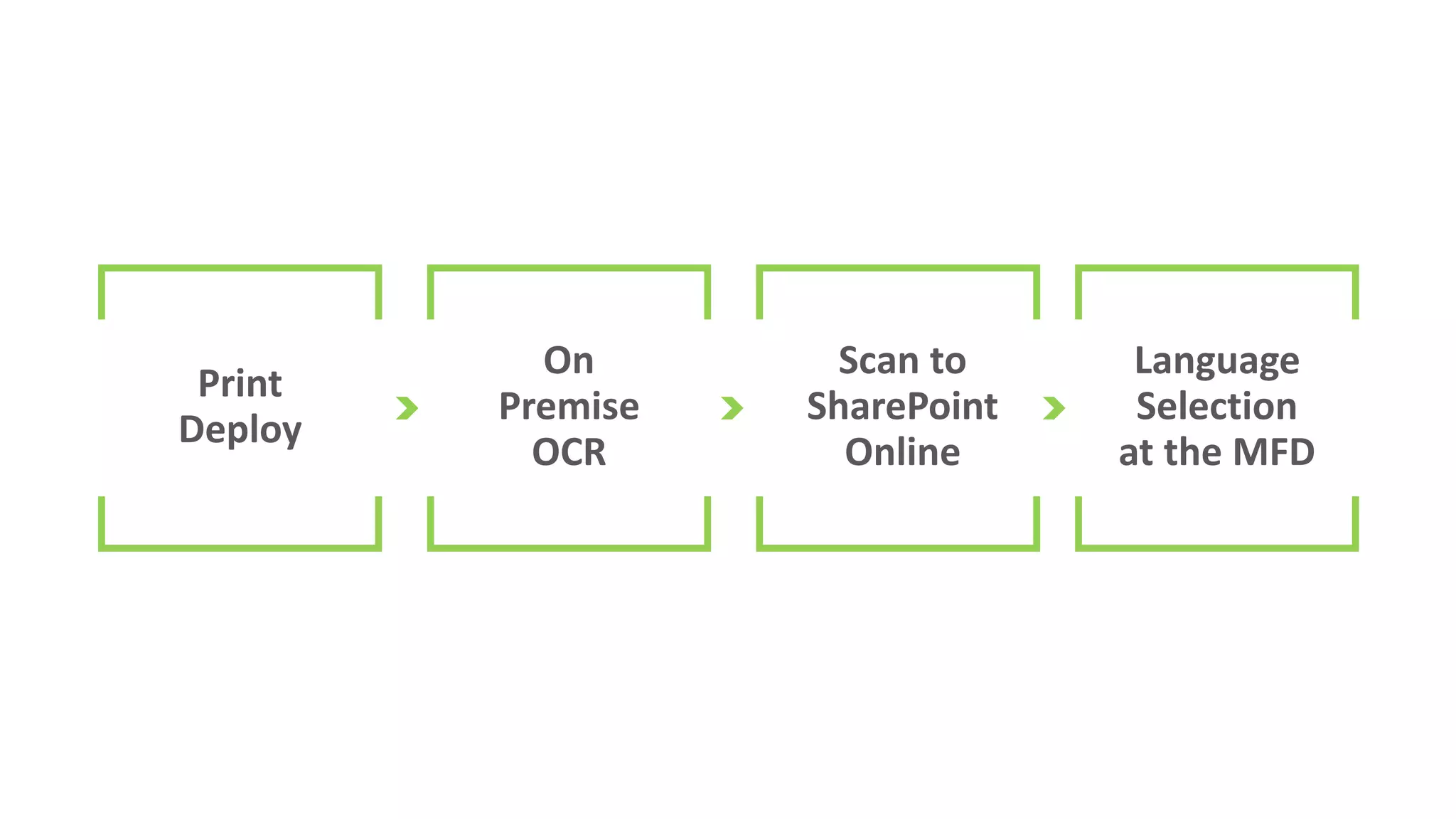
Print
Deploy
On
Premise
OCR
Scan to
SharePoint
Online
Language
Selection
at the MFD
Enable printing:
Print Deploy
Takes the complexity out of print queue
deployment by getting the right driver and right
print queue to the right person in the right
location, automatically.
Print Deploy
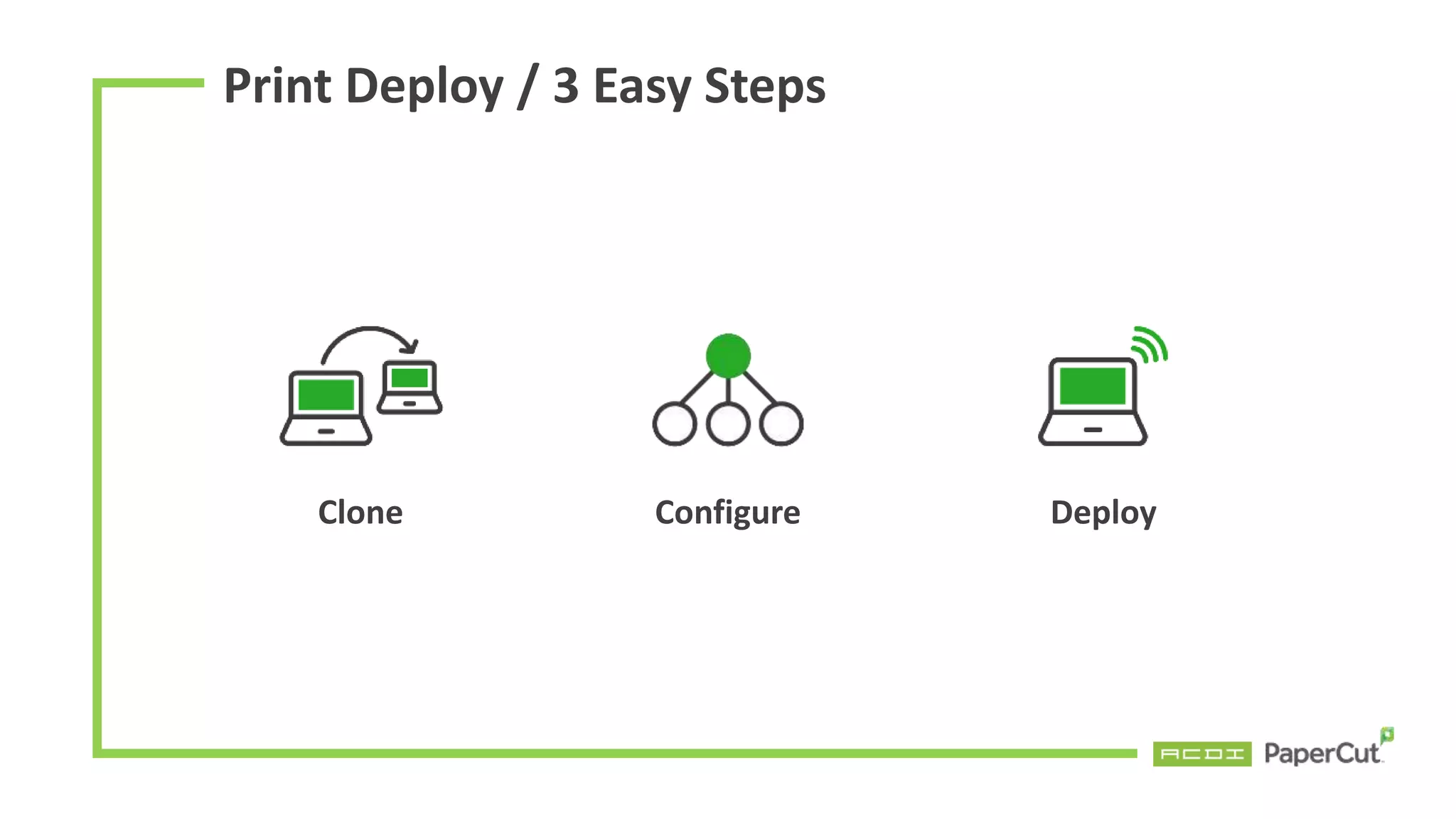
Print Deploy / 3 Easy Steps
Clone Configure Deploy
Clone
First you setup a reference computer, which contains
the print queues, drivers, default settings and capabilities.
• Make sure you can print
• Run the cloner app, which bundles the printer queues, drivers and default
settings, so that you can push it out to end users.
Configure
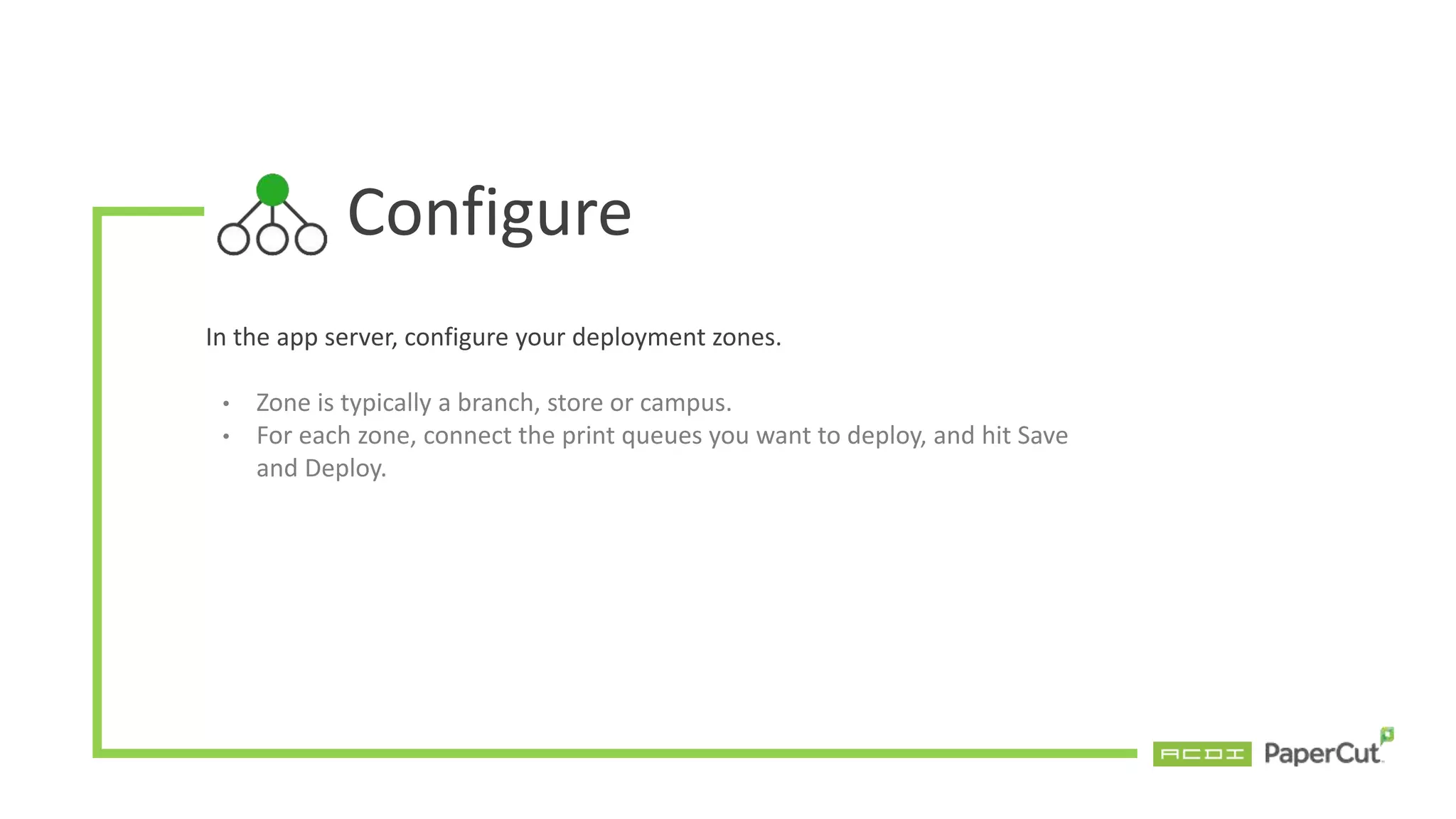
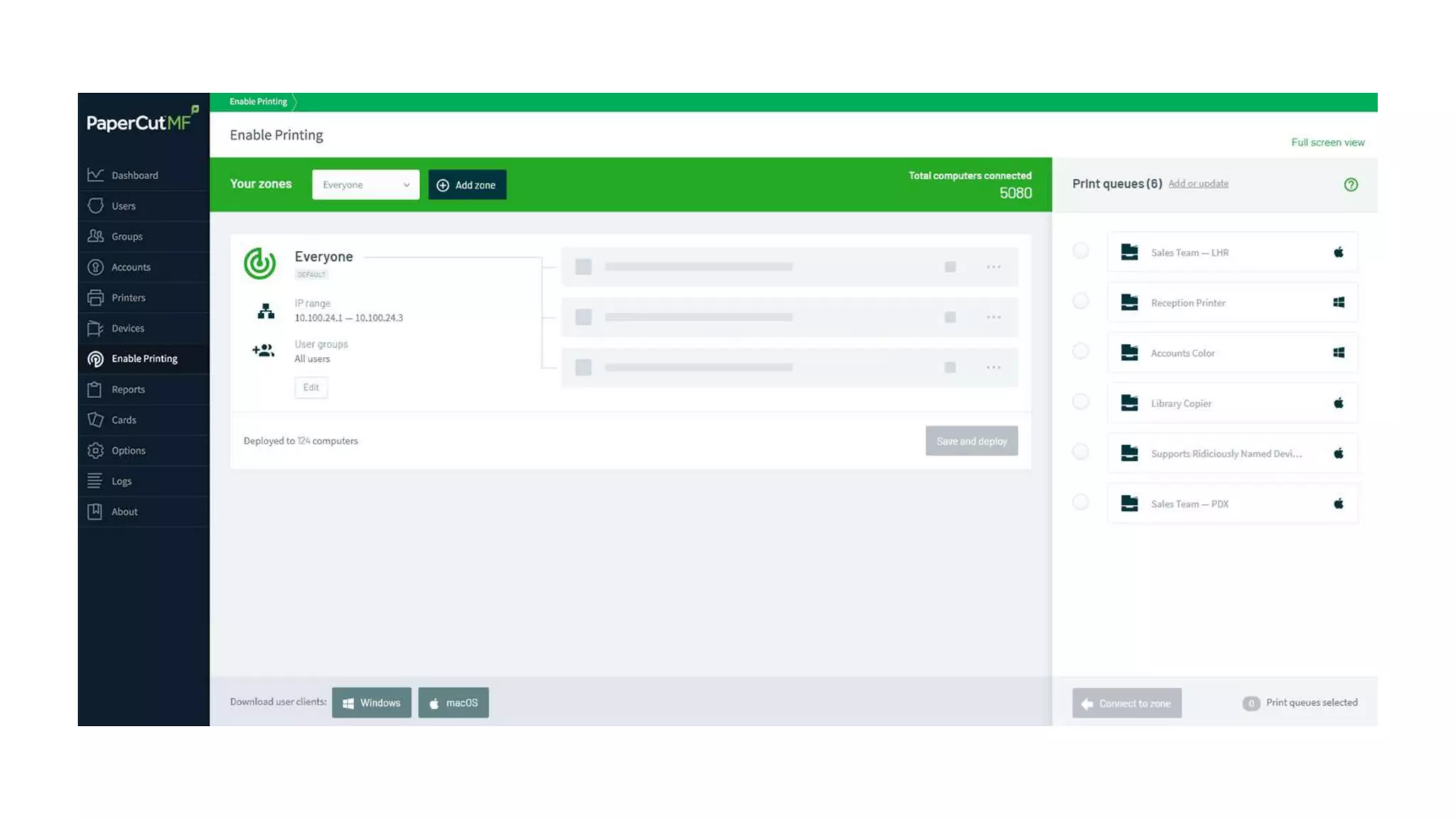
In the app server, configure your deployment zones.
• Zone is typically a branch, store or campus.
• For each zone, connect the print queues you want to deploy, and hit Save
and Deploy.
Deploy
Setup your end users
• Push a small Print Deploy client app to all your users.
• Either install manually, or use your favorite deployment tool like SCCM, GPO, Jamf, Intune)
• The client app runs as a service in the background, and checks for new print queues at
startup, every 15 minutes and when the network changes. For example, when someone enter
a new branch and join the network, their print queues will automatically be deployed in the
background.
• By the time they’ve opened their document, their print queues will be installed. Helping to
make them super efficient with no interruptions.
Print Deploy / How it Works
PaperCut MF Included as standard Advanced Enablement
(Additional Purchase)
Set print defaults and capabilities – grayscale,
duplex/simplex and finishing options like stapling
Domain joined + non domain joined
Serverless printing – direct printing
Traditional printing – printing through a print server
Mac and Windows printing support
(Linux and Chromebooks shortly after launch)
Branch office support – multiple zones with IP filtering
User group queue deployment (Late 2019)
Print Deploy / Features
* The Advanced Print Enablement Pack is available in both PaperCut MF and PaperCut NG
Print Deploy / Advanced Print Enablement
The Advanced Enablement Pack can be purchased with a
one-time flat fee – no need to consider the amount of users,
printers, print queues, or the number of sites, branches, stores,
or campuses.
Customer must have active M&S in order to be eligible for any
upgrades to the Pack in the future.
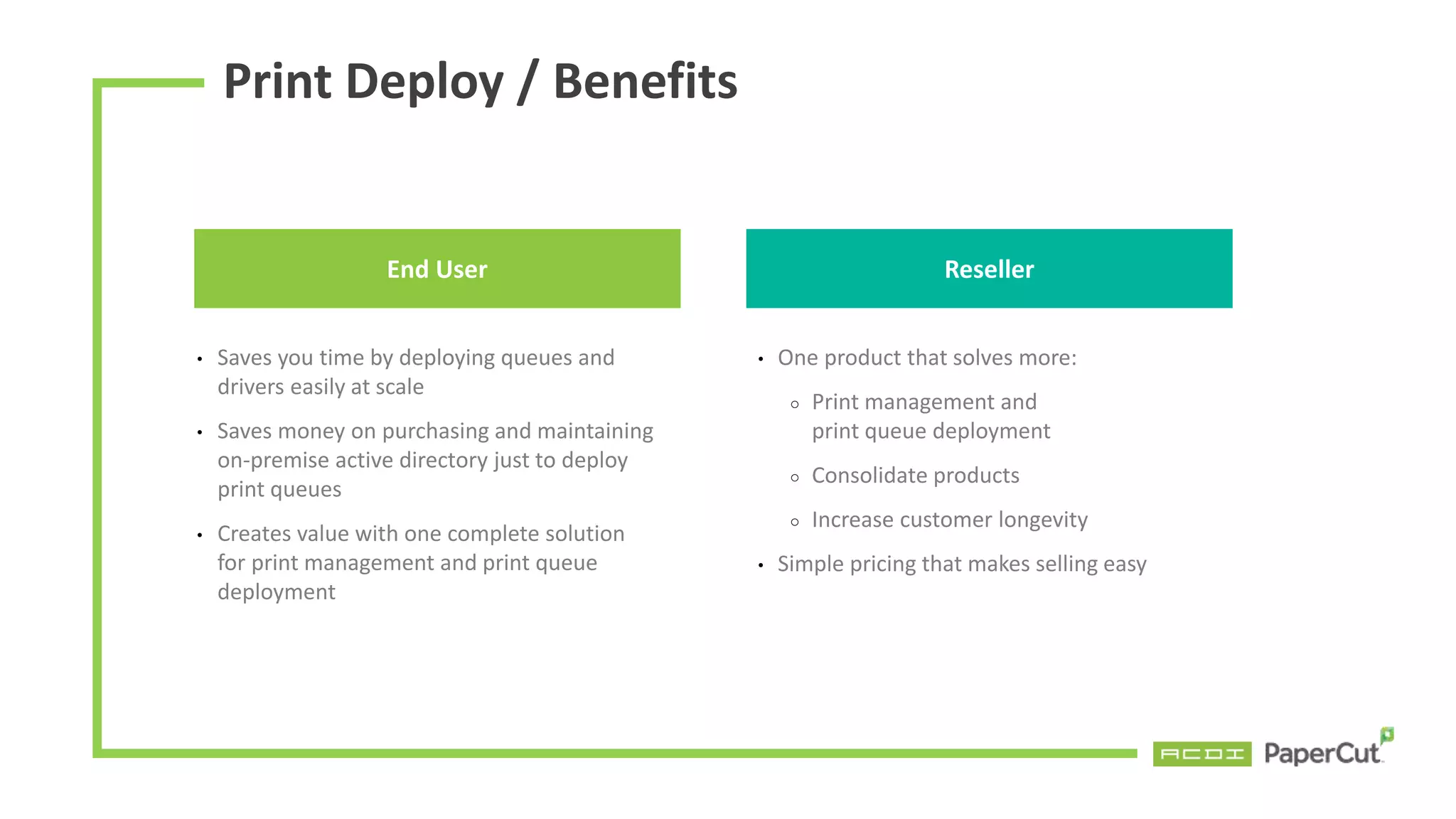
Print Deploy / Benefits
End User
• Saves you time by deploying queues and
drivers easily at scale
• Saves money on purchasing and maintaining
on-premise active directory just to deploy
print queues
• Creates value with one complete solution
for print management and print queue
deployment
• One product that solves more:
○ Print management and
print queue deployment
○ Consolidate products
○ Increase customer longevity
• Simple pricing that makes selling easy
Reseller
On Premise OCR
Create editable and searchable documents
securely within your organization's local
or hosted IT systems.
On Premise OCR
On Premise OCR / Why?
My organization has a policy
that doesn’t allow scanning to
cloud services
I need to create editable
text searchable documents
Locally Hosted OCR
(On Prem)
On Premise OCR / Configuration
On Premise OCR / Language Detection
• Supports up to 10 languages
• Easy configuration by the
administrator
• Improved interpretation
accuracy and processing
performance
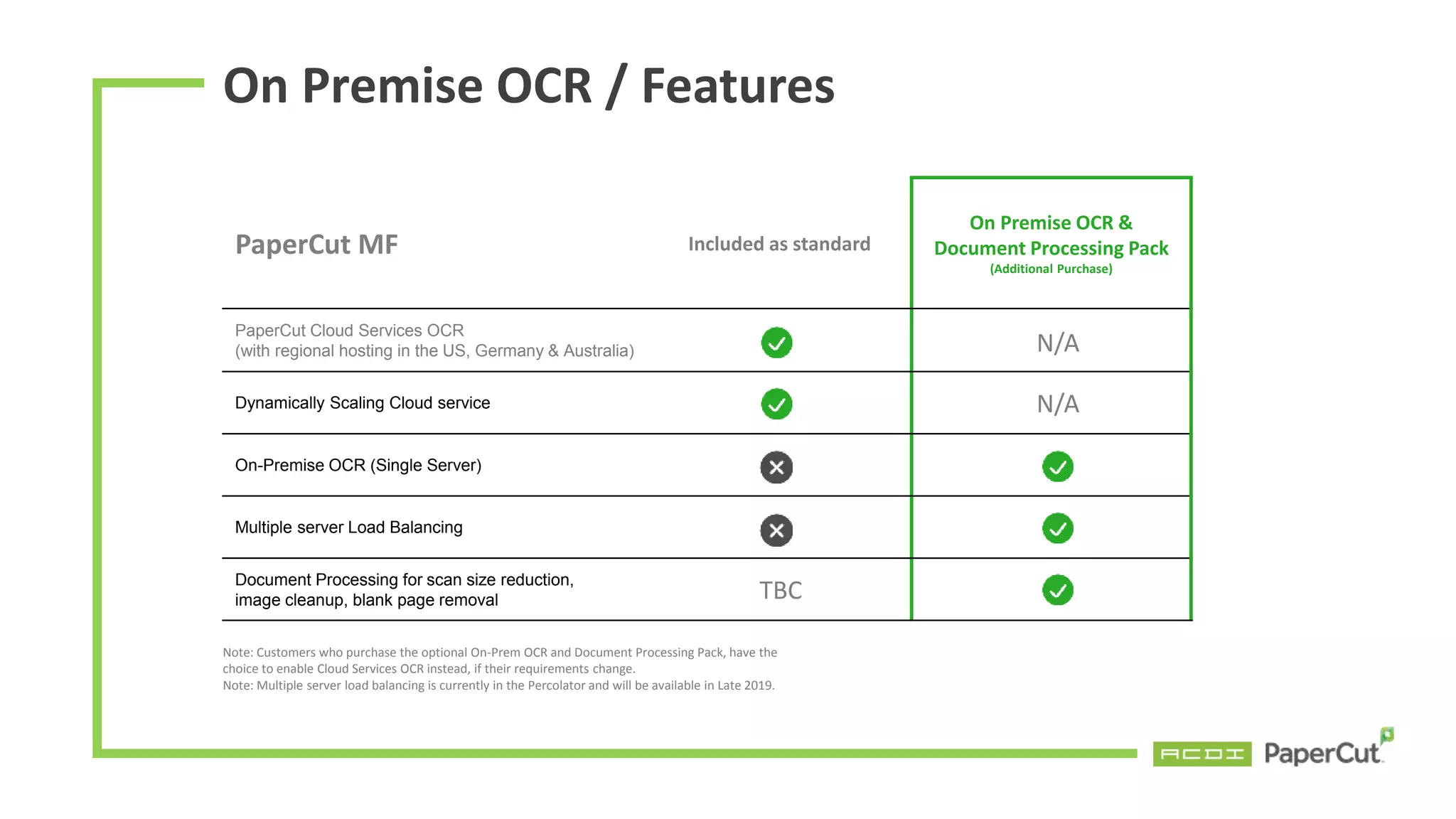
PaperCut MF Included as standard
On Premise OCR &
Document Processing Pack
(Additional Purchase)
PaperCut Cloud Services OCR
(with regional hosting in the US, Germany & Australia)
Dynamically Scaling Cloud service
On-Premise OCR (Single Server)
Multiple server Load Balancing
Document Processing for scan size reduction,
image cleanup, blank page removal
Note: Customers who purchase the optional On-Prem OCR and Document Processing Pack, have the
choice to enable Cloud Services OCR instead, if their requirements change.
Note: Multiple server load balancing is currently in the Percolator and will be available in Late 2019.
N/A
N/A
TBC
On Premise OCR / Features
End User
• For those with strict policies about data
sovereignty, keep it on-premises
• Processes documents quickly - for those
with high performance servers
• When setting up a PaperCut MF site, you
can offer the choice of cloud-based or
locally-based OCR functionality
• Locally Hosted OCR (On Prem) will be a
paid feature
Reseller
On Premise OCR / Benefits
Scan to SharePoint Online
Scan your document directly to your SharePoint
Online document library. Configured once by
the admin and deployed across all devices,
providing fast access to scanned documents and
saving the user time.
Scan to SharePoint Online
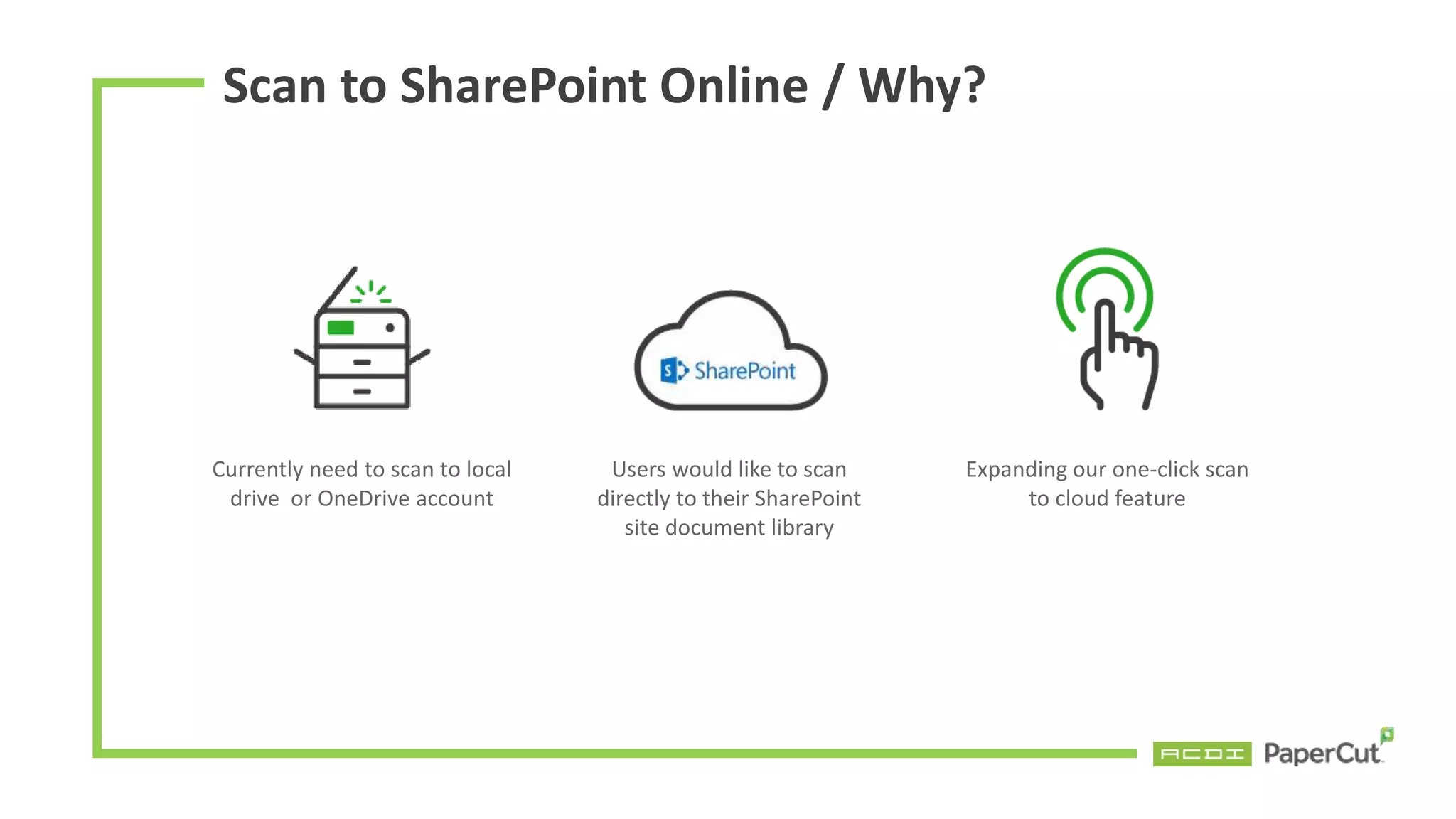
Scan to SharePoint Online / Why?
Currently need to scan to local
drive or OneDrive account
Users would like to scan
directly to their SharePoint
site document library
Expanding our one-click scan
to cloud feature
Scan to SharePoint Online
End User
• Save time with preconfigured setting to
scan to your SharePoint document
library
• One-click scanning saves you time at the
MFD and faster access to your
documents
• Provides capability to be included in
tender submissions
• Offer business services around
designing SharePoint deployments to
optimize business processes
• Re-engage with existing customers that
use SharePoint Online
Reseller
Scan to SharePoint Online / Benefits
Other Features
Custom Reports – One-Click Refresh
More flexibility in creating detailed reports, alongside the
current set of standard reports available in PaperCut today.
Build-your-own reporting feature using any Jasper
Reports-compatible editor, which can be launched within PaperCut.
Initial release will have up to three customized reports.
More reports coming soon.
Custom Reports – One-Click Refresh
• Exec Summary
• User Reports - Largest Print users
• User Reports - User print/copy/scan/fax
• User Reports - User printing - logs
• Printer reports - Printer usage - summary
• Group Reports - Group print/copy/scan/fax
• Shared account - Group print/copy/scan/fax
• Transaction Reports - Transaction logs
• Environmental Impact Reports - User environmental impact - summary
• User Reports - User configuration
Language Selection at the MFD
For Ricoh and Kyocera
User makes one-time selection of their default language at the MFD
• No matter where you go, it’ll remember your selection
• Easy for admin to specify the languages to pick from at the MFD
• Languages that are available depend on the MFD
Deployment Improvements
For Ricoh and Kyocera
Resellers and sys admins can rapidly deploy through
remote setup of MFD fleets with PaperCut.
• Remotely associate MFDs to the PaperCut App Server (Ricoh and Kyocera)
• No onsite technical resources required
• Bulk configuration for larger installs (Kyocera)
• Faster rollouts of printer fleets
PaperCut 19.1 Key Dates
General Availability
August 2019

PaperCut 19.1

  • 2.
  • 3.
  • 4.
    Takes the complexityout of print queue deployment by getting the right driver and right print queue to the right person in the right location, automatically. Print Deploy
  • 5.
    Print Deploy /3 Easy Steps Clone Configure Deploy
  • 6.
    Clone First you setupa reference computer, which contains the print queues, drivers, default settings and capabilities. • Make sure you can print • Run the cloner app, which bundles the printer queues, drivers and default settings, so that you can push it out to end users.
  • 7.
    Configure In the appserver, configure your deployment zones. • Zone is typically a branch, store or campus. • For each zone, connect the print queues you want to deploy, and hit Save and Deploy.
  • 8.
    Deploy Setup your endusers • Push a small Print Deploy client app to all your users. • Either install manually, or use your favorite deployment tool like SCCM, GPO, Jamf, Intune) • The client app runs as a service in the background, and checks for new print queues at startup, every 15 minutes and when the network changes. For example, when someone enter a new branch and join the network, their print queues will automatically be deployed in the background. • By the time they’ve opened their document, their print queues will be installed. Helping to make them super efficient with no interruptions.
  • 9.
    Print Deploy /How it Works
  • 11.
    PaperCut MF Includedas standard Advanced Enablement (Additional Purchase) Set print defaults and capabilities – grayscale, duplex/simplex and finishing options like stapling Domain joined + non domain joined Serverless printing – direct printing Traditional printing – printing through a print server Mac and Windows printing support (Linux and Chromebooks shortly after launch) Branch office support – multiple zones with IP filtering User group queue deployment (Late 2019) Print Deploy / Features * The Advanced Print Enablement Pack is available in both PaperCut MF and PaperCut NG
  • 12.
    Print Deploy /Advanced Print Enablement The Advanced Enablement Pack can be purchased with a one-time flat fee – no need to consider the amount of users, printers, print queues, or the number of sites, branches, stores, or campuses. Customer must have active M&S in order to be eligible for any upgrades to the Pack in the future.
  • 13.
    Print Deploy /Benefits End User • Saves you time by deploying queues and drivers easily at scale • Saves money on purchasing and maintaining on-premise active directory just to deploy print queues • Creates value with one complete solution for print management and print queue deployment • One product that solves more: ○ Print management and print queue deployment ○ Consolidate products ○ Increase customer longevity • Simple pricing that makes selling easy Reseller
  • 14.
  • 15.
    Create editable andsearchable documents securely within your organization's local or hosted IT systems. On Premise OCR
  • 16.
    On Premise OCR/ Why? My organization has a policy that doesn’t allow scanning to cloud services I need to create editable text searchable documents Locally Hosted OCR (On Prem)
  • 17.
    On Premise OCR/ Configuration
  • 18.
    On Premise OCR/ Language Detection • Supports up to 10 languages • Easy configuration by the administrator • Improved interpretation accuracy and processing performance
  • 19.
    PaperCut MF Includedas standard On Premise OCR & Document Processing Pack (Additional Purchase) PaperCut Cloud Services OCR (with regional hosting in the US, Germany & Australia) Dynamically Scaling Cloud service On-Premise OCR (Single Server) Multiple server Load Balancing Document Processing for scan size reduction, image cleanup, blank page removal Note: Customers who purchase the optional On-Prem OCR and Document Processing Pack, have the choice to enable Cloud Services OCR instead, if their requirements change. Note: Multiple server load balancing is currently in the Percolator and will be available in Late 2019. N/A N/A TBC On Premise OCR / Features
  • 20.
    End User • Forthose with strict policies about data sovereignty, keep it on-premises • Processes documents quickly - for those with high performance servers • When setting up a PaperCut MF site, you can offer the choice of cloud-based or locally-based OCR functionality • Locally Hosted OCR (On Prem) will be a paid feature Reseller On Premise OCR / Benefits
  • 21.
  • 22.
    Scan your documentdirectly to your SharePoint Online document library. Configured once by the admin and deployed across all devices, providing fast access to scanned documents and saving the user time. Scan to SharePoint Online
  • 23.
    Scan to SharePointOnline / Why? Currently need to scan to local drive or OneDrive account Users would like to scan directly to their SharePoint site document library Expanding our one-click scan to cloud feature
  • 24.
  • 25.
    End User • Savetime with preconfigured setting to scan to your SharePoint document library • One-click scanning saves you time at the MFD and faster access to your documents • Provides capability to be included in tender submissions • Offer business services around designing SharePoint deployments to optimize business processes • Re-engage with existing customers that use SharePoint Online Reseller Scan to SharePoint Online / Benefits
  • 26.
  • 27.
    Custom Reports –One-Click Refresh More flexibility in creating detailed reports, alongside the current set of standard reports available in PaperCut today. Build-your-own reporting feature using any Jasper Reports-compatible editor, which can be launched within PaperCut. Initial release will have up to three customized reports. More reports coming soon.
  • 28.
    Custom Reports –One-Click Refresh • Exec Summary • User Reports - Largest Print users • User Reports - User print/copy/scan/fax • User Reports - User printing - logs • Printer reports - Printer usage - summary • Group Reports - Group print/copy/scan/fax • Shared account - Group print/copy/scan/fax • Transaction Reports - Transaction logs • Environmental Impact Reports - User environmental impact - summary • User Reports - User configuration
  • 29.
    Language Selection atthe MFD For Ricoh and Kyocera User makes one-time selection of their default language at the MFD • No matter where you go, it’ll remember your selection • Easy for admin to specify the languages to pick from at the MFD • Languages that are available depend on the MFD
  • 30.
    Deployment Improvements For Ricohand Kyocera Resellers and sys admins can rapidly deploy through remote setup of MFD fleets with PaperCut. • Remotely associate MFDs to the PaperCut App Server (Ricoh and Kyocera) • No onsite technical resources required • Bulk configuration for larger installs (Kyocera) • Faster rollouts of printer fleets
  • 31.
    PaperCut 19.1 KeyDates General Availability August 2019

Editor's Notes

  • #3 Print Deploy On Premise OCR Scan to SharePoint Online Language Selection at the MFD
  • #4 Enable printing: Print Deploy
  • #5 Takes the complexity out of print queue deployment by getting the right driver and right print queue to the right person in the right location, automatically.
  • #6  1. First you setup a reference computer, which contains the print queues, drivers, default settings and capabilities. Make sure you can print Run the cloner app, which bundles the printer queues, drivers and default settings, so that you can push it out to end users. 2. In the app server, configure your deployment zones. Zone is typically a branch, store or campus. For each zone, connect the print queues you want to deploy, and hit Save and Deploy. 3. Setup your end users Push a small Print Deploy client app to all your users. Either install manually, or use your favorite deployment tool like SCCM, GPO, Jamf, Intune) The client app runs as a service in the background, and checks for new print queues at startup, every 15 minutes and when the network changes. For example, when someone enter a new branch and join the network, their print queues will automatically be deployed in the background. By the time they’ve opened their document, their print queues will be installed. Helping to make them super efficient with no interruptions. 4. The next step is to relax and enjoy the sudden silence on your support line Print queues magically appear on computers
  • #7  First you setup a reference computer, which contains the print queues, drivers, default settings and capabilities. Make sure you can print Run the cloner app, which bundles the printer queues, drivers and default settings, so that you can push it out to end users.
  • #8 2. In the app server, configure your deployment zones. Zone is typically a branch, store or campus. For each zone, connect the print queues you want to deploy, and hit Save and Deploy.
  • #9 3. Setup your end users Push a small Print Deploy client app to all your users. Either install manually, or use your favorite deployment tool like SCCM, GPO, Jamf, Intune) The client app runs as a service in the background, and checks for new print queues at startup, every 15 minutes and when the network changes. For example, when someone enter a new branch and join the network, their print queues will automatically be deployed in the background. By the time they’ve opened their document, their print queues will be installed. Helping to make them super efficient with no interruptions.
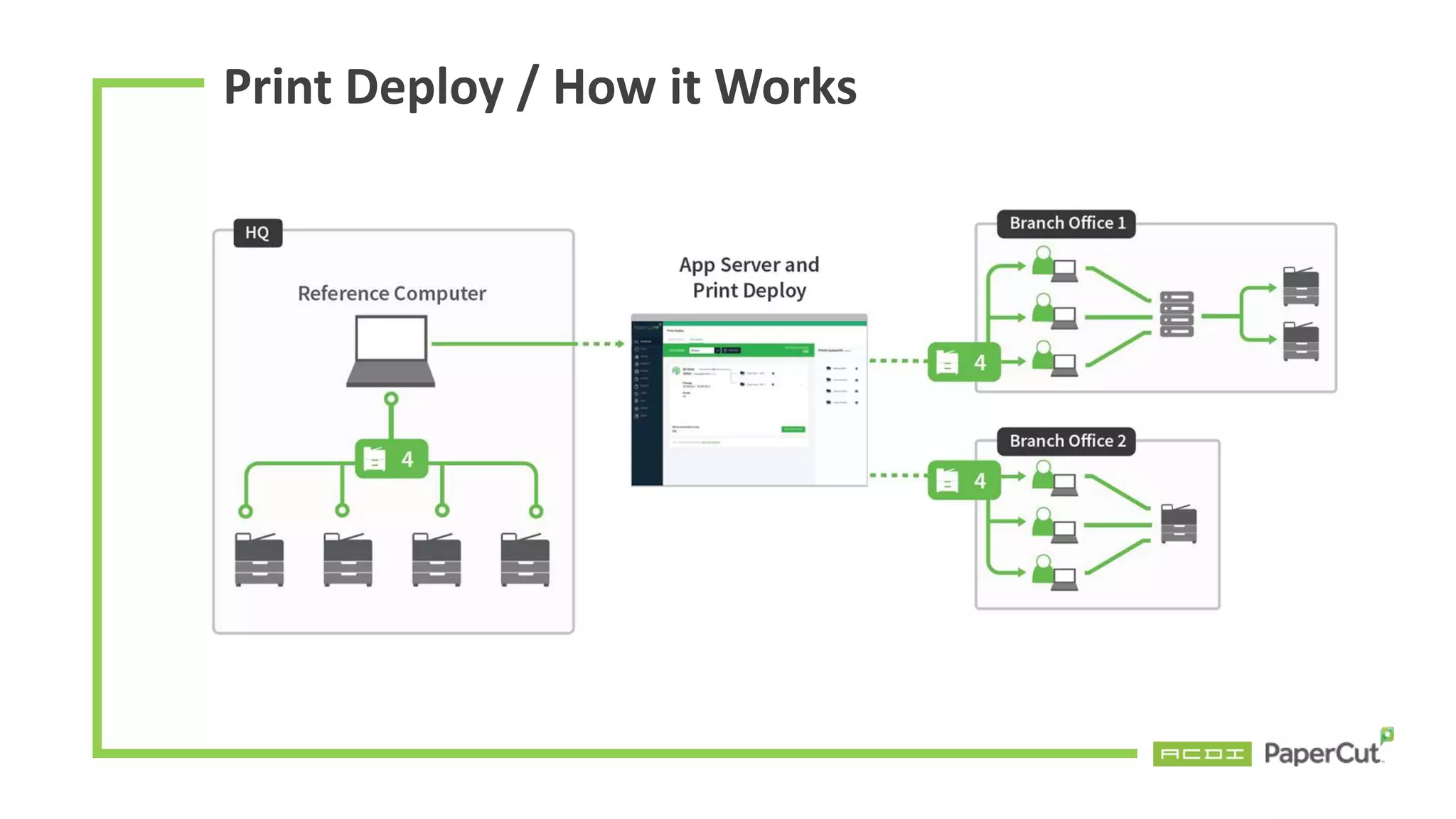
  • #10 Here is a different high level view of the steps just described.  On the left You can see the reference computer with the queues that are cloned.  When cloned, the queues, drivers, default settings and finishing options are pushed to the App Server which you can see in the middle App server in the middle In the app server interface you manage your zones and connect the print queues you want to deploy to each zone.  Once you hit “Save and Deploy”, the queues are pushed out to your branches.  On the right, you see two examples of a branch: In one branch, users are printing via a server and with Print Deploy, these server queues are automatically installed.  Branch office 2 is an example of a site that doesn’t have a print server. Print Deploy works great for the sites as well. When a direct print queue is present, then Print Deploy will automatically install and configure the PaperCut Direct Print monitor, which will track printing on these queues, but also enable Find Me and Secure Print release.
  • #11 This is an animated .gif. It will walk through the steps of how it works
  • #12 Standard is built into PaperCut NG and PaperCut MF, at no additional cost
  • #13 The Advanced Enablement Pack can be purchased with a one-time flat fee – no need to consider the amount of users, printers, print queues, or the number of sites, branches, stores, or campuses. Customer must have active M&S in order to be eligible for any upgrades to the Pack in the future.
  • #14 Benefits for Partners One product that solves more Solve print queue deployment as well as print management Reduce support and operational costs by consolidating products Increase customer longevity by enabling and managing the print environment Simple pricing that makes selling easy Add extra customer value Expand professional services - setting up print drivers and queues
  • #15 On Premise OCR
  • #16 Create editable and searchable documents securely within your organization's local or hosted IT systems.
  • #17 My organization has a policy that doesn’t allow scanning to cloud services I need to create editable text searchable documents Locally Hosted OCR (On Prem)
  • #18 Simple Setup Experience - It’s included in the 19.1 feature. Download the installer, run it and add the host name. You’re done!
  • #19 As part of configuring OCR, the PaperCut Administrator can configure the languages that are selected for detection within documents. The choice is in the admins hand, performance vs accuracy; choose one or two languages for the best OCR processing performance or more languages if accuracy is more important.
  • #20 Standard is built into PaperCut NG and PaperCut MF, at no additional cost
  • #21 End User For those with strict policies about data sovereignty, keep it on-premises Processes documents quickly - for those with high performance servers Reseller When setting up a PaperCut MF site, you can offer the choice of cloud-based or locally-based OCR functionality Locally Hosted OCR (On Prem) will be a paid feature
  • #22 Scan to SharePoint Online
  • #23 Scan your document directly to your SharePoint Online document library. Configured once by the admin and deployed across all devices, providing fast access to scanned documents and saving the user time.
  • #24 Currently need to scan to local drive or OneDrive account Users would like to scan directly to their SharePoint site document library Expanding our one-click scan to cloud feature
  • #25 A new configuration field has been added on the Scan Action details page to link to the SharePoint Document Library
  • #26 End User Save time with preconfigured setting to scan to your SharePoint document library One-click scanning saves you time at the MFD and faster access to your documents Reseller Provides capability to be included in tender submissions Offer business services around designing SharePoint deployments to optimize business processes Re-engage with existing customers that use SharePoint Online
  • #27 Other Features
  • #28 Custom Reports – One-Click Refresh More flexibility in creating detailed reports, alongside the current set of standard reports available in PaperCut today. Build-your-own reporting feature using any Jasper Reports-compatible editor, which can be launched within PaperCut. Initial release will have up to three customized reports. More reports coming soon.
  • #29 Custom Reports – One-Click Refresh Exec Summary User Reports - Largest Print users User Reports - User print/copy/scan/fax User Reports - User printing - logs Printer reports - Printer usage - summary Group Reports - Group print/copy/scan/fax Shared account - Group print/copy/scan/fax Transaction Reports - Transaction logs Environmental Impact Reports - User environmental impact - summary User Reports - User configuration
  • #30 Language Selection at the MFD For Ricoh and Kyocera User makes one-time selection of their default language at the MFD No matter where you go, it’ll remember your selection Easy for admin to specify the languages to pick from at the MFD Languages that are available depend on the MFD
  • #31 Deployment Improvements For Ricoh and Kyocera Resellers and sys admins can rapidly deploy through remote setup of MFD fleets with PaperCut. Remotely associate MFDs to the PaperCut App Server (Ricoh and Kyocera) No onsite technical resources required Bulk configuration for larger installs (Kyocera) Faster rollouts of printer fleets
  • #32 PaperCut 19.1 Key Dates General Availability - August 2019