Operating Instructions
                                                                                          Digital Camera

                                                        Model No.         DMC-FZ28


    Before connecting, operating or adjusting this product,
                 please read the instructions completely.


For USA assistance, please call: 1-800-211-PANA(7262) or, contact us via the web at: http://www.panasonic.com/contactinfo

For Canadian assistance, please call: 1-800-99-LUMIX (1-800-995-8649) or
                     send e-mail to: lumixconcierge@ca.panasonic.com


P PC                                                                                                     VQT1S36
Before Use
    Before Use

Dear Customer,
Thank you for choosing Panasonic!
You have purchased one of the most sophisticated and reliable products on the market
today. Used properly, we’re sure it will bring you and your family years of enjoyment.
Please take time to fill in the information on the below.
The serial number is on the tag located on the underside of your Camera. Be sure to
retain this manual as your convenient Camera information source.


                             A lithium ion battery that is recyclable powers the product you have
                 RBRC        purchased. Please call 1-800-8-BATTERY for information on how to
                        TM
                             recycle this battery.
                 Li-ion


    Information for Your Safety

    WARNING:
    TO REDUCE THE RISK OF FIRE, ELECTRIC SHOCK OR PRODUCT DAMAGE,
    • DO NOT EXPOSE THIS APPARATUS TO RAIN, MOISTURE, DRIPPING OR
      SPLASHING AND THAT NO OBJECTS FILLED WITH LIQUIDS, SUCH AS VASES,
      SHALL BE PLACED ON THE APPARATUS.
    • USE ONLY THE RECOMMENDED ACCESSORIES.
    • DO NOT REMOVE THE COVER (OR BACK); THERE ARE NO USER SERVICEABLE
      PARTS INSIDE. REFER SERVICING TO QUALIFIED SERVICE PERSONNEL.

Carefully observe copyright laws.
Recording of pre-recorded tapes or discs or other published or broadcast material
for purposes other than your own private use may infringe copyright laws. Even for
the purpose of private use, recording of certain material may be restricted.
• Please note that the actual controls and components, menu items, etc. of your Digital
  Camera may look somewhat different from those shown in the illustrations in these
  Operating Instructions.
• SDHC Logo is a trademark.
• Microsoft product screen shot(s) reprinted with permission from Microsoft Corporation.
• Other names, company names, and product names printed in these instructions are
  trademarks or registered trademarks of the companies concerned.

    THE SOCKET OUTLET SHALL BE INSTALLED NEAR THE EQUIPMENT AND
    SHALL BE EASILY ACCESSIBLE.


2   VQT1S36
Before Use


 CAUTION
 Danger of explosion if battery is incorrectly replaced. Replace only with the same or
 equivalent type recommended by the manufacturer. Dispose of used batteries
 according to the manufacturer’s instructions.


 Warning
 Risk of fire, explosion and burns. Do not disassemble, heat above 60 xC (140 oF) or
 incinerate.


 Product Identification Marking is located on the bottom of units.

THE FOLLOWING APPLIES ONLY IN CANADA.

 This Class B digital apparatus complies with Canadian ICES-003.

THE FOLLOWING APPLIES ONLY IN THE U.S.A.
FCC Note:
This equipment has been tested and found to comply with the limits for a Class B digital
device, pursuant to Part 15 of the FCC Rules. These limits are designed to provide
reasonable protection against harmful interference in a residential installation. This
equipment generates, uses, and can radiate radio frequency energy and, if not installed
and used in accordance with the instructions, may cause harmful interference to radio
communications. However, there is no guarantee that interference will not occur in a
particular installation. If this equipment does cause harmful interference to radio or
television reception, which can be determined by turning the equipment off and on, the
user is encouraged to try to correct the interference by one or more of the following
measures:
• Reorient or relocate the receiving antenna.
• Increase the separation between the equipment and receiver.
• Connect the equipment into an outlet on a circuit different from that to which the receiver is
 connected.
• Consult the dealer or an experienced radio/TV technician for help.
FCC Caution:To assure continued compliance, follow the attached installation
            instructions and use only shielded interface cables with ferrite core when
            connecting to computer or peripheral devices.
Any changes or modifications not expressly approved by the party responsible for
compliance could void the user’s authority to operate this equipment.


                                                                                        VQT1S36    3
Before Use


    Declaration of Conformity
    Trade Name: Panasonic
    Model No.:     DMC-FZ28
    Responsible party:Panasonic Corporation of North America One Panasonic Way,
                      Secaucus, NJ 07094
    Support Contact: Panasonic Consumer Electronics Company 1-800-211-PANA (7262)
    This device complies with Part 15 of the FCC Rules. Operation is subject to the
    following two conditions: (1) This device may not cause harmful interference, and (2)
    this device must accept any interference received, including interference that may
    cause undesired operation.


                  DMC-FZ28

-If you see this symbol-
    Information on Disposal in other Countries outside the European Union
    This symbol is only valid in the European Union.
    If you wish to discard this product, please contact your local
    authorities or dealer and ask for the correct method of disposal.


∫ About the battery pack

    CAUTION
    Battery pack (Lithium ion battery pack)
    • Use the specified unit to recharge the battery pack.
    • Do not use the battery pack with equipment other than the specified unit.
    • Do not get dirt, sand, liquids, or other foreign matter on the terminals.
    • Do not touch the plug terminals (i and j) with metal objects.
    • Do not disassemble, remodel, heat or throw into fire.
    If any electrolyte should come into contact with your hands or clothes, wash it off
    thoroughly with water.
    If any electrolyte should come into contact with your eyes, never rub the eyes. Rinse
    eyes thoroughly with water, and then consult a doctor.

• Do not heat or expose to flame.
• Do not leave the battery(ies) in an automobile exposed to direct sunlight for a long period of
    time with doors and windows closed.


4   VQT1S36
Before Use

∫ About the battery charger

 CAUTION!
 DO NOT INSTALL OR PLACE THIS UNIT IN A BOOKCASE, BUILT-IN CABINET OR
 IN ANOTHER CONFINED SPACE. ENSURE THE UNIT IS WELL VENTILATED. TO
 PREVENT RISK OF ELECTRIC SHOCK OR FIRE HAZARD DUE TO OVERHEATING,
 ENSURE THAT CURTAINS AND ANY OTHER MATERIALS DO NOT OBSTRUCT
 THE VENTILATION VENTS.

 Battery charger
 This battery charger operates on AC between 110 V and 240 V.
 But
 • In the U.S.A. and Canada, the battery charger must be connected to a 120 V AC power
  supply only.
 • When connecting to an AC supply outside of the U.S.A. or Canada, use a plug adaptor to
  suit the AC outlet configuration.

∫ Care of the camera
• Do not strongly shake or bump the camera by dropping it etc.
 This unit may malfunction, recording pictures may no longer be possible or the lens or the LCD
 monitor may be damaged.
• Retract the lens before carrying the camera or playing back pictures.
• Be particularly careful in the following places as they may cause this unit to
  malfunction.
  – Places with a lot of sand or dust.
  – Places where water can come into contact with this unit such as when using it on a rainy day
     or on a beach.
• Do not touch the lens or the sockets with dirty hands. Also, be careful not to allow
  liquids, sand and other foreign matter to get into the space around the lens, buttons etc.
• If water or seawater splashes on the camera, use a dry cloth to wipe the camera body
  carefully.

∫ About Condensation (When the lens or the Viewfinder is fogged up)
• Condensation occurs when the ambient temperature or humidity changes. Be careful of
 condensation since it causes lens stains, fungus and camera malfunction.
• If condensation occurs, turn the camera off and leave it for about 2 hours. The fog will
 disappear naturally when the temperature of the camera becomes close to the ambient
 temperature.

∫ Read together with the “Cautions for Use”. (P125)


                                                                                         VQT1S36      5
Contents                                                       Deleting Pictures..................................... 42
                                                                 • To delete a single picture.................. 42
                                                                 • To delete multiple pictures
                   Before Use                                      (up to 50) or all the pictures.............. 43

Information for Your Safety....................... 2            Advanced (Recording pictures)
Quick Guide .............................................. 8
Standard Accessories............................... 9          About the LCD Monitor/Viewfinder ......... 44
Names of the Components ..................... 10               Taking Pictures using the Built-in
Attaching the Lens Cap/Strap................. 12               Flash ....................................................... 46
Attaching the Lens Hood ........................ 13               • Switching to the appropriate flash
                                                                    setting............................................... 46
                   Preparation                                 Taking Close-up Pictures........................ 51
                                                               Taking Pictures with the Self-timer ......... 52
Charging the Battery............................... 15         Compensating the Exposure .................. 53
                                                               Taking Pictures using Auto Bracket/
About the Battery (charging/number of                          Color Bracket .......................................... 54
recordable pictures) ................................ 16
Inserting and Removing the Card                                   • Auto Bracket ..................................... 54
(optional)/the Battery .............................. 17          • Color Bracket .................................... 54
About the Built-in Memory/the Card........ 18                  Taking Pictures using Burst Mode .......... 55
Setting Date/Time (Clock Set) ................ 20              Taking pictures by specifying the
  • Changing the clock setting ............... 20              aperture/shutter speed............................ 56
Setting the Menu..................................... 21          • Aperture-priority AE .......................... 56
  • Setting menu items ........................... 22             • Shutter-priority AE ............................ 57
  • Using the quick menu ....................... 23            Taking picture by setting the exposure
About the Setup Menu ............................ 24           manually ................................................. 57
Selecting the [REC] Mode ...................... 30             Aperture Value and Shutter Speed......... 58
                                                               Taking Pictures with Manual Focus ........ 59
                                                                  • MF ASSIST....................................... 60
                        Basic                                  Registering Personal Menu Settings
                                                               (Registering custom settings) ................. 61
Taking pictures using the automatic                            Taking pictures in Custom mode ............ 62
function (Intelligent Auto Mode) .............. 32             Taking expressive portraits and
   • Scene detection ................................ 33       landscape pictures
   • AF Tracking Function ....................... 33           (Advanced scene mode)......................... 63
   • About the flash.................................. 34         • [PORTRAIT]..................................... 63
   • Settings in Intelligent auto mode ...... 34                  • [SCENERY] ..................................... 64
Taking pictures with your favorite                                • [SPORTS] ........................................ 65
settings (Program AE mode) .................. 35                  • [NIGHT PORTRAIT] ........................ 65
   • Focusing ........................................... 36      • [CLOSE-UP] .................................... 66
   • When the subject is not in focus                          Taking pictures that match the scene
     (such as when it is not in the                            being recorded (Scene mode) ................ 66
     center of the composition of the                             • 2 [PARTY]...................................... 67
     picture you want to take) .................. 36              • 3 [CANDLE LIGHT]........................ 67
   • Preventing jitter (camera shake)....... 37                   • : [BABY1]/; [BABY2].................. 68
   • Direction detection function .............. 37               • í [PET]........................................... 68
   • Enlarge the focus point (display
     focus point)....................................... 37       • ï [SUNSET] ................................... 69
   • Program shift .................................... 37        • 9 [HIGH SENS.] ............................. 69
Taking Pictures with the Zoom ............... 38                  • ô [HI-SPEED BURST].................... 69
   • Using the Optical Zoom/Using the                             •     [FLASH BURST] ......................... 70
     Extended Optical Zoom (EZ)/Using                             •     [PANNING].................................. 70
     the Digital Zoom ............................... 38
Playing back Pictures                                             • 5 [STARRY SKY] ........................... 71
([NORMAL PLAY]).................................. 40              • 4 [FIREWORKS] ............................ 72
   • Confirm the picture in [REC] mode                            • 6 [BEACH] ..................................... 72
     (Review) ........................................... 41      • 8 [SNOW]....................................... 73
   • Displaying Multiple Screens (Multi                           • 7 [AERIAL PHOTO] ....................... 73
     Playback).......................................... 41       •     [PIN HOLE] ................................. 73
   • Using the Playback Zoom................. 41
   • Switching the [PLAYBACK] mode .... 42                        •     [FILM GRAIN] ............................. 73

6   VQT1S36
Motion Picture Mode ............................... 74                •     [TRIMMING] ............................. 104
Useful Functions at Travel                                            •     [LEVELING] .............................. 105
Destinations ............................................ 76
  • Recording which Day of the                                        • ? [ASPECT CONV.] ..................... 105
    Vacation and the Location of the                                  • N [ROTATE]/
    Vacation ........................................... 76             M [ROTATE DISP.]....................... 106
  • Recording Dates/Times at                                          • Ü [FAVORITE] ............................... 107
    Overseas Travel Destinations
    (World Time)..................................... 78              • O [DPOF PRINT]........................... 108
Using the [REC] Mode Menu .................. 79                       • P [PROTECT]............................... 109
  • @ [PICTURE SIZE]........................... 79                    • B [AUDIO DUB.] ............................. 110
  • A [QUALITY]................................... 80                 • S [COPY] .................................... 110
  • ? [ASPECT RATIO] ....................... 80
  •     [INTELLIGENT ISO] ................... 81                   Connecting to other equipment
  • > [SENSITIVITY] ............................ 81
  •      [ISO LIMIT SET] ........................ 82               Connecting to a PC............................... 112
  • = [WHITE BALANCE] .................... 82                      Printing the Pictures.............................. 114
                                                                     • Selecting a single picture and
  • C [METERING MODE].................... 84                           printing it ......................................... 115
  • AF [AF MODE]................................. 84                 • Selecting multiple pictures and
  •     [PRE AF] .................................... 87               printing them................................... 115
  •     [AF/AE LOCK] ............................ 88                 • Print Settings .................................. 116
                                                                   Playing Back Pictures on a
  •     [I.EXPOSURE]............................ 88                TV Screen ............................................. 118
  • ) [DIGITAL ZOOM] ........................ 89                     • Playing back pictures using the
  • H [COLOR EFFECT] ....................... 89                        AV cable (supplied) ........................ 118
                                                                     • Playing back pictures on a TV
  • I [PICT.ADJ.]................................. 89                  with an SD Memory Card slot......... 119
  •      [STABILIZER] ............................ 90                • Playing back on the TV with
  •     [MIN. SHTR SPEED] .................. 90                        component socket .......................... 119
  • B [AUDIO REC.] ............................... 91              Using the Conversion Lens
                                                                   (optional) ............................................... 120
  • F [AF ASSIST LAMP]................... 91                       Using the Protector/Filter ...................... 122
  •     [FLASH SYNCHRO] ................... 92
  •      [FLIP ANIM.] .............................. 92                                    Others
  •     [CONVERSION] ......................... 93
  • U [CLOCK SET]............................... 93                Screen Display...................................... 123
                                                                   Cautions for Use ................................... 125
                                                                   Message Display .................................. 128
          Advanced (Playback)                                      Functions that cannot be set or will
                                                                   not work under some conditions ........... 130
Playing Back Pictures in Sequence                                  Troubleshooting .................................... 134
(Slide Show) ........................................... 94        Number of Recordable Pictures and
Selecting Pictures and Playing them                                Available Recording Time ..................... 142
                                                                   Specifications........................................ 146
Back ([CATEGORY PLAY]/                                             Digital Camera Accessory System........ 149
[FAVORITE PLAY]) ................................ 96               Digital Camera Accessory Order
   • [CATEGORY PLAY] ......................... 96                  Form (For USA Customers) .................. 150
   • [FAVORITE PLAY]............................ 96                Request for Service Notice
Playing Back Motion Pictures/                                      (For USA Only) ..................................... 151
Pictures with Audio ................................. 97           Limited Warranty (For USA Only) ......... 152
   • Motion pictures ................................. 97          Customer Services Directory
   • Pictures with audio............................ 97            (For USA Only) ..................................... 154
Creating still pictures from a motion                              Précautions à prendre
picture ..................................................... 98   (pour le Canada) ................................... 155
Using the [PLAYBACK] mode menu....... 99                           Index ..................................................... 157
   • CAL [CALENDAR].............................. 99
   •     [TITLE EDIT] ............................ 100
   •     [TEXT STAMP] ......................... 101
   • Q [RESIZE]................................... 103
                                                                                                                     VQT1S36     7
Before Use


    Before Use


    Quick Guide
This is an overview of how to record and play back pictures with the camera. For each
step, be sure to refer to the pages indicated in brackets.

                 Charge the battery. (P15)
                 • The battery is not charged when the
                  camera is shipped. Charge the battery
                  before use.


                 Insert the battery and the card.
                 (P17)
                 • When you do not use the card, you can
                  record or play back pictures on the
                  built-in memory. (P18) Refer to P19
                  when you use a card.


                                                            OFF ON
                 Turn the camera on to take
                 pictures.                                                             
                 1 Slide the [REC]/[PLAYBACK] selector
                   switch to [!].
                 2 Press the shutter button to take
                   pictures. (P32)


                 Play back the pictures.                                                
                 1 Slide the [REC]/[PLAYBACK] selector
                   switch to [(].
                 2 Select the picture you want to view.
                   (P40)


                                                           

8   VQT1S36
Before Use


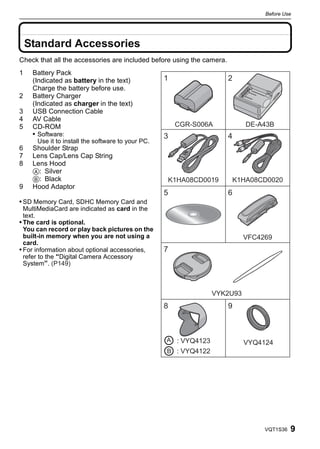
    Standard Accessories
Check that all the accessories are included before using the camera.
1    Battery Pack
     (Indicated as battery in the text)            1                   2
     Charge the battery before use.
2    Battery Charger
     (Indicated as charger in the text)
3    USB Connection Cable
4    AV Cable
5    CD-ROM                                            CGR-S006A           DE-A43B
     • Software:                                   3                   4
      Use it to install the software to your PC.
6    Shoulder Strap
7    Lens Cap/Lens Cap String
8    Lens Hood
     A: Silver
     B: Black                                      K1HA08CD0019        K1HA08CD0020
9    Hood Adaptor
                                                   5                   6
• SD Memory Card, SDHC Memory Card and
  MultiMediaCard are indicated as card in the
  text.
• The card is optional.
  You can record or play back pictures on the
  built-in memory when you are not using a                                 VFC4269
  card.
• For information about optional accessories,      7
  refer to the “Digital Camera Accessory
  System”. (P149)


                                                               VYK2U93
                                                   8                   9


                                                                           VYQ4124


                                                                                VQT1S36   9
Before Use


     Names of the Components
 1      Lens (P126)                                                1           2       3 4
 2      Flash (P46)
 3      Self-timer indicator (P52)
        AF assist lamp (P91)
 4      Microphone (P74, 91, 110)


 5      Flash open button (P46)
 6      Diopter adjustment dial (P45)                         5 6        7 8 910 11 12
 7      Viewfinder (P44, 123)
 8      Speaker (P97)
 9      [EVF/LCD] button (P44)
 10     [AF/AE LOCK] button (P33, 86, 88)
 11     Joystick (P23, 37, 56, 57, 60)


                                                            13      14         15 16      17


       The joystick is operated in two different ways: it can be moved in the up, down, left
       and right directions to perform an operation, or it can be pressed to select. In these
       operating instructions, it is pictured as shown in the figure below or described with
       3/4/2/1.
       Example: When the joystick is moved
       toward 2 (left)
       Place your finger on the right side of the
       joystick, and move the joystick toward
       the left.
                                                                  or Move 2
       Push the joystick straight in.


                                                                    or Press


10   VQT1S36
Before Use

12 [REC]/[PLAYBACK] selector switch (P21)
13 LCD monitor (P44, 123)
14 [DISPLAY] button (P42)
15 Delete button (P42)/
   Single or burst mode button (P55)
16 [MENU/SET] button (P20)
17 Cursor buttons
   2/Self-timer button (P52)
   4Function button (P25)
   Assign [REC] Mode Menu to 4 button. It is convenient to register [REC] Mode Menu
   that is used often.
   [REVIEW]/[SENSITIVITY]/[WHITE BALANCE]/[METERING MODE]/[AF MODE]/
   [I.EXPOSURE]
   1/Flash setting button (P46)
   3/Exposure compensation (P53)/
   Auto bracket (P54)/Color bracket (P54)/Flash output adjustment (P46)/


     In these operating instructions, the cursor buttons are described as shown in the
     figure below or described with 3/4/2/1.
     e.g.: When you press the 4 (down) button


                                                 or               Press 4


18   Zoom lever (P38)
19   Shutter button (P32, 74)                                               18 19 20
20   [AF#/FOCUS] button (P33, 51, 61, 86)
21   Mode dial (P30)
22   Camera ON/OFF switch (P20)
23   Power lamp (P32)
24   [AF/MF] button (P59)


                                                                       21 22 23 24
25 Strap eyelet (P13)
   • Be sure to attach the strap when using                                      25
      the camera to ensure that you will not
      drop it.
26 [DIGITAL/AV OUT] socket (P112, 114,                                           26
   118)
27 [DC IN] socket (P112, 114)                                                    27
   • Always use a genuine Panasonic AC                                           28
      adaptor (DMW-AC7PP; optional).
                                                                                 29

                                                                                  VQT1S36   11
Before Use

        • This camera cannot charge the battery even when the AC adaptor (DMW-AC7PP;
          optional) is connected to it.
 28 Terminal door
 29 Lens barrel (P122)

 30 [COMPONENT OUT] socket (P119)


                                                            30
 31 Card/Battery door (P17)
 32 Tripod receptacle
    • When you use a tripod, make sure the tripod
          is stable when the camera is attached to it.


                                                                    31 32


     Attaching the Lens Cap/Strap

 ∫ Lens Cap
 • When you turn the camera off, carry the camera or play back the pictures, attach the lens cap
     to protect the surface of the lens.

          Pass the string through the hole on the lens
          cap.


          Pass the same string through the hole on
          the camera.


12   VQT1S36
Before Use


      Attach the lens cap.
      • Detach the lens cap before turning on the
        camera in the recording mode.
      • Do not hang or swing around this unit with
        the lens cap string attached.
      • Be careful not to lose the lens cap.


∫ Strap
• We recommend attaching the strap when using the camera to prevent it from dropping.

      Pass the strap through the hole at the strap
      eyelet.


      Pass the strap through the
      stopper and fasten the strap.
      A Pull the strap 2 cm or more.
      • Attach the strap to the other side of the camera being
        careful not to twist it.
      • Check that the strap is firmly attached to the camera.
      • Attach the strap so that the “LUMIX” LOGO is on the outside.


 Attaching the Lens Hood
In bright sunlight or backlight, the lens hood will minimize lens flare and ghosting. The lens
hood cuts off excess lighting and improves the picture quality.
• Check that the camera is turned off.
• Close the flash.

      Securely attach the hood adaptor
      so that it is all the way into the
      lens barrel.
      • Do not tighten the hood adaptor too much.
      • When attaching the hood adaptor, take
        extended care not to cross-thread.
        When removing it, do not squeeze it as it
        will not unscrew freely.


                                                                                     VQT1S36     13
Before Use


         Place the camera upside down, align
         the mark on the lens hood with the
         mark A on the camera and then insert
         the lens hood.
         • Check if the screw is loose and then attach the
           lens hood.


         Tighten the screw.
         • Do not tighten the screw too much.


 ∫ Removing the hood adaptor
 • Grasp the base of the hood adaptor to remove it.


     Note
 • You cannot attach the lens hood the opposite way.
 • When taking pictures with flash with the lens hood attached, the lower portion of the photo may
   turn dark (vignetting effect) and the control of the flash may be disabled because the photo
   flash may be obscured by the lens hood. We recommend detaching the lens hood.
 • When using the AF assist lamp in the dark, detach the lens hood.
 • For details on how to attach the MC protector, ND filter and PL filter, refer to P122.
 • You cannot attach the conversion lens when the hood adaptor is attached. (P120)
 • If any accessories are lost, customers in the USA should contact Panasonic’s parts department
   at 1 800 833-9626 and customers in Canada should contact 1 800 99-LUMIX
   (1-800-995-8649) for further information about obtaining replacement parts.


14   VQT1S36
Preparation


 Preparation


 Charging the Battery
• Use the dedicated charger and battery.
• The battery is not charged when the camera is shipped. Charge the battery before use.
• Charge the battery with the charger indoors.
• Charge the battery in a temperature between 10 oC to 35 oC (50 oF to 95 oF). (The battery
 temperature should also be the same.)


               Attach the battery with
               attention to the direction of the
               battery.


               Connect the charger to the
               electrical outlet.
               • Charging starts when the [CHARGE]
                indicator A lights green.


               Detach the battery after
               charging is completed.
               • Charging is complete when the
                [CHARGE] indicator A turns off (after
                approx. 120 min maximum).

∫ When the [CHARGE] indicator flashes
• The battery temperature is excessively high or low. The charging time will be longer than
 normal. Also, charging may not be completed.
• The terminals of the charger or the battery are dirty. In this case, wipe them with a dry cloth.
     Note
• After charging is completed, be sure to disconnect the power supply device from the electrical outlet.
• The battery becomes warm after using it and during and after charging. The camera also
 becomes warm during use. This is not a malfunction.
• The battery will be exhausted if left for a long period of time after being charged.
• The battery can be recharged even when it still has some charge left, but it is not
  recommended that the battery charge be frequently topped up while the battery is fully
  charged. (The battery has characteristics that will reduce its operating duration and cause the
  battery to swell up.)
• When the operating time of the camera becomes extremely short even after properly charging
  the battery, the life of the battery may have expired. Buy a new battery.
• Do not leave any metal items (such as clips) near the contact areas of the power plug.
  Otherwise, a fire and/or electric shocks may be caused by short-circuiting or the
  resulting heat generated.

                                                                                                  VQT1S36   15
Preparation


     About the Battery (charging/number of recordable pictures)
 ∫ Battery indication
 The battery indication is displayed on the LCD monitor/Viewfinder.
 [It does not appear when you use the camera with the AC adaptor (DMW-AC7PP;
 optional) connected.]


 • The indication turns red and blinks if the remaining battery power is exhausted. (The power
     lamp also blinks) Recharge the battery or replace it with a fully charged battery.
 ∫ The battery life
       Number of
                          Approx.
       recordable
                        460 pictures
        pictures                                  (By CIPA standard in program AE mode)
                           Approx.
     Recording time
                           230 min
 Recording conditions by CIPA standard
 • CIPA is an abbreviation of [Camera & Imaging Products Association].
 • Temperature: 23 oC (73.4 F)/Humidity: 50% when LCD monitor is on.¢
 • Using a Panasonic SD Memory Card (32 MB).
 • Using the supplied battery.
 • Starting recording 30 seconds after the camera is turned on. (When the optical image stabilizer
     function is set to [AUTO].)
 • Recording once every 30 seconds with full flash every second recording.
 • Rotating the zoom lever from Tele to Wide or vice versa in every recording.
 • Turning the camera off every 10 recordings and leaving it until the temperature of the battery
     decreases.
 ¢ The number of recordable pictures decreases in Auto power LCD mode, Power LCD mode
       and High angle mode (P25).
 The number of recordable pictures varies depending on the recording interval time.
 If the recording interval time becomes longer, the number of recordable pictures
 decreases.
 [e.g. When recording once every 2 minutes, the number of recordable pictures
 decreases to about 115.]


16   VQT1S36
Preparation

∫ When using the viewfinder
                      Approx.
   Number of
                    480 pictures
   recordable                                (By CIPA standard in program AE mode)
                      (Approx.
    pictures
                      240 min)

∫ Playback time when using the LCD monitor
     Playback time                                 Approx. 480 min
The number of recordable pictures and playback time will vary depending on the operating
conditions and storing condition of the battery.

∫ Charging
     Charging time                            Approx. 120 min maximum
Charging time and number of recordable pictures with the optional battery pack
(CGR-S006A) are the same as above.
The charging time will vary slightly depending on the status of the battery and the
conditions in the charging environment.
When the charging has been completed successfully, the [CHARGE] indicator turns off.
    Note
• The battery may swell and its operating time may become shorter as the number of times it is
  charged increases. For long term battery use, we recommend you do not frequently charge the
  battery before it is exhausted.
• The performance of the battery may temporarily deteriorate and the operating time may
  become shorter in low temperature conditions (e.g. skiing/snowboarding).


 Inserting and Removing the Card (optional)/the
 Battery
• Check that this unit is turned off.
• Close the flash.
• We recommend using a Panasonic card.


      Slide the card/battery door to open it.
      • Always use genuine Panasonic batteries
        (CGR-S006A).
      • If you use other batteries, we cannot guarantee the
        quality of this product.


                                                                                      VQT1S36    17
Preparation


          Battery: Insert it fully being careful
          about the direction you insert it. Pull              B
          the lever A in the direction of the
          arrow to remove the battery.
          Card: Push it fully until it clicks
          being careful about the direction
          you insert it. To remove the card,
          push the card until it clicks, then
          pull the card out upright.
          B: Do not touch the connection terminals of
             the card.
          • The card may be damaged if it is not fully
            inserted.

          1:Close the card/battery door.
          2:Slide the card/battery door to the end
            and then close it firmly.
          • If the card/battery door cannot be completely
            closed, remove the card, check its direction and
            then insert it again.


     Note
 • Remove the battery after use.
 • Do not remove the battery while the power is on as the settings on the camera may not be
     stored properly.
 • The supplied battery is designed only for the camera. Do not use it with any other equipment.
 • Before removing the card or battery, turn the camera off, and wait until the power lamp has
     gone off completely.
     (Otherwise, this unit may no longer operate normally and the card itself may be damaged or the
     recorded pictures may be lost.)


     About the Built-in Memory/the Card
 The following operations can be performed using this unit.
 • When a card has not been inserted: Pictures can be recorded in
     the built-in memory and played back.
 • When a card has been inserted: Pictures can be recorded on the
     card and played back.
 • When using the built-in memory
     k>ð (access indication¢)
 • When using the card
  † (access indication¢)
 ¢ The access indication lights red when pictures are being recorded on the built-in memory (or
    the card).


18   VQT1S36
Preparation


                                       Built-in Memory
• Memory size: Approx. 50 MB
• Recordable motion pictures: QVGA (320k240 pixels) only
• The built-in memory can be used as a temporary storage device when the card being used
 becomes full.
• You can copy the recorded pictures to a card. (P110)
• The access time for the built-in memory may be longer than the access time for a card.

                                             Card
The following types of cards can be used with this unit.
(These cards are indicated as card in the text.)
             Type of card                                         Characteristics
SD Memory Card (8 MB to 2 GB)            • Fast recording and writing speed            A
(Formatted using the FAT12 or FAT16      • Write-Protect switch A provided (When
format in compliance with the SD          this switch is set to the [LOCK] position,
standard)                                 no further data writing, deletion or
SDHC Memory Card (4 GB, 8 GB,             formatting is possible. The ability to
                                          write, delete and format data is restored        2
16 GB, 32 GB)¢
                                          when the switch is returned to its
(Formatted using the FAT32 format in      original position.)
compliance with the SD standard)
MultiMediaCard                           • Still pictures only.
¢ The SDHC Memory Card is a memory card standard decided by the SD Association in 2006
    for high capacity memory cards more than 2 GB.
¢ You can use an SDHC Memory Card in equipment that is compatible with SDHC Memory
    Cards however you cannot use an SDHC Memory Card in equipment that is only compatible
    with SD Memory Cards. (Always read the operating instructions for the equipment being
    used.)
• You can only use cards with SDHC logo (indicating compliance with the SD standard) if using
  cards with 4 GB or more capacity.
• Please confirm the latest information on the following website.
 http://panasonic.co.jp/pavc/global/cs
 (This Site is English only.)

    Note
• Do not turn this unit off, remove its battery or card or disconnect the AC adaptor
  (DMW-AC7PP; optional) when the access indication is lit [when pictures are being read
  or deleted or the built-in memory or the card is being formatted (P29)]. Furthermore, do
  not subject the camera to vibration or impact. The card or the data on the card may be
  damaged, and this unit may no longer operate normally.
• The data on the built-in memory or the card may be damaged or lost due to electromagnetic
  waves, static electricity or breakdown of the camera or the card. We recommend storing
  important data on a PC etc.
• Do not format the card on your PC or other equipment. Format it on the camera only to ensure
  proper operation. (P29)
• Keep the Memory Card out of reach of children to prevent swallowing.


                                                                                       VQT1S36   19
Preparation


     Setting Date/Time (Clock Set)
 • The clock is not set when the camera is shipped.


          Turn the camera on.
                                                                                            OFF ON
          • The [PLEASE SET THE CLOCK] message
           appears. (This message does not appear in
           [PLAYBACK] mode.)
          A [MENU/SET] button
          B Cursor buttons


          Press [MENU/SET].


          Press 2/1 to select the items (year, month,                      :
          day, hour, minute, display sequence or time                      :
          display format), and press 3/4 to set.
          A: Time at the home area
          B: Time at the travel destination (P78)
          ‚: Cancel without setting the clock.
          • Select either [24HRS] or [AM/PM] for the time display
           format.
          • AM/PM is displayed when [AM/PM] is selected.
          • When [AM/PM] is selected as the time display format, midnight is displayed as AM
           12:00 and noon is displayed as PM 12:00. This display format is common in the US and
           elsewhere.

          Press [MENU/SET] to set.
          • After completing the clock settings, turn the camera off. Then turn the camera back on,
            switch to recording mode, and check that the display reflects the settings that were
            performed.
          • When [MENU/SET] has been pressed to complete the settings without the clock having
            been set, set the clock correctly by following the “Changing the clock setting”
            procedure below.


                                 Changing the clock setting
 Select [CLOCK SET] in the [REC] or [SETUP] menu, and press 1. (P22)
 • It can be changed in steps 3 and 4 to set the clock.
 • The clock setting is maintained for 3 months using the built-in clock battery even
     without the battery. (Leave the charged battery in the unit for 24 hours to charge the
     built-in battery.)

20   VQT1S36
Preparation


      Note
• The clock is displayed when [DISPLAY] is pressed several times during recording.
• You can set the year from 2000 to 2099.
• If the clock is not set, the correct date cannot be printed when you stamp the date on the
 pictures with [TEXT STAMP] (P101) or order a photo studio to print the pictures.
• If the clock is set, the correct date can be printed even if the date is not displayed on the screen of the camera.


  Setting the Menu
The camera comes with menus that allow you to set the settings for taking pictures and
playing them back just as you like and menus that enable you to have more fun with the
camera and use it more easily.
In particular, the [SETUP] menu contains some important settings relating to the camera’s
clock and power. Check the settings of this menu before proceeding to use the camera.
         [MODE] playback mode menu
                (P40, 94 to96)
• This menu lets you
  select the setting of
  the playback methods
  such as playback or
  slide show of only the
                                                                                                               
  pictures set as
  [FAVORITE].


                                                           A [REC]/[PLAYBACK] selector switch
  ( [PLAYBACK] mode menu (P99 to 111)                             ! [REC] mode menu (P79 to 93)
• This menu lets you                                       • This menu lets you
  make the rotation,                                        set the coloring,
  protection, trimming                                      sensitivity, aspect
  or DPOF settings, etc.                                    ratio, number of pixels
  of recorded pictures.                                     and other aspects of
                                                            the pictures you are
                                                            recording.

                                           [SETUP] menu (P24 to 29)
• This menu lets you perform the clock settings, select the operating
  beep tone settings and set other settings which make it easier for you
  to operate the camera.
• The [SETUP] menu can be set from either the [REC MODE] or
  [PLAYBACK MODE].


∫ Functions that cannot be set or will not work under some conditions
Due to the camera’s specifications, it may not be possible to set some of the functions or
some functions may not work in some of the conditions under which the camera is used.
For details, refer to P130.
                                                                                                         VQT1S36    21
Preparation


                                      Setting menu items
 This section describes how to select the program AE mode settings, and the same setting
 can be used for the [PLAYBACK] menu and [SETUP] menu as well.
 Example: Setting [AF MODE] from [Ø] to [š] in the program AE mode
 • 3/4/2/1 in the steps can be operated with the joystick too.


         Turn the camera on.
         A [MENU/SET] button                                                    OFF ON
         B [REC]/[PLAYBACK] selector switch
         C Mode dial

         Slide the [REC]/[PLAYBACK] selector
         switch to [!].
         • When selecting the [PLAYBACK] mode menu
           settings, set the [REC]/[PLAYBACK] selector switch
           to [(], and proceed to step 4.

         Set the mode dial to [          ].

         Press [MENU/SET] to display the menu.
         • You can switch menu screens from any menu item by
           rotating the zoom lever.


                                      Switching to the [SETUP] menu
          1    Press 2.


          2    Press 4 to select the [SETUP]
               menu icon [ ].


          3    Press 1.
               • Select a menu item next and set it.


22   VQT1S36
Preparation


      Press 3/4 to select [AF MODE].
      • Select the item at the very bottom, and press 4 to
       move to the second screen.


      Press 1.
      • Depending on the item, its setting may not appear or it
       may be displayed in a different way.


      Press 3/4 to select [š].


      Press [MENU/SET] to set.


      Press [MENU/SET] to close the menu.


                                 Using the quick menu
By using the quick menu, some of the menu settings can be easily found.
• Some of the menu items cannot be set by the modes.

      Press and hold down the joystick in                                   Q.MENU

      recording mode until the [Q.MENU] is
      displayed
                                                                                 A
      Press 3/4/2/1 to select the menu item and
      the setting and then press [MENU/SET] to
      close the menu.
      A The items to be set and the settings are displayed.
      • You can set the following items in detail by pressing [DISPLAY].
        [WHITE BALANCE] (P82)/[AF MODE] (P84)/[STABILIZER] (P90)


                                                                           VQT1S36   23
Preparation

     Perform these settings if you need to.

     About the Setup Menu
 [CLOCK SET], [ECONOMY] and [AUTO REVIEW] are important items. Check their
 settings before using them.
 • In the Intelligent auto mode, only [CLOCK SET], [WORLD TIME], [TRAVEL DATE], [BEEP] and
     [LANGUAGE] can be set.
 For details on how to select the [SETUP] menu settings, refer to P22.

     U [CLOCK SET]             Setting Date/Time.
 • Refer to P20 for details.

                               Set the time in your home area and travel destination.
                               “ [DESTINATION]:
       [WORLD TIME]            Travel destination area
                               – [HOME]:
                               Your home area
 • Refer to P78 for details.

                               Set the departure date and the return date of the vacation.
     — [TRAVEL DATE]           [TRAVEL SETUP]                   [LOCATION]
                               [OFF]/[SET]                      [OFF]/[SET]
 • Refer to P76 for details.

                               This allows you to set the beep and shutter sound.
                               r [BEEP LEVEL]:                          [SHUTTER VOL.]:
                               [s] (Muted)                      [       ] (Muted)
     r [BEEP]                  [t] (Low)                        [       ] (Low)
                               [u] (High)                       [       ] (High)
                                       [BEEP TONE]:                     [SHUTTER TONE]:
                               [   1   ]/[ 2 ]/[ 3 ]            [   1   ]/[ 2 ]/[ 3 ]

     u [VOLUME]                Adjust the volume of the speaker to any of 7 levels.
 • When you connect the camera to a TV, the volume of the TV speakers does not change.

                               Up to 4 current camera settings can be registered as custom
         [CUST. SET MEM.]      settings.
                               (Recording mode only)
 • Refer to P61 for details.


24   VQT1S36
Preparation


                           Assign [REC] Mode Menu to 4 button. It is convenient to register
                           [REC] Mode Menu that is used often.
       [Fn BUTTON SET]
                           [REVIEW]/[SENSITIVITY]/[WHITE BALANCE]/
                           [METERING MODE]/[AF MODE]/[I.EXPOSURE]
• Refer to P41 for details about the review.
• Refer to P79 for details about the [REC] Mode Menu.

       [MONITOR/           You can adjust the brightness of the monitor or the Viewfinder in
    VIEWFINDER]            7 steps.


                           These menu settings make it easier to see the LCD monitor when
                           you are in bright places or when you are holding the camera high
                           above your head.
                           [OFF]
                           „ [AUTO POWER LCD]:
                           The brightness is adjusted automatically depending on how bright
    LCD [LCD MODE]         it is around the camera.
                           … [POWER LCD]:
                           The LCD monitor becomes brighter and easier to see even when
                           taking pictures outdoors.
                           Å [HIGH ANGLE]
                           The LCD monitor is easier to see when taking pictures with the
                           camera held high above your head.
• High angle mode is also canceled if you turn the camera off or power save mode is activated.
• The brightness of the pictures displayed on the LCD monitor is increased so some subjects
  may appear differently from actuality on the LCD monitor. However, this does not affect the
  recorded pictures.
• The LCD monitor automatically returns to normal brightness after 30 seconds when recording
  in Power LCD mode. Press any button to make the LCD monitor bright again.
• If the screen is difficult to see because of light from the sun etc. shining on it, use your hand or
  another object to block the light.
• The number of recordable pictures decreases in Auto power LCD, Power LCD and High angle
  modes.

                           Set the pattern of the guide lines displayed when taking pictures.
                           You can also set whether or not to have the recording information
       [GUIDE LINE]        displayed when the guide lines are displayed. (P44)
                           [REC. INFO.]:                         [PATTERN]:
                           [OFF]/[ON]                            [ ]/[  ]
• The [PATTERN] setting is fixed to [     ] in the Intelligent auto mode.

                           This allows you to set either to display or not display the
       [HISTOGRAM]         histogram. (P45)
                           [OFF]/[ON]


                                                                                            VQT1S36      25
Preparation


                               When the auto review or the review function is activated, white
        [HIGHLIGHT]            saturated areas blink in black and white.
                               [OFF]/[ON]
 • If there are any white saturated areas, we recommend              [ON]               [OFF]
   compensating the exposure towards negative (P53)
   referring to the histogram (P45) and then taking the
   picture again. It may result in a better quality picture.
 • There may be white saturated areas if the distance
   between the camera and the subject is too close when
   taking pictures with the flash.
   If [HIGHLIGHT] is set to [ON] in this case, the area
   directly illuminated by the photo flash will become white saturated and appear blinking in black
   and white.


                               In manual focus, the assistance screen appears on the center of
                               the screen to facilitate focusing on the subject.
                               [OFF]:
         [MF ASSIST]           [MF1]:
                               The center of the screen is enlarged.
                               [MF2]:
                               The center of the screen is enlarged over the whole screen.
 • Refer to P59 for details.


                               You can conserve the battery life by setting these menus.
                               Also, it will turn off the LCD monitor automatically when not in use
                               to prevent discharge of the battery.
                               p [POWER SAVE]:
                               The camera is automatically turned off if the camera has not been
     q [ECONOMY]               used for the time selected on the setting.
                               [OFF]/[2MIN.]/[5MIN.]/[10MIN.]
                                   [AUTO LCD OFF]:
                               The LCD monitor is automatically turned off if the camera has not
                               been used for the time selected on the setting.
                               [OFF]/[15SEC.]/[30SEC.]
 • Press the shutter button halfway or turn the camera off and on to cancel [POWER SAVE].
 • [POWER SAVE] is set to [5MIN.] in the Intelligent auto mode.
 • [POWER SAVE] is fixed to [2MIN.] when [AUTO LCD OFF] is set to [15SEC.] or [30SEC.].
 • Press any button to turn on the LCD monitor again.
 • [AUTO LCD OFF] does not work while operating menu or playback zoom.
 • AV and HD output is turned off while LCD monitor is turned off.


26   VQT1S36
Preparation


                    If you selected the Viewfinder in a recording mode, the display will
                    automatically switch to the LCD monitor when reviewing or
      [PLAY ON LCD] playing back the pictures.
                              [OFF]/[ON]

• Refer to P45 for details.

                              Set the length of time that the picture is displayed after taking it.
                              [OFF]
                              [1SEC.]
                              [2SEC.]
o [AUTO REVIEW]
                              [HOLD]:     The pictures are displayed until one any of the buttons
                                          is pressed.
                              [ZOOM]: The picture is displayed for 1 second and then
                                      enlarged 4k and displayed for 1 more second.
• The auto review function is activated regardless of its setting when using auto bracket (P54)/
  color bracket (P54), [HI-SPEED BURST] (P69) and [FLASH BURST] (P70) in scene mode,
  burst mode (P55) and when recording still pictures with audio (P91). (The pictures cannot be
  enlarged.)
• In Intelligent auto mode, the auto review function is fixed to [2SEC.].
• If [HIGHLIGHT] (P26) is set to [ON], white saturated areas appear blinking in black and white
  when the auto review function is activated.

                              Record the zoom position when the camera is turned off.
                              [OFF]
[ZOOM RESUME]                 [ON]
                              It will automatically return to the zoom position when the power
                              was switched [OFF], next time you turn the power [ON].

• Focus position will not be recorded.

v [NO.RESET]                  Reset the file number of the next recording to 0001.
• The folder number is updated and the file number starts from 0001. (P113)
• A folder number between 100 and 999 can be assigned.
  When the folder number reaches 999, the number cannot be reset. We recommend formatting
  the card (P29) after saving the data on a PC or elsewhere.
• To reset the folder number to 100, format the built-in memory or the card first and then use this
  function to reset the file number.
  A reset screen for the folder number will then appear. Select [YES] to reset the folder number.

                              The [REC] or [SETUP] menu settings are reset to the initial
w [RESET]
                              settings.
• When the [RESET] setting is selected during recording, the operation that resets the lens is
  also performed at the same time. You will hear the sound of the lens operating but this is
  normal and not indicative of malfunctioning.
• When [SETUP] menu settings are reset, the following settings are also reset. In addition,
  [FAVORITE] (P107) in [PLAYBACK] mode menu is set to [OFF], and [ROTATE DISP.] (P106) is
  set to [ON].
  – [ZOOM RESUME]

                                                                                            VQT1S36   27
Preparation

     – The birthday and name settings for [BABY1]/[BABY2] (P68) and [PET] (P68) in scene mode.
     – The [TRAVEL DATE] (P76) setting. (Departure date, return date, destination)
     – The [WORLD TIME] (P78) setting.
 • The folder number and the clock setting are not changed.

                           Select the USB communication system after or before connecting
                           the camera to your PC or your printer with the USB connection
                           cable (supplied).
                           y [SELECT ON CONNECTION]:
     x [USB MODE]          Select either [PC] or [PictBridge(PTP)] if you connected the
                           camera to a PC or a printer supporting PictBridge.
                           { [PictBridge(PTP)]:
                           Set after or before connecting to a printer supporting PictBridge.
                           z [PC]:
                           Set after or before connecting to a PC.
 • When [PC] is selected, the camera is connected via the “USB Mass Storage” communication
     system.
 • When [PictBridge(PTP)] is selected, the camera is connected via the “PTP (Picture Transfer
     Protocol)” communication system.

                           Set to match the color television system in each country.
                           (Playback mode only)
     | [VIDEO OUT]¢
                           [NTSC]:      Video output is set to NTSC system.
                           [PAL]:       Video output is set to PAL system.
 • This will work when the AV cable is connected.
 ¢ PAL video out is not available on the version DMC-FZ28P sold in the U.S.

                           Set to match the type of TV.
                           (Playback mode only)
        [TV ASPECT]
                           [W]:         When connecting to a 16:9 screen TV.
                           [X]:         When connecting to a 4:3 screen TV.
 • This will work when the AV cable is connected.
                           Change the unit displayed for the focus distance in manual focus,
                           or recordable range display.
        [m/ft]
                           [m]:         The distance is displayed in metres.
                           [ft]:        The distance is displayed in feet.

                           Set the screen that is displayed when the mode dial is set to        ,
                             ,    , ,     and      .
                           [OFF]:       The recording screen in the currently selected
     } [SCENE MENU]                     advanced scene mode (P63) or scene mode (P66)
                                        appears.
                           [AUTO]: The advanced scene mode or scene mode menu
                                   screen appears.


28   VQT1S36
Preparation

                                The built-in memory or card is formatted.
       [FORMAT]                 Formatting irretrievably deletes all the data so check the data
                                carefully before formatting.
• Use a battery with sufficient battery power or the AC adaptor (DMW-AC7PP; optional) when
 formatting. Do not turn the camera off during formatting.
• If a card has been inserted, only the card is formatted. To format the built-in memory, remove
 the card.
• If the card has been formatted on a PC or other equipment, format it on the camera again.
• It may take longer to format the built-in memory than the card.
• If the built-in memory or the card cannot be formatted, consult your nearest Service Center.
       For USA assistance, please call:                       For Canadian assistance, please call:
       1-800-211-PANA(7262) or, contact us via the web at:    1-800-99-LUMIX (1-800-995-8649) or
       http://www.panasonic.com/contactinfo                   send e-mail to: lumixconcierge@ca.panasonic.com


                                Set the language displayed on the screen.
~ [LANGUAGE]                    [ENGLISH]/[DEUTSCH]/[FRANÇAIS]/[ESPAÑOL]/[ITALIANO]/
                                [繁體中文 ]¢/[¢]
                                ¢Not available on the version DMC-FZ28P sold in the U.S.
• If you set a different language by mistake, select [~] from the menu icons to set the desired
 language.

                                Select this to display [JITTER, SUBJ. MOVE DEMO.] or the
                                camera’s features.
DEMO   [DEMO MODE]              [JITTER, SUBJ. MOVE DEMO.]
                                [AUTO DEMO]:             The camera’s features are displayed as a
                                                         slide show.

A Jitter detection demonstration
B Movement detection demonstration
                                                                                 A
• In playback mode, [JITTER, SUBJ. MOVE DEMO.] cannot be
  displayed.                                                                     B
• Press [DISPLAY] to close [JITTER, SUBJ. MOVE DEMO.].
• Press [MENU/SET] to close [AUTO DEMO].
• [JITTER, SUBJ. MOVE DEMO.] is an approximation.
• [AUTO DEMO] has no TV output capability.
• You can also display [JITTER, SUBJ. MOVE DEMO.] by using the quick menu. (P23)


                                                                                                     VQT1S36    29
Preparation


     Mode switching

     Selecting the [REC] Mode
 When the [REC] mode is selected, the camera can be set to the Intelligent auto mode in
 which the optimal settings are established in line with the subject to be recorded and the
 recording conditions, or to the scene mode which enables you to take pictures that match
 the scene being recorded.


           Turn the camera on.                                 OFF ON


           A [REC]/[PLAYBACK] selector switch

           Slide the [REC]/[PLAYBACK]
           selector switch to [!].
                                                                                        


           Switching the mode by rotating
           the mode dial.


                         M C 1 C2
                     A S
                 P                  SCN


           Align a desired mode with part B.
           • Rotate the mode dial slowly and surely to adjust to each mode. (The mode dial
             rotates 360 o)
             The screen C is displayed on the LCD monitor/Viewfinder when the mode dial is
            turned.


     ∫Basic
       ¦       Intelligent auto mode (P32)
     The subjects are recorded using settings automatically selected by the camera.

       ³       Program AE mode (P35)
     The subjects are recorded using your own settings.


30   VQT1S36
Preparation

∫Advanced
       Aperture-priority AE mode (P56)
The shutter speed is automatically determined by the aperture value you set.

       Shutter-priority AE mode (P57)
The aperture value is automatically determined by the shutter speed you set.

       Manual exposure mode (P57)
The exposure is adjusted by the aperture value and the shutter speed which are
manually adjusted.

            Custom mode (P62)
Use this mode to take pictures with previously registered settings.

 $     Motion picture mode (P74)
This mode allows you to record motion pictures.

 Û     Scene mode (P66)
This allows you to take pictures that match the scene being recorded.


∫Advanced scene mode
       Portrait mode (P63)
Use this mode to take pictures of people.

       Scenery mode (P64)
Use this mode to take pictures of scenery.

       Sports mode (P65)
Use this mode to take pictures of sporting events, etc.

       Night portrait mode (P65)
Use this mode to take pictures of night scenes and people with night time scenery.

       Close-up mode (P51)
Use this mode to take picture of close-by subject.


                                                                               VQT1S36   31
Basic


     [REC] mode: ñ
     Basic


     Taking pictures using the automatic function
     (ñ: Intelligent Auto Mode)
 The camera will set the most appropriate settings to match the subject and the recording
 conditions so we recommend this mode for beginners or those who want to leave the
 settings to the camera and take pictures easily.
 • The following functions are activated automatically.
   – Scene detection/[STABILIZER]/[INTELLIGENT ISO]/Face detection/[QUICK AF]/
        [I.EXPOSURE] (Intelligent Exposure)/Digital Red-eye Correction/Backlight Compensation
 • The power lamp 3 lights when you turn this unit on
     2. (It turns off after about 1 second.)
     (1: Shutter button)


                                                                     OFF ON


             Slide the [REC]/[PLAYBACK] selector switch to [!].

             Set the mode dial to [ñ].

             Hold this unit gently with both hands, keep your                          
             arms still at your side and stand with your feet
             slightly apart.
             A AF assist lamp


                                                                              
             Press the shutter button halfway to focus.
             • The focus indication 1 (green) lights when the subject
              is focused.
             • The AF area 2 is displayed around the subject’s face
               by the face detection function. In other cases, it is
               displayed at the point on the subject which is in focus.
             • The focus range is 1 cm (0.04 feet) (Wide)/2 m
                                                                              
               (6.57 feet) (Tele) to ¶.
               (Tele-macro function: 1 m (3.28 feet) to ¶)

             Press the shutter button fully (push it in
             further), and take the picture.
             • The access indication (P18) lights red when pictures are
              being recorded on the built-in memory (or the card).

32   VQT1S36
Basic


    Note
• Be careful not to move the camera when you press the shutter button.
• Do not cover the flash or the AF assist lamp with your fingers or other objects.
• Do not touch the front of the lens.
• When taking pictures, make sure your footing is stable and there is no danger of colliding with
 another person, a ball etc.

∫ When taking pictures using the flash (P46)
∫ When taking pictures using the zoom (P38)
∫ To adjust the exposure and take pictures at times when the image appears too
  dark (P53)


                                      Scene detection
When the camera identifies the optimum scene, the icon of the scene concerned is
displayed in blue for 2 seconds, after which its color changes to the usual red.
¦ >             [i-PORTRAIT]
                [i-SCENERY]
                [i-CLOSE-UP]
                [i-NIGHT PORTRAIT]             • Only when [‡] is selected
                [i-NIGHT SCENERY]              • Only when [Œ] is selected
• [¦] is set if none of the scenes are applicable, and the standard settings are set.
• If a tripod is used, for instance, and the camera has judged that camera shake is minimal when
  the scene mode has been identified as [ ], the shutter speed will be set to a maximum of
  8 seconds.Take care not to move the camera while taking pictures.
• An optimum scene for the specified subject will be chosen when set to AF tracking (P86).
∫ Face detection
When [ ] or [ ] is selected, the camera automatically detects a person’s face, and it will
adjust the focus and exposure (P85).
    Note
• Due to conditions such as the ones below, a different scene may be identified for the same
  subject.
  – Subject conditions: When the face is bright or dark, The size of the subject, The distance to
    the subject, The contrast of the subject, When the subject is moving, When zoom is used
  – Recording conditions: Sunset, Sunrise, Under low brightness conditions, When the camera is
    shaken
• To take pictures in an intended scene, it is recommended that you take pictures in the
  appropriate recording mode.

∫ The Backlight Compensation
Backlight refers to when light comes from the back of a subject.
In this case, the subject will become dark, so this function compensates the backlight by
brightening the whole of the picture automatically.

                                  AF Tracking Function
It is possible to set the focus to the specified subject. Focus will keep following the subject
automatically even if it moves. Refer to P86 for details.
                                                                                        VQT1S36     33
Basic

 • Set the [AF TRACKING] in the [REC] mode menu to [ON].
     ([    is displayed on the screen.)

 Bring the subject to the AF tracking frame, and
 press [AF/AE LOCK] to lock the subject
 • AF tracking frame will turn yellow.
 • An optimum scene for the specified subject will be chosen
 • Press [ AF/AE LOCK] again to cancel.


                                              About the flash
 • Open the flash when the flash is to be used. (P46)
 •[   ], [iˆ], or [i‹] will appear depending on the type and brightness of the subject.
 • When [iˆ] or [i‹] is displayed, the Digital red-eye correction (P47) is turned on, and the
     flash will be activated twice.
 • Flash modes cannot be switched using 1 (‰) in the intelligent auto mode.


                                Settings in Intelligent auto mode
 • Only the following functions can be set in this mode.
   [REC] mode menu
   – [PICTURE SIZE]¢ (P79)/[ASPECT RATIO] (P80)/[COLOR EFFECT]¢ (P89)/
     [AF TRACKING] (P86)
 ¢ The settings which can be selected are different from when other [REC] modes are used.
   [SETUP] menu
   – [CLOCK SET]/[WORLD TIME]/[TRAVEL DATE]/[BEEP]/[LANGUAGE]
 • The settings of the following items are fixed.
                 Item                                           Settings
     [Fn BUTTON SET] (P25)            o
     [GUIDE LINE] (P25)                     ([REC. INFO.]: [OFF])
     [ECONOMY]                        [5MIN.]
     ([POWER SAVE]) (P26)
     [AUTO REVIEW] (P27)              [2SEC.]
     Focus range                      The focus range becomes the same as AF macro mode.
                                      The focus range is 1 cm (0.04 feet) (Wide)/2 m (6.57 feet)
                                      (Tele) to ¶. (P51)
                                      (Tele-macro function: 1 m (3.28 feet) to ¶)
                                      • The maximum close-up distance (the shortest distance at
                                       which the subject can be taken) differs depending on the zoom
                                       magnification.
     Self-timer (P52)                 10 seconds
     [QUALITY] (P80)                  A (Set to [›] when picture size is [      ] (0.3M    ))
     [INTELLIGENT ISO] (P81) [ON] (The maximum ISO sensitivity: [ISO800])
     [ISO LIMIT SET] (P82)            800
     [WHITE BALANCE] (P82) [AWB]
     [METERING MODE] (P84) C

34   VQT1S36
Basic

[AF MODE] (P84)                š (Set to [     ] when a face cannot be detected)
[PRE AF] (P87)
[I.EXPOSURE] (P88)             [STANDARD]
[STABILIZER] (P90)             AUTO
[AF ASSIST LAMP] (P91)         [ON]
[FLASH SYNCHRO] (P92) [1ST]


• The following functions cannot be used.
  – Flash output adjustment/Auto bracket/Color bracket/White balance fine adjustment/[AF/
    AE LOCK]/[DIGITAL ZOOM]/[AUDIO REC.]/[MIN. SHTR SPEED]/[HISTOGRAM]/[PICT.
    ADJ.]/Out of frame display
• The following functions are fixed to the ones set in other modes.
  – [ZOOM RESUME]/[CONVERSION]
• The other items on the [SETUP] menu can be set in a mode such as the program AE mode.
  What is set will be reflected in the Intelligent auto mode.


 [REC] mode: ³

 Taking pictures with your favorite settings
 (    : Program AE mode)
Many more menu items can be set and you can take pictures with greater freedom than
when you take pictures in the Intelligent auto mode (P32).


      Slide the [REC]/[PLAYBACK]                                   
      selector switch to [!].
      A Mode dial
      B [REC]/[PLAYBACK] selector switch

      Set the mode dial to [          ].                                                     
      • To change the setting while taking pictures,
        refer to “Using the [REC] Mode Menu”
        (P79).

      Aim the AF area at the point you
      want to focus on.


                                                                                    VQT1S36      35
Basic


           Press the shutter button halfway to focus.
           • The focus range is 30 cm (0.99 feet) (Wide)/2 m
             (6.57 feet) (Tele) to ¶.
           • If pictures are to be taken at an even closer range,
             refer to “Taking Close-up Pictures” (P51).
           Press the halfway pressed shutter button
           fully to take a picture.
           • The access indication lights (P18) red when pictures
            are being recorded on the built-in memory (or the
            card).
 ∫ To adjust the colors and take pictures at times when the image appears too red
   (P82)

                                                 Focusing
 Aim the AF area at the subject, and then press the shutter button halfway.
                                                         When the subject is When the subject
                                           Focus
                                                         focused             is not focused
                                    Focus indication     On                              Blinks
                                    AF area              White>Green                     White>Red
                                    Sound                Beeps 2 times                   Beeps 4 times


 A     Focus indication
 B     AF area (normal)
 C     AF area (when using the digital zoom or when it is dark)
 D     Recording distance range display (when zooming)
 E     Aperture value¢
 F     Shutter speed¢
 G     ISO sensitivity
 ¢      If correct exposure cannot be achieved, it will be displayed in red.
        (However, it will not be displayed in red when the flash is used.)

     When the subject is not in focus (such as when it is not in the center of
               the composition of the picture you want to take)
 1       Aim the AF area at the subject, and then press the shutter button halfway to fix the
         focus and exposure.
 2       Press and hold the shutter button halfway while moving the camera as you
         compose the picture.
 • You can repeatedly retry the actions in step 1
     before pressing the shutter button fully.
 We recommend that you use the face
 detection function when taking pictures of
 people. (P84)                                                      F2.8   1/125   ISO
                                                                                   100            F2.8   1/125   ISO
                                                                                                                 100


36   VQT1S36
Basic

∫ Subjects and recording conditions which are difficult to focus
• Fast-moving subjects, extremely bright subjects or subjects without contrast
• When the recordable range display has appeared in red.
• When recording subjects through windows or near shiny objects
• When it is dark or when jitter occurs
• When the camera is too close to the subject or when taking a picture of both distant and near
 subjects

                             Preventing jitter (camera shake)
When the jitter alert [     ] appears, use [STABILIZER] (P90), a tripod or the self-timer
(P52).
• Shutter speed will be slower particularly in the following cases. Keep the camera still from the
 moment the shutter button is pressed until the picture appears on the screen. We recommend
 using a tripod.
 – Slow sync./Red-eye reduction
 – [NIGHT PORTRAIT] and [NIGHT SCENERY] in the advanced scene mode (P63)
 – In [PARTY], [CANDLE LIGHT], [STARRY SKY] or [FIREWORKS] in scene mode (P66)
 – When the shutter speed is slowed in [MIN. SHTR SPEED]
                               Direction detection function
Pictures recorded with the camera held vertically are played back vertically (rotated). (Only
when [ROTATE DISP.] (P106) is set to [ON])
• Pictures may not be displayed vertically if they were taken with the camera aimed up or down.
• Pictures cannot be displayed vertically when recording motion pictures or creating flip
 animations.


                   Enlarge the focus point (display focus point)
This unit will remember the focus point during the recording, and it can be enlarged with
that point as a center.
Press [AF#/FOCUS] during image playback.
• Focus point may not be the center of enlargement when it is
 at the edge of the image.
• Refer to “Using the Playback Zoom” (P41) for operation
 during zooming.
• It will return to the original enlargement if [AF#/FOCUS] is                             W     T
 pressed again.
• Following pictures cannot be enlarged because there is no
 focus point:
 – Picture that was taken without focusing
 – Picture that was taken with manual focus
 – Picture that was taken with a different camera


                                        Program shift
In program AE mode, you can change the preset aperture
                                                                                      6
value and shutter speed without changing the exposure.
This is called program shift.

                                                                          F4.0 1/30


                                                                                          VQT1S36    37
Basic

 You can make the background more blurred by decreasing the aperture value or record a
 moving subject more dynamically by slowing the shutter speed when taking a picture in
 program AE mode.
 • Press the shutter button halfway and then use the joystick to activate program shift while the
     aperture value and the shutter speed are displayed on the screen (about 10 seconds).
 • The program shift indication A appears on the screen when program shift is activated.
 • Program shift is canceled if the camera is turned off or the joystick is moved up and down until
     the program shift indication disappears.

 ∫ Example of program shift
 (A): Aperture value                                             1    2    3      4     5     6      7    8    9    10    11    12      13   14

 (B): Shutter speed                                        2
 1 Program shift amount                                    2.8
 2 Program shift line chart                                4
                                                     (A)
 3 Program shift limit                                     5.6

                                                           8

                                                           11

                                                                 1   1/2   1/4   1/8   1/15 1/30 1/60 1/125 1/250 1/500 1/1000 1/2000
                                                                                               (B)

       Note
 • If the exposure is not adequate when the shutter button is pressed halfway, the aperture value
     and shutter speed turns red.
 • Program shift is canceled and the camera returns to normal program AE mode if more than
   10 seconds pass after program shift is activated. However, the program shift setting is
   memorized.
 • Depending on the brightness of the subject, program shift may not be activated.


     [REC] mode:

     Taking Pictures with the Zoom
       Using the Optical Zoom/Using the Extended Optical Zoom (EZ)/Using
                               the Digital Zoom
 You can zoom-in to make people and objects appear closer or zoom-out to record
 landscapes in wide angle. To make subjects appear even closer [maximum of 32.1k], do
 not set the picture size to the highest setting for each aspect ratio (X/Y/W).
 Even higher levels of magnification are possible when [DIGITAL ZOOM] is set to [ON] in
 [REC] menu.
 To make subjects appear closer use (Tele)
 Rotate the zoom lever towards Tele.                                                                                                 W            T


 To make subjects appear further away use (Wide)
 Rotate the zoom lever towards Wide.                                                                                                 W            T


38   VQT1S36
Basic

∫ Changing the zoom speed
You can operate the zoom at 2 speeds
depending on the rotation angle of the zoom
lever.
The zoom speed becomes slower when the
rotation angle is small and the zoom speed
becomes faster when the rotation angle is
large.
A Fast
B Slow
C Zoom lever
• Zoom speed cannot be changed in the motion picture mode (P74).

∫ Storing the zoom position (Zoom resume)
• Refer to P27 for details.

∫ Types of zooms
                                           Extended optical zoom
   Feature          Optical zoom                                                    Digital zoom
                                                   (EZ)
                                                                          72k [including optical zoom
Maximum                                                                   18k]
                         18k                        32.1k¢1
magnification                                                             128k [including extended
                                                                          optical zoom 32.1k]
                                                                          The higher the magnification
Picture
                    No deterioration             No deterioration         level, the greater the
quality
                                                                          deterioration.
                                           [PICTURE SIZE] with            [DIGITAL ZOOM] (P89) on the
Conditions               None
                                           (P79) is selected.             [REC] menu is set to [ON].

                                                                                                B
                                                                                W                   T
                W                      T        W                     T         W                   T
Screen                                                                    B The digital zoom range is
display                                     A
                                                                             displayed.
                                                                          The AF area becomes larger
                                           A [      ] is displayed.       when the shutter button is
                                                                          pressed halfway in the digital
                                                                          zoom range¢2.
• When using the zoom function, an estimate of the focus range will appear in conjunction
 with the zoom display bar. (Example: 0.3 m (0.99 ft.) –¶)
¢1 The magnification level differs depending on [PICTURE SIZE] and [ASPECT RATIO] setting.
¢2 The on-screen zoom indication may momentarily stop moving when you rotate the zoom
   lever to the extreme Tele position. You can enter the digital zoom range by continuously
   rotating the zoom lever to Tele or releasing the zoom lever once and then rotating it to Tele
   again.
∫ Extended optical zoom mechanism
When you set the picture size to [   ] (3 million pixels), the 10M (10.1 million pixels) CCD
area is cropped to the center 3M (3 million pixels) area, allowing a picture with a higher
zoom effect.


                                                                                                   VQT1S36   39
Basic


     Note
 • The digital zoom cannot be set when õ has been selected.
 • The indicated zoom magnification is an approximation.
 • “EZ” is an abbreviation of “Extended optical Zoom”.
 • The optical zoom is set to Wide (1k) when the camera is turned on.
   Zoom position is as when the power was turned off if the [ZOOM RESUME] (P27) is set to
   [ON].
 • If you use the zoom function after focusing on the subject, focus on the subject again.
 • The lens barrel extends or retracts according to the zoom position. Take care not to interrupt
   the motion of the lens barrel while the zoom lever is rotated.
 • When you rotate the zoom lever, you may hear some sound from the camera or the camera
   may shake. This is not a malfunction.
 • When using the digital zoom, [STABILIZER] may not be effective.
 • When using the digital zoom, we recommend using a tripod and the self-timer (P52) for taking
   pictures.


     [PLAYBACK] mode: ¸

     Playing back Pictures ([NORMAL PLAY])

          Slide the [REC]/[PLAYBACK] selector
          switch A to [(].
          • Normal playback is set automatically in the
            following cases.
            – When the mode was switched from the [REC]
              to [PLAYBACK].
            – When the camera was turned on while the
              [REC]/[PLAYBACK] selector switch was at
              [(].


          Press 2/1 to select the picture.                                         A
                                                                                   B
          A File number
          B Picture number
          2: Play back the previous picture
          1: Play back the next picture
          • Speed of picture forwarding/rewinding
            changes depending on the playback status.
 ∫ Fast forwarding/Fast rewinding
 Press and hold 2/1 during playback.
 2: Fast rewind
 1: Fast forward
 • The file number A and the picture number B only change one by one. Release 2/1 when the
     number of the desired picture appears to play back the picture.
 • If you keep pressing 2/1, the number of pictures forwarded/rewound increases.


40   VQT1S36
Basic


                   Confirm the picture in [REC] mode (Review)
You can confirm the picture in [REC] mode. You can also move between pictures using 2/
1, use zoom playback (P41), or delete pictures (P42).
1 Select the [Fn BUTTON SET] on the [SETUP] menu, and then press 1.
2 Press 3/ 4 to select [REVIEW] and then press [MENU/SET] to set.
    • You can review by pressing 4 in [REC] mode if it is set.


                   Displaying Multiple Screens (Multi Playback)

Rotate the zoom lever towards [L] (W).                                                 A
1 screen>12 screens>30 screens>Calendar screen
display (P99)
A Number of the selected picture and the total number of                              W      T
    recorded pictures
• Rotate the zoom lever towards [Z] (T) to return to the
  previous screen.
• Pictures are not rotated for display.
∫ To return to normal playback
1 Press 3/4/2/1 to select a picture.
    • An icon will be displayed depending on the recorded picture and the settings.
2 Press [MENU/SET].
    • The picture that was selected will appear.

                               Using the Playback Zoom

Rotate the zoom lever towards [Z] (T).
1k>2k>4k>8k>16k
• When you rotate the zoom lever towards [L] (W) after
 enlarging the picture, the magnification becomes lower.
• When you change the magnification, the zoom position
  indication A appears for about 1 second, and the position of                        W      T
  the enlarged section can be moved by pressing 3/4/2/1.
• The more a picture is enlarged, the more its quality
  deteriorates.                                                                A
• When you move the position to be displayed, the zoom
  position indication appears for about 1 second.
• Focus point will be enlarged when [AF#/FOCUS] is pressed.
  (P37)
• You can review next picture in enlarged view by pressing 2/1
  of the joystick.

    Note
• This camera complies with the DCF standard “Design rule for Camera File system” established
  by JEITA “Japan Electronics and Information Technology Industries Association” and with Exif
  “Exchangeable Image File Format”. Files which do not comply with the DCF standard cannot
  be played back.
• The lens barrel retracts about 15 seconds after switching from [REC] mode to [PLAYBACK] mode.
• You can also delete the recording information etc. on the LCD monitor/Viewfinder during
  playback zoom by pressing [DISPLAY].
• If you want to save the enlarged picture, use the trimming function. (P104)
• The playback zoom may not operate if pictures have been recorded with other equipment.
                                                                                      VQT1S36     41
Basic


                              Switching the [PLAYBACK] mode

     1     Press [MENU/SET] during playback.
     2     Press 1.
     3     Press 3/4 to select the item and then press
           [MENU/SET].
         [NORMAL PLAY] (P40)                                                              MENU
         All the pictures are played back.                                                    SET
         [SLIDE SHOW] (P94)
         The pictures are played back in sequence.
         [CATEGORY PLAY] (P96)
         The pictures grouped together in categories are played back.
         [FAVORITE PLAY] (P96)¢
         Your favorite pictures are played back.
     ¢    [FAVORITE PLAY] is not displayed when [FAVORITE] has not been set.


     [PLAYBACK] mode: ¸

     Deleting Pictures
 Once deleted, pictures cannot be recovered.
 • Pictures on the built-in memory or the card, which is being played back will be deleted.

                                   To delete a single picture


           Select the picture to be deleted, and then
           press [‚].
           A [DISPLAY] button
           B [‚] button


           Press 2 to select [YES] and then press
           [MENU/SET].


42   VQT1S36
Basic


             To delete multiple pictures (up to 50) or all the pictures


       Press [‚].

       Press 3/4 to select [DELETE MULTI] or [DELETE ALL] and then
       press [MENU/SET].
       • [DELETE ALL] > step 5.

       Press 3/4/2/1 to select the picture, and
       then press [DISPLAY] to set. (Repeat this
       step.)
       •[   ] appears on the selected pictures. If [DISPLAY] is
                                                                                             DISPLAY
         pressed again, the setting is canceled.


       Press [MENU/SET].

       Press 3 to select [YES] and then press [MENU/SET] to set.

∫ When [DELETE ALL] has been selected with the [FAVORITE] (P107) setting
The selection screen is displayed again. Select [DELETE ALL] or
[ALL DELETE EXCEPTÜ], press 3 to select [YES] and delete the pictures.
([ALL DELETE EXCEPTÜ] cannot be selected if no pictures have been set as
[FAVORITE].)

    Note
• Do not turn the camera off while deleting (while [‚] is displayed). Use a battery with a sufficient
 power or the AC adaptor (DMW-AC7PP; optional).
• If you press [MENU/SET] while deleting pictures using [DELETE MULTI], [DELETE ALL] or
 [ALL DELETE EXCEPT Ü], the deleting will stop halfway.
• Depending on the number of pictures to be deleted, it may take some time to delete them.
• If pictures do not conform to the DCF standard or are protected (P109), they will not be
  deleted even if [DELETE ALL] or [ALL DELETE EXCEPTÜ] is selected.


                                                                                           VQT1S36      43
Advanced (Recording pictures)


     Advanced (Recording pictures)


     About the LCD Monitor/Viewfinder
 ∫ Switching the LCD monitor/Viewfinder

 Press [EVF/LCD] to switch the monitor screen.
 A Viewfinder
 B [EVF/LCD] button
 C LCD monitor
 • When the LCD monitor turns on, the Viewfinder turns off                                D
     (and vice versa).
                                                                       C
 ∫ Selecting the screen to be used

 Press [DISPLAY] to change.
 D [DISPLAY] button
 • When the menu screen appears, the [DISPLAY] button is not activated. During playback zoom
   (P41), while playing back motion pictures (P97) and during a slide show (P94), you can only
   select “Normal display I” or “No display K”.
 In recording mode
 E      Normal display¢1
 F      No display
 G      No display (Recording guide line)¢1, 2
 H      Out-of-frame display


 In playback mode
 I Normal display
 J Display with recording
   information¢1
 K No display


 ¢1 If the [HISTOGRAM] in [SETUP] menu is set to [ON], histogram will be displayed.
 ¢2 Set the pattern of the guide lines displayed by setting [GUIDE LINE] in [SETUP] menu. You
    can also set whether or not to have the recording information displayed when the guide lines
    are displayed.
 ¢3 When the number of pictures remaining is more than 1000 or the time remaining in motion
    picture mode is more than 1000 seconds, [           ] is displayed.
44   VQT1S36
Advanced (Recording pictures)


    Note
• [NIGHT PORTRAIT] (P63), [STARRY SKY] and [FIREWORKS] in scene mode, the guide line
 is gray. (P66)
∫ Out-of-frame display
Recording information is displayed on the bottom and right edges of the screen. You can
therefore concentrate on the subject when taking pictures without being obstructed by
information displayed on the screen.

∫ Diopter adjustment
Adjust the diopter to suit your vision so that
you can see the Viewfinder clearly.
• Press [EVF/LCD] to display the viewfinder.
Look at the display on the Viewfinder and
rotate the diopter adjustment dial to
where the screen is clearest.

                                                                                               9


∫ Monitor priority
When [PLAY ON LCD] is set to [ON] on the [SETUP] menu (P27), the LCD monitor is
turned on in the following cases.
You can save the time it would take to switch the display to the LCD monitor even when
using the Viewfinder to record.
• When switching from recording mode to playback mode.
• When reviewing pictures.
• When turning the camera on in playback mode.

∫ Recording guide line
When you align the subject on the horizontal
and vertical guide lines or the cross point of
these lines, you can take pictures with
well-designed composition by viewing the size,
the slope and the balance of the subject.

A [     ]:   This is used when dividing the entire screen into 3k3 for taking pictures with a
             well-balanced composition.
B [     ]:   This is used when you want to position the subject at the exact center of the
             screen.
∫ About the Histogram
A histogram is a graph that displays brightness along the horizontal axis (black to white)
and the number of pixels at each brightness level on the vertical axis.
It allows you to easily check a picture’s exposure.
1 Dark area, mid-tone, and bright area are balanced out evenly, making it suitable to take
    a picture.

                                                                                          VQT1S36   45
Advanced (Recording pictures)

 2 The picture will become underexposed with more dark area. The pictures with mostly
   dark area, such as night scenery, will also have a histogram like this.
 3 The picture will become overexposed with more bright area. The pictures with mostly
   white area will also have a histogram like this.
 Examples of histogram
 1 Properly Exposed
 2 Under Exposed
 3 Overexposed
 ¢ Histogram


    Note
 • When the recorded picture and the histogram do not match each other under the
   following conditions, the histogram is displayed in orange.
   – When the manual exposure assistance is other than [n0EV] during exposure compensation
     or in the manual exposure mode
   – When the flash is activated
   – In [STARRY SKY] or [FIREWORKS] in scene mode (P66)
   – When the flash is closed
         • When the brightness of the screen is not correctly displayed in dark places
         • When the exposure is not adequately adjusted
 • The histogram is an approximation in recording mode.
 • The histogram of a picture may not match in recording mode and playback mode.
 • The histogram displayed in this camera does not match histograms displayed by picture editing
   software used in PCs etc.


     [REC] mode:

     Taking Pictures using the Built-in Flash

 A To open the flash
 Press the flash open button.
 B To close the flash
 Press the flash until it clicks.
 • Be sure to close the flash when not in use.
 • The flash setting is fixed to [Œ] while the flash
     is closed.


                         Switching to the appropriate flash setting
 Set the flash to match the recording.
 • Open the flash.
46   VQT1S36
Advanced (Recording pictures)


      Press 1 [‰].

      Press 3/4 to select a mode.
      • You can also press 1 [‰] to select.
      • For information about flash settings that can be selected, refer to
        “Available flash settings by recording mode”. (P48)
      Press [MENU/SET].
      • You can also press the shutter button halfway to finish.
      • The menu screen disappears after about 5 seconds. At this time, the selected item is
        automatically set.
        Item                                     Description of settings
                       The flash is automatically activated when the recording conditions make
‡: AUTO
                       it necessary.
                       The flash is automatically activated when the recording conditions make
                       it necessary.
    :                  It is activated once before the actual recording to reduce the red-eye
AUTO/Red-eye           phenomenon (eyes of the subject appearing red in the picture) and then
reduction¢             activated again for the actual recording.
                       • Use this when you take pictures of people in low lighting
                         conditions.
‰: Forced flash ON     The flash is activated every time regardless of the recording conditions.
     :                 • Use this when your subject is back-lit or under fluorescent light.
Forced ON/Red-eye      • The flash setting is set to [      ] only when you set [PARTY] or
reduction¢               [CANDLE LIGHT] in scene mode. (P66)
                       If you take a picture with a dark background landscape, this feature will
                       slow the shutter speed when the flash is activated so that the dark
    :
                       background landscape will become bright. Simultaneously it reduces the
Slow sync./Red-eye
                       red-eye phenomenon.
reduction¢
                       • Use this when you take pictures of people in front of a dark
                         background.
                       The flash is not activated in any recording conditions.
Œ: Forced flash OFF    • Use this when you take pictures in places where the use of the
                         flash is not permitted.
¢ The flash is activated twice. The subject should not move until the second flash is
  activated.
  Flash interval depends on the brightness of the subject.

∫ About the digital red-eye correction
When the flash is used with the Red-eye reduction ([      ], [          ], [     ]) selected, it will
automatically detect and correct the red-eye in the image data.
¢ It may not be able to correct the red-eye depending on the recording conditions. It may also
  correct objects other than red-eye.


                                                                                            VQT1S36     47
Advanced (Recording pictures)

 ∫ Available flash settings by recording mode
 The available flash settings depend on the recording mode.
 (±: Available, —: Not available, ¥: Initial setting of advanced scene mode and scene
 mode)
         ‡               ‰                Œ              ‡             ‰                   Œ
     ñ   ±¢      —       —       —   —    ±              —      —      —      —      —      ¥
          ±      ±       ±       ±   —    ±               ¥     —      ±      —      —      ±
          ±      ±       ±       ±   —    ±        1      ¥     —      ±      —      —      ±
          ±      ±       ±       —   —    ±               ¥     —      ±      —      —      ±
          ±      ±       ±       —   —    ±               ¥     —      ±      —      —      ±
     n    —      —       —       —   —    ±        2     —      —      —      ¥      ±      ±
          ±      ¥       ±       —   —    ±        3     —      —      —      ±      ¥      ±
          ±      ¥       ±       —   —    ±        :      ±     ¥      ±      —      —      ±
          ¥      ○       ±       —   —    ±        ;      ±     ¥      ±      —      —      ±
          ±      ¥       ±       —   —    ±        í      ¥     —      ±      —      —      ±
          ±      ¥       ±       —   —    ±        ï     —      —      —      —      —      ¥
          —      —       —       —   —    ¥        9      ¥     —      ±      —      —      ±
          —      —       —       —   —    ¥        ô     —      —      —      —      —      ¥
          —      —       —       —   —    ¥              —      —      ¥      —      —      ±
          —      —       —       —   —    ¥               ¥     —      ±      —      —      ±
          ¥      —       ±       —   —    ±        5     —      —      —      —      —      ¥
          ¥      —       ±       —   —    ±        4     —      —      —      —      —      ¥
          ¥      —       ±       —   —    ±        6     —      —      ¥      —      —      ±
          ¥      —       ±       —   —    ±        8      ¥     —      ±      —      —      ±
          —      —       —       ¥   —    ±        7     —      —      —      —      —      ¥
          —      —       —       —   —    ¥               ¥     —      ±      —      —      ±
          —      —       —       —   —    ¥               ¥     —      ±      —      —      ±
 ¢ When [‡] is selected, [       ], [iˆ] or [i‹] is set depending on the type of subject and
     brightness.
 • The flash setting may change if the recording mode is changed. Set the flash setting again if
   necessary.
 • The flash setting is memorized even if the camera is turned off. However, the advanced scene
   mode or the scene mode flash setting is reset to the initial setting when the advanced scene
   mode or the scene mode is changed.


48   VQT1S36
Advanced (Recording pictures)

∫ The available flash range to take pictures
• The available flash range is an approximation.
                                                   Available flash range
    ISO sensitivity
                                      Wide                                     Tele
                      30 cm (0.99 feet) to 8.5 m              1.0 m (3.28 feet) to 5.4 m
        AUTO          (27.9 feet)¢                            (17.7 feet)¢

                      30 cm (0.99 feet) to 3.0 m (9.84 feet) 1.0 m (3.28 feet) to 1.9 m (6.23 feet)
       ISO100

                      40 cm (1.32 feet) to 4.2 m (13.8 feet) 1.0 m (3.28 feet) to 2.7 m (8.85 feet)
       ISO200

                      60 cm (1.97 feet) to 6.0 m (19.7 feet) 1.0 m (3.28 feet) to 3.8 m (12.5 feet)
       ISO400

                      80 cm (2.62 feet) to 8.5 m (27.9 feet) 1.0 m (3.28 feet) to 5.4 m (17.7 feet)
       ISO800

                      1.15 m (3.77 feet) to 12.1 m
                                                              1.0 m (3.28 feet) to 7.7 m (25.3 feet)
       ISO1600        (39.7 feet)

• In [HIGH SENS.] (P69) in scene mode, the ISO sensitivity automatically switches to between
  [ISO1600] and [ISO6400] and the available flash range also differs.
  Wide: Approx. 1.15 m (3.77 feet) to approx. 24.2 m (79.4 feet)
  Tele: Approx. 1 m (3.28 feet) to approx. 15.4 m (50.5 feet)
• In [FLASH BURST] (P70) in scene mode, the ISO sensitivity automatically switches to between
  [ISO100] and [ISO3200] and the available flash range also differs.
  Wide: Approx. 30 cm (0.99 feet) to approx. 4 m (13.1 feet)
  Tele: Approx. 1 m (3.28 feet) to approx. 2.5 m (8.2 feet)
¢ When the [ISO LIMIT SET] (P82) is set to [AUTO]

∫ Adjust the flash output
Adjust the flash output when the subject is small, or the reflectivity is very high or low.
1     Press 3 (È) several times to display [FLASH], and then
      press 2/1 to set the flash output.
        • You can adjust from [j2 EV] to [i2 EV] in steps of [1/3 EV].
        • Select [0 EV] to return to the original flash output.
2     Press [MENU/SET] to close the menu.
        • You can also close the menu by pressing the shutter button
          halfway.
      Note
• When the flash output is adjusted, the flash output value appears on the upper left of the
 screen.
• The flash output setting is memorized even if the camera is turned off.
∫ Shutter speed for each flash setting
     Flash setting      Shutter speed (Sec.)            Flash setting       Shutter speed (Sec.)
          ‡

                      1/30¢1 to 1/2000th                                   1¢1 to 1/2000th
           ‰
                                                             Œ

¢1 It may vary depending on the [MIN. SHTR SPEED] setting (P90).
                                                                                              VQT1S36   49
Advanced (Recording pictures)

 • Refer to P58 for details about the Aperture-priority AE, Shutter-priority AE, and Manual
     exposure.
 • In Intelligent auto mode, shutter speed changes depending on the identified scene.
 • In advance scene modes (P63) and [SCENE MODE] (P66), the shutter speeds will differ from
     those described above.
                                 Mode                                 Shutter speed (Sec.)
     •    in     mode                                             1/8 to 1/2000th
     •    in  mode
     •   ,   and     in   mode                                    1 or 1/4 to 1/2000th¢2
     • :, ; and í in [SCENE MODE]
     •    in    mode
     •    in    mode
     •    in    mode
                                                                  8 to 1/2000th
     •    and     in  mode
     •    in    mode
     •    in [SCENE MODE] (in shutter speed priority)
     • 5 in [SCENE MODE]                                          15, 30, 60
     • 4 in [SCENE MODE]                                          1/4, 2¢3


 ¢2 The shutter speed becomes a maximum of 1 second in the following cases.
   – When the optical image stabilizer is set to [OFF].
   – When the camera has determined that there is little jitter when the optical image stabilizer is
      set.
 ¢3 The maximum shutter speed is selected when the amount of jitter is minimal while
       [STABILIZER] is set or when [STABILIZER] is set to [OFF].
 • It will become 1 to 1/2000th of a second in other advanced scene modes and scene modes.

     Note
 • Do not bring the flash too close to objects or close the flash while it is activated. The
     objects may be discolored by its heat or lighting.
 • Do not close the flash soon after the flash is activated prior to taking pictures due to AUTO/
     Red-eye reduction etc. It causes a malfunction.
 • When you take a picture beyond the available flash range, the exposure may not be adjusted
     properly and the picture may become bright or dark.
 • When the flash is being charged, the flash icon blinks red, and you cannot take a picture even
   when you press the shutter button fully. When [AUTO LCD OFF] is set, the LCD monitor
   turns off and the power lamp lights.
 • The white balance may not be properly adjusted if the flash level is insufficient for the subject.
 • When the shutter speed is fast, the flash effect may not be sufficient.
 • When taking a picture with the flash, we recommend removing the lens hood. In some
   cases it may not allow the scene to be illuminated properly.
 • It may take time to charge the flash if you repeat taking a picture. Take a picture after the
   access indication disappears.
 • The red-eye reduction effect differs between people. Also, if the subject was far away from the
   camera or was not looking at the first flash, the effect may not be evident.
 • Flash is fixed to [Œ] when the [CONVERSION] (P93) is set to [ ] or [ C ].


50   VQT1S36
Advanced (Recording pictures)


 [REC] mode:

 Taking Close-up Pictures
This mode allows you to take close-up pictures of a subject, e.g. when taking pictures of
flowers. You can take pictures of a subject as close as 1 cm (0.04 feet) from the lens by
rotating the zoom lever upmost to Wide (1k).
As you rotate the zoom lever towards Tele, the distance at which you can take close-up
pictures changes in steps. The maximum distance for close-up pictures is 2 m (6.57 feet)
(6k-10k).

       Press [AF#/FOCUS].
       • In AF macro mode, [  ] is displayed. To cancel,
        press [AF#/FOCUS] again.

       Take the pictures.

∫ Focus range
¢ The focus range changes in steps.                             1 cm (0.04 feet)


                                                                                2 m (6.57 feet)
                                                      0


                                                                          1 m (3.28 feet)


∫ Tele-macro function
You can take a picture as close as 1 m (3.28feet) when the zoom is set to 11k-18k (close
to fully tele) ([     ] is displayed on the screen).
It is convenient to take pictures of flowers on the ground standing, or take close-up
pictures of insects that may run away when you get too close.
• Jitter may occur when using the tele-macro function. If you cannot use a tripod, it is
  recommended to take a picture in the light condition that will allow aperture setting of F4.0 or
  above and shutter speed of 1/125 or higher to maintain the jitter compensation function.
• If you focus on the subject at 2 m (6.57feet) or less distant position with tele-macro function
  when setting the optical zoom magnification in 18k and then rotate the zoom lever for setting
  the optical zoom magnification to 11k or less, the subject becomes unfocused.

      Note
• We recommend using a tripod and the self-timer.
• We recommend setting the flash to [Œ] when you take pictures at close range.
• If the distance between the camera and the subject is beyond the focus range of the camera,
 the picture may not be properly focused even if the focus indication lights.


                                                                                              VQT1S36   51
Advanced (Recording pictures)

 • When a subject is close to the camera, the effective focus range is significantly narrowed.
   Therefore, if the distance between the camera and the subject is changed after focusing on the
   subject, it may become difficult to focus on it again.
 • AF macro mode gives priority to a subject close to the camera, so if the distance between the
   camera and the subject is more than 2 m (6.57 feet), it takes longer to focus.
 • When you take pictures at close range, the resolution of the periphery of the picture may
   decrease slightly. This is not a malfunction.
 • If the lens becomes dirty with fingerprints or dust, the lens may not be able to focus on the
   subject correctly.


     [REC] mode:

     Taking Pictures with the Self-timer

          Press 2 [ë].

          Press 3/4 to select a mode.
          • You can also press 2 [ë] to select.
          • If you set [10S/3PICTURES], after 10 seconds the
            camera takes 3 pictures at about 2 second intervals.

          Press [MENU/SET].
          • You can also press the shutter button halfway to finish.
          • The menu screen disappears after about 5 seconds. At this time, the selected item is
            automatically set.

          Press the shutter button halfway to focus
          and then press it fully to take the picture.
          • The self-timer indicator A blinks and the shutter is
            activated after 10 seconds (or 2 seconds).
          • If you press [MENU/SET] while the self-timer is set, the
            self-timer setting is canceled.
          • When [10S/3PICTURES] is selected, the self-timer
            indicator blinks again after the first and the second
            pictures are taken and the shutter is activated                                 A
            2 seconds after it blinks.


    Note
 • When using a tripod etc., setting the self-timer to 2 seconds is a convenient way to avoid the
     jitter caused by pressing the shutter button.
 • When you press the shutter button once fully, the subject is automatically focused just before
   recording. In dark places, the self-timer indicator will blink and then may turn on brightly
   operating as an AF assist lamp (P91) to allow the camera to focus on the subject.
 • We recommend using a tripod when recording with the self-timer.
 • The number of pictures which can be taken in burst mode is fixed to 3.
 • The number of pictures which can be taken in [FLASH BURST] (P70) is fixed to 5.

52   VQT1S36
Advanced (Recording pictures)

• Depending on the recording conditions, the recording interval may become more than
 2 seconds when [10S/3PICTURES] is selected.
• The flash output may not be constant when [10S/3PICTURES] is selected.
• [10S/3PICTURES] cannot be set when auto bracket or color bracket is set, or when the scene
 mode [FLASH BURST] is set.
• Self-timer cannot be set to 2 seconds or [10S/3PICTURES] in Intelligent auto mode.
• Self-timer cannot be used while in [HI-SPEED BURST] in scene mode.
• You cannot use the following functions when [10S/3PICTURES] is selected.
  – Burst mode
  – [AUDIO REC.]

 [REC] mode:

 Compensating the Exposure
Use this function when you cannot achieve appropriate exposure due to the difference in
brightness between the subject and the background. Look at the following examples.
                                             Properly
Under exposed                                                                      Overexposed
                                             exposed


Compensate the exposure                                        Compensate the exposure
towards positive.                                              towards negative.


       Press 3 [È] until [EXPOSURE] appears,
       compensate the exposure with 2/1.
       • Select [0 EV] to return to the original exposure.


       Press [MENU/SET] to finish.
       • You can also press the shutter button halfway to finish.
∫ Operate with the joystick

Tilt the joystick toward 2 to select [È], and then move
3/4 to compensate the exposure.
A Exposure compensation value
• Select [È] only to return to the original exposure (0 EV).
• Press the shutter button halfway to finish.
    Note
• EV is an abbreviation of [Exposure Value]. It refers to the amount of light
 given to the CCD by the aperture value and the shutter speed.
• The exposure compensation value appears on the lower left of the screen.
• The set exposure value is memorized even if the camera is turned off.
• The compensation range of the exposure will be limited depending on the brightness of the
 subject.
                                                                                             VQT1S36   53
Advanced (Recording pictures)


     [REC] mode:

     Taking Pictures using Auto Bracket/
     Color Bracket
                                          Auto Bracket
 In this mode, 3 pictures are automatically recorded in the selected exposure
 compensation range each time the shutter button is pressed. You can select the picture
 with the desired exposure from the 3 pictures with different exposures.
 With auto bracket d1 EV
               1st picture                  2nd picture                       3rd picture


                d0 EV                          j1 EV                            i1 EV


         Press 3 [È] until [AUTO BRACKET] appears, set
         the compensation range of the exposure with 2/1.
         • When you do not use auto bracket, select [OFF] (0).


         Press [MENU/SET] to finish.
         • You can also press the shutter button halfway to finish.

                                          Color Bracket
 In this mode, up to 3 pictures in black & white, standard, or sepia in the selected modes
 are automatically recorded each time the shutter button is pressed.
         Press [DISPLAY] to display [COLOR BRACKET]
         from the auto bracket.
         • It is switched between auto bracket and color bracket every time
           [DISPLAY] is pressed.

         Press 2/1 to select the mode.
          OFF
          [MODE1]:       [B/W]/[STANDARD]
          [MODE2]:       [STANDARD]/[SEPIA]
          [MODE3]:       [B/W]/[STANDARD]/[SEPIA]


54   VQT1S36
Advanced (Recording pictures)


       Press [MENU/SET] to close the menu.
       • You can also press the shutter button halfway to finish.

   Note
• When setting exposure bracket, [ ] appears on the screen.
• When setting color bracket, [ ] appears on the screen.
• When taking pictures using auto bracket after setting the exposure compensation range, the
  pictures taken are based on the selected exposure compensation range.
  When the exposure is compensated, the exposure compensation value appears on the lower
  left of the screen.
• The exposure may not be compensated with auto bracket depending on the brightness of the
  subject.
• The auto bracket/color bracket setting is canceled if you turn the camera off or [POWER SAVE]
  is activated.
• When auto bracket/color bracket is set, the auto review function is activated regardless of the
  auto review setting. (The picture is not enlarged.) You cannot set the auto review function in the
  [SETUP] menu.
• In shutter-priority AE and manual exposure, if the shutter speed is set to more than 1 second,
  auto bracket is canceled.
• [Œ] is set for the flash when auto bracket/color bracket is set.
• Burst is canceled when auto bracket/color bracket is set.
• The one set last will take precedence. (auto bracket and color bracket cannot be set
  simultaneously.)


 [REC] mode:

 Taking Pictures using Burst Mode

Pictures are taken continuously while the shutter button is pressed.
Select the ones you really like from among the pictures you have taken.


       Press [ ˜/‚ ] to display the burst mode selection
       menu, and then press 3/4 to select the burst
       mode.
       A [˜/‚]button                                                                           A


       Press [MENU/SET].
       • You can also press the shutter button halfway to finish.
       • The menu screen disappears after about 5 seconds. At this time,
        the selected item is automatically set.


       Take a picture.
       • Hold down the shutter button fully to activate the burst mode.


                                                                                            VQT1S36    55
Advanced (Recording pictures)

                                         [OFF]               ˜                           ò
      Burst speed (pictures/
                                          —                 2.5¢                      approx. 2
             second)

        Number of            A            —                max. 3            Depends on the
        recordable                                                           remaining capacity of the
         pictures            ›            —                max. 5            built-in memory/card.

 ¢ The burst speed is constant regardless of the transfer speed of the card.
 • The burst speed values given above apply when the shutter speed is 1/60 or faster and when
   the flash is not activated.

      Note
 • When the burst mode setting is set to Unlimited
   – The burst speed becomes slower halfway. The exact timing of this depends on the type of
      card, the picture size and the quality.
     – You can take pictures until the capacity of the built-in memory or the card is full.
 • The focus is fixed when the first picture is taken.
 • When the burst speed is set to [˜], the exposure and white balance are fixed at the settings
   used for the first picture for the subsequent pictures as well. When the burst speed is set to
   [ò], they are adjusted each time you take a picture.
 • When the self-timer is used, the number of recordable pictures in burst mode is fixed to 3.
 • If you are following a moving subject while taking pictures in a place (landscape) indoors,
   outdoors etc. where there is a large difference between the light and shade, it may take time
   until the exposure is stable. If burst is used at this time, the exposure may not become optimal.
 • The burst speed (pictures/second) may become slower depending on the recording
   environment such as in dark places, if the ISO sensitivity is high etc.
 • Burst mode is not canceled when the camera is switched off.
 • If you take pictures in burst mode with the built-in memory, it will take time to write the picture
   data.
 • [Œ] is set for the flash when burst is set.
 • Auto bracket/color bracket is canceled when burst is set.


     [REC] mode: ±´

     Taking pictures by specifying the aperture /
     shutter speed

                                     [     ] Aperture-priority AE
 Set the aperture value to a higher number when you want a sharp focus background. Set
 the aperture value to a lower number when you want a soft focus background.

          Set the [REC]/[PLAYBACK] selector switch to [!], and then set the
          mode dial to [ ].


56   VQT1S36
Advanced (Recording pictures)


       Tilt the joystick towards 3/4 to set the
       aperture value.


       Take a picture.


                                 [    ] Shutter-priority AE
When you want to take a sharp picture of a fast moving subject, set with a faster shutter
speed. When you want to create a trail effect, set to a slower shutter speed.

       Set the [REC]/[PLAYBACK] selector switch to [!], and then set the
       mode dial to [ ].

       Tilt the joystick towards 3/4 to set the
       shutter speed.
       Take a picture.

    Note
• Refer to P58 for the available aperture values and the shutter speed.
• The brightness of the LCD monitor/Viewfinder and the recorded pictures may differ. Check the
 pictures using the review function or playback mode.
• Set the aperture value to a higher number when the subject is too bright. Set the aperture value
 to a lower number when the subject is too dim.
• The aperture value and the shutter speed displayed on the screen turn red when the exposure
 is not adequate.
• We recommend using a tripod when the shutter speed is slow.
•[     ] cannot be set for shutter-priority AE


 [REC] mode: ²

 Taking picture by setting the exposure manually
Determine the exposure by manually setting the aperture value and the shutter speed.


       Set the [REC]/[PLAYBACK] selector switch to [!], and then set the
       mode dial to [²].

       Tilt the joystick towards 3/4/2/1 to set
       the aperture value and the shutter speed.
       • Focus can be set manually when [      ] is displaying.
        (P59)


                                                                                           VQT1S36   57
Advanced (Recording pictures)


          Press the shutter button halfway.
          • The manual exposure assistance A appears for
            about 10 seconds to indicate the exposure.
          • Set the aperture value and the shutter speed again
            when the exposure is not adequate.


          Take the picture.

 ∫ Manual Exposure Assistance
                       The exposure is adequate.

                       Set to faster shutter speed or larger aperture value.


                       Set to slower shutter speed or smaller aperture value.


 • The manual exposure assistance is an approximation. We recommend checking the pictures
     after taking them using the review function.


     Note
 • Refer to P58 for the available aperture values and the shutter speed.
 • The brightness of the LCD monitor/Viewfinder may differ from the brightness of the actual
     pictures. Check the pictures using the review function or playback mode.
 • If the exposure is not adequate, the aperture value and the shutter speed turn red when the
     shutter button is pressed halfway.
 •[      ] for flash cannot be set.
 • The [SENSITIVITY] is automatically set to [ISO100] when you switch the recording mode to
     Manual exposure while the [SENSITIVITY] is set to [AUTO].


     Aperture Value and Shutter Speed
 Aperture-priority AE
               Available Aperture Value
                                                                 Shutter Speed (Sec)
                     (Per 1/3 EV)
                          F8.0                                       8 to 1/2000
         F7.1             F6.3            F5.6                       8 to 1/1600
         F5.0             F4.5            F4.0                       8 to 1/1300
         F3.6             F3.2            F2.8                       8 to 1/1000


58   VQT1S36
Advanced (Recording pictures)

Shutter-priority AE
                Available Shutter Speed (Sec)
                                                                     Aperture Value
                         (Per 1/3 EV)
     8              6             5       4         3.2
    2.5             2             1.6     1.3        1
   1/1.3          1/1.6           1/2    1/2.5     1/3.2
    1/4            1/5            1/6     1/8      1/10
                                                                       F2.8 to F8.0
   1/13           1/15           1/20    1/25      1/30
   1/40           1/50           1/60    1/80     1/100
  1/125           1/160          1/200   1/250    1/320
  1/400           1/500          1/640   1/800    1/1000
                             1/1300                                    F4.0 to F8.0
                             1/1600                                    F5.6 to F8.0
                             1/2000                                         F8.0

Manual exposure
              Available Aperture Value                   Available Shutter Speed (Sec)
                    (Per 1/3 EV)                                  (Per 1/3 EV)
                    F2.8 to F3.6                                 60 to 1/1000
                    F4.0 to F5.0                                 60 to 1/1300
                    F5.6 to F7.1                                 60 to 1/1600
                          F8.0                                   60 to 1/2000

    Note
• The aperture values given in the table above are values when the zoom lever is rotated to
 Wide.
• Depending on the zoom magnification, some of the aperture values cannot be selected.


 [REC] mode:

 Taking Pictures with Manual Focus

Use this function when you want to fix the focus or when the distance between the lens
and the subject is determined and you do not want to activate auto focus.

         Press and hold [AF/MF] until the focus                                  m

         range is displayed                                                      2

         •[    ] is displayed while in manual focus mode.
          Press and hold [AF/MF] again to cancel the manual                      1
          focus mode.


                                                                                         VQT1S36   59
Advanced (Recording pictures)


          Tilt the joystick towards 3/4 to focus on                            m

          the subject.
                                                                               2


      A Focus range
                                                                               1
      B MF assistance
        • MF assistance disappears about 2 seconds after
            you stop operating the joystick.
          • Focus range disappears about 5 seconds after you
            stop operating the joystick.

          Take the picture.


                                               MF ASSIST
 If you tilt the joystick towards 3/4 when [MF ASSIST] is set to [MF1] or [MF2], MF assistance
 is activated and the screen is enlarged. This allows you to focus on the subject more easily.
          Select [MF ASSIST] on the [SETUP] menu. (P22)

          Press 3/4 to select [MF1] or [MF2] and then press [MENU/SET].

      [MF1] The center of the screen is enlarged. You can adjust the focus while
            determining the composition of the whole of the screen.
      [MF2] The center of the screen is enlarged over the whole screen. This is
            convenient for adjusting the focus in wide angle shots for which changes
            in focus are difficult to grasp.
      [OFF] The screen is not enlarged.

          Press [MENU/SET] to close the menu.
          • You can also press the shutter button halfway to finish.

 ∫ Changing the zoom area
 The magnified area can be changed while
 the screen is expanded using MF Assist.
 This is convenient when you want to change
 the focus position to take pictures.
 1 Display MF Assist with 3/4 on the
    joystick.
 2 Change the area to be expanded with the
    cursor buttons 3/4/2/1.
 3 Press [MENU/SET] to set.
 • The following will return the MF assistance to
     the original position.
     – Changing the picture size or aspect.
     – Turning the camera off.


60   VQT1S36
Advanced (Recording pictures)

∫ Technique for Manual focus
1 Focus by tilting the joystick toward 3/4.
2 Tilt it a little more in the same direction.
3 Tilt the joystick in the opposite direction to
  finely focus on the subject.


∫ Prefocus
This is a technique for focusing in advance on the point the pictures will be taken when it is difficult to
focus on the subject with auto focus due to its quick motion. (e.g. [PANNING] (P70) in scene mode)
This function is suitable when the distance between the camera and the subject is certain.
∫ One shot AF
You can focus on the subject with auto focus by selecting [MF] with [AF/MF] button and
then pressing [AF#/FOCUS] switch button.
This is convenient for prefocus.

    Note
• You can also use manual focus while in motion picture mode, but the focus cannot be adjusted
 during recording.
• If you focus on the subject in Wide and then rotate the zoom lever to Tele, the focus may not be
 adequate. In this case, focus on the subject again.
• The MF assistance does not appear when using the digital zoom.
• The distance to the subject displayed on the screen in manual focus is an approximation of the
 focus position. Use the MF assistance screen for a final check of the focus.
• After canceling power save mode, focus on the subject again.


 [REC] mode:

 Registering Personal Menu Settings (Registering
 custom settings)

It is possible to register up to 4 sets of current camera settings as custom sets.
• Set to the mode dial to the desired mode and select the desired menu settings in advance.

       Select [CUST. SET MEM.] on the [SETUP] menu. (P22)

       Press 3/4 to select the custom set to register and
       then press [MENU/SET].
       • The custom settings registered in [     ] can be used with the
         [ ] of the mode dial. It will be convenient if the custom setting
         used often is registered, since it can be used by just setting the
         mode dial.

                                                                                                 VQT1S36   61
Advanced (Recording pictures)

         • The custom settings registered in [     ], [    ], or [     ] can be selected in the [ ]
           of the mode dial. Up to 3 custom settings can be registered, so select the one matching
           the needs.

         Press 3 to select [YES] and then press [MENU/SET].
         • When [YES] is selected, the settings that were previously
           stored are overwritten.
         • You cannot save the following menu items because they affect
           other recording modes.
           – [CLOCK SET]
           – [TRAVEL DATE]
           – [ZOOM RESUME]
           – [NO.RESET]
           – [RESET]
           – [SCENE MENU]
           – [BABY1]/[BABY2] or [PET] birthday and name settings in scene mode
         Press [MENU/SET] to close the menu.


     [REC] mode:

     Taking pictures in Custom mode
 You can select one of your own custom settings saved with [CUST. SET MEM.] to suit the
 picture-taking conditions.
 Initial setting of the program AE mode is registered as the custom settings initially.


         Slide the [REC]/[PLAYBACK] selector switch to [!].

         Set the Mode Dial to [          ] or [    ].
         A Display custom settings
         • When set to [ ]
           >You can take pictures with the custom settings registered in
             the [    ]. ([  ] is displayed on the screen)
         • When set to [ ]
           >To steps 3 and 4

         Press 3/4 to select the custom settings you
         want to use, and then press [MENU/SET].
         • In [   ], press [DISPLAY] to display the settings for each menu
           item. (Press 2/1 to change between screens, and press
           [DISPLAY] to return to the selection screen.
         • Only the main menu items are displayed.
         Press [MENU/SET] to enter the
         settings.
         A Saving of the selected custom settings is
           displayed on the screen.


62   VQT1S36
Advanced (Recording pictures)

∫ When changing the menu settings
Even if the menu settings are changed temporarily with [   ], [    ], [    ] or [  ]
selected, what has been registered will remain unchanged.
To change what has been registered, overwrite the registered data using [CUST. SET
MEM.] (P61) on the setup menu.

    Note
• You cannot register the settings of the following menu items as a custom mode. If they are
 changed, other recording modes will also be affected.
 – [CLOCK SET], [TRAVEL DATE], [ZOOM RESUME], [NO.RESET], [RESET] and
   [SCENE MENU] in the [SETUP] menu
 – [BABY1]/[BABY2] or [PET] birthday and name settings in scene mode


 [REC] mode:

 Taking expressive portraits and landscape
 pictures (Advanced scene mode)
You can take high-quality pictures of such subjects as people, scenery, sporting events and
activities, people in night scenes and flowers in accordance with the surrounding conditions.

       Slide the [REC]/[PLAYBACK] selector switch to [!].

       Set the mode dial.

       Press 3/4 to select the advanced scene mode.

       Press [MENU/SET] to set.
       • The menu screen is switched to the recording screen in the
         selected advanced scene mode.

∫ About the information
• If you press [DISPLAY] when selecting an advanced scene mode in
 step 3, explanations about each advanced scene mode are displayed.
 (If you press [DISPLAY] again, the screen returns to the screen shown
 in step 3.)


    Note
• Return to above step 3 after pressing the [MENU/SET] to change the advanced scene mode.
• Refer to P49 for information about the shutter speed.
• The advanced scene mode flash setting is reset to the initial setting when the advanced scene
 mode is changed.
• When you take a picture with a advanced scene mode that is not adequate for the purpose, the
 hue of the picture may differ from the actual scene.


                                            [PORTRAIT]
The person stands out from the background and has a healthier complexion.
                                                                                            VQT1S36   63
Advanced (Recording pictures)

               [NORMAL PORTRAIT]
     Shades the background and photographs skin color beautifully.

               [SOFT SKIN]
     Makes the skin surface appear especially smooth.
     • When [SOFT SKIN] is selected, if a part of the background etc. is a color close to skin
      color, this part is also smoothed.
     • When [SOFT SKIN] is selected, this mode may not be effective when there is insufficient
      brightness.

               [OUTDOOR PORTRAIT]
     Prevents faces from appearing dark when photographing outside.

               [INDOOR PORTRAIT]
     Sets the ISO sensitivity setting to the appropriate setting to prevent blurring of photo
     subject for indoor photography.

               [CREATIVE PORTRAIT]
     You can change the amount of background blurring by changing the aperture value
     (P56).
 ∫ Technique for Portrait mode
 To make this mode more effective:
 1 Rotate the zoom lever as far as possible to Tele.
 2 Move close to the subject to make this mode more effective.

      Note
 • In [INDOOR PORTRAIT], the [INTELLIGENT ISO] operates, and the maximum ISO sensitivity
     level becomes [ISO400].
 • The initial setting for [AF MODE] is [š].

                                               [SCENERY]
 This allows you to take pictures of a wide landscape.
               [NORMAL SCENERY]
     The focus adjusts onto far away subjects as a priority.

               [NATURE]
     The best setting for photographing natural scenery.

               [ARCHITECTURE]
     This setting takes sharp photographs of architecture. The guide lines are displayed.
     (P25)

               [CREATIVE SCENERY]
     The shutter speed (P57) can be changed in the [NORMAL SCENERY] setting.

     Note
 • The focus range is 5 m (16.4 feet) to ¶.


64   VQT1S36
Advanced (Recording pictures)


                                              [SPORTS]
Set here when you want to take pictures of sports scenes or other fast-moving events.
            [NORMAL SPORTS]
  Controls the ISO sensitivity while stopping movement with a high shutter speed.

            [OUTDOOR SPORTS]
  Fast shutter speed for stopping movement when taking photographs outdoors in good
  weather.

            [INDOOR SPORTS]
  Increases the ISO sensitivity and increases the shutter speed to prevent blurring for
  indoor photography.

            [CREATIVE SPORTS]
  The shutter speed (P57) can be changed in the [NORMAL SPORTS] setting.

    Note
• This mode is suitable for taking pictures of subjects at distances of 5 m (16.4 feet) or more.

                                       [NIGHT PORTRAIT]
This allows you to take pictures of a person and the background with near real-life
brightness.
            [NIGHT PORTRAIT]
  Uses when taking photographs of people with night scenery as a background.
  • Open the flash.
  (You can set to [         ].)
  • The initial setting for [AF MODE] is [š].
            [NIGHT SCENERY]
  Night scenery is vividly photographed with the maximum 8 second slow shutter.

            [ILLUMINATIONS]
  Illuminations are photographed beautifully.

            [CREATIVE NIGHT SCENERY]
  The aperture value (P56) can be changed in the [NIGHT SCENERY] setting.
∫ Technique for Night portrait mode
• Since the shutter speed becomes slower, we recommend using a tripod and the self-timer for
 taking pictures.
• When [NIGHT PORTRAIT] is selected, keep the subject still for about 1 second after taking the
 picture.
• When [NIGHT PORTRAIT] is selected, we recommend rotating the zoom lever to Wide (1k)
 and being about 1.5 m (4.92 feet) from the subject when taking a picture.

     Note
• The range in which the focus is adjusted is shown below.
  – [NIGHT PORTRAIT]: 0.9 m (2.95 feet) to 5 m (16.4 feet) (Wide)
                                                                                            VQT1S36   65
Advanced (Recording pictures)

   – [NIGHT SCENERY]/[ILLUMINATIONS]/[CREATIVE NIGHT SCENERY]: 5 m (16.4 feet) to ¶
 • Noise may become visible when you take pictures in dark places.
 • The shutter may remain closed (max. about 8 sec.) after taking the picture because of signal
     processing. This is not a malfunction.

                                               [CLOSE-UP]
 This mode allows you to take close-up pictures of a subject, e.g. when taking pictures of flowers.
               [FLOWER]
     Flowers outdoor are recorded with natural colors in macro settings.

               [FOOD]
     You can take pictures of food with a natural hue without being affected by the ambient
     light in restaurants etc.

               [OBJECTS]
     You can take clear and vivid pictures of accessories or small objects in a collection.

               [CREATIVE CLOSE-UP]
     You can change the degree of blurring of the background by changing the aperture
     value in the macro settings. (P56)
       Note
 • We recommend using a tripod and the self-timer.
 • We recommend setting the flash to [Œ] when you take pictures at close range.
 • The range in which the focus is adjusted is shown below.
   – [FOOD]: 1 cm (0.04 feet) (Wide)/2 m (6.57 feet) (Tele) to ¶
   – [FLOWER]/[OBJECTS]/[CREATIVE CLOSE-UP]: 1 cm (0.04 feet) (Wide)/1 m (3.28 feet)
      (Tele) to ¶
 • If the distance between the camera and the subject is beyond the focus range of the camera,
     the picture may not be properly focused even if the focus indication lights.
 • When a subject is close to the camera, the effective focus range is significantly narrowed.
   Therefore, if the distance between the camera and the subject is changed after focusing on the
   subject, it may become difficult to focus on it again.
 • Close-up mode gives priority to a subject close to the camera. Therefore, if the subject is
   50 cm (1.64 feet) or more from the camera, achieving focus may take some time.
 • When you take pictures at close range, the resolution of the periphery of the picture may
   decrease slightly. This is not a malfunction.
 • If the lens becomes dirty with fingerprints or dust, the lens may not be able to focus on the
   subject correctly.

     [REC] mode: ¿

     Taking pictures that match the scene being
     recorded ( : Scene mode)
 When you select a scene mode to match the subject and recording situation, the camera
 sets the optimal exposure and hue to obtain the desired picture.

          Slide the [REC]/[PLAYBACK] selector switch to [!].

          Set the mode dial to [¿].
66   VQT1S36
Advanced (Recording pictures)


       Press 3/4/2/1 to select the scene mode.
       • You can switch menu screens from any menu item by rotating
        the zoom lever.

       Press [MENU/SET] to set.
       • The menu screen is switched to the recording screen in the
        selected scene mode.

∫ About the information
• If you press [DISPLAY] when selecting a scene mode in step 3,
 explanations about each scene mode are displayed. (If you press
 [DISPLAY] again, the screen returns to the scene mode menu.)


     Note
• To change the scene mode, press [MENU/SET] and then press 1, and return to step 3 above.
• Refer to P49 for information about the shutter speed.
• The scene mode flash setting is reset to the initial setting when the scene mode is changed.
• When you take a picture with a scene mode that is not adequate for the purpose, the hue of the
 picture may differ from the actual scene.
• The following items cannot be set in scene mode because the camera automatically adjusts
  them to the optimal setting.
  – [INTELLIGENT ISO]/[SENSITIVITY]/[ISO LIMIT SET]/[METERING MODE]/[I.EXPOSURE]/
     [COLOR EFFECT]/[PICT. ADJ.]/[MIN. SHTR SPEED]/[FLASH SYNCHRO]
• [I.EXPOSURE] is activated automatically in the following scene modes.
  – [PARTY]/[CANDLE LIGHT]/[BABY1]/[BABY2]/[SUNSET]/[HIGH SENS.]

                                          2 [PARTY]
Select this when you want to take pictures at a wedding reception, an indoor party etc.
This allows you to take pictures of people and the background with near real-life
brightness.
∫ Technique for Party mode
• Open the flash. (You can set to [    ] or [      ].)
• We recommend using a tripod and the self-timer for taking pictures.
• We recommend rotating the zoom lever to Wide (1k) and being about 1.5 m (4.92 feet) from
 the subject when taking pictures.
    Note
• The initial setting for [AF MODE] is [š].

                                     3 [CANDLE LIGHT]
This mode allows you to take pictures with a candle-lit atmosphere.
∫ Technique for Candle light mode
• This is more effective when taking pictures without using the flash.
• We recommend using a tripod and the self-timer for taking pictures.
    Note
• The focus range is 1 cm (0.04 feet) (Wide)/2 m (6.57 feet) (Tele) to ¶.
• The initial setting for [AF MODE] is [š].

                                                                                              VQT1S36   67
Advanced (Recording pictures)


                                    : [BABY1]/; [BABY2]
 This takes pictures of a baby with a healthy complexion. When you use the flash, the light
 from it is weaker than usual.
 It is possible to set different birthdays and names for [BABY1] and [BABY2]. You can
 select to have these appear at the time of playback, or have them stamped on the
 recorded image using [TEXT STAMP] (P101).
 ∫ Birthday/Name setting
 1 Press 3/4 to select [AGE] or [NAME] and then press 1.
 2 Press 3/4 to select [SET] and then press [MENU/SET].
 3 Enter the birthday or name.
       Birthday:
       2/1: Select the items (year/month/day).
       3/4: Setting.
       [MENU/SET]: Exit.
       Name: For details on how to enter characters, read the [TITLE EDIT] section on P100.
       • When the birthday or name is set, [AGE] or [NAME] is automatically set to [ON].
       • If [ON] is selected when the birthday or name has not been registered, the setting screen
          appears automatically.
 4      Press [MENU/SET] to finish.
 ∫ To cancel [AGE] and [NAME]
 Select the [OFF] setting in step 2 of the “Birthday/Name setting” procedure.
     Note
 • The age and name can be printed out using the “PHOTOfunSTUDIO-viewer-” bundled software
     on the CD-ROM (supplied).
 • If [AGE] or [NAME] is set to [OFF] even when the birthday or name has been set, the age or
     name will not be displayed. Before taking pictures, set [AGE] or [NAME] to [ON].
 • The focus range is 1 cm (0.04 feet) (Wide)/2 m (6.57 feet) (Tele) to ¶.
 • [INTELLIGENT ISO] is activated, and maximum ISO sensitivity level becomes [ISO400].
 • If the camera is turned on with [BABY1]/[BABY2] set, the age and name are displayed at the
     lower left of the screen for about 5 seconds, along with the current date and time.
 • If the age is not properly displayed, check the clock and birthday settings.
 • If the quality is set to [  ] or [   ] and pictures are taken, the name is not registered on the
     pictures.
 • The birthday setting and name setting can be reset with [RESET].
 • The initial setting for [AF MODE] is [š].

                                              í [PET]
 Select this when you want to take pictures of a pet such as a dog or a cat.
 You can set your pet’s birthday and name. You can select to have these appear at the time
 of playback, or have them stamped on the recorded image using [TEXT STAMP] (P101).
 For information about [AGE] or [NAME], refer to [BABY1]/[BABY2] on P68.
      Note
 • The initial setting for the AF assist lamp is [OFF].
 • The focus range is 1 cm (0.04 feet) (Wide)/2 m (6.57 feet) (Tele) to ¶.
 • [INTELLIGENT ISO] is activated, and maximum ISO sensitivity level becomes [ISO800].
 • The initial setting for [AF MODE] is [ ].
 • Refer to [BABY1]/[BABY2] for other information about this mode.


68   VQT1S36
Advanced (Recording pictures)


                                        ï [SUNSET]
Select this when you want to take pictures of sunset view. This allows you to take vivid
pictures of the red color of the sun.

                                     9 [HIGH SENS.]
This mode minimizes the jitter of the subjects, and enables you to take pictures of these
subjects in dimly lit rooms. (Select this for high-sensitivity processing. The sensitivity
automatically switches to between [ISO1600] and [ISO6400].)
∫ Picture size and aspect ratio
Press 3/4 to select the picture size and aspect ratio and then
press [MENU/SET] to set.
• 3M (4:3), 2.5M (3:2) or 2M (16:9) is selected as the picture size.


    Note
• [QUALITY] is automatically fixed to [›].
• You can take pictures suitable for 4qk6q/10k15 cm printing.
• The focus range is 1 cm (0.04 feet) (Wide)/2 m (6.57 feet) (Tele) to ¶.

                                   ô [HI-SPEED BURST]
This is a convenient mode for shooting rapid movement or a decisive moment.
1   Press 3/4 to select [SPEED PRIORITY] or [IMAGE
    PRIORITY] and then press [MENU/SET] to set.


2   Press 3/4 to select the picture size
    and aspect ratio and then press [MENU/SET] to set.
    • 3M (4:3), 2.5M (3:2) or 2M (16:9) is selected as the picture size.
3   Take pictures.
    • Still pictures are taken continuously while the shutter button is
      pressed fully.

                                              [SPEED PRIORITY]             [IMAGE PRIORITY]
                            X [3M]            11 pictures/second           7 pictures/second

Maximum Burst speed         Y [2.5M]          12 pictures/second           7 pictures/second

                            W [2M]            13 pictures/second           7 pictures/second
Number of recordable pictures                 20 to 60                     20 to 100
• The burst speed changes according to the recording conditions.
• The number of burst recording pictures are limited by the picture-taking conditions and the type
 and/or status of the card used.
• The number of burst recording pictures increase immediately after formatting.

                                                                                              VQT1S36   69
Advanced (Recording pictures)


     Note
 • [QUALITY] is automatically fixed to [›].
 • You can take pictures suitable for 4qk6q/10k15 cm printing.
 • The focus range is 1 cm (0.04 feet) (Wide)/2 m (6.57 feet) (Tele) to ¶.
 • The focus, zoom, exposure, white balance, shutter speed and ISO sensitivity are fixed to the
     settings for the first picture.
 • The ISO sensitivity is automatically adjusted. Note, however, that the ISO sensitivity is set high
     to achieve a high shutter speed.


                                              [FLASH BURST]
 Still pictures are taken continuously with flash. It is convenient to take continuous still
 pictures in dark places.
 ∫ Picture size and aspect ratio
 1 Press 3/4 to select the picture size and aspect ratio and
       then press [MENU/SET] to set.
       • 3M (4:3), 2.5M (3:2) or 2M (16:9) is selected as the picture size.
 2 Take pictures.
       • Still pictures are taken continuously while the shutter button is
          pressed fully.
     Number of recordable
                                   max. 5 pictures
     pictures
 • The burst speed changes according to the recording conditions.

     Note
 • [QUALITY] is automatically fixed to [›].
 • You can take pictures suitable for 4qk6q/10k15 cm printing.
 • The focus range is 1 cm (0.04 feet) (Wide)/2 m (6.57 feet) (Tele) to ¶.
 • The focus, zoom, exposure, shutter speed, ISO sensitivity, and flash level are fixed to the
     settings for the first picture.
 • [INTELLIGENT ISO] will automatically set the maximum ISO sensitivity to [ISO3200].
 • See the Note on P50 when using the [FLASH BURST].


                                                     [PANNING]

 When you move the camera to follow a subject moving in one direction such as a runner
 or car, the background becomes a blur and the subject stays focused. This effect is called
 “panning”. This mode allows you to obtain this effect easier.
 ∫ Technique for Panning mode
 To obtain good pictures in panning mode, move the
 camera in a horizontal plane as you take the pictures.
 • We recommend that you do not follow the subject with
   the camera alone, but stand facing the subject with
   shoulders squared, and follow it using your entire body,
   while twisting at the waist.
 • Once the subject is in front of you, press the shutter
   button. Do not stop moving the camera even after you press the shutter button.
 1 Move the camera smoothly while following the subject in the viewfinder.
 2 Press the shutter button while you are moving the camera.

70   VQT1S36
Advanced (Recording pictures)

3 Move the camera continuously.
• We recommend the following:
  – Using the Viewfinder.
  – Selecting a subject with quick motion.
  – Using prefocus.
  – Use this mode with burst mode.
    (You can then select the best pictures from all the pictures taken.)
∫ Setting the shutter speed
1    Press 4 to select [SHUTTER-PRIORITY] and press
     [MENU/SET].
       • It can be set from the quick menu (P23).
       • If you select [AUTO], it will not be possible to select the shutter
         speed.
2    Set the shutter speed using 3/4 on the joystick.


    Note
• The shutter speed in panning mode becomes slower to achieve the panning effect. As a result,
 jitter can easily occur.
• The panning function does not work well in the following situations.
  – During very bright days in summer. We recommend using an ND filter (DMW-LND46;
    optional). (P122)
 – When the shutter speed is faster than 1/100th.
 – When you move the camera too slowly because the subject is moving slowly. (The
    background will not become a blur.)
 – When the camera cannot follow the subject well
• You cannot set the stabilizer function mode to [MODE2] or [AUTO]. When you set it to
 [MODE1], only vertical jitters can be compensated.

                                        5 [STARRY SKY]
This allows you to take vivid pictures of a starry sky or a dark subject.
∫ Setting the shutter speed
Select a shutter speed of [15 SEC.], [30 SEC.] or [60 SEC.].
1 Press 3/4 to select the number of seconds and then press
    [MENU/SET].
    • It is also possible to change the number of seconds using the
       quick menu. (P23)


2    Take pictures.
     • Press the shutter button fully to display the countdown screen. Do
       not move the camera after this screen is displayed. When
       countdown finishes, [PLEASE WAIT...] is displayed for the same
       length of time as the set shutter speed for signal processing.
     • Press [MENU/SET] to stop taking the picture while the countdown
       screen is displayed.
∫ Technique for Starry sky mode
• The shutter opens for 15, 30 or 60 seconds. Be sure to use a tripod. We also recommend
 taking pictures with the self-timer.
• We recommend using prefocus (P61) to focus in advance on a subject, such as a bright star or
 a distant light, that is easy to focus on.


                                                                                                 VQT1S36   71
Advanced (Recording pictures)


     Note
 • The optical image stabilizer function is fixed to [OFF].
 • ISO sensitivity is fixed to [ISO100].


                                          4 [FIREWORKS]
 This mode allows you to take beautiful pictures of fireworks exploding in the night sky.
 ∫ Technique for Fireworks mode
 We recommend performing the following steps to prefocus on the point the pictures will be
 taken so that you do not miss taking pictures of the fireworks when they are fired.
 1 Aim the camera at an object, such as a distant light, that is about the same distance
      from the camera as the point where the fireworks will rise.
 2 Press the shutter button halfway until the focus indication (P36) lights.
 3 Press the [AF/MF] to select [MF]. (P59)
 4 Aim the camera in the direction that the fireworks will be fired and wait.
 5 Press the shutter button fully to take the picture when the fireworks are fired.
 • If zoom was used, the focus position will not be correct. Perform steps 2 to 5 again.
 • We recommend using a tripod.
     Note
 • The focus range is 5 m to ¶ in AF mode. (We recommend performing steps 1 to 5 for
     prefocus.)
 • This mode is most effective when the subject is 10 m (32.8 feet) or more away.
 • The shutter speed becomes the following.
   – When [OFF] is set on the optical image stabilizer function: Fixed to 2 seconds
   – When [AUTO], [MODE1] or [MODE2] is set on the optical image stabilizer function: 1/4th of a
     second or 2 seconds (The shutter speed becomes 2 seconds only when the camera has
     determined that there is little jitter such as when using a tripod etc.)
   – You can change the shutter speed by compensating the exposure.
 • ISO sensitivity is fixed to [ISO100].

                                               6 [BEACH]
 This allows you to take even more vivid pictures of the blue color of the sea, sky etc. It also
 prevents under exposure of people under strong sunlight.
     Note
 • The initial setting for [AF MODE] is [š].
 • Do not touch the camera with wet hands.
 • Sand or seawater will cause the camera to malfunction. Make sure that sand or seawater does
     not get into the lens or the terminals.
 • Problems caused by sand or seawater are not covered by the product warranty.

                                               8 [SNOW]
 This allows you to take pictures that show the snow as white as possible at a ski resort or
 a snow-covered mountain.

                                        7 [AERIAL PHOTO]
 This mode allows you to take pictures through an airplane window.


72   VQT1S36
Advanced (Recording pictures)

∫ Technique for Aerial photo mode
• We recommend using this technique if it is difficult to focus when taking pictures of clouds etc.
 Aim the camera at something with high contrast, press the shutter button halfway to fix the
 focus and then aim the camera at the subject and press the shutter button fully to take the
 picture.
    Note
• The focus range is 5 m (16.4 feet) to ¶.
• Turn the camera off when taking off or landing.
• When using the camera, follow all instructions from the cabin crew.
• Be careful about the reflection from the window.


                                            [PIN HOLE]
Picture is taken darker and with soft focus around the subjects.
∫ Picture size and aspect ratio
Press 3/4 to select the picture size and aspect ratio and then
press [MENU/SET] to set.
• 3M (4:3), 2.5M (3:2) or 2M (16:9) is selected as the picture size.

    Note
• [QUALITY] is automatically fixed to [›].
• You can take pictures suitable for 4qk6q/10k15 cm printing.
• The focus range is 1 cm (0.04 feet) (Wide)/2 m (6.57 feet) (Tele) to ¶.
• Face detection may not operate normally in the dark areas around the
 edges of the screen.


                                           [FILM GRAIN]
Picture is taken with a grainy texture as though blasted with sand.
∫ Picture size and aspect ratio
Press 3/4 to select the picture size and aspect ratio and then
press [MENU/SET] to set.
• 3M (4:3), 2.5M (3:2) or 2M (16:9) is selected as the picture size.

    Note
• [QUALITY] is automatically fixed to [›].
• You can take pictures suitable for 4qk6q/10k15 cm printing.
• ISO sensitivity is fixed to [ISO1600].
• The focus range is 1 cm (0.04 feet) (Wide)/2 m (6.57 feet) (Tele) to ¶.


                                                                                              VQT1S36   73
Advanced (Recording pictures)


     [REC] mode: n
     Advanced (Recording pictures)


     Motion Picture Mode
                Slide the [REC]/[PLAYBACK] selector switch to [!].

                Set the mode dial to [n].

                Press the shutter button halfway to focus
                and then press it fully to start recording.
                A Audio recording
                • The available recording time B is displayed on the top
                  right and the elapsed recording time C is displayed on
                  the bottom right of the screen.
                • After pressing the shutter button fully, release it straight
                  away. If the button is held down, the sound will not be
                  recorded for a few seconds when recording starts.
                • When the subject is focused, the focus indication
                  lights.
                • You cannot change the zoom speed. (P39)
                • The audio is also recorded simultaneously from the
                  built-in microphone on this unit. (Motion pictures
                  cannot be recorded without audio.)

                Press the shutter button fully to stop recording.
                • If the built-in memory or the card becomes full in the middle of recording, the camera
                     stops recording automatically.

                          Changing the settings for the aspect ratio and the picture quality
 • When you set the picture quality to [     ], [   ], or [  ], we recommend using a high-speed
     card with “10MB/s” or greater displayed on the package.

                Press [MENU/SET].

                Press 3/4 to select [PICTURE MODE] and then
                press 1.
                Press 3/4 to select the item and then press
                [MENU/SET].


74   VQT1S36
Advanced (Recording pictures)


              Item                  Picture size                 fps          aspect ratio
                  ¢              1280k720 pixels                 30
                   ¢
                                                                                   16:9
                                  848k480 pixels                 30
                  ¢               640k480 pixels                 30
                                                                 30                 4:3
                                  320k240 pixels
                                                                 10
       • fps “frames per second”; This refers to the number of frames used in 1 second.
       • You can record smoother motion pictures with “30 fps”.
       • You can record longer motion pictures with “10 fps” although the picture quality is lower.
       • [ ] can be enjoyed on the TV as high quality motion picture by using the component
         cable (DMW-HDC2; optional). Refer to “Playing back on the TV with component
         socket” (P119) for details.
       • The file size with [     ] is small so it is suitable for e-mails.
       ¢Cannot be recorded in the built-in memory.

       Press [MENU/SET] to close the menu.
       • You can also press the shutter button halfway to close the menu.

    Note
• Refer to P145 for information about the available recording time.
• The available recording time displayed on the LCD monitor/Viewfinder may not decrease
 regularly.
• Depending on the type of the card, the card access indication may appear for a while after
 recording motion pictures. This is not a malfunction.
• Motion pictures can be recorded continuously up to 2 GB. The maximum available recording
 time for up to 2 GB only is displayed on the screen.

• When motion pictures recorded with the camera are played back on other equipment, the
  quality of the picture and sound may deteriorate and it may not be possible to play them back.
  Also the recording information may not be displayed correctly.
• This unit does not support recording motion pictures on MultiMediaCards.
• The angle of field may be narrower in [ ] compared to still pictures.
• Operational sound of the unit, which may be caused by operation or zooming, might be
  recorded.
• Due to implemented sound quality improvements, motion pictures shot using this unit cannot
  be played back on Panasonic digital cameras (LUMIX) sold before August 2008.
• In motion picture mode, the following functions cannot be used.
  – [š] and [      ] in [AF MODE]
  – Direction detection function
  – Reviw
  – [MODE2] and [AUTO] on the optical image stabilizer function


                                                                                           VQT1S36   75
Advanced (Recording pictures)


     [REC] mode:

     Useful Functions at Travel Destinations
      Recording which Day of the Vacation and the Location of the Vacation
 For details on the [SETUP] menu settings, refer to P22.
 If you set the departure date and the location of the vacation in advance, the number of
 days that have passed since the departure date (which day of the vacation it is) is
 recorded when you take the picture. You can display the number of days that have passed
 when playing back the pictures and stamp it on the recorded pictures with [TEXT STAMP]
 (P101).
 • The number of days since the departure date, the trip destination can be printed out using the
     “PHOTOfunSTUDIO-viewer-” bundled software on the CD-ROM (supplied).
 • Select [CLOCK SET] to set the current date and time in advance. (P20)


         Select [TRAVEL DATE] from the [SETUP] menu,
         and then press 1.


         Press 3 to select [TRAVEL SETUP] and then press
         1.


         Press 4 to select [SET] and then press [MENU/
         SET].


         Press 3/4/2/1 to set the departure date (year/
         month/day), and then press [MENU/SET].


         Press 3/4/2/1 to set the return date (year/month/
         day), and then press [MENU/SET].
         • If you do not want to set the return date, press [MENU/SET]
           while the date bar is displayed.


76   VQT1S36
Advanced (Recording pictures)


       Press 4 to select [LOCATION] and then press 1.


       Press 4 to select [SET] and then press [MENU/
       SET].

       Enter the location.
       • For details on how to enter characters, read the [TITLE EDIT]
         section on P100.

       Press [MENU/SET] twice to close the menu.


       Take a picture.
       • The number of days that have passed since the departure date is displayed for about
         5 seconds if this unit is turned on etc. after setting the travel date or when the travel date
         is set.
       • When the travel date is set, [—] appears on the lower right of the screen.
∫ Canceling the travel date
The travel date is automatically canceled if the current date is after the return date. If you
want to cancel the travel date before the end of the vacation, select [OFF] on the screen
shown in step 3 or 7, and then press [MENU/SET] twice.
[LOCATION] also will be set to [OFF] automatically when the travel date is set to [OFF] in
step 3.


    Note
• The travel date is calculated using the date in the clock setting and the departure date you set.
  If you set [WORLD TIME] (P78) to the [DESTINATION], the travel date is calculated using the
  date of the travel destination
• The travel date setting is memorized even if the camera is turned off.
• If [TRAVEL DATE] is set to [OFF], the number of days that have passed since the departure
  date will not be recorded even if you set the travel date or the return date. Even if
  [TRAVEL DATE] is set to [SET] after taking the pictures, which day of the vacation you took
  them is not displayed.
• For the date before the departure date, [-] (minus) is displayed in orange and the day of the
  vacation is not recorded.
• If the travel date is displayed as [-] (minus) in white, there is a time difference that involves date
  change between the [HOME] and [DESTINATION]. (It will be recorded)
• The text set as [LOCATION] can be edited later with [TITLE EDIT].
• The names for [BABY1]/[BABY2] and [PET]of the scene mode will not be recorded when
  [LOCATION] is set.
• [LOCATION] cannot be recorded when taking motion pictures.


                                                                                               VQT1S36     77
Advanced (Recording pictures)


      Recording Dates/Times at Overseas Travel Destinations (World Time)
 For details on the [SETUP] menu settings, refer to P22.
 You can display the local times at the travel destinations and record them on the pictures
 you take.

         Select [WORLD TIME] from the [SETUP] menu,
         and then press 1.
         • When first using the camera after purchasing it, the [PLEASE
           SET THE HOME AREA] message appears. Press [MENU/
           SET], and set the home area on the screen in step 3.

         Press 4 to select [HOME], and then press
         [MENU/SET].


         Press 2/1 to select the home area, and then                       A
         press [MENU/SET].
         A Current time
         B Time difference from GMT (Greenwich Mean Time)               B
         • If daylight saving time [  ] is used at the home area, press
           3. Press 3 again to return to the original time.
         • The daylight saving time setting for the home area does not
           advance the current time. Advance the clock setting by one
           hour.


         Press 3 to select [DESTINATION] and then
         press [MENU/SET] to set.
         C Depending on the setting, the time at the travel destination
           area or the home area is displayed.                          C


                                                                           D
         Press 2/1 to select the area the travel
         destination is in and then press [MENU/SET] to
         set.
         D Current time of the destination area                              E
         E Time difference
         • If daylight saving time [    ] is used at the travel destination,
           press 3. (The time advances by one hour.) Press 3 again to
           return to the original time.

         Press [MENU/SET] to close the menu.

       Note
 • Return the setting to [HOME] when the vacation is finished by performing steps 1, 2 and 3.
 • If [HOME] is already set, change only the travel destination, and use.

78   VQT1S36
Advanced (Recording pictures)

• If you cannot find the travel destination in the areas displayed on the screen, set by the time
 difference from the home area.
• The travel destination icon [“] appears when playing back pictures taken at the travel
 destination.


 Using the [REC] Mode Menu
                                     @ [PICTURE SIZE]
For details on [REC] mode menu settings, refer to P22.
Set the number of pixels. The higher the numbers of pixels, the finer the detail of the
pictures will appear even when they are printed onto large sheets.
Applicable modes:
∫ When the aspect ratio is [X].
¢ This item cannot be set in the Intelligent auto mode.
      (10M)                                    3648k2736 pixels
      (7M       )¢                             3072k2304 pixels
      (5M       )                              2560k1920 pixels
      (3M       )                              2048k1536 pixels
      (2M       )¢                             1600k1200 pixels
      (0.3M             )                       640k480 pixels

∫ When the aspect ratio is [Y].
      (9M)                                     3648k2432 pixels
      (6M           )¢                         3072k2048 pixels
      (4.5M                 )                  2560k1712 pixels
      (2.5M                 )                  2048k1360 pixels

∫ When the aspect ratio is [W].
      (7.5M)                                   3648k2056 pixels
      (5.5M                 )¢                 3072k1728 pixels
      (3.5M                 )                  2560k1440 pixels
      (2M           )                          1920k1080 pixels


     Note
• “EZ” is an abbreviation of “Extended optical Zoom”.
• A digital picture is made of numerous dots called pixels. The
 higher the numbers of pixels, the finer the picture will be
 when it is printed on a large piece of paper or displayed on a
 PC monitor.
 A Many pixels (Fine)
 B Few pixels (Rough)

                                                                                            VQT1S36   79
Advanced (Recording pictures)

     ¢ These pictures are examples to show the effect.
 • If you change the aspect ratio, set the picture size again.
 • The extended optical zoom does not work in [HIGH SENS.], [HI-SPEED BURST],
   [FLASH BURST], [PIN HOLE], or [FILM GRAIN] in scene mode so the picture size for [             ] is
   not displayed.
 • Pictures may appear mosaic depending on the subject and the recording conditions.
 • Refer to P142 for information about the number of recordable pictures.

                                          A [QUALITY]
 For details on [REC] mode menu settings, refer to P22.
 Set the compression rate at which the pictures are to be stored.
 Applicable modes:

 [A]:      Fine (when giving priority to the picture quality)
 [›]:      Standard (when using the standard picture quality and increasing the number of
           pictures to be recorded without changing the number of pixels)
 [      ]: RAW file (When the image is to be edited with a PC in high quality)¢1
 [      ]: RAWiJPEG file: (In addition to the [RAW] settings, a standard-equivalent JPEG
           image is simultaneously created.)¢2
 ¢1 It is fixed to maximum recordable pixels of each aspect ratio ( ,    ,       ).
 ¢2 If you delete a RAW file from the camera, the corresponding JPEG image will also be
    deleted.

       Note
 • If a RAW picture is recorded with the built-in memory, it will take time to write the picture data.
 • Refer to P142 for information about the number of recordable pictures.
 • You can enjoy more advanced picture editing if you use RAW files. You can save RAW files in a
   file format (JPEG, TIFF etc.) that can be displayed on your PC etc., develop them and edit them
   using the software “SILKYPIX Developer Studio” by Ichikawa Soft Laboratory on the CD-ROM
   (supplied).
 •[      ] images are recorded with a smaller data volume than [     ].
 • The following [PLAYBACK] mode menu can be used for [          ] or [    ].
   – [CALENDAR]
   – [ROTATE]
   – [PROTECT]


                                     ? [ASPECT RATIO]
 For details on [REC] mode menu settings, refer to P22.
 This allows you to select the aspect ratio of the pictures to suit printing or the playback
 method.
 Applicable modes:
 [X]:      [ASPECT RATIO] of a 4:3 TV
 [Y]: [ASPECT RATIO] of a 35 mm film camera
 [W]: [ASPECT RATIO] of a high-definition TV, etc.


80   VQT1S36
Advanced (Recording pictures)

             [X]                             [Y]                               [W]


    Note
• The ends of the recorded pictures may be cut at printing so check before printing. (P139)

                                      [INTELLIGENT ISO]
For details on [REC] mode menu settings, refer to P22.
The camera automatically sets the optimum ISO sensitivity and shutter speed to suit the
movement of the subject and brightness of the scene to minimize the jitter of the subject.
Applicable modes: ³±
[OFF]/[ON]

    Note
• Refer to P49 for the flash range.
• Depending on the brightness and how fast the subject is moving, jitter may not be avoided.
• Movements may not be detected when a moving subject is small, when a moving subject is at
  the edge of the screen or when a subject has moved at the very moment when the shutter
  button was pressed fully.
• The maximum ISO sensitivity will be set to the value set in [ISO LIMIT SET] when set to [ON].
  When the [ISO LIMIT SET] is set to [AUTO], it will be set automatically within the range up to
  [ISO800] depending on the brightness.


                                     > [SENSITIVITY]
For details on [REC] mode menu settings, refer to P22.
This allows the sensitivity to light (ISO sensitivity) to be set. Setting to a higher figure
enables pictures to be taken even in dark places without the resulting pictures coming out
dark.
Applicable modes: ³±´²
[AUTO]/[100]/[200]/[400]/[800]/[1600]
         ISO sensitivity                               100                1600
Recording location
                                     When it is light (outdoors)          When it is dark
(recommended)
Shutter speed                                   Slow                             Fast
Noise                                           Less                         Increased

   Note
• When setting to [AUTO], the ISO sensitivity is automatically adjusted to a maximum of value set
 with [ISO LIMIT SET].
• ISO sensitivity will adjust automatically depending on brightness within the maximum setting of
 [ISO400] ([ISO800] when the flash is used) when [AUTO] is selected for [ISO LIMIT SET].
• The setting is not available when [INTELLIGENT ISO] is being used. ([    ] is displayed.)

                                                                                          VQT1S36   81
Advanced (Recording pictures)

 • If picture noise becomes a problem, we recommend that you take pictures after lowering the
     maximum ISO sensitivity level, increasing the setting for [NOISE REDUCTION] under
     [PICT.ADJ.], or lowering the setting for each of the items other than [NOISE REDUCTION].
     (P90)

                                                       [ISO LIMIT SET]
 For details on [REC] mode menu settings, refer to P22.
 It will select optimal ISO sensitivity with set value as limit depending on the brightness of
 the subject.
 Applicable modes: ³±´²
 [AUTO]/[200]/[400]/[800]/[1600]

     Note
 • The upper limit of the ISO sensitivity can be set.
 • The higher the value set for the ISO sensitivity, the more the jitter is reduced but the greater the
     amount of picture noise.
 • It will work when the [SENSITIVITY] is set to [AUTO] or [INTELLIGENT ISO] is set to [ON].

                                              = [WHITE BALANCE]
 For details on [REC] mode menu settings, refer to P22.
 In sunlight, under incandescent lights or in other such conditions where the color of white
 takes on a reddish or bluish tinge, this item adjusts to the color of white which is closest to
 what is seen by the eye in accordance with the light source.
 Applicable modes:

     [AWB]: Automatic adjustment
     [V]:           When taking pictures outdoors under a clear sky
     [Ð]:           When taking pictures outdoors under a cloudy sky
     [î]:           When taking pictures outdoors in the shade
     [       ] ¢:   When taking pictures with the flash only
     [Ñ]:           When taking pictures under incandescent lights
     [   1
             ]:
                    When using the preset white balance
     [   2
             ]:
     [       ]:     When using the preset color temperature setting
 ¢ It cannot be selected in the motion picture mode.

     Note
 • The optimal white balance will differ depending on the type of halogen lighting being recorded
     under so use [AWB], [       1
                                     ] or [   2
                                                  ].
 • The white balance might not be adjusted for the subject where the flash does not reach when
     the flash is used.
 • The white balance is memorized even if the camera is turned off, but [WHITE BALANCE] for
     the advanced scene mode or the scene mode is set to [AWB] when the advanced scene mode
     or the scene mode is changed.


82   VQT1S36
Advanced (Recording pictures)

∫ Setting the white balance manually
1 Select [ 1 ] or [ 2 ] and then press 1.
2 Aim the camera at a sheet of white paper etc. so that the
   frame in the center is filled by the white object only and then
   press [MENU/SET].


∫ Finely adjusting the white balance [       ]
You can finely adjust the white balance when you cannot acquire the desired hue by
setting the white balance.
• You can set from the quick menu. (P23)
1 Select [WHITE BALANCE] and then press 1
       • Press 1 again if [ 1 ], [ 2 ] or [ ] is selected.
2 Press 3/4/2/1 to adjust the white balance and then press
     [MENU/SET].
     2:    A (AMBER: ORANGE)
     1:    B (BLUE: BLUISH)
     3:    G_ (GREEN: GREENISH)
     4:    M` (MAGENTA: REDDISH)
      Note
• If you finely adjust the white balance to A (amber), the white balance icon on the LCD monitor/
  Viewfinder will change to orange. If you finely adjust the white balance to B (blue), the white
  balance icon on the LCD monitor/Viewfinder will change to blue.
• If you finely adjust the white balance to G_ (green) or M` (magenta), [_] (green) or [`]
  (magenta) appears beside the white balance icon on the LCD monitor/Viewfinder.
• Select the center point if you are not finely adjusting the white balance.
• The white balance fine adjustment setting is reflected in the picture when using the flash.
• You can finely adjust the white balance independently for each white balance item.
• The white balance fine adjustment setting is memorized even if the camera is turned off.
• The white balance fine adjustment level returns to the standard setting (center point) in the
  following cases.
  – When you reset the white balance in [ 1 ] or [ 2 ]
  – When you reset the color temperature manually in [         ]

∫ Auto white balance
Depending on the conditions prevailing when pictures are taken, the pictures may take on
a reddish or bluish tinge. Furthermore, when a multiple number of light sources are being
used or there is nothing with a color close to white, auto white balance may not function
properly. In a case like this, set the white balance to a mode other than [AWB].
1 Auto white balance will work within this range.
                                                                                       2)
2 Blue sky
                                                                                         3)
3 Cloudy sky (Rain)
                                                                                              4)
4 Shade                                                                                              5)

5 TV screen                                                             1)             6)

6 Sunlight                                                                             7)
7 White fluorescent light
8 Incandescent light bulb                                                              8)
9 Sunrise and sunset                                                                   9)
10 Candlelight                                                                         10)
KlKelvin color Temperature

                                                                                                   VQT1S36   83
Advanced (Recording pictures)

 ∫ Setting the color temperature
 You can set the color temperature manually for taking natural pictures
 in different lighting conditions. The color of light is measured as a
 number in degrees Kelvin. As the color temperature becomes high the
 picture becomes bluish and as the color temperature becomes low the
 picture becomes reddish.
 1 Select [         ] and then press 1.
 2 Press 3/4 to select the color temperature and then press [MENU/SET].

     Note
 • You can set a color temperature from [2500K] to [10000K].


                                         C [METERING MODE]
 For details on [REC] mode menu settings, refer to P22.
 Type of optical measurement to measure brightness can be changed.
 Applicable modes:
     [C]:          Multiple
                   This is the method in which the camera measures the most
                   suitable exposure by judging the allocation of brightness on the
                   whole screen automatically. Usually, we recommend using this
                   method.
     [      ]:     Center weighted
                   This is the method used to focus on the subject on the center
                   of the screen and measure the whole screen evenly.
     [Ù]:          Spot
                   This is the method to measure the subject in the spot metering
                   target A.


    Note
 • When [C] is selected and [AF MODE] is set to [š], the camera will adjust the exposure to suit
         the person’s face.

                                              AF   [AF MODE]
 For details on [REC] mode menu settings, refer to P22.
 This allows the focusing method that suits the positions and number of the subjects to be
 selected.
 Applicable modes:

                                     The camera automatically detects the person’s face. The
           [š]: Face detection       focus and exposure can then be adjusted to fit that face no
                                     matter what portion of the picture it is in. (max. 15 areas)


84       VQT1S36
Advanced (Recording pictures)

                               Focus and exposure can be adjusted to a specified subject.
     [   ]: AF Tracking        Focus will keep on following the subject even if it moves.
                               (Dynamic tracking)
                             The camera focuses on up to 5 focus areas per selected AF
[     ]: Multi-area-focusing area pattern. This is effective when the subject is not in the
                             center of the screen.
    [ƒ]: 1-area-focusing       The camera quickly focuses on the subject in the AF area on
       (High speed)            the screen.

    [Ø]: 1-area-focusing       The camera focuses on the subject in the AF area on the
                               screen.
    [Ù]: Spot-focusing         The camera focuses on a limited narrow area in the screen.

    Note
• The camera is focusing on all the AF areas when multiple AF areas (max. 5 areas) light at the
  same time. If you want to determine the focus position to take pictures, switch the AF mode to
  [ƒ], [Ø] or [Ù].
• If the AF mode is set to [     ], the AF area is not displayed until the picture is brought into focus.
• Switch the AF mode to [ƒ] or [Ø] if it is difficult to focus using [Ù].
• The camera may detect the subjects other than a person as the face. In this case, switch the
  AF mode to any modes other than [š] and then take a picture.
• It is not possible to set [š] in the following cases.
   – In [NIGHT SCENERY], [ILLUMINATIONS] and [CREATIVE NIGHT SCENERY] in
     [NIGHT PORTRAIT]
   – In [FOOD] in [CLOSE-UP]
   – [PANNING], [STARRY SKY], [FIREWORKS] and [AERIAL PHOTO] in scene mode
   – Motion picture mode

∫ About [š]
Yellow:
When the shutter button is pressed halfway, the frame turns green when the camera is
focused.
White:
Displayed when more than one face is detected. Other faces that are the same distance
away as faces within the yellow AF areas are also focused.
• Under certain picture-taking conditions including the following cases, the facial recognition
 function may fail to work, making it impossible to detect faces. [AF MODE] is switched to [            ].
 – When the face is not facing the camera
 – When the face is at an angle
 – When the face is extremely bright or dark
 – When there is little contrast on the faces
 – When the facial features are hidden behind sunglasses, etc.
 – When the face appears small on the screen
 – When there is rapid movement
 – When the subject is other than a human being
 – When the camera is shaking
 – When digital zoom is used
∫ About [ƒ]
• You can focus on the subject more quickly than in other AF modes.
• The picture may stop moving for a moment before being brought into focus when you press the
 shutter button halfway. This is not a malfunction.


                                                                                               VQT1S36   85
Advanced (Recording pictures)

 ∫ Setting up [        ] (AF Tracking)


     1   Bring the subject to the AF tracking             Before locking              Locked
         frame, and press [AF/AE LOCK] to lock
         the subject
         • AF area will continuously focus on the
           subject's movement once the subject is
           recognized. (Dynamic tracking)
         • AF tracking is canceled when [AF/AE
           LOCK] is pressed again.
     2   Take the picture


        Note
 • If it fails to lock, AF area will flash in red, and disappear. Try to lock again.
 • AF Tracking will not operate when the subject is not specified, the subject is lost, or has failed
   to be tracked. The picture will be taken with [Ø] in [AF MODE] in that case.
 • AF tracking cannot be selected for [STARRY SKY], [FIREWORKS], [PIN HOLE] or
     [FILM GRAIN] in the scene mode, $ mode, or [COLOR EFFECT] is selected.
 • [ ] does not work in AF tracking.
 • The focus range is 1 cm (0.04 feet) (Wide)/2 m (6.57 feet) (Tele) to ¶.
     (Tele-macro function: 1 m (3.28 feet) to ¶)
 • Dynamic tracking function may not work in the following cases:
   – When the subject is too small
   – When the recording location is too dark or bright
   – When the subject is moving too fast
   – When the background has the same or similar color to the subject.
   – When jitter is occurring
   – When using the zoom

 ∫ About AF area selection
 You can select the AF area by pressing [AF#/FOCUS] when [           ], [ƒ], [Ø] or [Ù] is
 selected.
 It is also possible to switch to AF area selection screen by pressing 1 when AF mode is
 selected with 3/4.
 • You can set from the quick menu. (P23)
 When selecting [ƒ], [Ø] or [Ù]
 1 Press 3/4/2/1 to move the AF area.
    • You can set to arbitrary position of the
                                                               ƒ Ø                    Ù
           screen. (It cannot be set to edge of the
           screen)
         • After moving the AF area, press [DISPLAY]
           to return it to the center.
 2       Press [MENU/SET] to set.


86   VQT1S36
Advanced (Recording pictures)

When selecting [  ]
1 Press 3/4/2/1 to select AF
   area as shown in the figure to the
   right.
2       Press [MENU/SET] to set.


    Note
• The spot metering target can also be moved to match the AF area when using [Ù].
• Position of the AF area will return to initial state when the camera is set to Intelligent auto
 mode, When the power save mode is activated, or When this unit is turned off.

                                                 [PRE AF]
For details on [REC] mode menu settings, refer to P22.
The camera will adjust focus automatically depending on the settings.

Applicable modes:


    [OFF]:

    [   ]: Quick AF                   [     ] is displayed on the screen.

    [   ]: Continuous   AF¢           [     ] is displayed on the screen.
¢ In motion picture mode, only [          ] (Continuous AF) can be selected.

About [ ] and [ ]
[ ] will adjust the focus automatically when the jitter of the camera gets small. [ ] will
adjust the focus at all times (continuous AF operation).
The camera will adjust the focus automatically, and the focus adjustment when the shutter
button is pressed becomes faster. It is effective when you do not want to miss the photo
opportunity.

    Note
• The battery will be consumed faster than usual.
• Press the shutter button halfway again when it is difficult to focus on the subject.
• When [PRE AF] is set to      , it may take time to focus on the subject if you rotate the zoom
 lever from Wide to Tele or suddenly change the subject from a distant one to a nearby one.


                                                                                              VQT1S36   87
Advanced (Recording pictures)


                                            [AF/AE LOCK]
 For details on [REC] mode menu settings, refer to P22.
 Take a picture with the focus or exposure locked.
 This is a technique for setting the focus and the exposure in advance when the subject is
 outside the focus area or when the contrast is too sharp and the appropriate exposure
 cannot be achieved.
 Applicable modes:


     [AF ]:           Only the focus is locked.
                      •[    ] is displayed when the focus is adjusted.

     [AE]:            Only the exposure is locked.
                      •[    ], aperture value, and shutter speed is displayed when the exposure
                        is adjusted.

     [AF/AE]:         Both focus and exposure are locked.
                      •[    ], aperture value, and shutter speed are displayed when the focus and
                        exposure are adjusted.

 ∫ Setting the AF/AE lock
 1 Aim the AF area at the subject.
 2 Press [AF/AE LOCK] to fix the focus and exposure.
 3 Move the camera to compose the picture and then press the shutter fully.

 ∫ To cancel the AF/AE lock
 The setting is canceled by pressing the [AF/AE LOCK] again.

     Note
 • The exposure is set, even if the brightness of the subject changes.
 • The subject can be focused again by pressing the shutter button halfway even when AE is
     locked.
 • Program shift can be set even when AE is locked.
 • Lock is canceled when zooming is performed after locking. Perform the locking again.


                       [I.EXPOSURE] (Intelligent exposure adjustment)
 For details on [REC] mode menu settings, refer to P22.
 Contrast and exposure will be adjusted automatically when there is a big difference in
 brightness between the background and subject, to bring the image close to how you see.
 Applicable modes: ³±´²
 [OFF]/[LOW]/[STANDARD]/[HIGH]
     Note
 •[   ] is displayed when it is set to either [LOW], [STANDARD], or [HIGH].
 • Even if the ISO sensitivity is set to [ISO100], ISO sensitivity may become higher than [ISO 100]
     when a picture is taken with [I.EXPOSURE] enabled.
 • Compensation effect may not be achieved depending on the conditions.
 •[   ] in the screen turns to yellow when [I.EXPOSURE] is in effect.
 • [LOW], [STANDARD], or [HIGH] represents the maximum range of effect.

88   VQT1S36
Advanced (Recording pictures)


                                   ) [DIGITAL ZOOM]
For details on [REC] mode menu settings, refer to P22.
This can enlarge subjects even more than the optical zoom or extended optical zoom.
Applicable modes:
[OFF]/[ON]
      Note
• Refer to P38 for details.
• If camera shake (jitter) is a problem during zooming, it is recommended that [STABILIZER] be
 set to [AUTO] or [MODE 1].

                                  H [COLOR EFFECT]
For details on [REC] mode menu settings, refer to P22.
Setting color effects for the recorded pictures.
Applicable modes:
[OFF]:            This is the standard setting.
[B/W]:            The picture becomes black and white.
[SEPIA]:          The picture becomes sepia.
[COOL]:           The picture becomes bluish.
[WARM]:           The picture becomes reddish.
    Note
• When in Intelligent auto mode, only [B/W] or [SEPIA] can be selected.
• The Intelligent auto mode is set separately from the other recording modes.
• [COLOR EFFECT] becomes disabled when color bracket is set.

                                      I [PICT.ADJ.]
For details on [REC] mode menu settings, refer to P22.
Adjusting the picture quality for the recorded pictures.
Applicable modes: ³±´²
[CONTRAST]:
[r]: Increases the difference between the brightness and the darkness in the picture.
[s]: Decreases the difference between the brightness and the darkness in the picture.

[SHARPNESS]:
[r]: The picture is sharply defined.
[s]: The picture is softly focused.

[SATURATION]:
[r]: The colors in the picture become vivid.
[s]: The colors in the picture become natural.


                                                                                         VQT1S36   89
Advanced (Recording pictures)


 [NOISE REDUCTION]:
 [r]: The noise reduction effect is enhanced.
      Picture resolution may deteriorate slightly.
 [s]: The noise reduction effect is reduced.
      You can obtain pictures with higher resolution.

    Note
 • When you take pictures in dark places, picture noise may become noticeable. If picture noise
     becomes a problem, we recommend that you take pictures after increasing the setting for
     [NOISE REDUCTION] or lowering the setting for each of the items other than
     [NOISE REDUCTION].

                                               [STABILIZER]
 For details on [REC] mode menu settings, refer to P22.
 Using one of these modes, jitter during picture taking is detected, and the camera
 automatically compensates the jitter, enabling jitter-free images to be taken.
 Applicable modes:
 [OFF]
 [AUTO]             [MODE2] (Wide), or [MODE1] (Tele) will work automatically.
 [MODE1]:           Jitter is always compensated during [REC] mode.
 [MODE2]:           The jitter is compensated for when the shutter button is pressed.

       Note
 • The stabilizer function may not be effective in the following cases.
   – When there is a lot of jitter.
   – When the zoom magnification is high.
   – In digital zoom range.
   – When taking pictures while following a moving subject.
   – When the shutter speed becomes slower to take pictures indoors or in dark places.
 • Be careful of camera jitter when you press the shutter button.
 • The setting is fixed to [OFF] in [STARRY SKY] in scene mode.
 • It cannot be set to [AUTO] or [MODE2] in [PANNING] in scene mode or motion picture mode.


                                           [MIN. SHTR SPEED]
 For details on [REC] mode menu settings, refer to P22.
 You can take a picture brightly in dark places by setting [MIN. SHTR SPEED] slower. Also,
 you can set it faster to reduce the blur of the subject.
 Applicable modes: ³
 [1/250], [1/125], [1/60], [1/30], [1/15], [1/8], [1/4], [1/2], [1]
       Minimum shutter speed setting                      1/250–                  1–
                    Brightness                          Darker                   Brighter
                        Jitter                          Less                      More
     Note
 • This should usually be set to [1/8 ] to take pictures. (When you select a minimum shutter speed
     other than [1/8 ], [   ] appears on the screen.)

90   VQT1S36
Advanced (Recording pictures)

• Setting [MIN. SHTR SPEED] to slower speed might increase the chance of jitter, so we
 recommend using a tripod and the self-timer for taking pictures.
• Setting [MIN. SHTR SPEED] to faster speed might make the picture darker, so we recommend
 recording the picture in well-lit area. If correct exposure cannot be achieved, [    ] will flash in
 red when the shutter button is pressed halfway.

                                       B [AUDIO REC.]
For details on [REC] mode menu settings, refer to P22.
Audio can be recorded simultaneously with the image. You can record the conversation
during the shooting or the situation as a memo.
Applicable modes:
[OFF]:     Audio will not be recorded.
[ON]:      [B] is displayed on the screen.
           Audio will be recorded as soon as the image is recorded.
           (It will stop in 5 seconds)
• If you press [MENU/SET] during audio recording, the audio recording is canceled.
    Note
• Audio is recorded from the built-in microphone on the camera.
• Audio recorded with this unit may not playback on other equipment.

                                  F [AF ASSIST LAMP]
For details on [REC] mode menu settings, refer to P22.
Illuminating the subject makes it easier for the camera to focus when recording in low light
conditions that make focusing difficult.
Applicable modes:
[OFF]:    The AF assist lamp does not turn on.
[ON]:     When taking pictures in dark places, the AF assist lamp lights while the shutter
          button is pressed halfway. (Larger AF areas are now displayed.)

    Note
• The effective range of the AF assist lamp is 1.5 m (4.92 feet).
• When you do not want to use the AF assist lamp A (e.g. when taking
  pictures of animals in dark places), set the [AF ASSIST LAMP] to [OFF]. In
  this case, it will become more difficult to focus on the subject.
• Remove the lens hood.
• A vignetting effect may appear on the circumference of the AF assist lamp
  because the AF assist lamp may be obscured by the lens, however, this
  does not cause a problem with the performance of the camera.


                                                                                            VQT1S36     91
Advanced (Recording pictures)


                                       [FLASH SYNCHRO]
 For details on [REC] mode menu settings, refer to P22.
 [2ND] (2nd synchro) activates the flash just before the shutter closes when taking pictures
 of moving objects such as cars using a slow shutter speed.

 Applicable modes:


     [1ST]:           The normal method when taking pictures with the
                      flash.


     [2ND]:           The light source appears behind the subject and
                      picture becomes dynamic.


      Note
 • Set it to [1ST] normally.
 • [2ND] is displayed in the flash icon on the LCD monitor/Viewfinder if you set [FLASH SYNC.] to
     [2ND].
 • When a fast shutter speed is set, the effect of [FLASH SYNCHRO] may deteriorate.


                                           [FLIP ANIM.]
 For details on [REC] mode menu settings, refer to P22.
 This camera allows you to create motion picture files up to 20 seconds long by connecting
 images.
 Applicable modes:
 [PICTURE CAPTURE]:
 Taking pictures for flip animation.
 [CREATE MOTION PICTURE]:
 Creating an animated file using the pictures taken with [PICTURE CAPTURE].
 [DELETE STILL PICTURES]:
 To delete all pictures for flip animation.
 ∫ Creating the flip animation
 1 Select [PICTURE CAPTURE] and then press 1.
 2 Press the shutter button and capture the images one frame
     at a time.
     • The picture size is 320k240 pixels.
     • You can check the recorded image with 4 and the previous or
       following image with 2/1.
     • Delete unnecessary images with the [‚].
     • You can record up to 100 pictures. The number of recordable pictures displayed is an
         approximation.

92   VQT1S36
Advanced (Recording pictures)

3       Press [MENU/SET], press 3/4 to select [CREATE MOTION PICTURE] and then
        press 1.
4       press 4 to select [FRAME RATE] and then press 1.
5       Press 3/4 to select [5fps] or [10fps] and then press [MENU/
        SET].
        [5fps]      5 frames/sec.
                    10 frames/sec. (The motion
        [10fps]
                    pictures become smoother.)

6       Press 3 to select [CREATE MOTION PICTURE] and then press 1.
          • The file number appears after creating a flip animation.
          • Press [MENU/SET] three times to close the menu after creating the flip animation.

∫ Deleting all still images used to create flip animation
When selecting [DELETE STILL PICTURES] in [FLIP ANIM.] menu, a confirmation screen
appears. Select [YES] with 3 and then press [MENU/SET].

      Note
• Audio cannot be recorded.
• If you execute [CREATE MOTION PICTURE], flip animation is made from all pictures recorded
 for flip animation. Delete unnecessary pictures.
• You can play back created flip animations with the same method used to play back motion
 pictures. (P97)
• Playback may not be possible on other equipment. You may also hear noise during playback
 on other equipment which does not have a mute function.

                                           [CONVERSION]
For details on [REC] mode menu settings, refer to P22.
With the optional conversion lenses, you can record even more faraway pictures and take
close-up pictures of smaller subjects.
Applicable modes:

    [OFF]
    [        ]   When you attach the tele conversion lens.
    [    C   ]   When you attach the close-up lens.

    Note
• Refer to P120 for details about attaching the lens.
• Ensure that [CONVERSION] is set to [OFF] when not using a conversion lens.
• Read the operating instructions of the conversion lens for details.

                                         U [CLOCK SET]
For details on [REC] mode menu settings, refer to P22.
To set the year, month, day and time.
It functions in exactly the same way as [CLOCK SET] in the [SETUP] menu.


                                                                                           VQT1S36   93
Advanced (Playback)


     [PLAYBACK] mode: ¸
     Advanced (Playback)


     Playing Back Pictures in Sequence (Slide Show)
 You can play back the pictures you have taken in synchronisation with music, and you can
 do this in sequence while leaving a fixed interval between each of the pictures.
 Furthermore, you can play back the pictures grouped together by category or play back
 only those pictures you have set as favorites as a slide show.
 This playback method is recommended when you have connected the camera to a TV set
 to view the pictures you have taken.

                Slide the [REC]/[PLAYBACK] selector switch to
                [(], and then press [MENU/SET].

                Press 1.

                Press 3/4 to select [SLIDE SHOW], and then press [MENU/SET].

                Press 3/4 to select the item and then press
                [MENU/SET].
                • [FAVORITE] can be selected only when [FAVORITE] on the
                    [PLAYBACK] menu (P107) is at [ON] and there are pictures
                    already set as favorites.

 When [ALL] or [FAVORITE] has been selected in step 4

                Press 3 to select [START] and then press [MENU/
                SET].


                Press 4 to finish the slide show.
                • Normal playback resumes after the slide show finishes.


 When [CATEGORY SELECTION] has been selected in step 4

                Press 3/4/2/1 to select the category to play back
                and then press [MENU/SET] to set.
                • For details on categories, refer to P96.


94   VQT1S36
Advanced (Playback)


       Press 3 to select [START] and then press [MENU/
       SET].


       Press 4 to finish the slide show.
       • Normal playback resumes after the slide show finishes.
∫ Operations performed during slide show
The cursor displayed during playback is the same as 3/4/2/1.
• The menu screen is restored when [‚] is pressed.
A   Play/Pause
B   Stop
C   Back to previous picture¢
D   Ahead to next picture¢
¢   These operations can be performed only in the pause mode.


E Reduce volume level
F Increase volume level


∫ Changing the slide show settings
You can change the settings for slide show playback by selecting
[EFFECT] or [SETUP] on the slide show menu screen.
[EFFECT]
This allows you to select the screen effects or music effects when
switching from one picture to the next.
[NATURAL], [SLOW], [SWING], [URBAN], [OFF], [AUTO]
• When [URBAN] has been selected, the picture may appear in black and white as a screen
 effect.
• [AUTO] can be used only when [CATEGORY SELECTION] has been selected. The pictures
 are played back with the recommended effects in each category.
[SETUP]
[DURATION] or [REPEAT] can be set.
           Item                                           Settings
[DURATION]                1SEC./2SEC./3SEC./5SEC.
[REPEAT]                  ON/OFF
[MUSIC]/[AUDIO]           ON/OFF
• [DURATION] can be set only when [OFF] has been selected as the [EFFECT] setting.
• [AUDIO] will be displayed only when the [EFFECT] is set to [OFF]. Audio will be played along
 with the still picture with audio by setting the [AUDIO] to [ON].
      Note
• Motion pictures cannot be played back as a slide show.
• It is not possible to add new music effects.
                                                                                      VQT1S36    95
Advanced (Playback)


     [PLAYBACK] mode: ¸

     Selecting Pictures and Playing them Back
     ([CATEGORY PLAY]/[FAVORITE PLAY])

                                        [CATEGORY PLAY]
 This mode allows you to search images by scene mode or other categories (such as
 [PORTRAIT], [SCENERY] or [NIGHT SCENERY]) and sort the pictures into each of the
 categories. You can then play back the pictures in each category.

         Perform steps 1 and 2 on page 94.

         Press 3/4 to select [CATEGORY PLAY], and then press [MENU/SET].

         Press 3/4/2/1 to select the category and then
         press [MENU/SET] to set.
         • If a picture is found in a category, the category icon turns blue.
         • It may take time to search the picture files if there are a lot on the
           card or the built-in memory.
         • If you press [‚] while searching, the searching will stop halfway.
         • Pictures are sorted into the categories shown below.
                           Recording information                              Recording information
          [CATEGORY]                                        [CATEGORY]
                             e.g. scene modes                                   e.g. scene modes
                          [PORTRAIT],                                        [SPORTS], [PARTY],
                          [i-PORTRAIT],                                      [CANDLE LIGHT],
                          [NIGHT PORTRAIT],                                  [PANNING],
               *          [i-NIGHT PORTRAIT],                                [FIREWORKS], [BEACH],
                          [BABY1]/[BABY2]                                    [SNOW],
                                                                             [AERIAL PHOTO]
                          [SCENERY],                              Î          [BABY1]/[BABY2]
                          [i-SCENERY], [SUNSET],
               ,          [AERIAL PHOTO]                          í          [PET]
                                                                  1          [FOOD]
                          [NIGHT PORTRAIT],                                  [TRAVEL DATE]¢
                          [i-NIGHT PORTRAIT],
                                                                             [MOTION PICTURE],
                          [i-NIGHT SCENERY],                      Í          [FLIP ANIM.]
               .          [STARRY SKY]


         • Still pictures created from a motion picture cannot be played back from the motion
           pictures category in category playback.


                                          [FAVORITE PLAY]
 You can play back the pictures you have set as [FAVORITE] (P107) (Only when
 [FAVORITE] is set to [ON] and there are pictures which have been set to [FAVORITE]).

96   VQT1S36
Advanced (Playback)


       Perform steps 1 and 2 on page 94.

       Press 3/4 to select [FAVORITE PLAY], and then press [MENU/SET].

    Note
• You can use only [ROTATE], [ROTATE DISP.], [DPOF PRINT], [PROTECT] or [AUDIO DUB.]
 in the [PLAYBACK] menu.


 [PLAYBACK] mode: ¸

 Playing Back Motion Pictures/Pictures with Audio
                                      Motion pictures

Press 2/1 to select a picture with a motion picture                          C             B        A
icon (such as [   ]), and then press 3 to play back.
A The motion picture recording time
B Motion picture icon
C Motion picture playback icon
• After playback starts, the elapsed playback time is displayed on the
  upper right of the screen.
  For example, 8 minutes and 30 seconds is displayed as [8m30s].
∫ Operations performed during motion picture playback
The cursor displayed during playback is the same as 3/4/2/1.
A   Play/Pause
B   Stop
C   Fast rewind, Frame-by-frame rewind¢
D   Fast forward, Frame-by-frame forward¢
¢   These operations can be performed only in the pause mode.

E Reduce volume level
F Increase volume level


                                    Pictures with audio

Press 2/1 to select a picture with the audio icon [                      ]       A
and then press 3 to play back.
A Audio icon
• Refer to [AUDIO REC.] (P91) and [AUDIO DUB.] (P110) for
  information about how to create still pictures with audio.


                                                                                             VQT1S36    97
Advanced (Playback)


     Note
 • Sound can be heard through the speaker. Refer to [VOLUME] (P24) for information about how
     to adjust the volume in the [SETUP] menu.
 • The file format that can be played back with this camera is QuickTime Motion JPEG.
 • Please note that the bundled software includes QuickTime to play back motion picture files
     created with the camera on the PC.
 • Some QuickTime Motion JPEG files recorded by a PC or other equipment may not play back
     on the camera.
 • If you play back motion pictures that have been recorded with other equipment, the picture
     quality may deteriorate or the pictures may not play back.
 • Motion picture with audio recorded on other cameras might not play on this unit.
 • When using a high capacity card, it is possible that fast rewinding may be slower than usual.


     [PLAYBACK] mode: ¸

     Creating still pictures from a motion picture
 You can create a single still picture (with 1 screen or 9 screens) from a recorded motion
 picture. This is effective in moving scenes when you want to look carefully at the
 movement of a sportsperson etc.

          Press 3 to pause motion picture playback.
          • To save the displayed image as 1 picture > go to step 3
          • To save the motion picture as 1 picture with 9 screens > go to
            step   2


          Press [MENU/SET] to display the 9 screens
          playback screen.
          A: 30 frames: Display image every 1/30 second as picture
          To advance frame-by-frame
          3/4: Advance every 3 frames
                                                                                      A
          2/1: Advance every 1 frames
          Change the number of frame rate per second
          Turn the zoom lever toward [L] (W)
                       Quality        Frame rate per second
               /       /    /        30>15>10>5
                                     15>5
          To end 9 screen display
          Press [MENU/SET]

          Press the shutter button.


98   VQT1S36
Advanced (Playback)


       Press 3 to select [YES] and then press
       [MENU/SET].


                                           Picture size
The picture size are as following.
           Item              1 picture       9 pictures
   /                    2M                2M
                        0.3 M             2M
       /                0.3 M             1M

• [QUALITY] is fixed to [›].
    Note
• You may not be able to save still pictures from a motion picture taken on other equipment.


 [PLAYBACK] mode: ¸

 Using the [PLAYBACK] mode menu
You can use various functions in playback mode to rotate pictures, set protection for them
etc.
• With [TEXT STAMP], [RESIZE], [TRIMMING], [LEVELING] or [ASPECT CONV.], a new edited
 picture is created. A new picture cannot be created if there is no free space on the built-in
 memory or the card so we recommend checking that there is free space and then editing the
 picture.

                                         CAL [CALENDAR]
You can display pictures by recording date.

       Select [CALENDAR] on the [PLAYBACK] mode menu. (P22)
       • You can also rotate the zoom lever several times towards [L] (W) to display the
           calendar screen. (P41)

       Press 3/4/2/1 to select the date to be played
       back.
       3/4: Select the month
       2/1: Select the date
       • If there were no pictures recorded during a month, the month is
           not displayed.


                                                                                       VQT1S36   99
Advanced (Playback)


           Press [MENU/SET] to display the pictures that were
           recorded on the selected date.
           • Press [‚] to return to the calendar screen.


           Press 3/4/2/1 to select a picture and then press [MENU/SET].
           • The picture that was selected will appear.

      Note
  • The recording date of the picture selected in the playback screen becomes the date selected
      when the calendar screen is first displayed.
  • If there are multiple pictures with the same recording date, the first picture recorded on that day
      is displayed.
  • You can display the calendar between January 2000 and December 2099.
  • If the date is not set in the camera, the recording date is set as January 1st, 2008.
  • If you take pictures after setting the travel destination in [WORLD TIME], the pictures are
      displayed by the dates at the travel destination in calendar playback.


                                                [TITLE EDIT]
  You can add text (comments) to pictures. After text has been registered, it can be included
  in prints using [TEXT STAMP] (P101). (Only alphabetic characters and symbols can be
  entered.)

           Select [TITLE EDIT] on the [PLAYBACK] mode menu. (P22)

           Press 3/4 to select [SINGLE] or [MULTI] and then
           press [MENU/SET].


                                                           [SINGLE]                  [MULTI]
           Select the picture, and then
           press [MENU/SET] to set.
           • [’] is displayed for pictures that have
             already been recorded with text in
             [BABY1]/[BABY2] or [PET] name
             settings in scene mode, [LOCATION]
             in travel date or [TITLE EDIT].
                                                  Press 2/1 to                 Press 3/4/2/1 to
           [MULTI] setting
                                                  select the picture.          select the pictures.
           Press [DISPLAY] to set (repeat),
           and then press [MENU/SET] to set.
           • The setting is canceled when [DISPLAY] is pressed again.


100   VQT1S36
Advanced (Playback)


       Press 3/4/2/1 to select text and then press
       [MENU/SET] to register.
       • Press [DISPLAY] to switch text between [A] (capitals), [a] (small
        case) and [&/1] (special characters and numbers).
       • The cursor at the entry position can be moved to the left with
        [L], and to the right with [Z].
       • To enter a blank, move the cursor to [SPACE] or to delete an entered character, move
        the cursor to [DELETE], and press [MENU/SET].
       • To stop editing at any time during text entry, press [‚].
       • A maximum of 30 characters can be entered.

       Press 3/4/2/1 to move the cursor to [EXIT] and then press [MENU/
       SET] to end text input.

       Press [‚] to return to the menu screen.¢
       ¢The menu screen is automatically restored when [MULTI] is selected.
       • Press [MENU/SET] to close the menu.
∫ Delete the title
[SINGLE] setting
1 In step 4 when [SINGLE] (P101) is selected, delete all the texts, select [EXIT],
    and press [MENU/SET].
2 Press [‚].
3 Press [MENU/SET] to close the menu.
[MULTI] setting
1 In step 4, delete all the texts, select [EXIT], and press [MENU/SET].
2 Press [MENU/SET] to close the menu.

    Note
• Text can be scrolled if all of the registered text does not fit on the screen.
• The name setting of [BABY1]/[BABY2] or [PET] in scene mode or [LOCATION] in travel date
 can also be registered by using the operation in steps 4 and following.
• The name setting of [BABY1]/[BABY2] or [PET] in scene mode, [LOCATION] in travel date and
 [TITLE EDIT] cannot be registered at the same time.
• You can print out texts (comments) using the “PHOTOfunSTUDIO-viewer-” bundled software
 on the CD-ROM (supplied).
• You can set up to 50 pictures at one time with [MULTI].
• You cannot use titles edit for pictures taken with other equipment.

                                           [TEXT STAMP]
You can stamp the recording date/time, age, travel date or title onto the recorded pictures.
It is suitable for regular size printing. (Pictures with a picture size larger than [ ] will be
resized when stamping the date etc. on them.)

       Select [TEXT STAMP] on the [PLAYBACK] mode menu. (P22)


                                                                                      VQT1S36   101
Advanced (Playback)


          Press 3/4 to select [SINGLE] or [MULTI] and then
          press [MENU/SET].


                                                            [SINGLE]                 [MULTI]
          Select the picture, and then
          press [MENU/SET] to set.
          • [‘] appears on screen if the picture is
            stamped with text.
          [MULTI] setting
          Press [DISPLAY] to set (repeat),
          and then press [MENU/SET] to set. Press 2/1 to                       Press 3/4/2/1 to
          • The setting is canceled when    select the picture.                select the pictures.
            [DISPLAY] is pressed again.

          Press 3/4/2/1 to select [SHOOTING DATE], [AGE], [TRAVEL DATE]
          or [TITLE] and then press [MENU/SET] to set each item.
          [SHOOTING DATE]
          [W/OTIME]:         Stamp the year, month and date.
          [WITHTIME]:        Stamp the year, month, day, hour and minutes.
          [AGE] (P68)
          If this is set to [ON], [AGE] is stamped on the pictures.
          [TRAVEL DATE]
          If this is set to [ON], [TRAVEL DATE] is stamped on the pictures.
          [TITLE]
          Text is printed together with the image for pictures that have already been recorded
          with text in [BABY1]/[BABY2] or [PET] name settings in scene mode, [LOCATION]
          in travel date or [TITLE EDIT].

          Press [MENU/SET].
          • If you set [TEXT STAMP] for a picture with a picture size larger than [       ], the picture
            size will become smaller as shown below.
                        Aspect ratio setting                               Picture size
                                 X                                         /    /    >
                                 Y                                     /        /     >
                             W                                         /        /     >
          • The picture becomes slightly rougher.

          Press 3 to select [YES] and then press [MENU/
          SET].
          • The message [SAVE NEW PICTURES?] appears if the picture
            was recorded with a picture size [      ] or less.


102   VQT1S36
Advanced (Playback)


       Press [‚] to return to the menu screen.¢
       ¢The menu screen is automatically restored when [MULTI] is selected.
       • Press [MENU/SET] to close the menu.
   Note
• When you print pictures stamped with text, the date will be printed over the stamped text if you
 specify printing of the date at the photo shop or on the printer.
• You can set up to 50 pictures at one time in [MULTI].
• Depending on the printer being used, some characters may be cut at printing. Check before
 printing.
• When text is stamped onto the [   ] pictures, it is difficult to read it.
• Text and dates cannot be stamped on the pictures taken with other equipment.

             Q [RESIZE] Reducing the picture size (number of pixels)
We recommend resizing to [        ] if you want to attach a picture to an e-mail or use it on a
website. (Pictures set to the minimum number of pixels for [ASPECT RATIO] cannot be
further reduced in size.)

       Select [RESIZE] on the [PLAYBACK] mode menu. (P22)

       Press 3/4 to select [SINGLE] or [MULTI] and then
       press [MENU/SET].


       Select the picture and size.
      [SINGLE] setting                                                [SINGLE]
1   Press 2/1 to select the picture, and
    then press [MENU/SET].
2   Press 2/1 to select the size¢, and then
    press [MENU/SET].
¢ Only the sizes to which the pictures can be
  resized is displayed.
      [MULTI] setting                                                  [MULTI]
1   Press 3/4 to select the size, and then
    press [MENU/SET].
    • When [DISPLAY] is pressed, an explanation
      of resizing is displayed.
2   Press 3/4/2/1 to select the picture,
    and then press [DISPLAY].
    • Repeat this step for each picture, and press
      [MENU/SET] to set.


                                                                                         VQT1S36     103
Advanced (Playback)


          Press 3 to select [YES] and then press [MENU/
          SET].

          Press [‚] to return to the menu screen.¢
          ¢The menu screen is automatically restored when [MULTI] is
            selected.
          • Press [MENU/SET] to close the menu.
       Note
  • You can set up to 50 pictures at one time in [MULTI].
  • The picture quality of the resized picture will deteriorate.
  • It may not be possible to resize pictures recorded with other equipment.

                                             [TRIMMING]
  You can enlarge and then clip the important part of the recorded picture.

          Select [TRIMMING] on the [PLAYBACK] mode menu. (P22)

          Press 2/1 to select the picture, and then press
          [MENU/SET].


                                                     Reduction                 Enlargement
          Use the zoom lever and press
          3/4/2/1 to select the parts
          to be trimmed.
                                                                       ()


           W       T


          Zoom lever (T): Enlargement                          Move the position
          Zoom lever (W): Reduction
          3/4/2/1: Move
                                                                       ()


          Press [MENU/SET].

          Press 3 to select [YES] and then press [MENU/
          SET].
          Press [‚] to return to the menu screen.
          • Press [MENU/SET] to close the menu.


104   VQT1S36
Advanced (Playback)


    Note
• Depending on the cut size, the picture size of the trimmed picture may become smaller than
 that of the original picture.
• The picture quality of the trimmed picture will deteriorate.
• It may not be possible to trim pictures recorded with other equipment.

                                           [LEVELING]
Minute tilting of the image can be adjusted.

       Select [LEVELING] on the [PLAYBACK] mode menu. (P22)

       Press 2/1 to select the picture, and then press [MENU/SET].

       Press 2/1 to adjust the tilting, and press [MENU/
       SET].
       1: clockwise
       2: counterclockwise
       • Up to 2 o can be adjusted.
       Press 3 to select [YES] and then press [MENU/
       SET].

       Press [‚] to return to the menu screen.
       • Press [MENU/SET] to close the menu.
    Note
• Quality of image may become coarse when levelling is performed.
• Recorded pixels may decrease compared to original image when levelling is performed.
• Levelling may not be performed on images recorded with other equipment.


                                      ? [ASPECT CONV.]
You can convert pictures taken with a [W] aspect ratio to a [Y] or a [X] aspect ratio.

       Select [ASPECT CONV.] on the [PLAYBACK] mode menu. (P22)

       Press 3/4 to select [Y] or [X] and then press
       [MENU/SET].


       Press 2/1 to select a picture taken with [W]
       aspect ratio, and then press [MENU/SET].


                                                                                     VQT1S36   105
Advanced (Playback)


           Press 2/1 to determine the horizontal position,
           and press [MENU/SET] to set.
           • Use 3/4 to set the frame position for pictures rotated vertically.


           Press 3 to select [YES] and then press [MENU/
           SET].


           Press [‚] to return to the menu screen.
           • Press [MENU/SET] to close the menu.
       Note
  • After converting the aspect ratio, the picture size may become larger than that of the original
      picture.
  • You may not be able to convert pictures taken on other equipment.


                               N [ROTATE]/M [ROTATE DISP.]
  This mode allows you to automatically display pictures vertically if they were recorded
  holding the camera vertically or rotate pictures manually in 90o steps.


                              Rotate (The picture is rotated manually)

           Select [ROTATE] on the [PLAYBACK] mode menu. (P22)
           • The [ROTATE] function is disabled when [ROTATE DISP.] is set to [OFF].
           Press 2/1 to select the picture and then press
           [MENU/SET].
           • Motion pictures and protected pictures cannot be rotated.


           Press 3/4 to select the direction to rotate the
           picture and then press [MENU/SET].
                 :   The picture rotates clockwise in steps of 90o.
                 :   The picture rotates counter-clockwise in steps of 90o.

           Press [‚] to return to the menu screen.
           • Press [MENU/SET] to close the menu.


106   VQT1S36
Advanced (Playback)


          Rotate display (The picture is automatically rotated and displayed)

       Select [ROTATE DISP.] on the [PLAYBACK] mode menu. (P22)

       Press 4 to select [ON] and then press [MENU/SET].
       • The pictures are displayed without being rotated when you select
         [OFF].
       • Refer to P40 for information about how to play back pictures.
       Press [MENU/SET] to close the menu.

   Note
• When you play back pictures on a PC, they cannot be displayed in the rotated direction unless
  the OS or software is compatible with Exif. Exif is a file format for still pictures which allows
  recording information etc. to be added. It was established by “JEITA (Japan Electronics and
  Information Technology Industries Association)”.
• It may not be possible to rotate pictures that have been recorded with other equipment.

                                         Ü [FAVORITE]
You can do the following if a mark has been added to pictures and they have been set as
favorites.
• Play back only the pictures set as favorites. ([FAVORITE PLAY])
• Play back the pictures set as favorites only as a slide show.
• Delete all the pictures not set as favorites. ([ALL DELETE EXCEPTÜ])

       Select [FAVORITE] on the [PLAYBACK] mode menu. (P22)

       Press 4 to select [ON] and then press [MENU/SET].
       • You cannot set pictures as favorites if [FAVORITE] is set to
         [OFF]. Also [Ü] will not appear when [FAVORITE] is set to [OFF]
         even if it was previously set to [ON].

       Press [MENU/SET] to close the menu.


       Press 2/1 to select the picture and then press 4.
       • Repeat the above procedure.
       • If 4 is pressed again, the favorite setting is canceled.


∫ Canceling all the [FAVORITE] settings
1 Select [CANCEL] on the screen shown in step 2 and then press [MENU/SET].
2 Press 3 to select [YES] and then press [MENU/SET].
3 Press [MENU/SET] to close the menu.
• You cannot select [CANCEL] if not even one picture has been set as a favorite.
    Note
• You can set up to 999 pictures as favorites.
                                                                                            VQT1S36   107
Advanced (Playback)

  • When printing pictures at a photo printing store, [ALL DELETE EXCEPTÜ] (P43) is useful so
      only the pictures you want to be printed remain on the card.
  • You may not be able to set pictures taken with other equipment as favorites.
  • You can perform, check and cancel the settings of images as favorites using the
    “PHOTOfunSTUDIO-viewer-” bundled software on the CD-ROM (supplied).

                                         O [DPOF PRINT]
  DPOF “Digital Print Order Format” is a system that allows the user to select which pictures
  to print, how many copies of each picture to print and whether or not to print the recording
  date on the pictures when using a DPOF compatible photo printer or photo printing store.
  For details, ask at your photo printing store.
  When you want to use a photo printing store to print pictures recorded on the built-in
  memory, copy them to a card (P110) and then set the DPOF setting.
  For more information visit:
  http://panasonic.jp/dc/dpof_110/white_e.htm

           Select [DPOF PRINT] on the [PLAYBACK] mode menu. (P22)

           Press 3/4 to select [SINGLE] or [MULTI] and then
           press [MENU/SET].


                                                               [SINGLE]             [MULTI]
           Select the picture, and then press
           [MENU/SET].


                                                         Press 2/1 to           Press 3/4/2/1
                                                         select the picture.    to select the
                                                                                pictures.

           Press 3/4 to set the number of prints, and then press [MENU/SET]
           to set.
           • When [MULTI] has been selected, repeat steps 3 and 4 for each picture. (It is not
             possible to use the same setting for a multiple number of pictures.)

           Press [‚] to return to the menu screen.
           • Press [MENU/SET] to close the menu.
  ∫ Canceling all the [DPOF PRINT] settings
  1 Select [CANCEL] on the screen shown in step 2 and then press [MENU/SET].
  2 Press 3 to select [YES] and then press [MENU/SET].
  3 Press [MENU/SET] to close the menu.
  • You cannot select [CANCEL] if not even one picture has been set for DPOF printing.

108   VQT1S36
Advanced (Playback)

∫ To print the date
After setting the number of prints, set/cancel printing with the recording date by pressing
[DISPLAY].
• When you go to a photo printing store for digital printing, be sure to order the printing of the
 date additionally if required.
• Depending on the photo printing store or the printer, the date may not be printed even if you set
  to print the date. For further information, ask at your photo printing store or refer to the
  operating instructions for the printer.
• The date cannot be printed on pictures stamped with text.

    Note
• The number of prints can be set from 0 to 999.
• With a printer supporting PictBridge, the date print settings of the printer may take precedence
 so check if this is the case.
• It may not be possible to use the DPOF print settings with other equipment. In this case, cancel
 all the settings, and reset the settings.
• If the file is not based on the DCF standard, the DPOF print setting cannot be set.


                                         P [PROTECT]
You can set protection for pictures you do not want to be deleted by mistake.

       Select [PROTECT] on the [PLAYBACK] mode menu. (P22)

       Press 3/4 to select [SINGLE] or [MULTI] and then
       press [MENU/SET].


                                                              [SINGLE]                [MULTI]
       Select the picture, and then press
       [MENU/SET].
       When [MULTI] has been selected
       • Repeat these steps for each picture.
       • The settings are canceled when [MENU/
         SET] is pressed again.
                                                        Press 2/1 to            Press 3/4/2/1
                                                        select the picture.     to select the
                                                                                pictures.

       Press [‚] to return to the menu screen.
       • Press [MENU/SET] to close the menu.
∫ Canceling all the [PROTECT] settings
1 Select [CANCEL] on the screen shown in step 2 and then press [MENU/SET].
2 Press 3 to select [YES] and then press [MENU/SET].
3 Press [MENU/SET] to close the menu.
• If you press [MENU/SET] while canceling protection, the canceling will stop halfway.


                                                                                             VQT1S36   109
Advanced (Playback)


      Note
  • The protect setting may not be effective on other equipment.
  • Even if you protect pictures in the built-in memory or a card, they will be deleted if the built-in
      memory or the card is formatted.
  • Even if you do not protect pictures on an SD Memory Card or an SDHC Memory Card, they
      cannot be deleted when the card’s Write-Protect switch is set to [LOCK].

                                           B [AUDIO DUB.]
  You can add the audio after taking a picture.

           Select [AUDIO DUB.] on the [PLAYBACK] mode menu. (P22)

           Press 2/1 to select the picture and then press
           [MENU/SET] to start audio recording.
           • The message [OVERWRITE AUDIO DATA?] screen appears
             when audio has already been recorded. Press 3 to select [YES]
             and then press [MENU/SET] to start audio recording. (The
             original audio is overwritten.)
           • Audio is recorded from the built-in microphone on the camera.
           • If you press [‚], the audio dubbing is canceled.

           Press [MENU/SET] to stop recording.
           • It will automatically stop after recording about 10 seconds without
             pressing [MENU/SET].


           Press [‚] to return to the menu screen.
           • Press [MENU/SET] to close the menu.

      Note
  • Audio dubbing may not work properly on pictures recorded by other equipment.

                                              S [COPY]
  You can copy the data of the pictures you have taken from the built-in memory to a card or
  from a card to the built-in memory.

           Select [COPY] on the [PLAYBACK] mode menu. (P22)

           Press 3/4 to select the copy destination and then
           press [MENU/SET].
                 : All the picture data in the built-in memory are copied
                   onto the card at one time. > step 4.
                 : One picture at a time is copied from the card to the
                   built-in memory. > step 3.


110   VQT1S36
Advanced (Playback)


       Press 2/1 to select the picture and then press [MENU/SET].

       Press 3 to select [YES], and then press [MENU/
       SET].
       • If you press [MENU/SET] while copying pictures from the
         built-in memory to the card, the copying will stop halfway.
       • Do not turn the camera off at any point during the copying
         process.

       Press [‚] to return to the menu screen.
       • Press [MENU/SET] to close the menu.
       • If you copy from the built-in memory to a card, all the pictures are copied and then the
         screen automatically returns to the playback screen.

      Note
• If you copy picture data from the built-in memory to a card which does not have sufficient free
  space, the picture data will only be copied halfway. We recommend using a card which has
  more free space than the built-in memory (about 50 MB).
• If a picture exists with the same name (folder number/file number) as the picture to be copied in
  the copy destination when [        ] is selected, a new folder is created and the picture is copied.
  If a picture exists with the same name (folder number/file number) as the picture to be copied in
  the copy destination when [         ] is selected, that picture is not copied. (P129)
• It may take time to copy the picture data.
• Only pictures recorded with a Panasonic digital camera (LUMIX) will be copied.
  (Even if the pictures were recorded with a Panasonic digital camera, you may not be able to
  copy them if they were edited with a PC.)
• DPOF settings on the original picture data will not be copied. Set the DPOF settings again after
  copying is finished.


                                                                                            VQT1S36      111
Connecting to other equipment


      Connecting to other equipment


      Connecting to a PC
  You can acquire recorded pictures to a PC by connecting the camera and the PC.
  • You can easily print out or mail the pictures you have imported. Use of the
    “PHOTOfunSTUDIO-viewer-” bundled software on the CD-ROM (supplied) is a convenient
      way of doing this.
  • Read the separate operating instructions for the supplied software for more information about
      the software in the CD-ROM (supplied) and how to install it.
  Preparations:
  Turn on the camera and the PC.
  Remove the card before using the pictures in the built-in memory.

                 Connect the camera to a PC via the USB connection cable A
                 (supplied).
                 • Do not use any other USB connection cables except the supplied one. Use of
                      cables other than the supplied USB connection cable may cause malfunction.
                                                                          


                                             


                           
  A USB connection cable (supplied)
  • Check the directions of the connectors, and plug them straight in or unplug them straight out.
    (Otherwise the connectors may be bent out of shape which will cause trouble.)
  B Align the marks, and insert.
  C AC adaptor (DMW-AC7PP; optional)
  • Use a battery with sufficient battery power or the AC adaptor (DMW-AC7PP; optional). If the
    remaining battery power becomes low during USB connection, the alarm beeps. Refer to
    “Disconnecting the USB connection cable safely” (P113) before disconnecting the USB
    connection cable. Otherwise, data may be destroyed.

                                                                                               USB MODE
                 Press 3/4 to select [PC], and then press [MENU/
                                                                                                PLEASE SELECT
                 SET].                                                                          THE USB MODE
                                                                                                  PictBridge(PTP)
                 • If [USB MODE] (P28) is set to [PC] in the [SETUP] menu in                      PC
                      advance, the camera will be automatically connected to the PC
                      without displaying the [USB MODE] selection screen. Since             SELECT           SET
                                                                                                                    MENU


                      there is no need to set this each time you connect to the PC, it is
                      convenient.


112   VQT1S36
Connecting to other equipment

       • When the camera has been connected to the PC with [USB MODE] set to
        [PictBridge(PTP)], a message may appear on the PC’s screen. Select [Cancel] to close
        the screen, and disconnect the camera from the PC. Then set [USB MODE] to [PC]
        again.

       Double-click on [Removable Disk] in [My Computer].
       • When using a Macintosh, the drive is displayed on the desktop. (“LUMIX”, “NO_NAME”
        or “Untitled” is displayed.)

       Double-click [DCIM] folder.

       Using a drag-and-drop operation, move the pictures you want to
       acquire or the folder storing those pictures to any different folder on
       the PC.
∫ Disconnecting the USB connection cable safely
• Proceed with the hardware removal using “Safely Remove Hardware” on the task tray of the
 PC. If the icon is not displayed, check that [ACCESS] is not displayed on the LCD monitor of
 the digital camera before removing the hardware.
    Note
• Turn the camera off before connecting or disconnecting the AC adaptor (DMW-AC7PP; optional).
• Before inserting or removing a card, turn the camera off and disconnect the USB connection
 cable. Otherwise, data may be destroyed.
• With the Mac OS X v10.2 or an earlier operating system, set the Write-Protect switch of the
 SDHC memory card to the [LOCK] position when importing pictures from an SDHC memory
 card.
∫ Viewing the contents of the built-in memory or card using the PC (folder
  composition)

                                         1        Folder number
                                         2        File number
                                         3        JPG:             Pictures
                                                  MOV:             Motion pictures
                                                  RW2:             Pictures in RAW files
                                         MISC:                     DPOF print
                                                                   Favorite
                                         PRIVATE1:                 Pictures recorded in flip
                                                                   animation function


A new folder is created when pictures are taken in the following situations.
• After [NO.RESET] (P27) in the [SETUP] menu has been executed
• When a card containing a folder with the same folder number has been inserted (Such as when
 pictures were taken using another make of camera)
• When there is a picture with file number 999 inside the folder
                                                                                          VQT1S36   113
Connecting to other equipment

  ∫ Connection in the PTP mode (WindowsR XP, Windows VistaR and Mac OS X only)
  Set [USB MODE] to [PictBridge(PTP)].
  Data can now be read only from the card into the PC.
  • When there are 1000 or more pictures on a card, the pictures may not be imported in the PTP
      mode.


      Printing the Pictures
  If you connect the camera to a printer supporting PictBridge, you can select the pictures to
  be printed out and instruct that printing be started on the camera’s LCD monitor.
  Preparations:
  Turn on the camera and the printer.
  Remove the card before printing the pictures in the built-in memory.
  Perform the print quality and other settings at the printer before printing the pictures.

           Connect the camera to a printer via the USB connection cable A
           (supplied).

                                                               


                                     


                
  A USB connection cable (supplied)
  • Check the directions of the connectors, and plug them straight in or unplug them straight out.
    (Otherwise the connectors may be bent out of shape which will cause trouble.)
  B Align the marks, and insert.
  C AC adaptor (DMW-AC7PP; optional)
  • Use a battery with a sufficient battery power or the AC adaptor (DMW-AC7PP; optional). If the
    remaining battery power becomes low during USB connection, the alarm beeps. If this happens
    during printing, stop printing at once. If not printing, disconnect the USB connection cable.
  • When the camera is connected to the printer, the cable disconnect prohibit icon [å] appears.
    Do not disconnect the USB cable while [å] is displayed.

           Press 3/4 to select [PictBridge(PTP)], and then
           press [MENU/SET].

      Note
  • Do not use any other USB connection cables except the supplied one.
      Use of cables other than the supplied USB connection cable may cause
      malfunction.
114   VQT1S36
Connecting to other equipment

• Turn the camera off before connecting or disconnecting the AC adaptor (DMW-AC7PP;
 optional).
• Before inserting or removing a card, turn the camera off, and disconnect the USB connection
 cable.
• You cannot switch between the built-in memory and the card while the camera is connected to
 the printer. Disconnect the USB connection cable, insert (or remove) the card and then connect
 the USB connection cable to the printer again.

                          Selecting a single picture and printing it


       Press 2/1 to select the picture and then press
       [MENU/SET].
       • The message disappears in about 2 seconds.


       Press 3 to select [PRINT START] and then press
       [MENU/SET].
       • Refer to P116 for the items which can be set before starting to
          print the pictures.
       • Press [MENU/SET] to cancel printing halfway.
       • Disconnect the USB connection cable after printing.

                     Selecting multiple pictures and printing them


       Press 3.

       Press 3/4 to select an item and then press [MENU/
       SET].
       • If the print check screen has appeared, select [YES], and print
          the pictures.

          Item                                      Description of settings
                          Multiple pictures are printed at one time.
                          • Press 3/4/2/1 to select the pictures, and then When [DISPLAY] is
[MULTI SELECT]              pressed, [é] appears on the pictures to be printed. (When [DISPLAY] is
                            pressed again, the setting is canceled.)
                          • After the pictures have been selected, press [MENU/SET].
[SELECT ALL]              Prints all the stored pictures.
[DPOF PICTURE]            Prints the pictures set in [DPOF PRINT] only. (P108)
[FAVORITE]¢               Prints the pictures set as favorites only. (P107)
¢ Only when [FAVORITE] is at [ON] and when there are pictures set as favorites. (P107)


                                                                                                VQT1S36   115
Connecting to other equipment


               Press 3 to select [PRINT START] and then press
               [MENU/SET].
               • Refer to P116 for the items which can be set before starting to
                print the pictures.
               • Press [MENU/SET] to cancel printing.
               • Disconnect the USB connection cable after printing.


                                                  Print Settings
  Select and set the items both on the screen in step 2 of the
  “Selecting a single picture and printing it” and in step 3 of the
  “Selecting multiple pictures and printing them” procedures.
  • When you want to print pictures in a paper size or a layout which is not
    supported by the camera, set [PAPER SIZE] or [PAGE LAYOUT] to [{]
    and then set the paper size or the layout on the printer. (For details,
    refer to the operating instructions of the printer.)
  • When [DPOF PICTURE] has been selected, the [PRINT WITH DATE]
    and [NUM. OF PRINTS] items are not displayed.

                                             [PRINT WITH DATE]

             Item                                     Description of settings
             [OFF]        Date is not printed.
             [ON]         Date is printed.
  • If the printer does not support date printing, the date cannot be printed on the picture.
  • Since the printer’s settings may take precedence over the print with date setting, check the
      printer’s print with date setting as well.
          Note
  When asking the photo shop to print the pictures
  • By stamping the date using [TEXT STAMP] (P101) or setting date printing at the time of the
    [DPOF PRINT] (P108) setting before going to a photo shop, the dates can be printed at the
    photo shop.

                                                 [NUM. OF PRINTS]
  You can set the number of prints up to 999.

                                                   [PAPER SIZE]

                Item                                    Description of settings
      {                       Settings on the printer are prioritized.
      [L/3.5qk5q]             89 mmk127 mm
      [2L/5qk7q]              127 mmk178 mm
      [POSTCARD]              100 mmk148 mm
      [16:9]                  101.6 mmk180.6 mm
      [A4]                    210 mmk297 mm

116   VQT1S36
Connecting to other equipment

[A3]                  297 mmk420 mm
[10k15cm]             100 mmk150 mm
[4qk6q]               101.6 mmk152.4 mm
[8qk10q]              203.2 mmk254 mm
[LETTER]              216 mmk279.4 mm
[CARD SIZE]           54 mmk85.6 mm
• Paper sizes not supported by the printer will not be displayed.

           [PAGE LAYOUT] (Layouts for printing that can be set with this unit)

          Item                                  Description of settings
          {           Settings on the printer are prioritized.
          á           1 picture with no frame on 1 page
          â           1 picture with a frame on 1 page
          ã           2 pictures on 1 page
          ä           4 pictures on 1 page
• An item cannot be selected if the printer does not support the page layout.
∫ Layout printing
When printing a picture several times on 1 sheet of paper
For example, if you want to print the same picture 4 times on 1 sheet of paper, set
[PAGE LAYOUT] to [ä] and then set [NUM. OF PRINTS] to 4 for the picture that you
want to print.
When printing different pictures on 1 sheet of paper
For example, if you want to print 4 different pictures on 1 sheet of paper, set
[PAGE LAYOUT] to [ä] and then set [NUM. OF PRINTS] to 1 for each of the 4 pictures.
    Note
• The camera is receiving an error message from the printer when the [¥] indication lights
  orange during printing. After finishing printing, make sure there are no problems with the
  printer.
• If the number of prints is high, the pictures may be printed several times. In this case, the
  remaining number of prints indicated may differ from the number set.
• When the pictures in RAW files are to be printed, the JPEG pictures recorded simultaneously
  by the camera will be printed. If JPEG pictures do not exit, RAW file pictures cannot be printed.


                                                                                            VQT1S36   117
Connecting to other equipment


      [PLAYBACK] mode: ¸

      Playing Back Pictures on a TV Screen
                    Playing back pictures using the AV cable (supplied)
  Preparations:
  Set the [TV ASPECT]. (P28)
  Turn this unit and the TV off.

                                                        
                           

                           
                                                  


  1 Yellow: to the video input socket
  2 White: to the audio input socket
  A Align the marks, and insert.
  B AV cable (supplied)
  • Check the directions of the connectors, and plug them straight in or unplug them straight out.
    (Otherwise the connectors may be bent out of shape which will cause trouble.)

            Connect the AV cable B (supplied) to the video input and the audio
            input sockets on the TV.
            Connect the AV cable to the [AV OUT] socket on the camera.

            Turn the TV on and select external input.

            Turn the camera on.

      Note
  • Depending on the [ASPECT RATIO], black bands may be displayed on the top and bottom or
      the left and right of the pictures.
  • Do not use any other AV cables except the supplied one.
  • Read the operating instructions for the TV.
  • When you play back a picture vertically, it may be blurry.
  • You can view pictures on TVs in other countries (regions) which use the NTSC or PAL system
    when you set [VIDEO OUT] in the [SETUP] menu. (PAL video out is not available on the
    version DMC-FZ28P sold in the U.S.)
  • Even if you set [VIDEO OUT] to [PAL], the output signal will still be NTSC in the recording
    mode. (PAL video out is not available on the version DMC-FZ28P sold in the U.S.)


118   VQT1S36
Connecting to other equipment


         Playing back pictures on a TV with an SD Memory Card slot
Still pictures recorded on an SD Memory Card can be played back on a TV with an SD
Memory Card slot.
    Note
• Depending on the TV model, pictures may not be displayed on the full screen.
• Motion pictures cannot be played back. To play back motion pictures, connect the camera to
 the TV with the AV cable (supplied).
• You cannot play back pictures on SDHC cards if the TV does not support these cards.
• You may not be able to play back MultiMediaCards.

                  Playing back on the TV with component socket
You can enjoy high quality pictures and motion pictures on the TV by connecting the
camera with the TV using component cable (DMW-HDC2: optional).
Component output is output as 1080i. Connect with a TV compatible with the 1080i.
Preparations: Turn this unit and the TV off.


                                                                

              Y/G
              PB/B
              PR/R

                  L
          AUDIO
                 R
                                             
                            


1 Component Plugs: Connect the plugs to the component video input sockets on the TV
                         with same color. (Indication on the TV might be different.)
2 Audio Pin Plugs: to the audio input socket
3 TV with component socket
A Align the marks, and insert.
B Component cable (DMW-HDC2: optional)
• Check the directions of the connectors, and plug them straight in or unplug them straight out.
 (Otherwise the connectors may be bent out of shape which will cause trouble.)

      Connect the component cable B (DMW-HDC2; optional) to the
      component input and the audio input sockets on the TV.

      Connect the component cable to the [COMPONENT OUT] socket on
      the camera.

      Turn on the TV and switch to component input.

      Turn the camera on.
      • Play back the pictures.
                                                                                         VQT1S36   119
Connecting to other equipment


      Note
  • Depending on the [ASPECT RATIO], bands may be displayed on the top and bottom or the left
      and right of the pictures.
  • Do not use any other cables except a genuine Panasonic component cable (DMW-HDC2;
      optional).
  • Audio will be output as monaural.
  • When you play back a picture vertically, it may be blurry.
  • Image is not displayed on the LCD monitor/Viewfinder when the component cable is
      connected.
  • There are some playback menus that cannot be used while the component cable is connected.
    (P134)
  • When pictures are displayed, they may not be displayed properly depending on the type of TV.
  • Read the operating instructions for the TV.


      Using the Conversion Lens (optional)
  With the optional conversion lenses, you can record even more faraway pictures and take
  close-up pictures of smaller subjects.
  Refer to P93 for details.

  Preparations: Remove the lens cap, lens hood, and hood adaptor.


           Attach the lens adaptor.
           • Rotate the lens adaptor slowly and carefully.
           Attach the tele conversion lens.
           A Lens adaptor (DMW-LA3; optional)
           B Tele conversion lens (DMW-LT55; optional)
           • Close-up lens (DMW-LC55; optional) can be
             attached in a similar manner.


120   VQT1S36
Connecting to other equipment


                                       Zoom magnification             Recordable range when
                                         when a lens is               using a conversion lens
                                           attached
                                            (Max.                      Wide                Tele
                                        number of pixels)

      Tele conversion lens                   9k-18k¢                          5.5 m to ¶

                                                                       22 cm             40 cm
                                                                     (0.72feet)        (1.31feet)
                       Normal                                            to                to
                                                                       50 cm             50cm
                                                                     (1.64feet)        (1.64feet)

                                                                       22 cm             40 cm
   Close-up
                                                                     (0.72feet)        (1.31feet)
     lens                                     3k-18k
                       Macro                                             to                to
                                                                       50 cm             50 cm
                                                                     (1.64feet)        (1.64feet)

                                                                                         33 cm
                                                                                       (1.08feet)
                    Tele-Macro                                           —
                                                                                        to 50 cm
                                                                                       (1.64feet)
¢ The actual magnification when the zoom is used will be 1.7 times the display.

       Select [CONVERSION] on the [REC] menu. (P22)
       • Refer to P93 for [CONVERSION].

       Press 3/4 to select [           ], and then press [MENU/SET] to set.
       • Set in same way to select [ C ] too.
       • Always set to [OFF] when the conversion lens is taken off.

    Note
• Lens adaptor (DMW-LA3; optional) is needed to use the conversion lens.
• MC protector (DMW-LMC46; optional) or ND filters (DMW-LND46; optional) cannot be used
 together with the conversion lens. Remove them before attaching the conversion lens.
• You cannot attach a conversion lens to the hood adaptor (supplied).
• When there is dirt (water, oil, and fingerprints, etc.) on the surface of the lens, the image may
  be affected. Lightly wipe the surface of the lens with a soft, dry cloth before and after taking
  pictures.
• When using the tele conversion lens:
  – We recommend using a tripod.
  – The stabilizer function may not work sufficiently.
  – The focus indication may light due to the jitter even if the subject is not focused.
  – The time required for focusing may become longer than usual.


                                                                                             VQT1S36   121
Connecting to other equipment


      Using the Protector/Filter

  The MC protector (DMW-LMC46; optional) is a transparent filter which affects neither the
  colors nor the amount of light, so it can always be used to protect the camera’s lens.
  The ND filter (DMW-LND46; optional) reduces the amount of light to approximately 1/8th
  (equal to adjusting the aperture value 3 increments) without affecting the color balance.
  PL filter (DMW-LPL46; optional) will suppress the reflected light from a metal or non
  spherical surfaces (flat non-metallic surfaces, water vapour or invisible particles in the air),
  making it possible to take a picture with enhanced contrast.


           Turn the camera on, and slide the [REC]/[PLAYBACK] selector switch
           to [!].

           Extend the lens by turning the zoom lever toward the Tele.
           • Close the flash.

           Attach the filter with the lens extended.


                                                      C

  • Hold the ring at the end of the lens barrel with your hand so it does not rotate and then rotate
   slowly and surely.
  A MC protector
  B ND filter
  C PL filter

        Note
  • Do not attach multiple filters at the same time.
  • If the filter is tightened too much, you may not be able to remove it. Do not tighten it too much.
  • If the filter is dropped, it may be destroyed. Be careful not to drop it when attaching it to the
      camera.
  • Be careful not to get a fingerprint, dirt, etc., on the filter when it is attached, otherwise the focus
      may be adjusted to the lens, resulting in the subject being out of focus.
  • Refer to the instructions for each filter for details.
  • MCu“Multi-coated”
    NDu“Neutral Density”
122   VQT1S36
Others


 Others


 Screen Display
∫ In recording
Recording in program AE mode [ ] (Initial setting)
1 Recording mode
2 Flash mode (P46)
3 AF area (P36)
4 Focus (P36)
5 Picture size (P79)
6 Quality (P80)
7 Battery indication (P16)
8 Number of recordable pictures (P142)
9 Built-in memory (P18)
       : Card (P18) (displayed only during
    recording)
10 Recording state
11 Joystick (P23, 37, 56, 57, 59)
    ISO sensitivity (P81)                                      4
12 Shutter speed (P36)
13 Aperture value (P36)                                                       8
14 Exposure compensation (P53)                                                1
15 Metering mode (P84)                          3                             9
16 Optical image stabilizer (P90)/     : Jitter                               2
    alert (P37)
                                                                             10
                                                                             7


                                                     14   13       12   11


                                                                         VQT1S36   123
Others

  ∫ In recording (after settings)                           17
  17 AF Macro (P51)
             : Tele Macro (P51)
          : AF tracking (P86)
          : MF (P59)
          : Flash output adjustment (P49)
  18 White balance (P82)
      White balance fine adjustment (P83)
  19 ISO sensitivity (P81)
      maximum ISO sensitivity level (P82)
  20 Color effect (P89)
  21 Picture quality setting (P89)
      Flip animation (P92)
  22 Custom settings (P61)
  23 Available recording time (P74): R8m30s
  24 Focus range (P59)
  25 Spot AF area (P84)
         : Spot metering target (P84)
  26 Name¢1 (P68)
  27 Histogram (P45)
  28 Travel date (P76)
  29 Elapsed recording time (P74)
      AF tracking operation (P33, 86)
           : Intelligent ISO (P81)
  30 Current date and time/“: Travel
      destination setting¢2 (P78)
          W                T 1X : Zoom/Extended optical zoom (P38)/Digital zoom (P38, 89)
  31 Minimum shutter speed (P90)
  32 Self-timer mode (P52)
  33 Age¢1 (P68)
      Location¢2 (P76)
  34 Program shift (P37)
  35 Exposure compensation (P53)
  36 High angle mode (P25)/
      „: Auto Power LCD (P25)
      …: Power LCD (P25)/
  37 Intelligent Exposure (P88)
  38 Burst (P55)/      : Auto bracket (P54)/ : Color bracket (P54)/B: Audio recording (P91)
  39 Quick AF (P87)/        : Continuous AF (P87)/      : AF assist lamp (P91)
  40 AF/AE LOCK (P88)
  41 Number of days that have passed since the travel date (P76)
  ¢1 This is displayed for about 5 seconds when this unit is turned on in [BABY1]/[BABY2] or
        [PET] in scene mode.
  ¢2 This is displayed for about 5 seconds when the camera is turned on, after setting the clock
        and after switching from playback mode to recording mode.


124   VQT1S36
Others

∫ In playback
1 Playback mode (P40)
2 Protected picture (P109)
3 Favorites (P107)
4 Stamped with text indication (P101)
5 Picture size (P79)
    Picture quality setting (P89)
6 Quality (P80)
7 Battery indication (P16)
8 Folder/File number (P113)
    Built-in memory (P18)
    Elapsed playback time (P97): 8m30s
9 Picture number/Total pictures
10 Motion picture recording time (P97): 8m30s
11 Histogram (P45)
12 Exposure compensation (P53)
13 Recording information (P44)
14 Favorites settings (P107)
15 Recorded date and time/Travel destination setting (P78)/Name (P68)/Title (P100)
    Location (P76)
16 Age (P68)
17 Number of days that have passed since the travel date (P76)
18 Power LCD (P25)
19 Number of DPOF prints (P108)
20 Audio playback (P97)
         : Motion picture playback (P97)
           : Flip animation (P92)
    Cable disconnection warning icon (P114)


 Cautions for Use
                                Optimal use of the camera
Take care not to drop or knock the unit or put a lot of pressure on it.
• Take care not to knock or drop the bag/case that you inserted the camera in as the shock may
 cause damage to the camera, lens or LCD monitor.
• Do not use a paper bag as it can easily rip causing the camera to fall and be damaged.
• We strongly recommend you purchase a good camera bag/case from your local dealer to
 protect your camera.
Keep the camera as far away as possible from electromagnetic equipment (such as
microwave ovens, TVs, video games etc.).
• If you use the camera on top of or near a TV, the pictures and sound on the camera may be
 disrupted by electromagnetic wave radiation.
• Do not use the camera near cell phones because doing so may result in noise adversely
 affecting the pictures and sound.
• Recorded data may be damaged, or pictures may be distorted, by strong magnetic fields
 created by speakers or large motors.
• Electromagnetic wave radiation generated by microprocessors may adversely affect the
 camera, disturbing the pictures and sound.

                                                                                     VQT1S36     125
Others

  • If the camera is adversely affected by electromagnetic equipment and stops functioning
      properly, turn the camera off and remove the battery or disconnect AC adaptor (DMW-AC7PP;
      optional). Then reinsert the battery or reconnect AC adaptor and turn the camera on.
  Do not use the camera near radio transmitters or high-voltage lines.
  • If you record near radio transmitters or high-voltage lines, the recorded pictures and sound may
      be adversely affected.
  Always use the supplied cords and cables. If you use optional accessories, use the
  cords and the cables supplied with them.
  Do not extend the cords or the cables.
  Do not spray the camera with insecticides or volatile chemicals.
  • If the camera is sprayed with such chemicals, the body of the camera may be damaged and the
      surface finish may peel off.
  • Do not keep rubber or plastic products in contact with the camera for a long period of time.

                                                 Cleaning
  Before cleaning the camera, remove the battery or disconnect the power plug from
  the outlet. Then wipe the camera with a dry soft cloth.
  • When the camera is soiled badly, it can be cleaned by wiping the dirt off with a wrung wet
    cloth, and then with a dry cloth.
  • Do not use solvents such as benzine, thinner, alcohol, kitchen detergents, etc., to clean
    the camera, since it may deteriorate the external case or the coating may peel off.
  • When using a chemical cloth, be sure to follow the accompanying instructions.

                                     About the LCD monitor/Viewfinder
  • Do not press the LCD monitor with excessive force. Uneven colors may appear on the LCD
      monitor and it may malfunction.
  • If the camera is cold when you turn it on, the picture on the LCD monitor/Viewfinder will be
      slightly darker than usual at first. However, the picture will return to normal brightness when the
      internal temperature of the camera increases.
      Extremely high precision technology is employed to produce the LCD monitor/
      Viewfinder screen. However there may be some dark or bright spots (red, blue or
      green) on the screen. This is not a malfunction. The LCD monitor/Viewfinder screen
      has more than 99.99% effective pixels with a mere 0.01% of the pixels inactive or
      always lit. The spots will not be recorded on pictures on the built-in memory or a card.


                                             About the Lens
  • Do not press the lens with excessive force.
  • Do not leave the camera with the lens facing the sun as rays of light from the sun may cause it
      to malfunction. Also, be careful when placing the camera outside or near a window.
  • When there is dirt (water, oil, and fingerprints, etc.) on the surface of the lens, the picture may
      be affected. Lightly wipe the surface of the lens with a soft, dry cloth before and after taking
      pictures.

                                                  Battery
  The battery is a rechargeable lithium ion battery. Its ability to generate power comes
  from the chemical reaction that takes place inside it. This reaction is susceptible to
  the surrounding temperature and humidity. If the temperature is too high or too low,
  the operating time of the battery will become shorter.

126   VQT1S36
Others

Always remove the battery after use.
If you drop the battery accidentally, check to see if the body of the battery and the
terminals are damaged.
• Inserting a damaged battery in the camera will damage the camera.
Bring charged spare batteries when going out.
• Be aware that the operating time of the battery becomes shorter in low temperature conditions
 such as at a ski resort.
• When you travel, do not forget to bring the battery charger (supplied) so that you can charge
 the battery in the country that you are travelling in.
Dispose of unusable battery.
• The battery has a limited life.
• Do not throw the battery into fire because it may cause an explosion.
• The unusable battery should be discarded in accordance with battery recycling laws. Call the
 RBRC hotline at 1-800-822-8837 for information.


Do not allow battery terminals to come into contact with metal objects (such as
necklaces, hairpins etc.).
• This can cause short circuiting or heat generation and you may be badly burned if you touch a
 battery.


                                               Charger
• If you use the battery charger near a radio, the radio reception may be disturbed.
• Keep the charger 1 m (3.28 feet) or more away from radios.
• The charger may generate whirring sounds when it is being used. This is not a malfunction.
• After use, be sure to disconnect the power supply device from the electrical outlet. (A very
 small amount of current is consumed if it is left connected.)
• Keep the terminals of the charger and battery clean.

                                                 Card
Do not leave the card where the temperature is high, where electromagnetic waves
or static electricity are easily generated or exposed to direct sunlight.
Do not bend or drop the card.
• The card may be damaged or the recorded content may be damaged or deleted.
• Put the card in the card case or the storage bag after use and when storing or carrying the
 card.
• Do not allow dirt, dust or water to get into the terminals on the back of the card and do not touch
 the terminals with your fingers.

                   When not using the camera for a long period of time
• Store the battery in a cool and dry place with a relatively stable temperature: [Recommended
 temperature:15 oC to 25 oC (59 oF to 77 oF), Recommended humidity: 40% to 60%]
• Always remove the battery and the card from the camera.
• If the battery is left inserted in the camera, it will discharge even if the camera is turned off. If
  the battery continues to be left in the camera, it will discharge excessively and may become
  unusable even if charged.
• When storing the battery for a long period of time, we recommend charging it once a year.
  Remove the battery from the camera and store it again after it has completely discharged.
• We recommend storing the camera with a desiccant (silica gel) when you keep it in a closet or
  a cabinet.


                                                                                               VQT1S36    127
Others


                                         About the picture data
  • Recorded data may be damaged or lost if the camera breaks down due to inappropriate
      handling. Panasonic will not be liable for any damage suffered due to loss of recorded data.

                                              About tripods
  • When you use a tripod, make sure the tripod is stable when this unit is attached to it.
  • You may not be able to remove the card or the battery when using a tripod.
  • Make sure that the screw on the tripod is not at an angle when attaching or detaching the
    camera. You may damage the screw on the camera if you use excessive force when turning it.
    Also, the camera body and the rating label may be damaged or scratched if the camera is
    attached too tightly to the tripod.
  • Read the operating instructions for the tripod carefully.


       Message Display
  Confirmation messages or error messages will be displayed on the screen in some cases.
  The major messages are described below as examples.
      [THIS MEMORY CARD IS LOCKED]
       > The Write-Protect switch on the SD Memory Card and the SDHC Memory Card are
         moved to [LOCK]. Move the switch back to unlock it. (P19)
      [NO VALID PICTURE TO PLAY]
       > Record a picture or insert a card with a recorded picture and then play it.
      [THIS PICTURE IS PROTECTED]
       > Delete the picture after canceling the protect setting. (P109)
      [THIS PICTURE CANNOT BE DELETED]/[SOME PICTURES CANNOT BE DELETED]
      • Pictures not based on the DCF standard cannot be deleted.
       > If you want to delete some pictures, format the card after saving necessary data on a PC
         etc. (P29)
      [NO ADDITIONAL SELECTIONS CAN BE MADE]
      • The number of pictures, which can be set at one time when [MULTI] has been selected for
        [DELETE MULTI] (P43), [FAVORITE] (P107), [TITLE EDIT] (P100), [TEXT STAMP] (P101) or
        [RESIZE] (P103) has been exceeded.
         > Reduce the number of pictures set, and then repeat the operation.
      • More than 999 favorites have been set.
      [CANNOT BE SET ON THIS PICTURE]
      • [TITLE EDIT], [TEXT STAMP] or [DPOF PRINT] cannot be set for pictures not based on the
       DCF standard.
      [NOT ENOUGH SPACE ON BUILT-IN MEMORY]/[NOT ENOUGH MEMORY ON THE
      CARD]
      • There is no space left on the built-in memory or the card.
        – When you copy pictures from the built-in memory to the card (batch copy), the pictures are
         copied until the capacity of the card becomes full.


128   VQT1S36
Others

[SOME PICTURES CANNOT BE COPIED]/[COPY COULD NOT BE COMPLETED]
• The following pictures cannot be copied.
  – When a picture with the same name as the picture to be copied exists in the copy
   destination. (Only when copying from a card to the built-in memory.)
 – Files not based on the DCF standard.
• Moreover, pictures recorded or edited by other equipment may not be copied.
[BUILT-IN MEMORY ERROR
FORMAT BUILT-IN MEMORY?]
• This message will be displayed when you formatted the built-in memory on a PC.
 > Format the built-in memory on the camera again. (P29) The data on the built-in memory
   will be deleted.
[MEMORY CARD ERROR
FORMAT THIS CARD?]
• This card has a format which is not recognized by the camera.
 > Format the card again with the camera after saving necessary data on a PC etc. (P29)
[PLEASE TURN CAMERA OFF AND THEN ON AGAIN]
• This message will be displayed when the lens does not operate properly because force was
 applied by hand, or if the lens hood is not attached securely.
 > Turn the camera off and on. If the message persists, contact the dealer or your nearest
    Service Center.
[MEMORY CARD PARAMETER ERROR]
 > Use a card compatible with this unit. (P19)
• You can only use an SDHC Memory Card if using cards with 4 GB or more capacity.
[MEMORY CARD ERROR
PLEASE CHECK THE CARD]
• An error has occurred accessing the card.
 > Insert the card again.
• Or try with a different card.

[READ ERROR/WRITE ERROR
PLEASE CHECK THE CARD]
• An error has occurred reading or writing the data.
  > Turn the camera off and remove the card. Insert the card again and turn the camera on. Make
      sure the camera is turned off before removing or inserting the card to avoid damage.
• Or try with a different card.
[MOTION RECORDING WAS CANCELLED DUE TO THE LIMITATION OF THE
WRITING SPEED OF THE CARD]
• When you set the picture quality to [ ], [ ] or [ ], we recommend using a high-speed
 card with “10MB/s” or greater displayed on the package.
• Depending on the type of SD Memory Card or SDHC Memory Card, motion picture recording
 may stop in the middle.

[A FOLDER CANNOT BE CREATED]
• A folder cannot be created because there are no remaining folder numbers that can be used. (P113)
 > Format the card after saving necessary data on a PC etc. (P29) If you execute
   [NO.RESET] in the [SETUP] menu after formatting, the folder number is reset to 100.
   (P27)

                                                                                             VQT1S36   129
Others

      [PICTURE IS DISPLAYED FOR 4:3 TV]/[PICTURE IS DISPLAYED FOR 16:9 TV]
      • The AV cable is connected to the camera.
         > Press [MENU/SET] if you want to delete this message at once.
         > Select [TV ASPECT] in the [SETUP] menu if you want to change the TV aspect. (P28)
      • This message also appears when the USB connection cable is connected to the camera only.
        In this case, connect the other end of the USB connection cable to a PC or a printer. (P112, 114)
      [PRINTER BUSY]/[PLEASE CHECK THE PRINTER]
      • The printer cannot print.
       > Check the printer.


       Functions that cannot be set or will not work
       under some conditions
  Due to the camera’s specifications, it may not be possible to set some of the functions or
  some functions may not work in some of the conditions under which the camera is used.
  The table below lists these functions and the corresponding conditions.
  • For the functions which cannot be set or will not work in the Intelligent auto mode, refer to
    “Settings in Intelligent auto mode” (P34).

      Functions that cannot be set     Main conditions in which the functions cannot be set or will not
            or will not work                                        work
      [AUTO POWER LCD]/               • ( mode
      High angle mode (P25)
      [HISTOGRAM] (P45)               • $ mode
                                      • [CALENDAR]
      [POWER SAVE] (P26)              • When using the AC adaptor
                                      • When connecting to a PC or a printer
                                      • When recording or playing back motion pictures
                                      • During a slide show
                                      • [AUTO DEMO]
      [AUTO LCD OFF] (P26)            • When using the AC adaptor
                                      • While the menu screen is displayed
                                      • While the self-timer is set
                                      • While recording motion pictures
                                      • When connecting to a PC or a printer
      [AUTO REVIEW] (P27)             • $ mode
      Extended Optical Zoom           • 9, ô,    ,   and        in [SCENE MODE]
      (P38)                           • $ mode
                                      • When [QUALITY] is set to [    ] or [ ]
      [DIGITAL ZOOM] (P38)            •    in    mode
                                      • -,     and       in    mode
                                      • :, ;, í, 9, ô,           ,  and        in [SCENE MODE]
                                      • When Intelligent ISO is set
                                      • When [QUALITY] is set to [   ] or [     ]


130   VQT1S36
Others

[FLASH] (P46)             • When auto bracket or color bracket is set
                          • When the burst mode is set
                          •   mode
                          • /,     and     in    mode
                          • ô, ï, 5, 4 and 7 in [SCENE MODE]
                          • $ mode
                          • When using the conversion lens
Flash output adjustment   •   mode
                          • /,     and    in  mode
                          • ï, ô,    , 5, 4 and 7 in [SCENE MODE]
                          • $ mode
[SELFTIMER] (P52)         • ô in [SCENE MODE]
                          • $ mode
[EXPOSURE] (P53)          • º mode
                          • 5 in [SCENE MODE]
Auto Bracket (P54)        • ô,     , 5,  and        in [SCENE MODE]
                          • $ mode
                          • When [QUALITY] is set to [    ] or [ ]
                          • [FLIP ANIM.]
Color Bracket (P54)       • Advanced scene mode
                          • Û mode
                          • $ mode
                          • When [QUALITY] is set to [    ] or [   ]
                          • [FLIP ANIM.]
Burst                     • ô,     , 5,  and        in [SCENE MODE]
                          • $ mode
                          • [AUDIO REC.]
                          • When [QUALITY] is set to [    ] or [ ]
                          • [FLIP ANIM.]
[PICTURE SIZE] (P79)      • 9, ô,    ,   and        in [SCENE MODE]
                          • $ mode
                          • When [QUALITY] is set to [    ] or [ ]
[QUALITY] (P80)           • 9, ô,      ,     and     in [SCENE MODE]
                          • $ mode
[ASPECT RATIO] (P80)      • 9, ô,      ,     and     in [SCENE MODE]
[INTELLIGENT ISO] (P81) • ¼ mode
                        • º mode
                        • Advanced scene mode
                        • Û mode
                        • $ mode
[SENSITIVITY] (P81)       • Advanced scene mode
                          • Û mode
                          • $ mode
                          • When Intelligent ISO is set
[ISO LIMIT SET] (P82)     • Advanced scene mode
                          • Û mode
                          • $ mode


                                                                        VQT1S36   131
Others

      [WHITE BALANCE] (P82)      •     and    in    mode
                                 •     mode
                                 •     and    in    mode
                                 •   mode
                                 •   and 1 in   mode
                                 • 2, 3,   , ï,   , 5, 4, 6, 8, 7 and            in
                                     [SCENE MODE]
      [WB ADJUST.] (P83)         • [B/W], [SEPIA], [COOL] or [WARM] in [COLOR EFFECT] is set
      [METERING MODE] (P84) • Advanced scene mode
                            • Û mode
      Quick AF (P87)             • When AF tracking is set
                                 •    mode
                                 •   , 5 and 4 in [SCENE MODE]
                                 • $ mode
      Continuous AF (P87)        •    mode
                                 •   , 5 and 4 in [SCENE MODE]
                                 • When manual focus is set
      AF Lock (P88)              • When AF tracking is set
                                 • $ mode
      AE Lock (P88)              • º mode
                                 • Advanced scene mode
                                 • Û mode
                                 • When AF tracking is set
                                 • $ mode
      [I.EXPOSURE] (P88)         • Advanced scene mode
                                 • Û mode
                                 • $ mode
      [COLOR EFFECT] (P89)       • Advanced scene mode
                                 • Û mode
      [PICT.ADJ.] (P89)          • Advanced scene mode
                                 • Û mode
                                 • $ mode
      [MIN. SHTR SPEED] (P90) • ¹ mode
                              • ¼ mode
                              • º mode
                              • Advanced scene mode
                              • Û mode
                              • $ mode
                              • When Intelligent ISO is set
      [AUDIO REC.] (P91)         • [AUTO BRACKET]
                                 • [COLOR BRACKET]
                                 • When the burst mode is set
                                 • ô,      and 5 in [SCENE MODE]
                                 • $ mode
                                 • When [QUALITY] is set to [ ] or [   ]
                                 • [FLIP ANIM.]


132   VQT1S36
Others

[AF ASSIST LAMP] (P91)   •   mode
                         • /,    and   in   mode
                         • ï,   , 4 and 7 in [SCENE MODE]
[FLASH SYNCHRO] (P92) • Advanced scene mode
                      • Û mode
                      • $ mode
Playback Zoom (P41)      • When playing back motion pictures
[TITLE EDIT] (P100)      • Motion pictures
                         • Protected pictures
                         • When set to [RAW] or [RAWiJPEG]
[TEXT STAMP] (P101)      • Motion pictures
                         • Pictures recorded without setting the clock or title
                         • Pictures stamped with [TEXT STAMP]
                         • Still pictures with audio
                         • When set to [RAW] or [RAWiJPEG]
                         • [FLIP ANIM.]
[RESIZE] (P103)          • Motion pictures
                         • Pictures stamped with [TEXT STAMP]
                         • Still pictures with audio
                         • [FLIP ANIM.]
                         • When set to [RAW] or [RAWiJPEG]
[TRIMMING] (P104)        • Motion pictures
                         • Pictures stamped with [TEXT STAMP]
                         • Still pictures with audio
                         • [FLIP ANIM.]
                         • When set to [RAW] or [RAWiJPEG]
[LEVELING] (P105)        • Motion pictures
                         • Pictures stamped with [TEXT STAMP]
                         • Still pictures with audio
                         • [FLIP ANIM.]
                         • Protected pictures
                         • When set to [RAW] or [RAWiJPEG]
[ASPECT CONV.] (P105)    • Motion pictures
                         • Pictures stamped with [TEXT STAMP]
                         • Still pictures with audio
                         • [FLIP ANIM.]
                         • When set to [RAW] or [RAWiJPEG]
                         • Pictures taken with Y or X
[ROTATE] (P106)          • Motion pictures
                         • Protected pictures
                         • [FLIP ANIM.]
[ROTATE DISP.] (P106)    • Multi playback
                         • [CALENDAR]
                         • Motion pictures
                         • [FLIP ANIM.]
Print with date          • Pictures stamped with [TEXT STAMP]
[FAVORITE] (P107)        • When set to [RAW]
[DPOF PRINT] (P108)      • When set to [RAW]


                                                                                  VQT1S36   133
Others

      [AUDIO DUB.] (P110)            • Motion pictures
                                     • [FLIP ANIM.]
                                     • Protected pictures
                                     • When set to [RAW] or [RAWiJPEG]

  ∫ Functions that cannot be used when the component cable is connected
  [LCD MODE]/[HISTOGRAM]/[TITLE EDIT]/[TEXT STAMP]/[RESIZE]/[TRIMMING]/
  [LEVELING][ASPECT CONV.]/[AUDIO DUB.]/[COPY]/[MULTI] settings of [DPOF PRINT]/
  [MULTI] settings of [PROTECT]/[DELETE MULTI]/Creation of still pictures from motion pictures


       Troubleshooting
  First, try out the following procedures (P134–141).
      If the problem is not resolved, it may be improved by selecting [RESET] (P27) on the
      [SETUP] menu when taking pictures.

                                     Battery and power source

       The camera cannot be operated even when it is turned on.
  • The battery is not inserted correctly. (P17)
  • The battery is exhausted.
  • Charge the battery.
       The LCD monitor turns off while the camera is turned on.
  • Is the display set to Viewfinder?
       > Press [EVF/LCD] to switch to the LCD monitor.
  • Is [AUTO LCD OFF] (P26) of the [ECONOMY] mode active?
       > Press the shutter button halfway to cancel these modes.
  • The battery is exhausted.
  • Charge the battery.
       The camera turns off immediately after it is turned on.
  • The battery is exhausted.
  • Charge the battery.
  • If you leave the camera on, the battery will be exhausted.
       > Turn the camera off frequently by using the [ECONOMY] mode etc. (P26)
       The [CHARGE] lamp flashes.
  • Is the temperature of the battery excessively high or low? If it is, it will take longer than usual to
      charge the battery or charging may remain incomplete.
  • Are the terminals of the charger or battery dirty?
       > Wipe off the dirt using a dry cloth.


134   VQT1S36
Others


                                           Recording

 The picture cannot be recorded.
• Is the [REC]/[PLAYBACK] selector switch at the [!] setting? (P21)
• Is the mode dial correctly set?
• Is there any memory remaining on the built-in memory or the card?
 > Delete the pictures which are not necessary to increase the available memory. (P42)

 The recorded picture is whitish.
• The picture can become whitish if there is dirt e.g. fingerprints on the lens.
 > If the lens is dirty, turn the camera off, retract the lens barrel (P12) and gently wipe the lens
   surface with a soft dry cloth.

 The area around where the pictures were taken becomes dark.
• Was this picture taken with the flash at the close range when the zoom is near [W] (1k)?
 > Zoom in a little, and then take the pictures. (P38)
 > Is this a picture taken in [PIN HOLE] in scene mode?

 The recorded picture is too bright or dark.
  > Check that the exposure is correctly compensated. (P53)
• Setting the [MIN. SHTR SPEED] to faster speed might make the picture darker.
  > Set the [MIN. SHTR SPEED] to slower speed.

 2 or 3 pictures are taken at one time.
   > Set auto bracket (P54), color bracket (P54), [HI-SPEED BURST], [FLASH BURST] in
       scene mode (P69, 70), or the burst mode (P55) to [OFF].
• Is the self-timer (P52) set to [10S/3PICTURES]?

 The subject is not focused properly.
• The focus range varies depending on the recording mode.
 > Set to the proper mode for the distance to the subject.
• The subject is beyond the focus range of the camera. (P36)
• There is camera shake (jitter) or the subject is moving slightly. (P37)


 The recorded picture is blurred.
 The optical image stabilizer is not effective.
 > The shutter speed becomes slower when pictures are taken in dark places so hold the
   camera firmly with both hands to take the pictures. (P32)
 > When taking pictures at a slow shutter speed, use the self-timer. (P52)

 Taking pictures using auto bracket/color bracket is not possible.
• Is the number of recordable pictures 2 or less?

 The recorded picture looks rough.
 Noise appears on the picture.
• Is the ISO sensitivity high or the shutter speed slow?
                                                                                          VQT1S36      135
Others

    (ISO sensitivity is set to [AUTO] when the camera is shipped. Therefore, when taking pictures
    indoors etc. noise will appear.)
     > Decrease the ISO sensitivity. (P81)
     > Increase the setting for [NOISE REDUCTION] in [PICT.ADJ.] or lower the setting for each of
        the items other than [NOISE REDUCTION]. (P89)
     > Take pictures in bright places.
  • Has [HIGH SENS.] or [HI-SPEED BURST] in the scene mode been set? If so, the resolution of
    the recorded picture decreases slightly because of high sensitivity processing, but this is not a
    malfunction.

      The brightness or the hue of the recorded picture is different from the actual
      scene.
  • If recording under fluorescent light, the brightness or the hue may change slightly when the
      shutter speed becomes fast. This occurs due to the characteristics of fluorescent light. It is not
      a malfunction.

      A reddish vertical line (smear) appears on the LCD monitor during
      picture-taking.

  • This is a characteristic of CCDs, and it appears when the subject has a
    bright part. Some unevenness may occur in the surrounding areas, but
    this is not a malfunction.
    It is recorded in motion pictures but is not recorded on still pictures.
  • It is recommended that you take pictures while taking care not to expose
    the screen to sunlight or any other source of strong light.

      Motion picture recording stops in the middle.
  • Are you using a MultiMediaCard? This unit does not support MultiMediaCards.
    > When you set the picture quality to [ ], [      ] or [   ], we recommend using a
       high-speed card with “10MB/s” or greater displayed on the package.
  • Depending on the type of the card, recording may stop in the middle.

      Zoom does not operate properly
  • Is the [CONVERSION] (P93) set to [         ] or [   C   ]?

      Subject cannot be locked.
      (AF tracking not possible)
  • Set the AF area to the distinctive color of the subject if there is a part that is different from the
      surrounding color. (P86)

                                                    Lens

      Recorded image may be warped, or nonexistent color is surrounding the
      subject.
  • It is possible that the subject may be warped slightly, or the borders get colored, depending on
      the zoom magnification, due to the characteristics of the lens. Also, the peripherals of the
      image might look warped because the perspective is enhanced when the wide angle is used.
      This is not a malfunction.


136   VQT1S36
Others


                                  LCD monitor/Viewfinder

 The LCD monitor/Viewfinder turns off although the camera is turned on.
• The LCD monitor turns off and the power lamp lights when [AUTO LCD OFF] (P26) is selected
 for the [ECONOMY] mode.
 [This does not happen when using the AC adaptor (optional).]
 If the remaining battery power is low, it may take longer for the flash to be charged, and the
 time during which the LCD monitor is turned off may become longer.

 The LCD monitor/Viewfinder becomes darker or brighter for a moment.
• This phenomenon appears when you press the shutter button halfway to set the aperture value
 and does not affect the recorded pictures.
• This phenomenon also appears when the brightness changes when the camera is zoomed or
 when the camera is moved. This is because of operation of the automatic aperture of the
 camera, and it is not a malfunction.

 The LCD monitor flickers indoors.
• The LCD monitor may flicker for a few seconds after turning the camera on indoors under
 fluorescent light. This is not a malfunction.

 The LCD monitor/Viewfinder is too bright or dark.
   > Adjust the brightness of the screen. (P25)
• [POWER LCD] or [HIGH ANGLE] is activated. (P25)

 The picture is not displayed on the LCD monitor.
• Does the picture appear on the Viewfinder?
 > Press [EVF/LCD] button to switch to LCD monitor display.

 Black, red, blue and green dots appear on the LCD monitor.
• This is not a malfunction.
 These pixels do not affect the recorded pictures.

 Noise appears on the LCD monitor.
• In dark places, noise may appear to maintain the brightness of the LCD monitor. This does not
 affect the pictures you are recording.

                                                 Flash

 The flash is not activated.
• Is the flash closed?
 > Press [     OPEN] to open the flash. (P46)
• Flash mode is not available when auto bracket (P54)/color bracket (P54), or burst have been
 set.

 The flash is activated multiple times.
• The flash is activated twice when red-eye reduction (P47) has been set.
• Is it set to [FLASH BURST] (P70) in scene mode?

                                                                                         VQT1S36   137
Others


                                                Playback

      The picture being played back is rotated and displayed in an unexpected
      direction.
  • [ROTATE DISP.] (P106) is set to [ON].
  • You can rotate pictures with the [ROTATE] function. (P106)

      The picture is not played back.
  • Is the [REC]/[PLAYBACK] selector switch set to [(]? (P40)
  • Is there a picture on the built-in memory or the card?
     > The pictures on the built-in memory appear when a card is not inserted. The picture data on
         the card appears when a card is inserted.
  • Is this a picture whose file name has been changed in the PC? If it is, it cannot be played back
    by this unit.

      The recorded pictures are not displayed.
  • Has [CATEGORY PLAY] or [FAVORITE PLAY] been set for playback?
      > Change to [NORMAL PLAY]. (P40)

      The folder number and the file number are displayed as [—] and the screen turns
      black.
  • Is this a non-standard picture, a picture which has been edited using a PC or a picture which
      was taken by another make of digital camera?
  • Did you remove the battery immediately after picture-taking or did you take the picture using a
      battery with a low remaining charge?
      > Format the data to delete the pictures mentioned above. (P29)
         (Other pictures will be deleted as well and it will not be possible to restore them.
         Therefore, check well before formatting.)

      With a calendar search, pictures are displayed on dates differing from the actual
      dates on which the pictures were taken.
  • Is the clock in the camera set properly? (P20)
  • When pictures edited using a PC or pictures taken by other equipment are searched, they may
      be displayed on dates differing from the actual dates on which the pictures were taken.

      White round spots like soap bubbles appear on the recorded picture.

  • If you take a picture with the flash in a dark place or indoors, white
      round spots may appear on the picture caused by the flash reflecting of
      particles of dust in the air. This is not a malfunction.
      A characteristic of this is that the number of round spots and their
      position differ in every picture.


      [THUMBNAIL IS DISPLAYED] appears on the screen.
  • Is it a picture that has been recorded with other equipment? In such cases, these pictures may
      be displayed with a deteriorated picture quality.


138   VQT1S36
Others


 A clicking sound is recorded in the motion pictures.
• This unit automatically adjusts the aperture during motion picture recording. At such times, a
 clicking sound is heard, and this sound may be recorded on the motion pictures. This is not a
 malfunction.

                                      TV, PC and printer

 The picture does not appear on the television.
• Is the camera connected to the TV correctly?
 > Set the TV input to external input mode.
• Output from the [COMPONENT OUT] socket is not possible when it is connected to the PC or
 the printer.
  > Connect it only to the TV.

 The display areas on the TV screen and the camera’s LCD monitor are different.
• Depending on the TV model, the pictures may be extended horizontally or vertically or they
 may be displayed with their edges cut off.

 The motion pictures cannot be played back on a TV.
• Are you trying to play back the motion pictures by directly inserting the card in the card slot of
 the TV?
  > Connect the camera to the TV with the AV cable (supplied), or with the component cable
     (DMW-HDC2; optional), and then play back the motion pictures on the camera. (P118, 119)

 The picture is not displayed fully on the TV.
 > Check [TV ASPECT] setting. (P28)

 The picture cannot be transferred when the camera is connected to a PC.
• Is the camera connected to the PC correctly?
• Is the camera recognized by the PC correctly?
 > Set to [PC] in [USB MODE]. (P28, 112)

 The card is not recognized by the PC. (The built-in memory is recognized.)
 > Disconnect the USB connection cable. Connect it again while the card is inserted in the
   camera.

 The picture cannot be printed when the camera is connected to a printer.
• Pictures cannot be printed using a printer which does not support PictBridge.
 > Set to [PictBridge(PTP)] in [USB MODE]. (P28, 114)

 The ends of the pictures are cut at printing.
 > When using a printer with a trimming or borderless printing function, cancel this function
   before printing. (For details, refer to the operating instructions for the printer.)
 > When you order photo studios to print pictures, ask the photo studio if the pictures can be
   printed with both ends.


                                                                                           VQT1S36     139
Others


                                                  Others

      An unreadable language was selected by mistake.
      > Press [MENU/SET], select the [SETUP] menu icon [           ] and then select the [~] icon to set
        the desired language. (P29)

      A red lamp sometimes turns on when the shutter button is pressed halfway.
  • In dark places, the AF assist lamp (P91) lights red to make it easier to focus on a subject.

      Part of the picture is flashing in black and white.
  • This is a highlight function showing the white saturated area. (P26)
  • Is the [HIGHLIGHT] set to [ON]?

      The AF assist lamp does not turn on.
  • Is [AF ASSIST LAMP] on the [REC] mode menu set to [ON]? (P91)
  • The AF assist lamp does not turn on in bright places.

      The camera becomes warm.
  • The surface of the camera may become warm during use. This does not affect the performance
      or quality of the camera.

      The lens clicks.
  • When the brightness changes due to zoom or camera movement etc., the lens may click and
      the picture on the screen may drastically change. However, the picture is not affected. The
      sound is caused by the automatic adjustment of the aperture. This is not a malfunction.

      The clock is reset.
  • If you do not use the camera for a long time, the clock may be reset.
      > When the message [PLEASE SET THE CLOCK] appears, set the clock again. When you
        take a picture before setting the clock, [0:00 0. 0. 0] is recorded. (P20)

      When pictures are taken using the zoom, they are slightly distorted and the
      areas around the subject contain colors which are not actually present.
  • At some magnification levels, the pictures taken are slightly distorted or the outlines and other
      areas in the pictures taken are colored, but this is not a malfunction.

      The file numbers are not recorded consecutively.
  • When you perform an operation after taking a certain action, the pictures may be recorded in
      folders with different numbers from the ones used prior to the operation. (P113)

      The file numbers are recorded in ascending order.
  • If the battery was inserted or removed without first turning the camera’s power off, the folder
      and file numbers for the pictures taken will not be stored in the memory. When the power is
      then turned back on and pictures are taken, they may be stored under file numbers which
      should have been assigned to previous pictures.


140   VQT1S36
Others


 [AGE] is not displayed correctly.
• Check the clock (P20) and birthday settings (P68).

 The lens barrel is retracted.
• The lens barrel retracts about 15 seconds after switching from [REC] mode to [PLAYBACK]
 mode.
 The ring at the end of the lens barrel turns.
• This is constructed to turn when attaching or detaching a filter so that the lens is protected.


                                                                                           VQT1S36   141
Others


      Others


      Number of Recordable Pictures and Available
      Recording Time
  • The number of recordable pictures and the available recording time are an approximation.
    (These vary depending on the recording conditions and the type of card.)
  • The number of recordable pictures and the available recording time varies depending on the
    subjects.
  ∫ Number of recordable pictures
               Aspect ratio                                  X
                                            (10M):                      (7M     ):           (5M     ):
               Picture size
                                     (3648k2736)                 (3072k2304)          (2560k1920)
                 Quality                       A      ›          A            ›       A            ›
         Built-in Memory
                               4      3         9     20         14            28     20            40
         (Approx. 50 MB)
                      32 MB    2      1         5     11          7            16     11            23
                      64 MB    5      4        11     24         16            34     24            48
                     128 MB   10      8        24     49         35            69     50            99
                     256 MB   19     16        48     97         68           135     98           190
                     512 MB   39     32        97     190        135          270     195          380
         Card          1 GB   79     65        195    380        270          540     390          770
                       2 GB   160    130       390    770        550          1090    790          1530
                       4 GB   310    260       770   1520        1090         2150   1560          3010
                       8 GB   640    530      1580   3100        2230         4380   3180          6130
                      16 GB   1290   1070     3180   6250        4490         8820   6410      12350
                      32 GB   2590   2150     6360   12540       9010     17700      12870     24780


142   VQT1S36
Others

 Aspect ratio                                 X
                          (3M     ):           (2M     ):          (0.3M       ):
 Picture size
                   (2048k1536)          (1600k1200)           (640k480)
    Quality        A            ›       A            ›       A             ›
Built-in Memory
                   32            62     51            97     240       400
(Approx. 50 MB)
         32 MB     18            36     29            56     145       230
         64 MB     38            75     61           115     290       480
        128 MB     78           150    125           230     600       970
        256 MB    150           290    240           460    1170       1900
        512 MB    300           590    480           910    2320       3770
Card      1 GB    600           1180   970           1830   4640       7550
          2 GB    1220          2360   1920          3610   8780      12290
          4 GB    2410          4640   3770          7090   17240     24130
          8 GB    4910          9440   7670       14440     35080     49120
         16 GB    9880      19000      15440      29070     70590     98840
         32 GB    19820     38120      30970      58310     141620 198270


                                                                                    VQT1S36   143
Others


       Aspect ratio                                          Y

                                       (9M):                 (6M         ):
       Picture size                                                             (4.5M  ):      (2.5M  ):
                                (3648k2432)            (3072k2048)
                                                                              (2560k1712)    (2048k1360)
           Quality                       A        ›     A          ›          A        ›     A       ›
      Built-in Memory
                          4      3        11      22    15         32          22      45     36         69
      (Approx. 50 MB)
                 32 MB     2      2       6        12     8    18    13    26    20    40
                 64 MB     5      4      13        27    19    38    27    54    43    83
                128 MB    11      9      27        55    39    78    56   110    88   165
                256 MB    22      18     54        105   77   150   110   210   170   330
                512 MB    44      36    105        210  150   300   210   430   340   650
      Card        1 GB    89      73    210        430  300   600   440   860   680  1310
                  2 GB   180     145    440        870  620   1220  890  1700 1360 2560
                  4 GB   350     290    870       1720 1230 2410 1740 3350 2680 5020
                  8 GB   720     590    1770      3500 2500 4910 3550 6820 5450 10230
                 16 GB   1450   1200    3580      7050 5040 9880 7160 13720 10980 20590
                 32 GB   2910   2410    7180     14160 10110 19820 14360 27530 22020 41300


       Aspect ratio                                          W

                                       (7.5M):                                                     (2M        ):
       Picture size                                     (5.5M       ):         (3.5M    ):
                                (3648k2056)                                                  (1920k1080)
                                                       (3072k1728)            (2560k1440)
           Quality                       A        ›     A          ›          A        ›     A       ›
      Built-in Memory
                          5      4        13      26    18         37          27      53     47         92
      (Approx. 50 MB)
                 32 MB     3       2      7        15    10    21    15    30    27    53
                 64 MB     6       5     15        32    22    45    32    63    57   105
                128 MB    13      11     33        65    46    92    66   125   115   220
                256 MB    26      21     65        125   91   180   130   250   220   430
                512 MB    52      43    125        250  180   350   250   500   450   860
      Card        1 GB   105      87    250        510  360   710   520  1000   900  1720
                  2 GB   210     175    520       1020  730   1420 1040 1980 1800 3410
                  4 GB   420     340    1030      2010 1450 2800 2040 3890 3540 6700
                  8 GB   850     700    2090      4090 2950 5710 4160 7920 7220 13640
                 16 GB   1720   1420    4220      8230 5950 11490 8370 15940 14530 27450
                 32 GB   3450   2850    8470     16520 11940 23050 16800 31970 29150 55070


144   VQT1S36
Others

∫ Available recording time (when recording motion pictures)
   Aspect ratio
  Picture quality
      setting
 Built-in Memory
                         j              j              j           1 min 38 s     4 min 20 s
 (Approx. 50 MB)
           32 MB        4s             14 s           17 s           56 s         2 min 35 s
           64 MB        12 s           33 s           39 s         1 min 58 s     5 min 20 s
          128 MB        29 s        1 min 10 s     1 min 22 s        4 min       10 min 50 s
          256 MB        59 s        2 min 15 s     2 min 40 s      7 min 50 s    21 min 10 s
          512 MB       2 min        4 min 30 s     5 min 20 s     15 min 40 s       42 min
  Card      1 GB       4 min        9 min 20 s     10 min 50 s    31 min 20 s     1 h 24 min
            2 GB     8 min 20 s       19 min       22 min 10 s     1 h 4 min      2 h 51 min
            4 GB    16 min 30 s     37 min 30 s    43 min 40 s     2 h 5 min      5 h 36 min
            8 GB    33 min 40 s     1 h 16 min     1 h 28 min      4 h 15 min    11 h 23 min
           16 GB     1 h 8 min      2 h 33 min     2 h 59 min      8 h 35 min    22 h 55 min
           32 GB     2 h 16 min      5 h 8 min     5 h 59 min     17 h 13 min        46 h

¢ Motion pictures can be recorded continuously up to 2 GB.
  The maximum available recording time for up to 2 GB only is displayed on the screen.

   Note
• The number of recordable pictures and the available recording time displayed on the screen
  may not decrease in order.
• This unit does not support recording motion pictures on MultiMediaCards.
• The extended optical zoom does not work in [HIGH SENS.], [FLASH BURST], [PIN HOLE],
  [FILM GRAIN] or [HI-SPEED BURST] in scene mode so the picture size for [      ] is not
  displayed.


                                                                                     VQT1S36     145
Others


      Specifications
  Digital Camera:             Information for your safety

      Power Source:           DC 8.4 V
      Power Consumption:      1.3 W (When recording with LCD Monitor)
                              1.2 W (When recording with Viewfinder)
                              0.6 W (When playing back with LCD Monitor)
                              0.5 W (When playing back with Viewfinder)

  Camera effective pixels: 10,100,000 pixels
  Image sensor:            1/2.33q CCD, total pixel number 10,700,000 pixels, Primary
                           color filter
  Lens:                    Optical 18kzoom, fl4.8 mm to 86.4 mm (35 mm film camera
                           equivalent: 27 mm to 486 mm)/F2.8 to F4.4
  Digital zoom:            Max. 4k
  Extended optical zoom: Max. 32.1k
  Focus:                   Normal/AF Macro/Manual focus
                           Face detection/Multi-area-focusing/
                           1-area-focusing (High speed)/1-area-focusing/Spot-focusing/
                           AF Tracking
  Focus range:             AF: 30 cm (0.99 feet) (Wide)/2 m (6.57 feet) (Tele) to ¶
                           AF Macro/MF/Intelligent auto:
                           1 cm (0.04 feet) (Wide)/2 m (6.57 feet) (Tele) to ¶
                           However, 1 m (3.28 feet) to ¶ for 11k to 18k zoom
                           Scene mode: There may be differences in the above settings.
  Shutter system:          Electronic shutteriMechanical shutter
  Motion picture
  recording:                  1280k720 pixels (30 frames/second, only when using a Card)
                              848k480 pixels (30 frames/second, only when using a Card)
                              640k480 pixels (30 frames/second, only when using a Card)
                              320k240 pixels (30 frames/second, 10 frames/second)
                              With audio
  Burst recording
    Burst speed:              2.5 pictures/second (Normal), Approx. 2 pictures/second
                              (Unlimited)
       Number of recordable
       pictures:            Max. 5 pictures (Standard), max. 3 pictures (Fine), Depends on
                            the remaining capacity of the built-in memory or the card
                            (Unlimited).
                            (Performance in burst recording is only with SD Memory Card/
                            SDHC Memory Card. MultiMediaCard performance will be
                            less.)


146   VQT1S36
Others

Hi-speed burst
  Burst speed:         11 pictures/second ([SPEED PRIORITY]: 3M (4:3))
                       12 pictures/second ([SPEED PRIORITY]: 2.5M (3:2))
                       13 pictures/second ([SPEED PRIORITY]: 2M (16:9))
                       7 pictures/second ([IMAGE PRIORITY]: 3M (4:3), 2.5M (3:2) or
                       2M (16:9))
  Number of recordable 20 to 60 ([SPEED PRIORITY])
  pictures:            20 to 100 ([IMAGE PRIORITY])
                        (differs depending on the type of Card and the recording
                        conditions)
ISO sensitivity:        AUTO/100/200/400/800/1600
                        [HIGH SENS.] mode: 1600 to 6400
Shutter speed:          60 seconds to 1/2000th of a second
                        [STARRY SKY] mode: 15 seconds, 30 seconds, 60 seconds
White balance:          Auto white balance/Daylight/Cloudy/Shade/Flash/Incandescent
                        lights/White set1/White set2/White balance K set
Exposure (AE):          Program AE (P)/Aperture-priority AE (A)/Shutter-priority AE (S)/
                        Manual exposure (M)
                        Exposure compensation (1/3 EV Step, j2 EV to i2 EV)
Metering mode:          Multiple/Center weighted/Spot
LCD monitor:            2.7q TFT LCD
                        (Approx. 230,000 dots) (field of view ratio about 100%)
Viewfinder:             Color LCD Viewfinder (Approx. 201,000 pixels)
                        (field of view ratio about 100%)
                        (with diopter adjustment j4 to i4 diopter)
Flash:                  Built-in pop up flash
                        Flash range: [ISO AUTO]
                        Approx. 30 cm (0.99 feet) to 8.5 m (27.9 feet) (Wide)
                        AUTO, AUTO/Red-eye reduction, Forced flash ON (Forced ON/
                        Red-eye reduction), Slow sync./Red-eye reduction, Forced
                        flash OFF
Microphone:             Monaural
Speaker:                Monaural
Recording media:        Built-in Memory (Approx. 50 MB)/SD Memory Card/SDHC
                        Memory Card/MultiMediaCard (Still pictures only)
Picture size
  Still picture:        When the aspect ratio setting is [X]
                        3648k2736 pixels, 3072k2304 pixels, 2560k1920 pixels,
                        2048k1536 pixels, 1600k1200 pixels, 640k480 pixels
                        When the aspect ratio setting is [Y]
                        3648k2432 pixels, 3072k2048 pixels, 2560k1712 pixels,
                        2048k1360 pixels
                        When the aspect ratio setting is [W]
                        3648k2056 pixels, 3072k1728 pixels, 2560k1440 pixels,
                        1920k1080 pixels
  Motion pictures:      1280k720 pixels (Only when using a Card)
                        848k480 pixels (Only when using a Card)
                        640k480 pixels (Only when using a Card)
                        320k240 pixels
                                                                               VQT1S36   147
Others

  Quality:                     Fine/Standard/RAW/RAWiJPEG
  Recording file format
    Still Picture:             JPEG (based on “Design rule for Camera File system”, based
                               on “Exif 2.21” standard)/RAW, DPOF corresponding
       Pictures with audio:    JPEG (based on “Design rule for Camera File system”, based
                               on “Exif 2.21” standard)r“QuickTime” (pictures with audio)
       Motion pictures:        “QuickTime Motion JPEG” (motion pictures with audio)


  Interface
     Digital:                  “USB 2.0” (High Speed)
     Analog video/audio:       NTSC (DMC-FZ28P) U.S. version
                               NTSC/PAL Composite (Switched by menu),
                               (DMC-FZ28PC) Canada version
                               Component
                               Audio line output (monaural)
  Terminal
    [COMPONENT OUT]:     Dedicated jack (10 pin)
    [DIGITAL/AV OUT]:    Dedicated jack (8 pin)
    [DC IN]:             Type 3 jack
  Dimensions:            Approx. 117.6 mm (W)k75.3 mm (H)k88.9 mm (D)
                         [4 3/5q (W)k2 9/10q(H)k3 1/2q (D)] (excluding the projecting
                         parts)
  Mass (weight):         Approx. 370 g/13.1 oz (excluding card and battery)
                         Approx. 417 g/14.7 oz (with card and battery)
  Operating temperature: 0 oC to 40 oC (32 oF to 104 oF)

  Operating humidity:          10% to 80%

      Battery Charger (Panasonic DE-A43B):
           Information for your safety

      Input:                    110 V to 240 V      50/60 Hz, 0.15 A
      Output:                   CHARGE      8.4 V     0.43 A

      Equipment mobility:      Movable

      Battery Pack (lithium-ion) (Panasonic CGR-S006A):
           Information for your safety

       Voltage:                  7.2 V


148   VQT1S36
Others


 Others


 Digital Camera Accessory System

             Accessory#                     Figure                       Description

           CGR-S006A                                             Lithum Ion Battery


                                                                              1
           DMW-AC7PP                                             AC Adaptor


                                              
           : DMW-CZS7                                           : Soft Case     2

           : DMW-CZ18                                           : Soft Bag

           : DMW-LPL46                                        : PL Filter
           : DMW-LMC46                                           : MC Protector
           : DMW-LND46                                           : ND Filter


                                                                                        3
           DMW-LT55                                              Tele Conversion Lens


                                                                                  3
           DMW-LC55                                              Close-up Lens


           DMW-LA3                                               Lens Adaptor


           DMW-HDC2                                              Component Cable


           RP-SDV32GU1K                                         32 GB SDHC Memory Card
           RP-SDV16GU1K                                         16 GB SDHC Memory Card
           RP-SDV08GU1K                                          8 GB SDHC Memory Card
           RP-SDM04GU1K                                          4 GB SDHC Memory Card
           RP-SDV04GU1K                                          4 GB SDHC Memory Card
           RP-SDM02GU1A                                             2 GB SD Memory Card
           RP-SDV02GU1A                                             2 GB SD Memory Card
           RP-SDR01GU1A                                             1 GB SD Memory Card
           RP-SDV01GU1A                                             1 GB SD Memory Card

¢1 The battery cannot be charged with the AC adaptor. Use the supplied charger.
¢2 Cameras cannot be stored with the lens hood attached.
¢3 The lens adaptor (DMW-LA3; optional) is necessary to attach a tele conversion lens or
    close-up lens.
• Refer to P16 for information about the battery charging time and the number of recordable pictures.
• NOTE: Accessories and/or model numbers may vary between countries. Consult your local dealer.
                                                                                                VQT1S36      149
Others


      Digital Camera Accessory Order Form
      (For USA Customers)

           Please photocopy this form when placing an order.
           1. Digital Camera Model #
           2. Items Ordered
             Accessory #             Description        Price Each           Quantity           Total Price


                                                                                 Subtotal
                                                          Your State & Local Sales Tax
                                                                      Shipping & Handling          6.95
                                                                           Total Enclosed
           3. Method of payment (check one)
                    Check of Money Order enclosed (NO C.O.D.SHIPMENTS)
                    VISA                      Credit Card #
                    MasterCard                Expiration Date
                    Discover                  Customer Signature
                                           Make Check or Money Order to: PANASONIC ACCESSORIES
           (Please do not send cash)
           4. Shipping information (UPS delivery requires complete street address)
                Ship To:
                Mr.
                Mrs.
                Ms.
                    First                      Last                            Phone#:
                                                                               Day      (   )
                    Street Address
                                                                               Night    (   )
                    City                              State     Zip

                   TO OBTAIN ANY OF OUR DIGITAL CAMERA ACCESSORIES YOU CAN DO ANY OF
                                               THE FOLLOWING:
                                   VISIT YOUR LOCAL PANASONIC DEALER
                                                      OR
                         CALL PANASONIC’S ACCESSORY ORDER LINE AT 1-800-332-5368
                                        [6 AM-6 PM M-F, PACIFIC TIME]
                                                      OR
                     MAIL THIS ORDER TO: PANASONIC SERVICE AND TECHNOLOGY COMPANY
                                         ACCESSORY ORDER OFFICE
                                    20421 84th Avenue South Kent, WA. 98032
  In CANADA, please contact your local Dealer for more information about accessories.
150   VQT1S36
Others


Request for Service Notice (For USA Only)

  Please photocopy this form when making a request for service notice.
                                          In the unlikely event this product needs service.

  Request for Service Notice: • Please includesoyour proof of purchase.
                                (Failure to do   will delay your repair.)
  (USA Only)                                • To further speed your repair, please provide
                                              an explanation of what wrong with the unit
                                              and any symptom it is exhibiting.


              Mail this completed form and your Proof of Purchase along with your unit to:
                             Panasonic Camera and Digital Service Center
                                           1590 Touhy Ave.
                                      Elk Grove Village, IL 60007


                                                                                        VQT1S36   151
Others


      Limited Warranty (For USA Only)
  PANASONIC CONSUMER ELECTRONICS COMPANY, DIVISION OF PANASONIC
  CORPORATION OF NORTH AMERICA
  One Panasonic Way, Secaucus, New Jersey 07094
  PANASONIC PUERTO RICO, INC.
  Ave. 65 de Infantería, Km. 9.5, San Gabriel Industrial Park, Carolina, Puerto Rico 00985


                        Panasonic Digital Still Camera
                             Limited Warranty
  Limited Warranty Coverage
  If your product does not work properly because of a defect in materials or workmanship,
  Panasonic Consumer Electronics Company or Panasonic Puerto Rico, Inc. (collectively
  referred to as “the warrantor”) will, for the length of the period indicated on the chart below,
  which starts with the date of original purchase (“warranty period”), at its option either (a)
  repair your product with new or refurbished parts, or (b) replace it with a new or
  refurbished product. The decision to repair or replace will be made by the warrantor.
      PRODUCT OR PART NAME                PARTS                        LABOR
      DIGITAL STILL CAMERA                1 (ONE) YEAR                 1 (ONE) YEAR
      (EXCEPT ITEMS LISTED
      BELOW)
      CCD                                 6 (SIX) MONTHS               90 (NINETY) DAYS
      RECHARGEABLE BATTERY                90 (NINETY) DAYS             NOT APPLICABLE
      PACK
      (IN EXCHANGE FOR
      DEFECTIVE BATTERY PACK)
      SD MEMORY CARD                      90 (NINETY) DAYS             NOT APPLICABLE
      (IN EXCHANGE FOR
      DEFECTIVE SD CARD)

  During the “Labor” warranty period there will be no charge for labor. During the “Parts”
  warranty period, there will be no charge for parts. You must carry-in or mail-in your product
  during the warranty period. If non-rechargeable batteries are included, they are not
  warranted. This warranty only applies to products purchased and serviced in the United
  States or Puerto Rico. This warranty is extended only to the original purchaser of a new
  product which was not sold “as is”. A purchase receipt or other proof of the original
  purchase date is required for warranty service.


152   VQT1S36
Others

Carry-In or Mail-In Service
For Carry-In or Mail-In Service in the United States call
  1-800-211-PANA (7262).
For assistance in Puerto Rico call Panasonic Puerto Rico, Inc.
  (787)-750-4300 or fax (787)-768-2910.

This warranty ONLY COVERS failures due to defects in materials or workmanship, and
DOES NOT COVER normal wear and tear or cosmetic damage. The warranty ALSO
DOES NOT COVER damages which occurred in shipment, or failures which are caused
by products not supplied by the warrantor, or failures which result from accidents, misuse,
abuse, neglect, mishandling, misapplication, alteration, faulty installation, set-up
adjustments, misadjustment of consumer controls, improper maintenance, power line
surge, lightning damage, modification, or commercial use (such as in a hotel, office,
restaurant, or other business), rental use of the product, service by anyone other than a
Factory Service center or other Authorized Servicer, or damage that is attributable to acts
of God.

THERE ARE NO EXPRESS WARRANTIES EXCEPT AS LISTED UNDER “LIMITED
WARRANTY COVERAGE”. THE WARRANTOR IS NOT LIABLE FOR INCIDENTAL OR
CONSEQUENTIAL DAMAGES RESULTING FROM THE USE OF THIS PRODUCT, OR
ARISING OUT OF ANY BREACH OF THIS WARRANTY. (As examples, this excludes
damages for lost time, travel to and from the servicer, loss of media or images, data or
other memory content. The items listed are not exclusive, but are for illustration only.) ALL
EXPRESS AND IMPLIED WARRANTIES, INCLUDING THE WARRANTY OF
MERCHANTABILITY, ARE LIMITED TO THE PERIOD OF THE LIMITED WARRANTY.

Some states do not allow the exclusion or limitation of incidental or consequential
damages, or limitations on how long an implied warranty lasts, so the exclusions may not
apply to you.
This warranty gives you specific legal rights and you may also have other rights which vary
from state to state. If a problem with this product develops during or after the warranty
period, you may contact your dealer or Service center. If the problem is not handled to
your satisfaction, then write to the warrantor’s Consumer Affairs Department at the
addresses listed for the warrantor.

PARTS AND SERVICE WHICH ARE NOT COVERED BY THIS LIMITED WARRANTY
ARE YOUR RESPONSIBILITY.


                                                                                    VQT1S36     153
Others


      Customer Services Directory (For USA Only)


154   VQT1S36
Others


 Others


 Précautions à prendre (pour le Canada)

 AVERTISSEMENT :
 POUR RÉDUIRE LES RISQUES D’INCENDIE, DE CHOC ÉLECTRIQUE OU DE
 DOMMAGES À L’APPAREIL,
 • N’EXPOSEZ PAS CET APPAREIL À LA PLUIE, À L’HUMIDITÉ, À L’ÉGOUTTEMENT OU
   AUX ÉCLABOUSSEMENTS, ET NE PLACEZ SUR L’APPAREIL AUCUN OBJET
   REMPLI DE LIQUIDE, COMME PAR EXEMPLE DES VASES.
 • UTILISEZ EXCLUSIVEMENT LES ACCESSOIRES RECOMMANDÉS.
 • NE RETIREZ PAS LE COUVERCLE (OU LE PANNEAU ARRIÈRE) ; IL N’Y A AUCUNE
   PIÈCE RÉPARABLE PAR L’UTILISATEUR À L’INTÉRIEUR. CONFIEZ TOUTE
   RÉPARATION À UN TECHNICIEN DE SERVICE QUALIFIÉ.


 LA PRISE DE COURANT DOIT SE TROUVER À PROXIMITÉ DE L’APPAREIL ET
 ÊTRE FACILEMENT ACCESSIBLE.


 ATTENTION
 Danger d’explosion si la batterie/pile n’est pas remplacée correctement. Remplacez-la
 uniquement par une batterie/pile identique ou du même type recommandée par le
 fabricant.
 Suivez les instructions du fabricant pour jeter les batteries/piles usées.


 Avertissement
 Risque d'incendie, d'explosion et de brûlures. Ne pas démonter, chauffer à plus de
 60 °C (140 °F) ou incinérer.


 La plaque signalétique se trouve sur le dessous des appareils.


 Cet appareil numérique de la classe B est conforme à la norme NMB-003 du Canada.

• Assurez-vous d’utiliser un adaptateur secteur de marque Panasonic (DMW-AC7PP; en option).
• Assurez-vous d’utiliser une batterie de marque Panasonic (CGR-S006A).
• Si vous utilisez d’autres batteries, nous ne pouvons pas garantir la qualité de ce produit.
• N’utilisez pas d’autres câbles de connexion USB à l’exception de celui fourni.
• N’utilisez pas d’autres câbles AV à l’exception de celui fourni.
• Conservez la carte mémoire hors de portée des enfants afin qu’ils ne puissent pas l’avaler.

Évitez d’approcher l’appareil photo de tout équipement magnétisé (four à
micro-ondes, téléviseur, équipement de jeux vidéo, etc.).
• Si vous utilisez l’appareil photo à proximité d’un téléviseur, les radiations électromagnétiques
 pourraient nuire au son et à l’image.
• N’utilisez pas l’appareil photo à proximité d’un téléphone cellulaire; cela pourrait entraîner un
 bruit nuisible à l’image et au son.


                                                                                           VQT1S36    155
Others

  • Le puissant champ magnétique de haut-parleurs ou de moteurs peut endommager les
      données enregistrées et distordre les images.
  • Les ondes électromagnétiques émises par un microprocesseur peuvent nuire à l’appareil photo
      numérique et perturber l’image et le son.
  • Advenant le cas où le fonctionnement de l’appareil serait dérangé par un champ magnétique,
      coupez le contact, retirez la batterie ou débranchez l’adaptateur secteur (modèle
      DMW-AC7PP; en option) pour ensuite soit remettre la batterie en place, soit rebranché
      l’adaptateur. Remettez l’appareil en marche.
  N’utilisez pas l’appareil photo à proximité d’un émetteur radio ou de lignes à haute
  tension.
  • L’utilisation de l’appareil photo à proximité d’un émetteur radio ou de lignes à haute tension
      pourrait nuire à l’image ou au son.

  ∫ À propos du bloc-batterie

      ATTENTION
      Batterie (batterie au lithium-ion)
      • Utilisez l’unité spécifiée pour recharger la batterie.
      • N’utilisez la batterie avec aucun autre appareil que l’appareil spécifiée.
      • Évitez le contact des saletés, du sable, du liquide ou autres corps étrangers avec les
       bornes.
      • Ne touchez pas les bornes des fiches (i et j) avec des objets métalliques.
      • Évitez de démonter, remodeler, chauffer ou jeter au feu.
      Si de l’électrolyte entre en contact avec vos mains ou vos vêtements, lavez-les avec
      beaucoup d’eau.
      Si de l’électrolyte pénètre dans vos yeux, ne les frottez pas.
      Rincez-vous les yeux avec beaucoup d’eau, puis consultez un médecin.

  • N’exposez pas la batterie à la chaleur et tenez-la éloignée de toute flamme.
  • Ne laissez pas la ou les batteries dans un véhicule exposé au soleil avec vitres et portes
      fermées pendant une longue période de temps.
  ∫ À propos du chargeur de batterie

      ATTENTION!
      NE PAS INSTALLER CET APPAREIL DANS UNE BIBLIOTHÈQUE, UNE ARMOIRE
      OU TOUT AUTRE ESPACE CONFINÉ. S’ASSURER QUE LA VENTILATION DE
      L’APPAREIL EST ADÉQUATE. AFIN D’ÉVITER TOUT RISQUE DE CHOC
      ÉLECTRIQUE OU D’INCENDIE DÛ À UN SURCHAUFFEMENT, S’ASSURER QUE
      RIDEAUX OU TOUT OBJET QUELCONQUE NE BOUCHENT LES ÉVENTS
      D’AÉRATION DE L’APPAREIL.


      Chargeur de batterie
      Ce chargeur fonctionne sur le secteur entre 110 V et 240 V.
      Toutefois
      • Aux États-Unis et au Canada, le chargeur doit être branché sur une prise secteur de 120 V
       seulement.
      • Lors du branchement à une prise secteur à l’extérieur des États-Unis ou du Canada,
       utilisez un adaptateur conforme à la configuration de la prise secteur.


156   VQT1S36
Index                                                            Component Cable ................................ 119
                                                                 Condensation ........................................... 5
                                                                 Copy .................................................... 110
                             A
                                                                                               D
AC Adaptor .................................. 112, 114
Access Indication ................................... 18         Date Printing ................................ 109, 116
Aerial Photo Mode ................................. 73           DCF standard ........................................ 41
AF Area Selection .................................. 86          Deleting Pictures .................................... 42
AF Assist Lamp ...................................... 91         Demo. Mode .......................................... 29
AF Macro Mode ..................................... 51           Digital Zoom ..................................... 38, 89
AF Mode ................................................ 84      Diopter Adjustment ................................ 45
AF Tracking ...................................... 33, 86        DPOF Print Setting .............................. 108
Aperture-priority AE ......................... 56, 58
Aspect Ratio .................... 74, 80, 142, 143                                             E
Aspect Ratio Conversion ..................... 105                Economy Mode ...................................... 26
Audio Dubbing ..................................... 110          Exposure Compensation ....................... 53
Audio Recording .............................. 74, 91            Extended Optical Zoom ......................... 38
Auto Bracket .......................................... 54       EZ ...................................... 38, 40, 79, 142
Auto Demonstration ............................... 29
Auto LCD Off ......................................... 26                                      F
Auto Power LCD .................................... 25
Auto Review ........................................... 27       Face Detection ................................. 33, 84
Auto White Balance ............................... 83            Favorite ................................................ 107
AV cable .............................................. 118      Favorite Play .......................................... 97
Available Recording Time .................... 145                File Number ........................... 27, 113, 125
                                                                 Film Grain Mode .................................... 73
                             B                                   Fine ........................................................ 80
                                                                 Fireworks Mode ..................................... 72
Baby Mode ............................................. 68       Flash Burst Mode ................................... 70
Backlight Compensation .................. 32, 33                 Focus ..................................................... 36
Battery ....................................... 15, 16, 17       Folder Composition .............................. 113
Beach Mode ........................................... 72        Folder Number ....................... 27, 113, 125
Beep ...................................................... 24   Formatting .............................................. 29
Brightness of the LCD Monitor ............... 25
Built-in Flash .......................................... 46                                   G
Built-in Memory ...................................... 19
Burst Mode ............................................ 55       Guide Line ....................................... 25, 45

                             C                                                                 H
Calendar ................................................ 99     High Sensitivity Mode ............................ 69
Candle Light Mode ................................. 67           Highlight Display .................................... 26
Card ................................................. 17, 18    Hi-speed burst Mode ............................. 69
Category ................................................ 96     Histogram ........................................ 25, 45
Center Weighted .................................... 84          Hood Adaptor ......................................... 13
Changing the Zoom Area ....................... 60                                               I
Charger ................................................ 127
Charging .......................................... 15, 16       Intelligent Auto Mode ............................. 32
Cleaning ............................................... 126     Intelligent Exposure ............................... 88
Clock Set ......................................... 20, 24       Intelligent ISO ........................................ 81
Color Bracket ......................................... 54       ISO Sensitivity ................................. 81, 82
Color Effect ............................................ 89
Color Temperature Setting .................... 84

                                                                                                                    VQT1S36     157
Playback Pictures on TV .............. 118, 119
                                 J                                    Playback Zoom ...................................... 41
  Jitter ....................................................... 37   Playing Back Motion Pictures ................ 97
                                                                      Portrait Mode ......................................... 63
                                 L                                    Power LCD ............................................ 25
                                                                      Power Save ........................................... 26
  Language Setting ................................... 29             Prefocus ................................................. 61
  Layout .................................................. 117       Program AE Mode ................................. 35
  LCD Mode .............................................. 25          Protect ................................................. 109
  LCD Monitor ................................... 44, 123
  Lens Cap ............................................... 12                                       Q
  Lens Hood ............................................. 13
  Leveling ............................................... 105        Quality .................................... 80, 142, 143
                                                                      Quick Menu ............................................ 23
                                M
                                                                                                    R
  Manual Exposure ................................... 59
  Manual Exposure Assistance ................ 58                      RAW ...................................................... 80
  Manual Focus ........................................ 59            Reset of Setting ..................................... 27
  MC Protector ........................................ 122           Resizing ............................................... 103
  MF Assist ............................................... 60        Rotate .................................................. 106
  MF m/ft ................................................... 28      Rotate Display ..................................... 106
  Minimum Shutter Speed ........................ 90                                                 S
  Monitor Priority ....................................... 45
  Motion Picture Mode .............................. 74               Scene Detection .................................... 33
  Multi Playback ........................................ 41          Scene Menu ........................................... 29
  Multiple .................................................. 84      Scene Mode ........................................... 66
                                                                      Self-timer ............................................... 52
                                 N                                    Setup Menu ........................................... 24
  ND Filter ............................................... 122       Shutter Volume ...................................... 24
  NO.RESET ............................................ 27            Shutter-priority AE ........................... 57, 59
  NTSC ..................................................... 28       Slide Show ............................................. 94
  Number of Prints .................................. 116             Snow Mode ............................................ 73
  Number of Recordable Pictures ..... 16, 142                         Soft Skin Mode ...................................... 64
                                                                      Sound .................................................... 24
                                 O                                    Spot ....................................................... 84
                                                                      Spot-focusing ......................................... 85
  One Shot AF .......................................... 61           Standard ................................................ 80
  Optical Image Stabilizer ......................... 90               Starry Sky Mode .................................... 71
  Optical Zoom ......................................... 38           Sunset Mode .......................................... 69
  Out-of-frame Display .............................. 45
                                                                                                    T
                                 P
                                                                      Text Stamp .......................................... 101
  PAL ........................................................ 28     Thumbnail ............................................ 138
  Paper Size ........................................... 116          Title Edit ............................................... 100
  Party Mode ............................................ 67          Travel Date ............................................ 24
  PC .......................................................... 28    Trimming .............................................. 104
  Pet Mode ............................................... 68         Tripods ................................................. 128
  PictBridge ............................................ 114         TV Aspect .............................................. 28
  Picture Adjustment ................................. 89
  Picture Size ............................ 79, 142, 143
  Pictures with Audio ................................ 97
  Pin Hole Mode ....................................... 73

158   VQT1S36
U
USB Connection Cable ................ 112, 114
USB Mode ............................................. 28
                             V
Video Output .................................. 28, 118
Volume of Speakers .............................. 24
                             W
White Balance ........................................ 82
White Balance Fine Adjustment ............. 83
World Time ...................................... 24, 78
                             Z
Zoom ...................................................... 38


                                                                 VQT1S36   159
QuickTime and the QuickTime logo are trademarks or registered
                trademarks of Apple Inc., used under license therefrom.


Panasonic Consumer Electronics Company,
Division of Panasonic Corporation of North America
One Panasonic Way, Secaucus, NJ 07094

Panasonic Puerto Rico, Inc.
Ave. 65 de Infantería, Km. 9.5, San Gabriel Industrial Park, Carolina, Puerto Rico 00985

Panasonic Canada Inc.
5770 Ambler Drive, Mississauga, Ontario, L4W 2T3

 2008 Matsushita Electric Industrial Co., Ltd.


 P
VQT1S36
F0708GA0 (20100 )

Panasonic dmc-fz28

  • 1.
    Operating Instructions Digital Camera Model No. DMC-FZ28 Before connecting, operating or adjusting this product, please read the instructions completely. For USA assistance, please call: 1-800-211-PANA(7262) or, contact us via the web at: http://www.panasonic.com/contactinfo For Canadian assistance, please call: 1-800-99-LUMIX (1-800-995-8649) or send e-mail to: lumixconcierge@ca.panasonic.com P PC VQT1S36
  • 2.
    Before Use Before Use Dear Customer, Thank you for choosing Panasonic! You have purchased one of the most sophisticated and reliable products on the market today. Used properly, we’re sure it will bring you and your family years of enjoyment. Please take time to fill in the information on the below. The serial number is on the tag located on the underside of your Camera. Be sure to retain this manual as your convenient Camera information source. A lithium ion battery that is recyclable powers the product you have RBRC purchased. Please call 1-800-8-BATTERY for information on how to TM recycle this battery. Li-ion Information for Your Safety WARNING: TO REDUCE THE RISK OF FIRE, ELECTRIC SHOCK OR PRODUCT DAMAGE, • DO NOT EXPOSE THIS APPARATUS TO RAIN, MOISTURE, DRIPPING OR SPLASHING AND THAT NO OBJECTS FILLED WITH LIQUIDS, SUCH AS VASES, SHALL BE PLACED ON THE APPARATUS. • USE ONLY THE RECOMMENDED ACCESSORIES. • DO NOT REMOVE THE COVER (OR BACK); THERE ARE NO USER SERVICEABLE PARTS INSIDE. REFER SERVICING TO QUALIFIED SERVICE PERSONNEL. Carefully observe copyright laws. Recording of pre-recorded tapes or discs or other published or broadcast material for purposes other than your own private use may infringe copyright laws. Even for the purpose of private use, recording of certain material may be restricted. • Please note that the actual controls and components, menu items, etc. of your Digital Camera may look somewhat different from those shown in the illustrations in these Operating Instructions. • SDHC Logo is a trademark. • Microsoft product screen shot(s) reprinted with permission from Microsoft Corporation. • Other names, company names, and product names printed in these instructions are trademarks or registered trademarks of the companies concerned. THE SOCKET OUTLET SHALL BE INSTALLED NEAR THE EQUIPMENT AND SHALL BE EASILY ACCESSIBLE. 2 VQT1S36
  • 3.
    Before Use CAUTION Danger of explosion if battery is incorrectly replaced. Replace only with the same or equivalent type recommended by the manufacturer. Dispose of used batteries according to the manufacturer’s instructions. Warning Risk of fire, explosion and burns. Do not disassemble, heat above 60 xC (140 oF) or incinerate. Product Identification Marking is located on the bottom of units. THE FOLLOWING APPLIES ONLY IN CANADA. This Class B digital apparatus complies with Canadian ICES-003. THE FOLLOWING APPLIES ONLY IN THE U.S.A. FCC Note: This equipment has been tested and found to comply with the limits for a Class B digital device, pursuant to Part 15 of the FCC Rules. These limits are designed to provide reasonable protection against harmful interference in a residential installation. This equipment generates, uses, and can radiate radio frequency energy and, if not installed and used in accordance with the instructions, may cause harmful interference to radio communications. However, there is no guarantee that interference will not occur in a particular installation. If this equipment does cause harmful interference to radio or television reception, which can be determined by turning the equipment off and on, the user is encouraged to try to correct the interference by one or more of the following measures: • Reorient or relocate the receiving antenna. • Increase the separation between the equipment and receiver. • Connect the equipment into an outlet on a circuit different from that to which the receiver is connected. • Consult the dealer or an experienced radio/TV technician for help. FCC Caution:To assure continued compliance, follow the attached installation instructions and use only shielded interface cables with ferrite core when connecting to computer or peripheral devices. Any changes or modifications not expressly approved by the party responsible for compliance could void the user’s authority to operate this equipment. VQT1S36 3
  • 4.
    Before Use Declaration of Conformity Trade Name: Panasonic Model No.: DMC-FZ28 Responsible party:Panasonic Corporation of North America One Panasonic Way, Secaucus, NJ 07094 Support Contact: Panasonic Consumer Electronics Company 1-800-211-PANA (7262) This device complies with Part 15 of the FCC Rules. Operation is subject to the following two conditions: (1) This device may not cause harmful interference, and (2) this device must accept any interference received, including interference that may cause undesired operation. DMC-FZ28 -If you see this symbol- Information on Disposal in other Countries outside the European Union This symbol is only valid in the European Union. If you wish to discard this product, please contact your local authorities or dealer and ask for the correct method of disposal. ∫ About the battery pack CAUTION Battery pack (Lithium ion battery pack) • Use the specified unit to recharge the battery pack. • Do not use the battery pack with equipment other than the specified unit. • Do not get dirt, sand, liquids, or other foreign matter on the terminals. • Do not touch the plug terminals (i and j) with metal objects. • Do not disassemble, remodel, heat or throw into fire. If any electrolyte should come into contact with your hands or clothes, wash it off thoroughly with water. If any electrolyte should come into contact with your eyes, never rub the eyes. Rinse eyes thoroughly with water, and then consult a doctor. • Do not heat or expose to flame. • Do not leave the battery(ies) in an automobile exposed to direct sunlight for a long period of time with doors and windows closed. 4 VQT1S36
  • 5.
    Before Use ∫ Aboutthe battery charger CAUTION! DO NOT INSTALL OR PLACE THIS UNIT IN A BOOKCASE, BUILT-IN CABINET OR IN ANOTHER CONFINED SPACE. ENSURE THE UNIT IS WELL VENTILATED. TO PREVENT RISK OF ELECTRIC SHOCK OR FIRE HAZARD DUE TO OVERHEATING, ENSURE THAT CURTAINS AND ANY OTHER MATERIALS DO NOT OBSTRUCT THE VENTILATION VENTS. Battery charger This battery charger operates on AC between 110 V and 240 V. But • In the U.S.A. and Canada, the battery charger must be connected to a 120 V AC power supply only. • When connecting to an AC supply outside of the U.S.A. or Canada, use a plug adaptor to suit the AC outlet configuration. ∫ Care of the camera • Do not strongly shake or bump the camera by dropping it etc. This unit may malfunction, recording pictures may no longer be possible or the lens or the LCD monitor may be damaged. • Retract the lens before carrying the camera or playing back pictures. • Be particularly careful in the following places as they may cause this unit to malfunction. – Places with a lot of sand or dust. – Places where water can come into contact with this unit such as when using it on a rainy day or on a beach. • Do not touch the lens or the sockets with dirty hands. Also, be careful not to allow liquids, sand and other foreign matter to get into the space around the lens, buttons etc. • If water or seawater splashes on the camera, use a dry cloth to wipe the camera body carefully. ∫ About Condensation (When the lens or the Viewfinder is fogged up) • Condensation occurs when the ambient temperature or humidity changes. Be careful of condensation since it causes lens stains, fungus and camera malfunction. • If condensation occurs, turn the camera off and leave it for about 2 hours. The fog will disappear naturally when the temperature of the camera becomes close to the ambient temperature. ∫ Read together with the “Cautions for Use”. (P125) VQT1S36 5
  • 6.
    Contents Deleting Pictures..................................... 42 • To delete a single picture.................. 42 • To delete multiple pictures Before Use (up to 50) or all the pictures.............. 43 Information for Your Safety....................... 2 Advanced (Recording pictures) Quick Guide .............................................. 8 Standard Accessories............................... 9 About the LCD Monitor/Viewfinder ......... 44 Names of the Components ..................... 10 Taking Pictures using the Built-in Attaching the Lens Cap/Strap................. 12 Flash ....................................................... 46 Attaching the Lens Hood ........................ 13 • Switching to the appropriate flash setting............................................... 46 Preparation Taking Close-up Pictures........................ 51 Taking Pictures with the Self-timer ......... 52 Charging the Battery............................... 15 Compensating the Exposure .................. 53 Taking Pictures using Auto Bracket/ About the Battery (charging/number of Color Bracket .......................................... 54 recordable pictures) ................................ 16 Inserting and Removing the Card • Auto Bracket ..................................... 54 (optional)/the Battery .............................. 17 • Color Bracket .................................... 54 About the Built-in Memory/the Card........ 18 Taking Pictures using Burst Mode .......... 55 Setting Date/Time (Clock Set) ................ 20 Taking pictures by specifying the • Changing the clock setting ............... 20 aperture/shutter speed............................ 56 Setting the Menu..................................... 21 • Aperture-priority AE .......................... 56 • Setting menu items ........................... 22 • Shutter-priority AE ............................ 57 • Using the quick menu ....................... 23 Taking picture by setting the exposure About the Setup Menu ............................ 24 manually ................................................. 57 Selecting the [REC] Mode ...................... 30 Aperture Value and Shutter Speed......... 58 Taking Pictures with Manual Focus ........ 59 • MF ASSIST....................................... 60 Basic Registering Personal Menu Settings (Registering custom settings) ................. 61 Taking pictures using the automatic Taking pictures in Custom mode ............ 62 function (Intelligent Auto Mode) .............. 32 Taking expressive portraits and • Scene detection ................................ 33 landscape pictures • AF Tracking Function ....................... 33 (Advanced scene mode)......................... 63 • About the flash.................................. 34 • [PORTRAIT]..................................... 63 • Settings in Intelligent auto mode ...... 34 • [SCENERY] ..................................... 64 Taking pictures with your favorite • [SPORTS] ........................................ 65 settings (Program AE mode) .................. 35 • [NIGHT PORTRAIT] ........................ 65 • Focusing ........................................... 36 • [CLOSE-UP] .................................... 66 • When the subject is not in focus Taking pictures that match the scene (such as when it is not in the being recorded (Scene mode) ................ 66 center of the composition of the • 2 [PARTY]...................................... 67 picture you want to take) .................. 36 • 3 [CANDLE LIGHT]........................ 67 • Preventing jitter (camera shake)....... 37 • : [BABY1]/; [BABY2].................. 68 • Direction detection function .............. 37 • í [PET]........................................... 68 • Enlarge the focus point (display focus point)....................................... 37 • ï [SUNSET] ................................... 69 • Program shift .................................... 37 • 9 [HIGH SENS.] ............................. 69 Taking Pictures with the Zoom ............... 38 • ô [HI-SPEED BURST].................... 69 • Using the Optical Zoom/Using the • [FLASH BURST] ......................... 70 Extended Optical Zoom (EZ)/Using • [PANNING].................................. 70 the Digital Zoom ............................... 38 Playing back Pictures • 5 [STARRY SKY] ........................... 71 ([NORMAL PLAY]).................................. 40 • 4 [FIREWORKS] ............................ 72 • Confirm the picture in [REC] mode • 6 [BEACH] ..................................... 72 (Review) ........................................... 41 • 8 [SNOW]....................................... 73 • Displaying Multiple Screens (Multi • 7 [AERIAL PHOTO] ....................... 73 Playback).......................................... 41 • [PIN HOLE] ................................. 73 • Using the Playback Zoom................. 41 • Switching the [PLAYBACK] mode .... 42 • [FILM GRAIN] ............................. 73 6 VQT1S36
  • 7.
    Motion Picture Mode............................... 74 • [TRIMMING] ............................. 104 Useful Functions at Travel • [LEVELING] .............................. 105 Destinations ............................................ 76 • Recording which Day of the • ? [ASPECT CONV.] ..................... 105 Vacation and the Location of the • N [ROTATE]/ Vacation ........................................... 76 M [ROTATE DISP.]....................... 106 • Recording Dates/Times at • Ü [FAVORITE] ............................... 107 Overseas Travel Destinations (World Time)..................................... 78 • O [DPOF PRINT]........................... 108 Using the [REC] Mode Menu .................. 79 • P [PROTECT]............................... 109 • @ [PICTURE SIZE]........................... 79 • B [AUDIO DUB.] ............................. 110 • A [QUALITY]................................... 80 • S [COPY] .................................... 110 • ? [ASPECT RATIO] ....................... 80 • [INTELLIGENT ISO] ................... 81 Connecting to other equipment • > [SENSITIVITY] ............................ 81 • [ISO LIMIT SET] ........................ 82 Connecting to a PC............................... 112 • = [WHITE BALANCE] .................... 82 Printing the Pictures.............................. 114 • Selecting a single picture and • C [METERING MODE].................... 84 printing it ......................................... 115 • AF [AF MODE]................................. 84 • Selecting multiple pictures and • [PRE AF] .................................... 87 printing them................................... 115 • [AF/AE LOCK] ............................ 88 • Print Settings .................................. 116 Playing Back Pictures on a • [I.EXPOSURE]............................ 88 TV Screen ............................................. 118 • ) [DIGITAL ZOOM] ........................ 89 • Playing back pictures using the • H [COLOR EFFECT] ....................... 89 AV cable (supplied) ........................ 118 • Playing back pictures on a TV • I [PICT.ADJ.]................................. 89 with an SD Memory Card slot......... 119 • [STABILIZER] ............................ 90 • Playing back on the TV with • [MIN. SHTR SPEED] .................. 90 component socket .......................... 119 • B [AUDIO REC.] ............................... 91 Using the Conversion Lens (optional) ............................................... 120 • F [AF ASSIST LAMP]................... 91 Using the Protector/Filter ...................... 122 • [FLASH SYNCHRO] ................... 92 • [FLIP ANIM.] .............................. 92 Others • [CONVERSION] ......................... 93 • U [CLOCK SET]............................... 93 Screen Display...................................... 123 Cautions for Use ................................... 125 Message Display .................................. 128 Advanced (Playback) Functions that cannot be set or will not work under some conditions ........... 130 Playing Back Pictures in Sequence Troubleshooting .................................... 134 (Slide Show) ........................................... 94 Number of Recordable Pictures and Selecting Pictures and Playing them Available Recording Time ..................... 142 Specifications........................................ 146 Back ([CATEGORY PLAY]/ Digital Camera Accessory System........ 149 [FAVORITE PLAY]) ................................ 96 Digital Camera Accessory Order • [CATEGORY PLAY] ......................... 96 Form (For USA Customers) .................. 150 • [FAVORITE PLAY]............................ 96 Request for Service Notice Playing Back Motion Pictures/ (For USA Only) ..................................... 151 Pictures with Audio ................................. 97 Limited Warranty (For USA Only) ......... 152 • Motion pictures ................................. 97 Customer Services Directory • Pictures with audio............................ 97 (For USA Only) ..................................... 154 Creating still pictures from a motion Précautions à prendre picture ..................................................... 98 (pour le Canada) ................................... 155 Using the [PLAYBACK] mode menu....... 99 Index ..................................................... 157 • CAL [CALENDAR].............................. 99 • [TITLE EDIT] ............................ 100 • [TEXT STAMP] ......................... 101 • Q [RESIZE]................................... 103 VQT1S36 7
  • 8.
    Before Use Before Use Quick Guide This is an overview of how to record and play back pictures with the camera. For each step, be sure to refer to the pages indicated in brackets. Charge the battery. (P15) • The battery is not charged when the camera is shipped. Charge the battery before use. Insert the battery and the card. (P17) • When you do not use the card, you can record or play back pictures on the built-in memory. (P18) Refer to P19 when you use a card. OFF ON Turn the camera on to take pictures.   1 Slide the [REC]/[PLAYBACK] selector switch to [!]. 2 Press the shutter button to take pictures. (P32) Play back the pictures.  1 Slide the [REC]/[PLAYBACK] selector switch to [(]. 2 Select the picture you want to view. (P40)  8 VQT1S36
  • 9.
    Before Use Standard Accessories Check that all the accessories are included before using the camera. 1 Battery Pack (Indicated as battery in the text) 1 2 Charge the battery before use. 2 Battery Charger (Indicated as charger in the text) 3 USB Connection Cable 4 AV Cable 5 CD-ROM CGR-S006A DE-A43B • Software: 3 4 Use it to install the software to your PC. 6 Shoulder Strap 7 Lens Cap/Lens Cap String 8 Lens Hood A: Silver B: Black K1HA08CD0019 K1HA08CD0020 9 Hood Adaptor 5 6 • SD Memory Card, SDHC Memory Card and MultiMediaCard are indicated as card in the text. • The card is optional. You can record or play back pictures on the built-in memory when you are not using a VFC4269 card. • For information about optional accessories, 7 refer to the “Digital Camera Accessory System”. (P149) VYK2U93 8 9 VYQ4124 VQT1S36 9
  • 10.
    Before Use Names of the Components 1 Lens (P126) 1 2 3 4 2 Flash (P46) 3 Self-timer indicator (P52) AF assist lamp (P91) 4 Microphone (P74, 91, 110) 5 Flash open button (P46) 6 Diopter adjustment dial (P45) 5 6 7 8 910 11 12 7 Viewfinder (P44, 123) 8 Speaker (P97) 9 [EVF/LCD] button (P44) 10 [AF/AE LOCK] button (P33, 86, 88) 11 Joystick (P23, 37, 56, 57, 60) 13 14 15 16 17 The joystick is operated in two different ways: it can be moved in the up, down, left and right directions to perform an operation, or it can be pressed to select. In these operating instructions, it is pictured as shown in the figure below or described with 3/4/2/1. Example: When the joystick is moved toward 2 (left) Place your finger on the right side of the joystick, and move the joystick toward the left. or Move 2 Push the joystick straight in. or Press 10 VQT1S36
  • 11.
    Before Use 12 [REC]/[PLAYBACK]selector switch (P21) 13 LCD monitor (P44, 123) 14 [DISPLAY] button (P42) 15 Delete button (P42)/ Single or burst mode button (P55) 16 [MENU/SET] button (P20) 17 Cursor buttons 2/Self-timer button (P52) 4Function button (P25) Assign [REC] Mode Menu to 4 button. It is convenient to register [REC] Mode Menu that is used often. [REVIEW]/[SENSITIVITY]/[WHITE BALANCE]/[METERING MODE]/[AF MODE]/ [I.EXPOSURE] 1/Flash setting button (P46) 3/Exposure compensation (P53)/ Auto bracket (P54)/Color bracket (P54)/Flash output adjustment (P46)/ In these operating instructions, the cursor buttons are described as shown in the figure below or described with 3/4/2/1. e.g.: When you press the 4 (down) button or Press 4 18 Zoom lever (P38) 19 Shutter button (P32, 74) 18 19 20 20 [AF#/FOCUS] button (P33, 51, 61, 86) 21 Mode dial (P30) 22 Camera ON/OFF switch (P20) 23 Power lamp (P32) 24 [AF/MF] button (P59) 21 22 23 24 25 Strap eyelet (P13) • Be sure to attach the strap when using 25 the camera to ensure that you will not drop it. 26 [DIGITAL/AV OUT] socket (P112, 114, 26 118) 27 [DC IN] socket (P112, 114) 27 • Always use a genuine Panasonic AC 28 adaptor (DMW-AC7PP; optional). 29 VQT1S36 11
  • 12.
    Before Use • This camera cannot charge the battery even when the AC adaptor (DMW-AC7PP; optional) is connected to it. 28 Terminal door 29 Lens barrel (P122) 30 [COMPONENT OUT] socket (P119) 30 31 Card/Battery door (P17) 32 Tripod receptacle • When you use a tripod, make sure the tripod is stable when the camera is attached to it. 31 32 Attaching the Lens Cap/Strap ∫ Lens Cap • When you turn the camera off, carry the camera or play back the pictures, attach the lens cap to protect the surface of the lens. Pass the string through the hole on the lens cap. Pass the same string through the hole on the camera. 12 VQT1S36
  • 13.
    Before Use Attach the lens cap. • Detach the lens cap before turning on the camera in the recording mode. • Do not hang or swing around this unit with the lens cap string attached. • Be careful not to lose the lens cap. ∫ Strap • We recommend attaching the strap when using the camera to prevent it from dropping. Pass the strap through the hole at the strap eyelet. Pass the strap through the stopper and fasten the strap. A Pull the strap 2 cm or more. • Attach the strap to the other side of the camera being careful not to twist it. • Check that the strap is firmly attached to the camera. • Attach the strap so that the “LUMIX” LOGO is on the outside. Attaching the Lens Hood In bright sunlight or backlight, the lens hood will minimize lens flare and ghosting. The lens hood cuts off excess lighting and improves the picture quality. • Check that the camera is turned off. • Close the flash. Securely attach the hood adaptor so that it is all the way into the lens barrel. • Do not tighten the hood adaptor too much. • When attaching the hood adaptor, take extended care not to cross-thread. When removing it, do not squeeze it as it will not unscrew freely. VQT1S36 13
  • 14.
    Before Use Place the camera upside down, align the mark on the lens hood with the mark A on the camera and then insert the lens hood. • Check if the screw is loose and then attach the lens hood. Tighten the screw. • Do not tighten the screw too much. ∫ Removing the hood adaptor • Grasp the base of the hood adaptor to remove it. Note • You cannot attach the lens hood the opposite way. • When taking pictures with flash with the lens hood attached, the lower portion of the photo may turn dark (vignetting effect) and the control of the flash may be disabled because the photo flash may be obscured by the lens hood. We recommend detaching the lens hood. • When using the AF assist lamp in the dark, detach the lens hood. • For details on how to attach the MC protector, ND filter and PL filter, refer to P122. • You cannot attach the conversion lens when the hood adaptor is attached. (P120) • If any accessories are lost, customers in the USA should contact Panasonic’s parts department at 1 800 833-9626 and customers in Canada should contact 1 800 99-LUMIX (1-800-995-8649) for further information about obtaining replacement parts. 14 VQT1S36
  • 15.
    Preparation Preparation Chargingthe Battery • Use the dedicated charger and battery. • The battery is not charged when the camera is shipped. Charge the battery before use. • Charge the battery with the charger indoors. • Charge the battery in a temperature between 10 oC to 35 oC (50 oF to 95 oF). (The battery temperature should also be the same.) Attach the battery with attention to the direction of the battery. Connect the charger to the electrical outlet. • Charging starts when the [CHARGE] indicator A lights green. Detach the battery after charging is completed. • Charging is complete when the [CHARGE] indicator A turns off (after approx. 120 min maximum). ∫ When the [CHARGE] indicator flashes • The battery temperature is excessively high or low. The charging time will be longer than normal. Also, charging may not be completed. • The terminals of the charger or the battery are dirty. In this case, wipe them with a dry cloth. Note • After charging is completed, be sure to disconnect the power supply device from the electrical outlet. • The battery becomes warm after using it and during and after charging. The camera also becomes warm during use. This is not a malfunction. • The battery will be exhausted if left for a long period of time after being charged. • The battery can be recharged even when it still has some charge left, but it is not recommended that the battery charge be frequently topped up while the battery is fully charged. (The battery has characteristics that will reduce its operating duration and cause the battery to swell up.) • When the operating time of the camera becomes extremely short even after properly charging the battery, the life of the battery may have expired. Buy a new battery. • Do not leave any metal items (such as clips) near the contact areas of the power plug. Otherwise, a fire and/or electric shocks may be caused by short-circuiting or the resulting heat generated. VQT1S36 15
  • 16.
    Preparation About the Battery (charging/number of recordable pictures) ∫ Battery indication The battery indication is displayed on the LCD monitor/Viewfinder. [It does not appear when you use the camera with the AC adaptor (DMW-AC7PP; optional) connected.] • The indication turns red and blinks if the remaining battery power is exhausted. (The power lamp also blinks) Recharge the battery or replace it with a fully charged battery. ∫ The battery life Number of Approx. recordable 460 pictures pictures (By CIPA standard in program AE mode) Approx. Recording time 230 min Recording conditions by CIPA standard • CIPA is an abbreviation of [Camera & Imaging Products Association]. • Temperature: 23 oC (73.4 F)/Humidity: 50% when LCD monitor is on.¢ • Using a Panasonic SD Memory Card (32 MB). • Using the supplied battery. • Starting recording 30 seconds after the camera is turned on. (When the optical image stabilizer function is set to [AUTO].) • Recording once every 30 seconds with full flash every second recording. • Rotating the zoom lever from Tele to Wide or vice versa in every recording. • Turning the camera off every 10 recordings and leaving it until the temperature of the battery decreases. ¢ The number of recordable pictures decreases in Auto power LCD mode, Power LCD mode and High angle mode (P25). The number of recordable pictures varies depending on the recording interval time. If the recording interval time becomes longer, the number of recordable pictures decreases. [e.g. When recording once every 2 minutes, the number of recordable pictures decreases to about 115.] 16 VQT1S36
  • 17.
    Preparation ∫ When usingthe viewfinder Approx. Number of 480 pictures recordable (By CIPA standard in program AE mode) (Approx. pictures 240 min) ∫ Playback time when using the LCD monitor Playback time Approx. 480 min The number of recordable pictures and playback time will vary depending on the operating conditions and storing condition of the battery. ∫ Charging Charging time Approx. 120 min maximum Charging time and number of recordable pictures with the optional battery pack (CGR-S006A) are the same as above. The charging time will vary slightly depending on the status of the battery and the conditions in the charging environment. When the charging has been completed successfully, the [CHARGE] indicator turns off. Note • The battery may swell and its operating time may become shorter as the number of times it is charged increases. For long term battery use, we recommend you do not frequently charge the battery before it is exhausted. • The performance of the battery may temporarily deteriorate and the operating time may become shorter in low temperature conditions (e.g. skiing/snowboarding). Inserting and Removing the Card (optional)/the Battery • Check that this unit is turned off. • Close the flash. • We recommend using a Panasonic card. Slide the card/battery door to open it. • Always use genuine Panasonic batteries (CGR-S006A). • If you use other batteries, we cannot guarantee the quality of this product. VQT1S36 17
  • 18.
    Preparation Battery: Insert it fully being careful about the direction you insert it. Pull B the lever A in the direction of the arrow to remove the battery. Card: Push it fully until it clicks being careful about the direction you insert it. To remove the card, push the card until it clicks, then pull the card out upright. B: Do not touch the connection terminals of the card. • The card may be damaged if it is not fully inserted. 1:Close the card/battery door. 2:Slide the card/battery door to the end and then close it firmly. • If the card/battery door cannot be completely closed, remove the card, check its direction and then insert it again. Note • Remove the battery after use. • Do not remove the battery while the power is on as the settings on the camera may not be stored properly. • The supplied battery is designed only for the camera. Do not use it with any other equipment. • Before removing the card or battery, turn the camera off, and wait until the power lamp has gone off completely. (Otherwise, this unit may no longer operate normally and the card itself may be damaged or the recorded pictures may be lost.) About the Built-in Memory/the Card The following operations can be performed using this unit. • When a card has not been inserted: Pictures can be recorded in the built-in memory and played back. • When a card has been inserted: Pictures can be recorded on the card and played back. • When using the built-in memory k>ð (access indication¢) • When using the card † (access indication¢) ¢ The access indication lights red when pictures are being recorded on the built-in memory (or the card). 18 VQT1S36
  • 19.
    Preparation Built-in Memory • Memory size: Approx. 50 MB • Recordable motion pictures: QVGA (320k240 pixels) only • The built-in memory can be used as a temporary storage device when the card being used becomes full. • You can copy the recorded pictures to a card. (P110) • The access time for the built-in memory may be longer than the access time for a card. Card The following types of cards can be used with this unit. (These cards are indicated as card in the text.) Type of card Characteristics SD Memory Card (8 MB to 2 GB) • Fast recording and writing speed A (Formatted using the FAT12 or FAT16 • Write-Protect switch A provided (When format in compliance with the SD this switch is set to the [LOCK] position, standard) no further data writing, deletion or SDHC Memory Card (4 GB, 8 GB, formatting is possible. The ability to write, delete and format data is restored 2 16 GB, 32 GB)¢ when the switch is returned to its (Formatted using the FAT32 format in original position.) compliance with the SD standard) MultiMediaCard • Still pictures only. ¢ The SDHC Memory Card is a memory card standard decided by the SD Association in 2006 for high capacity memory cards more than 2 GB. ¢ You can use an SDHC Memory Card in equipment that is compatible with SDHC Memory Cards however you cannot use an SDHC Memory Card in equipment that is only compatible with SD Memory Cards. (Always read the operating instructions for the equipment being used.) • You can only use cards with SDHC logo (indicating compliance with the SD standard) if using cards with 4 GB or more capacity. • Please confirm the latest information on the following website. http://panasonic.co.jp/pavc/global/cs (This Site is English only.) Note • Do not turn this unit off, remove its battery or card or disconnect the AC adaptor (DMW-AC7PP; optional) when the access indication is lit [when pictures are being read or deleted or the built-in memory or the card is being formatted (P29)]. Furthermore, do not subject the camera to vibration or impact. The card or the data on the card may be damaged, and this unit may no longer operate normally. • The data on the built-in memory or the card may be damaged or lost due to electromagnetic waves, static electricity or breakdown of the camera or the card. We recommend storing important data on a PC etc. • Do not format the card on your PC or other equipment. Format it on the camera only to ensure proper operation. (P29) • Keep the Memory Card out of reach of children to prevent swallowing. VQT1S36 19
  • 20.
    Preparation Setting Date/Time (Clock Set) • The clock is not set when the camera is shipped. Turn the camera on. OFF ON • The [PLEASE SET THE CLOCK] message appears. (This message does not appear in [PLAYBACK] mode.) A [MENU/SET] button B Cursor buttons Press [MENU/SET]. Press 2/1 to select the items (year, month, : day, hour, minute, display sequence or time : display format), and press 3/4 to set. A: Time at the home area B: Time at the travel destination (P78) ‚: Cancel without setting the clock. • Select either [24HRS] or [AM/PM] for the time display format. • AM/PM is displayed when [AM/PM] is selected. • When [AM/PM] is selected as the time display format, midnight is displayed as AM 12:00 and noon is displayed as PM 12:00. This display format is common in the US and elsewhere. Press [MENU/SET] to set. • After completing the clock settings, turn the camera off. Then turn the camera back on, switch to recording mode, and check that the display reflects the settings that were performed. • When [MENU/SET] has been pressed to complete the settings without the clock having been set, set the clock correctly by following the “Changing the clock setting” procedure below. Changing the clock setting Select [CLOCK SET] in the [REC] or [SETUP] menu, and press 1. (P22) • It can be changed in steps 3 and 4 to set the clock. • The clock setting is maintained for 3 months using the built-in clock battery even without the battery. (Leave the charged battery in the unit for 24 hours to charge the built-in battery.) 20 VQT1S36
  • 21.
    Preparation Note • The clock is displayed when [DISPLAY] is pressed several times during recording. • You can set the year from 2000 to 2099. • If the clock is not set, the correct date cannot be printed when you stamp the date on the pictures with [TEXT STAMP] (P101) or order a photo studio to print the pictures. • If the clock is set, the correct date can be printed even if the date is not displayed on the screen of the camera. Setting the Menu The camera comes with menus that allow you to set the settings for taking pictures and playing them back just as you like and menus that enable you to have more fun with the camera and use it more easily. In particular, the [SETUP] menu contains some important settings relating to the camera’s clock and power. Check the settings of this menu before proceeding to use the camera. [MODE] playback mode menu (P40, 94 to96) • This menu lets you select the setting of the playback methods such as playback or slide show of only the  pictures set as [FAVORITE]. A [REC]/[PLAYBACK] selector switch ( [PLAYBACK] mode menu (P99 to 111) ! [REC] mode menu (P79 to 93) • This menu lets you • This menu lets you make the rotation, set the coloring, protection, trimming sensitivity, aspect or DPOF settings, etc. ratio, number of pixels of recorded pictures. and other aspects of the pictures you are recording. [SETUP] menu (P24 to 29) • This menu lets you perform the clock settings, select the operating beep tone settings and set other settings which make it easier for you to operate the camera. • The [SETUP] menu can be set from either the [REC MODE] or [PLAYBACK MODE]. ∫ Functions that cannot be set or will not work under some conditions Due to the camera’s specifications, it may not be possible to set some of the functions or some functions may not work in some of the conditions under which the camera is used. For details, refer to P130. VQT1S36 21
  • 22.
    Preparation Setting menu items This section describes how to select the program AE mode settings, and the same setting can be used for the [PLAYBACK] menu and [SETUP] menu as well. Example: Setting [AF MODE] from [Ø] to [š] in the program AE mode • 3/4/2/1 in the steps can be operated with the joystick too. Turn the camera on. A [MENU/SET] button OFF ON B [REC]/[PLAYBACK] selector switch C Mode dial Slide the [REC]/[PLAYBACK] selector switch to [!]. • When selecting the [PLAYBACK] mode menu settings, set the [REC]/[PLAYBACK] selector switch to [(], and proceed to step 4. Set the mode dial to [ ]. Press [MENU/SET] to display the menu. • You can switch menu screens from any menu item by rotating the zoom lever. Switching to the [SETUP] menu 1 Press 2. 2 Press 4 to select the [SETUP] menu icon [ ]. 3 Press 1. • Select a menu item next and set it. 22 VQT1S36
  • 23.
    Preparation Press 3/4 to select [AF MODE]. • Select the item at the very bottom, and press 4 to move to the second screen. Press 1. • Depending on the item, its setting may not appear or it may be displayed in a different way. Press 3/4 to select [š]. Press [MENU/SET] to set. Press [MENU/SET] to close the menu. Using the quick menu By using the quick menu, some of the menu settings can be easily found. • Some of the menu items cannot be set by the modes. Press and hold down the joystick in Q.MENU recording mode until the [Q.MENU] is displayed A Press 3/4/2/1 to select the menu item and the setting and then press [MENU/SET] to close the menu. A The items to be set and the settings are displayed. • You can set the following items in detail by pressing [DISPLAY]. [WHITE BALANCE] (P82)/[AF MODE] (P84)/[STABILIZER] (P90) VQT1S36 23
  • 24.
    Preparation Perform these settings if you need to. About the Setup Menu [CLOCK SET], [ECONOMY] and [AUTO REVIEW] are important items. Check their settings before using them. • In the Intelligent auto mode, only [CLOCK SET], [WORLD TIME], [TRAVEL DATE], [BEEP] and [LANGUAGE] can be set. For details on how to select the [SETUP] menu settings, refer to P22. U [CLOCK SET] Setting Date/Time. • Refer to P20 for details. Set the time in your home area and travel destination. “ [DESTINATION]: [WORLD TIME] Travel destination area – [HOME]: Your home area • Refer to P78 for details. Set the departure date and the return date of the vacation. — [TRAVEL DATE] [TRAVEL SETUP] [LOCATION] [OFF]/[SET] [OFF]/[SET] • Refer to P76 for details. This allows you to set the beep and shutter sound. r [BEEP LEVEL]: [SHUTTER VOL.]: [s] (Muted) [ ] (Muted) r [BEEP] [t] (Low) [ ] (Low) [u] (High) [ ] (High) [BEEP TONE]: [SHUTTER TONE]: [ 1 ]/[ 2 ]/[ 3 ] [ 1 ]/[ 2 ]/[ 3 ] u [VOLUME] Adjust the volume of the speaker to any of 7 levels. • When you connect the camera to a TV, the volume of the TV speakers does not change. Up to 4 current camera settings can be registered as custom [CUST. SET MEM.] settings. (Recording mode only) • Refer to P61 for details. 24 VQT1S36
  • 25.
    Preparation Assign [REC] Mode Menu to 4 button. It is convenient to register [REC] Mode Menu that is used often. [Fn BUTTON SET] [REVIEW]/[SENSITIVITY]/[WHITE BALANCE]/ [METERING MODE]/[AF MODE]/[I.EXPOSURE] • Refer to P41 for details about the review. • Refer to P79 for details about the [REC] Mode Menu. [MONITOR/ You can adjust the brightness of the monitor or the Viewfinder in VIEWFINDER] 7 steps. These menu settings make it easier to see the LCD monitor when you are in bright places or when you are holding the camera high above your head. [OFF] „ [AUTO POWER LCD]: The brightness is adjusted automatically depending on how bright LCD [LCD MODE] it is around the camera. … [POWER LCD]: The LCD monitor becomes brighter and easier to see even when taking pictures outdoors. Å [HIGH ANGLE] The LCD monitor is easier to see when taking pictures with the camera held high above your head. • High angle mode is also canceled if you turn the camera off or power save mode is activated. • The brightness of the pictures displayed on the LCD monitor is increased so some subjects may appear differently from actuality on the LCD monitor. However, this does not affect the recorded pictures. • The LCD monitor automatically returns to normal brightness after 30 seconds when recording in Power LCD mode. Press any button to make the LCD monitor bright again. • If the screen is difficult to see because of light from the sun etc. shining on it, use your hand or another object to block the light. • The number of recordable pictures decreases in Auto power LCD, Power LCD and High angle modes. Set the pattern of the guide lines displayed when taking pictures. You can also set whether or not to have the recording information [GUIDE LINE] displayed when the guide lines are displayed. (P44) [REC. INFO.]: [PATTERN]: [OFF]/[ON] [ ]/[ ] • The [PATTERN] setting is fixed to [ ] in the Intelligent auto mode. This allows you to set either to display or not display the [HISTOGRAM] histogram. (P45) [OFF]/[ON] VQT1S36 25
  • 26.
    Preparation When the auto review or the review function is activated, white [HIGHLIGHT] saturated areas blink in black and white. [OFF]/[ON] • If there are any white saturated areas, we recommend [ON] [OFF] compensating the exposure towards negative (P53) referring to the histogram (P45) and then taking the picture again. It may result in a better quality picture. • There may be white saturated areas if the distance between the camera and the subject is too close when taking pictures with the flash. If [HIGHLIGHT] is set to [ON] in this case, the area directly illuminated by the photo flash will become white saturated and appear blinking in black and white. In manual focus, the assistance screen appears on the center of the screen to facilitate focusing on the subject. [OFF]: [MF ASSIST] [MF1]: The center of the screen is enlarged. [MF2]: The center of the screen is enlarged over the whole screen. • Refer to P59 for details. You can conserve the battery life by setting these menus. Also, it will turn off the LCD monitor automatically when not in use to prevent discharge of the battery. p [POWER SAVE]: The camera is automatically turned off if the camera has not been q [ECONOMY] used for the time selected on the setting. [OFF]/[2MIN.]/[5MIN.]/[10MIN.] [AUTO LCD OFF]: The LCD monitor is automatically turned off if the camera has not been used for the time selected on the setting. [OFF]/[15SEC.]/[30SEC.] • Press the shutter button halfway or turn the camera off and on to cancel [POWER SAVE]. • [POWER SAVE] is set to [5MIN.] in the Intelligent auto mode. • [POWER SAVE] is fixed to [2MIN.] when [AUTO LCD OFF] is set to [15SEC.] or [30SEC.]. • Press any button to turn on the LCD monitor again. • [AUTO LCD OFF] does not work while operating menu or playback zoom. • AV and HD output is turned off while LCD monitor is turned off. 26 VQT1S36
  • 27.
    Preparation If you selected the Viewfinder in a recording mode, the display will automatically switch to the LCD monitor when reviewing or [PLAY ON LCD] playing back the pictures. [OFF]/[ON] • Refer to P45 for details. Set the length of time that the picture is displayed after taking it. [OFF] [1SEC.] [2SEC.] o [AUTO REVIEW] [HOLD]: The pictures are displayed until one any of the buttons is pressed. [ZOOM]: The picture is displayed for 1 second and then enlarged 4k and displayed for 1 more second. • The auto review function is activated regardless of its setting when using auto bracket (P54)/ color bracket (P54), [HI-SPEED BURST] (P69) and [FLASH BURST] (P70) in scene mode, burst mode (P55) and when recording still pictures with audio (P91). (The pictures cannot be enlarged.) • In Intelligent auto mode, the auto review function is fixed to [2SEC.]. • If [HIGHLIGHT] (P26) is set to [ON], white saturated areas appear blinking in black and white when the auto review function is activated. Record the zoom position when the camera is turned off. [OFF] [ZOOM RESUME] [ON] It will automatically return to the zoom position when the power was switched [OFF], next time you turn the power [ON]. • Focus position will not be recorded. v [NO.RESET] Reset the file number of the next recording to 0001. • The folder number is updated and the file number starts from 0001. (P113) • A folder number between 100 and 999 can be assigned. When the folder number reaches 999, the number cannot be reset. We recommend formatting the card (P29) after saving the data on a PC or elsewhere. • To reset the folder number to 100, format the built-in memory or the card first and then use this function to reset the file number. A reset screen for the folder number will then appear. Select [YES] to reset the folder number. The [REC] or [SETUP] menu settings are reset to the initial w [RESET] settings. • When the [RESET] setting is selected during recording, the operation that resets the lens is also performed at the same time. You will hear the sound of the lens operating but this is normal and not indicative of malfunctioning. • When [SETUP] menu settings are reset, the following settings are also reset. In addition, [FAVORITE] (P107) in [PLAYBACK] mode menu is set to [OFF], and [ROTATE DISP.] (P106) is set to [ON]. – [ZOOM RESUME] VQT1S36 27
  • 28.
    Preparation – The birthday and name settings for [BABY1]/[BABY2] (P68) and [PET] (P68) in scene mode. – The [TRAVEL DATE] (P76) setting. (Departure date, return date, destination) – The [WORLD TIME] (P78) setting. • The folder number and the clock setting are not changed. Select the USB communication system after or before connecting the camera to your PC or your printer with the USB connection cable (supplied). y [SELECT ON CONNECTION]: x [USB MODE] Select either [PC] or [PictBridge(PTP)] if you connected the camera to a PC or a printer supporting PictBridge. { [PictBridge(PTP)]: Set after or before connecting to a printer supporting PictBridge. z [PC]: Set after or before connecting to a PC. • When [PC] is selected, the camera is connected via the “USB Mass Storage” communication system. • When [PictBridge(PTP)] is selected, the camera is connected via the “PTP (Picture Transfer Protocol)” communication system. Set to match the color television system in each country. (Playback mode only) | [VIDEO OUT]¢ [NTSC]: Video output is set to NTSC system. [PAL]: Video output is set to PAL system. • This will work when the AV cable is connected. ¢ PAL video out is not available on the version DMC-FZ28P sold in the U.S. Set to match the type of TV. (Playback mode only) [TV ASPECT] [W]: When connecting to a 16:9 screen TV. [X]: When connecting to a 4:3 screen TV. • This will work when the AV cable is connected. Change the unit displayed for the focus distance in manual focus, or recordable range display. [m/ft] [m]: The distance is displayed in metres. [ft]: The distance is displayed in feet. Set the screen that is displayed when the mode dial is set to , , , , and . [OFF]: The recording screen in the currently selected } [SCENE MENU] advanced scene mode (P63) or scene mode (P66) appears. [AUTO]: The advanced scene mode or scene mode menu screen appears. 28 VQT1S36
  • 29.
    Preparation The built-in memory or card is formatted. [FORMAT] Formatting irretrievably deletes all the data so check the data carefully before formatting. • Use a battery with sufficient battery power or the AC adaptor (DMW-AC7PP; optional) when formatting. Do not turn the camera off during formatting. • If a card has been inserted, only the card is formatted. To format the built-in memory, remove the card. • If the card has been formatted on a PC or other equipment, format it on the camera again. • It may take longer to format the built-in memory than the card. • If the built-in memory or the card cannot be formatted, consult your nearest Service Center. For USA assistance, please call: For Canadian assistance, please call: 1-800-211-PANA(7262) or, contact us via the web at: 1-800-99-LUMIX (1-800-995-8649) or http://www.panasonic.com/contactinfo send e-mail to: lumixconcierge@ca.panasonic.com Set the language displayed on the screen. ~ [LANGUAGE] [ENGLISH]/[DEUTSCH]/[FRANÇAIS]/[ESPAÑOL]/[ITALIANO]/ [繁體中文 ]¢/[¢] ¢Not available on the version DMC-FZ28P sold in the U.S. • If you set a different language by mistake, select [~] from the menu icons to set the desired language. Select this to display [JITTER, SUBJ. MOVE DEMO.] or the camera’s features. DEMO [DEMO MODE] [JITTER, SUBJ. MOVE DEMO.] [AUTO DEMO]: The camera’s features are displayed as a slide show. A Jitter detection demonstration B Movement detection demonstration A • In playback mode, [JITTER, SUBJ. MOVE DEMO.] cannot be displayed. B • Press [DISPLAY] to close [JITTER, SUBJ. MOVE DEMO.]. • Press [MENU/SET] to close [AUTO DEMO]. • [JITTER, SUBJ. MOVE DEMO.] is an approximation. • [AUTO DEMO] has no TV output capability. • You can also display [JITTER, SUBJ. MOVE DEMO.] by using the quick menu. (P23) VQT1S36 29
  • 30.
    Preparation Mode switching Selecting the [REC] Mode When the [REC] mode is selected, the camera can be set to the Intelligent auto mode in which the optimal settings are established in line with the subject to be recorded and the recording conditions, or to the scene mode which enables you to take pictures that match the scene being recorded. Turn the camera on. OFF ON A [REC]/[PLAYBACK] selector switch Slide the [REC]/[PLAYBACK] selector switch to [!].  Switching the mode by rotating the mode dial. M C 1 C2 A S P SCN Align a desired mode with part B. • Rotate the mode dial slowly and surely to adjust to each mode. (The mode dial rotates 360 o) The screen C is displayed on the LCD monitor/Viewfinder when the mode dial is turned. ∫Basic ¦ Intelligent auto mode (P32) The subjects are recorded using settings automatically selected by the camera. ³ Program AE mode (P35) The subjects are recorded using your own settings. 30 VQT1S36
  • 31.
    Preparation ∫Advanced Aperture-priority AE mode (P56) The shutter speed is automatically determined by the aperture value you set. Shutter-priority AE mode (P57) The aperture value is automatically determined by the shutter speed you set. Manual exposure mode (P57) The exposure is adjusted by the aperture value and the shutter speed which are manually adjusted. Custom mode (P62) Use this mode to take pictures with previously registered settings. $ Motion picture mode (P74) This mode allows you to record motion pictures. Û Scene mode (P66) This allows you to take pictures that match the scene being recorded. ∫Advanced scene mode Portrait mode (P63) Use this mode to take pictures of people. Scenery mode (P64) Use this mode to take pictures of scenery. Sports mode (P65) Use this mode to take pictures of sporting events, etc. Night portrait mode (P65) Use this mode to take pictures of night scenes and people with night time scenery. Close-up mode (P51) Use this mode to take picture of close-by subject. VQT1S36 31
  • 32.
    Basic [REC] mode: ñ Basic Taking pictures using the automatic function (ñ: Intelligent Auto Mode) The camera will set the most appropriate settings to match the subject and the recording conditions so we recommend this mode for beginners or those who want to leave the settings to the camera and take pictures easily. • The following functions are activated automatically. – Scene detection/[STABILIZER]/[INTELLIGENT ISO]/Face detection/[QUICK AF]/ [I.EXPOSURE] (Intelligent Exposure)/Digital Red-eye Correction/Backlight Compensation • The power lamp 3 lights when you turn this unit on 2. (It turns off after about 1 second.) (1: Shutter button) OFF ON Slide the [REC]/[PLAYBACK] selector switch to [!]. Set the mode dial to [ñ]. Hold this unit gently with both hands, keep your  arms still at your side and stand with your feet slightly apart. A AF assist lamp  Press the shutter button halfway to focus. • The focus indication 1 (green) lights when the subject is focused. • The AF area 2 is displayed around the subject’s face by the face detection function. In other cases, it is displayed at the point on the subject which is in focus. • The focus range is 1 cm (0.04 feet) (Wide)/2 m  (6.57 feet) (Tele) to ¶. (Tele-macro function: 1 m (3.28 feet) to ¶) Press the shutter button fully (push it in further), and take the picture. • The access indication (P18) lights red when pictures are being recorded on the built-in memory (or the card). 32 VQT1S36
  • 33.
    Basic Note • Be careful not to move the camera when you press the shutter button. • Do not cover the flash or the AF assist lamp with your fingers or other objects. • Do not touch the front of the lens. • When taking pictures, make sure your footing is stable and there is no danger of colliding with another person, a ball etc. ∫ When taking pictures using the flash (P46) ∫ When taking pictures using the zoom (P38) ∫ To adjust the exposure and take pictures at times when the image appears too dark (P53) Scene detection When the camera identifies the optimum scene, the icon of the scene concerned is displayed in blue for 2 seconds, after which its color changes to the usual red. ¦ > [i-PORTRAIT] [i-SCENERY] [i-CLOSE-UP] [i-NIGHT PORTRAIT] • Only when [‡] is selected [i-NIGHT SCENERY] • Only when [Œ] is selected • [¦] is set if none of the scenes are applicable, and the standard settings are set. • If a tripod is used, for instance, and the camera has judged that camera shake is minimal when the scene mode has been identified as [ ], the shutter speed will be set to a maximum of 8 seconds.Take care not to move the camera while taking pictures. • An optimum scene for the specified subject will be chosen when set to AF tracking (P86). ∫ Face detection When [ ] or [ ] is selected, the camera automatically detects a person’s face, and it will adjust the focus and exposure (P85). Note • Due to conditions such as the ones below, a different scene may be identified for the same subject. – Subject conditions: When the face is bright or dark, The size of the subject, The distance to the subject, The contrast of the subject, When the subject is moving, When zoom is used – Recording conditions: Sunset, Sunrise, Under low brightness conditions, When the camera is shaken • To take pictures in an intended scene, it is recommended that you take pictures in the appropriate recording mode. ∫ The Backlight Compensation Backlight refers to when light comes from the back of a subject. In this case, the subject will become dark, so this function compensates the backlight by brightening the whole of the picture automatically. AF Tracking Function It is possible to set the focus to the specified subject. Focus will keep following the subject automatically even if it moves. Refer to P86 for details. VQT1S36 33
  • 34.
    Basic • Setthe [AF TRACKING] in the [REC] mode menu to [ON]. ([ is displayed on the screen.) Bring the subject to the AF tracking frame, and press [AF/AE LOCK] to lock the subject • AF tracking frame will turn yellow. • An optimum scene for the specified subject will be chosen • Press [ AF/AE LOCK] again to cancel. About the flash • Open the flash when the flash is to be used. (P46) •[ ], [iˆ], or [i‹] will appear depending on the type and brightness of the subject. • When [iˆ] or [i‹] is displayed, the Digital red-eye correction (P47) is turned on, and the flash will be activated twice. • Flash modes cannot be switched using 1 (‰) in the intelligent auto mode. Settings in Intelligent auto mode • Only the following functions can be set in this mode. [REC] mode menu – [PICTURE SIZE]¢ (P79)/[ASPECT RATIO] (P80)/[COLOR EFFECT]¢ (P89)/ [AF TRACKING] (P86) ¢ The settings which can be selected are different from when other [REC] modes are used. [SETUP] menu – [CLOCK SET]/[WORLD TIME]/[TRAVEL DATE]/[BEEP]/[LANGUAGE] • The settings of the following items are fixed. Item Settings [Fn BUTTON SET] (P25) o [GUIDE LINE] (P25) ([REC. INFO.]: [OFF]) [ECONOMY] [5MIN.] ([POWER SAVE]) (P26) [AUTO REVIEW] (P27) [2SEC.] Focus range The focus range becomes the same as AF macro mode. The focus range is 1 cm (0.04 feet) (Wide)/2 m (6.57 feet) (Tele) to ¶. (P51) (Tele-macro function: 1 m (3.28 feet) to ¶) • The maximum close-up distance (the shortest distance at which the subject can be taken) differs depending on the zoom magnification. Self-timer (P52) 10 seconds [QUALITY] (P80) A (Set to [›] when picture size is [ ] (0.3M )) [INTELLIGENT ISO] (P81) [ON] (The maximum ISO sensitivity: [ISO800]) [ISO LIMIT SET] (P82) 800 [WHITE BALANCE] (P82) [AWB] [METERING MODE] (P84) C 34 VQT1S36
  • 35.
    Basic [AF MODE] (P84) š (Set to [ ] when a face cannot be detected) [PRE AF] (P87) [I.EXPOSURE] (P88) [STANDARD] [STABILIZER] (P90) AUTO [AF ASSIST LAMP] (P91) [ON] [FLASH SYNCHRO] (P92) [1ST] • The following functions cannot be used. – Flash output adjustment/Auto bracket/Color bracket/White balance fine adjustment/[AF/ AE LOCK]/[DIGITAL ZOOM]/[AUDIO REC.]/[MIN. SHTR SPEED]/[HISTOGRAM]/[PICT. ADJ.]/Out of frame display • The following functions are fixed to the ones set in other modes. – [ZOOM RESUME]/[CONVERSION] • The other items on the [SETUP] menu can be set in a mode such as the program AE mode. What is set will be reflected in the Intelligent auto mode. [REC] mode: ³ Taking pictures with your favorite settings ( : Program AE mode) Many more menu items can be set and you can take pictures with greater freedom than when you take pictures in the Intelligent auto mode (P32). Slide the [REC]/[PLAYBACK]  selector switch to [!]. A Mode dial B [REC]/[PLAYBACK] selector switch Set the mode dial to [ ].  • To change the setting while taking pictures, refer to “Using the [REC] Mode Menu” (P79). Aim the AF area at the point you want to focus on. VQT1S36 35
  • 36.
    Basic Press the shutter button halfway to focus. • The focus range is 30 cm (0.99 feet) (Wide)/2 m (6.57 feet) (Tele) to ¶. • If pictures are to be taken at an even closer range, refer to “Taking Close-up Pictures” (P51). Press the halfway pressed shutter button fully to take a picture. • The access indication lights (P18) red when pictures are being recorded on the built-in memory (or the card). ∫ To adjust the colors and take pictures at times when the image appears too red (P82) Focusing Aim the AF area at the subject, and then press the shutter button halfway. When the subject is When the subject Focus focused is not focused Focus indication On Blinks AF area White>Green White>Red Sound Beeps 2 times Beeps 4 times A Focus indication B AF area (normal) C AF area (when using the digital zoom or when it is dark) D Recording distance range display (when zooming) E Aperture value¢ F Shutter speed¢ G ISO sensitivity ¢ If correct exposure cannot be achieved, it will be displayed in red. (However, it will not be displayed in red when the flash is used.) When the subject is not in focus (such as when it is not in the center of the composition of the picture you want to take) 1 Aim the AF area at the subject, and then press the shutter button halfway to fix the focus and exposure. 2 Press and hold the shutter button halfway while moving the camera as you compose the picture. • You can repeatedly retry the actions in step 1 before pressing the shutter button fully. We recommend that you use the face detection function when taking pictures of people. (P84) F2.8 1/125 ISO 100 F2.8 1/125 ISO 100 36 VQT1S36
  • 37.
    Basic ∫ Subjects andrecording conditions which are difficult to focus • Fast-moving subjects, extremely bright subjects or subjects without contrast • When the recordable range display has appeared in red. • When recording subjects through windows or near shiny objects • When it is dark or when jitter occurs • When the camera is too close to the subject or when taking a picture of both distant and near subjects Preventing jitter (camera shake) When the jitter alert [ ] appears, use [STABILIZER] (P90), a tripod or the self-timer (P52). • Shutter speed will be slower particularly in the following cases. Keep the camera still from the moment the shutter button is pressed until the picture appears on the screen. We recommend using a tripod. – Slow sync./Red-eye reduction – [NIGHT PORTRAIT] and [NIGHT SCENERY] in the advanced scene mode (P63) – In [PARTY], [CANDLE LIGHT], [STARRY SKY] or [FIREWORKS] in scene mode (P66) – When the shutter speed is slowed in [MIN. SHTR SPEED] Direction detection function Pictures recorded with the camera held vertically are played back vertically (rotated). (Only when [ROTATE DISP.] (P106) is set to [ON]) • Pictures may not be displayed vertically if they were taken with the camera aimed up or down. • Pictures cannot be displayed vertically when recording motion pictures or creating flip animations. Enlarge the focus point (display focus point) This unit will remember the focus point during the recording, and it can be enlarged with that point as a center. Press [AF#/FOCUS] during image playback. • Focus point may not be the center of enlargement when it is at the edge of the image. • Refer to “Using the Playback Zoom” (P41) for operation during zooming. • It will return to the original enlargement if [AF#/FOCUS] is W T pressed again. • Following pictures cannot be enlarged because there is no focus point: – Picture that was taken without focusing – Picture that was taken with manual focus – Picture that was taken with a different camera Program shift In program AE mode, you can change the preset aperture 6 value and shutter speed without changing the exposure. This is called program shift. F4.0 1/30 VQT1S36 37
  • 38.
    Basic You canmake the background more blurred by decreasing the aperture value or record a moving subject more dynamically by slowing the shutter speed when taking a picture in program AE mode. • Press the shutter button halfway and then use the joystick to activate program shift while the aperture value and the shutter speed are displayed on the screen (about 10 seconds). • The program shift indication A appears on the screen when program shift is activated. • Program shift is canceled if the camera is turned off or the joystick is moved up and down until the program shift indication disappears. ∫ Example of program shift (A): Aperture value 1 2 3 4 5 6 7 8 9 10 11 12 13 14 (B): Shutter speed 2 1 Program shift amount 2.8 2 Program shift line chart 4 (A) 3 Program shift limit 5.6 8 11 1 1/2 1/4 1/8 1/15 1/30 1/60 1/125 1/250 1/500 1/1000 1/2000 (B) Note • If the exposure is not adequate when the shutter button is pressed halfway, the aperture value and shutter speed turns red. • Program shift is canceled and the camera returns to normal program AE mode if more than 10 seconds pass after program shift is activated. However, the program shift setting is memorized. • Depending on the brightness of the subject, program shift may not be activated. [REC] mode: Taking Pictures with the Zoom Using the Optical Zoom/Using the Extended Optical Zoom (EZ)/Using the Digital Zoom You can zoom-in to make people and objects appear closer or zoom-out to record landscapes in wide angle. To make subjects appear even closer [maximum of 32.1k], do not set the picture size to the highest setting for each aspect ratio (X/Y/W). Even higher levels of magnification are possible when [DIGITAL ZOOM] is set to [ON] in [REC] menu. To make subjects appear closer use (Tele) Rotate the zoom lever towards Tele. W T To make subjects appear further away use (Wide) Rotate the zoom lever towards Wide. W T 38 VQT1S36
  • 39.
    Basic ∫ Changing thezoom speed You can operate the zoom at 2 speeds depending on the rotation angle of the zoom lever. The zoom speed becomes slower when the rotation angle is small and the zoom speed becomes faster when the rotation angle is large. A Fast B Slow C Zoom lever • Zoom speed cannot be changed in the motion picture mode (P74). ∫ Storing the zoom position (Zoom resume) • Refer to P27 for details. ∫ Types of zooms Extended optical zoom Feature Optical zoom Digital zoom (EZ) 72k [including optical zoom Maximum 18k] 18k 32.1k¢1 magnification 128k [including extended optical zoom 32.1k] The higher the magnification Picture No deterioration No deterioration level, the greater the quality deterioration. [PICTURE SIZE] with [DIGITAL ZOOM] (P89) on the Conditions None (P79) is selected. [REC] menu is set to [ON]. B W T W T W T W T Screen B The digital zoom range is display A displayed. The AF area becomes larger A [ ] is displayed. when the shutter button is pressed halfway in the digital zoom range¢2. • When using the zoom function, an estimate of the focus range will appear in conjunction with the zoom display bar. (Example: 0.3 m (0.99 ft.) –¶) ¢1 The magnification level differs depending on [PICTURE SIZE] and [ASPECT RATIO] setting. ¢2 The on-screen zoom indication may momentarily stop moving when you rotate the zoom lever to the extreme Tele position. You can enter the digital zoom range by continuously rotating the zoom lever to Tele or releasing the zoom lever once and then rotating it to Tele again. ∫ Extended optical zoom mechanism When you set the picture size to [ ] (3 million pixels), the 10M (10.1 million pixels) CCD area is cropped to the center 3M (3 million pixels) area, allowing a picture with a higher zoom effect. VQT1S36 39
  • 40.
    Basic Note • The digital zoom cannot be set when õ has been selected. • The indicated zoom magnification is an approximation. • “EZ” is an abbreviation of “Extended optical Zoom”. • The optical zoom is set to Wide (1k) when the camera is turned on. Zoom position is as when the power was turned off if the [ZOOM RESUME] (P27) is set to [ON]. • If you use the zoom function after focusing on the subject, focus on the subject again. • The lens barrel extends or retracts according to the zoom position. Take care not to interrupt the motion of the lens barrel while the zoom lever is rotated. • When you rotate the zoom lever, you may hear some sound from the camera or the camera may shake. This is not a malfunction. • When using the digital zoom, [STABILIZER] may not be effective. • When using the digital zoom, we recommend using a tripod and the self-timer (P52) for taking pictures. [PLAYBACK] mode: ¸ Playing back Pictures ([NORMAL PLAY]) Slide the [REC]/[PLAYBACK] selector switch A to [(]. • Normal playback is set automatically in the following cases. – When the mode was switched from the [REC] to [PLAYBACK]. – When the camera was turned on while the [REC]/[PLAYBACK] selector switch was at [(]. Press 2/1 to select the picture. A B A File number B Picture number 2: Play back the previous picture 1: Play back the next picture • Speed of picture forwarding/rewinding changes depending on the playback status. ∫ Fast forwarding/Fast rewinding Press and hold 2/1 during playback. 2: Fast rewind 1: Fast forward • The file number A and the picture number B only change one by one. Release 2/1 when the number of the desired picture appears to play back the picture. • If you keep pressing 2/1, the number of pictures forwarded/rewound increases. 40 VQT1S36
  • 41.
    Basic Confirm the picture in [REC] mode (Review) You can confirm the picture in [REC] mode. You can also move between pictures using 2/ 1, use zoom playback (P41), or delete pictures (P42). 1 Select the [Fn BUTTON SET] on the [SETUP] menu, and then press 1. 2 Press 3/ 4 to select [REVIEW] and then press [MENU/SET] to set. • You can review by pressing 4 in [REC] mode if it is set. Displaying Multiple Screens (Multi Playback) Rotate the zoom lever towards [L] (W). A 1 screen>12 screens>30 screens>Calendar screen display (P99) A Number of the selected picture and the total number of W T recorded pictures • Rotate the zoom lever towards [Z] (T) to return to the previous screen. • Pictures are not rotated for display. ∫ To return to normal playback 1 Press 3/4/2/1 to select a picture. • An icon will be displayed depending on the recorded picture and the settings. 2 Press [MENU/SET]. • The picture that was selected will appear. Using the Playback Zoom Rotate the zoom lever towards [Z] (T). 1k>2k>4k>8k>16k • When you rotate the zoom lever towards [L] (W) after enlarging the picture, the magnification becomes lower. • When you change the magnification, the zoom position indication A appears for about 1 second, and the position of W T the enlarged section can be moved by pressing 3/4/2/1. • The more a picture is enlarged, the more its quality deteriorates. A • When you move the position to be displayed, the zoom position indication appears for about 1 second. • Focus point will be enlarged when [AF#/FOCUS] is pressed. (P37) • You can review next picture in enlarged view by pressing 2/1 of the joystick. Note • This camera complies with the DCF standard “Design rule for Camera File system” established by JEITA “Japan Electronics and Information Technology Industries Association” and with Exif “Exchangeable Image File Format”. Files which do not comply with the DCF standard cannot be played back. • The lens barrel retracts about 15 seconds after switching from [REC] mode to [PLAYBACK] mode. • You can also delete the recording information etc. on the LCD monitor/Viewfinder during playback zoom by pressing [DISPLAY]. • If you want to save the enlarged picture, use the trimming function. (P104) • The playback zoom may not operate if pictures have been recorded with other equipment. VQT1S36 41
  • 42.
    Basic Switching the [PLAYBACK] mode 1 Press [MENU/SET] during playback. 2 Press 1. 3 Press 3/4 to select the item and then press [MENU/SET]. [NORMAL PLAY] (P40) MENU All the pictures are played back. SET [SLIDE SHOW] (P94) The pictures are played back in sequence. [CATEGORY PLAY] (P96) The pictures grouped together in categories are played back. [FAVORITE PLAY] (P96)¢ Your favorite pictures are played back. ¢ [FAVORITE PLAY] is not displayed when [FAVORITE] has not been set. [PLAYBACK] mode: ¸ Deleting Pictures Once deleted, pictures cannot be recovered. • Pictures on the built-in memory or the card, which is being played back will be deleted. To delete a single picture Select the picture to be deleted, and then press [‚]. A [DISPLAY] button B [‚] button Press 2 to select [YES] and then press [MENU/SET]. 42 VQT1S36
  • 43.
    Basic To delete multiple pictures (up to 50) or all the pictures Press [‚]. Press 3/4 to select [DELETE MULTI] or [DELETE ALL] and then press [MENU/SET]. • [DELETE ALL] > step 5. Press 3/4/2/1 to select the picture, and then press [DISPLAY] to set. (Repeat this step.) •[ ] appears on the selected pictures. If [DISPLAY] is DISPLAY pressed again, the setting is canceled. Press [MENU/SET]. Press 3 to select [YES] and then press [MENU/SET] to set. ∫ When [DELETE ALL] has been selected with the [FAVORITE] (P107) setting The selection screen is displayed again. Select [DELETE ALL] or [ALL DELETE EXCEPTÜ], press 3 to select [YES] and delete the pictures. ([ALL DELETE EXCEPTÜ] cannot be selected if no pictures have been set as [FAVORITE].) Note • Do not turn the camera off while deleting (while [‚] is displayed). Use a battery with a sufficient power or the AC adaptor (DMW-AC7PP; optional). • If you press [MENU/SET] while deleting pictures using [DELETE MULTI], [DELETE ALL] or [ALL DELETE EXCEPT Ü], the deleting will stop halfway. • Depending on the number of pictures to be deleted, it may take some time to delete them. • If pictures do not conform to the DCF standard or are protected (P109), they will not be deleted even if [DELETE ALL] or [ALL DELETE EXCEPTÜ] is selected. VQT1S36 43
  • 44.
    Advanced (Recording pictures) Advanced (Recording pictures) About the LCD Monitor/Viewfinder ∫ Switching the LCD monitor/Viewfinder Press [EVF/LCD] to switch the monitor screen. A Viewfinder B [EVF/LCD] button C LCD monitor • When the LCD monitor turns on, the Viewfinder turns off D (and vice versa). C ∫ Selecting the screen to be used Press [DISPLAY] to change. D [DISPLAY] button • When the menu screen appears, the [DISPLAY] button is not activated. During playback zoom (P41), while playing back motion pictures (P97) and during a slide show (P94), you can only select “Normal display I” or “No display K”. In recording mode E Normal display¢1 F No display G No display (Recording guide line)¢1, 2 H Out-of-frame display In playback mode I Normal display J Display with recording information¢1 K No display ¢1 If the [HISTOGRAM] in [SETUP] menu is set to [ON], histogram will be displayed. ¢2 Set the pattern of the guide lines displayed by setting [GUIDE LINE] in [SETUP] menu. You can also set whether or not to have the recording information displayed when the guide lines are displayed. ¢3 When the number of pictures remaining is more than 1000 or the time remaining in motion picture mode is more than 1000 seconds, [ ] is displayed. 44 VQT1S36
  • 45.
    Advanced (Recording pictures) Note • [NIGHT PORTRAIT] (P63), [STARRY SKY] and [FIREWORKS] in scene mode, the guide line is gray. (P66) ∫ Out-of-frame display Recording information is displayed on the bottom and right edges of the screen. You can therefore concentrate on the subject when taking pictures without being obstructed by information displayed on the screen. ∫ Diopter adjustment Adjust the diopter to suit your vision so that you can see the Viewfinder clearly. • Press [EVF/LCD] to display the viewfinder. Look at the display on the Viewfinder and rotate the diopter adjustment dial to where the screen is clearest. 9 ∫ Monitor priority When [PLAY ON LCD] is set to [ON] on the [SETUP] menu (P27), the LCD monitor is turned on in the following cases. You can save the time it would take to switch the display to the LCD monitor even when using the Viewfinder to record. • When switching from recording mode to playback mode. • When reviewing pictures. • When turning the camera on in playback mode. ∫ Recording guide line When you align the subject on the horizontal and vertical guide lines or the cross point of these lines, you can take pictures with well-designed composition by viewing the size, the slope and the balance of the subject. A [ ]: This is used when dividing the entire screen into 3k3 for taking pictures with a well-balanced composition. B [ ]: This is used when you want to position the subject at the exact center of the screen. ∫ About the Histogram A histogram is a graph that displays brightness along the horizontal axis (black to white) and the number of pixels at each brightness level on the vertical axis. It allows you to easily check a picture’s exposure. 1 Dark area, mid-tone, and bright area are balanced out evenly, making it suitable to take a picture. VQT1S36 45
  • 46.
    Advanced (Recording pictures) 2 The picture will become underexposed with more dark area. The pictures with mostly dark area, such as night scenery, will also have a histogram like this. 3 The picture will become overexposed with more bright area. The pictures with mostly white area will also have a histogram like this. Examples of histogram 1 Properly Exposed 2 Under Exposed 3 Overexposed ¢ Histogram Note • When the recorded picture and the histogram do not match each other under the following conditions, the histogram is displayed in orange. – When the manual exposure assistance is other than [n0EV] during exposure compensation or in the manual exposure mode – When the flash is activated – In [STARRY SKY] or [FIREWORKS] in scene mode (P66) – When the flash is closed • When the brightness of the screen is not correctly displayed in dark places • When the exposure is not adequately adjusted • The histogram is an approximation in recording mode. • The histogram of a picture may not match in recording mode and playback mode. • The histogram displayed in this camera does not match histograms displayed by picture editing software used in PCs etc. [REC] mode: Taking Pictures using the Built-in Flash A To open the flash Press the flash open button. B To close the flash Press the flash until it clicks. • Be sure to close the flash when not in use. • The flash setting is fixed to [Œ] while the flash is closed. Switching to the appropriate flash setting Set the flash to match the recording. • Open the flash. 46 VQT1S36
  • 47.
    Advanced (Recording pictures) Press 1 [‰]. Press 3/4 to select a mode. • You can also press 1 [‰] to select. • For information about flash settings that can be selected, refer to “Available flash settings by recording mode”. (P48) Press [MENU/SET]. • You can also press the shutter button halfway to finish. • The menu screen disappears after about 5 seconds. At this time, the selected item is automatically set. Item Description of settings The flash is automatically activated when the recording conditions make ‡: AUTO it necessary. The flash is automatically activated when the recording conditions make it necessary. : It is activated once before the actual recording to reduce the red-eye AUTO/Red-eye phenomenon (eyes of the subject appearing red in the picture) and then reduction¢ activated again for the actual recording. • Use this when you take pictures of people in low lighting conditions. ‰: Forced flash ON The flash is activated every time regardless of the recording conditions. : • Use this when your subject is back-lit or under fluorescent light. Forced ON/Red-eye • The flash setting is set to [ ] only when you set [PARTY] or reduction¢ [CANDLE LIGHT] in scene mode. (P66) If you take a picture with a dark background landscape, this feature will slow the shutter speed when the flash is activated so that the dark : background landscape will become bright. Simultaneously it reduces the Slow sync./Red-eye red-eye phenomenon. reduction¢ • Use this when you take pictures of people in front of a dark background. The flash is not activated in any recording conditions. Œ: Forced flash OFF • Use this when you take pictures in places where the use of the flash is not permitted. ¢ The flash is activated twice. The subject should not move until the second flash is activated. Flash interval depends on the brightness of the subject. ∫ About the digital red-eye correction When the flash is used with the Red-eye reduction ([ ], [ ], [ ]) selected, it will automatically detect and correct the red-eye in the image data. ¢ It may not be able to correct the red-eye depending on the recording conditions. It may also correct objects other than red-eye. VQT1S36 47
  • 48.
    Advanced (Recording pictures) ∫ Available flash settings by recording mode The available flash settings depend on the recording mode. (±: Available, —: Not available, ¥: Initial setting of advanced scene mode and scene mode) ‡ ‰ Œ ‡ ‰ Œ ñ ±¢ — — — — ± — — — — — ¥ ± ± ± ± — ± ¥ — ± — — ± ± ± ± ± — ± 1 ¥ — ± — — ± ± ± ± — — ± ¥ — ± — — ± ± ± ± — — ± ¥ — ± — — ± n — — — — — ± 2 — — — ¥ ± ± ± ¥ ± — — ± 3 — — — ± ¥ ± ± ¥ ± — — ± : ± ¥ ± — — ± ¥ ○ ± — — ± ; ± ¥ ± — — ± ± ¥ ± — — ± í ¥ — ± — — ± ± ¥ ± — — ± ï — — — — — ¥ — — — — — ¥ 9 ¥ — ± — — ± — — — — — ¥ ô — — — — — ¥ — — — — — ¥ — — ¥ — — ± — — — — — ¥ ¥ — ± — — ± ¥ — ± — — ± 5 — — — — — ¥ ¥ — ± — — ± 4 — — — — — ¥ ¥ — ± — — ± 6 — — ¥ — — ± ¥ — ± — — ± 8 ¥ — ± — — ± — — — ¥ — ± 7 — — — — — ¥ — — — — — ¥ ¥ — ± — — ± — — — — — ¥ ¥ — ± — — ± ¢ When [‡] is selected, [ ], [iˆ] or [i‹] is set depending on the type of subject and brightness. • The flash setting may change if the recording mode is changed. Set the flash setting again if necessary. • The flash setting is memorized even if the camera is turned off. However, the advanced scene mode or the scene mode flash setting is reset to the initial setting when the advanced scene mode or the scene mode is changed. 48 VQT1S36
  • 49.
    Advanced (Recording pictures) ∫The available flash range to take pictures • The available flash range is an approximation. Available flash range ISO sensitivity Wide Tele 30 cm (0.99 feet) to 8.5 m 1.0 m (3.28 feet) to 5.4 m AUTO (27.9 feet)¢ (17.7 feet)¢ 30 cm (0.99 feet) to 3.0 m (9.84 feet) 1.0 m (3.28 feet) to 1.9 m (6.23 feet) ISO100 40 cm (1.32 feet) to 4.2 m (13.8 feet) 1.0 m (3.28 feet) to 2.7 m (8.85 feet) ISO200 60 cm (1.97 feet) to 6.0 m (19.7 feet) 1.0 m (3.28 feet) to 3.8 m (12.5 feet) ISO400 80 cm (2.62 feet) to 8.5 m (27.9 feet) 1.0 m (3.28 feet) to 5.4 m (17.7 feet) ISO800 1.15 m (3.77 feet) to 12.1 m 1.0 m (3.28 feet) to 7.7 m (25.3 feet) ISO1600 (39.7 feet) • In [HIGH SENS.] (P69) in scene mode, the ISO sensitivity automatically switches to between [ISO1600] and [ISO6400] and the available flash range also differs. Wide: Approx. 1.15 m (3.77 feet) to approx. 24.2 m (79.4 feet) Tele: Approx. 1 m (3.28 feet) to approx. 15.4 m (50.5 feet) • In [FLASH BURST] (P70) in scene mode, the ISO sensitivity automatically switches to between [ISO100] and [ISO3200] and the available flash range also differs. Wide: Approx. 30 cm (0.99 feet) to approx. 4 m (13.1 feet) Tele: Approx. 1 m (3.28 feet) to approx. 2.5 m (8.2 feet) ¢ When the [ISO LIMIT SET] (P82) is set to [AUTO] ∫ Adjust the flash output Adjust the flash output when the subject is small, or the reflectivity is very high or low. 1 Press 3 (È) several times to display [FLASH], and then press 2/1 to set the flash output. • You can adjust from [j2 EV] to [i2 EV] in steps of [1/3 EV]. • Select [0 EV] to return to the original flash output. 2 Press [MENU/SET] to close the menu. • You can also close the menu by pressing the shutter button halfway. Note • When the flash output is adjusted, the flash output value appears on the upper left of the screen. • The flash output setting is memorized even if the camera is turned off. ∫ Shutter speed for each flash setting Flash setting Shutter speed (Sec.) Flash setting Shutter speed (Sec.) ‡ 1/30¢1 to 1/2000th 1¢1 to 1/2000th ‰ Œ ¢1 It may vary depending on the [MIN. SHTR SPEED] setting (P90). VQT1S36 49
  • 50.
    Advanced (Recording pictures) • Refer to P58 for details about the Aperture-priority AE, Shutter-priority AE, and Manual exposure. • In Intelligent auto mode, shutter speed changes depending on the identified scene. • In advance scene modes (P63) and [SCENE MODE] (P66), the shutter speeds will differ from those described above. Mode Shutter speed (Sec.) • in mode 1/8 to 1/2000th • in mode • , and in mode 1 or 1/4 to 1/2000th¢2 • :, ; and í in [SCENE MODE] • in mode • in mode • in mode 8 to 1/2000th • and in mode • in mode • in [SCENE MODE] (in shutter speed priority) • 5 in [SCENE MODE] 15, 30, 60 • 4 in [SCENE MODE] 1/4, 2¢3 ¢2 The shutter speed becomes a maximum of 1 second in the following cases. – When the optical image stabilizer is set to [OFF]. – When the camera has determined that there is little jitter when the optical image stabilizer is set. ¢3 The maximum shutter speed is selected when the amount of jitter is minimal while [STABILIZER] is set or when [STABILIZER] is set to [OFF]. • It will become 1 to 1/2000th of a second in other advanced scene modes and scene modes. Note • Do not bring the flash too close to objects or close the flash while it is activated. The objects may be discolored by its heat or lighting. • Do not close the flash soon after the flash is activated prior to taking pictures due to AUTO/ Red-eye reduction etc. It causes a malfunction. • When you take a picture beyond the available flash range, the exposure may not be adjusted properly and the picture may become bright or dark. • When the flash is being charged, the flash icon blinks red, and you cannot take a picture even when you press the shutter button fully. When [AUTO LCD OFF] is set, the LCD monitor turns off and the power lamp lights. • The white balance may not be properly adjusted if the flash level is insufficient for the subject. • When the shutter speed is fast, the flash effect may not be sufficient. • When taking a picture with the flash, we recommend removing the lens hood. In some cases it may not allow the scene to be illuminated properly. • It may take time to charge the flash if you repeat taking a picture. Take a picture after the access indication disappears. • The red-eye reduction effect differs between people. Also, if the subject was far away from the camera or was not looking at the first flash, the effect may not be evident. • Flash is fixed to [Œ] when the [CONVERSION] (P93) is set to [ ] or [ C ]. 50 VQT1S36
  • 51.
    Advanced (Recording pictures) [REC] mode: Taking Close-up Pictures This mode allows you to take close-up pictures of a subject, e.g. when taking pictures of flowers. You can take pictures of a subject as close as 1 cm (0.04 feet) from the lens by rotating the zoom lever upmost to Wide (1k). As you rotate the zoom lever towards Tele, the distance at which you can take close-up pictures changes in steps. The maximum distance for close-up pictures is 2 m (6.57 feet) (6k-10k). Press [AF#/FOCUS]. • In AF macro mode, [ ] is displayed. To cancel, press [AF#/FOCUS] again. Take the pictures. ∫ Focus range ¢ The focus range changes in steps. 1 cm (0.04 feet) 2 m (6.57 feet) 0 1 m (3.28 feet) ∫ Tele-macro function You can take a picture as close as 1 m (3.28feet) when the zoom is set to 11k-18k (close to fully tele) ([ ] is displayed on the screen). It is convenient to take pictures of flowers on the ground standing, or take close-up pictures of insects that may run away when you get too close. • Jitter may occur when using the tele-macro function. If you cannot use a tripod, it is recommended to take a picture in the light condition that will allow aperture setting of F4.0 or above and shutter speed of 1/125 or higher to maintain the jitter compensation function. • If you focus on the subject at 2 m (6.57feet) or less distant position with tele-macro function when setting the optical zoom magnification in 18k and then rotate the zoom lever for setting the optical zoom magnification to 11k or less, the subject becomes unfocused. Note • We recommend using a tripod and the self-timer. • We recommend setting the flash to [Œ] when you take pictures at close range. • If the distance between the camera and the subject is beyond the focus range of the camera, the picture may not be properly focused even if the focus indication lights. VQT1S36 51
  • 52.
    Advanced (Recording pictures) • When a subject is close to the camera, the effective focus range is significantly narrowed. Therefore, if the distance between the camera and the subject is changed after focusing on the subject, it may become difficult to focus on it again. • AF macro mode gives priority to a subject close to the camera, so if the distance between the camera and the subject is more than 2 m (6.57 feet), it takes longer to focus. • When you take pictures at close range, the resolution of the periphery of the picture may decrease slightly. This is not a malfunction. • If the lens becomes dirty with fingerprints or dust, the lens may not be able to focus on the subject correctly. [REC] mode: Taking Pictures with the Self-timer Press 2 [ë]. Press 3/4 to select a mode. • You can also press 2 [ë] to select. • If you set [10S/3PICTURES], after 10 seconds the camera takes 3 pictures at about 2 second intervals. Press [MENU/SET]. • You can also press the shutter button halfway to finish. • The menu screen disappears after about 5 seconds. At this time, the selected item is automatically set. Press the shutter button halfway to focus and then press it fully to take the picture. • The self-timer indicator A blinks and the shutter is activated after 10 seconds (or 2 seconds). • If you press [MENU/SET] while the self-timer is set, the self-timer setting is canceled. • When [10S/3PICTURES] is selected, the self-timer indicator blinks again after the first and the second pictures are taken and the shutter is activated A 2 seconds after it blinks. Note • When using a tripod etc., setting the self-timer to 2 seconds is a convenient way to avoid the jitter caused by pressing the shutter button. • When you press the shutter button once fully, the subject is automatically focused just before recording. In dark places, the self-timer indicator will blink and then may turn on brightly operating as an AF assist lamp (P91) to allow the camera to focus on the subject. • We recommend using a tripod when recording with the self-timer. • The number of pictures which can be taken in burst mode is fixed to 3. • The number of pictures which can be taken in [FLASH BURST] (P70) is fixed to 5. 52 VQT1S36
  • 53.
    Advanced (Recording pictures) •Depending on the recording conditions, the recording interval may become more than 2 seconds when [10S/3PICTURES] is selected. • The flash output may not be constant when [10S/3PICTURES] is selected. • [10S/3PICTURES] cannot be set when auto bracket or color bracket is set, or when the scene mode [FLASH BURST] is set. • Self-timer cannot be set to 2 seconds or [10S/3PICTURES] in Intelligent auto mode. • Self-timer cannot be used while in [HI-SPEED BURST] in scene mode. • You cannot use the following functions when [10S/3PICTURES] is selected. – Burst mode – [AUDIO REC.] [REC] mode: Compensating the Exposure Use this function when you cannot achieve appropriate exposure due to the difference in brightness between the subject and the background. Look at the following examples. Properly Under exposed Overexposed exposed Compensate the exposure Compensate the exposure towards positive. towards negative. Press 3 [È] until [EXPOSURE] appears, compensate the exposure with 2/1. • Select [0 EV] to return to the original exposure. Press [MENU/SET] to finish. • You can also press the shutter button halfway to finish. ∫ Operate with the joystick Tilt the joystick toward 2 to select [È], and then move 3/4 to compensate the exposure. A Exposure compensation value • Select [È] only to return to the original exposure (0 EV). • Press the shutter button halfway to finish. Note • EV is an abbreviation of [Exposure Value]. It refers to the amount of light given to the CCD by the aperture value and the shutter speed. • The exposure compensation value appears on the lower left of the screen. • The set exposure value is memorized even if the camera is turned off. • The compensation range of the exposure will be limited depending on the brightness of the subject. VQT1S36 53
  • 54.
    Advanced (Recording pictures) [REC] mode: Taking Pictures using Auto Bracket/ Color Bracket Auto Bracket In this mode, 3 pictures are automatically recorded in the selected exposure compensation range each time the shutter button is pressed. You can select the picture with the desired exposure from the 3 pictures with different exposures. With auto bracket d1 EV 1st picture 2nd picture 3rd picture d0 EV j1 EV i1 EV Press 3 [È] until [AUTO BRACKET] appears, set the compensation range of the exposure with 2/1. • When you do not use auto bracket, select [OFF] (0). Press [MENU/SET] to finish. • You can also press the shutter button halfway to finish. Color Bracket In this mode, up to 3 pictures in black & white, standard, or sepia in the selected modes are automatically recorded each time the shutter button is pressed. Press [DISPLAY] to display [COLOR BRACKET] from the auto bracket. • It is switched between auto bracket and color bracket every time [DISPLAY] is pressed. Press 2/1 to select the mode. OFF [MODE1]: [B/W]/[STANDARD] [MODE2]: [STANDARD]/[SEPIA] [MODE3]: [B/W]/[STANDARD]/[SEPIA] 54 VQT1S36
  • 55.
    Advanced (Recording pictures) Press [MENU/SET] to close the menu. • You can also press the shutter button halfway to finish. Note • When setting exposure bracket, [ ] appears on the screen. • When setting color bracket, [ ] appears on the screen. • When taking pictures using auto bracket after setting the exposure compensation range, the pictures taken are based on the selected exposure compensation range. When the exposure is compensated, the exposure compensation value appears on the lower left of the screen. • The exposure may not be compensated with auto bracket depending on the brightness of the subject. • The auto bracket/color bracket setting is canceled if you turn the camera off or [POWER SAVE] is activated. • When auto bracket/color bracket is set, the auto review function is activated regardless of the auto review setting. (The picture is not enlarged.) You cannot set the auto review function in the [SETUP] menu. • In shutter-priority AE and manual exposure, if the shutter speed is set to more than 1 second, auto bracket is canceled. • [Œ] is set for the flash when auto bracket/color bracket is set. • Burst is canceled when auto bracket/color bracket is set. • The one set last will take precedence. (auto bracket and color bracket cannot be set simultaneously.) [REC] mode: Taking Pictures using Burst Mode Pictures are taken continuously while the shutter button is pressed. Select the ones you really like from among the pictures you have taken. Press [ ˜/‚ ] to display the burst mode selection menu, and then press 3/4 to select the burst mode. A [˜/‚]button A Press [MENU/SET]. • You can also press the shutter button halfway to finish. • The menu screen disappears after about 5 seconds. At this time, the selected item is automatically set. Take a picture. • Hold down the shutter button fully to activate the burst mode. VQT1S36 55
  • 56.
    Advanced (Recording pictures) [OFF] ˜ ò Burst speed (pictures/ — 2.5¢ approx. 2 second) Number of A — max. 3 Depends on the recordable remaining capacity of the pictures › — max. 5 built-in memory/card. ¢ The burst speed is constant regardless of the transfer speed of the card. • The burst speed values given above apply when the shutter speed is 1/60 or faster and when the flash is not activated. Note • When the burst mode setting is set to Unlimited – The burst speed becomes slower halfway. The exact timing of this depends on the type of card, the picture size and the quality. – You can take pictures until the capacity of the built-in memory or the card is full. • The focus is fixed when the first picture is taken. • When the burst speed is set to [˜], the exposure and white balance are fixed at the settings used for the first picture for the subsequent pictures as well. When the burst speed is set to [ò], they are adjusted each time you take a picture. • When the self-timer is used, the number of recordable pictures in burst mode is fixed to 3. • If you are following a moving subject while taking pictures in a place (landscape) indoors, outdoors etc. where there is a large difference between the light and shade, it may take time until the exposure is stable. If burst is used at this time, the exposure may not become optimal. • The burst speed (pictures/second) may become slower depending on the recording environment such as in dark places, if the ISO sensitivity is high etc. • Burst mode is not canceled when the camera is switched off. • If you take pictures in burst mode with the built-in memory, it will take time to write the picture data. • [Œ] is set for the flash when burst is set. • Auto bracket/color bracket is canceled when burst is set. [REC] mode: ±´ Taking pictures by specifying the aperture / shutter speed [ ] Aperture-priority AE Set the aperture value to a higher number when you want a sharp focus background. Set the aperture value to a lower number when you want a soft focus background. Set the [REC]/[PLAYBACK] selector switch to [!], and then set the mode dial to [ ]. 56 VQT1S36
  • 57.
    Advanced (Recording pictures) Tilt the joystick towards 3/4 to set the aperture value. Take a picture. [ ] Shutter-priority AE When you want to take a sharp picture of a fast moving subject, set with a faster shutter speed. When you want to create a trail effect, set to a slower shutter speed. Set the [REC]/[PLAYBACK] selector switch to [!], and then set the mode dial to [ ]. Tilt the joystick towards 3/4 to set the shutter speed. Take a picture. Note • Refer to P58 for the available aperture values and the shutter speed. • The brightness of the LCD monitor/Viewfinder and the recorded pictures may differ. Check the pictures using the review function or playback mode. • Set the aperture value to a higher number when the subject is too bright. Set the aperture value to a lower number when the subject is too dim. • The aperture value and the shutter speed displayed on the screen turn red when the exposure is not adequate. • We recommend using a tripod when the shutter speed is slow. •[ ] cannot be set for shutter-priority AE [REC] mode: ² Taking picture by setting the exposure manually Determine the exposure by manually setting the aperture value and the shutter speed. Set the [REC]/[PLAYBACK] selector switch to [!], and then set the mode dial to [²]. Tilt the joystick towards 3/4/2/1 to set the aperture value and the shutter speed. • Focus can be set manually when [ ] is displaying. (P59) VQT1S36 57
  • 58.
    Advanced (Recording pictures) Press the shutter button halfway. • The manual exposure assistance A appears for about 10 seconds to indicate the exposure. • Set the aperture value and the shutter speed again when the exposure is not adequate. Take the picture. ∫ Manual Exposure Assistance The exposure is adequate. Set to faster shutter speed or larger aperture value. Set to slower shutter speed or smaller aperture value. • The manual exposure assistance is an approximation. We recommend checking the pictures after taking them using the review function. Note • Refer to P58 for the available aperture values and the shutter speed. • The brightness of the LCD monitor/Viewfinder may differ from the brightness of the actual pictures. Check the pictures using the review function or playback mode. • If the exposure is not adequate, the aperture value and the shutter speed turn red when the shutter button is pressed halfway. •[ ] for flash cannot be set. • The [SENSITIVITY] is automatically set to [ISO100] when you switch the recording mode to Manual exposure while the [SENSITIVITY] is set to [AUTO]. Aperture Value and Shutter Speed Aperture-priority AE Available Aperture Value Shutter Speed (Sec) (Per 1/3 EV) F8.0 8 to 1/2000 F7.1 F6.3 F5.6 8 to 1/1600 F5.0 F4.5 F4.0 8 to 1/1300 F3.6 F3.2 F2.8 8 to 1/1000 58 VQT1S36
  • 59.
    Advanced (Recording pictures) Shutter-priorityAE Available Shutter Speed (Sec) Aperture Value (Per 1/3 EV) 8 6 5 4 3.2 2.5 2 1.6 1.3 1 1/1.3 1/1.6 1/2 1/2.5 1/3.2 1/4 1/5 1/6 1/8 1/10 F2.8 to F8.0 1/13 1/15 1/20 1/25 1/30 1/40 1/50 1/60 1/80 1/100 1/125 1/160 1/200 1/250 1/320 1/400 1/500 1/640 1/800 1/1000 1/1300 F4.0 to F8.0 1/1600 F5.6 to F8.0 1/2000 F8.0 Manual exposure Available Aperture Value Available Shutter Speed (Sec) (Per 1/3 EV) (Per 1/3 EV) F2.8 to F3.6 60 to 1/1000 F4.0 to F5.0 60 to 1/1300 F5.6 to F7.1 60 to 1/1600 F8.0 60 to 1/2000 Note • The aperture values given in the table above are values when the zoom lever is rotated to Wide. • Depending on the zoom magnification, some of the aperture values cannot be selected. [REC] mode: Taking Pictures with Manual Focus Use this function when you want to fix the focus or when the distance between the lens and the subject is determined and you do not want to activate auto focus. Press and hold [AF/MF] until the focus m range is displayed 2 •[ ] is displayed while in manual focus mode. Press and hold [AF/MF] again to cancel the manual 1 focus mode. VQT1S36 59
  • 60.
    Advanced (Recording pictures) Tilt the joystick towards 3/4 to focus on m the subject. 2 A Focus range 1 B MF assistance • MF assistance disappears about 2 seconds after you stop operating the joystick. • Focus range disappears about 5 seconds after you stop operating the joystick. Take the picture. MF ASSIST If you tilt the joystick towards 3/4 when [MF ASSIST] is set to [MF1] or [MF2], MF assistance is activated and the screen is enlarged. This allows you to focus on the subject more easily. Select [MF ASSIST] on the [SETUP] menu. (P22) Press 3/4 to select [MF1] or [MF2] and then press [MENU/SET]. [MF1] The center of the screen is enlarged. You can adjust the focus while determining the composition of the whole of the screen. [MF2] The center of the screen is enlarged over the whole screen. This is convenient for adjusting the focus in wide angle shots for which changes in focus are difficult to grasp. [OFF] The screen is not enlarged. Press [MENU/SET] to close the menu. • You can also press the shutter button halfway to finish. ∫ Changing the zoom area The magnified area can be changed while the screen is expanded using MF Assist. This is convenient when you want to change the focus position to take pictures. 1 Display MF Assist with 3/4 on the joystick. 2 Change the area to be expanded with the cursor buttons 3/4/2/1. 3 Press [MENU/SET] to set. • The following will return the MF assistance to the original position. – Changing the picture size or aspect. – Turning the camera off. 60 VQT1S36
  • 61.
    Advanced (Recording pictures) ∫Technique for Manual focus 1 Focus by tilting the joystick toward 3/4. 2 Tilt it a little more in the same direction. 3 Tilt the joystick in the opposite direction to finely focus on the subject. ∫ Prefocus This is a technique for focusing in advance on the point the pictures will be taken when it is difficult to focus on the subject with auto focus due to its quick motion. (e.g. [PANNING] (P70) in scene mode) This function is suitable when the distance between the camera and the subject is certain. ∫ One shot AF You can focus on the subject with auto focus by selecting [MF] with [AF/MF] button and then pressing [AF#/FOCUS] switch button. This is convenient for prefocus. Note • You can also use manual focus while in motion picture mode, but the focus cannot be adjusted during recording. • If you focus on the subject in Wide and then rotate the zoom lever to Tele, the focus may not be adequate. In this case, focus on the subject again. • The MF assistance does not appear when using the digital zoom. • The distance to the subject displayed on the screen in manual focus is an approximation of the focus position. Use the MF assistance screen for a final check of the focus. • After canceling power save mode, focus on the subject again. [REC] mode: Registering Personal Menu Settings (Registering custom settings) It is possible to register up to 4 sets of current camera settings as custom sets. • Set to the mode dial to the desired mode and select the desired menu settings in advance. Select [CUST. SET MEM.] on the [SETUP] menu. (P22) Press 3/4 to select the custom set to register and then press [MENU/SET]. • The custom settings registered in [ ] can be used with the [ ] of the mode dial. It will be convenient if the custom setting used often is registered, since it can be used by just setting the mode dial. VQT1S36 61
  • 62.
    Advanced (Recording pictures) • The custom settings registered in [ ], [ ], or [ ] can be selected in the [ ] of the mode dial. Up to 3 custom settings can be registered, so select the one matching the needs. Press 3 to select [YES] and then press [MENU/SET]. • When [YES] is selected, the settings that were previously stored are overwritten. • You cannot save the following menu items because they affect other recording modes. – [CLOCK SET] – [TRAVEL DATE] – [ZOOM RESUME] – [NO.RESET] – [RESET] – [SCENE MENU] – [BABY1]/[BABY2] or [PET] birthday and name settings in scene mode Press [MENU/SET] to close the menu. [REC] mode: Taking pictures in Custom mode You can select one of your own custom settings saved with [CUST. SET MEM.] to suit the picture-taking conditions. Initial setting of the program AE mode is registered as the custom settings initially. Slide the [REC]/[PLAYBACK] selector switch to [!]. Set the Mode Dial to [ ] or [ ]. A Display custom settings • When set to [ ] >You can take pictures with the custom settings registered in the [ ]. ([ ] is displayed on the screen) • When set to [ ] >To steps 3 and 4 Press 3/4 to select the custom settings you want to use, and then press [MENU/SET]. • In [ ], press [DISPLAY] to display the settings for each menu item. (Press 2/1 to change between screens, and press [DISPLAY] to return to the selection screen. • Only the main menu items are displayed. Press [MENU/SET] to enter the settings. A Saving of the selected custom settings is displayed on the screen. 62 VQT1S36
  • 63.
    Advanced (Recording pictures) ∫When changing the menu settings Even if the menu settings are changed temporarily with [ ], [ ], [ ] or [ ] selected, what has been registered will remain unchanged. To change what has been registered, overwrite the registered data using [CUST. SET MEM.] (P61) on the setup menu. Note • You cannot register the settings of the following menu items as a custom mode. If they are changed, other recording modes will also be affected. – [CLOCK SET], [TRAVEL DATE], [ZOOM RESUME], [NO.RESET], [RESET] and [SCENE MENU] in the [SETUP] menu – [BABY1]/[BABY2] or [PET] birthday and name settings in scene mode [REC] mode: Taking expressive portraits and landscape pictures (Advanced scene mode) You can take high-quality pictures of such subjects as people, scenery, sporting events and activities, people in night scenes and flowers in accordance with the surrounding conditions. Slide the [REC]/[PLAYBACK] selector switch to [!]. Set the mode dial. Press 3/4 to select the advanced scene mode. Press [MENU/SET] to set. • The menu screen is switched to the recording screen in the selected advanced scene mode. ∫ About the information • If you press [DISPLAY] when selecting an advanced scene mode in step 3, explanations about each advanced scene mode are displayed. (If you press [DISPLAY] again, the screen returns to the screen shown in step 3.) Note • Return to above step 3 after pressing the [MENU/SET] to change the advanced scene mode. • Refer to P49 for information about the shutter speed. • The advanced scene mode flash setting is reset to the initial setting when the advanced scene mode is changed. • When you take a picture with a advanced scene mode that is not adequate for the purpose, the hue of the picture may differ from the actual scene. [PORTRAIT] The person stands out from the background and has a healthier complexion. VQT1S36 63
  • 64.
    Advanced (Recording pictures) [NORMAL PORTRAIT] Shades the background and photographs skin color beautifully. [SOFT SKIN] Makes the skin surface appear especially smooth. • When [SOFT SKIN] is selected, if a part of the background etc. is a color close to skin color, this part is also smoothed. • When [SOFT SKIN] is selected, this mode may not be effective when there is insufficient brightness. [OUTDOOR PORTRAIT] Prevents faces from appearing dark when photographing outside. [INDOOR PORTRAIT] Sets the ISO sensitivity setting to the appropriate setting to prevent blurring of photo subject for indoor photography. [CREATIVE PORTRAIT] You can change the amount of background blurring by changing the aperture value (P56). ∫ Technique for Portrait mode To make this mode more effective: 1 Rotate the zoom lever as far as possible to Tele. 2 Move close to the subject to make this mode more effective. Note • In [INDOOR PORTRAIT], the [INTELLIGENT ISO] operates, and the maximum ISO sensitivity level becomes [ISO400]. • The initial setting for [AF MODE] is [š]. [SCENERY] This allows you to take pictures of a wide landscape. [NORMAL SCENERY] The focus adjusts onto far away subjects as a priority. [NATURE] The best setting for photographing natural scenery. [ARCHITECTURE] This setting takes sharp photographs of architecture. The guide lines are displayed. (P25) [CREATIVE SCENERY] The shutter speed (P57) can be changed in the [NORMAL SCENERY] setting. Note • The focus range is 5 m (16.4 feet) to ¶. 64 VQT1S36
  • 65.
    Advanced (Recording pictures) [SPORTS] Set here when you want to take pictures of sports scenes or other fast-moving events. [NORMAL SPORTS] Controls the ISO sensitivity while stopping movement with a high shutter speed. [OUTDOOR SPORTS] Fast shutter speed for stopping movement when taking photographs outdoors in good weather. [INDOOR SPORTS] Increases the ISO sensitivity and increases the shutter speed to prevent blurring for indoor photography. [CREATIVE SPORTS] The shutter speed (P57) can be changed in the [NORMAL SPORTS] setting. Note • This mode is suitable for taking pictures of subjects at distances of 5 m (16.4 feet) or more. [NIGHT PORTRAIT] This allows you to take pictures of a person and the background with near real-life brightness. [NIGHT PORTRAIT] Uses when taking photographs of people with night scenery as a background. • Open the flash. (You can set to [ ].) • The initial setting for [AF MODE] is [š]. [NIGHT SCENERY] Night scenery is vividly photographed with the maximum 8 second slow shutter. [ILLUMINATIONS] Illuminations are photographed beautifully. [CREATIVE NIGHT SCENERY] The aperture value (P56) can be changed in the [NIGHT SCENERY] setting. ∫ Technique for Night portrait mode • Since the shutter speed becomes slower, we recommend using a tripod and the self-timer for taking pictures. • When [NIGHT PORTRAIT] is selected, keep the subject still for about 1 second after taking the picture. • When [NIGHT PORTRAIT] is selected, we recommend rotating the zoom lever to Wide (1k) and being about 1.5 m (4.92 feet) from the subject when taking a picture. Note • The range in which the focus is adjusted is shown below. – [NIGHT PORTRAIT]: 0.9 m (2.95 feet) to 5 m (16.4 feet) (Wide) VQT1S36 65
  • 66.
    Advanced (Recording pictures) – [NIGHT SCENERY]/[ILLUMINATIONS]/[CREATIVE NIGHT SCENERY]: 5 m (16.4 feet) to ¶ • Noise may become visible when you take pictures in dark places. • The shutter may remain closed (max. about 8 sec.) after taking the picture because of signal processing. This is not a malfunction. [CLOSE-UP] This mode allows you to take close-up pictures of a subject, e.g. when taking pictures of flowers. [FLOWER] Flowers outdoor are recorded with natural colors in macro settings. [FOOD] You can take pictures of food with a natural hue without being affected by the ambient light in restaurants etc. [OBJECTS] You can take clear and vivid pictures of accessories or small objects in a collection. [CREATIVE CLOSE-UP] You can change the degree of blurring of the background by changing the aperture value in the macro settings. (P56) Note • We recommend using a tripod and the self-timer. • We recommend setting the flash to [Œ] when you take pictures at close range. • The range in which the focus is adjusted is shown below. – [FOOD]: 1 cm (0.04 feet) (Wide)/2 m (6.57 feet) (Tele) to ¶ – [FLOWER]/[OBJECTS]/[CREATIVE CLOSE-UP]: 1 cm (0.04 feet) (Wide)/1 m (3.28 feet) (Tele) to ¶ • If the distance between the camera and the subject is beyond the focus range of the camera, the picture may not be properly focused even if the focus indication lights. • When a subject is close to the camera, the effective focus range is significantly narrowed. Therefore, if the distance between the camera and the subject is changed after focusing on the subject, it may become difficult to focus on it again. • Close-up mode gives priority to a subject close to the camera. Therefore, if the subject is 50 cm (1.64 feet) or more from the camera, achieving focus may take some time. • When you take pictures at close range, the resolution of the periphery of the picture may decrease slightly. This is not a malfunction. • If the lens becomes dirty with fingerprints or dust, the lens may not be able to focus on the subject correctly. [REC] mode: ¿ Taking pictures that match the scene being recorded ( : Scene mode) When you select a scene mode to match the subject and recording situation, the camera sets the optimal exposure and hue to obtain the desired picture. Slide the [REC]/[PLAYBACK] selector switch to [!]. Set the mode dial to [¿]. 66 VQT1S36
  • 67.
    Advanced (Recording pictures) Press 3/4/2/1 to select the scene mode. • You can switch menu screens from any menu item by rotating the zoom lever. Press [MENU/SET] to set. • The menu screen is switched to the recording screen in the selected scene mode. ∫ About the information • If you press [DISPLAY] when selecting a scene mode in step 3, explanations about each scene mode are displayed. (If you press [DISPLAY] again, the screen returns to the scene mode menu.) Note • To change the scene mode, press [MENU/SET] and then press 1, and return to step 3 above. • Refer to P49 for information about the shutter speed. • The scene mode flash setting is reset to the initial setting when the scene mode is changed. • When you take a picture with a scene mode that is not adequate for the purpose, the hue of the picture may differ from the actual scene. • The following items cannot be set in scene mode because the camera automatically adjusts them to the optimal setting. – [INTELLIGENT ISO]/[SENSITIVITY]/[ISO LIMIT SET]/[METERING MODE]/[I.EXPOSURE]/ [COLOR EFFECT]/[PICT. ADJ.]/[MIN. SHTR SPEED]/[FLASH SYNCHRO] • [I.EXPOSURE] is activated automatically in the following scene modes. – [PARTY]/[CANDLE LIGHT]/[BABY1]/[BABY2]/[SUNSET]/[HIGH SENS.] 2 [PARTY] Select this when you want to take pictures at a wedding reception, an indoor party etc. This allows you to take pictures of people and the background with near real-life brightness. ∫ Technique for Party mode • Open the flash. (You can set to [ ] or [ ].) • We recommend using a tripod and the self-timer for taking pictures. • We recommend rotating the zoom lever to Wide (1k) and being about 1.5 m (4.92 feet) from the subject when taking pictures. Note • The initial setting for [AF MODE] is [š]. 3 [CANDLE LIGHT] This mode allows you to take pictures with a candle-lit atmosphere. ∫ Technique for Candle light mode • This is more effective when taking pictures without using the flash. • We recommend using a tripod and the self-timer for taking pictures. Note • The focus range is 1 cm (0.04 feet) (Wide)/2 m (6.57 feet) (Tele) to ¶. • The initial setting for [AF MODE] is [š]. VQT1S36 67
  • 68.
    Advanced (Recording pictures) : [BABY1]/; [BABY2] This takes pictures of a baby with a healthy complexion. When you use the flash, the light from it is weaker than usual. It is possible to set different birthdays and names for [BABY1] and [BABY2]. You can select to have these appear at the time of playback, or have them stamped on the recorded image using [TEXT STAMP] (P101). ∫ Birthday/Name setting 1 Press 3/4 to select [AGE] or [NAME] and then press 1. 2 Press 3/4 to select [SET] and then press [MENU/SET]. 3 Enter the birthday or name. Birthday: 2/1: Select the items (year/month/day). 3/4: Setting. [MENU/SET]: Exit. Name: For details on how to enter characters, read the [TITLE EDIT] section on P100. • When the birthday or name is set, [AGE] or [NAME] is automatically set to [ON]. • If [ON] is selected when the birthday or name has not been registered, the setting screen appears automatically. 4 Press [MENU/SET] to finish. ∫ To cancel [AGE] and [NAME] Select the [OFF] setting in step 2 of the “Birthday/Name setting” procedure. Note • The age and name can be printed out using the “PHOTOfunSTUDIO-viewer-” bundled software on the CD-ROM (supplied). • If [AGE] or [NAME] is set to [OFF] even when the birthday or name has been set, the age or name will not be displayed. Before taking pictures, set [AGE] or [NAME] to [ON]. • The focus range is 1 cm (0.04 feet) (Wide)/2 m (6.57 feet) (Tele) to ¶. • [INTELLIGENT ISO] is activated, and maximum ISO sensitivity level becomes [ISO400]. • If the camera is turned on with [BABY1]/[BABY2] set, the age and name are displayed at the lower left of the screen for about 5 seconds, along with the current date and time. • If the age is not properly displayed, check the clock and birthday settings. • If the quality is set to [ ] or [ ] and pictures are taken, the name is not registered on the pictures. • The birthday setting and name setting can be reset with [RESET]. • The initial setting for [AF MODE] is [š]. í [PET] Select this when you want to take pictures of a pet such as a dog or a cat. You can set your pet’s birthday and name. You can select to have these appear at the time of playback, or have them stamped on the recorded image using [TEXT STAMP] (P101). For information about [AGE] or [NAME], refer to [BABY1]/[BABY2] on P68. Note • The initial setting for the AF assist lamp is [OFF]. • The focus range is 1 cm (0.04 feet) (Wide)/2 m (6.57 feet) (Tele) to ¶. • [INTELLIGENT ISO] is activated, and maximum ISO sensitivity level becomes [ISO800]. • The initial setting for [AF MODE] is [ ]. • Refer to [BABY1]/[BABY2] for other information about this mode. 68 VQT1S36
  • 69.
    Advanced (Recording pictures) ï [SUNSET] Select this when you want to take pictures of sunset view. This allows you to take vivid pictures of the red color of the sun. 9 [HIGH SENS.] This mode minimizes the jitter of the subjects, and enables you to take pictures of these subjects in dimly lit rooms. (Select this for high-sensitivity processing. The sensitivity automatically switches to between [ISO1600] and [ISO6400].) ∫ Picture size and aspect ratio Press 3/4 to select the picture size and aspect ratio and then press [MENU/SET] to set. • 3M (4:3), 2.5M (3:2) or 2M (16:9) is selected as the picture size. Note • [QUALITY] is automatically fixed to [›]. • You can take pictures suitable for 4qk6q/10k15 cm printing. • The focus range is 1 cm (0.04 feet) (Wide)/2 m (6.57 feet) (Tele) to ¶. ô [HI-SPEED BURST] This is a convenient mode for shooting rapid movement or a decisive moment. 1 Press 3/4 to select [SPEED PRIORITY] or [IMAGE PRIORITY] and then press [MENU/SET] to set. 2 Press 3/4 to select the picture size and aspect ratio and then press [MENU/SET] to set. • 3M (4:3), 2.5M (3:2) or 2M (16:9) is selected as the picture size. 3 Take pictures. • Still pictures are taken continuously while the shutter button is pressed fully. [SPEED PRIORITY] [IMAGE PRIORITY] X [3M] 11 pictures/second 7 pictures/second Maximum Burst speed Y [2.5M] 12 pictures/second 7 pictures/second W [2M] 13 pictures/second 7 pictures/second Number of recordable pictures 20 to 60 20 to 100 • The burst speed changes according to the recording conditions. • The number of burst recording pictures are limited by the picture-taking conditions and the type and/or status of the card used. • The number of burst recording pictures increase immediately after formatting. VQT1S36 69
  • 70.
    Advanced (Recording pictures) Note • [QUALITY] is automatically fixed to [›]. • You can take pictures suitable for 4qk6q/10k15 cm printing. • The focus range is 1 cm (0.04 feet) (Wide)/2 m (6.57 feet) (Tele) to ¶. • The focus, zoom, exposure, white balance, shutter speed and ISO sensitivity are fixed to the settings for the first picture. • The ISO sensitivity is automatically adjusted. Note, however, that the ISO sensitivity is set high to achieve a high shutter speed. [FLASH BURST] Still pictures are taken continuously with flash. It is convenient to take continuous still pictures in dark places. ∫ Picture size and aspect ratio 1 Press 3/4 to select the picture size and aspect ratio and then press [MENU/SET] to set. • 3M (4:3), 2.5M (3:2) or 2M (16:9) is selected as the picture size. 2 Take pictures. • Still pictures are taken continuously while the shutter button is pressed fully. Number of recordable max. 5 pictures pictures • The burst speed changes according to the recording conditions. Note • [QUALITY] is automatically fixed to [›]. • You can take pictures suitable for 4qk6q/10k15 cm printing. • The focus range is 1 cm (0.04 feet) (Wide)/2 m (6.57 feet) (Tele) to ¶. • The focus, zoom, exposure, shutter speed, ISO sensitivity, and flash level are fixed to the settings for the first picture. • [INTELLIGENT ISO] will automatically set the maximum ISO sensitivity to [ISO3200]. • See the Note on P50 when using the [FLASH BURST]. [PANNING] When you move the camera to follow a subject moving in one direction such as a runner or car, the background becomes a blur and the subject stays focused. This effect is called “panning”. This mode allows you to obtain this effect easier. ∫ Technique for Panning mode To obtain good pictures in panning mode, move the camera in a horizontal plane as you take the pictures. • We recommend that you do not follow the subject with the camera alone, but stand facing the subject with shoulders squared, and follow it using your entire body, while twisting at the waist. • Once the subject is in front of you, press the shutter button. Do not stop moving the camera even after you press the shutter button. 1 Move the camera smoothly while following the subject in the viewfinder. 2 Press the shutter button while you are moving the camera. 70 VQT1S36
  • 71.
    Advanced (Recording pictures) 3Move the camera continuously. • We recommend the following: – Using the Viewfinder. – Selecting a subject with quick motion. – Using prefocus. – Use this mode with burst mode. (You can then select the best pictures from all the pictures taken.) ∫ Setting the shutter speed 1 Press 4 to select [SHUTTER-PRIORITY] and press [MENU/SET]. • It can be set from the quick menu (P23). • If you select [AUTO], it will not be possible to select the shutter speed. 2 Set the shutter speed using 3/4 on the joystick. Note • The shutter speed in panning mode becomes slower to achieve the panning effect. As a result, jitter can easily occur. • The panning function does not work well in the following situations. – During very bright days in summer. We recommend using an ND filter (DMW-LND46; optional). (P122) – When the shutter speed is faster than 1/100th. – When you move the camera too slowly because the subject is moving slowly. (The background will not become a blur.) – When the camera cannot follow the subject well • You cannot set the stabilizer function mode to [MODE2] or [AUTO]. When you set it to [MODE1], only vertical jitters can be compensated. 5 [STARRY SKY] This allows you to take vivid pictures of a starry sky or a dark subject. ∫ Setting the shutter speed Select a shutter speed of [15 SEC.], [30 SEC.] or [60 SEC.]. 1 Press 3/4 to select the number of seconds and then press [MENU/SET]. • It is also possible to change the number of seconds using the quick menu. (P23) 2 Take pictures. • Press the shutter button fully to display the countdown screen. Do not move the camera after this screen is displayed. When countdown finishes, [PLEASE WAIT...] is displayed for the same length of time as the set shutter speed for signal processing. • Press [MENU/SET] to stop taking the picture while the countdown screen is displayed. ∫ Technique for Starry sky mode • The shutter opens for 15, 30 or 60 seconds. Be sure to use a tripod. We also recommend taking pictures with the self-timer. • We recommend using prefocus (P61) to focus in advance on a subject, such as a bright star or a distant light, that is easy to focus on. VQT1S36 71
  • 72.
    Advanced (Recording pictures) Note • The optical image stabilizer function is fixed to [OFF]. • ISO sensitivity is fixed to [ISO100]. 4 [FIREWORKS] This mode allows you to take beautiful pictures of fireworks exploding in the night sky. ∫ Technique for Fireworks mode We recommend performing the following steps to prefocus on the point the pictures will be taken so that you do not miss taking pictures of the fireworks when they are fired. 1 Aim the camera at an object, such as a distant light, that is about the same distance from the camera as the point where the fireworks will rise. 2 Press the shutter button halfway until the focus indication (P36) lights. 3 Press the [AF/MF] to select [MF]. (P59) 4 Aim the camera in the direction that the fireworks will be fired and wait. 5 Press the shutter button fully to take the picture when the fireworks are fired. • If zoom was used, the focus position will not be correct. Perform steps 2 to 5 again. • We recommend using a tripod. Note • The focus range is 5 m to ¶ in AF mode. (We recommend performing steps 1 to 5 for prefocus.) • This mode is most effective when the subject is 10 m (32.8 feet) or more away. • The shutter speed becomes the following. – When [OFF] is set on the optical image stabilizer function: Fixed to 2 seconds – When [AUTO], [MODE1] or [MODE2] is set on the optical image stabilizer function: 1/4th of a second or 2 seconds (The shutter speed becomes 2 seconds only when the camera has determined that there is little jitter such as when using a tripod etc.) – You can change the shutter speed by compensating the exposure. • ISO sensitivity is fixed to [ISO100]. 6 [BEACH] This allows you to take even more vivid pictures of the blue color of the sea, sky etc. It also prevents under exposure of people under strong sunlight. Note • The initial setting for [AF MODE] is [š]. • Do not touch the camera with wet hands. • Sand or seawater will cause the camera to malfunction. Make sure that sand or seawater does not get into the lens or the terminals. • Problems caused by sand or seawater are not covered by the product warranty. 8 [SNOW] This allows you to take pictures that show the snow as white as possible at a ski resort or a snow-covered mountain. 7 [AERIAL PHOTO] This mode allows you to take pictures through an airplane window. 72 VQT1S36
  • 73.
    Advanced (Recording pictures) ∫Technique for Aerial photo mode • We recommend using this technique if it is difficult to focus when taking pictures of clouds etc. Aim the camera at something with high contrast, press the shutter button halfway to fix the focus and then aim the camera at the subject and press the shutter button fully to take the picture. Note • The focus range is 5 m (16.4 feet) to ¶. • Turn the camera off when taking off or landing. • When using the camera, follow all instructions from the cabin crew. • Be careful about the reflection from the window. [PIN HOLE] Picture is taken darker and with soft focus around the subjects. ∫ Picture size and aspect ratio Press 3/4 to select the picture size and aspect ratio and then press [MENU/SET] to set. • 3M (4:3), 2.5M (3:2) or 2M (16:9) is selected as the picture size. Note • [QUALITY] is automatically fixed to [›]. • You can take pictures suitable for 4qk6q/10k15 cm printing. • The focus range is 1 cm (0.04 feet) (Wide)/2 m (6.57 feet) (Tele) to ¶. • Face detection may not operate normally in the dark areas around the edges of the screen. [FILM GRAIN] Picture is taken with a grainy texture as though blasted with sand. ∫ Picture size and aspect ratio Press 3/4 to select the picture size and aspect ratio and then press [MENU/SET] to set. • 3M (4:3), 2.5M (3:2) or 2M (16:9) is selected as the picture size. Note • [QUALITY] is automatically fixed to [›]. • You can take pictures suitable for 4qk6q/10k15 cm printing. • ISO sensitivity is fixed to [ISO1600]. • The focus range is 1 cm (0.04 feet) (Wide)/2 m (6.57 feet) (Tele) to ¶. VQT1S36 73
  • 74.
    Advanced (Recording pictures) [REC] mode: n Advanced (Recording pictures) Motion Picture Mode Slide the [REC]/[PLAYBACK] selector switch to [!]. Set the mode dial to [n]. Press the shutter button halfway to focus and then press it fully to start recording. A Audio recording • The available recording time B is displayed on the top right and the elapsed recording time C is displayed on the bottom right of the screen. • After pressing the shutter button fully, release it straight away. If the button is held down, the sound will not be recorded for a few seconds when recording starts. • When the subject is focused, the focus indication lights. • You cannot change the zoom speed. (P39) • The audio is also recorded simultaneously from the built-in microphone on this unit. (Motion pictures cannot be recorded without audio.) Press the shutter button fully to stop recording. • If the built-in memory or the card becomes full in the middle of recording, the camera stops recording automatically. Changing the settings for the aspect ratio and the picture quality • When you set the picture quality to [ ], [ ], or [ ], we recommend using a high-speed card with “10MB/s” or greater displayed on the package. Press [MENU/SET]. Press 3/4 to select [PICTURE MODE] and then press 1. Press 3/4 to select the item and then press [MENU/SET]. 74 VQT1S36
  • 75.
    Advanced (Recording pictures) Item Picture size fps aspect ratio ¢ 1280k720 pixels 30 ¢ 16:9 848k480 pixels 30 ¢ 640k480 pixels 30 30 4:3 320k240 pixels 10 • fps “frames per second”; This refers to the number of frames used in 1 second. • You can record smoother motion pictures with “30 fps”. • You can record longer motion pictures with “10 fps” although the picture quality is lower. • [ ] can be enjoyed on the TV as high quality motion picture by using the component cable (DMW-HDC2; optional). Refer to “Playing back on the TV with component socket” (P119) for details. • The file size with [ ] is small so it is suitable for e-mails. ¢Cannot be recorded in the built-in memory. Press [MENU/SET] to close the menu. • You can also press the shutter button halfway to close the menu. Note • Refer to P145 for information about the available recording time. • The available recording time displayed on the LCD monitor/Viewfinder may not decrease regularly. • Depending on the type of the card, the card access indication may appear for a while after recording motion pictures. This is not a malfunction. • Motion pictures can be recorded continuously up to 2 GB. The maximum available recording time for up to 2 GB only is displayed on the screen. • When motion pictures recorded with the camera are played back on other equipment, the quality of the picture and sound may deteriorate and it may not be possible to play them back. Also the recording information may not be displayed correctly. • This unit does not support recording motion pictures on MultiMediaCards. • The angle of field may be narrower in [ ] compared to still pictures. • Operational sound of the unit, which may be caused by operation or zooming, might be recorded. • Due to implemented sound quality improvements, motion pictures shot using this unit cannot be played back on Panasonic digital cameras (LUMIX) sold before August 2008. • In motion picture mode, the following functions cannot be used. – [š] and [ ] in [AF MODE] – Direction detection function – Reviw – [MODE2] and [AUTO] on the optical image stabilizer function VQT1S36 75
  • 76.
    Advanced (Recording pictures) [REC] mode: Useful Functions at Travel Destinations Recording which Day of the Vacation and the Location of the Vacation For details on the [SETUP] menu settings, refer to P22. If you set the departure date and the location of the vacation in advance, the number of days that have passed since the departure date (which day of the vacation it is) is recorded when you take the picture. You can display the number of days that have passed when playing back the pictures and stamp it on the recorded pictures with [TEXT STAMP] (P101). • The number of days since the departure date, the trip destination can be printed out using the “PHOTOfunSTUDIO-viewer-” bundled software on the CD-ROM (supplied). • Select [CLOCK SET] to set the current date and time in advance. (P20) Select [TRAVEL DATE] from the [SETUP] menu, and then press 1. Press 3 to select [TRAVEL SETUP] and then press 1. Press 4 to select [SET] and then press [MENU/ SET]. Press 3/4/2/1 to set the departure date (year/ month/day), and then press [MENU/SET]. Press 3/4/2/1 to set the return date (year/month/ day), and then press [MENU/SET]. • If you do not want to set the return date, press [MENU/SET] while the date bar is displayed. 76 VQT1S36
  • 77.
    Advanced (Recording pictures) Press 4 to select [LOCATION] and then press 1. Press 4 to select [SET] and then press [MENU/ SET]. Enter the location. • For details on how to enter characters, read the [TITLE EDIT] section on P100. Press [MENU/SET] twice to close the menu. Take a picture. • The number of days that have passed since the departure date is displayed for about 5 seconds if this unit is turned on etc. after setting the travel date or when the travel date is set. • When the travel date is set, [—] appears on the lower right of the screen. ∫ Canceling the travel date The travel date is automatically canceled if the current date is after the return date. If you want to cancel the travel date before the end of the vacation, select [OFF] on the screen shown in step 3 or 7, and then press [MENU/SET] twice. [LOCATION] also will be set to [OFF] automatically when the travel date is set to [OFF] in step 3. Note • The travel date is calculated using the date in the clock setting and the departure date you set. If you set [WORLD TIME] (P78) to the [DESTINATION], the travel date is calculated using the date of the travel destination • The travel date setting is memorized even if the camera is turned off. • If [TRAVEL DATE] is set to [OFF], the number of days that have passed since the departure date will not be recorded even if you set the travel date or the return date. Even if [TRAVEL DATE] is set to [SET] after taking the pictures, which day of the vacation you took them is not displayed. • For the date before the departure date, [-] (minus) is displayed in orange and the day of the vacation is not recorded. • If the travel date is displayed as [-] (minus) in white, there is a time difference that involves date change between the [HOME] and [DESTINATION]. (It will be recorded) • The text set as [LOCATION] can be edited later with [TITLE EDIT]. • The names for [BABY1]/[BABY2] and [PET]of the scene mode will not be recorded when [LOCATION] is set. • [LOCATION] cannot be recorded when taking motion pictures. VQT1S36 77
  • 78.
    Advanced (Recording pictures) Recording Dates/Times at Overseas Travel Destinations (World Time) For details on the [SETUP] menu settings, refer to P22. You can display the local times at the travel destinations and record them on the pictures you take. Select [WORLD TIME] from the [SETUP] menu, and then press 1. • When first using the camera after purchasing it, the [PLEASE SET THE HOME AREA] message appears. Press [MENU/ SET], and set the home area on the screen in step 3. Press 4 to select [HOME], and then press [MENU/SET]. Press 2/1 to select the home area, and then A press [MENU/SET]. A Current time B Time difference from GMT (Greenwich Mean Time) B • If daylight saving time [ ] is used at the home area, press 3. Press 3 again to return to the original time. • The daylight saving time setting for the home area does not advance the current time. Advance the clock setting by one hour. Press 3 to select [DESTINATION] and then press [MENU/SET] to set. C Depending on the setting, the time at the travel destination area or the home area is displayed. C D Press 2/1 to select the area the travel destination is in and then press [MENU/SET] to set. D Current time of the destination area E E Time difference • If daylight saving time [ ] is used at the travel destination, press 3. (The time advances by one hour.) Press 3 again to return to the original time. Press [MENU/SET] to close the menu. Note • Return the setting to [HOME] when the vacation is finished by performing steps 1, 2 and 3. • If [HOME] is already set, change only the travel destination, and use. 78 VQT1S36
  • 79.
    Advanced (Recording pictures) •If you cannot find the travel destination in the areas displayed on the screen, set by the time difference from the home area. • The travel destination icon [“] appears when playing back pictures taken at the travel destination. Using the [REC] Mode Menu @ [PICTURE SIZE] For details on [REC] mode menu settings, refer to P22. Set the number of pixels. The higher the numbers of pixels, the finer the detail of the pictures will appear even when they are printed onto large sheets. Applicable modes: ∫ When the aspect ratio is [X]. ¢ This item cannot be set in the Intelligent auto mode. (10M) 3648k2736 pixels (7M )¢ 3072k2304 pixels (5M ) 2560k1920 pixels (3M ) 2048k1536 pixels (2M )¢ 1600k1200 pixels (0.3M ) 640k480 pixels ∫ When the aspect ratio is [Y]. (9M) 3648k2432 pixels (6M )¢ 3072k2048 pixels (4.5M ) 2560k1712 pixels (2.5M ) 2048k1360 pixels ∫ When the aspect ratio is [W]. (7.5M) 3648k2056 pixels (5.5M )¢ 3072k1728 pixels (3.5M ) 2560k1440 pixels (2M ) 1920k1080 pixels Note • “EZ” is an abbreviation of “Extended optical Zoom”. • A digital picture is made of numerous dots called pixels. The higher the numbers of pixels, the finer the picture will be when it is printed on a large piece of paper or displayed on a PC monitor. A Many pixels (Fine) B Few pixels (Rough) VQT1S36 79
  • 80.
    Advanced (Recording pictures) ¢ These pictures are examples to show the effect. • If you change the aspect ratio, set the picture size again. • The extended optical zoom does not work in [HIGH SENS.], [HI-SPEED BURST], [FLASH BURST], [PIN HOLE], or [FILM GRAIN] in scene mode so the picture size for [ ] is not displayed. • Pictures may appear mosaic depending on the subject and the recording conditions. • Refer to P142 for information about the number of recordable pictures. A [QUALITY] For details on [REC] mode menu settings, refer to P22. Set the compression rate at which the pictures are to be stored. Applicable modes: [A]: Fine (when giving priority to the picture quality) [›]: Standard (when using the standard picture quality and increasing the number of pictures to be recorded without changing the number of pixels) [ ]: RAW file (When the image is to be edited with a PC in high quality)¢1 [ ]: RAWiJPEG file: (In addition to the [RAW] settings, a standard-equivalent JPEG image is simultaneously created.)¢2 ¢1 It is fixed to maximum recordable pixels of each aspect ratio ( , , ). ¢2 If you delete a RAW file from the camera, the corresponding JPEG image will also be deleted. Note • If a RAW picture is recorded with the built-in memory, it will take time to write the picture data. • Refer to P142 for information about the number of recordable pictures. • You can enjoy more advanced picture editing if you use RAW files. You can save RAW files in a file format (JPEG, TIFF etc.) that can be displayed on your PC etc., develop them and edit them using the software “SILKYPIX Developer Studio” by Ichikawa Soft Laboratory on the CD-ROM (supplied). •[ ] images are recorded with a smaller data volume than [ ]. • The following [PLAYBACK] mode menu can be used for [ ] or [ ]. – [CALENDAR] – [ROTATE] – [PROTECT] ? [ASPECT RATIO] For details on [REC] mode menu settings, refer to P22. This allows you to select the aspect ratio of the pictures to suit printing or the playback method. Applicable modes: [X]: [ASPECT RATIO] of a 4:3 TV [Y]: [ASPECT RATIO] of a 35 mm film camera [W]: [ASPECT RATIO] of a high-definition TV, etc. 80 VQT1S36
  • 81.
    Advanced (Recording pictures) [X] [Y] [W] Note • The ends of the recorded pictures may be cut at printing so check before printing. (P139) [INTELLIGENT ISO] For details on [REC] mode menu settings, refer to P22. The camera automatically sets the optimum ISO sensitivity and shutter speed to suit the movement of the subject and brightness of the scene to minimize the jitter of the subject. Applicable modes: ³± [OFF]/[ON] Note • Refer to P49 for the flash range. • Depending on the brightness and how fast the subject is moving, jitter may not be avoided. • Movements may not be detected when a moving subject is small, when a moving subject is at the edge of the screen or when a subject has moved at the very moment when the shutter button was pressed fully. • The maximum ISO sensitivity will be set to the value set in [ISO LIMIT SET] when set to [ON]. When the [ISO LIMIT SET] is set to [AUTO], it will be set automatically within the range up to [ISO800] depending on the brightness. > [SENSITIVITY] For details on [REC] mode menu settings, refer to P22. This allows the sensitivity to light (ISO sensitivity) to be set. Setting to a higher figure enables pictures to be taken even in dark places without the resulting pictures coming out dark. Applicable modes: ³±´² [AUTO]/[100]/[200]/[400]/[800]/[1600] ISO sensitivity 100 1600 Recording location When it is light (outdoors) When it is dark (recommended) Shutter speed Slow Fast Noise Less Increased Note • When setting to [AUTO], the ISO sensitivity is automatically adjusted to a maximum of value set with [ISO LIMIT SET]. • ISO sensitivity will adjust automatically depending on brightness within the maximum setting of [ISO400] ([ISO800] when the flash is used) when [AUTO] is selected for [ISO LIMIT SET]. • The setting is not available when [INTELLIGENT ISO] is being used. ([ ] is displayed.) VQT1S36 81
  • 82.
    Advanced (Recording pictures) • If picture noise becomes a problem, we recommend that you take pictures after lowering the maximum ISO sensitivity level, increasing the setting for [NOISE REDUCTION] under [PICT.ADJ.], or lowering the setting for each of the items other than [NOISE REDUCTION]. (P90) [ISO LIMIT SET] For details on [REC] mode menu settings, refer to P22. It will select optimal ISO sensitivity with set value as limit depending on the brightness of the subject. Applicable modes: ³±´² [AUTO]/[200]/[400]/[800]/[1600] Note • The upper limit of the ISO sensitivity can be set. • The higher the value set for the ISO sensitivity, the more the jitter is reduced but the greater the amount of picture noise. • It will work when the [SENSITIVITY] is set to [AUTO] or [INTELLIGENT ISO] is set to [ON]. = [WHITE BALANCE] For details on [REC] mode menu settings, refer to P22. In sunlight, under incandescent lights or in other such conditions where the color of white takes on a reddish or bluish tinge, this item adjusts to the color of white which is closest to what is seen by the eye in accordance with the light source. Applicable modes: [AWB]: Automatic adjustment [V]: When taking pictures outdoors under a clear sky [Ð]: When taking pictures outdoors under a cloudy sky [î]: When taking pictures outdoors in the shade [ ] ¢: When taking pictures with the flash only [Ñ]: When taking pictures under incandescent lights [ 1 ]: When using the preset white balance [ 2 ]: [ ]: When using the preset color temperature setting ¢ It cannot be selected in the motion picture mode. Note • The optimal white balance will differ depending on the type of halogen lighting being recorded under so use [AWB], [ 1 ] or [ 2 ]. • The white balance might not be adjusted for the subject where the flash does not reach when the flash is used. • The white balance is memorized even if the camera is turned off, but [WHITE BALANCE] for the advanced scene mode or the scene mode is set to [AWB] when the advanced scene mode or the scene mode is changed. 82 VQT1S36
  • 83.
    Advanced (Recording pictures) ∫Setting the white balance manually 1 Select [ 1 ] or [ 2 ] and then press 1. 2 Aim the camera at a sheet of white paper etc. so that the frame in the center is filled by the white object only and then press [MENU/SET]. ∫ Finely adjusting the white balance [ ] You can finely adjust the white balance when you cannot acquire the desired hue by setting the white balance. • You can set from the quick menu. (P23) 1 Select [WHITE BALANCE] and then press 1 • Press 1 again if [ 1 ], [ 2 ] or [ ] is selected. 2 Press 3/4/2/1 to adjust the white balance and then press [MENU/SET]. 2: A (AMBER: ORANGE) 1: B (BLUE: BLUISH) 3: G_ (GREEN: GREENISH) 4: M` (MAGENTA: REDDISH) Note • If you finely adjust the white balance to A (amber), the white balance icon on the LCD monitor/ Viewfinder will change to orange. If you finely adjust the white balance to B (blue), the white balance icon on the LCD monitor/Viewfinder will change to blue. • If you finely adjust the white balance to G_ (green) or M` (magenta), [_] (green) or [`] (magenta) appears beside the white balance icon on the LCD monitor/Viewfinder. • Select the center point if you are not finely adjusting the white balance. • The white balance fine adjustment setting is reflected in the picture when using the flash. • You can finely adjust the white balance independently for each white balance item. • The white balance fine adjustment setting is memorized even if the camera is turned off. • The white balance fine adjustment level returns to the standard setting (center point) in the following cases. – When you reset the white balance in [ 1 ] or [ 2 ] – When you reset the color temperature manually in [ ] ∫ Auto white balance Depending on the conditions prevailing when pictures are taken, the pictures may take on a reddish or bluish tinge. Furthermore, when a multiple number of light sources are being used or there is nothing with a color close to white, auto white balance may not function properly. In a case like this, set the white balance to a mode other than [AWB]. 1 Auto white balance will work within this range. 2) 2 Blue sky 3) 3 Cloudy sky (Rain) 4) 4 Shade 5) 5 TV screen 1) 6) 6 Sunlight 7) 7 White fluorescent light 8 Incandescent light bulb 8) 9 Sunrise and sunset 9) 10 Candlelight 10) KlKelvin color Temperature VQT1S36 83
  • 84.
    Advanced (Recording pictures) ∫ Setting the color temperature You can set the color temperature manually for taking natural pictures in different lighting conditions. The color of light is measured as a number in degrees Kelvin. As the color temperature becomes high the picture becomes bluish and as the color temperature becomes low the picture becomes reddish. 1 Select [ ] and then press 1. 2 Press 3/4 to select the color temperature and then press [MENU/SET]. Note • You can set a color temperature from [2500K] to [10000K]. C [METERING MODE] For details on [REC] mode menu settings, refer to P22. Type of optical measurement to measure brightness can be changed. Applicable modes: [C]: Multiple This is the method in which the camera measures the most suitable exposure by judging the allocation of brightness on the whole screen automatically. Usually, we recommend using this method. [ ]: Center weighted This is the method used to focus on the subject on the center of the screen and measure the whole screen evenly. [Ù]: Spot This is the method to measure the subject in the spot metering target A. Note • When [C] is selected and [AF MODE] is set to [š], the camera will adjust the exposure to suit the person’s face. AF [AF MODE] For details on [REC] mode menu settings, refer to P22. This allows the focusing method that suits the positions and number of the subjects to be selected. Applicable modes: The camera automatically detects the person’s face. The [š]: Face detection focus and exposure can then be adjusted to fit that face no matter what portion of the picture it is in. (max. 15 areas) 84 VQT1S36
  • 85.
    Advanced (Recording pictures) Focus and exposure can be adjusted to a specified subject. [ ]: AF Tracking Focus will keep on following the subject even if it moves. (Dynamic tracking) The camera focuses on up to 5 focus areas per selected AF [ ]: Multi-area-focusing area pattern. This is effective when the subject is not in the center of the screen. [ƒ]: 1-area-focusing The camera quickly focuses on the subject in the AF area on (High speed) the screen. [Ø]: 1-area-focusing The camera focuses on the subject in the AF area on the screen. [Ù]: Spot-focusing The camera focuses on a limited narrow area in the screen. Note • The camera is focusing on all the AF areas when multiple AF areas (max. 5 areas) light at the same time. If you want to determine the focus position to take pictures, switch the AF mode to [ƒ], [Ø] or [Ù]. • If the AF mode is set to [ ], the AF area is not displayed until the picture is brought into focus. • Switch the AF mode to [ƒ] or [Ø] if it is difficult to focus using [Ù]. • The camera may detect the subjects other than a person as the face. In this case, switch the AF mode to any modes other than [š] and then take a picture. • It is not possible to set [š] in the following cases. – In [NIGHT SCENERY], [ILLUMINATIONS] and [CREATIVE NIGHT SCENERY] in [NIGHT PORTRAIT] – In [FOOD] in [CLOSE-UP] – [PANNING], [STARRY SKY], [FIREWORKS] and [AERIAL PHOTO] in scene mode – Motion picture mode ∫ About [š] Yellow: When the shutter button is pressed halfway, the frame turns green when the camera is focused. White: Displayed when more than one face is detected. Other faces that are the same distance away as faces within the yellow AF areas are also focused. • Under certain picture-taking conditions including the following cases, the facial recognition function may fail to work, making it impossible to detect faces. [AF MODE] is switched to [ ]. – When the face is not facing the camera – When the face is at an angle – When the face is extremely bright or dark – When there is little contrast on the faces – When the facial features are hidden behind sunglasses, etc. – When the face appears small on the screen – When there is rapid movement – When the subject is other than a human being – When the camera is shaking – When digital zoom is used ∫ About [ƒ] • You can focus on the subject more quickly than in other AF modes. • The picture may stop moving for a moment before being brought into focus when you press the shutter button halfway. This is not a malfunction. VQT1S36 85
  • 86.
    Advanced (Recording pictures) ∫ Setting up [ ] (AF Tracking) 1 Bring the subject to the AF tracking Before locking Locked frame, and press [AF/AE LOCK] to lock the subject • AF area will continuously focus on the subject's movement once the subject is recognized. (Dynamic tracking) • AF tracking is canceled when [AF/AE LOCK] is pressed again. 2 Take the picture Note • If it fails to lock, AF area will flash in red, and disappear. Try to lock again. • AF Tracking will not operate when the subject is not specified, the subject is lost, or has failed to be tracked. The picture will be taken with [Ø] in [AF MODE] in that case. • AF tracking cannot be selected for [STARRY SKY], [FIREWORKS], [PIN HOLE] or [FILM GRAIN] in the scene mode, $ mode, or [COLOR EFFECT] is selected. • [ ] does not work in AF tracking. • The focus range is 1 cm (0.04 feet) (Wide)/2 m (6.57 feet) (Tele) to ¶. (Tele-macro function: 1 m (3.28 feet) to ¶) • Dynamic tracking function may not work in the following cases: – When the subject is too small – When the recording location is too dark or bright – When the subject is moving too fast – When the background has the same or similar color to the subject. – When jitter is occurring – When using the zoom ∫ About AF area selection You can select the AF area by pressing [AF#/FOCUS] when [ ], [ƒ], [Ø] or [Ù] is selected. It is also possible to switch to AF area selection screen by pressing 1 when AF mode is selected with 3/4. • You can set from the quick menu. (P23) When selecting [ƒ], [Ø] or [Ù] 1 Press 3/4/2/1 to move the AF area. • You can set to arbitrary position of the ƒ Ø Ù screen. (It cannot be set to edge of the screen) • After moving the AF area, press [DISPLAY] to return it to the center. 2 Press [MENU/SET] to set. 86 VQT1S36
  • 87.
    Advanced (Recording pictures) Whenselecting [ ] 1 Press 3/4/2/1 to select AF area as shown in the figure to the right. 2 Press [MENU/SET] to set. Note • The spot metering target can also be moved to match the AF area when using [Ù]. • Position of the AF area will return to initial state when the camera is set to Intelligent auto mode, When the power save mode is activated, or When this unit is turned off. [PRE AF] For details on [REC] mode menu settings, refer to P22. The camera will adjust focus automatically depending on the settings. Applicable modes: [OFF]: [ ]: Quick AF [ ] is displayed on the screen. [ ]: Continuous AF¢ [ ] is displayed on the screen. ¢ In motion picture mode, only [ ] (Continuous AF) can be selected. About [ ] and [ ] [ ] will adjust the focus automatically when the jitter of the camera gets small. [ ] will adjust the focus at all times (continuous AF operation). The camera will adjust the focus automatically, and the focus adjustment when the shutter button is pressed becomes faster. It is effective when you do not want to miss the photo opportunity. Note • The battery will be consumed faster than usual. • Press the shutter button halfway again when it is difficult to focus on the subject. • When [PRE AF] is set to , it may take time to focus on the subject if you rotate the zoom lever from Wide to Tele or suddenly change the subject from a distant one to a nearby one. VQT1S36 87
  • 88.
    Advanced (Recording pictures) [AF/AE LOCK] For details on [REC] mode menu settings, refer to P22. Take a picture with the focus or exposure locked. This is a technique for setting the focus and the exposure in advance when the subject is outside the focus area or when the contrast is too sharp and the appropriate exposure cannot be achieved. Applicable modes: [AF ]: Only the focus is locked. •[ ] is displayed when the focus is adjusted. [AE]: Only the exposure is locked. •[ ], aperture value, and shutter speed is displayed when the exposure is adjusted. [AF/AE]: Both focus and exposure are locked. •[ ], aperture value, and shutter speed are displayed when the focus and exposure are adjusted. ∫ Setting the AF/AE lock 1 Aim the AF area at the subject. 2 Press [AF/AE LOCK] to fix the focus and exposure. 3 Move the camera to compose the picture and then press the shutter fully. ∫ To cancel the AF/AE lock The setting is canceled by pressing the [AF/AE LOCK] again. Note • The exposure is set, even if the brightness of the subject changes. • The subject can be focused again by pressing the shutter button halfway even when AE is locked. • Program shift can be set even when AE is locked. • Lock is canceled when zooming is performed after locking. Perform the locking again. [I.EXPOSURE] (Intelligent exposure adjustment) For details on [REC] mode menu settings, refer to P22. Contrast and exposure will be adjusted automatically when there is a big difference in brightness between the background and subject, to bring the image close to how you see. Applicable modes: ³±´² [OFF]/[LOW]/[STANDARD]/[HIGH] Note •[ ] is displayed when it is set to either [LOW], [STANDARD], or [HIGH]. • Even if the ISO sensitivity is set to [ISO100], ISO sensitivity may become higher than [ISO 100] when a picture is taken with [I.EXPOSURE] enabled. • Compensation effect may not be achieved depending on the conditions. •[ ] in the screen turns to yellow when [I.EXPOSURE] is in effect. • [LOW], [STANDARD], or [HIGH] represents the maximum range of effect. 88 VQT1S36
  • 89.
    Advanced (Recording pictures) ) [DIGITAL ZOOM] For details on [REC] mode menu settings, refer to P22. This can enlarge subjects even more than the optical zoom or extended optical zoom. Applicable modes: [OFF]/[ON] Note • Refer to P38 for details. • If camera shake (jitter) is a problem during zooming, it is recommended that [STABILIZER] be set to [AUTO] or [MODE 1]. H [COLOR EFFECT] For details on [REC] mode menu settings, refer to P22. Setting color effects for the recorded pictures. Applicable modes: [OFF]: This is the standard setting. [B/W]: The picture becomes black and white. [SEPIA]: The picture becomes sepia. [COOL]: The picture becomes bluish. [WARM]: The picture becomes reddish. Note • When in Intelligent auto mode, only [B/W] or [SEPIA] can be selected. • The Intelligent auto mode is set separately from the other recording modes. • [COLOR EFFECT] becomes disabled when color bracket is set. I [PICT.ADJ.] For details on [REC] mode menu settings, refer to P22. Adjusting the picture quality for the recorded pictures. Applicable modes: ³±´² [CONTRAST]: [r]: Increases the difference between the brightness and the darkness in the picture. [s]: Decreases the difference between the brightness and the darkness in the picture. [SHARPNESS]: [r]: The picture is sharply defined. [s]: The picture is softly focused. [SATURATION]: [r]: The colors in the picture become vivid. [s]: The colors in the picture become natural. VQT1S36 89
  • 90.
    Advanced (Recording pictures) [NOISE REDUCTION]: [r]: The noise reduction effect is enhanced. Picture resolution may deteriorate slightly. [s]: The noise reduction effect is reduced. You can obtain pictures with higher resolution. Note • When you take pictures in dark places, picture noise may become noticeable. If picture noise becomes a problem, we recommend that you take pictures after increasing the setting for [NOISE REDUCTION] or lowering the setting for each of the items other than [NOISE REDUCTION]. [STABILIZER] For details on [REC] mode menu settings, refer to P22. Using one of these modes, jitter during picture taking is detected, and the camera automatically compensates the jitter, enabling jitter-free images to be taken. Applicable modes: [OFF] [AUTO] [MODE2] (Wide), or [MODE1] (Tele) will work automatically. [MODE1]: Jitter is always compensated during [REC] mode. [MODE2]: The jitter is compensated for when the shutter button is pressed. Note • The stabilizer function may not be effective in the following cases. – When there is a lot of jitter. – When the zoom magnification is high. – In digital zoom range. – When taking pictures while following a moving subject. – When the shutter speed becomes slower to take pictures indoors or in dark places. • Be careful of camera jitter when you press the shutter button. • The setting is fixed to [OFF] in [STARRY SKY] in scene mode. • It cannot be set to [AUTO] or [MODE2] in [PANNING] in scene mode or motion picture mode. [MIN. SHTR SPEED] For details on [REC] mode menu settings, refer to P22. You can take a picture brightly in dark places by setting [MIN. SHTR SPEED] slower. Also, you can set it faster to reduce the blur of the subject. Applicable modes: ³ [1/250], [1/125], [1/60], [1/30], [1/15], [1/8], [1/4], [1/2], [1] Minimum shutter speed setting 1/250– 1– Brightness Darker Brighter Jitter Less More Note • This should usually be set to [1/8 ] to take pictures. (When you select a minimum shutter speed other than [1/8 ], [ ] appears on the screen.) 90 VQT1S36
  • 91.
    Advanced (Recording pictures) •Setting [MIN. SHTR SPEED] to slower speed might increase the chance of jitter, so we recommend using a tripod and the self-timer for taking pictures. • Setting [MIN. SHTR SPEED] to faster speed might make the picture darker, so we recommend recording the picture in well-lit area. If correct exposure cannot be achieved, [ ] will flash in red when the shutter button is pressed halfway. B [AUDIO REC.] For details on [REC] mode menu settings, refer to P22. Audio can be recorded simultaneously with the image. You can record the conversation during the shooting or the situation as a memo. Applicable modes: [OFF]: Audio will not be recorded. [ON]: [B] is displayed on the screen. Audio will be recorded as soon as the image is recorded. (It will stop in 5 seconds) • If you press [MENU/SET] during audio recording, the audio recording is canceled. Note • Audio is recorded from the built-in microphone on the camera. • Audio recorded with this unit may not playback on other equipment. F [AF ASSIST LAMP] For details on [REC] mode menu settings, refer to P22. Illuminating the subject makes it easier for the camera to focus when recording in low light conditions that make focusing difficult. Applicable modes: [OFF]: The AF assist lamp does not turn on. [ON]: When taking pictures in dark places, the AF assist lamp lights while the shutter button is pressed halfway. (Larger AF areas are now displayed.) Note • The effective range of the AF assist lamp is 1.5 m (4.92 feet). • When you do not want to use the AF assist lamp A (e.g. when taking pictures of animals in dark places), set the [AF ASSIST LAMP] to [OFF]. In this case, it will become more difficult to focus on the subject. • Remove the lens hood. • A vignetting effect may appear on the circumference of the AF assist lamp because the AF assist lamp may be obscured by the lens, however, this does not cause a problem with the performance of the camera. VQT1S36 91
  • 92.
    Advanced (Recording pictures) [FLASH SYNCHRO] For details on [REC] mode menu settings, refer to P22. [2ND] (2nd synchro) activates the flash just before the shutter closes when taking pictures of moving objects such as cars using a slow shutter speed. Applicable modes: [1ST]: The normal method when taking pictures with the flash. [2ND]: The light source appears behind the subject and picture becomes dynamic. Note • Set it to [1ST] normally. • [2ND] is displayed in the flash icon on the LCD monitor/Viewfinder if you set [FLASH SYNC.] to [2ND]. • When a fast shutter speed is set, the effect of [FLASH SYNCHRO] may deteriorate. [FLIP ANIM.] For details on [REC] mode menu settings, refer to P22. This camera allows you to create motion picture files up to 20 seconds long by connecting images. Applicable modes: [PICTURE CAPTURE]: Taking pictures for flip animation. [CREATE MOTION PICTURE]: Creating an animated file using the pictures taken with [PICTURE CAPTURE]. [DELETE STILL PICTURES]: To delete all pictures for flip animation. ∫ Creating the flip animation 1 Select [PICTURE CAPTURE] and then press 1. 2 Press the shutter button and capture the images one frame at a time. • The picture size is 320k240 pixels. • You can check the recorded image with 4 and the previous or following image with 2/1. • Delete unnecessary images with the [‚]. • You can record up to 100 pictures. The number of recordable pictures displayed is an approximation. 92 VQT1S36
  • 93.
    Advanced (Recording pictures) 3 Press [MENU/SET], press 3/4 to select [CREATE MOTION PICTURE] and then press 1. 4 press 4 to select [FRAME RATE] and then press 1. 5 Press 3/4 to select [5fps] or [10fps] and then press [MENU/ SET]. [5fps] 5 frames/sec. 10 frames/sec. (The motion [10fps] pictures become smoother.) 6 Press 3 to select [CREATE MOTION PICTURE] and then press 1. • The file number appears after creating a flip animation. • Press [MENU/SET] three times to close the menu after creating the flip animation. ∫ Deleting all still images used to create flip animation When selecting [DELETE STILL PICTURES] in [FLIP ANIM.] menu, a confirmation screen appears. Select [YES] with 3 and then press [MENU/SET]. Note • Audio cannot be recorded. • If you execute [CREATE MOTION PICTURE], flip animation is made from all pictures recorded for flip animation. Delete unnecessary pictures. • You can play back created flip animations with the same method used to play back motion pictures. (P97) • Playback may not be possible on other equipment. You may also hear noise during playback on other equipment which does not have a mute function. [CONVERSION] For details on [REC] mode menu settings, refer to P22. With the optional conversion lenses, you can record even more faraway pictures and take close-up pictures of smaller subjects. Applicable modes: [OFF] [ ] When you attach the tele conversion lens. [ C ] When you attach the close-up lens. Note • Refer to P120 for details about attaching the lens. • Ensure that [CONVERSION] is set to [OFF] when not using a conversion lens. • Read the operating instructions of the conversion lens for details. U [CLOCK SET] For details on [REC] mode menu settings, refer to P22. To set the year, month, day and time. It functions in exactly the same way as [CLOCK SET] in the [SETUP] menu. VQT1S36 93
  • 94.
    Advanced (Playback) [PLAYBACK] mode: ¸ Advanced (Playback) Playing Back Pictures in Sequence (Slide Show) You can play back the pictures you have taken in synchronisation with music, and you can do this in sequence while leaving a fixed interval between each of the pictures. Furthermore, you can play back the pictures grouped together by category or play back only those pictures you have set as favorites as a slide show. This playback method is recommended when you have connected the camera to a TV set to view the pictures you have taken. Slide the [REC]/[PLAYBACK] selector switch to [(], and then press [MENU/SET]. Press 1. Press 3/4 to select [SLIDE SHOW], and then press [MENU/SET]. Press 3/4 to select the item and then press [MENU/SET]. • [FAVORITE] can be selected only when [FAVORITE] on the [PLAYBACK] menu (P107) is at [ON] and there are pictures already set as favorites. When [ALL] or [FAVORITE] has been selected in step 4 Press 3 to select [START] and then press [MENU/ SET]. Press 4 to finish the slide show. • Normal playback resumes after the slide show finishes. When [CATEGORY SELECTION] has been selected in step 4 Press 3/4/2/1 to select the category to play back and then press [MENU/SET] to set. • For details on categories, refer to P96. 94 VQT1S36
  • 95.
    Advanced (Playback) Press 3 to select [START] and then press [MENU/ SET]. Press 4 to finish the slide show. • Normal playback resumes after the slide show finishes. ∫ Operations performed during slide show The cursor displayed during playback is the same as 3/4/2/1. • The menu screen is restored when [‚] is pressed. A Play/Pause B Stop C Back to previous picture¢ D Ahead to next picture¢ ¢ These operations can be performed only in the pause mode. E Reduce volume level F Increase volume level ∫ Changing the slide show settings You can change the settings for slide show playback by selecting [EFFECT] or [SETUP] on the slide show menu screen. [EFFECT] This allows you to select the screen effects or music effects when switching from one picture to the next. [NATURAL], [SLOW], [SWING], [URBAN], [OFF], [AUTO] • When [URBAN] has been selected, the picture may appear in black and white as a screen effect. • [AUTO] can be used only when [CATEGORY SELECTION] has been selected. The pictures are played back with the recommended effects in each category. [SETUP] [DURATION] or [REPEAT] can be set. Item Settings [DURATION] 1SEC./2SEC./3SEC./5SEC. [REPEAT] ON/OFF [MUSIC]/[AUDIO] ON/OFF • [DURATION] can be set only when [OFF] has been selected as the [EFFECT] setting. • [AUDIO] will be displayed only when the [EFFECT] is set to [OFF]. Audio will be played along with the still picture with audio by setting the [AUDIO] to [ON]. Note • Motion pictures cannot be played back as a slide show. • It is not possible to add new music effects. VQT1S36 95
  • 96.
    Advanced (Playback) [PLAYBACK] mode: ¸ Selecting Pictures and Playing them Back ([CATEGORY PLAY]/[FAVORITE PLAY]) [CATEGORY PLAY] This mode allows you to search images by scene mode or other categories (such as [PORTRAIT], [SCENERY] or [NIGHT SCENERY]) and sort the pictures into each of the categories. You can then play back the pictures in each category. Perform steps 1 and 2 on page 94. Press 3/4 to select [CATEGORY PLAY], and then press [MENU/SET]. Press 3/4/2/1 to select the category and then press [MENU/SET] to set. • If a picture is found in a category, the category icon turns blue. • It may take time to search the picture files if there are a lot on the card or the built-in memory. • If you press [‚] while searching, the searching will stop halfway. • Pictures are sorted into the categories shown below. Recording information Recording information [CATEGORY] [CATEGORY] e.g. scene modes e.g. scene modes [PORTRAIT], [SPORTS], [PARTY], [i-PORTRAIT], [CANDLE LIGHT], [NIGHT PORTRAIT], [PANNING], * [i-NIGHT PORTRAIT], [FIREWORKS], [BEACH], [BABY1]/[BABY2] [SNOW], [AERIAL PHOTO] [SCENERY], Î [BABY1]/[BABY2] [i-SCENERY], [SUNSET], , [AERIAL PHOTO] í [PET] 1 [FOOD] [NIGHT PORTRAIT], [TRAVEL DATE]¢ [i-NIGHT PORTRAIT], [MOTION PICTURE], [i-NIGHT SCENERY], Í [FLIP ANIM.] . [STARRY SKY] • Still pictures created from a motion picture cannot be played back from the motion pictures category in category playback. [FAVORITE PLAY] You can play back the pictures you have set as [FAVORITE] (P107) (Only when [FAVORITE] is set to [ON] and there are pictures which have been set to [FAVORITE]). 96 VQT1S36
  • 97.
    Advanced (Playback) Perform steps 1 and 2 on page 94. Press 3/4 to select [FAVORITE PLAY], and then press [MENU/SET]. Note • You can use only [ROTATE], [ROTATE DISP.], [DPOF PRINT], [PROTECT] or [AUDIO DUB.] in the [PLAYBACK] menu. [PLAYBACK] mode: ¸ Playing Back Motion Pictures/Pictures with Audio Motion pictures Press 2/1 to select a picture with a motion picture C B A icon (such as [ ]), and then press 3 to play back. A The motion picture recording time B Motion picture icon C Motion picture playback icon • After playback starts, the elapsed playback time is displayed on the upper right of the screen. For example, 8 minutes and 30 seconds is displayed as [8m30s]. ∫ Operations performed during motion picture playback The cursor displayed during playback is the same as 3/4/2/1. A Play/Pause B Stop C Fast rewind, Frame-by-frame rewind¢ D Fast forward, Frame-by-frame forward¢ ¢ These operations can be performed only in the pause mode. E Reduce volume level F Increase volume level Pictures with audio Press 2/1 to select a picture with the audio icon [ ] A and then press 3 to play back. A Audio icon • Refer to [AUDIO REC.] (P91) and [AUDIO DUB.] (P110) for information about how to create still pictures with audio. VQT1S36 97
  • 98.
    Advanced (Playback) Note • Sound can be heard through the speaker. Refer to [VOLUME] (P24) for information about how to adjust the volume in the [SETUP] menu. • The file format that can be played back with this camera is QuickTime Motion JPEG. • Please note that the bundled software includes QuickTime to play back motion picture files created with the camera on the PC. • Some QuickTime Motion JPEG files recorded by a PC or other equipment may not play back on the camera. • If you play back motion pictures that have been recorded with other equipment, the picture quality may deteriorate or the pictures may not play back. • Motion picture with audio recorded on other cameras might not play on this unit. • When using a high capacity card, it is possible that fast rewinding may be slower than usual. [PLAYBACK] mode: ¸ Creating still pictures from a motion picture You can create a single still picture (with 1 screen or 9 screens) from a recorded motion picture. This is effective in moving scenes when you want to look carefully at the movement of a sportsperson etc. Press 3 to pause motion picture playback. • To save the displayed image as 1 picture > go to step 3 • To save the motion picture as 1 picture with 9 screens > go to step 2 Press [MENU/SET] to display the 9 screens playback screen. A: 30 frames: Display image every 1/30 second as picture To advance frame-by-frame 3/4: Advance every 3 frames A 2/1: Advance every 1 frames Change the number of frame rate per second Turn the zoom lever toward [L] (W) Quality Frame rate per second / / / 30>15>10>5 15>5 To end 9 screen display Press [MENU/SET] Press the shutter button. 98 VQT1S36
  • 99.
    Advanced (Playback) Press 3 to select [YES] and then press [MENU/SET]. Picture size The picture size are as following. Item 1 picture 9 pictures / 2M 2M 0.3 M 2M / 0.3 M 1M • [QUALITY] is fixed to [›]. Note • You may not be able to save still pictures from a motion picture taken on other equipment. [PLAYBACK] mode: ¸ Using the [PLAYBACK] mode menu You can use various functions in playback mode to rotate pictures, set protection for them etc. • With [TEXT STAMP], [RESIZE], [TRIMMING], [LEVELING] or [ASPECT CONV.], a new edited picture is created. A new picture cannot be created if there is no free space on the built-in memory or the card so we recommend checking that there is free space and then editing the picture. CAL [CALENDAR] You can display pictures by recording date. Select [CALENDAR] on the [PLAYBACK] mode menu. (P22) • You can also rotate the zoom lever several times towards [L] (W) to display the calendar screen. (P41) Press 3/4/2/1 to select the date to be played back. 3/4: Select the month 2/1: Select the date • If there were no pictures recorded during a month, the month is not displayed. VQT1S36 99
  • 100.
    Advanced (Playback) Press [MENU/SET] to display the pictures that were recorded on the selected date. • Press [‚] to return to the calendar screen. Press 3/4/2/1 to select a picture and then press [MENU/SET]. • The picture that was selected will appear. Note • The recording date of the picture selected in the playback screen becomes the date selected when the calendar screen is first displayed. • If there are multiple pictures with the same recording date, the first picture recorded on that day is displayed. • You can display the calendar between January 2000 and December 2099. • If the date is not set in the camera, the recording date is set as January 1st, 2008. • If you take pictures after setting the travel destination in [WORLD TIME], the pictures are displayed by the dates at the travel destination in calendar playback. [TITLE EDIT] You can add text (comments) to pictures. After text has been registered, it can be included in prints using [TEXT STAMP] (P101). (Only alphabetic characters and symbols can be entered.) Select [TITLE EDIT] on the [PLAYBACK] mode menu. (P22) Press 3/4 to select [SINGLE] or [MULTI] and then press [MENU/SET]. [SINGLE] [MULTI] Select the picture, and then press [MENU/SET] to set. • [’] is displayed for pictures that have already been recorded with text in [BABY1]/[BABY2] or [PET] name settings in scene mode, [LOCATION] in travel date or [TITLE EDIT]. Press 2/1 to Press 3/4/2/1 to [MULTI] setting select the picture. select the pictures. Press [DISPLAY] to set (repeat), and then press [MENU/SET] to set. • The setting is canceled when [DISPLAY] is pressed again. 100 VQT1S36
  • 101.
    Advanced (Playback) Press 3/4/2/1 to select text and then press [MENU/SET] to register. • Press [DISPLAY] to switch text between [A] (capitals), [a] (small case) and [&/1] (special characters and numbers). • The cursor at the entry position can be moved to the left with [L], and to the right with [Z]. • To enter a blank, move the cursor to [SPACE] or to delete an entered character, move the cursor to [DELETE], and press [MENU/SET]. • To stop editing at any time during text entry, press [‚]. • A maximum of 30 characters can be entered. Press 3/4/2/1 to move the cursor to [EXIT] and then press [MENU/ SET] to end text input. Press [‚] to return to the menu screen.¢ ¢The menu screen is automatically restored when [MULTI] is selected. • Press [MENU/SET] to close the menu. ∫ Delete the title [SINGLE] setting 1 In step 4 when [SINGLE] (P101) is selected, delete all the texts, select [EXIT], and press [MENU/SET]. 2 Press [‚]. 3 Press [MENU/SET] to close the menu. [MULTI] setting 1 In step 4, delete all the texts, select [EXIT], and press [MENU/SET]. 2 Press [MENU/SET] to close the menu. Note • Text can be scrolled if all of the registered text does not fit on the screen. • The name setting of [BABY1]/[BABY2] or [PET] in scene mode or [LOCATION] in travel date can also be registered by using the operation in steps 4 and following. • The name setting of [BABY1]/[BABY2] or [PET] in scene mode, [LOCATION] in travel date and [TITLE EDIT] cannot be registered at the same time. • You can print out texts (comments) using the “PHOTOfunSTUDIO-viewer-” bundled software on the CD-ROM (supplied). • You can set up to 50 pictures at one time with [MULTI]. • You cannot use titles edit for pictures taken with other equipment. [TEXT STAMP] You can stamp the recording date/time, age, travel date or title onto the recorded pictures. It is suitable for regular size printing. (Pictures with a picture size larger than [ ] will be resized when stamping the date etc. on them.) Select [TEXT STAMP] on the [PLAYBACK] mode menu. (P22) VQT1S36 101
  • 102.
    Advanced (Playback) Press 3/4 to select [SINGLE] or [MULTI] and then press [MENU/SET]. [SINGLE] [MULTI] Select the picture, and then press [MENU/SET] to set. • [‘] appears on screen if the picture is stamped with text. [MULTI] setting Press [DISPLAY] to set (repeat), and then press [MENU/SET] to set. Press 2/1 to Press 3/4/2/1 to • The setting is canceled when select the picture. select the pictures. [DISPLAY] is pressed again. Press 3/4/2/1 to select [SHOOTING DATE], [AGE], [TRAVEL DATE] or [TITLE] and then press [MENU/SET] to set each item. [SHOOTING DATE] [W/OTIME]: Stamp the year, month and date. [WITHTIME]: Stamp the year, month, day, hour and minutes. [AGE] (P68) If this is set to [ON], [AGE] is stamped on the pictures. [TRAVEL DATE] If this is set to [ON], [TRAVEL DATE] is stamped on the pictures. [TITLE] Text is printed together with the image for pictures that have already been recorded with text in [BABY1]/[BABY2] or [PET] name settings in scene mode, [LOCATION] in travel date or [TITLE EDIT]. Press [MENU/SET]. • If you set [TEXT STAMP] for a picture with a picture size larger than [ ], the picture size will become smaller as shown below. Aspect ratio setting Picture size X / / > Y / / > W / / > • The picture becomes slightly rougher. Press 3 to select [YES] and then press [MENU/ SET]. • The message [SAVE NEW PICTURES?] appears if the picture was recorded with a picture size [ ] or less. 102 VQT1S36
  • 103.
    Advanced (Playback) Press [‚] to return to the menu screen.¢ ¢The menu screen is automatically restored when [MULTI] is selected. • Press [MENU/SET] to close the menu. Note • When you print pictures stamped with text, the date will be printed over the stamped text if you specify printing of the date at the photo shop or on the printer. • You can set up to 50 pictures at one time in [MULTI]. • Depending on the printer being used, some characters may be cut at printing. Check before printing. • When text is stamped onto the [ ] pictures, it is difficult to read it. • Text and dates cannot be stamped on the pictures taken with other equipment. Q [RESIZE] Reducing the picture size (number of pixels) We recommend resizing to [ ] if you want to attach a picture to an e-mail or use it on a website. (Pictures set to the minimum number of pixels for [ASPECT RATIO] cannot be further reduced in size.) Select [RESIZE] on the [PLAYBACK] mode menu. (P22) Press 3/4 to select [SINGLE] or [MULTI] and then press [MENU/SET]. Select the picture and size. [SINGLE] setting [SINGLE] 1 Press 2/1 to select the picture, and then press [MENU/SET]. 2 Press 2/1 to select the size¢, and then press [MENU/SET]. ¢ Only the sizes to which the pictures can be resized is displayed. [MULTI] setting [MULTI] 1 Press 3/4 to select the size, and then press [MENU/SET]. • When [DISPLAY] is pressed, an explanation of resizing is displayed. 2 Press 3/4/2/1 to select the picture, and then press [DISPLAY]. • Repeat this step for each picture, and press [MENU/SET] to set. VQT1S36 103
  • 104.
    Advanced (Playback) Press 3 to select [YES] and then press [MENU/ SET]. Press [‚] to return to the menu screen.¢ ¢The menu screen is automatically restored when [MULTI] is selected. • Press [MENU/SET] to close the menu. Note • You can set up to 50 pictures at one time in [MULTI]. • The picture quality of the resized picture will deteriorate. • It may not be possible to resize pictures recorded with other equipment. [TRIMMING] You can enlarge and then clip the important part of the recorded picture. Select [TRIMMING] on the [PLAYBACK] mode menu. (P22) Press 2/1 to select the picture, and then press [MENU/SET]. Reduction Enlargement Use the zoom lever and press 3/4/2/1 to select the parts to be trimmed. () W T Zoom lever (T): Enlargement Move the position Zoom lever (W): Reduction 3/4/2/1: Move () Press [MENU/SET]. Press 3 to select [YES] and then press [MENU/ SET]. Press [‚] to return to the menu screen. • Press [MENU/SET] to close the menu. 104 VQT1S36
  • 105.
    Advanced (Playback) Note • Depending on the cut size, the picture size of the trimmed picture may become smaller than that of the original picture. • The picture quality of the trimmed picture will deteriorate. • It may not be possible to trim pictures recorded with other equipment. [LEVELING] Minute tilting of the image can be adjusted. Select [LEVELING] on the [PLAYBACK] mode menu. (P22) Press 2/1 to select the picture, and then press [MENU/SET]. Press 2/1 to adjust the tilting, and press [MENU/ SET]. 1: clockwise 2: counterclockwise • Up to 2 o can be adjusted. Press 3 to select [YES] and then press [MENU/ SET]. Press [‚] to return to the menu screen. • Press [MENU/SET] to close the menu. Note • Quality of image may become coarse when levelling is performed. • Recorded pixels may decrease compared to original image when levelling is performed. • Levelling may not be performed on images recorded with other equipment. ? [ASPECT CONV.] You can convert pictures taken with a [W] aspect ratio to a [Y] or a [X] aspect ratio. Select [ASPECT CONV.] on the [PLAYBACK] mode menu. (P22) Press 3/4 to select [Y] or [X] and then press [MENU/SET]. Press 2/1 to select a picture taken with [W] aspect ratio, and then press [MENU/SET]. VQT1S36 105
  • 106.
    Advanced (Playback) Press 2/1 to determine the horizontal position, and press [MENU/SET] to set. • Use 3/4 to set the frame position for pictures rotated vertically. Press 3 to select [YES] and then press [MENU/ SET]. Press [‚] to return to the menu screen. • Press [MENU/SET] to close the menu. Note • After converting the aspect ratio, the picture size may become larger than that of the original picture. • You may not be able to convert pictures taken on other equipment. N [ROTATE]/M [ROTATE DISP.] This mode allows you to automatically display pictures vertically if they were recorded holding the camera vertically or rotate pictures manually in 90o steps. Rotate (The picture is rotated manually) Select [ROTATE] on the [PLAYBACK] mode menu. (P22) • The [ROTATE] function is disabled when [ROTATE DISP.] is set to [OFF]. Press 2/1 to select the picture and then press [MENU/SET]. • Motion pictures and protected pictures cannot be rotated. Press 3/4 to select the direction to rotate the picture and then press [MENU/SET]. : The picture rotates clockwise in steps of 90o. : The picture rotates counter-clockwise in steps of 90o. Press [‚] to return to the menu screen. • Press [MENU/SET] to close the menu. 106 VQT1S36
  • 107.
    Advanced (Playback) Rotate display (The picture is automatically rotated and displayed) Select [ROTATE DISP.] on the [PLAYBACK] mode menu. (P22) Press 4 to select [ON] and then press [MENU/SET]. • The pictures are displayed without being rotated when you select [OFF]. • Refer to P40 for information about how to play back pictures. Press [MENU/SET] to close the menu. Note • When you play back pictures on a PC, they cannot be displayed in the rotated direction unless the OS or software is compatible with Exif. Exif is a file format for still pictures which allows recording information etc. to be added. It was established by “JEITA (Japan Electronics and Information Technology Industries Association)”. • It may not be possible to rotate pictures that have been recorded with other equipment. Ü [FAVORITE] You can do the following if a mark has been added to pictures and they have been set as favorites. • Play back only the pictures set as favorites. ([FAVORITE PLAY]) • Play back the pictures set as favorites only as a slide show. • Delete all the pictures not set as favorites. ([ALL DELETE EXCEPTÜ]) Select [FAVORITE] on the [PLAYBACK] mode menu. (P22) Press 4 to select [ON] and then press [MENU/SET]. • You cannot set pictures as favorites if [FAVORITE] is set to [OFF]. Also [Ü] will not appear when [FAVORITE] is set to [OFF] even if it was previously set to [ON]. Press [MENU/SET] to close the menu. Press 2/1 to select the picture and then press 4. • Repeat the above procedure. • If 4 is pressed again, the favorite setting is canceled. ∫ Canceling all the [FAVORITE] settings 1 Select [CANCEL] on the screen shown in step 2 and then press [MENU/SET]. 2 Press 3 to select [YES] and then press [MENU/SET]. 3 Press [MENU/SET] to close the menu. • You cannot select [CANCEL] if not even one picture has been set as a favorite. Note • You can set up to 999 pictures as favorites. VQT1S36 107
  • 108.
    Advanced (Playback) • When printing pictures at a photo printing store, [ALL DELETE EXCEPTÜ] (P43) is useful so only the pictures you want to be printed remain on the card. • You may not be able to set pictures taken with other equipment as favorites. • You can perform, check and cancel the settings of images as favorites using the “PHOTOfunSTUDIO-viewer-” bundled software on the CD-ROM (supplied). O [DPOF PRINT] DPOF “Digital Print Order Format” is a system that allows the user to select which pictures to print, how many copies of each picture to print and whether or not to print the recording date on the pictures when using a DPOF compatible photo printer or photo printing store. For details, ask at your photo printing store. When you want to use a photo printing store to print pictures recorded on the built-in memory, copy them to a card (P110) and then set the DPOF setting. For more information visit: http://panasonic.jp/dc/dpof_110/white_e.htm Select [DPOF PRINT] on the [PLAYBACK] mode menu. (P22) Press 3/4 to select [SINGLE] or [MULTI] and then press [MENU/SET]. [SINGLE] [MULTI] Select the picture, and then press [MENU/SET]. Press 2/1 to Press 3/4/2/1 select the picture. to select the pictures. Press 3/4 to set the number of prints, and then press [MENU/SET] to set. • When [MULTI] has been selected, repeat steps 3 and 4 for each picture. (It is not possible to use the same setting for a multiple number of pictures.) Press [‚] to return to the menu screen. • Press [MENU/SET] to close the menu. ∫ Canceling all the [DPOF PRINT] settings 1 Select [CANCEL] on the screen shown in step 2 and then press [MENU/SET]. 2 Press 3 to select [YES] and then press [MENU/SET]. 3 Press [MENU/SET] to close the menu. • You cannot select [CANCEL] if not even one picture has been set for DPOF printing. 108 VQT1S36
  • 109.
    Advanced (Playback) ∫ Toprint the date After setting the number of prints, set/cancel printing with the recording date by pressing [DISPLAY]. • When you go to a photo printing store for digital printing, be sure to order the printing of the date additionally if required. • Depending on the photo printing store or the printer, the date may not be printed even if you set to print the date. For further information, ask at your photo printing store or refer to the operating instructions for the printer. • The date cannot be printed on pictures stamped with text. Note • The number of prints can be set from 0 to 999. • With a printer supporting PictBridge, the date print settings of the printer may take precedence so check if this is the case. • It may not be possible to use the DPOF print settings with other equipment. In this case, cancel all the settings, and reset the settings. • If the file is not based on the DCF standard, the DPOF print setting cannot be set. P [PROTECT] You can set protection for pictures you do not want to be deleted by mistake. Select [PROTECT] on the [PLAYBACK] mode menu. (P22) Press 3/4 to select [SINGLE] or [MULTI] and then press [MENU/SET]. [SINGLE] [MULTI] Select the picture, and then press [MENU/SET]. When [MULTI] has been selected • Repeat these steps for each picture. • The settings are canceled when [MENU/ SET] is pressed again. Press 2/1 to Press 3/4/2/1 select the picture. to select the pictures. Press [‚] to return to the menu screen. • Press [MENU/SET] to close the menu. ∫ Canceling all the [PROTECT] settings 1 Select [CANCEL] on the screen shown in step 2 and then press [MENU/SET]. 2 Press 3 to select [YES] and then press [MENU/SET]. 3 Press [MENU/SET] to close the menu. • If you press [MENU/SET] while canceling protection, the canceling will stop halfway. VQT1S36 109
  • 110.
    Advanced (Playback) Note • The protect setting may not be effective on other equipment. • Even if you protect pictures in the built-in memory or a card, they will be deleted if the built-in memory or the card is formatted. • Even if you do not protect pictures on an SD Memory Card or an SDHC Memory Card, they cannot be deleted when the card’s Write-Protect switch is set to [LOCK]. B [AUDIO DUB.] You can add the audio after taking a picture. Select [AUDIO DUB.] on the [PLAYBACK] mode menu. (P22) Press 2/1 to select the picture and then press [MENU/SET] to start audio recording. • The message [OVERWRITE AUDIO DATA?] screen appears when audio has already been recorded. Press 3 to select [YES] and then press [MENU/SET] to start audio recording. (The original audio is overwritten.) • Audio is recorded from the built-in microphone on the camera. • If you press [‚], the audio dubbing is canceled. Press [MENU/SET] to stop recording. • It will automatically stop after recording about 10 seconds without pressing [MENU/SET]. Press [‚] to return to the menu screen. • Press [MENU/SET] to close the menu. Note • Audio dubbing may not work properly on pictures recorded by other equipment. S [COPY] You can copy the data of the pictures you have taken from the built-in memory to a card or from a card to the built-in memory. Select [COPY] on the [PLAYBACK] mode menu. (P22) Press 3/4 to select the copy destination and then press [MENU/SET]. : All the picture data in the built-in memory are copied onto the card at one time. > step 4. : One picture at a time is copied from the card to the built-in memory. > step 3. 110 VQT1S36
  • 111.
    Advanced (Playback) Press 2/1 to select the picture and then press [MENU/SET]. Press 3 to select [YES], and then press [MENU/ SET]. • If you press [MENU/SET] while copying pictures from the built-in memory to the card, the copying will stop halfway. • Do not turn the camera off at any point during the copying process. Press [‚] to return to the menu screen. • Press [MENU/SET] to close the menu. • If you copy from the built-in memory to a card, all the pictures are copied and then the screen automatically returns to the playback screen. Note • If you copy picture data from the built-in memory to a card which does not have sufficient free space, the picture data will only be copied halfway. We recommend using a card which has more free space than the built-in memory (about 50 MB). • If a picture exists with the same name (folder number/file number) as the picture to be copied in the copy destination when [ ] is selected, a new folder is created and the picture is copied. If a picture exists with the same name (folder number/file number) as the picture to be copied in the copy destination when [ ] is selected, that picture is not copied. (P129) • It may take time to copy the picture data. • Only pictures recorded with a Panasonic digital camera (LUMIX) will be copied. (Even if the pictures were recorded with a Panasonic digital camera, you may not be able to copy them if they were edited with a PC.) • DPOF settings on the original picture data will not be copied. Set the DPOF settings again after copying is finished. VQT1S36 111
  • 112.
    Connecting to otherequipment Connecting to other equipment Connecting to a PC You can acquire recorded pictures to a PC by connecting the camera and the PC. • You can easily print out or mail the pictures you have imported. Use of the “PHOTOfunSTUDIO-viewer-” bundled software on the CD-ROM (supplied) is a convenient way of doing this. • Read the separate operating instructions for the supplied software for more information about the software in the CD-ROM (supplied) and how to install it. Preparations: Turn on the camera and the PC. Remove the card before using the pictures in the built-in memory. Connect the camera to a PC via the USB connection cable A (supplied). • Do not use any other USB connection cables except the supplied one. Use of cables other than the supplied USB connection cable may cause malfunction.    A USB connection cable (supplied) • Check the directions of the connectors, and plug them straight in or unplug them straight out. (Otherwise the connectors may be bent out of shape which will cause trouble.) B Align the marks, and insert. C AC adaptor (DMW-AC7PP; optional) • Use a battery with sufficient battery power or the AC adaptor (DMW-AC7PP; optional). If the remaining battery power becomes low during USB connection, the alarm beeps. Refer to “Disconnecting the USB connection cable safely” (P113) before disconnecting the USB connection cable. Otherwise, data may be destroyed. USB MODE Press 3/4 to select [PC], and then press [MENU/ PLEASE SELECT SET]. THE USB MODE PictBridge(PTP) • If [USB MODE] (P28) is set to [PC] in the [SETUP] menu in PC advance, the camera will be automatically connected to the PC without displaying the [USB MODE] selection screen. Since SELECT SET MENU there is no need to set this each time you connect to the PC, it is convenient. 112 VQT1S36
  • 113.
    Connecting to otherequipment • When the camera has been connected to the PC with [USB MODE] set to [PictBridge(PTP)], a message may appear on the PC’s screen. Select [Cancel] to close the screen, and disconnect the camera from the PC. Then set [USB MODE] to [PC] again. Double-click on [Removable Disk] in [My Computer]. • When using a Macintosh, the drive is displayed on the desktop. (“LUMIX”, “NO_NAME” or “Untitled” is displayed.) Double-click [DCIM] folder. Using a drag-and-drop operation, move the pictures you want to acquire or the folder storing those pictures to any different folder on the PC. ∫ Disconnecting the USB connection cable safely • Proceed with the hardware removal using “Safely Remove Hardware” on the task tray of the PC. If the icon is not displayed, check that [ACCESS] is not displayed on the LCD monitor of the digital camera before removing the hardware. Note • Turn the camera off before connecting or disconnecting the AC adaptor (DMW-AC7PP; optional). • Before inserting or removing a card, turn the camera off and disconnect the USB connection cable. Otherwise, data may be destroyed. • With the Mac OS X v10.2 or an earlier operating system, set the Write-Protect switch of the SDHC memory card to the [LOCK] position when importing pictures from an SDHC memory card. ∫ Viewing the contents of the built-in memory or card using the PC (folder composition) 1 Folder number 2 File number 3 JPG: Pictures MOV: Motion pictures RW2: Pictures in RAW files MISC: DPOF print Favorite PRIVATE1: Pictures recorded in flip animation function A new folder is created when pictures are taken in the following situations. • After [NO.RESET] (P27) in the [SETUP] menu has been executed • When a card containing a folder with the same folder number has been inserted (Such as when pictures were taken using another make of camera) • When there is a picture with file number 999 inside the folder VQT1S36 113
  • 114.
    Connecting to otherequipment ∫ Connection in the PTP mode (WindowsR XP, Windows VistaR and Mac OS X only) Set [USB MODE] to [PictBridge(PTP)]. Data can now be read only from the card into the PC. • When there are 1000 or more pictures on a card, the pictures may not be imported in the PTP mode. Printing the Pictures If you connect the camera to a printer supporting PictBridge, you can select the pictures to be printed out and instruct that printing be started on the camera’s LCD monitor. Preparations: Turn on the camera and the printer. Remove the card before printing the pictures in the built-in memory. Perform the print quality and other settings at the printer before printing the pictures. Connect the camera to a printer via the USB connection cable A (supplied).    A USB connection cable (supplied) • Check the directions of the connectors, and plug them straight in or unplug them straight out. (Otherwise the connectors may be bent out of shape which will cause trouble.) B Align the marks, and insert. C AC adaptor (DMW-AC7PP; optional) • Use a battery with a sufficient battery power or the AC adaptor (DMW-AC7PP; optional). If the remaining battery power becomes low during USB connection, the alarm beeps. If this happens during printing, stop printing at once. If not printing, disconnect the USB connection cable. • When the camera is connected to the printer, the cable disconnect prohibit icon [å] appears. Do not disconnect the USB cable while [å] is displayed. Press 3/4 to select [PictBridge(PTP)], and then press [MENU/SET]. Note • Do not use any other USB connection cables except the supplied one. Use of cables other than the supplied USB connection cable may cause malfunction. 114 VQT1S36
  • 115.
    Connecting to otherequipment • Turn the camera off before connecting or disconnecting the AC adaptor (DMW-AC7PP; optional). • Before inserting or removing a card, turn the camera off, and disconnect the USB connection cable. • You cannot switch between the built-in memory and the card while the camera is connected to the printer. Disconnect the USB connection cable, insert (or remove) the card and then connect the USB connection cable to the printer again. Selecting a single picture and printing it Press 2/1 to select the picture and then press [MENU/SET]. • The message disappears in about 2 seconds. Press 3 to select [PRINT START] and then press [MENU/SET]. • Refer to P116 for the items which can be set before starting to print the pictures. • Press [MENU/SET] to cancel printing halfway. • Disconnect the USB connection cable after printing. Selecting multiple pictures and printing them Press 3. Press 3/4 to select an item and then press [MENU/ SET]. • If the print check screen has appeared, select [YES], and print the pictures. Item Description of settings Multiple pictures are printed at one time. • Press 3/4/2/1 to select the pictures, and then When [DISPLAY] is [MULTI SELECT] pressed, [é] appears on the pictures to be printed. (When [DISPLAY] is pressed again, the setting is canceled.) • After the pictures have been selected, press [MENU/SET]. [SELECT ALL] Prints all the stored pictures. [DPOF PICTURE] Prints the pictures set in [DPOF PRINT] only. (P108) [FAVORITE]¢ Prints the pictures set as favorites only. (P107) ¢ Only when [FAVORITE] is at [ON] and when there are pictures set as favorites. (P107) VQT1S36 115
  • 116.
    Connecting to otherequipment Press 3 to select [PRINT START] and then press [MENU/SET]. • Refer to P116 for the items which can be set before starting to print the pictures. • Press [MENU/SET] to cancel printing. • Disconnect the USB connection cable after printing. Print Settings Select and set the items both on the screen in step 2 of the “Selecting a single picture and printing it” and in step 3 of the “Selecting multiple pictures and printing them” procedures. • When you want to print pictures in a paper size or a layout which is not supported by the camera, set [PAPER SIZE] or [PAGE LAYOUT] to [{] and then set the paper size or the layout on the printer. (For details, refer to the operating instructions of the printer.) • When [DPOF PICTURE] has been selected, the [PRINT WITH DATE] and [NUM. OF PRINTS] items are not displayed. [PRINT WITH DATE] Item Description of settings [OFF] Date is not printed. [ON] Date is printed. • If the printer does not support date printing, the date cannot be printed on the picture. • Since the printer’s settings may take precedence over the print with date setting, check the printer’s print with date setting as well. Note When asking the photo shop to print the pictures • By stamping the date using [TEXT STAMP] (P101) or setting date printing at the time of the [DPOF PRINT] (P108) setting before going to a photo shop, the dates can be printed at the photo shop. [NUM. OF PRINTS] You can set the number of prints up to 999. [PAPER SIZE] Item Description of settings { Settings on the printer are prioritized. [L/3.5qk5q] 89 mmk127 mm [2L/5qk7q] 127 mmk178 mm [POSTCARD] 100 mmk148 mm [16:9] 101.6 mmk180.6 mm [A4] 210 mmk297 mm 116 VQT1S36
  • 117.
    Connecting to otherequipment [A3] 297 mmk420 mm [10k15cm] 100 mmk150 mm [4qk6q] 101.6 mmk152.4 mm [8qk10q] 203.2 mmk254 mm [LETTER] 216 mmk279.4 mm [CARD SIZE] 54 mmk85.6 mm • Paper sizes not supported by the printer will not be displayed. [PAGE LAYOUT] (Layouts for printing that can be set with this unit) Item Description of settings { Settings on the printer are prioritized. á 1 picture with no frame on 1 page â 1 picture with a frame on 1 page ã 2 pictures on 1 page ä 4 pictures on 1 page • An item cannot be selected if the printer does not support the page layout. ∫ Layout printing When printing a picture several times on 1 sheet of paper For example, if you want to print the same picture 4 times on 1 sheet of paper, set [PAGE LAYOUT] to [ä] and then set [NUM. OF PRINTS] to 4 for the picture that you want to print. When printing different pictures on 1 sheet of paper For example, if you want to print 4 different pictures on 1 sheet of paper, set [PAGE LAYOUT] to [ä] and then set [NUM. OF PRINTS] to 1 for each of the 4 pictures. Note • The camera is receiving an error message from the printer when the [¥] indication lights orange during printing. After finishing printing, make sure there are no problems with the printer. • If the number of prints is high, the pictures may be printed several times. In this case, the remaining number of prints indicated may differ from the number set. • When the pictures in RAW files are to be printed, the JPEG pictures recorded simultaneously by the camera will be printed. If JPEG pictures do not exit, RAW file pictures cannot be printed. VQT1S36 117
  • 118.
    Connecting to otherequipment [PLAYBACK] mode: ¸ Playing Back Pictures on a TV Screen Playing back pictures using the AV cable (supplied) Preparations: Set the [TV ASPECT]. (P28) Turn this unit and the TV off.     1 Yellow: to the video input socket 2 White: to the audio input socket A Align the marks, and insert. B AV cable (supplied) • Check the directions of the connectors, and plug them straight in or unplug them straight out. (Otherwise the connectors may be bent out of shape which will cause trouble.) Connect the AV cable B (supplied) to the video input and the audio input sockets on the TV. Connect the AV cable to the [AV OUT] socket on the camera. Turn the TV on and select external input. Turn the camera on. Note • Depending on the [ASPECT RATIO], black bands may be displayed on the top and bottom or the left and right of the pictures. • Do not use any other AV cables except the supplied one. • Read the operating instructions for the TV. • When you play back a picture vertically, it may be blurry. • You can view pictures on TVs in other countries (regions) which use the NTSC or PAL system when you set [VIDEO OUT] in the [SETUP] menu. (PAL video out is not available on the version DMC-FZ28P sold in the U.S.) • Even if you set [VIDEO OUT] to [PAL], the output signal will still be NTSC in the recording mode. (PAL video out is not available on the version DMC-FZ28P sold in the U.S.) 118 VQT1S36
  • 119.
    Connecting to otherequipment Playing back pictures on a TV with an SD Memory Card slot Still pictures recorded on an SD Memory Card can be played back on a TV with an SD Memory Card slot. Note • Depending on the TV model, pictures may not be displayed on the full screen. • Motion pictures cannot be played back. To play back motion pictures, connect the camera to the TV with the AV cable (supplied). • You cannot play back pictures on SDHC cards if the TV does not support these cards. • You may not be able to play back MultiMediaCards. Playing back on the TV with component socket You can enjoy high quality pictures and motion pictures on the TV by connecting the camera with the TV using component cable (DMW-HDC2: optional). Component output is output as 1080i. Connect with a TV compatible with the 1080i. Preparations: Turn this unit and the TV off.   Y/G PB/B PR/R L AUDIO  R   1 Component Plugs: Connect the plugs to the component video input sockets on the TV with same color. (Indication on the TV might be different.) 2 Audio Pin Plugs: to the audio input socket 3 TV with component socket A Align the marks, and insert. B Component cable (DMW-HDC2: optional) • Check the directions of the connectors, and plug them straight in or unplug them straight out. (Otherwise the connectors may be bent out of shape which will cause trouble.) Connect the component cable B (DMW-HDC2; optional) to the component input and the audio input sockets on the TV. Connect the component cable to the [COMPONENT OUT] socket on the camera. Turn on the TV and switch to component input. Turn the camera on. • Play back the pictures. VQT1S36 119
  • 120.
    Connecting to otherequipment Note • Depending on the [ASPECT RATIO], bands may be displayed on the top and bottom or the left and right of the pictures. • Do not use any other cables except a genuine Panasonic component cable (DMW-HDC2; optional). • Audio will be output as monaural. • When you play back a picture vertically, it may be blurry. • Image is not displayed on the LCD monitor/Viewfinder when the component cable is connected. • There are some playback menus that cannot be used while the component cable is connected. (P134) • When pictures are displayed, they may not be displayed properly depending on the type of TV. • Read the operating instructions for the TV. Using the Conversion Lens (optional) With the optional conversion lenses, you can record even more faraway pictures and take close-up pictures of smaller subjects. Refer to P93 for details. Preparations: Remove the lens cap, lens hood, and hood adaptor. Attach the lens adaptor. • Rotate the lens adaptor slowly and carefully. Attach the tele conversion lens. A Lens adaptor (DMW-LA3; optional) B Tele conversion lens (DMW-LT55; optional) • Close-up lens (DMW-LC55; optional) can be attached in a similar manner. 120 VQT1S36
  • 121.
    Connecting to otherequipment Zoom magnification Recordable range when when a lens is using a conversion lens attached (Max. Wide Tele number of pixels) Tele conversion lens 9k-18k¢ 5.5 m to ¶ 22 cm 40 cm (0.72feet) (1.31feet) Normal to to 50 cm 50cm (1.64feet) (1.64feet) 22 cm 40 cm Close-up (0.72feet) (1.31feet) lens 3k-18k Macro to to 50 cm 50 cm (1.64feet) (1.64feet) 33 cm (1.08feet) Tele-Macro — to 50 cm (1.64feet) ¢ The actual magnification when the zoom is used will be 1.7 times the display. Select [CONVERSION] on the [REC] menu. (P22) • Refer to P93 for [CONVERSION]. Press 3/4 to select [ ], and then press [MENU/SET] to set. • Set in same way to select [ C ] too. • Always set to [OFF] when the conversion lens is taken off. Note • Lens adaptor (DMW-LA3; optional) is needed to use the conversion lens. • MC protector (DMW-LMC46; optional) or ND filters (DMW-LND46; optional) cannot be used together with the conversion lens. Remove them before attaching the conversion lens. • You cannot attach a conversion lens to the hood adaptor (supplied). • When there is dirt (water, oil, and fingerprints, etc.) on the surface of the lens, the image may be affected. Lightly wipe the surface of the lens with a soft, dry cloth before and after taking pictures. • When using the tele conversion lens: – We recommend using a tripod. – The stabilizer function may not work sufficiently. – The focus indication may light due to the jitter even if the subject is not focused. – The time required for focusing may become longer than usual. VQT1S36 121
  • 122.
    Connecting to otherequipment Using the Protector/Filter The MC protector (DMW-LMC46; optional) is a transparent filter which affects neither the colors nor the amount of light, so it can always be used to protect the camera’s lens. The ND filter (DMW-LND46; optional) reduces the amount of light to approximately 1/8th (equal to adjusting the aperture value 3 increments) without affecting the color balance. PL filter (DMW-LPL46; optional) will suppress the reflected light from a metal or non spherical surfaces (flat non-metallic surfaces, water vapour or invisible particles in the air), making it possible to take a picture with enhanced contrast. Turn the camera on, and slide the [REC]/[PLAYBACK] selector switch to [!]. Extend the lens by turning the zoom lever toward the Tele. • Close the flash. Attach the filter with the lens extended. C • Hold the ring at the end of the lens barrel with your hand so it does not rotate and then rotate slowly and surely. A MC protector B ND filter C PL filter Note • Do not attach multiple filters at the same time. • If the filter is tightened too much, you may not be able to remove it. Do not tighten it too much. • If the filter is dropped, it may be destroyed. Be careful not to drop it when attaching it to the camera. • Be careful not to get a fingerprint, dirt, etc., on the filter when it is attached, otherwise the focus may be adjusted to the lens, resulting in the subject being out of focus. • Refer to the instructions for each filter for details. • MCu“Multi-coated” NDu“Neutral Density” 122 VQT1S36
  • 123.
    Others Others ScreenDisplay ∫ In recording Recording in program AE mode [ ] (Initial setting) 1 Recording mode 2 Flash mode (P46) 3 AF area (P36) 4 Focus (P36) 5 Picture size (P79) 6 Quality (P80) 7 Battery indication (P16) 8 Number of recordable pictures (P142) 9 Built-in memory (P18) : Card (P18) (displayed only during recording) 10 Recording state 11 Joystick (P23, 37, 56, 57, 59) ISO sensitivity (P81) 4 12 Shutter speed (P36) 13 Aperture value (P36) 8 14 Exposure compensation (P53) 1 15 Metering mode (P84) 3 9 16 Optical image stabilizer (P90)/ : Jitter 2 alert (P37) 10 7 14 13 12 11 VQT1S36 123
  • 124.
    Others ∫In recording (after settings) 17 17 AF Macro (P51) : Tele Macro (P51) : AF tracking (P86) : MF (P59) : Flash output adjustment (P49) 18 White balance (P82) White balance fine adjustment (P83) 19 ISO sensitivity (P81) maximum ISO sensitivity level (P82) 20 Color effect (P89) 21 Picture quality setting (P89) Flip animation (P92) 22 Custom settings (P61) 23 Available recording time (P74): R8m30s 24 Focus range (P59) 25 Spot AF area (P84) : Spot metering target (P84) 26 Name¢1 (P68) 27 Histogram (P45) 28 Travel date (P76) 29 Elapsed recording time (P74) AF tracking operation (P33, 86) : Intelligent ISO (P81) 30 Current date and time/“: Travel destination setting¢2 (P78) W T 1X : Zoom/Extended optical zoom (P38)/Digital zoom (P38, 89) 31 Minimum shutter speed (P90) 32 Self-timer mode (P52) 33 Age¢1 (P68) Location¢2 (P76) 34 Program shift (P37) 35 Exposure compensation (P53) 36 High angle mode (P25)/ „: Auto Power LCD (P25) …: Power LCD (P25)/ 37 Intelligent Exposure (P88) 38 Burst (P55)/ : Auto bracket (P54)/ : Color bracket (P54)/B: Audio recording (P91) 39 Quick AF (P87)/ : Continuous AF (P87)/ : AF assist lamp (P91) 40 AF/AE LOCK (P88) 41 Number of days that have passed since the travel date (P76) ¢1 This is displayed for about 5 seconds when this unit is turned on in [BABY1]/[BABY2] or [PET] in scene mode. ¢2 This is displayed for about 5 seconds when the camera is turned on, after setting the clock and after switching from playback mode to recording mode. 124 VQT1S36
  • 125.
    Others ∫ In playback 1Playback mode (P40) 2 Protected picture (P109) 3 Favorites (P107) 4 Stamped with text indication (P101) 5 Picture size (P79) Picture quality setting (P89) 6 Quality (P80) 7 Battery indication (P16) 8 Folder/File number (P113) Built-in memory (P18) Elapsed playback time (P97): 8m30s 9 Picture number/Total pictures 10 Motion picture recording time (P97): 8m30s 11 Histogram (P45) 12 Exposure compensation (P53) 13 Recording information (P44) 14 Favorites settings (P107) 15 Recorded date and time/Travel destination setting (P78)/Name (P68)/Title (P100) Location (P76) 16 Age (P68) 17 Number of days that have passed since the travel date (P76) 18 Power LCD (P25) 19 Number of DPOF prints (P108) 20 Audio playback (P97) : Motion picture playback (P97) : Flip animation (P92) Cable disconnection warning icon (P114) Cautions for Use Optimal use of the camera Take care not to drop or knock the unit or put a lot of pressure on it. • Take care not to knock or drop the bag/case that you inserted the camera in as the shock may cause damage to the camera, lens or LCD monitor. • Do not use a paper bag as it can easily rip causing the camera to fall and be damaged. • We strongly recommend you purchase a good camera bag/case from your local dealer to protect your camera. Keep the camera as far away as possible from electromagnetic equipment (such as microwave ovens, TVs, video games etc.). • If you use the camera on top of or near a TV, the pictures and sound on the camera may be disrupted by electromagnetic wave radiation. • Do not use the camera near cell phones because doing so may result in noise adversely affecting the pictures and sound. • Recorded data may be damaged, or pictures may be distorted, by strong magnetic fields created by speakers or large motors. • Electromagnetic wave radiation generated by microprocessors may adversely affect the camera, disturbing the pictures and sound. VQT1S36 125
  • 126.
    Others •If the camera is adversely affected by electromagnetic equipment and stops functioning properly, turn the camera off and remove the battery or disconnect AC adaptor (DMW-AC7PP; optional). Then reinsert the battery or reconnect AC adaptor and turn the camera on. Do not use the camera near radio transmitters or high-voltage lines. • If you record near radio transmitters or high-voltage lines, the recorded pictures and sound may be adversely affected. Always use the supplied cords and cables. If you use optional accessories, use the cords and the cables supplied with them. Do not extend the cords or the cables. Do not spray the camera with insecticides or volatile chemicals. • If the camera is sprayed with such chemicals, the body of the camera may be damaged and the surface finish may peel off. • Do not keep rubber or plastic products in contact with the camera for a long period of time. Cleaning Before cleaning the camera, remove the battery or disconnect the power plug from the outlet. Then wipe the camera with a dry soft cloth. • When the camera is soiled badly, it can be cleaned by wiping the dirt off with a wrung wet cloth, and then with a dry cloth. • Do not use solvents such as benzine, thinner, alcohol, kitchen detergents, etc., to clean the camera, since it may deteriorate the external case or the coating may peel off. • When using a chemical cloth, be sure to follow the accompanying instructions. About the LCD monitor/Viewfinder • Do not press the LCD monitor with excessive force. Uneven colors may appear on the LCD monitor and it may malfunction. • If the camera is cold when you turn it on, the picture on the LCD monitor/Viewfinder will be slightly darker than usual at first. However, the picture will return to normal brightness when the internal temperature of the camera increases. Extremely high precision technology is employed to produce the LCD monitor/ Viewfinder screen. However there may be some dark or bright spots (red, blue or green) on the screen. This is not a malfunction. The LCD monitor/Viewfinder screen has more than 99.99% effective pixels with a mere 0.01% of the pixels inactive or always lit. The spots will not be recorded on pictures on the built-in memory or a card. About the Lens • Do not press the lens with excessive force. • Do not leave the camera with the lens facing the sun as rays of light from the sun may cause it to malfunction. Also, be careful when placing the camera outside or near a window. • When there is dirt (water, oil, and fingerprints, etc.) on the surface of the lens, the picture may be affected. Lightly wipe the surface of the lens with a soft, dry cloth before and after taking pictures. Battery The battery is a rechargeable lithium ion battery. Its ability to generate power comes from the chemical reaction that takes place inside it. This reaction is susceptible to the surrounding temperature and humidity. If the temperature is too high or too low, the operating time of the battery will become shorter. 126 VQT1S36
  • 127.
    Others Always remove thebattery after use. If you drop the battery accidentally, check to see if the body of the battery and the terminals are damaged. • Inserting a damaged battery in the camera will damage the camera. Bring charged spare batteries when going out. • Be aware that the operating time of the battery becomes shorter in low temperature conditions such as at a ski resort. • When you travel, do not forget to bring the battery charger (supplied) so that you can charge the battery in the country that you are travelling in. Dispose of unusable battery. • The battery has a limited life. • Do not throw the battery into fire because it may cause an explosion. • The unusable battery should be discarded in accordance with battery recycling laws. Call the RBRC hotline at 1-800-822-8837 for information. Do not allow battery terminals to come into contact with metal objects (such as necklaces, hairpins etc.). • This can cause short circuiting or heat generation and you may be badly burned if you touch a battery. Charger • If you use the battery charger near a radio, the radio reception may be disturbed. • Keep the charger 1 m (3.28 feet) or more away from radios. • The charger may generate whirring sounds when it is being used. This is not a malfunction. • After use, be sure to disconnect the power supply device from the electrical outlet. (A very small amount of current is consumed if it is left connected.) • Keep the terminals of the charger and battery clean. Card Do not leave the card where the temperature is high, where electromagnetic waves or static electricity are easily generated or exposed to direct sunlight. Do not bend or drop the card. • The card may be damaged or the recorded content may be damaged or deleted. • Put the card in the card case or the storage bag after use and when storing or carrying the card. • Do not allow dirt, dust or water to get into the terminals on the back of the card and do not touch the terminals with your fingers. When not using the camera for a long period of time • Store the battery in a cool and dry place with a relatively stable temperature: [Recommended temperature:15 oC to 25 oC (59 oF to 77 oF), Recommended humidity: 40% to 60%] • Always remove the battery and the card from the camera. • If the battery is left inserted in the camera, it will discharge even if the camera is turned off. If the battery continues to be left in the camera, it will discharge excessively and may become unusable even if charged. • When storing the battery for a long period of time, we recommend charging it once a year. Remove the battery from the camera and store it again after it has completely discharged. • We recommend storing the camera with a desiccant (silica gel) when you keep it in a closet or a cabinet. VQT1S36 127
  • 128.
    Others About the picture data • Recorded data may be damaged or lost if the camera breaks down due to inappropriate handling. Panasonic will not be liable for any damage suffered due to loss of recorded data. About tripods • When you use a tripod, make sure the tripod is stable when this unit is attached to it. • You may not be able to remove the card or the battery when using a tripod. • Make sure that the screw on the tripod is not at an angle when attaching or detaching the camera. You may damage the screw on the camera if you use excessive force when turning it. Also, the camera body and the rating label may be damaged or scratched if the camera is attached too tightly to the tripod. • Read the operating instructions for the tripod carefully. Message Display Confirmation messages or error messages will be displayed on the screen in some cases. The major messages are described below as examples. [THIS MEMORY CARD IS LOCKED] > The Write-Protect switch on the SD Memory Card and the SDHC Memory Card are moved to [LOCK]. Move the switch back to unlock it. (P19) [NO VALID PICTURE TO PLAY] > Record a picture or insert a card with a recorded picture and then play it. [THIS PICTURE IS PROTECTED] > Delete the picture after canceling the protect setting. (P109) [THIS PICTURE CANNOT BE DELETED]/[SOME PICTURES CANNOT BE DELETED] • Pictures not based on the DCF standard cannot be deleted. > If you want to delete some pictures, format the card after saving necessary data on a PC etc. (P29) [NO ADDITIONAL SELECTIONS CAN BE MADE] • The number of pictures, which can be set at one time when [MULTI] has been selected for [DELETE MULTI] (P43), [FAVORITE] (P107), [TITLE EDIT] (P100), [TEXT STAMP] (P101) or [RESIZE] (P103) has been exceeded. > Reduce the number of pictures set, and then repeat the operation. • More than 999 favorites have been set. [CANNOT BE SET ON THIS PICTURE] • [TITLE EDIT], [TEXT STAMP] or [DPOF PRINT] cannot be set for pictures not based on the DCF standard. [NOT ENOUGH SPACE ON BUILT-IN MEMORY]/[NOT ENOUGH MEMORY ON THE CARD] • There is no space left on the built-in memory or the card. – When you copy pictures from the built-in memory to the card (batch copy), the pictures are copied until the capacity of the card becomes full. 128 VQT1S36
  • 129.
    Others [SOME PICTURES CANNOTBE COPIED]/[COPY COULD NOT BE COMPLETED] • The following pictures cannot be copied. – When a picture with the same name as the picture to be copied exists in the copy destination. (Only when copying from a card to the built-in memory.) – Files not based on the DCF standard. • Moreover, pictures recorded or edited by other equipment may not be copied. [BUILT-IN MEMORY ERROR FORMAT BUILT-IN MEMORY?] • This message will be displayed when you formatted the built-in memory on a PC. > Format the built-in memory on the camera again. (P29) The data on the built-in memory will be deleted. [MEMORY CARD ERROR FORMAT THIS CARD?] • This card has a format which is not recognized by the camera. > Format the card again with the camera after saving necessary data on a PC etc. (P29) [PLEASE TURN CAMERA OFF AND THEN ON AGAIN] • This message will be displayed when the lens does not operate properly because force was applied by hand, or if the lens hood is not attached securely. > Turn the camera off and on. If the message persists, contact the dealer or your nearest Service Center. [MEMORY CARD PARAMETER ERROR] > Use a card compatible with this unit. (P19) • You can only use an SDHC Memory Card if using cards with 4 GB or more capacity. [MEMORY CARD ERROR PLEASE CHECK THE CARD] • An error has occurred accessing the card. > Insert the card again. • Or try with a different card. [READ ERROR/WRITE ERROR PLEASE CHECK THE CARD] • An error has occurred reading or writing the data. > Turn the camera off and remove the card. Insert the card again and turn the camera on. Make sure the camera is turned off before removing or inserting the card to avoid damage. • Or try with a different card. [MOTION RECORDING WAS CANCELLED DUE TO THE LIMITATION OF THE WRITING SPEED OF THE CARD] • When you set the picture quality to [ ], [ ] or [ ], we recommend using a high-speed card with “10MB/s” or greater displayed on the package. • Depending on the type of SD Memory Card or SDHC Memory Card, motion picture recording may stop in the middle. [A FOLDER CANNOT BE CREATED] • A folder cannot be created because there are no remaining folder numbers that can be used. (P113) > Format the card after saving necessary data on a PC etc. (P29) If you execute [NO.RESET] in the [SETUP] menu after formatting, the folder number is reset to 100. (P27) VQT1S36 129
  • 130.
    Others [PICTURE IS DISPLAYED FOR 4:3 TV]/[PICTURE IS DISPLAYED FOR 16:9 TV] • The AV cable is connected to the camera. > Press [MENU/SET] if you want to delete this message at once. > Select [TV ASPECT] in the [SETUP] menu if you want to change the TV aspect. (P28) • This message also appears when the USB connection cable is connected to the camera only. In this case, connect the other end of the USB connection cable to a PC or a printer. (P112, 114) [PRINTER BUSY]/[PLEASE CHECK THE PRINTER] • The printer cannot print. > Check the printer. Functions that cannot be set or will not work under some conditions Due to the camera’s specifications, it may not be possible to set some of the functions or some functions may not work in some of the conditions under which the camera is used. The table below lists these functions and the corresponding conditions. • For the functions which cannot be set or will not work in the Intelligent auto mode, refer to “Settings in Intelligent auto mode” (P34). Functions that cannot be set Main conditions in which the functions cannot be set or will not or will not work work [AUTO POWER LCD]/ • ( mode High angle mode (P25) [HISTOGRAM] (P45) • $ mode • [CALENDAR] [POWER SAVE] (P26) • When using the AC adaptor • When connecting to a PC or a printer • When recording or playing back motion pictures • During a slide show • [AUTO DEMO] [AUTO LCD OFF] (P26) • When using the AC adaptor • While the menu screen is displayed • While the self-timer is set • While recording motion pictures • When connecting to a PC or a printer [AUTO REVIEW] (P27) • $ mode Extended Optical Zoom • 9, ô, , and in [SCENE MODE] (P38) • $ mode • When [QUALITY] is set to [ ] or [ ] [DIGITAL ZOOM] (P38) • in mode • -, and in mode • :, ;, í, 9, ô, , and in [SCENE MODE] • When Intelligent ISO is set • When [QUALITY] is set to [ ] or [ ] 130 VQT1S36
  • 131.
    Others [FLASH] (P46) • When auto bracket or color bracket is set • When the burst mode is set • mode • /, and in mode • ô, ï, 5, 4 and 7 in [SCENE MODE] • $ mode • When using the conversion lens Flash output adjustment • mode • /, and in mode • ï, ô, , 5, 4 and 7 in [SCENE MODE] • $ mode [SELFTIMER] (P52) • ô in [SCENE MODE] • $ mode [EXPOSURE] (P53) • º mode • 5 in [SCENE MODE] Auto Bracket (P54) • ô, , 5, and in [SCENE MODE] • $ mode • When [QUALITY] is set to [ ] or [ ] • [FLIP ANIM.] Color Bracket (P54) • Advanced scene mode • Û mode • $ mode • When [QUALITY] is set to [ ] or [ ] • [FLIP ANIM.] Burst • ô, , 5, and in [SCENE MODE] • $ mode • [AUDIO REC.] • When [QUALITY] is set to [ ] or [ ] • [FLIP ANIM.] [PICTURE SIZE] (P79) • 9, ô, , and in [SCENE MODE] • $ mode • When [QUALITY] is set to [ ] or [ ] [QUALITY] (P80) • 9, ô, , and in [SCENE MODE] • $ mode [ASPECT RATIO] (P80) • 9, ô, , and in [SCENE MODE] [INTELLIGENT ISO] (P81) • ¼ mode • º mode • Advanced scene mode • Û mode • $ mode [SENSITIVITY] (P81) • Advanced scene mode • Û mode • $ mode • When Intelligent ISO is set [ISO LIMIT SET] (P82) • Advanced scene mode • Û mode • $ mode VQT1S36 131
  • 132.
    Others [WHITE BALANCE] (P82) • and in mode • mode • and in mode • mode • and 1 in mode • 2, 3, , ï, , 5, 4, 6, 8, 7 and in [SCENE MODE] [WB ADJUST.] (P83) • [B/W], [SEPIA], [COOL] or [WARM] in [COLOR EFFECT] is set [METERING MODE] (P84) • Advanced scene mode • Û mode Quick AF (P87) • When AF tracking is set • mode • , 5 and 4 in [SCENE MODE] • $ mode Continuous AF (P87) • mode • , 5 and 4 in [SCENE MODE] • When manual focus is set AF Lock (P88) • When AF tracking is set • $ mode AE Lock (P88) • º mode • Advanced scene mode • Û mode • When AF tracking is set • $ mode [I.EXPOSURE] (P88) • Advanced scene mode • Û mode • $ mode [COLOR EFFECT] (P89) • Advanced scene mode • Û mode [PICT.ADJ.] (P89) • Advanced scene mode • Û mode • $ mode [MIN. SHTR SPEED] (P90) • ¹ mode • ¼ mode • º mode • Advanced scene mode • Û mode • $ mode • When Intelligent ISO is set [AUDIO REC.] (P91) • [AUTO BRACKET] • [COLOR BRACKET] • When the burst mode is set • ô, and 5 in [SCENE MODE] • $ mode • When [QUALITY] is set to [ ] or [ ] • [FLIP ANIM.] 132 VQT1S36
  • 133.
    Others [AF ASSIST LAMP](P91) • mode • /, and in mode • ï, , 4 and 7 in [SCENE MODE] [FLASH SYNCHRO] (P92) • Advanced scene mode • Û mode • $ mode Playback Zoom (P41) • When playing back motion pictures [TITLE EDIT] (P100) • Motion pictures • Protected pictures • When set to [RAW] or [RAWiJPEG] [TEXT STAMP] (P101) • Motion pictures • Pictures recorded without setting the clock or title • Pictures stamped with [TEXT STAMP] • Still pictures with audio • When set to [RAW] or [RAWiJPEG] • [FLIP ANIM.] [RESIZE] (P103) • Motion pictures • Pictures stamped with [TEXT STAMP] • Still pictures with audio • [FLIP ANIM.] • When set to [RAW] or [RAWiJPEG] [TRIMMING] (P104) • Motion pictures • Pictures stamped with [TEXT STAMP] • Still pictures with audio • [FLIP ANIM.] • When set to [RAW] or [RAWiJPEG] [LEVELING] (P105) • Motion pictures • Pictures stamped with [TEXT STAMP] • Still pictures with audio • [FLIP ANIM.] • Protected pictures • When set to [RAW] or [RAWiJPEG] [ASPECT CONV.] (P105) • Motion pictures • Pictures stamped with [TEXT STAMP] • Still pictures with audio • [FLIP ANIM.] • When set to [RAW] or [RAWiJPEG] • Pictures taken with Y or X [ROTATE] (P106) • Motion pictures • Protected pictures • [FLIP ANIM.] [ROTATE DISP.] (P106) • Multi playback • [CALENDAR] • Motion pictures • [FLIP ANIM.] Print with date • Pictures stamped with [TEXT STAMP] [FAVORITE] (P107) • When set to [RAW] [DPOF PRINT] (P108) • When set to [RAW] VQT1S36 133
  • 134.
    Others [AUDIO DUB.] (P110) • Motion pictures • [FLIP ANIM.] • Protected pictures • When set to [RAW] or [RAWiJPEG] ∫ Functions that cannot be used when the component cable is connected [LCD MODE]/[HISTOGRAM]/[TITLE EDIT]/[TEXT STAMP]/[RESIZE]/[TRIMMING]/ [LEVELING][ASPECT CONV.]/[AUDIO DUB.]/[COPY]/[MULTI] settings of [DPOF PRINT]/ [MULTI] settings of [PROTECT]/[DELETE MULTI]/Creation of still pictures from motion pictures Troubleshooting First, try out the following procedures (P134–141). If the problem is not resolved, it may be improved by selecting [RESET] (P27) on the [SETUP] menu when taking pictures. Battery and power source The camera cannot be operated even when it is turned on. • The battery is not inserted correctly. (P17) • The battery is exhausted. • Charge the battery. The LCD monitor turns off while the camera is turned on. • Is the display set to Viewfinder? > Press [EVF/LCD] to switch to the LCD monitor. • Is [AUTO LCD OFF] (P26) of the [ECONOMY] mode active? > Press the shutter button halfway to cancel these modes. • The battery is exhausted. • Charge the battery. The camera turns off immediately after it is turned on. • The battery is exhausted. • Charge the battery. • If you leave the camera on, the battery will be exhausted. > Turn the camera off frequently by using the [ECONOMY] mode etc. (P26) The [CHARGE] lamp flashes. • Is the temperature of the battery excessively high or low? If it is, it will take longer than usual to charge the battery or charging may remain incomplete. • Are the terminals of the charger or battery dirty? > Wipe off the dirt using a dry cloth. 134 VQT1S36
  • 135.
    Others Recording The picture cannot be recorded. • Is the [REC]/[PLAYBACK] selector switch at the [!] setting? (P21) • Is the mode dial correctly set? • Is there any memory remaining on the built-in memory or the card? > Delete the pictures which are not necessary to increase the available memory. (P42) The recorded picture is whitish. • The picture can become whitish if there is dirt e.g. fingerprints on the lens. > If the lens is dirty, turn the camera off, retract the lens barrel (P12) and gently wipe the lens surface with a soft dry cloth. The area around where the pictures were taken becomes dark. • Was this picture taken with the flash at the close range when the zoom is near [W] (1k)? > Zoom in a little, and then take the pictures. (P38) > Is this a picture taken in [PIN HOLE] in scene mode? The recorded picture is too bright or dark. > Check that the exposure is correctly compensated. (P53) • Setting the [MIN. SHTR SPEED] to faster speed might make the picture darker. > Set the [MIN. SHTR SPEED] to slower speed. 2 or 3 pictures are taken at one time. > Set auto bracket (P54), color bracket (P54), [HI-SPEED BURST], [FLASH BURST] in scene mode (P69, 70), or the burst mode (P55) to [OFF]. • Is the self-timer (P52) set to [10S/3PICTURES]? The subject is not focused properly. • The focus range varies depending on the recording mode. > Set to the proper mode for the distance to the subject. • The subject is beyond the focus range of the camera. (P36) • There is camera shake (jitter) or the subject is moving slightly. (P37) The recorded picture is blurred. The optical image stabilizer is not effective. > The shutter speed becomes slower when pictures are taken in dark places so hold the camera firmly with both hands to take the pictures. (P32) > When taking pictures at a slow shutter speed, use the self-timer. (P52) Taking pictures using auto bracket/color bracket is not possible. • Is the number of recordable pictures 2 or less? The recorded picture looks rough. Noise appears on the picture. • Is the ISO sensitivity high or the shutter speed slow? VQT1S36 135
  • 136.
    Others (ISO sensitivity is set to [AUTO] when the camera is shipped. Therefore, when taking pictures indoors etc. noise will appear.) > Decrease the ISO sensitivity. (P81) > Increase the setting for [NOISE REDUCTION] in [PICT.ADJ.] or lower the setting for each of the items other than [NOISE REDUCTION]. (P89) > Take pictures in bright places. • Has [HIGH SENS.] or [HI-SPEED BURST] in the scene mode been set? If so, the resolution of the recorded picture decreases slightly because of high sensitivity processing, but this is not a malfunction. The brightness or the hue of the recorded picture is different from the actual scene. • If recording under fluorescent light, the brightness or the hue may change slightly when the shutter speed becomes fast. This occurs due to the characteristics of fluorescent light. It is not a malfunction. A reddish vertical line (smear) appears on the LCD monitor during picture-taking. • This is a characteristic of CCDs, and it appears when the subject has a bright part. Some unevenness may occur in the surrounding areas, but this is not a malfunction. It is recorded in motion pictures but is not recorded on still pictures. • It is recommended that you take pictures while taking care not to expose the screen to sunlight or any other source of strong light. Motion picture recording stops in the middle. • Are you using a MultiMediaCard? This unit does not support MultiMediaCards. > When you set the picture quality to [ ], [ ] or [ ], we recommend using a high-speed card with “10MB/s” or greater displayed on the package. • Depending on the type of the card, recording may stop in the middle. Zoom does not operate properly • Is the [CONVERSION] (P93) set to [ ] or [ C ]? Subject cannot be locked. (AF tracking not possible) • Set the AF area to the distinctive color of the subject if there is a part that is different from the surrounding color. (P86) Lens Recorded image may be warped, or nonexistent color is surrounding the subject. • It is possible that the subject may be warped slightly, or the borders get colored, depending on the zoom magnification, due to the characteristics of the lens. Also, the peripherals of the image might look warped because the perspective is enhanced when the wide angle is used. This is not a malfunction. 136 VQT1S36
  • 137.
    Others LCD monitor/Viewfinder The LCD monitor/Viewfinder turns off although the camera is turned on. • The LCD monitor turns off and the power lamp lights when [AUTO LCD OFF] (P26) is selected for the [ECONOMY] mode. [This does not happen when using the AC adaptor (optional).] If the remaining battery power is low, it may take longer for the flash to be charged, and the time during which the LCD monitor is turned off may become longer. The LCD monitor/Viewfinder becomes darker or brighter for a moment. • This phenomenon appears when you press the shutter button halfway to set the aperture value and does not affect the recorded pictures. • This phenomenon also appears when the brightness changes when the camera is zoomed or when the camera is moved. This is because of operation of the automatic aperture of the camera, and it is not a malfunction. The LCD monitor flickers indoors. • The LCD monitor may flicker for a few seconds after turning the camera on indoors under fluorescent light. This is not a malfunction. The LCD monitor/Viewfinder is too bright or dark. > Adjust the brightness of the screen. (P25) • [POWER LCD] or [HIGH ANGLE] is activated. (P25) The picture is not displayed on the LCD monitor. • Does the picture appear on the Viewfinder? > Press [EVF/LCD] button to switch to LCD monitor display. Black, red, blue and green dots appear on the LCD monitor. • This is not a malfunction. These pixels do not affect the recorded pictures. Noise appears on the LCD monitor. • In dark places, noise may appear to maintain the brightness of the LCD monitor. This does not affect the pictures you are recording. Flash The flash is not activated. • Is the flash closed? > Press [ OPEN] to open the flash. (P46) • Flash mode is not available when auto bracket (P54)/color bracket (P54), or burst have been set. The flash is activated multiple times. • The flash is activated twice when red-eye reduction (P47) has been set. • Is it set to [FLASH BURST] (P70) in scene mode? VQT1S36 137
  • 138.
    Others Playback The picture being played back is rotated and displayed in an unexpected direction. • [ROTATE DISP.] (P106) is set to [ON]. • You can rotate pictures with the [ROTATE] function. (P106) The picture is not played back. • Is the [REC]/[PLAYBACK] selector switch set to [(]? (P40) • Is there a picture on the built-in memory or the card? > The pictures on the built-in memory appear when a card is not inserted. The picture data on the card appears when a card is inserted. • Is this a picture whose file name has been changed in the PC? If it is, it cannot be played back by this unit. The recorded pictures are not displayed. • Has [CATEGORY PLAY] or [FAVORITE PLAY] been set for playback? > Change to [NORMAL PLAY]. (P40) The folder number and the file number are displayed as [—] and the screen turns black. • Is this a non-standard picture, a picture which has been edited using a PC or a picture which was taken by another make of digital camera? • Did you remove the battery immediately after picture-taking or did you take the picture using a battery with a low remaining charge? > Format the data to delete the pictures mentioned above. (P29) (Other pictures will be deleted as well and it will not be possible to restore them. Therefore, check well before formatting.) With a calendar search, pictures are displayed on dates differing from the actual dates on which the pictures were taken. • Is the clock in the camera set properly? (P20) • When pictures edited using a PC or pictures taken by other equipment are searched, they may be displayed on dates differing from the actual dates on which the pictures were taken. White round spots like soap bubbles appear on the recorded picture. • If you take a picture with the flash in a dark place or indoors, white round spots may appear on the picture caused by the flash reflecting of particles of dust in the air. This is not a malfunction. A characteristic of this is that the number of round spots and their position differ in every picture. [THUMBNAIL IS DISPLAYED] appears on the screen. • Is it a picture that has been recorded with other equipment? In such cases, these pictures may be displayed with a deteriorated picture quality. 138 VQT1S36
  • 139.
    Others A clickingsound is recorded in the motion pictures. • This unit automatically adjusts the aperture during motion picture recording. At such times, a clicking sound is heard, and this sound may be recorded on the motion pictures. This is not a malfunction. TV, PC and printer The picture does not appear on the television. • Is the camera connected to the TV correctly? > Set the TV input to external input mode. • Output from the [COMPONENT OUT] socket is not possible when it is connected to the PC or the printer. > Connect it only to the TV. The display areas on the TV screen and the camera’s LCD monitor are different. • Depending on the TV model, the pictures may be extended horizontally or vertically or they may be displayed with their edges cut off. The motion pictures cannot be played back on a TV. • Are you trying to play back the motion pictures by directly inserting the card in the card slot of the TV? > Connect the camera to the TV with the AV cable (supplied), or with the component cable (DMW-HDC2; optional), and then play back the motion pictures on the camera. (P118, 119) The picture is not displayed fully on the TV. > Check [TV ASPECT] setting. (P28) The picture cannot be transferred when the camera is connected to a PC. • Is the camera connected to the PC correctly? • Is the camera recognized by the PC correctly? > Set to [PC] in [USB MODE]. (P28, 112) The card is not recognized by the PC. (The built-in memory is recognized.) > Disconnect the USB connection cable. Connect it again while the card is inserted in the camera. The picture cannot be printed when the camera is connected to a printer. • Pictures cannot be printed using a printer which does not support PictBridge. > Set to [PictBridge(PTP)] in [USB MODE]. (P28, 114) The ends of the pictures are cut at printing. > When using a printer with a trimming or borderless printing function, cancel this function before printing. (For details, refer to the operating instructions for the printer.) > When you order photo studios to print pictures, ask the photo studio if the pictures can be printed with both ends. VQT1S36 139
  • 140.
    Others Others An unreadable language was selected by mistake. > Press [MENU/SET], select the [SETUP] menu icon [ ] and then select the [~] icon to set the desired language. (P29) A red lamp sometimes turns on when the shutter button is pressed halfway. • In dark places, the AF assist lamp (P91) lights red to make it easier to focus on a subject. Part of the picture is flashing in black and white. • This is a highlight function showing the white saturated area. (P26) • Is the [HIGHLIGHT] set to [ON]? The AF assist lamp does not turn on. • Is [AF ASSIST LAMP] on the [REC] mode menu set to [ON]? (P91) • The AF assist lamp does not turn on in bright places. The camera becomes warm. • The surface of the camera may become warm during use. This does not affect the performance or quality of the camera. The lens clicks. • When the brightness changes due to zoom or camera movement etc., the lens may click and the picture on the screen may drastically change. However, the picture is not affected. The sound is caused by the automatic adjustment of the aperture. This is not a malfunction. The clock is reset. • If you do not use the camera for a long time, the clock may be reset. > When the message [PLEASE SET THE CLOCK] appears, set the clock again. When you take a picture before setting the clock, [0:00 0. 0. 0] is recorded. (P20) When pictures are taken using the zoom, they are slightly distorted and the areas around the subject contain colors which are not actually present. • At some magnification levels, the pictures taken are slightly distorted or the outlines and other areas in the pictures taken are colored, but this is not a malfunction. The file numbers are not recorded consecutively. • When you perform an operation after taking a certain action, the pictures may be recorded in folders with different numbers from the ones used prior to the operation. (P113) The file numbers are recorded in ascending order. • If the battery was inserted or removed without first turning the camera’s power off, the folder and file numbers for the pictures taken will not be stored in the memory. When the power is then turned back on and pictures are taken, they may be stored under file numbers which should have been assigned to previous pictures. 140 VQT1S36
  • 141.
    Others [AGE] isnot displayed correctly. • Check the clock (P20) and birthday settings (P68). The lens barrel is retracted. • The lens barrel retracts about 15 seconds after switching from [REC] mode to [PLAYBACK] mode. The ring at the end of the lens barrel turns. • This is constructed to turn when attaching or detaching a filter so that the lens is protected. VQT1S36 141
  • 142.
    Others Others Number of Recordable Pictures and Available Recording Time • The number of recordable pictures and the available recording time are an approximation. (These vary depending on the recording conditions and the type of card.) • The number of recordable pictures and the available recording time varies depending on the subjects. ∫ Number of recordable pictures Aspect ratio X (10M): (7M ): (5M ): Picture size (3648k2736) (3072k2304) (2560k1920) Quality A › A › A › Built-in Memory 4 3 9 20 14 28 20 40 (Approx. 50 MB) 32 MB 2 1 5 11 7 16 11 23 64 MB 5 4 11 24 16 34 24 48 128 MB 10 8 24 49 35 69 50 99 256 MB 19 16 48 97 68 135 98 190 512 MB 39 32 97 190 135 270 195 380 Card 1 GB 79 65 195 380 270 540 390 770 2 GB 160 130 390 770 550 1090 790 1530 4 GB 310 260 770 1520 1090 2150 1560 3010 8 GB 640 530 1580 3100 2230 4380 3180 6130 16 GB 1290 1070 3180 6250 4490 8820 6410 12350 32 GB 2590 2150 6360 12540 9010 17700 12870 24780 142 VQT1S36
  • 143.
    Others Aspect ratio X (3M ): (2M ): (0.3M ): Picture size (2048k1536) (1600k1200) (640k480) Quality A › A › A › Built-in Memory 32 62 51 97 240 400 (Approx. 50 MB) 32 MB 18 36 29 56 145 230 64 MB 38 75 61 115 290 480 128 MB 78 150 125 230 600 970 256 MB 150 290 240 460 1170 1900 512 MB 300 590 480 910 2320 3770 Card 1 GB 600 1180 970 1830 4640 7550 2 GB 1220 2360 1920 3610 8780 12290 4 GB 2410 4640 3770 7090 17240 24130 8 GB 4910 9440 7670 14440 35080 49120 16 GB 9880 19000 15440 29070 70590 98840 32 GB 19820 38120 30970 58310 141620 198270 VQT1S36 143
  • 144.
    Others Aspect ratio Y (9M): (6M ): Picture size (4.5M ): (2.5M ): (3648k2432) (3072k2048) (2560k1712) (2048k1360) Quality A › A › A › A › Built-in Memory 4 3 11 22 15 32 22 45 36 69 (Approx. 50 MB) 32 MB 2 2 6 12 8 18 13 26 20 40 64 MB 5 4 13 27 19 38 27 54 43 83 128 MB 11 9 27 55 39 78 56 110 88 165 256 MB 22 18 54 105 77 150 110 210 170 330 512 MB 44 36 105 210 150 300 210 430 340 650 Card 1 GB 89 73 210 430 300 600 440 860 680 1310 2 GB 180 145 440 870 620 1220 890 1700 1360 2560 4 GB 350 290 870 1720 1230 2410 1740 3350 2680 5020 8 GB 720 590 1770 3500 2500 4910 3550 6820 5450 10230 16 GB 1450 1200 3580 7050 5040 9880 7160 13720 10980 20590 32 GB 2910 2410 7180 14160 10110 19820 14360 27530 22020 41300 Aspect ratio W (7.5M): (2M ): Picture size (5.5M ): (3.5M ): (3648k2056) (1920k1080) (3072k1728) (2560k1440) Quality A › A › A › A › Built-in Memory 5 4 13 26 18 37 27 53 47 92 (Approx. 50 MB) 32 MB 3 2 7 15 10 21 15 30 27 53 64 MB 6 5 15 32 22 45 32 63 57 105 128 MB 13 11 33 65 46 92 66 125 115 220 256 MB 26 21 65 125 91 180 130 250 220 430 512 MB 52 43 125 250 180 350 250 500 450 860 Card 1 GB 105 87 250 510 360 710 520 1000 900 1720 2 GB 210 175 520 1020 730 1420 1040 1980 1800 3410 4 GB 420 340 1030 2010 1450 2800 2040 3890 3540 6700 8 GB 850 700 2090 4090 2950 5710 4160 7920 7220 13640 16 GB 1720 1420 4220 8230 5950 11490 8370 15940 14530 27450 32 GB 3450 2850 8470 16520 11940 23050 16800 31970 29150 55070 144 VQT1S36
  • 145.
    Others ∫ Available recordingtime (when recording motion pictures) Aspect ratio Picture quality setting Built-in Memory j j j 1 min 38 s 4 min 20 s (Approx. 50 MB) 32 MB 4s 14 s 17 s 56 s 2 min 35 s 64 MB 12 s 33 s 39 s 1 min 58 s 5 min 20 s 128 MB 29 s 1 min 10 s 1 min 22 s 4 min 10 min 50 s 256 MB 59 s 2 min 15 s 2 min 40 s 7 min 50 s 21 min 10 s 512 MB 2 min 4 min 30 s 5 min 20 s 15 min 40 s 42 min Card 1 GB 4 min 9 min 20 s 10 min 50 s 31 min 20 s 1 h 24 min 2 GB 8 min 20 s 19 min 22 min 10 s 1 h 4 min 2 h 51 min 4 GB 16 min 30 s 37 min 30 s 43 min 40 s 2 h 5 min 5 h 36 min 8 GB 33 min 40 s 1 h 16 min 1 h 28 min 4 h 15 min 11 h 23 min 16 GB 1 h 8 min 2 h 33 min 2 h 59 min 8 h 35 min 22 h 55 min 32 GB 2 h 16 min 5 h 8 min 5 h 59 min 17 h 13 min 46 h ¢ Motion pictures can be recorded continuously up to 2 GB. The maximum available recording time for up to 2 GB only is displayed on the screen. Note • The number of recordable pictures and the available recording time displayed on the screen may not decrease in order. • This unit does not support recording motion pictures on MultiMediaCards. • The extended optical zoom does not work in [HIGH SENS.], [FLASH BURST], [PIN HOLE], [FILM GRAIN] or [HI-SPEED BURST] in scene mode so the picture size for [ ] is not displayed. VQT1S36 145
  • 146.
    Others Specifications Digital Camera: Information for your safety Power Source: DC 8.4 V Power Consumption: 1.3 W (When recording with LCD Monitor) 1.2 W (When recording with Viewfinder) 0.6 W (When playing back with LCD Monitor) 0.5 W (When playing back with Viewfinder) Camera effective pixels: 10,100,000 pixels Image sensor: 1/2.33q CCD, total pixel number 10,700,000 pixels, Primary color filter Lens: Optical 18kzoom, fl4.8 mm to 86.4 mm (35 mm film camera equivalent: 27 mm to 486 mm)/F2.8 to F4.4 Digital zoom: Max. 4k Extended optical zoom: Max. 32.1k Focus: Normal/AF Macro/Manual focus Face detection/Multi-area-focusing/ 1-area-focusing (High speed)/1-area-focusing/Spot-focusing/ AF Tracking Focus range: AF: 30 cm (0.99 feet) (Wide)/2 m (6.57 feet) (Tele) to ¶ AF Macro/MF/Intelligent auto: 1 cm (0.04 feet) (Wide)/2 m (6.57 feet) (Tele) to ¶ However, 1 m (3.28 feet) to ¶ for 11k to 18k zoom Scene mode: There may be differences in the above settings. Shutter system: Electronic shutteriMechanical shutter Motion picture recording: 1280k720 pixels (30 frames/second, only when using a Card) 848k480 pixels (30 frames/second, only when using a Card) 640k480 pixels (30 frames/second, only when using a Card) 320k240 pixels (30 frames/second, 10 frames/second) With audio Burst recording Burst speed: 2.5 pictures/second (Normal), Approx. 2 pictures/second (Unlimited) Number of recordable pictures: Max. 5 pictures (Standard), max. 3 pictures (Fine), Depends on the remaining capacity of the built-in memory or the card (Unlimited). (Performance in burst recording is only with SD Memory Card/ SDHC Memory Card. MultiMediaCard performance will be less.) 146 VQT1S36
  • 147.
    Others Hi-speed burst Burst speed: 11 pictures/second ([SPEED PRIORITY]: 3M (4:3)) 12 pictures/second ([SPEED PRIORITY]: 2.5M (3:2)) 13 pictures/second ([SPEED PRIORITY]: 2M (16:9)) 7 pictures/second ([IMAGE PRIORITY]: 3M (4:3), 2.5M (3:2) or 2M (16:9)) Number of recordable 20 to 60 ([SPEED PRIORITY]) pictures: 20 to 100 ([IMAGE PRIORITY]) (differs depending on the type of Card and the recording conditions) ISO sensitivity: AUTO/100/200/400/800/1600 [HIGH SENS.] mode: 1600 to 6400 Shutter speed: 60 seconds to 1/2000th of a second [STARRY SKY] mode: 15 seconds, 30 seconds, 60 seconds White balance: Auto white balance/Daylight/Cloudy/Shade/Flash/Incandescent lights/White set1/White set2/White balance K set Exposure (AE): Program AE (P)/Aperture-priority AE (A)/Shutter-priority AE (S)/ Manual exposure (M) Exposure compensation (1/3 EV Step, j2 EV to i2 EV) Metering mode: Multiple/Center weighted/Spot LCD monitor: 2.7q TFT LCD (Approx. 230,000 dots) (field of view ratio about 100%) Viewfinder: Color LCD Viewfinder (Approx. 201,000 pixels) (field of view ratio about 100%) (with diopter adjustment j4 to i4 diopter) Flash: Built-in pop up flash Flash range: [ISO AUTO] Approx. 30 cm (0.99 feet) to 8.5 m (27.9 feet) (Wide) AUTO, AUTO/Red-eye reduction, Forced flash ON (Forced ON/ Red-eye reduction), Slow sync./Red-eye reduction, Forced flash OFF Microphone: Monaural Speaker: Monaural Recording media: Built-in Memory (Approx. 50 MB)/SD Memory Card/SDHC Memory Card/MultiMediaCard (Still pictures only) Picture size Still picture: When the aspect ratio setting is [X] 3648k2736 pixels, 3072k2304 pixels, 2560k1920 pixels, 2048k1536 pixels, 1600k1200 pixels, 640k480 pixels When the aspect ratio setting is [Y] 3648k2432 pixels, 3072k2048 pixels, 2560k1712 pixels, 2048k1360 pixels When the aspect ratio setting is [W] 3648k2056 pixels, 3072k1728 pixels, 2560k1440 pixels, 1920k1080 pixels Motion pictures: 1280k720 pixels (Only when using a Card) 848k480 pixels (Only when using a Card) 640k480 pixels (Only when using a Card) 320k240 pixels VQT1S36 147
  • 148.
    Others Quality: Fine/Standard/RAW/RAWiJPEG Recording file format Still Picture: JPEG (based on “Design rule for Camera File system”, based on “Exif 2.21” standard)/RAW, DPOF corresponding Pictures with audio: JPEG (based on “Design rule for Camera File system”, based on “Exif 2.21” standard)r“QuickTime” (pictures with audio) Motion pictures: “QuickTime Motion JPEG” (motion pictures with audio) Interface Digital: “USB 2.0” (High Speed) Analog video/audio: NTSC (DMC-FZ28P) U.S. version NTSC/PAL Composite (Switched by menu), (DMC-FZ28PC) Canada version Component Audio line output (monaural) Terminal [COMPONENT OUT]: Dedicated jack (10 pin) [DIGITAL/AV OUT]: Dedicated jack (8 pin) [DC IN]: Type 3 jack Dimensions: Approx. 117.6 mm (W)k75.3 mm (H)k88.9 mm (D) [4 3/5q (W)k2 9/10q(H)k3 1/2q (D)] (excluding the projecting parts) Mass (weight): Approx. 370 g/13.1 oz (excluding card and battery) Approx. 417 g/14.7 oz (with card and battery) Operating temperature: 0 oC to 40 oC (32 oF to 104 oF) Operating humidity: 10% to 80% Battery Charger (Panasonic DE-A43B): Information for your safety Input: 110 V to 240 V 50/60 Hz, 0.15 A Output: CHARGE 8.4 V 0.43 A Equipment mobility: Movable Battery Pack (lithium-ion) (Panasonic CGR-S006A): Information for your safety Voltage: 7.2 V 148 VQT1S36
  • 149.
    Others Others DigitalCamera Accessory System Accessory# Figure Description CGR-S006A Lithum Ion Battery 1 DMW-AC7PP AC Adaptor    : DMW-CZS7  : Soft Case 2  : DMW-CZ18  : Soft Bag  : DMW-LPL46     : PL Filter  : DMW-LMC46  : MC Protector  : DMW-LND46  : ND Filter 3 DMW-LT55 Tele Conversion Lens 3 DMW-LC55 Close-up Lens DMW-LA3 Lens Adaptor DMW-HDC2 Component Cable RP-SDV32GU1K 32 GB SDHC Memory Card RP-SDV16GU1K 16 GB SDHC Memory Card RP-SDV08GU1K 8 GB SDHC Memory Card RP-SDM04GU1K 4 GB SDHC Memory Card RP-SDV04GU1K 4 GB SDHC Memory Card RP-SDM02GU1A 2 GB SD Memory Card RP-SDV02GU1A 2 GB SD Memory Card RP-SDR01GU1A 1 GB SD Memory Card RP-SDV01GU1A 1 GB SD Memory Card ¢1 The battery cannot be charged with the AC adaptor. Use the supplied charger. ¢2 Cameras cannot be stored with the lens hood attached. ¢3 The lens adaptor (DMW-LA3; optional) is necessary to attach a tele conversion lens or close-up lens. • Refer to P16 for information about the battery charging time and the number of recordable pictures. • NOTE: Accessories and/or model numbers may vary between countries. Consult your local dealer. VQT1S36 149
  • 150.
    Others Digital Camera Accessory Order Form (For USA Customers) Please photocopy this form when placing an order. 1. Digital Camera Model # 2. Items Ordered Accessory # Description Price Each Quantity Total Price Subtotal Your State & Local Sales Tax Shipping & Handling 6.95 Total Enclosed 3. Method of payment (check one) Check of Money Order enclosed (NO C.O.D.SHIPMENTS) VISA Credit Card # MasterCard Expiration Date Discover Customer Signature Make Check or Money Order to: PANASONIC ACCESSORIES (Please do not send cash) 4. Shipping information (UPS delivery requires complete street address) Ship To: Mr. Mrs. Ms. First Last Phone#: Day ( ) Street Address Night ( ) City State Zip TO OBTAIN ANY OF OUR DIGITAL CAMERA ACCESSORIES YOU CAN DO ANY OF THE FOLLOWING: VISIT YOUR LOCAL PANASONIC DEALER OR CALL PANASONIC’S ACCESSORY ORDER LINE AT 1-800-332-5368 [6 AM-6 PM M-F, PACIFIC TIME] OR MAIL THIS ORDER TO: PANASONIC SERVICE AND TECHNOLOGY COMPANY ACCESSORY ORDER OFFICE 20421 84th Avenue South Kent, WA. 98032 In CANADA, please contact your local Dealer for more information about accessories. 150 VQT1S36
  • 151.
    Others Request for ServiceNotice (For USA Only) Please photocopy this form when making a request for service notice. In the unlikely event this product needs service. Request for Service Notice: • Please includesoyour proof of purchase. (Failure to do will delay your repair.) (USA Only) • To further speed your repair, please provide an explanation of what wrong with the unit and any symptom it is exhibiting. Mail this completed form and your Proof of Purchase along with your unit to: Panasonic Camera and Digital Service Center 1590 Touhy Ave. Elk Grove Village, IL 60007 VQT1S36 151
  • 152.
    Others Limited Warranty (For USA Only) PANASONIC CONSUMER ELECTRONICS COMPANY, DIVISION OF PANASONIC CORPORATION OF NORTH AMERICA One Panasonic Way, Secaucus, New Jersey 07094 PANASONIC PUERTO RICO, INC. Ave. 65 de Infantería, Km. 9.5, San Gabriel Industrial Park, Carolina, Puerto Rico 00985 Panasonic Digital Still Camera Limited Warranty Limited Warranty Coverage If your product does not work properly because of a defect in materials or workmanship, Panasonic Consumer Electronics Company or Panasonic Puerto Rico, Inc. (collectively referred to as “the warrantor”) will, for the length of the period indicated on the chart below, which starts with the date of original purchase (“warranty period”), at its option either (a) repair your product with new or refurbished parts, or (b) replace it with a new or refurbished product. The decision to repair or replace will be made by the warrantor. PRODUCT OR PART NAME PARTS LABOR DIGITAL STILL CAMERA 1 (ONE) YEAR 1 (ONE) YEAR (EXCEPT ITEMS LISTED BELOW) CCD 6 (SIX) MONTHS 90 (NINETY) DAYS RECHARGEABLE BATTERY 90 (NINETY) DAYS NOT APPLICABLE PACK (IN EXCHANGE FOR DEFECTIVE BATTERY PACK) SD MEMORY CARD 90 (NINETY) DAYS NOT APPLICABLE (IN EXCHANGE FOR DEFECTIVE SD CARD) During the “Labor” warranty period there will be no charge for labor. During the “Parts” warranty period, there will be no charge for parts. You must carry-in or mail-in your product during the warranty period. If non-rechargeable batteries are included, they are not warranted. This warranty only applies to products purchased and serviced in the United States or Puerto Rico. This warranty is extended only to the original purchaser of a new product which was not sold “as is”. A purchase receipt or other proof of the original purchase date is required for warranty service. 152 VQT1S36
  • 153.
    Others Carry-In or Mail-InService For Carry-In or Mail-In Service in the United States call 1-800-211-PANA (7262). For assistance in Puerto Rico call Panasonic Puerto Rico, Inc. (787)-750-4300 or fax (787)-768-2910. This warranty ONLY COVERS failures due to defects in materials or workmanship, and DOES NOT COVER normal wear and tear or cosmetic damage. The warranty ALSO DOES NOT COVER damages which occurred in shipment, or failures which are caused by products not supplied by the warrantor, or failures which result from accidents, misuse, abuse, neglect, mishandling, misapplication, alteration, faulty installation, set-up adjustments, misadjustment of consumer controls, improper maintenance, power line surge, lightning damage, modification, or commercial use (such as in a hotel, office, restaurant, or other business), rental use of the product, service by anyone other than a Factory Service center or other Authorized Servicer, or damage that is attributable to acts of God. THERE ARE NO EXPRESS WARRANTIES EXCEPT AS LISTED UNDER “LIMITED WARRANTY COVERAGE”. THE WARRANTOR IS NOT LIABLE FOR INCIDENTAL OR CONSEQUENTIAL DAMAGES RESULTING FROM THE USE OF THIS PRODUCT, OR ARISING OUT OF ANY BREACH OF THIS WARRANTY. (As examples, this excludes damages for lost time, travel to and from the servicer, loss of media or images, data or other memory content. The items listed are not exclusive, but are for illustration only.) ALL EXPRESS AND IMPLIED WARRANTIES, INCLUDING THE WARRANTY OF MERCHANTABILITY, ARE LIMITED TO THE PERIOD OF THE LIMITED WARRANTY. Some states do not allow the exclusion or limitation of incidental or consequential damages, or limitations on how long an implied warranty lasts, so the exclusions may not apply to you. This warranty gives you specific legal rights and you may also have other rights which vary from state to state. If a problem with this product develops during or after the warranty period, you may contact your dealer or Service center. If the problem is not handled to your satisfaction, then write to the warrantor’s Consumer Affairs Department at the addresses listed for the warrantor. PARTS AND SERVICE WHICH ARE NOT COVERED BY THIS LIMITED WARRANTY ARE YOUR RESPONSIBILITY. VQT1S36 153
  • 154.
    Others Customer Services Directory (For USA Only) 154 VQT1S36
  • 155.
    Others Others Précautionsà prendre (pour le Canada) AVERTISSEMENT : POUR RÉDUIRE LES RISQUES D’INCENDIE, DE CHOC ÉLECTRIQUE OU DE DOMMAGES À L’APPAREIL, • N’EXPOSEZ PAS CET APPAREIL À LA PLUIE, À L’HUMIDITÉ, À L’ÉGOUTTEMENT OU AUX ÉCLABOUSSEMENTS, ET NE PLACEZ SUR L’APPAREIL AUCUN OBJET REMPLI DE LIQUIDE, COMME PAR EXEMPLE DES VASES. • UTILISEZ EXCLUSIVEMENT LES ACCESSOIRES RECOMMANDÉS. • NE RETIREZ PAS LE COUVERCLE (OU LE PANNEAU ARRIÈRE) ; IL N’Y A AUCUNE PIÈCE RÉPARABLE PAR L’UTILISATEUR À L’INTÉRIEUR. CONFIEZ TOUTE RÉPARATION À UN TECHNICIEN DE SERVICE QUALIFIÉ. LA PRISE DE COURANT DOIT SE TROUVER À PROXIMITÉ DE L’APPAREIL ET ÊTRE FACILEMENT ACCESSIBLE. ATTENTION Danger d’explosion si la batterie/pile n’est pas remplacée correctement. Remplacez-la uniquement par une batterie/pile identique ou du même type recommandée par le fabricant. Suivez les instructions du fabricant pour jeter les batteries/piles usées. Avertissement Risque d'incendie, d'explosion et de brûlures. Ne pas démonter, chauffer à plus de 60 °C (140 °F) ou incinérer. La plaque signalétique se trouve sur le dessous des appareils. Cet appareil numérique de la classe B est conforme à la norme NMB-003 du Canada. • Assurez-vous d’utiliser un adaptateur secteur de marque Panasonic (DMW-AC7PP; en option). • Assurez-vous d’utiliser une batterie de marque Panasonic (CGR-S006A). • Si vous utilisez d’autres batteries, nous ne pouvons pas garantir la qualité de ce produit. • N’utilisez pas d’autres câbles de connexion USB à l’exception de celui fourni. • N’utilisez pas d’autres câbles AV à l’exception de celui fourni. • Conservez la carte mémoire hors de portée des enfants afin qu’ils ne puissent pas l’avaler. Évitez d’approcher l’appareil photo de tout équipement magnétisé (four à micro-ondes, téléviseur, équipement de jeux vidéo, etc.). • Si vous utilisez l’appareil photo à proximité d’un téléviseur, les radiations électromagnétiques pourraient nuire au son et à l’image. • N’utilisez pas l’appareil photo à proximité d’un téléphone cellulaire; cela pourrait entraîner un bruit nuisible à l’image et au son. VQT1S36 155
  • 156.
    Others •Le puissant champ magnétique de haut-parleurs ou de moteurs peut endommager les données enregistrées et distordre les images. • Les ondes électromagnétiques émises par un microprocesseur peuvent nuire à l’appareil photo numérique et perturber l’image et le son. • Advenant le cas où le fonctionnement de l’appareil serait dérangé par un champ magnétique, coupez le contact, retirez la batterie ou débranchez l’adaptateur secteur (modèle DMW-AC7PP; en option) pour ensuite soit remettre la batterie en place, soit rebranché l’adaptateur. Remettez l’appareil en marche. N’utilisez pas l’appareil photo à proximité d’un émetteur radio ou de lignes à haute tension. • L’utilisation de l’appareil photo à proximité d’un émetteur radio ou de lignes à haute tension pourrait nuire à l’image ou au son. ∫ À propos du bloc-batterie ATTENTION Batterie (batterie au lithium-ion) • Utilisez l’unité spécifiée pour recharger la batterie. • N’utilisez la batterie avec aucun autre appareil que l’appareil spécifiée. • Évitez le contact des saletés, du sable, du liquide ou autres corps étrangers avec les bornes. • Ne touchez pas les bornes des fiches (i et j) avec des objets métalliques. • Évitez de démonter, remodeler, chauffer ou jeter au feu. Si de l’électrolyte entre en contact avec vos mains ou vos vêtements, lavez-les avec beaucoup d’eau. Si de l’électrolyte pénètre dans vos yeux, ne les frottez pas. Rincez-vous les yeux avec beaucoup d’eau, puis consultez un médecin. • N’exposez pas la batterie à la chaleur et tenez-la éloignée de toute flamme. • Ne laissez pas la ou les batteries dans un véhicule exposé au soleil avec vitres et portes fermées pendant une longue période de temps. ∫ À propos du chargeur de batterie ATTENTION! NE PAS INSTALLER CET APPAREIL DANS UNE BIBLIOTHÈQUE, UNE ARMOIRE OU TOUT AUTRE ESPACE CONFINÉ. S’ASSURER QUE LA VENTILATION DE L’APPAREIL EST ADÉQUATE. AFIN D’ÉVITER TOUT RISQUE DE CHOC ÉLECTRIQUE OU D’INCENDIE DÛ À UN SURCHAUFFEMENT, S’ASSURER QUE RIDEAUX OU TOUT OBJET QUELCONQUE NE BOUCHENT LES ÉVENTS D’AÉRATION DE L’APPAREIL. Chargeur de batterie Ce chargeur fonctionne sur le secteur entre 110 V et 240 V. Toutefois • Aux États-Unis et au Canada, le chargeur doit être branché sur une prise secteur de 120 V seulement. • Lors du branchement à une prise secteur à l’extérieur des États-Unis ou du Canada, utilisez un adaptateur conforme à la configuration de la prise secteur. 156 VQT1S36
  • 157.
    Index Component Cable ................................ 119 Condensation ........................................... 5 Copy .................................................... 110 A D AC Adaptor .................................. 112, 114 Access Indication ................................... 18 Date Printing ................................ 109, 116 Aerial Photo Mode ................................. 73 DCF standard ........................................ 41 AF Area Selection .................................. 86 Deleting Pictures .................................... 42 AF Assist Lamp ...................................... 91 Demo. Mode .......................................... 29 AF Macro Mode ..................................... 51 Digital Zoom ..................................... 38, 89 AF Mode ................................................ 84 Diopter Adjustment ................................ 45 AF Tracking ...................................... 33, 86 DPOF Print Setting .............................. 108 Aperture-priority AE ......................... 56, 58 Aspect Ratio .................... 74, 80, 142, 143 E Aspect Ratio Conversion ..................... 105 Economy Mode ...................................... 26 Audio Dubbing ..................................... 110 Exposure Compensation ....................... 53 Audio Recording .............................. 74, 91 Extended Optical Zoom ......................... 38 Auto Bracket .......................................... 54 EZ ...................................... 38, 40, 79, 142 Auto Demonstration ............................... 29 Auto LCD Off ......................................... 26 F Auto Power LCD .................................... 25 Auto Review ........................................... 27 Face Detection ................................. 33, 84 Auto White Balance ............................... 83 Favorite ................................................ 107 AV cable .............................................. 118 Favorite Play .......................................... 97 Available Recording Time .................... 145 File Number ........................... 27, 113, 125 Film Grain Mode .................................... 73 B Fine ........................................................ 80 Fireworks Mode ..................................... 72 Baby Mode ............................................. 68 Flash Burst Mode ................................... 70 Backlight Compensation .................. 32, 33 Focus ..................................................... 36 Battery ....................................... 15, 16, 17 Folder Composition .............................. 113 Beach Mode ........................................... 72 Folder Number ....................... 27, 113, 125 Beep ...................................................... 24 Formatting .............................................. 29 Brightness of the LCD Monitor ............... 25 Built-in Flash .......................................... 46 G Built-in Memory ...................................... 19 Burst Mode ............................................ 55 Guide Line ....................................... 25, 45 C H Calendar ................................................ 99 High Sensitivity Mode ............................ 69 Candle Light Mode ................................. 67 Highlight Display .................................... 26 Card ................................................. 17, 18 Hi-speed burst Mode ............................. 69 Category ................................................ 96 Histogram ........................................ 25, 45 Center Weighted .................................... 84 Hood Adaptor ......................................... 13 Changing the Zoom Area ....................... 60 I Charger ................................................ 127 Charging .......................................... 15, 16 Intelligent Auto Mode ............................. 32 Cleaning ............................................... 126 Intelligent Exposure ............................... 88 Clock Set ......................................... 20, 24 Intelligent ISO ........................................ 81 Color Bracket ......................................... 54 ISO Sensitivity ................................. 81, 82 Color Effect ............................................ 89 Color Temperature Setting .................... 84 VQT1S36 157
  • 158.
    Playback Pictures onTV .............. 118, 119 J Playback Zoom ...................................... 41 Jitter ....................................................... 37 Playing Back Motion Pictures ................ 97 Portrait Mode ......................................... 63 L Power LCD ............................................ 25 Power Save ........................................... 26 Language Setting ................................... 29 Prefocus ................................................. 61 Layout .................................................. 117 Program AE Mode ................................. 35 LCD Mode .............................................. 25 Protect ................................................. 109 LCD Monitor ................................... 44, 123 Lens Cap ............................................... 12 Q Lens Hood ............................................. 13 Leveling ............................................... 105 Quality .................................... 80, 142, 143 Quick Menu ............................................ 23 M R Manual Exposure ................................... 59 Manual Exposure Assistance ................ 58 RAW ...................................................... 80 Manual Focus ........................................ 59 Reset of Setting ..................................... 27 MC Protector ........................................ 122 Resizing ............................................... 103 MF Assist ............................................... 60 Rotate .................................................. 106 MF m/ft ................................................... 28 Rotate Display ..................................... 106 Minimum Shutter Speed ........................ 90 S Monitor Priority ....................................... 45 Motion Picture Mode .............................. 74 Scene Detection .................................... 33 Multi Playback ........................................ 41 Scene Menu ........................................... 29 Multiple .................................................. 84 Scene Mode ........................................... 66 Self-timer ............................................... 52 N Setup Menu ........................................... 24 ND Filter ............................................... 122 Shutter Volume ...................................... 24 NO.RESET ............................................ 27 Shutter-priority AE ........................... 57, 59 NTSC ..................................................... 28 Slide Show ............................................. 94 Number of Prints .................................. 116 Snow Mode ............................................ 73 Number of Recordable Pictures ..... 16, 142 Soft Skin Mode ...................................... 64 Sound .................................................... 24 O Spot ....................................................... 84 Spot-focusing ......................................... 85 One Shot AF .......................................... 61 Standard ................................................ 80 Optical Image Stabilizer ......................... 90 Starry Sky Mode .................................... 71 Optical Zoom ......................................... 38 Sunset Mode .......................................... 69 Out-of-frame Display .............................. 45 T P Text Stamp .......................................... 101 PAL ........................................................ 28 Thumbnail ............................................ 138 Paper Size ........................................... 116 Title Edit ............................................... 100 Party Mode ............................................ 67 Travel Date ............................................ 24 PC .......................................................... 28 Trimming .............................................. 104 Pet Mode ............................................... 68 Tripods ................................................. 128 PictBridge ............................................ 114 TV Aspect .............................................. 28 Picture Adjustment ................................. 89 Picture Size ............................ 79, 142, 143 Pictures with Audio ................................ 97 Pin Hole Mode ....................................... 73 158 VQT1S36
  • 159.
    U USB Connection Cable................ 112, 114 USB Mode ............................................. 28 V Video Output .................................. 28, 118 Volume of Speakers .............................. 24 W White Balance ........................................ 82 White Balance Fine Adjustment ............. 83 World Time ...................................... 24, 78 Z Zoom ...................................................... 38 VQT1S36 159
  • 160.
    QuickTime and theQuickTime logo are trademarks or registered trademarks of Apple Inc., used under license therefrom. Panasonic Consumer Electronics Company, Division of Panasonic Corporation of North America One Panasonic Way, Secaucus, NJ 07094 Panasonic Puerto Rico, Inc. Ave. 65 de Infantería, Km. 9.5, San Gabriel Industrial Park, Carolina, Puerto Rico 00985 Panasonic Canada Inc. 5770 Ambler Drive, Mississauga, Ontario, L4W 2T3  2008 Matsushita Electric Industrial Co., Ltd. P VQT1S36 F0708GA0 (20100 )