



How to Register for TTC Courses
 Step #1
Click my.tridenttech.edu Portal
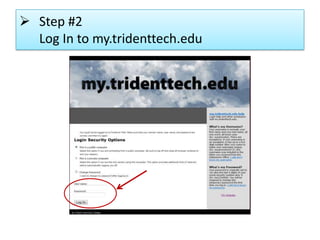
 Step #2
Log In to my.tridenttech.edu
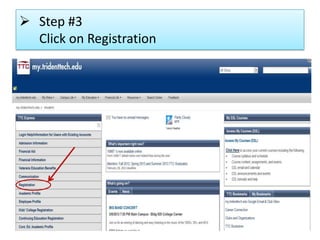
 Step #3
Click on Registration
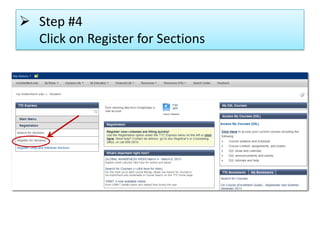
 Step #4
Click on Register for Sections
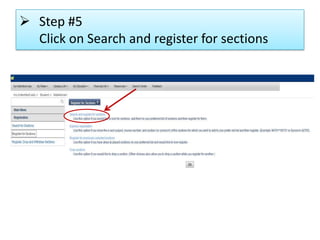
 Step #5
Click on Search and register for sections
The example in the following slide
shows how to Search
for three courses:
Biology, English and Math
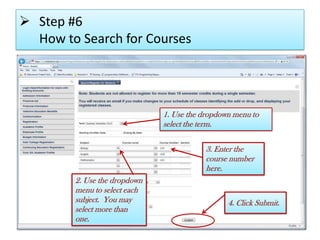
 Step #6
How to Search for Courses
2. Use the dropdown
menu to select each
subject. You may
select more than
one.
1. Use the dropdown menu to
select the term.
3. Enter the
course number
here.
4. Click Submit.
The following slides
show the list of all
sections for the three courses
in the example
(Biology, English and Math).
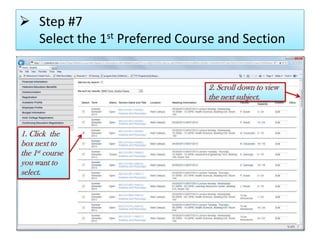
 Step #7
Select the 1st Preferred Course and Section
1. Click the
box next to
the 1st course
you want to
select.
2. Scroll down to view
the next subject.
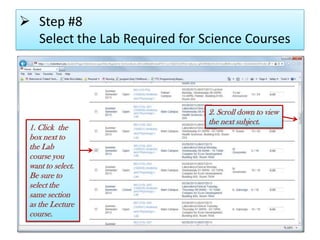
 Step #8
Select the Lab Required for Science Courses
1. Click the
box next to
the Lab
course you
want to select.
Be sure to
select the
same section
as the Lecture
course.
2. Scroll down to view
the next subject.
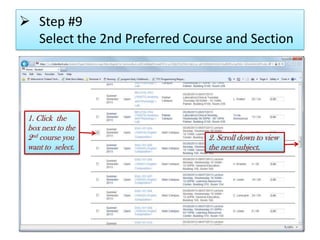
 Step #9
Select the 2nd Preferred Course and Section
1. Click the
box next to the
2nd course you
want to select.
2. Scroll down to view
the next subject.
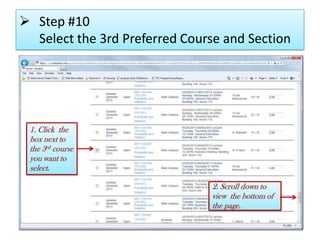
 Step #10
Select the 3rd Preferred Course and Section
1. Click the
box next to
the 3rd course
you want to
select.
2. Scroll down to
view the bottom of
the page.
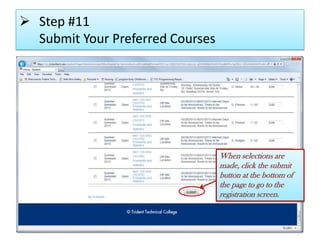
 Step #11
Submit Your Preferred Courses
When selections are
made, click the submit
button at the bottom of
the page to go to the
registration screen.
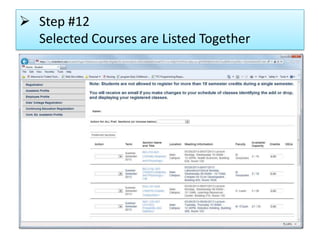
 Step #12
Selected Courses are Listed Together
The following slides show
how to Register
for the courses selected
in the example.
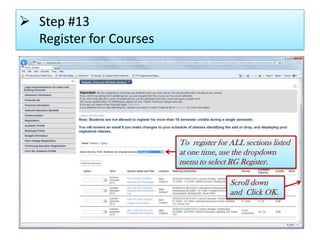
 Step #13
Register for Courses
To register for ALL sections listed
at one time, use the dropdown
menu to select RG Register.
Scroll down
and Click OK.
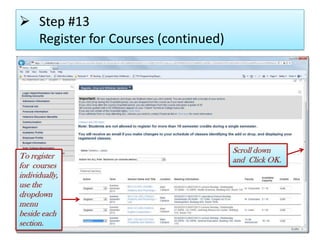
 Step #13
Register for Courses (continued)
To register
for courses
individually,
use the
dropdown
menu
beside each
section.
Scroll down
and Click OK.
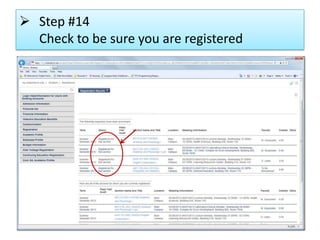
 Step #14
Check to be sure you are registered
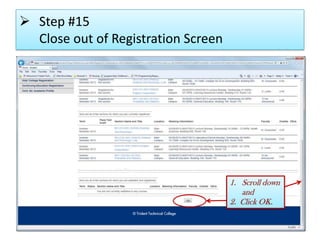
 Step #15
Close out of Registration Screen
1. Scroll down
and
2. Click OK.
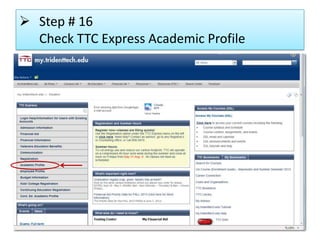
 Step # 16
Check TTC Express Academic Profile
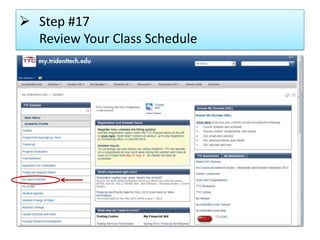
 Step #17
Review Your Class Schedule
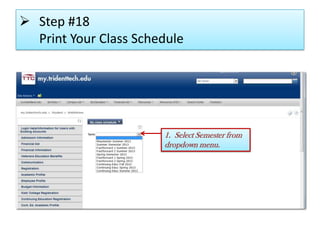
 Step #18
Print Your Class Schedule
1. Select Semester from
dropdown menu.
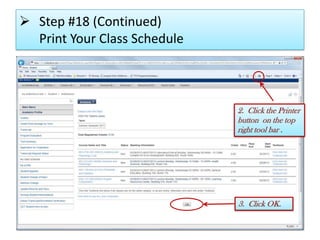
 Step #18 (Continued)
Print Your Class Schedule
2. Click the Printer
button on the top
right tool bar .
3. Click OK.
REMINDER
• Be sure to make arrangements to pay by the
published deadline or you will be purged for
non-payment.
• If you are purged for non-payment, you
will need to re-register.
• Check your my.tridenttech.edu after the last day
to register for any messages concerning cancelled
classes due to low enrollment.

Pre-Nursing Registration Procedure

  • 1.
    How to Registerfor TTC Courses
  • 2.
     Step #1 Clickmy.tridenttech.edu Portal
  • 3.
     Step #2 LogIn to my.tridenttech.edu
  • 4.
     Step #3 Clickon Registration
  • 5.
     Step #4 Clickon Register for Sections
  • 6.
     Step #5 Clickon Search and register for sections
  • 7.
    The example inthe following slide shows how to Search for three courses: Biology, English and Math
  • 8.
     Step #6 Howto Search for Courses 2. Use the dropdown menu to select each subject. You may select more than one. 1. Use the dropdown menu to select the term. 3. Enter the course number here. 4. Click Submit.
  • 9.
    The following slides showthe list of all sections for the three courses in the example (Biology, English and Math).
  • 10.
     Step #7 Selectthe 1st Preferred Course and Section 1. Click the box next to the 1st course you want to select. 2. Scroll down to view the next subject.
  • 11.
     Step #8 Selectthe Lab Required for Science Courses 1. Click the box next to the Lab course you want to select. Be sure to select the same section as the Lecture course. 2. Scroll down to view the next subject.
  • 12.
     Step #9 Selectthe 2nd Preferred Course and Section 1. Click the box next to the 2nd course you want to select. 2. Scroll down to view the next subject.
  • 13.
     Step #10 Selectthe 3rd Preferred Course and Section 1. Click the box next to the 3rd course you want to select. 2. Scroll down to view the bottom of the page.
  • 14.
     Step #11 SubmitYour Preferred Courses When selections are made, click the submit button at the bottom of the page to go to the registration screen.
  • 15.
     Step #12 SelectedCourses are Listed Together
  • 16.
    The following slidesshow how to Register for the courses selected in the example.
  • 17.
     Step #13 Registerfor Courses To register for ALL sections listed at one time, use the dropdown menu to select RG Register. Scroll down and Click OK.
  • 18.
     Step #13 Registerfor Courses (continued) To register for courses individually, use the dropdown menu beside each section. Scroll down and Click OK.
  • 19.
     Step #14 Checkto be sure you are registered
  • 20.
     Step #15 Closeout of Registration Screen 1. Scroll down and 2. Click OK.
  • 21.
     Step #16 Check TTC Express Academic Profile
  • 22.
     Step #17 ReviewYour Class Schedule
  • 23.
     Step #18 PrintYour Class Schedule 1. Select Semester from dropdown menu.
  • 24.
     Step #18(Continued) Print Your Class Schedule 2. Click the Printer button on the top right tool bar . 3. Click OK.
  • 25.
    REMINDER • Be sureto make arrangements to pay by the published deadline or you will be purged for non-payment. • If you are purged for non-payment, you will need to re-register. • Check your my.tridenttech.edu after the last day to register for any messages concerning cancelled classes due to low enrollment.