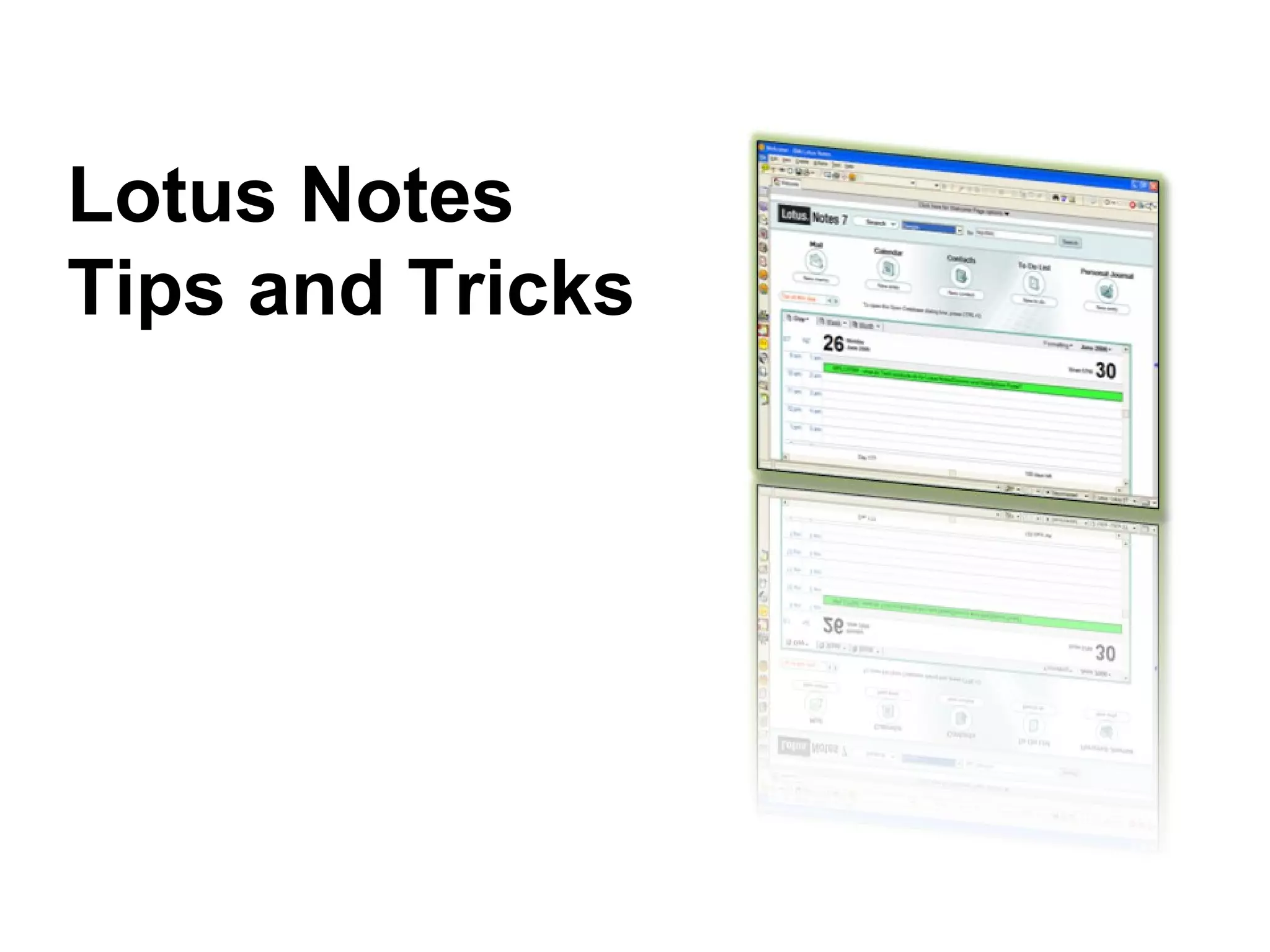
Lotus Notes
Tips and Tricks
I didn’t know
Notes could do that!!!
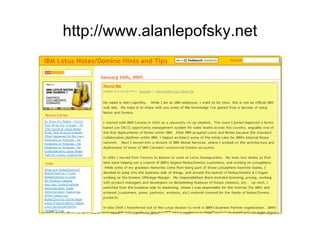
http://www.alanlepofsky.net
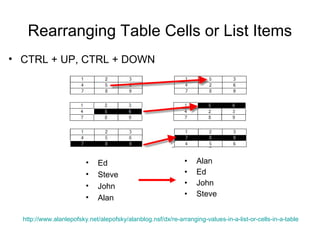
Rearranging Table Cells or List Items
• CTRL + UP, CTRL + DOWN


                         •    Ed                              •   Alan
                         •    Steve                           •   Ed
                         •    John                            •   John
                         •                                    •   Steve
                              Alan

  http://www.alanlepofsky.net/alepofsky/alanblog.nsf/dx/re-arranging-values-in-a-list-or-cells-in-a-table
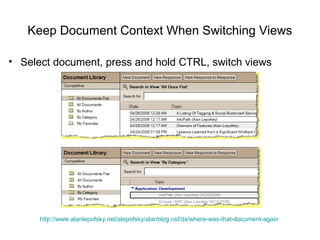
Keep Document Context When Switching Views

• Select document, press and hold CTRL, switch views


      http://www.alanlepofsky.net/alepofsky/alanblog.nsf/dx/where-was-that-document-again
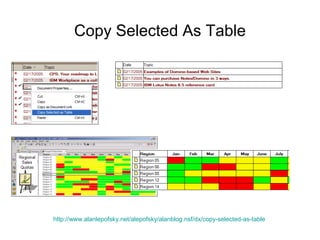
Copy Selected As Table


http://www.alanlepofsky.net/alepofsky/alanblog.nsf/dx/copy-selected-as-table
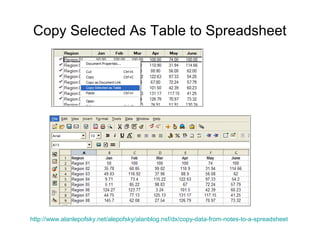
Copy Selected As Table to Spreadsheet


http://www.alanlepofsky.net/alepofsky/alanblog.nsf/dx/copy-data-from-notes-to-a-spreadsheet
Powerful Text Formatting Shortcuts

• Increase/Decrease Font size
   – Select text, press F2
   – Select text, press Shift + F2


• Convert to bulleted list
   – Select text, press Alt + T, then L, then L

• Indent/Outdent
   – Select text, press F8
   – Select text, press Shift + F8
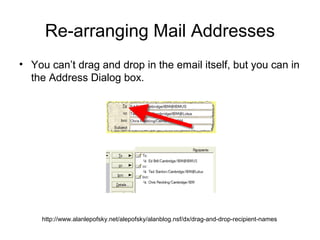
Re-arranging Mail Addresses
• You can’t drag and drop in the email itself, but you can in
  the Address Dialog box.


    http://www.alanlepofsky.net/alepofsky/alanblog.nsf/dx/drag-and-drop-recipient-names
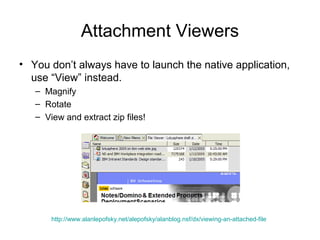
Attachment Viewers
• You don’t always have to launch the native application,
  use “View” instead.
   – Magnify
   – Rotate
   – View and extract zip files!


       http://www.alanlepofsky.net/alepofsky/alanblog.nsf/dx/viewing-an-attached-file
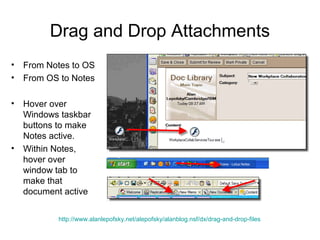
Drag and Drop Attachments
•   From Notes to OS
•   From OS to Notes

•   Hover over
    Windows taskbar
    buttons to make
    Notes active.
•   Within Notes,
    hover over
    window tab to
    make that
    document active


           http://www.alanlepofsky.net/alepofsky/alanblog.nsf/dx/drag-and-drop-files
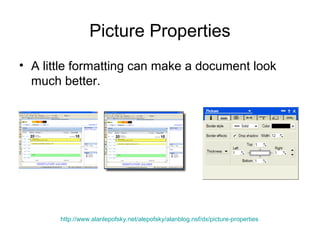
Picture Properties
• A little formatting can make a document look
  much better.


       http://www.alanlepofsky.net/alepofsky/alanblog.nsf/dx/picture-properties
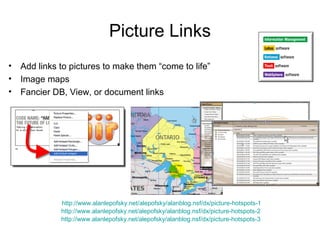
Picture Links
•   Add links to pictures to make them “come to life”
•   Image maps
•   Fancier DB, View, or document links


              http://www.alanlepofsky.net/alepofsky/alanblog.nsf/dx/picture-hotspots-1
              http://www.alanlepofsky.net/alepofsky/alanblog.nsf/dx/picture-hotspots-2
              http://www.alanlepofsky.net/alepofsky/alanblog.nsf/dx/picture-hotspots-3
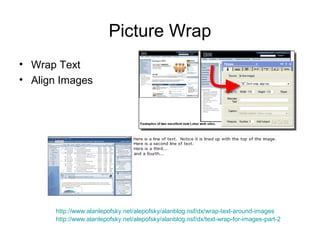
Picture Wrap
• Wrap Text
• Align Images


      http://www.alanlepofsky.net/alepofsky/alanblog.nsf/dx/wrap-text-around-images
      http://www.alanlepofsky.net/alepofsky/alanblog.nsf/dx/text-wrap-for-images-part-2
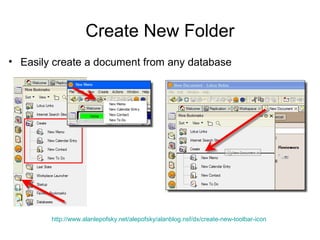
Create New Folder
• Easily create a document from any database


        http://www.alanlepofsky.net/alepofsky/alanblog.nsf/dx/create-new-toolbar-icon
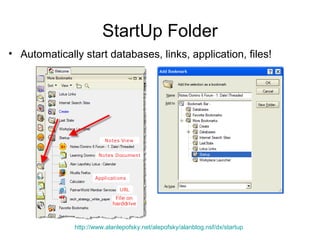
StartUp Folder
• Automatically start databases, links, application, files!


              http://www.alanlepofsky.net/alepofsky/alanblog.nsf/dx/startup
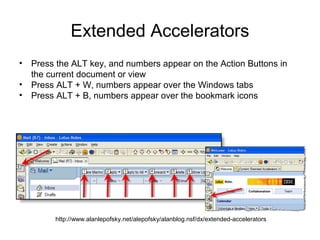
Extended Accelerators
• Press the ALT key, and numbers appear on the Action Buttons in
  the current document or view
• Press ALT + W, numbers appear over the Windows tabs
• Press ALT + B, numbers appear over the bookmark icons


        http://www.alanlepofsky.net/alepofsky/alanblog.nsf/dx/extended-accelerators
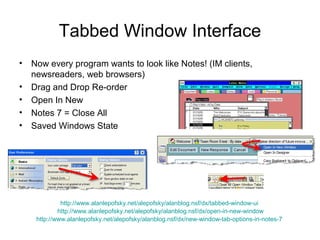
Tabbed Window Interface
• Now every program wants to look like Notes! (IM clients,
  newsreaders, web browsers)
• Drag and Drop Re-order
• Open In New
• Notes 7 = Close All
• Saved Windows State


             http://www.alanlepofsky.net/alepofsky/alanblog.nsf/dx/tabbed-window-ui
            http://www.alanlepofsky.net/alepofsky/alanblog.nsf/dx/open-in-new-window
    http://www.alanlepofsky.net/alepofsky/alanblog.nsf/dx/new-window-tab-options-in-notes-7
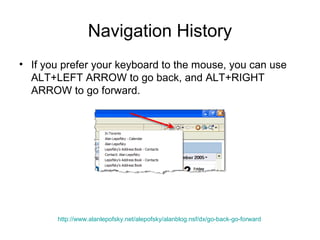
Navigation History
• If you prefer your keyboard to the mouse, you can use
  ALT+LEFT ARROW to go back, and ALT+RIGHT
  ARROW to go forward.


       http://www.alanlepofsky.net/alepofsky/alanblog.nsf/dx/go-back-go-forward
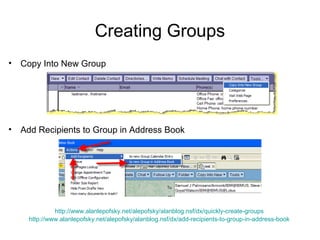
Creating Groups
•   Copy Into New Group


•   Add Recipients to Group in Address Book


               http://www.alanlepofsky.net/alepofsky/alanblog.nsf/dx/quickly-create-groups
      http://www.alanlepofsky.net/alepofsky/alanblog.nsf/dx/add-recipients-to-group-in-address-book
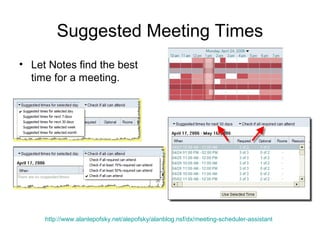
Suggested Meeting Times
• Let Notes find the best
  time for a meeting.


     http://www.alanlepofsky.net/alepofsky/alanblog.nsf/dx/meeting-scheduler-assistant
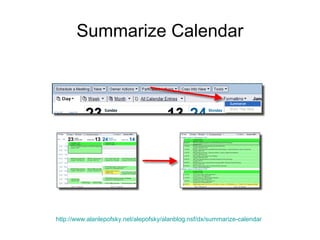
Summarize Calendar


http://www.alanlepofsky.net/alepofsky/alanblog.nsf/dx/summarize-calendar
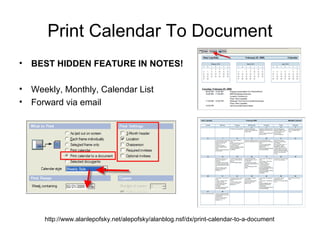
Print Calendar To Document
• BEST HIDDEN FEATURE IN NOTES!

• Weekly, Monthly, Calendar List
• Forward via email


      http://www.alanlepofsky.net/alepofsky/alanblog.nsf/dx/print-calendar-to-a-document
Tools!
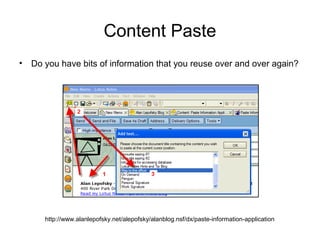
Content Paste
• Do you have bits of information that you reuse over and over again?


      http://www.alanlepofsky.net/alepofsky/alanblog.nsf/dx/paste-information-application
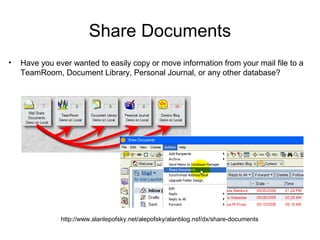
Share Documents
•   Have you ever wanted to easily copy or move information from your mail file to a
    TeamRoom, Document Library, Personal Journal, or any other database?


               http://www.alanlepofsky.net/alepofsky/alanblog.nsf/dx/share-documents
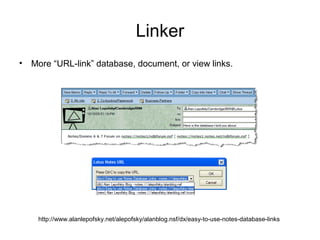
Linker
• More “URL-link” database, document, or view links.


    http://www.alanlepofsky.net/alepofsky/alanblog.nsf/dx/easy-to-use-notes-database-links
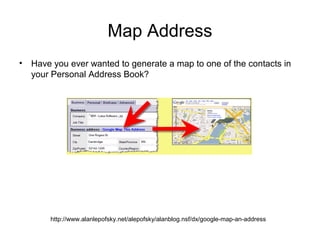
Map Address
• Have you ever wanted to generate a map to one of the contacts in
  your Personal Address Book?


       http://www.alanlepofsky.net/alepofsky/alanblog.nsf/dx/google-map-an-address
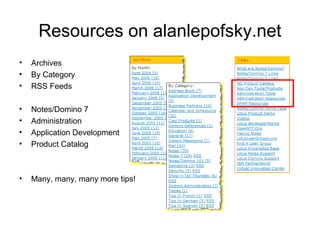
Resources on alanlepofsky.net
•   Archives
•   By Category
•   RSS Feeds

•   Notes/Domino 7
•   Administration
•   Application Development
•   Product Catalog


•   Many, many, many more tips!

Notes tips

  • 1.
  • 2.
    I didn’t know Notescould do that!!!
  • 3.
  • 4.
    Rearranging Table Cellsor List Items • CTRL + UP, CTRL + DOWN • Ed • Alan • Steve • Ed • John • John • • Steve Alan http://www.alanlepofsky.net/alepofsky/alanblog.nsf/dx/re-arranging-values-in-a-list-or-cells-in-a-table
  • 5.
    Keep Document ContextWhen Switching Views • Select document, press and hold CTRL, switch views http://www.alanlepofsky.net/alepofsky/alanblog.nsf/dx/where-was-that-document-again
  • 6.
    Copy Selected AsTable http://www.alanlepofsky.net/alepofsky/alanblog.nsf/dx/copy-selected-as-table
  • 7.
    Copy Selected AsTable to Spreadsheet http://www.alanlepofsky.net/alepofsky/alanblog.nsf/dx/copy-data-from-notes-to-a-spreadsheet
  • 8.
    Powerful Text FormattingShortcuts • Increase/Decrease Font size – Select text, press F2 – Select text, press Shift + F2 • Convert to bulleted list – Select text, press Alt + T, then L, then L • Indent/Outdent – Select text, press F8 – Select text, press Shift + F8
  • 9.
    Re-arranging Mail Addresses •You can’t drag and drop in the email itself, but you can in the Address Dialog box. http://www.alanlepofsky.net/alepofsky/alanblog.nsf/dx/drag-and-drop-recipient-names
  • 10.
    Attachment Viewers • Youdon’t always have to launch the native application, use “View” instead. – Magnify – Rotate – View and extract zip files! http://www.alanlepofsky.net/alepofsky/alanblog.nsf/dx/viewing-an-attached-file
  • 11.
    Drag and DropAttachments • From Notes to OS • From OS to Notes • Hover over Windows taskbar buttons to make Notes active. • Within Notes, hover over window tab to make that document active http://www.alanlepofsky.net/alepofsky/alanblog.nsf/dx/drag-and-drop-files
  • 12.
    Picture Properties • Alittle formatting can make a document look much better. http://www.alanlepofsky.net/alepofsky/alanblog.nsf/dx/picture-properties
  • 13.
    Picture Links • Add links to pictures to make them “come to life” • Image maps • Fancier DB, View, or document links http://www.alanlepofsky.net/alepofsky/alanblog.nsf/dx/picture-hotspots-1 http://www.alanlepofsky.net/alepofsky/alanblog.nsf/dx/picture-hotspots-2 http://www.alanlepofsky.net/alepofsky/alanblog.nsf/dx/picture-hotspots-3
  • 14.
    Picture Wrap • WrapText • Align Images http://www.alanlepofsky.net/alepofsky/alanblog.nsf/dx/wrap-text-around-images http://www.alanlepofsky.net/alepofsky/alanblog.nsf/dx/text-wrap-for-images-part-2
  • 15.
    Create New Folder •Easily create a document from any database http://www.alanlepofsky.net/alepofsky/alanblog.nsf/dx/create-new-toolbar-icon
  • 16.
    StartUp Folder • Automaticallystart databases, links, application, files! http://www.alanlepofsky.net/alepofsky/alanblog.nsf/dx/startup
  • 17.
    Extended Accelerators • Pressthe ALT key, and numbers appear on the Action Buttons in the current document or view • Press ALT + W, numbers appear over the Windows tabs • Press ALT + B, numbers appear over the bookmark icons http://www.alanlepofsky.net/alepofsky/alanblog.nsf/dx/extended-accelerators
  • 18.
    Tabbed Window Interface •Now every program wants to look like Notes! (IM clients, newsreaders, web browsers) • Drag and Drop Re-order • Open In New • Notes 7 = Close All • Saved Windows State http://www.alanlepofsky.net/alepofsky/alanblog.nsf/dx/tabbed-window-ui http://www.alanlepofsky.net/alepofsky/alanblog.nsf/dx/open-in-new-window http://www.alanlepofsky.net/alepofsky/alanblog.nsf/dx/new-window-tab-options-in-notes-7
  • 19.
    Navigation History • Ifyou prefer your keyboard to the mouse, you can use ALT+LEFT ARROW to go back, and ALT+RIGHT ARROW to go forward. http://www.alanlepofsky.net/alepofsky/alanblog.nsf/dx/go-back-go-forward
  • 20.
    Creating Groups • Copy Into New Group • Add Recipients to Group in Address Book http://www.alanlepofsky.net/alepofsky/alanblog.nsf/dx/quickly-create-groups http://www.alanlepofsky.net/alepofsky/alanblog.nsf/dx/add-recipients-to-group-in-address-book
  • 21.
    Suggested Meeting Times •Let Notes find the best time for a meeting. http://www.alanlepofsky.net/alepofsky/alanblog.nsf/dx/meeting-scheduler-assistant
  • 22.
  • 23.
    Print Calendar ToDocument • BEST HIDDEN FEATURE IN NOTES! • Weekly, Monthly, Calendar List • Forward via email http://www.alanlepofsky.net/alepofsky/alanblog.nsf/dx/print-calendar-to-a-document
  • 24.
  • 25.
    Content Paste • Doyou have bits of information that you reuse over and over again? http://www.alanlepofsky.net/alepofsky/alanblog.nsf/dx/paste-information-application
  • 26.
    Share Documents • Have you ever wanted to easily copy or move information from your mail file to a TeamRoom, Document Library, Personal Journal, or any other database? http://www.alanlepofsky.net/alepofsky/alanblog.nsf/dx/share-documents
  • 27.
    Linker • More “URL-link”database, document, or view links. http://www.alanlepofsky.net/alepofsky/alanblog.nsf/dx/easy-to-use-notes-database-links
  • 28.
    Map Address • Haveyou ever wanted to generate a map to one of the contacts in your Personal Address Book? http://www.alanlepofsky.net/alepofsky/alanblog.nsf/dx/google-map-an-address
  • 29.
    Resources on alanlepofsky.net • Archives • By Category • RSS Feeds • Notes/Domino 7 • Administration • Application Development • Product Catalog • Many, many, many more tips!