Fixing the Certificate issue in Nexpose
1) Log-in to Nexpose Console:
Fixing the Certificate issue in Nexpose
2) After successful log-in, click on the Administration tab and then click Manage for Security Console:
Fixing the Certificate issue in Nexpose
3) The following window opens-up, click on Web Server:
Fixing the Certificate issue in Nexpose
4) A following window opens-up, click on Manage Certificate:
Fixing the Certificate issue in Nexpose
5) The following pop-up appears after clicking Manage Certificate:
Fixing the Certificate issue in Nexpose
6) Click on Create New Certificate:
Fixing the Certificate issue in Nexpose
7) Fill the information on the new pop-up window as follows (take this as reference for your environment):
Fixing the Certificate issue in Nexpose
8) Click Create and then OK as follows:
Fixing the Certificate issue in Nexpose
9) Afterwards, click on Create CSR Now, as follows:
Fixing the Certificate issue in Nexpose
10) A following window appears with the CSR:
Fixing the Certificate issue in Nexpose
11) Copy and save the generated CSR for later use, click Back:
Fixing the Certificate issue in Nexpose
12) Access the Microsoft Certification Authority Web Service for signing the CSR (use these steps as reference):
Fixing the Certificate issue in Nexpose
13) The following web page appears, click on Request a certificate:
Fixing the Certificate issue in Nexpose
14) The following web page appears, click on advanced certificate request:
Fixing the Certificate issue in Nexpose
15) The following form appears:
Fixing the Certificate issue in Nexpose
16) Fill this form with the copied CSR in Step 11 and enter other parameters as follows, click Submit afterwards:
Fixing the Certificate issue in Nexpose
17) On clicking Submit, the following window appears, select Base 64 encoded and click Download certificate:
Fixing the Certificate issue in Nexpose
18) After downloading the certificate, save it for use in coming steps:
Fixing the Certificate issue in Nexpose
19) Continuing on the NeXpose Console pop-up, click on Import Certificate as follows:
Fixing the Certificate issue in Nexpose
20) The following pop-up appears:
Fixing the Certificate issue in Nexpose
21) Open the saved certificate in Step 18 in Text Editor:
Fixing the Certificate issue in Nexpose
22) Copy the complete Certificate text:
Fixing the Certificate issue in Nexpose
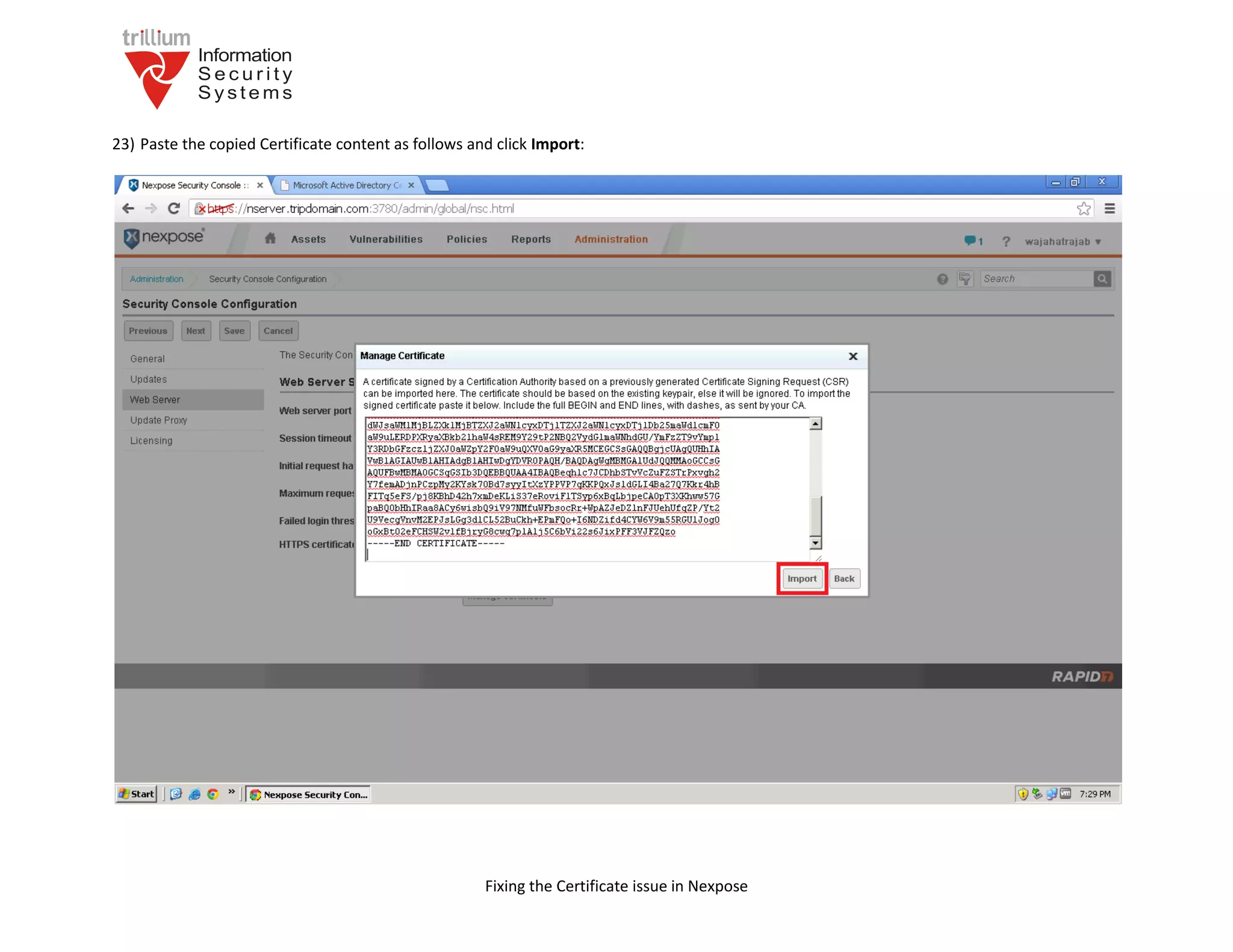
23) Paste the copied Certificate content as follows and click Import:
Fixing the Certificate issue in Nexpose
24) Click OK:
Fixing the Certificate issue in Nexpose
25) Close the Console and Stop Nexpose Service:
Fixing the Certificate issue in Nexpose
26) Now, Start Nexpose Service:
Fixing the Certificate issue in Nexpose
27) Access the Nexpose Console with FQDN as follows, the Certificate issue is still present:
Fixing the Certificate issue in Nexpose
28) Right click on the window and click View page info as follows:
Fixing the Certificate issue in Nexpose
29) Click on Certificate information as follows:
Fixing the Certificate issue in Nexpose
30) On the General tab, read the Certificate Information, this shows a problem with Certification Authority (not being recognized):
Fixing the Certificate issue in Nexpose
31) Click on Certification Path and the given path options as follows:
Fixing the Certificate issue in Nexpose
32) Click on the other path option available as follows, this confirms that Certification Authority is not being recognized and is un-trusted:
Fixing the Certificate issue in Nexpose
33) (Use these steps as reference): To fix this, first of all, let’s find out the Certificate of our Certification Authority, click on Download a CA
certificate as follows:
Fixing the Certificate issue in Nexpose
34) Select Base 64 and click Download CA Certificate:
Fixing the Certificate issue in Nexpose
35) Save Certification Authority Certificate for use later on:
Fixing the Certificate issue in Nexpose
36) (Use these steps as reference): Log-in on the Domain Server and click on Group Policy Management as follows:
Fixing the Certificate issue in Nexpose
37) The following window opens-up:
Fixing the Certificate issue in Nexpose
38) Select and right-click Default Domain Policy and click Edit (for your environment, modify the policy only for computers that access Nexpose):
Fixing the Certificate issue in Nexpose
39) The following window pops-up:
Fixing the Certificate issue in Nexpose
40) Expand the Computer Configuration as follows:
Fixing the Certificate issue in Nexpose
41) In the Public Key Policies, select and click Trusted Root Certification Authorities:
Fixing the Certificate issue in Nexpose
42) Right-click and click Import as follows:
Fixing the Certificate issue in Nexpose
43) Browse to the location of saved Certificate in Step 35, click Next:
Fixing the Certificate issue in Nexpose
44) Select the following option and click Next:
Fixing the Certificate issue in Nexpose
45) Review and click Finish:
Fixing the Certificate issue in Nexpose
46) The Certificate is added as follows:
Fixing the Certificate issue in Nexpose
47) (Use these steps as reference): To apply and enforce changes to Group Policy, run the following command:
Fixing the Certificate issue in Nexpose
48) The modified Policy is applied and completes successfully:
Fixing the Certificate issue in Nexpose
49) For the policy to be effective on computers accessing Nexpose Console, they need to be restarted:
Fixing the Certificate issue in Nexpose
50) Accessing Nexpose Console after restart resolves the Certificate Issue:
Fixing the Certificate issue in Nexpose
51) Doing different operations on Nexpose Console (the Certificate issue stays resolved):
Fixing the Certificate issue in Nexpose
52) On further testing, the Certificate issue remains resolved:
Fixing the Certificate issue in Nexpose
53) Opening the Console in a different browser (Firefox):
Fixing the Certificate issue in Nexpose
54) Opening the Console in a different browser (IE), the Certificate issue has been permanently fixed:

NeXpose Certificate Addition Manual

  • 1.
    Fixing the Certificateissue in Nexpose 1) Log-in to Nexpose Console:
  • 2.
    Fixing the Certificateissue in Nexpose 2) After successful log-in, click on the Administration tab and then click Manage for Security Console:
  • 3.
    Fixing the Certificateissue in Nexpose 3) The following window opens-up, click on Web Server:
  • 4.
    Fixing the Certificateissue in Nexpose 4) A following window opens-up, click on Manage Certificate:
  • 5.
    Fixing the Certificateissue in Nexpose 5) The following pop-up appears after clicking Manage Certificate:
  • 6.
    Fixing the Certificateissue in Nexpose 6) Click on Create New Certificate:
  • 7.
    Fixing the Certificateissue in Nexpose 7) Fill the information on the new pop-up window as follows (take this as reference for your environment):
  • 8.
    Fixing the Certificateissue in Nexpose 8) Click Create and then OK as follows:
  • 9.
    Fixing the Certificateissue in Nexpose 9) Afterwards, click on Create CSR Now, as follows:
  • 10.
    Fixing the Certificateissue in Nexpose 10) A following window appears with the CSR:
  • 11.
    Fixing the Certificateissue in Nexpose 11) Copy and save the generated CSR for later use, click Back:
  • 12.
    Fixing the Certificateissue in Nexpose 12) Access the Microsoft Certification Authority Web Service for signing the CSR (use these steps as reference):
  • 13.
    Fixing the Certificateissue in Nexpose 13) The following web page appears, click on Request a certificate:
  • 14.
    Fixing the Certificateissue in Nexpose 14) The following web page appears, click on advanced certificate request:
  • 15.
    Fixing the Certificateissue in Nexpose 15) The following form appears:
  • 16.
    Fixing the Certificateissue in Nexpose 16) Fill this form with the copied CSR in Step 11 and enter other parameters as follows, click Submit afterwards:
  • 17.
    Fixing the Certificateissue in Nexpose 17) On clicking Submit, the following window appears, select Base 64 encoded and click Download certificate:
  • 18.
    Fixing the Certificateissue in Nexpose 18) After downloading the certificate, save it for use in coming steps:
  • 19.
    Fixing the Certificateissue in Nexpose 19) Continuing on the NeXpose Console pop-up, click on Import Certificate as follows:
  • 20.
    Fixing the Certificateissue in Nexpose 20) The following pop-up appears:
  • 21.
    Fixing the Certificateissue in Nexpose 21) Open the saved certificate in Step 18 in Text Editor:
  • 22.
    Fixing the Certificateissue in Nexpose 22) Copy the complete Certificate text:
  • 23.
    Fixing the Certificateissue in Nexpose 23) Paste the copied Certificate content as follows and click Import:
  • 24.
    Fixing the Certificateissue in Nexpose 24) Click OK:
  • 25.
    Fixing the Certificateissue in Nexpose 25) Close the Console and Stop Nexpose Service:
  • 26.
    Fixing the Certificateissue in Nexpose 26) Now, Start Nexpose Service:
  • 27.
    Fixing the Certificateissue in Nexpose 27) Access the Nexpose Console with FQDN as follows, the Certificate issue is still present:
  • 28.
    Fixing the Certificateissue in Nexpose 28) Right click on the window and click View page info as follows:
  • 29.
    Fixing the Certificateissue in Nexpose 29) Click on Certificate information as follows:
  • 30.
    Fixing the Certificateissue in Nexpose 30) On the General tab, read the Certificate Information, this shows a problem with Certification Authority (not being recognized):
  • 31.
    Fixing the Certificateissue in Nexpose 31) Click on Certification Path and the given path options as follows:
  • 32.
    Fixing the Certificateissue in Nexpose 32) Click on the other path option available as follows, this confirms that Certification Authority is not being recognized and is un-trusted:
  • 33.
    Fixing the Certificateissue in Nexpose 33) (Use these steps as reference): To fix this, first of all, let’s find out the Certificate of our Certification Authority, click on Download a CA certificate as follows:
  • 34.
    Fixing the Certificateissue in Nexpose 34) Select Base 64 and click Download CA Certificate:
  • 35.
    Fixing the Certificateissue in Nexpose 35) Save Certification Authority Certificate for use later on:
  • 36.
    Fixing the Certificateissue in Nexpose 36) (Use these steps as reference): Log-in on the Domain Server and click on Group Policy Management as follows:
  • 37.
    Fixing the Certificateissue in Nexpose 37) The following window opens-up:
  • 38.
    Fixing the Certificateissue in Nexpose 38) Select and right-click Default Domain Policy and click Edit (for your environment, modify the policy only for computers that access Nexpose):
  • 39.
    Fixing the Certificateissue in Nexpose 39) The following window pops-up:
  • 40.
    Fixing the Certificateissue in Nexpose 40) Expand the Computer Configuration as follows:
  • 41.
    Fixing the Certificateissue in Nexpose 41) In the Public Key Policies, select and click Trusted Root Certification Authorities:
  • 42.
    Fixing the Certificateissue in Nexpose 42) Right-click and click Import as follows:
  • 43.
    Fixing the Certificateissue in Nexpose 43) Browse to the location of saved Certificate in Step 35, click Next:
  • 44.
    Fixing the Certificateissue in Nexpose 44) Select the following option and click Next:
  • 45.
    Fixing the Certificateissue in Nexpose 45) Review and click Finish:
  • 46.
    Fixing the Certificateissue in Nexpose 46) The Certificate is added as follows:
  • 47.
    Fixing the Certificateissue in Nexpose 47) (Use these steps as reference): To apply and enforce changes to Group Policy, run the following command:
  • 48.
    Fixing the Certificateissue in Nexpose 48) The modified Policy is applied and completes successfully:
  • 49.
    Fixing the Certificateissue in Nexpose 49) For the policy to be effective on computers accessing Nexpose Console, they need to be restarted:
  • 50.
    Fixing the Certificateissue in Nexpose 50) Accessing Nexpose Console after restart resolves the Certificate Issue:
  • 51.
    Fixing the Certificateissue in Nexpose 51) Doing different operations on Nexpose Console (the Certificate issue stays resolved):
  • 52.
    Fixing the Certificateissue in Nexpose 52) On further testing, the Certificate issue remains resolved:
  • 53.
    Fixing the Certificateissue in Nexpose 53) Opening the Console in a different browser (Firefox):
  • 54.
    Fixing the Certificateissue in Nexpose 54) Opening the Console in a different browser (IE), the Certificate issue has been permanently fixed: