Meet Your Marin Country Day School August 2007
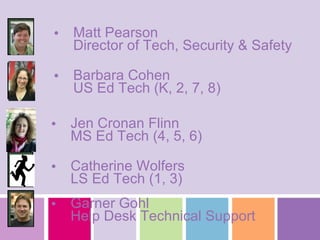
MCDS Technology Department Garner Gohl Help Desk Technical Support Catherine Wolfers LS Ed Tech (1, 3) Jen Cronan Flinn MS Ed Tech (4, 5, 6) Barbara Cohen US Ed Tech (K, 2, 7, 8) Matt Pearson Director of Tech, Security & Safety
Technology Professional Development Rubicon Atlas & new Web site Look for us: Faculty meetings Division meetings  Team meetings Office hours (please make appointment)
Web site MCDSnet Our local area network (intranet) Webmail & PCR online Links to these on new website Tech section of faculty intranet site Documents: authorized software list, AUP and How-To  Tech Workshops on new/cool website features forthcoming!
Email Clean it out regularly, please! Spam located at http://spamshark.frontbridge.com
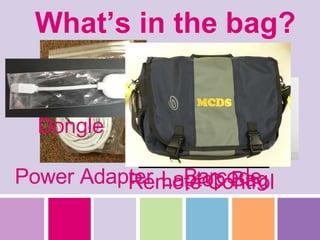
What’s in the bag? Option to purchase power adapter for home use Barcode Power Adapter Dongle Remote Control Laptop Bag
Care & Feeding Security, cleanliness, etc. Please do not write on your new bag! Report all breakages, losses, to tech ASAP Respect, responsibility and compassion Please  respect  the Acceptable Use Policy Take  responsibility  for equipment Have  compassion  for your colleagues in Tech Dept.
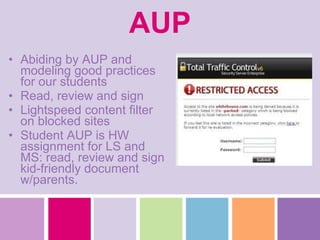
AUP Abiding by AUP and modeling good practices for our students Read, review and sign Lightspeed content filter on blocked sites Student AUP is HW assignment for LS and MS: read, review and sign kid-friendly document w/parents.
Mobile lab   Mobile lab signup will be online using new website (training forthcoming) Sign up in advance; first come first served MUST allow for charging time (Blue lab: 90 minutes & Yellow/orange: 45 minutes)
Tech Dept. Golden Rules Mac Lab is a classroom; please do not interrupt.  Extra machines available for teacher/student use in Tech Dept. Lab The color printer in Mac lab is for Mac lab only. There will be a second one in the Tech Lab. No color printer yet, but should be in by first day of school
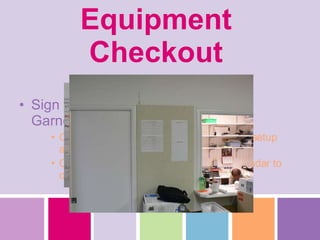
Equipment Checkout Sign up on Tech Dept. sheet (near Garner’s window) One week advance notice required when setup assistance is needed Come back and check the large wall calendar to confirm that you have been added
Getting Tech Help Email  [email_address] .org Call us on the phone Come to Tech Dept. (behind Mac lab) Sign up in Tech Lab for assistance on the support clipboard (near Garner’s window) Go to front office and ask them to radio tech support RIF Reading is Fundamental When you see a dialog box or an error message, please READ IT and be prepared to tell us what it says. This helps immensely when we are troubleshooting!
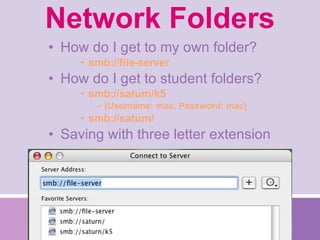
Network Folders How do I get to my own folder? smb://file-server How do I get to student folders? smb://saturn/k5 (Username: mac, Password: mac) smb://saturn/ Saving with three letter extension
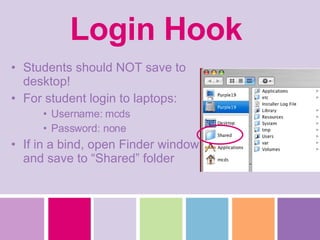
Login Hook Students should NOT save to desktop! For student login to laptops: Username: mcds Password: none If in a bind, open Finder window and save to “Shared” folder
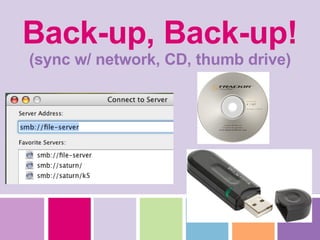
Back-up, Back-up! (sync w/ network, CD, thumb drive)
Practice Login to your machine Test out your email and network folders Try any of the highlighted software
Q & A

New Faculty Training

  • 1.
    Meet Your MarinCountry Day School August 2007
  • 2.
    MCDS Technology DepartmentGarner Gohl Help Desk Technical Support Catherine Wolfers LS Ed Tech (1, 3) Jen Cronan Flinn MS Ed Tech (4, 5, 6) Barbara Cohen US Ed Tech (K, 2, 7, 8) Matt Pearson Director of Tech, Security & Safety
  • 3.
    Technology Professional DevelopmentRubicon Atlas & new Web site Look for us: Faculty meetings Division meetings Team meetings Office hours (please make appointment)
  • 4.
    Web site MCDSnetOur local area network (intranet) Webmail & PCR online Links to these on new website Tech section of faculty intranet site Documents: authorized software list, AUP and How-To Tech Workshops on new/cool website features forthcoming!
  • 5.
    Email Clean itout regularly, please! Spam located at http://spamshark.frontbridge.com
  • 6.
    What’s in thebag? Option to purchase power adapter for home use Barcode Power Adapter Dongle Remote Control Laptop Bag
  • 7.
    Care & FeedingSecurity, cleanliness, etc. Please do not write on your new bag! Report all breakages, losses, to tech ASAP Respect, responsibility and compassion Please respect the Acceptable Use Policy Take responsibility for equipment Have compassion for your colleagues in Tech Dept.
  • 8.
    AUP Abiding byAUP and modeling good practices for our students Read, review and sign Lightspeed content filter on blocked sites Student AUP is HW assignment for LS and MS: read, review and sign kid-friendly document w/parents.
  • 9.
    Mobile lab Mobile lab signup will be online using new website (training forthcoming) Sign up in advance; first come first served MUST allow for charging time (Blue lab: 90 minutes & Yellow/orange: 45 minutes)
  • 10.
    Tech Dept. GoldenRules Mac Lab is a classroom; please do not interrupt. Extra machines available for teacher/student use in Tech Dept. Lab The color printer in Mac lab is for Mac lab only. There will be a second one in the Tech Lab. No color printer yet, but should be in by first day of school
  • 11.
    Equipment Checkout Signup on Tech Dept. sheet (near Garner’s window) One week advance notice required when setup assistance is needed Come back and check the large wall calendar to confirm that you have been added
  • 12.
    Getting Tech HelpEmail [email_address] .org Call us on the phone Come to Tech Dept. (behind Mac lab) Sign up in Tech Lab for assistance on the support clipboard (near Garner’s window) Go to front office and ask them to radio tech support RIF Reading is Fundamental When you see a dialog box or an error message, please READ IT and be prepared to tell us what it says. This helps immensely when we are troubleshooting!
  • 13.
    Network Folders Howdo I get to my own folder? smb://file-server How do I get to student folders? smb://saturn/k5 (Username: mac, Password: mac) smb://saturn/ Saving with three letter extension
  • 14.
    Login Hook Studentsshould NOT save to desktop! For student login to laptops: Username: mcds Password: none If in a bind, open Finder window and save to “Shared” folder
  • 15.
    Back-up, Back-up! (syncw/ network, CD, thumb drive)
  • 16.
    Practice Login toyour machine Test out your email and network folders Try any of the highlighted software
  • 17.