Gamify and
Increase Task
Productivity
WHAT IS IT?
BENEFITS
REGISTRATION
CONTENT CREATION
INTERACTIVE ACTIVITIES
ORGANIZE, SAVE AND SHARE PRESENTATION OPTION
HELP AND TUTORIALS
REFERENCES
03
04
05
08
17
27
35
36
What is it?
This tool will let you create
interactive and attractive lessons
for students or for personal use.
Besides it has plenty of resources
which go from slides to 3D
pictures that can use.
Versatility:
You can create lessons for
any type of learning.
Flexibility:
Anybody can access from any
device as long as they have internet
connection. Also, these lessons can
be self-paced or even you can have
live sessions.
Content:
The resources may help you teach
any subject. Besides, Nearpod
provides a free library in which you
can recycle content created by other
teachers.
Free:
The free version permits only 40
students per session. In addition,
this version has plenty of
characteristics to create
assignments and add multimedia.
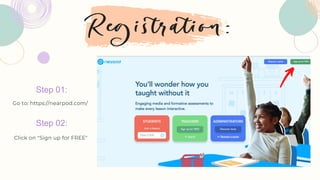
Step 01:
Go to: https://nearpod.com/
Step 02:
Click on "Sign up for FREE"
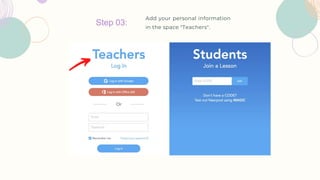
Step 03:
Add your personal information
in the space "Teachers".
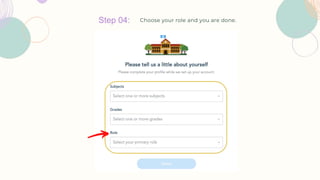
Step 04: Choose your role and you are done.
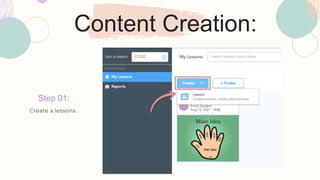
Content Creation:
Step 01:
Create a lessons.
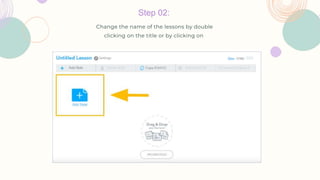
Step 02:
Change the name of the lessons by double
clicking on the title or by clicking on
Step 03: Add content
Video
s:
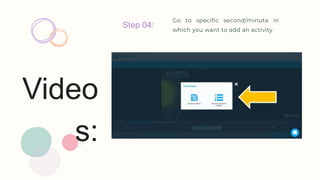
Step 04:
Go to specific second/minute in
which you want to add an activity
Video
s:
Step 05:
Click on "Agregar
Actividad", and then select
your type of question.
Step 06:
Open ended: just type
the question and save it.
Multiple choice: type the
question, at least two
options for the answer,
and save it.
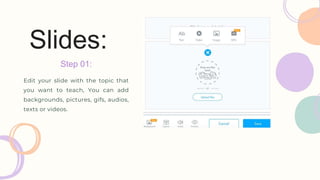
Slides:
Edit your slide with the topic that
you want to teach, You can add
backgrounds, pictures, gifs, audios,
texts or videos.
Step 01:
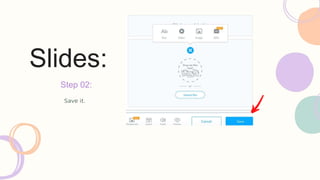
Slides:
Save it.
Step 02:
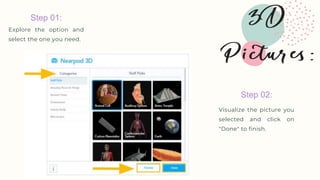
Step 01:
Explore the option and
select the one you need.
Step 02:
Visualize the picture you
selected and click on
"Done" to finish.
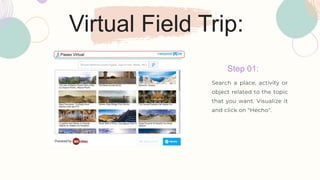
Virtual Field Trip:
Step 01:
Search a place, activity or
object related to the topic
that you want. Visualize it
and click on "Hecho".
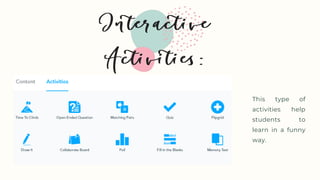
This type of
activities help
students to
learn in a funny
way.
Open
ended
question
s:
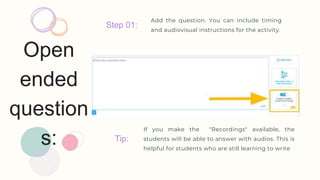
Step 01:
Tip:
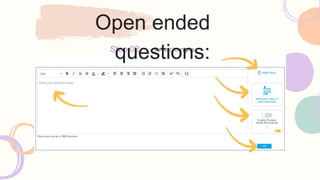
Add the question. You can include timing
and audiovisual instructions for the activity.
If you make the "Recordings" available, the
students will be able to answer with audios. This is
helpful for students who are still learning to write
Save changes
Step 02:
Open ended
questions:
Questionnaire:
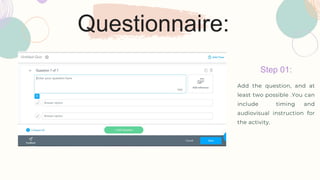
Step 01:
Add the question, and at
least two possible .You can
include timing and
audiovisual instruction for
the activity.
Questionnaire:
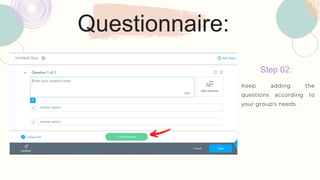
Step 02:
Keep adding the
questions according to
your group's needs.
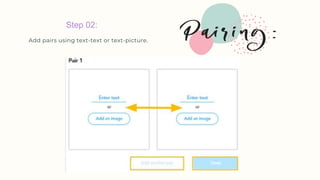
Step 01:
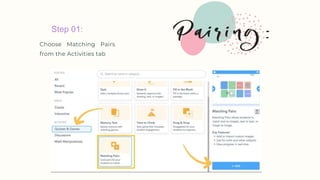
Choose Matching Pairs
from the Activities tab
Step 02:
Add pairs using text-text or text-picture.
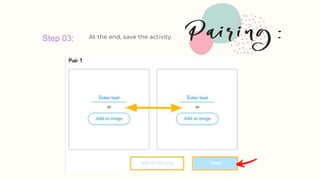
Step 03: At the end, save the activity.
Interactive
Board:
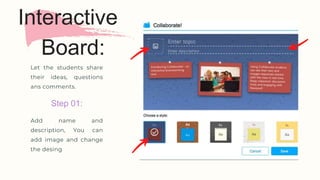
Step 01:
Let the students share
their ideas, questions
ans comments.
Add name and
description, You can
add image and change
the desing
Interactive
Board:
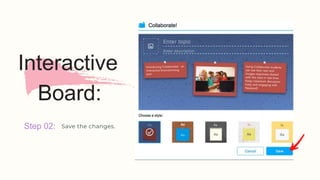
Step 02: Save the changes.
Organize,
Save and
Share:
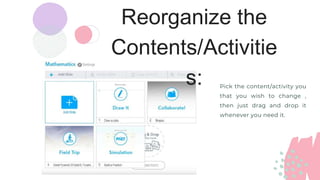
Reorganize the
Contents/Activitie
s: Pick the content/activity you
that you wish to change ,
then just drag and drop it
whenever you need it.
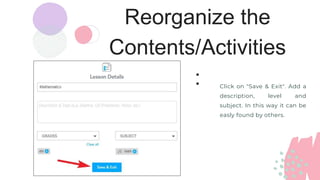
Reorganize the
Contents/Activities
: Click on "Save & Exit". Add a
description, level and
subject. In this way it can be
easly found by others.
Presentatio
n Options:
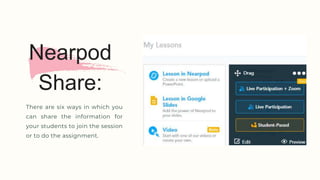
Nearpod
Share:
There are six ways in which you
can share the information for
your students to join the session
or to do the assignment.
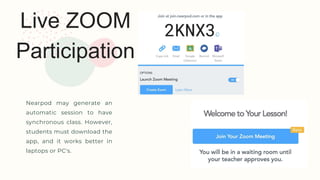
Live ZOOM
Participation
Nearpod may generate an
automatic session to have
synchronous class. However,
students must download the
app, and it works better in
laptops or PC's.
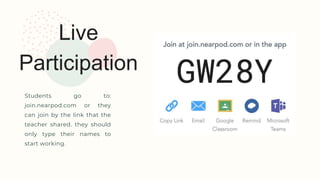
Live
Participation
Students go to:
join.nearpod.com or they
can join by the link that the
teacher shared. they should
only type their names to
start working.
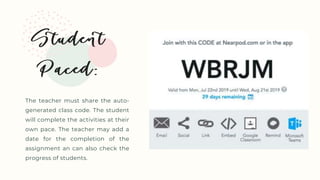
The teacher must share the auto-
generated class code. The student
will complete the activities at their
own pace. The teacher may add a
date for the completion of the
assignment an can also check the
progress of students.
Helps and Tutorials:
• Nearpod Help Center (English):
https://nearpod.zendesk.com/hc/en-us
• YouTube Nearpod Channel (English):
https://www.youtube.com/@Nearpod
Reference:
• Nearpod: https://nearpod.com/

Nearpod.pptx