Module	
  2	
  Performance	
  Task	


You	
  will	
  now	
  create	
  and	
  share	
  your	
  own	
  Wiki	
  
Please	
  follow	
  the	
  steps	
  below	
  to	
  help	
  guide	
  you	
  through	
  the	
  process.	
  If	
  further	
  
assistance	
  is	
  needed	
  please	
  review	
  the	
  video	
  in	
  Module	
  2.	


Creating	
  and	
  Sharing	
  a	
  Wiki	


Step	
  1	
  	
  
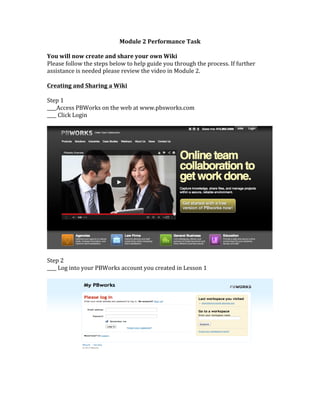
____Access	
  PBWorks	
  on	
  the	
  web	
  at	
  www.pbsworks.com	
  
____	
  Click	
  Login	


Step	
  2	
  	
  
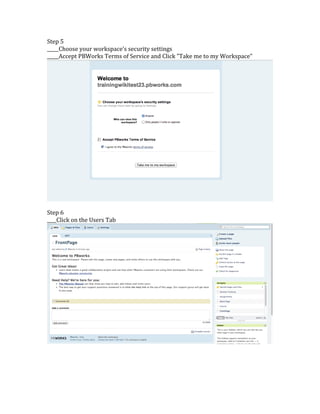
____	
  Log	
  into	
  your	
  PBWorks	
  account	
  you	
  created	
  in	
  Lesson	
  1	


Step	
  3	
  
_____Once	
  you	
  log	
  in,	
  scroll	
  down	
  and	
  click	
  "Create	
  a	
  New	
  Work	
  Space"	


Step	
  4	
  
____Choose	
  you	
  address	
  
____	
  Agree	
  to	
  non-­‐commercial	
  use	
  click	
  next	


Step	
  5	
  
_____Choose	
  your	
  workspace's	
  security	
  settings	
  
_____Accept	
  PBWorks	
  Terms	
  of	
  Service	
  and	
  Click	
  "Take	
  me	
  to	
  my	
  Workspace"	


Step	
  6	
  	
  
____Click	
  on	
  the	
  Users	
  Tab	


Step	
  7	
  
____Click	
  add	
  more	
  users	


Step	
  8	
  	
  
_____	
  Add	
  the	
  email	
  address	
  of	
  the	
  User	
  you	
  want	
  added	


Step	
  9	
  	
  
______	
  Once	
  you	
  see	
  the	
  users	
  on	
  your	
  PBWorks	
  account	
  they	
  have	
  been	
  added.	


Module2 checklist

  • 1.
    Module  2  Performance  Task     You  will  now  create  and  share  your  own  Wiki   Please  follow  the  steps  below  to  help  guide  you  through  the  process.  If  further   assistance  is  needed  please  review  the  video  in  Module  2.     Creating  and  Sharing  a  Wiki       Step  1     ____Access  PBWorks  on  the  web  at  www.pbsworks.com   ____  Click  Login           Step  2     ____  Log  into  your  PBWorks  account  you  created  in  Lesson  1          
  • 2.
    Step  3   _____Once  you  log  in,  scroll  down  and  click  "Create  a  New  Work  Space"           Step  4   ____Choose  you  address   ____  Agree  to  non-­‐commercial  use  click  next      
  • 3.
    Step  5   _____Choose  your  workspace's  security  settings   _____Accept  PBWorks  Terms  of  Service  and  Click  "Take  me  to  my  Workspace"       Step  6     ____Click  on  the  Users  Tab            
  • 4.
    Step  7   ____Click  add  more  users     Step  8     _____  Add  the  email  address  of  the  User  you  want  added                              
  • 5.
    Step  9     ______  Once  you  see  the  users  on  your  PBWorks  account  they  have  been  added.