Technician Field Service App
Designed & Developed by MobileERP Softech P Ltd.
www.mobileerp.in
Copyright 2017 MobileERP Softech P Ltd. www.mobileerp.in
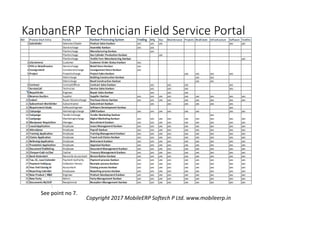
KanbanERP Technician Field Service Portal
See point no 7.
Copyright 2017 MobileERP Softech P Ltd. www.mobileerp.in
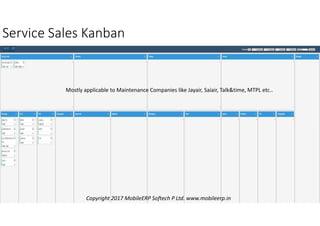
Service Sales Kanban
Copyright 2017 MobileERP Softech P Ltd. www.mobileerp.in
Mostly applicable to Maintenance Companies like Jayair, Saiair, Talk&time, MTPL etc..
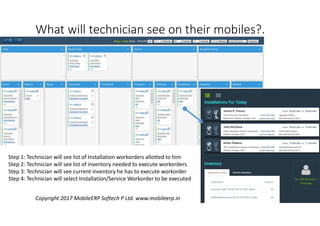
What will technician see on their mobiles?.
Step 1: Technician will see list of Installation workorders allotted to him
Step 2: Technician will see list of inventory needed to execute workorders
Step 3: Technician will see current inventory he has to execute workorder
Step 4: Technician will select Installation/Service Workorder to be executed
Copyright 2017 MobileERP Softech P Ltd. www.mobileerp.in
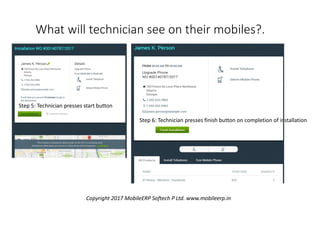
Step 5: Technician presses start button
Step 6: Technician presses finish button on completion of installation
What will technician see on their mobiles?.
Copyright 2017 MobileERP Softech P Ltd. www.mobileerp.in
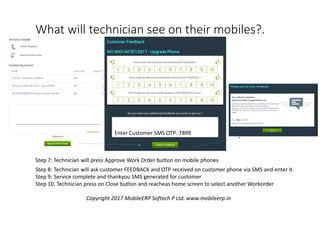
What will technician see on their mobiles?.
Step 8: Technician will ask customer FEEDBACK and OTP received on customer phone via SMS and enter it.
Step 9: Service complete and thankyou SMS generated for customer
Step 10. Technician press on Close button and reacheas home screen to select another Workorder
Step 7: Technician will press Approve Work Order button on mobile phones
Enter Customer SMS OTP: 7899
Copyright 2017 MobileERP Softech P Ltd. www.mobileerp.in

MobileERP Technician field service app

  • 1.
    Technician Field ServiceApp Designed & Developed by MobileERP Softech P Ltd. www.mobileerp.in Copyright 2017 MobileERP Softech P Ltd. www.mobileerp.in
  • 2.
    KanbanERP Technician FieldService Portal See point no 7. Copyright 2017 MobileERP Softech P Ltd. www.mobileerp.in
  • 3.
    Service Sales Kanban Copyright2017 MobileERP Softech P Ltd. www.mobileerp.in Mostly applicable to Maintenance Companies like Jayair, Saiair, Talk&time, MTPL etc..
  • 4.
    What will techniciansee on their mobiles?. Step 1: Technician will see list of Installation workorders allotted to him Step 2: Technician will see list of inventory needed to execute workorders Step 3: Technician will see current inventory he has to execute workorder Step 4: Technician will select Installation/Service Workorder to be executed Copyright 2017 MobileERP Softech P Ltd. www.mobileerp.in
  • 5.
    Step 5: Technicianpresses start button Step 6: Technician presses finish button on completion of installation What will technician see on their mobiles?. Copyright 2017 MobileERP Softech P Ltd. www.mobileerp.in
  • 6.
    What will techniciansee on their mobiles?. Step 8: Technician will ask customer FEEDBACK and OTP received on customer phone via SMS and enter it. Step 9: Service complete and thankyou SMS generated for customer Step 10. Technician press on Close button and reacheas home screen to select another Workorder Step 7: Technician will press Approve Work Order button on mobile phones Enter Customer SMS OTP: 7899 Copyright 2017 MobileERP Softech P Ltd. www.mobileerp.in