CSS Selectors
By VDMK 11 january 2017
contact@vdmk.eu
Top 20 CSS
Selectors.
Let’s knock the obvious ones
out, for the beginners, before we
move onto the more advanced
selectors.
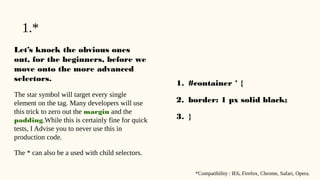
The star symbol will target every single
element on the tag. Many developers will use
this trick to zero out the margin and the
padding.While this is certainly fine for quick
tests, I Advise you to never use this in
production code.
The * can also be a used with child selectors.
1. #container * {
2. border: 1 px solid black;
3. }
1.*
*Compatibility : IE6, Firefox, Chrome, Safari, Opera.
2. X+Y
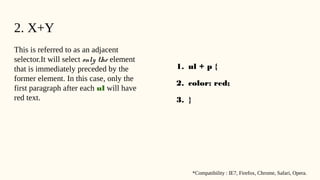
This is referred to as an adjacent
selector.It will select only the element
that is immediately preceded by the
former element. In this case, only the
first paragraph after each ul will have
red text.
1. ul + p {
2. color: red;
3. }
*Compatibility : IE7, Firefox, Chrome, Safari, Opera.
3. X > Y
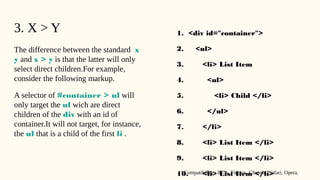
The difference between the standard x
y and x > y is that the latter will only
select direct children.For example,
consider the following markup.
A selector of #container > ul will
only target the ul wich are direct
children of the div with an id of
container.It will not target, for instance,
the ul that is a child of the first li .
1. <div id="container">
2. <ul>
3. <li> List Item
4. <ul>
5. <li> Child </li>
6. </ul>
7. </li>
8. <li> List Item </li>
9. <li> List Item </li>
10. <li> List Item </li>*Compatibility : IE7+, Firefox, Chrome, Safari, Opera.
4. X ~ Y
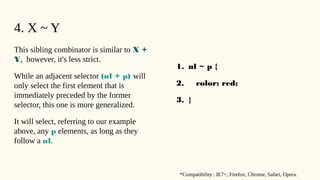
This sibling combinator is similar to X +
Y, however, it's less strict.
While an adjacent selector (ul + p) will
only select the first element that is
immediately preceded by the former
selector, this one is more generalized.
It will select, referring to our example
above, any p elements, as long as they
follow a ul.
1. ul ~ p {
2. color: red;
3. }
*Compatibility : IE7+, Firefox, Chrome, Safari, Opera.
5. X[title]
Referred to as an attributes selector, in
our example above, this will only select
the anchor tags that have a title
attribute.
Anchor tags which do not will not
receive this particular styling.
But, what if you need to be more
specific? Well...
1. a[title] {
2. color: green;
3. }
*Compatibility : IE7+, Firefox, Chrome, Safari, Opera.
6. X:checked
This pseudo class will only target a user
interface element that has been checked -
like a radio button, or checkbox.
It's as simple as that.
1. input[type=radio]:checked {
2. border: 1px solid black;
3. }
*Compatibility : IE9+, Firefox, Chrome, Safari, Opera.
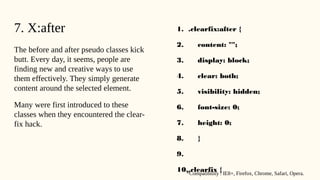
7. X:after
The before and after pseudo classes kick
butt. Every day, it seems, people are
finding new and creative ways to use
them effectively. They simply generate
content around the selected element.
Many were first introduced to these
classes when they encountered the clear-
fix hack.
1. .clearfix:after {
2. content: "";
3. display: block;
4. clear: both;
5. visibility: hidden;
6. font-size: 0;
7. height: 0;
8. }
9.
10..clearfix {*Compatibility : IE8+, Firefox, Chrome, Safari, Opera.
8. X:hover
Want to apply specific styling when a
user hovers over an element? This will
get the job done!
Internet Explorer don't
respond when the :hover
pseudo class is applied to
anything other than an
anchor tag.
You'll most often use this selector when
applying, for example, a border-bottom
to anchor tags, when hovered over.
1. div:hover {
2. background: #e3e3e3;
3. }
*Compatibility : IE6+ (In IE6, :hover must be applied to an anchor element), Firefox, Chrome, Safari, Opera.
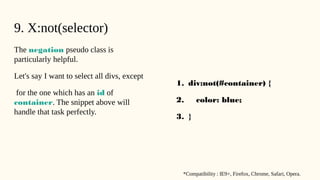
9. X:not(selector)
The negation pseudo class is
particularly helpful.
Let's say I want to select all divs, except
for the one which has an id of
container. The snippet above will
handle that task perfectly.
1. div:not(#container) {
2. color: blue;
3. }
*Compatibility : IE9+, Firefox, Chrome, Safari, Opera.
10. X::pseudoElement
We can use pseudo elements (designated
by ::) to style fragments of an element,
such as the first line, or the first letter.
Keep in mind that these must be applied
to block level elements in order to take
effect.
A pseudo-element is composed
of two colons: ::
1. p::first-line {
2. font-weight: bold;
3. font-size: 1.2em;
4. }
*Compatibility : IE6+, Firefox, Chrome, Safari, Opera.
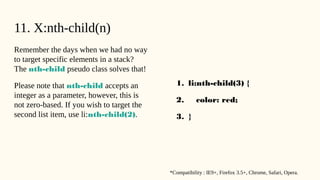
11. X:nth-child(n)
Remember the days when we had no way
to target specific elements in a stack?
The nth-child pseudo class solves that!
Please note that nth-child accepts an
integer as a parameter, however, this is
not zero-based. If you wish to target the
second list item, use li:nth-child(2).
1. li:nth-child(3) {
2. color: red;
3. }
*Compatibility : IE9+, Firefox 3.5+, Chrome, Safari, Opera.
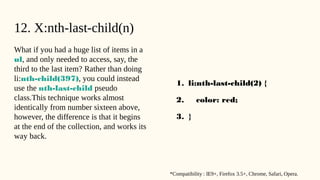
12. X:nth-last-child(n)
What if you had a huge list of items in a
ul, and only needed to access, say, the
third to the last item? Rather than doing
li:nth-child(397), you could instead
use the nth-last-child pseudo
class.This technique works almost
identically from number sixteen above,
however, the difference is that it begins
at the end of the collection, and works its
way back.
1. li:nth-last-child(2) {
2. color: red;
3. }
*Compatibility : IE9+, Firefox 3.5+, Chrome, Safari, Opera.
13. X:nth-of-type(n)
There will be times when, rather than
selecting a child, you instead need to
select according to the type of
element.Imagine markup that contains
five unordered lists. If you wanted to
style only the third ul, and didn't have a
unique id to hook into, you could use the
nth-of-type(n) pseudo class. In the
snippet above, only the third ul will
have a border around it.
1. ul:nth-of-type(3) {
2. border: 1px solid black;
3. }
*Compatibility : IE9+, Firefox 3.5+, Chrome, Safari, Opera.
14. X:nth-last-of-type(n)
And yes, to remain consistent, we can
also use nth-last-of-type to begin at
the end of the selectors list, and work our
way back to target the desired element.
1. ul:nth-last-of-type(3) {
2. border: 1px solid black;
3. }
*Compatibility : IE9+,Firefox 3.5+, Chrome, Safari, Opera.
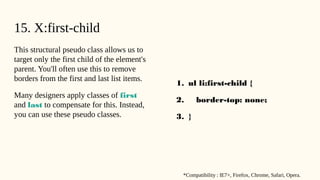
1. ul li:first-child {
2. border-top: none;
3. }
This structural pseudo class allows us to
target only the first child of the element's
parent. You'll often use this to remove
borders from the first and last list items.
Many designers apply classes of first
and last to compensate for this. Instead,
you can use these pseudo classes.
15. X:first-child
*Compatibility : IE7+, Firefox, Chrome, Safari, Opera.
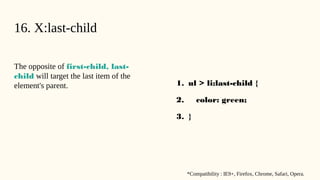
16. X:last-child
The opposite of first-child, last-
child will target the last item of the
element's parent. 1. ul > li:last-child {
2. color: green;
3. }
*Compatibility : IE9+, Firefox, Chrome, Safari, Opera.
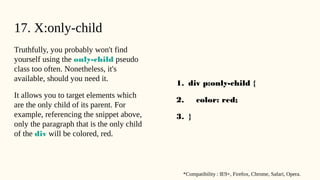
17. X:only-child
Truthfully, you probably won't find
yourself using the only-child pseudo
class too often. Nonetheless, it's
available, should you need it.
It allows you to target elements which
are the only child of its parent. For
example, referencing the snippet above,
only the paragraph that is the only child
of the div will be colored, red.
1. div p:only-child {
2. color: red;
3. }
*Compatibility : IE9+, Firefox, Chrome, Safari, Opera.
18. X:only-of-type
This structural pseudo class can be used
in some clever ways.
It will target elements that do not have
any siblings within its parent
container.
1. li:only-of-type {
2. font-weight: bold;
3. }
*Compatibility : IE9+, Firefox 3.5+, Chrome, Safari, Opera.
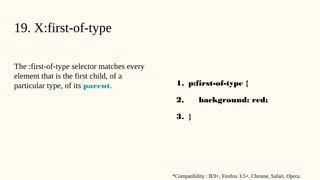
19. X:first-of-type
The :first-of-type selector matches every
element that is the first child, of a
particular type, of its parent. 1. p:first-of-type {
2. background: red;
3. }
*Compatibility : IE9+, Firefox 3.5+, Chrome, Safari, Opera.
20. X[href$=".jpg"]
Again, we use a regular expressions
symbol, $, to refer to the end of a string.
In this case, we're searching for all
anchors which link to an image -- or at
least a url that ends with .jpg.
Keep in mind that this certainly won't
work for gifs and pngs.
1. a[href$=".jpg"] {
2. color: red;
3. }
*Compatibility : IE7+, Firefox, Chrome, Safari, Opera.
Conclusion
If you're compensating for older browsers, like Internet Explorer 6, you still need to be
careful when using these newer selectors. But, please don't let that deter you from learning
these. You'd be doing a huge disservice to yourself. Be sure to refer here for a browser-
compatibility list. Alternatively, you can use Dean Edward's excellent IE9.js script to
bring support for these selectors to older browsers.
Conclusion
Secondly, when working with JavaScript libraries, like the popular jQuery, always try to
use these native CSS3 selectors over the library's custom methods/selectors, when
possible. It'll make your code faster, as the selector engine can use the browser's native
parsing, rather than its own.
Conclusion
It’s great that you’re spending time learning web design fundamentals, but if you need a
quick solution, one of our ready-to-use CSS templates might be a good option. We also
have a few premium CSS items for you to consider:
Top 20 CSS
Selectors.
Thanks to :
Jeffrey Way
The 30 CSS Selectors You Must Memorize
contact@vdmk.eu

CSS memo

  • 1.
    CSS Selectors By VDMK11 january 2017 contact@vdmk.eu
  • 2.
  • 3.
    Let’s knock theobvious ones out, for the beginners, before we move onto the more advanced selectors. The star symbol will target every single element on the tag. Many developers will use this trick to zero out the margin and the padding.While this is certainly fine for quick tests, I Advise you to never use this in production code. The * can also be a used with child selectors. 1. #container * { 2. border: 1 px solid black; 3. } 1.* *Compatibility : IE6, Firefox, Chrome, Safari, Opera.
  • 4.
    2. X+Y This isreferred to as an adjacent selector.It will select only the element that is immediately preceded by the former element. In this case, only the first paragraph after each ul will have red text. 1. ul + p { 2. color: red; 3. } *Compatibility : IE7, Firefox, Chrome, Safari, Opera.
  • 5.
    3. X >Y The difference between the standard x y and x > y is that the latter will only select direct children.For example, consider the following markup. A selector of #container > ul will only target the ul wich are direct children of the div with an id of container.It will not target, for instance, the ul that is a child of the first li . 1. <div id="container"> 2. <ul> 3. <li> List Item 4. <ul> 5. <li> Child </li> 6. </ul> 7. </li> 8. <li> List Item </li> 9. <li> List Item </li> 10. <li> List Item </li>*Compatibility : IE7+, Firefox, Chrome, Safari, Opera.
  • 6.
    4. X ~Y This sibling combinator is similar to X + Y, however, it's less strict. While an adjacent selector (ul + p) will only select the first element that is immediately preceded by the former selector, this one is more generalized. It will select, referring to our example above, any p elements, as long as they follow a ul. 1. ul ~ p { 2. color: red; 3. } *Compatibility : IE7+, Firefox, Chrome, Safari, Opera.
  • 7.
    5. X[title] Referred toas an attributes selector, in our example above, this will only select the anchor tags that have a title attribute. Anchor tags which do not will not receive this particular styling. But, what if you need to be more specific? Well... 1. a[title] { 2. color: green; 3. } *Compatibility : IE7+, Firefox, Chrome, Safari, Opera.
  • 8.
    6. X:checked This pseudoclass will only target a user interface element that has been checked - like a radio button, or checkbox. It's as simple as that. 1. input[type=radio]:checked { 2. border: 1px solid black; 3. } *Compatibility : IE9+, Firefox, Chrome, Safari, Opera.
  • 9.
    7. X:after The beforeand after pseudo classes kick butt. Every day, it seems, people are finding new and creative ways to use them effectively. They simply generate content around the selected element. Many were first introduced to these classes when they encountered the clear- fix hack. 1. .clearfix:after { 2. content: ""; 3. display: block; 4. clear: both; 5. visibility: hidden; 6. font-size: 0; 7. height: 0; 8. } 9. 10..clearfix {*Compatibility : IE8+, Firefox, Chrome, Safari, Opera.
  • 10.
    8. X:hover Want toapply specific styling when a user hovers over an element? This will get the job done! Internet Explorer don't respond when the :hover pseudo class is applied to anything other than an anchor tag. You'll most often use this selector when applying, for example, a border-bottom to anchor tags, when hovered over. 1. div:hover { 2. background: #e3e3e3; 3. } *Compatibility : IE6+ (In IE6, :hover must be applied to an anchor element), Firefox, Chrome, Safari, Opera.
  • 11.
    9. X:not(selector) The negationpseudo class is particularly helpful. Let's say I want to select all divs, except for the one which has an id of container. The snippet above will handle that task perfectly. 1. div:not(#container) { 2. color: blue; 3. } *Compatibility : IE9+, Firefox, Chrome, Safari, Opera.
  • 12.
    10. X::pseudoElement We canuse pseudo elements (designated by ::) to style fragments of an element, such as the first line, or the first letter. Keep in mind that these must be applied to block level elements in order to take effect. A pseudo-element is composed of two colons: :: 1. p::first-line { 2. font-weight: bold; 3. font-size: 1.2em; 4. } *Compatibility : IE6+, Firefox, Chrome, Safari, Opera.
  • 13.
    11. X:nth-child(n) Remember thedays when we had no way to target specific elements in a stack? The nth-child pseudo class solves that! Please note that nth-child accepts an integer as a parameter, however, this is not zero-based. If you wish to target the second list item, use li:nth-child(2). 1. li:nth-child(3) { 2. color: red; 3. } *Compatibility : IE9+, Firefox 3.5+, Chrome, Safari, Opera.
  • 14.
    12. X:nth-last-child(n) What ifyou had a huge list of items in a ul, and only needed to access, say, the third to the last item? Rather than doing li:nth-child(397), you could instead use the nth-last-child pseudo class.This technique works almost identically from number sixteen above, however, the difference is that it begins at the end of the collection, and works its way back. 1. li:nth-last-child(2) { 2. color: red; 3. } *Compatibility : IE9+, Firefox 3.5+, Chrome, Safari, Opera.
  • 15.
    13. X:nth-of-type(n) There willbe times when, rather than selecting a child, you instead need to select according to the type of element.Imagine markup that contains five unordered lists. If you wanted to style only the third ul, and didn't have a unique id to hook into, you could use the nth-of-type(n) pseudo class. In the snippet above, only the third ul will have a border around it. 1. ul:nth-of-type(3) { 2. border: 1px solid black; 3. } *Compatibility : IE9+, Firefox 3.5+, Chrome, Safari, Opera.
  • 16.
    14. X:nth-last-of-type(n) And yes,to remain consistent, we can also use nth-last-of-type to begin at the end of the selectors list, and work our way back to target the desired element. 1. ul:nth-last-of-type(3) { 2. border: 1px solid black; 3. } *Compatibility : IE9+,Firefox 3.5+, Chrome, Safari, Opera.
  • 17.
    1. ul li:first-child{ 2. border-top: none; 3. } This structural pseudo class allows us to target only the first child of the element's parent. You'll often use this to remove borders from the first and last list items. Many designers apply classes of first and last to compensate for this. Instead, you can use these pseudo classes. 15. X:first-child *Compatibility : IE7+, Firefox, Chrome, Safari, Opera.
  • 18.
    16. X:last-child The oppositeof first-child, last- child will target the last item of the element's parent. 1. ul > li:last-child { 2. color: green; 3. } *Compatibility : IE9+, Firefox, Chrome, Safari, Opera.
  • 19.
    17. X:only-child Truthfully, youprobably won't find yourself using the only-child pseudo class too often. Nonetheless, it's available, should you need it. It allows you to target elements which are the only child of its parent. For example, referencing the snippet above, only the paragraph that is the only child of the div will be colored, red. 1. div p:only-child { 2. color: red; 3. } *Compatibility : IE9+, Firefox, Chrome, Safari, Opera.
  • 20.
    18. X:only-of-type This structuralpseudo class can be used in some clever ways. It will target elements that do not have any siblings within its parent container. 1. li:only-of-type { 2. font-weight: bold; 3. } *Compatibility : IE9+, Firefox 3.5+, Chrome, Safari, Opera.
  • 21.
    19. X:first-of-type The :first-of-typeselector matches every element that is the first child, of a particular type, of its parent. 1. p:first-of-type { 2. background: red; 3. } *Compatibility : IE9+, Firefox 3.5+, Chrome, Safari, Opera.
  • 22.
    20. X[href$=".jpg"] Again, weuse a regular expressions symbol, $, to refer to the end of a string. In this case, we're searching for all anchors which link to an image -- or at least a url that ends with .jpg. Keep in mind that this certainly won't work for gifs and pngs. 1. a[href$=".jpg"] { 2. color: red; 3. } *Compatibility : IE7+, Firefox, Chrome, Safari, Opera.
  • 23.
    Conclusion If you're compensatingfor older browsers, like Internet Explorer 6, you still need to be careful when using these newer selectors. But, please don't let that deter you from learning these. You'd be doing a huge disservice to yourself. Be sure to refer here for a browser- compatibility list. Alternatively, you can use Dean Edward's excellent IE9.js script to bring support for these selectors to older browsers.
  • 24.
    Conclusion Secondly, when workingwith JavaScript libraries, like the popular jQuery, always try to use these native CSS3 selectors over the library's custom methods/selectors, when possible. It'll make your code faster, as the selector engine can use the browser's native parsing, rather than its own.
  • 25.
    Conclusion It’s great thatyou’re spending time learning web design fundamentals, but if you need a quick solution, one of our ready-to-use CSS templates might be a good option. We also have a few premium CSS items for you to consider:
  • 26.
  • 27.
    Thanks to : JeffreyWay The 30 CSS Selectors You Must Memorize contact@vdmk.eu