MCTS Guide to Configuring
Microsoft Windows Server 2008
      Active Directory


Chapter 2: Installing Windows Server
                2008
Objectives
• Plan a Windows Server 2008 installation
• Work with Server Core systems
• Use Hyper-V server virtualization


 MCTS Windows Server 2008 Active Directory    2
Planning a Windows Server 2008
                     Installation
• Some networks require more planning than others
    – Smaller networks will most likely only require a few decisions
      before install can begin
    – Larger networks will require more planning to ensure a
      productive integration of the new server
• It is important to consider the environment and the
  roles a server will play on the network prior to
  beginning an install of Windows Server 2008


MCTS Windows Server 2008 Active Directory                              3
Installing the First Server in a New Network

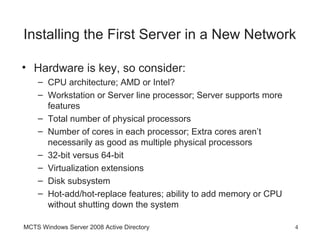
• Hardware is key, so consider:
    – CPU architecture; AMD or Intel?
    – Workstation or Server line processor; Server supports more
      features
    – Total number of physical processors
    – Number of cores in each processor; Extra cores aren’t
      necessarily as good as multiple physical processors
    – 32-bit versus 64-bit
    – Virtualization extensions
    – Disk subsystem
    – Hot-add/hot-replace features; ability to add memory or CPU
      without shutting down the system

MCTS Windows Server 2008 Active Directory                          4
Installing the First Server in a New Network
                     (cont.)
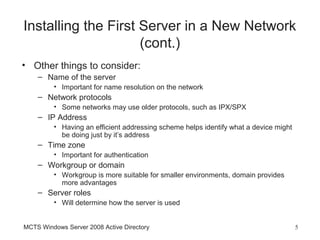
• Other things to consider:
    – Name of the server
         • Important for name resolution on the network
    – Network protocols
         • Some networks may use older protocols, such as IPX/SPX
    – IP Address
         • Having an efficient addressing scheme helps identify what a device might
           be doing just by it’s address
    – Time zone
         • Important for authentication
    – Workgroup or domain
         • Workgroup is more suitable for smaller environments, domain provides
           more advantages
    – Server roles
         • Will determine how the server is used


MCTS Windows Server 2008 Active Directory                                             5
Ready, Set, Install
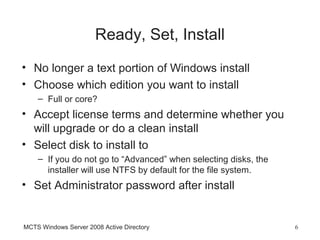
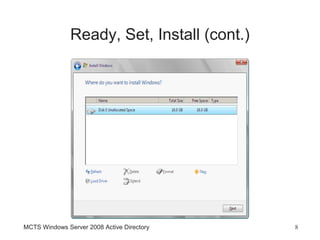
• No longer a text portion of Windows install
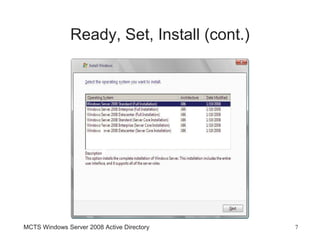
• Choose which edition you want to install
    – Full or core?
• Accept license terms and determine whether you
  will upgrade or do a clean install
• Select disk to install to
    – If you do not go to “Advanced” when selecting disks, the
      installer will use NTFS by default for the file system.
• Set Administrator password after install


MCTS Windows Server 2008 Active Directory                        6
Ready, Set, Install (cont.)


MCTS Windows Server 2008 Active Directory    7
Ready, Set, Install (cont.)


MCTS Windows Server 2008 Active Directory    8
Postinstallation Tasks
• Activate Windows Server 2008
    – Activation should take place automatically, but if it doesn’t, it
      must be done within 60 days after installation, or logons will be
      disabled
•   Set the correct date, time, and time zone
•   Assign a static IP address
•   Assign a computer name
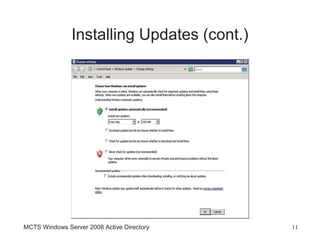
•   Configure automatic updates
•   Download and install available updates
•   Add and configure roles and features
MCTS Windows Server 2008 Active Directory                                 9
Installing Updates
• Patches
    – Fix bugs and security issues
    – Can be installed through Windows Update
• Service pack
    – Collection of bug fixes and security updates
    – May also add features and performance enhancements or
      change the functionality of existing features
• Under default settings, Windows Update runs every
  day at 3:00 a.m. to download and install new
  updates

MCTS Windows Server 2008 Active Directory                     10
Installing Updates (cont.)


MCTS Windows Server 2008 Active Directory   11
Expanding Your Network
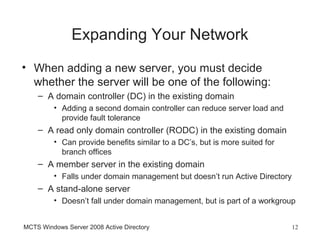
• When adding a new server, you must decide
  whether the server will be one of the following:
    – A domain controller (DC) in the existing domain
         • Adding a second domain controller can reduce server load and
           provide fault tolerance
    – A read only domain controller (RODC) in the existing domain
         • Can provide benefits similar to a DC’s, but is more suited for
           branch offices
    – A member server in the existing domain
         • Falls under domain management but doesn’t run Active Directory
    – A stand-alone server
         • Doesn’t fall under domain management, but is part of a workgroup


MCTS Windows Server 2008 Active Directory                                   12
Expanding Your Network
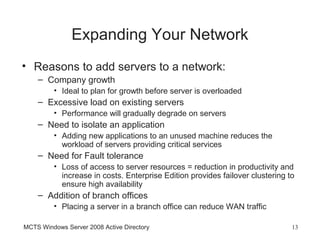
• Reasons to add servers to a network:
    – Company growth
         • Ideal to plan for growth before server is overloaded
    – Excessive load on existing servers
         • Performance will gradually degrade on servers
    – Need to isolate an application
         • Adding new applications to an unused machine reduces the
           workload of servers providing critical services
    – Need for Fault tolerance
         • Loss of access to server resources = reduction in productivity and
           increase in costs. Enterprise Edition provides failover clustering to
           ensure high availability
    – Addition of branch offices
         • Placing a server in a branch office can reduce WAN traffic

MCTS Windows Server 2008 Active Directory                                      13
Upgrading to Windows Server 2008
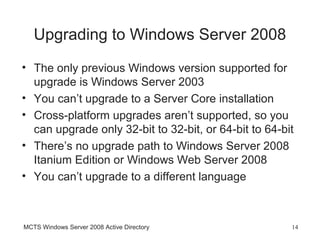
• The only previous Windows version supported for
  upgrade is Windows Server 2003
• You can’t upgrade to a Server Core installation
• Cross-platform upgrades aren’t supported, so you
  can upgrade only 32-bit to 32-bit, or 64-bit to 64-bit
• There’s no upgrade path to Windows Server 2008
  Itanium Edition or Windows Web Server 2008
• You can’t upgrade to a different language


MCTS Windows Server 2008 Active Directory              14
Upgrading to Windows Server 2008 (cont.)

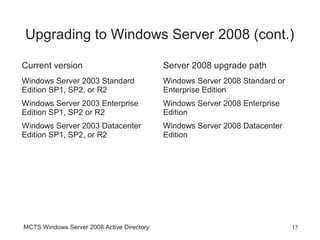
Current version                             Server 2008 upgrade path
Windows Server 2003 Standard                Windows Server 2008 Standard or
Edition SP1, SP2, or R2                     Enterprise Edition
Windows Server 2003 Enterprise              Windows Server 2008 Enterprise
Edition SP1, SP2 or R2                      Edition
Windows Server 2003 Datacenter              Windows Server 2008 Datacenter
Edition SP1, SP2, or R2                     Edition


MCTS Windows Server 2008 Active Directory                                     15
Upgrading to Windows Server 2008 (cont.)

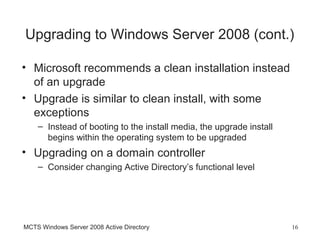
• Microsoft recommends a clean installation instead
  of an upgrade
• Upgrade is similar to clean install, with some
  exceptions
    – Instead of booting to the install media, the upgrade install
      begins within the operating system to be upgraded
• Upgrading on a domain controller
    – Consider changing Active Directory’s functional level


MCTS Windows Server 2008 Active Directory                            16
Server Core: Windows That Doesn’t Do
                 Windows
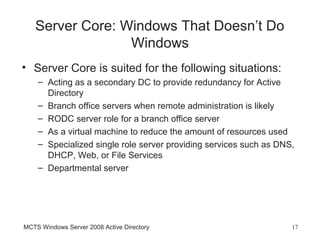
• Server Core is suited for the following situations:
    – Acting as a secondary DC to provide redundancy for Active
      Directory
    – Branch office servers when remote administration is likely
    – RODC server role for a branch office server
    – As a virtual machine to reduce the amount of resources used
    – Specialized single role server providing services such as DNS,
      DHCP, Web, or File Services
    – Departmental server


MCTS Windows Server 2008 Active Directory                          17
Windows Server Installation and
               Postinstallation tasks
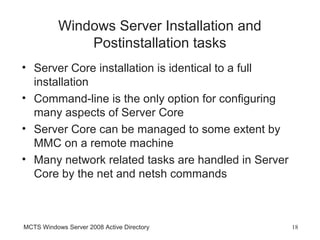
• Server Core installation is identical to a full
  installation
• Command-line is the only option for configuring
  many aspects of Server Core
• Server Core can be managed to some extent by
  MMC on a remote machine
• Many network related tasks are handled in Server
  Core by the net and netsh commands


MCTS Windows Server 2008 Active Directory            18
When Not to Use Server Core
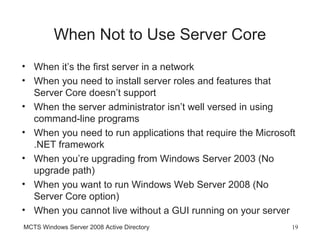
• When it’s the first server in a network
• When you need to install server roles and features that
  Server Core doesn’t support
• When the server administrator isn’t well versed in using
  command-line programs
• When you need to run applications that require the Microsoft
  .NET framework
• When you’re upgrading from Windows Server 2003 (No
  upgrade path)
• When you want to run Windows Web Server 2008 (No
  Server Core option)
• When you cannot live without a GUI running on your server
MCTS Windows Server 2008 Active Directory                    19
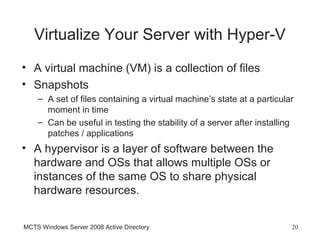
Virtualize Your Server with Hyper-V
• A virtual machine (VM) is a collection of files
• Snapshots
    – A set of files containing a virtual machine’s state at a particular
      moment in time
    – Can be useful in testing the stability of a server after installing
      patches / applications
• A hypervisor is a layer of software between the
  hardware and OSs that allows multiple OSs or
  instances of the same OS to share physical
  hardware resources.


MCTS Windows Server 2008 Active Directory                               20
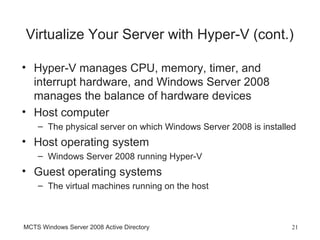
Virtualize Your Server with Hyper-V (cont.)

• Hyper-V manages CPU, memory, timer, and
  interrupt hardware, and Windows Server 2008
  manages the balance of hardware devices
• Host computer
    – The physical server on which Windows Server 2008 is installed
• Host operating system
    – Windows Server 2008 running Hyper-V
• Guest operating systems
    – The virtual machines running on the host


MCTS Windows Server 2008 Active Directory                        21
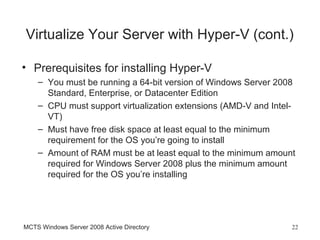
Virtualize Your Server with Hyper-V (cont.)

• Prerequisites for installing Hyper-V
    – You must be running a 64-bit version of Windows Server 2008
      Standard, Enterprise, or Datacenter Edition
    – CPU must support virtualization extensions (AMD-V and Intel-
      VT)
    – Must have free disk space at least equal to the minimum
      requirement for the OS you’re going to install
    – Amount of RAM must be at least equal to the minimum amount
      required for Windows Server 2008 plus the minimum amount
      required for the OS you’re installing


MCTS Windows Server 2008 Active Directory                        22
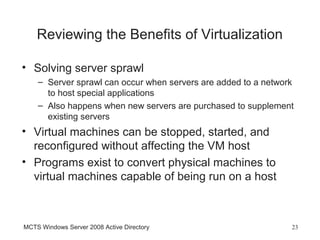
Reviewing the Benefits of Virtualization

• Solving server sprawl
    – Server sprawl can occur when servers are added to a network
      to host special applications
    – Also happens when new servers are purchased to supplement
      existing servers
• Virtual machines can be stopped, started, and
  reconfigured without affecting the VM host
• Programs exist to convert physical machines to
  virtual machines capable of being run on a host


MCTS Windows Server 2008 Active Directory                       23
Reviewing the Benefits of Virtualization
                   (cont.)
• Simplifying training, testing, and Development
    – VM’s supply a convenient venue for using several different
      operating systems at once, without having to add additional
      hard drives or remove an existing operating system
    – Virtual machines can act as a test bed for new updates and
      patches, so that administrators can monitor any issues that
      might be involved
    – Installing new applications that could potentially cause conflicts
      on a production machine can be tested within a virtual
      environment
    – Software developers no longer need to run operating systems
      on multiple machines to test compatibility; software can be
      tested on several different operating systems simultaneously
      with virtualization

MCTS Windows Server 2008 Active Directory                              24
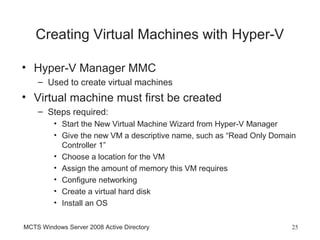
Creating Virtual Machines with Hyper-V

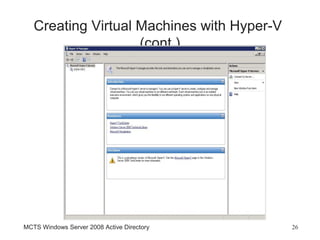
• Hyper-V Manager MMC
    – Used to create virtual machines
• Virtual machine must first be created
    – Steps required:
         • Start the New Virtual Machine Wizard from Hyper-V Manager
         • Give the new VM a descriptive name, such as “Read Only Domain
           Controller 1”
         • Choose a location for the VM
         • Assign the amount of memory this VM requires
         • Configure networking
         • Create a virtual hard disk
         • Install an OS

MCTS Windows Server 2008 Active Directory                             25
Creating Virtual Machines with Hyper-V
                    (cont.)


MCTS Windows Server 2008 Active Directory   26
Basic Virtual Machine Management with
              Hyper-V Manager
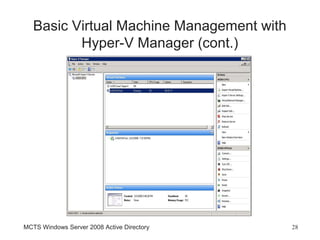
• Running VM’s do no require a logged on user,
  because they run in the background until you
  connect to them
• To configure and manage a VM or access it locally,
  you need to run Hyper-V manager
• If a snapshot exists for a virtual machine, a
  screenshot will be shown to give a preview of the
  saved state


MCTS Windows Server 2008 Active Directory          27
Basic Virtual Machine Management with
          Hyper-V Manager (cont.)


MCTS Windows Server 2008 Active Directory   28
Basic Virtual Machine Management with
          Hyper-V Manager (cont.)
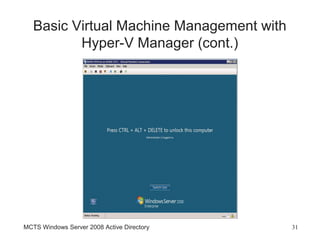
• To connect to a VM, you can use the following
  methods:
    – Right-click the VM and click Connect
    – Double-click the VM
    – Select the VM and double-click its screen shot in the bottom
      section
    – Select the VM and click Connect in the Actions pane


MCTS Windows Server 2008 Active Directory                            29
Basic Virtual Machine Management with
          Hyper-V Manager (cont.)
• Virtual Machine Connection console
    – Toolbar icons from left to right:
         •   Ctrl+Alt+Delete (Sends Ctrl+Alt+Delete keystroke to the VM)
         •   Start (Starts the VM)
         •   Turn off (turns off the VM)
         •   Shut Down (sends a signal to the OS to perform a shutdown)
         •   Save (saves the VM’s state, similar to Windows hibernation mode)
         •   Pause (pauses the VM, similar to Windows sleep mode)
         •   Reset (resets the VM)
         •   Snapshot (creates a snapshot of a VM)
         •   Revert (reverts to a snapshot of a VM)


MCTS Windows Server 2008 Active Directory                                  30
Basic Virtual Machine Management with
          Hyper-V Manager (cont.)


MCTS Windows Server 2008 Active Directory   31
Chapter Summary
• Most of the work involved with Windows Server 2008 takes
  place in the planning phase.
• A DVD is a common media from which to install Windows
  Server 2008
• Postinstallation configuration tasks include giving the server
  a name, configuring network protocols, setting time zone
  information, selecting a network model, and installing and
  configuring Windows Updates
• When adding new servers to an existing network, you must
  decide whether the server will be: a domain controller, read
  only domain controller, member server, or a stand-alone
  server

MCTS Windows Server 2008 Active Directory                      32
Chapter Summary (cont.)
• You can upgrade to Windows Server 2008 only if the existing
  OS is Windows Server 2003
• Windows Server Core is a new installation option in
  Standard, Enterprise, and Datacenter editions. Server Core
  lacks the traditional Windows GUI, requiring most tasks to be
  done via command-line
• Hyper-V server role can be installed only on 64-bit versions
  of Windows Server 2008. Additional support must be
  available from your processor.
• Virtual machines are managed in Hyper-V Manager, and
  otherwise run in the background until connected to.


MCTS Windows Server 2008 Active Directory                    33

Mcts chapter 2

  • 1.
    MCTS Guide toConfiguring Microsoft Windows Server 2008 Active Directory Chapter 2: Installing Windows Server 2008
  • 2.
    Objectives • Plan aWindows Server 2008 installation • Work with Server Core systems • Use Hyper-V server virtualization MCTS Windows Server 2008 Active Directory 2
  • 3.
    Planning a WindowsServer 2008 Installation • Some networks require more planning than others – Smaller networks will most likely only require a few decisions before install can begin – Larger networks will require more planning to ensure a productive integration of the new server • It is important to consider the environment and the roles a server will play on the network prior to beginning an install of Windows Server 2008 MCTS Windows Server 2008 Active Directory 3
  • 4.
    Installing the FirstServer in a New Network • Hardware is key, so consider: – CPU architecture; AMD or Intel? – Workstation or Server line processor; Server supports more features – Total number of physical processors – Number of cores in each processor; Extra cores aren’t necessarily as good as multiple physical processors – 32-bit versus 64-bit – Virtualization extensions – Disk subsystem – Hot-add/hot-replace features; ability to add memory or CPU without shutting down the system MCTS Windows Server 2008 Active Directory 4
  • 5.
    Installing the FirstServer in a New Network (cont.) • Other things to consider: – Name of the server • Important for name resolution on the network – Network protocols • Some networks may use older protocols, such as IPX/SPX – IP Address • Having an efficient addressing scheme helps identify what a device might be doing just by it’s address – Time zone • Important for authentication – Workgroup or domain • Workgroup is more suitable for smaller environments, domain provides more advantages – Server roles • Will determine how the server is used MCTS Windows Server 2008 Active Directory 5
  • 6.
    Ready, Set, Install •No longer a text portion of Windows install • Choose which edition you want to install – Full or core? • Accept license terms and determine whether you will upgrade or do a clean install • Select disk to install to – If you do not go to “Advanced” when selecting disks, the installer will use NTFS by default for the file system. • Set Administrator password after install MCTS Windows Server 2008 Active Directory 6
  • 7.
    Ready, Set, Install(cont.) MCTS Windows Server 2008 Active Directory 7
  • 8.
    Ready, Set, Install(cont.) MCTS Windows Server 2008 Active Directory 8
  • 9.
    Postinstallation Tasks • ActivateWindows Server 2008 – Activation should take place automatically, but if it doesn’t, it must be done within 60 days after installation, or logons will be disabled • Set the correct date, time, and time zone • Assign a static IP address • Assign a computer name • Configure automatic updates • Download and install available updates • Add and configure roles and features MCTS Windows Server 2008 Active Directory 9
  • 10.
    Installing Updates • Patches – Fix bugs and security issues – Can be installed through Windows Update • Service pack – Collection of bug fixes and security updates – May also add features and performance enhancements or change the functionality of existing features • Under default settings, Windows Update runs every day at 3:00 a.m. to download and install new updates MCTS Windows Server 2008 Active Directory 10
  • 11.
    Installing Updates (cont.) MCTSWindows Server 2008 Active Directory 11
  • 12.
    Expanding Your Network •When adding a new server, you must decide whether the server will be one of the following: – A domain controller (DC) in the existing domain • Adding a second domain controller can reduce server load and provide fault tolerance – A read only domain controller (RODC) in the existing domain • Can provide benefits similar to a DC’s, but is more suited for branch offices – A member server in the existing domain • Falls under domain management but doesn’t run Active Directory – A stand-alone server • Doesn’t fall under domain management, but is part of a workgroup MCTS Windows Server 2008 Active Directory 12
  • 13.
    Expanding Your Network •Reasons to add servers to a network: – Company growth • Ideal to plan for growth before server is overloaded – Excessive load on existing servers • Performance will gradually degrade on servers – Need to isolate an application • Adding new applications to an unused machine reduces the workload of servers providing critical services – Need for Fault tolerance • Loss of access to server resources = reduction in productivity and increase in costs. Enterprise Edition provides failover clustering to ensure high availability – Addition of branch offices • Placing a server in a branch office can reduce WAN traffic MCTS Windows Server 2008 Active Directory 13
  • 14.
    Upgrading to WindowsServer 2008 • The only previous Windows version supported for upgrade is Windows Server 2003 • You can’t upgrade to a Server Core installation • Cross-platform upgrades aren’t supported, so you can upgrade only 32-bit to 32-bit, or 64-bit to 64-bit • There’s no upgrade path to Windows Server 2008 Itanium Edition or Windows Web Server 2008 • You can’t upgrade to a different language MCTS Windows Server 2008 Active Directory 14
  • 15.
    Upgrading to WindowsServer 2008 (cont.) Current version Server 2008 upgrade path Windows Server 2003 Standard Windows Server 2008 Standard or Edition SP1, SP2, or R2 Enterprise Edition Windows Server 2003 Enterprise Windows Server 2008 Enterprise Edition SP1, SP2 or R2 Edition Windows Server 2003 Datacenter Windows Server 2008 Datacenter Edition SP1, SP2, or R2 Edition MCTS Windows Server 2008 Active Directory 15
  • 16.
    Upgrading to WindowsServer 2008 (cont.) • Microsoft recommends a clean installation instead of an upgrade • Upgrade is similar to clean install, with some exceptions – Instead of booting to the install media, the upgrade install begins within the operating system to be upgraded • Upgrading on a domain controller – Consider changing Active Directory’s functional level MCTS Windows Server 2008 Active Directory 16
  • 17.
    Server Core: WindowsThat Doesn’t Do Windows • Server Core is suited for the following situations: – Acting as a secondary DC to provide redundancy for Active Directory – Branch office servers when remote administration is likely – RODC server role for a branch office server – As a virtual machine to reduce the amount of resources used – Specialized single role server providing services such as DNS, DHCP, Web, or File Services – Departmental server MCTS Windows Server 2008 Active Directory 17
  • 18.
    Windows Server Installationand Postinstallation tasks • Server Core installation is identical to a full installation • Command-line is the only option for configuring many aspects of Server Core • Server Core can be managed to some extent by MMC on a remote machine • Many network related tasks are handled in Server Core by the net and netsh commands MCTS Windows Server 2008 Active Directory 18
  • 19.
    When Not toUse Server Core • When it’s the first server in a network • When you need to install server roles and features that Server Core doesn’t support • When the server administrator isn’t well versed in using command-line programs • When you need to run applications that require the Microsoft .NET framework • When you’re upgrading from Windows Server 2003 (No upgrade path) • When you want to run Windows Web Server 2008 (No Server Core option) • When you cannot live without a GUI running on your server MCTS Windows Server 2008 Active Directory 19
  • 20.
    Virtualize Your Serverwith Hyper-V • A virtual machine (VM) is a collection of files • Snapshots – A set of files containing a virtual machine’s state at a particular moment in time – Can be useful in testing the stability of a server after installing patches / applications • A hypervisor is a layer of software between the hardware and OSs that allows multiple OSs or instances of the same OS to share physical hardware resources. MCTS Windows Server 2008 Active Directory 20
  • 21.
    Virtualize Your Serverwith Hyper-V (cont.) • Hyper-V manages CPU, memory, timer, and interrupt hardware, and Windows Server 2008 manages the balance of hardware devices • Host computer – The physical server on which Windows Server 2008 is installed • Host operating system – Windows Server 2008 running Hyper-V • Guest operating systems – The virtual machines running on the host MCTS Windows Server 2008 Active Directory 21
  • 22.
    Virtualize Your Serverwith Hyper-V (cont.) • Prerequisites for installing Hyper-V – You must be running a 64-bit version of Windows Server 2008 Standard, Enterprise, or Datacenter Edition – CPU must support virtualization extensions (AMD-V and Intel- VT) – Must have free disk space at least equal to the minimum requirement for the OS you’re going to install – Amount of RAM must be at least equal to the minimum amount required for Windows Server 2008 plus the minimum amount required for the OS you’re installing MCTS Windows Server 2008 Active Directory 22
  • 23.
    Reviewing the Benefitsof Virtualization • Solving server sprawl – Server sprawl can occur when servers are added to a network to host special applications – Also happens when new servers are purchased to supplement existing servers • Virtual machines can be stopped, started, and reconfigured without affecting the VM host • Programs exist to convert physical machines to virtual machines capable of being run on a host MCTS Windows Server 2008 Active Directory 23
  • 24.
    Reviewing the Benefitsof Virtualization (cont.) • Simplifying training, testing, and Development – VM’s supply a convenient venue for using several different operating systems at once, without having to add additional hard drives or remove an existing operating system – Virtual machines can act as a test bed for new updates and patches, so that administrators can monitor any issues that might be involved – Installing new applications that could potentially cause conflicts on a production machine can be tested within a virtual environment – Software developers no longer need to run operating systems on multiple machines to test compatibility; software can be tested on several different operating systems simultaneously with virtualization MCTS Windows Server 2008 Active Directory 24
  • 25.
    Creating Virtual Machineswith Hyper-V • Hyper-V Manager MMC – Used to create virtual machines • Virtual machine must first be created – Steps required: • Start the New Virtual Machine Wizard from Hyper-V Manager • Give the new VM a descriptive name, such as “Read Only Domain Controller 1” • Choose a location for the VM • Assign the amount of memory this VM requires • Configure networking • Create a virtual hard disk • Install an OS MCTS Windows Server 2008 Active Directory 25
  • 26.
    Creating Virtual Machineswith Hyper-V (cont.) MCTS Windows Server 2008 Active Directory 26
  • 27.
    Basic Virtual MachineManagement with Hyper-V Manager • Running VM’s do no require a logged on user, because they run in the background until you connect to them • To configure and manage a VM or access it locally, you need to run Hyper-V manager • If a snapshot exists for a virtual machine, a screenshot will be shown to give a preview of the saved state MCTS Windows Server 2008 Active Directory 27
  • 28.
    Basic Virtual MachineManagement with Hyper-V Manager (cont.) MCTS Windows Server 2008 Active Directory 28
  • 29.
    Basic Virtual MachineManagement with Hyper-V Manager (cont.) • To connect to a VM, you can use the following methods: – Right-click the VM and click Connect – Double-click the VM – Select the VM and double-click its screen shot in the bottom section – Select the VM and click Connect in the Actions pane MCTS Windows Server 2008 Active Directory 29
  • 30.
    Basic Virtual MachineManagement with Hyper-V Manager (cont.) • Virtual Machine Connection console – Toolbar icons from left to right: • Ctrl+Alt+Delete (Sends Ctrl+Alt+Delete keystroke to the VM) • Start (Starts the VM) • Turn off (turns off the VM) • Shut Down (sends a signal to the OS to perform a shutdown) • Save (saves the VM’s state, similar to Windows hibernation mode) • Pause (pauses the VM, similar to Windows sleep mode) • Reset (resets the VM) • Snapshot (creates a snapshot of a VM) • Revert (reverts to a snapshot of a VM) MCTS Windows Server 2008 Active Directory 30
  • 31.
    Basic Virtual MachineManagement with Hyper-V Manager (cont.) MCTS Windows Server 2008 Active Directory 31
  • 32.
    Chapter Summary • Mostof the work involved with Windows Server 2008 takes place in the planning phase. • A DVD is a common media from which to install Windows Server 2008 • Postinstallation configuration tasks include giving the server a name, configuring network protocols, setting time zone information, selecting a network model, and installing and configuring Windows Updates • When adding new servers to an existing network, you must decide whether the server will be: a domain controller, read only domain controller, member server, or a stand-alone server MCTS Windows Server 2008 Active Directory 32
  • 33.
    Chapter Summary (cont.) •You can upgrade to Windows Server 2008 only if the existing OS is Windows Server 2003 • Windows Server Core is a new installation option in Standard, Enterprise, and Datacenter editions. Server Core lacks the traditional Windows GUI, requiring most tasks to be done via command-line • Hyper-V server role can be installed only on 64-bit versions of Windows Server 2008. Additional support must be available from your processor. • Virtual machines are managed in Hyper-V Manager, and otherwise run in the background until connected to. MCTS Windows Server 2008 Active Directory 33