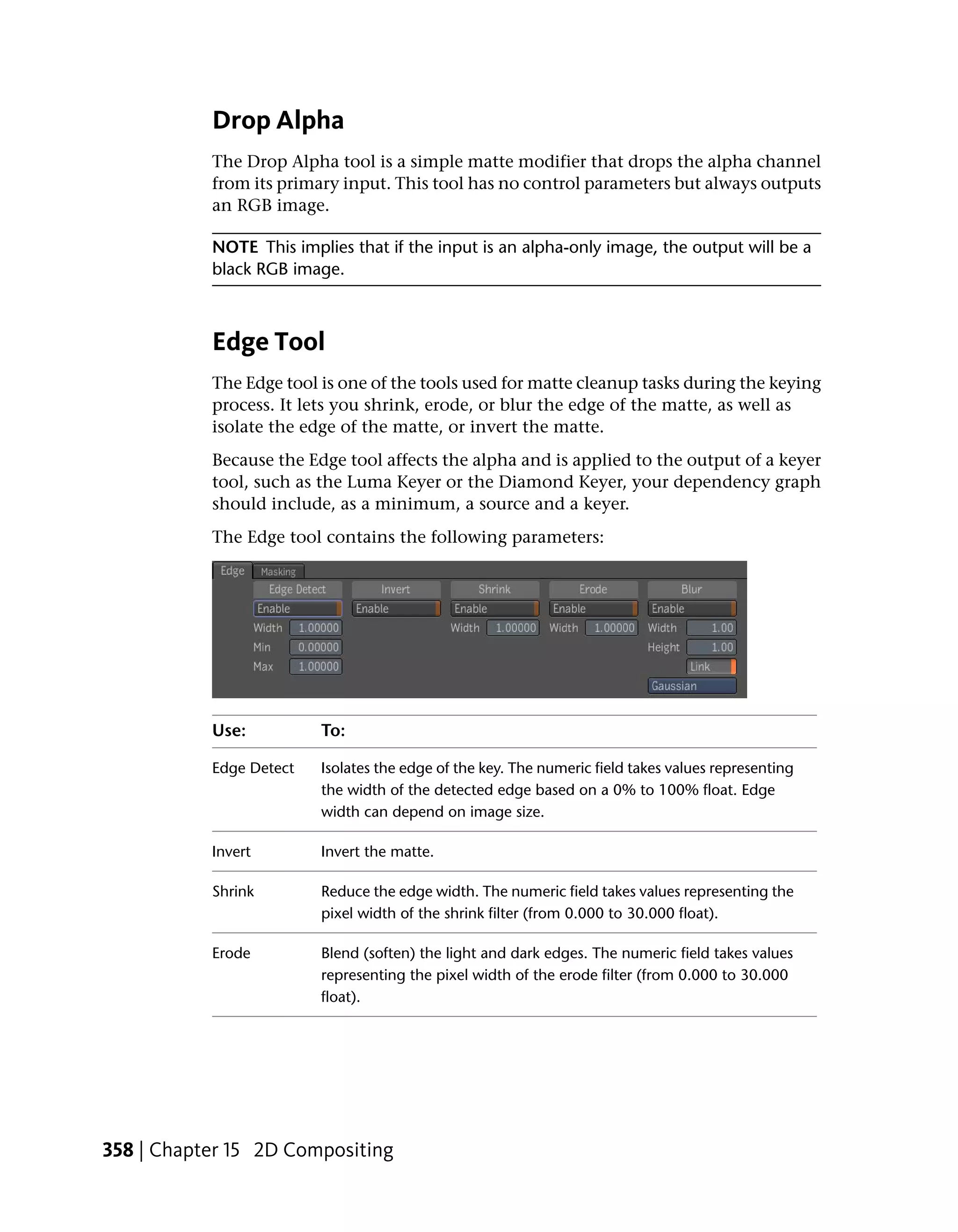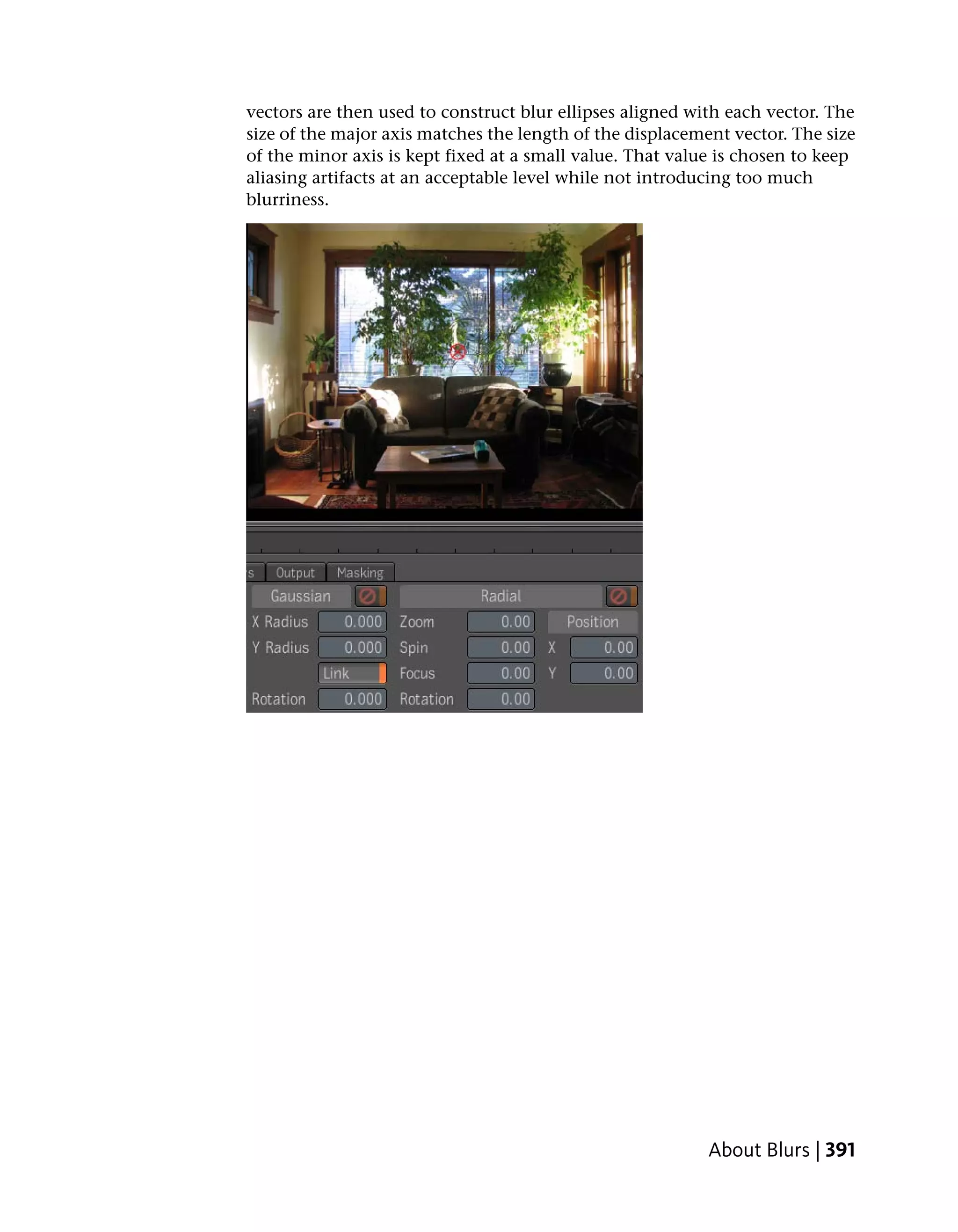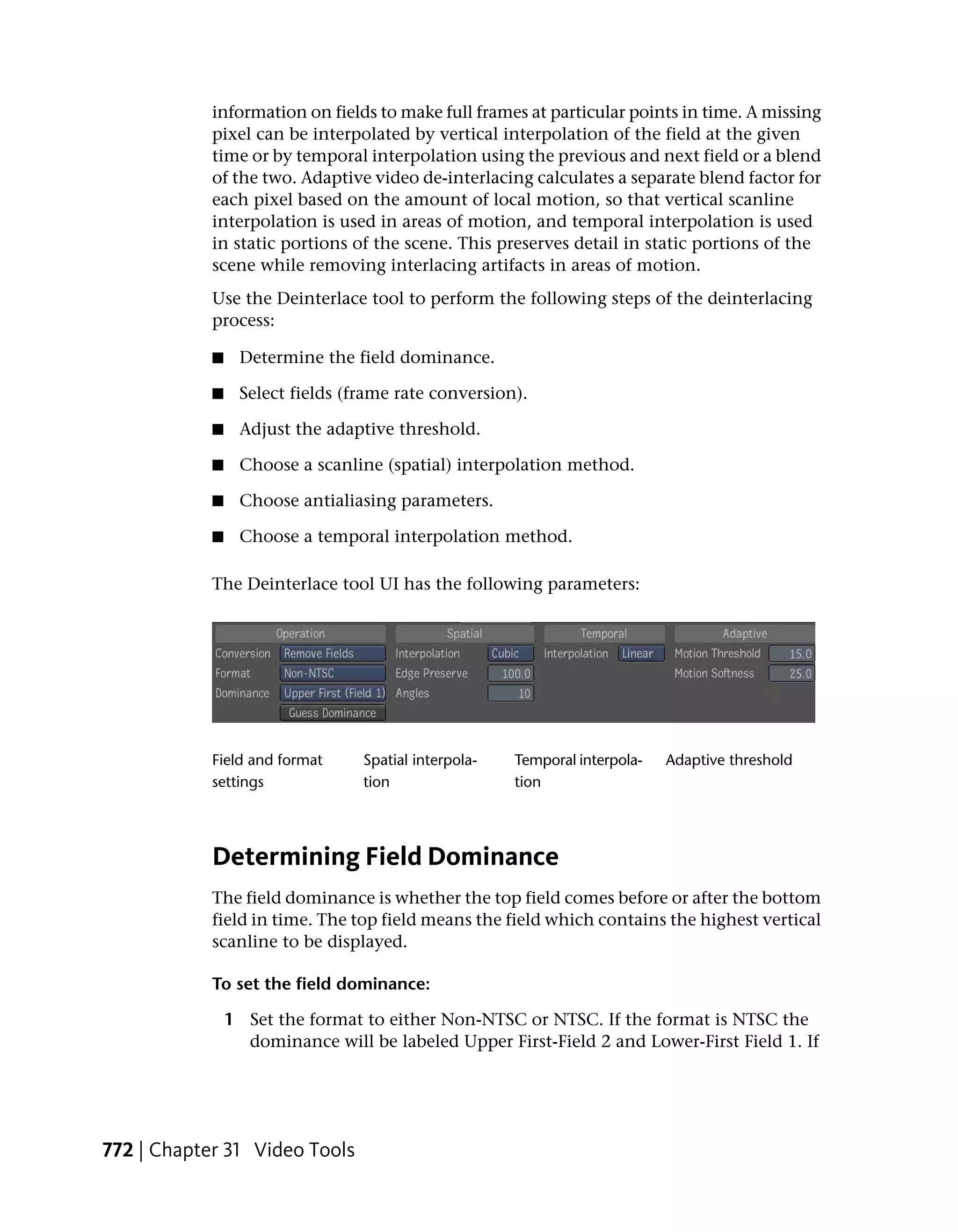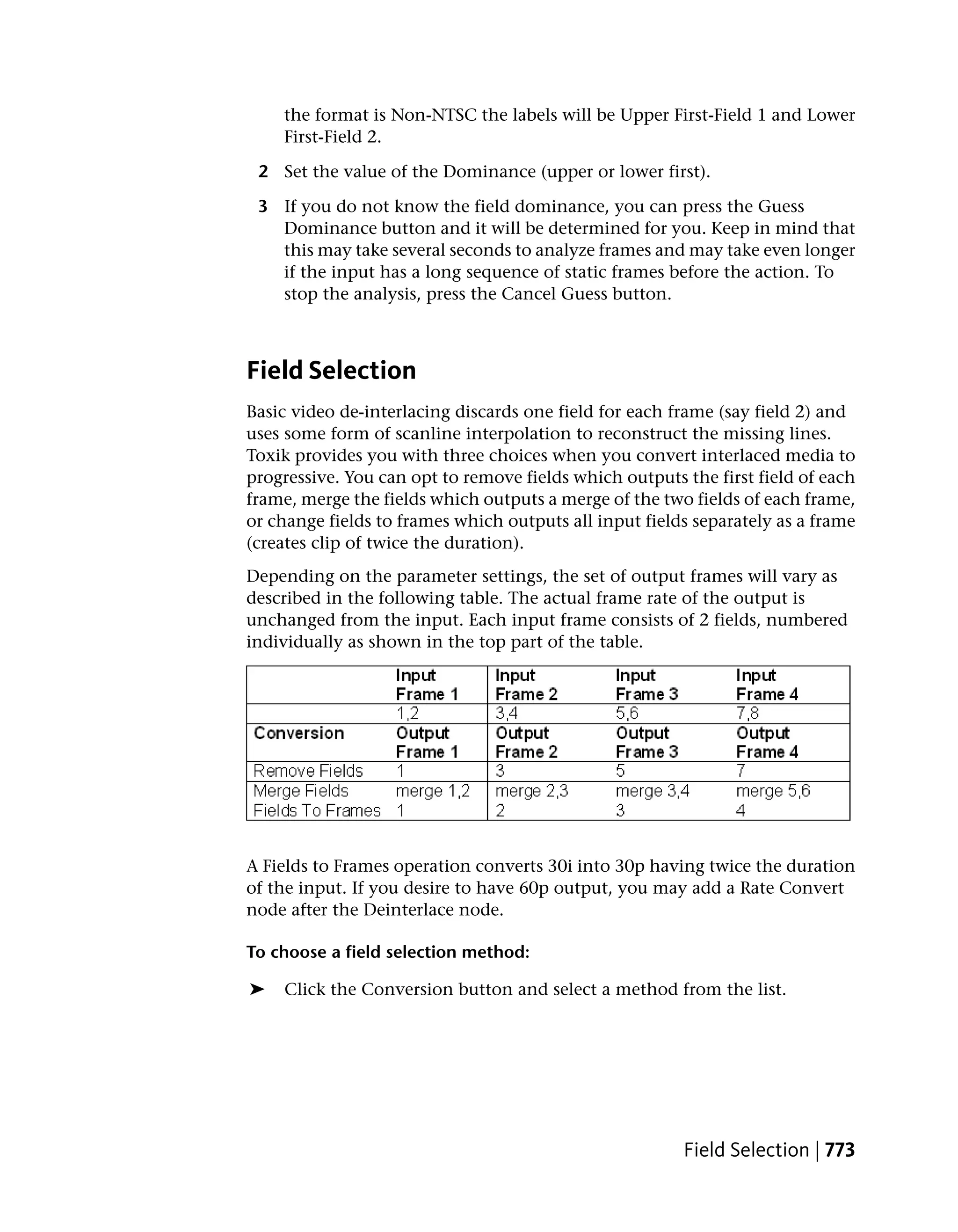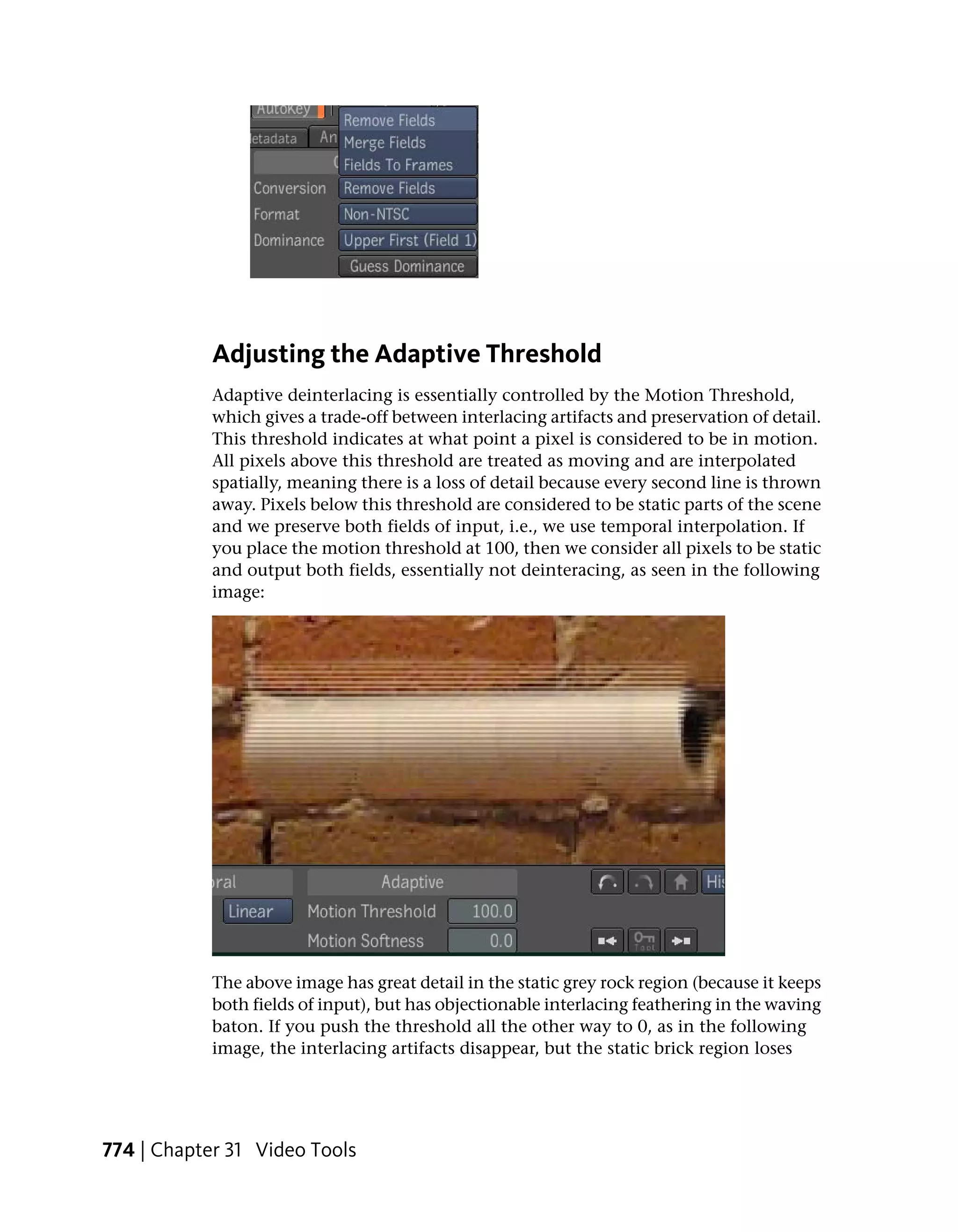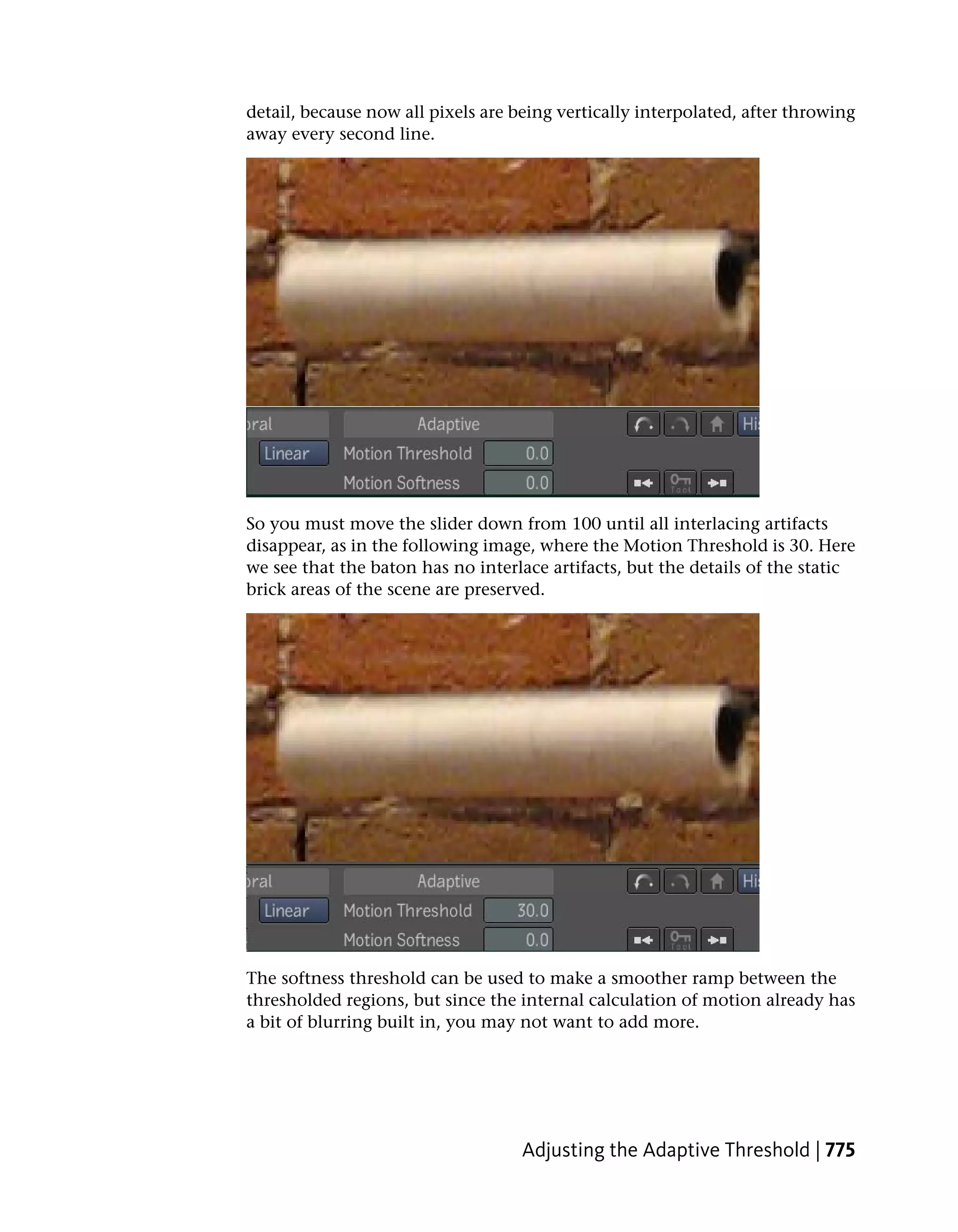



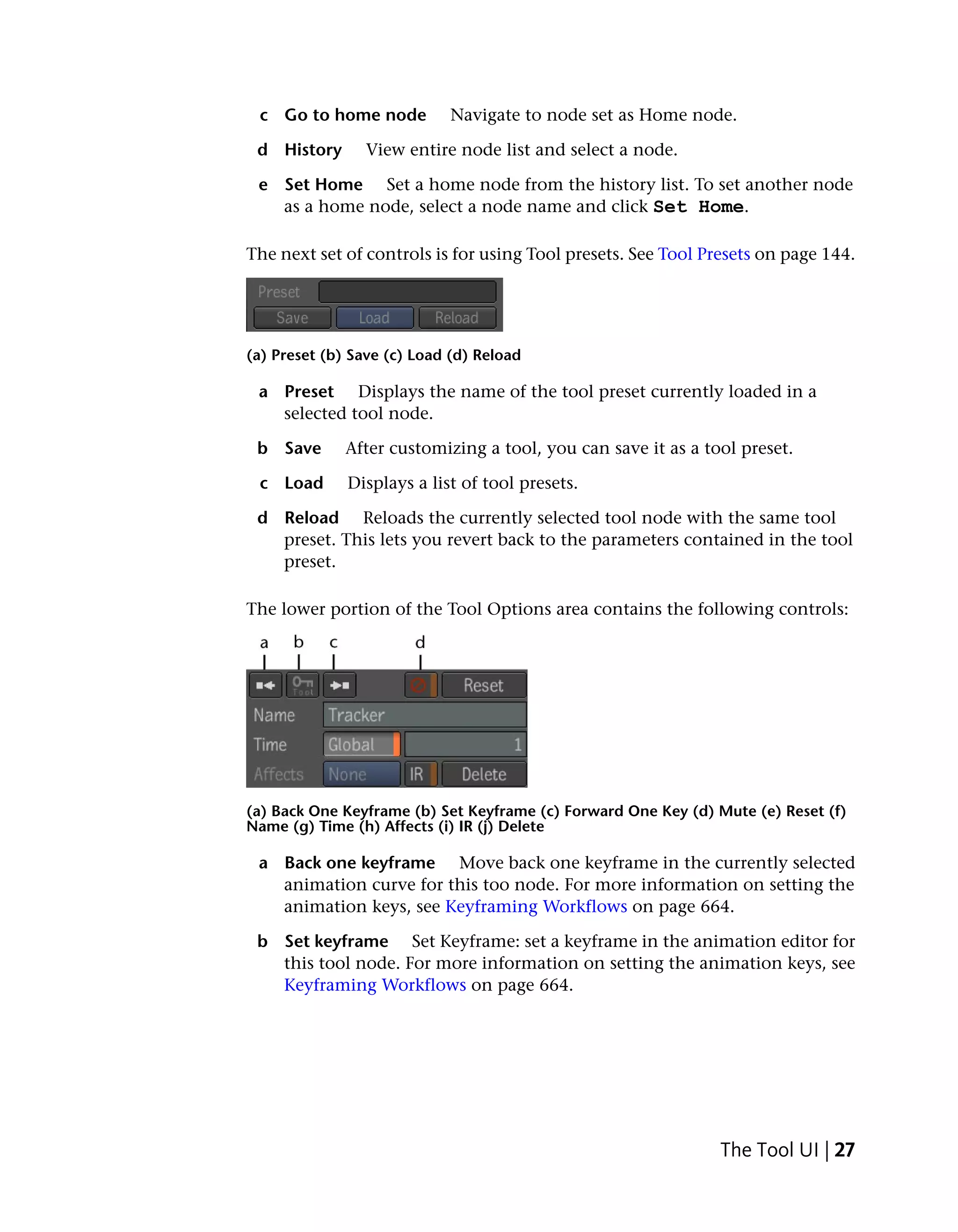
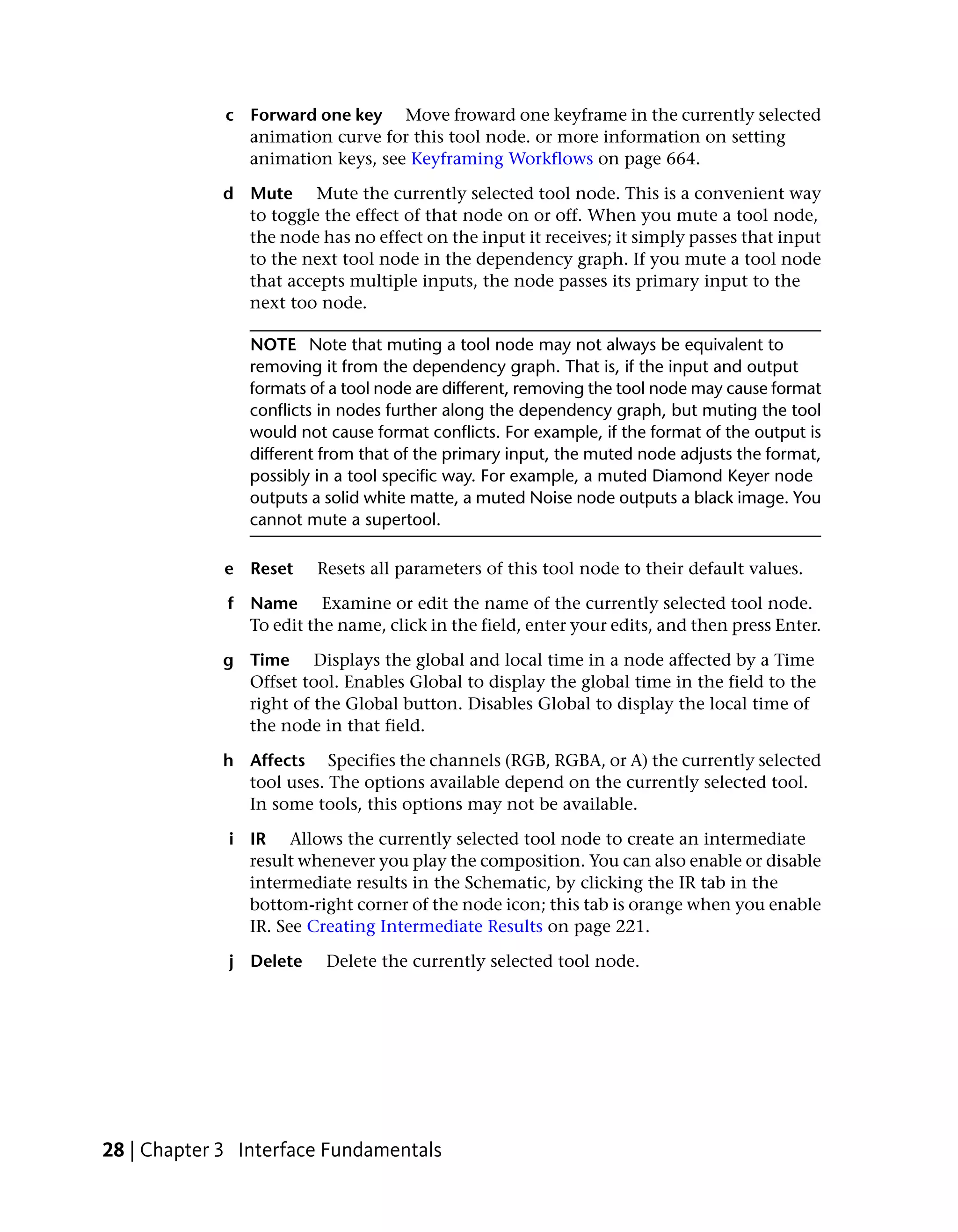
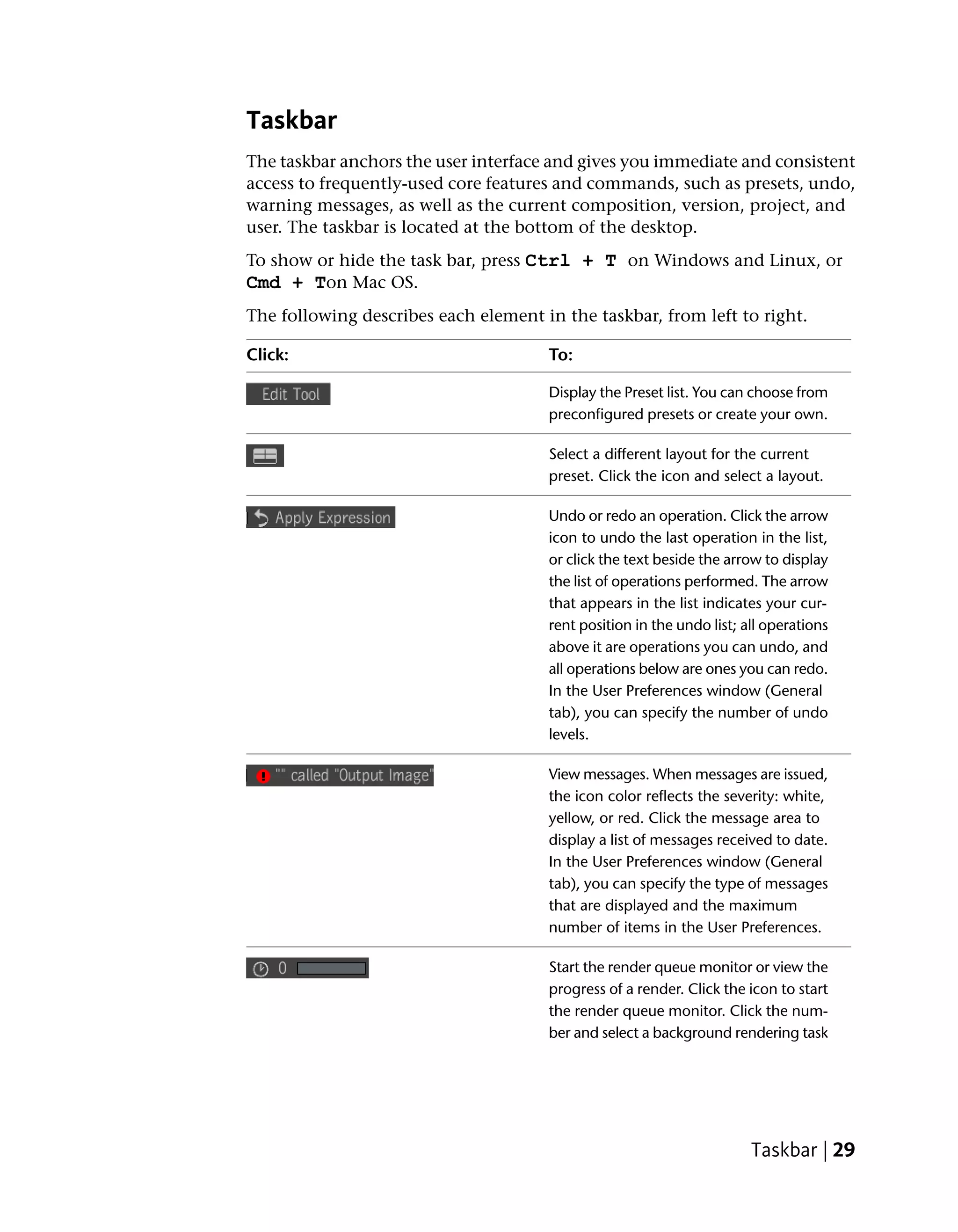
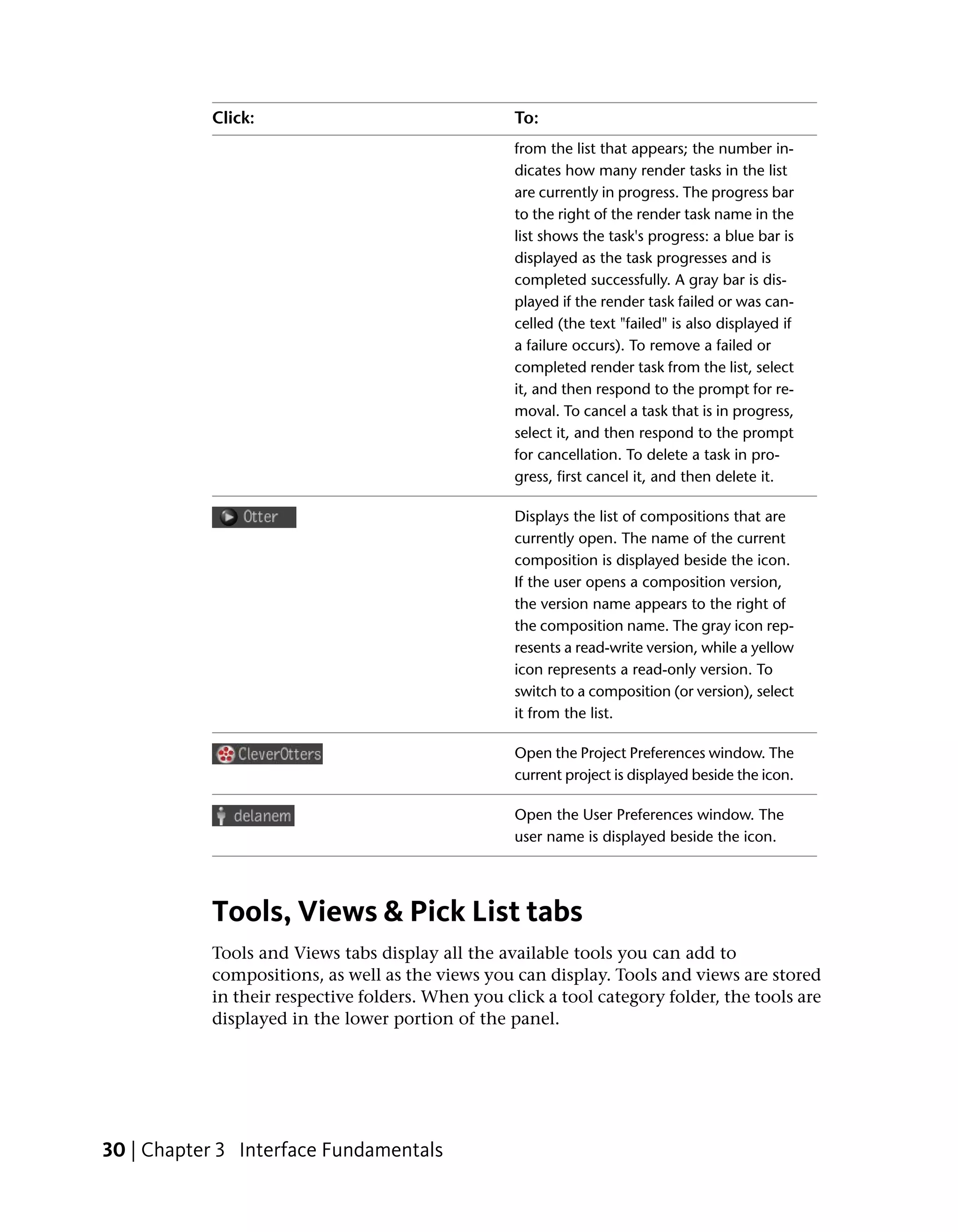
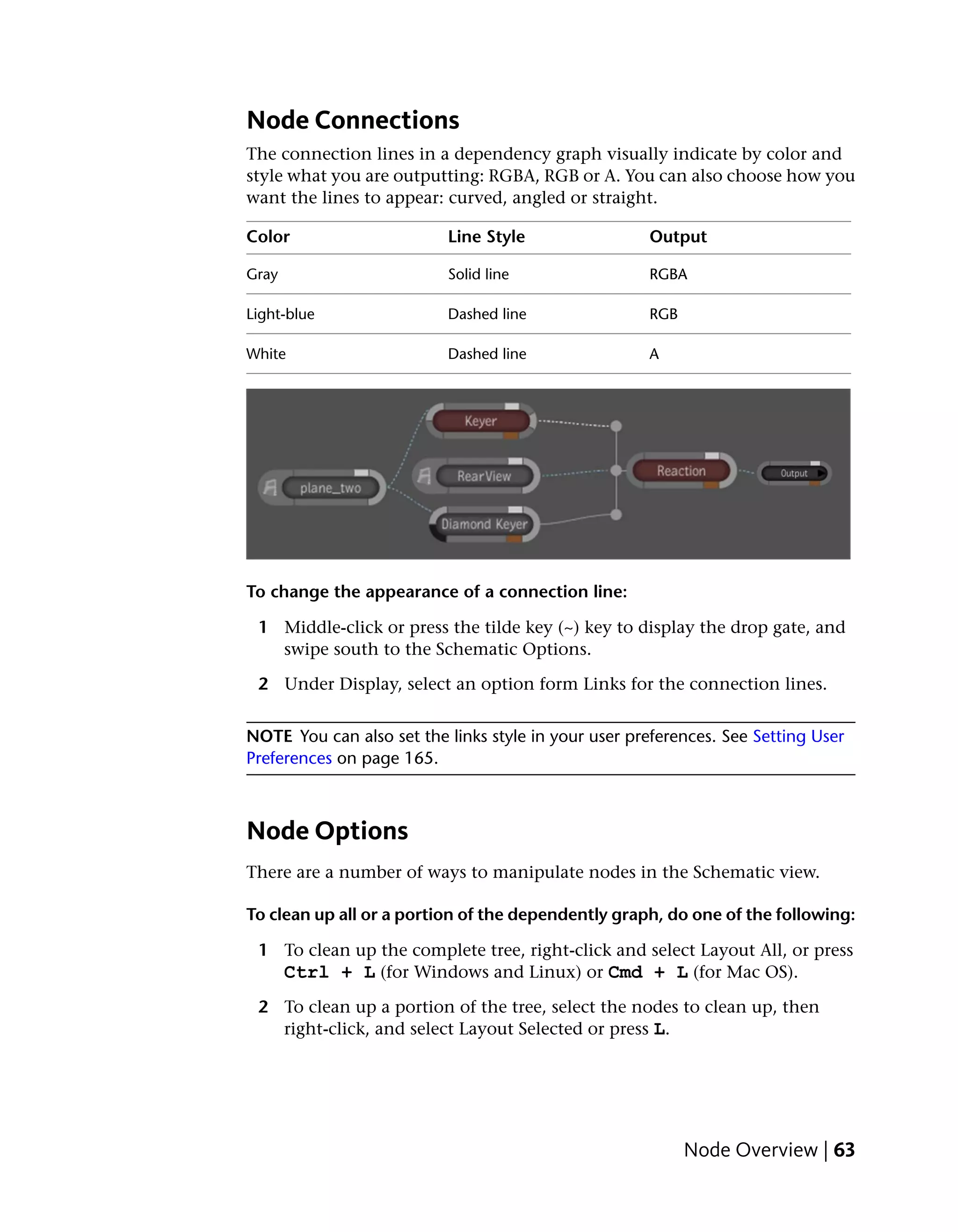
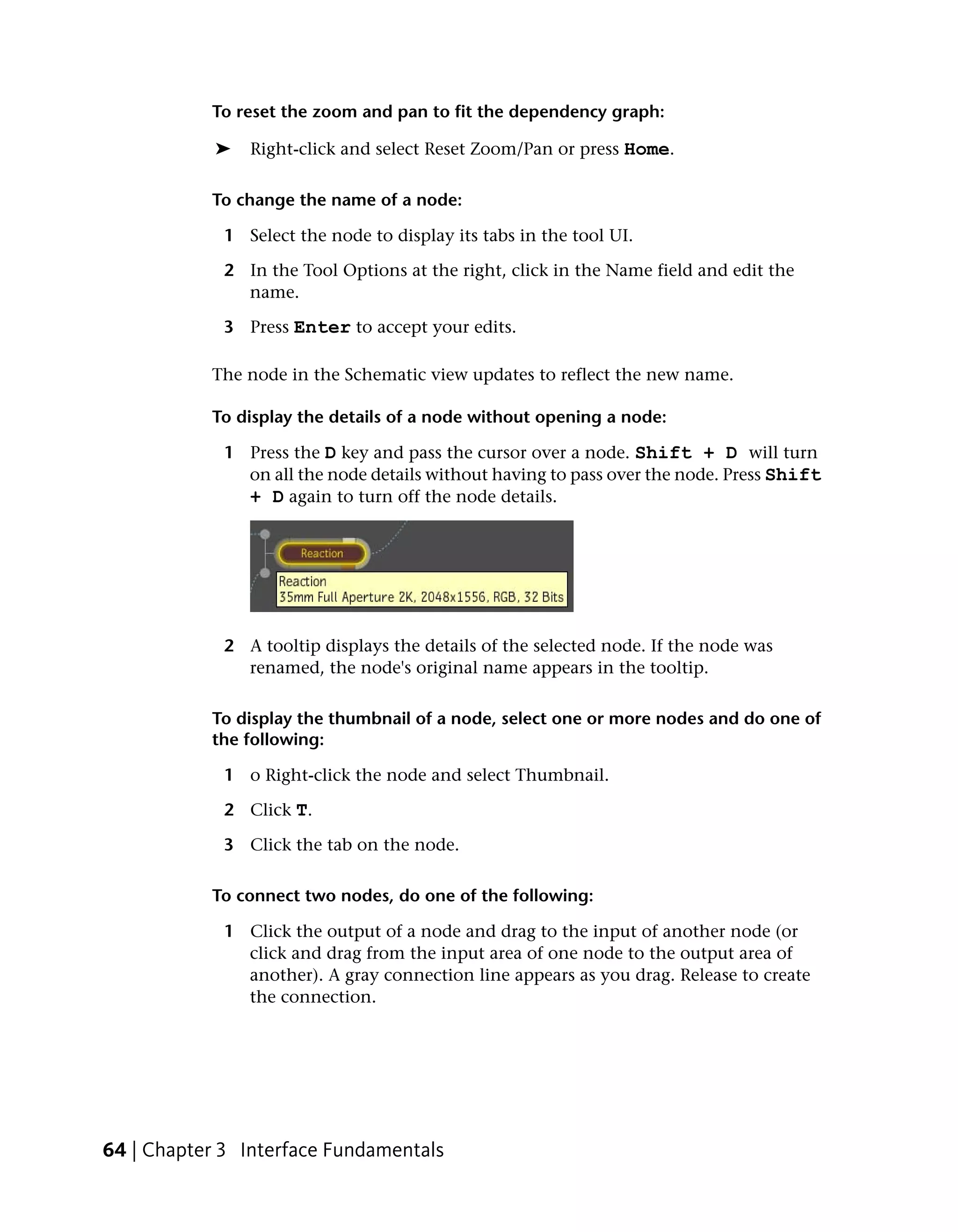


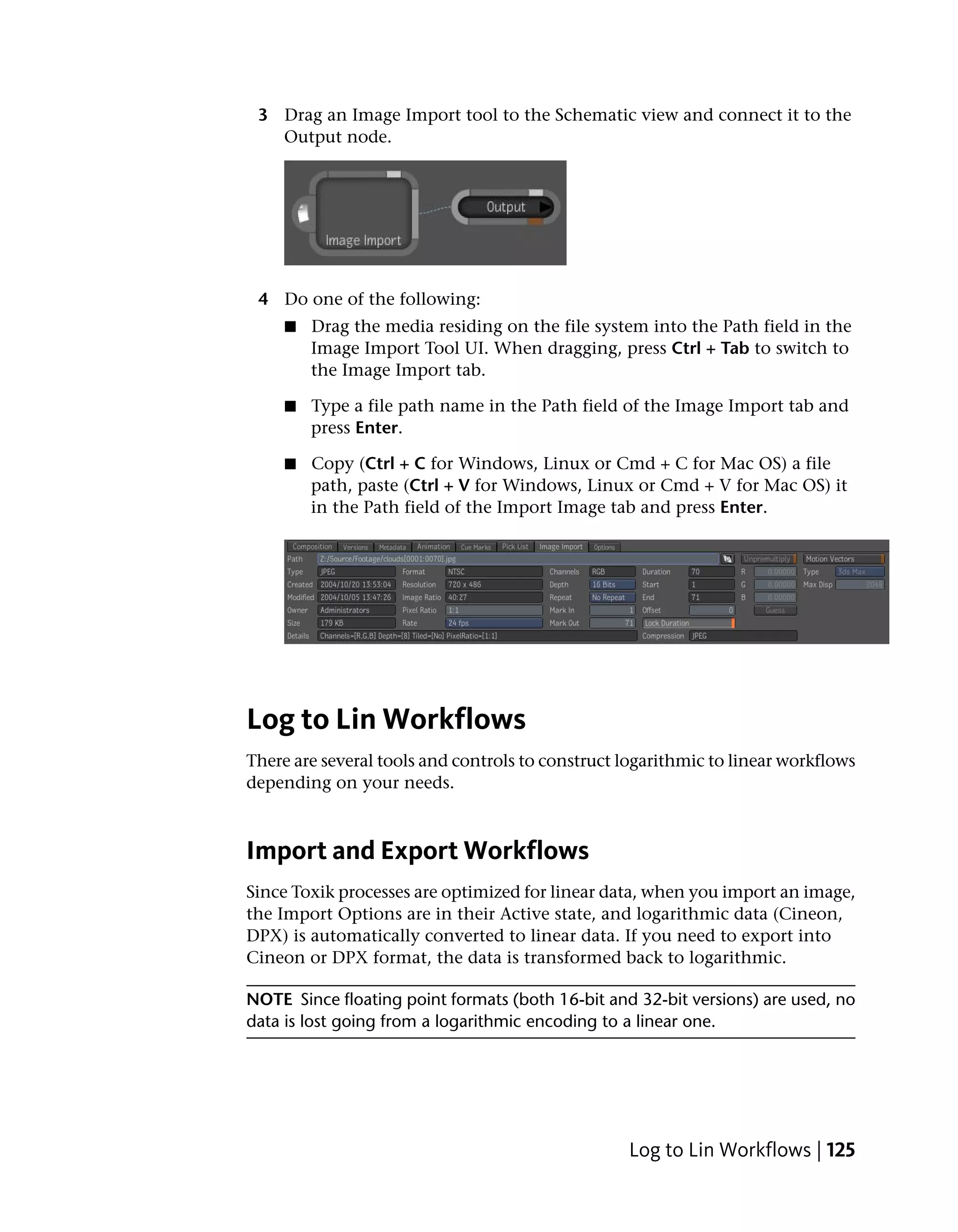
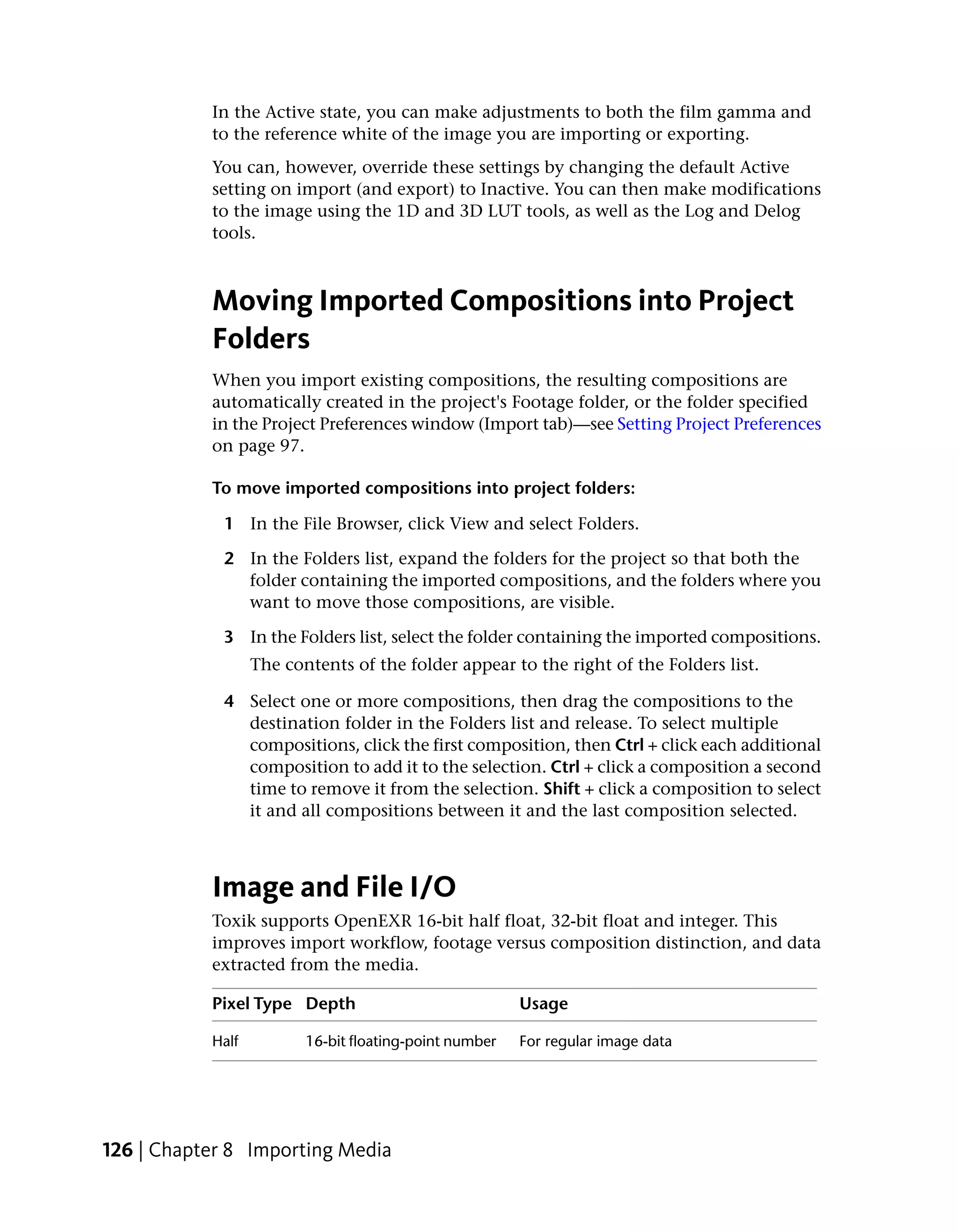
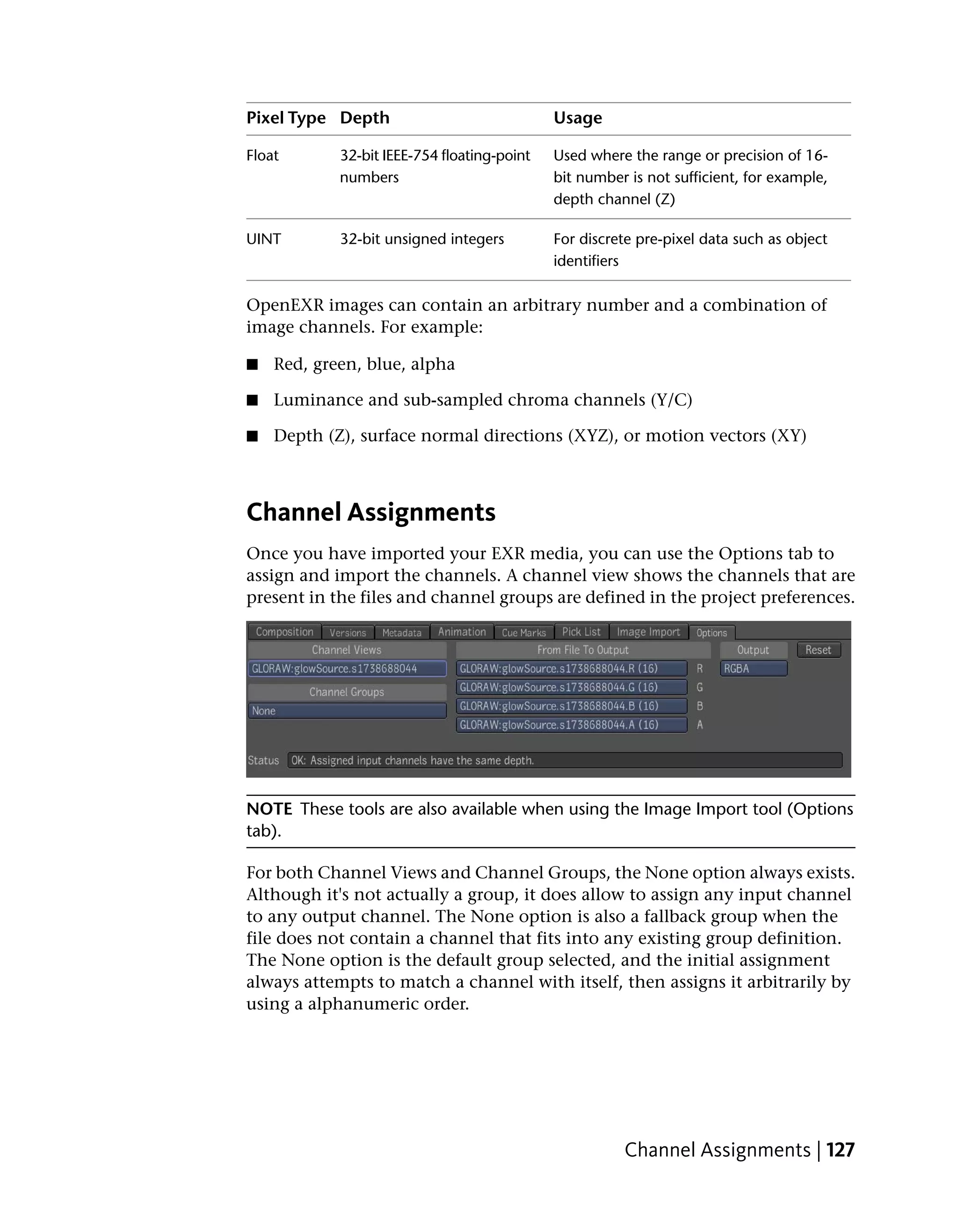
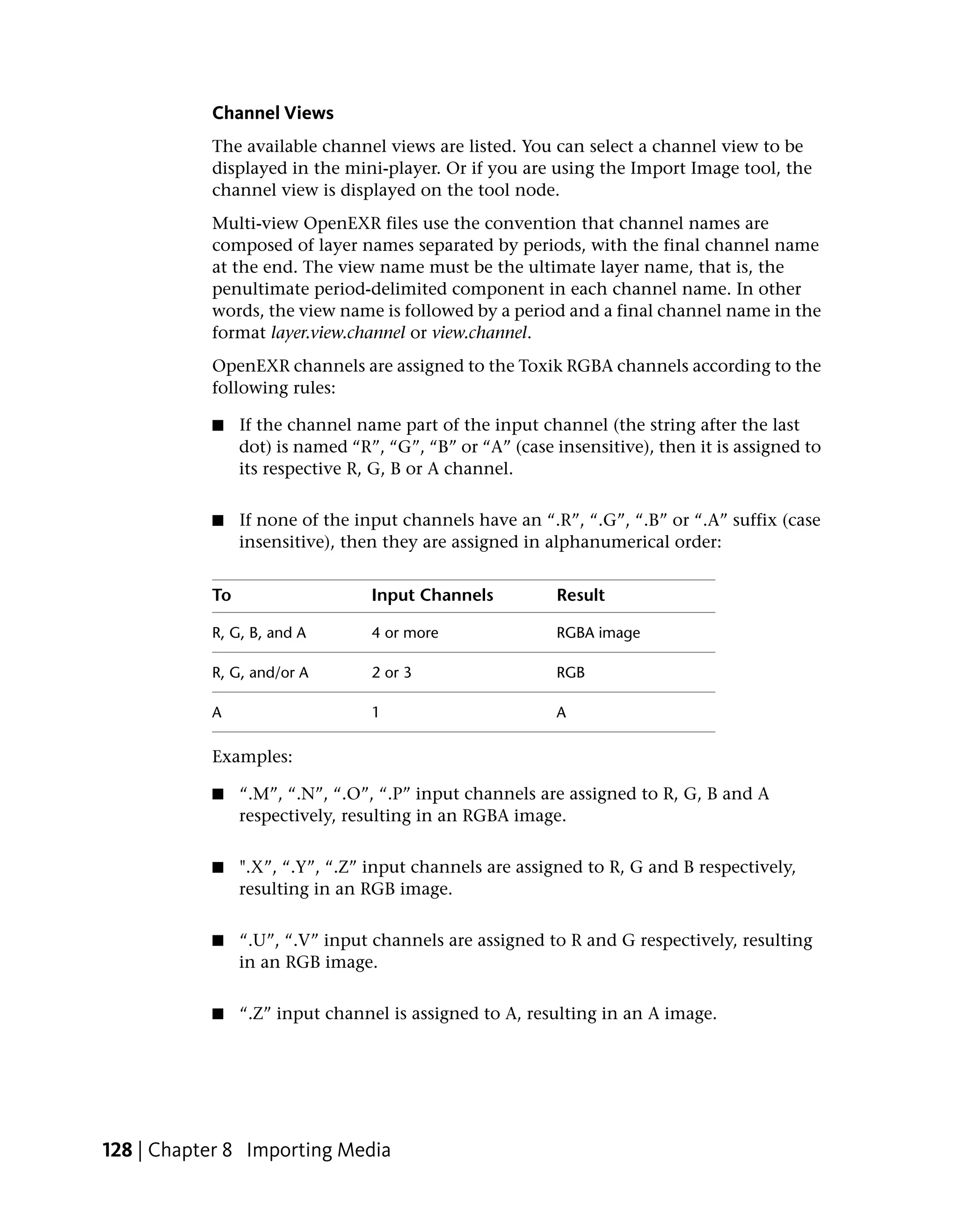
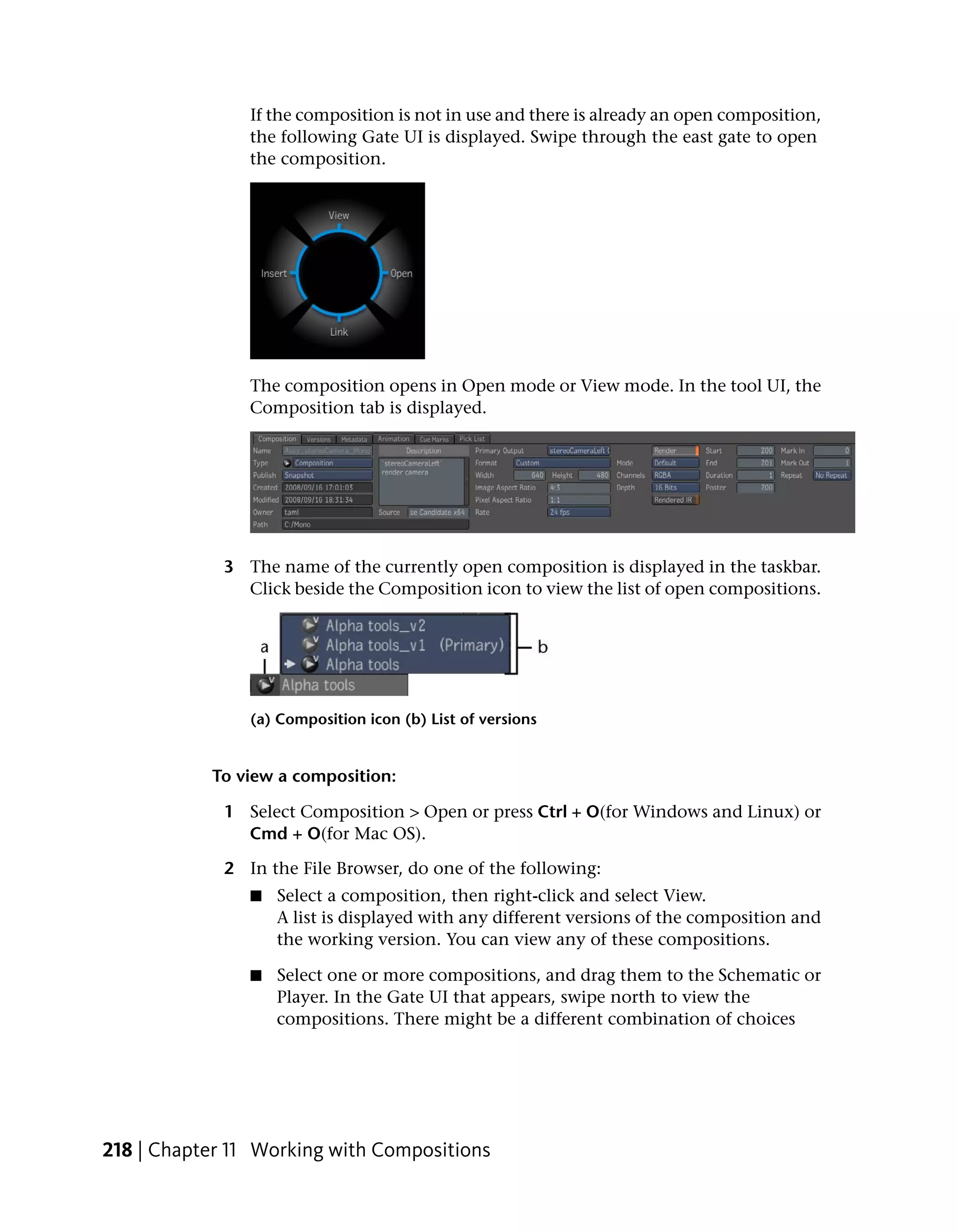
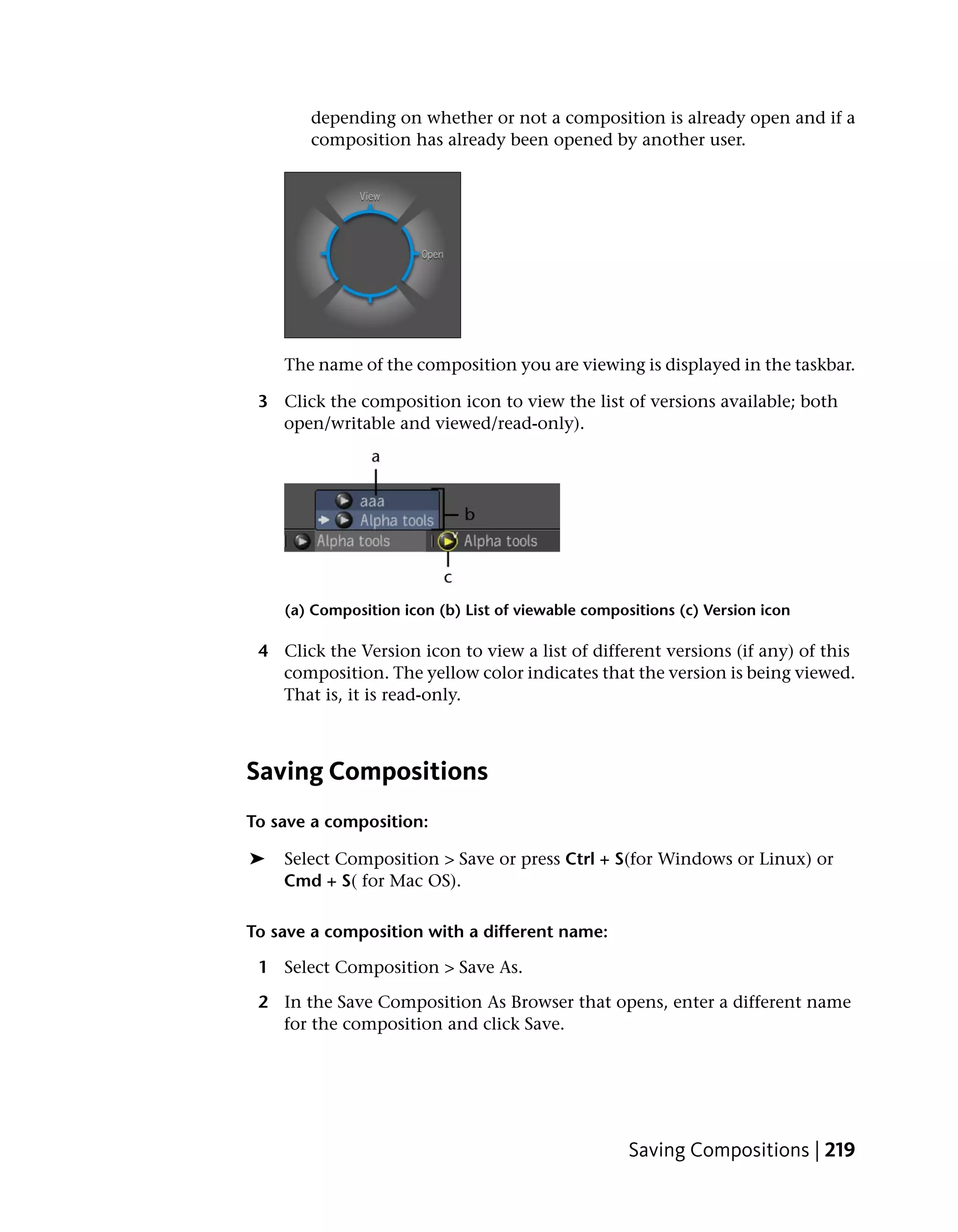
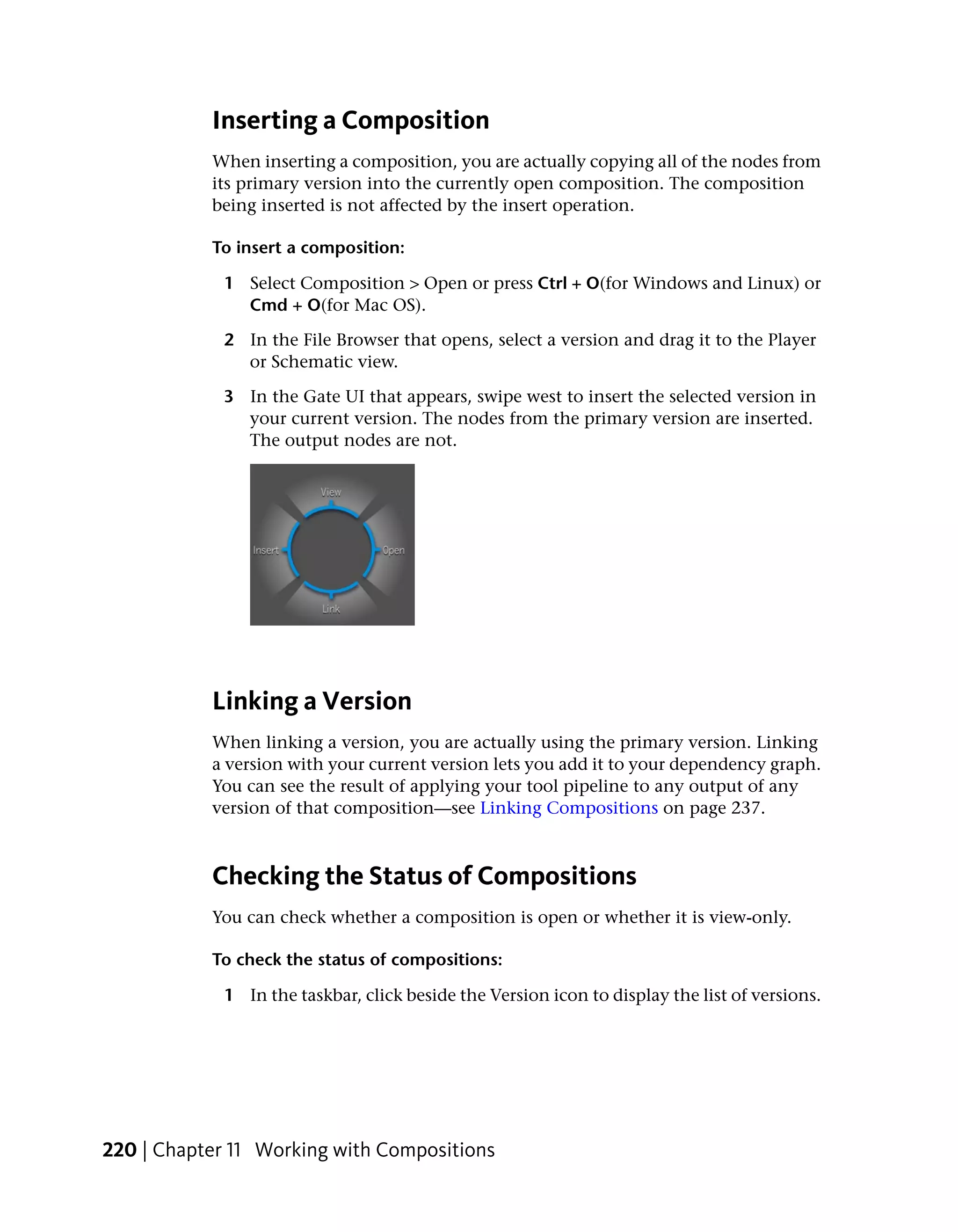


Edit the Document Title Variable


AUTODESK®


TOXIK
    ™


User’s Guide
©   2009 Autodesk, Inc. All rights reserved.
All use of this Software is subject to the terms and conditions of the Autodesk End User License Agreement accepted upon installation of this
Software and/or packaged with the Software.

                                                                  Trademarks
Autodesk, FBX, and Toxik are registered trademarks or trademarks of Autodesk, Inc., and/or its subsidiaries and/or affiliates in the USA and/or
other countries. Python is a registered trademark of Python Software Foundation. All other brand names, product names or trademarks belong
to their respective holders.

                                                                     Patents
Protected by U.S. Patents 6,977,657; 6,571,012; 7,072,510; 7,043,478; 6,469,705; 6,910,103; 6,931,521; 6,671,000; 6,751,347; 6,754,399;
6,445,816; 6,496,597, 7190411, 7318203, 7318203 and patents pending.

This product is manufactured by Autodesk under license to pending patent applications and issued U.S. Patents 7,403,561 and 7,433,519,
Canadian Patent 2,521,467, and European Patent 1,629,675.

Autodesk® FBX® software

Protected by one or more of U.S. Patent Nos. 7,254,235, 6,363,503, 7,168,012, 6,888,542, 5,287,408, 7,363,615, 7,287,191, 7,325,166; and
patents pending.

                                           Third-Party Software Credits and Attributions
Autodesk® Toxik® 2010 software

Portions Copyright ©2008 Acresso Software Inc., and/or InstallShield Co. Inc.

Portions relating to JPEG software is copyright © 1991-1998, Thomas G. Lane. All Rights Reserved. This software is based in part on the work of
the Independent JPEG Group.

Portions relating to Boost 1.38.8 Copyright Joe Coder 2004-2006. Distributed under the Boost Software License, Version 1.0. Permission is
hereby granted, free of charge, to any person or organization obtaining a copy of the software and accompanying documentation covered by
this license (the “Software”) to use, reproduce, display, distribute, execute, and transmit the Software, and to prepare derivative works of the
Software, and to permit third-parties to whom the Software is furnished to do so, all subject to the following: The copyright notices in the
Software and this entire statement, including the above license grant, this restriction and the following disclaimer, must be included in all copies
of the Software, in whole or in part, and all derivative works of the Software, unless such copies or derivative works are solely in the form of
machine-executable object code generated by a source language processor. THE SOFTWARE IS PROVIDED “AS IS”, WITHOUT WARRANTY OF
ANY KIND, EXPRESS OR IMPLIED, INCLUDING BUT NOT LIMITED TO THE WARRANTIES OF MERCHANTABILITY, FITNESS FOR A PARTICULAR
PURPOSE, TITLE AND NON-INFRINGEMENT. IN NO EVENT SHALL THE COPYRIGHT HOLDERS OR ANYONE DISTRIBUTING THE SOFTWARE BE
LIABLE FOR ANY DAMAGES OR OTHER LIABILITY, WHETHER IN CONTRACT, TORT OR OTHERWISE, ARISING FROM, OUT OF OR IN CONNECTION
WITH THE SOFTWARE OR THE USE OR OTHER DEALINGS IN THE SOFTWARE.

Portions relating to OpenEXR 1.6.1 Copyright © 2002, Industrial Light & Magic, a division of Lucas Digital Ltd. LLC. All rights reserved.
Redistribution and use in source and binary forms, with or without modification, are permitted provided that the following conditions are met:
Redistributions of source code must retain the above copyright notice, this list of conditions and the following disclaimer. Redistributions in
binary form must reproduce the above copyright notice, this list of conditions and the following disclaimer in the documentation and/or other
materials provided with the distribution. Neither the name of Industrial Light & Magic nor the names of its contributors may be used to endorse
or promote products derived from this software without specific prior written permission. THIS SOFTWARE IS PROVIDED BY THE COPYRIGHT
HOLDERS AND CONTRIBUTORS “AS IS” AND ANY EXPRESS OR IMPLIED WARRANTIES, INCLUDING, BUT NOT LIMITED TO, THE IMPLIED
WARRANTIES OF MERCHANTABILITY AND FITNESS FOR A PARTICULAR PURPOSE ARE DISCLAIMED. IN NO EVENT SHALL THE COPYRIGHT
OWNER OR CONTRIBUTORS BE LIABLE FOR ANY DIRECT, INDIRECT, INCIDENTAL, SPECIAL, EXEMPLARY, OR CONSEQUENTIAL DAMAGES
(INCLUDING, BUT NOT LIMITED TO, PROCUREMENT OF SUBSTITUTE GOODS OR SERVICES; LOSS OF USE, DATA, OR PROFITS; OR BUSINESS
INTERRUPTION) HOWEVER CAUSED AND ON ANY THEORY OF LIABILITY, WHETHER IN CONTRACT, STRICT LIABILITY, OR TORT (INCLUDING
NEGLIGENCE OR OTHERWISE) ARISING IN ANY WAY OUT OF THE USE OF THIS SOFTWARE, EVEN IF ADVISED OF THE POSSIBILITY OF SUCH
DAMAGE.

Portions relating to libquicktime 1.0.2 Copyright © 2007. This library is distributed in the hope that it will be useful, but WITHOUT ANY
WARRANTY; without even the implied warranty of MERCHANTABILITY or FITNESS FOR A PARTICULAR PURPOSE. See the GNU Lesser General
Public License 2.1 for more details.

Portions relating to Berkeley Database software v. 4.1.25 Copyright © 1990-2008 Oracle Corporation. All rights reserved. Redistribution and
use in source and binary forms, with or without modification, are permitted provided that the following conditions are met: 1. Redistributions
of source code must retain the above copyright notice, this list of conditions and the following disclaimer. 2. Redistributions in binary form must
reproduce the above copyright notice, this list of conditions and the following disclaimer in the documentation and/or other materials provided
with the distribution. 3. Redistributions in any form must be accompanied by information on how to obtain complete source code for the DB
software and any accompanying software that uses the DB software. The source code must either be included in the distribution or be available
for no more than the cost of distribution plus a nominal fee, and must be freely redistributable under reasonable conditions. For an executable
file, complete source code means the source code for all modules it contains. It does not include source code for modules or files that typically
accompany the major components of the operating system on which the executable file runs. THIS SOFTWARE IS PROVIDED BY ORACLE
CORPORATION “AS IS” AND ANY EXPRESS OR IMPLIED WARRANTIES, INCLUDING, BUT NOT LIMITED TO, THE IMPLIED WARRANTIES OF
MERCHANTABILITY, FITNESS FOR A PARTICULAR PURPOSE, OR NON-INFRINGEMENT, ARE DISCLAIMED. IN NO EVENT SHALL ORACLE
CORPORATION BE LIABLE FOR ANY DIRECT, INDIRECT, INCIDENTAL, SPECIAL, EXEMPLARY, OR CONSEQUENTIAL DAMAGES (INCLUDING,
BUT NOT LIMITED TO, PROCUREMENT OF SUBSTITUTE GOODS OR SERVICES; LOSS OF USE, DATA, OR PROFITS; OR BUSINESS INTERRUPTION)
HOWEVER CAUSED AND ON ANY THEORY OF LIABILITY, WHETHER IN CONTRACT, STRICT LIABILITY, OR TORT (INCLUDING NEGLIGENCE
OR OTHERWISE) ARISING IN ANY WAY OUT OF THE USE OF THIS SOFTWARE, EVEN IF ADVISED OF THE POSSIBILITY OF SUCH DAMAGE.

Portions relating to Berkeley Database software v. 4.1.25 Copyright © 1990, 1993, 1994, 1995. The Regents of the University of California. All
rights reserved. Redistribution and use in source and binary forms, with or without modification, are permitted provided that the following
conditions are met: 1. Redistributions of source code must retain the above copyright notice, this list of conditions and the following disclaimer.
2. Redistributions in binary form must reproduce the above copyright notice, this list of conditions and the following disclaimer in the
documentation and/or other materials provided with the distribution. 3. Neither the name of the University nor the names of its contributors
may be used to endorse or promote products derived from this software without specific prior written permission. THIS SOFTWARE IS PROVIDED
BY THE REGENTS AND CONTRIBUTORS “AS IS” AND ANY EXPRESS OR IMPLIED WARRANTIES, INCLUDING, BUT NOT LIMITED TO, THE IMPLIED
WARRANTIES OF MERCHANTABILITY AND FITNESS FOR A PARTICULAR PURPOSE ARE DISCLAIMED. IN NO EVENT SHALL THE REGENTS OR
CONTRIBUTORS BE LIABLE FOR ANY DIRECT, INDIRECT, INCIDENTAL, SPECIAL, EXEMPLARY, OR CONSEQUENTIAL DAMAGES (INCLUDING,
BUT NOT LIMITED TO, PROCUREMENT OF SUBSTITUTE GOODS OR SERVICES; LOSS OF USE, DATA, OR PROFITS; OR BUSINESS INTERRUPTION)
HOWEVER CAUSED AND ON ANY THEORY OF LIABILITY, WHETHER IN CONTRACT, STRICT LIABILITY, OR TORT (INCLUDING NEGLIGENCE
OR OTHERWISE) ARISING IN ANY WAY OUT OF THE USE OF THIS SOFTWARE, EVEN IF ADVISED OF THE POSSIBILITY OF SUCH DAMAGE.

Portions relating to Berkeley Database software v. 4.1.25 Copyright © 1995, 1996. The President and Fellows of Harvard University. All rights
reserved. Redistribution and use in source and binary forms, with or without modification, are permitted provided that the following conditions
are met: 1. Redistributions of source code must retain the above copyright notice, this list of conditions and the following disclaimer. 2.
Redistributions in binary form must reproduce the above copyright notice, this list of conditions and the following disclaimer in the documentation
and/or other materials provided with the distribution. 3. Neither the name of the University nor the names of its contributors may be used to
endorse or promote products derived from this software without specific prior written permission. THIS SOFTWARE IS PROVIDED BY HARVARD
AND ITS CONTRIBUTORS ”AS IS'' AND ANY EXPRESS OR IMPLIED WARRANTIES, INCLUDING, BUT NOT LIMITED TO, THE IMPLIED WARRANTIES
OF MERCHANTABILITY AND FITNESS FOR A PARTICULAR PURPOSE ARE DISCLAIMED. IN NO EVENT SHALL HARVARD OR ITS CONTRIBUTORS
BE LIABLE FOR ANY DIRECT, INDIRECT, INCIDENTAL, SPECIAL, EXEMPLARY, OR CONSEQUENTIAL DAMAGES (INCLUDING, BUT NOT LIMITED
TO, PROCUREMENT OF SUBSTITUTE GOODS OR SERVICES; LOSS OF USE, DATA, OR PROFITS; OR BUSINESS INTERRUPTION) HOWEVER CAUSED
AND ON ANY THEORY OF LIABILITY, WHETHER IN CONTRACT, STRICT LIABILITY, OR TORT (INCLUDING NEGLIGENCE OR OTHERWISE) ARISING
IN ANY WAY OUT OF THE USE OF THIS SOFTWARE, EVEN IF ADVISED OF THE POSSIBILITY OF SUCH DAMAGE.

Portions relating to Libtiff 3.7.3 Copyright ©1988-1997 Sam Leffler. Copyright © 1991-1997 Silicon Graphics, Inc. Permission to use, copy,
modify, distribute, and sell this software and its documentation for any purpose is hereby granted without fee, provided that (i) the above
copyright notices and this permission notice appear in all copies of the software and related documentation, and (ii) the names of Sam Leffler
and Silicon Graphics may not be used in any advertising or publicity relating to the software without the specific, prior written permission of
Sam Leffler and Silicon Graphics. THE SOFTWARE IS PROVIDED “AS-IS” AND WITHOUT WARRANTY OF ANY KIND, EXPRESS, IMPLIED OR
OTHERWISE, INCLUDING WITHOUT LIMITATION, ANY WARRANTY OF MERCHANTABILITY OR FITNESS FOR A PARTICULAR PURPOSE. IN NO
EVENT SHALL SAM LEFFLER OR SILICON GRAPHICS BE LIABLE FOR ANY SPECIAL, INCIDENTAL, INDIRECT OR CONSEQUENTIAL DAMAGES OF
ANY KIND, OR ANY DAMAGES WHATSOEVER RESULTING FROM LOSS OF USE, DATA OR PROFITS, WHETHER OR NOT ADVISED OF THE
POSSIBILITY OF DAMAGE, AND ON ANY THEORY OF LIABILITY, ARISING OUT OF OR IN CONNECTION WITH THE USE OR PERFORMANCE OF
THIS SOFTWARE.

Portions relating to Libxfs 2.6.36 Copyright © 2005 Silicon Graphics, Inc. All Rights Reserved. Distributed under the terms of the GNU Leser
General Public License.

Portions relating to Doxygen 1.5.6 are Copyright © 1997-2008 by Dimitri van Heesch. Permission to use, copy, modify, and distribute this
software and its documentation under the terms of the GNU General Public License is hereby granted. No representations are made about the
suitability of this software for any purpose. It is provided “as is” without express or implied warranty.

Portions relating to SCons 0.98.4 is Copyright © 2001, 2002, 2003, 2004, 2005, 2006, 2007, 2008 The SCons Foundation. Permission is hereby
granted, free of charge, to any person obtaining a copy of this software and associated documentation files (the “Software”), to deal in the
Software without restriction, including without limitation the rights to use, copy, modify, merge, publish, distribute, sublicense, and/or sell
copies of the Software, and to permit persons to whom the Software is furnished to do so, subject to the following conditions: The above
copyright notice and this permission notice shall be included in all copies or substantial portions of the Software. THE SOFTWARE IS PROVIDED
“AS IS”, WITHOUT WARRANTY OF ANY KIND, EXPRESS OR IMPLIED, INCLUDING BUT NOT LIMITED TO THE WARRANTIES OF MERCHANTABILITY,
FITNESS FOR A PARTICULAR PURPOSE AND NONINFRINGEMENT. IN NO EVENT SHALL THE AUTHORS OR COPYRIGHT HOLDERS BE LIABLE
FOR ANY CLAIM, DAMAGES OR OTHER LIABILITY, WHETHER IN AN ACTION OF CONTRACT, TORT OR OTHERWISE, ARISING FROM, OUT OF
OR IN CONNECTION WITH THE SOFTWARE OR THE USE OR OTHER DEALINGS IN THE SOFTWARE, EVEN IF ADVISED OF THE POSSIBILITY OF
SUCH DAMAGE.
Portions relating to Color Transformation Language 1.4.1 Copyright © 2006 Academy of Motion Picture Arts and Sciences ("A.M.P.A.S."). Portions
contributed by others as indicated. All rights reserved. A world-wide, royalty-free, non-exclusive right to distribute, copy, modify, create derivatives,
and use, in source and binary forms, is hereby granted, subject to acceptance of this license. Performance of any of the aforementioned acts
indicates acceptance to be bound by the following terms and conditions: Redistributions of source code must retain the above copyright notice,
this list of conditions and the Disclaimer of Warranty. Redistributions in binary form must reproduce the above copyright notice, this list of
conditions and the Disclaimer of Warranty in the documentation and/or other materials provided with the distribution. Nothing in this license
shall be deemed to grant any rights to trademarks, copyrights, patents, trade secrets or any other intellectual property of A.M.P.A.S. or any
contributors, except as expressly stated herein, and neither the name of A.M.P.A.S. nor of any other contributors to this software, may be used
to endorse or promote products derived from this software without specific prior written permission of A.M.P.A.S. or contributor, as appropriate.
This license shall be governed by the laws of the State of California, and subject to the jurisdiction of the courts therein. Disclaimer of Warranty:
THIS SOFTWARE IS PROVIDED BY A.M.P.A.S. AND CONTRIBUTORS “AS IS” AND ANY EXPRESS OR IMPLIED WARRANTIES, INCLUDING, BUT
NOT LIMITED TO, THE IMPLIED WARRANTIES OF MERCHANTABILITY, FITNESS FOR A PARTICULAR PURPOSE, AND NON-INFRINGEMENT ARE
DISCLAIMED. IN NO EVENT SHALL A.M.P.A.S., ANY CONTRIBUTORS OR DISTRIBUTORS BE LIABLE FOR ANY DIRECT, INDIRECT, INCIDENTAL,
SPECIAL, EXEMPLARY, OR CONSEQUENTIAL DAMAGES (INCLUDING, BUT NOT LIMITED TO, PROCUREMENT OF SUBSTITUTE GOODS OR
SERVICES; LOSS OF USE, DATA, OR PROFITS; OR BUSINESS INTERRUPTION) HOWEVER CAUSED AND ON ANY THEORY OF LIABILITY, WHETHER
IN CONTRACT, STRICT LIABILITY, OR TORT (INCLUDING NEGLIGENCE OR OTHERWISE) ARISING IN ANY WAY OUT OF THE USE OF THIS
SOFTWARE, EVEN IF ADVISED OF THE POSSIBILITY OF SUCH DAMAGE.

Portions relating to OpenGL® Sample Implementation 1.2.1, 2001, developed by Silicon Graphics, Inc. The Original Code is Copyright ©
1991-1993 Silicon Graphics, Inc. Copyright in any portions created by third parties is as indicated elsewhere herein. All Rights Reserved.

Portions relating to Python 2.6.1 Copyright © 2001, 2002, 2003, 2004, 2005, 2006, 2007, 2008, 2009 Python Software Foundation; All Rights
Reserved.

This software contains Qt. Qt is licensed under the GNU Lesser General Public License 2.1, which can be found at
http://www.gnu.org/licenses/old-licenses/lgpl-2.1.txt. A text copy of this license and the Qt source code are included on the DVD to this
software. You may modify, debug and relink Qt to the software as provided under the terms of the GNU Lesser General Public License.

Portions relating to MD5 Library Copyright © 2003 PUC-Rio. All rights reserved. Permission is hereby granted, free of charge, to any person
obtaining a copy of this software and associated documentation files (the "Software"), to deal in the Software without restriction, including
without limitation the rights to use, copy, modify, merge, publish, distribute, sublicense, and/or sell copies of the Software, and to permit
persons to whom the Software is furnished to do so, subject to the following conditions: The above copyright notice and this permission notice
shall be included in all copies or substantial portions of the Software. THE SOFTWARE IS PROVIDED “AS IS”, WITHOUT WARRANTY OF ANY
KIND, EXPRESS OR IMPLIED, INCLUDING BUT NOT LIMITED TO THE WARRANTIES OF MERCHANTABILITY, FITNESS FOR A PARTICULAR PURPOSE
AND NONINFRINGEMENT. IN NO EVENT SHALL THE AUTHORS OR COPYRIGHT HOLDERS BE LIABLE FOR ANY CLAIM, DAMAGES OR OTHER
LIABILITY, WHETHER IN AN ACTION OF CONTRACT, TORT OR OTHERWISE, ARISING FROM, OUT OF OR IN CONNECTION WITH THE SOFTWARE
OR THE USE OR OTHER DEALINGS IN THE SOFTWARE.Copyright © 2008 Daniel Veillard Permission is hereby granted, free of charge, to any
person obtaining a copy of this software and associated documentation files (the "Software"), to deal in the Software without restriction, including
without limitation the rights to use, copy, modify, merge, publish, distribute, sublicense, and/or sell copies of the Software, and to permit
persons to whom the Software is furnished to do so, subject to the following conditions: The above copyright notice and this permission notice
shall be included in all copies or substantial portions of the Software. THE SOFTWARE IS PROVIDED "AS IS", WITHOUT WARRANTY OF ANY
KIND, EXPRESS OR IMPLIED, INCLUDING BUT NOT LIMITED TO THE WARRANTIES OF MERCHANTABILITY, FITNESS FOR A PARTICULAR PURPOSE
AND NONINFRINGEMENT. IN NO EVENT SHALL THE AUTHORS OR COPYRIGHT HOLDERS BE LIABLE FOR ANY CLAIM, DAMAGES OR OTHER
LIABILITY, WHETHER IN AN ACTION OF CONTRACT, TORT OR OTHERWISE, ARISING FROM, OUT OF OR IN CONNECTION WITH THE SOFTWARE
OR THE USE OR OTHER DEALINGS IN THE SOFTWARE.

Portions relating to glui 2.1b Copyright © 1998 Paul Rademacher. Distributed under the terms of the GNU Lesser General Public License 2.1.

Autodesk® FBX® SDK 2010 software

Portions relating to Libtiff © Copyright 1997-1998 Sam Leffler. © Copyright 1991-1997 Silicon Graphics, Inc. All rights reserved. The TIFF portions
of this software is provided by the copyright holders and contributors "as is" and any express or implied warranties, including, but not limited
to, the implied warranties of merchantability and fitness for a particular purpose are disclaimed. In no event shall the copyright owner or
contributors of the TIFF portions be liable for any direct, indirect, incidental, special, exemplary, or consequential damages (including, but not
limited to, procurement of substitute goods or services; loss of use, data, or profits; or business interruption) however caused and on any theory
of liability, whether in contract, strict liability, or tort (including negligence or otherwise) arising in any way out of the use of the TIFF portions
of this software, even if advised of the possibility of such damage.

Portions relating to JPEG software is copyright © 1991-1998, Thomas G. Lane. All Rights Reserved. This software is based in part on the work of
the Independent JPEG Group.

Portions relating to Libxml2 2.6.4 Copyright © 2001 Daniel Veillard.

Permission is hereby granted, free of charge, to any person obtaining a copy of this software and associated documentation files (the "Software"),
to deal in the Software without restriction, including without limitation the rights to use, copy, modify, merge, publish, distribute, sublicense,
and/or sell copies of the Software, and to permit persons to whom the Software is furnished to do so, subject to the following conditions: The
above copyright notice and this permission notice shall be included in all copies or substantial portions of the Software. THE SOFTWARE IS
PROVIDED “AS IS”, WITHOUT WARRANTY OF ANY KIND, EXPRESS OR IMPLIED, INCLUDING BUT NOT LIMITED TO THE WARRANTIES OF
MERCHANTABILITY, FITNESS FOR A PARTICULAR PURPOSE AND NONINFRINGEMENT. IN NO EVENT SHALL THE AUTHORS OR COPYRIGHT
HOLDERS BE LIABLE FOR ANY CLAIM, DAMAGES OR OTHER LIABILITY, WHETHER IN AN ACTION OF CONTRACT, TORT OR OTHERWISE,
ARISING FROM, OUT OF OR IN CONNECTION WITH THE SOFTWARE OR THE USE OR OTHER DEALINGS IN THE SOFTWARE.


                                                  Autodesk® Toxik™ 2010 Software
© 2009 Autodesk, Inc. All rights reserved. Except as otherwise permitted by Autodesk, Inc., this publication, or parts thereof, may not be
reproduced in any form, by any method, for any purpose.

Certain materials included in this publication are reprinted with the permission of the copyright holder.

The following are registered trademarks or trademarks of Autodesk, Inc., and/or its subsidiaries and/or affiliates in the USA and other countries:
3DEC (design/logo), 3December, 3December.com, 3ds Max, ADI, Algor, Alias, Alias (swirl design/logo), AliasStudio, Alias|Wavefront (design/logo),
ATC, AUGI, AutoCAD, AutoCAD Learning Assistance, AutoCAD LT, AutoCAD Simulator, AutoCAD SQL Extension, AutoCAD SQL Interface,
Autodesk, Autodesk Envision, Autodesk Intent, Autodesk Inventor, Autodesk Map, Autodesk MapGuide, Autodesk Streamline, AutoLISP, AutoSnap,
AutoSketch, AutoTrack, Backburner, Backdraft, Built with ObjectARX (logo), Burn, Buzzsaw, CAiCE, Can You Imagine, Character Studio, Cinestream,
Civil 3D, Cleaner, Cleaner Central, ClearScale, Colour Warper, Combustion, Communication Specification, Constructware, Content Explorer,
Create>what’s>Next> (design/logo), Dancing Baby (image), DesignCenter, Design Doctor, Designer's Toolkit, DesignKids, DesignProf, DesignServer,
DesignStudio, Design|Studio (design/logo), Design Web Format, Discreet, DWF, DWG, DWG (logo), DWG Extreme, DWG TrueConvert, DWG
TrueView, DXF, Ecotect, Exposure, Extending the Design Team, Face Robot, FBX, Fempro, Filmbox, Fire, Flame, Flint, FMDesktop, Freewheel,
Frost, GDX Driver, Gmax, Green Building Studio, Heads-up Design, Heidi, HumanIK, IDEA Server, i-drop, ImageModeler, iMOUT, Incinerator,
Inferno, Inventor, Inventor LT, Kaydara, Kaydara (design/logo), Kynapse, Kynogon, LandXplorer, Lustre, MatchMover, Maya, Mechanical Desktop,
Moldflow, Moonbox, MotionBuilder, Movimento, MPA, MPA (design/logo), Moldflow Plastics Advisers, MPI, Moldflow Plastics Insight, MPX,
MPX (design/logo), Moldflow Plastics Xpert, Mudbox, Multi-Master Editing, NavisWorks, ObjectARX, ObjectDBX, Open Reality, Opticore,
Opticore Opus, Pipeplus, PolarSnap, PortfolioWall, Powered with Autodesk Technology, Productstream, ProjectPoint, ProMaterials, RasterDWG,
Reactor, RealDWG, Real-time Roto, REALVIZ, Recognize, Render Queue, Retimer,Reveal, Revit, Showcase, ShowMotion, SketchBook, Smoke,
Softimage, Softimage|XSI (design/logo), Sparks, SteeringWheels, Stitcher, Stone, StudioTools, Topobase, Toxik, TrustedDWG, ViewCube, Visual,
Visual Construction, Visual Drainage, Visual Landscape, Visual Survey, Visual Toolbox, Visual LISP, Voice Reality, Volo, Vtour, Wire, Wiretap,
WiretapCentral, XSI, and XSI (design/logo).

Adobe is a registered trademark of Adobe Systems Incorporated in the United States and/or other countries. FFmpeg is a trademark of Fabrice
Bellard, originator of the FFmpeg project. Python is a registered trademark of Python Software Foundation. All other brand names, product
names or trademarks belong to their respective holders.

                                                                  Disclaimer
THIS PUBLICATION AND THE INFORMATION CONTAINED HEREIN IS MADE AVAILABLE BY AUTODESK, INC. “AS IS.” AUTODESK, INC. DISCLAIMS
ALL WARRANTIES, EITHER EXPRESS OR IMPLIED, INCLUDING BUT NOT LIMITED TO ANY IMPLIED WARRANTIES OF MERCHANTABILITY OR
FITNESS FOR A PARTICULAR PURPOSE REGARDING THESE MATERIALS.


Published by: Autodesk, Inc.
111 Mclnnis Parkway
San Rafael, CA 94903, USA


Title:                      Autodesk Toxik 2010 User Guide

Document Version:           1

Date:                       July 24, 2009
Contents


Chapter 1   Preface . . . . . . . . . . . . . . . . . . . . . . . . . . . . . . . 1
            About Toxik . . . . . . . . . . . . . . . . . . . . . . . . . . . . . . . . . 1
            About This Guide . . . . . . . . . . . . . . . . . . . . . . . . . . . . . . 2
            Getting Help . . . . . . . . . . . . . . . . . . . . . . . . . . . . . . . . 2

Part I      Getting     Started . . . . . . . . . . . . . . . . . . . . . . . 5

Chapter 2   About Getting Started . . . . . . . . . . . . . . . . . . . . . . . 7
            About The Chapters . . . . . . . . . . . . . . . . . . . . . . . . . . . . 7

Chapter 3   Interface    Fundamentals . . . . . . . . . . . . . . . . . . . . . . 9
            Basic Interface Functions . . . . . . . . . . . . . . . . . . . . . . . . . . 9
            The Gate UI . . . . . . . . . . . . . . . . . . . . . . . . . . . . . . . . 12
            The Drop Gate . . . . . . . . . . . . . . . . . . . . . . . . . . . . . . . 13
            The Toxik Interface . . . . . . . . . . . . . . . . . . . . . . . . . . . . 17
            Tools, Views & Pick List tabs . . . . . . . . . . . . . . . . . . . . . . . 30
            The Player . . . . . . . . . . . . . . . . . . . . . . . . . . . . . . . . . 34
            Zooming and Panning . . . . . . . . . . . . . . . . . . . . . . . . . . 39
            Navigating and Browsing . . . . . . . . . . . . . . . . . . . . . . . . . 40
            Working with Schematic . . . . . . . . . . . . . . . . . . . . . . . . . 51


                                                                                        vii
Chapter 4     Start Compositing Now! . . . . . . . . . . . . . . . . . . . . . 77
              Try First, Read Later . . . . . . . . . . . . . . . . . . . .                                              .    .    .    .    .    .    .   . 77
              Start Toxik, Create Composition, Import Media and Go .                                                     .    .    .    .    .    .    .   . 77
              Add Media . . . . . . . . . . . . . . . . . . . . . . . . .                                                .    .    .    .    .    .    .   . 81
              Add Tools . . . . . . . . . . . . . . . . . . . . . . . . .                                                .    .    .    .    .    .    .   . 83
              To Render the Composition . . . . . . . . . . . . . . . .                                                  .    .    .    .    .    .    .   . 87

Part II       Reference . . . . . . . . . . . . . . . . . . . . . . . . . . 91

Chapter 5     About Reference . . . . . . . . . . . . . . . . . . . . . . . . . . 93
              About the Chapters . . . . . . . . . . . . . . . . . . . . . . . . . . . . 93

Chapter 6     Projects . . . . . . . . . . . . . . . . . . . . . . . . . . . . . . 95
              About Projects . . . . . . . . . . . . . . . . . . . . . . . . . . . . . . . 95
              Example Workflows . . . . . . . . . . . . . . . . . . . . . . . . . . . . 97
              Setting Project Preferences . . . . . . . . . . . . . . . . . . . . . . . . 97
              Archiving or Restoring . . . . . . . . . . . . . . . . . . . . . . . . . . 104

Chapter 7     Wiretap . . . . . . . . . . . . . . . . . . . . . . . . . . . . . . 111
              Accessing the IFFFS Libraries on the Network Using Wiretap . . . . . . 111
              Accessing Media Via Wiretap . . . . . . . . . . . . . . . . . . . . . . 112
              Accessing IFFFS Clips . . . . . . . . . . . . . . . . . . . . . . . . . . . 113

Chapter 8     Importing Media . . . . . . . . . . . . . . . . . . . . . . . . . 115
              About Media . . . . . . . . . . . . . . . . . . . . . .                                          .    .    .    .    .    .    .    .    . 115
              Physical Location of Media . . . . . . . . . . . . . .                                           .    .    .    .    .    .    .    .    . 116
              Supported Media Formats . . . . . . . . . . . . . . .                                            .    .    .    .    .    .    .    .    . 116
              Importing Media . . . . . . . . . . . . . . . . . . . .                                          .    .    .    .    .    .    .    .    . 118
              Using the Image Import Tool . . . . . . . . . . . . .                                            .    .    .    .    .    .    .    .    . 124
              Log to Lin Workflows . . . . . . . . . . . . . . . . .                                           .    .    .    .    .    .    .    .    . 125
              Moving Imported Compositions into Project Folders .                                              .    .    .    .    .    .    .    .    . 126
              Image and File I/O . . . . . . . . . . . . . . . . . . .                                         .    .    .    .    .    .    .    .    . 126

Chapter 9     Getting Familiar with Your Workspace . . . . . . . . . . . . . 137
              Working with a Task-Based UI .        .    .    .    .    .    .    .    .    .    .    .    .    .    .    .    .    .    .    .    .    . 138
              Pick List . . . . . . . . . . . .    .    .    .    .    .    .    .    .    .    .    .    .    .    .    .    .    .    .    .    .    . 139
              Tool Presets . . . . . . . . . . .    .    .    .    .    .    .    .    .    .    .    .    .    .    .    .    .    .    .    .    .    . 144
              Animation Editor . . . . . . .       .    .    .    .    .    .    .    .    .    .    .    .    .    .    .    .    .    .    .    .    . 147
              Layer Editor . . . . . . . . . .     .    .    .    .    .    .    .    .    .    .    .    .    .    .    .    .    .    .    .    .    . 148
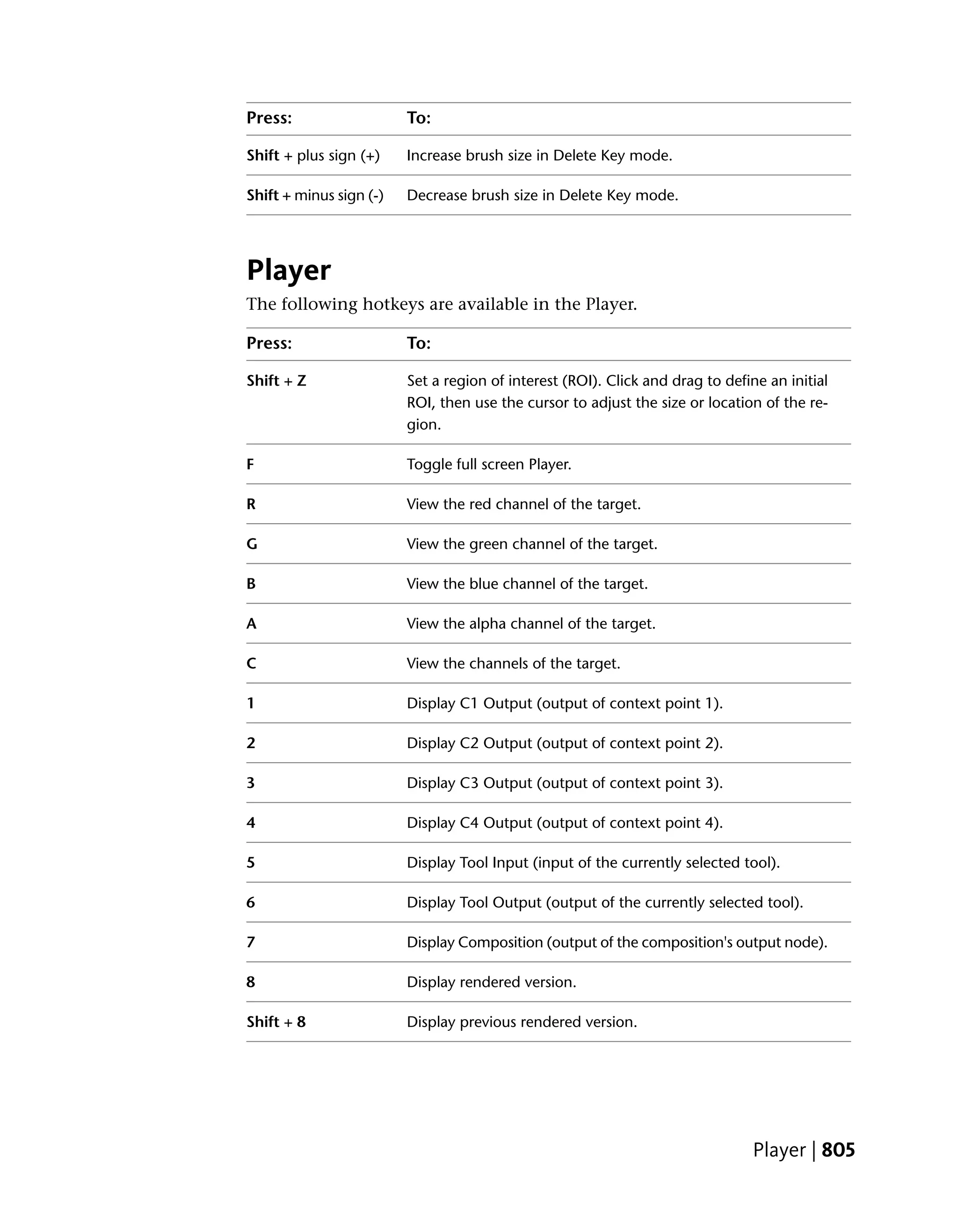
              Player . . . . . . . . . . . . . .    .    .    .    .    .    .    .    .    .    .    .    .    .    .    .    .    .    .    .    .    . 151
              View Layouts . . . . . . . . . .      .    .    .    .    .    .    .    .    .    .    .    .    .    .    .    .    .    .    .    .    . 151
              Color Picker . . . . . . . . . .     .    .    .    .    .    .    .    .    .    .    .    .    .    .    .    .    .    .    .    .    . 152


viii | Contents
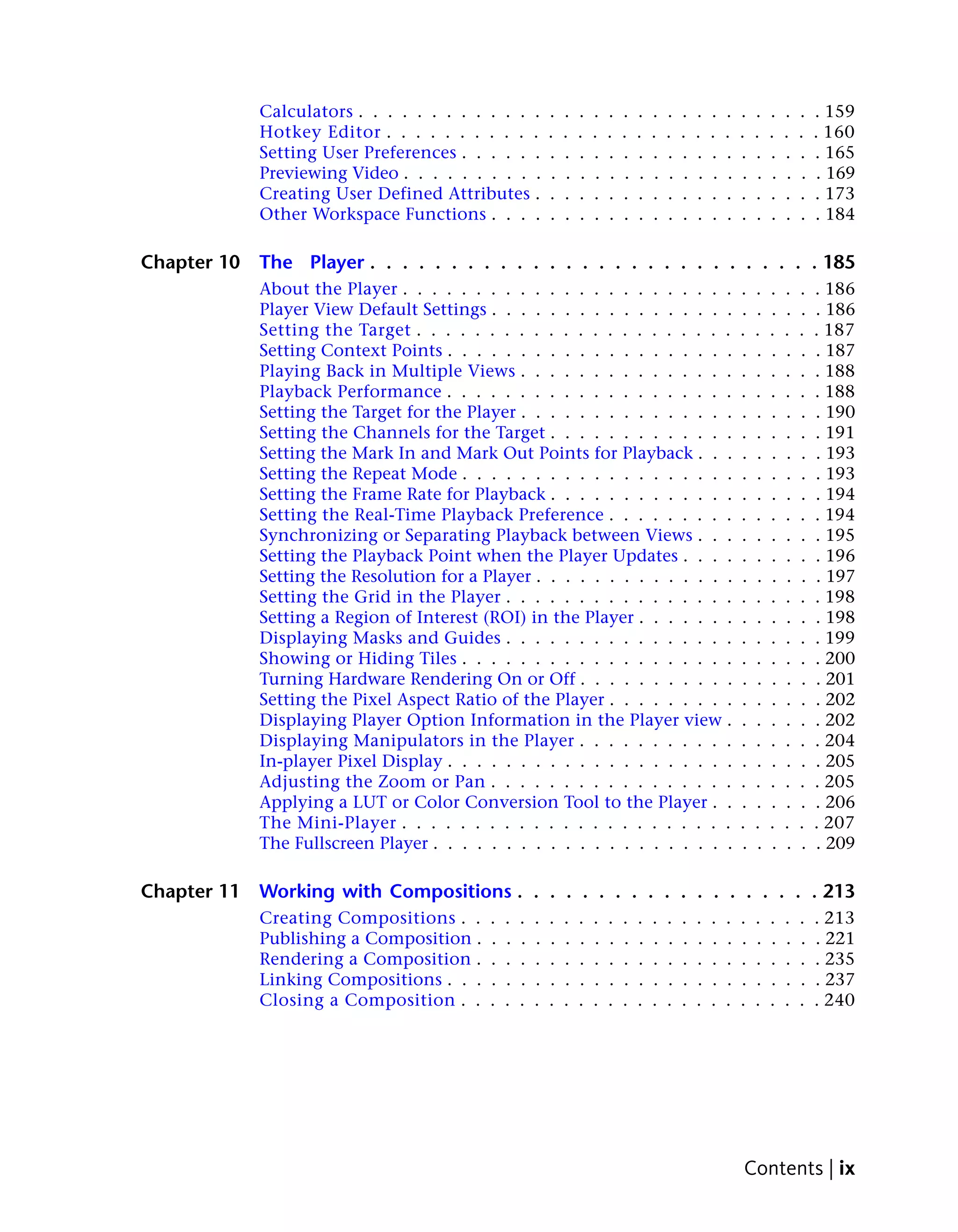
Calculators . . . . . . . . . . . . .         .    .    .    .    .    .    .    .    .    .    .    .    .    .    .    .    .    .    . 159
             Hotkey Editor . . . . . . . . . . .           .    .    .    .    .    .    .    .    .    .    .    .    .    .    .    .    .    .    . 160
             Setting User Preferences . . . . . .          .    .    .    .    .    .    .    .    .    .    .    .    .    .    .    .    .    .    . 165
             Previewing Video . . . . . . . . . .           .    .    .    .    .    .    .    .    .    .    .    .    .    .    .    .    .    .    . 169
             Creating User Defined Attributes .            .    .    .    .    .    .    .    .    .    .    .    .    .    .    .    .    .    .    . 173
             Other Workspace Functions . . . .             .    .    .    .    .    .    .    .    .    .    .    .    .    .    .    .    .    .    . 184

Chapter 10   The Player . . . . . . . . . . . . . . . . . . . . . . . . . . . . 185
             About the Player . . . . . . . . . . . . . . . . . . . . . . .                                                 .    .    .    .    .    . 186
             Player View Default Settings . . . . . . . . . . . . . . . . .                                                 .    .    .    .    .    . 186
             Setting the Target . . . . . . . . . . . . . . . . . . . . . .                                                 .    .    .    .    .    . 187
             Setting Context Points . . . . . . . . . . . . . . . . . . . .                                                 .    .    .    .    .    . 187
             Playing Back in Multiple Views . . . . . . . . . . . . . . .                                                   .    .    .    .    .    . 188
             Playback Performance . . . . . . . . . . . . . . . . . . . .                                                   .    .    .    .    .    . 188
             Setting the Target for the Player . . . . . . . . . . . . . . .                                                .    .    .    .    .    . 190
             Setting the Channels for the Target . . . . . . . . . . . . .                                                  .    .    .    .    .    . 191
             Setting the Mark In and Mark Out Points for Playback . . .                                                     .    .    .    .    .    . 193
             Setting the Repeat Mode . . . . . . . . . . . . . . . . . . .                                                  .    .    .    .    .    . 193
             Setting the Frame Rate for Playback . . . . . . . . . . . . .                                                  .    .    .    .    .    . 194
             Setting the Real-Time Playback Preference . . . . . . . . .                                                    .    .    .    .    .    . 194
             Synchronizing or Separating Playback between Views . . .                                                       .    .    .    .    .    . 195
             Setting the Playback Point when the Player Updates . . . .                                                     .    .    .    .    .    . 196
             Setting the Resolution for a Player . . . . . . . . . . . . . .                                                .    .    .    .    .    . 197
             Setting the Grid in the Player . . . . . . . . . . . . . . . .                                                 .    .    .    .    .    . 198
             Setting a Region of Interest (ROI) in the Player . . . . . . .                                                 .    .    .    .    .    . 198
             Displaying Masks and Guides . . . . . . . . . . . . . . . .                                                    .    .    .    .    .    . 199
             Showing or Hiding Tiles . . . . . . . . . . . . . . . . . . .                                                  .    .    .    .    .    . 200
             Turning Hardware Rendering On or Off . . . . . . . . . . .                                                     .    .    .    .    .    . 201
             Setting the Pixel Aspect Ratio of the Player . . . . . . . . .                                                 .    .    .    .    .    . 202
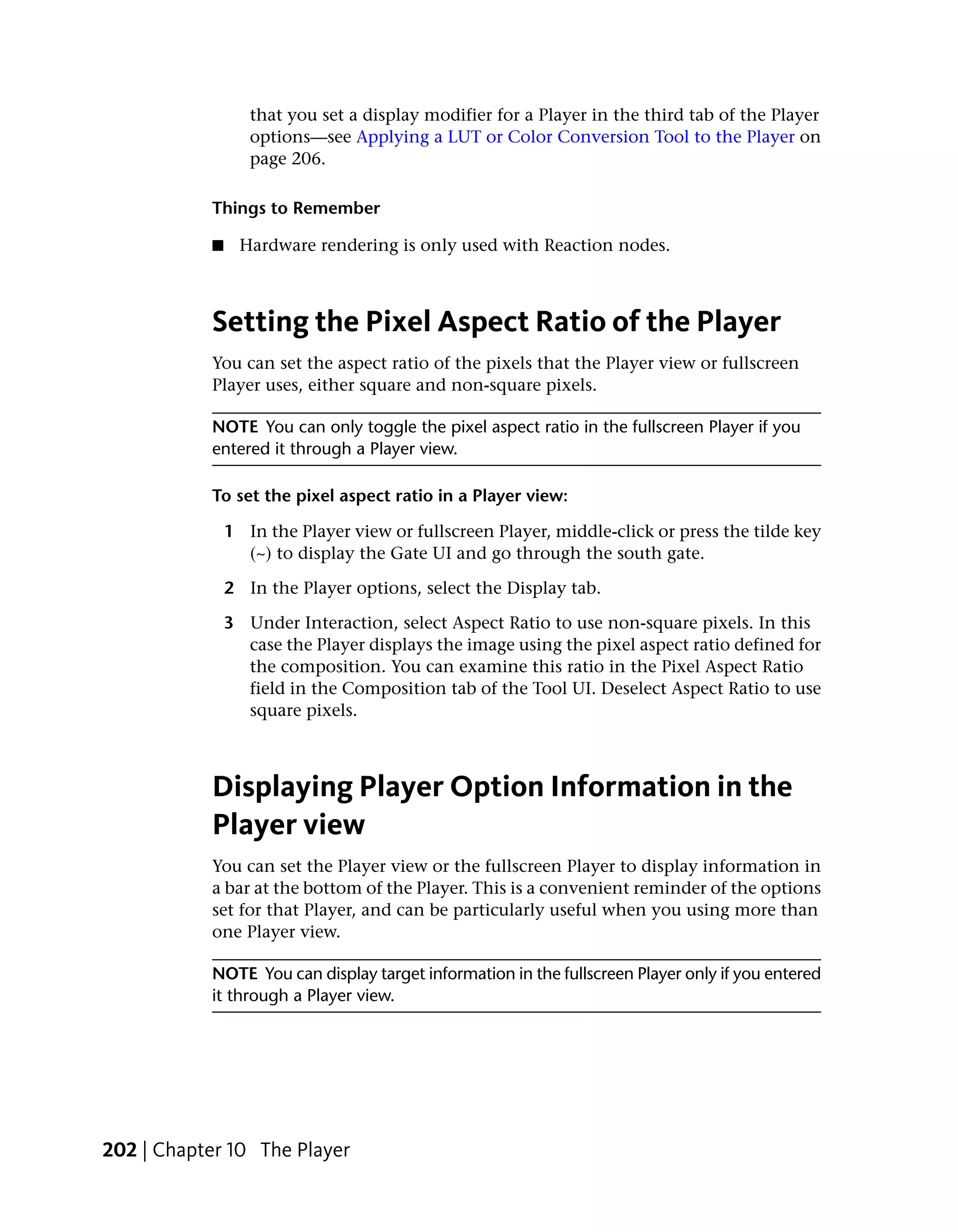
             Displaying Player Option Information in the Player view .                                                      .    .    .    .    .    . 202
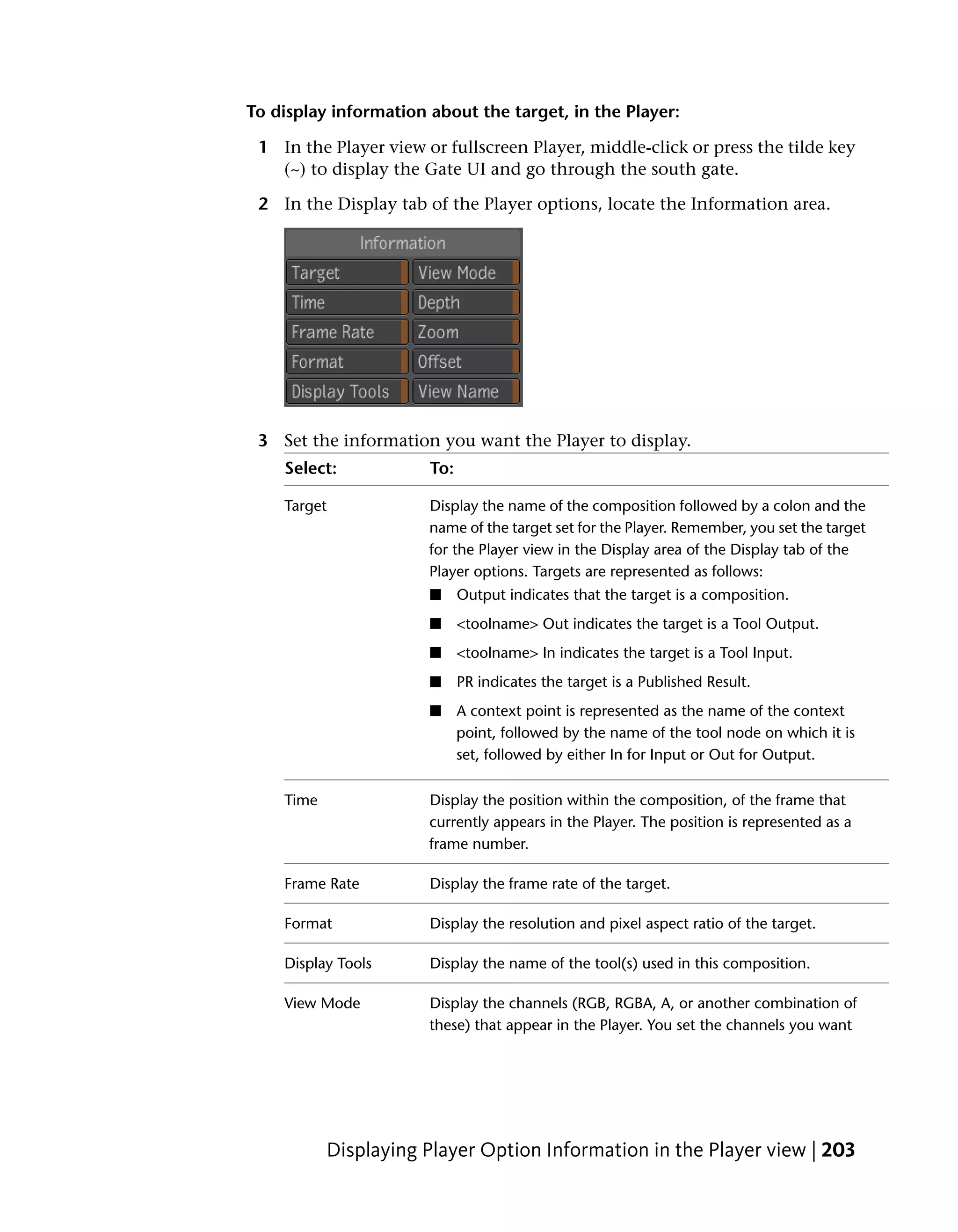
             Displaying Manipulators in the Player . . . . . . . . . . .                                                    .    .    .    .    .    . 204
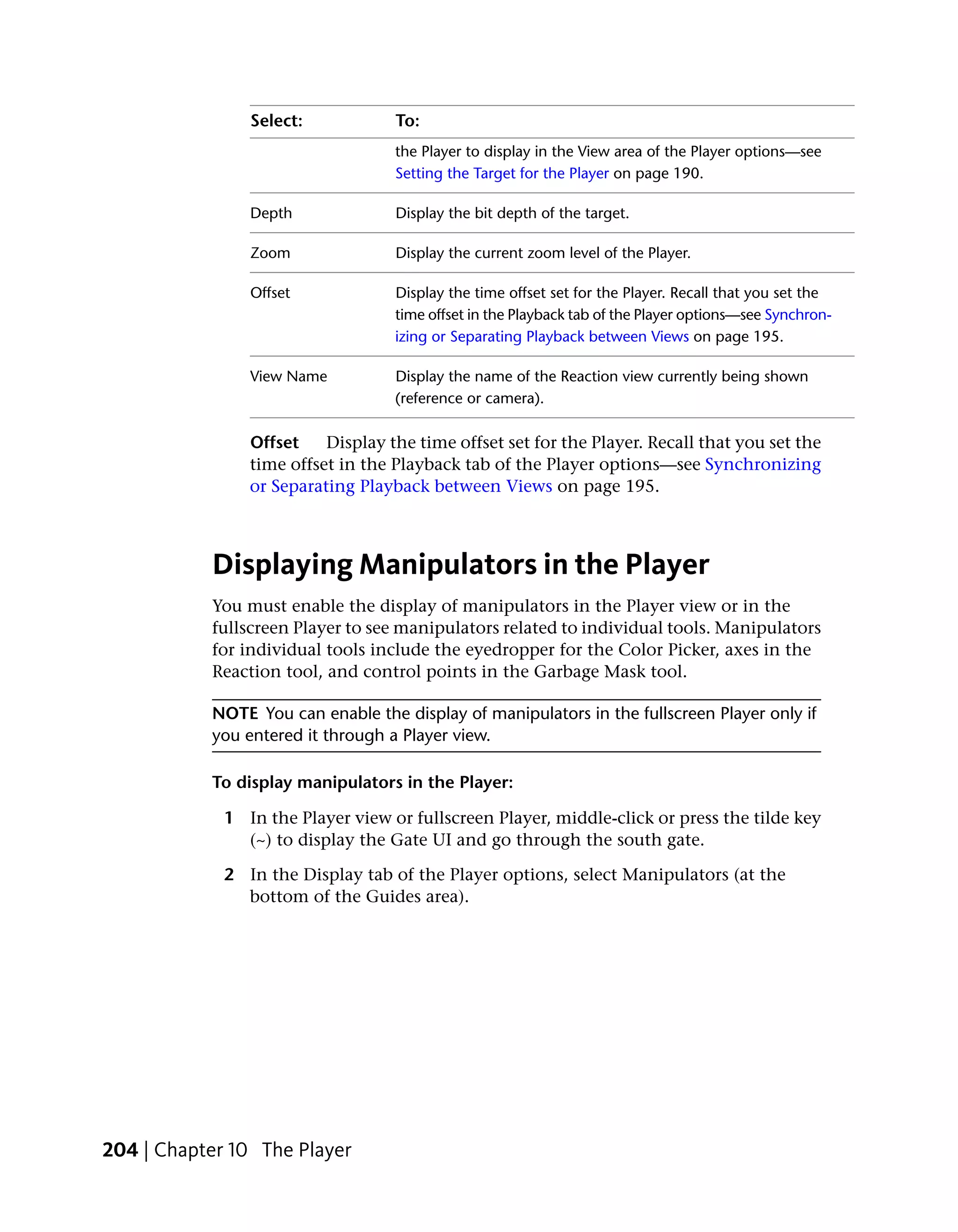
             In-player Pixel Display . . . . . . . . . . . . . . . . . . . .                                                .    .    .    .    .    . 205
             Adjusting the Zoom or Pan . . . . . . . . . . . . . . . . .                                                    .    .    .    .    .    . 205
             Applying a LUT or Color Conversion Tool to the Player . .                                                      .    .    .    .    .    . 206
             The Mini-Player . . . . . . . . . . . . . . . . . . . . . . .                                                  .    .    .    .    .    . 207
             The Fullscreen Player . . . . . . . . . . . . . . . . . . . . .                                                .    .    .    .    .    . 209

Chapter 11   Working with Compositions . . . . . . . . . . . . . . . . . . . 213
             Creating Compositions . .     .   .   .   .   .    .    .    .    .    .    .    .    .    .    .    .    .    .    .    .    .    .    . 213
             Publishing a Composition .    .   .   .   .   .    .    .    .    .    .    .    .    .    .    .    .    .    .    .    .    .    .    . 221
             Rendering a Composition .     .   .   .   .   .    .    .    .    .    .    .    .    .    .    .    .    .    .    .    .    .    .    . 235
             Linking Compositions . . .    .   .   .   .   .    .    .    .    .    .    .    .    .    .    .    .    .    .    .    .    .    .    . 237
             Closing a Composition . .     .   .   .   .   .    .    .    .    .    .    .    .    .    .    .    .    .    .    .    .    .    .    . 240


                                                                                                                             Contents | ix
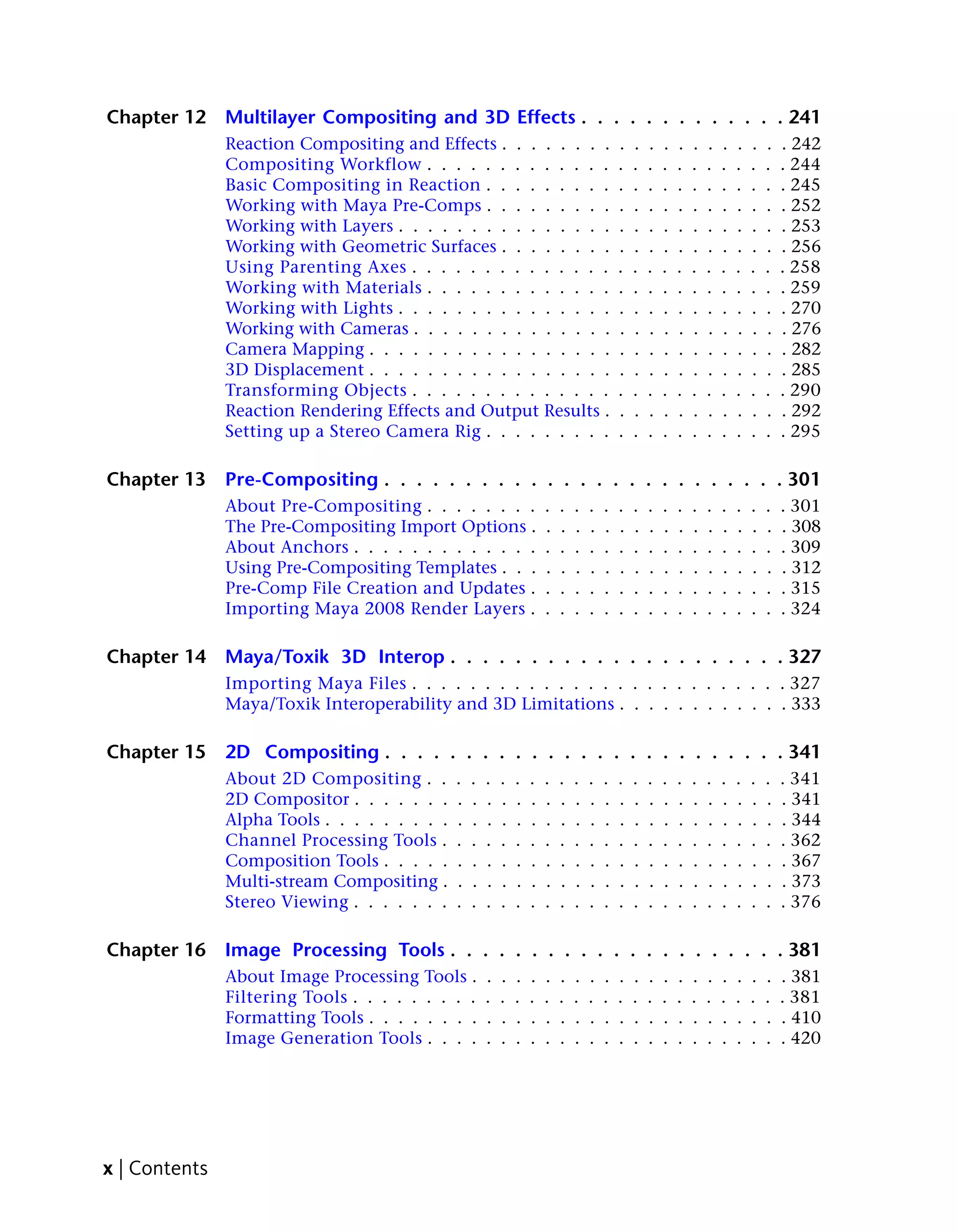
Chapter 12     Multilayer Compositing and 3D Effects . . . . . . . . . . . . . 241
               Reaction Compositing and Effects . . . . . . . .                            .   .   .   .   .   .   .   .   .   .   .   . 242
               Compositing Workflow . . . . . . . . . . . . .                              .   .   .   .   .   .   .   .   .   .   .   . 244
               Basic Compositing in Reaction . . . . . . . . .                             .   .   .   .   .   .   .   .   .   .   .   . 245
               Working with Maya Pre-Comps . . . . . . . . .                               .   .   .   .   .   .   .   .   .   .   .   . 252
               Working with Layers . . . . . . . . . . . . . . .                           .   .   .   .   .   .   .   .   .   .   .   . 253
               Working with Geometric Surfaces . . . . . . . .                             .   .   .   .   .   .   .   .   .   .   .   . 256
               Using Parenting Axes . . . . . . . . . . . . . .                            .   .   .   .   .   .   .   .   .   .   .   . 258
               Working with Materials . . . . . . . . . . . . .                            .   .   .   .   .   .   .   .   .   .   .   . 259
               Working with Lights . . . . . . . . . . . . . . .                           .   .   .   .   .   .   .   .   .   .   .   . 270
               Working with Cameras . . . . . . . . . . . . . .                            .   .   .   .   .   .   .   .   .   .   .   . 276
               Camera Mapping . . . . . . . . . . . . . . . . .                            .   .   .   .   .   .   .   .   .   .   .   . 282
               3D Displacement . . . . . . . . . . . . . . . . .                           .   .   .   .   .   .   .   .   .   .   .   . 285
               Transforming Objects . . . . . . . . . . . . . .                            .   .   .   .   .   .   .   .   .   .   .   . 290
               Reaction Rendering Effects and Output Results .                             .   .   .   .   .   .   .   .   .   .   .   . 292
               Setting up a Stereo Camera Rig . . . . . . . . .                            .   .   .   .   .   .   .   .   .   .   .   . 295

Chapter 13     Pre-Compositing . . . . . . . . . . . . . . . . . . . . . . . . . 301
               About Pre-Compositing . . . . . . . .                   .   .   .   .   .   .   .   .   .   .   .   .   .   .   .   .   . 301
               The Pre-Compositing Import Options .                    .   .   .   .   .   .   .   .   .   .   .   .   .   .   .   .   . 308
               About Anchors . . . . . . . . . . . . .                 .   .   .   .   .   .   .   .   .   .   .   .   .   .   .   .   . 309
               Using Pre-Compositing Templates . . .                   .   .   .   .   .   .   .   .   .   .   .   .   .   .   .   .   . 312
               Pre-Comp File Creation and Updates .                    .   .   .   .   .   .   .   .   .   .   .   .   .   .   .   .   . 315
               Importing Maya 2008 Render Layers .                     .   .   .   .   .   .   .   .   .   .   .   .   .   .   .   .   . 324

Chapter 14     Maya/Toxik 3D Interop . . . . . . . . . . . . . . . . . . . . . 327
               Importing Maya Files . . . . . . . . . . . . . . . . . . . . . . . . . . 327
               Maya/Toxik Interoperability and 3D Limitations . . . . . . . . . . . . 333

Chapter 15     2D Compositing . . . . . . . . . . . . . . . . . . . . . . . . . 341
               About 2D Compositing . .        .   .   .   .   .   .   .   .   .   .   .   .   .   .   .   .   .   .   .   .   .   .   . 341
               2D Compositor . . . . . . .     .   .   .   .   .   .   .   .   .   .   .   .   .   .   .   .   .   .   .   .   .   .   . 341
               Alpha Tools . . . . . . . . .   .   .   .   .   .   .   .   .   .   .   .   .   .   .   .   .   .   .   .   .   .   .   . 344
               Channel Processing Tools .      .   .   .   .   .   .   .   .   .   .   .   .   .   .   .   .   .   .   .   .   .   .   . 362
               Composition Tools . . . . .     .   .   .   .   .   .   .   .   .   .   .   .   .   .   .   .   .   .   .   .   .   .   . 367
               Multi-stream Compositing .      .   .   .   .   .   .   .   .   .   .   .   .   .   .   .   .   .   .   .   .   .   .   . 373
               Stereo Viewing . . . . . . .    .   .   .   .   .   .   .   .   .   .   .   .   .   .   .   .   .   .   .   .   .   .   . 376

Chapter 16     Image Processing Tools . . . . . . . . . . . . . . . . . . . . . 381
               About Image Processing Tools .          .   .   .   .   .   .   .   .   .   .   .   .   .   .   .   .   .   .   .   .   . 381
               Filtering Tools . . . . . . . . .       .   .   .   .   .   .   .   .   .   .   .   .   .   .   .   .   .   .   .   .   . 381
               Formatting Tools . . . . . . . .        .   .   .   .   .   .   .   .   .   .   .   .   .   .   .   .   .   .   .   .   . 410
               Image Generation Tools . . . .          .   .   .   .   .   .   .   .   .   .   .   .   .   .   .   .   .   .   .   .   . 420


x | Contents
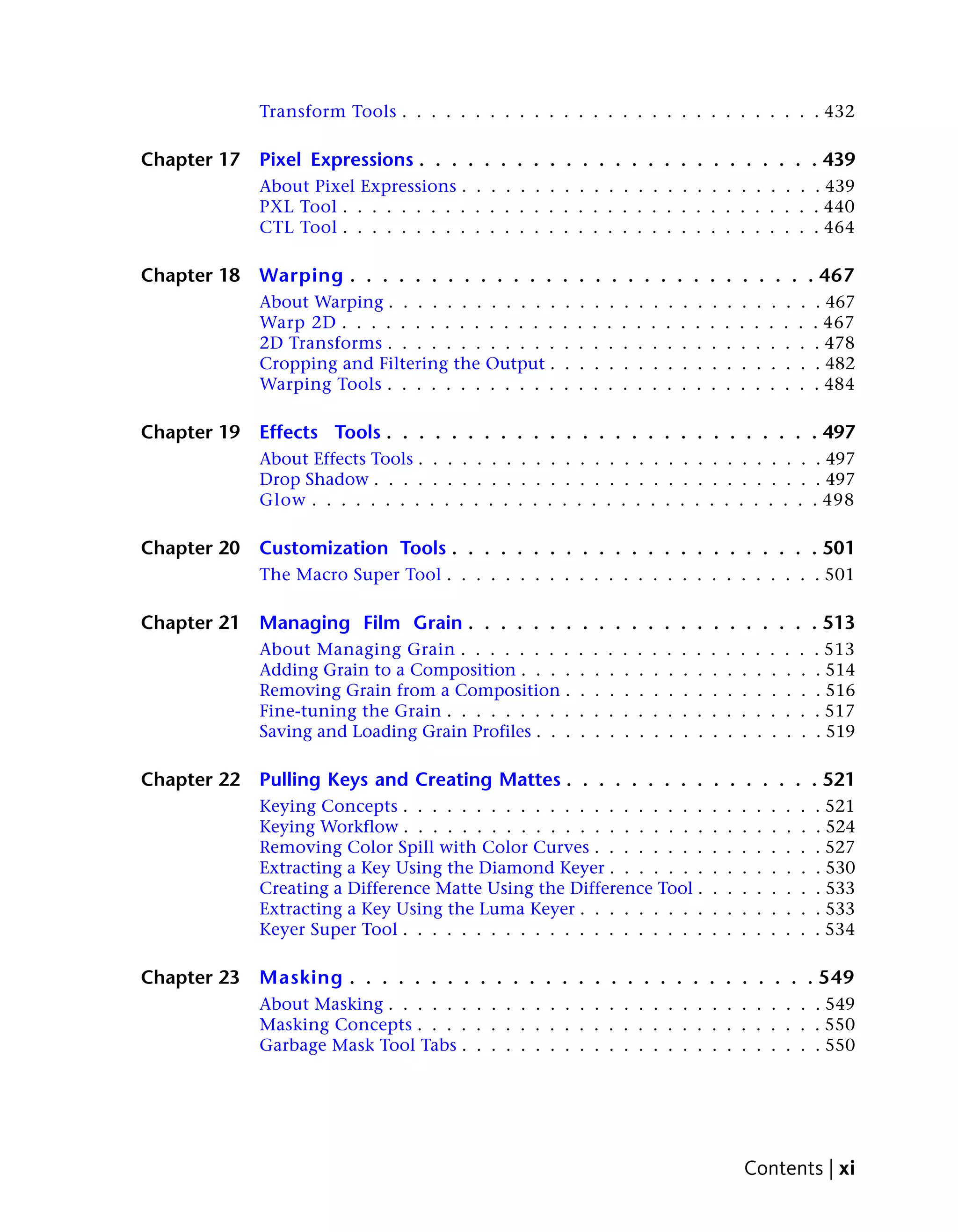
Transform Tools . . . . . . . . . . . . . . . . . . . . . . . . . . . . . 432

Chapter 17   Pixel Expressions . . . . . . . . . . . . . . . . . . . . . . . . . 439
             About Pixel Expressions . . . . . . . . . . . . . . . . . . . . . . . . . 439
             PXL Tool . . . . . . . . . . . . . . . . . . . . . . . . . . . . . . . . . 440
             CTL Tool . . . . . . . . . . . . . . . . . . . . . . . . . . . . . . . . . 464

Chapter 18   Warping . . . . . . . . . . . . . . . . . . . . . . . . . . . . . 467
             About Warping . . . . . . . . . . . .   .   .   .   .   .   .   .   .   .   .   .   .   .   .   .   .   .   . 467
             Warp 2D . . . . . . . . . . . . . . .   .   .   .   .   .   .   .   .   .   .   .   .   .   .   .   .   .   . 467
             2D Transforms . . . . . . . . . . . .   .   .   .   .   .   .   .   .   .   .   .   .   .   .   .   .   .   . 478
             Cropping and Filtering the Output .     .   .   .   .   .   .   .   .   .   .   .   .   .   .   .   .   .   . 482
             Warping Tools . . . . . . . . . . . .   .   .   .   .   .   .   .   .   .   .   .   .   .   .   .   .   .   . 484

Chapter 19   Effects Tools . . . . . . . . . . . . . . . . . . . . . . . . . . . 497
             About Effects Tools . . . . . . . . . . . . . . . . . . . . . . . . . . . . 497
             Drop Shadow . . . . . . . . . . . . . . . . . . . . . . . . . . . . . . . 497
             Glow . . . . . . . . . . . . . . . . . . . . . . . . . . . . . . . . . . . 498

Chapter 20   Customization Tools . . . . . . . . . . . . . . . . . . . . . . . 501
             The Macro Super Tool . . . . . . . . . . . . . . . . . . . . . . . . . . 501

Chapter 21   Managing Film Grain . . . . . . . . . . . . . . . . . . . . . . 513
             About Managing Grain . . . . . . . .        .   .   .   .   .   .   .   .   .   .   .   .   .   .   .   .   . 513
             Adding Grain to a Composition . . . .       .   .   .   .   .   .   .   .   .   .   .   .   .   .   .   .   . 514
             Removing Grain from a Composition .         .   .   .   .   .   .   .   .   .   .   .   .   .   .   .   .   . 516
             Fine-tuning the Grain . . . . . . . . .     .   .   .   .   .   .   .   .   .   .   .   .   .   .   .   .   . 517
             Saving and Loading Grain Profiles . . .     .   .   .   .   .   .   .   .   .   .   .   .   .   .   .   .   . 519

Chapter 22   Pulling Keys and Creating Mattes . . . . . . . . . . . . . . . . 521
             Keying Concepts . . . . . . . . . . . . . . . . . . . . .                       .   .   .   .   .   .   .   . 521
             Keying Workflow . . . . . . . . . . . . . . . . . . . . .                       .   .   .   .   .   .   .   . 524
             Removing Color Spill with Color Curves . . . . . . . .                          .   .   .   .   .   .   .   . 527
             Extracting a Key Using the Diamond Keyer . . . . . . .                          .   .   .   .   .   .   .   . 530
             Creating a Difference Matte Using the Difference Tool .                         .   .   .   .   .   .   .   . 533
             Extracting a Key Using the Luma Keyer . . . . . . . . .                         .   .   .   .   .   .   .   . 533
             Keyer Super Tool . . . . . . . . . . . . . . . . . . . . .                      .   .   .   .   .   .   .   . 534

Chapter 23   Masking . . . . . . . . . . . . . . . . . . . . . . . . . . . . . 549
             About Masking . . . . . . . . . . . . . . . . . . . . . . . . . . . . . . 549
             Masking Concepts . . . . . . . . . . . . . . . . . . . . . . . . . . . . 550
             Garbage Mask Tool Tabs . . . . . . . . . . . . . . . . . . . . . . . . . 550


                                                                                                     Contents | xi
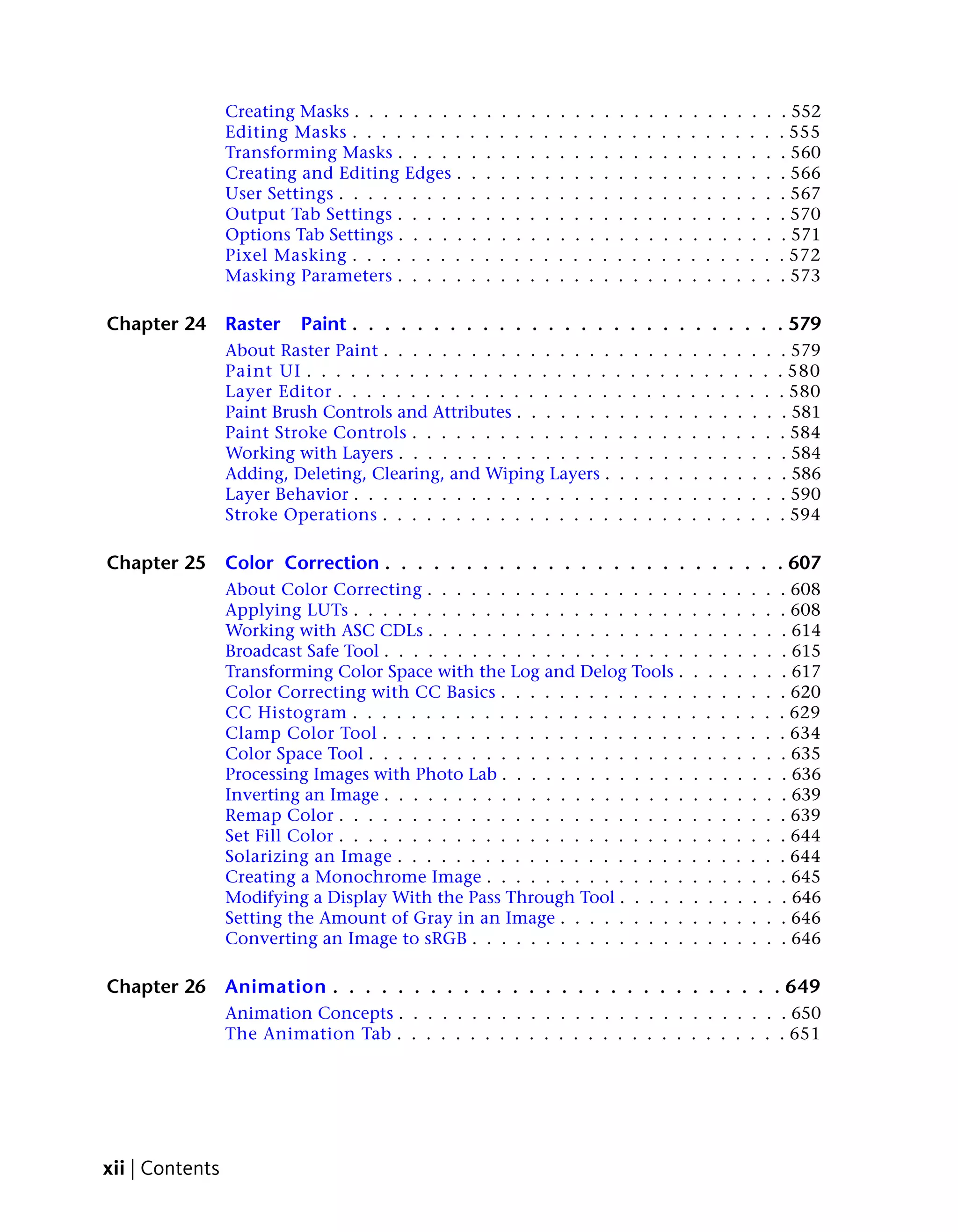
Creating Masks . . . . . . . .    .   .   .   .   .   .   .   .   .   .   .    .    .    .    .    .    .    .    .    .    .    . 552
                 Editing Masks . . . . . . . .     .   .   .   .   .   .   .   .   .   .   .    .    .    .    .    .    .    .    .    .    .    . 555
                 Transforming Masks . . . . .      .   .   .   .   .   .   .   .   .   .   .    .    .    .    .    .    .    .    .    .    .    . 560
                 Creating and Editing Edges .      .   .   .   .   .   .   .   .   .   .   .    .    .    .    .    .    .    .    .    .    .    . 566
                 User Settings . . . . . . . . .   .   .   .   .   .   .   .   .   .   .   .    .    .    .    .    .    .    .    .    .    .    . 567
                 Output Tab Settings . . . . .     .   .   .   .   .   .   .   .   .   .   .    .    .    .    .    .    .    .    .    .    .    . 570
                 Options Tab Settings . . . . .    .   .   .   .   .   .   .   .   .   .   .    .    .    .    .    .    .    .    .    .    .    . 571
                 Pixel Masking . . . . . . . .     .   .   .   .   .   .   .   .   .   .   .    .    .    .    .    .    .    .    .    .    .    . 572
                 Masking Parameters . . . . .      .   .   .   .   .   .   .   .   .   .   .    .    .    .    .    .    .    .    .    .    .    . 573

Chapter 24       Raster    Paint . . . . . . . . . . . . . . . . . . . . . . . . . . . 579
                 About Raster Paint . . . . . . . . . . . . . . . .                         .    .    .    .    .    .    .    .    .    .    .    . 579
                 Paint UI . . . . . . . . . . . . . . . . . . . . .                        .    .    .    .    .    .    .    .    .    .    .    . 580
                 Layer Editor . . . . . . . . . . . . . . . . . . .                        .    .    .    .    .    .    .    .    .    .    .    . 580
                 Paint Brush Controls and Attributes . . . . . . .                          .    .    .    .    .    .    .    .    .    .    .    . 581
                 Paint Stroke Controls . . . . . . . . . . . . . .                         .    .    .    .    .    .    .    .    .    .    .    . 584
                 Working with Layers . . . . . . . . . . . . . . .                          .    .    .    .    .    .    .    .    .    .    .    . 584
                 Adding, Deleting, Clearing, and Wiping Layers .                            .    .    .    .    .    .    .    .    .    .    .    . 586
                 Layer Behavior . . . . . . . . . . . . . . . . . .                         .    .    .    .    .    .    .    .    .    .    .    . 590
                 Stroke Operations . . . . . . . . . . . . . . . .                         .    .    .    .    .    .    .    .    .    .    .    . 594

Chapter 25       Color Correction . . . . . . . . . . . . . . . . . . . . . . . . . 607
                 About Color Correcting . . . . . . . . . . . . . . . . . .                                         .    .    .    .    .    .    . 608
                 Applying LUTs . . . . . . . . . . . . . . . . . . . . . . .                                        .    .    .    .    .    .    . 608
                 Working with ASC CDLs . . . . . . . . . . . . . . . . . .                                          .    .    .    .    .    .    . 614
                 Broadcast Safe Tool . . . . . . . . . . . . . . . . . . . . .                                      .    .    .    .    .    .    . 615
                 Transforming Color Space with the Log and Delog Tools .                                            .    .    .    .    .    .    . 617
                 Color Correcting with CC Basics . . . . . . . . . . . . .                                          .    .    .    .    .    .    . 620
                 CC Histogram . . . . . . . . . . . . . . . . . . . . . . .                                         .    .    .    .    .    .    . 629
                 Clamp Color Tool . . . . . . . . . . . . . . . . . . . . .                                         .    .    .    .    .    .    . 634
                 Color Space Tool . . . . . . . . . . . . . . . . . . . . . .                                       .    .    .    .    .    .    . 635
                 Processing Images with Photo Lab . . . . . . . . . . . . .                                         .    .    .    .    .    .    . 636
                 Inverting an Image . . . . . . . . . . . . . . . . . . . . .                                       .    .    .    .    .    .    . 639
                 Remap Color . . . . . . . . . . . . . . . . . . . . . . . .                                        .    .    .    .    .    .    . 639
                 Set Fill Color . . . . . . . . . . . . . . . . . . . . . . . .                                     .    .    .    .    .    .    . 644
                 Solarizing an Image . . . . . . . . . . . . . . . . . . . .                                        .    .    .    .    .    .    . 644
                 Creating a Monochrome Image . . . . . . . . . . . . . .                                            .    .    .    .    .    .    . 645
                 Modifying a Display With the Pass Through Tool . . . . .                                           .    .    .    .    .    .    . 646
                 Setting the Amount of Gray in an Image . . . . . . . . .                                           .    .    .    .    .    .    . 646
                 Converting an Image to sRGB . . . . . . . . . . . . . . .                                          .    .    .    .    .    .    . 646

Chapter 26       Animation . . . . . . . . . . . . . . . . . . . . . . . . . . . . 649
                 Animation Concepts . . . . . . . . . . . . . . . . . . . . . . . . . . . 650
                 The Animation Tab . . . . . . . . . . . . . . . . . . . . . . . . . . . 651


xii | Contents
Composition Browser . . . . . . . . . . . . . . . . . . .                     . . . . .            .   . 651
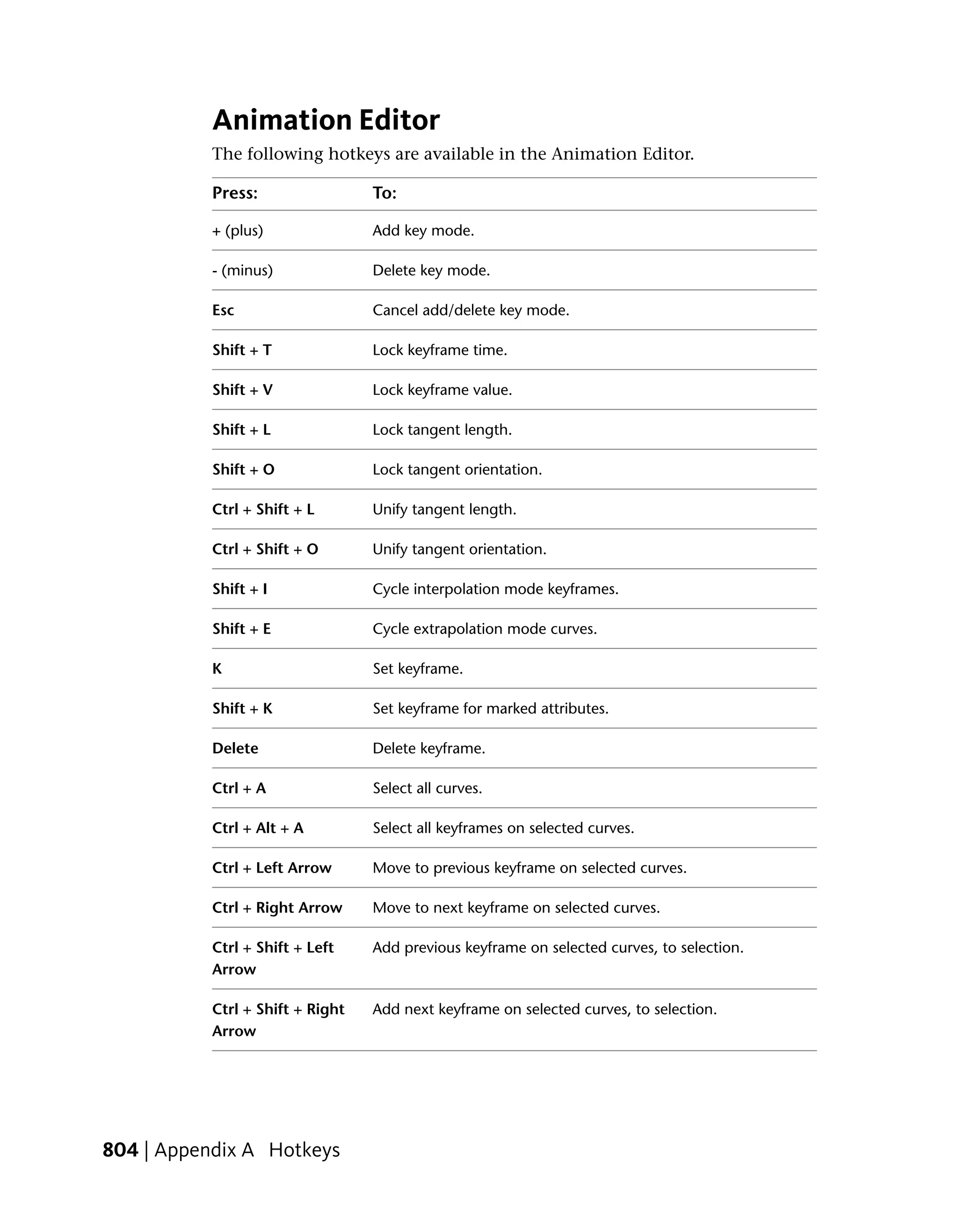
             Animation Editor . . . . . . . . . . . . . . . . . . . . .                    . . . . .            .   . 652
             The Animation Property Area . . . . . . . . . . . . . . .                     . . . . .            .   . 656
             Player Controls . . . . . . . . . . . . . . . . . . . . . . .                 . . . . .            .   . 657
             Working with Cue Marks . . . . . . . . . . . . . . . . .                      . . . . .            .   . 658
             Contextual Menus . . . . . . . . . . . . . . . . . . . . .                    . . . . .            .   . 660
             Keyframing Workflows . . . . . . . . . . . . . . . . . . .                    . . . . .            .   . 664
             Marking Attributes for Keyframing . . . . . . . . . . . .                     . . . . .            .   . 664
             Setting Keys Manually . . . . . . . . . . . . . . . . . . .                   . . . . .            .   . 666
             Setting Keyframes Automatically . . . . . . . . . . . . .                     . . . . .            .   . 670
             Editing Keyframes in the Tool UI . . . . . . . . . . . . .                    . . . . .            .   . 671
             Editing Keyframes in the Animation Editor . . . . . . . .                     . . . . .            .   . 672
             Adding and Deleting Keyframes . . . . . . . . . . . . . .                     . . . . .            .   . 673
             Modifying Interpolation . . . . . . . . . . . . . . . . . .                   . . . . .            .   . 677
             Modifying Extrapolation . . . . . . . . . . . . . . . . . .                   . . . . .            .   . 678
             Temporarily Modifying Attribute Values . . . . . . . . .                      . . . . .            .   . 678
             Customizing the Layout when Working with Animation                            Curves .             .   . 679
             Global Time vs. Local Time . . . . . . . . . . . . . . . .                    . . . . .            .   . 680
             Time Offsets, Keyframing, and Instancing . . . . . . . .                      . . . . .            .   . 680

Chapter 27   Time Tools . . . . . . . . . . . . . . . . . . . . . . . . . . . . 681
             Retiming Footage with the Retimer Tool .      .   .   .   .   .   .   .   .   .   .    .   .   .   .   . 681
             About Timing Curves . . . . . . . . . . .     .   .   .   .   .   .   .   .   .   .    .   .   .   .   . 682
             Converting the Frame Rate . . . . . . . .     .   .   .   .   .   .   .   .   .   .    .   .   .   .   . 685
             Offsetting Time . . . . . . . . . . . . . .   .   .   .   .   .   .   .   .   .   .    .   .   .   .   . 686

Chapter 28   Vectors . . . . . . . . . . . . . . . . . . . . . . . . . . . . . . 689
             About Motion Vectors . . . . . . . . . . . . . . . .              .   .   .   .    .   .   .   .   .   . 689
             Importing 2D Motion Vectors . . . . . . . . . . . .               .   .   .   .    .   .   .   .   .   . 690
             Computing Motion Vectors within a Composition .                   .   .   .   .    .   .   .   .   .   . 690
             Show Vectors . . . . . . . . . . . . . . . . . . . . .            .   .   .   .    .   .   .   .   .   . 692

Chapter 29   Expressions . . . . . . . . . . . . . . . . . . . . . . . . . . . . 695
             About Expressions . . . . . . . . . . . . . . . .         .   .   .   .   .   .   .    .   .   .   .   . 696
             Short Expressions . . . . . . . . . . . . . . . .         .   .   .   .   .   .   .    .   .   .   .   . 697
             Expression Input Paths . . . . . . . . . . . . . .        .   .   .   .   .   .   .    .   .   .   .   . 698
             Visual Linking . . . . . . . . . . . . . . . . . .        .   .   .   .   .   .   .    .   .   .   .   . 698
             Visual Linking Methods . . . . . . . . . . . . .          .   .   .   .   .   .   .    .   .   .   .   . 699
             Navigating the Expression String . . . . . . . .          .   .   .   .   .   .   .    .   .   .   .   . 704
             Validating and Applying the Expression String .           .   .   .   .   .   .   .    .   .   .   .   . 705
             Viewing the Expression . . . . . . . . . . . . .          .   .   .   .   .   .   .    .   .   .   .   . 705
             Associating Comments with an Expression . . .             .   .   .   .   .   .   .    .   .   .   .   . 706
             Editing an Expression . . . . . . . . . . . . . .         .   .   .   .   .   .   .    .   .   .   .   . 707
             Removing an Expression . . . . . . . . . . . . .          .   .   .   .   .   .   .    .   .   .   .   . 708


                                                                                               Contents | xiii
Setting Expressions Examples .                     .    .    .    .    .    .    .    .    .    .    .    .    .    .    .    .    .    .    .    .    . 709
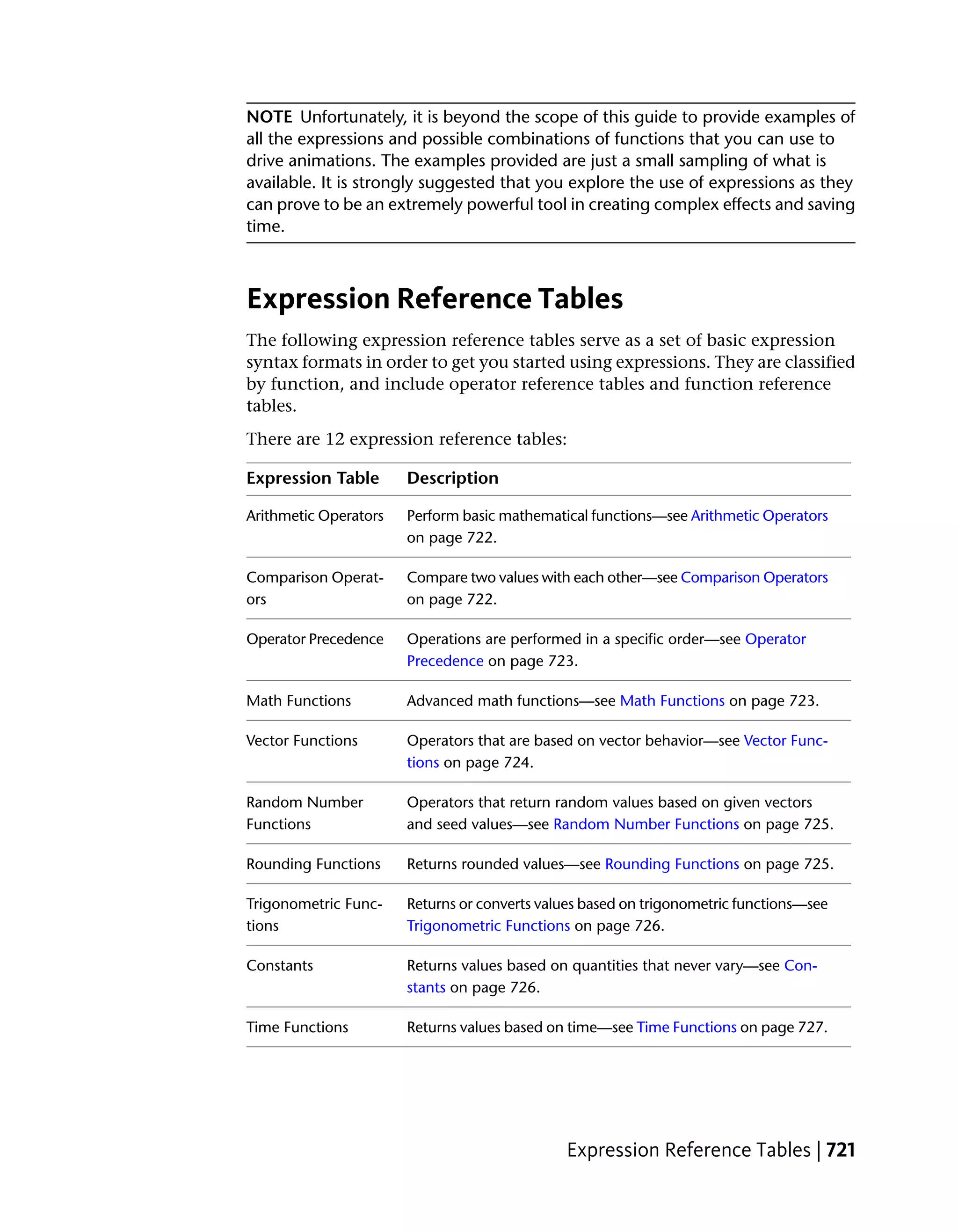
                 Expression Reference Tables . .                    .    .    .    .    .    .    .    .    .    .    .    .    .    .    .    .    .    .    .    .    . 721
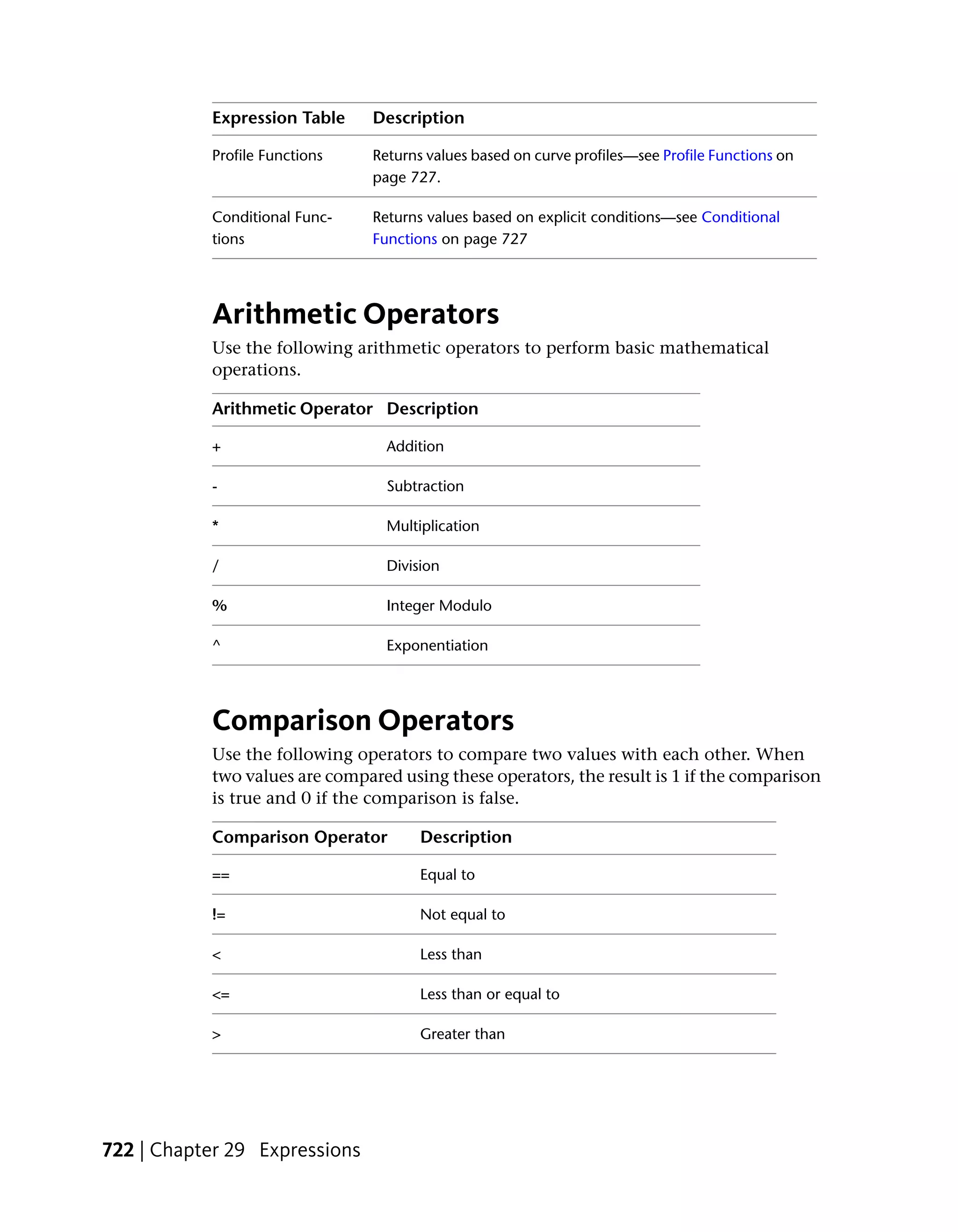
                 Arithmetic Operators . . . . .                    .    .    .    .    .    .    .    .    .    .    .    .    .    .    .    .    .    .    .    .    . 722
                 Comparison Operators . . . . .                     .    .    .    .    .    .    .    .    .    .    .    .    .    .    .    .    .    .    .    .    . 722
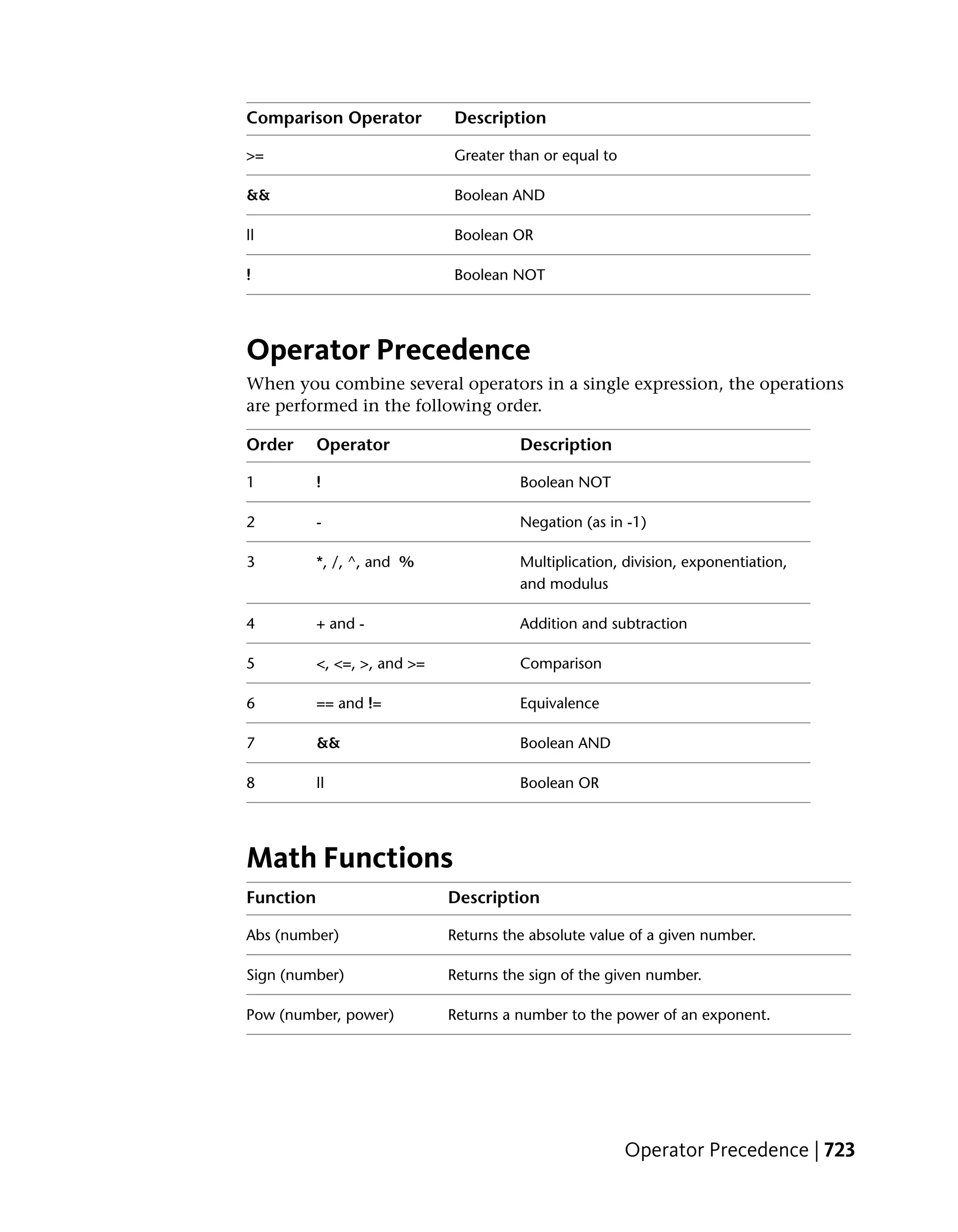
                 Operator Precedence . . . . . .                    .    .    .    .    .    .    .    .    .    .    .    .    .    .    .    .    .    .    .    .    . 723
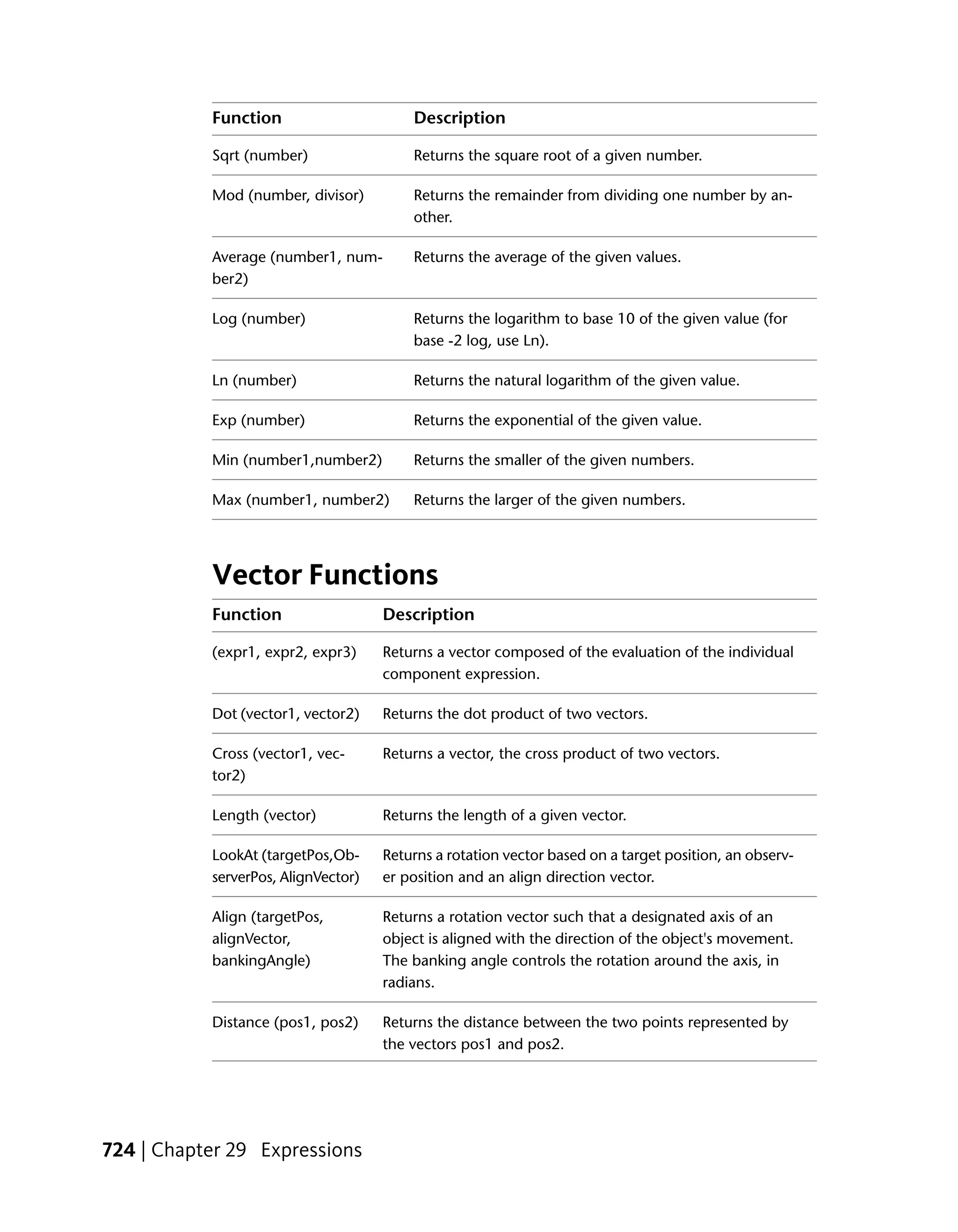
                 Math Functions . . . . . . . .                    .    .    .    .    .    .    .    .    .    .    .    .    .    .    .    .    .    .    .    .    . 723
                 Vector Functions . . . . . . . .                   .    .    .    .    .    .    .    .    .    .    .    .    .    .    .    .    .    .    .    .    . 724
                 Random Number Functions . .                        .    .    .    .    .    .    .    .    .    .    .    .    .    .    .    .    .    .    .    .    . 725
                 Rounding Functions . . . . . .                     .    .    .    .    .    .    .    .    .    .    .    .    .    .    .    .    .    .    .    .    . 725
                 Trigonometric Functions . . . .                    .    .    .    .    .    .    .    .    .    .    .    .    .    .    .    .    .    .    .    .    . 726
                 Constants . . . . . . . . . . .                   .    .    .    .    .    .    .    .    .    .    .    .    .    .    .    .    .    .    .    .    . 726
                 Time Functions . . . . . . . . .                   .    .    .    .    .    .    .    .    .    .    .    .    .    .    .    .    .    .    .    .    . 727
                 Profile Functions . . . . . . . .                  .    .    .    .    .    .    .    .    .    .    .    .    .    .    .    .    .    .    .    .    . 727
                 Conditional Functions . . . . .                    .    .    .    .    .    .    .    .    .    .    .    .    .    .    .    .    .    .    .    .    . 727

Chapter 30       Tracking and Stabilizing . . . . . . . . . . . . . . . . . . . . . 729
                 About Tracking and Stabilizing . . . . . .                                      .    .    .    .    .    .    .    .    .    .    .    .    .    .    . 730
                 Tracking Concepts . . . . . . . . . . . . .                                     .    .    .    .    .    .    .    .    .    .    .    .    .    .    . 730
                 Stabilizing Concepts . . . . . . . . . . . .                                    .    .    .    .    .    .    .    .    .    .    .    .    .    .    . 731
                 Tracker UI . . . . . . . . . . . . . . . . .                                    .    .    .    .    .    .    .    .    .    .    .    .    .    .    . 731
                 Tracking Workflow . . . . . . . . . . . . .                                      .    .    .    .    .    .    .    .    .    .    .    .    .    .    . 733
                 Choosing a Reference Point . . . . . . . .                                      .    .    .    .    .    .    .    .    .    .    .    .    .    .    . 738
                 Positioning the Reference Box . . . . . . .                                      .    .    .    .    .    .    .    .    .    .    .    .    .    .    . 739
                 Resizing the Reference and Tracker Boxes .                                       .    .    .    .    .    .    .    .    .    .    .    .    .    .    . 740
                 Resetting the Reference Box . . . . . . . .                                     .    .    .    .    .    .    .    .    .    .    .    .    .    .    . 742
                 Resetting the Tracker Box . . . . . . . . .                                     .    .    .    .    .    .    .    .    .    .    .    .    .    .    . 743
                 Changing the Color of a Tracker . . . . . .                                      .    .    .    .    .    .    .    .    .    .    .    .    .    .    . 744
                 How the Tracker Works . . . . . . . . . .                                       .    .    .    .    .    .    .    .    .    .    .    .    .    .    . 745
                 Tracking Position . . . . . . . . . . . . . .                                    .    .    .    .    .    .    .    .    .    .    .    .    .    .    . 746
                 Tracking the Scale of an Object . . . . . .                                     .    .    .    .    .    .    .    .    .    .    .    .    .    .    . 749
                 Tracking the Rotation of an Object . . . .                                      .    .    .    .    .    .    .    .    .    .    .    .    .    .    . 751
                 4-Point Tracking . . . . . . . . . . . . . .                                    .    .    .    .    .    .    .    .    .    .    .    .    .    .    . 753
                 Tracking Difficult Shots . . . . . . . . . .                                    .    .    .    .    .    .    .    .    .    .    .    .    .    .    . 756
                 Correcting Errors . . . . . . . . . . . . . .                                    .    .    .    .    .    .    .    .    .    .    .    .    .    .    . 758
                 Stabilizing . . . . . . . . . . . . . . . . .                                   .    .    .    .    .    .    .    .    .    .    .    .    .    .    . 759
                 1-point Stabilizing . . . . . . . . . . . . .                                   .    .    .    .    .    .    .    .    .    .    .    .    .    .    . 762
                 2-point Stabilizing . . . . . . . . . . . . .                                   .    .    .    .    .    .    .    .    .    .    .    .    .    .    . 764
                 Simultaneous Stabilizing and Tracking . .                                       .    .    .    .    .    .    .    .    .    .    .    .    .    .    . 766

Chapter 31       Video Tools . . . . . . . . . . . . . . . . . . . . . . . . . . . . 771
                 About Video     Tools .   .   .   .   .   .   .   .    .    .    .    .    .    .    .    .    .    .    .    .    .    .    .    .    .    .    .    . 771
                 Deinterlace .   . . . .   .   .   .   .   .   .   .    .    .    .    .    .    .    .    .    .    .    .    .    .    .    .    .    .    .    .    . 771
                 Interlace . .   . . . .   .   .   .   .   .   .   .    .    .    .    .    .    .    .    .    .    .    .    .    .    .    .    .    .    .    .    . 777
                 Pulldown . .    . . . .   .   .   .   .   .   .   .    .    .    .    .    .    .    .    .    .    .    .    .    .    .    .    .    .    .    .    . 778


xiv | Contents
Chapter 32   Utilities . . . . . . . . . . . . . . . . . . . . . . . . . . . . . . 781
             About Utilities . . .   .   .   .   .    .    .    .    .    .    .    .    .    .    .    .    .    .    .    .    .    .    .    .    .    .    .    . 781
             Comparison Tool . .     .   .   .   .    .    .    .    .    .    .    .    .    .    .    .    .    .    .    .    .    .    .    .    .    .    .    . 782
             Notes Tool . . . . .    .   .   .   .    .    .    .    .    .    .    .    .    .    .    .    .    .    .    .    .    .    .    .    .    .    .    . 788
             Pass Through Tool .     .   .   .   .    .    .    .    .    .    .    .    .    .    .    .    .    .    .    .    .    .    .    .    .    .    .    . 789
             Switcher Tool . . . .   .   .   .   .    .    .    .    .    .    .    .    .    .    .    .    .    .    .    .    .    .    .    .    .    .    .    . 790

Appendix A Hotkeys . . . . . . . . . . . . . . . . . . . . . . . . . . . . . . 793
             Hotkeys . . . . . . . . . .          .    .    .    .    .    .    .    .    .    .    .    .    .    .    .    .    .    .    .    .    .    .    .    . 794
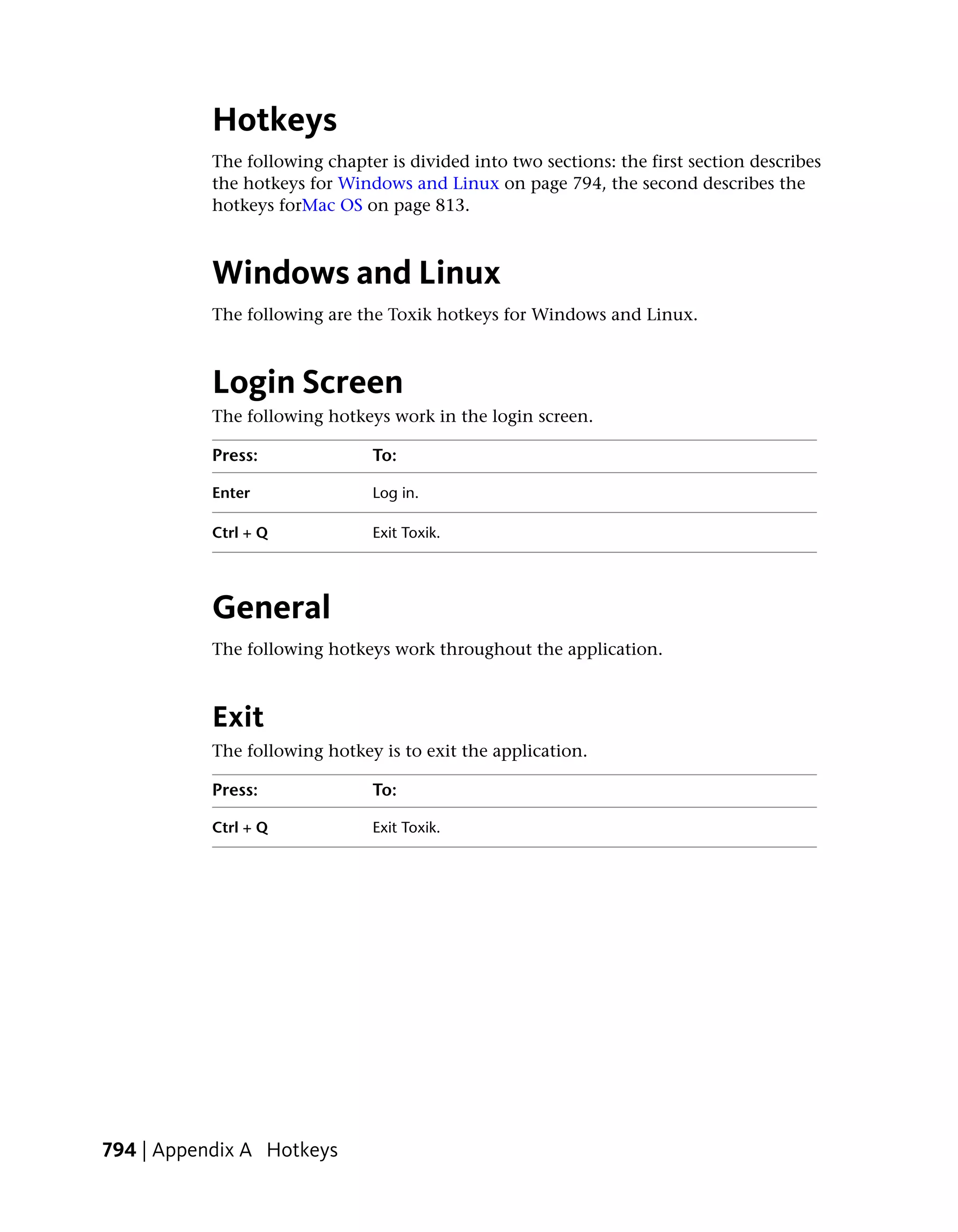
             Windows and Linux . . .             .    .    .    .    .    .    .    .    .    .    .    .    .    .    .    .    .    .    .    .    .    .    .    . 794
             Login Screen . . . . . . .          .    .    .    .    .    .    .    .    .    .    .    .    .    .    .    .    .    .    .    .    .    .    .    . 794
             General . . . . . . . . . .          .    .    .    .    .    .    .    .    .    .    .    .    .    .    .    .    .    .    .    .    .    .    .    . 794
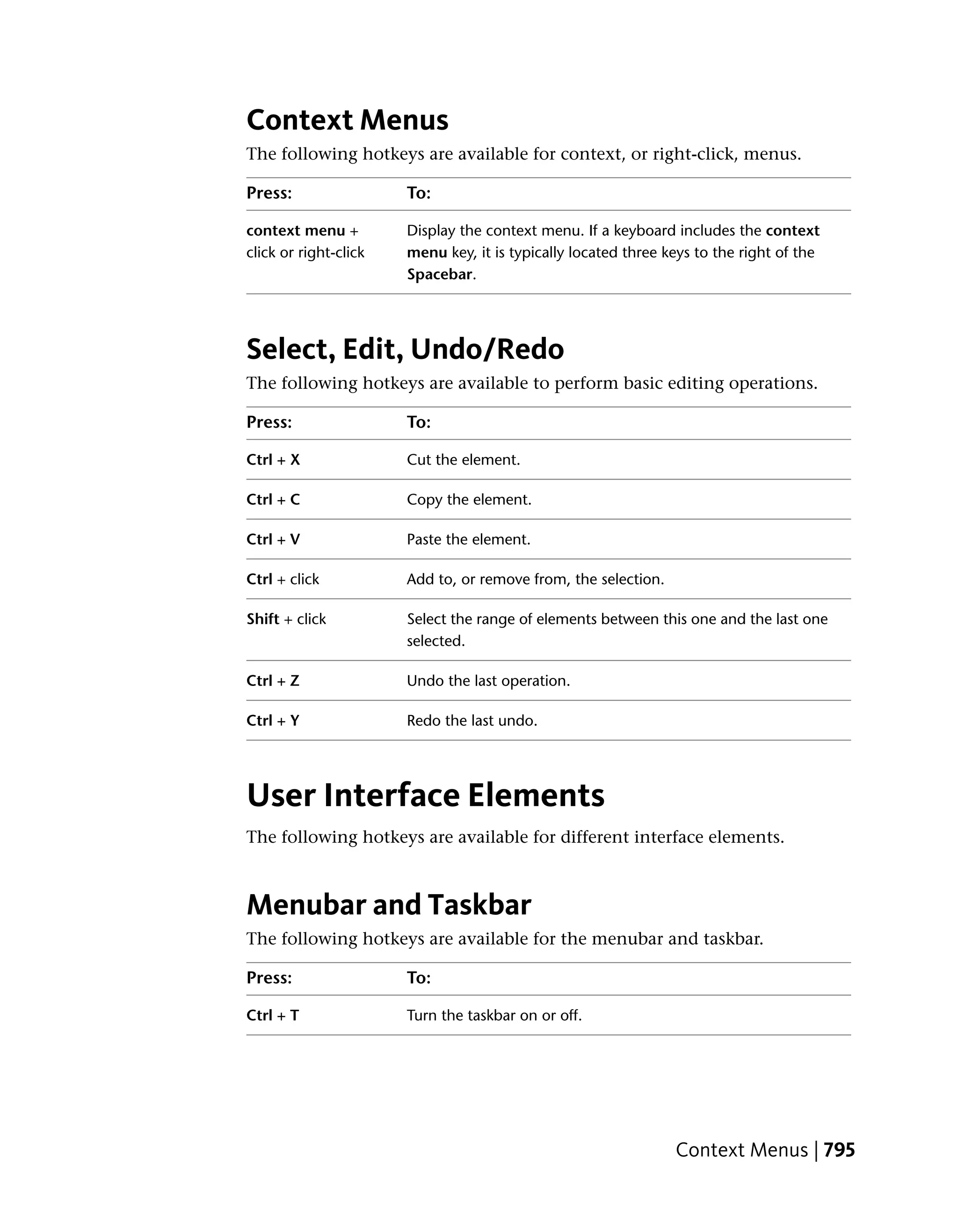
             User Interface Elements .           .    .    .    .    .    .    .    .    .    .    .    .    .    .    .    .    .    .    .    .    .    .    .    . 795
             Browsers . . . . . . . . .          .    .    .    .    .    .    .    .    .    .    .    .    .    .    .    .    .    .    .    .    .    .    .    . 799
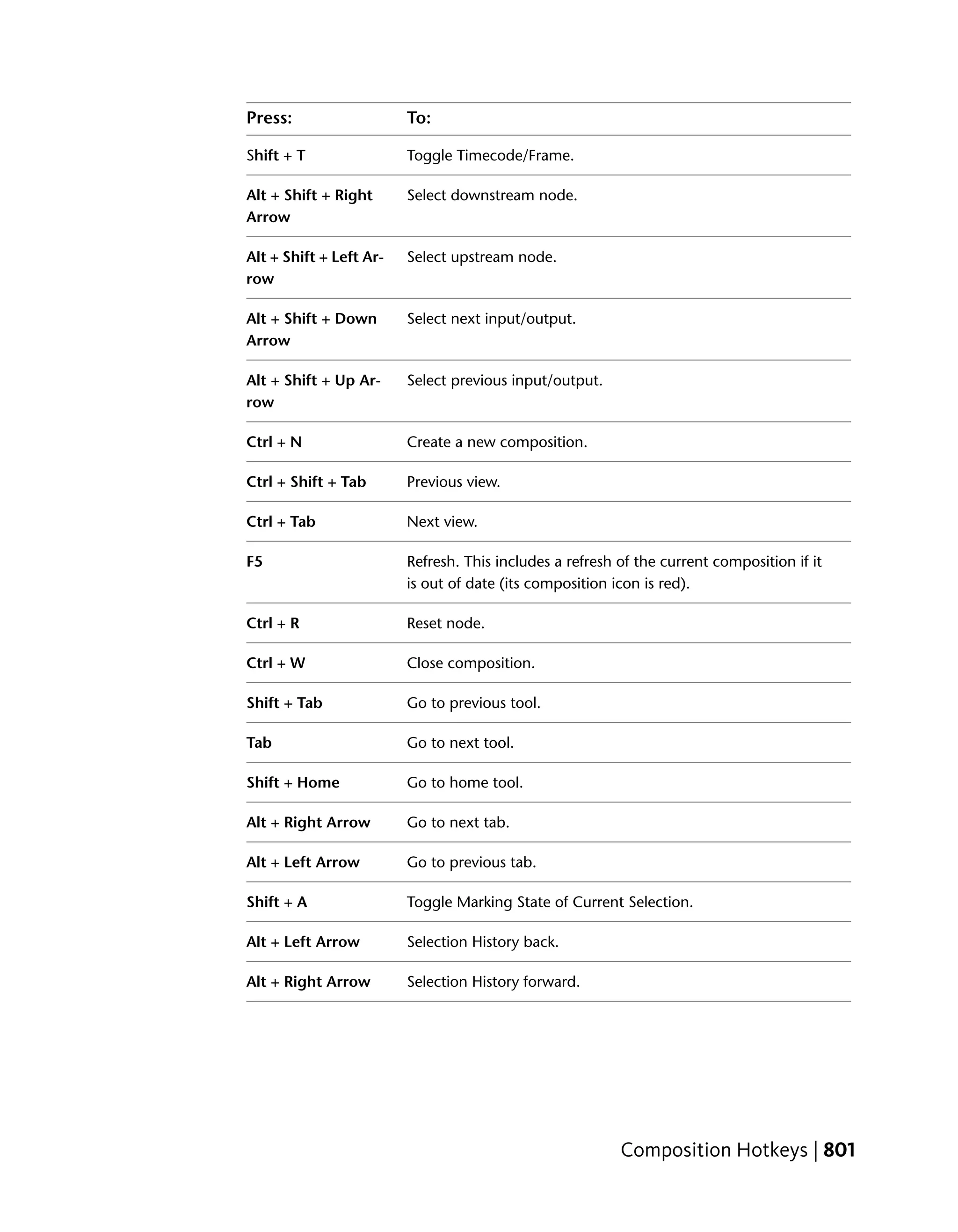
             Composition Hotkeys . .             .    .    .    .    .    .    .    .    .    .    .    .    .    .    .    .    .    .    .    .    .    .    .    . 800
             Views . . . . . . . . . . .         .    .    .    .    .    .    .    .    .    .    .    .    .    .    .    .    .    .    .    .    .    .    .    . 803
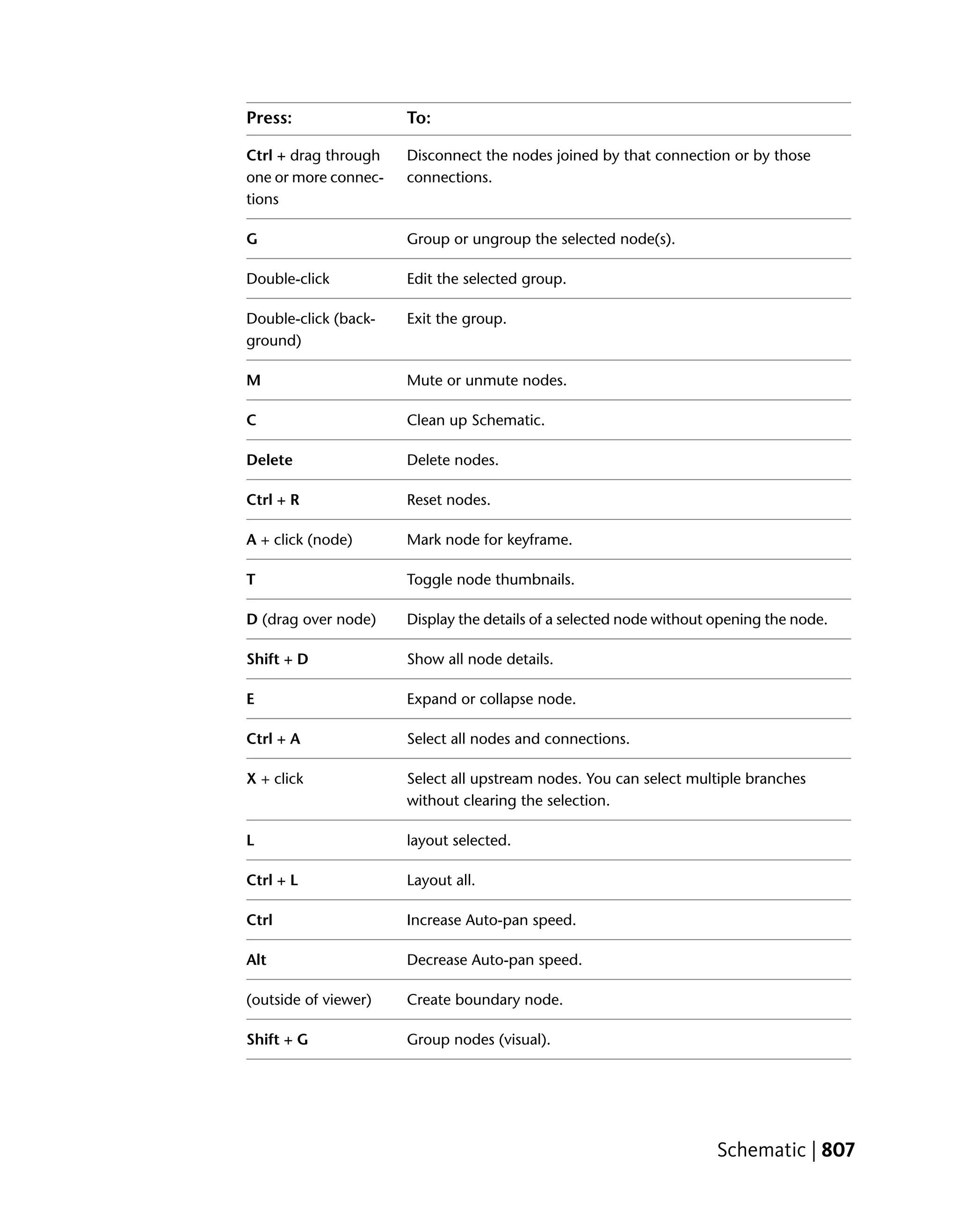
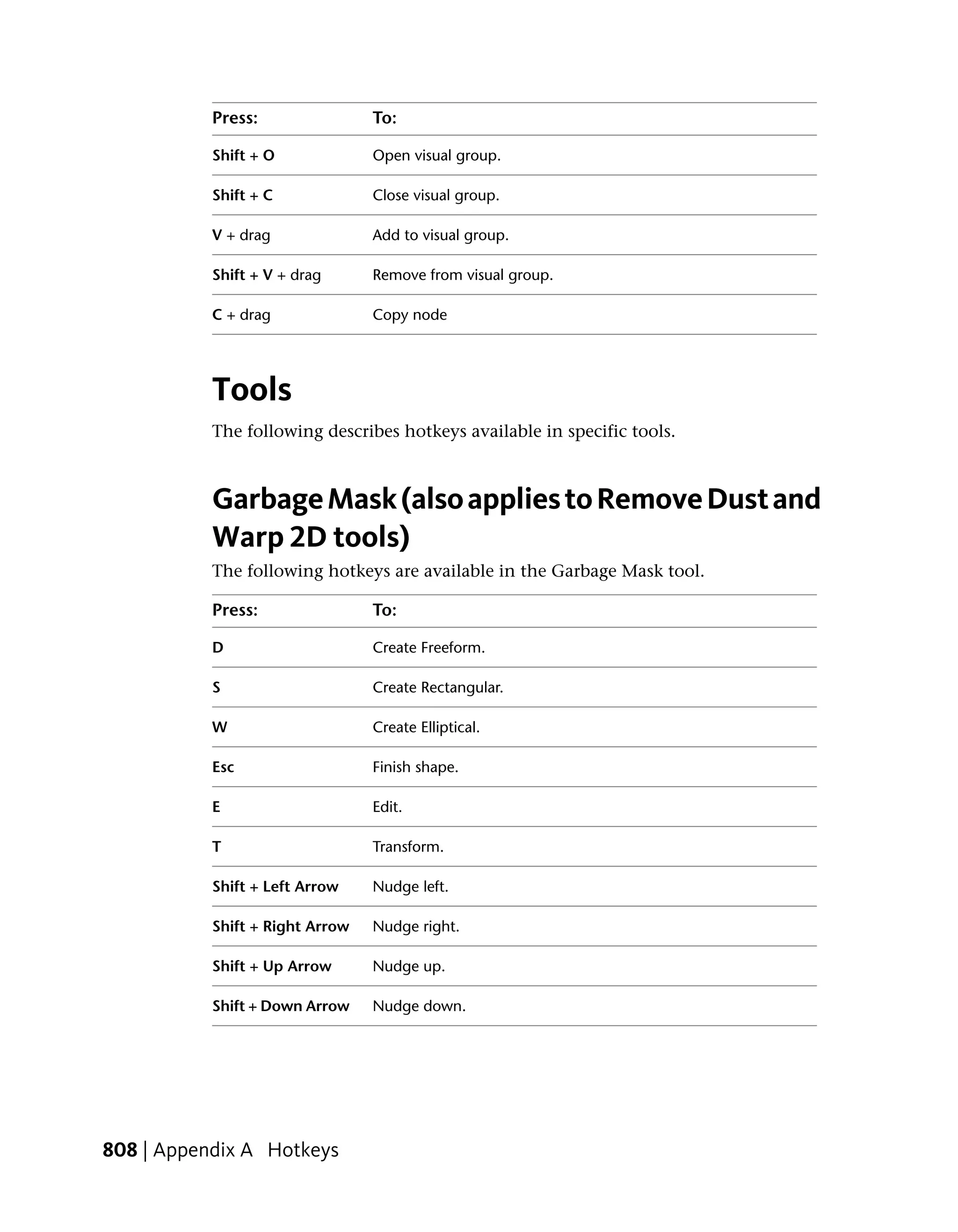
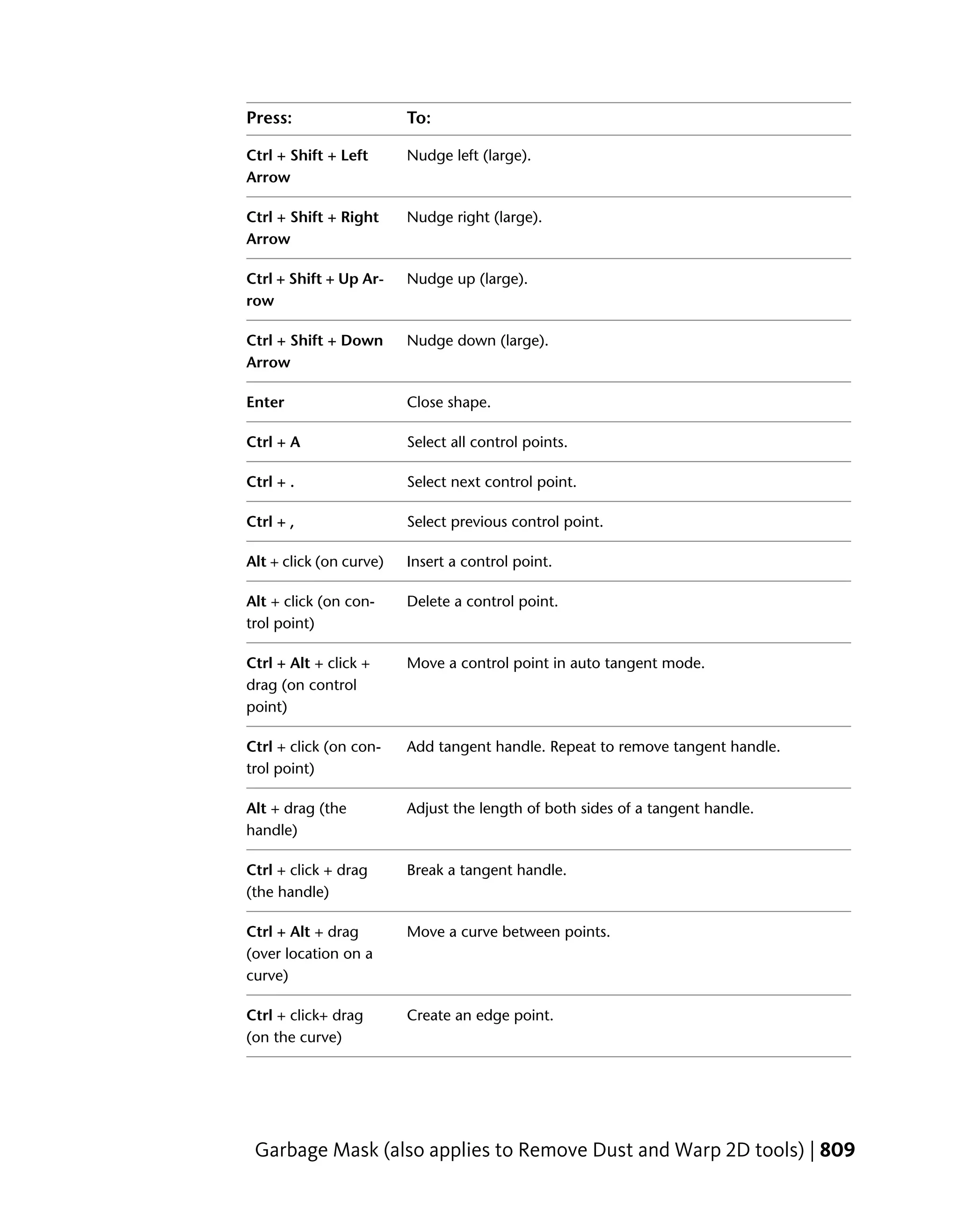
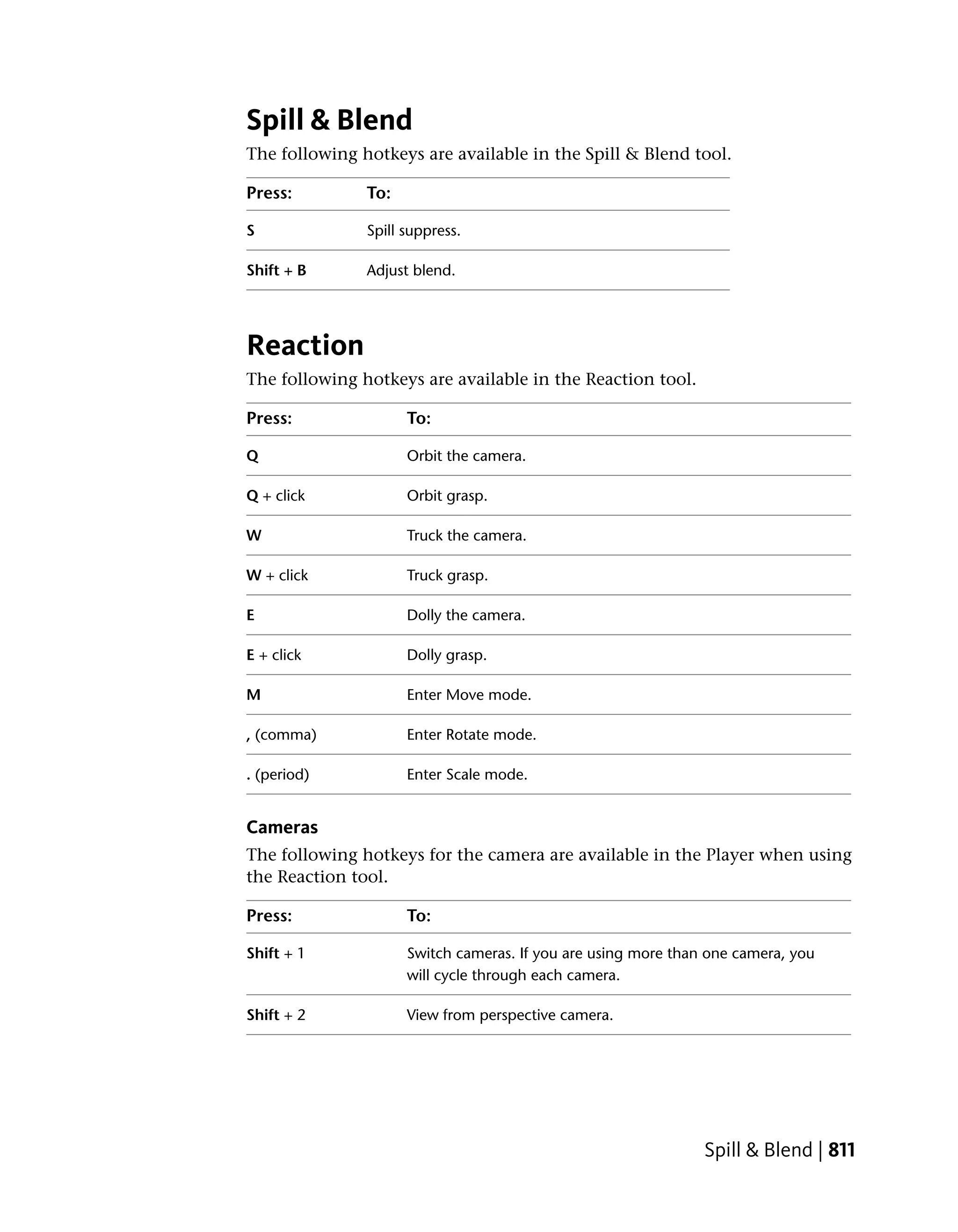
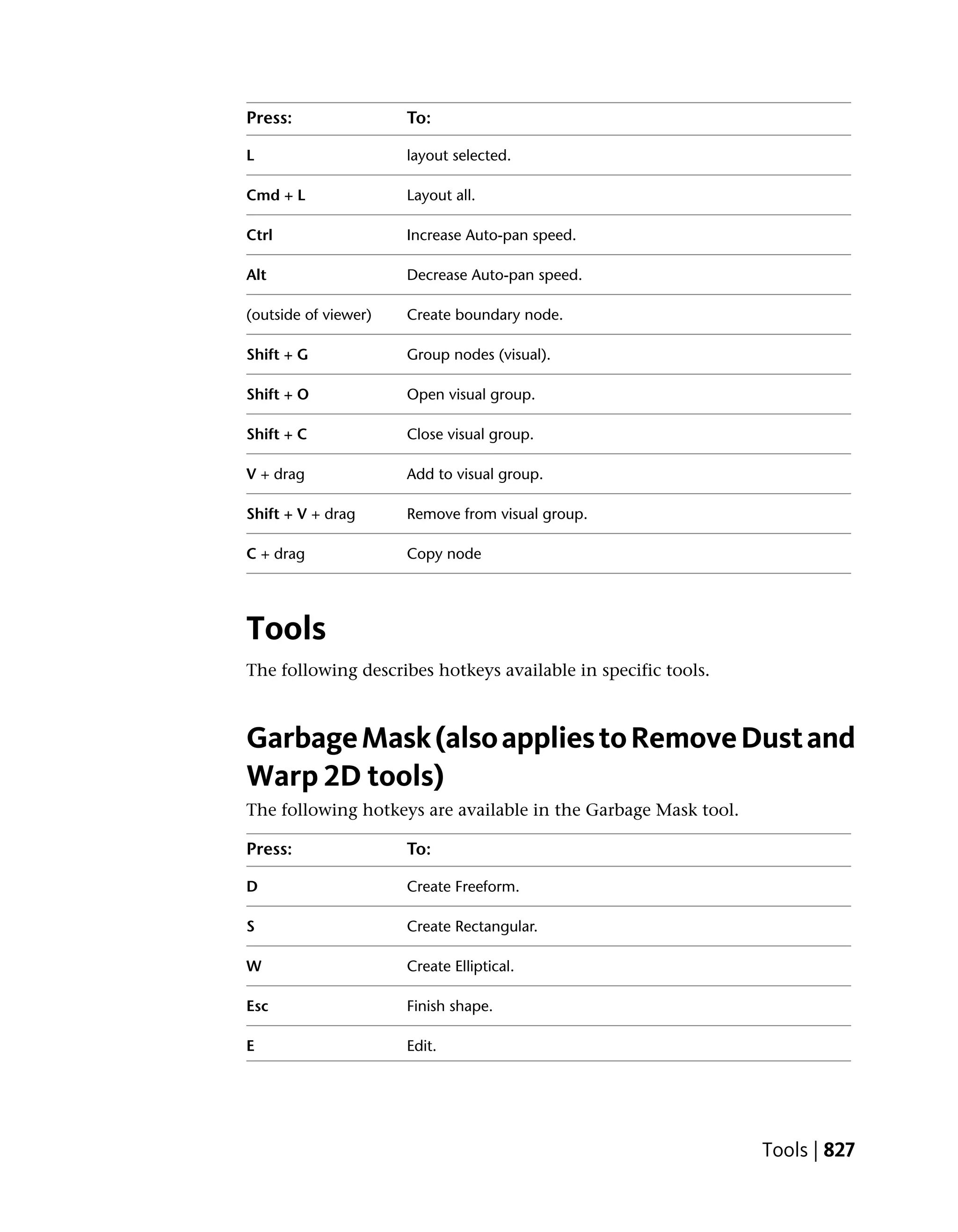
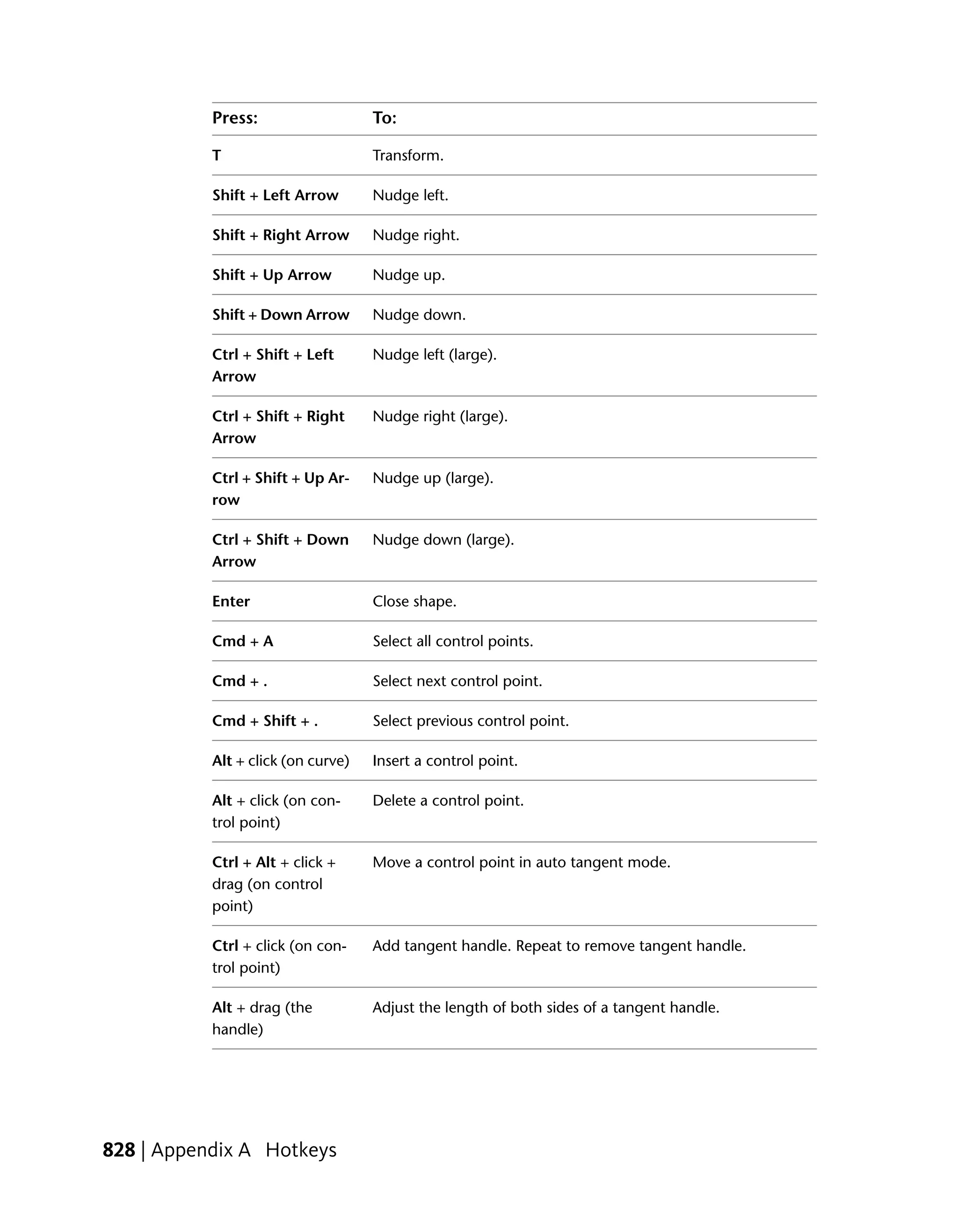
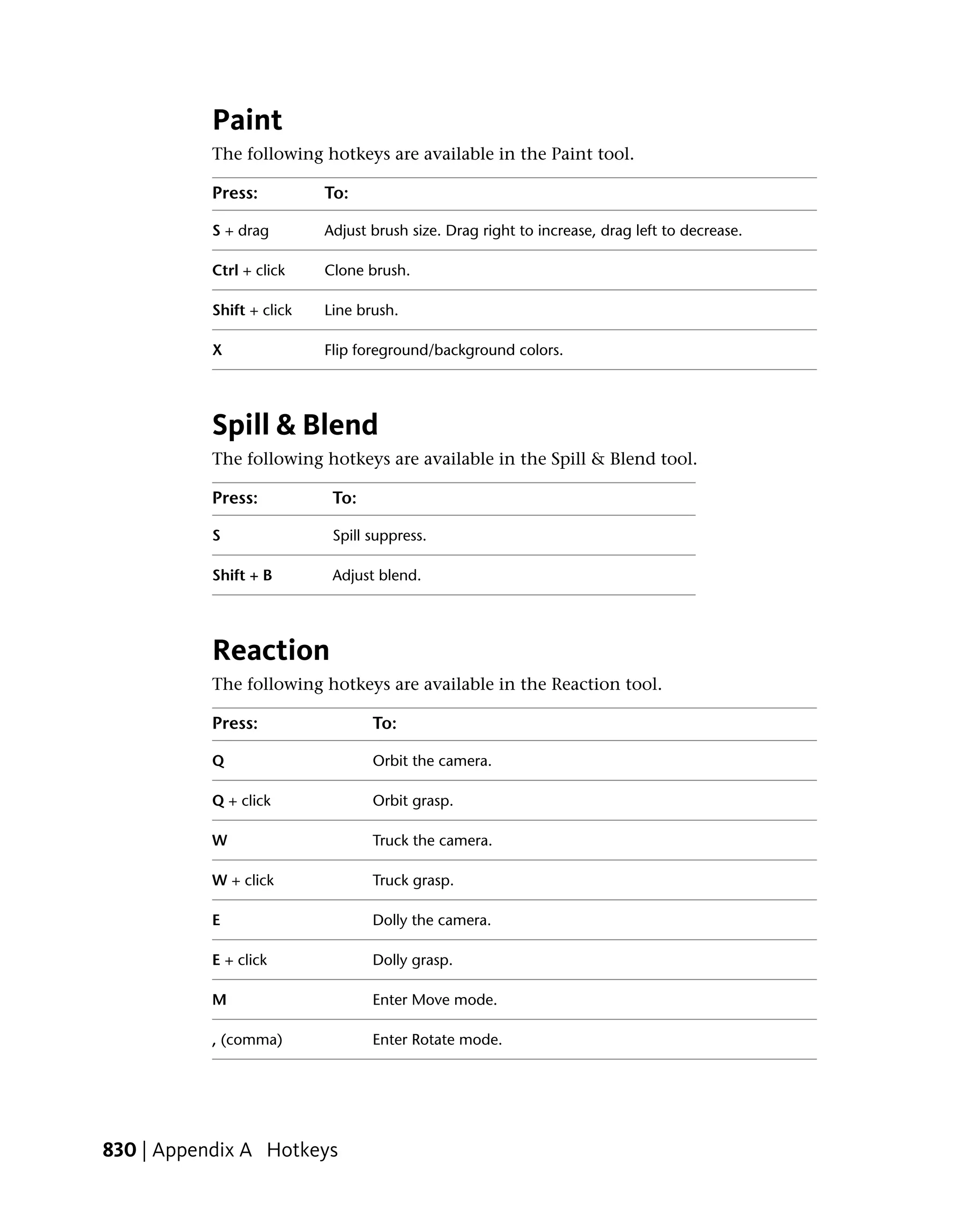
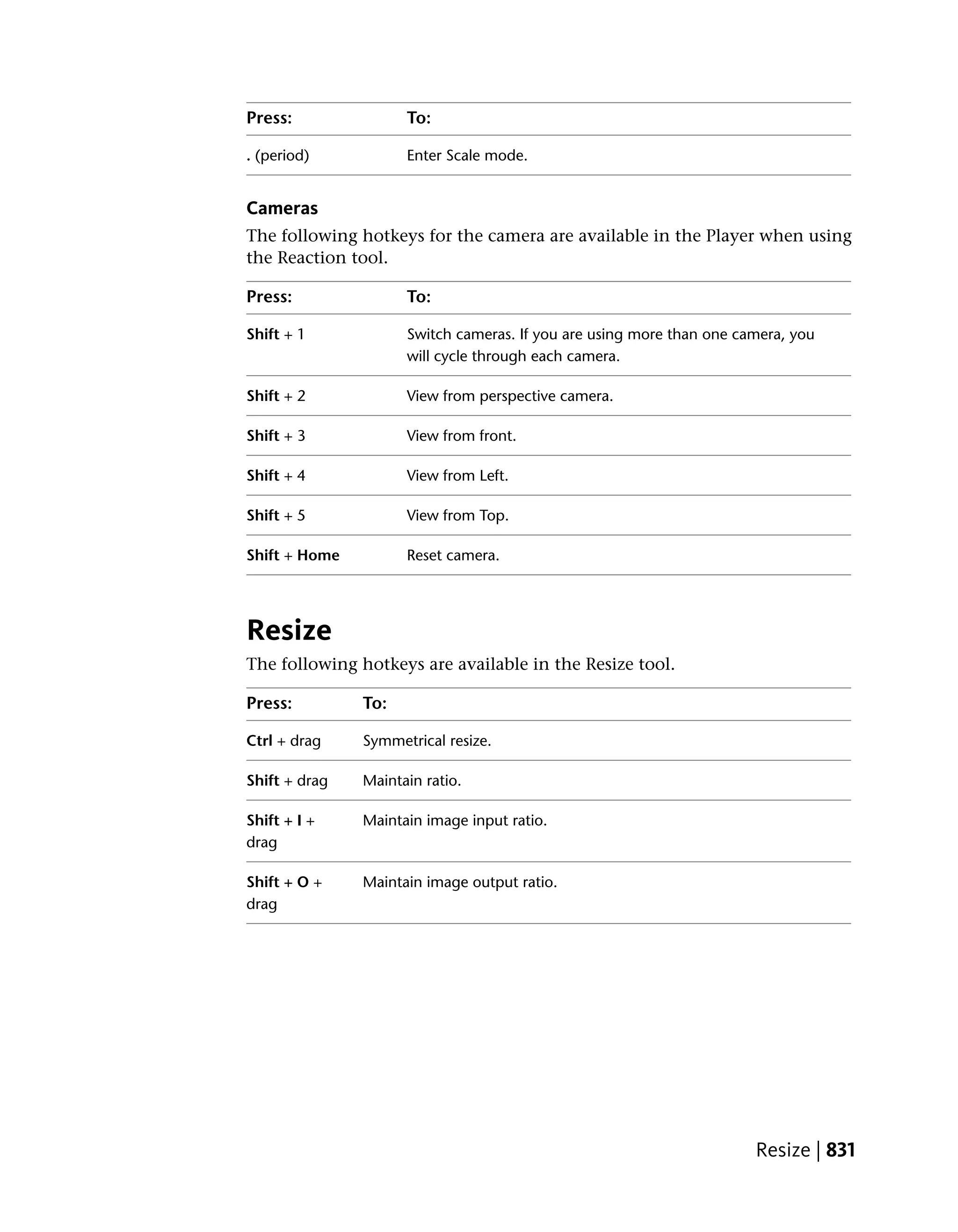
             Tools . . . . . . . . . . .         .    .    .    .    .    .    .    .    .    .    .    .    .    .    .    .    .    .    .    .    .    .    .    . 808
             Mac OS . . . . . . . . . .          .    .    .    .    .    .    .    .    .    .    .    .    .    .    .    .    .    .    .    .    .    .    .    . 813
             Login Screen . . . . . . .          .    .    .    .    .    .    .    .    .    .    .    .    .    .    .    .    .    .    .    .    .    .    .    . 814
             General . . . . . . . . . .          .    .    .    .    .    .    .    .    .    .    .    .    .    .    .    .    .    .    .    .    .    .    .    . 814
             User Interface Elements .           .    .    .    .    .    .    .    .    .    .    .    .    .    .    .    .    .    .    .    .    .    .    .    . 815
             Browsers . . . . . . . . .          .    .    .    .    .    .    .    .    .    .    .    .    .    .    .    .    .    .    .    .    .    .    .    . 818
             Composition Hotkeys . .             .    .    .    .    .    .    .    .    .    .    .    .    .    .    .    .    .    .    .    .    .    .    .    . 819
             Views . . . . . . . . . . .         .    .    .    .    .    .    .    .    .    .    .    .    .    .    .    .    .    .    .    .    .    .    .    . 822
             Tools . . . . . . . . . . .         .    .    .    .    .    .    .    .    .    .    .    .    .    .    .    .    .    .    .    .    .    .    .    . 827

Appendix B Toxik     Executables . . . . . . . . . . . . . . . . . . . . . . . . 835
             Setting the Toxik Environment in a Shell .                                       .    .    .    .    .    .    .    .    .    .    .    .    .    .    . 835
             toxik Executable . . . . . . . . . . . . . .                                     .    .    .    .    .    .    .    .    .    .    .    .    .    .    . 838
             txcheck Executable . . . . . . . . . . . . .                                     .    .    .    .    .    .    .    .    .    .    .    .    .    .    . 838
             txperf Executable . . . . . . . . . . . . . .                                    .    .    .    .    .    .    .    .    .    .    .    .    .    .    . 840
             txversion Executable . . . . . . . . . . . .                                     .    .    .    .    .    .    .    .    .    .    .    .    .    .    . 844

Appendix C Python Scripting . . . . . . . . . . . . . . . . . . . . . . . . . 845
             About Python Scripting . . . . . . . . . . . . . . . . . . . . . . . . . 845

Appendix D Initialization Variables and String Substitutions . . . . . . . . 851
             Initialization Variables . . . . . . . . . . . . . . . . . . . . . . . . . . 851
             String Substitutions . . . . . . . . . . . . . . . . . . . . . . . . . . . 853

Appendix E Glossary . . . . . . . . . . . . . . . . . . . . . . . . . . . . . 855
             List of Terms . . . . . . . . . . . . . . . . . . . . . . . . . . . . . . . 855


                                                                                                                                           Contents | xv
Index . . . . . . . . . . . . . . . . . . . . . . . . . . . . . . . 865


xvi | Contents
Preface
                                                                               1
Topics in this chapter:
■   About Toxik on page 1
■   About This Guide on page 2
■   Getting Help on page 2


             About Toxik
             Toxik is Autodesk’s interactive solution for film compositing. It brings
             compositing and visual effects tools to high-end 2D artists working at HD, 2K,
             4K or above, in film, television, and design. It features a full High Dynamic
             Range (HDR) pipeline, next-generation 3D compositing, high performance
             interaction at extremely high resolutions, and advanced rendering. It primarily
             features a database-less workflow for data management, one Toxik seat, one
             scripting license, and unlimited rendering capabilities.
             The Toxik creative toolset includes keying, color correction, tracking, camera
             mapping, paint, spline-based warping, motion blur, and depth of field.
             Furthermore, it can be updated with extensions that add functionality to the
             product by means of new tools and core fixes.


                                                                                         1
About This Guide
            The Toxik User Guide is made up of two major sections: Getting Started and
            Reference.


            Getting Started
            This section describes the basic information you needs to know in order to
            get up and running with Toxik quickly. Topics ranging from key interface
            features and accessing the Help provide you with everything you need to start
            compositing now! It is strongly recommended that you read this section before
            exploring the Reference portion of the User Guide.


            Reference
            This section provides in-depth information about all the tools and key features
            associated with Toxik. Some features discussed in the Getting Started section
            are described in further detail here. The reference section includes advanced
            topics and is most useful for users who have a good understanding of Toxik
            basics.


            Getting Help
            There are two ways to access Help for Toxik, depending on whether you want
            more information on a particular subject or whether you need assistance with
            a specific problem


            Viewing Online Help
            Autodesk provides documentation in an HTML help system displayed in a
            Web browser. The Help is automatically installed with the software.

            To launch the Help, do one of the following:

             1 From the Toxik menu, choose Help > Toxik Help.

             2 From the Windows taskbar, choose Start > programs > Autodesk > Autodesk
               Toxik 2010 > Toxik Documentation > Online Help.

            The Help appears in the browser window.


2 | Chapter 1 Preface
Contacting Support
For further assistance, please contact Technical Support at the following
address: http://www.autodesk.com/subscriptionlogin.


                                                    Contacting Support | 3
4
Part I: Getting Started


Getting Started includes these chapters:
■   About Getting Started on page 7
■   Interface Fundamentals on page 9
■   Start Compositing Now! on page 77


                                           5
6
About Getting Started
                                                                                2
Topics in this chapter:
■   About The Chapters on page 7


             About The Chapters
             The Getting Started section describes fundamental Toxik concepts and explains
             some of the tool’s basic functionality, which should allow you to begin using
             Toxik as quickly as possible. Here is a brief description of the chapters included
             in this section.


             Interface Fundamentals
             This chapter provides the first detailed descriptions about some essential Toxik
             interface features. Toxik interface mechanics like the Gate UI and the Pick List,
             as well as critical functions such as zooming and panning, and working with
             nodes are explained. You’ll find more in-depth information about some of the
             features discussed here, like The Player, in the Reference section.


                                                                                           7
Start Compositing Now! A Simple Workflow Overview
            This chapter provides you with a step-by-step example of how to composite
            using Toxik. The goal is to demonstrate how easily you can begin to use the
            tool, even before you explore some of the more advanced topics covered in
            the Reference section.


8 | Chapter 2 About Getting Started
Interface Fundamentals
                                                                               3
Topics in this chapter:
■   Basic Interface Functions on page 9
■   The Gate UI on page 12
■   The Drop Gate on page 13
■   The Toxik Interface on page 17
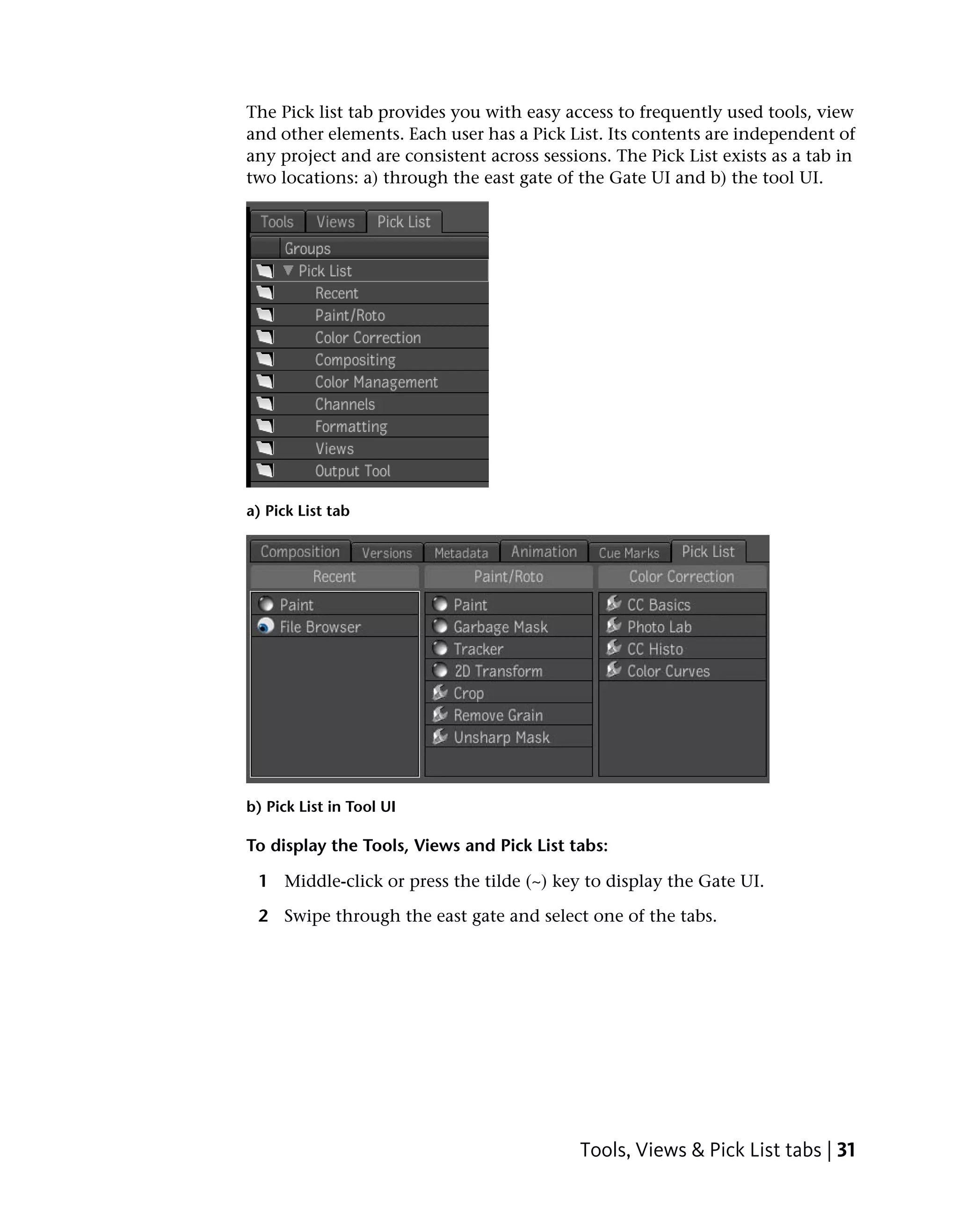
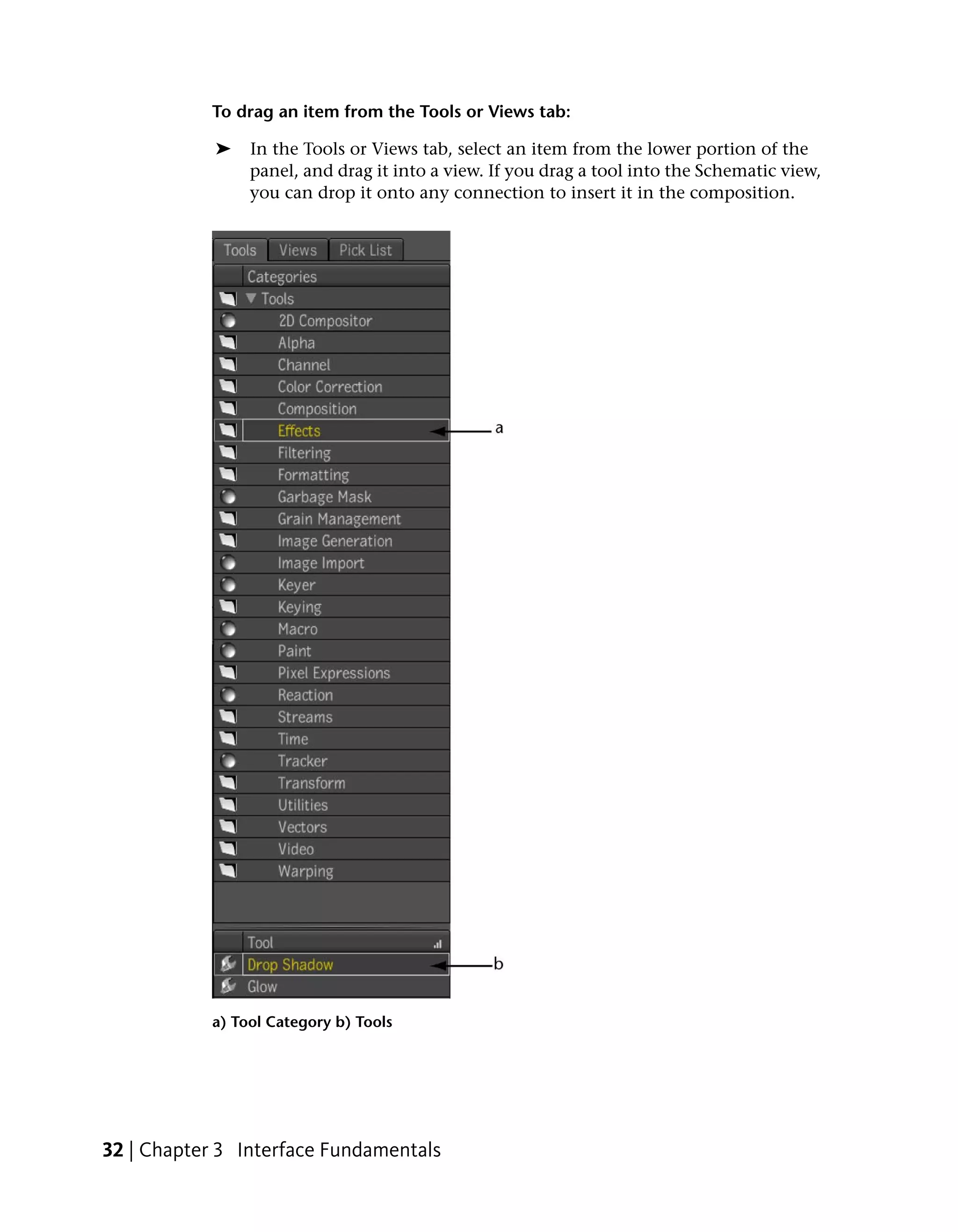
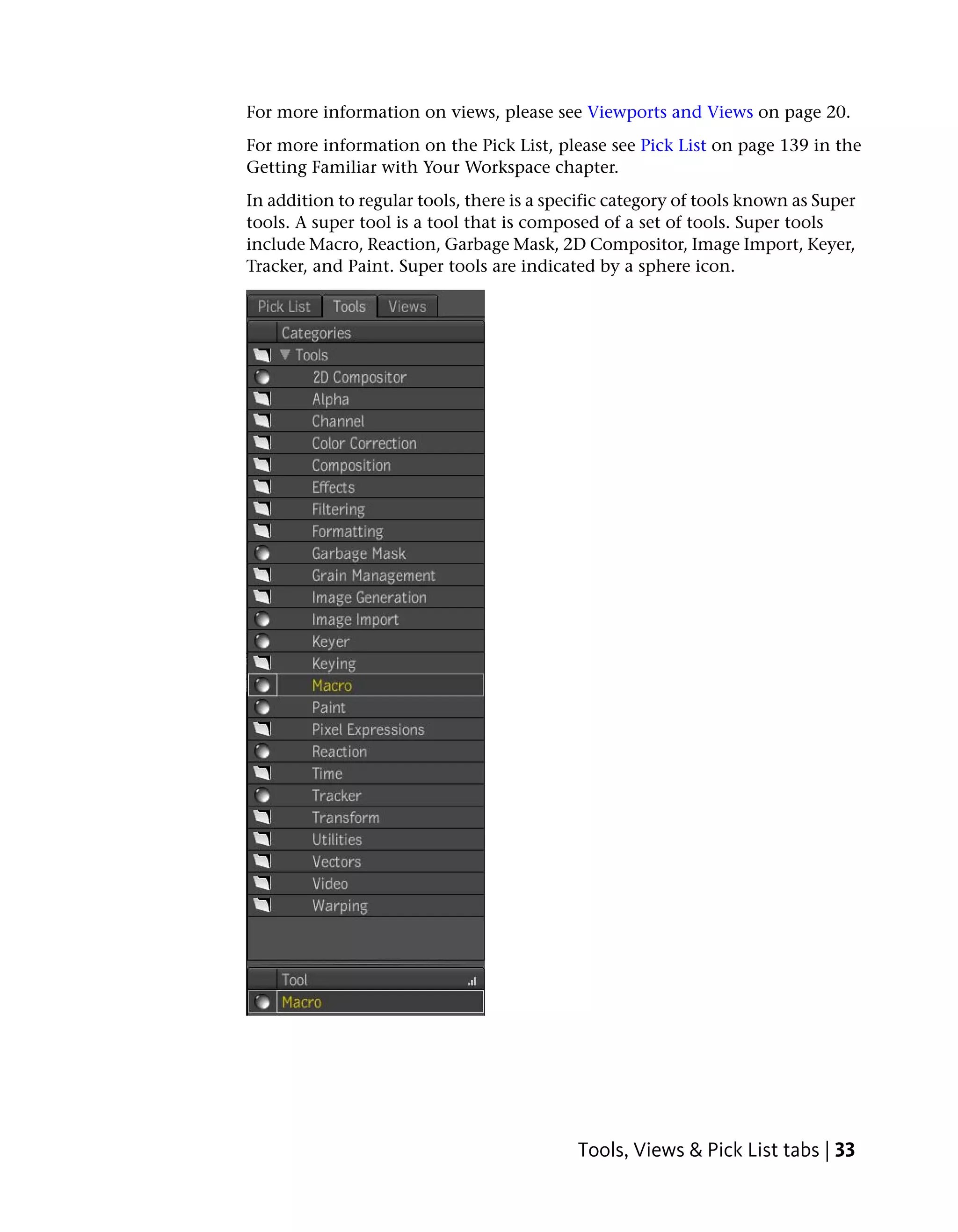
■   Tools, Views & Pick List tabs on page 30
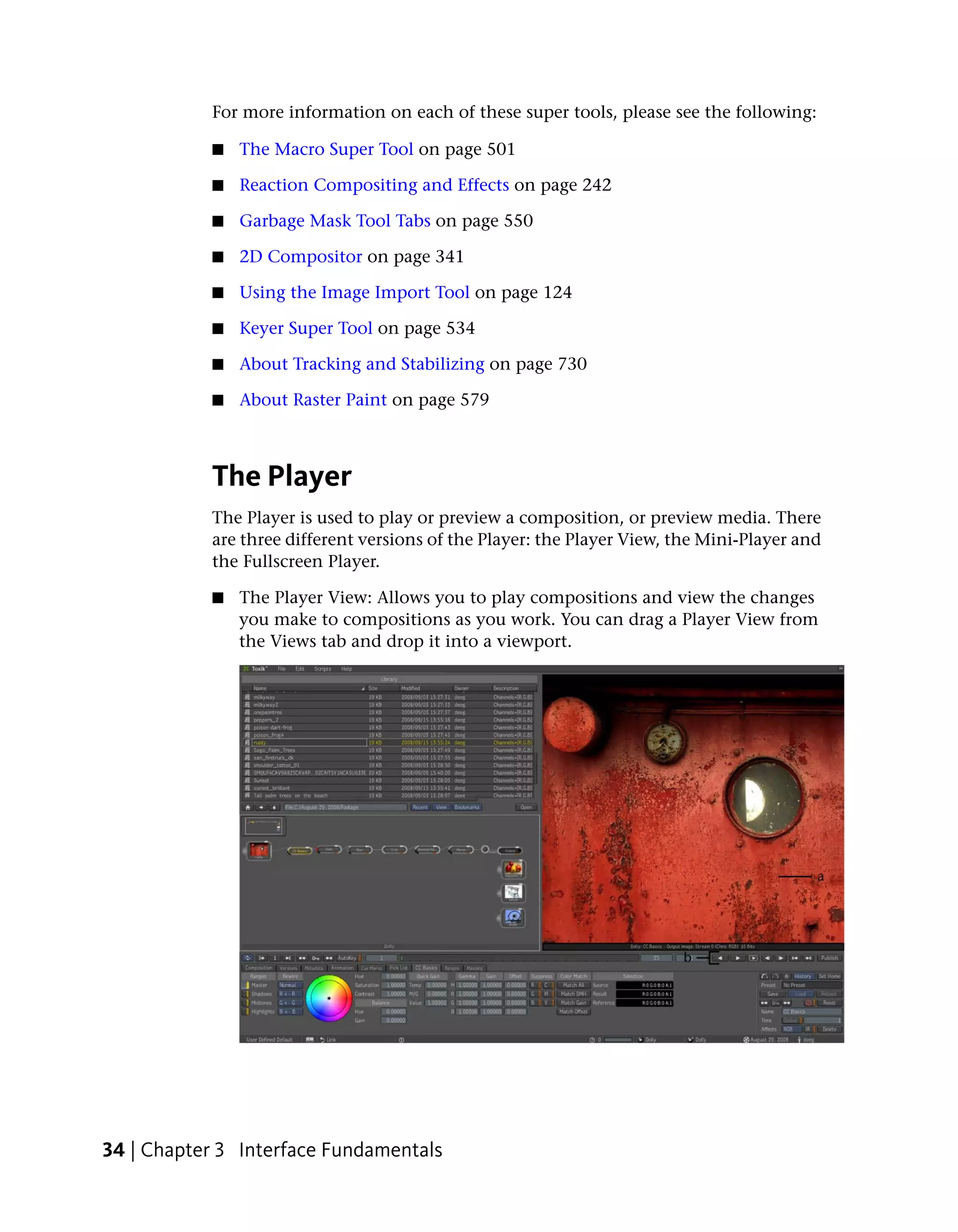
■   The Player on page 34
■   Zooming and Panning on page 39
■   Navigating and Browsing on page 40
■   Working with Schematic on page 51


             Basic Interface Functions
             An intuitive set of editing functions are available to manipulate elements, such
             as compositions, folders, and so on. These include basic functions for cutting,
             copying, pasting, and deleting, as well as more advanced functions.


                                                                                         9
Mouse, Pen, Keyboard
           You can interact with the user interface using a mouse or a pen and graphics
           tablet, in concert with the keyboard. If you have a mouse wheel, you can use
           it to scroll through menus.

           NOTE To generate a right-click with a pen, press the Context Menu key in
           concert with the pen. If a key board includes a Context Menu key, it is typically
           located three keys to the right of the Spacebar.


           Cutting, Copying and Pasting
           Standard cut, copy, and paste commands let you manipulate elements, such
           as composition and folders.
           To cut or copy, then paste an element:

               1 Right-click the element and select Cut (Ctrl + X for Windows, Linux
                 or Cmd + X for Mac OS) or Copy (Ctrl + C for Windows, Linux or
                 Cmd + C for Mac OS).
               2 Navigate to the location where you want to paste the element. Then
                 right-click the location and select Paste or press (Ctrl + V for Windows,
                 Linux or Cmd + V for Mac OS).


           Entering Text
           Tools such as the Slate and Notes tools require that you type into text editor
           fields.
           To accept changes in a text editor field, do one of the following:

           ■    Press Enter in the case of a single-line editor.

           ■    Press Ctrl + Enter in the case of a multi-line editor.

           ■    Click outside the editor.

           To revert to the previous text:

           ■    Press Esc.


10 | Chapter 3 Interface Fundamentals
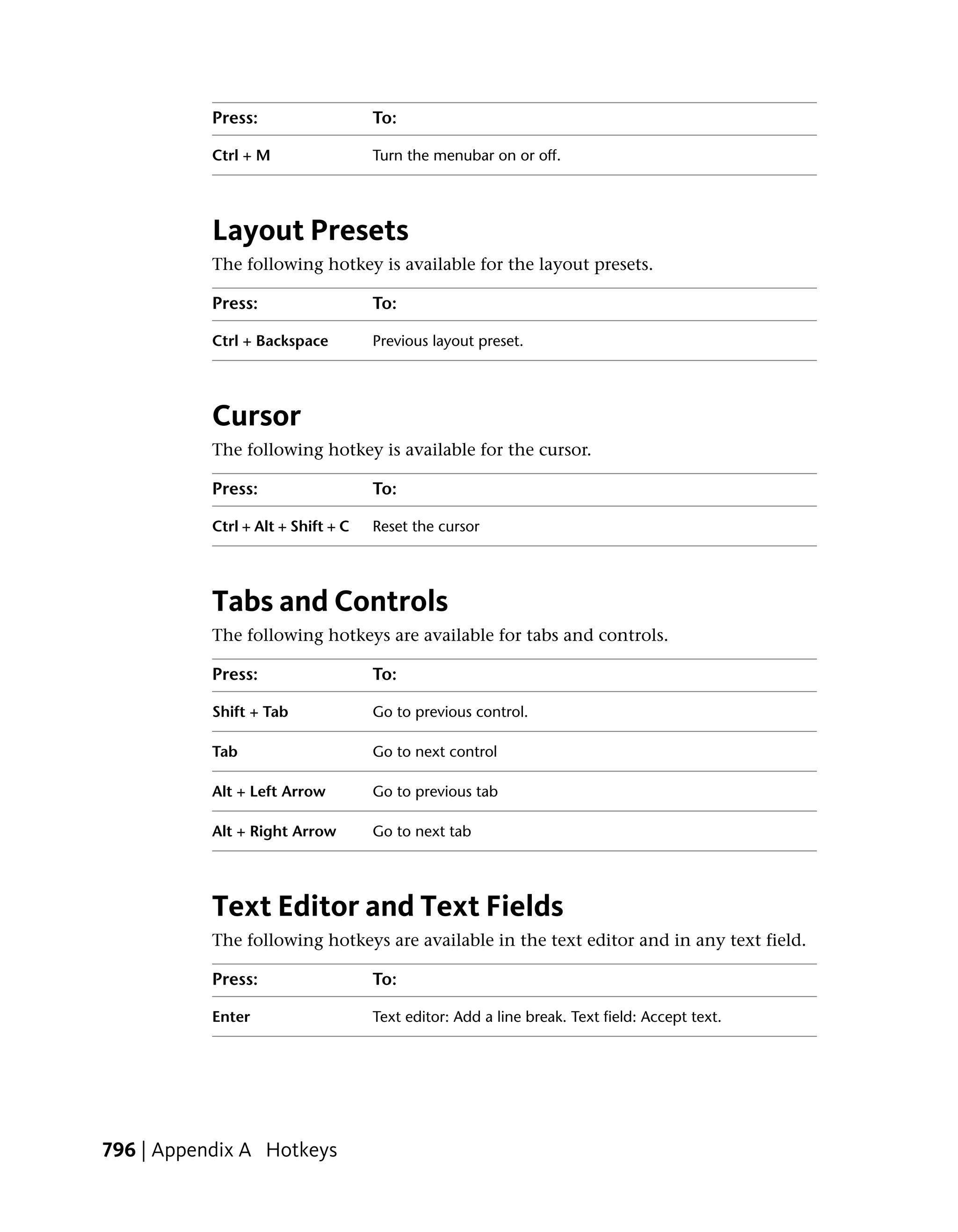
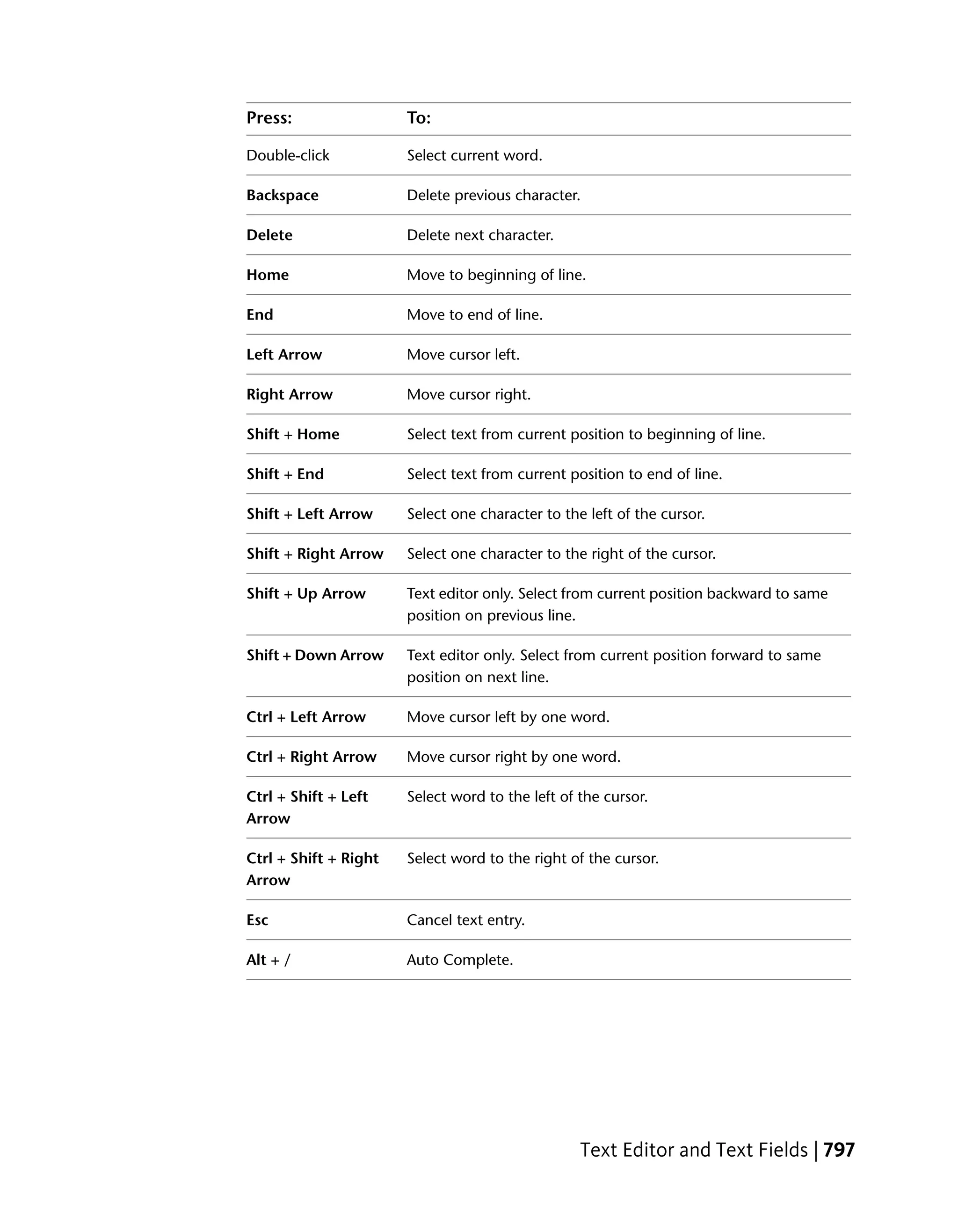
For more text editor/field hotkey combinations, see Text Editor and Text Fields
on page 796.


Dragging and Dropping
You can drag and drop the contents of most folders in the user interface. In
the user preferences, you can choose whether you see the ghosted image of
the composition or not. See Setting User Preferences on page 165.


Undoing and Redoing
You can undo most operations. You can also redo any operation you undo.
To undo or redo an operation, do one of the following:

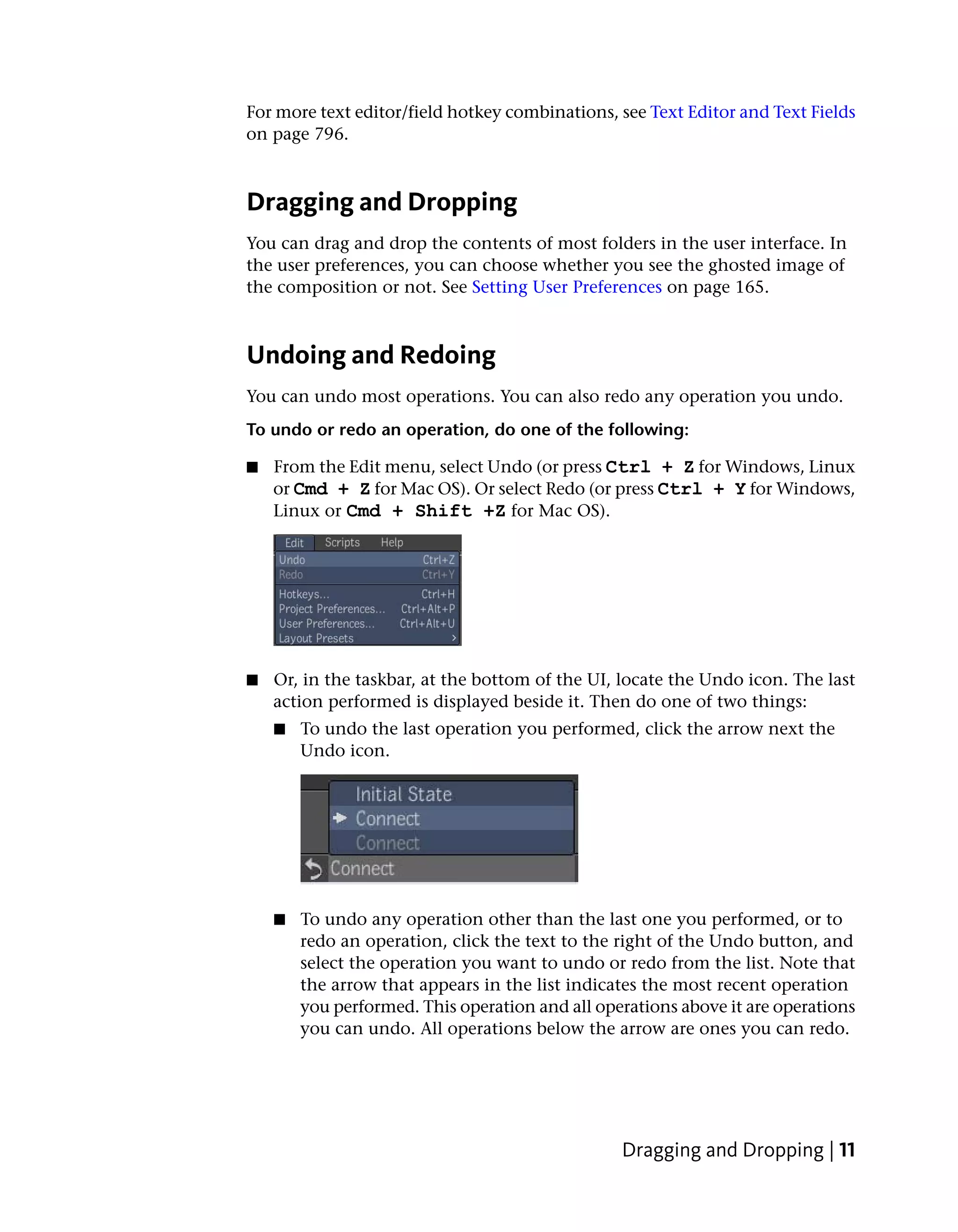
■   From the Edit menu, select Undo (or press Ctrl + Z for Windows, Linux
    or Cmd + Z for Mac OS). Or select Redo (or press Ctrl + Y for Windows,
    Linux or Cmd + Shift +Z for Mac OS).


■   Or, in the taskbar, at the bottom of the UI, locate the Undo icon. The last
    action performed is displayed beside it. Then do one of two things:
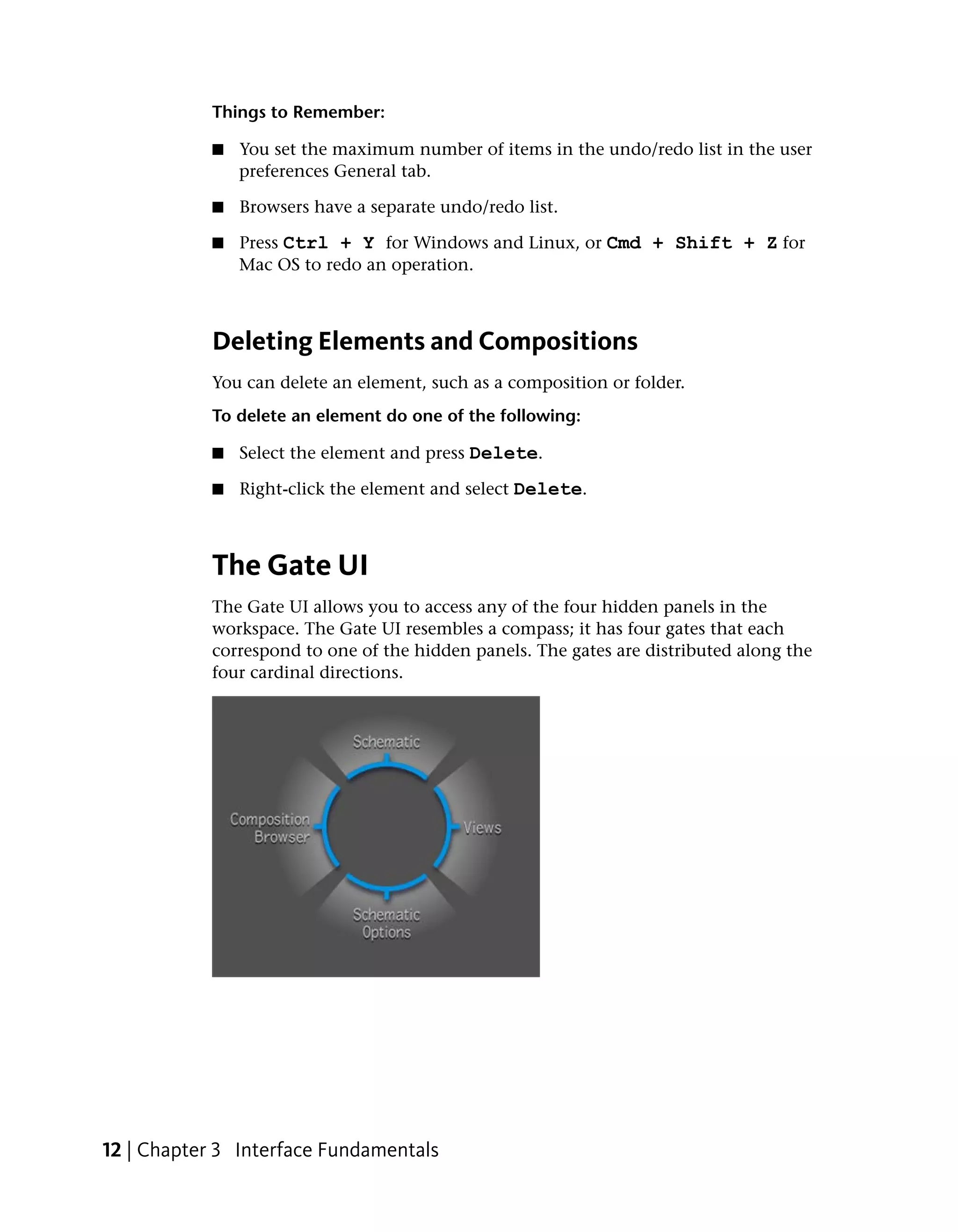
    ■   To undo the last operation you performed, click the arrow next the
        Undo icon.


    ■   To undo any operation other than the last one you performed, or to
        redo an operation, click the text to the right of the Undo button, and
        select the operation you want to undo or redo from the list. Note that
        the arrow that appears in the list indicates the most recent operation
        you performed. This operation and all operations above it are operations
        you can undo. All operations below the arrow are ones you can redo.


                                                 Dragging and Dropping | 11
Things to Remember:

            ■   You set the maximum number of items in the undo/redo list in the user
                preferences General tab.

            ■   Browsers have a separate undo/redo list.

            ■   Press Ctrl + Y for Windows and Linux, or Cmd + Shift + Z for
                Mac OS to redo an operation.


            Deleting Elements and Compositions
            You can delete an element, such as a composition or folder.
            To delete an element do one of the following:

            ■   Select the element and press Delete.

            ■   Right-click the element and select Delete.


            The Gate UI
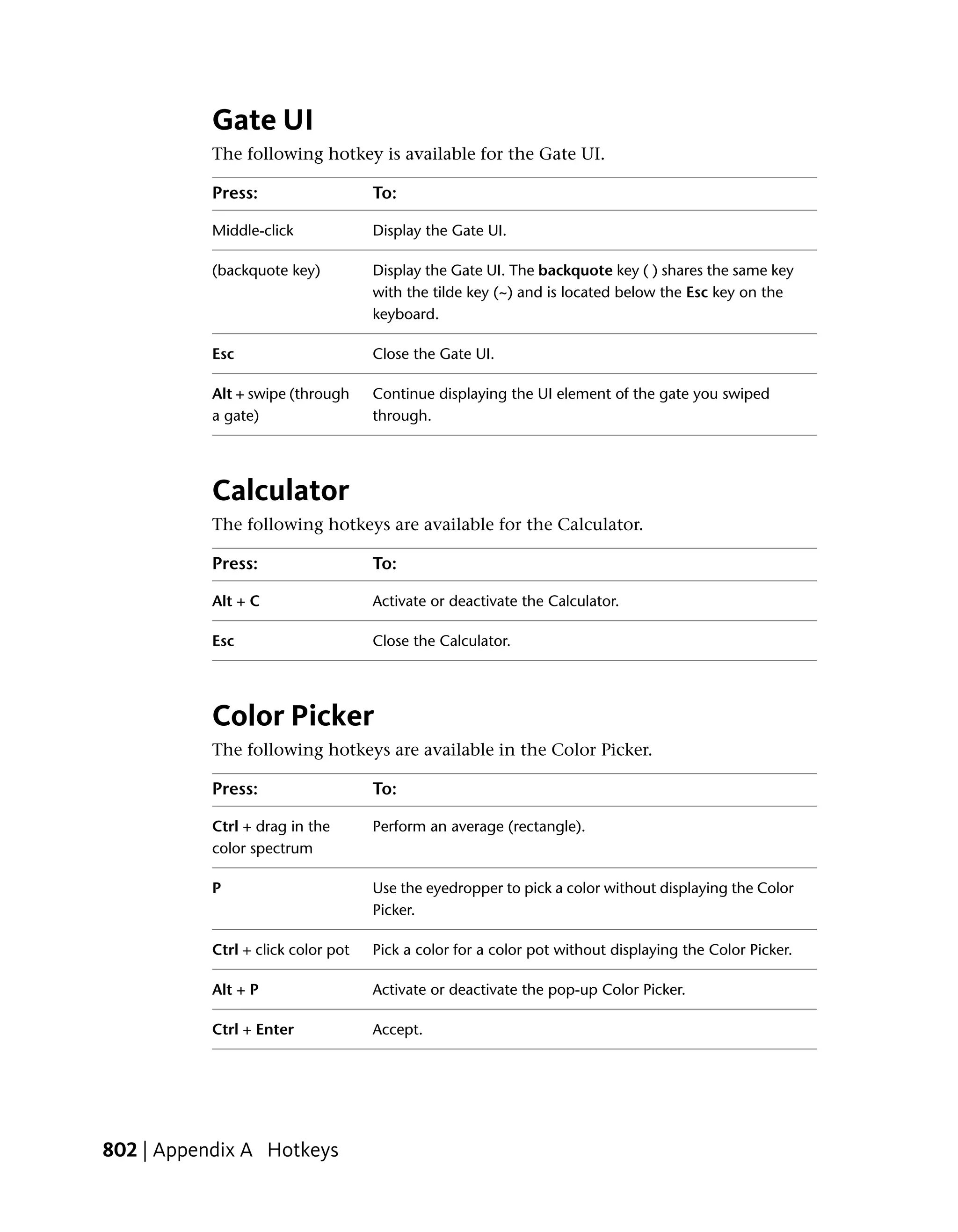
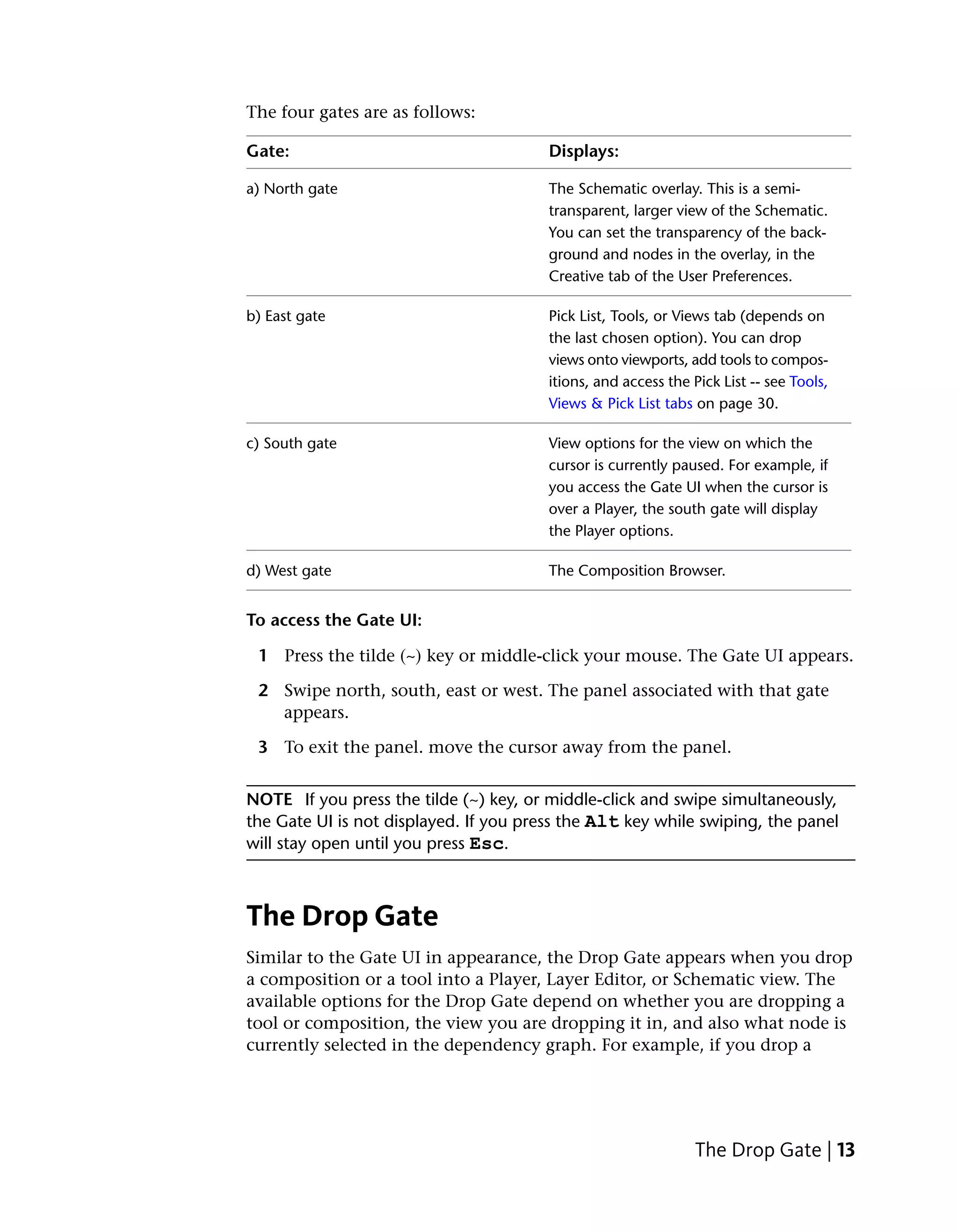
            The Gate UI allows you to access any of the four hidden panels in the
            workspace. The Gate UI resembles a compass; it has four gates that each
            correspond to one of the hidden panels. The gates are distributed along the
            four cardinal directions.


12 | Chapter 3 Interface Fundamentals
The four gates are as follows:

Gate:                                   Displays:

a) North gate                           The Schematic overlay. This is a semi-
                                        transparent, larger view of the Schematic.
                                        You can set the transparency of the back-
                                        ground and nodes in the overlay, in the
                                        Creative tab of the User Preferences.

b) East gate                            Pick List, Tools, or Views tab (depends on
                                        the last chosen option). You can drop
                                        views onto viewports, add tools to compos-
                                        itions, and access the Pick List -- see Tools,
                                        Views & Pick List tabs on page 30.

c) South gate                           View options for the view on which the
                                        cursor is currently paused. For example, if
                                        you access the Gate UI when the cursor is
                                        over a Player, the south gate will display
                                        the Player options.

d) West gate                            The Composition Browser.


To access the Gate UI:

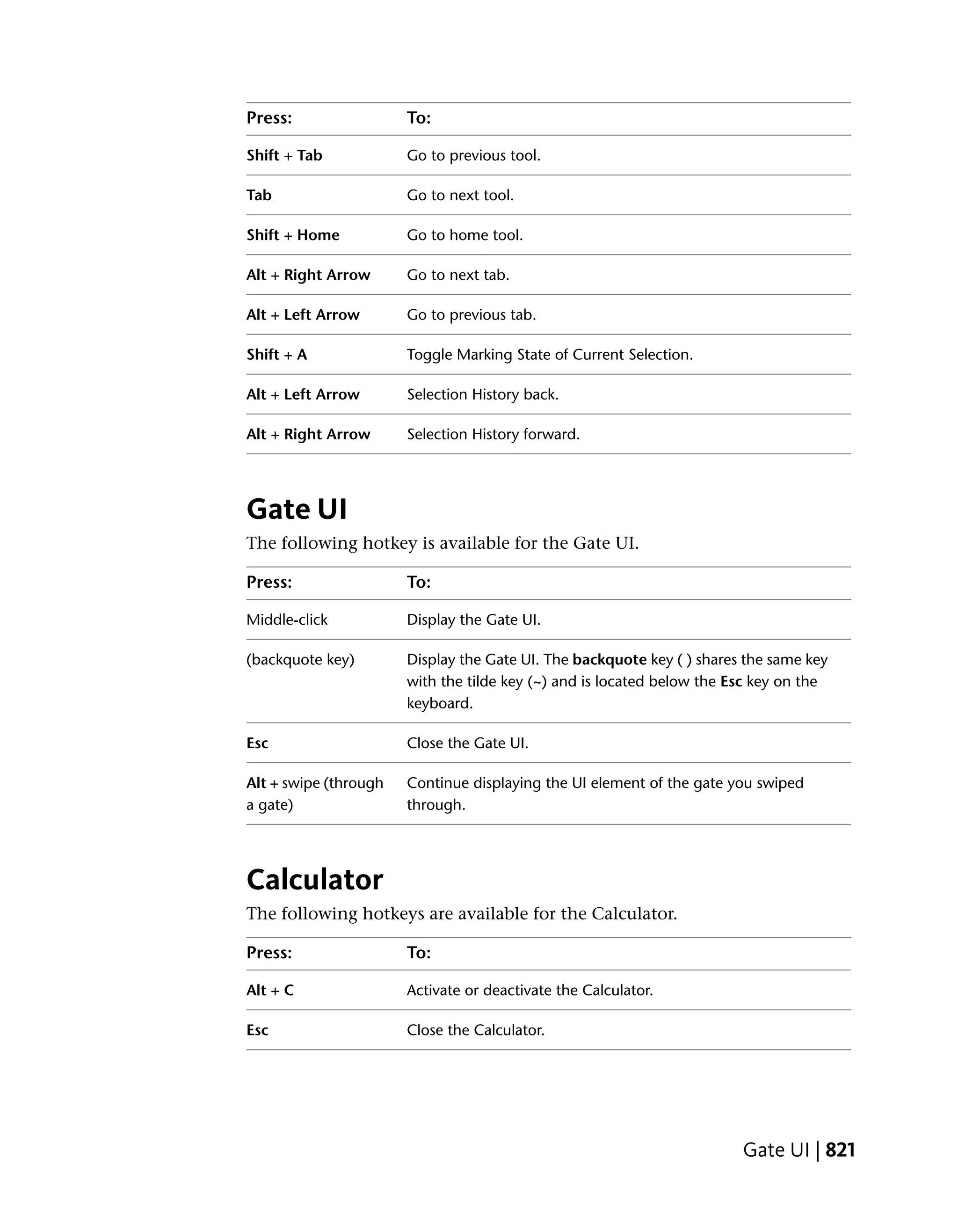
 1 Press the tilde (~) key or middle-click your mouse. The Gate UI appears.

 2 Swipe north, south, east or west. The panel associated with that gate
   appears.

 3 To exit the panel. move the cursor away from the panel.


NOTE If you press the tilde (~) key, or middle-click and swipe simultaneously,
the Gate UI is not displayed. If you press the Alt key while swiping, the panel
will stay open until you press Esc.


The Drop Gate
Similar to the Gate UI in appearance, the Drop Gate appears when you drop
a composition or a tool into a Player, Layer Editor, or Schematic view. The
available options for the Drop Gate depend on whether you are dropping a
tool or composition, the view you are dropping it in, and also what node is
currently selected in the dependency graph. For example, if you drop a


                                                                The Drop Gate | 13
composition on a Reaction node in the Schematic view, the Composition
           Drop Gate appears.
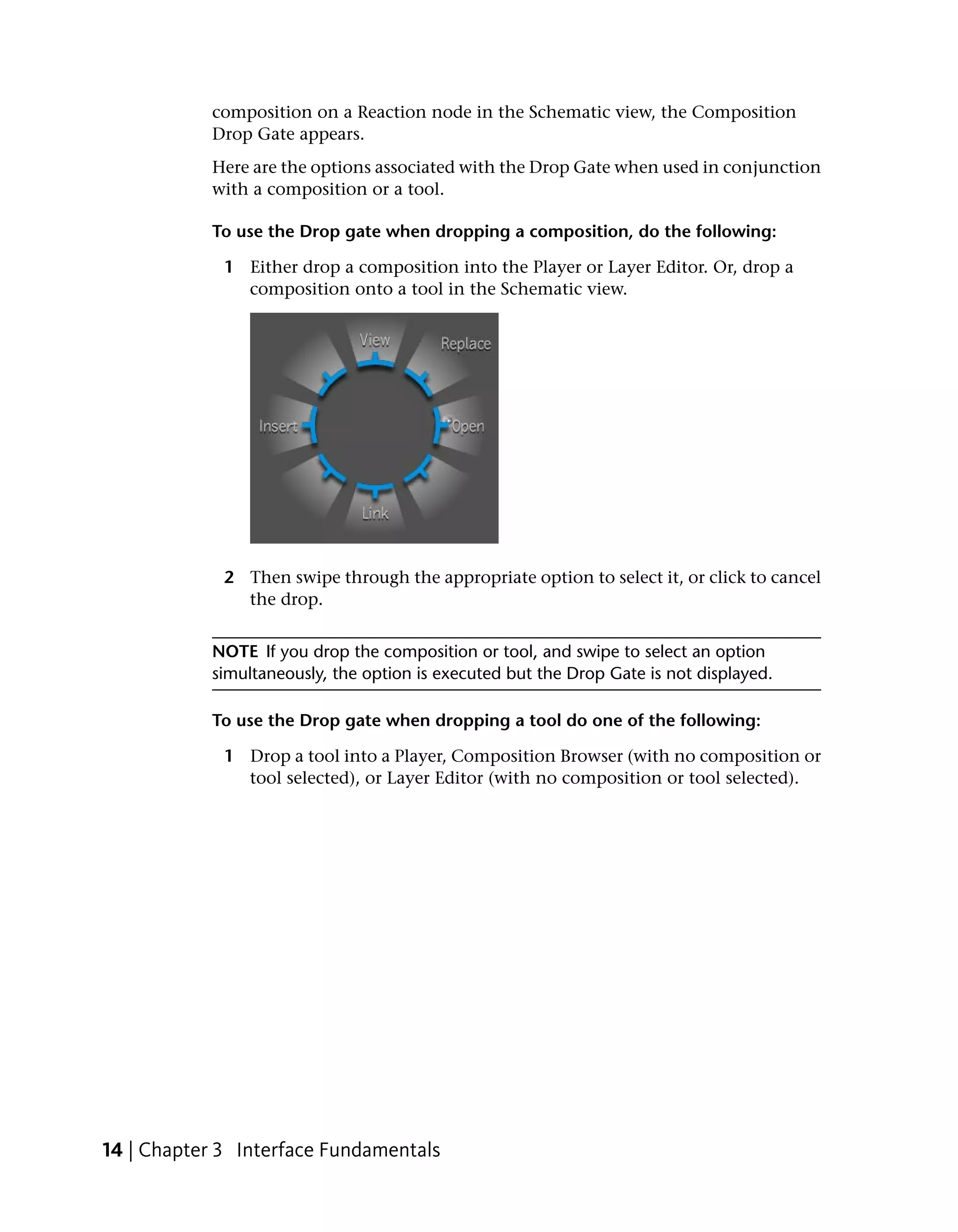
           Here are the options associated with the Drop Gate when used in conjunction
           with a composition or a tool.

           To use the Drop gate when dropping a composition, do the following:

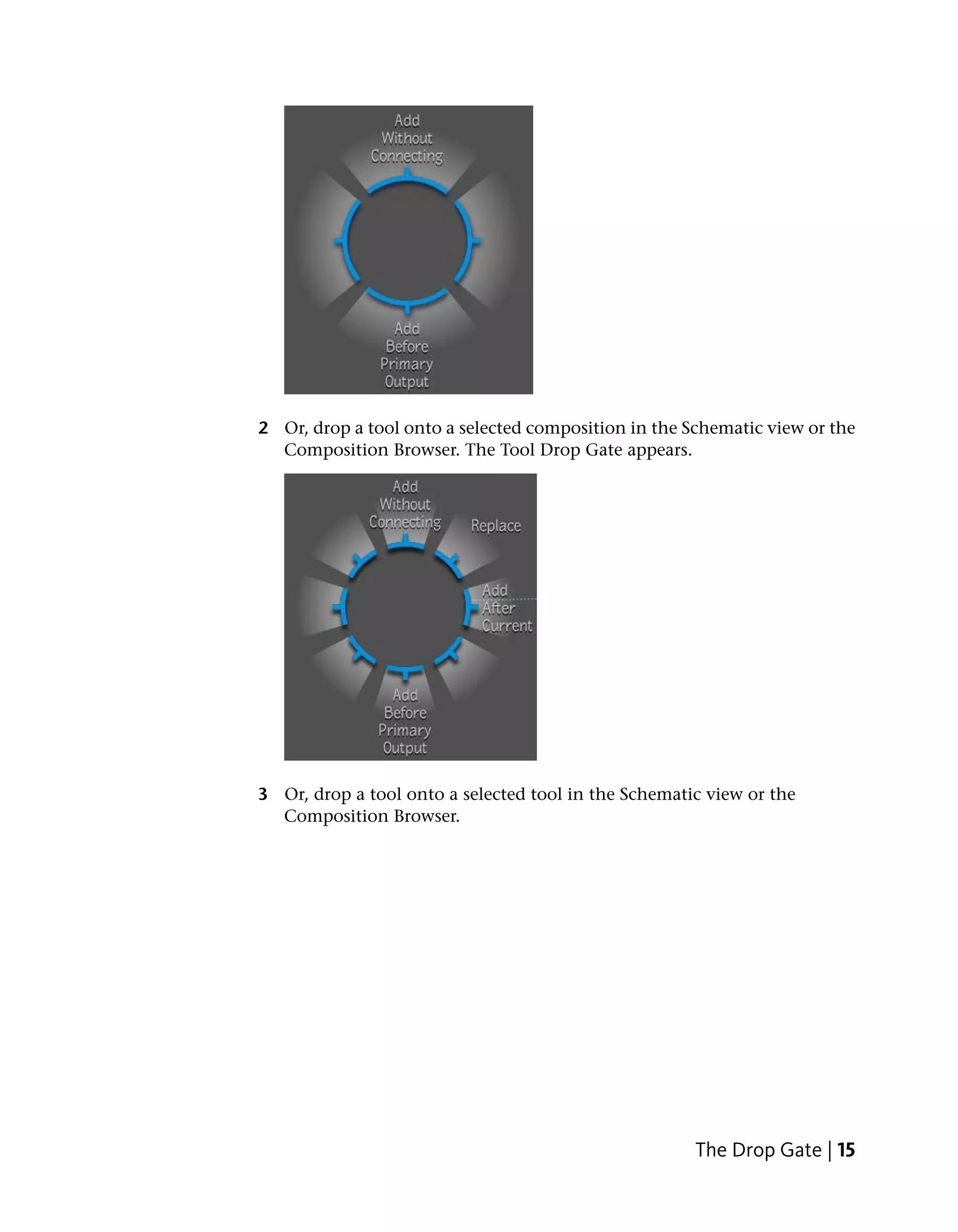
             1 Either drop a composition into the Player or Layer Editor. Or, drop a
               composition onto a tool in the Schematic view.


             2 Then swipe through the appropriate option to select it, or click to cancel
               the drop.


           NOTE If you drop the composition or tool, and swipe to select an option
           simultaneously, the option is executed but the Drop Gate is not displayed.

           To use the Drop gate when dropping a tool do one of the following:

             1 Drop a tool into a Player, Composition Browser (with no composition or
               tool selected), or Layer Editor (with no composition or tool selected).


14 | Chapter 3 Interface Fundamentals
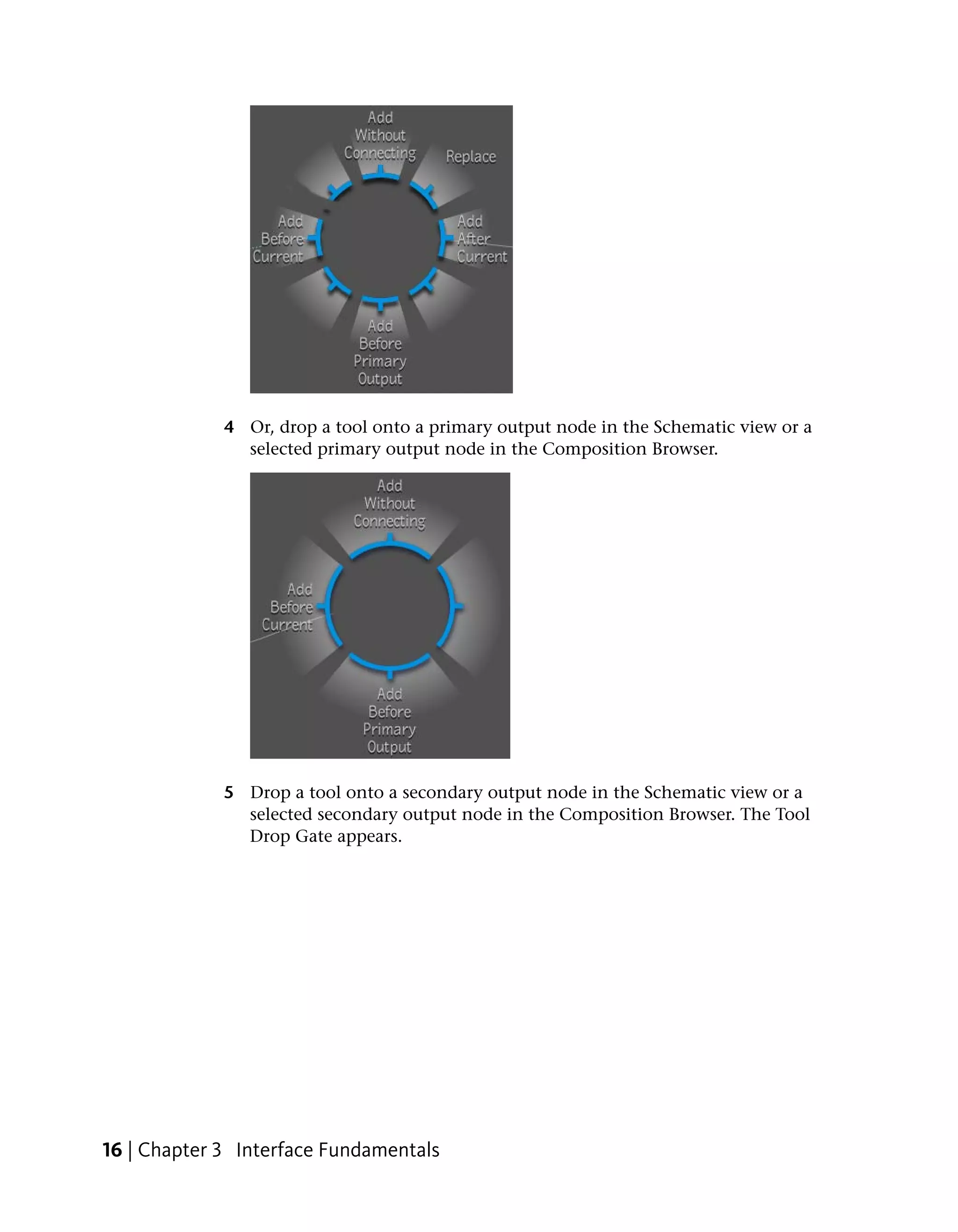
2 Or, drop a tool onto a selected composition in the Schematic view or the
  Composition Browser. The Tool Drop Gate appears.


3 Or, drop a tool onto a selected tool in the Schematic view or the
  Composition Browser.


                                                      The Drop Gate | 15
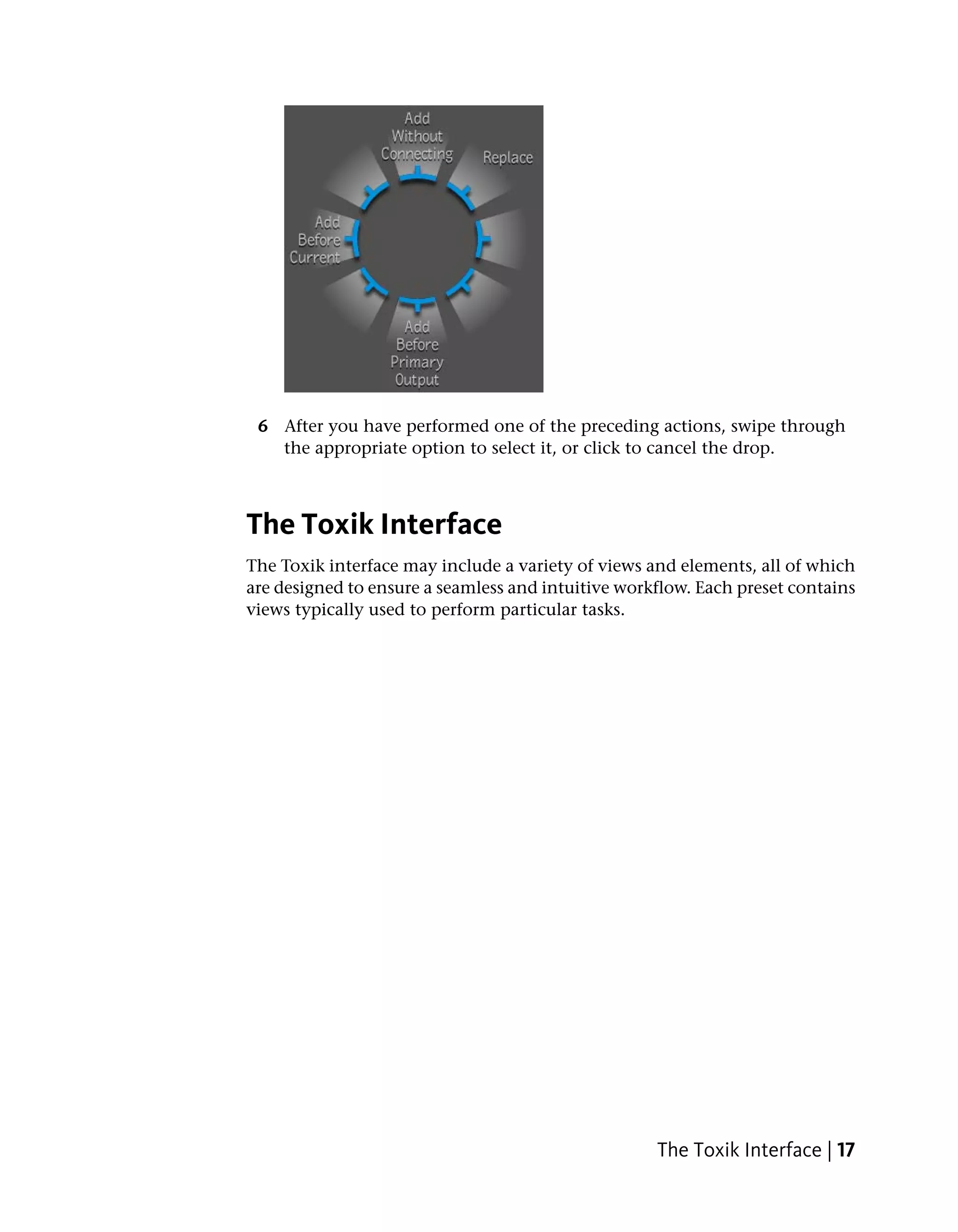
4 Or, drop a tool onto a primary output node in the Schematic view or a
               selected primary output node in the Composition Browser.


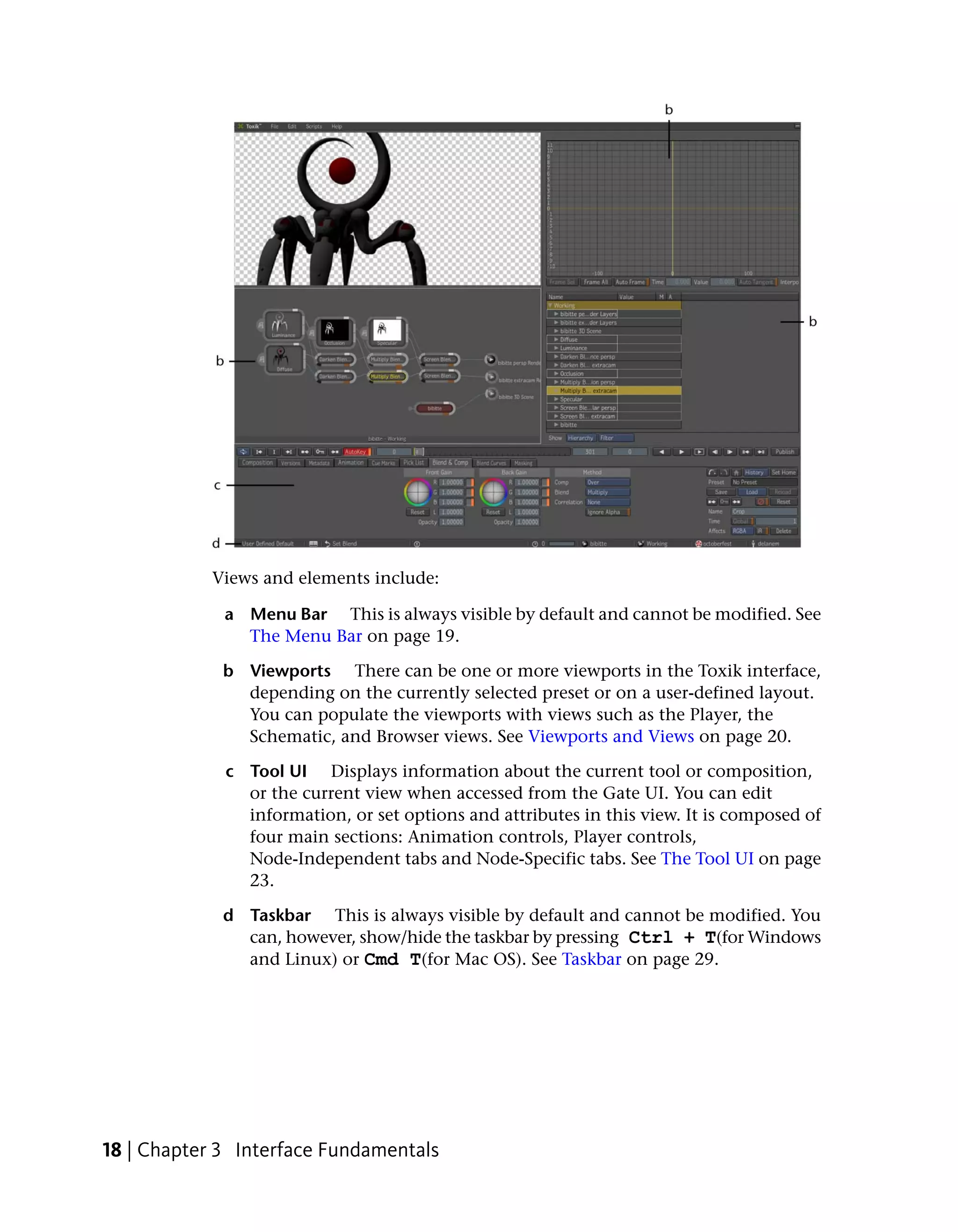
             5 Drop a tool onto a secondary output node in the Schematic view or a
               selected secondary output node in the Composition Browser. The Tool
               Drop Gate appears.


16 | Chapter 3 Interface Fundamentals
6 After you have performed one of the preceding actions, swipe through
   the appropriate option to select it, or click to cancel the drop.


The Toxik Interface
The Toxik interface may include a variety of views and elements, all of which
are designed to ensure a seamless and intuitive workflow. Each preset contains
views typically used to perform particular tasks.


                                                    The Toxik Interface | 17
Views and elements include:

             a Menu Bar This is always visible by default and cannot be modified. See
               The Menu Bar on page 19.

             b Viewports There can be one or more viewports in the Toxik interface,
               depending on the currently selected preset or on a user-defined layout.
               You can populate the viewports with views such as the Player, the
               Schematic, and Browser views. See Viewports and Views on page 20.

             c Tool UI Displays information about the current tool or composition,
               or the current view when accessed from the Gate UI. You can edit
               information, or set options and attributes in this view. It is composed of
               four main sections: Animation controls, Player controls,
               Node-Independent tabs and Node-Specific tabs. See The Tool UI on page
               23.

             d Taskbar This is always visible by default and cannot be modified. You
               can, however, show/hide the taskbar by pressing Ctrl + T(for Windows
               and Linux) or Cmd T(for Mac OS). See Taskbar on page 29.


18 | Chapter 3 Interface Fundamentals
The Menu Bar
The menu bar appears at the top of the Toxik window. It contains the following
menus: File, Edit Preferences, and Help. There is also a minimize button at
the far right.
To show or hide the menu bar: press Ctrl + M.


Use:                                  To:

                                      Open new or existing projects, save pro-
                                      jects, archive or publish projects, perform
                                      pre-compositing, import projects, or exit
                                      projects.


                                      Undo, redo actions, access the Hotkeys,
                                      Project and User preferences and the Lay-
                                      out presets.


                                      Create, delete, rename, reset layout pre-
                                      sets. Or set a layout preset as default.


                                                             The Menu Bar | 19
Use:                                  To:

                                                 Allows you to load or reload scripts.


                                                 Access Toxik help or documentation, Py-
                                                 thon scripting info, the New Feature or
                                                 Essential Skills movies, the What’s New
                                                 doc, the Hotkeys doc, the Token Substitu-
                                                 tions and Initialization Variables, the Re-
                                                 lease Notes, Support Center, or get inform-
                                                 ation about Toxik.


                                                 Minimize the Toxik window


           Viewports and Views
           The Toxik UI is composed of one or more viewports and populated with one
           or more views.


           Viewport
           A viewport is simply a container in which you can drop a view into. You can
           modify a viewport’s layout using the Layout icon in the taskbar. You can
           change a viewport’s size or drag it to another location by placing your cursor
           over a viewport border. See Taskbar on page 29.


           Views
           You can access all available views from the Views tab, using the Gate UI and
           then dragging a view into a viewport.

           NOTE You cannot undo a drag view operation. If you frequently add or remove
           specific views, you can add them to the Pick List for even faster access.


20 | Chapter 3 Interface Fundamentals
A view can be:

 1 A view where you work on or view your composition;

 2 A browser where you work with files.

The following views are available:

View                                 Description

Animation                            Allows you to edit animations.

Composition                          Allows you to view and to work with all
                                     the tools and parameters in a composition
                                     in a browser format. See The Composition
                                     Browser on page 49.

File Browser                         Allows you to create compositions by im-
                                     porting media and provides a view of the
                                     folders that your installation references.

Layer Editor                         Allows you to add, edit and reorder layers
                                     associated with one or more Reaction
                                     compositing nodes.

Pick List                            Allows you to store frequently used tools,
                                     views and compositions. See Pick List on
                                     page 139.

Player                               Allows you play a composition. The Player
                                     options determine what appears in the
                                     Player. See Player on page 151.

Schematic                            Allows you to build a dependency graph
                                     for a composition. See Working with
                                     Schematic on page 51.

Tools                                Allows you to add a tools browser to any
                                     viewport.


                                                  Viewports and Views | 21
Four Views: a) File browser b) Layer Editor c) Schematic d) Player

           To add a view to a viewport:

             1 Press the tilde key or middle-click your mouse to display the Gate UI,
               then swipe through the east gate to display the Tools, Views and Pick List
               tabs.

             2 Select the Views tab.


22 | Chapter 3 Interface Fundamentals
3 Select a view and drag it into a viewport.

To display a view in a fullscreen view:

 1 Pause over a view you want to display as a fullscreen view and press the
   F key.
 2 In the Player controls, click the fullscreen button to play the composition.


The view displays as a fullscreen view. Press F to exit the fullscreen view.


The Tool UI
The Tool UI is located at the bottom of the user interface, just above the task
bar. It allows you to view information about the composition which is currently
open, as well as view and adjust settings for any of the tool nodes in that
composition.


                                                             The Tool UI | 23
The Tool UI has four main areas:

           Item:                                 Description:

           a) Animation controls                 Controls for setting and working with cue
                                                 marks and keyframes. See Keyframing
                                                 Workflows on page 664.

           b) Player controls                    Controls for playing media associated with
                                                 a composition, in any of the views. See
                                                 Using the Player Controls on page 36.

           c) Details or node-independent tabs   A set of tabs that contain information
                                                 about the composition and controls that
                                                 are relevant for any of the nodes in the
                                                 composition.

           d) Tool UI or node-specific tabs      A tab that contains information and con-
                                                 trols specific to the currently selected node
                                                 in the composition.


           Node-Independent Tabs
           There are several node-independent tabs, including (from left to right in the
           user interface): Composition, Versions, Metadata, Animation, Cue Marks and
           Pick List. Here is a short description of each tab:
           Composition: Displays information about the composition you currently have
           open.


24 | Chapter 3 Interface Fundamentals
Versions: Displays a list of all current versions, including the working or current
version, associated with the composition you currently have open.


Metadata: Displays the description of the composition you currently have
open, along with any custom attributes you have added. You can use this tab
to edit the data associated with an individual field.


Animation: Displays controls for animating individual variables in the
composition. See The Animation Tab on page 651.


Cue Marks: Displays the list of cue marks set for the composition you currently
have open. See Working with Cue Marks on page 658.


Pick List: Provides a place for storing frequently used tools, view and
compositions. See Working with the Pick List on page 140.


                                                                The Tool UI | 25
Node-Specific Tabs
           One or more node-specific tabs appear when you select a node in a
           composition. For example, if you select the CC Histo tool, you’ll see that it
           has a main tab, as well as a Ranges tab. You will typically select a node from
           the Schematic view, from the Composition Browser or from the Layer Editor
           context menu.
           Each composition node has a tab associated with it. In the case of imported
           media, the composition node for the composition you currently have open
           has an Image Import tab that contains the same information as in the Import
           browser when you imported the media to create the composition -- see
           Importing Media on page 115. The composition node for a linked composition
           has a Link Image tab that contains a list of the rendered output associated
           with that composition -- see Linking Compositions on page 237.
           A vertical bar in the tab indicates more options may exist underneath the area
           to the right of the bar. Drag right on the bar to expose the options.


           The contents of most tool node tabs are organized into left and right areas.
           The left hand area contains Player-related controls and direct manipulation
           controls unrelated to the Player (for example, in the Diamond Keyer, the color
           prism), and fields and widgets you can use to set or enter values. The area on
           the right is the Tool Options area; these options are common to all tools.
           The top row is used for selection history and navigation, and contains the
           following controls:


           (a) Navigate to previously selected node (b) Navigate to next selected node (c) Go to
           home node (d) History (e) Set Home

             a Navigate to previous node         Navigate nodes before current selection.

             b Navigate to next node       Navigate to nodes selected after current selection.


26 | Chapter 3 Interface Fundamentals
c Go to home node          Navigate to node set as Home node.

 d History      View entire node list and select a node.

 e Set Home Set a home node from the history list. To set another node
   as a home node, select a node name and click Set Home.

The next set of controls is for using Tool presets. See Tool Presets on page 144.


(a) Preset (b) Save (c) Load (d) Reload

 a Preset Displays the name of the tool preset currently loaded in a
   selected tool node.

 b Save       After customizing a tool, you can save it as a tool preset.

 c Load       Displays a list of tool presets.

 d Reload Reloads the currently selected tool node with the same tool
   preset. This lets you revert back to the parameters contained in the tool
   preset.

The lower portion of the Tool Options area contains the following controls:


(a) Back One Keyframe (b) Set Keyframe (c) Forward One Key (d) Mute (e) Reset (f)
Name (g) Time (h) Affects (i) IR (j) Delete
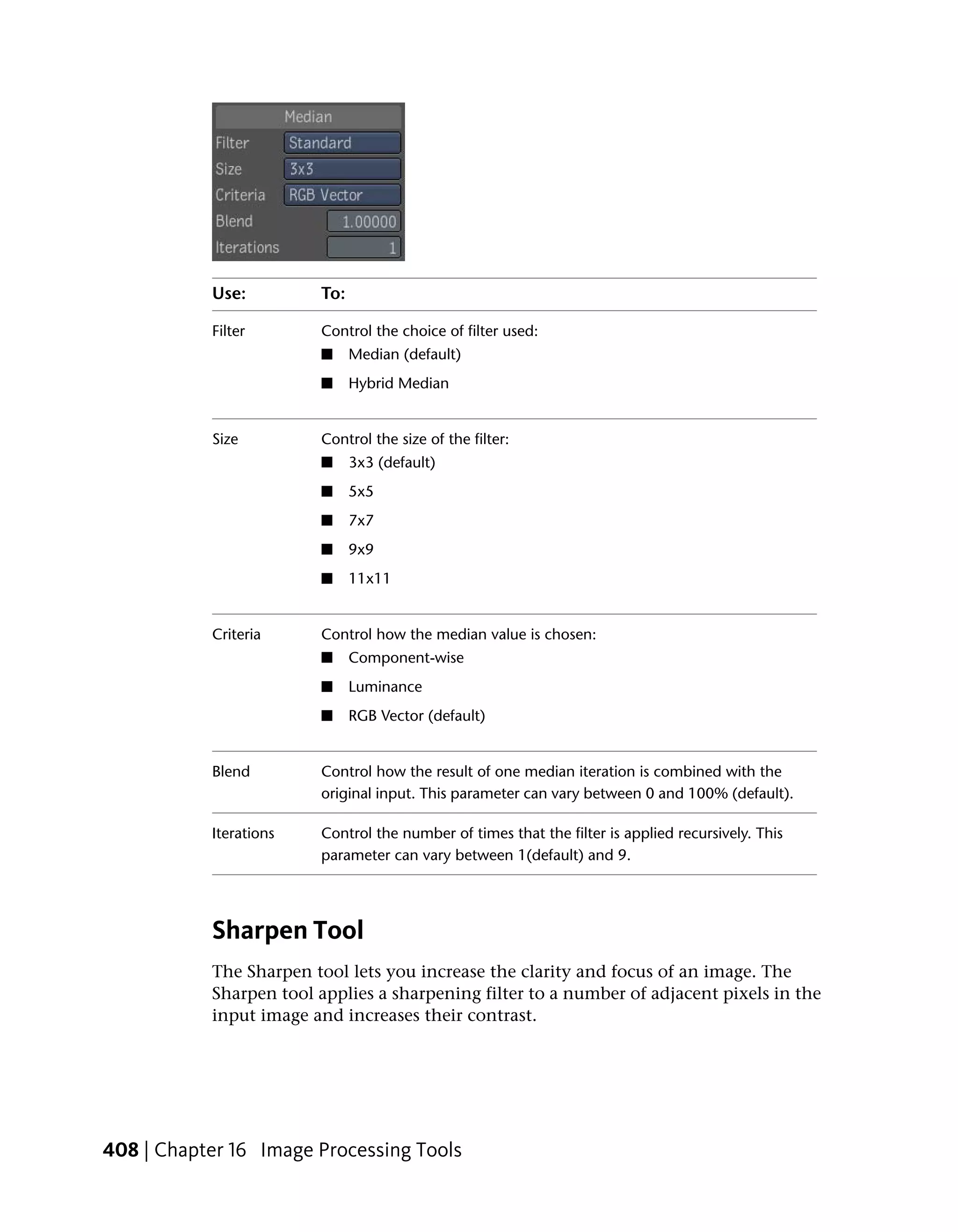
 a Back one keyframe Move back one keyframe in the currently selected
   animation curve for this too node. For more information on setting the
   animation keys, see Keyframing Workflows on page 664.

 b Set keyframe Set Keyframe: set a keyframe in the animation editor for
   this tool node. For more information on setting the animation keys, see
   Keyframing Workflows on page 664.


                                                               The Tool UI | 27
c Forward one key Move froward one keyframe in the currently selected
               animation curve for this tool node. or more information on setting
               animation keys, see Keyframing Workflows on page 664.

             d Mute Mute the currently selected tool node. This is a convenient way
               to toggle the effect of that node on or off. When you mute a tool node,
               the node has no effect on the input it receives; it simply passes that input
               to the next tool node in the dependency graph. If you mute a tool node
               that accepts multiple inputs, the node passes its primary input to the
               next too node.

                NOTE Note that muting a tool node may not always be equivalent to
                removing it from the dependency graph. That is, if the input and output
                formats of a tool node are different, removing the tool node may cause format
                conflicts in nodes further along the dependency graph, but muting the tool
                would not cause format conflicts. For example, if the format of the output is
                different from that of the primary input, the muted node adjusts the format,
                possibly in a tool specific way. For example, a muted Diamond Keyer node
                outputs a solid white matte, a muted Noise node outputs a black image. You
                cannot mute a supertool.

             e Reset     Resets all parameters of this tool node to their default values.

             f Name Examine or edit the name of the currently selected tool node.
               To edit the name, click in the field, enter your edits, and then press Enter.

             g Time Displays the global and local time in a node affected by a Time
               Offset tool. Enables Global to display the global time in the field to the
               right of the Global button. Disables Global to display the local time of
               the node in that field.

             h Affects Specifies the channels (RGB, RGBA, or A) the currently selected
               tool uses. The options available depend on the currently selected tool.
               In some tools, this options may not be available.

             i IR Allows the currently selected tool node to create an intermediate
               result whenever you play the composition. You can also enable or disable
               intermediate results in the Schematic, by clicking the IR tab in the
               bottom-right corner of the node icon; this tab is orange when you enable
               IR. See Creating Intermediate Results on page 221.

             j Delete     Delete the currently selected tool node.


28 | Chapter 3 Interface Fundamentals
Taskbar
The taskbar anchors the user interface and gives you immediate and consistent
access to frequently-used core features and commands, such as presets, undo,
warning messages, as well as the current composition, version, project, and
user. The taskbar is located at the bottom of the desktop.
To show or hide the task bar, press Ctrl + T on Windows and Linux, or
Cmd + Ton Mac OS.
The following describes each element in the taskbar, from left to right.

Click:                                To:

                                      Display the Preset list. You can choose from
                                      preconfigured presets or create your own.

                                      Select a different layout for the current
                                      preset. Click the icon and select a layout.

                                      Undo or redo an operation. Click the arrow
                                      icon to undo the last operation in the list,
                                      or click the text beside the arrow to display
                                      the list of operations performed. The arrow
                                      that appears in the list indicates your cur-
                                      rent position in the undo list; all operations
                                      above it are operations you can undo, and
                                      all operations below are ones you can redo.
                                      In the User Preferences window (General
                                      tab), you can specify the number of undo
                                      levels.

                                      View messages. When messages are issued,
                                      the icon color reflects the severity: white,
                                      yellow, or red. Click the message area to
                                      display a list of messages received to date.
                                      In the User Preferences window (General
                                      tab), you can specify the type of messages
                                      that are displayed and the maximum
                                      number of items in the User Preferences.

                                      Start the render queue monitor or view the
                                      progress of a render. Click the icon to start
                                      the render queue monitor. Click the num-
                                      ber and select a background rendering task


                                                                       Taskbar | 29
Click:                                  To:
                                                   from the list that appears; the number in-
                                                   dicates how many render tasks in the list
                                                   are currently in progress. The progress bar
                                                   to the right of the render task name in the
                                                   list shows the task's progress: a blue bar is
                                                   displayed as the task progresses and is
                                                   completed successfully. A gray bar is dis-
                                                   played if the render task failed or was can-
                                                   celled (the text "failed" is also displayed if
                                                   a failure occurs). To remove a failed or
                                                   completed render task from the list, select
                                                   it, and then respond to the prompt for re-
                                                   moval. To cancel a task that is in progress,
                                                   select it, and then respond to the prompt
                                                   for cancellation. To delete a task in pro-
                                                   gress, first cancel it, and then delete it.

                                                   Displays the list of compositions that are
                                                   currently open. The name of the current
                                                   composition is displayed beside the icon.
                                                   If the user opens a composition version,
                                                   the version name appears to the right of
                                                   the composition name. The gray icon rep-
                                                   resents a read-write version, while a yellow
                                                   icon represents a read-only version. To
                                                   switch to a composition (or version), select
                                                   it from the list.

                                                   Open the Project Preferences window. The
                                                   current project is displayed beside the icon.

                                                   Open the User Preferences window. The
                                                   user name is displayed beside the icon.


           Tools, Views & Pick List tabs
           Tools and Views tabs display all the available tools you can add to
           compositions, as well as the views you can display. Tools and views are stored
           in their respective folders. When you click a tool category folder, the tools are
           displayed in the lower portion of the panel.


30 | Chapter 3 Interface Fundamentals
The Pick list tab provides you with easy access to frequently used tools, view
and other elements. Each user has a Pick List. Its contents are independent of
any project and are consistent across sessions. The Pick List exists as a tab in
two locations: a) through the east gate of the Gate UI and b) the tool UI.


a) Pick List tab


b) Pick List in Tool UI

To display the Tools, Views and Pick List tabs:

 1 Middle-click or press the tilde (~) key to display the Gate UI.

 2 Swipe through the east gate and select one of the tabs.


                                           Tools, Views & Pick List tabs | 31
To drag an item from the Tools or Views tab:

            ➤   In the Tools or Views tab, select an item from the lower portion of the
                panel, and drag it into a view. If you drag a tool into the Schematic view,
                you can drop it onto any connection to insert it in the composition.


           a) Tool Category b) Tools


32 | Chapter 3 Interface Fundamentals
For more information on views, please see Viewports and Views on page 20.
For more information on the Pick List, please see Pick List on page 139 in the
Getting Familiar with Your Workspace chapter.
In addition to regular tools, there is a specific category of tools known as Super
tools. A super tool is a tool that is composed of a set of tools. Super tools
include Macro, Reaction, Garbage Mask, 2D Compositor, Image Import, Keyer,
Tracker, and Paint. Super tools are indicated by a sphere icon.


                                            Tools, Views & Pick List tabs | 33
For more information on each of these super tools, please see the following:

           ■   The Macro Super Tool on page 501

           ■   Reaction Compositing and Effects on page 242

           ■   Garbage Mask Tool Tabs on page 550

           ■   2D Compositor on page 341

           ■   Using the Image Import Tool on page 124

           ■   Keyer Super Tool on page 534

           ■   About Tracking and Stabilizing on page 730

           ■   About Raster Paint on page 579


           The Player
           The Player is used to play or preview a composition, or preview media. There
           are three different versions of the Player: the Player View, the Mini-Player and
           the Fullscreen Player.

           ■   The Player View: Allows you to play compositions and view the changes
               you make to compositions as you work. You can drag a Player View from
               the Views tab and drop it into a viewport.


34 | Chapter 3 Interface Fundamentals
■   The Mini-Player: Allows you to preview compositions located in the Footage
    folder or on your Desktop. See The Mini-Player on page 207.


■   The Fullscreen Player: This version of the player is useful when you want
    a more immersive environment. You can use it to play compositions, work
    on compositions, and preview media. See The Fullscreen Player on page
    209.


                                                              The Player | 35
Using the Player Controls
           The Player controls are shared by all Player views. The Start Frame, End Frame,
           and Current Frame numbers in the Player controls reflect those of the currently
           selected Player.
           The Player controls allow you to:

           ■   Play a composition

           ■   Set the repeat mode for the playback

           ■   Scrub through the composition

           ■   Adjust the start or end frames of the composition

           ■   Set a cue mark

           ■   Move to an existing cue mark

           ■   Delete a cue mark

           ■   Set a keyframe manually

           ■   Move to an existing keyframe

           ■   Turn Autokey on or off

           To play a composition:

           Click:                                 To:

                                                  Play the composition backward.


                                                  Play the composition forward.


                                                  Enter the fullscreen Player. Press theF key
                                                  to return to the Player view.

                                                  Step backward one frame.


                                                  Step forward one frame.


                                                  Move to mark in.


36 | Chapter 3 Interface Fundamentals
Click:                                To:

                                      Move to mark out.


To set the repeat mode:
Click the Repeat Mode on the left of the Player controls, and select a repeat
mode from the menu:


Select:                               To set the repeat mode to:

                                      No repeat. Playback ends when the Player
                                      reaches the last frame of the composition.

                                      Loop continuously.


                                      Ping-pong. Plays the composition forward
                                      to the last frame then backward to the first
                                      frame, in a continuous cycle.

                                      No repeat, to restrict playback to the re-
                                      gion between the mark in and mark out
                                      frames.

                                      Loop continuously, restrict playback to the
                                      region between the mark in and mark out
                                      frames.

                                      Ping-pong, restrict playback to the region
                                      between the mark in and mark out frames.

To scrub through a composition:
Click and drag in the Current Frame field.


To adjust the start or end frames of the composition:


                                              Using the Player Controls | 37
a) Start Frame field b) End Frame field

           Click and drag in the Start Frame field to adjust the start frame for the
           composition, and/or in the End Frame field to adjust the end frame for the
           composition. The Start and End fields in the Composition tab of the Tool UI
           update to reflect the changes you make here.
           To set a cue mark:
           Advance to the frame for which you want to set a cue mark, then click the
           Set Cue Mark button.


           The cue mark appears in the Current Frame field.


           To move to an existing cue mark:
           Click a cue mark button on the left of the Player controls to move to an
           existing cue mark.

           Click:                                    To:

                                                     Move to the previous cue mark.


                                                     Move to the next cue mark.


           To delete a cue mark:
           In the Tool UI, select the Cue Mark tab, locate the cue mark you want to delete,
           then right-click and select Delete.

           To set a keyframe manually:

             1 Mark the attributes for which you want to set a keyframe. See Marking
               Attributes for Keyframing on page 664.


38 | Chapter 3 Interface Fundamentals
2 Advance to the frame at which you want to set a keyframe.

    3 Click the Set Keyframe button.


To move an existing keyframe:
Click a keyframe button on the left of the Player controls to move to an
existing keyframe.

Click:                                  To:

                                        Move to the previous keyframe of the cur-
                                        rently selected tool node.

                                        Move to the next keyframe of the currently
                                        selected tool node.

To turn Autokey on or off:
Click the Autokey button. See Setting Keyframes Automatically on page 670.


For more information on the player, please see The Player on page 185.


Zooming and Panning
You can zoom or pan in the Schematic view and in any of the three player
views: Player View, the Mini-Player, and the Fullscreen Player.
To zoom do one of the following:

■    In the view or player, press the Up Arrow to zoom in, or the Down Arrow
     to zoom out.

■    Press Ctrl + Spacebar (on Windows, Linux) or Cmd + Spacebar
     (on Mac OS) and drag to the right to zoom in or left to zoom out.

■    Press Home to reset the zoom factor to 1. Pressing Home again will set zoom
     to previous zoom factor. This is not available to all viewers.


                                                    Zooming and Panning | 39
To pan:

           ■   In the view, press Spacebar and drag.

           To navigate views:

           ■   Press Ctrl + Tab to move to the next view. Press Ctrl + Shift +
               Tab to move to the previous view.

           Things to remember:

           ■   When you zoom out in a Player view, the resolution is automatically
               adjusted to the optimal one for that zoom level. This reduces the load on
               the computer.


           Navigating and Browsing
           The Toxik File browser enables you to locate, organize, and manage
           compositions, projects, etc.
           The File browser is a central tool in the overall Toxik workflow. It has the
           following general uses:

           ■   Identifies Toxik compositions or external media, such as files on a hard
               disk.

           ■   Helps you locate, organize, and manage compositions already in a project.

           ■   Provides access to compositions for Toxik tools and for Toxik utilities.


           Customizing the File Browser
           You can resize any component panel in the Toxik browser by dragging its
           side. For example, you can change the division between the Folders and
           Contents area in the File browser by dragging the border between the two
           areas.


40 | Chapter 3 Interface Fundamentals
The File Browser
The File Browser provides a view of the folders that your installation references.
It also allows you to create compositions by importing media.
The Folders area in the File browser shows the hierarchy of available folders
in your project, as well as external drives and resources, in an expandable
tree-like structure. By default, the Folders area appears on the left side of the
browser, but you can close it to increase the size of the Contents area.
To show or hide the folders area:

■   Click the View button and select Folder.


                                                         The File Browser | 41
Browser Settings and Controls
           The File Browser contains the following main areas and buttons:

           Item                                  Description

           Folders list                          Displays the file system on your machine,
                                                 including all mapped drives, as well as
                                                 Wiretap. Using this area, you can navigate
                                                 to the media you want to import.

           Folder Contents area                  Displays the contents of the folder cur-
                                                 rently selected in the Folders list.

           Navigation buttons                    Use these buttons to navigate through
                                                 folders and files.

           These are the navigation buttons:

           NOTE You can also navigate in the browser using Hotkeys. See Browsers on page
           799.


42 | Chapter 3 Interface Fundamentals
Use:                                   To:

Home:                                  Return to the top level of the project
                                       folder.

Back:                                  Move back through the folder list in the
                                       File Browser.

Up:                                    Move to the level of the parent folder.

Path Field:                            You can enter paths in this field. Paths can
                                       be separated by either forward or back-
                                       ward slashes.

Recent:                                View a list of recently viewed folders. Place
                                       the cursor over a visited folder and click its
                                       name to return to that folder.

View:                                  Change the way a browser displays inform-
                                       ation. See The View Button on page 43.

Bookmarks:                             Navigate to a directory. See The Book-
                                       marks Button on page 45.

Import:                                Imports the selected files and adds them
                                       to the current Toxik composition. If the
                                       File Browser selection is a Toxik composi-
                                       tion, this button will be labeled Open, and
                                       will open the selected composition.


The View Button
A view is how the browser displays information in the Contents area. You can
view information as a list or as thumbnails in the Contents area. The List view
displays more information in the Contents area than other views and allows
you to easily sort information by clicking one of the column headings. A
thumbnail is an icon for a folder, source, or composition. There are thumbnails
for folders, fonts, audio, and so on. The thumbnails for sources or compositions
show a frame.
You can change thumbnails to show a source or composition's matte, if it
contains one.


                                                           The File Browser | 43
The folder hierarchy shows folder relationships: child folders cascade from
           the parent folder(s). Parent folders are displayed with triangle icons that cascade
           child folders below and to the right when clicked. The area below the folder
           shows either thumbnails or a list of the folder's contents depending on the
           mode you're in (list or thumbnail).


           To view thumbnails or a list in a browser:
           Click the View button and select Thumbnails to view thumbnails. Deselect
           Thumbnails to see a list.
           To change the thumbnail size in the Contents area:
           Click the View button and select Small or Large.
           The sources or compositions in the Contents area are resized as follows:

           Thumbnails                               Size (in pixels)

           Small                                    160 x 120

           Large                                    249 x 180

           To view mattes:
           Click the View button and select Alpha.
           Thumbnails for sources or compositions with mattes display their black and
           white matte. Thumbnails for sources or compositions without mattes remain
           in color.


44 | Chapter 3 Interface Fundamentals
The Bookmarks Button
Bookmarks allow you to quickly navigate to a directory. Click the button and
then click a name in the pop-up list. Clicking a bookmark's name positions
the browser in the target directory just as if the path had been entered
manually.
There are five predefined bookmarks, which cannot be removed or renamed.
They are the following:

Name        Function                    Value         Comment

Home        Shorthand to browser's      Not edit-     Depends on the “Set as
            home                        able          Home” setting

Project     Bookmarks location of       Not edit-     Depends on selected
Home        project root                able          project

User Data   Bookmarks location of       Not edit-     Depends on user logged
            user directory              able          on

OS User     Home directory of user      No editable   Depends on user logged
Home        logged on                                 on

Install     Toxik installation folder   Not edit-
Folder                                  able


                                                          The File Browser | 45
In addition to the predefined bookmarks, personal bookmarks can also be
           created. There are two methods to create personal bookmarks:
           To create a personal bookmark:
           From the bookmarks list, select Add Bookmark or press Ctrl + D (on
           Windows and Linux) or Cmd + D(on Mac OS). The Add Bookmark dialog
           appears.


           Or right-click on a directory in the File browser and select “Bookmark,” to
           bookmark that directory.


46 | Chapter 3 Interface Fundamentals
All personal bookmarks are automatically assigned the name of the bookmarked
directory, or the name of the bookmarked directory plus a "#" extension, where
"#" is the first number, beginning with 1, which makes the name unique.
Although multiple bookmarks can share the same target directory, duplicate
naming of bookmarks is not permitted. The "#" extension ensures that no two
bookmarks have exactly the same name. For example, if you name a bookmark
"New Bookmark," and then try to give another bookmark the same name, it
will be named "New Bookmark (1)."
Managing Bookmarks
Bookmarks are managed through the Bookmark Manager.
It is used for the following tasks:

■    Adding new bookmarks

■    Creating bookmark folders in order to categorize bookmarks

■    Editing personal bookmark labels

■    Editing personal bookmarks or the Media bookmark's target

■    Customizing the bookmarks and bookmark folders order

■    Moving personal bookmarks from one folder to another

■    Removing bookmark folders and personal bookmarks

To manage bookmarks:

    1 Use the Manage Bookmarks option. It is accessible through the bookmarks
      pop-up list.


                                                      The File Browser | 47
2 Clicking Manage Bookmarks opens the Bookmark Manager.


             3 Use the up or down arrows to rearrange the order of the bookmarks in
               the Bookmark Manager. Click the Sort button to arrange the bookmarks
               in alphabetical order.


48 | Chapter 3 Interface Fundamentals
Floating File Browser
You can also display the File Browser as a floating browser, so that you can
use it at any point during a session to access project folders.
To display the floating File Browser, do one of the following:

■   Press Ctrl + O (for Windows and Linux) Cmd + O (on Mac OS) or to
    open the File Browser witht the “Show Compositions Only” view option
    set.

■   Press Ctrl + I (for Windows and Linux) orCmd + I (for Mac OS) to
    open the File Browser without the “Show Compositions Only” view option,
    i.e. view all files.


The Composition Browser
The Composition Browser displays all the nodes for the current composition.
Using this browser, you can view parameters and set keyframes for animation.
It's also an easy way to quickly view parameter names when referencing them
in expressions.


The Composition Browser has three columns. The Name column contains the
name of the node or attribute. The Value column contains the value associated
with an attribute. The M (marked) column indicates whether an attribute is
marked for keyframing.
The Composition Browser is also available in the Animation tab of the tool
UI.


                                            The Composition Browser | 49
Composition Browser Functionality
           There are five buttons at the bottom of the Composition Browser: the Filters
           Option button, the Filter button, The Auto Expand button, The Expand
           Column button, and the Collapse Column button.
           The Filters Options Button
           The Filters Options lets you select one or more filters. The filters are divided
           into two groups: Tools and Channels.
           Multiple filters are additive (except for the All filter option, which unselects
           other filters and shows all nodes). For example, clicking Mute and Context
           Point would display muted nodes as well as nodes that have a context point
           set on them. Therefor adding tool filters adds tool nodes to your display.

           Click:               To:
           Tools
           Selected             Display tools (in the result) that are currently selected.
           Similar              Filter tools that are similar to the selected tools.
           Muted                Display tools (in the result) that are muted.
           Context Point        Filter tools that have context points on them.
           All                  Display all nodes in the composition.
           Channels
           Animated             Display nodes (in the result) that contain channels
                                that are animated.
           Expression           Filter inputs that are connected to expressions.

           Marked               Display nodes (in the result) that contain channels marked for
                                keyframing.

           The Filter Button
           Click this button to apply the filters you have selected.
           The Auto Expand button
           Click this button to expand the parent folders of the selection and center on
           the first item, when the global selection changes.
           The Expand Columns button
           Click this button to expand all the columns in the browser.


50 | Chapter 3 Interface Fundamentals
The Collapse Columns button
Click this button to collapse all the columns in the browser.


Working with Schematic
The Schematic is the view in which you build the composition – a set of
connected nodes – for a composition. When you create a new composition,
the only node in the tree is the output node; by default, every composition
has only one primary output node.

NOTE Unless otherwise specified, the term “node” and “tool node” are
interchangeable throughout this guide.

When you create a composition by importing media, the composition contains
one input node (which points to the media you imported) and one output
node. You then build the dependency graph by adding tool nodes. For more
detailed information on the different types of nodes, see Node Overview on
page 53.
You can set the direction in which processing proceeds in the User Preferences
Creative tab. For 2D workflows, you can build the dependency graph
left-to-right or top-down direction. For 3D workflfows, you can build the
dependency graph in a left-to-right or bottom-top direction -- see Setting User
Preferences on page 165.


A dependency graph with left-to-right flow.


                                               Working with Schematic | 51
A dependency graph with a top-down flow.

           NOTE Nodes do not necessarily have to be connected. For example, you can
           create branches that you connect or disconnect to experiment with different
           scenarios.

           When working in the Schematic view, you can:

           ■   Show or hide the Schematic Navigator.

           ■   Clean up the view (clean up all or a portion of the composition,
               automatically zoom to fit the dependency graph in the view).

           ■   Change the name of a node.

           ■   Work with connections (connect one node to another, insert a node
               between two nodes, disconnect one node from another, reposition a node
               within the composition, change the appearance of connections, have
               connections highlight when you pass the cursor over them).

           ■   Work with groups and super tools (create a group, edit a group or enter a
               Super tool, exit a group or a Super tool, ungroup a group, add inputs and
               outputs to group nodes).

           ■   Work with branches (collapse or expand a branch).

           ■   Mute or unmute a node.

           ■   Turn intermediate results on or off for a node.

           ■   Set or clear a context point on a node. See Setting Context Points on page
               187.

           ■   • Reset the node to its default values.


52 | Chapter 3 Interface Fundamentals
■   Cut, copy, paste, or delete nodes. Navigate nodes.


NOTE When using super tools or working inside a grouped tool, the name of the
tool or group is displayed a the bottom of the Schematic, so you always know
where you are in relation to the dependency graph.


Node Overview
There are several different types of node features, as well as different types of
node connections.


Node Types
There are a number of different types of nodes, each represented by a different
icon.

Node type                               Description

                                        An input node for a composition created
                                        during a normal media import. It is identi-
                                        fied by a small sheet icon on the left of the
                                        proxy. When you select an imported media
                                        input node, the tool UI displays the Import
                                        Image tab. The input node displays a proxy
                                        of the media it references.

                                        An input node for footage, created using
                                        “Import as Footage”. It is identified by a
                                        small film icon on the left of the proxy. The
                                        Link Image tab opens when a footage in-
                                        put node is selected in the Schematic view.

                                        An input node for a linked composition. It
                                        is identified by a small composition icon
                                        on the left of the proxy. When you select
                                        a linked composition input node, the tool
                                        UI displays the Link Image tab. The input
                                        node displays a proxy of the rendered
                                        output it references.


                                                              Node Overview | 53
Node type                    Description

                                        A normal tool node.


                                        A super tool node. Each super tool can
                                        have its own icon. The Reaction super tool
                                        icon is shown here. A super tool node be-
                                        haves as a group node in that you can
                                        enter the node to work with the tools it
                                        contains.

                                        A group node that you create by selecting
                                        two or more nodes and grouping them
                                        together. You can right-click a group and
                                        select Edit Group to work only with the
                                        nodes in that group.

                                        A visual group node is similar to a normal
                                        group node, however you are able to see
                                        its contents without entering it. You can
                                        also change its background color.


                                        The primary output node for a composi-
                                        tion. A dependency graph always has ex-
                                        actly one primary output node. You cannot
                                        delete this node, but you can add second-
                                        ary output nodes to the composition. See
                                        Multiple Output Nodes on page 57. The
                                        output node represents the result of the
                                        composition. When you select this node,
                                        the tool UI displays the Output tab. The
                                        output node does not display a proxy of
                                        the result.

                                        A secondary output node for a composi-
                                        tion. Note that secondary output nodes
                                        vary slightly in appearance from the
                                        primary input node, it is a lighter gray.


54 | Chapter 3 Interface Fundamentals
Node Anatomy
Each node has a set of tabs around its outer edge. The name of each node
appears either underneath it or inside it.

Tab:                                 Description:

Input                                You connect an input to this tab. If a node
                                     accepts multiple inputs, the tab is divided
                                     into the number of inputs the node ac-
                                     cepts.
                                     ■   A node that accepts a single input:


                                     ■   A node that accepts nine inputs:


Output                               Contains the output of the node. You cre-
                                     ate connections between nodes by connect-
                                     ing the output tab of one node to the in-
                                     put tab of another. The Output node con-
                                     tains the result of the dependency graph.
                                     Note that you can connect an output to
                                     more than one input.


                                                          Node Overview | 55
Tab:                         Description:

           Proxy                        Click this tab, or the T hotkey, to show or
                                        hide the proxy for the node.


           Masking                      There is an input for masking. See Pixel
                                        Masking on page 572.


           Intermediate Result          Click this tab to enable intermediate results
                                        for the node. See Creating Intermediate
                                        Results on page 221.


           Marked for keyframing icon   A yellow icon appears nest to the image
                                        input tab when the tool has been marked
                                        for keyframing. See Marking Attributes for
                                        Keyframing on page 664.


56 | Chapter 3 Interface Fundamentals
Output Nodes
There are several characteristics of Output nodes that are useful for you to
know.


Multiple Output Nodes
A composition can support multiple output nodes which provide simultaneous
renders from different points in the dependency graph. This characteristic of
the composition lets you link to a composition at different points in the
dependency graph.
An output node cannot be muted, however, intermediate results can be enabled
on output nodes and output nodes can be grouped at any level. There's no
restriction on the presence of an output node at the highest group level (the
composition level).
Each output node has its own format (resolution, pixel aspect ratio, rate,
channels and depth) and it crops its input image according to its format.
An output node has the following editable values. You can reset the values
back to their defaults in the Tool Options area (Reset button):


Value:               Description:

Name                 Initialized to Output (#).

Description          Of arbitrary length, empty by default.

Image Format         Width, height, pixel aspect ratio and rate. Primary output is
                     initialized from the composition project settings, additional
                     outputs from the primary output.

Pixel Format         Channels and depth. Primary output is initialized from the
                     composition project settings, additional outputs from the
                     primary output.


                                                              Node Overview | 57
Value:                 Description:

           Start                  Start frame index. Primary output is initialized from the compos-
                                  ition project settings, additional outputs from the primary out-
                                  put.

           End                    End frame index, exclusive. Primary output is initialized from
                                  the composition project settings, additional outputs from the
                                  primary output.

           Duration               End – Start.

           Poster                 Frame used for Proxies, defaults to start value.

           As Primary Output      Whether the width, height, pixel ratio and rate values follow
           Image Format           the primary output values. Always off on primary output. On
                                  by default on additional outputs.

           As Primary Output      Whether the channels and depth values follow the primary
           Pixel Format           output values. Always off on primary output. On by default on
                                  additional outputs.

           As Primary Output      Whether the start, end and poster values follow the primary
           Time                   output values. Always off on primary output. On by default on
                                  additional outputs.

           Rendered on/off        Whether the output is rendered upon a render command, on
                                  by default.

           Render mode            Render mode used upon a publish or render command. Set by
                                  the composition render mode project setting by default.


           Primary Output
           One of the outputs is tagged as being the primary output. Aside from
           identifying the principal output of a composition, the primary output is most
           useful in the following workflows:

           ■     The composition start/end (in the timeline) and rate are dictated by the
                 primary output start/end and rate respectively.

           ■     Composition format displayed in the File Browser is driven by the format
                 of the primary output.


58 | Chapter 3 Interface Fundamentals
■   Composition proxies shown in the File Browser are generated from the
    primary output.

■   Player in Composition display mode shows the image results of the primary
    output node.

■   Comparison in the player against the composition refers to the primary
    output

■   When linking to a composition, even though all outputs of the linked
    composition are represented on the link node, only the primary output
    socket is automatically connected to the destination graph.

■   When inserting a composition into another one, the input node of the
    primary output from the source graph is used as the connection point
    when the composition is dropped on an input socket in the destination
    graph.

■   When dropping tools in the Schematic view, the south gate option Add
    Before Primary Output connects the new nodes before the primary output
    node.

■   Additional outputs are initialized (or reset) with the values of the primary
    output. Other outputs can also follow various sets of values from the
    primary output (image format, pixel format, time

The first output node that is automatically created with a new composition
is the primary output by default. However, in a composition with multiple
outputs, any output can be set as the primary output at any time. This can be
achieved through a drop-down menu listing the output node names in the
Composition tab.


                                                         Node Overview | 59
You can also use the Set As Primary right-click option on an output node in
           the Schematic view.


60 | Chapter 3 Interface Fundamentals
Adding Output Nodes
Creating a new composition automatically adds an output node to it. However,
you can add more output nodes anywhere in the composition.
To add an output node to a composition, do one of the following:

■   Drag the output tool from the Utilities folder in the Tools tab and drop it
    into the Schematic view.

■   Select an output node in the Schematic view, right-click and select Copy,
    or press Ctrl + C (for Windows and Linux) or Cmd + C (for Mac OS).
    Then right-click again and select Paste or press Ctrl + V (for Windows
    and Linux) or Cmd + V (for Mac OS).


                                                         Node Overview | 61
■   If you have added the Output tool to a Pick List, right-click in the Schematic
               view and select the Output tool from the Pick List.


           Deleting Output Nodes
           The primary output node cannot be deleted, which ensures that a composition
           has at least one output. Graphical delete options on the primary output are
           absent and any attempt to delete it in another way (hotkey or scripting) results
           in an error message.
           To delete a secondary output node, do one of the following:

           ■   In the Schematic view, highlight the secondary output(s) you want to
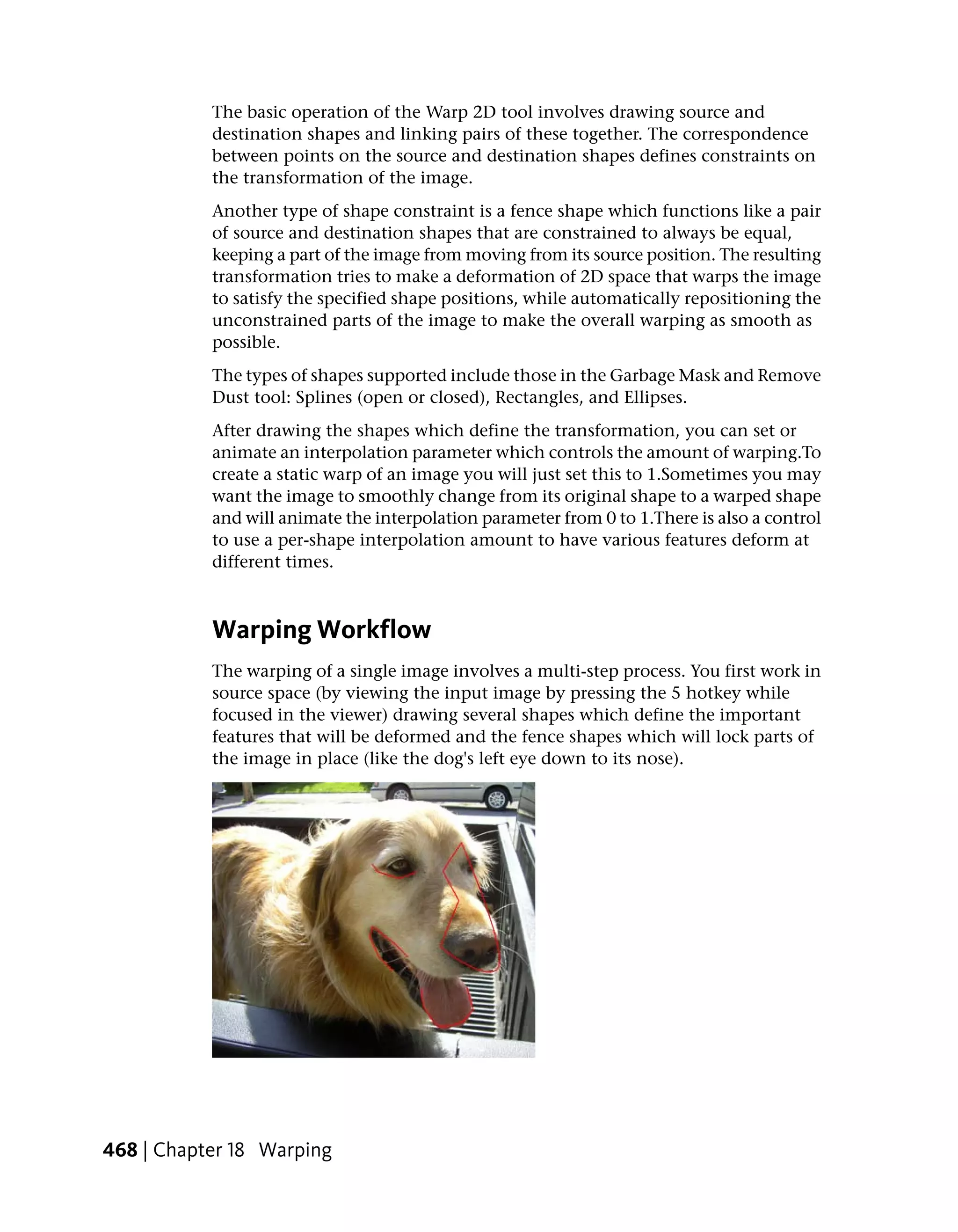
               delete, right-click and select Delete or press the Delete key.

           ■   Highlight the secondary output node(s) you want to delete in the
               Composition Browser, right-click and select Delete.


62 | Chapter 3 Interface Fundamentals
Node Connections
The connection lines in a dependency graph visually indicate by color and
style what you are outputting: RGBA, RGB or A. You can also choose how you
want the lines to appear: curved, angled or straight.

Color                     Line Style                 Output

Gray                      Solid line                 RGBA

Light-blue                Dashed line                RGB

White                     Dashed line                A


To change the appearance of a connection line:

 1 Middle-click or press the tilde key (~) key to display the drop gate, and
   swipe south to the Schematic Options.

 2 Under Display, select an option form Links for the connection lines.


NOTE You can also set the links style in your user preferences. See Setting User
Preferences on page 165.


Node Options
There are a number of ways to manipulate nodes in the Schematic view.

To clean up all or a portion of the dependently graph, do one of the following:

 1 To clean up the complete tree, right-click and select Layout All, or press
   Ctrl + L (for Windows and Linux) or Cmd + L (for Mac OS).
 2 To clean up a portion of the tree, select the nodes to clean up, then
   right-click, and select Layout Selected or press L.


                                                           Node Overview | 63
To reset the zoom and pan to fit the dependency graph:

            ➤   Right-click and select Reset Zoom/Pan or press Home.

           To change the name of a node:

             1 Select the node to display its tabs in the tool UI.

             2 In the Tool Options at the right, click in the Name field and edit the
               name.

             3 Press Enter to accept your edits.

           The node in the Schematic view updates to reflect the new name.

           To display the details of a node without opening a node:

             1 Press the D key and pass the cursor over a node. Shift + D will turn
               on all the node details without having to pass over the node. Press Shift
               + D again to turn off the node details.


             2 A tooltip displays the details of the selected node. If the node was
               renamed, the node's original name appears in the tooltip.

           To display the thumbnail of a node, select one or more nodes and do one of
           the following:

             1 o Right-click the node and select Thumbnail.

             2 Click T.

             3 Click the tab on the node.

           To connect two nodes, do one of the following:

             1 Click the output of a node and drag to the input of another node (or
               click and drag from the input area of one node to the output area of
               another). A gray connection line appears as you drag. Release to create
               the connection.


64 | Chapter 3 Interface Fundamentals
2 Press Shift and drag one of the nodes to the other, so that the output
   area of one node brushes, or "kisses", the input area of the other. A
   connection line appears when the two nodes kiss. Release to establish
   the connection. If you want to cancel the operation, release Shift as
   you continue to drag.


NOTE There are hotspots located along each edge of the viewer to be used to
auto-pan the viewer when holding the cursor down over these areas for a
predetermined time. This will be used when dragging or connecting nodes. The
speed at which the panning is done can be controlled by using the Ctrl hotkey
to speed up panning or the Alt hotkey to slow down panning.

To insert a node between two other nodes:

➤   Press Alt and drag the node you want to insert onto the connection line
    between the two nodes, then release. If you want to cancel the operation,
    release Alt as you continue to drag.

To disconnect nodes, do one of the following:

 1 Press Ctrl and drag the cursor (scissors icon) through the connection.

 2 Right-click the connection line between the nodes and select Disconnect.

To quickly disconnect and reconnect nodes:

➤     Hold down the Ctrl key, click one end of a connection link to break
    the link. Drop the link on a different node.

To reposition a node within a dependency graph, do one of the following:

 1 Disconnect the node and then connect it in a new position.

 2 Press Alt and drag the node to a new position in the tree, then release.
   The connection lines adjust to disconnect the node from its previous
   neighbors and connect it in the new position.

To replace a node’s tool with another tool:

 1 Display the Tools, Views & Pick List tab by middle-clicking or pressing
   the tilde (~) key. Drag and drop a tool onto the selected node. A drop
   gate appears.


                                                       Node Overview | 65
2 Swipe through the Replace option. The selected node is replaced with a
               new tool.

           To create a group consisting of multiple nodes:
           Select the nodes you want to group, right-click one of the nodes and select
           Group or Group (Visual). You can also press G for Group or Shift + G for
           Group (Visual).

           NOTE If more than one node is selected, they will be grouped. If there is only one
           node selected and it is not a group node, it is grouped, otherwise if it is a group
           node, it is ungrouped.

           When you create a visual group node, all the nodes in this group display
           semi-transparent backgrounds that allow the nodes to adopt the color of the
           visual group itself. Nodes which are not part of the visual group that are
           dragged over the group will stand out because they will be a different color
           from the nodes in the visual group.
           Visual group nodes are created with a default color. However, by right-clicking
           on the title bar of the visual group, you can select the Color option, which
           will display a color picker that allows you to choose a new color.
           A new node-independent tab is created in the Tool UI for the group node. By
           default, it will be named "Group (#)," for example, "Group(1)." You can rename
           the group tab by entering a new name in the Name field in the Tool Options.

           To edit a group or enter a super tool:

             1 Right-click the group node (to edit a group) or the super tool (to enter
               the super tool) and select Edit Group, or double-click the node.

             2 The Schematic view updates to display the nodes in the group or the
               nodes of the super tool

           To exit a group or a super tool:

            ➤   Right-click in the Group Schematic view and select Exit Group, or
                double-click the background.

           To resize or move a visual group node:

            ➤   The size of the visual group node is determined by the location of the
                contained nodes. The size of the visual group node will expand or contract


66 | Chapter 3 Interface Fundamentals
as the contained nodes are moved around. To move a visual group node,
    drag the title bar of the group node.

To lock a visual group or lock the nodes in a visual group:

 1 Right-click on the title bar of a visual group node and select Lock, which
   locks the group node, as well as all the nodes inside the group. This means
   that all the nodes inside the group, as well as the group itself, are locked
   in place.

 2 To lock just the nodes inside a group, while still allowing the group itself
   to be moved, right-click on the title bar of the visual group node and
   select Lock Tools.

To open or close a visual group node:

 1 To open a group node, right-click on the node and select Open or press
   Shift + O. Opening a group node displays the contents of the group
   node while applying the visual group attribute.

 2 To close a group node, right-click on the title bar of the group node and
   select Close or press Shift + C. Closing a group node removes the
   visual attributes of the node and collapses it back to its regular appearance.

To ungroup a group:

➤   Right-click the group node or the title bar of the visual group node and
    select Ungroup, or press G.

To add input or output connections to a group node:

 1 Enter the group node by double-clicking the node, then drag the link
   from an input or output beyond the top border of the schematic. Control
   will be transferred to the group level one up in the hierarchy. At this
   point, releasing beyond the border will create a connection node. Moving
   within the border will allow connection to another node. If this group
   level is not the top most, moving within the border and back up again
   will transfer control to the next group up in the hierarchy. Moving down
   in the group hierarchy is accomplished by dragging beyond the bottom
   border of the Schematic view. All dragging must be done in conjunction
   with the Shift hotkey.


                                                          Node Overview | 67
2 Enter the group node by double-clicking the node, then right-click and
               select New Output Connection. Note that the cursor must be over an
               input or output.


           To collapse a branch of the dependency graph:

             1 Locate the node at which you want to collapse the branch.


             2 Right-click the node and select Expand or Collapse or press E.

             3 The branch leading into that node collapses. The arrow on the left of the
               node indicates a collapsed branch.


68 | Chapter 3 Interface Fundamentals
To expand a collapsed node:

➤    Right-click the node containing the collapsed branch and select Expand
     or Collapse, or press E.


To mute or unmute a node:

 1 Select the node.

 2 Right-click a node and select Mute or Unmute, or press M.


NOTE You can also mute/unmute a node by selecting it and clicking the Mute
button in the Tool Options area. This button is located to the left of the Reset
button.

To select an entire branch of the dependency graph, do one of the following:

 1 Press X and click a node.

 2 Right-click and choose Select Upstream.

All nodes upstream are selected.


                                                          Node Overview | 69
Hint: You can select multiple branches without clearing the selection.

           To turn intermediate results on or off for a node:

            ➤    Click the orange tab in the lower-right of the node. The orange tab
                 brightens or darkens to indicate results are, respectively, on or off for the
                 node. See Creating Intermediate Results on page 221.


           NOTE You can also turn intermediate results on/off for anode by selecting the
           node and clicking the IR button in the Tool Options area.

           To set a context point on a node:

             1 Press the number of the context point you want to set and click the node
               on which you want the context point, or right-click the node and select
               Context # (Set). For example, to set context point 3, press 3 and click the
               node.

             2 The number of the context point, preceded by the letter C (for example
               C3 for context point 3), appears to the left of the node name and a broken
               green line appears around the center of the node.

             3

           NOTE If you set more than one context point on a node, the numbers of all
           context points set on the node appear after the C. For example, C134 indicates
           you set context points 1, 3 and 4 on the node.

           To clear a context point on a node:

             1 Press the number of the context point you want to clear and click the
               Schematic background or right-click the node and select Context #
               (Remove).

             2 The context point label (for example C4 for context point 4) is deleted
               along with the broken green line around the center of the node.

           To reset a tool node:

            ➤    Right-click the tool node you want to reset and select Reset, or press Ctrl
                 + R (for Windows and Linux) or Cmd + Shift + R (for Mac OS).

           NOTE You can also reset a node by selecting it and clicking the Reset button in
           the Tool options area.


70 | Chapter 3 Interface Fundamentals
To cut, copy or paste one or more nodes:

 1 Select the node(s) you want to cut or copy.

 2 Then, do one of two things. To cut the node(s), right-click one of the
   selected nodes and select Cut, or press Ctrl + X (for Windows and
   Linux) or Cmd + X (for Mac OS). To copy the node(s), right-click one
   of the selected nodes and select Copy, or press Ctrl + C (for Windows
   and Linux) or Cmd + C (for Mac OS).

 3 To paste the cut or copied node(s), right-click outside all nodes and select
   Paste, or press Ctrl + V (for Windows and Linux) or Cmd + V (for
   Mac OS).

To delete one or more nodes:

 1 Select the node or nodes you want to delete.

 2 Then, do one of the following. Either right-click one of the nodes and
   select Delete, or press Delete. Or drag a reasonable distance outside the
   bottom edge of the Schematic view and release. A garbage icon will appear
   to indicate the point at which it is possible to release the node.


NOTE You can also delete nodes by selecting then and clicking the Delete button
in the Tool Options area of the tool.


                                                         Node Overview | 71
To select all nodes, do one of the following:

             1 Right-click the Schematic view and choose Select All.

             2 Press Ctrl + A (for Windows and Linux) or Cmd + A (for Mac OS).

           All nodes and connection lines are selected in the Schematic view.


           Selecting Nodes Upstream and Downstream
           Drill-Down is a way to change the currently selected node without depending
           on a viewer, such as the Schematic view or the Composition browser. It changes
           the current node by navigating upstream (towards inputs) or downstream
           (towards outputs) using hotkeys. It only allows navigating through connected
           nodes.

           To navigate through a series of nodes, do one of the following:

             1 Press Alt + Shift + Left arrow to select the upstream node
               connected to the current node's primary input.

             2 Press Alt + Shift + Right Arrow to select the first downstream
               node connected to the first output.

             3 Press Alt + Shift Down arrow to select the next node for the last
               direction taken. For example, after pressing Alt + Shift + Left
               Arrow to go towards the primary input, pressing Alt + Shift +
               Down Arrow will select the node on the second input. It works similarly
               for outputs: pressing Alt + Shift + Down Arrow will visit the next
               node connected the output, or go to the next output, whichever applies.

             4 Repeatedly press Alt + Shift + Down arrow to cycle through the
               candidates in their order of presentation.

             5 Press Alt + Shift + Up arrow to select the previous candidate
               for the last direction taken, following the same logic as for Alt + Shift
               + Down arrow.


           Cycling Through Inputs and Outputs
           For easy display of a node's multiple inputs and outputs in the Player, you
           can cycle the inputs or outputs shown by the Player using hotkeys. When in
           tool input mode in the Player, pressing the 5 hotkey a second time cycles to
           the next image input. Once the last input is reached, pressing the 5 hotkey


72 | Chapter 3 Interface Fundamentals
again cycles back to the first image input. When in tool output mode in the
Player, pressing the 6 hotkey a second time cycles to the next image output.
once the last output is reached, pressing the 6 hotkey again cycles back to the
first image output.
For added flexibility, you can assign a context point to a tool node. For
example, while viewing the output of a tool in one Player, you may also want
to view the result of a composition, matte, or other Keyer super tool output
in another Player. To do this, add a context point (C1, C2, C3 or C4) to the
Keyer super tool and assign a Player view to that context point. Then, use the
context point's hotkey number (1, 2, 3 or 4) to cycle through the Keyer's
outputs. See Setting Context Points on page 187.


Schematic Options
You can set a number of display and playback option for the Schematic view.

To access the Schematic options:

    1 With the cursor over the Schematic view, middle-click or press the tilde
      (~) key and go through the south gate.

    2 The settings for that Schematic view are displayed.


NOTE If more than one Schematic view is open, your cursor must be placed over
the Schematic view on which you want to set options.

To set the display options:

■    Select the display tab.


■    Then set the display options.


Select:                To:

Navigator              Show or hide the Schematic Navigator. By default, the Navig-
                       ator is displayed.


                                                          Schematic Options | 73
Select:                To:

           Highlights             Expand and highlight the tabs of a node when you pass the
                                  cursor over them.

           Links                  Change the line style of connections. Lines can appear as:
                                  Curved, Straight, or Angled.


           ■     Finally, set the placement options.


           Select:                To:

           Auto Layout            Automatically organize all of the nodes in the dependency
                                  graph.

           Auto Zoom              Automatically zoom to keep the complete dependency graph
                                  visible in the center of the Schematic view.

           Locate Node            Automatically locates a specific node in the Schematic when
                                  you select in the Composition browser.


           NOTE You can make any of the display settings the default settings for the view
           by selecting them in your user preferences. See Setting User Preferences on page
           165.

           To hide the Schematic Navigator in the full screen Schematic:

               1 Middle-click or press the tilde (~) key to display the drop gate, and swipe
                 north to view the full screen Schematic.

               2 Middle-click or press the tilde (~) key to display the drop gate, and swipe
                 south to the Schematic Options.

               3 Under Display, select Navigator to hide the Navigator. By default, the
                 Navigator is visible.

           To set the playback options:

           ■     Select the Playback tab.


74 | Chapter 3 Interface Fundamentals
■   Then set the ViewerTime options:


Set:                 To:

Follow the Master    Sets the view to global time. Disable to use its own global time.

Offset               Lets you set a frame offset for the time. The frame offset is with
                     respect to the time you set for the view. For example, if you set
                     a frame offset of 5 and selected the Follow Master option, the
                     proxy in the view always displays the frame that is five frames
                     ahead of the frame currently running in global time. If you
                     deselected Follow Master, the proxy in the view always displays
                     the frame that is five frames ahead of the frame running in the
                     local time of the view.

Update on Play       Updates the proxy at each frame when you play the composi-
                     tion. Deselect to update proxy only when you stop playing the
                     composition, and only at the scrub frames when you scrub
                     through the composition.


■   Finally, set the Frame Rate options:


Set:                 To:

Play All Frames      Plays all frames in the composition, regardless of whether it
                     maintains the frame rate set for the composition. Deselect to
                     have the view maintain the frame rate for the composition, at
                     the expense of dropping the frames where necessary.

User                 Lets you set the frame rate at which you want the Schematic
                     view to play the composition. Type the frame rate in the field
                     to the right of this button, or click and drag the bottom edge
                     of the field to adjust the value.

Stop on Drop         Stops the Player if a tool is dropped into the dependency graph


                                                           Schematic Options | 75
Things to Remember:

           ■   Each Schematic view has its own set of options except for the flow
               (left-right, top-bottom, etc.)


76 | Chapter 3 Interface Fundamentals
Start Compositing Now!
                                                                              4
Topics in this chapter:
■   Try First, Read Later on page 77
■   Start Toxik, Create Composition, Import Media and Go on page 77
■   Add Media on page 81
■   Add Tools on page 83
■   To Render the Composition on page 87


             Try First, Read Later
             This chapter will allow you to start experimenting with Toxik tools right away.
             You’ll find that many of the tools available in Toxik are probably familiar to
             you, and as soon as you import some media, you can start trying it out. Later
             on, you’ll want to review the Projects on page 95 and Getting Familiar with
             Your Workspace on page 137 chapters to get a deeper understanding of how best
             to take advantage of Toxik’s many capabilities.


             Start Toxik, Create Composition, Import Media
             and Go
             To get up and running fast with Toxik, simply start Toxik, create a composition,
             add media and start working. When you import media into Toxik, it becomes


                                                                                        77
a composition that you can open, or use to insert or link to/from another
           composition. The Tool UI at the bottom of the Toxik desktop shows
           composition information, and updates to show the Tool UI of the tool you
           are currently working with.
           Toxik comes with a set of default user interface presets, called task group
           presets, that let you begin working effectively, immediately. Presets are grouped
           according to task; you simply choose the desired task group and a preset
           displays a UI configuration with the views you need to perform a particular
           task. After you've chosen a preset and created a composition, press the tilde
           key (~) or middle-click to display the Gate UI. Swipe to the right (east) and
           choose a tool from the Tools tab.

           NOTE You can, of course, customize presets or create your own.

           To start a new composition in Toxik:

             1 Start Toxik.

                NOTE You can choose to watch one of the Essential Skills movies, or just
                close the dialog box.

             2 The Toxik desktop is displayed with the following views: Schematic,
               Player, and Tool UI/Tool Options.


78 | Chapter 4 Start Compositing Now!
(a) Schematic view (b) Player (c) Tool UI/Tool Options area

3 From the File menu, select “New.”


4 The Create Composition dialog appears.


           Start Toxik, Create Composition, Import Media and Go | 79
5 In the Name field, enter a name for the composition. You can change
              the location of the composition in the field above the Name field. Once
              you have entered the information, click the Create button.


            6 A new composition has been created.


80 | Chapter 4 Start Compositing Now!
Add Media
When you have created a new composition, you can import media and then
add it to your composition and start working—see Importing Media on page
118.

To import media:

 1 Select File > Import or press Ctrl + I( for Windows and Linux) or Cmd +
   I(for Mac OS).


                                                          Add Media | 81
The File Browser appears.


             2 Navigate to the location (on your machine or network) where your media
               is stored. The View button at the bottom of the File browser allows you
               to change the Details view to a Thumbnail display in the Contents area,
               which is on the right side of the browser.


             3 In the Contents area, select the media file(s) you want to import. To select
               multiple files, press Ctrl + click.


82 | Chapter 4 Start Compositing Now!
4 Click the Import button, or right-click one of the selected media files and
   select Import File(s).
    The media files are imported into the composition using an Image Import
    tool.


Add Tools
Once your media is added, you can start to add tools to your composition.

To add tools to your composition:

 1 Middle-click or press the tilde (~) key to display the Gate UI and swipe
   east (right).


                                                              Add Tools | 83
2 If it isn’t already selected, select the Tools tab.


84 | Chapter 4 Start Compositing Now!
3 Select a tool and add it to your composition by dragging it into the
  Schematic. For this example, we will add a Garbage Mask, a Panner tool
  and a Blend & Comp tool.


                                                         Add Tools | 85
4 Use the controls on each tool to modify your composition:
               ■   Use the Garbage Mask to key out areas of the image which you don’t
                   need. SeeGarbage Mask Tool Tabs on page 550.

               ■   Use the Panner tool to position the image. See Panner Tool on page
                   437.

               ■   Use the Blend & Comp tool to blend the two images together. SeeBlend
                   & Comp on page 369.


86 | Chapter 4 Start Compositing Now!
To Render the Composition
Now that you have completed your composition, you’ll want to render it.


                                        To Render the Composition | 87
To render your composition:

            1 Select the output node.


            2 In the Tool Details area, select the Output tab.


            3 Set the image format to the proper format you want to render.


            4 Click on the render tab.


88 | Chapter 4 Start Compositing Now!
5 Under the file format choose the sequence file format to be rendered.


6 The default is to name the rendered file the comp name and the output
  name. Change the output name if desired.


7 Go to the file menu and choose render.


                                       To Render the Composition | 89
8 The Render dialog appears. Click the Start button to start the rendering
              process.


90 | Chapter 4 Start Compositing Now!
Part II: Reference


Reference includes these chapters:
■   About Reference on page 93
■   Projects on page 95
■   Wiretap on page 111
■   Importing Media on page 115
■   Getting Familiar with Your Workspace on page 137
■   The Player on page 185
■   Working with Compositions on page 213
■   Multilayer Compositing and 3D Effects on page 241
■   Pre-Compositing on page 301
■   Maya/Toxik 3D Interop on page 327
■   2D Compositing on page 341
■   Image Processing Tools on page 381
■   Pixel Expressions on page 439
■   Warping on page 467
■   Effects Tools on page 497
■   Customization Tools on page 501


                                                        91
■   Managing Film Grain on page 513
■   Masking on page 549
■   Raster Paint on page 579
■   Color Correction on page 607
■   Animation on page 649
■   Time Tools on page 681
■   Vectors on page 689
■   Expressions on page 695
■   Tracking and Stabilizing on page 729
■   Video Tools on page 771
■   Utilities on page 781


92 | Part 2 Reference
About Reference
                                                                               5
Topics in this chapter:
■   About the Chapters on page 93


             About the Chapters
             The Reference section goes into detail about Toxik tools and functionality. This
             section allows you to build on the Getting Started section by providing in depth
             information about topics that were introduced in that section, as well as the
             rest of the Toxik application.

             The Reference section contains the following chapters:

               1 Projects on page 95

               2 Wiretap on page 111

               3 Importing Media on page 115

               4 Getting Familiar with Your Workspace on page 137

               5 The Player on page 185

               6 Working with Compositions on page 213

               7 Multilayer Compositing and 3D Effects on page 241


                                                                                        93
8 Pre-Compositing on page 301

            9 Maya/Toxik 3D Interop on page 327

           10 2D Compositing on page 341

           11 Image Processing Tools on page 381

           12 Pixel Expressions on page 439

           13 Warping on page 467

           14 Effects Tools on page 497

           15 Customization Tools on page 501

           16 Managing Film Grain on page 513

           17 Pulling Keys and Creating Mattes on page 521

           18 Masking on page 549

           19 Raster Paint on page 579

           20 Color Correction on page 607

           21 Animation on page 649

           22 Time Tools on page 681

           23 Vectors on page 689

           24 Expressions on page 695

           25 Tracking and Stabilizing on page 729

           26 Video Tools on page 771

           27 Utilities on page 781


94 | Chapter 5 About Reference
Projects
                                                                                6
Toxik
Toxik
Toxik
Toxik

Topics in this chapter:
■   About Projects on page 95
■   Example Workflows on page 97
■   Setting Project Preferences on page 97
■   Archiving or Restoring on page 104


             About Projects
             Projects allow users to keep a part of their preferences separately, in order to
             better accommodate separation of the work in multiple sub-tasks. For example,
             a common way of using projects would be to have one project per special-effects
             shot in a film. To this end, one would want, for example, to specify render
             directories that will differ from one shot to the other, without having to re-type
             them for every composition used within this shot. This is the kind of service
             that project management is intended for. By comparison, the User Preferences
             are more geared towards controlling the behavior of the user interface.
             By default, project management is turned off in Toxik, but can be enabled by
             visiting the User Preferences (Edit->User Preferences). In the tab labeled General,
             enable the Project Selection Dialog setting and click OK or Apply at the bottom
             right. The project selection will be enabled for the next time you start the
             application.


                                                                                           95
When project management is turned off, Toxik uses a default project file that
            is called Default.txproject. You can view the location of this file by visiting
            the project preferences (Edit -> Project Preferences) and viewing the
            Information tab.


            Project
            The scope of a project depends on your facility's needs or individual projects.
            It may be a complete film, a special effects shot, an image sequence, or any
            other collection of shots/images. From an administrative point of view, a
            project is a set of folders and a set of preferences.

            NOTE You can use scripts to automate the creation of projects, either to build a
            project structure from scratch, or to bring a project structure into Toxik (including
            media). For more information on scripts, see the Toxik Python® API online
            documentation (from the Windows Start menu, choose Programs > Autodesk >
            Toxik > Toxik Documentation > Scripting API).

            Project Preferences
            At the beginning of a project, you can define the following preferences:

            ■   General The physical location of the home folder and the command
                line for the render queue.

            ■   Composition       The default format for any compositions you create in the
                project, as well as the name template used when creating new versions for
                this composition.

            ■   Render To select a render folder, file name pattern, file format and
                optional wiretap location.

            ■   Render Actions To create render actions and define the command-line
                associated with them.

            ■   Import    To define the folder in which imported media is stored.

            ■   Post-Import To define tasks that can be executed after footage has been
                imported. Caching is one of these tasks, but you can define arbitrary
                post-import tasks that will become available in the contextual menus for
                importing footage.

            ■   Pre-Compositing To set the properties for working with pre-comp files—
                see About Pre-Compositing on page 301.


96 | Chapter 6 Projects
■    Tools Tool-specific preferences can be set here. Currently only the CTL
     tool allows these preferences — see CTL Tool on page 464.

■    Archive The target directory and file name pattern of archives you create
     in Toxik, and the scripts that are executed to perform, archive and restore
     operations.

■    Metadata User Defined Attributes (UDA) editor for project-specific
     attributes. You can add, modify or remove UDAs that can then be used in
     token substitutions to form paths and file names.

For more information, see Setting Project Preferences on page 97.


Example Workflows
These examples let you perform administrative and project management tasks
in Toxik.

TIP You can use scripts to perform virtually any task you can accomplish through
the user interface. For example, you might have a script that creates projects. Refer
to the Toxik Python API documentation. In the Windows Start menu choose
Programs > Autodesk > Toxik > Toxik Documentation > Scripting API.

Workflow for administrative tasks during a project:

    1 Import media—see Importing Media on page 118.

    2 Set up and manage background rendering of the work produced during
      the project.

    3 Archive projects periodically to back them up—see Archiving or Restoring
      on page 104.


Setting Project Preferences
You typically set project preferences when you first set up a project. If you
modify preferences during the project, the changes take effect from that point
on. The changes do not affect operations performed using the previous
preference settings. For example, if you change the Channel setting in the
Composition preferences from RGB to RGBA, the change has no effect on
compositions you created previously; those compositions remain RGB.


                                                        Example Workflows | 97
NOTE All operations you perform during a session use the project preferences of
            the currently open project.

            NOTE Project preferences from a read-only file are not modifiable, unless saved
            under a different location with read/write permissions, and then reloaded.

            To set project preferences:

             1 Open a project in Toxik.

             2 Do one of the following:
                 ■   From the menu bar, select Edit > Project Preferences.

                 ■   In the taskbar, click the project name or use the Ctrl + Alt + P hotkey.

                 The Project Preferences window is displayed.


                Information on the project is displayed on the Information tab. It contains
                basic information that is set automatically when the project was created.
                You can enter a description of your project in the Description field. The
                remaining tabs contain the preferences you can set for the project.

             3 Select the General tab and set the preferences for the home folder and
               the monitor executable.


98 | Chapter 6 Projects
Home Folder     Indicate the path for the home folder.
   Monitor Executable     Enter the command line that launches the render
   queue monitor.

4 Select the Composition tab and set the media preferences for the project.
  These preferences set the media format for any compositions you
  subsequently create.

   NOTE These preferences apply only to compositions you create in the project.
   The compositions Toxik creates when you import media retain their original
   format information.


   Format    Set the media format for the project. Select Custom to define
   a custom format.
   Width, Height     Displays the width and height (in pixels) of the selected
   format. If you selected Custom in the Format box, you can click in these
   boxes and edit the values.
   Image Aspect Ratio      Displays the image aspect ratio of the selected
   format. If you selected Custom in the Format box, you can click in this
   box and edit the ratio.


                                          Setting Project Preferences | 99
Pixel Aspect Ratio    Displays the aspect ratio of each of the pixels of the
                selected format. If you selected Custom in the Format box, you can click
                in this box and edit the ratio.
                Rate      View the frame rate of the selected format. Click to display the
                list of frame rates available for this format, and select the one you want
                to use.
                Version Name Enter a default name pattern for new versions created
                in compositions. You can enter any alphanumeric character, or click the
                Comp Name, Date, Time, or Frame No. buttons to insert any of those
                variables as part of the name. If you defined custom attributes, you can
                also insert any of these as variables in the file name. Click the Select UDA
                button to select the custom attribute you want to insert, then click UDA
                to insert it. Note that the file name, after all variables are resolved, cannot
                exceed 126 characters in length.Select a name for the composition version.
                Channels     Select the channels you want the media for the new
                composition to have by default. Select A to only have the alpha channel,
                RGB to have only red, green, and blue channels or RGBA to have all
                channels (red, green, blue, and alpha).
                Depth      Select the bit depth (8, 16, or 32 bits) for new compositions.
                Start, End, Duration      Set the start, end, and duration of the footage.
                Repeat     Select the default repeat mode (Hold, Loop, Ping-Pong, No
                Repeat) for new compositions when you play them in the Player.

             5 Select the Render tab. Select a default file format and set the render folder,
               file name pattern and Wiretap preferences.


             6 Select the Render Actions tab.


100 | Chapter 6 Projects
7 Select the Import tab to set preferences for the import operation—see
  Channel Assignments on page 127 and Channel Groups (Import
  Preferences) on page 130, Unpremultiply in Import Mode on page 132 and
  Specifying the Destination Format on page 133.


   Destination Folder   Enter the path to the project folder in which you
   want to import media, when using the Import as Footage actions in the
   contextual menus. By default the path is ad rectory inside the project
   home folder, but you can specify any folder.

8 Select the Post-Import tab and add any command, such as Python
  command(s), that will become available as post-import processing actions
  in the contextual menus.


                                       Setting Project Preferences | 101
9 Select the Pre-Compositing tab and set the preferences for importing
               pre-comp files—see About Pre-Compositing on page 301.


            10 Select the Tools tab and set the path for the CTL tool—see CTL Tool on
               page 464.


            11 Select the Archive tab and set the preferences for your archive and restore
               operations—see Archiving or Restoring on page 104.


                Archive Name The name template, using substitution tokens, that you
                select for the archive.
                Archive Folder The folder or folder template (using substitution tokens)
                in which archives are stored.
                Archiving Executable   The command line that executes when you
                perform an archive operation in Toxik. It starts the archive.py script,


102 | Chapter 6 Projects
located in the resourcesbgTasks folder of the Toxik program folder.
     Consult the script for an explanation of each of the command line
     options. You can click in the Archiving Executable field to edit the
     command line. For example, you can edit the argument for the silent
     option to prevent Toxik from asking what archiving options you want
     to use (i.e. you are always comfortable with the defaults).

     NOTE The following are illegal characters in file names and will cause the
     archiving to fail: *?:”<> (asterisk, question mark, colon, quote mark, open
     angle bracket, close angle bracket).

     Restore Executable The command line that executes when you perform
     a restore operation in Toxik. This command line launches the restore.py
     script, which is located in the resourcesscripts folder of the Toxik program
     folder. Consult the script for an explanation of each of the command
     line options. You can click in the Restore Executable field to edit the
     command line (for example to change the script that the command line
     launches).

12 Select the Metadata tab and enter any information you'd like to describe
   the project—see Creating UDAs on page 174.


Things to Remember

■   If you change preferences during the project, it does not affect operations
    performed using the previous preference settings.


NOTE Any change done to a project must be confirmed using the OK button (to
confirm + dismiss) or Apply (to confirm and stay open).


                                            Setting Project Preferences | 103
Archiving or Restoring
            An archive can contain an arbitrary selection of folders, compositions and
            project files. When archiving linked compositions, all versions of the linked
            composition are included. If you archive a link, Toxik archives the object to
            which the link points, not the link itself.
            When archiving a composition, you should save all versions. Otherwise, when
            you restore the composition, you may be missing some versions. Also, if you
            are archiving any dependencies, such as linked compositions, media, paint
            strokes, and LUTs all compositions are opened to locate them.

            NOTE You cannot append to an archive.

            You can archive and restore elements, such as projects, compositions, and
            folders. However, to enable you to selectively archive and restore certain
            elements of the archive (such as linked compositions, media LUTS, and paint
            strokes), Toxik generates not just an .xml file, but also an archive folder
            containing the .txarchive file, as well as .zip files which store external
            dependencies.

            NOTE Archives created with earlier versions of Toxik have the .dlarchive extension
            and are supported for backward compatibility.

            When you create an archive, you can produce compressed or non-compressed
            .zip files. The maximum size of a .zip file cannot exceed 2 GB. However, if it
            does, then the file is skipped and the archiving process continues.
            The name of each .zip file is generated by the archive name, the type of external
            dependency it contains, and an index. For example, MyArchive.MEDIA.0001.zip,
            MyArchive.MEDIA.0002.zip, MyArchive.PAINT_STROKES.0001.zip.
            The archive output folder uses the archive name you specify. This folder is
            created by default in the archive folder specified in the Project Preferences
            window (Archive tab)—see Setting Project Preferences on page 97.
            You can configure the archive operation as either a local or remote background
            task. By default it is a background task on the local machine.
            As for most tasks, you can use scripting to improve efficiency. Consult the
            online Toxik Python API documentation for help with scripts (in the Windows
            Start menu, choose Programs > Autodesk > Toxik > Toxik Documentation >
            Scripting API).


104 | Chapter 6 Projects
To archive the current composition:

 1 Select File > Archive.

 2 In the dialog that appears, enter a name for the archive and click OK.

    NOTE The Python script for archiving does not recognize file names that
    contain any of the following characters: *?:”<> (asterisk, question mark, colon,
    quote mark, open angle bracket, close angle bracket). A file name with any
    of these characters causes the archiving script to fail.

    If you are archiving a published composition, the following dialog appears
    in which you can choose the archiving options. External dependencies,
    such as linked compositions, paint strokes, 1D LUTs, and 3D LUTs are
    on by default for all external dependency types, with the exception of
    media.


 3 Select the archiving options and click OK.
    All external dependency files are stored in one or many .zip files named
    after their type (for example, MEDIA, PAINT_STROKES, 1D_LUT, 3D_LUT).

    WARNING Changing the name of a .zip file, moving or transferring an archive
    will result in undefined restoration behavior.


To archive an element:

 1 In the File Browser, in the Folder list, navigate to and select the element
   you want to archive.

 2 In the Folder contents area, right-click the element to archive and select
   Archive.

 3 In the dialog that appears, enter a name for the archive and click OK.


                                                  Archiving or Restoring | 105
NOTE The Python script for archiving does not recognize file names that
                contain any of the following characters: *?:”<> (i.e. asterisk, question mark,
                colon, quote mark, open angle bracket, close angle bracket). A file name with
                any of these characters causes the archiving script to fail.

                If you are archiving a published composition, the following dialog appears
                in which you can choose the archiving options. External dependencies,
                such as linked compositions, paint strokes, 1D LUTs, and 3D LUTs are
                on by default for all external dependency types, with the exception of
                media.


             4 Select the archiving options and click OK.
                All external dependency files are stored in one or many .zip files named
                after their type (for example, MEDIA, PAINT_STROKES, 1D_LUT, 3D_LUT).

                WARNING Changing the name of a .zip file, moving or transferring an archive
                will result in undefined restoration behavior.


            Archiving Linked Compositions
            You can recursively archive the compositions to which a composition is linked.
            Linked composition archiving is optional and is on by default. Linked
            compositions are stored in the same .xml file as the compositions selected for
            archiving. You can archive a composition and its linked compositions in the
            same way that you archive a composition.

            To archive a composition:

             1 In the File Browser, in the Folder list, navigate to and select the element
               you want to archive.

             2 In the Folder contents area, right-click the element you want to archive
               and select Archive.


106 | Chapter 6 Projects
3 In the dialog that appears, enter a name for the archive and click OK.

     NOTE The Python script for archiving does not recognize file names that
     contain any of the following characters: *?:”<> (i.e. asterisk, question mark,
     colon, quote mark, open angle bracket, close angle bracket). A file name with
     any of these characters causes the archiving script to fail.


     WARNING Changing the name of a .zip file, moving or transferring an archive
     will result in undefined restoration behavior.

 4 Select Linked Compositions and any other archiving option, and click
   OK.
     All external dependency files are stored in one or many .zip files named
     after their type (for example, MEDIA, PAINT_STROKES, 1D_LUT, 3D_LUT).


Restoring Archives
Unlike archiving, all the compositions in the archive, including the linked
compositions, are restored. That is, there is no selective restoring of
compositions.

NOTE When restoring an archive that contains a user and its settings, the user is
skipped and a warning message is displayed.

To restore an archived element:

 1 In the File Browser, navigate in the Folder list and locate the archive
   element in the default archives folder—see Setting Project Preferences on
   page 97.

 2 Right-click the .txarchive file in the folder contents area and choose
   Restore.


                                                      Restoring Archives | 107
Depending on the dependencies (if any), you are prompted to restore the
                 archived dependencies.

             3 Select the dependencies to restore.

             4 Relocate the restored archive and its dependencies.
                 The external dependencies in the .zip files are restored. If some .zip files
                 are missing because they were moved, transferred, or renamed, the
                 external dependency files will not be restored. However, they can be
                 relocated.


            Relocating Dependencies
            You can change the location of external dependencies in an archive when
            you restore the archive. The ability to relocate external files allows an archived
            file created on a Windows environment to be restored in a UNIX environment
            and vice versa.
            Once you choose to restore an archive and any external dependencies, a
            relocation dialog box appears showing the path used by the external
            dependency files in the archive.

            To relocate external dependencies:

            ➤    Navigate in the Folders area in the browser, and edit or enter an absolute
                 path to relocate the external dependencies.


108 | Chapter 6 Projects
NOTE Some external dependencies, such as paint stroke files, do not appear
    in the relocation dialog box as these are stored by default in the shared storage
    folder. You can change the default shared storage directory in the Project
    Preferences window (Site Preferences tab)—see Setting Project Preferences
    on page 97.

    The external files are restored according to the information entered in
    the relocation browser. The restored compositions are updated to point
    to the relocated files.


Changing Default Archive and Restore Settings
You can change the default settings for archiving and restoring.

To change the default archive and restore settings:

 1 Do one of the following:
    ■   From the menu bar, select Edit > Preferences > Project.

    ■   In the taskbar, click the project name.

    The Project Preferences window is displayed.

 2 Select the Archive tab and set the preferences for archive and restore
   operations—see Setting Project Preferences on page 97.


                    Changing Default Archive and Restore Settings | 109
110
Wiretap
                                                                                 7
Topics in this chapter:
■   Accessing the IFFFS Libraries on the Network Using Wiretap on page 111
■   Accessing Media Via Wiretap on page 112
■   Accessing IFFFS Clips on page 113


             Accessing the IFFFS Libraries on the Network
             Using Wiretap
             Toxik supports Wiretap, an enabling technology that uses client-server
             architecture to enable applications running on a client system to access projects,
             libraries, clips and frames on a remote storage device. The data is presented in
             a tree-like hierarchy and is accessible via the Wiretap Client API. The ability for
             Toxik to support Wiretap improves interoperability between Toxik and IFFFS
             applications. Wiretap is comprised of a Client API that taps into the remote
             storage filesystem through a Wiretap Server plug-in running on the remote
             system via a high-performance network protocol.
             To access images on the IFFFS filesystem and network, the Wiretap servers
             running on IFFFS workstations must be configured to offer Wiretap Path
             Translation Service—see the Autodesk® Stone® and Wire® Release Notes.


                                                                                          111
Wiretap Concepts
            To ensure efficient browsing of the Wiretap network, here are some basic
            Wiretap concepts:
            Wiretap Network: A collection of Wiretap-compliant servers that reside on a
            network domain.
            Wiretap Server: A single Wiretap-compliant server that exposes a proprietary
            database as a tree-like hierarchy of Wiretap nodes. A Wiretap Server is typically
            a daemon running on a host machine.


            Accessing Media Via Wiretap
            The IFFFS clips database is identified by the name of the host on which the
            Wiretap server is running (for example, Wiretap:/<ServerName>). You can
            access Wireptap as you would access any folder.

            To access Wiretap:

             1 Start Toxik.

             2 Open a File Browser and navigate to the Wiretap folder.


             3 Expand the Wiretap folder. Wiretap displays a list of available servers.

            If a Wiretap server does not appear in the list, it may be because it was not
            running when you started Toxik or because an older version of Wiretap is
            used, in which case you can add the server manually to the list by typing its
            path in the text field (for example, Wiretap:/MyServer/...where MyServer is
            the name of the Wiretap server).


112 | Chapter 7 Wiretap
Accessing IFFFS Clips
When you import media from a Wiretap server, the Information tab displays
information about the media and its path.

NOTE The path to clips is displayed, but not the path to images.


a) Clip name b) Clip path

You can access a subclip by specifying the range in the path field.


You can import singe images, as well as image sequences. You can also import
certain images from a sequence of images.
In general, it should be possible to import all Wiretap clips. In practice though,
it may happen that the media is not supported in Toxik. In this case, the
images will display a red X to indicate media that is not accessible. See
Supported Media Formats on page 116.
An IFFFS clip can be made up of different types of formats. For example, it
can be made up of standard file formats from a NAS, or it can be made up of
images from a framestore or stonefs, or both. An example of an unsupported
file format is the stonefs 12-bit compressed.

NOTE Contrary to standard imported file formats, no Gamma or Cineon correction
options are available for Wiretap clips.


                                                   Accessing IFFFS Clips | 113
114
Importing Media
                                                                             8
Topics in this chapter:
■   About Media on page 115
■   Physical Location of Media on page 116
■   Supported Media Formats on page 116
■   Importing Media on page 118
■   Using the Image Import Tool on page 124
■   Log to Lin Workflows on page 125
■   Moving Imported Compositions into Project Folders on page 126
■   Image and File I/O on page 126


             About Media
             In Toxik, media is a sequence of one or more images that you import. All media
             is represented as RGBA images. When you import media, Toxik uses the
             information in the media file to determine whether the media is RGB, RGBA,
             or A. When you create a composition, Toxik applies the project preferences to
             create compositions as RGB, RGBA, or A—see Setting Project Preferences on
             page 97.


                                                                                      115
Physical Location of Media
           The media you work with can reside anywhere on the network. When you
           import media, you are not physically copying that media to another location,
           but rather you are creating a composition for that media in Toxik; the actual
           physical location of the media is stored as information in the composition.
           Toxik recognizes both drive letters and Universal Naming Convention (UNC)
           paths. Toxik also supports Wiretap—see Accessing the IFFFS Libraries on the
           Network Using Wiretap on page 111.


           Supported Media Formats
           You can import media in any of the following formats:

           NOTE When you import .dpx media from Autodesk Flame®, you import the media
           with LUT. To disable the import conversion, see Importing Media on page 118.

           Format         File exten-   Supported bit depths for imports
                          sion

           Bitmap         .bmp          8

           Cineon         .cin          10

           DPX            .dpx          8, 10, 16

           HDR            .hdr          32

           IFF            .iff          8, 16, 32

           JPEG /JFIF     .jpg, jpeg    8

           Open EXR       .exr          16 bit float, 32

           Photoshop      .psd          8

           PICT           .pict         8

           PNG            .png          8

           QuickTime      .mov          8

           SGI            .sgi          8

           Targa          .tga          8


116 | Chapter 8 Importing Media
Format         File exten-    Supported bit depths for imports
               sion

TIFF           .tif, .tiff    8, 16, 32


NOTE Bit depths 8, 10, and 16 are integer unless otherwise indicated. Bit depth
32 is float.

You can publish results in any of the following media formats. For 4K and
higher media, support is limited to tiled formats (OpenEXR, TIFF, and IFF).

Format         File exten-    Bit depth of published result
               sion

Bitmap         .bmp           8

Cineon         .cin           10

DPX            .dpx           10

HDR            .hdr           32

IFF            .iff           8, 16, or 32, depending on the composition. The
                              media you create has the same bit depth as the
                              composition. For 16-bit compositions, the bit depth
                              of the created media is 16-bit integer (not 16-bit
                              float).

JPEG /JFIF     .jpg, jpeg     8

Open EXR       .exr           16 bit float, 32

PNG            .png           8

SGI            .sgi           8

TIFF           .tif, .tiff    8, 16, or 32, depending on the composition. The
                              media you create has the same bit depth as the
                              composition. For 16-bit compositions, the bit depth
                              of the created media is 16-bit integer (not 16-bit
                              float).


NOTE Bit depths 8, 10, and 16 are integer unless otherwise indicated. Bit depth
32 is float.


                                                 Supported Media Formats | 117
Pixel Aspect Ratio
           Toxik guesses the pixel aspect ratio of images by comparing an image's
           resolution with a list of common combinations of pixel aspect ratio and
           resolution. You can, however, override the guess that Toxik makes.
           Toxik can also store and retrieve the pixel aspect ratio information from file
           formats, such as .bmp, .jpg, .tiff, and .dpx. As a result, you get accurate pixel
           aspect ratio information of these types of images.


           Mixed Resolutions
           You can work with mixed resolutions in Toxik. If a tool receives multiple
           inputs which have different image aspect ratios and bit depths, Toxik changes
           the image aspect ratio and bit depth of all inputs to that of the primary input
           for the tool. When the original image aspect ratio/bit depth of an input does
           not match that of the primary input of a multiple input tool, the input tab
           on the tool node turns red to indicate the difference.


           Importing Media
           While you are working, you can import media at any time using the File
           Browser or the floating File Browser. You can browse the network and import
           media on a shared folder using the UNC path or the Python script. You can
           also drag and drop the media directly from the floating File Browser into a
           Schematic view or the Player. To share your imported compositions, you
           should use the Import button on the File Browser to create a Toxik
           compositions folder or another folder that you use to store your media.

           To import media with the floating File Browser:

             1 Select File > Import or press Ctrl + I (Windows and Linux) or Cmd + I (Mac
               OS) to display the File Browser.


             2 Navigate to the folder that contains the media you want to import.


118 | Chapter 8 Importing Media
3 Select the media files you want to import. You can either import, drag
   and drop, or use the UNC path to import the media.

    NOTE You can import multiple media files in the same folder, in a single
    operation. However, when you do this, you cannot set the import options
    for each file individually. To select multiple files, click the first file to import,
    then Ctrl + click each additional file to add it to the selection. Shift + click a
    file to select it and all files between it and the last file selected.


To import media with the File Browser view:

 1 Middle-click or press the tilde key (~) to display the Gate UI. Swipe east
   and select the Views tab. Drag an File Browser to a view.

 2 In the File Browser view, navigate to the folder that contains the media
   you want to import.

 3 If necessary, view individual media files by selecting them and reviewing
   the Information tab that appears in the Tool UI.

    NOTE You can import an image sequence by entering the UNC path in the
    Path field.


                                                             Importing Media | 119
You can also play the media in the mini-Player at the bottom-left of the
               Tool UI, or click the Full Screen button in the mini-Player to play it in
               the full screen Player (press F to exit the full screen Player).


               (a) Full Screen button


            4 Select the media files to import. You can select the Options tab in the
              Tool UI and set a color conversion to be performed during import. The
              options available depend on the image format of the media file you
              selected—see Log to Lin Workflows on page 125, Image and File I/O on
              page 126 and Channel Assignments on page 127.

               NOTE Values are not clamped when you import media in log format, so no
               image data is lost. All tools can work with all of the data contained in log
               format images.

               NOTE You can import multiple media files in the same folder, in a single
               operation. However, when you do this, you cannot set the import options
               for each file individually. To select multiple files, click the first file to import,
               then Ctrl + click each additional file to add it to the selection. Shift + click a
               file to select it and all files between it and the last file selected.

               The following displays the color conversion options for Cineon and DPX
               image formats.


120 | Chapter 8 Importing Media
(a) Select Raw to disable conversion.


       The following displays the color conversion options for image formats
       other than Cineon or DPX.


    5 (a) Select Gamma to adjust the Gamma options.
       Select Rec. 709 to convert to the Rec. 709 video capture board standard
       or sRGB to convert to the sRGB standard. Select None to disable the
       conversion.

    6 The destination folder is either the default Footage folder, or the one
      specified in the Import tab of the Project Preferences window—see Setting
      Project Preferences on page 97.
       Drag the file directly into the Footage folder or click Import. You can
       create other folders to store the compositions that you create when you
       import. Dragging the file or using the Import button imports the media
       quickly and is useful when you do not need to immediately work with
       the media on the machine on which you are performing the import.

Things to Remember

■    You can define the folder into which the media is imported by specifying
     it in the Project Preferences window. If necessary, you can also modify the
     Python script or command line used to cache media when you perform
     an Import/Cache.


                                                       Importing Media | 121
The Information Tab
           The Information tab in the Tool UI appears when you use the fixed File Browser
           view. The first and second columns contain properties that belong to a
           sequence of image files. The third and fourth columns are the properties of
           the resulting footage composition.

           ■   Path Location of selected file. If you select more than one file, the path
               of the last selected file is displayed.


           ■   Type      Displays the type of file that is selected—see Footage Role on page
               135.


           ■   Created      Date the file was created.


           ■   Modified      Date the file was last modified.


           ■   Owner      Owner of the file on the file system. The creator of the file?


           ■   Size    The size of the selected file in megabytes.


           ■   Details Information on the selected file, including channels, depth, pixel
               ratio and whether it is tiled, and so on.


           ■   Duration     The length of the selected file in frames.


           ■   Start    The start frame of the selected file.


           ■   End     The end frame of the selected file.


           ■   Poster The thumbnail of the selected file that is displayed in the File
               Browser (in Proxy view) and in the mini-Player of the Information tab.


           ■   Format The destination format of the selected file—see Specifying the
               Destination Format on page 133.


           ■   Resolution     The resolution of the selected file.


122 | Chapter 8 Importing Media
Toxik guesses the image ratio, pixel ratio, and rate of the media you select
from the Import view. The image's resolution is compared with a list of
common combinations of pixel aspect and resolution. The aspect ratio is
related to the image ratio; changing it affects the image ratio.

■   Image Ratio The image resolution of the selected media, taking into
    account the pixel ratio.


■   Pixel Ratio The pixel ratio of the selected media. You can set the pixel
    aspect ratio.


■   Rate     The frame rate of the selected media. You can set the rate.


■   Source Indicates the source from which your composition was originally
    created. In Toxik, this property depends on the actual source; you can edit
    the source at any time. There are four different sources.


The composition was created          Source Initial Value

In Toxik (new)                       Toxik

From an import operation (not from   File
DND)

From Wiretap - IFFFS                 The value of the tape name property

From Wiretap - generic               Wiretap


                                                    The Information Tab | 123
NOTE When you publish to Wiretap/IFFFS, the value of Source is written out to
           the Tape Name property of the IFFFS clip.

           ■    Channels     The channels in the selected file.


           ■    Depth      The bit depth of the selected file; you can modify the depth.


           ■    Repeat     The repeat mode when you play a composition.


           ■    Mark In     Set a mark in frame, the first frame to start import.


           ■    Mark Out      Set a mark out frame, the last frame to import.


           ■    Comp Start When you create a footage composition, the start time is
                set after the number of the first frame of the sequence. Sometimes you will
                want the start time to be unconditionally set to a different number, which
                you can do with the Comp Start editable value field.


           ■    Unpremultiply      see Unpremultiply in Import Mode on page 132.


           ■    Motion Vectors      see Importing 2D Motion Vectors on page 690.


           Using the Image Import Tool
           The Image Import tool lets you quickly build a composition by dragging files
           directly into a composition from the file system. You can also drag media files
           into the composition to replace a media element without having to rebuild
           the dependency graph.
           You can modify the following parameters in the Import Image Tool UI: Path,
           Pixel Ratio, Repeat mode, Mark In/Mark Out, and Offset (on a tool). You can
           also modify attributes on the Options tab.

           To import an image using the Image Import super tool:

               1 In the Schematic view, press Ctrl + N (Windows and Linux) or Cmd + N
                 (Mac OS) to create a new composition.

               2 Middle-click or press the tilde key (~) to display the Gate UI. Swipe east
                 and select the Tools tab.


124 | Chapter 8 Importing Media
3 Drag an Image Import tool to the Schematic view and connect it to the
   Output node.


 4 Do one of the following:
     ■   Drag the media residing on the file system into the Path field in the
         Image Import Tool UI. When dragging, press Ctrl + Tab to switch to
         the Image Import tab.

     ■   Type a file path name in the Path field of the Image Import tab and
         press Enter.

     ■   Copy (Ctrl + C for Windows, Linux or Cmd + C for Mac OS) a file
         path, paste (Ctrl + V for Windows, Linux or Cmd + V for Mac OS) it
         in the Path field of the Import Image tab and press Enter.


Log to Lin Workflows
There are several tools and controls to construct logarithmic to linear workflows
depending on your needs.


Import and Export Workflows
Since Toxik processes are optimized for linear data, when you import an image,
the Import Options are in their Active state, and logarithmic data (Cineon,
DPX) is automatically converted to linear data. If you need to export into
Cineon or DPX format, the data is transformed back to logarithmic.

NOTE Since floating point formats (both 16-bit and 32-bit versions) are used, no
data is lost going from a logarithmic encoding to a linear one.


                                                  Log to Lin Workflows | 125
In the Active state, you can make adjustments to both the film gamma and
           to the reference white of the image you are importing or exporting.
           You can, however, override these settings by changing the default Active
           setting on import (and export) to Inactive. You can then make modifications
           to the image using the 1D and 3D LUT tools, as well as the Log and Delog
           tools.


           Moving Imported Compositions into Project
           Folders
           When you import existing compositions, the resulting compositions are
           automatically created in the project's Footage folder, or the folder specified
           in the Project Preferences window (Import tab)—see Setting Project Preferences
           on page 97.

           To move imported compositions into project folders:

            1 In the File Browser, click View and select Folders.

            2 In the Folders list, expand the folders for the project so that both the
              folder containing the imported compositions, and the folders where you
              want to move those compositions, are visible.

            3 In the Folders list, select the folder containing the imported compositions.
                  The contents of the folder appear to the right of the Folders list.

            4 Select one or more compositions, then drag the compositions to the
              destination folder in the Folders list and release. To select multiple
              compositions, click the first composition, then Ctrl + click each additional
              composition to add it to the selection. Ctrl + click a composition a second
              time to remove it from the selection. Shift + click a composition to select
              it and all compositions between it and the last composition selected.


           Image and File I/O
           Toxik supports OpenEXR 16-bit half float, 32-bit float and integer. This
           improves import workflow, footage versus composition distinction, and data
           extracted from the media.

           Pixel Type Depth                             Usage

           Half          16-bit floating-point number   For regular image data


126 | Chapter 8 Importing Media
Pixel Type Depth                             Usage

Float       32-bit IEEE-754 floating-point   Used where the range or precision of 16-
            numbers                          bit number is not sufficient, for example,
                                             depth channel (Z)

UINT        32-bit unsigned integers         For discrete pre-pixel data such as object
                                             identifiers

OpenEXR images can contain an arbitrary number and a combination of
image channels. For example:

■   Red, green, blue, alpha

■   Luminance and sub-sampled chroma channels (Y/C)

■   Depth (Z), surface normal directions (XYZ), or motion vectors (XY)


Channel Assignments
Once you have imported your EXR media, you can use the Options tab to
assign and import the channels. A channel view shows the channels that are
present in the files and channel groups are defined in the project preferences.


NOTE These tools are also available when using the Image Import tool (Options
tab).

For both Channel Views and Channel Groups, the None option always exists.
Although it's not actually a group, it does allow to assign any input channel
to any output channel. The None option is also a fallback group when the
file does not contain a channel that fits into any existing group definition.
The None option is the default group selected, and the initial assignment
always attempts to match a channel with itself, then assigns it arbitrarily by
using a alphanumeric order.


                                                       Channel Assignments | 127
Channel Views
           The available channel views are listed. You can select a channel view to be
           displayed in the mini-player. Or if you are using the Import Image tool, the
           channel view is displayed on the tool node.
           Multi-view OpenEXR files use the convention that channel names are
           composed of layer names separated by periods, with the final channel name
           at the end. The view name must be the ultimate layer name, that is, the
           penultimate period-delimited component in each channel name. In other
           words, the view name is followed by a period and a final channel name in the
           format layer.view.channel or view.channel.
           OpenEXR channels are assigned to the Toxik RGBA channels according to the
           following rules:

           ■    If the channel name part of the input channel (the string after the last
                dot) is named “R”, “G”, “B” or “A” (case insensitive), then it is assigned to
                its respective R, G, B or A channel.


           ■    If none of the input channels have an “.R”, “.G”, “.B” or “.A” suffix (case
                insensitive), then they are assigned in alphanumerical order:


           To                    Input Channels           Result

           R, G, B, and A        4 or more                RGBA image

           R, G, and/or A        2 or 3                   RGB

           A                     1                        A

           Examples:

           ■    “.M”, “.N”, “.O”, “.P” input channels are assigned to R, G, B and A
                respectively, resulting in an RGBA image.


           ■    ".X”, “.Y”, “.Z” input channels are assigned to R, G and B respectively,
                resulting in an RGB image.


           ■    “.U”, “.V” input channels are assigned to R and G respectively, resulting
                in an RGB image.


           ■    “.Z” input channel is assigned to A, resulting in an A image.


128 | Chapter 8 Importing Media
Channel Groups
In the Options tab, you can assign any channel to the R, G, B and A channel.
When the RGBA channels are available in the files, they are mapped by default
to the same channels in the composition or output channel. During import,
Toxik verifies the mapping to determine that all the channels are the same
bit depth.
This list provides the user-defined channel groupings and mappings. Toxik
provides a number of predefined names. Selecting a group performs the
mapping defined by the group. Channels that were identified as being part
of a group in the preferences can be assigned to a corresponding channel
group.
Each Channel can be assigned a field from the list, or as groups when using
the buttons next to the menu.
The Channel Groups list shows only if the existing group was found in the
file. The groups are determined by your project preference—see Setting Project
Preferences on page 97.


The Channel Group options include:

Channel Group        Description

None                 See Channel Assignments on page 127.

Alpha                Alpha channel only

Colors               Red, Blue, and Green channels only

Colors+Alpha         Red, Blue, Green and Alpha channels

Depth                Z-axis only

Surface Normals      X, Y, and Z-axis

Velocity             X and Y-axis


                                                  Channel Assignments | 129
From File to Output Maps a channel present in the file to a channel (output)
           in the resulting node or composition.
           You can assign a channel from the file to an output channel by clicking the
           Output Channel menu and selecting the channel wanted. As shown, the
           channels NX, NY and NZ have been grouped under the name Surface Normals,
           and were assigned to R, G and B.
           Output Specifies the channels that will be present in the resulting node or
           composition. A reasonable default is set according to the channels present in
           the file. It is possible to change the output to any output of RGB, RGBA, or A.
           Reset Resets the mapping in the File Browser to the original state, or to the
           last persistent state in the Import Image tool.
           Status Verifies that the selected input channels all have the same depth. If
           the depths do not match, the images will still be imported properly.


           Channel Groups (Import Preferences)
           In the Project Preferences window, you can define new groups in the Import
           tab. A number of default channel groups and predefined assignments are
           provided. Groups can be added, renamed, removed, and channel mapping
           can be updated.
           The predefined groups are:

           Group              Mapping

           Alpha              A to A

           Colors             RGB to RGB

           Colors+Alpha       RGBA to RGBA

           Depth              Z to R

           Surface Normals    NX, NY and NZ to R, G and B

           Velocity           velX and velY to R and G


           NOTE The groups map to a subset of the channels available from the Splutter
           Fish plugin used by Autodesk 3ds Max: Velocity, Depth, and Surface Normal.


130 | Chapter 8 Importing Media
The selected group, Velocity, is predefined by Toxik. It defines a mapping of
channels named velX and velY to output channel R and G respectively. No
channels are mapped to B and A.
Under From File To Output are four fields labeled R, G, B, and A. Each contains
all the channels available in the EXR file.


Channel            Description

R                  Red Intensity

G                  Green Intensity

A                  Alpha Opacity

U                  Equivalent to X-axis in a 2D plane


                                   Channel Groups (Import Preferences) | 131
Channel             Description

           V                   Equivalent to Y-axis in a 2D plane

           Z                   Z-axis or depth in a 3D plane

           NX                  X-axis Normals

           NY                  Y-axis Normals

           NZ                  Z-axis Normals

           materialID          A surfaces material ID is the value that determines which sub-
                               material the surface will use when you apply a Multi/Sub-Object
                               to a material to the object to which the material belongs.

           objectID            The value that determines which object will be used when you
                               apply it to the object.

           velX                X-axis Motion Vector

           velY                Y-axis Motion Vector

           None                No channels selected


           Unpremultiply in Import Mode
           In Toxik, it is typically not desirable to work with images that have their alpha
           premultiplied with the colors. If you are working with such an image, then
           you should manually add an Unpremultiply node from the Image Import tab
           or create a post-import script that does.


           The Unpremultiply button is off by default for most formats, unless there is
           information in the file that indicates the presence of an alpha channel that


132 | Chapter 8 Importing Media
was premultiplied. OpenEXR files have their alpha channel premultiplied, so
it is set to on by default. The following table summarizes the different cases.

Format                                       Unpremul-   Value
                                             tiply

Format without alpha                         Off         --

Format with alpha, without premultiplied     On          Off
info

Format with alpha, with premultiplied info   On          Depends on info

Format with alpha, conventional premulti-    On          Depends on convention
plied


Specifying the Destination Format
When importing an image sequence, Toxik determines the resulting
composition properties with respect to channels and bit depth. Some controls
that let you override these default properties include:

■   Output channels RGB, RGBA, and A.

■   Bit depth either 16-bit or 32-bit regardless of the files original depth.

Your initial bit depth values can vary depending on the properties of the image
files.

■   From a jpeg file, the default proposed is 16-bit

■   From a dpx 10-bit int file, the default is 16-bit

■   From a dpx 16-bit int file, the default is 32-bit

■   From an hdr 32-bit, the default is 32-bit

You can always create an RGB, RGBA or A Output Channel composition. Any
missing channels are filled with black.


Using the Gate UI to Create Footage
When you import media directly into a Schematic view or in the Player by
dragging and dropping, a Gate UI appears with a number of choices depending


                                        Specifying the Destination Format | 133
on the context and node selected. This allows you to create a footage
           composition in the Footage folder, and at the same time create a link node to
           that footage in the current composition.
           If you drag an image sequence to the Schematic and drop it on an input of a
           node, the Gate UI does not appear. However, if you drop the sequence
           anywhere in the Schematic or the Player, the Gate UI appears with several
           options.

           To create footage and link in the Gate UI:

            ➤   Drag and drop your first image into the Player.
                Three options are available from the Gate UI.


           If you drag and drop your first image directly onto an Output node, you have
           a choice of four options.


134 | Chapter 8 Importing Media
If you drag and drop your second image into the viewer (instead of an Output
node), you have a choice of five options.


Footage Role
How do you distinguish a composition representing footage from a
composition you are using for compositing? Toxik has a role for a composition
named Footage.
A composition with a Footage role displays a different icon in the Tool UI.


                                                         Footage Role | 135
This role is not permanent and can be changed at any time. You can even
           create a composition from scratch and assign it a Footage role. When a
           sequence is imported, either by clicking the Import button or by dragging the
           sequence into a library folder, a composition is created with the Footage role.
           The role of a composition does not change its behavior at all in the application,
           and is only used as an indicator of the intended use of the object.


           Footage Composition
           When an OpenEXR image is being imported, a suffix corresponding to the
           Channel group is added if the selected Channel group is not a predefined
           group, such as Colors or Colors+Alpha.
           The name would be FileName.Alpha, FileName.Velocity. This is useful when
           you need to import the same file twice, first to import the image channels
           and then to import the motion vectors.


           NOTE The description of the footage corresponds to the description in the
           Information tab in the Tool UI—see The Information Tab on page 122.


136 | Chapter 8 Importing Media
Getting Familiar with Your
Workspace                                          9

Topics in this chapter:
■   Working with a Task-Based UI on page 138
■   Pick List on page 139
■   Tool Presets on page 144
■   Animation Editor on page 147
■   Layer Editor on page 148
■   Player on page 151
■   View Layouts on page 151
■   Color Picker on page 152
■   Calculators on page 159
■   Hotkey Editor on page 160
■   Setting User Preferences on page 165
■   Previewing Video on page 169
■   Creating User Defined Attributes on page 173
■   Other Workspace Functions on page 184


                                                   137
Working with a Task-Based UI
            Toxik provides a flexible workspace environment that lets you work within
            the context of the current task at hand. You can choose from the available
            task presets to populate the user interface with the views you need to begin
            working immediately, or you can create your own presets, as well as customize
            existing presets according to your facility's workflow. When you are ready to
            begin working, you can immediately access tools and views using the Gate
            UI—see The Gate UI on page 12 and The Drop Gate on page 13.


            What are Presets?
            A preset is a saved configuration of views and settings appropriate for a
            particular task. For example, if you want to quickly assemble media and tools
            into a loose composition, you would build a three-view layout that displays
            a configuration that included a File Browser, a Layer Editor and a Player, as
            well as the Details area for displaying information about the composition or
            currently selected tool. Now, if you want to add and tweak layers in your
            composition, you could then switch to an editing preset to display only the
            Layer Editor and Player, and continue working.
            You can also create new presets, and rename or delete existing ones as needed.

            NOTE You can modify the default presets simply by selecting a different layout,
            or replacing a view by dropping a different view on the viewport.

            To choose default presets:

             1 In the taskbar at the bottom-left, click the preset menu to display the list
               of presets.


             2 Select a preset from the list or use its numeric keypad hotkey.


138 | Chapter 9 Getting Familiar with Your Workspace
To select, delete, rename, set as default, or reset to a default preset:

 1 Select the Edit Layout Presets and choose the New, Delete, Rename, Set
   as Default, or Reset command.

 2 If you chose the New or Rename command, enter a name for the
   new/renamed preset and click OK or press Enter. If you chose the Delete
   command, select Yes or No in the deletion confirmation dialog.


NOTE You can create up to 18 presets that will have hotkeys to access them. The
first nine will use the single number 1 through 9 on the keypad and the next nine
will use the hotkey combination of Ctrl and 1 through 9.

To change the order of the layout presets:

➤    Hold Ctrl and drag the name of the preset to a new location higher or
     lower within the menu.


NOTE You must designate or set the default state of a preset. When you select
the Reset to Default option, the preset will return to the state that you have
designated as the default.


Pick List
The Pick List is a convenient way to access frequently used tools and other
elements. You can add tools, views, and compositions to the Pick List. For
example, if you add a Schematic view to the Pick List, then drag and drop it
into a view, a Schematic view opens in that view. This is the same behavior
that occurs when you drag the Schematic view from the Views tab into a view.
Each user has a Pick List. Its contents are independent of any project and are
persistent across sessions.


                                                                 Pick List | 139
The Pick List exists as a tab in two locations: the tool UI and through the east
           gate of the Gate UI.


           Pick List tab in the tool UI


           Pick List tab accessed through the east gate


           Working with the Pick List
           You can add and remove items in your Pick List, create a new Pick List group,
           delete Pick List groups you no longer use, and reorder Pick List groups. You
           can color code Pick List groups for easier recognition, as well as rename them.


140 | Chapter 9 Getting Familiar with Your Workspace
You can also set a Pick List as a default, reset a layout to that default, and
restore the Pick List to the factory default group layout.

To add items to the Pick List:

➤    Do one of the following:
     ■   Drag the item to the Pick List tab and drop it into a group.

     ■   Right-click the item and select Add to Pick List. The Pick List group
         which is currently highlighted in the Pick List tab will be the
         destination Pick List group.

     ■   Use Ctrl + drag to copy and paste an item from one Pick List group to
         another.


To use an item in the Pick List:

➤    Do one of the following:
     ■   Drag an item from the Pick List to the dependency graph or into a
         view. If you add an item from the Pick List into a Player view, the
         drop gate appears. Add the item as per the selections in the drop gate.
         If you drag an item from the Pick List to a Schematic view, then
         connect it to the dependency graph as if you were dragging the item
         from the Tools or Views tab.

     ■   Right-click in the view (Schematic, Player, Composition Browser, or
         Layer Editor) and select Add from Pick List.


To remove items from the Pick List:

 1 Right-click and select the Edit Groups checkbox.

 2 In the Pick List, right-click the item you want to remove and select
   Remove or press the Delete key.


                                             Working with the Pick List | 141
NOTE You cannot undo the removal of an item from the Pick List. You can,
                of course, add that item to the Pick List again at any time.


           To create a new Pick List group:

            ➤   Do one of the following:
                ■   Right-click anywhere in the Pick List tab and select New Group.

                ■   Drag an item to the Pick List tab and drop it into the tab's background.

                A new Pick List group is added at the end when dropping on the
                background. Right-clicking and adding will add it after the currently
                selected group. This will allow new groups to be placed in-between existing
                groups.


           To move the groups within the Pick List in the Tool UI:

             1 Right-click and select Edit Groups.

             2 Click anywhere in a group's window.

             3 Use the right and left arrow buttons.


           To delete a Pick List group:

            ➤   Right-click inside a Pick List group and select Delete Group.
                The Pick List group is deleted.


           To rename a Pick List group:

             1 Right-click and select Edit Groups.

             2 Select the name of the Pick List group in the Name field at the top of the
               Pick List.

             3 Select the current group name, type in a new name and press Enter.


142 | Chapter 9 Getting Familiar with Your Workspace
To color code a Pick List group:

 1 Right-click and select Edit Groups.

 2 Click the color pot next to the Pick List group name field.
    The color picker appears.


 3 Select a color from the Color Picker and press OK—see Color Picker on
   page 152.
    The Pick List group assumes the selected color.


To set a Pick List group as the default group:

➤   Right-click inside the group and select Set as Default.


To reset a Pick List group to the factory default group layout:

➤   Right-click inside the group and select Reset to Factory Default.
    All Pick List groups are reset to their factory default states.


                                            Working with the Pick List | 143
Tool Presets
           A tool preset is a tool you save with a customized set of properties. You can
           then use the tool preset as you would any other tool in a dependency graph.
           Sharing tool presets among a team is a great way to streamline a project. You
           can simply email tool presets to anyone involved in a particular project.
           The tool presets you create are stored in the ToolPresets folder in the following
           location: <UserData>toolPresets. When you create a tool preset, it is appended
           with the following extension: .txpreset. For example, in the following
           illustration, three tool presets were created from the Glow tool which reside
           in the<UserData>toolPresetsEffectsGlow folder.


           Working with Tool Presets
           You can create a tool preset from the current tool after customizing it for your
           project. Once you create a tool preset, you can load it into the dependency
           graph and starting using it. Reloading the tool preset returns it to the settings
           in which you saved the tool preset.

           NOTE You cannot create a tool preset from a group in the Schematic, but you
           can create a tool preset from a Macro.

           The controls for using tool presets are located in the Tool Options area on the
           right side of the Tool UI.


144 | Chapter 9 Getting Familiar with Your Workspace
(a) Tool preset controls

To create a tool preset:

 1 From the Schematic, select a tool node from the dependency graph.

 2 Do one of the following:
     ■   Right-click the tool and select Presets > Save.

     ■   In the Tool options area, click the Save button.

 3 Type in a name for the tool preset and click OK.
     The name of the current tool preset is displayed in the Preset field in the
     Tool Options area.


To load a tool preset:

 1 From the Schematic, select a tool node from the dependency graph.

 2 Do one of the following:
     ■   Right-click the tool node and select Presets > Load.

     ■   In the Tool options area, click the Load button.

     ■   Middle-click or press the tilde key (~) to display the Gate UI and swipe
         east to display the Pick List, Tools, and Views tabs. Select a tool,
         right-click and select Presets. Then select a preset from the list and
         drag it over the selected tool node in the Schematic.

     The tool preset is loaded into the tool node and becomes the current
     tool.

     TIP This is also a good way to reset the values of a tool preset back to its set
     values.


                                              Working with Tool Presets | 145
To reload a tool preset:

             1 From the Schematic, select the tool node with the tool preset you want
               reload.

             2 In the Tool options area, click the Reload button.
                The tool preset is reloaded into the selected tool node.


           To delete a tool preset:

             1 Navigate to the following folder: <UserData>/toolPresets.

             2 Locate the tool preset you want to delete.

             3 Select the tool preset and press Delete on the keyboard.


           Using Tool Presets as a Display Modifier
           You can apply any tool preset you created to a Player view or the fullscreen
           Player. This affects only what that particular Player displays; it has no effect
           on the composition data.

           NOTE You can apply a tool preset to the fullscreen Player only if you entered it
           through a Player view.

           To use a tool preset as a display modifier:

             1 In the Player view or fullscreen Player, middle-click or press the tilde key
               (~) to display the Gate UI and swipe east to display the Pick List, Tools,
               and Views tabs.

             2 Select the Tools tab.

             3 Select a tool preset to apply to the Player, drag it outside the Tools tab,
               and do one of the following:
                ■   Pause over the Player view in which you want to apply the tool.

                ■   In the fullscreen Player, pause anywhere.

             4 In the Player, middle-click or press the tilde key (~) to display the Gate
               UI and go through the south gate.
                The Player Options appear.

             5 Position the cursor over the last tab of the Player Options and release.


146 | Chapter 9 Getting Familiar with Your Workspace
The name of the tab changes to that of the dropped tool preset. The
    Player updates to reflect the result of applying the tool preset to the image.


Using Tool Presets in the Pick List
For greater workflow efficiency, you can add tool presets to the Pick List and
access your favorite or most frequently used tools—see Pick List on page 139.


Animation Editor
The Animation editor displays the animation curves and the animation tracks
of a composition. The view has the same features as the The Animation Tab
on page 651 of the Tool UI.


Setting the Animation Editor Options
You can set the way the Animation Editor is displayed, as well as the playback
options.

To set the Animation Editor options:

 1 With the cursor on the Animation Editor, middle-click or press the tilde
   (~) key to display the Gate UI and go through the south gate. The
   Animation Editor options appear in the Tool UI.

 2 Select the Display tab to set the guide options.
    Pin Lock the time of the view to either Composition or Tool. If you
    lock the time to Composition, the view always displays animation curves
    in global time. If you enable Tool, the view always displays the local time
    of the tool node currently selected in the Schematic view.
    Composition      Display animation curves or tracks in global time.
    Tool Display animation curves or tracks in the local time of the tool
    node selected in the Schematic view. If you did not select the Pin option


                                    Using Tool Presets in the Pick List | 147
for a specific tool, the Animation Editor view updates each time you select
                a different tool node in the Schematic view to reflect the animation curve
                of that tool node

             3 Select the Playback tab to set the time and frame rate.

             4 Set the Viewer Time options.
                Follow Master     Uses global time. Deselect to use local time.
                Offset Lets you set a frame offset for the time. The frame offset is with
                respect to the time you set for the view. For example, if you set a frame
                offset of 5 and selected the Follow Master option, the view always displays
                the frame that is five frames ahead of the frame currently running in
                global time. If you deselected Follow Master, the view always displays
                the frame that is five frames ahead of the frame running in the local time
                of the view.
                Update on Play Updates the proxy at each frame when you play the
                composition. Deselect to update the proxy only when you stop playing
                the composition, and only at the scrub frames when you scrub through
                the composition.

             5 Set the Frame Rate options.
                Play All Frames Plays all frames in the composition, regardless of
                whether it maintains the frame rate set for the composition. Deselect to
                have the view maintain the frame rate for the composition, at the expense
                of dropping frames where necessary.
                User Lets you set the frame rate at which you want the view to play
                the composition.
                Stop on Drop     Stops playing if a tool is dropped into the dependency
                graph.


           Layer Editor
           The Layer Editor gives you another view in which to perform compositing
           tasks with Reaction. It shows all layers for the currently selected Reaction node
           in your composition. Layers are displayed as rows in a table format and are
           stacked in the order in which you create the layers. You can choose to show
           or hide columns in the table, as well as show/ hide layers in your composition.


148 | Chapter 9 Getting Familiar with Your Workspace
The Layer Editor contains columns that you can reorder by dragging a column
heading. You can also right-click a column heading to display show/hide
options. Any hidden columns are listed in the menu. The Layer Editor includes
the following:

Column/But-     Description
ton

V (visible)     Turns the visibility of the layer on and off. It is on by default.

Proxy           Displays a proxy of the image connected to the layer's source input.

Generator       Displays the name of the image generator connected to the layer's
                source input, if applicable.

Source          Displays the source name. You can use the F2 hotkey to edit the
                source name. If you create a source without a layer, the text is red.

Layer           Displays the Layer name. You can use the F2 hotkey to edit the layer
                name.

Layer Type      Click to select the surface geometry type for the current layer: Bicu-
                bic, Bilinear, Box, Frustum, Plane or Sphere. The default is Bicu-
                bic—see Working with Geometric Surfaces on page 256.

                Lets you move the selected layer up, down or to the bottom or top
                of the stack.


                                                                     Layer Editor | 149
Column/But-      Description
            ton

                             Duplicates a layer. This is particularly useful when you want to use
                             the same image generator or media for multiple layers. When there
                             is a source in the Layer Editor that does not have a layer assigned to
                             it, the text is displayed in red—see Duplicating Layers on page 254.

                             Deletes the selected layer.


            Compositor       In a composition with multiple reaction compositors, selects which
                             reaction compositor to work with.

            Row Height       Lets you modify the row height in pixels for all rows in the Layer
                             Editor.


            Working with the Layer Editor
            You can quickly build and edit multi-layer compositions using the Layer Editor.
            As in the Schematic view, you can use the Reaction drop gate to quickly build
            your initial composition, and can drop tools directly onto layers.
            The Layer Editor's context menu also lets you access the Pick List, select the
            layer's component nodes, such as materials, and other tool nodes associated
            with the selected layer. When you select a Reaction node or tool, the
            appropriate panel in the Tool UI is displayed, so you can modify properties
            interactively. For more information, see Creating Sources and Layers on page
            250.

            To add tools to a layer in your composition:

             1 Do one of the following:
                ■   Right-click to access the Pick List, or select the Pick List tab.

                ■   Middle-click or press the tilde (~) key and go through the east gate
                    and display the Pick List, Tools, and Views tab.

             2 In the Tools tab, drag the tool to the layer you want to modify.
                The tool is added before the source input for the layer, and its Tool UI is
                displayed.

                NOTE Any tools added to a layer are added to the context menu. When you
                right-click the layer, you will see any tools in its branch.


150 | Chapter 9 Getting Familiar with Your Workspace
Player
The Player lets you play or preview a composition, or preview media. There
are three different versions of the Player:

■   Player view   Lets you play compositions and view the changes you make
    to compositions as you work—see Player View Default Settings on page
    186.

■   Mini-Player  Lets you preview compositions located in the File view—see
    Using the Mini-Player on page 208.

■   Fullscreen Player  Is useful when you want a more immersive
    environment. You can use it to play compositions, work on compositions,
    and preview media—see Using the Fullscreen Player on page 211.


View Layouts
You can save up to four zoom and pan settings for the Schematic and Player
viewers. These view layouts can then be recalled with a hotkey or using the
F1-F4 keys. This lets you switch back and forth between multiple areas of the
viewer and is especially useful in the Schematic view.
View layouts are stored with the version of the composition. This allows for
example, multiple Schematic viewers to share the same layouts. It also allows
the layouts to be persistent from one UI preset to another and one session to
another.

To set a view layout in a viewer:

➤    Do one of the following:
     ■   Zoom and pan to the layout you want, and press Ctrl + F1. Repeat
         using F2, F3, F4 as needed. Activate the view using its corresponding
         hotkey or by right-clicking and selecting Activate (corresponding view)
         from the View Layout sub-menu.

     ■   Zoom and pan to the layout you want, right-click and select Set View
         Layout (1, 2, 3, 4), then select Set from the submenu. Activate the
         view using its hotkey or by right-clicking and selecting Activate
         (corresponding view) from the View Layout submenu.


NOTE When a view layout is saved for a Schematic viewer, a small number (1 to
4) appears in the view. This number represents the center point of that view layout.


                                                                      Player | 151
To delete a saved view layout setting:

            ➤    Do one of the following:
                 ■   Right-click in the view and select Delete (corresponding view layout)
                     from the View Layout sub-menu.

                 ■   Press Ctrl + Shift + (F1, F2, F3, F4). The saved view layout is deleted.


            NOTE Toxik saves the zoom/pan settings for viewers that have entered fullscreen
            mode so that the next time they go fullscreen, they maintain the same zoom/pan
            as before. When exiting fullscreen, the viewer's zoom/pan will be reset to the
            previous values.


            Color Picker
            There are two ways to launch the Color Picker. You can display the color
            picker by pressing Alt + P, or by selecting a color for a color pot from the
            screen, such as selecting a color for the Hue Shift color pot in the Color Curves
            tool.


            To expand the Color Picker and see more options, click the Advanced button.


152 | Chapter 9 Getting Familiar with Your Workspace
Working with the Color Picker
When working with the color picker, you can:

■   Examine the values of each component of a color that appears on screen.

■   Examine the minimum, maximum, or average color value in a selection.

■   Select and store a color without launching the Color Picker.

■   Create, delete, and rename a color palette.

■   Adjust the colors in a color palette.

■   Revert a color palette to its original colors.


                                            Working with the Color Picker | 153
NOTE You will always be in pick mode whenever the color picker is active. You
            can only pick outside of the floating window. When inside the window the cursor
            will return to the normal cursor for interaction with the UI controls.


            Cursor in pick mode


            To select a color for a color pot from the screen:

             1 Ctrl + click the color pot for which you want to select a color.

             2 Position the cursor over the color you want to select and click.
                 The color pot updates to the selected color.


            To select a color for a color pot:

             1 Click the color pot for which you want to select a color.
                 The Color Picker appears.

             2 At the bottom center of the Color Picker UI, click the bit depth button
               and select a color depth for the Color Picker. Select % to work with
               percentage values (0.00% to 100.00%). The default is Float.

             3 Do any of the following:
                 ■   Use any of the color model areas to select a color.

                 ■   Click anywhere on the screen to select a color.

                 ■   Click any of the color pots on the right of the UI to select the color
                     in that pot.

             4 Click the OK button. That color pot now contains the color you selected.


154 | Chapter 9 Getting Familiar with Your Workspace
To examine the values of an on-screen color:

 1 Start the Color Picker by pressing the Alt + P hotkey combination.

 2 At the bottom center of the Color Picker UI, click the bit depth button
   and select a color depth for the Color Picker.

 3 Position the cursor over the on-screen color whose values you want to
   examine, and click.
    The HSV and RGB areas of the Color Picker tab, as well as the Current
    field of the Selection area all update to reflect the values of the selected
    color.


To examine the minimum, maximum, or average color value in a selection:

➤   Create a selection by pressing Ctrl + click, and dragging a marquis around
    an area of the screen.
    The fields in the Selection area update to reflect the color values in that
    selection.
    Field:          Displays the:

    Current         Currently selected color.

    Previous        Previously selected color.

    Minimum         Minimum color value in the current selection.

    Average         Average color value in the current selection.

    Maximum         Maximum color value in the current selection.


To select and store a color without launching the Color Picker:

 1 Press the P key to set the cursor to pick mode.

 2 Click the color in the image you want to store.
    The color that you picked will be stored as the current color the next
    time the Color Picker is launched.


To select a color using the pop-up Color Picker without using a hotkey to
display the Color Picker:

 1 Click the color pot for which you want to select a color.


                                           Working with the Color Picker | 155
The pop-up Color Picker appears.


             2 Click the Advanced button to expand the Color Picker and to display
               more options.

             3 If necessary use the Bit Depth button at the bottom of the Color Picker
               to adjust the number of colors the Color Picker displays.

             4 Do any of the following to pick a color:
                ■   If you want to use the RGB model, use the slider bars to adjust the
                    color.

                ■   On the HSV tab, use the HSV wheel to pick a color.

                ■   Use the cursor to pick an on-screen color.

                ■   Enter the numeric value of the color in the fields next to the RGB or
                    HSV color models.

                The color pot you clicked to enter the Color Picker updates to reflect the
                new color, as does the color pot for the currently selected color in the
                Color Picker.


            To exit the Color Picker and update the color pot:

            ➤   Press OK.


156 | Chapter 9 Getting Familiar with Your Workspace
To exit the Color Picker without updating the color pot:

➤   Do one of the following:
    ■   Press Cancel.

    ■   Press the Esc key.

    ■   Click the close button at the top-right corner of the Color Picker UI.


To create a color palette:

➤   Do one of the following:
    ■   Click the palette name button and select New from the menu. Enter
        a palette name and click OK.


    ■   Open your User folder located at the top of the Library folder structure
        and open the Color Palettes folder. Right-click anywhere in the view
        and select New Palette. A new palette is created. Type in a name and
        press Enter.


                                        Working with the Color Picker | 157
■   Open your User folder located at the top of the Library folder structure
                     and open the Color Palettes folder. Right-click a palette and select
                     Copy. Right-click anywhere in the Color Palettes folder and select
                     Paste. Click the new palette, press F2, and enter a name for the new
                     palette. Press Enter again to complete the rename.


            To delete a Color Palette:

            ➤    Do one of the following:
                 ■   Open the Color Picker by pressing Alt + P, then click the Color Palette
                     name button you want to remove and select Delete from the menu.

                 ■   Open your User folder located at the top of the Library folder structure
                     and open the Color Palettes folder. Right-click the palette you want
                     to remove and select Delete.


            To modify colors in a color palette:

             1 In the Color Picker UI, use the HSV and RGB areas or the color spectrum
               area to set the color you want to insert into the color palette.

             2 In the color palette, click in the color pot whose color you want to change,
               and hold until the pot updates to the new color.

            To revert a color palette to its original colors:

            ➤    Do one of the following:
                 ■   Click the Undo button.

                 ■   Click the name of the color palette and select Reset.


158 | Chapter 9 Getting Familiar with Your Workspace
To switch color palettes:

➤    Click the Color Palette button and select a color palette.


Calculators
There are two calculators available: the standard calculator that you can use
to perform calculations and enter values into fields, and the Expresso Calculator
that is displayed when you click the Expresso button or click in a numeric
field that allows expressions. The Expresso Calculator extends the standard
calculator to allow you to create expressions that generate values used in
numerical fields.


(a) Expresso button

Not all fields accept expressions. Expressions can include composition
parameters as variables.
In the Expresso calculator, you can add comments to the expression, allowing
you to document what an expression does—see Animation on page 649.

To display the calculator:

➤    Do any of the following:
     ■   Press Shift + click to display the normal calculator.

     ■   Press Alt + C at any point.

     ■   Right-click a numeric field that allows expressions and select Set
         Expression.
         The Expresso Calculator appears.

     ■   Shift + Alt + click a field that allows expressions. The Expresso
         Calculator appears.
         The standard calculator appears if there is no expression.


                                                                 Calculators | 159
NOTE If you use one of the last three methods and the calculator does not
                  appear, the field cannot accept a value from the calculator. You must use an
                  alternative method to enter the value.


           To close the calculator:

            ➤     Click the box in the upper-right corner of the calculator.

           To input a value from the calculator into a numerical field:

               1 Shift + click in a numerical field. The calculator appears.

               2 Type a new value into the calculator.

               3 Click in the numerical field again or press Enter. The value is updated.


           Hotkey Editor
           The Hotkey Editor enables you to save different Hotkey Catalogs, and share
           these Catalogs with other users. Use the Hotkey Editor to manage hot keys
           (keyboard shortcuts).
           The Hotkey Editor allows you to:

           ■     Quickly and easily modify the existing default hotkeys.

           ■    Keep a copy of your user defined hotkeys for sharing and backup or
                updating your copy of Toxik.

           ■     Regroup or Document a list of all hotkeys.


           Hotkey Catalogs
           Toxik introduces a new Hotkeys Catalog concept. Catalogs are place holders
           for user defined hotkeys. In other words, when a user modifies a hotkey
           through the Hotkey Editor, the hotkey entry is added to the active Catalog,
           keeping track of all customized hotkeys.

           How Catalogs Work
           Catalogs are stored in the Hotkey Catalogs subfolder of the user home folder.
           Catalogs can be subsequently moved to the /Project folder and shared with


160 | Chapter 9 Getting Familiar with Your Workspace
other users. Like Color Palettes, only one Catalog can be active at any time.
The active Catalog can be chosen through the Hotkey Editor. When modifying
hotkeys, if no Catalog exist for the current user, a new Catalog will be created
automatically.
When starting Toxik, the default hotkeys are registered in the hotkey registry
and organized into the specified domains. If you have a Hotkey Catalog active,
the hotkeys in the registry will be overwritten by the hotkeys found in the
Catalog. When resetting a hotkey or a hotkey domain, Toxik will remove these
hotkeys from the active Catalog, and reset the hotkeys to the Toxik defaults
from the default hotkeys resource file.

Managing Catalogs
Creation and deletion of Catalogs can be done through the Hotkey Catalogs
subfolder of the user home folder found in the File Browser. However, deleting
a Catalog will not automatically reset all the hotkeys in the registry. Remember
that a Catalog is simply a place holder of your user defined hotkeys.
Also, like any other database objects found in the user home folder, you can
move Catalogs around, copy them, and archive them for sharing.


Hotkey Editor
The Hotkey Editor allows you to modify all the hotkeys described in the default
Toxik hotkey resource file.


                                                          Hotkey Editor | 161
Hotkey Editor Overview
            The Hotkey Editor is a browser displaying all the hotkeys grouped into
            domains. Domains act as folders, and hotkeys as leafs of these domains.


            The hotkeys displayed are those found in the default Toxik hotkeys resource
            file and the current active Hotkey Catalog—see Hotkey Catalogs on page 160.
            The active Hotkey Catalog is displayed in the Catalog menu at the bottom of
            the Hotkey Editor.

            NOTE You can manage the Catalogs from the File Browser in the hotkeys subfolder
            of the user home folder, which is similar to how Color Palettes work.


162 | Chapter 9 Getting Familiar with Your Workspace
The browser section of the Hotkey Editor is composed of four columns.

■   Name     Represents the name of the domain or the hotkey action. This
    cannot be modified.

■   Value    Represents the keystrokes composing the hotkey. This can be
    edited by clicking the cell or by typing F2 after selecting the row.

■   Type      Represents the type (Press/Release) of the hotkey. This can be
    edited by a right-click edit option on the cell or by typing F2 after selecting
    the cell.

■   User   Indicates if a hotkey has been user defined. This would be indicated
    by a mark icon which is read only.


Accessing the Hotkey Editor
The Hotkey Editor can be accessed through the global hotkey Ctrl + H, which
may also be changed by the user. The Hotkey Editor can also be accessed
through the Toxik menu bar (Edit > Hotkeys).


Editing a Hotkey
Editing hotkeys can be done in two ways.

To edit a hotkey:

➤    Do one of the following:
     ■   Clicking on a VALUE cell representing the hotkey.

     ■   Clicking F2 after selecting the row representing the hotkey.

     Either way the Hotkey Editor will switch to “Learn Mode”. Every key
     pressed will be part of the new hotkey, see Hotkey Format on page 164,
     for the hotkey rule formats.


                                                            Hotkey Editor | 163
NOTE If the user tries to set a hotkey that already exists in the current domain
                  or in the “Global” domain, they will be notified with a warning. The hotkey
                  will be set, but remember that a local hotkey has precedence over a Global
                  hotkey.


           Conflicting Hotkeys
           Conflicting hotkey rows in the Hotkey Editor are displayed in red.

           To resolve a conflicting hotkey:

               1 Right-click a conflicting hotkey to see the “Go To Conflict” option.

               2 Choosing this option on the menu, or pressing the F3 hotkey will take
                 you to the conflicting hotkey, select it, then turn the learning state ON.
                 This allows you to edit a conflicting hotkey on the fly.


           Hotkey Format
           Toxik has a hotkey format standard that needs to be followed in order for a
           hotkey to be valid. When creating and editing hotkeys, the following keystroke
           conventions apply:

           ■    All modifiers Ctrl, Alt, and Shift must come before any other keystrokes.

           ■    Modifiers must be entered in the above order.

           ■    A hotkey can be composed of one to three modifiers and one normal key.

           ■    You are limited to four keystrokes per hotkey operation.

           ■    Key strokes in a hotkey operation are pressed at the same time.

           ■    You cannot use a combination of keystrokes more than once.

           The formatting will be handled by Toxik automatically, meaning that as soon
           as you release the last key, the hotkey string is automatically generated, and
           entered in the value editor.

           Resetting Hotkeys

           To reset a hotkey:

               1 Right-click a hotkey in the Hotkey Editor.

               2 Select Reset.


164 | Chapter 9 Getting Familiar with Your Workspace
This will reset to the Toxik default and remove the hotkey entry from
    the active Catalog.


To reset all hotkeys:

 1 Right-click a hotkey in the Hotkey Editor.

 2 Select All.

 3 Select Reset.
    All Toxik hotkeys are reset and hotkey entries are removed from the active
    Catalog.


Setting User Preferences
A user is defined as a group of settings that belong to a user. The settings
include: color palettes, hotkey catalogs, presets, and bookmarks. Preferences
are stored in a file named .txuser under your user home directory. User
preferences never need to be saved as it is done automatically any time you
make a change to your preferences.


In the File Browser, there is a bookmark set to your User data.


Each user has a set of preferences. When you login, you can set these
preferences to tailor the user interface to your liking. There are two ways to
access the user preferences: from the menu bar at the top of the Toxik
application and from the taskbar at the bottom of the application.


                                             Setting User Preferences | 165
To set user preferences:

             1 To open the User Preferences window, do one of the following:
                ■   From the menu bar, select Edit > User Preferences.

             2 ■ In the taskbar, click your user name.

             3 Select the Creative tab.


             4 Set the Gate UI preferences.
                Animate Gate       Determines the way the panels move into the interface
                when you swipe through the Gate UI. Select this option to have the panels
                slide into the interface. Deselect to have the panels display immediately
                in their final position in the interface.
                Icon    Set the transparency of the nodes in the Schematic overlay that
                appears when you swipe through the north gate of the Gate UI. A value
                of 100 means completely transparent and a value of 0 means completely
                opaque.
                Background      Set the transparency of the background of the Schematic
                overlay that appears when you swipe through the north gate of the Gate
                UI. A value of 100 is completely transparent; a value of 0 is completely
                opaque.

             5 Under Masking Menu Tools, add masking tools to the Masking tab Create
               list.

             6 Under Timecode/Frame, display the composition in frames or timecode.

             7 Under Caching, turn on or off Image Import intermediate results,
               Rendered Result intermediate results, and the Create Import Proxy option.

             8 Set the Schematic preferences. Set these default values for options that
               appear when you right-click outside of a node in the Schematic view:
                Navigator     Disable the north gate schematic mini viewer.


166 | Chapter 9 Getting Familiar with Your Workspace
Highlight     Highlight tabs and the connections between nodes when
    the cursor is passed over it.
    Auto Layout     Automatically organize all of the nodes in the dependency
    graph.
    Auto Zoom     Automatically zoom the view to include all nodes when
    you drag a node outside of the visible area.
    Links   Select the style (Curved, Angled, or Straight) of the lines that
    connect nodes in the
    Schematic view.
    2D Flow      Build the dependency graph in the Schematic view in a
    left-to-right or top-down direction.
    3D Flow      Build the dependency graph in the Schematic view in a
    left-to-right or bottom-top direction.

 9 Set the Player preferences.
    Checkerboard Foreground/Background          Set the foreground and
    background colors of the checkerboard pattern that appears in the Player
    when you enable RGBA in the Player preferences. This pattern makes it
    easier to see the alpha channel of the media. To change the color, click
    the color pot and use the Color Picker that appears to select a new color.
    Grid Size    Set the size (Small, Medium, or Large) of the individual
    squares in the checkerboard pattern.
    Fill Color Set the color of the Player by clicking the Override button.
    Click the color picker and select a color.

10 Under Selection History, set history length up to 50 selections. The default
   is 10. Set the selection history preferences.

11 Under Display Tools Order, place the Comparison tool before or after the
   display modifier—see Comparison Tool on page 782.

12 Select the General tab, which contains the taskbar, drag and drop, numeric
   input, paint, application startup, Autosave, and tooltip preferences.


                                             Setting User Preferences | 167
13 Set the taskbar preferences.
                Menubar     Show or hide the menu bar.
                Messages      Display messages in the messages area of the taskbar. You
                can click the messages area to display a list of messages received to date.
                Msg Popup Level       Select the types of messages to appear as pop-ups.
                The order of the types in the list is meaningful. Each type includes all
                types that appear above it in the list. For example if you select
                Information, a popup message appears for all information, warning, error
                and fatal error messages. If you select Fatal Error, a popup message appears
                only for fatal error messages.
                Msg History   Set the maximum number of messages in the list that
                appears when you click the message area of the taskbar.
                Undo Levels   Set the maximum number of items in the Undo list that
                appears when you click the Undo list in the taskbar.

            14 Set the drag and drop preferences.
                Visual Drag & Drop      See a ghosted image of the selected item as you
                drag and drop it in the interface.
                Visual Pick & Stick    See a ghosted image of the selected item as you
                pick-and-stick it in the interface.

            15 Set the numeric input preferences.
                Linear Motion    Use a mouse or pen with a linear motion to increase
                or decrease numeric inputs when in a value editor. This is the default
                setting.
                Circular Motion Use a mouse or pen with a circular motion to increase
                or decrease numeric inputs when in a value editor.

            16 Set the paint preferences.


168 | Chapter 9 Getting Familiar with Your Workspace
Commit on Pen-Up Commit strokes when the pen is lifted from the
    tablet. The default setting commits paint strokes when the curser exits
    the viewer or when any key is pressed.
    Brush in Screen Unit      Retain the brush when zooming in the Player
    view.

17 Set the Application Startup preferences.
    Project Selection Dialog      View Project Selection dialog at start-up.

18 Load       Choose to load either a default project or the most recent project.

19 Set the autosave preferences.
    Destination      The location of your autosave files.
    Interval The length of time between auto saves, between 0 and
    240-minute intervals.

20 Set the tooltip preferences.
    Tooltip     Turn tooltips on or off.

21 Select the Scripting tab.
    Script Output Choose to show the script output. You can also enable
    the time, stream and context for the script output, and define the
    maximum number of lines.

22 Select the Video Preview tab. See Previewing Video on page 169.
    Device Choose a video preview device: Mono Preview, DLP-3D preview
    or Segmented Frame Preview.
    Show Settings       Turn this option on or off.

23 Select the Metadata tab.
    UDA Add, modify or remove UDAs. For more information on UDAs,
    see Creating User Defined Attributes on page 173.


Previewing Video
If your system has the appropriate hardware, you can preview your work on
a broadcast video monitor. Video previewing is available for Toxik on Windows
32-bit. Depending on the level of performance of the video output card and
the graphics card, as well as the host system CPU, Toxik can achieve real-time
previewing of 1920x1080 24P resolutions (and below) of 8-bit RGB or RGBA
material.


                                                       Previewing Video | 169
Toxik will only display 8-bit pixel formats on the video preview device. To
            display 16-bit float and 32-bit float images, you must convert them to 8 bits.
            You can do this by using a display modifier in the Player that converts to 8
            bits, such as the sRGB, 3D LUT, or Convert Depth tools—see About Utilities
            on page 781. Or you can add and connect such a node inside your composition
            to explicitly convert your material to 8 bits. Also, see Initialization Variables
            on page 851 for the initialization variable for previewing video.


            Setting Up Video Previewing
            To preview video on a broadcast monitor, you will need the AJA Xena 2K
            video card and its accompanying driver installed on your system. For more
            information, refer to the Toxik Installation Guide for Windows.

            To set up video previewing:

             1 Open the User Preferences window by doing one of the following:
                 ■   From the menu bar, select Edit > User Preferences.

                 ■   In the taskbar, click your user name.

             2 In the User Preferences window, select the Video Preview tab.


             3 For the device, select AJA Preview and click Show Settings.


170 | Chapter 9 Getting Familiar with Your Workspace
Setting Up Video Previewing | 171
4 In the AJA Preview Setup window, select a primary format. This should
               match the resolution and update rate of the material you want to preview.
               If the resolution does not match, the image will be centered in the video
               preview device. If the update rate does not match, the video preview
               device will not be updated with a new image at every video refresh.

             5 In the Preview Options section, deselect the Auto Resize option.

             6 Set any other parameters you would like and click OK. Refer to the AJA
               documentation for information on the preview options and color options.

             7 In the User Preferences window, click Show Settings if you want to edit
               the settings the next time you select the Video Preview tab.


            Previewing Video
            When previewing a composition's video on a broadcast monitor, you can
            work with multiple Players.

            NOTE When you zoom out the Player to 0.5, the video image is resized.

            To preview video on a broadcast monitor:

             1 Open a composition.

             2 Create, import, or link to material that is RGB or RGBA.

                TIP If the material is 16 or 32 bits, you can convert it to 8 bits by using a
                display modifier in the Player or by adding a Convert Depth node to the
                process.

             3 Click the Player which contains the video you want to display on the
               broadcast monitor.
                The Player displays the image generated by the tools in your dependency
                graph.

                NOTE Manipulators are not shown in the video preview.

             4 In the transport controls, press Play to play the composition.


172 | Chapter 9 Getting Familiar with Your Workspace
Creating User Defined Attributes
Create user defined attributes (UDAs) to let you expand the limited number
of already defined attributes associated with the different data types. There
are three types of UDAs:

■   Composition (version)

■   Project

■   User


Composition (Version) UDAs
Composition UDAs are the most important type of UDA as this allows you to
associate data you have in your facility with projects, users and versions of
compositions in Toxik. This data could be used to find compositions or help
determine information about the material referenced in the setup, such as
camera setup. Composition UDAs are associated with the versions of
compositions, and can have different information in the UDAs.


Project UDAs
Project UDAs allow your facility to store job related information within the
Toxik workflow. This could be used by an artist to find out who is responsible
for a given shot or it could be used to store project information to be used in
a Python script.


User UDAs
User UDAs let you store information related to a specific user in Toxik. This
could be used to send a user an email as part of a Python script or to store job
information.


Scoped UDAs
A scoped UDA is a UDA that has an artificial scope defined by the user. For
instance, a UDA called Status has no scope whereas a UDA called Project:Status
has a scope. These UDAs are just a way for you to keep track of what the UDA
applies to; Status applies to all data types while Project:Status should only


                                    Creating User Defined Attributes | 173
apply to the project data type (although there is nothing stopping you from
            referencing a project UDA from the metadata tab in your project preferences).


            Creating UDAs
            Creating a scoped UDA for a project, user, or composition can be done in one
            of two ways: through the metadata tab in the Tool Details, Project Preferences
            or User Preferences, or with the XML editor. If you're using the XML editor,
            you must specify a UDA in the XML file associated with the given data type.
            Each UDA in the XML resource file will be created automatically in the
            database, if not already present, when the XML file is loaded—see XML
            Resource Files on page 179.


174 | Chapter 9 Getting Familiar with Your Workspace
To create a UDA using the Metadata tab:

➤   ■   From the Tool Details, Project Preferences or User Preferences, select
        the Metadata tab.


        This will reveal a list of user defined attributes. You will now be able
        to add, remove or modify UDAs in your project.
        You can add information to each of the UDAs by clicking in the value
        field next to the UDA.

        NOTE The Add, Modify, and Remove buttons are disabled unless you
        have read/write privileges for the project you are working in. Furthermore,
        even with read/write privileges, these buttons will only be enabled when
        a UDA is selected.

        Add button — clicking this button reveals four selections: Toggle,
        Menu, Numerical and Text.
        Modify button — clicking this button modifies the information in
        the UDA field.
        Remove button — clicking this button disables the selected field and
        removes it from the list of UDAs, but not from the Metadata tab. If
        you remove a pre-created UDA, the control associated with that UDA
        in the Metadata tab will be disabled.

    ■ Add button
        Toggle: this control allow you to toggle between two states.


                                                           Creating UDAs | 175
■   Menu: this control allows you to choose between multiple states. You
                    can specify the valid values by listing items separated by a comma.
                    You can also decide which item will be the default by clicking Default.


                ■   Numerical: this control allows you to define a numerical UDA.

                    NOTE It is not necessary to fill out all the fields, only the ones that apply
                    to your project, with the exception of the name field, which must be
                    filled.


                ■   Text: this is a text field for data entry.


                    Create — implements the changes.
                    Cancel — cancels the changes and brings you back to the list of UDAs.
                    Once you have completed your changes, they will be visible in the
                    original list of UDAs.


176 | Chapter 9 Getting Familiar with Your Workspace
NOTE The metadata tab will not reflect the changes made in the manage
        mode. If you delete or rename the UDA that appears in the metadata tab,
        the associated control will be disabled.


Displaying a UDA
Since it is possible to have more than one data type visible in the browser,
UDAs that have the form Version:..., Project:..., User:... will not be displayed
by default as individual columns in the browser. If the UDA is created by use
of the XML resource file, it will be shown in the Metadata tab in the detail
view area of the tool UI. The UDA can be displayed by right-clicking on the
title bar and selecting the UDA if desired, but the preferred method of
displaying and editing scoped UDAs are through the Metadata tab.


Using a UDA
When specifying, for instance, a render file name, there is an option for
entering UDAs in the string. The UDAs may be scoped or not and can be
selected from the default lists available or can be created by the user.
See—Creating UDAs on page 174.


                                                      Displaying a UDA | 177
To add a UDA to a render file name:

             1 Open the Project Preferences window by clicking on the project icon in
               the task bar then select the Render tab.


             2 Click open the Select UDA menu and select the UDA you want to add to
               the File Name string. In this example the scoped Project:Art Director UDA
               is selected, loaded and ready to insert into the string.


             3 Place the cursor in the File Name string where you want the UDA to
               appear and select UDA.
                The UDA is added to the string.


178 | Chapter 9 Getting Familiar with Your Workspace
4 Repeat steps 2 and 3 to add more UDAs to the string.


XML Resource Files
Toxik is shipped with a default set of XML resources files, one for each of the
above mentioned data types; metadata.composition.xml, metadata.project.xml,
etc. These XML files can be found in the resTables subfolder of the resources
folder of the Toxik application folder (udas.xml file contains the UDAs
declaration; the metadata.*.xml file contains the UI metadata tab UI).When
Toxik is launched, the udas.xml file is parsed and any UDA that does not
already exist will be created.
These resource files are only used to create the layout to display and edit the
UDAs within the application. If you wish to modify these files and share them
with other workstations running Toxik, there is a site preference called Shared
Settings that indicates the path to these XML files. This path, or more
specifically, directory, can be located on the network so that each workstation
uses the same resource file for displaying and creating UDAs. If the files exist
in this directory, they will be used, otherwise the resources files in the default
location will be used.
Shown below are examples of how to create a text field, value editor, menu,
and toggle button. Note the <Uda> name. To make the UDA unique, it should
be prefixed with the data type.


                                                     XML Resource Files | 179
UdaTextField


180 | Chapter 9 Getting Familiar with Your Workspace
UdaValueEditor


UdaMenu


                 XML Resource Files | 181
UdaPushedToggle


182 | Chapter 9 Getting Familiar with Your Workspace
UDA Declaration


                  XML Resource Files | 183
Default UDA Tag
           An optional XML tag in the resource file is used to specify the default value
           for each of the UDAs when a data type that has that UDA is created. If no
           default tag is specified, the UDA will be empty. The XML tag is <DefaultValue>.


           Read-Only UDA Tag
           An optional XML tag in the metadata.*.xml resource file is used to specify
           whether the UDA is read-only. If no read-only tag is specified, the UDA will
           be read-write. The XML tag is <Read-Only>. For example
           <Read-Only></Read-Only> or just plain <Read-Only/>. Don't forget the '/'. See
           the example above. The read-only tag is only for the UI element so that the
           user cannot modify its value.


           Other Workspace Functions
           There are additional functions available in the workspace, including hotkeys
           and zooming and panning a view.


           Toxik Hotkeys
           You can perform many operations using hotkeys—see Hotkeys on page 793 for
           a complete list.


184 | Chapter 9 Getting Familiar with Your Workspace
The Player
                                                                10
Topics in this chapter:
■   About the Player on page 186
■   Player View Default Settings on page 186
■   Setting the Target on page 187
■   Setting Context Points on page 187
■   Playing Back in Multiple Views on page 188
■   Playback Performance on page 188
■   Setting the Target for the Player on page 190
■   Setting the Channels for the Target on page 191
■   Setting the Mark In and Mark Out Points for Playback on page 193
■   Setting the Repeat Mode on page 193
■   Setting the Frame Rate for Playback on page 194
■   Setting the Real-Time Playback Preference on page 194
■   Synchronizing or Separating Playback between Views on page 195
■   Setting the Playback Point when the Player Updates on page 196
■   Setting the Resolution for a Player on page 197
■   Setting the Grid in the Player on page 198
■   Setting a Region of Interest (ROI) in the Player on page 198
■   Displaying Masks and Guides on page 199
■   Showing or Hiding Tiles on page 200
■   Turning Hardware Rendering On or Off on page 201
■   Setting the Pixel Aspect Ratio of the Player on page 202
■   Displaying Player Option Information in the Player view on page 202
■   Displaying Manipulators in the Player on page 204


                                                                          185
■   PlayerIn-player pixel displayIn-player Pixel Display on page 205
■   Adjusting the Zoom or Pan on page 205
■   Applying a LUT or Color Conversion Tool to the Player on page 206
■   The Mini-Player on page 207
■   The Fullscreen Player on page 209


            About the Player
            As stated earlier, the Player is used to play or preview a composition, or preview
            media. There are three different versions of the Player: the Player View, the
            Mini-Player and the Fullscreen Player view. For more information on each of
            these views, please see The Player on page 34 section in the Interface
            Fundamentals chapter.


            Player View Default Settings
            When you add a Player view to a viewport, it has the following settings by
            default. You can adjust all of these, except for the repeat mode and f-stop,
            through the Player options. You adjust the repeat mode in the Player
            controls—see Using the Player Controls on page 36 in the Interface
            Fundamentals chapter.

            ■   Displays the output of the composition.

            ■   Follows master time.

            ■   Plays all frames and updates at each frame.

            ■   Sets the f-stop to 0.00.

            ■   Plays at the native rate of the composition.

            ■   Does not display any guides apart from the frame outline, or any masks.

            ■   Displays RGB.

            ■   Has repeat mode set to No Repeat.

            ■   Does not correct pixel aspect ratio.

            ■   Does not use a display modifier (LUT).


186 | Chapter 10 The Player
Calculating Image Size in Toxik
All Toxik images live on a 2D plane.Toxik and PXL use a Cartesian coordinate
system to identify points on the plane.This plane and reference system are
called the Image Reference Frame (IRF). This reference system has an origin
and perpendicular X and Y axes. Units along the X and Y axes have the same
length.By default, Toxik images are centered at the origin of the IRF.In Toxik,
pixels at the highest resolution have a height of 1 IRF unit, and have a width
equal to their pixel aspect ratio, i.e. 1 IRF unit for 1080P HD material, 0.9 for
NTSC material, and 16/15 (1.0667) for PAL material.
For images with non unit pixel aspect ratios, the height of a pixel is 1, but the
width of a pixel is equal to its aspect ratio (e.g. 0.9 for NTSC). Using IRF units
simplifies image manipulation: for example, translating an image by 10 IRF
units will move the image by the same amount, regardless of the direction of
the translation, horizontal, vertical, or any combination thereof.


Setting the Target
The target for the Player view is what it displays. You set the target for an
individual view in the Player options. The target can be the output node of
the dependency graph, the input or output of a tool node, a specific rendered
output of the composition, or a context point (the output of a specific tool
node)—see Setting the Target for the Player on page 190.
You can specify the channels of the target you want the Player view to display
(RGBA, RGB, A, or any other combination of channels)—see Setting the
Channels for the Target on page 191.
You can set the resolution you want a Player view to use for its target (full,
half, quarter, or proxy). You can use this to improve playback performance
when full resolution playback is not necessary—see Setting the Resolution for
a Player on page 197 and Playback Performance on page 188.
You can set the aspect ratio of the pixels the Player uses for the target, to either
square or non-square pixels—see Setting the Pixel Aspect Ratio of the Player
on page 202.


Setting Context Points
A context point is a specific tool node you mark as the target for a Player view.
No matter which tool node you select, the view always displays that context
point.


                                                        Setting the Target | 187
Context points are especially useful when you want to see how changes to a
            tool node that precedes the node with context points affect the context point.
            You can have the Player view display the output from a context point. You
            can set a maximum of four context points.
            You set a context point in the Schematic view—see Working with Schematic
            on page 51. You use Player options to set the target for a Player view to a
            context point—see Setting the Target for the Player on page 190.


            Playing Back in Multiple Views
            You can have any combination of workspaces including the Player, Schematic,
            and Animation Editor views, the three views affected by the Player controls.
            You can use the Player controls to play the composition in only the view
            currently in focus, or all the views simultaneously.
            Master time is an abstract time you can use to synchronize playback among
            two or more Player, Schematic, and Animation Editor views. You synchronize
            playback between two views by setting both to follow master time. You can
            also set an offset for each view, so you can see different parts of the
            composition playing at the same time. For example, if you are creating a mask,
            you might have two Players, one in which to create the mask, and one to
            preview what's ahead, so you can take changes into account as you create the
            mask.
            Master time always starts at frame 0, and has a duration equal to the length
            of the composition. If a composition starts at frame 215 and ends at 564,
            master time starts at frame 0 and ends at frame 349.
            Standalone time is the opposite of master time. In standalone time, the view
            responds to the Player controls only if it currently has the focus; if another
            view has focus at that time, the view set to standalone time remains static.
            You can also set an offset for standalone time; in this case the offset is relative
            to the composition time.
            You set a view to use master or standalone time using the Follow Master
            preference in the Playback tab of the view options. By default the view is set
            to use master time—see Synchronizing or Separating Playback between Views
            on page 195.


            Playback Performance
            The ability to play compositions and media in real time depends on both
            hardware configuration and software optimizations.


188 | Chapter 10 The Player
Internally, the two key features used to improve playback performance are
tiling and the media cache. The media cache keeps images that have been
loaded close at hand on the local drive for faster retrieval.
To improve playback performance, you can turn on hardware rendering (if
you are compositing with Reaction) and/or define a region of interest. Each
of these has trade-offs (usually between quality and speed) and therefore may
or may not be feasible in a given situation.

Tiling
Images are automatically divided into tiles and processed. Instead of processing
an entire frame, only those tiles that are part of the result of the operation
need processing.
Each tile is 512 by 512 pixels. The number of tiles loaded in the Player at any
point depends on the resolution of the image, the zoom level of the Player,
and the region of interest, if one is defined—see Region of Interest on page
190:

■   In general, a zoom level that displays only a detail of the complete image
    requires fewer tiles than a zoom level that displays the complete image.
    For example, if you zoom in so that the Player displays only the top-left
    corner of the frame, it loads only the tiles needed to display that area of
    the frame. Note that the resolution optimization performed during zooms
    may have an influence on the number of tiles—see Resolution on page 189.

■   A region of interest that contains only part of the image, requires fewer
    tiles than a larger one or than the complete image. Only the tiles that are
    part of the region of interest are loaded. You can set the Player to show or
    hide the area of the loaded tiles that falls outside the region of interest—see
    Showing or Hiding Tiles on page 200.


Resolution
You can set the resolution that a Player view or the fullscreen Player uses—see
Setting the Resolution for a Player on page 197. When full resolution is not
required, working at less than full resolution can improve playback
performance.
When you change the resolution of a Player, a new copy of the image is
retrieved and added to the media cache at the new resolution and tiled for
that resolution.

NOTE When you zoom out in the Player, the resolution is automatically adjusted
to the optimal one for that zoom level. This reduces the load on the computer.


                                                  Playback Performance | 189
Hardware Rendering
            You can switch to hardware rendering when using Reaction to improve
            playback performance when the quality of the output is secondary to the
            speed of playback—see Turning Hardware Rendering On or Off on page 201.

            NOTE Only Reaction nodes benefit from hardware rendering. For all other tool
            nodes, switching to hardware rendering has no effect.

            Region of Interest
            You can define a subsection of the frame processed for playback by defining
            a region of interest. This can improve playback by limiting the area of the
            frame that needs to be processed for the playback.
            The region of interest has no effect on rendering an output. When you render
            an output, the entire frame is always rendered. The Region of Definition (ROD)
            is used to determine the area to render when you render an output.


            Setting the Target for the Player
            You can set the target for a Player view or the fullscreen Player, as well as set
            the channels of the target that the Player view or fullscreen Player displays—see
            Setting the Channels for the Target on page 191.

            NOTE You can set the target and channels for the target in the fullscreen Player
            only if you entered it through a Player view.

            To set the target for a Player:

             1 Do one of the following to display the Player options:
                 ■   In the Player view or fullscreen Player, press the tilde key (~) or
                     middle-click and go through the south gate.

                 ■   In the Player view or fullscreen Player, right-click to display the Player
                     menu.

             2 In the Player options, select the Display tab, or choose Display mode in
               the menu.


190 | Chapter 10 The Player
3 Select the target you want the Player view to display.
    Select:      To display:

    C1 Output    The output of the node on which you have set context point 1.

    C2 Output    The output of the node on which you have set context point 2.

    C3 Output    The output of the node on which you have set context point 3.

    C4 Output    The output of the node on which you have set context point 4.

    Tool Input   The input of the tool node currently selected in the Schematic view.
                 When you select a tool node in the Schematic view, the Player updates
                 to display what that node receives as input.

    Tool Out-    The output of the tool node. When you select a tool node in the
    put          Schematic view, the Player updates to display the output of that node.

    Composi-     The composition as it appears in the final node of the dependency graph
    tion         (the Output node in the Schematic view).

    Rendered     One of the rendered outputs of the composition. You use the Results tab
    Output       of the Tool UI to select which rendered output the Player displays.

    Tool Set     Sets the player in focus to view the output of the tool for which the mask
                 is being edited.


 4 To exit the Player options, move the cursor to another area.


Setting the Channels for the Target
You can specify the channels you want the Player view or fullscreen Player to
display for its target.


                                   Setting the Channels for the Target | 191
NOTE You can set the channels for the target in the fullscreen Player only if you
            entered it through a Player view.

            To set the channels for the target:

             1 Do one of the following to display the Player options:
                 ■   In the Player view or fullscreen Player, press the tilde key (~) or
                     middle-click and go through the south gate.

                 ■   In the Player view or fullscreen Player, right-click to display the Player
                     menu.

             2 In the Player options, select the Display tab or select View Mode in the
               menu.


             3 Set the channels for the target.
                 Select:        To display:

                 Chns: RGB      All channels (RGBA, RGB, or A) contained in the target. For example,
                                if the target is the output of an RGBA composition, it displays RGBA
                                channels. If the target is the output of an RGB composition, it displays
                                RGB channels.

                 RGB            The red, green, and blue channels.

                 RGBA           The red, green, blue, and alpha channels.

                 A              The alpha channel.

                 <user-         Any combination of RGBA channels. Enter the combination you want
                 defined>       as a four-character string in which you specify each channel either as
                                the channel letter (if you want to display it), or as a blank (if you do
                                not want to display it). Position is significant: the first position is R, the
                                second G, the third B, and the fourth A. For example if you wanted to


192 | Chapter 10 The Player
Select:        To display:
                   see only the blue and alpha channels, you would enter two spaces or
                   2 'Ns' followed by BA.


Setting the Mark In and Mark Out Points for
Playback
You can set the mark in and mark out points that the Player views use to play
back a composition. By default the Player view uses the mark in and out points
set for the composition, or, if none are set, uses 0 as mark in and 1 as mark
out.

To set the mark in and mark out points:

 1 Open the composition for which you want to set mark in and mark out
   points.

 2 In the Tool UI, select the Composition tab.


 3 Edit the Mark In and Mark Out fields.
    The Current Frame field in the Player controls updates to reflect the
    changes you make to the fields. The area between the mark in and mark
    out points (the playback area) appears in light gray.


Setting the Repeat Mode
You set the repeat mode in the Player controls—see Using the Player Controls
on page 36.


              Setting the Mark In and Mark Out Points for Playback | 193
Setting the Frame Rate for Playback
            You can set the frame rate that the Player view or fullscreen Player uses for
            playback.

            NOTE You can set the frame rate for the fullscreen Player only if you entered it
            through a Player view.

            To set the frame rate for playback:

             1 In the Player view or fullscreen Player, middle-click or press the tilde key
               (~) to display the Gate UI and go through the south gate.

             2 In the Player options, select the Playback tab and locate the Frame Rate
               area.


             3 Set the playback frame rate for the Player view by deselecting the User
               button and specifying a frame rate in the field beside the button. Select
               the User button to use the frame rate set for the composition.


            Setting the Real-Time Playback Preference
            In a Player view or in the fullscreen Player, you can set a Player preference
            that determines whether real-time playback has priority over a playback that
            includes every frame or vice-versa. Real-time playback is also influenced by
            the hardware on which you are running Toxik, and the load on that machine
            at the time you perform the playback.

            NOTE You can set the real-time playback preference for the fullscreen Player only
            if you entered it through a Player view.

            To set real-time playback preferences:

             1 In the Player view or fullscreen Player, middle-click or press the tilde key
               (~) to display the Gate UI and go through the south gate.


194 | Chapter 10 The Player
2 In the Player options, select the Playback tab and locate the Frame Rate
   area.


 3 Set the real-time playback preference.
    Play All Frames    Select this button to play every frame, regardless of
    the impact on real-time playback. Deselect to have the Player view drop
    frames if necessary to perform playback as close to real-time as possible.

    NOTE A busy cursor appears in the lower-left corner of the Player when Toxik
    is processing the composition during playback.

 4 If you want the Player to stop playing if a tool is dropped into the
   dependency graph, select the Stop on Drop button.


Synchronizing or Separating Playback between
Views
You can set a Player, Schematic, or Animation Editor view to use either master
or standalone time. Master time is used to synchronize playback among
views—see Playing Back in Multiple Views on page 188.

To set a view to use master or standalone time:

 1 In the Player view or fullscreen Player, go through the south gate.

 2 In the view options, select the Playback tab and locate the Viewer Time
   area.


             Synchronizing or Separating Playback between Views | 195
3 Set the time the view uses.
                Follow Master    Select this button to use master time. Deselect to use
                standalone time.
                Offset     Select this button to set an offset, in frames, for the time. Type
                the offset in the field to the right of this button, or click and drag on the
                bottom edge of the field to adjust the value. The frame offset is with
                respect to the time you set for the view. For example, if you set a frame
                offset of 5 and selected Follow Master, the view always displays the frame
                that is five frames ahead of the frame currently running in master time.
                If you deselected Follow Master, the view always displays the frame that
                is five frames ahead of the frame running in the standalone time of the
                view.


            Setting the Playback Point when the Player
            Updates
            You can set the point when a Player view or the fullscreen Player updates its
            display.

            NOTE You can set the playback point when the fullscreen Player updates only if
            you entered it through a Player view.

            To set the playback point when the Player updates its display:

             1 In the Player view or fullscreen Player, middle-click or press the tilde key
               (~) to display the Gate UI and go through the south gate.

             2 In the Player options, select the Playback tab and locate the Viewer Time
               area.


196 | Chapter 10 The Player
3 Set the point when the Player updates its display.
     Update on Play     Select this button to update the image at each frame
     when you play the composition. Deselect to update the image only when
     you stop playing the composition, and only at the scrub frames when
     you scrub through the composition.


Setting the Resolution for a Player
You can set the resolution that a Player view or the fullscreen Player uses. This
is useful for improving playback performance when a high resolution image
is not necessary.

NOTE You can set the resolution for the fullscreen Player only if you entered it
through a Player view.

To set the resolution the Player uses:

 1 In the Player view or fullscreen Player, middle-click or press the tilde key
   (~) to display the Gate UI and go through the south gate.

 2 In the Player options, select the Display tab, and locate the Streams area.


 3 Select the resolution you want the Player view to use.
     The Player immediately updates to use the resolution you enable.


                                    Setting the Resolution for a Player | 197
Things to Remember

            ■    When you launch the fullscreen Player from a Player view, it uses the
                 resolution set for that Player view. In all other cases it uses full resolution.

            ■    The mini-Player always uses proxy resolution.

            ■    When you zoom out in the Player, the resolution is automatically adjusted
                 to the optimal one for that zoom level. This reduces the load on the
                 computer.


            Setting the Grid in the Player
            See Setting the Player Settings on page 246.


            Setting a Region of Interest (ROI) in the Player
            You can set a region of interest in a Player view or in the fullscreen Player.

            NOTE You can set a region of interest in the fullscreen Player only if you entered
            it through a Player view.

            To set a region of interest in the Player:

                1 Do one of the following to display the Player options:
                   ■   In the Player view or fullscreen Player, middle-click or press the tilde
                       key (~) to display the Gate UI and go through the south gate.

                   ■   In the Player view or fullscreen Player, right-click to display the Player
                       menu.

                2 In the Display tab of the Player options, click the ROI button to enable
                  a region of interest. Or, in the Player menu, select ROI.


                   The Player view updates to display a yellow box with resize handles.


198 | Chapter 10 The Player
3 Use the resize handles to adjust the region of interest.
       You can resize the box to adjust the region of interest at any point. It
       remains visible as long as ROI is enabled.

Things to Remember

■    When you define a region of interest (ROI), you can choose to show or
     hide the areas of the loaded tiles that fall outside the ROI—see Showing
     or Hiding Tiles on page 200 and Tiling on page 189.


Displaying Masks and Guides
You can use masks to preview the target of the Player view or the fullscreen
Player in different film format aspect ratios. You can use guides to show the
frame outline, as well as the safe areas within the frame for titles and action.

NOTE You can display masks and guides in the fullscreen Player only if you entered
it through a Player view.

To display masks/guides in the Player:

    1 In the Player view or fullscreen Player, middle-click or press the tilde key
      (~) to display the Gate UI and go through the south gate.


                                           Displaying Masks and Guides | 199
2 In the Display tab of the Player options, locate the Masks and Guides
               areas.


             3 In the Masks area, select the mask you want the Player to display, or select
               None if you do not want to display a mask. Each mask represents the
               aspect ratio of a specific film format.
                The Player updates immediately to reflect the mask you select.

             4 In the Guides area, enable the guides you want the Player to display.
                The Player updates immediately to reflect the guides you enable or disable.

                Select:        To display the:

                Safe Title     Safe title guide. This guide indicates the area of the frame in which it
                               is safe to place titles and graphics (i.e. in which there is no risk of having
                               titles or graphics cropped by the device on which the shot is viewed).
                               The safe title area is inside the safe action area.

                Safe Action    Safe action guide. This guide indicates the area of the frame within
                               which there is no risk of having any of the image cropped by the device
                               on which the shot is viewed. The safe action area is larger than, and
                               encloses, the safe title area.

                Frame Out-     Frame guide. This guide indicates the edges of the frame.
                line


           Showing or Hiding Tiles
           When you define a region of interest (ROI), playback performance can be
           improved by loading only the tiles required to display that ROI. You can
           choose to show or hide the areas of the loaded tiles that fall outside the ROI.
           You can show or hide tiles in a Player view or the fullscreen Player.


200 | Chapter 10 The Player
NOTE You can show or hide tiles in the fullscreen Player only if you entered it
through a Player view.

To show or hide the area of the tiles that fall outside the region of interest:

 1 In the Player view or fullscreen Player, middle-click or press the tilde key
   (~) to display the Gate UI and go through the south gate.

 2 In the Player options, select the Display tab.

 3 Under Interaction, select Mask Tiles.

     NOTE Show or hide tiles is only available if you defined a region of interest
     in the image.


Turning Hardware Rendering On or Off
If you are compositing with Reaction, you can turn hardware rendering on
or off for a Player view or the fullscreen Player. For all other tool nodes,
switching to hardware rendering has no effect.

NOTE You can turn hardware rendering on or off in the fullscreen Player only if
you entered it through a Player view.

To turn hardware rendering on or off in the Player:

 1 In the Player view or fullscreen Player, middle-click or press the tilde key
   (~) to display the Gate UI and go through the south gate.

 2 In the Player options, select the Tools tab and locate the Reaction area.


 3 Select Interactivity to use hardware rendering.
     Deselect Interactivity to have the view use software rendering. This option
     has no impact on publishing. Note that the Reaction tool disregards any
     display modifier set for the Player when Interactivity is enabled. Recall


                              Turning Hardware Rendering On or Off | 201
that you set a display modifier for a Player in the third tab of the Player
                  options—see Applying a LUT or Color Conversion Tool to the Player on
                  page 206.

           Things to Remember

           ■     Hardware rendering is only used with Reaction nodes.


           Setting the Pixel Aspect Ratio of the Player
           You can set the aspect ratio of the pixels that the Player view or fullscreen
           Player uses, either square and non-square pixels.

           NOTE You can only toggle the pixel aspect ratio in the fullscreen Player if you
           entered it through a Player view.

           To set the pixel aspect ratio in a Player view:

               1 In the Player view or fullscreen Player, middle-click or press the tilde key
                 (~) to display the Gate UI and go through the south gate.

               2 In the Player options, select the Display tab.

               3 Under Interaction, select Aspect Ratio to use non-square pixels. In this
                 case the Player displays the image using the pixel aspect ratio defined for
                 the composition. You can examine this ratio in the Pixel Aspect Ratio
                 field in the Composition tab of the Tool UI. Deselect Aspect Ratio to use
                 square pixels.


           Displaying Player Option Information in the
           Player view
           You can set the Player view or the fullscreen Player to display information in
           a bar at the bottom of the Player. This is a convenient reminder of the options
           set for that Player, and can be particularly useful when you using more than
           one Player view.

           NOTE You can display target information in the fullscreen Player only if you entered
           it through a Player view.


202 | Chapter 10 The Player
To display information about the target, in the Player:

 1 In the Player view or fullscreen Player, middle-click or press the tilde key
   (~) to display the Gate UI and go through the south gate.

 2 In the Display tab of the Player options, locate the Information area.


 3 Set the information you want the Player to display.
    Select:            To:

    Target             Display the name of the composition followed by a colon and the
                       name of the target set for the Player. Remember, you set the target
                       for the Player view in the Display area of the Display tab of the
                       Player options. Targets are represented as follows:
                       ■     Output indicates that the target is a composition.
                       ■     <toolname> Out indicates the target is a Tool Output.
                       ■     <toolname> In indicates the target is a Tool Input.
                       ■     PR indicates the target is a Published Result.
                       ■     A context point is represented as the name of the context
                             point, followed by the name of the tool node on which it is
                             set, followed by either In for Input or Out for Output.

    Time               Display the position within the composition, of the frame that
                       currently appears in the Player. The position is represented as a
                       frame number.

    Frame Rate         Display the frame rate of the target.

    Format             Display the resolution and pixel aspect ratio of the target.

    Display Tools      Display the name of the tool(s) used in this composition.

    View Mode          Display the channels (RGB, RGBA, A, or another combination of
                       these) that appear in the Player. You set the channels you want


           Displaying Player Option Information in the Player view | 203
Select:            To:
                                   the Player to display in the View area of the Player options—see
                                   Setting the Target for the Player on page 190.

                Depth              Display the bit depth of the target.

                Zoom               Display the current zoom level of the Player.

                Offset             Display the time offset set for the Player. Recall that you set the
                                   time offset in the Playback tab of the Player options—see Synchron-
                                   izing or Separating Playback between Views on page 195.

                View Name          Display the name of the Reaction view currently being shown
                                   (reference or camera).

                Offset    Display the time offset set for the Player. Recall that you set the
                time offset in the Playback tab of the Player options—see Synchronizing
                or Separating Playback between Views on page 195.


           Displaying Manipulators in the Player
           You must enable the display of manipulators in the Player view or in the
           fullscreen Player to see manipulators related to individual tools. Manipulators
           for individual tools include the eyedropper for the Color Picker, axes in the
           Reaction tool, and control points in the Garbage Mask tool.

           NOTE You can enable the display of manipulators in the fullscreen Player only if
           you entered it through a Player view.

           To display manipulators in the Player:

             1 In the Player view or fullscreen Player, middle-click or press the tilde key
               (~) to display the Gate UI and go through the south gate.

             2 In the Display tab of the Player options, select Manipulators (at the
               bottom of the Guides area).


204 | Chapter 10 The Player
In-player Pixel Display
To display positional and color value information about a particular pixel in
an image:

 1 Zoom the Player to view the pixel.

 2 Place the cursor in the player over the pixel and press Z.


Adjusting the Zoom or Pan
You can zoom or pan in the Player view, the fullscreen Player, or the
mini-Player.

To zoom in the Player:

➤   Do one of the following:
    ■   In the Player, press Up Arrow to zoom in or Down Arrow to zoom
        out.

    ■   Press Ctrl + Spacebar(for Windows and Linux) or Cmd + Spacebar(for
        Mac OS) and drag right to zoom in or left to zoom out.


                                               In-player Pixel Display | 205
■   To zoom a region Region zoom; User drag out a box, and the view is
                      zoomed (uniformly or not, depending on the viewer) to fit the viewer
                      extents. You can also use the Shift + Spacebar + drag hotkey
                      combination.

                  ■   Press Home to reset the zoom factor to 1. Pressing Home again will
                      set zoom to previous zoom factor. This is not available in all viewers.


           To pan in the Player:

            ➤     In the Player, press Spacebar and drag.

           Things to Remember

           ■    When you zoom out in the Player, the resolution is automatically adjusted
                to the optimal one for that zoom level. This reduces the load on the
                computer.


           Applying a LUT or Color Conversion Tool to the
           Player
           You can apply any LUT or color conversion in the Tools tab to a Player view
           or the fullscreen Player. This affects only what that particular Player displays;
           it has no effect on the composition data. You can also apply a tool preset as
           a display modifier in the Player—see Using Tool Presets as a Display Modifier
           on page 146.

           NOTE You can apply a LUT or color conversion tool to the fullscreen Player only
           if you entered it through a Player view.

           To apply a LUT or color conversion tool to the Player:

               1 In the Player view or fullscreen Player, middle-click or press the tilde key
                 (~) to display the Gate UI and swipe east to display the Pick List, Tools,
                 and Views tabs.

               2 In the Tools tab, select a tool to apply to the Player. Drag it outside the
                 Tools tab, and do one of the following:
                  ■   Pause over the Player view in which you want to apply the tool.

                  ■   In the fullscreen Player, pause anywhere.


206 | Chapter 10 The Player
3 In the Player, middle-click or press the tilde key (~) to display the Gate
      UI and go through the south gate.
       The Player Options appear.

    4 Position the cursor over the last tab of the Player Options and release.
       The name of the tab changes to that of the dropped tool. The Player
       updates to reflect the result of applying the LUT or color conversion tool
       to the image.


To remove a display modifier from the Player:

    1 In the Player, middle-click or press the tilde key (~) to display the Gate
      UI and go through the south gate.
       The Player Options appear.

    2 Select the Display tab.
       In the Tool Options area on the right, click Delete.

Things to Remember

■    You can display the name of the tool you use, in the information bar at
     the bottom of the Player view—see Displaying Player Option Information
     in the Player view on page 202.

■    The Reaction tool disregards any display modifier set for the Player when
     the Interactivity option is selected.


The Mini-Player
The mini-Player appears on the left in the Information tab area when you
select a media file or composition in the File Browser. The mini-Player lets
you preview compositions, as well as media prior to importing. You must have
the Information tab selected to see the mini-Player.
The mini-Player contains a limited subset of the Player controls available for
Player views. This reflects the context in which you use the mini-Player (to
browse compositions in the project folders or preview media prior to
import)—see Using the Mini-Player on page 208 for help using the controls.


                                                         The Mini-Player | 207
The mini-Player


           Using the Mini-Player
           The mini-Player lets you preview media compositions in project folders and
           lets the project administrator preview media prior to import—see The File
           Browser on page 41. The mini-Player includes controls to play the composition
           or media. You can also scrub or move to a specific frame of the composition
           or media.

           To display a composition or piece of media in the mini-Player:

            ➤   In a File browser, select a composition.
                The composition is loaded in the mini-Player.


           To play the composition or media in the mini-Player:

            ➤   Use any of the playback controls.
                Click:        To:

                              Play the composition forward.


                              Display the fullscreen Player.


                              Step backward one frame.


                              Step forward one frame.


                              Move to mark in frame.


208 | Chapter 10 The Player
Click:         To:

                   Move to mark out frame.


To scrub through the composition or media in the mini-Player:

➤   Click and drag in the Current Frame field.


    (a) Current Frame field


To move to a specific frame of the composition or media:

➤   Click in the Current Frame field, enter the frame number to which you
    want to move, and press Enter.


    (a) Current Frame field


The Fullscreen Player
The fullscreen Player occupies the entire screen (the taskbar is also hidden)
and is available from any Player view, as well as from the mini-Player.


                                                 The Fullscreen Player | 209
When you enter the fullscreen Player, it plays the composition or media
            forward from the frame at which you entered the fullscreen Player.


            The fullscreen Player


            Fullscreen Player and the Gate UI
            When you enter the fullscreen Player through a Player view, the Gate UI is
            available. You can thus add tools to a composition by going through the east
            gate, display and work in the Schematic overlay by going through the north
            gate, set Player options by going through the south gate (or from the context
            menu), or use the composition browser by going through the west gate.

            NOTE When you set Player options in the fullscreen Player, they are saved and
            applied to the Player view you were in when you entered the fullscreen Player. For
            example, if you set a region of interest while in the fullscreen Player, when you
            exit, that region of interest appears in the Player view.


210 | Chapter 10 The Player
Player Controls in the Fullscreen Player
The fullscreen Player occupies the entire screen and does not, by default,
display any Player controls. You can access the Player controls by displaying
the Player options from within the fullscreen Player (go through the south
gate). The Player controls appear at the bottom of the Player options. You use
them as you would in the Player view—see Using the Player Controls on page
36.
You can also use the Player hotkeys to navigate frames, set in and out marks,
set a region of interest, and so on—see Player on page 805.


Using the Fullscreen Player
You can enter the fullscreen Player from either the Player view or the
mini-Player. If you enter the fullscreen Player from a Player view, you can add
tools to the composition, either directly from the Views tab, or by dropping
the view from the Views tab into the Schematic overlay. If you enter the
fullscreen Player from the mini-Player, you can only access the Player options
from the Gate UI.

To enter the fullscreen Player:

➤    In the playback controls, click the Fullscreen button or press F.


To exit the fullscreen Player:

➤    Press F.

To control the fullscreen Player:

 1 Press L to play forward, press L again to stop.

 2 Press J to play backward, press J again to stop.


NOTE When you enter fullscreen mode, the Player plays forward by default.


                                 Player Controls in the Fullscreen Player | 211
To add a tool to the composition in the fullscreen Player:

             1 In the fullscreen Player, middle-click or press the tilde key (~) to display
               the Gate UI and swipe east to display the Pick List, Tools, and Views tabs.

             2 In the Tools tab, drag the tool you want to add to the composition, and
               drop it in the fullscreen Player. A drop gate appears and you can specify
               where to add it in the dependency graph (the options that appear depend
               on the current tool node selected when you perform the drop).

            To add a tool to the Schematic overlay in the fullscreen Player:

             1 In the fullscreen Player, middle-click or press the tilde key (~) to display
               the Gate UI and swipe right to display the Pick List, Tools, and Views
               tabs.

             2 In the Tools tab, drag the tool you want to add to the composition outside
               the Tools tab, but do not release it.

             3 Go through the north gate to display the Schematic overlay, and drop
               the tool in the position in the dependency graph you want it to occupy.

            To Navigate Views:

            ➤   Press Ctrl + Tab.


212 | Chapter 10 The Player
Working with
Compositions                                                               11

Topics in this chapter:
■   Creating Compositions on page 213
■   Publishing a Composition on page 221
■   Rendering a Composition on page 235
■   Linking Compositions on page 237
■   Closing a Composition on page 240


             Creating Compositions
             Once you have created a project and imported media, you will want to create
             a composition and update its properties (if needed). By default, the new
             composition inherits the properties set by the corresponding project
             preferences—see Setting Project Preferences on page 97.
             A composition is a file that contains both the current work and the different
             versions, if any, of that work. Compositions are stored in your file system.


                                                                                      213
What's in a Composition File?
           A composition is stored as a file or a group of files, depending on its state. For
           a newly created composition, a file named <compname>.txcomposition will exist
           on the file system. Within Toxik, you will see only the name part of the file,
           not the extension. Whenever a new version is created, a new directory named
           <compname>.txversions is created and contains additional files, one for each
           version. Also, if ever you have some paint nodes in your composition, another
           directory, named <compname>.txpaintstrokes is created to store the paint strokes.
           By default, the browsers in Toxik do not show the versions and paint strokes
           directories. To see them, you must deselect the Collapse Compositions option.


           Creating a New Composition
           You can create a new composition and have it open automatically.

           To create a new composition:

             1 Do one of the following:
                ■   Select Composition > New or press Ctrl + N(for Windows and Linux)
                    or Cmd+ N(for Mac OS). Type in a name for your composition.

                ■   In a browser, right-click an empty area and select New Composition.
                    Type in a name for your composition. Open your new composition
                    by double-clicking it, or by selecting it and clicking Open.


                    An Output node appears in the Schematic view (if you have one
                    visible).

             2 In the Composition tab of the Tool UI, update the properties for the
               composition. Some properties are editable.


                Name      The name of the composition.


214 | Chapter 11 Working with Compositions
Type    Designate the composition as footage or as a composition—see
Footage Role on page 135.
Publish     The publish mode used when you publish a composition. The
publish mode is defined in the project preferences and determines whether
a publish operation should render or not. It also specifies the destination
and file formats for the render—see Publishing a Composition on page
221.
Created       Date the composition was created.
Modified       Date the composition was last modified.
Owner       User name associated with the composition.
Path      Location of the composition.
Description      Information you can enter about the composition.
Source    Identifies the source application from which the composition
media is derived. Usually it is Toxik, but if you are using files generated
by another application, such as Maya, the source would be set accordingly.
You can edit this field.
Primary Output       Select the output to use as the principal output of the
composition. The format, width, height, image aspect ratio, pixel aspect
ratio, and rate settings are those of the primary output—see Primary
Output on page 58.
Format     Set the resolution of the composition by specifying a known
film or video format. The format you select is linked to the following:
width, height, image and pixel ratio, and rate. Select Custom to define a
non-standard format.
Width, Height      Width and height (in pixels). These values, together
with ratios and rate, may correspond to a predefined format, in which
case the format is automatically selected. Otherwise, the format selected
is Custom.
Image Aspect Ratio and Pixel Aspect Ratio The ratio is expressed as a
fraction representing the proportion, width:height, of the image. This
value, together with width, height, pixel ratio and rate, may correspond
to a predefined format, in which case the format is automatically selected.
Otherwise, the format selected is Custom. Image and pixel ratio are linked;
changing one updates the other.
Rate     Frame rate expressed as frames per second (fps). For a given
format, a limited number of rates are available. To set a non-standard
rate for a given format, change the format to Custom.
Render     Determines whether the primary output will be rendered when
you click Publish. It is on by default. Keep in mind that the value of this


                                     Creating a New Composition | 215
attribute is considered by Toxik only if the publish mode enables
                rendering. In other words, if the publish mode selected is Snapshot, no
                render will take place even if this button is on. However, rendering can
                be disabled locally even if the publish mode is Render.
                Mode    Mode used for rendering. Determines the destination and file
                formats—see The Render Modes on page 237.
                Channels         Set the image channel for the primary output: RGB, RGBA,
                A.
                Depth         Select the bit depth (8, 16, or 32 bits) for the primary output.
                Start, End, Duration    Set the start, end, and duration of the primary
                output. End is exclusive, so Duration = End - Start. Example Start=0,
                End=30, Duration=30. Start=1, End=31,Duration=30. And so on.
                Poster        Frame used for proxies, defaults to start value.
                Mark In/Mark Out          Set the in point and out point for the primary
                output.
                Repeat     Select the default repeat mode (Hold, Loop, Ping-Pong, No
                Repeat) for primary output when you play it.


           Opening and Viewing Versions
           There are two modes in which you can load a composition into Toxik: Open
           and View. The Open mode allows you to modify the composition (read/write
           mode). The View mode allows you to view the dependency graph and all
           attributes in the tool UI, but without being able to modify anything (read-only
           mode). There is a circumstance where you can only view it, and that is
           whenever another user has already opened the same composition for
           modification. This is indicated in the browser by a yellow version icon.


           (a) Version icon

           NOTE The Player display preference determines what the Player displays (tool
           input, tool output, rendered output, and so on)—see Displaying Player Option
           Information in the Player view on page 202.

           To open a composition:

             1 Select Composition > Open or press Ctrl + O(for Windows and Linux) or
               Cmd + O(for Mac OS).


216 | Chapter 11 Working with Compositions
2 In the File Browser, do one of the following:
   ■   Double-click a composition.
       The working version of the composition is opened in Open mode
       (read/write). If the composition is in use by another user, it will open
       in View mode (read only).

   ■   Right-click a composition and select Open. If there are any versions
       of the composition, it is displayed in a list. Select a version to open.


       The version of the composition is opened in Open mode (read/write).
       If the composition is in use by another user, it will open in View mode
       (read only).

   ■   Select a composition and drag it to the Schematic or Player. In the
       Gate UI that appears, swipe east to open the composition.
       If the composition is not in use and there is no composition currently
       open, the following Gate UI is displayed. Swipe through the east gate
       to open the composition.


                                      Opening and Viewing Versions | 217
If the composition is not in use and there is already an open composition,
                the following Gate UI is displayed. Swipe through the east gate to open
                the composition.


                The composition opens in Open mode or View mode. In the tool UI, the
                Composition tab is displayed.


             3 The name of the currently open composition is displayed in the taskbar.
               Click beside the Composition icon to view the list of open compositions.


                (a) Composition icon (b) List of versions


           To view a composition:

             1 Select Composition > Open or press Ctrl + O(for Windows and Linux) or
               Cmd + O(for Mac OS).

             2 In the File Browser, do one of the following:
                ■   Select a composition, then right-click and select View.
                    A list is displayed with any different versions of the composition and
                    the working version. You can view any of these compositions.

                ■   Select one or more compositions, and drag them to the Schematic or
                    Player. In the Gate UI that appears, swipe north to view the
                    compositions. There might be a different combination of choices


218 | Chapter 11 Working with Compositions
depending on whether or not a composition is already open and if a
       composition has already been opened by another user.


    The name of the composition you are viewing is displayed in the taskbar.

 3 Click the composition icon to view the list of versions available; both
   open/writable and viewed/read-only).


    (a) Composition icon (b) List of viewable compositions (c) Version icon

 4 Click the Version icon to view a list of different versions (if any) of this
   composition. The yellow color indicates that the version is being viewed.
   That is, it is read-only.


Saving Compositions
To save a composition:

➤   Select Composition > Save or press Ctrl + S(for Windows or Linux) or
    Cmd + S( for Mac OS).

To save a composition with a different name:

 1 Select Composition > Save As.

 2 In the Save Composition As Browser that opens, enter a different name
   for the composition and click Save.


                                                    Saving Compositions | 219
Inserting a Composition
           When inserting a composition, you are actually copying all of the nodes from
           its primary version into the currently open composition. The composition
           being inserted is not affected by the insert operation.

           To insert a composition:

            1 Select Composition > Open or press Ctrl + O(for Windows and Linux) or
              Cmd + O(for Mac OS).

            2 In the File Browser that opens, select a version and drag it to the Player
              or Schematic view.

            3 In the Gate UI that appears, swipe west to insert the selected version in
              your current version. The nodes from the primary version are inserted.
              The output nodes are not.


           Linking a Version
           When linking a version, you are actually using the primary version. Linking
           a version with your current version lets you add it to your dependency graph.
           You can see the result of applying your tool pipeline to any output of any
           version of that composition—see Linking Compositions on page 237.


           Checking the Status of Compositions
           You can check whether a composition is open or whether it is view-only.

           To check the status of compositions:

            1 In the taskbar, click beside the Version icon to display the list of versions.


220 | Chapter 11 Working with Compositions
2 Look at the version icon for each item in the list. A yellow icon indicates
   a view-only composition. Icons that are not colored indicate compositions
   you have open for modification.


Publishing a Composition
Most of the time, you'll be creating published versions to share with other
artists who are collaborating with you on a project, and to save different ideas
for a shot. For example, you can publish several color correction possibilities
to show a client. When the client decides on one, you can resume working
on the result that was chosen. If the client changes their mind later, it is easy
to switch to a different result.
There are several concepts that are fundamental to understanding compositing
in Toxik: intermediate results, publishing results, and versions of compositions.


Creating Intermediate Results
Intermediate results are the results rendered at the output of any node, other
than the output nodes, in the dependency graph. When you set a node to
create intermediate results, the frames displayed in the Player when you
preview the results are saved to your local media cache. These frames do not
need to be reprocessed as you continue adding tool nodes and viewing the
results.
For example, you can add a glow tool to your composition and set it to create
intermediate results. As you play the composition (or scrub through the
frames), the glow is displayed as it processes. At the same time, the result is
stored in your local media cache. If you add another node after the glow,
Toxik will not reprocess the frame.
Intermediate results are stored in the media cache as long as there is room.
When the media cache is full, Toxik will start discarding the images that are
least recently used. You should consider this and the type of work you are
doing when you turn on intermediate results for a node.
Toxik also has an in-memory cache that supersedes the intermediate results.
If a frame is generated and reused before the memory cache is exhausted, there
won't be any need to visit the IRs in the media cache. The added value of
intermediate results is to indicate to Toxik: what frames should be stored to
disk when the memory cache is full, and what frames are worth retaining if
the application is exited and restarted.


                                             Publishing a Composition | 221
To create intermediate results on a node:

            ➤   Do one of the following:
                ■   In the Schematic, click the orange IR tab at the lower-right of a node.

                ■   Select a node from the dependency graph and click the IR button in
                    the Tools Options area.


           To clear the media cache of intermediate results:

            ➤   Open a File Browser (Ctrl + Ofor Winods and Linux, or Cmd + Ofor Mac
                OS), right-click a composition and select Clear Cache.
                The intermediate results for all nodes of all versions of the composition
                are cleared.


           Creating Versions of a Composition
           You can publish a composition as many times as desired, creating either an
           unrendered version of a composition or one with rendered results. Footage
           compositions have a rendered result in their primary version.
           You can create different versions of your compositions using different publish
           modes. You can modify the publish settings in the Publish tab when you set
           project preferences, as well as define the naming convention.
           The default Publish mode is Snapshot, which creates a new unrendered version.
           You can set the default publish mode for your project in the Composition tab
           of the project preferences. However, you can publish each composition in a
           different mode.When you render a composition, the dependency graph in
           the Schematic is applied to the media and the result is saved in the location
           defined in the project preferences.
           There are three predefined modes available: Snapshot (unrendered version),
           Render (render locally), and Backburner (render on a network).
           You can publish results locally or over the network. You can modify the settings
           to change the file name, the rendered result name, the destination folder, and
           the executable that handles network rendering—see Publishing Results Over
           a Network on page 228 and Publishing to Wiretap on page 231.


222 | Chapter 11 Working with Compositions
NOTE You can perform string substitutions in various Toxik modules to change
the default execution settings—see String Substitutions on page 853.

WARNING Manipulating a published version may cause unpredictable
behavior/results. Because link nodes in other compositions are linking to these
versions, changing such a version causes changes in other compositions that the
creator of these other compositions may not expect.

The different versions of a composition include the following:

Version                   Description

Primary                   The version of a composition used for linking to external
                          compositions.

Working                   The live version of a composition; one that you can open
                          and edit (read/write).

Versions of a composition are listed in the Versions tab. Compositions always
contain a working version and a primary version.
When you revert to a previous version of a composition, the contents of that
version are copied over to the working version.

NOTE The working version and primary version can be the same version, but it
is not recommended as they have opposing purposes.

For more information, see Viewing Published Versions of a Composition on
page 233.

To set the publish mode for a composition:

 1 In the tool UI, select the Composition tab.

 2 From the Publish list, select a publish mode:


     By default, the following modes are provided for any new project. You
     might see more modes if they have already been defined in your project
     preferences. The predefined modes are only examples and can all be
     modified or even deleted.


                                  Creating Versions of a Composition | 223
Snapshot      Create a version of the composition, without rendering.
               Render    Creates a version and performs a render of the composition.
               The default file format is OpenEXR.
               Backburner   Creates a version and performs a render using the Autodesk
               Backburner background rendering network system.
               Project preferences specify the default settings for publishing—see
               Changing the Publish Preferences on page 225.


           To publish a composition:

            1 In the tool UI, select the Composition tab.

            2 From the Publish list, select a publish mode.

            3 Do one of the following:
               ■   In the File Browser, right-click the composition and select Publish.

               ■   In the Player controls, click Publish.

               ■   From the menu bar, select Composition > Publish.

               A window appears with the name of the composition, appended with
               “v” and the number of the version that will be published. The naming
               convention is derived from the Project Preferences (Publish tab). You can
               modify the naming convention.


            4 Click OK to accept the name or enter a name for the composition.
               If you selected Snapshot as the publish mode, an unrendered version of
               the composition appears in the Versions tab. If you selected Render or
               Backburner as the publish mode, the progress of the composition being
               rendered is indicated in the taskbar.


               Select the Versions tab to see the version that was created.


224 | Chapter 11 Working with Compositions
(a) Composition being rendered.


To display the list of background tasks:

➤    In the taskbar, click the number representing the number of ongoing
     render tasks.


     (a) Number of ongoing render tasks


Things to Remember

■   All rendered files for a composition are saved in the Renders folder for the
    project.

■   The Publish tab in the Project Preferences window specifies the physical
    location of the Renders folder, as well as determines the naming convention
    for the versions. The destination and naming conventions for the rendered
    files can be set in Project Preferences (Render tab).


■   You may want to take a look at the rendered files. You cannot do it with
    the File Browser since they will be hidden. Bring an File browser into a
    view or open the floating one (Ctrl + I for Windows and Linux, or Cmd I
    for Mac OS). Then go to the project folder (use Project Folder bookmark)
    and then navigate the Renders folder. You should be able to find the files
    and look at them.


Changing the Publish Preferences
The publish preferences of the project apply to all published results created
in the project. The name of the file that Toxik creates to save the media
associated with a rendered result, the name of the folder in which the media
is saved, and the name of the rendered result is saved in the Renders folder.


                                    Changing the Publish Preferences | 225
These names can all contain variables, which ensure unique names across all
           results and their associated media files.
           Publish preferences also include the script that executes when you click Publish,
           and the program that monitors background rendering (Site Preferences tab in
           Project Preferences).

           NOTE The following are illegal characters in file names and will cause publishing
           to fail: *?:”<> (asterisk, question mark, colon, quote mark, open angle bracket,
           close angle bracket). A failed result may be created, indicated by a red X, but it
           will not be exported to the destination folder.

           To change the project publish preferences:

             1 Do one of the following:
                ■   From the menu bar, select Edit > Preferences > Project.

                ■   In the taskbar, click the project name.

                The Project Preferences window is displayed.

             2 Select the Publish tab to set the preferences for publishing compositions.


                Publish Modes      Predefined modes are provided. You can create, delete,
                rename and modify any modes. To do so, right click in the Publish Modes
                list to view the options.
                Version Name       Enter the name of the version that appears in the
                Versions tab in the Tool UI. You can enter any alphanumeric character,
                or click the Comp Name, Output Name, Date, Time, or Frame No. buttons
                to insert any of those variables as part of the name. If you defined custom
                attributes, you can also insert any of these as variables in the name. Click
                the Select UDA button to select the custom attribute you want to insert,
                then click UDA to insert it. Note that the name, after all variables are
                resolved, cannot exceed 125 characters in length.
                Publish Directory   Specify the folder in which to save the rendered files
                created when you render. You can enter any alphanumeric character, or
                click the Name, Date, Time, or Frame No. buttons to insert any of those


226 | Chapter 11 Working with Compositions
variables as part of the name. If you defined custom attributes, you can
     also insert any of these as variables in the file name. Click the Select UDA
     button to select the custom attribute you want to insert, then click UDA
     to insert it.
     Render Executable     The command line that executes when you perform
     a publish operation that is set to start a render in Toxik. It specifies the
     external application to run. For example, the Render publish mode uses
     a python script, render.py, provided by Toxik in resources/bgTasks.
     If you are using the Backburner network rendering application, you will
     have to select the Backburner publish mode and replace the words
     “BBINSTALLDIR” and “MANAGERNAME” with the appropriate values,
     where BBINSTALLDIR is the directory where Backburner is installed
     and MANAGERNAME is the name of the machine running the Backburner
     Manager. For more information, refer to the Backburner User's Guide.
     You can change the Publish Directory setting because the default points
     to a local folder on the user machine. A network accessible folder should
     be used if results are to be shared with other users. You can add a shortcut
     to your network rendering monitoring application in the Monitor
     Executable (Site Preferences tab, Project Preferences). This will allow you
     to quickly pull up the user monitoring application by clicking the clock
     icon next to the progress bar in the taskbar. If you are using Backburner,
     you can put the path to the Backburner Monitor which is
     BBINSTALLDIRmonitor.exe, where BBINSTALLDIR is the folder where
     Backburner is installed.
     Render     Determines whether this Publish mode should perform a render
     or not.
     Clean Render Folder When selected, does not create the following in
     the Render folder when you publish a composition: a copy of the Footage
     folder, project, composition, and project preferences.
     You can perform string substitutions in various Toxik components to
     change the default execution settings—see String Substitutions on page
     853 and Setting the Toxik Environment in a Shell on page 835.

Things to Remember

■   You can display the list of background tasks that are in progress.


Working with Publish Modes
You can create, copy, delete, and edit publish modes.


                                    Changing the Publish Preferences | 227
To create a new publish mode:

             1 In the taskbar, click the project name to open the Project Preferences
               window.

             2 Select the Publish tab.

             3 Right-click an empty area of the Publish Modes and select New.

             4 Enter a name for the new publish mode and press Enter.
                The new publish mode appears in the list of publish modes.

             5 Set the version name, publish directory, render executable, and Render
               (on/off) setting for the project.

           To edit, delete or copy a publish mode:

             1 In the taskbar, click the project name to open the Project Preferences
               window.

             2 Select the Publish tab.

             3 Select a publish mode from the list, then right-click and select one of the
               following:
                ■   Copy      Create a copy of the selected publish mode.

                ■   Delete     Remove the selected publish mode.

                ■   Edit     Change the name of the publish mode and press Enter.

             4 If you are copying or editing a publish mode, set the version name,
               publish directory, render executable, and Render (on/off) setting for the
               project.


           Publishing Results Over a Network
           You can publish results over a network. The default “Render executable” setting
           is the following:
           "<PythonExec>" "<BgTaskDir>/render.py" -p
           "<CurrentProject>" -u "<CurrentUser>" -c
           "<CompositionPath>" -f "<FilenamePattern>" -D
           "<DestinationPath>" -C "<Custom>" -r "<ResultName>" -i
           "<ImageFileFormat>".


228 | Chapter 11 Working with Compositions
This command invokes the render.py Python script (found in the
resourcesbgTasks folder of the Toxik program folder) locally on the machine
to render all the frames of the composition. The command parameters tell
the publish script which project and composition to use, and the file name
to use for the output frames from the rendering, the destination folder where
rendered frames should be placed, etc. By examining the render.py script, you
can determine all the different parameters which can be passed to the publish
script.
To render over the network, the “Render executable” setting must be changed,
so that instead of invoking the rendering locally on the machine for all frames,
it will submit a job to a network render management software, which will
then invoke the rendering on multiple render nodes in the render farm one
frame at a time.
Instead of using the publish script, the standalone renderer can be used for
network rendering (the standalone renderer is the txpublish.exe executable
located in the Toxik program folder). The parameters for the standalone
renderer are very similar to those for the publish script. If you run the
standalone renderer without any parameters, you will be given a useful help
message which includes all the parameters which you can specify.

(Windows) To access the Toxik Command Prompt:

 1 From the Windows Start menu, choose Programs > Autodesk > Autodesk
   Toxik 2010 > Toxik Command Prompt.

 2 Enter the following command:
     dir
     A list of folders is displayed.


(Linux) To access Toxik via a shell on a Linux workstation:

 1 Open a shell by doing one of the following:
     ■   Right-click the desktop and choose Open Terminal.

     ■   From the taskbar, choose System Tools > Terminal.

 2 Determine the type of shell you are using by entering the following
   command:
     # echo $SHELL
 3 If your shell is tcsh or csh, enter the following command:


                                       Publishing Results Over a Network | 229
#source
                /opt/Autodesk/Autodesk_Toxik-2010/bin/toxik-env.csh
                If your shell is bash, enter the following command:
                #source
                /opt/Autodesk/Autodesk_Toxik-2010/bin/toxik-env.sh

           The following lists the variables.

           Variable              Description

           <InstallDir>          Toxik root installation folder.

           <BgTaskDir>           Points to the resourcesbgTasks folder of the Toxik installation.

           <PythonExec>          Points to the Python executable used by Toxik.

           <SharedDataDir>       Folder on the network where shared data files are stored.

           <DestinationPath>     The destination folder specified in the current project's Publish
                                 settings.

           <CurrentUser>         The current user.

           <CurrentProject>      The current project.

           <CompositionPath>     The path to the current composition.

           <ProjectFolder>       The path of the current project.

           <Name>                The current composition name.

           <Date>                The current date.

           <Time>                The current time.

           <FilenamePattern>     The file name pattern specified in the current project's Publish
                                 settings.

           <Custom>              The custom string associated with the current composition.

           <FrameNo>             The current frame number (only available in the file name
                                 Publish setting).

           <NbFrames>            The number of frames in the current composition.

           <StartFrame>          The start frame index for the current composition.


230 | Chapter 11 Working with Compositions
Variable              Description

<EndFrame>            The end frame index for the current composition.

<RenderedResult>      The current published result name.


To verify the Toxik and network rendering application installation setup:

 1 Ensure Python 2.5.1 is installed in the same path on every workstation
   that is part of the render farm: C:Python25.

 2 Ensure Toxik is installed in the same path on every workstation that is
   part of the render farm: C:Program FilesAutodeskAutodesk Toxik
   2010Toxik

 3 Ensure the rendering application is installed on every workstation that
   is part of the render farm.

    NOTE If you are using the Autodesk Backburner network rendering
    application, ensure that one Backburner Manager is running on one
    workstation and one Backburner Server is running on each workstation that
    is part of the render farm. In addition, each Backburner Server should be
    connected to the Backburner Manager.


To change the default publish settings:

 1 Open a project and a composition.

 2 Set the publish mode to Backburner.

For information on setting the publish mode, see the To set the publish mode
procedure in Publishing a Composition on page 221.


Publishing to Wiretap
The Wiretap protocol allows some degree of data exchange between Autodesk
Toxik and Autodesk editing and effects products, such as Smoke and Flame.
In a facility where Toxik is used with one of these Wiretap-compatible products,
publishing to Wiretap is an easy way for you to quickly make available the
rendered result of a composition to the Flame or Smoke user—see Navigating
and Browsing on page 40.
If the Wiretap mode is enabled for the selected publish mode, a clip is created
with the Toxik rendered media on the Flame or Smoke workstation, provided


                                                    Publishing to Wiretap | 231
a Wiretap server is running on the remote host—see Accessing the IFFFS
           Libraries on the Network Using Wiretap on page 111.

           Publishing to Wiretap
           When publishing to Wiretap, here is the general workflow:

           ■    Set the appropriate publish mode for the composition.


           ■    Select the publish mode for which you have enabled Wiretap.


           ■    Click the Publish button.


           ■    Use the File Browser to confirm that the clip has been created and published
                as expected on the Wiretap server. The clip name will be identical to the
                rendered file.

           To set the Wiretap mode:

               1 In the menu bar, select Edit > Preferences > Project.

               2 In the Project Preferences window, select the Render tab.


                  (a) Render modes

               3 Select a render mode.
                  The default format is EXR, but you can change it to your desired format
                  if it is supported by the remote application, such as Flame.

                  NOTE The Wiretap mode is available in all publish modes except Snapshot,
                  since that mode does not render.

               4 Click the Wiretap button.

               5 In the text field next to the Wiretap button, do one of the following:
                  ■   Type in the path.


232 | Chapter 11 Working with Compositions
■   Using the File Browser, navigate to a Wiretap folder, right-click the
         item in the right pane, and select Copy Path. Paste the contents in
         the Wiretap field (Ctrl + Vfor Windows and Linux or Cmd + Vfor Mac
         OS).

     ■   Using the File Browser, navigate to a Wiretap folder, select the path
         in the browser path text field, copy it (Ctrl + Cfor Windows and Linux
         or Cmd + Cfor Mac OS), and then paste it in the Wiretap field (Ctrl +
         Vfor Windows and Linux or Cmd + Vfor Mac OS). Either one of the
         following forms are acceptable:

     ■   Wiretap:<servername>/…
         or

     ■   <servername>/…

     The server specified corresponds generally to an IFFFS server. In the text
     field, the prefix “Wiretap:” is stripped off if present, because it is implicit.
     For IFFFS, the path must specify a writable folder, which is either a library
     or a reel. For example:
     Wiretap:/belgium/stonefs/myProject/myLibrary/myReel/. The trailing
     slash is optional.


Troubleshooting Wiretap
If the clip is not publishing to Wiretap, it may be for one of the following
reasons:

■   The Wiretap server on the destination host is down.

■   The file format chosen by the publish mode is unknown to the destination
    host, for example HDR.

■   The destination folder is not a library or a reel.

■   The library is already opened by a Smoke or Flame user on the remote
    machine which will only allow the read only mode.

■   A composition name contains parentheses.


Viewing Published Versions of a Composition
In the Versions tab, you can view the list of all published versions for a
composition when you have that composition open. Once you have published


                       Viewing Published Versions of a Composition | 233
versions of a composition, you can open and view any of them, as well as
           revert and render any unrendered compositions you may have.

           To view different versions of a composition:

               1 Open a composition—see Opening and Viewing Versions on page 216.

               2 In the tool UI, select the Versions tab.
                  The Versions tab displays all existing published versions of the
                  composition, including versions that were not created with Toxik 2010.
                  The working version of a composition is always listed first, followed by
                  the most recently created versions.

               3 To view a version, double-click any entry in the list.
                  The read-only version is opened. If the version of the composition is
                  already open, then Toxik switches to display it. If you double-clicked the
                  working version, it is opened in read/write mode.
                  The Player updates to display the selected published version.

                  NOTE If the rendered version does not appear in the Player, verify that the
                  Rendered Output option is selected in the Display tab of the Player options.
                  To set the Player options, press the tilde key (~) to display the Gate UI and
                  swipe through the south gate—see Setting the Target for the Player on page
                  190.


           Things to Remember

           ■     Project preferences determine the naming convention for published results.

           To view the list of all published results for a composition to which you are
           linking:

               1 In the Schematic view, click the node of the linked composition.

               2 In the tool UI, select the Versions tab.
                  The left side contains the list of all published results for the composition.
                  The right side shows the published result of the selected version.


234 | Chapter 11 Working with Compositions
To open a version:

➤   In the Versions tab, select a version to open and do one of the following:
    ■   Click the Open button.

    ■   Double-click the selected version.


To delete a version:

➤   On the left side of the Versions tab, select a version to delete and do one
    of the following:
    ■   Click the Delete button.

    ■   Right-click and select Delete.

    ■   Press Delete on the keyboard.


Reverting a Composition
Reverting to a previous version of a composition lets you replace the working
composition by the previous one. When you do this, you are actually working
on a copy of the previous version and not on the copy itself, which is
read-only.

To revert the working version:

➤   In the Versions tab, select a version to revert and do one of the following:
    ■   Click the Revert button.

    ■   Right-click and select Revert Working To.

    In the message box that appears, click OK to confirm the reversion.


Rendering a Composition
When you render a composition, a single background task takes care of
rendering all the output(s), and the progress bar displays the rendering of
frames for all outputs. The outputs are rendered in parallel, one frame index
after another alternating between each output. This can speed up the rendering
process because some intermediate results are reused.
Also, you can render a non-rendered version. Or you can re-render the rendered
files in a different format or because of missing or corrupted files.


                                             Rendering a Composition | 235
All output nodes in the working version are rendered only if their publish
           mode is set to render. After that, you can decide on a per-output-node basis
           whether or not the output node is rendered by using the Render toggle on
           the output node UI and the composition tab. This lets you control the primary
           output node's rendering—see The Render Modes on page 237.
           You can delete the rendered files of any version. When you do so, you are
           deleting only the rendered files, and not the version.

           To render a composition:

             1 Open the composition you want to render.

             2 In the Composition tab, set the publish mode to Render or Backburner
               or to any other publish mode that has the Render toggle enabled.

             3 Click the Publish button.
                A version with a rendered result appears in the Versions tab.


           To render an unrendered version of a composition:

             1 In the Versions tab, select an unrendered version of the composition.


             2 Click the Render button.
                A message window appears.

             3 Click Foreground for foreground rendering or Background for background
               rendering.
                The progress of the composition being rendered is indicated in the taskbar.


                (a) Composition being rendered.

                The rendered result file path is shown in the Versions tab for that
                composition.


236 | Chapter 11 Working with Compositions
To delete the rendered result(s) of a version:

 1 On the left side of the Versions tab, select a version.

 2 On the right side of the Versions tabs, select the rendered result to delete
   and do one of the following:
     ■   Right-click and select Delete.

     ■   Click the Delete Files button.


TIP If there are multiple rendered results to delete, you can right-click and choose
Select All.


The Render Modes
You can create, rename, edit, and delete render modes in the project
preferences. The file format options can be different for each render mode.
After you create a project, a single render mode named Default is automatically
created and set to render to the OpenEXR format. You can always change it.


Linking Compositions
By linking other compositions with your working version, you can create a
more complex composition. You can link to as many compositions as you
need. You can link to a specific output of a composition, as well as specify the
mark in, mark out and offset times, and the repeat mode.
When you link to a composition, you are viewing the primary version which
is read-only. The Link Image tab in the tool UI displays all the outputs
associated with the version to which you are linking. When you attempt to
link to a composition that is outdated, the link node turns red to indicate that
it is out of date.


                                                       The Render Modes | 237
There are many advantages to linking compositions:

           ■    Keeps the tool pipelines of individual compositions separate from each
                other. You see only your own tool pipeline. This eliminates the risk of
                inadvertently deleting or modifying tools added to the pipeline by another
                composition and can also make it easier to identify the different segments
                in the production pipeline.

           ■    Makes it easy to review different possibilities for a shot. You can link to a
                composition and then choose the output you want to see.

           ■    Linking makes dependencies easy and efficient. If your work depends on
                the result of another composition, you can link to that composition and
                work on the composition that contains the link. However, you may be
                working on multiple compositions independently and each one will stay
                up-to-date or will detect if a more recent version is available. This is
                controlled by the Link type list in the link node UI which lets you specify:
                primary, latest, working and explicit. For example, when linking to the
                Latest version, the link node will realize if it is outdated with respect to
                this selection. How the link node reacts to this out-of-date condition is
                controlled by the On Load button. When it's on, the link node will update
                to the proper version at load time (when the composition is open in
                read-only). When On Load is off, it is up to you to visit the link node and
                click the Update To button to link to the proper version.

           ■    Makes it easy to apply your tool pipeline to a different published result.
                You just select the result.

           To link to a composition:

               1 In a File Browser (Ctrl + O for Windows and Linux or Cmd + O for Mac
                 OS), select a composition and drag it into the Schematic view.

               2 In the gate that appears, swipe south through the Link option.
                  The linked composition appears in the Schematic. If this is the first time
                  you are linking to a composition from this composition, the Link Image
                  tab appears in the tool UI. If a Link Image tab already exists for this
                  composition, its contents update to reflect those of the composition to
                  which you just linked.

               3 Select the Link Image tab.


238 | Chapter 11 Working with Compositions
4 Each version may have multiple outputs. The link node will have as many
      output sockets as there are output nodes in the currently linked version.
      If necessary, change the version to which you are linking, by selecting
      one from the Version list:


       Primary    Link to the primary version of the composition.
       Latest     Link to the most recently created version of the composition.
       This is a common choice at the beginning of a project when compositors
       are experimenting with ideas and nothing is locked down yet; you want
       to see the latest idea for a shot.
       Working     Link to the working version of the linked composition.
       Explicit    Link to any result. Click the Browse button beside the text
       field. In the Version browser that opens, select the output to which you
       want to link.

    5 The Update To button is highlighted to indicate a discrepancy between
      the currently linked version and the Link mode being used. This option
      is also available when you use the “Primary” link mode and the Primary
      version is changed (i.e. version 2 becomes primary, whereas version 1
      was primary beforehand). This option is not available if you are using an
      explicit version.

    6 When using the Primary or Latest mode, click the On Load button to
      automatically update the link node when the composition that contains
      the link node is opened. The update will not occur if you are viewing a
      version as viewed versions are read-only.

    7 Set the mark in, mark out, offset, and repeat times by editing the
      respective fields. Or you can select the As Comp option to use the linked
      composition's times.


NOTE If there are further updates that occur while the composition is open, you
must update them manually.

Things to Remember

■    The Player Display preference determines what the Player displays (tool
     input, rendered result, etc.).


                                                 Linking Compositions | 239
Determining the Status of a Linked Composition
           You can determine whether the composition to which you are linking is
           up-to-date by checking the linked node's tool UI (Link Image tab). The Link
           Image tab is common to all linked compositions; you must click the node of
           a linked composition to see its information in the Link Image tab.


           Closing a Composition
           When you're finished working on a single composition, you can close it.

           NOTE If there are multiple versions of the same composition open, there is no
           way to close them all in one operation.

           To close a composition:

               1 If the composition is not selected, in the taskbar, click the name of the
                 current composition (to the right of the composition icon) and then
                 select the composition you want to close.


                  (a) Name of the current composition in the taskbar

                  Alternatively, in a File Browser, click the composition you want to close.

               2 Select Composition > Close or press Ctrl + W(for Windows or Linux) or
                 Cmd + W(for Mac OS).

           Things to Remember

           ■    All open compositions are automatically closed when you exit. You cannot
                keep a composition open between sessions.


240 | Chapter 11 Working with Compositions
Multilayer Compositing
and 3D Effects                                                  12

Topics in this chapter:
■   Reaction Compositing and Effects on page 242
■   Compositing Workflow on page 244
■   Basic Compositing in Reaction on page 245
■   Working with Maya Pre-Comps on page 252
■   Working with Layers on page 253
■   Working with Geometric Surfaces on page 256
■   Using Parenting Axes on page 258
■   Working with Materials on page 259
■   Working with Lights on page 270
■   Working with Cameras on page 276
■   Camera Mapping on page 282
■   3D Displacement on page 285
■   Transforming Objects on page 290
■   Reaction Rendering Effects and Output Results on page 292
■   Setting up a Stereo Camera Rig on page 295


                                                                 241
Reaction Compositing and Effects
            The Reaction super tool provides a complete multilayer compositing and 3D
            effects environment. You can use Reaction to quickly composite and output
            numerous images that are already processed using other tools, as well as cross
            over into a 3D environment where you can apply lighting, spatial,
            visualization, and rendering effects to your scene. You can then use your
            Reaction output to render your final composition, or use it as an input to
            other tools in your dependency graph, including another Reaction.


            What is a Reaction Super Tool?
            A Reaction tool is considered a “super tool” because it contains a set of tools
            that you can use to create 3D compositing effects on your composition. All
            individual tools contained in Reaction can be accessed by opening the Group
            Schematic. Reaction is used like any other tool, but can also be used in tandem
            with the Layer Editor to build and edit compositions interactively. You can
            use as little or as much of the available functionality as needed to get your
            job done. You may want to simply create a few layers where one layer is
            repositioned to place a character in a scene, or create a 3D scene with lighting
            and texture effects. Regardless, the Reaction tool behaves like any other tool
            in Toxik; you can delete and connect a Reaction tool to other output nodes
            in the same manner. As always, the universal Tool Options panel is located
            at the right of the Tool UI—see The Tool UI on page 23.


            Reaction Concepts
            The following terms and concepts are used when working in Reaction.

            Object
            An object is any element in a 3D scene. Lights, cameras, and surfaces are
            typically referred to as objects when working in Reaction.

            Source
            A source is an input node to the Reaction tool. You can assign a source
            composition or image generator to a layer in your composition, or use the
            source as an input to a texture channel in a material node or image channel
            in a light node. When you add a Reaction tool to your dependency graph, its
            initial input is designated as the background for your composition. You can
            then add as many source nodes and layers to the Reaction tool as needed.


242 | Chapter 12 Multilayer Compositing and 3D Effects
Layer
When performing multilayer compositing using Reaction, you typically set a
background, although you are not required to, then assign source inputs to
layers. A layer is composed of three separate components: a surface (3D
geometry) object and local axis, a multi-channel material object, and a layer
element. When viewing the Reaction node in the Group Schematic, you can
see each component—see Working with Layers on page 253.

Material
A material defines how a layer interacts with lights to define how a scene is
rendered. Each layer must have a material associated with it, but many layers
can share a single material—see Working with Materials on page 259.

Surface
A surface is a geometric object onto which a source is mapped to create a layer
for your composition. Available geometric types are bilinear, frustum, box,
plane, and sphere. Each surface has a local axis that you can use to transform
the layer—see Working with Geometric Surfaces on page 256.

Camera
Each Reaction node includes a camera for viewing and rendering the scene.
By default, the camera is set to perspective, and positioned, so that you can
view your layers in 2D and immediately perform standard multilayer
compositing, although you may want to set the camera to orthographic. You
can add several cameras to a scene, but you can only choose one to render,
called the render camera—see Working with Cameras on page 276.

Axis
Each layer has its own axis, or center, that you can use to perform
transformations locally. You can also add axes to your scene to apply
transformations to several objects at once, or to create more complex
transformation effects. When you add an axis object to a Reaction tool, you
can then parent it to one or more objects or layers—see Using Parenting Axes
on page 258.

Light
Lights are used to illuminate your scene and apply lighting effects to surfaces.
You can choose omni, directional, or spotlights and set lighting color, intensity,
and decay, as well as create shadows and apply transformations to the light
itself. Lights also have a Projector Image channel that you can connect to a


                                                     Reaction Concepts | 243
source to project an illuminated image onto a layer or the scene—see Working
            with Lights on page 270.

            Shader
            Shaders are programs that help define the look of objects in your scene. They
            can be considered a part of the rendering pipeline.


            Compositing Workflow
            The Reaction tool lets you create 2D multilayer compositions and perform 3D
            compositing with applied transformations and other effects.

            NOTE You can also use the 2D Compositor tool to create multilayer 2D
            compositions, but without integrated transformations—see 2D Compositor on
            page 341.


            Basic and Advanced Workflows
            The following shows examples of a typical workflow you might follow when
            working with Reaction to perform multilayer compositing, or to create and
            integrate compelling 3D effects into your compositions.

            Basic Multilayer Compositing in Reaction

             1 Add a Reaction tool to your composition and set the composition
               background (optional).

             2 Add sources and create layers.

             3 Set layer priority and modify their properties.

            3D Compositing in Reaction

             1 Add a Reaction tool to your composition and set the composition
               background, which is optional. An empty background is set by default.

             2 Add sources and create layers.

             3 Modify or enhance the scene by:
                ■    Adding objects, such as lights, cameras, and material nodes, and edit
                     their properties.


244 | Chapter 12 Multilayer Compositing and 3D Effects
■   Selecting and manipulating objects. You can transform (scale, rotate,
        and translate) any surfaces, cameras, and lights in your scene using
        the 3D manipulators and icons. You can also organize objects into
        hierarchies for easy manipulation.

    ■   Working with cameras. You can add cameras, transform cameras, and
        define other properties, such as depth of field and field of view.

    ■   Working with lights. You can add different types of lights and place
        them in your scene. Then you can set the color and falloff, and define
        different types of shadows.

    ■   Animating properties. Move a camera, dim a light, or change the color
        of a material over time. All properties in Toxik can be animated.

    ■   Setting visibility properties. All objects, geometric objects, lights, and
        cameras are defined by their visibility and rendering properties. For
        example, you can determine whether a geometric object is visible,
        whether it casts shadows, and whether its reflection is visible.

    ■   Working with materials and shaders. You can use the hardware
        renderer for fast results, or use software shaders to create special
        rendering effects, such as flares, fog, and flames. A shader modifies
        the behavior of the renderer while rendering an object in a scene.


Basic Compositing in Reaction
Whether you want to quickly perform straightforward 2D compositing or
create 3D effects, the first thing you'll do is set your composition background
to define the rendering plane, then you'll create layers in Reaction.

NOTE You do not have to connect an image generator to set the background;
you can work on an empty background. You'll see that when you build a
composition using the Layer Editor; the background appears automatically when
you add a Reaction tool to your composition.


Building a Composition Using the Layer Editor
The Layer Editor is designed to work with Reaction and lets you quickly build
and edit your composition while maintaining a clear view of the layers in
your Reaction composition. As in the Schematic view, you can work with the
Gate UI to create layers and perform other tasks. Then you can set the layer


                                       Basic Compositing in Reaction | 245
priority, create, and access tools that affect the selected layer—see Layer Editor
            on page 148.


            Setting the Player Settings
            Before you do anything in Reaction, be sure to verify that your Player settings
            are set properly.

            To set the Player display settings for Reaction:

             1 With the cursor over the Player, press the tilde key (~) or middle-click to
               display the Gate UI. Swipe south to display the Player Options.


             2 Under Display, select Tool Output to view the results of your Reaction
               composition in the Player.

                 NOTE When you are working with a default Compositing task group preset,
                 Tool Output is enabled.

                 TIP You can set a context point for the Player to display the Reaction output.
                 This is useful when you are working with more than one player, or you are
                 editing a composition with Reaction using the Layer Editor and you always
                 want to see your Reaction output—see Setting Context Points on page 187.

             3 Under Guides, select Manipulators to view transformation and object
               icons. Manipulators is enabled by default.


246 | Chapter 12 Multilayer Compositing and 3D Effects
4 Under Reaction, select a plane (XY, XZ, or YZ) for the grid, adjust the size
   of the grid and the distance between grid lines. The grid helps you place
   elements in 3D space.

    NOTE To work with grids, you must select the Interactivity option (under
    Reaction).

 5 Under Reaction, select a Highlight option for displaying objects:
    ■   Coverage: Display the pixels of selected layers that contribute to the
        final composition. Adjust the transparency of the pixels by entering
        a value in the Threshold field.

    ■   Object: Displays an object's geometry with a colored outline.

 6 Under Reaction, select Interactivity to use the hardware renderer and
   achieve dynamic results while you work. The results you see when working
   with the hardware renderer may differ slightly from the results achieved
   using the software renderer.

    NOTE If you are planning to quickly composite a series of 2D layers without
    manipulating or transforming layers or adding 3D effects, you do not need
    to enable Interactivity.

    NOTE To work with lights and cameras, you must also select Icons (under
    Rendering) in the Render tab of the Reaction tool.
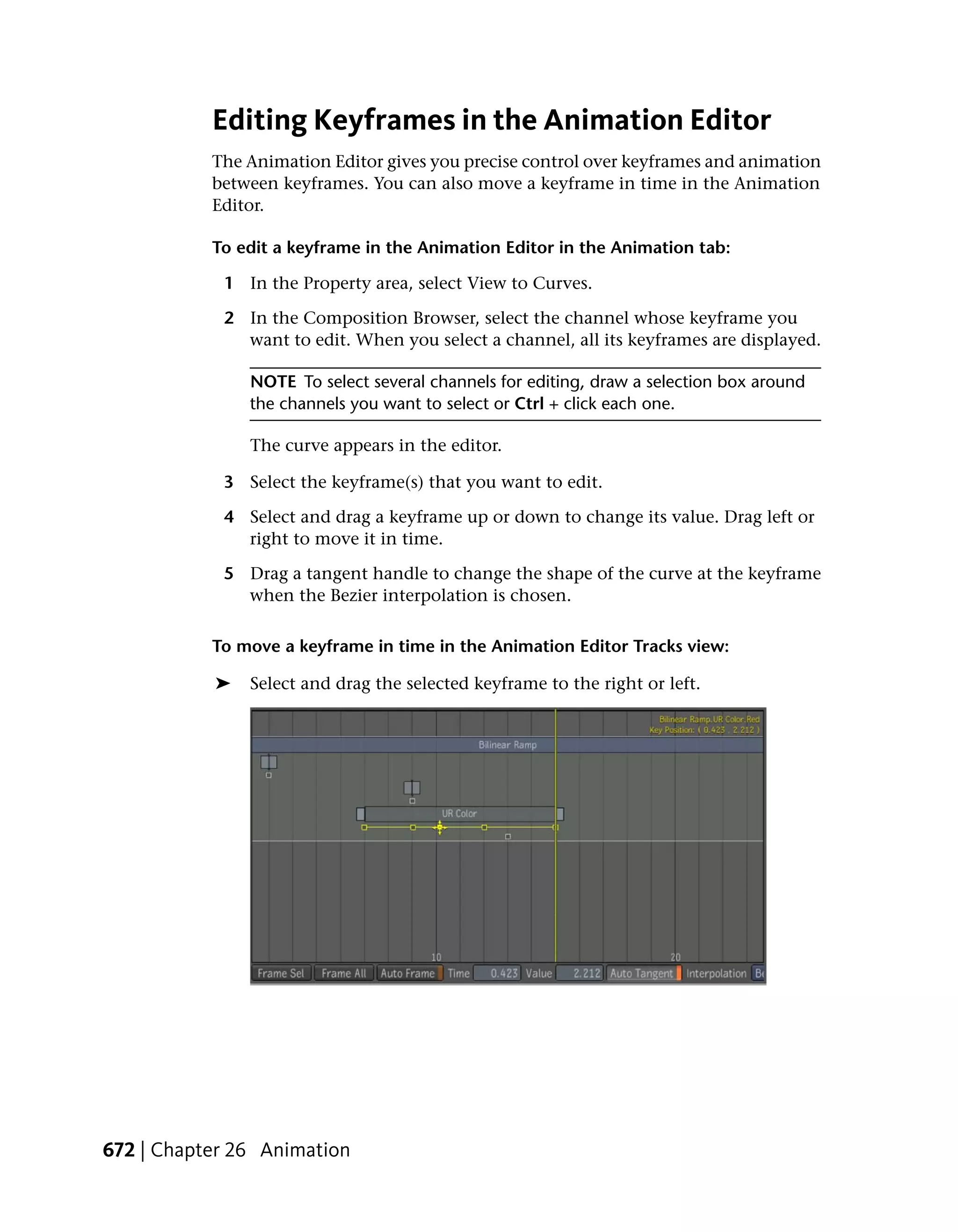


Adding a Reaction Tool and Setting the Composition
Background
When you perform multilayer compositing in Toxik, you typically create a
new composition, then add a Reaction tool to start building from scratch.
However, you can also connect Reaction to any composition or tool output
in an existing dependency graph in the Schematic view. This automatically
sets the background for the composition.


Adding a Reaction Tool and Setting the Composition Background | 247
NOTE You can add, connect, and delete a Reaction tool as you would any other
            tool.

            To add Reaction to a new composition:

            ➤   In the Tools tab, drag the Reaction tool to the Player, Layer Editor, or
                Schematic.
                If you dropped Reaction on a Player or an empty Layer Editor view, the
                composition drop gate appears. You can link Reaction to the composition
                Output node, or add it to the current composition without connecting
                it to anything.


            To add Reaction to the current composition:

            ➤   In the Tools tab, drag the Reaction tool to Schematic.
                The background for the Reaction node is set.


            Setting the Background
            Before you composite or add effects to a composition in Reaction, you typically
            set the background. The background is the rendering plane for your
            composition and sets the format. If you connect a Reaction tool to an image
            or to a tool output in an existing dependency graph, the background is set
            automatically. You can change the background at any time.

            To set the background automatically in the Layer Editor:

             1 In the Tools tab, drag the Reaction tool to the Layer Editor.
                The composition drop gate appears. Depending on your dependency
                graph, you will see some or all of the following choices:


248 | Chapter 12 Multilayer Compositing and 3D Effects
2 Decide where to add Reaction in your dependency graph.
    The background is set accordingly, and appears in the Layer Editor.


To set the background automatically in the Schematic view:

➤   Drop the Reaction tool onto an existing tool or image output connection
    in the Schematic view.

To set the background manually in the Schematic view:

➤   Connect a media or tool node output to the background input connector.

To set or replace the background using the drop gate:

 1 Select the desired Reaction tool in the Schematic or Layer Editor.
    In the Schematic view, the Reaction tool is highlighted.

 2 Select the composition to use as the background and drag it to the
   Schematic, Layer Editor, or Player.
    The Reaction drop gate appears.

 3 Swipe through Set Background.


                                            Setting the Background | 249
NOTE You cannot delete a background input connector.


            Creating Sources and Layers
            You can composite as many layers as you want using Reaction, but first you
            must create the layers. A layer in Reaction is composed of a source input that
            you assign to a geometrical support, or 3D geometry, and a material node that
            is automatically generated—see Working with Geometric Surfaces on page
            256.

            NOTE To view the Material and geometrical support nodes that are generated
            with a layer, you must be in the Group Schematic.


            If you want to perform basic multilayer compositing, where you work with
            bilinear geometric surfaces only, you can quickly create a layer in a single step
            in the Layer Editor or Schematic by using the Reaction drop gate. To substitute
            a 3D geometric surface as your layer support, you can then simply choose a
            different geometric surface. After creating the sources and layers, you can
            publish a 2D composition if you are satisfied with the results.

            To create one or more sources and layers in a single step:

             1 In the Schematic view, select the Reaction node.

             2 Select images or footage from the File Browser or desktop, and drop (or
               stick) them onto the Schematic, Layer Editor, or Player.
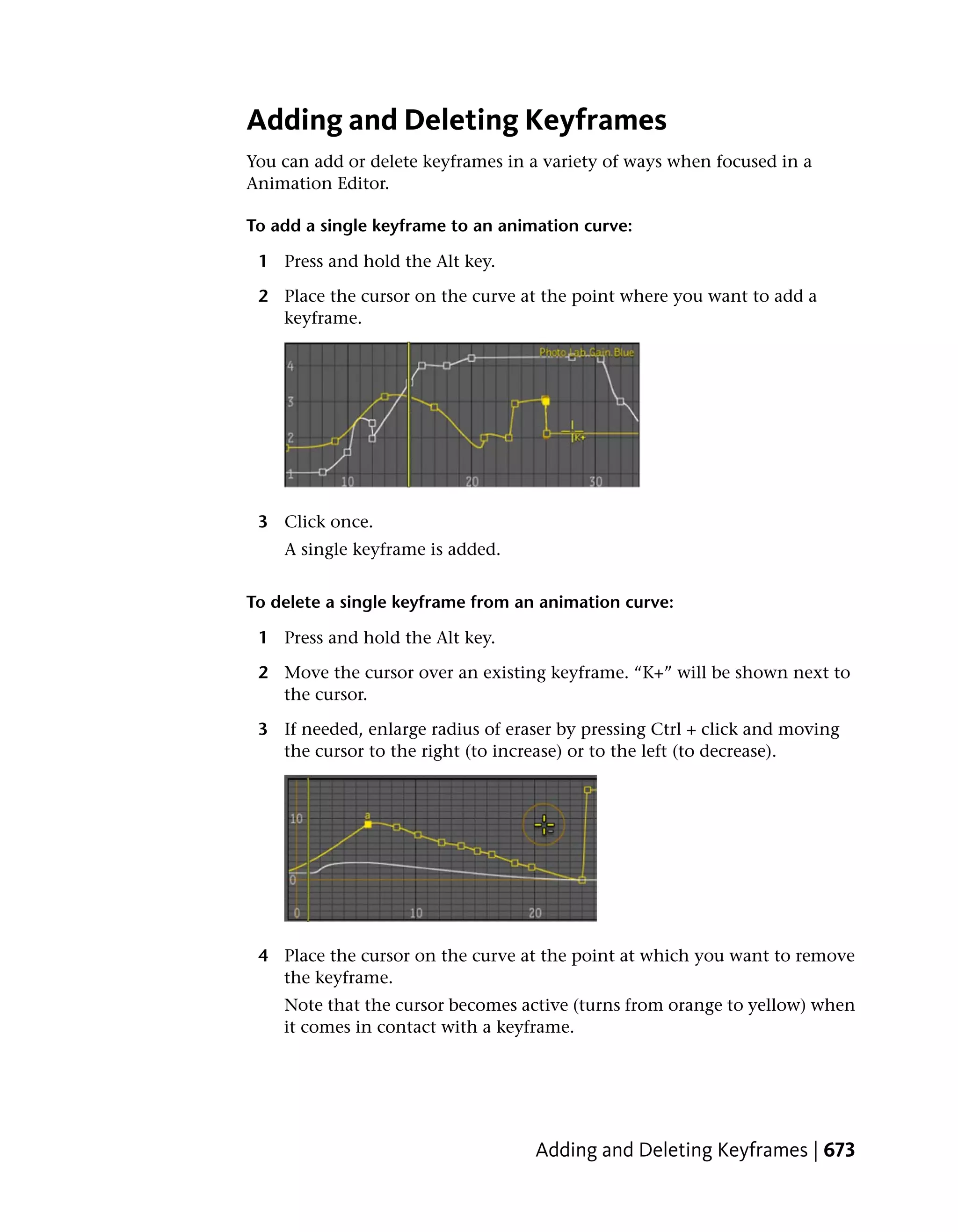
                 The composition drop gate appears.

             3 Swipe through Create Layer.
                 The sources and layers are added in the order in which you selected the
                 images/footage (from first to last) and labeled accordingly in the Layer
                 Editor.


250 | Chapter 12 Multilayer Compositing and 3D Effects
To add a layer:

➤    Do one of the following:
     ■   At the bottom of the Layer Editor, select a surface geometry type and
         click Create.
         A layer with the surface you chose and a source are created.

     ■   In the Schematic view, right-click the Reaction node and select Add
         Layer.
         A layer and a source are created. By default, the Bilinear surface is
         assigned to the layer.


To add a source:

 1 In the Schematic view, right-click the Reaction tool and select Add Source.


 2
     A source input connector appears in the Schematic view. You can connect
     media or a tool node to it.

To add a layer and link to its source:

➤    In the Layer Editor, right-click a layer and select Add Linked Layer.
     A layer is created and linked with its source.


                                          Creating Sources and Layers | 251
To add one or more source compositions to Reaction in a single step:

             1 Select the Reaction tool in the Schematic view or select the desired
               Reaction in the Layer Editor.

             2 Select one or more compositions from the File Browser or Desktop and
               drop (or stick) them onto the Layer Editor, Schematic, or Player.
                 The drop gate appears.

             3 Swipe through Create Source.
                 The sources are added in the order in which you selected the compositions
                 (from first to last) and are labeled accordingly in the Layer Editor.


            To create a layer using a source:

            ➤    In the Layer Editor, right-click a source and select Create Layer Using
                 Source.
                 A layer is created in the Layer Editor.

                 NOTE You can immediately change the surface geometry of the layer using
                 options in the Type column of the Layer Editor.


            NOTE You can add more than one layer to a source if you want to create multiple
            layers using the same source image. If you have applied effects to the source image,
            they will be propagated to the layers to which they are linked.


            Working with Maya Pre-Comps
            Once created, you can automatically generate and update compositions based
            on Maya render layer and pass setups. This accelerates and streamlines the 3D
            to 2D workflow by allowing the 3D artist to pre-visualize a scene in the form
            of the final composite while continuing to iterate on and refine only required
            elements. The format supports different passes per layer and per camera; passes
            from pairs or sets of cameras can be imported side-by-side within a
            composition, allowing their dependency graphs to be manipulated in tandem,
            and making it easy to select pairs of nodes for viewing as stereoscopic output.
            For more information, see Maya/Toxik Interoperability and 3D Limitations
            on page 333.


252 | Chapter 12 Multilayer Compositing and 3D Effects
General workflow for working with pre-comps:

■    Import a Maya scene—see Importing Maya 2008 Render Layers on page
     324.


Working with Layers
When you create a layer, it is automatically added to the top of the Layer
Editor. The source name is displayed along with the name of the node to
which it is connected. Also, each layer is numbered, so you can easily identify
it. After creating layers, you can use the arrow buttons in the Layer Editor to
quickly reorder layers. From the tool UI, you can interactively apply 2D and
3D transformations, as well as set global layer properties and visibility options.
And because layers are discrete objects, you can also parent layers to axis
objects in the Group Schematic.


Renaming Sources and Layers
Renaming sources and layers lets you quickly identify a layer and its source
in the Group Schematic. You can rename sources and layers in the Layer Editor
or the Tool Options at the right of the tool UI.

To rename a source or layer:

    1 In the Layer Editor, click the name of a source or layer.

    2 Press F2 and type in a new name.


Selecting Layers
You can select a layer in several ways: through the Layer Editor, from the
Group Schematic, or by clicking a layer in the Player.


                                                    Working with Layers | 253
To select a layer:

            ➤    Do one of the following:
                 ■   In the Layer Editor, click to select a layer.

                 ■   In the Schematic view, double-click the Reaction node to open the
                     Group Schematic. Click a Layer node.

                 ■   In the Player, select a layer.

                 The selected layer is shown with the manipulator icon that represents
                 the three axes.


            NOTE To view the manipulator icon, make sure you have selected Manipulators
            in the Player Options.


            Duplicating Layers
            Duplicating a layer gives you an identical layer that includes the source,
            material, and surface type.

            To duplicate a layer:

            ➤    Select a layer from the Layer Editor and do one of the following:
                 ■   At the bottom of the Layer Editor, click the Duplicate Layer button.

                 ■   Right-click a layer and select Duplicate Layer.


            Reordering Layers
            You can reorder layers interactively using the arrow buttons in the Layer
            Editor. Layers are composited in the order in which they appear in the list.


254 | Chapter 12 Multilayer Compositing and 3D Effects
To reorder layers:

 1 Select a layer from the Layer Editor.

 2 Use the arrow buttons at the bottom of the Layer Editor to reorder the
   layer.


Modifying Motion Blur on Individual Layers
You can modify the motion blur applied to your composition on individual
layers, so that each layer appears to be moving at a different speed than other
layers—see Adding Motion Blur and Depth of Field to a Scene on page 294.

To modify the motion blur on a layer:

 1 Select a layer from the Layer Editor.

 2 Enter a value in the Time Dilation field. A higher value speeds up the
   blur effect for the layer; a lower value slows it down.


Setting Layer Visibility Properties
You can set layer visibility properties to specify how the layer is rendered or
“seen” by the camera.

To set the visibility options:

➤    Select any of the following in the Reaction tab.
     Thumbnails:         Size (in pixels):

     Visible to Camera   The layer is visible to the camera. If you hide the layer from the
                         camera, the layer may still cast a shadow and can be seen by a light.

     Cast Shadow         The layer can cast shadows.

     Receive Shadow      The layer receives shadows cast by itself and by other layers in the
                         composition.

     Front Face          The front faces of the layer will be rendered.


                           Modifying Motion Blur on Individual Layers | 255
Thumbnails:        Size (in pixels):

                 Back Face          The back faces of the layer will be rendered.

                 Time Dilation      Modifies the motion blur that affects layers animated in the scene.
                                    You can give the layer the appearance of moving at a different speed
                                    than is set for Motion Blur in the Render tab.


            Working with Geometric Surfaces
            When you create a layer, you are assigning a source input to a geometric object
            that defines the surface on which the source is mapped. You can replace the
            assigned surface object with a different one, as well as disconnect a surface
            object in the Schematic and replace it with another. By default, when you
            create a layer, the surface type is determined by the last geometric setting
            chosen in the Layer Editor.

            NOTE When you create a layer in the Schematic view, the default surface is Bilinear.

            There are five surface types available in Reaction: bilinear, box, frustum, sphere,
            and plane. The bilinear surface is a planar surface with four vertices, one at
            each corner. The vertices are joined by straight line segments using linear
            interpolation. The box, frustum, and sphere surfaces are 3D primitives meshes
            with no control vertices.


            Modifying Surface Shape and Geometry
            You can change a surface's shape by scaling it using the transformation tools.
            You can also modify a surface's base geometry from the Surfaces tab in the
            Reaction tool UI. You can increase or decrease the number of segments to
            change the number and shape of the surface's polygons, which may affect its
            shape, how it reacts to lights in the scene, and how texture maps are displayed.

            TIP You can toggle the display of the icons that represent the camera, lights, axis,
            and transformation by selecting Icons on the Render tab.

            To modify a surface's geometry:

             1 Select the Surfaces tab.

             2 Select a layer from the Layer Editor.


256 | Chapter 12 Multilayer Compositing and 3D Effects
3 To change the surface, select a surface type under the Type column.

 4 In the Surfaces tab, adjust the properties to modify the surface's geometry.
    Surface        Description
    Type

    Bilinear       You can change the number of segments to increase or decrease the
                   number of polygons, and change their shape. You can also move corner
                   points in X, Y, and Z to create a variety of 4-sided shapes. Because you
                   can also move corners in Z, you can create warped effects.

    Box            You can change the number and size of segments to increase or decrease
                   the number of polygons, and change their shape.

    Frustum        You can change the geometry of the top, bottom, and height, as well
                   as the number of segments to increase or decrease the number of
                   polygons.

    Plane          You can change the number of segments to increase or decrease the
                   number of polygons, and change their shape.

    Sphere         You can change the number of segments to increase or decrease the
                   number of polygons, and modify the smoothness of the sphere, or
                   change its shape. When you reduce the number of segments, you will
                   create a more faceted appearing sphere that will also affect how it reacts
                   to lights. You can also modify the radius to change the size of the sphere.


To modify a bilinear surface interactively:

 1 In the Layer Editor, select a layer with a Bilinear surface.

 2 Select the Surfaces tab.
    In the Player, manipulators appear at each corner of the surface.


                              Modifying Surface Shape and Geometry | 257
3 Adjust the manipulators to modify the surface.

                 TIP You can also select a bilinear surface by opening the Group Schematic.


            Using Parenting Axes
            You can add axes to a 3D scene and parent them to cameras, lights, layers,
            and other axes in the Group Schematic. This lets you control the movement
            of one or more child objects by transforming the parent axis.
            You can transform axes interactively using the transformation buttons in the
            Axes tab, where you can also set values for the axis position, rotation, scale,
            and pivot. You can animate and set expressions for all transformation values,
            as well as assign them to a tracker. The axis is represented by a white cross in
            the Player, which you can select and interactively move with the manipulator.

            NOTE The axis icon is visible only if you have selected Icons in the Render tab of
            Reaction.

            To add an axis from the Axes tab:

             1 In the Schematic view, select the Reaction node and then select the Axes
               tab.

             2 From the Axes list, click Add.
                 An axis is added to the Axes list.

             3 In the Schematic view, double-click the Reaction node to display the
               Group Schematic.

             4 Parent the axis to a layer, camera, or light.

            To add an axis from the Tools tab:

             1 In the Schematic view, double-click the Reaction node to display the
               Group Schematic.

             2 From the Tools tab, drag the Axis tool from the Reaction folder to the
               Group Schematic.

             3 In the Schematic view, parent the axis to a layer, camera, or light.


258 | Chapter 12 Multilayer Compositing and 3D Effects
To set the visibility of an axis:

 1 In the Schematic view, select the Reaction node.

 2 Select the Axes tab.

 3 From the Axes list, click the white square beside an axis.


Working with Materials
When you create a layer, a separate material node is automatically generated
and linked to the layer. Every layer must be associated with a material, but
many layers can share a single material. Because the material node is separate
from the layer and surface, you can easily propagate material properties to
several layers from a single source, instead of duplicating effort by having to
assign the same material attributes to several surfaces. You can quickly connect
materials to layers from the Reaction Group Schematic and see which layers
share materials.


About Materials, Shaders, and Textures
A material defines how the layer and its associated surface object appears. It
defines how it interacts with lights, how it reflects light back to the view, and
how it blends in with the rest of the scene. You can choose one of four shader
types to set the basic material properties for a given layer and choose from a
wide selection of blending modes to define how the current layer is blended
with the scene element lying behind it (with respect to the view).
In addition, each material node has five input tabs, or channels, that you can
use to assign one or more sources to apply textures to an object. The main
material channel defines a layer's base material and texture mapping, and is
always used. You can optionally connect sources to the other inputs on the
material node to define a bump map, as well as radiosity, reflection, or
refraction environment maps, depending on the shader type selected.
Textures are 2D images that can be wrapped around an object's surface, much
like a piece of paper wrapped around an object. The information displayed
on the object's surface depends on the type of texture map used. In bump
maps or normals maps, RGB or luminance values are used to give the surface
the illusion of peaks and valleys. In radiosity maps, the object appears to blend
in the source image's radiosity. This is useful for creating realistic lighting
effects without the high rendering cost associated with raytracing or radiosity.


                                               Working with Materials | 259
Setting Material Properties
            When you create a layer, a material is associated with it automatically. By
            default, the material displays the source image on the layer surface using the
            Standard shader, which gives you immediate access to the full range of
            parameters in the Materials tab.

            To access the Materials UI:

            ➤    Do one of the following:
                 ■   In the Layer Editor, select a layer and then select the Materials tab.

                 ■   In the Schematic view, right-click the Reaction node and select Edit
                     Group to display the Group Schematic, and then click a material node
                     to select it.
                     The Materials UI displays the properties for the selected material node.


            Materials UI
            The Materials UI contains a comprehensive set of options and controls for
            setting the shader type, blending mode, shading parameters, color factors,
            and texture mapping and blending.

            Shader Types
            There are four shader types: Standard, Simple, Shadow Matte, and No Shade.

            To select a shader type:

            ➤    In the Materials UI, select a shader:


            ■   Standard      The full range of parameters for creating diverse 3D effects
                using lights and cameras.


260 | Chapter 12 Multilayer Compositing and 3D Effects
■   Simple      A subset of Standard shader parameters. It does not consider
    lights in the scene, but you can create lighting effects using environment
    maps.


■   Shadow Matte       Used to blend shadows into a scene. By adding objects
    to a scene, you can create realistic shadow effects.


■   No Shade      Lets you set parameters and texture mapping for the main
    material channel only. You rely on the lighting effects in the source image
    to provide illumination.


Blending Modes
Blending modes are available with all shader types. A blending mode defines
how the color of one layer is blended with the color of the layer or part of the
scene lying behind it (relative to the Player). You can animate and apply
expressions to blending modes—see Animation on page 649 and Expressions
on page 695.
There are two categories of blending modes:
Software     Lets you select the blending mode used by the software renderer.
If you selected Interactivity in the Player Options to enable the hardware
renderer for fast results while you work, you can set the Software blending
mode to Follow HW. This ensures that the software and hardware renderer


                                                           Materials UI | 261
produce almost exactly the same results. The Follow HW option is selected
                  by default.

                  NOTE Because the hardware and software renderer use different methods to
                  calculate results, it is recommended that you perform all transformations using
                  the hardware renderer, but verify your results using the software renderer.

                  Hardware     Lets you select the blending modes used by the hardware renderer,
                  which can only reproduce a subset of the blending mode effects available to
                  the software renderer.

Blending Mode Description                                                                  SW   HW

Follow HW            Set results to follow the hardware renderer.                          X

Normal               Maintains the normal colors for the layer.                            X    X

Premultiplied        Multiplies the colors of the current layer with the alpha of the      X    X
                     layer behind it.

Dissolve             Randomly dissolves pixels of the current layer over the layers        X
                     behind it.

Add                  Adds the Red, Green, and Blue values of the current layer's pixels    X    X
                     to the layers behind it. The resulting composite can make the
                     layer's pixels appear very bright, especially over a bright back-
                     ground.

Subtract             Subtracts the Red, Green, and Blue values of the current layer's      X    X
                     pixels from the layers behind it. The resulting composite can
                     make the layer's pixels appear very dark.

Multiply             Multiplies the pixel values of the current layer with the pixels in   X    X
                     the background, and clips all RGB values at 255. The overall ef-
                     fect is similar to drawing with a colored marker over an image:
                     it darkens and colorizes at the same time using the current layer
                     imagery.

Spotlight            Shines a spotlight uniformly on the current layer.                    X    X

Spotlight Blend      Shines a spotlight on the layer and blends with the layer behind      X    X
                     it.

Screen               Combines the pixels in the current layer with the pixels in the       X    X
                     background so that the current layer is composited over the
                     layers in the background with lighter pixels than before. The


262 | Chapter 12 Multilayer Compositing and 3D Effects
Blending Mode Description                                                             SW   HW
              effect is similar to the photographic technique of combining
              two slides in a slide “sandwich” and then reshooting them.
              Screen mode is the inverse of Multiply mode.

Overlay       Displays the image through a gel of the current layer. It com-          X
              bines the colors of the current layer with those of the layers
              behind it to create new tints based on these results. It boosts
              contrast and color saturation at the same time.

Soft Light    Shines a soft, diffuse light associated with the current layer onto     X
              the layers behind it. It reduces the contrast levels in the image.

Hard Light    Shines a harsh light associated with the current layer onto the         X
              layers behind it. It primarily affects areas of detail, and greatly
              reduces the contrast levels in the image.

Darken        Composites only the pixels of the current layer that are darker         X    X
              than the pixels of the layers behind it.

Lighten       Composites only the pixels of the current layer that are lighter        X    X
              than the pixels of the layers behind it.

Difference    Displays the difference between the pixels in the current layer         X
              and the pixels of the layers behind it. When a brighter pixel is
              subtracted from a darker pixel, the positive value of the color is
              used and results in bright color shifts. The layer order is not
              significant, as both layers contribute nearly equally to the result.

Exclusion     Creates an effect similar to Difference, but lower in contrast and      X    X
              resulting in a grayer image. The layer order is not significant, as
              both layers contribute nearly equally to the result.

Hue           Changes the hue of the current layer to the hue of the layers           X
              behind it. This effectively makes the current layer take on the
              “tint” of the elements in the background of the composite.

Saturation    Changes the saturation of the current layer to the saturation           X
              values of the layers behind it. (This differs from Saturate, which
              uses the saturation of the current layer to increase that of the
              layers behind it.)

Color         Changes the hue and saturation of the current layer to the hue          X
              and saturation values of the layers behind it.


                                                                                     Materials UI | 263
Blending Mode Description                                                      SW     HW

Luminance       Changes the luminance of the layers in the background of the   X
                composite to the luminance value of the current layer.


            Basic Shading Parameters
            The basic shading parameters let you set a layer's opacity. Depending on the
            shader type selected, you can also set the refractive index and surface glossiness.

            NOTE Basic shading parameters do not apply to the Shadow Matte shader—see
            Using the Shadow Matte Shader on page 269.

            To set basic shading parameters:

            ➤    Enter a value for the object's opacity, refractive index, and glossiness.

            Opacity    Sets the transparency for the layer. Values are measured in percent.
            A value of 100 is opaque, a value of 0 is transparent. If you want to create a
            transparent surface, such as glass, a low value (10) will yield a more convincing
            result than 0.

            NOTE Transparency affects the visibility of a layer's other attributes.

            Glossiness     Sets the level of glossiness for the layer, which affects the specular
            highlights created when a light shines directly on a layer. A glossier, more
            reflective surface yields a smaller, sharper highlight. A less glossy surface has
            a highlight that is more diffuse or blurry. Glossiness is available with the
            Standard shader only. Values range from 0 to 1, with a value of 1 being
            completely reflective. In this case, you would not be able to see any of the
            objects other surface properties, so glossiness should be set to less than 1.

            Setting Material Colors
            You can set color factors for each texture channel available for the type of
            shader you select. If you are working with a Standard shader, you can also set
            color factors for ambient and specular lighting effects. The colors you set are
            multiplied with the colors of the input source image connected to that channel.
            The Shadow Matte shader has no color factors.


264 | Chapter 12 Multilayer Compositing and 3D Effects
NOTE You can choose to add a layer without a source to your composition. For
example, if you want to add a colored ball to your scene, you can simply create
a layer and set its color in the Materials tab. In this case, the main color would be
the color you set.

Color           Description

Main            Sets a color to modulate the main material color. The Main color is a
                diffuse color that the light scatters in all directions, so that the layer
                surface appears to have the same brightness from all viewing angles.
                Available for all Shaders except for Shadow Matte.

Ambient         Sets a color to modulate the color of areas of the object that are shielded
                from direct light sources, but are still visible, due to non-directional
                ambient lighting that exists in the scene. Available in the Standard shader
                only.

Specular        Sets the color of shiny highlights on the layer surface. It is usually set to
                white or a brighter shade of the main color. Available in the Standard
                shader only.

Emitted         Sets a color to modulate the color emitted from an object in the scene.
                Available in the Standard shader only.

Reflective      Sets a color to modulate the color of layer surfaces with reflective
                properties and/or reflection maps applied. You typically set a grayscale
                value, with white being reflective, and black having no reflectivity.

Refractive      Sets a color to modulate the subtle changes in color that occur as light
                passes through an object where transparency or translucency is incor-
                porated. Black has no refractive properties.

Radiosity       Sets a color to modulate radiosity effects applied to your scene. Radiosity
                effects add a high degree of realism to images as it considers all light
                in an entire environment and simulates what happens when rays of light
                hit an object. Some stick (where a surface is opaque and absorbs the
                light), and others are reflected and refracted. These rays then go on to
                illuminate other surfaces before reaching the human eye. This yields
                indirect lighting and color bleeding effects ideal for global illumination.


To set material color values:

➤      Click the color pot of the channel that you want to set a color.


                                                                        Materials UI | 265
The Color Picker is displayed, so you can set color values—see Color
                Picker on page 152.


            Using Texture or Environment Maps to Control Surface Attributes
            The Main texture channel defines the surface's general appearance, but if your
            main texture is not enough to give you the look you want, you can add more
            texture maps. Each Material node has five texture channels that you can use
            to apply texture and environment maps to refine the appearance of an object's
            surface. You can set parameters for each channel.
            The Main and Bump texture channels let you wrap and position a texture on
            the surface. By default, the image is clamped to the surface. You can then use
            placement parameters to position the source image on the surface and apply
            tiling effects.
            The Radiosity, Reflection, and Refraction channels let you apply environment
            maps to your surface object. The environment maps use their source image
            to surround the surface with a virtual sphere to simulate an environment,
            which shows up as reflections on the surfaces of objects with reflective
            properties. The environment map always covers the sphere exactly once. You
            can transform your object and see the effects of the environment map change
            dynamically. Using environment maps is a fast and inexpensive way to achieve
            highly realistic lighting effects.

            NOTE Material nodes in the Group Schematic always show all five input tabs.
            However, the number of active input tabs depends on the channels available for
            the selected Shader type.

            To connect a source image to a texture or environment map channel:

             1 Do one of the following to display the Group Schematic:
                ■   In the Schematic view, double-click the Reaction tool.

                ■   In the Schematic view, right-click the Reaction node and select Edit
                    Group.

             2 Connect a source image node to a channel tab on a Material node. To
               identify the nodes, pause over a material node to see a tooltip with the
               node name.
                Material Texture       Description
                Channel

                Main                   The main channel is used to apply a source image as a texture
                                       map on a selected object's surface. You can position the ma-


266 | Chapter 12 Multilayer Compositing and 3D Effects
Material Texture     Description
       Channel
                            terial on the surface using the UV placement controls, and
                            tile the image in U and V.

       Reflection           A reflection map uses the source image to create realistic re-
                            flections. You can use the color factor to set areas and the
                            degree of reflectivity for the material. You typically set a
                            grayscale color value, with white being completely reflective,
                            and black having no reflectivity. You can, however, achieve
                            tinted reflections by set setting a color.

       Refraction           A refraction map is an environment map that can be used to
                            simulate how light traveling through a refractive, transparent
                            material is distorted.

       Radiosity            The radiosity map uses the source's color and luminance val-
                            ues to add radiosity effects to the layer surface.

       Bump                 A bump map is usually a different image that you specify as
                            a source for a bumpy or textured appearance on a surface. It
                            is sensitive to light sources. Its RGB (when using an RGB im-
                            age, it is a normals map) or luminance values are used to
                            simulate relief on objects by perturbing the surface shading
                            according to an image map. The geometry is not affected.


    3 To exit the Group Schematic, double-click anywhere in the Schematic.


NOTE When using an RGB image as an input to the Bump channel, the RGB values
map to XYZ when calculating the effects of light on the surface normals.

TIP Black and white or grayscale images are easy to work with when adding a
bump map, as you can quickly identify how the bump map will appear on the
target surface. Black areas create ridges, and white areas create indentations.

Things to remember

■    Only the Standard Shader considers lights in the scene.


■    Using environment maps adds lighting effects to the associated objects
     only.


                                                                Materials UI | 267
To set texture and environment map parameters:

             1 In the Materials UI, select a layer from the Layer Editor.

             2 Select the Simple or Standard shader.

             3 Under Channels, select a channel: Main, Radiosity, Reflection, Refraction,
               or Bump.

             4 Adjust the parameters to control image brightness and texture quality,
               and in the case of the Main and Bump textures, specify how the texture
               is positioned on the object.
                The following parameters are available depending on the channel you
                selected:

                Property       Description

                Multiplier     Uniformly scales the brightness of the image texture up or down.
                               This is useful for setting the amount that a given texture affects the
                               object's overall look. The default value is 1, but you can overdrive
                               the brightness to achieve specific effects.

                Filtering      Sets the quality of the texture image. When a texture is stretched
                               onto an object, it may, depending on the camera position, lose
                               some of its crispness. The rendered can compensate for this, but it
                               may slow the process. Filtering options include:
                               ■   Nearest A box filter and the fastest way to resample an image
                                   since it only samples a single pixel of the input image to determ-
                                   ine the value of a given pixel in the result image. Produces sig-
                                   nificant amount of aliasing.
                               ■   Bilinear A separable triangular filter that takes into account
                                   more area when resampling.
                               ■   Mitchell Considered one of the best magnification filters for
                                   images; has a good balance between ringing and sharpness.
                               ■   Gaussian Good magnification and magnification filter with
                                   no ringing, but introduces noticeable softness to the result im-
                                   age.
                               ■   Jinc 2 Offers better sharpness than the Gaussian filter, but at
                                   the expense of ringing. Similar to the sinc filter, but with better
                                   isotropic qualities, less ringing, and same sharpening and anti-
                                   aliasing.
                               ■   Jinc 3 Offers better sharpness than the Gaussian and Jinc 2
                                   filters but at the expense of even more ringing. Similar to the


268 | Chapter 12 Multilayer Compositing and 3D Effects
Property           Description
                           Lanczos filter but with better isotropic qualities, less ringing,
                           and same sharpening and anti-aliasing.

    AA Factor          Lets you adjust the trade-off between anti-aliasing and blurriness.

    Refract Inx        Sets the amount of refraction for the current layer when using a
                       refractive texture. The higher the value, the greater the amount of
                       light The higher the value, the greater the amount of light dispersion
                       (splitting), which increases the object's brilliance.

    Tiling X, Tiling   Set the repeat mode. Choose from; Transparent, Edge, Repeat, and
    Y                  Mirror.

    U Offset,V Off-    Translates the texture in U and/or V.
    set

    U Scale, V         Lets you specify the number of times a texture is repeated over a
    Scale              surface. You can use a non-integer value, such as 2.35.

    Rotation           Rotates the texture over a surface.


Using the Shadow Matte Shader
The Shadow Matte shader lets you capture shadows created by using 3D objects
as proxies. This creates the illusion of shadows cast from objects or image
elements onto 2D images where none exist. The resulting output using this
shader is a black and white image that shows the shadows in black, and
everything else in white.
For example, if you have an image of a cityscape, and you want to have a red
balloon fly overhead, casting a shadow as it travels, you could create your
balloon using a sphere, add a light source to illuminate it, and then add a
planar surface parallel to the ground to receive the shadow. You would then
select the Shadow Matte shader to use on the plane, and set the Blending
Mode to Multiply to mask out the plane, except for the shadow. You can then
animate the sphere, and the shadow will follow it.

To set Shadow Matte parameters:

 1 Select the Materials tab.


                                          Using the Shadow Matte Shader | 269
2 Select a layer from the Layer Editor, and then select the Shadow Matte
               shader.

             3 Set parameters to control how light or dark the shadow should look, and
               to invert the shadow.
                 Parameter         Description

                 Multiplier        Uniformly scales the lightness or darkness of the shadow up or down.

                 Invert Shadow     Flips the shadow inside out to reveal the background in the shadow
                                   regions and mask the illuminated areas.


            Working with Lights
            Light is a basic geometric 3D scene element. Each light in a scene contributes
            to how a scene is illuminated. Lights affect the way all object's surfaces appear
            in the rendered scene. You can dramatically change the nature and mood of
            your compositions by modifying lights and their properties.

            NOTE You can animate lighting parameters using keyframes and by applying
            expressions—see Animation on page 649 and Expressions on page 695.


            Adding Lights to a Scene
            You can add one or more lights to your scene and set their properties to achieve
            a variety of lighting effects. There are two ways to add lights to a scene: the
            Lights tab in the Reaction node or the Tools tab.
            When you add a light to Reaction, you must be in the Reaction Group
            Schematic to view the light(s) in your scene. The light you add is positioned
            at 0, 0, 0, so you may need to zoom out to view the light icon.
            You can also set the light type and parameters, as well as parent a light to an
            axis, and animate its properties.

            NOTE The light icon is visible only if you have selected Icons in the Render tab of
            Reaction.

            To add a light from the Lights tab:

             1 Select the Lights tab.


270 | Chapter 12 Multilayer Compositing and 3D Effects
2 Under the Light list, click Add.
     A light is added to the Group Schematic and the Lights list.

 3 To view the light, double-click the Reaction node in the Schematic view.
     The Group Schematic appears.


To add a light from the Tools tab:

 1 Do one of the following to display the Group Schematic:
     ■   Double-click the Reaction node in the Schematic view.

     ■   Right-click the Reaction node and select Edit Group.

 2 From the Tools tab, select the Light tool from the Reaction folder and
   drag it to Schematic.


Choosing the Type of Light
When you add a light to your scene, an Omni light is added by default. You
can change the light type and its properties, and add as many lights to your
scene as needed.
You can define physical properties for your light, depending on the type of
light you selected. There are three types of lights available.
Omni       Simulates a point light source that casts rays in all directions from
the position of the light. Similar to a light bulb, where the light rays emanate
in all directions from the bulb.
Spotlight    Casts rays in a cone, or four-sided pyramid, simulating a real
spotlight. This is useful for lighting a specific object or area and creating
sharp-edged shadows.
Directional     Casts rays in a single direction, from a geometric area and is
useful for creating soft-edged shadows with both an umbra (a full shadow
where an object blocks all rays from a light) and a penumbra (a partial shadow
where an object blocks some of the rays).

To set attributes for a Spotlight:

 1 Select the Lights tab.

 2 Under Light Type, select the Spotlight light type.


                                           Choosing the Type of Light | 271
3 Set the Spotlight properties.
                 Properties     Description

                 Shape          The shape of the light can be a circle or rectangle.

                 Hot Spot       The angle where the solid cone of full intensity light ends and a gradual
                 Angle          fading begins.

                 Cutoff Angle   The angle at which the light ends.

                 Aspect         The aspect ratio of the spotlight shape.


            To set properties for a directional light:

             1 Select the Lights tab.

             2 Under Light Type, select the Directional light type.


             3 Adjust the Radius field to set the radius of the light. This value is also
               used to delimit the size of the shadow map.


            Setting Basic Lighting Properties
            You can set basic lighting properties for all light types.


272 | Chapter 12 Multilayer Compositing and 3D Effects
To set basic lighting properties:

➤       On the Lights tab, under Basics, enter values to define the light.


Properties         Description

Color              Sets the color for the light. Click the color pot to display the color picker,
                   choose a color, and click Set—see Working with the Color Picker on
                   page 153.

Intensity          Sets the amount of light emitted by the source light.

Decay              Sets the light's intensity to diminish gradually using a linear or quadratic
                   function.

1/2 Distance       Represents the distance at which the light's intensity is reduced by half.

Time Dila-         Modifies the motion blur that affects lights animated in your scene. You
tion               can set the Time Dilation factor to give the light the appearance of
                   moving at a different speed than is set for Motion Blur in the Render
                   tab.


Setting Shadow Properties
You can enable shadows and set their properties and parameters to achieve
the results that you want.

To enable shadows and set their properties:

➤       On the Lights tab, under Parameters, select Shadows.


        Property           Description

        Type               Sets the type of shadow created. There are four types:
                           ■   Normal: The default shadow.
                           ■   Mid-Depth: Uses a mid-depth z-buffer to compute a shadow
                               that usually yields fewer artifacts.


                                                        Setting Shadow Properties | 273
Property        Description
                                 ■   Deep: Allows a transparent object to color light as it passes
                                     through.
                                 ■   None: The light does not cast a shadow.

                 Map Size        Select the map size. The default is 256 x 256.

                 Offset          Experiment with self-shadowing effects. The default value is 1.00
                                 and is intended to reduce self-shadowing artifacts.

                 Opacity         Set the transparency of the shadows. By default shadows are opaque.

                 Softness        Set the softness for the shadow.

                 Color           Click the color pot to display the color picker, choose a color, and
                                 click Set—see Working with the Color Picker on page 153.


            Determining How a Light Affects Shading
            You can choose the shading properties a light affects. By default, a light affects
            the ambient, diffuse, and specular components of shading.

            To choose the shading properties that a light affects:

             1 On the Lights tab, under Parameters, select the Affects option.

             2 Under Light Affects, select the shading properties you want the light to
               affect.


            Adding a Projector Texture to a Light
            A projector texture is created when you connect an image to a light node in
            the Reaction Group Schematic. The Projector Texture is applied in the same
            way as a material texture.


274 | Chapter 12 Multilayer Compositing and 3D Effects
To add a projector texture to a light:

➤   On the Lights tab, under Parameters, select Projector.


    Property        Description

    Multiplier      Uniformly scales the brightness of the image texture up or down.
                    This is useful for setting the amount that a given texture affects the
                    object's overall look. The default value is 1, but you can overdrive
                    the brightness to achieve specific effects.

    Filtering       Sets the quality of the texture image. When a texture is stretched
                    onto an object, it may, depending on the camera position, lose
                    some of its crispness. The rendered can compensate for this, but it
                    may slow the process. Filtering options include:
                    ■   Nearest      A box filter and the fastest way to resample an im-
                        age since it only samples a single pixel of the input image to
                        determine the value of a given pixel in the result image. Pro-
                        duces significant amount of aliasing.
                    ■   Bilinear   A separable triangular filter that takes into account
                        more area when resampling.
                    ■   Mitchell     Considered one of the best magnification filters
                        for images; has a good balance between ringing and sharpness.
                    ■   Gaussian     Good magnification and magnification filter with
                        no ringing, but introduces noticeable softness to the result im-
                        age.
                    ■   Jinc 2     Offers better sharpness than the Gaussian filter, but
                        at the expense of ringing. Similar to the sinc filter, but with
                        better isotropic qualities, less ringing, and same sharpening and
                        anti-aliasing.
                    ■   Jinc 3      Offers better sharpness than the Gaussian and Jinc 2
                        filters but at the expense of even more ringing. Similar to the
                        Lanczos filter but with better isotropic qualities, less ringing,
                        and same sharpening and anti-aliasing.

    AA Factor       Lets you adjust the trade-off between anti-aliasing and blurriness.


                                 Adding a Projector Texture to a Light | 275
Property           Description

                Tiling X, Tiling   Set the repeat mode. Choose from; Transparent, Edge, Repeat, and
                Y                  Mirror.

                U Offset,V Off-    Translates the texture in U and/or V.
                set

                U Scale, V         Lets you specify the number of times a texture is repeated over a
                Scale              surface. You can use a non-integer value, such as 2.35.

                Rotation           Rotates the texture over a surface.


            Working with Cameras
            The camera in Reaction is analogous to a physical camera in the real world.
            Each Reaction node has a camera that outputs a result; this is the render
            camera. The camera through which you are currently viewing through is
            displayed in the upper-left corner of the Player.

            NOTE When using the orthographic camera, you cannot set certain basic camera
            properties.


276 | Chapter 12 Multilayer Compositing and 3D Effects
Adding a Camera to Your Scene
You can add as many cameras to a scene as you like, and you can view and
render your scene from any camera. There are two ways to add cameras to a
scene: through the Cameras tab in a Reaction node or through the Tools tab.
Once you've added cameras, you can indicate which camera(s) to use as the
render, or active, camera(s). You can designate any number of cameras as
active. Active cameras contribute to the composition's output, and is indicated
by the white square under the “A” (active) column of the Cameras tab. You
can also set the visibility of each camera.

NOTE The camera icon is visible only if you have selected Icons in the Render tab
of Reaction.


To add a camera from the Cameras tab:

 1 In the Schematic view, select the Reaction node.

 2 Select the Cameras tab.

 3 At the bottom of the Cameras list, click Add.
     A camera is added to the Cameras list.


To add a camera from the Tools tab:

 1 In the Schematic view, display the Group Schematic by double-clicking
   the Reaction node or right-clicking the Reaction node and selecting Edit
   Group.

 2 From the Tools tab, select Camera from the Reaction folder and drag it
   to the Group Schematic.
     A camera is added to the Group Schematic and the Cameras list.

     NOTE In the Group Schematic, you can parent a camera to an axis, animate
     its properties using keyframes or expressions, as well as apply tracking and
     stabilization.


                                      Adding a Camera to Your Scene | 277
To set the render camera(s):

             1 In the Schematic view, select the Reaction node.

             2 Select the Cameras tab.

             3 From the Cameras list, click the white square under the A (active) column
               beside the camera(s) you want to designate as the render camera(s).

            To set the visibility of a camera:

             1 In the Schematic view, select the Reaction node.

             2 Select the Cameras tab.

             3 From the Cameras list, click the square beside the camera and under the
               V (visible) column.


            Setting Camera Properties
            Once you've selected a camera, you can set the properties for each camera in
            your scene.

            To set a camera's properties:

             1 In the Schematic view, select the Reaction node.

             2 Select the Cameras tab.

             3 From the Cameras list, select a camera.

             4 In the Cameras tab, you can set the properties for selected the camera.
                 Parameter         Description

                 Type              ■   Perspective (default)     This projection simulates a real phys-
                                       ical camera.
                                   ■   Orthographic With this projection, all camera rays are paral-
                                       lel, and objects do not appear to change size as they change
                                       distance from the camera. Field of view settings and depth of
                                       field settings available from the Render tab have no effect with
                                       this projection.

                 Focal Length      Sets the distance for the camera's focal point. As the focal distance
                                   increases, the field of view decreases, and vice versa.


278 | Chapter 12 Multilayer Compositing and 3D Effects
Parameter       Description

Near Plane      Sets the minimum viewable distance from the camera. By default,
                the near clipping plane is close to the camera. Setting the near
                plane farther back will hide objects very close to the camera.

Far Plane       Sets the maximum distance from the camera. By default, the far
                clipping plane is very far away, so that you can see the entire scene.
                Setting the far plane closer to the camera will hide objects farther
                away.

Time Dilation   Modifies the motion blur that affects layers animated in the scene.
                You can give the layer the appearance of moving at a different
                speed than is set for Motion Blur in the Render tab.

Angle of View   Lets you frame the scene, making objects appear larger or smaller
                in the frame.

Input Stream    The input stream selector controls which streams of the Reaction
                sources are used when rendering through the given camera. You
                can specify an explicit stream index (Manual mode) or let the order-
                ing of the camera in the camera list control the selection of the
                stream (Match Out).

Film Back       ■   Film Gate     The format of the film gate.
                ■   Horizonal/Vertical Aperture The height and width of the
                    camera's aperture or film back, measured in inches. The Camera
                    Aperture attribute determines the relationship between the
                    Focal Length attribute and the Angle of View attribute. The
                    default values are 1.417 and 0.945.
                ■   Film Aspect Ratio      When the aspect ratio of the film is
                    modified, the horizontal camera aperture is modified. X = Y
                    multiplied by the aspect ratio. The ratio of the camera aperture
                    width divided by the camera aperture height. When changed,
                    it dynamically adjusts the camera aperture width.
                ■   Lens Squeeze Ratio The amount the camera's lens com-
                    presses the image horizontally. Most cameras do not compress
                    the image they record, and their Lens Squeeze Ratio is 1. Some
                    cameras (for example, anamorphic cameras), however, com-
                    press the image horizontally to record a large aspect ratio (wide)
                    image onto a square area on film. The default value is 1.
                ■   Fit Resolution Gate Controls the size of the resolution gate
                    relative to the film gate. If the resolution gate and the film gate


                                        Setting Camera Properties | 279
Parameter         Description
                                       have the same aspect ratio, then the Film Fit setting has no ef-
                                       fect.
                                  ■    Film Fit Offset Offsets the resolution gate relative to the film
                                       gate either vertically (if Film Fit is Horizontal) or horizontally (if
                                       Film Fit is Vertical). Film Fit Offset has no effect if Film Fit is Fill
                                       or Overscan. Film Fit Offset is measured in inches. The default
                                       setting is 0.
                                  ■    X & Y Film Offset Vertically and horizontally offsets the res-
                                       olution gate and the film gate relative to the scene. Changing
                                       the X and Y Film Offset produces a two-dimensional track. Film
                                       Offset is measured in inches. The default setting is 0.

                Position          Translates the selected camera about the X, Y, or Z axis.

                Rotation          Rotates the selected camera about the selected axis and changes
                                  its orientation. Angles of rotation are measured in degrees.

                Pivot             Moves the selected camera's center along the X, Y, or Z axis.


            Accessing Cameras and Camera Views
            You can see your scene through different cameras and from different points
            of view. To see different views, you can use the predefined orthographic views
            or the perspective view. You can also dolly, truck, or zoom those views without
            affecting of the contents in the scene, including the render camera.

            NOTE When using any camera, other than the render camera, zooming and
            panning in the Player is equivalent to dollying and trucking the camera.

            The View From menu lets you access each camera and camera view, and is
            available from both the hardware and software renderer.

            To access the camera(s):

            ➤   Right-click the Player and select View From > Camera (Shift + 1). If there
                is more than one camera, each one is listed. To cycle through each camera,
                press Shift + 1.


280 | Chapter 12 Multilayer Compositing and 3D Effects
To access the camera views:

➤    Right-click the Player, select View From and one of the following:
     Perspective (Shift + 2), Front (Shift + 3), Back, Left (Shift + 4), Right, Top
     (Shift + 5), or Bottom.


Transforming Cameras
You can transform cameras interactively in the Player or set values in the
transformation fields in the Cameras tab—see Transforming Objects on page
290.

NOTE The camera is initially positioned in Z according to the composition's format.

NOTE Interactive transformations are applied using the camera's local axis, but
its position is recorded using global coordinates.

Dollying, Trucking, and Orbiting the Camera
You can dolly, truck, and orbit any camera to view your scene from different
angles.

NOTE Camera movements are not the same as zooming and panning the Player.
For example, if you need to view the pixel output of Reaction up close, you should
zoom in. But if you want to move the camera itself, you should dolly.

To dolly the camera:

➤    Hold down the E key and drag up to move the camera into the scene.
     Drag down to move the camera out of the scene.

To truck the camera:

➤    Hold down the W key and drag up, down, left, or right to position the
     camera.

To orbit the camera:

➤    Hold down the Q key and drag in any direction to position the camera.


                                                  Transforming Cameras | 281
Modifying Motion Blur for the Render Camera(s)
            You can modify the motion blur applied to the render camera(s) in your
            composition. This gives the appearance of movement in the scene relative to
            the camera—see Adding Motion Blur and Depth of Field to a Scene on page
            294.

            To modify the motion blur:

             1 Select the Cameras tab.

             2 From the Cameras list, select the render camera(s).

             3 Under Motion Blur, modify the Time Dilation. A higher value increases
               the blur effect giving the impression of faster motion, and vice versa.


            Resetting the Camera
            You can easily reset the camera to its default.

            To reset the camera:

             1 In the Schematic view, select the Reaction node.

             2 Do one of the following:
                 ■   Press Shift + Home to reset the camera in the current Player.

                 ■   Right-click the Player and select Reset Camera.


            Camera Mapping
            Camera mapping lets you add depth and perspective to a matte painting or
            rendered image by allowing it to be projected onto geometry from the point
            of view of the camera. In this way, you can add the illusion of 3D movement
            to a 2D scene. This facilitates the creation of virtual set extensions, and is also
            used as part of the process of converting 2D material to stereoscopic imagery.
            Using the Camera Mapping tool, which you can place between the geometry
            generator and the Layer node, you can generate UV coordinates. UV
            coordinates are 2D coordinates that you can apply to an object; they are
            generated by the camera connected to the Camera Mapping tool. UV
            coordinates are affected by the camera's parameters, such as the field of view,
            distance, and so on.


282 | Chapter 12 Multilayer Compositing and 3D Effects
To use the Camera Mapping tool:

 1 Create a new composition.

 2 From the Tools tab, select Reaction and drag it to the Schematic view

 3 Select a layer type from the Layer type menu and click Create to add a
   new layer.


 4 Open the File browser and drag the image you want projected into
   Schematic and attach it to the new layer you created.

 5 Display the Group Schematic by double-clicking the Reaction node or
   right-clicking the Reaction node and selecting Edit Group.


 6 Temporarily disconnect the layer type (bicubic in this case) node from
   the sub-graph.


                                                  Camera Mapping | 283
7 From the Tools tab, select Camera Mapping from the Reaction folder and
               drag it to the Group Schematic.

             8 Connect the Layer Geometry output to the Camera Mapping input.

             9 Connect the Camera Mapping Geometry output to the bicubic node.


            10 From the reaction folder, drag a second camera to the sub graph and
               connect its camera output to the Camera Mapping node's Camera output.


284 | Chapter 12 Multilayer Compositing and 3D Effects
11 Adjust the Camera's Film Back, Position, Rotation and Pivot parameters.


3D Displacement
The 3D Displacement tool lets you add depth to meshes created in or imported
into Toxik. The pixel values in an image are used to displace vertices. This
allows the illusion of perspective to be maintained as the camera is moved in
3D space. You can also create a displacement that converges on an object,
such as a light. Once created, you can blur the displacement, as well as set the
tiling.


                                                      3D Displacement | 285
(a) Image before displacement. (b) Image after displacement. (c) Displacement targeted
            towards and converging on an object. In this case, a light.

            NOTE The 3D Displacement tool can only perform displacement on images with
            sufficient geometry. If the image you are using does not contain sufficient
            geometry, you can increase it by adjusting the width and height of segments in
            the Surfaces tab of Reaction.

            To use the 3D Displacement tool:

             1 Select Composition > New or press Ctrl + N (for Windows and Linux0 or
               Cmd + N(Mac OS) to start a new composition.

             2 From the Tools tab, select Camera from the Reaction folder and drag it
               to the Schematic view.

             3 You will need two sources, one for the image to be displaced and another
               for the image that will do the displacing. Right-click the Reaction node
               and select Add Source. Repeat to add another source.


286 | Chapter 12 Multilayer Compositing and 3D Effects
4 Select the Reaction node. In the Tool UI, select the Render tab and click
  Z-Buffer—see Enabling Z-Buffer Effects in Your Scene on page 294.

5 Add the two images you want to use to the Schematic view, connecting
  one to each source. In the following example, the Noise image generator
  is used to displace the character.


6 Display the Group Schematic by double-clicking the Reaction node or
  right-clicking the Reaction node and selecting Edit Group.


7 From the Tools tab, select 3D Displacement from the Reaction folder and
  drag it to the Group Schematic.

8 In the Layer Editor, click Create to add a new layer.


9 Delete the Source node and arrange the nodes as follows:


                                                   3D Displacement | 287
10 Select the 3D Displacement node. In the Tool UI, you can adjust the
               following parameters:
                Parameter            Description

                Amount               Amount of displacement in the image. Positive values make
                                     the displacement protrude and negative values invert the
                                     displacement.

                                     NOTE The displacement occurs in Reaction units
                                     (Amount times the displacement image values minus
                                     the Offset).


                Offset               The value that is subtracted from the displacement image
                                     values before it is interpreted as a displacement. It is used to
                                     determine the value of the displacement image that yields
                                     no displacement.

                Type                 ■   Surface    Orients the displacement towards the surface
                                         normal.
                                     ■   Toward Target Orients the displacement towards a
                                         target which can be a light, locator, axis, camera, layer,
                                         or 3D object.
                                     ■   RGB > XYZ Specifies the displacement by using the
                                         explicit XYZ components of the displacement in the RGB
                                         channels of the image.


288 | Chapter 12 Multilayer Compositing and 3D Effects
Parameter               Description

    Channel                 Set the channel for displacement: Luma, Red, Green, Blue,
                            Alpha.

    Convergence             Used with the Toward Target type. The displacement con-
                            verges or is parallel to the target.

    X Radius, Y Radius      Set the amount of blur to apply in the X or Y direction.

    Link                    Couple the X and Y Radius so that when you change the X
                            Radius or Y Radius, the other changes in the same proportion.

    Tiling X, Tiling Y      Set the repeat mode: Transparent, Edge, Repeat, and Mirror.


11 To make the displacement point towards a target, set the Type to Toward
   Target. Set Convergence parameter; the displacement can converge on
   the target or be parallel to it.

12 From the Tools tab, select the Reaction folder and drag one of the
   following to the Group Schematic: Axis, Camera, Layer, Light, or Locator.

13 Connect the target to the Target tab of the 3D Displacement node. In
   the following example, a light was added as the target.


14 Select the Light node. In the Lights tab, adjust the light to your liking—see
   Working with Lights on page 270.

15 Select the 3D Displacement node and adjust the Amount until you have
   the desired result.


                                                         3D Displacement | 289
The image is starting to displace towards the light object.


            Transforming Objects
            You can transform an individual layer, axis, light, or camera along a specific
            axis to achieve the effects you want. You can transform objects interactively
            in the Player, or by setting values in the transformation fields in the Reaction
            tool UI.

            NOTE When transforming lights, you may need to zoom out to view a light's icon.
            Also, interactive transformations are applied using a light's local axis, but its position
            is recorded using global coordinates.

            To transform objects interactively:

             1 In the Schematic view, display the Group Schematic by double-clicking
               the Reaction node or right-clicking the Reaction node and selecting Edit
               Group.

             2 Select a layer, axis, light, or camera by doing one of the following:
                 ■   Click an object in the Group Schematic.

                 ■   In the Reaction tool UI, select the appropriate tab and select an item
                     from the Layer Editor, Axes, Lights, or Cameras list.

                 The Reaction tool UI displays the tab associated with the selected object.


290 | Chapter 12 Multilayer Compositing and 3D Effects
3 Click a transform button.
    Click:        To:

                  Translate an object along the selected axis. When you move an object,
                  its coordinates are displayed and update dynamically.

                  Rotate an object about the selected axis and change its orientation.
                  Angles of rotation are measured in degrees.

                  Scale an object in X, Y, or Z according to the selected axis. An object is
                  scaled from its center. Scaling uses a multiplication factor. Negative
                  values yield an inverted object.

                  NOTE When a layer is created, its scale is automatically set to
                  1.0.

                  NOTE Cameras cannot be scaled.


To transform objects using the tabs:

 1 In the Reaction tool UI, select the tab of the object you want to transform,
   and then select an item from the Layer Editor, Axes, Lights, or Cameras
   list.

    NOTE If you selected a light, select Transform in the Lights tab (under
    Parameters) to display the fields.

 2 Transform objects by adjusting the Position, Rotation, and Scale values
   (X, Y, and Z).

    NOTE To scale a layer, light, or axis uniformly, click the Link button below
    the Scale fields.

    NOTE Cameras cannot be scaled.

 3 Move the object's center by adjusting the Pivot values (X, Y, and Z).


                                                     Transforming Objects | 291
Reaction Rendering Effects and Output Results
            Because Reaction provides a 3D environment, it has its own rendering and
            output options that you can use to specify an output format, set certain
            rendering features to quickly render draft results, or set rendering effects such
            as anti-aliasing or motion blur and depth of field.


            Setting the Reaction Composition Format
            The Reaction Render tab contains the same composition format options
            available from the Composition tool UI.


            By default, the Reaction tool inherits the format settings specified for the
            project. You can set them as desired for your Reaction output.


            Setting Rendering Options
            Depending on whether you are using the hardware or software renderer, you
            can set some rendering options and effects. When you use the software
            renderer, you can set the Depth of Field and Motion Blur effects, and specify
            the number of samples to take, and select a filter for anti-aliasing.

            To set Rendering and Effects Options:

             1 With the cursor over the Player, press the tilde key (~) or middle-click to
               display the Gate UI. Swipe through Player Options.

             2 Under Reaction, select Interactivity to use the hardware renderer to
               preview results in Reaction. Deselect Interactivity if you want to use the
               software renderer.

                 NOTE The hardware preview in Reaction does not affect the Reaction output
                 to any tools downstream, and does not affect the published results.

             3 In the Reaction UI, select the Render tab.


292 | Chapter 12 Multilayer Compositing and 3D Effects
4 Under Rendering, set rendering options.
   Parameter       Description

   Filter          Applies filter effects on your composition. Choices are listed in order of
                   speed and quality: Box, Conic, Max, Quadratic, Narrow Gaussian, Me-
                   dium Gaussian, Wide Gaussian, Cubic, Cook, and Mit-Net Noch. The
                   Box filter is ultra-fast, but low quality. The Gaussian filters give more
                   blur. The choice you make also depends on the number of samples
                   used.

   Samples         Sets the number of samples. A larger sample gives higher quality but
                   slower speed. This is used with the software renderer only.

   Shading         Turns on/off shading. You may want to disable shading for generating
                   a draft result.

   Shadows         Turns on/off shadows.

   Image Filter-   Applies image filtering.
   ing

   Wireframe       Enables surfaces to render in wireframe.

   Icons           Displays light, camera, and axis icons. You must also enable Interactivity
                   in the Player options to view the icons.


5 Under Fx, set the effects options.

   NOTE You must have software rendering enabled. To enable software
   rendering, deselect Interactivity in the Player options.

   Parameter       Description

   Anti-aliasing   Smooths the edges of rounded surfaces and diagonal lines.

   Depth of        Includes DOF in your scene. This effect simulates a plane of maximum
   Field           sharpness and blurs objects close to or beyond this plane.

   Motion Blur     Adds motion blur to your scene.

   Z-Buffer        Uses the Z-buffer in your composite. The Z-buffer works with hardware
                   and software rendering.


                                               Setting Rendering Options | 293
Adding Motion Blur and Depth of Field to a Scene
            When the Motion Blur and Depth of Field (DOF) effects options are enabled,
            you can set parameters to define how they will appear in your scene.

            NOTE The software renderer must be enabled to apply Motion Blur and Depth
            of Field effects.

            To add Motion Blur to your scene:

             1 Under Fx, select Motion Blur.

             2 Under Rendering, enter the desired number of samples. A greater number
               of samples gives a more realistic effect, but requires more processing time.

             3 Set a value for Camera Shutter.

            To add depth-of field to your scene:

             1 Under Fx, select Depth of Field.

             2 Set a value for Camera Aperture.


            Property:           Description:

            Importance          Used with motion blur. The software calculates which sample
            Sampling            should be considered most important and makes it appear
                                brighter.

            Camera Shutter      Used with motion blur. Sets the length of time the shutter is open.
                                A larger number yields a slower shutter speed and a greater
                                amount of motion blur.

            Camera Aperture     Used with DOF. Sets the size of the camera “lens” opening. In-
                                creasing the size of the aperture increases the zone of sharpness
                                in front of and behind the plane that the lens is focused on.


            Enabling Z-Buffer Effects in Your Scene
            You can enable the Z-buffer for your scene to create realistic spatial depth
            effects. The Z-buffer calculates the spatial depth for each pixel in an image to
            define which pixels are hidden by others.


294 | Chapter 12 Multilayer Compositing and 3D Effects
To enable the Z-buffer:

➤   Under Fx, select Z-buffer.


Setting up a Stereo Camera Rig
You can use Reaction to render a stereo scene from two cameras, or vastly
different viewpoints from an arbitrary number of cameras.

To set up a stereo camera rig in Reaction:

 1 Select the Reaction node in the Schematic view and then select the
   Cameras tab.

 2 Create three cameras and Rename them: Center, Left, and Right.


 3 Make the Center camera parent of the Left & Right cameras by
   double-clicking the Reaction node in the schematic to access the Reaction
   sub-schematic then connect the Center camera 3D Object input to the
   Left and Right cameras Output 3D object output.


                                     Setting up a Stereo Camera Rig | 295
4 From the Tool UI, set the Left & Right cameras Translation Z parameter
               to 0.


             5 From the Tool UI, set the Left camera Input Stream parameter to 0.


             6 From the Tool UI, set the Right camera Input Stream parameter to 1.


             7 From the Reaction Cameras list, set the Left & Right cameras to active by
               enabling the square button under the A column. Set the Center camera
               as inactive by disabling the square button under the A column.


             8 From the Composition Browser, drag & drop the Left camera folder on
               the Right camera folder to link them together with expressions.


296 | Chapter 12 Multilayer Compositing and 3D Effects
9 From the Tool UI, right-click on the Right camera X Film Offset parameter
   and choose Edit Expression option.


10 In the text field, type a minus sign in front of the expression and press
   Apply.


                                    Setting up a Stereo Camera Rig | 297
11 From the Tool UI, right-click on the Right camera X Translation parameter
               and choose Edit Expression option.


            12 In the text field, type a minus sign in front of the expression and press
               Apply.


298 | Chapter 12 Multilayer Compositing and 3D Effects
The stereo rig is ready to use. You can adjust left and right eye
convergence.


                                 Setting up a Stereo Camera Rig | 299
300
Pre-Compositing
                                                                            13
Topics in this chapter:
■   About Pre-Compositing on page 301
■   The Pre-Compositing Import Options on page 308
■   About Anchors on page 309
■   Using Pre-Compositing Templates on page 312
■   Pre-Comp File Creation and Updates on page 315
■   Importing Maya 2008 Render Layers on page 324


             About Pre-Compositing
             Toxik 2010 allows you to import a render layers and passes setup exported as a
             pre-comp (.precomp) file by 3D applications that support this file format, such
             as Autodesk Maya and Autodesk 3ds Max. Once imported into Toxik, a set of
             compositions is automatically created, representing the render layer setup. For
             example, the left side of the following illustration shows the structure of a Maya
             scene and its render layers, cameras, and render passes. The right side shows
             the corresponding compositions that are created after it has been imported into
             Toxik.


                                                                                         301
3D applications are render layer centric because it suits 3D artists. However,
           once you import a pre-comp file into Toxik, it becomes camera centric because
           it is more suitable for the 2D artist. Now you can perform any compositing
           work needed on the pre-comp file, and go back and forth between Toxik and
           the 3D application.
           The Toxik pre-compositing interoperability supports having a different set of
           render passes for each render layer. In our example, Render Layer 1 has more
           passes than Render Layer 2. Render Layer 1 only has an Ambient pass and
           Render Layer 2 only has a Reflection pass.
           For a given render layer, the set of render passes produced by each camera can
           be different in a pre-compositing setup. For example, Maya cameras can decide


302 | Chapter 13 Pre-Compositing
whether to contribute to a pass or not (compare the Mono camera against the
Right and Left cameras on Render Layer 1 in our example).

■   A render pass composition imports render pass file sequences; it's a footage
    composition.


■   A render layer composition assembles the render passes for a given render
    layer. A render layer composition is basically a representation of the 3D
    application shading/rendering network that produced the set of passes for
    a layer.


■   A scene composition assembles (stacks) the render layers in the scene for
    a specific camera view point.

Sets or pairs of cameras are also supported by the pre-compositing workflow
(for stereoscopy purposes).

■   Render passes produced by cameras of a set (Right and Left cameras in our
    example) are imported in the same render pass composition in Toxik.


■   Dependency graphs of render passes produced by camera pairs are also
    created in the same render layer composition.


■   Finally, render layers produced by camera pairs are stacked in the same
    scene composition.

This classification facilitates stereoscopic compositing once in Toxik. The
dependency graph of the left camera can be manipulated next to the
dependency graph of the right camera in the same composition, allowing
expressions to be set between the two dependency graphs. Or, if you import
in Multi-Stream mode, images from the left and right camera views can be
merged and processed by a multi-stream dependency graph—see Working
with Stereoscopic Compositions on page 321.

TIP Pre-comp files are actually Python modules that you can read and edit with
any text editor. Just be sure to conform to the Python syntax if you choose to edit
your pre-comp file. Otherwise, Toxik will encounter an error and display a dialog
box highlighting the problem.


                                                About Pre-Compositing | 303
Pre-Compositing Import
           You can either import render passes from a pre-comp file generated by any
           3D application or import Maya passes directly from the Maya (.ma or .mb)
           file.
           A Maya pre-comp file contains the same information as the corresponding
           .ma or .mb file of the 3D scene. However, pre-comp files are faster to import
           into Toxik and more stable to use. An advantage of using pre-comp files is
           that they are self-contained. That is, you don't need to have Maya installed
           and licensed on your system like you do for importing Maya files. Before
           importing a Maya file, see Before Importing a Maya File... on page 327.

           To import a pre-comp or Maya file:

            1 Select File > Import or press Ctrl + I(for Windows and Linux) or Cmd +
              I(for Mac OS).
               The File Browser is displayed.

            2 Locate the folder that contains the pre-comp file.

            3 Right-click the pre-comp (.precomp) file and select Import or press the
              Import button.

               NOTE Pre-comp and Maya files can only be imported in Toxik one at a time.


304 | Chapter 13 Pre-Compositing
The Script Output floating window displays the progress of the import,
   and the Pre-Compositing Import Options dialog box displays. See Viewing
   Output and Error Messages on page 849.


4 Set parameters for the pre-comp file—see The Pre-Compositing Import
  Options on page 308.
   If images are missing, you are prompted to locate the folder that contains
   the images.

   NOTE The Browse button does not work when importing Maya files, because
   the import is performed in a background process.

   NOTE For Maya files, by default, Maya expects the render files to be in the
   default location for the Maya project. Place them there to avoid having to
   input the location or add the correct path in the dialog box. On Windows,
   the location is C:/My Documents/maya/projects/default. You will need to
   locate the My Documents folder as it could at a different location, depending
   on where it was installed. On Linux and Mac OS, the location is:
   ${HOME}/maya/projects/default.


   If Toxik cannot find a pre-compositing template referenced by the
   pre-comp file, the following dialog box is displayed:


                                             Pre-Compositing Import | 305
5 Do one of the following:
               ■   If you have a template you want to use, locate it.

               ■   If you want to use the default template provided by Toxik, click Default
                   Template.

                   NOTE The Browse button does not work when importing Maya files,
                   because the import is performed in a background process.

               ■   If you do not want to use a template, click No Template.

               For more information, see Using Pre-Compositing Templates on page 312.
               The render layers and passes are imported. The scene composition, named
               after the scene anchor and camera(s) anchor, is created in the folder you
               specified during import. This folder contains a Layers folder and a Passes
               folder, unless you specified a different name during import. Render layer
               compositions are named after the scene anchor, the camera(s) anchor,
               and the layer anchor. Render pass compositions are named after the scene
               anchor, the camera(s) anchor, the layer anchor, and the pass anchor.


            6 Open the imported composition.
               The composition and associated render layer compositions are opened,
               and the chain of Blend & Comp nodes in the scene composition matches
               the order and blend modes in the render layers.


306 | Chapter 13 Pre-Compositing
7 To view a layer composition, do one of the following:
   ■   Double-click a link node.

   ■   Right-click a link node and select Open.

   ■   In the File Browser, open it from the Layers folder.


8 To view a render pass composition, open it from the Passes folder in the
  File Browser. Click the Import Image node.


   In the tool UI, select the Import Image tab.


   Notice that the Path field displays path of the image sequence that is
   imported for that render pass. And, the image format, pixel format, rate,
   frame range and pre-multiplication import options are properly set.


                                            Pre-Compositing Import | 307
The Pre-Compositing Import Options
           When you import pre-comp files and render layers and passes, you can set
           the following options in the Pre-Compositing Import Options dialog box. You
           can also set these options in your project preferences—see Setting Project
           Preferences on page 97.

           Parameter            Description

           Destination Folder   The folder in which imported Toxik compositions are created or
                                updated.

           Update Mode          Specify how to handle existing compositions during import. You
                                can update or recreate the working version, overwrite all versions,
                                skip existing compositions (no update), or asked to be prompted
                                for each composition.

           Backup Working       Back up the working version of the composition when an update
           Version              is required.

           Default Template     Whether the default composition template should be used when
                                no template is specified.

           Multi-Stream         Specifies how to create stereoscopic compositions—see Working
                                with Stereoscopic Compositions on page 321.

           Verbose              Increases pre-compositing import script verbosity.

           Show Options         Determines whether the pre-compositing options dialog is shown
                                on import.

           Scene Subfolder      Adds a subfolder (named after the pre-compositing anchor) to
                                the destination folder.

           Passes Folder        The name of the subfolder in which the render pass compositions
                                are stored.

           Layers Folder        The name of the sub folder in which the render layer composi-
                                tions are stored.

           Merge                Merges the content of all render layer compositions into the
                                scene composition—see Merging Layers on page 322.

           Template Path        The location of the scene composition template to use for mer-
                                ging compositions—see Using Pre-Compositing Templates on
                                page 312.


308 | Chapter 13 Pre-Compositing
Parameter              Description

Render Directory       The root folder of the rendered image files hierarchy. It is used
                       to locate the rendered image files.

Save to Project Set-   Saves the current pre-compositing import options in your project
tings                  preferences—see Setting Project Preferences on page 97.


About Anchors
In a scene, there are unique anchors for the following elements: render layers,
render passes, and cameras. Anchors identify these elements in the resulting
Toxik composition that is created after importing a 3D scene.
One or more anchors can be associated with any node in a dependency graph.
You can add, remove, and edit anchors. You can also view a node's list of
anchors. When a node has an associated anchor, the anchor tab at the
upper-left of the node turns blue.


NOTE An anchor name does not have to be unique within the dependency graph.


Pre-Compositing Anchors
In a pre-compositing scene, each render pass is uniquely identified by a render
pass anchor. The same applies to render layers/render pass anchors and
cameras/camera anchors.The various anchor names in the 3D application are
used by Toxik during the import of pre-comp files. The anchors are used to
locate the entry points for each type of 3D asset in the resulting Toxik
compositions.
Camera anchors are specifically set on composition output nodes and on the
output socket of link nodes identify each camera view of a stereo setup.Also,
anchors are crucial to the update process, so they should not be changed. It
is also important to have properly defined anchors in the composition
templates—see Using Pre-Compositing Templates on page 312.


                                                                 About Anchors | 309
To view a node's anchor:

             1 Place the cursor over a node or an output socket that has an anchor,
               which is indicated by blue anchor tab, and press the d (lowercase) key to
               turn on the Details mode. Now you can place your cursor over any node,
               as well as its output socket to view its details. Press d again to turn off
               the Details mode or if you have tooltips turned on, simply hover over
               the node.


                a)   Details of a link node with anchors.

                b)   Details of the output socket of a link node.


             2 To view the details of all nodes in the dependency graph, press Shift +
               D. Press Shift + D again to turn off the Details mode.


           To add an anchor to a node:

             1 Right-click the node on which you want to add an anchor and select
               Add.


310 | Chapter 13 Pre-Compositing
2 In the Add Anchor dialog box, type in a name for the anchor.


 3 Do one of the following to specify the type of anchor:
    ■   In the Type field, type in the kind of anchor you are adding. It can
        be anything you want.

    ■   Click the button below the Type field and select an anchor type:
        Custom, Render Pass, Render Layer, or Render Camera.

 4 Click OK.

 5 To view the anchor, place your cursor over the node and press the d
   (lowercase) key.


    The new anchor was added to the bottom of the list of anchors. The type
    of anchor is indicated in parentheses.


To remove anchors:

➤   Right-click the node on which you want to remove an anchor and select
    Anchors and one of the following:
    ■   Remove All: To remove all the anchors associated with the node.

    ■   Remove: To select a specific anchor to remove from the list.


                                           Pre-Compositing Anchors | 311
To edit an anchor:

             1 Right-click the node on which you want to edit an anchor and select
               Anchors > Edit Anchor and select the anchor you want to edit.
                The Edit Anchor dialog box displays.


             2 Edit the anchor name and type and click OK.


           Using Pre-Compositing Templates
           A pre-compositing template is a Toxik composition, a .txcomposition file. There
           are three types of templates: layer, scene, and merged. A template contains
           an arbitrary number of anchor link nodes that source an arbitrary dependency
           graph.
           The anchor link nodes in a template can be unconnected or linked to existing
           compositions; the link is simply replaced when the template is used to create
           a composition.
           A template has at least one output (the primary) which is typically the final
           look of the render layer or scene. However, you can add an arbitrary number
           of secondary outputs to the template.


           Template Types
           There are three types of templates that you specify in the Pre-Compositing
           Import Options dialog box during import: layer, scene, and merge.

           Layer Template
           The layer template assembles passes from a single layer. This is the default
           template provided with Toxik. For example, the following shows the default
           Maya 2010 layer template provided with Toxik. Its link nodes have render
           pass anchors that match the default name of the standard render passes in
           Maya 2010.


312 | Chapter 13 Pre-Compositing
Because the layer template assembles passes from a single layer, the render
layer template composition must contain link nodes with a render pass anchor
on them—see Pre-Compositing Anchors on page 309. On render layer templates,
the render passes are assembled to reflect the shaders network in the 3D
application. The render layer template can be different on each layer. If no
render layer template is specified, the default layer template for the given 3D
application is used.

NOTE In Maya, the path to the render layer template composition can be specified
on the render layer node.

The name of the default template is based on the application name and its
version, such as Maya2010_LayerTemplate.txcomposition. The script uses the
template file that is closest to the version that the application used to generate
the pre-comp file.
Default pre-compositing templates are located in:

■   Windows: C:Program FilesAutodeskAutodesk Toxik
    2010resourcesprecomptemplates


■   Linux: /usr/autodesk/Autodesk_Toxik_2010/resources/precomp/templates.

■   Mac OS:
    /Applications/Autodesk/Toxik/2010/AutodeskToxik.app/Contents/Resources/precom/templates.


                                                                Template Types | 313
Scene Template
           The scene template stacks the layers using Blend & Comp nodes and assembles
           the layers in the same order as in the 3D scene. This template assembles layers
           in the scene for a given camera view, so the scene template composition must
           contain link nodes with a render layer anchor on them—see Pre-Compositing
           Anchors on page 309.The scene template can be different for each camera view.
           If no scene template is specified, the layers are stacked using Blend & Comp
           nodes and the layers are assembled in the same order and blend modes as in
           the 3D scene.

           NOTE In Maya, the path to the scene template composition can be specified on
           camera node.

           Merge Template
           The Merge template assembles all passes of all layers, so the merged template
           composition must contain link nodes with both Render Pass and Render Layer
           anchors on them—see Pre-Compositing Anchors on page 309.


           Creating a Pre-Compositing Template
           You can create your own template for pre-compositing.

           To create a template:

             1 Import a pre-comp file without specifying a template—see
               Pre-Compositing Import on page 304.
                If you are creating a render layer template, the render layer composition
                contains a number of link nodes to render pass footage compositions.
                The render pass anchors are already set on the link nodes—see Render
                Layer Composition Creation on page 317.
                If you are creating a scene template, the scene composition contains a
                number of link nodes to render layer compositions. The render layer
                anchors are already set on the link nodes—see Scene Composition
                Creation on page 319.

             2 Build the dependency graph.

             3 If needed, edit the render pass or layer anchors—see Pre-Compositing
               Anchors on page 309.

             4 (Option) Clean up the template by selecting Composition >
               Pre-Compositing and one of the clean-up options. When cleaning up the


314 | Chapter 13 Pre-Compositing
template, link nodes are reset, their name is changed to match the
    anchors, and unused anchors are removed from nodes and output sockets.

 5 Provide the pre-comp file (.txcomposition) to the 3D artist as the render
   layer template.


Pre-Comp File Creation and Updates
The creation and update of pre-comp files always starts with the scene
compositions, working its way down to the render layers and finally the render
pass compositions.
The scene/layer/pass compositions are named accordingly: <scene anchor>
<camera anchor> <layer anchor> <pass anchor>.

WARNING Renaming compositions will impair the update process.

All nodes, including output nodes, in each type of composition can be
renamed, since node anchors are used to keep track of the topology during
import.


Non-Destructive Updates
Pre-comp import updates are completely non-destructive. When an update is
needed on a composition of any type (render layer, render pass, or scene),
modifications are applied to a new version of the composition (if you turned
on the Backup Working Version option in the Pre-Compositing Import Options
dialog box or project preferences), which could be a clone of the working
version or a new version recreated from scratch.
Moreover, when an update is applied on a clone of the working version, none
of the existing nodes in it are deleted (only new content is added) and existing
connections are preserved.
Partial updates are also supported. That is, only some cameras or some render
layers and passes could be modified during a pre-composition update.
A scene, render layer, or render pass composition is not updated if it doesn't
need to be. You can re-export the entire contents of the scene and only the
content that needs to be updated will be.Changing the path or the content
of a pre-compositing template will not trigger an update as the Toxik
application does not detect when the template has changed. In this case, you


                                Pre-Comp File Creation and Updates | 315
should use the Recreate Working Version update mode in the Pre-Compositing
           Import Options dialog box or project preferences.


           Frame Rates
           Since Toxik does not support all frame rates, there may be cases where the
           time units in the 3D application, such as Maya, may correspond to an
           unsupported rate in Toxik. During import of the pre-comp file, Toxik finds
           and uses the closest supported rate. However, a warning is displayed which
           applies to all types of compositions (render layer, render pass, or scene).


           Render Pass Compositions
           Render Pass Composition Creation
           The render pass image files are imported in a new footage composition. If the
           files are in OpenEXR format, the appropriate channels are selected.
           The render pass files don't need to be on disk for them to be imported by
           Toxik in the correct image and pixel format and time range because all of this
           information can be queried by Toxik through the pre-comp file. Also,
           pre-multiplication with the proper background color is handled correctly.
           If the render pass file names do not have extensions or if the extension does
           not correspond to an image file format that Toxik can import, a warning is
           issued, but the render pass composition is still created and its Import node
           holds the specified sequence path, however, it produces a red X frame.
           The render pass footage can be anywhere on disk, organized in an arbitrary
           folder hierarchy. The files can be in any format that Toxik supports during
           import—see Supported Media Formats on page 116. If rendered to OpenEXR,
           the render passes can be stored in any file channel. The pre-compositing
           import is totally independent from the way images are organized on disk.
           If the render pass was rendered from many cameras of a camera set
           (stereoscopy), the file sequences of each render camera are imported in the
           same render pass composition, each with it own Import node and output
           node. The name of the output nodes is suffixed by its corresponding camera
           name. The camera anchor is set on the output node.


316 | Chapter 13 Pre-Compositing
NOTE Unlike other footage compositions which have an Original Footage and a
working version, a render pass composition initially has only one version, the
working version.

Render Pass Composition Updates
A render pass composition update can be started when there is a new version
of the rendered files on disk (includes changes to the rendered files path, the
frame range, their image format, the OpenEXR channels the pass is stored in
if any, etc.).
When updating a render pass composition, a new empty version of the render
pass composition is created if you turned on the Backup Version option in
the Pre-Compositing Import dialog box, and the new render pass file sequence
is imported the same way it is done in the creation process—see The
Pre-Compositing Import Options on page 308.
Note that the primary version of a render pass composition is never changed
by the pre-compositing update. It is up to you to decide which one is the
primary—see Working with Compositions on page 213.


Render Layer Compositions
Render Layer Composition Creation
Before the render layer composition is created, render pass compositions for
the given render layer are created or updated.
With a Template If a template is specified for the render layer, its content
is copied into the render layer composition and the rest of the operations
applied to it are quite similar to what happens during an update.


                                          Render Layer Compositions | 317
The dependency graph is reviewed to find all the render pass anchor link
           nodes which are updated to link to their associated render pass composition,
           which was previously created or updated.
           If some render pass anchor link nodes are missing in the template, new
           unconnected render pass anchor link nodes are automatically added to the
           render layer composition (in the same way as when no template is specified).
           Without a Template If no template is specified, the render layer composition
           is created with a single unconnected output node. For each render pass
           composition, there is an unconnected link node that points to it.
           The render pass link nodes have their anchors automatically set to their
           corresponding render pass anchor name and the nodes are initially named
           after their linked render pass compositions (their names are not changed by
           further updates).
           What Happens Next? By default, a render pass anchor link node points to
           the Latest version. This is because a new render pass composition version was
           added during a pre-comp file update is not automatically tagged as the primary
           version. Choosing the primary render pass version is up to you. If you want
           the render layer composition to be updated automatically when new Maya
           render passes are imported in Toxik, the render pass anchor link nodes must
           point to their latest version by default—see Working with Compositions on
           page 213Working with Compositions on page 213.
           The image format, pixel format and rate of the render layer composition are
           set according to the information contained in the pre-comp file.
           The time range (start, end) of the render layer composition is then set to the
           union of its render pass compositions time ranges.

           Render Layer Composition Update
           A render layer composition is updated when a new pass is added to the scene.
           Deleting a pass will not trigger an update because it's non-destructive.
           Renaming a pass is equivalent to adding a new pass.
           The working version of the render layer composition is backed up if you set
           the Backup Version option. Then, in Update mode, the working version is
           updated. otherwise it is recreated from scratch (Recreate mode).
           Updating the render layer composition is then quite straightforward. Existing
           render pass anchor link nodes are left unchanged because they point to the
           latest version of the render pass composition by default. The ones that are
           missing are created (but are unconnected) and linked to their respective render
           pass compositions.


318 | Chapter 13 Pre-Compositing
If an existing render pass is no longer in the render layer (which could be
because it was removed from the 3D scene or because the pre-comp file update
is partial), its anchor link node is not deleted; the render layer composition
update is non-destructive—see Non-Destructive Updates on page 315.
The format and rate of a render layer composition is not modified on update.
However, the start/end of the render layer composition is updated to be the
union of its current time range and the time ranges of all its linked render
pass compositions.


Scene Compositions
Scene Composition Creation
Before the scene composition is created, render layer compositions in the
scene composition are created or updated.
With a Template If a template is specified for the scene, its content is copied
into the scene composition and the rest of the operations applied to it are
quite similar to what happens during an update of the scene.
The dependency graph is reviewed to find all the render layer anchor link
nodes which are updated to link to their associated render layer composition,
which was previously created or updated.
If some render layer anchor link nodes are missing in the scene template, new
unconnected render layer link nodes are automatically added to the scene
composition (in the same way as when no template is specified).
Without a Template If no scene template is specified, render layer anchor
link nodes are created with their proper anchor name set and point to their
respective render layer composition. Render layers are then stacked in a chain
of Blend and Comp nodes, respecting the compositing order and blend modes
used in the 3D scene.
What Happens Next? The render layer link nodes have their anchors
automatically set to their corresponding render layer anchor name and the
nodes are initially named after their linked render layer compositions (their
names are not changed by further updates).
The image format, pixel format, and the rate of the scene composition are
then set according to the default render settings of the 3D scene. The time
range (start, end) of the scene composition is then set to the union of its render
layer compositions time ranges.


                                                    Scene Compositions | 319
Scene Composition Update
           A scene composition is updated when a new layer is added to the scene.
           Deleting a layer will not trigger an update because it's non-destructive.
           Renaming a layer is equivalent to adding a new layer.
           The working version of the scene composition is backed up if you set the
           Backup Version option. Then, in Update mode, the working version is updated.
           otherwise it is recreated from scratch (Recreate mode).
           Existing render layer anchor link nodes are left unchanged because they point
           to the latest version of the render layer composition by default. The ones that
           are missing are created and linked to their respective render layer compositions.
           If an existing render layer is no longer in the scene (because it was removed
           from the 3D scene or because the pre-comp file update is partial), its anchor
           link node is not deleted; the scene composition update is non-destructive—see
           Non-Destructive Updates on page 315.
           If the layer ordering or the blend modes between layers have changed, a new
           stack of Blend & Comp nodes is created within a visual group next to the old
           stack. In the following example, the tire and tire label layers were added during
           update.


           The format and rate of a scene composition is not modified on update.
           However, the start/end of the scene composition is updated to be the union
           of its current time range and the time ranges of all its linked render layer
           compositions.


320 | Chapter 13 Pre-Compositing
Working with Stereoscopic Compositions
In a stereoscopic scene, rendered files produced by each camera of the stereo
rig are imported and composited in the same composition at all levels (pass,
layer and scene). There are two modes in which you import a stereo scene,
either in multi-stream mode or not—see The Pre-Compositing Import Options
on page 308.
In single stream, the graph of the template is duplicated for each camera and
placed within a group node to avoid name and expression clashes. The left
and right of the output link nodes feed the corresponding dependency graph.


For example, if you double-click the left group, you'll see the default render
layer template in the following dependency graph.


                           Working with Stereoscopic Compositions | 321
In Multi-Stream mode, the left and right outputs of each link node are merged
           together, feeding only one instance of the dependency graph. At the end,
           each stream is extracted—see Multi-stream Compositing on page 373.


           Merging Layers
           By default, each layer of a scene is imported into a different render layer
           composition. For greater compositing freedom and to set expressions, you
           must have all the dependency graphs of each layer in one scene composition.
           To merge layers during import, click the Merge button in the Pre-Compositing
           Import Options dialog box. The following shows what a scene composition
           would look like after merging layers. Notice that each layer is represented by
           the same dependency graph because they all use the same default template.


322 | Chapter 13 Pre-Compositing
You can also specify a template to handle all passes from all layers—see Using
Pre-Compositing Templates on page 312.
You can replace a link node by the content of its linked composition.

To merge in a composition:

➤   In the Schematic view, right-click a Link Image node and select Merge
    and one of the following:
    ■   Non-Recursive: Bring in one level of the linked composition.

    ■   Recursive: Apply the merge recursively on all link nodes found in the
        linked composition version.

    ■   Recursive Except Footage: Stop recursion at footage compositions.


                                                       Merging Layers | 323
Importing Maya 2008 Render Layers
           You can import render layers from a Maya 2008 file. When you import Maya
           render layers, a new composition is created with a stack of render layers. You
           must have Maya 2008 installed and licensed on your system before importing
           a Maya file. Maya 8.5 is not supported—see Before Importing a Maya File...
           on page 327.

           To import a Maya file containing render layers:

            1 Select File > Import or press Ctrl + I(for Windows and Linux) or Cmd +
              I(for Mac OS).

            2 In the File Browser, locate the folder that contains the Maya scene(s).

            3 Right-click the file you want to import and select Import Render Layers
              & Passes.


            4 You are prompted to specify the render directory that contains the render
              layers. Paste or type this path into the dialog box and select OK.
               The render layers are imported.


324 | Chapter 13 Pre-Compositing
NOTE For Maya files, by default, Maya expects the render files to be in the
    default location for the Maya project. Place them there to avoid having to
    input the location or add the correct path in the dialog box. On Windows,
    the location is C:/My Documents/maya/projects/default. You will need to
    locate the My Documents folder as it could at a different location, depending
    on where it was installed. On Linux and Mac OS, the location is:
    ${HOME}/maya/projects/default.


    Once the import is complete, a scene composition named after the Maya
    file and a folder containing the render layer footage compositions named
    after the Maya file.


 5 Drag the new composition in to a Player or Schematic. The scene
   composition and associated render layer compositions are opened and
   the chain of Blend & Comp nodes in the scene composition matches the
   order and blend modes between the Maya render layers.


You can also re-import a new version of the Maya file and regenerate the
render layer compositions. Once the import process begins, a pop-up is
displayed.


                                Importing Maya 2008 Render Layers | 325
If you have changed render layers in Maya and select Update, new versions
           of those render layer compositions are created. If you have added new render
           layers in Maya, those render layers will also be imported. However, update of
           the master scene composition is not supported. The workflow to update the
           scene composition is to re-import the Maya file and overwrite the scene
           composition.

           NOTE Renaming the render layers folder or the render layer compositions will
           impair the update process.

           Note that Toxik supports multiple camera views for each render layer which
           creates a composition with one output per camera.


326 | Chapter 13 Pre-Compositing
Maya/Toxik 3D Interop
                                                                        14
Topics in this chapter:
■   Importing Maya Files on page 327
■   Maya/Toxik Interoperability and 3D Limitations on page 333


             Importing Maya Files
             You can import all renderable cameras, camera planes, and locators. When you
             import a Maya scene, a new composition is created within a Reaction node with
             all 3D data.
             The name of the created composition (the one that contains the Reaction node)
             is based on the name of the Maya file. However, 3D updates are not supported;
             you can only overwrite the existing composition. To update a composition, you
             can transfer objects from one Reaction node to another by copying and pasting.


             Before Importing a Maya File...
             If you are importing a Maya file, make sure the following conditions are met:

             ■   Maya 2010 and Toxik 2010 are installed on the same system.


                                                                                     327
■    Both applications are the same architecture. That is, if you are running
                Toxik 2010 32-bits on Windows, then you need Maya 2010 32-bits installed.

           ■    A line is added to the toxik.ini file that specifies the Maya location. The
                toxik.ini file is in the C:Program FilesAutodeskAutodesk Toxik
                <version>etc folder. The line specifying the Maya location is in the toxik.ini
                file, but commented out. You must delete the pound (#) sign. The line
                must point to the Maya install directory. It does not matter where you add
                the line, but it should be as follows: toxik::deployment::mayaLocation
                C:/Program Files/Autodesk/Maya<version>.


           To import a Maya file into Toxik:

               1 Select File > Import or press Ctrl + I(for Windows and Linux) or Cmd + I(
                 for Mac OS).
                  The File Browser is displayed.

               2 Locate the folder in which the Maya file (.ma or .mb) resides.

               3 Right-click the Maya file you want to import and select Import 3D Scene.

                  TIP You can also drag and drop the Maya file into a particular Toxik folder,
                  which sets the destination of the imported 3D scene composition to the drop
                  folder. Otherwise, the destination is the project root folder.

                  NOTE Maya files can only be imported in Toxik one at a time.


328 | Chapter 14 Maya/Toxik 3D Interop
The Embedded Script Console displays the progress of the import.


4 Open the File Browser using the The Gate UI on page 12 or by pressing
  Ctrl + O(for Windows and Linux) or Cmd + O(for Mac OS).

5 Open the imported composition. The composition name is based on the
  Maya file name but without its extension.


6 Select the Reaction node to view the layers.


                                   Before Importing a Maya File... | 329
WARNING There is currently no mechanism in Toxik that locks imported objects
           to their original values. If an object's values are changed by mistake, use the undo
           feature or Ctrl + Z(for Windows and Linux) or Cmd + Z( for Mac OS). Pressing
           Reset will reset the values to the default settings of the identity matrix, not to the
           original values of the object.

           To view the imported objects in the Player:

             1 Right-click and swipe south to display the Player options.

             2 Under the Reaction label, select Interactivity. Under the Display label,
               select Tool Output.
                Imported objects are now visible in the Player.


330 | Chapter 14 Maya/Toxik 3D Interop
To view the camera image plane and its properties:

 1 In the Layer Editor, select the camera image plane layer.
    Its properties are displayed in the Reaction tab.


 2 In the Player, right-click and select View From > Perspective or press Shift
   + 2 to view from the perspective camera.


To view locators and their properties:

➤   Select the Reaction node in the Schematic view and then select the
    Locators tab.


                                         Before Importing a Maya File... | 331
To view the imported Maya transforms:

            ➤   In the Tool UI, select the Axes tab and select an axis to view.


                The imported Maya transforms are displayed in the Player and their
                properties displayed in the Axes tab.


           To view the camera(s):

             1 In the Tool UI, select the Cameras tab.

             2 From the Cameras list, select Camera01.


                The camera is selected in the Player and its properties are displayed in
                the Cameras tab.


           To view the camera animation:

             1 In the Tool UI, select the Animation tab.

             2 In the Composition Browser, select the Reaction node, which is named
               after the Maya file. Select Camera > Transform.
                The Animation Editor displays the animation curves of the camera
                transformation. To accurately represent the animation that was created
                in the Maya file, a keyframe is set at each frame.


332 | Chapter 14 Maya/Toxik 3D Interop
Maya/Toxik Interoperability and 3D Limitations
            The Toxik 3D workflow lets you import Maya scenes into Toxik. The following
            tables show which Maya node attributes are brought over to Toxik (indicated
            by an “S” for supported) and whether the attributes can be edited (indicated
            by a “E”) in Toxik or whether it's recalculated into some other attributes or
            Toxik paradigms.
            If some Maya attributes are not listed here, then they are not supported by
            the current Maya/Toxik interoperability workflow, such as transformation
            limits, drawing overrides (normal, reference, template, color, etc.), ghosting
            information, depth of field, and motion blur.


            Transformation Attributes
Group        Attributes              S   E   Comments

Transform    Translate               X   X

             Rotate                  X   X

             Scale                   X   X

             Shear

             Rotate Order            X       Recalculated in Toxik transform. Expres-
                                             sions set on those will interfere with the
                                             recalculation process.

             Rotate Axis             X

             Inherits Transform


                                  Maya/Toxik Interoperability and 3D Limitations | 333
Group            Attributes                S   E   Comments

Pivots           Rotate Pivot              X       Recalculated in Toxik transform. Expres-
                                                   sions set on those will interfere with the
                                                   recalculation process.

                 Scale Pivot               X

                 Display Rotate Pivot

                 Display Scale Pivot

Object Display   Visibility                X   X   In Toxik, it affects only Axis visibility (not
                                                   whole hierarchy).


                 Locator
Group            Attributes                S   E   Comments

Local Trans-     Position                  X   X
form

                 Scale                     X   X

Object Display   Visibility                X   X


                 Camera
Group            Attributes                S   E   Comments

Camera Attrib-   Controls (Aim, Aim-Up)    X       Only free cameras in Toxik.
utes

                 Focal Length (Horizont-   X   X
                 al Angle of View)

                 Camera Scale

                 Auto Clip Planes

                 Near Clip Plane           X   X

                 Far Clip Plane            X   X


334 | Chapter 14 Maya/Toxik 3D Interop
Group          Attributes                S   E   Comments

Film Back      Film Gate Presets         X   X

               Camera Aperture           X   X

               Film Aspect Ratio         X   X

               Lens Squeeze Ratio        X   X

Film Fit On    Film Fit Mode             X   X
Resolution
Gate

               Film Fit Offset           X   X

               Film Offset               X   X

Film Back 2D   Pre Scale
Transform

               Film Translate

               Film Roll Pivot

               Film Roll Value

               Film Roll Order

               Post Scale

Output Set-    Renderable                X       Camera is imported if renderable.
tings

               Mask                      X       Mask of the “render” (current) camera
                                                 translates to Alpha channel in Reaction
                                                 output format. Affects all cameras.

               Depth                             Image Z channel not supported in Toxik.

Environment    Background Color

Display Op-    Display Film Gate
tions

               Display Resolution Gate       X   Player setting.


                                                                                     Camera | 335
Group             Attributes               S   E   Comments

                  Display Field Chart

                  Display Safe Action

                  Display Safe Title           X   Player setting.

                  Display Film Pivot           X

                  Display Film Origin

                  Overscan

Orthograph-       Orthographic Mode        X   X
icView

                  Orthographic Width               Can not be set in Toxik. Orthographic
                                                   height is always 100 and width is set ac-
                                                   cording to output pixel aspect ratio.

Object Display    Visibility               X   X


                 Camera Image Plane
                 Once imported into Toxik, a Maya image plane loses part of its relationship
                 with its camera. It is imported as a normal plane layer parented to the camera
                 transformation, but it does not rescale itself automatically when its depth or
                 the camera view frustum changes.

Group             Attributes               S   E   Comments

Image Plane       Display Mode (RGB,
Attributes        RGBA, A, Luminance,
                  etc.)

                  Color Gain

                  Color Offset

                  Alpha Gain

                  Attached to Camera vs.           Always attached to camera.
                  Fixed


336 | Chapter 14 Maya/Toxik 3D Interop
Group           Attributes           S   E   Comments

                Type                         Always Image File (Texture not suppor-
                                             ted).

                Image Name           X   X   In Image Import node feeding the Reac-
                                             tion source.

                Use Image Sequence   X       Can be controlled through Image Import
                                             node mark in/out.

                Frame Offset         X   X   In Image Import node feeding the Reac-
                                             tion source.

Placement       Fit Mode                     Always “To Size”.

                Size                 X       Recalculated into plane layer transforma-
                                             tion according to Depth and camera Fo-
                                             cal Length.

                Offset

                Depth                X       Recalculated into plane layer transforma-
                                             tion.

                Rotate               X

                Squeeze Correction   X       Recalculated into plane layer transforma-
                                             tion (inverse of camera Lens Squeeze Ra-
                                             tio).

Placement Ex-   Coverage Width               Could be translated into a chain of Toxik
tras                                         Crop and Resize nodes at the Reaction
                                             source.

                Coverage Height

                Coverage Origin

                Center                       Irrelevant since Fixed camera image plane
                                             is not supported.

                Width

                Height


                                                                 Camera Image Plane | 337
Current Limitations
           The following list outlines the current limitations for Maya/Toxik 3D
           interopability:

           ■   The format of the imported Toxik composition (and the Reaction node)
               is based on the render settings of the Maya render camera (which is always
               the first renderable camera encountered).

           ■   The start/end of the imported Toxik composition is set to the Maya scene
               min/max time and the mark in/out of the composition is set to the Maya
               animation start/end time.

           ■   Maya animation curves are recalculated into a Toxik animation with one
               keyframe at each frame.

           ■   Maya expressions are not translated into Toxik expressions. Importing an
               expression-driven Maya attribute results in undefined behavior. Expressions
               on Transform nodes are most likely to cause problems.

           ■   Maya node instances are supported. However, they are converted to a set
               of unrelated duplicate nodes in Toxik.

           ■   The camera image plane distance, its size on aperture, the camera focal
               length and the horizontal scale are all animatable values in Maya, so ideally,
               the plane layer transformation in Toxik should be animated as well. This
               is not supported yet.

           ■   Image plane type is animatable in Maya. This cannot be supported in
               Toxik.

           ■   Image plane frame offset is animatable in Maya, but the Toxik Import node
               Time Offset is not.

           ■   Image plane size is animatable in Maya. This is not supported in by the
               interop script.

           ■   Image plane depth is animatable in Maya. Depth cannot be animated in
               Toxik.

           ■   Image plane squeeze correction is animatable in Maya. This is not supported
               in by the interop script.

           ■   The image plane offset values which controls how much the center of the
               image plane is offset from the centre of the viewing frustum of the camera
               (offsetX, offsetY) are not supported by the interop script.


338 | Chapter 14 Maya/Toxik 3D Interop
■   The camera image plane layer cannot be created correctly if it doesn't have
    access to the image files associated with it, because we need to know the
    image resolution to scale the plane layer in Reaction. Also, the Image
    Import tool cannot store the path of an image sequence that doesn't exist.

■   Parameters that modify the camera image plane pixels are not supported;
    colorGain, colorOffset, alphaGain, displayMode (A, RGB, RGBA). This
    could be implemented in Toxik through various tools nodes after the
    footage import node.

■   Parameters that control the amount of the source image that is used in
    the camera image plane are not supported; coverageX, coverageY,
    coverageOriginX, coverageOriginY. This could be implemented in Toxik
    through resize and crop nodes after the footage import node.

■   Fixed camera plane not supported.

■   Toxik does not support the Z channel. It is configured through the 'depth'
    camera shape node attribute in Maya.

■   Node names are converted to ASCII.

■   Unicode image plane file sequences and Unicode render layer files cannot
    be imported.

■   Once the Maya camera image plane is imported in Toxik, it is no longer
    a “camera” image plane (one that automatically rescales itself to fit the
    camera view), just a simple image plane parented by the camera and
    properly scaled for the current depth of the plane.


                                                   Current Limitations | 339
340
2D Compositing
                                                                          15
Topics in this chapter:
■   About 2D Compositing on page 341
■   2D Compositor on page 341
■   Alpha Tools on page 344
■   Channel Processing Tools on page 362
■   Composition Tools on page 367
■   Multi-stream Compositing on page 373
■   Stereo Viewing on page 376


             About 2D Compositing
             This chapter describes the 2D compositing tools available to you in Toxik. They
             are described in the order in which they appear in the Tools tab.


             2D Compositor
             The 2D Compositor tool lets you create multilayer compositions. It allows you
             to stack four layers over a background. Each layer becomes the foundation for
             the subsequent layer, starting with the background, and moving up the stack.
             You must use a Matte image with an alpha channel between layers to expose
             what lies beneath the top layer.


                                                                                      341
NOTE If the top layer has an embedded alpha channel, it is shown as black. You
           can connect the same composition to the Matte channel to achieve the desired
           result.

           The 2D compositor is a “super tool” because it contains a separate 2D
           Compositor Layer tool inside the tool. A “super tool” is identified in the Tools
           tab by a spherical icon—see Tools, Views & Pick List tabs on page 30.

           To composite two or more layers:

            1 Drag the 2D Compositor tool to the dependency graph in the Schematic
              view and connect an image or tool output to the Layer 1 Back input tab.
              This is the background for the first layer.


               NOTE If you drop a 2D Compositor tool onto an existing connection between
               two nodes, the existing composition becomes the Layer 1 background input.

            2 Connect a composition to the Layer 1 Front input. This is the image you
              want to have on top of the background.


            3 Connect a composition to the Layer 1 Matte input. This image will
              determine what portions of the background are visible if the image does
              not have an embedded alpha channel.


342 | Chapter 15 2D Compositing
4 Add more layers as desired. If a composition has an embedded alpha
   channel, the alpha channel will appear black. You can connect the same
   image to the associated Matte input to achieve the desired result.


Adjusting the Matte's Luminance Curves
You can adjust the luminance curves of the front and back mattes of your
composite by selecting the layer from the 2D Compositor tool.
The 2D Compositor tool UI is divided into four areas:


(a) Layer Browser (b) Layer tools (c) Blending modes (d) Luminance curve controls


                             Adjusting the Matte's Luminance Curves | 343
To adjust the matte's luminance curves:

            1 In the Layer Browser, select the composite layer to adjust. You can mute
              or solo the layer.

            2 Use the Layer Tools to navigate through the 2D Compositor's layers.

            3 Select mathematical blending operations from a context menu.

            4 Once a layer is selected from the Layer Browser, click a curve to select it.
              Adjust the luminance curve by clicking a point to display its tangent
              handle and drag the handle to adjust the curve. Using hotkeys, you can
              add and delete control points, break or unify tangent handles—see
              Animation Editor on page 652.


           Alpha Tools
           The Alpha tools let you control the look of your alpha:

           Tool             Description

           Alpha Levels     For matte cleanup tasks during the keying process—see Alpha Levels
                            on page 345.

           Blend Alpha      Blends two mattes together under the optional control of a third
                            matte—see Blend Alpha on page 346.

           Blur Alpha       Softens the alpha channel of its primary input—see Blur Alpha on
                            page 350.

           Clamp Alpha      Brings the alpha channel of the primary input within a predeter-
                            mined range—see Clamp Alpha on page 351.

           Cleanup Alpha    Lets you remove gray details from white and/or black regions of the
                            alpha channel—see Cleanup Alpha on page 351.

           Comp Alpha       Composites two mattes together—see Comp Alpha Tool on page
                            352.

           Control Edge     Allows edges in the matte to be moved, stretched, and softened—see
                            Control Edge on page 354.

           Detect Edge      Replaces the source alpha channel with an edge map of the source
                            alpha—see Detect Edge on page 356.


344 | Chapter 15 2D Compositing
Tool             Description

Drop Alpha       A simple matte modifier that drops the alpha channel from its
                 primary input—see Drop Alpha on page 358.

Edge             Lets you refine the edges of a matte—see Edge Tool on page 358.

Extract Alpha    Extracts the alpha channel from its primary input—see Extract Alpha
                 on page 359.

Fade             Lets you modify the transparency of an image—see Fade Tool on
                 page 359.

Invert Alpha     Inverts the alpha channel of its primary input—see Invert Alpha on
                 page 360.

Median Alpha     Excellent for removing impulse noise—see Median Alpha on page
                 360.

Remap Alpha      Remaps the alpha—see Remap Alpha on page 360.

Set Alpha        Create an alpha channel for an image based on a component from
                 a second image—see Set Alpha Tool on page 366.


Alpha Levels
The Alpha Levels tool is one of the tools used for matte cleanup tasks during
the keying process. When used as a tool defined by the keyer tool's dependency
graph, the Alpha Levels tool applies its effect to the alpha component of the
keyer's output. You can clean up the matte by manipulating the input/output
luma remapping curve, by adjusting the input and output luma fields or sliders,
or by adjusting the lift and gain. The Alpha Levels tool also allows you to
invert the matte. The Alpha Levels tool is located in the Alpha tools folder in
the Tools tab.
The histogram indicates the distribution of luma values in the input source
alpha channel with gray vertical bars along the X-axis. The curve illustrates
the resulting luma value. For example, if you drag the part of the curve that
represents the darker input grays upwards, the curve over that region becomes
lighter.
Since the Alpha Levels tool affects the alpha and is typically applied to the
output of a keyer tool, such as the Luma Keyer or the Diamond Keyer, your
dependency graph should include, as a minimum, one source and a keyer.


                                                                Alpha Levels | 345
The Alpha Levels tool UI has the following parameters.


           (a) Lift/Gain fields (b) Minimum Output slider and field (c) Minimum Input slider and
           field (d) Luma Remapping Curve (e) Maximum Input slider and field (f) Maximum
           Output slider and field

           ■   Lift   Adjust the Lift to add an overall offset to the matte.

           ■   Gain    Adjust the Gain to adjust a scaling factor for the matte. Lift, Gain,
               Input and Output are animatable attributes—see Marking Attributes for
               Keyframing on page 664.

           ■   Minimum Output slider         Drag to remap input blacks to dark gray.

           ■   Minimum Input slider        Drag to the right to remap dark grays as black.

           ■   Luma remapping curve         View the changes you make in this curve.

           ■   Maximum Input slider        Drag to the left to remap light grays as white.

           ■   Maximum Output slider        Drag to the left to remap output whites to light
               gray.


           Blend Alpha
           The Blend Alpha tool is used to blend two mattes together under the optional
           control of a third matte. It has front, back, and matte inputs. It extracts a
           matte from the front image and composites it over the alpha channel of the
           back input using a choice of blend modes. The coverage of the front can be
           controlled by the matte input. The back is the primary input; the output
           inherits the format of the back input; this tool only affects alpha; if the back
           is an RGBA image, the color part is simply copied to the output.

           NOTE The alpha output of this tool is always clamped to the [0,1] interval.

           The Blend Alpha tool has the following parameters:


346 | Chapter 15 2D Compositing
■   Front Channel     Selects which channel to use for the front. Channel
    selections include Luma, Red, Green, Blue, and Alpha (default is Alpha).

■   Front Invert        Inverts the front before using it (default is off).

■   Front Intensity       Specifies the intensity of the front layer (default is 100%;
    range is [0,10]).

■   Front Opacity     Controls the opacity of the front in the blending. If a
    matte image is also used to control the blending, the two are multiplied
    together. This parameter is never ignored (default is 100%; range is [0,1]).

■   Back Channel     Selects which channel to use for the back. Channel
    selections include Luma, Red, Green, Blue, and Alpha (default is Alpha).

■   Back Invert     Inverts the back before using it (default is off).

■   Back Intensity    Specifies the intensity of the back layer (default is 100%;
    range is [0,10]).

■   Matte Channel      Selects which channel to use for the matte. Channel
    selections include Luma, Red, Green, Blue, and Alpha (default is Alpha).

■   Matte Invert        Inverts the matte before using it (default is off).

■   Matte Ignore      Determines whether or not the matte input is used to
    modulate the blend. The default is false (meaning that the matte input
    will be used in the blending equations). Note that if the Matte Input is not
    chain connected, it will be automatically ignored (no feedback needs to
    be provided in the UI).

■   Blend Mode      Determines which blend mode will be used (the default is
    Normal).
    Click the Blend button to view other available modes.


Blend Modes
The following tables (grouped by type) list the available blend modes and
describe the resulting blend effect.


                                                                 Blend Alpha | 347
NOTE The Blend Alpha tool has four fewer modes than the Blend & Comp and
           Glow tools, because the Blend Alpha tool affects only the alpha channel.

           Basic blend modes

           Mode          Blend Result

           Normal        This is the default setting and displays the front input

           Average       Adds the front and back, then divides by 2.

           Add           Adds the front and back.

           Subtract      Subtracts the front from the back.

           Blend modes that darken

           Mode          Blend Result

           Darken        Compares the pixels of the front and back inputs at a given location
                         and selects the darker of the two.

           Multiply      Multiplies the color values of the back input pixels and the front input
                         pixels, producing a darker color.

           Color Burn    Colorizes darker back input pixels with the front input color.

           Linear Burn   Same as Color Burn but with less contrast.

           Blend modes that lighten

           Mode          Blend Result

           Lighten       Compares the pixels of the front and back inputs at a given location
                         and selects the lighter of the two.

           Screen        Makes the light areas much lighter, darker areas somewhat lighter.

           Color Dodge   Colorizes lighter pixels with the front input color.

           Linear        Same as Color Dodge but with lower contrast.
           Dodge


348 | Chapter 15 2D Compositing
Modes based on lighting

Mode         Blend Result

Spotlight    Like Multiply but with 2 X the brightness.

Spotlight    Same as Spotlight but also adds ambient illumination to the back input.
Blend

Overlay      Darkens or lightens the pixels depending on the back color.

Soft Light   If the front color is lighter than mid-gray, the image is lightened. If the
             front color is darker than mid-gray, the image is darkened.

Hardlight    If the front colors are lighter than mid-gray, screen mode is applied. If
             the front colors are darker than mid-gray, multiply mode is applied.

Pin Light    Replaces the back colors depending on the brightness of the front color.
             If the front color is lighter than mid-gray, back colors darker than the
             front color are replaced. And vice versa; if the front color is darker than
             mid-gray, back colors lighter than the front color are replaced.

Hard Mix     Produces either white or black depending on similarities between front
             and back.

Difference Modes

Mode         Blend Result

Difference   Looks at the front and back inputs, and subtracts the less bright from
             the brighter one.

Exclusion    Similar to Difference but with less contrast.


Blending Curves
Blend curves are used to adjust the blend of the front and back elements by
adjusting the amount of fractional opacity (pixel area) for the front, and one
minus front. The latter gives more importance to the back. Blend curves is
useful for controlling the blend along the edges of a matte by adjusting
fractional values, not 0 and 1 values. Because mattes have fractional values
along the edges, the blend curves affect the edge blending.


                                                                   Blend Alpha | 349
To blend curves:

           ➤   Select and drag a control point on the curve.

           To add a control point to the curve:

           ➤   With the cursor in the curve window, press + (plus sign) and click the
               curve at the location in which you want to add a control point.

           To delete a control point from the curve:

           ➤   With the cursor in the curve window, press - (minus sign) and click the
               control point you want to delete from the curve.

           To remove the Add or Delete control point mode:

           ➤   Press Esc.

           To reset a single curve:

           ➤   Select the curve and click Reset.

           To reset both curves at the same time:

           ➤   Hold down the Ctrl key and select both curves then select Reset.


           NOTE Blend Curves can be animated.


           Blur Alpha
           The Blur Alpha tool lets you soften the alpha channel of its primary input.


350 | Chapter 15 2D Compositing
The Blur Alpha tool has the following parameters:

■   X Radius    Change this value to blur horizontal pixels.

■   Y Radius   Change this value to blur vertical pixels.

■   Link   Select to link X and Y values.


NOTE X and Y Radius are animatable attributes—see Marking Attributes for
Keyframing on page 664.


Clamp Alpha
The Clamp Alpha tool is used to bring the alpha channel of the primary input
within a predetermined range. You can use clamp alpha values outside of the
[0,1] range in order to prepare the alpha channel for use in compositing
operators. This is necessary because Toxik does not force alpha values to be
in the [0,1] range.
The Clamp Alpha tool contains the following parameters:


■   Minimum Alpha      Set Largest negative float point. By default, Min is 0.

■   Maximum Alpha       Set Largest positive float point. By default Max is 1.0.


NOTE Min and Max Alpha are animatable attributes—see Marking Attributes for
Keyframing on page 664.


Cleanup Alpha
The Cleanup Alpha tool lets you remove gray details from white and/or black
regions of the alpha channel. You can choose to remove holes in black regions,


                                                            Clamp Alpha | 351
white regions, or both. You can specify what range of values is black and what
           range is white. In addition, you can control the maximum number of pixels
           of edges to preserve and the softness controlling the blend between the
           preserved edge region and the interior filled-in region. The specified edge
           preservation width is considered to be a maximum limit; for instance, when
           removing holes in white regions, all pixels that are connected to black regions
           and within the specified distance from black regions will be considered part
           of the edge and preserved. Essentially the black region fills into the edges until
           it hits the white region or its maximum width limit, and then this is used as
           a mask to preserve input values in the filled region.
           The Cleanup Alpha tool has the following parameters:


           Use:                    To:

           Enable                  Enable the black or white (or both) clean up controls.

           Edge Width              Control the number of pixels of edges to preserve.

           Edge Softness           Control the blend between the preserved edge region and
                                   the interior filled-in region.

           White/Black Threshold   Specify black or white (or both) thresholds.

           Curve                   Gesturally manipulate the alpha remapping.

           Reset                   Reset the remapping curve.


           Comp Alpha Tool
           The Comp Alpha tool lets you composite two mattes together. It has front
           and back inputs, and works by extracting a matte from the front image and
           compositing it over the alpha channel of the back input using a choice of
           compositing operators. The back is the primary input and the output inherits
           the format of the back input.


352 | Chapter 15 2D Compositing
This tool only affects alpha. If the back is an RGBA image, the color part is
simply copied to the output.

NOTE The alpha output of this tool is always clamped to the [0,1] interval.

The Comp Alpha tool has the following parameters:


■   Front Channel        Selects which channel to use for the front (default is
    alpha).

■   Front Invert      Inverts the front before o using it (default is off).

■   Front Intensity     Specifies the intensity of the front layer. Default is 100%
    and range is [0,1].

■   Front Opacity      Controls the opacity of the front in the compositing. If
    the opacity is less then one, the front will get more transparent and you
    will start seeing the back through it. Default is 100%; range is [0,1].

■   Back Channel       Selects which channel to use for the back (default is alpha).

■   Back Invert       Inverts the back before using it (default is off).

■   Back Intensity      Specifies the intensity of the back layer. Default is 100%;
    range is [0,1].

■   Comp Mode     Determines which compositing mode will be used (default
    is Over)—see Compositing Operators on page 354.

■   Correlation     Specifies how the two input mattes are correlated. This can
    be used to improve the quality of the composite in special cases. For
    example, if you composite two mattes that share a good portion of their
    outline, you should indicate if they are Adjacent or Superposed. By default,
    the correlation mode is None, assuming that normally, the input mattes
    are not correlated.


                                                          Comp Alpha Tool | 353
Compositing Operators
           The following table lists the compositing operators applicable between front
           and back input images:

           Operator    Result:

           Over        Composites the front over the back. The output will cover any area covered
                       by either the front or the back. Where the front and back overlap, the
                       output will show the front.

           Replace     Completely replaces the back image with the front image.

           Atop        Similar to the Over operator, but the output will cover the same area
                       covered by the back.

           Inside      Composites the front over the back, but the output will cover only the
                       area covered by both front and back.

           Outside     The output will be equal to the front except that the part of the front
                       overlapping the back image will be missing. No part of the back will be
                       visible in the output in any case.

           Cutout      The output will be equal to the back except that the part of the back
                       covered by the front image will be missing. No part of the front will be
                       visible in the output in any case. Basically this operator is equal to the
                       Outside operator with the front and back roles reversed.

           Xor         Both front and back are copied to the output except for the part where
                       they overlap.


           Control Edge
           The Control Edge tool lets you move, stretch, and soften the edges of a matte.
           You can widen an edge, offset it toward the interior or exterior, and blur its
           inner and outer extremities separately.


354 | Chapter 15 2D Compositing
(a) Original matte (b) Modified with Control Edge (c) Alpha Remapped

NOTE This tool can be masked and animated.

The Control Edge tool has the following parameters:


Use:            To:

Outer Dis-      Control the width and offset of the outer edges.
tance

Inner Dis-      Control the width and offset of the inner edges.
tance

Link Distance   Link the Outer and Inner Distance sliders so that the alpha edges are
                thickened by an amount of twice the slider value, centered about their
                original position in the input image. By default, the Link button is en-
                abled.

Outer soft-     Add blur to the outside extremities of edges.
ness

Inner Soft-     Add blur to the inside extremities of edges.
ness


                                                                    Control Edge | 355
Use:            To:

           Link Softness   Link the Outer and Inner Softness sliders. By default, the Link button is
                           enabled.

           Remap Alpha     Remap the alpha as the last step in the internal pipeline.
           Curve

           Reset           Reset the alpha remapping curve.


           Detect Edge
           The Detect Edge tool lets you create an image composed of the edges in an
           image. The resulting grayscale image can used as a matte or to produce special
           effects. You can apply the Detect Edge tool to a color or monochrome image.
           This tool has many applications, the most useful include:

           ■   Delimiting a portion of the matte to perform color corrections on the front
               image.

           ■   Creating special effects by using it directly on the front or back image.

           The Detect Edge tool replaces the source alpha channel with an edge map of
           the source alpha.
           The Detect Edge tool has the following parameters:


           Use:            To:

           Outer Dis-      Control the width and offset of the outer edges.
           tance

           Inner Dis-      Control the width and offset of the inner edges.
           tance


356 | Chapter 15 2D Compositing
Use:            To:

Outer soft-     Add blur to the outside extremities of edges.
ness

Inner Soft-     Add blur to the inside extremities of edges.
ness

Link Distance   Link the Outer and Inner Distance sliders so that the alpha edges are
                thickened by an amount of twice the slider value, centered about their
                original position in the input image. By default, the Link button is en-
                abled.

Link Softness   Link the Outer and Inner Softness sliders. By default, the Link button is
                enabled.

Invert          Create negatives of Edge Mattes, by simply inverting the output alpha.

Remap Alpha     Remap the alpha as the last step in the internal pipeline.
Curve

Reset           Reset the alpha remapping curve.


(a) Front input Image (b) Alpha (c) Detect Edge applied


(a) Outer edge distance increased (b) Inner and outer softness added (c) Alpha
remapped towards 1.0


                                                                     Detect Edge | 357
Drop Alpha
           The Drop Alpha tool is a simple matte modifier that drops the alpha channel
           from its primary input. This tool has no control parameters but always outputs
           an RGB image.

           NOTE This implies that if the input is an alpha-only image, the output will be a
           black RGB image.


           Edge Tool
           The Edge tool is one of the tools used for matte cleanup tasks during the keying
           process. It lets you shrink, erode, or blur the edge of the matte, as well as
           isolate the edge of the matte, or invert the matte.
           Because the Edge tool affects the alpha and is applied to the output of a keyer
           tool, such as the Luma Keyer or the Diamond Keyer, your dependency graph
           should include, as a minimum, a source and a keyer.
           The Edge tool contains the following parameters:


           Use:          To:

           Edge Detect   Isolates the edge of the key. The numeric field takes values representing
                         the width of the detected edge based on a 0% to 100% float. Edge
                         width can depend on image size.

           Invert        Invert the matte.

           Shrink        Reduce the edge width. The numeric field takes values representing the
                         pixel width of the shrink filter (from 0.000 to 30.000 float).

           Erode         Blend (soften) the light and dark edges. The numeric field takes values
                         representing the pixel width of the erode filter (from 0.000 to 30.000
                         float).


358 | Chapter 15 2D Compositing
Use:          To:

Blur          Reduce the edge width. The numeric fields take values representing the
              pixel width of the blur filter along the X-axis and the Y-axis (from 0.000
              to 30.000 float).
              ■     Link: Blurs the width and height proportionally. Default is on.


              ■     Gaussian: Default is on, but can be changed to a box blur filter.


Extract Alpha
The Extract Alpha tool lets you extract the alpha channel from its primary
input and has no control parameters. This tool always outputs an alpha-only
image, implying that if the input is an RGB-only image, the output will be a
constant 1.0 alpha image.

NOTE The Extract tool will extract a selected channel into an alpha-only image.
The Extract Alpha tool is just a more convenient and readable tool to use when
the selected channel is always the input alpha channel.


Fade Tool
The Fade tool provides a convenient way to modify the transparency of an
image. The usual case will be to fade an image without having to do it at the
same time as compositing. This tool fades an image by reducing the value of
its alpha channel, making it transparent.
The Opacity parameter controls the fading effect; at 100% (the default value)
the image is unchanged; smaller values fade more; at 0% the image is
completely transparent.
This tool in an image modifier; it restricts processing to the masked region
and propagates it to the output. The Fade tool can be muted, as well as
animated and masked; it affects the alpha channel only.


                                                                   Extract Alpha | 359
NOTE If the input image has no alpha channel, one will be added. This is consistent
           with Toxik's general behavior with respect to missing channels. A missing alpha
           channel is interpreted as a virtual solid opaque alpha channel.


           Invert Alpha
           The Invert Alpha tool inverts the alpha channel of its primary input and has
           no control parameters. The Invert tool is already capable of inverting the alpha
           channel of its primary input. However, Invert Alpha can achieve this without
           the need to select the proper affect target and makes the schematic easier to
           understand.


           Median Alpha
           The Median Alpha tool is almost identical to the Median Tool (see Median
           Tool on page 407) and is excellent for removing impulse noise, but is designed
           to operate on the alpha channel of the input image.
           It has all the parameters of the Median tool except for the Criteria parameter,
           which is not needed because this tool always computes the median value by
           ranking the alpha value of each pixel.


           NOTE This tool affects only the alpha channel.


           Remap Alpha
           The Remap Alpha tool lets you remap the alpha using a single curve
           manipulation interface similar to Blend Curves. The curve defaults to the
           identity mapping.


360 | Chapter 15 2D Compositing
Original matte


Alpha remapped


Alpha inverted

An invert button provides inversion of the alpha after the curve mapping.
This tool affects alpha only; the RGB channels, if present, are passed through
unchanged. The pixel format of the output is the same as the pixel format of
the image input. If the image has no alpha, then the output will have an alpha
channel, properly modified by the curve remapping.
For more detailed curve manipulation, control points can be added to, or
deleted from the curve.

To add a control point to the curve:

➤    With the cursor in the curve window, press + (plus sign) to enter a mode
     where each click on the curve creates a control vertex at that location.

To delete a control point from the curve:

➤    With the cursor in the curve window, press - to enter a mode where each
     click on a control vertex deletes the control vertex at that location.


                                                         Remap Alpha | 361
To exit the Add or Delete control point mode:

           ➤       Press Esc.


           NOTE This tool can be masked.

           The Remap Alpha tool has the following parameters:


           Use:              To:

           Invert            Invert the alpha after the curve mapping.

           Curve             Gesturally manipulate the alpha remapping.

           Reset             Reset the remapping curve.


           Channel Processing Tools
           You can modify the individual color channels of an image using channel
           processing tools. These tools are in the Channel folder.
           There are five channel processing tools:

           Tool:                   Description:

           Channel Extract         Remove the red, blue, green, or alpha channel from an image—see
                                   Channel Extract Tool on page 363.

           Out of Range            Analyze the channels of an image based on a specified
                                   thresholds—see Out of Range Tool on page 363.

           Channel Replace         Remap the channels in one image by those in another image—see
                                   Channel Replace Tool on page 365.


362 | Chapter 15 2D Compositing
Tool:             Description:

Channel Rewire    Copy component values of an image to component values of an
                  output image—see Channel Rewire Tool on page 365.


Channel Extract Tool
The Channel Extract tool lets you to remove a channel from an image. You
can remove the red, green, blue, or alpha channel.

To extract a channel from an image:

 1 Drag the Extract tool from the Channel folder on Tools tab onto the
   dependency graph in the Schematic view.


 2 Click the channel list button and select the channel you want to extract
   from the image.


NOTE The Channel Extract tool has a masking input—see Pixel Masking on page
572.


Out of Range Tool
The Out of Range tool uses pseudo colors to display pixels above or below
user specified threshold. It is also capable of outputting a mask of the
out-of-range pixels or its inverse, so that corrective action can be taken by


                                                  Channel Extract Tool | 363
other tools downstream. The Out of Range tool is in the Channel folder in
           the Tools tab.
           The Out of Range tool has the following parameters:


           ■   Channel    Select the source image channel to analyze.

           ■   Minimum       Set the minimum value threshold of the source image channel.

           ■   Maximum       Set the maximum value threshold of the source image
               channel.

           ■   In Range RGB     Select the source image channel to display as the “In
               Range” color or deselect to use arbitrary color.

           ■   In Range Alpha    Select the source image alpha channel to display as the
               “In Range” alpha or deselect to use arbitrary alpha value.

           ■   Below Range      Select color to display pixels below the specified threshold.

           ■   In Range    Select color to display pixels within the specified threshold.

           ■   Above Range      Select color to display pixels above the specified threshold.


           Examples
           The following examples show you how the Out of Range tool can be used.

           ■   Viewing out of range alpha in a player    Set the display modifier as a
               range display tool. An alpha below range will show up as opaque blue, an
               alpha above range will show up as opaque red, and all others will have
               their original alpha value.

           ■   Generating a matte from out of range alpha       Using the range display
               tool, take the matte from the output image. Out of range pixels will have
               alpha of 1.0, all others will have alpha of 0.0.


364 | Chapter 15 2D Compositing
Channel Replace Tool
The Channel Replace tool lets you remap the red, green, blue, or alpha channel
values in one image by those of another image.

To remap the channel values of one image to a different image:

 1 Drag the Replace tool from the Channel folder in Tools tab to the
   dependency graph in the Schematic view and connect the images to the
   tool node (one image for input A and one image for input B).


 2 In the Tool UI, click the channel you want to replace and select values;
   A or B for Red, Green and Blue or A, B, or None for the Alpha channel.


NOTE The Channel Replace tool has a masking input and its attributes are also
animatable—see Pixel Masking on page 572 and Animation Concepts on page 650.


Channel Rewire Tool
The Channel Rewire tool lets you create an output image that is generated by
copying component values of the input image to (possibly different)
component values of the output image. For each component of the output
image, a selection list is used to choose the component of the input image.


                                                Channel Replace Tool | 365
To rewire an image:

            1 Drag the Rewire tool from the Channel folder in Tools tab to the
              dependency graph in the Schematic view.


            2 Select the input component(s) from the selection list.


               NOTE When Alpha is selected a sixth choice, None, is available.


           NOTE The Channel Rewire tool has a masking input and its attributes are also
           animatable—see Pixel Masking on page 572 and Animation Concepts on page 650.


           Set Alpha Tool
           The Set Alpha tool lets you create (or replace, or add to) an alpha channel for
           an image (image A) input based on a component from a second image (image
           B). The selected component from image B may also be blended with the alpha
           component from image A.

           To set a new, or replace an existing, alpha channel in an image:

            1 To view the results of this operation, set the Channels selection to RGBA
              in the Composition tab of the Tool UI, or in Player Display Options, select
              Tool Output in the Display field and Channels: RGB in the View field.


366 | Chapter 15 2D Compositing
2 Drag the Set Alpha tool from the Tools tab onto the dependency graph
   in the Schematic view.

 3 Connect the images to the node (image A and image B).


 4 Select the component from image B that you want to add to the alpha
   component from image A.

 5 Blend the components until you are satisfied with the result.


NOTE The Set Alpha tool's Blend attribute is animatable—see Animation Concepts
on page 650.


Composition Tools
Use the Composition tools to combine front, back, and matte images using a
combination of blending modes and compositing methods.
There are five composition tools:

Tool:        Description:

Blend        Blend two images using a simple blend factor—see Blend on page 368.

Blend &      Composite front and back RGBA images with blend modes and compos-
Comp         iting operators—see Blend & Comp on page 369.


                                                     Composition Tools | 367
Tool:         Description:

           Blend Matte   Combine two images using a matte to define visibility—see Blend Matte
                         on page 370.

           Comp Ops      Apply compositing operators to two source images—see Comp Ops on
                         page 371.

           Math Ops      Apply mathematical compositing operators to the RGBA values of two
                         source images—see Math Ops on page 372.


           Blend
           The Blend tool lets you blend two images by applying a blend factor. The
           image connected to the A input is displayed when the Blend Factor is set to
           0; the image connected to the B input is displayed when the Blend Factor is
           set to 100. The Blend factor, like all parameters, can be animated, making it
           easy to use this tool to create a blending transition between compositions.

           To blend two images:

            1 Drag the Blend tool from the Composition folder in Tools tab to the
              dependency graph in the Schematic view.

            2 Connect the A and B images to the tool.

            3 Set the Blend factor. If you set a value of 0, you see 100 percent of the
              image connected to the A input. If you set a value of 100, you see one
              hundred percent of the image connected to the B channel. In the
              following example, the blend factor is set to 46 percent.


           NOTE The Blend tool has a masking input and its attributes are also
           animatable—see Pixel Masking on page 572 and Animation Concepts on page 650.


368 | Chapter 15 2D Compositing
Blend & Comp
The Blend & Comp tool is used to composite front and back RGBA images.
While most compositing tools composite a front layer over an opaque
background under the direction of a matte image, this tool offers full support
for RGBA images, both for the front and back inputs, and computes an RGBA
result.
You can specify a compositing operator to control the shape of your output
and a blend mode to determine how the front and back are combined in the
areas where they overlap.
The Blend & Comp tool is in the Composition folder in the Tools tab, and
has the following parameters:


Use:           To:

Front Gain     Multiply the front by a color factor prior to using it in the blend. The
               default is 100%; the range is [0,10].

Front Opa-     Control the opacity of the front in the compositing. If the opacity is less
city           than one, the front will be more transparent and you will start seeing
               the back through it. The default is 100%; the range is [0,1].

Back Gain      Multiply the back by a color factor prior to using it in the blend. The
               default is 100%; the range is [0,10].

Back Opacity   Control the opacity of the back in the compositing. If the opacity is less
               then one, the front will be more transparent and you will start seeing
               the back through it. The default is 100%; the range is [0,1].

Comp           Determine which compositing mode will be used (the default is
               Over)—see Compositing Operators on page 354.

Blend          Determine which blend mode will be used (the default is Normal). Click
               the Blend button to view other available modes—see Blend Modes on
               page 347.


                                                                   Blend & Comp | 369
Use:             To:

           Correlation      Specify how the two input mattes are correlated. This can be used to
                            improve the quality of the composite in special cases. For example, if
                            you composite two mattes that share a good portion of their outline,
                            you should let the system know if they are Adjacent or Superposed. By
                            default, the correlation mode is None, assuming that, normally, the input
                            mattes are not correlated.

           Ignore Alpha     The blend mode is applied to every pixel in the image and the alpha
                            channels are completely ignored. The output alpha is simply a copy of
                            the alpha of the back input. By default, this option is false.

           Reset            Resets the Gain settings to default values.


           NOTE The Blend and Comp tool also has a Blend Curves tab—see Blending Curves
           on page 349.


           Blend Matte
           The Blend Matte tool lets you mix two images using a matte image to define
           the areas of visibility between the front and back images.

           To blend two images using a matte:

            1 Drag a Blend Matte tool from the Composition folder in the Tools tab to
              the dependency graph in the Schematic view.

            2 Connect the front, back and matte images to the tool.

            3 Select the Blend Matte Channel: Alpha, Red, Green, Blue, or Luma, as
              appropriate for the image you are using as the matte. The default choice
              is Alpha.
                   Select Invert if you want to invert the result.


            4 Select the tool output: Composite, Front, or Front and Matte.


370 | Chapter 15 2D Compositing
NOTE The Blend Matte tool has a masking input and its attributes are also
animatable—see Pixel Masking on page 572 and Animation Concepts on page 650.


Comp Ops
The Comp Ops tool lets you apply a variety of compositing operators to two
source images.


To apply Comp Ops operations:

 1 Drag a Comp Ops tool from the Composition folder in the Tools tab to
   the dependency graph in the Schematic view.

 2 Connect a source image to input A and another source image into input
   B of the Comp Ops node.

 3 Click the Operator button and select a compositing operator.
    Select:     To:

    A over B    Place input A on top of input B according to the alpha of the foreground
                image.

    B over A    Place input B on top of input A according to the alpha of the foreground
                image.

    A in B      Place the RGBA of input A into the alpha of input B.

    B in A      Place the RGBA of input B into the alpha of input A.

    A out B     Place the RGBA of input A into the invert alpha of input B.

    B out A     Place the RGBA of input B into the invert alpha of input A.


                                                                    Comp Ops | 371
Select:     To:

               A atop B    Place the RGBA of input A over the RGBA of input B but through the alpha
                           of input B.

               B atop A    Place the RGBA of input B over the RGBA of input A but through the alpha
                           of input A.

               A xor B     Create the union of the RGBA of inputs A and B minus the intersection of
                           the RGBA of inputs A and B.


           NOTE The Comp Ops tool has a masking input and its attributes are also
           animatable—see Pixel Masking on page 572 and Animation Concepts on page 650.


           Math Ops
           The Math Ops tool lets you apply mathematical blending operations to the
           RGBA values of two source images.
           Use the following procedure to apply mathematical blending operations.


           To apply mathematical blending operations to an image:

            1 Drag the Math Ops tool into from the Tools tab to the dependency graph
              in the Schematic view.

            2 Connect a source image to input A and another source image into input
              B of the Math Ops node.


372 | Chapter 15 2D Compositing
3 Click the Operator button and select a math operator.
       Select:   To:

       Add       Add to the RGBA of input A, a percentage (using the Blend value) of the
                 RGBA of input B.

       Div       Divide the RGBA values of input A by the RGBA values of input B.

       Max       Create a composite image where the final output will be the maximum
                 RGBA values of either input A or input B.

       Min       Create a composite image where the final output will be the minimum
                 RGBA values of either input A or input B.

       Mix       Mix the RGBA values of input A with the RGBA values of input B: 0% =
                 completely A, 100% = completely B.

       Mult      Multiply the RGBA values of input A by the RGBA values of input B.

       Screen    Mimic the effect of combining two film negatives together. Both layers are
                 inverted, then multiplied, and finally the results are inverted back.

       Sub       Subtract from the RGBA of input A a percentage (using the Blend value) of
                 the RGBA of input B.


 4 Blend the images. The blend factor controls the blend between the result
   of the math operation and the original input.


NOTE The Math Ops tool has a masking input and its attributes are also
animatable—see Pixel Masking on page 572 and Animation Concepts on page 650.


Multi-stream Compositing
Use the Streams tools to perform identical processing on multiple image
streams avoiding the creation of identical sub-graphs to process a number of
images in the same way. The Streams tools can also be used to support a stereo
workflow in Toxik —see Stereo Viewing on page 376. There are three Streams
tools:

Use:                   To:

Merge Streams          merge multiple single-stream image inputs into a single multi-
                       stream output. It has a single multi-valued image input socket,


                                                  Multi-stream Compositing | 373
Use:                To:
                               and a single output socket. You can connect as many inputs as
                               you like to the Merge Streams tool.

           Extract Streams     extract single-stream image outputs from the Merge Stream node
                               using the Selector value editor.

           Stereo Streams      input left eye and right eye image streams to create a 2-stream
                               stereo image. The Stereo Streams tool takes two single-stream
                               inputs and combines them into a single dual-stream output, pla-
                               cing the left image in stream 0, and the right image in stream 1.

           In the application, the default stream is stream 0. For example, if a color picker
           is used in the player, it will pick stream 0. If you pick a color in the Keyer, it
           will pick the color from stream 0. If you click Fit to Source in a warp tool, it
           will fit to stream 0.

           NOTE Paint strokes will only be applied to stream 0.


           Performing Multi-stream Processing
           You can perform identical processing on multiple image streams. The following
           example workflow applies a blur to five imported layers.

           To apply a blur to multiple layers:

            1 Import multiple layers into Toxik. Toxik creates a composition per layer.

            2 Perform a multiple selection of the imported layers, drop them into a
              new composition and swipe through the Link option. Toxik creates a
              link node per layer in the new composition.


374 | Chapter 15 2D Compositing
3 Drag a Merge Streams tool from the Streams tool folder and drop it into
  the composition.

4 Connect all layers to the inputs of the Merge Streams node.


5 Drop a Blur tool into the composition and connect the Merge Streams
  output socket to its input then change the blur parameters.
   The blur is applied identically to all five streams.


                               Performing Multi-stream Processing | 375
NOTE To view the individual streams, use the Player 0, (next stream) and
               Shift + 0 (previous stream) to cycle to the next and previous streams produced
               by the Player target. You can also view a stream by swiping through the
               Player south gate, opening the Streams tab and selecting the stream you
               want to view from the Stream value editor.


           Stereo Viewing
           Viewing stereo image pairs in Toxik is supported through an anaglyph display
           mode in the player, and by quad-buffered, 3D DLP, and left/right segmented
           frame plug-in video preview devices.
           If you do not have stereo footage available, you can use the Reaction tool to
           create new footage by rendering a scene using a stereo camera rig—see Setting
           up a Stereo Camera Rig on page 295.
           An anaglyph is a stereoscopic motion or still picture in which the right
           component of a composite image usually red in color is superposed on the
           left component in a contrasting color to produce a three-dimensional effect
           when viewed through correspondingly colored filters in the form of glasses.
           Anaglyph mode is applied after the display modifier. For example, if the display
           modifier performs gamma encoding, or tone mapping, the result is encoded
           for stereo display using an anaglyph after the gamma encoding or tone
           mapping.

           To view a stereo image pair in stereo anaglyph mode in a player view:

            1 Swipe south in a Player view and select the Streams tab.

            2 Select Anaglyph from the Stereo Mode menu.


            3 From the Tools tab, select Stereo Streams from the Streams folder and
              drag it to the Schematic view.

            4 Connect the stereo image pair left image to the left input of the Stereo
              Streams node and the right image to the right input of the Stereo Streams
              node.


376 | Chapter 15 2D Compositing
The stereo image pair is displayed in anaglyph mode in the player. You
       can view the image with inexpensive tinted glasses.


Toxik 2010 supports special-purpose stereo viewing hardware, such as
quad-buffered stereo monitors, or 3D DLP (TM) monitors. These stereo viewing
devices are supported through Toxik video preview devices. You must select
a video preview device that matches your stereo viewing hardware from the
Video Preview device list in the User Preferences window. The default video
preview device is None.

Select:              To:

None                 keep the default setting. Use None when you do not want a video
                     preview device to be active.

Mono                 view a video preview device that is just a window that shows one
                     stream. You can put the window on another monitor if you have
                     one. You can then view the contents of a player in a window on
                     a second monitor. If you only have a single monitor, use Alt +
                     Tab to view it.


                                                              Stereo Viewing | 377
Select:             To:

           DLP-3D Preview      view stereo pairs using DLP -3D monitors that support active
                               shutter glasses—seeActive Shutter Glasses on page 380.

           Segmented Frame     view stereo pairs using circular polarization monitors with passive
           Preview             polarizing glasses—see Polarizing Glasses on page 379.

           Quad-buffer         view stereo pairs with polarizing glasses using monitors based on
                               linear polarization —see Polarizing Glasses on page 379.


           NOTE Quad-buffer will only appear in the Device list if you have a second graphics
           card to output the left and right streams.

           To view stereo pairs in video preview devices other than the Player:

            1 Select the Video Preview device from the Device list from the User
              Preferences tab. If your video preview device is None, a Stereo video
              preview device will show nothing.If you switch to a stereo video preview
              device and you don't have a stereo pair, the stereo video preview device
              will show the same image in the left and right eyes.


            2 Change the stereo mode to Segmented Frame Preview

            3 Click in a Player view to make it current. The stereo pair is displayed.

            4 Select a node in the dependency graph and change its parameters.
              Changes are made in the 3D scene both in the Player and in the video
              previewing device.


378 | Chapter 15 2D Compositing
Supported Stereo Output Graphics Hardware
The following section describes some of the multiple display configurations
possible on a Toxik workstation.
Toxik supports systems with standard graphics cards with DVI outputs.

■   Single graphics card, single DVI output This configuration implies that
    stereo will be shown in the Toxik UI. Therefore, stereo display is restricted
    to anaglyph in the Player view.

■   Single graphics card, dual DVI output A typical configuration would be
    one DVI output to drive the Toxik UI, and another to drive a single-input
    stereo display as a Toxik stereo video preview device.

■   Dual DVI output plus single DVI output graphics cards The single DVI
    output card drives the Toxik UI, and the dual output card drives a dual
    DVI input stereo display as a stereo video preview device.

■   Dual dual DVI output graphics cards As per the Dual DVI output plus
    single DVI output graphics cards descriptions above.


Supported Technologies
The following section describes both the viewing glasses and type of
stereoscopic display monitors used with the glasses that are supported by
Toxik.

NOTE If your stereo video preview device only support 8 bits per color component,
consider using a player view display modifier that can provide 8 bit output.
Examples include the 1D LUT, 3D LUT, and Convert Depth tools.

Polarizing Glasses
Passive polarizing glasses are worn by the viewer. The display device shows
left and right images simultaneously. Devices that use this technology include
projectors and monitors. Examples of these devices are:

■   Circular polarization Segmented Frame Preview mode monitors that use
    circular polarization. Its disadvantage is half vertical resolution in 3D
    (1920x600).

■   Linear polarization Quad-buffered stereo mode displays use two monitors
    and linear polarization to create a full-resolution stereo image. In such


                       Supported Stereo Output Graphics Hardware | 379
systems, the observer head orientation is important to avoid ghosting
               artifacts.


           Active Shutter Glasses
           The viewer wears LCD glasses that open the left or the right eye in
           synchronization with left and right images shown by the display device. The
           synchronization signal is broadcast by an emitter to the LCD glasses. Devices
           that use this technology include projectors and monitors. Examples of these
           devices are:

           ■   DLP monitors DLP monitors that support active shutter glasses. The left
               and right images are shown at double update rate (120 Hz), using a
               checkerboard pattern. Their disadvantage is half horizontal resolution.


           Passive Colored Glasses
           ■   Anaglyph Left and right images are tinted red and cyan, and viewed
               using inexpensive tinted glasses. An important disadvantage is poor color
               reproduction.


380 | Chapter 15 2D Compositing
Image Processing Tools
                                                                                  16
Topics in this chapter:
■   About Image Processing Tools on page 381
■   Filtering Tools on page 381
■   Formatting Tools on page 410
■   Image Generation Tools on page 420
■   Transform Tools on page 432


             About Image Processing Tools
             This chapter describes the image processing tools available to you in Toxik.
             They are described in the order in which they appear in the Tools tab.


             Filtering Tools
             You can use Filtering tools to apply a range of looks, feels, and transitions to
             your composites.

             Tool:         Description:

             Remove Dust   Removes dust, dirt, hair and scratch artifacts from sequences of im-
                           ages—see Remove Dust Tool on page 382.


                                                                                                  381
Tool:         Description:

            Blur          Applies a blur to an image—see About Blurs on page 387.

            Lens Blur     Accurately simulates the defocus effect of a real camera on an HDR im-
                          age—see Lens Blur Tool on page 401

            Median        Removes impulse noise with an edge-preserving smoothing filter—see
                          Median Tool on page 407.

            Sharpen       Increases clarity of an image—see Sharpen Tool on page 408.

            Unsharp       Provides more sharpening control of fine detail in an image—see Unsharp
            Mask          Mask on page 409.


            Remove Dust Tool
            Use the Remove Dust tool to remove dust, dirt, hair, and scratch artifacts from
            sequences of images. Dust removal, encompassing what is sometimes called
            dust-busting, dust repair, scratch removal and scratch repair, is traditionally
            a time-consuming task, requiring visual inspection and manual correction
            steps for each frame of film or video. This tool provides you with a means to
            automate this task as much as possible, and to easily tweak the results
            manually. The tool automatically detects dust and scratches, and automatically
            repairs them. You can view the results of the detection phase and easily correct
            anything using a simple mouse stroke.
            The Remove Dust tool detects dust in images and removes the dust from the
            images. The tool has a primary color image input and outputs two images,
            the repaired color image and a mono-channel defect matte. An optional second
            input can be used to specify the defect matte as a mono-channel image, and
            any dust detected by the tool is added to the dust supplied by the defect matte.
            If the defect matte input is not present, the tool initializes the defect matte
            to empty. Optional third and fourth inputs supply forward and/or backward
            motion vectors to the tool which it can use for the detection and/or the
            correction phase.


382 | Chapter 16 Image Processing Tools
Dust Removal Workflow
The dust removal workflow can be divided into three steps:

■   Dust Detection     This automatically creates the defect matte by examining
    the images, using motion vectors if available. This step is optional, as the
    defect matte may be supplied to the tool as the second input. Even if no
    defect matte is supplied, you may choose to bypass detection and perform
    all labeling by hand. A single tolerance parameter controls the dust
    detection, where a value of 0 means no dust is detected, and a value of
    100 means all pixels are dust. You can tweak the value slightly from its
    default of 50 to get a reasonable set of dust pixels. Two other parameters
    control the expansion of the dust to make sure the whole dust object is
    covered, not just the center.

■   Manual correction of the defect matte     If any pixels have been incorrectly
    labeled as dust or not dust in step 1, manual correction of the defect matte
    can be performed by drawing appropriate shapes on the dust matte. These
    locally change the detection and repair parameters within the geometric
    region of the shape. Each object drawn has its own dust detection
    parameters, which overrides the global (automatic) values used in step 1.
    In addition, each object has other parameters to control how correction
    is performed. Of course, drawing shapes is optional.

■   Defect repair     Using the final defect matte, an image processing operation
    is performed to fill in the corresponding pixels in the output image with
    corrected pixels. This process uses motion vectors if they are available.
    Your can choose between a spatial repair, which uses only the current
    frame, or a temporal repair, the default, which uses neighboring frames
    and motion vectors. Spatial repair should only be used in areas of the image
    where the motion vectors are inaccurate or there are occlusions making it
    difficult for the algorithm to find the corresponding correct pixel on
    neighboring frames.


                                                     Remove Dust Tool | 383
Global Detection and Repair
           The Global Detection UI has the following parameter controls:


           Use:               To:

           Calculate Motion   calculate forward and backward motion vectors.

           Quality            control the quality of the motion vectors by applying the motion
                              analysis only to lower-resolution versions of the input image, up
                              to the resolution specified by the quality parameter.

           Tolerance          determine how many pixels are classified as dust. If the Tolerance
                              is set to 0, then no dust is detected, effectively disabling the dust
                              detection. If a dust channel from a film scanner is applied, the
                              Tolerance can be set to 0 to avoid dust detection. Otherwise, the
                              dust channel will be the union of the scanner matte and the de-
                              tected matte. If the Tolerance is set to 100, then all pixels are
                              dust. A value of 100 might be used with a shape to label all pixels
                              within a small region as dust.

           Size Tolerance     control into which regions the dust is expanded. A value less than
                              or equal to Tolerance means do not expand.

           Size               control how expanded the detected dust is expanded. A value of
                              0 means do not expand.

           Detection Radius   control the smoothing effect on the first step of dust detection
                              where every pixel is assigned a likelihood of being dust.

           Motion Threshold   remove false dust in areas of motion, as its value is raised.

           The Global Correction UI has the following parameter controls:


384 | Chapter 16 Image Processing Tools
Use:                To:

Repair Method       select either the Temporal or Spatial repair method. The default
                    method is temporal repair. This means to replace a dust pixel with
                    the average of the corresponding pixels in the previous 2 and
                    next 2 frames. If motion vectors are supplied on the 3rd or 4th
                    input, they will be used to define the correspondence; otherwise,
                    the corresponding pixel on another frame is just the pixel at the
                    same position as the dust pixel. Spatial repair is used in areas
                    where the motion vectors are incorrect or the previous and next
                    frames do not contain the corresponding pixel needed (due to
                    occlusion or intensity changes). In this case, the dust is filled using
                    texture infilling and copies reasonable pixels from other places
                    within the same frame. Note that there are no parameters for the
                    Temporal repair method. When Temporal repair method is selec-
                    ted, the Radius, Distance and Smoothing parameters will be
                    grayed out.

Spatial Radius      set how large a texture patch to use for matching areas around
                    the dust.

Spatial Distance    set how far to search from the dust to find a pixel to put in place
                    of the dust.

Spatial Smoothing   set how smooth to make the infilling of the dust.


Per-Shape Detection and Repair
Occasionally there will be parts of the image where some of the Global
(automatic) parameters need to be changed locally to improve the dust
detection and repair. For this, you can use a shape drawing facility based on
the Garbage Mask tool. The UI is very similar to the Garbage Mask but does
not have the mask list user settings or edge gradients, however all Garbage
Mask hot keys affecting control points are the same—see Masking on page
549. The objects that are drawn are non-animated and appear only on one


                                                             Remove Dust Tool | 385
frame of the composition. You can select and edit the objects only by direct
           manipulation on the image wireframe overlays.


           When in creation mode (either Rectangle, Ellipse, or Spline is selected) you
           can set the Detection and Correction values that will apply only within the
           shape to be drawn. When in selection mode (either Select or Transform), the
           UI looks the same as in creation mode, except that the values are for the
           currently selected shape. The two garbage can buttons provide deletion of
           selected shapes, and all shapes on the current time frame, respectively.
           Each drawn shape has several values associated with it, the first 3 of which
           override the corresponding global (automatic) parameter in the area of the
           shape:

           Use:                To:

           Tolerance           override the global detection tolerance.

           Size Tolerance      override the global size tolerance.

           Size                override the global dust expansion amount.

           Repair Method       override the global repair method. The default is Temporal. You
                               would only switch to Spatial Repair in areas where the motion is
                               so complicated that the motion vectors are incorrect. Note that
                               there are no parameters for the Temporal repair method. When
                               Temporal repair method is selected, the Radius, Distance and
                               Smoothing parameters will be grayed out.

           Spatial Radius      set how large a texture patch to use for matching areas around
                               the dust.

           Spatial Distance    set how far to search from the dust to find a pixel to put in place
                               of the dust.

           Spatial Smoothing   set how smooth to make the infilling of the dust.


386 | Chapter 16 Image Processing Tools
(a) Tolerance and Size Tolerance raised to label more dust in this area. (b) Tolerance
and Size Tolerance of 100, to label the entire interior as dust. (c) Tolerance and Size
Tolerance of 0, to label the entire interior as not dust.

Defect Matte Viewing
The defect matte is output on the second output, thus allowing the use of
context points—see Setting Context Points on page 187 to view the input defect
matte and the defect matte after dust detection has been applied. You can get
the second output node from the Utilities folder in the Tools tab.


About Blurs
Use the Blur tool to finish shots that require directional, radial, modulated,
and vectors blurs. This includes shots that require some amount of depth of
field or motion blurs. In modulated blurs, you can vary the amount of blur
from pixel to pixel. The ability to vary the amount of blur applied at each
pixel is sometimes useful to model specific physical processes or be used for
purely artistic goals.

Blur Tool UI
The Blur tool UI is composed of five tabs:


                                                                  About Blurs | 387
Tab             Controls

            Blur            Settings for the directional Gaussian blur and the
                            Radial blur—see Directional Gaussian and Radial
                            Blur on page 388.

            Modulation      Settings for the Modulated blur—see Modulation
                            Blur on page 393.

            Vectors         Settings for the Vectors blur—see Vectors Blur on
                            page 397.

            Output          Settings affecting the image output by the tool—see
                            Output Controls on page 400.


            Directional Gaussian and Radial Blur
            The Directional Gaussian blur filter lets you scale and rotate its elliptical shape.
            This allows you to blur an image by a certain amount in a given direction,
            and by a different amount in a direction perpendicular to it. Each pixel is
            blurred by the same amount.


388 | Chapter 16 Image Processing Tools
About Blurs | 389
Use:               To:

           X Radius           Set the amount of blur to apply in direction of the X axis (before
                              taking into account the rotation parameter).

           Y Radius           Set the amount of blur to apply in direction of the Y axis (before
                              taking into account the rotation parameter).

           Link               Couple the X Radius and Y Radius so that when you change the
                              X Radius or the Y Radius the other changes in the same proportion.

           Rotation           Rotate the X and Y axis of the Gaussian by a given angle. The
                              angle is specified in degrees.

           Mute               Mute the Directional Gaussian Blur contribution of the Blur tool.
                              The other blurs are still applied (if not also muted).

           The Radial Blur simulates the effect of motion blur that would be generated
           by the movement of the camera due to zooming and spinning around a given
           point. The zooming and spinning movements are simply converted into
           motion vectors representing the local displacement at each pixel. These motion


390 | Chapter 16 Image Processing Tools
vectors are then used to construct blur ellipses aligned with each vector. The
size of the major axis matches the length of the displacement vector. The size
of the minor axis is kept fixed at a small value. That value is chosen to keep
aliasing artifacts at an acceptable level while not introducing too much
blurriness.


                                                           About Blurs | 391
Use:            To:

            Zoom            Set the amount of blur to apply in the radial direction (before
                            taking into account the rotation parameter). The amount of blur
                            is specified in degrees; the further a pixel is located from the
                            center of the radial blur, the more it is blurred. Expressing the
                            Zoom parameter in degrees allows it to share the same units as
                            the Spin parameter. This lets you express a given amount of blur
                            in either the radial or the tangential direction.

            Spin            Set the amount of blur to apply in the tangential direction (before
                            taking into account the rotation parameter.) The amount of blur
                            is specified in degrees; the further a pixel is located from the
                            center of the radial blur, the more it is blurred.

            Focus           Controls how the strength of the blur relates to distance from the
                            center of the effect. Increasing the amount of focus keeps the
                            center of the effect in focus at the expense of the outer rim. With
                            a Focus value of zero, the strength of the blur increases linearly
                            with distance from the center.


392 | Chapter 16 Image Processing Tools
Use:                To:

Rotation            Rotate the radial and tangential direction by a given angle. The
                    angle is specified in degrees. This causes the blur effect to spiral.

X,Y Position        Specify the center of the radial blur. You can also click and drag
                    the red manipulator in the player to set the location of the center
                    of the blur.

Mute                Mute the radial blur contribution of the Blur tool. The other blurs
                    are still applied (if not muted then themselves).


Modulation Blur
A particular color channel (red, green, blue, alpha or luminance) of the
modulation input image can be used to modulate a modulated motion blur.
The end effect is that the modulation image will apply a varying amount of
scaling at each pixel. The elliptical shape of the blur filter is scaled uniformly
by this modulation amount.
The Modulation blur tool has the following parameters:


Use:                To:

X Radius            Set the amount of blur to apply in direction of the X axis (before
                    taking into account the rotation parameter).

Y Radius            Set the amount of blur to apply in direction of the Y axis (before
                    taking into account the rotation parameter).

Link                When enabled, changing the X Radius or the Y Radius causes the
                    other one to change in the same proportion.

Rotation            Rotate the X and Y axis of the Gaussian by a given angle. The
                    angle is specified in degrees.

Channel             To specify which channel of the “Modulation Image” is used to
                    control the modulated blur. The valid channels are: Red, Green,


                                                                     About Blurs | 393
Use:                 To:
                                Blue, Alpha, Luma and None. When None is selected, the image
                                is blurred as if the Modulation Channel had a constant value of
                                1. Note that this behavior is different than muting the entire
                                modulated blur. This is an aid for trying to figure out what the
                                various parts of the tool contribute.

           Offset               To offset the selected modulation channel before it affects the
                                modulated blur. The offset is subtracted from the channel. The
                                output image will be in focus where the modulation channel is
                                equal to the modulation offset; it will be progressively blurrier for
                                values of the modulation channel above and below the modulation
                                image. When the modulation tab is displayed and the Player is in
                                Display Tool output mode, selecting the offset picker tool then
                                clicking anywhere in the player will set the Offset parameter to
                                the value of the selected modulation channel under the pointer.
                                This is useful for selecting the in-focus object in a scene.


           View from top showing relative positions of objects in the scene.


394 | Chapter 16 Image Processing Tools
Image with no modulated blur.


Z Depth modulation image - closer objects appear as lighter shades of gray; farther
objects appear darker.


Luma channel offset value of sphere is 0.011 and matches that of the modulation image
retaining focus.


                                                                About Blurs | 395
Luma channel offset value of column is 0.704 and matches that of the modulation
           image retaining focus.

           Although the Modulation Blur tool can simulate depth of field, artifacts may
           appear for a number of reasons and are inherent 2.5D motion blur and depth
           of field.
           Depth of field is a process that occurs in 3D. Out-of-focus objects blur on top
           of objects that stand further away. They never blur on top of objects in front
           of them. The modulated blur does not make this distinction about objects
           that are in front or behind thus causing artifacts every time a silhouette edge
           appears in an image. Rendering depth of field therefore requires segmentation
           of the image along the silhouette edges. Please note that it is not always
           possible to partition a scene into separate objects using silhouette edges.
           Anti-aliased images also cause some problems in that the Z-channel cannot
           be used to determine which portion of the pixel belongs to the background
           object and which part belongs to the foreground. When an object becomes
           out of focus, one starts to see parts of the scene that were not visible before
           through the blurred edge. To replicate that effect as a 2D post-process, the
           depth of field tool must guess what the background pixels might look behind
           foreground objects. To do this, segmenting and matting out foreground objects'
           then reconstructing the background using in-filling techniques become
           necessary and which can be a difficult task.
           To correct some of the Z-channel problems, the 3D elements of a scene can
           be rendered as separate layers. The scene would be manually segmented into
           objects all having approximately the same Z. A single layer would not have
           any significant Z discontinuities. Each layer can be properly anti-aliased. The
           Z-information of the foreground element and the background element would
           be available at partially covered edge pixels and the color of the background
           objects behind foreground elements would also be available. However, the
           Z-information is not defined at the transparent pixels of each layer. A renderer
           is likely to assign them some very far-away value. To the modulated blur tool,


396 | Chapter 16 Image Processing Tools
this represents a huge discontinuity in its blur modulation and the
Z-discontinuity ends up as a discontinuity in the blurred image. To help
remove the resulting artifacts, the parameters (Min. Alpha and Max Radius)
under the Extend label can be set to generate the missing Z information.


Use:            To:

Min Alpha       Select at which alpha value to start generating the
                missing modulation values. Anything opaque is un-
                affected up to the Min. Alpha value.

Max Radius      Increase the radius (in pixels) of the modulation
                value generation. Increase this value until the arti-
                facts are removed. Note that increasing the Max
                Radius value beyond the point where the artifacts
                are removed will result in slower processing.


Vectors Blur
Use the Vector Blur tool to specify the length and the width of the blur ellipses.
The blur ellipses are then oriented independently for each pixel in the direction
of the vectors of the Forward Vector input image and uniformly scaled by the
length of the vectors. You can also apply an extra constant rotation to all the
blur ellipses.
Using this definition of vector blurs you can blur only in the direction of the
vector field. To do this, set the amount of blur in the perpendicular vector
direction to zero. No matter how much it is scaled, it will always stay null.
Then, use the minimum blur radius control to clamp to a finite value to avoid
sampling aliasing.

NOTE If the ROD of the Forward Vectors image is smaller than the ROD of the
image produced by the Blur tool, the pixels lying at the edge of the Forward
Vectors image are repeated to cover the missing region.

The Vectors blur tool has the following parameters:


                                                                        About Blurs | 397
Use:                   To:

           Length                 Set the amount of blur to apply in direction of the forward
                                  vectors (before taking into account the rotation parameter).
                                  The amount of blur applied per pixel is also modulated by the
                                  length of the vectors.

           Width                  Set the amount of blur to apply in a direction perpendicular
                                  to the forward vectors (before taking into account the rotation
                                  parameter.) The amount of blur applied per pixel is also
                                  modulated by the length of the vectors. It would often be left
                                  at 0, so that the vector length would not affect it.

           Link                   When enabled, changing the Length or Width parameter
                                  causes the other one to change in the same proportion.

           Rotation               Set the amount of vector rotation around their own origin.

           Reference              Enable the reference vector offset. If reference is set, the vector
                                  at the Reference Position is subtracted from all forwards vectors
                                  in the image. The result is that the pixel at the reference pos-
                                  ition will not be blurred, and so will pixels with similar forward
                                  vectors.

           Weight                 Set the amount of blur to apply at the reference position. A
                                  value of zero means that no blur should be applied. This is
                                  the default. A value of one means to blur by the same amount
                                  as the forward vectors at the Reference Position. This is equi-
                                  valent to disabling the use of a reference vector offset. A value
                                  of one half means to blur half as much as the forward vectors
                                  at the Reference Position.

           Reference Position X   Set the nominal coordinates of the reference position. When
           and Y                  the reference is enabled, a manipulator is displayed in the
                                  player to allow the user to interactively set the reference pos-
                                  ition by simply dragging the manipulator (click-drag-release).
                                  The reference position can also be set using the Tracker.


398 | Chapter 16 Image Processing Tools
Use:                      To:

Mute                      Mute the Vector Blur contribution of the Blur tool. The other
                          blurs are still applied (if they are not themselves muted).

Using the Modulation blur tool to simulate motion blur can be difficult due
to some of the same inherent issues as when trying to simulate depth of field
using the Modulation blur tool;

■   Need to segment out at silhouette edges.

■   Can not deal with anti-aliased images at silhouette edges.

■   Needs the background pixels behind foreground elements.

■   Discontinuity in the motion vector field ends-up as discontinuity in the
    blurred image.

■   Needs to out-fill motion vectors over transparent region.

These limitations can be worked around, if the 3D department has already
partitioned the image into layers of constant movement. You can then use
the Min. Alpha and Max Radius parameters of the Vectors blur tool to extend
the motion vectors field to get more realistic motion blur effects.

Use:            To:

Min Alpha       Select at which alpha value to start generating the missing vector in-
                formation.

Max Radius      Increase the radius (in pixels) of the vector field generation. Increase
                this value until the artifacts are removed. Note that increasing the Max
                Radius value beyond the point where the artifacts are removed will
                result in slower processing.

View Vectors    Toggle the vector view.

Interval        Set the interval between shown vectors. By default, this value is 16 (i.e.
                show a vector every 16 pixels). This controls the density of the displayed
                vectors.

Display Scale   Set the display Scale of the shown vectors. By default, this value is 1.0
                (i.e. show a vector with its original length). This controls the displayed
                length of the vectors. These values only control the player display. They
                have no influence on processing.


                                                                      About Blurs | 399
Use:           To:

           Color          Set the color of displayed vectors. Click on the color pot to display the
                          color picker—see Color Picker on page 152.


           NOTE The Blur tool has a masking input—see Pixel Masking on page 572. The Blur
           tool's X and Y attributes are both animatable by setting keyframes or using
           expressions—see Setting Keys Manually on page 666 and Validating and Applying
           the Expression String on page 705.

           Output Controls
           The Output UI allows you to control the following parameters:


           Use:           To:

           Min Radius     Specify a minimum of blur to apply in any direction. This is useful to
                          minimize aliasing artifacts that might occur when performing blurs that
                          exhibits a high degree of directionality.

           Tiling X and   Specify how the input image should be extended outside its region of
           Y              definition (ROD). This is important for two reasons. First, the convolution
                          kernel of the Blur tool might need to access source pixels outside the
                          ROD to produce pixel falling inside the source ROD. Secondly, the Blur
                          tool allows the output image to be uncropped arbitrarily. The supported
                          tiling modes are Edge (default), Transparent, Repeat, and Mirror.

           Crop           Crop (and uncrop) the image produced by the Blur tool. The cropping
                          controls works exactly like the ones found in the Crop tool with the
                          exception of the addition of an Auto Crop mode. When in Auto Crop
                          mode, the Left, Right, Bottom and Top controls are greyed out. Instead
                          the output ROD is computed automatically based on the following as-
                          sumptions; only the parameters of the Gaussian Blur are used to determ-
                          ine the output ROD. This includes the Gaussian X radius, Y radius and
                          Rotation; the Input ROD is enlarged by an amount proportional to the


400 | Chapter 16 Image Processing Tools
Use:           To:
               rotated” X and Y radius. It is enlarged sufficiently so that the profile of
               the Gaussian filter drops sufficiently close to zero at the boundary of
               the enlarged kernel. This behavior is especially useful when the X and
               Y Tilling modes are set to Transparent. The supported crop modes are
               Relative (default), Window, Absolute, and Auto Crop.


Lens Blur Tool
The Lens Blur tool let you simulate rack defocus and add photographic effects
to 3D rendered scenes or live footage. You can also create lens flares, streak
lines, and halos around bright lights and reflections.

Lens Blur UI
The Lens Blur UI is composed of four tabs: Lens Blur, Modulation, Output,
and Masking.


The Lens Blur tab consists of a set of parameters for setting the main blur
effect, as well as controls to create bloom, flares, and halos.
To create the main blur effect, use the controls on the left side of the UI.


Use:                 To:

X Radius             Set the amount of blur to apply in the direction of the X axis.

Y Radius             Set the amount of blur to apply in the direction of the Y axis.

Link                 When enabled, changing the X Radius or the Y Radius causes the
                     other one to change in the same proportion.

Aberration           Set the aberration. Setting the aberration parameter to greater
                     than 0 will make the radius different for each of the three color
                     planes, introducing color fringes.


                                                                   Lens Blur Tool | 401
Use:                 To:

           Radial Aberration    Set the radial aberration. Setting the radial aberration greater than
                                0 will scale the image about the center differently for each color
                                plane, producing color fringes that are offset radially, simulating
                                transverse aberration.

           Aperture Shape       Select either regular polygon shapes or ellipses.

           Number Sides         Set the number of sides of the polygon blur shape.

           Rotation             Set the rotation of the shape (in degrees).

           Softness             Extend the blur outward from the edge of the polygon with an
                                exponential falloff curve. Softness is specified as a distance (the
                                same as the radius).

           Antialias            Turn on and off the higher quality rendering of the polygon/ellipse
                                blur.

           The following images show the types of effects you can generate using the
           main blur controls.


           Input image (some single pixels not visible)


402 | Chapter 16 Image Processing Tools
Pentagon blur with softness set at 2 pixels


Pentagon blur with softness set to 20 pixels


Pentagon blur with aberration


                                               Lens Blur Tool | 403
Radial chromatic aberration


           The Bloom controls let you remap the higher luminance range to increase the
           bloom appearance of the blur. This is especially useful for 8-bit images which
           cannot represent values greater than 1. With bloom, you can remap the values
           to make it seem like an HDR image, giving you more realistic blooms around
           bright light sources and reflections.


           Original image


           The Flares parameters let you add lines and streaks emanating from bright
           lights and reflections. You can set the intensity of the flares, as well as the
           number of flares. An intensity of 0 (the default) will disable flare generation.
           The rotation of the lines can be animated to simulate flares that seem to rotate
           as the camera moves relative to the light sources. The Randomness parameter


404 | Chapter 16 Image Processing Tools
controls how evenly distributed the lines are. A value of 0 makes the flare
lines uniformly distributed around a circle, while a value of 1 makes them
completely randomly distributed. You can also set a seed value to choose a
particular sequence of lines. The effect of adding flares will be somewhat like
the linear patterns in the right image below.


Original image


The halo is a ring of brightness of a specified radius from the center of bright
lights, and with a specified width. If the radii differ among the color channels,
the effect is a rainbow halo like in the following right image. This is controlled
by the Aberration parameter. There is also an intensity parameter to adjust
the strength of the halo; the default value of 0 disables the halo creation.
The Grating is a set of lines of random intensity, uniformly distributed around
the circle. Increasing the Grating Density parameter increases the number of
lines, and the smoother it appears.


Original image


                                                          Lens Blur Tool | 405
Modulation Tab


           The Modulation tab looks just like that of the Blur, including the extrapolation
           (extending) capability—see Modulation Blur on page 393. You can choose what
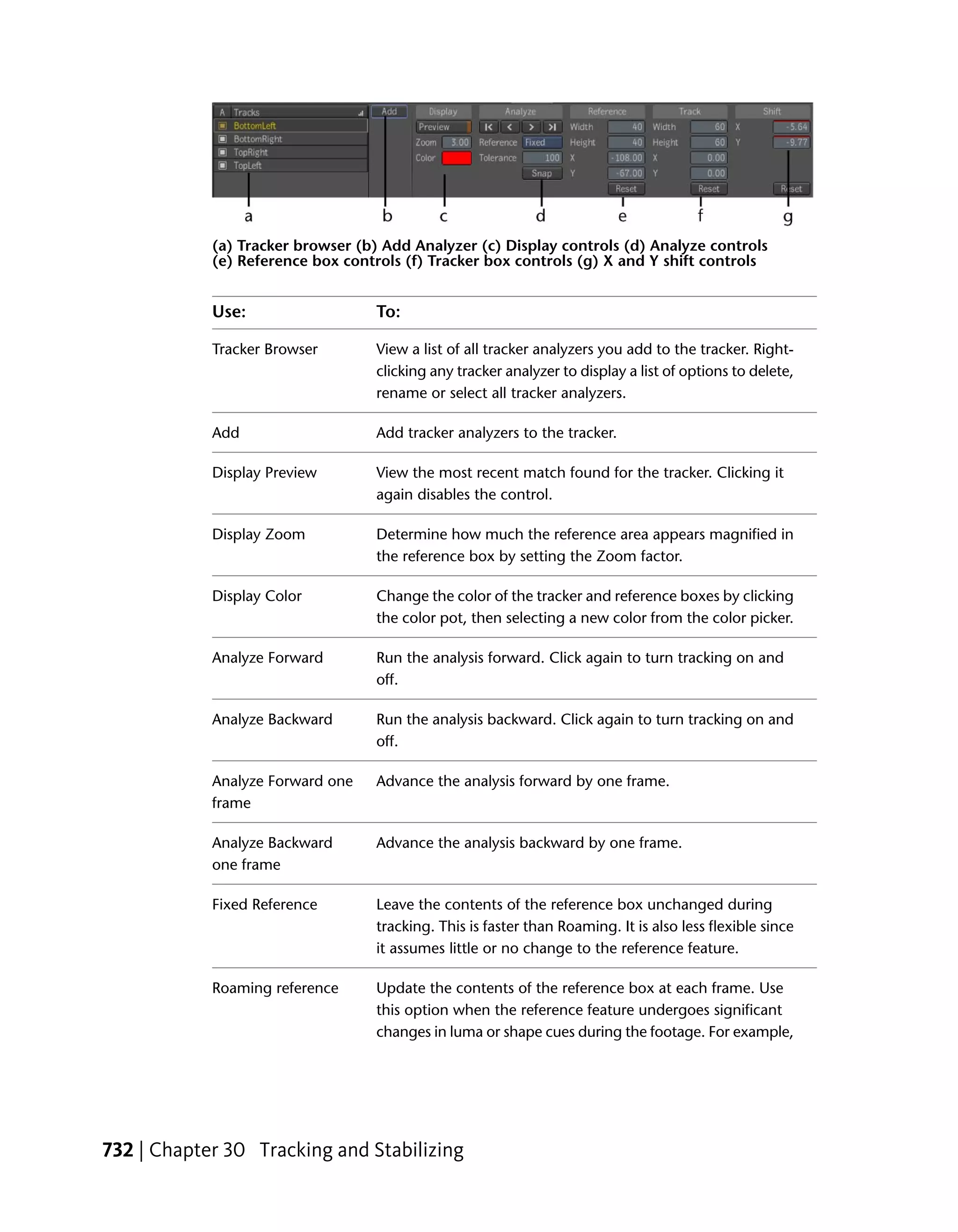
           channel of the modulation image is used and apply an offset to the modulation
           image. The modulation can affect the X and Y radius, or the rotation of the
           polygonal or ellipse shape.

           Output Tab


           The Output tab is the same as that of the Blur tool, but without the Min Radius
           parameter—see Output Controls on page 400.

           Masking Tab


           The Lens Blur tool has a masking input and a Masking tab—see Pixel Masking
           on page 572.


406 | Chapter 16 Image Processing Tools
Median Tool
The Median tool is an edge-preserving smoothing filter that works particularly
well for removing impulse noise.
For grayscale images, the median filter works by ranking the pixels under the
kernel according to their value and selecting the median to replace the pixel
at the center of the kernel. This approach effectively removes spikes in the
original image without the blurring typically introduced by common
smoothing kernels (e.g. Gaussian).
For color images, there is no single concept of ranking, so several different
criteria are supported. Component-wise ranking computes the median of each
color component independently, however, this can result in pixel colors that
did not belong in the original image. Luminance ranking computes the median
of the luminance of each pixel under the kernel. This approach is fast and
does not introduce new colors in the original image, however, luminance is
not the best criteria for similarity in a color image. RGB Vector does not really
rank the pixels under the kernel, but rather it chooses as the median the one
pixel with the smallest sum of square distances (in RGB space) to all the other
ones under the kernel. It selects the pixel that is closest to the center of the
point cloud obtained by looking at the pixels under the kernel as points in
3D space. This approach is computationally intensive, but can yield better
results than either of the other ranking criteria.
The median filter uses a square neighborhood and can round the corners of
axes-aligned rectangular objects in an image.
As any noise reduction filter, the median filter may also affect the sharpness
of small details in the input image. When this problem arises, the result of
the median filter can be blended with the original image to decrease its effect.
Finally, the median filter can be applied recursively. Repeated applications
using a small kernel size yield better results than a single application using a
large kernel.

NOTE When using the filter recursively, the blending described above is applied
at each iteration.

The Median tool has the following parameters:


                                                           Median Tool | 407
Use:         To:

           Filter       Control the choice of filter used:
                        ■     Median (default)
                        ■     Hybrid Median


           Size         Control the size of the filter:
                        ■     3x3 (default)
                        ■     5x5
                        ■     7x7
                        ■     9x9
                        ■     11x11


           Criteria     Control how the median value is chosen:
                        ■     Component-wise
                        ■     Luminance
                        ■     RGB Vector (default)


           Blend        Control how the result of one median iteration is combined with the
                        original input. This parameter can vary between 0 and 100% (default).

           Iterations   Control the number of times that the filter is applied recursively. This
                        parameter can vary between 1(default) and 9.


           Sharpen Tool
           The Sharpen tool lets you increase the clarity and focus of an image. The
           Sharpen tool applies a sharpening filter to a number of adjacent pixels in the
           input image and increases their contrast.


408 | Chapter 16 Image Processing Tools
To apply sharpening modifications to an image using the Sharpen tool:

 1 Drag the Sharpen tool from the Tool tab to the dependency graph in the
   Schematic view.


 2 Adjust the sharpen amount by dragging the value slider, or by typing in
   a value.


NOTE The Blur tool has a masking input—see Pixel Masking on page 572. The
Sharpen tool's Amount value is animatable by setting keyframes or using
expressions—see Setting Keys Manually on page 666 and Validating and Applying
the Expression String on page 705.


Unsharp Mask
The Unsharp Mask tool lets you sharpen the edges and other fine details in
the input image.
Unsharp masking provides more control on the sharpening process and will
generally produce better results than the Laplacian filter, but at a higher
computational cost.
Unsharp masking works by removing the low frequency spatial information
from the image and emphasizing the high frequency details. The algorithm
basically uses a Gaussian filter to produce a smooth version of the original
image, called unsharp mask. The unsharp mask is then subtracted from the
original image, removing low frequencies.
The Unsharp Mask tool has the following parameters:


                                                      Unsharp Mask | 409
■   Unsharp Mask Radius X, Radius Y, and Link           Control the radius of the
               blur (just like in the Blur tool). By default, the X and Y radii are linked and
               set to 1.20; otherwise, their range is the same as that of the Blur tool.

           ■   Strength      Controls the strength of the effect of masking that is added.
               Basically, the output image is computed as I+s*(I-M) where I is the original
               image, M is the unsharp mask, and s is the strength parameter (in 0 to 500
               percent; default 100%).

           ■   Threshold      Defines how large the difference between the original image
               and unsharp mask must be before the original pixels are changed. A pixel
               is changed if the difference in any of its components is larger than or equal
               to the threshold (in 0 to 100%; default is 0%).


           NOTE This tool can either affect the RGB components or the Alpha component,
           but not both at the same time.


           Formatting Tools
           In some cases you will be working with images of different sizes and color
           depths. Use Formatting tools to change these parameters.
           There are five image formatting tools:

           Tool:         Description:

           Convert       Changes an image's color depth—see Convert Depth Tool on page 411.
           Depth

           Crop          Removes rows or columns of pixels next to the edges of the input im-
                         age—see Crop Tool on page 411.

           Premultiply   Premultiplies an input image—see Premultiply Tool on page 414.

           Unpremul-     Unpremultiplies an input image—see Unpremultiply Tool on page 415.
           tiply


410 | Chapter 16 Image Processing Tools
Tool:       Description:

Resize      Changes the resolution of an image—see Resize Tool on page 416.


Convert Depth Tool
The Convert Depth tool lets you change the color depth of an input image.

To change the color depth of an image:

 1 Drag the Convert Depth tool from the Tools tab to the dependency graph
   in the Schematic view.


 2 Select the target color depth from the color depth list.


Crop Tool
The Crop tool lets you change the size of an image. When you perform a crop,
adjacent rows or columns of pixels next to the edges of the input image are
removed. You can crop an image relative to its input size or perform an


                                                     Convert Depth Tool | 411
absolute crop if you want to retain certain portions of the image. To assist in
            cropping, you can keep a fixed image size regardless of input dimensions.


            Original image                         Cropped image

            You can also animate the Crop tool's parameters by setting keyframes or using
            expressions—see Setting Keys Manually on page 666 and Validating and
            Applying the Expression String on page 705.


            To crop an image:

             1 Drag the Crop tool from the Tools tab to the dependency graph in the
               Schematic view.


412 | Chapter 16 Image Processing Tools
2 Select a crop type: Relative, Window, or Absolute.
    Use:                To:

    Relative Crop       Crop an image relative to the size of the input image. The default
                        value for all parameters (left, bottom, right, top) is zero. All para-
                        meters have a range of zero to the respective size (width and
                        height) of the image being cropped. Cropping more pixels than
                        an image has results in an invalid image size of zero.

    Window Crop         Crop an image using absolute values. You can set values for
                        Center X, Center Y, Width, and Height.

    Absolute Crop       Crop an image using absolute values. You can set values for Left,
                        Right, Bottom, and Top.

    Tiling              Specify how the input image should be extended outside its region
                        of definition (ROD).The supported tiling modes are Transparent
                        (default), Edge, Repeat, and Mirror.


 3 Crop the image by doing any of the following:
    ■   Enter values in the Crop fields.

    ■   Manipulate the crop box in the Player by dragging it.

    ■   Adjust the red crop lines or crop handles in the Player.

    ■   Resize the image symmetrically by using the Ctrl key and dragging
        until you get the desired image size.

 4 Reset the values, if needed, to that of the input image by clicking the Fit
   Source button.

Tools that can change the resolution of an image (Garbage Mask, Lens Distort
and 2D Transform) have extra controls to manage the crop.


                                                                       Crop Tool | 413
The Auto Crop feature computes a fit-all region where the entire distorted
           image fits into the output without losing any part of the image. When you
           set the crop mode to Auto Crop, the output region at each frame will
           automatically be computed. The region is automatically resized and all crop
           fields except the mode are disabled.


           Premultiply Tool
           The Premultiply tool lets you take an input image and create an image where
           each pixel color's component is multiplied by the pixel's alpha component.
           The multiplication result is clamped to the color range of the output image.

           To premultiply an image using the Premultiply tool:

            ➤   Drag the Premultiply tool from the Formatting folder into the dependency
                graph in the Schematic view.


                The image is premultiplied.

                NOTE When using the Premultiply tool, make sure the output image is never
                processed by a tool that produces incorrect results while operating on an
                image with premultiplied data. Tracking of whether images are stored in
                premultiplied format or not, does not occur.


414 | Chapter 16 Image Processing Tools
Unpremultiply Tool
The Unpremultiply tool lets you recover an alpha-unpremultiplied foreground
image from an alpha-premultiplied image whose foreground may have been
composited on a solid color other than black.
The Unpremultiplied tool takes an alpha-premultiplied image as its input and
outputs a corresponding alpha-unpremultiplied image. It assumes the input
image consists of a foreground composited over a solid color background; if
the background is a color other than black, you can explicitly specify this
background color so that the tool can correctly separate the foreground layer
from this background and output the foreground layer alone. Optionally, your
can ask the tool to guess the background color.
The Unpremultiplied tool has a single parameter:


Use:             To:

Background       Specify the background color so that the tool can
                 correctly separate the foreground layer from the
                 background and output the foreground layer alone.

Guess            Have the tool analyze the input image and guess
                 the background color and set the color widget to
                 that color.


To unpremultiply an image:

➤      Drag the Unpremultiply tool from the Tools tab to the dependency graph
       in the Schematic view.


       The image is unpremultiplied.


                                                        Unpremultiply Tool | 415
NOTE When using the Unpremultiply tool, make sure the output image is
                 never processed by a tool that produces incorrect results while operating on
                 an image with unpremultiplied data. Tracking of whether images are stored
                 in premultiplied format or not, does not occur. All tools except this one
                 assumes unpremultiplied data.


            Resize Tool
            The Resize tool lets you change the resolution of an image and its frame bit
            depth when working with images of different resolutions.

            Resize Tool UI
            The Resize tool UI is divided into three areas:

            ■   Destination settings area.

            ■   Reference area (to modify crop box properties).

            ■   Resize area.


            Destination Settings Area
            Use this area to select format, resolution, image and pixel aspect ratios, as well
            as bit depth of the destination image.


            Select:              To:

            Format               Select from a list of many standard resolutions, as well as a
                                 Custom option that you can use to specify non-standard resolu-
                                 tions.

            Width and Height     Display the frame width and height of the selected resolution
                                 preset. If you select Custom from the resolution presets box, use


416 | Chapter 16 Image Processing Tools
Select:                    To:
                           these fields to enter the frame width and height values you want
                           to use.

Image Aspect Ratio         Change the image aspect ratio.

Pixel Aspect Ratio         Change the pixel aspect ratio.

Depth                      Select the output depth.


Reference Area
Use the Reference area to set crop box properties.


Select:              To:

Color                Change the color of the crop box. By default, the crop box is red. If
                     there is a lot of red in the image you are resizing, you may want to
                     change the color of the crop box to see it better. Clicking the color
                     pot will take you to the color picker where you can set desired color
                     for the crop box.

X and Y              Change the X and Y position of the crop box.

Width and            Change the width and height of the crop box. You can either type
Height               the dimensions into the respective Width and Height attribute value
                     fields, or you can grab the edges of the crop box with the cursor and
                     resize.

Fit To Source        Fit the crop box to the source image.


Resize Area
Use the Resize area settings to define the destination format into which the
source sample is fit.
The Resize area has the following parameters:


                                                                         Resize Tool | 417
Pictures often appear fuzzy when scaled to a different size. The fuzziness of
            an image is controlled by two processes: resampling and filtering.
            The filtering processes attempt to smooth the transformed pixels. When an
            image is being resampled to a different resolution, the old pixel map needs
            to be interpolated to a new one. This requires some form of image interpolation
            and a number of interpolation methods can be used.

            Use:          To:

            Filtering     Select a filter type. You can choose from; Box, Triangle, Bell, B-spline,
                          Lanczos3, or Mitchell. These filters range in quality from the Box filter
                          being of the lowest (unsuitable for further processing, but with the least
                          amount of processing time), to the Mitchell filter producing the best
                          possible results.

            Fit Methods   Select a fit method. You can choose: Fill, Crop, Letterbox, or Crop Edges.
                          If you select Letterbox or Crop Edges, you can also select or deselect
                          the Keep Aspect parameter.

            Center        Select to center the destination resolution.


            Animate Resize Settings
            Animate the position of the crop box to pan and scan a 16:9 composition to
            a 4:3 format. Pan and scan is a technique widely used for resizing 16:9
            compositions to a 4:3 resolution when the area of interest in the shots is to
            one side of the 16:9 frame. You can follow the area of interest in the shot by
            animating the crop box along the X-axis.

            To pan and scan a 16:9 composition to a 4:3 composition:

             1 Drag the Resize tool from the Tools tab to the dependency graph in the
               Schematic view, and connect it to the composition.

             2 From the Destination settings area, select the 4:3 resolution to which you
               want to resize the source.

             3 Select a filter from Filtering.


418 | Chapter 16 Image Processing Tools
4 Select the Crop Edges fit method.

 5 Select Center and Keep Aspect buttons.

 6 Select the Fit To Source button (in the Reference area) to make the crop
   box the same size as the source frame.

 7 Go to the first frame.

 8 Make sure Autokey is selected so you can create position keyframes for
   the crop box automatically.

 9 Scrub through the clip to identify areas where the area of interest includes
   the left and right edges of the clip outside the crop box.

10 Animate the position of the crop box accordingly by dragging the crop
   box. You may also type the values into the respective X, Y, Width, and
   Height attribute value fields—see Setting Keyframes Automatically on
   page 670.

11 Play the resized composition.


Resizing a Composition using the Letterbox Fit Method
In this procedure, resize a 16:9 composition to a 4:3 destination resolution
using the Letterbox fit method.

To resize a 16:9 composition from source to a 4:3 destination resolution using
the Letterbox fit method:

 1 Drag the Resize tool from the Tools tab to the dependency graph in the
   Schematic view, and connect it to the composition.

 2 From the Destination settings area, select the 4:3 resolution to which you
   want to resize the source. You can also set custom width and height in
   the W and H fields.

 3 Select the Letterbox fit method. By definition, when using the Letterbox
   fit method, black bars appear above and below the destination
   composition. However, the fill color in Toxik is already black and these
   bars get cropped from the destination resolution.

 4 Select a filter from Filtering.

 5 The composition is resized.


                                                            Resize Tool | 419
Image Generation Tools
           There are seven image generation tools that let you create images with a wide
           range of properties:

           Tool:          Description:

           Bilinear       Creates a multi-color, four-quadrant image based on RGBA values— see
           Ramp           Bilinear Ramp Tool on page 422.

           Checker-       Creates a multi-color checkerboard image based on RGBA values— see
           board          Checkerboard Tool on page 423.

           Color Source   Creates a single color image based on RGBA values— see Color Source
                          Tool on page 424.

           Linear Ramp    Creates a multi-color, two-quadrant image based on RGBA values— see
                          Linear Ramp Tool on page 425.

           Noise          Simulates or matches film grain—see Noise Tool on page 428.

           Radial Ramp    Creates a multi-color, radially-ramped image based on RGBA values—
                          see Radial Ramp Tool on page 427.

           Slate          Lets you add production information over an image or clip — see Slate
                          Tool on page 429.


           NOTE All image generation tools are output tools and therefore, have only an
           output node connector and no input connector. All image generating tools can
           be used to generate masks with those tools that have masking inputs—see Pixel
           Masking on page 572.


           Setting Image Generation Properties and Formats
           Each of the image generating tools has a common UI area where properties
           can be applied.


420 | Chapter 16 Image Processing Tools
The following table lists the common property controls and their function.

Property       Description

Format         Provides a selection of film formats.

Image          Sets the width and height of the image produced by the generator
Width/Height   node.

Image As-      Sets the image aspect ratio of the image produced by the generator
pect Ratio     mode.

Pixel Aspect   Sets the pixel aspect ratio of the image produced by the generator
Ratio          mode.

Rate           Sets the rate of the stream produced by the generator node.

Channels       Sets the number of channels of the images produced by the generator
               node. Possible channel combinations are:
               ■   A
               ■   RGB
               ■   RGBA


Depth          Sets the depth per channel (in bits) of the images produced by the
               generator node. Possible image depths are:
               ■   8-bit
               ■   16-bit
               ■   32-bit


Repeat         Determines how the generator node outputs its result outside its source
               time range. Possible modes are:
               ■   No Repeat: There is no repetition at all, the generator outputs black
                   frames outside its time range.
               ■   Hold: First and last frames are repeated.
               ■   Loop: Repeats the entire sequence.
               ■   Ping-Pong: Repeats the sequence from beginning to end, to begin-
                   ning, and so on.


Mark           Defines the total number of frames the node generates for the image.
in/Mark out


                   Setting Image Generation Properties and Formats | 421
Property      Description

           Start         Defines the time range (and any offset required) where the generator
           Time/End      node is to output a result. It follows global time.
           Time/Offset

           Lock Dura-    Locks the Start/End time values.
           tion


           NOTE Height and Width are animatable attributes—see Setting Keys Manually
           on page 666 and Validating and Applying the Expression String on page 705.


           Bilinear Ramp Tool
           The Bilinear Ramp tool lets you create images with a variety of properties and
           in several formats. The Bilinear Ramp tool is comprised of five sets of color
           channel value fields that let you to generate a multi-color image based on
           RGBA values. One set of values is for generating the fill color, and four sets
           are for generating start and end ramped colors residing in a four-quadrant
           region of definition (ROD). The fill color is defined as those pixels residing
           outside the ROD. Two other controls let you to position the X and Y axes of
           the ramps at any location in the image.

           NOTE The following procedure assumes that you have a Schematic view and a
           Player view open.

           To create a bilinear ramped image:

             1 Drag the Bilinear Ramp tool from the Tools tab to the dependency graph
               in the Schematic view and attach it to the Output node.


             2 Apply image properties—see Setting Image Generation Properties and
               Formats on page 420.

             3 Adjust the color values in the Fill, Lower Left, Lower Right, Upper Left,
               and Upper Right.

             4 Modify the location and direction of the X and Y ramps.


422 | Chapter 16 Image Processing Tools
NOTE You can also manipulate the linear ramp by clicking and dragging the
     horizontal and vertical bars.


NOTE You can also type values directly into the value fields and press Enter.

NOTE The Bilinear Ramp tool's Fill, Lower Right, Lower Left, Upper Right, Upper
Left, and Center X and Center Y parameters are animatable by setting keyframes
or using expressions—see Setting Keys Manually on page 666 and Validating and
Applying the Expression String on page 705.


Checkerboard Tool
The Checkerboard tool lets you create images with a variety of properties and
in several formats. The Checkerboard tool is comprised of three sets of color
channel value fields and X and Y Period fields. One set of values is for
generating the fill color, and two sets are for generating X and Y colors residing
in the region of definition (ROD). The fill color is defined as those pixels
residing outside the ROD. Two other controls let you adjust the size and look
of the checkerboard in the X and Y directions.


                                                     Checkerboard Tool | 423
To create an image using the Checkerboard tool:

             1 Drag the Checkerboard tool from the Tools tab to the dependency graph
               in the Schematic view and attach it to the Output node.


                The Checkerboard tool UI appears.

             2 Apply image properties—see Setting Image Generation Properties and
               Formats on page 420.

             3 Adjust the Fill, Color values, and Period values by dragging inside the
               value fields.


                NOTE You may also type values directly into the value fields and press Enter.


           Color Source Tool
           The Color Source tool lets you create images with a variety of properties and
           in several formats. The Color Source tool is comprised of two sets of color
           channel value fields that allow you to generate a single color image based on
           RGBA values. One set of values is for generating the fill color and the other
           set is for generating the color residing in the region of definition (ROD). The
           fill color is defined as those pixels residing outside the ROD.

           NOTE The following procedure assumes that you have a Schematic and a Player
           view open.


424 | Chapter 16 Image Processing Tools
To create an image using the Color Source tool:

 1 Drag the Color Source tool from the Tools tab to the dependency graph
   in the Schematic view and attach it to the Output node.


     The Color Source tool UI appears.

 2 Apply image properties—see Setting Image Generation Properties and
   Formats on page 420.

 3 Adjust the Fill and Color values by dragging inside the value fields.


     NOTE You may also type values directly into the value fields and press Enter.


NOTE The Color Source tool's Fill and Color parameters are animatable by setting
keyframes or using expressions—see Setting Keys Manually on page 666 and
Validating and Applying the Expression String on page 705.


Linear Ramp Tool
The Linear Ramp tool lets you create images with a variety of properties and
in several formats. The Linear Ramp tool is comprised of three sets of color
channel value fields that allow you to generate a multi-color image based on
RGBA values. One set of values is for generating the fill color, and two sets
are for generating start and end ramped colors residing in the region of
definition (ROD). The fill color is defined as those pixels residing outside the
ROD. Two other controls allow you to position the center of the ramp at any
vertical or horizontal point in the image.


                                                       Linear Ramp Tool | 425
NOTE The following procedure assumes that you have a Schematic and a Player
           view open.

           To create a linear ramped image:

             1 Drag the Linear Ramp tool from the Tools tab to the dependency graph
               in the Schematic and attach it to the Output node.


                The Linear Ramp UI appears.

             2 Apply image properties—see Setting Image Generation Properties and
               Formats on page 420.

             3 Adjust the Fill, Start, and End color values by dragging inside the value
               fields.

             4 Modify the location and direction of the linear ramp.


                NOTE You can also manipulate the linear ramp by clicking and dragging the
                vertical bar.


426 | Chapter 16 Image Processing Tools
NOTE You can also type values directly into the value fields and press Enter.

NOTE The Linear Ramp tool's Fill, Start, End, and Ramp Center parameters are
animatable by setting keyframes or using expressions—see Setting Keys Manually
on page 666 and Validating and Applying the Expression String on page 705.


Radial Ramp Tool
The Radial Ramp tool lets you create images with a variety of properties and
in several formats. The Radial Ramp tool has three sets of color channel value
fields that allow you to generate a multi-color image based on RGBA values.
One set of values is for generating the fill color, and two sets are for generating
start and end radially ramped colors arranged around a central axis region of
definition (ROD). The fill color is defined as those pixels residing outside the
ROD. Other controls let you to position the X and Y axes of the central ramp
at any location, stretch the ramp vertically or horizontally, and define the
falloff center point and range.

NOTE The following procedure assumes that you have a Schematic and a Player
view open.

To create a radially ramped image using the Radial Ramp tool:

 1 Drag the Radial Ramp tool from the Tools tab to the dependency graph
   in the Schematic view and attach it to the Output node.


 2 Apply image properties—see Setting Image Generation Properties and
   Formats on page 420.

 3 Adjust the color values in the Fill, Start, and End fields.

 4 Modify the location and direction of the X and Y ramps.

 5 Adjust the middle and falloff ranges.


                                                        Radial Ramp Tool | 427
NOTE You can also manipulate the radial ramps by left-clicking and moving
                them.


           NOTE You can also type values into the value fields and press Enter.

           NOTE The Radial Ramp tool's Fill, Start, End, and all associated Radial Ramp
           parameters are animatable by setting keyframes or using expressions—see Setting
           Keys Manually on page 666 and Validating and Applying the Expression String on
           page 705.


           Noise Tool
           The Noise generating tool lets you add realism to computer generated images,
           or to simulate or match film grain. The generator creates an image of random
           pixels. The Noise generating tool is comprised of three sets of color channel
           value fields that allows you to generate a multi-color image based on RGBA
           values. One set of values is for generating the fill color, and two sets are for
           generating start and end color values. You can also adjust the level and seed
           (the method used to generate the noise).

           NOTE The following procedure assumes that you have a Schematic and a Player
           view open.


428 | Chapter 16 Image Processing Tools
To create an image using the Noise tool:

 1 Drag the Noise tool from the Tools tab to the dependency graph in the
   Schematic view and attach it to the Output node.


 2 Apply image properties—see Setting Image Generation Properties and
   Formats on page 420.

 3 Adjust the color values in the Fill, Start, and End fields.

 4 Adjust the noise seed.


NOTE You can also type values into the value fields and press Enter.

NOTE The Noise tool's Fill, Start, End, and associated Seed parameters are
animatable by setting keyframes or using expressions—see Setting Keys Manually
on page 666 and Validating and Applying the Expression String on page 705.


Slate Tool
The Slate tool lets you add production information over an image or clip,
which is useful during the review/approval stage of a project. Although Slate
is not a full text tool, you can adjust the size, color, opacity, position, and
duration of the text, as well as add a drop shadow. You can also animate the
attributes of the text.
When adding information to a composition, you can use variables for the
composition's name, date, time, frame number, timecode, and length. You


                                                              Slate Tool | 429
can also enter your own information about the composition, such as the
           project title, camera, lens, film stock, and so on.


           NOTE The following procedure assumes that you have a Schematic and a Player
           view open.

           To add production information to a composition:

             1 Drag the Slate tool from Image Generation folder in the Tools tab to the
               dependency graph in the Schematic and attach it to the Output node.


             2 Apply image properties—see Setting Image Generation Properties and
               Formats on page 420.

             3 To add a variable to your composition, select a variable from the list, and
               click Add. You can add multiple variables.


430 | Chapter 16 Image Processing Tools
The composition's name appears in the Player.

4 To enter information about your composition, select the type of
  information you want to add and click Add UDA. You can add as much
  or as little information as needed.


   The field appears in the text box, but not in the Player.

5 Place the cursor inside the text field and edit the information.

6 Format the text and modify its location.

   TIP To scroll the list of fonts, use your mouse wheel or the scroll bar beside
   the list.


7 Add a drop shadow to the text by clicking Drop Shadow and setting its
  position, color, and opacity.


                                                               Slate Tool | 431
8 Add a background behind the text by clicking Box and setting the color,
               opacity, and margin.


           Transform Tools
           Use the Transform tools to move, reorient, and animate images.
           There are four image transformation tools:

           Tool:         Description:

           2D Trans-     Apply chains of 2D transformations on images—see 2D Transform Tool
           form          on page 432.

           Flip          Flips pixels left-to-right, top-to-bottom, or both—see Flip Tool on page
                         436.

           Orient        Rotates an image—see Orient Tool on page 437.

           Panner        Repositions an image in the X and Y directions—see Panner Tool on
                         page 437.


           2D Transform Tool
           The 2D Transform tool lets you apply arbitrary transforms on an image and
           lets you add camera jitter, motion blur, or stabilizing to the image. You can
           also move, scale, rotate, and shear images in 2D with high quality filtering as
           well as concatenate transforms to avoid re-filtering.
           The 2D Transform tool has the following parameters:


432 | Chapter 16 Image Processing Tools
Transform generator

Use:                    To:

Transform generator     Create, delete, order, mute, solo and reset transforms. Solo (S)
                        takes precedence over Mute (V) (a transform that's both soloed
                        and muted is visible) while soloing a transform does not affect
                        the muteness of other transforms, thus soloing a transform then
                        un-soloing it does not lose state.
                        ■     The main reset button (in the Tools Options) is the equival-
                              ent of deleting and re-adding the tool (all values are reset,
                              and additional transform generators are deleted).
                        ■     The tool maintains the selection of the transforms.
                        ■     Adding a new transform selects the new transform and
                              deselects the rest.


Transform Type          Set the type of transform. You can choose from 1 point, 2 point,
                        4 point, or scale, rotation, and translation and set source and
                        destination values, as well as adjust offset parameters for tracking
                        or stabilizing purposes—see Tracking and Stabilizing on page
                        729.

Transform value edit-   Set the values of your transforms, you can also use the direct
ors                     manipulators in the Player to transform the image—see 2D
                        Transforms on page 478.


To produce an affine transformation on an image:

 1 Add a Transform 2D tool at the desired point in the dependency graph
   (if one is not already there). One transform is automatically added. You
   can add additional transforms using the New button.

 2 Use the controls that appear in the UI to the right of the super tool
   controls or the direct manipulators that appear in the Player. The direct
   manipulation controls are the same as those found in the Warps—see
   2D Transforms on page 478.


                                                              2D Transform Tool | 433
3 To shear an image, press the Insert key while the focus is in the player
               (this toggles the transform manipulator and the pivot manipulator), then
               using the rotate widget, set your pivot angle.

             4 Press the Insert key again and use the scale widgets to shear the image.


           NOTE Each transform influences transforms which follow it. The more it influences,
           the more 'global' it is, or conversely, the fewer it influences, the more 'local' it is.
           The pivot is independent within each transform.

           Adding Motion Blur and Filters
           Controls on the 2D Transform tool Output tab lets you add motion blur,
           filtering, and cropping to your image.
           The Output tab has the following parameters:


           Use:                 To:

           Motion Blur          Add motion blur to the result image. Motion blur can be on or
                                off; when on, there are controls for shutter speed and offset; the
                                time interval over which the shutter is open is centered at the
                                current frame time by default; the offset can be used to move it
                                elsewhere.

           Filtering            Filter the output image—see Cropping and Filtering the Output
                                on page 482.

           Crop                 Crop the output image—see Crop Tool on page 411.


           Simulating Camera Jitter Using the 2D Transform Tool

           NOTE The following example describes one way to simulate camera jitter using
           the 2D Transform tool combined with a Noise or Rand expression—see Random
           Number Functions on page 725.


434 | Chapter 16 Image Processing Tools
To simulate camera jitter using the 2D Transform tool:

 1 Place a Transform 2D tool at the desired point in the dependency graph
   (if one is not already there).

 2 Select the 2D Transform tool.

 3 Right-click in the X (or Y) value editor and select Set Expression. The
   Expresso calculator appears.

 4 Select Random, then Noise, and type the following expression:
   noise(t*50)*15. This expression can be broken down as follows:
    Where:             Returns:

    noise (t)          A value between -1 and 1.

    noise (t * 50)     A value between -1 and 1 and where “50" represents frequency. The
                       larger the value, the longer the frequency of the resulting noise.

    noise (t * 50) *   Values between -100 and 100, where 100 represents amplitude.
    100


                                                         2D Transform Tool | 435
NOTE You may also want to add motion blur to the output for a more realistic
                effect.


           Flip Tool
           The Flip tool lets you take an image and flip the pixels left-to-right,
           top-to-bottom, or both when the Link button is enabled. The default setting
           is vertical flip.

           To modify an image using the Flip tool:

             1 Drag the Flip tool from the Tools tab to the dependency graph in the
               Schematic view. The image will be vertically flipped.


             2 Select the desired flip parameters: Vertical, Horizontal, or both.


436 | Chapter 16 Image Processing Tools
NOTE The Flip tool's Vertical and Horizontal attributes are both animatable by
setting keyframes or using expressions—see Setting Keys Manually on page 666
and Validating and Applying the Expression String on page 705.


Orient Tool
The Orient tool lets you rotate its input by 0, 90, 180, and 270 degrees (with
the rotation parameter being an enumeration) and further flip the result
vertically and/or horizontally.
The vertical and horizontal directions refer to the image after the rotation has
been applied.


NOTE When possible, use this tool in lieu of more general transform tools because
no resampling the input image required resulting in no loss of image quality.


Panner Tool
The Panner tool lets you reposition the image in both the X and Y directions,
as well as to reposition the image using the X and Y offset created when used
with Tracker tool data inside an expression—see Validating and Applying the
Expression String on page 705 and About Tracking and Stabilizing on page 730.

To reposition an image using the Panner tool:

 1 Drag the Panner tool from the Tools tab to the dependency graph in the
   Schematic view.


                                                             Orient Tool | 437
2 Select the desired reposition parameters: X, Y, or both, and select the
               desired offset of the X and Y axes.


             3 Select the filtering option.

             4 Select the anti-aliasing factor.


           NOTE The Panner tool's X and Y axes attributes are both animatable by setting
           keyframes or using expressions—see Setting Keys Manually on page 666 and
           Validating and Applying the Expression String on page 705.


438 | Chapter 16 Image Processing Tools
Pixel Expressions
                                                                                  17
Topics in this chapter:
■   About Pixel Expressions on page 439
■   PXL Tool on page 440
■   CTL Tool on page 464


             About Pixel Expressions
             Use one of Toxik's pixel expression tools to create customized effects and apply
             color management solutions. There are two pixel expression tools:

             Tool:          Description:

             PXL Tool       Use the powerful PXL language to create your own
                            plug-in tools—see PXL Tool on page 440.

             CTL Tool       Use the CTL tool to facilitate color transforms and
                            other pixel-based procedures—see CTL Tool on page
                            464.


                                                                                      439
PXL Tool
            The PXL tool provides the ability to write a C-like program to control the
            creation of its output image. The program executed by the PXL tool is written
            in a new language called PXL, the Pixel eXpression Language (pronounced
            “pixel”). The PXL language offers a rich set of features like conditionals,
            looping, and numerous built-in functions. The PXL tool offers users the ability
            to create new effects by writing a PXL language program. The PXL tool can
            be used to implement any point or gather operator, as it can read any pixel
            in its input images.
            The PXL tool's primary use cases are two-fold. One use case is for quick creation
            of a short, non-reusable PXL program, for simple image generation or
            transformation. Another will be to write longer scripts to create customized
            effects that are not supplied by Toxik, which will be shared by many users.
            Examples might include:

            ■   Image generators

            ■   Warping

            ■   Transitions (fade & dissolve)

            ■   Blur & convolution

            ■   Tone mapping

            ■   Noise generators

            ■   Filters

            ■   Masking

            ■   Convert color spaces

            ■   Compositions

            ■   Color correction


            PXL Tool Inputs and Outputs
            The PXL tool has a single image output. It has a single, fixed primary input
            (which can be unconnected, when used as an image generator). Further image
            inputs can be added to the tool, which allows for an arbitrary number of
            secondary image inputs to the tool. These secondary inputs can also be


440 | Chapter 17 Pixel Expressions
removed from the tool. Because it supports masking, the PXL tool also has a
standard masking image input.
The PXL tool allows the user to create an arbitrary number of animated scalar
float inputs, to be used as parameters to the PXL script. Because of UI space
restrictions, only the first ten scalar parameters will be shown in the UI;
however, all parameters can be seen in the composition browser. These
parameters are passed as arguments to the main() function of the PXL script.


PXL Tool UI
The PXL tool UI has 3 tabs: the main UI tab, the Output tab, and the Masking
tab. The main tab supports two main modes, Develop mode and User mode.
User mode is meant to address the needs of users of the PXL script, who are
interested in changing the parameters to the script, but not necessarily the
script itself. Develop mode also has parameter controls as in User mode, but
has a UI to edit the script using the Toxik internal editor, or read the script
directly from a file (to support a developer who wishes to edit the script using
an external editor), and view script compilation errors.
The PXL User mode UI is shown below. It shows a PXL tool where two
parameters have been added, here named Gain and Rotation. The Develop
functionality is muted, so its UI is not shown. The Reset button under the
parameters is used to reset only the parameters, not the whole tool, which is
done with the Reset button in the General Tool UI.


One of the UI layouts of the PXL Develop mode is shown below. In Develop
mode, Develop is un-muted, so that developer functionality is exposed in the
UI.


                                                            PXL Tool UI | 441
The area on the left displays the same parameters that are shown in User mode,
            as well as two buttons to add and delete parameters. Parameters cannot be
            edited, only added and removed.
            Clicking the Add button pops up a modal dialog where the user types in the
            name of the parameter, its minimum, maximum, and default values, as well
            as the minimum increment to be used when changing the value in the UI.
            This modal dialog offers a Cancel button.


            Clicking the Delete button pops up a menu where you select the parameter
            to be removed.


            The Develop controls are to the right of the Parameter controls. The File and
            Edit radio buttons control whether the PXL script source is read from an
            external file, or from the Toxik internal editor.


442 | Chapter 17 Pixel Expressions
The above graphic shows Edit mode, where the PXL script developer is editing
the script inside the Toxik internal editor (titled Script), which is displayed to
the right of the develop controls.

Select:        To:

Apply          compile the edited script and, if successful, applies it as the new image
               processing script.

Import         display a modal dialog to read an external file into the Toxik internal
               editor. The contents of the external file replace the contents of the
               Toxik internal editor.

Export         to display a modal dialog to write the contents of the Toxik internal
               editor to an external file.

Revert         to replace the contents of the Toxik internal editor with the currently-
               applied script, thereby reverting the edited script back to what it was
               when previously applied.

The script status and the applied script display share the right portion of the
PXL UI. Push toggle buttons on the top of that column control which text
viewer is shown. Both text views are read-only views. The status text viewer
shows compilation errors from the latest applied script, if any. If there are no
errors, the display shows a success message. The applied script viewer shows
the currently-applied script. This can be useful as a reference, when the PXL
script is actively undergoing editing, and you want to know what the
currently-applied script is.


                                                                    PXL Tool UI | 443
While in Develop mode and the PXL script is being read from an external file,
            you will edit the PXL file with an editor external to Toxik, then save the file
            to disk. You will then click on the Apply button to have Toxik read the script
            from the file and apply it. In this mode, the Import, Export, and Revert buttons
            of the Develop controls are not relevant, as they pertain to the Toxik internal
            editor, and are therefore not shown.


            Output Tab


            Because the PXL tool can be an image generation tool, it requires an Output
            tab to define the output properties. To define output properties, it uses the
            same tab as found in Toxik image generators. If the primary input is connected,
            all options in this tab will be greyed-out and disabled, as is the case with the
            Slate tool—see Slate Tool on page 429.


444 | Chapter 17 Pixel Expressions
Masking Tab


The PXL tool has the same masking capability that is available on other image
modifier tools, in the standard Masking tab—see Creating Masks on page 552.


Sharing PXL Tools
An important use case of the PXL tool is that even if you are not an experienced
PXL script writer you can still use the PXL tool to quickly write a simple
expression to create a basic effect. Use cases might be multiplying one of the
pixel channels by a constant, or multiplying two input images together, or a
simple conditional test to reveal out of gamut pixels as a false-color image.
Typically, these PXL tools will not be reused.
Another important use case is where a PXL script will be written by an
experienced developer, and distributed to others to be used in User mode. In
such a case, an easy means of distribution is important. Distributing the PXL
script alone is insufficient, as parameter names and min, max, default values
will not be available. Tool presets allow users to name, save persistently, and
distribute presets for any given Toxik tool. This is exactly the functionality
required for you to develop custom tools written with the PXL tool. You can
write your own color corrector, keyer, or any other effect using a PXL script.
You can then package it as a PXL tool preset.
You can load and save PXL tool presets using the Preset controls in the Tools
Options area located at the far right of the tool UI—see Tool Presets on page
144.


                                                           Masking Tab | 445
PXL Presets
            There are several PXL tool presets installed with Toxik and they are described
            below:

            ■   Blur 5 x 5     A simple 5 x 5 blur kernel with hard coded weights.


            Original                                    Blurred


            ■   Clouds       Creates a cloud texture.


446 | Chapter 17 Pixel Expressions
■   Corner Pin    Provides eight parameters to control the four corners of the
    image, and computes a perspective transformation to place the image based
    on the corners. By setting expressions to link the eight parameters to a
    garbage mask rectangle, a simple interactive corner pinner can be made.


■   Directional Blur    Performs an anti-aliased blur using a rotated rectangle
    to achieve a blur in a particular direction.


                                                           PXL Presets | 447
Original                            Blurred


            ■   Emboss    Simple emboss, based on gradients of luminance.


            Original                            Embossed


            ■   Erode Alpha   Erodes alpha using a simple square kernel.


448 | Chapter 17 Pixel Expressions
Original                                Eroded Alpha with a 10 pixel radius


■   Gamma       Applies a simple gamma exponential to all channels.


Original                                Gamma correction applied


■   Lattice   Adds a lattice of shaded tubular bars to the image channels.


■   Lens Flare    Provides 1 to 5 lines of flares centered on bright points on
    the image. You can control the weight of the lines relative to the weight
    of the source pixel at the center of the blur. There is also a falloff gamma


                                                              PXL Presets | 449
factor for the weight of the lines as they get more distant from the centre
                of the blur.


            Original                               Lens flare applied


            ■   Marble     Creates a marble texture.


            ■   Mandelbrot      Generates a mandelbrot fractal image.


450 | Chapter 17 Pixel Expressions
■   Noise Wipe     Performs a wipe transition between two images where each
    pixel switches at a random time.


■   Noise    Creates a pattern of random noise.


                                                         PXL Presets | 451
■   Num Colors     A preset that reduces the number of colors to create images
                with banding. It can also add dithering noise to reduce the banding.


            NumColors = 6, Dither = 0              NumColors = 2, Dither = 1


            ■   Out of Range      Marks pixels outside of a specified range with a specified
                color, such as red in the following image.


452 | Chapter 17 Pixel Expressions
■   Polygon Blur      Performs a simple anti-aliased polygon blur, to simulate
    a lens effect. You can choose the number of sides, the radius, and rotation
    angle.


                                                           PXL Presets | 453
Original image                         Polygon Blur applied


            ■   Ripple Twirl    Atwirl effect with some extra ripples.


            Original image                         Ripple Twirl applied


            ■   Sharpen 5 x 5    A simple 5x5 sharpening kernel with hard coded weights.


454 | Chapter 17 Pixel Expressions
Original image                        Sharpened


■   Spherical Mapping     Applies spherical mapping to the current selection.


Original image                       Spherical mapping applied


■   Stereo Anaglypha       A preset that provides two methods of combining
    colors into a single Red/Blue glasses image (left image) and one method
    for cross-eyed viewing (right image).


Red/Blue glasses                   Cross-eyed viewing


■   Wood Frame     Creates a wood frame. You can specify the frame's thickness
    and lighting qualities.


                                                             PXL Presets | 455
■    Wood      Creates a wood texture. You can specify the scale, size, and
                 fineness of the grain.


            PXL, the Pixel eXpression Language
            The following section outlines the traits inherent to the PXL language.

            Example Script and Procedure
            The following example PXL script and procedure multiplies the input pixel
            R, G, and B components by 3.

            To multiply the input pixel R, G, and B components by 3:

                1 Add a PXL tool to the dependency graph.

                2 Click the Edit button and type the script into the script editor.


456 | Chapter 17 Pixel Expressions
The pixels in the image are multiplied by a factor of 3.


Image Processing Algorithm Categories
There are three types of image processing operators: the point operator, the
gather operator, and the scatter operator. They are based on a workflow in
which there are one or more input images and a single output image:

■   Point operator    Image processing operation that only reads pixels from
    the input images at the current position, and only writes one pixel to the
    output image, at the same position.

■   Gather operator     Image processing operation that reads pixels from the
    input images from any position, and only writes one pixel to the output
    image, at the current position.

■   Scatter operator    Image processing operation that reads pixels from the
    input images from any position and writes one or more pixels to the output
    image at any position.


NOTE The PXL tool can perform point and gather operations, but not scatter
operations.

Fundamental Types
PXL supports a specific set of fundamental types. It is case sensitive. Like C,
all the variables must be declared before they can be used in an expression
statement, unless the variable is a built-in variable, or a function argument.
Unlike the C++ language, it is not possible to define new types with objects
or structures. Here is the list of supported fundamental types:

■   image


                                 PXL, the Pixel eXpression Language | 457
■   float

            ■   color/vec4

            The color and vec4 types are aliases of one another, and are provided for
            convenience and readability. Otherwise, they are syntactically identical for
            PXL, and can be used interchangeably. Any reference in the documentation
            to type color can be understood as vec4, and vice versa.

            NOTE PXL does not support vectors, arrays, or matrices.

            The color / vec4 type is a quadruplet of floating point values for R, G, B, and
            A (or equivalently, X, Y, Z and W). These values are unclamped (even for A),
            which fully supports high dynamic range scene-referred color manipulation.
            No explicit type casting or type conversion is supported. However, many
            mixed-type assignment operators and functions are provided.
            If a variable of image type is used where type rules would require a color type,
            the language automatically calls the built-in single-argument sample (image)
            function. This is provided as a convenience.
            As PXL has no Boolean type, the float type is used to represent Boolean values.
            Any value that is different from 0.0. PXL Boolean operators return 1.0 as a
            true value.

            Qualifiers
            A variable can be defined as const. In this case, the variable cannot be modified
            after his initialization. An error will be issued if a const variable is modified
            after initialization.
            As previously described, function arguments can be qualified as input or
            output. These are currently only used by the PXL tool to pass in data to the
            main() function and read out the output pixel value. The initial value of an
            output argument is undefined.

            Comments
            Comments use the same syntax as C. Two consecutive slashes (“// Comment”)
            are used for starting a single line comment. The slash-star (“/*”) is the
            beginning token for multi-line comment, while the star-slash (“*/”) is used to
            stop the multi-line comment.


458 | Chapter 17 Pixel Expressions
Control Statement
PXL supports the “if” statement, the “while” statement and the “for” statement.
They also use the same syntax as in the C language. The only exceptions are
that PXL has no break or continue statements to affect looping.


Operators
PXL supports the following operators, which are a subset of those found in
C. Of note are the lack of bitwise manipulation operators, as well as the lack
of a modulo operator, however the modulo is available through the built-in
mod() function—see Built-in Functions on page 461.


                                 PXL, the Pixel eXpression Language | 459
NOTE Operations on color / vec4 are done on a per-channel basis.

            Variable Declarations
            The naming of variables uses the same rules as C. A variable name must begin
            with an alphabetical character, followed by none or many alphanumeric
            characters or underscore character. It must not contain any white spaces.
            All variables are initialized by Toxik upon declaration, depending on type:

            ■   Float variables are initialized to 0.

            ■   Color / vec4 variables are initialized to (0, 0, 0, 1).

            ■   Image variables are initialized to an uninitialized image. An uninitialized
                image will return (0, 0, 0, 1) on sample(), has a pixel aspect ratio of 0, and
                has a size of (0, 0).


            Numeric Constants


460 | Chapter 17 Pixel Expressions
Built-in Variables
PXL has built-in variables to ease script writing. These variables are “x”, “y”,
and “t”. The first two are the floating-point normalized image reference frame
(x, y) coordinates of the pixel being computed—see Calculating Image Size in
Toxik on page 187. “t” is the floating-point current time, in seconds. All built-in
variables are declared constant by the system, so they cannot be assigned to.
PXL exposes the IRF coordinates of each pixel in its x and y built-in variables.
This means that in PXL horizontally adjacent pixels will have a value of the
x built-in variable that differs by 0.9 for an NTSC image.Thus, an NTSC image
(with 720x486 pixels) is actually 648x486 IRF units (720 * 0.9 = 648), which
represents a 4:3 image aspect ratio (648/486 = 4/3), as expected.


Built-in Functions
PXL provides a number of built-in functions. Functions can return any of the
PXL fundamental types, or can return void. Built-in function argument
overloading is supported by the sample() function to provide two
implementations, one with a single argument, the other with 3 arguments.

NOTE In the following table, all references to type color also refer to vec4, and
vice versa.


                                   PXL, the Pixel eXpression Language | 461
462 | Chapter 17 Pixel Expressions
Interface with Toxik Executable
The Toxik executable interfaces with the PXL script in the following way:

■   The function declaration is optional. If present, it must be called “main()”.

■   Function arguments can be any of the PXL basic types. Arguments to
    “main()” of type “image” with the “input” qualifier are the PXL tool image
    inputs, and must match the name of the input image socket. This implies
    that accessing the primary image input must be done with an input image
    argument named “In”. Arguments to “main()” of non-image type with the
    “input” qualifier are PXL tool parameter inputs, and are matched by name
    and type with the input parameters of the PXL tool. For example, a float
    parameter named “Gain” would be passed in the “main()” function as
    “input float Gain”. Arguments to “main()” of type “color” with the
    “output” qualifier are the pixel outputs. The first version of the PXL tool
    will support a single pixel output, which must be called “Out”.

■   The return type is limited to void and the return statement is not supported.

If no function header is present for main(), Toxik will create one automatically.
It will include all defined image inputs, and all defined parameter inputs.
No warning is given if main() function arguments are not referenced by the
function. However, a reference to a non-existent parameter or input image is
an error.


                                  PXL, the Pixel eXpression Language | 463
All images read by the PXL script are read at the current time t. There is no
            way to read images at a time different from t within a PXL script. To do so, a
            user must use external Toxik Retimer or Time Offset tools before inputting
            images to the PXL tool.


            CTL Tool
            Use the CTL tool to write a color transformation language (CTL) expression
            to control the resulting color of a pixel.

            NOTE The CTL tool can only perform point operations—see Image Processing
            Algorithm Categories on page 457.

            The CTL tool uses the same UI as the PXL tool—see PXL Tool UI on page 441.
            The CTL tool supports every feature of CTL except print statements. For a
            more complete list, refer to the CTL manual:
            http://ampasctl.sourceforge.net/CtlManual.pdf. The main function of the script
            will be called for each pixel of the output image.
            Before applying a script, several conventions must be respected:

            ■   The entry point of the script is the “main” function. This function must
                be present in every script.

            ■   The main function return value is ignored.

            ■   The main function must have four parameters for each input image. They
                correspond to the RGBA channels of the pixel of the input image. They
                must be of type float, and be qualified as “input varying”. The name of
                these parameters must be the component letter in lower case (i.e. “r”, “g”,
                “b”, and “a”), concatenated with the name of the input image. Because
                the primary input of the CTL tool is called “In”, the corresponding
                arguments to the main() function for that input image will be:
                ■   input varying float rIn

                ■   input varying float gIn

                ■   input varying float bIn

                ■   input varying float aIn


464 | Chapter 17 Pixel Expressions
■    Additional images (if any) follow the same convention: for an additional
     input image Bg, the corresponding arguments to main would be:
     ■   input varying float rBg

     ■   input varying float gBg

     ■   input varying float bBg

     ■   input varying float aBg


■    4 parameters of the main() function must be present to define the output
     pixel color. They correspond to the RGBA channels of the output pixel.
     They must be of type float, and must be qualified as “output varying”. The
     name of these parameters must be the component letter in lower case
     concatenated with the literal string “Out”:
     ■   output varying float rOut

     ■   output varying float gOut

     ■   output varying float bOut

     ■   output varying float aOut


■    1 parameter of the main function must be present for each input parameter.
     They must be the same name and type as the parameter of the UI. Ex:
     ■   input uniform float P1


The following is a sample script and procedure that blends two images.

To blend two images:

    1 Connect a CTL tool node into an output node in the Schematic view.

    2 Connect image 1 to the In input of the CTL tool.

    3 Create a second input for the CTL tool by right-clicking on the node and
      selecting Add input from the menu.

    4 Name the new input Img1 when prompted.

    5 Connect a second image to Img1 input.

    6 Select the CTL tool node and click the Edit button to open the Toxik
      internal editor.


                                                               CTL Tool | 465
7 Type the following script into the editor or copy then paste it in using
               Ctrl + C (for Windows and Linux) or Cmd + C (for Mac OS) and Ctrl + V
               (for Windows and Linux) or Cmd + V(for Mac OS):


                 The two images are blended.

                NOTE Toxik fully supports the CTL import statement and the
                CTL_MODULE_PATH environment variable used to search for CTL programs
                in a set of directories on disk. As such, it can be convenient to structure CTL
                code in Toxik such that the main() function above is used simply as the entry
                point that calls other CTL functions defined in separate files that are imported
                with the import statement. You may set the CTL_MODULE_PATH in the Tool
                panel of the Project Preferences panel.


            Accelerating CTL Transforms
            Because CTL is an interpreted language, the performance may be slow. Toxik
            gives you the option of accelerating a CTL program by converting it to a
            3d-lut.This will be faster but may contain errors relative to the original CTL
            program.
            To enable acceleration, click the 3D LUT Enable switch in the CTL tool's
            Processing tab.The Pre-conditioning option allows you to adjust the
            distribution of grid points in the 3d-lut. If the input image is in scene-linear
            color space, setting the Pre-conditioning to Log will arrange the grid points
            in a roughly logarithmic manner which will help distribute the approximation
            errors in a more perceptually uniform way.


466 | Chapter 17 Pixel Expressions
Warping
                                                                             18
Topics in this chapter:
■   About Warping on page 467
■   Warp 2D on page 467
■   2D Transforms on page 478
■   Cropping and Filtering the Output on page 482
■   Warping Tools on page 484


             About Warping
             The Warping tools let you distort the physical shapes and contours of images.


             Warp 2D
             The Warp 2D tool lets you:

             ■   Warp an image to change the geometry of some elements.

             ■   Correct slight perspective errors in shots.

             ■   Provide customized stylistic distortion effects like twirl or ripple, but with
                 much more control over the animation of the geometry.


                                                                                         467
The basic operation of the Warp 2D tool involves drawing source and
           destination shapes and linking pairs of these together. The correspondence
           between points on the source and destination shapes defines constraints on
           the transformation of the image.
           Another type of shape constraint is a fence shape which functions like a pair
           of source and destination shapes that are constrained to always be equal,
           keeping a part of the image from moving from its source position. The resulting
           transformation tries to make a deformation of 2D space that warps the image
           to satisfy the specified shape positions, while automatically repositioning the
           unconstrained parts of the image to make the overall warping as smooth as
           possible.
           The types of shapes supported include those in the Garbage Mask and Remove
           Dust tool: Splines (open or closed), Rectangles, and Ellipses.
           After drawing the shapes which define the transformation, you can set or
           animate an interpolation parameter which controls the amount of warping.To
           create a static warp of an image you will just set this to 1.Sometimes you may
           want the image to smoothly change from its original shape to a warped shape
           and will animate the interpolation parameter from 0 to 1.There is also a control
           to use a per-shape interpolation amount to have various features deform at
           different times.


           Warping Workflow
           The warping of a single image involves a multi-step process. You first work in
           source space (by viewing the input image by pressing the 5 hotkey while
           focused in the viewer) drawing several shapes which define the important
           features that will be deformed and the fence shapes which will lock parts of
           the image in place (like the dog's left eye down to its nose).


468 | Chapter 18 Warping
You will then switch out of source space into destination space (by pressing
the 6 hotkey while focused in the viewer) and begin editing the destination
shapes.


As you drag around a destination shape, the image underneath is warped
accordingly.Once you have dragged all the destination shapes to their desired
final positions, you may want to add another shape pair or fence shape to
refine the warp. You will have to switch to source space to draw the starting
position, then back to destination space to move the shape around and see
the result.


Warp 2D UI
The Warp 2D UI consists of three tabs: Shape Drawing, Output, and Options.


                                                         Warp 2D UI | 469
Shape drawing closely mimics that of Garbage Mask and Remove Dust tools.The
           types of objects that can be created are:

           ■   Splines, open or closed

           ■   Freehand shapes.

           ■   Rectangles

           ■   Ellipses

           ■   Points (just a spline with a single vertex)

           Like the Garbage Mask, there is a list box with the named shapes and
           individually editable parameters. The Warp UI also has all the components
           of the Garbage Mask for transforming shapes, setting drawing options for
           rectangles and ellipses and for loading and saving user settings—see Garbage
           Mask Controls on page 551.
           Each shape has a parameter which controls the smoothing across its
           boundaries, named Smoothing.For open shapes, this can have one of two
           values: None or Bidirectional.The setting None means that each side of the
           shape is smoothed independently and there can be discontinuities in the warp
           across the shape.The setting of Bidirectional means that smoothing is applied
           across the shape and there will be no discontinuity in this region.If the shape
           is closed, then in addition to these two values, there are two other possible
           values: Inside and Outside.A value of Outside means that the inside of the
           shape is smoothed independently of the outside, but the outside is smoothed
           to match the inside.A value of Inside is the opposite of this.


           Smoothing = None


470 | Chapter 18 Warping
Each shape also has a Boolean parameter, Fence.When this is enabled, this
shape acts like a pair of source and destination shapes which are constrained
to be equal.This holds the image under the shape in place.When the Fence
parameter is enabled, the destination shape and link points disappear. Fence
shapes are treated differently from regular shapes. Fence shapes have their
own visibility, and the link lines and link editing manipulations do not apply
because the correspondence is defined to be the identity along the
curve.However, each shape has a toggle to determine if it is a Fence or not, so
you can always change a fence shape back to a regular pair of shapes.

NOTE When you create Fence shapes, you will usually want to set the Smoothing
attribute of the Fence shape to None, to ensure that there is no motion crossing
the border of the fence.

Each shape has an Interpolation parameter which is only relevant if the Timing
mode is set to Shape (described in the Output tab section).Each shape also
has a Mute switch to disable its effect on the warp, and a Lock switch that
locks the points, shape, edges, and tangents of the shape.
You can change the name of a shape under the Name heading in the shape
list. With the cursor in the text field, press F2, type in a new name and press
Enter. You can also assign a name to a shape once you have selected what
type of shape you want to draw. Under the Create Shape label, select the
default shape name and type in a new one then press Enter or click outside
the text field.


(a) Source and Destination shapes (b) Warp result


                                                            Warp 2D UI | 471
(a) Fences added to limit warp to the right eye (b) Warp result

           The Warp 2D tool will have two outputs:

           ■   Result (warped by the amount of the interpolation parameter)

           ■   Input image warped by 100%

           While editing, you can use the standard hotkeys (5 and 6) to switch between
           the input image and the second output, in order to view the source and
           destination spaces.
           Shapes are displayed in the viewer with a color that depends on its type, e.g.,
           source, destination, fence, links, or interpolated shapes.

           Shape                Color

           Source               Red

           Destination          Blue

           Fence                Green

           Links                Cyan

           Interpolated         Magenta

           You can distinguish between and edit source and/or destination shapes by
           toggling on/off the visibility of each of the following classes of shapes:


472 | Chapter 18 Warping
■   Source shapes

■   Destination shapes

■   Fence shapes

■   Links (defines correspondences between the source and destination shapes)

■   Interpolated shapes (viewable only, these cannot be edited, but show the
    interpolated position of the shapes based on the current interpolation
    parameter)


Other controls on the Shape Drawing tab include:

Use:            To:

Name            Give the selected shape a name. Select the default name in the text
                field and type in a new name then either press Enter or click outside
                the text field to apply the name.

Interpolation   Control how much warp is applied to the image—see Output Tab on
                page 475.

Fence           Enable/disable the shape as a fence.

Smoothing       Apply smoothing across the shape's boundaries.

You can also adjust control points of the shape using the same controls the
Garbage Mask uses—see Editing Masks on page 555. You can also copy and


                                                                    Warp 2D UI | 473
paste a selected source or destination shape either in the same Warp 2D tool
           or from another.

           To copy and paste a source or destination shape:

            1 Select a source or destination shape to copy.

            2 Use the Ctrl + C (for Windows and Linux) or the Cmd + C(for Mac OS)
              hotkey combination to copy the shape.

            3 Use Ctrl + V(for Windows and Linux) or Cmd + V(for Mac OS) to paste
              the entire animation of the shape points and tangents.

               NOTE The transform, and other properties are not copied.


           Curve Correspondence
           In addition to the usual spline editing interactions, you can also edit the
           correspondence between two linked shapes.In the image below, red curves
           depict source shapes, blue curves depict destination shapes, and cyan lines
           represent the correspondence between the pairs of linked curves.These lines
           show the direction the warped image will move as the interpolation parameter
           is animated from 0 to 1. You can add link points on either curve (using the
           Ctrl key) which can then be dragged along the curve to change the directions
           of the lines.Adding a point on one curve will also create a corresponding point
           on the opposite curve.Dragging one of these points sideways along the curve
           will skew the correspondence directions.Correspondence positions are
           animatable.


474 | Chapter 18 Warping
Output Tab
There are several parameters which control how the warped image is rendered
and are located under the Warp label.


Use:            To:

Timing          Set the timing of the deformation. The default state
                is Global where all shapes deform at the same time
                based on the interpolation you set (see below), or
                you can select the timing to be on a per shape basis
                allowing you to deform various features on differing
                schedules.

Interpolation   Define how much of the warp is applied in the final
                rendering. A value of 0 means that the image is
                passed through unchanged. A value of 50 means
                that the image is deformed 50% of the distance
                toward the destination shapes.

Warp Invert     Send the warp backwards. Used in the morphing
                workflow—see Morphing Between Two Images on
                page 478.


                                                                       Output Tab | 475
There are several parameters which control how the image warp transformation
           is computed and they are located under the Render label.


           Use:              To:

           Quality           Control the quality versus speed of the deformation as higher
                             quality warping takes more computation time. If you experience
                             discontinuities or warps that are not smooth, or if the animation
                             has regions that do not warp smoothly over time you should in-
                             crease the Quality setting.

           The warp of the image is computed to satisfy the constraints defined by the
           drawn shapes, and still be as smooth as possible. The choice of smoothing
           criteria is Rigid or Skew.

           Use:              To:

           Smoothing         Select the smoothing criteria; skew is a mode where the image
                             transformation is locally constrained towards a 2D affine transform-
                             ation, and the image is allowed to skew as it tries to find the
                             smoothest warp. In Rigid mode, the image is locally constrained
                             to an angle preserving similarity transformation where skew is
                             discouraged but not impossible.


476 | Chapter 18 Warping
(a) Skew (b) Rigid

Use:                 To:

Boundary             Set the image boundary to either Fixed or Free. Fixed holds the
                     border of the image in place while Free lets the image expand
                     beyond the image border.


(a) Fixed (b) Free

Like the Garbage Mask, the Warp 2D tool's Output tab contains a crop tool
and user settings controls—see Output Tab Settings on page 570.


Options Tab
The Options tab contains the same options and User Settings as the Garbage
Mask Options tab—see Options Tab Settings on page 571, with the exception
of the Links View parameter which allows you to change the spacing of the
links between source and destination shapes.


                                                                  Options Tab | 477
Links spacing = 30


           Morphing Between Two Images
           Although the Warp 2D tool warps a single image, you can morph between
           two images using the following workflow:

           To warp between two images:

            1 Add a Warp 2D tool node to image A.

            2 Place all your source shapes onto image A.

            3 Change the viewer to be viewing image B using a context point, and align
              all the destination shapes on the corresponding features of image B.

            4 Animate the Warp from 0 to 1 interpolation, which warps image A toward
              B.

            5 Copy the Warp tool, select the Invert-Warp button and connect Image
              B as its input.This will warp Image B backwards towards A.

            6 Add a Blend tool node between the two warp outputs and animate it
              from 0 to 1.


           2D Transforms
           With the exception of Lens Distort and the Warp 2D tool, all warping tools
           let you translate, rotate, scale and change the center of the input, effect and
           output image. Transformations on the input image will be done before applying
           the effect and its transforms. The transformations on the output image will
           be done after applying the effect and its transforms—see 2D Transform Tool
           on page 432.


478 | Chapter 18 Warping
Affine transforms can be applied for free performance-wise, i.e. they can be
applied at the same time as the warps without slowing down the tools. By
combining transforms into a single resampling operation, the produced image
has less degradation than if separate transform and warp tools were used. In
addition, the combined transforms/warps approach is not susceptible to the
bottleneck issue. For example, specifying an Output transform that enlarges
the output image would give a completely different result that putting a resize
tools afterward. In the former approach, the image would be directly computed
at the final resolution, while in the latter approach the intermediate image
would be at a lower resolution and the lost information could never be
recovered.
Affine transforms allow integration with the tracker because the affine
transforms are expressed using socket names that the tracker recognizes. The
tracker can be accessed by right-clicking on the value editors or the
Input/Output/Effect UI Container label.
Since Warping tools can be keyframed, you can create dramatic changes in
image shapes when animated over time.
All Warping tools have masking inputs so you can limit the effect of the warp
to a precise area of the image.
All Warping tools have the following common parameters:


To translate the input image, warp effect, or output image:

➤   Do one of the following:
    ■   Type values into the X or Y Translation value editors and press Enter.

    ■   Drag the square found at the bottom left of the direct manipulator
        along the X and Y axes. Note that you must have Manipulators selected
        in the Display tab in Player Options.


                                                        2D Transforms | 479
The image can be moved along the Y or X world axis, respectively by
                   dragging either the vertical or horizontal arrow protruding from the
                   square.


                   The vertical and horizontal arrows extending further from the square
                   act on the Y and X image axis respectively.


           To rotate the input image, warp effect, or output image:

           ➤   Do one of the following:
               ■   Type values into the Z Rotation value editors and press Enter.

               ■   Move the curve at the upper right of the direct manipulator.


480 | Chapter 18 Warping
Note that the world and image axes are equivalent when there is no
        rotation.


To scale the input image, warp effect, or output image:

➤   Do one of the following:
    ■   Type values into the X and Y Scale value editors and press Enter.

    ■   Move the right angle in the centre of the direct manipulator. The
        arrowheads at each end restrict the scale to the respective axis.


To set the pivot point:

➤   Press the Backspace key to activate the pivot manipulator then do one
    of the following:
    ■   Type values into the X and Y Pivot value editors and press Enter. Note
        that the scale manipulator is not available. The rotation manipulator
        is used to do shear an image.


                                                       2D Transforms | 481
NOTE You can use the following hotkeys to quickly select a manipulator; press
           M to select the Input manipulator, press comma (,) to select the Effect manipulator,
           or press period (.) to select the Output manipulator.


           Cropping and Filtering the Output
           The Crop allows you to change the size of an image. Crop manipulators are
           visible when selecting the Output tab—see Crop Tool on page 411.
           The filtering processes attempt to smooth the transformed pixels. When an
           image is being warped, there is a need to interpolate the old pixel map to a
           new one. This requires some form of image reconstruction and a number of
           resampling methods can be used.
           All Warp tools have common filtering parameters:


           Filter          Description

           Nearest         A box filter and the fastest way to resample an image since it only
                           samples a single pixel of the input image to determine the value of a
                           given pixel in the result image. Produces significant amount of aliasing.

           Bilinear (de-   A separable triangular filter that takes into account more area when
           fault)          resampling.

           Mitchell        Considered as one of the best magnification filters for images; has a
                           good balance between ringing and sharpness.

           Gaussian        Good magnification and magnification filter with no ringing, but intro-
                           duces noticeable softness to the result image.

           Jinc 2          Offers better sharpness than the Gaussian one, but at the expense of
                           ringing. Similar to the sinc filter, but with better isotropic qualities, less
                           ringing, and same sharpening and anti-aliasing.

           Jinc 3          Offers better sharpness than the Gaussian and Jinc2 filters but at the
                           expense of even more ringing. Similar to the Lanczos filter, but with


482 | Chapter 18 Warping
Filter        Description
              better isotropic qualities, less ringing, and same sharpening and anti-
              aliasing.

The next example illustrates the sharpening and ringing effects of the six
filters.


The next example illustrates the anti-aliasing and blurring effects of the six
filters. These examples were created with a checkerboard and polar tool to
provide variance in frequencies in all directions.


                                     Cropping and Filtering the Output | 483
Other common output parameters:

           Use:              To:

           AA Factor         Adjust the trade-off between anti-aliasing and blurriness.

           Tiling X/Y        Set the repeat mode. Choose from; Transparent (default), Edge,
                             Repeat, and Mirror.

           Aspect            Control whether the mapping is stretched to cover the entire
                             image region of definition (ROD) while in Image mode, or
                             whether the mapping is only uniformly stretched to fit the height
                             of the image (Circular mode). Note that in image mode, the
                             mapping will be non-uniformly stretched. Particular mappings
                             might be more suited to one aspect ratio mode or the other. Each
                             tool specifies the proper default aspect ratio mode.


           Warping Tools
           There are 10 Warping tools that let you distort the shape of your images:

           Tool              Description

           Crumple           For creating creases, kinks, and wrinkles in an image—see Crumple
                             on page 485.

           Displace          Offsets pixels in an image using pixel values of another image—see
                             Displace on page 485.

           Lens Distort      Rectifies or creates lens distortion—see Lens Distort on page 487.

           Magnify           Enlarges a portion of an image in either the X, Y, or both axes—see
                             Magnify on page 491.

           Mirror            Creates a mirror effect in an image—see Mirror Tool on page 492.

           Pinch             Compresses an image inward or outward—see Pinch Tool on
                             page 492.

           Polar             Changes the pixel definition of an image from Cartesian to the
                             Polar coordinate system or vice versa—see Polar Tool on page 493.

           Ripple            Creates ripple effects in an image—see Ripple Tool on page 494.

           Twirl             Rotates and twists an image—see Twirl Tool on page 495.


484 | Chapter 18 Warping
Tool                   Description

Wave                   Creates a wave effect in an image—see Wave Tool on page 496


Crumple
The Crumple tool lets you create an image appear crumpled like a piece of
paper.


Original image

The Crumple tool has the following parameters:


Use:             To:

Amplitude        Control the overall strength of the filter.

Time Slice       Make modifications to the fractal patterns yielding
                 random results.

Octaves          Control the turbulence. Increase the octaves to get
                 more iterations, therefore, a more turbulent
                 crumpling effect.


Displace
The Displace tool lets you use a control image to drive the displacement used
to warp the primary input image. There are two ways to displace a primary


                                                                       Crumple | 485
image: Modulation and Vectors. Both ways can be combined together by
           specifying the Modulation Image and a Forward Vectors image.


           Displacing with Modulation
           You can use a single channel to modulate the displacement along a fixed
           direction. You can define the fixed distance and angle and the displacement
           increases or decreases by the intensity of the channels (Red, Green, Blue, Alpha
           or Luma) of the modulation image.

           Use:          To:

           Distance      Specify the distance of displacement in pixels.

           Angle         Specify the angle of displacement all pixels in the image will be rotated
                         by in degrees.

           Channel       Select which channel from the modulation image will be used to displace
                         the image in a fixed direction as specified by the distance and angle.


           Input image


486 | Chapter 18 Warping
Displacing with Forward Vectors
You can use a forward vector image to define the displacement of the primary
input image. Each pixel can be moved in a different direction. The red
component of the image represents the X direction of the motion vector and
the green component the Y direction. The vectors can be scaled and rotated
before applying the result on each input image pixels.

Use:          To:

Scale         Scale all motion vectors of the forward vectors image.

Rotation      Apply a rotation to all motion vectors of the forward vectors image. The
              rotation is expressed in degrees.


Input image

TIP Decreasing the opacity of the Modulation or Forward Vectors image will
decrease the distance of the displacement.


Lens Distort
The Lens Distort tool lets you create or correct lens distortion that may be
present in image sequences.
Barrel distortion is associated with wide angle (or minimal zoom) lenses. It
causes the images to appear slightly curved outward like a barrel. You can
notice this when you have straight features close to the image's peripheral
sides.
The Lens Distort tool has the following parameters:


                                                                  Lens Distort | 487
Use:               To:

           Mode               Select either lens correction or distortion. This affects all other
                              parameters. The other parameters will be considered either in a
                              distortion or in a correction work flow. The distortion transforma-
                              tion is exactly the inverse of the correction, so keeping the same
                              parameters and putting back to back distortion plus rectification
                              will give back the original result, but filtered twice at each trans-
                              formation resulting in possible degradation in image quality.

           Magnitude          Set the first parameter (k1) of the lens distortion equation: rd = r
                              + k1 * r^3 + k2 * r^5.

           Adjustment         Set the second parameter (k2) of the lens distortion equation: rd
                              = r + k1 * r^3 + k2 * r^5.

           Anamorphism        Characterize anamorphic asymmetry. Note that this has nothing
                              to do with the pixel aspect ratio of the captured image.

           Center             Set the X and Y coordinates of the center of the distortion. Those
                              parameters are expressed in pixels. The lens center can also be
                              changed by clicking directly in the player. The center manipulator
                              is always active in the player. The look of the manipulator is a
                              cross. The cross can be manipulated by selecting it and moving
                              it.

           Height             To determine the region where the lens distortion or correction
                              is applied. This parameter is initialized to the composition height.

           Fit Source         To set the height input to the input height.This parameter is
                              needed to be able to perfectly inverse a lens correction.


           Expected Workflows
           The following are common use cases for lens distortion or correction:

           ■   Footage to be used as a background layer has noticeable lens distortion
               and footage to be composited over the background does not. The Lens


488 | Chapter 18 Warping
distort tool would be added to the dependency graph and used (in Correct
     mode) to rectify the distortion before compositing the new layer over it.
     The composite will then be made (any compositing operation) and a second
     instance of the correcting Lens Distort tool would be added after the
     compositing operation has taken place using the same values but in Distort
     mode applying the original distort to both layers.

■    Applying lens correction on multiple compositions before compositing
     them together.

■    Reproduce the lens distortion of one composition on another composition.

■    Using the tracking data from one composition and applying it to the center
     of another distorted composition, or composited layers, producing
     interesting animated effects.


Analysis of Radial Distortion
Analysis of radial distortion computes the magnitude and adjustment
parameter from a three point spline created in the player to identify distortion.
The analysis is only available when the lens mode is set to “Correct”. All
parameters except the magnitude and adjustment are used to compute the
new magnitude and adjustment. The magnitude input will be set at the current
frame when the analysis is finished. Note that only one spline can be created
at the time. The spline is not animatable.

To analyze radial distortion with the spline tool:

    1 Set the Mode to Correct.

    2 Draw a three point spline along edge of any distorted features within the
      image that should be straight. When three points are drawn, the select
      tool will be activated.


                                                            Lens Distort | 489
3 Modify the existing spline.

            4 Click the Analyze button to analyze radial distortion from the created
              spline. The image is corrected and the Magnitude and Adjustment fields
              are updated.


490 | Chapter 18 Warping
5 To remove the spline, click Clear. Note that this removes the editable
   spline only, but does not remove the correction. If you add a new spline,
   corrections will be additive.

 6 To begin a new analysis, click the Reset button in the Tools Options.

 7 To correct an analysis, use Undo (Ctrl + Zfor Windows and Linux or Cmd
   + Zfor Mac OS).


Output
The Lens Distort tool has an Output tab with the following parameters:

Use:             To:

Crop             Change the size of an image—see Cropping and
                 Filtering the Output on page 482.

Filtering        Smooth the transformed pixels—see Cropping and
                 Filtering the Output on page 482.


Magnify
The Magnify tool lets you magnify a region of an image.


Original image

The Magnify tool has the following parameters:


Use:                   To:

Amount                 Control the power of the magnification. Default setting is 1.00000.


                                                                           Magnify | 491
Use:               To:

           Direction          Set the direction of the magnification. Setting to Horizontal results
                              in a rectangular magnification region, enlarged in the horizontal
                              direction. It can also be set to Vertical which enlarges the image
                              in the vertical direction. Or it can be set to Both resulting in a
                              circular magnification region, such as a magnifying glass. Default
                              setting is Both.


           Mirror Tool
           This tool mirrors the image along the Y=0 axis. There are no additional controls
           in this tool beyond the standard warping controls.


           Original image


           Pinch Tool
           The Pinch tool lets you pinch or squeeze an image either inward or outward
           from a defined center point.


           Original image

           The Pinch tool has the following parameters:


492 | Chapter 18 Warping
Use:                To:

Amount              Control the severity of the pinch. Positive pinch pulls the image
                    inside the cone, making it appear to recede. Negative values
                    stretch the image over the cone, moving the center point closer
                    to your point of view.


Polar Tool
The Polar tool lets you transform the input image from Cartesian coordinates
to Polar coordinates or vice versa. When using Polar to Cartesian, the effect
stretches a round object so that it appears to straighten out. When using
Cartesian to Polar, the effect bends an image around its center so that it appears
round.
An option menu is used to choose if the transformation is from Cartesian to
Polar or Polar to Cartesian.


Original image

The Polar to Rectangular tool has the following parameters:


Use:                To:

Mode                To switch between Polar to Cartesian and Cartesian to Polar (de-
                    fault is Cartesian to Polar).

Offset              Rotate the result of the Cartesian to Polar conversion and offset
                    the result of the Polar to Cartesian conversion. The value is ex-
                    pressed as an angle that represent a circular offset in Cartesian
                    To Polar and an horizontal offset Polar to Cartesian mode.


                                                                     Polar Tool | 493
Ripple Tool
           The Ripple tool lets you create ripple-like effects from the center of the image
           outward.


           Pond Ripples

           The Ripple tool has the following parameters:


           Use                To

           Mode               Determine the ripple effect.
                              ■     Pond Ripples create ripples with a 45 degree offset.
                              ■     Out from Center pushes the ripples away from the center,
                                    extending the first half, and compressing the second half of
                                    each ripple.
                              ■     Around Center rotates the crest of each ripple in a clockwise
                                    direction around the center.


           Use:               To:

           Amplitude          Scale the amount of warping distortion. Increase for more severe
                              distortion.

           Frequency          Set the number of waves per frame.


494 | Chapter 18 Warping
Use:               To:

Max Ridges         Control the total number of ripples that can be generated. For
                   example, set Max Ridges to 5 to create 5 rings of distortion; the
                   area inside and outside of the rings are unaffected.

Spread             Set the distance between the ripples and the center. Animate the
                   spread to create continuous rippling of the image.

Damping            Control how the ripple amplitude is decreased over distance.
                   ■     Use None so all the waves have the same amplitude specified
                         by the amplitude parameter.
                   ■     Use Linear so the amplitude of the waves at the center has
                         the specified amplitude and decrease linearly to 0 at the image
                         extremities.
                   ■     Use Quadratic so the amplitude of the waves at the center
                         has the specified amplitude and decrease quadratically to 0
                         at the image extremities.


Twirl Tool
The Twirl tool lets you spin, twirl and rotate the image.


Original image

The Twirl tool has the following parameters:


Use:               To:

Amount             Control the severity of the twirl. Positive twirls the image clock-
                   wise. Negative values spin the image counter-clockwise. The twirl


                                                                       Twirl Tool | 495
Use:              To:
                             angle can also be changed with a rotation manipulator in the
                             player.

                             Twirl the rotation.


           Wave Tool
           The Wave tool lets you simulate waves in a single direction (as opposed to
           circular waves as found in Ripple).


           Original image

           The Wave tool has the following parameters.


           Use:              To:

           Amplitude         Scale the amount of warping distortion. Increase for more severe
                             distortion.

           Compression       Warp pixels parallel to the wave direction.

           Frequency         Set the number of waves per frame. Increase for more waves,
                             decrease for fewer.

           Phase             Shift the position of the waves along the direction of wave motion.


496 | Chapter 18 Warping
Effects Tools
                                                                               19
Topics in this chapter:
■   About Effects Tools on page 497
■   Drop Shadow on page 497
■   Glow on page 498


             About Effects Tools
             Effects tools let you add lighting and shadow effects to your images.
             There are two effects tools available:

             Tool             Description

             Drop Shadow      Adds a drop shadow to an image—see Drop Shadow on page 497.

             Glow             Generates subtle gradations of light in your composition—see Glow
                              on page 498.


             Drop Shadow
             The Drop Shadow tool takes an input image and adds a drop shadow to it by
             taking the alpha channel of the input image, blurring it, offsetting it, and


                                                                                              497
coloring it; the resulting shadow can then be sent to the output or composited
            under the original input image.


            The Drop Shadow tool has the following parameters:

            ■   Output     Controls whether to output the shadow alone or composited
                under the input image. The UI will present a pull-down menu with
                Composite and Shadow Only items. By default, the output mode is
                Composite.

            ■   Color    Controls the color of the shadow; by default, the shadow color is
                black.

            ■   Feather Radius X, Radius Y, and Link Controls the radius of the blur (just
                like in the Blur tool). By default, the X and Y radii are linked and set to 0;
                otherwise, their range is the same as that in the Blur tool.

            ■   Offset X and Offset Y Controls the offset of the shadow with respect to
                the input image; by default, the offsets are 0. The Drop Shadow tool
                supports non-integer shadow offsets so that animating those parameters
                will still produce a smooth result. The offsets can be controlled using direct
                manipulation.


            NOTE This tool always outputs an RGBA image. Its only affects mode is RGBA.


            Glow
            The Glow lets you generate subtle gradations of light in your composition.
            The Glow tool has the following parameters:


498 | Chapter 19 Effects Tools
■   Threshold Lets you determine which parts of the image (usually the
    brightest) you want to apply the glow to. You can base the threshold either
    on a channel; Red, Green, Blue or Alpha, or Luma, or on a color component
    of the image (R,G,B or overall luminance). Values that fall above the set
    threshold will have a glow applied and values that fall below the threshold
    will be set to black.

■   Gain      Colors the glow you apply to an image.

■   X Radius and Y Radius Applies a blurred edge to the glow. Using the
    Master slider will apply a blurred edge to both the X and Y radii uniformly.
    You can also select a single color component or select just the X or Y
    parameter to apply the blur to by deselecting the Lock button located at
    the right of the button.

■   Output Mode Choose between working with either the composite of
    the image you are working with or just the glow applied to it. If you select
    Composite, it applies the blend mode selected.

■   Blend Select the blend mode you want to apply to the glow. Select Blend
    to display available blend modes.

To set the threshold:

➤    Do one of the following:
     ■     Drag the trackball towards the color you want to set as the threshold.

     ■   Drag any of the red (R), green (G), or blue (B) channel fields to the
         right to increase, or to the left to decrease the threshold uniformly
         on all three channels. Alternatively, you can also drag the luminance
         (L) field to achieve the same result. Select the Reset button to return
         all values to 0.

     ■   Select a single channel that you want to modify by deselecting the
         Lock button to the right of the channel, then increase or decrease the
         threshold. The other channels are not affected. However, the overall
         luminance field updates to reflect the change. Select the Reset button
         to return all values to 0.


                                                                    Glow | 499
■   Type values into the channel fields and press Enter. In the case of
                    modifying all channels uniformly, when values are typed into any
                    field, the other fields update. The luminance field will update
                    regardless of which method is used to modify the values. Select the
                    Reset button to return all values to 0.


            To set the gain on a glowed portion of an image:

            ➤   Do one of the following:
                ■   Drag the trackball towards the color you want to add or decrease gain
                    to.

                ■   Drag any of the red (R), green (G), or blue (B) channel fields to the
                    right to increase, or to the left to decrease the gain uniformly on all
                    three channels. Alternatively, you can also drag the luminance (L)
                    field to achieve the same result. Select Reset to return all values to 0.

                ■   Select a single channel that you want to modify by deselecting the
                    Lock button to the right of the channel, then increase or decrease the
                    gain. The other channels are not affected. However, the overall
                    luminance field updates to reflect the change. Select the Reset button
                    to return all values to 0.

                ■   Type values into the channel fields and press Enter. In the case of
                    modifying all channels uniformly, when values are typed into any
                    field, the other fields update. The luminance field will update
                    regardless of which method is used to modify the values. Select the
                    Reset button to return all values to 0.


            To set the X or Y Radius to the edge of a glow:

            ➤   Do one of the following:
                ■   Drag any of the red (R factor), green (G Factor), or blue (B Factor)
                    channel fields to the right to increase, or to the left to decrease the
                    radius uniformly both the X and Y radii. Alternatively, you can also
                    drag the Master field to achieve the same result on all color factors.

                ■   Type values into the channel fields and press Enter. To deselect the
                    lock on any parameter, click the Lock button.


500 | Chapter 19 Effects Tools
Customization Tools
                                                                         20
Topics in this chapter:
■   The Macro Super Tool on page 501


             The Macro Super Tool
             The Macro super tool lets you design your own tool. You can drag tools from
             the Tools tab directly into the Macro super tool in order to customize it for your
             composition.


                                                                                         501
To use the Macro super tool:

            1 Do one of the following:
               ■   Middle-click your mouse or press the tilde key (~) to open the Gate
                   UI. Swipe to the east to open the Tools tab. From the Tools tab, select
                   the Macro super tool or select a Macro super tool preset, if you have
                   previously created one. Drag the Macro super tool into the Schematic
                   view.


502 | Chapter 20 Customization Tools
■   Or, from the Schematic view, select the nodes that you want to include
       in the Macro super tool, right-click and then select Create Macro.


2 Click the Macro super tool to display the Macro tab in the Tool UI. Notice
  that most of the tab is empty. You'll customize the tab with the tool
  inputs that you add to the Macro super tool.


                                              The Macro Super Tool | 503
On the left side of the tab, the Customize UI button allows you to customize
           the Tool UI. The Customize UI button is enabled once you are in edit mode.
           Just above the Customize UI button, there are six more buttons. Once you
           have added tools to the Macro super tool, you can assign each of these buttons
           to a tool. Select a tool in the Schematic and then click a button while holding
           down the Ctrl key to assign it to a tool.


           NOTE When the Customize UI button is pressed, these six buttons are disabled.

           In order to customize the Macro super tool, you must be in edit mode.
           Right-click on the Macro super tool and select Edit or double-click on it. This
           allows you to enter the Macro super tool.


504 | Chapter 20 Customization Tools
Once inside the Macro super tool, what you see will depend on whether you
connected the tool to a dependency graph or not. If the Macro super tool is
not connected to a dependency graph, you will see an input and an output
image, which are simply placeholders that represent the Macro's potential
connections outside of edit mode. If the Macro super tool is connected to a
dependency graph, then the two nodes that it is connected to will be displayed
instead of the input and output images.


Next, you can decide what tools you want to add to the Macro super tool.
Open the Gate UI and swipe to the east to open the Tools tab. Now you can
drag tools from the Tools tab directly into the Macro super tool.


                                               The Macro Super Tool | 505
You'll notice that when you click on any of the tools you've added to the
           Macro super tool, the tab corresponding to the tool in the Tool UI will specify
           that it is part of the Macro super tool.


           To customize the Macro super tool:

            1 Once you have added tools to the Macro super tool, click the Customize
              UI button.

            2 Open a Composition view. Middle-click your mouse or press the tilde (~)
              key to open the Gate UI. Then swipe east.

            3 Click the View tab. From the View tab, drag a Composition view into a
              viewport. Once the Composition view is open, you will see a Macro
              sub-menu.


506 | Chapter 20 Customization Tools
4 Click the Macro sub-menu to reveal the tools that you added to the Macro
  super tool.


5 Now you can open each tool individually and load the tool inputs that
  you want into the Tool UI of the Macro super tool.


                                            The Macro Super Tool | 507
You can do that by dragging and dropping tool inputs from the Macro
               sub-menu of the Composition view into the Tool UI of the Macro super
               tool. As you drag tool inputs into the Tool UI, either a green arrow or a
               red x will appear, indicating whether it is possible to drag the input into
               the Tool UI or not.


               NOTE Animation data and other nodes cannot be dragged into the Tool UI.


               You can add as many inputs as you like, however if there are too many
               inputs, some of them will be hidden at the bottom of the pane.


508 | Chapter 20 Customization Tools
You can remove an input at any time by right-clicking it and selecting
    Remove.


    You can rename an item by double-clicking its name and entering a new
    name in the field.


 6 Once you have determined which inputs you want to include in the
   Macro super tool, you can save it as a preset by clicking the Save button
   in the Tool options area. You will be required to give the preset a name.


You can access this preset through the Tools menu. Middle-click your mouse
or press the tilde key (~) to open the Gate UI, then swipe to the east to open


                                               The Macro Super Tool | 509
the Tools tab. Select the Macro super tool. In the lower menu, right-click the
           Macro super tool and select Presets.


           To use a preset in a composition, click it and drag it into the Schematic view.


510 | Chapter 20 Customization Tools
NOTE Adding a preset to a composition does not prevent you from modifying it.
You can continue to add or remove tool inputs from the Macro preset and modify
its UI. However, these changes will not be reflected in the composition that the
preset has been added to since there is no direct link between the preset and the
composition that it is added to.


                                                  The Macro Super Tool | 511
512
Managing Film Grain
                                                                             21
Topics in this chapter:
■   About Managing Grain on page 513
■   Adding Grain to a Composition on page 514
■   Removing Grain from a Composition on page 516
■   Fine-tuning the Grain on page 517
■   Saving and Loading Grain Profiles on page 519


             About Managing Grain
             Grain is a basic characteristic of film. Film grain consists of individual silver
             halide crystals that are randomly distributed across an image. The random
             distribution of the crystals creates the visual impression of graininess. Grain
             adds a distinctive look to film, and different film stocks have different grain
             signatures.


                                                                                          513
Grain added to composition.

           The grain management tools let you create convincing composites with film
           material. You may want to add grain to clips that originate from video to give
           them a film look.
           The grain management tools are useful when:

           ■   Mixing film clips originating from different film stocks; you may want to
               match the grain in the clips to make your results more consistent.

           ■   Working with footage originally shot on film that was transferred to video,
               you may want to remove the grain if you want to mix film material with
               video material.

           ■   Working with CG-generated elements, you may want a film look result.


           Adding Grain to a Composition
           The Add Grain tool lets you sample the grain from one image (the reference
           image) and apply it to another image (the input image) or sequence. In the
           following example, a CG character is used as the input image and the mountain
           background is used as the reference image (the grain will be analyzed from
           this image).


514 | Chapter 21 Managing Film Grain
(a) Input image of CG character on which grain will be applied. (b) Panner tool to place
the CG character at the desired location in the reference image. (c) Add Grain tool
(d) Comp Ops tool to composite the CG character over the background(A over B).
(e) Reference image from which the grain is sampled.

Once the dependency graph is built, you can decide which area of the reference
image to sample. You can select samples from multiple areas of the image.
You should use an area of the image that just contains grain, avoiding areas
with image or edge detail. Once you have positioned the sample area, you can
apply grain to the input image. After adding grain to the input image, you
can manually adjust the response curves for the gain and size of the grain.

To add grain to a composition:

 1 From the Tools tab, drag the Add Grain tool from the Grain Management
   folder to the dependency graph in the Schematic view.

 2 Connect a reference image and an input image to the Add Grain tool.

 3 (Optional) Add a mask to your input image to restrict the grain to a
   portion of the image—see Creating Masks on page 552.

 4 In the Add Grain tab, do one of the following:
     ■   Click the Analyze button.
         Regions of the reference image that are appropriate for analysis are
         analyzed and grain is applied over the entire composition.

     ■   Click the Selection button and drag to define an area to analyze. For
         best results, define multiple regions of uniform color, avoiding areas
         that may resemble grain such as gravel, sand, or a forest. Click the
         Analyze button to create the grain. Click Clear to clear any areas you
         defined and start again.


                                           Adding Grain to a Composition | 515
(a) Selection button


                The regions you defined are analyzed and grain is applied over the entire
                composition. Response curves are generated and displayed in the
                Animation Editor. You can now fine-tune the resulting curves—see
                Fine-tuning the Grain on page 517.


           Removing Grain from a Composition
           Removing grain from a composition lets you to composite two grainy clips
           that don't match or simply to clean up a clip. The Remove Grain tool lets you
           remove as much grain as possible while minimizing damage to the image.
           You can specify how many forward and backward frames to include when
           removing grain from a composition. These frames can be warped by motion
           vectors to remove motion and improve the grain removal process. Increasing
           the number of frames will improve grain removal performance, but adds
           processing time. In some cases, it may also introduce motion artifacts if used
           without motion vectors or with bad motion vectors, especially in scenes with
           a lot of non-uniform motion.
           The Remove Grain node has two secondary inputs for receiving forward and/or
           backward motion vector data. When motion vectors are connected to these
           inputs, the forward and backward frames are first warped appropriately to
           remove motion before being used in the remove grain process. Also, you can
           automatically compute the motion vectors if they are not connected—see
           About Motion Vectors on page 689.

           To remove grain to a composition:

             1 From the Tools tab, drag the Remove Grain tool from the Grain
               Management folder to the dependency graph in the Schematic view.

             2 Connect a reference image and an input image to the Remove Grain tool.

             3 (Optional) Add a mask to your input image to restrict the grain to a
               portion of the image—see Creating Masks on page 552.

             4 In the Remove Grain tab, do one of the following:
                ■   Click the Analyze button.


516 | Chapter 21 Managing Film Grain
Regions of the reference image that are appropriate for analysis are
        analyzed and grain is applied over the entire composition.

    ■   Click the Selection button and drag to define an area to analyze. For
        best results, define multiple regions of uniform color with no features.
        Click the Analyze button to create the grain. Click Clear to clear any
        areas you defined and start again.


    (a) Selection button


    ■   Enter the number of forward and/or backward frames you w ant to
        use, and click Calculate Motion.


    The motion vectors in the forward and backward frames is used to analyze
    the type of grain present in the composition. Grain is removed from the
    composition. Response curves are generated and displayed in the
    Animation Editor. You can now fine-tune the resulting curves—see
    Fine-tuning the Grain on page 517.


Fine-tuning the Grain
Once you have generated or removed grain using the Add Grain or Remove
Grain tools, you can manually adjust the response curve for the gain and size
in the Animation Editor. The solid curve represents the gain and the dotted
line curves represent the size of the grain.


                                                 Fine-tuning the Grain | 517
To fine-tune the grain:

            ➤   Use any of the following controls on the Add Grain or Remove Grain UI:
                Use:               To:

                Red, Green, Blue   Adjust the values of the RGB channels for the gain and size of the
                                   grain.

                Link               Link the R, G, and B channels of the gain or size, so when you
                                   change the value of one channel, the others change as well.

                Save               Save a grain profile for use in other compositions—see Saving and
                                   Loading Grain Profiles on page 519.

                Load               Load a grain profile you previously saved—see Saving and Loading
                                   Grain Profiles on page 519.

                Correlations       Specify correlations between the grain present in different color
                                   channels. There may be some statistical correlations between the
                                   grain present in different color channels depending on the film
                                   properties and development process.

                Pixel Ratio        Adjust the discrepancies between pixel aspect ratio and grain aspect
                                   ratio.


           Viewing the Response Curves
           You can determine how to display the response curves in the Animation
           Editor.

           To view the gain or size:

            ➤   Click the first button under Curves, and select Gain or Size.

           To view the red, green, or blue curves:

            ➤   Under Curves, click the second button and select Red, Green, Blue, or
                RGB.

           To display the response curves as generated by the Grain tool:

            ➤   Under Curves, click the Home button.


518 | Chapter 21 Managing Film Grain
To frame the response curves:

➤    Under Curves, click the Frame button.

To reset the Animation Editor:

➤    Under Curves, click the Reset button.
     The currently selected curve is set to 0.


Saving and Loading Grain Profiles
A grain profile is a set of parameters that describes grain appearance. Once
you create a grain profile through the Add Grain or Remove Grain tool, you
can save it and reload it for use in other compositions. If one or more of the
grain parameters are animated, only the parameters at the current time are
saved in a grain profile.
When saving or loading a grain profile using the Remove Grain tool, the
number of forward and backward motion vectors and the state of the automatic
motion vector computation are saved. The Add Grain tool does not use these
values when you load a grain profile, but does put in some reasonable values
when you save a grain profile.

To save a grain profile:

➤   In the Add Grain or Remove Grain UI, click the Save button and give a
    name to your profile.

To load a grain profile:

➤   In the Add Grain or Remove Grain UI, click the Load button and select
    a grain profile.


                                    Saving and Loading Grain Profiles | 519
520
Pulling Keys and Creating
Mattes                                                                    22

Topics in this chapter:
■   Keying Concepts on page 521
■   Keying Workflow on page 524
■   Removing Color Spill with Color Curves on page 527
■   Extracting a Key Using the Diamond Keyer on page 530
■   Creating a Difference Matte Using the Difference Tool on page 533
■   Extracting a Key Using the Luma Keyer on page 533
■   Keyer Super Tool on page 534


             Keying Concepts
             Understanding the concepts that are fundamental to the workflow and tools
             used for keying will help you work efficiently and effectively, producing the
             cleanest, most convincing result.


             Keying
             Keying is the process of isolating a region of an image by selecting pixels of a
             particular color and making those pixels transparent, or creating an alpha


                                                                                        521
channel where those pixels are located. The main purpose of using the keyer
            tools in Toxik is to generate mattes and remove color spill from a shot.
            The two basic approaches to creating an alpha channel are based on:

            ■   Pixel color     The removal of pure green pixels for example.

            ■   Luminance       The removal of pixels that are very light.

            You can also use garbage masks to key out undesired elements in an image.
            However, garbage masks will be discussed in a later section as creating garbage
            masks are a manual operation that involves creating paint objects or the
            creation and manipulation of splines (rotoscoping)—see Masking Concepts
            on page 550.


            Mattes
            A matte is an image used to define or control the transparency of another
            image. When you pull a key, you generate a matte that defines the transparency
            of the front source. There are several types of mattes.
            Articulate matte A matte whose shape changes over time and is designed to
            accurately follow the contours of the object to which it corresponds.
            Complementary matte          The matte that results when the primary matte is
            inverted.
            Difference matte A matte created by subtracting an image in which the
            subject is present from an otherwise identical image in which the subject is
            not present.
            Edge matte        A matte that includes only the outlines or borders of an object.
            Fixed or static matte      A matte that does not change position or shape over
            time.
            Garbage matte A matte that isolates unwanted elements from the primary
            element in an image. Garbage mattes are also referred to as garbage masks.
            Hold-out matte A matte that prevents a foreground element from completely
            obscuring an object in the background.
            Traveling matte       A matte that changes position or shape over time.


522 | Chapter 22 Pulling Keys and Creating Mattes
Color Models
A color model is a means of identifying colors in a source according to its
component parts.
RGB A color model that defines pixels according to red, green, and blue
channel values.


Hue
A specific color from the color spectrum, disregarding its saturation or value.


Saturation
The brilliance or purity of a given color. For example, the difference between
a pastel and a pure color is defined by the amount of saturation.


Chrominance
Chrominance is an image processing property that defines the hue and
saturation of a pixel.


Luminance
Luminance is an image processing property that defines the brightness of a
pixel. Expressed in percentages, 0% luminance is black and 100% luminance
is white. Values between 0 and 100% define a range of grays. Colored pixels
have a luminance value equivalent to the mean of their RGB values.


Sharpness
Sharpness can be defined as the visual sense of the abruptness of an edge. It
highlights the detail in an image or image sequence.


Softness
Colors that fall within the softness range are partially transparent. These areas
appear gray (a dark gray to light gray range) in the matte. For example, softness


                                                           Color Models | 523
makes the transition between the foreground and background of a composition
            more convincing by softening what would otherwise look like an abrupt
            cutout. Softness can also be used to retain transparent key-in materials or
            shadows that you want to appear in the result composition.


            Tolerance or Threshold
            The colors that fall within the tolerance or threshold range are transparent.
            These areas appear black in the matte.


            Computer Generated Imagery
            Images created or generated with a computer are referred to as Computer
            Generated (CG) images.


            Keying Workflow
            The procedures and tools used to pull a key depend on the source material
            you are working with, and on the complexity of the task. For example, sources
            shot under ideal lighting conditions with good contrast between the key-in
            and key-out content can be done very quickly. Other sources, with varying
            lighting conditions, fine detail at the edges of the key, dramatic camera
            movement, and other problem areas can take much longer to produce a clean
            result. Make sure you understand what keying task, or keying tasks, need to
            be performed so you can select the keying tools and the order of the keying
            tasks that will produce the best result.
            This chapter provides some keying scenarios using different keying tools to
            help you understand how to use the tools. When you pull a key, you may not
            necessarily need to perform all the keying scenarios in the order presented.
            Moreover, there will be instances where one tool may provide you with a
            clean key, and other times where a combination of keying tools will be needed
            to generate the desired keying result.
            Before you start keying, do the following to ensure a proper setup.

            To prepare for keying:

             1 Set up the project folder and preferences.

             2 Set up your UI layout.


524 | Chapter 22 Pulling Keys and Creating Mattes
3 Set the Player options.

 4 Import media and open in a Player view.


Selecting Keying Tools
When you key an image or an image sequence, you can use a keyer or a
collection of keying tools to generate a matte or remove color spill from a
shot. You may also need to generate more than one key to achieve the desired
result.

To access the Keying tools:

 1 Press the tilde key (~) or middle-click to display the Gate UI.

 2 Swipe through the east gate to display the Tools & Views tab.


                                               Selecting Keying Tools | 525
3 Expand the Keying tool folder to access the Keying tools.
                The Keying tools include Color Curves, Diamond Keyer, the Difference
                tool, and Luma Keyer.


            To add a keying tool to the process tree:

             1 From the Tools & Views tab, drag a keying tool to the process tree in
               Schematic.

             2 When the connection is highlighted, release the mouse.
                The keyer tool is added to the process tree.


526 | Chapter 22 Pulling Keys and Creating Mattes
Removing Color Spill with Color Curves
Color Curves lets you remove color spill by either suppressing a sampled color,
by modifying the red, green, blue, or hue, by modifying the saturation or by
modifying the luminance of the selected color, or by shifting the hue of a
color range to a sampled hue shift target. Each curve in Color Curves is a hue
gradient. When you change the shape of a curve, the colors along the curve's
gradient change to reflect the result. For example, if your hue shift target is
magenta, as you raise the green portion of the default hue shift curve, it
gradually becomes magenta, becoming fully magenta when you reach the full
value (75%).
Because the Color Curves affects the RGB and is applied to the output of a
keyer tool, your process tree should include as a minimum, a source and a
keyer.
While working on RGB, you can:

■   Shift the hue of a color range to a sampled hue shift target.

■   Suppress a sampled color.

■   Modify R, G, B, saturation, and luma.

The Color Curves UI is divided into three areas.


(a) Channels (b) Curves window (c) Color Targets


Use:                  To:

Channels controls     Select which color curve you want to manipulate.

Curves window         Adjust the curve by manipulating its control points and tan-
                      gents. For more precise work, add and delete control points by
                      using the + and - hotkeys when your cursor is in the Curves
                      window.


                              Removing Color Spill with Color Curves | 527
Use:                  To:

            Color Targets color   Plot the target color for a hue shift or a color suppression. Use
            pots                  the Plot color pot to reference any color in the image.


            NOTE Color Target color pots are only used with the Hue and Suppression
            channels.


            Shifting the Hue of a Color Range to a Sampled Hue
            Shift Target
            You can use Hue Shift to compensate for colors in an image that are too hot
            or too cool, or to correct undesired tones present in the image.
            Shift the Hue of a Color Range to a Sampled Hue Shift Target by using the
            Hue toggle button in the Channels area to activate the hue shift curve. Use
            the Hue Shift color pot in the Color Targets area to set a hue shift target color
            using the color picker.
            With the hue shift target set, modify the shape of the hue shift curve along
            the hue range that you want to shift by selecting and manipulating the curve's
            control points and tangents—see Hotkeys on page 793.


            Suppressing a Sampled Color
            Unwanted color can be caused by factors such as inconsistent lighting
            conditions during a shoot. This can result in images that contain unnatural
            looking colors or one predominant color, which gives the image an unwanted
            color cast. You can suppress the unwanted color using the Suppression feature
            in the Color Curves.
            Use the Suppress toggle button to activate the color suppression curve. Use
            the Color Suppression color pot next to the Suppress button to set a color
            suppression target using the color picker.
            With the color suppression target set, modify the shape of the color suppression
            curve along the hue range that you want to suppress.


528 | Chapter 22 Pulling Keys and Creating Mattes
Modifying the R, G, B, Saturation, and Luma
To increase the probability of pulling a good key, you can modify the levels
of the RGB channels, saturation and luma.
Toggle the Red, Green, Blue, Saturation, and Luma buttons to activate their
corresponding curves. Manipulate the shape of each curve over the source
hue range that you want to affect. The value of the parameter that corresponds
with the curve changes relative to the height of the point along the curve in
the curve editing area.
Each curve is a hue gradient and as the shape of the curve changes, the colors
along the curve's gradient change to reflect the result. For example:

■   Raising the luma curve over the green hue range, the green curve along
    that range becomes brighter—the luma value increases (RGB values increase
    together).

■   Lowering the blue curve over the magenta hue range, the blue curve over
    that range becomes red—the blue (B channel only) value decreases.


Modifying Luma
While working on luma, you can modify the R, G, B, saturation, and luma
along the luma range.
You can toggle the Red, Green, Blue, Saturation, and Luma buttons to activate
their corresponding curves. Manipulate the shape of each curve over the luma
range that you want to affect. The value of the parameter that corresponds
with the curve changes relative to the height of the point on the curve in the
curve editing area.
Each curve is a hue gradient and as the shape of the curve changes, the colors
along the curve's gradient change to reflect the result. For example:

■   Raising the blue curve over the darker luma range, the curve along that
    range becomes bluer (for all pixels with a lower mean luma value, the blue
    channel value increases—the result in the image is that blue is added to
    the shadows)

■   Lowering the saturation curve over the lighter luma range, the saturation
    curve over that range desaturates (for all pixels with a higher mean-luma
    value, the saturation value decreases—the result in the image is that
    highlights wash out).


                        Modifying the R, G, B, Saturation, and Luma | 529
Extracting a Key Using the Diamond Keyer
            The Diamond Keyer lets you extract keys in several different ways. You can
            pull a key based on:

            ■   Pixel luminance values

            ■   Shadows, midtones, or highlights

            ■   Color channels

            ■   Pixel color


            The Diamond Keyer
            The Diamond Keyer tool is divided into four areas:


            (a) Keyer Tools (b) Channel/Range Definition (c) Hue Cube (d) Luminance settings

            The Keyer Tools area contains the following parameters:


            Use:         To:

            Plot Color   Plot a pixel or range of pixels to key in an image.

            Tolerance    Set tolerance range based on current value of a sampled pixel or range of
                         pixels.

            Softness     Set softness (of the matte edge) range based on current value of a sampled
                         pixel or range of pixels.

            The Define area contains the following tools:


530 | Chapter 22 Pulling Keys and Creating Mattes
(a) Color Channels select (b) SMH select


Click:              To:

RGB or CMY but-     Remove that color from the image.
tons

Shadows,            Key a luminance range. Use these controls to extract a key based
Midtones or High-   on an element's Z-depth information (grayscale value).
lights buttons

The Hue Cube allows you to visualize and manipulate color tolerance and
softness.


(a) Plotted color within tolerance range (b) Softness wireframe diamond (c) Tolerance
wireframe diamond

You can drag the three control points of the tolerance wireframe diamond to
cover more or less of the hue spectrum.
To solve problem areas, use the Key Color eyedropper to plot a color in the
image. The sampled color is indicated by an orange dot in the hue spectrum.
By moving the control points of the tolerance line, you can add the plotted
color to, or remove the plotted color from, the tolerance range.


                                                         The Diamond Keyer | 531
To increase the softness click the +eyedropper next to the softness parameter
            and sample the image. To decrease the softness, click the – eyedropper next
            to the softness parameter and sample the image.
            In all cases, the values sampled are added to the current softness range. The
            corresponding hue and luma ranges are sampled. This range is indicated by
            yellow wireframe lines in the hue spectrum.
            You can adjust the softness in the hue spectrum by dragging the three control
            points of the softness line to cover more or less of the hue spectrum.
            To solve problem areas, use the Key Color eyedropper to plot a color in the
            image. The plotted color is indicated by an orange dot in the hue spectrum.
            By moving the control points of the softness line, you can add the plotted
            color to, or remove the plotted color from, the softness range.
            The luminance Settings area contains the following parameters:


            (a) Tolerance sliders (b) Tolerance and Softness value fields (white range) (c) 1.0 white
            indicator (d) Softness sliders (e) 0.0 black indicator (f) Sharpness value field
            (g) Tolerance and Softness value fields (black range)

            Use:           To:

            Tolerance      Change the tolerance's luma range (drag the cursor or enter a value in
                           the Tolerance value field).

            Softness       Change the luma range of the softness (drag the cursor or enter a value
                           in the Softness value field).

            Sharpness      Change the sharpness of a key. Sharpness filters the softness range in-
                           dependently of the pixel sampled from the key-in composition. There-
                           fore, the softness range is filtered according to its luma values in the
                           generated matte. Increasing sharpness reduces softness, decreasing
                           sharpness increases softness.


532 | Chapter 22 Pulling Keys and Creating Mattes
NOTE Tolerance, Softness and Sharpness are animatable attributes—see Marking
Attributes for Keyframing on page 664.


Creating a Difference Matte Using the
Difference Tool
The Difference tool lets you generate a matte image from two source images
with the same background, but different foreground elements. This allows
you to remove an image from one context and add it to another. You can
even generate a composite image while creating the difference matte.
When you generate a difference matte, the difference between corresponding
pixels of the two source images is calculated. The value of the pixel in the
back image is subtracted from the value of the corresponding pixel in the
front image, and the resulting value is used in the difference matte.
The Difference tool contains the following parameters:


(a) Channels (b) Tolerance value fields for RGB channels (c) Softness fields for RGB
channels (d) Gain and Lift adjustment

The matte is created using Tolerance and Softness values. The Tolerance value
specifies the difference level that is considered black. A high Tolerance value
includes more black in the matte. The Softness value is used to soften the
transition between the light areas and the dark areas of the matte by adjusting
the amount of gray at its edges. Gray information is not included in the matte
when the Softness is zero. Use a high Softness value to increase the gray.
Choose one or more color channels to use for the difference matte, and then
set the tolerance, softness, gain and lift.


Extracting a Key Using the Luma Keyer
The Luma Keyer computes the luminance of the image and removes pixels
based on a threshold value, affecting the alpha channel. The softness value


             Creating a Difference Matte Using the Difference Tool | 533
can be added to set some fall-off for the key. When the softness is 0, only the
            pixels that fall within the tolerance range are keyed out. The luminance keyer
            can either output a matte or a pixel selection.
            The Luma Keyer UI has four controls.


            Use:          To:

            Channel       Select the luma or the color channel luminance that will be used to pull
                          a key.

            Key           Set the range of pixels to key based on the threshold range.

            Threshold     Set the range of the pixels to key. Increasing the threshold removes less
                          prevalent pixels from the composition.

            Softness      Soften the edge of the key.


            NOTE Key, Threshold, and Softness are animatable attributes—see Marking
            Attributes for Keyframing on page 664.


            Keyer Super Tool
            The Keyer super tool provides you with an envelope to perform all keying
            tasks. The Keyer super tool also provides increased flexibility with the option
            of adding more tools (or removing existing ones) from the super tool
            schematic.


            About the Keyer Super Tool
            The Keyer is a super tool that combines a Screen Degrain, Master Keyer matte
            generator, Cleanup Alpha tool, Edge tool, Garbage Mask, and a Spill & Blend
            operator in one tool.


534 | Chapter 22 Pulling Keys and Creating Mattes
Using the Master Keyer matte generator, you can make parts of an image
transparent by selecting and isolating regions of color. This process creates an
alpha channel matte, which is then used to composite the image over a new
background.
You can create composites by defining transparent regions in a foreground
image, based on a specific range of color, to reveal a background image. This
keying process is usually performed on footage with a subject in front of a
blue or green screen. When you key out a color, you generate a matte: a black
and white template indicating which parts of the image are transparent (black),
and which are opaque (white). Using techniques, such as softening the edge
of mattes, you can refine the results to create realistic composites.
With the Master Keyer matte generator, you can refine the key by gesturally
modifying the matte, removing color spill, blending edges, applying patches,
and removing grain.
The following are examples of typical uses for the Keyer supertool:

■   Pulling a rough matte

■   Refining a matte

■   Refining the edges of a matte

■   Degraining a key in image

■   Spill suppression

■   Improving the blend between the front and back images.

■   Compositing using a matte


Supported Features
The Keyer supertool supports the following features and functionality:

■   Quick selection of Keyer nodes

■   Adding and changing tools in the Keyer schematic

■   Master Keyer matte generator with on-screen manipulation

■   Unlimited patches

■   Screen Degrain

■   Spill suppression and Blend


                                                   Supported Features | 535
■   Compositing of foreground and background via generated matte


            Inputs and Outputs
            The Keyer super tool has three image inputs and three outputs.


            Double-click the Keyer super tool node, or right-click the node and select Edit
            Group to expand the Keyer.


            The Front input image is despilled by the Spill & Blend tool node (an instance
            of the Spill & Blend tool). The result is sent to the Result node (an instance
            of the Set Alpha tool) to become the RGB channels of the RGBA Output Image
            output.
            The Front input image is processed first by the Screen Degrain tool node (an
            instance of the Screen Degrain tool), then by the Master Keyer matte generator
            (an instance of the Master Keyer tool). The resulting matte is then sent to the
            Cleanup Alpha node (an instance of the Cleanup Alpha tool), then to the
            Edge node (an instance of the Edge tool), and that result to the Garbage Mask
            node (an instance of the Garbage Mask tool). The output of the Garbage Mask
            node is sent to the input of the Result node to become the alpha channel of
            the RGBA Output Image output, to the Comp tool as the matte input, and is
            also outputted directly as the A Output Image.
            The Back input image is sent to the Back input of the Comp tool node (an
            instance of the Blend & Comp tool). The Comp tool node provides a composite
            of the spill-suppressed front over the back, through the processed matte, both
            as a user convenience, and also as output on the Comp Output Image output.


536 | Chapter 22 Pulling Keys and Creating Mattes
Workflow
The following sequence of actions is a recommended workflow for keying an
image with the Keyer supertool. You may not need to complete all the
procedures. You may also revisit procedures as you develop the key.

■   Generate and refine a matte using the Master Keyer matte generator
    controls.

■   Create any necessary patches to remove unwanted gray areas from the
    matte.

■   Refine the matte using the Edge and Cleanup Alpha tools.

■   If the image is grainy, apply the Screen Degrain algorithm.

■   Remove any color spill.

■   Improve the blend between the front and back images.

In the most common use case, the key color you sample will be the one used
for screen degraining and spill and blend adjustments. To provide quick
workflow, the Master Keyer, Screen Degrain and Spill & Blend initially created
by the Keyer super-tool all share the primary and secondary key colors, and
mix values of these samples.
If you don't like this key color sharing, the Master Keyer, Screen Degrain and
Spill & Blend are all available as separate tools, and there you can set colors
separately for all three.


Keyer Supertool UI
The Keyer super tool UI is composed of five areas:


(a) Quick Selection of Keyer nodes (b) Master Keyer matte generator controls and
Sample menu (c) Patch controls (d) Screen Degrain controls (e) Spill and Blend controls


                                                                    Workflow | 537
To reset the Keyer tool:

            ➤   Click on the Reset button in the Tool Options area located on the far
                right of the Tool UI.


            Node Select
            A set of user-definable radio buttons is presented at the left of the Keyer UI.


            The first four buttons are pre-defined to select the Keyer itself, the Clean Up
            Alpha, the Garbage Mask, or the Edge tool respectively. Selecting the node
            button will display the UI of the given tool, as well as set the display of the
            Animation editor, and the composition browser. All buttons except the first
            can be defined or redefined to select other nodes (and their UIs) in the Keyer
            schematic by clicking them with the Control key pressed. This will assign the
            button to the currently-selected node.


538 | Chapter 22 Pulling Keys and Creating Mattes
Generating a Matte with the Master Keyer
Using the Master Keyer controls, you can generate and refine a matte for your
chroma key.

To generate and refine a matte with the Master Keyer:

 1 Set a Player view to Tool Output and, with the selection on the Keyer
   super tool node, cycle to Comp Output—see Cycling Through Inputs and
   Outputs on page 72.

 2 Select Matte from the Sample menu or press M.


                        Generating a Matte with the Master Keyer | 539
(a) Primary sample color pot (b) Mix field (c) Secondary sample color pot (d) Patch
                list (e) Mode menu (f) Range/Softness sliders (g) Reset button (h) Sample menu


             3 Click the Primary Sample color pot and sample the image. Click the image
               to sample a single pixel, or use Ctrl + drag to sample a larger area.

             4 Click the Secondary Sample color pot and then sample the image. Sample
               an area where you do not want any softness in the matte.

             5 Drag in the Mix field to adjust the mix between the primary and
               secondary sample. Drag right to include more of the secondary sample
               or left to include less.

             6 Gesturally refine the matte. In the image window, click an area of the
               matte that you want to refine; only those parameters that pertain to the
               area you click appear. Parameters are displayed in order of importance,
               from top to bottom (those that are brightest and at the top have the
               greatest effect on the image). You can then modify a parameter by
               dragging its highlighted slider.


540 | Chapter 22 Pulling Keys and Creating Mattes
■   To add softness, drag a slider to the right.

    ■   To remove softness, drag a slider to the left. The red indicator shows
        the original value and the yellow indicator shows the current value.


 7 To modify more than one parameter, move the mouse between the
   parameters until the cursor changes to a double arrow, or drag vertically.
   When you highlight the parameter you want to adjust, drag the slider.

 8 When you are finished modifying the displayed parameters, click another
   area of the image without highlighting a parameter to hide them.
   Alternatively, you can press Esc. The parameters are no longer displayed.

 9 Repeat steps 6 to 8 in other parts of the matte to further refine it. Only
   the parameters that apply to the problem area will appear.

10 To scroll through the image and display the pertinent parameters, use
   Alt+ drag the image without clicking it. The parameters update as you


                         Generating a Matte with the Master Keyer | 541
drag. You can then modify the displayed parameters by clicking the image
                and dragging the highlighted slider.

                NOTE To reset Matte parameters, click the Reset button under the Master
                Keyer UI. All matte parameters are reset, except the Mix field and the key
                colors.


            Removing Unwanted Grays Using Patches
            If you have unwanted gray areas in the matte, you can use patches to isolate
            a range of colors to be included in, or excluded from, the key.

            NOTE Patch parameters are animatable.

            To remove unwanted grays using patches:

             1 Set a Player view to Tool Output and, with the selection on Keyer super
               tool node, cycle to the alpha output—see Cycling Through Inputs and
               Outputs on page 72.

             2 Select Patch from the Sample menu or press Shift + the number associated
               with the patch. For example, Shift + 1 for Patch 1.


             3 Select Patch 1 or create a new patch from the Patch menu.


542 | Chapter 22 Pulling Keys and Creating Mattes
NOTE You can create an arbitrary number of matte generator patches. The
   number of patches starts at one, and new patches can be created. Although,
   in theory, there is no limit to the number of patches, in practice, there are
   diminishing returns in terms of matte quality when adding new patches.

4 Sample the image where you want to apply the patch. To sample a single
  pixel, click the image. To sample an area of the image, Ctrl + drag a
  selection box.
   When you Ctrl + drag to sample, the Patch button is selected and the
   appropriate patch mode appears in the Patch box and is applied to the
   image.


   Selected       Is applied to:
   Patch:

   Black          Areas of the image to be included in the black part of the matte.

   White          Areas of the image to be included in the white part of the matte.

   Analysis       Areas of the image that are along the edge of the key. Edge Analysis is
                  useful when there is a specific edge you want to erode but cannot do
                  so with the Matte parameters. You can then increase or decrease the
                  softness of this patch using the Softness slider.


5 To add more color to the patch, resample the image.


                         Removing Unwanted Grays Using Patches | 543
6 To use the same patch but start with a new sample, press Ctrl + Alt + drag
               the image.

             7 To manually select a patch type, select it from the Patch box.

                NOTE If you want to reset the patch, so you can automatically select the
                patch type, you must disable the patch and set the patch type to Off. You
                can then resample an area in the image and generate a patch type.

             8 To improve the patch, use the Patch controls.
                Drag:          To:

                Range          Increase or decrease the color range that is included in the patch.

                Softness       Soften the edge.


                NOTE To reset Patch parameters, click the Reset button under the Master
                Keyer UI.


            Degraining the Key In Image
            Graininess can make it difficult to pull a clean and effective key. With the
            Screen Degrain controls you can remove film grain, modify the size of the
            grain, and desharpen the edges of the key. The front image is not affected
            when you apply Screen Degrain to the Front input image.

            NOTE Screen Degrain parameters are animatable.

            To remove grain from the key in image using Screen Degrain:

             1 Set a Player view to Tool Output and, with the selection on the Keyer
               super tool node, cycle to the A or Comp Output—see Cycling Through
               Inputs and Outputs on page 72.

             2 Select Degrain from the Sample menu, or press D.


544 | Chapter 22 Pulling Keys and Creating Mattes
3 Sample a grainy area of the image. To sample a single pixel, click the
  image. To sample an area of the image, Ctrl + drag a selection box. Once
  the image is sampled, Screen Degrain is automatically enabled and grain
  is removed from the image.

4 Drag in the Screen Degrain fields to modify the grain size and restore
  edge sharpness.
   Use:          To:

   Enable        Enable the degrain algorithm.

   RGB           Enable RGB to degrain on all channels. The degrain algorithm is optim-
                 ized for blue screen degraining.

   Grain Size    Estimate the size of the grain in the image.

   Edges         Unsharpen the edge of the image. By default, Degrain sharpens the
                 edges. Use the Edges field to restore the natural look of the edges in
                 the image.


5 If you are not satisfied with the result, you can start over with a new
  sample, and then adjust the Screen Degrain fields. To resample an area
  of the image, Ctrl + Alt + drag the image.

   NOTE You can also reset Screen Degrain parameters. To reset Screen Degrain
   parameters, click the Reset button under the Screen Degrain UI.

6 If resampling the image and adjusting the Screen Degrain fields does not
  sufficiently remove grain, select RGB to increase the overall effect of
  Screen Degrain.


                                          Degraining the Key In Image | 545
Suppressing Spill
            After you create a key and key out any trouble areas, some of the background
            color may have spilled over the edge of the key. Use the Spill controls to
            suppress or disguise color spill in the front image.

            To gesturally remove color spill:

             1 Set a Player view to Tool Output and, with the selection on the Keyer
               super tool node, cycle to Comp Output—see Cycling Through Inputs and
               Outputs on page 72.

             2 Select Spill from the Sampling box or press S.

             3 Remove any color spill. Click anywhere in the Player, and modify the
               parameters that appear by dragging the sliders; you do not need to click
               a specific area.
                 Drag:         To:

                 Range         Set the range for the removal of color spill along the edges of the key.
                               Drag right to soften the edge and remove color spill further into the
                               key. Drag left to harden, or create a thinner, edge.

                 Hue           Modify and suppress colors that are adjacent to the primary sample.


            NOTE To reset Spill and Blend parameters, click the Reset button, below the Edge
            Balance trackball.


            Modifying Blend
            Using the Blend parameters you can gesturally modify the luminance at the
            edge of the key, so that it blends with the luminance in the background image.
            For example, when the front image is darker than the back image, you can
            use the Blend parameters to lighten the edge of the key.
            With the Blend Luminance controls, you can adjust the edge blending and
            maintain the edge detail. Adjusting the Edge Size amount uses pixel analysis
            to determine the extent of the adjustment.


546 | Chapter 22 Pulling Keys and Creating Mattes
To blend the front and back images:

 1 Set a Player view to Tool Output and, with the selection on the Keyer
   super tool node, cycle to Comp Output—see Cycling Through Inputs and
   Outputs on page 72.

 2 Select Blend from the Sample menu or press Shift + B.

 3 Blend the front and back image. Click anywhere in the image window,
   and modify the parameters that appear by dragging the sliders; you do
   not need to click a specific area.


    Drag:         To:

    Luminance     Darken or lighten the edge of the key. Luminance only affects the luma
                  of the edge.

    Edge Size     Set the range for the blend. Drag right to soften the edge and blend
                  further into the key. Drag left to harden, or create a thinner, edge.


                                                          Modifying Blend | 547
4 To modify both parameters, move the mouse between them to highlight
               a parameter, or drag the pen vertically. When you highlight the parameter
               you want to adjust, drag the slider.

                NOTE If you do not like the result, you can click Undo to reset parameters
                after you complete an operation.

             5 When you are finished modifying the displayed parameters, click another
               area of the image without highlighting a parameter to hide them or press
               the Esc key.

             6 To add a cast to the edge of the key and improve the overall look by
               matching the edge with a color cast in the back image, drag the Edge
               Balance trackball toward the color you want to add. The trackball only
               affects the chroma of the edge.
                Modifications made using the trackball are cumulative; each movement
                of the trackball is added to the previous one.


                NOTE To reset Spill and Blend parameters, click the Reset button, below the
                Edge Balance trackball.


548 | Chapter 22 Pulling Keys and Creating Mattes
Masking
                                                                       23
Topics in this chapter:
■   About Masking on page 549
■   Masking Concepts on page 550
■   Garbage Mask Tool Tabs on page 550
■   Creating Masks on page 552
■   Editing Masks on page 555
■   Transforming Masks on page 560
■   Creating and Editing Edges on page 566
■   User Settings on page 567
■   Output Tab Settings on page 570
■   Options Tab Settings on page 571
■   Pixel Masking on page 572
■   Masking Parameters on page 573


             About Masking
             Masking is the process of hiding a region of an image. You can use masks to
             remove the area outside the mask shape and keep the area inside the mask
             shape, or you can use masks to remove the area inside the mask shape and keep
             the area outside the mask shape.


                                                                                    549
Pixel Masking lets you temporarily isolate specific areas of the footage. You
           can apply effects to the selected area of an image without affecting the rest.


           Masking Concepts
           You can use garbage masks to key undesired elements in an image and to do
           rotoscope work. A garbage mask affects the image's alpha channel, which is
           where the transparency information is stored. You can use a mask to create
           the alpha channel, or you can use a mask to add to an alpha channel.
           Garbage matte    A matte that isolates unwanted elements from the primary
           element in an image. Garbage mattes are also referred to as garbage masks.
           Auto Tangent        When selected, the mask is created with tangents.
           Intensity      Defines the alpha value defined by the mask.
           Opacity       Defines the transparency of the mask.
           Invert      The area outside of the mask is covered by the garbage mask settings.
           Edge Distance       The inner or outer offset from the edge of the mask.
           Edge Position       The position of the edge handle from the first control point
           of the mask.
           Edge In/Out       The inner/outer offsets from the edge of the mask.


           Garbage Mask Tool Tabs
           The Garbage Mask is a three-tabbed tool consisting of Garbage mask
           controls—see Creating Masks on page 552, Global Composite Output
           controls—see Output Tab Settings on page 570, and the Options tab—see
           Options Tab Settings on page 571.


550 | Chapter 23 Masking
Garbage Mask Controls
The Garbage Mask tab consists of the following controls and parameter settings:
Mask List    The Mask List displays all the masks that have been created for
the current composition. It also displays some of the masking parameters and
navigation buttons.


Use:           To:

               Activate the Solo flag to isolate a mask. Only one
               mask can be isolated at a time.

               Activate the Visible flag.


               Activate the Lock flag. Locking a mask locks the
               points, shape, edges, tangents, and composite
               parameters.

               Change the name of a mask. With the cursor in the
               text field, press F2, type in a new name and press
               Enter.

               Set the opacity of the mask.


               Set the intensity of the mask.


               Invert the mask.


               Select a compositing operator. The default is the
               Over mode—see Compositing Operators on page
               575.


                                                   Garbage Mask Controls | 551
Use:             To:

                            Reset the Comp operator, Opacity, Intensity and
                            the mask Invert toggle of selected masks.

                            Move selected masks to the bottom of the Mask list.


                            Move selected masks down one place in the Mask
                            list.

                            Move selected masks up one place in the Mask list.


                            Move masks to the top of the Mask list.


                            Duplicate selected masks. The duplicate appears
                            over the selected mask in the Player.

                            Delete selected masks.


           Creation Tools     Use the following Creation tools to draw garbage masks.

           Use:             To:

                            Create freeform Bézier spline shapes.


                            Create freehand shape.


                            Create rectangular shapes. These shapes can be a
                            square, fixed size, proportional, or unconstrained.

                            Create elliptical shapes. These shapes can be a a
                            circle, fixed size, proportional, or unconstrained.


           Creating Masks
           When you select a Creation tool, default values for future masks are made
           available for modification. These default values are initially set to the previously
           saved values. You can reset default values in each Garbage Mask tab by selecting


552 | Chapter 23 Masking
the Factory Default button—see User Settings on page 567. You can change
the following parameters once a Creation tool is selected:


■    Garbage mask Name

■    Opacity (animatable)

■    Intensity (animatable)

■    Smoothing

■    Invert (animatable)

■    Compositing Operator—see Compositing Operators on page 575.

■    Correlation. Specify how input mattes are correlated. This can be used to
     improve the quality of the composite in special cases. For example, if you
     composite two mattes that share a good portion of their outline, you should
     indicate if they are Adjacent or Superposed. By default, the correlation
     mode is None, assuming that normally, the input mattes are not correlated.

■    Mask Color and Auto Mask Color toggle

■    Initial In/Out Edge distance

■    Edge Color

To create a shape using the Freeform tool:

    1 Select the Freeform tool button or press D.

    2 Set initial mask parameters if necessary.

    3 Click and drag on the image in the Player to place the first control point
      and adjust the tangent (if not in Auto Tangent), or (if in Auto Tangent)
      to move the point.

    4 Move the cursor to the location where you want the next control point
      and click.


                                                         Creating Masks | 553
5 Continue to click in the image to add more control points.

            6 To close the shape, click on the first control point you created, or press
              Enter. If you hold Ctrl + Alt, the shape will be closed in Auto Tangent
              mode.

           Once the first control point has been created using the Freeform tool, the
           garbage mask is automatically set to edit mode.

           NOTE If you are not in Auto Tangent mode and want to create several points in
           Auto Tangent, hold Ctrl + Alt when creating the points.

           To create a rectangular mask:

            1 Select the Rectangle tool button or press S.

            2 Set initial mask parameters if necessary.

            3 Select Rectangle Options settings if necessary. These options include:


               Use:                To:

               From Center        Click and drag the cursor to draw the mask from the center of
                                  the first mouse/pen click.

               Unconstrained      Create an unconstrained mask. Click and drag to draw and change
                                  the shape of the mask.

               Square              Click and drag to draw a perfect square.

               Fixed Size         Create a rectangular mask based on width and height values you
                                  set. Once the values are set, click the location in the image you
                                  want the shape to appear.

               Proportional       Create a rectangular mask based on width and height proportions
                                  you set. Once the values are set, click and drag to create the
                                  shape.


554 | Chapter 23 Masking
To create an elliptical mask:

    1 Select the Elliptical tool button or press W.

    2 Set initial mask parameters if necessary.

    3 Select Ellipse Options settings if necessary. These options include:


       Use:               To:

       From Center        Click and drag the cursor to draw the mask from the center of
                          the first mouse/pen click.

       Unconstrained      Create an unconstrained mask. Click and drag to draw and change
                          the shape of the mask.

       Square             Click and drag to draw a perfect circle.

       Fixed Size         Create an elliptical mask based on width and height values you
                          set. Once the values are set, click the location in the image you
                          want the shape to appear.

       Proportional       Create an elliptical mask based on width and height proportions
                          you set. Once the values are set, click and drag to create the
                          shape.


Editing Masks
Once you create a mask, you can use different tools to modify it. As the portion
of the image that you are masking changes over time, you will need adjust
the points of the mask to exactly match the image. The mask editing options
can be applied to a single point, a group of points, a single shape, or a group
of shapes by:

■    Selecting a point or group of points in the Player.


                                                                 Editing Masks | 555
■   Selecting a shape or group of shapes from the mask list

           ■   Selecting a shape or group of shapes in the Player.

           There are two mask editing tools in the Garbage Mask UI; the Point tool and
           the Transform tool.


           Use the Point tool to edit mask points. Depending on what hot key is pressed
           and on the location of the mouse cursor, the mouse cursor updates and displays
           a visual cue for the current edit mode.
           You can nudge the position of selected mask control points, selected shapes,
           and edge handles (in increments of one pixel) by holding down the Shift key
           and pressing the arrow keys on the keyboard. To nudge the position of control
           points, selected shapes, and edge handles in increments of 10 pixels, hold Ctrl
           + Shift and press the arrow keys on the keyboard.
           The following mask point parameters (for each point) can be animated. They
           are accessible from the animation timeline and expressions can be assigned
           to all of them:

           ■   X

           ■   Y

           ■   Tangent In angle

           ■   Tangent In Distance

           ■   Tangent Out angle

           ■   Tangent Out Distance


           NOTE Tracking information can be assigned to point position—see Tracking and
           Stabilizing on page 729.

           To insert a control point:

           ➤    Press and hold the Alt key and click on the curve dragging the point to
                move it.


556 | Chapter 23 Masking
To delete control points from a mask:

➤   Press and hold the Alt key and click on the control point you want to
    delete or, select points and press the Delete key.


To move control points:

➤   Do one of the following:
    ■   Click and drag a control point. Hold Ctrl + Alt while moving the point
        to move in Auto Tangent mode.

    ■   Click or drag a bounding box around a point to select the point. Type
        the position values into the X and Y value editor under the Position
        label and press Enter.

    ■   Click or drag a bounding box around a point to select the point. Click
        + drag inside the value editor.


                                                        Editing Masks | 557
To add or delete tangent handles:

           ➤   Press and hold the Ctrl key and click on the control points to go from a
               sharp curve to a smooth curve with tangent handles and drag to adjust
               the tangents. Press and hold the Ctrl key and click on the control point
               a second time to delete them.


           To adjust the length of a single unbroken tangent handle:

           ➤   Do one of the following:
               ■   Click and drag the handle.

               ■   Type the distance value into the In Dist or Out Dist value editor under
                   the Tangent label and press Enter.

               ■   Click + drag inside the value editor.


558 | Chapter 23 Masking
To adjust the length of both sides of an unbroken tangent handle:

➤   Hold the Alt key and drag the handle. When you press Alt and drag an
    unbroken tangent handle, both tangent handles are automatically given
    the same length.


To break a tangent handle:

➤   Press Ctrl then click and drag the handle. Press Ctrl then click and drag
    the handle again to make the handle continuous.


                                                        Editing Masks | 559
To move a curve between points:

           ➤   Hold Ctrl + Alt over the location on the curve you want to move then
               drag the curve. The curve and tangents adjust accordingly based on the
               location of the cursor.


           Transforming Masks
           Once your mask is created, use the Transform tool to fine tune its position,
           shape, and size. You can manipulate the mask inside the player These settings


560 | Chapter 23 Masking
can also be animated. Once you select the Translate tool, the following
parameters are displayed:
The following mask shape Transform parameters can be animated. They are
accessible from the animation timeline and expressions can be assigned to all
of them:

■   Translation X

■   Translation Y

■   Rotation R

■   Scale X

■   Scale Y

■   Pivot X

■   Pivot Y

■   Pivot R


NOTE Tracking information can be assigned to shape transformation—see Tracking
and Stabilizing on page 729.


                                                 Transforming Masks | 561
Use:                   To:

           Translation X,Y        Translate the mask in the X and Y direction.

           Offset X,Y             Add an offset to the translation of a garbage mask.

           Rotation               Rotate the mask.

           Scale                  Change the mask's X or Y scale (or both with Link enabled).

           Pivot                  Adjust the X and Y location of the mask's center of rotation/scaling.
                                  Use the Center button to set the pivot point to the center of the
                                  mask's bounding box.

           Reset                  Reset all the transform parameters to their initial values.


           To translate the mask:

           ➤       Do one of the following:
                   ■   Place the cursor inside the mask's bounding box, and click + hold and
                       then drag the mask to translate in any direction.

                   ■   Type the position into the X, Y value editors and press Enter.

                   ■   Click + drag inside the value editor.


562 | Chapter 23 Masking
To add an offset to the translation of a mask:

➤   Do one of the following:
    ■   Type the offset position into the X, Y value editors and press Enter.

    ■   Click + drag inside the value editor.


                                                 Transforming Masks | 563
To rotate a mask:

           ➤   Do one of the following:
               ■   With the cursor over the rotation handle, rotate the mask.

               ■   Type the angle of rotation (in degrees) into the Rotation value editor
                   and press Enter.

               ■   Click + drag inside the value editor.


           To scale a mask:

           ➤   Do one of the following:
               ■   With the cursor over the one of the mask's resize handles, click + drag
                   the mask.

               ■   Type the X and Y scale values into the X and Y Scale value editors
                   and press Enter.

               ■   Click + drag inside the value editor.


564 | Chapter 23 Masking
To adjust the X and Y location of the mask's center of rotation (pivot point):

➤   Do one of the following:
    ■   With the cursor over the mask's pivot handle, click + drag the mask.

    ■   Type the X and Y pivot position values into the X and Y Pivot value
        editors and press Enter.


                                                 Transforming Masks | 565
■   Click + drag inside the value editor.


           Creating and Editing Edges
           If you have not set initial edge gradient parameters before creating a mask
           shape. You can do so while in edit mode.
           The following mask In and Out Edge point parameters (for each edge point)
           can be animated. They are accessible from the animation timeline and
           expressions can be assigned to all of them:

           ■   Position

           ■   Distance

           To create an edge point:

           ➤    Hold down Ctrl and click on the mask curve and drag the point. An edge
                point with two handles is created.


566 | Chapter 23 Masking
To change the edge distance or position:

 1 Do one of the following:
     ■   Drag the outer edge handle towards the outside of the mask to create
         an outer edge gradient, or towards the center of the mask to create
         an inner edge gradient.

     ■   Type the distance (in pixels) into the Distance value editor and
         position (relative to the first control point generated for the mask)
         then press Enter.

     ■   Click + drag inside the value editor.

     NOTE You can also multi-select several edge handles using the Shift key and
     change the distance or position of more than one edge by the same value.

 2 Press Alt to lock the position of the edge while changing its distance.

To change the color of an edge handle:

 1 Select any shape.

 2 Click the color pot under Edge Settings.

 3 Select a new color from the Color Picker UI and click Set.

     NOTE This operation changes the color of every edge handle in the mask.


To set the edge handle visibility to not visible:

➤    Click the Visible (default) button under Edge Settings.


User Settings
Each tab has a set of User Setting buttons you can use to store initial mask
parameters that can be reused during the rotoscoping process. By default, the
first time you create a mask without changing any initial settings, the mask
will have the following default settings.


                                                          User Settings | 567
Any subsequent mask you create will inherit the same settings except for the
           mask color (which by default is on Auto and picks a random color), and the
           mask name instance (the next mask would be named GMask(2)).
           If you change the parameters for a second mask, for example, its name, color
           and toggle off the Auto Color, all masks you create afterward will retain those
           parameters.


           If you need to create masks with a particular set of parameters that you will
           need from time to time during your rotoscoping process, use the User Settings
           buttons.

           Use:              To:

                             Save initial mask parameters as a user favorite.


                             Reset mask parameters to a previously saved user
                             favorite.

                             Reset mask parameters to factory default settings.


                             Reset mask parameters to those of a selected mask
                             in the Mask List.


           Example: User Settings Workflow
           The following example procedure demonstrates the User Settings workflow
           where an artist needs to create the following series of masks:

           ■   Default settings freeform mask.

           ■   Red ellipse of fixed size with Auto Color turned off and saved as a user
               favorite.

           ■   Green rectangular mask drawn from center.

           ■   Freeform mask reset to default (second instance).

           ■   Second instance of the red ellipse (reset to user favorite).


568 | Chapter 23 Masking
■    New rectangular mask (second instance) reset to the green square selected
     from the Mask List.

To create a series of garbage masks working with User Settings:

    1 Select the Freeform creation tool


       (or press D) and draw a freeform mask using default values.

    2 Select the Ellipse tool


       (or press W).

    3 Change the name to Red and press Enter.

    4 Select a red color and turn Auto Color off.

    5 Set the fixed size dimensions.

    6 Select Save As User Favorite


       .

    7 Click once in the Player to create the mask.

    8 Select the Rectangle tool


       (or press S).

    9 Change the name to Green and press Enter.

10 Change the color to a green.

11 Toggle From Center

12 Click and drag in the image to create the mask.

13 Select the Freeform tool


       (or press D).


                                       Example: User Settings Workflow | 569
14 Select Reset To Default


               .

           15 Create the mask in the image.

           16 Select the Ellipse tool


               (or press W).

           17 Select Reset To User Favorite


               .

           18 Click once in the Player to create the mask.

           19 Select the Mask named Green from the Mask List.

           20 Select the Rectangle tool


               (or press S).

           21 Select Reset To Selected


               .

           22 Click and drag in the image to create the mask.


           Output Tab Settings
           Use the Global Composite settings to specify how all masks, combined together
           using their individual modes, affect the alpha channel for the selected input
           source image.


570 | Chapter 23 Masking
Select:          To:

Comp             Choose which compositing mode will be used —see Global Composite
                 Operators on page 576.

Correlation      Specify how input mattes are correlated. This can be used to improve
                 the quality of the composite in special cases. For example, if you com-
                 posite two mattes that share a good portion of their outline, you should
                 indicate if they are Adjacent or Superposed. By default, the correlation
                 mode is None, assuming that normally, the input mattes are not correl-
                 ated.

Crop             Change the size of an image—see Crop Tool on page 411.

User Settings    Store initial mask parameters that can be reused during the rotoscoping
                 process—see User Settings on page 567.


Options Tab Settings
Use the Options tab to set default settings for creating and editing masks.


Use:                      To:

Bezier Tangent Visibil-   Set the visibility mode of Bezier tangents. Choose from only
ity                       those tangents Selected, All, or None

Auto Tangent              Toggle the Bezier tangent creation mode from Off to Auto
                          Tangent.


                                                          Options Tab Settings | 571
Use:                    To:

           Keyframing              Set how mask points will be keyframed. Choose from Selection,
                                   Point, or Shape. If a mask control point is moved (animated)
                                   the following attributes will be keyframed based on the Key-
                                   framing mode.
                                   ■     Shape (default) X, Y positions, Tangent Angles In and
                                         Out, and Tangent Lengths In and Out for all points of the
                                         shape.
                                   ■     Point   X, Y position and its Tangent Angle In and Out,
                                         and Tangent Length In and Out
                                   ■     Selection   X and Y position.


           Default Tool            Set how the tool behaves once a shape is closed. When a
                                   shape is closed and Create has been selected from the list, the
                                   tool will revert back to the Creation tool (Freeform, Rectangle,
                                   or Ellipse) that created the shape. If Edit is selected, the tool
                                   will revert to edit mode. If Current is selected, the tool will
                                   revert back to the current setting.

           Options tab User Set-   Store initial mask parameters that can be reused during the
           tings                   rotoscoping process—see User Settings on page 567.


           Pixel Masking
           Pixel Masking lets you limit the effect of an image modifier to a subset of the
           input pixels (those covered by the mask). All tools that support masking have
           a Mask image input.


           The actual masking is implemented by blending the original input with the
           tool output using the pixel values in the mask as the control weights in the
           blend.


572 | Chapter 23 Masking
Masking Parameters
The masking parameters are in a separate tab in the Tool UI. This tab is
immediately to the right of the tool tab the mask will originate from.


Select:      To:

Create       Create an instance of a masking tool selected from the pull-down list.
             The tool is created in the current composition and its output is connected
             to the Mask input of the current tools. The list is editable in the user
             settings tab under Masking Menu Tools.

Edit         Return to the tool UI to change its parameters.

Active       Determine whether masking is enabled or disabled. By default, masking
             is on.

             NOTE If no image is connected to the Mask input, the value of Active
             has no effect. That is, no masking is applied in any case.

Invert       Invert the mask prior to using it in the blend operation. By default, Invert
             is off.

Channel      Select one of R, G, B, A. This is the channel of the Mask image to be
             used for masking. By default, Channel is A.

Intensity    Scale the mask (after optional inversion) prior to using it in the blend
             operation. By default, Intensity is 1 (full intensity).

The list of tools in the masking tool menu contains all plug-in tools that
describe they can act as masks. The most recently used masking tool becomes
the default selection in the menu, for all maskable tools. This most recently
used masking tool is stored as a user setting.
When you add a masking tool from the masking tool input menu, it is added
to the dependency graph and its output is connected to the masked tool's


                                                         Masking Parameters | 573
input. If there is already a tool connected to the masking input, there are two
           behaviors:

           ■   If the new masking tool has an image input, the current masking tool
               output is disconnected from the masked tool, and connected to the new
               masking tool's primary image input.

           ■   If the new masking tool does not have an image input, the current masking
               tool output is simply disconnected from the masked tool.


           NOTE A masking tool with no image input, such as a mask generator, takes its
           output format and resolution from the composition settings.

           The Active, Invert, Channel, and Intensity controls in the masking tab
           correspond to the Masking structured input. The Image text field shows the
           name of the node connected to the masking input (if any).


           Pixel Masking Example
           The following example illustrates how you can use several masking inputs to
           perform simple color corrections (using CC Basics) on different parts of an
           image.


           By using the masking inputs, four color corrections (sky, water, sand, and
           chairs) were quickly applied.


574 | Chapter 23 Masking
(a) Original Image


(a) Sky corrected (b) Water corrected (c) Sand corrected (d) Chairs corrected


Compositing Operators
The following table lists the compositing operators applicable between
generated masks and previously composited masks:

Operator     Result:

Over         Composites the generated mask (front) over the previously composited
             masks (back). The output will cover any area covered by either the front
             or the back. Where the front and back overlap, the output will show the
             front.

Replace      Completely replaces the previously composited masks with the generated
             mask.

Atop         Similar to the Over operator, but the output will cover the same area
             covered by the previously composited masks.

Inside       Composites the generated mask (front) over the previously composited
             masks (back), but the output will cover only the area covered by both
             front and back.


                                                     Pixel Masking Example | 575
Operator   Result:

           Outside    The output will be equal to the generated mask (front) except that the
                      part of the front overlapping the previously composited masks (back) will
                      be missing. No part of the back will be visible in the output in any case.

           Cutout     The output will be equal to the previously composited mask (back) except
                      that the part of the back covered by the generated masks (front) will be
                      missing. No part of the front will be visible in the output in any case. Ba-
                      sically this operator is equal to the Outside operator with the front and
                      back roles reversed.

           Xor        Both generated mask (front) and previously composited masks (back) are
                      copied to the output except for the part where they overlap.


           Global Composite Operators
           The following table lists the compositing operators applicable between the
           input image and previously composited masks:

           Operator   Result:

           Over       Composites the previously composited masks (front) over the input image
                      (back). The output will cover any area covered by either the front or the
                      back. Where the front and back overlap, the output will show the front.

           Replace    Completely replaces the input image alpha channel with the previously
                      composited masks.

           Atop       Similar to the Over operator, but the output will cover the same area
                      covered by the input image alpha channel.

           Inside     Composites the previously composited masks (front) over the input image
                      alpha channel (back), but the output will cover only the area covered by
                      both front and back.

           Outside    The output will be equal to the previously composited masks (front) except
                      that the part of the front overlapping the input image alpha channel (back)
                      will be missing. No part of the back will be visible in the output in any
                      case.

           Cutout     The output will be equal to the input image alpha channel (back) except
                      that the part of the back covered by the previously composited masks
                      (front) will be missing. No part of the front will be visible in the output in


576 | Chapter 23 Masking
Operator   Result:
           any case. Basically this operator is equal to the Outside operator with the
           front and back roles reversed.

Xor        Both previously composited masks (front) and input image alpha channel
           (back) are copied to the output except for the part where they overlap.


                                                    Pixel Masking Example | 577
578
Raster Paint
                                                                        24
Topics in this chapter:
■   About Raster Paint on page 579
■   Paint UI on page 580
■   Layer Editor on page 580
■   Paint Brush Controls and Attributes on page 581
■   Paint Stroke Controls on page 584
■   Working with Layers on page 584
■   Adding, Deleting, Clearing, and Wiping Layers on page 586
■   Layer Behavior on page 590
■   Stroke Operations on page 594


             About Raster Paint
             The raster paint module in Toxik is represented by a supertool node. The Paint
             node lets you work at any resolution, with any number of layers, and bit depths.
             The paint node contains one or many layers of raster images and the compositing
             operators combine them to produce a single output image.
             All operations, including painting, can be carried out while viewing the whole
             composited layer stack. Painting can be applied to any layer in the stack and
             the composite view is constantly maintained. Individual layers can also be
             muted selectively.


                                                                                       579
Committing and Undoing Operations
            You can undo multiple paint strokes in layer-based Paint. In the context of
            undo, a stroke is whatever you paint on the canvas until you commit.
            Do any of the following to commit paint strokes to the undo stack:

            ■   Press any key.

            ■   Move the cursor out of the current viewport.

            For example, if you use a 20-pixel brush to apply several strokes to the canvas
            and then click Ctrl + Z(for Windows and Linux) or Cmd + Z(for Mac OS), all
            of the strokes created with this brush are erased. On the other hand, if you
            press Spacebar between each stroke and then click Ctrl + Z(for Windows and
            Linux) or Cmd + Z(for Mac OS), the strokes will be erased one at a time.


            Paint UI
            The Paint tool UI consists of three areas:


            (a) Layer editor (b) Paint brush controls (c) Stroke controls


            Layer Editor
            The Layer Editor lets you create layers and reorder them. For each layer, you
            can apply a blending mode and set the opacity to define how it is blended
            with the layer below it. You can also mute layers or use them in reveal
            operations. The current layer indicates which layer is being drawn into. From
            the current layer, you can also select either the front or the alpha as the target.


580 | Chapter 24 Raster Paint
(a) View checkbox (b) Reveal checkbox (c) Alpha (d) Name (e) Opacity/Blend controls
(f) Canvas controls (g) Layer controls


Use:                    To:

V (view)                Mute or view a layer.

R (reveal)              Conduct reveal operations with this layer.

Alpha                   Select the alpha channel to paint on.

Name                    Use Name to give the layer a name.

Opacity                 Set the layer opacity.

Blend Mode              Set the Blend mode. Click the Blend button select a
                        mode—see Blend Modes on page 347.

Layer controls          Navigate through raster layers, and copy, add, and delete
                        layers.

Layer Canvas controls   Clear the last committed stroke from the canvas or wipe a
                        new color onto the current canvas. To select a color for the
                        wipe operation, click the color pot, select a color from the
                        color picker, and click Set.


Paint Brush Controls and Attributes
The brushes define the look of the paint strokes. You can customize brushes
to define the look of a stroke.
The paint brush controls have the following parameters:


                                    Paint Brush Controls and Attributes | 581
■   Stamping Patterns       The brush stamping pattern is a bitmap image that
                is used as a pattern to create a stroke. They can be resized from 1 pixel to
                512x512 pixels. Toxik comes with a set of predefined brushes and they are
                stored as an image file in the Toxik installation directory under
                ResourcesBrushes. You can create your own brushes using third-party
                software and add them to the stamping pattern list by putting them in the
                Brush folder. Brushes can be any pixel size, but every brush will be
                reformatted to 512 x 512. For best results, it is best to create your stamp
                patterns as 512 x 512 grayscale.tiff images, but any file format and size
                supported by Toxik will be accepted.

            ■   Color     Define the color of the paint stroke. Click a color pot and select
                a color from the color picker. You can store two colors and use the toggle
                button to reverse them or press X.

            ■   Opacity     Set the opacity (transparency) of the brush. A value of 100%
                applies a fully opaque color. Use a lower value to apply a more transparent
                color.

            ■   Size     Set the brush size. The brush size is indicated by the diameter of
                the white circle surrounding the brush. To increase the brush size, hold
                down the S key and drag the brush to the right on the canvas. To decrease
                it, hold down the S key and drag to the left. You can also type the brush
                size in the Size field or drag the value editor in the Size field.


582 | Chapter 24 Raster Paint
(a) Brush size 100, opacity 1.000 (b) Brush size 25, opacity.500


■   Rate    The brush rate is the rate at which brush strokes are applied to the
    canvas. A high value produces a smooth continuous stroke, and a low
    value produces a less continuous stroke with larger gaps between brush
    images.


■   Constant    The stamping process can be configured by specifying the
    stamping rate and forcing constant distance between stamps.


(a) Rate value = 100 (b) Rate value =20 (c) Rate value = 20 + constant


                                    Paint Brush Controls and Attributes | 583
Paint Stroke Controls
            Strokes are rendered based on the brush attributes and the stencil. The stroke
            shape is formed by stamping the brush shape along the path created by the
            pen (or mouse) movement.
            The paint stroke controls have the following parameters:


            ■   Operation     Paint materials define the material used to render the brush.
                Materials include: Paint (default, solid color), Reveal, Clone and Erase.

            ■   Pressure     When drawing with a tablet, the pressure can be mapped to
                the size, opacity, or both (or can be set to Off) of the stamping pattern
                while drawing.

            ■   Blend    The blending modes define how the stroke is blended with the
                current drawing—see Blend Modes on page 347.

            ■   Matte Off & Invert  You can use stencils to apply paint strokes to an
                image—see Using Stencils on page 604.


            Working with Layers
            A raster paint layer is a canvas into which you draw strokes. The strokes are
            merged together as they are drawn to produce the resulting raster image. Each
            layer has a front and an alpha. You can select the one on which you want to
            draw by selecting its proxy image in the Layer Editor.
            For example, the following graphic shows that the layer named “University”
            is selected and its front image selected for painting (it has a white frame around
            its proxy image).


584 | Chapter 24 Raster Paint
Raster Layer Format
When you create a new layer in Raster Paint, you can change the layer's format
as long as you haven't committed any paint strokes to the layer. To change
the layer's format, double click the paint node, then click to highlight the
raster layer node. You can adjust the settings in the Raster Layer tab. However,
once a paint stroke is committed to the layer, the following settings cannot
be changed:

■   Format

■   Width and height

■   Image aspect ratio

■   Rate

■   Channels

■   Depth

■   Repeat mode


                                                   Raster Layer Format | 585
If you want to change the format settings of a layer, you must create a new
            layer and start over.


            Adding, Deleting, Clearing, and Wiping Layers
            All layers appear in the Layers list. The Layers list allows you to view and
            rearrange layer ordering in the Paint node, as well as select layers to be hidden
            or revealed.
            Layers can be internal or external to the Paint node. An internal layer is a
            transparent layer that can only be added from the Paint node. It can be used
            to create, for example, an alpha.
            An external layer does not originate from the Paint node. It can be an image
            and can include a front and/or alpha. An external layer is connected to the
            Paint node by means of a Layer node, whereas an internal layer needs no such
            connection since it originates with the Paint node. A common reason for
            adding an external layer is to touch up an image's front or alpha. When you
            paint on an external layer, you are compositing strokes onto the incoming
            image. This makes it possible to change the incoming image without losing
            your strokes.
            When you add either an internal or external layer, it goes to the top of the
            Layers list. The order in the Layers list reflects the layer order on the canvas.
            The topmost layer covers the image data of the underlying layers. Layers can
            be hidden or rearranged within the Layers list.
            When you delete a layer, it is removed from the Layers list. When you clear
            a layer, it remains in the Layers list but all strokes are removed.


            Adding a Layer
            When you add an internal layer, it includes both a layer front and a layer
            alpha. When you add an external layer that only includes the front, a black
            layer alpha will automatically be created.


586 | Chapter 24 Raster Paint
(a) Internal layer - front (b) Internal layer - alpha


(a) External layer - front (b) External layer with its alpha


To add an internal layer:

➤    Click the Add Layer button at the bottom of the Layer Editor.


     (a) Add Layer button


                                                               Adding a Layer | 587
To add an external layer:

            ➤    Do one of the following:
                 ■   Select the Add Layer button at the bottom of the Layer Editor then
                     connect an input image to the new layer node's input.

                 ■   Drop a composition (or compositions) containing a rendered result
                     onto the Paint node and select Create Layer from the drop gate.


                 NOTE The newly added layer has the same format as the linked rendered
                 result. The drop gate is also activated when you drop a tool or files that can
                 be imported. In that case, the new layer is created using the composition
                 format.


            NOTE To rename a layer node, double-click the Paint tool node. Once inside,
            select the raster layer node to rename. In the Tool Options of the node's UI, type
            the new name in the Name field and press Enter.


            Deleting Layers
            You can delete the layers you no longer need.

            NOTE You cannot use the Delete key to delete a layer node from the Layer Editor.

            To delete a layer from the Layer Editor:

             1 Highlight the layer you want to delete.

             2 Select the Delete Layer button at the bottom of the Layer Editor.


588 | Chapter 24 Raster Paint
(a) Delete Layer button


     The layer is deleted.


Clearing a Layer
Clearing a layer is the same regardless of the layer type. When an entire layer
(not just the front or alpha) is selected for clearing, the front input is set to
be cleared by default. You must specify which input of the layer you want to
clear by selecting its proxy.
You cannot clear more than one layer at a time. If you select two layers to
clear and then select the Clear button, the front input of the first layer you
selected will be cleared.
The act of clearing only clears strokes for the current frame. It does not clear
the incoming front and alpha of an external layer.

To clear a layer:

 1 Select either the front or alpha input from the layer you want to clear (a
   white box should appear around its proxy).

 2 Select the Clear button at the bottom of the Layer Editor.


                                                        Clearing a Layer | 589
(a) Clear Layer button (b) Selected layer to clear


                The layer is deleted.


            Wiping Layers
            Wipe a layer when you want to apply a uniform color. For example, you can
            wipe the color of the bottom layer in the Layers list to change the background
            color.

            NOTE Any strokes that have been applied will not be maintained when you apply
            a wipe.

            To wipe a layer with a color:

             1 Select the layer from the Layers list. Select either the Front or the Alpha
               input to wipe.

             2 Pick the wipe color by clicking the color pot next to the Wipe button—see
               Color Picker on page 152.

             3 Select the Wipe button to apply the color to the layer Front or layer Alpha,
               depending on which one is currently selected.


            Layer Behavior
            Raster layer behavior is constrained based on the alpha of the layer being
            manipulated. The dependency graph shown in following image displays a
            Paint tool node consisting of one external raster layer named Raster Layer.


590 | Chapter 24 Raster Paint
The image doesn't yet have its own alpha channel. By default, the Paint tool
creates one for it and is shown as a proxy beside that of the input image
illustrated in the following graphic of the Layer Editor.


The following graphic displays the result of painting a black stroke across the
front input image.


Note that the alpha channel is not affected (as represented in the proxy image
in the Layer Editor) because its input was not selected for a paint operation.


The following images show the result of selecting then painting the alpha of
the same image.


                                                        Layer Behavior | 591
In this case, only the alpha portion of the image was manipulated, however,
            since a black stroke was used, part of the alpha has become transparent. If a
            white stroke were used there would be no change to the alpha. If a color other
            than black or white were used, varying transparencies would occur on the
            front image and varying shades of gray would result on the alpha.
            The next example illustrates layer behavior when the front input image is
            combined with its own alpha channel. In this case, a Diamond Keyer is added
            to the dependency graph and the blue screen is keyed out of the image.


592 | Chapter 24 Raster Paint
(a) Composition output view (b) Tool output view (Keyer)


When a stroke is added to the front image (in this case using black), the stroke
is constrained to the white part of the alpha, and since the alpha was not
selected, no change to the alpha was made.


(a) Black stroke contained within boundaries set by alpha

When the alpha is painted with a black stroke, the resulting output image is
also altered; more of it becomes transparent.


                                                            Layer Behavior | 593
If a white stroke is used, the transparency of the alpha is decreased.


            Stroke Operations
            There are four paint stroke operations available in the Paint tool.

            Operation        Description

            Paint            Lets you paint on a selected layer's front or alpha—see Paint on page
                             594.

            Reveal           Lets you use the contents of one or more layers as the paint source
                             for a different layer—see Revealing Parts of an Image on page 598.

            Clone            Lets you copy a region of a layer and paint it on a destination
                             area—see Cloning a Region of an Image on page 601.

            Erase            Lets you erase paint strokes—see Erasing Paint Strokes on page 604.


            Paint
            The Paint stroke operation lets you paint on a selected layer's front or alpha.
            Each raster layer has front image and an alpha which you can apply strokes
            to.
            In the following example, a red sunset is added to the image of the ocean. In
            the first image a round brush with a slight blur around its edge is used to
            create the sun.


594 | Chapter 24 Raster Paint
To hide the lower half of the sun so that it lines up with the horizon, a
sharp-edged square stroke was used, and the stroke operation was changed
from Paint to Erase. The sun was then painted out.


                                                               Paint | 595
The last step is to add the sun's reflection to the water.


596 | Chapter 24 Raster Paint
Drawing a Straight Line
To draw a straight line:

 1 Click the location in the image where you want the line to begin.

 2 Press Shift and click the location in the image where you want the line
   to end.
    The line is drawn between the two points.


Painting the Alpha
You can retouch mattes with the paint tool.
A new internal layer has an empty, black layer matte. An external layer's alpha
contains the matte information of the incoming image.
Painting on the alpha of an internal layer is accomplished in one of two ways:
implicitly or explicitly. Implicit alpha strokes are added when you paint on
the layer front. For every stroke added to the layer front, a corresponding
stroke is added to the layer alpha. Explicit alpha strokes are added when
painting directly on the layer alpha.
Painting on the alpha of an external layer can only be accomplished explicitly.
When you add strokes to the layer front, corresponding strokes are not added
to the alpha.Strokes added explicitly to the layer alpha will be visible on the
layer front (nor in its proxy) in composition view when you commit the
stroke(s).


Pen to be removed from image shown in the alpha and the comp.


                                              Drawing a Straight Line | 597
Unwanted areas can be removed from the image by painting on the alpha of
            the image.


            Revealing Parts of an Image
            The Reveal operation lets you use the contents of one or more layers as the
            paint source for a different layer. You can include the contents of as many
            layers as you like. For example, if one layer has a tree that you want to include
            on a different layer, you can select the layer with the tree and then paint it
            onto the other layer.
            You can also offset the layer to be revealed. For example, if a bicycle appears
            at the left on one layer, but you want to paint it onto the right side of another
            layer, you can offset the reveal destination.

            To reveal one or more layers:

             1 Under Stroke, select the Reveal operation.
                 The brush changes from white to red.

             2 Set Pressure and Blend attributes—see Blend Modes on page 347.

             3 Set the brush attributes—see Paint Brush Controls and Attributes on page
               581.

             4 For each layer you want to reveal, select the R (reveal) option in the Layer
               Editor. If you selected the R (reveal) option for more than one layer at
               once, paint strokes will reveal the layer at the bottom of the list.

                 NOTE You can reveal layers that are marked as hidden in the Layers list.


598 | Chapter 24 Raster Paint
5 To reveal the contents of a different frame than the one you are currently
  viewing, enter its frame number in the Slip field.

6 In the Layer Editor, click the layer that you want to paint on.


   (a) Layer to paint (b) Layer to reveal


7 To see the layer or layers selected for reveal, select the V (view) option,
  and adjust the opacity.
   The Preview option offers a more intuitive way of previewing the effects
   of the reveal. When you enable Preview, the layer is superimposed over
   the layer or layers selected for reveal, and the Opacity field is activated
   to allow for transparency adjustments. This lets you see exactly what your
   brush strokes will reveal.


8 Click and drag on the canvas to apply strokes that reveal the contents of
  the selected layers.


                                            Revealing Parts of an Image | 599
To reveal and offset a layer:

             1 Perform steps 1 to 6 from the previous procedure, “To reveal one or more
               layers”.

             2 To set the source area, press Ctrl and click the canvas. When you click
               the canvas, the red brush is anchored and the green brush reappears.


                Setting source area                   Setting destination


             3 Position the green brush over the destination area and click the canvas.
               The offsets are made and immediately shown in the X and Y Offset fields.
                The green and red brushes are now locked into positions relative to each
                other and move in tandem.


600 | Chapter 24 Raster Paint
4 To set precise coordinates for the reveal offset, use the X and Y Offset
   fields.


 5 Click and drag on the canvas to apply offset strokes that reveal the
   contents of the selected layers.


     Revealed portion of layer using Average blend method.


Cloning a Region of an Image
The Clone tool lets you copy a region of the layer and paint it on a destination
area. For example, if your clone source includes a sailboat, when you paint
on the destination area, the sailboat will be replicated. The clone source and


                                         Cloning a Region of an Image | 601
destination occupy the same layer. To clone part of one layer on a different
           layer, use the Reveal tool—see Revealing Parts of an Image on page 598.

           To clone part of a layer and paint it on the same layer:

             1 Under Stroke, select the Clone operation.
                The brush changes from green to red.

             2 Set Pressure and Blend attributes—see Blend Modes on page 347.

             3 Set the brush attributes—see Paint Brush Controls and Attributes on page
               581.

             4 To clone the contents of a different frame than the one you are currently
               viewing, enter its frame number in the Slip field.
                In this example, the sailboat will be cloned to a location further to the
                right.


             5 Set the source area of the clone and the target destination for the clone
               by pressing Ctrl and clicking once. When you click the canvas, the red
               brush is anchored and the green brush reappears.


                NOTE The Preview option offers a more intuitive way of previewing the
                effects of the reveal. When you enable Preview, the layer is superimposed
                over itself, and the Opacity field is activated to allow for transparency
                adjustments. This allows you to see exactly what your brush strokes will clone.


602 | Chapter 24 Raster Paint
6 Position the green brush over the destination area, then click + drag the
  canvas to create the clone stroke. The offsets are made and immediately
  shown in the X and Y Offset fields.
   The green and red brushes are now locked into positions relative to each
   other and move in tandem.


7 To set precise coordinates for the reveal offset, use the X and Y Offset
  fields.


   Cloning of a sailboat in preview mode.


                                        Cloning a Region of an Image | 603
Erasing Paint Strokes
           When you erase paint strokes, you can select the brush size and type for
           different effects.

           To erase paint strokes:

             1 Under Strokes, select the Erase operation.


             2 From the Layer Editor, select the layer on which you want to erase strokes.

             3 Set a brush type and size—see Paint Brush Controls and Attributes on
               page 581.

             4 Click and drag on the canvas to erase.


           Using Stencils
           You can enable/disable a stencil to paint without or through a stencil on a
           per stroke basis. The stencil is applied transiently, only the part of the strokes
           that pass through it are kept.
           There are three stencil modes:


604 | Chapter 24 Raster Paint
Stencil:     Result:

Matte Off    Default setting, no stencils are used.

Use Layer    Strokes will be constrained by the matte inputted into the layer.

Use Stroke   Forms a stencil from what is currently available in that layer.

Invert       Inverts the stencil.


                                                        Using Stencils | 605
606
Color Correction
                                                               25
Topics in this chapter:
■   About Color Correcting on page 608
■   Applying LUTs on page 608
■   Working with ASC CDLs on page 614
■   Broadcast Safe Tool on page 615
■   Transforming Color Space with the Log and Delog Tools on page 617
■   Color Correcting with CC Basics on page 620
■   CC Histogram on page 629
■   Clamp Color Tool on page 634
■   Color Space Tool on page 635
■   Processing Images with Photo Lab on page 636
■   Inverting an Image on page 639
■   Remap Color on page 639
■   Set Fill Color on page 644
■   Solarizing an Image on page 644
■   Creating a Monochrome Image on page 645
■   Modifying a Display With the Pass Through Tool on page 646
■   Setting the Amount of Gray in an Image on page 646
■   Converting an Image to sRGB on page 646


                                                                        607
About Color Correcting
           Color correction describes any process that modifies the perceived color of an
           image. The CC Basics tool options include a complete selection of color
           manipulation tools that give you precise control over color values. You can
           modify luma ranges in an image (shadows, midtones, and highlights), sample
           colors, and set the color balance. You can also apply simulated camera exposure
           and film development effects to images using the Photo Lab tool.

           NOTE All color correction tools have a masking input that allows you to limit the
           effect of the color correcting tool to a specific range of pixels—see Pixel Masking
           on page 572.


           Applying LUTs
           Film projects generally use digitized film images originating from a datacine
           conversion process. These high-resolution scans of film frames preserve much
           of a film's resolution, color depth, and grain. Digital film scan formats consist
           of logarithmic data, which allows for more subtlety in the lower luma ranges
           of an image. Linear data maps the luma range in equal intervals from black
           to white. Because the algorithms are optimized for linear data, a look-up table
           (LUT) can be used to convert the logarithmic data for a linear data
           environment.
           A LUT is an ASCII file that describes specific pixel values used for image data
           conversion both on import and export. For example, you can use a LUT to
           convert a 10-bit logarithmic film image to a 16-bit linear image on import.
           Typically, you would apply the inverse LUT on export to restore the 10-bit
           logarithmic data, ensuring that the result film prints match the original shots.
           You can use two kinds of LUTs: 1D LUTs and 3D LUTs.


           Calibrating your Monitor
           Before using LUTs, you should calibrate your monitor. Monitor LUTs affect
           the way images are displayed on the monitor without altering the image data.
           If you import logarithmic film scans without conversion, you need to use a
           monitor LUT to display the images correctly. Even when you apply a LUT to
           film scans on import, you may still require a monitor LUT to reproduce the
           gamma qualities of film—see Chapter 4, Lustre Color Calibrator in the Lustre
           Color Management User's Guide on the Toxik Web Portal.


608 | Chapter 25 Color Correction
Working with 1D LUTs
A 1D LUT is generated from one measure of gamma (white, gray, and black)
or a series of measures for each color channel. You typically work with a pair
of 1D LUTs: the first converts logarithmic data to linear data, and the second
converts the linear data back to logarithmic data to print to film.
1D LUTs can be used as import and export LUTs, and as monitor LUTs. Import
and export LUTs are mainly used to convert between the logarithmic data
contained in film scans and the linear data used within the application.
Monitor LUTs ensure the image displayed on the monitor resembles the final
output without the actual image data being modified.
You can apply a 1D LUT when importing a film clip, and then convert the
image data back to logarithmic data when exporting the final output. For
example, you can use a 1D LUT on import to convert 10-bit to 8-bit, 16-bit,
32-bit, or linear images for manipulation. Typically, you would then apply
the inverse LUT on export to restore the logarithmic data, ensuring that the
modified film print exactly matches the original shot.

NOTE You can use 1D LUTs created outside the environment. However, to be
recognized, the 1D or 3D LUT file must be in the correct format and be named
correctly. Comment lines are permitted.

Using 1D LUTs Created Using Third Party Software
You can use 1D LUTs created in other applications as long as they are in the
recognized format. All 1D LUT files must have the .lut extension. You should
save all 1D LUTs in the project's LUT folder for ease of use, and so they can
be archived with the setups of the project.

The 1D LUT Format
The 1D LUT file begins with a declaration of the number of tables and the
number of entries per table:
LUT: <number of tables> <number of entries per table>
The number of tables in the file depends on the channel resolution required.
For a LUT in which all three RGB channels are converted using the same
values, just one table is required. To convert the three channels using different
values, use three tables. For three channels plus alpha, use four tables. The
number of entries in each table corresponds to the bit depth of the source file:
256 entries for 8-bit resolution, 1024 for 10-bit and 4096 for 12-bit. For
example, a LUT operating on three 8-bit channels independently would have
the following declaration:


                                                Working with 1D LUTs | 609
LUT: 3 256
            Each line following the header contains a single entry indicating the value to
            which the source is converted. For example, a table converting 10-bit
            logarithmic values to 8-bit linear would contain 1024 entries, corresponding
            to the 0–1023 intensity range of pixels in the source file. Each of these entries
            would be in the range 0–255, corresponding to the intensity range in the
            destination.
            Blank lines and comment lines (starting with a number sign [#]) are ignored.
            Comment lines are useful for indicating the end of one table and the beginning
            of another, or for describing how the script or program works.

            Floating Point 1D LUT File Format
            Floating point LUTs are supported and are reversely compatible in most cases.
            You can specify your own floating-point 1D LUT using an ASCII editor as long
            as it is in the correct format and is named correctly.
            The following illustration represents a 1D floating-point LUT that consists of
            one channel of five values that fall between the range of 0.0 and 2.0.


610 | Chapter 25 Color Correction
Applying a 1D LUT
LUTs are typically stored in a folder within the application or on a network,
you should store LUTs created externally in the same folder for ease of use.
Three formats are supported:

■   8-bit unsigned integer

■   16-bit signed float

■   32-bit signed float


                                               Working with 1D LUTs | 611
To apply a 1D LUT to an image:

             1 From the Tools tab, drag the 1D LUT tool from the Color Correction
               folder to the dependency graph in the Schematic view.

             2 In the 1D LUT tab, click the LUT Browser button. Locate the 1D LUT you
               want to use and drag it to the dependency graph in the Schematic view.

             3 Select the Input Depth.


             4 Set the Exposure if required.
                The 1D LUT is applied.


            NOTE Exposure adjustment is an animatable attribute—see Setting Keys Manually
            on page 666 and Validating and Applying the Expression String on page 705.

            Modifying a 1D LUT
            You can modify a 1D LUT by changing values in its ASCII file without having
            to reset the 1D LUT field.

            To modify a 1D LUT:

             1 Open the ASCII file of the 1D LUT and make the necessary modifications.

             2 Save the LUT.

             3 Click Refresh.
                The image is refreshed with the modified parameters.


            NOTE If you want to modify a 1D LUT that is provided with the 1D LUT tool, save
            the modified 1D LUT under a different file name to preserve the original LUT as
            is.


612 | Chapter 25 Color Correction
Working with the Lustre Color 3D LUTs
Lustre Color LUTs provide a wide range of generic, out-of-the-box display and
conversion capabilities. There are two main types of LUTs: display and
conversion.
It is important to note that the LUTs were built for generic use in production,
meaning that, while delivering an accurate print film rendition, it may not
match that of a particular film lab. This is expected behavior, because each
lab processes film differently. However, the LUTs use 3D cubes in order to
ensure the best possible match between the film output and your display while
taking into accounts its physical limitations. For example, a CRT monitor
cannot physically represent all of the colors available for film.
LUTs are typically stored in a folder within the application or on a network.
You should store LUTs created externally in the same folder for ease of use.
For complete information on the Lustre Color LUTs, refer to the Lustre Color
Management User's Guide on the Toxik Web Portal.

Applying a 3D Display LUT
Display LUTs provide a simulation of the final output for a given film stock
and display device without rendering. All display LUTs have an accompanying
gamut warning LUT, which displays in magenta all out-of-gamut colors. That
is, those colors that are not reproducible on the display device—see Applying
a LUT or Color Conversion Tool to the Player on page 206.

Applying a 3D Conversion LUT
Conversion LUTs render in effects for a given film stock and display device
in order to create a new clip for use in a subsequent step in the DI process.
There are several types of conversion LUTs, and many of these offer a selection
of mapping methods, so you can choose the type best suited to your footage.

To apply a 3D LUT:

 1 From the Tools tab, drag the 3D LUT tool from the Color Correction
   folder to the dependency graph in the Schematic.

 2 In the 3D LUT tab, click the LUT Browser button.


                             Working with the Lustre Color 3D LUTs | 613
(a) LUT Browser button


                The LUT Browser appears, displaying the Lustre_Color_3DLUTs folder.

             3 Open the folder and select a LUT from the Conversion folder. Drag it to
               the dependency graph in the Schematic.

             4 In the 3D LUT tab, set the Exposure, Negative Film Gamma, Cineon
               Reference, and Linear Reference—see Modifying Negative Film Gamma,
               Cineon Reference, or Linear Reference Levels on page 618.
                The 3D LUT is applied.

                NOTE Exposure is an animatable attribute—see Setting Keys Manually on
                page 666 and Validating and Applying the Expression String on page 705.


            Working with ASC CDLs
            Toxik supports the American Society of Cinematographers' Color Decision
            List (ASC CDL). The ASC CDL was developed by the American Society of
            Cinematographers in a unique collaboration between manufacturers,
            cinematographers, and colorists. The ASC CDL was developed to ensure that
            basic color grading adjustments can be shared amongst different manufacturer's
            systems, from on-set through post-production.
            The American Society of Cinematographers CDL color specification defines a
            common language for primary color correction.A CDL is expressed by nine
            numbers (three RGBtriplets) representing predefined color functions: offset,
            slope, and power. The ASC has defined a number of formats in which a CDL
            may be carried.Toxik supports the form where a single set of CDL parameters
            is stored in an XML file.If you are working on a project in which the
            cinematographer is making use of CDLs, you can use the 3D LUT tool as a
            display modifier to preview your work in the context of the cinematographer's


614 | Chapter 25 Color Correction
intended look—see Applying a LUT or Color Conversion Tool to the Player
on page 206.
Within the3D LUT tool, the CDL is applied after the (optional) linear to log
conversion but before the 3D LUT.Note that you may use the CDL even if you
don't select a 3D LUT (and vice-versa).
The ASC CDL defines the color grading metadata, but it does not specify the
color management that should be used with it.In order to get the best results,
you should check with the provider of the CDLs to understand what color
management was being used when they were created.Currently, most CDLs
are used in the context of log images being previewed through a print-film
simulation transform.If a custom 3D LUT is not provided to you, one of the
3D LUTs from the Lustre Color collection may get you close.

To apply a CDL:

 1 From the Tools tab, drag the 3D LUT tool from the Color Correction
   folder to the dependency graph in the Schematic.

 2 In the 3D LUT tab, click the CDL Browser button.


    (a) CDL Browser button


 3 In the Browser, open the folder that contains the CDL you want to use
   and select the CDL.
    The CDL is applied to your composition.


Broadcast Safe Tool
When working with material that is intended for television broadcast, the
Broadcast Safe Colors tool ensures the images in your composites translate
well (and safely) to a television display.


                                                  Broadcast Safe Tool | 615
About Broadcast Safe Colors
            Since most computer monitors and television displays have different color
            ranges, the same image on a computer display can appear very different on
            an NTSC or PAL monitor.
            Colors appear much brighter on a television display. This is because video
            uses a different gamma curve for luminance than a computer monitor. Also,
            most computer monitors use RGB color space, and television displays use YUV
            color space.
            Some pure colors, such as red and yellow, can cause bloomed (very saturated,
            fuzzy) images. In some cases, colors can cause interference with broadcasting,
            which is referred to as NTSC illegal colors.


            Broadcast Safe Color Controls
            The Broadcast Safe Colors tool automatically reduces the luminance or
            saturation of portions of the image, or isolates unsafe or safe colors that you
            can then adjust manually.


            Select:       To:

            Format        Set the unsafe colors as NTSC or PAL.

            Method        Determine how the unsafe colors will be fixed, or identify the colors so
                          you can fix them.

            Max Signal    Adjust the video signal amplitude, where 120 is maximum, and 90 is
            Amplitude     the minimum. The default amplitude is 110.

            Replacement   Click to select the replacement color from the color picker. Then click
            Color         Set.


616 | Chapter 25 Color Correction
To use the Broadcast Safe tool:

 1 From the Tools tab, drag the Broadcast Safe tool from the Color Correction
   folder to the dependency graph in the Schematic view.

 2 From the Format list, select NTSC or PAL (your video format).

 3 From the Method list, select one of the following:
    Select:         To:

    Reduce Lu-      Automatically reduce the luminance of the offending portions of the
    minance         image to broadcast legal. Use Maximum Signal Amplitude to adjust
                    the limits of the luminance. Note: The Maximum Signal Amplitude
                    should be limited to 110.

    Reduce Satur-   Automatically make any overly saturated portions of the image broad-
    ation           cast legal. Use the Maximum Signal Amplitude to adjust the limits of
                    the saturation.

    Key Out Un-     Cut out the unsafe colors from the image, leaving only the safe color
    safe            regions.

    Key Out Safe    Cut out the safe colors from the image, leaving only the unsafe color
                    regions.

    Replace Color   Fill the unsafe portion of the image with the selected color.


NOTE Use the Key Out Unsafe and Key Out Safe options to see any problem colors
in your image immediately. For example, you can fix the problems in the Color
Corrector by adding the output of the Broadcast Safe tool as the masking input
to the Color Corrector.


Transforming Color Space with the Log and
Delog Tools
Logarithmic data is automatically converted to linear data on import by
applying a 1D LUT to the imported image. However, if you need to work in
log space, you can modify both the display and image data by using the Log
and Delog tools.
The Log and Delog tools let you transform between linear and log color space.
The Log tool transforms from linear to log space and the Delog tool transforms
from log to linear space.


          Transforming Color Space with the Log and Delog Tools | 617
The log space in Toxik is very similar to that used by Cineon encoding, but
            it does not clamp high dynamic range values, and it is scaled with respect to
            the Cineon codes. That is, a Cineon code of 1023 corresponds to a value of
            1.0.
            The transformations can be controlled with the negative film gamma, the
            Cineon reference, and the linear reference. These reference points are expressed
            in units of the log space described above. You can display their value either
            as raw or as Cineon codes.


            Modifying Negative Film Gamma, Cineon Reference,
            or Linear Reference Levels
            The transformation between log and linear color spaces is controlled by three
            parameters: negative film gamma, Cineon reference, and linear reference.
            Gamma controls the contrast, while Cineon reference and linear reference
            establish a correspondence between points in the two color spaces. The Cineon
            code, specified as the Cineon reference, is transformed to the value specified
            as the linear reference. For example, you may want to base the transformation
            on the 90% white card and specify a Cineon reference code of 685 and a
            corresponding linear reference value of 90.

            NOTE All Delog and Log parameters are animatable —see Setting Keys Manually
            on page 666 and Validating and Applying the Expression String on page 705.
            ■   The white reference is mapped to 0.9 in linear space. Cineon codes above
                reference white are mapped to values above 0.9, however, these values can
                be greater than 1. This tool does not clamp to 1, so there is no loss of
                information.

            ■   All incoming pixels with values between 1 and 95 produce black pixels.


            NOTE All channels are linked by default.

            To uniformly modify values with the Log or Delog tool:

            ➤    Do one of the following:
                 ■   Drag the red (R), green (G), or blue (B) channel fields to the right to
                     increase, or to the left to decrease, values uniformly on all three
                     channels. Alternatively, you can also drag the luminance (L) field to
                     achieve the same result.


618 | Chapter 25 Color Correction
■   Select a single channel that you want to modify by deselecting the
                      Lock button.
                      Drag the red channel field to the right to increase, or to the left to
                      decrease, the level of the red channel.
                      The green and blue channels are not affected. However, the overall
                      luminance field updates to reflect the change.


             NOTE You may also type values into the channel fields and press Enter. In the
             case of modifying all channels uniformly, when values are typed into any field,
             the other fields update. The luminance field will update regardless of which method
             is used to modify the values.

             Using the Trackball to Modify Negative Film Gamma, Cineon Reference and
             Linear Reference
             The trackball allows you to modify levels with a more freestyle, intuitive
             approach. The trackball emulates a typical 360-degree color wheel that can
             be dynamically changed by dragging the center of the color wheel.
             Consequently, the effect on the red, blue, and green channels is predictable.
             For example, dragging the trackball towards the red portion of the color wheel
             increases the value of the red channel, but decreases the values of both the
             blue and green channels, and adds blue and green to the shadows and
             midtones of the image.
             Modifications made using the trackball are cumulative; each movement of
             the trackball is added to the previous one. The trackball changes color to reflect
             the degree of change.

             To modify levels with the trackball:

             ➤    Drag the trackball to modify levels in the image.


Modifying Negative Film Gamma, Cineon Reference, or Linear Reference Levels | 619
NOTE To reset the trackball, channel, and luminance levels, select the Reset
                button below the trackball or the Reset button in Tool Options area on the
                right side of the UI (this button resets the entire tool).


           Color Correcting with CC Basics
           The CC Basics UI contains the controls used to perform color correction. CC
           Basics lets you:

           ■   Color correct shadows, midtones, and highlights separately or together

           ■   Rewire the red, green, or blue channels of an image

           ■   Set the hue, saturation, or contrast of an image

           ■   Set the color balance

           ■   Set the red, green, blue, or RGB channels by modifying the gamma, gain,
               and offset values for the channel

           ■   Match colors

           ■   Perform color suppression


           NOTE Many of the CC Basics fields are animatable attributes—see Setting Keys
           Manually on page 666 and Validating and Applying the Expression String on page
           705.


           Determining the Sequence of Corrections
           After you have analyzed the image, it is important to determine what sequence
           to use to make the color corrections. Some corrections may interfere with
           previous adjustments that you have made, or change results that were
           satisfactory. In general, you should not set saturation before applying
           modifications to the hue, as hue shift affects the saturation value.
           For predictable results, perform color corrections in the following sequence:

           ■   Correct the hue color balance

           ■   Correct the light and dark areas of the image using gamma, gain, offset,
               and contrast


620 | Chapter 25 Color Correction
■   Correct the saturation


Color Correcting Shadows, Midtones, and Highlights
When you modify saturation, gamma, gain, offset, and contrast, you can color
correct the shadows, midtones, and highlights ranges in the image individually
or all together.

To color correct shadows, midtones, and highlights:

➤    Under Ranges, select a luma range to modify.
     Click:           To Modify:

     Master           The entire image. Modifications made in the Master range are applied
                      after individual range modifications.

     Shadows          Dark areas in the image.

     Midtones         Midlevel areas in the image.

     Highlights       Light areas in the image.


Rewiring Controls
Rewiring color channels redirects the information contained in one channel
to another, and in some cases, makes adjustments to that information.
The following modes are available from the Rewire list.


                  Color Correcting Shadows, Midtones, and Highlights | 621
Select:      To:

            Normal       Return the footage to its original values.

            Mono         Create a monochrome (black and white or grayscale) version of the
                         image.

            Negative     Create a negative version of the image.

            Custom       Redirect information from one color channel to another.

            The following rewiring options are available.


            Select:      To:

                         Use color values for the red channel.


                         Replace color values of the red channel with those of the green channel.


                         Replace color values of the red channel with those of the blue channel.


                         Replace color values of the red channel with the luma of all channels.


                         Replace color values of the red channel with its inverse. For example,
                         1 corresponds to the maximum value of the given color channel. In 8
                         bits, this value is 255.


622 | Chapter 25 Color Correction
NOTE The green and blue channels are rewired in the same way as the red channel
(described in the previous table).

To rewire a color channel:

    1 Select a rewire mode from the Rewire list.

    2 Select a rewiring option.
       You can redirect the information from one channel into any of the other
       channels. You can also direct a pixel's luma value into a component, or
       make a negative of a channel's information.


The Color Wheel
The color wheel acts as a reference and monitoring guide or template. You
can see how the colors that are 180 degrees apart are complements, and how
the RGB and CMYK points are distributed around the wheel.
Because RGB is an additive color model, magenta, cyan, and yellow are
expressed as combinations of two other colors.


The default display of the color wheel is the following:

■    Red is at 3 o'clock.

■    Blue is at 7 o'clock.

■    Green is at 11 o'clock.

■    Magenta (red plus blue) is at 5 o'clock.

■    Cyan (green plus blue) is at 9 o'clock.

■    Yellow (green plus red) is at 1 o'clock.


                                                      The Color Wheel | 623
Setting Hue Shift
           Shifting the hue changes the colors in the image.
           You can use hue shift to compensate for material that is too hot or too cool,
           or simply to correct undesired tones present in the images. Note that in a
           monochrome or very low saturation image, a hue shift produces no results,
           since there is no hue to begin with.
           Since you are working with a circle, a hue shift value of 360 returns to the
           original color or image. A hue shift of 180 is equivalent to a negative, as the
           colors are at their complements. The default for the Hue parameter is 0.

           To apply a hue shift:

            ➤   Select the range that you want to modify, then do one of the following:
                ■   Set the Hue Shift field by either dragging inside the field or typing in
                    a value.

                ■   Place your mouse on the outer ring of the color wheel and drag in a
                    circular motion.


           Setting Saturation
           Saturation indicates how concentrated the color is: a saturated color has very
           little gray, while a desaturated one is dampened with more gray. For example,
           a pastel blue has a very low saturation level, while a blue screen is heavily
           saturated. A scarlet red has a high saturation, while a pale pink has a low one.

           To set the saturation:

            ➤   Set the Saturation field by either dragging inside the field or typing in a
                value.


           Setting Contrast
           Contrast indicates the difference between the light and dark colors in an
           image. A high-contrast image is mostly black and white, with very little gray.
           A low-contrast image is very flat, foggy, and composed mostly of midtones.


624 | Chapter 25 Color Correction
To set the contrast:

➤    Set the Contrast field by either dragging inside the field or typing in a
     value.


Color Balancing with Hue and Gain
The two parameters used with color balancing are hue and gain. The value of
hue determines the color to add and the value of gain specifies the amount
of color to use.

To color balance with hue and gain:

➤    Do one of the following:
     ■   Set the Hue and Gain fields by either dragging inside the field or
         typing in a value.

     ■   Drag the center of the wheel. Repeat to set a different range (shadows,
         midtones, or highlights) of colors.


Pure red is the 0-degree point for hue on the color wheel. When you increase
the hue value, you move counterclockwise on the color wheel. When you
decrease the hue, you move clockwise on the color wheel.
The center of the color wheel represents 0 gain. As you increase the value of
gain, you move towards the edge of the color wheel and add more of the
selected color to the image.

NOTE If saturation is set to 0, no color balancing is performed, regardless of the
gain value.


                                   Color Balancing with Hue and Gain | 625
Quick Gain
           The Quick Gain controls are used to set the Gain in three specific ways:


           NOTE The main Gain value is applied after the other Gain fields, so changes to
           main Gain do not change the separate channel Gain fields or the Quick Gain fields.

           Modify:          To:

           Temp             Set gain using a scale from warm (-100) to cool (100), which results in
                            orange to cyan. It affects the Red and Blue Gain fields.

           M/G              Set gain using a scale from green (-100) to magenta (100). It affects
                            the Red, Green, and Blue Gain fields.

           Value            Set gain using a scale from dark (0) to bright (200). It affects the Red,
                            Green, and Blue Gain fields.


           To modify the image using the Quick Gain controls:

            ➤      Drag the field to set the gain. You may also type values into the field and
                   press Enter.

                   NOTE You can reset all fields simultaneously by clicking Reset in the Tool
                   Options area located on the right side of the UI.


           Setting the Gamma
           You can set the gray values of an image by setting the gamma to brighten or
           darken an image without greatly affecting the shadows or highlights.

           To set the gamma of the image:

             1 Select the tonal range that you want to modify.


626 | Chapter 25 Color Correction
2 Drag the Gamma field to change the value (you can also type values into
   the field). Lower the gamma value to increase the contrast or raise the
   gamma value to decrease the contrast.


Setting the Gain and Offset
You can boost the colors in an image by increasing the gain and offset values.
Gain and Offset controls multiply the pixel color values by the gain and then
adds the offset value. The resulting color values are clipped at the maximum
color value of 255 in 8-bit mode, or 1 in floating point mode.
You can also reduce the colors in the image by decreasing the gain and offset
values. The resulting color values are clipped at the minimum value of 0.
Gain is expressed as a percentage value. The default value of 100% has no
effect on the image since the color values are multiplied by 1.

NOTE You can set the gain for individual ranges, or across all ranges simultaneously
(by using the Gain fields in the global controls).

To boost or reduce the colors in the image:

 1 Select the range that you want to modify.

 2 Drag the Gain field for the color channel that you want to modify (you
   may also type values into the field).

 3 Drag the Offset field for the color channel that you want to modify (you
   may also type values into the field).


Suppressing Colors
Unwanted color can be caused by factors such as inconsistent lighting
conditions during a shoot. This can result in images that contain unnatural


                                            Setting the Gain and Offset | 627
looking colors or one predominant color, which gives the image an unwanted
           color cast. You can dampen the channel information for one or more channels.
           It is available for all channels.

           To suppress a color or channel:

            ➤   Under Suppress, disable the color or channel by selecting it.

                NOTE Suppressing blue may result in a subtle overall pale yellow cast, since
                yellow is the spectral complement of blue. The effect of suppressing any color
                will unsuppress its complement.


           Matching Colors
           There are four options available for transferring the color value settings from
           one image to another. One color match option will almost certainly work
           better than all others for each particular shot, but it may take trial and error
           to determine which option works best.
           Not all color match options use all sample values. Match All and Match SMH
           (Shadows, Midtones, Highlights) use all of the four pairs, but Match Gain and
           Match Offset only match the Master pair of colors. In this second case, the
           gamma, gain, and offset of the Master range is changed to perform the match.

           To match a source image to a reference image:

             1 Under Color Match, click a tonal range.

             2 Ctrl + click in the Source field and use the eyedropper to sample a pixel
               in the Player for that tonal range.
                The sampled color is displayed in the Source field and stored as the source
                value for the selected tonal range.


628 | Chapter 25 Color Correction
3 Ctrl + click in the Reference field to invoke the eyedropper and sample
   a pixel in the player for that tonal range.
    The sampled color is displayed in the Reference field and stored as the
    value for the selected tonal range.

 4 To match other tonal ranges, repeat the preceding steps.
    You may want to match the Master, or you may want to match just the
    Shadows, Midtones, the Highlights, or any combination thereof.

 5 Select one of the following Color Match options.
    Select:        To:

    Match All      Match RGB values; match gamma, gain, and offset; and match shadows,
                   midtones, and highlights from source to reference.

    Match SMH      Match shadows, midtones, and highlights from source to reference.

    Match Gain     Apply gain to the source to match it to the reference of the master
                   color sample pair.

    Match Offset   Apply Offset to the source to match it to the reference of the Master
                   sample pair.

    The Result field updates to reflect the changes made to match the color.


CC Histogram
The Histogram controls help you visualize how the individual pixel RGB values
are distributed across the image.
The histogram is a visual representation of all the color values contained in
the image as they are distributed over the range of pixel values (0–255). The
color values depend on the bit depth (255 is the highest value for 8-bit).


                                                              CC Histogram | 629
You can view histograms for the red, green, or blue channels, or you can view
           the histogram for the entire image (RGB).

           NOTE If vertical lines are too small to be viewed, you can zoom in by placing the
           cursor in the histogram viewer and then using the Up arrow and Down arrow
           keys.


           CC Histogram Controls
           The Color Correct Histogram UI displays the input and output level
           adjustments for the selected tonal range and channel, as well as the histogram
           for the selected channel. The Ranges tab also displays the histogram for the
           selected channel, as well as the Shadows, Midtones, and Highlights curves.
           The four Tonal Ranges selectors select the tonal range to operate on, namely
           Master (all pixels), Shadows, Midtones, and Highlights.


           The four channel selectors select the channel to operate on, namely luminance
           labelled Main, Red, Green, and Blue.


           There is one set of input and output levels adjustments for each channel of
           each tonal range for a total of sixteen sets of input and output levels
           adjustments.


630 | Chapter 25 Color Correction
(a) Input (b) Output


NOTE The CC Histogram's input and output level controls' fields are animatable
attributes—see Setting Keys Manually on page 666 and Validating and Applying
the Expression String on page 705.

Input Sliders
The Input sliders below the histogram viewer are used to control the range of
input color values in the image. The white slider on the right sets the
maximum value for the range. The black slider on the left sets the minimum
value for the range.
The histogram shown in the main tab is that of the selected channel creating
a total of four possible histograms. The histogram background color matches
that of the selected channel: gray for luminance, red, green, or blue.
All main tab values are shown in the range [0 to 1].
The input slider controls the values that are clamped to 0 (below the minimum)
and to 1 (above the maximum). Values in between are scaled from 0 to 1. You
can also use this to increase contrast.
You can set the maximum and minimum limits for the color range by entering
the values in the Input fields on either side of the histogram.

NOTE Input levels increase contrast (remap more grays to blacks and whites),
while output levels decrease contrast (remap more blacks and whites to grays). If
you have an image that requires some softening of color or tone, the output levels
re-introduce some midtones to the image.

To increase contrast with the input sliders:

 1 From the Tools tab, drag the CC Histogram tool from the Color Correction
   folder to the dependency graph in the Schematic view.


                                                CC Histogram Controls | 631
2 Select Master, Shadows, Midtones, or Highlights to select the areas of the
               image that you want to modify.

             3 Select Main, Red, Green, or Blue to select the channel that you want to
               work with.

             4 Do one of the following:
                 ■   Position the cursor on the black slider below the histogram. Set the
                     level until the value that you want to use as the lower limit for the
                     color range appears in the Minimum field.
                     This darkens the shadow areas.

                 ■   Position the cursor on the white slider below the histogram. Set the
                     level until the value that you want to use as the upper limit for the
                     color range appears in the Maximum field.
                     The brightness in the highlight areas increases.

             5 To cancel the changes, select Reset in Tools Options.


            Output Sliders
            The sliders on the Output levels bar below the histogram contain the Output
            level controls. Use these controls to set the range of colors in the image.
            The white slider on the right sets the maximum value for the range. The black
            slider on the left sets the minimum value for the range.
            The Output slider remaps pixel values produced by the input level. Values at
            0 are remapped to the minimum, values at 1 are remapped to the maximum,
            and values in between are linearly interpolated. The output slider background
            is a linear ramp of the same color as the selected channel: gray, red, green, or
            blue.
            You can also set the maximum and minimum limits for the color range by
            entering the values in the Output fields on either side of the histogram.

            To reduce contrast with the Output sliders:

             1 From the Tools tab, drag the CC Histogram from the Color Correction
               folder to the dependency graph in the Schematic view.

             2 Select Master, Shadows, Midtones, or Highlights to select the areas of the
               image you want to modify.

             3 Select Main, Red, Green, or Blue to select the channel that you want to
               work with.


632 | Chapter 25 Color Correction
4 Do one of the following:
     ■   Position the cursor on the black slider below the Output levels bar.
         Set the level until the value that you want to use as the lower limit
         for the color range appears in the Minimum field.
         The shadow areas are lightened.

     ■   Position the cursor on the white slider below the Output levels bar.
         Set the level until the value that you want to use as the upper limit
         for the color range appears in the Maximum field.
         The brightness in the highlight areas is decreased.

 5 To cancel the changes, select Reset in Tools Options.


Ranges Controls
When using a CC Basics or CC Histo tool, you can redefine what constitutes
a shadow, midtone, or highlight.


(a) Shadows curve (b) Midtones curve (c) Highlights curve


To display the curves for the three tonal ranges:

➤    Select the Ranges tab.

To redefine shadows, highlights, or midtones:

 1 Select a Display parameter from the drop-down menu.

 2 Drag the tangent handle connected to the curve you have selected to
   modify.


                                                            Ranges Controls | 633
To see the effects of the curves on color balance:

             1 Open the CC Basics UI.

             2 Under Balance, adjust the Hue and Gain to set the color balance for each
               of the Shadow, Midtone, and Highlight ranges.

             3 Go back to the Ranges controls and set the curves.

             4 Go back to the CC Basics controls. Without changing the color balance
               setup, note that the resulting image is different from that in step 1.
                  The difference is the result of the changes that were made to the curves
                  of the shadows, midtones, and highlights.


           Clamp Color Tool
           The Clamp Color tool lets you clamp colors that are outside a given color
           gamut. This is useful when you want to clamp an HDR image before using it
           with certain esoteric blend modes in a composite or when you want to clamp
           negative color components before using other color correction tools. Most of
           the time, you will want to clamp colors against the conventional [0,1] range,
           so this is the default behavior of the tool. This tool is an image modifier; it
           can be masked and muted and can only affect the RGB channels.
           The Clamp color tool has the following parameters:


           Use:            To:

           Min             Set the minimum color values in the image to be clamped.

           Max             Set maximum color values in the image to be clamped.

           As an aid in visualizing which pixels are affected by its operation, this tool
           has two secondary outputs: It generates a one-channel image (a mask) where
           all out of range pixels are set to one and the rest are set to zero. It generates a
           pseudo-color image (a map) where all pixels that are below the range are


634 | Chapter 25 Color Correction
represented in blue, all the ones above the range in red, and the ones within
the range are desaturated, almost turned to grayscale, to provide context and
better locate the out of range pixels with respect to image features.

To view the Clamped Mask or Clamped Map:

➤    Normally, you will not connect the secondary outputs to other tools, but
     you may want to look at them in the Player by cycling through the tool
     outputs by pressing the 6 hotkey.


Original image


NOTE Secondary outputs can be neither masked nor muted.


Color Space Tool
The Color Space tool lets you convert to and from a variety of common color
spaces, as well as invert the color space conversion without having to change
selections in the source and destination space menus.


The Color Space tool covers all transformations between the following color
spaces:

■   RGB (REC 709)


                                                    Color Space Tool | 635
■   CMY

           ■   HSV

           ■   HLS

           ■   Y'CbCr (YUV) 709

           ■   Y'CbCr (YUV) 601

           ■   CIE XYZ

           ■   CIE Yxy

           ■   CIE L*a*b*

           ■   CIE L*u*v*

           ■   YIQ


           Processing Images with Photo Lab
           The Photo Lab tool lets you simulate camera exposure and photo development
           changes in images. You can change the exposure to brighten or darken an
           image in incremental steps, providing perceptually relative uniform changes
           in luminance. Photo development adjustments can produce images with
           different color distribution.


           Photo Lab Processing
           With the Photo Lab tool, you can set the exposure, gamma, pivot, and lift of
           each color channel independently and in a variety of units, such as F-stops
           or printer lights for exposure.
           The input image is first subjected to a gain adjustment, then to a gamma
           correction around a pivot point, and finally to a lift. Each step is optional.


636 | Chapter 25 Color Correction
NOTE Many of the Photo Lab tool's fields are animatable attributes—see Setting
Keys Manually on page 666 and Validating and Applying the Expression String on
page 705.


Setting Exposure, Contrast, Pivot Point, and Lift of an
Image
■   Exposure      Exposure can be expressed in terms of F-stops, printer lights,
    or gain. As with cameras, increasing the exposure by one F-stop results in
    an image with the luminance value that is double that of the original.
    Printer light units work very much like F-stops, but it usually takes six
    printer light units (default setting) to get the same effect that you get if
    you set exposure by one F-stop. If you are trying to simulate a calibrated
    printing device for which you have accurate measurements, Photo Lab
    allows you to specify how many printer lights there are in one F-stop.
    Increasing the exposure by one F-stop also increases the gain by a factor
    of two.

■   Contrast and Pivot      Gamma correction is applied about a pivot value.
    In other words, pixel values equal to the pivot value are left unchanged.
    This is useful when you want to use gamma correction to change the
    contrast of an image, but do not want to affect a particular luminance
    level. The amount of gamma correction can be expressed in terms of
    contrast or in terms of the usual gamma exponent. Increasing the gamma
    exponent decreases contrast.

■   Lift    The lift is simply a uniform offset added to all the pixel values
    (different offsets for different color components). Lift is usually applied as
    the last step of the process and can be used to control the overall brightness
    of the image.


NOTE This tool simulates the physical workings of camera exposures and printing
devices as long as the media is encoded in a linear color space. All channels are
linked by default.

Use the following procedures to set values for exposure, contrast, pivot point
and lift. Note that menus are available for selecting exposure and contrast
units.


      Setting Exposure, Contrast, Pivot Point, and Lift of an Image | 637
To uniformly modify the levels on all channels or on a single channel of an
            image:

             1 From the Tools tab, drag a Photo Lab tool from the Color Correction
               folder to the dependency graph in the Schematic view.

             2 Select exposure and contrast units.

             3 Set Printer Lights per F-stop by dragging the field to the right or to the
               left.


             4 Do one of the following:
                 ■   Drag any of the red (R), green (G), or blue (B) channel fields to the
                     right to increase or to the left to decrease levels uniformly on all three
                     channels. Alternatively you can also drag the overall luminance (L)
                     field to achieve the same result.

                 ■   Enter a value into any channel's field and press Enter.

                 ■   Select a single channel that you want to modify by deselecting Lock,
                     then drag the channel field to the right to increase, or to the left to
                     decrease, the values of the channel. You may also enter a value into
                     any channel's field and press Enter.
                     The other two channel fields and the overall luminance field update
                     to reflect the change.


            Using the Trackball to Modify the Levels of an Image
            The trackball allows you to modify values with a more freestyle, intuitive
            approach. The trackball emulates a typical 360-degree color wheel that can
            be dynamically changed by dragging the center of the color wheel.
            Consequently, the effect on the red, blue, and green channels is predictable.
            For example, dragging the trackball towards the red portion of the color wheel
            increases the value of the red channel, but decreases the values of both the
            blue and green channels, and adds blue and green to the shadows and
            midtones of the image.
            Modifications made using the trackball are cumulative; each movement of
            the trackball is added to the previous one. The trackball changes color to reflect
            the degree of change.


638 | Chapter 25 Color Correction
To modify the levels of an image using the trackball:

➤    Drag the trackball to modify levels in the image.

    NOTE To reset the trackball, channel, and luminance levels, select the Reset
    button below the trackball or the Reset button in Tool Options area on the
    right side of the UI (the latter resets everything).


Inverting an Image
You can convert an image into a negative by applying the Invert tool.

NOTE You can invert just RGB, just Alpha, or RGB and Alpha, see the Affects menu
in Tool Options.

To invert an image:

➤   From the Tools tab, drag the Invert tool from the Color Correction folder
    to the dependency graph in the Schematic view.


The image is inverted.


Remap Color
The Remap Color tool lets you view High Dynamic Range (HDR) images on
a limited dynamic range display, such as a computer monitor. You can also
use the Remap Color tool as a 1D LUT tool to remap an image's color output
using interactive histogram and color curve tools.
For more information on 1D LUTs, see Applying LUTs on page 608.

To remap the color of an image:

 1 From the Tools tab, drag the Remap Color tool from the Color Correction
   folder to the dependency graph in the Schematic view.


                                                    Inverting an Image | 639
2 From the Remap Color UI, select a mode in which to remap the color:
                ■   Linear: Maps a given range of the input values to the output interval.
                    You can specify which luminance value in the input maps to black
                    and which one maps to white. In this mode, you can click the Clamp
                    button to have the curve defined by constant output values outside
                    the level range. Otherwise, the straight line between black and white
                    is interpolated for the entire range.

                ■   EXRDisplay: Popular among Open EXR users, compresses a large
                    portion of the high dynamic range into the gamut of the display
                    without introducing clamping artifacts.


             3 Under Output Depth, set the depth at which you want to output the
               image.


             4 In the Remap Color UI, adjust the parameters for the mode you selected:
                Mode:       Use:               To:

                Linear      In Min and In      Set the minimum and maximum input color values in
                            Max                the image.

                Out Min     Set the minim-
                and Out     um and maxim-
                Max         um output col-
                            or values in the
                            image.

                Gamma       Set the gray
                            values. Increase
                            to brighten and


640 | Chapter 25 Color Correction
Mode:       Use:                To:
                decrease to
                darken.

    EXRD-       Exp                 Set the exposure of the image. You can lighten or
    isplay                          darken the image to reveal detail in the high or low
                                    end.

    Defog       Compensate
                for fogging due
                to stray light in
                the recording
                device.

    Knee Low    Set the white
    and Knee    level of the im-
    Hi          age, which de-
                termines which
                value is
                mapped to the
                maximum in-
                tensity of the
                display.

    Gamma       Set the gray
                values. Increase
                to brighten and
                decrease to
                darken.


Working with the Histogram
Controls on the left side of the histogram/curve viewer let you control how
you want to view the histogram. The source histogram is white and the result
histogram is black. By default both the source and result histogram are
displayed in gray. You can view the source or result histogram, or a
combination of the two at the current time.


                                             Working with the Histogram | 641
NOTE The histogram is not updated during playback.

           To frame the histogram:

            ➤   Under Histo View, click the Frame button.

           To view the source or result histogram:

            ➤   Under Histo View, click the button beneath the Frame button and select
                Source or Result.

           To zoom the histogram:

            ➤   Under Histo View, enter a value in the Zoom box.

           To zoom the histogram/curve viewer:

            ➤   Do one of the following:
                ■   To zoom in, press the Up Arrow key.

                ■   To zoom out, press the Down Arrow key.

                ■   To zoom in/out, press Ctrl + Spacebar and drag (for Windows and
                    Linux) or Cmd + Spacebar (for Mac OS).


           To pan the histogram/curve viewer:

            ➤   Press the Spacebar and drag.


           Setting the Source Color
           If you have a specific color in mind, you can set the source color by picking
           it from the remap color input image. Once you select a source color, the result
           color is automatically generated, and the orange color bar in the
           histogram/curve viewer moves to indicate where in the range the color exists.
           Then you can adjust the curve until you're satisfied. While you're doing this,


642 | Chapter 25 Color Correction
a dashed color bar indicates the changes you've made to the color, relative to
the source color you set.

To set the source color:

➤    Click the Source color pot and select a color from the image in the Player.
     The result color is automatically generated.


Working with Curves
You can view and set values for the red, green, or blue histogram channels
individually or for the curve representing the entire image (RGB).
When using the Remap Color tool, there are three curves displayed in the
histogram/curve viewer: the basic curve, adjusted curve, and final curve. The
basic curve is the result of the mode you selected and is displayed as a dashed
line. The adjusted curve is the result of any changes you made to the curve
itself; this is the only curve you can directly manipulate. It is displayed as a
white line. The final curve is a combination of the basic and adjusted curves,
and is displayed as a heavy white line. By default, the final curve is always
displayed, but you can view the basic and adjusted curves individually.


To view individual R, G, or B curves:

➤   Under Curves, click the channel selection button (second button) and
    select Red, Green, or Blue.

To frame the curve:

➤    Under Curves, click the Frame button.

To adjust the curve:

 1 Under Curves, click the curve selection button (third button) and select
   Adjust.
     The Adjust curve is displayed.


                                                 Working with Curves | 643
2 Do any of the following:
                ■   Click the control point in the middle of the curve and adjust the
                    tangent handles.

                ■   Add control points by pressing the Plus (+) sign and clicking the curve.
                    Press the Esc or zero (0) key when you're done.

                ■   Delete control points by pressing the Minus (-) sign and clicking the
                    points to delete. Press the Esc or zero (0) key when you're done.

             3 Click the Adjust button to mute the adjusted curve.

             4 To reset the curve, click the Reset Adj. button.


           TIP To reset the Remap Color tool, click the Reset button in the Tool UI Area.


           Set Fill Color
           This tool lets you set the fill color (RGBA) of an image without affecting any
           of the other characteristics of the image. This tool in an image modifier; since
           it only affects the fill color and does not change the pixels of the input image,
           this tool cannot be masked; it can be muted; it affects the color and alpha of
           the fill color only. This tool does not modify the pixel format or image
           resolution of its input.
           The Set Fill Color tool has the following parameters:


           Solarizing an Image
           You can set the inversion threshold of an image to create solarizing effects.


644 | Chapter 25 Color Correction
To solarize an image:

    1 From the Tools tab, drag the Solarize tool from the Color Correction
      folder to the dependency graph in the Schematic view.


       The Solarize tool UI appears with the Threshold set to zero and the image
       inverted (by default).


    2 Adjust the Threshold to change the amount of solarization.

Things to Remember

■    You can reset the threshold field by selecting Reset in Tool Options.


NOTE The Solarizing tool's Threshold field is an animatable attribute—see Setting
Keys Manually on page 666 and Validating and Applying the Expression String on
page 705.


Creating a Monochrome Image
You can convert a color image into a monochrome image by using the Mono
tool.

To create a monochrome image:

➤      From the Tools tab, drag the Mono tool from the Color Correction folder
       to the dependency graph in the Schematic view.


The image becomes monochrome.


                                       Creating a Monochrome Image | 645
Modifying a Display With the Pass Through Tool
           See Applying a LUT or Color Conversion Tool to the Player on page 206.


           Setting the Amount of Gray in an Image
           You can set the amount of gray in a color image.

           To set the amount of gray in an image:

               1 From the Tools tab, drag the Gray tool from the Color Correction folder
                 to the dependency graph in the Schematic view.


                  The Gray tool UI appears with the Gray Amount field at its default of
                  100%.


               2 Adjust the Amount field to change the amount of gray in the image.

           Things to Remember

           ■    You can reset the Amount field by selecting Reset in Tool Options.


           NOTE The Gray tool's Amount field is an animatable attribute—see Setting Keys
           Manually on page 666 and Validating and Applying the Expression String on page
           705.


           Converting an Image to sRGB
           Use the sRGB tool to convert an image into sRGB color space.


646 | Chapter 25 Color Correction
To convert an image into sRGB color space:

 1 From the Tools tab, drag the sRGB tool from the Color Correction folder
   to the dependency graph in the Schematic view.


 2 Select the output depth and set the exposure.


NOTE The sRGB tool's Exposure field is an animatable attribute—see Setting Keys
Manually on page 666 and Validating and Applying the Expression String on page
705.


                                       Converting an Image to sRGB | 647
648
Animation
                                                           26
Topics in this chapter:
■   Animation Concepts on page 650
■   The Animation Tab on page 651
■   Composition Browser on page 651
■   Animation Editor on page 652
■   The Animation Property Area on page 656
■   Player Controls on page 657
■   Working with Cue Marks on page 658
■   Contextual Menus on page 660
■   Keyframing Workflows on page 664
■   Marking Attributes for Keyframing on page 664
■   Setting Keys Manually on page 666
■   Setting Keyframes Automatically on page 670
■   Editing Keyframes in the Tool UI on page 671
■   Editing Keyframes in the Animation Editor on page 672
■   Adding and Deleting Keyframes on page 673
■   Modifying Interpolation on page 677
■   Modifying Extrapolation on page 678
■   Temporarily Modifying Attribute Values on page 678
■   Customizing the Layout when Working with Animation Curves on page 679
■   Global Time vs. Local Time on page 680
■   Time Offsets, Keyframing, and Instancing on page 680


                                                                      649
Animation Concepts
           Simply defined, animation is a simulation of movement created by displaying
           a series of pictures, or frames. From one frame to the next certain values are
           changed. Almost all values can be animated. A value can be anything from
           the position, rotation, scaling, or transparency of an object, to the gamma,
           gain, or offset in a color correction.


           Keyframe Animation
           Keyframing is the simplest form of animating an object. It is based on the
           notion that an object has a beginning state, or condition, and changes over
           time in position, form, color, luminosity, or any other property to some
           different, final state. Keyframing takes the stance that we only need to show
           the keyframes or conditions that describe the transformation of the object,
           and that all other intermediate positions can be figured out from these—see
           Keyframing and Interpolation on page 650 and Setting Keyframes on page 650.


           Keyframing and Interpolation
           When you keyframe, you determine what an object looks like at specific points
           in time, while algorithms fill the frames in between the keyframes. This
           technique is called in-betweening. The intermediate values between the
           keyframes are computed by interpolation.
           Extrapolation is used to determine the behavior of a channel before the first
           or after the last keyframe—see Modifying Interpolation on page 677.


           Setting Keyframes
           You can set keyframes for just about anything that has a value, including an
           object transform, visual attribute, as well as any tool attribute. When you set
           a keyframe to animate a particular parameter, a function curve is created. The
           curve is a graph that represents the animation of that parameter over time.
           You can edit the animation by editing its curve in Animation Editor or by
           modifying the attribute values in the Tool UI. You can set keyframes manually
           or automatically—see Setting Keys Manually on page 666 and Setting Keyframes
           Automatically on page 670.


650 | Chapter 26 Animation
The Animation Tab
The Animation tab is where you can edit animations in the tool UI. It is
composed of three areas:

Use:                To:

Composition         View tool parameters and set keyframes in the current anima-
Browser             tion—see Composition Browser on page 651.

Animation Editor    Display the animation curves and tracks for a composition—see
                    Animation Editor on page 147.

Property Area       Set animation properties, views, and functions—see The Animation
                    Property Area on page 656.


To access the Animation tab

➤      Select the Animation tab in the tool UI.
       The Animation tab UI appears.


Composition Browser
The Composition Browser is the area where you select one or more specific
curves to be displayed and edited in the timeline. It is located on the left of
the Animation tab. It also exists as a standalone view, which can be accessed
by swiping through the east gate (right) of the Gate UI.


By default, the Composition Browser shows tools in the dependency graph.


                                                         The Animation Tab | 651
You can also select other filter types from the Filter list.


           Animation Editor
           The Animation Editor allows you to work in either a curve view or a track
           view. Click the View button in the Animation Tab Property Area to choose
           one or the other. For further information on other options for the Animation
           Editor, see The Animation Property Area on page 656.

           NOTE You can access the same options available in the Animation Property Area
           from the Animation tab in the Tool UI.


           Curves View
           Animation curves provide an accurate representation of a tool's relative
           behavior over time.
           You can work with animation curves either from the Animation tab UI or in
           the Animation browser, which can be accessed by swiping east through the
           The Gate UI on page 12 .
           The following graphic shows the Animation tab UI curves view.


652 | Chapter 26 Animation
(a) Time cursor

The time cursor is displayed as a vertical yellow line and can be moved along
the time range by dragging it. The time cursor position represents the current
frame. You can move to any frame by dragging the yellow current frame cursor
to the new frame number.


Tracks View
The tracks view lets you to see your work in overview mode. You can move,
add, and delete keys but not edit their value.
Tracks are used to edit the attribute values using the value editor, which is
located on the right side of the Tracks view (you must select the keyframe to
edit).
In track mode, each channel displays all of its keyframe positions. Each channel
group and each tool displays a track that corresponds to the start and end of
all included channels.
For example, the following graphic shows the tracks view displaying a
composition that includes the Blur tool. Five keyframes have been set on the
Gaussian's X track and the track is selected.


(a) X channel of Gaussian Blur attribute in Composition Browser (b) Blur, Gaussian,
and Radial tracks (c) Time cursor


                                                                Tracks View | 653
You can move the contents of the Animation Editor using the following keys
           while the cursor is focused on the Animation Editor:

           To pan:

           ➤      Spacebar + drag.

           To zoom:

           ➤      Do one of the following:
                  ■   Ctrl + Spacebar + drag (Windows and Linux) or Cmd + Spacebar (Mac
                      OS)

                  ■   Up Arrow to zoom in and Down Arrow to zoom out.


           To resize the Animation Editor:

               1 Select and drag the horizontal separator located just above the tool UI
                 up or down.

               2 Select and drag the separator located between the Animation Editor and
                 Composition Browser to the left or right.

               3 To reset a separator to its previous location, you can move it manually
                 or press Ctrl + click.

               4 You can also use your mouse wheel to resize the editor.


           Animation Editor Feedback
           To help simplify large and complex animations, the Animation Editor provides
           contextual roll-over feedback.
           The following list displays the various roll-over feedback and their meanings.

           ■    Attribute name highlighting     When the cursor is positioned over a curve
                (selected or not), the name of the animated parameter is displayed and a
                C appears beside the cursor. This tells you what curve you are about to
                select or what input a particular curve is associated with.


654 | Chapter 26 Animation
(a) Blue channel of Photolab's Lift attribute (b) Cursor on curve


■   Keyframe values highlighting        When you position the cursor over a
    keyframe, the keyframe coordinates are displayed beside the cursor, just
    under the name of the input. When you move a keyframe, the updated
    value is displayed, as well the translation offset from the beginning of the
    manipulation.


(a) Moved keyframe (b) Key position (c) Key offset (d) Attribute


■   Keyframe feedback       Rolling over a keyframe in the Animation Editor
    will evoke different feedback depending on the state of the keyframe.


(a) Cursor over keyframe. (b) Cursor over keyframe with Auto tangent on, indicated
by the lower-case “a”. (c) Cursor over keyframe tangent with Auto tangent off. The
orange-brown circle indicates the tangent handles.


                                               Animation Editor Feedback | 655
The Animation Property Area
           The Property Area is used to switch the display from curves to tracks, apply
           curve functions, and edit keyframe parameters.


           The Property Area contains the following parameters.

           Select:        To:

           Auto Tan-      Toggle Auto Tangent on or off for selected keyframes when fine tuning
           gent           a curve. When a keyframe is selected and Auto Tangent is on, a lowercase
                          “a” appears on top of the keyframe. When Auto Tangent is off, tangents
                          are displayed normally. You can toggle Auto Tangent by selecting the
                          button or by pressing the T key.

           Cue Name       Edit the selected cue mark’s name.

           Cue Time       Edit the selected cue mark’s time (in frames).

           Frame Selec-   Frame and fit the selected keyframe(s) in the Animation Editor.
           ted

           Frame All      Frame and fit all visible keyframes contained in the Animation Editor.

           Curve Opera-   Select from a list of math operations, enabling you to modify a keyframe
           tions          or group of keyframes.

           Layout         Select from three different layout options for the Animation Editor

           Snap To        Enable Snapping mode for the keyframe when moving or creating it.
                          ■     Grid: Snaps to the grid in Animation Editor.


                          ■     Frame: Snaps the time value of keyframes to the closest frame.
                          ■     Off: turns option off.


           View           Switch between curve and track views—see Contextual Menus on page
                          660.


656 | Chapter 26 Animation
Select:         To:

Interpolation   Select from a list of extrapolation types to set the interpolation of selec-
                ted keys.

Extrapolation   Select from a list of extrapolation types to define the shape of a curve
                after the selected keyframes.

                Move to previous keyframe.


                Move to next keyframe.


                Delete keyframe.


                Add keyframe.


Time            Modify the time (X axis of the graph) of the currently selected keyframe.

Value           Modify the value (Y axis of the graph) of the currently selected keyframe.


Player Controls
The Player Controls are located along the top of the Animation tab and contain
several animation controls located on the far left.


Select:          To:

                 Select a playback mode.


                 Move to previous cue mark.


                 Set a cue mark.


                 Move to next cue mark.


                                                                   Player Controls | 657
Select:        To:

                          Move to previous keyframe.


                          Set keyframe.


                          Move to next keyframe.


                          Set keyframes automatically—see Setting Keyframes
                          Automatically on page 670.


           Working with Cue Marks
           Cue marks are time-based points of interest with annotations. They function
           as high-level keyframe controls that let you associate a keyframe with a mark.
           Instead of viewing a clip over and over again in order to evaluate and record
           (usually on paper) important timing points, you can view footage and add
           cue marks.
           Once you've set a cue mark, you can go back to the animation timeline and
           tweak the positions of the cue marks, give them names, and even add notes
           to them.
           You can also set keyframes based on these marks by navigating from one mark
           to another using the Next Cue Mark and Previous Cue Mark buttons.
           Setting keys links the temporal position of the keyframe to the cue mark at
           that time; as you move the cue marks, the keyframes follow. If you move a
           keyframe in time, the link to the cue mark is broken. However, by moving a
           keyframe to the exact time of a cue mark, you link the keyframe to that cue
           mark.

           To add a cue mark:

           ➤    Select the Set Cue Mark button in the Player controls.


           NOTE You can also set a cue mark by pressing the U key while your cursor is in
           an Animation Editor, or in the Player navigation bar's current frame counter.


658 | Chapter 26 Animation
(a) Cue marks in Animation Editor


To set a cue mark to a specific frame of a film clip:

 1 Do one of the following:
     ■   Drag the time cursor in the Player navigation bar (or type in the frame
         number) to the frame on which you want to set a cue mark.

     ■   Play the composition, so that you can add cue marks during playback.

 2 Select the Set Cue Mark button in the Player navigation controls (left
   side) or set the cue mark while the footage is playing by pressing the U
   key. Play-and-set is a more interactive method of adding cue marks.

 3 Repeat steps 1 and 2 to add more cue marks.


NOTE You can also add a cue mark by right-clicking in any Animation Editor and
selecting Add at Select Time or Add From Current Time from the Cue Marks
sub-menu.

To delete a cue mark:

 1 Select the Cue Marks tab in the tool UI.

 2 Select a cue mark.

 3 Right-click and select Delete.

To delete a cue mark using the contextual menu in any Animation Editor:

 1 Select the cue mark you want to delete by selecting the top of it (it will
   turn from black to yellow when selected).

 2 Right-click and select Delete (or Delete All) from the Cue Marks sub-menu.


                                              Working with Cue Marks | 659
Adding and Renaming Cue Marks
           You can keep track of your cue marks by renaming them. There are several
           ways you can do this:

           To rename to a cue mark using the Cue Marks tab:

            1 Select the Cue Marks tab in the tool UI.
               The list of cue marks appears (by default, unnamed cue marks are
               numbered in succession).


            2 Select the name field and press F2 or right-click and select Edit.

            3 Type in a name for the cue mark and press Enter.

            4 Repeat steps 1 to 3 to add a description to or set a new frame for the cue
              mark.

           To rename a cue mark using the Cue Name field in the Animation tab
           Properties area:

            1 Select the existing name in the Cue Name field.

               NOTE The cue mark must be selected before the text edit is allowed.

            2 Type in the new name.

            3 Press Enter.


           Contextual Menus
           You can access many of the animation controls while in any Animation Editor
           by right-clicking and accessing a contextual menu.
           You can access items stored in your Pick List.


660 | Chapter 26 Animation
Navigating the Animation Editor
Contextual navigation controls are available for both Keyframes and Cue
Marks. They let you perform the following operations:


Select:             To:

Next (Keyframes)    Move the time cursor to the next keyframe among the selected
                    curves.

Previous (Key-      Move the time cursor to the previous keyframe among the selected
frames & Cue        curves.
Marks)

Next (Cue Marks)    Move the time cursor to the next cue mark.

Previous (Cue       Move the time cursor to the previous cue mark.
Marks)

First (Keyframes)   Move the time cursor to the first keyframe among the selected
                    curves.

Last (Keyframes)    Move the time cursor to the last keyframe among the selected
                    curves.


                                       Navigating the Animation Editor | 661
Select:              To:

           Select Next (Key-    Select next keyframe or curve.
           frames & Cue
           Marks)

           Select Previous      Select previous keyframe or curve.
           (Keyframes & Cue
           Marks)

           Select All (Key-     Select all keyframes or curves.
           frames & Curves)

           Deselect All (Key-   Deselect all keyframes and curves.
           frames & Curves)

           Add Click Time       Adds cue mark at the position that you click with your mouse.
           (Cue Marks)

           Add Current Time     Adds cue mark at the current time.
           (Cue Marks)

           Delete (Cue Marks)   Delete a specific cue mark.

           Delete all (Cue      Delete all cue marks.
           Marks)


           Local Controls
           You can navigate through a set of keyframes using the Previous Keyframe and
           Next Keyframe buttons in the Tool Options located on the right side of the
           tool UI, Player controls tool bar, or by using the contextual navigation menu
           in any Animation Editor.


           When using the Next Keyframe and Previous Keyframe buttons in the Tool
           Options, keyframe navigation is restricted to the keyframes set for that
           particular tool. However, when using the keyframe navigation controls in
           either the Player controls or Animation tab Property Area, you can navigate
           through keyframes of all marked tools attached to the dependency graph.


662 | Chapter 26 Animation
Selecting Keyframes
For the Contextual selection controls, see the Contextual navigation controls,
in Navigating the Animation Editor on page 661.


Setting Cue Marks
There are several options related to cue marks. For more information see,
Navigating the Animation Editor on page 661.

NOTE The first two options are always available. The other options are only
available when a cue mark is selected. The two navigation options are available
when next or previous cue marks are available respectively.


Setting Zoom and Pan
Placing the mouse cursor over the View Layout sub-menu displays selections
you can use to store up to four zoom and pan settings. This is useful when
you want to jump back and forth between different points on an animation
curve—see View Layouts on page 151.


To set a zoom and pan view:

 1 Zoom and pan to the area of the animation curve you want to set as a
   view layout.

 2 Right click in the Animation Editor view and select one of the four Set
   options from the View Layout sub-menu or press Ctrl + F(1,2,3,4).

 3 Repeat steps 1 and 2 to add more layout views (maximum 4).

 4 Press F (1,2,3,4) to activate the view or select Activate from the View
   Layout sub-menu.


                                                  Selecting Keyframes | 663
5 Press Shift + Ctrl + F (1,2,3,4) to delete the layout view or select Delete
                 from the View Layout sub-menu.


           Keyframing Workflows
           The following is the workflow for setting animation keyframes:

           ■    Mark the attributes for keyframing—see Marking Attributes for Keyframing
                on page 664.

           ■    Set a keyframe by selecting the Set Keyframe button—see Setting Keys
                Manually on page 666.

           ■    Setting keyframes automatically - see Setting Keyframes Automatically on
                page 670.

           ■     See also Working with Cue Marks on page 658.


           Marking Attributes for Keyframing
           The workflow for keyframing using marking consists of the following:

               1 Selecting attributes to be marked.

               2 Changing values.

               3 Setting keyframes for all marked values.

           So the first step in setting keyframes for animation is marking which attributes
           you wish to animate. Almost all attributes can be marked for keyframing. You
           can mark attributes for keyframing in either the tool UI, Composition Browser,
           or Animation tab UI.

           To mark an attribute for keyframing in the Tool UI:

           ➤      Select the attribute label to turn marking on or off.
                  The label and value editor change to yellow, as in the following example
                  where the Hue and Saturation of the CC Basics tool have been marked.


664 | Chapter 26 Animation
You can also mark attributes by right-clicking a value editor and choosing one
of the following options:

Select:          To:

Mark Tool        Mark all animatable attribute labels of the current tool. Note that this
                 is only available if no attribute is presently marked in the tool node.

Mark             Mark current attribute label.

Set Key          Set keyframe for current attribute value field—see Setting Keyframes on
                 page 650.

Set Expres-      Set expression for current attribute value field—see Validating and Ap-
sion             plying the Expression String on page 705.

Reset            Reset the values to default state.


To mark an attribute for keyframing in the Composition Browser:

 1 Expand the tool channel to the attribute level (in this example, the Hue
   and Saturation attribute of the Master range of the CC Basics tool).

 2 Select the radio button of each attribute that you wish to mark in the M
   (mark) column.
        The Hue and Saturation attributes are now marked for keyframing.


You can also mark attributes in the Composition Browser by right-clicking an
attribute field and choosing the same Mark and Mark Tool options provided
in the tool UI.

To unmark an attribute in the Animation tab:

➤       Do one of the following:
        ■   Click on the attribute label.


                                         Marking Attributes for Keyframing | 665
■    Right-click the attribute field and select an unmarking option.


           Select:        To:

           Unmark All     Unmark all animatable attribute labels of all current tools in the depend-
                          ency graph.

           Unmark Tool    Unmark all animatable attribute labels of current tool.

           Unmark         Unmark current animatable attribute label.

           You can also unmark attributes in the Composition Browser by right-clicking
           over an attribute field where you will be given the same Unmark All and
           Unmark Tool and Unmark options provided in the tool UI.


           Setting Keys Manually
           You can set keyframes for any animatable parameter at any time, and in any
           order. When you add a keyframe, the interpolation between the previous and
           the next keyframe is computed automatically. Setting a keyframe over another
           keyframe replaces the old keyframe.You can set keyframes the following ways:

           ■   The Keyframe button in the Player controls, which only sets keyframes on
               marked attributes.

           ■   The Add Keyframe button in the Tool Options.

           ■   The Add Keyframe button in the Animation Tab.

           ■   The Set Keyframe option list when you right-click on an attribute's value
               field in the tool UI or in the Composition Browser.


           ■   The Set Keyframe hotkey (K).


666 | Chapter 26 Animation
NOTE When you use the K hotkey in the Animation Editor, keyframes are
     added as follows:
     ■   If none of the inputs of the selected node are selected, a keyframe is
         added at the current viewer's time for every input in the selected node
         (as if you selected every input in the tool).

     ■   If at least one input is selected, keyframes are set on the selected inputs
         only.

     ■   Every time a keyframe is set, there is no check for previous animation
         on inputs. This means that pressing the K hotkey will set keyframes on
         inputs even if the inputs were not already animated.


■    The Set Keyframe for marked attributes hotkey combination (Shift + K).

     NOTE The Shift + K hotkey has the same behavior as the Set Keyframe buttons
     mentioned above. It will set keyframes for all the marked attributes of the
     currently selected tool. The K hotkey, on the other hand, can only be used in
     an Animation Editor context.


Example: Animating Using the Tool UI
In this example, you'll be creating a simple animation that would change the
amount of gray in an image over the span of 96 frames. You'll be manually
setting keyframes using the tool UI.

NOTE It is assumed that the composition is loaded and that the Gray tool has
been added to the dependency graph.

To animate the amount of gray in an image using the Gray tool UI:

    1 Click on the Gray tool and select the Amount attribute label, marking it
      for keyframing. A yellow rectangle appears on the tool node indicating
      that it has been marked for keyframing.


                                 Example: Animating Using the Tool UI | 667
2 At the first frame leave the value at 1.00000.

            3 Select the Set Keyframe button in the Tool Options (see Node-Specific
              Tabs on page 26) or the Player controls.
                A green line appears at the top of the attribute label, indicating that the
                attribute is now animated and has a keyframe at the current frame.


            4 Move the time cursor in the Player navigation bar to frame 30.
                The green line changes to red to indicate the attribute is animated but
                has no keyframe at the current frame.


            5 Change the value in the Amount field to .50000.

            6 Select the Set Keyframe button.
                The green line changes back to red. Again, this indicates that a new
                keyframe has been added to the timeline.

            7 Repeat steps 3 to 6 as required.

            8 Select the Gray attribute in the Composition browser.

            9 Select Frame or Frame All to view the curves in a Animation Editor (or
              press Home).


           NOTE You can also set keyframes in the tool UI by right-clicking an attribute field
           and choosing any of the options to mark attributes and set keyframes.


668 | Chapter 26 Animation
Example: Animating Using the Composition Browser
You can also use the Composition Browser to manually set keyframes. The
following procedure uses the same example of adjusting the amount of gray
in an image.

NOTE It is assumed that the film footage is loaded and that the Gray tool has
been added to the dependency graph.

To animate the amount of gray in an image using the Gray tool in the
Composition Browser:

 1 Expand the Gray tool in the Composition Browser.

 2 Mark the Amount attribute for keyframing by selecting its radio button
   in the M column.


 3 At the first frame, leave the initial value as is.

 4 Select the Set Keyframe button to set a keyframe on the Amount attribute.
    A green line appears over the attribute’s value, indicating a keyframe has
    been added for this attribute at that frame.


 5 Move the time cursor in the Player navigation bar to frame 30.


              Example: Animating Using the Composition Browser | 669
NOTE When you move the time cursor to the next frame, you will notice
               that the green line turns red, indicating that the attribute is animated, but
               has no keyframe at the current frame.

            6 Click in the value editor in the Composition Browser and either type the
              new amount of gray, then press Enter, or drag inside the value editor.


            7 Repeat steps 4 to 6 as required.

            8 Select Frame or Frame All to see the curves in the Animation Editor.


           Setting Keyframes Automatically
           You can set animation keyframes automatically each time you modify the
           attribute values. This process is called AutoKey.
           AutoKey lets you to skip the steps of marking attributes and pressing a button
           or hotkey every time you want to set a keyframe. When AutoKey is on and
           you modify an attribute value in any way (using the tool UI, direct
           manipulation, or scripting) a keyframe for the modified attribute value is set
           at the current time, whether or not the attribute is marked for animation. The
           Autokey setting therefore overrides all markings for animation settings. This
           is also valid while playing and is usually done this way to define the initial
           shape of the animation.

           To turn AutoKey on:

            1 Select the AutoKey button.


               You are now in AutoKey mode.

            2 Select AutoKey again to turn off AutoKey mode.


670 | Chapter 26 Animation
Editing Keyframes in the Tool UI
Aside from modifying attribute values, you can also perform a variety of
common operations by right-clicking in a value field, then selecting an
operation from the menu. The following table lists these operations and
describes their function:

Select:           To:

Copy frame        Copy the keyframe.

Cut frame         Cut the keyframe but maintain its information in the memory.

Paste frame       Paste the keyframe to another location on the timeline where there
                  isn't already a key. This operation is available if a keyframe has been
                  copied or cut.

Delete Keyrame    Remove the keyframe from the timeline.

First frame       Navigate to the first keyframe in the timeline.

Previous frame    Navigate to the previous keyframe.

Next frame        Navigate to the next keyframe.

Last frame        Navigate to the last keyframe in the timeline.

Copy Animation    Copy the animation of the selected channel.

Cut Animation     Remove the animation from the selected channel but retain its
                  values in the clipboard.

Paste Animation   Paste the animation values that were placed in the clipbaord using
                  copy or cut.

Remove Anima-     Remove the animation from the attribute without retaining its in-
tion              formation in the pasting buffer.


                                         Editing Keyframes in the Tool UI | 671
Editing Keyframes in the Animation Editor
           The Animation Editor gives you precise control over keyframes and animation
           between keyframes. You can also move a keyframe in time in the Animation
           Editor.

           To edit a keyframe in the Animation Editor in the Animation tab:

            1 In the Property area, select View to Curves.

            2 In the Composition Browser, select the channel whose keyframe you
              want to edit. When you select a channel, all its keyframes are displayed.

               NOTE To select several channels for editing, draw a selection box around
               the channels you want to select or Ctrl + click each one.

               The curve appears in the editor.

            3 Select the keyframe(s) that you want to edit.

            4 Select and drag a keyframe up or down to change its value. Drag left or
              right to move it in time.

            5 Drag a tangent handle to change the shape of the curve at the keyframe
              when the Bezier interpolation is chosen.

           To move a keyframe in time in the Animation Editor Tracks view:

           ➤   Select and drag the selected keyframe to the right or left.


672 | Chapter 26 Animation
Adding and Deleting Keyframes
You can add or delete keyframes in a variety of ways when focused in a
Animation Editor.

To add a single keyframe to an animation curve:

 1 Press and hold the Alt key.

 2 Place the cursor on the curve at the point where you want to add a
   keyframe.


 3 Click once.
    A single keyframe is added.


To delete a single keyframe from an animation curve:

 1 Press and hold the Alt key.

 2 Move the cursor over an existing keyframe. “K+” will be shown next to
   the cursor.

 3 If needed, enlarge radius of eraser by pressing Ctrl + click and moving
   the cursor to the right (to increase) or to the left (to decrease).


 4 Place the cursor on the curve at the point at which you want to remove
   the keyframe.
    Note that the cursor becomes active (turns from orange to yellow) when
    it comes in contact with a keyframe.


                                   Adding and Deleting Keyframes | 673
5 Click once.
               The keyframe is deleted.
               To remove more than one keyframe with a single mouse click, enlarge
               the cursor so that it encircles several keyframes.


            6 Click once. All keyframes within the area of the cursor are deleted.

           To quickly delete a series of keyframes along an animation curve:

            1 Press and hold Alt + Shift.

            2 Drag the mouse along the curve.
               The keyframes are deleted.


674 | Chapter 26 Animation
Precision Keyframe Editing
There are several precision keyframe editing controls available to you in the
form of hotkeys. The following section lists the hotkeys, their function, and
how the keyframe appears in the editor—see Animation Editor on page 652.

Hotkey and Function      Keyframe in Animation Editor

Shift + T
Locks keyframe time


Shift + V
Locks keyframe value


Shift + L
Locks tangent length


                                         Precision Keyframe Editing | 675
Hotkey and Function           Keyframe in Animation Editor

           Shift + O
           Locks tangent orientation


           Ctrl + Shift + L (Windows
           and Linux) or Cmd + Shift
           + L (Mac OS)
           Unifies tangent length


           Ctrl + Shift + O (Windows
           and Linux) or Cmd + Shift
           + O) (Mac OS)
           Unifies tangent orientation


           NOTE To return the keyframe to its previous state, press the hotkey again.

           Other hotkeys are available for keyframing—see Hotkeys on page 793.


676 | Chapter 26 Animation
Modifying Interpolation
Once you create keyframes for a channel, you can use interpolation to
determine the channel values for the in-between frames. The appearance of
the animation in the Animation Editor depends on the interpolation method
used. In the Animation Editor, the interpolation method is represented by
the shape of the curve that joins the keyframes. You can set the interpolation
for an entire curve or for individual keyframes.
The following interpolation methods are supported:

■    Constant (key values do not change in time between keys, tangents are
     absent)

■    Linear (straight interpolation between keys, tangents are absent)

■    Bezier (spline interpolation, you can edit the tangent length and
     orientation)


(a) Bezier (b) Linear (c) Constant


NOTE The default interpolation setting is Bezier.

To set the interpolation method for an individual keyframe or an entire curve
using the Animation tab Property area or the Animation Editor view controls:

    1 Select the keyframe(s) for which you want to change the interpolation.

    2 Select Interpolation and select the interpolation method.


                                               Modifying Interpolation | 677
Modifying Extrapolation
           Extrapolation is used to determine the behavior of a channel before the first,
           or after the last, keyframe. Extrapolation is useful when you want to create a
           cyclical effect, such as shutter flicker (as you would find in an old-time movie).
           You create one period in the flicker cycle, then use extrapolation to repeat
           the period over and over again. You will see the effects of extrapolation only
           if the film image has frames before the first keyframe or after the last keyframe.
           The following extrapolation types are supported:

           ■   Constant    Applies the value at the first or last keyframe to all the frames
               that come before or after the last or first keyframe.

           ■   Linear     Continues the curve in a linear fashion before the first keyframe
               or after the last keyframe using the tangent.

           ■   Loop    Cycles the animation as it appears between the first and last
               keyframe.

           ■   Ping Pong    Cycles the animation as it appears between the first and last
               keyframes forward then backward.

           ■   Relative   Cycles the animation as it appears between the first and last
               keyframe. This is similar to “Loop”, but the relative offset is based on the
               channel value derived from either the first or last keyframe.

           ■   Key Linear    Continues the curve in a linear fashion before the first
               keyframe or after the last keyframe, disregarding all tangents.


           Temporarily Modifying Attribute Values
           Even if an attribute is animated, you can temporarily modify its value to see
           what the result would look like, without actually modifying the animation
           data. You can do this by using the tool UI or by direct manipulation when
           AutoKey is off. When you do so, the green or red bar across the top of the
           value field in the tool UI turns yellow.

           NOTE To acknowledge the change, you must set the keyframe either using the
           keyframing controls with marked attributes or the context menu actions.


678 | Chapter 26 Animation
Modifying the current editing time (the time at which the editors are currently
parked) in any way, clears the temporary modifications if the attribute is
animated. You can change the editing time using the Player controls.
This is how existing applications usually deal with temporary modifications,
but you can display the same film image at different times in two different
players. If you are viewing the same image in two Players stationed at different
times, then changing the focus from one Player to the other changes the
current editing time, resulting in the loss of the temporary modifications,
unless you have used the hotkey as an override.
Another difference with applications is the presence of time offsets which can
result in multiple instances of the same object being processed. In this context,
modifying attribute values can affect the attribute by modifying it at more
than one time. This is dealt with by maintaining an attribute modifying curve,
and not just a modifying value. These curves are not visible and are not
displayed in the curve viewer.


Customizing the Layout when Working with
Animation Curves
Once you are ready to work with animation curves, you may want to modify
the layout.
A generic Animate UI Preset displaying a Animation Editor view, Composition
Browser and Player view is available on the taskbar. However, you can modify
this preset and save it, or create an entirely different preset consisting of
whatever views you need —see Working with a Task-Based UI on page 138.


   Customizing the Layout when Working with Animation Curves | 679
Global Time vs. Local Time
           Global time is the time a Player, Schematic, or Animation Editor view uses.
           This time may be either master or standalone time. Remember, you can use
           master and standalone time to synchronize or separate playback between two
           or more views—see Playing Back in Multiple Views on page 188.
           Local time becomes relevant when you add a Time Offset tool to a node of
           the composition. A Time Offset tool creates a local time in all nodes that
           precede it along the branch, i.e. the nodes at the left of the Schematic. When
           you select a node affected by a Time Offset tool, you can disable the Global
           button in the Tool Options area of the Tool UI to see the local time of the
           tool—see Converting the Frame Rate on page 685 and Offsetting Time on page
           686.
           The Time Offset tool lets you adjust the timing relationship between two
           branches of the dependency graph. For example, if you need to synchronize
           action in two separate shots, you can create a composition with a branch for
           each shot and use a Time Offset tool along one branch to adjust the timing
           relationship between the two shots.
           You can examine the local time and global time of a node affected by a Time
           Offset node in the Tool Options area of the tool UI.


           Time Offsets, Keyframing, and Instancing
           Only a single animation channel and a single set of animation keyframes per
           attribute are stored. Selecting the Set Key button sets a keyframe per instance
           and per local time.


680 | Chapter 26 Animation
Time Tools
                                                                            27
Topics in this chapter:
■   Retiming Footage with the Retimer Tool on page 681
■   About Timing Curves on page 682
■   Converting the Frame Rate on page 685
■   Offsetting Time on page 686


             Retiming Footage with the Retimer Tool
             The Retimer tool lets you generate output footage at a frame rate that is different
             from that of the input by retiming the image using the Warp interpolation
             mode. This uses motion estimation to generate intermediate frames, or Blend
             interpolation mode which generates a weighted average of adjacent frames. The
             Warp mode provides significantly better quality. Additionally, motion blur
             (temporal anti-aliasing) can be added so that moving objects appear blurred, as
             they would when filmed with a real camera, which has a finite shutter speed.
             You can then modify the timing and/or speed curves through the Animation
             editor in the UI to create a constant or non-constant time warp.


                                                                                          681
About Timing Curves
           Time warps are created by modifying the timing of the source footage or by
           changing its playback speed. When you change a clip's timing, you are
           essentially changing the time that it takes for a clip to reach a given frame.
           For example, in a 100-frame clip, you can adjust the timing so that only the
           50th source frame is reached by the end of the clip's 100 frames. This halves
           the clip's playback rate. A negative playback rate can be achieved by reversing
           a clip's timing curve (by changing the value at the last keyframe to the value
           of the first keyframe and the other way around). In the Timing Animation
           editor, a steeper timing curve results in a faster playback rate.
           Adjusting the clip's speed has different results. Setting the speed to 2.0 doubles
           the playback rate. A speed value of .5 plays the clip at half speed (or in slow
           motion). A negative speed value corresponds to playing the clip in reverse
           (where a -1.0 speed value creates a clip that plays back at the normal rate, but
           backward).

           NOTE To avoid indexing black frames, set clip link Repeat parameter to Loop.

           Speed and time curve editors are identical to animation curve editors and have
           most of the same controls.


           When in Warp interpolation mode, the Retimer has the following parameters:


           Use:                To:

           Frames              Implement “a frame is a frame” timing. You can control the
                               mapping of output frames to input frames using the Animation


682 | Chapter 27 Time Tools
Use:      To:
          Editor. For example, you can add keyframes and have the output
          frames jump ahead, repeat, run backwards, slow down, or speed
          up. The Current Frame field will display the input frames and the
          Frames value editor will display the mapped output frame.


Use:      To:

Seconds   Control the mapping of output time to input time. When output
          = input, the clip has normal speed, When output > input, the clip
          is slowed. When output < input, yet is increasing, the clip is accel-
          erated. When output stays constant, a constant frame is shown.
          When input decreases, time reverses.


Use:      To:

Speed     To control the mapping of input time to output time. When speed
          = 1, the clip has normal speed. When speed > 1, the clip is accel-
          erated. When 0 < speed < 1, the clip is slowed down. When speed
          = 0, a constant frame is shown (time remains constant). When
          speed < 0, time is reversed. The speed curve begins with two key
          frames. Once created, the key frame times are not automatically


                                              About Timing Curves | 683
Use:               To:
                              updated with respect to changes in start and end times. Remem-
                              ber to set clip link Repeat parameter to Loop to avoid indexing
                              black frames.


           Use:               To:

           Quality            Control the quality of the motion vectors by applying the motion
                              analysis only to lower-resolution versions of the input image, up
                              to the resolution specified by the quality parameter. This paramet-
                              er is disabled as soon as one vector input is connected.

           Shutter (camera    Control how long the camera shutter stays open, and therefore
           analogy)           the time range over which the samples will be distributed. A value
                              of 1 means a full frame time. Values above 1, though not physically
                              possible, can be specified for artistic effect.

           Reference          Control when a reference motion vector offset is used. If reference
                              is set, the motion vector at the Reference Position is subtracted
                              from all motion vectors in the image. The result is that the pixel
                              at the reference position will appear to be motionless, and so will
                              pixels with similar motion vectors. This reference motion vector
                              offset changes over time using the velocity of “neutralized” vec-
                              tors, so you will seldom have to manually set offset keyframes
                              using Reference Position.

           Reference Weight   Set the amount of blur to apply at the reference position. A value
                              of zero means that no blur should be applied. This is the default.
                              A value of one means to blur by the same amount as the forward
                              vectors at the Reference Position. This is equivalent to disabling
                              the use of a reference vector offset. A value of one half means to
                              blur half as much as the forward vectors at the Reference Position.

           Reference X        To (with Reference Position Y) describe the pixelized coordinates
                              of the reference position.

           Reference Y        To (with Reference Position X) describe the pixelized coordinates
                              of the reference position.

           When in Blend interpolation mode, the Retimer has the following parameters:


684 | Chapter 27 Time Tools
Use:               To:

Frames             Implement “a frame is a frame” timing. You can control the
                   mapping of output frames to input frames using the Animation
                   Editor. For example, you can add keyframes and have the output
                   frames jump ahead, repeat, run backwards, slow down, or speed
                   up. The Current Frame field will display the input frames and the
                   Frames value editor will display the mapped output frame.

Seconds            Control the mapping of output time to input time. When output
                   = input, the clip has normal speed, When output > input, the clip
                   is slowed. When output < input, yet is increasing, the clip is accel-
                   erated. When output stays constant, a constant frame is shown.
                   When input decreases, time reverses.

Speed              To control the mapping of input time to output time. When speed
                   = 1, the clip has normal speed. When speed > 1, the clip is accel-
                   erated. When 0 < speed < 1, the clip is slowed down. When speed
                   = 0, a constant frame is shown (time remains constant). When
                   speed < 0, time is reversed. The speed curve begins with two key
                   frames. Once created, the key frame times are not automatically
                   updated with respect to changes in start and end times. Remem-
                   ber to set clip link Repeat parameter to Loop to avoid indexing
                   black frames.

Mix                Control the number of next and previous frames to blend.


Converting the Frame Rate
You can convert the frame rate of an input source with the Rate Convert tool.

To convert the frame rate of input source footage:

 1 In the Tools tab, drag the Rate Convert tool to the Schematic view and
   connect it to the dependency graph.


                                               Converting the Frame Rate | 685
The Rate Convert tool UI appears.


             2 Select a frame rate to convert to.


           Offsetting Time
           You can define a time offset (in units of frames) for an input source with the
           Time Offset tool. Time offsets are useful when you need to animate local time
           (tool time) to a master cue.

           To define a time offset for an input source:

             1 In the Tools tab, drag the Time Offset tool to the Schematic view and
               connect it to the dependency graph.


                The Time Offset tool UI appears.


686 | Chapter 27 Time Tools
2 Adjust the offset by the value in the Frames field.

If you have a Animation Editor open, you can view both the global time and
tool time as they appear on the same animation curve. Setting the Animation
editor display parameters to Tool will set global time frame markers.

To view global time frame markers in a Animation Editor:

 1 While focused in the Animation Editor, open the Gate UI and swipe south
   to the Animation Editor Options.
    The Animation Editor's Display UI appears.

 2 Under Display, select the Tool option.


    Note that the animation curve changes to reflect the time offset that has
    been applied and global time frame markers appear.


                                                     Offsetting Time | 687
(a) Global time cursor as shown when Animation editor display is set to
               Composition


               (a) Tool time cursor (b) Global time frame markers


688 | Chapter 27 Time Tools
Vectors
                                                                        28
Topics in this chapter:
■   About Motion Vectors on page 689
■   Importing 2D Motion Vectors on page 690
■   Computing Motion Vectors within a Composition on page 690
■   Show Vectors on page 692


             About Motion Vectors
             The Motio tool lets you generate forward and backward motion vectors with
             an image source. Motion vectors can be used as inputs for a wide variety of
             image transformation, analysis, or restoration tools.
             The Motio tool uses the assumption of brightness consistency of an image to
             generate motion vectors from one frame to the next. That is, the luminance
             values remain constant over time, but their 2D position in the image may
             change. Flashing lights, shadows, and other things that violate brightness
             consistency may interfere with the generation of motion vectors and cause
             problems with your retiming operation. You may want to first fix these problems
             using a Paint tool or CC Basics tool for example, then calculate the adjusted
             forward and backward motion vectors with a Motio node. Once this is done,
             you can connect the adjusted vectors to a Retimer tool and use your original
             image as the input.


                                                                                     689
NOTE To avoid nonsense backward vectors on the first frame and nonsense
           forward vectors on the last frame, set the link footage to Loop mode.


           Importing 2D Motion Vectors
           You can import 2D motion vectors that were computed in another application
           (e.g. 3D render)—see Importing Media on page 118.


           Computing Motion Vectors within a
           Composition
           If no motion vectors have been imported, you can compute them inside a
           composition by adding a Motio node, or by adding any Autodesk tool node
           that uses motion vectors as inputs, such as the Retimer. The Retimer tool will
           detect the absence of motion vector inputs, and will trigger the use of its
           internal Motio engine. If motion vector inputs are present, the tool behaves
           as a pass-through for motion vectors. You can then use the vectors for more
           than one vector consumer tool. For example, you may want to retime some
           footage with different speeds and then quickly compare it. Instead of
           computing the vectors twice (once for each Retimer), you can use the Motio
           tool's output twice.
           The Motio tool has a non-animated scalar parameter, called Quality, as a well
           as a Show Vectors parameter—see Show Vectors on page 692. This parameter
           controls the quality of the motion vectors by applying the motion analysis
           only to lower-resolution versions of the input image, up to the resolution
           specified by the quality parameter.


690 | Chapter 28 Vectors
To compute motion vectors inside a composition with the Motio tool and
compare retimed footage:

 1 Drop a Motio tool into the Schematic view of a composition you want
   to retime.

 2 Connect the output of the footage to the input of the Motio node.

 3 Add a Retimer tool to your dependency tree, and rename it HalfSpeed.

 4 Make the Speed value 0.5.

 5 Set the Retimer's context point to C1—see Setting Context Points on page
   187.

 6 Connect the three Motio outputs to the corresponding inputs of the
   HalfSpeed Retimer.

 7 Set the target of a Player to context point C1—see Setting the Target on
   page 187.

 8 Add a second Retimer to Schematic and change its name to QuarterSpeed
   and enter 0.25 into its Speed value editor.

 9 Set the Retimer's context point to C2—see Setting Context Points on page
   187.

10 Connect the three Motio outputs to the corresponding inputs of the
   QuarterSpeed Retimer.

11 Set the target of a second Player to context point C2—see Setting the
   Target on page 187.

12 Play and compare the two retimed clips.


                Computing Motion Vectors within a Composition | 691
Show Vectors
           The Show Vectors tool is a three input, single output image pass-through tool
           that allows in-player viewing of 2D vectors as overlays on an RGBA image.
           Images representing a 2D vector per pixel can be used as image inputs to
           indicate pixel displacement from one frame to another. These 2D vector images
           can either be generated for artistic effect, the result of an analysis, or imported
           from a render generated from a 3D package.
           The 2D vector (x, y) components are directly stored as the red and green
           channels in the vector image; the blue and alpha channels are unused. The
           Show Vectors tool makes viewing 2D vector images far more intuitive. Instead
           of showing a red, green, yellow (mix of red and green) or black (negative
           components) image, actual arrows are shown, indicating the origin, direction,
           and amplitude of motion, for either the forward vector input image, the
           backward vector input image, or both. Because the vectors are shown as
           overlays on top of a regular RGBA image, the positional relationship between
           the vectors and the RGBA image can clearly be seen. This is often crucial to
           understand how the 2D vectors will affect that RGBA image.


           Forward vectors


692 | Chapter 28 Vectors
Backward vectors


Forward and backward vectors

The Show Vectors tool has the following parameters:


                                                      Show Vectors | 693
Select:              To:

           Interval             Set the interval between shown vectors. By default, this value is
                                16 (shows a vector every 16 pixels). This controls the density of
                                the displayed vectors, and is applied to both the forward and
                                backward vectors.

           Display Scale        Set the display Scale of the shown vectors. By default, this value
                                is 1.0 (shows a vector with its original length). This controls the
                                displayed length of the vectors, and is applied to both the forward
                                and backward vectors.These values only control the player display.
                                They have absolutely no influence on processing, since the Show
                                Vectors tool is an image pass-through of its primary input.

           Forward/Backward     Set the color of displayed vectors. Click the color pot to display
           vectors color pots   the color picker—see Color Picker on page 152.


           To display motion vector overlays on an image with the Show Vectors tool:

            1 Drop a Show Vectors tool node onto a composition.

            2 Connect the Show Vectors primary image input to the footage node.

            3 Connect the Show Vectors Forward Vectors input, and/or the Backward
              Vectors input to vector image output(s).

            4 Select the Show Vectors tool node. The Player shows forward vectors (if
              connected) as 2D vectors on top of the input image.

            5 Press the m key (lowercase) to display backward vectors (if connected) as
              2D vectors are on top of the input image. Press it again to display both
              forward and backward vectors on top of the input image. Pressing it a
              third time will only show the input image. Pressing it a fourth time will
              start the cycle over.


694 | Chapter 28 Vectors
Expressions
                                                                29
Topics in this chapter:
■   About Expressions on page 696
■   Short Expressions on page 697
■   Expression Input Paths on page 698
■   Visual Linking on page 698
■   Visual Linking Methods on page 699
■   Navigating the Expression String on page 704
■   Validating and Applying the Expression String on page 705
■   Viewing the Expression on page 705
■   Associating Comments with an Expression on page 706
■   Editing an Expression on page 707
■   Removing an Expression on page 708
■   Setting Expressions Examples on page 709
■   Expression Reference Tables on page 721
■   Arithmetic Operators on page 722
■   Comparison Operators on page 722
■   Operator Precedence on page 723
■   expressionsmath functionsmath functionsfunctionsmathMath Functions on page
    723
■   expressionsvector functionsvector functionsfunctionsvectorVector Functions on
    page 724
■   expressionsrandom number functionsrandom number functionsfunctionsrandom
    numberRandom Number Functions on page 725


                                                                           695
■   expressionsrounding functionsrounding functionsfunctionsroundingRounding
    Functions on page 725
■   expressionstrigonometric functionstrigonometric
    functionsfunctionstrigonometricTrigonometric Functions on page 726
■   expressionsconstantsconstantsConstants on page 726
■   expressionstime functionstime functionsfunctionstimeTime Functions on page
    727
■   expressionsprofile functionsprofile functionsfunctionsprofileProfile Functions
    on page 727
■   expressionsconditional functionsconditional
    functionsfunctionsconditionalConditional Functions on page 727


             About Expressions
             Expressions are mathematical formulas that let you control any parameter
             that can be animated, such as translation, rotation, scaling, material, or texture.
             You can create almost any association between parameters, from simple A=B
             relationships to very complex ones using predefined variables, standard math
             functions, random number generators, and more.
             An expression is a string of characters that may include object and parameter
             names, math operators, and tokens representing functions or constants. For
             example, to constrain object A's Y rotation to object B's X translation, you
             might set an expression on A.Transform.Rotation.Y consisting of the
             string B.Transform.Position.X
             Expressions are created by using the Expresso Calculator, which is an extension
             of the regular calculator. To set an expression you need to access the calculator
             by right-clicking in the value field of a parameter.


696 | Chapter 29 Expressions
The Expresso button is a toggle. Clicking it again collapses the Expresso
Calculator.


What attributes can expressions refer to?
Expression strings refer to sockets by name. The sockets can be either input
or output sockets. Expressions perform operations based on numerical values,
therefore you do not access pixels in the context of expressions. However,
you can still access numerical values of image attributes such as height and
width.


Short Expressions
In cases where you may not want to type the full name of an attribute that is
at the same level as the attribute being expressed, you can enter expressions
that refer to an input by its short name.
For example, if you want to add an expression to the Gaussian Rotation based
on the value of the Gaussian X Radius, instead of writing out the long
expression, you only need to refer to its short expression.


                          What attributes can expressions refer to? | 697
This applies to all grouping levels, be it inputs on a node, or inputs in a
           structure, or inputs on a node that is in a group.


           Expression Input Paths
           To avoid having to manually enter a long expression based on the input of a
           attribute, you can right-click on that attribute's value field either in the tool
           UI or Composition Browser and select Copy Path, then use Ctrl + V (Windows
           and Linux) or Cmd + V (Mac OS) to paste the path into the Expresso calculator.


           Visual Linking
           Visual linking based on expressions is used to quickly make a connection
           between nodes or inputs without having to manually set expressions through


698 | Chapter 29 Expressions
the Expresso Calculator. You can link simple or structured inputs. Linking
structured inputs links individual inputs in a single operation. Its purpose is
to quickly define a link between two attributes. It does so by defining a B=A
expression, B being the link target and A the link source.


Visual Linking Methods
You can visually link attributes within the Tool UI, in the Composition Browser
or between the Tool UI and the Composition Browser. However, visual linking
of structured inputs can only be done through the Composition Browser.


Visual Linking in the Tool UI
The Tool UI displays editors (value editors, toggle buttons or menus) and
labels. Visual linking relies on the attribute labels as zones to trigger a link
gesture. Labels are already used for marking.

To link the Red and Blue components of a color input in the same group:

➤    Click the Red channel label, drag and drop on the Blue channel label.
     This sets an expression on the Blue channel attribute referring to the Red
     channel attribute without ever displaying the Expresso Calculator.


In the same way, you can link inputs belonging to separate groups, setting an
expression in the target attribute referring to the source input.


                                                Visual Linking Methods | 699
Visual Linking in the Composition Browser
           You can perform visual linking operations within the Composition Browser.

           Linking Simple Inputs
           Linking simple inputs in the Composition Browser works like in the tool UI;
           you can click and drag attribute names (labels) to define a link expression.
           Simple inputs are defined as those inputs that have only one socket name.


           Once the visual link has been established, the target attribute's value assumes
           that of the reference attribute. A green E then appears in the A column of the
           Composition Browser.


700 | Chapter 29 Expressions
Linking Structured Inputs
Linking structured inputs is done by dragging and dropping a structured input
onto another. If the target structured input's topology doesn't match the source
one, the drop is not accepted (i.e. the drop feedback is not given to you while
dragging the pointer). The graphic below illustrates how an attribute with
structured inputs (Master Gamma) can be visually linked with another attribute
with structured attributes (Master Gain).


                         Visual Linking in the Composition Browser | 701
When the source and target structured inputs match (that is, when they have
           the same number of inputs) an expression per input is set, linking inputs
           individually.


702 | Chapter 29 Expressions
Visual Linking between the Composition Browser and
the Tool UI
You can initiate a drag from the Composition Browser and drop it on a label
on the tool UI, linking the source and target attributes with an expression.


Visual Linking between the Composition Browser and the Tool UI | 703
Navigating the Expression String
           You can type an expression into the text field at the top of the calculator or
           press the buttons to generate an expression string.
           All the text field hotkeys are enabled when editing the expression string. You
           can therefore navigate the string normally. When using the function buttons
           to insert function tokens into the expression text field, the cursor position is
           updated to the following local position in the string. This lets you simply tap
           with a pen and insert expression tokens without having to move the cursor
           position manually.
           Expression functions and operators are grouped by categories. The Math
           category of functions is available by default. Although you can type into the
           text field directly, showing the buttons helps you to memorize the available
           functions.
           Clicking the C button clears the expression string.
           Once an expression is used to drive an attribute value, you can no longer
           keyframe the value. You must delete the expression before setting a keyframe.


704 | Chapter 29 Expressions
Validating and Applying the Expression String
Once you have entered the expression, you need to validate it. This is done
by pressing the Enter key on your keyboard. If no error is found, the expression
is parsed and validated. An invalid expression string returns an error message
in the taskbar at the bottom of the screen. The Apply button is grayed out
unless the expression has been previously validated. Pressing it applies the
expression to the associated attribute by attaching an expression node to it.


Viewing the Expression
You can view a valid expression in a graph view by clicking the Graph button.
The graph view displays the shape of the expression curve plotted over time.
The initial time extents are the same as those of the composition.
You can also display the expression curve in the Animation Editor Viewer
with other animation curves. The expression curve is visually differentiated
by being displayed in a green line and will always appear underneath animated
curves. The expression curves cannot be selected nor modified. To Display
the curve, select the attribute containing the expression from the Composition
Browser.


                     Validating and Applying the Expression String | 705
NOTE You can zoom the view by placing the cursor inside the view and using
           the Up and Down arrow keys, or by using Ctrl + Spacebar + click (Windows and
           Linux) or Cmd + Spacebar + click ( Mac OS). You can also pan the view by
           simultaneously holding down the Spacebar on the keyboard and the left mouse
           button.

           NOTE To return to the main Expresso Calculator view, select the Graph button
           again.


           Associating Comments with an Expression
           You can associate comments with an expression by clicking the Comment
           button.


706 | Chapter 29 Expressions
NOTE To return to the main Expresso Calculator view, select the Comment button
again.


Editing an Expression
You can easily edit an expression.

To edit an expression:

 1 Right-click the parameter field that contains the expression you want to
   edit.

 2 From the menu select Edit Expression.


    The Expresso Calculator appears with the expression highlighted in the
    text field.


                                                Editing an Expression | 707
3 Edit and reapply the expression.

           To save time, you can cycle through the various expression tokens that make
           up the string by using Alt + slash (/) on the keyboard. This is particularly useful
           when you are not sure of the exact sequence or writing convention of the
           expression string.


           Removing an Expression
           You can remove expressions from any attribute.

           To remove an expression node from an attribute:

             1 Right-click the value field of the parameter that contains the expression
               you want to remove.

             2 From the menu select Remove Expression.


                The expression node is removed.


708 | Chapter 29 Expressions
Setting Expressions Examples
The following examples will show you some of the ways expressions can be
used to save time in building your animations. You can create an expression
for one channel and use the same expression for other channels so that the
other channels automatically behave in relation to the first one.


Example: Using Linked Attributes to Drive Animation
This example consists of a simple animation where the Photo Lab red channel
Gain attribute drives the Radial Ramp tool's Y Center attribute—see Setting
Keys Manually on page 666, Radial Ramp Tool on page 427, and Processing
Images with Photo Lab on page 636.

NOTE It is assumed that you currently have Player, Schematic, and Composition
Browser open. With the focus on Schematic, use Ctrl + N (Windows and Linux)
or Cmd + N (Mac OS) to create a new composition.

To create an animation where the Photo Lab's red channel Gain attribute
drives the Radial Ramp's Y Center position attribute:

 1 From the Tools tab, drag the Radial Ramp tool from the Image Generation
   folder to the dependency graph in the Schematic view.

 2 Drag the Photo Lab tool from the Color Correction folder to Schematic
   and place it after the Radial Ramp tool.
     The dependency graph should look like this.


 3

 4 In the Player controls, change the composition's total number of frames
   to 100.


                                      Setting Expressions Examples | 709
5 In the Radial Ramp tool UI, modify the following attribute values with
               the following settings:
                Attribute                       New Setting

                Start Color Green (G) channel   0.500

                X Radius                        30

                Y Radius                        16

                X Falloff                       85

                Y Falloff                       116

                The Radial Ramp should look like this.


                You can now set an expression for the Y Center attribute that enables it
                to be driven by the Photo Lab's Gain, Red channel attribute.


710 | Chapter 29 Expressions
6 Right-click inside the Y Center value field. And select Set Expression.


   The Expresso Calculator appears along with a dashed green line at the
   top of the Y Center value field. This indicates that an expression has been
   applied.


            Example: Using Linked Attributes to Drive Animation | 711
(a) Bar above value changes to a dashed green line


             7 In the text field at the top of the calculator, type in the following
               expression string.


                This string is typical of what an expression looks like. The Y Center of
                the Radial Ramp points to the red channel of the gain controls in the
                Photo Lab tool, and links them. If you are familiar with expressions, you
                can simply type the expression into the text field (using the correct syntax
                and order), but if you are not sure of the exact sequence or writing
                convention, you can cycle through the various expression tokens that
                make up the string by using Alt + slash (/) on the keyboard.

                NOTE Both Alt keys work, but only the slash (/) that is on the question mark
                (?) key can be used.


712 | Chapter 29 Expressions
By opening a Composition Browser view, you can see the socket names
    of each tool attribute once the menus are expanded. You can use these
    names as a reference when creating expression strings, as this is how they
    should look in the expression.


    NOTE When cycling through and selecting a tool's attribute levels, you must
    separate each level with a period.

 8 Open the Photo Lab tool UI.

 9 Select Autokey.

10 Change the exposure units to Gain.

11 Mark the red (R) channel of the Gain for keyframing by clicking the R
   label—see Marking Attributes for Keyframing on page 664.


             Example: Using Linked Attributes to Drive Animation | 713
12 In intervals of 20 keyframes, increase the gain on the red channel, so that
               it is at its maximum by frame 100.

            13 Play the animation.


           Example: Using Functions to Drive Animation
           This example shows you how pre-established functions can be used as
           expressions to drive animation—see Expression Reference Tables on page 721.
           The goal of this example is to create random noise using the Noise tool—see
           Noise Tool on page 428. You could create the appearance of random noise by
           modifying the Noise Seed attribute using periodic keyframes. However, a more
           simple approach is to use a random number function. In this case, the
           TrueRand function is used.

           NOTE It is assumed that you currently have the Player, Schematic, and Composition
           Browser open. With the focus on Schematic, use Ctrl + N (Windows and Linux)
           or Cmd + N (Mac OS) to create a new composition.

           To create random noise using a random number function:

             1 From the Tools tab, drag the Noise tool from the Image Generation folder
               to the dependency graph in the Schematic view and connect it to the
               Output node.


             2 In the Player controls, change the composition's total number of frames
               to 100.


             3 In the tool UI, set the Fill, Start, and End color preferences.


714 | Chapter 29 Expressions
4 Right-click the Noise Seed value field and select Set Expression from the
  menu.
   The Expresso Calculator appears along with a dashed green line at the
   top of the Noise Seed value field. This indicates that an expression is
   about to be applied, or has already been applied.


   (a) Dashed green line appears


5 Select the Random button if it is not already selected.

6 Select the TrueRand button.


                     Example: Using Functions to Drive Animation | 715
An empty expression appears in the text field.

                NOTE If you are familiar with the syntax of expressions, you can type them
                directly into the text field.


                As the TrueRand function description indicates (see Random Number
                Functions on page 725) the function returns a truly random value between
                two given numbers. Since the Noise Seed value can range from 0 to 1, it
                is suggested that these values be used as the range.

             7 Enter the value range of 0 to 1 between the brackets in the text field,
               making sure you separate the values with a comma.

             8 Play the composition.


           NOTE You can view the expression in a graph view at any time by right-clicking
           the attribute's value field containing the expression, and then selecting Edit
           Expression from the menu. The Expresso Calculator appears. Select the Graph
           button to view the expression in a graph.

           There are other expressions, and combinations of expressions that you can
           use to achieve the same results. For example, you can create random noise
           (with the Noise tool) by using the Rand function where the seed is calculated
           as time (t) multiplied (*) by the number of frames in the composition.
           Therefore, if the composition is 100 frames long, the expression would look
           like this:


716 | Chapter 29 Expressions
Another expression that can be used to create random noise with the Noise
tool is the Abs math function.


This expression indicates the Noise Seed is based on an absolute value
(anything between 0 and 1) of the angle (in radians) of the sine wave created
by the current time (t). It is then multiplied (*) by a frequency of 50. The
expression would still be valid if the Abs math function were not part of the
string.


Example: Animating Layers in Reaction
This example is somewhat more involved in that it uses the Eval time function
within a Reaction node—see Time Functions on page 727 and Basic Compositing
in Reaction on page 245.


                             Example: Animating Layers in Reaction | 717
This example has two parts. First you'll set up the display and then you'll
           create the animation.

           NOTE It is assumed that you currently have a Player, Schematic, and Composition
           Browser open. With the focus on Schematic, use Ctrl + N (Windows and Linux)
           or Cmd + N (Mac OS) to create a new composition.

           Before you begin, make sure that you set the Player display settings as follows.

           To set Player display settings for Reaction:

             1 Open the Gate UI and swipe south to display the Player options.
                The Player control panel is displayed across the bottom of the screen. By
                default the Display tab is selected and you can immediately access the
                display settings and options.


             2 Select Tool Output to view the results of the Reaction composition in the
               Player.

             3 Under Guides, select Frame Outline.

             4 Under Reaction, select Interactivity.

           To create an animation in Reaction using expressions:

             1 From the Tools tab, drag the Reaction tool to the dependency graph in
               the Schematic view, and connect it to the Output node.

                NOTE Usually, before you composite or add effects such as an animation in
                Reaction, you typically set the background. The background is the rendering
                plane for the composition and sets the format. If you connect a Reaction tool
                to an image or tool output in an existing dependency graph, the background
                is set automatically. You can change the background at any time.

             2 Select the Reaction tab.

             3 In the Player controls, change the composition's total number of frames
               to 100.


718 | Chapter 29 Expressions
4 At the bottom of the Layer Editor, select Box and click Create.


   A new layer (a cube) is added to Reaction. Rename the layer by clicking
   in its text field and pressing F2. Type in the new name, Box1, and press
   Enter.


   Depending on which preset you have chosen to view, the box you have
   created most likely takes up the entire Player view.

5 Select the Reaction tab.


   (a) Translate tool


   NOTE To help you create an appropriate view of the animation, you can
   modify the Player view by adjusting the zoom—see Zooming and Panning
   on page 39.

6 Use the Translate tool to move the box to the bottom-left corner of the
  view by grabbing the X or Y axis with the cursor. If you do not see the


                             Example: Animating Layers in Reaction | 719
axes icon in the Player, go to the Player display options and select Tool
                Output under Display, and Icons under Guides.

             7 Mark the X and Y Position attributes for keyframing.

             8 Select Autokey.

             9 Using the Translate tool, create a motion path with the cube in Autokey
               to the right-hand side of the Player view. Try to span all 100 frames.

           10 Play the animation.

           11 Select the Reaction tab and create a second box, Box2, layer by following
              steps 5 through 8.

           12 Right-click in Box2's X Position attribute value field and select Set
              Expression.
                The Expresso Calculator appears.

           13 Insert the following expression.


           14 Repeat steps 12 and 13 for Box2's Y Position attribute, but make sure the
              Position token is replaced with a Y.

           15 Play the animation.

           This expression indicates that the X and Y Position attributes of Box2 are
           being driven by the X and Y Position attributes of Box1. There is also a time
           offset of one second (or number of frames per second) added to the expression.


720 | Chapter 29 Expressions
NOTE Unfortunately, it is beyond the scope of this guide to provide examples of
all the expressions and possible combinations of functions that you can use to
drive animations. The examples provided are just a small sampling of what is
available. It is strongly suggested that you explore the use of expressions as they
can prove to be an extremely powerful tool in creating complex effects and saving
time.


Expression Reference Tables
The following expression reference tables serve as a set of basic expression
syntax formats in order to get you started using expressions. They are classified
by function, and include operator reference tables and function reference
tables.
There are 12 expression reference tables:

Expression Table       Description

Arithmetic Operators   Perform basic mathematical functions—see Arithmetic Operators
                       on page 722.

Comparison Operat-     Compare two values with each other—see Comparison Operators
ors                    on page 722.

Operator Precedence    Operations are performed in a specific order—see Operator
                       Precedence on page 723.

Math Functions         Advanced math functions—see Math Functions on page 723.

Vector Functions       Operators that are based on vector behavior—see Vector Func-
                       tions on page 724.

Random Number          Operators that return random values based on given vectors
Functions              and seed values—see Random Number Functions on page 725.

Rounding Functions     Returns rounded values—see Rounding Functions on page 725.

Trigonometric Func-    Returns or converts values based on trigonometric functions—see
tions                  Trigonometric Functions on page 726.

Constants              Returns values based on quantities that never vary—see Con-
                       stants on page 726.

Time Functions         Returns values based on time—see Time Functions on page 727.


                                              Expression Reference Tables | 721
Expression Table     Description

           Profile Functions    Returns values based on curve profiles—see Profile Functions on
                                page 727.

           Conditional Func-    Returns values based on explicit conditions—see Conditional
           tions                Functions on page 727


           Arithmetic Operators
           Use the following arithmetic operators to perform basic mathematical
           operations.

           Arithmetic Operator Description

           +                      Addition

           -                      Subtraction

           *                      Multiplication

           /                      Division

           %                      Integer Modulo

           ^                      Exponentiation


           Comparison Operators
           Use the following operators to compare two values with each other. When
           two values are compared using these operators, the result is 1 if the comparison
           is true and 0 if the comparison is false.

           Comparison Operator         Description

           ==                          Equal to

           !=                          Not equal to

           <                           Less than

           <=                          Less than or equal to

           >                           Greater than


722 | Chapter 29 Expressions
Comparison Operator           Description

>=                            Greater than or equal to

&&                            Boolean AND

||                            Boolean OR

!                             Boolean NOT


Operator Precedence
When you combine several operators in a single expression, the operations
are performed in the following order.

Order      Operator                     Description

1          !                            Boolean NOT

2          -                            Negation (as in -1)

3          *, /, ^, and %               Multiplication, division, exponentiation,
                                        and modulus

4          + and -                      Addition and subtraction

5          <, <=, >, and >=             Comparison

6          == and !=                    Equivalence

7          &&                           Boolean AND

8          ||                           Boolean OR


Math Functions
Function                      Description

Abs (number)                  Returns the absolute value of a given number.

Sign (number)                 Returns the sign of the given number.

Pow (number, power)           Returns a number to the power of an exponent.


                                                         Operator Precedence | 723
Function                      Description

           Sqrt (number)                 Returns the square root of a given number.

           Mod (number, divisor)         Returns the remainder from dividing one number by an-
                                         other.

           Average (number1, num-        Returns the average of the given values.
           ber2)

           Log (number)                  Returns the logarithm to base 10 of the given value (for
                                         base -2 log, use Ln).

           Ln (number)                   Returns the natural logarithm of the given value.

           Exp (number)                  Returns the exponential of the given value.

           Min (number1,number2)         Returns the smaller of the given numbers.

           Max (number1, number2)        Returns the larger of the given numbers.


           Vector Functions
           Function                  Description

           (expr1, expr2, expr3)     Returns a vector composed of the evaluation of the individual
                                     component expression.

           Dot (vector1, vector2)    Returns the dot product of two vectors.

           Cross (vector1, vec-      Returns a vector, the cross product of two vectors.
           tor2)

           Length (vector)           Returns the length of a given vector.

           LookAt (targetPos,Ob-     Returns a rotation vector based on a target position, an observ-
           serverPos, AlignVector)   er position and an align direction vector.

           Align (targetPos,         Returns a rotation vector such that a designated axis of an
           alignVector,              object is aligned with the direction of the object's movement.
           bankingAngle)             The banking angle controls the rotation around the axis, in
                                     radians.

           Distance (pos1, pos2)     Returns the distance between the two points represented by
                                     the vectors pos1 and pos2.


724 | Chapter 29 Expressions
Function               Description

relangle               relangle( point1, point2, delta1, delta2 ): returns the angle
                       between two vectors (point1,point2) and
                       (point1+delta1,point2+delta2).All parameters are 2D vec-
                       tors.This is used for implementing rotation tracking.

relscale               relscale( point1, point2, delta1, delta2 ): returns the ratio
                       between the length of vector (point1+delta1,point2+delta2)
                       and (point1,point2).All parameters are 2D vectors.This is used
                       for implementing scale tracking.


Random Number Functions
Function               Description

Rand (seed)            returns a random value between 0.0 and 1.0, based on the
                       given seed.

TrueRand (low, high)   Returns a truly random value between two given numbers.
                       The sequence of returned values constantly changes, never
                       producing past results.

Noise (seed)           returns a random value between -1 and 1, based on a given
                       seed.

Turbulence (seed,      Returns a random value between -1 and 1, based on a given
level)                 vector and with the ability to control the level of smoothness
                       of the resulting curve.

Noise3 (seed)          Returns a random vector for all elements in a vector between
                       -1 and 1.

Turbulence3            Returns a random vector with all the elements in the vector
(3d_seed,level)        between -1 and 1, with the ability to control the level of
                       smoothness of the resulting curve.


Rounding Functions
Function               Description

Round (number)         Returns a number rounded to the nearest integer.


                                               Random Number Functions | 725
Function                  Description

           Ceil (number)             Rounds a number up to the next integer value regardless of
                                     its value.

           Floor (number)            Rounds a number down to the next integer value regardless
                                     of its value.

           Trunc (number)            Returns the integer value of a number by truncating its frac-
                                     tional part.


           Trigonometric Functions
           Function                  Description

           Degrees (angle)           Converts angle units from radians into degrees.

           Radians (angle)           Converts angle units from degrees into radians.

           Cos (angle)               Returns the cosine of a given angle in degrees.

           Sin (angle)               Returns the sine of a given angle in degrees.

           Tan (angle)               Returns the tangent of a given angle in degrees.

           Acos (number)             Returns the arc-cosine (in degrees, from 0 to 180) of a given
                                     number.

           Asin (number)             Returns the arcsine (in degrees, from -90 to 90) of a given
                                     number.

           Atan (number)             Returns the arctangent (in degrees, from -90 to 90) of a given
                                     number.

           Atan2 (X, Y)              Returns the arctangent of y/x, using the signs of both argu-
                                     ments to determine the quadrant of the return value. The re-
                                     turned angle is given in degrees within the range 180 to -180.


           Constants
           Constant          Description

           PI                Archimedes' Constant (PI = 3.14159265358979323846264338327950)


726 | Chapter 29 Expressions
Constant         Description

E                Natural logarithmic base (E =
                 2.71828182845904523536028747135266)


Time Functions
Function                   Description

t                          Returns the current time in seconds.

Eval                       Returns the value of a given expression at another point in time.


Profile Functions
Function                      Description

Bell (center, height,         Returns the Gaussian(normal distribution) function, also
width)                        known as a bell-shaped or bell curve, based on the center
                              time, height and half-height-width of the curve.

EaseIn (start time, end       Returns an increasing Hermite-like transition S-curve between
time)                         two given times.

EaseOut (start time, end      Returns an decreasing Hermite-like transition S-curve
time)                         between two given times.

Sinus (period, amp-           Returns a sinus profile curve based on the given period,
litude,offset)                amplitude and offset values.

Square (period, amp-          Returns a square profile curve based on the given period,
litude,offset)                amplitude and offset values.


Conditional Functions
Function                      Description

If(expr1, expr2, expr3)       Returns the value of the second or third expression, depend-
                              ing on the evaluation of the first one: if expr1 evaluates to
                              true, returns to expr2; returns expr3 otherwise. Expr1 is a
                              boolean expression. Expr2 and expr3 can be two values,


                                                                    Time Functions | 727
Function            Description
                               two vectors, or two boolean expressions. This enables users
                               to piece together snipets along the time domain.


728 | Chapter 29 Expressions
Tracking and Stabilizing
                                                           30
Topics in this chapter:
■   About Tracking and Stabilizing on page 730
■   Tracking Concepts on page 730
■   Stabilizing Concepts on page 731
■   Tracker UI on page 731
■   Tracking Workflow on page 733
■   Choosing a Reference Point on page 738
■   Positioning the Reference Box on page 739
■   Resizing the Reference and Tracker Boxes on page 740
■   Resetting the Reference Box on page 742
■   Resetting the Tracker Box on page 743
■   Changing the Color of a Tracker on page 744
■   How the Tracker Works on page 745
■   Tracking Position on page 746
■   Tracking the Scale of an Object on page 749
■   Tracking the Rotation of an Object on page 751
■   4-Point Tracking on page 753
■   Tracking Difficult Shots on page 756
■   Correcting Errors on page 758
■   Stabilizing on page 759
■   1-point Stabilizing on page 762
■   2-point Stabilizing on page 764
■   Simultaneous Stabilizing and Tracking on page 766


                                                            729
About Tracking and Stabilizing
            Understanding how to use the Tracker tool and apply the tracking data to
            elements in a composition, and determining to which parameters you want
            to apply the tracking data are key factors for producing basic to complex
            effects. The more experience you gain from using the Tracker tool and applying
            tracker data to elements, the more you see all the effects that trackers can
            produce. If your composition is jittery, use the stabilizing feature within the
            Tracker tool or the Panner tool to remove, for example, unwanted camera
            jitter.
            Tracking and stabilizing are often processes of trial and error. You should track
            or stabilize with default settings, and if the tracker box strays, fine-tune the
            analysis.
            Much of the tracking and stabilizing work you do will be done using the
            Reaction supertool—see Reaction Compositing and Effects on page 242, and
            the 2D Transform Tool—see2D Transform Tool on page 432.


            Tracking Concepts
            The Tracker is a tool for following and capturing the motion of an on-screen
            feature, and then applying that stored motion to a second element, so that
            the two appear to be locked together.
            You can track any number of features in a length of footage:
            1-point tracking     Tracks a single feature for position.
            2-point tracking     Tracks two features, using the relationship between the
            two to track scale/rotation.
            4-point tracking     Tracks four features, also referred to as corner pinning.
            Multiple-point tracking     Tracks as many features as you want.
            You can apply the stored motion to various elements:
            Center point of an object      For example, you could track a halo over the
            head of a person in a clip. Assume that in the clip a woman tilts her head and
            advances toward the camera. You would want the halo to reflect the position,
            scaling, and rotational changes of the tracked features on the woman's head.

            NOTE When you track scaling, you are not performing 3D tracking in true Z-space.
            You are simply measuring the amount of change over time in the size of the tracked
            object.


730 | Chapter 30 Tracking and Stabilizing
Control points of an object      The shape of the object changes to reflect the
motion of the reference feature its control points are locked to. For example,
if you want to replace the label on an actor's clothing, each corner on the new
label would track a corner on the old label. The shape of the new label would
change to correspond to those movements.


Stabilizing Concepts
Stabilizing is a powerful process that represents one of the most common uses
of the Tracker.
In most tracking the Tracker applies the reference motion to the desired
element so that the two are locked. In stabilizing, the Stabilize filter uses the
Tracker data to invert the analyzed motion to correct unwanted camera or
subject motion.
You can stabilize any number of features in a composition:
1-point stabilizing    The positional (location in X and Y) motion you want
to eliminate is vertical, horizontal, or both vertical and horizontal.
2-point stabilizing    The motion you want to remove involves
scaling/rotation. It may also involve vertical/horizontal shifts.
With stabilizing, the shift values are inverted, for example, (3, -2) would
become (-3, 2) before they are applied. This inversion results in an elimination
of the motion.
The Stabilize filter uses the Tracker data to move the image so that the reference
feature occupies the same position it did in the preceding frame. In other
words, the reference feature stays still because the frame is being moved.
4-point stabilizing By adding two extra Tracker Analyzers you can perform
4-point stabilization and eliminate translation, rotation, scale, and pivot
motion.


Tracker UI
The Tracker UI contains the following parameters:


                                                    Stabilizing Concepts | 731
(a) Tracker browser (b) Add Analyzer (c) Display controls (d) Analyze controls
            (e) Reference box controls (f) Tracker box controls (g) X and Y shift controls


            Use:                   To:

            Tracker Browser        View a list of all tracker analyzers you add to the tracker. Right-
                                   clicking any tracker analyzer to display a list of options to delete,
                                   rename or select all tracker analyzers.

            Add                    Add tracker analyzers to the tracker.

            Display Preview        View the most recent match found for the tracker. Clicking it
                                   again disables the control.

            Display Zoom           Determine how much the reference area appears magnified in
                                   the reference box by setting the Zoom factor.

            Display Color          Change the color of the tracker and reference boxes by clicking
                                   the color pot, then selecting a new color from the color picker.

            Analyze Forward        Run the analysis forward. Click again to turn tracking on and
                                   off.

            Analyze Backward       Run the analysis backward. Click again to turn tracking on and
                                   off.

            Analyze Forward one    Advance the analysis forward by one frame.
            frame

            Analyze Backward       Advance the analysis backward by one frame.
            one frame

            Fixed Reference        Leave the contents of the reference box unchanged during
                                   tracking. This is faster than Roaming. It is also less flexible since
                                   it assumes little or no change to the reference feature.

            Roaming reference      Update the contents of the reference box at each frame. Use
                                   this option when the reference feature undergoes significant
                                   changes in luma or shape cues during the footage. For example,


732 | Chapter 30 Tracking and Stabilizing
Use:                 To:
                     if the reference feature undergoes lighting changes, choosing
                     Roaming increases the chances of finding a match at each frame.

Tolerance            Set how much tolerance for error there is in locating a match
                     for the reference box. A keyframe is only set for the frame if a
                     match is found. If Tolerance is set to 100%, a match is always
                     found, regardless of how wrong it may be. If Tolerance is set
                     to 0%, a keyframe is only set for the frame if an exact match
                     for the reference box is found.

Snap                 Update the contents of the reference box at the current frame.

Reference            Change the size and position of the reference box.

Tracker B            Change the size and position of the tracker box.

Shift                Change or reset the shift values.


Tracking Workflow
Tracking workflow usually consists of the following steps:

■   Choosing a reference point.

■   Positioning the reference box.

■   Resizing the reference and tracker boxes.

■   Resetting the reference and tracker boxes (optional).

■   Analyzing the footage.

■   Correcting errors.


Adding a Tracker Tool to the Dependency Graph
Once your project folders, project preferences, layout (including the Player
Options) are set up, and the media is imported and opened, you are ready to
begin your tracking task.


                                                         Tracking Workflow | 733
To add a Tracker tool to the dependency graph:

            ➤    Do one of the following:
                 ■   From the Tools tab, drag the Tracker tool to Schematic.

                 ■   From the Tools tab, open the Tracker folder and drag the Tracker
                     Analyzer tool to Schematic. You do not need to attach it directly to
                     the dependency graph but rather to the image sequence you want to
                     analyze as it is not going to be modifying the image but rather, you
                     will be using data associated with that tracker.

                 Unlike the Tracker Analyzer, the Tracker lets you add multiple Tracker
                 Analyzer tools. If you added the Tracker tool and you want to add more
                 than one Tracker Analyzer, click Add in the File Browser.


            You can also add Trackers and Tracker Analyzers to a dependency graph using
            the Create Trackers feature found in any tools with position, rotation, scale,
            and pivot parameter controls. These tools include the Panner, 2D Transform,
            Reaction, Warp 2D, Garbage Mask, and Remove Dust. Furthermore, shape
            tools (Warp 2D, Garbage Mask, and Remove Dust) also let you create Trackers
            on a per point basis.
            The Create Trackers toggle button is found in the Tracker Selection Dialog. It
            only applies if you are going to press the Link button. Ordinarily the Tracker
            Selector Dialog allows you to select a set of 1 or more tracker analyzers to link
            or copy to. However, if Create Trackers is selected, then when you press Link,
            it will actually create the required number of tracker analyzers. Where it creates
            them depends on whether you have a tracker tool selected or not. If one is
            selected, it creates the new analyzers in that tool, otherwise, it creates a new
            tracker tool, with the required number of analyzers. In the following example
            procedure, the 2D Transform tool is used to create the Tracker and required
            number of tracker analyzers specified by the Transform Type selected.


734 | Chapter 30 Tracking and Stabilizing
To create Trackers and Tracker Analyzers for 4-point tracking using the Create
Trackers feature:

 1 Add a 2D Transform tool to the dependency graph.

 2 Select 4 Point from the Transform Type menu.


 3 Right-click the Source label and select Select Trackers.


    The Tracker Selector window is displayed.


 4 Toggle the Create Trackers button and click Link.


                   Adding a Tracker Tool to the Dependency Graph | 735
A Tracker with four Tracker Analyzers is created in the dependency graph.


            To add a Tracker and Tracker Analyzer for a single point in a shape (Warp
            2D, Remove Dust, Garbage Mask):

             1 Select the point you want tracked in the Player.


736 | Chapter 30 Tracking and Stabilizing
NOTE If you want to track all the points in the shape, use Ctrl + Ato select
   all the shapes while your cursor is in the player.

2 Right-click the point and select Select Trackers.


   The Tracker Selector window is displayed.


   NOTE You can also right-click the Position label under the Point # label to
   display the Tracker Selector window.


                 Adding a Tracker Tool to the Dependency Graph | 737
3 Toggle the Create Trackers button and click Link.


                 A Tracker and Tracker Analyzer is created in the dependency graph.

                 NOTE If you selected all the points in the shape, a Tracker Analyzer will be
                 created for each point.


            Choosing a Reference Point
            A good reference point is a high-contrast pattern that has good definition
            both vertically and horizontally, which allows for perfect registration in both
            directions. Preferably, the reference point should not change much over time.
            To choose a good reference point, play the footage several times to become
            familiar with the material. Ideally, you should try to find a pattern that is
            present in every frame. However, this is not always possible, and you may
            have to track two different features, such as object that disappears behind
            another one, or an object that moves out of the frame. The reference frame
            (the frame on which you place the reference box) should be the frame where
            the reference point is most representative in terms of shape, size, and rotation.
            Generally, you position the reference box over the reference point in the first
            frame of the sequence, but you could also place it on the last frame and analyze
            backwards. Another alternative is to place it on a frame in the middle of the
            footage and analyze from that frame backward to frame 1, and then analyze
            from that frame forward to the end of the footage.


738 | Chapter 30 Tracking and Stabilizing
Positioning the Reference Box
When you position the reference box, the tracker box automatically moves
to the same location so that when you start analyzing, both boxes are
positioned over the reference point.

To position the reference box:

 1 Go to the frame where you want to position the reference box.

 2 If the tracker you want to position does not appear on the image, click
   the appropriate Tracker in the File Browser, and enable Active.


    (a) Active column (b) Selected Tracker Analyzer set to Active


    NOTE Each tracker is automatically assigned a different color. However, you
    can customize the color at any time—see Changing the Color of a Tracker
    on page 744.

 3 Position the cursor to the center of the reference box until it changes
   from a cross to a multi-arrow shape.


                                         Positioning the Reference Box | 739
4 Click and hold the reference box and drag it over the pattern you want
               to track (in the example below, the rider's head). The reference box is
               magnified to make it easier to select a position. By default, the tracker
               box stays with the reference box.


            Resizing the Reference and Tracker Boxes
            You can resize the reference box to make it surround the feature you chose
            to track more closely. By only including the recognizable feature in the box


740 | Chapter 30 Tracking and Stabilizing
with no other details that may change throughout the footage, you minimize
the possibility of the tracker losing the reference point.

NOTE Sometimes a small reference point does not give good results. Try enlarging
the box to include more of the selected feature. Note that the larger the box, the
slower the analyzing speed.

Resize the tracker box, so that it is large enough to accommodate the most
frame-to-frame movement of the reference point. For example, if the
movement of the reference point is mostly horizontal, you can increase the
width and reduce the height of the tracker box. If there is a large amount of
movement both horizontally and vertically, increase both the width and the
height of the tracker box.


(a) Reference box (b) Tracker box


To resize the reference and tracker boxes:

➤    Do one of the following:


                            Resizing the Reference and Tracker Boxes | 741
(a) Resize height cursor (b) Resize width cursor (c) Resize proportionally cursor


                 ■   To resize a box interactively on the frame, position the cursor on the
                     edge of the box you want to resize. The cursor changes shape. Drag
                     the box to the desired dimension.

                 ■   To use the Tracker or Tracker Analyzer menu to move or resize the
                     reference or tracker box for the current tracker, enter values in the
                     appropriate fields.


            (a) Reference box position and size fields (b) Tracker box position and size fields


            Resetting the Reference Box
            If you decide to choose a different reference point, you can reset the reference
            box.


742 | Chapter 30 Tracking and Stabilizing
To reset the reference box:

➤   Do one of the following:
    ■   Click Reset at the bottom of the Reference label portion of the UI.


        The reference box size is reset to its default values and it is positioned
        in the center of the Player window.

    ■   Type values into the respective value fields and click Enter.


Resetting the Tracker Box
By default, the tracker box stays with the reference box as you position it.
Generally, you do not need to move the tracker box separately from the
reference box. If you separated the tracker box from the reference box and
want to reposition it over the reference box, you can reset the tracker box.

To reset the tracker box:

➤   Do one of the following:
    ■   Under Track, click Reset.


        The tracker box size is reset to its default values and it is positioned
        in the center of the player window.

    ■   Type values into the respective value fields and press Enter.


                                             Resetting the Tracker Box | 743
To reset the shift values:

            ➤    Do one of the following:
                 ■   Under Shift, click Reset.


                     The shift values are reset to their default values.

                 ■   Type values into the respective value fields and press Enter.


            To reset a tracker:

             1 Select the tracker from the File Browser.

             2 Click Reset in the Tool Options.


                 The size and position of the reference box, tracker boxes, and the X and
                 Y Shift values are reset.


            Changing the Color of a Tracker
            Each Tracker Analyzer is automatically assigned a different color. However,
            the color may be obscured by existing colors in the footage you are tracking.
            You can change the color of tracker to make tracking easier.


744 | Chapter 30 Tracking and Stabilizing
To change the color of a tracker:

    1 In the File Browser, click the Tracker that corresponds to the tracker you
      want to change.

    2 Under Display, click the color pot next to Color.
       The color picker appears.

    3 Select a new color that can be easily seen in the footage and click Set.
       The tracker changes color.


How the Tracker Works
The Tracker first tracks motion of the reference feature(s), then applies or
inverts that motion, depending on if you are tracking or stabilizing.
Once you have set up your trackers, the analysis can begin. This is how the
Tracker analyzes and remembers the motion of the reference feature:

■    The Tracker stores the position of the reference box on frame 1.

■    The Tracker advances to the next frame and positions the tracker box in
     the same place as in the previous frame.

■    It searches the tracker box for an area that matches the contents of the
     reference box. The Tracker uses luma cues (white versus black) and shape
     cues to determine what is a match.

■    Once it finds a match, the Tracker uses the location of the match to move
     the center of the tracker box over the center of the match. This change in
     position is stored as an X and Y shift value.

■    On the next frame, and on all future frames, the Tracker gets a little smarter
     about where it positions the tracker box. It extrapolates the likely position
     of the reference feature based on the amount and direction of the motion
     that occurred between the last two frames. The Tracker makes an educated
     guess of where the feature may be, based on past matches.

     NOTE This means the Tracker works best when the motion of the reference
     feature is regular and does not suddenly or erratically change direction or
     speed.

■    Once the Tracker has analyzed the motion of the reference feature, and
     stored it as Shift values for each frame, it copies the motion of the reference


                                                  How the Tracker Works | 745
feature to the element that you are tracking, so that the two appear locked
               together.

            In all tracking except for stabilizing, the Tracker applies the shift values without
            modification.
            With stabilizing, the Stabilizer operator inverts the shift values, resulting in a
            negation (and therefore elimination) of the motion—see Stabilizing on page
            759.


            Tracking Position
            In this example, you want the object to track only the changes in position of
            the reference feature. The object follows the X and Y motion without
            undergoing changes in scale or rotation.
            For example, you have footage of a bird flying and you want to attach a small
            blue arrow to the to top of the bird's wing. You can add an image of an arrow
            from the File browser to the footage. You need to track the arrow to one point
            on the wing. Note in this example there are no scale or rotation changes to
            the wing.

            NOTE Although this example uses the 2D transform tool, there are many other
            tools that have position and translation parameters that can be tracked, such as
            Reaction, Panner, the Garbage Mask, Remove Dust tool, and the Warp 2D tool.

            To track position:

             1 Play the footage a few times to evaluate what reference feature you want
               to use and if there are any foreseeable problems for the tracking.

             2 Determine a good reference frame. In this example, it is the first frame
               of the footage.

             3 From the Tools tab, drag a Tracker Analyzer tool to Schematic. You do
               not need to attach it directly to the dependency graph as it is not going
               to be modifying the image but rather, you will be using data associated
               with that tracker. Once you have finished tracking, you can remove the
               tracker tool from the dependency graph.

             4 Position the Reference and Analyzer boxes on the position you want
               tracked. In the case below, the tip of the bird's wing has been selected.


746 | Chapter 30 Tracking and Stabilizing
5 Click Analyze Forward to track reference position in the footage.


6 From the Tools tab, open the Composition folder and drag a Blend and
  Comp node to the dependency graph between the footage node and the
  Output node.

7 Connect the bird footage to the Back input of the Blend and Comp node.


                                                 Tracking Position | 747
8 The image of the arrow is then dragged into Schematic and linked to the
               composition and attached to the Front input of the Blend and Comp
               node.


             9 A 2D Transform tool is then added between the arrow image and the
               Blend and Comp node. Select the 2D Transform node.

            10 From the 2D Transform tool UI, select 1 Point from the Transform Type
               menu. The Source and Destination coordinate value editors appear.

            11 The Source X and Y coordinates are set to 0, 0 fixing the center of the
               arrow image exactly at the center of the tracker.

            12 To set the Destination transform, right click on the Destination label and
               select Set Tracker. The Tracker Selector appears. Expand the Tracker and
               select the Tracker Analyzer.

            13 Enable Use Offset and click the Link button.


748 | Chapter 30 Tracking and Stabilizing
The arrow is tracked to the tip of the bird's wing. Play the footage.


Tracking the Scale of an Object
In some cases, you may want the object to remain stationary and track only
changes in scale. For example, assume that a camera is looking down a straight
road at a car approaching. You need to track the license plate as the car
approaches.
The Tracker requires two tracker boxes to measure scaling. The changing
distance between the centers of the two reference boxes determines the scale.
In our example, you want to lock a new license plate to the old one. You
would position one reference box over one corner of the license plate and the
other reference box over the diagonally opposite corner.
The license plate is a layer. It assumes you have a Reaction node with two
layers—the background layer and the source layer. In this example, the
background is the car footage and the source is the license plate footage or
object.

NOTE You can also use the 2D Transform, and the scale parameter controls of
the Garbage Mask, Remove Dust and Warp2D tools.

To track changes in scale only:

 1 Determine a good reference frame and position the background footage
   at that frame.


                                     Tracking the Scale of an Object | 749
2 Select the Tracker Analyzer tool from the Tools tab and drag it to the
               Schematic. You do not need to attach it directly to the dependency graph
               as it is not going to be modifying the image but rather, you will be using
               data associated with that tracker.

             3 Attach the composition to the input of the tracker.

             4 Add a second Tracker Analyzer.

             5 Resize and reposition each Tracker, so that they track the scaling change.
               (In this example, the Trackers are placed over the upper-right and
               lower-left corners of the license plate.)

             6 Adjust the settings for each Tracker.

             7 Select the first analyzer from the File browser and click Analyze to start
               the analysis.

             8 Return to the first frame.

             9 Select the second analyzer from the File browser and click Analyze to
               start the analysis.

            10 Drag a Reaction tool from the Tools tab and place it in the dependency
               graph between the footage node and the Output node.

            11 With the cursor over the Reaction node, right-click and select Add Source.

            12 At the bottom of the Layer Editor, select Bilinear and click Create.
                A new layer is created.

            13 Attach the second composition (or object) as source 1.

            14 Go back to the first frame.

            15 Click the Reaction tab.

            16 Right-click Scale and select Track Scale.


            17 Select both Tracker Analyzers using Ctrl + click, and click Link.


750 | Chapter 30 Tracking and Stabilizing
An expression is automatically created linking the tracking data to the
     scaling of the new license plate.

18 Play the footage to view the result.


NOTE When tracking data needs to applied to more than one layer in a
composition, add an extra axis node to the dependency graph and connect it to
the appropriate layers. Linking the axis to several layers facilitates panning multiple
objects inside a reaction. In this case you would then click the axis node instead
of the Layers node at step 15, and right-click the Scale label and continue the
procedure.


(a) Axis node connected to two layers inside Reaction.


Tracking the Rotation of an Object
In some cases, you may want the object to track only a rotational change. The
Tracker requires two tracker boxes to track rotation. The first Tracker goes over
the pivot point of the rotation you want to track. You place the second over
an area that describes the axis of the rotation you want to apply to the object.

NOTE You can also use the 2D Transform, and the rotation parameter controls
of the Garbage Mask, Remove Dust and Warp2D tools.

To track changes in rotation only:

 1 Determine a good reference frame and position the footage at that frame.

 2 Select the Tracker Analyzer tool from the Tools tab and drag it to
   Schematic. You do not need to attach it directly to the dependency graph


                                      Tracking the Rotation of an Object | 751
as it is not going to be modifying the image but rather, you will be using
                 data associated with that tracker.

             3 Attach the composition to the input of the tracker.

             4 Add a second Tracker Analyzer

             5 Place the first Tracker over the pivot point of the rotation you want to
               track.

             6 Click Analyze Forward to analyze the footage.

             7 Go back to the first frame.

             8 Place the second tracker over an area that describes the axis of the rotation
               you want to apply.

             9 Click Analyze Forward to analyze the footage.

            10 Drag a Reaction tool from the Tools tab and place it on the dependency
               graph between the footage node and the Output node.

            11 With the cursor over the Reaction node, right-click and select Add Source.

            12 To associate a layer with the source you just created, select Bilinear at the
               bottom of the Layer Editor and click Create.

            13 In the Layer Editor, right-click inside the Z field under Rotation and select
               Track Rotation.
                 The Tracker Selector browser appears.

            14 Using Ctrl + click, select both the trackers then click Link.
                 The rotation has been tracked.


            NOTE When tracking data needs to applied to more than one layer in a
            composition, add an extra axis node to the dependency graph and connect it to
            the appropriate layers. Linking the axis to several layers facilitates panning multiple
            objects inside a reaction. In this case, you would then click the axis node at step
            13 instead of the Layers node, and continue the procedure.


752 | Chapter 30 Tracking and Stabilizing
(a) Axis node connected to two layers inside Reaction.


4-Point Tracking
In order to correctly project images onto televisions, bulletin boards, and other
quadrilaterals in an image sequence use the 4-Point tracking workflow.
With four-point tracking (also known as corner pinning), you use four trackers
to generate tracking data for anchoring the four corners of a bilinear surface
to background footage.
The reference points you use must be well-defined; it is recommended that
you plan them when shooting the sequence (for example, add markers to the
scene). It is not always possible to do four-point tracking when the reference
points are not well-defined.
In the following example, the goal is to pin an image of a jet to the screen of
a monitor as the camera moves.

NOTE You can also use the Reaction tool, and the position and translation
parameter controls of the Warp2D tool, and the position and translation vertices
parameter controls of the Garbage Mask, and Remove Dust tools.


                                                         4-Point Tracking | 753
To corner pin and track a bilinear surface to background footage:

             1 In the Schematic view, the basic dependency graph has been set up with
               the following nodes:


                Node             Purpose

                Input image      This is the footage that will tracked.
                (front)

                Input image      This image will be corner-pinned onto the front footage.
                (back)

                Keyer            The Keyer is used to remove the blue portion of the monitor.

                Tracker super    The Tracker will track and analyze the movement of the four corners
                tool             of the monitor. The Tracker super tool is used because multiple
                                 Tracker Analyzers are required.

                Blend & Comp     The Blend & Comp node will combine the two processed images.

                2D Transform     The 2D transform tool will apply the necessary transformations to
                                 the image to be corner-pinned.

                Output           Outputs the final composition.


             2 Remove the blue screen from the monitor with the Keyer.


754 | Chapter 30 Tracking and Stabilizing
3 Create four Tracker Analyzers and name them as per their corner positions,
  then position them in the locations that will make up the four corners
  to pin.


4 Adjust the Display, Analyze, Reference box and Tracking box settings.

5 Analyze each track (do not forget to reset the footage back to the start
  frame after each analysis). You can also select the first Tracker Analyzer
  and Shift + click the last one to select all trackers to analyze at the same
  time.


                                                     4-Point Tracking | 755
6 Connect the RGBA output from the Keyer to the Front input of the Blend
               & Comp node, and the output of the second image into the Back input
               of the Blend & Comp node.

             7 Add a 2D Transform tool to the graph between the second image and the
               Blend & Comp node.

             8 With the 2D Transform tool highlighted, select 4 Point from the
               Transform Type menu.

             9 Click Fit To Source

            10 Right-click on the Destination label and select Set Trackers.

            11 Select the trackers in the same sequence as you created them from the
               Tracker Selector window and activate the Use Offset toggle.

            12 Click Link.
                 The bilinear image is pinned to the background image.

            13 If the corner-pinned image is too small or too large for the screen it's
               replacing, create another transform and adjust its scale while in the SRT
               transform type.


            Tracking Difficult Shots
            This section provides different strategies that you can use to track difficult
            shots.


756 | Chapter 30 Tracking and Stabilizing
Positioning the Tracker Box Manually
When the reference point is temporarily covered by another object, position
the tracker manually.

To manually position the tracker box:

 1 Click the Analyze Forward button to stop the analysis.

 2 Advance the clip to the frame where the reference point becomes visible
   again, and reposition the tracker box over the reference point.

 3 Click Analyze to restart the analysis at this frame. Since the X and Y shifts
   are recorded as keyframes in channels, the translation values for the
   frames in which the reference point was covered are calculated. The final
   result will be a smooth motion.


Tweaking the Tolerance Value
The Tolerance value determines how exact a match the Stabilizer requires
when identifying the reference point. With a tolerance of 100%, the Stabilizer
accepts anything as a match. With a tolerance of 0%, the feature being tracked
must be exactly the same as the reference point. If a match is not found, a
keyframe is not set, and the position of the reference point is interpolated
between the previous keyframe and the next keyframe.
If the reference point is temporarily hidden by another object, you can use
the Tolerance value to make the tracker ignore the reference point in parts of
the clip where it is hidden, then continue tracking it normally when it
reappears. This can prevent or reduce the need to manually reposition the
tracker box during an analysis.

To use tolerance to track a temporarily hidden object:

 1 Analyze the footage with full (100%) tolerance.

 2 The tracker loses the reference point when it is hidden. Press Backspace
   to delete keyframes and go back to the last bad keyframe. Lower the
   Tolerance value until the cross hair disappears from the tracker box. The
   keyframe at that frame is deleted. The cross hair indicates that a frame
   has a keyframe.

 3 Click Analyze to continue the analysis. Further analysis automatically
   discards the undesirable keyframes, and the position of the reference
   point is interpolated until the reference point reappears.


                               Positioning the Tracker Box Manually | 757
Correcting Errors
            If the tracker box strays from the reference point that it is supposed to be
            tracking, incorrect keyframes result. If such an error occurs, you can stop the
            analysis, correct it, and restart it at any frame.
            There are a number of different methods you can try to correct tracking errors.
            Try the strategies given below, then redo the analysis to generate new
            keyframes based on the updated information you provide.


            Updating the Reference Point
            If the tracker loses the reference point, you can delete the incorrect keyframes,
            then, at the last good keyframe, update the reference point to the current
            contents of the tracker box.

            To update the reference point to the tracker box contents:

             1 Select the appropriate tracker by clicking the appropriate Tracker button.

             2 Press Backspace.
                 The last keyframe is deleted and the positioner moves back one frame.
                 The tracker box is now on the previous keyframe.

             3 If you want to remove this keyframe, press Backspace again.

             4 Repeat step 2 for all incorrect keyframes.

             5 When you reach the last good keyframe, click Snap. This updates the
               reference point from the one originally specified in the reference frame
               to the image currently inside the tracker box.

             6 Click Analyze to continue the tracking process.


            Resetting the Tracker
            If the tracker loses the reference point early in the analysis, you may want to
            reset the entire tracker and find a new reference point—see Resetting the
            Tracker Box on page 743.


758 | Chapter 30 Tracking and Stabilizing
Adjusting the Tracker Box
If the Stabilizer cannot find the reference point within the boundaries of the
tracker box during analysis, the tracker box strays from the reference point
and produces incorrect keyframes. Although you can manually correct these
keyframes, it is easier to make the tracker box large enough to accommodate
the movement of the reference point. Note that processing time increases as
the size of the tracker box increases.

To adjust the size of the tracker box:

 1 Stop the analysis by clicking the Analyze Forward button.

 2 Press Backspace until you reach the last good frame before the tracker
   box strayed from the reference point. Adjust the size of the tracker box,
   so that it is large enough to accommodate the largest frame-to-frame
   movement of the reference point.

    NOTE Backspacing deletes the keyframes as you go back. If you do not delete
    the keyframes, they will be overwritten when you reanalyze. Backspacing in
    this instance makes it easier to see the tracking path clearly.

 3 Click Analyze Forward to continue the analysis.


Stabilizing
Stabilizing is a powerful process that represents one of the most common uses
of the Tracker. Stabilizing is most often used to remove unwanted camera
jitter.
The stabilizing workflow is almost identical to the tracking workflow except
the data analyzed by the tracker is inversed to negate the unwanted movement
in the footage.
In stabilizing, link the Tracker data to the Panner tool to invert the analyzed
motion and correct unwanted camera or subject motion in the X and Y
directions.


How the Stabilizer Works
To start stabilizing, select one or more reference points on your clip. Locate
the first frame containing the movement to be tracked (the reference frame).


                                            Adjusting the Tracker Box | 759
In general, the reference frame is the first frame of the sequence. The choice
            of reference point depends on whether you are tracking or stabilizing. When
            tracking, the reference point is a feature you want to track; when stabilizing,
            the reference point represents the point around which the image is
            stabilized—see Choosing a Reference Point on page 738. Place the reference
            box(es) around the selected feature(s).
            Once you have set the tracker positions, start the tracking process, also referred
            to as analyzing the footage. During the analysis, the tracker box associated
            with each tracker moves as the Stabilizer looks for a pattern that matches the
            reference in each frame of the clip.


            The Stabilizer calculates the difference between the position of the tracker box
            and the position of the reference box to produce X and Y Shift values. Shift
            values are a measurement (in pixels and subpixels) of how much the reference
            point has moved.


760 | Chapter 30 Tracking and Stabilizing
When the analysis is complete, you can fine-tune it if a tracker box has strayed
from the reference it was supposed to follow. Once you are satisfied with the
results, you can apply the data to the footage.
To track, the Stabilizer applies the Shift values as is. To stabilize, the Stabilizer
inverts the X and Y Shift values in each frame of the sequence, and moves the
image according to these values. This gives the impression that the reference
point stays in the same position throughout the sequence. Because the image
is moved during stabilization, a border appears on one or more edges, which
means that some pixels are lost. The following illustrations show the process.


                                                How the Stabilizer Works | 761
1-point Stabilizing
            1-point stabilizing is useful when the motion you want to remove is
            horizontal/vertical (side-to-side/up and down).
            Hand-held camera and helicopter shots nearly always have undesired
            horizontal or vertical motion jitter.


762 | Chapter 30 Tracking and Stabilizing
In the following example, the camera was bumped several times during filming
which caused unwanted camera motion along the Y axis.

To perform 1-point stabilizing:

NOTE Although this example uses the Reaction tool, any tool that has position
and translation parameter controls can be used to perform 1-point stabilization,
such as the Panner tool, 2D Transform, Warp 2D and the vertices in the Garbage
Mask and the Remove Dust tools.

 1 Play the footage to verify that you have a good reference feature.
    A decorative point at the six o'clock position was chosen as the reference
    feature.


 2 Click Analyze Forward to track the selected reference position in the
   footage.

 3 Drag a Reaction tool from the Tools tab and place it on the dependency
   graph between the footage node and the Output node.

 4 With the cursor over the Reaction node, right-click and select Add Source.

 5 To associate a layer with the source you just created, select the source
   layer from the Layer Editor. At the bottom of the Layer Editor, select
   Bilinear and click Create.

 6 In the Reaction tab, under Position, right-click inside the Y field and
   select Stabilize Position Y.


                                                     1-point Stabilizing | 763
The Tracker Selector appears.


             7 Select the Tracker Analyzer from the list and click Link.
                An expression is automatically created linking the tracking data to the
                stabilizing filter for position Y.

             8 Play the footage to view the result.


            2-point Stabilizing
            2-point stabilizing is useful when the motion you want to remove involves
            changes in scale/rotation (zoom/roll). For example, your camera may be
            zooming out from someone in a rocking chair.


764 | Chapter 30 Tracking and Stabilizing
As in tracking, when you choose to stabilize combinations of position, scale,
and rotation simultaneously, the roles of each of the points are additive:

■    If you track both scale and rotation, the first point indicates the pivot point
     of the rotation; the second indicates the arc of the rotation; and the
     distance between the two indicates the scaling changes.

■    If you track position at the same time, the first point also indicates the
     vertical/horizontal motion you want to eliminate.

■    If you track scale, choose two reference features that are at the same Z-depth
     throughout the shot. For example, if you have two rows of trees lining a
     driveway, choose two trees at about the same Z-depth (distance away from
     camera).

■    If you track rotation, choose two reference features that are as far as possible
     from each other. This gives the Tracker the maximum amount of roll to
     analyze and correct.

■    If you do 2-point stabilizing, each of the two reference features stays fixed
     throughout the stabilized clip. That is, if you are stabilizing scaling, the
     scaling change is eliminated. If you are stabilizing rotation, the rotation
     is eliminated.

To perform 2-point stabilization:

    1 Track the video clip using a Tracker node with 2 trackers.

    2 Connect the clip into a Transform2D node.

    3 Set Transform Type to 2 Point.


    4 Click on Set Source Trackers and choose the 2 trackers.

    5 Click on Set Destination Trackers and choose the same 2 trackers, but
      select the frame number to which you want the clip stabilized. This will
      set the destination points to a non-animated value, positioning the
      stabilized clip to match the desired frame. Alternatively, you can just edit


                                                        2-point Stabilizing | 765
the values of the Destination 1 and 2 boxes to create the desired stabilized
                position.


             6 Click Link.

             7 Play the clip. The unwanted motion is eliminated.


            NOTE You can also perform 4-point stabilization by adding 2 extra tracker
            analyzers.


            Simultaneous Stabilizing and Tracking
            The fact that you can associate trackers with both source and destination
            points of the transform means that you can effectively do stabilization and
            tracking simultaneously. This is used to place one moving object in a clip onto
            a second moving object in a different clip.

            To 2-point track one moving element onto another moving element:

             1 Track the first video clip using a Tracker node with 2 trackers. In this
               example, footage of a pair of moving eyes was tracked.


766 | Chapter 30 Tracking and Stabilizing
2 Track the second video clip using a Tracker node with 2 trackers. A moving
  image of a cat was tracked.


3 Track the second video clip using a Tracker node with 2 trackers.

4 Connect the first clip into a Transform2D node


5 Set Transform Type to 2 Point.


                            Simultaneous Stabilizing and Tracking | 767
6 Click on Set Source Trackers and choose the 2 trackers from the first video
               clip. Make sure Use Offset is toggled to active, then click Link.


             7 Click on Set Destination Trackers and choose the 2 trackers from the
               second video clip. Make sure Use Offset is toggled to active, then click
               Link


768 | Chapter 30 Tracking and Stabilizing
8 Add any correction using the Translation, Rotation, Scale parameters.


                           Simultaneous Stabilizing and Tracking | 769
770
Video Tools
                                                                           31
Topics in this chapter:
■   About Video Tools on page 771
■   Deinterlace on page 771
■   Interlace on page 777
■   Pulldown on page 778


             About Video Tools
             Use the Video tools to perform the following operations:

             ■   Inputting interlaced material and converting it to progressive.

             ■   Outputting progressive material to interlaced format.

             ■   Removing or adding 3:2 pulldown to convert the frame rate of footage.


             Deinterlace
             Video media is interlaced, meaning one frame consists of two fields representing
             different points of time. Since each field is sampled on only the odd or even
             scanlines, each field is missing half the pixels needed to make a full frame at
             that point in time. Deinterlacing is a process of interpolating the missing


                                                                                       771
information on fields to make full frames at particular points in time. A missing
            pixel can be interpolated by vertical interpolation of the field at the given
            time or by temporal interpolation using the previous and next field or a blend
            of the two. Adaptive video de-interlacing calculates a separate blend factor for
            each pixel based on the amount of local motion, so that vertical scanline
            interpolation is used in areas of motion, and temporal interpolation is used
            in static portions of the scene. This preserves detail in static portions of the
            scene while removing interlacing artifacts in areas of motion.
            Use the Deinterlace tool to perform the following steps of the deinterlacing
            process:

            ■    Determine the field dominance.

            ■    Select fields (frame rate conversion).

            ■    Adjust the adaptive threshold.

            ■    Choose a scanline (spatial) interpolation method.

            ■    Choose antialiasing parameters.

            ■    Choose a temporal interpolation method.

            The Deinterlace tool UI has the following parameters:


            Field and format     Spatial interpola-   Temporal interpola-   Adaptive threshold
            settings             tion                 tion


            Determining Field Dominance
            The field dominance is whether the top field comes before or after the bottom
            field in time. The top field means the field which contains the highest vertical
            scanline to be displayed.

            To set the field dominance:

                1 Set the format to either Non-NTSC or NTSC. If the format is NTSC the
                  dominance will be labeled Upper First-Field 2 and Lower-First Field 1. If


772 | Chapter 31 Video Tools
the format is Non-NTSC the labels will be Upper First-Field 1 and Lower
    First-Field 2.

 2 Set the value of the Dominance (upper or lower first).

 3 If you do not know the field dominance, you can press the Guess
   Dominance button and it will be determined for you. Keep in mind that
   this may take several seconds to analyze frames and may take even longer
   if the input has a long sequence of static frames before the action. To
   stop the analysis, press the Cancel Guess button.


Field Selection
Basic video de-interlacing discards one field for each frame (say field 2) and
uses some form of scanline interpolation to reconstruct the missing lines.
Toxik provides you with three choices when you convert interlaced media to
progressive. You can opt to remove fields which outputs the first field of each
frame, merge the fields which outputs a merge of the two fields of each frame,
or change fields to frames which outputs all input fields separately as a frame
(creates clip of twice the duration).
Depending on the parameter settings, the set of output frames will vary as
described in the following table. The actual frame rate of the output is
unchanged from the input. Each input frame consists of 2 fields, numbered
individually as shown in the top part of the table.


A Fields to Frames operation converts 30i into 30p having twice the duration
of the input. If you desire to have 60p output, you may add a Rate Convert
node after the Deinterlace node.

To choose a field selection method:

➤   Click the Conversion button and select a method from the list.


                                                        Field Selection | 773
Adjusting the Adaptive Threshold
            Adaptive deinterlacing is essentially controlled by the Motion Threshold,
            which gives a trade-off between interlacing artifacts and preservation of detail.
            This threshold indicates at what point a pixel is considered to be in motion.
            All pixels above this threshold are treated as moving and are interpolated
            spatially, meaning there is a loss of detail because every second line is thrown
            away. Pixels below this threshold are considered to be static parts of the scene
            and we preserve both fields of input, i.e., we use temporal interpolation. If
            you place the motion threshold at 100, then we consider all pixels to be static
            and output both fields, essentially not deinteracing, as seen in the following
            image:


            The above image has great detail in the static grey rock region (because it keeps
            both fields of input), but has objectionable interlacing feathering in the waving
            baton. If you push the threshold all the other way to 0, as in the following
            image, the interlacing artifacts disappear, but the static brick region loses


774 | Chapter 31 Video Tools
detail, because now all pixels are being vertically interpolated, after throwing
away every second line.


So you must move the slider down from 100 until all interlacing artifacts
disappear, as in the following image, where the Motion Threshold is 30. Here
we see that the baton has no interlace artifacts, but the details of the static
brick areas of the scene are preserved.


The softness threshold can be used to make a smoother ramp between the
thresholded regions, but since the internal calculation of motion already has
a bit of blurring built in, you may not want to add more.


                                    Adjusting the Adaptive Threshold | 775
Setting Spatial Interpolation
            The next step is to interpolate the missing vertical scanlines in areas of motion.
            You can select from four levels of quality with the default setting of Cubic
            being the best. Cubic is based on information calculated from four scanlines.
            Linear means to take the average of lines from two fields, whereas Nearest
            means to just copy the line from above or below. Selecting the Black parameter
            will display which pixels are being interpolated. This is useful when setting
            the Motion Threshold.


            The Edge Preserve value field lets you set the amount of edge antialiasing you
            want to apply, while the Angles parameter is a performance / quality trade-off
            setting which effectively controls the amount of searching for appropriate
            edge direction. Increasing the number of angles sets the number of steps from
            0 to 90 degrees, or the direction of the antialiasing.


            Setting Temporal Interpolation
            To create an output frame from a given input field, we copy the field, consisting
            of every second line of input, to the output frame. The remaining lines in the
            output must be interpolated somehow. Temporal interpolation is what is used
            in areas of the scene that are considered to be static (non-moving), as
            controlled by the Motion Threshold. The choices of temporal interpolation
            are Nearest or Linear. Nearest means to just copy the lines from the other field
            in the same input frame, whereas linear means to take the average of lines
            from two fields: the other field in the same input frame and the field either
            2 fields before or 2 fields after that.


            When should one use Linear and when should one use Nearest? The short
            answer is to always use Linear unless you need to preserve grain in static areas,


776 | Chapter 31 Video Tools
or if you want to do a traditional field merge. The long answer is that if the
static region of the image is undergoing lighting changes, then you need to
use Linear to avoid alternating lines having different intensities. If the static
region is not undergoing lighting changes and is perfectly static, then you get
the same result whether you use Linear or Nearest. That is why you should
usually use Linear. However, if the static region has grain that changes from
frame to frame, then using Linear will blur this a bit (being the average of 2
fields), so you may want to switch to Nearest.
The other time one might want to use Nearest for Temporal interpolation is
when performing a traditional field merge. Here the user would set the Motion
Threshold and Motion Softness both to 0.0, which disables the Adaptive
deinterlacing. By setting the conversion to do Merge Fields and setting the
Temporal Interpolation to be Nearest, the final result is exactly equivalent to
a field merge, where each output line is a weighted sum of the corresponding
input line, and the lines above and below it, with weights of 0.5, 0.25, and
0.25 respectively.


Interlace
Use the Interlace tool to convert a sequence of progressive frames to an output
of interlaced video frames. Each pair of input frames result in one output
frame.


To convert progressive frames to interlaced frames:

 1 Select either NTSC or Non-NTSC from the Format menu.

 2 Select the field order. If the upper field is first, then the upper field is
   taken from the first frame of the input pair and the lower field is taken
   from the second frame of the input pair; otherwise, upper and lower fields
   are reversed.

The output is always at the same frame rate as the input, and the action will
play twice as fast. You can always use a Rate Convert node before the Interlace
if needed. The following table shows how frames are interlaced. The input
frames are numbered consecutively from 1 as shown in the top part of the
table. Each output frame shows two numbers, which indicates the input frame
indices for field 1 and field 2 respectively.


                                                                Interlace | 777
Pulldown
            3:2 pulldown is the process of going from 24 frames per second of film to 60
            fields per second of interlaced video (30 video frames per second). This is
            usually what a Telecine does when transferring film to video. Pulldown can
            also be applied to convert between 24 frames per second and 50 fields per
            second of interlaced video (PAL). In this case, it is referred to as PAL pulldown
            or 2:2:2:2:2:2:2:2:2:2:2:3.
            The 3:2 process works on chunks of 4 film frames to produce chunks of 5
            video frames (10 fields); given film frames A, B, C, and D, it produces video
            frames AA, BB, BC, CD, DD (the first and second letter correspond to what
            goes in the first and second field respectively).
            To recover the original 24 frames per second of film and perform compositing
            work on progressive frames, you need to go through the reverse process, called
            3:2 pullup. In order to do this, you need to know:

            ■   Cadence     At which video frame the repeating pattern starts.

            ■   Field Dominance      Which field comes first in time, Field 1 or Field 2?

            The Pulldown tool will do both pulldown and pullup for 30 and 25 frames
            per second. The four possible operations are selected from the Conversion
            menu.


778 | Chapter 31 Video Tools
You can then select the pulldown cadence by choosing one of the following
five patterns of whole (W) and split (S) frames from the Cadence menu.


Whole and Split frames are a consequence of using every second input frame
to create three output fields and every other input frame to create two output
fields, as in the following list of output field pairs.


PAL Cadences
For PAL pulldown, 12 frames of progressive input become 25 fields of interlaced
output. This means that out of every 12 input frames, 11 contribute to exactly
2 output fields, and 1 contributes to 3 output fields.
One example might be the following list of output field pairs where the 6th
input frame is used 3 times:


There are actually 25 cadence possibilities for 25i, as compared to only 5 in
the NTSC 30i case. It is too awkward to refer to these cadences in the same
way as for NTSC, for example: WSSSSSSSSSSSSWWWWWWWWWWWW.
Therefore, the 25 cadences have been labeled 1 to 25 in the Cadence
drop-down menu where the number indicates the index of the split frame
that follows a whole frame.


Autodetecting the Cadence
Similar to the Deinterlace tool, you can push the Guess Cadence button to
analyze the sequence of interlaced frames to automatically set the proper
cadence and dominance. Note that this assumes that the cadence and
dominance do not change over the length of the input sequence. This button


                                                         PAL Cadences | 779
would only be active if the operation is set to 30i to 24p, or 25i to 24p. This
           starts to search for which type of cadence (one of 5 or 25 possibilities) exists.
           While analyzing, the Guess Cadence button will be labeled as “Cancel
           Guessing”, and provides you with a way out of the guessing analysis. As in
           the Deinterlace tool, a text label appears while guessing to indicate the current
           frame number being analyzed.


           The frame rate of the output is modified to match the ratio of the conversion.
           For instance, the conversion 30i -> 24p will create output with a frame rate
           4/5 of the input. Normally the input would be 30 fps and the output 24 fps,
           but the input can be any frame rate and the output will just be this frame rate
           multiplied by the appropriate ratio. Therefore the Pulldown is a true frame
           rate converter, unlike the Deinterlace and Interlace, and the Pulldown tool
           will not affect the apparent speed of action of the clip. The 30i to 24p
           conversion can also be used for 29.97i input, but the frames output will
           correspond to a frame rate of 23.98. If you wish to transform 30i into 23.98p,
           then a Retimer tool may be added.


780 | Chapter 31 Video Tools
Utilities
                                                                                32
Topics in this chapter:
■   About Utilities on page 781
■   Comparison Tool on page 782
■   Notes Tool on page 788
■   Pass Through Tool on page 789
■   Switcher Tool on page 790


             About Utilities
             Utilities are analytic tools that you can use to view images without changing
             pixel data; they are display modifiers only. Utilities are available in the Utilities
             folder of the Tools tab.
             The utilities tools available:

             Tool              Description

             Comparison        Lets you compare images—see Comparison Tool on page 782.

             Notes             Lets you add notes to a composition—see Notes Tool on page 788.

             Pass Through      An image tool that passes its input to its output unmodified—see
                               Pass Through Tool on page 789.


                                                                                                  781
Tool             Description

            Switcher         An image tool that allows you to switch between nodes—see
                             Switcher Tool on page 790.


            Comparison Tool
            The Comparison tool is a viewer tool for comparing two images.
            You can place the Comparison tool in either of two locations by dragging and
            dropping the tool from the Tools tab. Like any other tool, you can place the
            Comparison tool anywhere in the current composition by dropping the tool
            in the Schematic, Player, etc.
            The Display Tools is the desired location for the Comparison tool. The Display
            Tools contains two place holders; one for the Comparison tool and one for
            the Display Modifier. By default these place holders contain the Comparison
            and the Display Pass Through tools.


            The Comparison tool can be placed either before or after the display modifier.
            This placement is controlled by the Display Tools Order setting in the User
            Preferences (Creative tab), which has a default value of Comparison before
            the display modifier.


            Access to the Display Tools Comparison tool is through the Player options
            menu in the south gate. By dropping a Comparison tool on the appropriate
            tab in the Player options, it will replace the current Comparison tool. This is
            similar to creating a display modifier.


782 | Chapter 32 Utilities
Enabling the Comparison tool
By default the Comparison tool will already exist in the Player (Display Tools)
but will be muted.

To enable the Comparison tool:

➤   Do one of the following:
    ■   Right-click in the Player and select Comparison.


    ■   Press Shift + C (or Shift + D for the Display Modifier).

    ■   Select the Mute button in the tool options of the Comparison Tool
        tab.


To delete the Comparison tool from the Display Tools:

➤   Select the Delete button in the tool options of the Comparison Tool tab.
    This causes the Comparison Pass Through tool to be used.


Selecting the Primary and Reference Inputs
The comparison tool primary input is connected to the output that the viewer
would be showing without the comparison tool. The reference input is set to
current composition and has all of the display options available in the normal
player. They are tool input/output, composition, published result and context
points 1 - 4. These options can be changed by using the context menu


                                        Enabling the Comparison tool | 783
Reference sub menu in the player. The display options in this menu refer to
            those of the reference input.
            Hotkeys to switch the display options (1-8) will affect either the primary or
            reference input depending on which side of the manipulator the hotkey event
            takes place. The player information will indicate what sources are being shown
            for the primary and reference inputs—see Cycling Through Inputs and Outputs
            on page 72.


            Comparison Tool Controls
            The Comparison tool has the following parameters:


            The comparison tool contains a list of manipulators; a split bar and a region,
            which can be selected to change the behavior of what areas are being
            compared.
            The split bar is the default manipulator. Through direct manipulation, the
            bar can be moved, rotated, and can have its pivot point changed. By default
            the split bar separates the viewer horizontally in two with the reference input
            on the bottom side.
            There is a pivot point (indicated by a small box) around which the split bar
            can be rotated, or from which the split bar can be moved. The letter R next
            to the pivot box indicates the side of the bar where the reference input is
            displayed.


784 | Chapter 32 Utilities
Reference processed with Gray tool.


To rotate the split bar around its pivot point:

➤    Drag the split bar either above or below the pivot point.


     Reference processed with Gray tool.


To move the split bar:

➤    Drag the pivot point. You can also Ctrl + click the viewer to place the
     pivot point under the cursor, and then drag over the viewer to move the
     split bar.


                                            Comparison Tool Controls | 785
Reference processed with Gray tool.


            The region rectangle is created and modified through direct manipulation.
            By default the region will be centered in the viewers. There are pivot points
            (indicated by small boxes) on each corner and side to change the width and
            height of the region. The letter R next to the left pivot point indicates whether
            the reference input is displayed in the interior or exterior of the region.


            Reference processed with Color Space tool.


            To move the region:

             ➤   Do one of the following:
                 ■   Drag the interior of the region.


786 | Chapter 32 Utilities
Reference processed with Color Space tool.


    ■   Place the cursor at the location where you want the center of the
        region to be and press Ctrl + click.


To resize the region:

➤   Drag any of the pivot points.


    Reference processed with Color Space tool.


To show or hide a particular manipulator:

➤   Press Shift + H. When the manipulator is hidden, it is still active.


                                            Comparison Tool Controls | 787
To change which area of the manipulator the reference input occupies:

             ➤     Press Shift + R.


            Use:                  To:

            Offset                Set a time offset—see Linking Compositions on page 237. This
                                  parameter applies only to the reference image.

            Repeat                Set the repeat mode —see Linking Compositions on page 237.
                                  This parameter applies only to the reference image.

            Mark In/Mark Out      Set in and out points—see Linking Compositions on page 237.
                                  These parameters apply only to the reference image.

            Opacity               Vary the opacity of the reference input to reveal the underlying
                                  primary image. The transparency will only affect the primary input
                                  side of the manipulator. The reference side will always remain
                                  100% opaque. Use Shift + O to toggle the opacity.

            Zoom/Translate        Translate and scale the entire viewer using the pan and zoom
            X/Translate Y         hotkeys currently implemented. To translate and zoom the refer-
                                  ence image, use the controls in the Comparison tool UI. To
                                  translate and zoom the primary image, swap the images and use
                                  the controls in the Comparison tool UI.


            Notes Tool
            The Notes tool lets you add comments to your composition which can be
            useful when collaborating on an effect or project with other artists. You can
            use the Notes tool to add notes to any node in a dependency graph. And
            because the Notes tool is an image pass through tool, you can add it to an
            image connection. Once you've added comments, you can use standard cut,
            copy, and paste commands to edit the text.


            Notes added to dependency graph.


788 | Chapter 32 Utilities
To add notes to a composition:

 1 From the Tools tab, drag a Notes tool from the Utilities folder to the
   dependency graph in the Schematic view.

 2 In the Notes tool UI, type in your comments.


Pass Through Tool
The Pass Through tool is an image tool that passes its input to its output
unmodified. No image copying, format change, or content change is
performed. It can also be used as a placeholder in the Display Tools for most
color conversion and image modifying tools, and affects only what you see
in the Player.

To add a display modifier to the Display Pass Through placeholder:

 1 Drag a tool from the Tools tab and pause in the Player, then middle-click
   or press the tilde (~) key.

 2 Go through the south gate to the Display Options and drop the tool onto
   the Display Pass Through tab.


                                                   Pass Through Tool | 789
To delete a display modifier from the Display Pass Through placeholder:

            ➤   With the Display (modifier) tab active, click the Delete button in the Tool
                Options area.

            The Pass Through tool is very useful as a connection point in the dependency
            graph. The Pass Through tool node allows you to make multiple output sockets.
            Use this node as the input to a group to simplify the representation of a
            complex effect. Once all the necessary Pass Through output connections have
            been made, any other tool that you want to add before the Pass Through
            branching point can be done without having to cut and reestablish the
            connections.


            Switcher Tool
            The Switcher is a standalone tool that allows you to alternate between different
            output views from multiple nodes without having to disconnect and reconnect
            nodes. It has multiple image inputs, but only one output. There is a single
            primary input, and a secondary input that can receive input from multiple
            nodes. The Switcher functions as a pass through for one selected image.
            Specifically, the output acts as a pass through for the primary input.


            The Switcher tool has just one option in the UI. The list of node inputs is
            displayed so you can select a node to connect to the primary input. The name
            of the node connected to the primary input is always visible. The list of nodes
            connected to the secondary input can be viewed by clicking the name button
            in the Switcher tool UI. The user just has to click one of the nodes displayed
            in the list of nodes connected to the secondary input, and it will automatically
            become connected to the primary input. The change will immediately be


790 | Chapter 32 Utilities
visible in the Schematic view. You can also use the S hotkey to switch between
inputs.


To add a Switcher to a composition:

 1 From the Tools & View tab, drag a Switcher tool from the Utilities folder
   to the Schematic view or directly into a dependency graph.

 2 Connect one node to the primary input on the Switcher. Multiple nodes
   can be connected to the secondary input.

To switch inputs:

 1 In the Switcher tool UI, click the name button to display the nodes
   connected to the secondary input.

 2 Select the node from the list of secondary inputs that you want to connect
   to the primary input.


                                                         Switcher Tool | 791
792
Hotkeys
                                          A
Topics in this chapter:
■   Hotkeys on page 794
■   Windows and Linux on page 794
■   Login Screen on page 794
■   General on page 794
■   User Interface Elements on page 795
■   Browsers on page 799
■   Composition Hotkeys on page 800
■   Views on page 803
■   Tools on page 808
■   Mac OS on page 813
■   Login Screen on page 814
■   General on page 814
■   User Interface Elements on page 815
■   Browsers on page 818
■   Composition Hotkeys on page 819
■   Views on page 822
■   Tools on page 827


                                          793
Hotkeys
           The following chapter is divided into two sections: the first section describes
           the hotkeys for Windows and Linux on page 794, the second describes the
           hotkeys forMac OS on page 813.


           Windows and Linux
           The following are the Toxik hotkeys for Windows and Linux.


           Login Screen
           The following hotkeys work in the login screen.

           Press:              To:

           Enter               Log in.

           Ctrl + Q            Exit Toxik.


           General
           The following hotkeys work throughout the application.


           Exit
           The following hotkey is to exit the application.

           Press:              To:

           Ctrl + Q            Exit Toxik.


794 | Appendix A Hotkeys
Context Menus
The following hotkeys are available for context, or right-click, menus.

Press:                 To:

context menu +         Display the context menu. If a keyboard includes the context
click or right-click   menu key, it is typically located three keys to the right of the
                       Spacebar.


Select, Edit, Undo/Redo
The following hotkeys are available to perform basic editing operations.

Press:                 To:

Ctrl + X               Cut the element.

Ctrl + C               Copy the element.

Ctrl + V               Paste the element.

Ctrl + click           Add to, or remove from, the selection.

Shift + click          Select the range of elements between this one and the last one
                       selected.

Ctrl + Z               Undo the last operation.

Ctrl + Y               Redo the last undo.


User Interface Elements
The following hotkeys are available for different interface elements.


Menubar and Taskbar
The following hotkeys are available for the menubar and taskbar.

Press:                 To:

Ctrl + T               Turn the taskbar on or off.


                                                                Context Menus | 795
Press:                   To:

           Ctrl + M                 Turn the menubar on or off.


           Layout Presets
           The following hotkey is available for the layout presets.

           Press:                   To:

           Ctrl + Backspace         Previous layout preset.


           Cursor
           The following hotkey is available for the cursor.

           Press:                   To:

           Ctrl + Alt + Shift + C   Reset the cursor


           Tabs and Controls
           The following hotkeys are available for tabs and controls.

           Press:                   To:

           Shift + Tab              Go to previous control.

           Tab                      Go to next control

           Alt + Left Arrow         Go to previous tab

           Alt + Right Arrow        Go to next tab


           Text Editor and Text Fields
           The following hotkeys are available in the text editor and in any text field.

           Press:                   To:

           Enter                    Text editor: Add a line break. Text field: Accept text.


796 | Appendix A Hotkeys
Press:                 To:

Double-click           Select current word.

Backspace              Delete previous character.

Delete                 Delete next character.

Home                   Move to beginning of line.

End                    Move to end of line.

Left Arrow             Move cursor left.

Right Arrow            Move cursor right.

Shift + Home           Select text from current position to beginning of line.

Shift + End            Select text from current position to end of line.

Shift + Left Arrow     Select one character to the left of the cursor.

Shift + Right Arrow    Select one character to the right of the cursor.

Shift + Up Arrow       Text editor only. Select from current position backward to same
                       position on previous line.

Shift + Down Arrow     Text editor only. Select from current position forward to same
                       position on next line.

Ctrl + Left Arrow      Move cursor left by one word.

Ctrl + Right Arrow     Move cursor right by one word.

Ctrl + Shift + Left    Select word to the left of the cursor.
Arrow

Ctrl + Shift + Right   Select word to the right of the cursor.
Arrow

Esc                    Cancel text entry.

Alt + /                Auto Complete.


                                                  Text Editor and Text Fields | 797
Numeric Fields (Value Editors)
           The following hotkeys are available in numeric fields.

           Press:                 To:

           Up Arrow               Increment (with autorepeat).

           Down Arrow             Decrement (with autorepeat).

           Ctrl + drag            Increment * 10.

           Alt + drag             Increment / 10.

           Ctrl + Shift + drag    Increment * 100.

           Alt + Shift + drag     Increment / 100.

           Enter                  Edit text.

           Ctrl + click           Reset to default.

           Shift + click          Display the standard calculator.

           Alt + Shift + click    Display the Espresso calculator if you can animate the field, or
                                  the standard calculator if you cannot.

           context menu +         Display the pop-up menu.
           click or right-click


           Pop-up Dialogs
           The following hotkeys are available in pop-up dialogs.

           Press:                 To:

           Enter                  Accept

           Esc                    Cancel


798 | Appendix A Hotkeys
Browsers
The following hotkeys are available in any browser. The Browser view and the
File workspace are browsers.

Press:                   To:

Delete                   Delete

F5                       Refresh

Ctrl + A                 Select all.

Ctrl + drag              Copy

Ctrl + click             Add to, or remove from, the selection.

Shift + click            Select the range between the last element selected and this one.

Shift + click (on Sort   Add the column to the sort criteria.
area of the column)

F2                       Edit the text.

Esc                      Cancel the text edit.

Down Arrow               Move to next row.

Up Arrow                 Move to previous row.

Right Arrow              Move to next column.

Left Arrow               Move to previous column.

Page Down                Move to next page.

Page Up                  Move to previous page.

Home                     Move to first item in list.

End                      Move to last item in list.

Double-click             Open (File Browser).

Ctrl + D                 Bookmark path.


                                                                         Browsers | 799
Floating Browsers
           The following hotkeys are available for the Floating Browser.

           Press:                To:

           Ctrl + I              Activate/deactivate Floating File Browser.

           Alt + O               Activate/deactivate floating view

           Ctrl + O              Activate or deactivate the Floating File Browser.

           Esc                   Close the Floating Browser.


           Composition Hotkeys
           The following hotkeys are available when working with a composition.

           Press:                To:

           Ctrl + S              Save composition

           Ctrl + P              Go to Pick List tab.

           J                     Toggle play backward.

           L                     Toggle play forward.

           Shift + Left Arrow    Move to the first frame.

           Shift + Right Arrow   Move to the last frame.

           Right Arrow           Move to the next frame.

           Left Arrow            Move to the previous frame.

           I                     Set mark in.

           O                     Set mark out.

           U                     Set cue mark.

           Ctrl + Right Arrow    Next cue mark

           Ctrl + Left Arrow     Previous cue mark.


800 | Appendix A Hotkeys
Press:                   To:

Shift + T                Toggle Timecode/Frame.

Alt + Shift + Right      Select downstream node.
Arrow

Alt + Shift + Left Ar-   Select upstream node.
row

Alt + Shift + Down       Select next input/output.
Arrow

Alt + Shift + Up Ar-     Select previous input/output.
row

Ctrl + N                 Create a new composition.

Ctrl + Shift + Tab       Previous view.

Ctrl + Tab               Next view.

F5                       Refresh. This includes a refresh of the current composition if it
                         is out of date (its composition icon is red).

Ctrl + R                 Reset node.

Ctrl + W                 Close composition.

Shift + Tab              Go to previous tool.

Tab                      Go to next tool.

Shift + Home             Go to home tool.

Alt + Right Arrow        Go to next tab.

Alt + Left Arrow         Go to previous tab.

Shift + A                Toggle Marking State of Current Selection.

Alt + Left Arrow         Selection History back.

Alt + Right Arrow        Selection History forward.


                                                          Composition Hotkeys | 801
Gate UI
           The following hotkey is available for the Gate UI.

           Press:                   To:

           Middle-click             Display the Gate UI.

           (backquote key)          Display the Gate UI. The backquote key ( ) shares the same key
                                    with the tilde key (~) and is located below the Esc key on the
                                    keyboard.

           Esc                      Close the Gate UI.

           Alt + swipe (through     Continue displaying the UI element of the gate you swiped
           a gate)                  through.


           Calculator
           The following hotkeys are available for the Calculator.

           Press:                   To:

           Alt + C                  Activate or deactivate the Calculator.

           Esc                      Close the Calculator.


           Color Picker
           The following hotkeys are available in the Color Picker.

           Press:                   To:

           Ctrl + drag in the       Perform an average (rectangle).
           color spectrum

           P                        Use the eyedropper to pick a color without displaying the Color
                                    Picker.

           Ctrl + click color pot   Pick a color for a color pot without displaying the Color Picker.

           Alt + P                  Activate or deactivate the pop-up Color Picker.

           Ctrl + Enter             Accept.


802 | Appendix A Hotkeys
Press:                 To:

Esc                    Cancel.


Views
The following hotkeys are available in Schematic, Animation Editor, and Player
views.

Press:                 To:

Spacebar + drag        Pan

Home                   Reset zoom and pan.

Up Arrow               Zoom in.

Down Arrow             Zoom out.

Ctrl + Up Arrow        Integer zoom in.

Ctrl + Down Arrow      Integer zoom out.

Ctrl + Spacebar +      Zoom
drag

Shift + Spacebar +     Zoom region.
drag

Ctrl + Home            Zoom selected items.

Ctrl + Alt + Home      Zoom all scene.

[F1 - F4]              Activate Viewpoint [1-4].

Ctrl + [F1 - F4]       Set Viewpoint [1-4].

Ctrl + Shift + [F1 -   Delete Viewpoint [1-4].
F4]


                                                                 Views | 803
Animation Editor
           The following hotkeys are available in the Animation Editor.

           Press:                 To:

           + (plus)               Add key mode.

           - (minus)              Delete key mode.

           Esc                    Cancel add/delete key mode.

           Shift + T              Lock keyframe time.

           Shift + V              Lock keyframe value.

           Shift + L              Lock tangent length.

           Shift + O              Lock tangent orientation.

           Ctrl + Shift + L       Unify tangent length.

           Ctrl + Shift + O       Unify tangent orientation.

           Shift + I              Cycle interpolation mode keyframes.

           Shift + E              Cycle extrapolation mode curves.

           K                      Set keyframe.

           Shift + K              Set keyframe for marked attributes.

           Delete                 Delete keyframe.

           Ctrl + A               Select all curves.

           Ctrl + Alt + A         Select all keyframes on selected curves.

           Ctrl + Left Arrow      Move to previous keyframe on selected curves.

           Ctrl + Right Arrow     Move to next keyframe on selected curves.

           Ctrl + Shift + Left    Add previous keyframe on selected curves, to selection.
           Arrow

           Ctrl + Shift + Right   Add next keyframe on selected curves, to selection.
           Arrow


804 | Appendix A Hotkeys
Press:                   To:

Shift + plus sign (+)    Increase brush size in Delete Key mode.

Shift + minus sign (-)   Decrease brush size in Delete Key mode.


Player
The following hotkeys are available in the Player.

Press:                   To:

Shift + Z                Set a region of interest (ROI). Click and drag to define an initial
                         ROI, then use the cursor to adjust the size or location of the re-
                         gion.

F                        Toggle full screen Player.

R                        View the red channel of the target.

G                        View the green channel of the target.

B                        View the blue channel of the target.

A                        View the alpha channel of the target.

C                        View the channels of the target.

1                        Display C1 Output (output of context point 1).

2                        Display C2 Output (output of context point 2).

3                        Display C3 Output (output of context point 3).

4                        Display C4 Output (output of context point 4).

5                        Display Tool Input (input of the currently selected tool).

6                        Display Tool Output (output of the currently selected tool).

7                        Display Composition (output of the composition's output node).

8                        Display rendered version.

Shift + 8                Display previous rendered version.


                                                                                Player | 805
Press:                    To:

           9                         Display rendered output.

           Ctrl + R                  Reset nodes.

           Shift + C                 Toggle Comparison tool.

           Shift + D                 Toggle Display Modifier tool.

           0                         Next stream (stereo)

           Shift + 0                 Previous stream (stereo)


           Separators
           The following hotkey is available for manipulating UI separators.

           Press:              To:

           Ctrl + click        Reset to previous location.


           Schematic
           The following hotkeys are available in the Schematic view.

           Press:                    To:

           [1-4] + click a node      Set a context point on that node. The number indicates the
                                     number of the context point. For example, pressing 1 + click
                                     sets context point 1. Pressing 3 + click sets context point 3.

           [1-4] + click the         Clear the context point. The number indicates the number of
           background of             the context point to clear. For example, pressing 2 + click clears
           Schematic                 context point 2, and pressing 4 + click clears context point 4.

           Shift + drag a node       Connect the two nodes (Kiss). Release Shift and continue
           into contact with an-     dragging to cancel the operation.
           other node

           Alt + drag a node         Insert the node between the two nodes joined by that connec-
           onto a connection         tion. Release Alt and continue dragging to cancel the operation.


806 | Appendix A Hotkeys
Press:                To:

Ctrl + drag through   Disconnect the nodes joined by that connection or by those
one or more connec-   connections.
tions

G                     Group or ungroup the selected node(s).

Double-click          Edit the selected group.

Double-click (back-   Exit the group.
ground)

M                     Mute or unmute nodes.

C                     Clean up Schematic.

Delete                Delete nodes.

Ctrl + R              Reset nodes.

A + click (node)      Mark node for keyframe.

T                     Toggle node thumbnails.

D (drag over node)    Display the details of a selected node without opening the node.

Shift + D             Show all node details.

E                     Expand or collapse node.

Ctrl + A              Select all nodes and connections.

X + click             Select all upstream nodes. You can select multiple branches
                      without clearing the selection.

L                     layout selected.

Ctrl + L              Layout all.

Ctrl                  Increase Auto-pan speed.

Alt                   Decrease Auto-pan speed.

(outside of viewer)   Create boundary node.

Shift + G             Group nodes (visual).


                                                                     Schematic | 807
Press:                To:

           Shift + O             Open visual group.

           Shift + C             Close visual group.

           V + drag              Add to visual group.

           Shift + V + drag      Remove from visual group.

           C + drag              Copy node


           Tools
           The following describes hotkeys available in specific tools.


           Garbage Mask (also applies to Remove Dust and
           Warp 2D tools)
           The following hotkeys are available in the Garbage Mask tool.

           Press:                To:

           D                     Create Freeform.

           S                     Create Rectangular.

           W                     Create Elliptical.

           Esc                   Finish shape.

           E                     Edit.

           T                     Transform.

           Shift + Left Arrow    Nudge left.

           Shift + Right Arrow   Nudge right.

           Shift + Up Arrow      Nudge up.

           Shift + Down Arrow    Nudge down.


808 | Appendix A Hotkeys
Press:                   To:

Ctrl + Shift + Left      Nudge left (large).
Arrow

Ctrl + Shift + Right     Nudge right (large).
Arrow

Ctrl + Shift + Up Ar-    Nudge up (large).
row

Ctrl + Shift + Down      Nudge down (large).
Arrow

Enter                    Close shape.

Ctrl + A                 Select all control points.

Ctrl + .                 Select next control point.

Ctrl + ,                 Select previous control point.

Alt + click (on curve)   Insert a control point.

Alt + click (on con-     Delete a control point.
trol point)

Ctrl + Alt + click +     Move a control point in auto tangent mode.
drag (on control
point)

Ctrl + click (on con-    Add tangent handle. Repeat to remove tangent handle.
trol point)

Alt + drag (the          Adjust the length of both sides of a tangent handle.
handle)

Ctrl + click + drag      Break a tangent handle.
(the handle)

Ctrl + Alt + drag        Move a curve between points.
(over location on a
curve)

Ctrl + click+ drag       Create an edge point.
(on the curve)


 Garbage Mask (also applies to Remove Dust and Warp 2D tools) | 809
Keyer
           The following hotkeys are available in the Keyer tool.

           Press:                 To:

           M                      Sample matte.

           Shift + [1-9]          Sample patch [1-9].

           D                      Sample degrain.

           S                      Spill suppress.

           Shift + B              Adjust blend.


           Master Keyer
           The following hotkeys are available in the Master Keyer tool.

           Press:          To:

           M               Sample matte.

           Shift + [1-9]   Sample patch [1-9].


           Paint
           The following hotkeys are available in the Paint tool.

           Press:          To:

           S + drag        Adjust brush size. Drag right to increase, drag left to decrease.

           Ctrl + click    Clone brush.

           Shift + click   Line brush.

           X               Flip foreground/background colors.


810 | Appendix A Hotkeys
Spill & Blend
The following hotkeys are available in the Spill & Blend tool.

Press:         To:

S              Spill suppress.

Shift + B      Adjust blend.


Reaction
The following hotkeys are available in the Reaction tool.

Press:               To:

Q                    Orbit the camera.

Q + click            Orbit grasp.

W                    Truck the camera.

W + click            Truck grasp.

E                    Dolly the camera.

E + click            Dolly grasp.

M                    Enter Move mode.

, (comma)            Enter Rotate mode.

. (period)           Enter Scale mode.


Cameras
The following hotkeys for the camera are available in the Player when using
the Reaction tool.

Press:               To:

Shift + 1            Switch cameras. If you are using more than one camera, you
                     will cycle through each camera.

Shift + 2            View from perspective camera.


                                                               Spill & Blend | 811
Press:               To:

           Shift + 3            View from front.

           Shift + 4            View from Left.

           Shift + 5            View from Top.

           Shift + Home         Reset camera.


           Resize
           The following hotkeys are available in the Resize tool.

           Press:         To:

           Ctrl + drag    Symmetrical resize.

           Shift + drag   Maintain ratio.

           Shift + I +    Maintain image input ratio.
           drag

           Shift + O +    Maintain image output ratio.
           drag


           Retimer
           The following hotkeys are available in the Retimer tool.

           Press:         To:

           M              Cycle show vectors mode.


           Tracker
           The following hotkeys are available in the Tracker tool.

           Press:         To:

           Delete         Delete track point.

           Backspace      Delete track point and step back.


812 | Appendix A Hotkeys
Warping Tools
The following hotkeys are available in the Warping tools:

Press:             To:

M                  Input transform manipulator.

'                  Effect transform manipulator.

.                  Output transform manipulator.

/                  Crop.

Insert             Set Pivot (also for 2D Transform tool)

T                  Twirl Rotation.


Comparison
The following hotkeys are available in the Comparison tool:

Press:                   To:

Shift + O                Opacity.

Shift + H                Toggle tool visibility.

Shift + R                Swap reference.

Ctrl + click             Move pivot point or region center.

Player hotkeys 1 -       Cycle through inputs and outputs.
9 on reference side
of manipulator

Player hotkeys C, A      Cycle between channels and alpha.
on reference side of
manipulator


Mac OS
The following are the Toxik hotkeys for Mac OS.


                                                              Warping Tools | 813
Login Screen
           The following hotkeys work in the login screen.

           Press:                 To:

           Enter                  Log in.

           Cmd + Q                Exit Toxik.


           General
           The following hotkeys work throughout the application.


           Exit
           The following hotkey is to exit the application.

           Press:                 To:

           Cmd + Q                Exit Toxik.


           Context Menus
           The following hotkeys are available for context, or right-click, menus.

           Press:                 To:

           context menu +         Display the context menu. If a keyboard includes the context
           click or right-click   menu key, it is typically located three keys to the right of the
                                  Spacebar.


           Select, Edit, Undo/Redo
           The following hotkeys are available to perform basic editing operations.

           Press:                 To:

           Cmd + X                Cut the element.

           Cmd + C                Copy the element.


814 | Appendix A Hotkeys
Press:                   To:

Cmd + V                  Paste the element.

Ctrl + click             Add to, or remove from, the selection.

Shift + click            Select the range of elements between this one and the last one
                         selected.

Cmd + Z                  Undo the last operation.

Cmd + Shift + Z          Redo the last undo.


User Interface Elements
The following hotkeys are available for different interface elements.


Menubar and Taskbar
The following hotkeys are available for the menubar and taskbar.

Press:                   To:

Cmd + T                  Turn the taskbar on or off.

Ctrl + M                 Turn the menubar on or off.


Layout Presets
The following hotkey is available for the layout presets.

Press:                   To:

Cmd + Backspace          Previous layout preset.


Cursor
The following hotkey is available for the cursor.

Press:                   To:

Ctrl + Alt + Shift + C   Reset the cursor


                                                       User Interface Elements | 815
Tabs and Controls
           The following hotkeys are available for tabs and controls.

           Press:                To:

           Shift + Tab           Go to previous control.

           Tab                   Go to next control

           Alt + Left Arrow      Go to previous tab

           Alt + Right Arrow     Go to next tab


           Text Editor and Text Fields
           The following hotkeys are available in the text editor and in any text field.

           Press:                To:

           Cmd + Return          Text editor: Add a line break. Text field: Accept text.

           Double-click          Select current word.

           Backspace             Delete previous character.

           Delete                Delete next character.

           Cmd + Home            Move to beginning of line.

           Cmd + End             Move to end of line.

           Left Arrow            Move cursor left.

           Right Arrow           Move cursor right.

           Cmd + Shift + Home    Select text from current position to beginning of line.

           Cmd + Shift + End     Select text from current position to end of line.

           Shift + Left Arrow    Select one character to the left of the cursor.

           Shift + Right Arrow   Select one character to the right of the cursor.

           Shift + Up Arrow      Text editor only. Select from current position backward to same
                                 position on previous line.


816 | Appendix A Hotkeys
Press:                 To:

Shift + Down Arrow     Text editor only. Select from current position forward to same
                       position on next line.

Alt + Left Arrow       Move cursor left by one word.

Alt + Right Arrow      Move cursor right by one word.

Ctrl + Shift + Left    Select word to the left of the cursor.
Arrow

Ctrl + Shift + Right   Select word to the right of the cursor.
Arrow

Esc                    Cancel text entry.

Alt + /                Auto Complete.


Numeric Fields (Value Editors)
The following hotkeys are available in numeric fields.

Press:                 To:

Up Arrow               Increment (with autorepeat).

Down Arrow             Decrement (with autorepeat).

Ctrl + drag            Increment * 10.

Alt + drag             Increment / 10.

Ctrl + Shift + drag    Increment * 100.

Alt + Shift + drag     Increment / 100.

Enter                  Edit text.

Ctrl + click           Reset to default.

Shift + click          Display the standard calculator.

Alt + Shift + click    Display the Espresso calculator if you can animate the field, or
                       the standard calculator if you cannot.


                                             Numeric Fields (Value Editors) | 817
Press:                   To:

           context menu +           Display the pop-up menu.
           click or right-click


           Pop-up Dialogs
           The following hotkeys are available in pop-up dialogs.

           Press:                   To:

           Enter                    Accept

           Esc                      Cancel


           Browsers
           The following hotkeys are available in any browser. The Browser view and the
           File workspace are browsers.

           Press:                   To:

           Delete                   Delete

           F5                       Refresh

           Cmd + A                  Select all.

           Ctrl + drag              Copy

           Ctrl + click             Add to, or remove from, the selection.

           Shift + click            Select the range between the last element selected and this one.

           Shift + click (on Sort   Add the column to the sort criteria.
           area of the column)

           F2                       Edit the text.

           Esc                      Cancel the text edit.

           Down Arrow               Move to next row.

           Up Arrow                 Move to previous row.


818 | Appendix A Hotkeys
Press:              To:

Right Arrow         Move to next column.

Left Arrow          Move to previous column.

Page Down           Move to next page.

Page Up             Move to previous page.

Home                Move to first item in list.

End                 Move to last item in list.

Double-click        Open (File Browser).

Cmd + D             Bookmark path.


Floating Browsers
The following hotkeys are available for the Floating Browser.

Press:              To:

Cmd + I             Activate/deactivate Floating File Browser.

Alt + O             Activate/deactivate floating view

Cmd + O             Activate or deactivate the Floating File Browser.

Esc                 Close the Floating Browser.


Composition Hotkeys
The following hotkeys are available when working with a composition.

Press:              To:

Cmd + S             Save composition

Cmd + P             Go to Pick List tab.

J                   Toggle play backward.

L                   Toggle play forward.


                                                          Floating Browsers | 819
Press:                   To:

           Shift + Left Arrow       Move to the first frame.

           Shift + Right Arrow      Move to the last frame.

           Right Arrow              Move to the next frame.

           Left Arrow               Move to the previous frame.

           I                        Set mark in.

           O                        Set mark out.

           U                        Set cue mark.

           Ctrl + Right Arrow       Next cue mark

           Ctrl + Left Arrow        Previous cue mark.

           Shift + T                Toggle Timecode/Frame.

           Alt + Shift + Right      Select downstream node.
           Arrow

           Alt + Shift + Left Ar-   Select upstream node.
           row

           Alt + Shift + Down       Select next input/output.
           Arrow

           Alt + Shift + Up Ar-     Select previous input/output.
           row

           Cmd + N                  Create a new composition.

           Ctrl + Shift + Tab       Previous view.

           Ctrl + Tab               Next view.

           F5                       Refresh. This includes a refresh of the current composition if it
                                    is out of date (its composition icon is red).

           Ctrl + R                 Reset node.

           Cmd + W                  Close composition.


820 | Appendix A Hotkeys
Press:                 To:

Shift + Tab            Go to previous tool.

Tab                    Go to next tool.

Shift + Home           Go to home tool.

Alt + Right Arrow      Go to next tab.

Alt + Left Arrow       Go to previous tab.

Shift + A              Toggle Marking State of Current Selection.

Alt + Left Arrow       Selection History back.

Alt + Right Arrow      Selection History forward.


Gate UI
The following hotkey is available for the Gate UI.

Press:                 To:

Middle-click           Display the Gate UI.

(backquote key)        Display the Gate UI. The backquote key ( ) shares the same key
                       with the tilde key (~) and is located below the Esc key on the
                       keyboard.

Esc                    Close the Gate UI.

Alt + swipe (through   Continue displaying the UI element of the gate you swiped
a gate)                through.


Calculator
The following hotkeys are available for the Calculator.

Press:                 To:

Alt + C                Activate or deactivate the Calculator.

Esc                    Close the Calculator.


                                                                        Gate UI | 821
Color Picker
           The following hotkeys are available in the Color Picker.

           Press:                   To:

           Ctrl + drag in the       Perform an average (rectangle).
           color spectrum

           P                        Use the eyedropper to pick a color without displaying the Color
                                    Picker.

           Ctrl + click color pot   Pick a color for a color pot without displaying the Color Picker.

           Alt + P                  Activate or deactivate the pop-up Color Picker.

           Ctrl + Enter             Accept.

           Esc                      Cancel.


           Views
           The following hotkeys are available in Schematic, Animation Editor, and Player
           views.

           Press:                   To:

           Spacebar + drag          Pan

           Home                     Reset zoom and pan.

           Up Arrow                 Zoom in.

           Down Arrow               Zoom out.

           Cmd + Up Arrow           Integer zoom in.

           Cmd + Down Arrow         Integer zoom out.

           Cmd + Spacebar +         Zoom
           drag

           Shift + Spacebar +       Zoom region.
           drag

           Cmd + Home               Zoom selected items.


822 | Appendix A Hotkeys
Press:                To:

Cmd + Alt + Home      Zoom all scene.

[F1 - F4]             Activate Viewpoint [1-4].

Cmd + [F1 - F4]       Set Viewpoint [1-4].

Cmd + Shift + [F1 -   Delete Viewpoint [1-4].
F4]


Animation Editor
The following hotkeys are available in the Animation Editor.

Press:                To:

+ (plus)              Add key mode.

- (minus)             Delete key mode.

Esc                   Cancel add/delete key mode.

Shift + T             Lock keyframe time.

Shift + V             Lock keyframe value.

Shift + L             Lock tangent length.

Shift + O             Lock tangent orientation.

Cmd + Shift + L       Unify tangent length.

Cmd + Shift + O       Unify tangent orientation.

Shift + I             Cycle interpolation mode keyframes.

Shift + E             Cycle extrapolation mode curves.

K                     Set keyframe.

Shift + K             Set keyframe for marked attributes.

Delete                Delete keyframe.

Cmd + A               Select all curves.


                                                            Animation Editor | 823
Press:                   To:

           Cmd + Alt + A            Select all keyframes on selected curves.

           Cmd + Left Arrow         Move to previous keyframe on selected curves.

           Cmd + Right Arrow        Move to next keyframe on selected curves.

           Cmd + Shift + Left       Add previous keyframe on selected curves, to selection.
           Arrow

           Cmd + Shift + Right      Add next keyframe on selected curves, to selection.
           Arrow

           Shift + plus sign (+)    Increase brush size in Delete Key mode.

           Shift + minus sign (-)   Decrease brush size in Delete Key mode.


           Player
           The following hotkeys are available in the Player.

           Press:                   To:

           Shift + Z                Set a region of interest (ROI). Click and drag to define an initial
                                    ROI, then use the cursor to adjust the size or location of the re-
                                    gion.

           F                        Toggle full screen Player.

           R                        View the red channel of the target.

           G                        View the green channel of the target.

           B                        View the blue channel of the target.

           A                        View the alpha channel of the target.

           Cmd + Shift + C          View the channels of the target.

           1                        Display C1 Output (output of context point 1).

           2                        Display C2 Output (output of context point 2).

           3                        Display C3 Output (output of context point 3).


824 | Appendix A Hotkeys
Press:                  To:

4                       Display C4 Output (output of context point 4).

5                       Display Tool Input (input of the currently selected tool).

6                       Display Tool Output (output of the currently selected tool).

7                       Display Composition (output of the composition's output node).

8                       Display rendered version.

Shift + 8               Display previous rendered version.

9                       Display rendered output.

Cmd + Shift + R         Reset nodes.

Shift + C               Toggle Comparison tool.

Shift + D               Toggle Display Modifier tool.

0                       Next stream (stereo)

Shift + 0               Previous stream (stereo)


Separators
The following hotkey is available for manipulating UI separators.

Press:            To:

Ctrl + click      Reset to previous location.


Schematic
The following hotkeys are available in the Schematic view.

Press:                  To:

[1-4] + click a node    Set a context point on that node. The number indicates the
                        number of the context point. For example, pressing 1 + click
                        sets context point 1. Pressing 3 + click sets context point 3.


                                                                       Separators | 825
Press:                  To:

           [1-4] + click the       Clear the context point. The number indicates the number of
           background of           the context point to clear. For example, pressing 2 + click clears
           Schematic               context point 2, and pressing 4 + click clears context point 4.

           Shift + drag a node     Connect the two nodes (Kiss). Release Shift and continue
           into contact with an-   dragging to cancel the operation.
           other node

           Alt + drag a node       Insert the node between the two nodes joined by that connec-
           onto a connection       tion. Release Alt and continue dragging to cancel the operation.

           Cmd + drag through      Disconnect the nodes joined by that connection or by those
           one or more connec-     connections.
           tions

           G                       Group or ungroup the selected node(s).

           Double-click            Edit the selected group.

           Double-click (back-     Exit the group.
           ground)

           M                       Mute or unmute nodes.

           C                       Clean up Schematic.

           Delete                  Delete nodes.

           Ctrl + R                Reset nodes.

           A + click (node)        Mark node for keyframe.

           T                       Toggle node thumbnails.

           D (drag over node)      Display the details of a selected node without opening the node.

           Shift + D               Show all node details.

           E                       Expand or collapse node.

           Cmd + A                 Select all nodes and connections.

           X + click               Select all upstream nodes. You can select multiple branches
                                   without clearing the selection.


826 | Appendix A Hotkeys
Press:                To:

L                     layout selected.

Cmd + L               Layout all.

Ctrl                  Increase Auto-pan speed.

Alt                   Decrease Auto-pan speed.

(outside of viewer)   Create boundary node.

Shift + G             Group nodes (visual).

Shift + O             Open visual group.

Shift + C             Close visual group.

V + drag              Add to visual group.

Shift + V + drag      Remove from visual group.

C + drag              Copy node


Tools
The following describes hotkeys available in specific tools.


Garbage Mask (also applies to Remove Dust and
Warp 2D tools)
The following hotkeys are available in the Garbage Mask tool.

Press:                To:

D                     Create Freeform.

S                     Create Rectangular.

W                     Create Elliptical.

Esc                   Finish shape.

E                     Edit.


                                                                Tools | 827
Press:                   To:

           T                        Transform.

           Shift + Left Arrow       Nudge left.

           Shift + Right Arrow      Nudge right.

           Shift + Up Arrow         Nudge up.

           Shift + Down Arrow       Nudge down.

           Ctrl + Shift + Left      Nudge left (large).
           Arrow

           Ctrl + Shift + Right     Nudge right (large).
           Arrow

           Ctrl + Shift + Up Ar-    Nudge up (large).
           row

           Ctrl + Shift + Down      Nudge down (large).
           Arrow

           Enter                    Close shape.

           Cmd + A                  Select all control points.

           Cmd + .                  Select next control point.

           Cmd + Shift + .          Select previous control point.

           Alt + click (on curve)   Insert a control point.

           Alt + click (on con-     Delete a control point.
           trol point)

           Ctrl + Alt + click +     Move a control point in auto tangent mode.
           drag (on control
           point)

           Ctrl + click (on con-    Add tangent handle. Repeat to remove tangent handle.
           trol point)

           Alt + drag (the          Adjust the length of both sides of a tangent handle.
           handle)


828 | Appendix A Hotkeys
Press:                 To:

Ctrl + click + drag    Break a tangent handle.
(the handle)

Ctrl + Alt + drag      Move a curve between points.
(over location on a
curve)

Ctrl + click+ drag     Create an edge point.
(on the curve)


Keyer
The following hotkeys are available in the Keyer tool.

Press:                 To:

M                      Sample matte.

Shift + [1-9]          Sample patch [1-9].

D                      Sample degrain.

S                      Spill suppress.

Shift + B              Adjust blend.


Master Keyer
The following hotkeys are available in the Master Keyer tool.

Press:           To:

M                Sample matte.

Shift + [1-9]    Sample patch [1-9].


                                                                Keyer | 829
Paint
           The following hotkeys are available in the Paint tool.

           Press:          To:

           S + drag        Adjust brush size. Drag right to increase, drag left to decrease.

           Ctrl + click    Clone brush.

           Shift + click   Line brush.

           X               Flip foreground/background colors.


           Spill & Blend
           The following hotkeys are available in the Spill & Blend tool.

           Press:           To:

           S                Spill suppress.

           Shift + B        Adjust blend.


           Reaction
           The following hotkeys are available in the Reaction tool.

           Press:                 To:

           Q                      Orbit the camera.

           Q + click              Orbit grasp.

           W                      Truck the camera.

           W + click              Truck grasp.

           E                      Dolly the camera.

           E + click              Dolly grasp.

           M                      Enter Move mode.

           , (comma)              Enter Rotate mode.


830 | Appendix A Hotkeys
Press:               To:

. (period)           Enter Scale mode.


Cameras
The following hotkeys for the camera are available in the Player when using
the Reaction tool.

Press:               To:

Shift + 1            Switch cameras. If you are using more than one camera, you
                     will cycle through each camera.

Shift + 2            View from perspective camera.

Shift + 3            View from front.

Shift + 4            View from Left.

Shift + 5            View from Top.

Shift + Home         Reset camera.


Resize
The following hotkeys are available in the Resize tool.

Press:         To:

Ctrl + drag    Symmetrical resize.

Shift + drag   Maintain ratio.

Shift + I +    Maintain image input ratio.
drag

Shift + O +    Maintain image output ratio.
drag


                                                                      Resize | 831
Retimer
           The following hotkeys are available in the Retimer tool.

           Press:         To:

           M              Cycle show vectors mode.


           Tracker
           The following hotkeys are available in the Tracker tool.

           Press:         To:

           Delete         Delete track point.

           Backspace      Delete track point and step back.


           Warping Tools
           The following hotkeys are available in the Warping tools:

           Press:         To:

           M              Input transform manipulator.

           '              Effect transform manipulator.

           .              Output transform manipulator.

           /              Crop.

           Insert         Set Pivot (also for 2D Transform tool)

           T              Twirl Rotation.


           Comparison
           The following hotkeys are available in the Comparison tool:

           Press:               To:

           Shift + O            Opacity.


832 | Appendix A Hotkeys
Press:                 To:

Shift + H              Toggle tool visibility.

Shift + R              Swap reference.

Ctrl + click           Move pivot point or region center.

Player hotkeys 1 -     Cycle through inputs and outputs.
9 on reference side
of manipulator

Player hotkeys C, A    Cycle between channels and alpha.
on reference side of
manipulator


                                                            Comparison | 833
834
Toxik Executables
                                                                                B
Topics in this chapter:
■   Setting the Toxik Environment in a Shell on page 835
■   toxik Executable on page 838
■   txcheck Executable on page 838
■   txperf Executable on page 840
■   txversion Executable on page 844


             Setting the Toxik Environment in a Shell
             The Toxik executable files let you verify stored information, edit settings, and
             perform certain tasks. The Toxik executable files reside in the Toxik program
             directory or in the Toxikbin directories for Linux and Mac.

             NOTE As the behavior of Toxik is the same on a Linux or Mac workstation as on a
             Windows workstation, the screen shots in this chapter were taken from Toxik running
             on a Windows workstation.

             You can access the executables via a shell.


                                                                                          835
NOTE There are no file extensions on Linux and MAC OS workstations. Therefore,
           the executables don't have the “.exe” extension as they do on Windows. However,
           the functionality of the executables as well the list of command line parameters
           are identical on all platforms.

           You can get a list of command line parameters for any Toxik executable by
           running the executables without any parameters. In general, this provides
           some form of usage/help message.

           To access the Toxik Command Prompt:

            ➤   In the Windows Start menu, choose Programs > Autodesk >Autodesk
                Toxik 2010> Toxik Command Prompt.

           To display the list of files:

            ➤   Enter the following command:
                dir


836 | Appendix B Toxik Executables
To set up the Toxik environment in a shell on a Linux workstation:

 1 Open a shell by doing one of the following:
    ■   Right-click the desktop and choose Open Terminal.

    ■   From the taskbar, choose System Tools > Terminal.

 2 Determine the type of shell you are using by entering the following
   command:
    # echo $SHELL
 3 If your shell is tcsh or csh, enter the following command:
    usr/autodesk/Autodesk_Toxik-2010/bin/toxik-env.csh
    If your shell is bash, enter the following command:


                           Setting the Toxik Environment in a Shell | 837
usr/autodesk/Autodesk_Toxik-2010/bin/toxik-env.sh


           toxik Executable
           The toxik executable is used to start the interactive application.

           To start Toxik from a command line:

            ➤   In a shell, enter toxik.

           To set the Toxik command line arguments,initialization options and
           environement variables—see Initialization Variables on page 851.


           txcheck Executable
           The txcheck executable checks the installed Toxik license for each Toxik feature,
           checks the CPU type, configuration, and supported processor features, checks
           the graphics card and driver, and parses an .xml file (for example, Toxik UI
           resource and config files, Toxik composition files, (.txcomposition), Toxik
           project (.txproject), and user (.txuser) preference files) and checks whether it
           is valid or not.

           To show the usage of the txcheck executable:

            ➤   In a shell, enter txcheck.


           To check the Toxik license installed on a workstation:

            ➤   In a shell, enter txcheck license.


838 | Appendix B Toxik Executables
To check the cpu:

➤   In a shell, enter txcheck cpu.


    Summarized information regarding the CPU type, configuration, and
    supported processor features is listed. To get a full report on a cp, in a
    shell, enter the following: txcheck cpu full.


To check the graphics:

➤   In a shell, enter txcheck graphics.
    A detailed check list is displayed. The list includes information on the
    graphics card, driver version, screen resolution, bit depth, refresh rate,
    OpenGL® version, vendor string, and available OpenGL extensions.


                                                    txcheck Executable | 839
To check the xml:

            ➤    Enter a single parameter to parse the given Toxik xml file and check it’s
                 validity. For example, from the Toxik installation folder:txcheck
                 xml/resources/toolUi/crop.xml.


           txperf Executable
           The txperf executable is used to test the performance of various Toxik
           subsystems. txperf is built by the Toxik application layer as a separate executable
           which depends on several Toxik libraries. It runs a number of performance
           tests either individually or simultaneously and covers the following subsystems:

           ■    Disk I/O

           ■    File System

           ■    Content Server I/O


840 | Appendix B Toxik Executables
■   Memory Transfers

Each test subsystem can be configured with various parameters. Any number
of subsystems can be tested simultaneously but each subsystem will only have
one configuration during the execution of the performance tool. The profiling
tool will not run simultaneously with Toxik or any Toxik process including
itself.


Disk IO
The disk IO tests are invoked by the -disk switch. These tests consist of reading
and writing bytes through single threaded calls.
The behavior of disk IO tests are controlled by the following suboptions:

■   size

■   read block

■   write block

■   file

■   iterations

size=<n> where <n> is the number of bytes the operation read/write. This
suboption measures the speed at which bytes can be read/written depending
of the size of the file. This measures the effect of file fragmentation depending
on file size.
rblock=<b> where <b> is the size of each read. This suboption indicates that
the file created will be read in chunk of <l> bytes.
rblock=<b> where <b> is the size of each write. This suboption indicates that
the file created will be read in chunk of <l> bytes.
file=<filepath> where <filepath> indicates where the file will be created.
iteration=<i> where <i> indicates the number of times the test is repeated.


File System
The file system tests are invoked by the -fs switch. These tests consist of
opening files, closing files, listing directories, verifying the existence of files,
creating files, and deleting files.


                                                                     Disk IO | 841
The behavior of file-system tests is controlled by the following sub-options:

           ■   files

           ■   subdir

           ■   location

           files=<n> where <n> is the number of files to create. This suboption measures
           the speed at which files can be created and the number of creations which
           can be done per second, then verifies the existence of each file to measure the
           performance of determining a file's existence. Once all files are verified, each
           file is opened, then all files are closed and timing data for closing files is
           collected. The last three operations—verifying the existence of files, opening
           files, and closing files—are be performed in various orders (sequential, reverse,
           random, butterfly). The default is 256 files.
           subdir=<l> where <l> is the number of subdirectory levels. This suboption
           indicates that files created by the test will be spread across a directory tree of
           depth <l>. The default is to create a flat directory structure. Valid range is
           from 1 to 16.
           loc=<path> where <path> indicates where files will be created. A directory
           will be created below <path>. That directory will contain all the files created
           during the execution of the tool. When the tool finishes its execution, the
           created subdirectory will be destroyed along with all its contents. The default
           is specified by the TMP environment variable.


           Content Server
           The content server tests is invoked with the -content switch. Content server
           will measure read and write operations using the Toxik content server.
           Collected data on I/O will include average throughput, sustained throughput
           and average/min/max latency.
           The behavior of disk I/O tests is controlled by the following sub-options:

           ■   Mode

           ■   Size

           ■   Blocks

           ■   Queue


842 | Appendix B Toxik Executables
mode=<ro|wo|rw> where ro indicates that only read performance is
measured, rw indicates that both read and write performance is measured and
wo that only writing performance is measured. The default mode is ro.
time=<s> where <s> is the number of seconds devoted to each transfer test.
The default is 5. For each of read and write, performance measurements will
be accumulated over <s> seconds.
size=<s> where <s> is the number of kilobytes of each file used for testing
I/O performance. The default size is 4096.
blocks=<s> where <s> is the size of I/O blocks, in kilobytes used for testing
I/O performance. I/O will be performed in blocks of this size. The default will
be 512.
queue=<q> where <q> is the number of outstanding requests. The default
will be 32.


Memory
The memory performance tests are controlled by the -mem switch. Using this
switch will cause memory-to-memory transfers to be measured for performance.
The goal of these tests is to allow the FSB to be used during disk and cache
tests so that FSB contention can be detected.
The behavior of memory tests is controlled by the following sub-options:

■   Time

■   Blocks

■   Memory

time=<s> where <s> is the number of seconds devoted to the memory tests.
The default is 5. Performance numbers will be accumulated over <s> seconds.
blocks=<s> where <s> is the size of blocks copied from memory-to-memory.
The default is 512K.
freq=<f> where <f> is the frequency in hertz of memory transfers. The default
is 96Hz. If 0 is specified than memory transfers will be performed continuously.


                                                                Memory | 843
txversion Executable
           The txversion executable reports the version of Toxik. txversion supports one
           command line parameters called -full, which returns the extended version
           information.

           To verify the version of Toxik:

            ➤   In a shell, do one of the following:
                ■   Enter txversion

                ■   Enter txversion -full


844 | Appendix B Toxik Executables
Python Scripting
                                                                              C
Topics in this chapter:
■   About Python Scripting on page 845


             About Python Scripting
             Scripting in Toxik is implemented by extending the Python language
             (http://www.python.org). Toxik is written in the C++ programming language, so
             some libraries, known as Python extension modules, allow for a script to invoke
             the Toxik code through Python functions. The result is the Toxik Python API.

             NOTE The Toxik Python API documentation can be accessed through the Help, via
             the Scripting menu (the HTML files are located in the documentation/scripting
             directory of the Toxik installation).

             With Python and the Toxik Python API installed, you can write scripts to
             automatically perform certain repetitive managerial tasks and creative work on
             a project, such as creating compositions, adding nodes to it, importing material,
             versioning, rendering, and so on.
             Toxik ships with a number of sample scripts for performing common tasks.
             These sample scripts are located in the
             resources/scripts/examplessubfolder of the Toxik installation directory.


                                                                                       845
NOTE Example Python scripts are provided with no guarantee of effectiveness or
           efficiency.

           There are also scripts that Toxik itself invokes (archiving, rendering, pre-comp
           import, etc.) in the resource/scriptssufolder of the Toxik installation
           directory. You may find these scripts helpful both as examples and as a starting
           point for your own scripts. In some cases, the script command that Toxik
           launches to accomplish a given task is specified in the project preferences. For
           example, the “Render Actions” tab in the project preferences contains the
           “Render Executable” setting that specifies the Python command line executed
           each time you render a composition in Toxik. By default, that command line
           launches the “render.py” script. You can edit the command line to launch a
           different script or change the “render.py script (located in
           resources/scripts) to modify the default rendering behavior, like
           performing post-render tasks, for example.


           How to Run a Toxik Python Script
           To successfully run a Python script that makes use of the Toxik Python API
           (or more specifically, a script that imports Toxik Python modules), it is
           important to run it in the right environment, in order for the Python
           interpreter to find the Toxik Python modules and libraries, and for the Toxik
           code to execute properly afterwards.
           There are two contexts in which a script can be run. First, in the Toxik
           embedded Python interpreter, i.e. within the Toxik interactive application.
           And secondly, in an external Python interpreter, i.e. within a separate Python
           process, typically from a shell.


           Setting Up the Environment
           Setting up the environment involves either an embedded or external
           interpreter.


           Embedded
           In the case of the embedded interpreter, the environment is already set up by
           Toxik for a Python script to run properly.


846 | Appendix C Python Scripting
Externally
An external interpreter can either be set up manually or automatically.


Manual Setup
In the case of a script ran in an external Python interpreter, the shell from
which the Toxik Python script is invoked must have the following environment
variables set (except on Mac OS which doesn't require any). In the following
paths,<INSTALL_DIR>refers to the path of the Toxik installation directory:

On all operating systems, except Mac OS:

➤    DL_INSTALL_DIR=<INSTALL_DIR>

On Windows

 1 PYTHONHOME = <INSTALL_DIR>/python

 2 PATH = <INSTALL_DIR>/program;<INSTALL_DIR/plugins

On Linux

 1 PYTHONHOME = <INSTALL_DIR>

 2 LD_LIBRARY_PATH =
   <INSTALL_DIR>lib:<INSTALL_DIR>/plugins:<INSTALL_DIR>/lib/python2.5/site-packages/autodesk_toxik/libs


Automatic Setup
The procedure to automatically set up the environment required to run a
Toxik Python script from a shell can be found here: Setting the Toxik
Environment in a Shell on page 835.


Running the Script
Running the script can be done with an embedded Python interpreter or
externally.


                                             How to Run a Toxik Python Script | 847
Embedded
           To run a python script in the Toxik embedded Python interpreter, do the
           following:

             1 Locate the script in a Toxik "File Browser" ("Ctrl-I" (Windows and Linux)
               or “Cmd+ I” (Mac OS) to bring up a floating browser for example). Note
               that in order for Toxik to recognize a file as a Python script, it must have
               the “.py” extension. Toxik identifies Python scripts with a thumbnail
               that represents the Python logo:


             2 Right-click on the script.

             3 To run the script without any parameter choose “Run”.

             4 To run the script with parameters choose "Run with Parameters" and type
               in the script arguments as you would in a shell.


           Externally
           WARNING To run a Toxik Python script, it is strongly recommended to use the
           Python distribution shipped with Toxik (deployed under the Toxik installation
           directory). Running a Toxik Python script with any other Python distribution might
           not work properly and is very likely to result in a crash.

           On Windows:

            ➤   <INSTALL_DIR>/program/python.exe myScript.py

           On Linux

            ➤   <INSTALL_DIR>/bin/python myScript.py


848 | Appendix C Python Scripting
On Mac OS

➤   <INSTALL_DIR>/Contents/Frameworks/Python.framework/Versions/Current/bin/python
    myScript.py


Scripted Actions
Custom actions can be implemented as Python scripts that can be invoked
from the UI in the same way as native Toxik actions.
Action scripts can be located anywhere on the local file system or on the
network. Two environment variables (and toxik.ini options) control the loading
and searching of action scripts:

DL_SCRIPTED_ACTIONS_LOAD_ON_STARTUP
(toxik::scripting::scriptedActionsLoadOnStartup)

 1 Set to 1 or 0 to control whether to load and register the scripted actions
   during the Toxik startup.

 2 The default behavior is to register action scripts on startup.

 3 Action scripts can be loaded (or reloaded) at any time through the
   (Re)Load Scripts entry of the Scripts top menu.

DL_SCRIPTED_ACTIONS_PATH (toxik::scripting::scriptedActionsPath)

 1 Search path for action scripts; a list of directory paths separated by the
   character conventionally used by the operating system to separate search
   path components (“:” on Linux and Mac OS, “;” on Windows).

 2 By default, the search path is empty, but the following directory of the
   Toxik installation is always searched for action scripts:
   resources/scripts/actions.

For more information on how to write scripted actions and examples, please
refer to the main page of the scripting API documentation.


Viewing Output and Error Messages
Some scripts may output some information or error messages during execution.
All output explicitly printed by the script writer goes to the script console,
which is a pop-up window with one line of text. New text overrides any


                                Viewing Output and Error Messages | 849
previous text. When the scripts complete, the window closes. If there were
           errors during the script execution, another window is displayed, containing
           information or the stack trace that was generated when the error occurred.
           Information and error messages are displayed by default, but you can turn
           them off in the user preferences.

           To turn off feedback while running scripts:

             1 In the taskbar, click your user name to open the User Preferences window.

             2 Select the Embedded Scripting tab.


             3 Deselect any of the following:
                ■   Script Console (Show) Controls whether the script console is
                    displayed when the script executes.

                ■   Post Execution Message Box (Show Only on Errors)      In addition to
                    errors, displays all outputs that were produced.

                ■   Standard Output (Captured) Normal messages are captured. If
                    capture is disabled, messages go to the shell on Linux. On Windows,
                    messages are lost.

                ■   Standard Error (Captured) Error messages are captured. If capture
                    is disabled, messages go to the shell on Linux. On Windows, messages
                    are lost.


850 | Appendix C Python Scripting
Initialization Variables and
String Substitutions                                                        D

Topics in this chapter:
■   Initialization Variables on page 851
■   String Substitutions on page 853


             Initialization Variables
             During installation, the toxik.ini file is created. These files can be found in
             C:Program FilesAutodeskAutodesk Toxik 2010etc.You can disable any of these
             files by adding the pound sign (#) before the toxik.ini file name.
             The initialization variables are listed in a table as they appear in the Toxik
             initialization file. The table is available from the Help menu via the The Menu
             Bar on page 19. If you specify the command line argument, the argument takes
             priority over the environment variable and the initialization variable. If you
             specify the environment variable, then it takes priority over the initialization
             variable.

             NOTE toxik.bat accepts a maximum of nine startup arguments; extra arguments
             are ignored. For example, specifying a user (-user <user_name> ) counts as two
             arguments.


                                                                                       851
To edit the Command Line switches via the Window's shortcut:

              1 In the Windows Start menu, choose Programs > Autodesk > Autodesk
                Toxik 2010, then right-click the Toxik menu entry and choose Properties.

              2 In the Properties dialog that appears, click in the Target field and add the
                desired startup option to the end of the line.
                 The option must be placed after the quotation mark.

              3 Click OK and close the dialog.
                 The changes will take effect the next time you start Toxik.


            To view the environment variables settings on Windows:

              1 Right-click the My Computer icon on the desktop and choose Properties.
                 If Toxik is running or My Computer is not shown on the desktop, hold
                 down the Windows key and press E to start Windows Explorer, then
                 right-click My Computer and choose Properties.
                 The System Properties dialog appears.

              2 On the Advanced tab, click the Environment Variables button.
                 The Environment Variables dialog appears, displaying system variables
                 in the lower part of the dialog and variables defined for the current user
                 in the top part.


            To set the environment variables on Linux:

             ➤   Issue the following command in a tcsh shell:
                 # setenv <variable name> <value>
                 OR
                 In a bash shell:
                 # export <variable name> <value>

            To view the environment variable settings on Linux:

             ➤   Issue the following command in a shell:
                 # env


852 | Appendix D Initialization Variables and String Substitutions
String Substitutions
You can perform string substitutions in various Toxik components to change
the default execution settings. A table which lists the strings that can be edited
is available from the Help menu via the The Menu Bar on page 19.

NOTE Two of the tokens, <Time> and <Date>, will return different results,
depending when they are evaluated.


                                                    String Substitutions | 853
854
Glossary
                                                                         E
     List of Terms
     This glossary contains industry-standard terms and terms that apply to Autodesk
     Toxik.
     1D LUT A 1D Look-up Table (LUT) is generated from one measure of gamma
     (white, gray, and black) or a series of measures for each color channel. With a
     pair of 1D LUTs, the first converts logarithmic data to linear data, and the second
     converts the linear data back to logarithmic data to print to film.
     1-point stabilizing A technique for removing the horizontal or vertical jitter
     motion from a camera.
     1-point tracking Tracking or stabilizing a single feature in motion, then
     applying that motion to a second element, so that the two appear to be locked
     together.
     2-point stabilizing A technique for removing the motion or changes in
     scale/rotation (zoom/roll).
     2-point tracking A technique for tracking two features, using the relationship
     between the two to track scale/rotation.
     3D LUT A type of LUT for converting from one color space to another. It
     applies a transformation to each value of a color cube in RGB space. 3D LUTs
     use a more sophisticated method of mapping color values from different color
     spaces. A 3D LUT provides a way to represent arbitrary color space
     transformations, as opposed to the 1D LUT where a component of the output
     color is determined only from the corresponding component of the input color.
     In essence, the 3D LUT allows cross-talk, i.e. a component of the output color
     is computed from all components of the input color providing the 3D LUT tool
     with more power and flexibility than the 1D LUT tool. See also 1D LUT.


                                                                                  855
4-point tracking Tracks four features, also referred to as corner pinning.
           With four-point tracking, four trackers are used to generate tracking data for
           anchoring the four corners of a bilinear surface to background footage.
           alpha The name given to a fourth channel matte when bundled together
           with a three-channel color image. Also known as a matte channel. An alpha
           channel can be further described as either: 1. A TV signal that defines a portion
           of an image or clip to be keyed, or overlaid with a second image. A grayscale
           representation of an image used to create a mask for keying images.2. A matte
           or mask that defines a portion of an image or clip. The portion of a
           four-channel image that is used to store transparency information. 3. A raster
           channel defined by a paint or brush stroke.
           animation The process of creating the illusion of moving images by
           displaying sequential images in rapid succession. In each successive image,
           two or more values are changed over time, and the items drawn or recorded
           in the images appear to move.
           animation curve Also known as function curve or fcurve. It is a graphical
           representation of an animated parameter. The time and value of the animated
           parameter is displayed on two axes: the vertical axis representing the value,
           and the horizontal axis representing the time.
           AutoKey A mode that, when activated, sets a keyframe whenever you change
           the selected object's properties.
           background The composition background defines the rendering plane and
           sets its format after which other layers can be created.
           bit depth 1. The number of bits used to represent the color of a pixel. Black
           and white images use a bit depth of 1; 16-color images use a bit depth of 4,
           256-color images use 8, and so on. 2. The number of bits used to represent an
           audio sample. The more bits there are, the more accurately you can represent
           the amplitude at that point in time.
           blue screen A special effects procedure in which the subject is photographed
           in front of a uniformly illuminated blue or green background. A new
           background image can be substituted for the blue or green during the shoot
           or in post production through the use of chroma key. See also keying.
           Boolean A system of logic that lets you combine objects using logical
           operators, such as And, Or, Xor, Min, and Max. Boolean operators can be used
           for combining mattes in a single layer.
           browsers A generic term which refers to the program or tool used for
           information searching in a window.


856 | Appendix E Glossary
camera    A device for viewing scenes from a different angle or “vantage
point”.
capture 1. To digitally transfer audio or video material from an external
device, such as a videotape recorder, to a shared storage location or the local
disk storage on your workstation. 2. To convert analog video and audio signals
to digital signals.
channel 1. A physical audio input or output. 2. One of several color
components that combine to define a color image. An RGB image is made up
of red, green and blue color channels. In color correction, you can redefine
color channels by blending color components in different proportions.
chrominance An image processing property that defines the hue and
saturation of a pixel.
color A means of identifying colors in a source according to its component
parts of RGB, hue, saturation, chrominance, luminance, sharpness, softness,
tolerance or threshold, and computer-generated imagery.
color correction The process of adjusting the color characteristics of video
material to achieve an accurate representation of color and consistency of
color from one clip in a sequence to another. The term generally refers to
adjustment changes made as part of a single effect.
color curves Color curves lets you remove color spill by either suppressing
a sampled color, by modifying the red, green, blue, or hue, by modifying the
saturation, or by modifying the luminance of the selected color, or by shifting
the hue of a color range to a sampled hue shift target. Each curve in color
curves is a hue gradient. When you change the shape of a curve, the colors
along the curve's gradient change to reflect the result. For example, if your
hue shift target is magenta, as you raise the green portion of the default hue
shift curve, it gradually becomes magenta, becoming fully magenta when you
reach the full value (75%).
comparison operators Operators that use Boolean algebra to compare two
values with each other, if the comparison is true the result is 1, if the
comparison is false the result is 0.
composition Composition is media imported into the application that can
be used to insert, merge, or link to or from another composition.
computer-generated imagery (CG)        Images created or generated with a
computer.
conform A compound object created by projecting the vertices of one object,
called the Wrapper, onto the surface of another object, called the Wrap-To.


                                                          List of Terms | 857
context point A specific tool node you mark as the target for a Player view.
           Context points are especially useful when you want to see how changes to a
           tool node that precedes the node with a context point affect the context point.
           corner pinning A technique used to pin the four corners of one static image
           (usually) onto another static image.
           cue marks High-level keyframe controls that let you associate a keyframe
           with a mark. Instead of viewing a clip over and over again in order to evaluate
           and record important timing points, you can view footage and add cue marks.
           dependency graph A set of connected nodes consisting of one or more
           inputs, an output, and any number of effects or compositing operations.
           depth of field The range of acceptable focus in front of and behind the
           primary focus setting. It is a function not only of the specific lens used but
           also on the distance from the lens to the primary focal plane, and of the chosen
           aperture. Larger apertures will narrow the depth of field, smaller apertures will
           increase it.
           Desktop Navigator The Navigator provides both a snapshot of the desktop's
           contents, and a way to navigate the desktop itself.
           Domain of Definition (DOD) A usually rectangular region that defines the
           maximum boundaries of useful information in an image. Generally, everything
           outside of the DOD will have a value of 0 in all channels of the image. The
           DOD is usually determined automatically, as opposed to a Region of Interest.
           See also Region of Interest.
           expressions Mathematical formulas that let you control any parameter that
           can be animated, such as translation, rotation, scaling, material, or texture.
           Expresso calculator An extension of the standard calculator that allows you
           to create expressions that generate values used in numerical fields.
           external matte A matte taken from another clip. See also matte, garbage
           matte, static matte and traveling matte.
           garbage mask Garbage masks can key undesired elements in an image and
           to do rotoscope work. A garbage mask affects the image's alpha channel, which
           is where the transparency information is stored. You can use a mask to create
           the alpha channel, or you can use a mask to add to an alpha channel.
           garbage matte A rough simple matte that you create in an image's alpha
           channel that isolates unwanted elements from the primary element in an
           image. Garbage mattes are also referred to as garbage masks. See also matte,
           external matte, static matte, and traveling matte.


858 | Appendix E Glossary
hue A specific color from the color spectrum, disregarding its saturation or
value.
intermediate results The results rendered at any node in the dependency
graph, other than the output node.
interpolation A mode that automatically defines the shape of an animation
curve between keyframes in the curve. Infers a point which does not actually
exist by averaging real points near it, either in space or time. See also
extrapolation.
keyframe The value of an animated parameter that you set at a given point
in time. Parameter values between keyframes are obtained by interpolating
between keyframe values.
keyframing The simplest form of animating an object. It is based on the
notion that an object has a beginning state, or condition, and changes over
time in position, form, color, luminosity, or any other property to some
different, final state. Keyframing takes the stance that we only need to show
the key frames or conditions that describe the transformation of the object,
and that all other intermediate positions can be figured out from these.
keying The process of isolating a region of an image by selecting pixels of
a particular color and making those pixels transparent, or creating an alpha
channel where those pixels are located.
layer An object that you can composite over another layer using a matte.
A layer composed of a source input that you assign to a geometrical support,
or 3D geometry, and a material node that is automatically generated.
layers Layers are composed of three separate components: a surface (3D
geometry) object and local axis, a multi-channel material object, and a layer
element.
linear color space An abbreviation Linear color space. A color space in which
the relationship between a pixel's digital value and its visual brightness remains
constant (linear) across the full gamut of black to white.
lights An object (algorithm) used to illuminate your scene and apply lighting
effects to surfaces. Different types of lights include: omni, directional, and
spot.
log color space An abbreviation for Logarithmic color space. A nonlinear
color space whose conversion function is similar to the curve produced by
the logarithmic equation.
luminance An image processing property that defines the brightness of a
pixel. Expressed in percentages, 0% luminance is black and 100% luminance


                                                            List of Terms | 859
is white. Values between 0 and 100% define a range of grays. Colored pixels
           have a luminance value equivalent to the mean of their RGB values.
           LUT A Look-up Table (LUT) is an ASCII file that describes specific pixel
           values used for image data conversion both on import and export. For example,
           you can use a LUT to convert a 10-bit logarithmic film image to a 16-bit linear
           image on import. You can use two kinds of LUTs: 1D LUTs and 3D LUTs. See
           1D LUT, and 3D LUT.
           masking The process of hiding a region of an image. You can use masks to
           remove the area outside the mask shape and keep the area inside the mask
           shape, or you can use masks to remove the area inside the mask shape and
           keep the area outside the mask shape. Pixel Masking lets you temporarily
           isolate specific areas of the footage. You can apply effects to the selected area
           of an image without affecting the rest.
           material A material defines how a layer interacts with lights to define how
           a scene is rendered. Each layer must have a material associated with it, but
           many layers can share a single material.
           matte An image used to define or control the transparency of another image.
           When you pull a key, a matte that defines the transparency of the front source
           is generated. There are several types of mattes. See also keying, external matte,
           garbage matte, static matte and traveling matte.
           metadata Information embedded in the image attained through tags that
           further describes the image.
           motion blur    A digital effect that simulates the blur of fast-moving objects.
           multiple-point tracking Multi-point tracking tracks as many features as you
           want. You can apply the stored motion to various elements, such as the center
           point of an object. For example, you could track a halo over the head of a
           person in a clip. Assume that in the clip a woman tilts her head and advances
           toward the camera. You would want the halo to reflect the position, scaling,
           and rotational changes of the tracked features on the woman's head.
           mute    To turn off a node.
           node An element for connecting a composition in a dependency graph.
           There are several types of nodes, including input, output, group, tool, and
           super tool.
           NTSC National Television Standards Committee. The committee that
           established the color transmission system used in the United States, Canada,
           Mexico and Japan. Also the broadcast standard for North America. The NTSC
           standard uses 525 horizontal lines per frame with two fields per frame of 262.5
           lines. Each field refreshes at 59.94 Hz. See also PAL, and SECAM.


860 | Appendix E Glossary
object    Any element in a 3D scene, such as lights, camera, and surfaces.
PAL Phase Alternate Line. The color broadcasting standard used in most of
Europe, China, Australia, New Zealand, the Middle East, and parts of Africa.
The PAL standard uses a total of 625 lines per frame scanned at a rate of 25
fps, with two fields per frame of 312.5 lines each. Each field refreshes at 50
Hz. See also NTSC, and SECAM.
Pick list A list of frequently used tools and other elements that you can pick
and assemble.
Pick-and-stick A way to select a composition in a Desktop view and drop it
into a Player or Schematic view.
pinning With corner pinning (also known as four-point tracking), you use
four trackers to generate tracking data for anchoring the four corners of a
bilinear surface to background footage. See also 4-point tracking.
premultiply An image whose red, green, and blue channels have been
multiplied by a matte that is usually stored as the alpha channel of this image.
preset   A saved configuration of views and settings appropriate for a particular
task.
process To create the final image or sequence of images using effects,
transitions, composite, or container clips in your sequence.
proxy A low resolution copy of a high resolution image, one for each frame.
Proxies are used to provide real-time playback of processed results and to
provide low resolution stand in clips in a compositing environment so
composites can be quickly created. See also composition thumbnails.
published results Published results allow the artist to share their work with
other artists who are collaborating on a project, and to save different ideas for
a shot. For example, linking published results lets the artist work
simultaneously with other artists on the same composition, or to apply their
work to a result created by another artist. In another example, the artist might
publish several color correction possibilities to show a client. When the client
decides on one, the artist can resume working on the result that was chosen.
If the client changes their mind later, it is easy to switch to a different result.
Region of Definition (ROD) In Toxik each image has a size and position
within a 2D reference plane also called the Image Reference Frame (IRF). The
Region of Definition (ROD) of an image is the rectangle enclosing that image
in the IRF. This rectangular region is always aligned with the main X & Y axes
of the IRF.


                                                             List of Terms | 861
Region of Interest (ROI) A region (usually rectangular) that is determined
           by the user in order to limit certain calculations. See also Domain of Definition
           (DOD).
           render     The process of creating a final image or sequence of images from a
           scene.
           resolution The amount and degree of detail contained in the video image,
           measured along both the horizontal and vertical axes by dots or lines.
           RGB A color model that defines pixels according to red, green, and blue
           channel values.
           ROD      See Region of Definition.
           ROI    See Region of Interest. See also Domain of Definition.
           safe action area, safe title area An area in the center of the video image
           considered safe to place a title or other graphic, or capturing movement, so
           that none of it is cut off at the edges of the TV screen. The safe action area is
           10% percent smaller than the maximum image size, and the safe title area is
           20% smaller.
           saturation 1. Saturation is the brilliance or purity of a given color. For
           example, the difference between a pastel and a pure color is defined by the
           amount of saturation. 2. The intensity of colors. 3. The degree by which the
           eye perceives a color as departing from a gray or white scale of the same
           brightness.
           Schematic A view in which the artist builds a dependency graph for a
           composition. See also dependency graph.
           SECAM Séquentiel couleur à Mémoire. A color television standard developed
           in France and used throughout Eastern Europe. The SECAM standard uses 625
           lines per frame. See also NTSC, and PAL.
           shader A program that defines the look of objects in a scene. Shaders are
           part of the rendering pipeline.
           sharpness Sharpness can be defined as the visual sense of the abruptness
           of an edge. It highlights the detail in an image or image sequence.
           SMPTE Society of Motion Picture and Television Engineers. A frame
           numbering system used for electronic editing and timing of video productions.
           Each frame of video is assigned a number. Timecode denotes the hours:
           minutes: seconds: frames (00:00:00:00) elapsed on videotape. There are two
           types of timecode: drop frame and non-drop frame.
           softness Colors that fall within the softness range are partially transparent.
           These areas appear gray (a dark gray to light gray range) in the matte. For


862 | Appendix E Glossary
example, softness makes the transition between the foreground and
background of a composition more convincing by softening what would
otherwise look like an abrupt cutout. Softness can also be used to retain
transparent key-in materials or shadows that you want to appear in the result
composition.
stabilizing   To remove motion jitter and unwanted camera movement from
a clip.
super tool A tool comprised of a set of tools that includes Reaction, Garbage
Mask, 2D Compositor, Image Import, Keyer, Tracker, and Paint.
surface A geometric object onto which a source is mapped to create a layer
for a composition. Geometric types include: bilinear, frustum, box, plane, and
sphere.
tangent A line that extends from a control point that controls the direction
of a Bézier curve. Tangent handles also control key points on function curves
when the curve point's type is set to Bézier.
task group    A set of one or more preset UI configurations grouped according
to task.
tolerance Tolerance or Threshold is the colors that fall within the tolerance
or threshold range is transparent. These areas appear black in the matte.
tracking Tracking allows the capture and storage of motion that's applied
to a second element, so that the two appear to be locked together. Tracking
of one, two, four or multiple features is possible using 1-point, 2-point, 4-point
or multiple-point tracking.
traveling matte A matte that changes position or shape over time. See also
matte, external matte, garbage matte and static matte.
X axis   The horizontal axis in a three-dimensional system.
Y axis   The vertical axis in a three-dimensional system.
Z axis The axis that is perpendicular to the X and Y axes in a
three-dimensional system.


                                                            List of Terms | 863
864
Index
1D LUTs                                  formatting tools 410
    applying 611                         image generation tools 420
    floating point file format 610       Invert Alpha tool 360
    format 609                           inverting alpha 360
    modifying 612                        Lens Blur tool 401
    third party 609                      Linear Ramp tool 425
    working with 609                     Math Ops tool 372
2D Compositing 360                       Median Alpha tool 360
    2D Transform tool 432                Median tool 407
    about 341                            Noise tool 428
    adjusting matte luminance            operators 354, 575
              curves 343                 Orient tool 437
    alpha levels 345                     Out of Range tool 363
    alpha, invert 360                    Panner tool 437
    Bilinear Ramp tool 422               Premultiply tool 414
    Blend & Comp tool 369                Radial Ramp tool 427
    blend curves 349                     Remove Dust tool 382
    Blend Matte tool 370                 Resize tool 416
    blend modes 347                      Set Alpha tool 366
    Blend tool 368                       Sharpen tool 408
    blur alpha 350                       Slate tool 429
    Blur tool 387                        transform tools 432
    Channel Extract tool 363             Unpremultiply tool 415
    channel processing tools 362         Unsharp Mask tool 409
    Channel Replace tool 365         2D Compositor tool 341
    Checkerboard tool 423            2D textures
    Clamp Alpha 351                      about 259
    Cleanup Alpha 351                2D Transform tool 432
    Color Source tool 424            2D Transforms 478
    Comp Alpha tool 352              3D LUTs
    Comp Ops tool 371                    applying 613
    composition tools 367                tools 613
    Control Edge tool 354                working with 613
    Convert Depth 411                4-point tracking 753
    Crop tool 411
    Detect Edge tool 356
    Drop Alpha tool 358              A
    Edge tool 358                    Add Grain tool    514
    Extract Alpha tool 359           adding
    Fade tool 359                        keying tool   525, 733
    filtering tools 381
    Flip tool 436


                                                                  Index | 865
adjusting gain and offset                  time offsets 680
    with CC basics 627                     timeline Property Area 656
alpha                                      using expressions 709
    adding 366                        Animation Editor 652
    clamping 351                           adding and deleting keyframes 673
    cleaning 351                           animation 652–653
    creating 366                           deleting keyframes 673
    dropping from primary input 358        edit keyframe 672
    extracting 359                         move keyframe 672
    inverting 360                     Animation Editor feedback
    remapping 360                          animation 654
    replacing 366                     Animation Timeline 651
alpha levels                               accessing panel 651
    matte cleanup 345                      Property Area 656
Alpha Levels tool 345                 archive 104
Alpha tools 344                            changing default settings 109
    alpha levels 345                       linked compositions 106
    blend curves 349                       relocating dependencies 108
    blend modes 347                        restoring 107
    Blur Alpha 350                         restoring settings 109
    Clamp Alpha 351                   arithmetic operators 722
    Cleanup Alpha 351                 articulate matte 522
    Comp Alpha 352                    ASC CDL 614
    Control Edge 354                  aspect ratio
    Detect Edge 356                        pixel, toggle in Player 202
    Drop Alpha 358                    attributes
    Edge 358                               temporarily modifying values 678
    Fade tool 359                     Autokey 670
    Invert Alpha 360                  axes
    Median Alpha 360                       about 243
    Remap Alpha 360                        add to Reaction 258
    Set Alpha 366                          add to Reaction from tools/views
animate resize 418                                  panel 258
animation                                  using 258
    about 650
    Animation Editor 652–653
    Animation Editor feedback 654     B
    Animation Timeline 651            Backburner 228
    Composition Browser 651           Bilinear Ramp tool 422
    contextual menus 660              Blend & Comp tool 369
    contextual navigation 661         Blend Alpha tool 346
    cue marks 658                     Blend Matte tool 370
    customizing layout 679            blend modes 347
    global and local time 680         Blend tool 368
    keyframe 650                      blending
    Player controls 657                    curves 349


866 | Index
images 368                            catalogs
    mattes 370                                Hotkey 160
blending mattes 346                       CC Basics tool
blending modes                                adjusting color balance 625
    about 261                                 adjusting hue 624
    basic shading parameters 264              color correcting shadows, midtones,
    description of modes 261                            highlights 621
    glossiness 264                            color wheel 625
    hardware 261                              gain and offset 627
    opacity 264                               gamma 626
    software 261                              matching colors 628
Blur Alpha tool 350                           quick gain 626
Blur tool 387–388, 393, 397                   Rewire controls 621
    output controls 400                       suppressing colors 627
blurring                                  CC Basics tool, color correcting 620
    alpha channel 350                     CC Histogram tool
    images 387                                accessing 630
Broadcast Safe tool                           input sliders 631
    broadcast safe color controls 616         output sliders 632
    broadcast safe colors 616                 ranges 633
                                              reducing contrast 632
                                          CDL (Color Decision List) 614
C                                         CGI 524
calculator 159                            changing default settings
    Expresso 159                              archive 109
camera mapping 282                        channel processing tools 362
camera shutter. See motion blur 294           about 362
cameras                                       Channel Extract tool 363
    about 243                                 Channel Replace tool 365
    accessing views 280                       Channel Rewire tool 365
    add a camera 277                          Out of Range 363
    current 277                               Set Alpha tool 366
    dollying, trucking and orbiting 281   Channel Replace 365
    mapping 282                           Channel Rewire tool 365
    motion blur 282                       channels
    Reaction node, add a camera               extracting 363
             tab 277                          replacing 365
    Reaction node, add a camera               set for Player target 191
             tools/views 277              Checkerboard tool 423
    resetting 282                         chrominance 523
    setting options/parameters 278        Cineon reference 618
    transforming 281                      Clamp Alpha 351
    transforming from cameras tab 281     Clamp Color tool, color correcting 634
    transforming interactively 281        clamping
    working with 276                          alpha 351


                                                                       Index | 867
cleaning                                 color palette
     alpha 351                               creating 153
     matte 345                           Color Picker 152
Cleanup Alpha tool 351                       creating color palette 153
closing                                      examining values 153
     composition 240                         modifying color palette 153
color                                        reverting color palette 153
     model 523                               selecting from screen 153
     removing color spill 527                selecting with pop-up palette 153
color balance                                switching color palettes 153
     adjusting with CC Basics 625            working with 153
color conversion                         Color Source tool 424
     apply to Player 206                 Color Space tool, color correcting 635
     remove from Player 206              color transformation language
color correcting                             CTL tool 464
     1D LUT 611                          color transformations 464
     3D LUT 613                              CTL tool 464
     about 608                           color wheel 623
     broadcast safe tool 615                 in CC Basics 625
     CC Basics tool 620                  colors
     CC histogram 629                        picking 152
     CDLs 614                            command line prompt 228
     Clamp Color tool 634                command line renderer
     Color Space tool 635                    variables 228
     color wheel 623                     Comp Ops tool 371
     Gray tool 646                       comparison operators 722
     Invert tool 639                     Comparison tool, utilities 782
     Log and Delog 617                   complementary matte 522
     Mono tool 645                       compositing
     Photo Lab 636                           3D 244
     Remap Color tool 639                    basic in Reaction 245
     Set Fill Color tool 644                 basic multilayer 244
     shadows, midtones, highlights 621       building using layer in Reaction 245
     Solarize tool 644                       intermediate results 221
     sRGB tool 646                           publish operations 221
Color Curves                                 published results 221
     modify RGB, saturation, luma 529        snapshots, taking 222
     modifying luma 529                      workflow 244
     removing color spill 527            compositing operators 354, 575
     shift the hue of a range 528        compositing tools
     suppressing sampled color 528           Math Ops tool 372
Color Decision List (CDL) 614            composition
color depth                                  adding Reaction tool 83
     changing 411                            adding tools 83
color model 523                              closing 240
                                             creating layers 83


868 | Index
Image Import super tool 124         D
    imported into project folders 126
    importing media 81                  database
    inserting 220                            archive, restore 104
    linked composition status 240       default UDA tag 184
    linking 220, 237                    Degrain tool 516
    opening 216                              fine-tuning 517
    publishing 83, 222                       profiles, saving and loading 519
    setting current result 233               response curve 518
    viewing 216                         Deinterlace tool
    viewing status 220                       adaptive threshold 774
Composition Browser                          field dominance 772
    animation 651                            field selection 773
composition tools                            spatial interpolation 776
    about 367                                temporal interpolation 776
    Blend 368                                video format 772
    Blend & Comp 369                    depth of field
    Blend Matte 370                          adding 294
    Comp Ops 371                        Detect Edge tool 356
composition UDAs 173                    Diamond Keyer 530
computer generated imagery 524               UI 530
conditional functions 727               difference matte 522, 533
constants 726                           Difference Tool 533
context points 187                           UI 533
contrast                                Directional Gaussian blur
    adjusting with CC Basics 624             Blur tool 388
Control Edge tool 354                   Displace tool, warping 485
Convert Depth tool 411                  displaying UDAs 177
creating                                Drop Alpha tool 358
    user defined attributes 173         Drop Shadow tool 497
creating UDAs 174
Crop tool 411
cropping                                E
    images 411                          edge gradient
Crumple tool, warping 485                    in masks 550
CTL tool 464                            edge matte 522
cue marks                               Edge tool 358
    adding 658, 660                     effects tools
    deleting 658                             about 497
    naming 658, 660                          Drop Shadow tool 497
    setting 658                              Glow tool 498
customized effects                      environment maps
    PXL tool 440                             about 266
                                             set parameters 266
                                             set texture 266


                                                                      Index | 869
Executable                              F
    about 835
exposure                                Fade tool 359
    adjusting with Photo Lab 637        file name extension
expressions                                  on Linux 835
    about 696                           film grain
    animating layers in Reaction 717         adding 514
    animating with 709, 714                  defined 513
    arithmetic operators 722                 removing 516
    associating comments with 706       film look, obtaining 513
    comparison operators 722            filtering 417
    conditional functions 727           filtering tools 381
    constants 726                            Blur tool 387
    editing 707                              defect matte viewing 387
    input paths, copy paths 698              dust removal workflow 383
    math functions 723                       global detection and repair UI   384
    navigating the string 704                Lens Blur tool 401
    operator precedence 723                  Median tool 407
    profile functions 727                    per-shape detection and repair   385
    random number functions 725              Remove Dust tool 382
    reference tables 721                     Sharpen tool 408
    removing 708                             Unsharp Mask 409
    rounding functions 725              filters
    short name 697                           Bilinear 482
    time functions 727                       Gaussian 482
    trigonometric functions 726              Jinc2 482
    validating and applying 705              Jinc3 482
    vector functions 724                     Mitchell 482
    viewing in graph mode 705                Nearest 482
    visual linking 698                  fit methods 417
    visual linking in the Composition   fixed matte 522
              Browser 700               Flip tool 436
    visual linking in the Tool UI 699   formats
    visual linking methods 699               supported media 116
Expresso calculator 159                 formatting tools
    comment 706                              about 410
    graph 705, 714                           Convert Depth tool 411
    set expression 709, 714                  Crop tool 411
Extract Alpha tool 359                       Premultiply tool 414
extracting                                   Resize tool 416
    alpha 359                                Unpremultiply tool 415
    channels 363                        frame rate
    key, Diamond Keyer 530                   conversion 685
    key, Luma Keyer 533                 fullscreen Player 209
extrapolation 650                            use 211
    modifying 678


870 | Index
functions                                 H
    conditional 727
    math 723                              hardware rendering 190
    profile 727                               turn on/off 201
    random number 725                     highlights
    rounding 725                              redefining with Ranges controls 633
    time 727                              histogram. See CC Histogram 629
    trigonometric 726                     hold-out matte 522
    vector 724                            Hotkey
                                              resetting a Hotkey 164
                                              resetting all Hotkey 164
G                                         Hotkey Editor
gamma                                         about 160, 162
     adjusting with CC Basics 626             accessing 163
garbage mask 550                          Hotkey format 164
     attributes 570                       hotkeys 184
     controls 551                             browsers 799, 818
     creating 552                             calculator 802, 821
     edges, creating and editing 566          color picker 802, 822
     editing 555                              context menu 795
     options tab settings 571                 Creative workspace 800, 819
     transforming 560                         Curve Editor 804, 823
     UI 550                                   editing 795
     user settings 567                        exit 794
     user settings workflow example 568       floating browser 800, 819
garbage matte 522                             Garbage Mask 808, 827
generating                                    gate UI 802, 821
     mattes 521                               general 794
geometric surfaces 256                        Hotkey Editor 160
getting started 77                            Keyer 810, 829
Global compositing operators 576              Master Keyer 810, 829
global time 680                               numeric fields 798
Glow tool 498                                 Paint 810, 830
grain                                         Player 803, 805, 822, 824
     adding 514                               popup dialogs 798
     fine-tuning 517                          Reaction 811, 830
     removing 516                             resize 812, 831
grain profiles                                Schematic 803, 806, 822, 825
     saving and loading 519                   selection 795
Gray tool                                     separators 806, 825
     accessing 646                            spill and blend 811, 830
guides                                        taskbar 795
     display in Player 199                    text editor 796
                                              tools in Creative 808, 827
                                              Tracker 812, 832
                                              user interface elements 795


                                                                        Index | 871
viewers in Creative 803, 822             inverting
Hotkeys 794                                     alpha 360
   about catalogs 160                       inverting an image
   catalogs 160                                 with Invert tool   639
   conflicting 164
   editing 163
   managing catalogs 161                    K
hue 523                                     Keyer super tool 534
   adjusting with CC Basics 624                 about 534
                                                features 535
I                                               inputs/outputs 536
                                                master keyer 539
icons                                           node select 538
     enable display in Player 204               UI 537
image generation tools                          workflow 537
     2D Transform tool 432                  keyframing
     about 420                                  adding and deleting 673
     Bilinear Ramp tool 422                     animation 650
     Checkerboard tool 423                      composition browser example 669
     Color Source tool 424                      cue marks, setting 663
     Linear Ramp tool 425                       deleting keyframes 673
     Noise tool 428                             editing in Animation Editor 672
     Radial Ramp tool 427                       editing in tool UI 671
     setting properties and formats   420       enabling Autokey 670
     Slate tool 429                             interpolation 650
image processing                                local controls 662
     about 341, 381                             marking attributes 664
import                                          precision editing 675
     compositions into project                  selecting 663
              folders 126                       setting automatically 670
     media 118                                  setting keyframes 650
importing media 81                              setting manually 666
initialization variables 851                    tool UI example 667
inserting                                       workflow 664
     composition 220                            zoom and pan, setting 663
interface                                   keying 521
     presets 77                                 about 521
intermediate result                             accessing keying tools 525
     about 221                                  adding keying tool 525
interpolation 650                               CGI 524
     modifying 677                              chrominance 523
     setting method 677                         cleaning mattes 345
Invert Alpha tool 360                           extracting key, Luma Keyer 533
Invert tool                                     extracting, Diamond Keyer 530
     accessing 639                              hue 523
                                                luminance 523


872 | Index
matte cleanup 345                         set spotlight attributes 271
    pulling a key 522                         setting basic properties 272
    saturation 523                            shadow properties 273
    See also matte 522                        spotlight 271
    sharpness 523                             working with 270
    softness 523                         Linear Ramp tool 425
    threshold 524                        linear reference 618
    tolerance 524                        linked compositions
    workflow 524                              archive 106
                                         linking
                                              composition 220, 237
L                                        local time 680
Layer Editor 148, 250                    Log and Delog tools
     duplicating layers 254                   accessing 617
     reordering layers 254               Login Screen for Windows and
     transforming layers 290                       Linux 794
     transforming layers using UI 290    Luma Keyer 533
     working with 150                    luminance 523
     working with layers 253             luminance curves
layers                                        adjusting 343
     about 243                           LUT
     assigning to a source 250                apply to Player 206
     creating 250                             remove from Player 206
     duplicating 254                     LUTs
     modifying motion blur 255                applying 608
     reordering 254                           monitor, calibrating 608
     selecting 253
     setting visibility properties 255   M
     transforming 290
     transforming using UI 290           Magnify tool, warping 491
     working with 253                    manipulators
layouts                                     enable display in Player 204
     zoom and pan view with              mapping, camera 282
              hotkeys 151                mask
Lens Blur tool 401                          garbage 550
     Lens Blur UI 401                    masking
     Masking controls 406                   about 549
     Modulation controls 406             masks
     Output controls 406                    display in Player 199
Lens Distort tool, warping 487           master keyer
lights                                      generating matte 539
     about 243                           matching colors
     add projector texture 274              with CC Basics 628
     adding 270                          materials
     directional 271                        about 243, 259
     omni 271                               accessing UI 260


                                                                        Index | 873
setting color values 264      morphing
    setting colors 264               Warp 2D tool 478
    setting properties 260        Motio tool, vectors 689
    working with 259              motion blur
materials UI 260                     adding 294
    shader types 260                 modifying 255, 282
math functions 723                multi-stream compositing
Math Ops tool 372                    about 373
matte 522                            workflow 374
    articulate 522
    blending 346, 370
    cleaning 345, 358             N
    complementary 522             negative film gamma 618
    compositing two mattes 352        modifying with Log/Delog
    difference 522                             trackball 619, 638
    difference matte 533          network rendering 228
    edge 522                      noise
    fixed 522                         adding to image 428
    garbage 522, 550              Noise tool 428
    hold-out 522                  Notes tool, utilities 788
    refining 358                  Numeric Dialogs for Mac OS 817
    See also keying 521
    softening edges 354
    static 522                    O
    traveling 522
media                             objects
    definition 115                    about 242
    import 118                        selecting 253
    importing 81                  open shell
    mixed resolution 118              Linux workstation 835
    physical location 116         open Toxik Command Prompt
    supported formats 116             Windows workstation 835
Median Alpha tool 360             operators
Median tool 407                       arithmetic 722
Menu and Taskbar for Mac OS 815       comparison 722
mini-Player 207                       compositing 354, 575
    use 208                           precedence 723
Mirror tool, warping 492          Options tab 469
modifying blend 546               Orient tool 437
modulaiton blur 393               Out of Range tool 363
modulation blur
    Blur tool 393                 P
Mono tool
    accessing 645                 paint
    creating monochrome image         adding layers 586
             with 645                 brush controls and attributes   581


874 | Index
clearing a layer 589                    point operator 456
      clearing layers 586                     PXL tool 456
      deleting layers 586                     qualifiers 456
      erasing 604                             scatter operator 456
      layer editor 580                        variable declarations 456
      stroke controls 584                 pixel expressions 464
      stroke operations 594                   about 439
      UI 580                                  CTL tool 464
      wiping layers 586, 590                  PXL tool 440
      working with layers 584             pixel mask
pan                                           about 572
    in Player 205                             example 574
Panner tool 437                               parameters 573
Pass Through tool 646                     playback
Pass Through tool, utilities 789              in multiple views 188
patches                                       performance 188
    removing unwanted grays 542               set frame rate for 194
performance                                   set mark in/out points 193
    playback 188                              set real-time playback
Photo Lab                                               preference 194
    accessing 636                             set repeat mode for 193
    adjusting exposure 637                    synchronize/separate among
    color correcting 636                                views 195
    processing images 636                 Player
Pick List 139                                 about 186
    working with 140                          apply LUT or color conversion
Pinch tool, warping 492                                 tool 206
pinning                                       context points 187
    tracking 753                              default settings 186
pixel aspect ratio                            display masks/guides 199
    toggle in Player 202                      display option information 202
pixel aspect ratio, information 118           display settings for Reaction 246
pixel expression language                     enable display of
    built-in functions 456                              icons/manipulators 204
    built-in variables 456                    explained 151
    comments 456                              fullscreen Player 209
    control statements 456                    fullscreen Player and Gate UI 210
    example procedure 456                     fullscreen Player controls 211
    example script 456                        grid 198
    fundamental types 456                     hardware rendering 190
    gather operator 456                       hardware rendering turn on/off 201
    image processing algorithm                In-player pixel display 205
              categories 456                  mini-Player 207
    interface with Toxik executable 463       multiple playback views 188
    numeric constants 456                     playback performance 188
    operators 456                             region of interest 190


                                                                       Index | 875
remove LUT or color conversion       Property Area
              tool 206                       Animation Timeline 656
    resolution 189                       published results
    selecting layers 253                     about 221
    set a region of interest (ROI) 198       change default settings 228
    set channels for target 191              over the network 228
    set frame rate for playback 194          snapshots 222
    set mark in/out points for           publishing
              playback 193                   compositions 83
    set real-time playback               publishing to 231
              preference 194             publishing to Wiretap
    set repeat mode for playback 193         Wiretap 231
    set resolution 197                   Pulldown tool
    set target for 190                       autodetecting cadences 779
    set update point 196                     PAL cadences 779
    show/hide tiles 200                  PXL tool 457
    target 187                               adding parameters 441
    tiling 189                               applying scripts 441
    toggle pixel aspect ratio 202            blur 5x5 446
    use fullscreen 211                       clouds 446
    use the mini-Player 208                  corner pin 446
    zoom/pan in 205                          customized effects 440
Player options                               deleting parameters 441
    display in Player 202                    develope mode 441
Polar tool, warping 493                      directional blur 446
Pop-up Dilaogs for Mac OS 818                distributing scripts 445
preferences                                  emboss 446
    overview of project 96                   erode alpha 446
    set project 97                           exporting scripts 441
    set user 165                             gamma 446
Premultiply tool 414                         image processing algorithm
presets 138                                            categories 457
    To Library 77                            importing scripts 441
presets, tool 144                            inputs 440
previewing video 169                         internal script editor 441
processing images                            lattice 446
    with Photo Lab 636                       lens flare 446
profile functions 727                        main tab 441
project UDAs 173                             mandelbrot 446
projects                                     marble 446
    definition 96                            masking tab 441
    imported compositions into project       noise 446
              folders 126                    noise wipe 446
    preferences 96                           num colors 446
    preferences, set 97                      out of range 446
                                             output tab 441


876 | Index
outputs 440                               basic compositing 245
    pixel expression language 456             basic compositing workflow 244
    pixel expressions 440                     basic multilayer compositing 244
    point operator 457                        building composition using layer
    polygon blur 446                                   editor 245
    presets 446                               camera 243
    resetting 441                             compositing workflow 244
    resetting parameters 441                  concepts 242
    reverting scripts 441                     creating sources and layers 250
    ripple twirl 446                          layer 243
    sharpen 5x5 446                           Layer editor, setting the background
    sperical mapping 446                               automatically 248
    stereo anaglyph 446                       light 243
    user mode 441                             material 243
    wood 446                                  objects 242
    wood frame 446                            Player display settings 246
Python                                        rendering options 292
    monitor executable 97                     Schematic, add source 250
    publish executable 97                     Schematic, creating sources and
    restore executable 97                              layers 250
                                              Schematic, setting the background
                                                       automatically 248
Q                                             Schematic, setting the background
quick gain   626                                       manually 248
                                              Schematic, single step, add
                                                       source 250
R                                             setting composition format 292
                                              setting the background 247–248
Radial blur 388                               setting the background using drop
Radial Ramp tool 427                                   gate 248
random number functions 725                   shader 244
ranges                                        sources 242
     in CC Histogram 633                      surface 243
Ranges controls                               what is 242
     redefining highlights 633           read-only UDA tag 184
     redefining shadows 633              reducing contrast
raster paint                                  with CC Histogram tool 632
     about 579                           refractive index 264
     layer behavior 590                  region of definition (ROD) 190
     layer format 585                    region of interest (ROI) 190
Rate Convert tool 685                    relocating dependencies
Reaction                                      archive 108
     adding to current composition 247   Remap Alpha tool 360
     adding to new composition 83, 247   Remap Color tool
     assign layer to source 250               working with curves 643
     axis 243                                 working with histogram 641
     basic 3D compositing 244


                                                                         Index | 877
Remap Color tool, color correcting 639      ROD (region of definition) 190
remapping                                   ROI (region of interest)
     alpha 360                                  setting in Player 190, 198
remove dust, dirt, hair and scratches 382   rounding functions 725
removing color spill 527
rendering
     hardware, turn on/off 201              S
     in Reaction 292                        saturation 523
     options 292                                 adjusting with CC Basics 624
     over the network 228                   Schematic
     setting Fx options 292                      Reaction, setting the background
     setting options 292                                  automatically 248
     setting the Reaction composition            Reaction, setting the background
               format 292                                 manually 248
replacing                                        Reaction, setting the background
     channels 365                                         using drop gate 248
Resize tool 416                             scoped UDAs 173
resizing                                    screen degrain 544
     filters 417                            search the database
     fit methods 417                             archive, restore 104
     images 416                             set
     using animation 418                         project preferences 97
     using Letterbox 419                         Reaction composition,
resolution                                                background 247
     mixed 118                                   Reaction, Player display settings 246
     Player 189                                  user preferences 165
     set for Player 197                     Set Fill Color tool, color correcting 644
resonse curve                               shaders
     Degrain tool 518                            about 244, 259
resource files                                   shadow matte 269
     XML 179                                     types 260
restore 104                                 shading
     archive 107                                 how light affects 274
restoring settings                          Shadow Matte 269
     archive 109                                 set parameters 269
result                                      shadows
     publishing 222                              redefining with Ranges controls 633
     setting as current 233                      setting properties 273
retrieving and storing                      Sharpen tool 408
     pixel aspect ratio information 118     sharpening
rewiring RGB channels 621                        images 408–409
RGB                                         sharpness 523
     color model 523                        Shell
RGB channels                                     open 835
     rewiring with CC Basics 621            Slate tool 429
Ripple tool, warping 494                    softness 523


878 | Index
Solarize tool                             suppressing colors
     accessing 644                            with CC Basics 627
     solarizing an image 644              suppressing spill 546
source about 242                          surfaces
sources                                       about 243
     connecting to materials 266              bilinear 256
     creating 250                             modifying 256
sRGB image                                    working with 256
     creating with the sRGB tool 646      Switcher tool, utilities 790
sRGB tool                                 synchronizing playback among
     accessing 646                                 views 195
Stabilizing
     concepts 731
     workflow 733                         T
static matte 522                          target
status                                          setting for Player 187, 190
     composition 220                      task groups 138, 144
stereo viewing                            Text Editor and Text Fields for Mac
     about 376                                       OS 816
     active shutter glasses 380           textures
     passive colored glasses 380                about 259, 266
     polarized glasses 379                      projector 274
     supported graphics hardware 379      threshold range 524
     supported technologies 379           tiles
storing and retrieving                          show/hide 200
     pixel aspect ratio information 118   tiling 189
string substitutions 853                  time dilation
stroke operation                                See modifying motion blur 282
     committing operations 580            time functions 727
     paint 594                            Time Offset 680
     painting the Alpha 597                     setting 686
     parts of an image, revealing 598     time tools
     region of an image, cloning 601            Rate Convert 685
     straight line, drawing 597                 retimer 681
     undoing operations 580                     Time Offset 686
     using stencils 604                   timing curves
super tool                                      about 682
     Reaction 242                         To Library preset 77
super tools                               tolerance range 524
     2D Compositor 341                    tool presets 144
     Garbage Mask 550                     tools
     Keyer 534                                  2D Compositor 341
     Paint 579                                  2D Transforms 432
     Tracker 730                                Alpha Levels tools 345
supported media formats 116                     Alpha tool 344
                                                Bilinear Ramp 422


                                                                         Index | 879
Blend & Comp 369                Resize tool 416
   Blend Alpha tools 346           Set Alpha tool 366
   Blend Matte tool 370            Sharpen tool 408
   Blend tool 368                  Slate 429
   Blur Alpha 350                  transform tools 432
   Blur tool 387                   Unpremultiply tool 415
   Channel Extract tool 363        Unsharp Mask tool 409
   channel processing 362     Tracker
   Channel Replace 365             changing color 744
   Channel Rewire tool 365         how it works 745
   Checkerboard 423                position 746
   Clamp Alpha tool 351            stabilizing 759
   Cleanup Alpha tool 351          tracking rotation 751
   Color Source 424                tracking scaling 749
   Comp Alpha tool 352        tracker box
   Comp Ops tool 371               resizing 759
   composition tools 367      Tracker Interface 731
   Control Edge 354           tracking
   Convert Depth tool 411          1-point stabilizing 762
   Crop tool 411                   2-point stabilizing 764
   Detect Edge 356                 4-point 753
   Drop Alpha 358                  correcting errors 758
   Drop Shadow tool 497            difficult shots 756
   Edge tool 358                   pinning 753
   Extract Alpha tool 359          Reference box resetting 742
   Fade tool 359                   Reference box resizing 740
   filtering 381                   reference box, positioning 739
   Flip 436                        reference point 738
   formatting tools 410            simultaneous stabilizing and
   Glow tool 498                             tracking 766
   image generation 420            Tracker box resetting 743
   Invert Alpha tool 360           Tracker box resizing 740
   Lens Blur tool 401              workflow 733
   Linear Ramp 425            tracking and stabilizing
   Math Ops 372                    about 730
   Median Alpha 360           tracking concepts 730
   Median tool 407            transform tools
   Noise 428                       about 432
   Orient 437                      Flip tool 436
   Out of Range 363                Orient tool 437
   Panner tool 437                 Panner tool 437
   Pick List 139              traveling matte 522
   Premultiply tool 414       trigonometric functions 726
   Radial Ramp 427            troubleshooting 233
   Remap Alpha 360            troubleshooting Wiretap
   Remove Dust tool 382            Wiretap 233


880 | Index
Twirl tool, warping 495                      computing within a
txapp executable 838                                  composition 690
txcheck executable 838                       Motio tool 689
txperf executable 840                        Show vectors 692
txversion executable 844                 vectors blur 397
                                             Blur tool 397
                                         video preview 169
U                                        video tools
UDA                                          about 771
     default tag 184                         Deinterlace tool 771
     read-only tag 184                       Interlace tool 777
UDAs                                         Pulldown tool 778
     composition version 173             view layouts
     creating 174                            four zoom and pan settings 151
     displaying 177                      views
     project 173                             Layer Editor 148
     scoped 173                              synchronizing playback 195
     user 173
     using 177                           W
Universal Naming Convention 116
Unpremultiply tool 415                   Warp 2D tool 469
user                                        adding link points 474
     interface presets 77                   cropping parameters 475
user defined attributes                     curve correspondance 474
     creating 173                           destination shapes 467–468
user interface                              fences 467–468
     presets 77                             filtering 475
User Interface Elements for Mac OS 815      interpolation 469
user preferences                            interpolation parameters 475
     set 165                                link points 474
user UDAs 173                               links 474
users                                       links view 477
     example workflows 97                   locking shapes 469
using UDAs 177                              morphing workflow 478
utilities                                   muting shapes 469
     about 781                              naming shapes 469
     Comparison tool 782                    Options tab 477
     Notes tool 788                         Output tab 469, 475
     Pass Through tool 789                  render parameters 475
     Switcher tool 790                      shape colors 469
                                            shape drawing tab 469
                                            smoothing 469
V                                           source shapes 467–468
vector functions 724                        timing parameters 475
vectors                                     user settings 475
    computing on import    690              warping parameters 475


                                                                     Index | 881
workflow 468                               basic multilayer 244
Warp 2D tool, warping 467                      compositing 244
warping                                        keying 524
    2D Transforms 478                       workflows
    about 467                                  export 125
    cropping and filtering output 482          import 125
    filters 482                                tools 125
    Warp 2D tool 467                        workspace
warping tools                                  other workspace functions   184
    Crumple 484                                presets 138
    Displace 484                               task groups 138, 144
    Lens Distort 484                           tool presets 144
    Magnify 484
    Mirror 484
    Pinch 484                               X
    Polar 484                               XML resource files 179
    Ripple 484                                UdaMenu 181
    Twirl 484                                 UdaPushedToggle 182
    Warp 2D 467                               UdaTextField 180
    Wave 484                                  UdaValueEditor 181
Wave tool, warping 496
Wiretap
    IFFFS libraries on the network 111      Z
    network assessing IFFFS libraries 111
workflow                                    Z-buffer enabling 294
    3D 244                                  zoom
    administrative tasks 97                     in Player 205


882 | Index

Mayacompositeuserguide

  • 1.
    Edit the DocumentTitle Variable AUTODESK® TOXIK ™ User’s Guide
  • 2.
    © 2009 Autodesk, Inc. All rights reserved. All use of this Software is subject to the terms and conditions of the Autodesk End User License Agreement accepted upon installation of this Software and/or packaged with the Software. Trademarks Autodesk, FBX, and Toxik are registered trademarks or trademarks of Autodesk, Inc., and/or its subsidiaries and/or affiliates in the USA and/or other countries. Python is a registered trademark of Python Software Foundation. All other brand names, product names or trademarks belong to their respective holders. Patents Protected by U.S. Patents 6,977,657; 6,571,012; 7,072,510; 7,043,478; 6,469,705; 6,910,103; 6,931,521; 6,671,000; 6,751,347; 6,754,399; 6,445,816; 6,496,597, 7190411, 7318203, 7318203 and patents pending. This product is manufactured by Autodesk under license to pending patent applications and issued U.S. Patents 7,403,561 and 7,433,519, Canadian Patent 2,521,467, and European Patent 1,629,675. Autodesk® FBX® software Protected by one or more of U.S. Patent Nos. 7,254,235, 6,363,503, 7,168,012, 6,888,542, 5,287,408, 7,363,615, 7,287,191, 7,325,166; and patents pending. Third-Party Software Credits and Attributions Autodesk® Toxik® 2010 software Portions Copyright ©2008 Acresso Software Inc., and/or InstallShield Co. Inc. Portions relating to JPEG software is copyright © 1991-1998, Thomas G. Lane. All Rights Reserved. This software is based in part on the work of the Independent JPEG Group. Portions relating to Boost 1.38.8 Copyright Joe Coder 2004-2006. Distributed under the Boost Software License, Version 1.0. Permission is hereby granted, free of charge, to any person or organization obtaining a copy of the software and accompanying documentation covered by this license (the “Software”) to use, reproduce, display, distribute, execute, and transmit the Software, and to prepare derivative works of the Software, and to permit third-parties to whom the Software is furnished to do so, all subject to the following: The copyright notices in the Software and this entire statement, including the above license grant, this restriction and the following disclaimer, must be included in all copies of the Software, in whole or in part, and all derivative works of the Software, unless such copies or derivative works are solely in the form of machine-executable object code generated by a source language processor. THE SOFTWARE IS PROVIDED “AS IS”, WITHOUT WARRANTY OF ANY KIND, EXPRESS OR IMPLIED, INCLUDING BUT NOT LIMITED TO THE WARRANTIES OF MERCHANTABILITY, FITNESS FOR A PARTICULAR PURPOSE, TITLE AND NON-INFRINGEMENT. IN NO EVENT SHALL THE COPYRIGHT HOLDERS OR ANYONE DISTRIBUTING THE SOFTWARE BE LIABLE FOR ANY DAMAGES OR OTHER LIABILITY, WHETHER IN CONTRACT, TORT OR OTHERWISE, ARISING FROM, OUT OF OR IN CONNECTION WITH THE SOFTWARE OR THE USE OR OTHER DEALINGS IN THE SOFTWARE. Portions relating to OpenEXR 1.6.1 Copyright © 2002, Industrial Light & Magic, a division of Lucas Digital Ltd. LLC. All rights reserved. Redistribution and use in source and binary forms, with or without modification, are permitted provided that the following conditions are met: Redistributions of source code must retain the above copyright notice, this list of conditions and the following disclaimer. Redistributions in binary form must reproduce the above copyright notice, this list of conditions and the following disclaimer in the documentation and/or other materials provided with the distribution. Neither the name of Industrial Light & Magic nor the names of its contributors may be used to endorse or promote products derived from this software without specific prior written permission. THIS SOFTWARE IS PROVIDED BY THE COPYRIGHT HOLDERS AND CONTRIBUTORS “AS IS” AND ANY EXPRESS OR IMPLIED WARRANTIES, INCLUDING, BUT NOT LIMITED TO, THE IMPLIED WARRANTIES OF MERCHANTABILITY AND FITNESS FOR A PARTICULAR PURPOSE ARE DISCLAIMED. IN NO EVENT SHALL THE COPYRIGHT OWNER OR CONTRIBUTORS BE LIABLE FOR ANY DIRECT, INDIRECT, INCIDENTAL, SPECIAL, EXEMPLARY, OR CONSEQUENTIAL DAMAGES (INCLUDING, BUT NOT LIMITED TO, PROCUREMENT OF SUBSTITUTE GOODS OR SERVICES; LOSS OF USE, DATA, OR PROFITS; OR BUSINESS INTERRUPTION) HOWEVER CAUSED AND ON ANY THEORY OF LIABILITY, WHETHER IN CONTRACT, STRICT LIABILITY, OR TORT (INCLUDING NEGLIGENCE OR OTHERWISE) ARISING IN ANY WAY OUT OF THE USE OF THIS SOFTWARE, EVEN IF ADVISED OF THE POSSIBILITY OF SUCH DAMAGE. Portions relating to libquicktime 1.0.2 Copyright © 2007. This library is distributed in the hope that it will be useful, but WITHOUT ANY WARRANTY; without even the implied warranty of MERCHANTABILITY or FITNESS FOR A PARTICULAR PURPOSE. See the GNU Lesser General Public License 2.1 for more details. Portions relating to Berkeley Database software v. 4.1.25 Copyright © 1990-2008 Oracle Corporation. All rights reserved. Redistribution and use in source and binary forms, with or without modification, are permitted provided that the following conditions are met: 1. Redistributions of source code must retain the above copyright notice, this list of conditions and the following disclaimer. 2. Redistributions in binary form must reproduce the above copyright notice, this list of conditions and the following disclaimer in the documentation and/or other materials provided with the distribution. 3. Redistributions in any form must be accompanied by information on how to obtain complete source code for the DB software and any accompanying software that uses the DB software. The source code must either be included in the distribution or be available
  • 3.
    for no morethan the cost of distribution plus a nominal fee, and must be freely redistributable under reasonable conditions. For an executable file, complete source code means the source code for all modules it contains. It does not include source code for modules or files that typically accompany the major components of the operating system on which the executable file runs. THIS SOFTWARE IS PROVIDED BY ORACLE CORPORATION “AS IS” AND ANY EXPRESS OR IMPLIED WARRANTIES, INCLUDING, BUT NOT LIMITED TO, THE IMPLIED WARRANTIES OF MERCHANTABILITY, FITNESS FOR A PARTICULAR PURPOSE, OR NON-INFRINGEMENT, ARE DISCLAIMED. IN NO EVENT SHALL ORACLE CORPORATION BE LIABLE FOR ANY DIRECT, INDIRECT, INCIDENTAL, SPECIAL, EXEMPLARY, OR CONSEQUENTIAL DAMAGES (INCLUDING, BUT NOT LIMITED TO, PROCUREMENT OF SUBSTITUTE GOODS OR SERVICES; LOSS OF USE, DATA, OR PROFITS; OR BUSINESS INTERRUPTION) HOWEVER CAUSED AND ON ANY THEORY OF LIABILITY, WHETHER IN CONTRACT, STRICT LIABILITY, OR TORT (INCLUDING NEGLIGENCE OR OTHERWISE) ARISING IN ANY WAY OUT OF THE USE OF THIS SOFTWARE, EVEN IF ADVISED OF THE POSSIBILITY OF SUCH DAMAGE. Portions relating to Berkeley Database software v. 4.1.25 Copyright © 1990, 1993, 1994, 1995. The Regents of the University of California. All rights reserved. Redistribution and use in source and binary forms, with or without modification, are permitted provided that the following conditions are met: 1. Redistributions of source code must retain the above copyright notice, this list of conditions and the following disclaimer. 2. Redistributions in binary form must reproduce the above copyright notice, this list of conditions and the following disclaimer in the documentation and/or other materials provided with the distribution. 3. Neither the name of the University nor the names of its contributors may be used to endorse or promote products derived from this software without specific prior written permission. THIS SOFTWARE IS PROVIDED BY THE REGENTS AND CONTRIBUTORS “AS IS” AND ANY EXPRESS OR IMPLIED WARRANTIES, INCLUDING, BUT NOT LIMITED TO, THE IMPLIED WARRANTIES OF MERCHANTABILITY AND FITNESS FOR A PARTICULAR PURPOSE ARE DISCLAIMED. IN NO EVENT SHALL THE REGENTS OR CONTRIBUTORS BE LIABLE FOR ANY DIRECT, INDIRECT, INCIDENTAL, SPECIAL, EXEMPLARY, OR CONSEQUENTIAL DAMAGES (INCLUDING, BUT NOT LIMITED TO, PROCUREMENT OF SUBSTITUTE GOODS OR SERVICES; LOSS OF USE, DATA, OR PROFITS; OR BUSINESS INTERRUPTION) HOWEVER CAUSED AND ON ANY THEORY OF LIABILITY, WHETHER IN CONTRACT, STRICT LIABILITY, OR TORT (INCLUDING NEGLIGENCE OR OTHERWISE) ARISING IN ANY WAY OUT OF THE USE OF THIS SOFTWARE, EVEN IF ADVISED OF THE POSSIBILITY OF SUCH DAMAGE. Portions relating to Berkeley Database software v. 4.1.25 Copyright © 1995, 1996. The President and Fellows of Harvard University. All rights reserved. Redistribution and use in source and binary forms, with or without modification, are permitted provided that the following conditions are met: 1. Redistributions of source code must retain the above copyright notice, this list of conditions and the following disclaimer. 2. Redistributions in binary form must reproduce the above copyright notice, this list of conditions and the following disclaimer in the documentation and/or other materials provided with the distribution. 3. Neither the name of the University nor the names of its contributors may be used to endorse or promote products derived from this software without specific prior written permission. THIS SOFTWARE IS PROVIDED BY HARVARD AND ITS CONTRIBUTORS ”AS IS'' AND ANY EXPRESS OR IMPLIED WARRANTIES, INCLUDING, BUT NOT LIMITED TO, THE IMPLIED WARRANTIES OF MERCHANTABILITY AND FITNESS FOR A PARTICULAR PURPOSE ARE DISCLAIMED. IN NO EVENT SHALL HARVARD OR ITS CONTRIBUTORS BE LIABLE FOR ANY DIRECT, INDIRECT, INCIDENTAL, SPECIAL, EXEMPLARY, OR CONSEQUENTIAL DAMAGES (INCLUDING, BUT NOT LIMITED TO, PROCUREMENT OF SUBSTITUTE GOODS OR SERVICES; LOSS OF USE, DATA, OR PROFITS; OR BUSINESS INTERRUPTION) HOWEVER CAUSED AND ON ANY THEORY OF LIABILITY, WHETHER IN CONTRACT, STRICT LIABILITY, OR TORT (INCLUDING NEGLIGENCE OR OTHERWISE) ARISING IN ANY WAY OUT OF THE USE OF THIS SOFTWARE, EVEN IF ADVISED OF THE POSSIBILITY OF SUCH DAMAGE. Portions relating to Libtiff 3.7.3 Copyright ©1988-1997 Sam Leffler. Copyright © 1991-1997 Silicon Graphics, Inc. Permission to use, copy, modify, distribute, and sell this software and its documentation for any purpose is hereby granted without fee, provided that (i) the above copyright notices and this permission notice appear in all copies of the software and related documentation, and (ii) the names of Sam Leffler and Silicon Graphics may not be used in any advertising or publicity relating to the software without the specific, prior written permission of Sam Leffler and Silicon Graphics. THE SOFTWARE IS PROVIDED “AS-IS” AND WITHOUT WARRANTY OF ANY KIND, EXPRESS, IMPLIED OR OTHERWISE, INCLUDING WITHOUT LIMITATION, ANY WARRANTY OF MERCHANTABILITY OR FITNESS FOR A PARTICULAR PURPOSE. IN NO EVENT SHALL SAM LEFFLER OR SILICON GRAPHICS BE LIABLE FOR ANY SPECIAL, INCIDENTAL, INDIRECT OR CONSEQUENTIAL DAMAGES OF ANY KIND, OR ANY DAMAGES WHATSOEVER RESULTING FROM LOSS OF USE, DATA OR PROFITS, WHETHER OR NOT ADVISED OF THE POSSIBILITY OF DAMAGE, AND ON ANY THEORY OF LIABILITY, ARISING OUT OF OR IN CONNECTION WITH THE USE OR PERFORMANCE OF THIS SOFTWARE. Portions relating to Libxfs 2.6.36 Copyright © 2005 Silicon Graphics, Inc. All Rights Reserved. Distributed under the terms of the GNU Leser General Public License. Portions relating to Doxygen 1.5.6 are Copyright © 1997-2008 by Dimitri van Heesch. Permission to use, copy, modify, and distribute this software and its documentation under the terms of the GNU General Public License is hereby granted. No representations are made about the suitability of this software for any purpose. It is provided “as is” without express or implied warranty. Portions relating to SCons 0.98.4 is Copyright © 2001, 2002, 2003, 2004, 2005, 2006, 2007, 2008 The SCons Foundation. Permission is hereby granted, free of charge, to any person obtaining a copy of this software and associated documentation files (the “Software”), to deal in the Software without restriction, including without limitation the rights to use, copy, modify, merge, publish, distribute, sublicense, and/or sell copies of the Software, and to permit persons to whom the Software is furnished to do so, subject to the following conditions: The above copyright notice and this permission notice shall be included in all copies or substantial portions of the Software. THE SOFTWARE IS PROVIDED “AS IS”, WITHOUT WARRANTY OF ANY KIND, EXPRESS OR IMPLIED, INCLUDING BUT NOT LIMITED TO THE WARRANTIES OF MERCHANTABILITY, FITNESS FOR A PARTICULAR PURPOSE AND NONINFRINGEMENT. IN NO EVENT SHALL THE AUTHORS OR COPYRIGHT HOLDERS BE LIABLE FOR ANY CLAIM, DAMAGES OR OTHER LIABILITY, WHETHER IN AN ACTION OF CONTRACT, TORT OR OTHERWISE, ARISING FROM, OUT OF OR IN CONNECTION WITH THE SOFTWARE OR THE USE OR OTHER DEALINGS IN THE SOFTWARE, EVEN IF ADVISED OF THE POSSIBILITY OF SUCH DAMAGE.
  • 4.
    Portions relating toColor Transformation Language 1.4.1 Copyright © 2006 Academy of Motion Picture Arts and Sciences ("A.M.P.A.S."). Portions contributed by others as indicated. All rights reserved. A world-wide, royalty-free, non-exclusive right to distribute, copy, modify, create derivatives, and use, in source and binary forms, is hereby granted, subject to acceptance of this license. Performance of any of the aforementioned acts indicates acceptance to be bound by the following terms and conditions: Redistributions of source code must retain the above copyright notice, this list of conditions and the Disclaimer of Warranty. Redistributions in binary form must reproduce the above copyright notice, this list of conditions and the Disclaimer of Warranty in the documentation and/or other materials provided with the distribution. Nothing in this license shall be deemed to grant any rights to trademarks, copyrights, patents, trade secrets or any other intellectual property of A.M.P.A.S. or any contributors, except as expressly stated herein, and neither the name of A.M.P.A.S. nor of any other contributors to this software, may be used to endorse or promote products derived from this software without specific prior written permission of A.M.P.A.S. or contributor, as appropriate. This license shall be governed by the laws of the State of California, and subject to the jurisdiction of the courts therein. Disclaimer of Warranty: THIS SOFTWARE IS PROVIDED BY A.M.P.A.S. AND CONTRIBUTORS “AS IS” AND ANY EXPRESS OR IMPLIED WARRANTIES, INCLUDING, BUT NOT LIMITED TO, THE IMPLIED WARRANTIES OF MERCHANTABILITY, FITNESS FOR A PARTICULAR PURPOSE, AND NON-INFRINGEMENT ARE DISCLAIMED. IN NO EVENT SHALL A.M.P.A.S., ANY CONTRIBUTORS OR DISTRIBUTORS BE LIABLE FOR ANY DIRECT, INDIRECT, INCIDENTAL, SPECIAL, EXEMPLARY, OR CONSEQUENTIAL DAMAGES (INCLUDING, BUT NOT LIMITED TO, PROCUREMENT OF SUBSTITUTE GOODS OR SERVICES; LOSS OF USE, DATA, OR PROFITS; OR BUSINESS INTERRUPTION) HOWEVER CAUSED AND ON ANY THEORY OF LIABILITY, WHETHER IN CONTRACT, STRICT LIABILITY, OR TORT (INCLUDING NEGLIGENCE OR OTHERWISE) ARISING IN ANY WAY OUT OF THE USE OF THIS SOFTWARE, EVEN IF ADVISED OF THE POSSIBILITY OF SUCH DAMAGE. Portions relating to OpenGL® Sample Implementation 1.2.1, 2001, developed by Silicon Graphics, Inc. The Original Code is Copyright © 1991-1993 Silicon Graphics, Inc. Copyright in any portions created by third parties is as indicated elsewhere herein. All Rights Reserved. Portions relating to Python 2.6.1 Copyright © 2001, 2002, 2003, 2004, 2005, 2006, 2007, 2008, 2009 Python Software Foundation; All Rights Reserved. This software contains Qt. Qt is licensed under the GNU Lesser General Public License 2.1, which can be found at http://www.gnu.org/licenses/old-licenses/lgpl-2.1.txt. A text copy of this license and the Qt source code are included on the DVD to this software. You may modify, debug and relink Qt to the software as provided under the terms of the GNU Lesser General Public License. Portions relating to MD5 Library Copyright © 2003 PUC-Rio. All rights reserved. Permission is hereby granted, free of charge, to any person obtaining a copy of this software and associated documentation files (the "Software"), to deal in the Software without restriction, including without limitation the rights to use, copy, modify, merge, publish, distribute, sublicense, and/or sell copies of the Software, and to permit persons to whom the Software is furnished to do so, subject to the following conditions: The above copyright notice and this permission notice shall be included in all copies or substantial portions of the Software. THE SOFTWARE IS PROVIDED “AS IS”, WITHOUT WARRANTY OF ANY KIND, EXPRESS OR IMPLIED, INCLUDING BUT NOT LIMITED TO THE WARRANTIES OF MERCHANTABILITY, FITNESS FOR A PARTICULAR PURPOSE AND NONINFRINGEMENT. IN NO EVENT SHALL THE AUTHORS OR COPYRIGHT HOLDERS BE LIABLE FOR ANY CLAIM, DAMAGES OR OTHER LIABILITY, WHETHER IN AN ACTION OF CONTRACT, TORT OR OTHERWISE, ARISING FROM, OUT OF OR IN CONNECTION WITH THE SOFTWARE OR THE USE OR OTHER DEALINGS IN THE SOFTWARE.Copyright © 2008 Daniel Veillard Permission is hereby granted, free of charge, to any person obtaining a copy of this software and associated documentation files (the "Software"), to deal in the Software without restriction, including without limitation the rights to use, copy, modify, merge, publish, distribute, sublicense, and/or sell copies of the Software, and to permit persons to whom the Software is furnished to do so, subject to the following conditions: The above copyright notice and this permission notice shall be included in all copies or substantial portions of the Software. THE SOFTWARE IS PROVIDED "AS IS", WITHOUT WARRANTY OF ANY KIND, EXPRESS OR IMPLIED, INCLUDING BUT NOT LIMITED TO THE WARRANTIES OF MERCHANTABILITY, FITNESS FOR A PARTICULAR PURPOSE AND NONINFRINGEMENT. IN NO EVENT SHALL THE AUTHORS OR COPYRIGHT HOLDERS BE LIABLE FOR ANY CLAIM, DAMAGES OR OTHER LIABILITY, WHETHER IN AN ACTION OF CONTRACT, TORT OR OTHERWISE, ARISING FROM, OUT OF OR IN CONNECTION WITH THE SOFTWARE OR THE USE OR OTHER DEALINGS IN THE SOFTWARE. Portions relating to glui 2.1b Copyright © 1998 Paul Rademacher. Distributed under the terms of the GNU Lesser General Public License 2.1. Autodesk® FBX® SDK 2010 software Portions relating to Libtiff © Copyright 1997-1998 Sam Leffler. © Copyright 1991-1997 Silicon Graphics, Inc. All rights reserved. The TIFF portions of this software is provided by the copyright holders and contributors "as is" and any express or implied warranties, including, but not limited to, the implied warranties of merchantability and fitness for a particular purpose are disclaimed. In no event shall the copyright owner or contributors of the TIFF portions be liable for any direct, indirect, incidental, special, exemplary, or consequential damages (including, but not limited to, procurement of substitute goods or services; loss of use, data, or profits; or business interruption) however caused and on any theory of liability, whether in contract, strict liability, or tort (including negligence or otherwise) arising in any way out of the use of the TIFF portions of this software, even if advised of the possibility of such damage. Portions relating to JPEG software is copyright © 1991-1998, Thomas G. Lane. All Rights Reserved. This software is based in part on the work of the Independent JPEG Group. Portions relating to Libxml2 2.6.4 Copyright © 2001 Daniel Veillard. Permission is hereby granted, free of charge, to any person obtaining a copy of this software and associated documentation files (the "Software"), to deal in the Software without restriction, including without limitation the rights to use, copy, modify, merge, publish, distribute, sublicense, and/or sell copies of the Software, and to permit persons to whom the Software is furnished to do so, subject to the following conditions: The
  • 5.
    above copyright noticeand this permission notice shall be included in all copies or substantial portions of the Software. THE SOFTWARE IS PROVIDED “AS IS”, WITHOUT WARRANTY OF ANY KIND, EXPRESS OR IMPLIED, INCLUDING BUT NOT LIMITED TO THE WARRANTIES OF MERCHANTABILITY, FITNESS FOR A PARTICULAR PURPOSE AND NONINFRINGEMENT. IN NO EVENT SHALL THE AUTHORS OR COPYRIGHT HOLDERS BE LIABLE FOR ANY CLAIM, DAMAGES OR OTHER LIABILITY, WHETHER IN AN ACTION OF CONTRACT, TORT OR OTHERWISE, ARISING FROM, OUT OF OR IN CONNECTION WITH THE SOFTWARE OR THE USE OR OTHER DEALINGS IN THE SOFTWARE. Autodesk® Toxik™ 2010 Software © 2009 Autodesk, Inc. All rights reserved. Except as otherwise permitted by Autodesk, Inc., this publication, or parts thereof, may not be reproduced in any form, by any method, for any purpose. Certain materials included in this publication are reprinted with the permission of the copyright holder. The following are registered trademarks or trademarks of Autodesk, Inc., and/or its subsidiaries and/or affiliates in the USA and other countries: 3DEC (design/logo), 3December, 3December.com, 3ds Max, ADI, Algor, Alias, Alias (swirl design/logo), AliasStudio, Alias|Wavefront (design/logo), ATC, AUGI, AutoCAD, AutoCAD Learning Assistance, AutoCAD LT, AutoCAD Simulator, AutoCAD SQL Extension, AutoCAD SQL Interface, Autodesk, Autodesk Envision, Autodesk Intent, Autodesk Inventor, Autodesk Map, Autodesk MapGuide, Autodesk Streamline, AutoLISP, AutoSnap, AutoSketch, AutoTrack, Backburner, Backdraft, Built with ObjectARX (logo), Burn, Buzzsaw, CAiCE, Can You Imagine, Character Studio, Cinestream, Civil 3D, Cleaner, Cleaner Central, ClearScale, Colour Warper, Combustion, Communication Specification, Constructware, Content Explorer, Create>what’s>Next> (design/logo), Dancing Baby (image), DesignCenter, Design Doctor, Designer's Toolkit, DesignKids, DesignProf, DesignServer, DesignStudio, Design|Studio (design/logo), Design Web Format, Discreet, DWF, DWG, DWG (logo), DWG Extreme, DWG TrueConvert, DWG TrueView, DXF, Ecotect, Exposure, Extending the Design Team, Face Robot, FBX, Fempro, Filmbox, Fire, Flame, Flint, FMDesktop, Freewheel, Frost, GDX Driver, Gmax, Green Building Studio, Heads-up Design, Heidi, HumanIK, IDEA Server, i-drop, ImageModeler, iMOUT, Incinerator, Inferno, Inventor, Inventor LT, Kaydara, Kaydara (design/logo), Kynapse, Kynogon, LandXplorer, Lustre, MatchMover, Maya, Mechanical Desktop, Moldflow, Moonbox, MotionBuilder, Movimento, MPA, MPA (design/logo), Moldflow Plastics Advisers, MPI, Moldflow Plastics Insight, MPX, MPX (design/logo), Moldflow Plastics Xpert, Mudbox, Multi-Master Editing, NavisWorks, ObjectARX, ObjectDBX, Open Reality, Opticore, Opticore Opus, Pipeplus, PolarSnap, PortfolioWall, Powered with Autodesk Technology, Productstream, ProjectPoint, ProMaterials, RasterDWG, Reactor, RealDWG, Real-time Roto, REALVIZ, Recognize, Render Queue, Retimer,Reveal, Revit, Showcase, ShowMotion, SketchBook, Smoke, Softimage, Softimage|XSI (design/logo), Sparks, SteeringWheels, Stitcher, Stone, StudioTools, Topobase, Toxik, TrustedDWG, ViewCube, Visual, Visual Construction, Visual Drainage, Visual Landscape, Visual Survey, Visual Toolbox, Visual LISP, Voice Reality, Volo, Vtour, Wire, Wiretap, WiretapCentral, XSI, and XSI (design/logo). Adobe is a registered trademark of Adobe Systems Incorporated in the United States and/or other countries. FFmpeg is a trademark of Fabrice Bellard, originator of the FFmpeg project. Python is a registered trademark of Python Software Foundation. All other brand names, product names or trademarks belong to their respective holders. Disclaimer THIS PUBLICATION AND THE INFORMATION CONTAINED HEREIN IS MADE AVAILABLE BY AUTODESK, INC. “AS IS.” AUTODESK, INC. DISCLAIMS ALL WARRANTIES, EITHER EXPRESS OR IMPLIED, INCLUDING BUT NOT LIMITED TO ANY IMPLIED WARRANTIES OF MERCHANTABILITY OR FITNESS FOR A PARTICULAR PURPOSE REGARDING THESE MATERIALS. Published by: Autodesk, Inc. 111 Mclnnis Parkway San Rafael, CA 94903, USA Title: Autodesk Toxik 2010 User Guide Document Version: 1 Date: July 24, 2009
  • 7.
    Contents Chapter 1 Preface . . . . . . . . . . . . . . . . . . . . . . . . . . . . . . . 1 About Toxik . . . . . . . . . . . . . . . . . . . . . . . . . . . . . . . . . 1 About This Guide . . . . . . . . . . . . . . . . . . . . . . . . . . . . . . 2 Getting Help . . . . . . . . . . . . . . . . . . . . . . . . . . . . . . . . 2 Part I Getting Started . . . . . . . . . . . . . . . . . . . . . . . 5 Chapter 2 About Getting Started . . . . . . . . . . . . . . . . . . . . . . . 7 About The Chapters . . . . . . . . . . . . . . . . . . . . . . . . . . . . 7 Chapter 3 Interface Fundamentals . . . . . . . . . . . . . . . . . . . . . . 9 Basic Interface Functions . . . . . . . . . . . . . . . . . . . . . . . . . . 9 The Gate UI . . . . . . . . . . . . . . . . . . . . . . . . . . . . . . . . 12 The Drop Gate . . . . . . . . . . . . . . . . . . . . . . . . . . . . . . . 13 The Toxik Interface . . . . . . . . . . . . . . . . . . . . . . . . . . . . 17 Tools, Views & Pick List tabs . . . . . . . . . . . . . . . . . . . . . . . 30 The Player . . . . . . . . . . . . . . . . . . . . . . . . . . . . . . . . . 34 Zooming and Panning . . . . . . . . . . . . . . . . . . . . . . . . . . 39 Navigating and Browsing . . . . . . . . . . . . . . . . . . . . . . . . . 40 Working with Schematic . . . . . . . . . . . . . . . . . . . . . . . . . 51 vii
  • 8.
    Chapter 4 Start Compositing Now! . . . . . . . . . . . . . . . . . . . . . 77 Try First, Read Later . . . . . . . . . . . . . . . . . . . . . . . . . . . . 77 Start Toxik, Create Composition, Import Media and Go . . . . . . . . . 77 Add Media . . . . . . . . . . . . . . . . . . . . . . . . . . . . . . . . . 81 Add Tools . . . . . . . . . . . . . . . . . . . . . . . . . . . . . . . . . 83 To Render the Composition . . . . . . . . . . . . . . . . . . . . . . . . 87 Part II Reference . . . . . . . . . . . . . . . . . . . . . . . . . . 91 Chapter 5 About Reference . . . . . . . . . . . . . . . . . . . . . . . . . . 93 About the Chapters . . . . . . . . . . . . . . . . . . . . . . . . . . . . 93 Chapter 6 Projects . . . . . . . . . . . . . . . . . . . . . . . . . . . . . . 95 About Projects . . . . . . . . . . . . . . . . . . . . . . . . . . . . . . . 95 Example Workflows . . . . . . . . . . . . . . . . . . . . . . . . . . . . 97 Setting Project Preferences . . . . . . . . . . . . . . . . . . . . . . . . 97 Archiving or Restoring . . . . . . . . . . . . . . . . . . . . . . . . . . 104 Chapter 7 Wiretap . . . . . . . . . . . . . . . . . . . . . . . . . . . . . . 111 Accessing the IFFFS Libraries on the Network Using Wiretap . . . . . . 111 Accessing Media Via Wiretap . . . . . . . . . . . . . . . . . . . . . . 112 Accessing IFFFS Clips . . . . . . . . . . . . . . . . . . . . . . . . . . . 113 Chapter 8 Importing Media . . . . . . . . . . . . . . . . . . . . . . . . . 115 About Media . . . . . . . . . . . . . . . . . . . . . . . . . . . . . . . 115 Physical Location of Media . . . . . . . . . . . . . . . . . . . . . . . 116 Supported Media Formats . . . . . . . . . . . . . . . . . . . . . . . . 116 Importing Media . . . . . . . . . . . . . . . . . . . . . . . . . . . . . 118 Using the Image Import Tool . . . . . . . . . . . . . . . . . . . . . . 124 Log to Lin Workflows . . . . . . . . . . . . . . . . . . . . . . . . . . 125 Moving Imported Compositions into Project Folders . . . . . . . . . . 126 Image and File I/O . . . . . . . . . . . . . . . . . . . . . . . . . . . . 126 Chapter 9 Getting Familiar with Your Workspace . . . . . . . . . . . . . 137 Working with a Task-Based UI . . . . . . . . . . . . . . . . . . . . . . 138 Pick List . . . . . . . . . . . . . . . . . . . . . . . . . . . . . . . . . 139 Tool Presets . . . . . . . . . . . . . . . . . . . . . . . . . . . . . . . . 144 Animation Editor . . . . . . . . . . . . . . . . . . . . . . . . . . . . 147 Layer Editor . . . . . . . . . . . . . . . . . . . . . . . . . . . . . . . 148 Player . . . . . . . . . . . . . . . . . . . . . . . . . . . . . . . . . . . 151 View Layouts . . . . . . . . . . . . . . . . . . . . . . . . . . . . . . . 151 Color Picker . . . . . . . . . . . . . . . . . . . . . . . . . . . . . . . 152 viii | Contents
  • 9.
    Calculators . .. . . . . . . . . . . . . . . . . . . . . . . . . . . . . . 159 Hotkey Editor . . . . . . . . . . . . . . . . . . . . . . . . . . . . . . 160 Setting User Preferences . . . . . . . . . . . . . . . . . . . . . . . . . 165 Previewing Video . . . . . . . . . . . . . . . . . . . . . . . . . . . . . 169 Creating User Defined Attributes . . . . . . . . . . . . . . . . . . . . 173 Other Workspace Functions . . . . . . . . . . . . . . . . . . . . . . . 184 Chapter 10 The Player . . . . . . . . . . . . . . . . . . . . . . . . . . . . 185 About the Player . . . . . . . . . . . . . . . . . . . . . . . . . . . . . 186 Player View Default Settings . . . . . . . . . . . . . . . . . . . . . . . 186 Setting the Target . . . . . . . . . . . . . . . . . . . . . . . . . . . . 187 Setting Context Points . . . . . . . . . . . . . . . . . . . . . . . . . . 187 Playing Back in Multiple Views . . . . . . . . . . . . . . . . . . . . . 188 Playback Performance . . . . . . . . . . . . . . . . . . . . . . . . . . 188 Setting the Target for the Player . . . . . . . . . . . . . . . . . . . . . 190 Setting the Channels for the Target . . . . . . . . . . . . . . . . . . . 191 Setting the Mark In and Mark Out Points for Playback . . . . . . . . . 193 Setting the Repeat Mode . . . . . . . . . . . . . . . . . . . . . . . . . 193 Setting the Frame Rate for Playback . . . . . . . . . . . . . . . . . . . 194 Setting the Real-Time Playback Preference . . . . . . . . . . . . . . . 194 Synchronizing or Separating Playback between Views . . . . . . . . . 195 Setting the Playback Point when the Player Updates . . . . . . . . . . 196 Setting the Resolution for a Player . . . . . . . . . . . . . . . . . . . . 197 Setting the Grid in the Player . . . . . . . . . . . . . . . . . . . . . . 198 Setting a Region of Interest (ROI) in the Player . . . . . . . . . . . . . 198 Displaying Masks and Guides . . . . . . . . . . . . . . . . . . . . . . 199 Showing or Hiding Tiles . . . . . . . . . . . . . . . . . . . . . . . . . 200 Turning Hardware Rendering On or Off . . . . . . . . . . . . . . . . . 201 Setting the Pixel Aspect Ratio of the Player . . . . . . . . . . . . . . . 202 Displaying Player Option Information in the Player view . . . . . . . 202 Displaying Manipulators in the Player . . . . . . . . . . . . . . . . . 204 In-player Pixel Display . . . . . . . . . . . . . . . . . . . . . . . . . . 205 Adjusting the Zoom or Pan . . . . . . . . . . . . . . . . . . . . . . . 205 Applying a LUT or Color Conversion Tool to the Player . . . . . . . . 206 The Mini-Player . . . . . . . . . . . . . . . . . . . . . . . . . . . . . 207 The Fullscreen Player . . . . . . . . . . . . . . . . . . . . . . . . . . . 209 Chapter 11 Working with Compositions . . . . . . . . . . . . . . . . . . . 213 Creating Compositions . . . . . . . . . . . . . . . . . . . . . . . . . 213 Publishing a Composition . . . . . . . . . . . . . . . . . . . . . . . . 221 Rendering a Composition . . . . . . . . . . . . . . . . . . . . . . . . 235 Linking Compositions . . . . . . . . . . . . . . . . . . . . . . . . . . 237 Closing a Composition . . . . . . . . . . . . . . . . . . . . . . . . . 240 Contents | ix
  • 10.
    Chapter 12 Multilayer Compositing and 3D Effects . . . . . . . . . . . . . 241 Reaction Compositing and Effects . . . . . . . . . . . . . . . . . . . . 242 Compositing Workflow . . . . . . . . . . . . . . . . . . . . . . . . . 244 Basic Compositing in Reaction . . . . . . . . . . . . . . . . . . . . . 245 Working with Maya Pre-Comps . . . . . . . . . . . . . . . . . . . . . 252 Working with Layers . . . . . . . . . . . . . . . . . . . . . . . . . . . 253 Working with Geometric Surfaces . . . . . . . . . . . . . . . . . . . . 256 Using Parenting Axes . . . . . . . . . . . . . . . . . . . . . . . . . . 258 Working with Materials . . . . . . . . . . . . . . . . . . . . . . . . . 259 Working with Lights . . . . . . . . . . . . . . . . . . . . . . . . . . . 270 Working with Cameras . . . . . . . . . . . . . . . . . . . . . . . . . . 276 Camera Mapping . . . . . . . . . . . . . . . . . . . . . . . . . . . . . 282 3D Displacement . . . . . . . . . . . . . . . . . . . . . . . . . . . . . 285 Transforming Objects . . . . . . . . . . . . . . . . . . . . . . . . . . 290 Reaction Rendering Effects and Output Results . . . . . . . . . . . . . 292 Setting up a Stereo Camera Rig . . . . . . . . . . . . . . . . . . . . . 295 Chapter 13 Pre-Compositing . . . . . . . . . . . . . . . . . . . . . . . . . 301 About Pre-Compositing . . . . . . . . . . . . . . . . . . . . . . . . . 301 The Pre-Compositing Import Options . . . . . . . . . . . . . . . . . . 308 About Anchors . . . . . . . . . . . . . . . . . . . . . . . . . . . . . . 309 Using Pre-Compositing Templates . . . . . . . . . . . . . . . . . . . . 312 Pre-Comp File Creation and Updates . . . . . . . . . . . . . . . . . . 315 Importing Maya 2008 Render Layers . . . . . . . . . . . . . . . . . . 324 Chapter 14 Maya/Toxik 3D Interop . . . . . . . . . . . . . . . . . . . . . 327 Importing Maya Files . . . . . . . . . . . . . . . . . . . . . . . . . . 327 Maya/Toxik Interoperability and 3D Limitations . . . . . . . . . . . . 333 Chapter 15 2D Compositing . . . . . . . . . . . . . . . . . . . . . . . . . 341 About 2D Compositing . . . . . . . . . . . . . . . . . . . . . . . . . 341 2D Compositor . . . . . . . . . . . . . . . . . . . . . . . . . . . . . . 341 Alpha Tools . . . . . . . . . . . . . . . . . . . . . . . . . . . . . . . . 344 Channel Processing Tools . . . . . . . . . . . . . . . . . . . . . . . . 362 Composition Tools . . . . . . . . . . . . . . . . . . . . . . . . . . . . 367 Multi-stream Compositing . . . . . . . . . . . . . . . . . . . . . . . . 373 Stereo Viewing . . . . . . . . . . . . . . . . . . . . . . . . . . . . . . 376 Chapter 16 Image Processing Tools . . . . . . . . . . . . . . . . . . . . . 381 About Image Processing Tools . . . . . . . . . . . . . . . . . . . . . . 381 Filtering Tools . . . . . . . . . . . . . . . . . . . . . . . . . . . . . . 381 Formatting Tools . . . . . . . . . . . . . . . . . . . . . . . . . . . . . 410 Image Generation Tools . . . . . . . . . . . . . . . . . . . . . . . . . 420 x | Contents
  • 11.
    Transform Tools .. . . . . . . . . . . . . . . . . . . . . . . . . . . . 432 Chapter 17 Pixel Expressions . . . . . . . . . . . . . . . . . . . . . . . . . 439 About Pixel Expressions . . . . . . . . . . . . . . . . . . . . . . . . . 439 PXL Tool . . . . . . . . . . . . . . . . . . . . . . . . . . . . . . . . . 440 CTL Tool . . . . . . . . . . . . . . . . . . . . . . . . . . . . . . . . . 464 Chapter 18 Warping . . . . . . . . . . . . . . . . . . . . . . . . . . . . . 467 About Warping . . . . . . . . . . . . . . . . . . . . . . . . . . . . . . 467 Warp 2D . . . . . . . . . . . . . . . . . . . . . . . . . . . . . . . . . 467 2D Transforms . . . . . . . . . . . . . . . . . . . . . . . . . . . . . . 478 Cropping and Filtering the Output . . . . . . . . . . . . . . . . . . . 482 Warping Tools . . . . . . . . . . . . . . . . . . . . . . . . . . . . . . 484 Chapter 19 Effects Tools . . . . . . . . . . . . . . . . . . . . . . . . . . . 497 About Effects Tools . . . . . . . . . . . . . . . . . . . . . . . . . . . . 497 Drop Shadow . . . . . . . . . . . . . . . . . . . . . . . . . . . . . . . 497 Glow . . . . . . . . . . . . . . . . . . . . . . . . . . . . . . . . . . . 498 Chapter 20 Customization Tools . . . . . . . . . . . . . . . . . . . . . . . 501 The Macro Super Tool . . . . . . . . . . . . . . . . . . . . . . . . . . 501 Chapter 21 Managing Film Grain . . . . . . . . . . . . . . . . . . . . . . 513 About Managing Grain . . . . . . . . . . . . . . . . . . . . . . . . . 513 Adding Grain to a Composition . . . . . . . . . . . . . . . . . . . . . 514 Removing Grain from a Composition . . . . . . . . . . . . . . . . . . 516 Fine-tuning the Grain . . . . . . . . . . . . . . . . . . . . . . . . . . 517 Saving and Loading Grain Profiles . . . . . . . . . . . . . . . . . . . . 519 Chapter 22 Pulling Keys and Creating Mattes . . . . . . . . . . . . . . . . 521 Keying Concepts . . . . . . . . . . . . . . . . . . . . . . . . . . . . . 521 Keying Workflow . . . . . . . . . . . . . . . . . . . . . . . . . . . . . 524 Removing Color Spill with Color Curves . . . . . . . . . . . . . . . . 527 Extracting a Key Using the Diamond Keyer . . . . . . . . . . . . . . . 530 Creating a Difference Matte Using the Difference Tool . . . . . . . . . 533 Extracting a Key Using the Luma Keyer . . . . . . . . . . . . . . . . . 533 Keyer Super Tool . . . . . . . . . . . . . . . . . . . . . . . . . . . . . 534 Chapter 23 Masking . . . . . . . . . . . . . . . . . . . . . . . . . . . . . 549 About Masking . . . . . . . . . . . . . . . . . . . . . . . . . . . . . . 549 Masking Concepts . . . . . . . . . . . . . . . . . . . . . . . . . . . . 550 Garbage Mask Tool Tabs . . . . . . . . . . . . . . . . . . . . . . . . . 550 Contents | xi
  • 12.
    Creating Masks .. . . . . . . . . . . . . . . . . . . . . . . . . . . . . 552 Editing Masks . . . . . . . . . . . . . . . . . . . . . . . . . . . . . . 555 Transforming Masks . . . . . . . . . . . . . . . . . . . . . . . . . . . 560 Creating and Editing Edges . . . . . . . . . . . . . . . . . . . . . . . 566 User Settings . . . . . . . . . . . . . . . . . . . . . . . . . . . . . . . 567 Output Tab Settings . . . . . . . . . . . . . . . . . . . . . . . . . . . 570 Options Tab Settings . . . . . . . . . . . . . . . . . . . . . . . . . . . 571 Pixel Masking . . . . . . . . . . . . . . . . . . . . . . . . . . . . . . 572 Masking Parameters . . . . . . . . . . . . . . . . . . . . . . . . . . . 573 Chapter 24 Raster Paint . . . . . . . . . . . . . . . . . . . . . . . . . . . 579 About Raster Paint . . . . . . . . . . . . . . . . . . . . . . . . . . . . 579 Paint UI . . . . . . . . . . . . . . . . . . . . . . . . . . . . . . . . . 580 Layer Editor . . . . . . . . . . . . . . . . . . . . . . . . . . . . . . . 580 Paint Brush Controls and Attributes . . . . . . . . . . . . . . . . . . . 581 Paint Stroke Controls . . . . . . . . . . . . . . . . . . . . . . . . . . 584 Working with Layers . . . . . . . . . . . . . . . . . . . . . . . . . . . 584 Adding, Deleting, Clearing, and Wiping Layers . . . . . . . . . . . . . 586 Layer Behavior . . . . . . . . . . . . . . . . . . . . . . . . . . . . . . 590 Stroke Operations . . . . . . . . . . . . . . . . . . . . . . . . . . . . 594 Chapter 25 Color Correction . . . . . . . . . . . . . . . . . . . . . . . . . 607 About Color Correcting . . . . . . . . . . . . . . . . . . . . . . . . . 608 Applying LUTs . . . . . . . . . . . . . . . . . . . . . . . . . . . . . . 608 Working with ASC CDLs . . . . . . . . . . . . . . . . . . . . . . . . . 614 Broadcast Safe Tool . . . . . . . . . . . . . . . . . . . . . . . . . . . . 615 Transforming Color Space with the Log and Delog Tools . . . . . . . . 617 Color Correcting with CC Basics . . . . . . . . . . . . . . . . . . . . 620 CC Histogram . . . . . . . . . . . . . . . . . . . . . . . . . . . . . . 629 Clamp Color Tool . . . . . . . . . . . . . . . . . . . . . . . . . . . . 634 Color Space Tool . . . . . . . . . . . . . . . . . . . . . . . . . . . . . 635 Processing Images with Photo Lab . . . . . . . . . . . . . . . . . . . . 636 Inverting an Image . . . . . . . . . . . . . . . . . . . . . . . . . . . . 639 Remap Color . . . . . . . . . . . . . . . . . . . . . . . . . . . . . . . 639 Set Fill Color . . . . . . . . . . . . . . . . . . . . . . . . . . . . . . . 644 Solarizing an Image . . . . . . . . . . . . . . . . . . . . . . . . . . . 644 Creating a Monochrome Image . . . . . . . . . . . . . . . . . . . . . 645 Modifying a Display With the Pass Through Tool . . . . . . . . . . . . 646 Setting the Amount of Gray in an Image . . . . . . . . . . . . . . . . 646 Converting an Image to sRGB . . . . . . . . . . . . . . . . . . . . . . 646 Chapter 26 Animation . . . . . . . . . . . . . . . . . . . . . . . . . . . . 649 Animation Concepts . . . . . . . . . . . . . . . . . . . . . . . . . . . 650 The Animation Tab . . . . . . . . . . . . . . . . . . . . . . . . . . . 651 xii | Contents
  • 13.
    Composition Browser .. . . . . . . . . . . . . . . . . . . . . . . . . 651 Animation Editor . . . . . . . . . . . . . . . . . . . . . . . . . . . . 652 The Animation Property Area . . . . . . . . . . . . . . . . . . . . . . 656 Player Controls . . . . . . . . . . . . . . . . . . . . . . . . . . . . . . 657 Working with Cue Marks . . . . . . . . . . . . . . . . . . . . . . . . 658 Contextual Menus . . . . . . . . . . . . . . . . . . . . . . . . . . . . 660 Keyframing Workflows . . . . . . . . . . . . . . . . . . . . . . . . . . 664 Marking Attributes for Keyframing . . . . . . . . . . . . . . . . . . . 664 Setting Keys Manually . . . . . . . . . . . . . . . . . . . . . . . . . . 666 Setting Keyframes Automatically . . . . . . . . . . . . . . . . . . . . 670 Editing Keyframes in the Tool UI . . . . . . . . . . . . . . . . . . . . 671 Editing Keyframes in the Animation Editor . . . . . . . . . . . . . . . 672 Adding and Deleting Keyframes . . . . . . . . . . . . . . . . . . . . . 673 Modifying Interpolation . . . . . . . . . . . . . . . . . . . . . . . . . 677 Modifying Extrapolation . . . . . . . . . . . . . . . . . . . . . . . . . 678 Temporarily Modifying Attribute Values . . . . . . . . . . . . . . . . 678 Customizing the Layout when Working with Animation Curves . . . 679 Global Time vs. Local Time . . . . . . . . . . . . . . . . . . . . . . . 680 Time Offsets, Keyframing, and Instancing . . . . . . . . . . . . . . . 680 Chapter 27 Time Tools . . . . . . . . . . . . . . . . . . . . . . . . . . . . 681 Retiming Footage with the Retimer Tool . . . . . . . . . . . . . . . . 681 About Timing Curves . . . . . . . . . . . . . . . . . . . . . . . . . . 682 Converting the Frame Rate . . . . . . . . . . . . . . . . . . . . . . . 685 Offsetting Time . . . . . . . . . . . . . . . . . . . . . . . . . . . . . 686 Chapter 28 Vectors . . . . . . . . . . . . . . . . . . . . . . . . . . . . . . 689 About Motion Vectors . . . . . . . . . . . . . . . . . . . . . . . . . . 689 Importing 2D Motion Vectors . . . . . . . . . . . . . . . . . . . . . . 690 Computing Motion Vectors within a Composition . . . . . . . . . . . 690 Show Vectors . . . . . . . . . . . . . . . . . . . . . . . . . . . . . . . 692 Chapter 29 Expressions . . . . . . . . . . . . . . . . . . . . . . . . . . . . 695 About Expressions . . . . . . . . . . . . . . . . . . . . . . . . . . . . 696 Short Expressions . . . . . . . . . . . . . . . . . . . . . . . . . . . . 697 Expression Input Paths . . . . . . . . . . . . . . . . . . . . . . . . . . 698 Visual Linking . . . . . . . . . . . . . . . . . . . . . . . . . . . . . . 698 Visual Linking Methods . . . . . . . . . . . . . . . . . . . . . . . . . 699 Navigating the Expression String . . . . . . . . . . . . . . . . . . . . 704 Validating and Applying the Expression String . . . . . . . . . . . . . 705 Viewing the Expression . . . . . . . . . . . . . . . . . . . . . . . . . 705 Associating Comments with an Expression . . . . . . . . . . . . . . . 706 Editing an Expression . . . . . . . . . . . . . . . . . . . . . . . . . . 707 Removing an Expression . . . . . . . . . . . . . . . . . . . . . . . . . 708 Contents | xiii
  • 14.
    Setting Expressions Examples. . . . . . . . . . . . . . . . . . . . . . 709 Expression Reference Tables . . . . . . . . . . . . . . . . . . . . . . . 721 Arithmetic Operators . . . . . . . . . . . . . . . . . . . . . . . . . . 722 Comparison Operators . . . . . . . . . . . . . . . . . . . . . . . . . . 722 Operator Precedence . . . . . . . . . . . . . . . . . . . . . . . . . . . 723 Math Functions . . . . . . . . . . . . . . . . . . . . . . . . . . . . . 723 Vector Functions . . . . . . . . . . . . . . . . . . . . . . . . . . . . . 724 Random Number Functions . . . . . . . . . . . . . . . . . . . . . . . 725 Rounding Functions . . . . . . . . . . . . . . . . . . . . . . . . . . . 725 Trigonometric Functions . . . . . . . . . . . . . . . . . . . . . . . . . 726 Constants . . . . . . . . . . . . . . . . . . . . . . . . . . . . . . . . 726 Time Functions . . . . . . . . . . . . . . . . . . . . . . . . . . . . . . 727 Profile Functions . . . . . . . . . . . . . . . . . . . . . . . . . . . . . 727 Conditional Functions . . . . . . . . . . . . . . . . . . . . . . . . . . 727 Chapter 30 Tracking and Stabilizing . . . . . . . . . . . . . . . . . . . . . 729 About Tracking and Stabilizing . . . . . . . . . . . . . . . . . . . . . 730 Tracking Concepts . . . . . . . . . . . . . . . . . . . . . . . . . . . . 730 Stabilizing Concepts . . . . . . . . . . . . . . . . . . . . . . . . . . . 731 Tracker UI . . . . . . . . . . . . . . . . . . . . . . . . . . . . . . . . 731 Tracking Workflow . . . . . . . . . . . . . . . . . . . . . . . . . . . . 733 Choosing a Reference Point . . . . . . . . . . . . . . . . . . . . . . . 738 Positioning the Reference Box . . . . . . . . . . . . . . . . . . . . . . 739 Resizing the Reference and Tracker Boxes . . . . . . . . . . . . . . . . 740 Resetting the Reference Box . . . . . . . . . . . . . . . . . . . . . . . 742 Resetting the Tracker Box . . . . . . . . . . . . . . . . . . . . . . . . 743 Changing the Color of a Tracker . . . . . . . . . . . . . . . . . . . . . 744 How the Tracker Works . . . . . . . . . . . . . . . . . . . . . . . . . 745 Tracking Position . . . . . . . . . . . . . . . . . . . . . . . . . . . . . 746 Tracking the Scale of an Object . . . . . . . . . . . . . . . . . . . . . 749 Tracking the Rotation of an Object . . . . . . . . . . . . . . . . . . . 751 4-Point Tracking . . . . . . . . . . . . . . . . . . . . . . . . . . . . . 753 Tracking Difficult Shots . . . . . . . . . . . . . . . . . . . . . . . . . 756 Correcting Errors . . . . . . . . . . . . . . . . . . . . . . . . . . . . . 758 Stabilizing . . . . . . . . . . . . . . . . . . . . . . . . . . . . . . . . 759 1-point Stabilizing . . . . . . . . . . . . . . . . . . . . . . . . . . . . 762 2-point Stabilizing . . . . . . . . . . . . . . . . . . . . . . . . . . . . 764 Simultaneous Stabilizing and Tracking . . . . . . . . . . . . . . . . . 766 Chapter 31 Video Tools . . . . . . . . . . . . . . . . . . . . . . . . . . . . 771 About Video Tools . . . . . . . . . . . . . . . . . . . . . . . . . . . . 771 Deinterlace . . . . . . . . . . . . . . . . . . . . . . . . . . . . . . . . 771 Interlace . . . . . . . . . . . . . . . . . . . . . . . . . . . . . . . . . 777 Pulldown . . . . . . . . . . . . . . . . . . . . . . . . . . . . . . . . . 778 xiv | Contents
  • 15.
    Chapter 32 Utilities . . . . . . . . . . . . . . . . . . . . . . . . . . . . . . 781 About Utilities . . . . . . . . . . . . . . . . . . . . . . . . . . . . . . 781 Comparison Tool . . . . . . . . . . . . . . . . . . . . . . . . . . . . . 782 Notes Tool . . . . . . . . . . . . . . . . . . . . . . . . . . . . . . . . 788 Pass Through Tool . . . . . . . . . . . . . . . . . . . . . . . . . . . . 789 Switcher Tool . . . . . . . . . . . . . . . . . . . . . . . . . . . . . . . 790 Appendix A Hotkeys . . . . . . . . . . . . . . . . . . . . . . . . . . . . . . 793 Hotkeys . . . . . . . . . . . . . . . . . . . . . . . . . . . . . . . . . . 794 Windows and Linux . . . . . . . . . . . . . . . . . . . . . . . . . . . 794 Login Screen . . . . . . . . . . . . . . . . . . . . . . . . . . . . . . . 794 General . . . . . . . . . . . . . . . . . . . . . . . . . . . . . . . . . . 794 User Interface Elements . . . . . . . . . . . . . . . . . . . . . . . . . 795 Browsers . . . . . . . . . . . . . . . . . . . . . . . . . . . . . . . . . 799 Composition Hotkeys . . . . . . . . . . . . . . . . . . . . . . . . . . 800 Views . . . . . . . . . . . . . . . . . . . . . . . . . . . . . . . . . . . 803 Tools . . . . . . . . . . . . . . . . . . . . . . . . . . . . . . . . . . . 808 Mac OS . . . . . . . . . . . . . . . . . . . . . . . . . . . . . . . . . . 813 Login Screen . . . . . . . . . . . . . . . . . . . . . . . . . . . . . . . 814 General . . . . . . . . . . . . . . . . . . . . . . . . . . . . . . . . . . 814 User Interface Elements . . . . . . . . . . . . . . . . . . . . . . . . . 815 Browsers . . . . . . . . . . . . . . . . . . . . . . . . . . . . . . . . . 818 Composition Hotkeys . . . . . . . . . . . . . . . . . . . . . . . . . . 819 Views . . . . . . . . . . . . . . . . . . . . . . . . . . . . . . . . . . . 822 Tools . . . . . . . . . . . . . . . . . . . . . . . . . . . . . . . . . . . 827 Appendix B Toxik Executables . . . . . . . . . . . . . . . . . . . . . . . . 835 Setting the Toxik Environment in a Shell . . . . . . . . . . . . . . . . 835 toxik Executable . . . . . . . . . . . . . . . . . . . . . . . . . . . . . 838 txcheck Executable . . . . . . . . . . . . . . . . . . . . . . . . . . . . 838 txperf Executable . . . . . . . . . . . . . . . . . . . . . . . . . . . . . 840 txversion Executable . . . . . . . . . . . . . . . . . . . . . . . . . . . 844 Appendix C Python Scripting . . . . . . . . . . . . . . . . . . . . . . . . . 845 About Python Scripting . . . . . . . . . . . . . . . . . . . . . . . . . 845 Appendix D Initialization Variables and String Substitutions . . . . . . . . 851 Initialization Variables . . . . . . . . . . . . . . . . . . . . . . . . . . 851 String Substitutions . . . . . . . . . . . . . . . . . . . . . . . . . . . 853 Appendix E Glossary . . . . . . . . . . . . . . . . . . . . . . . . . . . . . 855 List of Terms . . . . . . . . . . . . . . . . . . . . . . . . . . . . . . . 855 Contents | xv
  • 16.
    Index . .. . . . . . . . . . . . . . . . . . . . . . . . . . . . . 865 xvi | Contents
  • 17.
    Preface 1 Topics in this chapter: ■ About Toxik on page 1 ■ About This Guide on page 2 ■ Getting Help on page 2 About Toxik Toxik is Autodesk’s interactive solution for film compositing. It brings compositing and visual effects tools to high-end 2D artists working at HD, 2K, 4K or above, in film, television, and design. It features a full High Dynamic Range (HDR) pipeline, next-generation 3D compositing, high performance interaction at extremely high resolutions, and advanced rendering. It primarily features a database-less workflow for data management, one Toxik seat, one scripting license, and unlimited rendering capabilities. The Toxik creative toolset includes keying, color correction, tracking, camera mapping, paint, spline-based warping, motion blur, and depth of field. Furthermore, it can be updated with extensions that add functionality to the product by means of new tools and core fixes. 1
  • 18.
    About This Guide The Toxik User Guide is made up of two major sections: Getting Started and Reference. Getting Started This section describes the basic information you needs to know in order to get up and running with Toxik quickly. Topics ranging from key interface features and accessing the Help provide you with everything you need to start compositing now! It is strongly recommended that you read this section before exploring the Reference portion of the User Guide. Reference This section provides in-depth information about all the tools and key features associated with Toxik. Some features discussed in the Getting Started section are described in further detail here. The reference section includes advanced topics and is most useful for users who have a good understanding of Toxik basics. Getting Help There are two ways to access Help for Toxik, depending on whether you want more information on a particular subject or whether you need assistance with a specific problem Viewing Online Help Autodesk provides documentation in an HTML help system displayed in a Web browser. The Help is automatically installed with the software. To launch the Help, do one of the following: 1 From the Toxik menu, choose Help > Toxik Help. 2 From the Windows taskbar, choose Start > programs > Autodesk > Autodesk Toxik 2010 > Toxik Documentation > Online Help. The Help appears in the browser window. 2 | Chapter 1 Preface
  • 19.
    Contacting Support For furtherassistance, please contact Technical Support at the following address: http://www.autodesk.com/subscriptionlogin. Contacting Support | 3
  • 20.
  • 21.
    Part I: GettingStarted Getting Started includes these chapters: ■ About Getting Started on page 7 ■ Interface Fundamentals on page 9 ■ Start Compositing Now! on page 77 5
  • 22.
  • 23.
    About Getting Started 2 Topics in this chapter: ■ About The Chapters on page 7 About The Chapters The Getting Started section describes fundamental Toxik concepts and explains some of the tool’s basic functionality, which should allow you to begin using Toxik as quickly as possible. Here is a brief description of the chapters included in this section. Interface Fundamentals This chapter provides the first detailed descriptions about some essential Toxik interface features. Toxik interface mechanics like the Gate UI and the Pick List, as well as critical functions such as zooming and panning, and working with nodes are explained. You’ll find more in-depth information about some of the features discussed here, like The Player, in the Reference section. 7
  • 24.
    Start Compositing Now!A Simple Workflow Overview This chapter provides you with a step-by-step example of how to composite using Toxik. The goal is to demonstrate how easily you can begin to use the tool, even before you explore some of the more advanced topics covered in the Reference section. 8 | Chapter 2 About Getting Started
  • 25.
    Interface Fundamentals 3 Topics in this chapter: ■ Basic Interface Functions on page 9 ■ The Gate UI on page 12 ■ The Drop Gate on page 13 ■ The Toxik Interface on page 17 ■ Tools, Views & Pick List tabs on page 30 ■ The Player on page 34 ■ Zooming and Panning on page 39 ■ Navigating and Browsing on page 40 ■ Working with Schematic on page 51 Basic Interface Functions An intuitive set of editing functions are available to manipulate elements, such as compositions, folders, and so on. These include basic functions for cutting, copying, pasting, and deleting, as well as more advanced functions. 9
  • 26.
    Mouse, Pen, Keyboard You can interact with the user interface using a mouse or a pen and graphics tablet, in concert with the keyboard. If you have a mouse wheel, you can use it to scroll through menus. NOTE To generate a right-click with a pen, press the Context Menu key in concert with the pen. If a key board includes a Context Menu key, it is typically located three keys to the right of the Spacebar. Cutting, Copying and Pasting Standard cut, copy, and paste commands let you manipulate elements, such as composition and folders. To cut or copy, then paste an element: 1 Right-click the element and select Cut (Ctrl + X for Windows, Linux or Cmd + X for Mac OS) or Copy (Ctrl + C for Windows, Linux or Cmd + C for Mac OS). 2 Navigate to the location where you want to paste the element. Then right-click the location and select Paste or press (Ctrl + V for Windows, Linux or Cmd + V for Mac OS). Entering Text Tools such as the Slate and Notes tools require that you type into text editor fields. To accept changes in a text editor field, do one of the following: ■ Press Enter in the case of a single-line editor. ■ Press Ctrl + Enter in the case of a multi-line editor. ■ Click outside the editor. To revert to the previous text: ■ Press Esc. 10 | Chapter 3 Interface Fundamentals
  • 27.
    For more texteditor/field hotkey combinations, see Text Editor and Text Fields on page 796. Dragging and Dropping You can drag and drop the contents of most folders in the user interface. In the user preferences, you can choose whether you see the ghosted image of the composition or not. See Setting User Preferences on page 165. Undoing and Redoing You can undo most operations. You can also redo any operation you undo. To undo or redo an operation, do one of the following: ■ From the Edit menu, select Undo (or press Ctrl + Z for Windows, Linux or Cmd + Z for Mac OS). Or select Redo (or press Ctrl + Y for Windows, Linux or Cmd + Shift +Z for Mac OS). ■ Or, in the taskbar, at the bottom of the UI, locate the Undo icon. The last action performed is displayed beside it. Then do one of two things: ■ To undo the last operation you performed, click the arrow next the Undo icon. ■ To undo any operation other than the last one you performed, or to redo an operation, click the text to the right of the Undo button, and select the operation you want to undo or redo from the list. Note that the arrow that appears in the list indicates the most recent operation you performed. This operation and all operations above it are operations you can undo. All operations below the arrow are ones you can redo. Dragging and Dropping | 11
  • 28.
    Things to Remember: ■ You set the maximum number of items in the undo/redo list in the user preferences General tab. ■ Browsers have a separate undo/redo list. ■ Press Ctrl + Y for Windows and Linux, or Cmd + Shift + Z for Mac OS to redo an operation. Deleting Elements and Compositions You can delete an element, such as a composition or folder. To delete an element do one of the following: ■ Select the element and press Delete. ■ Right-click the element and select Delete. The Gate UI The Gate UI allows you to access any of the four hidden panels in the workspace. The Gate UI resembles a compass; it has four gates that each correspond to one of the hidden panels. The gates are distributed along the four cardinal directions. 12 | Chapter 3 Interface Fundamentals
  • 29.
    The four gatesare as follows: Gate: Displays: a) North gate The Schematic overlay. This is a semi- transparent, larger view of the Schematic. You can set the transparency of the back- ground and nodes in the overlay, in the Creative tab of the User Preferences. b) East gate Pick List, Tools, or Views tab (depends on the last chosen option). You can drop views onto viewports, add tools to compos- itions, and access the Pick List -- see Tools, Views & Pick List tabs on page 30. c) South gate View options for the view on which the cursor is currently paused. For example, if you access the Gate UI when the cursor is over a Player, the south gate will display the Player options. d) West gate The Composition Browser. To access the Gate UI: 1 Press the tilde (~) key or middle-click your mouse. The Gate UI appears. 2 Swipe north, south, east or west. The panel associated with that gate appears. 3 To exit the panel. move the cursor away from the panel. NOTE If you press the tilde (~) key, or middle-click and swipe simultaneously, the Gate UI is not displayed. If you press the Alt key while swiping, the panel will stay open until you press Esc. The Drop Gate Similar to the Gate UI in appearance, the Drop Gate appears when you drop a composition or a tool into a Player, Layer Editor, or Schematic view. The available options for the Drop Gate depend on whether you are dropping a tool or composition, the view you are dropping it in, and also what node is currently selected in the dependency graph. For example, if you drop a The Drop Gate | 13
  • 30.
    composition on aReaction node in the Schematic view, the Composition Drop Gate appears. Here are the options associated with the Drop Gate when used in conjunction with a composition or a tool. To use the Drop gate when dropping a composition, do the following: 1 Either drop a composition into the Player or Layer Editor. Or, drop a composition onto a tool in the Schematic view. 2 Then swipe through the appropriate option to select it, or click to cancel the drop. NOTE If you drop the composition or tool, and swipe to select an option simultaneously, the option is executed but the Drop Gate is not displayed. To use the Drop gate when dropping a tool do one of the following: 1 Drop a tool into a Player, Composition Browser (with no composition or tool selected), or Layer Editor (with no composition or tool selected). 14 | Chapter 3 Interface Fundamentals
  • 31.
    2 Or, dropa tool onto a selected composition in the Schematic view or the Composition Browser. The Tool Drop Gate appears. 3 Or, drop a tool onto a selected tool in the Schematic view or the Composition Browser. The Drop Gate | 15
  • 32.
    4 Or, dropa tool onto a primary output node in the Schematic view or a selected primary output node in the Composition Browser. 5 Drop a tool onto a secondary output node in the Schematic view or a selected secondary output node in the Composition Browser. The Tool Drop Gate appears. 16 | Chapter 3 Interface Fundamentals
  • 33.
    6 After youhave performed one of the preceding actions, swipe through the appropriate option to select it, or click to cancel the drop. The Toxik Interface The Toxik interface may include a variety of views and elements, all of which are designed to ensure a seamless and intuitive workflow. Each preset contains views typically used to perform particular tasks. The Toxik Interface | 17
  • 34.
    Views and elementsinclude: a Menu Bar This is always visible by default and cannot be modified. See The Menu Bar on page 19. b Viewports There can be one or more viewports in the Toxik interface, depending on the currently selected preset or on a user-defined layout. You can populate the viewports with views such as the Player, the Schematic, and Browser views. See Viewports and Views on page 20. c Tool UI Displays information about the current tool or composition, or the current view when accessed from the Gate UI. You can edit information, or set options and attributes in this view. It is composed of four main sections: Animation controls, Player controls, Node-Independent tabs and Node-Specific tabs. See The Tool UI on page 23. d Taskbar This is always visible by default and cannot be modified. You can, however, show/hide the taskbar by pressing Ctrl + T(for Windows and Linux) or Cmd T(for Mac OS). See Taskbar on page 29. 18 | Chapter 3 Interface Fundamentals
  • 35.
    The Menu Bar Themenu bar appears at the top of the Toxik window. It contains the following menus: File, Edit Preferences, and Help. There is also a minimize button at the far right. To show or hide the menu bar: press Ctrl + M. Use: To: Open new or existing projects, save pro- jects, archive or publish projects, perform pre-compositing, import projects, or exit projects. Undo, redo actions, access the Hotkeys, Project and User preferences and the Lay- out presets. Create, delete, rename, reset layout pre- sets. Or set a layout preset as default. The Menu Bar | 19
  • 36.
    Use: To: Allows you to load or reload scripts. Access Toxik help or documentation, Py- thon scripting info, the New Feature or Essential Skills movies, the What’s New doc, the Hotkeys doc, the Token Substitu- tions and Initialization Variables, the Re- lease Notes, Support Center, or get inform- ation about Toxik. Minimize the Toxik window Viewports and Views The Toxik UI is composed of one or more viewports and populated with one or more views. Viewport A viewport is simply a container in which you can drop a view into. You can modify a viewport’s layout using the Layout icon in the taskbar. You can change a viewport’s size or drag it to another location by placing your cursor over a viewport border. See Taskbar on page 29. Views You can access all available views from the Views tab, using the Gate UI and then dragging a view into a viewport. NOTE You cannot undo a drag view operation. If you frequently add or remove specific views, you can add them to the Pick List for even faster access. 20 | Chapter 3 Interface Fundamentals
  • 37.
    A view canbe: 1 A view where you work on or view your composition; 2 A browser where you work with files. The following views are available: View Description Animation Allows you to edit animations. Composition Allows you to view and to work with all the tools and parameters in a composition in a browser format. See The Composition Browser on page 49. File Browser Allows you to create compositions by im- porting media and provides a view of the folders that your installation references. Layer Editor Allows you to add, edit and reorder layers associated with one or more Reaction compositing nodes. Pick List Allows you to store frequently used tools, views and compositions. See Pick List on page 139. Player Allows you play a composition. The Player options determine what appears in the Player. See Player on page 151. Schematic Allows you to build a dependency graph for a composition. See Working with Schematic on page 51. Tools Allows you to add a tools browser to any viewport. Viewports and Views | 21
  • 38.
    Four Views: a)File browser b) Layer Editor c) Schematic d) Player To add a view to a viewport: 1 Press the tilde key or middle-click your mouse to display the Gate UI, then swipe through the east gate to display the Tools, Views and Pick List tabs. 2 Select the Views tab. 22 | Chapter 3 Interface Fundamentals
  • 39.
    3 Select aview and drag it into a viewport. To display a view in a fullscreen view: 1 Pause over a view you want to display as a fullscreen view and press the F key. 2 In the Player controls, click the fullscreen button to play the composition. The view displays as a fullscreen view. Press F to exit the fullscreen view. The Tool UI The Tool UI is located at the bottom of the user interface, just above the task bar. It allows you to view information about the composition which is currently open, as well as view and adjust settings for any of the tool nodes in that composition. The Tool UI | 23
  • 40.
    The Tool UIhas four main areas: Item: Description: a) Animation controls Controls for setting and working with cue marks and keyframes. See Keyframing Workflows on page 664. b) Player controls Controls for playing media associated with a composition, in any of the views. See Using the Player Controls on page 36. c) Details or node-independent tabs A set of tabs that contain information about the composition and controls that are relevant for any of the nodes in the composition. d) Tool UI or node-specific tabs A tab that contains information and con- trols specific to the currently selected node in the composition. Node-Independent Tabs There are several node-independent tabs, including (from left to right in the user interface): Composition, Versions, Metadata, Animation, Cue Marks and Pick List. Here is a short description of each tab: Composition: Displays information about the composition you currently have open. 24 | Chapter 3 Interface Fundamentals
  • 41.
    Versions: Displays alist of all current versions, including the working or current version, associated with the composition you currently have open. Metadata: Displays the description of the composition you currently have open, along with any custom attributes you have added. You can use this tab to edit the data associated with an individual field. Animation: Displays controls for animating individual variables in the composition. See The Animation Tab on page 651. Cue Marks: Displays the list of cue marks set for the composition you currently have open. See Working with Cue Marks on page 658. Pick List: Provides a place for storing frequently used tools, view and compositions. See Working with the Pick List on page 140. The Tool UI | 25
  • 42.
    Node-Specific Tabs One or more node-specific tabs appear when you select a node in a composition. For example, if you select the CC Histo tool, you’ll see that it has a main tab, as well as a Ranges tab. You will typically select a node from the Schematic view, from the Composition Browser or from the Layer Editor context menu. Each composition node has a tab associated with it. In the case of imported media, the composition node for the composition you currently have open has an Image Import tab that contains the same information as in the Import browser when you imported the media to create the composition -- see Importing Media on page 115. The composition node for a linked composition has a Link Image tab that contains a list of the rendered output associated with that composition -- see Linking Compositions on page 237. A vertical bar in the tab indicates more options may exist underneath the area to the right of the bar. Drag right on the bar to expose the options. The contents of most tool node tabs are organized into left and right areas. The left hand area contains Player-related controls and direct manipulation controls unrelated to the Player (for example, in the Diamond Keyer, the color prism), and fields and widgets you can use to set or enter values. The area on the right is the Tool Options area; these options are common to all tools. The top row is used for selection history and navigation, and contains the following controls: (a) Navigate to previously selected node (b) Navigate to next selected node (c) Go to home node (d) History (e) Set Home a Navigate to previous node Navigate nodes before current selection. b Navigate to next node Navigate to nodes selected after current selection. 26 | Chapter 3 Interface Fundamentals
  • 43.
    c Go tohome node Navigate to node set as Home node. d History View entire node list and select a node. e Set Home Set a home node from the history list. To set another node as a home node, select a node name and click Set Home. The next set of controls is for using Tool presets. See Tool Presets on page 144. (a) Preset (b) Save (c) Load (d) Reload a Preset Displays the name of the tool preset currently loaded in a selected tool node. b Save After customizing a tool, you can save it as a tool preset. c Load Displays a list of tool presets. d Reload Reloads the currently selected tool node with the same tool preset. This lets you revert back to the parameters contained in the tool preset. The lower portion of the Tool Options area contains the following controls: (a) Back One Keyframe (b) Set Keyframe (c) Forward One Key (d) Mute (e) Reset (f) Name (g) Time (h) Affects (i) IR (j) Delete a Back one keyframe Move back one keyframe in the currently selected animation curve for this too node. For more information on setting the animation keys, see Keyframing Workflows on page 664. b Set keyframe Set Keyframe: set a keyframe in the animation editor for this tool node. For more information on setting the animation keys, see Keyframing Workflows on page 664. The Tool UI | 27
  • 44.
    c Forward onekey Move froward one keyframe in the currently selected animation curve for this tool node. or more information on setting animation keys, see Keyframing Workflows on page 664. d Mute Mute the currently selected tool node. This is a convenient way to toggle the effect of that node on or off. When you mute a tool node, the node has no effect on the input it receives; it simply passes that input to the next tool node in the dependency graph. If you mute a tool node that accepts multiple inputs, the node passes its primary input to the next too node. NOTE Note that muting a tool node may not always be equivalent to removing it from the dependency graph. That is, if the input and output formats of a tool node are different, removing the tool node may cause format conflicts in nodes further along the dependency graph, but muting the tool would not cause format conflicts. For example, if the format of the output is different from that of the primary input, the muted node adjusts the format, possibly in a tool specific way. For example, a muted Diamond Keyer node outputs a solid white matte, a muted Noise node outputs a black image. You cannot mute a supertool. e Reset Resets all parameters of this tool node to their default values. f Name Examine or edit the name of the currently selected tool node. To edit the name, click in the field, enter your edits, and then press Enter. g Time Displays the global and local time in a node affected by a Time Offset tool. Enables Global to display the global time in the field to the right of the Global button. Disables Global to display the local time of the node in that field. h Affects Specifies the channels (RGB, RGBA, or A) the currently selected tool uses. The options available depend on the currently selected tool. In some tools, this options may not be available. i IR Allows the currently selected tool node to create an intermediate result whenever you play the composition. You can also enable or disable intermediate results in the Schematic, by clicking the IR tab in the bottom-right corner of the node icon; this tab is orange when you enable IR. See Creating Intermediate Results on page 221. j Delete Delete the currently selected tool node. 28 | Chapter 3 Interface Fundamentals
  • 45.
    Taskbar The taskbar anchorsthe user interface and gives you immediate and consistent access to frequently-used core features and commands, such as presets, undo, warning messages, as well as the current composition, version, project, and user. The taskbar is located at the bottom of the desktop. To show or hide the task bar, press Ctrl + T on Windows and Linux, or Cmd + Ton Mac OS. The following describes each element in the taskbar, from left to right. Click: To: Display the Preset list. You can choose from preconfigured presets or create your own. Select a different layout for the current preset. Click the icon and select a layout. Undo or redo an operation. Click the arrow icon to undo the last operation in the list, or click the text beside the arrow to display the list of operations performed. The arrow that appears in the list indicates your cur- rent position in the undo list; all operations above it are operations you can undo, and all operations below are ones you can redo. In the User Preferences window (General tab), you can specify the number of undo levels. View messages. When messages are issued, the icon color reflects the severity: white, yellow, or red. Click the message area to display a list of messages received to date. In the User Preferences window (General tab), you can specify the type of messages that are displayed and the maximum number of items in the User Preferences. Start the render queue monitor or view the progress of a render. Click the icon to start the render queue monitor. Click the num- ber and select a background rendering task Taskbar | 29
  • 46.
    Click: To: from the list that appears; the number in- dicates how many render tasks in the list are currently in progress. The progress bar to the right of the render task name in the list shows the task's progress: a blue bar is displayed as the task progresses and is completed successfully. A gray bar is dis- played if the render task failed or was can- celled (the text "failed" is also displayed if a failure occurs). To remove a failed or completed render task from the list, select it, and then respond to the prompt for re- moval. To cancel a task that is in progress, select it, and then respond to the prompt for cancellation. To delete a task in pro- gress, first cancel it, and then delete it. Displays the list of compositions that are currently open. The name of the current composition is displayed beside the icon. If the user opens a composition version, the version name appears to the right of the composition name. The gray icon rep- resents a read-write version, while a yellow icon represents a read-only version. To switch to a composition (or version), select it from the list. Open the Project Preferences window. The current project is displayed beside the icon. Open the User Preferences window. The user name is displayed beside the icon. Tools, Views & Pick List tabs Tools and Views tabs display all the available tools you can add to compositions, as well as the views you can display. Tools and views are stored in their respective folders. When you click a tool category folder, the tools are displayed in the lower portion of the panel. 30 | Chapter 3 Interface Fundamentals
  • 47.
    The Pick listtab provides you with easy access to frequently used tools, view and other elements. Each user has a Pick List. Its contents are independent of any project and are consistent across sessions. The Pick List exists as a tab in two locations: a) through the east gate of the Gate UI and b) the tool UI. a) Pick List tab b) Pick List in Tool UI To display the Tools, Views and Pick List tabs: 1 Middle-click or press the tilde (~) key to display the Gate UI. 2 Swipe through the east gate and select one of the tabs. Tools, Views & Pick List tabs | 31
  • 48.
    To drag anitem from the Tools or Views tab: ➤ In the Tools or Views tab, select an item from the lower portion of the panel, and drag it into a view. If you drag a tool into the Schematic view, you can drop it onto any connection to insert it in the composition. a) Tool Category b) Tools 32 | Chapter 3 Interface Fundamentals
  • 49.
    For more informationon views, please see Viewports and Views on page 20. For more information on the Pick List, please see Pick List on page 139 in the Getting Familiar with Your Workspace chapter. In addition to regular tools, there is a specific category of tools known as Super tools. A super tool is a tool that is composed of a set of tools. Super tools include Macro, Reaction, Garbage Mask, 2D Compositor, Image Import, Keyer, Tracker, and Paint. Super tools are indicated by a sphere icon. Tools, Views & Pick List tabs | 33
  • 50.
    For more informationon each of these super tools, please see the following: ■ The Macro Super Tool on page 501 ■ Reaction Compositing and Effects on page 242 ■ Garbage Mask Tool Tabs on page 550 ■ 2D Compositor on page 341 ■ Using the Image Import Tool on page 124 ■ Keyer Super Tool on page 534 ■ About Tracking and Stabilizing on page 730 ■ About Raster Paint on page 579 The Player The Player is used to play or preview a composition, or preview media. There are three different versions of the Player: the Player View, the Mini-Player and the Fullscreen Player. ■ The Player View: Allows you to play compositions and view the changes you make to compositions as you work. You can drag a Player View from the Views tab and drop it into a viewport. 34 | Chapter 3 Interface Fundamentals
  • 51.
    The Mini-Player: Allows you to preview compositions located in the Footage folder or on your Desktop. See The Mini-Player on page 207. ■ The Fullscreen Player: This version of the player is useful when you want a more immersive environment. You can use it to play compositions, work on compositions, and preview media. See The Fullscreen Player on page 209. The Player | 35
  • 52.
    Using the PlayerControls The Player controls are shared by all Player views. The Start Frame, End Frame, and Current Frame numbers in the Player controls reflect those of the currently selected Player. The Player controls allow you to: ■ Play a composition ■ Set the repeat mode for the playback ■ Scrub through the composition ■ Adjust the start or end frames of the composition ■ Set a cue mark ■ Move to an existing cue mark ■ Delete a cue mark ■ Set a keyframe manually ■ Move to an existing keyframe ■ Turn Autokey on or off To play a composition: Click: To: Play the composition backward. Play the composition forward. Enter the fullscreen Player. Press theF key to return to the Player view. Step backward one frame. Step forward one frame. Move to mark in. 36 | Chapter 3 Interface Fundamentals
  • 53.
    Click: To: Move to mark out. To set the repeat mode: Click the Repeat Mode on the left of the Player controls, and select a repeat mode from the menu: Select: To set the repeat mode to: No repeat. Playback ends when the Player reaches the last frame of the composition. Loop continuously. Ping-pong. Plays the composition forward to the last frame then backward to the first frame, in a continuous cycle. No repeat, to restrict playback to the re- gion between the mark in and mark out frames. Loop continuously, restrict playback to the region between the mark in and mark out frames. Ping-pong, restrict playback to the region between the mark in and mark out frames. To scrub through a composition: Click and drag in the Current Frame field. To adjust the start or end frames of the composition: Using the Player Controls | 37
  • 54.
    a) Start Framefield b) End Frame field Click and drag in the Start Frame field to adjust the start frame for the composition, and/or in the End Frame field to adjust the end frame for the composition. The Start and End fields in the Composition tab of the Tool UI update to reflect the changes you make here. To set a cue mark: Advance to the frame for which you want to set a cue mark, then click the Set Cue Mark button. The cue mark appears in the Current Frame field. To move to an existing cue mark: Click a cue mark button on the left of the Player controls to move to an existing cue mark. Click: To: Move to the previous cue mark. Move to the next cue mark. To delete a cue mark: In the Tool UI, select the Cue Mark tab, locate the cue mark you want to delete, then right-click and select Delete. To set a keyframe manually: 1 Mark the attributes for which you want to set a keyframe. See Marking Attributes for Keyframing on page 664. 38 | Chapter 3 Interface Fundamentals
  • 55.
    2 Advance tothe frame at which you want to set a keyframe. 3 Click the Set Keyframe button. To move an existing keyframe: Click a keyframe button on the left of the Player controls to move to an existing keyframe. Click: To: Move to the previous keyframe of the cur- rently selected tool node. Move to the next keyframe of the currently selected tool node. To turn Autokey on or off: Click the Autokey button. See Setting Keyframes Automatically on page 670. For more information on the player, please see The Player on page 185. Zooming and Panning You can zoom or pan in the Schematic view and in any of the three player views: Player View, the Mini-Player, and the Fullscreen Player. To zoom do one of the following: ■ In the view or player, press the Up Arrow to zoom in, or the Down Arrow to zoom out. ■ Press Ctrl + Spacebar (on Windows, Linux) or Cmd + Spacebar (on Mac OS) and drag to the right to zoom in or left to zoom out. ■ Press Home to reset the zoom factor to 1. Pressing Home again will set zoom to previous zoom factor. This is not available to all viewers. Zooming and Panning | 39
  • 56.
    To pan: ■ In the view, press Spacebar and drag. To navigate views: ■ Press Ctrl + Tab to move to the next view. Press Ctrl + Shift + Tab to move to the previous view. Things to remember: ■ When you zoom out in a Player view, the resolution is automatically adjusted to the optimal one for that zoom level. This reduces the load on the computer. Navigating and Browsing The Toxik File browser enables you to locate, organize, and manage compositions, projects, etc. The File browser is a central tool in the overall Toxik workflow. It has the following general uses: ■ Identifies Toxik compositions or external media, such as files on a hard disk. ■ Helps you locate, organize, and manage compositions already in a project. ■ Provides access to compositions for Toxik tools and for Toxik utilities. Customizing the File Browser You can resize any component panel in the Toxik browser by dragging its side. For example, you can change the division between the Folders and Contents area in the File browser by dragging the border between the two areas. 40 | Chapter 3 Interface Fundamentals
  • 57.
    The File Browser TheFile Browser provides a view of the folders that your installation references. It also allows you to create compositions by importing media. The Folders area in the File browser shows the hierarchy of available folders in your project, as well as external drives and resources, in an expandable tree-like structure. By default, the Folders area appears on the left side of the browser, but you can close it to increase the size of the Contents area. To show or hide the folders area: ■ Click the View button and select Folder. The File Browser | 41
  • 58.
    Browser Settings andControls The File Browser contains the following main areas and buttons: Item Description Folders list Displays the file system on your machine, including all mapped drives, as well as Wiretap. Using this area, you can navigate to the media you want to import. Folder Contents area Displays the contents of the folder cur- rently selected in the Folders list. Navigation buttons Use these buttons to navigate through folders and files. These are the navigation buttons: NOTE You can also navigate in the browser using Hotkeys. See Browsers on page 799. 42 | Chapter 3 Interface Fundamentals
  • 59.
    Use: To: Home: Return to the top level of the project folder. Back: Move back through the folder list in the File Browser. Up: Move to the level of the parent folder. Path Field: You can enter paths in this field. Paths can be separated by either forward or back- ward slashes. Recent: View a list of recently viewed folders. Place the cursor over a visited folder and click its name to return to that folder. View: Change the way a browser displays inform- ation. See The View Button on page 43. Bookmarks: Navigate to a directory. See The Book- marks Button on page 45. Import: Imports the selected files and adds them to the current Toxik composition. If the File Browser selection is a Toxik composi- tion, this button will be labeled Open, and will open the selected composition. The View Button A view is how the browser displays information in the Contents area. You can view information as a list or as thumbnails in the Contents area. The List view displays more information in the Contents area than other views and allows you to easily sort information by clicking one of the column headings. A thumbnail is an icon for a folder, source, or composition. There are thumbnails for folders, fonts, audio, and so on. The thumbnails for sources or compositions show a frame. You can change thumbnails to show a source or composition's matte, if it contains one. The File Browser | 43
  • 60.
    The folder hierarchyshows folder relationships: child folders cascade from the parent folder(s). Parent folders are displayed with triangle icons that cascade child folders below and to the right when clicked. The area below the folder shows either thumbnails or a list of the folder's contents depending on the mode you're in (list or thumbnail). To view thumbnails or a list in a browser: Click the View button and select Thumbnails to view thumbnails. Deselect Thumbnails to see a list. To change the thumbnail size in the Contents area: Click the View button and select Small or Large. The sources or compositions in the Contents area are resized as follows: Thumbnails Size (in pixels) Small 160 x 120 Large 249 x 180 To view mattes: Click the View button and select Alpha. Thumbnails for sources or compositions with mattes display their black and white matte. Thumbnails for sources or compositions without mattes remain in color. 44 | Chapter 3 Interface Fundamentals
  • 61.
    The Bookmarks Button Bookmarksallow you to quickly navigate to a directory. Click the button and then click a name in the pop-up list. Clicking a bookmark's name positions the browser in the target directory just as if the path had been entered manually. There are five predefined bookmarks, which cannot be removed or renamed. They are the following: Name Function Value Comment Home Shorthand to browser's Not edit- Depends on the “Set as home able Home” setting Project Bookmarks location of Not edit- Depends on selected Home project root able project User Data Bookmarks location of Not edit- Depends on user logged user directory able on OS User Home directory of user No editable Depends on user logged Home logged on on Install Toxik installation folder Not edit- Folder able The File Browser | 45
  • 62.
    In addition tothe predefined bookmarks, personal bookmarks can also be created. There are two methods to create personal bookmarks: To create a personal bookmark: From the bookmarks list, select Add Bookmark or press Ctrl + D (on Windows and Linux) or Cmd + D(on Mac OS). The Add Bookmark dialog appears. Or right-click on a directory in the File browser and select “Bookmark,” to bookmark that directory. 46 | Chapter 3 Interface Fundamentals
  • 63.
    All personal bookmarksare automatically assigned the name of the bookmarked directory, or the name of the bookmarked directory plus a "#" extension, where "#" is the first number, beginning with 1, which makes the name unique. Although multiple bookmarks can share the same target directory, duplicate naming of bookmarks is not permitted. The "#" extension ensures that no two bookmarks have exactly the same name. For example, if you name a bookmark "New Bookmark," and then try to give another bookmark the same name, it will be named "New Bookmark (1)." Managing Bookmarks Bookmarks are managed through the Bookmark Manager. It is used for the following tasks: ■ Adding new bookmarks ■ Creating bookmark folders in order to categorize bookmarks ■ Editing personal bookmark labels ■ Editing personal bookmarks or the Media bookmark's target ■ Customizing the bookmarks and bookmark folders order ■ Moving personal bookmarks from one folder to another ■ Removing bookmark folders and personal bookmarks To manage bookmarks: 1 Use the Manage Bookmarks option. It is accessible through the bookmarks pop-up list. The File Browser | 47
  • 64.
    2 Clicking ManageBookmarks opens the Bookmark Manager. 3 Use the up or down arrows to rearrange the order of the bookmarks in the Bookmark Manager. Click the Sort button to arrange the bookmarks in alphabetical order. 48 | Chapter 3 Interface Fundamentals
  • 65.
    Floating File Browser Youcan also display the File Browser as a floating browser, so that you can use it at any point during a session to access project folders. To display the floating File Browser, do one of the following: ■ Press Ctrl + O (for Windows and Linux) Cmd + O (on Mac OS) or to open the File Browser witht the “Show Compositions Only” view option set. ■ Press Ctrl + I (for Windows and Linux) orCmd + I (for Mac OS) to open the File Browser without the “Show Compositions Only” view option, i.e. view all files. The Composition Browser The Composition Browser displays all the nodes for the current composition. Using this browser, you can view parameters and set keyframes for animation. It's also an easy way to quickly view parameter names when referencing them in expressions. The Composition Browser has three columns. The Name column contains the name of the node or attribute. The Value column contains the value associated with an attribute. The M (marked) column indicates whether an attribute is marked for keyframing. The Composition Browser is also available in the Animation tab of the tool UI. The Composition Browser | 49
  • 66.
    Composition Browser Functionality There are five buttons at the bottom of the Composition Browser: the Filters Option button, the Filter button, The Auto Expand button, The Expand Column button, and the Collapse Column button. The Filters Options Button The Filters Options lets you select one or more filters. The filters are divided into two groups: Tools and Channels. Multiple filters are additive (except for the All filter option, which unselects other filters and shows all nodes). For example, clicking Mute and Context Point would display muted nodes as well as nodes that have a context point set on them. Therefor adding tool filters adds tool nodes to your display. Click: To: Tools Selected Display tools (in the result) that are currently selected. Similar Filter tools that are similar to the selected tools. Muted Display tools (in the result) that are muted. Context Point Filter tools that have context points on them. All Display all nodes in the composition. Channels Animated Display nodes (in the result) that contain channels that are animated. Expression Filter inputs that are connected to expressions. Marked Display nodes (in the result) that contain channels marked for keyframing. The Filter Button Click this button to apply the filters you have selected. The Auto Expand button Click this button to expand the parent folders of the selection and center on the first item, when the global selection changes. The Expand Columns button Click this button to expand all the columns in the browser. 50 | Chapter 3 Interface Fundamentals
  • 67.
    The Collapse Columnsbutton Click this button to collapse all the columns in the browser. Working with Schematic The Schematic is the view in which you build the composition – a set of connected nodes – for a composition. When you create a new composition, the only node in the tree is the output node; by default, every composition has only one primary output node. NOTE Unless otherwise specified, the term “node” and “tool node” are interchangeable throughout this guide. When you create a composition by importing media, the composition contains one input node (which points to the media you imported) and one output node. You then build the dependency graph by adding tool nodes. For more detailed information on the different types of nodes, see Node Overview on page 53. You can set the direction in which processing proceeds in the User Preferences Creative tab. For 2D workflows, you can build the dependency graph left-to-right or top-down direction. For 3D workflfows, you can build the dependency graph in a left-to-right or bottom-top direction -- see Setting User Preferences on page 165. A dependency graph with left-to-right flow. Working with Schematic | 51
  • 68.
    A dependency graphwith a top-down flow. NOTE Nodes do not necessarily have to be connected. For example, you can create branches that you connect or disconnect to experiment with different scenarios. When working in the Schematic view, you can: ■ Show or hide the Schematic Navigator. ■ Clean up the view (clean up all or a portion of the composition, automatically zoom to fit the dependency graph in the view). ■ Change the name of a node. ■ Work with connections (connect one node to another, insert a node between two nodes, disconnect one node from another, reposition a node within the composition, change the appearance of connections, have connections highlight when you pass the cursor over them). ■ Work with groups and super tools (create a group, edit a group or enter a Super tool, exit a group or a Super tool, ungroup a group, add inputs and outputs to group nodes). ■ Work with branches (collapse or expand a branch). ■ Mute or unmute a node. ■ Turn intermediate results on or off for a node. ■ Set or clear a context point on a node. See Setting Context Points on page 187. ■ • Reset the node to its default values. 52 | Chapter 3 Interface Fundamentals
  • 69.
    Cut, copy, paste, or delete nodes. Navigate nodes. NOTE When using super tools or working inside a grouped tool, the name of the tool or group is displayed a the bottom of the Schematic, so you always know where you are in relation to the dependency graph. Node Overview There are several different types of node features, as well as different types of node connections. Node Types There are a number of different types of nodes, each represented by a different icon. Node type Description An input node for a composition created during a normal media import. It is identi- fied by a small sheet icon on the left of the proxy. When you select an imported media input node, the tool UI displays the Import Image tab. The input node displays a proxy of the media it references. An input node for footage, created using “Import as Footage”. It is identified by a small film icon on the left of the proxy. The Link Image tab opens when a footage in- put node is selected in the Schematic view. An input node for a linked composition. It is identified by a small composition icon on the left of the proxy. When you select a linked composition input node, the tool UI displays the Link Image tab. The input node displays a proxy of the rendered output it references. Node Overview | 53
  • 70.
    Node type Description A normal tool node. A super tool node. Each super tool can have its own icon. The Reaction super tool icon is shown here. A super tool node be- haves as a group node in that you can enter the node to work with the tools it contains. A group node that you create by selecting two or more nodes and grouping them together. You can right-click a group and select Edit Group to work only with the nodes in that group. A visual group node is similar to a normal group node, however you are able to see its contents without entering it. You can also change its background color. The primary output node for a composi- tion. A dependency graph always has ex- actly one primary output node. You cannot delete this node, but you can add second- ary output nodes to the composition. See Multiple Output Nodes on page 57. The output node represents the result of the composition. When you select this node, the tool UI displays the Output tab. The output node does not display a proxy of the result. A secondary output node for a composi- tion. Note that secondary output nodes vary slightly in appearance from the primary input node, it is a lighter gray. 54 | Chapter 3 Interface Fundamentals
  • 71.
    Node Anatomy Each nodehas a set of tabs around its outer edge. The name of each node appears either underneath it or inside it. Tab: Description: Input You connect an input to this tab. If a node accepts multiple inputs, the tab is divided into the number of inputs the node ac- cepts. ■ A node that accepts a single input: ■ A node that accepts nine inputs: Output Contains the output of the node. You cre- ate connections between nodes by connect- ing the output tab of one node to the in- put tab of another. The Output node con- tains the result of the dependency graph. Note that you can connect an output to more than one input. Node Overview | 55
  • 72.
    Tab: Description: Proxy Click this tab, or the T hotkey, to show or hide the proxy for the node. Masking There is an input for masking. See Pixel Masking on page 572. Intermediate Result Click this tab to enable intermediate results for the node. See Creating Intermediate Results on page 221. Marked for keyframing icon A yellow icon appears nest to the image input tab when the tool has been marked for keyframing. See Marking Attributes for Keyframing on page 664. 56 | Chapter 3 Interface Fundamentals
  • 73.
    Output Nodes There areseveral characteristics of Output nodes that are useful for you to know. Multiple Output Nodes A composition can support multiple output nodes which provide simultaneous renders from different points in the dependency graph. This characteristic of the composition lets you link to a composition at different points in the dependency graph. An output node cannot be muted, however, intermediate results can be enabled on output nodes and output nodes can be grouped at any level. There's no restriction on the presence of an output node at the highest group level (the composition level). Each output node has its own format (resolution, pixel aspect ratio, rate, channels and depth) and it crops its input image according to its format. An output node has the following editable values. You can reset the values back to their defaults in the Tool Options area (Reset button): Value: Description: Name Initialized to Output (#). Description Of arbitrary length, empty by default. Image Format Width, height, pixel aspect ratio and rate. Primary output is initialized from the composition project settings, additional outputs from the primary output. Pixel Format Channels and depth. Primary output is initialized from the composition project settings, additional outputs from the primary output. Node Overview | 57
  • 74.
    Value: Description: Start Start frame index. Primary output is initialized from the compos- ition project settings, additional outputs from the primary out- put. End End frame index, exclusive. Primary output is initialized from the composition project settings, additional outputs from the primary output. Duration End – Start. Poster Frame used for Proxies, defaults to start value. As Primary Output Whether the width, height, pixel ratio and rate values follow Image Format the primary output values. Always off on primary output. On by default on additional outputs. As Primary Output Whether the channels and depth values follow the primary Pixel Format output values. Always off on primary output. On by default on additional outputs. As Primary Output Whether the start, end and poster values follow the primary Time output values. Always off on primary output. On by default on additional outputs. Rendered on/off Whether the output is rendered upon a render command, on by default. Render mode Render mode used upon a publish or render command. Set by the composition render mode project setting by default. Primary Output One of the outputs is tagged as being the primary output. Aside from identifying the principal output of a composition, the primary output is most useful in the following workflows: ■ The composition start/end (in the timeline) and rate are dictated by the primary output start/end and rate respectively. ■ Composition format displayed in the File Browser is driven by the format of the primary output. 58 | Chapter 3 Interface Fundamentals
  • 75.
    Composition proxies shown in the File Browser are generated from the primary output. ■ Player in Composition display mode shows the image results of the primary output node. ■ Comparison in the player against the composition refers to the primary output ■ When linking to a composition, even though all outputs of the linked composition are represented on the link node, only the primary output socket is automatically connected to the destination graph. ■ When inserting a composition into another one, the input node of the primary output from the source graph is used as the connection point when the composition is dropped on an input socket in the destination graph. ■ When dropping tools in the Schematic view, the south gate option Add Before Primary Output connects the new nodes before the primary output node. ■ Additional outputs are initialized (or reset) with the values of the primary output. Other outputs can also follow various sets of values from the primary output (image format, pixel format, time The first output node that is automatically created with a new composition is the primary output by default. However, in a composition with multiple outputs, any output can be set as the primary output at any time. This can be achieved through a drop-down menu listing the output node names in the Composition tab. Node Overview | 59
  • 76.
    You can alsouse the Set As Primary right-click option on an output node in the Schematic view. 60 | Chapter 3 Interface Fundamentals
  • 77.
    Adding Output Nodes Creatinga new composition automatically adds an output node to it. However, you can add more output nodes anywhere in the composition. To add an output node to a composition, do one of the following: ■ Drag the output tool from the Utilities folder in the Tools tab and drop it into the Schematic view. ■ Select an output node in the Schematic view, right-click and select Copy, or press Ctrl + C (for Windows and Linux) or Cmd + C (for Mac OS). Then right-click again and select Paste or press Ctrl + V (for Windows and Linux) or Cmd + V (for Mac OS). Node Overview | 61
  • 78.
    If you have added the Output tool to a Pick List, right-click in the Schematic view and select the Output tool from the Pick List. Deleting Output Nodes The primary output node cannot be deleted, which ensures that a composition has at least one output. Graphical delete options on the primary output are absent and any attempt to delete it in another way (hotkey or scripting) results in an error message. To delete a secondary output node, do one of the following: ■ In the Schematic view, highlight the secondary output(s) you want to delete, right-click and select Delete or press the Delete key. ■ Highlight the secondary output node(s) you want to delete in the Composition Browser, right-click and select Delete. 62 | Chapter 3 Interface Fundamentals
  • 79.
    Node Connections The connectionlines in a dependency graph visually indicate by color and style what you are outputting: RGBA, RGB or A. You can also choose how you want the lines to appear: curved, angled or straight. Color Line Style Output Gray Solid line RGBA Light-blue Dashed line RGB White Dashed line A To change the appearance of a connection line: 1 Middle-click or press the tilde key (~) key to display the drop gate, and swipe south to the Schematic Options. 2 Under Display, select an option form Links for the connection lines. NOTE You can also set the links style in your user preferences. See Setting User Preferences on page 165. Node Options There are a number of ways to manipulate nodes in the Schematic view. To clean up all or a portion of the dependently graph, do one of the following: 1 To clean up the complete tree, right-click and select Layout All, or press Ctrl + L (for Windows and Linux) or Cmd + L (for Mac OS). 2 To clean up a portion of the tree, select the nodes to clean up, then right-click, and select Layout Selected or press L. Node Overview | 63
  • 80.
    To reset thezoom and pan to fit the dependency graph: ➤ Right-click and select Reset Zoom/Pan or press Home. To change the name of a node: 1 Select the node to display its tabs in the tool UI. 2 In the Tool Options at the right, click in the Name field and edit the name. 3 Press Enter to accept your edits. The node in the Schematic view updates to reflect the new name. To display the details of a node without opening a node: 1 Press the D key and pass the cursor over a node. Shift + D will turn on all the node details without having to pass over the node. Press Shift + D again to turn off the node details. 2 A tooltip displays the details of the selected node. If the node was renamed, the node's original name appears in the tooltip. To display the thumbnail of a node, select one or more nodes and do one of the following: 1 o Right-click the node and select Thumbnail. 2 Click T. 3 Click the tab on the node. To connect two nodes, do one of the following: 1 Click the output of a node and drag to the input of another node (or click and drag from the input area of one node to the output area of another). A gray connection line appears as you drag. Release to create the connection. 64 | Chapter 3 Interface Fundamentals
  • 81.
    2 Press Shiftand drag one of the nodes to the other, so that the output area of one node brushes, or "kisses", the input area of the other. A connection line appears when the two nodes kiss. Release to establish the connection. If you want to cancel the operation, release Shift as you continue to drag. NOTE There are hotspots located along each edge of the viewer to be used to auto-pan the viewer when holding the cursor down over these areas for a predetermined time. This will be used when dragging or connecting nodes. The speed at which the panning is done can be controlled by using the Ctrl hotkey to speed up panning or the Alt hotkey to slow down panning. To insert a node between two other nodes: ➤ Press Alt and drag the node you want to insert onto the connection line between the two nodes, then release. If you want to cancel the operation, release Alt as you continue to drag. To disconnect nodes, do one of the following: 1 Press Ctrl and drag the cursor (scissors icon) through the connection. 2 Right-click the connection line between the nodes and select Disconnect. To quickly disconnect and reconnect nodes: ➤   Hold down the Ctrl key, click one end of a connection link to break the link. Drop the link on a different node. To reposition a node within a dependency graph, do one of the following: 1 Disconnect the node and then connect it in a new position. 2 Press Alt and drag the node to a new position in the tree, then release. The connection lines adjust to disconnect the node from its previous neighbors and connect it in the new position. To replace a node’s tool with another tool: 1 Display the Tools, Views & Pick List tab by middle-clicking or pressing the tilde (~) key. Drag and drop a tool onto the selected node. A drop gate appears. Node Overview | 65
  • 82.
    2 Swipe throughthe Replace option. The selected node is replaced with a new tool. To create a group consisting of multiple nodes: Select the nodes you want to group, right-click one of the nodes and select Group or Group (Visual). You can also press G for Group or Shift + G for Group (Visual). NOTE If more than one node is selected, they will be grouped. If there is only one node selected and it is not a group node, it is grouped, otherwise if it is a group node, it is ungrouped. When you create a visual group node, all the nodes in this group display semi-transparent backgrounds that allow the nodes to adopt the color of the visual group itself. Nodes which are not part of the visual group that are dragged over the group will stand out because they will be a different color from the nodes in the visual group. Visual group nodes are created with a default color. However, by right-clicking on the title bar of the visual group, you can select the Color option, which will display a color picker that allows you to choose a new color. A new node-independent tab is created in the Tool UI for the group node. By default, it will be named "Group (#)," for example, "Group(1)." You can rename the group tab by entering a new name in the Name field in the Tool Options. To edit a group or enter a super tool: 1 Right-click the group node (to edit a group) or the super tool (to enter the super tool) and select Edit Group, or double-click the node. 2 The Schematic view updates to display the nodes in the group or the nodes of the super tool To exit a group or a super tool: ➤ Right-click in the Group Schematic view and select Exit Group, or double-click the background. To resize or move a visual group node: ➤ The size of the visual group node is determined by the location of the contained nodes. The size of the visual group node will expand or contract 66 | Chapter 3 Interface Fundamentals
  • 83.
    as the containednodes are moved around. To move a visual group node, drag the title bar of the group node. To lock a visual group or lock the nodes in a visual group: 1 Right-click on the title bar of a visual group node and select Lock, which locks the group node, as well as all the nodes inside the group. This means that all the nodes inside the group, as well as the group itself, are locked in place. 2 To lock just the nodes inside a group, while still allowing the group itself to be moved, right-click on the title bar of the visual group node and select Lock Tools. To open or close a visual group node: 1 To open a group node, right-click on the node and select Open or press Shift + O. Opening a group node displays the contents of the group node while applying the visual group attribute. 2 To close a group node, right-click on the title bar of the group node and select Close or press Shift + C. Closing a group node removes the visual attributes of the node and collapses it back to its regular appearance. To ungroup a group: ➤ Right-click the group node or the title bar of the visual group node and select Ungroup, or press G. To add input or output connections to a group node: 1 Enter the group node by double-clicking the node, then drag the link from an input or output beyond the top border of the schematic. Control will be transferred to the group level one up in the hierarchy. At this point, releasing beyond the border will create a connection node. Moving within the border will allow connection to another node. If this group level is not the top most, moving within the border and back up again will transfer control to the next group up in the hierarchy. Moving down in the group hierarchy is accomplished by dragging beyond the bottom border of the Schematic view. All dragging must be done in conjunction with the Shift hotkey. Node Overview | 67
  • 84.
    2 Enter thegroup node by double-clicking the node, then right-click and select New Output Connection. Note that the cursor must be over an input or output. To collapse a branch of the dependency graph: 1 Locate the node at which you want to collapse the branch. 2 Right-click the node and select Expand or Collapse or press E. 3 The branch leading into that node collapses. The arrow on the left of the node indicates a collapsed branch. 68 | Chapter 3 Interface Fundamentals
  • 85.
    To expand acollapsed node: ➤ Right-click the node containing the collapsed branch and select Expand or Collapse, or press E. To mute or unmute a node: 1 Select the node. 2 Right-click a node and select Mute or Unmute, or press M. NOTE You can also mute/unmute a node by selecting it and clicking the Mute button in the Tool Options area. This button is located to the left of the Reset button. To select an entire branch of the dependency graph, do one of the following: 1 Press X and click a node. 2 Right-click and choose Select Upstream. All nodes upstream are selected. Node Overview | 69
  • 86.
    Hint: You canselect multiple branches without clearing the selection. To turn intermediate results on or off for a node: ➤ Click the orange tab in the lower-right of the node. The orange tab brightens or darkens to indicate results are, respectively, on or off for the node. See Creating Intermediate Results on page 221. NOTE You can also turn intermediate results on/off for anode by selecting the node and clicking the IR button in the Tool Options area. To set a context point on a node: 1 Press the number of the context point you want to set and click the node on which you want the context point, or right-click the node and select Context # (Set). For example, to set context point 3, press 3 and click the node. 2 The number of the context point, preceded by the letter C (for example C3 for context point 3), appears to the left of the node name and a broken green line appears around the center of the node. 3 NOTE If you set more than one context point on a node, the numbers of all context points set on the node appear after the C. For example, C134 indicates you set context points 1, 3 and 4 on the node. To clear a context point on a node: 1 Press the number of the context point you want to clear and click the Schematic background or right-click the node and select Context # (Remove). 2 The context point label (for example C4 for context point 4) is deleted along with the broken green line around the center of the node. To reset a tool node: ➤ Right-click the tool node you want to reset and select Reset, or press Ctrl + R (for Windows and Linux) or Cmd + Shift + R (for Mac OS). NOTE You can also reset a node by selecting it and clicking the Reset button in the Tool options area. 70 | Chapter 3 Interface Fundamentals
  • 87.
    To cut, copyor paste one or more nodes: 1 Select the node(s) you want to cut or copy. 2 Then, do one of two things. To cut the node(s), right-click one of the selected nodes and select Cut, or press Ctrl + X (for Windows and Linux) or Cmd + X (for Mac OS). To copy the node(s), right-click one of the selected nodes and select Copy, or press Ctrl + C (for Windows and Linux) or Cmd + C (for Mac OS). 3 To paste the cut or copied node(s), right-click outside all nodes and select Paste, or press Ctrl + V (for Windows and Linux) or Cmd + V (for Mac OS). To delete one or more nodes: 1 Select the node or nodes you want to delete. 2 Then, do one of the following. Either right-click one of the nodes and select Delete, or press Delete. Or drag a reasonable distance outside the bottom edge of the Schematic view and release. A garbage icon will appear to indicate the point at which it is possible to release the node. NOTE You can also delete nodes by selecting then and clicking the Delete button in the Tool Options area of the tool. Node Overview | 71
  • 88.
    To select allnodes, do one of the following: 1 Right-click the Schematic view and choose Select All. 2 Press Ctrl + A (for Windows and Linux) or Cmd + A (for Mac OS). All nodes and connection lines are selected in the Schematic view. Selecting Nodes Upstream and Downstream Drill-Down is a way to change the currently selected node without depending on a viewer, such as the Schematic view or the Composition browser. It changes the current node by navigating upstream (towards inputs) or downstream (towards outputs) using hotkeys. It only allows navigating through connected nodes. To navigate through a series of nodes, do one of the following: 1 Press Alt + Shift + Left arrow to select the upstream node connected to the current node's primary input. 2 Press Alt + Shift + Right Arrow to select the first downstream node connected to the first output. 3 Press Alt + Shift Down arrow to select the next node for the last direction taken. For example, after pressing Alt + Shift + Left Arrow to go towards the primary input, pressing Alt + Shift + Down Arrow will select the node on the second input. It works similarly for outputs: pressing Alt + Shift + Down Arrow will visit the next node connected the output, or go to the next output, whichever applies. 4 Repeatedly press Alt + Shift + Down arrow to cycle through the candidates in their order of presentation. 5 Press Alt + Shift + Up arrow to select the previous candidate for the last direction taken, following the same logic as for Alt + Shift + Down arrow. Cycling Through Inputs and Outputs For easy display of a node's multiple inputs and outputs in the Player, you can cycle the inputs or outputs shown by the Player using hotkeys. When in tool input mode in the Player, pressing the 5 hotkey a second time cycles to the next image input. Once the last input is reached, pressing the 5 hotkey 72 | Chapter 3 Interface Fundamentals
  • 89.
    again cycles backto the first image input. When in tool output mode in the Player, pressing the 6 hotkey a second time cycles to the next image output. once the last output is reached, pressing the 6 hotkey again cycles back to the first image output. For added flexibility, you can assign a context point to a tool node. For example, while viewing the output of a tool in one Player, you may also want to view the result of a composition, matte, or other Keyer super tool output in another Player. To do this, add a context point (C1, C2, C3 or C4) to the Keyer super tool and assign a Player view to that context point. Then, use the context point's hotkey number (1, 2, 3 or 4) to cycle through the Keyer's outputs. See Setting Context Points on page 187. Schematic Options You can set a number of display and playback option for the Schematic view. To access the Schematic options: 1 With the cursor over the Schematic view, middle-click or press the tilde (~) key and go through the south gate. 2 The settings for that Schematic view are displayed. NOTE If more than one Schematic view is open, your cursor must be placed over the Schematic view on which you want to set options. To set the display options: ■ Select the display tab. ■ Then set the display options. Select: To: Navigator Show or hide the Schematic Navigator. By default, the Navig- ator is displayed. Schematic Options | 73
  • 90.
    Select: To: Highlights Expand and highlight the tabs of a node when you pass the cursor over them. Links Change the line style of connections. Lines can appear as: Curved, Straight, or Angled. ■ Finally, set the placement options. Select: To: Auto Layout Automatically organize all of the nodes in the dependency graph. Auto Zoom Automatically zoom to keep the complete dependency graph visible in the center of the Schematic view. Locate Node Automatically locates a specific node in the Schematic when you select in the Composition browser. NOTE You can make any of the display settings the default settings for the view by selecting them in your user preferences. See Setting User Preferences on page 165. To hide the Schematic Navigator in the full screen Schematic: 1 Middle-click or press the tilde (~) key to display the drop gate, and swipe north to view the full screen Schematic. 2 Middle-click or press the tilde (~) key to display the drop gate, and swipe south to the Schematic Options. 3 Under Display, select Navigator to hide the Navigator. By default, the Navigator is visible. To set the playback options: ■ Select the Playback tab. 74 | Chapter 3 Interface Fundamentals
  • 91.
    Then set the ViewerTime options: Set: To: Follow the Master Sets the view to global time. Disable to use its own global time. Offset Lets you set a frame offset for the time. The frame offset is with respect to the time you set for the view. For example, if you set a frame offset of 5 and selected the Follow Master option, the proxy in the view always displays the frame that is five frames ahead of the frame currently running in global time. If you deselected Follow Master, the proxy in the view always displays the frame that is five frames ahead of the frame running in the local time of the view. Update on Play Updates the proxy at each frame when you play the composi- tion. Deselect to update proxy only when you stop playing the composition, and only at the scrub frames when you scrub through the composition. ■ Finally, set the Frame Rate options: Set: To: Play All Frames Plays all frames in the composition, regardless of whether it maintains the frame rate set for the composition. Deselect to have the view maintain the frame rate for the composition, at the expense of dropping the frames where necessary. User Lets you set the frame rate at which you want the Schematic view to play the composition. Type the frame rate in the field to the right of this button, or click and drag the bottom edge of the field to adjust the value. Stop on Drop Stops the Player if a tool is dropped into the dependency graph Schematic Options | 75
  • 92.
    Things to Remember: ■ Each Schematic view has its own set of options except for the flow (left-right, top-bottom, etc.) 76 | Chapter 3 Interface Fundamentals
  • 93.
    Start Compositing Now! 4 Topics in this chapter: ■ Try First, Read Later on page 77 ■ Start Toxik, Create Composition, Import Media and Go on page 77 ■ Add Media on page 81 ■ Add Tools on page 83 ■ To Render the Composition on page 87 Try First, Read Later This chapter will allow you to start experimenting with Toxik tools right away. You’ll find that many of the tools available in Toxik are probably familiar to you, and as soon as you import some media, you can start trying it out. Later on, you’ll want to review the Projects on page 95 and Getting Familiar with Your Workspace on page 137 chapters to get a deeper understanding of how best to take advantage of Toxik’s many capabilities. Start Toxik, Create Composition, Import Media and Go To get up and running fast with Toxik, simply start Toxik, create a composition, add media and start working. When you import media into Toxik, it becomes 77
  • 94.
    a composition thatyou can open, or use to insert or link to/from another composition. The Tool UI at the bottom of the Toxik desktop shows composition information, and updates to show the Tool UI of the tool you are currently working with. Toxik comes with a set of default user interface presets, called task group presets, that let you begin working effectively, immediately. Presets are grouped according to task; you simply choose the desired task group and a preset displays a UI configuration with the views you need to perform a particular task. After you've chosen a preset and created a composition, press the tilde key (~) or middle-click to display the Gate UI. Swipe to the right (east) and choose a tool from the Tools tab. NOTE You can, of course, customize presets or create your own. To start a new composition in Toxik: 1 Start Toxik. NOTE You can choose to watch one of the Essential Skills movies, or just close the dialog box. 2 The Toxik desktop is displayed with the following views: Schematic, Player, and Tool UI/Tool Options. 78 | Chapter 4 Start Compositing Now!
  • 95.
    (a) Schematic view(b) Player (c) Tool UI/Tool Options area 3 From the File menu, select “New.” 4 The Create Composition dialog appears. Start Toxik, Create Composition, Import Media and Go | 79
  • 96.
    5 In theName field, enter a name for the composition. You can change the location of the composition in the field above the Name field. Once you have entered the information, click the Create button. 6 A new composition has been created. 80 | Chapter 4 Start Compositing Now!
  • 97.
    Add Media When youhave created a new composition, you can import media and then add it to your composition and start working—see Importing Media on page 118. To import media: 1 Select File > Import or press Ctrl + I( for Windows and Linux) or Cmd + I(for Mac OS). Add Media | 81
  • 98.
    The File Browserappears. 2 Navigate to the location (on your machine or network) where your media is stored. The View button at the bottom of the File browser allows you to change the Details view to a Thumbnail display in the Contents area, which is on the right side of the browser. 3 In the Contents area, select the media file(s) you want to import. To select multiple files, press Ctrl + click. 82 | Chapter 4 Start Compositing Now!
  • 99.
    4 Click theImport button, or right-click one of the selected media files and select Import File(s). The media files are imported into the composition using an Image Import tool. Add Tools Once your media is added, you can start to add tools to your composition. To add tools to your composition: 1 Middle-click or press the tilde (~) key to display the Gate UI and swipe east (right). Add Tools | 83
  • 100.
    2 If itisn’t already selected, select the Tools tab. 84 | Chapter 4 Start Compositing Now!
  • 101.
    3 Select atool and add it to your composition by dragging it into the Schematic. For this example, we will add a Garbage Mask, a Panner tool and a Blend & Comp tool. Add Tools | 85
  • 102.
    4 Use thecontrols on each tool to modify your composition: ■ Use the Garbage Mask to key out areas of the image which you don’t need. SeeGarbage Mask Tool Tabs on page 550. ■ Use the Panner tool to position the image. See Panner Tool on page 437. ■ Use the Blend & Comp tool to blend the two images together. SeeBlend & Comp on page 369. 86 | Chapter 4 Start Compositing Now!
  • 103.
    To Render theComposition Now that you have completed your composition, you’ll want to render it. To Render the Composition | 87
  • 104.
    To render yourcomposition: 1 Select the output node. 2 In the Tool Details area, select the Output tab. 3 Set the image format to the proper format you want to render. 4 Click on the render tab. 88 | Chapter 4 Start Compositing Now!
  • 105.
    5 Under thefile format choose the sequence file format to be rendered. 6 The default is to name the rendered file the comp name and the output name. Change the output name if desired. 7 Go to the file menu and choose render. To Render the Composition | 89
  • 106.
    8 The Renderdialog appears. Click the Start button to start the rendering process. 90 | Chapter 4 Start Compositing Now!
  • 107.
    Part II: Reference Referenceincludes these chapters: ■ About Reference on page 93 ■ Projects on page 95 ■ Wiretap on page 111 ■ Importing Media on page 115 ■ Getting Familiar with Your Workspace on page 137 ■ The Player on page 185 ■ Working with Compositions on page 213 ■ Multilayer Compositing and 3D Effects on page 241 ■ Pre-Compositing on page 301 ■ Maya/Toxik 3D Interop on page 327 ■ 2D Compositing on page 341 ■ Image Processing Tools on page 381 ■ Pixel Expressions on page 439 ■ Warping on page 467 ■ Effects Tools on page 497 ■ Customization Tools on page 501 91
  • 108.
    Managing Film Grain on page 513 ■ Masking on page 549 ■ Raster Paint on page 579 ■ Color Correction on page 607 ■ Animation on page 649 ■ Time Tools on page 681 ■ Vectors on page 689 ■ Expressions on page 695 ■ Tracking and Stabilizing on page 729 ■ Video Tools on page 771 ■ Utilities on page 781 92 | Part 2 Reference
  • 109.
    About Reference 5 Topics in this chapter: ■ About the Chapters on page 93 About the Chapters The Reference section goes into detail about Toxik tools and functionality. This section allows you to build on the Getting Started section by providing in depth information about topics that were introduced in that section, as well as the rest of the Toxik application. The Reference section contains the following chapters: 1 Projects on page 95 2 Wiretap on page 111 3 Importing Media on page 115 4 Getting Familiar with Your Workspace on page 137 5 The Player on page 185 6 Working with Compositions on page 213 7 Multilayer Compositing and 3D Effects on page 241 93
  • 110.
    8 Pre-Compositing onpage 301 9 Maya/Toxik 3D Interop on page 327 10 2D Compositing on page 341 11 Image Processing Tools on page 381 12 Pixel Expressions on page 439 13 Warping on page 467 14 Effects Tools on page 497 15 Customization Tools on page 501 16 Managing Film Grain on page 513 17 Pulling Keys and Creating Mattes on page 521 18 Masking on page 549 19 Raster Paint on page 579 20 Color Correction on page 607 21 Animation on page 649 22 Time Tools on page 681 23 Vectors on page 689 24 Expressions on page 695 25 Tracking and Stabilizing on page 729 26 Video Tools on page 771 27 Utilities on page 781 94 | Chapter 5 About Reference
  • 111.
    Projects 6 Toxik Toxik Toxik Toxik Topics in this chapter: ■ About Projects on page 95 ■ Example Workflows on page 97 ■ Setting Project Preferences on page 97 ■ Archiving or Restoring on page 104 About Projects Projects allow users to keep a part of their preferences separately, in order to better accommodate separation of the work in multiple sub-tasks. For example, a common way of using projects would be to have one project per special-effects shot in a film. To this end, one would want, for example, to specify render directories that will differ from one shot to the other, without having to re-type them for every composition used within this shot. This is the kind of service that project management is intended for. By comparison, the User Preferences are more geared towards controlling the behavior of the user interface. By default, project management is turned off in Toxik, but can be enabled by visiting the User Preferences (Edit->User Preferences). In the tab labeled General, enable the Project Selection Dialog setting and click OK or Apply at the bottom right. The project selection will be enabled for the next time you start the application. 95
  • 112.
    When project managementis turned off, Toxik uses a default project file that is called Default.txproject. You can view the location of this file by visiting the project preferences (Edit -> Project Preferences) and viewing the Information tab. Project The scope of a project depends on your facility's needs or individual projects. It may be a complete film, a special effects shot, an image sequence, or any other collection of shots/images. From an administrative point of view, a project is a set of folders and a set of preferences. NOTE You can use scripts to automate the creation of projects, either to build a project structure from scratch, or to bring a project structure into Toxik (including media). For more information on scripts, see the Toxik Python® API online documentation (from the Windows Start menu, choose Programs > Autodesk > Toxik > Toxik Documentation > Scripting API). Project Preferences At the beginning of a project, you can define the following preferences: ■ General The physical location of the home folder and the command line for the render queue. ■ Composition The default format for any compositions you create in the project, as well as the name template used when creating new versions for this composition. ■ Render To select a render folder, file name pattern, file format and optional wiretap location. ■ Render Actions To create render actions and define the command-line associated with them. ■ Import To define the folder in which imported media is stored. ■ Post-Import To define tasks that can be executed after footage has been imported. Caching is one of these tasks, but you can define arbitrary post-import tasks that will become available in the contextual menus for importing footage. ■ Pre-Compositing To set the properties for working with pre-comp files— see About Pre-Compositing on page 301. 96 | Chapter 6 Projects
  • 113.
    Tools Tool-specific preferences can be set here. Currently only the CTL tool allows these preferences — see CTL Tool on page 464. ■ Archive The target directory and file name pattern of archives you create in Toxik, and the scripts that are executed to perform, archive and restore operations. ■ Metadata User Defined Attributes (UDA) editor for project-specific attributes. You can add, modify or remove UDAs that can then be used in token substitutions to form paths and file names. For more information, see Setting Project Preferences on page 97. Example Workflows These examples let you perform administrative and project management tasks in Toxik. TIP You can use scripts to perform virtually any task you can accomplish through the user interface. For example, you might have a script that creates projects. Refer to the Toxik Python API documentation. In the Windows Start menu choose Programs > Autodesk > Toxik > Toxik Documentation > Scripting API. Workflow for administrative tasks during a project: 1 Import media—see Importing Media on page 118. 2 Set up and manage background rendering of the work produced during the project. 3 Archive projects periodically to back them up—see Archiving or Restoring on page 104. Setting Project Preferences You typically set project preferences when you first set up a project. If you modify preferences during the project, the changes take effect from that point on. The changes do not affect operations performed using the previous preference settings. For example, if you change the Channel setting in the Composition preferences from RGB to RGBA, the change has no effect on compositions you created previously; those compositions remain RGB. Example Workflows | 97
  • 114.
    NOTE All operationsyou perform during a session use the project preferences of the currently open project. NOTE Project preferences from a read-only file are not modifiable, unless saved under a different location with read/write permissions, and then reloaded. To set project preferences: 1 Open a project in Toxik. 2 Do one of the following: ■ From the menu bar, select Edit > Project Preferences. ■ In the taskbar, click the project name or use the Ctrl + Alt + P hotkey. The Project Preferences window is displayed. Information on the project is displayed on the Information tab. It contains basic information that is set automatically when the project was created. You can enter a description of your project in the Description field. The remaining tabs contain the preferences you can set for the project. 3 Select the General tab and set the preferences for the home folder and the monitor executable. 98 | Chapter 6 Projects
  • 115.
    Home Folder Indicate the path for the home folder. Monitor Executable Enter the command line that launches the render queue monitor. 4 Select the Composition tab and set the media preferences for the project. These preferences set the media format for any compositions you subsequently create. NOTE These preferences apply only to compositions you create in the project. The compositions Toxik creates when you import media retain their original format information. Format Set the media format for the project. Select Custom to define a custom format. Width, Height Displays the width and height (in pixels) of the selected format. If you selected Custom in the Format box, you can click in these boxes and edit the values. Image Aspect Ratio Displays the image aspect ratio of the selected format. If you selected Custom in the Format box, you can click in this box and edit the ratio. Setting Project Preferences | 99
  • 116.
    Pixel Aspect Ratio Displays the aspect ratio of each of the pixels of the selected format. If you selected Custom in the Format box, you can click in this box and edit the ratio. Rate View the frame rate of the selected format. Click to display the list of frame rates available for this format, and select the one you want to use. Version Name Enter a default name pattern for new versions created in compositions. You can enter any alphanumeric character, or click the Comp Name, Date, Time, or Frame No. buttons to insert any of those variables as part of the name. If you defined custom attributes, you can also insert any of these as variables in the file name. Click the Select UDA button to select the custom attribute you want to insert, then click UDA to insert it. Note that the file name, after all variables are resolved, cannot exceed 126 characters in length.Select a name for the composition version. Channels Select the channels you want the media for the new composition to have by default. Select A to only have the alpha channel, RGB to have only red, green, and blue channels or RGBA to have all channels (red, green, blue, and alpha). Depth Select the bit depth (8, 16, or 32 bits) for new compositions. Start, End, Duration Set the start, end, and duration of the footage. Repeat Select the default repeat mode (Hold, Loop, Ping-Pong, No Repeat) for new compositions when you play them in the Player. 5 Select the Render tab. Select a default file format and set the render folder, file name pattern and Wiretap preferences. 6 Select the Render Actions tab. 100 | Chapter 6 Projects
  • 117.
    7 Select theImport tab to set preferences for the import operation—see Channel Assignments on page 127 and Channel Groups (Import Preferences) on page 130, Unpremultiply in Import Mode on page 132 and Specifying the Destination Format on page 133. Destination Folder Enter the path to the project folder in which you want to import media, when using the Import as Footage actions in the contextual menus. By default the path is ad rectory inside the project home folder, but you can specify any folder. 8 Select the Post-Import tab and add any command, such as Python command(s), that will become available as post-import processing actions in the contextual menus. Setting Project Preferences | 101
  • 118.
    9 Select thePre-Compositing tab and set the preferences for importing pre-comp files—see About Pre-Compositing on page 301. 10 Select the Tools tab and set the path for the CTL tool—see CTL Tool on page 464. 11 Select the Archive tab and set the preferences for your archive and restore operations—see Archiving or Restoring on page 104. Archive Name The name template, using substitution tokens, that you select for the archive. Archive Folder The folder or folder template (using substitution tokens) in which archives are stored. Archiving Executable The command line that executes when you perform an archive operation in Toxik. It starts the archive.py script, 102 | Chapter 6 Projects
  • 119.
    located in theresourcesbgTasks folder of the Toxik program folder. Consult the script for an explanation of each of the command line options. You can click in the Archiving Executable field to edit the command line. For example, you can edit the argument for the silent option to prevent Toxik from asking what archiving options you want to use (i.e. you are always comfortable with the defaults). NOTE The following are illegal characters in file names and will cause the archiving to fail: *?:”<> (asterisk, question mark, colon, quote mark, open angle bracket, close angle bracket). Restore Executable The command line that executes when you perform a restore operation in Toxik. This command line launches the restore.py script, which is located in the resourcesscripts folder of the Toxik program folder. Consult the script for an explanation of each of the command line options. You can click in the Restore Executable field to edit the command line (for example to change the script that the command line launches). 12 Select the Metadata tab and enter any information you'd like to describe the project—see Creating UDAs on page 174. Things to Remember ■ If you change preferences during the project, it does not affect operations performed using the previous preference settings. NOTE Any change done to a project must be confirmed using the OK button (to confirm + dismiss) or Apply (to confirm and stay open). Setting Project Preferences | 103
  • 120.
    Archiving or Restoring An archive can contain an arbitrary selection of folders, compositions and project files. When archiving linked compositions, all versions of the linked composition are included. If you archive a link, Toxik archives the object to which the link points, not the link itself. When archiving a composition, you should save all versions. Otherwise, when you restore the composition, you may be missing some versions. Also, if you are archiving any dependencies, such as linked compositions, media, paint strokes, and LUTs all compositions are opened to locate them. NOTE You cannot append to an archive. You can archive and restore elements, such as projects, compositions, and folders. However, to enable you to selectively archive and restore certain elements of the archive (such as linked compositions, media LUTS, and paint strokes), Toxik generates not just an .xml file, but also an archive folder containing the .txarchive file, as well as .zip files which store external dependencies. NOTE Archives created with earlier versions of Toxik have the .dlarchive extension and are supported for backward compatibility. When you create an archive, you can produce compressed or non-compressed .zip files. The maximum size of a .zip file cannot exceed 2 GB. However, if it does, then the file is skipped and the archiving process continues. The name of each .zip file is generated by the archive name, the type of external dependency it contains, and an index. For example, MyArchive.MEDIA.0001.zip, MyArchive.MEDIA.0002.zip, MyArchive.PAINT_STROKES.0001.zip. The archive output folder uses the archive name you specify. This folder is created by default in the archive folder specified in the Project Preferences window (Archive tab)—see Setting Project Preferences on page 97. You can configure the archive operation as either a local or remote background task. By default it is a background task on the local machine. As for most tasks, you can use scripting to improve efficiency. Consult the online Toxik Python API documentation for help with scripts (in the Windows Start menu, choose Programs > Autodesk > Toxik > Toxik Documentation > Scripting API). 104 | Chapter 6 Projects
  • 121.
    To archive thecurrent composition: 1 Select File > Archive. 2 In the dialog that appears, enter a name for the archive and click OK. NOTE The Python script for archiving does not recognize file names that contain any of the following characters: *?:”<> (asterisk, question mark, colon, quote mark, open angle bracket, close angle bracket). A file name with any of these characters causes the archiving script to fail. If you are archiving a published composition, the following dialog appears in which you can choose the archiving options. External dependencies, such as linked compositions, paint strokes, 1D LUTs, and 3D LUTs are on by default for all external dependency types, with the exception of media. 3 Select the archiving options and click OK. All external dependency files are stored in one or many .zip files named after their type (for example, MEDIA, PAINT_STROKES, 1D_LUT, 3D_LUT). WARNING Changing the name of a .zip file, moving or transferring an archive will result in undefined restoration behavior. To archive an element: 1 In the File Browser, in the Folder list, navigate to and select the element you want to archive. 2 In the Folder contents area, right-click the element to archive and select Archive. 3 In the dialog that appears, enter a name for the archive and click OK. Archiving or Restoring | 105
  • 122.
    NOTE The Pythonscript for archiving does not recognize file names that contain any of the following characters: *?:”<> (i.e. asterisk, question mark, colon, quote mark, open angle bracket, close angle bracket). A file name with any of these characters causes the archiving script to fail. If you are archiving a published composition, the following dialog appears in which you can choose the archiving options. External dependencies, such as linked compositions, paint strokes, 1D LUTs, and 3D LUTs are on by default for all external dependency types, with the exception of media. 4 Select the archiving options and click OK. All external dependency files are stored in one or many .zip files named after their type (for example, MEDIA, PAINT_STROKES, 1D_LUT, 3D_LUT). WARNING Changing the name of a .zip file, moving or transferring an archive will result in undefined restoration behavior. Archiving Linked Compositions You can recursively archive the compositions to which a composition is linked. Linked composition archiving is optional and is on by default. Linked compositions are stored in the same .xml file as the compositions selected for archiving. You can archive a composition and its linked compositions in the same way that you archive a composition. To archive a composition: 1 In the File Browser, in the Folder list, navigate to and select the element you want to archive. 2 In the Folder contents area, right-click the element you want to archive and select Archive. 106 | Chapter 6 Projects
  • 123.
    3 In thedialog that appears, enter a name for the archive and click OK. NOTE The Python script for archiving does not recognize file names that contain any of the following characters: *?:”<> (i.e. asterisk, question mark, colon, quote mark, open angle bracket, close angle bracket). A file name with any of these characters causes the archiving script to fail. WARNING Changing the name of a .zip file, moving or transferring an archive will result in undefined restoration behavior. 4 Select Linked Compositions and any other archiving option, and click OK. All external dependency files are stored in one or many .zip files named after their type (for example, MEDIA, PAINT_STROKES, 1D_LUT, 3D_LUT). Restoring Archives Unlike archiving, all the compositions in the archive, including the linked compositions, are restored. That is, there is no selective restoring of compositions. NOTE When restoring an archive that contains a user and its settings, the user is skipped and a warning message is displayed. To restore an archived element: 1 In the File Browser, navigate in the Folder list and locate the archive element in the default archives folder—see Setting Project Preferences on page 97. 2 Right-click the .txarchive file in the folder contents area and choose Restore. Restoring Archives | 107
  • 124.
    Depending on thedependencies (if any), you are prompted to restore the archived dependencies. 3 Select the dependencies to restore. 4 Relocate the restored archive and its dependencies. The external dependencies in the .zip files are restored. If some .zip files are missing because they were moved, transferred, or renamed, the external dependency files will not be restored. However, they can be relocated. Relocating Dependencies You can change the location of external dependencies in an archive when you restore the archive. The ability to relocate external files allows an archived file created on a Windows environment to be restored in a UNIX environment and vice versa. Once you choose to restore an archive and any external dependencies, a relocation dialog box appears showing the path used by the external dependency files in the archive. To relocate external dependencies: ➤ Navigate in the Folders area in the browser, and edit or enter an absolute path to relocate the external dependencies. 108 | Chapter 6 Projects
  • 125.
    NOTE Some externaldependencies, such as paint stroke files, do not appear in the relocation dialog box as these are stored by default in the shared storage folder. You can change the default shared storage directory in the Project Preferences window (Site Preferences tab)—see Setting Project Preferences on page 97. The external files are restored according to the information entered in the relocation browser. The restored compositions are updated to point to the relocated files. Changing Default Archive and Restore Settings You can change the default settings for archiving and restoring. To change the default archive and restore settings: 1 Do one of the following: ■ From the menu bar, select Edit > Preferences > Project. ■ In the taskbar, click the project name. The Project Preferences window is displayed. 2 Select the Archive tab and set the preferences for archive and restore operations—see Setting Project Preferences on page 97. Changing Default Archive and Restore Settings | 109
  • 126.
  • 127.
    Wiretap 7 Topics in this chapter: ■ Accessing the IFFFS Libraries on the Network Using Wiretap on page 111 ■ Accessing Media Via Wiretap on page 112 ■ Accessing IFFFS Clips on page 113 Accessing the IFFFS Libraries on the Network Using Wiretap Toxik supports Wiretap, an enabling technology that uses client-server architecture to enable applications running on a client system to access projects, libraries, clips and frames on a remote storage device. The data is presented in a tree-like hierarchy and is accessible via the Wiretap Client API. The ability for Toxik to support Wiretap improves interoperability between Toxik and IFFFS applications. Wiretap is comprised of a Client API that taps into the remote storage filesystem through a Wiretap Server plug-in running on the remote system via a high-performance network protocol. To access images on the IFFFS filesystem and network, the Wiretap servers running on IFFFS workstations must be configured to offer Wiretap Path Translation Service—see the Autodesk® Stone® and Wire® Release Notes. 111
  • 128.
    Wiretap Concepts To ensure efficient browsing of the Wiretap network, here are some basic Wiretap concepts: Wiretap Network: A collection of Wiretap-compliant servers that reside on a network domain. Wiretap Server: A single Wiretap-compliant server that exposes a proprietary database as a tree-like hierarchy of Wiretap nodes. A Wiretap Server is typically a daemon running on a host machine. Accessing Media Via Wiretap The IFFFS clips database is identified by the name of the host on which the Wiretap server is running (for example, Wiretap:/<ServerName>). You can access Wireptap as you would access any folder. To access Wiretap: 1 Start Toxik. 2 Open a File Browser and navigate to the Wiretap folder. 3 Expand the Wiretap folder. Wiretap displays a list of available servers. If a Wiretap server does not appear in the list, it may be because it was not running when you started Toxik or because an older version of Wiretap is used, in which case you can add the server manually to the list by typing its path in the text field (for example, Wiretap:/MyServer/...where MyServer is the name of the Wiretap server). 112 | Chapter 7 Wiretap
  • 129.
    Accessing IFFFS Clips Whenyou import media from a Wiretap server, the Information tab displays information about the media and its path. NOTE The path to clips is displayed, but not the path to images. a) Clip name b) Clip path You can access a subclip by specifying the range in the path field. You can import singe images, as well as image sequences. You can also import certain images from a sequence of images. In general, it should be possible to import all Wiretap clips. In practice though, it may happen that the media is not supported in Toxik. In this case, the images will display a red X to indicate media that is not accessible. See Supported Media Formats on page 116. An IFFFS clip can be made up of different types of formats. For example, it can be made up of standard file formats from a NAS, or it can be made up of images from a framestore or stonefs, or both. An example of an unsupported file format is the stonefs 12-bit compressed. NOTE Contrary to standard imported file formats, no Gamma or Cineon correction options are available for Wiretap clips. Accessing IFFFS Clips | 113
  • 130.
  • 131.
    Importing Media 8 Topics in this chapter: ■ About Media on page 115 ■ Physical Location of Media on page 116 ■ Supported Media Formats on page 116 ■ Importing Media on page 118 ■ Using the Image Import Tool on page 124 ■ Log to Lin Workflows on page 125 ■ Moving Imported Compositions into Project Folders on page 126 ■ Image and File I/O on page 126 About Media In Toxik, media is a sequence of one or more images that you import. All media is represented as RGBA images. When you import media, Toxik uses the information in the media file to determine whether the media is RGB, RGBA, or A. When you create a composition, Toxik applies the project preferences to create compositions as RGB, RGBA, or A—see Setting Project Preferences on page 97. 115
  • 132.
    Physical Location ofMedia The media you work with can reside anywhere on the network. When you import media, you are not physically copying that media to another location, but rather you are creating a composition for that media in Toxik; the actual physical location of the media is stored as information in the composition. Toxik recognizes both drive letters and Universal Naming Convention (UNC) paths. Toxik also supports Wiretap—see Accessing the IFFFS Libraries on the Network Using Wiretap on page 111. Supported Media Formats You can import media in any of the following formats: NOTE When you import .dpx media from Autodesk Flame®, you import the media with LUT. To disable the import conversion, see Importing Media on page 118. Format File exten- Supported bit depths for imports sion Bitmap .bmp 8 Cineon .cin 10 DPX .dpx 8, 10, 16 HDR .hdr 32 IFF .iff 8, 16, 32 JPEG /JFIF .jpg, jpeg 8 Open EXR .exr 16 bit float, 32 Photoshop .psd 8 PICT .pict 8 PNG .png 8 QuickTime .mov 8 SGI .sgi 8 Targa .tga 8 116 | Chapter 8 Importing Media
  • 133.
    Format File exten- Supported bit depths for imports sion TIFF .tif, .tiff 8, 16, 32 NOTE Bit depths 8, 10, and 16 are integer unless otherwise indicated. Bit depth 32 is float. You can publish results in any of the following media formats. For 4K and higher media, support is limited to tiled formats (OpenEXR, TIFF, and IFF). Format File exten- Bit depth of published result sion Bitmap .bmp 8 Cineon .cin 10 DPX .dpx 10 HDR .hdr 32 IFF .iff 8, 16, or 32, depending on the composition. The media you create has the same bit depth as the composition. For 16-bit compositions, the bit depth of the created media is 16-bit integer (not 16-bit float). JPEG /JFIF .jpg, jpeg 8 Open EXR .exr 16 bit float, 32 PNG .png 8 SGI .sgi 8 TIFF .tif, .tiff 8, 16, or 32, depending on the composition. The media you create has the same bit depth as the composition. For 16-bit compositions, the bit depth of the created media is 16-bit integer (not 16-bit float). NOTE Bit depths 8, 10, and 16 are integer unless otherwise indicated. Bit depth 32 is float. Supported Media Formats | 117
  • 134.
    Pixel Aspect Ratio Toxik guesses the pixel aspect ratio of images by comparing an image's resolution with a list of common combinations of pixel aspect ratio and resolution. You can, however, override the guess that Toxik makes. Toxik can also store and retrieve the pixel aspect ratio information from file formats, such as .bmp, .jpg, .tiff, and .dpx. As a result, you get accurate pixel aspect ratio information of these types of images. Mixed Resolutions You can work with mixed resolutions in Toxik. If a tool receives multiple inputs which have different image aspect ratios and bit depths, Toxik changes the image aspect ratio and bit depth of all inputs to that of the primary input for the tool. When the original image aspect ratio/bit depth of an input does not match that of the primary input of a multiple input tool, the input tab on the tool node turns red to indicate the difference. Importing Media While you are working, you can import media at any time using the File Browser or the floating File Browser. You can browse the network and import media on a shared folder using the UNC path or the Python script. You can also drag and drop the media directly from the floating File Browser into a Schematic view or the Player. To share your imported compositions, you should use the Import button on the File Browser to create a Toxik compositions folder or another folder that you use to store your media. To import media with the floating File Browser: 1 Select File > Import or press Ctrl + I (Windows and Linux) or Cmd + I (Mac OS) to display the File Browser. 2 Navigate to the folder that contains the media you want to import. 118 | Chapter 8 Importing Media
  • 135.
    3 Select themedia files you want to import. You can either import, drag and drop, or use the UNC path to import the media. NOTE You can import multiple media files in the same folder, in a single operation. However, when you do this, you cannot set the import options for each file individually. To select multiple files, click the first file to import, then Ctrl + click each additional file to add it to the selection. Shift + click a file to select it and all files between it and the last file selected. To import media with the File Browser view: 1 Middle-click or press the tilde key (~) to display the Gate UI. Swipe east and select the Views tab. Drag an File Browser to a view. 2 In the File Browser view, navigate to the folder that contains the media you want to import. 3 If necessary, view individual media files by selecting them and reviewing the Information tab that appears in the Tool UI. NOTE You can import an image sequence by entering the UNC path in the Path field. Importing Media | 119
  • 136.
    You can alsoplay the media in the mini-Player at the bottom-left of the Tool UI, or click the Full Screen button in the mini-Player to play it in the full screen Player (press F to exit the full screen Player). (a) Full Screen button 4 Select the media files to import. You can select the Options tab in the Tool UI and set a color conversion to be performed during import. The options available depend on the image format of the media file you selected—see Log to Lin Workflows on page 125, Image and File I/O on page 126 and Channel Assignments on page 127. NOTE Values are not clamped when you import media in log format, so no image data is lost. All tools can work with all of the data contained in log format images. NOTE You can import multiple media files in the same folder, in a single operation. However, when you do this, you cannot set the import options for each file individually. To select multiple files, click the first file to import, then Ctrl + click each additional file to add it to the selection. Shift + click a file to select it and all files between it and the last file selected. The following displays the color conversion options for Cineon and DPX image formats. 120 | Chapter 8 Importing Media
  • 137.
    (a) Select Rawto disable conversion. The following displays the color conversion options for image formats other than Cineon or DPX. 5 (a) Select Gamma to adjust the Gamma options. Select Rec. 709 to convert to the Rec. 709 video capture board standard or sRGB to convert to the sRGB standard. Select None to disable the conversion. 6 The destination folder is either the default Footage folder, or the one specified in the Import tab of the Project Preferences window—see Setting Project Preferences on page 97. Drag the file directly into the Footage folder or click Import. You can create other folders to store the compositions that you create when you import. Dragging the file or using the Import button imports the media quickly and is useful when you do not need to immediately work with the media on the machine on which you are performing the import. Things to Remember ■ You can define the folder into which the media is imported by specifying it in the Project Preferences window. If necessary, you can also modify the Python script or command line used to cache media when you perform an Import/Cache. Importing Media | 121
  • 138.
    The Information Tab The Information tab in the Tool UI appears when you use the fixed File Browser view. The first and second columns contain properties that belong to a sequence of image files. The third and fourth columns are the properties of the resulting footage composition. ■ Path Location of selected file. If you select more than one file, the path of the last selected file is displayed. ■ Type Displays the type of file that is selected—see Footage Role on page 135. ■ Created Date the file was created. ■ Modified Date the file was last modified. ■ Owner Owner of the file on the file system. The creator of the file? ■ Size The size of the selected file in megabytes. ■ Details Information on the selected file, including channels, depth, pixel ratio and whether it is tiled, and so on. ■ Duration The length of the selected file in frames. ■ Start The start frame of the selected file. ■ End The end frame of the selected file. ■ Poster The thumbnail of the selected file that is displayed in the File Browser (in Proxy view) and in the mini-Player of the Information tab. ■ Format The destination format of the selected file—see Specifying the Destination Format on page 133. ■ Resolution The resolution of the selected file. 122 | Chapter 8 Importing Media
  • 139.
    Toxik guesses theimage ratio, pixel ratio, and rate of the media you select from the Import view. The image's resolution is compared with a list of common combinations of pixel aspect and resolution. The aspect ratio is related to the image ratio; changing it affects the image ratio. ■ Image Ratio The image resolution of the selected media, taking into account the pixel ratio. ■ Pixel Ratio The pixel ratio of the selected media. You can set the pixel aspect ratio. ■ Rate The frame rate of the selected media. You can set the rate. ■ Source Indicates the source from which your composition was originally created. In Toxik, this property depends on the actual source; you can edit the source at any time. There are four different sources. The composition was created Source Initial Value In Toxik (new) Toxik From an import operation (not from File DND) From Wiretap - IFFFS The value of the tape name property From Wiretap - generic Wiretap The Information Tab | 123
  • 140.
    NOTE When youpublish to Wiretap/IFFFS, the value of Source is written out to the Tape Name property of the IFFFS clip. ■ Channels The channels in the selected file. ■ Depth The bit depth of the selected file; you can modify the depth. ■ Repeat The repeat mode when you play a composition. ■ Mark In Set a mark in frame, the first frame to start import. ■ Mark Out Set a mark out frame, the last frame to import. ■ Comp Start When you create a footage composition, the start time is set after the number of the first frame of the sequence. Sometimes you will want the start time to be unconditionally set to a different number, which you can do with the Comp Start editable value field. ■ Unpremultiply see Unpremultiply in Import Mode on page 132. ■ Motion Vectors see Importing 2D Motion Vectors on page 690. Using the Image Import Tool The Image Import tool lets you quickly build a composition by dragging files directly into a composition from the file system. You can also drag media files into the composition to replace a media element without having to rebuild the dependency graph. You can modify the following parameters in the Import Image Tool UI: Path, Pixel Ratio, Repeat mode, Mark In/Mark Out, and Offset (on a tool). You can also modify attributes on the Options tab. To import an image using the Image Import super tool: 1 In the Schematic view, press Ctrl + N (Windows and Linux) or Cmd + N (Mac OS) to create a new composition. 2 Middle-click or press the tilde key (~) to display the Gate UI. Swipe east and select the Tools tab. 124 | Chapter 8 Importing Media
  • 141.
    3 Drag anImage Import tool to the Schematic view and connect it to the Output node. 4 Do one of the following: ■ Drag the media residing on the file system into the Path field in the Image Import Tool UI. When dragging, press Ctrl + Tab to switch to the Image Import tab. ■ Type a file path name in the Path field of the Image Import tab and press Enter. ■ Copy (Ctrl + C for Windows, Linux or Cmd + C for Mac OS) a file path, paste (Ctrl + V for Windows, Linux or Cmd + V for Mac OS) it in the Path field of the Import Image tab and press Enter. Log to Lin Workflows There are several tools and controls to construct logarithmic to linear workflows depending on your needs. Import and Export Workflows Since Toxik processes are optimized for linear data, when you import an image, the Import Options are in their Active state, and logarithmic data (Cineon, DPX) is automatically converted to linear data. If you need to export into Cineon or DPX format, the data is transformed back to logarithmic. NOTE Since floating point formats (both 16-bit and 32-bit versions) are used, no data is lost going from a logarithmic encoding to a linear one. Log to Lin Workflows | 125
  • 142.
    In the Activestate, you can make adjustments to both the film gamma and to the reference white of the image you are importing or exporting. You can, however, override these settings by changing the default Active setting on import (and export) to Inactive. You can then make modifications to the image using the 1D and 3D LUT tools, as well as the Log and Delog tools. Moving Imported Compositions into Project Folders When you import existing compositions, the resulting compositions are automatically created in the project's Footage folder, or the folder specified in the Project Preferences window (Import tab)—see Setting Project Preferences on page 97. To move imported compositions into project folders: 1 In the File Browser, click View and select Folders. 2 In the Folders list, expand the folders for the project so that both the folder containing the imported compositions, and the folders where you want to move those compositions, are visible. 3 In the Folders list, select the folder containing the imported compositions. The contents of the folder appear to the right of the Folders list. 4 Select one or more compositions, then drag the compositions to the destination folder in the Folders list and release. To select multiple compositions, click the first composition, then Ctrl + click each additional composition to add it to the selection. Ctrl + click a composition a second time to remove it from the selection. Shift + click a composition to select it and all compositions between it and the last composition selected. Image and File I/O Toxik supports OpenEXR 16-bit half float, 32-bit float and integer. This improves import workflow, footage versus composition distinction, and data extracted from the media. Pixel Type Depth Usage Half 16-bit floating-point number For regular image data 126 | Chapter 8 Importing Media
  • 143.
    Pixel Type Depth Usage Float 32-bit IEEE-754 floating-point Used where the range or precision of 16- numbers bit number is not sufficient, for example, depth channel (Z) UINT 32-bit unsigned integers For discrete pre-pixel data such as object identifiers OpenEXR images can contain an arbitrary number and a combination of image channels. For example: ■ Red, green, blue, alpha ■ Luminance and sub-sampled chroma channels (Y/C) ■ Depth (Z), surface normal directions (XYZ), or motion vectors (XY) Channel Assignments Once you have imported your EXR media, you can use the Options tab to assign and import the channels. A channel view shows the channels that are present in the files and channel groups are defined in the project preferences. NOTE These tools are also available when using the Image Import tool (Options tab). For both Channel Views and Channel Groups, the None option always exists. Although it's not actually a group, it does allow to assign any input channel to any output channel. The None option is also a fallback group when the file does not contain a channel that fits into any existing group definition. The None option is the default group selected, and the initial assignment always attempts to match a channel with itself, then assigns it arbitrarily by using a alphanumeric order. Channel Assignments | 127
  • 144.
    Channel Views The available channel views are listed. You can select a channel view to be displayed in the mini-player. Or if you are using the Import Image tool, the channel view is displayed on the tool node. Multi-view OpenEXR files use the convention that channel names are composed of layer names separated by periods, with the final channel name at the end. The view name must be the ultimate layer name, that is, the penultimate period-delimited component in each channel name. In other words, the view name is followed by a period and a final channel name in the format layer.view.channel or view.channel. OpenEXR channels are assigned to the Toxik RGBA channels according to the following rules: ■ If the channel name part of the input channel (the string after the last dot) is named “R”, “G”, “B” or “A” (case insensitive), then it is assigned to its respective R, G, B or A channel. ■ If none of the input channels have an “.R”, “.G”, “.B” or “.A” suffix (case insensitive), then they are assigned in alphanumerical order: To Input Channels Result R, G, B, and A 4 or more RGBA image R, G, and/or A 2 or 3 RGB A 1 A Examples: ■ “.M”, “.N”, “.O”, “.P” input channels are assigned to R, G, B and A respectively, resulting in an RGBA image. ■ ".X”, “.Y”, “.Z” input channels are assigned to R, G and B respectively, resulting in an RGB image. ■ “.U”, “.V” input channels are assigned to R and G respectively, resulting in an RGB image. ■ “.Z” input channel is assigned to A, resulting in an A image. 128 | Chapter 8 Importing Media
  • 145.
    Channel Groups In theOptions tab, you can assign any channel to the R, G, B and A channel. When the RGBA channels are available in the files, they are mapped by default to the same channels in the composition or output channel. During import, Toxik verifies the mapping to determine that all the channels are the same bit depth. This list provides the user-defined channel groupings and mappings. Toxik provides a number of predefined names. Selecting a group performs the mapping defined by the group. Channels that were identified as being part of a group in the preferences can be assigned to a corresponding channel group. Each Channel can be assigned a field from the list, or as groups when using the buttons next to the menu. The Channel Groups list shows only if the existing group was found in the file. The groups are determined by your project preference—see Setting Project Preferences on page 97. The Channel Group options include: Channel Group Description None See Channel Assignments on page 127. Alpha Alpha channel only Colors Red, Blue, and Green channels only Colors+Alpha Red, Blue, Green and Alpha channels Depth Z-axis only Surface Normals X, Y, and Z-axis Velocity X and Y-axis Channel Assignments | 129
  • 146.
    From File toOutput Maps a channel present in the file to a channel (output) in the resulting node or composition. You can assign a channel from the file to an output channel by clicking the Output Channel menu and selecting the channel wanted. As shown, the channels NX, NY and NZ have been grouped under the name Surface Normals, and were assigned to R, G and B. Output Specifies the channels that will be present in the resulting node or composition. A reasonable default is set according to the channels present in the file. It is possible to change the output to any output of RGB, RGBA, or A. Reset Resets the mapping in the File Browser to the original state, or to the last persistent state in the Import Image tool. Status Verifies that the selected input channels all have the same depth. If the depths do not match, the images will still be imported properly. Channel Groups (Import Preferences) In the Project Preferences window, you can define new groups in the Import tab. A number of default channel groups and predefined assignments are provided. Groups can be added, renamed, removed, and channel mapping can be updated. The predefined groups are: Group Mapping Alpha A to A Colors RGB to RGB Colors+Alpha RGBA to RGBA Depth Z to R Surface Normals NX, NY and NZ to R, G and B Velocity velX and velY to R and G NOTE The groups map to a subset of the channels available from the Splutter Fish plugin used by Autodesk 3ds Max: Velocity, Depth, and Surface Normal. 130 | Chapter 8 Importing Media
  • 147.
    The selected group,Velocity, is predefined by Toxik. It defines a mapping of channels named velX and velY to output channel R and G respectively. No channels are mapped to B and A. Under From File To Output are four fields labeled R, G, B, and A. Each contains all the channels available in the EXR file. Channel Description R Red Intensity G Green Intensity A Alpha Opacity U Equivalent to X-axis in a 2D plane Channel Groups (Import Preferences) | 131
  • 148.
    Channel Description V Equivalent to Y-axis in a 2D plane Z Z-axis or depth in a 3D plane NX X-axis Normals NY Y-axis Normals NZ Z-axis Normals materialID A surfaces material ID is the value that determines which sub- material the surface will use when you apply a Multi/Sub-Object to a material to the object to which the material belongs. objectID The value that determines which object will be used when you apply it to the object. velX X-axis Motion Vector velY Y-axis Motion Vector None No channels selected Unpremultiply in Import Mode In Toxik, it is typically not desirable to work with images that have their alpha premultiplied with the colors. If you are working with such an image, then you should manually add an Unpremultiply node from the Image Import tab or create a post-import script that does. The Unpremultiply button is off by default for most formats, unless there is information in the file that indicates the presence of an alpha channel that 132 | Chapter 8 Importing Media
  • 149.
    was premultiplied. OpenEXRfiles have their alpha channel premultiplied, so it is set to on by default. The following table summarizes the different cases. Format Unpremul- Value tiply Format without alpha Off -- Format with alpha, without premultiplied On Off info Format with alpha, with premultiplied info On Depends on info Format with alpha, conventional premulti- On Depends on convention plied Specifying the Destination Format When importing an image sequence, Toxik determines the resulting composition properties with respect to channels and bit depth. Some controls that let you override these default properties include: ■ Output channels RGB, RGBA, and A. ■ Bit depth either 16-bit or 32-bit regardless of the files original depth. Your initial bit depth values can vary depending on the properties of the image files. ■ From a jpeg file, the default proposed is 16-bit ■ From a dpx 10-bit int file, the default is 16-bit ■ From a dpx 16-bit int file, the default is 32-bit ■ From an hdr 32-bit, the default is 32-bit You can always create an RGB, RGBA or A Output Channel composition. Any missing channels are filled with black. Using the Gate UI to Create Footage When you import media directly into a Schematic view or in the Player by dragging and dropping, a Gate UI appears with a number of choices depending Specifying the Destination Format | 133
  • 150.
    on the contextand node selected. This allows you to create a footage composition in the Footage folder, and at the same time create a link node to that footage in the current composition. If you drag an image sequence to the Schematic and drop it on an input of a node, the Gate UI does not appear. However, if you drop the sequence anywhere in the Schematic or the Player, the Gate UI appears with several options. To create footage and link in the Gate UI: ➤ Drag and drop your first image into the Player. Three options are available from the Gate UI. If you drag and drop your first image directly onto an Output node, you have a choice of four options. 134 | Chapter 8 Importing Media
  • 151.
    If you dragand drop your second image into the viewer (instead of an Output node), you have a choice of five options. Footage Role How do you distinguish a composition representing footage from a composition you are using for compositing? Toxik has a role for a composition named Footage. A composition with a Footage role displays a different icon in the Tool UI. Footage Role | 135
  • 152.
    This role isnot permanent and can be changed at any time. You can even create a composition from scratch and assign it a Footage role. When a sequence is imported, either by clicking the Import button or by dragging the sequence into a library folder, a composition is created with the Footage role. The role of a composition does not change its behavior at all in the application, and is only used as an indicator of the intended use of the object. Footage Composition When an OpenEXR image is being imported, a suffix corresponding to the Channel group is added if the selected Channel group is not a predefined group, such as Colors or Colors+Alpha. The name would be FileName.Alpha, FileName.Velocity. This is useful when you need to import the same file twice, first to import the image channels and then to import the motion vectors. NOTE The description of the footage corresponds to the description in the Information tab in the Tool UI—see The Information Tab on page 122. 136 | Chapter 8 Importing Media
  • 153.
    Getting Familiar withYour Workspace 9 Topics in this chapter: ■ Working with a Task-Based UI on page 138 ■ Pick List on page 139 ■ Tool Presets on page 144 ■ Animation Editor on page 147 ■ Layer Editor on page 148 ■ Player on page 151 ■ View Layouts on page 151 ■ Color Picker on page 152 ■ Calculators on page 159 ■ Hotkey Editor on page 160 ■ Setting User Preferences on page 165 ■ Previewing Video on page 169 ■ Creating User Defined Attributes on page 173 ■ Other Workspace Functions on page 184 137
  • 154.
    Working with aTask-Based UI Toxik provides a flexible workspace environment that lets you work within the context of the current task at hand. You can choose from the available task presets to populate the user interface with the views you need to begin working immediately, or you can create your own presets, as well as customize existing presets according to your facility's workflow. When you are ready to begin working, you can immediately access tools and views using the Gate UI—see The Gate UI on page 12 and The Drop Gate on page 13. What are Presets? A preset is a saved configuration of views and settings appropriate for a particular task. For example, if you want to quickly assemble media and tools into a loose composition, you would build a three-view layout that displays a configuration that included a File Browser, a Layer Editor and a Player, as well as the Details area for displaying information about the composition or currently selected tool. Now, if you want to add and tweak layers in your composition, you could then switch to an editing preset to display only the Layer Editor and Player, and continue working. You can also create new presets, and rename or delete existing ones as needed. NOTE You can modify the default presets simply by selecting a different layout, or replacing a view by dropping a different view on the viewport. To choose default presets: 1 In the taskbar at the bottom-left, click the preset menu to display the list of presets. 2 Select a preset from the list or use its numeric keypad hotkey. 138 | Chapter 9 Getting Familiar with Your Workspace
  • 155.
    To select, delete,rename, set as default, or reset to a default preset: 1 Select the Edit Layout Presets and choose the New, Delete, Rename, Set as Default, or Reset command. 2 If you chose the New or Rename command, enter a name for the new/renamed preset and click OK or press Enter. If you chose the Delete command, select Yes or No in the deletion confirmation dialog. NOTE You can create up to 18 presets that will have hotkeys to access them. The first nine will use the single number 1 through 9 on the keypad and the next nine will use the hotkey combination of Ctrl and 1 through 9. To change the order of the layout presets: ➤ Hold Ctrl and drag the name of the preset to a new location higher or lower within the menu. NOTE You must designate or set the default state of a preset. When you select the Reset to Default option, the preset will return to the state that you have designated as the default. Pick List The Pick List is a convenient way to access frequently used tools and other elements. You can add tools, views, and compositions to the Pick List. For example, if you add a Schematic view to the Pick List, then drag and drop it into a view, a Schematic view opens in that view. This is the same behavior that occurs when you drag the Schematic view from the Views tab into a view. Each user has a Pick List. Its contents are independent of any project and are persistent across sessions. Pick List | 139
  • 156.
    The Pick Listexists as a tab in two locations: the tool UI and through the east gate of the Gate UI. Pick List tab in the tool UI Pick List tab accessed through the east gate Working with the Pick List You can add and remove items in your Pick List, create a new Pick List group, delete Pick List groups you no longer use, and reorder Pick List groups. You can color code Pick List groups for easier recognition, as well as rename them. 140 | Chapter 9 Getting Familiar with Your Workspace
  • 157.
    You can alsoset a Pick List as a default, reset a layout to that default, and restore the Pick List to the factory default group layout. To add items to the Pick List: ➤ Do one of the following: ■ Drag the item to the Pick List tab and drop it into a group. ■ Right-click the item and select Add to Pick List. The Pick List group which is currently highlighted in the Pick List tab will be the destination Pick List group. ■ Use Ctrl + drag to copy and paste an item from one Pick List group to another. To use an item in the Pick List: ➤ Do one of the following: ■ Drag an item from the Pick List to the dependency graph or into a view. If you add an item from the Pick List into a Player view, the drop gate appears. Add the item as per the selections in the drop gate. If you drag an item from the Pick List to a Schematic view, then connect it to the dependency graph as if you were dragging the item from the Tools or Views tab. ■ Right-click in the view (Schematic, Player, Composition Browser, or Layer Editor) and select Add from Pick List. To remove items from the Pick List: 1 Right-click and select the Edit Groups checkbox. 2 In the Pick List, right-click the item you want to remove and select Remove or press the Delete key. Working with the Pick List | 141
  • 158.
    NOTE You cannotundo the removal of an item from the Pick List. You can, of course, add that item to the Pick List again at any time. To create a new Pick List group: ➤ Do one of the following: ■ Right-click anywhere in the Pick List tab and select New Group. ■ Drag an item to the Pick List tab and drop it into the tab's background. A new Pick List group is added at the end when dropping on the background. Right-clicking and adding will add it after the currently selected group. This will allow new groups to be placed in-between existing groups. To move the groups within the Pick List in the Tool UI: 1 Right-click and select Edit Groups. 2 Click anywhere in a group's window. 3 Use the right and left arrow buttons. To delete a Pick List group: ➤ Right-click inside a Pick List group and select Delete Group. The Pick List group is deleted. To rename a Pick List group: 1 Right-click and select Edit Groups. 2 Select the name of the Pick List group in the Name field at the top of the Pick List. 3 Select the current group name, type in a new name and press Enter. 142 | Chapter 9 Getting Familiar with Your Workspace
  • 159.
    To color codea Pick List group: 1 Right-click and select Edit Groups. 2 Click the color pot next to the Pick List group name field. The color picker appears. 3 Select a color from the Color Picker and press OK—see Color Picker on page 152. The Pick List group assumes the selected color. To set a Pick List group as the default group: ➤ Right-click inside the group and select Set as Default. To reset a Pick List group to the factory default group layout: ➤ Right-click inside the group and select Reset to Factory Default. All Pick List groups are reset to their factory default states. Working with the Pick List | 143
  • 160.
    Tool Presets A tool preset is a tool you save with a customized set of properties. You can then use the tool preset as you would any other tool in a dependency graph. Sharing tool presets among a team is a great way to streamline a project. You can simply email tool presets to anyone involved in a particular project. The tool presets you create are stored in the ToolPresets folder in the following location: <UserData>toolPresets. When you create a tool preset, it is appended with the following extension: .txpreset. For example, in the following illustration, three tool presets were created from the Glow tool which reside in the<UserData>toolPresetsEffectsGlow folder. Working with Tool Presets You can create a tool preset from the current tool after customizing it for your project. Once you create a tool preset, you can load it into the dependency graph and starting using it. Reloading the tool preset returns it to the settings in which you saved the tool preset. NOTE You cannot create a tool preset from a group in the Schematic, but you can create a tool preset from a Macro. The controls for using tool presets are located in the Tool Options area on the right side of the Tool UI. 144 | Chapter 9 Getting Familiar with Your Workspace
  • 161.
    (a) Tool presetcontrols To create a tool preset: 1 From the Schematic, select a tool node from the dependency graph. 2 Do one of the following: ■ Right-click the tool and select Presets > Save. ■ In the Tool options area, click the Save button. 3 Type in a name for the tool preset and click OK. The name of the current tool preset is displayed in the Preset field in the Tool Options area. To load a tool preset: 1 From the Schematic, select a tool node from the dependency graph. 2 Do one of the following: ■ Right-click the tool node and select Presets > Load. ■ In the Tool options area, click the Load button. ■ Middle-click or press the tilde key (~) to display the Gate UI and swipe east to display the Pick List, Tools, and Views tabs. Select a tool, right-click and select Presets. Then select a preset from the list and drag it over the selected tool node in the Schematic. The tool preset is loaded into the tool node and becomes the current tool. TIP This is also a good way to reset the values of a tool preset back to its set values. Working with Tool Presets | 145
  • 162.
    To reload atool preset: 1 From the Schematic, select the tool node with the tool preset you want reload. 2 In the Tool options area, click the Reload button. The tool preset is reloaded into the selected tool node. To delete a tool preset: 1 Navigate to the following folder: <UserData>/toolPresets. 2 Locate the tool preset you want to delete. 3 Select the tool preset and press Delete on the keyboard. Using Tool Presets as a Display Modifier You can apply any tool preset you created to a Player view or the fullscreen Player. This affects only what that particular Player displays; it has no effect on the composition data. NOTE You can apply a tool preset to the fullscreen Player only if you entered it through a Player view. To use a tool preset as a display modifier: 1 In the Player view or fullscreen Player, middle-click or press the tilde key (~) to display the Gate UI and swipe east to display the Pick List, Tools, and Views tabs. 2 Select the Tools tab. 3 Select a tool preset to apply to the Player, drag it outside the Tools tab, and do one of the following: ■ Pause over the Player view in which you want to apply the tool. ■ In the fullscreen Player, pause anywhere. 4 In the Player, middle-click or press the tilde key (~) to display the Gate UI and go through the south gate. The Player Options appear. 5 Position the cursor over the last tab of the Player Options and release. 146 | Chapter 9 Getting Familiar with Your Workspace
  • 163.
    The name ofthe tab changes to that of the dropped tool preset. The Player updates to reflect the result of applying the tool preset to the image. Using Tool Presets in the Pick List For greater workflow efficiency, you can add tool presets to the Pick List and access your favorite or most frequently used tools—see Pick List on page 139. Animation Editor The Animation editor displays the animation curves and the animation tracks of a composition. The view has the same features as the The Animation Tab on page 651 of the Tool UI. Setting the Animation Editor Options You can set the way the Animation Editor is displayed, as well as the playback options. To set the Animation Editor options: 1 With the cursor on the Animation Editor, middle-click or press the tilde (~) key to display the Gate UI and go through the south gate. The Animation Editor options appear in the Tool UI. 2 Select the Display tab to set the guide options. Pin Lock the time of the view to either Composition or Tool. If you lock the time to Composition, the view always displays animation curves in global time. If you enable Tool, the view always displays the local time of the tool node currently selected in the Schematic view. Composition Display animation curves or tracks in global time. Tool Display animation curves or tracks in the local time of the tool node selected in the Schematic view. If you did not select the Pin option Using Tool Presets in the Pick List | 147
  • 164.
    for a specifictool, the Animation Editor view updates each time you select a different tool node in the Schematic view to reflect the animation curve of that tool node 3 Select the Playback tab to set the time and frame rate. 4 Set the Viewer Time options. Follow Master Uses global time. Deselect to use local time. Offset Lets you set a frame offset for the time. The frame offset is with respect to the time you set for the view. For example, if you set a frame offset of 5 and selected the Follow Master option, the view always displays the frame that is five frames ahead of the frame currently running in global time. If you deselected Follow Master, the view always displays the frame that is five frames ahead of the frame running in the local time of the view. Update on Play Updates the proxy at each frame when you play the composition. Deselect to update the proxy only when you stop playing the composition, and only at the scrub frames when you scrub through the composition. 5 Set the Frame Rate options. Play All Frames Plays all frames in the composition, regardless of whether it maintains the frame rate set for the composition. Deselect to have the view maintain the frame rate for the composition, at the expense of dropping frames where necessary. User Lets you set the frame rate at which you want the view to play the composition. Stop on Drop Stops playing if a tool is dropped into the dependency graph. Layer Editor The Layer Editor gives you another view in which to perform compositing tasks with Reaction. It shows all layers for the currently selected Reaction node in your composition. Layers are displayed as rows in a table format and are stacked in the order in which you create the layers. You can choose to show or hide columns in the table, as well as show/ hide layers in your composition. 148 | Chapter 9 Getting Familiar with Your Workspace
  • 165.
    The Layer Editorcontains columns that you can reorder by dragging a column heading. You can also right-click a column heading to display show/hide options. Any hidden columns are listed in the menu. The Layer Editor includes the following: Column/But- Description ton V (visible) Turns the visibility of the layer on and off. It is on by default. Proxy Displays a proxy of the image connected to the layer's source input. Generator Displays the name of the image generator connected to the layer's source input, if applicable. Source Displays the source name. You can use the F2 hotkey to edit the source name. If you create a source without a layer, the text is red. Layer Displays the Layer name. You can use the F2 hotkey to edit the layer name. Layer Type Click to select the surface geometry type for the current layer: Bicu- bic, Bilinear, Box, Frustum, Plane or Sphere. The default is Bicu- bic—see Working with Geometric Surfaces on page 256. Lets you move the selected layer up, down or to the bottom or top of the stack. Layer Editor | 149
  • 166.
    Column/But- Description ton Duplicates a layer. This is particularly useful when you want to use the same image generator or media for multiple layers. When there is a source in the Layer Editor that does not have a layer assigned to it, the text is displayed in red—see Duplicating Layers on page 254. Deletes the selected layer. Compositor In a composition with multiple reaction compositors, selects which reaction compositor to work with. Row Height Lets you modify the row height in pixels for all rows in the Layer Editor. Working with the Layer Editor You can quickly build and edit multi-layer compositions using the Layer Editor. As in the Schematic view, you can use the Reaction drop gate to quickly build your initial composition, and can drop tools directly onto layers. The Layer Editor's context menu also lets you access the Pick List, select the layer's component nodes, such as materials, and other tool nodes associated with the selected layer. When you select a Reaction node or tool, the appropriate panel in the Tool UI is displayed, so you can modify properties interactively. For more information, see Creating Sources and Layers on page 250. To add tools to a layer in your composition: 1 Do one of the following: ■ Right-click to access the Pick List, or select the Pick List tab. ■ Middle-click or press the tilde (~) key and go through the east gate and display the Pick List, Tools, and Views tab. 2 In the Tools tab, drag the tool to the layer you want to modify. The tool is added before the source input for the layer, and its Tool UI is displayed. NOTE Any tools added to a layer are added to the context menu. When you right-click the layer, you will see any tools in its branch. 150 | Chapter 9 Getting Familiar with Your Workspace
  • 167.
    Player The Player letsyou play or preview a composition, or preview media. There are three different versions of the Player: ■ Player view Lets you play compositions and view the changes you make to compositions as you work—see Player View Default Settings on page 186. ■ Mini-Player Lets you preview compositions located in the File view—see Using the Mini-Player on page 208. ■ Fullscreen Player Is useful when you want a more immersive environment. You can use it to play compositions, work on compositions, and preview media—see Using the Fullscreen Player on page 211. View Layouts You can save up to four zoom and pan settings for the Schematic and Player viewers. These view layouts can then be recalled with a hotkey or using the F1-F4 keys. This lets you switch back and forth between multiple areas of the viewer and is especially useful in the Schematic view. View layouts are stored with the version of the composition. This allows for example, multiple Schematic viewers to share the same layouts. It also allows the layouts to be persistent from one UI preset to another and one session to another. To set a view layout in a viewer: ➤ Do one of the following: ■ Zoom and pan to the layout you want, and press Ctrl + F1. Repeat using F2, F3, F4 as needed. Activate the view using its corresponding hotkey or by right-clicking and selecting Activate (corresponding view) from the View Layout sub-menu. ■ Zoom and pan to the layout you want, right-click and select Set View Layout (1, 2, 3, 4), then select Set from the submenu. Activate the view using its hotkey or by right-clicking and selecting Activate (corresponding view) from the View Layout submenu. NOTE When a view layout is saved for a Schematic viewer, a small number (1 to 4) appears in the view. This number represents the center point of that view layout. Player | 151
  • 168.
    To delete asaved view layout setting: ➤ Do one of the following: ■ Right-click in the view and select Delete (corresponding view layout) from the View Layout sub-menu. ■ Press Ctrl + Shift + (F1, F2, F3, F4). The saved view layout is deleted. NOTE Toxik saves the zoom/pan settings for viewers that have entered fullscreen mode so that the next time they go fullscreen, they maintain the same zoom/pan as before. When exiting fullscreen, the viewer's zoom/pan will be reset to the previous values. Color Picker There are two ways to launch the Color Picker. You can display the color picker by pressing Alt + P, or by selecting a color for a color pot from the screen, such as selecting a color for the Hue Shift color pot in the Color Curves tool. To expand the Color Picker and see more options, click the Advanced button. 152 | Chapter 9 Getting Familiar with Your Workspace
  • 169.
    Working with theColor Picker When working with the color picker, you can: ■ Examine the values of each component of a color that appears on screen. ■ Examine the minimum, maximum, or average color value in a selection. ■ Select and store a color without launching the Color Picker. ■ Create, delete, and rename a color palette. ■ Adjust the colors in a color palette. ■ Revert a color palette to its original colors. Working with the Color Picker | 153
  • 170.
    NOTE You willalways be in pick mode whenever the color picker is active. You can only pick outside of the floating window. When inside the window the cursor will return to the normal cursor for interaction with the UI controls. Cursor in pick mode To select a color for a color pot from the screen: 1 Ctrl + click the color pot for which you want to select a color. 2 Position the cursor over the color you want to select and click. The color pot updates to the selected color. To select a color for a color pot: 1 Click the color pot for which you want to select a color. The Color Picker appears. 2 At the bottom center of the Color Picker UI, click the bit depth button and select a color depth for the Color Picker. Select % to work with percentage values (0.00% to 100.00%). The default is Float. 3 Do any of the following: ■ Use any of the color model areas to select a color. ■ Click anywhere on the screen to select a color. ■ Click any of the color pots on the right of the UI to select the color in that pot. 4 Click the OK button. That color pot now contains the color you selected. 154 | Chapter 9 Getting Familiar with Your Workspace
  • 171.
    To examine thevalues of an on-screen color: 1 Start the Color Picker by pressing the Alt + P hotkey combination. 2 At the bottom center of the Color Picker UI, click the bit depth button and select a color depth for the Color Picker. 3 Position the cursor over the on-screen color whose values you want to examine, and click. The HSV and RGB areas of the Color Picker tab, as well as the Current field of the Selection area all update to reflect the values of the selected color. To examine the minimum, maximum, or average color value in a selection: ➤ Create a selection by pressing Ctrl + click, and dragging a marquis around an area of the screen. The fields in the Selection area update to reflect the color values in that selection. Field: Displays the: Current Currently selected color. Previous Previously selected color. Minimum Minimum color value in the current selection. Average Average color value in the current selection. Maximum Maximum color value in the current selection. To select and store a color without launching the Color Picker: 1 Press the P key to set the cursor to pick mode. 2 Click the color in the image you want to store. The color that you picked will be stored as the current color the next time the Color Picker is launched. To select a color using the pop-up Color Picker without using a hotkey to display the Color Picker: 1 Click the color pot for which you want to select a color. Working with the Color Picker | 155
  • 172.
    The pop-up ColorPicker appears. 2 Click the Advanced button to expand the Color Picker and to display more options. 3 If necessary use the Bit Depth button at the bottom of the Color Picker to adjust the number of colors the Color Picker displays. 4 Do any of the following to pick a color: ■ If you want to use the RGB model, use the slider bars to adjust the color. ■ On the HSV tab, use the HSV wheel to pick a color. ■ Use the cursor to pick an on-screen color. ■ Enter the numeric value of the color in the fields next to the RGB or HSV color models. The color pot you clicked to enter the Color Picker updates to reflect the new color, as does the color pot for the currently selected color in the Color Picker. To exit the Color Picker and update the color pot: ➤ Press OK. 156 | Chapter 9 Getting Familiar with Your Workspace
  • 173.
    To exit theColor Picker without updating the color pot: ➤ Do one of the following: ■ Press Cancel. ■ Press the Esc key. ■ Click the close button at the top-right corner of the Color Picker UI. To create a color palette: ➤ Do one of the following: ■ Click the palette name button and select New from the menu. Enter a palette name and click OK. ■ Open your User folder located at the top of the Library folder structure and open the Color Palettes folder. Right-click anywhere in the view and select New Palette. A new palette is created. Type in a name and press Enter. Working with the Color Picker | 157
  • 174.
    Open your User folder located at the top of the Library folder structure and open the Color Palettes folder. Right-click a palette and select Copy. Right-click anywhere in the Color Palettes folder and select Paste. Click the new palette, press F2, and enter a name for the new palette. Press Enter again to complete the rename. To delete a Color Palette: ➤ Do one of the following: ■ Open the Color Picker by pressing Alt + P, then click the Color Palette name button you want to remove and select Delete from the menu. ■ Open your User folder located at the top of the Library folder structure and open the Color Palettes folder. Right-click the palette you want to remove and select Delete. To modify colors in a color palette: 1 In the Color Picker UI, use the HSV and RGB areas or the color spectrum area to set the color you want to insert into the color palette. 2 In the color palette, click in the color pot whose color you want to change, and hold until the pot updates to the new color. To revert a color palette to its original colors: ➤ Do one of the following: ■ Click the Undo button. ■ Click the name of the color palette and select Reset. 158 | Chapter 9 Getting Familiar with Your Workspace
  • 175.
    To switch colorpalettes: ➤ Click the Color Palette button and select a color palette. Calculators There are two calculators available: the standard calculator that you can use to perform calculations and enter values into fields, and the Expresso Calculator that is displayed when you click the Expresso button or click in a numeric field that allows expressions. The Expresso Calculator extends the standard calculator to allow you to create expressions that generate values used in numerical fields. (a) Expresso button Not all fields accept expressions. Expressions can include composition parameters as variables. In the Expresso calculator, you can add comments to the expression, allowing you to document what an expression does—see Animation on page 649. To display the calculator: ➤ Do any of the following: ■ Press Shift + click to display the normal calculator. ■ Press Alt + C at any point. ■ Right-click a numeric field that allows expressions and select Set Expression. The Expresso Calculator appears. ■ Shift + Alt + click a field that allows expressions. The Expresso Calculator appears. The standard calculator appears if there is no expression. Calculators | 159
  • 176.
    NOTE If youuse one of the last three methods and the calculator does not appear, the field cannot accept a value from the calculator. You must use an alternative method to enter the value. To close the calculator: ➤ Click the box in the upper-right corner of the calculator. To input a value from the calculator into a numerical field: 1 Shift + click in a numerical field. The calculator appears. 2 Type a new value into the calculator. 3 Click in the numerical field again or press Enter. The value is updated. Hotkey Editor The Hotkey Editor enables you to save different Hotkey Catalogs, and share these Catalogs with other users. Use the Hotkey Editor to manage hot keys (keyboard shortcuts). The Hotkey Editor allows you to: ■ Quickly and easily modify the existing default hotkeys. ■ Keep a copy of your user defined hotkeys for sharing and backup or updating your copy of Toxik. ■ Regroup or Document a list of all hotkeys. Hotkey Catalogs Toxik introduces a new Hotkeys Catalog concept. Catalogs are place holders for user defined hotkeys. In other words, when a user modifies a hotkey through the Hotkey Editor, the hotkey entry is added to the active Catalog, keeping track of all customized hotkeys. How Catalogs Work Catalogs are stored in the Hotkey Catalogs subfolder of the user home folder. Catalogs can be subsequently moved to the /Project folder and shared with 160 | Chapter 9 Getting Familiar with Your Workspace
  • 177.
    other users. LikeColor Palettes, only one Catalog can be active at any time. The active Catalog can be chosen through the Hotkey Editor. When modifying hotkeys, if no Catalog exist for the current user, a new Catalog will be created automatically. When starting Toxik, the default hotkeys are registered in the hotkey registry and organized into the specified domains. If you have a Hotkey Catalog active, the hotkeys in the registry will be overwritten by the hotkeys found in the Catalog. When resetting a hotkey or a hotkey domain, Toxik will remove these hotkeys from the active Catalog, and reset the hotkeys to the Toxik defaults from the default hotkeys resource file. Managing Catalogs Creation and deletion of Catalogs can be done through the Hotkey Catalogs subfolder of the user home folder found in the File Browser. However, deleting a Catalog will not automatically reset all the hotkeys in the registry. Remember that a Catalog is simply a place holder of your user defined hotkeys. Also, like any other database objects found in the user home folder, you can move Catalogs around, copy them, and archive them for sharing. Hotkey Editor The Hotkey Editor allows you to modify all the hotkeys described in the default Toxik hotkey resource file. Hotkey Editor | 161
  • 178.
    Hotkey Editor Overview The Hotkey Editor is a browser displaying all the hotkeys grouped into domains. Domains act as folders, and hotkeys as leafs of these domains. The hotkeys displayed are those found in the default Toxik hotkeys resource file and the current active Hotkey Catalog—see Hotkey Catalogs on page 160. The active Hotkey Catalog is displayed in the Catalog menu at the bottom of the Hotkey Editor. NOTE You can manage the Catalogs from the File Browser in the hotkeys subfolder of the user home folder, which is similar to how Color Palettes work. 162 | Chapter 9 Getting Familiar with Your Workspace
  • 179.
    The browser sectionof the Hotkey Editor is composed of four columns. ■ Name Represents the name of the domain or the hotkey action. This cannot be modified. ■ Value Represents the keystrokes composing the hotkey. This can be edited by clicking the cell or by typing F2 after selecting the row. ■ Type Represents the type (Press/Release) of the hotkey. This can be edited by a right-click edit option on the cell or by typing F2 after selecting the cell. ■ User Indicates if a hotkey has been user defined. This would be indicated by a mark icon which is read only. Accessing the Hotkey Editor The Hotkey Editor can be accessed through the global hotkey Ctrl + H, which may also be changed by the user. The Hotkey Editor can also be accessed through the Toxik menu bar (Edit > Hotkeys). Editing a Hotkey Editing hotkeys can be done in two ways. To edit a hotkey: ➤ Do one of the following: ■ Clicking on a VALUE cell representing the hotkey. ■ Clicking F2 after selecting the row representing the hotkey. Either way the Hotkey Editor will switch to “Learn Mode”. Every key pressed will be part of the new hotkey, see Hotkey Format on page 164, for the hotkey rule formats. Hotkey Editor | 163
  • 180.
    NOTE If theuser tries to set a hotkey that already exists in the current domain or in the “Global” domain, they will be notified with a warning. The hotkey will be set, but remember that a local hotkey has precedence over a Global hotkey. Conflicting Hotkeys Conflicting hotkey rows in the Hotkey Editor are displayed in red. To resolve a conflicting hotkey: 1 Right-click a conflicting hotkey to see the “Go To Conflict” option. 2 Choosing this option on the menu, or pressing the F3 hotkey will take you to the conflicting hotkey, select it, then turn the learning state ON. This allows you to edit a conflicting hotkey on the fly. Hotkey Format Toxik has a hotkey format standard that needs to be followed in order for a hotkey to be valid. When creating and editing hotkeys, the following keystroke conventions apply: ■ All modifiers Ctrl, Alt, and Shift must come before any other keystrokes. ■ Modifiers must be entered in the above order. ■ A hotkey can be composed of one to three modifiers and one normal key. ■ You are limited to four keystrokes per hotkey operation. ■ Key strokes in a hotkey operation are pressed at the same time. ■ You cannot use a combination of keystrokes more than once. The formatting will be handled by Toxik automatically, meaning that as soon as you release the last key, the hotkey string is automatically generated, and entered in the value editor. Resetting Hotkeys To reset a hotkey: 1 Right-click a hotkey in the Hotkey Editor. 2 Select Reset. 164 | Chapter 9 Getting Familiar with Your Workspace
  • 181.
    This will resetto the Toxik default and remove the hotkey entry from the active Catalog. To reset all hotkeys: 1 Right-click a hotkey in the Hotkey Editor. 2 Select All. 3 Select Reset. All Toxik hotkeys are reset and hotkey entries are removed from the active Catalog. Setting User Preferences A user is defined as a group of settings that belong to a user. The settings include: color palettes, hotkey catalogs, presets, and bookmarks. Preferences are stored in a file named .txuser under your user home directory. User preferences never need to be saved as it is done automatically any time you make a change to your preferences. In the File Browser, there is a bookmark set to your User data. Each user has a set of preferences. When you login, you can set these preferences to tailor the user interface to your liking. There are two ways to access the user preferences: from the menu bar at the top of the Toxik application and from the taskbar at the bottom of the application. Setting User Preferences | 165
  • 182.
    To set userpreferences: 1 To open the User Preferences window, do one of the following: ■ From the menu bar, select Edit > User Preferences. 2 ■ In the taskbar, click your user name. 3 Select the Creative tab. 4 Set the Gate UI preferences. Animate Gate Determines the way the panels move into the interface when you swipe through the Gate UI. Select this option to have the panels slide into the interface. Deselect to have the panels display immediately in their final position in the interface. Icon Set the transparency of the nodes in the Schematic overlay that appears when you swipe through the north gate of the Gate UI. A value of 100 means completely transparent and a value of 0 means completely opaque. Background Set the transparency of the background of the Schematic overlay that appears when you swipe through the north gate of the Gate UI. A value of 100 is completely transparent; a value of 0 is completely opaque. 5 Under Masking Menu Tools, add masking tools to the Masking tab Create list. 6 Under Timecode/Frame, display the composition in frames or timecode. 7 Under Caching, turn on or off Image Import intermediate results, Rendered Result intermediate results, and the Create Import Proxy option. 8 Set the Schematic preferences. Set these default values for options that appear when you right-click outside of a node in the Schematic view: Navigator Disable the north gate schematic mini viewer. 166 | Chapter 9 Getting Familiar with Your Workspace
  • 183.
    Highlight Highlight tabs and the connections between nodes when the cursor is passed over it. Auto Layout Automatically organize all of the nodes in the dependency graph. Auto Zoom Automatically zoom the view to include all nodes when you drag a node outside of the visible area. Links Select the style (Curved, Angled, or Straight) of the lines that connect nodes in the Schematic view. 2D Flow Build the dependency graph in the Schematic view in a left-to-right or top-down direction. 3D Flow Build the dependency graph in the Schematic view in a left-to-right or bottom-top direction. 9 Set the Player preferences. Checkerboard Foreground/Background Set the foreground and background colors of the checkerboard pattern that appears in the Player when you enable RGBA in the Player preferences. This pattern makes it easier to see the alpha channel of the media. To change the color, click the color pot and use the Color Picker that appears to select a new color. Grid Size Set the size (Small, Medium, or Large) of the individual squares in the checkerboard pattern. Fill Color Set the color of the Player by clicking the Override button. Click the color picker and select a color. 10 Under Selection History, set history length up to 50 selections. The default is 10. Set the selection history preferences. 11 Under Display Tools Order, place the Comparison tool before or after the display modifier—see Comparison Tool on page 782. 12 Select the General tab, which contains the taskbar, drag and drop, numeric input, paint, application startup, Autosave, and tooltip preferences. Setting User Preferences | 167
  • 184.
    13 Set thetaskbar preferences. Menubar Show or hide the menu bar. Messages Display messages in the messages area of the taskbar. You can click the messages area to display a list of messages received to date. Msg Popup Level Select the types of messages to appear as pop-ups. The order of the types in the list is meaningful. Each type includes all types that appear above it in the list. For example if you select Information, a popup message appears for all information, warning, error and fatal error messages. If you select Fatal Error, a popup message appears only for fatal error messages. Msg History Set the maximum number of messages in the list that appears when you click the message area of the taskbar. Undo Levels Set the maximum number of items in the Undo list that appears when you click the Undo list in the taskbar. 14 Set the drag and drop preferences. Visual Drag & Drop See a ghosted image of the selected item as you drag and drop it in the interface. Visual Pick & Stick See a ghosted image of the selected item as you pick-and-stick it in the interface. 15 Set the numeric input preferences. Linear Motion Use a mouse or pen with a linear motion to increase or decrease numeric inputs when in a value editor. This is the default setting. Circular Motion Use a mouse or pen with a circular motion to increase or decrease numeric inputs when in a value editor. 16 Set the paint preferences. 168 | Chapter 9 Getting Familiar with Your Workspace
  • 185.
    Commit on Pen-UpCommit strokes when the pen is lifted from the tablet. The default setting commits paint strokes when the curser exits the viewer or when any key is pressed. Brush in Screen Unit Retain the brush when zooming in the Player view. 17 Set the Application Startup preferences. Project Selection Dialog View Project Selection dialog at start-up. 18 Load Choose to load either a default project or the most recent project. 19 Set the autosave preferences. Destination The location of your autosave files. Interval The length of time between auto saves, between 0 and 240-minute intervals. 20 Set the tooltip preferences. Tooltip Turn tooltips on or off. 21 Select the Scripting tab. Script Output Choose to show the script output. You can also enable the time, stream and context for the script output, and define the maximum number of lines. 22 Select the Video Preview tab. See Previewing Video on page 169. Device Choose a video preview device: Mono Preview, DLP-3D preview or Segmented Frame Preview. Show Settings Turn this option on or off. 23 Select the Metadata tab. UDA Add, modify or remove UDAs. For more information on UDAs, see Creating User Defined Attributes on page 173. Previewing Video If your system has the appropriate hardware, you can preview your work on a broadcast video monitor. Video previewing is available for Toxik on Windows 32-bit. Depending on the level of performance of the video output card and the graphics card, as well as the host system CPU, Toxik can achieve real-time previewing of 1920x1080 24P resolutions (and below) of 8-bit RGB or RGBA material. Previewing Video | 169
  • 186.
    Toxik will onlydisplay 8-bit pixel formats on the video preview device. To display 16-bit float and 32-bit float images, you must convert them to 8 bits. You can do this by using a display modifier in the Player that converts to 8 bits, such as the sRGB, 3D LUT, or Convert Depth tools—see About Utilities on page 781. Or you can add and connect such a node inside your composition to explicitly convert your material to 8 bits. Also, see Initialization Variables on page 851 for the initialization variable for previewing video. Setting Up Video Previewing To preview video on a broadcast monitor, you will need the AJA Xena 2K video card and its accompanying driver installed on your system. For more information, refer to the Toxik Installation Guide for Windows. To set up video previewing: 1 Open the User Preferences window by doing one of the following: ■ From the menu bar, select Edit > User Preferences. ■ In the taskbar, click your user name. 2 In the User Preferences window, select the Video Preview tab. 3 For the device, select AJA Preview and click Show Settings. 170 | Chapter 9 Getting Familiar with Your Workspace
  • 187.
    Setting Up VideoPreviewing | 171
  • 188.
    4 In theAJA Preview Setup window, select a primary format. This should match the resolution and update rate of the material you want to preview. If the resolution does not match, the image will be centered in the video preview device. If the update rate does not match, the video preview device will not be updated with a new image at every video refresh. 5 In the Preview Options section, deselect the Auto Resize option. 6 Set any other parameters you would like and click OK. Refer to the AJA documentation for information on the preview options and color options. 7 In the User Preferences window, click Show Settings if you want to edit the settings the next time you select the Video Preview tab. Previewing Video When previewing a composition's video on a broadcast monitor, you can work with multiple Players. NOTE When you zoom out the Player to 0.5, the video image is resized. To preview video on a broadcast monitor: 1 Open a composition. 2 Create, import, or link to material that is RGB or RGBA. TIP If the material is 16 or 32 bits, you can convert it to 8 bits by using a display modifier in the Player or by adding a Convert Depth node to the process. 3 Click the Player which contains the video you want to display on the broadcast monitor. The Player displays the image generated by the tools in your dependency graph. NOTE Manipulators are not shown in the video preview. 4 In the transport controls, press Play to play the composition. 172 | Chapter 9 Getting Familiar with Your Workspace
  • 189.
    Creating User DefinedAttributes Create user defined attributes (UDAs) to let you expand the limited number of already defined attributes associated with the different data types. There are three types of UDAs: ■ Composition (version) ■ Project ■ User Composition (Version) UDAs Composition UDAs are the most important type of UDA as this allows you to associate data you have in your facility with projects, users and versions of compositions in Toxik. This data could be used to find compositions or help determine information about the material referenced in the setup, such as camera setup. Composition UDAs are associated with the versions of compositions, and can have different information in the UDAs. Project UDAs Project UDAs allow your facility to store job related information within the Toxik workflow. This could be used by an artist to find out who is responsible for a given shot or it could be used to store project information to be used in a Python script. User UDAs User UDAs let you store information related to a specific user in Toxik. This could be used to send a user an email as part of a Python script or to store job information. Scoped UDAs A scoped UDA is a UDA that has an artificial scope defined by the user. For instance, a UDA called Status has no scope whereas a UDA called Project:Status has a scope. These UDAs are just a way for you to keep track of what the UDA applies to; Status applies to all data types while Project:Status should only Creating User Defined Attributes | 173
  • 190.
    apply to theproject data type (although there is nothing stopping you from referencing a project UDA from the metadata tab in your project preferences). Creating UDAs Creating a scoped UDA for a project, user, or composition can be done in one of two ways: through the metadata tab in the Tool Details, Project Preferences or User Preferences, or with the XML editor. If you're using the XML editor, you must specify a UDA in the XML file associated with the given data type. Each UDA in the XML resource file will be created automatically in the database, if not already present, when the XML file is loaded—see XML Resource Files on page 179. 174 | Chapter 9 Getting Familiar with Your Workspace
  • 191.
    To create aUDA using the Metadata tab: ➤ ■ From the Tool Details, Project Preferences or User Preferences, select the Metadata tab. This will reveal a list of user defined attributes. You will now be able to add, remove or modify UDAs in your project. You can add information to each of the UDAs by clicking in the value field next to the UDA. NOTE The Add, Modify, and Remove buttons are disabled unless you have read/write privileges for the project you are working in. Furthermore, even with read/write privileges, these buttons will only be enabled when a UDA is selected. Add button — clicking this button reveals four selections: Toggle, Menu, Numerical and Text. Modify button — clicking this button modifies the information in the UDA field. Remove button — clicking this button disables the selected field and removes it from the list of UDAs, but not from the Metadata tab. If you remove a pre-created UDA, the control associated with that UDA in the Metadata tab will be disabled. ■ Add button Toggle: this control allow you to toggle between two states. Creating UDAs | 175
  • 192.
    Menu: this control allows you to choose between multiple states. You can specify the valid values by listing items separated by a comma. You can also decide which item will be the default by clicking Default. ■ Numerical: this control allows you to define a numerical UDA. NOTE It is not necessary to fill out all the fields, only the ones that apply to your project, with the exception of the name field, which must be filled. ■ Text: this is a text field for data entry. Create — implements the changes. Cancel — cancels the changes and brings you back to the list of UDAs. Once you have completed your changes, they will be visible in the original list of UDAs. 176 | Chapter 9 Getting Familiar with Your Workspace
  • 193.
    NOTE The metadatatab will not reflect the changes made in the manage mode. If you delete or rename the UDA that appears in the metadata tab, the associated control will be disabled. Displaying a UDA Since it is possible to have more than one data type visible in the browser, UDAs that have the form Version:..., Project:..., User:... will not be displayed by default as individual columns in the browser. If the UDA is created by use of the XML resource file, it will be shown in the Metadata tab in the detail view area of the tool UI. The UDA can be displayed by right-clicking on the title bar and selecting the UDA if desired, but the preferred method of displaying and editing scoped UDAs are through the Metadata tab. Using a UDA When specifying, for instance, a render file name, there is an option for entering UDAs in the string. The UDAs may be scoped or not and can be selected from the default lists available or can be created by the user. See—Creating UDAs on page 174. Displaying a UDA | 177
  • 194.
    To add aUDA to a render file name: 1 Open the Project Preferences window by clicking on the project icon in the task bar then select the Render tab. 2 Click open the Select UDA menu and select the UDA you want to add to the File Name string. In this example the scoped Project:Art Director UDA is selected, loaded and ready to insert into the string. 3 Place the cursor in the File Name string where you want the UDA to appear and select UDA. The UDA is added to the string. 178 | Chapter 9 Getting Familiar with Your Workspace
  • 195.
    4 Repeat steps2 and 3 to add more UDAs to the string. XML Resource Files Toxik is shipped with a default set of XML resources files, one for each of the above mentioned data types; metadata.composition.xml, metadata.project.xml, etc. These XML files can be found in the resTables subfolder of the resources folder of the Toxik application folder (udas.xml file contains the UDAs declaration; the metadata.*.xml file contains the UI metadata tab UI).When Toxik is launched, the udas.xml file is parsed and any UDA that does not already exist will be created. These resource files are only used to create the layout to display and edit the UDAs within the application. If you wish to modify these files and share them with other workstations running Toxik, there is a site preference called Shared Settings that indicates the path to these XML files. This path, or more specifically, directory, can be located on the network so that each workstation uses the same resource file for displaying and creating UDAs. If the files exist in this directory, they will be used, otherwise the resources files in the default location will be used. Shown below are examples of how to create a text field, value editor, menu, and toggle button. Note the <Uda> name. To make the UDA unique, it should be prefixed with the data type. XML Resource Files | 179
  • 196.
    UdaTextField 180 | Chapter9 Getting Familiar with Your Workspace
  • 197.
    UdaValueEditor UdaMenu XML Resource Files | 181
  • 198.
    UdaPushedToggle 182 | Chapter9 Getting Familiar with Your Workspace
  • 199.
    UDA Declaration XML Resource Files | 183
  • 200.
    Default UDA Tag An optional XML tag in the resource file is used to specify the default value for each of the UDAs when a data type that has that UDA is created. If no default tag is specified, the UDA will be empty. The XML tag is <DefaultValue>. Read-Only UDA Tag An optional XML tag in the metadata.*.xml resource file is used to specify whether the UDA is read-only. If no read-only tag is specified, the UDA will be read-write. The XML tag is <Read-Only>. For example <Read-Only></Read-Only> or just plain <Read-Only/>. Don't forget the '/'. See the example above. The read-only tag is only for the UI element so that the user cannot modify its value. Other Workspace Functions There are additional functions available in the workspace, including hotkeys and zooming and panning a view. Toxik Hotkeys You can perform many operations using hotkeys—see Hotkeys on page 793 for a complete list. 184 | Chapter 9 Getting Familiar with Your Workspace
  • 201.
    The Player 10 Topics in this chapter: ■ About the Player on page 186 ■ Player View Default Settings on page 186 ■ Setting the Target on page 187 ■ Setting Context Points on page 187 ■ Playing Back in Multiple Views on page 188 ■ Playback Performance on page 188 ■ Setting the Target for the Player on page 190 ■ Setting the Channels for the Target on page 191 ■ Setting the Mark In and Mark Out Points for Playback on page 193 ■ Setting the Repeat Mode on page 193 ■ Setting the Frame Rate for Playback on page 194 ■ Setting the Real-Time Playback Preference on page 194 ■ Synchronizing or Separating Playback between Views on page 195 ■ Setting the Playback Point when the Player Updates on page 196 ■ Setting the Resolution for a Player on page 197 ■ Setting the Grid in the Player on page 198 ■ Setting a Region of Interest (ROI) in the Player on page 198 ■ Displaying Masks and Guides on page 199 ■ Showing or Hiding Tiles on page 200 ■ Turning Hardware Rendering On or Off on page 201 ■ Setting the Pixel Aspect Ratio of the Player on page 202 ■ Displaying Player Option Information in the Player view on page 202 ■ Displaying Manipulators in the Player on page 204 185
  • 202.
    PlayerIn-player pixel displayIn-player Pixel Display on page 205 ■ Adjusting the Zoom or Pan on page 205 ■ Applying a LUT or Color Conversion Tool to the Player on page 206 ■ The Mini-Player on page 207 ■ The Fullscreen Player on page 209 About the Player As stated earlier, the Player is used to play or preview a composition, or preview media. There are three different versions of the Player: the Player View, the Mini-Player and the Fullscreen Player view. For more information on each of these views, please see The Player on page 34 section in the Interface Fundamentals chapter. Player View Default Settings When you add a Player view to a viewport, it has the following settings by default. You can adjust all of these, except for the repeat mode and f-stop, through the Player options. You adjust the repeat mode in the Player controls—see Using the Player Controls on page 36 in the Interface Fundamentals chapter. ■ Displays the output of the composition. ■ Follows master time. ■ Plays all frames and updates at each frame. ■ Sets the f-stop to 0.00. ■ Plays at the native rate of the composition. ■ Does not display any guides apart from the frame outline, or any masks. ■ Displays RGB. ■ Has repeat mode set to No Repeat. ■ Does not correct pixel aspect ratio. ■ Does not use a display modifier (LUT). 186 | Chapter 10 The Player
  • 203.
    Calculating Image Sizein Toxik All Toxik images live on a 2D plane.Toxik and PXL use a Cartesian coordinate system to identify points on the plane.This plane and reference system are called the Image Reference Frame (IRF). This reference system has an origin and perpendicular X and Y axes. Units along the X and Y axes have the same length.By default, Toxik images are centered at the origin of the IRF.In Toxik, pixels at the highest resolution have a height of 1 IRF unit, and have a width equal to their pixel aspect ratio, i.e. 1 IRF unit for 1080P HD material, 0.9 for NTSC material, and 16/15 (1.0667) for PAL material. For images with non unit pixel aspect ratios, the height of a pixel is 1, but the width of a pixel is equal to its aspect ratio (e.g. 0.9 for NTSC). Using IRF units simplifies image manipulation: for example, translating an image by 10 IRF units will move the image by the same amount, regardless of the direction of the translation, horizontal, vertical, or any combination thereof. Setting the Target The target for the Player view is what it displays. You set the target for an individual view in the Player options. The target can be the output node of the dependency graph, the input or output of a tool node, a specific rendered output of the composition, or a context point (the output of a specific tool node)—see Setting the Target for the Player on page 190. You can specify the channels of the target you want the Player view to display (RGBA, RGB, A, or any other combination of channels)—see Setting the Channels for the Target on page 191. You can set the resolution you want a Player view to use for its target (full, half, quarter, or proxy). You can use this to improve playback performance when full resolution playback is not necessary—see Setting the Resolution for a Player on page 197 and Playback Performance on page 188. You can set the aspect ratio of the pixels the Player uses for the target, to either square or non-square pixels—see Setting the Pixel Aspect Ratio of the Player on page 202. Setting Context Points A context point is a specific tool node you mark as the target for a Player view. No matter which tool node you select, the view always displays that context point. Setting the Target | 187
  • 204.
    Context points areespecially useful when you want to see how changes to a tool node that precedes the node with context points affect the context point. You can have the Player view display the output from a context point. You can set a maximum of four context points. You set a context point in the Schematic view—see Working with Schematic on page 51. You use Player options to set the target for a Player view to a context point—see Setting the Target for the Player on page 190. Playing Back in Multiple Views You can have any combination of workspaces including the Player, Schematic, and Animation Editor views, the three views affected by the Player controls. You can use the Player controls to play the composition in only the view currently in focus, or all the views simultaneously. Master time is an abstract time you can use to synchronize playback among two or more Player, Schematic, and Animation Editor views. You synchronize playback between two views by setting both to follow master time. You can also set an offset for each view, so you can see different parts of the composition playing at the same time. For example, if you are creating a mask, you might have two Players, one in which to create the mask, and one to preview what's ahead, so you can take changes into account as you create the mask. Master time always starts at frame 0, and has a duration equal to the length of the composition. If a composition starts at frame 215 and ends at 564, master time starts at frame 0 and ends at frame 349. Standalone time is the opposite of master time. In standalone time, the view responds to the Player controls only if it currently has the focus; if another view has focus at that time, the view set to standalone time remains static. You can also set an offset for standalone time; in this case the offset is relative to the composition time. You set a view to use master or standalone time using the Follow Master preference in the Playback tab of the view options. By default the view is set to use master time—see Synchronizing or Separating Playback between Views on page 195. Playback Performance The ability to play compositions and media in real time depends on both hardware configuration and software optimizations. 188 | Chapter 10 The Player
  • 205.
    Internally, the twokey features used to improve playback performance are tiling and the media cache. The media cache keeps images that have been loaded close at hand on the local drive for faster retrieval. To improve playback performance, you can turn on hardware rendering (if you are compositing with Reaction) and/or define a region of interest. Each of these has trade-offs (usually between quality and speed) and therefore may or may not be feasible in a given situation. Tiling Images are automatically divided into tiles and processed. Instead of processing an entire frame, only those tiles that are part of the result of the operation need processing. Each tile is 512 by 512 pixels. The number of tiles loaded in the Player at any point depends on the resolution of the image, the zoom level of the Player, and the region of interest, if one is defined—see Region of Interest on page 190: ■ In general, a zoom level that displays only a detail of the complete image requires fewer tiles than a zoom level that displays the complete image. For example, if you zoom in so that the Player displays only the top-left corner of the frame, it loads only the tiles needed to display that area of the frame. Note that the resolution optimization performed during zooms may have an influence on the number of tiles—see Resolution on page 189. ■ A region of interest that contains only part of the image, requires fewer tiles than a larger one or than the complete image. Only the tiles that are part of the region of interest are loaded. You can set the Player to show or hide the area of the loaded tiles that falls outside the region of interest—see Showing or Hiding Tiles on page 200. Resolution You can set the resolution that a Player view or the fullscreen Player uses—see Setting the Resolution for a Player on page 197. When full resolution is not required, working at less than full resolution can improve playback performance. When you change the resolution of a Player, a new copy of the image is retrieved and added to the media cache at the new resolution and tiled for that resolution. NOTE When you zoom out in the Player, the resolution is automatically adjusted to the optimal one for that zoom level. This reduces the load on the computer. Playback Performance | 189
  • 206.
    Hardware Rendering You can switch to hardware rendering when using Reaction to improve playback performance when the quality of the output is secondary to the speed of playback—see Turning Hardware Rendering On or Off on page 201. NOTE Only Reaction nodes benefit from hardware rendering. For all other tool nodes, switching to hardware rendering has no effect. Region of Interest You can define a subsection of the frame processed for playback by defining a region of interest. This can improve playback by limiting the area of the frame that needs to be processed for the playback. The region of interest has no effect on rendering an output. When you render an output, the entire frame is always rendered. The Region of Definition (ROD) is used to determine the area to render when you render an output. Setting the Target for the Player You can set the target for a Player view or the fullscreen Player, as well as set the channels of the target that the Player view or fullscreen Player displays—see Setting the Channels for the Target on page 191. NOTE You can set the target and channels for the target in the fullscreen Player only if you entered it through a Player view. To set the target for a Player: 1 Do one of the following to display the Player options: ■ In the Player view or fullscreen Player, press the tilde key (~) or middle-click and go through the south gate. ■ In the Player view or fullscreen Player, right-click to display the Player menu. 2 In the Player options, select the Display tab, or choose Display mode in the menu. 190 | Chapter 10 The Player
  • 207.
    3 Select thetarget you want the Player view to display. Select: To display: C1 Output The output of the node on which you have set context point 1. C2 Output The output of the node on which you have set context point 2. C3 Output The output of the node on which you have set context point 3. C4 Output The output of the node on which you have set context point 4. Tool Input The input of the tool node currently selected in the Schematic view. When you select a tool node in the Schematic view, the Player updates to display what that node receives as input. Tool Out- The output of the tool node. When you select a tool node in the put Schematic view, the Player updates to display the output of that node. Composi- The composition as it appears in the final node of the dependency graph tion (the Output node in the Schematic view). Rendered One of the rendered outputs of the composition. You use the Results tab Output of the Tool UI to select which rendered output the Player displays. Tool Set Sets the player in focus to view the output of the tool for which the mask is being edited. 4 To exit the Player options, move the cursor to another area. Setting the Channels for the Target You can specify the channels you want the Player view or fullscreen Player to display for its target. Setting the Channels for the Target | 191
  • 208.
    NOTE You canset the channels for the target in the fullscreen Player only if you entered it through a Player view. To set the channels for the target: 1 Do one of the following to display the Player options: ■ In the Player view or fullscreen Player, press the tilde key (~) or middle-click and go through the south gate. ■ In the Player view or fullscreen Player, right-click to display the Player menu. 2 In the Player options, select the Display tab or select View Mode in the menu. 3 Set the channels for the target. Select: To display: Chns: RGB All channels (RGBA, RGB, or A) contained in the target. For example, if the target is the output of an RGBA composition, it displays RGBA channels. If the target is the output of an RGB composition, it displays RGB channels. RGB The red, green, and blue channels. RGBA The red, green, blue, and alpha channels. A The alpha channel. <user- Any combination of RGBA channels. Enter the combination you want defined> as a four-character string in which you specify each channel either as the channel letter (if you want to display it), or as a blank (if you do not want to display it). Position is significant: the first position is R, the second G, the third B, and the fourth A. For example if you wanted to 192 | Chapter 10 The Player
  • 209.
    Select: To display: see only the blue and alpha channels, you would enter two spaces or 2 'Ns' followed by BA. Setting the Mark In and Mark Out Points for Playback You can set the mark in and mark out points that the Player views use to play back a composition. By default the Player view uses the mark in and out points set for the composition, or, if none are set, uses 0 as mark in and 1 as mark out. To set the mark in and mark out points: 1 Open the composition for which you want to set mark in and mark out points. 2 In the Tool UI, select the Composition tab. 3 Edit the Mark In and Mark Out fields. The Current Frame field in the Player controls updates to reflect the changes you make to the fields. The area between the mark in and mark out points (the playback area) appears in light gray. Setting the Repeat Mode You set the repeat mode in the Player controls—see Using the Player Controls on page 36. Setting the Mark In and Mark Out Points for Playback | 193
  • 210.
    Setting the FrameRate for Playback You can set the frame rate that the Player view or fullscreen Player uses for playback. NOTE You can set the frame rate for the fullscreen Player only if you entered it through a Player view. To set the frame rate for playback: 1 In the Player view or fullscreen Player, middle-click or press the tilde key (~) to display the Gate UI and go through the south gate. 2 In the Player options, select the Playback tab and locate the Frame Rate area. 3 Set the playback frame rate for the Player view by deselecting the User button and specifying a frame rate in the field beside the button. Select the User button to use the frame rate set for the composition. Setting the Real-Time Playback Preference In a Player view or in the fullscreen Player, you can set a Player preference that determines whether real-time playback has priority over a playback that includes every frame or vice-versa. Real-time playback is also influenced by the hardware on which you are running Toxik, and the load on that machine at the time you perform the playback. NOTE You can set the real-time playback preference for the fullscreen Player only if you entered it through a Player view. To set real-time playback preferences: 1 In the Player view or fullscreen Player, middle-click or press the tilde key (~) to display the Gate UI and go through the south gate. 194 | Chapter 10 The Player
  • 211.
    2 In thePlayer options, select the Playback tab and locate the Frame Rate area. 3 Set the real-time playback preference. Play All Frames Select this button to play every frame, regardless of the impact on real-time playback. Deselect to have the Player view drop frames if necessary to perform playback as close to real-time as possible. NOTE A busy cursor appears in the lower-left corner of the Player when Toxik is processing the composition during playback. 4 If you want the Player to stop playing if a tool is dropped into the dependency graph, select the Stop on Drop button. Synchronizing or Separating Playback between Views You can set a Player, Schematic, or Animation Editor view to use either master or standalone time. Master time is used to synchronize playback among views—see Playing Back in Multiple Views on page 188. To set a view to use master or standalone time: 1 In the Player view or fullscreen Player, go through the south gate. 2 In the view options, select the Playback tab and locate the Viewer Time area. Synchronizing or Separating Playback between Views | 195
  • 212.
    3 Set thetime the view uses. Follow Master Select this button to use master time. Deselect to use standalone time. Offset Select this button to set an offset, in frames, for the time. Type the offset in the field to the right of this button, or click and drag on the bottom edge of the field to adjust the value. The frame offset is with respect to the time you set for the view. For example, if you set a frame offset of 5 and selected Follow Master, the view always displays the frame that is five frames ahead of the frame currently running in master time. If you deselected Follow Master, the view always displays the frame that is five frames ahead of the frame running in the standalone time of the view. Setting the Playback Point when the Player Updates You can set the point when a Player view or the fullscreen Player updates its display. NOTE You can set the playback point when the fullscreen Player updates only if you entered it through a Player view. To set the playback point when the Player updates its display: 1 In the Player view or fullscreen Player, middle-click or press the tilde key (~) to display the Gate UI and go through the south gate. 2 In the Player options, select the Playback tab and locate the Viewer Time area. 196 | Chapter 10 The Player
  • 213.
    3 Set thepoint when the Player updates its display. Update on Play Select this button to update the image at each frame when you play the composition. Deselect to update the image only when you stop playing the composition, and only at the scrub frames when you scrub through the composition. Setting the Resolution for a Player You can set the resolution that a Player view or the fullscreen Player uses. This is useful for improving playback performance when a high resolution image is not necessary. NOTE You can set the resolution for the fullscreen Player only if you entered it through a Player view. To set the resolution the Player uses: 1 In the Player view or fullscreen Player, middle-click or press the tilde key (~) to display the Gate UI and go through the south gate. 2 In the Player options, select the Display tab, and locate the Streams area. 3 Select the resolution you want the Player view to use. The Player immediately updates to use the resolution you enable. Setting the Resolution for a Player | 197
  • 214.
    Things to Remember ■ When you launch the fullscreen Player from a Player view, it uses the resolution set for that Player view. In all other cases it uses full resolution. ■ The mini-Player always uses proxy resolution. ■ When you zoom out in the Player, the resolution is automatically adjusted to the optimal one for that zoom level. This reduces the load on the computer. Setting the Grid in the Player See Setting the Player Settings on page 246. Setting a Region of Interest (ROI) in the Player You can set a region of interest in a Player view or in the fullscreen Player. NOTE You can set a region of interest in the fullscreen Player only if you entered it through a Player view. To set a region of interest in the Player: 1 Do one of the following to display the Player options: ■ In the Player view or fullscreen Player, middle-click or press the tilde key (~) to display the Gate UI and go through the south gate. ■ In the Player view or fullscreen Player, right-click to display the Player menu. 2 In the Display tab of the Player options, click the ROI button to enable a region of interest. Or, in the Player menu, select ROI. The Player view updates to display a yellow box with resize handles. 198 | Chapter 10 The Player
  • 215.
    3 Use theresize handles to adjust the region of interest. You can resize the box to adjust the region of interest at any point. It remains visible as long as ROI is enabled. Things to Remember ■ When you define a region of interest (ROI), you can choose to show or hide the areas of the loaded tiles that fall outside the ROI—see Showing or Hiding Tiles on page 200 and Tiling on page 189. Displaying Masks and Guides You can use masks to preview the target of the Player view or the fullscreen Player in different film format aspect ratios. You can use guides to show the frame outline, as well as the safe areas within the frame for titles and action. NOTE You can display masks and guides in the fullscreen Player only if you entered it through a Player view. To display masks/guides in the Player: 1 In the Player view or fullscreen Player, middle-click or press the tilde key (~) to display the Gate UI and go through the south gate. Displaying Masks and Guides | 199
  • 216.
    2 In theDisplay tab of the Player options, locate the Masks and Guides areas. 3 In the Masks area, select the mask you want the Player to display, or select None if you do not want to display a mask. Each mask represents the aspect ratio of a specific film format. The Player updates immediately to reflect the mask you select. 4 In the Guides area, enable the guides you want the Player to display. The Player updates immediately to reflect the guides you enable or disable. Select: To display the: Safe Title Safe title guide. This guide indicates the area of the frame in which it is safe to place titles and graphics (i.e. in which there is no risk of having titles or graphics cropped by the device on which the shot is viewed). The safe title area is inside the safe action area. Safe Action Safe action guide. This guide indicates the area of the frame within which there is no risk of having any of the image cropped by the device on which the shot is viewed. The safe action area is larger than, and encloses, the safe title area. Frame Out- Frame guide. This guide indicates the edges of the frame. line Showing or Hiding Tiles When you define a region of interest (ROI), playback performance can be improved by loading only the tiles required to display that ROI. You can choose to show or hide the areas of the loaded tiles that fall outside the ROI. You can show or hide tiles in a Player view or the fullscreen Player. 200 | Chapter 10 The Player
  • 217.
    NOTE You canshow or hide tiles in the fullscreen Player only if you entered it through a Player view. To show or hide the area of the tiles that fall outside the region of interest: 1 In the Player view or fullscreen Player, middle-click or press the tilde key (~) to display the Gate UI and go through the south gate. 2 In the Player options, select the Display tab. 3 Under Interaction, select Mask Tiles. NOTE Show or hide tiles is only available if you defined a region of interest in the image. Turning Hardware Rendering On or Off If you are compositing with Reaction, you can turn hardware rendering on or off for a Player view or the fullscreen Player. For all other tool nodes, switching to hardware rendering has no effect. NOTE You can turn hardware rendering on or off in the fullscreen Player only if you entered it through a Player view. To turn hardware rendering on or off in the Player: 1 In the Player view or fullscreen Player, middle-click or press the tilde key (~) to display the Gate UI and go through the south gate. 2 In the Player options, select the Tools tab and locate the Reaction area. 3 Select Interactivity to use hardware rendering. Deselect Interactivity to have the view use software rendering. This option has no impact on publishing. Note that the Reaction tool disregards any display modifier set for the Player when Interactivity is enabled. Recall Turning Hardware Rendering On or Off | 201
  • 218.
    that you seta display modifier for a Player in the third tab of the Player options—see Applying a LUT or Color Conversion Tool to the Player on page 206. Things to Remember ■ Hardware rendering is only used with Reaction nodes. Setting the Pixel Aspect Ratio of the Player You can set the aspect ratio of the pixels that the Player view or fullscreen Player uses, either square and non-square pixels. NOTE You can only toggle the pixel aspect ratio in the fullscreen Player if you entered it through a Player view. To set the pixel aspect ratio in a Player view: 1 In the Player view or fullscreen Player, middle-click or press the tilde key (~) to display the Gate UI and go through the south gate. 2 In the Player options, select the Display tab. 3 Under Interaction, select Aspect Ratio to use non-square pixels. In this case the Player displays the image using the pixel aspect ratio defined for the composition. You can examine this ratio in the Pixel Aspect Ratio field in the Composition tab of the Tool UI. Deselect Aspect Ratio to use square pixels. Displaying Player Option Information in the Player view You can set the Player view or the fullscreen Player to display information in a bar at the bottom of the Player. This is a convenient reminder of the options set for that Player, and can be particularly useful when you using more than one Player view. NOTE You can display target information in the fullscreen Player only if you entered it through a Player view. 202 | Chapter 10 The Player
  • 219.
    To display informationabout the target, in the Player: 1 In the Player view or fullscreen Player, middle-click or press the tilde key (~) to display the Gate UI and go through the south gate. 2 In the Display tab of the Player options, locate the Information area. 3 Set the information you want the Player to display. Select: To: Target Display the name of the composition followed by a colon and the name of the target set for the Player. Remember, you set the target for the Player view in the Display area of the Display tab of the Player options. Targets are represented as follows: ■ Output indicates that the target is a composition. ■ <toolname> Out indicates the target is a Tool Output. ■ <toolname> In indicates the target is a Tool Input. ■ PR indicates the target is a Published Result. ■ A context point is represented as the name of the context point, followed by the name of the tool node on which it is set, followed by either In for Input or Out for Output. Time Display the position within the composition, of the frame that currently appears in the Player. The position is represented as a frame number. Frame Rate Display the frame rate of the target. Format Display the resolution and pixel aspect ratio of the target. Display Tools Display the name of the tool(s) used in this composition. View Mode Display the channels (RGB, RGBA, A, or another combination of these) that appear in the Player. You set the channels you want Displaying Player Option Information in the Player view | 203
  • 220.
    Select: To: the Player to display in the View area of the Player options—see Setting the Target for the Player on page 190. Depth Display the bit depth of the target. Zoom Display the current zoom level of the Player. Offset Display the time offset set for the Player. Recall that you set the time offset in the Playback tab of the Player options—see Synchron- izing or Separating Playback between Views on page 195. View Name Display the name of the Reaction view currently being shown (reference or camera). Offset Display the time offset set for the Player. Recall that you set the time offset in the Playback tab of the Player options—see Synchronizing or Separating Playback between Views on page 195. Displaying Manipulators in the Player You must enable the display of manipulators in the Player view or in the fullscreen Player to see manipulators related to individual tools. Manipulators for individual tools include the eyedropper for the Color Picker, axes in the Reaction tool, and control points in the Garbage Mask tool. NOTE You can enable the display of manipulators in the fullscreen Player only if you entered it through a Player view. To display manipulators in the Player: 1 In the Player view or fullscreen Player, middle-click or press the tilde key (~) to display the Gate UI and go through the south gate. 2 In the Display tab of the Player options, select Manipulators (at the bottom of the Guides area). 204 | Chapter 10 The Player
  • 221.
    In-player Pixel Display Todisplay positional and color value information about a particular pixel in an image: 1 Zoom the Player to view the pixel. 2 Place the cursor in the player over the pixel and press Z. Adjusting the Zoom or Pan You can zoom or pan in the Player view, the fullscreen Player, or the mini-Player. To zoom in the Player: ➤ Do one of the following: ■ In the Player, press Up Arrow to zoom in or Down Arrow to zoom out. ■ Press Ctrl + Spacebar(for Windows and Linux) or Cmd + Spacebar(for Mac OS) and drag right to zoom in or left to zoom out. In-player Pixel Display | 205
  • 222.
    To zoom a region Region zoom; User drag out a box, and the view is zoomed (uniformly or not, depending on the viewer) to fit the viewer extents. You can also use the Shift + Spacebar + drag hotkey combination. ■ Press Home to reset the zoom factor to 1. Pressing Home again will set zoom to previous zoom factor. This is not available in all viewers. To pan in the Player: ➤ In the Player, press Spacebar and drag. Things to Remember ■ When you zoom out in the Player, the resolution is automatically adjusted to the optimal one for that zoom level. This reduces the load on the computer. Applying a LUT or Color Conversion Tool to the Player You can apply any LUT or color conversion in the Tools tab to a Player view or the fullscreen Player. This affects only what that particular Player displays; it has no effect on the composition data. You can also apply a tool preset as a display modifier in the Player—see Using Tool Presets as a Display Modifier on page 146. NOTE You can apply a LUT or color conversion tool to the fullscreen Player only if you entered it through a Player view. To apply a LUT or color conversion tool to the Player: 1 In the Player view or fullscreen Player, middle-click or press the tilde key (~) to display the Gate UI and swipe east to display the Pick List, Tools, and Views tabs. 2 In the Tools tab, select a tool to apply to the Player. Drag it outside the Tools tab, and do one of the following: ■ Pause over the Player view in which you want to apply the tool. ■ In the fullscreen Player, pause anywhere. 206 | Chapter 10 The Player
  • 223.
    3 In thePlayer, middle-click or press the tilde key (~) to display the Gate UI and go through the south gate. The Player Options appear. 4 Position the cursor over the last tab of the Player Options and release. The name of the tab changes to that of the dropped tool. The Player updates to reflect the result of applying the LUT or color conversion tool to the image. To remove a display modifier from the Player: 1 In the Player, middle-click or press the tilde key (~) to display the Gate UI and go through the south gate. The Player Options appear. 2 Select the Display tab. In the Tool Options area on the right, click Delete. Things to Remember ■ You can display the name of the tool you use, in the information bar at the bottom of the Player view—see Displaying Player Option Information in the Player view on page 202. ■ The Reaction tool disregards any display modifier set for the Player when the Interactivity option is selected. The Mini-Player The mini-Player appears on the left in the Information tab area when you select a media file or composition in the File Browser. The mini-Player lets you preview compositions, as well as media prior to importing. You must have the Information tab selected to see the mini-Player. The mini-Player contains a limited subset of the Player controls available for Player views. This reflects the context in which you use the mini-Player (to browse compositions in the project folders or preview media prior to import)—see Using the Mini-Player on page 208 for help using the controls. The Mini-Player | 207
  • 224.
    The mini-Player Using the Mini-Player The mini-Player lets you preview media compositions in project folders and lets the project administrator preview media prior to import—see The File Browser on page 41. The mini-Player includes controls to play the composition or media. You can also scrub or move to a specific frame of the composition or media. To display a composition or piece of media in the mini-Player: ➤ In a File browser, select a composition. The composition is loaded in the mini-Player. To play the composition or media in the mini-Player: ➤ Use any of the playback controls. Click: To: Play the composition forward. Display the fullscreen Player. Step backward one frame. Step forward one frame. Move to mark in frame. 208 | Chapter 10 The Player
  • 225.
    Click: To: Move to mark out frame. To scrub through the composition or media in the mini-Player: ➤ Click and drag in the Current Frame field. (a) Current Frame field To move to a specific frame of the composition or media: ➤ Click in the Current Frame field, enter the frame number to which you want to move, and press Enter. (a) Current Frame field The Fullscreen Player The fullscreen Player occupies the entire screen (the taskbar is also hidden) and is available from any Player view, as well as from the mini-Player. The Fullscreen Player | 209
  • 226.
    When you enterthe fullscreen Player, it plays the composition or media forward from the frame at which you entered the fullscreen Player. The fullscreen Player Fullscreen Player and the Gate UI When you enter the fullscreen Player through a Player view, the Gate UI is available. You can thus add tools to a composition by going through the east gate, display and work in the Schematic overlay by going through the north gate, set Player options by going through the south gate (or from the context menu), or use the composition browser by going through the west gate. NOTE When you set Player options in the fullscreen Player, they are saved and applied to the Player view you were in when you entered the fullscreen Player. For example, if you set a region of interest while in the fullscreen Player, when you exit, that region of interest appears in the Player view. 210 | Chapter 10 The Player
  • 227.
    Player Controls inthe Fullscreen Player The fullscreen Player occupies the entire screen and does not, by default, display any Player controls. You can access the Player controls by displaying the Player options from within the fullscreen Player (go through the south gate). The Player controls appear at the bottom of the Player options. You use them as you would in the Player view—see Using the Player Controls on page 36. You can also use the Player hotkeys to navigate frames, set in and out marks, set a region of interest, and so on—see Player on page 805. Using the Fullscreen Player You can enter the fullscreen Player from either the Player view or the mini-Player. If you enter the fullscreen Player from a Player view, you can add tools to the composition, either directly from the Views tab, or by dropping the view from the Views tab into the Schematic overlay. If you enter the fullscreen Player from the mini-Player, you can only access the Player options from the Gate UI. To enter the fullscreen Player: ➤ In the playback controls, click the Fullscreen button or press F. To exit the fullscreen Player: ➤ Press F. To control the fullscreen Player: 1 Press L to play forward, press L again to stop. 2 Press J to play backward, press J again to stop. NOTE When you enter fullscreen mode, the Player plays forward by default. Player Controls in the Fullscreen Player | 211
  • 228.
    To add atool to the composition in the fullscreen Player: 1 In the fullscreen Player, middle-click or press the tilde key (~) to display the Gate UI and swipe east to display the Pick List, Tools, and Views tabs. 2 In the Tools tab, drag the tool you want to add to the composition, and drop it in the fullscreen Player. A drop gate appears and you can specify where to add it in the dependency graph (the options that appear depend on the current tool node selected when you perform the drop). To add a tool to the Schematic overlay in the fullscreen Player: 1 In the fullscreen Player, middle-click or press the tilde key (~) to display the Gate UI and swipe right to display the Pick List, Tools, and Views tabs. 2 In the Tools tab, drag the tool you want to add to the composition outside the Tools tab, but do not release it. 3 Go through the north gate to display the Schematic overlay, and drop the tool in the position in the dependency graph you want it to occupy. To Navigate Views: ➤ Press Ctrl + Tab. 212 | Chapter 10 The Player
  • 229.
    Working with Compositions 11 Topics in this chapter: ■ Creating Compositions on page 213 ■ Publishing a Composition on page 221 ■ Rendering a Composition on page 235 ■ Linking Compositions on page 237 ■ Closing a Composition on page 240 Creating Compositions Once you have created a project and imported media, you will want to create a composition and update its properties (if needed). By default, the new composition inherits the properties set by the corresponding project preferences—see Setting Project Preferences on page 97. A composition is a file that contains both the current work and the different versions, if any, of that work. Compositions are stored in your file system. 213
  • 230.
    What's in aComposition File? A composition is stored as a file or a group of files, depending on its state. For a newly created composition, a file named <compname>.txcomposition will exist on the file system. Within Toxik, you will see only the name part of the file, not the extension. Whenever a new version is created, a new directory named <compname>.txversions is created and contains additional files, one for each version. Also, if ever you have some paint nodes in your composition, another directory, named <compname>.txpaintstrokes is created to store the paint strokes. By default, the browsers in Toxik do not show the versions and paint strokes directories. To see them, you must deselect the Collapse Compositions option. Creating a New Composition You can create a new composition and have it open automatically. To create a new composition: 1 Do one of the following: ■ Select Composition > New or press Ctrl + N(for Windows and Linux) or Cmd+ N(for Mac OS). Type in a name for your composition. ■ In a browser, right-click an empty area and select New Composition. Type in a name for your composition. Open your new composition by double-clicking it, or by selecting it and clicking Open. An Output node appears in the Schematic view (if you have one visible). 2 In the Composition tab of the Tool UI, update the properties for the composition. Some properties are editable. Name The name of the composition. 214 | Chapter 11 Working with Compositions
  • 231.
    Type Designate the composition as footage or as a composition—see Footage Role on page 135. Publish The publish mode used when you publish a composition. The publish mode is defined in the project preferences and determines whether a publish operation should render or not. It also specifies the destination and file formats for the render—see Publishing a Composition on page 221. Created Date the composition was created. Modified Date the composition was last modified. Owner User name associated with the composition. Path Location of the composition. Description Information you can enter about the composition. Source Identifies the source application from which the composition media is derived. Usually it is Toxik, but if you are using files generated by another application, such as Maya, the source would be set accordingly. You can edit this field. Primary Output Select the output to use as the principal output of the composition. The format, width, height, image aspect ratio, pixel aspect ratio, and rate settings are those of the primary output—see Primary Output on page 58. Format Set the resolution of the composition by specifying a known film or video format. The format you select is linked to the following: width, height, image and pixel ratio, and rate. Select Custom to define a non-standard format. Width, Height Width and height (in pixels). These values, together with ratios and rate, may correspond to a predefined format, in which case the format is automatically selected. Otherwise, the format selected is Custom. Image Aspect Ratio and Pixel Aspect Ratio The ratio is expressed as a fraction representing the proportion, width:height, of the image. This value, together with width, height, pixel ratio and rate, may correspond to a predefined format, in which case the format is automatically selected. Otherwise, the format selected is Custom. Image and pixel ratio are linked; changing one updates the other. Rate Frame rate expressed as frames per second (fps). For a given format, a limited number of rates are available. To set a non-standard rate for a given format, change the format to Custom. Render Determines whether the primary output will be rendered when you click Publish. It is on by default. Keep in mind that the value of this Creating a New Composition | 215
  • 232.
    attribute is consideredby Toxik only if the publish mode enables rendering. In other words, if the publish mode selected is Snapshot, no render will take place even if this button is on. However, rendering can be disabled locally even if the publish mode is Render. Mode Mode used for rendering. Determines the destination and file formats—see The Render Modes on page 237. Channels Set the image channel for the primary output: RGB, RGBA, A. Depth Select the bit depth (8, 16, or 32 bits) for the primary output. Start, End, Duration Set the start, end, and duration of the primary output. End is exclusive, so Duration = End - Start. Example Start=0, End=30, Duration=30. Start=1, End=31,Duration=30. And so on. Poster Frame used for proxies, defaults to start value. Mark In/Mark Out Set the in point and out point for the primary output. Repeat Select the default repeat mode (Hold, Loop, Ping-Pong, No Repeat) for primary output when you play it. Opening and Viewing Versions There are two modes in which you can load a composition into Toxik: Open and View. The Open mode allows you to modify the composition (read/write mode). The View mode allows you to view the dependency graph and all attributes in the tool UI, but without being able to modify anything (read-only mode). There is a circumstance where you can only view it, and that is whenever another user has already opened the same composition for modification. This is indicated in the browser by a yellow version icon. (a) Version icon NOTE The Player display preference determines what the Player displays (tool input, tool output, rendered output, and so on)—see Displaying Player Option Information in the Player view on page 202. To open a composition: 1 Select Composition > Open or press Ctrl + O(for Windows and Linux) or Cmd + O(for Mac OS). 216 | Chapter 11 Working with Compositions
  • 233.
    2 In theFile Browser, do one of the following: ■ Double-click a composition. The working version of the composition is opened in Open mode (read/write). If the composition is in use by another user, it will open in View mode (read only). ■ Right-click a composition and select Open. If there are any versions of the composition, it is displayed in a list. Select a version to open. The version of the composition is opened in Open mode (read/write). If the composition is in use by another user, it will open in View mode (read only). ■ Select a composition and drag it to the Schematic or Player. In the Gate UI that appears, swipe east to open the composition. If the composition is not in use and there is no composition currently open, the following Gate UI is displayed. Swipe through the east gate to open the composition. Opening and Viewing Versions | 217
  • 234.
    If the compositionis not in use and there is already an open composition, the following Gate UI is displayed. Swipe through the east gate to open the composition. The composition opens in Open mode or View mode. In the tool UI, the Composition tab is displayed. 3 The name of the currently open composition is displayed in the taskbar. Click beside the Composition icon to view the list of open compositions. (a) Composition icon (b) List of versions To view a composition: 1 Select Composition > Open or press Ctrl + O(for Windows and Linux) or Cmd + O(for Mac OS). 2 In the File Browser, do one of the following: ■ Select a composition, then right-click and select View. A list is displayed with any different versions of the composition and the working version. You can view any of these compositions. ■ Select one or more compositions, and drag them to the Schematic or Player. In the Gate UI that appears, swipe north to view the compositions. There might be a different combination of choices 218 | Chapter 11 Working with Compositions
  • 235.
    depending on whetheror not a composition is already open and if a composition has already been opened by another user. The name of the composition you are viewing is displayed in the taskbar. 3 Click the composition icon to view the list of versions available; both open/writable and viewed/read-only). (a) Composition icon (b) List of viewable compositions (c) Version icon 4 Click the Version icon to view a list of different versions (if any) of this composition. The yellow color indicates that the version is being viewed. That is, it is read-only. Saving Compositions To save a composition: ➤ Select Composition > Save or press Ctrl + S(for Windows or Linux) or Cmd + S( for Mac OS). To save a composition with a different name: 1 Select Composition > Save As. 2 In the Save Composition As Browser that opens, enter a different name for the composition and click Save. Saving Compositions | 219
  • 236.
    Inserting a Composition When inserting a composition, you are actually copying all of the nodes from its primary version into the currently open composition. The composition being inserted is not affected by the insert operation. To insert a composition: 1 Select Composition > Open or press Ctrl + O(for Windows and Linux) or Cmd + O(for Mac OS). 2 In the File Browser that opens, select a version and drag it to the Player or Schematic view. 3 In the Gate UI that appears, swipe west to insert the selected version in your current version. The nodes from the primary version are inserted. The output nodes are not. Linking a Version When linking a version, you are actually using the primary version. Linking a version with your current version lets you add it to your dependency graph. You can see the result of applying your tool pipeline to any output of any version of that composition—see Linking Compositions on page 237. Checking the Status of Compositions You can check whether a composition is open or whether it is view-only. To check the status of compositions: 1 In the taskbar, click beside the Version icon to display the list of versions. 220 | Chapter 11 Working with Compositions
  • 237.
    2 Look atthe version icon for each item in the list. A yellow icon indicates a view-only composition. Icons that are not colored indicate compositions you have open for modification. Publishing a Composition Most of the time, you'll be creating published versions to share with other artists who are collaborating with you on a project, and to save different ideas for a shot. For example, you can publish several color correction possibilities to show a client. When the client decides on one, you can resume working on the result that was chosen. If the client changes their mind later, it is easy to switch to a different result. There are several concepts that are fundamental to understanding compositing in Toxik: intermediate results, publishing results, and versions of compositions. Creating Intermediate Results Intermediate results are the results rendered at the output of any node, other than the output nodes, in the dependency graph. When you set a node to create intermediate results, the frames displayed in the Player when you preview the results are saved to your local media cache. These frames do not need to be reprocessed as you continue adding tool nodes and viewing the results. For example, you can add a glow tool to your composition and set it to create intermediate results. As you play the composition (or scrub through the frames), the glow is displayed as it processes. At the same time, the result is stored in your local media cache. If you add another node after the glow, Toxik will not reprocess the frame. Intermediate results are stored in the media cache as long as there is room. When the media cache is full, Toxik will start discarding the images that are least recently used. You should consider this and the type of work you are doing when you turn on intermediate results for a node. Toxik also has an in-memory cache that supersedes the intermediate results. If a frame is generated and reused before the memory cache is exhausted, there won't be any need to visit the IRs in the media cache. The added value of intermediate results is to indicate to Toxik: what frames should be stored to disk when the memory cache is full, and what frames are worth retaining if the application is exited and restarted. Publishing a Composition | 221
  • 238.
    To create intermediateresults on a node: ➤ Do one of the following: ■ In the Schematic, click the orange IR tab at the lower-right of a node. ■ Select a node from the dependency graph and click the IR button in the Tools Options area. To clear the media cache of intermediate results: ➤ Open a File Browser (Ctrl + Ofor Winods and Linux, or Cmd + Ofor Mac OS), right-click a composition and select Clear Cache. The intermediate results for all nodes of all versions of the composition are cleared. Creating Versions of a Composition You can publish a composition as many times as desired, creating either an unrendered version of a composition or one with rendered results. Footage compositions have a rendered result in their primary version. You can create different versions of your compositions using different publish modes. You can modify the publish settings in the Publish tab when you set project preferences, as well as define the naming convention. The default Publish mode is Snapshot, which creates a new unrendered version. You can set the default publish mode for your project in the Composition tab of the project preferences. However, you can publish each composition in a different mode.When you render a composition, the dependency graph in the Schematic is applied to the media and the result is saved in the location defined in the project preferences. There are three predefined modes available: Snapshot (unrendered version), Render (render locally), and Backburner (render on a network). You can publish results locally or over the network. You can modify the settings to change the file name, the rendered result name, the destination folder, and the executable that handles network rendering—see Publishing Results Over a Network on page 228 and Publishing to Wiretap on page 231. 222 | Chapter 11 Working with Compositions
  • 239.
    NOTE You canperform string substitutions in various Toxik modules to change the default execution settings—see String Substitutions on page 853. WARNING Manipulating a published version may cause unpredictable behavior/results. Because link nodes in other compositions are linking to these versions, changing such a version causes changes in other compositions that the creator of these other compositions may not expect. The different versions of a composition include the following: Version Description Primary The version of a composition used for linking to external compositions. Working The live version of a composition; one that you can open and edit (read/write). Versions of a composition are listed in the Versions tab. Compositions always contain a working version and a primary version. When you revert to a previous version of a composition, the contents of that version are copied over to the working version. NOTE The working version and primary version can be the same version, but it is not recommended as they have opposing purposes. For more information, see Viewing Published Versions of a Composition on page 233. To set the publish mode for a composition: 1 In the tool UI, select the Composition tab. 2 From the Publish list, select a publish mode: By default, the following modes are provided for any new project. You might see more modes if they have already been defined in your project preferences. The predefined modes are only examples and can all be modified or even deleted. Creating Versions of a Composition | 223
  • 240.
    Snapshot Create a version of the composition, without rendering. Render Creates a version and performs a render of the composition. The default file format is OpenEXR. Backburner Creates a version and performs a render using the Autodesk Backburner background rendering network system. Project preferences specify the default settings for publishing—see Changing the Publish Preferences on page 225. To publish a composition: 1 In the tool UI, select the Composition tab. 2 From the Publish list, select a publish mode. 3 Do one of the following: ■ In the File Browser, right-click the composition and select Publish. ■ In the Player controls, click Publish. ■ From the menu bar, select Composition > Publish. A window appears with the name of the composition, appended with “v” and the number of the version that will be published. The naming convention is derived from the Project Preferences (Publish tab). You can modify the naming convention. 4 Click OK to accept the name or enter a name for the composition. If you selected Snapshot as the publish mode, an unrendered version of the composition appears in the Versions tab. If you selected Render or Backburner as the publish mode, the progress of the composition being rendered is indicated in the taskbar. Select the Versions tab to see the version that was created. 224 | Chapter 11 Working with Compositions
  • 241.
    (a) Composition beingrendered. To display the list of background tasks: ➤ In the taskbar, click the number representing the number of ongoing render tasks. (a) Number of ongoing render tasks Things to Remember ■ All rendered files for a composition are saved in the Renders folder for the project. ■ The Publish tab in the Project Preferences window specifies the physical location of the Renders folder, as well as determines the naming convention for the versions. The destination and naming conventions for the rendered files can be set in Project Preferences (Render tab). ■ You may want to take a look at the rendered files. You cannot do it with the File Browser since they will be hidden. Bring an File browser into a view or open the floating one (Ctrl + I for Windows and Linux, or Cmd I for Mac OS). Then go to the project folder (use Project Folder bookmark) and then navigate the Renders folder. You should be able to find the files and look at them. Changing the Publish Preferences The publish preferences of the project apply to all published results created in the project. The name of the file that Toxik creates to save the media associated with a rendered result, the name of the folder in which the media is saved, and the name of the rendered result is saved in the Renders folder. Changing the Publish Preferences | 225
  • 242.
    These names canall contain variables, which ensure unique names across all results and their associated media files. Publish preferences also include the script that executes when you click Publish, and the program that monitors background rendering (Site Preferences tab in Project Preferences). NOTE The following are illegal characters in file names and will cause publishing to fail: *?:”<> (asterisk, question mark, colon, quote mark, open angle bracket, close angle bracket). A failed result may be created, indicated by a red X, but it will not be exported to the destination folder. To change the project publish preferences: 1 Do one of the following: ■ From the menu bar, select Edit > Preferences > Project. ■ In the taskbar, click the project name. The Project Preferences window is displayed. 2 Select the Publish tab to set the preferences for publishing compositions. Publish Modes Predefined modes are provided. You can create, delete, rename and modify any modes. To do so, right click in the Publish Modes list to view the options. Version Name Enter the name of the version that appears in the Versions tab in the Tool UI. You can enter any alphanumeric character, or click the Comp Name, Output Name, Date, Time, or Frame No. buttons to insert any of those variables as part of the name. If you defined custom attributes, you can also insert any of these as variables in the name. Click the Select UDA button to select the custom attribute you want to insert, then click UDA to insert it. Note that the name, after all variables are resolved, cannot exceed 125 characters in length. Publish Directory Specify the folder in which to save the rendered files created when you render. You can enter any alphanumeric character, or click the Name, Date, Time, or Frame No. buttons to insert any of those 226 | Chapter 11 Working with Compositions
  • 243.
    variables as partof the name. If you defined custom attributes, you can also insert any of these as variables in the file name. Click the Select UDA button to select the custom attribute you want to insert, then click UDA to insert it. Render Executable The command line that executes when you perform a publish operation that is set to start a render in Toxik. It specifies the external application to run. For example, the Render publish mode uses a python script, render.py, provided by Toxik in resources/bgTasks. If you are using the Backburner network rendering application, you will have to select the Backburner publish mode and replace the words “BBINSTALLDIR” and “MANAGERNAME” with the appropriate values, where BBINSTALLDIR is the directory where Backburner is installed and MANAGERNAME is the name of the machine running the Backburner Manager. For more information, refer to the Backburner User's Guide. You can change the Publish Directory setting because the default points to a local folder on the user machine. A network accessible folder should be used if results are to be shared with other users. You can add a shortcut to your network rendering monitoring application in the Monitor Executable (Site Preferences tab, Project Preferences). This will allow you to quickly pull up the user monitoring application by clicking the clock icon next to the progress bar in the taskbar. If you are using Backburner, you can put the path to the Backburner Monitor which is BBINSTALLDIRmonitor.exe, where BBINSTALLDIR is the folder where Backburner is installed. Render Determines whether this Publish mode should perform a render or not. Clean Render Folder When selected, does not create the following in the Render folder when you publish a composition: a copy of the Footage folder, project, composition, and project preferences. You can perform string substitutions in various Toxik components to change the default execution settings—see String Substitutions on page 853 and Setting the Toxik Environment in a Shell on page 835. Things to Remember ■ You can display the list of background tasks that are in progress. Working with Publish Modes You can create, copy, delete, and edit publish modes. Changing the Publish Preferences | 227
  • 244.
    To create anew publish mode: 1 In the taskbar, click the project name to open the Project Preferences window. 2 Select the Publish tab. 3 Right-click an empty area of the Publish Modes and select New. 4 Enter a name for the new publish mode and press Enter. The new publish mode appears in the list of publish modes. 5 Set the version name, publish directory, render executable, and Render (on/off) setting for the project. To edit, delete or copy a publish mode: 1 In the taskbar, click the project name to open the Project Preferences window. 2 Select the Publish tab. 3 Select a publish mode from the list, then right-click and select one of the following: ■ Copy Create a copy of the selected publish mode. ■ Delete Remove the selected publish mode. ■ Edit Change the name of the publish mode and press Enter. 4 If you are copying or editing a publish mode, set the version name, publish directory, render executable, and Render (on/off) setting for the project. Publishing Results Over a Network You can publish results over a network. The default “Render executable” setting is the following: "<PythonExec>" "<BgTaskDir>/render.py" -p "<CurrentProject>" -u "<CurrentUser>" -c "<CompositionPath>" -f "<FilenamePattern>" -D "<DestinationPath>" -C "<Custom>" -r "<ResultName>" -i "<ImageFileFormat>". 228 | Chapter 11 Working with Compositions
  • 245.
    This command invokesthe render.py Python script (found in the resourcesbgTasks folder of the Toxik program folder) locally on the machine to render all the frames of the composition. The command parameters tell the publish script which project and composition to use, and the file name to use for the output frames from the rendering, the destination folder where rendered frames should be placed, etc. By examining the render.py script, you can determine all the different parameters which can be passed to the publish script. To render over the network, the “Render executable” setting must be changed, so that instead of invoking the rendering locally on the machine for all frames, it will submit a job to a network render management software, which will then invoke the rendering on multiple render nodes in the render farm one frame at a time. Instead of using the publish script, the standalone renderer can be used for network rendering (the standalone renderer is the txpublish.exe executable located in the Toxik program folder). The parameters for the standalone renderer are very similar to those for the publish script. If you run the standalone renderer without any parameters, you will be given a useful help message which includes all the parameters which you can specify. (Windows) To access the Toxik Command Prompt: 1 From the Windows Start menu, choose Programs > Autodesk > Autodesk Toxik 2010 > Toxik Command Prompt. 2 Enter the following command: dir A list of folders is displayed. (Linux) To access Toxik via a shell on a Linux workstation: 1 Open a shell by doing one of the following: ■ Right-click the desktop and choose Open Terminal. ■ From the taskbar, choose System Tools > Terminal. 2 Determine the type of shell you are using by entering the following command: # echo $SHELL 3 If your shell is tcsh or csh, enter the following command: Publishing Results Over a Network | 229
  • 246.
    #source /opt/Autodesk/Autodesk_Toxik-2010/bin/toxik-env.csh If your shell is bash, enter the following command: #source /opt/Autodesk/Autodesk_Toxik-2010/bin/toxik-env.sh The following lists the variables. Variable Description <InstallDir> Toxik root installation folder. <BgTaskDir> Points to the resourcesbgTasks folder of the Toxik installation. <PythonExec> Points to the Python executable used by Toxik. <SharedDataDir> Folder on the network where shared data files are stored. <DestinationPath> The destination folder specified in the current project's Publish settings. <CurrentUser> The current user. <CurrentProject> The current project. <CompositionPath> The path to the current composition. <ProjectFolder> The path of the current project. <Name> The current composition name. <Date> The current date. <Time> The current time. <FilenamePattern> The file name pattern specified in the current project's Publish settings. <Custom> The custom string associated with the current composition. <FrameNo> The current frame number (only available in the file name Publish setting). <NbFrames> The number of frames in the current composition. <StartFrame> The start frame index for the current composition. 230 | Chapter 11 Working with Compositions
  • 247.
    Variable Description <EndFrame> The end frame index for the current composition. <RenderedResult> The current published result name. To verify the Toxik and network rendering application installation setup: 1 Ensure Python 2.5.1 is installed in the same path on every workstation that is part of the render farm: C:Python25. 2 Ensure Toxik is installed in the same path on every workstation that is part of the render farm: C:Program FilesAutodeskAutodesk Toxik 2010Toxik 3 Ensure the rendering application is installed on every workstation that is part of the render farm. NOTE If you are using the Autodesk Backburner network rendering application, ensure that one Backburner Manager is running on one workstation and one Backburner Server is running on each workstation that is part of the render farm. In addition, each Backburner Server should be connected to the Backburner Manager. To change the default publish settings: 1 Open a project and a composition. 2 Set the publish mode to Backburner. For information on setting the publish mode, see the To set the publish mode procedure in Publishing a Composition on page 221. Publishing to Wiretap The Wiretap protocol allows some degree of data exchange between Autodesk Toxik and Autodesk editing and effects products, such as Smoke and Flame. In a facility where Toxik is used with one of these Wiretap-compatible products, publishing to Wiretap is an easy way for you to quickly make available the rendered result of a composition to the Flame or Smoke user—see Navigating and Browsing on page 40. If the Wiretap mode is enabled for the selected publish mode, a clip is created with the Toxik rendered media on the Flame or Smoke workstation, provided Publishing to Wiretap | 231
  • 248.
    a Wiretap serveris running on the remote host—see Accessing the IFFFS Libraries on the Network Using Wiretap on page 111. Publishing to Wiretap When publishing to Wiretap, here is the general workflow: ■ Set the appropriate publish mode for the composition. ■ Select the publish mode for which you have enabled Wiretap. ■ Click the Publish button. ■ Use the File Browser to confirm that the clip has been created and published as expected on the Wiretap server. The clip name will be identical to the rendered file. To set the Wiretap mode: 1 In the menu bar, select Edit > Preferences > Project. 2 In the Project Preferences window, select the Render tab. (a) Render modes 3 Select a render mode. The default format is EXR, but you can change it to your desired format if it is supported by the remote application, such as Flame. NOTE The Wiretap mode is available in all publish modes except Snapshot, since that mode does not render. 4 Click the Wiretap button. 5 In the text field next to the Wiretap button, do one of the following: ■ Type in the path. 232 | Chapter 11 Working with Compositions
  • 249.
    Using the File Browser, navigate to a Wiretap folder, right-click the item in the right pane, and select Copy Path. Paste the contents in the Wiretap field (Ctrl + Vfor Windows and Linux or Cmd + Vfor Mac OS). ■ Using the File Browser, navigate to a Wiretap folder, select the path in the browser path text field, copy it (Ctrl + Cfor Windows and Linux or Cmd + Cfor Mac OS), and then paste it in the Wiretap field (Ctrl + Vfor Windows and Linux or Cmd + Vfor Mac OS). Either one of the following forms are acceptable: ■ Wiretap:<servername>/… or ■ <servername>/… The server specified corresponds generally to an IFFFS server. In the text field, the prefix “Wiretap:” is stripped off if present, because it is implicit. For IFFFS, the path must specify a writable folder, which is either a library or a reel. For example: Wiretap:/belgium/stonefs/myProject/myLibrary/myReel/. The trailing slash is optional. Troubleshooting Wiretap If the clip is not publishing to Wiretap, it may be for one of the following reasons: ■ The Wiretap server on the destination host is down. ■ The file format chosen by the publish mode is unknown to the destination host, for example HDR. ■ The destination folder is not a library or a reel. ■ The library is already opened by a Smoke or Flame user on the remote machine which will only allow the read only mode. ■ A composition name contains parentheses. Viewing Published Versions of a Composition In the Versions tab, you can view the list of all published versions for a composition when you have that composition open. Once you have published Viewing Published Versions of a Composition | 233
  • 250.
    versions of acomposition, you can open and view any of them, as well as revert and render any unrendered compositions you may have. To view different versions of a composition: 1 Open a composition—see Opening and Viewing Versions on page 216. 2 In the tool UI, select the Versions tab. The Versions tab displays all existing published versions of the composition, including versions that were not created with Toxik 2010. The working version of a composition is always listed first, followed by the most recently created versions. 3 To view a version, double-click any entry in the list. The read-only version is opened. If the version of the composition is already open, then Toxik switches to display it. If you double-clicked the working version, it is opened in read/write mode. The Player updates to display the selected published version. NOTE If the rendered version does not appear in the Player, verify that the Rendered Output option is selected in the Display tab of the Player options. To set the Player options, press the tilde key (~) to display the Gate UI and swipe through the south gate—see Setting the Target for the Player on page 190. Things to Remember ■ Project preferences determine the naming convention for published results. To view the list of all published results for a composition to which you are linking: 1 In the Schematic view, click the node of the linked composition. 2 In the tool UI, select the Versions tab. The left side contains the list of all published results for the composition. The right side shows the published result of the selected version. 234 | Chapter 11 Working with Compositions
  • 251.
    To open aversion: ➤ In the Versions tab, select a version to open and do one of the following: ■ Click the Open button. ■ Double-click the selected version. To delete a version: ➤ On the left side of the Versions tab, select a version to delete and do one of the following: ■ Click the Delete button. ■ Right-click and select Delete. ■ Press Delete on the keyboard. Reverting a Composition Reverting to a previous version of a composition lets you replace the working composition by the previous one. When you do this, you are actually working on a copy of the previous version and not on the copy itself, which is read-only. To revert the working version: ➤ In the Versions tab, select a version to revert and do one of the following: ■ Click the Revert button. ■ Right-click and select Revert Working To. In the message box that appears, click OK to confirm the reversion. Rendering a Composition When you render a composition, a single background task takes care of rendering all the output(s), and the progress bar displays the rendering of frames for all outputs. The outputs are rendered in parallel, one frame index after another alternating between each output. This can speed up the rendering process because some intermediate results are reused. Also, you can render a non-rendered version. Or you can re-render the rendered files in a different format or because of missing or corrupted files. Rendering a Composition | 235
  • 252.
    All output nodesin the working version are rendered only if their publish mode is set to render. After that, you can decide on a per-output-node basis whether or not the output node is rendered by using the Render toggle on the output node UI and the composition tab. This lets you control the primary output node's rendering—see The Render Modes on page 237. You can delete the rendered files of any version. When you do so, you are deleting only the rendered files, and not the version. To render a composition: 1 Open the composition you want to render. 2 In the Composition tab, set the publish mode to Render or Backburner or to any other publish mode that has the Render toggle enabled. 3 Click the Publish button. A version with a rendered result appears in the Versions tab. To render an unrendered version of a composition: 1 In the Versions tab, select an unrendered version of the composition. 2 Click the Render button. A message window appears. 3 Click Foreground for foreground rendering or Background for background rendering. The progress of the composition being rendered is indicated in the taskbar. (a) Composition being rendered. The rendered result file path is shown in the Versions tab for that composition. 236 | Chapter 11 Working with Compositions
  • 253.
    To delete therendered result(s) of a version: 1 On the left side of the Versions tab, select a version. 2 On the right side of the Versions tabs, select the rendered result to delete and do one of the following: ■ Right-click and select Delete. ■ Click the Delete Files button. TIP If there are multiple rendered results to delete, you can right-click and choose Select All. The Render Modes You can create, rename, edit, and delete render modes in the project preferences. The file format options can be different for each render mode. After you create a project, a single render mode named Default is automatically created and set to render to the OpenEXR format. You can always change it. Linking Compositions By linking other compositions with your working version, you can create a more complex composition. You can link to as many compositions as you need. You can link to a specific output of a composition, as well as specify the mark in, mark out and offset times, and the repeat mode. When you link to a composition, you are viewing the primary version which is read-only. The Link Image tab in the tool UI displays all the outputs associated with the version to which you are linking. When you attempt to link to a composition that is outdated, the link node turns red to indicate that it is out of date. The Render Modes | 237
  • 254.
    There are manyadvantages to linking compositions: ■ Keeps the tool pipelines of individual compositions separate from each other. You see only your own tool pipeline. This eliminates the risk of inadvertently deleting or modifying tools added to the pipeline by another composition and can also make it easier to identify the different segments in the production pipeline. ■ Makes it easy to review different possibilities for a shot. You can link to a composition and then choose the output you want to see. ■ Linking makes dependencies easy and efficient. If your work depends on the result of another composition, you can link to that composition and work on the composition that contains the link. However, you may be working on multiple compositions independently and each one will stay up-to-date or will detect if a more recent version is available. This is controlled by the Link type list in the link node UI which lets you specify: primary, latest, working and explicit. For example, when linking to the Latest version, the link node will realize if it is outdated with respect to this selection. How the link node reacts to this out-of-date condition is controlled by the On Load button. When it's on, the link node will update to the proper version at load time (when the composition is open in read-only). When On Load is off, it is up to you to visit the link node and click the Update To button to link to the proper version. ■ Makes it easy to apply your tool pipeline to a different published result. You just select the result. To link to a composition: 1 In a File Browser (Ctrl + O for Windows and Linux or Cmd + O for Mac OS), select a composition and drag it into the Schematic view. 2 In the gate that appears, swipe south through the Link option. The linked composition appears in the Schematic. If this is the first time you are linking to a composition from this composition, the Link Image tab appears in the tool UI. If a Link Image tab already exists for this composition, its contents update to reflect those of the composition to which you just linked. 3 Select the Link Image tab. 238 | Chapter 11 Working with Compositions
  • 255.
    4 Each versionmay have multiple outputs. The link node will have as many output sockets as there are output nodes in the currently linked version. If necessary, change the version to which you are linking, by selecting one from the Version list: Primary Link to the primary version of the composition. Latest Link to the most recently created version of the composition. This is a common choice at the beginning of a project when compositors are experimenting with ideas and nothing is locked down yet; you want to see the latest idea for a shot. Working Link to the working version of the linked composition. Explicit Link to any result. Click the Browse button beside the text field. In the Version browser that opens, select the output to which you want to link. 5 The Update To button is highlighted to indicate a discrepancy between the currently linked version and the Link mode being used. This option is also available when you use the “Primary” link mode and the Primary version is changed (i.e. version 2 becomes primary, whereas version 1 was primary beforehand). This option is not available if you are using an explicit version. 6 When using the Primary or Latest mode, click the On Load button to automatically update the link node when the composition that contains the link node is opened. The update will not occur if you are viewing a version as viewed versions are read-only. 7 Set the mark in, mark out, offset, and repeat times by editing the respective fields. Or you can select the As Comp option to use the linked composition's times. NOTE If there are further updates that occur while the composition is open, you must update them manually. Things to Remember ■ The Player Display preference determines what the Player displays (tool input, rendered result, etc.). Linking Compositions | 239
  • 256.
    Determining the Statusof a Linked Composition You can determine whether the composition to which you are linking is up-to-date by checking the linked node's tool UI (Link Image tab). The Link Image tab is common to all linked compositions; you must click the node of a linked composition to see its information in the Link Image tab. Closing a Composition When you're finished working on a single composition, you can close it. NOTE If there are multiple versions of the same composition open, there is no way to close them all in one operation. To close a composition: 1 If the composition is not selected, in the taskbar, click the name of the current composition (to the right of the composition icon) and then select the composition you want to close. (a) Name of the current composition in the taskbar Alternatively, in a File Browser, click the composition you want to close. 2 Select Composition > Close or press Ctrl + W(for Windows or Linux) or Cmd + W(for Mac OS). Things to Remember ■ All open compositions are automatically closed when you exit. You cannot keep a composition open between sessions. 240 | Chapter 11 Working with Compositions
  • 257.
    Multilayer Compositing and 3DEffects 12 Topics in this chapter: ■ Reaction Compositing and Effects on page 242 ■ Compositing Workflow on page 244 ■ Basic Compositing in Reaction on page 245 ■ Working with Maya Pre-Comps on page 252 ■ Working with Layers on page 253 ■ Working with Geometric Surfaces on page 256 ■ Using Parenting Axes on page 258 ■ Working with Materials on page 259 ■ Working with Lights on page 270 ■ Working with Cameras on page 276 ■ Camera Mapping on page 282 ■ 3D Displacement on page 285 ■ Transforming Objects on page 290 ■ Reaction Rendering Effects and Output Results on page 292 ■ Setting up a Stereo Camera Rig on page 295 241
  • 258.
    Reaction Compositing andEffects The Reaction super tool provides a complete multilayer compositing and 3D effects environment. You can use Reaction to quickly composite and output numerous images that are already processed using other tools, as well as cross over into a 3D environment where you can apply lighting, spatial, visualization, and rendering effects to your scene. You can then use your Reaction output to render your final composition, or use it as an input to other tools in your dependency graph, including another Reaction. What is a Reaction Super Tool? A Reaction tool is considered a “super tool” because it contains a set of tools that you can use to create 3D compositing effects on your composition. All individual tools contained in Reaction can be accessed by opening the Group Schematic. Reaction is used like any other tool, but can also be used in tandem with the Layer Editor to build and edit compositions interactively. You can use as little or as much of the available functionality as needed to get your job done. You may want to simply create a few layers where one layer is repositioned to place a character in a scene, or create a 3D scene with lighting and texture effects. Regardless, the Reaction tool behaves like any other tool in Toxik; you can delete and connect a Reaction tool to other output nodes in the same manner. As always, the universal Tool Options panel is located at the right of the Tool UI—see The Tool UI on page 23. Reaction Concepts The following terms and concepts are used when working in Reaction. Object An object is any element in a 3D scene. Lights, cameras, and surfaces are typically referred to as objects when working in Reaction. Source A source is an input node to the Reaction tool. You can assign a source composition or image generator to a layer in your composition, or use the source as an input to a texture channel in a material node or image channel in a light node. When you add a Reaction tool to your dependency graph, its initial input is designated as the background for your composition. You can then add as many source nodes and layers to the Reaction tool as needed. 242 | Chapter 12 Multilayer Compositing and 3D Effects
  • 259.
    Layer When performing multilayercompositing using Reaction, you typically set a background, although you are not required to, then assign source inputs to layers. A layer is composed of three separate components: a surface (3D geometry) object and local axis, a multi-channel material object, and a layer element. When viewing the Reaction node in the Group Schematic, you can see each component—see Working with Layers on page 253. Material A material defines how a layer interacts with lights to define how a scene is rendered. Each layer must have a material associated with it, but many layers can share a single material—see Working with Materials on page 259. Surface A surface is a geometric object onto which a source is mapped to create a layer for your composition. Available geometric types are bilinear, frustum, box, plane, and sphere. Each surface has a local axis that you can use to transform the layer—see Working with Geometric Surfaces on page 256. Camera Each Reaction node includes a camera for viewing and rendering the scene. By default, the camera is set to perspective, and positioned, so that you can view your layers in 2D and immediately perform standard multilayer compositing, although you may want to set the camera to orthographic. You can add several cameras to a scene, but you can only choose one to render, called the render camera—see Working with Cameras on page 276. Axis Each layer has its own axis, or center, that you can use to perform transformations locally. You can also add axes to your scene to apply transformations to several objects at once, or to create more complex transformation effects. When you add an axis object to a Reaction tool, you can then parent it to one or more objects or layers—see Using Parenting Axes on page 258. Light Lights are used to illuminate your scene and apply lighting effects to surfaces. You can choose omni, directional, or spotlights and set lighting color, intensity, and decay, as well as create shadows and apply transformations to the light itself. Lights also have a Projector Image channel that you can connect to a Reaction Concepts | 243
  • 260.
    source to projectan illuminated image onto a layer or the scene—see Working with Lights on page 270. Shader Shaders are programs that help define the look of objects in your scene. They can be considered a part of the rendering pipeline. Compositing Workflow The Reaction tool lets you create 2D multilayer compositions and perform 3D compositing with applied transformations and other effects. NOTE You can also use the 2D Compositor tool to create multilayer 2D compositions, but without integrated transformations—see 2D Compositor on page 341. Basic and Advanced Workflows The following shows examples of a typical workflow you might follow when working with Reaction to perform multilayer compositing, or to create and integrate compelling 3D effects into your compositions. Basic Multilayer Compositing in Reaction 1 Add a Reaction tool to your composition and set the composition background (optional). 2 Add sources and create layers. 3 Set layer priority and modify their properties. 3D Compositing in Reaction 1 Add a Reaction tool to your composition and set the composition background, which is optional. An empty background is set by default. 2 Add sources and create layers. 3 Modify or enhance the scene by: ■ Adding objects, such as lights, cameras, and material nodes, and edit their properties. 244 | Chapter 12 Multilayer Compositing and 3D Effects
  • 261.
    Selecting and manipulating objects. You can transform (scale, rotate, and translate) any surfaces, cameras, and lights in your scene using the 3D manipulators and icons. You can also organize objects into hierarchies for easy manipulation. ■ Working with cameras. You can add cameras, transform cameras, and define other properties, such as depth of field and field of view. ■ Working with lights. You can add different types of lights and place them in your scene. Then you can set the color and falloff, and define different types of shadows. ■ Animating properties. Move a camera, dim a light, or change the color of a material over time. All properties in Toxik can be animated. ■ Setting visibility properties. All objects, geometric objects, lights, and cameras are defined by their visibility and rendering properties. For example, you can determine whether a geometric object is visible, whether it casts shadows, and whether its reflection is visible. ■ Working with materials and shaders. You can use the hardware renderer for fast results, or use software shaders to create special rendering effects, such as flares, fog, and flames. A shader modifies the behavior of the renderer while rendering an object in a scene. Basic Compositing in Reaction Whether you want to quickly perform straightforward 2D compositing or create 3D effects, the first thing you'll do is set your composition background to define the rendering plane, then you'll create layers in Reaction. NOTE You do not have to connect an image generator to set the background; you can work on an empty background. You'll see that when you build a composition using the Layer Editor; the background appears automatically when you add a Reaction tool to your composition. Building a Composition Using the Layer Editor The Layer Editor is designed to work with Reaction and lets you quickly build and edit your composition while maintaining a clear view of the layers in your Reaction composition. As in the Schematic view, you can work with the Gate UI to create layers and perform other tasks. Then you can set the layer Basic Compositing in Reaction | 245
  • 262.
    priority, create, andaccess tools that affect the selected layer—see Layer Editor on page 148. Setting the Player Settings Before you do anything in Reaction, be sure to verify that your Player settings are set properly. To set the Player display settings for Reaction: 1 With the cursor over the Player, press the tilde key (~) or middle-click to display the Gate UI. Swipe south to display the Player Options. 2 Under Display, select Tool Output to view the results of your Reaction composition in the Player. NOTE When you are working with a default Compositing task group preset, Tool Output is enabled. TIP You can set a context point for the Player to display the Reaction output. This is useful when you are working with more than one player, or you are editing a composition with Reaction using the Layer Editor and you always want to see your Reaction output—see Setting Context Points on page 187. 3 Under Guides, select Manipulators to view transformation and object icons. Manipulators is enabled by default. 246 | Chapter 12 Multilayer Compositing and 3D Effects
  • 263.
    4 Under Reaction,select a plane (XY, XZ, or YZ) for the grid, adjust the size of the grid and the distance between grid lines. The grid helps you place elements in 3D space. NOTE To work with grids, you must select the Interactivity option (under Reaction). 5 Under Reaction, select a Highlight option for displaying objects: ■ Coverage: Display the pixels of selected layers that contribute to the final composition. Adjust the transparency of the pixels by entering a value in the Threshold field. ■ Object: Displays an object's geometry with a colored outline. 6 Under Reaction, select Interactivity to use the hardware renderer and achieve dynamic results while you work. The results you see when working with the hardware renderer may differ slightly from the results achieved using the software renderer. NOTE If you are planning to quickly composite a series of 2D layers without manipulating or transforming layers or adding 3D effects, you do not need to enable Interactivity. NOTE To work with lights and cameras, you must also select Icons (under Rendering) in the Render tab of the Reaction tool. Adding a Reaction Tool and Setting the Composition Background When you perform multilayer compositing in Toxik, you typically create a new composition, then add a Reaction tool to start building from scratch. However, you can also connect Reaction to any composition or tool output in an existing dependency graph in the Schematic view. This automatically sets the background for the composition. Adding a Reaction Tool and Setting the Composition Background | 247
  • 264.
    NOTE You canadd, connect, and delete a Reaction tool as you would any other tool. To add Reaction to a new composition: ➤ In the Tools tab, drag the Reaction tool to the Player, Layer Editor, or Schematic. If you dropped Reaction on a Player or an empty Layer Editor view, the composition drop gate appears. You can link Reaction to the composition Output node, or add it to the current composition without connecting it to anything. To add Reaction to the current composition: ➤ In the Tools tab, drag the Reaction tool to Schematic. The background for the Reaction node is set. Setting the Background Before you composite or add effects to a composition in Reaction, you typically set the background. The background is the rendering plane for your composition and sets the format. If you connect a Reaction tool to an image or to a tool output in an existing dependency graph, the background is set automatically. You can change the background at any time. To set the background automatically in the Layer Editor: 1 In the Tools tab, drag the Reaction tool to the Layer Editor. The composition drop gate appears. Depending on your dependency graph, you will see some or all of the following choices: 248 | Chapter 12 Multilayer Compositing and 3D Effects
  • 265.
    2 Decide whereto add Reaction in your dependency graph. The background is set accordingly, and appears in the Layer Editor. To set the background automatically in the Schematic view: ➤ Drop the Reaction tool onto an existing tool or image output connection in the Schematic view. To set the background manually in the Schematic view: ➤ Connect a media or tool node output to the background input connector. To set or replace the background using the drop gate: 1 Select the desired Reaction tool in the Schematic or Layer Editor. In the Schematic view, the Reaction tool is highlighted. 2 Select the composition to use as the background and drag it to the Schematic, Layer Editor, or Player. The Reaction drop gate appears. 3 Swipe through Set Background. Setting the Background | 249
  • 266.
    NOTE You cannotdelete a background input connector. Creating Sources and Layers You can composite as many layers as you want using Reaction, but first you must create the layers. A layer in Reaction is composed of a source input that you assign to a geometrical support, or 3D geometry, and a material node that is automatically generated—see Working with Geometric Surfaces on page 256. NOTE To view the Material and geometrical support nodes that are generated with a layer, you must be in the Group Schematic. If you want to perform basic multilayer compositing, where you work with bilinear geometric surfaces only, you can quickly create a layer in a single step in the Layer Editor or Schematic by using the Reaction drop gate. To substitute a 3D geometric surface as your layer support, you can then simply choose a different geometric surface. After creating the sources and layers, you can publish a 2D composition if you are satisfied with the results. To create one or more sources and layers in a single step: 1 In the Schematic view, select the Reaction node. 2 Select images or footage from the File Browser or desktop, and drop (or stick) them onto the Schematic, Layer Editor, or Player. The composition drop gate appears. 3 Swipe through Create Layer. The sources and layers are added in the order in which you selected the images/footage (from first to last) and labeled accordingly in the Layer Editor. 250 | Chapter 12 Multilayer Compositing and 3D Effects
  • 267.
    To add alayer: ➤ Do one of the following: ■ At the bottom of the Layer Editor, select a surface geometry type and click Create. A layer with the surface you chose and a source are created. ■ In the Schematic view, right-click the Reaction node and select Add Layer. A layer and a source are created. By default, the Bilinear surface is assigned to the layer. To add a source: 1 In the Schematic view, right-click the Reaction tool and select Add Source. 2 A source input connector appears in the Schematic view. You can connect media or a tool node to it. To add a layer and link to its source: ➤ In the Layer Editor, right-click a layer and select Add Linked Layer. A layer is created and linked with its source. Creating Sources and Layers | 251
  • 268.
    To add oneor more source compositions to Reaction in a single step: 1 Select the Reaction tool in the Schematic view or select the desired Reaction in the Layer Editor. 2 Select one or more compositions from the File Browser or Desktop and drop (or stick) them onto the Layer Editor, Schematic, or Player. The drop gate appears. 3 Swipe through Create Source. The sources are added in the order in which you selected the compositions (from first to last) and are labeled accordingly in the Layer Editor. To create a layer using a source: ➤ In the Layer Editor, right-click a source and select Create Layer Using Source. A layer is created in the Layer Editor. NOTE You can immediately change the surface geometry of the layer using options in the Type column of the Layer Editor. NOTE You can add more than one layer to a source if you want to create multiple layers using the same source image. If you have applied effects to the source image, they will be propagated to the layers to which they are linked. Working with Maya Pre-Comps Once created, you can automatically generate and update compositions based on Maya render layer and pass setups. This accelerates and streamlines the 3D to 2D workflow by allowing the 3D artist to pre-visualize a scene in the form of the final composite while continuing to iterate on and refine only required elements. The format supports different passes per layer and per camera; passes from pairs or sets of cameras can be imported side-by-side within a composition, allowing their dependency graphs to be manipulated in tandem, and making it easy to select pairs of nodes for viewing as stereoscopic output. For more information, see Maya/Toxik Interoperability and 3D Limitations on page 333. 252 | Chapter 12 Multilayer Compositing and 3D Effects
  • 269.
    General workflow forworking with pre-comps: ■ Import a Maya scene—see Importing Maya 2008 Render Layers on page 324. Working with Layers When you create a layer, it is automatically added to the top of the Layer Editor. The source name is displayed along with the name of the node to which it is connected. Also, each layer is numbered, so you can easily identify it. After creating layers, you can use the arrow buttons in the Layer Editor to quickly reorder layers. From the tool UI, you can interactively apply 2D and 3D transformations, as well as set global layer properties and visibility options. And because layers are discrete objects, you can also parent layers to axis objects in the Group Schematic. Renaming Sources and Layers Renaming sources and layers lets you quickly identify a layer and its source in the Group Schematic. You can rename sources and layers in the Layer Editor or the Tool Options at the right of the tool UI. To rename a source or layer: 1 In the Layer Editor, click the name of a source or layer. 2 Press F2 and type in a new name. Selecting Layers You can select a layer in several ways: through the Layer Editor, from the Group Schematic, or by clicking a layer in the Player. Working with Layers | 253
  • 270.
    To select alayer: ➤ Do one of the following: ■ In the Layer Editor, click to select a layer. ■ In the Schematic view, double-click the Reaction node to open the Group Schematic. Click a Layer node. ■ In the Player, select a layer. The selected layer is shown with the manipulator icon that represents the three axes. NOTE To view the manipulator icon, make sure you have selected Manipulators in the Player Options. Duplicating Layers Duplicating a layer gives you an identical layer that includes the source, material, and surface type. To duplicate a layer: ➤ Select a layer from the Layer Editor and do one of the following: ■ At the bottom of the Layer Editor, click the Duplicate Layer button. ■ Right-click a layer and select Duplicate Layer. Reordering Layers You can reorder layers interactively using the arrow buttons in the Layer Editor. Layers are composited in the order in which they appear in the list. 254 | Chapter 12 Multilayer Compositing and 3D Effects
  • 271.
    To reorder layers: 1 Select a layer from the Layer Editor. 2 Use the arrow buttons at the bottom of the Layer Editor to reorder the layer. Modifying Motion Blur on Individual Layers You can modify the motion blur applied to your composition on individual layers, so that each layer appears to be moving at a different speed than other layers—see Adding Motion Blur and Depth of Field to a Scene on page 294. To modify the motion blur on a layer: 1 Select a layer from the Layer Editor. 2 Enter a value in the Time Dilation field. A higher value speeds up the blur effect for the layer; a lower value slows it down. Setting Layer Visibility Properties You can set layer visibility properties to specify how the layer is rendered or “seen” by the camera. To set the visibility options: ➤ Select any of the following in the Reaction tab. Thumbnails: Size (in pixels): Visible to Camera The layer is visible to the camera. If you hide the layer from the camera, the layer may still cast a shadow and can be seen by a light. Cast Shadow The layer can cast shadows. Receive Shadow The layer receives shadows cast by itself and by other layers in the composition. Front Face The front faces of the layer will be rendered. Modifying Motion Blur on Individual Layers | 255
  • 272.
    Thumbnails: Size (in pixels): Back Face The back faces of the layer will be rendered. Time Dilation Modifies the motion blur that affects layers animated in the scene. You can give the layer the appearance of moving at a different speed than is set for Motion Blur in the Render tab. Working with Geometric Surfaces When you create a layer, you are assigning a source input to a geometric object that defines the surface on which the source is mapped. You can replace the assigned surface object with a different one, as well as disconnect a surface object in the Schematic and replace it with another. By default, when you create a layer, the surface type is determined by the last geometric setting chosen in the Layer Editor. NOTE When you create a layer in the Schematic view, the default surface is Bilinear. There are five surface types available in Reaction: bilinear, box, frustum, sphere, and plane. The bilinear surface is a planar surface with four vertices, one at each corner. The vertices are joined by straight line segments using linear interpolation. The box, frustum, and sphere surfaces are 3D primitives meshes with no control vertices. Modifying Surface Shape and Geometry You can change a surface's shape by scaling it using the transformation tools. You can also modify a surface's base geometry from the Surfaces tab in the Reaction tool UI. You can increase or decrease the number of segments to change the number and shape of the surface's polygons, which may affect its shape, how it reacts to lights in the scene, and how texture maps are displayed. TIP You can toggle the display of the icons that represent the camera, lights, axis, and transformation by selecting Icons on the Render tab. To modify a surface's geometry: 1 Select the Surfaces tab. 2 Select a layer from the Layer Editor. 256 | Chapter 12 Multilayer Compositing and 3D Effects
  • 273.
    3 To changethe surface, select a surface type under the Type column. 4 In the Surfaces tab, adjust the properties to modify the surface's geometry. Surface Description Type Bilinear You can change the number of segments to increase or decrease the number of polygons, and change their shape. You can also move corner points in X, Y, and Z to create a variety of 4-sided shapes. Because you can also move corners in Z, you can create warped effects. Box You can change the number and size of segments to increase or decrease the number of polygons, and change their shape. Frustum You can change the geometry of the top, bottom, and height, as well as the number of segments to increase or decrease the number of polygons. Plane You can change the number of segments to increase or decrease the number of polygons, and change their shape. Sphere You can change the number of segments to increase or decrease the number of polygons, and modify the smoothness of the sphere, or change its shape. When you reduce the number of segments, you will create a more faceted appearing sphere that will also affect how it reacts to lights. You can also modify the radius to change the size of the sphere. To modify a bilinear surface interactively: 1 In the Layer Editor, select a layer with a Bilinear surface. 2 Select the Surfaces tab. In the Player, manipulators appear at each corner of the surface. Modifying Surface Shape and Geometry | 257
  • 274.
    3 Adjust themanipulators to modify the surface. TIP You can also select a bilinear surface by opening the Group Schematic. Using Parenting Axes You can add axes to a 3D scene and parent them to cameras, lights, layers, and other axes in the Group Schematic. This lets you control the movement of one or more child objects by transforming the parent axis. You can transform axes interactively using the transformation buttons in the Axes tab, where you can also set values for the axis position, rotation, scale, and pivot. You can animate and set expressions for all transformation values, as well as assign them to a tracker. The axis is represented by a white cross in the Player, which you can select and interactively move with the manipulator. NOTE The axis icon is visible only if you have selected Icons in the Render tab of Reaction. To add an axis from the Axes tab: 1 In the Schematic view, select the Reaction node and then select the Axes tab. 2 From the Axes list, click Add. An axis is added to the Axes list. 3 In the Schematic view, double-click the Reaction node to display the Group Schematic. 4 Parent the axis to a layer, camera, or light. To add an axis from the Tools tab: 1 In the Schematic view, double-click the Reaction node to display the Group Schematic. 2 From the Tools tab, drag the Axis tool from the Reaction folder to the Group Schematic. 3 In the Schematic view, parent the axis to a layer, camera, or light. 258 | Chapter 12 Multilayer Compositing and 3D Effects
  • 275.
    To set thevisibility of an axis: 1 In the Schematic view, select the Reaction node. 2 Select the Axes tab. 3 From the Axes list, click the white square beside an axis. Working with Materials When you create a layer, a separate material node is automatically generated and linked to the layer. Every layer must be associated with a material, but many layers can share a single material. Because the material node is separate from the layer and surface, you can easily propagate material properties to several layers from a single source, instead of duplicating effort by having to assign the same material attributes to several surfaces. You can quickly connect materials to layers from the Reaction Group Schematic and see which layers share materials. About Materials, Shaders, and Textures A material defines how the layer and its associated surface object appears. It defines how it interacts with lights, how it reflects light back to the view, and how it blends in with the rest of the scene. You can choose one of four shader types to set the basic material properties for a given layer and choose from a wide selection of blending modes to define how the current layer is blended with the scene element lying behind it (with respect to the view). In addition, each material node has five input tabs, or channels, that you can use to assign one or more sources to apply textures to an object. The main material channel defines a layer's base material and texture mapping, and is always used. You can optionally connect sources to the other inputs on the material node to define a bump map, as well as radiosity, reflection, or refraction environment maps, depending on the shader type selected. Textures are 2D images that can be wrapped around an object's surface, much like a piece of paper wrapped around an object. The information displayed on the object's surface depends on the type of texture map used. In bump maps or normals maps, RGB or luminance values are used to give the surface the illusion of peaks and valleys. In radiosity maps, the object appears to blend in the source image's radiosity. This is useful for creating realistic lighting effects without the high rendering cost associated with raytracing or radiosity. Working with Materials | 259
  • 276.
    Setting Material Properties When you create a layer, a material is associated with it automatically. By default, the material displays the source image on the layer surface using the Standard shader, which gives you immediate access to the full range of parameters in the Materials tab. To access the Materials UI: ➤ Do one of the following: ■ In the Layer Editor, select a layer and then select the Materials tab. ■ In the Schematic view, right-click the Reaction node and select Edit Group to display the Group Schematic, and then click a material node to select it. The Materials UI displays the properties for the selected material node. Materials UI The Materials UI contains a comprehensive set of options and controls for setting the shader type, blending mode, shading parameters, color factors, and texture mapping and blending. Shader Types There are four shader types: Standard, Simple, Shadow Matte, and No Shade. To select a shader type: ➤ In the Materials UI, select a shader: ■ Standard The full range of parameters for creating diverse 3D effects using lights and cameras. 260 | Chapter 12 Multilayer Compositing and 3D Effects
  • 277.
    Simple A subset of Standard shader parameters. It does not consider lights in the scene, but you can create lighting effects using environment maps. ■ Shadow Matte Used to blend shadows into a scene. By adding objects to a scene, you can create realistic shadow effects. ■ No Shade Lets you set parameters and texture mapping for the main material channel only. You rely on the lighting effects in the source image to provide illumination. Blending Modes Blending modes are available with all shader types. A blending mode defines how the color of one layer is blended with the color of the layer or part of the scene lying behind it (relative to the Player). You can animate and apply expressions to blending modes—see Animation on page 649 and Expressions on page 695. There are two categories of blending modes: Software Lets you select the blending mode used by the software renderer. If you selected Interactivity in the Player Options to enable the hardware renderer for fast results while you work, you can set the Software blending mode to Follow HW. This ensures that the software and hardware renderer Materials UI | 261
  • 278.
    produce almost exactlythe same results. The Follow HW option is selected by default. NOTE Because the hardware and software renderer use different methods to calculate results, it is recommended that you perform all transformations using the hardware renderer, but verify your results using the software renderer. Hardware Lets you select the blending modes used by the hardware renderer, which can only reproduce a subset of the blending mode effects available to the software renderer. Blending Mode Description SW HW Follow HW Set results to follow the hardware renderer. X Normal Maintains the normal colors for the layer. X X Premultiplied Multiplies the colors of the current layer with the alpha of the X X layer behind it. Dissolve Randomly dissolves pixels of the current layer over the layers X behind it. Add Adds the Red, Green, and Blue values of the current layer's pixels X X to the layers behind it. The resulting composite can make the layer's pixels appear very bright, especially over a bright back- ground. Subtract Subtracts the Red, Green, and Blue values of the current layer's X X pixels from the layers behind it. The resulting composite can make the layer's pixels appear very dark. Multiply Multiplies the pixel values of the current layer with the pixels in X X the background, and clips all RGB values at 255. The overall ef- fect is similar to drawing with a colored marker over an image: it darkens and colorizes at the same time using the current layer imagery. Spotlight Shines a spotlight uniformly on the current layer. X X Spotlight Blend Shines a spotlight on the layer and blends with the layer behind X X it. Screen Combines the pixels in the current layer with the pixels in the X X background so that the current layer is composited over the layers in the background with lighter pixels than before. The 262 | Chapter 12 Multilayer Compositing and 3D Effects
  • 279.
    Blending Mode Description SW HW effect is similar to the photographic technique of combining two slides in a slide “sandwich” and then reshooting them. Screen mode is the inverse of Multiply mode. Overlay Displays the image through a gel of the current layer. It com- X bines the colors of the current layer with those of the layers behind it to create new tints based on these results. It boosts contrast and color saturation at the same time. Soft Light Shines a soft, diffuse light associated with the current layer onto X the layers behind it. It reduces the contrast levels in the image. Hard Light Shines a harsh light associated with the current layer onto the X layers behind it. It primarily affects areas of detail, and greatly reduces the contrast levels in the image. Darken Composites only the pixels of the current layer that are darker X X than the pixels of the layers behind it. Lighten Composites only the pixels of the current layer that are lighter X X than the pixels of the layers behind it. Difference Displays the difference between the pixels in the current layer X and the pixels of the layers behind it. When a brighter pixel is subtracted from a darker pixel, the positive value of the color is used and results in bright color shifts. The layer order is not significant, as both layers contribute nearly equally to the result. Exclusion Creates an effect similar to Difference, but lower in contrast and X X resulting in a grayer image. The layer order is not significant, as both layers contribute nearly equally to the result. Hue Changes the hue of the current layer to the hue of the layers X behind it. This effectively makes the current layer take on the “tint” of the elements in the background of the composite. Saturation Changes the saturation of the current layer to the saturation X values of the layers behind it. (This differs from Saturate, which uses the saturation of the current layer to increase that of the layers behind it.) Color Changes the hue and saturation of the current layer to the hue X and saturation values of the layers behind it. Materials UI | 263
  • 280.
    Blending Mode Description SW HW Luminance Changes the luminance of the layers in the background of the X composite to the luminance value of the current layer. Basic Shading Parameters The basic shading parameters let you set a layer's opacity. Depending on the shader type selected, you can also set the refractive index and surface glossiness. NOTE Basic shading parameters do not apply to the Shadow Matte shader—see Using the Shadow Matte Shader on page 269. To set basic shading parameters: ➤ Enter a value for the object's opacity, refractive index, and glossiness. Opacity Sets the transparency for the layer. Values are measured in percent. A value of 100 is opaque, a value of 0 is transparent. If you want to create a transparent surface, such as glass, a low value (10) will yield a more convincing result than 0. NOTE Transparency affects the visibility of a layer's other attributes. Glossiness Sets the level of glossiness for the layer, which affects the specular highlights created when a light shines directly on a layer. A glossier, more reflective surface yields a smaller, sharper highlight. A less glossy surface has a highlight that is more diffuse or blurry. Glossiness is available with the Standard shader only. Values range from 0 to 1, with a value of 1 being completely reflective. In this case, you would not be able to see any of the objects other surface properties, so glossiness should be set to less than 1. Setting Material Colors You can set color factors for each texture channel available for the type of shader you select. If you are working with a Standard shader, you can also set color factors for ambient and specular lighting effects. The colors you set are multiplied with the colors of the input source image connected to that channel. The Shadow Matte shader has no color factors. 264 | Chapter 12 Multilayer Compositing and 3D Effects
  • 281.
    NOTE You canchoose to add a layer without a source to your composition. For example, if you want to add a colored ball to your scene, you can simply create a layer and set its color in the Materials tab. In this case, the main color would be the color you set. Color Description Main Sets a color to modulate the main material color. The Main color is a diffuse color that the light scatters in all directions, so that the layer surface appears to have the same brightness from all viewing angles. Available for all Shaders except for Shadow Matte. Ambient Sets a color to modulate the color of areas of the object that are shielded from direct light sources, but are still visible, due to non-directional ambient lighting that exists in the scene. Available in the Standard shader only. Specular Sets the color of shiny highlights on the layer surface. It is usually set to white or a brighter shade of the main color. Available in the Standard shader only. Emitted Sets a color to modulate the color emitted from an object in the scene. Available in the Standard shader only. Reflective Sets a color to modulate the color of layer surfaces with reflective properties and/or reflection maps applied. You typically set a grayscale value, with white being reflective, and black having no reflectivity. Refractive Sets a color to modulate the subtle changes in color that occur as light passes through an object where transparency or translucency is incor- porated. Black has no refractive properties. Radiosity Sets a color to modulate radiosity effects applied to your scene. Radiosity effects add a high degree of realism to images as it considers all light in an entire environment and simulates what happens when rays of light hit an object. Some stick (where a surface is opaque and absorbs the light), and others are reflected and refracted. These rays then go on to illuminate other surfaces before reaching the human eye. This yields indirect lighting and color bleeding effects ideal for global illumination. To set material color values: ➤ Click the color pot of the channel that you want to set a color. Materials UI | 265
  • 282.
    The Color Pickeris displayed, so you can set color values—see Color Picker on page 152. Using Texture or Environment Maps to Control Surface Attributes The Main texture channel defines the surface's general appearance, but if your main texture is not enough to give you the look you want, you can add more texture maps. Each Material node has five texture channels that you can use to apply texture and environment maps to refine the appearance of an object's surface. You can set parameters for each channel. The Main and Bump texture channels let you wrap and position a texture on the surface. By default, the image is clamped to the surface. You can then use placement parameters to position the source image on the surface and apply tiling effects. The Radiosity, Reflection, and Refraction channels let you apply environment maps to your surface object. The environment maps use their source image to surround the surface with a virtual sphere to simulate an environment, which shows up as reflections on the surfaces of objects with reflective properties. The environment map always covers the sphere exactly once. You can transform your object and see the effects of the environment map change dynamically. Using environment maps is a fast and inexpensive way to achieve highly realistic lighting effects. NOTE Material nodes in the Group Schematic always show all five input tabs. However, the number of active input tabs depends on the channels available for the selected Shader type. To connect a source image to a texture or environment map channel: 1 Do one of the following to display the Group Schematic: ■ In the Schematic view, double-click the Reaction tool. ■ In the Schematic view, right-click the Reaction node and select Edit Group. 2 Connect a source image node to a channel tab on a Material node. To identify the nodes, pause over a material node to see a tooltip with the node name. Material Texture Description Channel Main The main channel is used to apply a source image as a texture map on a selected object's surface. You can position the ma- 266 | Chapter 12 Multilayer Compositing and 3D Effects
  • 283.
    Material Texture Description Channel terial on the surface using the UV placement controls, and tile the image in U and V. Reflection A reflection map uses the source image to create realistic re- flections. You can use the color factor to set areas and the degree of reflectivity for the material. You typically set a grayscale color value, with white being completely reflective, and black having no reflectivity. You can, however, achieve tinted reflections by set setting a color. Refraction A refraction map is an environment map that can be used to simulate how light traveling through a refractive, transparent material is distorted. Radiosity The radiosity map uses the source's color and luminance val- ues to add radiosity effects to the layer surface. Bump A bump map is usually a different image that you specify as a source for a bumpy or textured appearance on a surface. It is sensitive to light sources. Its RGB (when using an RGB im- age, it is a normals map) or luminance values are used to simulate relief on objects by perturbing the surface shading according to an image map. The geometry is not affected. 3 To exit the Group Schematic, double-click anywhere in the Schematic. NOTE When using an RGB image as an input to the Bump channel, the RGB values map to XYZ when calculating the effects of light on the surface normals. TIP Black and white or grayscale images are easy to work with when adding a bump map, as you can quickly identify how the bump map will appear on the target surface. Black areas create ridges, and white areas create indentations. Things to remember ■ Only the Standard Shader considers lights in the scene. ■ Using environment maps adds lighting effects to the associated objects only. Materials UI | 267
  • 284.
    To set textureand environment map parameters: 1 In the Materials UI, select a layer from the Layer Editor. 2 Select the Simple or Standard shader. 3 Under Channels, select a channel: Main, Radiosity, Reflection, Refraction, or Bump. 4 Adjust the parameters to control image brightness and texture quality, and in the case of the Main and Bump textures, specify how the texture is positioned on the object. The following parameters are available depending on the channel you selected: Property Description Multiplier Uniformly scales the brightness of the image texture up or down. This is useful for setting the amount that a given texture affects the object's overall look. The default value is 1, but you can overdrive the brightness to achieve specific effects. Filtering Sets the quality of the texture image. When a texture is stretched onto an object, it may, depending on the camera position, lose some of its crispness. The rendered can compensate for this, but it may slow the process. Filtering options include: ■ Nearest A box filter and the fastest way to resample an image since it only samples a single pixel of the input image to determ- ine the value of a given pixel in the result image. Produces sig- nificant amount of aliasing. ■ Bilinear A separable triangular filter that takes into account more area when resampling. ■ Mitchell Considered one of the best magnification filters for images; has a good balance between ringing and sharpness. ■ Gaussian Good magnification and magnification filter with no ringing, but introduces noticeable softness to the result im- age. ■ Jinc 2 Offers better sharpness than the Gaussian filter, but at the expense of ringing. Similar to the sinc filter, but with better isotropic qualities, less ringing, and same sharpening and anti- aliasing. ■ Jinc 3 Offers better sharpness than the Gaussian and Jinc 2 filters but at the expense of even more ringing. Similar to the 268 | Chapter 12 Multilayer Compositing and 3D Effects
  • 285.
    Property Description Lanczos filter but with better isotropic qualities, less ringing, and same sharpening and anti-aliasing. AA Factor Lets you adjust the trade-off between anti-aliasing and blurriness. Refract Inx Sets the amount of refraction for the current layer when using a refractive texture. The higher the value, the greater the amount of light The higher the value, the greater the amount of light dispersion (splitting), which increases the object's brilliance. Tiling X, Tiling Set the repeat mode. Choose from; Transparent, Edge, Repeat, and Y Mirror. U Offset,V Off- Translates the texture in U and/or V. set U Scale, V Lets you specify the number of times a texture is repeated over a Scale surface. You can use a non-integer value, such as 2.35. Rotation Rotates the texture over a surface. Using the Shadow Matte Shader The Shadow Matte shader lets you capture shadows created by using 3D objects as proxies. This creates the illusion of shadows cast from objects or image elements onto 2D images where none exist. The resulting output using this shader is a black and white image that shows the shadows in black, and everything else in white. For example, if you have an image of a cityscape, and you want to have a red balloon fly overhead, casting a shadow as it travels, you could create your balloon using a sphere, add a light source to illuminate it, and then add a planar surface parallel to the ground to receive the shadow. You would then select the Shadow Matte shader to use on the plane, and set the Blending Mode to Multiply to mask out the plane, except for the shadow. You can then animate the sphere, and the shadow will follow it. To set Shadow Matte parameters: 1 Select the Materials tab. Using the Shadow Matte Shader | 269
  • 286.
    2 Select alayer from the Layer Editor, and then select the Shadow Matte shader. 3 Set parameters to control how light or dark the shadow should look, and to invert the shadow. Parameter Description Multiplier Uniformly scales the lightness or darkness of the shadow up or down. Invert Shadow Flips the shadow inside out to reveal the background in the shadow regions and mask the illuminated areas. Working with Lights Light is a basic geometric 3D scene element. Each light in a scene contributes to how a scene is illuminated. Lights affect the way all object's surfaces appear in the rendered scene. You can dramatically change the nature and mood of your compositions by modifying lights and their properties. NOTE You can animate lighting parameters using keyframes and by applying expressions—see Animation on page 649 and Expressions on page 695. Adding Lights to a Scene You can add one or more lights to your scene and set their properties to achieve a variety of lighting effects. There are two ways to add lights to a scene: the Lights tab in the Reaction node or the Tools tab. When you add a light to Reaction, you must be in the Reaction Group Schematic to view the light(s) in your scene. The light you add is positioned at 0, 0, 0, so you may need to zoom out to view the light icon. You can also set the light type and parameters, as well as parent a light to an axis, and animate its properties. NOTE The light icon is visible only if you have selected Icons in the Render tab of Reaction. To add a light from the Lights tab: 1 Select the Lights tab. 270 | Chapter 12 Multilayer Compositing and 3D Effects
  • 287.
    2 Under theLight list, click Add. A light is added to the Group Schematic and the Lights list. 3 To view the light, double-click the Reaction node in the Schematic view. The Group Schematic appears. To add a light from the Tools tab: 1 Do one of the following to display the Group Schematic: ■ Double-click the Reaction node in the Schematic view. ■ Right-click the Reaction node and select Edit Group. 2 From the Tools tab, select the Light tool from the Reaction folder and drag it to Schematic. Choosing the Type of Light When you add a light to your scene, an Omni light is added by default. You can change the light type and its properties, and add as many lights to your scene as needed. You can define physical properties for your light, depending on the type of light you selected. There are three types of lights available. Omni Simulates a point light source that casts rays in all directions from the position of the light. Similar to a light bulb, where the light rays emanate in all directions from the bulb. Spotlight Casts rays in a cone, or four-sided pyramid, simulating a real spotlight. This is useful for lighting a specific object or area and creating sharp-edged shadows. Directional Casts rays in a single direction, from a geometric area and is useful for creating soft-edged shadows with both an umbra (a full shadow where an object blocks all rays from a light) and a penumbra (a partial shadow where an object blocks some of the rays). To set attributes for a Spotlight: 1 Select the Lights tab. 2 Under Light Type, select the Spotlight light type. Choosing the Type of Light | 271
  • 288.
    3 Set theSpotlight properties. Properties Description Shape The shape of the light can be a circle or rectangle. Hot Spot The angle where the solid cone of full intensity light ends and a gradual Angle fading begins. Cutoff Angle The angle at which the light ends. Aspect The aspect ratio of the spotlight shape. To set properties for a directional light: 1 Select the Lights tab. 2 Under Light Type, select the Directional light type. 3 Adjust the Radius field to set the radius of the light. This value is also used to delimit the size of the shadow map. Setting Basic Lighting Properties You can set basic lighting properties for all light types. 272 | Chapter 12 Multilayer Compositing and 3D Effects
  • 289.
    To set basiclighting properties: ➤ On the Lights tab, under Basics, enter values to define the light. Properties Description Color Sets the color for the light. Click the color pot to display the color picker, choose a color, and click Set—see Working with the Color Picker on page 153. Intensity Sets the amount of light emitted by the source light. Decay Sets the light's intensity to diminish gradually using a linear or quadratic function. 1/2 Distance Represents the distance at which the light's intensity is reduced by half. Time Dila- Modifies the motion blur that affects lights animated in your scene. You tion can set the Time Dilation factor to give the light the appearance of moving at a different speed than is set for Motion Blur in the Render tab. Setting Shadow Properties You can enable shadows and set their properties and parameters to achieve the results that you want. To enable shadows and set their properties: ➤ On the Lights tab, under Parameters, select Shadows. Property Description Type Sets the type of shadow created. There are four types: ■ Normal: The default shadow. ■ Mid-Depth: Uses a mid-depth z-buffer to compute a shadow that usually yields fewer artifacts. Setting Shadow Properties | 273
  • 290.
    Property Description ■ Deep: Allows a transparent object to color light as it passes through. ■ None: The light does not cast a shadow. Map Size Select the map size. The default is 256 x 256. Offset Experiment with self-shadowing effects. The default value is 1.00 and is intended to reduce self-shadowing artifacts. Opacity Set the transparency of the shadows. By default shadows are opaque. Softness Set the softness for the shadow. Color Click the color pot to display the color picker, choose a color, and click Set—see Working with the Color Picker on page 153. Determining How a Light Affects Shading You can choose the shading properties a light affects. By default, a light affects the ambient, diffuse, and specular components of shading. To choose the shading properties that a light affects: 1 On the Lights tab, under Parameters, select the Affects option. 2 Under Light Affects, select the shading properties you want the light to affect. Adding a Projector Texture to a Light A projector texture is created when you connect an image to a light node in the Reaction Group Schematic. The Projector Texture is applied in the same way as a material texture. 274 | Chapter 12 Multilayer Compositing and 3D Effects
  • 291.
    To add aprojector texture to a light: ➤ On the Lights tab, under Parameters, select Projector. Property Description Multiplier Uniformly scales the brightness of the image texture up or down. This is useful for setting the amount that a given texture affects the object's overall look. The default value is 1, but you can overdrive the brightness to achieve specific effects. Filtering Sets the quality of the texture image. When a texture is stretched onto an object, it may, depending on the camera position, lose some of its crispness. The rendered can compensate for this, but it may slow the process. Filtering options include: ■ Nearest A box filter and the fastest way to resample an im- age since it only samples a single pixel of the input image to determine the value of a given pixel in the result image. Pro- duces significant amount of aliasing. ■ Bilinear A separable triangular filter that takes into account more area when resampling. ■ Mitchell Considered one of the best magnification filters for images; has a good balance between ringing and sharpness. ■ Gaussian Good magnification and magnification filter with no ringing, but introduces noticeable softness to the result im- age. ■ Jinc 2 Offers better sharpness than the Gaussian filter, but at the expense of ringing. Similar to the sinc filter, but with better isotropic qualities, less ringing, and same sharpening and anti-aliasing. ■ Jinc 3 Offers better sharpness than the Gaussian and Jinc 2 filters but at the expense of even more ringing. Similar to the Lanczos filter but with better isotropic qualities, less ringing, and same sharpening and anti-aliasing. AA Factor Lets you adjust the trade-off between anti-aliasing and blurriness. Adding a Projector Texture to a Light | 275
  • 292.
    Property Description Tiling X, Tiling Set the repeat mode. Choose from; Transparent, Edge, Repeat, and Y Mirror. U Offset,V Off- Translates the texture in U and/or V. set U Scale, V Lets you specify the number of times a texture is repeated over a Scale surface. You can use a non-integer value, such as 2.35. Rotation Rotates the texture over a surface. Working with Cameras The camera in Reaction is analogous to a physical camera in the real world. Each Reaction node has a camera that outputs a result; this is the render camera. The camera through which you are currently viewing through is displayed in the upper-left corner of the Player. NOTE When using the orthographic camera, you cannot set certain basic camera properties. 276 | Chapter 12 Multilayer Compositing and 3D Effects
  • 293.
    Adding a Camerato Your Scene You can add as many cameras to a scene as you like, and you can view and render your scene from any camera. There are two ways to add cameras to a scene: through the Cameras tab in a Reaction node or through the Tools tab. Once you've added cameras, you can indicate which camera(s) to use as the render, or active, camera(s). You can designate any number of cameras as active. Active cameras contribute to the composition's output, and is indicated by the white square under the “A” (active) column of the Cameras tab. You can also set the visibility of each camera. NOTE The camera icon is visible only if you have selected Icons in the Render tab of Reaction. To add a camera from the Cameras tab: 1 In the Schematic view, select the Reaction node. 2 Select the Cameras tab. 3 At the bottom of the Cameras list, click Add. A camera is added to the Cameras list. To add a camera from the Tools tab: 1 In the Schematic view, display the Group Schematic by double-clicking the Reaction node or right-clicking the Reaction node and selecting Edit Group. 2 From the Tools tab, select Camera from the Reaction folder and drag it to the Group Schematic. A camera is added to the Group Schematic and the Cameras list. NOTE In the Group Schematic, you can parent a camera to an axis, animate its properties using keyframes or expressions, as well as apply tracking and stabilization. Adding a Camera to Your Scene | 277
  • 294.
    To set therender camera(s): 1 In the Schematic view, select the Reaction node. 2 Select the Cameras tab. 3 From the Cameras list, click the white square under the A (active) column beside the camera(s) you want to designate as the render camera(s). To set the visibility of a camera: 1 In the Schematic view, select the Reaction node. 2 Select the Cameras tab. 3 From the Cameras list, click the square beside the camera and under the V (visible) column. Setting Camera Properties Once you've selected a camera, you can set the properties for each camera in your scene. To set a camera's properties: 1 In the Schematic view, select the Reaction node. 2 Select the Cameras tab. 3 From the Cameras list, select a camera. 4 In the Cameras tab, you can set the properties for selected the camera. Parameter Description Type ■ Perspective (default) This projection simulates a real phys- ical camera. ■ Orthographic With this projection, all camera rays are paral- lel, and objects do not appear to change size as they change distance from the camera. Field of view settings and depth of field settings available from the Render tab have no effect with this projection. Focal Length Sets the distance for the camera's focal point. As the focal distance increases, the field of view decreases, and vice versa. 278 | Chapter 12 Multilayer Compositing and 3D Effects
  • 295.
    Parameter Description Near Plane Sets the minimum viewable distance from the camera. By default, the near clipping plane is close to the camera. Setting the near plane farther back will hide objects very close to the camera. Far Plane Sets the maximum distance from the camera. By default, the far clipping plane is very far away, so that you can see the entire scene. Setting the far plane closer to the camera will hide objects farther away. Time Dilation Modifies the motion blur that affects layers animated in the scene. You can give the layer the appearance of moving at a different speed than is set for Motion Blur in the Render tab. Angle of View Lets you frame the scene, making objects appear larger or smaller in the frame. Input Stream The input stream selector controls which streams of the Reaction sources are used when rendering through the given camera. You can specify an explicit stream index (Manual mode) or let the order- ing of the camera in the camera list control the selection of the stream (Match Out). Film Back ■ Film Gate The format of the film gate. ■ Horizonal/Vertical Aperture The height and width of the camera's aperture or film back, measured in inches. The Camera Aperture attribute determines the relationship between the Focal Length attribute and the Angle of View attribute. The default values are 1.417 and 0.945. ■ Film Aspect Ratio When the aspect ratio of the film is modified, the horizontal camera aperture is modified. X = Y multiplied by the aspect ratio. The ratio of the camera aperture width divided by the camera aperture height. When changed, it dynamically adjusts the camera aperture width. ■ Lens Squeeze Ratio The amount the camera's lens com- presses the image horizontally. Most cameras do not compress the image they record, and their Lens Squeeze Ratio is 1. Some cameras (for example, anamorphic cameras), however, com- press the image horizontally to record a large aspect ratio (wide) image onto a square area on film. The default value is 1. ■ Fit Resolution Gate Controls the size of the resolution gate relative to the film gate. If the resolution gate and the film gate Setting Camera Properties | 279
  • 296.
    Parameter Description have the same aspect ratio, then the Film Fit setting has no ef- fect. ■ Film Fit Offset Offsets the resolution gate relative to the film gate either vertically (if Film Fit is Horizontal) or horizontally (if Film Fit is Vertical). Film Fit Offset has no effect if Film Fit is Fill or Overscan. Film Fit Offset is measured in inches. The default setting is 0. ■ X & Y Film Offset Vertically and horizontally offsets the res- olution gate and the film gate relative to the scene. Changing the X and Y Film Offset produces a two-dimensional track. Film Offset is measured in inches. The default setting is 0. Position Translates the selected camera about the X, Y, or Z axis. Rotation Rotates the selected camera about the selected axis and changes its orientation. Angles of rotation are measured in degrees. Pivot Moves the selected camera's center along the X, Y, or Z axis. Accessing Cameras and Camera Views You can see your scene through different cameras and from different points of view. To see different views, you can use the predefined orthographic views or the perspective view. You can also dolly, truck, or zoom those views without affecting of the contents in the scene, including the render camera. NOTE When using any camera, other than the render camera, zooming and panning in the Player is equivalent to dollying and trucking the camera. The View From menu lets you access each camera and camera view, and is available from both the hardware and software renderer. To access the camera(s): ➤ Right-click the Player and select View From > Camera (Shift + 1). If there is more than one camera, each one is listed. To cycle through each camera, press Shift + 1. 280 | Chapter 12 Multilayer Compositing and 3D Effects
  • 297.
    To access thecamera views: ➤ Right-click the Player, select View From and one of the following: Perspective (Shift + 2), Front (Shift + 3), Back, Left (Shift + 4), Right, Top (Shift + 5), or Bottom. Transforming Cameras You can transform cameras interactively in the Player or set values in the transformation fields in the Cameras tab—see Transforming Objects on page 290. NOTE The camera is initially positioned in Z according to the composition's format. NOTE Interactive transformations are applied using the camera's local axis, but its position is recorded using global coordinates. Dollying, Trucking, and Orbiting the Camera You can dolly, truck, and orbit any camera to view your scene from different angles. NOTE Camera movements are not the same as zooming and panning the Player. For example, if you need to view the pixel output of Reaction up close, you should zoom in. But if you want to move the camera itself, you should dolly. To dolly the camera: ➤ Hold down the E key and drag up to move the camera into the scene. Drag down to move the camera out of the scene. To truck the camera: ➤ Hold down the W key and drag up, down, left, or right to position the camera. To orbit the camera: ➤ Hold down the Q key and drag in any direction to position the camera. Transforming Cameras | 281
  • 298.
    Modifying Motion Blurfor the Render Camera(s) You can modify the motion blur applied to the render camera(s) in your composition. This gives the appearance of movement in the scene relative to the camera—see Adding Motion Blur and Depth of Field to a Scene on page 294. To modify the motion blur: 1 Select the Cameras tab. 2 From the Cameras list, select the render camera(s). 3 Under Motion Blur, modify the Time Dilation. A higher value increases the blur effect giving the impression of faster motion, and vice versa. Resetting the Camera You can easily reset the camera to its default. To reset the camera: 1 In the Schematic view, select the Reaction node. 2 Do one of the following: ■ Press Shift + Home to reset the camera in the current Player. ■ Right-click the Player and select Reset Camera. Camera Mapping Camera mapping lets you add depth and perspective to a matte painting or rendered image by allowing it to be projected onto geometry from the point of view of the camera. In this way, you can add the illusion of 3D movement to a 2D scene. This facilitates the creation of virtual set extensions, and is also used as part of the process of converting 2D material to stereoscopic imagery. Using the Camera Mapping tool, which you can place between the geometry generator and the Layer node, you can generate UV coordinates. UV coordinates are 2D coordinates that you can apply to an object; they are generated by the camera connected to the Camera Mapping tool. UV coordinates are affected by the camera's parameters, such as the field of view, distance, and so on. 282 | Chapter 12 Multilayer Compositing and 3D Effects
  • 299.
    To use theCamera Mapping tool: 1 Create a new composition. 2 From the Tools tab, select Reaction and drag it to the Schematic view 3 Select a layer type from the Layer type menu and click Create to add a new layer. 4 Open the File browser and drag the image you want projected into Schematic and attach it to the new layer you created. 5 Display the Group Schematic by double-clicking the Reaction node or right-clicking the Reaction node and selecting Edit Group. 6 Temporarily disconnect the layer type (bicubic in this case) node from the sub-graph. Camera Mapping | 283
  • 300.
    7 From theTools tab, select Camera Mapping from the Reaction folder and drag it to the Group Schematic. 8 Connect the Layer Geometry output to the Camera Mapping input. 9 Connect the Camera Mapping Geometry output to the bicubic node. 10 From the reaction folder, drag a second camera to the sub graph and connect its camera output to the Camera Mapping node's Camera output. 284 | Chapter 12 Multilayer Compositing and 3D Effects
  • 301.
    11 Adjust theCamera's Film Back, Position, Rotation and Pivot parameters. 3D Displacement The 3D Displacement tool lets you add depth to meshes created in or imported into Toxik. The pixel values in an image are used to displace vertices. This allows the illusion of perspective to be maintained as the camera is moved in 3D space. You can also create a displacement that converges on an object, such as a light. Once created, you can blur the displacement, as well as set the tiling. 3D Displacement | 285
  • 302.
    (a) Image beforedisplacement. (b) Image after displacement. (c) Displacement targeted towards and converging on an object. In this case, a light. NOTE The 3D Displacement tool can only perform displacement on images with sufficient geometry. If the image you are using does not contain sufficient geometry, you can increase it by adjusting the width and height of segments in the Surfaces tab of Reaction. To use the 3D Displacement tool: 1 Select Composition > New or press Ctrl + N (for Windows and Linux0 or Cmd + N(Mac OS) to start a new composition. 2 From the Tools tab, select Camera from the Reaction folder and drag it to the Schematic view. 3 You will need two sources, one for the image to be displaced and another for the image that will do the displacing. Right-click the Reaction node and select Add Source. Repeat to add another source. 286 | Chapter 12 Multilayer Compositing and 3D Effects
  • 303.
    4 Select theReaction node. In the Tool UI, select the Render tab and click Z-Buffer—see Enabling Z-Buffer Effects in Your Scene on page 294. 5 Add the two images you want to use to the Schematic view, connecting one to each source. In the following example, the Noise image generator is used to displace the character. 6 Display the Group Schematic by double-clicking the Reaction node or right-clicking the Reaction node and selecting Edit Group. 7 From the Tools tab, select 3D Displacement from the Reaction folder and drag it to the Group Schematic. 8 In the Layer Editor, click Create to add a new layer. 9 Delete the Source node and arrange the nodes as follows: 3D Displacement | 287
  • 304.
    10 Select the3D Displacement node. In the Tool UI, you can adjust the following parameters: Parameter Description Amount Amount of displacement in the image. Positive values make the displacement protrude and negative values invert the displacement. NOTE The displacement occurs in Reaction units (Amount times the displacement image values minus the Offset). Offset The value that is subtracted from the displacement image values before it is interpreted as a displacement. It is used to determine the value of the displacement image that yields no displacement. Type ■ Surface Orients the displacement towards the surface normal. ■ Toward Target Orients the displacement towards a target which can be a light, locator, axis, camera, layer, or 3D object. ■ RGB > XYZ Specifies the displacement by using the explicit XYZ components of the displacement in the RGB channels of the image. 288 | Chapter 12 Multilayer Compositing and 3D Effects
  • 305.
    Parameter Description Channel Set the channel for displacement: Luma, Red, Green, Blue, Alpha. Convergence Used with the Toward Target type. The displacement con- verges or is parallel to the target. X Radius, Y Radius Set the amount of blur to apply in the X or Y direction. Link Couple the X and Y Radius so that when you change the X Radius or Y Radius, the other changes in the same proportion. Tiling X, Tiling Y Set the repeat mode: Transparent, Edge, Repeat, and Mirror. 11 To make the displacement point towards a target, set the Type to Toward Target. Set Convergence parameter; the displacement can converge on the target or be parallel to it. 12 From the Tools tab, select the Reaction folder and drag one of the following to the Group Schematic: Axis, Camera, Layer, Light, or Locator. 13 Connect the target to the Target tab of the 3D Displacement node. In the following example, a light was added as the target. 14 Select the Light node. In the Lights tab, adjust the light to your liking—see Working with Lights on page 270. 15 Select the 3D Displacement node and adjust the Amount until you have the desired result. 3D Displacement | 289
  • 306.
    The image isstarting to displace towards the light object. Transforming Objects You can transform an individual layer, axis, light, or camera along a specific axis to achieve the effects you want. You can transform objects interactively in the Player, or by setting values in the transformation fields in the Reaction tool UI. NOTE When transforming lights, you may need to zoom out to view a light's icon. Also, interactive transformations are applied using a light's local axis, but its position is recorded using global coordinates. To transform objects interactively: 1 In the Schematic view, display the Group Schematic by double-clicking the Reaction node or right-clicking the Reaction node and selecting Edit Group. 2 Select a layer, axis, light, or camera by doing one of the following: ■ Click an object in the Group Schematic. ■ In the Reaction tool UI, select the appropriate tab and select an item from the Layer Editor, Axes, Lights, or Cameras list. The Reaction tool UI displays the tab associated with the selected object. 290 | Chapter 12 Multilayer Compositing and 3D Effects
  • 307.
    3 Click atransform button. Click: To: Translate an object along the selected axis. When you move an object, its coordinates are displayed and update dynamically. Rotate an object about the selected axis and change its orientation. Angles of rotation are measured in degrees. Scale an object in X, Y, or Z according to the selected axis. An object is scaled from its center. Scaling uses a multiplication factor. Negative values yield an inverted object. NOTE When a layer is created, its scale is automatically set to 1.0. NOTE Cameras cannot be scaled. To transform objects using the tabs: 1 In the Reaction tool UI, select the tab of the object you want to transform, and then select an item from the Layer Editor, Axes, Lights, or Cameras list. NOTE If you selected a light, select Transform in the Lights tab (under Parameters) to display the fields. 2 Transform objects by adjusting the Position, Rotation, and Scale values (X, Y, and Z). NOTE To scale a layer, light, or axis uniformly, click the Link button below the Scale fields. NOTE Cameras cannot be scaled. 3 Move the object's center by adjusting the Pivot values (X, Y, and Z). Transforming Objects | 291
  • 308.
    Reaction Rendering Effectsand Output Results Because Reaction provides a 3D environment, it has its own rendering and output options that you can use to specify an output format, set certain rendering features to quickly render draft results, or set rendering effects such as anti-aliasing or motion blur and depth of field. Setting the Reaction Composition Format The Reaction Render tab contains the same composition format options available from the Composition tool UI. By default, the Reaction tool inherits the format settings specified for the project. You can set them as desired for your Reaction output. Setting Rendering Options Depending on whether you are using the hardware or software renderer, you can set some rendering options and effects. When you use the software renderer, you can set the Depth of Field and Motion Blur effects, and specify the number of samples to take, and select a filter for anti-aliasing. To set Rendering and Effects Options: 1 With the cursor over the Player, press the tilde key (~) or middle-click to display the Gate UI. Swipe through Player Options. 2 Under Reaction, select Interactivity to use the hardware renderer to preview results in Reaction. Deselect Interactivity if you want to use the software renderer. NOTE The hardware preview in Reaction does not affect the Reaction output to any tools downstream, and does not affect the published results. 3 In the Reaction UI, select the Render tab. 292 | Chapter 12 Multilayer Compositing and 3D Effects
  • 309.
    4 Under Rendering,set rendering options. Parameter Description Filter Applies filter effects on your composition. Choices are listed in order of speed and quality: Box, Conic, Max, Quadratic, Narrow Gaussian, Me- dium Gaussian, Wide Gaussian, Cubic, Cook, and Mit-Net Noch. The Box filter is ultra-fast, but low quality. The Gaussian filters give more blur. The choice you make also depends on the number of samples used. Samples Sets the number of samples. A larger sample gives higher quality but slower speed. This is used with the software renderer only. Shading Turns on/off shading. You may want to disable shading for generating a draft result. Shadows Turns on/off shadows. Image Filter- Applies image filtering. ing Wireframe Enables surfaces to render in wireframe. Icons Displays light, camera, and axis icons. You must also enable Interactivity in the Player options to view the icons. 5 Under Fx, set the effects options. NOTE You must have software rendering enabled. To enable software rendering, deselect Interactivity in the Player options. Parameter Description Anti-aliasing Smooths the edges of rounded surfaces and diagonal lines. Depth of Includes DOF in your scene. This effect simulates a plane of maximum Field sharpness and blurs objects close to or beyond this plane. Motion Blur Adds motion blur to your scene. Z-Buffer Uses the Z-buffer in your composite. The Z-buffer works with hardware and software rendering. Setting Rendering Options | 293
  • 310.
    Adding Motion Blurand Depth of Field to a Scene When the Motion Blur and Depth of Field (DOF) effects options are enabled, you can set parameters to define how they will appear in your scene. NOTE The software renderer must be enabled to apply Motion Blur and Depth of Field effects. To add Motion Blur to your scene: 1 Under Fx, select Motion Blur. 2 Under Rendering, enter the desired number of samples. A greater number of samples gives a more realistic effect, but requires more processing time. 3 Set a value for Camera Shutter. To add depth-of field to your scene: 1 Under Fx, select Depth of Field. 2 Set a value for Camera Aperture. Property: Description: Importance Used with motion blur. The software calculates which sample Sampling should be considered most important and makes it appear brighter. Camera Shutter Used with motion blur. Sets the length of time the shutter is open. A larger number yields a slower shutter speed and a greater amount of motion blur. Camera Aperture Used with DOF. Sets the size of the camera “lens” opening. In- creasing the size of the aperture increases the zone of sharpness in front of and behind the plane that the lens is focused on. Enabling Z-Buffer Effects in Your Scene You can enable the Z-buffer for your scene to create realistic spatial depth effects. The Z-buffer calculates the spatial depth for each pixel in an image to define which pixels are hidden by others. 294 | Chapter 12 Multilayer Compositing and 3D Effects
  • 311.
    To enable theZ-buffer: ➤ Under Fx, select Z-buffer. Setting up a Stereo Camera Rig You can use Reaction to render a stereo scene from two cameras, or vastly different viewpoints from an arbitrary number of cameras. To set up a stereo camera rig in Reaction: 1 Select the Reaction node in the Schematic view and then select the Cameras tab. 2 Create three cameras and Rename them: Center, Left, and Right. 3 Make the Center camera parent of the Left & Right cameras by double-clicking the Reaction node in the schematic to access the Reaction sub-schematic then connect the Center camera 3D Object input to the Left and Right cameras Output 3D object output. Setting up a Stereo Camera Rig | 295
  • 312.
    4 From theTool UI, set the Left & Right cameras Translation Z parameter to 0. 5 From the Tool UI, set the Left camera Input Stream parameter to 0. 6 From the Tool UI, set the Right camera Input Stream parameter to 1. 7 From the Reaction Cameras list, set the Left & Right cameras to active by enabling the square button under the A column. Set the Center camera as inactive by disabling the square button under the A column. 8 From the Composition Browser, drag & drop the Left camera folder on the Right camera folder to link them together with expressions. 296 | Chapter 12 Multilayer Compositing and 3D Effects
  • 313.
    9 From theTool UI, right-click on the Right camera X Film Offset parameter and choose Edit Expression option. 10 In the text field, type a minus sign in front of the expression and press Apply. Setting up a Stereo Camera Rig | 297
  • 314.
    11 From theTool UI, right-click on the Right camera X Translation parameter and choose Edit Expression option. 12 In the text field, type a minus sign in front of the expression and press Apply. 298 | Chapter 12 Multilayer Compositing and 3D Effects
  • 315.
    The stereo rigis ready to use. You can adjust left and right eye convergence. Setting up a Stereo Camera Rig | 299
  • 316.
  • 317.
    Pre-Compositing 13 Topics in this chapter: ■ About Pre-Compositing on page 301 ■ The Pre-Compositing Import Options on page 308 ■ About Anchors on page 309 ■ Using Pre-Compositing Templates on page 312 ■ Pre-Comp File Creation and Updates on page 315 ■ Importing Maya 2008 Render Layers on page 324 About Pre-Compositing Toxik 2010 allows you to import a render layers and passes setup exported as a pre-comp (.precomp) file by 3D applications that support this file format, such as Autodesk Maya and Autodesk 3ds Max. Once imported into Toxik, a set of compositions is automatically created, representing the render layer setup. For example, the left side of the following illustration shows the structure of a Maya scene and its render layers, cameras, and render passes. The right side shows the corresponding compositions that are created after it has been imported into Toxik. 301
  • 318.
    3D applications arerender layer centric because it suits 3D artists. However, once you import a pre-comp file into Toxik, it becomes camera centric because it is more suitable for the 2D artist. Now you can perform any compositing work needed on the pre-comp file, and go back and forth between Toxik and the 3D application. The Toxik pre-compositing interoperability supports having a different set of render passes for each render layer. In our example, Render Layer 1 has more passes than Render Layer 2. Render Layer 1 only has an Ambient pass and Render Layer 2 only has a Reflection pass. For a given render layer, the set of render passes produced by each camera can be different in a pre-compositing setup. For example, Maya cameras can decide 302 | Chapter 13 Pre-Compositing
  • 319.
    whether to contributeto a pass or not (compare the Mono camera against the Right and Left cameras on Render Layer 1 in our example). ■ A render pass composition imports render pass file sequences; it's a footage composition. ■ A render layer composition assembles the render passes for a given render layer. A render layer composition is basically a representation of the 3D application shading/rendering network that produced the set of passes for a layer. ■ A scene composition assembles (stacks) the render layers in the scene for a specific camera view point. Sets or pairs of cameras are also supported by the pre-compositing workflow (for stereoscopy purposes). ■ Render passes produced by cameras of a set (Right and Left cameras in our example) are imported in the same render pass composition in Toxik. ■ Dependency graphs of render passes produced by camera pairs are also created in the same render layer composition. ■ Finally, render layers produced by camera pairs are stacked in the same scene composition. This classification facilitates stereoscopic compositing once in Toxik. The dependency graph of the left camera can be manipulated next to the dependency graph of the right camera in the same composition, allowing expressions to be set between the two dependency graphs. Or, if you import in Multi-Stream mode, images from the left and right camera views can be merged and processed by a multi-stream dependency graph—see Working with Stereoscopic Compositions on page 321. TIP Pre-comp files are actually Python modules that you can read and edit with any text editor. Just be sure to conform to the Python syntax if you choose to edit your pre-comp file. Otherwise, Toxik will encounter an error and display a dialog box highlighting the problem. About Pre-Compositing | 303
  • 320.
    Pre-Compositing Import You can either import render passes from a pre-comp file generated by any 3D application or import Maya passes directly from the Maya (.ma or .mb) file. A Maya pre-comp file contains the same information as the corresponding .ma or .mb file of the 3D scene. However, pre-comp files are faster to import into Toxik and more stable to use. An advantage of using pre-comp files is that they are self-contained. That is, you don't need to have Maya installed and licensed on your system like you do for importing Maya files. Before importing a Maya file, see Before Importing a Maya File... on page 327. To import a pre-comp or Maya file: 1 Select File > Import or press Ctrl + I(for Windows and Linux) or Cmd + I(for Mac OS). The File Browser is displayed. 2 Locate the folder that contains the pre-comp file. 3 Right-click the pre-comp (.precomp) file and select Import or press the Import button. NOTE Pre-comp and Maya files can only be imported in Toxik one at a time. 304 | Chapter 13 Pre-Compositing
  • 321.
    The Script Outputfloating window displays the progress of the import, and the Pre-Compositing Import Options dialog box displays. See Viewing Output and Error Messages on page 849. 4 Set parameters for the pre-comp file—see The Pre-Compositing Import Options on page 308. If images are missing, you are prompted to locate the folder that contains the images. NOTE The Browse button does not work when importing Maya files, because the import is performed in a background process. NOTE For Maya files, by default, Maya expects the render files to be in the default location for the Maya project. Place them there to avoid having to input the location or add the correct path in the dialog box. On Windows, the location is C:/My Documents/maya/projects/default. You will need to locate the My Documents folder as it could at a different location, depending on where it was installed. On Linux and Mac OS, the location is: ${HOME}/maya/projects/default. If Toxik cannot find a pre-compositing template referenced by the pre-comp file, the following dialog box is displayed: Pre-Compositing Import | 305
  • 322.
    5 Do oneof the following: ■ If you have a template you want to use, locate it. ■ If you want to use the default template provided by Toxik, click Default Template. NOTE The Browse button does not work when importing Maya files, because the import is performed in a background process. ■ If you do not want to use a template, click No Template. For more information, see Using Pre-Compositing Templates on page 312. The render layers and passes are imported. The scene composition, named after the scene anchor and camera(s) anchor, is created in the folder you specified during import. This folder contains a Layers folder and a Passes folder, unless you specified a different name during import. Render layer compositions are named after the scene anchor, the camera(s) anchor, and the layer anchor. Render pass compositions are named after the scene anchor, the camera(s) anchor, the layer anchor, and the pass anchor. 6 Open the imported composition. The composition and associated render layer compositions are opened, and the chain of Blend & Comp nodes in the scene composition matches the order and blend modes in the render layers. 306 | Chapter 13 Pre-Compositing
  • 323.
    7 To viewa layer composition, do one of the following: ■ Double-click a link node. ■ Right-click a link node and select Open. ■ In the File Browser, open it from the Layers folder. 8 To view a render pass composition, open it from the Passes folder in the File Browser. Click the Import Image node. In the tool UI, select the Import Image tab. Notice that the Path field displays path of the image sequence that is imported for that render pass. And, the image format, pixel format, rate, frame range and pre-multiplication import options are properly set. Pre-Compositing Import | 307
  • 324.
    The Pre-Compositing ImportOptions When you import pre-comp files and render layers and passes, you can set the following options in the Pre-Compositing Import Options dialog box. You can also set these options in your project preferences—see Setting Project Preferences on page 97. Parameter Description Destination Folder The folder in which imported Toxik compositions are created or updated. Update Mode Specify how to handle existing compositions during import. You can update or recreate the working version, overwrite all versions, skip existing compositions (no update), or asked to be prompted for each composition. Backup Working Back up the working version of the composition when an update Version is required. Default Template Whether the default composition template should be used when no template is specified. Multi-Stream Specifies how to create stereoscopic compositions—see Working with Stereoscopic Compositions on page 321. Verbose Increases pre-compositing import script verbosity. Show Options Determines whether the pre-compositing options dialog is shown on import. Scene Subfolder Adds a subfolder (named after the pre-compositing anchor) to the destination folder. Passes Folder The name of the subfolder in which the render pass compositions are stored. Layers Folder The name of the sub folder in which the render layer composi- tions are stored. Merge Merges the content of all render layer compositions into the scene composition—see Merging Layers on page 322. Template Path The location of the scene composition template to use for mer- ging compositions—see Using Pre-Compositing Templates on page 312. 308 | Chapter 13 Pre-Compositing
  • 325.
    Parameter Description Render Directory The root folder of the rendered image files hierarchy. It is used to locate the rendered image files. Save to Project Set- Saves the current pre-compositing import options in your project tings preferences—see Setting Project Preferences on page 97. About Anchors In a scene, there are unique anchors for the following elements: render layers, render passes, and cameras. Anchors identify these elements in the resulting Toxik composition that is created after importing a 3D scene. One or more anchors can be associated with any node in a dependency graph. You can add, remove, and edit anchors. You can also view a node's list of anchors. When a node has an associated anchor, the anchor tab at the upper-left of the node turns blue. NOTE An anchor name does not have to be unique within the dependency graph. Pre-Compositing Anchors In a pre-compositing scene, each render pass is uniquely identified by a render pass anchor. The same applies to render layers/render pass anchors and cameras/camera anchors.The various anchor names in the 3D application are used by Toxik during the import of pre-comp files. The anchors are used to locate the entry points for each type of 3D asset in the resulting Toxik compositions. Camera anchors are specifically set on composition output nodes and on the output socket of link nodes identify each camera view of a stereo setup.Also, anchors are crucial to the update process, so they should not be changed. It is also important to have properly defined anchors in the composition templates—see Using Pre-Compositing Templates on page 312. About Anchors | 309
  • 326.
    To view anode's anchor: 1 Place the cursor over a node or an output socket that has an anchor, which is indicated by blue anchor tab, and press the d (lowercase) key to turn on the Details mode. Now you can place your cursor over any node, as well as its output socket to view its details. Press d again to turn off the Details mode or if you have tooltips turned on, simply hover over the node. a) Details of a link node with anchors. b) Details of the output socket of a link node. 2 To view the details of all nodes in the dependency graph, press Shift + D. Press Shift + D again to turn off the Details mode. To add an anchor to a node: 1 Right-click the node on which you want to add an anchor and select Add. 310 | Chapter 13 Pre-Compositing
  • 327.
    2 In theAdd Anchor dialog box, type in a name for the anchor. 3 Do one of the following to specify the type of anchor: ■ In the Type field, type in the kind of anchor you are adding. It can be anything you want. ■ Click the button below the Type field and select an anchor type: Custom, Render Pass, Render Layer, or Render Camera. 4 Click OK. 5 To view the anchor, place your cursor over the node and press the d (lowercase) key. The new anchor was added to the bottom of the list of anchors. The type of anchor is indicated in parentheses. To remove anchors: ➤ Right-click the node on which you want to remove an anchor and select Anchors and one of the following: ■ Remove All: To remove all the anchors associated with the node. ■ Remove: To select a specific anchor to remove from the list. Pre-Compositing Anchors | 311
  • 328.
    To edit ananchor: 1 Right-click the node on which you want to edit an anchor and select Anchors > Edit Anchor and select the anchor you want to edit. The Edit Anchor dialog box displays. 2 Edit the anchor name and type and click OK. Using Pre-Compositing Templates A pre-compositing template is a Toxik composition, a .txcomposition file. There are three types of templates: layer, scene, and merged. A template contains an arbitrary number of anchor link nodes that source an arbitrary dependency graph. The anchor link nodes in a template can be unconnected or linked to existing compositions; the link is simply replaced when the template is used to create a composition. A template has at least one output (the primary) which is typically the final look of the render layer or scene. However, you can add an arbitrary number of secondary outputs to the template. Template Types There are three types of templates that you specify in the Pre-Compositing Import Options dialog box during import: layer, scene, and merge. Layer Template The layer template assembles passes from a single layer. This is the default template provided with Toxik. For example, the following shows the default Maya 2010 layer template provided with Toxik. Its link nodes have render pass anchors that match the default name of the standard render passes in Maya 2010. 312 | Chapter 13 Pre-Compositing
  • 329.
    Because the layertemplate assembles passes from a single layer, the render layer template composition must contain link nodes with a render pass anchor on them—see Pre-Compositing Anchors on page 309. On render layer templates, the render passes are assembled to reflect the shaders network in the 3D application. The render layer template can be different on each layer. If no render layer template is specified, the default layer template for the given 3D application is used. NOTE In Maya, the path to the render layer template composition can be specified on the render layer node. The name of the default template is based on the application name and its version, such as Maya2010_LayerTemplate.txcomposition. The script uses the template file that is closest to the version that the application used to generate the pre-comp file. Default pre-compositing templates are located in: ■ Windows: C:Program FilesAutodeskAutodesk Toxik 2010resourcesprecomptemplates ■ Linux: /usr/autodesk/Autodesk_Toxik_2010/resources/precomp/templates. ■ Mac OS: /Applications/Autodesk/Toxik/2010/AutodeskToxik.app/Contents/Resources/precom/templates. Template Types | 313
  • 330.
    Scene Template The scene template stacks the layers using Blend & Comp nodes and assembles the layers in the same order as in the 3D scene. This template assembles layers in the scene for a given camera view, so the scene template composition must contain link nodes with a render layer anchor on them—see Pre-Compositing Anchors on page 309.The scene template can be different for each camera view. If no scene template is specified, the layers are stacked using Blend & Comp nodes and the layers are assembled in the same order and blend modes as in the 3D scene. NOTE In Maya, the path to the scene template composition can be specified on camera node. Merge Template The Merge template assembles all passes of all layers, so the merged template composition must contain link nodes with both Render Pass and Render Layer anchors on them—see Pre-Compositing Anchors on page 309. Creating a Pre-Compositing Template You can create your own template for pre-compositing. To create a template: 1 Import a pre-comp file without specifying a template—see Pre-Compositing Import on page 304. If you are creating a render layer template, the render layer composition contains a number of link nodes to render pass footage compositions. The render pass anchors are already set on the link nodes—see Render Layer Composition Creation on page 317. If you are creating a scene template, the scene composition contains a number of link nodes to render layer compositions. The render layer anchors are already set on the link nodes—see Scene Composition Creation on page 319. 2 Build the dependency graph. 3 If needed, edit the render pass or layer anchors—see Pre-Compositing Anchors on page 309. 4 (Option) Clean up the template by selecting Composition > Pre-Compositing and one of the clean-up options. When cleaning up the 314 | Chapter 13 Pre-Compositing
  • 331.
    template, link nodesare reset, their name is changed to match the anchors, and unused anchors are removed from nodes and output sockets. 5 Provide the pre-comp file (.txcomposition) to the 3D artist as the render layer template. Pre-Comp File Creation and Updates The creation and update of pre-comp files always starts with the scene compositions, working its way down to the render layers and finally the render pass compositions. The scene/layer/pass compositions are named accordingly: <scene anchor> <camera anchor> <layer anchor> <pass anchor>. WARNING Renaming compositions will impair the update process. All nodes, including output nodes, in each type of composition can be renamed, since node anchors are used to keep track of the topology during import. Non-Destructive Updates Pre-comp import updates are completely non-destructive. When an update is needed on a composition of any type (render layer, render pass, or scene), modifications are applied to a new version of the composition (if you turned on the Backup Working Version option in the Pre-Compositing Import Options dialog box or project preferences), which could be a clone of the working version or a new version recreated from scratch. Moreover, when an update is applied on a clone of the working version, none of the existing nodes in it are deleted (only new content is added) and existing connections are preserved. Partial updates are also supported. That is, only some cameras or some render layers and passes could be modified during a pre-composition update. A scene, render layer, or render pass composition is not updated if it doesn't need to be. You can re-export the entire contents of the scene and only the content that needs to be updated will be.Changing the path or the content of a pre-compositing template will not trigger an update as the Toxik application does not detect when the template has changed. In this case, you Pre-Comp File Creation and Updates | 315
  • 332.
    should use theRecreate Working Version update mode in the Pre-Compositing Import Options dialog box or project preferences. Frame Rates Since Toxik does not support all frame rates, there may be cases where the time units in the 3D application, such as Maya, may correspond to an unsupported rate in Toxik. During import of the pre-comp file, Toxik finds and uses the closest supported rate. However, a warning is displayed which applies to all types of compositions (render layer, render pass, or scene). Render Pass Compositions Render Pass Composition Creation The render pass image files are imported in a new footage composition. If the files are in OpenEXR format, the appropriate channels are selected. The render pass files don't need to be on disk for them to be imported by Toxik in the correct image and pixel format and time range because all of this information can be queried by Toxik through the pre-comp file. Also, pre-multiplication with the proper background color is handled correctly. If the render pass file names do not have extensions or if the extension does not correspond to an image file format that Toxik can import, a warning is issued, but the render pass composition is still created and its Import node holds the specified sequence path, however, it produces a red X frame. The render pass footage can be anywhere on disk, organized in an arbitrary folder hierarchy. The files can be in any format that Toxik supports during import—see Supported Media Formats on page 116. If rendered to OpenEXR, the render passes can be stored in any file channel. The pre-compositing import is totally independent from the way images are organized on disk. If the render pass was rendered from many cameras of a camera set (stereoscopy), the file sequences of each render camera are imported in the same render pass composition, each with it own Import node and output node. The name of the output nodes is suffixed by its corresponding camera name. The camera anchor is set on the output node. 316 | Chapter 13 Pre-Compositing
  • 333.
    NOTE Unlike otherfootage compositions which have an Original Footage and a working version, a render pass composition initially has only one version, the working version. Render Pass Composition Updates A render pass composition update can be started when there is a new version of the rendered files on disk (includes changes to the rendered files path, the frame range, their image format, the OpenEXR channels the pass is stored in if any, etc.). When updating a render pass composition, a new empty version of the render pass composition is created if you turned on the Backup Version option in the Pre-Compositing Import dialog box, and the new render pass file sequence is imported the same way it is done in the creation process—see The Pre-Compositing Import Options on page 308. Note that the primary version of a render pass composition is never changed by the pre-compositing update. It is up to you to decide which one is the primary—see Working with Compositions on page 213. Render Layer Compositions Render Layer Composition Creation Before the render layer composition is created, render pass compositions for the given render layer are created or updated. With a Template If a template is specified for the render layer, its content is copied into the render layer composition and the rest of the operations applied to it are quite similar to what happens during an update. Render Layer Compositions | 317
  • 334.
    The dependency graphis reviewed to find all the render pass anchor link nodes which are updated to link to their associated render pass composition, which was previously created or updated. If some render pass anchor link nodes are missing in the template, new unconnected render pass anchor link nodes are automatically added to the render layer composition (in the same way as when no template is specified). Without a Template If no template is specified, the render layer composition is created with a single unconnected output node. For each render pass composition, there is an unconnected link node that points to it. The render pass link nodes have their anchors automatically set to their corresponding render pass anchor name and the nodes are initially named after their linked render pass compositions (their names are not changed by further updates). What Happens Next? By default, a render pass anchor link node points to the Latest version. This is because a new render pass composition version was added during a pre-comp file update is not automatically tagged as the primary version. Choosing the primary render pass version is up to you. If you want the render layer composition to be updated automatically when new Maya render passes are imported in Toxik, the render pass anchor link nodes must point to their latest version by default—see Working with Compositions on page 213Working with Compositions on page 213. The image format, pixel format and rate of the render layer composition are set according to the information contained in the pre-comp file. The time range (start, end) of the render layer composition is then set to the union of its render pass compositions time ranges. Render Layer Composition Update A render layer composition is updated when a new pass is added to the scene. Deleting a pass will not trigger an update because it's non-destructive. Renaming a pass is equivalent to adding a new pass. The working version of the render layer composition is backed up if you set the Backup Version option. Then, in Update mode, the working version is updated. otherwise it is recreated from scratch (Recreate mode). Updating the render layer composition is then quite straightforward. Existing render pass anchor link nodes are left unchanged because they point to the latest version of the render pass composition by default. The ones that are missing are created (but are unconnected) and linked to their respective render pass compositions. 318 | Chapter 13 Pre-Compositing
  • 335.
    If an existingrender pass is no longer in the render layer (which could be because it was removed from the 3D scene or because the pre-comp file update is partial), its anchor link node is not deleted; the render layer composition update is non-destructive—see Non-Destructive Updates on page 315. The format and rate of a render layer composition is not modified on update. However, the start/end of the render layer composition is updated to be the union of its current time range and the time ranges of all its linked render pass compositions. Scene Compositions Scene Composition Creation Before the scene composition is created, render layer compositions in the scene composition are created or updated. With a Template If a template is specified for the scene, its content is copied into the scene composition and the rest of the operations applied to it are quite similar to what happens during an update of the scene. The dependency graph is reviewed to find all the render layer anchor link nodes which are updated to link to their associated render layer composition, which was previously created or updated. If some render layer anchor link nodes are missing in the scene template, new unconnected render layer link nodes are automatically added to the scene composition (in the same way as when no template is specified). Without a Template If no scene template is specified, render layer anchor link nodes are created with their proper anchor name set and point to their respective render layer composition. Render layers are then stacked in a chain of Blend and Comp nodes, respecting the compositing order and blend modes used in the 3D scene. What Happens Next? The render layer link nodes have their anchors automatically set to their corresponding render layer anchor name and the nodes are initially named after their linked render layer compositions (their names are not changed by further updates). The image format, pixel format, and the rate of the scene composition are then set according to the default render settings of the 3D scene. The time range (start, end) of the scene composition is then set to the union of its render layer compositions time ranges. Scene Compositions | 319
  • 336.
    Scene Composition Update A scene composition is updated when a new layer is added to the scene. Deleting a layer will not trigger an update because it's non-destructive. Renaming a layer is equivalent to adding a new layer. The working version of the scene composition is backed up if you set the Backup Version option. Then, in Update mode, the working version is updated. otherwise it is recreated from scratch (Recreate mode). Existing render layer anchor link nodes are left unchanged because they point to the latest version of the render layer composition by default. The ones that are missing are created and linked to their respective render layer compositions. If an existing render layer is no longer in the scene (because it was removed from the 3D scene or because the pre-comp file update is partial), its anchor link node is not deleted; the scene composition update is non-destructive—see Non-Destructive Updates on page 315. If the layer ordering or the blend modes between layers have changed, a new stack of Blend & Comp nodes is created within a visual group next to the old stack. In the following example, the tire and tire label layers were added during update. The format and rate of a scene composition is not modified on update. However, the start/end of the scene composition is updated to be the union of its current time range and the time ranges of all its linked render layer compositions. 320 | Chapter 13 Pre-Compositing
  • 337.
    Working with StereoscopicCompositions In a stereoscopic scene, rendered files produced by each camera of the stereo rig are imported and composited in the same composition at all levels (pass, layer and scene). There are two modes in which you import a stereo scene, either in multi-stream mode or not—see The Pre-Compositing Import Options on page 308. In single stream, the graph of the template is duplicated for each camera and placed within a group node to avoid name and expression clashes. The left and right of the output link nodes feed the corresponding dependency graph. For example, if you double-click the left group, you'll see the default render layer template in the following dependency graph. Working with Stereoscopic Compositions | 321
  • 338.
    In Multi-Stream mode,the left and right outputs of each link node are merged together, feeding only one instance of the dependency graph. At the end, each stream is extracted—see Multi-stream Compositing on page 373. Merging Layers By default, each layer of a scene is imported into a different render layer composition. For greater compositing freedom and to set expressions, you must have all the dependency graphs of each layer in one scene composition. To merge layers during import, click the Merge button in the Pre-Compositing Import Options dialog box. The following shows what a scene composition would look like after merging layers. Notice that each layer is represented by the same dependency graph because they all use the same default template. 322 | Chapter 13 Pre-Compositing
  • 339.
    You can alsospecify a template to handle all passes from all layers—see Using Pre-Compositing Templates on page 312. You can replace a link node by the content of its linked composition. To merge in a composition: ➤ In the Schematic view, right-click a Link Image node and select Merge and one of the following: ■ Non-Recursive: Bring in one level of the linked composition. ■ Recursive: Apply the merge recursively on all link nodes found in the linked composition version. ■ Recursive Except Footage: Stop recursion at footage compositions. Merging Layers | 323
  • 340.
    Importing Maya 2008Render Layers You can import render layers from a Maya 2008 file. When you import Maya render layers, a new composition is created with a stack of render layers. You must have Maya 2008 installed and licensed on your system before importing a Maya file. Maya 8.5 is not supported—see Before Importing a Maya File... on page 327. To import a Maya file containing render layers: 1 Select File > Import or press Ctrl + I(for Windows and Linux) or Cmd + I(for Mac OS). 2 In the File Browser, locate the folder that contains the Maya scene(s). 3 Right-click the file you want to import and select Import Render Layers & Passes. 4 You are prompted to specify the render directory that contains the render layers. Paste or type this path into the dialog box and select OK. The render layers are imported. 324 | Chapter 13 Pre-Compositing
  • 341.
    NOTE For Mayafiles, by default, Maya expects the render files to be in the default location for the Maya project. Place them there to avoid having to input the location or add the correct path in the dialog box. On Windows, the location is C:/My Documents/maya/projects/default. You will need to locate the My Documents folder as it could at a different location, depending on where it was installed. On Linux and Mac OS, the location is: ${HOME}/maya/projects/default. Once the import is complete, a scene composition named after the Maya file and a folder containing the render layer footage compositions named after the Maya file. 5 Drag the new composition in to a Player or Schematic. The scene composition and associated render layer compositions are opened and the chain of Blend & Comp nodes in the scene composition matches the order and blend modes between the Maya render layers. You can also re-import a new version of the Maya file and regenerate the render layer compositions. Once the import process begins, a pop-up is displayed. Importing Maya 2008 Render Layers | 325
  • 342.
    If you havechanged render layers in Maya and select Update, new versions of those render layer compositions are created. If you have added new render layers in Maya, those render layers will also be imported. However, update of the master scene composition is not supported. The workflow to update the scene composition is to re-import the Maya file and overwrite the scene composition. NOTE Renaming the render layers folder or the render layer compositions will impair the update process. Note that Toxik supports multiple camera views for each render layer which creates a composition with one output per camera. 326 | Chapter 13 Pre-Compositing
  • 343.
    Maya/Toxik 3D Interop 14 Topics in this chapter: ■ Importing Maya Files on page 327 ■ Maya/Toxik Interoperability and 3D Limitations on page 333 Importing Maya Files You can import all renderable cameras, camera planes, and locators. When you import a Maya scene, a new composition is created within a Reaction node with all 3D data. The name of the created composition (the one that contains the Reaction node) is based on the name of the Maya file. However, 3D updates are not supported; you can only overwrite the existing composition. To update a composition, you can transfer objects from one Reaction node to another by copying and pasting. Before Importing a Maya File... If you are importing a Maya file, make sure the following conditions are met: ■ Maya 2010 and Toxik 2010 are installed on the same system. 327
  • 344.
    Both applications are the same architecture. That is, if you are running Toxik 2010 32-bits on Windows, then you need Maya 2010 32-bits installed. ■ A line is added to the toxik.ini file that specifies the Maya location. The toxik.ini file is in the C:Program FilesAutodeskAutodesk Toxik <version>etc folder. The line specifying the Maya location is in the toxik.ini file, but commented out. You must delete the pound (#) sign. The line must point to the Maya install directory. It does not matter where you add the line, but it should be as follows: toxik::deployment::mayaLocation C:/Program Files/Autodesk/Maya<version>. To import a Maya file into Toxik: 1 Select File > Import or press Ctrl + I(for Windows and Linux) or Cmd + I( for Mac OS). The File Browser is displayed. 2 Locate the folder in which the Maya file (.ma or .mb) resides. 3 Right-click the Maya file you want to import and select Import 3D Scene. TIP You can also drag and drop the Maya file into a particular Toxik folder, which sets the destination of the imported 3D scene composition to the drop folder. Otherwise, the destination is the project root folder. NOTE Maya files can only be imported in Toxik one at a time. 328 | Chapter 14 Maya/Toxik 3D Interop
  • 345.
    The Embedded ScriptConsole displays the progress of the import. 4 Open the File Browser using the The Gate UI on page 12 or by pressing Ctrl + O(for Windows and Linux) or Cmd + O(for Mac OS). 5 Open the imported composition. The composition name is based on the Maya file name but without its extension. 6 Select the Reaction node to view the layers. Before Importing a Maya File... | 329
  • 346.
    WARNING There iscurrently no mechanism in Toxik that locks imported objects to their original values. If an object's values are changed by mistake, use the undo feature or Ctrl + Z(for Windows and Linux) or Cmd + Z( for Mac OS). Pressing Reset will reset the values to the default settings of the identity matrix, not to the original values of the object. To view the imported objects in the Player: 1 Right-click and swipe south to display the Player options. 2 Under the Reaction label, select Interactivity. Under the Display label, select Tool Output. Imported objects are now visible in the Player. 330 | Chapter 14 Maya/Toxik 3D Interop
  • 347.
    To view thecamera image plane and its properties: 1 In the Layer Editor, select the camera image plane layer. Its properties are displayed in the Reaction tab. 2 In the Player, right-click and select View From > Perspective or press Shift + 2 to view from the perspective camera. To view locators and their properties: ➤ Select the Reaction node in the Schematic view and then select the Locators tab. Before Importing a Maya File... | 331
  • 348.
    To view theimported Maya transforms: ➤ In the Tool UI, select the Axes tab and select an axis to view. The imported Maya transforms are displayed in the Player and their properties displayed in the Axes tab. To view the camera(s): 1 In the Tool UI, select the Cameras tab. 2 From the Cameras list, select Camera01. The camera is selected in the Player and its properties are displayed in the Cameras tab. To view the camera animation: 1 In the Tool UI, select the Animation tab. 2 In the Composition Browser, select the Reaction node, which is named after the Maya file. Select Camera > Transform. The Animation Editor displays the animation curves of the camera transformation. To accurately represent the animation that was created in the Maya file, a keyframe is set at each frame. 332 | Chapter 14 Maya/Toxik 3D Interop
  • 349.
    Maya/Toxik Interoperability and3D Limitations The Toxik 3D workflow lets you import Maya scenes into Toxik. The following tables show which Maya node attributes are brought over to Toxik (indicated by an “S” for supported) and whether the attributes can be edited (indicated by a “E”) in Toxik or whether it's recalculated into some other attributes or Toxik paradigms. If some Maya attributes are not listed here, then they are not supported by the current Maya/Toxik interoperability workflow, such as transformation limits, drawing overrides (normal, reference, template, color, etc.), ghosting information, depth of field, and motion blur. Transformation Attributes Group Attributes S E Comments Transform Translate X X Rotate X X Scale X X Shear Rotate Order X Recalculated in Toxik transform. Expres- sions set on those will interfere with the recalculation process. Rotate Axis X Inherits Transform Maya/Toxik Interoperability and 3D Limitations | 333
  • 350.
    Group Attributes S E Comments Pivots Rotate Pivot X Recalculated in Toxik transform. Expres- sions set on those will interfere with the recalculation process. Scale Pivot X Display Rotate Pivot Display Scale Pivot Object Display Visibility X X In Toxik, it affects only Axis visibility (not whole hierarchy). Locator Group Attributes S E Comments Local Trans- Position X X form Scale X X Object Display Visibility X X Camera Group Attributes S E Comments Camera Attrib- Controls (Aim, Aim-Up) X Only free cameras in Toxik. utes Focal Length (Horizont- X X al Angle of View) Camera Scale Auto Clip Planes Near Clip Plane X X Far Clip Plane X X 334 | Chapter 14 Maya/Toxik 3D Interop
  • 351.
    Group Attributes S E Comments Film Back Film Gate Presets X X Camera Aperture X X Film Aspect Ratio X X Lens Squeeze Ratio X X Film Fit On Film Fit Mode X X Resolution Gate Film Fit Offset X X Film Offset X X Film Back 2D Pre Scale Transform Film Translate Film Roll Pivot Film Roll Value Film Roll Order Post Scale Output Set- Renderable X Camera is imported if renderable. tings Mask X Mask of the “render” (current) camera translates to Alpha channel in Reaction output format. Affects all cameras. Depth Image Z channel not supported in Toxik. Environment Background Color Display Op- Display Film Gate tions Display Resolution Gate X Player setting. Camera | 335
  • 352.
    Group Attributes S E Comments Display Field Chart Display Safe Action Display Safe Title X Player setting. Display Film Pivot X Display Film Origin Overscan Orthograph- Orthographic Mode X X icView Orthographic Width Can not be set in Toxik. Orthographic height is always 100 and width is set ac- cording to output pixel aspect ratio. Object Display Visibility X X Camera Image Plane Once imported into Toxik, a Maya image plane loses part of its relationship with its camera. It is imported as a normal plane layer parented to the camera transformation, but it does not rescale itself automatically when its depth or the camera view frustum changes. Group Attributes S E Comments Image Plane Display Mode (RGB, Attributes RGBA, A, Luminance, etc.) Color Gain Color Offset Alpha Gain Attached to Camera vs. Always attached to camera. Fixed 336 | Chapter 14 Maya/Toxik 3D Interop
  • 353.
    Group Attributes S E Comments Type Always Image File (Texture not suppor- ted). Image Name X X In Image Import node feeding the Reac- tion source. Use Image Sequence X Can be controlled through Image Import node mark in/out. Frame Offset X X In Image Import node feeding the Reac- tion source. Placement Fit Mode Always “To Size”. Size X Recalculated into plane layer transforma- tion according to Depth and camera Fo- cal Length. Offset Depth X Recalculated into plane layer transforma- tion. Rotate X Squeeze Correction X Recalculated into plane layer transforma- tion (inverse of camera Lens Squeeze Ra- tio). Placement Ex- Coverage Width Could be translated into a chain of Toxik tras Crop and Resize nodes at the Reaction source. Coverage Height Coverage Origin Center Irrelevant since Fixed camera image plane is not supported. Width Height Camera Image Plane | 337
  • 354.
    Current Limitations The following list outlines the current limitations for Maya/Toxik 3D interopability: ■ The format of the imported Toxik composition (and the Reaction node) is based on the render settings of the Maya render camera (which is always the first renderable camera encountered). ■ The start/end of the imported Toxik composition is set to the Maya scene min/max time and the mark in/out of the composition is set to the Maya animation start/end time. ■ Maya animation curves are recalculated into a Toxik animation with one keyframe at each frame. ■ Maya expressions are not translated into Toxik expressions. Importing an expression-driven Maya attribute results in undefined behavior. Expressions on Transform nodes are most likely to cause problems. ■ Maya node instances are supported. However, they are converted to a set of unrelated duplicate nodes in Toxik. ■ The camera image plane distance, its size on aperture, the camera focal length and the horizontal scale are all animatable values in Maya, so ideally, the plane layer transformation in Toxik should be animated as well. This is not supported yet. ■ Image plane type is animatable in Maya. This cannot be supported in Toxik. ■ Image plane frame offset is animatable in Maya, but the Toxik Import node Time Offset is not. ■ Image plane size is animatable in Maya. This is not supported in by the interop script. ■ Image plane depth is animatable in Maya. Depth cannot be animated in Toxik. ■ Image plane squeeze correction is animatable in Maya. This is not supported in by the interop script. ■ The image plane offset values which controls how much the center of the image plane is offset from the centre of the viewing frustum of the camera (offsetX, offsetY) are not supported by the interop script. 338 | Chapter 14 Maya/Toxik 3D Interop
  • 355.
    The camera image plane layer cannot be created correctly if it doesn't have access to the image files associated with it, because we need to know the image resolution to scale the plane layer in Reaction. Also, the Image Import tool cannot store the path of an image sequence that doesn't exist. ■ Parameters that modify the camera image plane pixels are not supported; colorGain, colorOffset, alphaGain, displayMode (A, RGB, RGBA). This could be implemented in Toxik through various tools nodes after the footage import node. ■ Parameters that control the amount of the source image that is used in the camera image plane are not supported; coverageX, coverageY, coverageOriginX, coverageOriginY. This could be implemented in Toxik through resize and crop nodes after the footage import node. ■ Fixed camera plane not supported. ■ Toxik does not support the Z channel. It is configured through the 'depth' camera shape node attribute in Maya. ■ Node names are converted to ASCII. ■ Unicode image plane file sequences and Unicode render layer files cannot be imported. ■ Once the Maya camera image plane is imported in Toxik, it is no longer a “camera” image plane (one that automatically rescales itself to fit the camera view), just a simple image plane parented by the camera and properly scaled for the current depth of the plane. Current Limitations | 339
  • 356.
  • 357.
    2D Compositing 15 Topics in this chapter: ■ About 2D Compositing on page 341 ■ 2D Compositor on page 341 ■ Alpha Tools on page 344 ■ Channel Processing Tools on page 362 ■ Composition Tools on page 367 ■ Multi-stream Compositing on page 373 ■ Stereo Viewing on page 376 About 2D Compositing This chapter describes the 2D compositing tools available to you in Toxik. They are described in the order in which they appear in the Tools tab. 2D Compositor The 2D Compositor tool lets you create multilayer compositions. It allows you to stack four layers over a background. Each layer becomes the foundation for the subsequent layer, starting with the background, and moving up the stack. You must use a Matte image with an alpha channel between layers to expose what lies beneath the top layer. 341
  • 358.
    NOTE If thetop layer has an embedded alpha channel, it is shown as black. You can connect the same composition to the Matte channel to achieve the desired result. The 2D compositor is a “super tool” because it contains a separate 2D Compositor Layer tool inside the tool. A “super tool” is identified in the Tools tab by a spherical icon—see Tools, Views & Pick List tabs on page 30. To composite two or more layers: 1 Drag the 2D Compositor tool to the dependency graph in the Schematic view and connect an image or tool output to the Layer 1 Back input tab. This is the background for the first layer. NOTE If you drop a 2D Compositor tool onto an existing connection between two nodes, the existing composition becomes the Layer 1 background input. 2 Connect a composition to the Layer 1 Front input. This is the image you want to have on top of the background. 3 Connect a composition to the Layer 1 Matte input. This image will determine what portions of the background are visible if the image does not have an embedded alpha channel. 342 | Chapter 15 2D Compositing
  • 359.
    4 Add morelayers as desired. If a composition has an embedded alpha channel, the alpha channel will appear black. You can connect the same image to the associated Matte input to achieve the desired result. Adjusting the Matte's Luminance Curves You can adjust the luminance curves of the front and back mattes of your composite by selecting the layer from the 2D Compositor tool. The 2D Compositor tool UI is divided into four areas: (a) Layer Browser (b) Layer tools (c) Blending modes (d) Luminance curve controls Adjusting the Matte's Luminance Curves | 343
  • 360.
    To adjust thematte's luminance curves: 1 In the Layer Browser, select the composite layer to adjust. You can mute or solo the layer. 2 Use the Layer Tools to navigate through the 2D Compositor's layers. 3 Select mathematical blending operations from a context menu. 4 Once a layer is selected from the Layer Browser, click a curve to select it. Adjust the luminance curve by clicking a point to display its tangent handle and drag the handle to adjust the curve. Using hotkeys, you can add and delete control points, break or unify tangent handles—see Animation Editor on page 652. Alpha Tools The Alpha tools let you control the look of your alpha: Tool Description Alpha Levels For matte cleanup tasks during the keying process—see Alpha Levels on page 345. Blend Alpha Blends two mattes together under the optional control of a third matte—see Blend Alpha on page 346. Blur Alpha Softens the alpha channel of its primary input—see Blur Alpha on page 350. Clamp Alpha Brings the alpha channel of the primary input within a predeter- mined range—see Clamp Alpha on page 351. Cleanup Alpha Lets you remove gray details from white and/or black regions of the alpha channel—see Cleanup Alpha on page 351. Comp Alpha Composites two mattes together—see Comp Alpha Tool on page 352. Control Edge Allows edges in the matte to be moved, stretched, and softened—see Control Edge on page 354. Detect Edge Replaces the source alpha channel with an edge map of the source alpha—see Detect Edge on page 356. 344 | Chapter 15 2D Compositing
  • 361.
    Tool Description Drop Alpha A simple matte modifier that drops the alpha channel from its primary input—see Drop Alpha on page 358. Edge Lets you refine the edges of a matte—see Edge Tool on page 358. Extract Alpha Extracts the alpha channel from its primary input—see Extract Alpha on page 359. Fade Lets you modify the transparency of an image—see Fade Tool on page 359. Invert Alpha Inverts the alpha channel of its primary input—see Invert Alpha on page 360. Median Alpha Excellent for removing impulse noise—see Median Alpha on page 360. Remap Alpha Remaps the alpha—see Remap Alpha on page 360. Set Alpha Create an alpha channel for an image based on a component from a second image—see Set Alpha Tool on page 366. Alpha Levels The Alpha Levels tool is one of the tools used for matte cleanup tasks during the keying process. When used as a tool defined by the keyer tool's dependency graph, the Alpha Levels tool applies its effect to the alpha component of the keyer's output. You can clean up the matte by manipulating the input/output luma remapping curve, by adjusting the input and output luma fields or sliders, or by adjusting the lift and gain. The Alpha Levels tool also allows you to invert the matte. The Alpha Levels tool is located in the Alpha tools folder in the Tools tab. The histogram indicates the distribution of luma values in the input source alpha channel with gray vertical bars along the X-axis. The curve illustrates the resulting luma value. For example, if you drag the part of the curve that represents the darker input grays upwards, the curve over that region becomes lighter. Since the Alpha Levels tool affects the alpha and is typically applied to the output of a keyer tool, such as the Luma Keyer or the Diamond Keyer, your dependency graph should include, as a minimum, one source and a keyer. Alpha Levels | 345
  • 362.
    The Alpha Levelstool UI has the following parameters. (a) Lift/Gain fields (b) Minimum Output slider and field (c) Minimum Input slider and field (d) Luma Remapping Curve (e) Maximum Input slider and field (f) Maximum Output slider and field ■ Lift Adjust the Lift to add an overall offset to the matte. ■ Gain Adjust the Gain to adjust a scaling factor for the matte. Lift, Gain, Input and Output are animatable attributes—see Marking Attributes for Keyframing on page 664. ■ Minimum Output slider Drag to remap input blacks to dark gray. ■ Minimum Input slider Drag to the right to remap dark grays as black. ■ Luma remapping curve View the changes you make in this curve. ■ Maximum Input slider Drag to the left to remap light grays as white. ■ Maximum Output slider Drag to the left to remap output whites to light gray. Blend Alpha The Blend Alpha tool is used to blend two mattes together under the optional control of a third matte. It has front, back, and matte inputs. It extracts a matte from the front image and composites it over the alpha channel of the back input using a choice of blend modes. The coverage of the front can be controlled by the matte input. The back is the primary input; the output inherits the format of the back input; this tool only affects alpha; if the back is an RGBA image, the color part is simply copied to the output. NOTE The alpha output of this tool is always clamped to the [0,1] interval. The Blend Alpha tool has the following parameters: 346 | Chapter 15 2D Compositing
  • 363.
    Front Channel Selects which channel to use for the front. Channel selections include Luma, Red, Green, Blue, and Alpha (default is Alpha). ■ Front Invert Inverts the front before using it (default is off). ■ Front Intensity Specifies the intensity of the front layer (default is 100%; range is [0,10]). ■ Front Opacity Controls the opacity of the front in the blending. If a matte image is also used to control the blending, the two are multiplied together. This parameter is never ignored (default is 100%; range is [0,1]). ■ Back Channel Selects which channel to use for the back. Channel selections include Luma, Red, Green, Blue, and Alpha (default is Alpha). ■ Back Invert Inverts the back before using it (default is off). ■ Back Intensity Specifies the intensity of the back layer (default is 100%; range is [0,10]). ■ Matte Channel Selects which channel to use for the matte. Channel selections include Luma, Red, Green, Blue, and Alpha (default is Alpha). ■ Matte Invert Inverts the matte before using it (default is off). ■ Matte Ignore Determines whether or not the matte input is used to modulate the blend. The default is false (meaning that the matte input will be used in the blending equations). Note that if the Matte Input is not chain connected, it will be automatically ignored (no feedback needs to be provided in the UI). ■ Blend Mode Determines which blend mode will be used (the default is Normal). Click the Blend button to view other available modes. Blend Modes The following tables (grouped by type) list the available blend modes and describe the resulting blend effect. Blend Alpha | 347
  • 364.
    NOTE The BlendAlpha tool has four fewer modes than the Blend & Comp and Glow tools, because the Blend Alpha tool affects only the alpha channel. Basic blend modes Mode Blend Result Normal This is the default setting and displays the front input Average Adds the front and back, then divides by 2. Add Adds the front and back. Subtract Subtracts the front from the back. Blend modes that darken Mode Blend Result Darken Compares the pixels of the front and back inputs at a given location and selects the darker of the two. Multiply Multiplies the color values of the back input pixels and the front input pixels, producing a darker color. Color Burn Colorizes darker back input pixels with the front input color. Linear Burn Same as Color Burn but with less contrast. Blend modes that lighten Mode Blend Result Lighten Compares the pixels of the front and back inputs at a given location and selects the lighter of the two. Screen Makes the light areas much lighter, darker areas somewhat lighter. Color Dodge Colorizes lighter pixels with the front input color. Linear Same as Color Dodge but with lower contrast. Dodge 348 | Chapter 15 2D Compositing
  • 365.
    Modes based onlighting Mode Blend Result Spotlight Like Multiply but with 2 X the brightness. Spotlight Same as Spotlight but also adds ambient illumination to the back input. Blend Overlay Darkens or lightens the pixels depending on the back color. Soft Light If the front color is lighter than mid-gray, the image is lightened. If the front color is darker than mid-gray, the image is darkened. Hardlight If the front colors are lighter than mid-gray, screen mode is applied. If the front colors are darker than mid-gray, multiply mode is applied. Pin Light Replaces the back colors depending on the brightness of the front color. If the front color is lighter than mid-gray, back colors darker than the front color are replaced. And vice versa; if the front color is darker than mid-gray, back colors lighter than the front color are replaced. Hard Mix Produces either white or black depending on similarities between front and back. Difference Modes Mode Blend Result Difference Looks at the front and back inputs, and subtracts the less bright from the brighter one. Exclusion Similar to Difference but with less contrast. Blending Curves Blend curves are used to adjust the blend of the front and back elements by adjusting the amount of fractional opacity (pixel area) for the front, and one minus front. The latter gives more importance to the back. Blend curves is useful for controlling the blend along the edges of a matte by adjusting fractional values, not 0 and 1 values. Because mattes have fractional values along the edges, the blend curves affect the edge blending. Blend Alpha | 349
  • 366.
    To blend curves: ➤ Select and drag a control point on the curve. To add a control point to the curve: ➤ With the cursor in the curve window, press + (plus sign) and click the curve at the location in which you want to add a control point. To delete a control point from the curve: ➤ With the cursor in the curve window, press - (minus sign) and click the control point you want to delete from the curve. To remove the Add or Delete control point mode: ➤ Press Esc. To reset a single curve: ➤ Select the curve and click Reset. To reset both curves at the same time: ➤ Hold down the Ctrl key and select both curves then select Reset. NOTE Blend Curves can be animated. Blur Alpha The Blur Alpha tool lets you soften the alpha channel of its primary input. 350 | Chapter 15 2D Compositing
  • 367.
    The Blur Alphatool has the following parameters: ■ X Radius Change this value to blur horizontal pixels. ■ Y Radius Change this value to blur vertical pixels. ■ Link Select to link X and Y values. NOTE X and Y Radius are animatable attributes—see Marking Attributes for Keyframing on page 664. Clamp Alpha The Clamp Alpha tool is used to bring the alpha channel of the primary input within a predetermined range. You can use clamp alpha values outside of the [0,1] range in order to prepare the alpha channel for use in compositing operators. This is necessary because Toxik does not force alpha values to be in the [0,1] range. The Clamp Alpha tool contains the following parameters: ■ Minimum Alpha Set Largest negative float point. By default, Min is 0. ■ Maximum Alpha Set Largest positive float point. By default Max is 1.0. NOTE Min and Max Alpha are animatable attributes—see Marking Attributes for Keyframing on page 664. Cleanup Alpha The Cleanup Alpha tool lets you remove gray details from white and/or black regions of the alpha channel. You can choose to remove holes in black regions, Clamp Alpha | 351
  • 368.
    white regions, orboth. You can specify what range of values is black and what range is white. In addition, you can control the maximum number of pixels of edges to preserve and the softness controlling the blend between the preserved edge region and the interior filled-in region. The specified edge preservation width is considered to be a maximum limit; for instance, when removing holes in white regions, all pixels that are connected to black regions and within the specified distance from black regions will be considered part of the edge and preserved. Essentially the black region fills into the edges until it hits the white region or its maximum width limit, and then this is used as a mask to preserve input values in the filled region. The Cleanup Alpha tool has the following parameters: Use: To: Enable Enable the black or white (or both) clean up controls. Edge Width Control the number of pixels of edges to preserve. Edge Softness Control the blend between the preserved edge region and the interior filled-in region. White/Black Threshold Specify black or white (or both) thresholds. Curve Gesturally manipulate the alpha remapping. Reset Reset the remapping curve. Comp Alpha Tool The Comp Alpha tool lets you composite two mattes together. It has front and back inputs, and works by extracting a matte from the front image and compositing it over the alpha channel of the back input using a choice of compositing operators. The back is the primary input and the output inherits the format of the back input. 352 | Chapter 15 2D Compositing
  • 369.
    This tool onlyaffects alpha. If the back is an RGBA image, the color part is simply copied to the output. NOTE The alpha output of this tool is always clamped to the [0,1] interval. The Comp Alpha tool has the following parameters: ■ Front Channel Selects which channel to use for the front (default is alpha). ■ Front Invert Inverts the front before o using it (default is off). ■ Front Intensity Specifies the intensity of the front layer. Default is 100% and range is [0,1]. ■ Front Opacity Controls the opacity of the front in the compositing. If the opacity is less then one, the front will get more transparent and you will start seeing the back through it. Default is 100%; range is [0,1]. ■ Back Channel Selects which channel to use for the back (default is alpha). ■ Back Invert Inverts the back before using it (default is off). ■ Back Intensity Specifies the intensity of the back layer. Default is 100%; range is [0,1]. ■ Comp Mode Determines which compositing mode will be used (default is Over)—see Compositing Operators on page 354. ■ Correlation Specifies how the two input mattes are correlated. This can be used to improve the quality of the composite in special cases. For example, if you composite two mattes that share a good portion of their outline, you should indicate if they are Adjacent or Superposed. By default, the correlation mode is None, assuming that normally, the input mattes are not correlated. Comp Alpha Tool | 353
  • 370.
    Compositing Operators The following table lists the compositing operators applicable between front and back input images: Operator Result: Over Composites the front over the back. The output will cover any area covered by either the front or the back. Where the front and back overlap, the output will show the front. Replace Completely replaces the back image with the front image. Atop Similar to the Over operator, but the output will cover the same area covered by the back. Inside Composites the front over the back, but the output will cover only the area covered by both front and back. Outside The output will be equal to the front except that the part of the front overlapping the back image will be missing. No part of the back will be visible in the output in any case. Cutout The output will be equal to the back except that the part of the back covered by the front image will be missing. No part of the front will be visible in the output in any case. Basically this operator is equal to the Outside operator with the front and back roles reversed. Xor Both front and back are copied to the output except for the part where they overlap. Control Edge The Control Edge tool lets you move, stretch, and soften the edges of a matte. You can widen an edge, offset it toward the interior or exterior, and blur its inner and outer extremities separately. 354 | Chapter 15 2D Compositing
  • 371.
    (a) Original matte(b) Modified with Control Edge (c) Alpha Remapped NOTE This tool can be masked and animated. The Control Edge tool has the following parameters: Use: To: Outer Dis- Control the width and offset of the outer edges. tance Inner Dis- Control the width and offset of the inner edges. tance Link Distance Link the Outer and Inner Distance sliders so that the alpha edges are thickened by an amount of twice the slider value, centered about their original position in the input image. By default, the Link button is en- abled. Outer soft- Add blur to the outside extremities of edges. ness Inner Soft- Add blur to the inside extremities of edges. ness Control Edge | 355
  • 372.
    Use: To: Link Softness Link the Outer and Inner Softness sliders. By default, the Link button is enabled. Remap Alpha Remap the alpha as the last step in the internal pipeline. Curve Reset Reset the alpha remapping curve. Detect Edge The Detect Edge tool lets you create an image composed of the edges in an image. The resulting grayscale image can used as a matte or to produce special effects. You can apply the Detect Edge tool to a color or monochrome image. This tool has many applications, the most useful include: ■ Delimiting a portion of the matte to perform color corrections on the front image. ■ Creating special effects by using it directly on the front or back image. The Detect Edge tool replaces the source alpha channel with an edge map of the source alpha. The Detect Edge tool has the following parameters: Use: To: Outer Dis- Control the width and offset of the outer edges. tance Inner Dis- Control the width and offset of the inner edges. tance 356 | Chapter 15 2D Compositing
  • 373.
    Use: To: Outer soft- Add blur to the outside extremities of edges. ness Inner Soft- Add blur to the inside extremities of edges. ness Link Distance Link the Outer and Inner Distance sliders so that the alpha edges are thickened by an amount of twice the slider value, centered about their original position in the input image. By default, the Link button is en- abled. Link Softness Link the Outer and Inner Softness sliders. By default, the Link button is enabled. Invert Create negatives of Edge Mattes, by simply inverting the output alpha. Remap Alpha Remap the alpha as the last step in the internal pipeline. Curve Reset Reset the alpha remapping curve. (a) Front input Image (b) Alpha (c) Detect Edge applied (a) Outer edge distance increased (b) Inner and outer softness added (c) Alpha remapped towards 1.0 Detect Edge | 357
  • 374.
    Drop Alpha The Drop Alpha tool is a simple matte modifier that drops the alpha channel from its primary input. This tool has no control parameters but always outputs an RGB image. NOTE This implies that if the input is an alpha-only image, the output will be a black RGB image. Edge Tool The Edge tool is one of the tools used for matte cleanup tasks during the keying process. It lets you shrink, erode, or blur the edge of the matte, as well as isolate the edge of the matte, or invert the matte. Because the Edge tool affects the alpha and is applied to the output of a keyer tool, such as the Luma Keyer or the Diamond Keyer, your dependency graph should include, as a minimum, a source and a keyer. The Edge tool contains the following parameters: Use: To: Edge Detect Isolates the edge of the key. The numeric field takes values representing the width of the detected edge based on a 0% to 100% float. Edge width can depend on image size. Invert Invert the matte. Shrink Reduce the edge width. The numeric field takes values representing the pixel width of the shrink filter (from 0.000 to 30.000 float). Erode Blend (soften) the light and dark edges. The numeric field takes values representing the pixel width of the erode filter (from 0.000 to 30.000 float). 358 | Chapter 15 2D Compositing
  • 375.
    Use: To: Blur Reduce the edge width. The numeric fields take values representing the pixel width of the blur filter along the X-axis and the Y-axis (from 0.000 to 30.000 float). ■ Link: Blurs the width and height proportionally. Default is on. ■ Gaussian: Default is on, but can be changed to a box blur filter. Extract Alpha The Extract Alpha tool lets you extract the alpha channel from its primary input and has no control parameters. This tool always outputs an alpha-only image, implying that if the input is an RGB-only image, the output will be a constant 1.0 alpha image. NOTE The Extract tool will extract a selected channel into an alpha-only image. The Extract Alpha tool is just a more convenient and readable tool to use when the selected channel is always the input alpha channel. Fade Tool The Fade tool provides a convenient way to modify the transparency of an image. The usual case will be to fade an image without having to do it at the same time as compositing. This tool fades an image by reducing the value of its alpha channel, making it transparent. The Opacity parameter controls the fading effect; at 100% (the default value) the image is unchanged; smaller values fade more; at 0% the image is completely transparent. This tool in an image modifier; it restricts processing to the masked region and propagates it to the output. The Fade tool can be muted, as well as animated and masked; it affects the alpha channel only. Extract Alpha | 359
  • 376.
    NOTE If theinput image has no alpha channel, one will be added. This is consistent with Toxik's general behavior with respect to missing channels. A missing alpha channel is interpreted as a virtual solid opaque alpha channel. Invert Alpha The Invert Alpha tool inverts the alpha channel of its primary input and has no control parameters. The Invert tool is already capable of inverting the alpha channel of its primary input. However, Invert Alpha can achieve this without the need to select the proper affect target and makes the schematic easier to understand. Median Alpha The Median Alpha tool is almost identical to the Median Tool (see Median Tool on page 407) and is excellent for removing impulse noise, but is designed to operate on the alpha channel of the input image. It has all the parameters of the Median tool except for the Criteria parameter, which is not needed because this tool always computes the median value by ranking the alpha value of each pixel. NOTE This tool affects only the alpha channel. Remap Alpha The Remap Alpha tool lets you remap the alpha using a single curve manipulation interface similar to Blend Curves. The curve defaults to the identity mapping. 360 | Chapter 15 2D Compositing
  • 377.
    Original matte Alpha remapped Alphainverted An invert button provides inversion of the alpha after the curve mapping. This tool affects alpha only; the RGB channels, if present, are passed through unchanged. The pixel format of the output is the same as the pixel format of the image input. If the image has no alpha, then the output will have an alpha channel, properly modified by the curve remapping. For more detailed curve manipulation, control points can be added to, or deleted from the curve. To add a control point to the curve: ➤ With the cursor in the curve window, press + (plus sign) to enter a mode where each click on the curve creates a control vertex at that location. To delete a control point from the curve: ➤ With the cursor in the curve window, press - to enter a mode where each click on a control vertex deletes the control vertex at that location. Remap Alpha | 361
  • 378.
    To exit theAdd or Delete control point mode: ➤ Press Esc. NOTE This tool can be masked. The Remap Alpha tool has the following parameters: Use: To: Invert Invert the alpha after the curve mapping. Curve Gesturally manipulate the alpha remapping. Reset Reset the remapping curve. Channel Processing Tools You can modify the individual color channels of an image using channel processing tools. These tools are in the Channel folder. There are five channel processing tools: Tool: Description: Channel Extract Remove the red, blue, green, or alpha channel from an image—see Channel Extract Tool on page 363. Out of Range Analyze the channels of an image based on a specified thresholds—see Out of Range Tool on page 363. Channel Replace Remap the channels in one image by those in another image—see Channel Replace Tool on page 365. 362 | Chapter 15 2D Compositing
  • 379.
    Tool: Description: Channel Rewire Copy component values of an image to component values of an output image—see Channel Rewire Tool on page 365. Channel Extract Tool The Channel Extract tool lets you to remove a channel from an image. You can remove the red, green, blue, or alpha channel. To extract a channel from an image: 1 Drag the Extract tool from the Channel folder on Tools tab onto the dependency graph in the Schematic view. 2 Click the channel list button and select the channel you want to extract from the image. NOTE The Channel Extract tool has a masking input—see Pixel Masking on page 572. Out of Range Tool The Out of Range tool uses pseudo colors to display pixels above or below user specified threshold. It is also capable of outputting a mask of the out-of-range pixels or its inverse, so that corrective action can be taken by Channel Extract Tool | 363
  • 380.
    other tools downstream.The Out of Range tool is in the Channel folder in the Tools tab. The Out of Range tool has the following parameters: ■ Channel Select the source image channel to analyze. ■ Minimum Set the minimum value threshold of the source image channel. ■ Maximum Set the maximum value threshold of the source image channel. ■ In Range RGB Select the source image channel to display as the “In Range” color or deselect to use arbitrary color. ■ In Range Alpha Select the source image alpha channel to display as the “In Range” alpha or deselect to use arbitrary alpha value. ■ Below Range Select color to display pixels below the specified threshold. ■ In Range Select color to display pixels within the specified threshold. ■ Above Range Select color to display pixels above the specified threshold. Examples The following examples show you how the Out of Range tool can be used. ■ Viewing out of range alpha in a player Set the display modifier as a range display tool. An alpha below range will show up as opaque blue, an alpha above range will show up as opaque red, and all others will have their original alpha value. ■ Generating a matte from out of range alpha Using the range display tool, take the matte from the output image. Out of range pixels will have alpha of 1.0, all others will have alpha of 0.0. 364 | Chapter 15 2D Compositing
  • 381.
    Channel Replace Tool TheChannel Replace tool lets you remap the red, green, blue, or alpha channel values in one image by those of another image. To remap the channel values of one image to a different image: 1 Drag the Replace tool from the Channel folder in Tools tab to the dependency graph in the Schematic view and connect the images to the tool node (one image for input A and one image for input B). 2 In the Tool UI, click the channel you want to replace and select values; A or B for Red, Green and Blue or A, B, or None for the Alpha channel. NOTE The Channel Replace tool has a masking input and its attributes are also animatable—see Pixel Masking on page 572 and Animation Concepts on page 650. Channel Rewire Tool The Channel Rewire tool lets you create an output image that is generated by copying component values of the input image to (possibly different) component values of the output image. For each component of the output image, a selection list is used to choose the component of the input image. Channel Replace Tool | 365
  • 382.
    To rewire animage: 1 Drag the Rewire tool from the Channel folder in Tools tab to the dependency graph in the Schematic view. 2 Select the input component(s) from the selection list. NOTE When Alpha is selected a sixth choice, None, is available. NOTE The Channel Rewire tool has a masking input and its attributes are also animatable—see Pixel Masking on page 572 and Animation Concepts on page 650. Set Alpha Tool The Set Alpha tool lets you create (or replace, or add to) an alpha channel for an image (image A) input based on a component from a second image (image B). The selected component from image B may also be blended with the alpha component from image A. To set a new, or replace an existing, alpha channel in an image: 1 To view the results of this operation, set the Channels selection to RGBA in the Composition tab of the Tool UI, or in Player Display Options, select Tool Output in the Display field and Channels: RGB in the View field. 366 | Chapter 15 2D Compositing
  • 383.
    2 Drag theSet Alpha tool from the Tools tab onto the dependency graph in the Schematic view. 3 Connect the images to the node (image A and image B). 4 Select the component from image B that you want to add to the alpha component from image A. 5 Blend the components until you are satisfied with the result. NOTE The Set Alpha tool's Blend attribute is animatable—see Animation Concepts on page 650. Composition Tools Use the Composition tools to combine front, back, and matte images using a combination of blending modes and compositing methods. There are five composition tools: Tool: Description: Blend Blend two images using a simple blend factor—see Blend on page 368. Blend & Composite front and back RGBA images with blend modes and compos- Comp iting operators—see Blend & Comp on page 369. Composition Tools | 367
  • 384.
    Tool: Description: Blend Matte Combine two images using a matte to define visibility—see Blend Matte on page 370. Comp Ops Apply compositing operators to two source images—see Comp Ops on page 371. Math Ops Apply mathematical compositing operators to the RGBA values of two source images—see Math Ops on page 372. Blend The Blend tool lets you blend two images by applying a blend factor. The image connected to the A input is displayed when the Blend Factor is set to 0; the image connected to the B input is displayed when the Blend Factor is set to 100. The Blend factor, like all parameters, can be animated, making it easy to use this tool to create a blending transition between compositions. To blend two images: 1 Drag the Blend tool from the Composition folder in Tools tab to the dependency graph in the Schematic view. 2 Connect the A and B images to the tool. 3 Set the Blend factor. If you set a value of 0, you see 100 percent of the image connected to the A input. If you set a value of 100, you see one hundred percent of the image connected to the B channel. In the following example, the blend factor is set to 46 percent. NOTE The Blend tool has a masking input and its attributes are also animatable—see Pixel Masking on page 572 and Animation Concepts on page 650. 368 | Chapter 15 2D Compositing
  • 385.
    Blend & Comp TheBlend & Comp tool is used to composite front and back RGBA images. While most compositing tools composite a front layer over an opaque background under the direction of a matte image, this tool offers full support for RGBA images, both for the front and back inputs, and computes an RGBA result. You can specify a compositing operator to control the shape of your output and a blend mode to determine how the front and back are combined in the areas where they overlap. The Blend & Comp tool is in the Composition folder in the Tools tab, and has the following parameters: Use: To: Front Gain Multiply the front by a color factor prior to using it in the blend. The default is 100%; the range is [0,10]. Front Opa- Control the opacity of the front in the compositing. If the opacity is less city than one, the front will be more transparent and you will start seeing the back through it. The default is 100%; the range is [0,1]. Back Gain Multiply the back by a color factor prior to using it in the blend. The default is 100%; the range is [0,10]. Back Opacity Control the opacity of the back in the compositing. If the opacity is less then one, the front will be more transparent and you will start seeing the back through it. The default is 100%; the range is [0,1]. Comp Determine which compositing mode will be used (the default is Over)—see Compositing Operators on page 354. Blend Determine which blend mode will be used (the default is Normal). Click the Blend button to view other available modes—see Blend Modes on page 347. Blend & Comp | 369
  • 386.
    Use: To: Correlation Specify how the two input mattes are correlated. This can be used to improve the quality of the composite in special cases. For example, if you composite two mattes that share a good portion of their outline, you should let the system know if they are Adjacent or Superposed. By default, the correlation mode is None, assuming that, normally, the input mattes are not correlated. Ignore Alpha The blend mode is applied to every pixel in the image and the alpha channels are completely ignored. The output alpha is simply a copy of the alpha of the back input. By default, this option is false. Reset Resets the Gain settings to default values. NOTE The Blend and Comp tool also has a Blend Curves tab—see Blending Curves on page 349. Blend Matte The Blend Matte tool lets you mix two images using a matte image to define the areas of visibility between the front and back images. To blend two images using a matte: 1 Drag a Blend Matte tool from the Composition folder in the Tools tab to the dependency graph in the Schematic view. 2 Connect the front, back and matte images to the tool. 3 Select the Blend Matte Channel: Alpha, Red, Green, Blue, or Luma, as appropriate for the image you are using as the matte. The default choice is Alpha. Select Invert if you want to invert the result. 4 Select the tool output: Composite, Front, or Front and Matte. 370 | Chapter 15 2D Compositing
  • 387.
    NOTE The BlendMatte tool has a masking input and its attributes are also animatable—see Pixel Masking on page 572 and Animation Concepts on page 650. Comp Ops The Comp Ops tool lets you apply a variety of compositing operators to two source images. To apply Comp Ops operations: 1 Drag a Comp Ops tool from the Composition folder in the Tools tab to the dependency graph in the Schematic view. 2 Connect a source image to input A and another source image into input B of the Comp Ops node. 3 Click the Operator button and select a compositing operator. Select: To: A over B Place input A on top of input B according to the alpha of the foreground image. B over A Place input B on top of input A according to the alpha of the foreground image. A in B Place the RGBA of input A into the alpha of input B. B in A Place the RGBA of input B into the alpha of input A. A out B Place the RGBA of input A into the invert alpha of input B. B out A Place the RGBA of input B into the invert alpha of input A. Comp Ops | 371
  • 388.
    Select: To: A atop B Place the RGBA of input A over the RGBA of input B but through the alpha of input B. B atop A Place the RGBA of input B over the RGBA of input A but through the alpha of input A. A xor B Create the union of the RGBA of inputs A and B minus the intersection of the RGBA of inputs A and B. NOTE The Comp Ops tool has a masking input and its attributes are also animatable—see Pixel Masking on page 572 and Animation Concepts on page 650. Math Ops The Math Ops tool lets you apply mathematical blending operations to the RGBA values of two source images. Use the following procedure to apply mathematical blending operations. To apply mathematical blending operations to an image: 1 Drag the Math Ops tool into from the Tools tab to the dependency graph in the Schematic view. 2 Connect a source image to input A and another source image into input B of the Math Ops node. 372 | Chapter 15 2D Compositing
  • 389.
    3 Click theOperator button and select a math operator. Select: To: Add Add to the RGBA of input A, a percentage (using the Blend value) of the RGBA of input B. Div Divide the RGBA values of input A by the RGBA values of input B. Max Create a composite image where the final output will be the maximum RGBA values of either input A or input B. Min Create a composite image where the final output will be the minimum RGBA values of either input A or input B. Mix Mix the RGBA values of input A with the RGBA values of input B: 0% = completely A, 100% = completely B. Mult Multiply the RGBA values of input A by the RGBA values of input B. Screen Mimic the effect of combining two film negatives together. Both layers are inverted, then multiplied, and finally the results are inverted back. Sub Subtract from the RGBA of input A a percentage (using the Blend value) of the RGBA of input B. 4 Blend the images. The blend factor controls the blend between the result of the math operation and the original input. NOTE The Math Ops tool has a masking input and its attributes are also animatable—see Pixel Masking on page 572 and Animation Concepts on page 650. Multi-stream Compositing Use the Streams tools to perform identical processing on multiple image streams avoiding the creation of identical sub-graphs to process a number of images in the same way. The Streams tools can also be used to support a stereo workflow in Toxik —see Stereo Viewing on page 376. There are three Streams tools: Use: To: Merge Streams merge multiple single-stream image inputs into a single multi- stream output. It has a single multi-valued image input socket, Multi-stream Compositing | 373
  • 390.
    Use: To: and a single output socket. You can connect as many inputs as you like to the Merge Streams tool. Extract Streams extract single-stream image outputs from the Merge Stream node using the Selector value editor. Stereo Streams input left eye and right eye image streams to create a 2-stream stereo image. The Stereo Streams tool takes two single-stream inputs and combines them into a single dual-stream output, pla- cing the left image in stream 0, and the right image in stream 1. In the application, the default stream is stream 0. For example, if a color picker is used in the player, it will pick stream 0. If you pick a color in the Keyer, it will pick the color from stream 0. If you click Fit to Source in a warp tool, it will fit to stream 0. NOTE Paint strokes will only be applied to stream 0. Performing Multi-stream Processing You can perform identical processing on multiple image streams. The following example workflow applies a blur to five imported layers. To apply a blur to multiple layers: 1 Import multiple layers into Toxik. Toxik creates a composition per layer. 2 Perform a multiple selection of the imported layers, drop them into a new composition and swipe through the Link option. Toxik creates a link node per layer in the new composition. 374 | Chapter 15 2D Compositing
  • 391.
    3 Drag aMerge Streams tool from the Streams tool folder and drop it into the composition. 4 Connect all layers to the inputs of the Merge Streams node. 5 Drop a Blur tool into the composition and connect the Merge Streams output socket to its input then change the blur parameters. The blur is applied identically to all five streams. Performing Multi-stream Processing | 375
  • 392.
    NOTE To viewthe individual streams, use the Player 0, (next stream) and Shift + 0 (previous stream) to cycle to the next and previous streams produced by the Player target. You can also view a stream by swiping through the Player south gate, opening the Streams tab and selecting the stream you want to view from the Stream value editor. Stereo Viewing Viewing stereo image pairs in Toxik is supported through an anaglyph display mode in the player, and by quad-buffered, 3D DLP, and left/right segmented frame plug-in video preview devices. If you do not have stereo footage available, you can use the Reaction tool to create new footage by rendering a scene using a stereo camera rig—see Setting up a Stereo Camera Rig on page 295. An anaglyph is a stereoscopic motion or still picture in which the right component of a composite image usually red in color is superposed on the left component in a contrasting color to produce a three-dimensional effect when viewed through correspondingly colored filters in the form of glasses. Anaglyph mode is applied after the display modifier. For example, if the display modifier performs gamma encoding, or tone mapping, the result is encoded for stereo display using an anaglyph after the gamma encoding or tone mapping. To view a stereo image pair in stereo anaglyph mode in a player view: 1 Swipe south in a Player view and select the Streams tab. 2 Select Anaglyph from the Stereo Mode menu. 3 From the Tools tab, select Stereo Streams from the Streams folder and drag it to the Schematic view. 4 Connect the stereo image pair left image to the left input of the Stereo Streams node and the right image to the right input of the Stereo Streams node. 376 | Chapter 15 2D Compositing
  • 393.
    The stereo imagepair is displayed in anaglyph mode in the player. You can view the image with inexpensive tinted glasses. Toxik 2010 supports special-purpose stereo viewing hardware, such as quad-buffered stereo monitors, or 3D DLP (TM) monitors. These stereo viewing devices are supported through Toxik video preview devices. You must select a video preview device that matches your stereo viewing hardware from the Video Preview device list in the User Preferences window. The default video preview device is None. Select: To: None keep the default setting. Use None when you do not want a video preview device to be active. Mono view a video preview device that is just a window that shows one stream. You can put the window on another monitor if you have one. You can then view the contents of a player in a window on a second monitor. If you only have a single monitor, use Alt + Tab to view it. Stereo Viewing | 377
  • 394.
    Select: To: DLP-3D Preview view stereo pairs using DLP -3D monitors that support active shutter glasses—seeActive Shutter Glasses on page 380. Segmented Frame view stereo pairs using circular polarization monitors with passive Preview polarizing glasses—see Polarizing Glasses on page 379. Quad-buffer view stereo pairs with polarizing glasses using monitors based on linear polarization —see Polarizing Glasses on page 379. NOTE Quad-buffer will only appear in the Device list if you have a second graphics card to output the left and right streams. To view stereo pairs in video preview devices other than the Player: 1 Select the Video Preview device from the Device list from the User Preferences tab. If your video preview device is None, a Stereo video preview device will show nothing.If you switch to a stereo video preview device and you don't have a stereo pair, the stereo video preview device will show the same image in the left and right eyes. 2 Change the stereo mode to Segmented Frame Preview 3 Click in a Player view to make it current. The stereo pair is displayed. 4 Select a node in the dependency graph and change its parameters. Changes are made in the 3D scene both in the Player and in the video previewing device. 378 | Chapter 15 2D Compositing
  • 395.
    Supported Stereo OutputGraphics Hardware The following section describes some of the multiple display configurations possible on a Toxik workstation. Toxik supports systems with standard graphics cards with DVI outputs. ■ Single graphics card, single DVI output This configuration implies that stereo will be shown in the Toxik UI. Therefore, stereo display is restricted to anaglyph in the Player view. ■ Single graphics card, dual DVI output A typical configuration would be one DVI output to drive the Toxik UI, and another to drive a single-input stereo display as a Toxik stereo video preview device. ■ Dual DVI output plus single DVI output graphics cards The single DVI output card drives the Toxik UI, and the dual output card drives a dual DVI input stereo display as a stereo video preview device. ■ Dual dual DVI output graphics cards As per the Dual DVI output plus single DVI output graphics cards descriptions above. Supported Technologies The following section describes both the viewing glasses and type of stereoscopic display monitors used with the glasses that are supported by Toxik. NOTE If your stereo video preview device only support 8 bits per color component, consider using a player view display modifier that can provide 8 bit output. Examples include the 1D LUT, 3D LUT, and Convert Depth tools. Polarizing Glasses Passive polarizing glasses are worn by the viewer. The display device shows left and right images simultaneously. Devices that use this technology include projectors and monitors. Examples of these devices are: ■ Circular polarization Segmented Frame Preview mode monitors that use circular polarization. Its disadvantage is half vertical resolution in 3D (1920x600). ■ Linear polarization Quad-buffered stereo mode displays use two monitors and linear polarization to create a full-resolution stereo image. In such Supported Stereo Output Graphics Hardware | 379
  • 396.
    systems, the observerhead orientation is important to avoid ghosting artifacts. Active Shutter Glasses The viewer wears LCD glasses that open the left or the right eye in synchronization with left and right images shown by the display device. The synchronization signal is broadcast by an emitter to the LCD glasses. Devices that use this technology include projectors and monitors. Examples of these devices are: ■ DLP monitors DLP monitors that support active shutter glasses. The left and right images are shown at double update rate (120 Hz), using a checkerboard pattern. Their disadvantage is half horizontal resolution. Passive Colored Glasses ■ Anaglyph Left and right images are tinted red and cyan, and viewed using inexpensive tinted glasses. An important disadvantage is poor color reproduction. 380 | Chapter 15 2D Compositing
  • 397.
    Image Processing Tools 16 Topics in this chapter: ■ About Image Processing Tools on page 381 ■ Filtering Tools on page 381 ■ Formatting Tools on page 410 ■ Image Generation Tools on page 420 ■ Transform Tools on page 432 About Image Processing Tools This chapter describes the image processing tools available to you in Toxik. They are described in the order in which they appear in the Tools tab. Filtering Tools You can use Filtering tools to apply a range of looks, feels, and transitions to your composites. Tool: Description: Remove Dust Removes dust, dirt, hair and scratch artifacts from sequences of im- ages—see Remove Dust Tool on page 382. 381
  • 398.
    Tool: Description: Blur Applies a blur to an image—see About Blurs on page 387. Lens Blur Accurately simulates the defocus effect of a real camera on an HDR im- age—see Lens Blur Tool on page 401 Median Removes impulse noise with an edge-preserving smoothing filter—see Median Tool on page 407. Sharpen Increases clarity of an image—see Sharpen Tool on page 408. Unsharp Provides more sharpening control of fine detail in an image—see Unsharp Mask Mask on page 409. Remove Dust Tool Use the Remove Dust tool to remove dust, dirt, hair, and scratch artifacts from sequences of images. Dust removal, encompassing what is sometimes called dust-busting, dust repair, scratch removal and scratch repair, is traditionally a time-consuming task, requiring visual inspection and manual correction steps for each frame of film or video. This tool provides you with a means to automate this task as much as possible, and to easily tweak the results manually. The tool automatically detects dust and scratches, and automatically repairs them. You can view the results of the detection phase and easily correct anything using a simple mouse stroke. The Remove Dust tool detects dust in images and removes the dust from the images. The tool has a primary color image input and outputs two images, the repaired color image and a mono-channel defect matte. An optional second input can be used to specify the defect matte as a mono-channel image, and any dust detected by the tool is added to the dust supplied by the defect matte. If the defect matte input is not present, the tool initializes the defect matte to empty. Optional third and fourth inputs supply forward and/or backward motion vectors to the tool which it can use for the detection and/or the correction phase. 382 | Chapter 16 Image Processing Tools
  • 399.
    Dust Removal Workflow Thedust removal workflow can be divided into three steps: ■ Dust Detection This automatically creates the defect matte by examining the images, using motion vectors if available. This step is optional, as the defect matte may be supplied to the tool as the second input. Even if no defect matte is supplied, you may choose to bypass detection and perform all labeling by hand. A single tolerance parameter controls the dust detection, where a value of 0 means no dust is detected, and a value of 100 means all pixels are dust. You can tweak the value slightly from its default of 50 to get a reasonable set of dust pixels. Two other parameters control the expansion of the dust to make sure the whole dust object is covered, not just the center. ■ Manual correction of the defect matte If any pixels have been incorrectly labeled as dust or not dust in step 1, manual correction of the defect matte can be performed by drawing appropriate shapes on the dust matte. These locally change the detection and repair parameters within the geometric region of the shape. Each object drawn has its own dust detection parameters, which overrides the global (automatic) values used in step 1. In addition, each object has other parameters to control how correction is performed. Of course, drawing shapes is optional. ■ Defect repair Using the final defect matte, an image processing operation is performed to fill in the corresponding pixels in the output image with corrected pixels. This process uses motion vectors if they are available. Your can choose between a spatial repair, which uses only the current frame, or a temporal repair, the default, which uses neighboring frames and motion vectors. Spatial repair should only be used in areas of the image where the motion vectors are inaccurate or there are occlusions making it difficult for the algorithm to find the corresponding correct pixel on neighboring frames. Remove Dust Tool | 383
  • 400.
    Global Detection andRepair The Global Detection UI has the following parameter controls: Use: To: Calculate Motion calculate forward and backward motion vectors. Quality control the quality of the motion vectors by applying the motion analysis only to lower-resolution versions of the input image, up to the resolution specified by the quality parameter. Tolerance determine how many pixels are classified as dust. If the Tolerance is set to 0, then no dust is detected, effectively disabling the dust detection. If a dust channel from a film scanner is applied, the Tolerance can be set to 0 to avoid dust detection. Otherwise, the dust channel will be the union of the scanner matte and the de- tected matte. If the Tolerance is set to 100, then all pixels are dust. A value of 100 might be used with a shape to label all pixels within a small region as dust. Size Tolerance control into which regions the dust is expanded. A value less than or equal to Tolerance means do not expand. Size control how expanded the detected dust is expanded. A value of 0 means do not expand. Detection Radius control the smoothing effect on the first step of dust detection where every pixel is assigned a likelihood of being dust. Motion Threshold remove false dust in areas of motion, as its value is raised. The Global Correction UI has the following parameter controls: 384 | Chapter 16 Image Processing Tools
  • 401.
    Use: To: Repair Method select either the Temporal or Spatial repair method. The default method is temporal repair. This means to replace a dust pixel with the average of the corresponding pixels in the previous 2 and next 2 frames. If motion vectors are supplied on the 3rd or 4th input, they will be used to define the correspondence; otherwise, the corresponding pixel on another frame is just the pixel at the same position as the dust pixel. Spatial repair is used in areas where the motion vectors are incorrect or the previous and next frames do not contain the corresponding pixel needed (due to occlusion or intensity changes). In this case, the dust is filled using texture infilling and copies reasonable pixels from other places within the same frame. Note that there are no parameters for the Temporal repair method. When Temporal repair method is selec- ted, the Radius, Distance and Smoothing parameters will be grayed out. Spatial Radius set how large a texture patch to use for matching areas around the dust. Spatial Distance set how far to search from the dust to find a pixel to put in place of the dust. Spatial Smoothing set how smooth to make the infilling of the dust. Per-Shape Detection and Repair Occasionally there will be parts of the image where some of the Global (automatic) parameters need to be changed locally to improve the dust detection and repair. For this, you can use a shape drawing facility based on the Garbage Mask tool. The UI is very similar to the Garbage Mask but does not have the mask list user settings or edge gradients, however all Garbage Mask hot keys affecting control points are the same—see Masking on page 549. The objects that are drawn are non-animated and appear only on one Remove Dust Tool | 385
  • 402.
    frame of thecomposition. You can select and edit the objects only by direct manipulation on the image wireframe overlays. When in creation mode (either Rectangle, Ellipse, or Spline is selected) you can set the Detection and Correction values that will apply only within the shape to be drawn. When in selection mode (either Select or Transform), the UI looks the same as in creation mode, except that the values are for the currently selected shape. The two garbage can buttons provide deletion of selected shapes, and all shapes on the current time frame, respectively. Each drawn shape has several values associated with it, the first 3 of which override the corresponding global (automatic) parameter in the area of the shape: Use: To: Tolerance override the global detection tolerance. Size Tolerance override the global size tolerance. Size override the global dust expansion amount. Repair Method override the global repair method. The default is Temporal. You would only switch to Spatial Repair in areas where the motion is so complicated that the motion vectors are incorrect. Note that there are no parameters for the Temporal repair method. When Temporal repair method is selected, the Radius, Distance and Smoothing parameters will be grayed out. Spatial Radius set how large a texture patch to use for matching areas around the dust. Spatial Distance set how far to search from the dust to find a pixel to put in place of the dust. Spatial Smoothing set how smooth to make the infilling of the dust. 386 | Chapter 16 Image Processing Tools
  • 403.
    (a) Tolerance andSize Tolerance raised to label more dust in this area. (b) Tolerance and Size Tolerance of 100, to label the entire interior as dust. (c) Tolerance and Size Tolerance of 0, to label the entire interior as not dust. Defect Matte Viewing The defect matte is output on the second output, thus allowing the use of context points—see Setting Context Points on page 187 to view the input defect matte and the defect matte after dust detection has been applied. You can get the second output node from the Utilities folder in the Tools tab. About Blurs Use the Blur tool to finish shots that require directional, radial, modulated, and vectors blurs. This includes shots that require some amount of depth of field or motion blurs. In modulated blurs, you can vary the amount of blur from pixel to pixel. The ability to vary the amount of blur applied at each pixel is sometimes useful to model specific physical processes or be used for purely artistic goals. Blur Tool UI The Blur tool UI is composed of five tabs: About Blurs | 387
  • 404.
    Tab Controls Blur Settings for the directional Gaussian blur and the Radial blur—see Directional Gaussian and Radial Blur on page 388. Modulation Settings for the Modulated blur—see Modulation Blur on page 393. Vectors Settings for the Vectors blur—see Vectors Blur on page 397. Output Settings affecting the image output by the tool—see Output Controls on page 400. Directional Gaussian and Radial Blur The Directional Gaussian blur filter lets you scale and rotate its elliptical shape. This allows you to blur an image by a certain amount in a given direction, and by a different amount in a direction perpendicular to it. Each pixel is blurred by the same amount. 388 | Chapter 16 Image Processing Tools
  • 405.
  • 406.
    Use: To: X Radius Set the amount of blur to apply in direction of the X axis (before taking into account the rotation parameter). Y Radius Set the amount of blur to apply in direction of the Y axis (before taking into account the rotation parameter). Link Couple the X Radius and Y Radius so that when you change the X Radius or the Y Radius the other changes in the same proportion. Rotation Rotate the X and Y axis of the Gaussian by a given angle. The angle is specified in degrees. Mute Mute the Directional Gaussian Blur contribution of the Blur tool. The other blurs are still applied (if not also muted). The Radial Blur simulates the effect of motion blur that would be generated by the movement of the camera due to zooming and spinning around a given point. The zooming and spinning movements are simply converted into motion vectors representing the local displacement at each pixel. These motion 390 | Chapter 16 Image Processing Tools
  • 407.
    vectors are thenused to construct blur ellipses aligned with each vector. The size of the major axis matches the length of the displacement vector. The size of the minor axis is kept fixed at a small value. That value is chosen to keep aliasing artifacts at an acceptable level while not introducing too much blurriness. About Blurs | 391
  • 408.
    Use: To: Zoom Set the amount of blur to apply in the radial direction (before taking into account the rotation parameter). The amount of blur is specified in degrees; the further a pixel is located from the center of the radial blur, the more it is blurred. Expressing the Zoom parameter in degrees allows it to share the same units as the Spin parameter. This lets you express a given amount of blur in either the radial or the tangential direction. Spin Set the amount of blur to apply in the tangential direction (before taking into account the rotation parameter.) The amount of blur is specified in degrees; the further a pixel is located from the center of the radial blur, the more it is blurred. Focus Controls how the strength of the blur relates to distance from the center of the effect. Increasing the amount of focus keeps the center of the effect in focus at the expense of the outer rim. With a Focus value of zero, the strength of the blur increases linearly with distance from the center. 392 | Chapter 16 Image Processing Tools
  • 409.
    Use: To: Rotation Rotate the radial and tangential direction by a given angle. The angle is specified in degrees. This causes the blur effect to spiral. X,Y Position Specify the center of the radial blur. You can also click and drag the red manipulator in the player to set the location of the center of the blur. Mute Mute the radial blur contribution of the Blur tool. The other blurs are still applied (if not muted then themselves). Modulation Blur A particular color channel (red, green, blue, alpha or luminance) of the modulation input image can be used to modulate a modulated motion blur. The end effect is that the modulation image will apply a varying amount of scaling at each pixel. The elliptical shape of the blur filter is scaled uniformly by this modulation amount. The Modulation blur tool has the following parameters: Use: To: X Radius Set the amount of blur to apply in direction of the X axis (before taking into account the rotation parameter). Y Radius Set the amount of blur to apply in direction of the Y axis (before taking into account the rotation parameter). Link When enabled, changing the X Radius or the Y Radius causes the other one to change in the same proportion. Rotation Rotate the X and Y axis of the Gaussian by a given angle. The angle is specified in degrees. Channel To specify which channel of the “Modulation Image” is used to control the modulated blur. The valid channels are: Red, Green, About Blurs | 393
  • 410.
    Use: To: Blue, Alpha, Luma and None. When None is selected, the image is blurred as if the Modulation Channel had a constant value of 1. Note that this behavior is different than muting the entire modulated blur. This is an aid for trying to figure out what the various parts of the tool contribute. Offset To offset the selected modulation channel before it affects the modulated blur. The offset is subtracted from the channel. The output image will be in focus where the modulation channel is equal to the modulation offset; it will be progressively blurrier for values of the modulation channel above and below the modulation image. When the modulation tab is displayed and the Player is in Display Tool output mode, selecting the offset picker tool then clicking anywhere in the player will set the Offset parameter to the value of the selected modulation channel under the pointer. This is useful for selecting the in-focus object in a scene. View from top showing relative positions of objects in the scene. 394 | Chapter 16 Image Processing Tools
  • 411.
    Image with nomodulated blur. Z Depth modulation image - closer objects appear as lighter shades of gray; farther objects appear darker. Luma channel offset value of sphere is 0.011 and matches that of the modulation image retaining focus. About Blurs | 395
  • 412.
    Luma channel offsetvalue of column is 0.704 and matches that of the modulation image retaining focus. Although the Modulation Blur tool can simulate depth of field, artifacts may appear for a number of reasons and are inherent 2.5D motion blur and depth of field. Depth of field is a process that occurs in 3D. Out-of-focus objects blur on top of objects that stand further away. They never blur on top of objects in front of them. The modulated blur does not make this distinction about objects that are in front or behind thus causing artifacts every time a silhouette edge appears in an image. Rendering depth of field therefore requires segmentation of the image along the silhouette edges. Please note that it is not always possible to partition a scene into separate objects using silhouette edges. Anti-aliased images also cause some problems in that the Z-channel cannot be used to determine which portion of the pixel belongs to the background object and which part belongs to the foreground. When an object becomes out of focus, one starts to see parts of the scene that were not visible before through the blurred edge. To replicate that effect as a 2D post-process, the depth of field tool must guess what the background pixels might look behind foreground objects. To do this, segmenting and matting out foreground objects' then reconstructing the background using in-filling techniques become necessary and which can be a difficult task. To correct some of the Z-channel problems, the 3D elements of a scene can be rendered as separate layers. The scene would be manually segmented into objects all having approximately the same Z. A single layer would not have any significant Z discontinuities. Each layer can be properly anti-aliased. The Z-information of the foreground element and the background element would be available at partially covered edge pixels and the color of the background objects behind foreground elements would also be available. However, the Z-information is not defined at the transparent pixels of each layer. A renderer is likely to assign them some very far-away value. To the modulated blur tool, 396 | Chapter 16 Image Processing Tools
  • 413.
    this represents ahuge discontinuity in its blur modulation and the Z-discontinuity ends up as a discontinuity in the blurred image. To help remove the resulting artifacts, the parameters (Min. Alpha and Max Radius) under the Extend label can be set to generate the missing Z information. Use: To: Min Alpha Select at which alpha value to start generating the missing modulation values. Anything opaque is un- affected up to the Min. Alpha value. Max Radius Increase the radius (in pixels) of the modulation value generation. Increase this value until the arti- facts are removed. Note that increasing the Max Radius value beyond the point where the artifacts are removed will result in slower processing. Vectors Blur Use the Vector Blur tool to specify the length and the width of the blur ellipses. The blur ellipses are then oriented independently for each pixel in the direction of the vectors of the Forward Vector input image and uniformly scaled by the length of the vectors. You can also apply an extra constant rotation to all the blur ellipses. Using this definition of vector blurs you can blur only in the direction of the vector field. To do this, set the amount of blur in the perpendicular vector direction to zero. No matter how much it is scaled, it will always stay null. Then, use the minimum blur radius control to clamp to a finite value to avoid sampling aliasing. NOTE If the ROD of the Forward Vectors image is smaller than the ROD of the image produced by the Blur tool, the pixels lying at the edge of the Forward Vectors image are repeated to cover the missing region. The Vectors blur tool has the following parameters: About Blurs | 397
  • 414.
    Use: To: Length Set the amount of blur to apply in direction of the forward vectors (before taking into account the rotation parameter). The amount of blur applied per pixel is also modulated by the length of the vectors. Width Set the amount of blur to apply in a direction perpendicular to the forward vectors (before taking into account the rotation parameter.) The amount of blur applied per pixel is also modulated by the length of the vectors. It would often be left at 0, so that the vector length would not affect it. Link When enabled, changing the Length or Width parameter causes the other one to change in the same proportion. Rotation Set the amount of vector rotation around their own origin. Reference Enable the reference vector offset. If reference is set, the vector at the Reference Position is subtracted from all forwards vectors in the image. The result is that the pixel at the reference pos- ition will not be blurred, and so will pixels with similar forward vectors. Weight Set the amount of blur to apply at the reference position. A value of zero means that no blur should be applied. This is the default. A value of one means to blur by the same amount as the forward vectors at the Reference Position. This is equi- valent to disabling the use of a reference vector offset. A value of one half means to blur half as much as the forward vectors at the Reference Position. Reference Position X Set the nominal coordinates of the reference position. When and Y the reference is enabled, a manipulator is displayed in the player to allow the user to interactively set the reference pos- ition by simply dragging the manipulator (click-drag-release). The reference position can also be set using the Tracker. 398 | Chapter 16 Image Processing Tools
  • 415.
    Use: To: Mute Mute the Vector Blur contribution of the Blur tool. The other blurs are still applied (if they are not themselves muted). Using the Modulation blur tool to simulate motion blur can be difficult due to some of the same inherent issues as when trying to simulate depth of field using the Modulation blur tool; ■ Need to segment out at silhouette edges. ■ Can not deal with anti-aliased images at silhouette edges. ■ Needs the background pixels behind foreground elements. ■ Discontinuity in the motion vector field ends-up as discontinuity in the blurred image. ■ Needs to out-fill motion vectors over transparent region. These limitations can be worked around, if the 3D department has already partitioned the image into layers of constant movement. You can then use the Min. Alpha and Max Radius parameters of the Vectors blur tool to extend the motion vectors field to get more realistic motion blur effects. Use: To: Min Alpha Select at which alpha value to start generating the missing vector in- formation. Max Radius Increase the radius (in pixels) of the vector field generation. Increase this value until the artifacts are removed. Note that increasing the Max Radius value beyond the point where the artifacts are removed will result in slower processing. View Vectors Toggle the vector view. Interval Set the interval between shown vectors. By default, this value is 16 (i.e. show a vector every 16 pixels). This controls the density of the displayed vectors. Display Scale Set the display Scale of the shown vectors. By default, this value is 1.0 (i.e. show a vector with its original length). This controls the displayed length of the vectors. These values only control the player display. They have no influence on processing. About Blurs | 399
  • 416.
    Use: To: Color Set the color of displayed vectors. Click on the color pot to display the color picker—see Color Picker on page 152. NOTE The Blur tool has a masking input—see Pixel Masking on page 572. The Blur tool's X and Y attributes are both animatable by setting keyframes or using expressions—see Setting Keys Manually on page 666 and Validating and Applying the Expression String on page 705. Output Controls The Output UI allows you to control the following parameters: Use: To: Min Radius Specify a minimum of blur to apply in any direction. This is useful to minimize aliasing artifacts that might occur when performing blurs that exhibits a high degree of directionality. Tiling X and Specify how the input image should be extended outside its region of Y definition (ROD). This is important for two reasons. First, the convolution kernel of the Blur tool might need to access source pixels outside the ROD to produce pixel falling inside the source ROD. Secondly, the Blur tool allows the output image to be uncropped arbitrarily. The supported tiling modes are Edge (default), Transparent, Repeat, and Mirror. Crop Crop (and uncrop) the image produced by the Blur tool. The cropping controls works exactly like the ones found in the Crop tool with the exception of the addition of an Auto Crop mode. When in Auto Crop mode, the Left, Right, Bottom and Top controls are greyed out. Instead the output ROD is computed automatically based on the following as- sumptions; only the parameters of the Gaussian Blur are used to determ- ine the output ROD. This includes the Gaussian X radius, Y radius and Rotation; the Input ROD is enlarged by an amount proportional to the 400 | Chapter 16 Image Processing Tools
  • 417.
    Use: To: rotated” X and Y radius. It is enlarged sufficiently so that the profile of the Gaussian filter drops sufficiently close to zero at the boundary of the enlarged kernel. This behavior is especially useful when the X and Y Tilling modes are set to Transparent. The supported crop modes are Relative (default), Window, Absolute, and Auto Crop. Lens Blur Tool The Lens Blur tool let you simulate rack defocus and add photographic effects to 3D rendered scenes or live footage. You can also create lens flares, streak lines, and halos around bright lights and reflections. Lens Blur UI The Lens Blur UI is composed of four tabs: Lens Blur, Modulation, Output, and Masking. The Lens Blur tab consists of a set of parameters for setting the main blur effect, as well as controls to create bloom, flares, and halos. To create the main blur effect, use the controls on the left side of the UI. Use: To: X Radius Set the amount of blur to apply in the direction of the X axis. Y Radius Set the amount of blur to apply in the direction of the Y axis. Link When enabled, changing the X Radius or the Y Radius causes the other one to change in the same proportion. Aberration Set the aberration. Setting the aberration parameter to greater than 0 will make the radius different for each of the three color planes, introducing color fringes. Lens Blur Tool | 401
  • 418.
    Use: To: Radial Aberration Set the radial aberration. Setting the radial aberration greater than 0 will scale the image about the center differently for each color plane, producing color fringes that are offset radially, simulating transverse aberration. Aperture Shape Select either regular polygon shapes or ellipses. Number Sides Set the number of sides of the polygon blur shape. Rotation Set the rotation of the shape (in degrees). Softness Extend the blur outward from the edge of the polygon with an exponential falloff curve. Softness is specified as a distance (the same as the radius). Antialias Turn on and off the higher quality rendering of the polygon/ellipse blur. The following images show the types of effects you can generate using the main blur controls. Input image (some single pixels not visible) 402 | Chapter 16 Image Processing Tools
  • 419.
    Pentagon blur withsoftness set at 2 pixels Pentagon blur with softness set to 20 pixels Pentagon blur with aberration Lens Blur Tool | 403
  • 420.
    Radial chromatic aberration The Bloom controls let you remap the higher luminance range to increase the bloom appearance of the blur. This is especially useful for 8-bit images which cannot represent values greater than 1. With bloom, you can remap the values to make it seem like an HDR image, giving you more realistic blooms around bright light sources and reflections. Original image The Flares parameters let you add lines and streaks emanating from bright lights and reflections. You can set the intensity of the flares, as well as the number of flares. An intensity of 0 (the default) will disable flare generation. The rotation of the lines can be animated to simulate flares that seem to rotate as the camera moves relative to the light sources. The Randomness parameter 404 | Chapter 16 Image Processing Tools
  • 421.
    controls how evenlydistributed the lines are. A value of 0 makes the flare lines uniformly distributed around a circle, while a value of 1 makes them completely randomly distributed. You can also set a seed value to choose a particular sequence of lines. The effect of adding flares will be somewhat like the linear patterns in the right image below. Original image The halo is a ring of brightness of a specified radius from the center of bright lights, and with a specified width. If the radii differ among the color channels, the effect is a rainbow halo like in the following right image. This is controlled by the Aberration parameter. There is also an intensity parameter to adjust the strength of the halo; the default value of 0 disables the halo creation. The Grating is a set of lines of random intensity, uniformly distributed around the circle. Increasing the Grating Density parameter increases the number of lines, and the smoother it appears. Original image Lens Blur Tool | 405
  • 422.
    Modulation Tab The Modulation tab looks just like that of the Blur, including the extrapolation (extending) capability—see Modulation Blur on page 393. You can choose what channel of the modulation image is used and apply an offset to the modulation image. The modulation can affect the X and Y radius, or the rotation of the polygonal or ellipse shape. Output Tab The Output tab is the same as that of the Blur tool, but without the Min Radius parameter—see Output Controls on page 400. Masking Tab The Lens Blur tool has a masking input and a Masking tab—see Pixel Masking on page 572. 406 | Chapter 16 Image Processing Tools
  • 423.
    Median Tool The Mediantool is an edge-preserving smoothing filter that works particularly well for removing impulse noise. For grayscale images, the median filter works by ranking the pixels under the kernel according to their value and selecting the median to replace the pixel at the center of the kernel. This approach effectively removes spikes in the original image without the blurring typically introduced by common smoothing kernels (e.g. Gaussian). For color images, there is no single concept of ranking, so several different criteria are supported. Component-wise ranking computes the median of each color component independently, however, this can result in pixel colors that did not belong in the original image. Luminance ranking computes the median of the luminance of each pixel under the kernel. This approach is fast and does not introduce new colors in the original image, however, luminance is not the best criteria for similarity in a color image. RGB Vector does not really rank the pixels under the kernel, but rather it chooses as the median the one pixel with the smallest sum of square distances (in RGB space) to all the other ones under the kernel. It selects the pixel that is closest to the center of the point cloud obtained by looking at the pixels under the kernel as points in 3D space. This approach is computationally intensive, but can yield better results than either of the other ranking criteria. The median filter uses a square neighborhood and can round the corners of axes-aligned rectangular objects in an image. As any noise reduction filter, the median filter may also affect the sharpness of small details in the input image. When this problem arises, the result of the median filter can be blended with the original image to decrease its effect. Finally, the median filter can be applied recursively. Repeated applications using a small kernel size yield better results than a single application using a large kernel. NOTE When using the filter recursively, the blending described above is applied at each iteration. The Median tool has the following parameters: Median Tool | 407
  • 424.
    Use: To: Filter Control the choice of filter used: ■ Median (default) ■ Hybrid Median Size Control the size of the filter: ■ 3x3 (default) ■ 5x5 ■ 7x7 ■ 9x9 ■ 11x11 Criteria Control how the median value is chosen: ■ Component-wise ■ Luminance ■ RGB Vector (default) Blend Control how the result of one median iteration is combined with the original input. This parameter can vary between 0 and 100% (default). Iterations Control the number of times that the filter is applied recursively. This parameter can vary between 1(default) and 9. Sharpen Tool The Sharpen tool lets you increase the clarity and focus of an image. The Sharpen tool applies a sharpening filter to a number of adjacent pixels in the input image and increases their contrast. 408 | Chapter 16 Image Processing Tools
  • 425.
    To apply sharpeningmodifications to an image using the Sharpen tool: 1 Drag the Sharpen tool from the Tool tab to the dependency graph in the Schematic view. 2 Adjust the sharpen amount by dragging the value slider, or by typing in a value. NOTE The Blur tool has a masking input—see Pixel Masking on page 572. The Sharpen tool's Amount value is animatable by setting keyframes or using expressions—see Setting Keys Manually on page 666 and Validating and Applying the Expression String on page 705. Unsharp Mask The Unsharp Mask tool lets you sharpen the edges and other fine details in the input image. Unsharp masking provides more control on the sharpening process and will generally produce better results than the Laplacian filter, but at a higher computational cost. Unsharp masking works by removing the low frequency spatial information from the image and emphasizing the high frequency details. The algorithm basically uses a Gaussian filter to produce a smooth version of the original image, called unsharp mask. The unsharp mask is then subtracted from the original image, removing low frequencies. The Unsharp Mask tool has the following parameters: Unsharp Mask | 409
  • 426.
    Unsharp Mask Radius X, Radius Y, and Link Control the radius of the blur (just like in the Blur tool). By default, the X and Y radii are linked and set to 1.20; otherwise, their range is the same as that of the Blur tool. ■ Strength Controls the strength of the effect of masking that is added. Basically, the output image is computed as I+s*(I-M) where I is the original image, M is the unsharp mask, and s is the strength parameter (in 0 to 500 percent; default 100%). ■ Threshold Defines how large the difference between the original image and unsharp mask must be before the original pixels are changed. A pixel is changed if the difference in any of its components is larger than or equal to the threshold (in 0 to 100%; default is 0%). NOTE This tool can either affect the RGB components or the Alpha component, but not both at the same time. Formatting Tools In some cases you will be working with images of different sizes and color depths. Use Formatting tools to change these parameters. There are five image formatting tools: Tool: Description: Convert Changes an image's color depth—see Convert Depth Tool on page 411. Depth Crop Removes rows or columns of pixels next to the edges of the input im- age—see Crop Tool on page 411. Premultiply Premultiplies an input image—see Premultiply Tool on page 414. Unpremul- Unpremultiplies an input image—see Unpremultiply Tool on page 415. tiply 410 | Chapter 16 Image Processing Tools
  • 427.
    Tool: Description: Resize Changes the resolution of an image—see Resize Tool on page 416. Convert Depth Tool The Convert Depth tool lets you change the color depth of an input image. To change the color depth of an image: 1 Drag the Convert Depth tool from the Tools tab to the dependency graph in the Schematic view. 2 Select the target color depth from the color depth list. Crop Tool The Crop tool lets you change the size of an image. When you perform a crop, adjacent rows or columns of pixels next to the edges of the input image are removed. You can crop an image relative to its input size or perform an Convert Depth Tool | 411
  • 428.
    absolute crop ifyou want to retain certain portions of the image. To assist in cropping, you can keep a fixed image size regardless of input dimensions. Original image Cropped image You can also animate the Crop tool's parameters by setting keyframes or using expressions—see Setting Keys Manually on page 666 and Validating and Applying the Expression String on page 705. To crop an image: 1 Drag the Crop tool from the Tools tab to the dependency graph in the Schematic view. 412 | Chapter 16 Image Processing Tools
  • 429.
    2 Select acrop type: Relative, Window, or Absolute. Use: To: Relative Crop Crop an image relative to the size of the input image. The default value for all parameters (left, bottom, right, top) is zero. All para- meters have a range of zero to the respective size (width and height) of the image being cropped. Cropping more pixels than an image has results in an invalid image size of zero. Window Crop Crop an image using absolute values. You can set values for Center X, Center Y, Width, and Height. Absolute Crop Crop an image using absolute values. You can set values for Left, Right, Bottom, and Top. Tiling Specify how the input image should be extended outside its region of definition (ROD).The supported tiling modes are Transparent (default), Edge, Repeat, and Mirror. 3 Crop the image by doing any of the following: ■ Enter values in the Crop fields. ■ Manipulate the crop box in the Player by dragging it. ■ Adjust the red crop lines or crop handles in the Player. ■ Resize the image symmetrically by using the Ctrl key and dragging until you get the desired image size. 4 Reset the values, if needed, to that of the input image by clicking the Fit Source button. Tools that can change the resolution of an image (Garbage Mask, Lens Distort and 2D Transform) have extra controls to manage the crop. Crop Tool | 413
  • 430.
    The Auto Cropfeature computes a fit-all region where the entire distorted image fits into the output without losing any part of the image. When you set the crop mode to Auto Crop, the output region at each frame will automatically be computed. The region is automatically resized and all crop fields except the mode are disabled. Premultiply Tool The Premultiply tool lets you take an input image and create an image where each pixel color's component is multiplied by the pixel's alpha component. The multiplication result is clamped to the color range of the output image. To premultiply an image using the Premultiply tool: ➤ Drag the Premultiply tool from the Formatting folder into the dependency graph in the Schematic view. The image is premultiplied. NOTE When using the Premultiply tool, make sure the output image is never processed by a tool that produces incorrect results while operating on an image with premultiplied data. Tracking of whether images are stored in premultiplied format or not, does not occur. 414 | Chapter 16 Image Processing Tools
  • 431.
    Unpremultiply Tool The Unpremultiplytool lets you recover an alpha-unpremultiplied foreground image from an alpha-premultiplied image whose foreground may have been composited on a solid color other than black. The Unpremultiplied tool takes an alpha-premultiplied image as its input and outputs a corresponding alpha-unpremultiplied image. It assumes the input image consists of a foreground composited over a solid color background; if the background is a color other than black, you can explicitly specify this background color so that the tool can correctly separate the foreground layer from this background and output the foreground layer alone. Optionally, your can ask the tool to guess the background color. The Unpremultiplied tool has a single parameter: Use: To: Background Specify the background color so that the tool can correctly separate the foreground layer from the background and output the foreground layer alone. Guess Have the tool analyze the input image and guess the background color and set the color widget to that color. To unpremultiply an image: ➤ Drag the Unpremultiply tool from the Tools tab to the dependency graph in the Schematic view. The image is unpremultiplied. Unpremultiply Tool | 415
  • 432.
    NOTE When usingthe Unpremultiply tool, make sure the output image is never processed by a tool that produces incorrect results while operating on an image with unpremultiplied data. Tracking of whether images are stored in premultiplied format or not, does not occur. All tools except this one assumes unpremultiplied data. Resize Tool The Resize tool lets you change the resolution of an image and its frame bit depth when working with images of different resolutions. Resize Tool UI The Resize tool UI is divided into three areas: ■ Destination settings area. ■ Reference area (to modify crop box properties). ■ Resize area. Destination Settings Area Use this area to select format, resolution, image and pixel aspect ratios, as well as bit depth of the destination image. Select: To: Format Select from a list of many standard resolutions, as well as a Custom option that you can use to specify non-standard resolu- tions. Width and Height Display the frame width and height of the selected resolution preset. If you select Custom from the resolution presets box, use 416 | Chapter 16 Image Processing Tools
  • 433.
    Select: To: these fields to enter the frame width and height values you want to use. Image Aspect Ratio Change the image aspect ratio. Pixel Aspect Ratio Change the pixel aspect ratio. Depth Select the output depth. Reference Area Use the Reference area to set crop box properties. Select: To: Color Change the color of the crop box. By default, the crop box is red. If there is a lot of red in the image you are resizing, you may want to change the color of the crop box to see it better. Clicking the color pot will take you to the color picker where you can set desired color for the crop box. X and Y Change the X and Y position of the crop box. Width and Change the width and height of the crop box. You can either type Height the dimensions into the respective Width and Height attribute value fields, or you can grab the edges of the crop box with the cursor and resize. Fit To Source Fit the crop box to the source image. Resize Area Use the Resize area settings to define the destination format into which the source sample is fit. The Resize area has the following parameters: Resize Tool | 417
  • 434.
    Pictures often appearfuzzy when scaled to a different size. The fuzziness of an image is controlled by two processes: resampling and filtering. The filtering processes attempt to smooth the transformed pixels. When an image is being resampled to a different resolution, the old pixel map needs to be interpolated to a new one. This requires some form of image interpolation and a number of interpolation methods can be used. Use: To: Filtering Select a filter type. You can choose from; Box, Triangle, Bell, B-spline, Lanczos3, or Mitchell. These filters range in quality from the Box filter being of the lowest (unsuitable for further processing, but with the least amount of processing time), to the Mitchell filter producing the best possible results. Fit Methods Select a fit method. You can choose: Fill, Crop, Letterbox, or Crop Edges. If you select Letterbox or Crop Edges, you can also select or deselect the Keep Aspect parameter. Center Select to center the destination resolution. Animate Resize Settings Animate the position of the crop box to pan and scan a 16:9 composition to a 4:3 format. Pan and scan is a technique widely used for resizing 16:9 compositions to a 4:3 resolution when the area of interest in the shots is to one side of the 16:9 frame. You can follow the area of interest in the shot by animating the crop box along the X-axis. To pan and scan a 16:9 composition to a 4:3 composition: 1 Drag the Resize tool from the Tools tab to the dependency graph in the Schematic view, and connect it to the composition. 2 From the Destination settings area, select the 4:3 resolution to which you want to resize the source. 3 Select a filter from Filtering. 418 | Chapter 16 Image Processing Tools
  • 435.
    4 Select theCrop Edges fit method. 5 Select Center and Keep Aspect buttons. 6 Select the Fit To Source button (in the Reference area) to make the crop box the same size as the source frame. 7 Go to the first frame. 8 Make sure Autokey is selected so you can create position keyframes for the crop box automatically. 9 Scrub through the clip to identify areas where the area of interest includes the left and right edges of the clip outside the crop box. 10 Animate the position of the crop box accordingly by dragging the crop box. You may also type the values into the respective X, Y, Width, and Height attribute value fields—see Setting Keyframes Automatically on page 670. 11 Play the resized composition. Resizing a Composition using the Letterbox Fit Method In this procedure, resize a 16:9 composition to a 4:3 destination resolution using the Letterbox fit method. To resize a 16:9 composition from source to a 4:3 destination resolution using the Letterbox fit method: 1 Drag the Resize tool from the Tools tab to the dependency graph in the Schematic view, and connect it to the composition. 2 From the Destination settings area, select the 4:3 resolution to which you want to resize the source. You can also set custom width and height in the W and H fields. 3 Select the Letterbox fit method. By definition, when using the Letterbox fit method, black bars appear above and below the destination composition. However, the fill color in Toxik is already black and these bars get cropped from the destination resolution. 4 Select a filter from Filtering. 5 The composition is resized. Resize Tool | 419
  • 436.
    Image Generation Tools There are seven image generation tools that let you create images with a wide range of properties: Tool: Description: Bilinear Creates a multi-color, four-quadrant image based on RGBA values— see Ramp Bilinear Ramp Tool on page 422. Checker- Creates a multi-color checkerboard image based on RGBA values— see board Checkerboard Tool on page 423. Color Source Creates a single color image based on RGBA values— see Color Source Tool on page 424. Linear Ramp Creates a multi-color, two-quadrant image based on RGBA values— see Linear Ramp Tool on page 425. Noise Simulates or matches film grain—see Noise Tool on page 428. Radial Ramp Creates a multi-color, radially-ramped image based on RGBA values— see Radial Ramp Tool on page 427. Slate Lets you add production information over an image or clip — see Slate Tool on page 429. NOTE All image generation tools are output tools and therefore, have only an output node connector and no input connector. All image generating tools can be used to generate masks with those tools that have masking inputs—see Pixel Masking on page 572. Setting Image Generation Properties and Formats Each of the image generating tools has a common UI area where properties can be applied. 420 | Chapter 16 Image Processing Tools
  • 437.
    The following tablelists the common property controls and their function. Property Description Format Provides a selection of film formats. Image Sets the width and height of the image produced by the generator Width/Height node. Image As- Sets the image aspect ratio of the image produced by the generator pect Ratio mode. Pixel Aspect Sets the pixel aspect ratio of the image produced by the generator Ratio mode. Rate Sets the rate of the stream produced by the generator node. Channels Sets the number of channels of the images produced by the generator node. Possible channel combinations are: ■ A ■ RGB ■ RGBA Depth Sets the depth per channel (in bits) of the images produced by the generator node. Possible image depths are: ■ 8-bit ■ 16-bit ■ 32-bit Repeat Determines how the generator node outputs its result outside its source time range. Possible modes are: ■ No Repeat: There is no repetition at all, the generator outputs black frames outside its time range. ■ Hold: First and last frames are repeated. ■ Loop: Repeats the entire sequence. ■ Ping-Pong: Repeats the sequence from beginning to end, to begin- ning, and so on. Mark Defines the total number of frames the node generates for the image. in/Mark out Setting Image Generation Properties and Formats | 421
  • 438.
    Property Description Start Defines the time range (and any offset required) where the generator Time/End node is to output a result. It follows global time. Time/Offset Lock Dura- Locks the Start/End time values. tion NOTE Height and Width are animatable attributes—see Setting Keys Manually on page 666 and Validating and Applying the Expression String on page 705. Bilinear Ramp Tool The Bilinear Ramp tool lets you create images with a variety of properties and in several formats. The Bilinear Ramp tool is comprised of five sets of color channel value fields that let you to generate a multi-color image based on RGBA values. One set of values is for generating the fill color, and four sets are for generating start and end ramped colors residing in a four-quadrant region of definition (ROD). The fill color is defined as those pixels residing outside the ROD. Two other controls let you to position the X and Y axes of the ramps at any location in the image. NOTE The following procedure assumes that you have a Schematic view and a Player view open. To create a bilinear ramped image: 1 Drag the Bilinear Ramp tool from the Tools tab to the dependency graph in the Schematic view and attach it to the Output node. 2 Apply image properties—see Setting Image Generation Properties and Formats on page 420. 3 Adjust the color values in the Fill, Lower Left, Lower Right, Upper Left, and Upper Right. 4 Modify the location and direction of the X and Y ramps. 422 | Chapter 16 Image Processing Tools
  • 439.
    NOTE You canalso manipulate the linear ramp by clicking and dragging the horizontal and vertical bars. NOTE You can also type values directly into the value fields and press Enter. NOTE The Bilinear Ramp tool's Fill, Lower Right, Lower Left, Upper Right, Upper Left, and Center X and Center Y parameters are animatable by setting keyframes or using expressions—see Setting Keys Manually on page 666 and Validating and Applying the Expression String on page 705. Checkerboard Tool The Checkerboard tool lets you create images with a variety of properties and in several formats. The Checkerboard tool is comprised of three sets of color channel value fields and X and Y Period fields. One set of values is for generating the fill color, and two sets are for generating X and Y colors residing in the region of definition (ROD). The fill color is defined as those pixels residing outside the ROD. Two other controls let you adjust the size and look of the checkerboard in the X and Y directions. Checkerboard Tool | 423
  • 440.
    To create animage using the Checkerboard tool: 1 Drag the Checkerboard tool from the Tools tab to the dependency graph in the Schematic view and attach it to the Output node. The Checkerboard tool UI appears. 2 Apply image properties—see Setting Image Generation Properties and Formats on page 420. 3 Adjust the Fill, Color values, and Period values by dragging inside the value fields. NOTE You may also type values directly into the value fields and press Enter. Color Source Tool The Color Source tool lets you create images with a variety of properties and in several formats. The Color Source tool is comprised of two sets of color channel value fields that allow you to generate a single color image based on RGBA values. One set of values is for generating the fill color and the other set is for generating the color residing in the region of definition (ROD). The fill color is defined as those pixels residing outside the ROD. NOTE The following procedure assumes that you have a Schematic and a Player view open. 424 | Chapter 16 Image Processing Tools
  • 441.
    To create animage using the Color Source tool: 1 Drag the Color Source tool from the Tools tab to the dependency graph in the Schematic view and attach it to the Output node. The Color Source tool UI appears. 2 Apply image properties—see Setting Image Generation Properties and Formats on page 420. 3 Adjust the Fill and Color values by dragging inside the value fields. NOTE You may also type values directly into the value fields and press Enter. NOTE The Color Source tool's Fill and Color parameters are animatable by setting keyframes or using expressions—see Setting Keys Manually on page 666 and Validating and Applying the Expression String on page 705. Linear Ramp Tool The Linear Ramp tool lets you create images with a variety of properties and in several formats. The Linear Ramp tool is comprised of three sets of color channel value fields that allow you to generate a multi-color image based on RGBA values. One set of values is for generating the fill color, and two sets are for generating start and end ramped colors residing in the region of definition (ROD). The fill color is defined as those pixels residing outside the ROD. Two other controls allow you to position the center of the ramp at any vertical or horizontal point in the image. Linear Ramp Tool | 425
  • 442.
    NOTE The followingprocedure assumes that you have a Schematic and a Player view open. To create a linear ramped image: 1 Drag the Linear Ramp tool from the Tools tab to the dependency graph in the Schematic and attach it to the Output node. The Linear Ramp UI appears. 2 Apply image properties—see Setting Image Generation Properties and Formats on page 420. 3 Adjust the Fill, Start, and End color values by dragging inside the value fields. 4 Modify the location and direction of the linear ramp. NOTE You can also manipulate the linear ramp by clicking and dragging the vertical bar. 426 | Chapter 16 Image Processing Tools
  • 443.
    NOTE You canalso type values directly into the value fields and press Enter. NOTE The Linear Ramp tool's Fill, Start, End, and Ramp Center parameters are animatable by setting keyframes or using expressions—see Setting Keys Manually on page 666 and Validating and Applying the Expression String on page 705. Radial Ramp Tool The Radial Ramp tool lets you create images with a variety of properties and in several formats. The Radial Ramp tool has three sets of color channel value fields that allow you to generate a multi-color image based on RGBA values. One set of values is for generating the fill color, and two sets are for generating start and end radially ramped colors arranged around a central axis region of definition (ROD). The fill color is defined as those pixels residing outside the ROD. Other controls let you to position the X and Y axes of the central ramp at any location, stretch the ramp vertically or horizontally, and define the falloff center point and range. NOTE The following procedure assumes that you have a Schematic and a Player view open. To create a radially ramped image using the Radial Ramp tool: 1 Drag the Radial Ramp tool from the Tools tab to the dependency graph in the Schematic view and attach it to the Output node. 2 Apply image properties—see Setting Image Generation Properties and Formats on page 420. 3 Adjust the color values in the Fill, Start, and End fields. 4 Modify the location and direction of the X and Y ramps. 5 Adjust the middle and falloff ranges. Radial Ramp Tool | 427
  • 444.
    NOTE You canalso manipulate the radial ramps by left-clicking and moving them. NOTE You can also type values into the value fields and press Enter. NOTE The Radial Ramp tool's Fill, Start, End, and all associated Radial Ramp parameters are animatable by setting keyframes or using expressions—see Setting Keys Manually on page 666 and Validating and Applying the Expression String on page 705. Noise Tool The Noise generating tool lets you add realism to computer generated images, or to simulate or match film grain. The generator creates an image of random pixels. The Noise generating tool is comprised of three sets of color channel value fields that allows you to generate a multi-color image based on RGBA values. One set of values is for generating the fill color, and two sets are for generating start and end color values. You can also adjust the level and seed (the method used to generate the noise). NOTE The following procedure assumes that you have a Schematic and a Player view open. 428 | Chapter 16 Image Processing Tools
  • 445.
    To create animage using the Noise tool: 1 Drag the Noise tool from the Tools tab to the dependency graph in the Schematic view and attach it to the Output node. 2 Apply image properties—see Setting Image Generation Properties and Formats on page 420. 3 Adjust the color values in the Fill, Start, and End fields. 4 Adjust the noise seed. NOTE You can also type values into the value fields and press Enter. NOTE The Noise tool's Fill, Start, End, and associated Seed parameters are animatable by setting keyframes or using expressions—see Setting Keys Manually on page 666 and Validating and Applying the Expression String on page 705. Slate Tool The Slate tool lets you add production information over an image or clip, which is useful during the review/approval stage of a project. Although Slate is not a full text tool, you can adjust the size, color, opacity, position, and duration of the text, as well as add a drop shadow. You can also animate the attributes of the text. When adding information to a composition, you can use variables for the composition's name, date, time, frame number, timecode, and length. You Slate Tool | 429
  • 446.
    can also enteryour own information about the composition, such as the project title, camera, lens, film stock, and so on. NOTE The following procedure assumes that you have a Schematic and a Player view open. To add production information to a composition: 1 Drag the Slate tool from Image Generation folder in the Tools tab to the dependency graph in the Schematic and attach it to the Output node. 2 Apply image properties—see Setting Image Generation Properties and Formats on page 420. 3 To add a variable to your composition, select a variable from the list, and click Add. You can add multiple variables. 430 | Chapter 16 Image Processing Tools
  • 447.
    The composition's nameappears in the Player. 4 To enter information about your composition, select the type of information you want to add and click Add UDA. You can add as much or as little information as needed. The field appears in the text box, but not in the Player. 5 Place the cursor inside the text field and edit the information. 6 Format the text and modify its location. TIP To scroll the list of fonts, use your mouse wheel or the scroll bar beside the list. 7 Add a drop shadow to the text by clicking Drop Shadow and setting its position, color, and opacity. Slate Tool | 431
  • 448.
    8 Add abackground behind the text by clicking Box and setting the color, opacity, and margin. Transform Tools Use the Transform tools to move, reorient, and animate images. There are four image transformation tools: Tool: Description: 2D Trans- Apply chains of 2D transformations on images—see 2D Transform Tool form on page 432. Flip Flips pixels left-to-right, top-to-bottom, or both—see Flip Tool on page 436. Orient Rotates an image—see Orient Tool on page 437. Panner Repositions an image in the X and Y directions—see Panner Tool on page 437. 2D Transform Tool The 2D Transform tool lets you apply arbitrary transforms on an image and lets you add camera jitter, motion blur, or stabilizing to the image. You can also move, scale, rotate, and shear images in 2D with high quality filtering as well as concatenate transforms to avoid re-filtering. The 2D Transform tool has the following parameters: 432 | Chapter 16 Image Processing Tools
  • 449.
    Transform generator Use: To: Transform generator Create, delete, order, mute, solo and reset transforms. Solo (S) takes precedence over Mute (V) (a transform that's both soloed and muted is visible) while soloing a transform does not affect the muteness of other transforms, thus soloing a transform then un-soloing it does not lose state. ■ The main reset button (in the Tools Options) is the equival- ent of deleting and re-adding the tool (all values are reset, and additional transform generators are deleted). ■ The tool maintains the selection of the transforms. ■ Adding a new transform selects the new transform and deselects the rest. Transform Type Set the type of transform. You can choose from 1 point, 2 point, 4 point, or scale, rotation, and translation and set source and destination values, as well as adjust offset parameters for tracking or stabilizing purposes—see Tracking and Stabilizing on page 729. Transform value edit- Set the values of your transforms, you can also use the direct ors manipulators in the Player to transform the image—see 2D Transforms on page 478. To produce an affine transformation on an image: 1 Add a Transform 2D tool at the desired point in the dependency graph (if one is not already there). One transform is automatically added. You can add additional transforms using the New button. 2 Use the controls that appear in the UI to the right of the super tool controls or the direct manipulators that appear in the Player. The direct manipulation controls are the same as those found in the Warps—see 2D Transforms on page 478. 2D Transform Tool | 433
  • 450.
    3 To shearan image, press the Insert key while the focus is in the player (this toggles the transform manipulator and the pivot manipulator), then using the rotate widget, set your pivot angle. 4 Press the Insert key again and use the scale widgets to shear the image. NOTE Each transform influences transforms which follow it. The more it influences, the more 'global' it is, or conversely, the fewer it influences, the more 'local' it is. The pivot is independent within each transform. Adding Motion Blur and Filters Controls on the 2D Transform tool Output tab lets you add motion blur, filtering, and cropping to your image. The Output tab has the following parameters: Use: To: Motion Blur Add motion blur to the result image. Motion blur can be on or off; when on, there are controls for shutter speed and offset; the time interval over which the shutter is open is centered at the current frame time by default; the offset can be used to move it elsewhere. Filtering Filter the output image—see Cropping and Filtering the Output on page 482. Crop Crop the output image—see Crop Tool on page 411. Simulating Camera Jitter Using the 2D Transform Tool NOTE The following example describes one way to simulate camera jitter using the 2D Transform tool combined with a Noise or Rand expression—see Random Number Functions on page 725. 434 | Chapter 16 Image Processing Tools
  • 451.
    To simulate camerajitter using the 2D Transform tool: 1 Place a Transform 2D tool at the desired point in the dependency graph (if one is not already there). 2 Select the 2D Transform tool. 3 Right-click in the X (or Y) value editor and select Set Expression. The Expresso calculator appears. 4 Select Random, then Noise, and type the following expression: noise(t*50)*15. This expression can be broken down as follows: Where: Returns: noise (t) A value between -1 and 1. noise (t * 50) A value between -1 and 1 and where “50" represents frequency. The larger the value, the longer the frequency of the resulting noise. noise (t * 50) * Values between -100 and 100, where 100 represents amplitude. 100 2D Transform Tool | 435
  • 452.
    NOTE You mayalso want to add motion blur to the output for a more realistic effect. Flip Tool The Flip tool lets you take an image and flip the pixels left-to-right, top-to-bottom, or both when the Link button is enabled. The default setting is vertical flip. To modify an image using the Flip tool: 1 Drag the Flip tool from the Tools tab to the dependency graph in the Schematic view. The image will be vertically flipped. 2 Select the desired flip parameters: Vertical, Horizontal, or both. 436 | Chapter 16 Image Processing Tools
  • 453.
    NOTE The Fliptool's Vertical and Horizontal attributes are both animatable by setting keyframes or using expressions—see Setting Keys Manually on page 666 and Validating and Applying the Expression String on page 705. Orient Tool The Orient tool lets you rotate its input by 0, 90, 180, and 270 degrees (with the rotation parameter being an enumeration) and further flip the result vertically and/or horizontally. The vertical and horizontal directions refer to the image after the rotation has been applied. NOTE When possible, use this tool in lieu of more general transform tools because no resampling the input image required resulting in no loss of image quality. Panner Tool The Panner tool lets you reposition the image in both the X and Y directions, as well as to reposition the image using the X and Y offset created when used with Tracker tool data inside an expression—see Validating and Applying the Expression String on page 705 and About Tracking and Stabilizing on page 730. To reposition an image using the Panner tool: 1 Drag the Panner tool from the Tools tab to the dependency graph in the Schematic view. Orient Tool | 437
  • 454.
    2 Select thedesired reposition parameters: X, Y, or both, and select the desired offset of the X and Y axes. 3 Select the filtering option. 4 Select the anti-aliasing factor. NOTE The Panner tool's X and Y axes attributes are both animatable by setting keyframes or using expressions—see Setting Keys Manually on page 666 and Validating and Applying the Expression String on page 705. 438 | Chapter 16 Image Processing Tools
  • 455.
    Pixel Expressions 17 Topics in this chapter: ■ About Pixel Expressions on page 439 ■ PXL Tool on page 440 ■ CTL Tool on page 464 About Pixel Expressions Use one of Toxik's pixel expression tools to create customized effects and apply color management solutions. There are two pixel expression tools: Tool: Description: PXL Tool Use the powerful PXL language to create your own plug-in tools—see PXL Tool on page 440. CTL Tool Use the CTL tool to facilitate color transforms and other pixel-based procedures—see CTL Tool on page 464. 439
  • 456.
    PXL Tool The PXL tool provides the ability to write a C-like program to control the creation of its output image. The program executed by the PXL tool is written in a new language called PXL, the Pixel eXpression Language (pronounced “pixel”). The PXL language offers a rich set of features like conditionals, looping, and numerous built-in functions. The PXL tool offers users the ability to create new effects by writing a PXL language program. The PXL tool can be used to implement any point or gather operator, as it can read any pixel in its input images. The PXL tool's primary use cases are two-fold. One use case is for quick creation of a short, non-reusable PXL program, for simple image generation or transformation. Another will be to write longer scripts to create customized effects that are not supplied by Toxik, which will be shared by many users. Examples might include: ■ Image generators ■ Warping ■ Transitions (fade & dissolve) ■ Blur & convolution ■ Tone mapping ■ Noise generators ■ Filters ■ Masking ■ Convert color spaces ■ Compositions ■ Color correction PXL Tool Inputs and Outputs The PXL tool has a single image output. It has a single, fixed primary input (which can be unconnected, when used as an image generator). Further image inputs can be added to the tool, which allows for an arbitrary number of secondary image inputs to the tool. These secondary inputs can also be 440 | Chapter 17 Pixel Expressions
  • 457.
    removed from thetool. Because it supports masking, the PXL tool also has a standard masking image input. The PXL tool allows the user to create an arbitrary number of animated scalar float inputs, to be used as parameters to the PXL script. Because of UI space restrictions, only the first ten scalar parameters will be shown in the UI; however, all parameters can be seen in the composition browser. These parameters are passed as arguments to the main() function of the PXL script. PXL Tool UI The PXL tool UI has 3 tabs: the main UI tab, the Output tab, and the Masking tab. The main tab supports two main modes, Develop mode and User mode. User mode is meant to address the needs of users of the PXL script, who are interested in changing the parameters to the script, but not necessarily the script itself. Develop mode also has parameter controls as in User mode, but has a UI to edit the script using the Toxik internal editor, or read the script directly from a file (to support a developer who wishes to edit the script using an external editor), and view script compilation errors. The PXL User mode UI is shown below. It shows a PXL tool where two parameters have been added, here named Gain and Rotation. The Develop functionality is muted, so its UI is not shown. The Reset button under the parameters is used to reset only the parameters, not the whole tool, which is done with the Reset button in the General Tool UI. One of the UI layouts of the PXL Develop mode is shown below. In Develop mode, Develop is un-muted, so that developer functionality is exposed in the UI. PXL Tool UI | 441
  • 458.
    The area onthe left displays the same parameters that are shown in User mode, as well as two buttons to add and delete parameters. Parameters cannot be edited, only added and removed. Clicking the Add button pops up a modal dialog where the user types in the name of the parameter, its minimum, maximum, and default values, as well as the minimum increment to be used when changing the value in the UI. This modal dialog offers a Cancel button. Clicking the Delete button pops up a menu where you select the parameter to be removed. The Develop controls are to the right of the Parameter controls. The File and Edit radio buttons control whether the PXL script source is read from an external file, or from the Toxik internal editor. 442 | Chapter 17 Pixel Expressions
  • 459.
    The above graphicshows Edit mode, where the PXL script developer is editing the script inside the Toxik internal editor (titled Script), which is displayed to the right of the develop controls. Select: To: Apply compile the edited script and, if successful, applies it as the new image processing script. Import display a modal dialog to read an external file into the Toxik internal editor. The contents of the external file replace the contents of the Toxik internal editor. Export to display a modal dialog to write the contents of the Toxik internal editor to an external file. Revert to replace the contents of the Toxik internal editor with the currently- applied script, thereby reverting the edited script back to what it was when previously applied. The script status and the applied script display share the right portion of the PXL UI. Push toggle buttons on the top of that column control which text viewer is shown. Both text views are read-only views. The status text viewer shows compilation errors from the latest applied script, if any. If there are no errors, the display shows a success message. The applied script viewer shows the currently-applied script. This can be useful as a reference, when the PXL script is actively undergoing editing, and you want to know what the currently-applied script is. PXL Tool UI | 443
  • 460.
    While in Developmode and the PXL script is being read from an external file, you will edit the PXL file with an editor external to Toxik, then save the file to disk. You will then click on the Apply button to have Toxik read the script from the file and apply it. In this mode, the Import, Export, and Revert buttons of the Develop controls are not relevant, as they pertain to the Toxik internal editor, and are therefore not shown. Output Tab Because the PXL tool can be an image generation tool, it requires an Output tab to define the output properties. To define output properties, it uses the same tab as found in Toxik image generators. If the primary input is connected, all options in this tab will be greyed-out and disabled, as is the case with the Slate tool—see Slate Tool on page 429. 444 | Chapter 17 Pixel Expressions
  • 461.
    Masking Tab The PXLtool has the same masking capability that is available on other image modifier tools, in the standard Masking tab—see Creating Masks on page 552. Sharing PXL Tools An important use case of the PXL tool is that even if you are not an experienced PXL script writer you can still use the PXL tool to quickly write a simple expression to create a basic effect. Use cases might be multiplying one of the pixel channels by a constant, or multiplying two input images together, or a simple conditional test to reveal out of gamut pixels as a false-color image. Typically, these PXL tools will not be reused. Another important use case is where a PXL script will be written by an experienced developer, and distributed to others to be used in User mode. In such a case, an easy means of distribution is important. Distributing the PXL script alone is insufficient, as parameter names and min, max, default values will not be available. Tool presets allow users to name, save persistently, and distribute presets for any given Toxik tool. This is exactly the functionality required for you to develop custom tools written with the PXL tool. You can write your own color corrector, keyer, or any other effect using a PXL script. You can then package it as a PXL tool preset. You can load and save PXL tool presets using the Preset controls in the Tools Options area located at the far right of the tool UI—see Tool Presets on page 144. Masking Tab | 445
  • 462.
    PXL Presets There are several PXL tool presets installed with Toxik and they are described below: ■ Blur 5 x 5 A simple 5 x 5 blur kernel with hard coded weights. Original Blurred ■ Clouds Creates a cloud texture. 446 | Chapter 17 Pixel Expressions
  • 463.
    Corner Pin Provides eight parameters to control the four corners of the image, and computes a perspective transformation to place the image based on the corners. By setting expressions to link the eight parameters to a garbage mask rectangle, a simple interactive corner pinner can be made. ■ Directional Blur Performs an anti-aliased blur using a rotated rectangle to achieve a blur in a particular direction. PXL Presets | 447
  • 464.
    Original Blurred ■ Emboss Simple emboss, based on gradients of luminance. Original Embossed ■ Erode Alpha Erodes alpha using a simple square kernel. 448 | Chapter 17 Pixel Expressions
  • 465.
    Original Eroded Alpha with a 10 pixel radius ■ Gamma Applies a simple gamma exponential to all channels. Original Gamma correction applied ■ Lattice Adds a lattice of shaded tubular bars to the image channels. ■ Lens Flare Provides 1 to 5 lines of flares centered on bright points on the image. You can control the weight of the lines relative to the weight of the source pixel at the center of the blur. There is also a falloff gamma PXL Presets | 449
  • 466.
    factor for theweight of the lines as they get more distant from the centre of the blur. Original Lens flare applied ■ Marble Creates a marble texture. ■ Mandelbrot Generates a mandelbrot fractal image. 450 | Chapter 17 Pixel Expressions
  • 467.
    Noise Wipe Performs a wipe transition between two images where each pixel switches at a random time. ■ Noise Creates a pattern of random noise. PXL Presets | 451
  • 468.
    Num Colors A preset that reduces the number of colors to create images with banding. It can also add dithering noise to reduce the banding. NumColors = 6, Dither = 0 NumColors = 2, Dither = 1 ■ Out of Range Marks pixels outside of a specified range with a specified color, such as red in the following image. 452 | Chapter 17 Pixel Expressions
  • 469.
    Polygon Blur Performs a simple anti-aliased polygon blur, to simulate a lens effect. You can choose the number of sides, the radius, and rotation angle. PXL Presets | 453
  • 470.
    Original image Polygon Blur applied ■ Ripple Twirl Atwirl effect with some extra ripples. Original image Ripple Twirl applied ■ Sharpen 5 x 5 A simple 5x5 sharpening kernel with hard coded weights. 454 | Chapter 17 Pixel Expressions
  • 471.
    Original image Sharpened ■ Spherical Mapping Applies spherical mapping to the current selection. Original image Spherical mapping applied ■ Stereo Anaglypha A preset that provides two methods of combining colors into a single Red/Blue glasses image (left image) and one method for cross-eyed viewing (right image). Red/Blue glasses Cross-eyed viewing ■ Wood Frame Creates a wood frame. You can specify the frame's thickness and lighting qualities. PXL Presets | 455
  • 472.
    Wood Creates a wood texture. You can specify the scale, size, and fineness of the grain. PXL, the Pixel eXpression Language The following section outlines the traits inherent to the PXL language. Example Script and Procedure The following example PXL script and procedure multiplies the input pixel R, G, and B components by 3. To multiply the input pixel R, G, and B components by 3: 1 Add a PXL tool to the dependency graph. 2 Click the Edit button and type the script into the script editor. 456 | Chapter 17 Pixel Expressions
  • 473.
    The pixels inthe image are multiplied by a factor of 3. Image Processing Algorithm Categories There are three types of image processing operators: the point operator, the gather operator, and the scatter operator. They are based on a workflow in which there are one or more input images and a single output image: ■ Point operator Image processing operation that only reads pixels from the input images at the current position, and only writes one pixel to the output image, at the same position. ■ Gather operator Image processing operation that reads pixels from the input images from any position, and only writes one pixel to the output image, at the current position. ■ Scatter operator Image processing operation that reads pixels from the input images from any position and writes one or more pixels to the output image at any position. NOTE The PXL tool can perform point and gather operations, but not scatter operations. Fundamental Types PXL supports a specific set of fundamental types. It is case sensitive. Like C, all the variables must be declared before they can be used in an expression statement, unless the variable is a built-in variable, or a function argument. Unlike the C++ language, it is not possible to define new types with objects or structures. Here is the list of supported fundamental types: ■ image PXL, the Pixel eXpression Language | 457
  • 474.
    float ■ color/vec4 The color and vec4 types are aliases of one another, and are provided for convenience and readability. Otherwise, they are syntactically identical for PXL, and can be used interchangeably. Any reference in the documentation to type color can be understood as vec4, and vice versa. NOTE PXL does not support vectors, arrays, or matrices. The color / vec4 type is a quadruplet of floating point values for R, G, B, and A (or equivalently, X, Y, Z and W). These values are unclamped (even for A), which fully supports high dynamic range scene-referred color manipulation. No explicit type casting or type conversion is supported. However, many mixed-type assignment operators and functions are provided. If a variable of image type is used where type rules would require a color type, the language automatically calls the built-in single-argument sample (image) function. This is provided as a convenience. As PXL has no Boolean type, the float type is used to represent Boolean values. Any value that is different from 0.0. PXL Boolean operators return 1.0 as a true value. Qualifiers A variable can be defined as const. In this case, the variable cannot be modified after his initialization. An error will be issued if a const variable is modified after initialization. As previously described, function arguments can be qualified as input or output. These are currently only used by the PXL tool to pass in data to the main() function and read out the output pixel value. The initial value of an output argument is undefined. Comments Comments use the same syntax as C. Two consecutive slashes (“// Comment”) are used for starting a single line comment. The slash-star (“/*”) is the beginning token for multi-line comment, while the star-slash (“*/”) is used to stop the multi-line comment. 458 | Chapter 17 Pixel Expressions
  • 475.
    Control Statement PXL supportsthe “if” statement, the “while” statement and the “for” statement. They also use the same syntax as in the C language. The only exceptions are that PXL has no break or continue statements to affect looping. Operators PXL supports the following operators, which are a subset of those found in C. Of note are the lack of bitwise manipulation operators, as well as the lack of a modulo operator, however the modulo is available through the built-in mod() function—see Built-in Functions on page 461. PXL, the Pixel eXpression Language | 459
  • 476.
    NOTE Operations oncolor / vec4 are done on a per-channel basis. Variable Declarations The naming of variables uses the same rules as C. A variable name must begin with an alphabetical character, followed by none or many alphanumeric characters or underscore character. It must not contain any white spaces. All variables are initialized by Toxik upon declaration, depending on type: ■ Float variables are initialized to 0. ■ Color / vec4 variables are initialized to (0, 0, 0, 1). ■ Image variables are initialized to an uninitialized image. An uninitialized image will return (0, 0, 0, 1) on sample(), has a pixel aspect ratio of 0, and has a size of (0, 0). Numeric Constants 460 | Chapter 17 Pixel Expressions
  • 477.
    Built-in Variables PXL hasbuilt-in variables to ease script writing. These variables are “x”, “y”, and “t”. The first two are the floating-point normalized image reference frame (x, y) coordinates of the pixel being computed—see Calculating Image Size in Toxik on page 187. “t” is the floating-point current time, in seconds. All built-in variables are declared constant by the system, so they cannot be assigned to. PXL exposes the IRF coordinates of each pixel in its x and y built-in variables. This means that in PXL horizontally adjacent pixels will have a value of the x built-in variable that differs by 0.9 for an NTSC image.Thus, an NTSC image (with 720x486 pixels) is actually 648x486 IRF units (720 * 0.9 = 648), which represents a 4:3 image aspect ratio (648/486 = 4/3), as expected. Built-in Functions PXL provides a number of built-in functions. Functions can return any of the PXL fundamental types, or can return void. Built-in function argument overloading is supported by the sample() function to provide two implementations, one with a single argument, the other with 3 arguments. NOTE In the following table, all references to type color also refer to vec4, and vice versa. PXL, the Pixel eXpression Language | 461
  • 478.
    462 | Chapter17 Pixel Expressions
  • 479.
    Interface with ToxikExecutable The Toxik executable interfaces with the PXL script in the following way: ■ The function declaration is optional. If present, it must be called “main()”. ■ Function arguments can be any of the PXL basic types. Arguments to “main()” of type “image” with the “input” qualifier are the PXL tool image inputs, and must match the name of the input image socket. This implies that accessing the primary image input must be done with an input image argument named “In”. Arguments to “main()” of non-image type with the “input” qualifier are PXL tool parameter inputs, and are matched by name and type with the input parameters of the PXL tool. For example, a float parameter named “Gain” would be passed in the “main()” function as “input float Gain”. Arguments to “main()” of type “color” with the “output” qualifier are the pixel outputs. The first version of the PXL tool will support a single pixel output, which must be called “Out”. ■ The return type is limited to void and the return statement is not supported. If no function header is present for main(), Toxik will create one automatically. It will include all defined image inputs, and all defined parameter inputs. No warning is given if main() function arguments are not referenced by the function. However, a reference to a non-existent parameter or input image is an error. PXL, the Pixel eXpression Language | 463
  • 480.
    All images readby the PXL script are read at the current time t. There is no way to read images at a time different from t within a PXL script. To do so, a user must use external Toxik Retimer or Time Offset tools before inputting images to the PXL tool. CTL Tool Use the CTL tool to write a color transformation language (CTL) expression to control the resulting color of a pixel. NOTE The CTL tool can only perform point operations—see Image Processing Algorithm Categories on page 457. The CTL tool uses the same UI as the PXL tool—see PXL Tool UI on page 441. The CTL tool supports every feature of CTL except print statements. For a more complete list, refer to the CTL manual: http://ampasctl.sourceforge.net/CtlManual.pdf. The main function of the script will be called for each pixel of the output image. Before applying a script, several conventions must be respected: ■ The entry point of the script is the “main” function. This function must be present in every script. ■ The main function return value is ignored. ■ The main function must have four parameters for each input image. They correspond to the RGBA channels of the pixel of the input image. They must be of type float, and be qualified as “input varying”. The name of these parameters must be the component letter in lower case (i.e. “r”, “g”, “b”, and “a”), concatenated with the name of the input image. Because the primary input of the CTL tool is called “In”, the corresponding arguments to the main() function for that input image will be: ■ input varying float rIn ■ input varying float gIn ■ input varying float bIn ■ input varying float aIn 464 | Chapter 17 Pixel Expressions
  • 481.
    Additional images (if any) follow the same convention: for an additional input image Bg, the corresponding arguments to main would be: ■ input varying float rBg ■ input varying float gBg ■ input varying float bBg ■ input varying float aBg ■ 4 parameters of the main() function must be present to define the output pixel color. They correspond to the RGBA channels of the output pixel. They must be of type float, and must be qualified as “output varying”. The name of these parameters must be the component letter in lower case concatenated with the literal string “Out”: ■ output varying float rOut ■ output varying float gOut ■ output varying float bOut ■ output varying float aOut ■ 1 parameter of the main function must be present for each input parameter. They must be the same name and type as the parameter of the UI. Ex: ■ input uniform float P1 The following is a sample script and procedure that blends two images. To blend two images: 1 Connect a CTL tool node into an output node in the Schematic view. 2 Connect image 1 to the In input of the CTL tool. 3 Create a second input for the CTL tool by right-clicking on the node and selecting Add input from the menu. 4 Name the new input Img1 when prompted. 5 Connect a second image to Img1 input. 6 Select the CTL tool node and click the Edit button to open the Toxik internal editor. CTL Tool | 465
  • 482.
    7 Type thefollowing script into the editor or copy then paste it in using Ctrl + C (for Windows and Linux) or Cmd + C (for Mac OS) and Ctrl + V (for Windows and Linux) or Cmd + V(for Mac OS): The two images are blended. NOTE Toxik fully supports the CTL import statement and the CTL_MODULE_PATH environment variable used to search for CTL programs in a set of directories on disk. As such, it can be convenient to structure CTL code in Toxik such that the main() function above is used simply as the entry point that calls other CTL functions defined in separate files that are imported with the import statement. You may set the CTL_MODULE_PATH in the Tool panel of the Project Preferences panel. Accelerating CTL Transforms Because CTL is an interpreted language, the performance may be slow. Toxik gives you the option of accelerating a CTL program by converting it to a 3d-lut.This will be faster but may contain errors relative to the original CTL program. To enable acceleration, click the 3D LUT Enable switch in the CTL tool's Processing tab.The Pre-conditioning option allows you to adjust the distribution of grid points in the 3d-lut. If the input image is in scene-linear color space, setting the Pre-conditioning to Log will arrange the grid points in a roughly logarithmic manner which will help distribute the approximation errors in a more perceptually uniform way. 466 | Chapter 17 Pixel Expressions
  • 483.
    Warping 18 Topics in this chapter: ■ About Warping on page 467 ■ Warp 2D on page 467 ■ 2D Transforms on page 478 ■ Cropping and Filtering the Output on page 482 ■ Warping Tools on page 484 About Warping The Warping tools let you distort the physical shapes and contours of images. Warp 2D The Warp 2D tool lets you: ■ Warp an image to change the geometry of some elements. ■ Correct slight perspective errors in shots. ■ Provide customized stylistic distortion effects like twirl or ripple, but with much more control over the animation of the geometry. 467
  • 484.
    The basic operationof the Warp 2D tool involves drawing source and destination shapes and linking pairs of these together. The correspondence between points on the source and destination shapes defines constraints on the transformation of the image. Another type of shape constraint is a fence shape which functions like a pair of source and destination shapes that are constrained to always be equal, keeping a part of the image from moving from its source position. The resulting transformation tries to make a deformation of 2D space that warps the image to satisfy the specified shape positions, while automatically repositioning the unconstrained parts of the image to make the overall warping as smooth as possible. The types of shapes supported include those in the Garbage Mask and Remove Dust tool: Splines (open or closed), Rectangles, and Ellipses. After drawing the shapes which define the transformation, you can set or animate an interpolation parameter which controls the amount of warping.To create a static warp of an image you will just set this to 1.Sometimes you may want the image to smoothly change from its original shape to a warped shape and will animate the interpolation parameter from 0 to 1.There is also a control to use a per-shape interpolation amount to have various features deform at different times. Warping Workflow The warping of a single image involves a multi-step process. You first work in source space (by viewing the input image by pressing the 5 hotkey while focused in the viewer) drawing several shapes which define the important features that will be deformed and the fence shapes which will lock parts of the image in place (like the dog's left eye down to its nose). 468 | Chapter 18 Warping
  • 485.
    You will thenswitch out of source space into destination space (by pressing the 6 hotkey while focused in the viewer) and begin editing the destination shapes. As you drag around a destination shape, the image underneath is warped accordingly.Once you have dragged all the destination shapes to their desired final positions, you may want to add another shape pair or fence shape to refine the warp. You will have to switch to source space to draw the starting position, then back to destination space to move the shape around and see the result. Warp 2D UI The Warp 2D UI consists of three tabs: Shape Drawing, Output, and Options. Warp 2D UI | 469
  • 486.
    Shape drawing closelymimics that of Garbage Mask and Remove Dust tools.The types of objects that can be created are: ■ Splines, open or closed ■ Freehand shapes. ■ Rectangles ■ Ellipses ■ Points (just a spline with a single vertex) Like the Garbage Mask, there is a list box with the named shapes and individually editable parameters. The Warp UI also has all the components of the Garbage Mask for transforming shapes, setting drawing options for rectangles and ellipses and for loading and saving user settings—see Garbage Mask Controls on page 551. Each shape has a parameter which controls the smoothing across its boundaries, named Smoothing.For open shapes, this can have one of two values: None or Bidirectional.The setting None means that each side of the shape is smoothed independently and there can be discontinuities in the warp across the shape.The setting of Bidirectional means that smoothing is applied across the shape and there will be no discontinuity in this region.If the shape is closed, then in addition to these two values, there are two other possible values: Inside and Outside.A value of Outside means that the inside of the shape is smoothed independently of the outside, but the outside is smoothed to match the inside.A value of Inside is the opposite of this. Smoothing = None 470 | Chapter 18 Warping
  • 487.
    Each shape alsohas a Boolean parameter, Fence.When this is enabled, this shape acts like a pair of source and destination shapes which are constrained to be equal.This holds the image under the shape in place.When the Fence parameter is enabled, the destination shape and link points disappear. Fence shapes are treated differently from regular shapes. Fence shapes have their own visibility, and the link lines and link editing manipulations do not apply because the correspondence is defined to be the identity along the curve.However, each shape has a toggle to determine if it is a Fence or not, so you can always change a fence shape back to a regular pair of shapes. NOTE When you create Fence shapes, you will usually want to set the Smoothing attribute of the Fence shape to None, to ensure that there is no motion crossing the border of the fence. Each shape has an Interpolation parameter which is only relevant if the Timing mode is set to Shape (described in the Output tab section).Each shape also has a Mute switch to disable its effect on the warp, and a Lock switch that locks the points, shape, edges, and tangents of the shape. You can change the name of a shape under the Name heading in the shape list. With the cursor in the text field, press F2, type in a new name and press Enter. You can also assign a name to a shape once you have selected what type of shape you want to draw. Under the Create Shape label, select the default shape name and type in a new one then press Enter or click outside the text field. (a) Source and Destination shapes (b) Warp result Warp 2D UI | 471
  • 488.
    (a) Fences addedto limit warp to the right eye (b) Warp result The Warp 2D tool will have two outputs: ■ Result (warped by the amount of the interpolation parameter) ■ Input image warped by 100% While editing, you can use the standard hotkeys (5 and 6) to switch between the input image and the second output, in order to view the source and destination spaces. Shapes are displayed in the viewer with a color that depends on its type, e.g., source, destination, fence, links, or interpolated shapes. Shape Color Source Red Destination Blue Fence Green Links Cyan Interpolated Magenta You can distinguish between and edit source and/or destination shapes by toggling on/off the visibility of each of the following classes of shapes: 472 | Chapter 18 Warping
  • 489.
    Source shapes ■ Destination shapes ■ Fence shapes ■ Links (defines correspondences between the source and destination shapes) ■ Interpolated shapes (viewable only, these cannot be edited, but show the interpolated position of the shapes based on the current interpolation parameter) Other controls on the Shape Drawing tab include: Use: To: Name Give the selected shape a name. Select the default name in the text field and type in a new name then either press Enter or click outside the text field to apply the name. Interpolation Control how much warp is applied to the image—see Output Tab on page 475. Fence Enable/disable the shape as a fence. Smoothing Apply smoothing across the shape's boundaries. You can also adjust control points of the shape using the same controls the Garbage Mask uses—see Editing Masks on page 555. You can also copy and Warp 2D UI | 473
  • 490.
    paste a selectedsource or destination shape either in the same Warp 2D tool or from another. To copy and paste a source or destination shape: 1 Select a source or destination shape to copy. 2 Use the Ctrl + C (for Windows and Linux) or the Cmd + C(for Mac OS) hotkey combination to copy the shape. 3 Use Ctrl + V(for Windows and Linux) or Cmd + V(for Mac OS) to paste the entire animation of the shape points and tangents. NOTE The transform, and other properties are not copied. Curve Correspondence In addition to the usual spline editing interactions, you can also edit the correspondence between two linked shapes.In the image below, red curves depict source shapes, blue curves depict destination shapes, and cyan lines represent the correspondence between the pairs of linked curves.These lines show the direction the warped image will move as the interpolation parameter is animated from 0 to 1. You can add link points on either curve (using the Ctrl key) which can then be dragged along the curve to change the directions of the lines.Adding a point on one curve will also create a corresponding point on the opposite curve.Dragging one of these points sideways along the curve will skew the correspondence directions.Correspondence positions are animatable. 474 | Chapter 18 Warping
  • 491.
    Output Tab There areseveral parameters which control how the warped image is rendered and are located under the Warp label. Use: To: Timing Set the timing of the deformation. The default state is Global where all shapes deform at the same time based on the interpolation you set (see below), or you can select the timing to be on a per shape basis allowing you to deform various features on differing schedules. Interpolation Define how much of the warp is applied in the final rendering. A value of 0 means that the image is passed through unchanged. A value of 50 means that the image is deformed 50% of the distance toward the destination shapes. Warp Invert Send the warp backwards. Used in the morphing workflow—see Morphing Between Two Images on page 478. Output Tab | 475
  • 492.
    There are severalparameters which control how the image warp transformation is computed and they are located under the Render label. Use: To: Quality Control the quality versus speed of the deformation as higher quality warping takes more computation time. If you experience discontinuities or warps that are not smooth, or if the animation has regions that do not warp smoothly over time you should in- crease the Quality setting. The warp of the image is computed to satisfy the constraints defined by the drawn shapes, and still be as smooth as possible. The choice of smoothing criteria is Rigid or Skew. Use: To: Smoothing Select the smoothing criteria; skew is a mode where the image transformation is locally constrained towards a 2D affine transform- ation, and the image is allowed to skew as it tries to find the smoothest warp. In Rigid mode, the image is locally constrained to an angle preserving similarity transformation where skew is discouraged but not impossible. 476 | Chapter 18 Warping
  • 493.
    (a) Skew (b)Rigid Use: To: Boundary Set the image boundary to either Fixed or Free. Fixed holds the border of the image in place while Free lets the image expand beyond the image border. (a) Fixed (b) Free Like the Garbage Mask, the Warp 2D tool's Output tab contains a crop tool and user settings controls—see Output Tab Settings on page 570. Options Tab The Options tab contains the same options and User Settings as the Garbage Mask Options tab—see Options Tab Settings on page 571, with the exception of the Links View parameter which allows you to change the spacing of the links between source and destination shapes. Options Tab | 477
  • 494.
    Links spacing =30 Morphing Between Two Images Although the Warp 2D tool warps a single image, you can morph between two images using the following workflow: To warp between two images: 1 Add a Warp 2D tool node to image A. 2 Place all your source shapes onto image A. 3 Change the viewer to be viewing image B using a context point, and align all the destination shapes on the corresponding features of image B. 4 Animate the Warp from 0 to 1 interpolation, which warps image A toward B. 5 Copy the Warp tool, select the Invert-Warp button and connect Image B as its input.This will warp Image B backwards towards A. 6 Add a Blend tool node between the two warp outputs and animate it from 0 to 1. 2D Transforms With the exception of Lens Distort and the Warp 2D tool, all warping tools let you translate, rotate, scale and change the center of the input, effect and output image. Transformations on the input image will be done before applying the effect and its transforms. The transformations on the output image will be done after applying the effect and its transforms—see 2D Transform Tool on page 432. 478 | Chapter 18 Warping
  • 495.
    Affine transforms canbe applied for free performance-wise, i.e. they can be applied at the same time as the warps without slowing down the tools. By combining transforms into a single resampling operation, the produced image has less degradation than if separate transform and warp tools were used. In addition, the combined transforms/warps approach is not susceptible to the bottleneck issue. For example, specifying an Output transform that enlarges the output image would give a completely different result that putting a resize tools afterward. In the former approach, the image would be directly computed at the final resolution, while in the latter approach the intermediate image would be at a lower resolution and the lost information could never be recovered. Affine transforms allow integration with the tracker because the affine transforms are expressed using socket names that the tracker recognizes. The tracker can be accessed by right-clicking on the value editors or the Input/Output/Effect UI Container label. Since Warping tools can be keyframed, you can create dramatic changes in image shapes when animated over time. All Warping tools have masking inputs so you can limit the effect of the warp to a precise area of the image. All Warping tools have the following common parameters: To translate the input image, warp effect, or output image: ➤ Do one of the following: ■ Type values into the X or Y Translation value editors and press Enter. ■ Drag the square found at the bottom left of the direct manipulator along the X and Y axes. Note that you must have Manipulators selected in the Display tab in Player Options. 2D Transforms | 479
  • 496.
    The image canbe moved along the Y or X world axis, respectively by dragging either the vertical or horizontal arrow protruding from the square. The vertical and horizontal arrows extending further from the square act on the Y and X image axis respectively. To rotate the input image, warp effect, or output image: ➤ Do one of the following: ■ Type values into the Z Rotation value editors and press Enter. ■ Move the curve at the upper right of the direct manipulator. 480 | Chapter 18 Warping
  • 497.
    Note that theworld and image axes are equivalent when there is no rotation. To scale the input image, warp effect, or output image: ➤ Do one of the following: ■ Type values into the X and Y Scale value editors and press Enter. ■ Move the right angle in the centre of the direct manipulator. The arrowheads at each end restrict the scale to the respective axis. To set the pivot point: ➤ Press the Backspace key to activate the pivot manipulator then do one of the following: ■ Type values into the X and Y Pivot value editors and press Enter. Note that the scale manipulator is not available. The rotation manipulator is used to do shear an image. 2D Transforms | 481
  • 498.
    NOTE You canuse the following hotkeys to quickly select a manipulator; press M to select the Input manipulator, press comma (,) to select the Effect manipulator, or press period (.) to select the Output manipulator. Cropping and Filtering the Output The Crop allows you to change the size of an image. Crop manipulators are visible when selecting the Output tab—see Crop Tool on page 411. The filtering processes attempt to smooth the transformed pixels. When an image is being warped, there is a need to interpolate the old pixel map to a new one. This requires some form of image reconstruction and a number of resampling methods can be used. All Warp tools have common filtering parameters: Filter Description Nearest A box filter and the fastest way to resample an image since it only samples a single pixel of the input image to determine the value of a given pixel in the result image. Produces significant amount of aliasing. Bilinear (de- A separable triangular filter that takes into account more area when fault) resampling. Mitchell Considered as one of the best magnification filters for images; has a good balance between ringing and sharpness. Gaussian Good magnification and magnification filter with no ringing, but intro- duces noticeable softness to the result image. Jinc 2 Offers better sharpness than the Gaussian one, but at the expense of ringing. Similar to the sinc filter, but with better isotropic qualities, less ringing, and same sharpening and anti-aliasing. Jinc 3 Offers better sharpness than the Gaussian and Jinc2 filters but at the expense of even more ringing. Similar to the Lanczos filter, but with 482 | Chapter 18 Warping
  • 499.
    Filter Description better isotropic qualities, less ringing, and same sharpening and anti- aliasing. The next example illustrates the sharpening and ringing effects of the six filters. The next example illustrates the anti-aliasing and blurring effects of the six filters. These examples were created with a checkerboard and polar tool to provide variance in frequencies in all directions. Cropping and Filtering the Output | 483
  • 500.
    Other common outputparameters: Use: To: AA Factor Adjust the trade-off between anti-aliasing and blurriness. Tiling X/Y Set the repeat mode. Choose from; Transparent (default), Edge, Repeat, and Mirror. Aspect Control whether the mapping is stretched to cover the entire image region of definition (ROD) while in Image mode, or whether the mapping is only uniformly stretched to fit the height of the image (Circular mode). Note that in image mode, the mapping will be non-uniformly stretched. Particular mappings might be more suited to one aspect ratio mode or the other. Each tool specifies the proper default aspect ratio mode. Warping Tools There are 10 Warping tools that let you distort the shape of your images: Tool Description Crumple For creating creases, kinks, and wrinkles in an image—see Crumple on page 485. Displace Offsets pixels in an image using pixel values of another image—see Displace on page 485. Lens Distort Rectifies or creates lens distortion—see Lens Distort on page 487. Magnify Enlarges a portion of an image in either the X, Y, or both axes—see Magnify on page 491. Mirror Creates a mirror effect in an image—see Mirror Tool on page 492. Pinch Compresses an image inward or outward—see Pinch Tool on page 492. Polar Changes the pixel definition of an image from Cartesian to the Polar coordinate system or vice versa—see Polar Tool on page 493. Ripple Creates ripple effects in an image—see Ripple Tool on page 494. Twirl Rotates and twists an image—see Twirl Tool on page 495. 484 | Chapter 18 Warping
  • 501.
    Tool Description Wave Creates a wave effect in an image—see Wave Tool on page 496 Crumple The Crumple tool lets you create an image appear crumpled like a piece of paper. Original image The Crumple tool has the following parameters: Use: To: Amplitude Control the overall strength of the filter. Time Slice Make modifications to the fractal patterns yielding random results. Octaves Control the turbulence. Increase the octaves to get more iterations, therefore, a more turbulent crumpling effect. Displace The Displace tool lets you use a control image to drive the displacement used to warp the primary input image. There are two ways to displace a primary Crumple | 485
  • 502.
    image: Modulation andVectors. Both ways can be combined together by specifying the Modulation Image and a Forward Vectors image. Displacing with Modulation You can use a single channel to modulate the displacement along a fixed direction. You can define the fixed distance and angle and the displacement increases or decreases by the intensity of the channels (Red, Green, Blue, Alpha or Luma) of the modulation image. Use: To: Distance Specify the distance of displacement in pixels. Angle Specify the angle of displacement all pixels in the image will be rotated by in degrees. Channel Select which channel from the modulation image will be used to displace the image in a fixed direction as specified by the distance and angle. Input image 486 | Chapter 18 Warping
  • 503.
    Displacing with ForwardVectors You can use a forward vector image to define the displacement of the primary input image. Each pixel can be moved in a different direction. The red component of the image represents the X direction of the motion vector and the green component the Y direction. The vectors can be scaled and rotated before applying the result on each input image pixels. Use: To: Scale Scale all motion vectors of the forward vectors image. Rotation Apply a rotation to all motion vectors of the forward vectors image. The rotation is expressed in degrees. Input image TIP Decreasing the opacity of the Modulation or Forward Vectors image will decrease the distance of the displacement. Lens Distort The Lens Distort tool lets you create or correct lens distortion that may be present in image sequences. Barrel distortion is associated with wide angle (or minimal zoom) lenses. It causes the images to appear slightly curved outward like a barrel. You can notice this when you have straight features close to the image's peripheral sides. The Lens Distort tool has the following parameters: Lens Distort | 487
  • 504.
    Use: To: Mode Select either lens correction or distortion. This affects all other parameters. The other parameters will be considered either in a distortion or in a correction work flow. The distortion transforma- tion is exactly the inverse of the correction, so keeping the same parameters and putting back to back distortion plus rectification will give back the original result, but filtered twice at each trans- formation resulting in possible degradation in image quality. Magnitude Set the first parameter (k1) of the lens distortion equation: rd = r + k1 * r^3 + k2 * r^5. Adjustment Set the second parameter (k2) of the lens distortion equation: rd = r + k1 * r^3 + k2 * r^5. Anamorphism Characterize anamorphic asymmetry. Note that this has nothing to do with the pixel aspect ratio of the captured image. Center Set the X and Y coordinates of the center of the distortion. Those parameters are expressed in pixels. The lens center can also be changed by clicking directly in the player. The center manipulator is always active in the player. The look of the manipulator is a cross. The cross can be manipulated by selecting it and moving it. Height To determine the region where the lens distortion or correction is applied. This parameter is initialized to the composition height. Fit Source To set the height input to the input height.This parameter is needed to be able to perfectly inverse a lens correction. Expected Workflows The following are common use cases for lens distortion or correction: ■ Footage to be used as a background layer has noticeable lens distortion and footage to be composited over the background does not. The Lens 488 | Chapter 18 Warping
  • 505.
    distort tool wouldbe added to the dependency graph and used (in Correct mode) to rectify the distortion before compositing the new layer over it. The composite will then be made (any compositing operation) and a second instance of the correcting Lens Distort tool would be added after the compositing operation has taken place using the same values but in Distort mode applying the original distort to both layers. ■ Applying lens correction on multiple compositions before compositing them together. ■ Reproduce the lens distortion of one composition on another composition. ■ Using the tracking data from one composition and applying it to the center of another distorted composition, or composited layers, producing interesting animated effects. Analysis of Radial Distortion Analysis of radial distortion computes the magnitude and adjustment parameter from a three point spline created in the player to identify distortion. The analysis is only available when the lens mode is set to “Correct”. All parameters except the magnitude and adjustment are used to compute the new magnitude and adjustment. The magnitude input will be set at the current frame when the analysis is finished. Note that only one spline can be created at the time. The spline is not animatable. To analyze radial distortion with the spline tool: 1 Set the Mode to Correct. 2 Draw a three point spline along edge of any distorted features within the image that should be straight. When three points are drawn, the select tool will be activated. Lens Distort | 489
  • 506.
    3 Modify theexisting spline. 4 Click the Analyze button to analyze radial distortion from the created spline. The image is corrected and the Magnitude and Adjustment fields are updated. 490 | Chapter 18 Warping
  • 507.
    5 To removethe spline, click Clear. Note that this removes the editable spline only, but does not remove the correction. If you add a new spline, corrections will be additive. 6 To begin a new analysis, click the Reset button in the Tools Options. 7 To correct an analysis, use Undo (Ctrl + Zfor Windows and Linux or Cmd + Zfor Mac OS). Output The Lens Distort tool has an Output tab with the following parameters: Use: To: Crop Change the size of an image—see Cropping and Filtering the Output on page 482. Filtering Smooth the transformed pixels—see Cropping and Filtering the Output on page 482. Magnify The Magnify tool lets you magnify a region of an image. Original image The Magnify tool has the following parameters: Use: To: Amount Control the power of the magnification. Default setting is 1.00000. Magnify | 491
  • 508.
    Use: To: Direction Set the direction of the magnification. Setting to Horizontal results in a rectangular magnification region, enlarged in the horizontal direction. It can also be set to Vertical which enlarges the image in the vertical direction. Or it can be set to Both resulting in a circular magnification region, such as a magnifying glass. Default setting is Both. Mirror Tool This tool mirrors the image along the Y=0 axis. There are no additional controls in this tool beyond the standard warping controls. Original image Pinch Tool The Pinch tool lets you pinch or squeeze an image either inward or outward from a defined center point. Original image The Pinch tool has the following parameters: 492 | Chapter 18 Warping
  • 509.
    Use: To: Amount Control the severity of the pinch. Positive pinch pulls the image inside the cone, making it appear to recede. Negative values stretch the image over the cone, moving the center point closer to your point of view. Polar Tool The Polar tool lets you transform the input image from Cartesian coordinates to Polar coordinates or vice versa. When using Polar to Cartesian, the effect stretches a round object so that it appears to straighten out. When using Cartesian to Polar, the effect bends an image around its center so that it appears round. An option menu is used to choose if the transformation is from Cartesian to Polar or Polar to Cartesian. Original image The Polar to Rectangular tool has the following parameters: Use: To: Mode To switch between Polar to Cartesian and Cartesian to Polar (de- fault is Cartesian to Polar). Offset Rotate the result of the Cartesian to Polar conversion and offset the result of the Polar to Cartesian conversion. The value is ex- pressed as an angle that represent a circular offset in Cartesian To Polar and an horizontal offset Polar to Cartesian mode. Polar Tool | 493
  • 510.
    Ripple Tool The Ripple tool lets you create ripple-like effects from the center of the image outward. Pond Ripples The Ripple tool has the following parameters: Use To Mode Determine the ripple effect. ■ Pond Ripples create ripples with a 45 degree offset. ■ Out from Center pushes the ripples away from the center, extending the first half, and compressing the second half of each ripple. ■ Around Center rotates the crest of each ripple in a clockwise direction around the center. Use: To: Amplitude Scale the amount of warping distortion. Increase for more severe distortion. Frequency Set the number of waves per frame. 494 | Chapter 18 Warping
  • 511.
    Use: To: Max Ridges Control the total number of ripples that can be generated. For example, set Max Ridges to 5 to create 5 rings of distortion; the area inside and outside of the rings are unaffected. Spread Set the distance between the ripples and the center. Animate the spread to create continuous rippling of the image. Damping Control how the ripple amplitude is decreased over distance. ■ Use None so all the waves have the same amplitude specified by the amplitude parameter. ■ Use Linear so the amplitude of the waves at the center has the specified amplitude and decrease linearly to 0 at the image extremities. ■ Use Quadratic so the amplitude of the waves at the center has the specified amplitude and decrease quadratically to 0 at the image extremities. Twirl Tool The Twirl tool lets you spin, twirl and rotate the image. Original image The Twirl tool has the following parameters: Use: To: Amount Control the severity of the twirl. Positive twirls the image clock- wise. Negative values spin the image counter-clockwise. The twirl Twirl Tool | 495
  • 512.
    Use: To: angle can also be changed with a rotation manipulator in the player. Twirl the rotation. Wave Tool The Wave tool lets you simulate waves in a single direction (as opposed to circular waves as found in Ripple). Original image The Wave tool has the following parameters. Use: To: Amplitude Scale the amount of warping distortion. Increase for more severe distortion. Compression Warp pixels parallel to the wave direction. Frequency Set the number of waves per frame. Increase for more waves, decrease for fewer. Phase Shift the position of the waves along the direction of wave motion. 496 | Chapter 18 Warping
  • 513.
    Effects Tools 19 Topics in this chapter: ■ About Effects Tools on page 497 ■ Drop Shadow on page 497 ■ Glow on page 498 About Effects Tools Effects tools let you add lighting and shadow effects to your images. There are two effects tools available: Tool Description Drop Shadow Adds a drop shadow to an image—see Drop Shadow on page 497. Glow Generates subtle gradations of light in your composition—see Glow on page 498. Drop Shadow The Drop Shadow tool takes an input image and adds a drop shadow to it by taking the alpha channel of the input image, blurring it, offsetting it, and 497
  • 514.
    coloring it; theresulting shadow can then be sent to the output or composited under the original input image. The Drop Shadow tool has the following parameters: ■ Output Controls whether to output the shadow alone or composited under the input image. The UI will present a pull-down menu with Composite and Shadow Only items. By default, the output mode is Composite. ■ Color Controls the color of the shadow; by default, the shadow color is black. ■ Feather Radius X, Radius Y, and Link Controls the radius of the blur (just like in the Blur tool). By default, the X and Y radii are linked and set to 0; otherwise, their range is the same as that in the Blur tool. ■ Offset X and Offset Y Controls the offset of the shadow with respect to the input image; by default, the offsets are 0. The Drop Shadow tool supports non-integer shadow offsets so that animating those parameters will still produce a smooth result. The offsets can be controlled using direct manipulation. NOTE This tool always outputs an RGBA image. Its only affects mode is RGBA. Glow The Glow lets you generate subtle gradations of light in your composition. The Glow tool has the following parameters: 498 | Chapter 19 Effects Tools
  • 515.
    Threshold Lets you determine which parts of the image (usually the brightest) you want to apply the glow to. You can base the threshold either on a channel; Red, Green, Blue or Alpha, or Luma, or on a color component of the image (R,G,B or overall luminance). Values that fall above the set threshold will have a glow applied and values that fall below the threshold will be set to black. ■ Gain Colors the glow you apply to an image. ■ X Radius and Y Radius Applies a blurred edge to the glow. Using the Master slider will apply a blurred edge to both the X and Y radii uniformly. You can also select a single color component or select just the X or Y parameter to apply the blur to by deselecting the Lock button located at the right of the button. ■ Output Mode Choose between working with either the composite of the image you are working with or just the glow applied to it. If you select Composite, it applies the blend mode selected. ■ Blend Select the blend mode you want to apply to the glow. Select Blend to display available blend modes. To set the threshold: ➤ Do one of the following: ■ Drag the trackball towards the color you want to set as the threshold. ■ Drag any of the red (R), green (G), or blue (B) channel fields to the right to increase, or to the left to decrease the threshold uniformly on all three channels. Alternatively, you can also drag the luminance (L) field to achieve the same result. Select the Reset button to return all values to 0. ■ Select a single channel that you want to modify by deselecting the Lock button to the right of the channel, then increase or decrease the threshold. The other channels are not affected. However, the overall luminance field updates to reflect the change. Select the Reset button to return all values to 0. Glow | 499
  • 516.
    Type values into the channel fields and press Enter. In the case of modifying all channels uniformly, when values are typed into any field, the other fields update. The luminance field will update regardless of which method is used to modify the values. Select the Reset button to return all values to 0. To set the gain on a glowed portion of an image: ➤ Do one of the following: ■ Drag the trackball towards the color you want to add or decrease gain to. ■ Drag any of the red (R), green (G), or blue (B) channel fields to the right to increase, or to the left to decrease the gain uniformly on all three channels. Alternatively, you can also drag the luminance (L) field to achieve the same result. Select Reset to return all values to 0. ■ Select a single channel that you want to modify by deselecting the Lock button to the right of the channel, then increase or decrease the gain. The other channels are not affected. However, the overall luminance field updates to reflect the change. Select the Reset button to return all values to 0. ■ Type values into the channel fields and press Enter. In the case of modifying all channels uniformly, when values are typed into any field, the other fields update. The luminance field will update regardless of which method is used to modify the values. Select the Reset button to return all values to 0. To set the X or Y Radius to the edge of a glow: ➤ Do one of the following: ■ Drag any of the red (R factor), green (G Factor), or blue (B Factor) channel fields to the right to increase, or to the left to decrease the radius uniformly both the X and Y radii. Alternatively, you can also drag the Master field to achieve the same result on all color factors. ■ Type values into the channel fields and press Enter. To deselect the lock on any parameter, click the Lock button. 500 | Chapter 19 Effects Tools
  • 517.
    Customization Tools 20 Topics in this chapter: ■ The Macro Super Tool on page 501 The Macro Super Tool The Macro super tool lets you design your own tool. You can drag tools from the Tools tab directly into the Macro super tool in order to customize it for your composition. 501
  • 518.
    To use theMacro super tool: 1 Do one of the following: ■ Middle-click your mouse or press the tilde key (~) to open the Gate UI. Swipe to the east to open the Tools tab. From the Tools tab, select the Macro super tool or select a Macro super tool preset, if you have previously created one. Drag the Macro super tool into the Schematic view. 502 | Chapter 20 Customization Tools
  • 519.
    Or, from the Schematic view, select the nodes that you want to include in the Macro super tool, right-click and then select Create Macro. 2 Click the Macro super tool to display the Macro tab in the Tool UI. Notice that most of the tab is empty. You'll customize the tab with the tool inputs that you add to the Macro super tool. The Macro Super Tool | 503
  • 520.
    On the leftside of the tab, the Customize UI button allows you to customize the Tool UI. The Customize UI button is enabled once you are in edit mode. Just above the Customize UI button, there are six more buttons. Once you have added tools to the Macro super tool, you can assign each of these buttons to a tool. Select a tool in the Schematic and then click a button while holding down the Ctrl key to assign it to a tool. NOTE When the Customize UI button is pressed, these six buttons are disabled. In order to customize the Macro super tool, you must be in edit mode. Right-click on the Macro super tool and select Edit or double-click on it. This allows you to enter the Macro super tool. 504 | Chapter 20 Customization Tools
  • 521.
    Once inside theMacro super tool, what you see will depend on whether you connected the tool to a dependency graph or not. If the Macro super tool is not connected to a dependency graph, you will see an input and an output image, which are simply placeholders that represent the Macro's potential connections outside of edit mode. If the Macro super tool is connected to a dependency graph, then the two nodes that it is connected to will be displayed instead of the input and output images. Next, you can decide what tools you want to add to the Macro super tool. Open the Gate UI and swipe to the east to open the Tools tab. Now you can drag tools from the Tools tab directly into the Macro super tool. The Macro Super Tool | 505
  • 522.
    You'll notice thatwhen you click on any of the tools you've added to the Macro super tool, the tab corresponding to the tool in the Tool UI will specify that it is part of the Macro super tool. To customize the Macro super tool: 1 Once you have added tools to the Macro super tool, click the Customize UI button. 2 Open a Composition view. Middle-click your mouse or press the tilde (~) key to open the Gate UI. Then swipe east. 3 Click the View tab. From the View tab, drag a Composition view into a viewport. Once the Composition view is open, you will see a Macro sub-menu. 506 | Chapter 20 Customization Tools
  • 523.
    4 Click theMacro sub-menu to reveal the tools that you added to the Macro super tool. 5 Now you can open each tool individually and load the tool inputs that you want into the Tool UI of the Macro super tool. The Macro Super Tool | 507
  • 524.
    You can dothat by dragging and dropping tool inputs from the Macro sub-menu of the Composition view into the Tool UI of the Macro super tool. As you drag tool inputs into the Tool UI, either a green arrow or a red x will appear, indicating whether it is possible to drag the input into the Tool UI or not. NOTE Animation data and other nodes cannot be dragged into the Tool UI. You can add as many inputs as you like, however if there are too many inputs, some of them will be hidden at the bottom of the pane. 508 | Chapter 20 Customization Tools
  • 525.
    You can removean input at any time by right-clicking it and selecting Remove. You can rename an item by double-clicking its name and entering a new name in the field. 6 Once you have determined which inputs you want to include in the Macro super tool, you can save it as a preset by clicking the Save button in the Tool options area. You will be required to give the preset a name. You can access this preset through the Tools menu. Middle-click your mouse or press the tilde key (~) to open the Gate UI, then swipe to the east to open The Macro Super Tool | 509
  • 526.
    the Tools tab.Select the Macro super tool. In the lower menu, right-click the Macro super tool and select Presets. To use a preset in a composition, click it and drag it into the Schematic view. 510 | Chapter 20 Customization Tools
  • 527.
    NOTE Adding apreset to a composition does not prevent you from modifying it. You can continue to add or remove tool inputs from the Macro preset and modify its UI. However, these changes will not be reflected in the composition that the preset has been added to since there is no direct link between the preset and the composition that it is added to. The Macro Super Tool | 511
  • 528.
  • 529.
    Managing Film Grain 21 Topics in this chapter: ■ About Managing Grain on page 513 ■ Adding Grain to a Composition on page 514 ■ Removing Grain from a Composition on page 516 ■ Fine-tuning the Grain on page 517 ■ Saving and Loading Grain Profiles on page 519 About Managing Grain Grain is a basic characteristic of film. Film grain consists of individual silver halide crystals that are randomly distributed across an image. The random distribution of the crystals creates the visual impression of graininess. Grain adds a distinctive look to film, and different film stocks have different grain signatures. 513
  • 530.
    Grain added tocomposition. The grain management tools let you create convincing composites with film material. You may want to add grain to clips that originate from video to give them a film look. The grain management tools are useful when: ■ Mixing film clips originating from different film stocks; you may want to match the grain in the clips to make your results more consistent. ■ Working with footage originally shot on film that was transferred to video, you may want to remove the grain if you want to mix film material with video material. ■ Working with CG-generated elements, you may want a film look result. Adding Grain to a Composition The Add Grain tool lets you sample the grain from one image (the reference image) and apply it to another image (the input image) or sequence. In the following example, a CG character is used as the input image and the mountain background is used as the reference image (the grain will be analyzed from this image). 514 | Chapter 21 Managing Film Grain
  • 531.
    (a) Input imageof CG character on which grain will be applied. (b) Panner tool to place the CG character at the desired location in the reference image. (c) Add Grain tool (d) Comp Ops tool to composite the CG character over the background(A over B). (e) Reference image from which the grain is sampled. Once the dependency graph is built, you can decide which area of the reference image to sample. You can select samples from multiple areas of the image. You should use an area of the image that just contains grain, avoiding areas with image or edge detail. Once you have positioned the sample area, you can apply grain to the input image. After adding grain to the input image, you can manually adjust the response curves for the gain and size of the grain. To add grain to a composition: 1 From the Tools tab, drag the Add Grain tool from the Grain Management folder to the dependency graph in the Schematic view. 2 Connect a reference image and an input image to the Add Grain tool. 3 (Optional) Add a mask to your input image to restrict the grain to a portion of the image—see Creating Masks on page 552. 4 In the Add Grain tab, do one of the following: ■ Click the Analyze button. Regions of the reference image that are appropriate for analysis are analyzed and grain is applied over the entire composition. ■ Click the Selection button and drag to define an area to analyze. For best results, define multiple regions of uniform color, avoiding areas that may resemble grain such as gravel, sand, or a forest. Click the Analyze button to create the grain. Click Clear to clear any areas you defined and start again. Adding Grain to a Composition | 515
  • 532.
    (a) Selection button The regions you defined are analyzed and grain is applied over the entire composition. Response curves are generated and displayed in the Animation Editor. You can now fine-tune the resulting curves—see Fine-tuning the Grain on page 517. Removing Grain from a Composition Removing grain from a composition lets you to composite two grainy clips that don't match or simply to clean up a clip. The Remove Grain tool lets you remove as much grain as possible while minimizing damage to the image. You can specify how many forward and backward frames to include when removing grain from a composition. These frames can be warped by motion vectors to remove motion and improve the grain removal process. Increasing the number of frames will improve grain removal performance, but adds processing time. In some cases, it may also introduce motion artifacts if used without motion vectors or with bad motion vectors, especially in scenes with a lot of non-uniform motion. The Remove Grain node has two secondary inputs for receiving forward and/or backward motion vector data. When motion vectors are connected to these inputs, the forward and backward frames are first warped appropriately to remove motion before being used in the remove grain process. Also, you can automatically compute the motion vectors if they are not connected—see About Motion Vectors on page 689. To remove grain to a composition: 1 From the Tools tab, drag the Remove Grain tool from the Grain Management folder to the dependency graph in the Schematic view. 2 Connect a reference image and an input image to the Remove Grain tool. 3 (Optional) Add a mask to your input image to restrict the grain to a portion of the image—see Creating Masks on page 552. 4 In the Remove Grain tab, do one of the following: ■ Click the Analyze button. 516 | Chapter 21 Managing Film Grain
  • 533.
    Regions of thereference image that are appropriate for analysis are analyzed and grain is applied over the entire composition. ■ Click the Selection button and drag to define an area to analyze. For best results, define multiple regions of uniform color with no features. Click the Analyze button to create the grain. Click Clear to clear any areas you defined and start again. (a) Selection button ■ Enter the number of forward and/or backward frames you w ant to use, and click Calculate Motion. The motion vectors in the forward and backward frames is used to analyze the type of grain present in the composition. Grain is removed from the composition. Response curves are generated and displayed in the Animation Editor. You can now fine-tune the resulting curves—see Fine-tuning the Grain on page 517. Fine-tuning the Grain Once you have generated or removed grain using the Add Grain or Remove Grain tools, you can manually adjust the response curve for the gain and size in the Animation Editor. The solid curve represents the gain and the dotted line curves represent the size of the grain. Fine-tuning the Grain | 517
  • 534.
    To fine-tune thegrain: ➤ Use any of the following controls on the Add Grain or Remove Grain UI: Use: To: Red, Green, Blue Adjust the values of the RGB channels for the gain and size of the grain. Link Link the R, G, and B channels of the gain or size, so when you change the value of one channel, the others change as well. Save Save a grain profile for use in other compositions—see Saving and Loading Grain Profiles on page 519. Load Load a grain profile you previously saved—see Saving and Loading Grain Profiles on page 519. Correlations Specify correlations between the grain present in different color channels. There may be some statistical correlations between the grain present in different color channels depending on the film properties and development process. Pixel Ratio Adjust the discrepancies between pixel aspect ratio and grain aspect ratio. Viewing the Response Curves You can determine how to display the response curves in the Animation Editor. To view the gain or size: ➤ Click the first button under Curves, and select Gain or Size. To view the red, green, or blue curves: ➤ Under Curves, click the second button and select Red, Green, Blue, or RGB. To display the response curves as generated by the Grain tool: ➤ Under Curves, click the Home button. 518 | Chapter 21 Managing Film Grain
  • 535.
    To frame theresponse curves: ➤ Under Curves, click the Frame button. To reset the Animation Editor: ➤ Under Curves, click the Reset button. The currently selected curve is set to 0. Saving and Loading Grain Profiles A grain profile is a set of parameters that describes grain appearance. Once you create a grain profile through the Add Grain or Remove Grain tool, you can save it and reload it for use in other compositions. If one or more of the grain parameters are animated, only the parameters at the current time are saved in a grain profile. When saving or loading a grain profile using the Remove Grain tool, the number of forward and backward motion vectors and the state of the automatic motion vector computation are saved. The Add Grain tool does not use these values when you load a grain profile, but does put in some reasonable values when you save a grain profile. To save a grain profile: ➤ In the Add Grain or Remove Grain UI, click the Save button and give a name to your profile. To load a grain profile: ➤ In the Add Grain or Remove Grain UI, click the Load button and select a grain profile. Saving and Loading Grain Profiles | 519
  • 536.
  • 537.
    Pulling Keys andCreating Mattes 22 Topics in this chapter: ■ Keying Concepts on page 521 ■ Keying Workflow on page 524 ■ Removing Color Spill with Color Curves on page 527 ■ Extracting a Key Using the Diamond Keyer on page 530 ■ Creating a Difference Matte Using the Difference Tool on page 533 ■ Extracting a Key Using the Luma Keyer on page 533 ■ Keyer Super Tool on page 534 Keying Concepts Understanding the concepts that are fundamental to the workflow and tools used for keying will help you work efficiently and effectively, producing the cleanest, most convincing result. Keying Keying is the process of isolating a region of an image by selecting pixels of a particular color and making those pixels transparent, or creating an alpha 521
  • 538.
    channel where thosepixels are located. The main purpose of using the keyer tools in Toxik is to generate mattes and remove color spill from a shot. The two basic approaches to creating an alpha channel are based on: ■ Pixel color The removal of pure green pixels for example. ■ Luminance The removal of pixels that are very light. You can also use garbage masks to key out undesired elements in an image. However, garbage masks will be discussed in a later section as creating garbage masks are a manual operation that involves creating paint objects or the creation and manipulation of splines (rotoscoping)—see Masking Concepts on page 550. Mattes A matte is an image used to define or control the transparency of another image. When you pull a key, you generate a matte that defines the transparency of the front source. There are several types of mattes. Articulate matte A matte whose shape changes over time and is designed to accurately follow the contours of the object to which it corresponds. Complementary matte The matte that results when the primary matte is inverted. Difference matte A matte created by subtracting an image in which the subject is present from an otherwise identical image in which the subject is not present. Edge matte A matte that includes only the outlines or borders of an object. Fixed or static matte A matte that does not change position or shape over time. Garbage matte A matte that isolates unwanted elements from the primary element in an image. Garbage mattes are also referred to as garbage masks. Hold-out matte A matte that prevents a foreground element from completely obscuring an object in the background. Traveling matte A matte that changes position or shape over time. 522 | Chapter 22 Pulling Keys and Creating Mattes
  • 539.
    Color Models A colormodel is a means of identifying colors in a source according to its component parts. RGB A color model that defines pixels according to red, green, and blue channel values. Hue A specific color from the color spectrum, disregarding its saturation or value. Saturation The brilliance or purity of a given color. For example, the difference between a pastel and a pure color is defined by the amount of saturation. Chrominance Chrominance is an image processing property that defines the hue and saturation of a pixel. Luminance Luminance is an image processing property that defines the brightness of a pixel. Expressed in percentages, 0% luminance is black and 100% luminance is white. Values between 0 and 100% define a range of grays. Colored pixels have a luminance value equivalent to the mean of their RGB values. Sharpness Sharpness can be defined as the visual sense of the abruptness of an edge. It highlights the detail in an image or image sequence. Softness Colors that fall within the softness range are partially transparent. These areas appear gray (a dark gray to light gray range) in the matte. For example, softness Color Models | 523
  • 540.
    makes the transitionbetween the foreground and background of a composition more convincing by softening what would otherwise look like an abrupt cutout. Softness can also be used to retain transparent key-in materials or shadows that you want to appear in the result composition. Tolerance or Threshold The colors that fall within the tolerance or threshold range are transparent. These areas appear black in the matte. Computer Generated Imagery Images created or generated with a computer are referred to as Computer Generated (CG) images. Keying Workflow The procedures and tools used to pull a key depend on the source material you are working with, and on the complexity of the task. For example, sources shot under ideal lighting conditions with good contrast between the key-in and key-out content can be done very quickly. Other sources, with varying lighting conditions, fine detail at the edges of the key, dramatic camera movement, and other problem areas can take much longer to produce a clean result. Make sure you understand what keying task, or keying tasks, need to be performed so you can select the keying tools and the order of the keying tasks that will produce the best result. This chapter provides some keying scenarios using different keying tools to help you understand how to use the tools. When you pull a key, you may not necessarily need to perform all the keying scenarios in the order presented. Moreover, there will be instances where one tool may provide you with a clean key, and other times where a combination of keying tools will be needed to generate the desired keying result. Before you start keying, do the following to ensure a proper setup. To prepare for keying: 1 Set up the project folder and preferences. 2 Set up your UI layout. 524 | Chapter 22 Pulling Keys and Creating Mattes
  • 541.
    3 Set thePlayer options. 4 Import media and open in a Player view. Selecting Keying Tools When you key an image or an image sequence, you can use a keyer or a collection of keying tools to generate a matte or remove color spill from a shot. You may also need to generate more than one key to achieve the desired result. To access the Keying tools: 1 Press the tilde key (~) or middle-click to display the Gate UI. 2 Swipe through the east gate to display the Tools & Views tab. Selecting Keying Tools | 525
  • 542.
    3 Expand theKeying tool folder to access the Keying tools. The Keying tools include Color Curves, Diamond Keyer, the Difference tool, and Luma Keyer. To add a keying tool to the process tree: 1 From the Tools & Views tab, drag a keying tool to the process tree in Schematic. 2 When the connection is highlighted, release the mouse. The keyer tool is added to the process tree. 526 | Chapter 22 Pulling Keys and Creating Mattes
  • 543.
    Removing Color Spillwith Color Curves Color Curves lets you remove color spill by either suppressing a sampled color, by modifying the red, green, blue, or hue, by modifying the saturation or by modifying the luminance of the selected color, or by shifting the hue of a color range to a sampled hue shift target. Each curve in Color Curves is a hue gradient. When you change the shape of a curve, the colors along the curve's gradient change to reflect the result. For example, if your hue shift target is magenta, as you raise the green portion of the default hue shift curve, it gradually becomes magenta, becoming fully magenta when you reach the full value (75%). Because the Color Curves affects the RGB and is applied to the output of a keyer tool, your process tree should include as a minimum, a source and a keyer. While working on RGB, you can: ■ Shift the hue of a color range to a sampled hue shift target. ■ Suppress a sampled color. ■ Modify R, G, B, saturation, and luma. The Color Curves UI is divided into three areas. (a) Channels (b) Curves window (c) Color Targets Use: To: Channels controls Select which color curve you want to manipulate. Curves window Adjust the curve by manipulating its control points and tan- gents. For more precise work, add and delete control points by using the + and - hotkeys when your cursor is in the Curves window. Removing Color Spill with Color Curves | 527
  • 544.
    Use: To: Color Targets color Plot the target color for a hue shift or a color suppression. Use pots the Plot color pot to reference any color in the image. NOTE Color Target color pots are only used with the Hue and Suppression channels. Shifting the Hue of a Color Range to a Sampled Hue Shift Target You can use Hue Shift to compensate for colors in an image that are too hot or too cool, or to correct undesired tones present in the image. Shift the Hue of a Color Range to a Sampled Hue Shift Target by using the Hue toggle button in the Channels area to activate the hue shift curve. Use the Hue Shift color pot in the Color Targets area to set a hue shift target color using the color picker. With the hue shift target set, modify the shape of the hue shift curve along the hue range that you want to shift by selecting and manipulating the curve's control points and tangents—see Hotkeys on page 793. Suppressing a Sampled Color Unwanted color can be caused by factors such as inconsistent lighting conditions during a shoot. This can result in images that contain unnatural looking colors or one predominant color, which gives the image an unwanted color cast. You can suppress the unwanted color using the Suppression feature in the Color Curves. Use the Suppress toggle button to activate the color suppression curve. Use the Color Suppression color pot next to the Suppress button to set a color suppression target using the color picker. With the color suppression target set, modify the shape of the color suppression curve along the hue range that you want to suppress. 528 | Chapter 22 Pulling Keys and Creating Mattes
  • 545.
    Modifying the R,G, B, Saturation, and Luma To increase the probability of pulling a good key, you can modify the levels of the RGB channels, saturation and luma. Toggle the Red, Green, Blue, Saturation, and Luma buttons to activate their corresponding curves. Manipulate the shape of each curve over the source hue range that you want to affect. The value of the parameter that corresponds with the curve changes relative to the height of the point along the curve in the curve editing area. Each curve is a hue gradient and as the shape of the curve changes, the colors along the curve's gradient change to reflect the result. For example: ■ Raising the luma curve over the green hue range, the green curve along that range becomes brighter—the luma value increases (RGB values increase together). ■ Lowering the blue curve over the magenta hue range, the blue curve over that range becomes red—the blue (B channel only) value decreases. Modifying Luma While working on luma, you can modify the R, G, B, saturation, and luma along the luma range. You can toggle the Red, Green, Blue, Saturation, and Luma buttons to activate their corresponding curves. Manipulate the shape of each curve over the luma range that you want to affect. The value of the parameter that corresponds with the curve changes relative to the height of the point on the curve in the curve editing area. Each curve is a hue gradient and as the shape of the curve changes, the colors along the curve's gradient change to reflect the result. For example: ■ Raising the blue curve over the darker luma range, the curve along that range becomes bluer (for all pixels with a lower mean luma value, the blue channel value increases—the result in the image is that blue is added to the shadows) ■ Lowering the saturation curve over the lighter luma range, the saturation curve over that range desaturates (for all pixels with a higher mean-luma value, the saturation value decreases—the result in the image is that highlights wash out). Modifying the R, G, B, Saturation, and Luma | 529
  • 546.
    Extracting a KeyUsing the Diamond Keyer The Diamond Keyer lets you extract keys in several different ways. You can pull a key based on: ■ Pixel luminance values ■ Shadows, midtones, or highlights ■ Color channels ■ Pixel color The Diamond Keyer The Diamond Keyer tool is divided into four areas: (a) Keyer Tools (b) Channel/Range Definition (c) Hue Cube (d) Luminance settings The Keyer Tools area contains the following parameters: Use: To: Plot Color Plot a pixel or range of pixels to key in an image. Tolerance Set tolerance range based on current value of a sampled pixel or range of pixels. Softness Set softness (of the matte edge) range based on current value of a sampled pixel or range of pixels. The Define area contains the following tools: 530 | Chapter 22 Pulling Keys and Creating Mattes
  • 547.
    (a) Color Channelsselect (b) SMH select Click: To: RGB or CMY but- Remove that color from the image. tons Shadows, Key a luminance range. Use these controls to extract a key based Midtones or High- on an element's Z-depth information (grayscale value). lights buttons The Hue Cube allows you to visualize and manipulate color tolerance and softness. (a) Plotted color within tolerance range (b) Softness wireframe diamond (c) Tolerance wireframe diamond You can drag the three control points of the tolerance wireframe diamond to cover more or less of the hue spectrum. To solve problem areas, use the Key Color eyedropper to plot a color in the image. The sampled color is indicated by an orange dot in the hue spectrum. By moving the control points of the tolerance line, you can add the plotted color to, or remove the plotted color from, the tolerance range. The Diamond Keyer | 531
  • 548.
    To increase thesoftness click the +eyedropper next to the softness parameter and sample the image. To decrease the softness, click the – eyedropper next to the softness parameter and sample the image. In all cases, the values sampled are added to the current softness range. The corresponding hue and luma ranges are sampled. This range is indicated by yellow wireframe lines in the hue spectrum. You can adjust the softness in the hue spectrum by dragging the three control points of the softness line to cover more or less of the hue spectrum. To solve problem areas, use the Key Color eyedropper to plot a color in the image. The plotted color is indicated by an orange dot in the hue spectrum. By moving the control points of the softness line, you can add the plotted color to, or remove the plotted color from, the softness range. The luminance Settings area contains the following parameters: (a) Tolerance sliders (b) Tolerance and Softness value fields (white range) (c) 1.0 white indicator (d) Softness sliders (e) 0.0 black indicator (f) Sharpness value field (g) Tolerance and Softness value fields (black range) Use: To: Tolerance Change the tolerance's luma range (drag the cursor or enter a value in the Tolerance value field). Softness Change the luma range of the softness (drag the cursor or enter a value in the Softness value field). Sharpness Change the sharpness of a key. Sharpness filters the softness range in- dependently of the pixel sampled from the key-in composition. There- fore, the softness range is filtered according to its luma values in the generated matte. Increasing sharpness reduces softness, decreasing sharpness increases softness. 532 | Chapter 22 Pulling Keys and Creating Mattes
  • 549.
    NOTE Tolerance, Softnessand Sharpness are animatable attributes—see Marking Attributes for Keyframing on page 664. Creating a Difference Matte Using the Difference Tool The Difference tool lets you generate a matte image from two source images with the same background, but different foreground elements. This allows you to remove an image from one context and add it to another. You can even generate a composite image while creating the difference matte. When you generate a difference matte, the difference between corresponding pixels of the two source images is calculated. The value of the pixel in the back image is subtracted from the value of the corresponding pixel in the front image, and the resulting value is used in the difference matte. The Difference tool contains the following parameters: (a) Channels (b) Tolerance value fields for RGB channels (c) Softness fields for RGB channels (d) Gain and Lift adjustment The matte is created using Tolerance and Softness values. The Tolerance value specifies the difference level that is considered black. A high Tolerance value includes more black in the matte. The Softness value is used to soften the transition between the light areas and the dark areas of the matte by adjusting the amount of gray at its edges. Gray information is not included in the matte when the Softness is zero. Use a high Softness value to increase the gray. Choose one or more color channels to use for the difference matte, and then set the tolerance, softness, gain and lift. Extracting a Key Using the Luma Keyer The Luma Keyer computes the luminance of the image and removes pixels based on a threshold value, affecting the alpha channel. The softness value Creating a Difference Matte Using the Difference Tool | 533
  • 550.
    can be addedto set some fall-off for the key. When the softness is 0, only the pixels that fall within the tolerance range are keyed out. The luminance keyer can either output a matte or a pixel selection. The Luma Keyer UI has four controls. Use: To: Channel Select the luma or the color channel luminance that will be used to pull a key. Key Set the range of pixels to key based on the threshold range. Threshold Set the range of the pixels to key. Increasing the threshold removes less prevalent pixels from the composition. Softness Soften the edge of the key. NOTE Key, Threshold, and Softness are animatable attributes—see Marking Attributes for Keyframing on page 664. Keyer Super Tool The Keyer super tool provides you with an envelope to perform all keying tasks. The Keyer super tool also provides increased flexibility with the option of adding more tools (or removing existing ones) from the super tool schematic. About the Keyer Super Tool The Keyer is a super tool that combines a Screen Degrain, Master Keyer matte generator, Cleanup Alpha tool, Edge tool, Garbage Mask, and a Spill & Blend operator in one tool. 534 | Chapter 22 Pulling Keys and Creating Mattes
  • 551.
    Using the MasterKeyer matte generator, you can make parts of an image transparent by selecting and isolating regions of color. This process creates an alpha channel matte, which is then used to composite the image over a new background. You can create composites by defining transparent regions in a foreground image, based on a specific range of color, to reveal a background image. This keying process is usually performed on footage with a subject in front of a blue or green screen. When you key out a color, you generate a matte: a black and white template indicating which parts of the image are transparent (black), and which are opaque (white). Using techniques, such as softening the edge of mattes, you can refine the results to create realistic composites. With the Master Keyer matte generator, you can refine the key by gesturally modifying the matte, removing color spill, blending edges, applying patches, and removing grain. The following are examples of typical uses for the Keyer supertool: ■ Pulling a rough matte ■ Refining a matte ■ Refining the edges of a matte ■ Degraining a key in image ■ Spill suppression ■ Improving the blend between the front and back images. ■ Compositing using a matte Supported Features The Keyer supertool supports the following features and functionality: ■ Quick selection of Keyer nodes ■ Adding and changing tools in the Keyer schematic ■ Master Keyer matte generator with on-screen manipulation ■ Unlimited patches ■ Screen Degrain ■ Spill suppression and Blend Supported Features | 535
  • 552.
    Compositing of foreground and background via generated matte Inputs and Outputs The Keyer super tool has three image inputs and three outputs. Double-click the Keyer super tool node, or right-click the node and select Edit Group to expand the Keyer. The Front input image is despilled by the Spill & Blend tool node (an instance of the Spill & Blend tool). The result is sent to the Result node (an instance of the Set Alpha tool) to become the RGB channels of the RGBA Output Image output. The Front input image is processed first by the Screen Degrain tool node (an instance of the Screen Degrain tool), then by the Master Keyer matte generator (an instance of the Master Keyer tool). The resulting matte is then sent to the Cleanup Alpha node (an instance of the Cleanup Alpha tool), then to the Edge node (an instance of the Edge tool), and that result to the Garbage Mask node (an instance of the Garbage Mask tool). The output of the Garbage Mask node is sent to the input of the Result node to become the alpha channel of the RGBA Output Image output, to the Comp tool as the matte input, and is also outputted directly as the A Output Image. The Back input image is sent to the Back input of the Comp tool node (an instance of the Blend & Comp tool). The Comp tool node provides a composite of the spill-suppressed front over the back, through the processed matte, both as a user convenience, and also as output on the Comp Output Image output. 536 | Chapter 22 Pulling Keys and Creating Mattes
  • 553.
    Workflow The following sequenceof actions is a recommended workflow for keying an image with the Keyer supertool. You may not need to complete all the procedures. You may also revisit procedures as you develop the key. ■ Generate and refine a matte using the Master Keyer matte generator controls. ■ Create any necessary patches to remove unwanted gray areas from the matte. ■ Refine the matte using the Edge and Cleanup Alpha tools. ■ If the image is grainy, apply the Screen Degrain algorithm. ■ Remove any color spill. ■ Improve the blend between the front and back images. In the most common use case, the key color you sample will be the one used for screen degraining and spill and blend adjustments. To provide quick workflow, the Master Keyer, Screen Degrain and Spill & Blend initially created by the Keyer super-tool all share the primary and secondary key colors, and mix values of these samples. If you don't like this key color sharing, the Master Keyer, Screen Degrain and Spill & Blend are all available as separate tools, and there you can set colors separately for all three. Keyer Supertool UI The Keyer super tool UI is composed of five areas: (a) Quick Selection of Keyer nodes (b) Master Keyer matte generator controls and Sample menu (c) Patch controls (d) Screen Degrain controls (e) Spill and Blend controls Workflow | 537
  • 554.
    To reset theKeyer tool: ➤ Click on the Reset button in the Tool Options area located on the far right of the Tool UI. Node Select A set of user-definable radio buttons is presented at the left of the Keyer UI. The first four buttons are pre-defined to select the Keyer itself, the Clean Up Alpha, the Garbage Mask, or the Edge tool respectively. Selecting the node button will display the UI of the given tool, as well as set the display of the Animation editor, and the composition browser. All buttons except the first can be defined or redefined to select other nodes (and their UIs) in the Keyer schematic by clicking them with the Control key pressed. This will assign the button to the currently-selected node. 538 | Chapter 22 Pulling Keys and Creating Mattes
  • 555.
    Generating a Mattewith the Master Keyer Using the Master Keyer controls, you can generate and refine a matte for your chroma key. To generate and refine a matte with the Master Keyer: 1 Set a Player view to Tool Output and, with the selection on the Keyer super tool node, cycle to Comp Output—see Cycling Through Inputs and Outputs on page 72. 2 Select Matte from the Sample menu or press M. Generating a Matte with the Master Keyer | 539
  • 556.
    (a) Primary samplecolor pot (b) Mix field (c) Secondary sample color pot (d) Patch list (e) Mode menu (f) Range/Softness sliders (g) Reset button (h) Sample menu 3 Click the Primary Sample color pot and sample the image. Click the image to sample a single pixel, or use Ctrl + drag to sample a larger area. 4 Click the Secondary Sample color pot and then sample the image. Sample an area where you do not want any softness in the matte. 5 Drag in the Mix field to adjust the mix between the primary and secondary sample. Drag right to include more of the secondary sample or left to include less. 6 Gesturally refine the matte. In the image window, click an area of the matte that you want to refine; only those parameters that pertain to the area you click appear. Parameters are displayed in order of importance, from top to bottom (those that are brightest and at the top have the greatest effect on the image). You can then modify a parameter by dragging its highlighted slider. 540 | Chapter 22 Pulling Keys and Creating Mattes
  • 557.
    To add softness, drag a slider to the right. ■ To remove softness, drag a slider to the left. The red indicator shows the original value and the yellow indicator shows the current value. 7 To modify more than one parameter, move the mouse between the parameters until the cursor changes to a double arrow, or drag vertically. When you highlight the parameter you want to adjust, drag the slider. 8 When you are finished modifying the displayed parameters, click another area of the image without highlighting a parameter to hide them. Alternatively, you can press Esc. The parameters are no longer displayed. 9 Repeat steps 6 to 8 in other parts of the matte to further refine it. Only the parameters that apply to the problem area will appear. 10 To scroll through the image and display the pertinent parameters, use Alt+ drag the image without clicking it. The parameters update as you Generating a Matte with the Master Keyer | 541
  • 558.
    drag. You canthen modify the displayed parameters by clicking the image and dragging the highlighted slider. NOTE To reset Matte parameters, click the Reset button under the Master Keyer UI. All matte parameters are reset, except the Mix field and the key colors. Removing Unwanted Grays Using Patches If you have unwanted gray areas in the matte, you can use patches to isolate a range of colors to be included in, or excluded from, the key. NOTE Patch parameters are animatable. To remove unwanted grays using patches: 1 Set a Player view to Tool Output and, with the selection on Keyer super tool node, cycle to the alpha output—see Cycling Through Inputs and Outputs on page 72. 2 Select Patch from the Sample menu or press Shift + the number associated with the patch. For example, Shift + 1 for Patch 1. 3 Select Patch 1 or create a new patch from the Patch menu. 542 | Chapter 22 Pulling Keys and Creating Mattes
  • 559.
    NOTE You cancreate an arbitrary number of matte generator patches. The number of patches starts at one, and new patches can be created. Although, in theory, there is no limit to the number of patches, in practice, there are diminishing returns in terms of matte quality when adding new patches. 4 Sample the image where you want to apply the patch. To sample a single pixel, click the image. To sample an area of the image, Ctrl + drag a selection box. When you Ctrl + drag to sample, the Patch button is selected and the appropriate patch mode appears in the Patch box and is applied to the image. Selected Is applied to: Patch: Black Areas of the image to be included in the black part of the matte. White Areas of the image to be included in the white part of the matte. Analysis Areas of the image that are along the edge of the key. Edge Analysis is useful when there is a specific edge you want to erode but cannot do so with the Matte parameters. You can then increase or decrease the softness of this patch using the Softness slider. 5 To add more color to the patch, resample the image. Removing Unwanted Grays Using Patches | 543
  • 560.
    6 To usethe same patch but start with a new sample, press Ctrl + Alt + drag the image. 7 To manually select a patch type, select it from the Patch box. NOTE If you want to reset the patch, so you can automatically select the patch type, you must disable the patch and set the patch type to Off. You can then resample an area in the image and generate a patch type. 8 To improve the patch, use the Patch controls. Drag: To: Range Increase or decrease the color range that is included in the patch. Softness Soften the edge. NOTE To reset Patch parameters, click the Reset button under the Master Keyer UI. Degraining the Key In Image Graininess can make it difficult to pull a clean and effective key. With the Screen Degrain controls you can remove film grain, modify the size of the grain, and desharpen the edges of the key. The front image is not affected when you apply Screen Degrain to the Front input image. NOTE Screen Degrain parameters are animatable. To remove grain from the key in image using Screen Degrain: 1 Set a Player view to Tool Output and, with the selection on the Keyer super tool node, cycle to the A or Comp Output—see Cycling Through Inputs and Outputs on page 72. 2 Select Degrain from the Sample menu, or press D. 544 | Chapter 22 Pulling Keys and Creating Mattes
  • 561.
    3 Sample agrainy area of the image. To sample a single pixel, click the image. To sample an area of the image, Ctrl + drag a selection box. Once the image is sampled, Screen Degrain is automatically enabled and grain is removed from the image. 4 Drag in the Screen Degrain fields to modify the grain size and restore edge sharpness. Use: To: Enable Enable the degrain algorithm. RGB Enable RGB to degrain on all channels. The degrain algorithm is optim- ized for blue screen degraining. Grain Size Estimate the size of the grain in the image. Edges Unsharpen the edge of the image. By default, Degrain sharpens the edges. Use the Edges field to restore the natural look of the edges in the image. 5 If you are not satisfied with the result, you can start over with a new sample, and then adjust the Screen Degrain fields. To resample an area of the image, Ctrl + Alt + drag the image. NOTE You can also reset Screen Degrain parameters. To reset Screen Degrain parameters, click the Reset button under the Screen Degrain UI. 6 If resampling the image and adjusting the Screen Degrain fields does not sufficiently remove grain, select RGB to increase the overall effect of Screen Degrain. Degraining the Key In Image | 545
  • 562.
    Suppressing Spill After you create a key and key out any trouble areas, some of the background color may have spilled over the edge of the key. Use the Spill controls to suppress or disguise color spill in the front image. To gesturally remove color spill: 1 Set a Player view to Tool Output and, with the selection on the Keyer super tool node, cycle to Comp Output—see Cycling Through Inputs and Outputs on page 72. 2 Select Spill from the Sampling box or press S. 3 Remove any color spill. Click anywhere in the Player, and modify the parameters that appear by dragging the sliders; you do not need to click a specific area. Drag: To: Range Set the range for the removal of color spill along the edges of the key. Drag right to soften the edge and remove color spill further into the key. Drag left to harden, or create a thinner, edge. Hue Modify and suppress colors that are adjacent to the primary sample. NOTE To reset Spill and Blend parameters, click the Reset button, below the Edge Balance trackball. Modifying Blend Using the Blend parameters you can gesturally modify the luminance at the edge of the key, so that it blends with the luminance in the background image. For example, when the front image is darker than the back image, you can use the Blend parameters to lighten the edge of the key. With the Blend Luminance controls, you can adjust the edge blending and maintain the edge detail. Adjusting the Edge Size amount uses pixel analysis to determine the extent of the adjustment. 546 | Chapter 22 Pulling Keys and Creating Mattes
  • 563.
    To blend thefront and back images: 1 Set a Player view to Tool Output and, with the selection on the Keyer super tool node, cycle to Comp Output—see Cycling Through Inputs and Outputs on page 72. 2 Select Blend from the Sample menu or press Shift + B. 3 Blend the front and back image. Click anywhere in the image window, and modify the parameters that appear by dragging the sliders; you do not need to click a specific area. Drag: To: Luminance Darken or lighten the edge of the key. Luminance only affects the luma of the edge. Edge Size Set the range for the blend. Drag right to soften the edge and blend further into the key. Drag left to harden, or create a thinner, edge. Modifying Blend | 547
  • 564.
    4 To modifyboth parameters, move the mouse between them to highlight a parameter, or drag the pen vertically. When you highlight the parameter you want to adjust, drag the slider. NOTE If you do not like the result, you can click Undo to reset parameters after you complete an operation. 5 When you are finished modifying the displayed parameters, click another area of the image without highlighting a parameter to hide them or press the Esc key. 6 To add a cast to the edge of the key and improve the overall look by matching the edge with a color cast in the back image, drag the Edge Balance trackball toward the color you want to add. The trackball only affects the chroma of the edge. Modifications made using the trackball are cumulative; each movement of the trackball is added to the previous one. NOTE To reset Spill and Blend parameters, click the Reset button, below the Edge Balance trackball. 548 | Chapter 22 Pulling Keys and Creating Mattes
  • 565.
    Masking 23 Topics in this chapter: ■ About Masking on page 549 ■ Masking Concepts on page 550 ■ Garbage Mask Tool Tabs on page 550 ■ Creating Masks on page 552 ■ Editing Masks on page 555 ■ Transforming Masks on page 560 ■ Creating and Editing Edges on page 566 ■ User Settings on page 567 ■ Output Tab Settings on page 570 ■ Options Tab Settings on page 571 ■ Pixel Masking on page 572 ■ Masking Parameters on page 573 About Masking Masking is the process of hiding a region of an image. You can use masks to remove the area outside the mask shape and keep the area inside the mask shape, or you can use masks to remove the area inside the mask shape and keep the area outside the mask shape. 549
  • 566.
    Pixel Masking letsyou temporarily isolate specific areas of the footage. You can apply effects to the selected area of an image without affecting the rest. Masking Concepts You can use garbage masks to key undesired elements in an image and to do rotoscope work. A garbage mask affects the image's alpha channel, which is where the transparency information is stored. You can use a mask to create the alpha channel, or you can use a mask to add to an alpha channel. Garbage matte A matte that isolates unwanted elements from the primary element in an image. Garbage mattes are also referred to as garbage masks. Auto Tangent When selected, the mask is created with tangents. Intensity Defines the alpha value defined by the mask. Opacity Defines the transparency of the mask. Invert The area outside of the mask is covered by the garbage mask settings. Edge Distance The inner or outer offset from the edge of the mask. Edge Position The position of the edge handle from the first control point of the mask. Edge In/Out The inner/outer offsets from the edge of the mask. Garbage Mask Tool Tabs The Garbage Mask is a three-tabbed tool consisting of Garbage mask controls—see Creating Masks on page 552, Global Composite Output controls—see Output Tab Settings on page 570, and the Options tab—see Options Tab Settings on page 571. 550 | Chapter 23 Masking
  • 567.
    Garbage Mask Controls TheGarbage Mask tab consists of the following controls and parameter settings: Mask List The Mask List displays all the masks that have been created for the current composition. It also displays some of the masking parameters and navigation buttons. Use: To: Activate the Solo flag to isolate a mask. Only one mask can be isolated at a time. Activate the Visible flag. Activate the Lock flag. Locking a mask locks the points, shape, edges, tangents, and composite parameters. Change the name of a mask. With the cursor in the text field, press F2, type in a new name and press Enter. Set the opacity of the mask. Set the intensity of the mask. Invert the mask. Select a compositing operator. The default is the Over mode—see Compositing Operators on page 575. Garbage Mask Controls | 551
  • 568.
    Use: To: Reset the Comp operator, Opacity, Intensity and the mask Invert toggle of selected masks. Move selected masks to the bottom of the Mask list. Move selected masks down one place in the Mask list. Move selected masks up one place in the Mask list. Move masks to the top of the Mask list. Duplicate selected masks. The duplicate appears over the selected mask in the Player. Delete selected masks. Creation Tools Use the following Creation tools to draw garbage masks. Use: To: Create freeform Bézier spline shapes. Create freehand shape. Create rectangular shapes. These shapes can be a square, fixed size, proportional, or unconstrained. Create elliptical shapes. These shapes can be a a circle, fixed size, proportional, or unconstrained. Creating Masks When you select a Creation tool, default values for future masks are made available for modification. These default values are initially set to the previously saved values. You can reset default values in each Garbage Mask tab by selecting 552 | Chapter 23 Masking
  • 569.
    the Factory Defaultbutton—see User Settings on page 567. You can change the following parameters once a Creation tool is selected: ■ Garbage mask Name ■ Opacity (animatable) ■ Intensity (animatable) ■ Smoothing ■ Invert (animatable) ■ Compositing Operator—see Compositing Operators on page 575. ■ Correlation. Specify how input mattes are correlated. This can be used to improve the quality of the composite in special cases. For example, if you composite two mattes that share a good portion of their outline, you should indicate if they are Adjacent or Superposed. By default, the correlation mode is None, assuming that normally, the input mattes are not correlated. ■ Mask Color and Auto Mask Color toggle ■ Initial In/Out Edge distance ■ Edge Color To create a shape using the Freeform tool: 1 Select the Freeform tool button or press D. 2 Set initial mask parameters if necessary. 3 Click and drag on the image in the Player to place the first control point and adjust the tangent (if not in Auto Tangent), or (if in Auto Tangent) to move the point. 4 Move the cursor to the location where you want the next control point and click. Creating Masks | 553
  • 570.
    5 Continue toclick in the image to add more control points. 6 To close the shape, click on the first control point you created, or press Enter. If you hold Ctrl + Alt, the shape will be closed in Auto Tangent mode. Once the first control point has been created using the Freeform tool, the garbage mask is automatically set to edit mode. NOTE If you are not in Auto Tangent mode and want to create several points in Auto Tangent, hold Ctrl + Alt when creating the points. To create a rectangular mask: 1 Select the Rectangle tool button or press S. 2 Set initial mask parameters if necessary. 3 Select Rectangle Options settings if necessary. These options include: Use: To: From Center Click and drag the cursor to draw the mask from the center of the first mouse/pen click. Unconstrained Create an unconstrained mask. Click and drag to draw and change the shape of the mask. Square Click and drag to draw a perfect square. Fixed Size Create a rectangular mask based on width and height values you set. Once the values are set, click the location in the image you want the shape to appear. Proportional Create a rectangular mask based on width and height proportions you set. Once the values are set, click and drag to create the shape. 554 | Chapter 23 Masking
  • 571.
    To create anelliptical mask: 1 Select the Elliptical tool button or press W. 2 Set initial mask parameters if necessary. 3 Select Ellipse Options settings if necessary. These options include: Use: To: From Center Click and drag the cursor to draw the mask from the center of the first mouse/pen click. Unconstrained Create an unconstrained mask. Click and drag to draw and change the shape of the mask. Square Click and drag to draw a perfect circle. Fixed Size Create an elliptical mask based on width and height values you set. Once the values are set, click the location in the image you want the shape to appear. Proportional Create an elliptical mask based on width and height proportions you set. Once the values are set, click and drag to create the shape. Editing Masks Once you create a mask, you can use different tools to modify it. As the portion of the image that you are masking changes over time, you will need adjust the points of the mask to exactly match the image. The mask editing options can be applied to a single point, a group of points, a single shape, or a group of shapes by: ■ Selecting a point or group of points in the Player. Editing Masks | 555
  • 572.
    Selecting a shape or group of shapes from the mask list ■ Selecting a shape or group of shapes in the Player. There are two mask editing tools in the Garbage Mask UI; the Point tool and the Transform tool. Use the Point tool to edit mask points. Depending on what hot key is pressed and on the location of the mouse cursor, the mouse cursor updates and displays a visual cue for the current edit mode. You can nudge the position of selected mask control points, selected shapes, and edge handles (in increments of one pixel) by holding down the Shift key and pressing the arrow keys on the keyboard. To nudge the position of control points, selected shapes, and edge handles in increments of 10 pixels, hold Ctrl + Shift and press the arrow keys on the keyboard. The following mask point parameters (for each point) can be animated. They are accessible from the animation timeline and expressions can be assigned to all of them: ■ X ■ Y ■ Tangent In angle ■ Tangent In Distance ■ Tangent Out angle ■ Tangent Out Distance NOTE Tracking information can be assigned to point position—see Tracking and Stabilizing on page 729. To insert a control point: ➤ Press and hold the Alt key and click on the curve dragging the point to move it. 556 | Chapter 23 Masking
  • 573.
    To delete controlpoints from a mask: ➤ Press and hold the Alt key and click on the control point you want to delete or, select points and press the Delete key. To move control points: ➤ Do one of the following: ■ Click and drag a control point. Hold Ctrl + Alt while moving the point to move in Auto Tangent mode. ■ Click or drag a bounding box around a point to select the point. Type the position values into the X and Y value editor under the Position label and press Enter. ■ Click or drag a bounding box around a point to select the point. Click + drag inside the value editor. Editing Masks | 557
  • 574.
    To add ordelete tangent handles: ➤ Press and hold the Ctrl key and click on the control points to go from a sharp curve to a smooth curve with tangent handles and drag to adjust the tangents. Press and hold the Ctrl key and click on the control point a second time to delete them. To adjust the length of a single unbroken tangent handle: ➤ Do one of the following: ■ Click and drag the handle. ■ Type the distance value into the In Dist or Out Dist value editor under the Tangent label and press Enter. ■ Click + drag inside the value editor. 558 | Chapter 23 Masking
  • 575.
    To adjust thelength of both sides of an unbroken tangent handle: ➤ Hold the Alt key and drag the handle. When you press Alt and drag an unbroken tangent handle, both tangent handles are automatically given the same length. To break a tangent handle: ➤ Press Ctrl then click and drag the handle. Press Ctrl then click and drag the handle again to make the handle continuous. Editing Masks | 559
  • 576.
    To move acurve between points: ➤ Hold Ctrl + Alt over the location on the curve you want to move then drag the curve. The curve and tangents adjust accordingly based on the location of the cursor. Transforming Masks Once your mask is created, use the Transform tool to fine tune its position, shape, and size. You can manipulate the mask inside the player These settings 560 | Chapter 23 Masking
  • 577.
    can also beanimated. Once you select the Translate tool, the following parameters are displayed: The following mask shape Transform parameters can be animated. They are accessible from the animation timeline and expressions can be assigned to all of them: ■ Translation X ■ Translation Y ■ Rotation R ■ Scale X ■ Scale Y ■ Pivot X ■ Pivot Y ■ Pivot R NOTE Tracking information can be assigned to shape transformation—see Tracking and Stabilizing on page 729. Transforming Masks | 561
  • 578.
    Use: To: Translation X,Y Translate the mask in the X and Y direction. Offset X,Y Add an offset to the translation of a garbage mask. Rotation Rotate the mask. Scale Change the mask's X or Y scale (or both with Link enabled). Pivot Adjust the X and Y location of the mask's center of rotation/scaling. Use the Center button to set the pivot point to the center of the mask's bounding box. Reset Reset all the transform parameters to their initial values. To translate the mask: ➤ Do one of the following: ■ Place the cursor inside the mask's bounding box, and click + hold and then drag the mask to translate in any direction. ■ Type the position into the X, Y value editors and press Enter. ■ Click + drag inside the value editor. 562 | Chapter 23 Masking
  • 579.
    To add anoffset to the translation of a mask: ➤ Do one of the following: ■ Type the offset position into the X, Y value editors and press Enter. ■ Click + drag inside the value editor. Transforming Masks | 563
  • 580.
    To rotate amask: ➤ Do one of the following: ■ With the cursor over the rotation handle, rotate the mask. ■ Type the angle of rotation (in degrees) into the Rotation value editor and press Enter. ■ Click + drag inside the value editor. To scale a mask: ➤ Do one of the following: ■ With the cursor over the one of the mask's resize handles, click + drag the mask. ■ Type the X and Y scale values into the X and Y Scale value editors and press Enter. ■ Click + drag inside the value editor. 564 | Chapter 23 Masking
  • 581.
    To adjust theX and Y location of the mask's center of rotation (pivot point): ➤ Do one of the following: ■ With the cursor over the mask's pivot handle, click + drag the mask. ■ Type the X and Y pivot position values into the X and Y Pivot value editors and press Enter. Transforming Masks | 565
  • 582.
    Click + drag inside the value editor. Creating and Editing Edges If you have not set initial edge gradient parameters before creating a mask shape. You can do so while in edit mode. The following mask In and Out Edge point parameters (for each edge point) can be animated. They are accessible from the animation timeline and expressions can be assigned to all of them: ■ Position ■ Distance To create an edge point: ➤ Hold down Ctrl and click on the mask curve and drag the point. An edge point with two handles is created. 566 | Chapter 23 Masking
  • 583.
    To change theedge distance or position: 1 Do one of the following: ■ Drag the outer edge handle towards the outside of the mask to create an outer edge gradient, or towards the center of the mask to create an inner edge gradient. ■ Type the distance (in pixels) into the Distance value editor and position (relative to the first control point generated for the mask) then press Enter. ■ Click + drag inside the value editor. NOTE You can also multi-select several edge handles using the Shift key and change the distance or position of more than one edge by the same value. 2 Press Alt to lock the position of the edge while changing its distance. To change the color of an edge handle: 1 Select any shape. 2 Click the color pot under Edge Settings. 3 Select a new color from the Color Picker UI and click Set. NOTE This operation changes the color of every edge handle in the mask. To set the edge handle visibility to not visible: ➤ Click the Visible (default) button under Edge Settings. User Settings Each tab has a set of User Setting buttons you can use to store initial mask parameters that can be reused during the rotoscoping process. By default, the first time you create a mask without changing any initial settings, the mask will have the following default settings. User Settings | 567
  • 584.
    Any subsequent maskyou create will inherit the same settings except for the mask color (which by default is on Auto and picks a random color), and the mask name instance (the next mask would be named GMask(2)). If you change the parameters for a second mask, for example, its name, color and toggle off the Auto Color, all masks you create afterward will retain those parameters. If you need to create masks with a particular set of parameters that you will need from time to time during your rotoscoping process, use the User Settings buttons. Use: To: Save initial mask parameters as a user favorite. Reset mask parameters to a previously saved user favorite. Reset mask parameters to factory default settings. Reset mask parameters to those of a selected mask in the Mask List. Example: User Settings Workflow The following example procedure demonstrates the User Settings workflow where an artist needs to create the following series of masks: ■ Default settings freeform mask. ■ Red ellipse of fixed size with Auto Color turned off and saved as a user favorite. ■ Green rectangular mask drawn from center. ■ Freeform mask reset to default (second instance). ■ Second instance of the red ellipse (reset to user favorite). 568 | Chapter 23 Masking
  • 585.
    New rectangular mask (second instance) reset to the green square selected from the Mask List. To create a series of garbage masks working with User Settings: 1 Select the Freeform creation tool (or press D) and draw a freeform mask using default values. 2 Select the Ellipse tool (or press W). 3 Change the name to Red and press Enter. 4 Select a red color and turn Auto Color off. 5 Set the fixed size dimensions. 6 Select Save As User Favorite . 7 Click once in the Player to create the mask. 8 Select the Rectangle tool (or press S). 9 Change the name to Green and press Enter. 10 Change the color to a green. 11 Toggle From Center 12 Click and drag in the image to create the mask. 13 Select the Freeform tool (or press D). Example: User Settings Workflow | 569
  • 586.
    14 Select ResetTo Default . 15 Create the mask in the image. 16 Select the Ellipse tool (or press W). 17 Select Reset To User Favorite . 18 Click once in the Player to create the mask. 19 Select the Mask named Green from the Mask List. 20 Select the Rectangle tool (or press S). 21 Select Reset To Selected . 22 Click and drag in the image to create the mask. Output Tab Settings Use the Global Composite settings to specify how all masks, combined together using their individual modes, affect the alpha channel for the selected input source image. 570 | Chapter 23 Masking
  • 587.
    Select: To: Comp Choose which compositing mode will be used —see Global Composite Operators on page 576. Correlation Specify how input mattes are correlated. This can be used to improve the quality of the composite in special cases. For example, if you com- posite two mattes that share a good portion of their outline, you should indicate if they are Adjacent or Superposed. By default, the correlation mode is None, assuming that normally, the input mattes are not correl- ated. Crop Change the size of an image—see Crop Tool on page 411. User Settings Store initial mask parameters that can be reused during the rotoscoping process—see User Settings on page 567. Options Tab Settings Use the Options tab to set default settings for creating and editing masks. Use: To: Bezier Tangent Visibil- Set the visibility mode of Bezier tangents. Choose from only ity those tangents Selected, All, or None Auto Tangent Toggle the Bezier tangent creation mode from Off to Auto Tangent. Options Tab Settings | 571
  • 588.
    Use: To: Keyframing Set how mask points will be keyframed. Choose from Selection, Point, or Shape. If a mask control point is moved (animated) the following attributes will be keyframed based on the Key- framing mode. ■ Shape (default) X, Y positions, Tangent Angles In and Out, and Tangent Lengths In and Out for all points of the shape. ■ Point X, Y position and its Tangent Angle In and Out, and Tangent Length In and Out ■ Selection X and Y position. Default Tool Set how the tool behaves once a shape is closed. When a shape is closed and Create has been selected from the list, the tool will revert back to the Creation tool (Freeform, Rectangle, or Ellipse) that created the shape. If Edit is selected, the tool will revert to edit mode. If Current is selected, the tool will revert back to the current setting. Options tab User Set- Store initial mask parameters that can be reused during the tings rotoscoping process—see User Settings on page 567. Pixel Masking Pixel Masking lets you limit the effect of an image modifier to a subset of the input pixels (those covered by the mask). All tools that support masking have a Mask image input. The actual masking is implemented by blending the original input with the tool output using the pixel values in the mask as the control weights in the blend. 572 | Chapter 23 Masking
  • 589.
    Masking Parameters The maskingparameters are in a separate tab in the Tool UI. This tab is immediately to the right of the tool tab the mask will originate from. Select: To: Create Create an instance of a masking tool selected from the pull-down list. The tool is created in the current composition and its output is connected to the Mask input of the current tools. The list is editable in the user settings tab under Masking Menu Tools. Edit Return to the tool UI to change its parameters. Active Determine whether masking is enabled or disabled. By default, masking is on. NOTE If no image is connected to the Mask input, the value of Active has no effect. That is, no masking is applied in any case. Invert Invert the mask prior to using it in the blend operation. By default, Invert is off. Channel Select one of R, G, B, A. This is the channel of the Mask image to be used for masking. By default, Channel is A. Intensity Scale the mask (after optional inversion) prior to using it in the blend operation. By default, Intensity is 1 (full intensity). The list of tools in the masking tool menu contains all plug-in tools that describe they can act as masks. The most recently used masking tool becomes the default selection in the menu, for all maskable tools. This most recently used masking tool is stored as a user setting. When you add a masking tool from the masking tool input menu, it is added to the dependency graph and its output is connected to the masked tool's Masking Parameters | 573
  • 590.
    input. If thereis already a tool connected to the masking input, there are two behaviors: ■ If the new masking tool has an image input, the current masking tool output is disconnected from the masked tool, and connected to the new masking tool's primary image input. ■ If the new masking tool does not have an image input, the current masking tool output is simply disconnected from the masked tool. NOTE A masking tool with no image input, such as a mask generator, takes its output format and resolution from the composition settings. The Active, Invert, Channel, and Intensity controls in the masking tab correspond to the Masking structured input. The Image text field shows the name of the node connected to the masking input (if any). Pixel Masking Example The following example illustrates how you can use several masking inputs to perform simple color corrections (using CC Basics) on different parts of an image. By using the masking inputs, four color corrections (sky, water, sand, and chairs) were quickly applied. 574 | Chapter 23 Masking
  • 591.
    (a) Original Image (a)Sky corrected (b) Water corrected (c) Sand corrected (d) Chairs corrected Compositing Operators The following table lists the compositing operators applicable between generated masks and previously composited masks: Operator Result: Over Composites the generated mask (front) over the previously composited masks (back). The output will cover any area covered by either the front or the back. Where the front and back overlap, the output will show the front. Replace Completely replaces the previously composited masks with the generated mask. Atop Similar to the Over operator, but the output will cover the same area covered by the previously composited masks. Inside Composites the generated mask (front) over the previously composited masks (back), but the output will cover only the area covered by both front and back. Pixel Masking Example | 575
  • 592.
    Operator Result: Outside The output will be equal to the generated mask (front) except that the part of the front overlapping the previously composited masks (back) will be missing. No part of the back will be visible in the output in any case. Cutout The output will be equal to the previously composited mask (back) except that the part of the back covered by the generated masks (front) will be missing. No part of the front will be visible in the output in any case. Ba- sically this operator is equal to the Outside operator with the front and back roles reversed. Xor Both generated mask (front) and previously composited masks (back) are copied to the output except for the part where they overlap. Global Composite Operators The following table lists the compositing operators applicable between the input image and previously composited masks: Operator Result: Over Composites the previously composited masks (front) over the input image (back). The output will cover any area covered by either the front or the back. Where the front and back overlap, the output will show the front. Replace Completely replaces the input image alpha channel with the previously composited masks. Atop Similar to the Over operator, but the output will cover the same area covered by the input image alpha channel. Inside Composites the previously composited masks (front) over the input image alpha channel (back), but the output will cover only the area covered by both front and back. Outside The output will be equal to the previously composited masks (front) except that the part of the front overlapping the input image alpha channel (back) will be missing. No part of the back will be visible in the output in any case. Cutout The output will be equal to the input image alpha channel (back) except that the part of the back covered by the previously composited masks (front) will be missing. No part of the front will be visible in the output in 576 | Chapter 23 Masking
  • 593.
    Operator Result: any case. Basically this operator is equal to the Outside operator with the front and back roles reversed. Xor Both previously composited masks (front) and input image alpha channel (back) are copied to the output except for the part where they overlap. Pixel Masking Example | 577
  • 594.
  • 595.
    Raster Paint 24 Topics in this chapter: ■ About Raster Paint on page 579 ■ Paint UI on page 580 ■ Layer Editor on page 580 ■ Paint Brush Controls and Attributes on page 581 ■ Paint Stroke Controls on page 584 ■ Working with Layers on page 584 ■ Adding, Deleting, Clearing, and Wiping Layers on page 586 ■ Layer Behavior on page 590 ■ Stroke Operations on page 594 About Raster Paint The raster paint module in Toxik is represented by a supertool node. The Paint node lets you work at any resolution, with any number of layers, and bit depths. The paint node contains one or many layers of raster images and the compositing operators combine them to produce a single output image. All operations, including painting, can be carried out while viewing the whole composited layer stack. Painting can be applied to any layer in the stack and the composite view is constantly maintained. Individual layers can also be muted selectively. 579
  • 596.
    Committing and UndoingOperations You can undo multiple paint strokes in layer-based Paint. In the context of undo, a stroke is whatever you paint on the canvas until you commit. Do any of the following to commit paint strokes to the undo stack: ■ Press any key. ■ Move the cursor out of the current viewport. For example, if you use a 20-pixel brush to apply several strokes to the canvas and then click Ctrl + Z(for Windows and Linux) or Cmd + Z(for Mac OS), all of the strokes created with this brush are erased. On the other hand, if you press Spacebar between each stroke and then click Ctrl + Z(for Windows and Linux) or Cmd + Z(for Mac OS), the strokes will be erased one at a time. Paint UI The Paint tool UI consists of three areas: (a) Layer editor (b) Paint brush controls (c) Stroke controls Layer Editor The Layer Editor lets you create layers and reorder them. For each layer, you can apply a blending mode and set the opacity to define how it is blended with the layer below it. You can also mute layers or use them in reveal operations. The current layer indicates which layer is being drawn into. From the current layer, you can also select either the front or the alpha as the target. 580 | Chapter 24 Raster Paint
  • 597.
    (a) View checkbox(b) Reveal checkbox (c) Alpha (d) Name (e) Opacity/Blend controls (f) Canvas controls (g) Layer controls Use: To: V (view) Mute or view a layer. R (reveal) Conduct reveal operations with this layer. Alpha Select the alpha channel to paint on. Name Use Name to give the layer a name. Opacity Set the layer opacity. Blend Mode Set the Blend mode. Click the Blend button select a mode—see Blend Modes on page 347. Layer controls Navigate through raster layers, and copy, add, and delete layers. Layer Canvas controls Clear the last committed stroke from the canvas or wipe a new color onto the current canvas. To select a color for the wipe operation, click the color pot, select a color from the color picker, and click Set. Paint Brush Controls and Attributes The brushes define the look of the paint strokes. You can customize brushes to define the look of a stroke. The paint brush controls have the following parameters: Paint Brush Controls and Attributes | 581
  • 598.
    Stamping Patterns The brush stamping pattern is a bitmap image that is used as a pattern to create a stroke. They can be resized from 1 pixel to 512x512 pixels. Toxik comes with a set of predefined brushes and they are stored as an image file in the Toxik installation directory under ResourcesBrushes. You can create your own brushes using third-party software and add them to the stamping pattern list by putting them in the Brush folder. Brushes can be any pixel size, but every brush will be reformatted to 512 x 512. For best results, it is best to create your stamp patterns as 512 x 512 grayscale.tiff images, but any file format and size supported by Toxik will be accepted. ■ Color Define the color of the paint stroke. Click a color pot and select a color from the color picker. You can store two colors and use the toggle button to reverse them or press X. ■ Opacity Set the opacity (transparency) of the brush. A value of 100% applies a fully opaque color. Use a lower value to apply a more transparent color. ■ Size Set the brush size. The brush size is indicated by the diameter of the white circle surrounding the brush. To increase the brush size, hold down the S key and drag the brush to the right on the canvas. To decrease it, hold down the S key and drag to the left. You can also type the brush size in the Size field or drag the value editor in the Size field. 582 | Chapter 24 Raster Paint
  • 599.
    (a) Brush size100, opacity 1.000 (b) Brush size 25, opacity.500 ■ Rate The brush rate is the rate at which brush strokes are applied to the canvas. A high value produces a smooth continuous stroke, and a low value produces a less continuous stroke with larger gaps between brush images. ■ Constant The stamping process can be configured by specifying the stamping rate and forcing constant distance between stamps. (a) Rate value = 100 (b) Rate value =20 (c) Rate value = 20 + constant Paint Brush Controls and Attributes | 583
  • 600.
    Paint Stroke Controls Strokes are rendered based on the brush attributes and the stencil. The stroke shape is formed by stamping the brush shape along the path created by the pen (or mouse) movement. The paint stroke controls have the following parameters: ■ Operation Paint materials define the material used to render the brush. Materials include: Paint (default, solid color), Reveal, Clone and Erase. ■ Pressure When drawing with a tablet, the pressure can be mapped to the size, opacity, or both (or can be set to Off) of the stamping pattern while drawing. ■ Blend The blending modes define how the stroke is blended with the current drawing—see Blend Modes on page 347. ■ Matte Off & Invert You can use stencils to apply paint strokes to an image—see Using Stencils on page 604. Working with Layers A raster paint layer is a canvas into which you draw strokes. The strokes are merged together as they are drawn to produce the resulting raster image. Each layer has a front and an alpha. You can select the one on which you want to draw by selecting its proxy image in the Layer Editor. For example, the following graphic shows that the layer named “University” is selected and its front image selected for painting (it has a white frame around its proxy image). 584 | Chapter 24 Raster Paint
  • 601.
    Raster Layer Format Whenyou create a new layer in Raster Paint, you can change the layer's format as long as you haven't committed any paint strokes to the layer. To change the layer's format, double click the paint node, then click to highlight the raster layer node. You can adjust the settings in the Raster Layer tab. However, once a paint stroke is committed to the layer, the following settings cannot be changed: ■ Format ■ Width and height ■ Image aspect ratio ■ Rate ■ Channels ■ Depth ■ Repeat mode Raster Layer Format | 585
  • 602.
    If you wantto change the format settings of a layer, you must create a new layer and start over. Adding, Deleting, Clearing, and Wiping Layers All layers appear in the Layers list. The Layers list allows you to view and rearrange layer ordering in the Paint node, as well as select layers to be hidden or revealed. Layers can be internal or external to the Paint node. An internal layer is a transparent layer that can only be added from the Paint node. It can be used to create, for example, an alpha. An external layer does not originate from the Paint node. It can be an image and can include a front and/or alpha. An external layer is connected to the Paint node by means of a Layer node, whereas an internal layer needs no such connection since it originates with the Paint node. A common reason for adding an external layer is to touch up an image's front or alpha. When you paint on an external layer, you are compositing strokes onto the incoming image. This makes it possible to change the incoming image without losing your strokes. When you add either an internal or external layer, it goes to the top of the Layers list. The order in the Layers list reflects the layer order on the canvas. The topmost layer covers the image data of the underlying layers. Layers can be hidden or rearranged within the Layers list. When you delete a layer, it is removed from the Layers list. When you clear a layer, it remains in the Layers list but all strokes are removed. Adding a Layer When you add an internal layer, it includes both a layer front and a layer alpha. When you add an external layer that only includes the front, a black layer alpha will automatically be created. 586 | Chapter 24 Raster Paint
  • 603.
    (a) Internal layer- front (b) Internal layer - alpha (a) External layer - front (b) External layer with its alpha To add an internal layer: ➤ Click the Add Layer button at the bottom of the Layer Editor. (a) Add Layer button Adding a Layer | 587
  • 604.
    To add anexternal layer: ➤ Do one of the following: ■ Select the Add Layer button at the bottom of the Layer Editor then connect an input image to the new layer node's input. ■ Drop a composition (or compositions) containing a rendered result onto the Paint node and select Create Layer from the drop gate. NOTE The newly added layer has the same format as the linked rendered result. The drop gate is also activated when you drop a tool or files that can be imported. In that case, the new layer is created using the composition format. NOTE To rename a layer node, double-click the Paint tool node. Once inside, select the raster layer node to rename. In the Tool Options of the node's UI, type the new name in the Name field and press Enter. Deleting Layers You can delete the layers you no longer need. NOTE You cannot use the Delete key to delete a layer node from the Layer Editor. To delete a layer from the Layer Editor: 1 Highlight the layer you want to delete. 2 Select the Delete Layer button at the bottom of the Layer Editor. 588 | Chapter 24 Raster Paint
  • 605.
    (a) Delete Layerbutton The layer is deleted. Clearing a Layer Clearing a layer is the same regardless of the layer type. When an entire layer (not just the front or alpha) is selected for clearing, the front input is set to be cleared by default. You must specify which input of the layer you want to clear by selecting its proxy. You cannot clear more than one layer at a time. If you select two layers to clear and then select the Clear button, the front input of the first layer you selected will be cleared. The act of clearing only clears strokes for the current frame. It does not clear the incoming front and alpha of an external layer. To clear a layer: 1 Select either the front or alpha input from the layer you want to clear (a white box should appear around its proxy). 2 Select the Clear button at the bottom of the Layer Editor. Clearing a Layer | 589
  • 606.
    (a) Clear Layerbutton (b) Selected layer to clear The layer is deleted. Wiping Layers Wipe a layer when you want to apply a uniform color. For example, you can wipe the color of the bottom layer in the Layers list to change the background color. NOTE Any strokes that have been applied will not be maintained when you apply a wipe. To wipe a layer with a color: 1 Select the layer from the Layers list. Select either the Front or the Alpha input to wipe. 2 Pick the wipe color by clicking the color pot next to the Wipe button—see Color Picker on page 152. 3 Select the Wipe button to apply the color to the layer Front or layer Alpha, depending on which one is currently selected. Layer Behavior Raster layer behavior is constrained based on the alpha of the layer being manipulated. The dependency graph shown in following image displays a Paint tool node consisting of one external raster layer named Raster Layer. 590 | Chapter 24 Raster Paint
  • 607.
    The image doesn'tyet have its own alpha channel. By default, the Paint tool creates one for it and is shown as a proxy beside that of the input image illustrated in the following graphic of the Layer Editor. The following graphic displays the result of painting a black stroke across the front input image. Note that the alpha channel is not affected (as represented in the proxy image in the Layer Editor) because its input was not selected for a paint operation. The following images show the result of selecting then painting the alpha of the same image. Layer Behavior | 591
  • 608.
    In this case,only the alpha portion of the image was manipulated, however, since a black stroke was used, part of the alpha has become transparent. If a white stroke were used there would be no change to the alpha. If a color other than black or white were used, varying transparencies would occur on the front image and varying shades of gray would result on the alpha. The next example illustrates layer behavior when the front input image is combined with its own alpha channel. In this case, a Diamond Keyer is added to the dependency graph and the blue screen is keyed out of the image. 592 | Chapter 24 Raster Paint
  • 609.
    (a) Composition outputview (b) Tool output view (Keyer) When a stroke is added to the front image (in this case using black), the stroke is constrained to the white part of the alpha, and since the alpha was not selected, no change to the alpha was made. (a) Black stroke contained within boundaries set by alpha When the alpha is painted with a black stroke, the resulting output image is also altered; more of it becomes transparent. Layer Behavior | 593
  • 610.
    If a whitestroke is used, the transparency of the alpha is decreased. Stroke Operations There are four paint stroke operations available in the Paint tool. Operation Description Paint Lets you paint on a selected layer's front or alpha—see Paint on page 594. Reveal Lets you use the contents of one or more layers as the paint source for a different layer—see Revealing Parts of an Image on page 598. Clone Lets you copy a region of a layer and paint it on a destination area—see Cloning a Region of an Image on page 601. Erase Lets you erase paint strokes—see Erasing Paint Strokes on page 604. Paint The Paint stroke operation lets you paint on a selected layer's front or alpha. Each raster layer has front image and an alpha which you can apply strokes to. In the following example, a red sunset is added to the image of the ocean. In the first image a round brush with a slight blur around its edge is used to create the sun. 594 | Chapter 24 Raster Paint
  • 611.
    To hide thelower half of the sun so that it lines up with the horizon, a sharp-edged square stroke was used, and the stroke operation was changed from Paint to Erase. The sun was then painted out. Paint | 595
  • 612.
    The last stepis to add the sun's reflection to the water. 596 | Chapter 24 Raster Paint
  • 613.
    Drawing a StraightLine To draw a straight line: 1 Click the location in the image where you want the line to begin. 2 Press Shift and click the location in the image where you want the line to end. The line is drawn between the two points. Painting the Alpha You can retouch mattes with the paint tool. A new internal layer has an empty, black layer matte. An external layer's alpha contains the matte information of the incoming image. Painting on the alpha of an internal layer is accomplished in one of two ways: implicitly or explicitly. Implicit alpha strokes are added when you paint on the layer front. For every stroke added to the layer front, a corresponding stroke is added to the layer alpha. Explicit alpha strokes are added when painting directly on the layer alpha. Painting on the alpha of an external layer can only be accomplished explicitly. When you add strokes to the layer front, corresponding strokes are not added to the alpha.Strokes added explicitly to the layer alpha will be visible on the layer front (nor in its proxy) in composition view when you commit the stroke(s). Pen to be removed from image shown in the alpha and the comp. Drawing a Straight Line | 597
  • 614.
    Unwanted areas canbe removed from the image by painting on the alpha of the image. Revealing Parts of an Image The Reveal operation lets you use the contents of one or more layers as the paint source for a different layer. You can include the contents of as many layers as you like. For example, if one layer has a tree that you want to include on a different layer, you can select the layer with the tree and then paint it onto the other layer. You can also offset the layer to be revealed. For example, if a bicycle appears at the left on one layer, but you want to paint it onto the right side of another layer, you can offset the reveal destination. To reveal one or more layers: 1 Under Stroke, select the Reveal operation. The brush changes from white to red. 2 Set Pressure and Blend attributes—see Blend Modes on page 347. 3 Set the brush attributes—see Paint Brush Controls and Attributes on page 581. 4 For each layer you want to reveal, select the R (reveal) option in the Layer Editor. If you selected the R (reveal) option for more than one layer at once, paint strokes will reveal the layer at the bottom of the list. NOTE You can reveal layers that are marked as hidden in the Layers list. 598 | Chapter 24 Raster Paint
  • 615.
    5 To revealthe contents of a different frame than the one you are currently viewing, enter its frame number in the Slip field. 6 In the Layer Editor, click the layer that you want to paint on. (a) Layer to paint (b) Layer to reveal 7 To see the layer or layers selected for reveal, select the V (view) option, and adjust the opacity. The Preview option offers a more intuitive way of previewing the effects of the reveal. When you enable Preview, the layer is superimposed over the layer or layers selected for reveal, and the Opacity field is activated to allow for transparency adjustments. This lets you see exactly what your brush strokes will reveal. 8 Click and drag on the canvas to apply strokes that reveal the contents of the selected layers. Revealing Parts of an Image | 599
  • 616.
    To reveal andoffset a layer: 1 Perform steps 1 to 6 from the previous procedure, “To reveal one or more layers”. 2 To set the source area, press Ctrl and click the canvas. When you click the canvas, the red brush is anchored and the green brush reappears. Setting source area Setting destination 3 Position the green brush over the destination area and click the canvas. The offsets are made and immediately shown in the X and Y Offset fields. The green and red brushes are now locked into positions relative to each other and move in tandem. 600 | Chapter 24 Raster Paint
  • 617.
    4 To setprecise coordinates for the reveal offset, use the X and Y Offset fields. 5 Click and drag on the canvas to apply offset strokes that reveal the contents of the selected layers. Revealed portion of layer using Average blend method. Cloning a Region of an Image The Clone tool lets you copy a region of the layer and paint it on a destination area. For example, if your clone source includes a sailboat, when you paint on the destination area, the sailboat will be replicated. The clone source and Cloning a Region of an Image | 601
  • 618.
    destination occupy thesame layer. To clone part of one layer on a different layer, use the Reveal tool—see Revealing Parts of an Image on page 598. To clone part of a layer and paint it on the same layer: 1 Under Stroke, select the Clone operation. The brush changes from green to red. 2 Set Pressure and Blend attributes—see Blend Modes on page 347. 3 Set the brush attributes—see Paint Brush Controls and Attributes on page 581. 4 To clone the contents of a different frame than the one you are currently viewing, enter its frame number in the Slip field. In this example, the sailboat will be cloned to a location further to the right. 5 Set the source area of the clone and the target destination for the clone by pressing Ctrl and clicking once. When you click the canvas, the red brush is anchored and the green brush reappears. NOTE The Preview option offers a more intuitive way of previewing the effects of the reveal. When you enable Preview, the layer is superimposed over itself, and the Opacity field is activated to allow for transparency adjustments. This allows you to see exactly what your brush strokes will clone. 602 | Chapter 24 Raster Paint
  • 619.
    6 Position thegreen brush over the destination area, then click + drag the canvas to create the clone stroke. The offsets are made and immediately shown in the X and Y Offset fields. The green and red brushes are now locked into positions relative to each other and move in tandem. 7 To set precise coordinates for the reveal offset, use the X and Y Offset fields. Cloning of a sailboat in preview mode. Cloning a Region of an Image | 603
  • 620.
    Erasing Paint Strokes When you erase paint strokes, you can select the brush size and type for different effects. To erase paint strokes: 1 Under Strokes, select the Erase operation. 2 From the Layer Editor, select the layer on which you want to erase strokes. 3 Set a brush type and size—see Paint Brush Controls and Attributes on page 581. 4 Click and drag on the canvas to erase. Using Stencils You can enable/disable a stencil to paint without or through a stencil on a per stroke basis. The stencil is applied transiently, only the part of the strokes that pass through it are kept. There are three stencil modes: 604 | Chapter 24 Raster Paint
  • 621.
    Stencil: Result: Matte Off Default setting, no stencils are used. Use Layer Strokes will be constrained by the matte inputted into the layer. Use Stroke Forms a stencil from what is currently available in that layer. Invert Inverts the stencil. Using Stencils | 605
  • 622.
  • 623.
    Color Correction 25 Topics in this chapter: ■ About Color Correcting on page 608 ■ Applying LUTs on page 608 ■ Working with ASC CDLs on page 614 ■ Broadcast Safe Tool on page 615 ■ Transforming Color Space with the Log and Delog Tools on page 617 ■ Color Correcting with CC Basics on page 620 ■ CC Histogram on page 629 ■ Clamp Color Tool on page 634 ■ Color Space Tool on page 635 ■ Processing Images with Photo Lab on page 636 ■ Inverting an Image on page 639 ■ Remap Color on page 639 ■ Set Fill Color on page 644 ■ Solarizing an Image on page 644 ■ Creating a Monochrome Image on page 645 ■ Modifying a Display With the Pass Through Tool on page 646 ■ Setting the Amount of Gray in an Image on page 646 ■ Converting an Image to sRGB on page 646 607
  • 624.
    About Color Correcting Color correction describes any process that modifies the perceived color of an image. The CC Basics tool options include a complete selection of color manipulation tools that give you precise control over color values. You can modify luma ranges in an image (shadows, midtones, and highlights), sample colors, and set the color balance. You can also apply simulated camera exposure and film development effects to images using the Photo Lab tool. NOTE All color correction tools have a masking input that allows you to limit the effect of the color correcting tool to a specific range of pixels—see Pixel Masking on page 572. Applying LUTs Film projects generally use digitized film images originating from a datacine conversion process. These high-resolution scans of film frames preserve much of a film's resolution, color depth, and grain. Digital film scan formats consist of logarithmic data, which allows for more subtlety in the lower luma ranges of an image. Linear data maps the luma range in equal intervals from black to white. Because the algorithms are optimized for linear data, a look-up table (LUT) can be used to convert the logarithmic data for a linear data environment. A LUT is an ASCII file that describes specific pixel values used for image data conversion both on import and export. For example, you can use a LUT to convert a 10-bit logarithmic film image to a 16-bit linear image on import. Typically, you would apply the inverse LUT on export to restore the 10-bit logarithmic data, ensuring that the result film prints match the original shots. You can use two kinds of LUTs: 1D LUTs and 3D LUTs. Calibrating your Monitor Before using LUTs, you should calibrate your monitor. Monitor LUTs affect the way images are displayed on the monitor without altering the image data. If you import logarithmic film scans without conversion, you need to use a monitor LUT to display the images correctly. Even when you apply a LUT to film scans on import, you may still require a monitor LUT to reproduce the gamma qualities of film—see Chapter 4, Lustre Color Calibrator in the Lustre Color Management User's Guide on the Toxik Web Portal. 608 | Chapter 25 Color Correction
  • 625.
    Working with 1DLUTs A 1D LUT is generated from one measure of gamma (white, gray, and black) or a series of measures for each color channel. You typically work with a pair of 1D LUTs: the first converts logarithmic data to linear data, and the second converts the linear data back to logarithmic data to print to film. 1D LUTs can be used as import and export LUTs, and as monitor LUTs. Import and export LUTs are mainly used to convert between the logarithmic data contained in film scans and the linear data used within the application. Monitor LUTs ensure the image displayed on the monitor resembles the final output without the actual image data being modified. You can apply a 1D LUT when importing a film clip, and then convert the image data back to logarithmic data when exporting the final output. For example, you can use a 1D LUT on import to convert 10-bit to 8-bit, 16-bit, 32-bit, or linear images for manipulation. Typically, you would then apply the inverse LUT on export to restore the logarithmic data, ensuring that the modified film print exactly matches the original shot. NOTE You can use 1D LUTs created outside the environment. However, to be recognized, the 1D or 3D LUT file must be in the correct format and be named correctly. Comment lines are permitted. Using 1D LUTs Created Using Third Party Software You can use 1D LUTs created in other applications as long as they are in the recognized format. All 1D LUT files must have the .lut extension. You should save all 1D LUTs in the project's LUT folder for ease of use, and so they can be archived with the setups of the project. The 1D LUT Format The 1D LUT file begins with a declaration of the number of tables and the number of entries per table: LUT: <number of tables> <number of entries per table> The number of tables in the file depends on the channel resolution required. For a LUT in which all three RGB channels are converted using the same values, just one table is required. To convert the three channels using different values, use three tables. For three channels plus alpha, use four tables. The number of entries in each table corresponds to the bit depth of the source file: 256 entries for 8-bit resolution, 1024 for 10-bit and 4096 for 12-bit. For example, a LUT operating on three 8-bit channels independently would have the following declaration: Working with 1D LUTs | 609
  • 626.
    LUT: 3 256 Each line following the header contains a single entry indicating the value to which the source is converted. For example, a table converting 10-bit logarithmic values to 8-bit linear would contain 1024 entries, corresponding to the 0–1023 intensity range of pixels in the source file. Each of these entries would be in the range 0–255, corresponding to the intensity range in the destination. Blank lines and comment lines (starting with a number sign [#]) are ignored. Comment lines are useful for indicating the end of one table and the beginning of another, or for describing how the script or program works. Floating Point 1D LUT File Format Floating point LUTs are supported and are reversely compatible in most cases. You can specify your own floating-point 1D LUT using an ASCII editor as long as it is in the correct format and is named correctly. The following illustration represents a 1D floating-point LUT that consists of one channel of five values that fall between the range of 0.0 and 2.0. 610 | Chapter 25 Color Correction
  • 627.
    Applying a 1DLUT LUTs are typically stored in a folder within the application or on a network, you should store LUTs created externally in the same folder for ease of use. Three formats are supported: ■ 8-bit unsigned integer ■ 16-bit signed float ■ 32-bit signed float Working with 1D LUTs | 611
  • 628.
    To apply a1D LUT to an image: 1 From the Tools tab, drag the 1D LUT tool from the Color Correction folder to the dependency graph in the Schematic view. 2 In the 1D LUT tab, click the LUT Browser button. Locate the 1D LUT you want to use and drag it to the dependency graph in the Schematic view. 3 Select the Input Depth. 4 Set the Exposure if required. The 1D LUT is applied. NOTE Exposure adjustment is an animatable attribute—see Setting Keys Manually on page 666 and Validating and Applying the Expression String on page 705. Modifying a 1D LUT You can modify a 1D LUT by changing values in its ASCII file without having to reset the 1D LUT field. To modify a 1D LUT: 1 Open the ASCII file of the 1D LUT and make the necessary modifications. 2 Save the LUT. 3 Click Refresh. The image is refreshed with the modified parameters. NOTE If you want to modify a 1D LUT that is provided with the 1D LUT tool, save the modified 1D LUT under a different file name to preserve the original LUT as is. 612 | Chapter 25 Color Correction
  • 629.
    Working with theLustre Color 3D LUTs Lustre Color LUTs provide a wide range of generic, out-of-the-box display and conversion capabilities. There are two main types of LUTs: display and conversion. It is important to note that the LUTs were built for generic use in production, meaning that, while delivering an accurate print film rendition, it may not match that of a particular film lab. This is expected behavior, because each lab processes film differently. However, the LUTs use 3D cubes in order to ensure the best possible match between the film output and your display while taking into accounts its physical limitations. For example, a CRT monitor cannot physically represent all of the colors available for film. LUTs are typically stored in a folder within the application or on a network. You should store LUTs created externally in the same folder for ease of use. For complete information on the Lustre Color LUTs, refer to the Lustre Color Management User's Guide on the Toxik Web Portal. Applying a 3D Display LUT Display LUTs provide a simulation of the final output for a given film stock and display device without rendering. All display LUTs have an accompanying gamut warning LUT, which displays in magenta all out-of-gamut colors. That is, those colors that are not reproducible on the display device—see Applying a LUT or Color Conversion Tool to the Player on page 206. Applying a 3D Conversion LUT Conversion LUTs render in effects for a given film stock and display device in order to create a new clip for use in a subsequent step in the DI process. There are several types of conversion LUTs, and many of these offer a selection of mapping methods, so you can choose the type best suited to your footage. To apply a 3D LUT: 1 From the Tools tab, drag the 3D LUT tool from the Color Correction folder to the dependency graph in the Schematic. 2 In the 3D LUT tab, click the LUT Browser button. Working with the Lustre Color 3D LUTs | 613
  • 630.
    (a) LUT Browserbutton The LUT Browser appears, displaying the Lustre_Color_3DLUTs folder. 3 Open the folder and select a LUT from the Conversion folder. Drag it to the dependency graph in the Schematic. 4 In the 3D LUT tab, set the Exposure, Negative Film Gamma, Cineon Reference, and Linear Reference—see Modifying Negative Film Gamma, Cineon Reference, or Linear Reference Levels on page 618. The 3D LUT is applied. NOTE Exposure is an animatable attribute—see Setting Keys Manually on page 666 and Validating and Applying the Expression String on page 705. Working with ASC CDLs Toxik supports the American Society of Cinematographers' Color Decision List (ASC CDL). The ASC CDL was developed by the American Society of Cinematographers in a unique collaboration between manufacturers, cinematographers, and colorists. The ASC CDL was developed to ensure that basic color grading adjustments can be shared amongst different manufacturer's systems, from on-set through post-production. The American Society of Cinematographers CDL color specification defines a common language for primary color correction.A CDL is expressed by nine numbers (three RGBtriplets) representing predefined color functions: offset, slope, and power. The ASC has defined a number of formats in which a CDL may be carried.Toxik supports the form where a single set of CDL parameters is stored in an XML file.If you are working on a project in which the cinematographer is making use of CDLs, you can use the 3D LUT tool as a display modifier to preview your work in the context of the cinematographer's 614 | Chapter 25 Color Correction
  • 631.
    intended look—see Applyinga LUT or Color Conversion Tool to the Player on page 206. Within the3D LUT tool, the CDL is applied after the (optional) linear to log conversion but before the 3D LUT.Note that you may use the CDL even if you don't select a 3D LUT (and vice-versa). The ASC CDL defines the color grading metadata, but it does not specify the color management that should be used with it.In order to get the best results, you should check with the provider of the CDLs to understand what color management was being used when they were created.Currently, most CDLs are used in the context of log images being previewed through a print-film simulation transform.If a custom 3D LUT is not provided to you, one of the 3D LUTs from the Lustre Color collection may get you close. To apply a CDL: 1 From the Tools tab, drag the 3D LUT tool from the Color Correction folder to the dependency graph in the Schematic. 2 In the 3D LUT tab, click the CDL Browser button. (a) CDL Browser button 3 In the Browser, open the folder that contains the CDL you want to use and select the CDL. The CDL is applied to your composition. Broadcast Safe Tool When working with material that is intended for television broadcast, the Broadcast Safe Colors tool ensures the images in your composites translate well (and safely) to a television display. Broadcast Safe Tool | 615
  • 632.
    About Broadcast SafeColors Since most computer monitors and television displays have different color ranges, the same image on a computer display can appear very different on an NTSC or PAL monitor. Colors appear much brighter on a television display. This is because video uses a different gamma curve for luminance than a computer monitor. Also, most computer monitors use RGB color space, and television displays use YUV color space. Some pure colors, such as red and yellow, can cause bloomed (very saturated, fuzzy) images. In some cases, colors can cause interference with broadcasting, which is referred to as NTSC illegal colors. Broadcast Safe Color Controls The Broadcast Safe Colors tool automatically reduces the luminance or saturation of portions of the image, or isolates unsafe or safe colors that you can then adjust manually. Select: To: Format Set the unsafe colors as NTSC or PAL. Method Determine how the unsafe colors will be fixed, or identify the colors so you can fix them. Max Signal Adjust the video signal amplitude, where 120 is maximum, and 90 is Amplitude the minimum. The default amplitude is 110. Replacement Click to select the replacement color from the color picker. Then click Color Set. 616 | Chapter 25 Color Correction
  • 633.
    To use theBroadcast Safe tool: 1 From the Tools tab, drag the Broadcast Safe tool from the Color Correction folder to the dependency graph in the Schematic view. 2 From the Format list, select NTSC or PAL (your video format). 3 From the Method list, select one of the following: Select: To: Reduce Lu- Automatically reduce the luminance of the offending portions of the minance image to broadcast legal. Use Maximum Signal Amplitude to adjust the limits of the luminance. Note: The Maximum Signal Amplitude should be limited to 110. Reduce Satur- Automatically make any overly saturated portions of the image broad- ation cast legal. Use the Maximum Signal Amplitude to adjust the limits of the saturation. Key Out Un- Cut out the unsafe colors from the image, leaving only the safe color safe regions. Key Out Safe Cut out the safe colors from the image, leaving only the unsafe color regions. Replace Color Fill the unsafe portion of the image with the selected color. NOTE Use the Key Out Unsafe and Key Out Safe options to see any problem colors in your image immediately. For example, you can fix the problems in the Color Corrector by adding the output of the Broadcast Safe tool as the masking input to the Color Corrector. Transforming Color Space with the Log and Delog Tools Logarithmic data is automatically converted to linear data on import by applying a 1D LUT to the imported image. However, if you need to work in log space, you can modify both the display and image data by using the Log and Delog tools. The Log and Delog tools let you transform between linear and log color space. The Log tool transforms from linear to log space and the Delog tool transforms from log to linear space. Transforming Color Space with the Log and Delog Tools | 617
  • 634.
    The log spacein Toxik is very similar to that used by Cineon encoding, but it does not clamp high dynamic range values, and it is scaled with respect to the Cineon codes. That is, a Cineon code of 1023 corresponds to a value of 1.0. The transformations can be controlled with the negative film gamma, the Cineon reference, and the linear reference. These reference points are expressed in units of the log space described above. You can display their value either as raw or as Cineon codes. Modifying Negative Film Gamma, Cineon Reference, or Linear Reference Levels The transformation between log and linear color spaces is controlled by three parameters: negative film gamma, Cineon reference, and linear reference. Gamma controls the contrast, while Cineon reference and linear reference establish a correspondence between points in the two color spaces. The Cineon code, specified as the Cineon reference, is transformed to the value specified as the linear reference. For example, you may want to base the transformation on the 90% white card and specify a Cineon reference code of 685 and a corresponding linear reference value of 90. NOTE All Delog and Log parameters are animatable —see Setting Keys Manually on page 666 and Validating and Applying the Expression String on page 705. ■ The white reference is mapped to 0.9 in linear space. Cineon codes above reference white are mapped to values above 0.9, however, these values can be greater than 1. This tool does not clamp to 1, so there is no loss of information. ■ All incoming pixels with values between 1 and 95 produce black pixels. NOTE All channels are linked by default. To uniformly modify values with the Log or Delog tool: ➤ Do one of the following: ■ Drag the red (R), green (G), or blue (B) channel fields to the right to increase, or to the left to decrease, values uniformly on all three channels. Alternatively, you can also drag the luminance (L) field to achieve the same result. 618 | Chapter 25 Color Correction
  • 635.
    Select a single channel that you want to modify by deselecting the Lock button. Drag the red channel field to the right to increase, or to the left to decrease, the level of the red channel. The green and blue channels are not affected. However, the overall luminance field updates to reflect the change. NOTE You may also type values into the channel fields and press Enter. In the case of modifying all channels uniformly, when values are typed into any field, the other fields update. The luminance field will update regardless of which method is used to modify the values. Using the Trackball to Modify Negative Film Gamma, Cineon Reference and Linear Reference The trackball allows you to modify levels with a more freestyle, intuitive approach. The trackball emulates a typical 360-degree color wheel that can be dynamically changed by dragging the center of the color wheel. Consequently, the effect on the red, blue, and green channels is predictable. For example, dragging the trackball towards the red portion of the color wheel increases the value of the red channel, but decreases the values of both the blue and green channels, and adds blue and green to the shadows and midtones of the image. Modifications made using the trackball are cumulative; each movement of the trackball is added to the previous one. The trackball changes color to reflect the degree of change. To modify levels with the trackball: ➤ Drag the trackball to modify levels in the image. Modifying Negative Film Gamma, Cineon Reference, or Linear Reference Levels | 619
  • 636.
    NOTE To resetthe trackball, channel, and luminance levels, select the Reset button below the trackball or the Reset button in Tool Options area on the right side of the UI (this button resets the entire tool). Color Correcting with CC Basics The CC Basics UI contains the controls used to perform color correction. CC Basics lets you: ■ Color correct shadows, midtones, and highlights separately or together ■ Rewire the red, green, or blue channels of an image ■ Set the hue, saturation, or contrast of an image ■ Set the color balance ■ Set the red, green, blue, or RGB channels by modifying the gamma, gain, and offset values for the channel ■ Match colors ■ Perform color suppression NOTE Many of the CC Basics fields are animatable attributes—see Setting Keys Manually on page 666 and Validating and Applying the Expression String on page 705. Determining the Sequence of Corrections After you have analyzed the image, it is important to determine what sequence to use to make the color corrections. Some corrections may interfere with previous adjustments that you have made, or change results that were satisfactory. In general, you should not set saturation before applying modifications to the hue, as hue shift affects the saturation value. For predictable results, perform color corrections in the following sequence: ■ Correct the hue color balance ■ Correct the light and dark areas of the image using gamma, gain, offset, and contrast 620 | Chapter 25 Color Correction
  • 637.
    Correct the saturation Color Correcting Shadows, Midtones, and Highlights When you modify saturation, gamma, gain, offset, and contrast, you can color correct the shadows, midtones, and highlights ranges in the image individually or all together. To color correct shadows, midtones, and highlights: ➤ Under Ranges, select a luma range to modify. Click: To Modify: Master The entire image. Modifications made in the Master range are applied after individual range modifications. Shadows Dark areas in the image. Midtones Midlevel areas in the image. Highlights Light areas in the image. Rewiring Controls Rewiring color channels redirects the information contained in one channel to another, and in some cases, makes adjustments to that information. The following modes are available from the Rewire list. Color Correcting Shadows, Midtones, and Highlights | 621
  • 638.
    Select: To: Normal Return the footage to its original values. Mono Create a monochrome (black and white or grayscale) version of the image. Negative Create a negative version of the image. Custom Redirect information from one color channel to another. The following rewiring options are available. Select: To: Use color values for the red channel. Replace color values of the red channel with those of the green channel. Replace color values of the red channel with those of the blue channel. Replace color values of the red channel with the luma of all channels. Replace color values of the red channel with its inverse. For example, 1 corresponds to the maximum value of the given color channel. In 8 bits, this value is 255. 622 | Chapter 25 Color Correction
  • 639.
    NOTE The greenand blue channels are rewired in the same way as the red channel (described in the previous table). To rewire a color channel: 1 Select a rewire mode from the Rewire list. 2 Select a rewiring option. You can redirect the information from one channel into any of the other channels. You can also direct a pixel's luma value into a component, or make a negative of a channel's information. The Color Wheel The color wheel acts as a reference and monitoring guide or template. You can see how the colors that are 180 degrees apart are complements, and how the RGB and CMYK points are distributed around the wheel. Because RGB is an additive color model, magenta, cyan, and yellow are expressed as combinations of two other colors. The default display of the color wheel is the following: ■ Red is at 3 o'clock. ■ Blue is at 7 o'clock. ■ Green is at 11 o'clock. ■ Magenta (red plus blue) is at 5 o'clock. ■ Cyan (green plus blue) is at 9 o'clock. ■ Yellow (green plus red) is at 1 o'clock. The Color Wheel | 623
  • 640.
    Setting Hue Shift Shifting the hue changes the colors in the image. You can use hue shift to compensate for material that is too hot or too cool, or simply to correct undesired tones present in the images. Note that in a monochrome or very low saturation image, a hue shift produces no results, since there is no hue to begin with. Since you are working with a circle, a hue shift value of 360 returns to the original color or image. A hue shift of 180 is equivalent to a negative, as the colors are at their complements. The default for the Hue parameter is 0. To apply a hue shift: ➤ Select the range that you want to modify, then do one of the following: ■ Set the Hue Shift field by either dragging inside the field or typing in a value. ■ Place your mouse on the outer ring of the color wheel and drag in a circular motion. Setting Saturation Saturation indicates how concentrated the color is: a saturated color has very little gray, while a desaturated one is dampened with more gray. For example, a pastel blue has a very low saturation level, while a blue screen is heavily saturated. A scarlet red has a high saturation, while a pale pink has a low one. To set the saturation: ➤ Set the Saturation field by either dragging inside the field or typing in a value. Setting Contrast Contrast indicates the difference between the light and dark colors in an image. A high-contrast image is mostly black and white, with very little gray. A low-contrast image is very flat, foggy, and composed mostly of midtones. 624 | Chapter 25 Color Correction
  • 641.
    To set thecontrast: ➤ Set the Contrast field by either dragging inside the field or typing in a value. Color Balancing with Hue and Gain The two parameters used with color balancing are hue and gain. The value of hue determines the color to add and the value of gain specifies the amount of color to use. To color balance with hue and gain: ➤ Do one of the following: ■ Set the Hue and Gain fields by either dragging inside the field or typing in a value. ■ Drag the center of the wheel. Repeat to set a different range (shadows, midtones, or highlights) of colors. Pure red is the 0-degree point for hue on the color wheel. When you increase the hue value, you move counterclockwise on the color wheel. When you decrease the hue, you move clockwise on the color wheel. The center of the color wheel represents 0 gain. As you increase the value of gain, you move towards the edge of the color wheel and add more of the selected color to the image. NOTE If saturation is set to 0, no color balancing is performed, regardless of the gain value. Color Balancing with Hue and Gain | 625
  • 642.
    Quick Gain The Quick Gain controls are used to set the Gain in three specific ways: NOTE The main Gain value is applied after the other Gain fields, so changes to main Gain do not change the separate channel Gain fields or the Quick Gain fields. Modify: To: Temp Set gain using a scale from warm (-100) to cool (100), which results in orange to cyan. It affects the Red and Blue Gain fields. M/G Set gain using a scale from green (-100) to magenta (100). It affects the Red, Green, and Blue Gain fields. Value Set gain using a scale from dark (0) to bright (200). It affects the Red, Green, and Blue Gain fields. To modify the image using the Quick Gain controls: ➤ Drag the field to set the gain. You may also type values into the field and press Enter. NOTE You can reset all fields simultaneously by clicking Reset in the Tool Options area located on the right side of the UI. Setting the Gamma You can set the gray values of an image by setting the gamma to brighten or darken an image without greatly affecting the shadows or highlights. To set the gamma of the image: 1 Select the tonal range that you want to modify. 626 | Chapter 25 Color Correction
  • 643.
    2 Drag theGamma field to change the value (you can also type values into the field). Lower the gamma value to increase the contrast or raise the gamma value to decrease the contrast. Setting the Gain and Offset You can boost the colors in an image by increasing the gain and offset values. Gain and Offset controls multiply the pixel color values by the gain and then adds the offset value. The resulting color values are clipped at the maximum color value of 255 in 8-bit mode, or 1 in floating point mode. You can also reduce the colors in the image by decreasing the gain and offset values. The resulting color values are clipped at the minimum value of 0. Gain is expressed as a percentage value. The default value of 100% has no effect on the image since the color values are multiplied by 1. NOTE You can set the gain for individual ranges, or across all ranges simultaneously (by using the Gain fields in the global controls). To boost or reduce the colors in the image: 1 Select the range that you want to modify. 2 Drag the Gain field for the color channel that you want to modify (you may also type values into the field). 3 Drag the Offset field for the color channel that you want to modify (you may also type values into the field). Suppressing Colors Unwanted color can be caused by factors such as inconsistent lighting conditions during a shoot. This can result in images that contain unnatural Setting the Gain and Offset | 627
  • 644.
    looking colors orone predominant color, which gives the image an unwanted color cast. You can dampen the channel information for one or more channels. It is available for all channels. To suppress a color or channel: ➤ Under Suppress, disable the color or channel by selecting it. NOTE Suppressing blue may result in a subtle overall pale yellow cast, since yellow is the spectral complement of blue. The effect of suppressing any color will unsuppress its complement. Matching Colors There are four options available for transferring the color value settings from one image to another. One color match option will almost certainly work better than all others for each particular shot, but it may take trial and error to determine which option works best. Not all color match options use all sample values. Match All and Match SMH (Shadows, Midtones, Highlights) use all of the four pairs, but Match Gain and Match Offset only match the Master pair of colors. In this second case, the gamma, gain, and offset of the Master range is changed to perform the match. To match a source image to a reference image: 1 Under Color Match, click a tonal range. 2 Ctrl + click in the Source field and use the eyedropper to sample a pixel in the Player for that tonal range. The sampled color is displayed in the Source field and stored as the source value for the selected tonal range. 628 | Chapter 25 Color Correction
  • 645.
    3 Ctrl +click in the Reference field to invoke the eyedropper and sample a pixel in the player for that tonal range. The sampled color is displayed in the Reference field and stored as the value for the selected tonal range. 4 To match other tonal ranges, repeat the preceding steps. You may want to match the Master, or you may want to match just the Shadows, Midtones, the Highlights, or any combination thereof. 5 Select one of the following Color Match options. Select: To: Match All Match RGB values; match gamma, gain, and offset; and match shadows, midtones, and highlights from source to reference. Match SMH Match shadows, midtones, and highlights from source to reference. Match Gain Apply gain to the source to match it to the reference of the master color sample pair. Match Offset Apply Offset to the source to match it to the reference of the Master sample pair. The Result field updates to reflect the changes made to match the color. CC Histogram The Histogram controls help you visualize how the individual pixel RGB values are distributed across the image. The histogram is a visual representation of all the color values contained in the image as they are distributed over the range of pixel values (0–255). The color values depend on the bit depth (255 is the highest value for 8-bit). CC Histogram | 629
  • 646.
    You can viewhistograms for the red, green, or blue channels, or you can view the histogram for the entire image (RGB). NOTE If vertical lines are too small to be viewed, you can zoom in by placing the cursor in the histogram viewer and then using the Up arrow and Down arrow keys. CC Histogram Controls The Color Correct Histogram UI displays the input and output level adjustments for the selected tonal range and channel, as well as the histogram for the selected channel. The Ranges tab also displays the histogram for the selected channel, as well as the Shadows, Midtones, and Highlights curves. The four Tonal Ranges selectors select the tonal range to operate on, namely Master (all pixels), Shadows, Midtones, and Highlights. The four channel selectors select the channel to operate on, namely luminance labelled Main, Red, Green, and Blue. There is one set of input and output levels adjustments for each channel of each tonal range for a total of sixteen sets of input and output levels adjustments. 630 | Chapter 25 Color Correction
  • 647.
    (a) Input (b)Output NOTE The CC Histogram's input and output level controls' fields are animatable attributes—see Setting Keys Manually on page 666 and Validating and Applying the Expression String on page 705. Input Sliders The Input sliders below the histogram viewer are used to control the range of input color values in the image. The white slider on the right sets the maximum value for the range. The black slider on the left sets the minimum value for the range. The histogram shown in the main tab is that of the selected channel creating a total of four possible histograms. The histogram background color matches that of the selected channel: gray for luminance, red, green, or blue. All main tab values are shown in the range [0 to 1]. The input slider controls the values that are clamped to 0 (below the minimum) and to 1 (above the maximum). Values in between are scaled from 0 to 1. You can also use this to increase contrast. You can set the maximum and minimum limits for the color range by entering the values in the Input fields on either side of the histogram. NOTE Input levels increase contrast (remap more grays to blacks and whites), while output levels decrease contrast (remap more blacks and whites to grays). If you have an image that requires some softening of color or tone, the output levels re-introduce some midtones to the image. To increase contrast with the input sliders: 1 From the Tools tab, drag the CC Histogram tool from the Color Correction folder to the dependency graph in the Schematic view. CC Histogram Controls | 631
  • 648.
    2 Select Master,Shadows, Midtones, or Highlights to select the areas of the image that you want to modify. 3 Select Main, Red, Green, or Blue to select the channel that you want to work with. 4 Do one of the following: ■ Position the cursor on the black slider below the histogram. Set the level until the value that you want to use as the lower limit for the color range appears in the Minimum field. This darkens the shadow areas. ■ Position the cursor on the white slider below the histogram. Set the level until the value that you want to use as the upper limit for the color range appears in the Maximum field. The brightness in the highlight areas increases. 5 To cancel the changes, select Reset in Tools Options. Output Sliders The sliders on the Output levels bar below the histogram contain the Output level controls. Use these controls to set the range of colors in the image. The white slider on the right sets the maximum value for the range. The black slider on the left sets the minimum value for the range. The Output slider remaps pixel values produced by the input level. Values at 0 are remapped to the minimum, values at 1 are remapped to the maximum, and values in between are linearly interpolated. The output slider background is a linear ramp of the same color as the selected channel: gray, red, green, or blue. You can also set the maximum and minimum limits for the color range by entering the values in the Output fields on either side of the histogram. To reduce contrast with the Output sliders: 1 From the Tools tab, drag the CC Histogram from the Color Correction folder to the dependency graph in the Schematic view. 2 Select Master, Shadows, Midtones, or Highlights to select the areas of the image you want to modify. 3 Select Main, Red, Green, or Blue to select the channel that you want to work with. 632 | Chapter 25 Color Correction
  • 649.
    4 Do oneof the following: ■ Position the cursor on the black slider below the Output levels bar. Set the level until the value that you want to use as the lower limit for the color range appears in the Minimum field. The shadow areas are lightened. ■ Position the cursor on the white slider below the Output levels bar. Set the level until the value that you want to use as the upper limit for the color range appears in the Maximum field. The brightness in the highlight areas is decreased. 5 To cancel the changes, select Reset in Tools Options. Ranges Controls When using a CC Basics or CC Histo tool, you can redefine what constitutes a shadow, midtone, or highlight. (a) Shadows curve (b) Midtones curve (c) Highlights curve To display the curves for the three tonal ranges: ➤ Select the Ranges tab. To redefine shadows, highlights, or midtones: 1 Select a Display parameter from the drop-down menu. 2 Drag the tangent handle connected to the curve you have selected to modify. Ranges Controls | 633
  • 650.
    To see theeffects of the curves on color balance: 1 Open the CC Basics UI. 2 Under Balance, adjust the Hue and Gain to set the color balance for each of the Shadow, Midtone, and Highlight ranges. 3 Go back to the Ranges controls and set the curves. 4 Go back to the CC Basics controls. Without changing the color balance setup, note that the resulting image is different from that in step 1. The difference is the result of the changes that were made to the curves of the shadows, midtones, and highlights. Clamp Color Tool The Clamp Color tool lets you clamp colors that are outside a given color gamut. This is useful when you want to clamp an HDR image before using it with certain esoteric blend modes in a composite or when you want to clamp negative color components before using other color correction tools. Most of the time, you will want to clamp colors against the conventional [0,1] range, so this is the default behavior of the tool. This tool is an image modifier; it can be masked and muted and can only affect the RGB channels. The Clamp color tool has the following parameters: Use: To: Min Set the minimum color values in the image to be clamped. Max Set maximum color values in the image to be clamped. As an aid in visualizing which pixels are affected by its operation, this tool has two secondary outputs: It generates a one-channel image (a mask) where all out of range pixels are set to one and the rest are set to zero. It generates a pseudo-color image (a map) where all pixels that are below the range are 634 | Chapter 25 Color Correction
  • 651.
    represented in blue,all the ones above the range in red, and the ones within the range are desaturated, almost turned to grayscale, to provide context and better locate the out of range pixels with respect to image features. To view the Clamped Mask or Clamped Map: ➤ Normally, you will not connect the secondary outputs to other tools, but you may want to look at them in the Player by cycling through the tool outputs by pressing the 6 hotkey. Original image NOTE Secondary outputs can be neither masked nor muted. Color Space Tool The Color Space tool lets you convert to and from a variety of common color spaces, as well as invert the color space conversion without having to change selections in the source and destination space menus. The Color Space tool covers all transformations between the following color spaces: ■ RGB (REC 709) Color Space Tool | 635
  • 652.
    CMY ■ HSV ■ HLS ■ Y'CbCr (YUV) 709 ■ Y'CbCr (YUV) 601 ■ CIE XYZ ■ CIE Yxy ■ CIE L*a*b* ■ CIE L*u*v* ■ YIQ Processing Images with Photo Lab The Photo Lab tool lets you simulate camera exposure and photo development changes in images. You can change the exposure to brighten or darken an image in incremental steps, providing perceptually relative uniform changes in luminance. Photo development adjustments can produce images with different color distribution. Photo Lab Processing With the Photo Lab tool, you can set the exposure, gamma, pivot, and lift of each color channel independently and in a variety of units, such as F-stops or printer lights for exposure. The input image is first subjected to a gain adjustment, then to a gamma correction around a pivot point, and finally to a lift. Each step is optional. 636 | Chapter 25 Color Correction
  • 653.
    NOTE Many ofthe Photo Lab tool's fields are animatable attributes—see Setting Keys Manually on page 666 and Validating and Applying the Expression String on page 705. Setting Exposure, Contrast, Pivot Point, and Lift of an Image ■ Exposure Exposure can be expressed in terms of F-stops, printer lights, or gain. As with cameras, increasing the exposure by one F-stop results in an image with the luminance value that is double that of the original. Printer light units work very much like F-stops, but it usually takes six printer light units (default setting) to get the same effect that you get if you set exposure by one F-stop. If you are trying to simulate a calibrated printing device for which you have accurate measurements, Photo Lab allows you to specify how many printer lights there are in one F-stop. Increasing the exposure by one F-stop also increases the gain by a factor of two. ■ Contrast and Pivot Gamma correction is applied about a pivot value. In other words, pixel values equal to the pivot value are left unchanged. This is useful when you want to use gamma correction to change the contrast of an image, but do not want to affect a particular luminance level. The amount of gamma correction can be expressed in terms of contrast or in terms of the usual gamma exponent. Increasing the gamma exponent decreases contrast. ■ Lift The lift is simply a uniform offset added to all the pixel values (different offsets for different color components). Lift is usually applied as the last step of the process and can be used to control the overall brightness of the image. NOTE This tool simulates the physical workings of camera exposures and printing devices as long as the media is encoded in a linear color space. All channels are linked by default. Use the following procedures to set values for exposure, contrast, pivot point and lift. Note that menus are available for selecting exposure and contrast units. Setting Exposure, Contrast, Pivot Point, and Lift of an Image | 637
  • 654.
    To uniformly modifythe levels on all channels or on a single channel of an image: 1 From the Tools tab, drag a Photo Lab tool from the Color Correction folder to the dependency graph in the Schematic view. 2 Select exposure and contrast units. 3 Set Printer Lights per F-stop by dragging the field to the right or to the left. 4 Do one of the following: ■ Drag any of the red (R), green (G), or blue (B) channel fields to the right to increase or to the left to decrease levels uniformly on all three channels. Alternatively you can also drag the overall luminance (L) field to achieve the same result. ■ Enter a value into any channel's field and press Enter. ■ Select a single channel that you want to modify by deselecting Lock, then drag the channel field to the right to increase, or to the left to decrease, the values of the channel. You may also enter a value into any channel's field and press Enter. The other two channel fields and the overall luminance field update to reflect the change. Using the Trackball to Modify the Levels of an Image The trackball allows you to modify values with a more freestyle, intuitive approach. The trackball emulates a typical 360-degree color wheel that can be dynamically changed by dragging the center of the color wheel. Consequently, the effect on the red, blue, and green channels is predictable. For example, dragging the trackball towards the red portion of the color wheel increases the value of the red channel, but decreases the values of both the blue and green channels, and adds blue and green to the shadows and midtones of the image. Modifications made using the trackball are cumulative; each movement of the trackball is added to the previous one. The trackball changes color to reflect the degree of change. 638 | Chapter 25 Color Correction
  • 655.
    To modify thelevels of an image using the trackball: ➤ Drag the trackball to modify levels in the image. NOTE To reset the trackball, channel, and luminance levels, select the Reset button below the trackball or the Reset button in Tool Options area on the right side of the UI (the latter resets everything). Inverting an Image You can convert an image into a negative by applying the Invert tool. NOTE You can invert just RGB, just Alpha, or RGB and Alpha, see the Affects menu in Tool Options. To invert an image: ➤ From the Tools tab, drag the Invert tool from the Color Correction folder to the dependency graph in the Schematic view. The image is inverted. Remap Color The Remap Color tool lets you view High Dynamic Range (HDR) images on a limited dynamic range display, such as a computer monitor. You can also use the Remap Color tool as a 1D LUT tool to remap an image's color output using interactive histogram and color curve tools. For more information on 1D LUTs, see Applying LUTs on page 608. To remap the color of an image: 1 From the Tools tab, drag the Remap Color tool from the Color Correction folder to the dependency graph in the Schematic view. Inverting an Image | 639
  • 656.
    2 From theRemap Color UI, select a mode in which to remap the color: ■ Linear: Maps a given range of the input values to the output interval. You can specify which luminance value in the input maps to black and which one maps to white. In this mode, you can click the Clamp button to have the curve defined by constant output values outside the level range. Otherwise, the straight line between black and white is interpolated for the entire range. ■ EXRDisplay: Popular among Open EXR users, compresses a large portion of the high dynamic range into the gamut of the display without introducing clamping artifacts. 3 Under Output Depth, set the depth at which you want to output the image. 4 In the Remap Color UI, adjust the parameters for the mode you selected: Mode: Use: To: Linear In Min and In Set the minimum and maximum input color values in Max the image. Out Min Set the minim- and Out um and maxim- Max um output col- or values in the image. Gamma Set the gray values. Increase to brighten and 640 | Chapter 25 Color Correction
  • 657.
    Mode: Use: To: decrease to darken. EXRD- Exp Set the exposure of the image. You can lighten or isplay darken the image to reveal detail in the high or low end. Defog Compensate for fogging due to stray light in the recording device. Knee Low Set the white and Knee level of the im- Hi age, which de- termines which value is mapped to the maximum in- tensity of the display. Gamma Set the gray values. Increase to brighten and decrease to darken. Working with the Histogram Controls on the left side of the histogram/curve viewer let you control how you want to view the histogram. The source histogram is white and the result histogram is black. By default both the source and result histogram are displayed in gray. You can view the source or result histogram, or a combination of the two at the current time. Working with the Histogram | 641
  • 658.
    NOTE The histogramis not updated during playback. To frame the histogram: ➤ Under Histo View, click the Frame button. To view the source or result histogram: ➤ Under Histo View, click the button beneath the Frame button and select Source or Result. To zoom the histogram: ➤ Under Histo View, enter a value in the Zoom box. To zoom the histogram/curve viewer: ➤ Do one of the following: ■ To zoom in, press the Up Arrow key. ■ To zoom out, press the Down Arrow key. ■ To zoom in/out, press Ctrl + Spacebar and drag (for Windows and Linux) or Cmd + Spacebar (for Mac OS). To pan the histogram/curve viewer: ➤ Press the Spacebar and drag. Setting the Source Color If you have a specific color in mind, you can set the source color by picking it from the remap color input image. Once you select a source color, the result color is automatically generated, and the orange color bar in the histogram/curve viewer moves to indicate where in the range the color exists. Then you can adjust the curve until you're satisfied. While you're doing this, 642 | Chapter 25 Color Correction
  • 659.
    a dashed colorbar indicates the changes you've made to the color, relative to the source color you set. To set the source color: ➤ Click the Source color pot and select a color from the image in the Player. The result color is automatically generated. Working with Curves You can view and set values for the red, green, or blue histogram channels individually or for the curve representing the entire image (RGB). When using the Remap Color tool, there are three curves displayed in the histogram/curve viewer: the basic curve, adjusted curve, and final curve. The basic curve is the result of the mode you selected and is displayed as a dashed line. The adjusted curve is the result of any changes you made to the curve itself; this is the only curve you can directly manipulate. It is displayed as a white line. The final curve is a combination of the basic and adjusted curves, and is displayed as a heavy white line. By default, the final curve is always displayed, but you can view the basic and adjusted curves individually. To view individual R, G, or B curves: ➤ Under Curves, click the channel selection button (second button) and select Red, Green, or Blue. To frame the curve: ➤ Under Curves, click the Frame button. To adjust the curve: 1 Under Curves, click the curve selection button (third button) and select Adjust. The Adjust curve is displayed. Working with Curves | 643
  • 660.
    2 Do anyof the following: ■ Click the control point in the middle of the curve and adjust the tangent handles. ■ Add control points by pressing the Plus (+) sign and clicking the curve. Press the Esc or zero (0) key when you're done. ■ Delete control points by pressing the Minus (-) sign and clicking the points to delete. Press the Esc or zero (0) key when you're done. 3 Click the Adjust button to mute the adjusted curve. 4 To reset the curve, click the Reset Adj. button. TIP To reset the Remap Color tool, click the Reset button in the Tool UI Area. Set Fill Color This tool lets you set the fill color (RGBA) of an image without affecting any of the other characteristics of the image. This tool in an image modifier; since it only affects the fill color and does not change the pixels of the input image, this tool cannot be masked; it can be muted; it affects the color and alpha of the fill color only. This tool does not modify the pixel format or image resolution of its input. The Set Fill Color tool has the following parameters: Solarizing an Image You can set the inversion threshold of an image to create solarizing effects. 644 | Chapter 25 Color Correction
  • 661.
    To solarize animage: 1 From the Tools tab, drag the Solarize tool from the Color Correction folder to the dependency graph in the Schematic view. The Solarize tool UI appears with the Threshold set to zero and the image inverted (by default). 2 Adjust the Threshold to change the amount of solarization. Things to Remember ■ You can reset the threshold field by selecting Reset in Tool Options. NOTE The Solarizing tool's Threshold field is an animatable attribute—see Setting Keys Manually on page 666 and Validating and Applying the Expression String on page 705. Creating a Monochrome Image You can convert a color image into a monochrome image by using the Mono tool. To create a monochrome image: ➤ From the Tools tab, drag the Mono tool from the Color Correction folder to the dependency graph in the Schematic view. The image becomes monochrome. Creating a Monochrome Image | 645
  • 662.
    Modifying a DisplayWith the Pass Through Tool See Applying a LUT or Color Conversion Tool to the Player on page 206. Setting the Amount of Gray in an Image You can set the amount of gray in a color image. To set the amount of gray in an image: 1 From the Tools tab, drag the Gray tool from the Color Correction folder to the dependency graph in the Schematic view. The Gray tool UI appears with the Gray Amount field at its default of 100%. 2 Adjust the Amount field to change the amount of gray in the image. Things to Remember ■ You can reset the Amount field by selecting Reset in Tool Options. NOTE The Gray tool's Amount field is an animatable attribute—see Setting Keys Manually on page 666 and Validating and Applying the Expression String on page 705. Converting an Image to sRGB Use the sRGB tool to convert an image into sRGB color space. 646 | Chapter 25 Color Correction
  • 663.
    To convert animage into sRGB color space: 1 From the Tools tab, drag the sRGB tool from the Color Correction folder to the dependency graph in the Schematic view. 2 Select the output depth and set the exposure. NOTE The sRGB tool's Exposure field is an animatable attribute—see Setting Keys Manually on page 666 and Validating and Applying the Expression String on page 705. Converting an Image to sRGB | 647
  • 664.
  • 665.
    Animation 26 Topics in this chapter: ■ Animation Concepts on page 650 ■ The Animation Tab on page 651 ■ Composition Browser on page 651 ■ Animation Editor on page 652 ■ The Animation Property Area on page 656 ■ Player Controls on page 657 ■ Working with Cue Marks on page 658 ■ Contextual Menus on page 660 ■ Keyframing Workflows on page 664 ■ Marking Attributes for Keyframing on page 664 ■ Setting Keys Manually on page 666 ■ Setting Keyframes Automatically on page 670 ■ Editing Keyframes in the Tool UI on page 671 ■ Editing Keyframes in the Animation Editor on page 672 ■ Adding and Deleting Keyframes on page 673 ■ Modifying Interpolation on page 677 ■ Modifying Extrapolation on page 678 ■ Temporarily Modifying Attribute Values on page 678 ■ Customizing the Layout when Working with Animation Curves on page 679 ■ Global Time vs. Local Time on page 680 ■ Time Offsets, Keyframing, and Instancing on page 680 649
  • 666.
    Animation Concepts Simply defined, animation is a simulation of movement created by displaying a series of pictures, or frames. From one frame to the next certain values are changed. Almost all values can be animated. A value can be anything from the position, rotation, scaling, or transparency of an object, to the gamma, gain, or offset in a color correction. Keyframe Animation Keyframing is the simplest form of animating an object. It is based on the notion that an object has a beginning state, or condition, and changes over time in position, form, color, luminosity, or any other property to some different, final state. Keyframing takes the stance that we only need to show the keyframes or conditions that describe the transformation of the object, and that all other intermediate positions can be figured out from these—see Keyframing and Interpolation on page 650 and Setting Keyframes on page 650. Keyframing and Interpolation When you keyframe, you determine what an object looks like at specific points in time, while algorithms fill the frames in between the keyframes. This technique is called in-betweening. The intermediate values between the keyframes are computed by interpolation. Extrapolation is used to determine the behavior of a channel before the first or after the last keyframe—see Modifying Interpolation on page 677. Setting Keyframes You can set keyframes for just about anything that has a value, including an object transform, visual attribute, as well as any tool attribute. When you set a keyframe to animate a particular parameter, a function curve is created. The curve is a graph that represents the animation of that parameter over time. You can edit the animation by editing its curve in Animation Editor or by modifying the attribute values in the Tool UI. You can set keyframes manually or automatically—see Setting Keys Manually on page 666 and Setting Keyframes Automatically on page 670. 650 | Chapter 26 Animation
  • 667.
    The Animation Tab TheAnimation tab is where you can edit animations in the tool UI. It is composed of three areas: Use: To: Composition View tool parameters and set keyframes in the current anima- Browser tion—see Composition Browser on page 651. Animation Editor Display the animation curves and tracks for a composition—see Animation Editor on page 147. Property Area Set animation properties, views, and functions—see The Animation Property Area on page 656. To access the Animation tab ➤ Select the Animation tab in the tool UI. The Animation tab UI appears. Composition Browser The Composition Browser is the area where you select one or more specific curves to be displayed and edited in the timeline. It is located on the left of the Animation tab. It also exists as a standalone view, which can be accessed by swiping through the east gate (right) of the Gate UI. By default, the Composition Browser shows tools in the dependency graph. The Animation Tab | 651
  • 668.
    You can alsoselect other filter types from the Filter list. Animation Editor The Animation Editor allows you to work in either a curve view or a track view. Click the View button in the Animation Tab Property Area to choose one or the other. For further information on other options for the Animation Editor, see The Animation Property Area on page 656. NOTE You can access the same options available in the Animation Property Area from the Animation tab in the Tool UI. Curves View Animation curves provide an accurate representation of a tool's relative behavior over time. You can work with animation curves either from the Animation tab UI or in the Animation browser, which can be accessed by swiping east through the The Gate UI on page 12 . The following graphic shows the Animation tab UI curves view. 652 | Chapter 26 Animation
  • 669.
    (a) Time cursor Thetime cursor is displayed as a vertical yellow line and can be moved along the time range by dragging it. The time cursor position represents the current frame. You can move to any frame by dragging the yellow current frame cursor to the new frame number. Tracks View The tracks view lets you to see your work in overview mode. You can move, add, and delete keys but not edit their value. Tracks are used to edit the attribute values using the value editor, which is located on the right side of the Tracks view (you must select the keyframe to edit). In track mode, each channel displays all of its keyframe positions. Each channel group and each tool displays a track that corresponds to the start and end of all included channels. For example, the following graphic shows the tracks view displaying a composition that includes the Blur tool. Five keyframes have been set on the Gaussian's X track and the track is selected. (a) X channel of Gaussian Blur attribute in Composition Browser (b) Blur, Gaussian, and Radial tracks (c) Time cursor Tracks View | 653
  • 670.
    You can movethe contents of the Animation Editor using the following keys while the cursor is focused on the Animation Editor: To pan: ➤ Spacebar + drag. To zoom: ➤ Do one of the following: ■ Ctrl + Spacebar + drag (Windows and Linux) or Cmd + Spacebar (Mac OS) ■ Up Arrow to zoom in and Down Arrow to zoom out. To resize the Animation Editor: 1 Select and drag the horizontal separator located just above the tool UI up or down. 2 Select and drag the separator located between the Animation Editor and Composition Browser to the left or right. 3 To reset a separator to its previous location, you can move it manually or press Ctrl + click. 4 You can also use your mouse wheel to resize the editor. Animation Editor Feedback To help simplify large and complex animations, the Animation Editor provides contextual roll-over feedback. The following list displays the various roll-over feedback and their meanings. ■ Attribute name highlighting When the cursor is positioned over a curve (selected or not), the name of the animated parameter is displayed and a C appears beside the cursor. This tells you what curve you are about to select or what input a particular curve is associated with. 654 | Chapter 26 Animation
  • 671.
    (a) Blue channelof Photolab's Lift attribute (b) Cursor on curve ■ Keyframe values highlighting When you position the cursor over a keyframe, the keyframe coordinates are displayed beside the cursor, just under the name of the input. When you move a keyframe, the updated value is displayed, as well the translation offset from the beginning of the manipulation. (a) Moved keyframe (b) Key position (c) Key offset (d) Attribute ■ Keyframe feedback Rolling over a keyframe in the Animation Editor will evoke different feedback depending on the state of the keyframe. (a) Cursor over keyframe. (b) Cursor over keyframe with Auto tangent on, indicated by the lower-case “a”. (c) Cursor over keyframe tangent with Auto tangent off. The orange-brown circle indicates the tangent handles. Animation Editor Feedback | 655
  • 672.
    The Animation PropertyArea The Property Area is used to switch the display from curves to tracks, apply curve functions, and edit keyframe parameters. The Property Area contains the following parameters. Select: To: Auto Tan- Toggle Auto Tangent on or off for selected keyframes when fine tuning gent a curve. When a keyframe is selected and Auto Tangent is on, a lowercase “a” appears on top of the keyframe. When Auto Tangent is off, tangents are displayed normally. You can toggle Auto Tangent by selecting the button or by pressing the T key. Cue Name Edit the selected cue mark’s name. Cue Time Edit the selected cue mark’s time (in frames). Frame Selec- Frame and fit the selected keyframe(s) in the Animation Editor. ted Frame All Frame and fit all visible keyframes contained in the Animation Editor. Curve Opera- Select from a list of math operations, enabling you to modify a keyframe tions or group of keyframes. Layout Select from three different layout options for the Animation Editor Snap To Enable Snapping mode for the keyframe when moving or creating it. ■ Grid: Snaps to the grid in Animation Editor. ■ Frame: Snaps the time value of keyframes to the closest frame. ■ Off: turns option off. View Switch between curve and track views—see Contextual Menus on page 660. 656 | Chapter 26 Animation
  • 673.
    Select: To: Interpolation Select from a list of extrapolation types to set the interpolation of selec- ted keys. Extrapolation Select from a list of extrapolation types to define the shape of a curve after the selected keyframes. Move to previous keyframe. Move to next keyframe. Delete keyframe. Add keyframe. Time Modify the time (X axis of the graph) of the currently selected keyframe. Value Modify the value (Y axis of the graph) of the currently selected keyframe. Player Controls The Player Controls are located along the top of the Animation tab and contain several animation controls located on the far left. Select: To: Select a playback mode. Move to previous cue mark. Set a cue mark. Move to next cue mark. Player Controls | 657
  • 674.
    Select: To: Move to previous keyframe. Set keyframe. Move to next keyframe. Set keyframes automatically—see Setting Keyframes Automatically on page 670. Working with Cue Marks Cue marks are time-based points of interest with annotations. They function as high-level keyframe controls that let you associate a keyframe with a mark. Instead of viewing a clip over and over again in order to evaluate and record (usually on paper) important timing points, you can view footage and add cue marks. Once you've set a cue mark, you can go back to the animation timeline and tweak the positions of the cue marks, give them names, and even add notes to them. You can also set keyframes based on these marks by navigating from one mark to another using the Next Cue Mark and Previous Cue Mark buttons. Setting keys links the temporal position of the keyframe to the cue mark at that time; as you move the cue marks, the keyframes follow. If you move a keyframe in time, the link to the cue mark is broken. However, by moving a keyframe to the exact time of a cue mark, you link the keyframe to that cue mark. To add a cue mark: ➤ Select the Set Cue Mark button in the Player controls. NOTE You can also set a cue mark by pressing the U key while your cursor is in an Animation Editor, or in the Player navigation bar's current frame counter. 658 | Chapter 26 Animation
  • 675.
    (a) Cue marksin Animation Editor To set a cue mark to a specific frame of a film clip: 1 Do one of the following: ■ Drag the time cursor in the Player navigation bar (or type in the frame number) to the frame on which you want to set a cue mark. ■ Play the composition, so that you can add cue marks during playback. 2 Select the Set Cue Mark button in the Player navigation controls (left side) or set the cue mark while the footage is playing by pressing the U key. Play-and-set is a more interactive method of adding cue marks. 3 Repeat steps 1 and 2 to add more cue marks. NOTE You can also add a cue mark by right-clicking in any Animation Editor and selecting Add at Select Time or Add From Current Time from the Cue Marks sub-menu. To delete a cue mark: 1 Select the Cue Marks tab in the tool UI. 2 Select a cue mark. 3 Right-click and select Delete. To delete a cue mark using the contextual menu in any Animation Editor: 1 Select the cue mark you want to delete by selecting the top of it (it will turn from black to yellow when selected). 2 Right-click and select Delete (or Delete All) from the Cue Marks sub-menu. Working with Cue Marks | 659
  • 676.
    Adding and RenamingCue Marks You can keep track of your cue marks by renaming them. There are several ways you can do this: To rename to a cue mark using the Cue Marks tab: 1 Select the Cue Marks tab in the tool UI. The list of cue marks appears (by default, unnamed cue marks are numbered in succession). 2 Select the name field and press F2 or right-click and select Edit. 3 Type in a name for the cue mark and press Enter. 4 Repeat steps 1 to 3 to add a description to or set a new frame for the cue mark. To rename a cue mark using the Cue Name field in the Animation tab Properties area: 1 Select the existing name in the Cue Name field. NOTE The cue mark must be selected before the text edit is allowed. 2 Type in the new name. 3 Press Enter. Contextual Menus You can access many of the animation controls while in any Animation Editor by right-clicking and accessing a contextual menu. You can access items stored in your Pick List. 660 | Chapter 26 Animation
  • 677.
    Navigating the AnimationEditor Contextual navigation controls are available for both Keyframes and Cue Marks. They let you perform the following operations: Select: To: Next (Keyframes) Move the time cursor to the next keyframe among the selected curves. Previous (Key- Move the time cursor to the previous keyframe among the selected frames & Cue curves. Marks) Next (Cue Marks) Move the time cursor to the next cue mark. Previous (Cue Move the time cursor to the previous cue mark. Marks) First (Keyframes) Move the time cursor to the first keyframe among the selected curves. Last (Keyframes) Move the time cursor to the last keyframe among the selected curves. Navigating the Animation Editor | 661
  • 678.
    Select: To: Select Next (Key- Select next keyframe or curve. frames & Cue Marks) Select Previous Select previous keyframe or curve. (Keyframes & Cue Marks) Select All (Key- Select all keyframes or curves. frames & Curves) Deselect All (Key- Deselect all keyframes and curves. frames & Curves) Add Click Time Adds cue mark at the position that you click with your mouse. (Cue Marks) Add Current Time Adds cue mark at the current time. (Cue Marks) Delete (Cue Marks) Delete a specific cue mark. Delete all (Cue Delete all cue marks. Marks) Local Controls You can navigate through a set of keyframes using the Previous Keyframe and Next Keyframe buttons in the Tool Options located on the right side of the tool UI, Player controls tool bar, or by using the contextual navigation menu in any Animation Editor. When using the Next Keyframe and Previous Keyframe buttons in the Tool Options, keyframe navigation is restricted to the keyframes set for that particular tool. However, when using the keyframe navigation controls in either the Player controls or Animation tab Property Area, you can navigate through keyframes of all marked tools attached to the dependency graph. 662 | Chapter 26 Animation
  • 679.
    Selecting Keyframes For theContextual selection controls, see the Contextual navigation controls, in Navigating the Animation Editor on page 661. Setting Cue Marks There are several options related to cue marks. For more information see, Navigating the Animation Editor on page 661. NOTE The first two options are always available. The other options are only available when a cue mark is selected. The two navigation options are available when next or previous cue marks are available respectively. Setting Zoom and Pan Placing the mouse cursor over the View Layout sub-menu displays selections you can use to store up to four zoom and pan settings. This is useful when you want to jump back and forth between different points on an animation curve—see View Layouts on page 151. To set a zoom and pan view: 1 Zoom and pan to the area of the animation curve you want to set as a view layout. 2 Right click in the Animation Editor view and select one of the four Set options from the View Layout sub-menu or press Ctrl + F(1,2,3,4). 3 Repeat steps 1 and 2 to add more layout views (maximum 4). 4 Press F (1,2,3,4) to activate the view or select Activate from the View Layout sub-menu. Selecting Keyframes | 663
  • 680.
    5 Press Shift+ Ctrl + F (1,2,3,4) to delete the layout view or select Delete from the View Layout sub-menu. Keyframing Workflows The following is the workflow for setting animation keyframes: ■ Mark the attributes for keyframing—see Marking Attributes for Keyframing on page 664. ■ Set a keyframe by selecting the Set Keyframe button—see Setting Keys Manually on page 666. ■ Setting keyframes automatically - see Setting Keyframes Automatically on page 670. ■ See also Working with Cue Marks on page 658. Marking Attributes for Keyframing The workflow for keyframing using marking consists of the following: 1 Selecting attributes to be marked. 2 Changing values. 3 Setting keyframes for all marked values. So the first step in setting keyframes for animation is marking which attributes you wish to animate. Almost all attributes can be marked for keyframing. You can mark attributes for keyframing in either the tool UI, Composition Browser, or Animation tab UI. To mark an attribute for keyframing in the Tool UI: ➤ Select the attribute label to turn marking on or off. The label and value editor change to yellow, as in the following example where the Hue and Saturation of the CC Basics tool have been marked. 664 | Chapter 26 Animation
  • 681.
    You can alsomark attributes by right-clicking a value editor and choosing one of the following options: Select: To: Mark Tool Mark all animatable attribute labels of the current tool. Note that this is only available if no attribute is presently marked in the tool node. Mark Mark current attribute label. Set Key Set keyframe for current attribute value field—see Setting Keyframes on page 650. Set Expres- Set expression for current attribute value field—see Validating and Ap- sion plying the Expression String on page 705. Reset Reset the values to default state. To mark an attribute for keyframing in the Composition Browser: 1 Expand the tool channel to the attribute level (in this example, the Hue and Saturation attribute of the Master range of the CC Basics tool). 2 Select the radio button of each attribute that you wish to mark in the M (mark) column. The Hue and Saturation attributes are now marked for keyframing. You can also mark attributes in the Composition Browser by right-clicking an attribute field and choosing the same Mark and Mark Tool options provided in the tool UI. To unmark an attribute in the Animation tab: ➤ Do one of the following: ■ Click on the attribute label. Marking Attributes for Keyframing | 665
  • 682.
    Right-click the attribute field and select an unmarking option. Select: To: Unmark All Unmark all animatable attribute labels of all current tools in the depend- ency graph. Unmark Tool Unmark all animatable attribute labels of current tool. Unmark Unmark current animatable attribute label. You can also unmark attributes in the Composition Browser by right-clicking over an attribute field where you will be given the same Unmark All and Unmark Tool and Unmark options provided in the tool UI. Setting Keys Manually You can set keyframes for any animatable parameter at any time, and in any order. When you add a keyframe, the interpolation between the previous and the next keyframe is computed automatically. Setting a keyframe over another keyframe replaces the old keyframe.You can set keyframes the following ways: ■ The Keyframe button in the Player controls, which only sets keyframes on marked attributes. ■ The Add Keyframe button in the Tool Options. ■ The Add Keyframe button in the Animation Tab. ■ The Set Keyframe option list when you right-click on an attribute's value field in the tool UI or in the Composition Browser. ■ The Set Keyframe hotkey (K). 666 | Chapter 26 Animation
  • 683.
    NOTE When youuse the K hotkey in the Animation Editor, keyframes are added as follows: ■ If none of the inputs of the selected node are selected, a keyframe is added at the current viewer's time for every input in the selected node (as if you selected every input in the tool). ■ If at least one input is selected, keyframes are set on the selected inputs only. ■ Every time a keyframe is set, there is no check for previous animation on inputs. This means that pressing the K hotkey will set keyframes on inputs even if the inputs were not already animated. ■ The Set Keyframe for marked attributes hotkey combination (Shift + K). NOTE The Shift + K hotkey has the same behavior as the Set Keyframe buttons mentioned above. It will set keyframes for all the marked attributes of the currently selected tool. The K hotkey, on the other hand, can only be used in an Animation Editor context. Example: Animating Using the Tool UI In this example, you'll be creating a simple animation that would change the amount of gray in an image over the span of 96 frames. You'll be manually setting keyframes using the tool UI. NOTE It is assumed that the composition is loaded and that the Gray tool has been added to the dependency graph. To animate the amount of gray in an image using the Gray tool UI: 1 Click on the Gray tool and select the Amount attribute label, marking it for keyframing. A yellow rectangle appears on the tool node indicating that it has been marked for keyframing. Example: Animating Using the Tool UI | 667
  • 684.
    2 At thefirst frame leave the value at 1.00000. 3 Select the Set Keyframe button in the Tool Options (see Node-Specific Tabs on page 26) or the Player controls. A green line appears at the top of the attribute label, indicating that the attribute is now animated and has a keyframe at the current frame. 4 Move the time cursor in the Player navigation bar to frame 30. The green line changes to red to indicate the attribute is animated but has no keyframe at the current frame. 5 Change the value in the Amount field to .50000. 6 Select the Set Keyframe button. The green line changes back to red. Again, this indicates that a new keyframe has been added to the timeline. 7 Repeat steps 3 to 6 as required. 8 Select the Gray attribute in the Composition browser. 9 Select Frame or Frame All to view the curves in a Animation Editor (or press Home). NOTE You can also set keyframes in the tool UI by right-clicking an attribute field and choosing any of the options to mark attributes and set keyframes. 668 | Chapter 26 Animation
  • 685.
    Example: Animating Usingthe Composition Browser You can also use the Composition Browser to manually set keyframes. The following procedure uses the same example of adjusting the amount of gray in an image. NOTE It is assumed that the film footage is loaded and that the Gray tool has been added to the dependency graph. To animate the amount of gray in an image using the Gray tool in the Composition Browser: 1 Expand the Gray tool in the Composition Browser. 2 Mark the Amount attribute for keyframing by selecting its radio button in the M column. 3 At the first frame, leave the initial value as is. 4 Select the Set Keyframe button to set a keyframe on the Amount attribute. A green line appears over the attribute’s value, indicating a keyframe has been added for this attribute at that frame. 5 Move the time cursor in the Player navigation bar to frame 30. Example: Animating Using the Composition Browser | 669
  • 686.
    NOTE When youmove the time cursor to the next frame, you will notice that the green line turns red, indicating that the attribute is animated, but has no keyframe at the current frame. 6 Click in the value editor in the Composition Browser and either type the new amount of gray, then press Enter, or drag inside the value editor. 7 Repeat steps 4 to 6 as required. 8 Select Frame or Frame All to see the curves in the Animation Editor. Setting Keyframes Automatically You can set animation keyframes automatically each time you modify the attribute values. This process is called AutoKey. AutoKey lets you to skip the steps of marking attributes and pressing a button or hotkey every time you want to set a keyframe. When AutoKey is on and you modify an attribute value in any way (using the tool UI, direct manipulation, or scripting) a keyframe for the modified attribute value is set at the current time, whether or not the attribute is marked for animation. The Autokey setting therefore overrides all markings for animation settings. This is also valid while playing and is usually done this way to define the initial shape of the animation. To turn AutoKey on: 1 Select the AutoKey button. You are now in AutoKey mode. 2 Select AutoKey again to turn off AutoKey mode. 670 | Chapter 26 Animation
  • 687.
    Editing Keyframes inthe Tool UI Aside from modifying attribute values, you can also perform a variety of common operations by right-clicking in a value field, then selecting an operation from the menu. The following table lists these operations and describes their function: Select: To: Copy frame Copy the keyframe. Cut frame Cut the keyframe but maintain its information in the memory. Paste frame Paste the keyframe to another location on the timeline where there isn't already a key. This operation is available if a keyframe has been copied or cut. Delete Keyrame Remove the keyframe from the timeline. First frame Navigate to the first keyframe in the timeline. Previous frame Navigate to the previous keyframe. Next frame Navigate to the next keyframe. Last frame Navigate to the last keyframe in the timeline. Copy Animation Copy the animation of the selected channel. Cut Animation Remove the animation from the selected channel but retain its values in the clipboard. Paste Animation Paste the animation values that were placed in the clipbaord using copy or cut. Remove Anima- Remove the animation from the attribute without retaining its in- tion formation in the pasting buffer. Editing Keyframes in the Tool UI | 671
  • 688.
    Editing Keyframes inthe Animation Editor The Animation Editor gives you precise control over keyframes and animation between keyframes. You can also move a keyframe in time in the Animation Editor. To edit a keyframe in the Animation Editor in the Animation tab: 1 In the Property area, select View to Curves. 2 In the Composition Browser, select the channel whose keyframe you want to edit. When you select a channel, all its keyframes are displayed. NOTE To select several channels for editing, draw a selection box around the channels you want to select or Ctrl + click each one. The curve appears in the editor. 3 Select the keyframe(s) that you want to edit. 4 Select and drag a keyframe up or down to change its value. Drag left or right to move it in time. 5 Drag a tangent handle to change the shape of the curve at the keyframe when the Bezier interpolation is chosen. To move a keyframe in time in the Animation Editor Tracks view: ➤ Select and drag the selected keyframe to the right or left. 672 | Chapter 26 Animation
  • 689.
    Adding and DeletingKeyframes You can add or delete keyframes in a variety of ways when focused in a Animation Editor. To add a single keyframe to an animation curve: 1 Press and hold the Alt key. 2 Place the cursor on the curve at the point where you want to add a keyframe. 3 Click once. A single keyframe is added. To delete a single keyframe from an animation curve: 1 Press and hold the Alt key. 2 Move the cursor over an existing keyframe. “K+” will be shown next to the cursor. 3 If needed, enlarge radius of eraser by pressing Ctrl + click and moving the cursor to the right (to increase) or to the left (to decrease). 4 Place the cursor on the curve at the point at which you want to remove the keyframe. Note that the cursor becomes active (turns from orange to yellow) when it comes in contact with a keyframe. Adding and Deleting Keyframes | 673
  • 690.
    5 Click once. The keyframe is deleted. To remove more than one keyframe with a single mouse click, enlarge the cursor so that it encircles several keyframes. 6 Click once. All keyframes within the area of the cursor are deleted. To quickly delete a series of keyframes along an animation curve: 1 Press and hold Alt + Shift. 2 Drag the mouse along the curve. The keyframes are deleted. 674 | Chapter 26 Animation
  • 691.
    Precision Keyframe Editing Thereare several precision keyframe editing controls available to you in the form of hotkeys. The following section lists the hotkeys, their function, and how the keyframe appears in the editor—see Animation Editor on page 652. Hotkey and Function Keyframe in Animation Editor Shift + T Locks keyframe time Shift + V Locks keyframe value Shift + L Locks tangent length Precision Keyframe Editing | 675
  • 692.
    Hotkey and Function Keyframe in Animation Editor Shift + O Locks tangent orientation Ctrl + Shift + L (Windows and Linux) or Cmd + Shift + L (Mac OS) Unifies tangent length Ctrl + Shift + O (Windows and Linux) or Cmd + Shift + O) (Mac OS) Unifies tangent orientation NOTE To return the keyframe to its previous state, press the hotkey again. Other hotkeys are available for keyframing—see Hotkeys on page 793. 676 | Chapter 26 Animation
  • 693.
    Modifying Interpolation Once youcreate keyframes for a channel, you can use interpolation to determine the channel values for the in-between frames. The appearance of the animation in the Animation Editor depends on the interpolation method used. In the Animation Editor, the interpolation method is represented by the shape of the curve that joins the keyframes. You can set the interpolation for an entire curve or for individual keyframes. The following interpolation methods are supported: ■ Constant (key values do not change in time between keys, tangents are absent) ■ Linear (straight interpolation between keys, tangents are absent) ■ Bezier (spline interpolation, you can edit the tangent length and orientation) (a) Bezier (b) Linear (c) Constant NOTE The default interpolation setting is Bezier. To set the interpolation method for an individual keyframe or an entire curve using the Animation tab Property area or the Animation Editor view controls: 1 Select the keyframe(s) for which you want to change the interpolation. 2 Select Interpolation and select the interpolation method. Modifying Interpolation | 677
  • 694.
    Modifying Extrapolation Extrapolation is used to determine the behavior of a channel before the first, or after the last, keyframe. Extrapolation is useful when you want to create a cyclical effect, such as shutter flicker (as you would find in an old-time movie). You create one period in the flicker cycle, then use extrapolation to repeat the period over and over again. You will see the effects of extrapolation only if the film image has frames before the first keyframe or after the last keyframe. The following extrapolation types are supported: ■ Constant Applies the value at the first or last keyframe to all the frames that come before or after the last or first keyframe. ■ Linear Continues the curve in a linear fashion before the first keyframe or after the last keyframe using the tangent. ■ Loop Cycles the animation as it appears between the first and last keyframe. ■ Ping Pong Cycles the animation as it appears between the first and last keyframes forward then backward. ■ Relative Cycles the animation as it appears between the first and last keyframe. This is similar to “Loop”, but the relative offset is based on the channel value derived from either the first or last keyframe. ■ Key Linear Continues the curve in a linear fashion before the first keyframe or after the last keyframe, disregarding all tangents. Temporarily Modifying Attribute Values Even if an attribute is animated, you can temporarily modify its value to see what the result would look like, without actually modifying the animation data. You can do this by using the tool UI or by direct manipulation when AutoKey is off. When you do so, the green or red bar across the top of the value field in the tool UI turns yellow. NOTE To acknowledge the change, you must set the keyframe either using the keyframing controls with marked attributes or the context menu actions. 678 | Chapter 26 Animation
  • 695.
    Modifying the currentediting time (the time at which the editors are currently parked) in any way, clears the temporary modifications if the attribute is animated. You can change the editing time using the Player controls. This is how existing applications usually deal with temporary modifications, but you can display the same film image at different times in two different players. If you are viewing the same image in two Players stationed at different times, then changing the focus from one Player to the other changes the current editing time, resulting in the loss of the temporary modifications, unless you have used the hotkey as an override. Another difference with applications is the presence of time offsets which can result in multiple instances of the same object being processed. In this context, modifying attribute values can affect the attribute by modifying it at more than one time. This is dealt with by maintaining an attribute modifying curve, and not just a modifying value. These curves are not visible and are not displayed in the curve viewer. Customizing the Layout when Working with Animation Curves Once you are ready to work with animation curves, you may want to modify the layout. A generic Animate UI Preset displaying a Animation Editor view, Composition Browser and Player view is available on the taskbar. However, you can modify this preset and save it, or create an entirely different preset consisting of whatever views you need —see Working with a Task-Based UI on page 138. Customizing the Layout when Working with Animation Curves | 679
  • 696.
    Global Time vs.Local Time Global time is the time a Player, Schematic, or Animation Editor view uses. This time may be either master or standalone time. Remember, you can use master and standalone time to synchronize or separate playback between two or more views—see Playing Back in Multiple Views on page 188. Local time becomes relevant when you add a Time Offset tool to a node of the composition. A Time Offset tool creates a local time in all nodes that precede it along the branch, i.e. the nodes at the left of the Schematic. When you select a node affected by a Time Offset tool, you can disable the Global button in the Tool Options area of the Tool UI to see the local time of the tool—see Converting the Frame Rate on page 685 and Offsetting Time on page 686. The Time Offset tool lets you adjust the timing relationship between two branches of the dependency graph. For example, if you need to synchronize action in two separate shots, you can create a composition with a branch for each shot and use a Time Offset tool along one branch to adjust the timing relationship between the two shots. You can examine the local time and global time of a node affected by a Time Offset node in the Tool Options area of the tool UI. Time Offsets, Keyframing, and Instancing Only a single animation channel and a single set of animation keyframes per attribute are stored. Selecting the Set Key button sets a keyframe per instance and per local time. 680 | Chapter 26 Animation
  • 697.
    Time Tools 27 Topics in this chapter: ■ Retiming Footage with the Retimer Tool on page 681 ■ About Timing Curves on page 682 ■ Converting the Frame Rate on page 685 ■ Offsetting Time on page 686 Retiming Footage with the Retimer Tool The Retimer tool lets you generate output footage at a frame rate that is different from that of the input by retiming the image using the Warp interpolation mode. This uses motion estimation to generate intermediate frames, or Blend interpolation mode which generates a weighted average of adjacent frames. The Warp mode provides significantly better quality. Additionally, motion blur (temporal anti-aliasing) can be added so that moving objects appear blurred, as they would when filmed with a real camera, which has a finite shutter speed. You can then modify the timing and/or speed curves through the Animation editor in the UI to create a constant or non-constant time warp. 681
  • 698.
    About Timing Curves Time warps are created by modifying the timing of the source footage or by changing its playback speed. When you change a clip's timing, you are essentially changing the time that it takes for a clip to reach a given frame. For example, in a 100-frame clip, you can adjust the timing so that only the 50th source frame is reached by the end of the clip's 100 frames. This halves the clip's playback rate. A negative playback rate can be achieved by reversing a clip's timing curve (by changing the value at the last keyframe to the value of the first keyframe and the other way around). In the Timing Animation editor, a steeper timing curve results in a faster playback rate. Adjusting the clip's speed has different results. Setting the speed to 2.0 doubles the playback rate. A speed value of .5 plays the clip at half speed (or in slow motion). A negative speed value corresponds to playing the clip in reverse (where a -1.0 speed value creates a clip that plays back at the normal rate, but backward). NOTE To avoid indexing black frames, set clip link Repeat parameter to Loop. Speed and time curve editors are identical to animation curve editors and have most of the same controls. When in Warp interpolation mode, the Retimer has the following parameters: Use: To: Frames Implement “a frame is a frame” timing. You can control the mapping of output frames to input frames using the Animation 682 | Chapter 27 Time Tools
  • 699.
    Use: To: Editor. For example, you can add keyframes and have the output frames jump ahead, repeat, run backwards, slow down, or speed up. The Current Frame field will display the input frames and the Frames value editor will display the mapped output frame. Use: To: Seconds Control the mapping of output time to input time. When output = input, the clip has normal speed, When output > input, the clip is slowed. When output < input, yet is increasing, the clip is accel- erated. When output stays constant, a constant frame is shown. When input decreases, time reverses. Use: To: Speed To control the mapping of input time to output time. When speed = 1, the clip has normal speed. When speed > 1, the clip is accel- erated. When 0 < speed < 1, the clip is slowed down. When speed = 0, a constant frame is shown (time remains constant). When speed < 0, time is reversed. The speed curve begins with two key frames. Once created, the key frame times are not automatically About Timing Curves | 683
  • 700.
    Use: To: updated with respect to changes in start and end times. Remem- ber to set clip link Repeat parameter to Loop to avoid indexing black frames. Use: To: Quality Control the quality of the motion vectors by applying the motion analysis only to lower-resolution versions of the input image, up to the resolution specified by the quality parameter. This paramet- er is disabled as soon as one vector input is connected. Shutter (camera Control how long the camera shutter stays open, and therefore analogy) the time range over which the samples will be distributed. A value of 1 means a full frame time. Values above 1, though not physically possible, can be specified for artistic effect. Reference Control when a reference motion vector offset is used. If reference is set, the motion vector at the Reference Position is subtracted from all motion vectors in the image. The result is that the pixel at the reference position will appear to be motionless, and so will pixels with similar motion vectors. This reference motion vector offset changes over time using the velocity of “neutralized” vec- tors, so you will seldom have to manually set offset keyframes using Reference Position. Reference Weight Set the amount of blur to apply at the reference position. A value of zero means that no blur should be applied. This is the default. A value of one means to blur by the same amount as the forward vectors at the Reference Position. This is equivalent to disabling the use of a reference vector offset. A value of one half means to blur half as much as the forward vectors at the Reference Position. Reference X To (with Reference Position Y) describe the pixelized coordinates of the reference position. Reference Y To (with Reference Position X) describe the pixelized coordinates of the reference position. When in Blend interpolation mode, the Retimer has the following parameters: 684 | Chapter 27 Time Tools
  • 701.
    Use: To: Frames Implement “a frame is a frame” timing. You can control the mapping of output frames to input frames using the Animation Editor. For example, you can add keyframes and have the output frames jump ahead, repeat, run backwards, slow down, or speed up. The Current Frame field will display the input frames and the Frames value editor will display the mapped output frame. Seconds Control the mapping of output time to input time. When output = input, the clip has normal speed, When output > input, the clip is slowed. When output < input, yet is increasing, the clip is accel- erated. When output stays constant, a constant frame is shown. When input decreases, time reverses. Speed To control the mapping of input time to output time. When speed = 1, the clip has normal speed. When speed > 1, the clip is accel- erated. When 0 < speed < 1, the clip is slowed down. When speed = 0, a constant frame is shown (time remains constant). When speed < 0, time is reversed. The speed curve begins with two key frames. Once created, the key frame times are not automatically updated with respect to changes in start and end times. Remem- ber to set clip link Repeat parameter to Loop to avoid indexing black frames. Mix Control the number of next and previous frames to blend. Converting the Frame Rate You can convert the frame rate of an input source with the Rate Convert tool. To convert the frame rate of input source footage: 1 In the Tools tab, drag the Rate Convert tool to the Schematic view and connect it to the dependency graph. Converting the Frame Rate | 685
  • 702.
    The Rate Converttool UI appears. 2 Select a frame rate to convert to. Offsetting Time You can define a time offset (in units of frames) for an input source with the Time Offset tool. Time offsets are useful when you need to animate local time (tool time) to a master cue. To define a time offset for an input source: 1 In the Tools tab, drag the Time Offset tool to the Schematic view and connect it to the dependency graph. The Time Offset tool UI appears. 686 | Chapter 27 Time Tools
  • 703.
    2 Adjust theoffset by the value in the Frames field. If you have a Animation Editor open, you can view both the global time and tool time as they appear on the same animation curve. Setting the Animation editor display parameters to Tool will set global time frame markers. To view global time frame markers in a Animation Editor: 1 While focused in the Animation Editor, open the Gate UI and swipe south to the Animation Editor Options. The Animation Editor's Display UI appears. 2 Under Display, select the Tool option. Note that the animation curve changes to reflect the time offset that has been applied and global time frame markers appear. Offsetting Time | 687
  • 704.
    (a) Global timecursor as shown when Animation editor display is set to Composition (a) Tool time cursor (b) Global time frame markers 688 | Chapter 27 Time Tools
  • 705.
    Vectors 28 Topics in this chapter: ■ About Motion Vectors on page 689 ■ Importing 2D Motion Vectors on page 690 ■ Computing Motion Vectors within a Composition on page 690 ■ Show Vectors on page 692 About Motion Vectors The Motio tool lets you generate forward and backward motion vectors with an image source. Motion vectors can be used as inputs for a wide variety of image transformation, analysis, or restoration tools. The Motio tool uses the assumption of brightness consistency of an image to generate motion vectors from one frame to the next. That is, the luminance values remain constant over time, but their 2D position in the image may change. Flashing lights, shadows, and other things that violate brightness consistency may interfere with the generation of motion vectors and cause problems with your retiming operation. You may want to first fix these problems using a Paint tool or CC Basics tool for example, then calculate the adjusted forward and backward motion vectors with a Motio node. Once this is done, you can connect the adjusted vectors to a Retimer tool and use your original image as the input. 689
  • 706.
    NOTE To avoidnonsense backward vectors on the first frame and nonsense forward vectors on the last frame, set the link footage to Loop mode. Importing 2D Motion Vectors You can import 2D motion vectors that were computed in another application (e.g. 3D render)—see Importing Media on page 118. Computing Motion Vectors within a Composition If no motion vectors have been imported, you can compute them inside a composition by adding a Motio node, or by adding any Autodesk tool node that uses motion vectors as inputs, such as the Retimer. The Retimer tool will detect the absence of motion vector inputs, and will trigger the use of its internal Motio engine. If motion vector inputs are present, the tool behaves as a pass-through for motion vectors. You can then use the vectors for more than one vector consumer tool. For example, you may want to retime some footage with different speeds and then quickly compare it. Instead of computing the vectors twice (once for each Retimer), you can use the Motio tool's output twice. The Motio tool has a non-animated scalar parameter, called Quality, as a well as a Show Vectors parameter—see Show Vectors on page 692. This parameter controls the quality of the motion vectors by applying the motion analysis only to lower-resolution versions of the input image, up to the resolution specified by the quality parameter. 690 | Chapter 28 Vectors
  • 707.
    To compute motionvectors inside a composition with the Motio tool and compare retimed footage: 1 Drop a Motio tool into the Schematic view of a composition you want to retime. 2 Connect the output of the footage to the input of the Motio node. 3 Add a Retimer tool to your dependency tree, and rename it HalfSpeed. 4 Make the Speed value 0.5. 5 Set the Retimer's context point to C1—see Setting Context Points on page 187. 6 Connect the three Motio outputs to the corresponding inputs of the HalfSpeed Retimer. 7 Set the target of a Player to context point C1—see Setting the Target on page 187. 8 Add a second Retimer to Schematic and change its name to QuarterSpeed and enter 0.25 into its Speed value editor. 9 Set the Retimer's context point to C2—see Setting Context Points on page 187. 10 Connect the three Motio outputs to the corresponding inputs of the QuarterSpeed Retimer. 11 Set the target of a second Player to context point C2—see Setting the Target on page 187. 12 Play and compare the two retimed clips. Computing Motion Vectors within a Composition | 691
  • 708.
    Show Vectors The Show Vectors tool is a three input, single output image pass-through tool that allows in-player viewing of 2D vectors as overlays on an RGBA image. Images representing a 2D vector per pixel can be used as image inputs to indicate pixel displacement from one frame to another. These 2D vector images can either be generated for artistic effect, the result of an analysis, or imported from a render generated from a 3D package. The 2D vector (x, y) components are directly stored as the red and green channels in the vector image; the blue and alpha channels are unused. The Show Vectors tool makes viewing 2D vector images far more intuitive. Instead of showing a red, green, yellow (mix of red and green) or black (negative components) image, actual arrows are shown, indicating the origin, direction, and amplitude of motion, for either the forward vector input image, the backward vector input image, or both. Because the vectors are shown as overlays on top of a regular RGBA image, the positional relationship between the vectors and the RGBA image can clearly be seen. This is often crucial to understand how the 2D vectors will affect that RGBA image. Forward vectors 692 | Chapter 28 Vectors
  • 709.
    Backward vectors Forward andbackward vectors The Show Vectors tool has the following parameters: Show Vectors | 693
  • 710.
    Select: To: Interval Set the interval between shown vectors. By default, this value is 16 (shows a vector every 16 pixels). This controls the density of the displayed vectors, and is applied to both the forward and backward vectors. Display Scale Set the display Scale of the shown vectors. By default, this value is 1.0 (shows a vector with its original length). This controls the displayed length of the vectors, and is applied to both the forward and backward vectors.These values only control the player display. They have absolutely no influence on processing, since the Show Vectors tool is an image pass-through of its primary input. Forward/Backward Set the color of displayed vectors. Click the color pot to display vectors color pots the color picker—see Color Picker on page 152. To display motion vector overlays on an image with the Show Vectors tool: 1 Drop a Show Vectors tool node onto a composition. 2 Connect the Show Vectors primary image input to the footage node. 3 Connect the Show Vectors Forward Vectors input, and/or the Backward Vectors input to vector image output(s). 4 Select the Show Vectors tool node. The Player shows forward vectors (if connected) as 2D vectors on top of the input image. 5 Press the m key (lowercase) to display backward vectors (if connected) as 2D vectors are on top of the input image. Press it again to display both forward and backward vectors on top of the input image. Pressing it a third time will only show the input image. Pressing it a fourth time will start the cycle over. 694 | Chapter 28 Vectors
  • 711.
    Expressions 29 Topics in this chapter: ■ About Expressions on page 696 ■ Short Expressions on page 697 ■ Expression Input Paths on page 698 ■ Visual Linking on page 698 ■ Visual Linking Methods on page 699 ■ Navigating the Expression String on page 704 ■ Validating and Applying the Expression String on page 705 ■ Viewing the Expression on page 705 ■ Associating Comments with an Expression on page 706 ■ Editing an Expression on page 707 ■ Removing an Expression on page 708 ■ Setting Expressions Examples on page 709 ■ Expression Reference Tables on page 721 ■ Arithmetic Operators on page 722 ■ Comparison Operators on page 722 ■ Operator Precedence on page 723 ■ expressionsmath functionsmath functionsfunctionsmathMath Functions on page 723 ■ expressionsvector functionsvector functionsfunctionsvectorVector Functions on page 724 ■ expressionsrandom number functionsrandom number functionsfunctionsrandom numberRandom Number Functions on page 725 695
  • 712.
    expressionsrounding functionsrounding functionsfunctionsroundingRounding Functions on page 725 ■ expressionstrigonometric functionstrigonometric functionsfunctionstrigonometricTrigonometric Functions on page 726 ■ expressionsconstantsconstantsConstants on page 726 ■ expressionstime functionstime functionsfunctionstimeTime Functions on page 727 ■ expressionsprofile functionsprofile functionsfunctionsprofileProfile Functions on page 727 ■ expressionsconditional functionsconditional functionsfunctionsconditionalConditional Functions on page 727 About Expressions Expressions are mathematical formulas that let you control any parameter that can be animated, such as translation, rotation, scaling, material, or texture. You can create almost any association between parameters, from simple A=B relationships to very complex ones using predefined variables, standard math functions, random number generators, and more. An expression is a string of characters that may include object and parameter names, math operators, and tokens representing functions or constants. For example, to constrain object A's Y rotation to object B's X translation, you might set an expression on A.Transform.Rotation.Y consisting of the string B.Transform.Position.X Expressions are created by using the Expresso Calculator, which is an extension of the regular calculator. To set an expression you need to access the calculator by right-clicking in the value field of a parameter. 696 | Chapter 29 Expressions
  • 713.
    The Expresso buttonis a toggle. Clicking it again collapses the Expresso Calculator. What attributes can expressions refer to? Expression strings refer to sockets by name. The sockets can be either input or output sockets. Expressions perform operations based on numerical values, therefore you do not access pixels in the context of expressions. However, you can still access numerical values of image attributes such as height and width. Short Expressions In cases where you may not want to type the full name of an attribute that is at the same level as the attribute being expressed, you can enter expressions that refer to an input by its short name. For example, if you want to add an expression to the Gaussian Rotation based on the value of the Gaussian X Radius, instead of writing out the long expression, you only need to refer to its short expression. What attributes can expressions refer to? | 697
  • 714.
    This applies toall grouping levels, be it inputs on a node, or inputs in a structure, or inputs on a node that is in a group. Expression Input Paths To avoid having to manually enter a long expression based on the input of a attribute, you can right-click on that attribute's value field either in the tool UI or Composition Browser and select Copy Path, then use Ctrl + V (Windows and Linux) or Cmd + V (Mac OS) to paste the path into the Expresso calculator. Visual Linking Visual linking based on expressions is used to quickly make a connection between nodes or inputs without having to manually set expressions through 698 | Chapter 29 Expressions
  • 715.
    the Expresso Calculator.You can link simple or structured inputs. Linking structured inputs links individual inputs in a single operation. Its purpose is to quickly define a link between two attributes. It does so by defining a B=A expression, B being the link target and A the link source. Visual Linking Methods You can visually link attributes within the Tool UI, in the Composition Browser or between the Tool UI and the Composition Browser. However, visual linking of structured inputs can only be done through the Composition Browser. Visual Linking in the Tool UI The Tool UI displays editors (value editors, toggle buttons or menus) and labels. Visual linking relies on the attribute labels as zones to trigger a link gesture. Labels are already used for marking. To link the Red and Blue components of a color input in the same group: ➤ Click the Red channel label, drag and drop on the Blue channel label. This sets an expression on the Blue channel attribute referring to the Red channel attribute without ever displaying the Expresso Calculator. In the same way, you can link inputs belonging to separate groups, setting an expression in the target attribute referring to the source input. Visual Linking Methods | 699
  • 716.
    Visual Linking inthe Composition Browser You can perform visual linking operations within the Composition Browser. Linking Simple Inputs Linking simple inputs in the Composition Browser works like in the tool UI; you can click and drag attribute names (labels) to define a link expression. Simple inputs are defined as those inputs that have only one socket name. Once the visual link has been established, the target attribute's value assumes that of the reference attribute. A green E then appears in the A column of the Composition Browser. 700 | Chapter 29 Expressions
  • 717.
    Linking Structured Inputs Linkingstructured inputs is done by dragging and dropping a structured input onto another. If the target structured input's topology doesn't match the source one, the drop is not accepted (i.e. the drop feedback is not given to you while dragging the pointer). The graphic below illustrates how an attribute with structured inputs (Master Gamma) can be visually linked with another attribute with structured attributes (Master Gain). Visual Linking in the Composition Browser | 701
  • 718.
    When the sourceand target structured inputs match (that is, when they have the same number of inputs) an expression per input is set, linking inputs individually. 702 | Chapter 29 Expressions
  • 719.
    Visual Linking betweenthe Composition Browser and the Tool UI You can initiate a drag from the Composition Browser and drop it on a label on the tool UI, linking the source and target attributes with an expression. Visual Linking between the Composition Browser and the Tool UI | 703
  • 720.
    Navigating the ExpressionString You can type an expression into the text field at the top of the calculator or press the buttons to generate an expression string. All the text field hotkeys are enabled when editing the expression string. You can therefore navigate the string normally. When using the function buttons to insert function tokens into the expression text field, the cursor position is updated to the following local position in the string. This lets you simply tap with a pen and insert expression tokens without having to move the cursor position manually. Expression functions and operators are grouped by categories. The Math category of functions is available by default. Although you can type into the text field directly, showing the buttons helps you to memorize the available functions. Clicking the C button clears the expression string. Once an expression is used to drive an attribute value, you can no longer keyframe the value. You must delete the expression before setting a keyframe. 704 | Chapter 29 Expressions
  • 721.
    Validating and Applyingthe Expression String Once you have entered the expression, you need to validate it. This is done by pressing the Enter key on your keyboard. If no error is found, the expression is parsed and validated. An invalid expression string returns an error message in the taskbar at the bottom of the screen. The Apply button is grayed out unless the expression has been previously validated. Pressing it applies the expression to the associated attribute by attaching an expression node to it. Viewing the Expression You can view a valid expression in a graph view by clicking the Graph button. The graph view displays the shape of the expression curve plotted over time. The initial time extents are the same as those of the composition. You can also display the expression curve in the Animation Editor Viewer with other animation curves. The expression curve is visually differentiated by being displayed in a green line and will always appear underneath animated curves. The expression curves cannot be selected nor modified. To Display the curve, select the attribute containing the expression from the Composition Browser. Validating and Applying the Expression String | 705
  • 722.
    NOTE You canzoom the view by placing the cursor inside the view and using the Up and Down arrow keys, or by using Ctrl + Spacebar + click (Windows and Linux) or Cmd + Spacebar + click ( Mac OS). You can also pan the view by simultaneously holding down the Spacebar on the keyboard and the left mouse button. NOTE To return to the main Expresso Calculator view, select the Graph button again. Associating Comments with an Expression You can associate comments with an expression by clicking the Comment button. 706 | Chapter 29 Expressions
  • 723.
    NOTE To returnto the main Expresso Calculator view, select the Comment button again. Editing an Expression You can easily edit an expression. To edit an expression: 1 Right-click the parameter field that contains the expression you want to edit. 2 From the menu select Edit Expression. The Expresso Calculator appears with the expression highlighted in the text field. Editing an Expression | 707
  • 724.
    3 Edit andreapply the expression. To save time, you can cycle through the various expression tokens that make up the string by using Alt + slash (/) on the keyboard. This is particularly useful when you are not sure of the exact sequence or writing convention of the expression string. Removing an Expression You can remove expressions from any attribute. To remove an expression node from an attribute: 1 Right-click the value field of the parameter that contains the expression you want to remove. 2 From the menu select Remove Expression. The expression node is removed. 708 | Chapter 29 Expressions
  • 725.
    Setting Expressions Examples Thefollowing examples will show you some of the ways expressions can be used to save time in building your animations. You can create an expression for one channel and use the same expression for other channels so that the other channels automatically behave in relation to the first one. Example: Using Linked Attributes to Drive Animation This example consists of a simple animation where the Photo Lab red channel Gain attribute drives the Radial Ramp tool's Y Center attribute—see Setting Keys Manually on page 666, Radial Ramp Tool on page 427, and Processing Images with Photo Lab on page 636. NOTE It is assumed that you currently have Player, Schematic, and Composition Browser open. With the focus on Schematic, use Ctrl + N (Windows and Linux) or Cmd + N (Mac OS) to create a new composition. To create an animation where the Photo Lab's red channel Gain attribute drives the Radial Ramp's Y Center position attribute: 1 From the Tools tab, drag the Radial Ramp tool from the Image Generation folder to the dependency graph in the Schematic view. 2 Drag the Photo Lab tool from the Color Correction folder to Schematic and place it after the Radial Ramp tool. The dependency graph should look like this. 3 4 In the Player controls, change the composition's total number of frames to 100. Setting Expressions Examples | 709
  • 726.
    5 In theRadial Ramp tool UI, modify the following attribute values with the following settings: Attribute New Setting Start Color Green (G) channel 0.500 X Radius 30 Y Radius 16 X Falloff 85 Y Falloff 116 The Radial Ramp should look like this. You can now set an expression for the Y Center attribute that enables it to be driven by the Photo Lab's Gain, Red channel attribute. 710 | Chapter 29 Expressions
  • 727.
    6 Right-click insidethe Y Center value field. And select Set Expression. The Expresso Calculator appears along with a dashed green line at the top of the Y Center value field. This indicates that an expression has been applied. Example: Using Linked Attributes to Drive Animation | 711
  • 728.
    (a) Bar abovevalue changes to a dashed green line 7 In the text field at the top of the calculator, type in the following expression string. This string is typical of what an expression looks like. The Y Center of the Radial Ramp points to the red channel of the gain controls in the Photo Lab tool, and links them. If you are familiar with expressions, you can simply type the expression into the text field (using the correct syntax and order), but if you are not sure of the exact sequence or writing convention, you can cycle through the various expression tokens that make up the string by using Alt + slash (/) on the keyboard. NOTE Both Alt keys work, but only the slash (/) that is on the question mark (?) key can be used. 712 | Chapter 29 Expressions
  • 729.
    By opening aComposition Browser view, you can see the socket names of each tool attribute once the menus are expanded. You can use these names as a reference when creating expression strings, as this is how they should look in the expression. NOTE When cycling through and selecting a tool's attribute levels, you must separate each level with a period. 8 Open the Photo Lab tool UI. 9 Select Autokey. 10 Change the exposure units to Gain. 11 Mark the red (R) channel of the Gain for keyframing by clicking the R label—see Marking Attributes for Keyframing on page 664. Example: Using Linked Attributes to Drive Animation | 713
  • 730.
    12 In intervalsof 20 keyframes, increase the gain on the red channel, so that it is at its maximum by frame 100. 13 Play the animation. Example: Using Functions to Drive Animation This example shows you how pre-established functions can be used as expressions to drive animation—see Expression Reference Tables on page 721. The goal of this example is to create random noise using the Noise tool—see Noise Tool on page 428. You could create the appearance of random noise by modifying the Noise Seed attribute using periodic keyframes. However, a more simple approach is to use a random number function. In this case, the TrueRand function is used. NOTE It is assumed that you currently have the Player, Schematic, and Composition Browser open. With the focus on Schematic, use Ctrl + N (Windows and Linux) or Cmd + N (Mac OS) to create a new composition. To create random noise using a random number function: 1 From the Tools tab, drag the Noise tool from the Image Generation folder to the dependency graph in the Schematic view and connect it to the Output node. 2 In the Player controls, change the composition's total number of frames to 100. 3 In the tool UI, set the Fill, Start, and End color preferences. 714 | Chapter 29 Expressions
  • 731.
    4 Right-click theNoise Seed value field and select Set Expression from the menu. The Expresso Calculator appears along with a dashed green line at the top of the Noise Seed value field. This indicates that an expression is about to be applied, or has already been applied. (a) Dashed green line appears 5 Select the Random button if it is not already selected. 6 Select the TrueRand button. Example: Using Functions to Drive Animation | 715
  • 732.
    An empty expressionappears in the text field. NOTE If you are familiar with the syntax of expressions, you can type them directly into the text field. As the TrueRand function description indicates (see Random Number Functions on page 725) the function returns a truly random value between two given numbers. Since the Noise Seed value can range from 0 to 1, it is suggested that these values be used as the range. 7 Enter the value range of 0 to 1 between the brackets in the text field, making sure you separate the values with a comma. 8 Play the composition. NOTE You can view the expression in a graph view at any time by right-clicking the attribute's value field containing the expression, and then selecting Edit Expression from the menu. The Expresso Calculator appears. Select the Graph button to view the expression in a graph. There are other expressions, and combinations of expressions that you can use to achieve the same results. For example, you can create random noise (with the Noise tool) by using the Rand function where the seed is calculated as time (t) multiplied (*) by the number of frames in the composition. Therefore, if the composition is 100 frames long, the expression would look like this: 716 | Chapter 29 Expressions
  • 733.
    Another expression thatcan be used to create random noise with the Noise tool is the Abs math function. This expression indicates the Noise Seed is based on an absolute value (anything between 0 and 1) of the angle (in radians) of the sine wave created by the current time (t). It is then multiplied (*) by a frequency of 50. The expression would still be valid if the Abs math function were not part of the string. Example: Animating Layers in Reaction This example is somewhat more involved in that it uses the Eval time function within a Reaction node—see Time Functions on page 727 and Basic Compositing in Reaction on page 245. Example: Animating Layers in Reaction | 717
  • 734.
    This example hastwo parts. First you'll set up the display and then you'll create the animation. NOTE It is assumed that you currently have a Player, Schematic, and Composition Browser open. With the focus on Schematic, use Ctrl + N (Windows and Linux) or Cmd + N (Mac OS) to create a new composition. Before you begin, make sure that you set the Player display settings as follows. To set Player display settings for Reaction: 1 Open the Gate UI and swipe south to display the Player options. The Player control panel is displayed across the bottom of the screen. By default the Display tab is selected and you can immediately access the display settings and options. 2 Select Tool Output to view the results of the Reaction composition in the Player. 3 Under Guides, select Frame Outline. 4 Under Reaction, select Interactivity. To create an animation in Reaction using expressions: 1 From the Tools tab, drag the Reaction tool to the dependency graph in the Schematic view, and connect it to the Output node. NOTE Usually, before you composite or add effects such as an animation in Reaction, you typically set the background. The background is the rendering plane for the composition and sets the format. If you connect a Reaction tool to an image or tool output in an existing dependency graph, the background is set automatically. You can change the background at any time. 2 Select the Reaction tab. 3 In the Player controls, change the composition's total number of frames to 100. 718 | Chapter 29 Expressions
  • 735.
    4 At thebottom of the Layer Editor, select Box and click Create. A new layer (a cube) is added to Reaction. Rename the layer by clicking in its text field and pressing F2. Type in the new name, Box1, and press Enter. Depending on which preset you have chosen to view, the box you have created most likely takes up the entire Player view. 5 Select the Reaction tab. (a) Translate tool NOTE To help you create an appropriate view of the animation, you can modify the Player view by adjusting the zoom—see Zooming and Panning on page 39. 6 Use the Translate tool to move the box to the bottom-left corner of the view by grabbing the X or Y axis with the cursor. If you do not see the Example: Animating Layers in Reaction | 719
  • 736.
    axes icon inthe Player, go to the Player display options and select Tool Output under Display, and Icons under Guides. 7 Mark the X and Y Position attributes for keyframing. 8 Select Autokey. 9 Using the Translate tool, create a motion path with the cube in Autokey to the right-hand side of the Player view. Try to span all 100 frames. 10 Play the animation. 11 Select the Reaction tab and create a second box, Box2, layer by following steps 5 through 8. 12 Right-click in Box2's X Position attribute value field and select Set Expression. The Expresso Calculator appears. 13 Insert the following expression. 14 Repeat steps 12 and 13 for Box2's Y Position attribute, but make sure the Position token is replaced with a Y. 15 Play the animation. This expression indicates that the X and Y Position attributes of Box2 are being driven by the X and Y Position attributes of Box1. There is also a time offset of one second (or number of frames per second) added to the expression. 720 | Chapter 29 Expressions
  • 737.
    NOTE Unfortunately, itis beyond the scope of this guide to provide examples of all the expressions and possible combinations of functions that you can use to drive animations. The examples provided are just a small sampling of what is available. It is strongly suggested that you explore the use of expressions as they can prove to be an extremely powerful tool in creating complex effects and saving time. Expression Reference Tables The following expression reference tables serve as a set of basic expression syntax formats in order to get you started using expressions. They are classified by function, and include operator reference tables and function reference tables. There are 12 expression reference tables: Expression Table Description Arithmetic Operators Perform basic mathematical functions—see Arithmetic Operators on page 722. Comparison Operat- Compare two values with each other—see Comparison Operators ors on page 722. Operator Precedence Operations are performed in a specific order—see Operator Precedence on page 723. Math Functions Advanced math functions—see Math Functions on page 723. Vector Functions Operators that are based on vector behavior—see Vector Func- tions on page 724. Random Number Operators that return random values based on given vectors Functions and seed values—see Random Number Functions on page 725. Rounding Functions Returns rounded values—see Rounding Functions on page 725. Trigonometric Func- Returns or converts values based on trigonometric functions—see tions Trigonometric Functions on page 726. Constants Returns values based on quantities that never vary—see Con- stants on page 726. Time Functions Returns values based on time—see Time Functions on page 727. Expression Reference Tables | 721
  • 738.
    Expression Table Description Profile Functions Returns values based on curve profiles—see Profile Functions on page 727. Conditional Func- Returns values based on explicit conditions—see Conditional tions Functions on page 727 Arithmetic Operators Use the following arithmetic operators to perform basic mathematical operations. Arithmetic Operator Description + Addition - Subtraction * Multiplication / Division % Integer Modulo ^ Exponentiation Comparison Operators Use the following operators to compare two values with each other. When two values are compared using these operators, the result is 1 if the comparison is true and 0 if the comparison is false. Comparison Operator Description == Equal to != Not equal to < Less than <= Less than or equal to > Greater than 722 | Chapter 29 Expressions
  • 739.
    Comparison Operator Description >= Greater than or equal to && Boolean AND || Boolean OR ! Boolean NOT Operator Precedence When you combine several operators in a single expression, the operations are performed in the following order. Order Operator Description 1 ! Boolean NOT 2 - Negation (as in -1) 3 *, /, ^, and % Multiplication, division, exponentiation, and modulus 4 + and - Addition and subtraction 5 <, <=, >, and >= Comparison 6 == and != Equivalence 7 && Boolean AND 8 || Boolean OR Math Functions Function Description Abs (number) Returns the absolute value of a given number. Sign (number) Returns the sign of the given number. Pow (number, power) Returns a number to the power of an exponent. Operator Precedence | 723
  • 740.
    Function Description Sqrt (number) Returns the square root of a given number. Mod (number, divisor) Returns the remainder from dividing one number by an- other. Average (number1, num- Returns the average of the given values. ber2) Log (number) Returns the logarithm to base 10 of the given value (for base -2 log, use Ln). Ln (number) Returns the natural logarithm of the given value. Exp (number) Returns the exponential of the given value. Min (number1,number2) Returns the smaller of the given numbers. Max (number1, number2) Returns the larger of the given numbers. Vector Functions Function Description (expr1, expr2, expr3) Returns a vector composed of the evaluation of the individual component expression. Dot (vector1, vector2) Returns the dot product of two vectors. Cross (vector1, vec- Returns a vector, the cross product of two vectors. tor2) Length (vector) Returns the length of a given vector. LookAt (targetPos,Ob- Returns a rotation vector based on a target position, an observ- serverPos, AlignVector) er position and an align direction vector. Align (targetPos, Returns a rotation vector such that a designated axis of an alignVector, object is aligned with the direction of the object's movement. bankingAngle) The banking angle controls the rotation around the axis, in radians. Distance (pos1, pos2) Returns the distance between the two points represented by the vectors pos1 and pos2. 724 | Chapter 29 Expressions
  • 741.
    Function Description relangle relangle( point1, point2, delta1, delta2 ): returns the angle between two vectors (point1,point2) and (point1+delta1,point2+delta2).All parameters are 2D vec- tors.This is used for implementing rotation tracking. relscale relscale( point1, point2, delta1, delta2 ): returns the ratio between the length of vector (point1+delta1,point2+delta2) and (point1,point2).All parameters are 2D vectors.This is used for implementing scale tracking. Random Number Functions Function Description Rand (seed) returns a random value between 0.0 and 1.0, based on the given seed. TrueRand (low, high) Returns a truly random value between two given numbers. The sequence of returned values constantly changes, never producing past results. Noise (seed) returns a random value between -1 and 1, based on a given seed. Turbulence (seed, Returns a random value between -1 and 1, based on a given level) vector and with the ability to control the level of smoothness of the resulting curve. Noise3 (seed) Returns a random vector for all elements in a vector between -1 and 1. Turbulence3 Returns a random vector with all the elements in the vector (3d_seed,level) between -1 and 1, with the ability to control the level of smoothness of the resulting curve. Rounding Functions Function Description Round (number) Returns a number rounded to the nearest integer. Random Number Functions | 725
  • 742.
    Function Description Ceil (number) Rounds a number up to the next integer value regardless of its value. Floor (number) Rounds a number down to the next integer value regardless of its value. Trunc (number) Returns the integer value of a number by truncating its frac- tional part. Trigonometric Functions Function Description Degrees (angle) Converts angle units from radians into degrees. Radians (angle) Converts angle units from degrees into radians. Cos (angle) Returns the cosine of a given angle in degrees. Sin (angle) Returns the sine of a given angle in degrees. Tan (angle) Returns the tangent of a given angle in degrees. Acos (number) Returns the arc-cosine (in degrees, from 0 to 180) of a given number. Asin (number) Returns the arcsine (in degrees, from -90 to 90) of a given number. Atan (number) Returns the arctangent (in degrees, from -90 to 90) of a given number. Atan2 (X, Y) Returns the arctangent of y/x, using the signs of both argu- ments to determine the quadrant of the return value. The re- turned angle is given in degrees within the range 180 to -180. Constants Constant Description PI Archimedes' Constant (PI = 3.14159265358979323846264338327950) 726 | Chapter 29 Expressions
  • 743.
    Constant Description E Natural logarithmic base (E = 2.71828182845904523536028747135266) Time Functions Function Description t Returns the current time in seconds. Eval Returns the value of a given expression at another point in time. Profile Functions Function Description Bell (center, height, Returns the Gaussian(normal distribution) function, also width) known as a bell-shaped or bell curve, based on the center time, height and half-height-width of the curve. EaseIn (start time, end Returns an increasing Hermite-like transition S-curve between time) two given times. EaseOut (start time, end Returns an decreasing Hermite-like transition S-curve time) between two given times. Sinus (period, amp- Returns a sinus profile curve based on the given period, litude,offset) amplitude and offset values. Square (period, amp- Returns a square profile curve based on the given period, litude,offset) amplitude and offset values. Conditional Functions Function Description If(expr1, expr2, expr3) Returns the value of the second or third expression, depend- ing on the evaluation of the first one: if expr1 evaluates to true, returns to expr2; returns expr3 otherwise. Expr1 is a boolean expression. Expr2 and expr3 can be two values, Time Functions | 727
  • 744.
    Function Description two vectors, or two boolean expressions. This enables users to piece together snipets along the time domain. 728 | Chapter 29 Expressions
  • 745.
    Tracking and Stabilizing 30 Topics in this chapter: ■ About Tracking and Stabilizing on page 730 ■ Tracking Concepts on page 730 ■ Stabilizing Concepts on page 731 ■ Tracker UI on page 731 ■ Tracking Workflow on page 733 ■ Choosing a Reference Point on page 738 ■ Positioning the Reference Box on page 739 ■ Resizing the Reference and Tracker Boxes on page 740 ■ Resetting the Reference Box on page 742 ■ Resetting the Tracker Box on page 743 ■ Changing the Color of a Tracker on page 744 ■ How the Tracker Works on page 745 ■ Tracking Position on page 746 ■ Tracking the Scale of an Object on page 749 ■ Tracking the Rotation of an Object on page 751 ■ 4-Point Tracking on page 753 ■ Tracking Difficult Shots on page 756 ■ Correcting Errors on page 758 ■ Stabilizing on page 759 ■ 1-point Stabilizing on page 762 ■ 2-point Stabilizing on page 764 ■ Simultaneous Stabilizing and Tracking on page 766 729
  • 746.
    About Tracking andStabilizing Understanding how to use the Tracker tool and apply the tracking data to elements in a composition, and determining to which parameters you want to apply the tracking data are key factors for producing basic to complex effects. The more experience you gain from using the Tracker tool and applying tracker data to elements, the more you see all the effects that trackers can produce. If your composition is jittery, use the stabilizing feature within the Tracker tool or the Panner tool to remove, for example, unwanted camera jitter. Tracking and stabilizing are often processes of trial and error. You should track or stabilize with default settings, and if the tracker box strays, fine-tune the analysis. Much of the tracking and stabilizing work you do will be done using the Reaction supertool—see Reaction Compositing and Effects on page 242, and the 2D Transform Tool—see2D Transform Tool on page 432. Tracking Concepts The Tracker is a tool for following and capturing the motion of an on-screen feature, and then applying that stored motion to a second element, so that the two appear to be locked together. You can track any number of features in a length of footage: 1-point tracking Tracks a single feature for position. 2-point tracking Tracks two features, using the relationship between the two to track scale/rotation. 4-point tracking Tracks four features, also referred to as corner pinning. Multiple-point tracking Tracks as many features as you want. You can apply the stored motion to various elements: Center point of an object For example, you could track a halo over the head of a person in a clip. Assume that in the clip a woman tilts her head and advances toward the camera. You would want the halo to reflect the position, scaling, and rotational changes of the tracked features on the woman's head. NOTE When you track scaling, you are not performing 3D tracking in true Z-space. You are simply measuring the amount of change over time in the size of the tracked object. 730 | Chapter 30 Tracking and Stabilizing
  • 747.
    Control points ofan object The shape of the object changes to reflect the motion of the reference feature its control points are locked to. For example, if you want to replace the label on an actor's clothing, each corner on the new label would track a corner on the old label. The shape of the new label would change to correspond to those movements. Stabilizing Concepts Stabilizing is a powerful process that represents one of the most common uses of the Tracker. In most tracking the Tracker applies the reference motion to the desired element so that the two are locked. In stabilizing, the Stabilize filter uses the Tracker data to invert the analyzed motion to correct unwanted camera or subject motion. You can stabilize any number of features in a composition: 1-point stabilizing The positional (location in X and Y) motion you want to eliminate is vertical, horizontal, or both vertical and horizontal. 2-point stabilizing The motion you want to remove involves scaling/rotation. It may also involve vertical/horizontal shifts. With stabilizing, the shift values are inverted, for example, (3, -2) would become (-3, 2) before they are applied. This inversion results in an elimination of the motion. The Stabilize filter uses the Tracker data to move the image so that the reference feature occupies the same position it did in the preceding frame. In other words, the reference feature stays still because the frame is being moved. 4-point stabilizing By adding two extra Tracker Analyzers you can perform 4-point stabilization and eliminate translation, rotation, scale, and pivot motion. Tracker UI The Tracker UI contains the following parameters: Stabilizing Concepts | 731
  • 748.
    (a) Tracker browser(b) Add Analyzer (c) Display controls (d) Analyze controls (e) Reference box controls (f) Tracker box controls (g) X and Y shift controls Use: To: Tracker Browser View a list of all tracker analyzers you add to the tracker. Right- clicking any tracker analyzer to display a list of options to delete, rename or select all tracker analyzers. Add Add tracker analyzers to the tracker. Display Preview View the most recent match found for the tracker. Clicking it again disables the control. Display Zoom Determine how much the reference area appears magnified in the reference box by setting the Zoom factor. Display Color Change the color of the tracker and reference boxes by clicking the color pot, then selecting a new color from the color picker. Analyze Forward Run the analysis forward. Click again to turn tracking on and off. Analyze Backward Run the analysis backward. Click again to turn tracking on and off. Analyze Forward one Advance the analysis forward by one frame. frame Analyze Backward Advance the analysis backward by one frame. one frame Fixed Reference Leave the contents of the reference box unchanged during tracking. This is faster than Roaming. It is also less flexible since it assumes little or no change to the reference feature. Roaming reference Update the contents of the reference box at each frame. Use this option when the reference feature undergoes significant changes in luma or shape cues during the footage. For example, 732 | Chapter 30 Tracking and Stabilizing
  • 749.
    Use: To: if the reference feature undergoes lighting changes, choosing Roaming increases the chances of finding a match at each frame. Tolerance Set how much tolerance for error there is in locating a match for the reference box. A keyframe is only set for the frame if a match is found. If Tolerance is set to 100%, a match is always found, regardless of how wrong it may be. If Tolerance is set to 0%, a keyframe is only set for the frame if an exact match for the reference box is found. Snap Update the contents of the reference box at the current frame. Reference Change the size and position of the reference box. Tracker B Change the size and position of the tracker box. Shift Change or reset the shift values. Tracking Workflow Tracking workflow usually consists of the following steps: ■ Choosing a reference point. ■ Positioning the reference box. ■ Resizing the reference and tracker boxes. ■ Resetting the reference and tracker boxes (optional). ■ Analyzing the footage. ■ Correcting errors. Adding a Tracker Tool to the Dependency Graph Once your project folders, project preferences, layout (including the Player Options) are set up, and the media is imported and opened, you are ready to begin your tracking task. Tracking Workflow | 733
  • 750.
    To add aTracker tool to the dependency graph: ➤ Do one of the following: ■ From the Tools tab, drag the Tracker tool to Schematic. ■ From the Tools tab, open the Tracker folder and drag the Tracker Analyzer tool to Schematic. You do not need to attach it directly to the dependency graph but rather to the image sequence you want to analyze as it is not going to be modifying the image but rather, you will be using data associated with that tracker. Unlike the Tracker Analyzer, the Tracker lets you add multiple Tracker Analyzer tools. If you added the Tracker tool and you want to add more than one Tracker Analyzer, click Add in the File Browser. You can also add Trackers and Tracker Analyzers to a dependency graph using the Create Trackers feature found in any tools with position, rotation, scale, and pivot parameter controls. These tools include the Panner, 2D Transform, Reaction, Warp 2D, Garbage Mask, and Remove Dust. Furthermore, shape tools (Warp 2D, Garbage Mask, and Remove Dust) also let you create Trackers on a per point basis. The Create Trackers toggle button is found in the Tracker Selection Dialog. It only applies if you are going to press the Link button. Ordinarily the Tracker Selector Dialog allows you to select a set of 1 or more tracker analyzers to link or copy to. However, if Create Trackers is selected, then when you press Link, it will actually create the required number of tracker analyzers. Where it creates them depends on whether you have a tracker tool selected or not. If one is selected, it creates the new analyzers in that tool, otherwise, it creates a new tracker tool, with the required number of analyzers. In the following example procedure, the 2D Transform tool is used to create the Tracker and required number of tracker analyzers specified by the Transform Type selected. 734 | Chapter 30 Tracking and Stabilizing
  • 751.
    To create Trackersand Tracker Analyzers for 4-point tracking using the Create Trackers feature: 1 Add a 2D Transform tool to the dependency graph. 2 Select 4 Point from the Transform Type menu. 3 Right-click the Source label and select Select Trackers. The Tracker Selector window is displayed. 4 Toggle the Create Trackers button and click Link. Adding a Tracker Tool to the Dependency Graph | 735
  • 752.
    A Tracker withfour Tracker Analyzers is created in the dependency graph. To add a Tracker and Tracker Analyzer for a single point in a shape (Warp 2D, Remove Dust, Garbage Mask): 1 Select the point you want tracked in the Player. 736 | Chapter 30 Tracking and Stabilizing
  • 753.
    NOTE If youwant to track all the points in the shape, use Ctrl + Ato select all the shapes while your cursor is in the player. 2 Right-click the point and select Select Trackers. The Tracker Selector window is displayed. NOTE You can also right-click the Position label under the Point # label to display the Tracker Selector window. Adding a Tracker Tool to the Dependency Graph | 737
  • 754.
    3 Toggle theCreate Trackers button and click Link. A Tracker and Tracker Analyzer is created in the dependency graph. NOTE If you selected all the points in the shape, a Tracker Analyzer will be created for each point. Choosing a Reference Point A good reference point is a high-contrast pattern that has good definition both vertically and horizontally, which allows for perfect registration in both directions. Preferably, the reference point should not change much over time. To choose a good reference point, play the footage several times to become familiar with the material. Ideally, you should try to find a pattern that is present in every frame. However, this is not always possible, and you may have to track two different features, such as object that disappears behind another one, or an object that moves out of the frame. The reference frame (the frame on which you place the reference box) should be the frame where the reference point is most representative in terms of shape, size, and rotation. Generally, you position the reference box over the reference point in the first frame of the sequence, but you could also place it on the last frame and analyze backwards. Another alternative is to place it on a frame in the middle of the footage and analyze from that frame backward to frame 1, and then analyze from that frame forward to the end of the footage. 738 | Chapter 30 Tracking and Stabilizing
  • 755.
    Positioning the ReferenceBox When you position the reference box, the tracker box automatically moves to the same location so that when you start analyzing, both boxes are positioned over the reference point. To position the reference box: 1 Go to the frame where you want to position the reference box. 2 If the tracker you want to position does not appear on the image, click the appropriate Tracker in the File Browser, and enable Active. (a) Active column (b) Selected Tracker Analyzer set to Active NOTE Each tracker is automatically assigned a different color. However, you can customize the color at any time—see Changing the Color of a Tracker on page 744. 3 Position the cursor to the center of the reference box until it changes from a cross to a multi-arrow shape. Positioning the Reference Box | 739
  • 756.
    4 Click andhold the reference box and drag it over the pattern you want to track (in the example below, the rider's head). The reference box is magnified to make it easier to select a position. By default, the tracker box stays with the reference box. Resizing the Reference and Tracker Boxes You can resize the reference box to make it surround the feature you chose to track more closely. By only including the recognizable feature in the box 740 | Chapter 30 Tracking and Stabilizing
  • 757.
    with no otherdetails that may change throughout the footage, you minimize the possibility of the tracker losing the reference point. NOTE Sometimes a small reference point does not give good results. Try enlarging the box to include more of the selected feature. Note that the larger the box, the slower the analyzing speed. Resize the tracker box, so that it is large enough to accommodate the most frame-to-frame movement of the reference point. For example, if the movement of the reference point is mostly horizontal, you can increase the width and reduce the height of the tracker box. If there is a large amount of movement both horizontally and vertically, increase both the width and the height of the tracker box. (a) Reference box (b) Tracker box To resize the reference and tracker boxes: ➤ Do one of the following: Resizing the Reference and Tracker Boxes | 741
  • 758.
    (a) Resize heightcursor (b) Resize width cursor (c) Resize proportionally cursor ■ To resize a box interactively on the frame, position the cursor on the edge of the box you want to resize. The cursor changes shape. Drag the box to the desired dimension. ■ To use the Tracker or Tracker Analyzer menu to move or resize the reference or tracker box for the current tracker, enter values in the appropriate fields. (a) Reference box position and size fields (b) Tracker box position and size fields Resetting the Reference Box If you decide to choose a different reference point, you can reset the reference box. 742 | Chapter 30 Tracking and Stabilizing
  • 759.
    To reset thereference box: ➤ Do one of the following: ■ Click Reset at the bottom of the Reference label portion of the UI. The reference box size is reset to its default values and it is positioned in the center of the Player window. ■ Type values into the respective value fields and click Enter. Resetting the Tracker Box By default, the tracker box stays with the reference box as you position it. Generally, you do not need to move the tracker box separately from the reference box. If you separated the tracker box from the reference box and want to reposition it over the reference box, you can reset the tracker box. To reset the tracker box: ➤ Do one of the following: ■ Under Track, click Reset. The tracker box size is reset to its default values and it is positioned in the center of the player window. ■ Type values into the respective value fields and press Enter. Resetting the Tracker Box | 743
  • 760.
    To reset theshift values: ➤ Do one of the following: ■ Under Shift, click Reset. The shift values are reset to their default values. ■ Type values into the respective value fields and press Enter. To reset a tracker: 1 Select the tracker from the File Browser. 2 Click Reset in the Tool Options. The size and position of the reference box, tracker boxes, and the X and Y Shift values are reset. Changing the Color of a Tracker Each Tracker Analyzer is automatically assigned a different color. However, the color may be obscured by existing colors in the footage you are tracking. You can change the color of tracker to make tracking easier. 744 | Chapter 30 Tracking and Stabilizing
  • 761.
    To change thecolor of a tracker: 1 In the File Browser, click the Tracker that corresponds to the tracker you want to change. 2 Under Display, click the color pot next to Color. The color picker appears. 3 Select a new color that can be easily seen in the footage and click Set. The tracker changes color. How the Tracker Works The Tracker first tracks motion of the reference feature(s), then applies or inverts that motion, depending on if you are tracking or stabilizing. Once you have set up your trackers, the analysis can begin. This is how the Tracker analyzes and remembers the motion of the reference feature: ■ The Tracker stores the position of the reference box on frame 1. ■ The Tracker advances to the next frame and positions the tracker box in the same place as in the previous frame. ■ It searches the tracker box for an area that matches the contents of the reference box. The Tracker uses luma cues (white versus black) and shape cues to determine what is a match. ■ Once it finds a match, the Tracker uses the location of the match to move the center of the tracker box over the center of the match. This change in position is stored as an X and Y shift value. ■ On the next frame, and on all future frames, the Tracker gets a little smarter about where it positions the tracker box. It extrapolates the likely position of the reference feature based on the amount and direction of the motion that occurred between the last two frames. The Tracker makes an educated guess of where the feature may be, based on past matches. NOTE This means the Tracker works best when the motion of the reference feature is regular and does not suddenly or erratically change direction or speed. ■ Once the Tracker has analyzed the motion of the reference feature, and stored it as Shift values for each frame, it copies the motion of the reference How the Tracker Works | 745
  • 762.
    feature to theelement that you are tracking, so that the two appear locked together. In all tracking except for stabilizing, the Tracker applies the shift values without modification. With stabilizing, the Stabilizer operator inverts the shift values, resulting in a negation (and therefore elimination) of the motion—see Stabilizing on page 759. Tracking Position In this example, you want the object to track only the changes in position of the reference feature. The object follows the X and Y motion without undergoing changes in scale or rotation. For example, you have footage of a bird flying and you want to attach a small blue arrow to the to top of the bird's wing. You can add an image of an arrow from the File browser to the footage. You need to track the arrow to one point on the wing. Note in this example there are no scale or rotation changes to the wing. NOTE Although this example uses the 2D transform tool, there are many other tools that have position and translation parameters that can be tracked, such as Reaction, Panner, the Garbage Mask, Remove Dust tool, and the Warp 2D tool. To track position: 1 Play the footage a few times to evaluate what reference feature you want to use and if there are any foreseeable problems for the tracking. 2 Determine a good reference frame. In this example, it is the first frame of the footage. 3 From the Tools tab, drag a Tracker Analyzer tool to Schematic. You do not need to attach it directly to the dependency graph as it is not going to be modifying the image but rather, you will be using data associated with that tracker. Once you have finished tracking, you can remove the tracker tool from the dependency graph. 4 Position the Reference and Analyzer boxes on the position you want tracked. In the case below, the tip of the bird's wing has been selected. 746 | Chapter 30 Tracking and Stabilizing
  • 763.
    5 Click AnalyzeForward to track reference position in the footage. 6 From the Tools tab, open the Composition folder and drag a Blend and Comp node to the dependency graph between the footage node and the Output node. 7 Connect the bird footage to the Back input of the Blend and Comp node. Tracking Position | 747
  • 764.
    8 The imageof the arrow is then dragged into Schematic and linked to the composition and attached to the Front input of the Blend and Comp node. 9 A 2D Transform tool is then added between the arrow image and the Blend and Comp node. Select the 2D Transform node. 10 From the 2D Transform tool UI, select 1 Point from the Transform Type menu. The Source and Destination coordinate value editors appear. 11 The Source X and Y coordinates are set to 0, 0 fixing the center of the arrow image exactly at the center of the tracker. 12 To set the Destination transform, right click on the Destination label and select Set Tracker. The Tracker Selector appears. Expand the Tracker and select the Tracker Analyzer. 13 Enable Use Offset and click the Link button. 748 | Chapter 30 Tracking and Stabilizing
  • 765.
    The arrow istracked to the tip of the bird's wing. Play the footage. Tracking the Scale of an Object In some cases, you may want the object to remain stationary and track only changes in scale. For example, assume that a camera is looking down a straight road at a car approaching. You need to track the license plate as the car approaches. The Tracker requires two tracker boxes to measure scaling. The changing distance between the centers of the two reference boxes determines the scale. In our example, you want to lock a new license plate to the old one. You would position one reference box over one corner of the license plate and the other reference box over the diagonally opposite corner. The license plate is a layer. It assumes you have a Reaction node with two layers—the background layer and the source layer. In this example, the background is the car footage and the source is the license plate footage or object. NOTE You can also use the 2D Transform, and the scale parameter controls of the Garbage Mask, Remove Dust and Warp2D tools. To track changes in scale only: 1 Determine a good reference frame and position the background footage at that frame. Tracking the Scale of an Object | 749
  • 766.
    2 Select theTracker Analyzer tool from the Tools tab and drag it to the Schematic. You do not need to attach it directly to the dependency graph as it is not going to be modifying the image but rather, you will be using data associated with that tracker. 3 Attach the composition to the input of the tracker. 4 Add a second Tracker Analyzer. 5 Resize and reposition each Tracker, so that they track the scaling change. (In this example, the Trackers are placed over the upper-right and lower-left corners of the license plate.) 6 Adjust the settings for each Tracker. 7 Select the first analyzer from the File browser and click Analyze to start the analysis. 8 Return to the first frame. 9 Select the second analyzer from the File browser and click Analyze to start the analysis. 10 Drag a Reaction tool from the Tools tab and place it in the dependency graph between the footage node and the Output node. 11 With the cursor over the Reaction node, right-click and select Add Source. 12 At the bottom of the Layer Editor, select Bilinear and click Create. A new layer is created. 13 Attach the second composition (or object) as source 1. 14 Go back to the first frame. 15 Click the Reaction tab. 16 Right-click Scale and select Track Scale. 17 Select both Tracker Analyzers using Ctrl + click, and click Link. 750 | Chapter 30 Tracking and Stabilizing
  • 767.
    An expression isautomatically created linking the tracking data to the scaling of the new license plate. 18 Play the footage to view the result. NOTE When tracking data needs to applied to more than one layer in a composition, add an extra axis node to the dependency graph and connect it to the appropriate layers. Linking the axis to several layers facilitates panning multiple objects inside a reaction. In this case you would then click the axis node instead of the Layers node at step 15, and right-click the Scale label and continue the procedure. (a) Axis node connected to two layers inside Reaction. Tracking the Rotation of an Object In some cases, you may want the object to track only a rotational change. The Tracker requires two tracker boxes to track rotation. The first Tracker goes over the pivot point of the rotation you want to track. You place the second over an area that describes the axis of the rotation you want to apply to the object. NOTE You can also use the 2D Transform, and the rotation parameter controls of the Garbage Mask, Remove Dust and Warp2D tools. To track changes in rotation only: 1 Determine a good reference frame and position the footage at that frame. 2 Select the Tracker Analyzer tool from the Tools tab and drag it to Schematic. You do not need to attach it directly to the dependency graph Tracking the Rotation of an Object | 751
  • 768.
    as it isnot going to be modifying the image but rather, you will be using data associated with that tracker. 3 Attach the composition to the input of the tracker. 4 Add a second Tracker Analyzer 5 Place the first Tracker over the pivot point of the rotation you want to track. 6 Click Analyze Forward to analyze the footage. 7 Go back to the first frame. 8 Place the second tracker over an area that describes the axis of the rotation you want to apply. 9 Click Analyze Forward to analyze the footage. 10 Drag a Reaction tool from the Tools tab and place it on the dependency graph between the footage node and the Output node. 11 With the cursor over the Reaction node, right-click and select Add Source. 12 To associate a layer with the source you just created, select Bilinear at the bottom of the Layer Editor and click Create. 13 In the Layer Editor, right-click inside the Z field under Rotation and select Track Rotation. The Tracker Selector browser appears. 14 Using Ctrl + click, select both the trackers then click Link. The rotation has been tracked. NOTE When tracking data needs to applied to more than one layer in a composition, add an extra axis node to the dependency graph and connect it to the appropriate layers. Linking the axis to several layers facilitates panning multiple objects inside a reaction. In this case, you would then click the axis node at step 13 instead of the Layers node, and continue the procedure. 752 | Chapter 30 Tracking and Stabilizing
  • 769.
    (a) Axis nodeconnected to two layers inside Reaction. 4-Point Tracking In order to correctly project images onto televisions, bulletin boards, and other quadrilaterals in an image sequence use the 4-Point tracking workflow. With four-point tracking (also known as corner pinning), you use four trackers to generate tracking data for anchoring the four corners of a bilinear surface to background footage. The reference points you use must be well-defined; it is recommended that you plan them when shooting the sequence (for example, add markers to the scene). It is not always possible to do four-point tracking when the reference points are not well-defined. In the following example, the goal is to pin an image of a jet to the screen of a monitor as the camera moves. NOTE You can also use the Reaction tool, and the position and translation parameter controls of the Warp2D tool, and the position and translation vertices parameter controls of the Garbage Mask, and Remove Dust tools. 4-Point Tracking | 753
  • 770.
    To corner pinand track a bilinear surface to background footage: 1 In the Schematic view, the basic dependency graph has been set up with the following nodes: Node Purpose Input image This is the footage that will tracked. (front) Input image This image will be corner-pinned onto the front footage. (back) Keyer The Keyer is used to remove the blue portion of the monitor. Tracker super The Tracker will track and analyze the movement of the four corners tool of the monitor. The Tracker super tool is used because multiple Tracker Analyzers are required. Blend & Comp The Blend & Comp node will combine the two processed images. 2D Transform The 2D transform tool will apply the necessary transformations to the image to be corner-pinned. Output Outputs the final composition. 2 Remove the blue screen from the monitor with the Keyer. 754 | Chapter 30 Tracking and Stabilizing
  • 771.
    3 Create fourTracker Analyzers and name them as per their corner positions, then position them in the locations that will make up the four corners to pin. 4 Adjust the Display, Analyze, Reference box and Tracking box settings. 5 Analyze each track (do not forget to reset the footage back to the start frame after each analysis). You can also select the first Tracker Analyzer and Shift + click the last one to select all trackers to analyze at the same time. 4-Point Tracking | 755
  • 772.
    6 Connect theRGBA output from the Keyer to the Front input of the Blend & Comp node, and the output of the second image into the Back input of the Blend & Comp node. 7 Add a 2D Transform tool to the graph between the second image and the Blend & Comp node. 8 With the 2D Transform tool highlighted, select 4 Point from the Transform Type menu. 9 Click Fit To Source 10 Right-click on the Destination label and select Set Trackers. 11 Select the trackers in the same sequence as you created them from the Tracker Selector window and activate the Use Offset toggle. 12 Click Link. The bilinear image is pinned to the background image. 13 If the corner-pinned image is too small or too large for the screen it's replacing, create another transform and adjust its scale while in the SRT transform type. Tracking Difficult Shots This section provides different strategies that you can use to track difficult shots. 756 | Chapter 30 Tracking and Stabilizing
  • 773.
    Positioning the TrackerBox Manually When the reference point is temporarily covered by another object, position the tracker manually. To manually position the tracker box: 1 Click the Analyze Forward button to stop the analysis. 2 Advance the clip to the frame where the reference point becomes visible again, and reposition the tracker box over the reference point. 3 Click Analyze to restart the analysis at this frame. Since the X and Y shifts are recorded as keyframes in channels, the translation values for the frames in which the reference point was covered are calculated. The final result will be a smooth motion. Tweaking the Tolerance Value The Tolerance value determines how exact a match the Stabilizer requires when identifying the reference point. With a tolerance of 100%, the Stabilizer accepts anything as a match. With a tolerance of 0%, the feature being tracked must be exactly the same as the reference point. If a match is not found, a keyframe is not set, and the position of the reference point is interpolated between the previous keyframe and the next keyframe. If the reference point is temporarily hidden by another object, you can use the Tolerance value to make the tracker ignore the reference point in parts of the clip where it is hidden, then continue tracking it normally when it reappears. This can prevent or reduce the need to manually reposition the tracker box during an analysis. To use tolerance to track a temporarily hidden object: 1 Analyze the footage with full (100%) tolerance. 2 The tracker loses the reference point when it is hidden. Press Backspace to delete keyframes and go back to the last bad keyframe. Lower the Tolerance value until the cross hair disappears from the tracker box. The keyframe at that frame is deleted. The cross hair indicates that a frame has a keyframe. 3 Click Analyze to continue the analysis. Further analysis automatically discards the undesirable keyframes, and the position of the reference point is interpolated until the reference point reappears. Positioning the Tracker Box Manually | 757
  • 774.
    Correcting Errors If the tracker box strays from the reference point that it is supposed to be tracking, incorrect keyframes result. If such an error occurs, you can stop the analysis, correct it, and restart it at any frame. There are a number of different methods you can try to correct tracking errors. Try the strategies given below, then redo the analysis to generate new keyframes based on the updated information you provide. Updating the Reference Point If the tracker loses the reference point, you can delete the incorrect keyframes, then, at the last good keyframe, update the reference point to the current contents of the tracker box. To update the reference point to the tracker box contents: 1 Select the appropriate tracker by clicking the appropriate Tracker button. 2 Press Backspace. The last keyframe is deleted and the positioner moves back one frame. The tracker box is now on the previous keyframe. 3 If you want to remove this keyframe, press Backspace again. 4 Repeat step 2 for all incorrect keyframes. 5 When you reach the last good keyframe, click Snap. This updates the reference point from the one originally specified in the reference frame to the image currently inside the tracker box. 6 Click Analyze to continue the tracking process. Resetting the Tracker If the tracker loses the reference point early in the analysis, you may want to reset the entire tracker and find a new reference point—see Resetting the Tracker Box on page 743. 758 | Chapter 30 Tracking and Stabilizing
  • 775.
    Adjusting the TrackerBox If the Stabilizer cannot find the reference point within the boundaries of the tracker box during analysis, the tracker box strays from the reference point and produces incorrect keyframes. Although you can manually correct these keyframes, it is easier to make the tracker box large enough to accommodate the movement of the reference point. Note that processing time increases as the size of the tracker box increases. To adjust the size of the tracker box: 1 Stop the analysis by clicking the Analyze Forward button. 2 Press Backspace until you reach the last good frame before the tracker box strayed from the reference point. Adjust the size of the tracker box, so that it is large enough to accommodate the largest frame-to-frame movement of the reference point. NOTE Backspacing deletes the keyframes as you go back. If you do not delete the keyframes, they will be overwritten when you reanalyze. Backspacing in this instance makes it easier to see the tracking path clearly. 3 Click Analyze Forward to continue the analysis. Stabilizing Stabilizing is a powerful process that represents one of the most common uses of the Tracker. Stabilizing is most often used to remove unwanted camera jitter. The stabilizing workflow is almost identical to the tracking workflow except the data analyzed by the tracker is inversed to negate the unwanted movement in the footage. In stabilizing, link the Tracker data to the Panner tool to invert the analyzed motion and correct unwanted camera or subject motion in the X and Y directions. How the Stabilizer Works To start stabilizing, select one or more reference points on your clip. Locate the first frame containing the movement to be tracked (the reference frame). Adjusting the Tracker Box | 759
  • 776.
    In general, thereference frame is the first frame of the sequence. The choice of reference point depends on whether you are tracking or stabilizing. When tracking, the reference point is a feature you want to track; when stabilizing, the reference point represents the point around which the image is stabilized—see Choosing a Reference Point on page 738. Place the reference box(es) around the selected feature(s). Once you have set the tracker positions, start the tracking process, also referred to as analyzing the footage. During the analysis, the tracker box associated with each tracker moves as the Stabilizer looks for a pattern that matches the reference in each frame of the clip. The Stabilizer calculates the difference between the position of the tracker box and the position of the reference box to produce X and Y Shift values. Shift values are a measurement (in pixels and subpixels) of how much the reference point has moved. 760 | Chapter 30 Tracking and Stabilizing
  • 777.
    When the analysisis complete, you can fine-tune it if a tracker box has strayed from the reference it was supposed to follow. Once you are satisfied with the results, you can apply the data to the footage. To track, the Stabilizer applies the Shift values as is. To stabilize, the Stabilizer inverts the X and Y Shift values in each frame of the sequence, and moves the image according to these values. This gives the impression that the reference point stays in the same position throughout the sequence. Because the image is moved during stabilization, a border appears on one or more edges, which means that some pixels are lost. The following illustrations show the process. How the Stabilizer Works | 761
  • 778.
    1-point Stabilizing 1-point stabilizing is useful when the motion you want to remove is horizontal/vertical (side-to-side/up and down). Hand-held camera and helicopter shots nearly always have undesired horizontal or vertical motion jitter. 762 | Chapter 30 Tracking and Stabilizing
  • 779.
    In the followingexample, the camera was bumped several times during filming which caused unwanted camera motion along the Y axis. To perform 1-point stabilizing: NOTE Although this example uses the Reaction tool, any tool that has position and translation parameter controls can be used to perform 1-point stabilization, such as the Panner tool, 2D Transform, Warp 2D and the vertices in the Garbage Mask and the Remove Dust tools. 1 Play the footage to verify that you have a good reference feature. A decorative point at the six o'clock position was chosen as the reference feature. 2 Click Analyze Forward to track the selected reference position in the footage. 3 Drag a Reaction tool from the Tools tab and place it on the dependency graph between the footage node and the Output node. 4 With the cursor over the Reaction node, right-click and select Add Source. 5 To associate a layer with the source you just created, select the source layer from the Layer Editor. At the bottom of the Layer Editor, select Bilinear and click Create. 6 In the Reaction tab, under Position, right-click inside the Y field and select Stabilize Position Y. 1-point Stabilizing | 763
  • 780.
    The Tracker Selectorappears. 7 Select the Tracker Analyzer from the list and click Link. An expression is automatically created linking the tracking data to the stabilizing filter for position Y. 8 Play the footage to view the result. 2-point Stabilizing 2-point stabilizing is useful when the motion you want to remove involves changes in scale/rotation (zoom/roll). For example, your camera may be zooming out from someone in a rocking chair. 764 | Chapter 30 Tracking and Stabilizing
  • 781.
    As in tracking,when you choose to stabilize combinations of position, scale, and rotation simultaneously, the roles of each of the points are additive: ■ If you track both scale and rotation, the first point indicates the pivot point of the rotation; the second indicates the arc of the rotation; and the distance between the two indicates the scaling changes. ■ If you track position at the same time, the first point also indicates the vertical/horizontal motion you want to eliminate. ■ If you track scale, choose two reference features that are at the same Z-depth throughout the shot. For example, if you have two rows of trees lining a driveway, choose two trees at about the same Z-depth (distance away from camera). ■ If you track rotation, choose two reference features that are as far as possible from each other. This gives the Tracker the maximum amount of roll to analyze and correct. ■ If you do 2-point stabilizing, each of the two reference features stays fixed throughout the stabilized clip. That is, if you are stabilizing scaling, the scaling change is eliminated. If you are stabilizing rotation, the rotation is eliminated. To perform 2-point stabilization: 1 Track the video clip using a Tracker node with 2 trackers. 2 Connect the clip into a Transform2D node. 3 Set Transform Type to 2 Point. 4 Click on Set Source Trackers and choose the 2 trackers. 5 Click on Set Destination Trackers and choose the same 2 trackers, but select the frame number to which you want the clip stabilized. This will set the destination points to a non-animated value, positioning the stabilized clip to match the desired frame. Alternatively, you can just edit 2-point Stabilizing | 765
  • 782.
    the values ofthe Destination 1 and 2 boxes to create the desired stabilized position. 6 Click Link. 7 Play the clip. The unwanted motion is eliminated. NOTE You can also perform 4-point stabilization by adding 2 extra tracker analyzers. Simultaneous Stabilizing and Tracking The fact that you can associate trackers with both source and destination points of the transform means that you can effectively do stabilization and tracking simultaneously. This is used to place one moving object in a clip onto a second moving object in a different clip. To 2-point track one moving element onto another moving element: 1 Track the first video clip using a Tracker node with 2 trackers. In this example, footage of a pair of moving eyes was tracked. 766 | Chapter 30 Tracking and Stabilizing
  • 783.
    2 Track thesecond video clip using a Tracker node with 2 trackers. A moving image of a cat was tracked. 3 Track the second video clip using a Tracker node with 2 trackers. 4 Connect the first clip into a Transform2D node 5 Set Transform Type to 2 Point. Simultaneous Stabilizing and Tracking | 767
  • 784.
    6 Click onSet Source Trackers and choose the 2 trackers from the first video clip. Make sure Use Offset is toggled to active, then click Link. 7 Click on Set Destination Trackers and choose the 2 trackers from the second video clip. Make sure Use Offset is toggled to active, then click Link 768 | Chapter 30 Tracking and Stabilizing
  • 785.
    8 Add anycorrection using the Translation, Rotation, Scale parameters. Simultaneous Stabilizing and Tracking | 769
  • 786.
  • 787.
    Video Tools 31 Topics in this chapter: ■ About Video Tools on page 771 ■ Deinterlace on page 771 ■ Interlace on page 777 ■ Pulldown on page 778 About Video Tools Use the Video tools to perform the following operations: ■ Inputting interlaced material and converting it to progressive. ■ Outputting progressive material to interlaced format. ■ Removing or adding 3:2 pulldown to convert the frame rate of footage. Deinterlace Video media is interlaced, meaning one frame consists of two fields representing different points of time. Since each field is sampled on only the odd or even scanlines, each field is missing half the pixels needed to make a full frame at that point in time. Deinterlacing is a process of interpolating the missing 771
  • 788.
    information on fieldsto make full frames at particular points in time. A missing pixel can be interpolated by vertical interpolation of the field at the given time or by temporal interpolation using the previous and next field or a blend of the two. Adaptive video de-interlacing calculates a separate blend factor for each pixel based on the amount of local motion, so that vertical scanline interpolation is used in areas of motion, and temporal interpolation is used in static portions of the scene. This preserves detail in static portions of the scene while removing interlacing artifacts in areas of motion. Use the Deinterlace tool to perform the following steps of the deinterlacing process: ■ Determine the field dominance. ■ Select fields (frame rate conversion). ■ Adjust the adaptive threshold. ■ Choose a scanline (spatial) interpolation method. ■ Choose antialiasing parameters. ■ Choose a temporal interpolation method. The Deinterlace tool UI has the following parameters: Field and format Spatial interpola- Temporal interpola- Adaptive threshold settings tion tion Determining Field Dominance The field dominance is whether the top field comes before or after the bottom field in time. The top field means the field which contains the highest vertical scanline to be displayed. To set the field dominance: 1 Set the format to either Non-NTSC or NTSC. If the format is NTSC the dominance will be labeled Upper First-Field 2 and Lower-First Field 1. If 772 | Chapter 31 Video Tools
  • 789.
    the format isNon-NTSC the labels will be Upper First-Field 1 and Lower First-Field 2. 2 Set the value of the Dominance (upper or lower first). 3 If you do not know the field dominance, you can press the Guess Dominance button and it will be determined for you. Keep in mind that this may take several seconds to analyze frames and may take even longer if the input has a long sequence of static frames before the action. To stop the analysis, press the Cancel Guess button. Field Selection Basic video de-interlacing discards one field for each frame (say field 2) and uses some form of scanline interpolation to reconstruct the missing lines. Toxik provides you with three choices when you convert interlaced media to progressive. You can opt to remove fields which outputs the first field of each frame, merge the fields which outputs a merge of the two fields of each frame, or change fields to frames which outputs all input fields separately as a frame (creates clip of twice the duration). Depending on the parameter settings, the set of output frames will vary as described in the following table. The actual frame rate of the output is unchanged from the input. Each input frame consists of 2 fields, numbered individually as shown in the top part of the table. A Fields to Frames operation converts 30i into 30p having twice the duration of the input. If you desire to have 60p output, you may add a Rate Convert node after the Deinterlace node. To choose a field selection method: ➤ Click the Conversion button and select a method from the list. Field Selection | 773
  • 790.
    Adjusting the AdaptiveThreshold Adaptive deinterlacing is essentially controlled by the Motion Threshold, which gives a trade-off between interlacing artifacts and preservation of detail. This threshold indicates at what point a pixel is considered to be in motion. All pixels above this threshold are treated as moving and are interpolated spatially, meaning there is a loss of detail because every second line is thrown away. Pixels below this threshold are considered to be static parts of the scene and we preserve both fields of input, i.e., we use temporal interpolation. If you place the motion threshold at 100, then we consider all pixels to be static and output both fields, essentially not deinteracing, as seen in the following image: The above image has great detail in the static grey rock region (because it keeps both fields of input), but has objectionable interlacing feathering in the waving baton. If you push the threshold all the other way to 0, as in the following image, the interlacing artifacts disappear, but the static brick region loses 774 | Chapter 31 Video Tools
  • 791.
    detail, because nowall pixels are being vertically interpolated, after throwing away every second line. So you must move the slider down from 100 until all interlacing artifacts disappear, as in the following image, where the Motion Threshold is 30. Here we see that the baton has no interlace artifacts, but the details of the static brick areas of the scene are preserved. The softness threshold can be used to make a smoother ramp between the thresholded regions, but since the internal calculation of motion already has a bit of blurring built in, you may not want to add more. Adjusting the Adaptive Threshold | 775
  • 792.
    Setting Spatial Interpolation The next step is to interpolate the missing vertical scanlines in areas of motion. You can select from four levels of quality with the default setting of Cubic being the best. Cubic is based on information calculated from four scanlines. Linear means to take the average of lines from two fields, whereas Nearest means to just copy the line from above or below. Selecting the Black parameter will display which pixels are being interpolated. This is useful when setting the Motion Threshold. The Edge Preserve value field lets you set the amount of edge antialiasing you want to apply, while the Angles parameter is a performance / quality trade-off setting which effectively controls the amount of searching for appropriate edge direction. Increasing the number of angles sets the number of steps from 0 to 90 degrees, or the direction of the antialiasing. Setting Temporal Interpolation To create an output frame from a given input field, we copy the field, consisting of every second line of input, to the output frame. The remaining lines in the output must be interpolated somehow. Temporal interpolation is what is used in areas of the scene that are considered to be static (non-moving), as controlled by the Motion Threshold. The choices of temporal interpolation are Nearest or Linear. Nearest means to just copy the lines from the other field in the same input frame, whereas linear means to take the average of lines from two fields: the other field in the same input frame and the field either 2 fields before or 2 fields after that. When should one use Linear and when should one use Nearest? The short answer is to always use Linear unless you need to preserve grain in static areas, 776 | Chapter 31 Video Tools
  • 793.
    or if youwant to do a traditional field merge. The long answer is that if the static region of the image is undergoing lighting changes, then you need to use Linear to avoid alternating lines having different intensities. If the static region is not undergoing lighting changes and is perfectly static, then you get the same result whether you use Linear or Nearest. That is why you should usually use Linear. However, if the static region has grain that changes from frame to frame, then using Linear will blur this a bit (being the average of 2 fields), so you may want to switch to Nearest. The other time one might want to use Nearest for Temporal interpolation is when performing a traditional field merge. Here the user would set the Motion Threshold and Motion Softness both to 0.0, which disables the Adaptive deinterlacing. By setting the conversion to do Merge Fields and setting the Temporal Interpolation to be Nearest, the final result is exactly equivalent to a field merge, where each output line is a weighted sum of the corresponding input line, and the lines above and below it, with weights of 0.5, 0.25, and 0.25 respectively. Interlace Use the Interlace tool to convert a sequence of progressive frames to an output of interlaced video frames. Each pair of input frames result in one output frame. To convert progressive frames to interlaced frames: 1 Select either NTSC or Non-NTSC from the Format menu. 2 Select the field order. If the upper field is first, then the upper field is taken from the first frame of the input pair and the lower field is taken from the second frame of the input pair; otherwise, upper and lower fields are reversed. The output is always at the same frame rate as the input, and the action will play twice as fast. You can always use a Rate Convert node before the Interlace if needed. The following table shows how frames are interlaced. The input frames are numbered consecutively from 1 as shown in the top part of the table. Each output frame shows two numbers, which indicates the input frame indices for field 1 and field 2 respectively. Interlace | 777
  • 794.
    Pulldown 3:2 pulldown is the process of going from 24 frames per second of film to 60 fields per second of interlaced video (30 video frames per second). This is usually what a Telecine does when transferring film to video. Pulldown can also be applied to convert between 24 frames per second and 50 fields per second of interlaced video (PAL). In this case, it is referred to as PAL pulldown or 2:2:2:2:2:2:2:2:2:2:2:3. The 3:2 process works on chunks of 4 film frames to produce chunks of 5 video frames (10 fields); given film frames A, B, C, and D, it produces video frames AA, BB, BC, CD, DD (the first and second letter correspond to what goes in the first and second field respectively). To recover the original 24 frames per second of film and perform compositing work on progressive frames, you need to go through the reverse process, called 3:2 pullup. In order to do this, you need to know: ■ Cadence At which video frame the repeating pattern starts. ■ Field Dominance Which field comes first in time, Field 1 or Field 2? The Pulldown tool will do both pulldown and pullup for 30 and 25 frames per second. The four possible operations are selected from the Conversion menu. 778 | Chapter 31 Video Tools
  • 795.
    You can thenselect the pulldown cadence by choosing one of the following five patterns of whole (W) and split (S) frames from the Cadence menu. Whole and Split frames are a consequence of using every second input frame to create three output fields and every other input frame to create two output fields, as in the following list of output field pairs. PAL Cadences For PAL pulldown, 12 frames of progressive input become 25 fields of interlaced output. This means that out of every 12 input frames, 11 contribute to exactly 2 output fields, and 1 contributes to 3 output fields. One example might be the following list of output field pairs where the 6th input frame is used 3 times: There are actually 25 cadence possibilities for 25i, as compared to only 5 in the NTSC 30i case. It is too awkward to refer to these cadences in the same way as for NTSC, for example: WSSSSSSSSSSSSWWWWWWWWWWWW. Therefore, the 25 cadences have been labeled 1 to 25 in the Cadence drop-down menu where the number indicates the index of the split frame that follows a whole frame. Autodetecting the Cadence Similar to the Deinterlace tool, you can push the Guess Cadence button to analyze the sequence of interlaced frames to automatically set the proper cadence and dominance. Note that this assumes that the cadence and dominance do not change over the length of the input sequence. This button PAL Cadences | 779
  • 796.
    would only beactive if the operation is set to 30i to 24p, or 25i to 24p. This starts to search for which type of cadence (one of 5 or 25 possibilities) exists. While analyzing, the Guess Cadence button will be labeled as “Cancel Guessing”, and provides you with a way out of the guessing analysis. As in the Deinterlace tool, a text label appears while guessing to indicate the current frame number being analyzed. The frame rate of the output is modified to match the ratio of the conversion. For instance, the conversion 30i -> 24p will create output with a frame rate 4/5 of the input. Normally the input would be 30 fps and the output 24 fps, but the input can be any frame rate and the output will just be this frame rate multiplied by the appropriate ratio. Therefore the Pulldown is a true frame rate converter, unlike the Deinterlace and Interlace, and the Pulldown tool will not affect the apparent speed of action of the clip. The 30i to 24p conversion can also be used for 29.97i input, but the frames output will correspond to a frame rate of 23.98. If you wish to transform 30i into 23.98p, then a Retimer tool may be added. 780 | Chapter 31 Video Tools
  • 797.
    Utilities 32 Topics in this chapter: ■ About Utilities on page 781 ■ Comparison Tool on page 782 ■ Notes Tool on page 788 ■ Pass Through Tool on page 789 ■ Switcher Tool on page 790 About Utilities Utilities are analytic tools that you can use to view images without changing pixel data; they are display modifiers only. Utilities are available in the Utilities folder of the Tools tab. The utilities tools available: Tool Description Comparison Lets you compare images—see Comparison Tool on page 782. Notes Lets you add notes to a composition—see Notes Tool on page 788. Pass Through An image tool that passes its input to its output unmodified—see Pass Through Tool on page 789. 781
  • 798.
    Tool Description Switcher An image tool that allows you to switch between nodes—see Switcher Tool on page 790. Comparison Tool The Comparison tool is a viewer tool for comparing two images. You can place the Comparison tool in either of two locations by dragging and dropping the tool from the Tools tab. Like any other tool, you can place the Comparison tool anywhere in the current composition by dropping the tool in the Schematic, Player, etc. The Display Tools is the desired location for the Comparison tool. The Display Tools contains two place holders; one for the Comparison tool and one for the Display Modifier. By default these place holders contain the Comparison and the Display Pass Through tools. The Comparison tool can be placed either before or after the display modifier. This placement is controlled by the Display Tools Order setting in the User Preferences (Creative tab), which has a default value of Comparison before the display modifier. Access to the Display Tools Comparison tool is through the Player options menu in the south gate. By dropping a Comparison tool on the appropriate tab in the Player options, it will replace the current Comparison tool. This is similar to creating a display modifier. 782 | Chapter 32 Utilities
  • 799.
    Enabling the Comparisontool By default the Comparison tool will already exist in the Player (Display Tools) but will be muted. To enable the Comparison tool: ➤ Do one of the following: ■ Right-click in the Player and select Comparison. ■ Press Shift + C (or Shift + D for the Display Modifier). ■ Select the Mute button in the tool options of the Comparison Tool tab. To delete the Comparison tool from the Display Tools: ➤ Select the Delete button in the tool options of the Comparison Tool tab. This causes the Comparison Pass Through tool to be used. Selecting the Primary and Reference Inputs The comparison tool primary input is connected to the output that the viewer would be showing without the comparison tool. The reference input is set to current composition and has all of the display options available in the normal player. They are tool input/output, composition, published result and context points 1 - 4. These options can be changed by using the context menu Enabling the Comparison tool | 783
  • 800.
    Reference sub menuin the player. The display options in this menu refer to those of the reference input. Hotkeys to switch the display options (1-8) will affect either the primary or reference input depending on which side of the manipulator the hotkey event takes place. The player information will indicate what sources are being shown for the primary and reference inputs—see Cycling Through Inputs and Outputs on page 72. Comparison Tool Controls The Comparison tool has the following parameters: The comparison tool contains a list of manipulators; a split bar and a region, which can be selected to change the behavior of what areas are being compared. The split bar is the default manipulator. Through direct manipulation, the bar can be moved, rotated, and can have its pivot point changed. By default the split bar separates the viewer horizontally in two with the reference input on the bottom side. There is a pivot point (indicated by a small box) around which the split bar can be rotated, or from which the split bar can be moved. The letter R next to the pivot box indicates the side of the bar where the reference input is displayed. 784 | Chapter 32 Utilities
  • 801.
    Reference processed withGray tool. To rotate the split bar around its pivot point: ➤ Drag the split bar either above or below the pivot point. Reference processed with Gray tool. To move the split bar: ➤ Drag the pivot point. You can also Ctrl + click the viewer to place the pivot point under the cursor, and then drag over the viewer to move the split bar. Comparison Tool Controls | 785
  • 802.
    Reference processed withGray tool. The region rectangle is created and modified through direct manipulation. By default the region will be centered in the viewers. There are pivot points (indicated by small boxes) on each corner and side to change the width and height of the region. The letter R next to the left pivot point indicates whether the reference input is displayed in the interior or exterior of the region. Reference processed with Color Space tool. To move the region: ➤ Do one of the following: ■ Drag the interior of the region. 786 | Chapter 32 Utilities
  • 803.
    Reference processed withColor Space tool. ■ Place the cursor at the location where you want the center of the region to be and press Ctrl + click. To resize the region: ➤ Drag any of the pivot points. Reference processed with Color Space tool. To show or hide a particular manipulator: ➤ Press Shift + H. When the manipulator is hidden, it is still active. Comparison Tool Controls | 787
  • 804.
    To change whicharea of the manipulator the reference input occupies: ➤ Press Shift + R. Use: To: Offset Set a time offset—see Linking Compositions on page 237. This parameter applies only to the reference image. Repeat Set the repeat mode —see Linking Compositions on page 237. This parameter applies only to the reference image. Mark In/Mark Out Set in and out points—see Linking Compositions on page 237. These parameters apply only to the reference image. Opacity Vary the opacity of the reference input to reveal the underlying primary image. The transparency will only affect the primary input side of the manipulator. The reference side will always remain 100% opaque. Use Shift + O to toggle the opacity. Zoom/Translate Translate and scale the entire viewer using the pan and zoom X/Translate Y hotkeys currently implemented. To translate and zoom the refer- ence image, use the controls in the Comparison tool UI. To translate and zoom the primary image, swap the images and use the controls in the Comparison tool UI. Notes Tool The Notes tool lets you add comments to your composition which can be useful when collaborating on an effect or project with other artists. You can use the Notes tool to add notes to any node in a dependency graph. And because the Notes tool is an image pass through tool, you can add it to an image connection. Once you've added comments, you can use standard cut, copy, and paste commands to edit the text. Notes added to dependency graph. 788 | Chapter 32 Utilities
  • 805.
    To add notesto a composition: 1 From the Tools tab, drag a Notes tool from the Utilities folder to the dependency graph in the Schematic view. 2 In the Notes tool UI, type in your comments. Pass Through Tool The Pass Through tool is an image tool that passes its input to its output unmodified. No image copying, format change, or content change is performed. It can also be used as a placeholder in the Display Tools for most color conversion and image modifying tools, and affects only what you see in the Player. To add a display modifier to the Display Pass Through placeholder: 1 Drag a tool from the Tools tab and pause in the Player, then middle-click or press the tilde (~) key. 2 Go through the south gate to the Display Options and drop the tool onto the Display Pass Through tab. Pass Through Tool | 789
  • 806.
    To delete adisplay modifier from the Display Pass Through placeholder: ➤ With the Display (modifier) tab active, click the Delete button in the Tool Options area. The Pass Through tool is very useful as a connection point in the dependency graph. The Pass Through tool node allows you to make multiple output sockets. Use this node as the input to a group to simplify the representation of a complex effect. Once all the necessary Pass Through output connections have been made, any other tool that you want to add before the Pass Through branching point can be done without having to cut and reestablish the connections. Switcher Tool The Switcher is a standalone tool that allows you to alternate between different output views from multiple nodes without having to disconnect and reconnect nodes. It has multiple image inputs, but only one output. There is a single primary input, and a secondary input that can receive input from multiple nodes. The Switcher functions as a pass through for one selected image. Specifically, the output acts as a pass through for the primary input. The Switcher tool has just one option in the UI. The list of node inputs is displayed so you can select a node to connect to the primary input. The name of the node connected to the primary input is always visible. The list of nodes connected to the secondary input can be viewed by clicking the name button in the Switcher tool UI. The user just has to click one of the nodes displayed in the list of nodes connected to the secondary input, and it will automatically become connected to the primary input. The change will immediately be 790 | Chapter 32 Utilities
  • 807.
    visible in theSchematic view. You can also use the S hotkey to switch between inputs. To add a Switcher to a composition: 1 From the Tools & View tab, drag a Switcher tool from the Utilities folder to the Schematic view or directly into a dependency graph. 2 Connect one node to the primary input on the Switcher. Multiple nodes can be connected to the secondary input. To switch inputs: 1 In the Switcher tool UI, click the name button to display the nodes connected to the secondary input. 2 Select the node from the list of secondary inputs that you want to connect to the primary input. Switcher Tool | 791
  • 808.
  • 809.
    Hotkeys A Topics in this chapter: ■ Hotkeys on page 794 ■ Windows and Linux on page 794 ■ Login Screen on page 794 ■ General on page 794 ■ User Interface Elements on page 795 ■ Browsers on page 799 ■ Composition Hotkeys on page 800 ■ Views on page 803 ■ Tools on page 808 ■ Mac OS on page 813 ■ Login Screen on page 814 ■ General on page 814 ■ User Interface Elements on page 815 ■ Browsers on page 818 ■ Composition Hotkeys on page 819 ■ Views on page 822 ■ Tools on page 827 793
  • 810.
    Hotkeys The following chapter is divided into two sections: the first section describes the hotkeys for Windows and Linux on page 794, the second describes the hotkeys forMac OS on page 813. Windows and Linux The following are the Toxik hotkeys for Windows and Linux. Login Screen The following hotkeys work in the login screen. Press: To: Enter Log in. Ctrl + Q Exit Toxik. General The following hotkeys work throughout the application. Exit The following hotkey is to exit the application. Press: To: Ctrl + Q Exit Toxik. 794 | Appendix A Hotkeys
  • 811.
    Context Menus The followinghotkeys are available for context, or right-click, menus. Press: To: context menu + Display the context menu. If a keyboard includes the context click or right-click menu key, it is typically located three keys to the right of the Spacebar. Select, Edit, Undo/Redo The following hotkeys are available to perform basic editing operations. Press: To: Ctrl + X Cut the element. Ctrl + C Copy the element. Ctrl + V Paste the element. Ctrl + click Add to, or remove from, the selection. Shift + click Select the range of elements between this one and the last one selected. Ctrl + Z Undo the last operation. Ctrl + Y Redo the last undo. User Interface Elements The following hotkeys are available for different interface elements. Menubar and Taskbar The following hotkeys are available for the menubar and taskbar. Press: To: Ctrl + T Turn the taskbar on or off. Context Menus | 795
  • 812.
    Press: To: Ctrl + M Turn the menubar on or off. Layout Presets The following hotkey is available for the layout presets. Press: To: Ctrl + Backspace Previous layout preset. Cursor The following hotkey is available for the cursor. Press: To: Ctrl + Alt + Shift + C Reset the cursor Tabs and Controls The following hotkeys are available for tabs and controls. Press: To: Shift + Tab Go to previous control. Tab Go to next control Alt + Left Arrow Go to previous tab Alt + Right Arrow Go to next tab Text Editor and Text Fields The following hotkeys are available in the text editor and in any text field. Press: To: Enter Text editor: Add a line break. Text field: Accept text. 796 | Appendix A Hotkeys
  • 813.
    Press: To: Double-click Select current word. Backspace Delete previous character. Delete Delete next character. Home Move to beginning of line. End Move to end of line. Left Arrow Move cursor left. Right Arrow Move cursor right. Shift + Home Select text from current position to beginning of line. Shift + End Select text from current position to end of line. Shift + Left Arrow Select one character to the left of the cursor. Shift + Right Arrow Select one character to the right of the cursor. Shift + Up Arrow Text editor only. Select from current position backward to same position on previous line. Shift + Down Arrow Text editor only. Select from current position forward to same position on next line. Ctrl + Left Arrow Move cursor left by one word. Ctrl + Right Arrow Move cursor right by one word. Ctrl + Shift + Left Select word to the left of the cursor. Arrow Ctrl + Shift + Right Select word to the right of the cursor. Arrow Esc Cancel text entry. Alt + / Auto Complete. Text Editor and Text Fields | 797
  • 814.
    Numeric Fields (ValueEditors) The following hotkeys are available in numeric fields. Press: To: Up Arrow Increment (with autorepeat). Down Arrow Decrement (with autorepeat). Ctrl + drag Increment * 10. Alt + drag Increment / 10. Ctrl + Shift + drag Increment * 100. Alt + Shift + drag Increment / 100. Enter Edit text. Ctrl + click Reset to default. Shift + click Display the standard calculator. Alt + Shift + click Display the Espresso calculator if you can animate the field, or the standard calculator if you cannot. context menu + Display the pop-up menu. click or right-click Pop-up Dialogs The following hotkeys are available in pop-up dialogs. Press: To: Enter Accept Esc Cancel 798 | Appendix A Hotkeys
  • 815.
    Browsers The following hotkeysare available in any browser. The Browser view and the File workspace are browsers. Press: To: Delete Delete F5 Refresh Ctrl + A Select all. Ctrl + drag Copy Ctrl + click Add to, or remove from, the selection. Shift + click Select the range between the last element selected and this one. Shift + click (on Sort Add the column to the sort criteria. area of the column) F2 Edit the text. Esc Cancel the text edit. Down Arrow Move to next row. Up Arrow Move to previous row. Right Arrow Move to next column. Left Arrow Move to previous column. Page Down Move to next page. Page Up Move to previous page. Home Move to first item in list. End Move to last item in list. Double-click Open (File Browser). Ctrl + D Bookmark path. Browsers | 799
  • 816.
    Floating Browsers The following hotkeys are available for the Floating Browser. Press: To: Ctrl + I Activate/deactivate Floating File Browser. Alt + O Activate/deactivate floating view Ctrl + O Activate or deactivate the Floating File Browser. Esc Close the Floating Browser. Composition Hotkeys The following hotkeys are available when working with a composition. Press: To: Ctrl + S Save composition Ctrl + P Go to Pick List tab. J Toggle play backward. L Toggle play forward. Shift + Left Arrow Move to the first frame. Shift + Right Arrow Move to the last frame. Right Arrow Move to the next frame. Left Arrow Move to the previous frame. I Set mark in. O Set mark out. U Set cue mark. Ctrl + Right Arrow Next cue mark Ctrl + Left Arrow Previous cue mark. 800 | Appendix A Hotkeys
  • 817.
    Press: To: Shift + T Toggle Timecode/Frame. Alt + Shift + Right Select downstream node. Arrow Alt + Shift + Left Ar- Select upstream node. row Alt + Shift + Down Select next input/output. Arrow Alt + Shift + Up Ar- Select previous input/output. row Ctrl + N Create a new composition. Ctrl + Shift + Tab Previous view. Ctrl + Tab Next view. F5 Refresh. This includes a refresh of the current composition if it is out of date (its composition icon is red). Ctrl + R Reset node. Ctrl + W Close composition. Shift + Tab Go to previous tool. Tab Go to next tool. Shift + Home Go to home tool. Alt + Right Arrow Go to next tab. Alt + Left Arrow Go to previous tab. Shift + A Toggle Marking State of Current Selection. Alt + Left Arrow Selection History back. Alt + Right Arrow Selection History forward. Composition Hotkeys | 801
  • 818.
    Gate UI The following hotkey is available for the Gate UI. Press: To: Middle-click Display the Gate UI. (backquote key) Display the Gate UI. The backquote key ( ) shares the same key with the tilde key (~) and is located below the Esc key on the keyboard. Esc Close the Gate UI. Alt + swipe (through Continue displaying the UI element of the gate you swiped a gate) through. Calculator The following hotkeys are available for the Calculator. Press: To: Alt + C Activate or deactivate the Calculator. Esc Close the Calculator. Color Picker The following hotkeys are available in the Color Picker. Press: To: Ctrl + drag in the Perform an average (rectangle). color spectrum P Use the eyedropper to pick a color without displaying the Color Picker. Ctrl + click color pot Pick a color for a color pot without displaying the Color Picker. Alt + P Activate or deactivate the pop-up Color Picker. Ctrl + Enter Accept. 802 | Appendix A Hotkeys
  • 819.
    Press: To: Esc Cancel. Views The following hotkeys are available in Schematic, Animation Editor, and Player views. Press: To: Spacebar + drag Pan Home Reset zoom and pan. Up Arrow Zoom in. Down Arrow Zoom out. Ctrl + Up Arrow Integer zoom in. Ctrl + Down Arrow Integer zoom out. Ctrl + Spacebar + Zoom drag Shift + Spacebar + Zoom region. drag Ctrl + Home Zoom selected items. Ctrl + Alt + Home Zoom all scene. [F1 - F4] Activate Viewpoint [1-4]. Ctrl + [F1 - F4] Set Viewpoint [1-4]. Ctrl + Shift + [F1 - Delete Viewpoint [1-4]. F4] Views | 803
  • 820.
    Animation Editor The following hotkeys are available in the Animation Editor. Press: To: + (plus) Add key mode. - (minus) Delete key mode. Esc Cancel add/delete key mode. Shift + T Lock keyframe time. Shift + V Lock keyframe value. Shift + L Lock tangent length. Shift + O Lock tangent orientation. Ctrl + Shift + L Unify tangent length. Ctrl + Shift + O Unify tangent orientation. Shift + I Cycle interpolation mode keyframes. Shift + E Cycle extrapolation mode curves. K Set keyframe. Shift + K Set keyframe for marked attributes. Delete Delete keyframe. Ctrl + A Select all curves. Ctrl + Alt + A Select all keyframes on selected curves. Ctrl + Left Arrow Move to previous keyframe on selected curves. Ctrl + Right Arrow Move to next keyframe on selected curves. Ctrl + Shift + Left Add previous keyframe on selected curves, to selection. Arrow Ctrl + Shift + Right Add next keyframe on selected curves, to selection. Arrow 804 | Appendix A Hotkeys
  • 821.
    Press: To: Shift + plus sign (+) Increase brush size in Delete Key mode. Shift + minus sign (-) Decrease brush size in Delete Key mode. Player The following hotkeys are available in the Player. Press: To: Shift + Z Set a region of interest (ROI). Click and drag to define an initial ROI, then use the cursor to adjust the size or location of the re- gion. F Toggle full screen Player. R View the red channel of the target. G View the green channel of the target. B View the blue channel of the target. A View the alpha channel of the target. C View the channels of the target. 1 Display C1 Output (output of context point 1). 2 Display C2 Output (output of context point 2). 3 Display C3 Output (output of context point 3). 4 Display C4 Output (output of context point 4). 5 Display Tool Input (input of the currently selected tool). 6 Display Tool Output (output of the currently selected tool). 7 Display Composition (output of the composition's output node). 8 Display rendered version. Shift + 8 Display previous rendered version. Player | 805
  • 822.
    Press: To: 9 Display rendered output. Ctrl + R Reset nodes. Shift + C Toggle Comparison tool. Shift + D Toggle Display Modifier tool. 0 Next stream (stereo) Shift + 0 Previous stream (stereo) Separators The following hotkey is available for manipulating UI separators. Press: To: Ctrl + click Reset to previous location. Schematic The following hotkeys are available in the Schematic view. Press: To: [1-4] + click a node Set a context point on that node. The number indicates the number of the context point. For example, pressing 1 + click sets context point 1. Pressing 3 + click sets context point 3. [1-4] + click the Clear the context point. The number indicates the number of background of the context point to clear. For example, pressing 2 + click clears Schematic context point 2, and pressing 4 + click clears context point 4. Shift + drag a node Connect the two nodes (Kiss). Release Shift and continue into contact with an- dragging to cancel the operation. other node Alt + drag a node Insert the node between the two nodes joined by that connec- onto a connection tion. Release Alt and continue dragging to cancel the operation. 806 | Appendix A Hotkeys
  • 823.
    Press: To: Ctrl + drag through Disconnect the nodes joined by that connection or by those one or more connec- connections. tions G Group or ungroup the selected node(s). Double-click Edit the selected group. Double-click (back- Exit the group. ground) M Mute or unmute nodes. C Clean up Schematic. Delete Delete nodes. Ctrl + R Reset nodes. A + click (node) Mark node for keyframe. T Toggle node thumbnails. D (drag over node) Display the details of a selected node without opening the node. Shift + D Show all node details. E Expand or collapse node. Ctrl + A Select all nodes and connections. X + click Select all upstream nodes. You can select multiple branches without clearing the selection. L layout selected. Ctrl + L Layout all. Ctrl Increase Auto-pan speed. Alt Decrease Auto-pan speed. (outside of viewer) Create boundary node. Shift + G Group nodes (visual). Schematic | 807
  • 824.
    Press: To: Shift + O Open visual group. Shift + C Close visual group. V + drag Add to visual group. Shift + V + drag Remove from visual group. C + drag Copy node Tools The following describes hotkeys available in specific tools. Garbage Mask (also applies to Remove Dust and Warp 2D tools) The following hotkeys are available in the Garbage Mask tool. Press: To: D Create Freeform. S Create Rectangular. W Create Elliptical. Esc Finish shape. E Edit. T Transform. Shift + Left Arrow Nudge left. Shift + Right Arrow Nudge right. Shift + Up Arrow Nudge up. Shift + Down Arrow Nudge down. 808 | Appendix A Hotkeys
  • 825.
    Press: To: Ctrl + Shift + Left Nudge left (large). Arrow Ctrl + Shift + Right Nudge right (large). Arrow Ctrl + Shift + Up Ar- Nudge up (large). row Ctrl + Shift + Down Nudge down (large). Arrow Enter Close shape. Ctrl + A Select all control points. Ctrl + . Select next control point. Ctrl + , Select previous control point. Alt + click (on curve) Insert a control point. Alt + click (on con- Delete a control point. trol point) Ctrl + Alt + click + Move a control point in auto tangent mode. drag (on control point) Ctrl + click (on con- Add tangent handle. Repeat to remove tangent handle. trol point) Alt + drag (the Adjust the length of both sides of a tangent handle. handle) Ctrl + click + drag Break a tangent handle. (the handle) Ctrl + Alt + drag Move a curve between points. (over location on a curve) Ctrl + click+ drag Create an edge point. (on the curve) Garbage Mask (also applies to Remove Dust and Warp 2D tools) | 809
  • 826.
    Keyer The following hotkeys are available in the Keyer tool. Press: To: M Sample matte. Shift + [1-9] Sample patch [1-9]. D Sample degrain. S Spill suppress. Shift + B Adjust blend. Master Keyer The following hotkeys are available in the Master Keyer tool. Press: To: M Sample matte. Shift + [1-9] Sample patch [1-9]. Paint The following hotkeys are available in the Paint tool. Press: To: S + drag Adjust brush size. Drag right to increase, drag left to decrease. Ctrl + click Clone brush. Shift + click Line brush. X Flip foreground/background colors. 810 | Appendix A Hotkeys
  • 827.
    Spill & Blend Thefollowing hotkeys are available in the Spill & Blend tool. Press: To: S Spill suppress. Shift + B Adjust blend. Reaction The following hotkeys are available in the Reaction tool. Press: To: Q Orbit the camera. Q + click Orbit grasp. W Truck the camera. W + click Truck grasp. E Dolly the camera. E + click Dolly grasp. M Enter Move mode. , (comma) Enter Rotate mode. . (period) Enter Scale mode. Cameras The following hotkeys for the camera are available in the Player when using the Reaction tool. Press: To: Shift + 1 Switch cameras. If you are using more than one camera, you will cycle through each camera. Shift + 2 View from perspective camera. Spill & Blend | 811
  • 828.
    Press: To: Shift + 3 View from front. Shift + 4 View from Left. Shift + 5 View from Top. Shift + Home Reset camera. Resize The following hotkeys are available in the Resize tool. Press: To: Ctrl + drag Symmetrical resize. Shift + drag Maintain ratio. Shift + I + Maintain image input ratio. drag Shift + O + Maintain image output ratio. drag Retimer The following hotkeys are available in the Retimer tool. Press: To: M Cycle show vectors mode. Tracker The following hotkeys are available in the Tracker tool. Press: To: Delete Delete track point. Backspace Delete track point and step back. 812 | Appendix A Hotkeys
  • 829.
    Warping Tools The followinghotkeys are available in the Warping tools: Press: To: M Input transform manipulator. ' Effect transform manipulator. . Output transform manipulator. / Crop. Insert Set Pivot (also for 2D Transform tool) T Twirl Rotation. Comparison The following hotkeys are available in the Comparison tool: Press: To: Shift + O Opacity. Shift + H Toggle tool visibility. Shift + R Swap reference. Ctrl + click Move pivot point or region center. Player hotkeys 1 - Cycle through inputs and outputs. 9 on reference side of manipulator Player hotkeys C, A Cycle between channels and alpha. on reference side of manipulator Mac OS The following are the Toxik hotkeys for Mac OS. Warping Tools | 813
  • 830.
    Login Screen The following hotkeys work in the login screen. Press: To: Enter Log in. Cmd + Q Exit Toxik. General The following hotkeys work throughout the application. Exit The following hotkey is to exit the application. Press: To: Cmd + Q Exit Toxik. Context Menus The following hotkeys are available for context, or right-click, menus. Press: To: context menu + Display the context menu. If a keyboard includes the context click or right-click menu key, it is typically located three keys to the right of the Spacebar. Select, Edit, Undo/Redo The following hotkeys are available to perform basic editing operations. Press: To: Cmd + X Cut the element. Cmd + C Copy the element. 814 | Appendix A Hotkeys
  • 831.
    Press: To: Cmd + V Paste the element. Ctrl + click Add to, or remove from, the selection. Shift + click Select the range of elements between this one and the last one selected. Cmd + Z Undo the last operation. Cmd + Shift + Z Redo the last undo. User Interface Elements The following hotkeys are available for different interface elements. Menubar and Taskbar The following hotkeys are available for the menubar and taskbar. Press: To: Cmd + T Turn the taskbar on or off. Ctrl + M Turn the menubar on or off. Layout Presets The following hotkey is available for the layout presets. Press: To: Cmd + Backspace Previous layout preset. Cursor The following hotkey is available for the cursor. Press: To: Ctrl + Alt + Shift + C Reset the cursor User Interface Elements | 815
  • 832.
    Tabs and Controls The following hotkeys are available for tabs and controls. Press: To: Shift + Tab Go to previous control. Tab Go to next control Alt + Left Arrow Go to previous tab Alt + Right Arrow Go to next tab Text Editor and Text Fields The following hotkeys are available in the text editor and in any text field. Press: To: Cmd + Return Text editor: Add a line break. Text field: Accept text. Double-click Select current word. Backspace Delete previous character. Delete Delete next character. Cmd + Home Move to beginning of line. Cmd + End Move to end of line. Left Arrow Move cursor left. Right Arrow Move cursor right. Cmd + Shift + Home Select text from current position to beginning of line. Cmd + Shift + End Select text from current position to end of line. Shift + Left Arrow Select one character to the left of the cursor. Shift + Right Arrow Select one character to the right of the cursor. Shift + Up Arrow Text editor only. Select from current position backward to same position on previous line. 816 | Appendix A Hotkeys
  • 833.
    Press: To: Shift + Down Arrow Text editor only. Select from current position forward to same position on next line. Alt + Left Arrow Move cursor left by one word. Alt + Right Arrow Move cursor right by one word. Ctrl + Shift + Left Select word to the left of the cursor. Arrow Ctrl + Shift + Right Select word to the right of the cursor. Arrow Esc Cancel text entry. Alt + / Auto Complete. Numeric Fields (Value Editors) The following hotkeys are available in numeric fields. Press: To: Up Arrow Increment (with autorepeat). Down Arrow Decrement (with autorepeat). Ctrl + drag Increment * 10. Alt + drag Increment / 10. Ctrl + Shift + drag Increment * 100. Alt + Shift + drag Increment / 100. Enter Edit text. Ctrl + click Reset to default. Shift + click Display the standard calculator. Alt + Shift + click Display the Espresso calculator if you can animate the field, or the standard calculator if you cannot. Numeric Fields (Value Editors) | 817
  • 834.
    Press: To: context menu + Display the pop-up menu. click or right-click Pop-up Dialogs The following hotkeys are available in pop-up dialogs. Press: To: Enter Accept Esc Cancel Browsers The following hotkeys are available in any browser. The Browser view and the File workspace are browsers. Press: To: Delete Delete F5 Refresh Cmd + A Select all. Ctrl + drag Copy Ctrl + click Add to, or remove from, the selection. Shift + click Select the range between the last element selected and this one. Shift + click (on Sort Add the column to the sort criteria. area of the column) F2 Edit the text. Esc Cancel the text edit. Down Arrow Move to next row. Up Arrow Move to previous row. 818 | Appendix A Hotkeys
  • 835.
    Press: To: Right Arrow Move to next column. Left Arrow Move to previous column. Page Down Move to next page. Page Up Move to previous page. Home Move to first item in list. End Move to last item in list. Double-click Open (File Browser). Cmd + D Bookmark path. Floating Browsers The following hotkeys are available for the Floating Browser. Press: To: Cmd + I Activate/deactivate Floating File Browser. Alt + O Activate/deactivate floating view Cmd + O Activate or deactivate the Floating File Browser. Esc Close the Floating Browser. Composition Hotkeys The following hotkeys are available when working with a composition. Press: To: Cmd + S Save composition Cmd + P Go to Pick List tab. J Toggle play backward. L Toggle play forward. Floating Browsers | 819
  • 836.
    Press: To: Shift + Left Arrow Move to the first frame. Shift + Right Arrow Move to the last frame. Right Arrow Move to the next frame. Left Arrow Move to the previous frame. I Set mark in. O Set mark out. U Set cue mark. Ctrl + Right Arrow Next cue mark Ctrl + Left Arrow Previous cue mark. Shift + T Toggle Timecode/Frame. Alt + Shift + Right Select downstream node. Arrow Alt + Shift + Left Ar- Select upstream node. row Alt + Shift + Down Select next input/output. Arrow Alt + Shift + Up Ar- Select previous input/output. row Cmd + N Create a new composition. Ctrl + Shift + Tab Previous view. Ctrl + Tab Next view. F5 Refresh. This includes a refresh of the current composition if it is out of date (its composition icon is red). Ctrl + R Reset node. Cmd + W Close composition. 820 | Appendix A Hotkeys
  • 837.
    Press: To: Shift + Tab Go to previous tool. Tab Go to next tool. Shift + Home Go to home tool. Alt + Right Arrow Go to next tab. Alt + Left Arrow Go to previous tab. Shift + A Toggle Marking State of Current Selection. Alt + Left Arrow Selection History back. Alt + Right Arrow Selection History forward. Gate UI The following hotkey is available for the Gate UI. Press: To: Middle-click Display the Gate UI. (backquote key) Display the Gate UI. The backquote key ( ) shares the same key with the tilde key (~) and is located below the Esc key on the keyboard. Esc Close the Gate UI. Alt + swipe (through Continue displaying the UI element of the gate you swiped a gate) through. Calculator The following hotkeys are available for the Calculator. Press: To: Alt + C Activate or deactivate the Calculator. Esc Close the Calculator. Gate UI | 821
  • 838.
    Color Picker The following hotkeys are available in the Color Picker. Press: To: Ctrl + drag in the Perform an average (rectangle). color spectrum P Use the eyedropper to pick a color without displaying the Color Picker. Ctrl + click color pot Pick a color for a color pot without displaying the Color Picker. Alt + P Activate or deactivate the pop-up Color Picker. Ctrl + Enter Accept. Esc Cancel. Views The following hotkeys are available in Schematic, Animation Editor, and Player views. Press: To: Spacebar + drag Pan Home Reset zoom and pan. Up Arrow Zoom in. Down Arrow Zoom out. Cmd + Up Arrow Integer zoom in. Cmd + Down Arrow Integer zoom out. Cmd + Spacebar + Zoom drag Shift + Spacebar + Zoom region. drag Cmd + Home Zoom selected items. 822 | Appendix A Hotkeys
  • 839.
    Press: To: Cmd + Alt + Home Zoom all scene. [F1 - F4] Activate Viewpoint [1-4]. Cmd + [F1 - F4] Set Viewpoint [1-4]. Cmd + Shift + [F1 - Delete Viewpoint [1-4]. F4] Animation Editor The following hotkeys are available in the Animation Editor. Press: To: + (plus) Add key mode. - (minus) Delete key mode. Esc Cancel add/delete key mode. Shift + T Lock keyframe time. Shift + V Lock keyframe value. Shift + L Lock tangent length. Shift + O Lock tangent orientation. Cmd + Shift + L Unify tangent length. Cmd + Shift + O Unify tangent orientation. Shift + I Cycle interpolation mode keyframes. Shift + E Cycle extrapolation mode curves. K Set keyframe. Shift + K Set keyframe for marked attributes. Delete Delete keyframe. Cmd + A Select all curves. Animation Editor | 823
  • 840.
    Press: To: Cmd + Alt + A Select all keyframes on selected curves. Cmd + Left Arrow Move to previous keyframe on selected curves. Cmd + Right Arrow Move to next keyframe on selected curves. Cmd + Shift + Left Add previous keyframe on selected curves, to selection. Arrow Cmd + Shift + Right Add next keyframe on selected curves, to selection. Arrow Shift + plus sign (+) Increase brush size in Delete Key mode. Shift + minus sign (-) Decrease brush size in Delete Key mode. Player The following hotkeys are available in the Player. Press: To: Shift + Z Set a region of interest (ROI). Click and drag to define an initial ROI, then use the cursor to adjust the size or location of the re- gion. F Toggle full screen Player. R View the red channel of the target. G View the green channel of the target. B View the blue channel of the target. A View the alpha channel of the target. Cmd + Shift + C View the channels of the target. 1 Display C1 Output (output of context point 1). 2 Display C2 Output (output of context point 2). 3 Display C3 Output (output of context point 3). 824 | Appendix A Hotkeys
  • 841.
    Press: To: 4 Display C4 Output (output of context point 4). 5 Display Tool Input (input of the currently selected tool). 6 Display Tool Output (output of the currently selected tool). 7 Display Composition (output of the composition's output node). 8 Display rendered version. Shift + 8 Display previous rendered version. 9 Display rendered output. Cmd + Shift + R Reset nodes. Shift + C Toggle Comparison tool. Shift + D Toggle Display Modifier tool. 0 Next stream (stereo) Shift + 0 Previous stream (stereo) Separators The following hotkey is available for manipulating UI separators. Press: To: Ctrl + click Reset to previous location. Schematic The following hotkeys are available in the Schematic view. Press: To: [1-4] + click a node Set a context point on that node. The number indicates the number of the context point. For example, pressing 1 + click sets context point 1. Pressing 3 + click sets context point 3. Separators | 825
  • 842.
    Press: To: [1-4] + click the Clear the context point. The number indicates the number of background of the context point to clear. For example, pressing 2 + click clears Schematic context point 2, and pressing 4 + click clears context point 4. Shift + drag a node Connect the two nodes (Kiss). Release Shift and continue into contact with an- dragging to cancel the operation. other node Alt + drag a node Insert the node between the two nodes joined by that connec- onto a connection tion. Release Alt and continue dragging to cancel the operation. Cmd + drag through Disconnect the nodes joined by that connection or by those one or more connec- connections. tions G Group or ungroup the selected node(s). Double-click Edit the selected group. Double-click (back- Exit the group. ground) M Mute or unmute nodes. C Clean up Schematic. Delete Delete nodes. Ctrl + R Reset nodes. A + click (node) Mark node for keyframe. T Toggle node thumbnails. D (drag over node) Display the details of a selected node without opening the node. Shift + D Show all node details. E Expand or collapse node. Cmd + A Select all nodes and connections. X + click Select all upstream nodes. You can select multiple branches without clearing the selection. 826 | Appendix A Hotkeys
  • 843.
    Press: To: L layout selected. Cmd + L Layout all. Ctrl Increase Auto-pan speed. Alt Decrease Auto-pan speed. (outside of viewer) Create boundary node. Shift + G Group nodes (visual). Shift + O Open visual group. Shift + C Close visual group. V + drag Add to visual group. Shift + V + drag Remove from visual group. C + drag Copy node Tools The following describes hotkeys available in specific tools. Garbage Mask (also applies to Remove Dust and Warp 2D tools) The following hotkeys are available in the Garbage Mask tool. Press: To: D Create Freeform. S Create Rectangular. W Create Elliptical. Esc Finish shape. E Edit. Tools | 827
  • 844.
    Press: To: T Transform. Shift + Left Arrow Nudge left. Shift + Right Arrow Nudge right. Shift + Up Arrow Nudge up. Shift + Down Arrow Nudge down. Ctrl + Shift + Left Nudge left (large). Arrow Ctrl + Shift + Right Nudge right (large). Arrow Ctrl + Shift + Up Ar- Nudge up (large). row Ctrl + Shift + Down Nudge down (large). Arrow Enter Close shape. Cmd + A Select all control points. Cmd + . Select next control point. Cmd + Shift + . Select previous control point. Alt + click (on curve) Insert a control point. Alt + click (on con- Delete a control point. trol point) Ctrl + Alt + click + Move a control point in auto tangent mode. drag (on control point) Ctrl + click (on con- Add tangent handle. Repeat to remove tangent handle. trol point) Alt + drag (the Adjust the length of both sides of a tangent handle. handle) 828 | Appendix A Hotkeys
  • 845.
    Press: To: Ctrl + click + drag Break a tangent handle. (the handle) Ctrl + Alt + drag Move a curve between points. (over location on a curve) Ctrl + click+ drag Create an edge point. (on the curve) Keyer The following hotkeys are available in the Keyer tool. Press: To: M Sample matte. Shift + [1-9] Sample patch [1-9]. D Sample degrain. S Spill suppress. Shift + B Adjust blend. Master Keyer The following hotkeys are available in the Master Keyer tool. Press: To: M Sample matte. Shift + [1-9] Sample patch [1-9]. Keyer | 829
  • 846.
    Paint The following hotkeys are available in the Paint tool. Press: To: S + drag Adjust brush size. Drag right to increase, drag left to decrease. Ctrl + click Clone brush. Shift + click Line brush. X Flip foreground/background colors. Spill & Blend The following hotkeys are available in the Spill & Blend tool. Press: To: S Spill suppress. Shift + B Adjust blend. Reaction The following hotkeys are available in the Reaction tool. Press: To: Q Orbit the camera. Q + click Orbit grasp. W Truck the camera. W + click Truck grasp. E Dolly the camera. E + click Dolly grasp. M Enter Move mode. , (comma) Enter Rotate mode. 830 | Appendix A Hotkeys
  • 847.
    Press: To: . (period) Enter Scale mode. Cameras The following hotkeys for the camera are available in the Player when using the Reaction tool. Press: To: Shift + 1 Switch cameras. If you are using more than one camera, you will cycle through each camera. Shift + 2 View from perspective camera. Shift + 3 View from front. Shift + 4 View from Left. Shift + 5 View from Top. Shift + Home Reset camera. Resize The following hotkeys are available in the Resize tool. Press: To: Ctrl + drag Symmetrical resize. Shift + drag Maintain ratio. Shift + I + Maintain image input ratio. drag Shift + O + Maintain image output ratio. drag Resize | 831
  • 848.
    Retimer The following hotkeys are available in the Retimer tool. Press: To: M Cycle show vectors mode. Tracker The following hotkeys are available in the Tracker tool. Press: To: Delete Delete track point. Backspace Delete track point and step back. Warping Tools The following hotkeys are available in the Warping tools: Press: To: M Input transform manipulator. ' Effect transform manipulator. . Output transform manipulator. / Crop. Insert Set Pivot (also for 2D Transform tool) T Twirl Rotation. Comparison The following hotkeys are available in the Comparison tool: Press: To: Shift + O Opacity. 832 | Appendix A Hotkeys
  • 849.
    Press: To: Shift + H Toggle tool visibility. Shift + R Swap reference. Ctrl + click Move pivot point or region center. Player hotkeys 1 - Cycle through inputs and outputs. 9 on reference side of manipulator Player hotkeys C, A Cycle between channels and alpha. on reference side of manipulator Comparison | 833
  • 850.
  • 851.
    Toxik Executables B Topics in this chapter: ■ Setting the Toxik Environment in a Shell on page 835 ■ toxik Executable on page 838 ■ txcheck Executable on page 838 ■ txperf Executable on page 840 ■ txversion Executable on page 844 Setting the Toxik Environment in a Shell The Toxik executable files let you verify stored information, edit settings, and perform certain tasks. The Toxik executable files reside in the Toxik program directory or in the Toxikbin directories for Linux and Mac. NOTE As the behavior of Toxik is the same on a Linux or Mac workstation as on a Windows workstation, the screen shots in this chapter were taken from Toxik running on a Windows workstation. You can access the executables via a shell. 835
  • 852.
    NOTE There areno file extensions on Linux and MAC OS workstations. Therefore, the executables don't have the “.exe” extension as they do on Windows. However, the functionality of the executables as well the list of command line parameters are identical on all platforms. You can get a list of command line parameters for any Toxik executable by running the executables without any parameters. In general, this provides some form of usage/help message. To access the Toxik Command Prompt: ➤ In the Windows Start menu, choose Programs > Autodesk >Autodesk Toxik 2010> Toxik Command Prompt. To display the list of files: ➤ Enter the following command: dir 836 | Appendix B Toxik Executables
  • 853.
    To set upthe Toxik environment in a shell on a Linux workstation: 1 Open a shell by doing one of the following: ■ Right-click the desktop and choose Open Terminal. ■ From the taskbar, choose System Tools > Terminal. 2 Determine the type of shell you are using by entering the following command: # echo $SHELL 3 If your shell is tcsh or csh, enter the following command: usr/autodesk/Autodesk_Toxik-2010/bin/toxik-env.csh If your shell is bash, enter the following command: Setting the Toxik Environment in a Shell | 837
  • 854.
    usr/autodesk/Autodesk_Toxik-2010/bin/toxik-env.sh toxik Executable The toxik executable is used to start the interactive application. To start Toxik from a command line: ➤ In a shell, enter toxik. To set the Toxik command line arguments,initialization options and environement variables—see Initialization Variables on page 851. txcheck Executable The txcheck executable checks the installed Toxik license for each Toxik feature, checks the CPU type, configuration, and supported processor features, checks the graphics card and driver, and parses an .xml file (for example, Toxik UI resource and config files, Toxik composition files, (.txcomposition), Toxik project (.txproject), and user (.txuser) preference files) and checks whether it is valid or not. To show the usage of the txcheck executable: ➤ In a shell, enter txcheck. To check the Toxik license installed on a workstation: ➤ In a shell, enter txcheck license. 838 | Appendix B Toxik Executables
  • 855.
    To check thecpu: ➤ In a shell, enter txcheck cpu. Summarized information regarding the CPU type, configuration, and supported processor features is listed. To get a full report on a cp, in a shell, enter the following: txcheck cpu full. To check the graphics: ➤ In a shell, enter txcheck graphics. A detailed check list is displayed. The list includes information on the graphics card, driver version, screen resolution, bit depth, refresh rate, OpenGL® version, vendor string, and available OpenGL extensions. txcheck Executable | 839
  • 856.
    To check thexml: ➤ Enter a single parameter to parse the given Toxik xml file and check it’s validity. For example, from the Toxik installation folder:txcheck xml/resources/toolUi/crop.xml. txperf Executable The txperf executable is used to test the performance of various Toxik subsystems. txperf is built by the Toxik application layer as a separate executable which depends on several Toxik libraries. It runs a number of performance tests either individually or simultaneously and covers the following subsystems: ■ Disk I/O ■ File System ■ Content Server I/O 840 | Appendix B Toxik Executables
  • 857.
    Memory Transfers Each test subsystem can be configured with various parameters. Any number of subsystems can be tested simultaneously but each subsystem will only have one configuration during the execution of the performance tool. The profiling tool will not run simultaneously with Toxik or any Toxik process including itself. Disk IO The disk IO tests are invoked by the -disk switch. These tests consist of reading and writing bytes through single threaded calls. The behavior of disk IO tests are controlled by the following suboptions: ■ size ■ read block ■ write block ■ file ■ iterations size=<n> where <n> is the number of bytes the operation read/write. This suboption measures the speed at which bytes can be read/written depending of the size of the file. This measures the effect of file fragmentation depending on file size. rblock=<b> where <b> is the size of each read. This suboption indicates that the file created will be read in chunk of <l> bytes. rblock=<b> where <b> is the size of each write. This suboption indicates that the file created will be read in chunk of <l> bytes. file=<filepath> where <filepath> indicates where the file will be created. iteration=<i> where <i> indicates the number of times the test is repeated. File System The file system tests are invoked by the -fs switch. These tests consist of opening files, closing files, listing directories, verifying the existence of files, creating files, and deleting files. Disk IO | 841
  • 858.
    The behavior offile-system tests is controlled by the following sub-options: ■ files ■ subdir ■ location files=<n> where <n> is the number of files to create. This suboption measures the speed at which files can be created and the number of creations which can be done per second, then verifies the existence of each file to measure the performance of determining a file's existence. Once all files are verified, each file is opened, then all files are closed and timing data for closing files is collected. The last three operations—verifying the existence of files, opening files, and closing files—are be performed in various orders (sequential, reverse, random, butterfly). The default is 256 files. subdir=<l> where <l> is the number of subdirectory levels. This suboption indicates that files created by the test will be spread across a directory tree of depth <l>. The default is to create a flat directory structure. Valid range is from 1 to 16. loc=<path> where <path> indicates where files will be created. A directory will be created below <path>. That directory will contain all the files created during the execution of the tool. When the tool finishes its execution, the created subdirectory will be destroyed along with all its contents. The default is specified by the TMP environment variable. Content Server The content server tests is invoked with the -content switch. Content server will measure read and write operations using the Toxik content server. Collected data on I/O will include average throughput, sustained throughput and average/min/max latency. The behavior of disk I/O tests is controlled by the following sub-options: ■ Mode ■ Size ■ Blocks ■ Queue 842 | Appendix B Toxik Executables
  • 859.
    mode=<ro|wo|rw> where roindicates that only read performance is measured, rw indicates that both read and write performance is measured and wo that only writing performance is measured. The default mode is ro. time=<s> where <s> is the number of seconds devoted to each transfer test. The default is 5. For each of read and write, performance measurements will be accumulated over <s> seconds. size=<s> where <s> is the number of kilobytes of each file used for testing I/O performance. The default size is 4096. blocks=<s> where <s> is the size of I/O blocks, in kilobytes used for testing I/O performance. I/O will be performed in blocks of this size. The default will be 512. queue=<q> where <q> is the number of outstanding requests. The default will be 32. Memory The memory performance tests are controlled by the -mem switch. Using this switch will cause memory-to-memory transfers to be measured for performance. The goal of these tests is to allow the FSB to be used during disk and cache tests so that FSB contention can be detected. The behavior of memory tests is controlled by the following sub-options: ■ Time ■ Blocks ■ Memory time=<s> where <s> is the number of seconds devoted to the memory tests. The default is 5. Performance numbers will be accumulated over <s> seconds. blocks=<s> where <s> is the size of blocks copied from memory-to-memory. The default is 512K. freq=<f> where <f> is the frequency in hertz of memory transfers. The default is 96Hz. If 0 is specified than memory transfers will be performed continuously. Memory | 843
  • 860.
    txversion Executable The txversion executable reports the version of Toxik. txversion supports one command line parameters called -full, which returns the extended version information. To verify the version of Toxik: ➤ In a shell, do one of the following: ■ Enter txversion ■ Enter txversion -full 844 | Appendix B Toxik Executables
  • 861.
    Python Scripting C Topics in this chapter: ■ About Python Scripting on page 845 About Python Scripting Scripting in Toxik is implemented by extending the Python language (http://www.python.org). Toxik is written in the C++ programming language, so some libraries, known as Python extension modules, allow for a script to invoke the Toxik code through Python functions. The result is the Toxik Python API. NOTE The Toxik Python API documentation can be accessed through the Help, via the Scripting menu (the HTML files are located in the documentation/scripting directory of the Toxik installation). With Python and the Toxik Python API installed, you can write scripts to automatically perform certain repetitive managerial tasks and creative work on a project, such as creating compositions, adding nodes to it, importing material, versioning, rendering, and so on. Toxik ships with a number of sample scripts for performing common tasks. These sample scripts are located in the resources/scripts/examplessubfolder of the Toxik installation directory. 845
  • 862.
    NOTE Example Pythonscripts are provided with no guarantee of effectiveness or efficiency. There are also scripts that Toxik itself invokes (archiving, rendering, pre-comp import, etc.) in the resource/scriptssufolder of the Toxik installation directory. You may find these scripts helpful both as examples and as a starting point for your own scripts. In some cases, the script command that Toxik launches to accomplish a given task is specified in the project preferences. For example, the “Render Actions” tab in the project preferences contains the “Render Executable” setting that specifies the Python command line executed each time you render a composition in Toxik. By default, that command line launches the “render.py” script. You can edit the command line to launch a different script or change the “render.py script (located in resources/scripts) to modify the default rendering behavior, like performing post-render tasks, for example. How to Run a Toxik Python Script To successfully run a Python script that makes use of the Toxik Python API (or more specifically, a script that imports Toxik Python modules), it is important to run it in the right environment, in order for the Python interpreter to find the Toxik Python modules and libraries, and for the Toxik code to execute properly afterwards. There are two contexts in which a script can be run. First, in the Toxik embedded Python interpreter, i.e. within the Toxik interactive application. And secondly, in an external Python interpreter, i.e. within a separate Python process, typically from a shell. Setting Up the Environment Setting up the environment involves either an embedded or external interpreter. Embedded In the case of the embedded interpreter, the environment is already set up by Toxik for a Python script to run properly. 846 | Appendix C Python Scripting
  • 863.
    Externally An external interpretercan either be set up manually or automatically. Manual Setup In the case of a script ran in an external Python interpreter, the shell from which the Toxik Python script is invoked must have the following environment variables set (except on Mac OS which doesn't require any). In the following paths,<INSTALL_DIR>refers to the path of the Toxik installation directory: On all operating systems, except Mac OS: ➤ DL_INSTALL_DIR=<INSTALL_DIR> On Windows 1 PYTHONHOME = <INSTALL_DIR>/python 2 PATH = <INSTALL_DIR>/program;<INSTALL_DIR/plugins On Linux 1 PYTHONHOME = <INSTALL_DIR> 2 LD_LIBRARY_PATH = <INSTALL_DIR>lib:<INSTALL_DIR>/plugins:<INSTALL_DIR>/lib/python2.5/site-packages/autodesk_toxik/libs Automatic Setup The procedure to automatically set up the environment required to run a Toxik Python script from a shell can be found here: Setting the Toxik Environment in a Shell on page 835. Running the Script Running the script can be done with an embedded Python interpreter or externally. How to Run a Toxik Python Script | 847
  • 864.
    Embedded To run a python script in the Toxik embedded Python interpreter, do the following: 1 Locate the script in a Toxik "File Browser" ("Ctrl-I" (Windows and Linux) or “Cmd+ I” (Mac OS) to bring up a floating browser for example). Note that in order for Toxik to recognize a file as a Python script, it must have the “.py” extension. Toxik identifies Python scripts with a thumbnail that represents the Python logo: 2 Right-click on the script. 3 To run the script without any parameter choose “Run”. 4 To run the script with parameters choose "Run with Parameters" and type in the script arguments as you would in a shell. Externally WARNING To run a Toxik Python script, it is strongly recommended to use the Python distribution shipped with Toxik (deployed under the Toxik installation directory). Running a Toxik Python script with any other Python distribution might not work properly and is very likely to result in a crash. On Windows: ➤ <INSTALL_DIR>/program/python.exe myScript.py On Linux ➤ <INSTALL_DIR>/bin/python myScript.py 848 | Appendix C Python Scripting
  • 865.
    On Mac OS ➤ <INSTALL_DIR>/Contents/Frameworks/Python.framework/Versions/Current/bin/python myScript.py Scripted Actions Custom actions can be implemented as Python scripts that can be invoked from the UI in the same way as native Toxik actions. Action scripts can be located anywhere on the local file system or on the network. Two environment variables (and toxik.ini options) control the loading and searching of action scripts: DL_SCRIPTED_ACTIONS_LOAD_ON_STARTUP (toxik::scripting::scriptedActionsLoadOnStartup) 1 Set to 1 or 0 to control whether to load and register the scripted actions during the Toxik startup. 2 The default behavior is to register action scripts on startup. 3 Action scripts can be loaded (or reloaded) at any time through the (Re)Load Scripts entry of the Scripts top menu. DL_SCRIPTED_ACTIONS_PATH (toxik::scripting::scriptedActionsPath) 1 Search path for action scripts; a list of directory paths separated by the character conventionally used by the operating system to separate search path components (“:” on Linux and Mac OS, “;” on Windows). 2 By default, the search path is empty, but the following directory of the Toxik installation is always searched for action scripts: resources/scripts/actions. For more information on how to write scripted actions and examples, please refer to the main page of the scripting API documentation. Viewing Output and Error Messages Some scripts may output some information or error messages during execution. All output explicitly printed by the script writer goes to the script console, which is a pop-up window with one line of text. New text overrides any Viewing Output and Error Messages | 849
  • 866.
    previous text. Whenthe scripts complete, the window closes. If there were errors during the script execution, another window is displayed, containing information or the stack trace that was generated when the error occurred. Information and error messages are displayed by default, but you can turn them off in the user preferences. To turn off feedback while running scripts: 1 In the taskbar, click your user name to open the User Preferences window. 2 Select the Embedded Scripting tab. 3 Deselect any of the following: ■ Script Console (Show) Controls whether the script console is displayed when the script executes. ■ Post Execution Message Box (Show Only on Errors) In addition to errors, displays all outputs that were produced. ■ Standard Output (Captured) Normal messages are captured. If capture is disabled, messages go to the shell on Linux. On Windows, messages are lost. ■ Standard Error (Captured) Error messages are captured. If capture is disabled, messages go to the shell on Linux. On Windows, messages are lost. 850 | Appendix C Python Scripting
  • 867.
    Initialization Variables and StringSubstitutions D Topics in this chapter: ■ Initialization Variables on page 851 ■ String Substitutions on page 853 Initialization Variables During installation, the toxik.ini file is created. These files can be found in C:Program FilesAutodeskAutodesk Toxik 2010etc.You can disable any of these files by adding the pound sign (#) before the toxik.ini file name. The initialization variables are listed in a table as they appear in the Toxik initialization file. The table is available from the Help menu via the The Menu Bar on page 19. If you specify the command line argument, the argument takes priority over the environment variable and the initialization variable. If you specify the environment variable, then it takes priority over the initialization variable. NOTE toxik.bat accepts a maximum of nine startup arguments; extra arguments are ignored. For example, specifying a user (-user <user_name> ) counts as two arguments. 851
  • 868.
    To edit theCommand Line switches via the Window's shortcut: 1 In the Windows Start menu, choose Programs > Autodesk > Autodesk Toxik 2010, then right-click the Toxik menu entry and choose Properties. 2 In the Properties dialog that appears, click in the Target field and add the desired startup option to the end of the line. The option must be placed after the quotation mark. 3 Click OK and close the dialog. The changes will take effect the next time you start Toxik. To view the environment variables settings on Windows: 1 Right-click the My Computer icon on the desktop and choose Properties. If Toxik is running or My Computer is not shown on the desktop, hold down the Windows key and press E to start Windows Explorer, then right-click My Computer and choose Properties. The System Properties dialog appears. 2 On the Advanced tab, click the Environment Variables button. The Environment Variables dialog appears, displaying system variables in the lower part of the dialog and variables defined for the current user in the top part. To set the environment variables on Linux: ➤ Issue the following command in a tcsh shell: # setenv <variable name> <value> OR In a bash shell: # export <variable name> <value> To view the environment variable settings on Linux: ➤ Issue the following command in a shell: # env 852 | Appendix D Initialization Variables and String Substitutions
  • 869.
    String Substitutions You canperform string substitutions in various Toxik components to change the default execution settings. A table which lists the strings that can be edited is available from the Help menu via the The Menu Bar on page 19. NOTE Two of the tokens, <Time> and <Date>, will return different results, depending when they are evaluated. String Substitutions | 853
  • 870.
  • 871.
    Glossary E List of Terms This glossary contains industry-standard terms and terms that apply to Autodesk Toxik. 1D LUT A 1D Look-up Table (LUT) is generated from one measure of gamma (white, gray, and black) or a series of measures for each color channel. With a pair of 1D LUTs, the first converts logarithmic data to linear data, and the second converts the linear data back to logarithmic data to print to film. 1-point stabilizing A technique for removing the horizontal or vertical jitter motion from a camera. 1-point tracking Tracking or stabilizing a single feature in motion, then applying that motion to a second element, so that the two appear to be locked together. 2-point stabilizing A technique for removing the motion or changes in scale/rotation (zoom/roll). 2-point tracking A technique for tracking two features, using the relationship between the two to track scale/rotation. 3D LUT A type of LUT for converting from one color space to another. It applies a transformation to each value of a color cube in RGB space. 3D LUTs use a more sophisticated method of mapping color values from different color spaces. A 3D LUT provides a way to represent arbitrary color space transformations, as opposed to the 1D LUT where a component of the output color is determined only from the corresponding component of the input color. In essence, the 3D LUT allows cross-talk, i.e. a component of the output color is computed from all components of the input color providing the 3D LUT tool with more power and flexibility than the 1D LUT tool. See also 1D LUT. 855
  • 872.
    4-point tracking Tracksfour features, also referred to as corner pinning. With four-point tracking, four trackers are used to generate tracking data for anchoring the four corners of a bilinear surface to background footage. alpha The name given to a fourth channel matte when bundled together with a three-channel color image. Also known as a matte channel. An alpha channel can be further described as either: 1. A TV signal that defines a portion of an image or clip to be keyed, or overlaid with a second image. A grayscale representation of an image used to create a mask for keying images.2. A matte or mask that defines a portion of an image or clip. The portion of a four-channel image that is used to store transparency information. 3. A raster channel defined by a paint or brush stroke. animation The process of creating the illusion of moving images by displaying sequential images in rapid succession. In each successive image, two or more values are changed over time, and the items drawn or recorded in the images appear to move. animation curve Also known as function curve or fcurve. It is a graphical representation of an animated parameter. The time and value of the animated parameter is displayed on two axes: the vertical axis representing the value, and the horizontal axis representing the time. AutoKey A mode that, when activated, sets a keyframe whenever you change the selected object's properties. background The composition background defines the rendering plane and sets its format after which other layers can be created. bit depth 1. The number of bits used to represent the color of a pixel. Black and white images use a bit depth of 1; 16-color images use a bit depth of 4, 256-color images use 8, and so on. 2. The number of bits used to represent an audio sample. The more bits there are, the more accurately you can represent the amplitude at that point in time. blue screen A special effects procedure in which the subject is photographed in front of a uniformly illuminated blue or green background. A new background image can be substituted for the blue or green during the shoot or in post production through the use of chroma key. See also keying. Boolean A system of logic that lets you combine objects using logical operators, such as And, Or, Xor, Min, and Max. Boolean operators can be used for combining mattes in a single layer. browsers A generic term which refers to the program or tool used for information searching in a window. 856 | Appendix E Glossary
  • 873.
    camera A device for viewing scenes from a different angle or “vantage point”. capture 1. To digitally transfer audio or video material from an external device, such as a videotape recorder, to a shared storage location or the local disk storage on your workstation. 2. To convert analog video and audio signals to digital signals. channel 1. A physical audio input or output. 2. One of several color components that combine to define a color image. An RGB image is made up of red, green and blue color channels. In color correction, you can redefine color channels by blending color components in different proportions. chrominance An image processing property that defines the hue and saturation of a pixel. color A means of identifying colors in a source according to its component parts of RGB, hue, saturation, chrominance, luminance, sharpness, softness, tolerance or threshold, and computer-generated imagery. color correction The process of adjusting the color characteristics of video material to achieve an accurate representation of color and consistency of color from one clip in a sequence to another. The term generally refers to adjustment changes made as part of a single effect. color curves Color curves lets you remove color spill by either suppressing a sampled color, by modifying the red, green, blue, or hue, by modifying the saturation, or by modifying the luminance of the selected color, or by shifting the hue of a color range to a sampled hue shift target. Each curve in color curves is a hue gradient. When you change the shape of a curve, the colors along the curve's gradient change to reflect the result. For example, if your hue shift target is magenta, as you raise the green portion of the default hue shift curve, it gradually becomes magenta, becoming fully magenta when you reach the full value (75%). comparison operators Operators that use Boolean algebra to compare two values with each other, if the comparison is true the result is 1, if the comparison is false the result is 0. composition Composition is media imported into the application that can be used to insert, merge, or link to or from another composition. computer-generated imagery (CG) Images created or generated with a computer. conform A compound object created by projecting the vertices of one object, called the Wrapper, onto the surface of another object, called the Wrap-To. List of Terms | 857
  • 874.
    context point Aspecific tool node you mark as the target for a Player view. Context points are especially useful when you want to see how changes to a tool node that precedes the node with a context point affect the context point. corner pinning A technique used to pin the four corners of one static image (usually) onto another static image. cue marks High-level keyframe controls that let you associate a keyframe with a mark. Instead of viewing a clip over and over again in order to evaluate and record important timing points, you can view footage and add cue marks. dependency graph A set of connected nodes consisting of one or more inputs, an output, and any number of effects or compositing operations. depth of field The range of acceptable focus in front of and behind the primary focus setting. It is a function not only of the specific lens used but also on the distance from the lens to the primary focal plane, and of the chosen aperture. Larger apertures will narrow the depth of field, smaller apertures will increase it. Desktop Navigator The Navigator provides both a snapshot of the desktop's contents, and a way to navigate the desktop itself. Domain of Definition (DOD) A usually rectangular region that defines the maximum boundaries of useful information in an image. Generally, everything outside of the DOD will have a value of 0 in all channels of the image. The DOD is usually determined automatically, as opposed to a Region of Interest. See also Region of Interest. expressions Mathematical formulas that let you control any parameter that can be animated, such as translation, rotation, scaling, material, or texture. Expresso calculator An extension of the standard calculator that allows you to create expressions that generate values used in numerical fields. external matte A matte taken from another clip. See also matte, garbage matte, static matte and traveling matte. garbage mask Garbage masks can key undesired elements in an image and to do rotoscope work. A garbage mask affects the image's alpha channel, which is where the transparency information is stored. You can use a mask to create the alpha channel, or you can use a mask to add to an alpha channel. garbage matte A rough simple matte that you create in an image's alpha channel that isolates unwanted elements from the primary element in an image. Garbage mattes are also referred to as garbage masks. See also matte, external matte, static matte, and traveling matte. 858 | Appendix E Glossary
  • 875.
    hue A specificcolor from the color spectrum, disregarding its saturation or value. intermediate results The results rendered at any node in the dependency graph, other than the output node. interpolation A mode that automatically defines the shape of an animation curve between keyframes in the curve. Infers a point which does not actually exist by averaging real points near it, either in space or time. See also extrapolation. keyframe The value of an animated parameter that you set at a given point in time. Parameter values between keyframes are obtained by interpolating between keyframe values. keyframing The simplest form of animating an object. It is based on the notion that an object has a beginning state, or condition, and changes over time in position, form, color, luminosity, or any other property to some different, final state. Keyframing takes the stance that we only need to show the key frames or conditions that describe the transformation of the object, and that all other intermediate positions can be figured out from these. keying The process of isolating a region of an image by selecting pixels of a particular color and making those pixels transparent, or creating an alpha channel where those pixels are located. layer An object that you can composite over another layer using a matte. A layer composed of a source input that you assign to a geometrical support, or 3D geometry, and a material node that is automatically generated. layers Layers are composed of three separate components: a surface (3D geometry) object and local axis, a multi-channel material object, and a layer element. linear color space An abbreviation Linear color space. A color space in which the relationship between a pixel's digital value and its visual brightness remains constant (linear) across the full gamut of black to white. lights An object (algorithm) used to illuminate your scene and apply lighting effects to surfaces. Different types of lights include: omni, directional, and spot. log color space An abbreviation for Logarithmic color space. A nonlinear color space whose conversion function is similar to the curve produced by the logarithmic equation. luminance An image processing property that defines the brightness of a pixel. Expressed in percentages, 0% luminance is black and 100% luminance List of Terms | 859
  • 876.
    is white. Valuesbetween 0 and 100% define a range of grays. Colored pixels have a luminance value equivalent to the mean of their RGB values. LUT A Look-up Table (LUT) is an ASCII file that describes specific pixel values used for image data conversion both on import and export. For example, you can use a LUT to convert a 10-bit logarithmic film image to a 16-bit linear image on import. You can use two kinds of LUTs: 1D LUTs and 3D LUTs. See 1D LUT, and 3D LUT. masking The process of hiding a region of an image. You can use masks to remove the area outside the mask shape and keep the area inside the mask shape, or you can use masks to remove the area inside the mask shape and keep the area outside the mask shape. Pixel Masking lets you temporarily isolate specific areas of the footage. You can apply effects to the selected area of an image without affecting the rest. material A material defines how a layer interacts with lights to define how a scene is rendered. Each layer must have a material associated with it, but many layers can share a single material. matte An image used to define or control the transparency of another image. When you pull a key, a matte that defines the transparency of the front source is generated. There are several types of mattes. See also keying, external matte, garbage matte, static matte and traveling matte. metadata Information embedded in the image attained through tags that further describes the image. motion blur A digital effect that simulates the blur of fast-moving objects. multiple-point tracking Multi-point tracking tracks as many features as you want. You can apply the stored motion to various elements, such as the center point of an object. For example, you could track a halo over the head of a person in a clip. Assume that in the clip a woman tilts her head and advances toward the camera. You would want the halo to reflect the position, scaling, and rotational changes of the tracked features on the woman's head. mute To turn off a node. node An element for connecting a composition in a dependency graph. There are several types of nodes, including input, output, group, tool, and super tool. NTSC National Television Standards Committee. The committee that established the color transmission system used in the United States, Canada, Mexico and Japan. Also the broadcast standard for North America. The NTSC standard uses 525 horizontal lines per frame with two fields per frame of 262.5 lines. Each field refreshes at 59.94 Hz. See also PAL, and SECAM. 860 | Appendix E Glossary
  • 877.
    object Any element in a 3D scene, such as lights, camera, and surfaces. PAL Phase Alternate Line. The color broadcasting standard used in most of Europe, China, Australia, New Zealand, the Middle East, and parts of Africa. The PAL standard uses a total of 625 lines per frame scanned at a rate of 25 fps, with two fields per frame of 312.5 lines each. Each field refreshes at 50 Hz. See also NTSC, and SECAM. Pick list A list of frequently used tools and other elements that you can pick and assemble. Pick-and-stick A way to select a composition in a Desktop view and drop it into a Player or Schematic view. pinning With corner pinning (also known as four-point tracking), you use four trackers to generate tracking data for anchoring the four corners of a bilinear surface to background footage. See also 4-point tracking. premultiply An image whose red, green, and blue channels have been multiplied by a matte that is usually stored as the alpha channel of this image. preset A saved configuration of views and settings appropriate for a particular task. process To create the final image or sequence of images using effects, transitions, composite, or container clips in your sequence. proxy A low resolution copy of a high resolution image, one for each frame. Proxies are used to provide real-time playback of processed results and to provide low resolution stand in clips in a compositing environment so composites can be quickly created. See also composition thumbnails. published results Published results allow the artist to share their work with other artists who are collaborating on a project, and to save different ideas for a shot. For example, linking published results lets the artist work simultaneously with other artists on the same composition, or to apply their work to a result created by another artist. In another example, the artist might publish several color correction possibilities to show a client. When the client decides on one, the artist can resume working on the result that was chosen. If the client changes their mind later, it is easy to switch to a different result. Region of Definition (ROD) In Toxik each image has a size and position within a 2D reference plane also called the Image Reference Frame (IRF). The Region of Definition (ROD) of an image is the rectangle enclosing that image in the IRF. This rectangular region is always aligned with the main X & Y axes of the IRF. List of Terms | 861
  • 878.
    Region of Interest(ROI) A region (usually rectangular) that is determined by the user in order to limit certain calculations. See also Domain of Definition (DOD). render The process of creating a final image or sequence of images from a scene. resolution The amount and degree of detail contained in the video image, measured along both the horizontal and vertical axes by dots or lines. RGB A color model that defines pixels according to red, green, and blue channel values. ROD See Region of Definition. ROI See Region of Interest. See also Domain of Definition. safe action area, safe title area An area in the center of the video image considered safe to place a title or other graphic, or capturing movement, so that none of it is cut off at the edges of the TV screen. The safe action area is 10% percent smaller than the maximum image size, and the safe title area is 20% smaller. saturation 1. Saturation is the brilliance or purity of a given color. For example, the difference between a pastel and a pure color is defined by the amount of saturation. 2. The intensity of colors. 3. The degree by which the eye perceives a color as departing from a gray or white scale of the same brightness. Schematic A view in which the artist builds a dependency graph for a composition. See also dependency graph. SECAM Séquentiel couleur à Mémoire. A color television standard developed in France and used throughout Eastern Europe. The SECAM standard uses 625 lines per frame. See also NTSC, and PAL. shader A program that defines the look of objects in a scene. Shaders are part of the rendering pipeline. sharpness Sharpness can be defined as the visual sense of the abruptness of an edge. It highlights the detail in an image or image sequence. SMPTE Society of Motion Picture and Television Engineers. A frame numbering system used for electronic editing and timing of video productions. Each frame of video is assigned a number. Timecode denotes the hours: minutes: seconds: frames (00:00:00:00) elapsed on videotape. There are two types of timecode: drop frame and non-drop frame. softness Colors that fall within the softness range are partially transparent. These areas appear gray (a dark gray to light gray range) in the matte. For 862 | Appendix E Glossary
  • 879.
    example, softness makesthe transition between the foreground and background of a composition more convincing by softening what would otherwise look like an abrupt cutout. Softness can also be used to retain transparent key-in materials or shadows that you want to appear in the result composition. stabilizing To remove motion jitter and unwanted camera movement from a clip. super tool A tool comprised of a set of tools that includes Reaction, Garbage Mask, 2D Compositor, Image Import, Keyer, Tracker, and Paint. surface A geometric object onto which a source is mapped to create a layer for a composition. Geometric types include: bilinear, frustum, box, plane, and sphere. tangent A line that extends from a control point that controls the direction of a Bézier curve. Tangent handles also control key points on function curves when the curve point's type is set to Bézier. task group A set of one or more preset UI configurations grouped according to task. tolerance Tolerance or Threshold is the colors that fall within the tolerance or threshold range is transparent. These areas appear black in the matte. tracking Tracking allows the capture and storage of motion that's applied to a second element, so that the two appear to be locked together. Tracking of one, two, four or multiple features is possible using 1-point, 2-point, 4-point or multiple-point tracking. traveling matte A matte that changes position or shape over time. See also matte, external matte, garbage matte and static matte. X axis The horizontal axis in a three-dimensional system. Y axis The vertical axis in a three-dimensional system. Z axis The axis that is perpendicular to the X and Y axes in a three-dimensional system. List of Terms | 863
  • 880.
  • 881.
    Index 1D LUTs formatting tools 410 applying 611 image generation tools 420 floating point file format 610 Invert Alpha tool 360 format 609 inverting alpha 360 modifying 612 Lens Blur tool 401 third party 609 Linear Ramp tool 425 working with 609 Math Ops tool 372 2D Compositing 360 Median Alpha tool 360 2D Transform tool 432 Median tool 407 about 341 Noise tool 428 adjusting matte luminance operators 354, 575 curves 343 Orient tool 437 alpha levels 345 Out of Range tool 363 alpha, invert 360 Panner tool 437 Bilinear Ramp tool 422 Premultiply tool 414 Blend & Comp tool 369 Radial Ramp tool 427 blend curves 349 Remove Dust tool 382 Blend Matte tool 370 Resize tool 416 blend modes 347 Set Alpha tool 366 Blend tool 368 Sharpen tool 408 blur alpha 350 Slate tool 429 Blur tool 387 transform tools 432 Channel Extract tool 363 Unpremultiply tool 415 channel processing tools 362 Unsharp Mask tool 409 Channel Replace tool 365 2D Compositor tool 341 Checkerboard tool 423 2D textures Clamp Alpha 351 about 259 Cleanup Alpha 351 2D Transform tool 432 Color Source tool 424 2D Transforms 478 Comp Alpha tool 352 3D LUTs Comp Ops tool 371 applying 613 composition tools 367 tools 613 Control Edge tool 354 working with 613 Convert Depth 411 4-point tracking 753 Crop tool 411 Detect Edge tool 356 Drop Alpha tool 358 A Edge tool 358 Add Grain tool 514 Extract Alpha tool 359 adding Fade tool 359 keying tool 525, 733 filtering tools 381 Flip tool 436 Index | 865
  • 882.
    adjusting gain andoffset time offsets 680 with CC basics 627 timeline Property Area 656 alpha using expressions 709 adding 366 Animation Editor 652 clamping 351 adding and deleting keyframes 673 cleaning 351 animation 652–653 creating 366 deleting keyframes 673 dropping from primary input 358 edit keyframe 672 extracting 359 move keyframe 672 inverting 360 Animation Editor feedback remapping 360 animation 654 replacing 366 Animation Timeline 651 alpha levels accessing panel 651 matte cleanup 345 Property Area 656 Alpha Levels tool 345 archive 104 Alpha tools 344 changing default settings 109 alpha levels 345 linked compositions 106 blend curves 349 relocating dependencies 108 blend modes 347 restoring 107 Blur Alpha 350 restoring settings 109 Clamp Alpha 351 arithmetic operators 722 Cleanup Alpha 351 articulate matte 522 Comp Alpha 352 ASC CDL 614 Control Edge 354 aspect ratio Detect Edge 356 pixel, toggle in Player 202 Drop Alpha 358 attributes Edge 358 temporarily modifying values 678 Fade tool 359 Autokey 670 Invert Alpha 360 axes Median Alpha 360 about 243 Remap Alpha 360 add to Reaction 258 Set Alpha 366 add to Reaction from tools/views animate resize 418 panel 258 animation using 258 about 650 Animation Editor 652–653 Animation Editor feedback 654 B Animation Timeline 651 Backburner 228 Composition Browser 651 Bilinear Ramp tool 422 contextual menus 660 Blend & Comp tool 369 contextual navigation 661 Blend Alpha tool 346 cue marks 658 Blend Matte tool 370 customizing layout 679 blend modes 347 global and local time 680 Blend tool 368 keyframe 650 blending Player controls 657 curves 349 866 | Index
  • 883.
    images 368 catalogs mattes 370 Hotkey 160 blending mattes 346 CC Basics tool blending modes adjusting color balance 625 about 261 adjusting hue 624 basic shading parameters 264 color correcting shadows, midtones, description of modes 261 highlights 621 glossiness 264 color wheel 625 hardware 261 gain and offset 627 opacity 264 gamma 626 software 261 matching colors 628 Blur Alpha tool 350 quick gain 626 Blur tool 387–388, 393, 397 Rewire controls 621 output controls 400 suppressing colors 627 blurring CC Basics tool, color correcting 620 alpha channel 350 CC Histogram tool images 387 accessing 630 Broadcast Safe tool input sliders 631 broadcast safe color controls 616 output sliders 632 broadcast safe colors 616 ranges 633 reducing contrast 632 CDL (Color Decision List) 614 C CGI 524 calculator 159 changing default settings Expresso 159 archive 109 camera mapping 282 channel processing tools 362 camera shutter. See motion blur 294 about 362 cameras Channel Extract tool 363 about 243 Channel Replace tool 365 accessing views 280 Channel Rewire tool 365 add a camera 277 Out of Range 363 current 277 Set Alpha tool 366 dollying, trucking and orbiting 281 Channel Replace 365 mapping 282 Channel Rewire tool 365 motion blur 282 channels Reaction node, add a camera extracting 363 tab 277 replacing 365 Reaction node, add a camera set for Player target 191 tools/views 277 Checkerboard tool 423 resetting 282 chrominance 523 setting options/parameters 278 Cineon reference 618 transforming 281 Clamp Alpha 351 transforming from cameras tab 281 Clamp Color tool, color correcting 634 transforming interactively 281 clamping working with 276 alpha 351 Index | 867
  • 884.
    cleaning color palette alpha 351 creating 153 matte 345 Color Picker 152 Cleanup Alpha tool 351 creating color palette 153 closing examining values 153 composition 240 modifying color palette 153 color reverting color palette 153 model 523 selecting from screen 153 removing color spill 527 selecting with pop-up palette 153 color balance switching color palettes 153 adjusting with CC Basics 625 working with 153 color conversion Color Source tool 424 apply to Player 206 Color Space tool, color correcting 635 remove from Player 206 color transformation language color correcting CTL tool 464 1D LUT 611 color transformations 464 3D LUT 613 CTL tool 464 about 608 color wheel 623 broadcast safe tool 615 in CC Basics 625 CC Basics tool 620 colors CC histogram 629 picking 152 CDLs 614 command line prompt 228 Clamp Color tool 634 command line renderer Color Space tool 635 variables 228 color wheel 623 Comp Ops tool 371 Gray tool 646 comparison operators 722 Invert tool 639 Comparison tool, utilities 782 Log and Delog 617 complementary matte 522 Mono tool 645 compositing Photo Lab 636 3D 244 Remap Color tool 639 basic in Reaction 245 Set Fill Color tool 644 basic multilayer 244 shadows, midtones, highlights 621 building using layer in Reaction 245 Solarize tool 644 intermediate results 221 sRGB tool 646 publish operations 221 Color Curves published results 221 modify RGB, saturation, luma 529 snapshots, taking 222 modifying luma 529 workflow 244 removing color spill 527 compositing operators 354, 575 shift the hue of a range 528 compositing tools suppressing sampled color 528 Math Ops tool 372 Color Decision List (CDL) 614 composition color depth adding Reaction tool 83 changing 411 adding tools 83 color model 523 closing 240 creating layers 83 868 | Index
  • 885.
    Image Import supertool 124 D imported into project folders 126 importing media 81 database inserting 220 archive, restore 104 linked composition status 240 default UDA tag 184 linking 220, 237 Degrain tool 516 opening 216 fine-tuning 517 publishing 83, 222 profiles, saving and loading 519 setting current result 233 response curve 518 viewing 216 Deinterlace tool viewing status 220 adaptive threshold 774 Composition Browser field dominance 772 animation 651 field selection 773 composition tools spatial interpolation 776 about 367 temporal interpolation 776 Blend 368 video format 772 Blend & Comp 369 depth of field Blend Matte 370 adding 294 Comp Ops 371 Detect Edge tool 356 composition UDAs 173 Diamond Keyer 530 computer generated imagery 524 UI 530 conditional functions 727 difference matte 522, 533 constants 726 Difference Tool 533 context points 187 UI 533 contrast Directional Gaussian blur adjusting with CC Basics 624 Blur tool 388 Control Edge tool 354 Displace tool, warping 485 Convert Depth tool 411 displaying UDAs 177 creating Drop Alpha tool 358 user defined attributes 173 Drop Shadow tool 497 creating UDAs 174 Crop tool 411 cropping E images 411 edge gradient Crumple tool, warping 485 in masks 550 CTL tool 464 edge matte 522 cue marks Edge tool 358 adding 658, 660 effects tools deleting 658 about 497 naming 658, 660 Drop Shadow tool 497 setting 658 Glow tool 498 customized effects environment maps PXL tool 440 about 266 set parameters 266 set texture 266 Index | 869
  • 886.
    Executable F about 835 exposure Fade tool 359 adjusting with Photo Lab 637 file name extension expressions on Linux 835 about 696 film grain animating layers in Reaction 717 adding 514 animating with 709, 714 defined 513 arithmetic operators 722 removing 516 associating comments with 706 film look, obtaining 513 comparison operators 722 filtering 417 conditional functions 727 filtering tools 381 constants 726 Blur tool 387 editing 707 defect matte viewing 387 input paths, copy paths 698 dust removal workflow 383 math functions 723 global detection and repair UI 384 navigating the string 704 Lens Blur tool 401 operator precedence 723 Median tool 407 profile functions 727 per-shape detection and repair 385 random number functions 725 Remove Dust tool 382 reference tables 721 Sharpen tool 408 removing 708 Unsharp Mask 409 rounding functions 725 filters short name 697 Bilinear 482 time functions 727 Gaussian 482 trigonometric functions 726 Jinc2 482 validating and applying 705 Jinc3 482 vector functions 724 Mitchell 482 viewing in graph mode 705 Nearest 482 visual linking 698 fit methods 417 visual linking in the Composition fixed matte 522 Browser 700 Flip tool 436 visual linking in the Tool UI 699 formats visual linking methods 699 supported media 116 Expresso calculator 159 formatting tools comment 706 about 410 graph 705, 714 Convert Depth tool 411 set expression 709, 714 Crop tool 411 Extract Alpha tool 359 Premultiply tool 414 extracting Resize tool 416 alpha 359 Unpremultiply tool 415 channels 363 frame rate key, Diamond Keyer 530 conversion 685 key, Luma Keyer 533 fullscreen Player 209 extrapolation 650 use 211 modifying 678 870 | Index
  • 887.
    functions H conditional 727 math 723 hardware rendering 190 profile 727 turn on/off 201 random number 725 highlights rounding 725 redefining with Ranges controls 633 time 727 histogram. See CC Histogram 629 trigonometric 726 hold-out matte 522 vector 724 Hotkey resetting a Hotkey 164 resetting all Hotkey 164 G Hotkey Editor gamma about 160, 162 adjusting with CC Basics 626 accessing 163 garbage mask 550 Hotkey format 164 attributes 570 hotkeys 184 controls 551 browsers 799, 818 creating 552 calculator 802, 821 edges, creating and editing 566 color picker 802, 822 editing 555 context menu 795 options tab settings 571 Creative workspace 800, 819 transforming 560 Curve Editor 804, 823 UI 550 editing 795 user settings 567 exit 794 user settings workflow example 568 floating browser 800, 819 garbage matte 522 Garbage Mask 808, 827 generating gate UI 802, 821 mattes 521 general 794 geometric surfaces 256 Hotkey Editor 160 getting started 77 Keyer 810, 829 Global compositing operators 576 Master Keyer 810, 829 global time 680 numeric fields 798 Glow tool 498 Paint 810, 830 grain Player 803, 805, 822, 824 adding 514 popup dialogs 798 fine-tuning 517 Reaction 811, 830 removing 516 resize 812, 831 grain profiles Schematic 803, 806, 822, 825 saving and loading 519 selection 795 Gray tool separators 806, 825 accessing 646 spill and blend 811, 830 guides taskbar 795 display in Player 199 text editor 796 tools in Creative 808, 827 Tracker 812, 832 user interface elements 795 Index | 871
  • 888.
    viewers in Creative803, 822 inverting Hotkeys 794 alpha 360 about catalogs 160 inverting an image catalogs 160 with Invert tool 639 conflicting 164 editing 163 managing catalogs 161 K hue 523 Keyer super tool 534 adjusting with CC Basics 624 about 534 features 535 I inputs/outputs 536 master keyer 539 icons node select 538 enable display in Player 204 UI 537 image generation tools workflow 537 2D Transform tool 432 keyframing about 420 adding and deleting 673 Bilinear Ramp tool 422 animation 650 Checkerboard tool 423 composition browser example 669 Color Source tool 424 cue marks, setting 663 Linear Ramp tool 425 deleting keyframes 673 Noise tool 428 editing in Animation Editor 672 Radial Ramp tool 427 editing in tool UI 671 setting properties and formats 420 enabling Autokey 670 Slate tool 429 interpolation 650 image processing local controls 662 about 341, 381 marking attributes 664 import precision editing 675 compositions into project selecting 663 folders 126 setting automatically 670 media 118 setting keyframes 650 importing media 81 setting manually 666 initialization variables 851 tool UI example 667 inserting workflow 664 composition 220 zoom and pan, setting 663 interface keying 521 presets 77 about 521 intermediate result accessing keying tools 525 about 221 adding keying tool 525 interpolation 650 CGI 524 modifying 677 chrominance 523 setting method 677 cleaning mattes 345 Invert Alpha tool 360 extracting key, Luma Keyer 533 Invert tool extracting, Diamond Keyer 530 accessing 639 hue 523 luminance 523 872 | Index
  • 889.
    matte cleanup 345 set spotlight attributes 271 pulling a key 522 setting basic properties 272 saturation 523 shadow properties 273 See also matte 522 spotlight 271 sharpness 523 working with 270 softness 523 Linear Ramp tool 425 threshold 524 linear reference 618 tolerance 524 linked compositions workflow 524 archive 106 linking composition 220, 237 L local time 680 Layer Editor 148, 250 Log and Delog tools duplicating layers 254 accessing 617 reordering layers 254 Login Screen for Windows and transforming layers 290 Linux 794 transforming layers using UI 290 Luma Keyer 533 working with 150 luminance 523 working with layers 253 luminance curves layers adjusting 343 about 243 LUT assigning to a source 250 apply to Player 206 creating 250 remove from Player 206 duplicating 254 LUTs modifying motion blur 255 applying 608 reordering 254 monitor, calibrating 608 selecting 253 setting visibility properties 255 M transforming 290 transforming using UI 290 Magnify tool, warping 491 working with 253 manipulators layouts enable display in Player 204 zoom and pan view with mapping, camera 282 hotkeys 151 mask Lens Blur tool 401 garbage 550 Lens Blur UI 401 masking Masking controls 406 about 549 Modulation controls 406 masks Output controls 406 display in Player 199 Lens Distort tool, warping 487 master keyer lights generating matte 539 about 243 matching colors add projector texture 274 with CC Basics 628 adding 270 materials directional 271 about 243, 259 omni 271 accessing UI 260 Index | 873
  • 890.
    setting color values264 morphing setting colors 264 Warp 2D tool 478 setting properties 260 Motio tool, vectors 689 working with 259 motion blur materials UI 260 adding 294 shader types 260 modifying 255, 282 math functions 723 multi-stream compositing Math Ops tool 372 about 373 matte 522 workflow 374 articulate 522 blending 346, 370 cleaning 345, 358 N complementary 522 negative film gamma 618 compositing two mattes 352 modifying with Log/Delog difference 522 trackball 619, 638 difference matte 533 network rendering 228 edge 522 noise fixed 522 adding to image 428 garbage 522, 550 Noise tool 428 hold-out 522 Notes tool, utilities 788 refining 358 Numeric Dialogs for Mac OS 817 See also keying 521 softening edges 354 static 522 O traveling 522 media objects definition 115 about 242 import 118 selecting 253 importing 81 open shell mixed resolution 118 Linux workstation 835 physical location 116 open Toxik Command Prompt supported formats 116 Windows workstation 835 Median Alpha tool 360 operators Median tool 407 arithmetic 722 Menu and Taskbar for Mac OS 815 comparison 722 mini-Player 207 compositing 354, 575 use 208 precedence 723 Mirror tool, warping 492 Options tab 469 modifying blend 546 Orient tool 437 modulaiton blur 393 Out of Range tool 363 modulation blur Blur tool 393 P Mono tool accessing 645 paint creating monochrome image adding layers 586 with 645 brush controls and attributes 581 874 | Index
  • 891.
    clearing a layer589 point operator 456 clearing layers 586 PXL tool 456 deleting layers 586 qualifiers 456 erasing 604 scatter operator 456 layer editor 580 variable declarations 456 stroke controls 584 pixel expressions 464 stroke operations 594 about 439 UI 580 CTL tool 464 wiping layers 586, 590 PXL tool 440 working with layers 584 pixel mask pan about 572 in Player 205 example 574 Panner tool 437 parameters 573 Pass Through tool 646 playback Pass Through tool, utilities 789 in multiple views 188 patches performance 188 removing unwanted grays 542 set frame rate for 194 performance set mark in/out points 193 playback 188 set real-time playback Photo Lab preference 194 accessing 636 set repeat mode for 193 adjusting exposure 637 synchronize/separate among color correcting 636 views 195 processing images 636 Player Pick List 139 about 186 working with 140 apply LUT or color conversion Pinch tool, warping 492 tool 206 pinning context points 187 tracking 753 default settings 186 pixel aspect ratio display masks/guides 199 toggle in Player 202 display option information 202 pixel aspect ratio, information 118 display settings for Reaction 246 pixel expression language enable display of built-in functions 456 icons/manipulators 204 built-in variables 456 explained 151 comments 456 fullscreen Player 209 control statements 456 fullscreen Player and Gate UI 210 example procedure 456 fullscreen Player controls 211 example script 456 grid 198 fundamental types 456 hardware rendering 190 gather operator 456 hardware rendering turn on/off 201 image processing algorithm In-player pixel display 205 categories 456 mini-Player 207 interface with Toxik executable 463 multiple playback views 188 numeric constants 456 playback performance 188 operators 456 region of interest 190 Index | 875
  • 892.
    remove LUT orcolor conversion Property Area tool 206 Animation Timeline 656 resolution 189 published results selecting layers 253 about 221 set a region of interest (ROI) 198 change default settings 228 set channels for target 191 over the network 228 set frame rate for playback 194 snapshots 222 set mark in/out points for publishing playback 193 compositions 83 set real-time playback publishing to 231 preference 194 publishing to Wiretap set repeat mode for playback 193 Wiretap 231 set resolution 197 Pulldown tool set target for 190 autodetecting cadences 779 set update point 196 PAL cadences 779 show/hide tiles 200 PXL tool 457 target 187 adding parameters 441 tiling 189 applying scripts 441 toggle pixel aspect ratio 202 blur 5x5 446 use fullscreen 211 clouds 446 use the mini-Player 208 corner pin 446 zoom/pan in 205 customized effects 440 Player options deleting parameters 441 display in Player 202 develope mode 441 Polar tool, warping 493 directional blur 446 Pop-up Dilaogs for Mac OS 818 distributing scripts 445 preferences emboss 446 overview of project 96 erode alpha 446 set project 97 exporting scripts 441 set user 165 gamma 446 Premultiply tool 414 image processing algorithm presets 138 categories 457 To Library 77 importing scripts 441 presets, tool 144 inputs 440 previewing video 169 internal script editor 441 processing images lattice 446 with Photo Lab 636 lens flare 446 profile functions 727 main tab 441 project UDAs 173 mandelbrot 446 projects marble 446 definition 96 masking tab 441 imported compositions into project noise 446 folders 126 noise wipe 446 preferences 96 num colors 446 preferences, set 97 out of range 446 output tab 441 876 | Index
  • 893.
    outputs 440 basic compositing 245 pixel expression language 456 basic compositing workflow 244 pixel expressions 440 basic multilayer compositing 244 point operator 457 building composition using layer polygon blur 446 editor 245 presets 446 camera 243 resetting 441 compositing workflow 244 resetting parameters 441 concepts 242 reverting scripts 441 creating sources and layers 250 ripple twirl 446 layer 243 sharpen 5x5 446 Layer editor, setting the background sperical mapping 446 automatically 248 stereo anaglyph 446 light 243 user mode 441 material 243 wood 446 objects 242 wood frame 446 Player display settings 246 Python rendering options 292 monitor executable 97 Schematic, add source 250 publish executable 97 Schematic, creating sources and restore executable 97 layers 250 Schematic, setting the background automatically 248 Q Schematic, setting the background quick gain 626 manually 248 Schematic, single step, add source 250 R setting composition format 292 setting the background 247–248 Radial blur 388 setting the background using drop Radial Ramp tool 427 gate 248 random number functions 725 shader 244 ranges sources 242 in CC Histogram 633 surface 243 Ranges controls what is 242 redefining highlights 633 read-only UDA tag 184 redefining shadows 633 reducing contrast raster paint with CC Histogram tool 632 about 579 refractive index 264 layer behavior 590 region of definition (ROD) 190 layer format 585 region of interest (ROI) 190 Rate Convert tool 685 relocating dependencies Reaction archive 108 adding to current composition 247 Remap Alpha tool 360 adding to new composition 83, 247 Remap Color tool assign layer to source 250 working with curves 643 axis 243 working with histogram 641 basic 3D compositing 244 Index | 877
  • 894.
    Remap Color tool,color correcting 639 ROD (region of definition) 190 remapping ROI (region of interest) alpha 360 setting in Player 190, 198 remove dust, dirt, hair and scratches 382 rounding functions 725 removing color spill 527 rendering hardware, turn on/off 201 S in Reaction 292 saturation 523 options 292 adjusting with CC Basics 624 over the network 228 Schematic setting Fx options 292 Reaction, setting the background setting options 292 automatically 248 setting the Reaction composition Reaction, setting the background format 292 manually 248 replacing Reaction, setting the background channels 365 using drop gate 248 Resize tool 416 scoped UDAs 173 resizing screen degrain 544 filters 417 search the database fit methods 417 archive, restore 104 images 416 set using animation 418 project preferences 97 using Letterbox 419 Reaction composition, resolution background 247 mixed 118 Reaction, Player display settings 246 Player 189 user preferences 165 set for Player 197 Set Fill Color tool, color correcting 644 resonse curve shaders Degrain tool 518 about 244, 259 resource files shadow matte 269 XML 179 types 260 restore 104 shading archive 107 how light affects 274 restoring settings Shadow Matte 269 archive 109 set parameters 269 result shadows publishing 222 redefining with Ranges controls 633 setting as current 233 setting properties 273 retrieving and storing Sharpen tool 408 pixel aspect ratio information 118 sharpening rewiring RGB channels 621 images 408–409 RGB sharpness 523 color model 523 Shell RGB channels open 835 rewiring with CC Basics 621 Slate tool 429 Ripple tool, warping 494 softness 523 878 | Index
  • 895.
    Solarize tool suppressing colors accessing 644 with CC Basics 627 solarizing an image 644 suppressing spill 546 source about 242 surfaces sources about 243 connecting to materials 266 bilinear 256 creating 250 modifying 256 sRGB image working with 256 creating with the sRGB tool 646 Switcher tool, utilities 790 sRGB tool synchronizing playback among accessing 646 views 195 Stabilizing concepts 731 workflow 733 T static matte 522 target status setting for Player 187, 190 composition 220 task groups 138, 144 stereo viewing Text Editor and Text Fields for Mac about 376 OS 816 active shutter glasses 380 textures passive colored glasses 380 about 259, 266 polarized glasses 379 projector 274 supported graphics hardware 379 threshold range 524 supported technologies 379 tiles storing and retrieving show/hide 200 pixel aspect ratio information 118 tiling 189 string substitutions 853 time dilation stroke operation See modifying motion blur 282 committing operations 580 time functions 727 paint 594 Time Offset 680 painting the Alpha 597 setting 686 parts of an image, revealing 598 time tools region of an image, cloning 601 Rate Convert 685 straight line, drawing 597 retimer 681 undoing operations 580 Time Offset 686 using stencils 604 timing curves super tool about 682 Reaction 242 To Library preset 77 super tools tolerance range 524 2D Compositor 341 tool presets 144 Garbage Mask 550 tools Keyer 534 2D Compositor 341 Paint 579 2D Transforms 432 Tracker 730 Alpha Levels tools 345 supported media formats 116 Alpha tool 344 Bilinear Ramp 422 Index | 879
  • 896.
    Blend & Comp369 Resize tool 416 Blend Alpha tools 346 Set Alpha tool 366 Blend Matte tool 370 Sharpen tool 408 Blend tool 368 Slate 429 Blur Alpha 350 transform tools 432 Blur tool 387 Unpremultiply tool 415 Channel Extract tool 363 Unsharp Mask tool 409 channel processing 362 Tracker Channel Replace 365 changing color 744 Channel Rewire tool 365 how it works 745 Checkerboard 423 position 746 Clamp Alpha tool 351 stabilizing 759 Cleanup Alpha tool 351 tracking rotation 751 Color Source 424 tracking scaling 749 Comp Alpha tool 352 tracker box Comp Ops tool 371 resizing 759 composition tools 367 Tracker Interface 731 Control Edge 354 tracking Convert Depth tool 411 1-point stabilizing 762 Crop tool 411 2-point stabilizing 764 Detect Edge 356 4-point 753 Drop Alpha 358 correcting errors 758 Drop Shadow tool 497 difficult shots 756 Edge tool 358 pinning 753 Extract Alpha tool 359 Reference box resetting 742 Fade tool 359 Reference box resizing 740 filtering 381 reference box, positioning 739 Flip 436 reference point 738 formatting tools 410 simultaneous stabilizing and Glow tool 498 tracking 766 image generation 420 Tracker box resetting 743 Invert Alpha tool 360 Tracker box resizing 740 Lens Blur tool 401 workflow 733 Linear Ramp 425 tracking and stabilizing Math Ops 372 about 730 Median Alpha 360 tracking concepts 730 Median tool 407 transform tools Noise 428 about 432 Orient 437 Flip tool 436 Out of Range 363 Orient tool 437 Panner tool 437 Panner tool 437 Pick List 139 traveling matte 522 Premultiply tool 414 trigonometric functions 726 Radial Ramp 427 troubleshooting 233 Remap Alpha 360 troubleshooting Wiretap Remove Dust tool 382 Wiretap 233 880 | Index
  • 897.
    Twirl tool, warping495 computing within a txapp executable 838 composition 690 txcheck executable 838 Motio tool 689 txperf executable 840 Show vectors 692 txversion executable 844 vectors blur 397 Blur tool 397 video preview 169 U video tools UDA about 771 default tag 184 Deinterlace tool 771 read-only tag 184 Interlace tool 777 UDAs Pulldown tool 778 composition version 173 view layouts creating 174 four zoom and pan settings 151 displaying 177 views project 173 Layer Editor 148 scoped 173 synchronizing playback 195 user 173 using 177 W Universal Naming Convention 116 Unpremultiply tool 415 Warp 2D tool 469 user adding link points 474 interface presets 77 cropping parameters 475 user defined attributes curve correspondance 474 creating 173 destination shapes 467–468 user interface fences 467–468 presets 77 filtering 475 User Interface Elements for Mac OS 815 interpolation 469 user preferences interpolation parameters 475 set 165 link points 474 user UDAs 173 links 474 users links view 477 example workflows 97 locking shapes 469 using UDAs 177 morphing workflow 478 utilities muting shapes 469 about 781 naming shapes 469 Comparison tool 782 Options tab 477 Notes tool 788 Output tab 469, 475 Pass Through tool 789 render parameters 475 Switcher tool 790 shape colors 469 shape drawing tab 469 smoothing 469 V source shapes 467–468 vector functions 724 timing parameters 475 vectors user settings 475 computing on import 690 warping parameters 475 Index | 881
  • 898.
    workflow 468 basic multilayer 244 Warp 2D tool, warping 467 compositing 244 warping keying 524 2D Transforms 478 workflows about 467 export 125 cropping and filtering output 482 import 125 filters 482 tools 125 Warp 2D tool 467 workspace warping tools other workspace functions 184 Crumple 484 presets 138 Displace 484 task groups 138, 144 Lens Distort 484 tool presets 144 Magnify 484 Mirror 484 Pinch 484 X Polar 484 XML resource files 179 Ripple 484 UdaMenu 181 Twirl 484 UdaPushedToggle 182 Warp 2D 467 UdaTextField 180 Wave 484 UdaValueEditor 181 Wave tool, warping 496 Wiretap IFFFS libraries on the network 111 Z network assessing IFFFS libraries 111 workflow Z-buffer enabling 294 3D 244 zoom administrative tasks 97 in Player 205 882 | Index