Statistics – Lab Week 2

Name:_______________________
Math221

Statistical Concepts:
    Using MINITAB
    Graphics
    Shapes of Distributions
    Descriptive Statistics
    Empirical Rule


Data in MINITAB

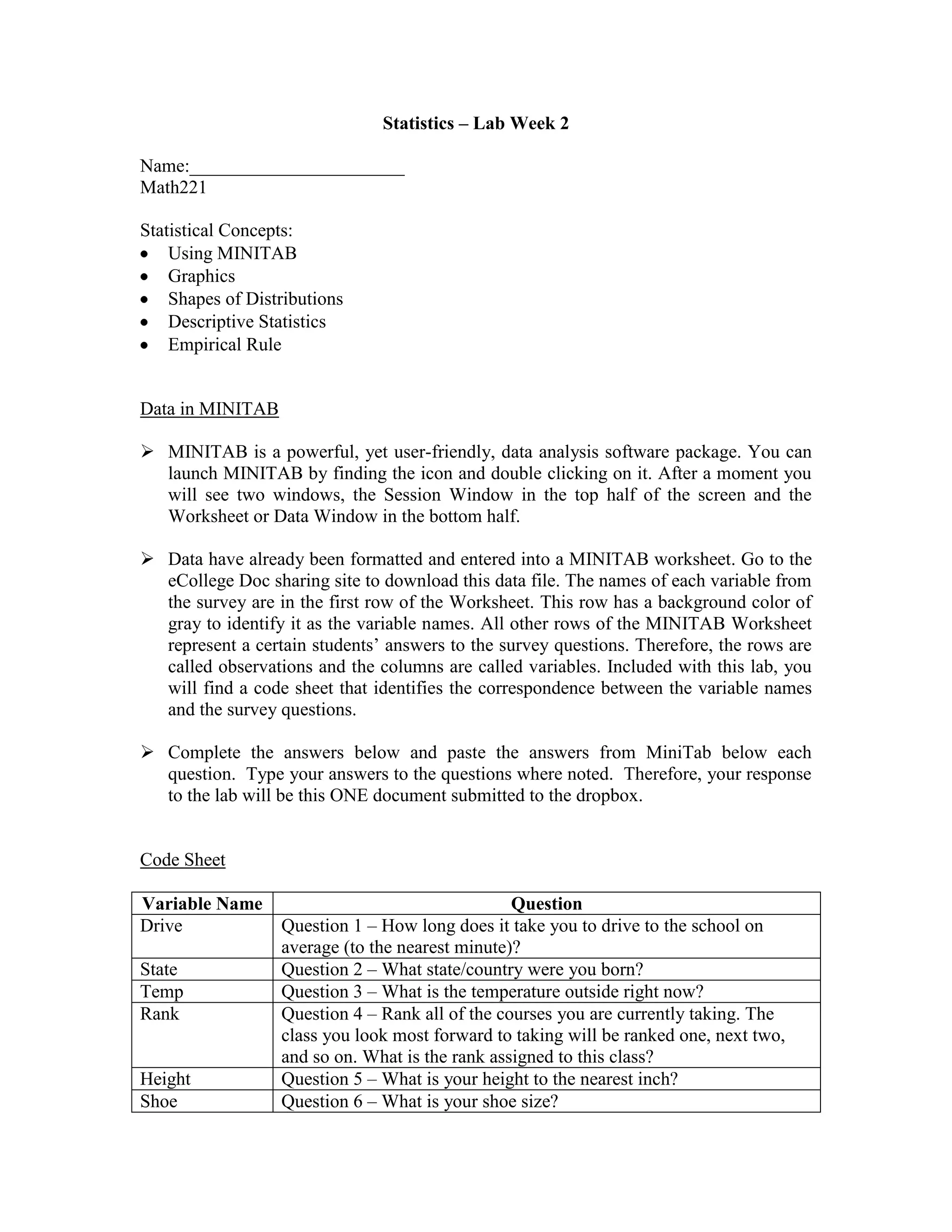
 MINITAB is a powerful, yet user-friendly, data analysis software package. You can
  launch MINITAB by finding the icon and double clicking on it. After a moment you
  will see two windows, the Session Window in the top half of the screen and the
  Worksheet or Data Window in the bottom half.

 Data have already been formatted and entered into a MINITAB worksheet. Go to the
  eCollege Doc sharing site to download this data file. The names of each variable from
  the survey are in the first row of the Worksheet. This row has a background color of
  gray to identify it as the variable names. All other rows of the MINITAB Worksheet
  represent a certain students‟ answers to the survey questions. Therefore, the rows are
  called observations and the columns are called variables. Included with this lab, you
  will find a code sheet that identifies the correspondence between the variable names
  and the survey questions.

 Complete the answers below and paste the answers from MiniTab below each
  question. Type your answers to the questions where noted. Therefore, your response
  to the lab will be this ONE document submitted to the dropbox.


Code Sheet

Variable Name                                    Question
Drive             Question 1 – How long does it take you to drive to the school on
                  average (to the nearest minute)?
State             Question 2 – What state/country were you born?
Temp              Question 3 – What is the temperature outside right now?
Rank              Question 4 – Rank all of the courses you are currently taking. The
                  class you look most forward to taking will be ranked one, next two,
                  and so on. What is the rank assigned to this class?
Height            Question 5 – What is your height to the nearest inch?
Shoe              Question 6 – What is your shoe size?
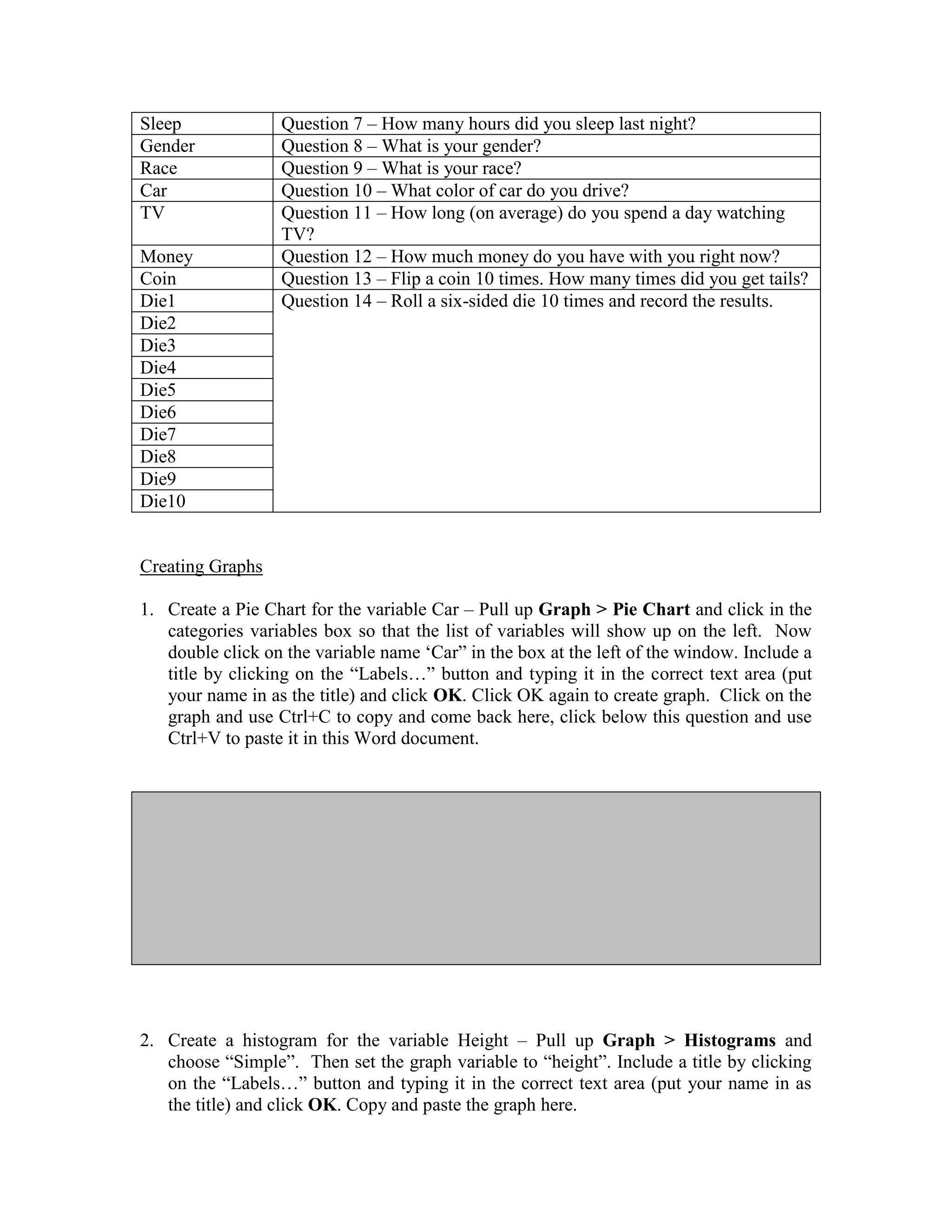
Sleep             Question 7 – How many hours did you sleep last night?
Gender            Question 8 – What is your gender?
Race              Question 9 – What is your race?
Car               Question 10 – What color of car do you drive?
TV                Question 11 – How long (on average) do you spend a day watching
                  TV?
Money             Question 12 – How much money do you have with you right now?
Coin              Question 13 – Flip a coin 10 times. How many times did you get tails?
Die1              Question 14 – Roll a six-sided die 10 times and record the results.
Die2
Die3
Die4
Die5
Die6
Die7
Die8
Die9
Die10


Creating Graphs

1. Create a Pie Chart for the variable Car – Pull up Graph > Pie Chart and click in the
   categories variables box so that the list of variables will show up on the left. Now
   double click on the variable name „Car” in the box at the left of the window. Include a
   title by clicking on the “Labels…” button and typing it in the correct text area (put
   your name in as the title) and click OK. Click OK again to create graph. Click on the
   graph and use Ctrl+C to copy and come back here, click below this question and use
   Ctrl+V to paste it in this Word document.


2. Create a histogram for the variable Height – Pull up Graph > Histograms and
   choose “Simple”. Then set the graph variable to “height”. Include a title by clicking
   on the “Labels…” button and typing it in the correct text area (put your name in as
   the title) and click OK. Copy and paste the graph here.
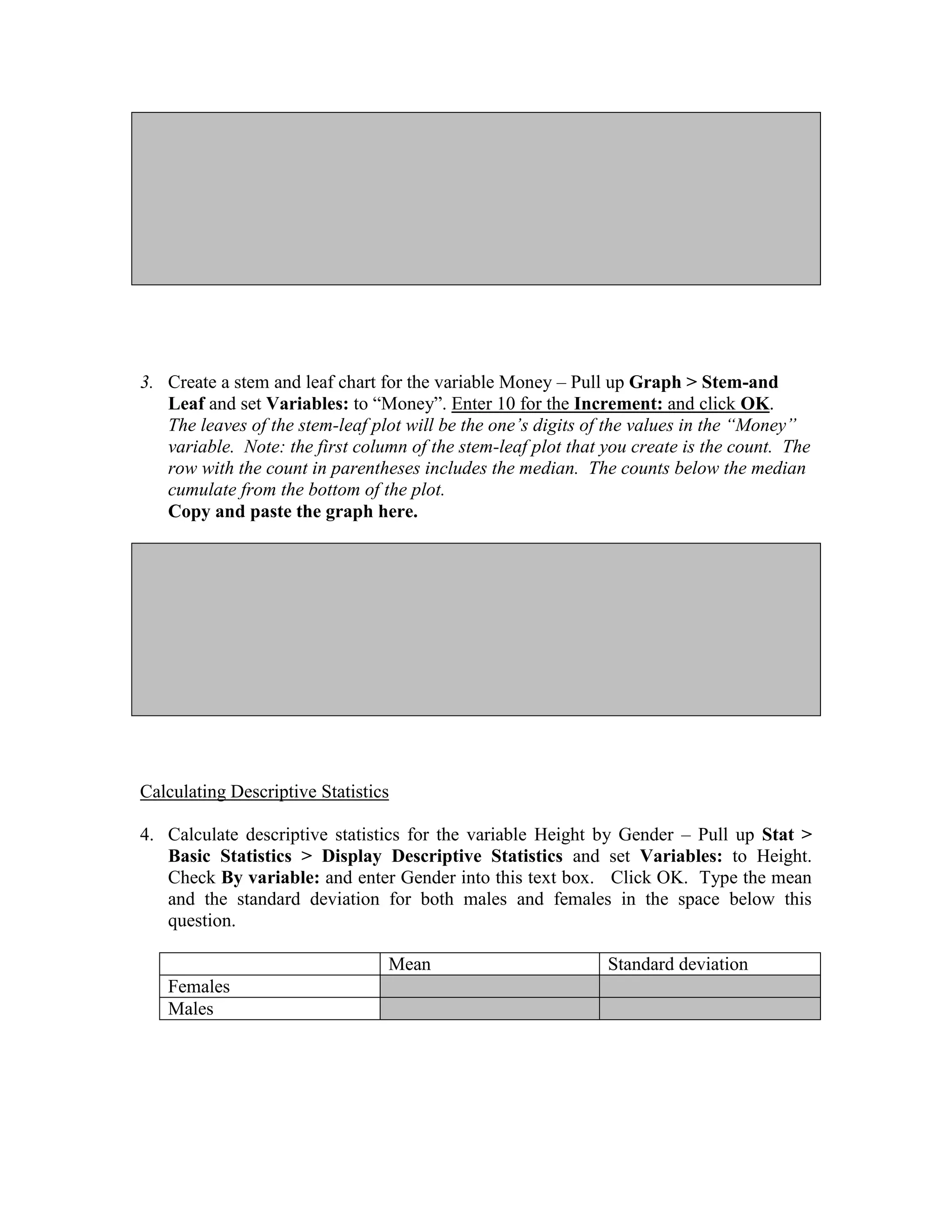
3. Create a stem and leaf chart for the variable Money – Pull up Graph > Stem-and
   Leaf and set Variables: to “Money”. Enter 10 for the Increment: and click OK.
   The leaves of the stem-leaf plot will be the one’s digits of the values in the “Money”
   variable. Note: the first column of the stem-leaf plot that you create is the count. The
   row with the count in parentheses includes the median. The counts below the median
   cumulate from the bottom of the plot.
   Copy and paste the graph here.


Calculating Descriptive Statistics

4. Calculate descriptive statistics for the variable Height by Gender – Pull up Stat >
   Basic Statistics > Display Descriptive Statistics and set Variables: to Height.
   Check By variable: and enter Gender into this text box. Click OK. Type the mean
   and the standard deviation for both males and females in the space below this
   question.

                                 Mean                          Standard deviation
   Females
   Males
 Select File > Save Worksheet As to save the data set. You must either keep a copy
  of this data or download it again off the web site for future labs.


Short Answer Writing Assignment

All answers should be complete sentences.

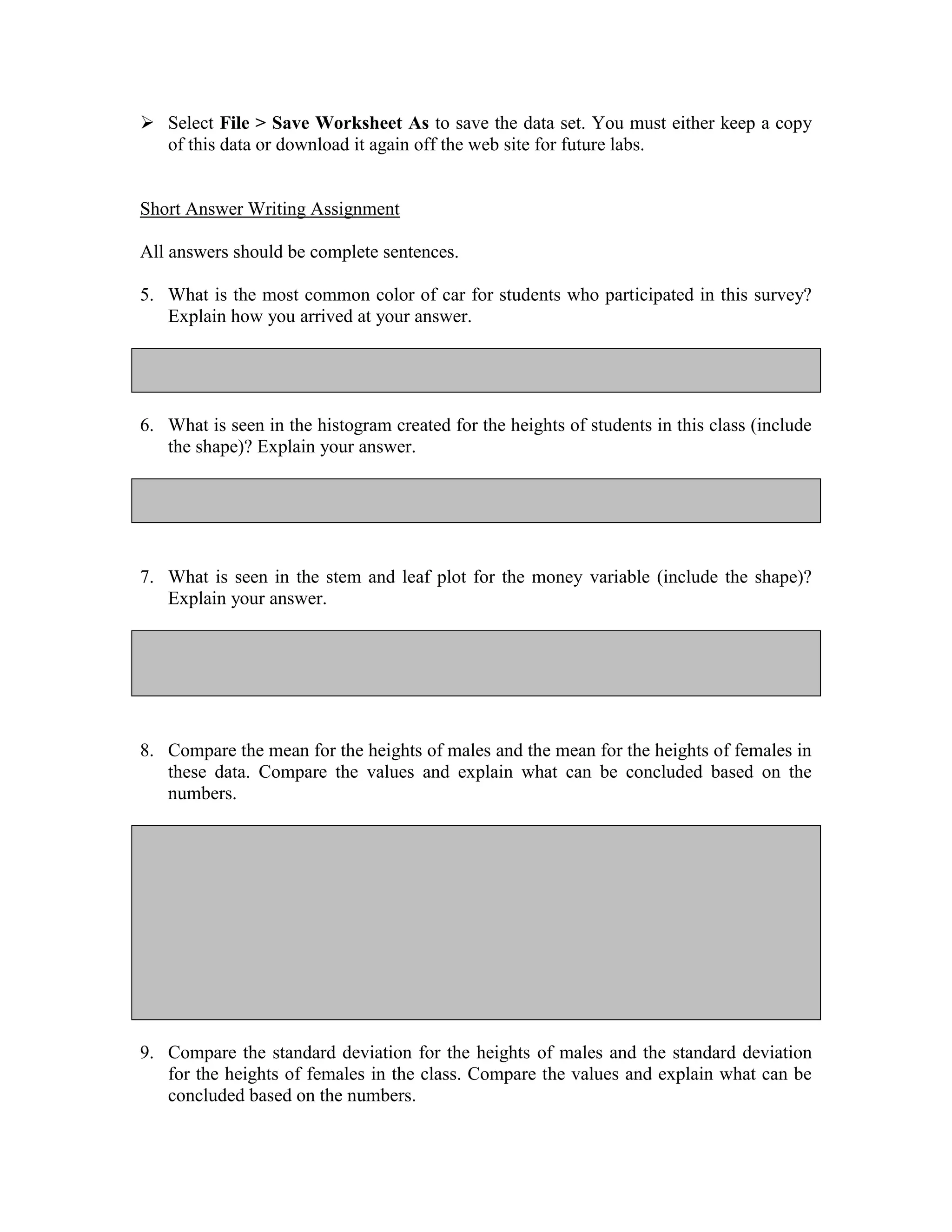
5. What is the most common color of car for students who participated in this survey?
   Explain how you arrived at your answer.


6. What is seen in the histogram created for the heights of students in this class (include
   the shape)? Explain your answer.


7. What is seen in the stem and leaf plot for the money variable (include the shape)?
   Explain your answer.


8. Compare the mean for the heights of males and the mean for the heights of females in
   these data. Compare the values and explain what can be concluded based on the
   numbers.


9. Compare the standard deviation for the heights of males and the standard deviation
   for the heights of females in the class. Compare the values and explain what can be
   concluded based on the numbers.
10. Using the empirical rule, 95% of female heights should be between what two values?
    Either show work or explain how your answer was calculated.


11. Using the empirical rule, 68% of male heights should be between what two values?
    Either show work or explain how your answer was calculated.

Math221 w2 lab your_name_here

  • 1.
    Statistics – LabWeek 2 Name:_______________________ Math221 Statistical Concepts: Using MINITAB Graphics Shapes of Distributions Descriptive Statistics Empirical Rule Data in MINITAB  MINITAB is a powerful, yet user-friendly, data analysis software package. You can launch MINITAB by finding the icon and double clicking on it. After a moment you will see two windows, the Session Window in the top half of the screen and the Worksheet or Data Window in the bottom half.  Data have already been formatted and entered into a MINITAB worksheet. Go to the eCollege Doc sharing site to download this data file. The names of each variable from the survey are in the first row of the Worksheet. This row has a background color of gray to identify it as the variable names. All other rows of the MINITAB Worksheet represent a certain students‟ answers to the survey questions. Therefore, the rows are called observations and the columns are called variables. Included with this lab, you will find a code sheet that identifies the correspondence between the variable names and the survey questions.  Complete the answers below and paste the answers from MiniTab below each question. Type your answers to the questions where noted. Therefore, your response to the lab will be this ONE document submitted to the dropbox. Code Sheet Variable Name Question Drive Question 1 – How long does it take you to drive to the school on average (to the nearest minute)? State Question 2 – What state/country were you born? Temp Question 3 – What is the temperature outside right now? Rank Question 4 – Rank all of the courses you are currently taking. The class you look most forward to taking will be ranked one, next two, and so on. What is the rank assigned to this class? Height Question 5 – What is your height to the nearest inch? Shoe Question 6 – What is your shoe size?
  • 2.
    Sleep Question 7 – How many hours did you sleep last night? Gender Question 8 – What is your gender? Race Question 9 – What is your race? Car Question 10 – What color of car do you drive? TV Question 11 – How long (on average) do you spend a day watching TV? Money Question 12 – How much money do you have with you right now? Coin Question 13 – Flip a coin 10 times. How many times did you get tails? Die1 Question 14 – Roll a six-sided die 10 times and record the results. Die2 Die3 Die4 Die5 Die6 Die7 Die8 Die9 Die10 Creating Graphs 1. Create a Pie Chart for the variable Car – Pull up Graph > Pie Chart and click in the categories variables box so that the list of variables will show up on the left. Now double click on the variable name „Car” in the box at the left of the window. Include a title by clicking on the “Labels…” button and typing it in the correct text area (put your name in as the title) and click OK. Click OK again to create graph. Click on the graph and use Ctrl+C to copy and come back here, click below this question and use Ctrl+V to paste it in this Word document. 2. Create a histogram for the variable Height – Pull up Graph > Histograms and choose “Simple”. Then set the graph variable to “height”. Include a title by clicking on the “Labels…” button and typing it in the correct text area (put your name in as the title) and click OK. Copy and paste the graph here.
  • 3.
    3. Create astem and leaf chart for the variable Money – Pull up Graph > Stem-and Leaf and set Variables: to “Money”. Enter 10 for the Increment: and click OK. The leaves of the stem-leaf plot will be the one’s digits of the values in the “Money” variable. Note: the first column of the stem-leaf plot that you create is the count. The row with the count in parentheses includes the median. The counts below the median cumulate from the bottom of the plot. Copy and paste the graph here. Calculating Descriptive Statistics 4. Calculate descriptive statistics for the variable Height by Gender – Pull up Stat > Basic Statistics > Display Descriptive Statistics and set Variables: to Height. Check By variable: and enter Gender into this text box. Click OK. Type the mean and the standard deviation for both males and females in the space below this question. Mean Standard deviation Females Males
  • 4.
     Select File> Save Worksheet As to save the data set. You must either keep a copy of this data or download it again off the web site for future labs. Short Answer Writing Assignment All answers should be complete sentences. 5. What is the most common color of car for students who participated in this survey? Explain how you arrived at your answer. 6. What is seen in the histogram created for the heights of students in this class (include the shape)? Explain your answer. 7. What is seen in the stem and leaf plot for the money variable (include the shape)? Explain your answer. 8. Compare the mean for the heights of males and the mean for the heights of females in these data. Compare the values and explain what can be concluded based on the numbers. 9. Compare the standard deviation for the heights of males and the standard deviation for the heights of females in the class. Compare the values and explain what can be concluded based on the numbers.
  • 5.
    10. Using theempirical rule, 95% of female heights should be between what two values? Either show work or explain how your answer was calculated. 11. Using the empirical rule, 68% of male heights should be between what two values? Either show work or explain how your answer was calculated.