Detail: https://cmsideas.net/magento-2-sold-together.html
Email: team@cmsideas.net
Ticket: https://cmsideas.net/contact
Blog: http://blog.cmsideas.net
Website: https://cmsideas.net/
INSTALLATION
USER MANUAL
START
Detail: https://cmsideas.net/magento-2-sold-together.html
Email: team@cmsideas.net
Ticket: https://cmsideas.net/contact
Blog: http://blog.cmsideas.net
Website: https://cmsideas.net/
FEATURES
1. Add 2 blocks on product detail page
2. Show blocks in convenient slider
3. Show or not show either one of the blocks or two blocks on a product page as requirements
4. Add unlimited products displaying on the blocks
5. Choose products to show from up-sell, cross-sell or related products
6. Manage products displaying by add/delete in one click
7. Show subtotal of all products including main product and products in the blocks selected by
customers
8. Add multiple products in the block to cart
9. Be compatible with many types of products on Magento 2 store
10. Support tracking products that are frequently bought together from purchasing history
INSTALLATION
USER MANUAL
START
Detail: https://cmsideas.net/magento-2-sold-together.html
Email: team@cmsideas.net
Ticket: https://cmsideas.net/contact
Blog: http://blog.cmsideas.net
Website: https://cmsideas.net/
BENEFITS
1. Make a new way to introduce and promote products on the webstore
2. Boost sale by motivating customer to add more and purchase more
products
3. Increase efficiency of promotion activities with low cost
4. Bring to customers best experiences on your website and turn them into
loyal customers
5. Make right decisions for the business
6. Increase your revenue and profit by selling more products and wasting
less on advertisements
INSTALLATION
USER MANUAL
START
Detail: https://cmsideas.net/magento-2-sold-together.html
Email: team@cmsideas.net
Ticket: https://cmsideas.net/contact
Blog: http://blog.cmsideas.net
Website: https://cmsideas.net/
After downloading the package, please proceed with the following steps:
Step 1: Please unzip the archive.
Step 2: Disable cache at System -> Cache Management.
Step 3: Unload the contents of the module package to the Magento root
folder. This will not over write the existing Magento files, only the new
contents will be added.
Step 4: Using SSH, go to Magento root folder and run command below:
1. Run command to update database : php bin/magento setup:upgrade
2. Run command to deploy : php bin/magento setup:static-content:deploy
Step 5: Refresh your admin user access rights: log out from your store admin
and then login back. Next, please Enable Cache.
INSTALLATION
USER MANUAL
START
Detail: https://cmsideas.net/magento-2-sold-together.html
Email: team@cmsideas.net
Ticket: https://cmsideas.net/contact
Blog: http://blog.cmsideas.net
Website: https://cmsideas.net/
SETTINGS
Go to the STORES, then:
 Settings
 Configuration
 GLACE EXTENSIONS
 Sold Together
INSTALLATION
USER MANUAL
START
Detail: https://cmsideas.net/magento-2-sold-together.html
Email: team@cmsideas.net
Ticket: https://cmsideas.net/contact
Blog: http://blog.cmsideas.net
Website: https://cmsideas.net/
FREQUENTLY BOUGHT TOGETHER TAB
INSTALLATION
USER MANUAL
START
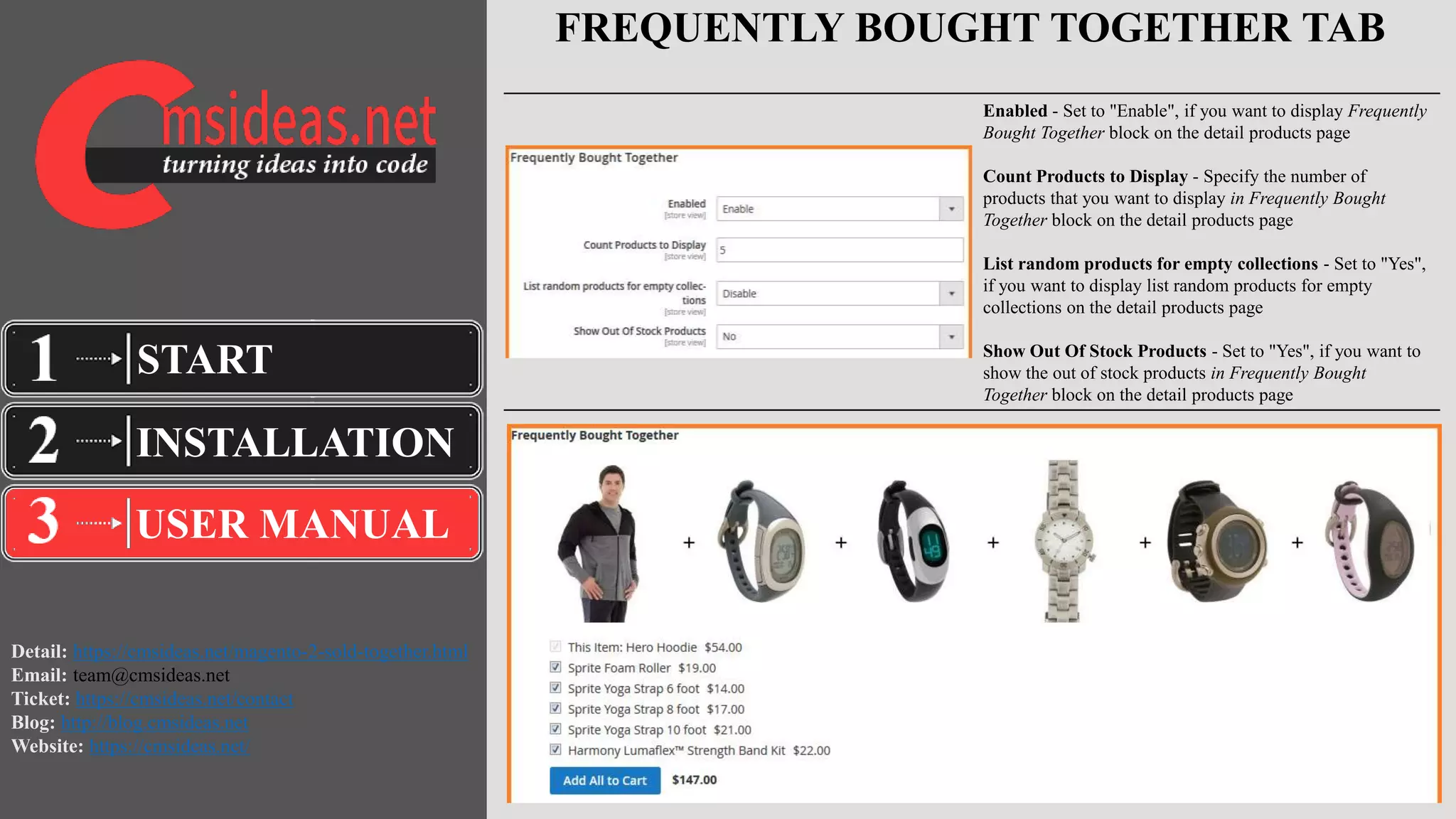
Enabled - Set to "Enable", if you want to display Frequently
Bought Together block on the detail products page
Count Products to Display - Specify the number of
products that you want to display in Frequently Bought
Together block on the detail products page
List random products for empty collections - Set to "Yes",
if you want to display list random products for empty
collections on the detail products page
Show Out Of Stock Products - Set to "Yes", if you want to
show the out of stock products in Frequently Bought
Together block on the detail products page
Detail: https://cmsideas.net/magento-2-sold-together.html
Email: team@cmsideas.net
Ticket: https://cmsideas.net/contact
Blog: http://blog.cmsideas.net
Website: https://cmsideas.net/
CUSTOMERS WHO BOUGHT THIS ITEM ALSO
BOUGHT TAB
INSTALLATION
USER MANUAL
START
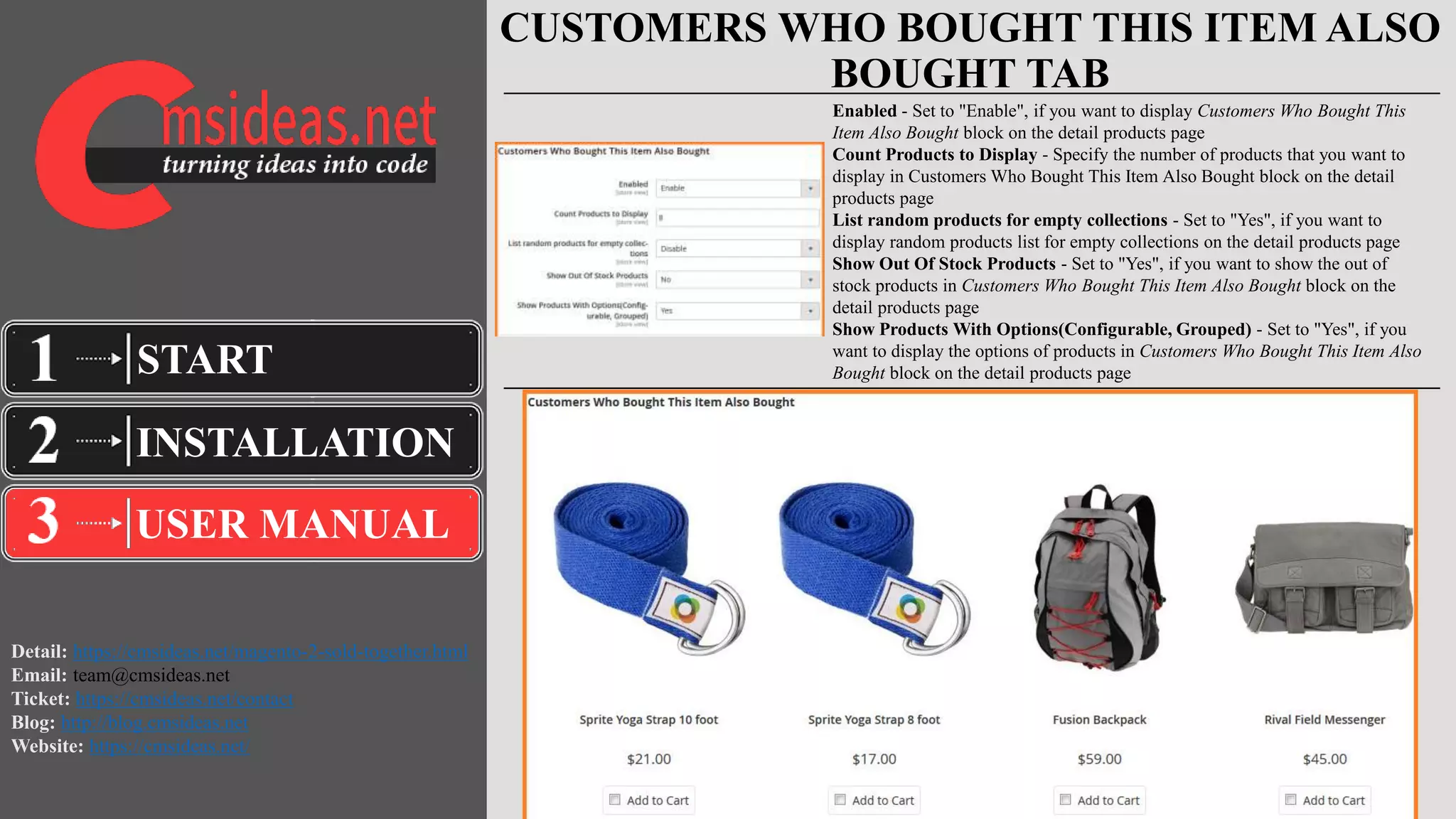
Enabled - Set to "Enable", if you want to display Customers Who Bought This
Item Also Bought block on the detail products page
Count Products to Display - Specify the number of products that you want to
display in Customers Who Bought This Item Also Bought block on the detail
products page
List random products for empty collections - Set to "Yes", if you want to
display random products list for empty collections on the detail products page
Show Out Of Stock Products - Set to "Yes", if you want to show the out of
stock products in Customers Who Bought This Item Also Bought block on the
detail products page
Show Products With Options(Configurable, Grouped) - Set to "Yes", if you
want to display the options of products in Customers Who Bought This Item Also
Bought block on the detail products page
Detail: https://cmsideas.net/magento-2-sold-together.html
Email: team@cmsideas.net
Ticket: https://cmsideas.net/contact
Blog: http://blog.cmsideas.net
Website: https://cmsideas.net/
EMAIL BLOCK SETTINGS TAB
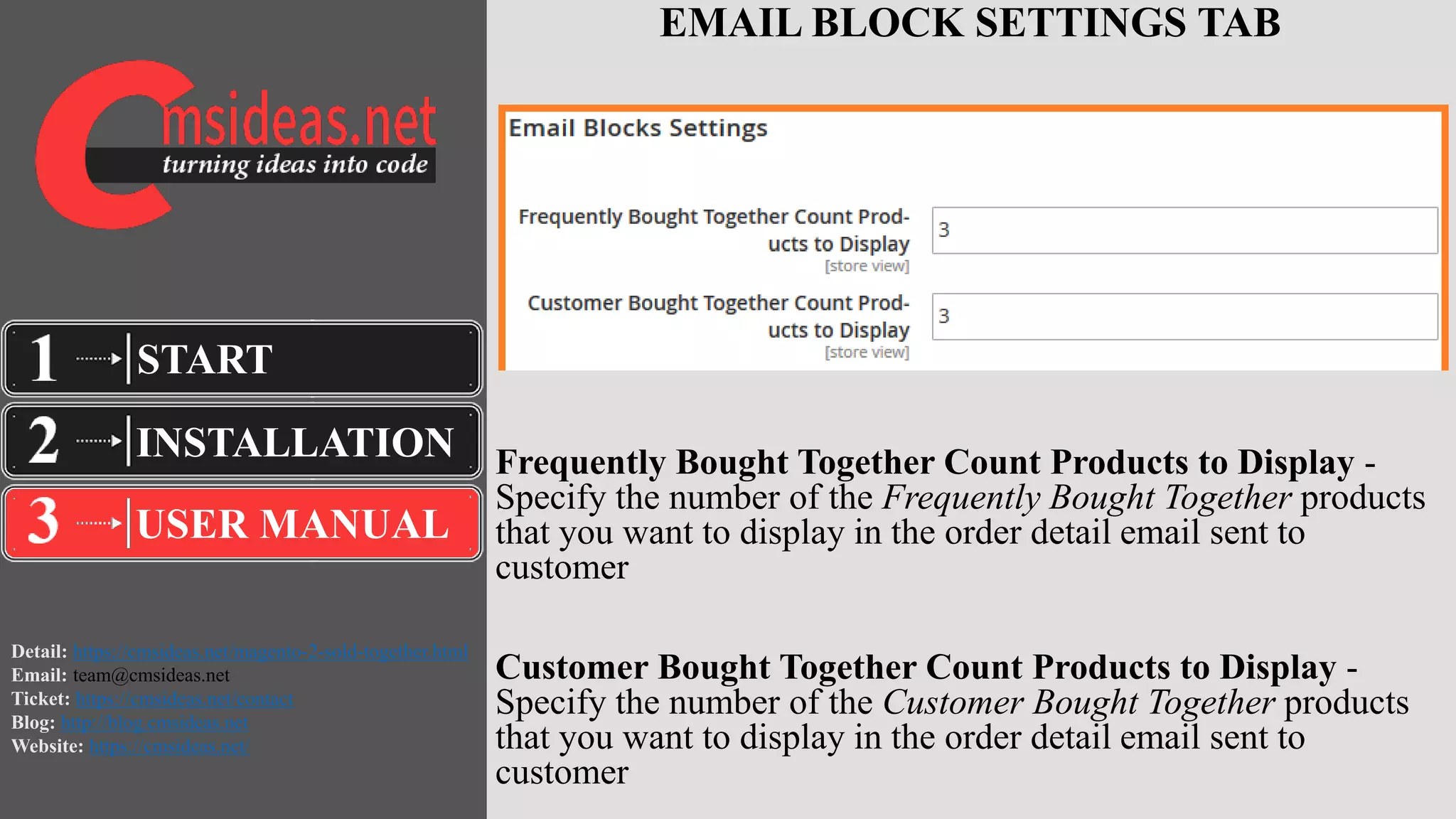
Frequently Bought Together Count Products to Display -
Specify the number of the Frequently Bought Together products
that you want to display in the order detail email sent to
customer
Customer Bought Together Count Products to Display -
Specify the number of the Customer Bought Together products
that you want to display in the order detail email sent to
customer
INSTALLATION
USER MANUAL
START
Detail: https://cmsideas.net/magento-2-sold-together.html
Email: team@cmsideas.net
Ticket: https://cmsideas.net/contact
Blog: http://blog.cmsideas.net
Website: https://cmsideas.net/
FREQUENTLY BOUGHT TOGETHER MANAGER
To adding related products to Frequently Bought Together block for a specific
product, you do the following:
1 - Go to the PRODUCTS -> Inventory -> Catalog -> select the required
product
2 - Go to Sold Together tab,
+Click the Add Frequently Bought Products button
+ Specify the products that you want to display in the Frequently Bought Together
block
3 - Click the Save button to save your work.
To see the list of related items to products in the Frequently Bought Together
block, please go to the CMSIDEAS -> Sold Together -> Frequently Bought
Together, you can see the list of Frequently Bought Together products in the
Frequently Bought Together page
INSTALLATION
USER MANUAL
START
Detail: https://cmsideas.net/magento-2-sold-together.html
Email: team@cmsideas.net
Ticket: https://cmsideas.net/contact
Blog: http://blog.cmsideas.net
Website: https://cmsideas.net/
CUSTOMERS WHO BOUGHT THIS ITEM ALSO
BOUGHT MANAGER
To adding related products to Customers Who Bought This Item Also Bought
block for a specific product, you do the following:
1 - Go to the PRODUCTS -> Inventory -> Catalog -> select the required
product
2 - Go to Sold Together tab,
+Click the Add Customer Bought Products button
+ Specify the products that you want to display in the Customers Who Bought
This Item Also Bought block
3 - Click the Save button to save your work.
To see the list of related items to products in the Customers Who Bought This Item
Also Bought block, please go to the CMSIDEAS -> Sold Together -> Customers
Who Bought This Item Also Bought, you can see the list of all the related items
to product on the Customers Who Bought This Item Also Bought page.
INSTALLATION
USER MANUAL
START
Detail: https://cmsideas.net/magento-2-sold-together.html
Email: team@cmsideas.net
Ticket: https://cmsideas.net/contact
Blog: http://blog.cmsideas.net
Website: https://cmsideas.net/
If you face problems with the installation or
customization of our product please do not hesitate to
contact us via our support ticket system:
Detail: https://cmsideas.net/magento-2-sold-
together.html
Email: team@cmsideas.net
Ticket: https://cmsideas.net/contact
Blog: http://blog.cmsideas.net
Website: https://cmsideas.net/
INSTALLATION
USER MANUAL
START

Magento 2 Sold Together

  • 1.
    Detail: https://cmsideas.net/magento-2-sold-together.html Email: team@cmsideas.net Ticket:https://cmsideas.net/contact Blog: http://blog.cmsideas.net Website: https://cmsideas.net/ INSTALLATION USER MANUAL START
  • 2.
    Detail: https://cmsideas.net/magento-2-sold-together.html Email: team@cmsideas.net Ticket:https://cmsideas.net/contact Blog: http://blog.cmsideas.net Website: https://cmsideas.net/ FEATURES 1. Add 2 blocks on product detail page 2. Show blocks in convenient slider 3. Show or not show either one of the blocks or two blocks on a product page as requirements 4. Add unlimited products displaying on the blocks 5. Choose products to show from up-sell, cross-sell or related products 6. Manage products displaying by add/delete in one click 7. Show subtotal of all products including main product and products in the blocks selected by customers 8. Add multiple products in the block to cart 9. Be compatible with many types of products on Magento 2 store 10. Support tracking products that are frequently bought together from purchasing history INSTALLATION USER MANUAL START
  • 3.
    Detail: https://cmsideas.net/magento-2-sold-together.html Email: team@cmsideas.net Ticket:https://cmsideas.net/contact Blog: http://blog.cmsideas.net Website: https://cmsideas.net/ BENEFITS 1. Make a new way to introduce and promote products on the webstore 2. Boost sale by motivating customer to add more and purchase more products 3. Increase efficiency of promotion activities with low cost 4. Bring to customers best experiences on your website and turn them into loyal customers 5. Make right decisions for the business 6. Increase your revenue and profit by selling more products and wasting less on advertisements INSTALLATION USER MANUAL START
  • 4.
    Detail: https://cmsideas.net/magento-2-sold-together.html Email: team@cmsideas.net Ticket:https://cmsideas.net/contact Blog: http://blog.cmsideas.net Website: https://cmsideas.net/ After downloading the package, please proceed with the following steps: Step 1: Please unzip the archive. Step 2: Disable cache at System -> Cache Management. Step 3: Unload the contents of the module package to the Magento root folder. This will not over write the existing Magento files, only the new contents will be added. Step 4: Using SSH, go to Magento root folder and run command below: 1. Run command to update database : php bin/magento setup:upgrade 2. Run command to deploy : php bin/magento setup:static-content:deploy Step 5: Refresh your admin user access rights: log out from your store admin and then login back. Next, please Enable Cache. INSTALLATION USER MANUAL START
  • 5.
    Detail: https://cmsideas.net/magento-2-sold-together.html Email: team@cmsideas.net Ticket:https://cmsideas.net/contact Blog: http://blog.cmsideas.net Website: https://cmsideas.net/ SETTINGS Go to the STORES, then:  Settings  Configuration  GLACE EXTENSIONS  Sold Together INSTALLATION USER MANUAL START
  • 6.
    Detail: https://cmsideas.net/magento-2-sold-together.html Email: team@cmsideas.net Ticket:https://cmsideas.net/contact Blog: http://blog.cmsideas.net Website: https://cmsideas.net/ FREQUENTLY BOUGHT TOGETHER TAB INSTALLATION USER MANUAL START Enabled - Set to "Enable", if you want to display Frequently Bought Together block on the detail products page Count Products to Display - Specify the number of products that you want to display in Frequently Bought Together block on the detail products page List random products for empty collections - Set to "Yes", if you want to display list random products for empty collections on the detail products page Show Out Of Stock Products - Set to "Yes", if you want to show the out of stock products in Frequently Bought Together block on the detail products page
  • 7.
    Detail: https://cmsideas.net/magento-2-sold-together.html Email: team@cmsideas.net Ticket:https://cmsideas.net/contact Blog: http://blog.cmsideas.net Website: https://cmsideas.net/ CUSTOMERS WHO BOUGHT THIS ITEM ALSO BOUGHT TAB INSTALLATION USER MANUAL START Enabled - Set to "Enable", if you want to display Customers Who Bought This Item Also Bought block on the detail products page Count Products to Display - Specify the number of products that you want to display in Customers Who Bought This Item Also Bought block on the detail products page List random products for empty collections - Set to "Yes", if you want to display random products list for empty collections on the detail products page Show Out Of Stock Products - Set to "Yes", if you want to show the out of stock products in Customers Who Bought This Item Also Bought block on the detail products page Show Products With Options(Configurable, Grouped) - Set to "Yes", if you want to display the options of products in Customers Who Bought This Item Also Bought block on the detail products page
  • 8.
    Detail: https://cmsideas.net/magento-2-sold-together.html Email: team@cmsideas.net Ticket:https://cmsideas.net/contact Blog: http://blog.cmsideas.net Website: https://cmsideas.net/ EMAIL BLOCK SETTINGS TAB Frequently Bought Together Count Products to Display - Specify the number of the Frequently Bought Together products that you want to display in the order detail email sent to customer Customer Bought Together Count Products to Display - Specify the number of the Customer Bought Together products that you want to display in the order detail email sent to customer INSTALLATION USER MANUAL START
  • 9.
    Detail: https://cmsideas.net/magento-2-sold-together.html Email: team@cmsideas.net Ticket:https://cmsideas.net/contact Blog: http://blog.cmsideas.net Website: https://cmsideas.net/ FREQUENTLY BOUGHT TOGETHER MANAGER To adding related products to Frequently Bought Together block for a specific product, you do the following: 1 - Go to the PRODUCTS -> Inventory -> Catalog -> select the required product 2 - Go to Sold Together tab, +Click the Add Frequently Bought Products button + Specify the products that you want to display in the Frequently Bought Together block 3 - Click the Save button to save your work. To see the list of related items to products in the Frequently Bought Together block, please go to the CMSIDEAS -> Sold Together -> Frequently Bought Together, you can see the list of Frequently Bought Together products in the Frequently Bought Together page INSTALLATION USER MANUAL START
  • 10.
    Detail: https://cmsideas.net/magento-2-sold-together.html Email: team@cmsideas.net Ticket:https://cmsideas.net/contact Blog: http://blog.cmsideas.net Website: https://cmsideas.net/ CUSTOMERS WHO BOUGHT THIS ITEM ALSO BOUGHT MANAGER To adding related products to Customers Who Bought This Item Also Bought block for a specific product, you do the following: 1 - Go to the PRODUCTS -> Inventory -> Catalog -> select the required product 2 - Go to Sold Together tab, +Click the Add Customer Bought Products button + Specify the products that you want to display in the Customers Who Bought This Item Also Bought block 3 - Click the Save button to save your work. To see the list of related items to products in the Customers Who Bought This Item Also Bought block, please go to the CMSIDEAS -> Sold Together -> Customers Who Bought This Item Also Bought, you can see the list of all the related items to product on the Customers Who Bought This Item Also Bought page. INSTALLATION USER MANUAL START
  • 11.
    Detail: https://cmsideas.net/magento-2-sold-together.html Email: team@cmsideas.net Ticket:https://cmsideas.net/contact Blog: http://blog.cmsideas.net Website: https://cmsideas.net/ If you face problems with the installation or customization of our product please do not hesitate to contact us via our support ticket system: Detail: https://cmsideas.net/magento-2-sold- together.html Email: team@cmsideas.net Ticket: https://cmsideas.net/contact Blog: http://blog.cmsideas.net Website: https://cmsideas.net/ INSTALLATION USER MANUAL START