Working with e-AWB
Tutorial
December 13, 2015
December 13, 2015
Introduction
Logitude’s e-AWB feature provides a fast path to building an airway bill for a shipment and
communicating with airlines.
The e-AWB Wizard enables you to complete the required information quickly, preview and print the
AWB document, and send it to recipients by mail. Furthermore, e-AWB handles the communication with
the airlines.
This tutorial will show you how to work with e-AWB to handle the entire process of building direct, house
and master shipments, issuing the airway bills, and managing the communication with the airlines.
Create a new e-AWB shipment
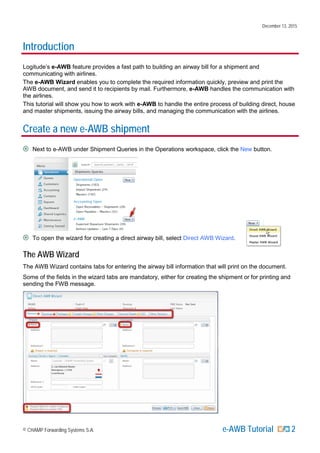
Next to e-AWB under Shipment Queries in the Operations workspace, click the New button.
To open the wizard for creating a direct airway bill, select Direct AWB Wizard.
The AWB Wizard
The AWB Wizard contains tabs for entering the airway bill information that will print on the document.
Some of the fields in the wizard tabs are mandatory, either for creating the shipment or for printing and
sending the FWB message.
© CHAMP Forwarding Systems S.A. e-AWB Tutorial 2
December 13, 2015
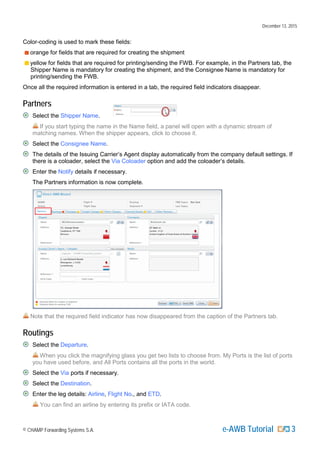
Color-coding is used to mark these fields:
orange for fields that are required for creating the shipment
yellow for fields that are required for printing/sending the FWB. For example, in the Partners tab, the
Shipper Name is mandatory for creating the shipment, and the Consignee Name is mandatory for
printing/sending the FWB.
Once all the required information is entered in a tab, the required field indicators disappear.
Partners
Select the Shipper Name.
If you start typing the name in the Name field, a panel will open with a dynamic stream of
matching names. When the shipper appears, click to choose it.
Select the Consignee Name.
The details of the Issuing Carrier’s Agent display automatically from the company default settings. If
there is a coloader, select the Via Coloader option and add the coloader’s details.
Enter the Notify details if necessary.
The Partners information is now complete.
Note that the required field indicator has now disappeared from the caption of the Partners tab.
Routings
Select the Departure.
When you click the magnifying glass you get two lists to choose from. My Ports is the list of ports
you have used before, and All Ports contains all the ports in the world.
Select the Via ports if necessary.
Select the Destination.
Enter the leg details: Airline, Flight No., and ETD.
You can find an airline by entering its prefix or IATA code.
© CHAMP Forwarding Systems S.A. e-AWB Tutorial 3
December 13, 2015
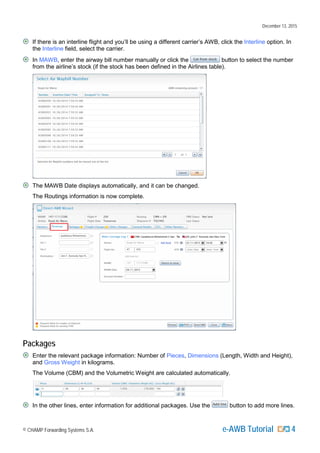
If there is an interline flight and you’ll be using a different carrier’s AWB, click the Interline option. In
the Interline field, select the carrier.
In MAWB, enter the airway bill number manually or click the button to select the number
from the airline’s stock (if the stock has been defined in the Airlines table).
The MAWB Date displays automatically, and it can be changed.
The Routings information is now complete.
Packages
Enter the relevant package information: Number of Pieces, Dimensions (Length, Width and Height),
and Gross Weight in kilograms.
The Volume (CBM) and the Volumetric Weight are calculated automatically.
In the other lines, enter information for additional packages. Use the button to add more lines.
© CHAMP Forwarding Systems S.A. e-AWB Tutorial 4
December 13, 2015
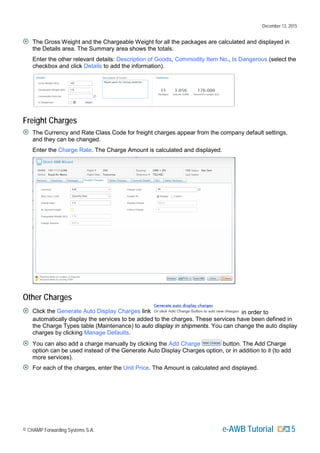
The Gross Weight and the Chargeable Weight for all the packages are calculated and displayed in
the Details area. The Summary area shows the totals.
Enter the other relevant details: Description of Goods, Commodity Item No., Is Dangerous (select the
checkbox and click Details to add the information).
Freight Charges
The Currency and Rate Class Code for freight charges appear from the company default settings,
and they can be changed.
Enter the Charge Rate. The Charge Amount is calculated and displayed.
Other Charges
Click the Generate Auto Display Charges link in order to
automatically display the services to be added to the charges. These services have been defined in
the Charge Types table (Maintenance) to auto display in shipments. You can change the auto display
charges by clicking Manage Defaults.
You can also add a charge manually by clicking the Add Charge button. The Add Charge
option can be used instead of the Generate Auto Display Charges option, or in addition to it (to add
more services).
For each of the charges, enter the Unit Price. The Amount is calculated and displayed.
© CHAMP Forwarding Systems S.A. e-AWB Tutorial 5
December 13, 2015
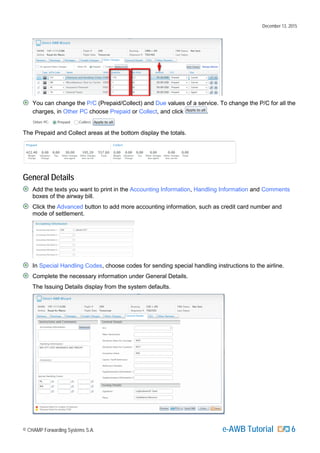
You can change the P/C (Prepaid/Collect) and Due values of a service. To change the P/C for all the
charges, in Other PC choose Prepaid or Collect, and click .
The Prepaid and Collect areas at the bottom display the totals.
General Details
Add the texts you want to print in the Accounting Information, Handling Information and Comments
boxes of the airway bill.
Click the Advanced button to add more accounting information, such as credit card number and
mode of settlement.
In Special Handling Codes, choose codes for sending special handling instructions to the airline.
Complete the necessary information under General Details.
The Issuing Details display from the system defaults.
© CHAMP Forwarding Systems S.A. e-AWB Tutorial 6
December 13, 2015
OCI
Use the Other Customs Information (OCI) lines to report other customs, security and regulatory control
information: select the Country, the Information ID, the Customs Information ID, and enter the relevant
text or number in Supplementary Value.
Other Partners
In the Other Partners tab, you can enter the Nominated Handling Party and Other Participant
Information.
© CHAMP Forwarding Systems S.A. e-AWB Tutorial 7
December 13, 2015
Create a new e-AWB for a House/Master shipment
The procedure for creating a new House or Master AWB is the same as creating a new Direct AWB, with
some differences and additions.
House e-AWB
You can create a House e-AWB via the New button next to e-AWB under Shipment
Queries in the Operations workspace, or from a master airway bill
(see “Master e-AWB” below).
Follow the steps in “Create a New e-AWB Shipment” to enter the information
in the tabs of the House AWB Wizard.
In the Routings tab, enter the Departure and Destination.
The House airway bill number will be assigned automatically
from the house airway bill counter (after saving the AWB).
Master e-AWB
Next to e-AWB under Shipment Queries in the Operations workspace,
click the New button.
To open the wizard for creating a master airway bill, select Master AWB Wizard.
Follow the steps in “Create a New e-AWB Shipment” to enter the information
in the tabs of the Master AWB Wizard.
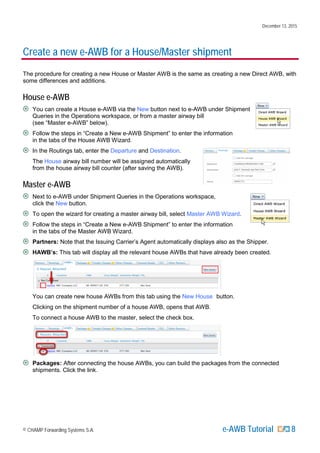
Partners: Note that the Issuing Carrier’s Agent automatically displays also as the Shipper.
HAWB’s: This tab will display all the relevant house AWBs that have already been created.
You can create new house AWBs from this tab using the New House button.
Clicking on the shipment number of a house AWB, opens that AWB.
To connect a house AWB to the master, select the check box.
Packages: After connecting the house AWBs, you can build the packages from the connected
shipments. Click the link.
© CHAMP Forwarding Systems S.A. e-AWB Tutorial 8
December 13, 2015
Preview
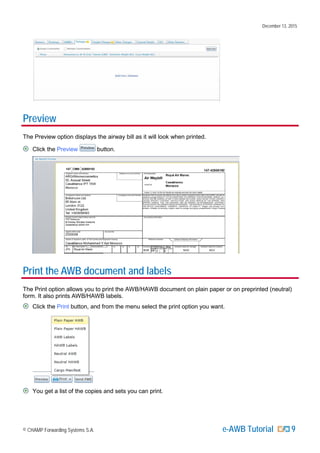
The Preview option displays the airway bill as it will look when printed.
Click the Preview button.
Print the AWB document and labels
The Print option allows you to print the AWB/HAWB document on plain paper or on preprinted (neutral)
form. It also prints AWB/HAWB labels.
Click the Print button, and from the menu select the print option you want.
You get a list of the copies and sets you can print.
© CHAMP Forwarding Systems S.A. e-AWB Tutorial 9
December 13, 2015
Click the button next to the relevant option. To send the document by mail, use the
button.
The document PDF opens in a separate browser page. Use the Print button to print it. If you have a
duplex printer, the contract will print on the back. If you don't, click the Print button to print only odd
pages.
Send FWB and FHL statuses
In a Direct AWB, to transmit an FWB message to the airline, click the Send FWB button.
In a House AWB, to transmit an FHL message to the airline, click the Send FHL button.
In a Master AWB, there are two options: click the Send FWB button to transmit the Master
AWB for the entire consolidation, or click the Send FHL(s) button to transmit all HAWBs at
once.
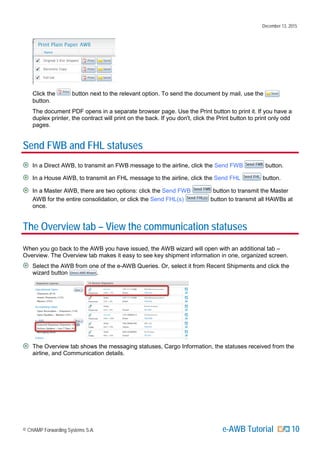
The Overview tab – View the communication statuses
When you go back to the AWB you have issued, the AWB wizard will open with an additional tab –
Overview. The Overview tab makes it easy to see key shipment information in one, organized screen.
Select the AWB from one of the e-AWB Queries. Or, select it from Recent Shipments and click the
wizard button .
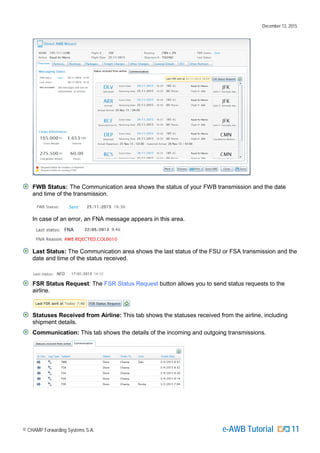
The Overview tab shows the messaging statuses, Cargo Information, the statuses received from the
airline, and Communication details.
© CHAMP Forwarding Systems S.A. e-AWB Tutorial 10
December 13, 2015
FWB Status: The Communication area shows the status of your FWB transmission and the date
and time of the transmission.
In case of an error, an FNA message appears in this area.
Last Status: The Communication area shows the last status of the FSU or FSA transmission and the
date and time of the status received.
FSR Status Request: The FSR Status Request button allows you to send status requests to the
airline.
Statuses Received from Airline: This tab shows the statuses received from the airline, including
shipment details.
Communication: This tab shows the details of the incoming and outgoing transmissions.
© CHAMP Forwarding Systems S.A. e-AWB Tutorial 11
December 13, 2015
e-AWB queries
Expected Departures
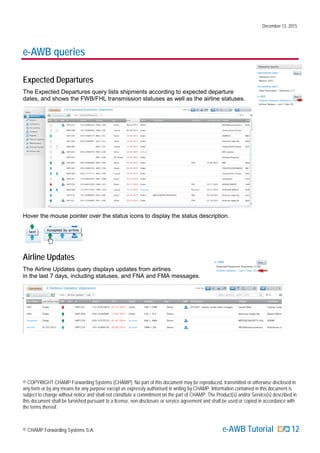
The Expected Departures query lists shipments according to expected departure
dates, and shows the FWB/FHL transmission statuses as well as the airline statuses.
Hover the mouse pointer over the status icons to display the status description.
Airline Updates
The Airline Updates query displays updates from airlines
in the last 7 days, including statuses, and FNA and FMA messages.
© COPYRIGHT CHAMP Forwarding Systems (CHAMP). No part of this document may be reproduced, transmitted or otherwise disclosed in
any form or by any means for any purpose except as expressly authorised in writing by CHAMP. Information contained in this document is
subject to change without notice and shall not constitute a commitment on the part of CHAMP. The Product(s) and/or Service(s) described in
this document shall be furnished pursuant to a license, non-disclosure or service agreement and shall be used or copied in accordance with
the terms thereof.
© CHAMP Forwarding Systems S.A. e-AWB Tutorial 12

Logitude eAWB tutorial

  • 1.
  • 2.
    December 13, 2015 Introduction Logitude’se-AWB feature provides a fast path to building an airway bill for a shipment and communicating with airlines. The e-AWB Wizard enables you to complete the required information quickly, preview and print the AWB document, and send it to recipients by mail. Furthermore, e-AWB handles the communication with the airlines. This tutorial will show you how to work with e-AWB to handle the entire process of building direct, house and master shipments, issuing the airway bills, and managing the communication with the airlines. Create a new e-AWB shipment Next to e-AWB under Shipment Queries in the Operations workspace, click the New button. To open the wizard for creating a direct airway bill, select Direct AWB Wizard. The AWB Wizard The AWB Wizard contains tabs for entering the airway bill information that will print on the document. Some of the fields in the wizard tabs are mandatory, either for creating the shipment or for printing and sending the FWB message. © CHAMP Forwarding Systems S.A. e-AWB Tutorial 2
  • 3.
    December 13, 2015 Color-codingis used to mark these fields: orange for fields that are required for creating the shipment yellow for fields that are required for printing/sending the FWB. For example, in the Partners tab, the Shipper Name is mandatory for creating the shipment, and the Consignee Name is mandatory for printing/sending the FWB. Once all the required information is entered in a tab, the required field indicators disappear. Partners Select the Shipper Name. If you start typing the name in the Name field, a panel will open with a dynamic stream of matching names. When the shipper appears, click to choose it. Select the Consignee Name. The details of the Issuing Carrier’s Agent display automatically from the company default settings. If there is a coloader, select the Via Coloader option and add the coloader’s details. Enter the Notify details if necessary. The Partners information is now complete. Note that the required field indicator has now disappeared from the caption of the Partners tab. Routings Select the Departure. When you click the magnifying glass you get two lists to choose from. My Ports is the list of ports you have used before, and All Ports contains all the ports in the world. Select the Via ports if necessary. Select the Destination. Enter the leg details: Airline, Flight No., and ETD. You can find an airline by entering its prefix or IATA code. © CHAMP Forwarding Systems S.A. e-AWB Tutorial 3
  • 4.
    December 13, 2015 Ifthere is an interline flight and you’ll be using a different carrier’s AWB, click the Interline option. In the Interline field, select the carrier. In MAWB, enter the airway bill number manually or click the button to select the number from the airline’s stock (if the stock has been defined in the Airlines table). The MAWB Date displays automatically, and it can be changed. The Routings information is now complete. Packages Enter the relevant package information: Number of Pieces, Dimensions (Length, Width and Height), and Gross Weight in kilograms. The Volume (CBM) and the Volumetric Weight are calculated automatically. In the other lines, enter information for additional packages. Use the button to add more lines. © CHAMP Forwarding Systems S.A. e-AWB Tutorial 4
  • 5.
    December 13, 2015 TheGross Weight and the Chargeable Weight for all the packages are calculated and displayed in the Details area. The Summary area shows the totals. Enter the other relevant details: Description of Goods, Commodity Item No., Is Dangerous (select the checkbox and click Details to add the information). Freight Charges The Currency and Rate Class Code for freight charges appear from the company default settings, and they can be changed. Enter the Charge Rate. The Charge Amount is calculated and displayed. Other Charges Click the Generate Auto Display Charges link in order to automatically display the services to be added to the charges. These services have been defined in the Charge Types table (Maintenance) to auto display in shipments. You can change the auto display charges by clicking Manage Defaults. You can also add a charge manually by clicking the Add Charge button. The Add Charge option can be used instead of the Generate Auto Display Charges option, or in addition to it (to add more services). For each of the charges, enter the Unit Price. The Amount is calculated and displayed. © CHAMP Forwarding Systems S.A. e-AWB Tutorial 5
  • 6.
    December 13, 2015 Youcan change the P/C (Prepaid/Collect) and Due values of a service. To change the P/C for all the charges, in Other PC choose Prepaid or Collect, and click . The Prepaid and Collect areas at the bottom display the totals. General Details Add the texts you want to print in the Accounting Information, Handling Information and Comments boxes of the airway bill. Click the Advanced button to add more accounting information, such as credit card number and mode of settlement. In Special Handling Codes, choose codes for sending special handling instructions to the airline. Complete the necessary information under General Details. The Issuing Details display from the system defaults. © CHAMP Forwarding Systems S.A. e-AWB Tutorial 6
  • 7.
    December 13, 2015 OCI Usethe Other Customs Information (OCI) lines to report other customs, security and regulatory control information: select the Country, the Information ID, the Customs Information ID, and enter the relevant text or number in Supplementary Value. Other Partners In the Other Partners tab, you can enter the Nominated Handling Party and Other Participant Information. © CHAMP Forwarding Systems S.A. e-AWB Tutorial 7
  • 8.
    December 13, 2015 Createa new e-AWB for a House/Master shipment The procedure for creating a new House or Master AWB is the same as creating a new Direct AWB, with some differences and additions. House e-AWB You can create a House e-AWB via the New button next to e-AWB under Shipment Queries in the Operations workspace, or from a master airway bill (see “Master e-AWB” below). Follow the steps in “Create a New e-AWB Shipment” to enter the information in the tabs of the House AWB Wizard. In the Routings tab, enter the Departure and Destination. The House airway bill number will be assigned automatically from the house airway bill counter (after saving the AWB). Master e-AWB Next to e-AWB under Shipment Queries in the Operations workspace, click the New button. To open the wizard for creating a master airway bill, select Master AWB Wizard. Follow the steps in “Create a New e-AWB Shipment” to enter the information in the tabs of the Master AWB Wizard. Partners: Note that the Issuing Carrier’s Agent automatically displays also as the Shipper. HAWB’s: This tab will display all the relevant house AWBs that have already been created. You can create new house AWBs from this tab using the New House button. Clicking on the shipment number of a house AWB, opens that AWB. To connect a house AWB to the master, select the check box. Packages: After connecting the house AWBs, you can build the packages from the connected shipments. Click the link. © CHAMP Forwarding Systems S.A. e-AWB Tutorial 8
  • 9.
    December 13, 2015 Preview ThePreview option displays the airway bill as it will look when printed. Click the Preview button. Print the AWB document and labels The Print option allows you to print the AWB/HAWB document on plain paper or on preprinted (neutral) form. It also prints AWB/HAWB labels. Click the Print button, and from the menu select the print option you want. You get a list of the copies and sets you can print. © CHAMP Forwarding Systems S.A. e-AWB Tutorial 9
  • 10.
    December 13, 2015 Clickthe button next to the relevant option. To send the document by mail, use the button. The document PDF opens in a separate browser page. Use the Print button to print it. If you have a duplex printer, the contract will print on the back. If you don't, click the Print button to print only odd pages. Send FWB and FHL statuses In a Direct AWB, to transmit an FWB message to the airline, click the Send FWB button. In a House AWB, to transmit an FHL message to the airline, click the Send FHL button. In a Master AWB, there are two options: click the Send FWB button to transmit the Master AWB for the entire consolidation, or click the Send FHL(s) button to transmit all HAWBs at once. The Overview tab – View the communication statuses When you go back to the AWB you have issued, the AWB wizard will open with an additional tab – Overview. The Overview tab makes it easy to see key shipment information in one, organized screen. Select the AWB from one of the e-AWB Queries. Or, select it from Recent Shipments and click the wizard button . The Overview tab shows the messaging statuses, Cargo Information, the statuses received from the airline, and Communication details. © CHAMP Forwarding Systems S.A. e-AWB Tutorial 10
  • 11.
    December 13, 2015 FWBStatus: The Communication area shows the status of your FWB transmission and the date and time of the transmission. In case of an error, an FNA message appears in this area. Last Status: The Communication area shows the last status of the FSU or FSA transmission and the date and time of the status received. FSR Status Request: The FSR Status Request button allows you to send status requests to the airline. Statuses Received from Airline: This tab shows the statuses received from the airline, including shipment details. Communication: This tab shows the details of the incoming and outgoing transmissions. © CHAMP Forwarding Systems S.A. e-AWB Tutorial 11
  • 12.
    December 13, 2015 e-AWBqueries Expected Departures The Expected Departures query lists shipments according to expected departure dates, and shows the FWB/FHL transmission statuses as well as the airline statuses. Hover the mouse pointer over the status icons to display the status description. Airline Updates The Airline Updates query displays updates from airlines in the last 7 days, including statuses, and FNA and FMA messages. © COPYRIGHT CHAMP Forwarding Systems (CHAMP). No part of this document may be reproduced, transmitted or otherwise disclosed in any form or by any means for any purpose except as expressly authorised in writing by CHAMP. Information contained in this document is subject to change without notice and shall not constitute a commitment on the part of CHAMP. The Product(s) and/or Service(s) described in this document shall be furnished pursuant to a license, non-disclosure or service agreement and shall be used or copied in accordance with the terms thereof. © CHAMP Forwarding Systems S.A. e-AWB Tutorial 12