Kristian Robinson
@Joon82 | @TwoUKDigital
Background Images
Considerations for design, build and progressive enhancement
Design Benefits
• Allows for use of live-text over an image.
• Create impactful designs without using too many images.
• Help to frame content and add texture and depth.
• Increases your creative options.
• It opens the door to more emotional design.
• Can enhance the user experience with minimal effort.
“Extra Stuff”
“Extra Stuff”
End
• Thank you!
• Follow me on Twitter: @Joon82 (I do need to change this handle)
• Follow Two Associates: @TwoUKDigital

Litmus Talk. Email Design Conference. Background Images.

Editor's Notes

  • #2 Morning geeks!… Let’s get straight in to this.
  • #3 Background Images can bea pain to work with : time-consuming, lot of weight to build a lot of people find them too restrictive And people might avoid them for those reasons But if you’re using them in the right way, there are some real design benefits to using them, over and above just being able to put live-text over images.
  • #4 Impactful designs without using too many images Help to frame content and add texture and depth More emotional design possibilities Greater variety of creative opportunities Can enhance the user experience with minimal effort. Emails shouldn’t be just about ROI, data, and speed. Emotional design and creativity is just as important. 50% of our brain function is dedicated to processing imagery, and we can get a sense of a visual scene in less than a 1/10 of second. With a need simplify layouts and get our message across, and we know we have seconds to make an impact to... perhaps Background Images can help us do that and prevent a slide to a progressively more monolithic approach. So there are some key considerations to take in to account when using them in both design and build. With a little more collaboration, and pre-planning it will help you later on in the process, and achieve better results in further down the line.  I’m not going to get to granular about code, but there are little snippets throughout of the key elements I’m talking about. And I’ll be doing a series of posts on this sort of stuff going forward so keep an eye on my twitter feed, and I’ll share when I post them.
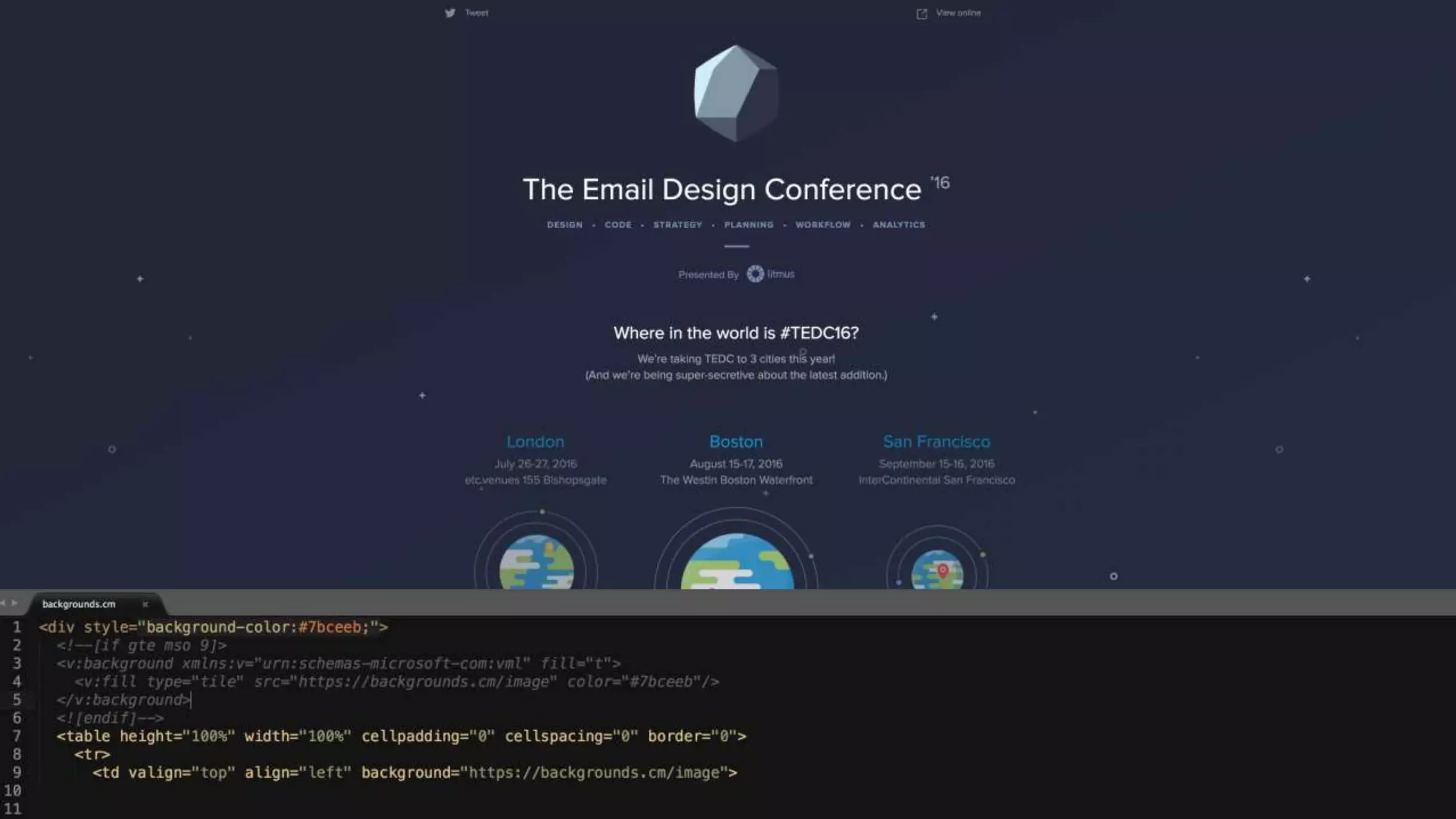
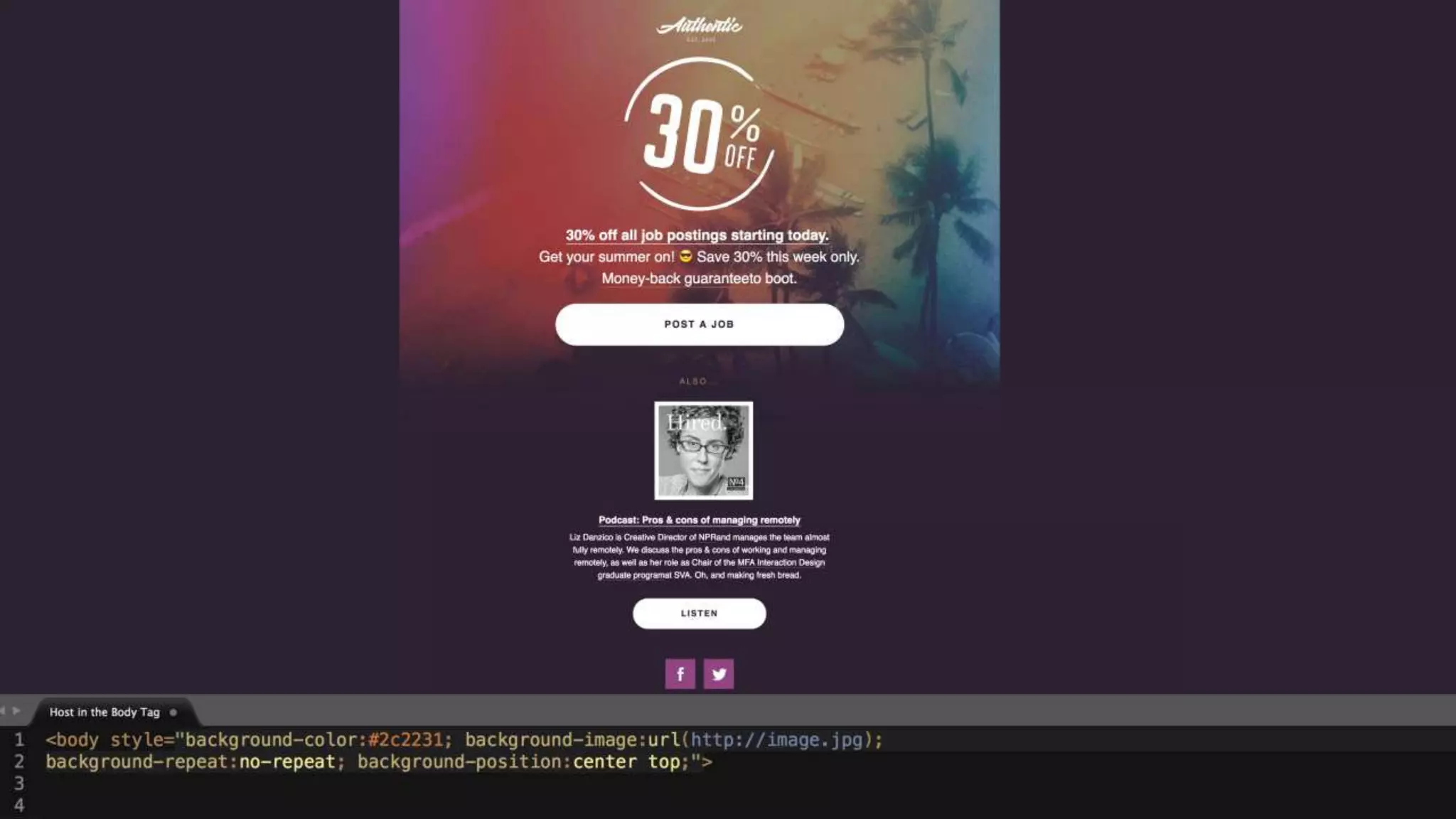
  • #5 I’m sure you all know this example?   This is a great example of using the 100% of the frame/body.   Key considerations:   Have as smaller image as possible in terms of weight. Ensure that image is designed to repeat well. Don’t base your entire design around this. Use it for enhancement. There are two methods…... Kevin simply hosts the background in the style tag, within the head of the email… add your class to the <TD> of your 100% table and you’re away.   It’s quick, easy, causes no complications, takes no time to set-up and adds every little weight…. And where it isn’t supported the base of the design goes unaffected.   he also has a nice little CSS gradient colour set behind the image, so they both show where supported.     The other way is the inline approach, which offers a little more support and if you use backgrounds.cm it’s pretty straight forward to set-up, and you have the option of supporting “Them outlooks as well”….   Or you can combine the two methods somewhat which for me is the best method.     Speaking of Outlook a moment. I have a lot of B2B clients where the priority is Outlook 2010 or 13. So from a design point-of-view, you don’t get many opportunities to add much visual value with outlook. Background images are a handy to way to help with that and add a little more value.
  • #6 I wanted to quickly show you this example…. It’s hosted on the body tag which you should probably avoid due to the black reply issue.   But I do like: The image fades out to flat colour – this saves weight But still provides and frame for the key content to sit it and focus the mind. But also when you open you still get that attacked on the sense. The email build itself is lightweight…..
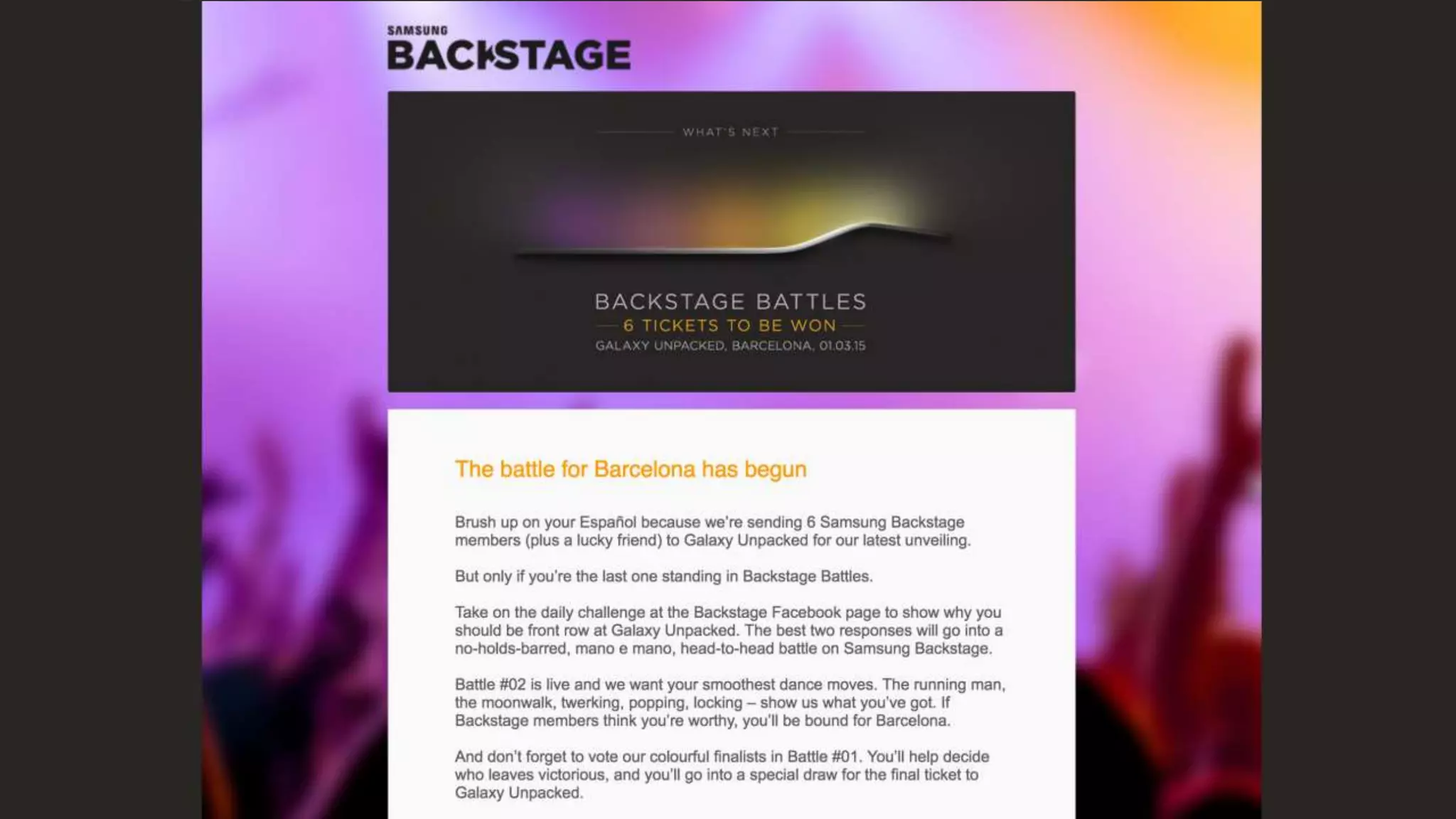
  • #7 This design would have benefited from the same approach…. Fading out the background image. This would really save a bit of weight as the image moves all the way down surrounding the entire thing.
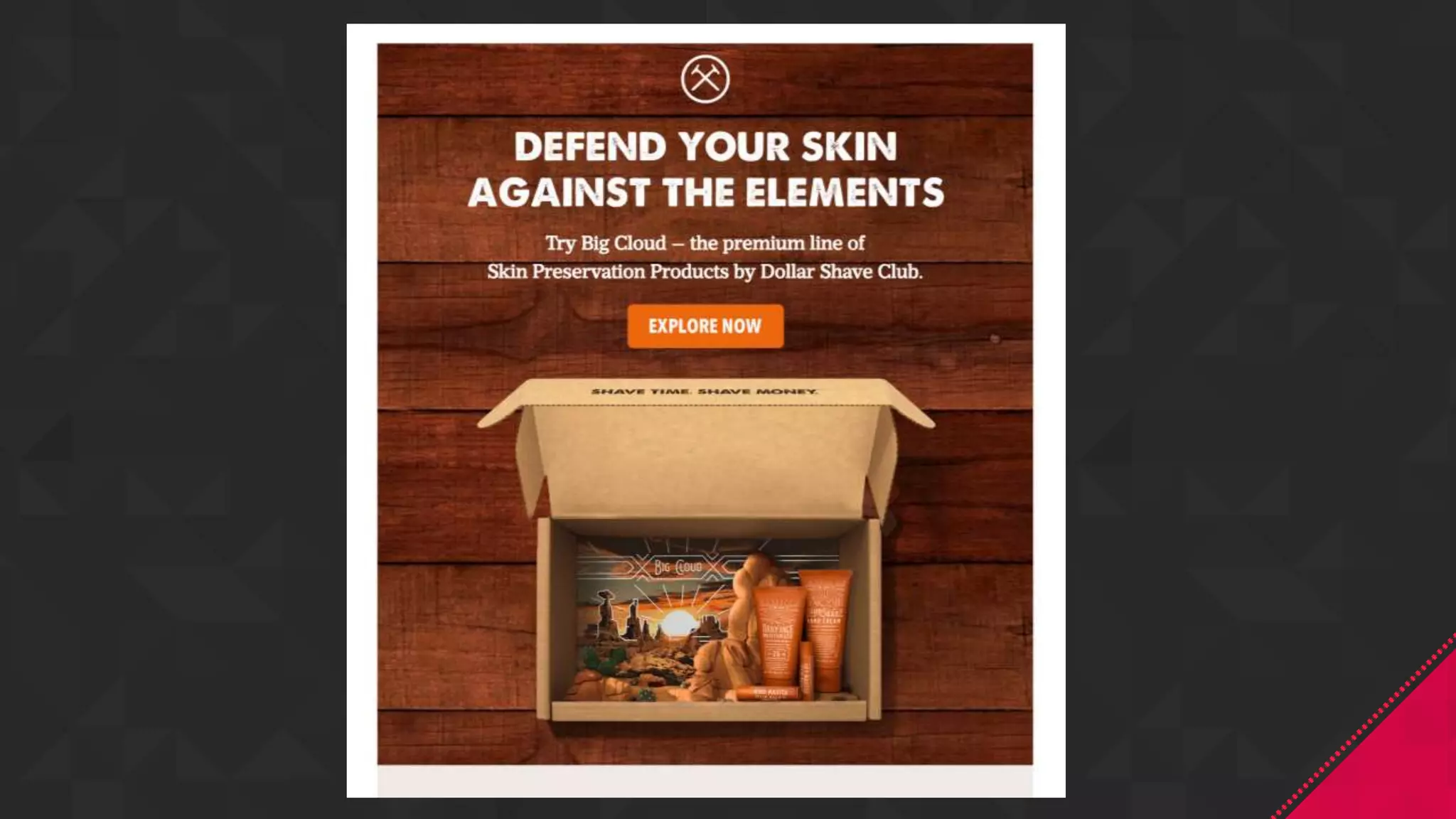
  • #8 SO HERO SECTIONS…..   This is one of my favourite emails. This is just the header section, but it’ a great example of using backgrounds to create depth and texture, and it’s a great example of taking the PSD and taking the time to work on each layer   Essentially it’s a pattern background, but it sets the tone, and gives definition to the space. The 3D vibe to the main image really helps the setting, but what helps for me is the shadows being left on it when it’s been cut out. single column… so you have t do very little to make it work.   I’d probably try and space things out a little more, add more white space, but that’s more of a personal thing.
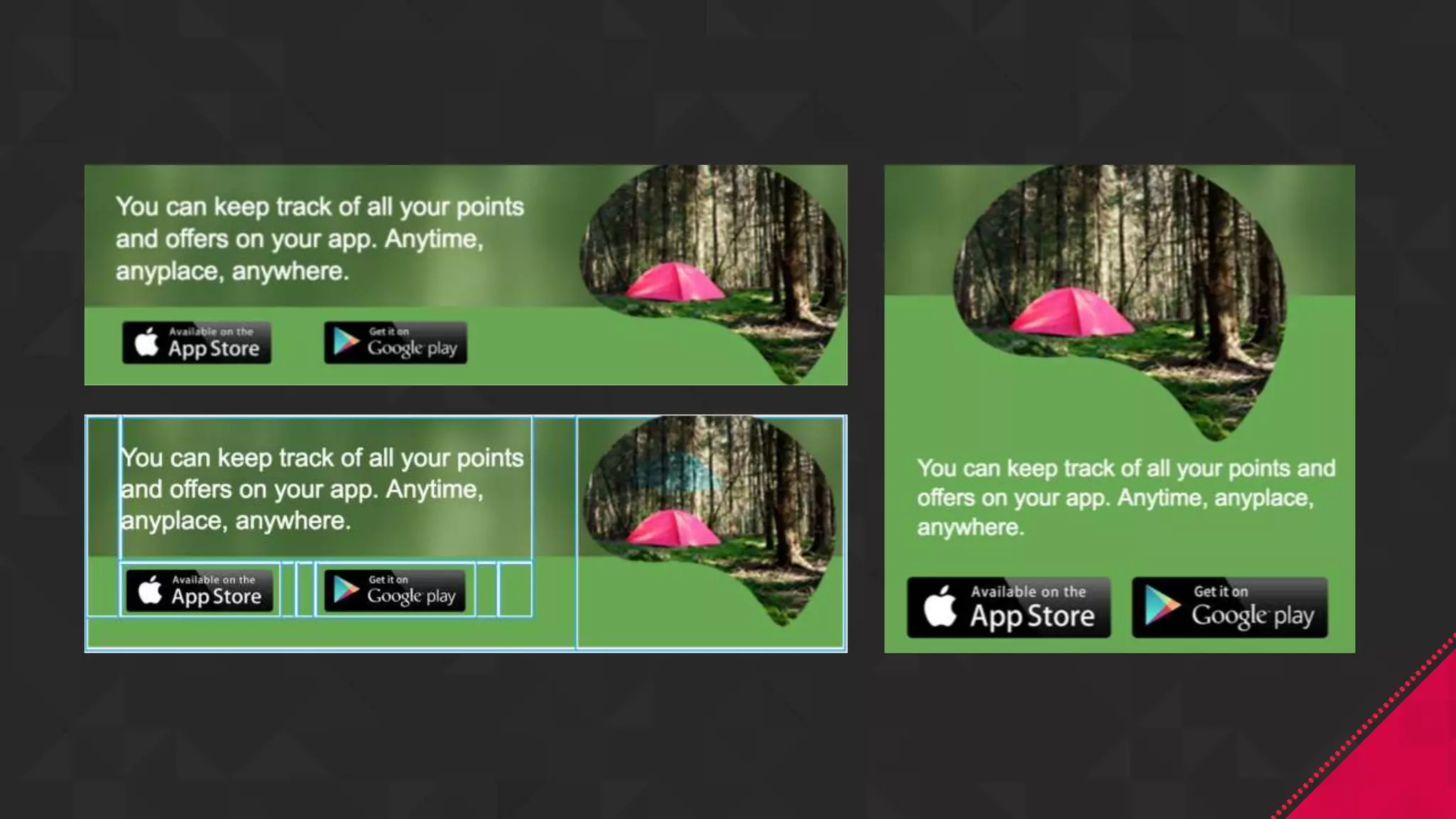
  • #9 To continue with the patterns and textures vibe just quickly, I thought this might help to illustrate where challenges occur a little in that transition between desktop and mobile.   So what happens is, the content reverse stacks, so the height is different. So to cover off GMAIL the easiest way I see to apply the flat colour behind the entire section and allow the text to move down in to that section.   Any other tweaking you can do with your media queries, but it’s best to get a base set-up that still works without the MQ’s, and it’s a simple method that is nice and easy to set-up.
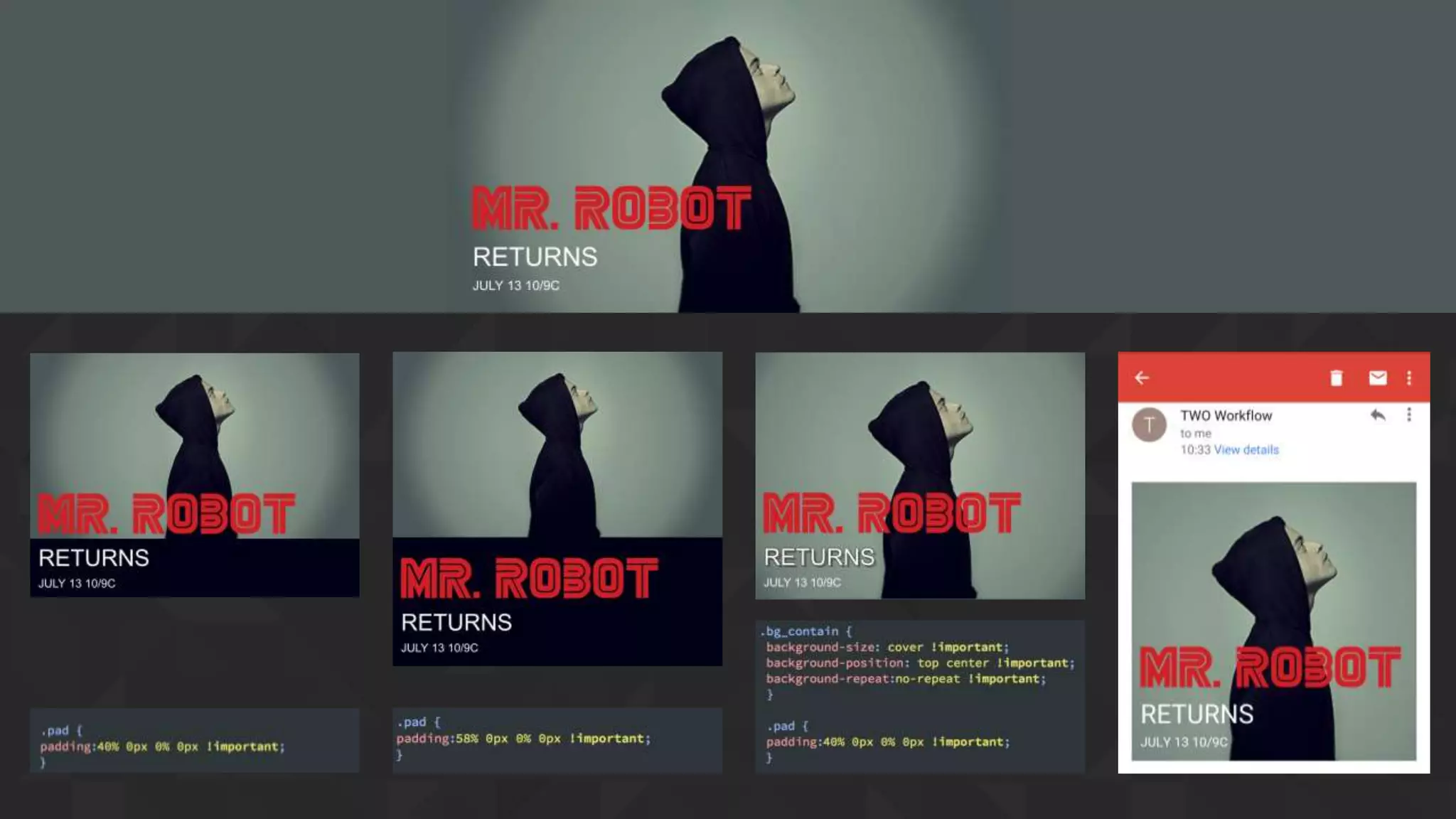
  • #10 MR ROBOT   So this section breaks that process down a little clearer.   The core build takes care of the image shrinking Media queries can take care of the text position if you want it on a flat colour. But as it’s not such a busy image……Adding “Cover” works nicely.   Gmail app again, works quite well just using “background-position: top center”, and again because the key area is small… it works well.
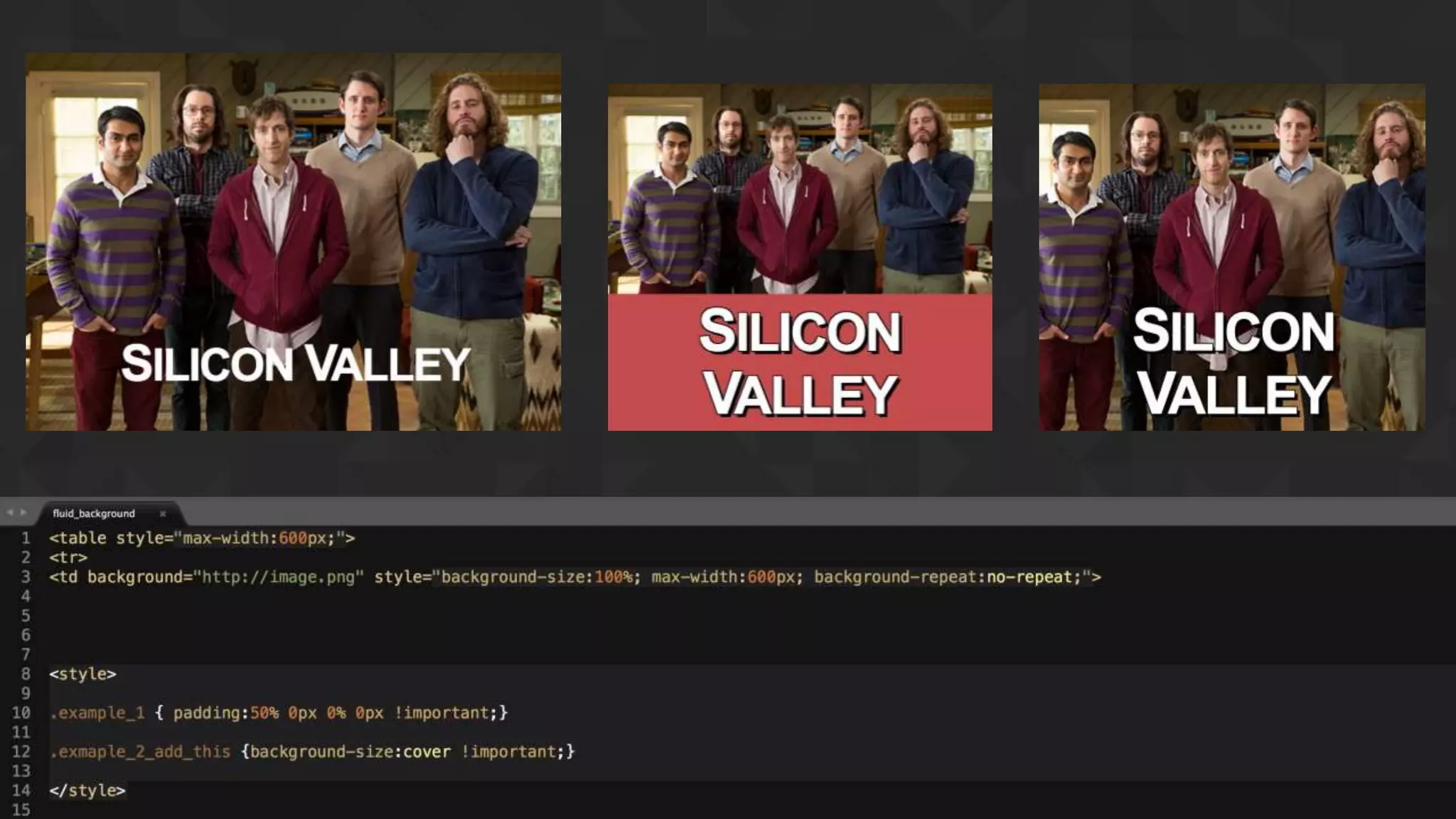
  • #11 So… what if your background image, is a content image? I’ve seen many examples of this sort of thing, and how that transition to mobile has been   I’ve seen….   Build a completely separate mobile version. (don’t do that)   I’ve seen…which is quite a quick solution if you force the desktop in gmail.   2)   set a media query to turn of the background image, remove the fixed height or change to to auto (if you have that set) leaving just the text. Then again in the MQs apply a background colour to the content the text sits in. And create a mobile image of the background image, and switch that on for mobile.   It’s a quick fix, it will give you some control… but again not ideal.     Simplest method is the one that’s on the screen for me, and especially if Gmail or hybrid is a consideration, and you get two options.   Style=”background-size: 100%; Max-width:600px; background-repeat:no-repeat;   This will allow your background image to shrink     And then two options from here.   Apply a flat colour behind the image, and allow the text to move in to that section. Depending on your image and text this method can help keep things visibile.   Alternatively you can simply add “background-size: cover !important;” which forces the background image to fill the space.   (what you need to be aware of with this is that the image will zoom and cut the edges of depending how long it is)     So then Gmail app…   Text that size and wide will go to two lines, and depending on where it sits on desktop, in gmail might cause little issues. Key tip for me is while you’re setting up the desktop design/build test it on gmail at the same time. Gmail app will feature a portion of an image like this. So have a play around with position to see what works for you.
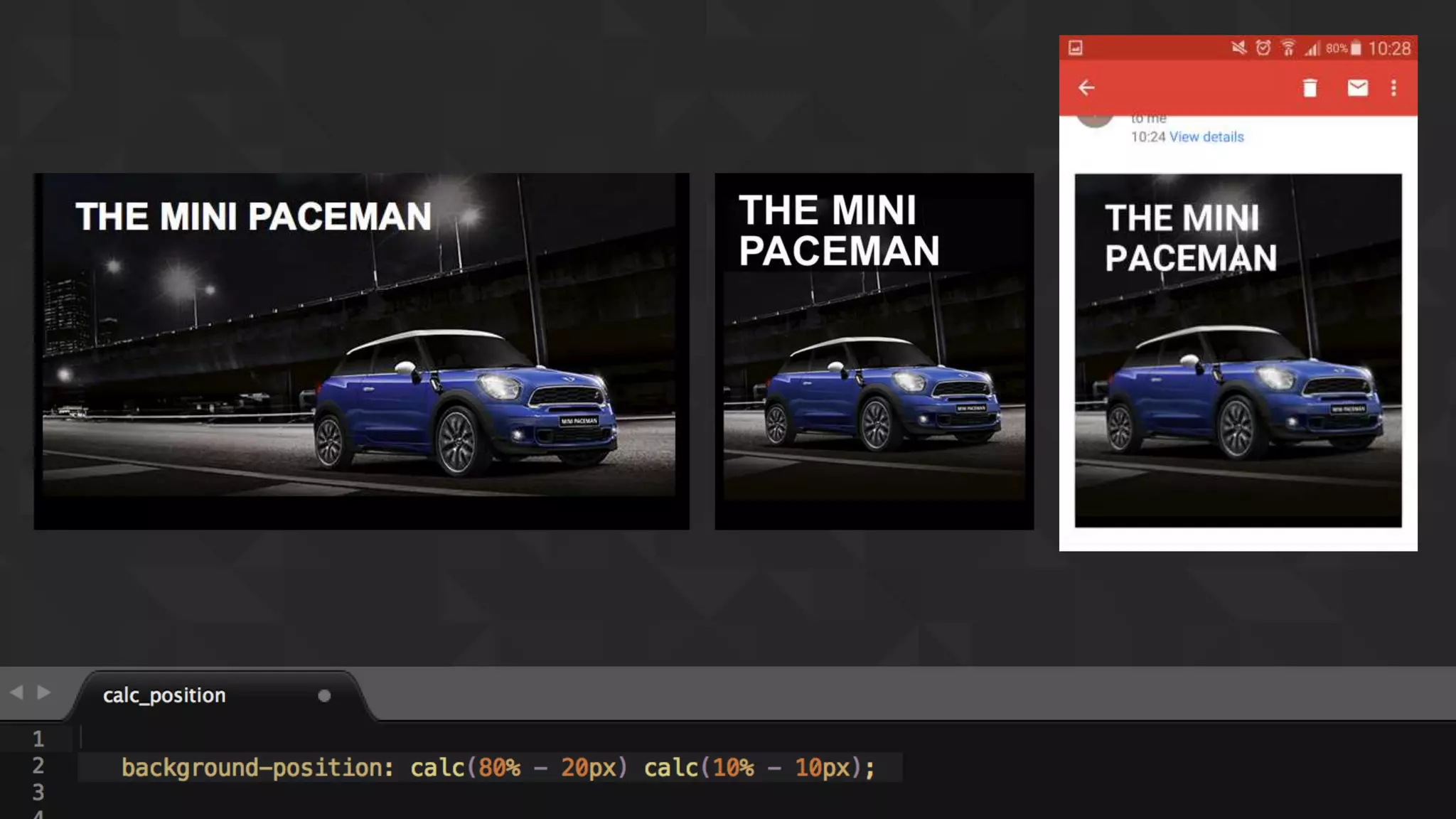
  • #12 If you want to try having little more control over the background image you can use calc to position the background image. Here I used it inline and and that in media queries used background position if I wanted then re-position to cover off the other platforms   The main thing to be careful with an example of this is not to have text that large to the left of your key image area.   And also I think there are some instances where older version Android doesn’t like having CALC there. But it’s worth experimenting with.
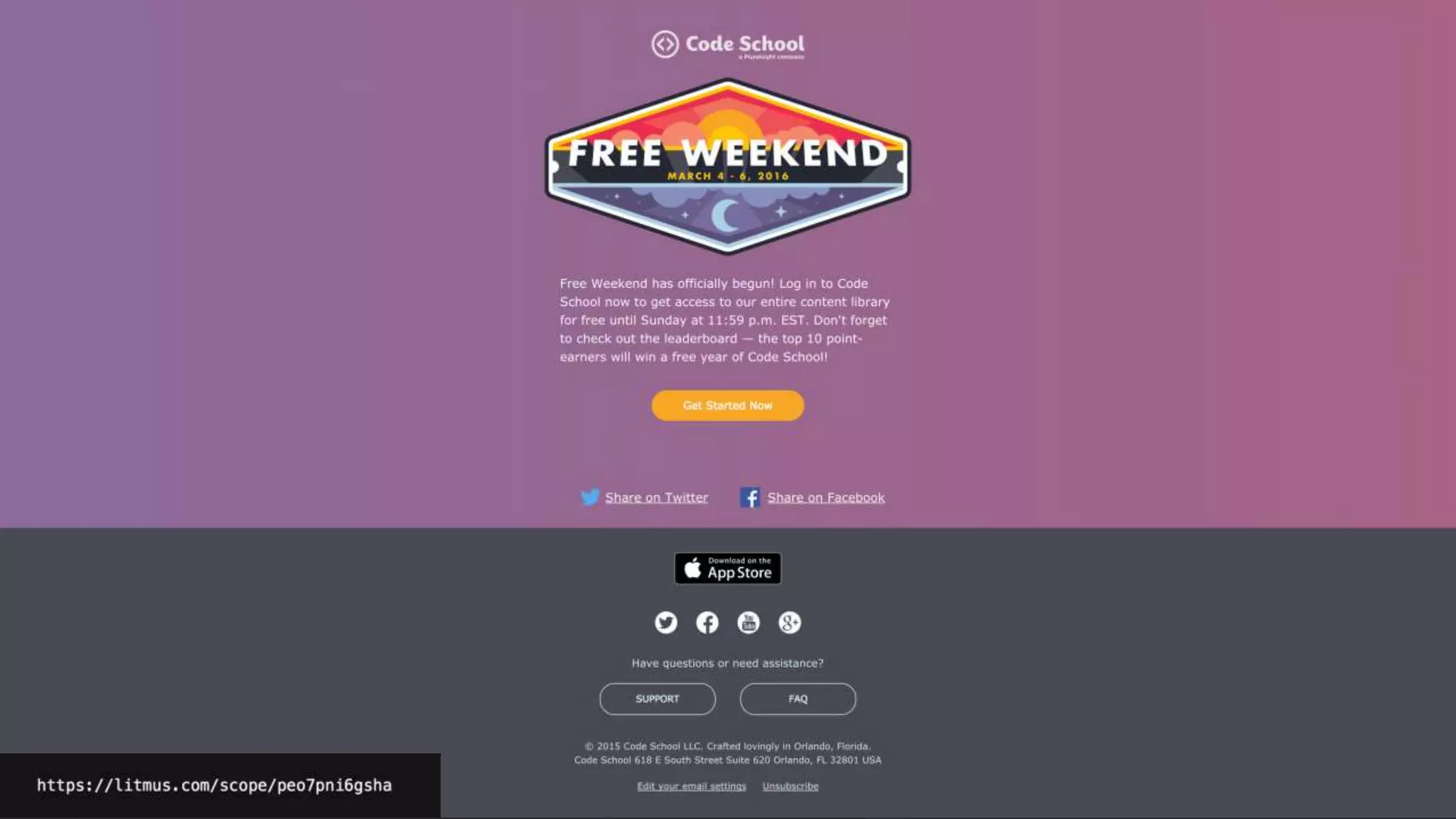
  • #13 Of course if an image is not your thing, the best way to keep the weight down might be a CSS background gradient. The browser example from Dan Denney is animated as well.   Again like the Litmus example you’re relying on the style tag to be supported, but where it isn’t. It doesn’t affect the base deisgn.     For Oultook/B2B again. If you ‘re looking to use gradients, one quick way to set-these up is using image gradient on desktop, tunr that off for mobile and use a CSS gradient on mobile. (You can animate that too
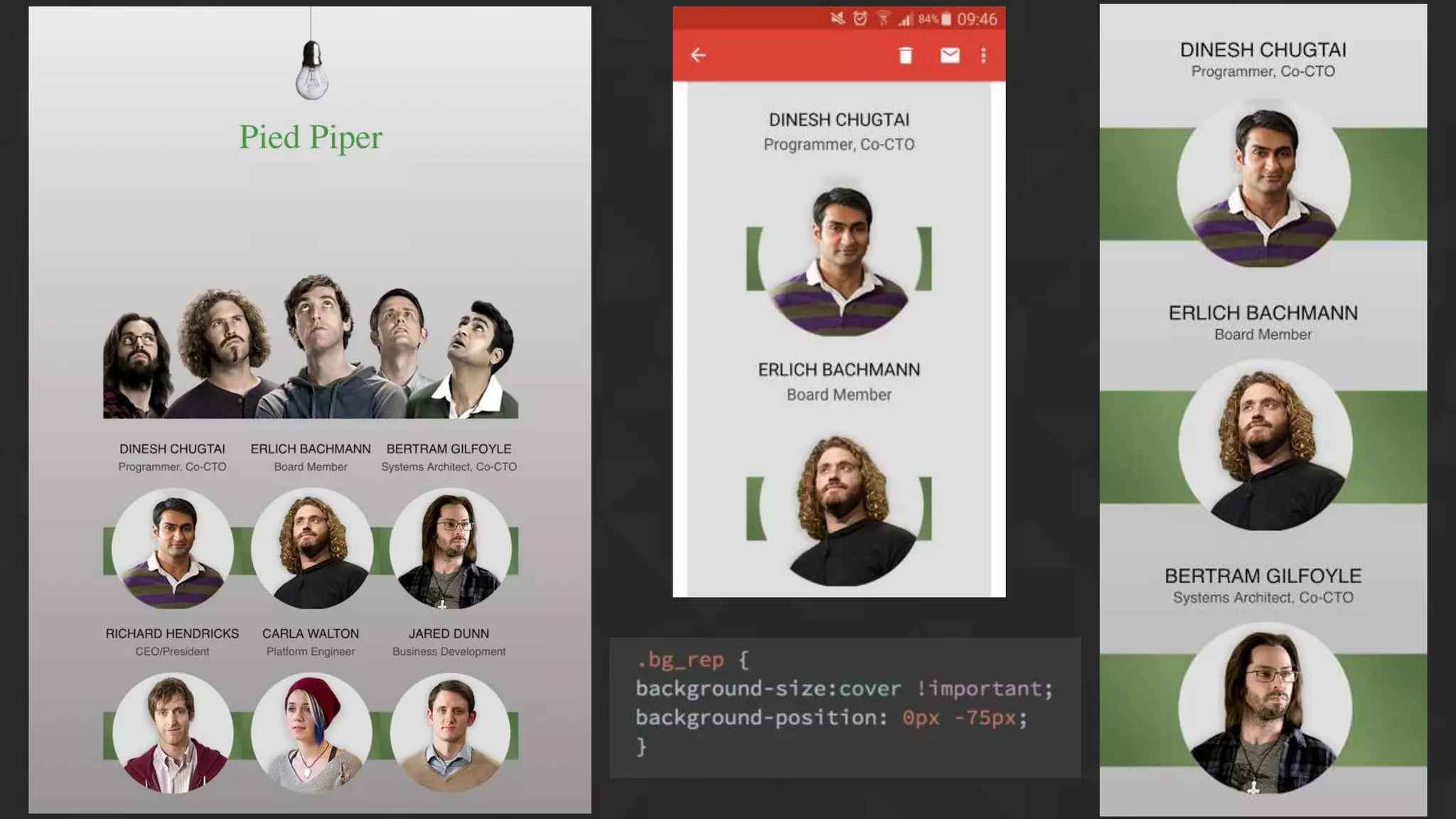
  • #14 This isn’t the greatest example but I just wanted to point out some benefits of treating your email like the layers of a PSD…. It allows you then control different sections of the image on different platforms.   So where in this example this green strip is applied behind each column and looks like a like strip on desktop. On Gmail app it just breaks up, however on mobile with CSS like “Cover” and “position” you can manipulate the background more to create something a little different – without impacting the image that sit’s on top.
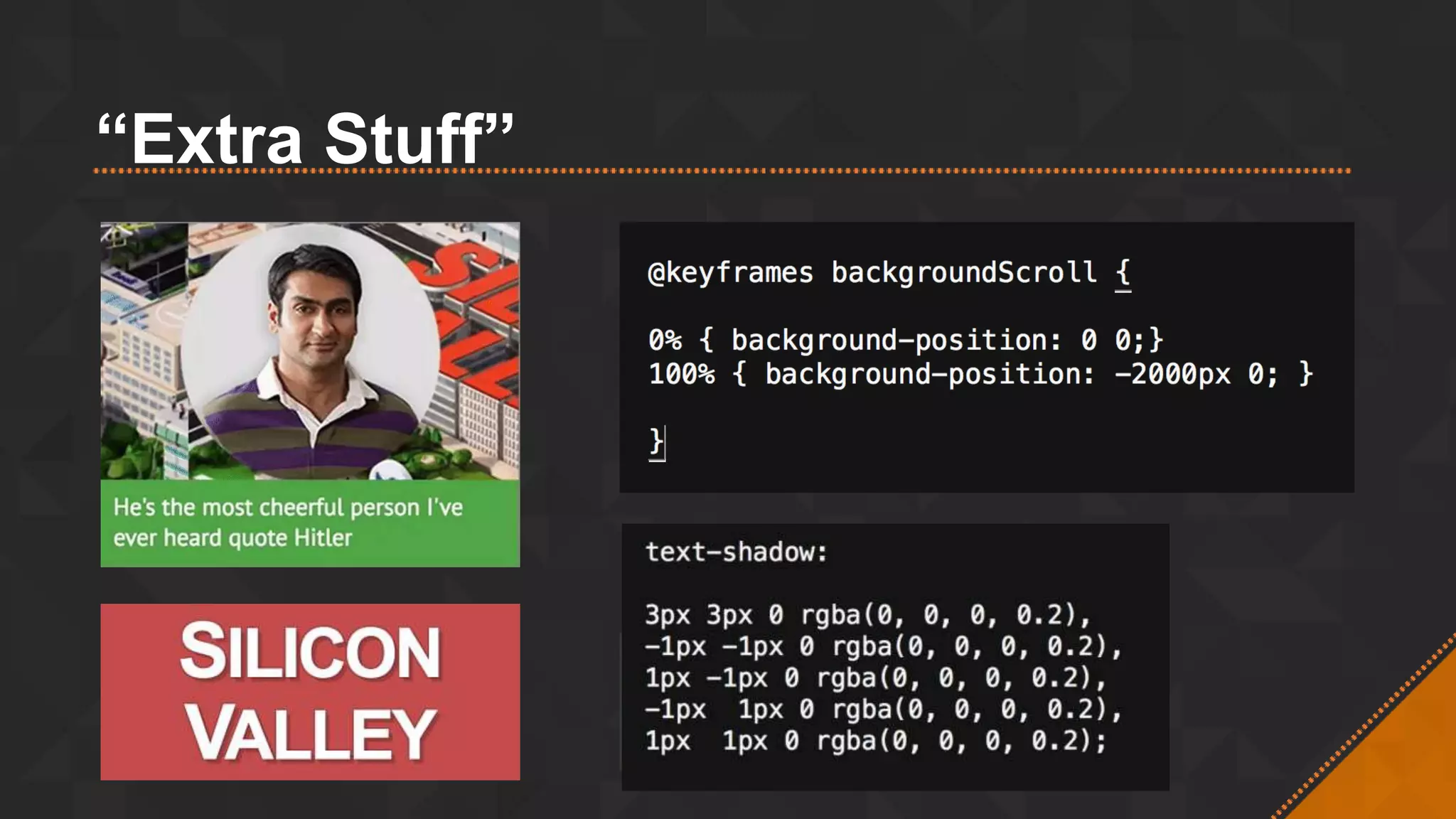
  • #15 FIFTEEN– OTHER TRANSITIONS     Moving Background – not the greatest example but use wisely, and have a repeating pattern otherwise this example it gets a bit glitch     Text Shadow – Tip here from me using any opacity or shadow effect is to use RGBA. That way you can set the opacity that colour alone.  
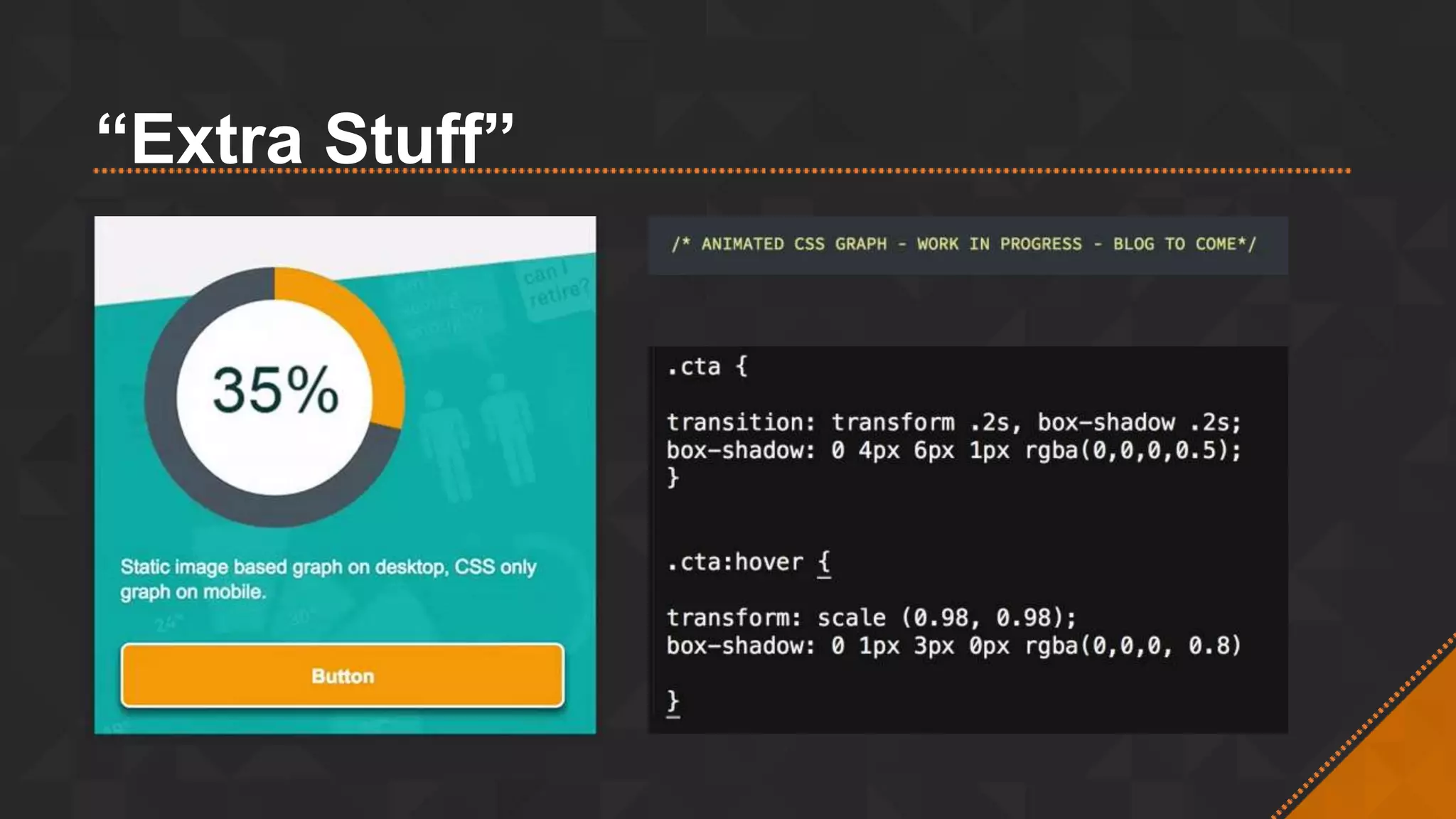
  • #16 CSS Graph.   Simple Button transition, shadow, shadow change on hover, and shrink.