
LINKEDIN PROFILE
TUTORIAL
2 | P a g e
Contents
Before You Begin........................................................................................................................... 3
Updating Your Name and Headline on Your LinkedIn Profile................................................... 6
Name Field:..................................................................................................................................... 6
Update Your LinkedIn Headline................................................................................................... 7
Create your custom URL............................................................................................................... 9
Populating Your Summary ......................................................................................................... 11
Completing Your Work Experience ........................................................................................... 12
Position #1.................................................................................................................................... 12
Position #2.................................................................................................................................... 13
Position #3.................................................................................................................................... 14
Position #4.................................................................................................................................... 14
Position #5.................................................................................................................................... 15
Education ..................................................................................................................................... 16
Additional Info............................................................................................................................. 16
Advice for Contacting (You): (optional)...................................................................................... 17
Skills & Expertise......................................................................................................................... 17
Projects......................................................................................................................................... 20
Languages .................................................................................................................................... 21
Organizations............................................................................................................................... 22
Honors & Awards ........................................................................................................................ 23
Test Scores................................................................................................................................... 24
Courses......................................................................................................................................... 25
Certifications................................................................................................................................ 26
Volunteering & Causes................................................................................................................ 27
Congratulations! Your Profile is Complete!............................................................................... 31
OK, Now What? Extending Your “Social Reach” ....................................................................... 31
3 | P a g e
LinkedIn Profile
This document has been prepared to help you update and/or complete the content in your
LinkedIn profile. When possible, copy-and-paste the information directly from this
document into your profile to prevent errors introduced through re-typing the information.
Be sure to proofread the profile thoroughly.
LinkedIn suggests that when your profile is 100% complete, your chances of rising toward
the top of LinkedIn searches greatly improves. Here is a snapshot of what your profile
needs to be 100% complete.
1. A current position
2. Two past positions
3. Profile summary
4. Education
5. Skills & Expertise
6. At least 3 recommendations
7. A professional profile photo (this doesn’t need to be professionally taken, just a
simple, polished picture of you taken within the last year)
Before You Begin
The first thing to do is to backup your LinkedIn profile. You will do this twice — right now,
so you have a copy of your LinkedIn profile before you update it, and again after you are
finished updating your profile with the information in this document.
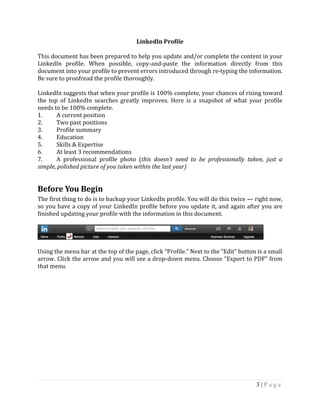
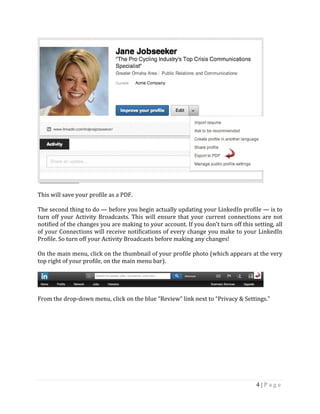
Using the menu bar at the top of the page, click “Profile.” Next to the “Edit” button is a small
arrow. Click the arrow and you will see a drop-down menu. Choose “Export to PDF” from
that menu.
4 | P a g e
This will save your profile as a PDF.
The second thing to do — before you begin actually updating your LinkedIn profile — is to
turn off your Activity Broadcasts. This will ensure that your current connections are not
notified of the changes you are making to your account. If you don’t turn off this setting, all
of your Connections will receive notifications of every change you make to your LinkedIn
Profile. So turn off your Activity Broadcasts before making any changes!
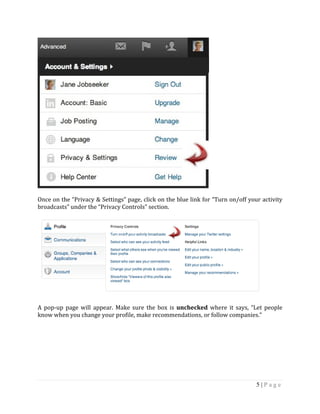
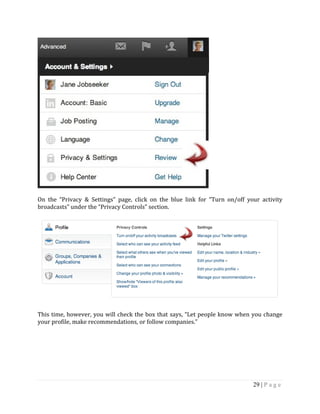
On the main menu, click on the thumbnail of your profile photo (which appears at the very
top right of your profile, on the main menu bar).
From the drop-down menu, click on the blue “Review” link next to “Privacy & Settings.”
5 | P a g e
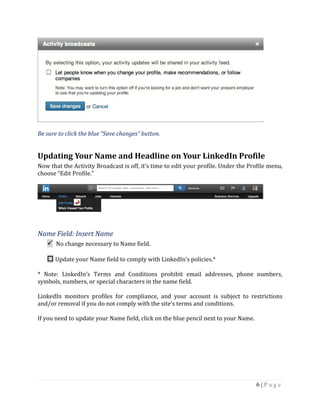
Once on the “Privacy & Settings” page, click on the blue link for “Turn on/off your activity
broadcasts” under the “Privacy Controls” section.
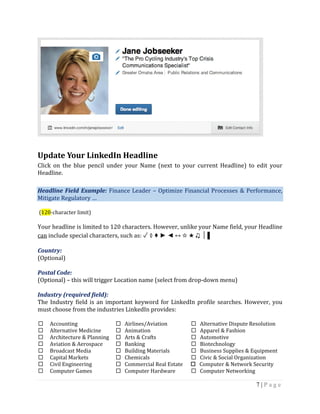
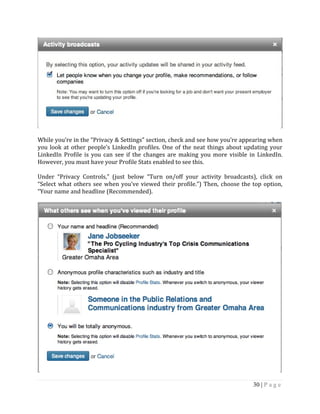
A pop-up page will appear. Make sure the box is unchecked where it says, “Let people
know when you change your profile, make recommendations, or follow companies.”
6 | P a g e
Be sure to click the blue “Save changes” button.
Updating Your Name and Headline on Your LinkedIn Profile
Now that the Activity Broadcast is off, it’s time to edit your profile. Under the Profile menu,
choose “Edit Profile.”
Name Field: Insert Name
 No change necessary to Name field.
 Update your Name field to comply with LinkedIn’s policies.*
* Note: LinkedIn’s Terms and Conditions prohibit email addresses, phone numbers,
symbols, numbers, or special characters in the name field.
LinkedIn monitors profiles for compliance, and your account is subject to restrictions
and/or removal if you do not comply with the site’s terms and conditions.
If you need to update your Name field, click on the blue pencil next to your Name.
7 | P a g e
Update Your LinkedIn Headline
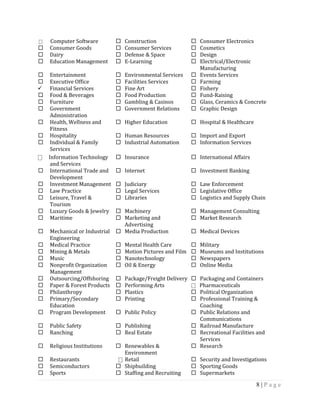
Click on the blue pencil under your Name (next to your current Headline) to edit your
Headline.
Headline Field Example: Finance Leader – Optimize Financial Processes & Performance,
Mitigate Regulatory …
(120-character limit)
Your headline is limited to 120 characters. However, unlike your Name field, your Headline
can include special characters, such as: ✓ ◊ ♦ ► ◄ ↔ ☆ ★ ♫ │ ▌
Country:
(Optional)
Postal Code:
(Optional) – this will trigger Location name (select from drop-down menu)
Industry (required field):
The Industry field is an important keyword for LinkedIn profile searches. However, you
must choose from the industries LinkedIn provides:
 Accounting  Airlines/Aviation  Alternative Dispute Resolution
 Alternative Medicine  Animation  Apparel & Fashion
 Architecture & Planning  Arts & Crafts  Automotive
 Aviation & Aerospace  Banking  Biotechnology
 Broadcast Media  Building Materials  Business Supplies & Equipment
 Capital Markets  Chemicals  Civic & Social Organization
 Civil Engineering  Commercial Real Estate  Computer & Network Security
 Computer Games  Computer Hardware  Computer Networking
8 | P a g e
⎕ Computer Software  Construction  Consumer Electronics
 Consumer Goods  Consumer Services  Cosmetics
 Dairy  Defense & Space  Design
 Education Management  E-Learning  Electrical/Electronic
Manufacturing
 Entertainment  Environmental Services  Events Services
 Executive Office  Facilities Services  Farming
 Financial Services  Fine Art  Fishery
 Food & Beverages  Food Production  Fund-Raising
 Furniture  Gambling & Casinos  Glass, Ceramics & Concrete
 Government
Administration
 Government Relations  Graphic Design
 Health, Wellness and
Fitness
 Higher Education  Hospital & Healthcare
 Hospitality  Human Resources  Import and Export
 Individual & Family
Services
 Industrial Automation  Information Services
⎕ Information Technology
and Services
 Insurance  International Affairs
 International Trade and
Development
 Internet  Investment Banking
 Investment Management  Judiciary  Law Enforcement
 Law Practice  Legal Services  Legislative Office
 Leisure, Travel &
Tourism
 Libraries  Logistics and Supply Chain
 Luxury Goods & Jewelry  Machinery  Management Consulting
 Maritime  Marketing and
Advertising
 Market Research
 Mechanical or Industrial
Engineering
 Media Production  Medical Devices
 Medical Practice  Mental Health Care  Military
 Mining & Metals  Motion Pictures and Film  Museums and Institutions
 Music  Nanotechnology  Newspapers
 Nonprofit Organization
Management
 Oil & Energy  Online Media
 Outsourcing/Offshoring  Package/Freight Delivery  Packaging and Containers
 Paper & Forest Products  Performing Arts ⎕ Pharmaceuticals
 Philanthropy  Plastics  Political Organization
 Primary/Secondary
Education
 Printing  Professional Training &
Coaching
 Program Development  Public Policy  Public Relations and
Communications
 Public Safety  Publishing  Railroad Manufacture
 Ranching  Real Estate  Recreational Facilities and
Services
 Religious Institutions  Renewables &
Environment
 Research
 Restaurants ⎕ Retail  Security and Investigations
 Semiconductors  Shipbuilding  Sporting Goods
 Sports  Staffing and Recruiting  Supermarkets
9 | P a g e
 Telecommunications  Textiles  Think Tanks
 Tobacco  Translation and
Localization
 Transportation/Trucking/
Railroad
 Utilities  Venture Capital & Private
Equity
 Veterinary
 Warehousing  Wholesale  Wine and Spirits
 Wireless  Writing and Editing
When someone conducts a search in LinkedIn, they will see your photo, headline, location,
and industry, so it is important to choose an industry that represents you well. Recruiters
and hiring managers also use the Industry category to search for candidates in your field.
Create your custom URL
By default, LinkedIn assigns you a URL with random numbers and letters. For branding
purposes, you will want to customize the link. An easy-to-read website address increases
the chance of people being able to remember and find you on LinkedIn. You can also
promote your custom signature link on your blog, Facebook page, and through email
signatures.
Customize your URL by selecting the “Profile” menu from the navigation bar. Click “Edit
Profile” from the drop-down menu.
Click the “Edit” box next to the existing URL.
10 | P a g e
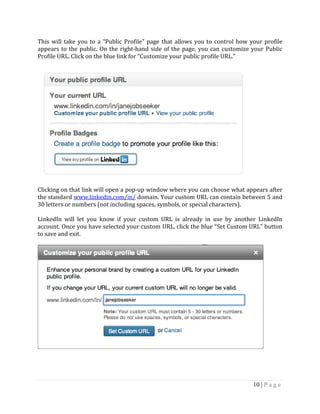
This will take you to a “Public Profile” page that allows you to control how your profile
appears to the public. On the right-hand side of the page, you can customize your Public
Profile URL. Click on the blue link for “Customize your public profile URL.”
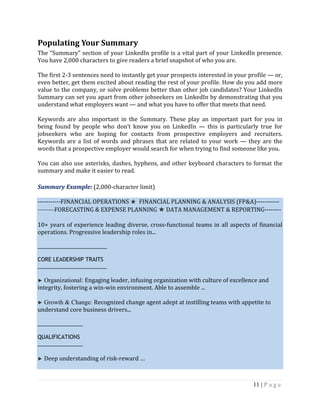
Clicking on that link will open a pop-up window where you can choose what appears after
the standard www.linkedin.com/in/ domain. Your custom URL can contain between 5 and
30 letters or numbers (not including spaces, symbols, or special characters).
LinkedIn will let you know if your custom URL is already in use by another LinkedIn
account. Once you have selected your custom URL, click the blue “Set Custom URL” button
to save and exit.
11 | P a g e
Populating Your Summary
The “Summary” section of your LinkedIn profile is a vital part of your LinkedIn presence.
You have 2,000 characters to give readers a brief snapshot of who you are.
The first 2-3 sentences need to instantly get your prospects interested in your profile — or,
even better, get them excited about reading the rest of your profile. How do you add more
value to the company, or solve problems better than other job candidates? Your LinkedIn
Summary can set you apart from other jobseekers on LinkedIn by demonstrating that you
understand what employers want — and what you have to offer that meets that need.
Keywords are also important in the Summary. These play an important part for you in
being found by people who don’t know you on LinkedIn — this is particularly true for
jobseekers who are hoping for contacts from prospective employers and recruiters.
Keywords are a list of words and phrases that are related to your work — they are the
words that a prospective employer would search for when trying to find someone like you.
You can also use asterisks, dashes, hyphens, and other keyboard characters to format the
summary and make it easier to read.
Summary Example: (2,000-character limit)
-----------FINANCIAL OPERATIONS ★ FINANCIAL PLANNING & ANALYSIS (FP&A)-----------
--------FORECASTING & EXPENSE PLANNING ★ DATA MANAGEMENT & REPORTING--------
10+ years of experience leading diverse, cross-functional teams in all aspects of financial
operations. Progressive leadership roles in...
_______________________
CORE LEADERSHIP TRAITS
_______________________
► Organizational: Engaging leader, infusing organization with culture of excellence and
integrity, fostering a win-win environment. Able to assemble ...
► Growth & Change: Recognized change agent adept at instilling teams with appetite to
understand core business drivers...
_______________
QUALIFICATIONS
_______________
► Deep understanding of risk-reward …
12 | P a g e
► Expertise in financial reporting, income …
When finished, click the blue “Save” button.
Completing Your Work Experience
Next, add or update your work experience. If you need to add a new position, click “+ Add a
Position.”
Otherwise, click the blue “Edit” button to update the information for a current position.
Position #1
Title: Senior Vice President
Company: XXXX
Dates: 2009–Present
Position Description: (1,988-character limitation for EACH position)
Lead role over all aspects of financial governance and business controls management for
consumer mortgage product strategy group. Direct 25-person team...
_____________________
EXECUTIVE LEADERSHIP
_____________________
★ Developed culture of excellence and mentored teams to become “risk SMEs” as well as to
enact nimble best practices...
★ Navigated team members to build out for internal audit/remediation, regulatory audit
facilitation...
13 | P a g e
________________________________
ORGANIZATIONAL TRANSFORMATION
________________________________
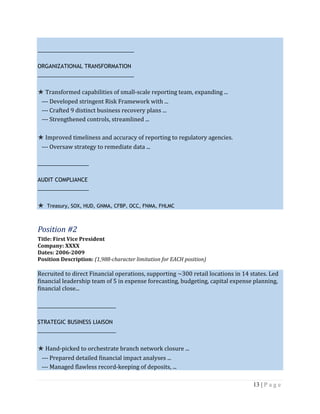
★ Transformed capabilities of small-scale reporting team, expanding ...
--- Developed stringent Risk Framework with ...
--- Crafted 9 distinct business recovery plans ...
--- Strengthened controls, streamlined ...
★ Improved timeliness and accuracy of reporting to regulatory agencies.
--- Oversaw strategy to remediate data ...
_________________
AUDIT COMPLIANCE
_________________
★ Treasury, SOX, HUD, GNMA, CFBP, OCC, FNMA, FHLMC
Position #2
Title: First Vice President
Company: XXXX
Dates: 2006-2009
Position Description: (1,988-character limitation for EACH position)
Recruited to direct Financial operations, supporting ~300 retail locations in 14 states. Led
financial leadership team of 5 in expense forecasting, budgeting, capital expense planning,
financial close...
__________________________
STRATEGIC BUSINESS LIAISON
__________________________
★ Hand-picked to orchestrate branch network closure ...
--- Prepared detailed financial impact analyses ...
--- Managed flawless record-keeping of deposits, ...
14 | P a g e
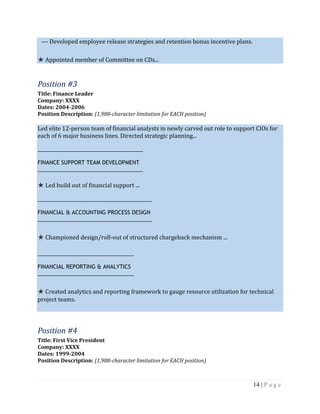
--- Developed employee release strategies and retention bonus incentive plans.
★ Appointed member of Committee on CDs...
Position #3
Title: Finance Leader
Company: XXXX
Dates: 2004-2006
Position Description: (1,988-character limitation for EACH position)
Led elite 12-person team of financial analysts in newly carved out role to support CIOs for
each of 6 major business lines. Directed strategic planning...
___________________________________
FINANCE SUPPORT TEAM DEVELOPMENT
___________________________________
★ Led build out of financial support ...
______________________________________
FINANCIAL & ACCOUNTING PROCESS DESIGN
______________________________________
★ Championed design/roll-out of structured chargeback mechanism ...
________________________________
FINANCIAL REPORTING & ANALYTICS
________________________________
★ Created analytics and reporting framework to gauge resource utilization for technical
project teams.
Position #4
Title: First Vice President
Company: XXXX
Dates: 1999-2004
Position Description: (1,988-character limitation for EACH position)
15 | P a g e
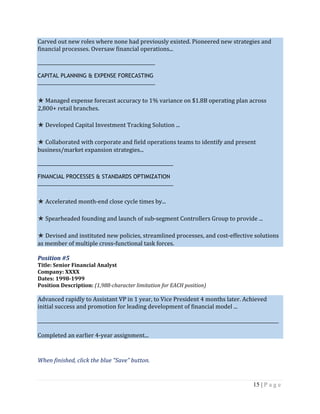
Carved out new roles where none had previously existed. Pioneered new strategies and
financial processes. Oversaw financial operations...
_______________________________________
CAPITAL PLANNING & EXPENSE FORECASTING
_______________________________________
★ Managed expense forecast accuracy to 1% variance on $1.8B operating plan across
2,800+ retail branches.
★ Developed Capital Investment Tracking Solution ...
★ Collaborated with corporate and field operations teams to identify and present
business/market expansion strategies...
_____________________________________________
FINANCIAL PROCESSES & STANDARDS OPTIMIZATION
_____________________________________________
★ Accelerated month-end close cycle times by...
★ Spearheaded founding and launch of sub-segment Controllers Group to provide ...
★ Devised and instituted new policies, streamlined processes, and cost-effective solutions
as member of multiple cross-functional task forces.
Position #5
Title: Senior Financial Analyst
Company: XXXX
Dates: 1998-1999
Position Description: (1,988-character limitation for EACH position)
Advanced rapidly to Assistant VP in 1 year, to Vice President 4 months later. Achieved
initial success and promotion for leading development of financial model ...
________________________________________________________________________________
Completed an earlier 4-year assignment...
When finished, click the blue “Save” button.
16 | P a g e
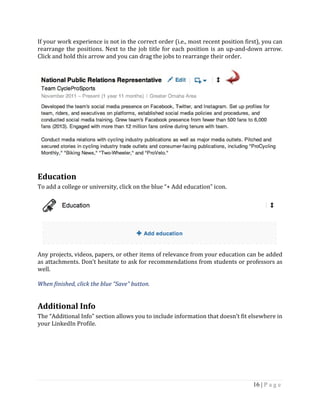
If your work experience is not in the correct order (i.e., most recent position first), you can
rearrange the positions. Next to the job title for each position is an up-and-down arrow.
Click and hold this arrow and you can drag the jobs to rearrange their order.
Education
To add a college or university, click on the blue “+ Add education” icon.
Any projects, videos, papers, or other items of relevance from your education can be added
as attachments. Don’t hesitate to ask for recommendations from students or professors as
well.
When finished, click the blue “Save” button.
Additional Info
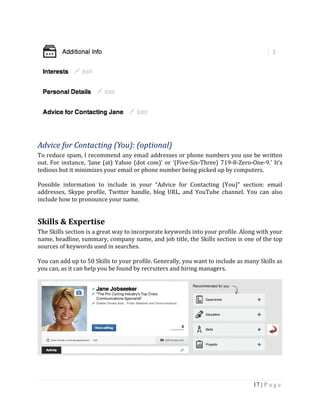
The “Additional Info” section allows you to include information that doesn’t fit elsewhere in
your LinkedIn Profile.
17 | P a g e
Advice for Contacting (You): (optional)
To reduce spam, I recommend any email addresses or phone numbers you use be written
out. For instance, ‘Jane (at) Yahoo (dot com)’ or ‘(Five-Six-Three) 719-8-Zero-One-9.’ It’s
tedious but it minimizes your email or phone number being picked up by computers.
Possible information to include in your “Advice for Contacting (You)” section: email
addresses, Skype profile, Twitter handle, blog URL, and YouTube channel. You can also
include how to pronounce your name.
Skills & Expertise
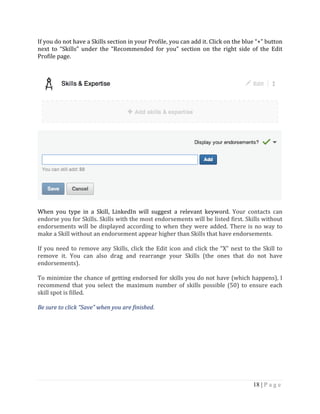
The Skills section is a great way to incorporate keywords into your profile. Along with your
name, headline, summary, company name, and job title, the Skills section is one of the top
sources of keywords used in searches.
You can add up to 50 Skills to your profile. Generally, you want to include as many Skills as
you can, as it can help you be found by recruiters and hiring managers.
18 | P a g e
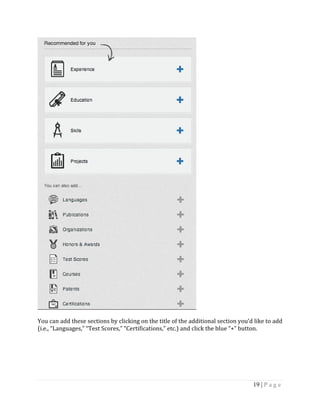
If you do not have a Skills section in your Profile, you can add it. Click on the blue “+” button
next to “Skills” under the “Recommended for you” section on the right side of the Edit
Profile page.
When you type in a Skill, LinkedIn will suggest a relevant keyword. Your contacts can
endorse you for Skills. Skills with the most endorsements will be listed first. Skills without
endorsements will be displayed according to when they were added. There is no way to
make a Skill without an endorsement appear higher than Skills that have endorsements.
If you need to remove any Skills, click the Edit icon and click the “X” next to the Skill to
remove it. You can also drag and rearrange your Skills (the ones that do not have
endorsements).
To minimize the chance of getting endorsed for skills you do not have (which happens), I
recommend that you select the maximum number of skills possible (50) to ensure each
skill spot is filled.
Be sure to click “Save” when you are finished.
19 | P a g e
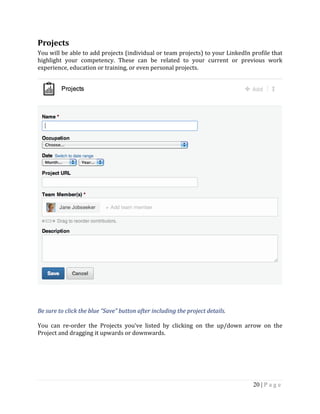
You can add these sections by clicking on the title of the additional section you’d like to add
(i.e., “Languages,” “Test Scores,” “Certifications,” etc.) and click the blue “+” button.
20 | P a g e
Projects
You will be able to add projects (individual or team projects) to your LinkedIn profile that
highlight your competency. These can be related to your current or previous work
experience, education or training, or even personal projects.
Be sure to click the blue “Save” button after including the project details.
You can re-order the Projects you’ve listed by clicking on the up/down arrow on the
Project and dragging it upwards or downwards.
21 | P a g e
Languages
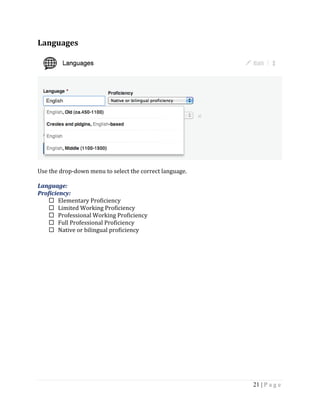
Use the drop-down menu to select the correct language.
Language:
Proficiency:
 Elementary Proficiency
 Limited Working Proficiency
 Professional Working Proficiency
 Full Professional Proficiency
 Native or bilingual proficiency
22 | P a g e
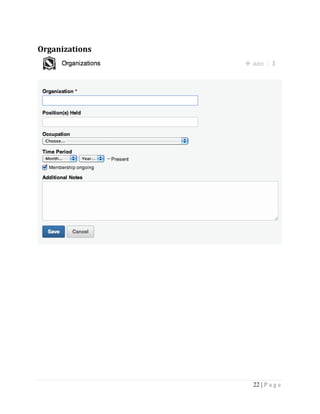
Organizations
23 | P a g e
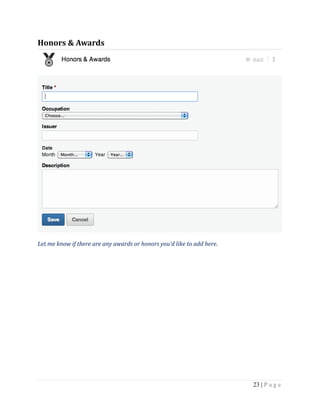
Honors & Awards
Let me know if there are any awards or honors you’d like to add here.
24 | P a g e
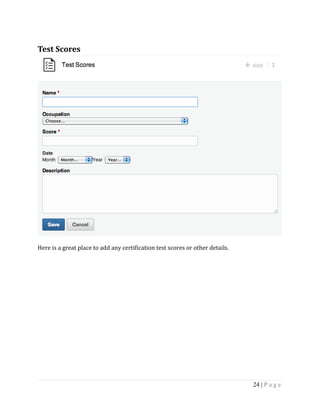
Test Scores
Here is a great place to add any certification test scores or other details.
25 | P a g e
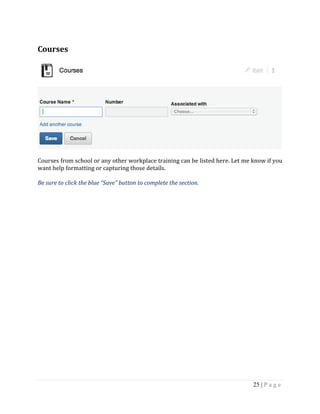
Courses
Courses from school or any other workplace training can be listed here. Let me know if you
want help formatting or capturing those details.
Be sure to click the blue “Save” button to complete the section.
26 | P a g e
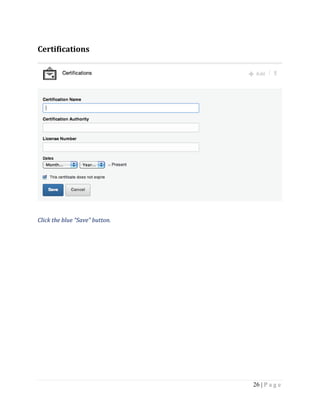
Certifications
Click the blue “Save” button.
27 | P a g e
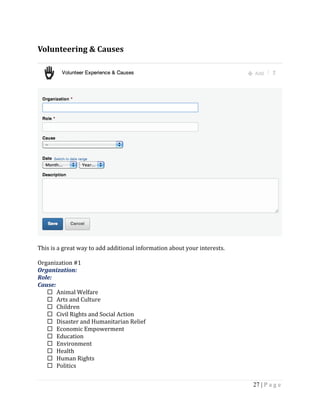
Volunteering & Causes
This is a great way to add additional information about your interests.
Organization #1
Organization:
Role:
Cause:
 Animal Welfare
 Arts and Culture
 Children
 Civil Rights and Social Action
 Disaster and Humanitarian Relief
 Economic Empowerment
 Education
 Environment
 Health
 Human Rights
 Politics
28 | P a g e
 Poverty Alleviation
 Science and Technology
 Social Services
 — (if another category not listed, choose the “—” option at the top)
Date (Month/Year):
Description:
Click the blue “Save” button.
Finishing Up
You can re-order the sections on your LinkedIn profile to emphasize/de-emphasize
information. Click on the section and drag it upwards or downwards to re-order it.
Once you have completed your profile updates, be sure to download a copy. Using the
menu bar at the top of the page, click “Profile.” Next to the “Edit” button is a small arrow.
Click the arrow and you will see a drop-down menu. Choose “Export to PDF” from that
menu.
Optional: You can now turn back on your Activity Broadcasts.
On the main menu, click on the thumbnail of your profile photo (which appears at the very
top right of your profile, on the main menu bar).
From the drop-down menu, click on the blue “Review” link next to “Privacy & Settings.”
29 | P a g e
On the “Privacy & Settings” page, click on the blue link for “Turn on/off your activity
broadcasts” under the “Privacy Controls” section.
This time, however, you will check the box that says, “Let people know when you change
your profile, make recommendations, or follow companies.”
30 | P a g e
While you’re in the “Privacy & Settings” section, check and see how you’re appearing when
you look at other people’s LinkedIn profiles. One of the neat things about updating your
LinkedIn Profile is you can see if the changes are making you more visible in LinkedIn.
However, you must have your Profile Stats enabled to see this.
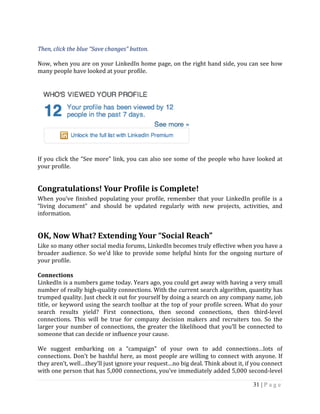
Under “Privacy Controls,” (just below “Turn on/off your activity broadcasts), click on
“Select what others see when you’ve viewed their profile.”) Then, choose the top option,
“Your name and headline (Recommended).
31 | P a g e
Then, click the blue “Save changes” button.
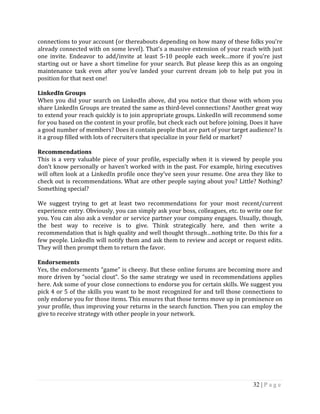
Now, when you are on your LinkedIn home page, on the right hand side, you can see how
many people have looked at your profile.
If you click the “See more” link, you can also see some of the people who have looked at
your profile.
Congratulations! Your Profile is Complete!
When you’ve finished populating your profile, remember that your LinkedIn profile is a
“living document” and should be updated regularly with new projects, activities, and
information.
OK, Now What? Extending Your “Social Reach”
Like so many other social media forums, LinkedIn becomes truly effective when you have a
broader audience. So we’d like to provide some helpful hints for the ongoing nurture of
your profile.
Connections
LinkedIn is a numbers game today. Years ago, you could get away with having a very small
number of really high-quality connections. With the current search algorithm, quantity has
trumped quality. Just check it out for yourself by doing a search on any company name, job
title, or keyword using the search toolbar at the top of your profile screen. What do your
search results yield? First connections, then second connections, then third-level
connections. This will be true for company decision makers and recruiters too. So the
larger your number of connections, the greater the likelihood that you’ll be connected to
someone that can decide or influence your cause.
We suggest embarking on a “campaign” of your own to add connections…lots of
connections. Don’t be bashful here, as most people are willing to connect with anyone. If
they aren’t, well…they’ll just ignore your request…no big deal. Think about it, if you connect
with one person that has 5,000 connections, you’ve immediately added 5,000 second-level
32 | P a g e
connections to your account (or thereabouts depending on how many of these folks you’re
already connected with on some level). That’s a massive extension of your reach with just
one invite. Endeavor to add/invite at least 5-10 people each week…more if you’re just
starting out or have a short timeline for your search. But please keep this as an ongoing
maintenance task even after you’ve landed your current dream job to help put you in
position for that next one!
LinkedIn Groups
When you did your search on LinkedIn above, did you notice that those with whom you
share LinkedIn Groups are treated the same as third-level connections? Another great way
to extend your reach quickly is to join appropriate groups. LinkedIn will recommend some
for you based on the content in your profile, but check each out before joining. Does it have
a good number of members? Does it contain people that are part of your target audience? Is
it a group filled with lots of recruiters that specialize in your field or market?
Recommendations
This is a very valuable piece of your profile, especially when it is viewed by people you
don’t know personally or haven’t worked with in the past. For example, hiring executives
will often look at a LinkedIn profile once they’ve seen your resume. One area they like to
check out is recommendations. What are other people saying about you? Little? Nothing?
Something special?
We suggest trying to get at least two recommendations for your most recent/current
experience entry. Obviously, you can simply ask your boss, colleagues, etc. to write one for
you. You can also ask a vendor or service partner your company engages. Usually, though,
the best way to receive is to give. Think strategically here, and then write a
recommendation that is high quality and well thought through…nothing trite. Do this for a
few people. LinkedIn will notify them and ask them to review and accept or request edits.
They will then prompt them to return the favor.
Endorsements
Yes, the endorsements “game” is cheesy. But these online forums are becoming more and
more driven by “social clout”. So the same strategy we used in recommendations applies
here. Ask some of your close connections to endorse you for certain skills. We suggest you
pick 4 or 5 of the skills you want to be most recognized for and tell those connections to
only endorse you for those items. This ensures that those terms move up in prominence on
your profile, thus improving your returns in the search function. Then you can employ the
give to receive strategy with other people in your network.
33 | P a g e
NoddlePlace: Where Noddles Come Together
Our followers on Twitter know us as @NoddlePlace (or
@ITtechExec) and @rezlady, but IRL (in real life), we are
Stephen and Sheree Van Vreede.
In 2001, we launched No Stone Unturned, a resume (or
résumé, for the purists among us) and career services firm.
Under the No Stone Unturned umbrella, we have ITtechExec,
a technical resume and career insurance and protection service
for executive-level IT/technical clients, and now NoddlePlace
("noddle" means "head"), a technical resume and career
advancement service where we can put our "noddles" together with our emerging techie friends.
Because we have such a talented team of master resume and personal branding "architects,"
we designed NoddlePlace to showcase their outstanding talents. Here our IT/Tech/STEM clients can
learn about our writers, review their samples, and choose which one they would like to work with.
You can even invest in their services directly from the site.
But there is one thing that makes us very different from other firms:
We don't just write resumes. We make technical career advancement simple in an
insane job market.
From your technical resume to your promotion/consulting portfolio to your recruiter engagement to
your ongoing career management, NoddlePlace makes each complicated step simple and pain-free.
Our clients are more than just job seekers; they are problem solvers who meet real needs. Our job is
to help them showcase that across both traditional (resume) and social (Twitter, LinkedIn, etc.)
forms of media. But then we take it a step further. We will market you to recruiters/employers, and
34 | P a g e
we will stick with you after this career move to keep you prepared for the next one. This way you will
always be ready when the next opportunity comes around. And in this job market, that's likely to be
every couple of years.
Technical career advancement begins with preparation and continues with
maintenance. That's what we do.
In a world full of phony branding, we keep it real.
Each of us, whether we like the phrase “personal branding” or not, has one: who are we, personally,
professionally, and so on, and the message that we project. In today’s job market, we are now forced
to think about our “communities” and our spheres of “influence,” and how well we engage in those
communities is becoming a key component in our careers. Honestly, for most of us, it sounds like a
lot of blah, blah, blah, but basically it comes down to what the job search has always
been about: meeting needs.
To do that, we start by building a personal brand message that lets employers see your distinct skills
and background in an authentic, practical way. Then we carry that message into your technical or IT
resume, LinkedIn profile, promotion portfolio, bio, and more.
From there, as a value-add, we market our clients out across our network of technical
recruiters and we offer a recruiter matching service that takes specific parameters and identifies
the best recruiters for you. It also launches a campaign to introduce you to those recruiters. It can
save so much time and frustration trying to maneuver through the crazy world of recruiting. We are
also able to do the same thing with potential employers.
Finally, we provide a career management protection subscription service that offers yearly updates of
resume/LI profile, career strategy consulting, and other updates based on latest world of work
market trends. It keeps our clients ready to move forward when the next time comes, which in our
current market is, statistically speaking, every 3 to 4 years.
Listen. We know we’re not for everybody. We
remain exclusive for a reason.
Our clients are serious about their field and about managing their career within that field. They’re
ambitious, sure; but most importantly, they want to be free to focus on the work they
love to do, and the last thing they want is to be in job search mode all the time.
35 | P a g e
BUT they recognize that we are in a market that rewards those who come prepared.
And that a job search is tougher and tougher to navigate.
So they come to us to get prepared, to design their resume and portfolio, and to help them launch
their search. Then they put the onus on us to keep their materials up to date and to keep them ready
for the next opportunity when it comes along. It’s peace of mind amidst an ever-changing landscape.

LinkedIn Profile Tutorial by NoddlePlace

  • 1.
  • 2.
    2 | Pa g e Contents Before You Begin........................................................................................................................... 3 Updating Your Name and Headline on Your LinkedIn Profile................................................... 6 Name Field:..................................................................................................................................... 6 Update Your LinkedIn Headline................................................................................................... 7 Create your custom URL............................................................................................................... 9 Populating Your Summary ......................................................................................................... 11 Completing Your Work Experience ........................................................................................... 12 Position #1.................................................................................................................................... 12 Position #2.................................................................................................................................... 13 Position #3.................................................................................................................................... 14 Position #4.................................................................................................................................... 14 Position #5.................................................................................................................................... 15 Education ..................................................................................................................................... 16 Additional Info............................................................................................................................. 16 Advice for Contacting (You): (optional)...................................................................................... 17 Skills & Expertise......................................................................................................................... 17 Projects......................................................................................................................................... 20 Languages .................................................................................................................................... 21 Organizations............................................................................................................................... 22 Honors & Awards ........................................................................................................................ 23 Test Scores................................................................................................................................... 24 Courses......................................................................................................................................... 25 Certifications................................................................................................................................ 26 Volunteering & Causes................................................................................................................ 27 Congratulations! Your Profile is Complete!............................................................................... 31 OK, Now What? Extending Your “Social Reach” ....................................................................... 31
  • 3.
    3 | Pa g e LinkedIn Profile This document has been prepared to help you update and/or complete the content in your LinkedIn profile. When possible, copy-and-paste the information directly from this document into your profile to prevent errors introduced through re-typing the information. Be sure to proofread the profile thoroughly. LinkedIn suggests that when your profile is 100% complete, your chances of rising toward the top of LinkedIn searches greatly improves. Here is a snapshot of what your profile needs to be 100% complete. 1. A current position 2. Two past positions 3. Profile summary 4. Education 5. Skills & Expertise 6. At least 3 recommendations 7. A professional profile photo (this doesn’t need to be professionally taken, just a simple, polished picture of you taken within the last year) Before You Begin The first thing to do is to backup your LinkedIn profile. You will do this twice — right now, so you have a copy of your LinkedIn profile before you update it, and again after you are finished updating your profile with the information in this document. Using the menu bar at the top of the page, click “Profile.” Next to the “Edit” button is a small arrow. Click the arrow and you will see a drop-down menu. Choose “Export to PDF” from that menu.
  • 4.
    4 | Pa g e This will save your profile as a PDF. The second thing to do — before you begin actually updating your LinkedIn profile — is to turn off your Activity Broadcasts. This will ensure that your current connections are not notified of the changes you are making to your account. If you don’t turn off this setting, all of your Connections will receive notifications of every change you make to your LinkedIn Profile. So turn off your Activity Broadcasts before making any changes! On the main menu, click on the thumbnail of your profile photo (which appears at the very top right of your profile, on the main menu bar). From the drop-down menu, click on the blue “Review” link next to “Privacy & Settings.”
  • 5.
    5 | Pa g e Once on the “Privacy & Settings” page, click on the blue link for “Turn on/off your activity broadcasts” under the “Privacy Controls” section. A pop-up page will appear. Make sure the box is unchecked where it says, “Let people know when you change your profile, make recommendations, or follow companies.”
  • 6.
    6 | Pa g e Be sure to click the blue “Save changes” button. Updating Your Name and Headline on Your LinkedIn Profile Now that the Activity Broadcast is off, it’s time to edit your profile. Under the Profile menu, choose “Edit Profile.” Name Field: Insert Name  No change necessary to Name field.  Update your Name field to comply with LinkedIn’s policies.* * Note: LinkedIn’s Terms and Conditions prohibit email addresses, phone numbers, symbols, numbers, or special characters in the name field. LinkedIn monitors profiles for compliance, and your account is subject to restrictions and/or removal if you do not comply with the site’s terms and conditions. If you need to update your Name field, click on the blue pencil next to your Name.
  • 7.
    7 | Pa g e Update Your LinkedIn Headline Click on the blue pencil under your Name (next to your current Headline) to edit your Headline. Headline Field Example: Finance Leader – Optimize Financial Processes & Performance, Mitigate Regulatory … (120-character limit) Your headline is limited to 120 characters. However, unlike your Name field, your Headline can include special characters, such as: ✓ ◊ ♦ ► ◄ ↔ ☆ ★ ♫ │ ▌ Country: (Optional) Postal Code: (Optional) – this will trigger Location name (select from drop-down menu) Industry (required field): The Industry field is an important keyword for LinkedIn profile searches. However, you must choose from the industries LinkedIn provides:  Accounting  Airlines/Aviation  Alternative Dispute Resolution  Alternative Medicine  Animation  Apparel & Fashion  Architecture & Planning  Arts & Crafts  Automotive  Aviation & Aerospace  Banking  Biotechnology  Broadcast Media  Building Materials  Business Supplies & Equipment  Capital Markets  Chemicals  Civic & Social Organization  Civil Engineering  Commercial Real Estate  Computer & Network Security  Computer Games  Computer Hardware  Computer Networking
  • 8.
    8 | Pa g e ⎕ Computer Software  Construction  Consumer Electronics  Consumer Goods  Consumer Services  Cosmetics  Dairy  Defense & Space  Design  Education Management  E-Learning  Electrical/Electronic Manufacturing  Entertainment  Environmental Services  Events Services  Executive Office  Facilities Services  Farming  Financial Services  Fine Art  Fishery  Food & Beverages  Food Production  Fund-Raising  Furniture  Gambling & Casinos  Glass, Ceramics & Concrete  Government Administration  Government Relations  Graphic Design  Health, Wellness and Fitness  Higher Education  Hospital & Healthcare  Hospitality  Human Resources  Import and Export  Individual & Family Services  Industrial Automation  Information Services ⎕ Information Technology and Services  Insurance  International Affairs  International Trade and Development  Internet  Investment Banking  Investment Management  Judiciary  Law Enforcement  Law Practice  Legal Services  Legislative Office  Leisure, Travel & Tourism  Libraries  Logistics and Supply Chain  Luxury Goods & Jewelry  Machinery  Management Consulting  Maritime  Marketing and Advertising  Market Research  Mechanical or Industrial Engineering  Media Production  Medical Devices  Medical Practice  Mental Health Care  Military  Mining & Metals  Motion Pictures and Film  Museums and Institutions  Music  Nanotechnology  Newspapers  Nonprofit Organization Management  Oil & Energy  Online Media  Outsourcing/Offshoring  Package/Freight Delivery  Packaging and Containers  Paper & Forest Products  Performing Arts ⎕ Pharmaceuticals  Philanthropy  Plastics  Political Organization  Primary/Secondary Education  Printing  Professional Training & Coaching  Program Development  Public Policy  Public Relations and Communications  Public Safety  Publishing  Railroad Manufacture  Ranching  Real Estate  Recreational Facilities and Services  Religious Institutions  Renewables & Environment  Research  Restaurants ⎕ Retail  Security and Investigations  Semiconductors  Shipbuilding  Sporting Goods  Sports  Staffing and Recruiting  Supermarkets
  • 9.
    9 | Pa g e  Telecommunications  Textiles  Think Tanks  Tobacco  Translation and Localization  Transportation/Trucking/ Railroad  Utilities  Venture Capital & Private Equity  Veterinary  Warehousing  Wholesale  Wine and Spirits  Wireless  Writing and Editing When someone conducts a search in LinkedIn, they will see your photo, headline, location, and industry, so it is important to choose an industry that represents you well. Recruiters and hiring managers also use the Industry category to search for candidates in your field. Create your custom URL By default, LinkedIn assigns you a URL with random numbers and letters. For branding purposes, you will want to customize the link. An easy-to-read website address increases the chance of people being able to remember and find you on LinkedIn. You can also promote your custom signature link on your blog, Facebook page, and through email signatures. Customize your URL by selecting the “Profile” menu from the navigation bar. Click “Edit Profile” from the drop-down menu. Click the “Edit” box next to the existing URL.
  • 10.
    10 | Pa g e This will take you to a “Public Profile” page that allows you to control how your profile appears to the public. On the right-hand side of the page, you can customize your Public Profile URL. Click on the blue link for “Customize your public profile URL.” Clicking on that link will open a pop-up window where you can choose what appears after the standard www.linkedin.com/in/ domain. Your custom URL can contain between 5 and 30 letters or numbers (not including spaces, symbols, or special characters). LinkedIn will let you know if your custom URL is already in use by another LinkedIn account. Once you have selected your custom URL, click the blue “Set Custom URL” button to save and exit.
  • 11.
    11 | Pa g e Populating Your Summary The “Summary” section of your LinkedIn profile is a vital part of your LinkedIn presence. You have 2,000 characters to give readers a brief snapshot of who you are. The first 2-3 sentences need to instantly get your prospects interested in your profile — or, even better, get them excited about reading the rest of your profile. How do you add more value to the company, or solve problems better than other job candidates? Your LinkedIn Summary can set you apart from other jobseekers on LinkedIn by demonstrating that you understand what employers want — and what you have to offer that meets that need. Keywords are also important in the Summary. These play an important part for you in being found by people who don’t know you on LinkedIn — this is particularly true for jobseekers who are hoping for contacts from prospective employers and recruiters. Keywords are a list of words and phrases that are related to your work — they are the words that a prospective employer would search for when trying to find someone like you. You can also use asterisks, dashes, hyphens, and other keyboard characters to format the summary and make it easier to read. Summary Example: (2,000-character limit) -----------FINANCIAL OPERATIONS ★ FINANCIAL PLANNING & ANALYSIS (FP&A)----------- --------FORECASTING & EXPENSE PLANNING ★ DATA MANAGEMENT & REPORTING-------- 10+ years of experience leading diverse, cross-functional teams in all aspects of financial operations. Progressive leadership roles in... _______________________ CORE LEADERSHIP TRAITS _______________________ ► Organizational: Engaging leader, infusing organization with culture of excellence and integrity, fostering a win-win environment. Able to assemble ... ► Growth & Change: Recognized change agent adept at instilling teams with appetite to understand core business drivers... _______________ QUALIFICATIONS _______________ ► Deep understanding of risk-reward …
  • 12.
    12 | Pa g e ► Expertise in financial reporting, income … When finished, click the blue “Save” button. Completing Your Work Experience Next, add or update your work experience. If you need to add a new position, click “+ Add a Position.” Otherwise, click the blue “Edit” button to update the information for a current position. Position #1 Title: Senior Vice President Company: XXXX Dates: 2009–Present Position Description: (1,988-character limitation for EACH position) Lead role over all aspects of financial governance and business controls management for consumer mortgage product strategy group. Direct 25-person team... _____________________ EXECUTIVE LEADERSHIP _____________________ ★ Developed culture of excellence and mentored teams to become “risk SMEs” as well as to enact nimble best practices... ★ Navigated team members to build out for internal audit/remediation, regulatory audit facilitation...
  • 13.
    13 | Pa g e ________________________________ ORGANIZATIONAL TRANSFORMATION ________________________________ ★ Transformed capabilities of small-scale reporting team, expanding ... --- Developed stringent Risk Framework with ... --- Crafted 9 distinct business recovery plans ... --- Strengthened controls, streamlined ... ★ Improved timeliness and accuracy of reporting to regulatory agencies. --- Oversaw strategy to remediate data ... _________________ AUDIT COMPLIANCE _________________ ★ Treasury, SOX, HUD, GNMA, CFBP, OCC, FNMA, FHLMC Position #2 Title: First Vice President Company: XXXX Dates: 2006-2009 Position Description: (1,988-character limitation for EACH position) Recruited to direct Financial operations, supporting ~300 retail locations in 14 states. Led financial leadership team of 5 in expense forecasting, budgeting, capital expense planning, financial close... __________________________ STRATEGIC BUSINESS LIAISON __________________________ ★ Hand-picked to orchestrate branch network closure ... --- Prepared detailed financial impact analyses ... --- Managed flawless record-keeping of deposits, ...
  • 14.
    14 | Pa g e --- Developed employee release strategies and retention bonus incentive plans. ★ Appointed member of Committee on CDs... Position #3 Title: Finance Leader Company: XXXX Dates: 2004-2006 Position Description: (1,988-character limitation for EACH position) Led elite 12-person team of financial analysts in newly carved out role to support CIOs for each of 6 major business lines. Directed strategic planning... ___________________________________ FINANCE SUPPORT TEAM DEVELOPMENT ___________________________________ ★ Led build out of financial support ... ______________________________________ FINANCIAL & ACCOUNTING PROCESS DESIGN ______________________________________ ★ Championed design/roll-out of structured chargeback mechanism ... ________________________________ FINANCIAL REPORTING & ANALYTICS ________________________________ ★ Created analytics and reporting framework to gauge resource utilization for technical project teams. Position #4 Title: First Vice President Company: XXXX Dates: 1999-2004 Position Description: (1,988-character limitation for EACH position)
  • 15.
    15 | Pa g e Carved out new roles where none had previously existed. Pioneered new strategies and financial processes. Oversaw financial operations... _______________________________________ CAPITAL PLANNING & EXPENSE FORECASTING _______________________________________ ★ Managed expense forecast accuracy to 1% variance on $1.8B operating plan across 2,800+ retail branches. ★ Developed Capital Investment Tracking Solution ... ★ Collaborated with corporate and field operations teams to identify and present business/market expansion strategies... _____________________________________________ FINANCIAL PROCESSES & STANDARDS OPTIMIZATION _____________________________________________ ★ Accelerated month-end close cycle times by... ★ Spearheaded founding and launch of sub-segment Controllers Group to provide ... ★ Devised and instituted new policies, streamlined processes, and cost-effective solutions as member of multiple cross-functional task forces. Position #5 Title: Senior Financial Analyst Company: XXXX Dates: 1998-1999 Position Description: (1,988-character limitation for EACH position) Advanced rapidly to Assistant VP in 1 year, to Vice President 4 months later. Achieved initial success and promotion for leading development of financial model ... ________________________________________________________________________________ Completed an earlier 4-year assignment... When finished, click the blue “Save” button.
  • 16.
    16 | Pa g e If your work experience is not in the correct order (i.e., most recent position first), you can rearrange the positions. Next to the job title for each position is an up-and-down arrow. Click and hold this arrow and you can drag the jobs to rearrange their order. Education To add a college or university, click on the blue “+ Add education” icon. Any projects, videos, papers, or other items of relevance from your education can be added as attachments. Don’t hesitate to ask for recommendations from students or professors as well. When finished, click the blue “Save” button. Additional Info The “Additional Info” section allows you to include information that doesn’t fit elsewhere in your LinkedIn Profile.
  • 17.
    17 | Pa g e Advice for Contacting (You): (optional) To reduce spam, I recommend any email addresses or phone numbers you use be written out. For instance, ‘Jane (at) Yahoo (dot com)’ or ‘(Five-Six-Three) 719-8-Zero-One-9.’ It’s tedious but it minimizes your email or phone number being picked up by computers. Possible information to include in your “Advice for Contacting (You)” section: email addresses, Skype profile, Twitter handle, blog URL, and YouTube channel. You can also include how to pronounce your name. Skills & Expertise The Skills section is a great way to incorporate keywords into your profile. Along with your name, headline, summary, company name, and job title, the Skills section is one of the top sources of keywords used in searches. You can add up to 50 Skills to your profile. Generally, you want to include as many Skills as you can, as it can help you be found by recruiters and hiring managers.
  • 18.
    18 | Pa g e If you do not have a Skills section in your Profile, you can add it. Click on the blue “+” button next to “Skills” under the “Recommended for you” section on the right side of the Edit Profile page. When you type in a Skill, LinkedIn will suggest a relevant keyword. Your contacts can endorse you for Skills. Skills with the most endorsements will be listed first. Skills without endorsements will be displayed according to when they were added. There is no way to make a Skill without an endorsement appear higher than Skills that have endorsements. If you need to remove any Skills, click the Edit icon and click the “X” next to the Skill to remove it. You can also drag and rearrange your Skills (the ones that do not have endorsements). To minimize the chance of getting endorsed for skills you do not have (which happens), I recommend that you select the maximum number of skills possible (50) to ensure each skill spot is filled. Be sure to click “Save” when you are finished.
  • 19.
    19 | Pa g e You can add these sections by clicking on the title of the additional section you’d like to add (i.e., “Languages,” “Test Scores,” “Certifications,” etc.) and click the blue “+” button.
  • 20.
    20 | Pa g e Projects You will be able to add projects (individual or team projects) to your LinkedIn profile that highlight your competency. These can be related to your current or previous work experience, education or training, or even personal projects. Be sure to click the blue “Save” button after including the project details. You can re-order the Projects you’ve listed by clicking on the up/down arrow on the Project and dragging it upwards or downwards.
  • 21.
    21 | Pa g e Languages Use the drop-down menu to select the correct language. Language: Proficiency:  Elementary Proficiency  Limited Working Proficiency  Professional Working Proficiency  Full Professional Proficiency  Native or bilingual proficiency
  • 22.
    22 | Pa g e Organizations
  • 23.
    23 | Pa g e Honors & Awards Let me know if there are any awards or honors you’d like to add here.
  • 24.
    24 | Pa g e Test Scores Here is a great place to add any certification test scores or other details.
  • 25.
    25 | Pa g e Courses Courses from school or any other workplace training can be listed here. Let me know if you want help formatting or capturing those details. Be sure to click the blue “Save” button to complete the section.
  • 26.
    26 | Pa g e Certifications Click the blue “Save” button.
  • 27.
    27 | Pa g e Volunteering & Causes This is a great way to add additional information about your interests. Organization #1 Organization: Role: Cause:  Animal Welfare  Arts and Culture  Children  Civil Rights and Social Action  Disaster and Humanitarian Relief  Economic Empowerment  Education  Environment  Health  Human Rights  Politics
  • 28.
    28 | Pa g e  Poverty Alleviation  Science and Technology  Social Services  — (if another category not listed, choose the “—” option at the top) Date (Month/Year): Description: Click the blue “Save” button. Finishing Up You can re-order the sections on your LinkedIn profile to emphasize/de-emphasize information. Click on the section and drag it upwards or downwards to re-order it. Once you have completed your profile updates, be sure to download a copy. Using the menu bar at the top of the page, click “Profile.” Next to the “Edit” button is a small arrow. Click the arrow and you will see a drop-down menu. Choose “Export to PDF” from that menu. Optional: You can now turn back on your Activity Broadcasts. On the main menu, click on the thumbnail of your profile photo (which appears at the very top right of your profile, on the main menu bar). From the drop-down menu, click on the blue “Review” link next to “Privacy & Settings.”
  • 29.
    29 | Pa g e On the “Privacy & Settings” page, click on the blue link for “Turn on/off your activity broadcasts” under the “Privacy Controls” section. This time, however, you will check the box that says, “Let people know when you change your profile, make recommendations, or follow companies.”
  • 30.
    30 | Pa g e While you’re in the “Privacy & Settings” section, check and see how you’re appearing when you look at other people’s LinkedIn profiles. One of the neat things about updating your LinkedIn Profile is you can see if the changes are making you more visible in LinkedIn. However, you must have your Profile Stats enabled to see this. Under “Privacy Controls,” (just below “Turn on/off your activity broadcasts), click on “Select what others see when you’ve viewed their profile.”) Then, choose the top option, “Your name and headline (Recommended).
  • 31.
    31 | Pa g e Then, click the blue “Save changes” button. Now, when you are on your LinkedIn home page, on the right hand side, you can see how many people have looked at your profile. If you click the “See more” link, you can also see some of the people who have looked at your profile. Congratulations! Your Profile is Complete! When you’ve finished populating your profile, remember that your LinkedIn profile is a “living document” and should be updated regularly with new projects, activities, and information. OK, Now What? Extending Your “Social Reach” Like so many other social media forums, LinkedIn becomes truly effective when you have a broader audience. So we’d like to provide some helpful hints for the ongoing nurture of your profile. Connections LinkedIn is a numbers game today. Years ago, you could get away with having a very small number of really high-quality connections. With the current search algorithm, quantity has trumped quality. Just check it out for yourself by doing a search on any company name, job title, or keyword using the search toolbar at the top of your profile screen. What do your search results yield? First connections, then second connections, then third-level connections. This will be true for company decision makers and recruiters too. So the larger your number of connections, the greater the likelihood that you’ll be connected to someone that can decide or influence your cause. We suggest embarking on a “campaign” of your own to add connections…lots of connections. Don’t be bashful here, as most people are willing to connect with anyone. If they aren’t, well…they’ll just ignore your request…no big deal. Think about it, if you connect with one person that has 5,000 connections, you’ve immediately added 5,000 second-level
  • 32.
    32 | Pa g e connections to your account (or thereabouts depending on how many of these folks you’re already connected with on some level). That’s a massive extension of your reach with just one invite. Endeavor to add/invite at least 5-10 people each week…more if you’re just starting out or have a short timeline for your search. But please keep this as an ongoing maintenance task even after you’ve landed your current dream job to help put you in position for that next one! LinkedIn Groups When you did your search on LinkedIn above, did you notice that those with whom you share LinkedIn Groups are treated the same as third-level connections? Another great way to extend your reach quickly is to join appropriate groups. LinkedIn will recommend some for you based on the content in your profile, but check each out before joining. Does it have a good number of members? Does it contain people that are part of your target audience? Is it a group filled with lots of recruiters that specialize in your field or market? Recommendations This is a very valuable piece of your profile, especially when it is viewed by people you don’t know personally or haven’t worked with in the past. For example, hiring executives will often look at a LinkedIn profile once they’ve seen your resume. One area they like to check out is recommendations. What are other people saying about you? Little? Nothing? Something special? We suggest trying to get at least two recommendations for your most recent/current experience entry. Obviously, you can simply ask your boss, colleagues, etc. to write one for you. You can also ask a vendor or service partner your company engages. Usually, though, the best way to receive is to give. Think strategically here, and then write a recommendation that is high quality and well thought through…nothing trite. Do this for a few people. LinkedIn will notify them and ask them to review and accept or request edits. They will then prompt them to return the favor. Endorsements Yes, the endorsements “game” is cheesy. But these online forums are becoming more and more driven by “social clout”. So the same strategy we used in recommendations applies here. Ask some of your close connections to endorse you for certain skills. We suggest you pick 4 or 5 of the skills you want to be most recognized for and tell those connections to only endorse you for those items. This ensures that those terms move up in prominence on your profile, thus improving your returns in the search function. Then you can employ the give to receive strategy with other people in your network.
  • 33.
    33 | Pa g e NoddlePlace: Where Noddles Come Together Our followers on Twitter know us as @NoddlePlace (or @ITtechExec) and @rezlady, but IRL (in real life), we are Stephen and Sheree Van Vreede. In 2001, we launched No Stone Unturned, a resume (or résumé, for the purists among us) and career services firm. Under the No Stone Unturned umbrella, we have ITtechExec, a technical resume and career insurance and protection service for executive-level IT/technical clients, and now NoddlePlace ("noddle" means "head"), a technical resume and career advancement service where we can put our "noddles" together with our emerging techie friends. Because we have such a talented team of master resume and personal branding "architects," we designed NoddlePlace to showcase their outstanding talents. Here our IT/Tech/STEM clients can learn about our writers, review their samples, and choose which one they would like to work with. You can even invest in their services directly from the site. But there is one thing that makes us very different from other firms: We don't just write resumes. We make technical career advancement simple in an insane job market. From your technical resume to your promotion/consulting portfolio to your recruiter engagement to your ongoing career management, NoddlePlace makes each complicated step simple and pain-free. Our clients are more than just job seekers; they are problem solvers who meet real needs. Our job is to help them showcase that across both traditional (resume) and social (Twitter, LinkedIn, etc.) forms of media. But then we take it a step further. We will market you to recruiters/employers, and
  • 34.
    34 | Pa g e we will stick with you after this career move to keep you prepared for the next one. This way you will always be ready when the next opportunity comes around. And in this job market, that's likely to be every couple of years. Technical career advancement begins with preparation and continues with maintenance. That's what we do. In a world full of phony branding, we keep it real. Each of us, whether we like the phrase “personal branding” or not, has one: who are we, personally, professionally, and so on, and the message that we project. In today’s job market, we are now forced to think about our “communities” and our spheres of “influence,” and how well we engage in those communities is becoming a key component in our careers. Honestly, for most of us, it sounds like a lot of blah, blah, blah, but basically it comes down to what the job search has always been about: meeting needs. To do that, we start by building a personal brand message that lets employers see your distinct skills and background in an authentic, practical way. Then we carry that message into your technical or IT resume, LinkedIn profile, promotion portfolio, bio, and more. From there, as a value-add, we market our clients out across our network of technical recruiters and we offer a recruiter matching service that takes specific parameters and identifies the best recruiters for you. It also launches a campaign to introduce you to those recruiters. It can save so much time and frustration trying to maneuver through the crazy world of recruiting. We are also able to do the same thing with potential employers. Finally, we provide a career management protection subscription service that offers yearly updates of resume/LI profile, career strategy consulting, and other updates based on latest world of work market trends. It keeps our clients ready to move forward when the next time comes, which in our current market is, statistically speaking, every 3 to 4 years. Listen. We know we’re not for everybody. We remain exclusive for a reason. Our clients are serious about their field and about managing their career within that field. They’re ambitious, sure; but most importantly, they want to be free to focus on the work they love to do, and the last thing they want is to be in job search mode all the time.
  • 35.
    35 | Pa g e BUT they recognize that we are in a market that rewards those who come prepared. And that a job search is tougher and tougher to navigate. So they come to us to get prepared, to design their resume and portfolio, and to help them launch their search. Then they put the onus on us to keep their materials up to date and to keep them ready for the next opportunity when it comes along. It’s peace of mind amidst an ever-changing landscape.