1
EXPT#3. Digital Out - 16x2 Liquid Crystal Display
I.Learning Objectives:
After successfully completing this lab, students will be able to:
1. To interface a 16×2 LCD with the Arduino
2. To use and implement the basic controls of LCD with the Arduino.
3. To create a demonstration project that will show off most of the functions available in the
LiquidCrystal.h library.
4. To develop a counter that can efficiently count and display in LCD.
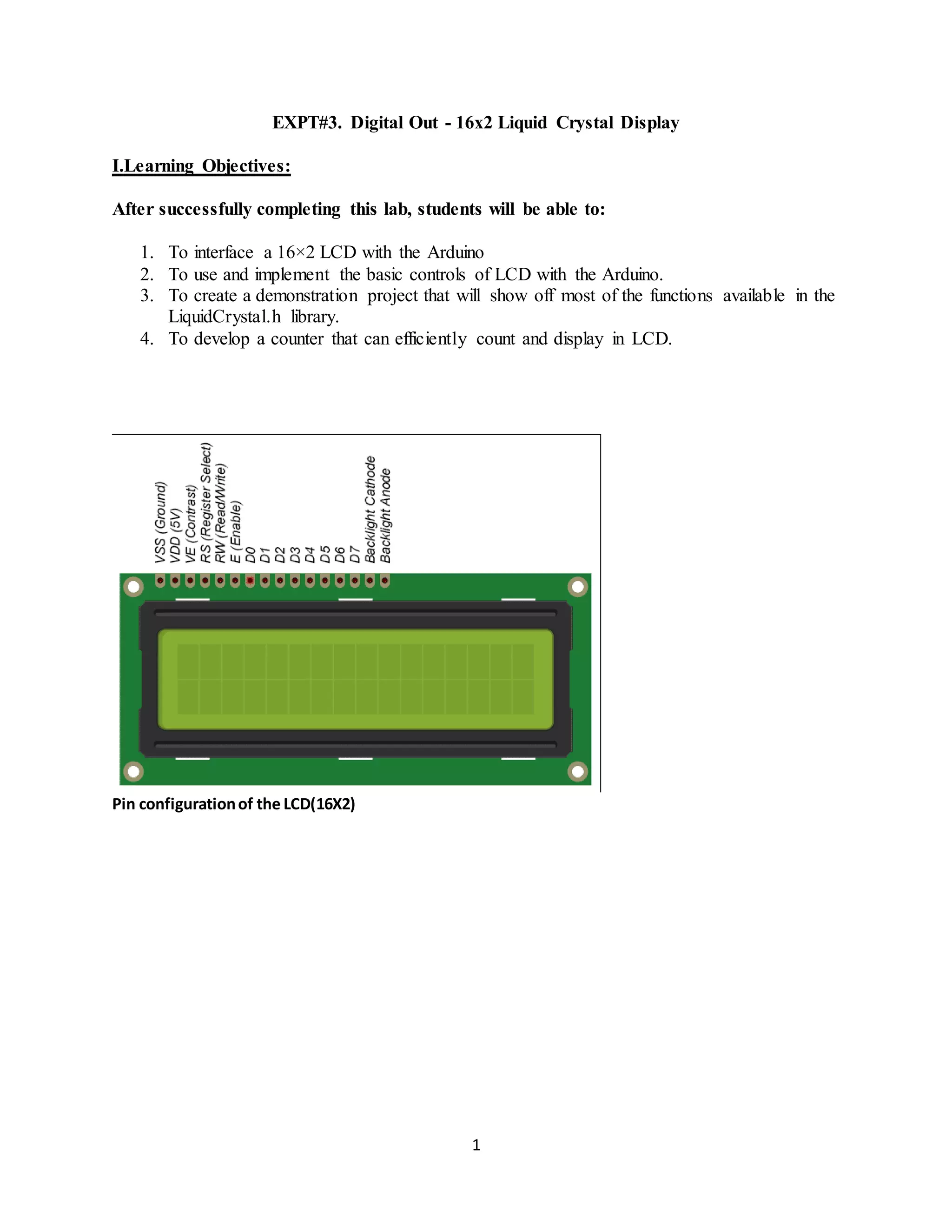
Pin configurationof the LCD(16X2)
2
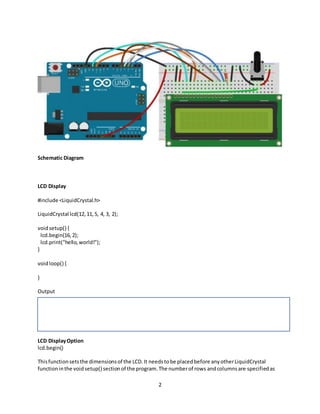
Schematic Diagram
LCD Display
#include <LiquidCrystal.h>
LiquidCrystal lcd(12,11,5, 4, 3, 2);
voidsetup() {
lcd.begin(16,2);
lcd.print("hello,world!");
}
voidloop() {
}
Output
LCD DisplayOption
lcd.begin()
Thisfunctionsetsthe dimensionsof the LCD.It needstobe placedbefore anyotherLiquidCrystal
functioninthe voidsetup() sectionof the program.The numberof rows andcolumnsare specifiedas
3
lcd.begin(columns,rows).Fora16×2 LCD, you woulduse lcd.begin(16,2),andfor a 20×4 LCD you would
use lcd.begin(20,4).
lcd.clear()
Thisfunctionclearsanytextor data alreadydisplayedonthe LCD.If you use lcd.clear() withlcd.print()
and the delay() functioninthe voidloop() section,youcanmake a simple blinkingtextprogram:
#include <LiquidCrystal.h>
LiquidCrystal lcd(12,11,5, 4, 3, 2);
voidsetup() {
lcd.begin(16,2);
}
voidloop() {
lcd.print("hello,world!");
delay(500);
lcd.clear();
delay(500);
}
Output
lcd.home()
Thisfunctionplacesthe cursorin the upperlefthandcornerof the screen,andprintsany subsequent
textfromthat position.Forexample,thiscode replacesthe firstthree lettersof “helloworld!”withX’s:
#include <LiquidCrystal.h>
LiquidCrystal lcd(12,11,5, 4, 3, 2);
voidsetup() {
lcd.begin(16,2);
lcd.print("hello,world!");
}
voidloop() {
4
lcd.home();
lcd.print("XXX");
}
Output
lcd.setCursor()
Similar,butmore useful thanlcd.home() islcd.setCursor().This functionplacesthe cursor(andany
printedtext) atanypositiononthe screen.Itcan be usedinthe voidsetup() orvoidloop() sectionof
your program.
The cursor positionisdefinedwithlcd.setCursor(column,row).The columnandrow coordinatesstart
fromzero (0-15 and 0-1 respectively).Forexample,usinglcd.setCursor(2,1) inthe voidsetup() section
of the “hello,world!”programabove prints“hello,world!”tothe lowerline andshiftsittothe righttwo
spaces:
#include <LiquidCrystal.h>
LiquidCrystal lcd(12,11,5, 4, 3, 2);
voidsetup() {
lcd.begin(16,2);
lcd.setCursor(2,1);
lcd.print("hello,world!");
}
voidloop() {
}
Output
lcd.write()
You can use thisfunctiontowrite differenttypesof datato the LCD, for example the readingfroma
temperature sensor,orthe coordinatesfromaGPS module.Youcanalso use itto printcustom
5
characters that youcreate yourself (more onthisbelow).Use lcd.write() inthe voidsetup() orvoid
loop() sectionof yourprogram.
lcd.print()
Thisfunctionisusedto printtextto the LCD. It can be usedinthe voidsetup() sectionorthe voidloop()
sectionof the program.
To printlettersandwords,place quotationmarks(”“) around the text.Forexample,toprinthello,
world!,use lcd.print(“hello,world!”).
To printnumbers,noquotationmarksare necessary.Forexample,toprint123456789, use
lcd.print(123456789).
lcd.print() canprintnumbersin decimal, binary,hexadecimal,andoctal bases.Forexample:
lcd.print(100,DEC) prints“100”;
lcd.print(100,BIN) prints“1100100”
lcd.print(100,HEX) prints“64”
lcd.print(100,OCT) prints“144”
Output
lcd.Cursor()
Thisfunctioncreatesa visible cursor.The cursorisa horizontal line placedbelow the nextcharacterto
be printedtothe LCD.
The functionlcd.noCursor() turnsthe cursoroff.lcd.cursor() andlcd.noCursor()canbe usedtogetherin
the voidloop() sectiontomake ablinkingcursorsimilartowhatyousee inmany textinputfields:
#include <LiquidCrystal.h>
LiquidCrystal lcd(12,11,5, 4, 3, 2);
voidsetup() {
lcd.begin(16,2);
lcd.print("hello,world!");
}
voidloop() {
6
lcd.cursor();
delay(500);
lcd.noCursor();
delay(500);
}
Output
Thisplacesa blinkingcursorafterthe exclamationpointin“hello,world!”
Cursorscan be placedanywhere onthe screenwiththe lcd.setCursor()function.Thiscode placesa
blinkingcursordirectlybelowthe exclamationpointin“hello,world!”:
#include <LiquidCrystal.h>
LiquidCrystal lcd(12,11,5, 4, 3, 2);
voidsetup() {
lcd.begin(16,2);
lcd.print("hello,world!");
}
voidloop() {
lcd.setCursor(12,1);
lcd.cursor();
delay(500);
lcd.setCursor(12,1);
lcd.noCursor();
delay(500);
}
Output
lcd.blink()
Thisfunctioncreatesa blockstyle cursorthat blinksonandoff at approximately500millisecondsper
cycle.Use itin the voidloop() section.The functionlcd.noBlink() disablesthe blinkingblockcursor.
7
lcd.display()
Thisfunctionturnson anytextor cursors that have beenprintedtothe LCD screen.The function
lcd.noDisplay() turnsoff anytextorcursorsprintedto the LCD, withoutclearingitfromthe LCD’s
memory.
These twofunctions canbe usedtogetherinthe voidloop() sectiontocreate ablinkingtexteffect.This
code will make the “hello,world!”textblinkonandoff:
#include <LiquidCrystal.h>
LiquidCrystal lcd(12,11,5, 4, 3, 2);
voidsetup() {
lcd.begin(16,2);
lcd.print("hello,world!");
}
voidloop() {
lcd.display();
delay(500);
lcd.noDisplay();
delay(500);
}
Output
lcd.scrollDisplayLeft()
Thisfunctiontakesanythingprintedtothe LCDand movesitto the left.Itshouldbe usedinthe void
loop() sectionwithadelaycommandfollowingit.The functionwill move the text40spacesto the left
before itloopsbackto the firstcharacter. Thiscode movesthe “hello,world!”texttothe left,ata rate
of one secondpercharacter:
#include <LiquidCrystal.h>
LiquidCrystal lcd(12,11,5, 4, 3, 2);
voidsetup() {
lcd.begin(16,2);
lcd.print("hello,world!");
}
8
voidloop() {
lcd.scrollDisplayLeft();
delay(1000);
}
Output
lcd.scrollDisplayRight()
Thisfunctionbehaveslikelcd.scrollDisplayLeft(),butmovesthe texttothe right.
lcd.autoscroll()
Thisfunctiontakesa stringof textand scrollsitfromright to leftinincrementsof the charactercountof
the string.For example,if youhave astringof textthat is3 characters long,itwill shiftthe text3spaces
to the leftwitheachstep:
#include <LiquidCrystal.h>
LiquidCrystal lcd(12,11,5, 4, 3, 2);
voidsetup() {
lcd.begin(16,2);
}
voidloop() {
lcd.setCursor(0,0);
lcd.autoscroll();
lcd.print("ABC");
delay(500);
}
Output
lcd.noAutoscroll()
lcd.noAutoscroll() turnsthe lcd.autoscroll() functionoff.Use thisfunctionbefore orafterlcd.autoscroll()
inthe voidloop() sectiontocreate sequencesof scrollingtextoranimations.
9
lcd.rightToLeft()
Thisfunctionsetsthe directionthattextisprintedtothe screen.The defaultmode isfromlefttoright
usingthe commandlcd.leftToRight(),butyoumayfindsome caseswhere it’suseful tooutputtextinthe
reverse direction:
#include <LiquidCrystal.h>
LiquidCrystal lcd(12,11,5, 4, 3, 2);
voidsetup() {
lcd.begin(16,2);
lcd.setCursor(12,0);
lcd.rightToLeft();
lcd.print("hello,world!");
}
voidloop() {
}
Output
lcd.createChar()
Thiscommandallowsyouto create your owncustomcharacters. Each character of a 16×2 LCD has a 5
pixel widthandan8 pixel height.Upto8 differentcustomcharacterscan be definedinasingle
program.To designyourowncharacters,you’ll needtomake abinarymatrix of your custom character
froman LCD character generatorormap it yourself.Thiscode createsadegree symbol (°):
#include <LiquidCrystal.h>
LiquidCrystal lcd(12,11,5, 4, 3, 2);
byte customChar[8] = {
0b00110,
0b01001,
0b01001,
0b00110,
0b00000,
0b00000,
0b00000,
0b00000
10
};
voidsetup()
{
lcd.createChar(0,customChar);
lcd.begin(16,2);
lcd.write((uint8_t)0);
}
voidloop() {
}
Output
EXERCISE:
LCD Temperature Display
Thisprojectis a simple demonstrationof usinganLCD to present useful informationtothe user—in this
case, the temperature from an analog temperature sensor. You will add a button to switch between
displaying the temperature in Celsius or Fahrenheit.Also, the maximumand minimum temperature will
be displayed on the second row.
Parts Required
16x2 Backlit LCD
Current Limiting Resistor (Backlight)
Current Limiting Resistor (Contrast)
Pushbutton
Analogue Temperature Sensor(Make sure that the temperature sensor only outputs positive values.)
LM35DT temperature sensor, which has a range from 0ºC to 100ºC. You can use any analogue
temperature sensor. The LM35 is rated from -55ºC to +150ºC.
NOTE: Whenyourun the code the currenttemperature will be displayedonthe top row of the LCD. The
bottomrowwill displaythe maximumandminimumtemperaturesrecordedsincethe Arduinowas turned
on or the program was reset. By pressing the button, you can change the temperature scale between
Celsius and Fahrenheit
Output

Lab Activity 3

  • 1.
    1 EXPT#3. Digital Out- 16x2 Liquid Crystal Display I.Learning Objectives: After successfully completing this lab, students will be able to: 1. To interface a 16×2 LCD with the Arduino 2. To use and implement the basic controls of LCD with the Arduino. 3. To create a demonstration project that will show off most of the functions available in the LiquidCrystal.h library. 4. To develop a counter that can efficiently count and display in LCD. Pin configurationof the LCD(16X2)
  • 2.
    2 Schematic Diagram LCD Display #include<LiquidCrystal.h> LiquidCrystal lcd(12,11,5, 4, 3, 2); voidsetup() { lcd.begin(16,2); lcd.print("hello,world!"); } voidloop() { } Output LCD DisplayOption lcd.begin() Thisfunctionsetsthe dimensionsof the LCD.It needstobe placedbefore anyotherLiquidCrystal functioninthe voidsetup() sectionof the program.The numberof rows andcolumnsare specifiedas
  • 3.
    3 lcd.begin(columns,rows).Fora16×2 LCD, youwoulduse lcd.begin(16,2),andfor a 20×4 LCD you would use lcd.begin(20,4). lcd.clear() Thisfunctionclearsanytextor data alreadydisplayedonthe LCD.If you use lcd.clear() withlcd.print() and the delay() functioninthe voidloop() section,youcanmake a simple blinkingtextprogram: #include <LiquidCrystal.h> LiquidCrystal lcd(12,11,5, 4, 3, 2); voidsetup() { lcd.begin(16,2); } voidloop() { lcd.print("hello,world!"); delay(500); lcd.clear(); delay(500); } Output lcd.home() Thisfunctionplacesthe cursorin the upperlefthandcornerof the screen,andprintsany subsequent textfromthat position.Forexample,thiscode replacesthe firstthree lettersof “helloworld!”withX’s: #include <LiquidCrystal.h> LiquidCrystal lcd(12,11,5, 4, 3, 2); voidsetup() { lcd.begin(16,2); lcd.print("hello,world!"); } voidloop() {
  • 4.
    4 lcd.home(); lcd.print("XXX"); } Output lcd.setCursor() Similar,butmore useful thanlcd.home()islcd.setCursor().This functionplacesthe cursor(andany printedtext) atanypositiononthe screen.Itcan be usedinthe voidsetup() orvoidloop() sectionof your program. The cursor positionisdefinedwithlcd.setCursor(column,row).The columnandrow coordinatesstart fromzero (0-15 and 0-1 respectively).Forexample,usinglcd.setCursor(2,1) inthe voidsetup() section of the “hello,world!”programabove prints“hello,world!”tothe lowerline andshiftsittothe righttwo spaces: #include <LiquidCrystal.h> LiquidCrystal lcd(12,11,5, 4, 3, 2); voidsetup() { lcd.begin(16,2); lcd.setCursor(2,1); lcd.print("hello,world!"); } voidloop() { } Output lcd.write() You can use thisfunctiontowrite differenttypesof datato the LCD, for example the readingfroma temperature sensor,orthe coordinatesfromaGPS module.Youcanalso use itto printcustom
  • 5.
    5 characters that youcreateyourself (more onthisbelow).Use lcd.write() inthe voidsetup() orvoid loop() sectionof yourprogram. lcd.print() Thisfunctionisusedto printtextto the LCD. It can be usedinthe voidsetup() sectionorthe voidloop() sectionof the program. To printlettersandwords,place quotationmarks(”“) around the text.Forexample,toprinthello, world!,use lcd.print(“hello,world!”). To printnumbers,noquotationmarksare necessary.Forexample,toprint123456789, use lcd.print(123456789). lcd.print() canprintnumbersin decimal, binary,hexadecimal,andoctal bases.Forexample: lcd.print(100,DEC) prints“100”; lcd.print(100,BIN) prints“1100100” lcd.print(100,HEX) prints“64” lcd.print(100,OCT) prints“144” Output lcd.Cursor() Thisfunctioncreatesa visible cursor.The cursorisa horizontal line placedbelow the nextcharacterto be printedtothe LCD. The functionlcd.noCursor() turnsthe cursoroff.lcd.cursor() andlcd.noCursor()canbe usedtogetherin the voidloop() sectiontomake ablinkingcursorsimilartowhatyousee inmany textinputfields: #include <LiquidCrystal.h> LiquidCrystal lcd(12,11,5, 4, 3, 2); voidsetup() { lcd.begin(16,2); lcd.print("hello,world!"); } voidloop() {
  • 6.
    6 lcd.cursor(); delay(500); lcd.noCursor(); delay(500); } Output Thisplacesa blinkingcursorafterthe exclamationpointin“hello,world!” Cursorscanbe placedanywhere onthe screenwiththe lcd.setCursor()function.Thiscode placesa blinkingcursordirectlybelowthe exclamationpointin“hello,world!”: #include <LiquidCrystal.h> LiquidCrystal lcd(12,11,5, 4, 3, 2); voidsetup() { lcd.begin(16,2); lcd.print("hello,world!"); } voidloop() { lcd.setCursor(12,1); lcd.cursor(); delay(500); lcd.setCursor(12,1); lcd.noCursor(); delay(500); } Output lcd.blink() Thisfunctioncreatesa blockstyle cursorthat blinksonandoff at approximately500millisecondsper cycle.Use itin the voidloop() section.The functionlcd.noBlink() disablesthe blinkingblockcursor.
  • 7.
    7 lcd.display() Thisfunctionturnson anytextor cursorsthat have beenprintedtothe LCD screen.The function lcd.noDisplay() turnsoff anytextorcursorsprintedto the LCD, withoutclearingitfromthe LCD’s memory. These twofunctions canbe usedtogetherinthe voidloop() sectiontocreate ablinkingtexteffect.This code will make the “hello,world!”textblinkonandoff: #include <LiquidCrystal.h> LiquidCrystal lcd(12,11,5, 4, 3, 2); voidsetup() { lcd.begin(16,2); lcd.print("hello,world!"); } voidloop() { lcd.display(); delay(500); lcd.noDisplay(); delay(500); } Output lcd.scrollDisplayLeft() Thisfunctiontakesanythingprintedtothe LCDand movesitto the left.Itshouldbe usedinthe void loop() sectionwithadelaycommandfollowingit.The functionwill move the text40spacesto the left before itloopsbackto the firstcharacter. Thiscode movesthe “hello,world!”texttothe left,ata rate of one secondpercharacter: #include <LiquidCrystal.h> LiquidCrystal lcd(12,11,5, 4, 3, 2); voidsetup() { lcd.begin(16,2); lcd.print("hello,world!"); }
  • 8.
    8 voidloop() { lcd.scrollDisplayLeft(); delay(1000); } Output lcd.scrollDisplayRight() Thisfunctionbehaveslikelcd.scrollDisplayLeft(),butmovesthe texttotheright. lcd.autoscroll() Thisfunctiontakesa stringof textand scrollsitfromright to leftinincrementsof the charactercountof the string.For example,if youhave astringof textthat is3 characters long,itwill shiftthe text3spaces to the leftwitheachstep: #include <LiquidCrystal.h> LiquidCrystal lcd(12,11,5, 4, 3, 2); voidsetup() { lcd.begin(16,2); } voidloop() { lcd.setCursor(0,0); lcd.autoscroll(); lcd.print("ABC"); delay(500); } Output lcd.noAutoscroll() lcd.noAutoscroll() turnsthe lcd.autoscroll() functionoff.Use thisfunctionbefore orafterlcd.autoscroll() inthe voidloop() sectiontocreate sequencesof scrollingtextoranimations.
  • 9.
    9 lcd.rightToLeft() Thisfunctionsetsthe directionthattextisprintedtothe screen.Thedefaultmode isfromlefttoright usingthe commandlcd.leftToRight(),butyoumayfindsome caseswhere it’suseful tooutputtextinthe reverse direction: #include <LiquidCrystal.h> LiquidCrystal lcd(12,11,5, 4, 3, 2); voidsetup() { lcd.begin(16,2); lcd.setCursor(12,0); lcd.rightToLeft(); lcd.print("hello,world!"); } voidloop() { } Output lcd.createChar() Thiscommandallowsyouto create your owncustomcharacters. Each character of a 16×2 LCD has a 5 pixel widthandan8 pixel height.Upto8 differentcustomcharacterscan be definedinasingle program.To designyourowncharacters,you’ll needtomake abinarymatrix of your custom character froman LCD character generatorormap it yourself.Thiscode createsadegree symbol (°): #include <LiquidCrystal.h> LiquidCrystal lcd(12,11,5, 4, 3, 2); byte customChar[8] = { 0b00110, 0b01001, 0b01001, 0b00110, 0b00000, 0b00000, 0b00000, 0b00000
  • 10.
    10 }; voidsetup() { lcd.createChar(0,customChar); lcd.begin(16,2); lcd.write((uint8_t)0); } voidloop() { } Output EXERCISE: LCD TemperatureDisplay Thisprojectis a simple demonstrationof usinganLCD to present useful informationtothe user—in this case, the temperature from an analog temperature sensor. You will add a button to switch between displaying the temperature in Celsius or Fahrenheit.Also, the maximumand minimum temperature will be displayed on the second row. Parts Required 16x2 Backlit LCD Current Limiting Resistor (Backlight) Current Limiting Resistor (Contrast) Pushbutton Analogue Temperature Sensor(Make sure that the temperature sensor only outputs positive values.) LM35DT temperature sensor, which has a range from 0ºC to 100ºC. You can use any analogue temperature sensor. The LM35 is rated from -55ºC to +150ºC. NOTE: Whenyourun the code the currenttemperature will be displayedonthe top row of the LCD. The bottomrowwill displaythe maximumandminimumtemperaturesrecordedsincethe Arduinowas turned on or the program was reset. By pressing the button, you can change the temperature scale between Celsius and Fahrenheit Output