HOW TO CHANGE THE
DEFAULT SAVE LOCATION
AND LOCAL FILES FOLDER IN
WORD 2013
1ST STEP
 To change the default location
for saving files, click the
“File” tab.
On the backstage screen, click
“Options” in the list of items on the
left.
2ND STEP
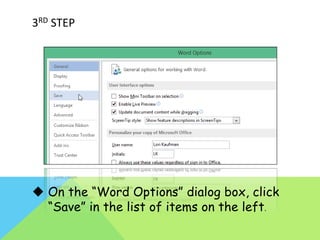
3RD STEP
 On the “Word Options” dialog box, click
“Save” in the list of items on the left.
4TH STEP
To choose to save files to your computer by default
rather than OneDrive, click the “Save to Computer
by default” check box so there is a check mark in
the box.
 To change the default local file location to
which files will be saved, click “Browse” to
the right of the “Default local file location”
edit box.
5TH STEP
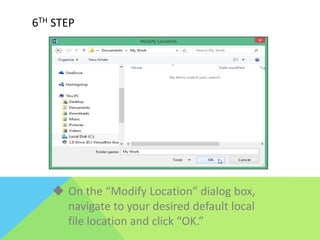
 On the “Modify Location” dialog box,
navigate to your desired default local
file location and click “OK.”
6TH STEP
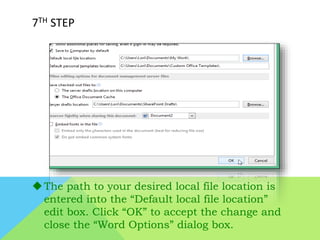
7TH STEP
The path to your desired local file location is
entered into the “Default local file location”
edit box. Click “OK” to accept the change and
close the “Word Options” dialog box.
Thank You!

How to Change the default save location and local files folder in word 2013

  • 1.
    HOW TO CHANGETHE DEFAULT SAVE LOCATION AND LOCAL FILES FOLDER IN WORD 2013
  • 2.
    1ST STEP  Tochange the default location for saving files, click the “File” tab.
  • 3.
    On the backstagescreen, click “Options” in the list of items on the left. 2ND STEP
  • 4.
    3RD STEP  Onthe “Word Options” dialog box, click “Save” in the list of items on the left.
  • 5.
    4TH STEP To chooseto save files to your computer by default rather than OneDrive, click the “Save to Computer by default” check box so there is a check mark in the box.
  • 6.
     To changethe default local file location to which files will be saved, click “Browse” to the right of the “Default local file location” edit box. 5TH STEP
  • 7.
     On the“Modify Location” dialog box, navigate to your desired default local file location and click “OK.” 6TH STEP
  • 8.
    7TH STEP The pathto your desired local file location is entered into the “Default local file location” edit box. Click “OK” to accept the change and close the “Word Options” dialog box.
  • 9.