JIRA Training forNew Users
Comprehensive Guide to Getting
Started with JIRA
Presented by: [Your Name]
Date: [Insert Date]
2.
Agenda
• Introduction toJIRA
• Understanding JIRA Projects and Issues
• Navigating the JIRA Interface
• Creating and Managing Issues
• Working with Agile Boards
• Using Filters and JQL
• Generating Reports and Dashboards
• Best Practices and Tips
3.
Introduction to JIRA
•JIRA is a project management tool by Atlassian
• Designed for Agile development: Scrum,
Kanban, and hybrid models
• Helps track, manage, and report on work
across teams
• Used for software development, project
tracking, and more
4.
Understanding JIRA Projects
•A project in JIRA is a container for issues
• Each project can have its own configurations,
workflows, and permissions
• Project types: Team-managed (simpler) and
Company-managed (more customizable)
5.
Understanding Issues inJIRA
• Issues represent tasks, bugs, stories, or
requests
• Common types: Epic, Story, Task, Bug, Sub-
task
• Each issue has a status, priority, assignee, and
more
6.
Navigating the JIRAInterface
• Dashboard: Overview of projects and gadgets
• Project Sidebar: Quick access to backlog,
board, reports
• Issue View: Shows detailed information and
activity
7.
Creating Issues
• Usethe 'Create' button or 'C' keyboard
shortcut
• Enter summary, description, type, priority,
assignee
• Use labels, components, and attachments for
clarity
8.
Managing Issues
• Updateissue status: To Do → In Progress →
Done
• Comment and @mention for collaboration
• Link related issues (e.g., blocks, duplicates,
relates to)
9.
Agile Boards inJIRA
• Scrum Boards: Plan and execute sprints
• Kanban Boards: Continuous workflow
management
• Backlog: Prioritized list of upcoming work
• Use swimlanes, filters, and quick filters
10.
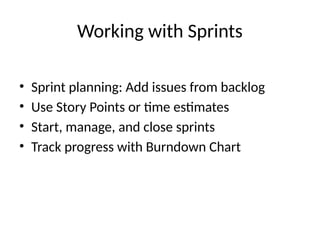
Working with Sprints
•Sprint planning: Add issues from backlog
• Use Story Points or time estimates
• Start, manage, and close sprints
• Track progress with Burndown Chart
11.
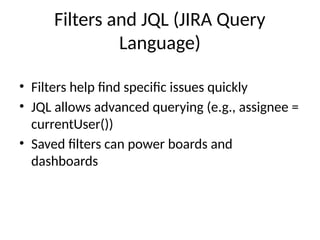
Filters and JQL(JIRA Query
Language)
• Filters help find specific issues quickly
• JQL allows advanced querying (e.g., assignee =
currentUser())
• Saved filters can power boards and
dashboards
12.
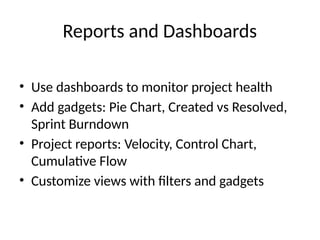
Reports and Dashboards
•Use dashboards to monitor project health
• Add gadgets: Pie Chart, Created vs Resolved,
Sprint Burndown
• Project reports: Velocity, Control Chart,
Cumulative Flow
• Customize views with filters and gadgets
13.
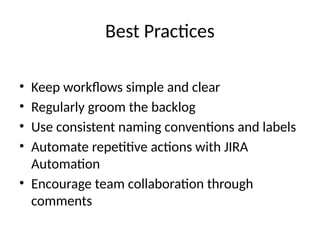
Best Practices
• Keepworkflows simple and clear
• Regularly groom the backlog
• Use consistent naming conventions and labels
• Automate repetitive actions with JIRA
Automation
• Encourage team collaboration through
comments
14.
Further Learning
• AtlassianUniversity: Free courses and tutorials
• JIRA Documentation and Support Portal
• YouTube channels and community forums
• Internal training sessions or playbooks
![JIRA Training for New Users
Comprehensive Guide to Getting
Started with JIRA
Presented by: [Your Name]
Date: [Insert Date]](https://image.slidesharecdn.com/jiratrainingdetailedpresentation-250618121102-98a119ca/85/JIRA_Training_Detailed_Presentation-pptx-1-320.jpg)
![JIRA Training for New Users
Comprehensive Guide to Getting
Started with JIRA
Presented by: [Your Name]
Date: [Insert Date]](https://image.slidesharecdn.com/jiratrainingdetailedpresentation-250618121102-98a119ca/75/JIRA_Training_Detailed_Presentation-pptx-1-2048.jpg)
![Thank You
• Thank you for attending the training!
• Feel free to reach out for help or resources
• Contact: [Your email or Slack handle]](https://image.slidesharecdn.com/jiratrainingdetailedpresentation-250618121102-98a119ca/85/JIRA_Training_Detailed_Presentation-pptx-16-320.jpg)


![Getting Started with Apache Spark: Big Data Made Simple [Free Meetup]](https://cdn.slidesharecdn.com/ss_thumbnails/apachesparkgettingstarted-260203175547-8361bcc3-thumbnail.jpg?width=640&height=640&fit=bounds)


