Instructions
Software for
Interactive Whiteboards
Instructions
   Software for Interactive Whiteboards


Copyright © 2009 MM Publications

All rights reserved. No part of this publication may be reproduced,
stored in a etrieval system or transmitted in any form or by any means,
electronic, mechanical, photocopying, recording or otherwise, without
permission in writing from the publisher.
Contents
Let’s start          2

General Navigation   3

Presentations        4

Activities           5

Videos               7

Notes                8

General Tips         9
Instructions

        Let’s start
        The contents screen is very easy to use and navigate. The only thing that you have
        to do is to choose a unit you want to go to and simply press on it with the stylus.


         Press on the unit


                                                On the contents screen, you
                                                will also find the ‘exit’ button.

2
Software for Interactive Whiteboards


     General Navigation
     In the main program the buttons you will find are:

                    Previous page button
                                                                            Next page button

Contents button


                                                                              Stop button
Show text button


            Vocabulary button                      Start and pause narrate button


     Press on the ‘left’ or ‘right’ button to navigate to the next or previous page of the
     program.

     If you press the ‘show text’ button the texts and bubbles in the presentations
     will appear, if you press either of these buttons again the texts and the bubbles
     disappear. With these buttons you can hear and read the text of the lesson.

     When you press the ‘vocabulary’ button, a pop up window will appear where you
     can search for the achive words (vocabulary) from the specific lesson. Press the
     stylus onto a word and you will hear it being pronounced, the purpose of this it to
     enable the Ss to listen to and repeat the desired word. To go back to the previous
     page, press on the ‘back’ tab on the upper right corner of the pop up window.

     If you want to listen to the presentation or an exercise, press on the ‘narrate’ button.
     If you press the button a second time the recording will pause.
     Note: The sound is not stopped, and you cannot press any other button. If you want
     to stop the sound so that you can continue with the unit, then press the ‘stop’ button.


                                                                                                       3
Instructions

        Presentations
        The presentations appear with no text as there needs to be an analysis of
        the pictures and discussion with the Ss in order to ensure that they have
        a clear understanding of the story. Ss could be asked to guess and write
        what the characters may be thinking.


                                          Press on the ‘narrate’ button to hear the
                                          recording of the presentation without seeing the
                                          text. With this students can benefit from listening
                                          to the text without the use of writing or reading.


        Press the ‘show text’
        button for the text to
        appear


4
Software for Interactive Whiteboards


The sentences / bubbles are highlighted the moment they are heard. When
you are reading the text you have the option of hearing a particular sentence
or word by pressing on to that specific part.


Activities
All the activities include answers. To find the answers, press on the area
where the answer should be.
The answer can be a text, a shape, like a circle, or a     symbol.


                                                                                                 5
Instructions


        The answers to activities
        need to be solved by the
        teacher. Using the stylus
        of the whiteboard, the
        teacher can complete the
        activity. There is usually
        a small sign on the
        bottom right hand corner
        in this case.


                                                              Another sign that you will come
                                                              across is the one of a key. If
                                                              you press on it the answers of
                                                              the activity will appear.
                                                              The difference between the key
                                                              sign and the others is that the
                                                              key ‘unlocks’ all the answers at
                                                              once, instead of one at a time.


        The activities such as gap filling, matching, and multiple choice etc, can be
        dealt with as a whole class activity. The teacher can ask Ss to label pictures,
        draw lines for matching activities, change or add words, write sentences
6       based on pictures etc.
Software for Interactive Whiteboards


Videos
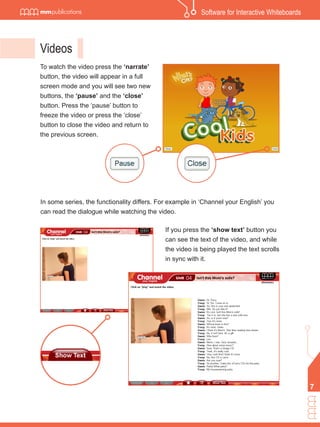
To watch the video press the ‘narrate’
button, the video will appear in a full
screen mode and you will see two new
buttons, the ‘pause’ and the ‘close’
button. Press the ‘pause’ button to
freeze the video or press the ‘close’
button to close the video and return to
the previous screen.


In some series, the functionality differs. For example in ‘Channel your English’ you
can read the dialogue while watching the video.

                                            If you press the ‘show text’ button you
                                            can see the text of the video, and while
                                            the video is being played the text scrolls
                                            in sync with it.


                                                                                                7
Instructions

        Notes
        You can also use the interactive whiteboard as a normal whiteboard in order to write
        notes etc.


                                          Press the ‘F1’ button and the white screen will
                                          appear. With the use of the whiteboard stylus
                                          you can write notes and ideas on this ‘page’.


                                          If you press the ‘esc’ button you return
                                          to the previous screen.


8
Software for Interactive Whiteboards


General Tips
You can also use your whiteboard to:


     Brainstorm


     Take notes


     Reinforce skills by using on-line interactive web sites

     Use the highlighter tool to highlight parts of speech such as
     nouns, verbs etc


     Complete charts

     Encourage Ss’ participation by allowing them to write what
     they have learned


     Play songs or videos


     Execute effective listening activities etc


                                                                                                 9
Iwb instructions

Iwb instructions

  • 1.
  • 2.
    Instructions Software for Interactive Whiteboards Copyright © 2009 MM Publications All rights reserved. No part of this publication may be reproduced, stored in a etrieval system or transmitted in any form or by any means, electronic, mechanical, photocopying, recording or otherwise, without permission in writing from the publisher.
  • 3.
    Contents Let’s start 2 General Navigation 3 Presentations 4 Activities 5 Videos 7 Notes 8 General Tips 9
  • 4.
    Instructions Let’s start The contents screen is very easy to use and navigate. The only thing that you have to do is to choose a unit you want to go to and simply press on it with the stylus. Press on the unit On the contents screen, you will also find the ‘exit’ button. 2
  • 5.
    Software for InteractiveWhiteboards General Navigation In the main program the buttons you will find are: Previous page button Next page button Contents button Stop button Show text button Vocabulary button Start and pause narrate button Press on the ‘left’ or ‘right’ button to navigate to the next or previous page of the program. If you press the ‘show text’ button the texts and bubbles in the presentations will appear, if you press either of these buttons again the texts and the bubbles disappear. With these buttons you can hear and read the text of the lesson. When you press the ‘vocabulary’ button, a pop up window will appear where you can search for the achive words (vocabulary) from the specific lesson. Press the stylus onto a word and you will hear it being pronounced, the purpose of this it to enable the Ss to listen to and repeat the desired word. To go back to the previous page, press on the ‘back’ tab on the upper right corner of the pop up window. If you want to listen to the presentation or an exercise, press on the ‘narrate’ button. If you press the button a second time the recording will pause. Note: The sound is not stopped, and you cannot press any other button. If you want to stop the sound so that you can continue with the unit, then press the ‘stop’ button. 3
  • 6.
    Instructions Presentations The presentations appear with no text as there needs to be an analysis of the pictures and discussion with the Ss in order to ensure that they have a clear understanding of the story. Ss could be asked to guess and write what the characters may be thinking. Press on the ‘narrate’ button to hear the recording of the presentation without seeing the text. With this students can benefit from listening to the text without the use of writing or reading. Press the ‘show text’ button for the text to appear 4
  • 7.
    Software for InteractiveWhiteboards The sentences / bubbles are highlighted the moment they are heard. When you are reading the text you have the option of hearing a particular sentence or word by pressing on to that specific part. Activities All the activities include answers. To find the answers, press on the area where the answer should be. The answer can be a text, a shape, like a circle, or a symbol. 5
  • 8.
    Instructions The answers to activities need to be solved by the teacher. Using the stylus of the whiteboard, the teacher can complete the activity. There is usually a small sign on the bottom right hand corner in this case. Another sign that you will come across is the one of a key. If you press on it the answers of the activity will appear. The difference between the key sign and the others is that the key ‘unlocks’ all the answers at once, instead of one at a time. The activities such as gap filling, matching, and multiple choice etc, can be dealt with as a whole class activity. The teacher can ask Ss to label pictures, draw lines for matching activities, change or add words, write sentences 6 based on pictures etc.
  • 9.
    Software for InteractiveWhiteboards Videos To watch the video press the ‘narrate’ button, the video will appear in a full screen mode and you will see two new buttons, the ‘pause’ and the ‘close’ button. Press the ‘pause’ button to freeze the video or press the ‘close’ button to close the video and return to the previous screen. In some series, the functionality differs. For example in ‘Channel your English’ you can read the dialogue while watching the video. If you press the ‘show text’ button you can see the text of the video, and while the video is being played the text scrolls in sync with it. 7
  • 10.
    Instructions Notes You can also use the interactive whiteboard as a normal whiteboard in order to write notes etc. Press the ‘F1’ button and the white screen will appear. With the use of the whiteboard stylus you can write notes and ideas on this ‘page’. If you press the ‘esc’ button you return to the previous screen. 8
  • 11.
    Software for InteractiveWhiteboards General Tips You can also use your whiteboard to: Brainstorm Take notes Reinforce skills by using on-line interactive web sites Use the highlighter tool to highlight parts of speech such as nouns, verbs etc Complete charts Encourage Ss’ participation by allowing them to write what they have learned Play songs or videos Execute effective listening activities etc 9