Issues with channel screen display after the screen

      saver stopped, or the computer left standby or

                              hibernation modes


                                                                  Article ID: GV-15-08-07-14
                                                                    Release Date: 7/14/2008


Applied to
GV-Video Capture Cards, including GV-600, GV-650, GV-800, GV-1120, GV-1240, GV-1480,
GV-2004 and GV-2008


Symptoms
After the screen saver was stopped or the computer left standby or hibernation modes, the
images on channel screens were not displayed at all or with poor quality.


Of Screen Saver
If the screen saver had no password protection, the channel screens would function normally
after the screen saver was stopped.


However, if the password protection was activated, the channel screens would turn pink or
black when these conditions were true:
    DSP Overlay function was activated.
    GV-1120, GV-1240, GV-1480, GV-2004 or GV-2008 was installed.


Note that recording files were not affected if the GV-System was monitoring.


GeoVision Inc.                              1                         Revision Date: 7/14/2008
Of Standby or Hibernation
The symptoms varied by the type of the installed GV-Video Capture Card.


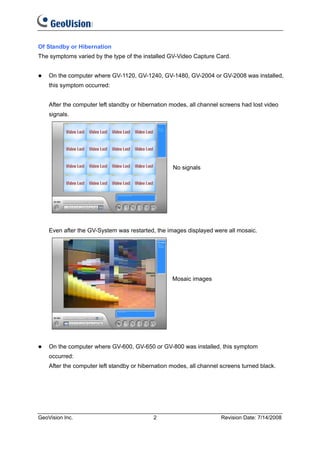
    On the computer where GV-1120, GV-1240, GV-1480, GV-2004 or GV-2008 was installed,
    this symptom occurred:


    After the computer left standby or hibernation modes, all channel screens had lost video
    signals.


                                                   No signals


    Even after the GV-System was restarted, the images displayed were all mosaic.


                                                   Mosaic images


    On the computer where GV-600, GV-650 or GV-800 was installed, this symptom
    occurred:
    After the computer left standby or hibernation modes, all channel screens turned black.


GeoVision Inc.                              2                         Revision Date: 7/14/2008
Solutions
To solve the issues with screen saver:
Restart the GV-System, and you will find the channel screens are back to normal.


To avoid experiencing this problem again, it is recommended that you should follow these
steps to cancel password protection.


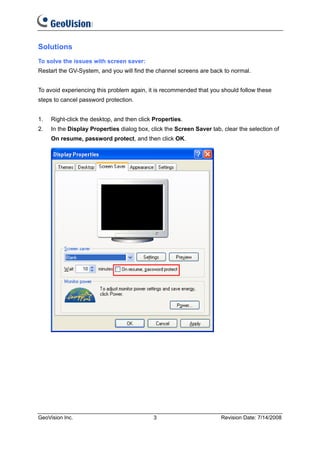
1.   Right-click the desktop, and then click Properties.
2.   In the Display Properties dialog box, click the Screen Saver tab, clear the selection of
     On resume, password protect, and then click OK.


GeoVision Inc.                              3                         Revision Date: 7/14/2008
To solve the issues with standby and hibernation:
The solutions vary by the type of the installed GV-Video Capture Card.


     On the computer where GV-1120, GV-1240, GV-1480, GV-2004 or GV-2008 is installed,
     restart the computer.


     On the computer where GV-600, GV-650 or GV-800 is installed, restart the GV-System.


However, to avoid experiencing this problem again, it is recommended that you should not put
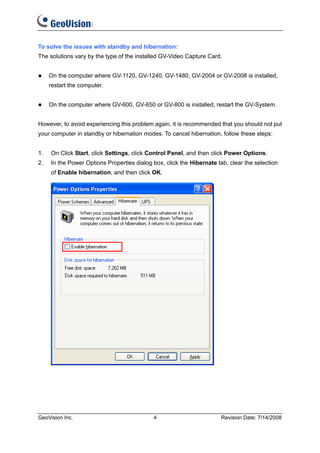
your computer in standby or hibernation modes. To cancel hibernation, follow these steps:


1.   On Click Start, click Settings, click Control Panel, and then click Power Options.
2.   In the Power Options Properties dialog box, click the Hibernate tab, clear the selection
     of Enable hibernation, and then click OK.


GeoVision Inc.                              4                          Revision Date: 7/14/2008

Issues with screen_saver

  • 1.
    Issues with channelscreen display after the screen saver stopped, or the computer left standby or hibernation modes Article ID: GV-15-08-07-14 Release Date: 7/14/2008 Applied to GV-Video Capture Cards, including GV-600, GV-650, GV-800, GV-1120, GV-1240, GV-1480, GV-2004 and GV-2008 Symptoms After the screen saver was stopped or the computer left standby or hibernation modes, the images on channel screens were not displayed at all or with poor quality. Of Screen Saver If the screen saver had no password protection, the channel screens would function normally after the screen saver was stopped. However, if the password protection was activated, the channel screens would turn pink or black when these conditions were true: DSP Overlay function was activated. GV-1120, GV-1240, GV-1480, GV-2004 or GV-2008 was installed. Note that recording files were not affected if the GV-System was monitoring. GeoVision Inc. 1 Revision Date: 7/14/2008
  • 2.
    Of Standby orHibernation The symptoms varied by the type of the installed GV-Video Capture Card. On the computer where GV-1120, GV-1240, GV-1480, GV-2004 or GV-2008 was installed, this symptom occurred: After the computer left standby or hibernation modes, all channel screens had lost video signals. No signals Even after the GV-System was restarted, the images displayed were all mosaic. Mosaic images On the computer where GV-600, GV-650 or GV-800 was installed, this symptom occurred: After the computer left standby or hibernation modes, all channel screens turned black. GeoVision Inc. 2 Revision Date: 7/14/2008
  • 3.
    Solutions To solve theissues with screen saver: Restart the GV-System, and you will find the channel screens are back to normal. To avoid experiencing this problem again, it is recommended that you should follow these steps to cancel password protection. 1. Right-click the desktop, and then click Properties. 2. In the Display Properties dialog box, click the Screen Saver tab, clear the selection of On resume, password protect, and then click OK. GeoVision Inc. 3 Revision Date: 7/14/2008
  • 4.
    To solve theissues with standby and hibernation: The solutions vary by the type of the installed GV-Video Capture Card. On the computer where GV-1120, GV-1240, GV-1480, GV-2004 or GV-2008 is installed, restart the computer. On the computer where GV-600, GV-650 or GV-800 is installed, restart the GV-System. However, to avoid experiencing this problem again, it is recommended that you should not put your computer in standby or hibernation modes. To cancel hibernation, follow these steps: 1. On Click Start, click Settings, click Control Panel, and then click Power Options. 2. In the Power Options Properties dialog box, click the Hibernate tab, clear the selection of Enable hibernation, and then click OK. GeoVision Inc. 4 Revision Date: 7/14/2008