

Introduction
to Computer
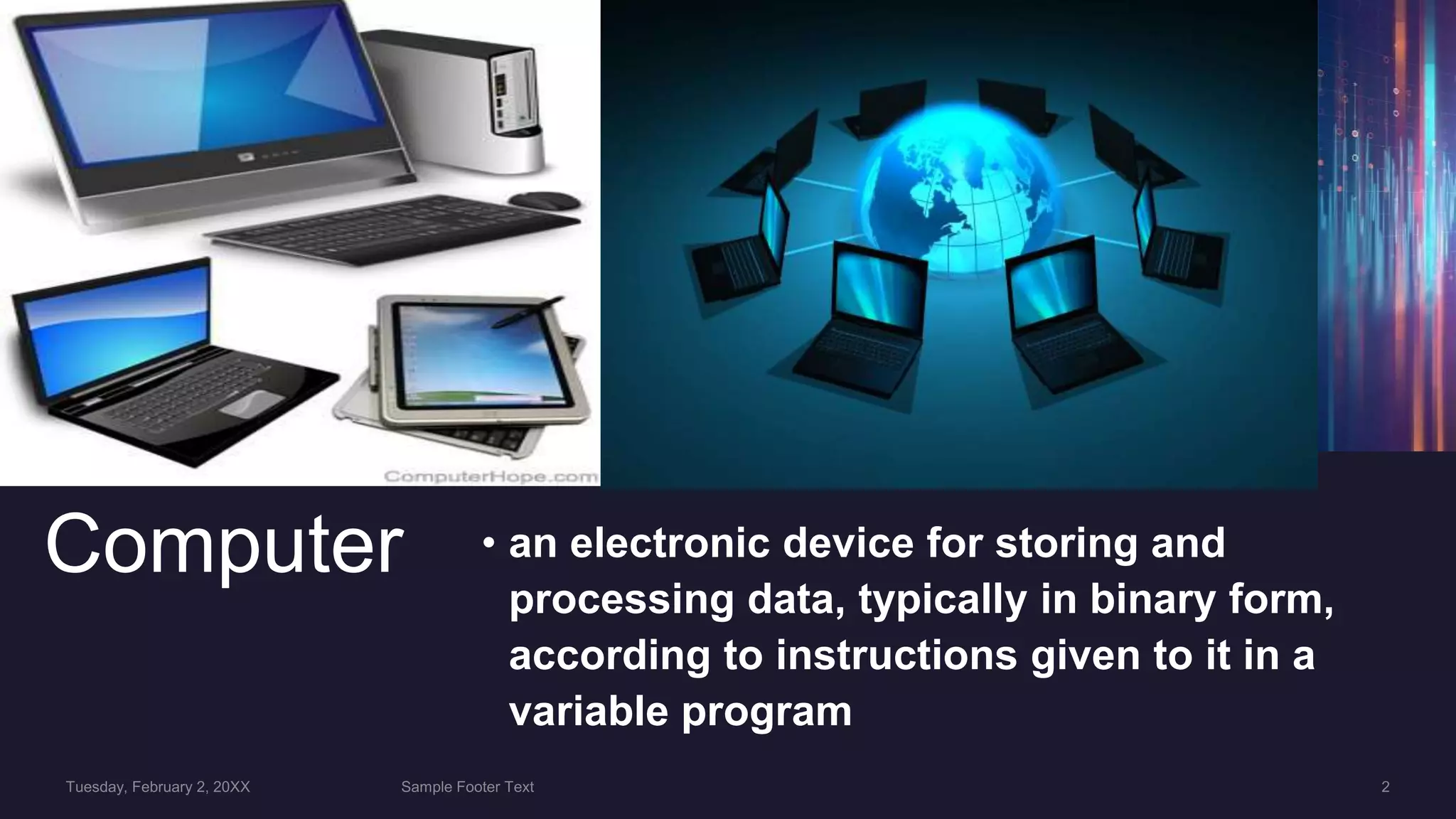
Computer • an electronic device for storing and
processing data, typically in binary form,
according to instructions given to it in a
variable program
Functionalities of a Computer
Any digital computer carries out five functions in gross
- Takes data as input.
- Stores the data/instructions in its memory and use
when required.
- Processes the data and converts it into useful
information.
- Generates the output
- Controls all the above four steps
 Computer Components
Hardware - computer hardware is the collection
of physical elements”Tangible objects”that
constitutes a computer system.The actual
machinery, wires, transistors, and circuits
Software - Computer Programs instructions
and data
Computer Units
• Input Unit
• Central processing Unit
• Primary Memory Unit
• Secondary storage Unit
• Output Unit
Input device
• Input device is any peripheral (piece of computer
hardware equipment to provide data and control
signals to an information processing system such as a
computer or other information appliance. Input device
Translate data from form that humans understand to
one that the computer can work with. Most common are
keyboard and mouse
8
• Example of Input Devices
KeyboardMouse (pointing device)
• Microphone
• Touch screen
• Scanner
• Webcam
• Touchpads
• MIDI keyboardGraphics TabletsCamerasPen InputVideo Capture
cameraJoystickGamepadElectronic Whiteboard
Central Processing Unit
CPUknown as microprocessor or
responsible for all functions and
CPU Components The CPU is comprised of
three main parts
ALU (Arithmetic Logic Unit)Control Unit
(CU)Registers: Stores the data that is to be
executed next.
ALU Executes all arithmetic and
logical operations.
Arithmetic calculations like as
subtraction, multiplication and
operation like compare numbers,
special characters
Control Unit (CU)Control Unit (CU): controls and co-
ordinates computer components.Read the code for the next
instruction to be executed.Increment the program counter
so it points to the next instruction.Read whatever data the
instruction requires from cells in memory.Provide the
necessary data to an ALU or register.If the instruction
requires an ALU or specialized hardware to complete,
instruct the hardware to perform the requested operation.
RegistersRegisters: Stores the data that is to be
executed next, "very fast storage area".
Primary Memory1. RAM.2.ROM
• 1. RAM: Random Access Memory: is a memory scheme within the computer system responsible for storing data on a
temporary basis, so that it can be promptly accessed by the processor as and when needed.It is volatile in nature,
which means that data will be erased once supply to the storage device is turned off.RAM stores data randomly and
the processor accesses these data randomly from the RAM storage.RAM is considered "random access" because
you can access any memory cell directly if you know the row and column that intersect at that cell.
• 2. ROM (Read Only Memory): ROM is a permanent form of storage.
ROM stays active regardless of whether power supply to it is turned on or
off. ROM devices do not allow data stored on them to be modified.
Secondary Memory Stores data and
programs permanently
its retained after the power is turned
Main Examples :
Hard Disk
Optical Disk
Flash memory
Hard Disk Called Disk drive or HDD
stores and provides relatively quick
large amounts of data. Stores data
electromagnetically charged surface
surfaces.
Optical Disk & Flash an optical disc drive (ODD) is a disk
drive that uses laser light to store data.
There are three main types of optical media: CD, DVD, and Blu-
ray disc
- CD “Compact Disk” can store up to 700MBDVD “
- Digital Video Disk “ can store up to 8.4
- GBBlu-ray disc. can store up to 50 GB
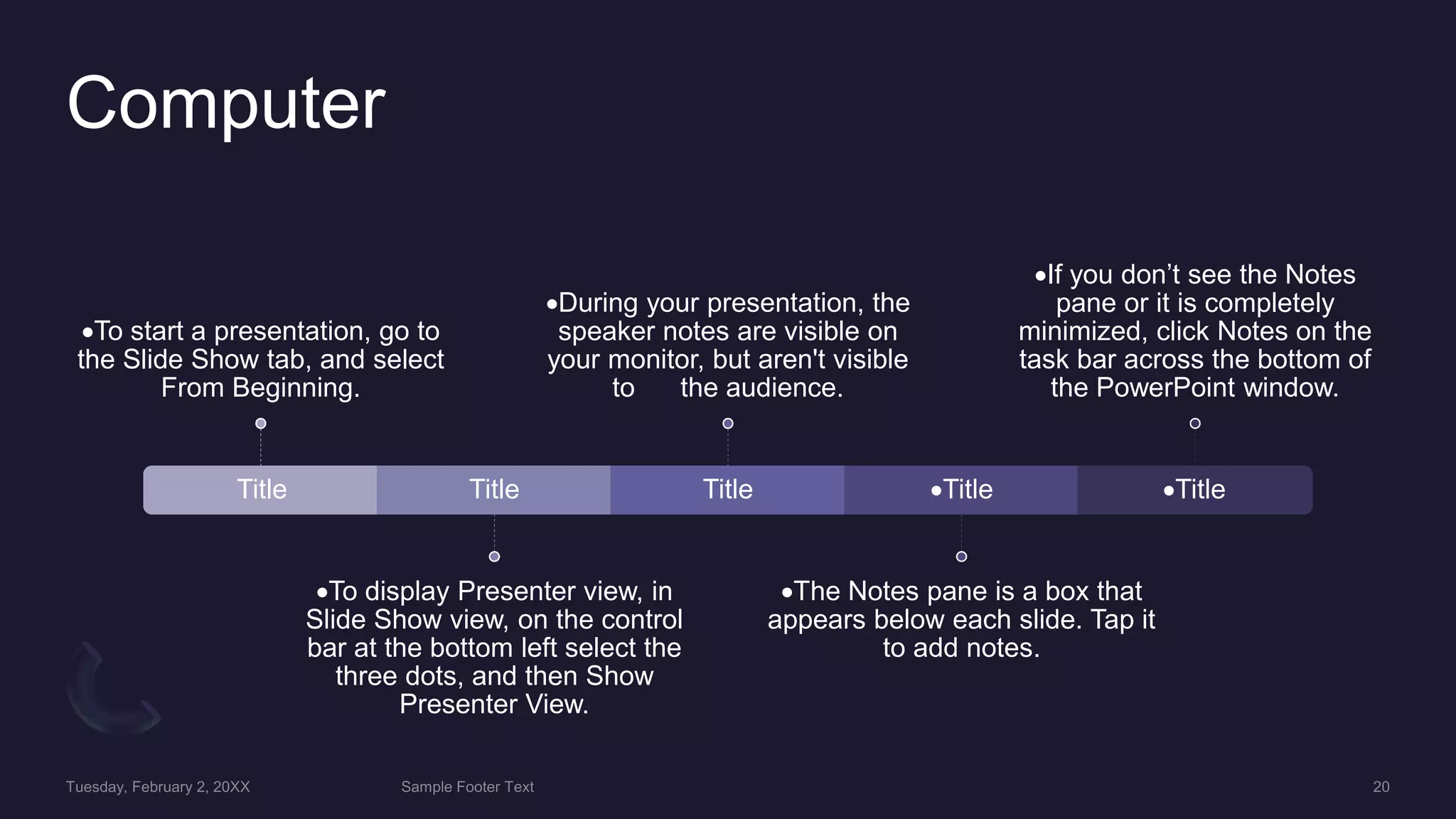
Computer
Title
To start a presentation, go to
the Slide Show tab, and select
From Beginning.
Title
To display Presenter view, in
Slide Show view, on the control
bar at the bottom left select the
three dots, and then Show
Presenter View.
Title
During your presentation, the
speaker notes are visible on
your monitor, but aren't visible
to the audience.
Title
The Notes pane is a box that
appears below each slide. Tap it
to add notes.
Title
If you don’t see the Notes
pane or it is completely
minimized, click Notes on the
task bar across the bottom of
the PowerPoint window.
Content
SUBTITLE SUBTITLE
Content 2
SUBTITLE SUBTITLE SUBTITLE
Summary
Thank You

Introduction to Computer.pptx

  • 1.
  • 2.
    Computer • anelectronic device for storing and processing data, typically in binary form, according to instructions given to it in a variable program
  • 5.
    Functionalities of aComputer Any digital computer carries out five functions in gross - Takes data as input. - Stores the data/instructions in its memory and use when required. - Processes the data and converts it into useful information. - Generates the output - Controls all the above four steps
  • 6.
     Computer Components Hardware- computer hardware is the collection of physical elements”Tangible objects”that constitutes a computer system.The actual machinery, wires, transistors, and circuits Software - Computer Programs instructions and data
  • 7.
    Computer Units • InputUnit • Central processing Unit • Primary Memory Unit • Secondary storage Unit • Output Unit
  • 8.
    Input device • Inputdevice is any peripheral (piece of computer hardware equipment to provide data and control signals to an information processing system such as a computer or other information appliance. Input device Translate data from form that humans understand to one that the computer can work with. Most common are keyboard and mouse 8
  • 9.
    • Example ofInput Devices KeyboardMouse (pointing device) • Microphone • Touch screen • Scanner • Webcam • Touchpads • MIDI keyboardGraphics TabletsCamerasPen InputVideo Capture cameraJoystickGamepadElectronic Whiteboard
  • 10.
    Central Processing Unit CPUknownas microprocessor or responsible for all functions and
  • 11.
    CPU Components TheCPU is comprised of three main parts ALU (Arithmetic Logic Unit)Control Unit (CU)Registers: Stores the data that is to be executed next.
  • 12.
    ALU Executes allarithmetic and logical operations. Arithmetic calculations like as subtraction, multiplication and operation like compare numbers, special characters
  • 13.
    Control Unit (CU)ControlUnit (CU): controls and co- ordinates computer components.Read the code for the next instruction to be executed.Increment the program counter so it points to the next instruction.Read whatever data the instruction requires from cells in memory.Provide the necessary data to an ALU or register.If the instruction requires an ALU or specialized hardware to complete, instruct the hardware to perform the requested operation.
  • 14.
    RegistersRegisters: Stores thedata that is to be executed next, "very fast storage area".
  • 15.
    Primary Memory1. RAM.2.ROM •1. RAM: Random Access Memory: is a memory scheme within the computer system responsible for storing data on a temporary basis, so that it can be promptly accessed by the processor as and when needed.It is volatile in nature, which means that data will be erased once supply to the storage device is turned off.RAM stores data randomly and the processor accesses these data randomly from the RAM storage.RAM is considered "random access" because you can access any memory cell directly if you know the row and column that intersect at that cell.
  • 16.
    • 2. ROM(Read Only Memory): ROM is a permanent form of storage. ROM stays active regardless of whether power supply to it is turned on or off. ROM devices do not allow data stored on them to be modified.
  • 17.
    Secondary Memory Storesdata and programs permanently its retained after the power is turned Main Examples : Hard Disk Optical Disk Flash memory
  • 18.
    Hard Disk CalledDisk drive or HDD stores and provides relatively quick large amounts of data. Stores data electromagnetically charged surface surfaces.
  • 19.
    Optical Disk &Flash an optical disc drive (ODD) is a disk drive that uses laser light to store data. There are three main types of optical media: CD, DVD, and Blu- ray disc - CD “Compact Disk” can store up to 700MBDVD “ - Digital Video Disk “ can store up to 8.4 - GBBlu-ray disc. can store up to 50 GB
  • 20.
    Computer Title To start apresentation, go to the Slide Show tab, and select From Beginning. Title To display Presenter view, in Slide Show view, on the control bar at the bottom left select the three dots, and then Show Presenter View. Title During your presentation, the speaker notes are visible on your monitor, but aren't visible to the audience. Title The Notes pane is a box that appears below each slide. Tap it to add notes. Title If you don’t see the Notes pane or it is completely minimized, click Notes on the task bar across the bottom of the PowerPoint window.
  • 21.
  • 22.
  • 23.
  • 24.