IF Statements
Excel Basics Series by Erick Kelsen
What is an IF statement?
An IF statement is an Excel formula that checks whether a specific condition is met, and
returns one user-determined value if the condition is TRUE, and a different user-determined
value if the condition is FALSE.
Why use an IF statement?
An IF statement is powerful because it allows the user to test a specific condition over a
large range of data very quickly.
IF statement structure
Here is the structure of a basic IF statement
=IF(logical test,value_if_true,value_if_false)
● Logical test: this is the specific condition that will be evaluated and will return either a
TRUE is the condition is met, or a FALSE if the condition is not met.
● Value if true: The user defined value if the condition in the logical test is met (or TRUE).
● Value if false: The user defined value if the condition in the logical test is not met (or
FALSE).
Setting up an IF statement
Now let's walk through a scenario where an IF statement would be useful, setup the formula and
review the results.
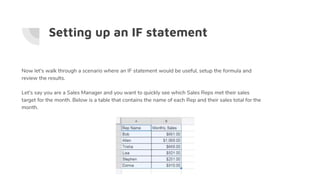
Let's say you are a Sales Manager and you want to quickly see which Sales Reps met their sales
target for the month. Below is a table that contains the name of each Rep and their sales total for the
month.
Setting up an IF statement
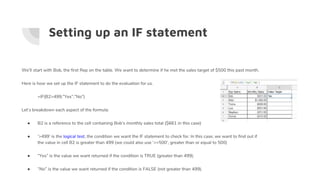
We’ll start with Bob, the first Rep on the table. We want to determine if he met the sales target of $500 this past month.
Here is how we set up the IF statement to do the evaluation for us.
=IF(B2>499,”Yes”,”No”)
Let’s breakdown each aspect of the formula:
● B2 is a reference to the cell containing Bob’s monthly sales total ($661 in this case)
● ‘>499’ is the logical test, the condition we want the IF statement to check for. In this case, we want to find out if
the value in cell B2 is greater than 499 (we could also use ‘>=500’, greater than or equal to 500)
● “Yes” is the value we want returned if the condition is TRUE (greater than 499).
● “No” is the value we want returned if the condition is FALSE (not greater than 499).
Reviewing the results
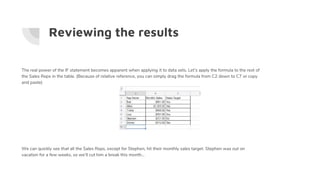
The real power of the IF statement becomes apparent when applying it to data sets. Let’s apply the formula to the rest of
the Sales Reps in the table. (Because of relative reference, you can simply drag the formula from C2 down to C7 or copy
and paste)
We can quickly see that all the Sales Reps, except for Stephen, hit their monthly sales target. Stephen was out on
vacation for a few weeks, so we’ll cut him a break this month...
What else can an IF statement do for
you?
As the previous example shows us, IF statements are great for quickly evaluating data sets for certain conditions. But let’s say we
wanted the condition check to not simply return a predetermined value, like Yes or No, but to trigger a calculation.
For instance, let’s say there is a bonus program for the sales reps in the previous example. They get a 10% bonus on every dollar in
sales over $500.
Normally, we can do a simple calculation to determine the bonus amount. Let’s again start with Bob and calculate his bonus.
(B2-500)*.1
● B2 is a reference to the cell containing Bob’s monthly sales total ($661.00)
● ‘-500’ will give us the amount over the sales target of $500 ($161.00)
● ‘*.1’ will give us the bonus amount (%10) of the amount over $500 ($16.10)
● Please note that ‘B2-500’ is in parenthesis because we want that portion of the formula to bypass order of operations and
calculate first
IF only
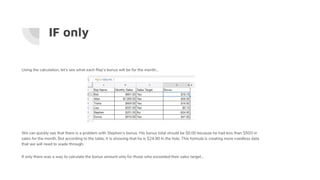
Using the calculation, let’s see what each Rep’s bonus will be for the month…
We can quickly see that there is a problem with Stephen’s bonus. His bonus total should be $0.00 because he had less than $500 in
sales for the month. But according to the table, it is showing that he is $24.90 in the hole. This formula is creating more needless data
that we will need to wade through.
If only there was a way to calculate the bonus amount only for those who exceeded their sales target...
A formula within a formula
By nesting the bonus calculation we used within an IF statement, we can easily determine who exceeded their sales target and what
bonus they should receive in one fell swoop.
Here is how we will set up that formula:
=IF(B2>500,(B2-500)*.1,0)
● ‘B2>500’ is the logical test, we want to see if Bob exceed the sales target of $500
● ‘(B2-500)*.1’ is the value we want returned if the logical test is TRUE. In this case, we want the formula to calculate the
bonus if, and only if, the logical test is TRUE and Bob exceeded $500.
● ‘0’ is the amount we want returned if the logical test is FALSE. If someone had $500 or less in sales, we want the bonus
amount to be $0.00.
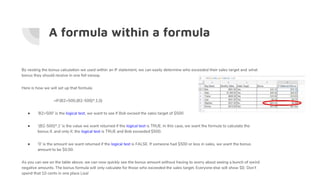
As you can see on the table above, we can now quickly see the bonus amount without having to worry about seeing a bunch of weird
negative amounts. The bonus formula will only calculate for those who exceeded the sales target. Everyone else will show $0. Don’t
spend that 10 cents in one place Lisa!
IF statement recap
The IF statement is a powerful tool to have in your spreadsheet toolbox.
With it, you can quickly:
● Check large sets of data for a specific condition
● Trigger additional formulas based on specific TRUE or FALSE conditions
Keep in mind that everything you have learned here works in Google Sheets as well.
In the next presentation, we will make your IF statements more powerful than you can possibly imagine with….
Nested IF statements!

IF Statement Tutorial

  • 1.
    IF Statements Excel BasicsSeries by Erick Kelsen
  • 2.
    What is anIF statement? An IF statement is an Excel formula that checks whether a specific condition is met, and returns one user-determined value if the condition is TRUE, and a different user-determined value if the condition is FALSE.
  • 3.
    Why use anIF statement? An IF statement is powerful because it allows the user to test a specific condition over a large range of data very quickly.
  • 4.
    IF statement structure Hereis the structure of a basic IF statement =IF(logical test,value_if_true,value_if_false) ● Logical test: this is the specific condition that will be evaluated and will return either a TRUE is the condition is met, or a FALSE if the condition is not met. ● Value if true: The user defined value if the condition in the logical test is met (or TRUE). ● Value if false: The user defined value if the condition in the logical test is not met (or FALSE).
  • 5.
    Setting up anIF statement Now let's walk through a scenario where an IF statement would be useful, setup the formula and review the results. Let's say you are a Sales Manager and you want to quickly see which Sales Reps met their sales target for the month. Below is a table that contains the name of each Rep and their sales total for the month.
  • 6.
    Setting up anIF statement We’ll start with Bob, the first Rep on the table. We want to determine if he met the sales target of $500 this past month. Here is how we set up the IF statement to do the evaluation for us. =IF(B2>499,”Yes”,”No”) Let’s breakdown each aspect of the formula: ● B2 is a reference to the cell containing Bob’s monthly sales total ($661 in this case) ● ‘>499’ is the logical test, the condition we want the IF statement to check for. In this case, we want to find out if the value in cell B2 is greater than 499 (we could also use ‘>=500’, greater than or equal to 500) ● “Yes” is the value we want returned if the condition is TRUE (greater than 499). ● “No” is the value we want returned if the condition is FALSE (not greater than 499).
  • 7.
    Reviewing the results Thereal power of the IF statement becomes apparent when applying it to data sets. Let’s apply the formula to the rest of the Sales Reps in the table. (Because of relative reference, you can simply drag the formula from C2 down to C7 or copy and paste) We can quickly see that all the Sales Reps, except for Stephen, hit their monthly sales target. Stephen was out on vacation for a few weeks, so we’ll cut him a break this month...
  • 8.
    What else canan IF statement do for you? As the previous example shows us, IF statements are great for quickly evaluating data sets for certain conditions. But let’s say we wanted the condition check to not simply return a predetermined value, like Yes or No, but to trigger a calculation. For instance, let’s say there is a bonus program for the sales reps in the previous example. They get a 10% bonus on every dollar in sales over $500. Normally, we can do a simple calculation to determine the bonus amount. Let’s again start with Bob and calculate his bonus. (B2-500)*.1 ● B2 is a reference to the cell containing Bob’s monthly sales total ($661.00) ● ‘-500’ will give us the amount over the sales target of $500 ($161.00) ● ‘*.1’ will give us the bonus amount (%10) of the amount over $500 ($16.10) ● Please note that ‘B2-500’ is in parenthesis because we want that portion of the formula to bypass order of operations and calculate first
  • 9.
    IF only Using thecalculation, let’s see what each Rep’s bonus will be for the month… We can quickly see that there is a problem with Stephen’s bonus. His bonus total should be $0.00 because he had less than $500 in sales for the month. But according to the table, it is showing that he is $24.90 in the hole. This formula is creating more needless data that we will need to wade through. If only there was a way to calculate the bonus amount only for those who exceeded their sales target...
  • 10.
    A formula withina formula By nesting the bonus calculation we used within an IF statement, we can easily determine who exceeded their sales target and what bonus they should receive in one fell swoop. Here is how we will set up that formula: =IF(B2>500,(B2-500)*.1,0) ● ‘B2>500’ is the logical test, we want to see if Bob exceed the sales target of $500 ● ‘(B2-500)*.1’ is the value we want returned if the logical test is TRUE. In this case, we want the formula to calculate the bonus if, and only if, the logical test is TRUE and Bob exceeded $500. ● ‘0’ is the amount we want returned if the logical test is FALSE. If someone had $500 or less in sales, we want the bonus amount to be $0.00. As you can see on the table above, we can now quickly see the bonus amount without having to worry about seeing a bunch of weird negative amounts. The bonus formula will only calculate for those who exceeded the sales target. Everyone else will show $0. Don’t spend that 10 cents in one place Lisa!
  • 11.
    IF statement recap TheIF statement is a powerful tool to have in your spreadsheet toolbox. With it, you can quickly: ● Check large sets of data for a specific condition ● Trigger additional formulas based on specific TRUE or FALSE conditions Keep in mind that everything you have learned here works in Google Sheets as well. In the next presentation, we will make your IF statements more powerful than you can possibly imagine with…. Nested IF statements!