iPad Productivity:


        Organize in The Cloud
 Image: 'Serenity’ http://www.flickr.com/photos/44345361@N06/5725238129
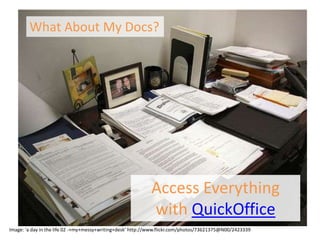
What About My Docs?


                                                            Access Everything
                                                            with QuickOffice
Image: 'a day in the life 02 -+my+messy+writing+desk’ http://www.flickr.com/photos/73621375@N00/2423339
To Set up QuickOffice:

Open the App

Add Gmail account (s)

Try emailing yourself something
Try moving order
Look at IP address. Type it into your laptop browser.
Upload a file from your Desktop, C or P drive into your
QuickOffice.
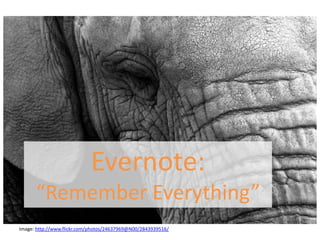
Evernote:
      “Remember Everything”
Image: http://www.flickr.com/photos/24637969@N00/2843939516/
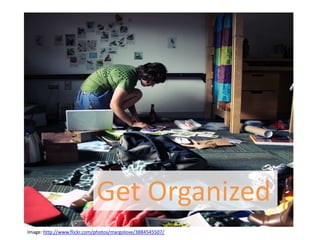
Get Organized
Image: http://www.flickr.com/photos/margolove/3884545507/
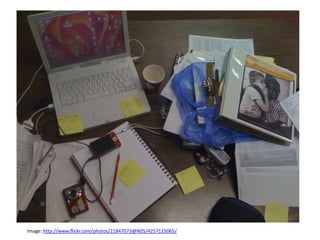
Image: http://www.flickr.com/photos/21847073@N05/4257115065/
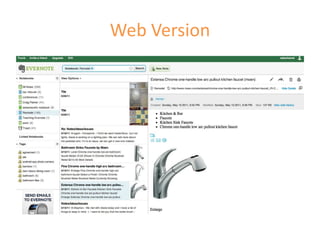
Web Version
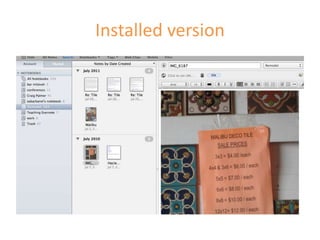
Installed version
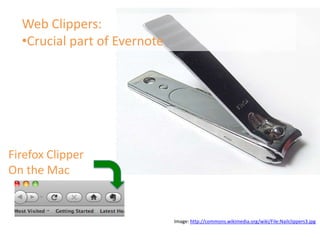
Web Clippers:
  •Crucial part of Evernote


Firefox Clipper
On the Mac


                              Image: http://commons.wikimedia.org/wiki/File:Nailclippers3.jpg
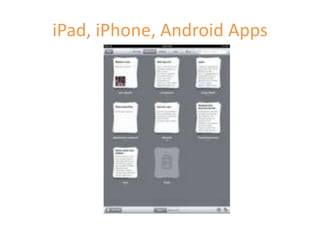
iPad, iPhone, Android Apps
Details:
                              Free vs. paid, Browser,
                              Synchronization, Email


Check usage regularly

 Image: http://www.flickr.com/photos/markop/267659159/
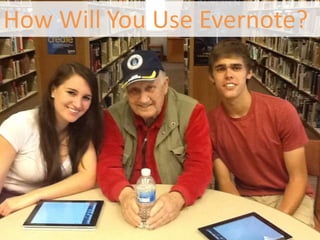
How Will You Use Evernote?
How Will You
Evernote Instructions:
On your laptop, open Evernote. It is already there and the Clipper
is already installed.

Register.

Then on iPad, find Evernote App (already installed)
Log in.

Take a picture of your neighbor. Give the note a title, a tag, and
an audio note.
Check your computer – is the picture there?
Let’s add the Web clipper for the iPad together.
Where
 was that
 great
 site?

                                                                                                       How can
                                                                                                       I find
                                                                                                       that site
   Let’s Learn Diigo                                                                                   again?
[Royal Oak Books] http://www.flickr.com/photos/karpov85/3158439800 by http://www.flickr.com/photos/karpov85/ CC by 2.0
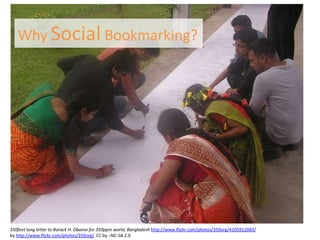
Why Social Bookmarking?


350feet long letter to Barack H. Obama for 350ppm world, Bangladesh http://www.flickr.com/photos/350org/4105912083/
by http://www.flickr.com/photos/350org/ CC by –NC-SA 2.0
C
O
N
V
E
R
S
A
T
I
O
N
S
Why use Diigo Educator?

[Royal Oak Books] http://www.flickr.com/photos/karpov85/3158439800 by http://www.flickr.com/photos/karpov85/ CC by 2.0
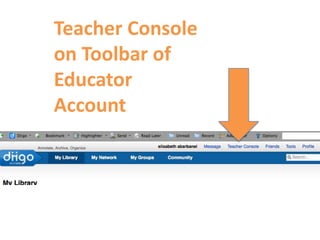
Teacher Console
on Toolbar of
Educator
Account
Diigo Instructions:

Go to Diigo.com on your computer and make an account.
Use your school email.

Go to Tools on the upper right menu. Follow the instructions to add the diigolet
to your browser. You can add a more robust diigo toolbar later if you want.

On your iPad, download the Diigo app from the app store (free) or from Diigo.com.

Let’s add the web highlighter together. You may want the handout.
This can be confusing, but it is worth it!

Start browsing and tagging!

ipadinservice2

  • 1.
    iPad Productivity: Organize in The Cloud Image: 'Serenity’ http://www.flickr.com/photos/44345361@N06/5725238129
  • 2.
    What About MyDocs? Access Everything with QuickOffice Image: 'a day in the life 02 -+my+messy+writing+desk’ http://www.flickr.com/photos/73621375@N00/2423339
  • 3.
    To Set upQuickOffice: Open the App Add Gmail account (s) Try emailing yourself something Try moving order Look at IP address. Type it into your laptop browser. Upload a file from your Desktop, C or P drive into your QuickOffice.
  • 4.
    Evernote: “Remember Everything” Image: http://www.flickr.com/photos/24637969@N00/2843939516/
  • 5.
  • 6.
  • 7.
  • 8.
  • 9.
    Web Clippers: •Crucial part of Evernote Firefox Clipper On the Mac Image: http://commons.wikimedia.org/wiki/File:Nailclippers3.jpg
  • 10.
  • 11.
    Details: Free vs. paid, Browser, Synchronization, Email Check usage regularly Image: http://www.flickr.com/photos/markop/267659159/
  • 12.
    How Will YouUse Evernote? How Will You
  • 13.
    Evernote Instructions: On yourlaptop, open Evernote. It is already there and the Clipper is already installed. Register. Then on iPad, find Evernote App (already installed) Log in. Take a picture of your neighbor. Give the note a title, a tag, and an audio note. Check your computer – is the picture there? Let’s add the Web clipper for the iPad together.
  • 14.
    Where was that great site? How can I find that site Let’s Learn Diigo again? [Royal Oak Books] http://www.flickr.com/photos/karpov85/3158439800 by http://www.flickr.com/photos/karpov85/ CC by 2.0
  • 15.
    Why Social Bookmarking? 350feetlong letter to Barack H. Obama for 350ppm world, Bangladesh http://www.flickr.com/photos/350org/4105912083/ by http://www.flickr.com/photos/350org/ CC by –NC-SA 2.0
  • 18.
  • 19.
    Why use DiigoEducator? [Royal Oak Books] http://www.flickr.com/photos/karpov85/3158439800 by http://www.flickr.com/photos/karpov85/ CC by 2.0
  • 20.
    Teacher Console on Toolbarof Educator Account
  • 24.
    Diigo Instructions: Go toDiigo.com on your computer and make an account. Use your school email. Go to Tools on the upper right menu. Follow the instructions to add the diigolet to your browser. You can add a more robust diigo toolbar later if you want. On your iPad, download the Diigo app from the app store (free) or from Diigo.com. Let’s add the web highlighter together. You may want the handout. This can be confusing, but it is worth it! Start browsing and tagging!

Editor's Notes

  • #2 What does the term The Cloud mean to you? Does it worry you? Today we are going to talk about 3 cloud based tools. Evernote, Diigo, an QuickOffice.
  • #3 Why is QuickOffice different? Paid one school already bought for you. Very powerful. Can access all your docs, evernote, and soon your P drive. Can edit, save, email, organize, trash – everything.
  • #5 Capture, access, find
  • #6 Do you ever feel like this? What Is Evernote?•Organize and share information of all types –walk around her room - pictures, posters, book info, to do notes, directions, emails, even websites you would bookmark and database articles•Search your information by keyword, title, or tagDon’t let Root beer will spill on it
  • #7 Evernote lets you have multiple notebooks,
  • #8 3 ways to use it
  • #9 What is a notebook?
  • #11 Let’s explore the iPad version
  • #12 Paidvs unpaidFf and IE, safari and ChromeAutomatically synchsEmail function – email is in the little gear in the iPad, in account on other one. Put in contacts.
  • #13 Now show how to do it.
  • #15 Bookmarking, but on web. Benefits – can use many computers – ie Cloud ComputingTagging
  • #16 Collective Intelligence – more people bkmark it – the better it is? maybeCan follow other people and other groups – I get daily emails from the group Diigo in Education
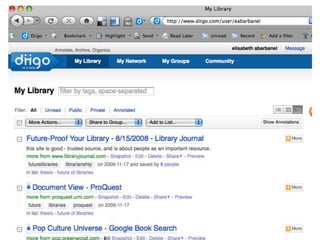
  • #17 This is one of my libraries.See my notes? See my tags?See the toolbar? Go over it – There is also a Diigolet which I will show you how easy it is to use.
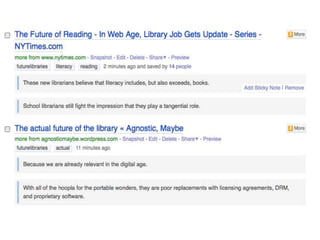
  • #18 Here is another view of my notes on sites, in my library. With highlights.
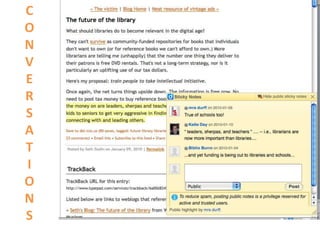
  • #19 When logged into Diigo, you can see other people’s PUBLIC notes and highlights (but you can mark your notes private, don’t worry!), which is interesting – you can start a dialog. You can also have conversations in forums, and follow particular people or groups. This can be a networking tool for people of similar interests.Maybe you are an administrator or department head and you want to disseminate a site to a group with your comments – you can through Diigo Groups function. You can make private/invitation-only groups.
  • #20 Privacy – Can set up accounts with no last names and no emails. Kids can change their passwords later.Can see what the kids are bookmarking and noting, and alert them if nec.Automatically a group, where you can share sites, but can also make smaller discussion groups.Can install diigolet without permission.Keeps strangers from following them.Cons: takes a day to set up – they like to confirm you are using a school email.
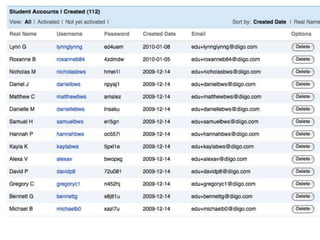
  • #22 This is my list of students I imported in my teacher console
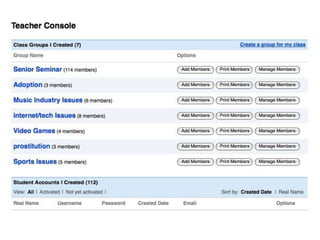
  • #23 Groups I set up according to kids who had similar topics
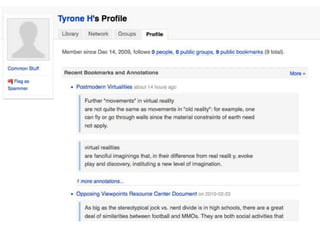
  • #24 Student’s account – visible by teacher.