HP Quick Test Professional


            Vitaliy Ganzha, 2012
What is HP QTP?

   Tool for functional and regression testing
   Supported environments: .NET, Java, Visual Basic,
    Web, Web-services, SAP, Oracle apps, Delphi*,
    Flash*
   Browser support: Internet Explorer and Firefox (from
    QTP 11, with add-in) record and playback, Chrome –
    playback (with add-in)
   Uses VBScript as scripting language
   Can be integrated with HP Quality Center
Drawbacks

   VBScript as scripting language
   Runs on MS Windows only
   Do not support some browsers (Opera,
    Safari)
   High licensing costs
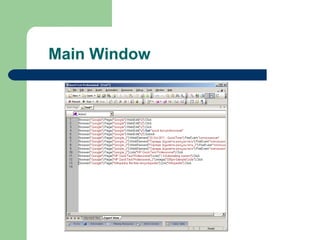
Main Window
QTP Parts

   Test – collection of actions (external and internal). Action – is
    the script. Can be presented in Expert or in Keyword views
   Function libraries (VBscript)
   Object recognition components: add-ins.
   Object repository, descriptive programming
   Data tables
   Active screen
   Checkpoints
   Debugger
QTP Parts (Slide 2)

   Reporting
   QC integration
   Recording (normal, low-level, analog)
   Synchronization
   Data sharing
   Access to internal objects (.Object)
   Recovery scenarios
QTP Test

   QTP test is the collection of:
    –   Actions
    –   Associated libraries
    –   Object repositories
   Has it’s own settings (user-defined, iterations
    count etc.)
   Can have input and output parameters
Actions

   Actions help divide your test into logical units, such as the main
    sections of a Web site, or specific activities that you perform in
    your application.
   Actions is the scripts with associated object repositories
   Actions can be:
     –   Reusable
     –   Non-reusable
     –   External
     –   Nested action
   Actions can have in and put parameters
Associated libraries

   Associated libraries used to split code into
    external files
   Written with VBS (but can use QTP’s objects
    such as Reporter, Object Repository)
   Associated to test
   Can be debugged
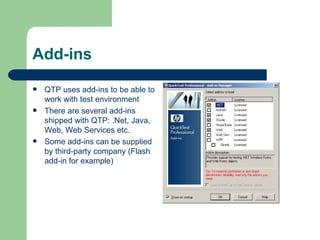
Add-ins
   QTP uses add-ins to be able to
    work with test environment
   There are several add-ins
    shipped with QTP: .Net, Java,
    Web, Web Services etc.
   Some add-ins can be supplied
    by third-party company (Flash
    add-in for example)
How QTP Recognize objects

   It depends on Environment (Java, .NET or Web)
   For every object class, QTP has a default set of
    properties that it always learns:
    1.   Mandatory
    2.   Assistive
    3.   Ordinal identifier
   Smart identification
   User can parameterize identification properties
Object Repository

   Storage for identification properties
   Objects organized into hierarchies
   Repository can be local or shared
   Object Repository Manager allows to edit
    external repositories
   Highlight object
   User still need to define properties manually
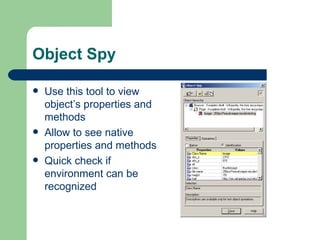
Object Spy

   Use this tool to view
    object’s properties and
    methods
   Allow to see native
    properties and methods
   Quick check if
    environment can be
    recognized
Alternatives to Object Spy

   Firebug (Mozilla Firefox) for Web
   Developers Tools (IE, v>=8) for Web
   Spy++, WinSpy++, Winspector for Windows
    applications
   A lot of others….
Descriptive programming
   Define identification properties not in OR, but in code itself
   You may use it: for quick implementation or you don’t have rights to
    modify OR or you if you want to iterate over collection of similar
    objects, etc…
   Descriptions can be:
      – Dynamic
      – Static
   Identification using OR is quicker!
   I prefer OR as it:
      – Clear
      – Centralized
      – Allow you easy edit/compare/merge
      – Highlight object
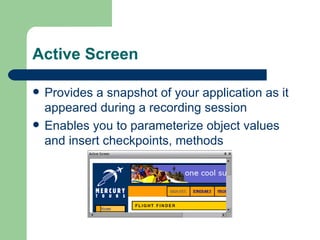
Active Screen

   Provides a snapshot of your application as it
    appeared during a recording session
   Enables you to parameterize object values
    and insert checkpoints, methods
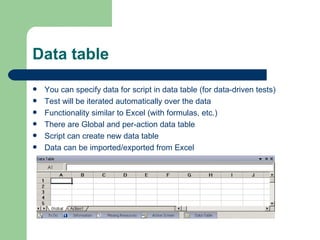
Data table
   You can specify data for script in data table (for data-driven tests)
   Test will be iterated automatically over the data
   Functionality similar to Excel (with formulas, etc.)
   There are Global and per-action data table
   Script can create new data table
   Data can be imported/exported from Excel
Debugger

   Main possibilities of QTP Debugger:
    –   Breakpoints
    –   Step in/over/out
    –   Watch variables
    –   Execute code immediately
    –   Pause script execution
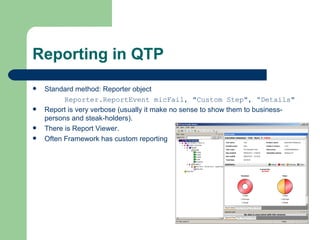
Reporting in QTP
   Standard method: Reporter object
          Reporter.ReportEvent micFail, "Custom Step", “Details"
   Report is very verbose (usually it make no sense to show them to business-
    persons and steak-holders).
   There is Report Viewer.
   Often Framework has custom reporting
QC integration

   Create tests and save them in quality Center project
   View QuickTest test scripts
   Run your tests and view the results in Quality Center
   Associate external files for all tests or for a single test
   Report defects to a Quality Center project either
    automatically as they occur, or manually directly from the
    QuickTest Run Results Viewer
Record/Playback
   QTP automatically adds objects to repository during record process
   Normal recording –works when environment is “open” to QTP
     – Analog Recording This method enables you to record the exact
       mouse and keyboard operations you perform in relation to either
       the screen or the application window. In this recording mode,
       QuickTest records and tracks every movement of the mouse as
       you drag the mouse around a screen or window. It recorder into
       file.
     – Low-level – clicks on coordinates

   Events to be recorder can be configured
   Playback has Fast and Normal modes
Synchronization
   Sync, sync, sync!!!
   Wait – is a bad practice, do not overuse it
   Object synchronization timeout setting of the script
   Sync method of browser Waits for the browser to complete the current
    navigation.
   Browser Navigation Timeout - amount of time that QuickTest waits for
    a Web page to load
   WaitProperty method
   Exist method
Data sharing

   Necessary part of every team
   Global Dictionary
   Environment variables
   Action’s input and input parameters
   Data table
Checkpoints in QTP

   Check objects against expected data
   There are several checkpoints:
    –   Standard
    –   Image
    –   Bitmap
    –   Table
    –   Accessibility
    –   XML
    –   DB
Access to internal object

   Powerful instrument when you need to get better control or
    need to do non-standard operation
   You get access to object’s internal API
   Supported not for all environment (works for Java, .NET,
    Internet Explorer, Firefox)
   Example: to set value in some custom JFormattedTextField
    fields you may use such code:
    JavaWindow(“Test”).JavaEdit(“JFormattedTextField”).Set “some val”
    JavaWindow(“Test”).JavaEdit(“JFormattedTextField”).Object.commitEdit()
Recovery Scenarios
   Recovery scenarios activate specific recovery operations when trigger events
    occur (when occurs unexpected events, errors, and application crashes during
    a run session )
   A recovery scenario consists of the following:
     –   Trigger Event. The event that interrupts your run session. For example, a window that
         pops up on the screen, or a QuickTest run error.
     –   Recovery Operations. The operations to perform to enable QuickTest to continue
         running the test after the trigger event interrupts the run session. For example,
         clicking an OK button in a pop-up window, or restarting Microsoft Windows.
     –   Post-Recovery Test Run Option. The instructions on how QuickTest should proceed
         after the recovery operations have been performed, and from which point in the test
         QuickTest should continue, if at all. You may want to restart a test from the
         beginning, or skip a step entirely and continue with the next step in the test.
Demo

   Record Login into demo app
   Test login
   Add order
   Use checkpoints
Links
   http://qtp.blogspot.com – Tutorials
   http://www.wiziq.com/tutorial/54936-qtp-tool-features-presentation - QTP Features
    presentation

HP Quick Test Professional

  • 1.
    HP Quick TestProfessional Vitaliy Ganzha, 2012
  • 2.
    What is HPQTP?  Tool for functional and regression testing  Supported environments: .NET, Java, Visual Basic, Web, Web-services, SAP, Oracle apps, Delphi*, Flash*  Browser support: Internet Explorer and Firefox (from QTP 11, with add-in) record and playback, Chrome – playback (with add-in)  Uses VBScript as scripting language  Can be integrated with HP Quality Center
  • 3.
    Drawbacks  VBScript as scripting language  Runs on MS Windows only  Do not support some browsers (Opera, Safari)  High licensing costs
  • 4.
  • 5.
    QTP Parts  Test – collection of actions (external and internal). Action – is the script. Can be presented in Expert or in Keyword views  Function libraries (VBscript)  Object recognition components: add-ins.  Object repository, descriptive programming  Data tables  Active screen  Checkpoints  Debugger
  • 6.
    QTP Parts (Slide2)  Reporting  QC integration  Recording (normal, low-level, analog)  Synchronization  Data sharing  Access to internal objects (.Object)  Recovery scenarios
  • 7.
    QTP Test  QTP test is the collection of: – Actions – Associated libraries – Object repositories  Has it’s own settings (user-defined, iterations count etc.)  Can have input and output parameters
  • 8.
    Actions  Actions help divide your test into logical units, such as the main sections of a Web site, or specific activities that you perform in your application.  Actions is the scripts with associated object repositories  Actions can be: – Reusable – Non-reusable – External – Nested action  Actions can have in and put parameters
  • 9.
    Associated libraries  Associated libraries used to split code into external files  Written with VBS (but can use QTP’s objects such as Reporter, Object Repository)  Associated to test  Can be debugged
  • 10.
    Add-ins  QTP uses add-ins to be able to work with test environment  There are several add-ins shipped with QTP: .Net, Java, Web, Web Services etc.  Some add-ins can be supplied by third-party company (Flash add-in for example)
  • 11.
    How QTP Recognizeobjects  It depends on Environment (Java, .NET or Web)  For every object class, QTP has a default set of properties that it always learns: 1. Mandatory 2. Assistive 3. Ordinal identifier  Smart identification  User can parameterize identification properties
  • 12.
    Object Repository  Storage for identification properties  Objects organized into hierarchies  Repository can be local or shared  Object Repository Manager allows to edit external repositories  Highlight object  User still need to define properties manually
  • 13.
    Object Spy  Use this tool to view object’s properties and methods  Allow to see native properties and methods  Quick check if environment can be recognized
  • 14.
    Alternatives to ObjectSpy  Firebug (Mozilla Firefox) for Web  Developers Tools (IE, v>=8) for Web  Spy++, WinSpy++, Winspector for Windows applications  A lot of others….
  • 15.
    Descriptive programming  Define identification properties not in OR, but in code itself  You may use it: for quick implementation or you don’t have rights to modify OR or you if you want to iterate over collection of similar objects, etc…  Descriptions can be: – Dynamic – Static  Identification using OR is quicker!  I prefer OR as it: – Clear – Centralized – Allow you easy edit/compare/merge – Highlight object
  • 16.
    Active Screen  Provides a snapshot of your application as it appeared during a recording session  Enables you to parameterize object values and insert checkpoints, methods
  • 17.
    Data table  You can specify data for script in data table (for data-driven tests)  Test will be iterated automatically over the data  Functionality similar to Excel (with formulas, etc.)  There are Global and per-action data table  Script can create new data table  Data can be imported/exported from Excel
  • 18.
    Debugger  Main possibilities of QTP Debugger: – Breakpoints – Step in/over/out – Watch variables – Execute code immediately – Pause script execution
  • 19.
    Reporting in QTP  Standard method: Reporter object Reporter.ReportEvent micFail, "Custom Step", “Details"  Report is very verbose (usually it make no sense to show them to business- persons and steak-holders).  There is Report Viewer.  Often Framework has custom reporting
  • 20.
    QC integration  Create tests and save them in quality Center project  View QuickTest test scripts  Run your tests and view the results in Quality Center  Associate external files for all tests or for a single test  Report defects to a Quality Center project either automatically as they occur, or manually directly from the QuickTest Run Results Viewer
  • 21.
    Record/Playback  QTP automatically adds objects to repository during record process  Normal recording –works when environment is “open” to QTP – Analog Recording This method enables you to record the exact mouse and keyboard operations you perform in relation to either the screen or the application window. In this recording mode, QuickTest records and tracks every movement of the mouse as you drag the mouse around a screen or window. It recorder into file. – Low-level – clicks on coordinates  Events to be recorder can be configured  Playback has Fast and Normal modes
  • 22.
    Synchronization  Sync, sync, sync!!!  Wait – is a bad practice, do not overuse it  Object synchronization timeout setting of the script  Sync method of browser Waits for the browser to complete the current navigation.  Browser Navigation Timeout - amount of time that QuickTest waits for a Web page to load  WaitProperty method  Exist method
  • 23.
    Data sharing  Necessary part of every team  Global Dictionary  Environment variables  Action’s input and input parameters  Data table
  • 24.
    Checkpoints in QTP  Check objects against expected data  There are several checkpoints: – Standard – Image – Bitmap – Table – Accessibility – XML – DB
  • 25.
    Access to internalobject  Powerful instrument when you need to get better control or need to do non-standard operation  You get access to object’s internal API  Supported not for all environment (works for Java, .NET, Internet Explorer, Firefox)  Example: to set value in some custom JFormattedTextField fields you may use such code: JavaWindow(“Test”).JavaEdit(“JFormattedTextField”).Set “some val” JavaWindow(“Test”).JavaEdit(“JFormattedTextField”).Object.commitEdit()
  • 26.
    Recovery Scenarios  Recovery scenarios activate specific recovery operations when trigger events occur (when occurs unexpected events, errors, and application crashes during a run session )  A recovery scenario consists of the following: – Trigger Event. The event that interrupts your run session. For example, a window that pops up on the screen, or a QuickTest run error. – Recovery Operations. The operations to perform to enable QuickTest to continue running the test after the trigger event interrupts the run session. For example, clicking an OK button in a pop-up window, or restarting Microsoft Windows. – Post-Recovery Test Run Option. The instructions on how QuickTest should proceed after the recovery operations have been performed, and from which point in the test QuickTest should continue, if at all. You may want to restart a test from the beginning, or skip a step entirely and continue with the next step in the test.
  • 27.
    Demo  Record Login into demo app  Test login  Add order  Use checkpoints
  • 28.
    Links  http://qtp.blogspot.com – Tutorials  http://www.wiziq.com/tutorial/54936-qtp-tool-features-presentation - QTP Features presentation

Editor's Notes

  • #16 Browser("Mercury Tours").Page("Mercury Tours").WebEdit("Name:=Author", "Index:=3").Set "Mark Twain" Dynamic: Set MyDescription = Description.Create() MyDescription("text").Value = "OK" MyDescription("width").Value = 50 Window("Error").WinButton(MyDescription).Click
  • #18 The following example uses the GlobalSheet property to return the global sheet of the run-time Data Table in order to add a parameter (column) to it. ParamValue=DataTable.GlobalSheet.AddParameter("Time", "5:45") You can also use this method to add a parameter to the global sheet (note that no value is returned). DataTable.GlobalSheet.AddParameter "Time", "5:45"