1
How to create GUI's inHow to create GUI's in
MatLABMatLAB
Rigo Dicochea
2
IntroductionIntroduction
 Graphical User Interface (GUI)
 MatLab provides Graphical User Interface
Development Environment(GUIDE)
 A MatLab tool used to create GUI’s
 Decide between using GUIDE or writing the
code from scratch
 GUI’s give the user a simplified experience
running a program
 Associates a “function(s)” with components of
the GUI
3
Graphical User InterfaceGraphical User Interface
 GUI should be consistent and easily understood.
 Provide the user with the ability to use a program
without having to worry about commands to run
the actual program
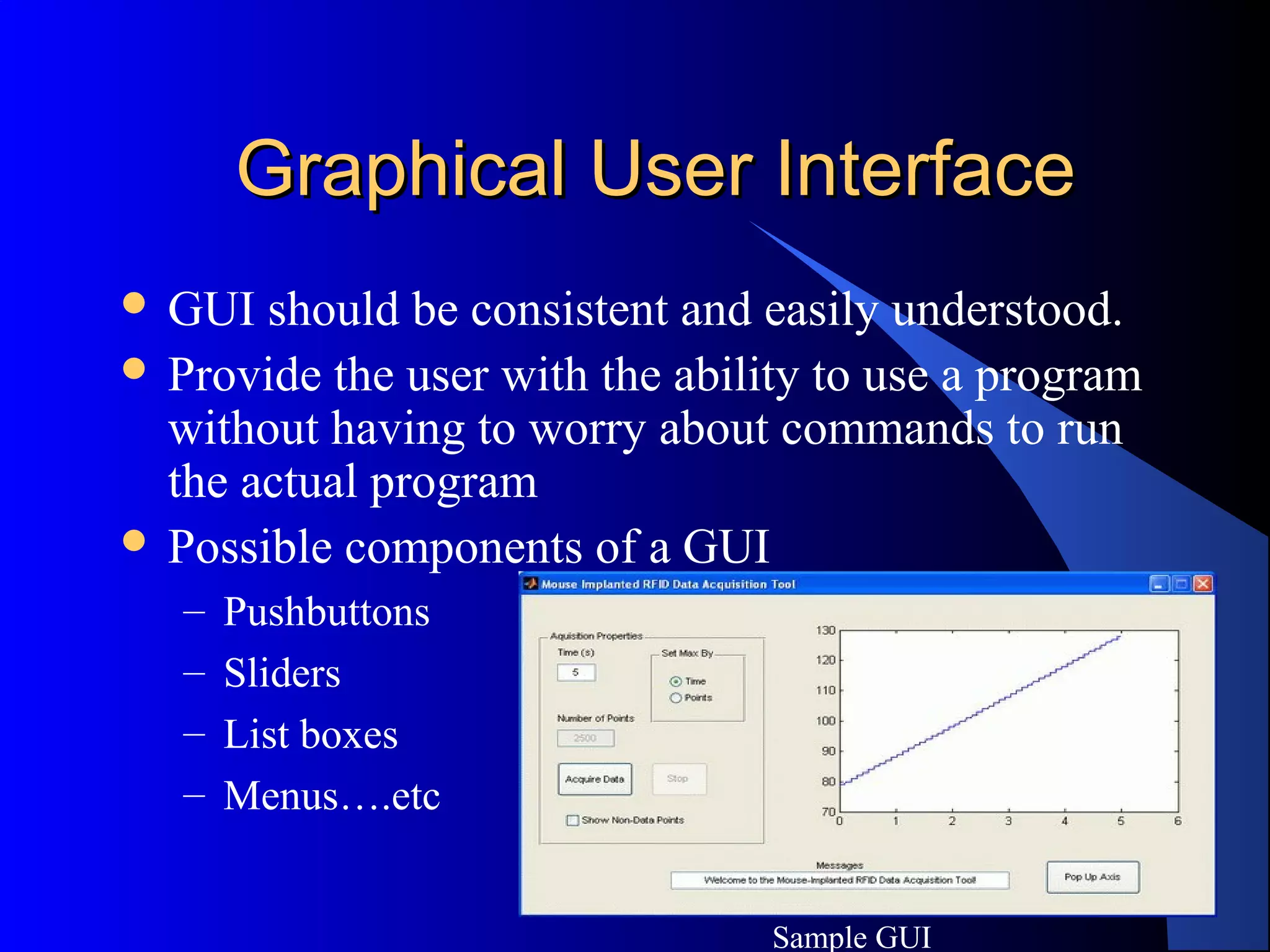
 Possible components of a GUI
– Pushbuttons
– Sliders
– List boxes
– Menus….etc
Sample GUI
4
3 Essential Characteristics3 Essential Characteristics
 Components –
– Graphical Components
 pushbuttons, edit boxes, sliders, labels, menus, etc…
– Static Components
 Frames, text strings,…
– Both are created using the function uicontrol
 Figures – components are contained in figures
 Callbacks – The functions which perform the
required action when a component is pushed
5
GUIDE PropertiesGUIDE Properties
 Allows the user to drag and drop components
that he/she wants in the “layout” area of the GUI
 All “guide” GUI’s start with an opening function
– Callback is performed before user has access to GUI
 Saving automatically generates an .m file and .fig
file
 .fig contains the binary GUI layout and .m
contains the code that controls the GUI
6
Assessing the Value of Your GUIAssessing the Value of Your GUI
 Ask yourself two basic questions when designing
your GUI.
– Do the users always know where they are?
– Do they always know where to go next?
 Constantly answering these two questions will
help you keep in perspective the goal of your
GUI.
7
Callback EditorCallback Editor
The “meat” of the GUI process
Opening function is first callback in every
“guide” generated GUI
Usually used to generate data used in GUI
Callbacks define what will happen when a
figure component is selected
Must write CODE!!!!
8
GUI EXAMPLEGUI EXAMPLE
 Utilize functions
– Surf, Mesh, Contour
 Types of plots performed on data in example
– Peaks
 peaks is a function of two variables, obtained by translating
and scaling Gaussian distributions
– Membrane
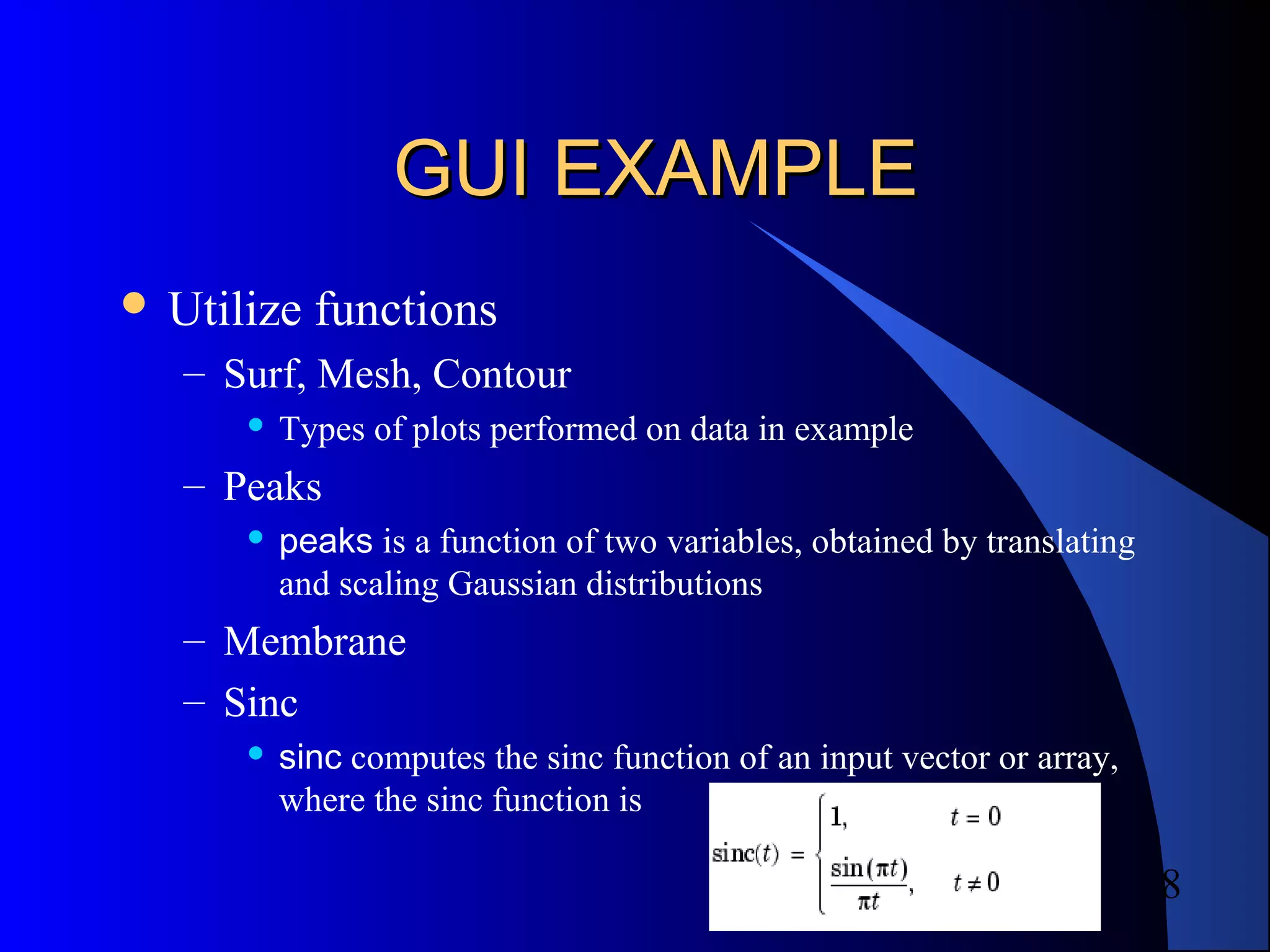
– Sinc
 sinc computes the sinc function of an input vector or array,
where the sinc function is
9
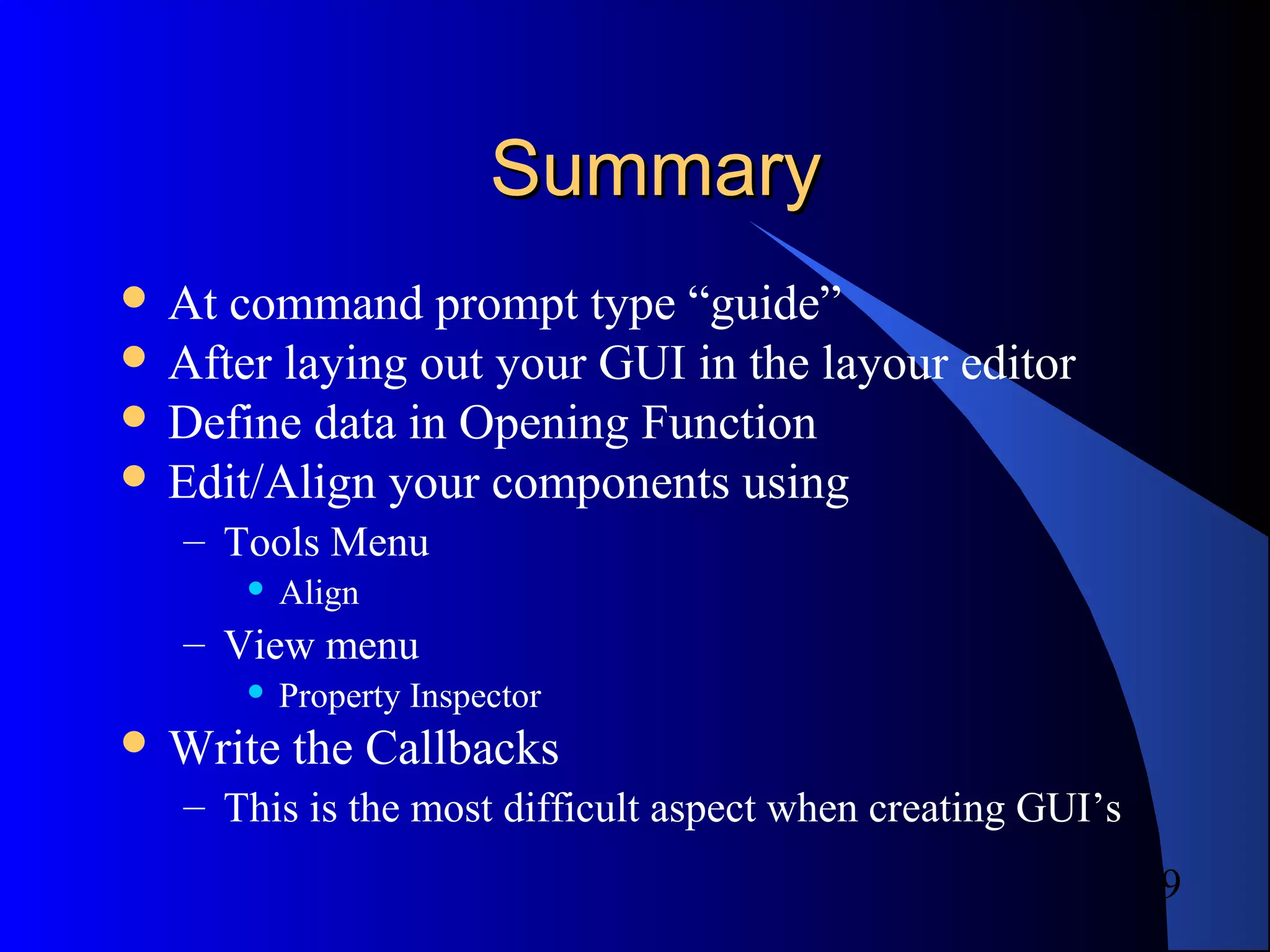
SummarySummary
 At command prompt type “guide”
 After laying out your GUI in the layour editor
 Define data in Opening Function
 Edit/Align your components using
– Tools Menu
 Align
– View menu
 Property Inspector
 Write the Callbacks
– This is the most difficult aspect when creating GUI’s
10
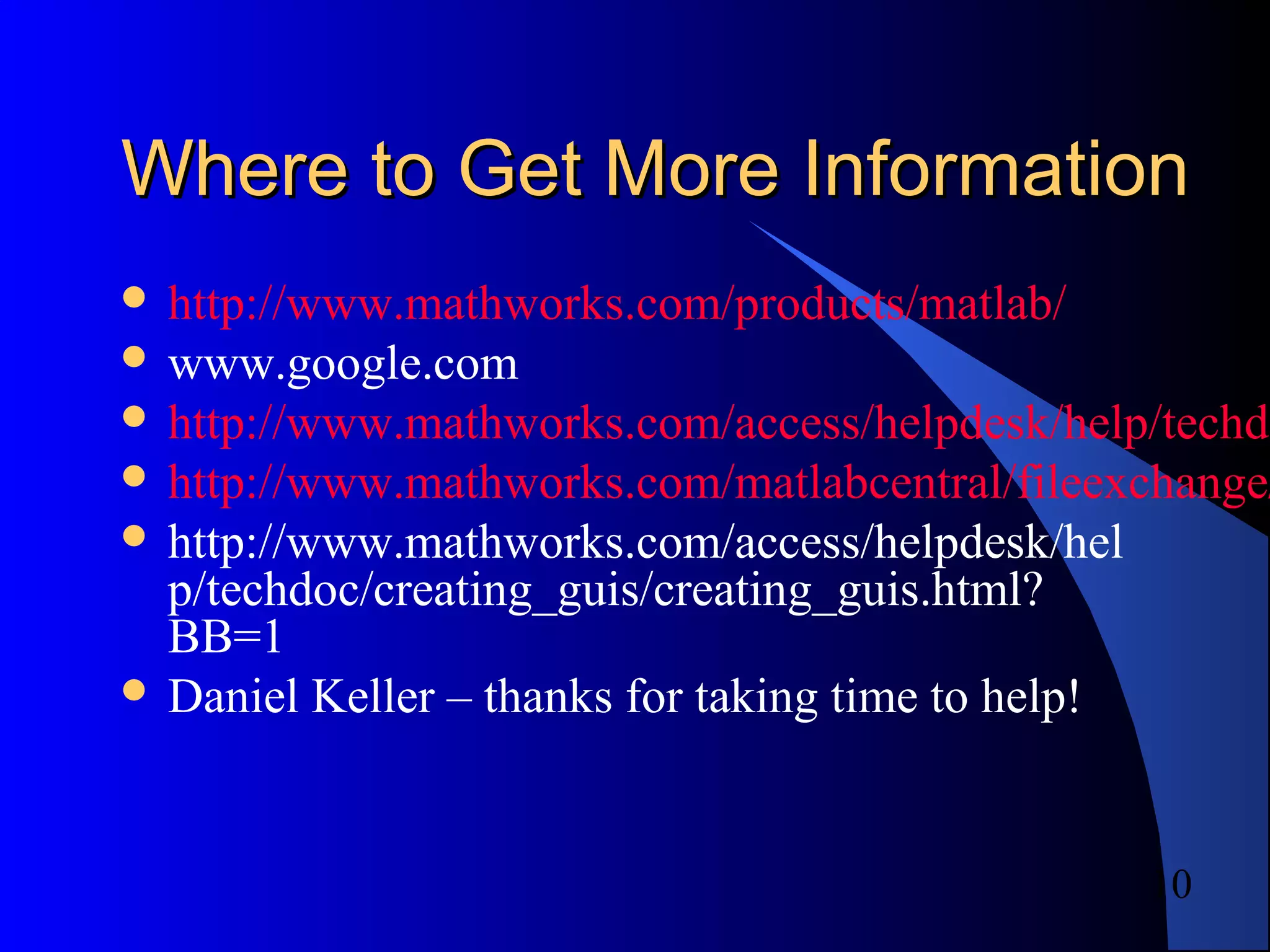
Where to Get More InformationWhere to Get More Information
 http://www.mathworks.com/products/matlab/
 www.google.com
 http://www.mathworks.com/access/helpdesk/help/techdo
 http://www.mathworks.com/matlabcentral/fileexchange/
 http://www.mathworks.com/access/helpdesk/hel
p/techdoc/creating_guis/creating_guis.html?
BB=1
 Daniel Keller – thanks for taking time to help!

Howtouse gui _sinmatlab

  • 1.
    1 How to createGUI's inHow to create GUI's in MatLABMatLAB Rigo Dicochea
  • 2.
    2 IntroductionIntroduction  Graphical UserInterface (GUI)  MatLab provides Graphical User Interface Development Environment(GUIDE)  A MatLab tool used to create GUI’s  Decide between using GUIDE or writing the code from scratch  GUI’s give the user a simplified experience running a program  Associates a “function(s)” with components of the GUI
  • 3.
    3 Graphical User InterfaceGraphicalUser Interface  GUI should be consistent and easily understood.  Provide the user with the ability to use a program without having to worry about commands to run the actual program  Possible components of a GUI – Pushbuttons – Sliders – List boxes – Menus….etc Sample GUI
  • 4.
    4 3 Essential Characteristics3Essential Characteristics  Components – – Graphical Components  pushbuttons, edit boxes, sliders, labels, menus, etc… – Static Components  Frames, text strings,… – Both are created using the function uicontrol  Figures – components are contained in figures  Callbacks – The functions which perform the required action when a component is pushed
  • 5.
    5 GUIDE PropertiesGUIDE Properties Allows the user to drag and drop components that he/she wants in the “layout” area of the GUI  All “guide” GUI’s start with an opening function – Callback is performed before user has access to GUI  Saving automatically generates an .m file and .fig file  .fig contains the binary GUI layout and .m contains the code that controls the GUI
  • 6.
    6 Assessing the Valueof Your GUIAssessing the Value of Your GUI  Ask yourself two basic questions when designing your GUI. – Do the users always know where they are? – Do they always know where to go next?  Constantly answering these two questions will help you keep in perspective the goal of your GUI.
  • 7.
    7 Callback EditorCallback Editor The“meat” of the GUI process Opening function is first callback in every “guide” generated GUI Usually used to generate data used in GUI Callbacks define what will happen when a figure component is selected Must write CODE!!!!
  • 8.
    8 GUI EXAMPLEGUI EXAMPLE Utilize functions – Surf, Mesh, Contour  Types of plots performed on data in example – Peaks  peaks is a function of two variables, obtained by translating and scaling Gaussian distributions – Membrane – Sinc  sinc computes the sinc function of an input vector or array, where the sinc function is
  • 9.
    9 SummarySummary  At commandprompt type “guide”  After laying out your GUI in the layour editor  Define data in Opening Function  Edit/Align your components using – Tools Menu  Align – View menu  Property Inspector  Write the Callbacks – This is the most difficult aspect when creating GUI’s
  • 10.
    10 Where to GetMore InformationWhere to Get More Information  http://www.mathworks.com/products/matlab/  www.google.com  http://www.mathworks.com/access/helpdesk/help/techdo  http://www.mathworks.com/matlabcentral/fileexchange/  http://www.mathworks.com/access/helpdesk/hel p/techdoc/creating_guis/creating_guis.html? BB=1  Daniel Keller – thanks for taking time to help!