How to Use Your StadiumRoar Website
            For Coaches


                                  1
Table of Contents
  Page 3 – Login and Get Started
  Page 4 – My Sites
  Page 5 – Top Buttons
  Page 6 – Start Customizing
  Page 7 – The Home Screen
  Page 8 – Registration – Admin View
  Page 9 – Registration – Public View
  Page 10 – Main Navigation Buttons
  Page 11 – Basic Information Buttons
  Page 12 – Facility Scheduling – Part 1
  Page 13 – Facility Scheduling – Part 2
  Page 14 – Discussions
  Page 15 – Forms
  Page 16 – Photos/Videos
  Page 17 – Calendar
  Page 18 – Scores/Stats

                                           2
Login and Get Started
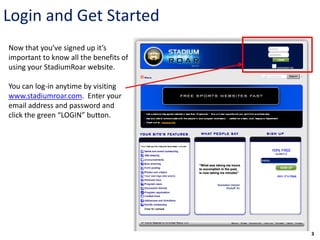
Now that you’ve signed up it’s
important to know all the benefits of
using your StadiumRoar website.

You can log-in anytime by visiting
www.stadiumroar.com. Enter your
email address and password and
click the green “LOGIN” button.


                                        3
My Sites
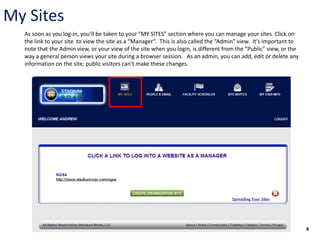
  As soon as you log-in, you’ll be taken to your “MY SITES” section where you can manage your sites. Click on
  the link to your site to view the site as a “Manager”. This is also called the “Admin” view. It’s important to
  note that the Admin view, or your view of the site when you login, is different from the “Public” view, or the
  way a general person views your site during a browser session. As an admin, you can add, edit or delete any
  information on the site; public visitors can’t make these changes.


                                                                                                                   4
Top Buttons
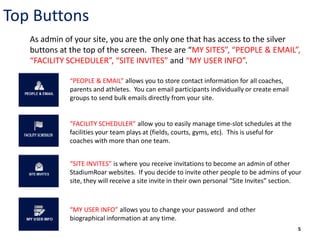
   As admin of your site, you are the only one that has access to the silver
   buttons at the top of the screen. These are “MY SITES”, “PEOPLE & EMAIL”,
   “FACILITY SCHEDULER”, “SITE INVITES” and “MY USER INFO”.

             “PEOPLE & EMAIL” allows you to store contact information for all coaches,
             parents and athletes. You can email participants individually or create email
             groups to send bulk emails directly from your site.


             “FACILITY SCHEDULER” allow you to easily manage time-slot schedules at the
             facilities your team plays at (fields, courts, gyms, etc). This is useful for
             coaches with more than one team.


             “SITE INVITES” is where you receive invitations to become an admin of other
             StadiumRoar websites. If you decide to invite other people to be admins of your
             site, they will receive a site invite in their own personal “Site Invites” section.


             “MY USER INFO” allows you to change your password and other
             biographical information at any time.
                                                                                              5
Start Customizing
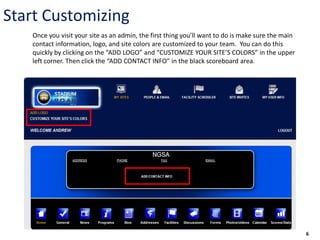
   Once you visit your site as an admin, the first thing you’ll want to do is make sure the main
   contact information, logo, and site colors are customized to your team. You can do this
   quickly by clicking on the “ADD LOGO” and “CUSTOMIZE YOUR SITE’S COLORS” in the upper
   left corner. Then click the “ADD CONTACT INFO” in the black scoreboard area.


                                                                                                   6
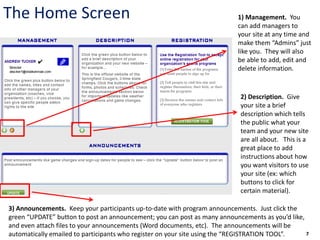
The Home Screen                                                           1) Management. You
                                                                          can add managers to
                                                                          your site at any time and
                                                                          make them “Admins” just
                                                                          like you. They will also
                                                                          be able to add, edit and
                                                                          delete information.


                                                                           2) Description. Give
                                                                           your site a brief
                                                                           description which tells
                                                                           the public what your
                                                                           team and your new site
                                                                           are all about. This is a
                                                                           great place to add
                                                                           instructions about how
                                                                           you want visitors to use
                                                                           your site (ex: which
                                                                           buttons to click for
                                                                           certain material).

3) Announcements. Keep your participants up-to-date with program announcements. Just click the
green “UPDATE” button to post an announcement; you can post as many announcements as you’d like,
and even attach files to your announcements (Word documents, etc). The announcements will be
automatically emailed to participants who register on your site using the “REGISTRATION TOOL”.   7
Registration – Admin View


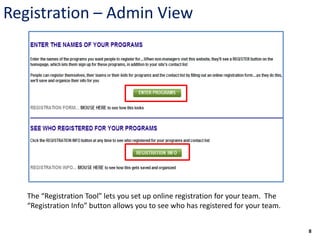
   The “Registration Tool” lets you set up online registration for your team. The
   “Registration Info” button allows you to see who has registered for your team.


                                                                                    8
Registration – Public View
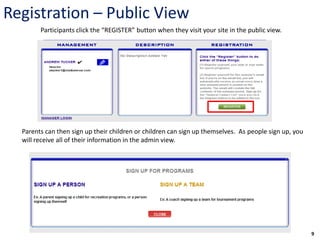
        Participants click the “REGISTER” button when they visit your site in the public view.


  Parents can then sign up their children or children can sign up themselves. As people sign up, you
  will receive all of their information in the admin view.


                                                                                                       9
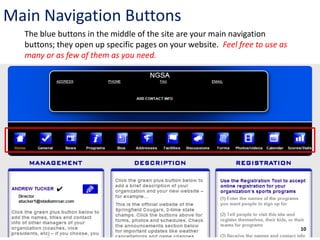
Main Navigation Buttons
  The blue buttons in the middle of the site are your main navigation
  buttons; they open up specific pages on your website. Feel free to use as
  many or as few of them as you need.


                                                                              10
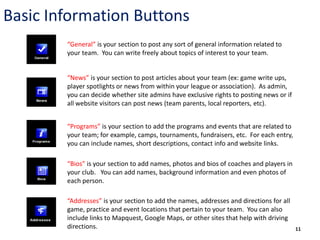
Basic Information Buttons
        “General” is your section to post any sort of general information related to
        your team. You can write freely about topics of interest to your team.


        “News” is your section to post articles about your team (ex: game write ups,
        player spotlights or news from within your league or association). As admin,
        you can decide whether site admins have exclusive rights to posting news or if
        all website visitors can post news (team parents, local reporters, etc).


        “Programs” is your section to add the programs and events that are related to
        your team; for example, camps, tournaments, fundraisers, etc. For each entry,
        you can include names, short descriptions, contact info and website links.

        “Bios” is your section to add names, photos and bios of coaches and players in
        your club. You can add names, background information and even photos of
        each person.

        “Addresses” is your section to add the names, addresses and directions for all
        game, practice and event locations that pertain to your team. You can also
        include links to Mapquest, Google Maps, or other sites that help with driving
        directions.                                                                      11
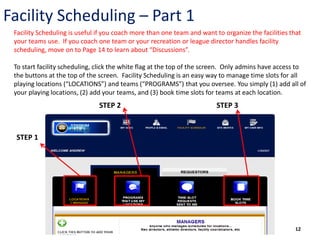
Facility Scheduling – Part 1
 Facility Scheduling is useful if you coach more than one team and want to organize the facilities that
 your teams use. If you coach one team or your recreation or league director handles facility
 scheduling, move on to Page 14 to learn about “Discussions”.

 To start facility scheduling, click the white flag at the top of the screen. Only admins have access to
 the buttons at the top of the screen. Facility Scheduling is an easy way to manage time slots for all
 playing locations (“LOCATIONS”) and teams (“PROGRAMS”) that you oversee. You simply (1) add all of
 your playing locations, (2) add your teams, and (3) book time slots for teams at each location.
                               STEP 2                                    STEP 3


 STEP 1


                                                                                                     12
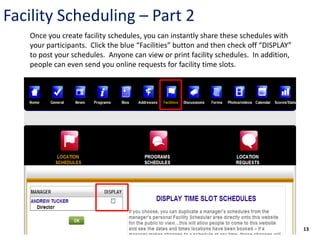
Facility Scheduling – Part 2
   Once you create facility schedules, you can instantly share these schedules with
   your participants. Click the blue “Facilities” button and then check off “DISPLAY”
   to post your schedules. Anyone can view or print facility schedules. In addition,
   people can even send you online requests for facility time slots.


                                                                                        13
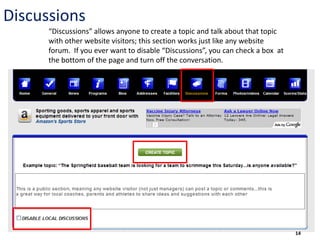
Discussions
      “Discussions” allows anyone to create a topic and talk about that topic
      with other website visitors; this section works just like any website
      forum. If you ever want to disable “Discussions”, you can check a box at
      the bottom of the page and turn off the conversation.


                                                                                 14
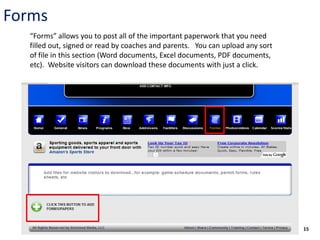
Forms
  “Forms” allows you to post all of the important paperwork that you need
  filled out, signed or read by coaches and parents. You can upload any sort
  of file in this section (Word documents, Excel documents, PDF documents,
  etc). Website visitors can download these documents with just a click.


                                                                               15
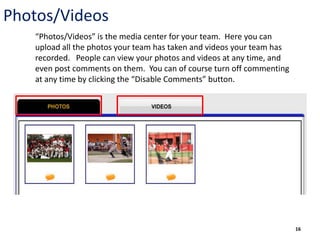
Photos/Videos
   “Photos/Videos” is the media center for your team. Here you can
   upload all the photos your team has taken and videos your team has
   recorded. People can view your photos and videos at any time, and
   even post comments on them. You can of course turn off commenting
   at any time by clicking the “Disable Comments” button.


                                                                        16
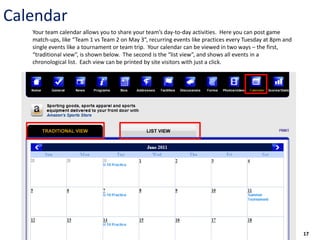
Calendar
   Your team calendar allows you to share your team’s day-to-day activities. Here you can post game
   match-ups, like “Team 1 vs Team 2 on May 3”, recurring events like practices every Tuesday at 8pm and
   single events like a tournament or team trip. Your calendar can be viewed in two ways – the first,
   “traditional view”, is shown below. The second is the “list view”, and shows all events in a
   chronological list. Each view can be printed by site visitors with just a click.


                                                                                                           17
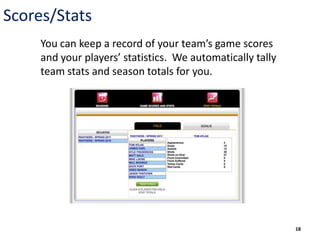
Scores/Stats
     You can keep a record of your team’s game scores
     and your players’ statistics. We automatically tally
     team stats and season totals for you.


                                                            18
Get Started Today!


       Visit http://www.stadiumroar.com


                     Contact us with any questions:
                     communications@stadiumroar.com | 908-591-5448
                                                               19

How to Use Your StadiumRoar Website - For Coaches

  • 1.
    How to UseYour StadiumRoar Website For Coaches 1
  • 2.
    Table of Contents Page 3 – Login and Get Started Page 4 – My Sites Page 5 – Top Buttons Page 6 – Start Customizing Page 7 – The Home Screen Page 8 – Registration – Admin View Page 9 – Registration – Public View Page 10 – Main Navigation Buttons Page 11 – Basic Information Buttons Page 12 – Facility Scheduling – Part 1 Page 13 – Facility Scheduling – Part 2 Page 14 – Discussions Page 15 – Forms Page 16 – Photos/Videos Page 17 – Calendar Page 18 – Scores/Stats 2
  • 3.
    Login and GetStarted Now that you’ve signed up it’s important to know all the benefits of using your StadiumRoar website. You can log-in anytime by visiting www.stadiumroar.com. Enter your email address and password and click the green “LOGIN” button. 3
  • 4.
    My Sites As soon as you log-in, you’ll be taken to your “MY SITES” section where you can manage your sites. Click on the link to your site to view the site as a “Manager”. This is also called the “Admin” view. It’s important to note that the Admin view, or your view of the site when you login, is different from the “Public” view, or the way a general person views your site during a browser session. As an admin, you can add, edit or delete any information on the site; public visitors can’t make these changes. 4
  • 5.
    Top Buttons As admin of your site, you are the only one that has access to the silver buttons at the top of the screen. These are “MY SITES”, “PEOPLE & EMAIL”, “FACILITY SCHEDULER”, “SITE INVITES” and “MY USER INFO”. “PEOPLE & EMAIL” allows you to store contact information for all coaches, parents and athletes. You can email participants individually or create email groups to send bulk emails directly from your site. “FACILITY SCHEDULER” allow you to easily manage time-slot schedules at the facilities your team plays at (fields, courts, gyms, etc). This is useful for coaches with more than one team. “SITE INVITES” is where you receive invitations to become an admin of other StadiumRoar websites. If you decide to invite other people to be admins of your site, they will receive a site invite in their own personal “Site Invites” section. “MY USER INFO” allows you to change your password and other biographical information at any time. 5
  • 6.
    Start Customizing Once you visit your site as an admin, the first thing you’ll want to do is make sure the main contact information, logo, and site colors are customized to your team. You can do this quickly by clicking on the “ADD LOGO” and “CUSTOMIZE YOUR SITE’S COLORS” in the upper left corner. Then click the “ADD CONTACT INFO” in the black scoreboard area. 6
  • 7.
    The Home Screen 1) Management. You can add managers to your site at any time and make them “Admins” just like you. They will also be able to add, edit and delete information. 2) Description. Give your site a brief description which tells the public what your team and your new site are all about. This is a great place to add instructions about how you want visitors to use your site (ex: which buttons to click for certain material). 3) Announcements. Keep your participants up-to-date with program announcements. Just click the green “UPDATE” button to post an announcement; you can post as many announcements as you’d like, and even attach files to your announcements (Word documents, etc). The announcements will be automatically emailed to participants who register on your site using the “REGISTRATION TOOL”. 7
  • 8.
    Registration – AdminView The “Registration Tool” lets you set up online registration for your team. The “Registration Info” button allows you to see who has registered for your team. 8
  • 9.
    Registration – PublicView Participants click the “REGISTER” button when they visit your site in the public view. Parents can then sign up their children or children can sign up themselves. As people sign up, you will receive all of their information in the admin view. 9
  • 10.
    Main Navigation Buttons The blue buttons in the middle of the site are your main navigation buttons; they open up specific pages on your website. Feel free to use as many or as few of them as you need. 10
  • 11.
    Basic Information Buttons “General” is your section to post any sort of general information related to your team. You can write freely about topics of interest to your team. “News” is your section to post articles about your team (ex: game write ups, player spotlights or news from within your league or association). As admin, you can decide whether site admins have exclusive rights to posting news or if all website visitors can post news (team parents, local reporters, etc). “Programs” is your section to add the programs and events that are related to your team; for example, camps, tournaments, fundraisers, etc. For each entry, you can include names, short descriptions, contact info and website links. “Bios” is your section to add names, photos and bios of coaches and players in your club. You can add names, background information and even photos of each person. “Addresses” is your section to add the names, addresses and directions for all game, practice and event locations that pertain to your team. You can also include links to Mapquest, Google Maps, or other sites that help with driving directions. 11
  • 12.
    Facility Scheduling –Part 1 Facility Scheduling is useful if you coach more than one team and want to organize the facilities that your teams use. If you coach one team or your recreation or league director handles facility scheduling, move on to Page 14 to learn about “Discussions”. To start facility scheduling, click the white flag at the top of the screen. Only admins have access to the buttons at the top of the screen. Facility Scheduling is an easy way to manage time slots for all playing locations (“LOCATIONS”) and teams (“PROGRAMS”) that you oversee. You simply (1) add all of your playing locations, (2) add your teams, and (3) book time slots for teams at each location. STEP 2 STEP 3 STEP 1 12
  • 13.
    Facility Scheduling –Part 2 Once you create facility schedules, you can instantly share these schedules with your participants. Click the blue “Facilities” button and then check off “DISPLAY” to post your schedules. Anyone can view or print facility schedules. In addition, people can even send you online requests for facility time slots. 13
  • 14.
    Discussions “Discussions” allows anyone to create a topic and talk about that topic with other website visitors; this section works just like any website forum. If you ever want to disable “Discussions”, you can check a box at the bottom of the page and turn off the conversation. 14
  • 15.
    Forms “Forms”allows you to post all of the important paperwork that you need filled out, signed or read by coaches and parents. You can upload any sort of file in this section (Word documents, Excel documents, PDF documents, etc). Website visitors can download these documents with just a click. 15
  • 16.
    Photos/Videos “Photos/Videos” is the media center for your team. Here you can upload all the photos your team has taken and videos your team has recorded. People can view your photos and videos at any time, and even post comments on them. You can of course turn off commenting at any time by clicking the “Disable Comments” button. 16
  • 17.
    Calendar Your team calendar allows you to share your team’s day-to-day activities. Here you can post game match-ups, like “Team 1 vs Team 2 on May 3”, recurring events like practices every Tuesday at 8pm and single events like a tournament or team trip. Your calendar can be viewed in two ways – the first, “traditional view”, is shown below. The second is the “list view”, and shows all events in a chronological list. Each view can be printed by site visitors with just a click. 17
  • 18.
    Scores/Stats You can keep a record of your team’s game scores and your players’ statistics. We automatically tally team stats and season totals for you. 18
  • 19.
    Get Started Today! Visit http://www.stadiumroar.com Contact us with any questions: communications@stadiumroar.com | 908-591-5448 19