How to set up the International Keyboard on a Mac Computer By Irene Skupsky
What is International? International is a language program which enables users to type in different languages. This includes languages based on a variety of alphabets. 
What is the Target Audience for International? The target audience is Mac users who are multi-lingual and/or live in a non-English speaking country and have the need to type in a different language besides English. For this eHow I will be using the example of the language Hebrew.
Difficulty Level:  Moderately Easy Things you will need:  A Macintosh computer with a mac operating system.
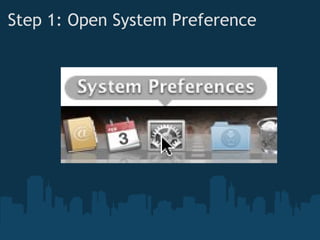
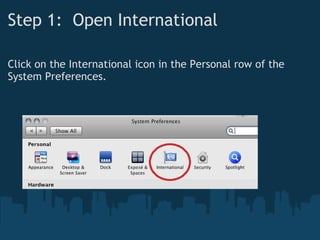
Step 1 : Open "System Preferences" (see next slide for image). Under the "Personal" section is the International button. "System Preferences" can be found by searching for it by clicking in the magnify glass symbol on the top right hand side of the screen.
Step 1: Open System Preference   
Step 1:  Open International Click on the International icon in the Personal row of the System Preferences.
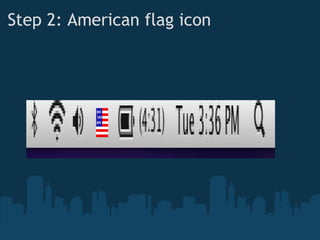
Step 2 : Click on the American flag picture. This will open a drop down menu. You want to click on the last option "Open International..." 
Step 2: American flag icon
Step 3 : Click on "Open International...". A pop-up menu with appear. At the top of this pop-menu there will be three option to click on: Language, Formats, Input Menu. 
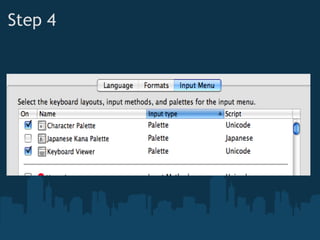
Step 4 : Click on "Input Menu". This allows you to select keyboard layouts, input methods, and palettes from the input menu.
Step 4
Step 5 : Check Character Palette and Keyboard Viewer. These will allow you to both see and type in a different language and have a screen keyboard in different languages.
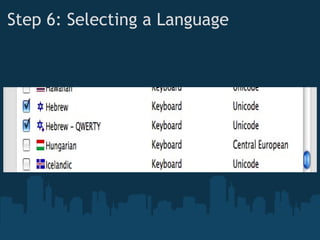
Step 6 : Scroll down the page and find the language and want to type in. For example check "Hebrew". 
Step 6: Selecting a Language 
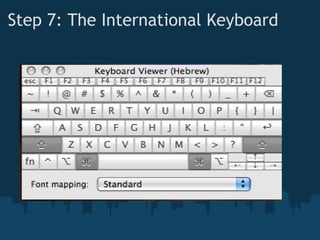
Step 7 : Click on the American flag picture and click on "Show Keyboard Viewer". This will allow you see a keyboard in Hebrew that corresponds with the English Mac keyboard. This is helpful when typing in a different language besides English.
Step 7: The International Keyboard
Congratulation! You have successfully used the international keyboard!

How to set up the International Keyboard

  • 1.
    How to setup the International Keyboard on a Mac Computer By Irene Skupsky
  • 2.
    What is International?International is a language program which enables users to type in different languages. This includes languages based on a variety of alphabets. 
  • 3.
    What is theTarget Audience for International? The target audience is Mac users who are multi-lingual and/or live in a non-English speaking country and have the need to type in a different language besides English. For this eHow I will be using the example of the language Hebrew.
  • 4.
    Difficulty Level: Moderately Easy Things you will need: A Macintosh computer with a mac operating system.
  • 5.
    Step 1 :Open "System Preferences" (see next slide for image). Under the "Personal" section is the International button. "System Preferences" can be found by searching for it by clicking in the magnify glass symbol on the top right hand side of the screen.
  • 6.
    Step 1: OpenSystem Preference   
  • 7.
    Step 1:  OpenInternational Click on the International icon in the Personal row of the System Preferences.
  • 8.
    Step 2 :Click on the American flag picture. This will open a drop down menu. You want to click on the last option "Open International..." 
  • 9.
  • 10.
    Step 3 :Click on "Open International...". A pop-up menu with appear. At the top of this pop-menu there will be three option to click on: Language, Formats, Input Menu. 
  • 11.
    Step 4 :Click on "Input Menu". This allows you to select keyboard layouts, input methods, and palettes from the input menu.
  • 12.
  • 13.
    Step 5 :Check Character Palette and Keyboard Viewer. These will allow you to both see and type in a different language and have a screen keyboard in different languages.
  • 14.
    Step 6 :Scroll down the page and find the language and want to type in. For example check "Hebrew". 
  • 15.
    Step 6: Selectinga Language 
  • 16.
    Step 7 :Click on the American flag picture and click on "Show Keyboard Viewer". This will allow you see a keyboard in Hebrew that corresponds with the English Mac keyboard. This is helpful when typing in a different language besides English.
  • 17.
    Step 7: TheInternational Keyboard
  • 18.
    Congratulation! You havesuccessfully used the international keyboard!