How to send a
secure message online?
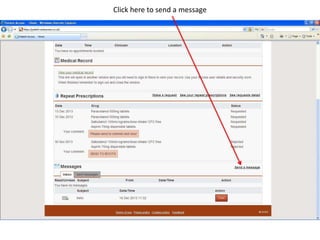
Log into EMIS Access then slide down to the bottom of the webpage
Click here to send a message
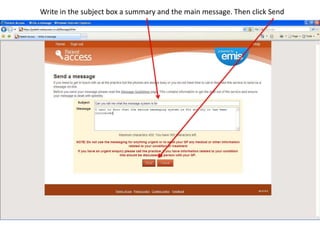
Write in the subject box a summary and the main message. Then click Send
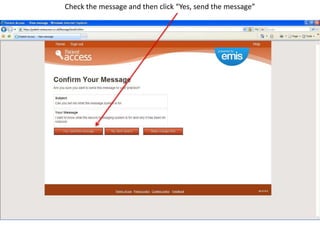
Check the message and then click “Yes, send the message”
Message Sent confirms message has been sent
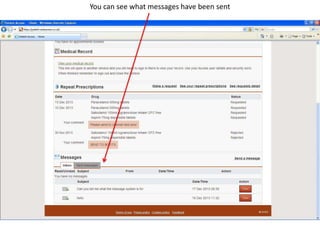
You can see what messages have been sent
When a message arrives, you can see this come at the top of the screen. You may need to click
on Home to check if the message has arrived or log in later in the day

We will try to check all messages at least daily
Slide down to the bottom to see the new reply and who it has come from
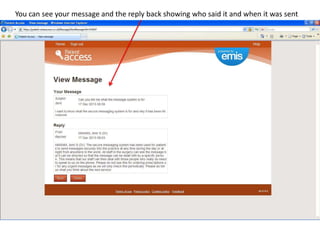
You can see your message and the reply back showing who said it and when it was sent
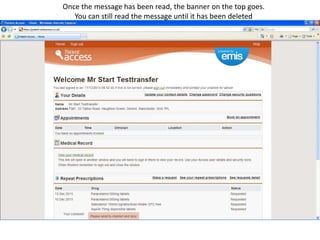
Once the message has been read, the banner on the top goes.
You can still read the message until it has been deleted

How to send a secure message online

  • 1.
    How to senda secure message online?
  • 2.
    Log into EMISAccess then slide down to the bottom of the webpage
  • 3.
    Click here tosend a message
  • 4.
    Write in thesubject box a summary and the main message. Then click Send
  • 5.
    Check the messageand then click “Yes, send the message”
  • 6.
    Message Sent confirmsmessage has been sent
  • 7.
    You can seewhat messages have been sent
  • 8.
    When a messagearrives, you can see this come at the top of the screen. You may need to click on Home to check if the message has arrived or log in later in the day We will try to check all messages at least daily
  • 9.
    Slide down tothe bottom to see the new reply and who it has come from
  • 10.
    You can seeyour message and the reply back showing who said it and when it was sent
  • 11.
    Once the messagehas been read, the banner on the top goes. You can still read the message until it has been deleted