Creator in Storage

Data Guard
Remote Backup

v1.201301
Contents
Introduction	

3

Remote Target Setup	

4

Full Backup	5
Custom Backup 11
iSCSI Backup 17
Remote NAS' Full Backup Target Folder 23
Remote NAS' Custom Backup Target Folder 24
Remote Backup

Introduction
Data Guard is the powerful backup solution that Thecus provides. Remote backup solutions on the market usually are expensive and requires a
complicated setup. Thecus introduces a remote backup solution that allows you to set up different backup solutions in 1 minute; and of course, it’s
free and built in to ThecusOS. In particular, a “Full backup”, “Custom backup” or “iSCSI backup”, can be set to real-time or scheduled backup according to demand.
In this How-to, we will back up data to a N5550 (demo IP: 172.16.65.131) to N4800 (demo IP: 172.16.65.111)
Let’s get started!

2012-08 | © 2012 Thecus Technology Corp.. All Rights Reserved.

3
Remote Backup

Remote Target Setup
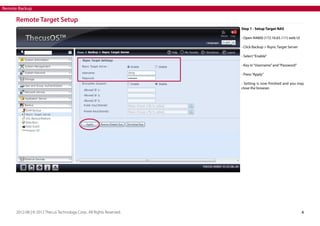
Step 1 - Setup Target NAS
- Open N4800 (172.16.65.111) web UI
- Click Backup > Rsync Target Server
- Select “Enable”
- Key in “Username” and “Password”
- Press “Apply”
- Setting is now finished and you may
close the browser.

2012-08 | © 2012 Thecus Technology Corp.. All Rights Reserved.

4
Remote Backup

Full Backup
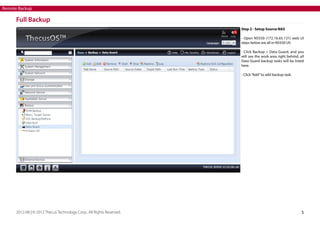
Step 2 - Setup Source NAS
- Open N5550 (172.16.65.131) web UI
steps below are all in N5550 UI)
- Click Backup > Data Guard, and you
will see the work area right behind, all
Data Guard backup tasks will be listed
here.
- Click “Add” to add backup task.

2012-08 | © 2012 Thecus Technology Corp.. All Rights Reserved.

5
Remote Backup

Full Backup
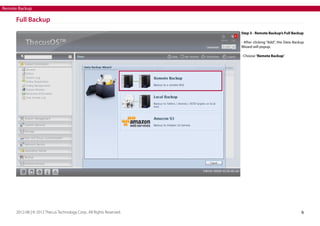
Step 3 - Remote Backup’s Full Backup
- After clicking “Add”, the Data Backup
Wizard will popup.
- Choose “Remote Backup”

2012-08 | © 2012 Thecus Technology Corp.. All Rights Reserved.

6
Remote Backup

Full Backup
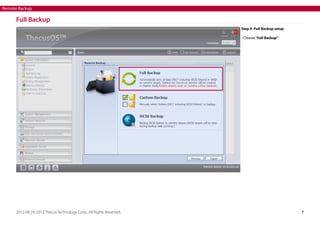
Step 4 -Full Backup setup
- Choose “Full Backup”

2012-08 | © 2012 Thecus Technology Corp.. All Rights Reserved.

7
Remote Backup

Full Backup
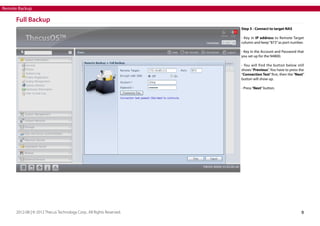
Step 5 - Connect to target NAS
- Key in IP address to Remote Target
column and keep “873” as port number.
- Key in the Account and Password that
you set up for the N4800.
- You will find the button below still
shows “Previous”. You have to press the
“Connection Test” first, then the “Next”
button will show up.
- Press “Next” button.

2012-08 | © 2012 Thecus Technology Corp.. All Rights Reserved.

8
Remote Backup

Full Backup
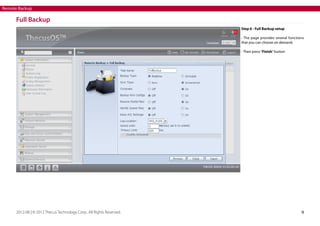
Step 6 - Full Backup setup
- The page provides several functions
that you can choose on demand.
- Then press “Finish” button

2012-08 | © 2012 Thecus Technology Corp.. All Rights Reserved.

9
Remote Backup

Full Backup
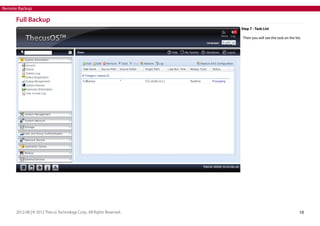
Step 7 - Task List
- Then you will see the task on the list.

2012-08 | © 2012 Thecus Technology Corp.. All Rights Reserved.

10
Remote Backup

Custom Backup
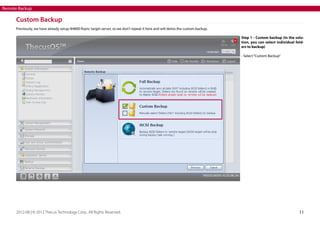
Previously, we have already setup N4800 Rsync target server, so we don’t repeat it here and will demo the custom backup.
Step 1 - Custom backup (In the solution, you can select individual folders to backup)
- Select “Custom Backup”

2012-08 | © 2012 Thecus Technology Corp.. All Rights Reserved.

11
Remote Backup

Custom Backup
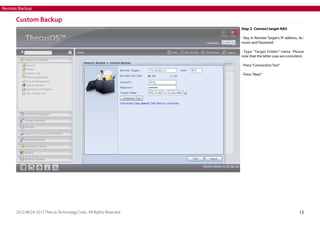
Step 2- Connect target NAS
- Key in Remote Target’s IP address, Account and Password.
- Type “Target Folder” name. Please
note that the letter case are consistent.
- Press “Connection Test”
- Press “Next”

2012-08 | © 2012 Thecus Technology Corp.. All Rights Reserved.

12
Remote Backup

Custom Backup
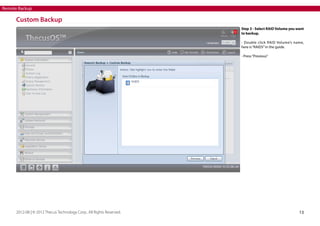
Step 3 - Select RAID Volume you want
to backup.
- Double click RAID Volume’s name,
here is “RAID5” in the guide.
- Press “Previous”

2012-08 | © 2012 Thecus Technology Corp.. All Rights Reserved.

13
Remote Backup

Custom Backup
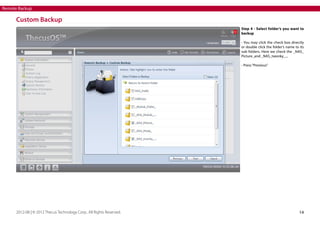
Step 4 - Select folder’s you want to
backup
- You may click the check box directly
or double click the folder’s name to its
sub folders. Here we check the _NAS_
Picture_and _NAS_twonky_...
- Press “Previous”

2012-08 | © 2012 Thecus Technology Corp.. All Rights Reserved.

14
Remote Backup

Custom Backup
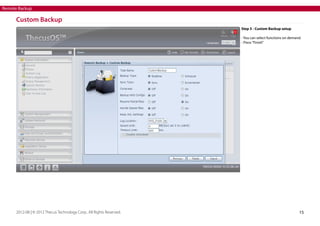
Step 5 - Custom Backup setup
- You can select functions on demand.
- Press “Finish”

2012-08 | © 2012 Thecus Technology Corp.. All Rights Reserved.

15
Remote Backup

Custom Backup
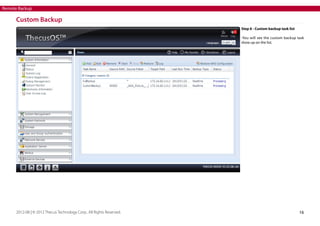
Step 6 - Custom backup task list
-You will see the custom backup task
show up on the list.

2012-08 | © 2012 Thecus Technology Corp.. All Rights Reserved.

16
Remote Backup

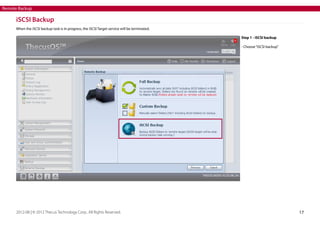
iSCSI Backup
When the iSCSI backup task is in progress, the iSCSI Target service will be terminated.
Step 1 - iSCSI backup
- Choose “iSCSI backup”

2012-08 | © 2012 Thecus Technology Corp.. All Rights Reserved.

17
Remote Backup

iSCSI Backup
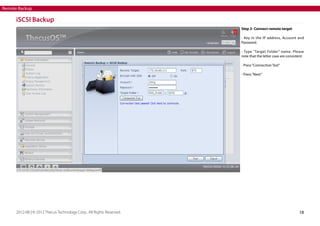
Step 2- Connect remote target
- Key in the IP address, Account and
Password.
- Type “Target Folder” name. Please
note that the letter case are consistent.
- Press “Connection Test”
- Press “Next”

2012-08 | © 2012 Thecus Technology Corp.. All Rights Reserved.

18
Remote Backup

iSCSI Backup
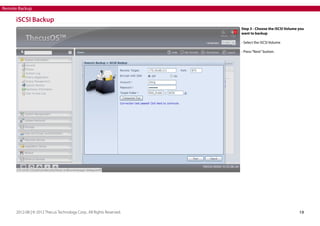
Step 3 - Choose the iSCSI Volume you
want to backup
- Select the iSCSI Volume
- Press “Next” button.

2012-08 | © 2012 Thecus Technology Corp.. All Rights Reserved.

19
Remote Backup

iSCSI Backup
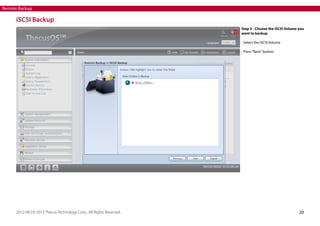
Step 3 - Choose the iSCSI Volume you
want to backup
- Select the iSCSI Volume
- Press “Next” button.

2012-08 | © 2012 Thecus Technology Corp.. All Rights Reserved.

20
Remote Backup

iSCSI Backup
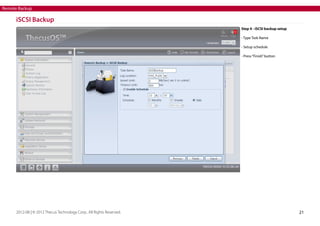
Step 4 - iSCSI backup setup
- Type Task Name
- Setup schedule
- Press “Finish” button

2012-08 | © 2012 Thecus Technology Corp.. All Rights Reserved.

21
Remote Backup

iSCSI Backup
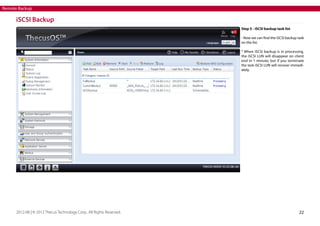
Step 5 - iSCSI backup task list
- Now we can find the iSCSI backup task
on the list.
* When iSCSI backup is in processing,
the iSCSI LUN will disappear on client
end in 1 minute; but if you terminate
the task iSCSI LUN will recover immediately.

2012-08 | © 2012 Thecus Technology Corp.. All Rights Reserved.

22
Remote Backup

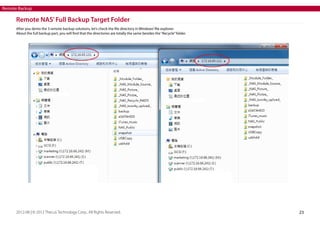
Remote NAS’ Full Backup Target Folder
After you demo the 3 remote backup solutions, let’s check the file directory in Windows’ file explorer.
About the full backup part, you will find that the directories are totally the same besides the “Recycle” folder.

2012-08 | © 2012 Thecus Technology Corp.. All Rights Reserved.

23
Remote Backup

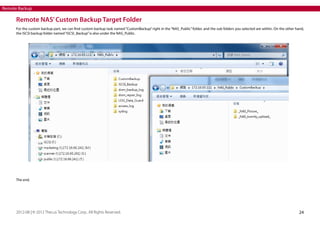
Remote NAS’ Custom Backup Target Folder
For the custom backup part, we can find custom backup task named “CustomBackup” right in the “NAS_Public” folder, and the sub folders you selected are within. On the other hand,
the iSCSI backup folder named “iSCSI_Backup” is also under the NAS_Public.

The end.

2012-08 | © 2012 Thecus Technology Corp.. All Rights Reserved.

24
~The End~


Date Guard Remote Backup

  • 1.
    Creator in Storage DataGuard Remote Backup v1.201301
  • 2.
    Contents Introduction 3 Remote Target Setup 4 FullBackup 5 Custom Backup 11 iSCSI Backup 17 Remote NAS' Full Backup Target Folder 23 Remote NAS' Custom Backup Target Folder 24
  • 3.
    Remote Backup Introduction Data Guardis the powerful backup solution that Thecus provides. Remote backup solutions on the market usually are expensive and requires a complicated setup. Thecus introduces a remote backup solution that allows you to set up different backup solutions in 1 minute; and of course, it’s free and built in to ThecusOS. In particular, a “Full backup”, “Custom backup” or “iSCSI backup”, can be set to real-time or scheduled backup according to demand. In this How-to, we will back up data to a N5550 (demo IP: 172.16.65.131) to N4800 (demo IP: 172.16.65.111) Let’s get started! 2012-08 | © 2012 Thecus Technology Corp.. All Rights Reserved. 3
  • 4.
    Remote Backup Remote TargetSetup Step 1 - Setup Target NAS - Open N4800 (172.16.65.111) web UI - Click Backup > Rsync Target Server - Select “Enable” - Key in “Username” and “Password” - Press “Apply” - Setting is now finished and you may close the browser. 2012-08 | © 2012 Thecus Technology Corp.. All Rights Reserved. 4
  • 5.
    Remote Backup Full Backup Step2 - Setup Source NAS - Open N5550 (172.16.65.131) web UI steps below are all in N5550 UI) - Click Backup > Data Guard, and you will see the work area right behind, all Data Guard backup tasks will be listed here. - Click “Add” to add backup task. 2012-08 | © 2012 Thecus Technology Corp.. All Rights Reserved. 5
  • 6.
    Remote Backup Full Backup Step3 - Remote Backup’s Full Backup - After clicking “Add”, the Data Backup Wizard will popup. - Choose “Remote Backup” 2012-08 | © 2012 Thecus Technology Corp.. All Rights Reserved. 6
  • 7.
    Remote Backup Full Backup Step4 -Full Backup setup - Choose “Full Backup” 2012-08 | © 2012 Thecus Technology Corp.. All Rights Reserved. 7
  • 8.
    Remote Backup Full Backup Step5 - Connect to target NAS - Key in IP address to Remote Target column and keep “873” as port number. - Key in the Account and Password that you set up for the N4800. - You will find the button below still shows “Previous”. You have to press the “Connection Test” first, then the “Next” button will show up. - Press “Next” button. 2012-08 | © 2012 Thecus Technology Corp.. All Rights Reserved. 8
  • 9.
    Remote Backup Full Backup Step6 - Full Backup setup - The page provides several functions that you can choose on demand. - Then press “Finish” button 2012-08 | © 2012 Thecus Technology Corp.. All Rights Reserved. 9
  • 10.
    Remote Backup Full Backup Step7 - Task List - Then you will see the task on the list. 2012-08 | © 2012 Thecus Technology Corp.. All Rights Reserved. 10
  • 11.
    Remote Backup Custom Backup Previously,we have already setup N4800 Rsync target server, so we don’t repeat it here and will demo the custom backup. Step 1 - Custom backup (In the solution, you can select individual folders to backup) - Select “Custom Backup” 2012-08 | © 2012 Thecus Technology Corp.. All Rights Reserved. 11
  • 12.
    Remote Backup Custom Backup Step2- Connect target NAS - Key in Remote Target’s IP address, Account and Password. - Type “Target Folder” name. Please note that the letter case are consistent. - Press “Connection Test” - Press “Next” 2012-08 | © 2012 Thecus Technology Corp.. All Rights Reserved. 12
  • 13.
    Remote Backup Custom Backup Step3 - Select RAID Volume you want to backup. - Double click RAID Volume’s name, here is “RAID5” in the guide. - Press “Previous” 2012-08 | © 2012 Thecus Technology Corp.. All Rights Reserved. 13
  • 14.
    Remote Backup Custom Backup Step4 - Select folder’s you want to backup - You may click the check box directly or double click the folder’s name to its sub folders. Here we check the _NAS_ Picture_and _NAS_twonky_... - Press “Previous” 2012-08 | © 2012 Thecus Technology Corp.. All Rights Reserved. 14
  • 15.
    Remote Backup Custom Backup Step5 - Custom Backup setup - You can select functions on demand. - Press “Finish” 2012-08 | © 2012 Thecus Technology Corp.. All Rights Reserved. 15
  • 16.
    Remote Backup Custom Backup Step6 - Custom backup task list -You will see the custom backup task show up on the list. 2012-08 | © 2012 Thecus Technology Corp.. All Rights Reserved. 16
  • 17.
    Remote Backup iSCSI Backup Whenthe iSCSI backup task is in progress, the iSCSI Target service will be terminated. Step 1 - iSCSI backup - Choose “iSCSI backup” 2012-08 | © 2012 Thecus Technology Corp.. All Rights Reserved. 17
  • 18.
    Remote Backup iSCSI Backup Step2- Connect remote target - Key in the IP address, Account and Password. - Type “Target Folder” name. Please note that the letter case are consistent. - Press “Connection Test” - Press “Next” 2012-08 | © 2012 Thecus Technology Corp.. All Rights Reserved. 18
  • 19.
    Remote Backup iSCSI Backup Step3 - Choose the iSCSI Volume you want to backup - Select the iSCSI Volume - Press “Next” button. 2012-08 | © 2012 Thecus Technology Corp.. All Rights Reserved. 19
  • 20.
    Remote Backup iSCSI Backup Step3 - Choose the iSCSI Volume you want to backup - Select the iSCSI Volume - Press “Next” button. 2012-08 | © 2012 Thecus Technology Corp.. All Rights Reserved. 20
  • 21.
    Remote Backup iSCSI Backup Step4 - iSCSI backup setup - Type Task Name - Setup schedule - Press “Finish” button 2012-08 | © 2012 Thecus Technology Corp.. All Rights Reserved. 21
  • 22.
    Remote Backup iSCSI Backup Step5 - iSCSI backup task list - Now we can find the iSCSI backup task on the list. * When iSCSI backup is in processing, the iSCSI LUN will disappear on client end in 1 minute; but if you terminate the task iSCSI LUN will recover immediately. 2012-08 | © 2012 Thecus Technology Corp.. All Rights Reserved. 22
  • 23.
    Remote Backup Remote NAS’Full Backup Target Folder After you demo the 3 remote backup solutions, let’s check the file directory in Windows’ file explorer. About the full backup part, you will find that the directories are totally the same besides the “Recycle” folder. 2012-08 | © 2012 Thecus Technology Corp.. All Rights Reserved. 23
  • 24.
    Remote Backup Remote NAS’Custom Backup Target Folder For the custom backup part, we can find custom backup task named “CustomBackup” right in the “NAS_Public” folder, and the sub folders you selected are within. On the other hand, the iSCSI backup folder named “iSCSI_Backup” is also under the NAS_Public. The end. 2012-08 | © 2012 Thecus Technology Corp.. All Rights Reserved. 24
  • 25.