Creator in Storage

Installing and Using Dropbox
On Thecus OS6
®

2013/10
1


™™ Overview
• Creating a user account
• Installing the module

3
4

• Enabling the Dropbox login menu
• Accessing the Dropbox module menu
• Tips

5
7

12

Before installing and using the Dropbox module, there needs to be at least one user
account on Thecus®OS6. If you have already created a user account, please skip
section 1.
You will also need to have already set up a Dropbox account.

2


™Creating a user account
™
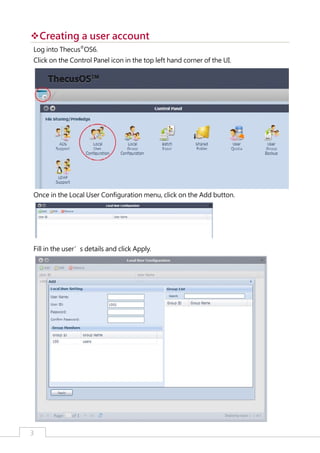
Log into Thecus®OS6.
Click on the Control Panel icon in the top left hand corner of the UI.

Once in the Local User Configuration menu, click on the Add button.

Fill in the user’s details and click Apply.

3


™Installing the module
™
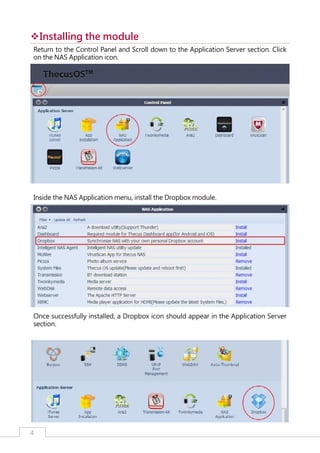
Return to the Control Panel and Scroll down to the Application Server section. Click
on the NAS Application icon.

Inside the NAS Application menu, install the Dropbox module.

Once successfully installed, a Dropbox icon should appear in the Application Server
section.

4


™Enabling the Dropbox module login menu
™
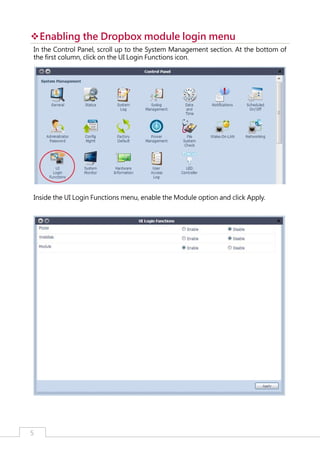
In the Control Panel, scroll up to the System Management section. At the bottom of
the first column, click on the UI Login Functions icon.

Inside the UI Login Functions menu, enable the Module option and click Apply.

5


™Enabling the Dropbox module login menu
™
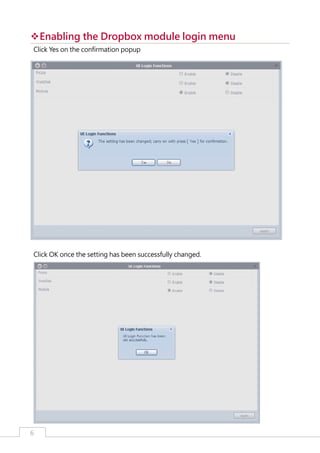
Click Yes on the confirmation popup

Click OK once the setting has been successfully changed.

6


™Accessing the Dropbox module’s settings menu
™
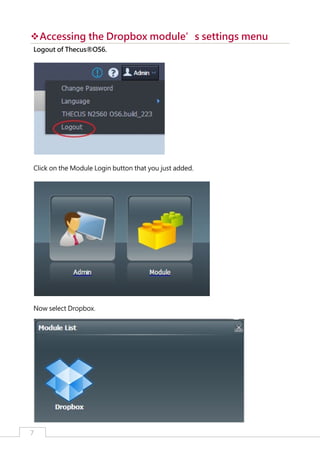
Logout of Thecus®OS6.

Click on the Module Login button that you just added.

Now select Dropbox.

7


™Accessing the Dropbox module’s settings menu
™
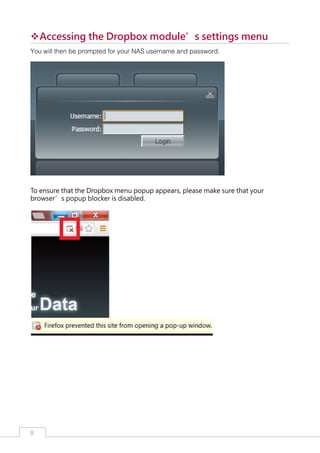
You will then be prompted for your NAS username and password.

To ensure that the Dropbox menu popup appears, please make sure that your
browser’s popup blocker is disabled.

8


™Accessing the Dropbox module’s settings menu
™
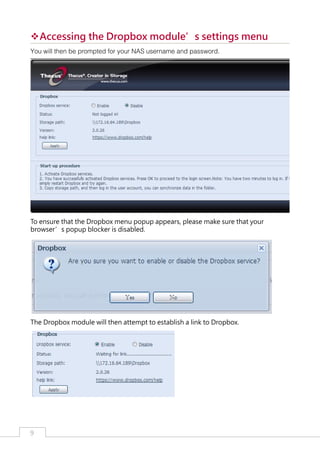
You will then be prompted for your NAS username and password.

To ensure that the Dropbox menu popup appears, please make sure that your
browser’s popup blocker is disabled.

The Dropbox module will then attempt to establish a link to Dropbox.

9


™Accessing the Dropbox module’s settings menu
™
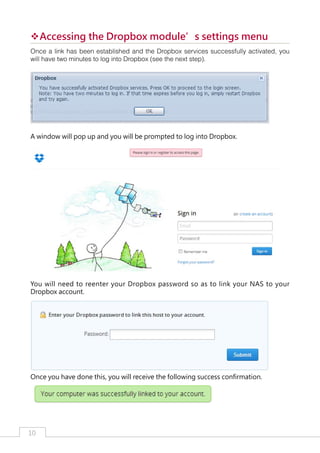
Once a link has been established and the Dropbox services successfully activated, you
will have two minutes to log into Dropbox (see the next step).

A window will pop up and you will be prompted to log into Dropbox.

You will need to reenter your Dropbox password so as to link your NAS to your
Dropbox account.

Once you have done this, you will receive the following success confirmation.

10


™Accessing the Dropbox module’s settings menu
™
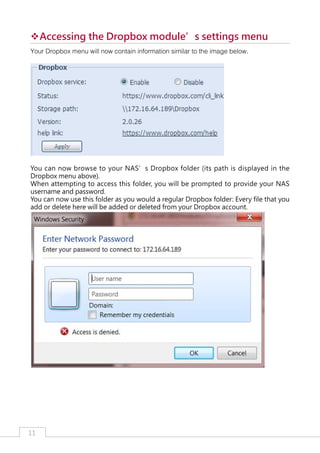
Your Dropbox menu will now contain information similar to the image below.

You can now browse to your NAS’s Dropbox folder (its path is displayed in the
Dropbox menu above).
When attempting to access this folder, you will be prompted to provide your NAS
username and password.
You can now use this folder as you would a regular Dropbox folder: Every file that you
add or delete here will be added or deleted from your Dropbox account.

11


™Tips
™
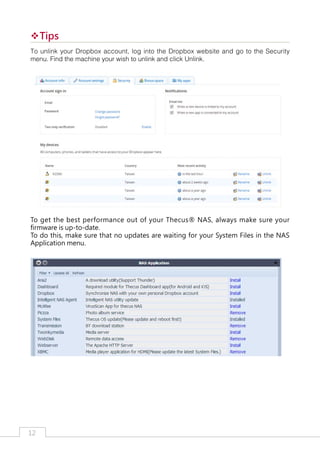
To unlink your Dropbox account, log into the Dropbox website and go to the Security
menu. Find the machine your wish to unlink and click Unlink.

To get the best performance out of your Thecus® NAS, always make sure your
firmware is up-to-date.
To do this, make sure that no updates are waiting for your System Files in the NAS
Application menu.

12


~The End~


Installing and Using Dropbox on Thecus OS6

  • 1.
    Creator in Storage Installingand Using Dropbox On Thecus OS6 ® 2013/10 1 
  • 2.
    ™™ Overview • Creatinga user account • Installing the module 3 4 • Enabling the Dropbox login menu • Accessing the Dropbox module menu • Tips 5 7 12 Before installing and using the Dropbox module, there needs to be at least one user account on Thecus®OS6. If you have already created a user account, please skip section 1. You will also need to have already set up a Dropbox account. 2 
  • 3.
    ™Creating a useraccount ™ Log into Thecus®OS6. Click on the Control Panel icon in the top left hand corner of the UI. Once in the Local User Configuration menu, click on the Add button. Fill in the user’s details and click Apply. 3 
  • 4.
    ™Installing the module ™ Returnto the Control Panel and Scroll down to the Application Server section. Click on the NAS Application icon. Inside the NAS Application menu, install the Dropbox module. Once successfully installed, a Dropbox icon should appear in the Application Server section. 4 
  • 5.
    ™Enabling the Dropboxmodule login menu ™ In the Control Panel, scroll up to the System Management section. At the bottom of the first column, click on the UI Login Functions icon. Inside the UI Login Functions menu, enable the Module option and click Apply. 5 
  • 6.
    ™Enabling the Dropboxmodule login menu ™ Click Yes on the confirmation popup Click OK once the setting has been successfully changed. 6 
  • 7.
    ™Accessing the Dropboxmodule’s settings menu ™ Logout of Thecus®OS6. Click on the Module Login button that you just added. Now select Dropbox. 7 
  • 8.
    ™Accessing the Dropboxmodule’s settings menu ™ You will then be prompted for your NAS username and password. To ensure that the Dropbox menu popup appears, please make sure that your browser’s popup blocker is disabled. 8 
  • 9.
    ™Accessing the Dropboxmodule’s settings menu ™ You will then be prompted for your NAS username and password. To ensure that the Dropbox menu popup appears, please make sure that your browser’s popup blocker is disabled. The Dropbox module will then attempt to establish a link to Dropbox. 9 
  • 10.
    ™Accessing the Dropboxmodule’s settings menu ™ Once a link has been established and the Dropbox services successfully activated, you will have two minutes to log into Dropbox (see the next step). A window will pop up and you will be prompted to log into Dropbox. You will need to reenter your Dropbox password so as to link your NAS to your Dropbox account. Once you have done this, you will receive the following success confirmation. 10 
  • 11.
    ™Accessing the Dropboxmodule’s settings menu ™ Your Dropbox menu will now contain information similar to the image below. You can now browse to your NAS’s Dropbox folder (its path is displayed in the Dropbox menu above). When attempting to access this folder, you will be prompted to provide your NAS username and password. You can now use this folder as you would a regular Dropbox folder: Every file that you add or delete here will be added or deleted from your Dropbox account. 11 
  • 12.
    ™Tips ™ To unlink yourDropbox account, log into the Dropbox website and go to the Security menu. Find the machine your wish to unlink and click Unlink. To get the best performance out of your Thecus® NAS, always make sure your firmware is up-to-date. To do this, make sure that no updates are waiting for your System Files in the NAS Application menu. 12 
  • 13.