How to Embed a
Customized Widget
in WordPress
By:
Jaysarie C. Gundran
The Evolving Virtual Assistant
This is the customized widget
to be embedded
Log in to your
WordPress account
A dashboard page
will open
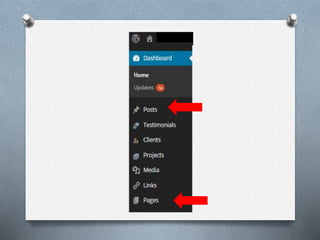
Click either the Pages
Tab or Posts Tab in the
Dashboard
In this tutorial, the
posts tab is chosen
Click the Posts tab
This will open
Click “Add New”
The Post Editor Screen
will open in the
visual tab
Click the “Add Media”
button
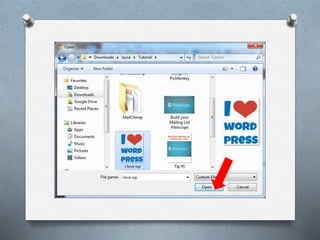
Open the file to be
embedded
If the file to be
embedded is in the
media library, click the
media library tab
If the file to be
embedded is in another
location and still need to
be uploaded, click
“Upload Files” tab
Click “Select Files”
button and locate the
customized widget
to be embedded
Click the “Open” button
Click the “Insert into
post” button
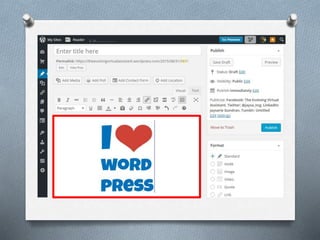
Your customized widget
will be added on the
Post Editor Screen
Click the Text Editor tab
on Post Editor Screen
The Text Editor tab will
show the code of the
customized widget
Highlight the code
of the customized
widget then right click
Copy and paste
the code in NotePad
From the Add New Post
Section, Click the
“Appearance” tab then
“Widgets”
Leave the Add New Post
Section by clicking the
“Leave this Page” button
The Widgets Section
will open
Depending on the theme
being used, widgets can
be added to the
sidebars, footer, header
and other areas
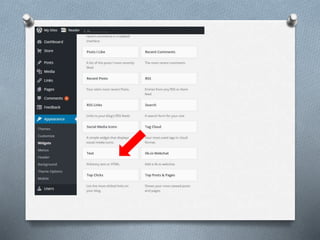
We will use the Text
Widget
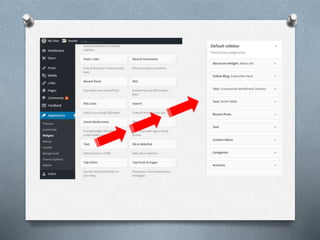
In this tutorial, we will
place it in the default
sidebar
Drag the Text Widget in
the area where you want
your customized widget
to appear
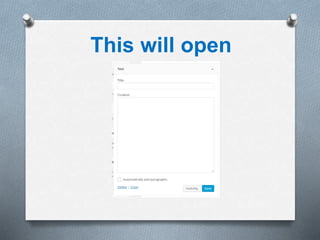
This will open
Embed the code of the
customized widget that
we saved in the NotePad
under Content
You can also add a Title
to your customized
widget
Click Save
View Site
Our embedded
customized widget now
appears in the sidebar of
the WordPress Site
How to Embed a Customized Widget in WordPress

How to Embed a Customized Widget in WordPress