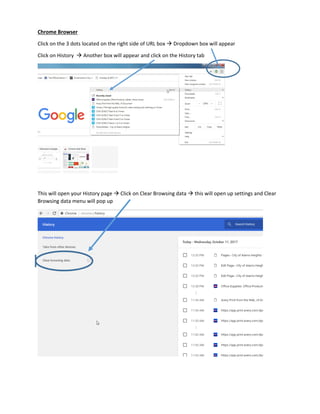
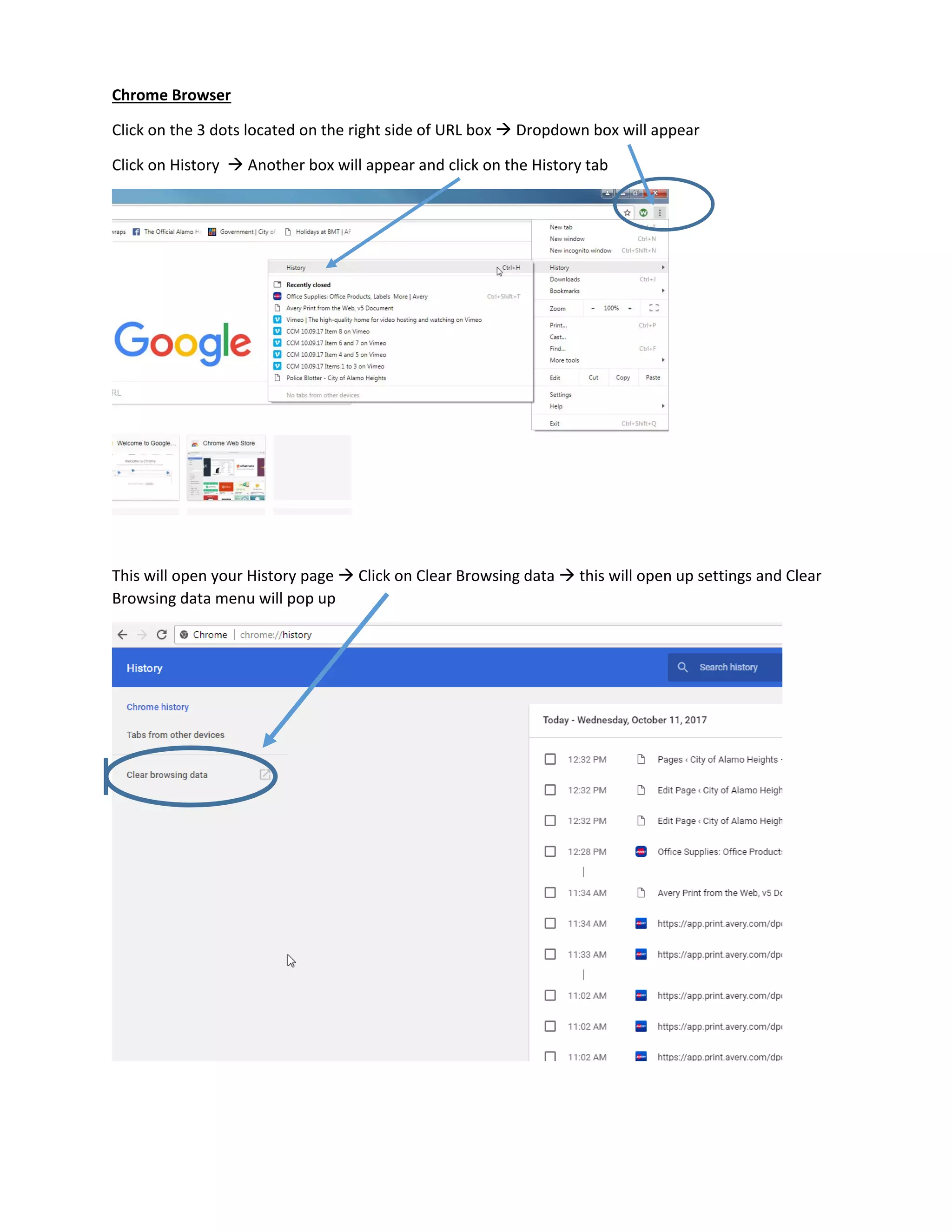
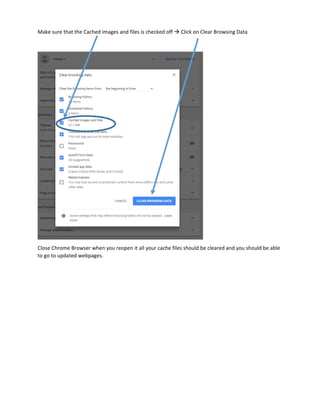
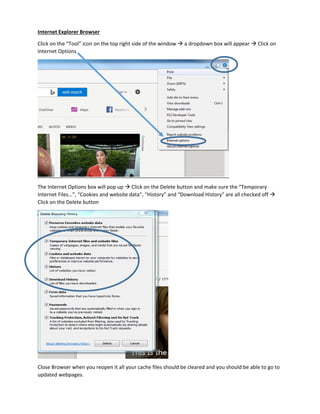
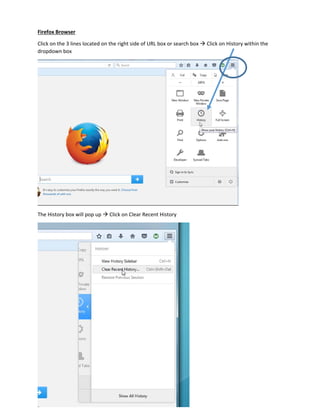
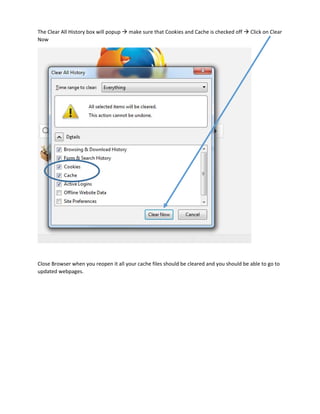
The document provides instructions for clearing the cache and browsing history in three popular web browsers: Chrome, Internet Explorer, and Firefox. For Chrome, the user clicks the three dots next to the URL bar, selects History, then clicks Clear Browsing Data and ensures Cached Images and Files is checked before clearing. For Internet Explorer, the user clicks the Tools icon, selects Internet Options, clicks Delete and ensures various options are checked before deleting. For Firefox, the user clicks the three lines next to the URL bar, selects History, clicks Clear Recent History, checks Cookies and Cache, and clicks Clear Now. After closing and reopening the browser, cached files should be cleared and updated webpages displayed.