How to Customize Your
Financial Reports & Tax
Reports With Odoo 17
Accounting
Enterprise
Introduction
Enterprise
The Accounting module in Odoo 17 is a complete tool designed to manage
all financial aspects of a business. Odoo offers a comprehensive set of tools
for generating financial and tax reports, which are crucial for managing a
company's finances and ensuring compliance with tax regulations.
Standardized reports may not always capture the specific metrics or details
essential for strategic decision-making. Customization allows businesses to
tailor their financial and tax reports to align with their goals, industry-
specific regulations, and internal management preferences.
Enterprise
Possibilities of Customization in Odoo 17 Accounting Reports
● Flexible Report Template: Odoo 17 has customizable report templates for many of the
reports. If you need a detailed income statement, balance sheet, or any other reports,
these report templates allow you to design and customize it according to the need.
● Drag-and-Drop Interface: Modify the structure of reports by adding or removing sections,
adjusting groupings, and rearranging data presentation.
● User-Defined Formulas: Odoo allows users to define custom formulas, ensuring that the
reports reflect the exact financial measures critical for their decision-making process.
● Dynamic Filtering and Grouping:Apply filters and groupings on reports dynamically,
allowing users to drill down into specific subsets of data.
● Multi-Currency Support: Odoo 17 Accounting enables the customization of reports in
multiple currencies, facilitating accurate financial reporting for companies with diverse
international transactions.
● Tax Report Customization: Define and assign custom tax tags to transactions, add
localized Tax and set up custom tax calculation rules.
Enterprise
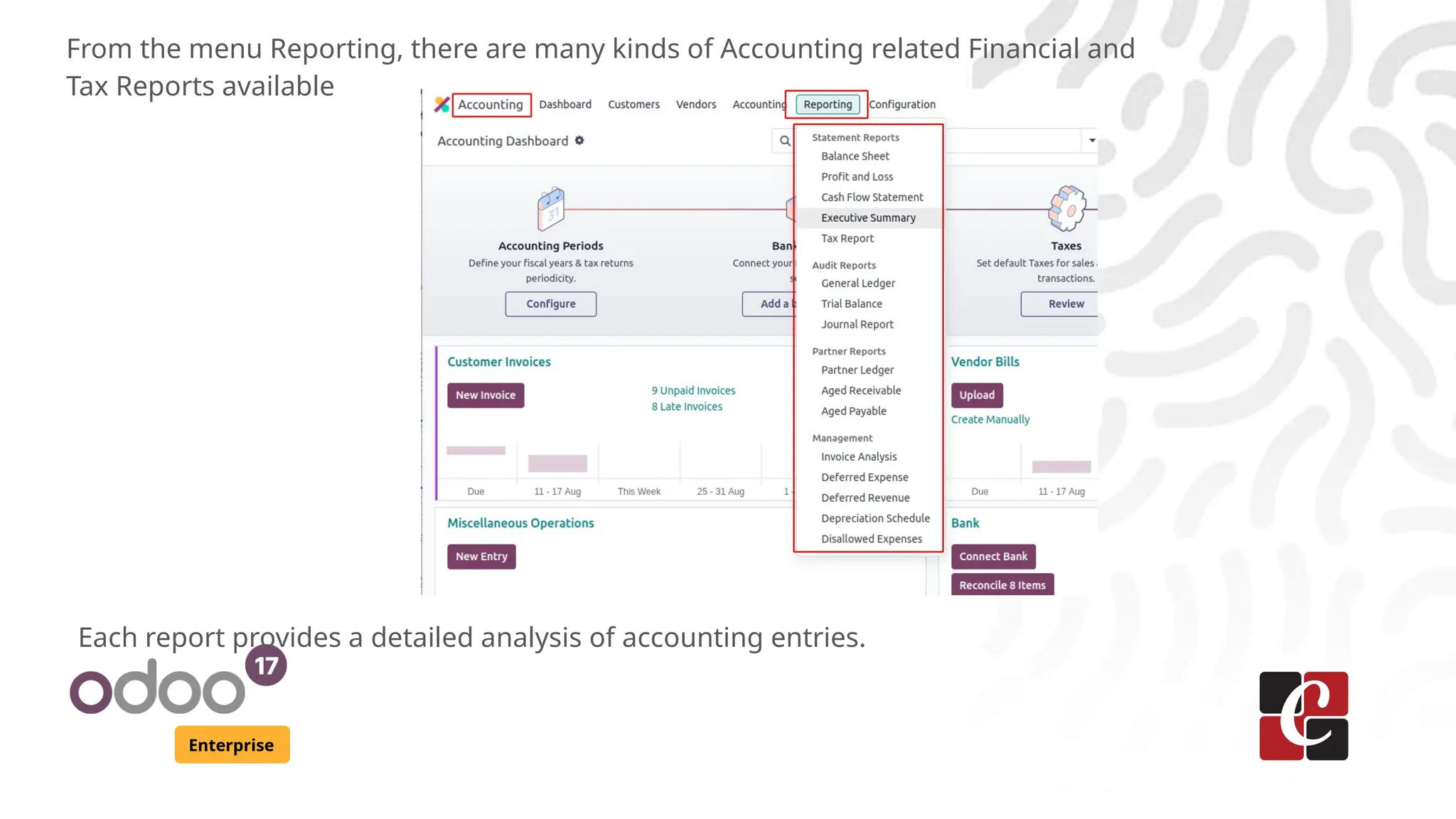
From the menu Reporting, there are many kinds of Accounting related Financial and
Tax Reports available
Each report provides a detailed analysis of accounting entries.
Enterprise
Among these, the main reports are
● Balance Sheet: Provides a snapshot of the company’s financial position at a given point in
time, detailing assets, liabilities, and equity.
● Profit and Loss Statement: Shows the company’s revenues, expenses, and profits over a
specific period.
● Cash Flow Statement: Tracks the flow of cash in and out of the business, categorized into
operating, investing, and financing activities.
● Trial Balance: Lists all general ledger accounts and their balances, ensuring that total
debits equal total credits.
● General Ledger: A detailed report showing all the transactions recorded in each general
ledger account during a specific period.
● Journal Entries: Lists all the individual journal entries posted to the general ledger,
providing a detailed view of each transaction.
● Partner Ledger: Tracks the financial transactions between the company and its partners
(customers, suppliers), showing the opening balance, transactions, and closing balance.
● Tax Report: Summarizes the taxes collected and paid over a period, including details of
taxable sales and purchases.
Enterprise
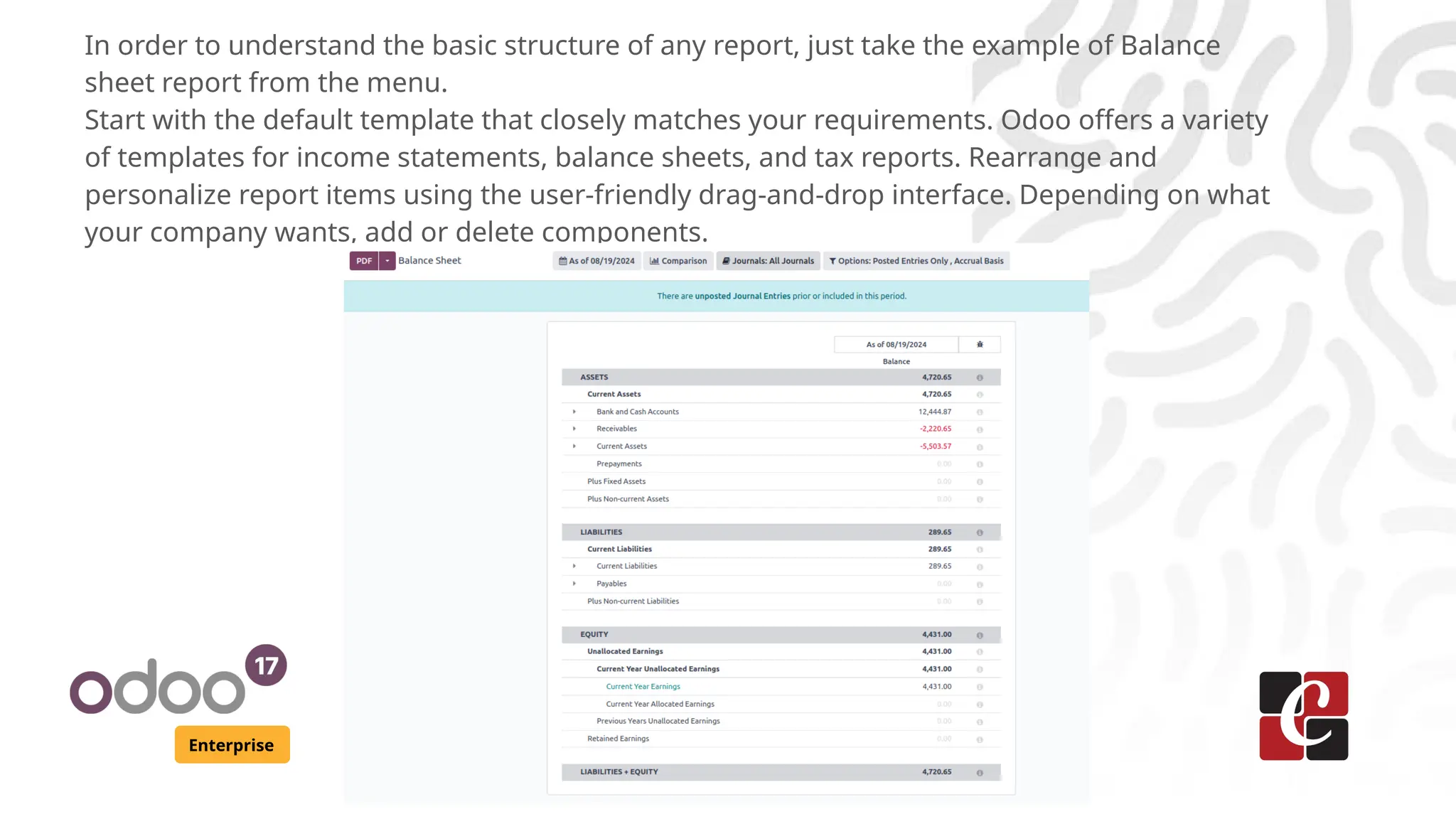
In order to understand the basic structure of any report, just take the example of Balance
sheet report from the menu.
Start with the default template that closely matches your requirements. Odoo offers a variety
of templates for income statements, balance sheets, and tax reports. Rearrange and
personalize report items using the user-friendly drag-and-drop interface. Depending on what
your company wants, add or delete components.
Enterprise
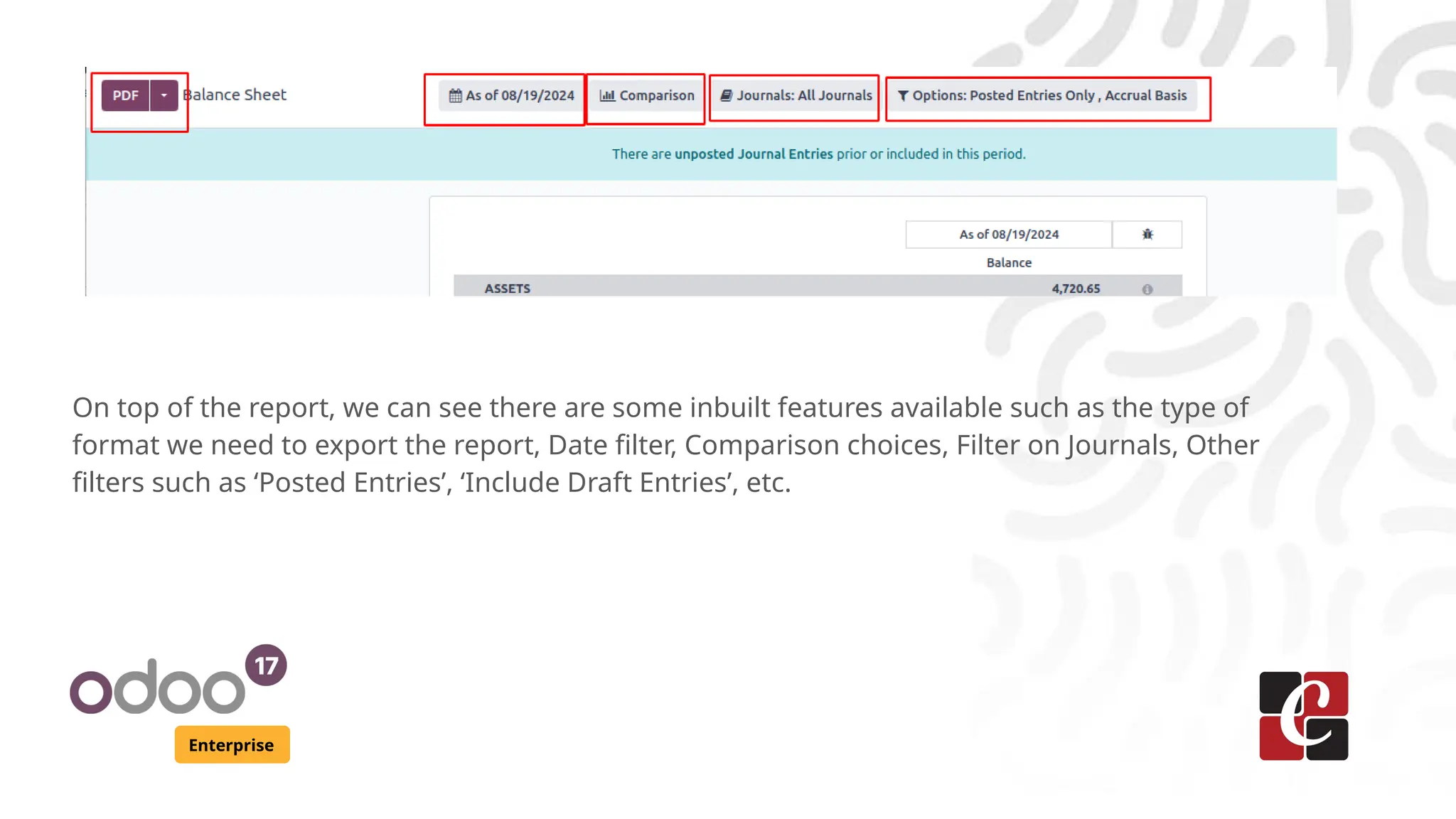
On top of the report, we can see there are some inbuilt features available such as the type of
format we need to export the report, Date filter, Comparison choices, Filter on Journals, Other
filters such as ‘Posted Entries’, ‘Include Draft Entries’, etc.
Enterprise
Understanding Account Calculation Formula
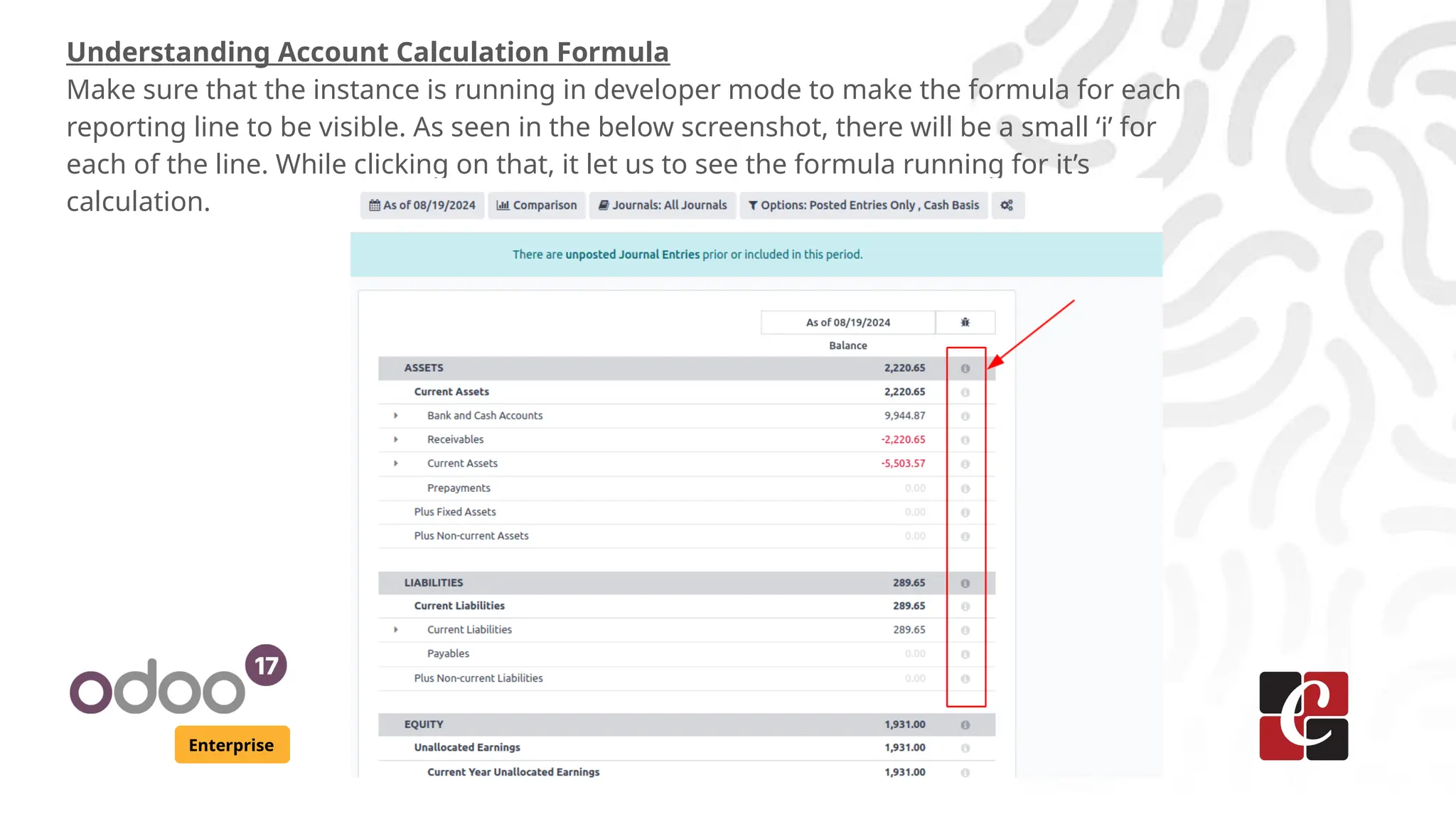
Make sure that the instance is running in developer mode to make the formula for each
reporting line to be visible. As seen in the below screenshot, there will be a small ‘i’ for
each of the line. While clicking on that, it let us to see the formula running for it’s
calculation.
Enterprise
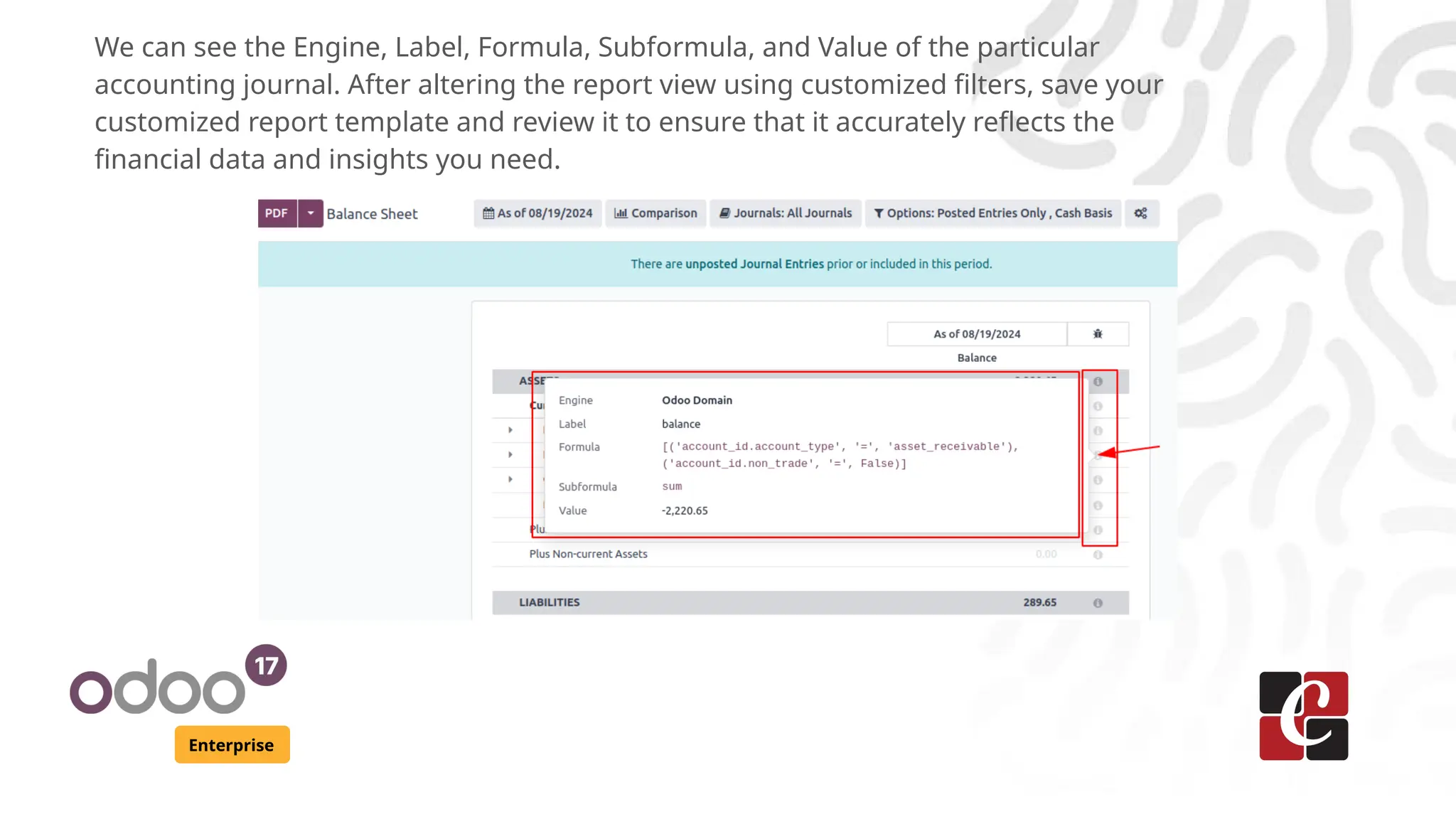
We can see the Engine, Label, Formula, Subformula, and Value of the particular
accounting journal. After altering the report view using customized filters, save your
customized report template and review it to ensure that it accurately reflects the
financial data and insights you need.
Enterprise
Custom Reports Creation
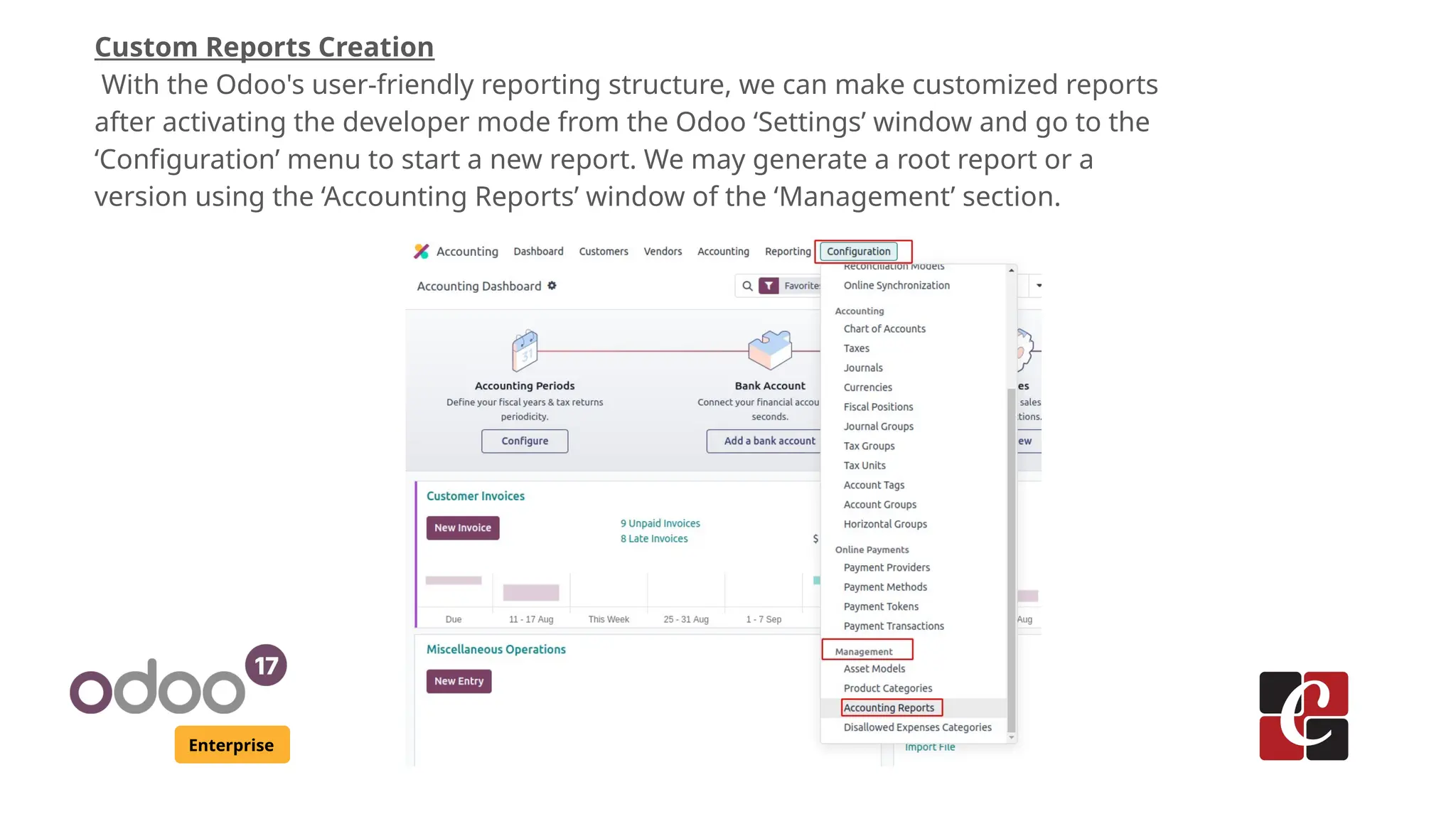
With the Odoo's user-friendly reporting structure, we can make customized reports
after activating the developer mode from the Odoo ‘Settings’ window and go to the
‘Configuration’ menu to start a new report. We may generate a root report or a
version using the ‘Accounting Reports’ window of the ‘Management’ section.
Enterprise
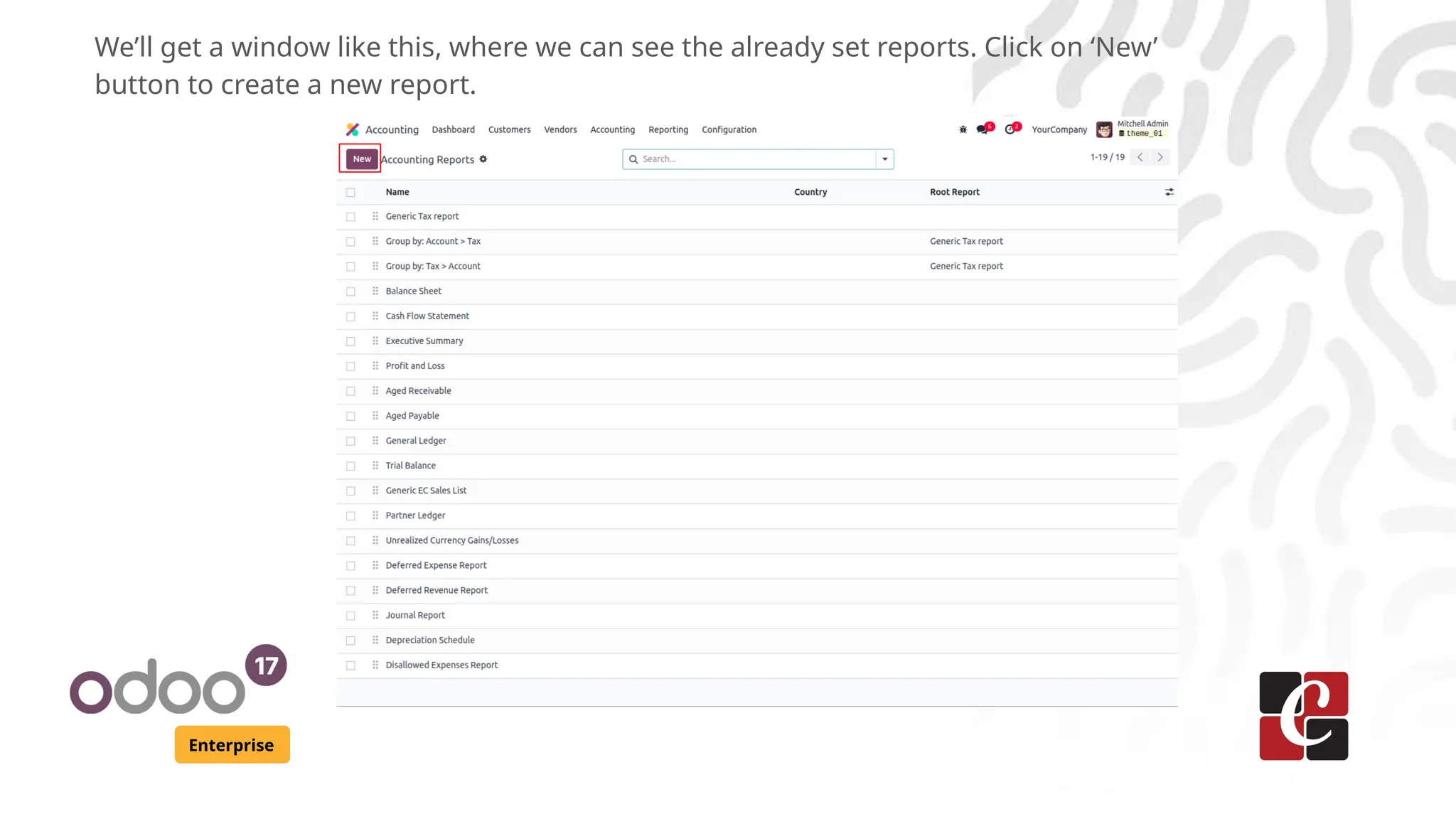
We’ll get a window like this, where we can see the already set reports. Click on ‘New’
button to create a new report.
Enterprise
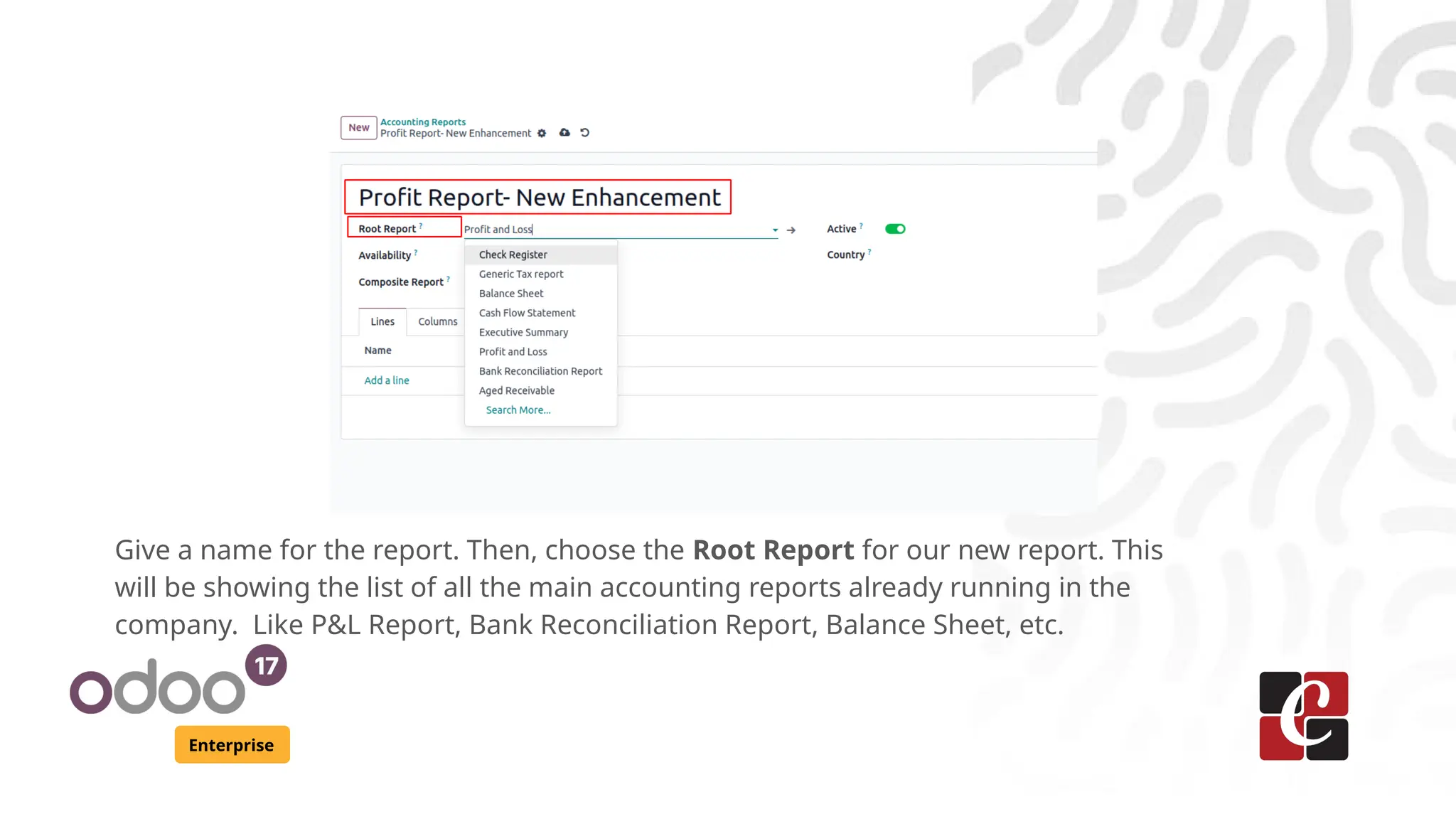
Give a name for the report. Then, choose the Root Report for our new report. This
will be showing the list of all the main accounting reports already running in the
company. Like P&L Report, Bank Reconciliation Report, Balance Sheet, etc.
Enterprise
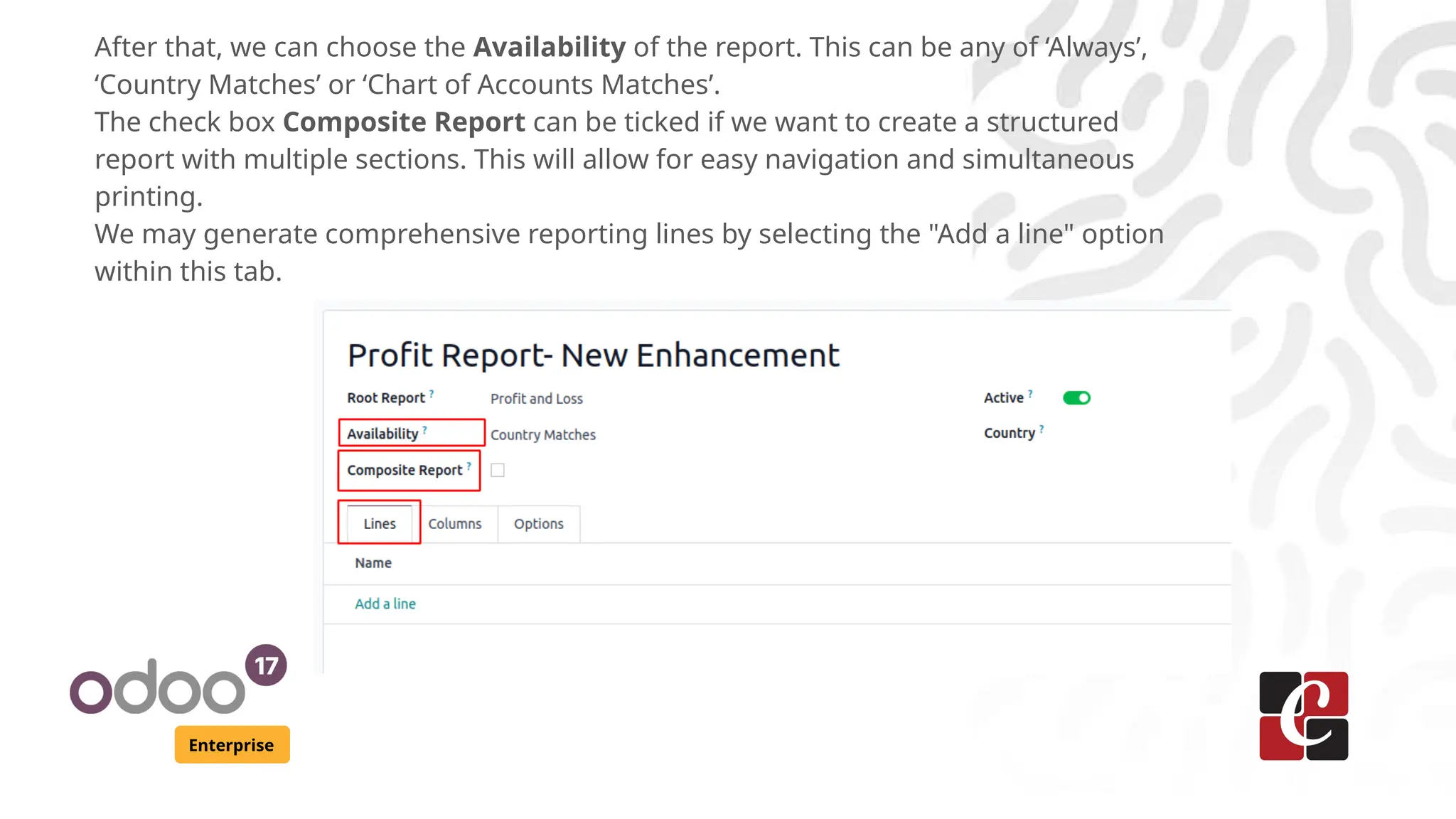
After that, we can choose the Availability of the report. This can be any of ‘Always’,
‘Country Matches’ or ‘Chart of Accounts Matches’.
The check box Composite Report can be ticked if we want to create a structured
report with multiple sections. This will allow for easy navigation and simultaneous
printing.
We may generate comprehensive reporting lines by selecting the "Add a line" option
within this tab.
Enterprise
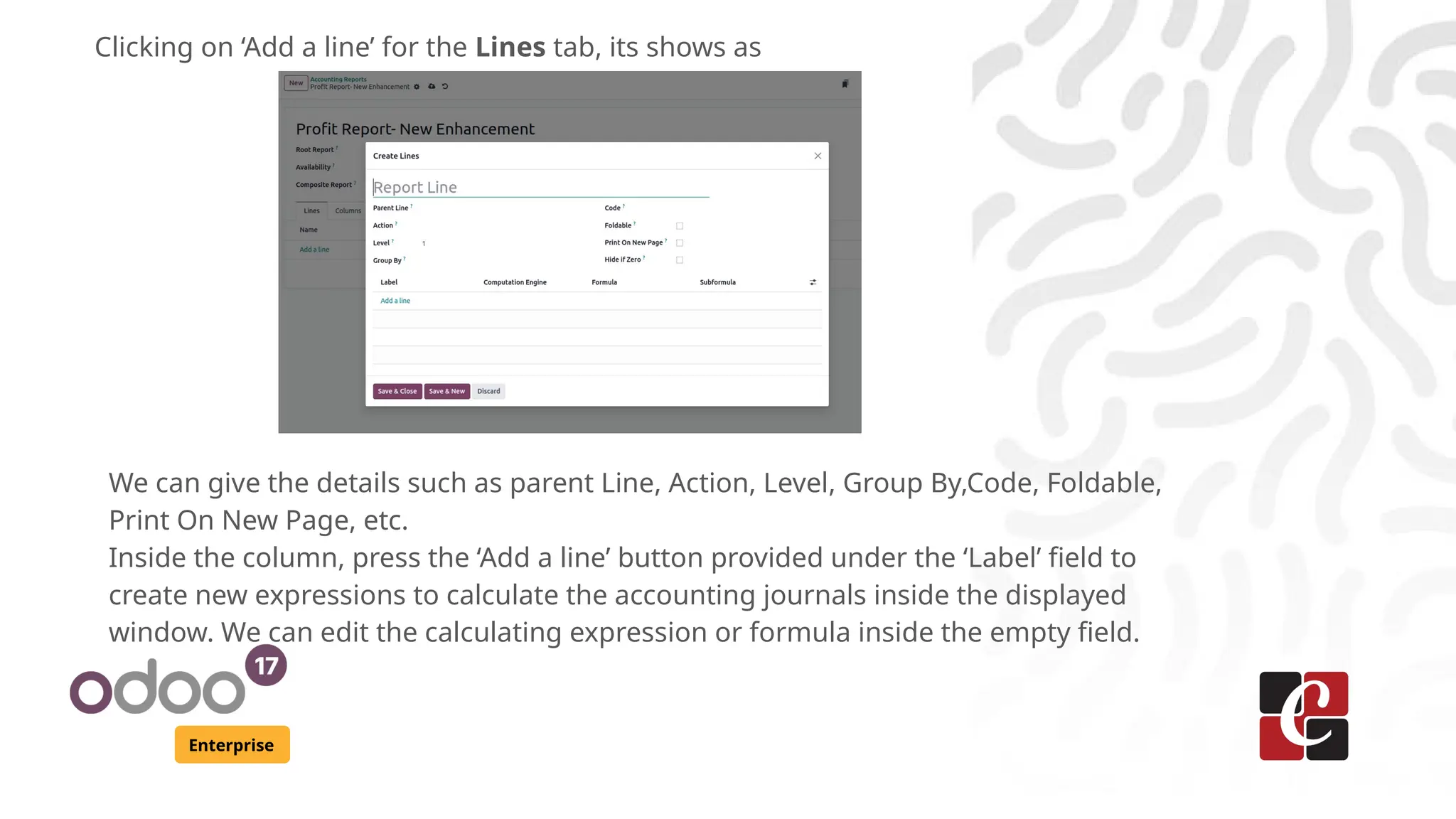
Clicking on ‘Add a line’ for the Lines tab, its shows as
We can give the details such as parent Line, Action, Level, Group By,Code, Foldable,
Print On New Page, etc.
Inside the column, press the ‘Add a line’ button provided under the ‘Label’ field to
create new expressions to calculate the accounting journals inside the displayed
window. We can edit the calculating expression or formula inside the empty field.
Enterprise
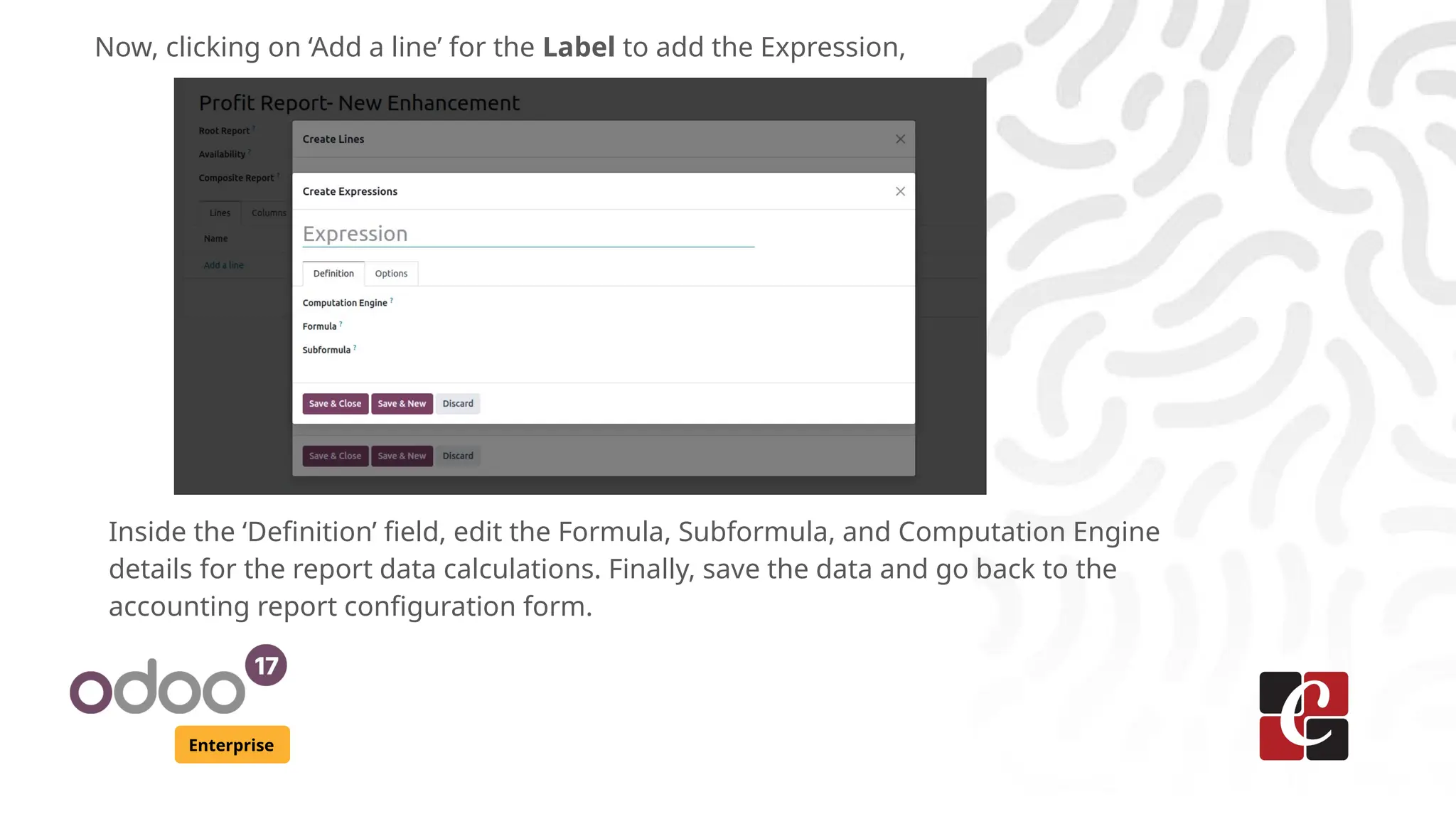
Now, clicking on ‘Add a line’ for the Label to add the Expression,
Inside the ‘Definition’ field, edit the Formula, Subformula, and Computation Engine
details for the report data calculations. Finally, save the data and go back to the
accounting report configuration form.
Enterprise
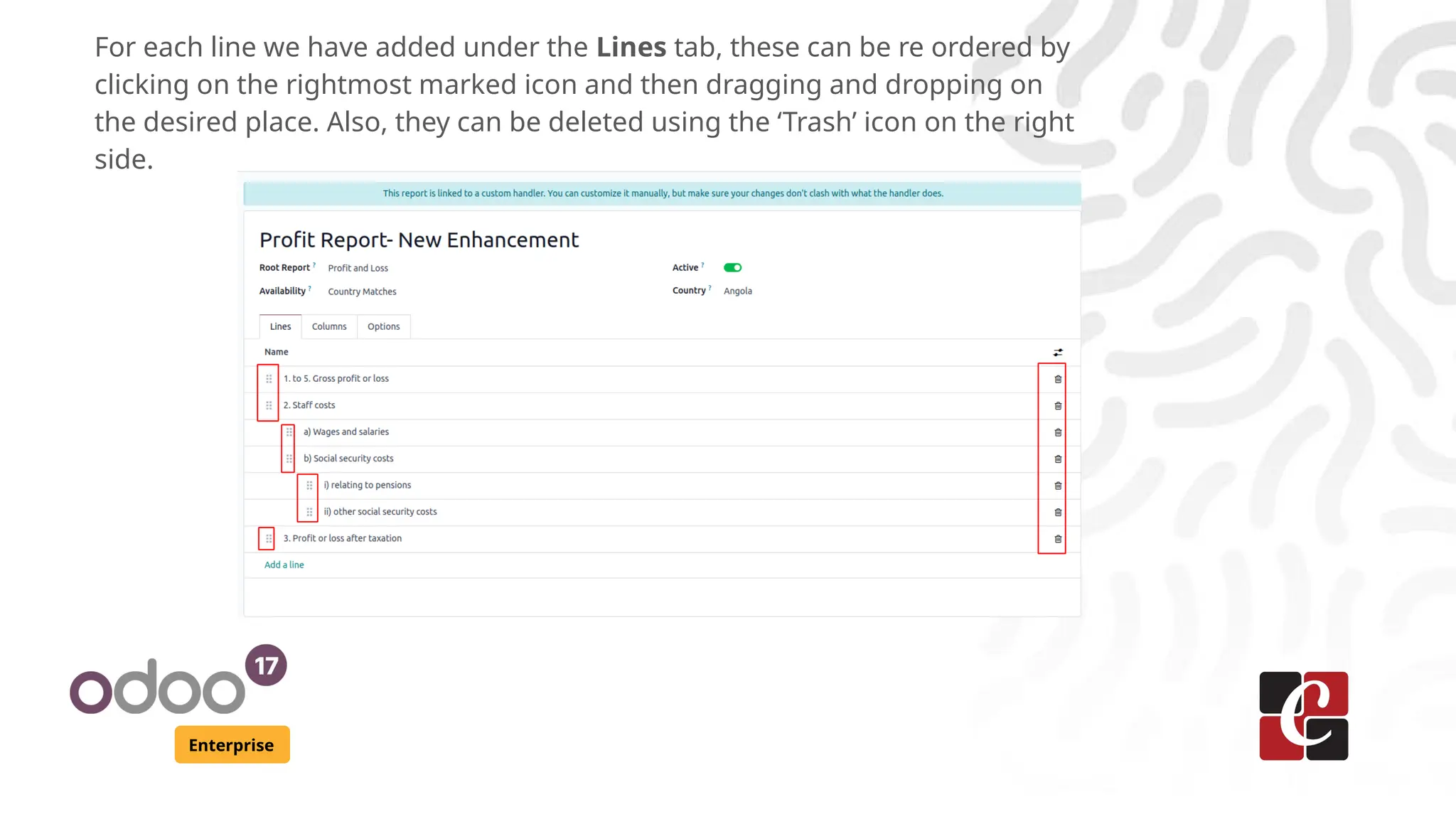
For each line we have added under the Lines tab, these can be re ordered by
clicking on the rightmost marked icon and then dragging and dropping on
the desired place. Also, they can be deleted using the ‘Trash’ icon on the right
side.
Enterprise
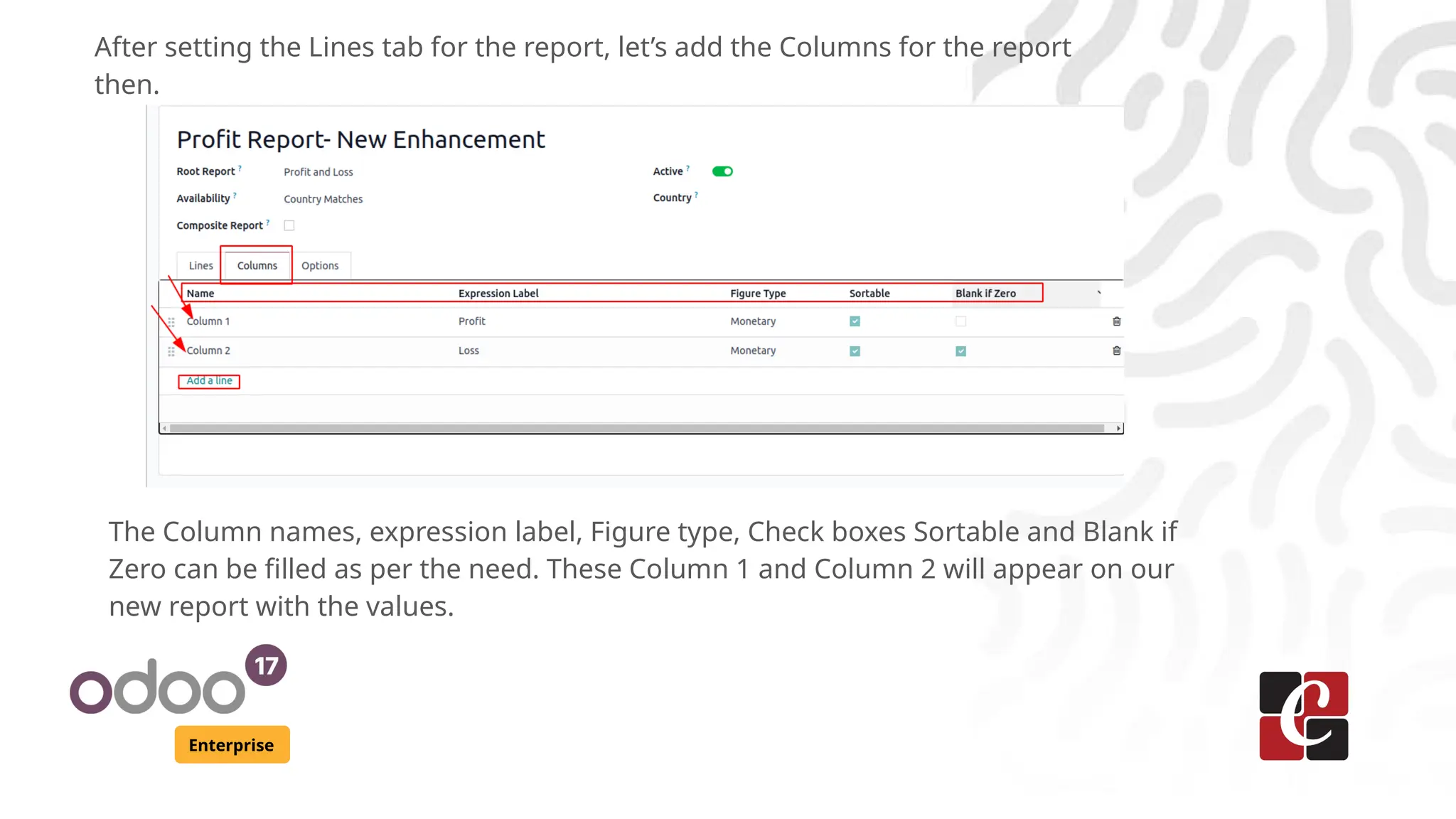
After setting the Lines tab for the report, let’s add the Columns for the report
then.
The Column names, expression label, Figure type, Check boxes Sortable and Blank if
Zero can be filled as per the need. These Column 1 and Column 2 will appear on our
new report with the values.
Enterprise
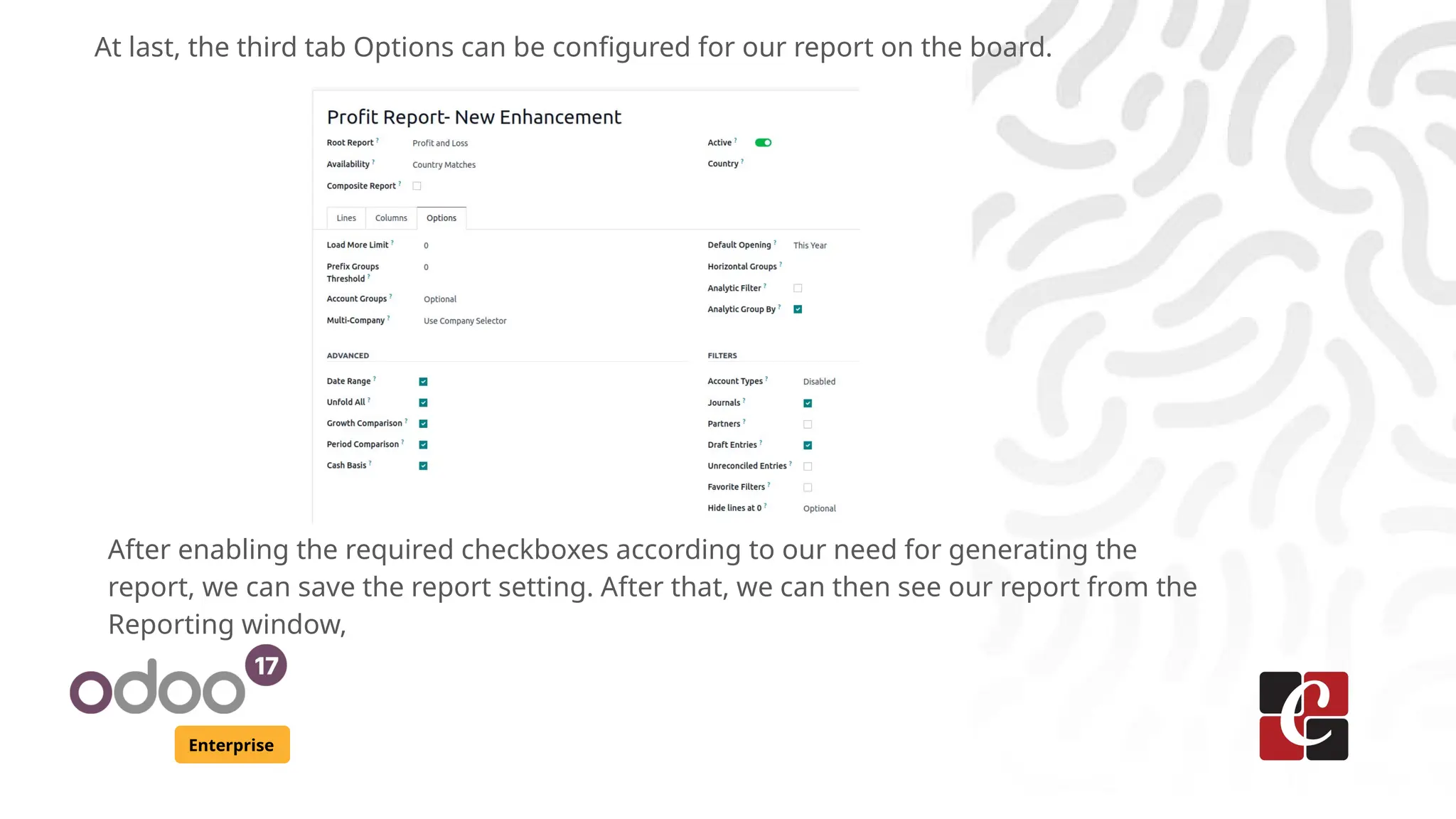
At last, the third tab Options can be configured for our report on the board.
After enabling the required checkboxes according to our need for generating the
report, we can save the report setting. After that, we can then see our report from the
Reporting window,
For More Info.
Check our company website for related blogs
and Odoo book.
Check our YouTube channel for
functional and technical videos in Odoo.
Enterprise
www.cybrosys.com

How to Customize Your Financial Reports & Tax Reports With Odoo 17 Accounting

  • 1.
    How to CustomizeYour Financial Reports & Tax Reports With Odoo 17 Accounting Enterprise
  • 2.
    Introduction Enterprise The Accounting modulein Odoo 17 is a complete tool designed to manage all financial aspects of a business. Odoo offers a comprehensive set of tools for generating financial and tax reports, which are crucial for managing a company's finances and ensuring compliance with tax regulations. Standardized reports may not always capture the specific metrics or details essential for strategic decision-making. Customization allows businesses to tailor their financial and tax reports to align with their goals, industry- specific regulations, and internal management preferences.
  • 3.
    Enterprise Possibilities of Customizationin Odoo 17 Accounting Reports ● Flexible Report Template: Odoo 17 has customizable report templates for many of the reports. If you need a detailed income statement, balance sheet, or any other reports, these report templates allow you to design and customize it according to the need. ● Drag-and-Drop Interface: Modify the structure of reports by adding or removing sections, adjusting groupings, and rearranging data presentation. ● User-Defined Formulas: Odoo allows users to define custom formulas, ensuring that the reports reflect the exact financial measures critical for their decision-making process. ● Dynamic Filtering and Grouping:Apply filters and groupings on reports dynamically, allowing users to drill down into specific subsets of data. ● Multi-Currency Support: Odoo 17 Accounting enables the customization of reports in multiple currencies, facilitating accurate financial reporting for companies with diverse international transactions. ● Tax Report Customization: Define and assign custom tax tags to transactions, add localized Tax and set up custom tax calculation rules.
  • 4.
    Enterprise From the menuReporting, there are many kinds of Accounting related Financial and Tax Reports available Each report provides a detailed analysis of accounting entries.
  • 5.
    Enterprise Among these, themain reports are ● Balance Sheet: Provides a snapshot of the company’s financial position at a given point in time, detailing assets, liabilities, and equity. ● Profit and Loss Statement: Shows the company’s revenues, expenses, and profits over a specific period. ● Cash Flow Statement: Tracks the flow of cash in and out of the business, categorized into operating, investing, and financing activities. ● Trial Balance: Lists all general ledger accounts and their balances, ensuring that total debits equal total credits. ● General Ledger: A detailed report showing all the transactions recorded in each general ledger account during a specific period. ● Journal Entries: Lists all the individual journal entries posted to the general ledger, providing a detailed view of each transaction. ● Partner Ledger: Tracks the financial transactions between the company and its partners (customers, suppliers), showing the opening balance, transactions, and closing balance. ● Tax Report: Summarizes the taxes collected and paid over a period, including details of taxable sales and purchases.
  • 6.
    Enterprise In order tounderstand the basic structure of any report, just take the example of Balance sheet report from the menu. Start with the default template that closely matches your requirements. Odoo offers a variety of templates for income statements, balance sheets, and tax reports. Rearrange and personalize report items using the user-friendly drag-and-drop interface. Depending on what your company wants, add or delete components.
  • 7.
    Enterprise On top ofthe report, we can see there are some inbuilt features available such as the type of format we need to export the report, Date filter, Comparison choices, Filter on Journals, Other filters such as ‘Posted Entries’, ‘Include Draft Entries’, etc.
  • 8.
    Enterprise Understanding Account CalculationFormula Make sure that the instance is running in developer mode to make the formula for each reporting line to be visible. As seen in the below screenshot, there will be a small ‘i’ for each of the line. While clicking on that, it let us to see the formula running for it’s calculation.
  • 9.
    Enterprise We can seethe Engine, Label, Formula, Subformula, and Value of the particular accounting journal. After altering the report view using customized filters, save your customized report template and review it to ensure that it accurately reflects the financial data and insights you need.
  • 10.
    Enterprise Custom Reports Creation Withthe Odoo's user-friendly reporting structure, we can make customized reports after activating the developer mode from the Odoo ‘Settings’ window and go to the ‘Configuration’ menu to start a new report. We may generate a root report or a version using the ‘Accounting Reports’ window of the ‘Management’ section.
  • 11.
    Enterprise We’ll get awindow like this, where we can see the already set reports. Click on ‘New’ button to create a new report.
  • 12.
    Enterprise Give a namefor the report. Then, choose the Root Report for our new report. This will be showing the list of all the main accounting reports already running in the company. Like P&L Report, Bank Reconciliation Report, Balance Sheet, etc.
  • 13.
    Enterprise After that, wecan choose the Availability of the report. This can be any of ‘Always’, ‘Country Matches’ or ‘Chart of Accounts Matches’. The check box Composite Report can be ticked if we want to create a structured report with multiple sections. This will allow for easy navigation and simultaneous printing. We may generate comprehensive reporting lines by selecting the "Add a line" option within this tab.
  • 14.
    Enterprise Clicking on ‘Adda line’ for the Lines tab, its shows as We can give the details such as parent Line, Action, Level, Group By,Code, Foldable, Print On New Page, etc. Inside the column, press the ‘Add a line’ button provided under the ‘Label’ field to create new expressions to calculate the accounting journals inside the displayed window. We can edit the calculating expression or formula inside the empty field.
  • 15.
    Enterprise Now, clicking on‘Add a line’ for the Label to add the Expression, Inside the ‘Definition’ field, edit the Formula, Subformula, and Computation Engine details for the report data calculations. Finally, save the data and go back to the accounting report configuration form.
  • 16.
    Enterprise For each linewe have added under the Lines tab, these can be re ordered by clicking on the rightmost marked icon and then dragging and dropping on the desired place. Also, they can be deleted using the ‘Trash’ icon on the right side.
  • 17.
    Enterprise After setting theLines tab for the report, let’s add the Columns for the report then. The Column names, expression label, Figure type, Check boxes Sortable and Blank if Zero can be filled as per the need. These Column 1 and Column 2 will appear on our new report with the values.
  • 18.
    Enterprise At last, thethird tab Options can be configured for our report on the board. After enabling the required checkboxes according to our need for generating the report, we can save the report setting. After that, we can then see our report from the Reporting window,
  • 19.
    For More Info. Checkour company website for related blogs and Odoo book. Check our YouTube channel for functional and technical videos in Odoo. Enterprise www.cybrosys.com