An Ebook by AVSoft Corp.
www.audio4fun.com
October 2013

Five steps to accomplish
Page 2 of 13

How to Convert DVD to AVI File

Index
Introduction................................................................................................................................ 3
Steps to take .............................................................................................................................. 3
Step 1: Open your DVD Movie ................................................................................................ 4
Step 2: AV Video Convert Mode ............................................................................................. 4
Step 3: Input Tab Settings ...................................................................................................... 6
Step 4: Output Tab Settings ................................................................................................... 7
Step 5: Converting ................................................................................................................ 9
About AV Video Morpher 3.0....................................................................................................... 10
Other products available at Audio4fun ......................................................................................... 11
FREEWARE available at www.audio4fun.com: FREE for download and use ....................................... 12
About Audio4fun.com ................................................................................................................ 13

©2013 AVSoft Corp. All rights reserved
www.audio4fun.com
Page 3 of 13

How to Convert DVD to AVI File

Introduction:
This tutorial will guide you on how to convert DVD movies into AVI format movies using one of
the most powerful converter module from AV Video Morpher.

Steps to take:
There are 5 simple steps for you to follow in order to have a desired video clips:
Step 1: Open your DVD Movie
Step 2: AV Video Convert Mode
Step 3: Input Tab Settings
Step 4: Output Tab Settings
Step 5: Converting

©2013 AVSoft Corp. All rights reserved
www.audio4fun.com
Page 4 of 13

How to Convert DVD to AVI File

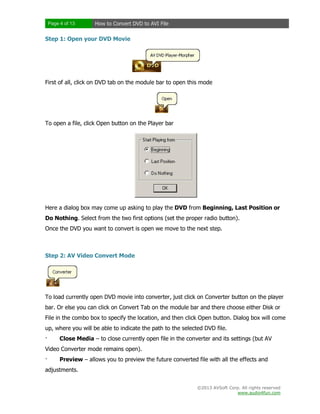
Step 1: Open your DVD Movie

First of all, click on DVD tab on the module bar to open this mode

To open a file, click Open button on the Player bar

Here a dialog box may come up asking to play the DVD from Beginning, Last Position or
Do Nothing. Select from the two first options (set the proper radio button).
Once the DVD you want to convert is open we move to the next step.

Step 2: AV Video Convert Mode

To load currently open DVD movie into converter, just click on Converter button on the player
bar. Or else you can click on Convert Tab on the module bar and there choose either Disk or
File in the combo box to specify the location, and then click Open button. Dialog box will come
up, where you will be able to indicate the path to the selected DVD file.
·

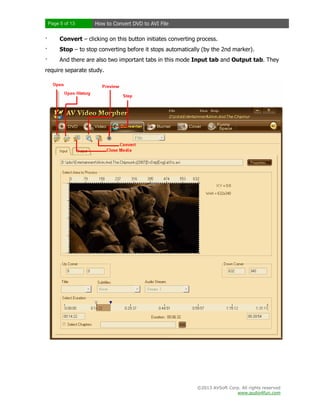
Close Media – to close currently open file in the converter and its settings (but AV

Video Converter mode remains open).
·

Preview – allows you to preview the future converted file with all the effects and

adjustments.
©2013 AVSoft Corp. All rights reserved
www.audio4fun.com
Page 5 of 13

How to Convert DVD to AVI File

·

Convert – clicking on this button initiates converting process.

·

Stop – to stop converting before it stops automatically (by the 2nd marker).

·

And there are also two important tabs in this mode Input tab and Output tab. They

require separate study.

©2013 AVSoft Corp. All rights reserved
www.audio4fun.com
Page 6 of 13

How to Convert DVD to AVI File

Step 3: Input Tab Settings
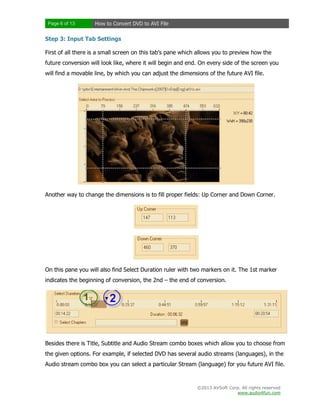
First of all there is a small screen on this tab’s pane which allows you to preview how the
future conversion will look like, where it will begin and end. On every side of the screen you
will find a movable line, by which you can adjust the dimensions of the future AVI file.

Another way to change the dimensions is to fill proper fields: Up Corner and Down Corner.

On this pane you will also find Select Duration ruler with two markers on it. The 1st marker
indicates the beginning of conversion, the 2nd – the end of conversion.

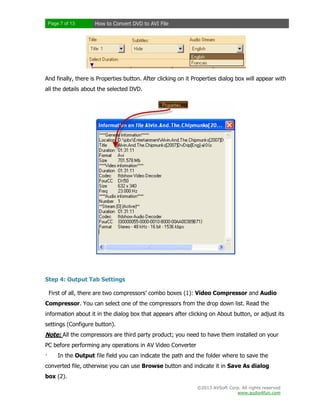
Besides there is Title, Subtitle and Audio Stream combo boxes which allow you to choose from
the given options. For example, if selected DVD has several audio streams (languages), in the
Audio stream combo box you can select a particular Stream (language) for you future AVI file.

©2013 AVSoft Corp. All rights reserved
www.audio4fun.com
Page 7 of 13

How to Convert DVD to AVI File

And finally, there is Properties button. After clicking on it Properties dialog box will appear with
all the details about the selected DVD.

Step 4: Output Tab Settings
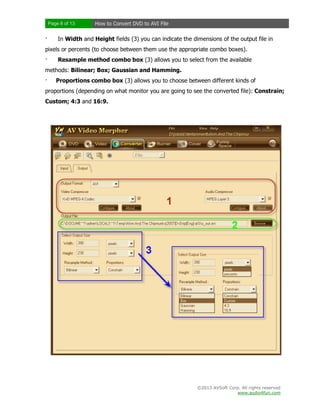
First of all, there are two compressors’ combo boxes (1): Video Compressor and Audio
Compressor. You can select one of the compressors from the drop down list. Read the
information about it in the dialog box that appears after clicking on About button, or adjust its
settings (Configure button).

Note: All the compressors are third party product; you need to have them installed on your
PC before performing any operations in AV Video Converter
·

In the Output file field you can indicate the path and the folder where to save the

converted file, otherwise you can use Browse button and indicate it in Save As dialog
box (2).
©2013 AVSoft Corp. All rights reserved
www.audio4fun.com
Page 8 of 13

·

How to Convert DVD to AVI File

In Width and Height fields (3) you can indicate the dimensions of the output file in

pixels or percents (to choose between them use the appropriate combo boxes).
·

Resample method combo box (3) allows you to select from the available

methods: Bilinear; Box; Gaussian and Hamming.
·

Proportions combo box (3) allows you to choose between different kinds of

proportions (depending on what monitor you are going to see the converted file): Constrain;
Custom; 4:3 and 16:9.

©2013 AVSoft Corp. All rights reserved
www.audio4fun.com
Page 9 of 13

How to Convert DVD to AVI File

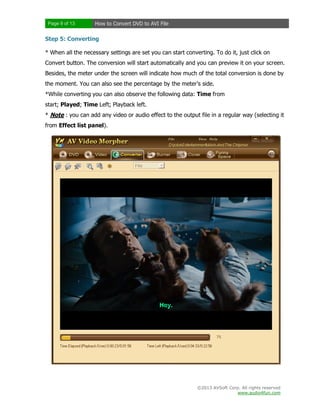
Step 5: Converting
* When all the necessary settings are set you can start converting. To do it, just click on
Convert button. The conversion will start automatically and you can preview it on your screen.
Besides, the meter under the screen will indicate how much of the total conversion is done by
the moment. You can also see the percentage by the meter’s side.
*While converting you can also observe the following data: Time from
start; Played; Time Left; Playback left.
* Note : you can add any video or audio effect to the output file in a regular way (selecting it
from Effect list panel).

©2013 AVSoft Corp. All rights reserved
www.audio4fun.com
Page 10 of 13

How to Convert DVD to AVI File

About AV Video Morpher 3.0
This all-in-one home movie editor completes your home entertainment center and inspires you to create
your own movies, dub your own voices and burn your own DVDs. You can watch, morph, burn, convert,
and capture movies for your own home entertainment or for uploading; you can also use the same
capabilities to produce videos and presentations for business purposes.

AV Video Morpher

©2013 AVSoft Corp. All rights reserved
www.audio4fun.com
Page 11 of 13

How to Convert DVD to AVI File

Other products available at Audio4fun:
Voice Changer Software
DIAMOND

AV Video Morpher

Voice Changer Software

Voice Changer Software

GOLD

BASIC

AV Webcam Morpher

©2013 AVSoft Corp. All rights reserved
www.audio4fun.com
Page 12 of 13

How to Convert DVD to AVI File

FREEWARE available at www.audio4fun.com: FREE for download and use

MEDIA Player Morpher

DVD Player Morpher

Video Karaoke Maker

Digital Talking Parrot

AV Tube

RingtoneMAX

MIDI Converter

MP3 Player Morpher

©2013 AVSoft Corp. All rights reserved
www.audio4fun.com
Page 13 of 13

How to Convert DVD to AVI File

About Audio4fun.com
Audio4fun.com is the main website of AVSoft Corp., the provider of high-quality multimedia software
and solutions to the desktop for unleashing creativity and improving communication. At audio4fun.com,
visitors will get the access to the four main AVSoft’s product series Voice Changer Software, Music
Morpher, Video Morpher, and Webcam Morpher, and several freeware. Audio4fun.com also has a funny
space where visitors could freely view, read, and directly downoad thousands of fun content such as
short stories, jokes, music, ringtones, sounds, flashes, pictures, clips, and holiday e-cards.

For more details, please visit http://www.audio4fun.com.

©2013 AVSoft Corp. All rights reserved
www.audio4fun.com

How to Convert DVD to AVI File

  • 1.
    An Ebook byAVSoft Corp. www.audio4fun.com October 2013 Five steps to accomplish
  • 2.
    Page 2 of13 How to Convert DVD to AVI File Index Introduction................................................................................................................................ 3 Steps to take .............................................................................................................................. 3 Step 1: Open your DVD Movie ................................................................................................ 4 Step 2: AV Video Convert Mode ............................................................................................. 4 Step 3: Input Tab Settings ...................................................................................................... 6 Step 4: Output Tab Settings ................................................................................................... 7 Step 5: Converting ................................................................................................................ 9 About AV Video Morpher 3.0....................................................................................................... 10 Other products available at Audio4fun ......................................................................................... 11 FREEWARE available at www.audio4fun.com: FREE for download and use ....................................... 12 About Audio4fun.com ................................................................................................................ 13 ©2013 AVSoft Corp. All rights reserved www.audio4fun.com
  • 3.
    Page 3 of13 How to Convert DVD to AVI File Introduction: This tutorial will guide you on how to convert DVD movies into AVI format movies using one of the most powerful converter module from AV Video Morpher. Steps to take: There are 5 simple steps for you to follow in order to have a desired video clips: Step 1: Open your DVD Movie Step 2: AV Video Convert Mode Step 3: Input Tab Settings Step 4: Output Tab Settings Step 5: Converting ©2013 AVSoft Corp. All rights reserved www.audio4fun.com
  • 4.
    Page 4 of13 How to Convert DVD to AVI File Step 1: Open your DVD Movie First of all, click on DVD tab on the module bar to open this mode To open a file, click Open button on the Player bar Here a dialog box may come up asking to play the DVD from Beginning, Last Position or Do Nothing. Select from the two first options (set the proper radio button). Once the DVD you want to convert is open we move to the next step. Step 2: AV Video Convert Mode To load currently open DVD movie into converter, just click on Converter button on the player bar. Or else you can click on Convert Tab on the module bar and there choose either Disk or File in the combo box to specify the location, and then click Open button. Dialog box will come up, where you will be able to indicate the path to the selected DVD file. · Close Media – to close currently open file in the converter and its settings (but AV Video Converter mode remains open). · Preview – allows you to preview the future converted file with all the effects and adjustments. ©2013 AVSoft Corp. All rights reserved www.audio4fun.com
  • 5.
    Page 5 of13 How to Convert DVD to AVI File · Convert – clicking on this button initiates converting process. · Stop – to stop converting before it stops automatically (by the 2nd marker). · And there are also two important tabs in this mode Input tab and Output tab. They require separate study. ©2013 AVSoft Corp. All rights reserved www.audio4fun.com
  • 6.
    Page 6 of13 How to Convert DVD to AVI File Step 3: Input Tab Settings First of all there is a small screen on this tab’s pane which allows you to preview how the future conversion will look like, where it will begin and end. On every side of the screen you will find a movable line, by which you can adjust the dimensions of the future AVI file. Another way to change the dimensions is to fill proper fields: Up Corner and Down Corner. On this pane you will also find Select Duration ruler with two markers on it. The 1st marker indicates the beginning of conversion, the 2nd – the end of conversion. Besides there is Title, Subtitle and Audio Stream combo boxes which allow you to choose from the given options. For example, if selected DVD has several audio streams (languages), in the Audio stream combo box you can select a particular Stream (language) for you future AVI file. ©2013 AVSoft Corp. All rights reserved www.audio4fun.com
  • 7.
    Page 7 of13 How to Convert DVD to AVI File And finally, there is Properties button. After clicking on it Properties dialog box will appear with all the details about the selected DVD. Step 4: Output Tab Settings First of all, there are two compressors’ combo boxes (1): Video Compressor and Audio Compressor. You can select one of the compressors from the drop down list. Read the information about it in the dialog box that appears after clicking on About button, or adjust its settings (Configure button). Note: All the compressors are third party product; you need to have them installed on your PC before performing any operations in AV Video Converter · In the Output file field you can indicate the path and the folder where to save the converted file, otherwise you can use Browse button and indicate it in Save As dialog box (2). ©2013 AVSoft Corp. All rights reserved www.audio4fun.com
  • 8.
    Page 8 of13 · How to Convert DVD to AVI File In Width and Height fields (3) you can indicate the dimensions of the output file in pixels or percents (to choose between them use the appropriate combo boxes). · Resample method combo box (3) allows you to select from the available methods: Bilinear; Box; Gaussian and Hamming. · Proportions combo box (3) allows you to choose between different kinds of proportions (depending on what monitor you are going to see the converted file): Constrain; Custom; 4:3 and 16:9. ©2013 AVSoft Corp. All rights reserved www.audio4fun.com
  • 9.
    Page 9 of13 How to Convert DVD to AVI File Step 5: Converting * When all the necessary settings are set you can start converting. To do it, just click on Convert button. The conversion will start automatically and you can preview it on your screen. Besides, the meter under the screen will indicate how much of the total conversion is done by the moment. You can also see the percentage by the meter’s side. *While converting you can also observe the following data: Time from start; Played; Time Left; Playback left. * Note : you can add any video or audio effect to the output file in a regular way (selecting it from Effect list panel). ©2013 AVSoft Corp. All rights reserved www.audio4fun.com
  • 10.
    Page 10 of13 How to Convert DVD to AVI File About AV Video Morpher 3.0 This all-in-one home movie editor completes your home entertainment center and inspires you to create your own movies, dub your own voices and burn your own DVDs. You can watch, morph, burn, convert, and capture movies for your own home entertainment or for uploading; you can also use the same capabilities to produce videos and presentations for business purposes. AV Video Morpher ©2013 AVSoft Corp. All rights reserved www.audio4fun.com
  • 11.
    Page 11 of13 How to Convert DVD to AVI File Other products available at Audio4fun: Voice Changer Software DIAMOND AV Video Morpher Voice Changer Software Voice Changer Software GOLD BASIC AV Webcam Morpher ©2013 AVSoft Corp. All rights reserved www.audio4fun.com
  • 12.
    Page 12 of13 How to Convert DVD to AVI File FREEWARE available at www.audio4fun.com: FREE for download and use MEDIA Player Morpher DVD Player Morpher Video Karaoke Maker Digital Talking Parrot AV Tube RingtoneMAX MIDI Converter MP3 Player Morpher ©2013 AVSoft Corp. All rights reserved www.audio4fun.com
  • 13.
    Page 13 of13 How to Convert DVD to AVI File About Audio4fun.com Audio4fun.com is the main website of AVSoft Corp., the provider of high-quality multimedia software and solutions to the desktop for unleashing creativity and improving communication. At audio4fun.com, visitors will get the access to the four main AVSoft’s product series Voice Changer Software, Music Morpher, Video Morpher, and Webcam Morpher, and several freeware. Audio4fun.com also has a funny space where visitors could freely view, read, and directly downoad thousands of fun content such as short stories, jokes, music, ringtones, sounds, flashes, pictures, clips, and holiday e-cards. For more details, please visit http://www.audio4fun.com. ©2013 AVSoft Corp. All rights reserved www.audio4fun.com