• Identifying andunderstanding web browser basics
• Conducting searches in the web
• Searching for images
• Understanding a variety of tools to modify and narrow searches
Internet Research
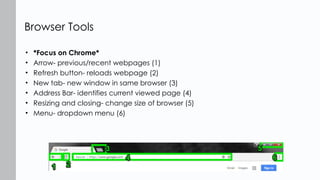
• *Focus onChrome*
• Arrow- previous/recent webpages (1)
• Refresh button- reloads webpage (2)
• New tab- new window in same browser (3)
• Address Bar- identifies current viewed page (4)
• Resizing and closing- change size of browser (5)
• Menu- dropdown menu (6)
Browser Tools
5.
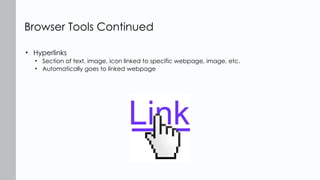
• Hyperlinks
• Sectionof text, image, icon linked to specific webpage, image, etc.
• Automatically goes to linked webpage
Browser Tools Continued
6.
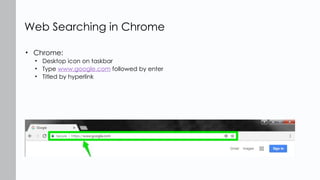
• Chrome:
• Desktopicon on taskbar
• Type www.google.com followed by enter
• Titled by hyperlink
Web Searching in Chrome
7.
• Bing
• Desktopicon on taskbar
• Type www.bing.com then enter
• Similar to Google
• However, to the right are related searches
Web Searching using Bing
8.
• Open Chrome
•Change search key words
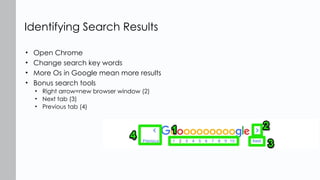
• More Os in Google mean more results
• Bonus search tools
• Right arrow=new browser window (2)
• Next tab (3)
• Previous tab (4)
Identifying Search Results
9.
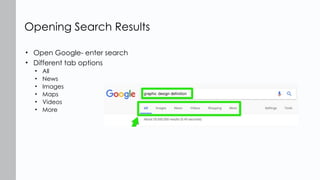
• Open Google-enter search
• Different tab options
• All
• News
• Images
• Maps
• Videos
• More
Opening Search Results
10.
• Operations
• AND
•Enter “marketing AND services”
• OR
• Enter “marketing OR services”
• More responses than AND
• NOT
• Enter “marketing NOT services”
• Less search results
Adjusting Search Parameters
11.
• Boolean Modifier
•Used in search phrase to modify search results
• Quotation marks
• Less responses
• Asterisk
• When you don’t know exact wording
• Parentheses
• What is read first
Adjusting Search Parameters Cont.
12.
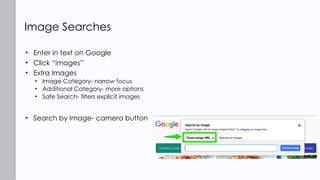
• Enter intext on Google
• Click “images”
• Extra Images
• Image Category- narrow focus
• Additional Category- more options
• Safe Search- filters explicit images
• Search by Image- camera button
Image Searches
13.
• What arethe three main browsers used to access the internet?
• What are the basic navigation tools used in a browser?
• How do you perform a web search using two different search
engines?
• Can you correctly identify the number of results from each
search?
• How do you open the first web search engine result?
• Are you now able to add additional parameters to the web
search?
• Can you identify changes in the search results?
• How do you perform a web search for an image?
Quick Review
Editor's Notes
#1 Cover Image: "wocintech stock - 219." Authored by: WOCinTech Chat. Located at: https://flic.kr/p/F81YCC. Content Type: CC Licensed Content, Shared Previously. License: CC BY: Attribution.
All text in these slides is taken from https://courses.lumenlearning.com/wmopen-compapp/ where it is published under one or more open licenses.
All images in these slides are attributed in the notes of the slide on which they appear and licensed as indicated.
#2 Mozilla Firefox logo. Provided by: Wikipedia. Located at: http://logos.wikia.com/wiki/Firefox. License: Public Domain: No Known Copyright
Microsoft Edge logo. Located at: http://logos.wikia.com/wiki/Microsoft_Edge. License: Public Domain: No Known Copyright
Google Chrome logo. Provided by: Wikipedia. Located at: http://logos.wikia.com/wiki/Google_Chrome. License: Public Domain: No Known Copyright
#3
Mozilla Firefox logo. Provided by: Wikipedia. Located at: http://logos.wikia.com/wiki/Firefox. License: Public Domain: No Known Copyright
Microsoft Edge logo. Located at: http://logos.wikia.com/wiki/Microsoft_Edge. License: Public Domain: No Known Copyright
Google Chrome logo. Provided by: Wikipedia. Located at: http://logos.wikia.com/wiki/Google_Chrome. License: Public Domain: No Known Copyright
Apple Safari logo. Provided by. Wikipedia. Located at: http://logos.wikia.com/wiki/Safari. License: Public Domain: No Known Copyright
#5 Title: Hyperlink. Authored by: Carol Kuniholm. Located at: http://wordshalfheard.blogspot.com/2011/10/hyperlink.html. License: CC-BY
#7 AOL logo. Provided by: Wikipedia. Located at: http://logos.wikia.com/wiki/AOL. License: Public Domain: No Known Copyright
Ask.com . Provided by: Wikipedia. Located at: http://logos.wikia.com/wiki/Ask.com. License: Public Domain: No Known Copyright
Google logo. Provided by: Wikipedia. Located at: http://logos.wikia.com/wiki/Google. License: Public Domain: No Known Copyright
Microsoft Bing logo. Provided by: Wikipedia. Located at: http://logos.wikia.com/wiki/Bing. License: Public Domain: No Known Copyright
Yahoo search logo. Provided by: Wikipedia. Located at: http://logos.wikia.com/wiki/Yahoo!_Search. License: Public Domain: No Known Copyright
#13 Title: Google’s New Logo is Trying Really Hard to Look Friendly. Authored by: Margaret Rhodes. Located at: https://www.wired.com/2015/09/googles-new-logo-trying-really-hard-look-friendly/ . License: CC-BY