How to approach building
GUIs using PyQt
Jerlyn Manohar
Summary:
● Draw your problem
● Know your widgets: choosing the right widget for the job
● Building a simple PyQT form: understanding PyQT’s class hierarchy,
inheritance, and Signals/Slots
● GUI, but make it aesthetically pleasing: adding CSS to your application
● Distributing your application: Packaging the scripts as .exe and distributing
them to client machines
● Q/A
Introduction
Desktop applications are a GREAT idea if:
● Your user base only uses one platform
● You want to view/study/analyze device content
● You want to let people interact with sensitive data, but are worried about
external penetration
● Your users don’t rely on internet connectivity to perform their work
● Etc...
So, you’ve decided that a native desktop app fits
your business purpose better. What’s next?
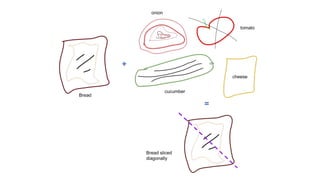
Draw your problem
Draw -
● How you want the user to interact with the ‘ingredients’ of your app
● What the user should not be doing
● What the reward for a successful interaction is
Let’s try building a simple form.
Understanding how PyQt works beneath the
hood
● PyQT has several classes
● QtGui to initialize UI elements, QtCore to define/edit behavior of the UI
elements, QtDesigner to generate a .ui file, uic to convert .ui to .py files, etc
● A QApplication is the main app
● Let's convert our drawing into an application
You now have a form...how can a user
meaningfully interact with it now?
● By connecting widgets to functions
● These can be established through establishing signals and slots connections
using the widgets’ in-built methods
● Put it this way: a signal is the switch being pressed, the slot is the electrical
wiring that connects it to the fan, and the function is the fan turning on
● The different signal/slot connections can be studied from the official docs
However, the discussed isn't the 'only’ way to
create PyQt UI elements
● You can use the QtDesigner application that ships with PyQt4/5 .whl for
windows
● If you're on Linux/OSX you might have to search for and download the
compiled version or do it yourself
● QtDesigner is a wysiwyg UI editor that generates .ui files
● You can load the .ui file into your main python program by using uic and its
loadUi method
● Or, use pyuic to convert the .ui file into a python file
You can also add CSS to the widgets
● Either directly from the QtDesigner
● Or, using the setStylesheet method of each QWidget
Distributing your application
● Use “freeze” method to package your application for distribution to client
systems
● For windows, you can convert .py to .exe with all the necessary windows .dlls,
any custom python modules, etc
● Some libraries to help you do it are py2exe, cxfreeze, PyInstaller, etc.
For further questions/assistance:
● Mail me at jerlynmanohar@gmail.com
● Find me on LinkedIn at
https://www.linkedin.com/in/jerlyn-manohar-605649101/

How to approach building GUIs using PyQT

  • 1.
    How to approachbuilding GUIs using PyQt Jerlyn Manohar
  • 2.
    Summary: ● Draw yourproblem ● Know your widgets: choosing the right widget for the job ● Building a simple PyQT form: understanding PyQT’s class hierarchy, inheritance, and Signals/Slots ● GUI, but make it aesthetically pleasing: adding CSS to your application ● Distributing your application: Packaging the scripts as .exe and distributing them to client machines ● Q/A
  • 3.
    Introduction Desktop applications area GREAT idea if: ● Your user base only uses one platform ● You want to view/study/analyze device content ● You want to let people interact with sensitive data, but are worried about external penetration ● Your users don’t rely on internet connectivity to perform their work ● Etc...
  • 4.
    So, you’ve decidedthat a native desktop app fits your business purpose better. What’s next? Draw your problem
  • 6.
    Draw - ● Howyou want the user to interact with the ‘ingredients’ of your app ● What the user should not be doing ● What the reward for a successful interaction is Let’s try building a simple form.
  • 8.
    Understanding how PyQtworks beneath the hood ● PyQT has several classes ● QtGui to initialize UI elements, QtCore to define/edit behavior of the UI elements, QtDesigner to generate a .ui file, uic to convert .ui to .py files, etc ● A QApplication is the main app ● Let's convert our drawing into an application
  • 9.
    You now havea form...how can a user meaningfully interact with it now? ● By connecting widgets to functions ● These can be established through establishing signals and slots connections using the widgets’ in-built methods ● Put it this way: a signal is the switch being pressed, the slot is the electrical wiring that connects it to the fan, and the function is the fan turning on ● The different signal/slot connections can be studied from the official docs
  • 10.
    However, the discussedisn't the 'only’ way to create PyQt UI elements ● You can use the QtDesigner application that ships with PyQt4/5 .whl for windows ● If you're on Linux/OSX you might have to search for and download the compiled version or do it yourself ● QtDesigner is a wysiwyg UI editor that generates .ui files ● You can load the .ui file into your main python program by using uic and its loadUi method ● Or, use pyuic to convert the .ui file into a python file
  • 11.
    You can alsoadd CSS to the widgets ● Either directly from the QtDesigner ● Or, using the setStylesheet method of each QWidget
  • 12.
    Distributing your application ●Use “freeze” method to package your application for distribution to client systems ● For windows, you can convert .py to .exe with all the necessary windows .dlls, any custom python modules, etc ● Some libraries to help you do it are py2exe, cxfreeze, PyInstaller, etc.
  • 13.
    For further questions/assistance: ●Mail me at jerlynmanohar@gmail.com ● Find me on LinkedIn at https://www.linkedin.com/in/jerlyn-manohar-605649101/