Adding an RSS Feed to Your Dashboard

RSS (Rich Site Summary, or Really Simple Syndication) feeds will allow you to subscribe to a specific search or a specific website (or a combination). RSS is meant to
be used for news searches or blogs or similar websites that will regularly post updates. RSS is not for web searches that will show the same results at a given time
or websites that don’t publish new posts.

On an RSS Widget, new content will be added to your widget as it is published online without you having to manually retrieve the information. Many of the
widgets that Netvibes automatically populates when you create a new dashboard or a new tab are RSS feeds of some kind. Follow the steps below to create an RSS
widget from an RSS link on a website/search that you’d like to follow. See last slide for other RSS widgets you can tailor for your projects.

    1. First, you must find a feed that you would like to add to your dashboard. Google News(not regular Google web search but Google News) provides a feed
       link to subscribe to the news items, including news items of a specific search. Many blogs and news outlets also have RSS feeds. Simply look for the RSS
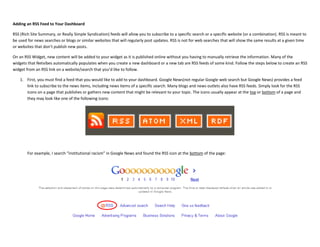
       icons on a page that publishes or gathers new content that might be relevant to your topic. The icons usually appear at the top or bottom of a page and
       they may look like one of the following icons:


        For example, I search “institutional racism” in Google News and found the RSS icon at the bottom of the page:
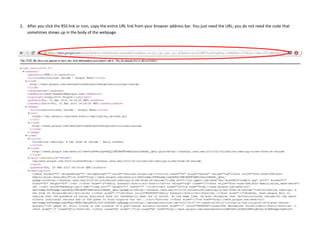
2. After you click the RSS link or icon, copy the entire URL link from your browser address bar. You just need the URL; you do not need the code that
   sometimes shows up in the body of the webpage.
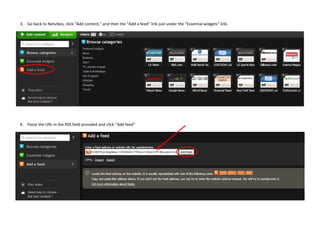
3. Go back to Netvibes, click “Add content,” and then the “Add a feed” link just under the “Essential widgets” link.


4. Paste the URL in the RSS field provided and click “Add feed”
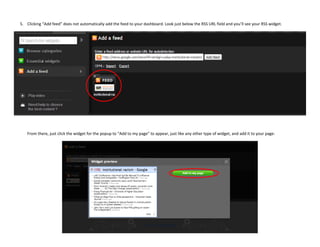
5. Clicking “Add feed” does not automatically add the feed to your dashboard. Look just below the RSS URL field and you’ll see your RSS widget.


   From there, just click the widget for the popup to “Add to my page” to appear, just like any other type of widget, and add it to your page:
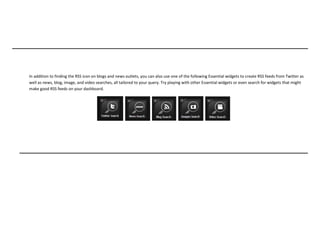
In addition to finding the RSS icon on blogs and news outlets, you can also use one of the following Essential widgets to create RSS feeds from Twitter as
well as news, blog, image, and video searches, all tailored to your query. Try playing with other Essential widgets or even search for widgets that might
make good RSS feeds on your dashboard.

How to - Add RSS feeds to Netvibes

  • 1.
    Adding an RSSFeed to Your Dashboard
  • 2.
    Adding an RSSFeed to Your Dashboard RSS (Rich Site Summary, or Really Simple Syndication) feeds will allow you to subscribe to a specific search or a specific website (or a combination). RSS is meant to be used for news searches or blogs or similar websites that will regularly post updates. RSS is not for web searches that will show the same results at a given time or websites that don’t publish new posts. On an RSS Widget, new content will be added to your widget as it is published online without you having to manually retrieve the information. Many of the widgets that Netvibes automatically populates when you create a new dashboard or a new tab are RSS feeds of some kind. Follow the steps below to create an RSS widget from an RSS link on a website/search that you’d like to follow. See last slide for other RSS widgets you can tailor for your projects. 1. First, you must find a feed that you would like to add to your dashboard. Google News(not regular Google web search but Google News) provides a feed link to subscribe to the news items, including news items of a specific search. Many blogs and news outlets also have RSS feeds. Simply look for the RSS icons on a page that publishes or gathers new content that might be relevant to your topic. The icons usually appear at the top or bottom of a page and they may look like one of the following icons: For example, I search “institutional racism” in Google News and found the RSS icon at the bottom of the page:
  • 3.
    2. After youclick the RSS link or icon, copy the entire URL link from your browser address bar. You just need the URL; you do not need the code that sometimes shows up in the body of the webpage.
  • 4.
    3. Go backto Netvibes, click “Add content,” and then the “Add a feed” link just under the “Essential widgets” link. 4. Paste the URL in the RSS field provided and click “Add feed”
  • 5.
    5. Clicking “Addfeed” does not automatically add the feed to your dashboard. Look just below the RSS URL field and you’ll see your RSS widget. From there, just click the widget for the popup to “Add to my page” to appear, just like any other type of widget, and add it to your page:
  • 6.
    In addition tofinding the RSS icon on blogs and news outlets, you can also use one of the following Essential widgets to create RSS feeds from Twitter as well as news, blog, image, and video searches, all tailored to your query. Try playing with other Essential widgets or even search for widgets that might make good RSS feeds on your dashboard.