Presented By-
1.Manish Yadav
2.Vishal Patel
3.Vijay Patidar
4.Manmohan singh
5.Aatur Porwal
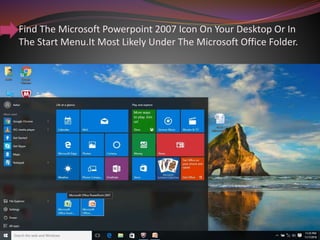
Find The Microsoft Powerpoint 2007 Icon On Your Desktop Or In
The Start Menu.It Most Likely Under The Microsoft Office Folder.
When PowerPoint opens,it will look like this. Unless you want to add the video
to your opening slide,Select the New Slide button..
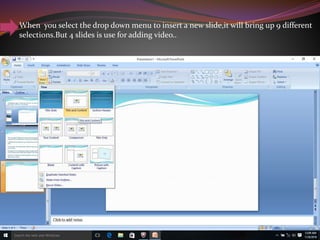
When you select the drop down menu to insert a new slide,it will bring up 9 different
selections.But 4 slides is use for adding video..
1.Title & Content:This slide allows you to add a title as well as your
video.
2.Two Content: You are able to add a title & a different content than
just your video.
3.Comparison:With the comparison slide,you are able to add two
different types of content &text above to explain what the content is.
4.Content with Caption:This slide has a place for a small title, a
caption, & your content.
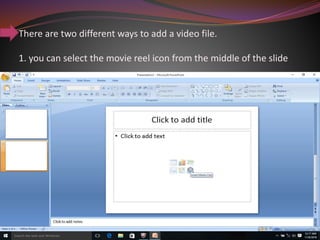
There are two different ways to add a video file.
1. you can select the movie reel icon from the middle of the slide
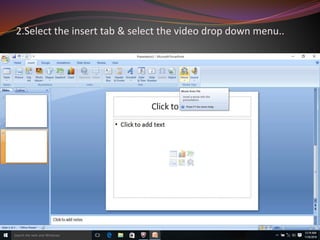
2.Select the insert tab & select the video drop down menu..
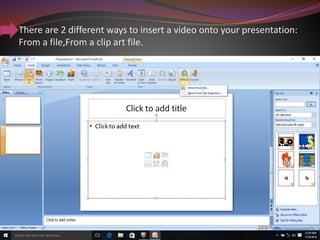
There are 2 different ways to insert a video onto your presentation:
From a file,From a clip art file.
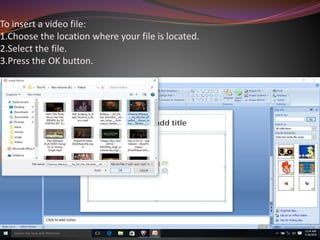
To insert a video file:
1.Choose the location where your file is located.
2.Select the file.
3.Press the OK button.
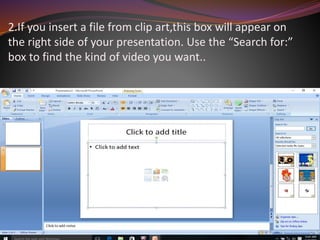
2.If you insert a file from clip art,this box will appear on
the right side of your presentation. Use the “Search for:”
box to find the kind of video you want..
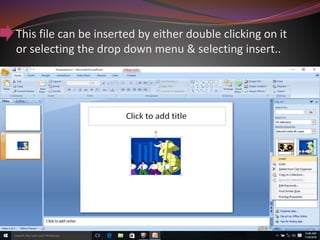
This file can be inserted by either double clicking on it
or selecting the drop down menu & selecting insert..
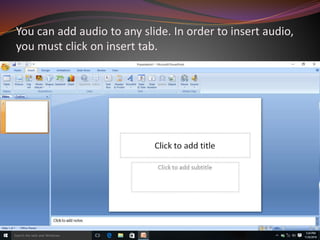
You can add audio to any slide. In order to insert audio,
you must click on insert tab.
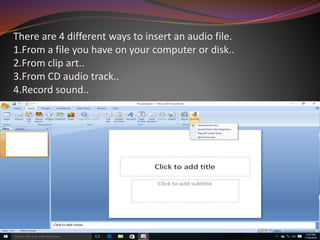
There are 4 different ways to insert an audio file.
1.From a file you have on your computer or disk..
2.From clip art..
3.From CD audio track..
4.Record sound..
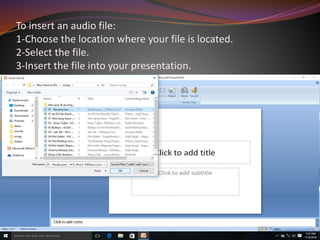
To insert an audio file:
1-Choose the location where your file is located.
2-Select the file.
3-Insert the file into your presentation.
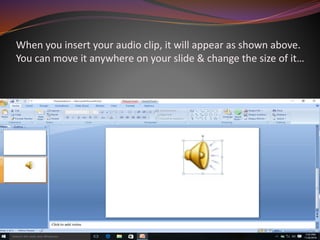
When you insert your audio clip, it will appear as shown above.
You can move it anywhere on your slide & change the size of it…
When you select the
option of clip organizer ,
you can choose the
audio clips you want
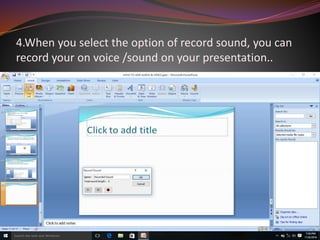
4.When you select the option of record sound, you can
record your on voice /sound on your presentation..
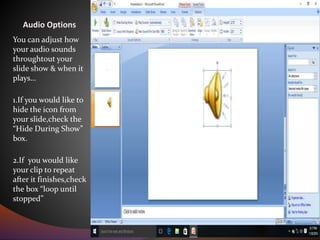
Audio Options
You can adjust how
your audio sounds
throughtout your
slide show & when it
plays…
1.If you would like to
hide the icon from
your slide,check the
“Hide During Show”
box.
2.If you would like
your clip to repeat
after it finishes,check
the box “loop until
stopped”

How to add audio & video

  • 1.
    Presented By- 1.Manish Yadav 2.VishalPatel 3.Vijay Patidar 4.Manmohan singh 5.Aatur Porwal
  • 2.
    Find The MicrosoftPowerpoint 2007 Icon On Your Desktop Or In The Start Menu.It Most Likely Under The Microsoft Office Folder.
  • 3.
    When PowerPoint opens,itwill look like this. Unless you want to add the video to your opening slide,Select the New Slide button..
  • 4.
    When you selectthe drop down menu to insert a new slide,it will bring up 9 different selections.But 4 slides is use for adding video..
  • 5.
    1.Title & Content:Thisslide allows you to add a title as well as your video. 2.Two Content: You are able to add a title & a different content than just your video. 3.Comparison:With the comparison slide,you are able to add two different types of content &text above to explain what the content is. 4.Content with Caption:This slide has a place for a small title, a caption, & your content.
  • 6.
    There are twodifferent ways to add a video file. 1. you can select the movie reel icon from the middle of the slide
  • 7.
    2.Select the inserttab & select the video drop down menu..
  • 8.
    There are 2different ways to insert a video onto your presentation: From a file,From a clip art file.
  • 9.
    To insert avideo file: 1.Choose the location where your file is located. 2.Select the file. 3.Press the OK button.
  • 10.
    2.If you inserta file from clip art,this box will appear on the right side of your presentation. Use the “Search for:” box to find the kind of video you want..
  • 11.
    This file canbe inserted by either double clicking on it or selecting the drop down menu & selecting insert..
  • 12.
    You can addaudio to any slide. In order to insert audio, you must click on insert tab.
  • 13.
    There are 4different ways to insert an audio file. 1.From a file you have on your computer or disk.. 2.From clip art.. 3.From CD audio track.. 4.Record sound..
  • 14.
    To insert anaudio file: 1-Choose the location where your file is located. 2-Select the file. 3-Insert the file into your presentation.
  • 15.
    When you insertyour audio clip, it will appear as shown above. You can move it anywhere on your slide & change the size of it…
  • 16.
    When you selectthe option of clip organizer , you can choose the audio clips you want
  • 17.
    4.When you selectthe option of record sound, you can record your on voice /sound on your presentation..
  • 18.
    Audio Options You canadjust how your audio sounds throughtout your slide show & when it plays… 1.If you would like to hide the icon from your slide,check the “Hide During Show” box. 2.If you would like your clip to repeat after it finishes,check the box “loop until stopped”