Hardware Installation

     Jessica Hodson
Graphics Card

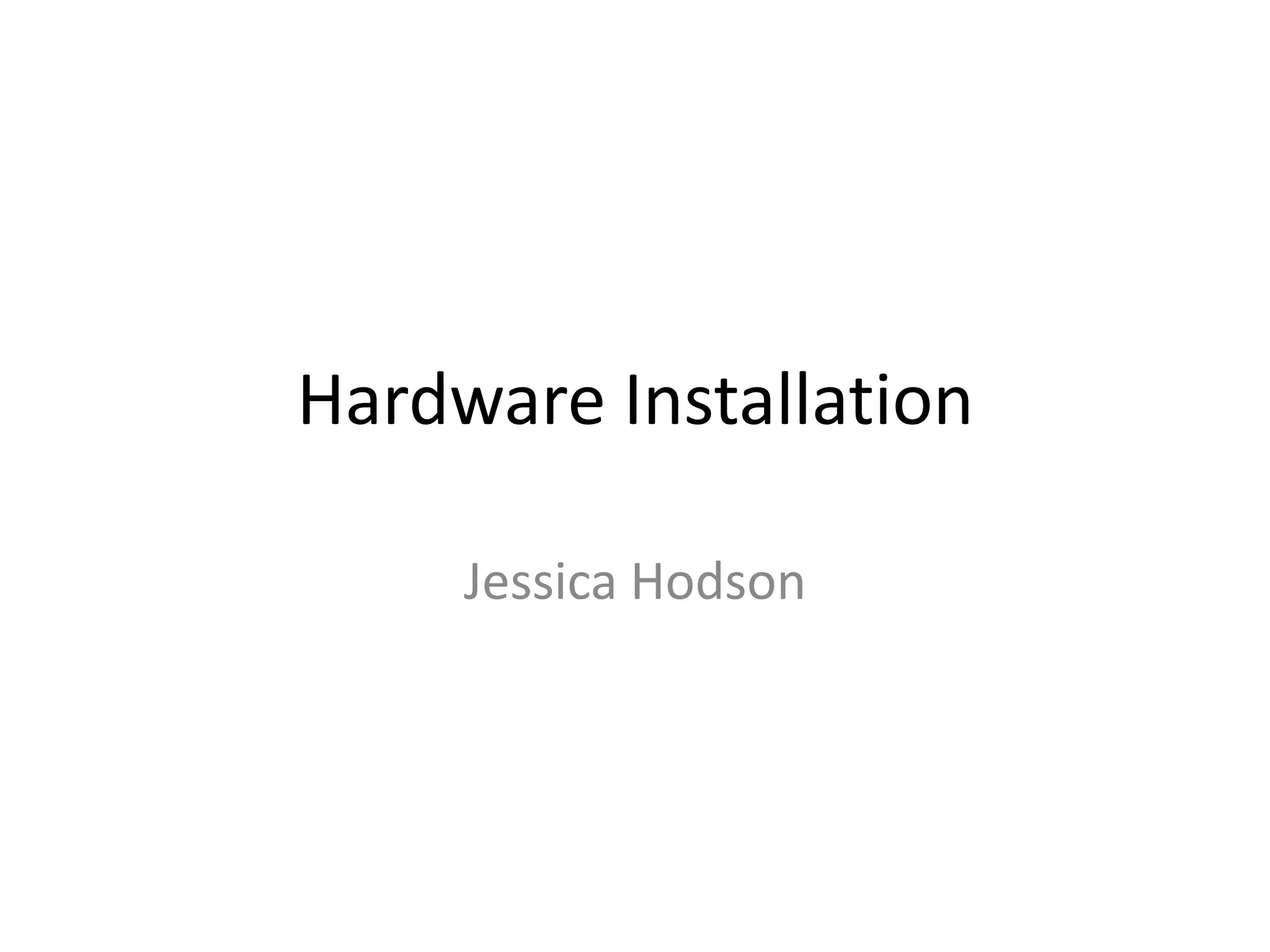
•   The graphics card is responsible for generating all the text and pictures that are displayed on your screen.
    Installing a graphics card will benefit when it comes to playing PC games on your computer or laptop. A
    more powerful graphics card will enable better quality images and near cinematic effects.
•   Resolution determines how many ‘dots’ are used to create the image on the screen.
•   Refresh refers to how many times a second the image on the screen is redrawn.
•   Colour depth is also another factor included in the graphics card and obviously, the more colours the
    greater the detail.

•   To install a graphics card, you will need; a new graphics card, screwdriver, and an antistatic wrist strap and
    mat.

•   A risk when installing the graphics card is the build up of ESD (Electrostatic Discharge). The build up of ESD
    will damage the graphics card.
•   To prevent the build up of ESD, when installing the card an anti-static wristband should be worn and the
    card and desktop should be placed on an anti-static mat.
USB 3.0 PCIe Card

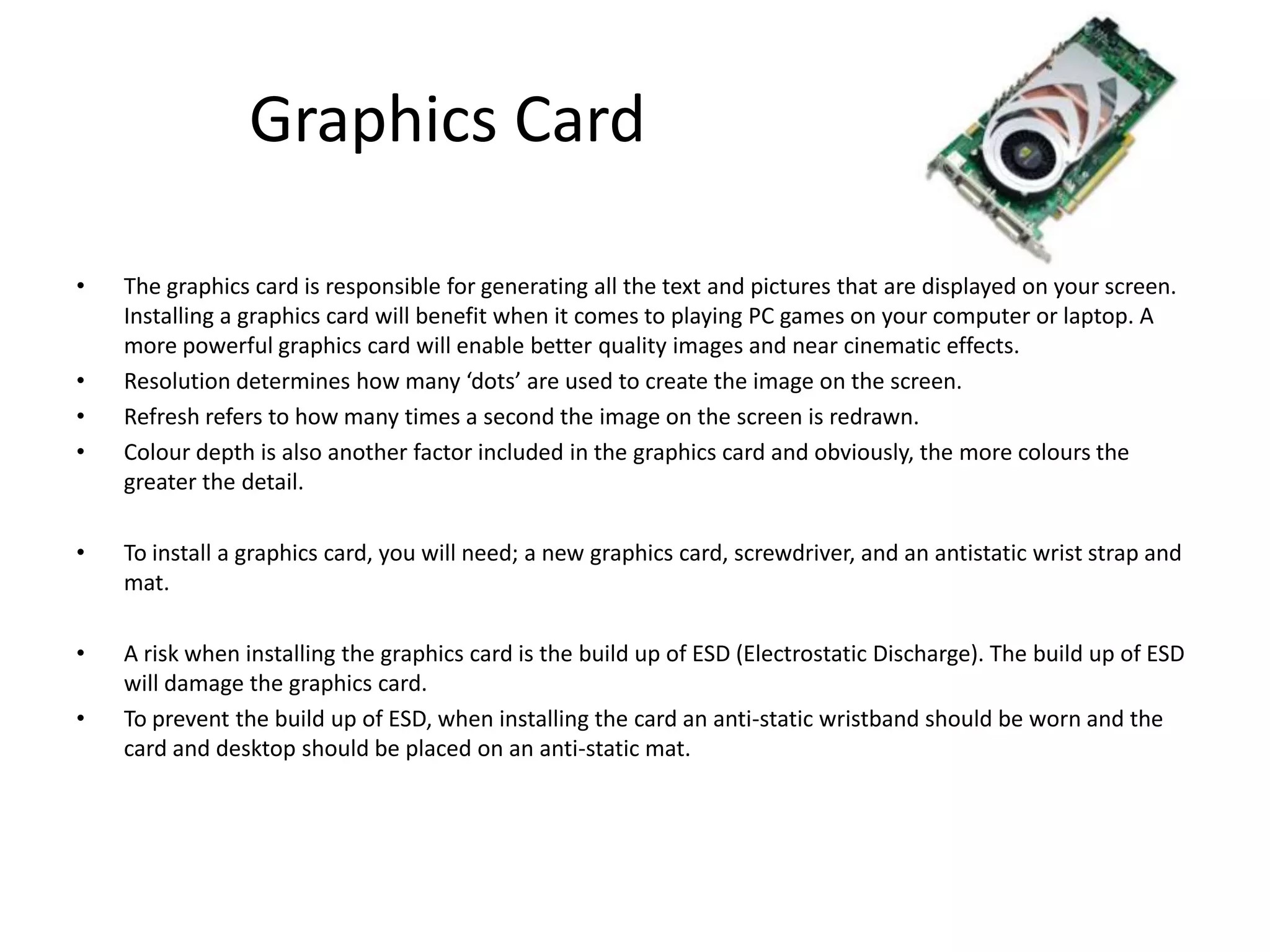
•   The USB 3.0 PCIe card allows your computer to have 10 times faster transfer speed, speed of up to 5
    Gb/s, and upgrade flexibility. USB 3.0 reduces the time required for data transmission and reduces power
    consumption.
•   The typical current card of a computer is the USB 2.0 standard with speeds only up to 480 Mb/s.

•   When installing the USB 3.0 PCIe card, ensure the computer it is being installed on is no older than 4 years
    in order to be able to handle the high speed of the card and ensure there is a free PCI slot on the
    motherboard.

•   A risk when installing the USB 3.0 PCIe card is also ESD (Electrostatic Discharge). The build up of ESD will
    damage the USB 3.0 PCIe card.
•   To prevent the build up of ESD, when installing the card an anti-static wristband should be worn and the
    card and desktop should be placed on an anti-static mat.
Wi-Fi Card

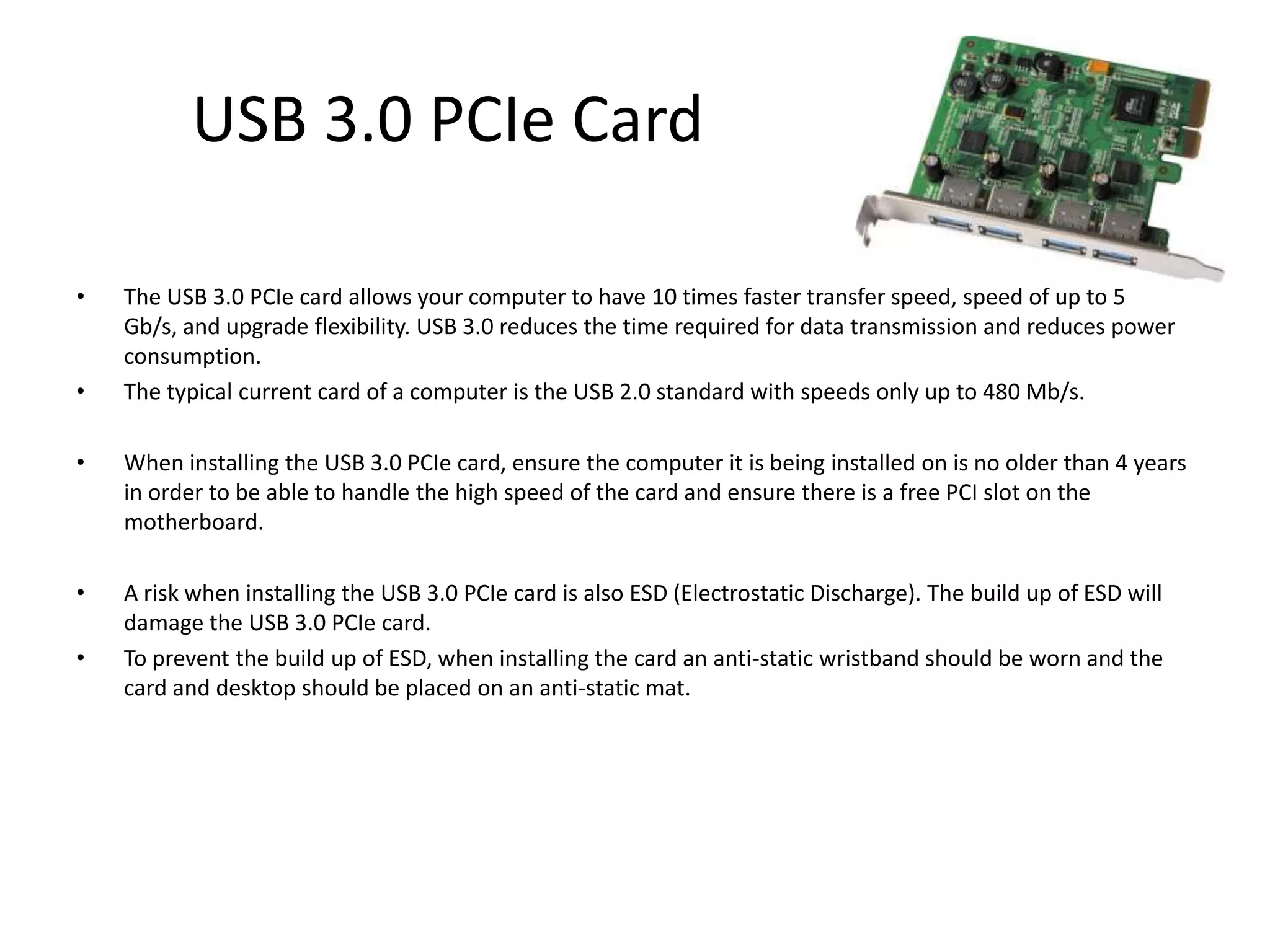
•   Having a Wi-Fi card installed into your computer or laptop, it allows you to connect to the internet when
    receiving a signal from a Wi-Fi access point.


•   A risk of installing a Wi-Fi card is if an unsupported network is chosen can cause interference, pose
    potential security risks, and slow down the speed of the network.
•   Another risk of installing a Wi-Fi card is the build up of ESD (Electrostatic Discharge). The build up of ESD
    will damage the Wi-Fi card.
•   To prevent the build up of ESD, when installing the card an anti-static wristband should be worn and the
    card and desktop should be placed on an anti-static mat.

Hardware Installation

  • 1.
    Hardware Installation Jessica Hodson
  • 2.
    Graphics Card • The graphics card is responsible for generating all the text and pictures that are displayed on your screen. Installing a graphics card will benefit when it comes to playing PC games on your computer or laptop. A more powerful graphics card will enable better quality images and near cinematic effects. • Resolution determines how many ‘dots’ are used to create the image on the screen. • Refresh refers to how many times a second the image on the screen is redrawn. • Colour depth is also another factor included in the graphics card and obviously, the more colours the greater the detail. • To install a graphics card, you will need; a new graphics card, screwdriver, and an antistatic wrist strap and mat. • A risk when installing the graphics card is the build up of ESD (Electrostatic Discharge). The build up of ESD will damage the graphics card. • To prevent the build up of ESD, when installing the card an anti-static wristband should be worn and the card and desktop should be placed on an anti-static mat.
  • 3.
    USB 3.0 PCIeCard • The USB 3.0 PCIe card allows your computer to have 10 times faster transfer speed, speed of up to 5 Gb/s, and upgrade flexibility. USB 3.0 reduces the time required for data transmission and reduces power consumption. • The typical current card of a computer is the USB 2.0 standard with speeds only up to 480 Mb/s. • When installing the USB 3.0 PCIe card, ensure the computer it is being installed on is no older than 4 years in order to be able to handle the high speed of the card and ensure there is a free PCI slot on the motherboard. • A risk when installing the USB 3.0 PCIe card is also ESD (Electrostatic Discharge). The build up of ESD will damage the USB 3.0 PCIe card. • To prevent the build up of ESD, when installing the card an anti-static wristband should be worn and the card and desktop should be placed on an anti-static mat.
  • 4.
    Wi-Fi Card • Having a Wi-Fi card installed into your computer or laptop, it allows you to connect to the internet when receiving a signal from a Wi-Fi access point. • A risk of installing a Wi-Fi card is if an unsupported network is chosen can cause interference, pose potential security risks, and slow down the speed of the network. • Another risk of installing a Wi-Fi card is the build up of ESD (Electrostatic Discharge). The build up of ESD will damage the Wi-Fi card. • To prevent the build up of ESD, when installing the card an anti-static wristband should be worn and the card and desktop should be placed on an anti-static mat.