Explore the essential elements of the MS Word screen
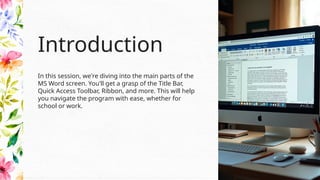
In this session, we're diving into the main parts of the
MS Word screen. You'll get a grasp of the Title Bar,
Quick Access Toolbar, Ribbon, and more. This will help
you navigate the program with ease, whether for
school or work.
Introduction
01
MS Word
Screen Parts
Title Bar Overview
The Title Bar sits at the top of the MS Word screen, displaying the name of
your document. It's also where you can access minimize, maximize, and close
buttons. Understanding this part is key to keeping track of your files as you
work!
Using the Quick Access Toolbar
Found right above the Ribbon, the Quick Access Toolbar provides easy access
to commonly used commands like Save, Undo, and Redo. You can customize it
for your own needs, ensuring that you have your favorite tools just a click
away!
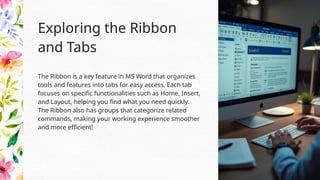
The Ribbon is a key feature in MS Word that organizes
tools and features into tabs for easy access. Each tab
focuses on specific functionalities such as Home, Insert,
and Layout, helping you find what you need quickly.
The Ribbon also has groups that categorize related
commands, making your working experience smoother
and more efficient!
Exploring the Ribbon
and Tabs
02
Functionality
Tips
Understanding Groups
Inside the Ribbon, you'll find groups that contain related commands. For
instance, in the Home tab, you have groups for Clipboard, Font, and
Paragraph. Familiarizing yourself with these groups not only saves time but
also helps you learn how to perform tasks more efficiently!
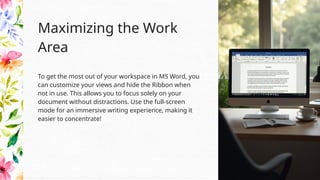
To get the most out of your workspace in MS Word, you
can customize your views and hide the Ribbon when
not in use. This allows you to focus solely on your
document without distractions. Use the full-screen
mode for an immersive writing experience, making it
easier to concentrate!
Maximizing the Work
Area
Interpreting the Status Bar
The Status Bar is located at the bottom of the MS Word window and provides
useful information about your document. You'll see things like page number,
word count, and language settings. Understanding what’s on the Status Bar
can help you track progress and make adjustments as needed quickly!
Conclusions
By familiarizing yourself with the main parts of the MS Word screen, you're
now equipped to navigate with confidence! Understanding the Ribbon, Tabs,
and other features will enhance your productivity and make your document
creation smoother. Have fun exploring and happy writing!
CREDITS: This presentation template was created by Slidesgo,
and includes icons, infographics & images by Freepik
Thank you!
Do you have any questions?
+00 000 000 000
Grade 4 SSES-COMPUTER Quarter 1Week 4.pptx

  • 1.
    Explore the essentialelements of the MS Word screen
  • 2.
    In this session,we're diving into the main parts of the MS Word screen. You'll get a grasp of the Title Bar, Quick Access Toolbar, Ribbon, and more. This will help you navigate the program with ease, whether for school or work. Introduction
  • 3.
  • 4.
    Title Bar Overview TheTitle Bar sits at the top of the MS Word screen, displaying the name of your document. It's also where you can access minimize, maximize, and close buttons. Understanding this part is key to keeping track of your files as you work!
  • 5.
    Using the QuickAccess Toolbar Found right above the Ribbon, the Quick Access Toolbar provides easy access to commonly used commands like Save, Undo, and Redo. You can customize it for your own needs, ensuring that you have your favorite tools just a click away!
  • 6.
    The Ribbon isa key feature in MS Word that organizes tools and features into tabs for easy access. Each tab focuses on specific functionalities such as Home, Insert, and Layout, helping you find what you need quickly. The Ribbon also has groups that categorize related commands, making your working experience smoother and more efficient! Exploring the Ribbon and Tabs
  • 7.
  • 8.
    Understanding Groups Inside theRibbon, you'll find groups that contain related commands. For instance, in the Home tab, you have groups for Clipboard, Font, and Paragraph. Familiarizing yourself with these groups not only saves time but also helps you learn how to perform tasks more efficiently!
  • 9.
    To get themost out of your workspace in MS Word, you can customize your views and hide the Ribbon when not in use. This allows you to focus solely on your document without distractions. Use the full-screen mode for an immersive writing experience, making it easier to concentrate! Maximizing the Work Area
  • 10.
    Interpreting the StatusBar The Status Bar is located at the bottom of the MS Word window and provides useful information about your document. You'll see things like page number, word count, and language settings. Understanding what’s on the Status Bar can help you track progress and make adjustments as needed quickly!
  • 11.
    Conclusions By familiarizing yourselfwith the main parts of the MS Word screen, you're now equipped to navigate with confidence! Understanding the Ribbon, Tabs, and other features will enhance your productivity and make your document creation smoother. Have fun exploring and happy writing!
  • 12.
    CREDITS: This presentationtemplate was created by Slidesgo, and includes icons, infographics & images by Freepik Thank you! Do you have any questions? +00 000 000 000