Word Processing
What is word processing?
• Word processing is the process of creating, editing and formatting
documents on a computer.
• It allows a user to create documents that mimic the style of a typical
typewriter.
• It requires a computer and word processing software.
• A printer may also be used to create a physical copy of the document.
https://www.techopedia.com/definition/4388/word-processing-wp
Microsoft Word
• Microsoft Word is a word processor.
• A word processor is a program that provides the functionality of
paper, pen, typewriter, eraser, and dictionary.
• You can also perform tasks like checking for wrong spellings, finding
synonyms, inserting graphics and printing documents.
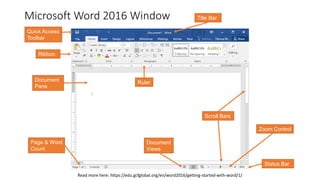
Microsoft Word 2016 Window
Ribbon
Quick Access
Toolbar
Document
Pane
Read more here: https://edu.gcfglobal.org/en/word2016/getting-started-with-word/1/
Ruler
Scroll Bars
Page & Word
Count
Document
Views
Zoom Control
Status Bar
Title Bar
Ribbon
• The Ribbon is the panel at the top of the document. It has several
tabs: Home, Insert, Page Layout, References, Mailings, Review, and
View.
• Each tab is divided into groups. The groups are collections of features
you will use in developing your Word document.
• Commonly used features are displayed on the Ribbon. To view
additional features within each group, click on the arrow (launcher
button) at the bottom right of each group.
• To minimize the Ribbon right click on it, then click on Minimize the
Ribbon.
Quick Access Toolbar
• The quick access toolbar is a customizable toolbar that contains
commands that you may want to use regularly.
• You can place the quick access toolbar above or below the ribbon. To
change the location of the quick access toolbar, click on the arrow at
the end of the toolbar and click on Show Below the Ribbon.
• The same arrow also allows you to add / remove buttons from this
toolbar.
Title Bar
• Next to the Quick Access Toolbar is the Title Bar. The Title bar displays
the title of the document on which you are currently working. Word
names the first new document you open Document1. As you open
additional new documents, Word names them sequentially. When
you save your document, you assign the document a new name.
• On the right end of the title bar there are three buttons: Minimize,
Maximize/Restore Down and Close.
Ruler
• The ruler is found below the Ribbon. You can use the ruler to change
the format of your document quickly.
Document Pane
• The Document Pane or text area is located just below the ruler. This is
where you type your document. The blinking vertical line in the
upper-left corner marks the insertion point where text will appear
when typed.
Scroll Bars
• The vertical and horizontal Scroll Bars enable you to move up, down,
and across your window simply by dragging the icon located on the
scroll bar.
Status Bar
• The Status Bar appears at the very bottom of your window and
provides such information as the current page and the number of
words in your document.
• You can change what displays on the Status Bar by right-clicking on it
and selecting the options you want from the Customize Status Bar
menu. You click a menu item to select it. You click it again to deselect
it. A check mark next to an item means it is selected.

Some Word Processing Definitions for ICT

  • 1.
  • 2.
    What is wordprocessing? • Word processing is the process of creating, editing and formatting documents on a computer. • It allows a user to create documents that mimic the style of a typical typewriter. • It requires a computer and word processing software. • A printer may also be used to create a physical copy of the document. https://www.techopedia.com/definition/4388/word-processing-wp
  • 3.
    Microsoft Word • MicrosoftWord is a word processor. • A word processor is a program that provides the functionality of paper, pen, typewriter, eraser, and dictionary. • You can also perform tasks like checking for wrong spellings, finding synonyms, inserting graphics and printing documents.
  • 4.
    Microsoft Word 2016Window Ribbon Quick Access Toolbar Document Pane Read more here: https://edu.gcfglobal.org/en/word2016/getting-started-with-word/1/ Ruler Scroll Bars Page & Word Count Document Views Zoom Control Status Bar Title Bar
  • 5.
    Ribbon • The Ribbonis the panel at the top of the document. It has several tabs: Home, Insert, Page Layout, References, Mailings, Review, and View. • Each tab is divided into groups. The groups are collections of features you will use in developing your Word document. • Commonly used features are displayed on the Ribbon. To view additional features within each group, click on the arrow (launcher button) at the bottom right of each group. • To minimize the Ribbon right click on it, then click on Minimize the Ribbon.
  • 6.
    Quick Access Toolbar •The quick access toolbar is a customizable toolbar that contains commands that you may want to use regularly. • You can place the quick access toolbar above or below the ribbon. To change the location of the quick access toolbar, click on the arrow at the end of the toolbar and click on Show Below the Ribbon. • The same arrow also allows you to add / remove buttons from this toolbar.
  • 7.
    Title Bar • Nextto the Quick Access Toolbar is the Title Bar. The Title bar displays the title of the document on which you are currently working. Word names the first new document you open Document1. As you open additional new documents, Word names them sequentially. When you save your document, you assign the document a new name. • On the right end of the title bar there are three buttons: Minimize, Maximize/Restore Down and Close.
  • 8.
    Ruler • The ruleris found below the Ribbon. You can use the ruler to change the format of your document quickly.
  • 9.
    Document Pane • TheDocument Pane or text area is located just below the ruler. This is where you type your document. The blinking vertical line in the upper-left corner marks the insertion point where text will appear when typed.
  • 10.
    Scroll Bars • Thevertical and horizontal Scroll Bars enable you to move up, down, and across your window simply by dragging the icon located on the scroll bar.
  • 11.
    Status Bar • TheStatus Bar appears at the very bottom of your window and provides such information as the current page and the number of words in your document. • You can change what displays on the Status Bar by right-clicking on it and selecting the options you want from the Customize Status Bar menu. You click a menu item to select it. You click it again to deselect it. A check mark next to an item means it is selected.