Classroom+Doctopus+Goobric
Evaluation Made Easy(er)
Gafe Summit 2015
Cari Wilson
How an octopus and an
eyeball are going to make
your life easier!
Alternate title….
Name
School / Grade
“googliness”
Old School
paper,
pencils, and
more paper
Not-so-old school
blogs, emails,
paper, pencils,
more emails and
more paper!
New school
Classroom,
Doctopus and
Goobric
Give your students an
assignment
Using Sheets, create a rubric
for the assignment.
1. Open a new sheet. Click on “get add-ons”.
Find and install Doctopus. You will only
have to do this one time.
2. Once you’ve installed it, it shows up here!
3. Don’t forget to name your sheet.
1. Once you’ve launched Doctopus, it
shows up on the right side of the
page.
2. The first thing you do is click on the
drop down menuand choose “ingest
Google CR Assignment”
1. Choose your class from the
dropdown menu and then
choose your assignment from
the next drop down menu.
2. Then, click the blue “Ingest
Assignment” button.
1. Go back to add-ons and
install Goobric.
2. You’ll get a little eyeball that
lives up in your search bar.
3. Then click the “Attach
Goobric” button.
1. Search for the rubric
you already created!
2. Once you’ve chosen it,
click “Attach Rubric”
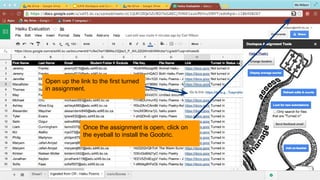
Open up the link to the first turned
in assignment.
Once the assignment is open, click on
the eyeball to install the Goobric.
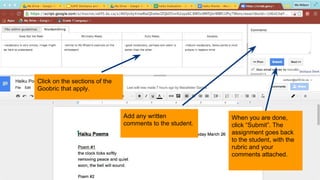
Click on the sections of the
Goobric that apply.
Add any written
comments to the student.
When you are done,
click “Submit”. The
assignment goes back
to the student, with the
rubric and your
comments attached.
The students get their
work back and you get
a permanent record of
their results!
@kayakcari
cwilson@sd45.bc.ca

Google Classroom + Doctopus + Goobric

  • 1.
  • 2.
    How an octopusand an eyeball are going to make your life easier! Alternate title….
  • 4.
  • 7.
    Old School paper, pencils, and morepaper Not-so-old school blogs, emails, paper, pencils, more emails and more paper! New school Classroom, Doctopus and Goobric
  • 8.
    Give your studentsan assignment
  • 9.
    Using Sheets, createa rubric for the assignment.
  • 10.
    1. Open anew sheet. Click on “get add-ons”. Find and install Doctopus. You will only have to do this one time. 2. Once you’ve installed it, it shows up here! 3. Don’t forget to name your sheet.
  • 11.
    1. Once you’velaunched Doctopus, it shows up on the right side of the page. 2. The first thing you do is click on the drop down menuand choose “ingest Google CR Assignment”
  • 12.
    1. Choose yourclass from the dropdown menu and then choose your assignment from the next drop down menu. 2. Then, click the blue “Ingest Assignment” button.
  • 13.
    1. Go backto add-ons and install Goobric. 2. You’ll get a little eyeball that lives up in your search bar. 3. Then click the “Attach Goobric” button.
  • 14.
    1. Search forthe rubric you already created! 2. Once you’ve chosen it, click “Attach Rubric”
  • 15.
    Open up thelink to the first turned in assignment. Once the assignment is open, click on the eyeball to install the Goobric.
  • 16.
    Click on thesections of the Goobric that apply. Add any written comments to the student. When you are done, click “Submit”. The assignment goes back to the student, with the rubric and your comments attached.
  • 17.
    The students gettheir work back and you get a permanent record of their results!
  • 20.