Gmail+ Method for Creating Student Accounts
Gmail+ Method for Student Accounts The problem that many teachers face when creating student user accounts for web applications is that most applications require a valid e-mail address to create the account.  This method solves this problem and also leads to the teacher having more regulatory control over his/her students’ accounts Created By Paul Leacy
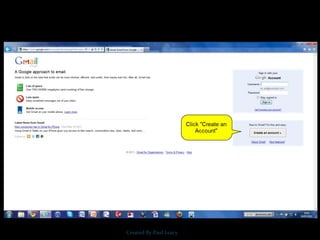
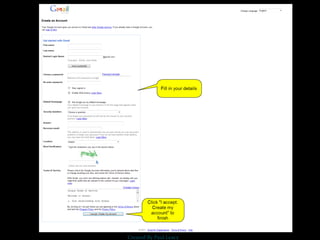
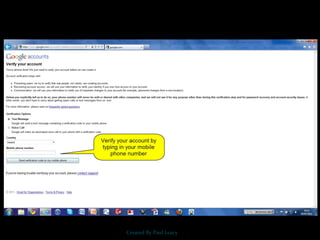
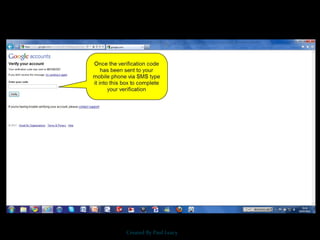
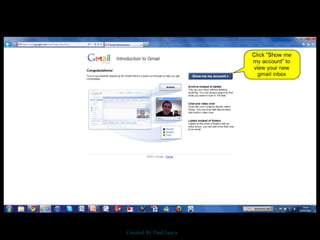
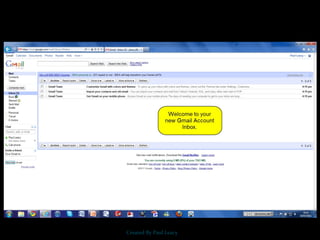
Step 1 – Create Teacher Gmail Account Create a legitimate Gmail account at  www.mail.google.com  (e.g. username@gmail.com)  Created By Paul Leacy
Created By Paul Leacy
Step 2 – Setting Up Student Accounts You now use your Gmail account to “trick” web applications that require an e-mail address to create accounts The way it works is that you add a “+” and a student name/alias after the Gmail user name (e.g. yourusername+thomas@gmail.com, your username+mary@gmail.com)  The web applications will recognise those addresses as real e-mail address, but students never see an inbox Created By Paul Leacy
Step 2 – Setting Up Student Accounts Any e-mails (i.e. registration confirmations, etc.) that are sent to the yourusername+studentname@gmail.com will be delivered to the Gmail inbox that only you can access. Ensure to check this address regularly to keep abreast of what your pupils are doing on their Web Based Tools accounts Created By Paul Leacy

Gmail+ method for creating student accounts (edublogs)

  • 1.
    Gmail+ Method forCreating Student Accounts
  • 2.
    Gmail+ Method forStudent Accounts The problem that many teachers face when creating student user accounts for web applications is that most applications require a valid e-mail address to create the account.  This method solves this problem and also leads to the teacher having more regulatory control over his/her students’ accounts Created By Paul Leacy
  • 3.
    Step 1 –Create Teacher Gmail Account Create a legitimate Gmail account at www.mail.google.com (e.g. username@gmail.com) Created By Paul Leacy
  • 4.
  • 5.
  • 6.
  • 7.
  • 8.
  • 9.
  • 10.
    Step 2 –Setting Up Student Accounts You now use your Gmail account to “trick” web applications that require an e-mail address to create accounts The way it works is that you add a “+” and a student name/alias after the Gmail user name (e.g. yourusername+thomas@gmail.com, your username+mary@gmail.com) The web applications will recognise those addresses as real e-mail address, but students never see an inbox Created By Paul Leacy
  • 11.
    Step 2 –Setting Up Student Accounts Any e-mails (i.e. registration confirmations, etc.) that are sent to the yourusername+studentname@gmail.com will be delivered to the Gmail inbox that only you can access. Ensure to check this address regularly to keep abreast of what your pupils are doing on their Web Based Tools accounts Created By Paul Leacy