July 2015
Affiliate Welcome Kit:
A Step by Step Guide to Get you Started
1
Welcome to the CONtv Affiliate Program!
 Demo: 18-45 years old characterized as voracious content consumers & early adopters of
technology.
 Distribution: Browser, tablet, mobile, set-top box, gaming consoles and connected TV’s.
 Business Model: Freemium model with both ad-supported free version and premium paid tier
($6.99/mo).
 Original Programming: 8-10 new original series annually.
 Live Events: Full online availability of 250+ live panels and events annually from Comic Cons
nationwide.
 Catalogue Content: 1,200+ hours of catalogue film, TV & webisode content at launch, adding 200+
hours of new content.
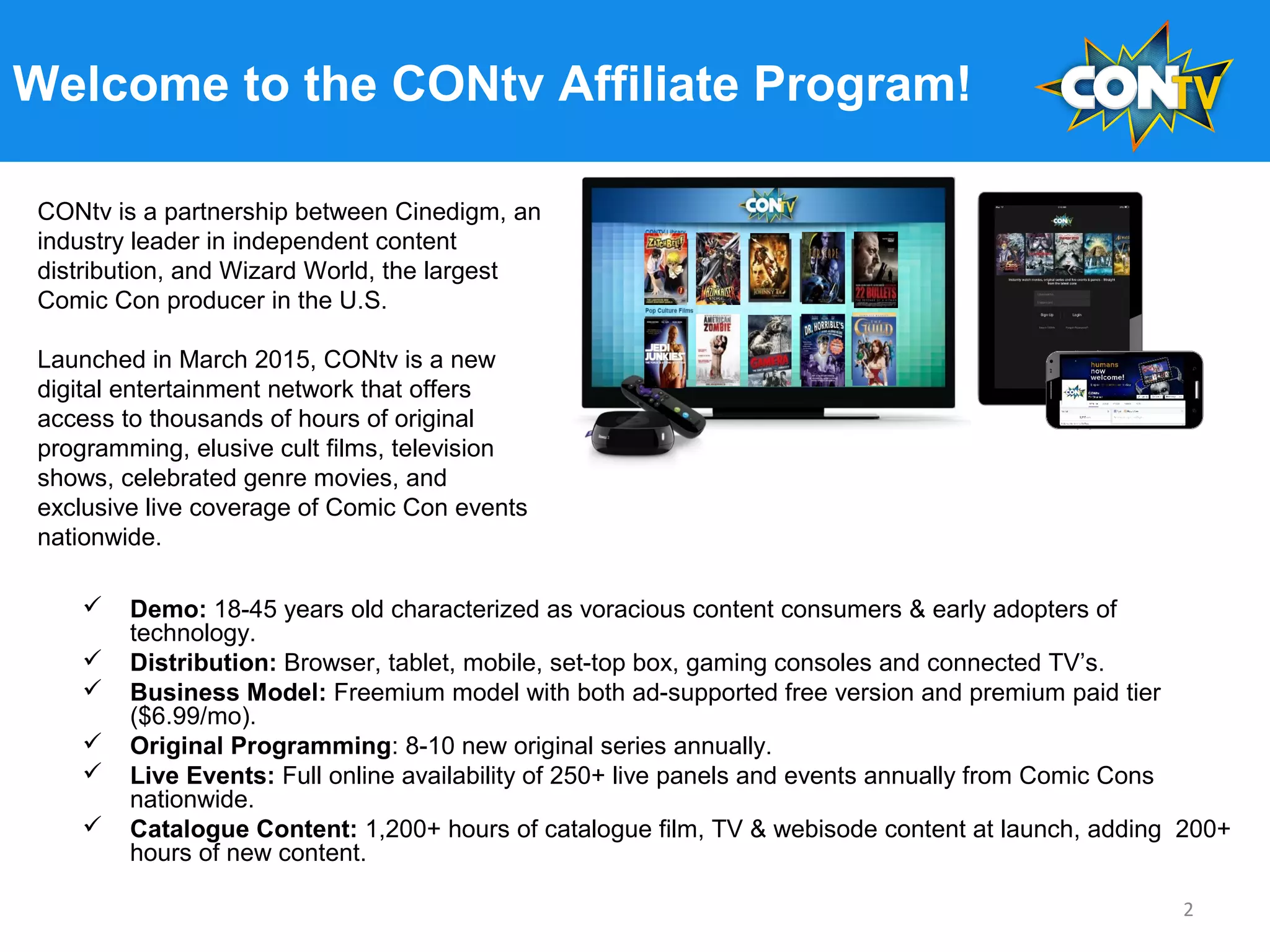
CONtv is a partnership between Cinedigm, an
industry leader in independent content
distribution, and Wizard World, the largest
Comic Con producer in the U.S.
Launched in March 2015, CONtv is a new
digital entertainment network that offers
access to thousands of hours of original
programming, elusive cult films, television
shows, celebrated genre movies, and
exclusive live coverage of Comic Con events
nationwide.
2
Affiliate Marketing Snapshot
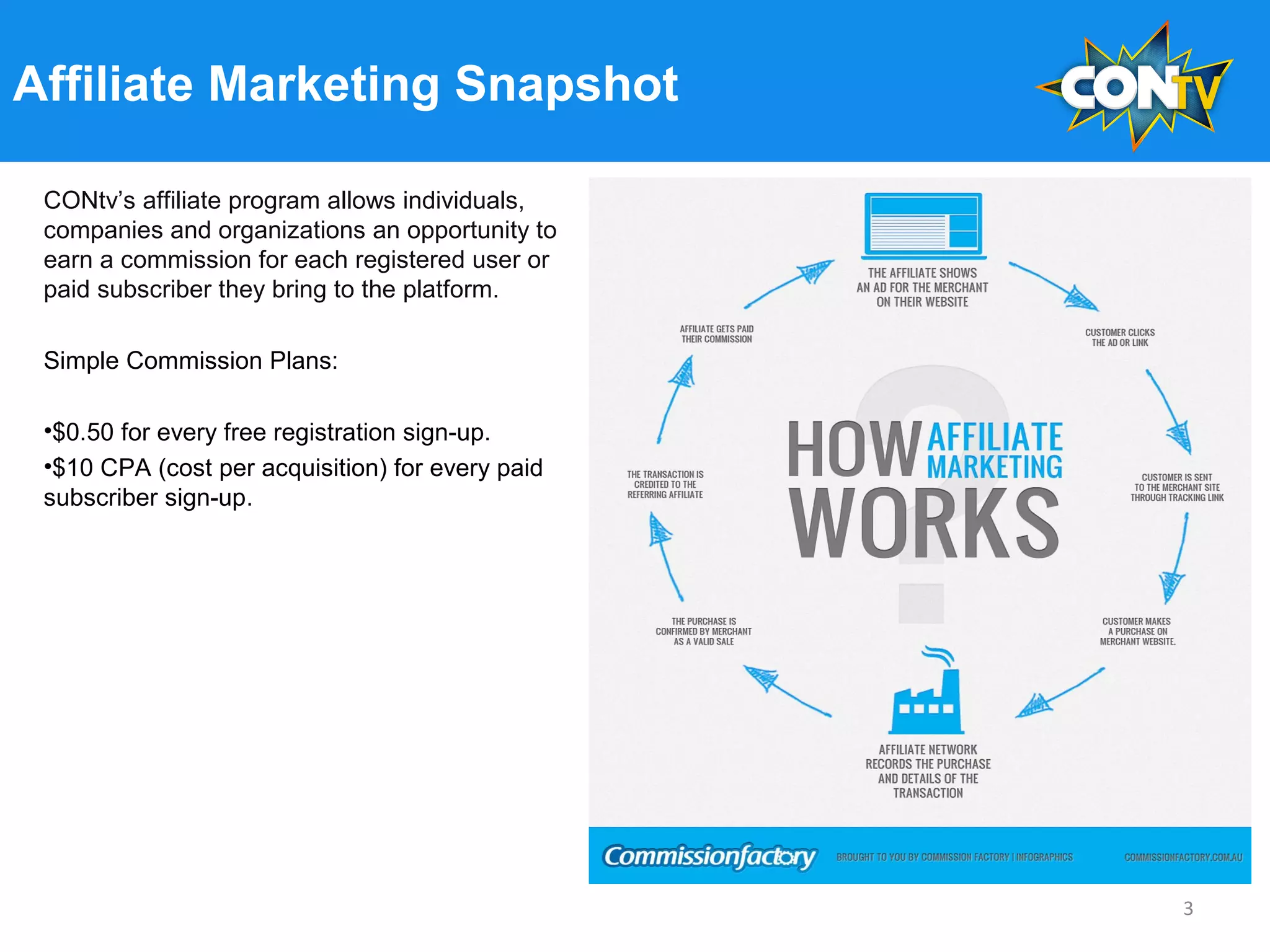
CONtv’s affiliate program allows individuals,
companies and organizations an opportunity to
earn a commission for each registered user or
paid subscriber they bring to the platform.
Simple Commission Plans:
•$0.50 for every free registration sign-up.
•$10 CPA (cost per acquisition) for every paid
subscriber sign-up.
3
Sign-Up Process
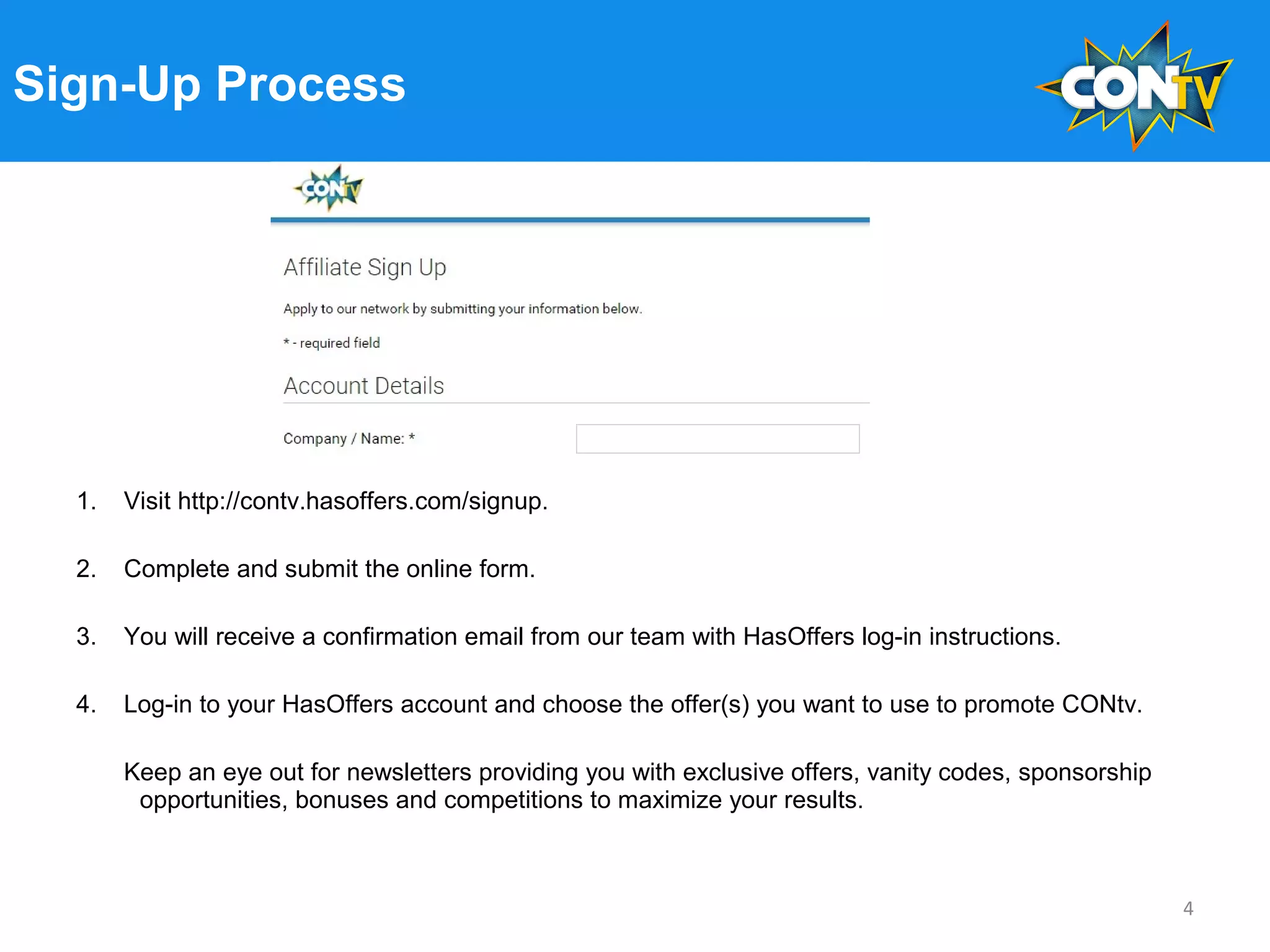
1. Visit http://contv.hasoffers.com/signup.
2. Complete and submit the online form.
3. You will receive a confirmation email from our team with HasOffers log-in instructions.
4. Log-in to your HasOffers account and choose the offer(s) you want to use to promote CONtv.
Keep an eye out for newsletters providing you with exclusive offers, vanity codes, sponsorship
opportunities, bonuses and competitions to maximize your results.
4
Setting Up Your Account - Log-In
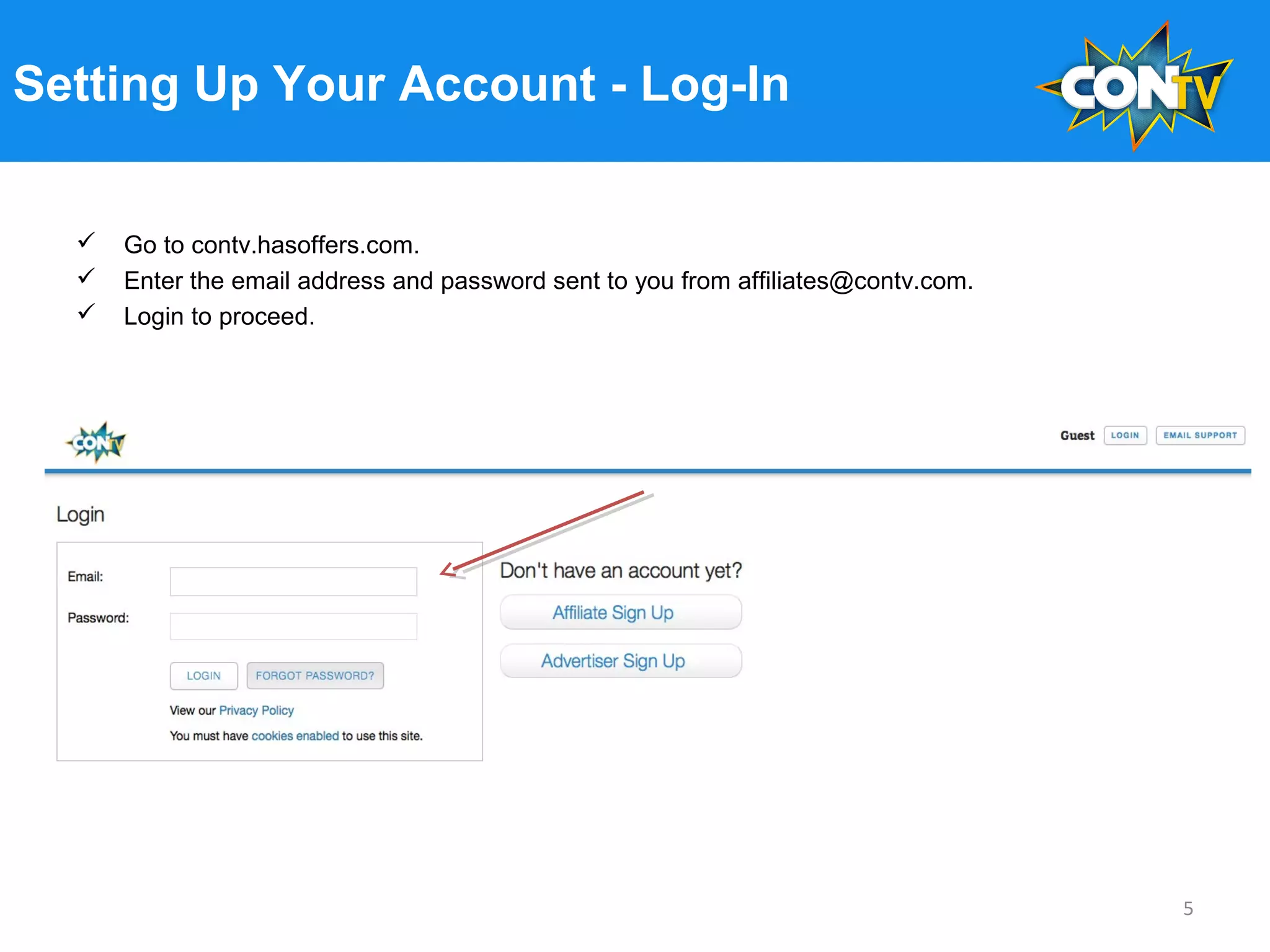
 Go to contv.hasoffers.com.
 Enter the email address and password sent to you from affiliates@contv.com.
 Login to proceed.
5
Setting Up Your Account - Dashboard
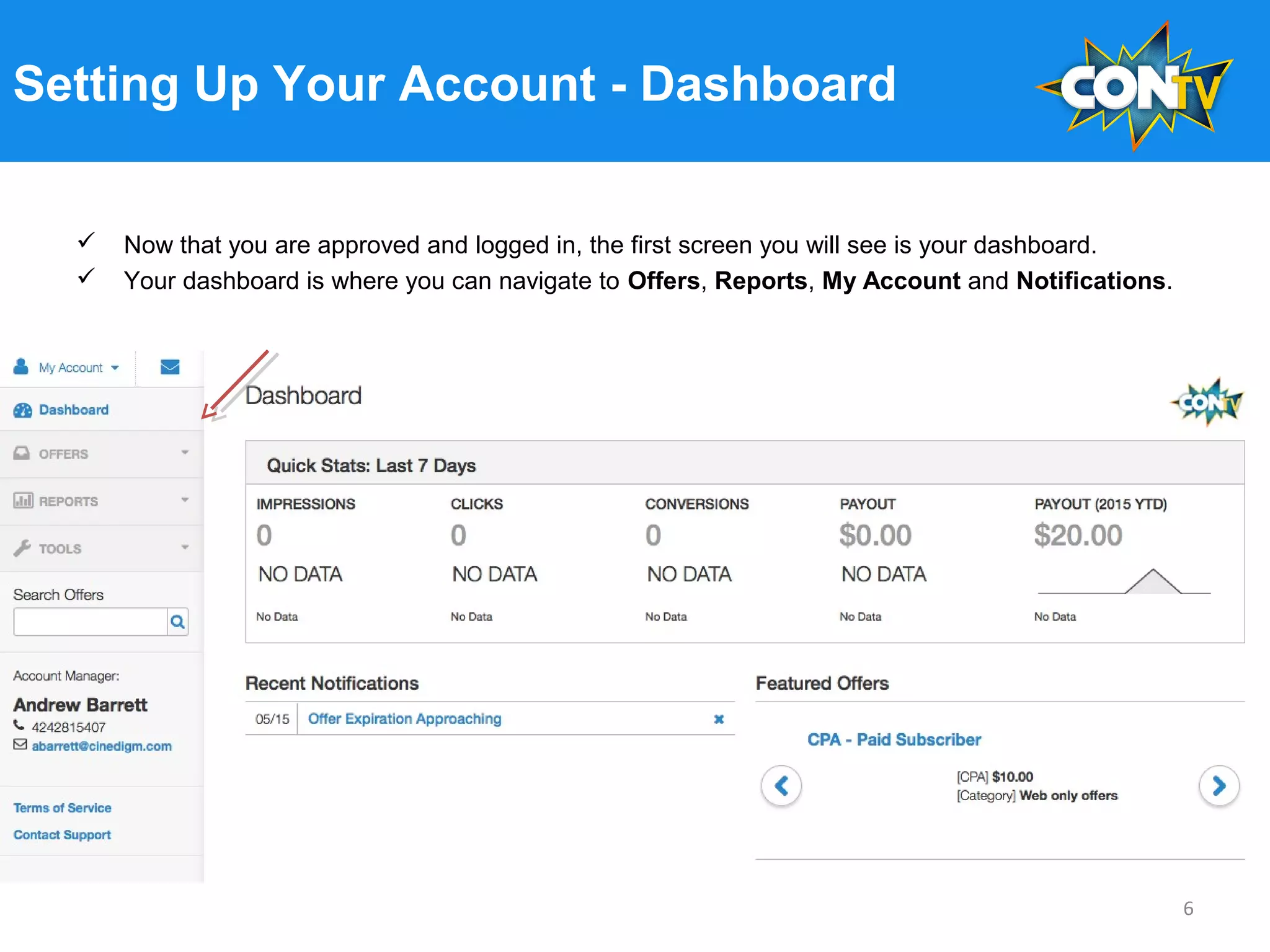
 Now that you are approved and logged in, the first screen you will see is your dashboard.
 Your dashboard is where you can navigate to Offers, Reports, My Account and Notifications.
6
Setting Up Your Account - Offers
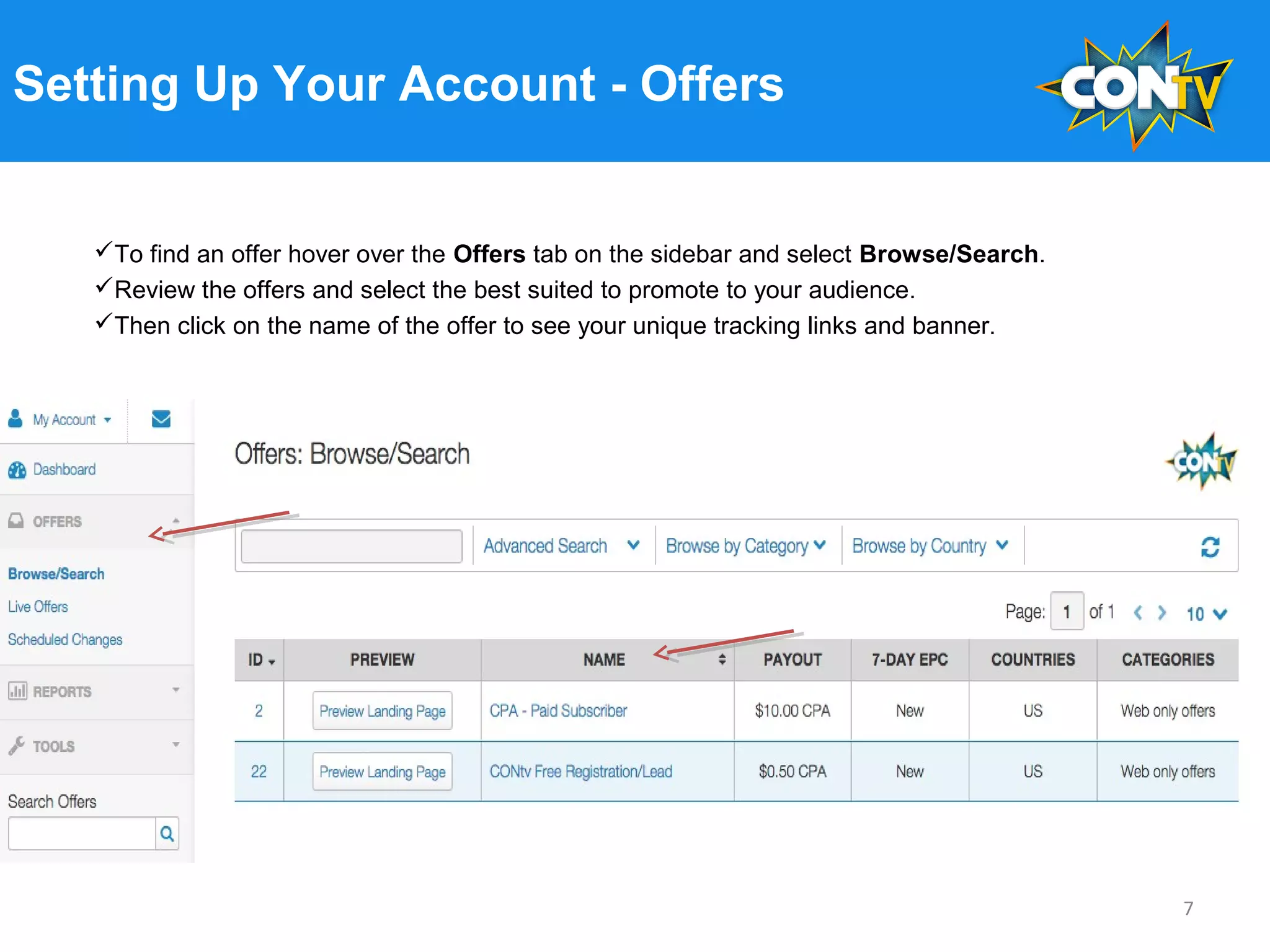
To find an offer hover over the Offers tab on the sidebar and select Browse/Search.
Review the offers and select the best suited to promote to your audience.
Then click on the name of the offer to see your unique tracking links and banner.
7
Setting Up Your Account - Offers
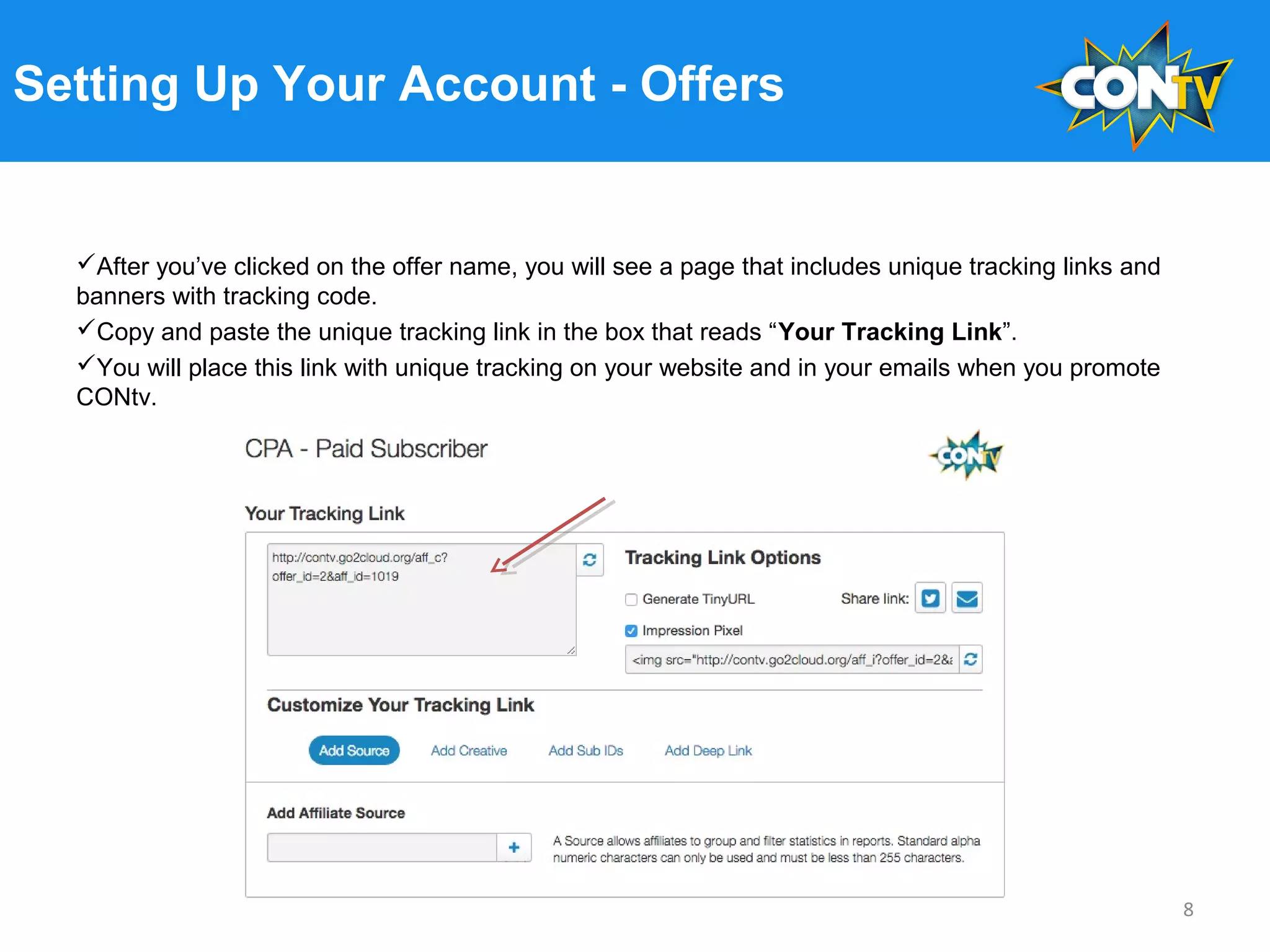
After you’ve clicked on the offer name, you will see a page that includes unique tracking links and
banners with tracking code.
Copy and paste the unique tracking link in the box that reads “Your Tracking Link”.
You will place this link with unique tracking on your website and in your emails when you promote
CONtv.
8
Setting Up Your Account - Offers
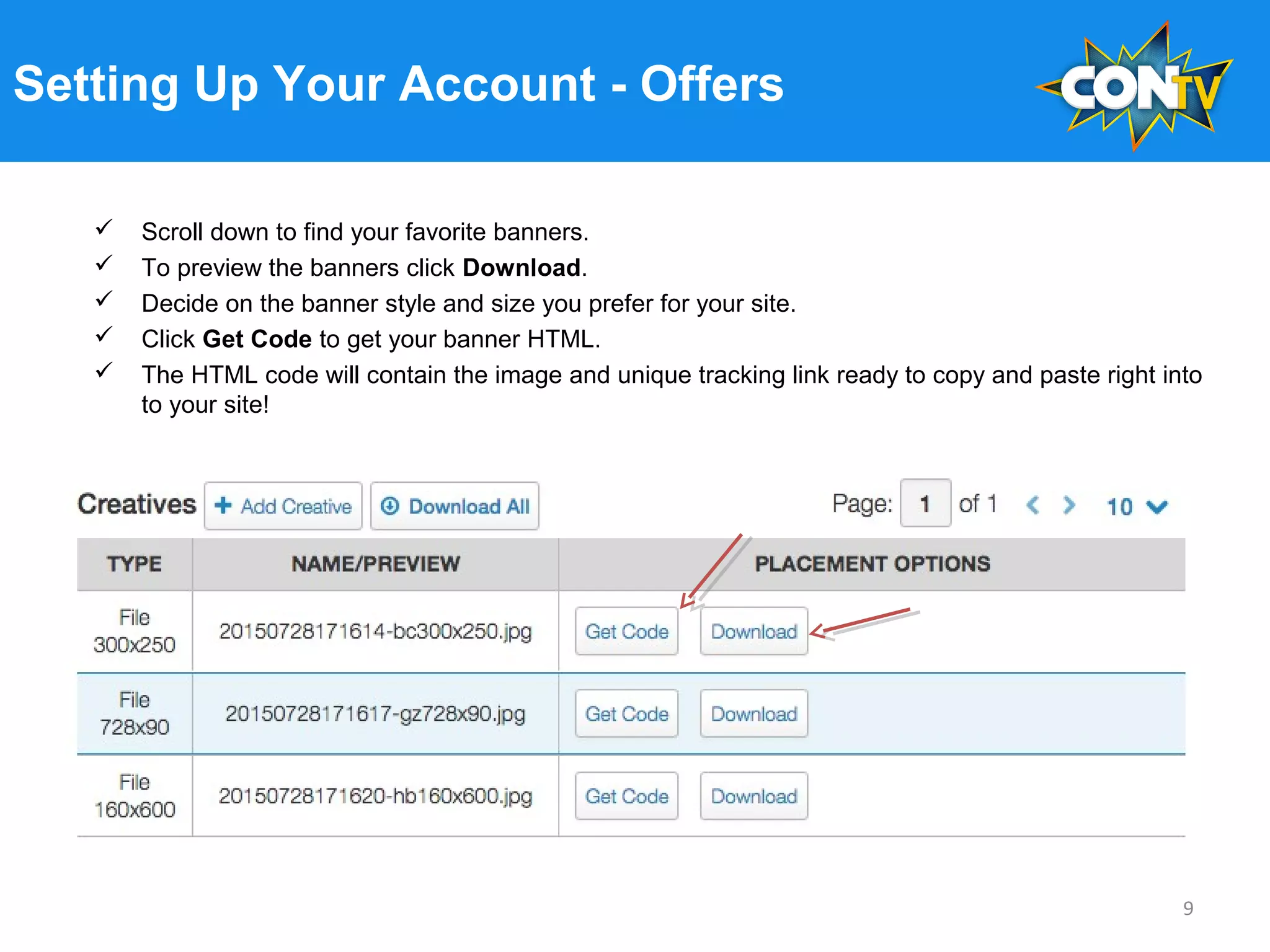
 Scroll down to find your favorite banners.
 To preview the banners click Download.
 Decide on the banner style and size you prefer for your site.
 Click Get Code to get your banner HTML.
 The HTML code will contain the image and unique tracking link ready to copy and paste right into
to your site!
9
Setting Up Your Account - Offers
How does a unique tracking link work?
•By placing this unique tracking link on your site, you will be able to track the number of users you
drive to the CONtv site. You will also be able to track how many of these users sign-up or subscribe
to the service.
•When a user clicks through your unique tracking link to CONtv a click will register on the CONtv
HasOffers platform.
•Within 30 days of the user’s first click, if they register to the free CONtv service or subscribe to the
paid service you will earn a payout.
•When a user registers or subscribes this will be referred to as a conversion.
•Each conversion you drive for the free registration will earn you $0.50 and each conversion
you drive for the paid subscription will earn you $10.00.
10
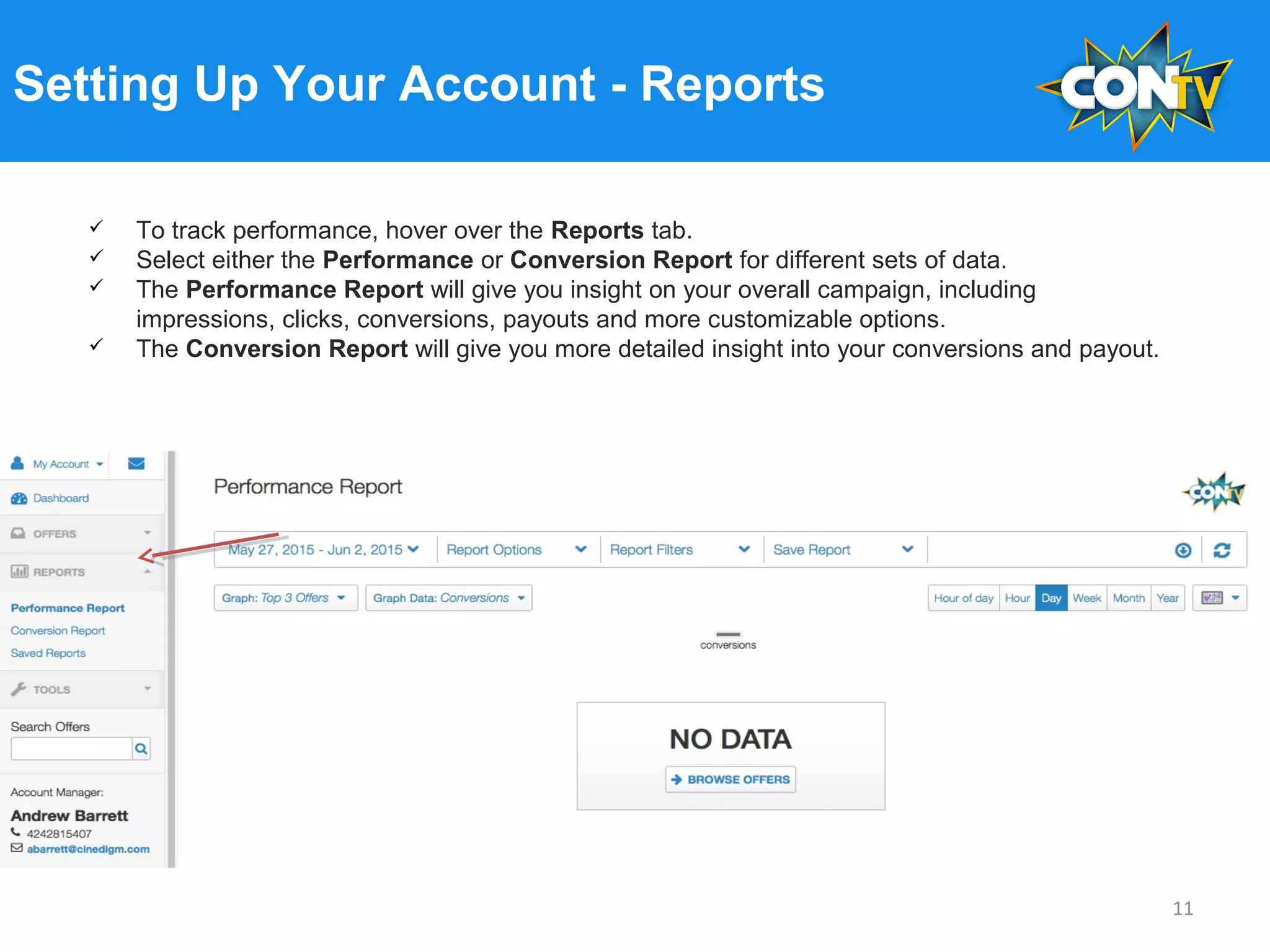
Setting Up Your Account - Reports
 To track performance, hover over the Reports tab.
 Select either the Performance or Conversion Report for different sets of data.
 The Performance Report will give you insight on your overall campaign, including
impressions, clicks, conversions, payouts and more customizable options.
 The Conversion Report will give you more detailed insight into your conversions and payout.
11
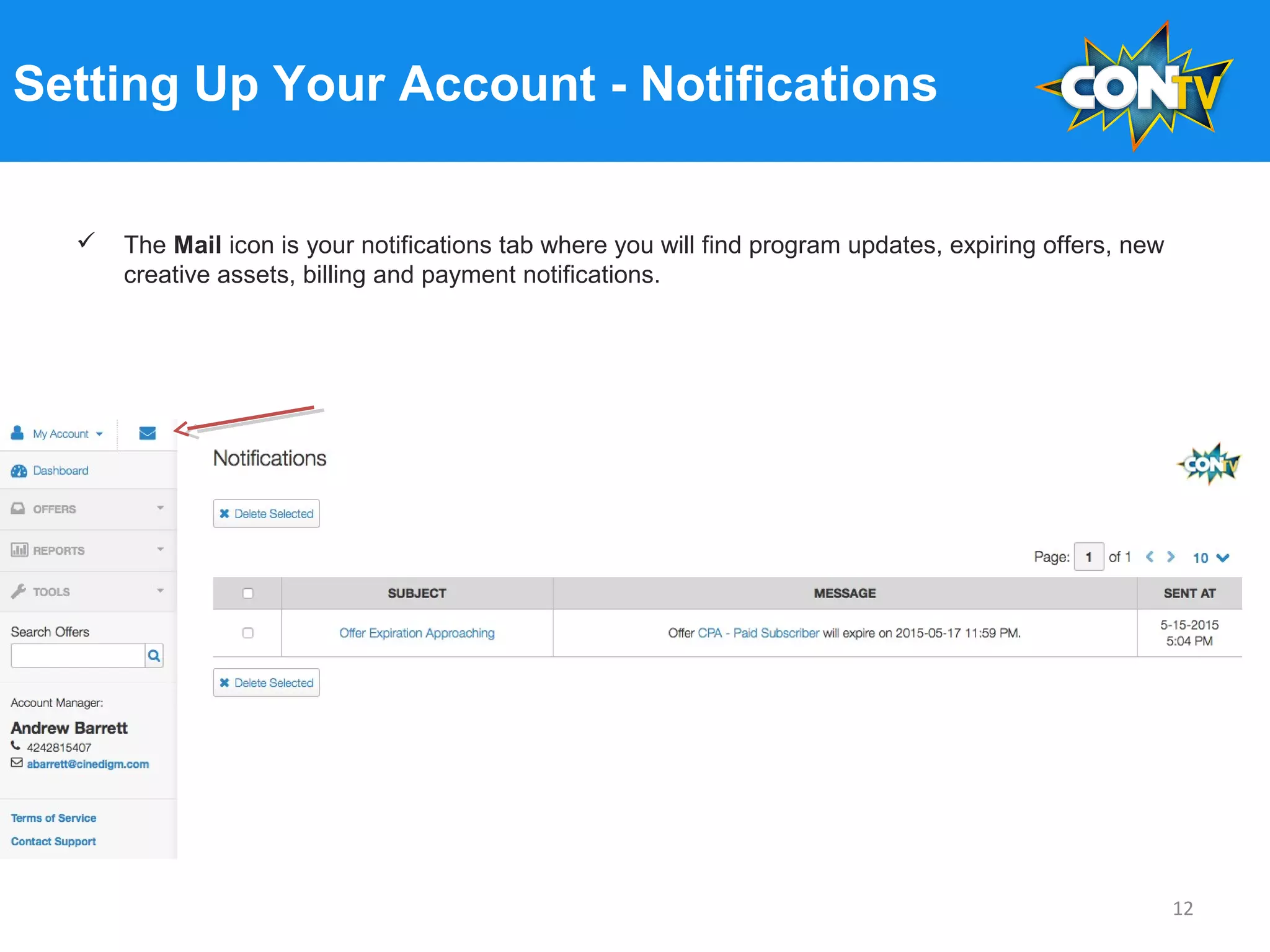
Setting Up Your Account - Notifications
 The Mail icon is your notifications tab where you will find program updates, expiring offers, new
creative assets, billing and payment notifications.
12
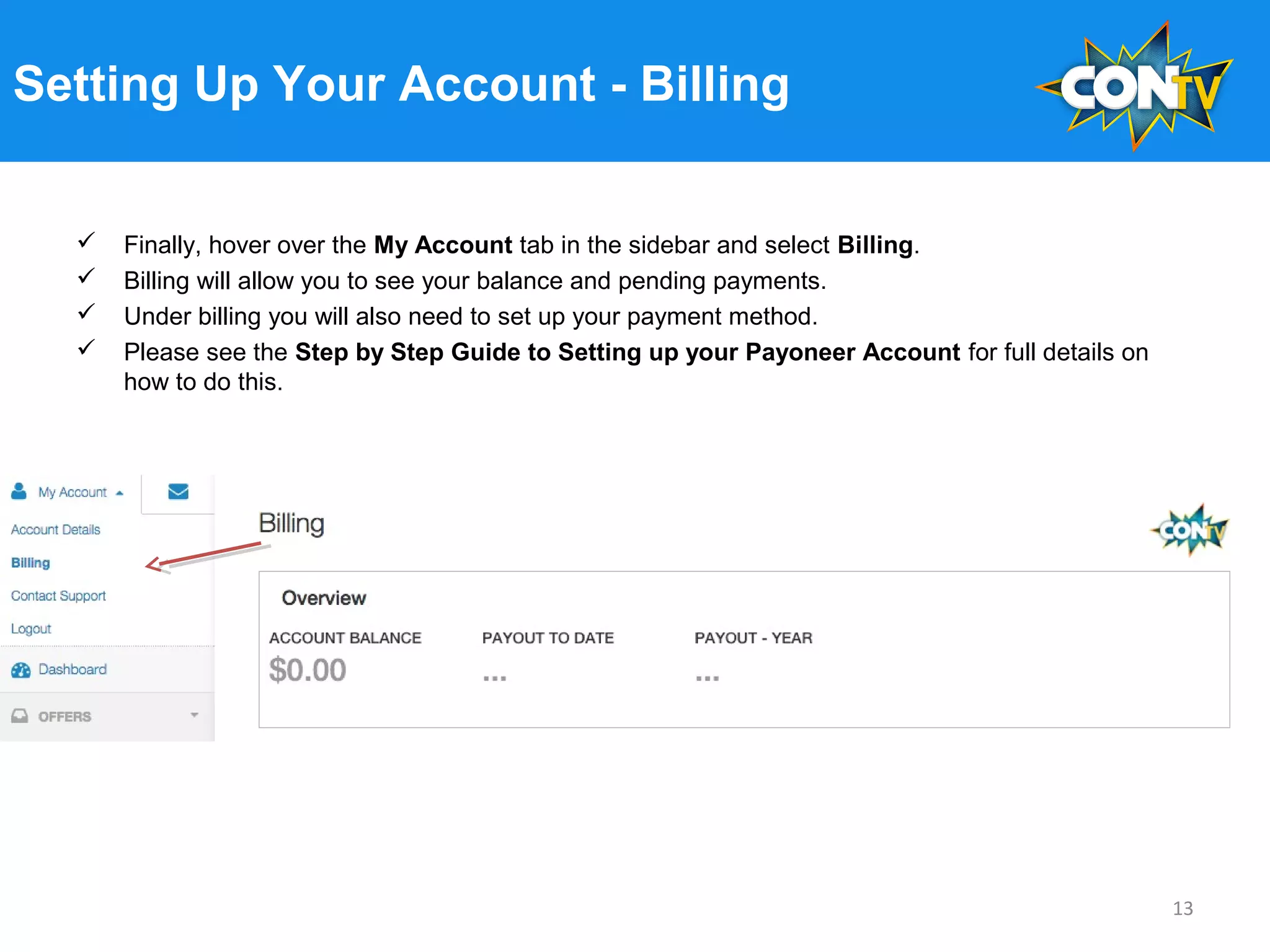
Setting Up Your Account - Billing
 Finally, hover over the My Account tab in the sidebar and select Billing.
 Billing will allow you to see your balance and pending payments.
 Under billing you will also need to set up your payment method.
 Please see the Step by Step Guide to Setting up your Payoneer Account for full details on
how to do this.
13
Now You’re Ready to Promote!
Congratulations!
You’ve made it through the CONtv HasOffers
program set up and you are ready to be a part
of our affiliate program. Start promoting
CONtv offers today with our custom affiliate
banners featuring Hellboy, Bruce Campbell,
Godzilla and more!
Get your CONtv Free Registration Offer with
tracking links and banners.
OR:
Get your Paid Subscriber CPA Offer with
tracking links and banners.
If you need further assistance or if you have
questions please send us an email at
affiliates@contv.com.
We look forward to working with you!
14
July 2015
Step by Step Guide to Setting Up Your
Payoneer Account
15
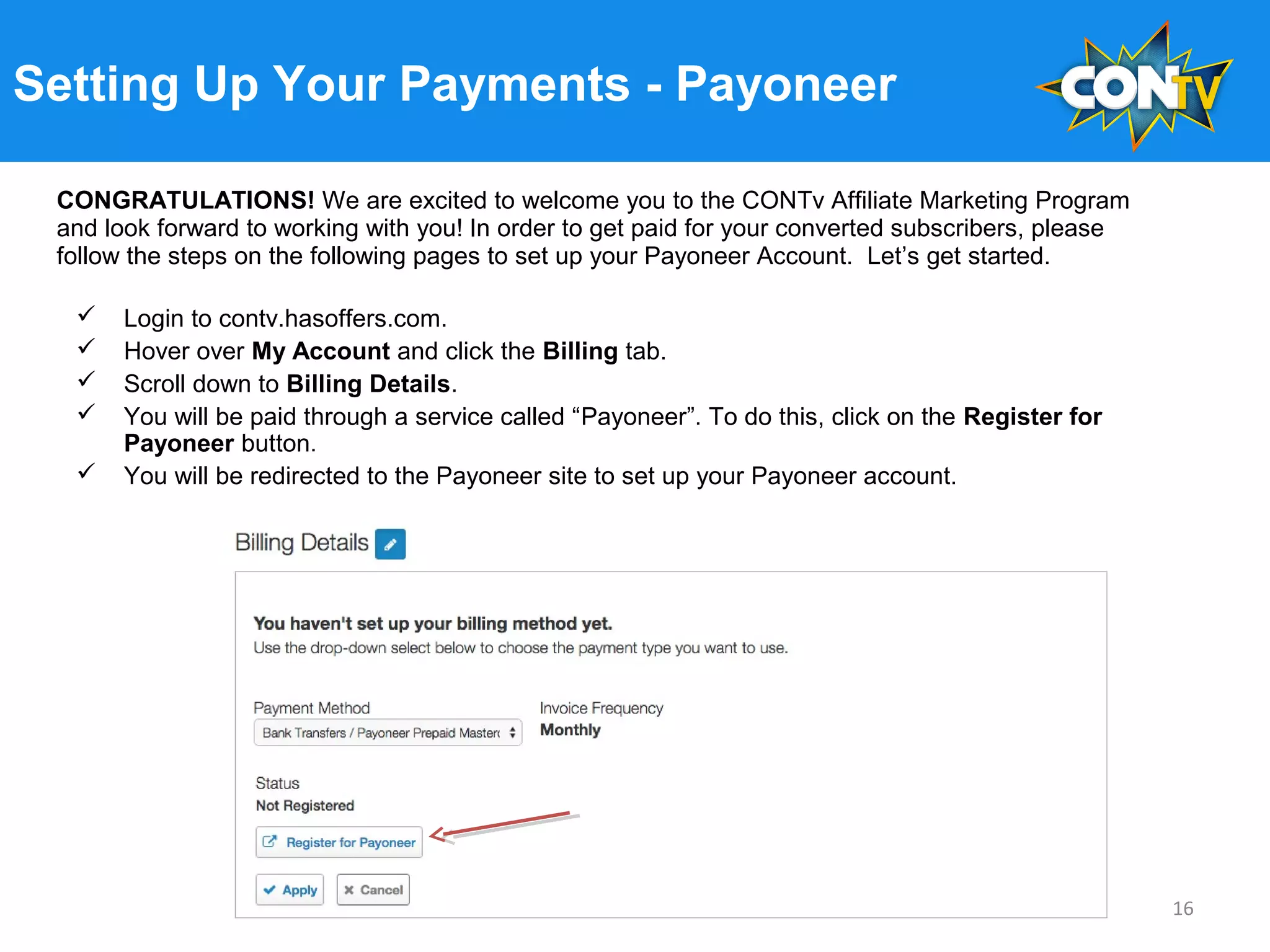
Setting Up Your Payments - Payoneer
 Login to contv.hasoffers.com.
 Hover over My Account and click the Billing tab.
 Scroll down to Billing Details.
 You will be paid through a service called “Payoneer”. To do this, click on the Register for
Payoneer button.
 You will be redirected to the Payoneer site to set up your Payoneer account.
16
CONGRATULATIONS! We are excited to welcome you to the CONTv Affiliate Marketing Program
and look forward to working with you! In order to get paid for your converted subscribers, please
follow the steps on the following pages to set up your Payoneer Account. Let’s get started.
Setting Up Payoneer
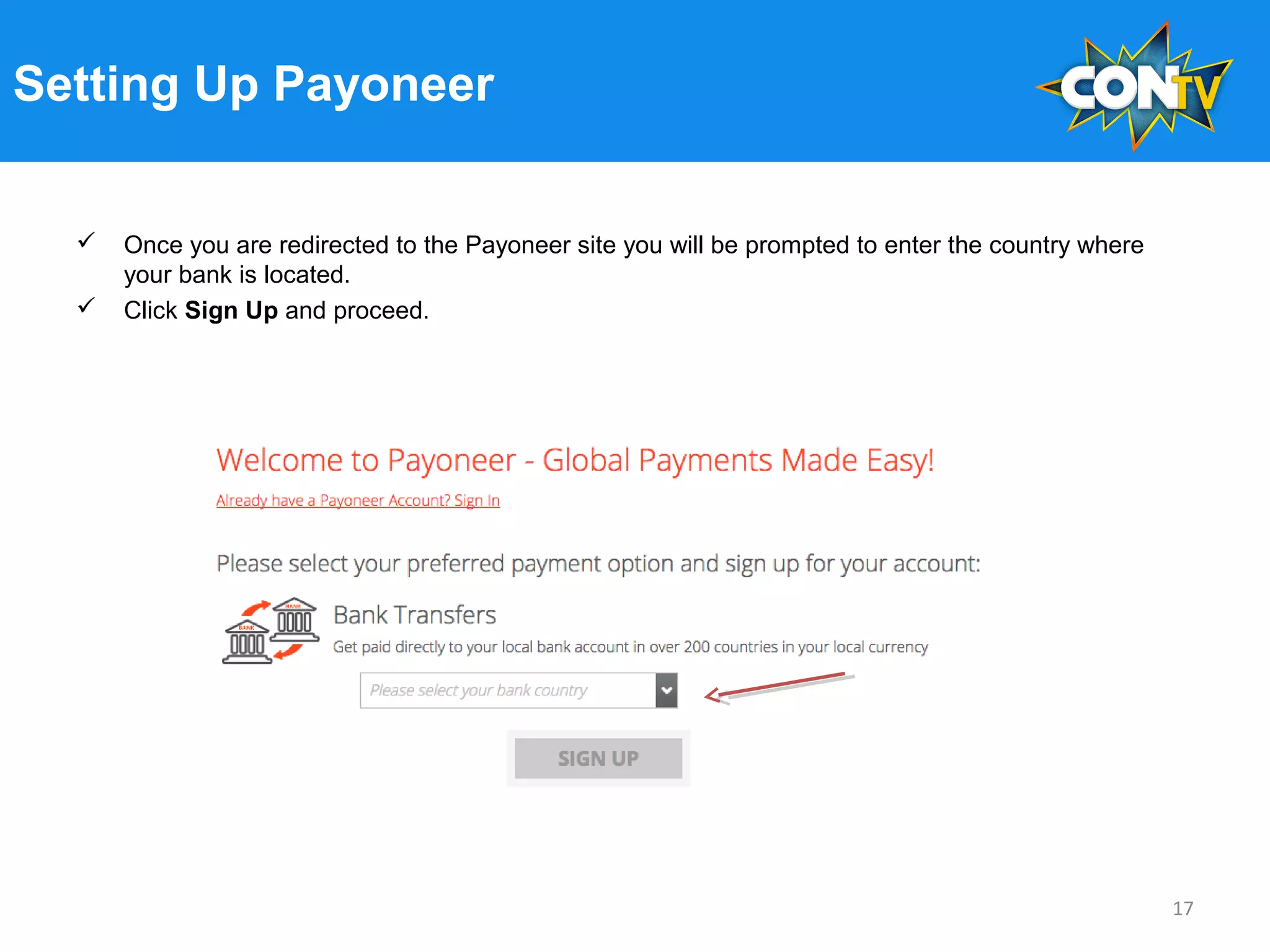
 Once you are redirected to the Payoneer site you will be prompted to enter the country where
your bank is located.
 Click Sign Up and proceed.
17
Setting Up Payoneer
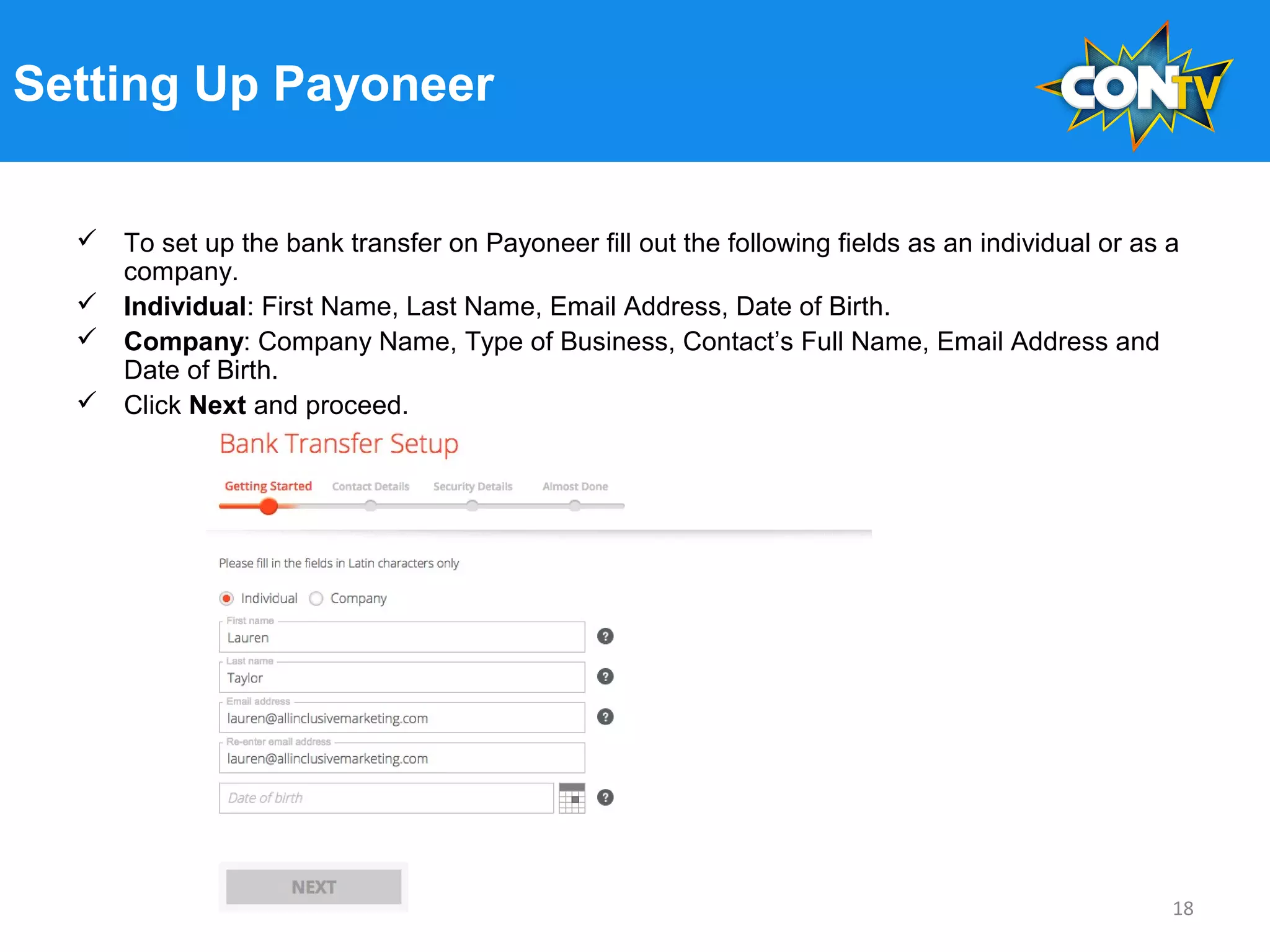
 To set up the bank transfer on Payoneer fill out the following fields as an individual or as a
company.
 Individual: First Name, Last Name, Email Address, Date of Birth.
 Company: Company Name, Type of Business, Contact’s Full Name, Email Address and
Date of Birth.
 Click Next and proceed.
18
Setting Up Payoneer
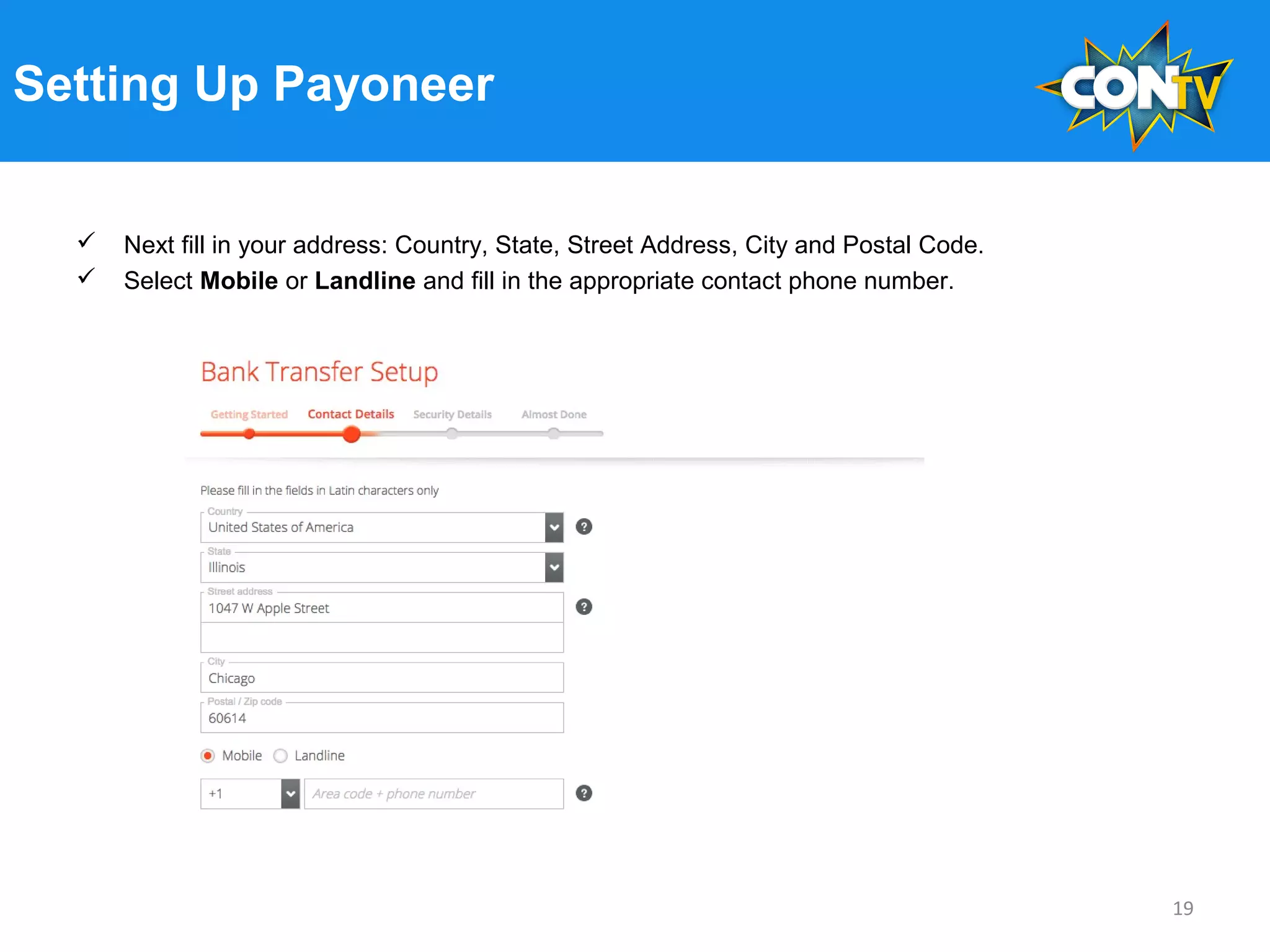
 Next fill in your address: Country, State, Street Address, City and Postal Code.
 Select Mobile or Landline and fill in the appropriate contact phone number.
19
Setting Up Payoneer
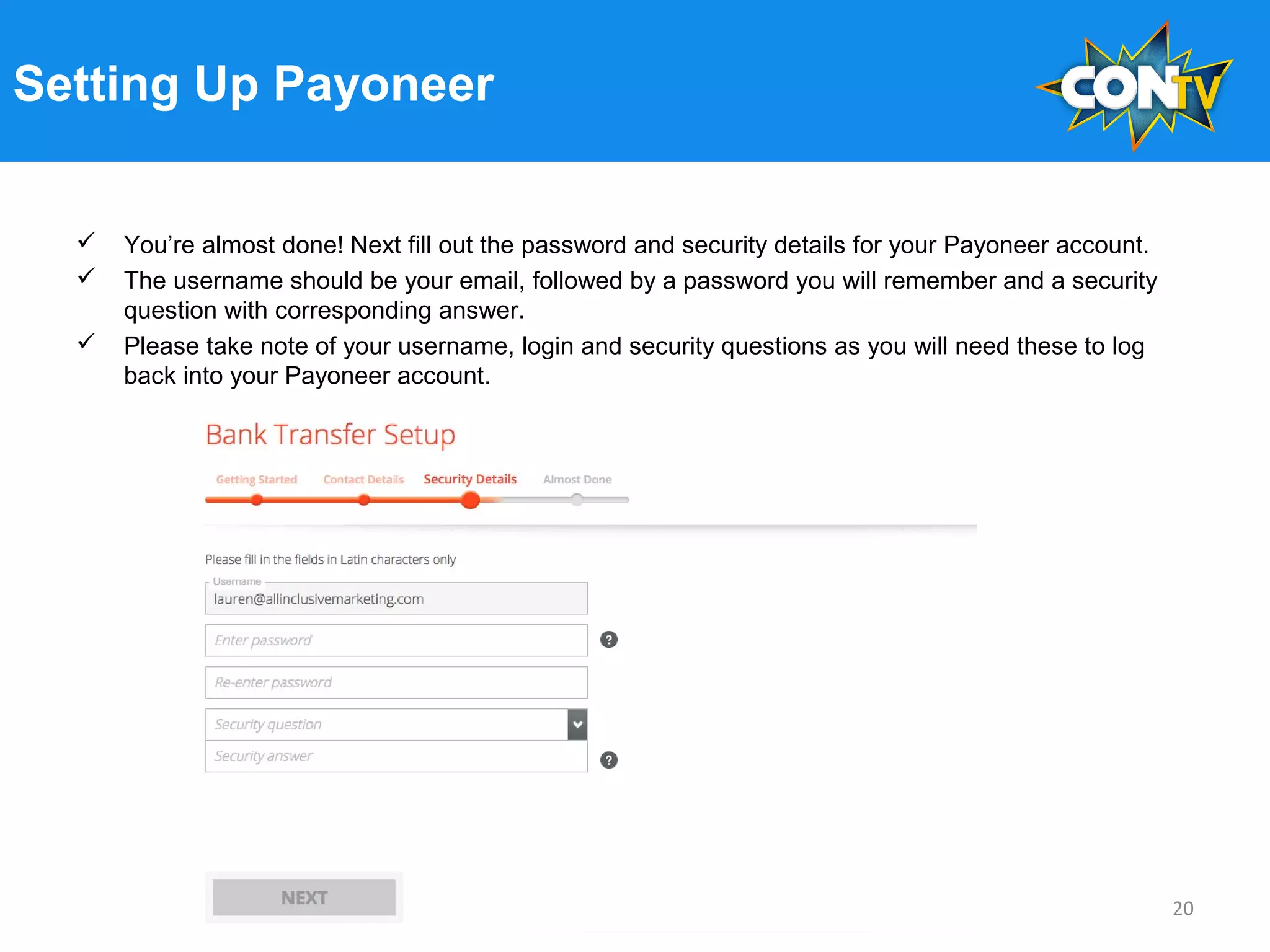
 You’re almost done! Next fill out the password and security details for your Payoneer account.
 The username should be your email, followed by a password you will remember and a security
question with corresponding answer.
 Please take note of your username, login and security questions as you will need these to log
back into your Payoneer account.
20
Setting Up Payoneer
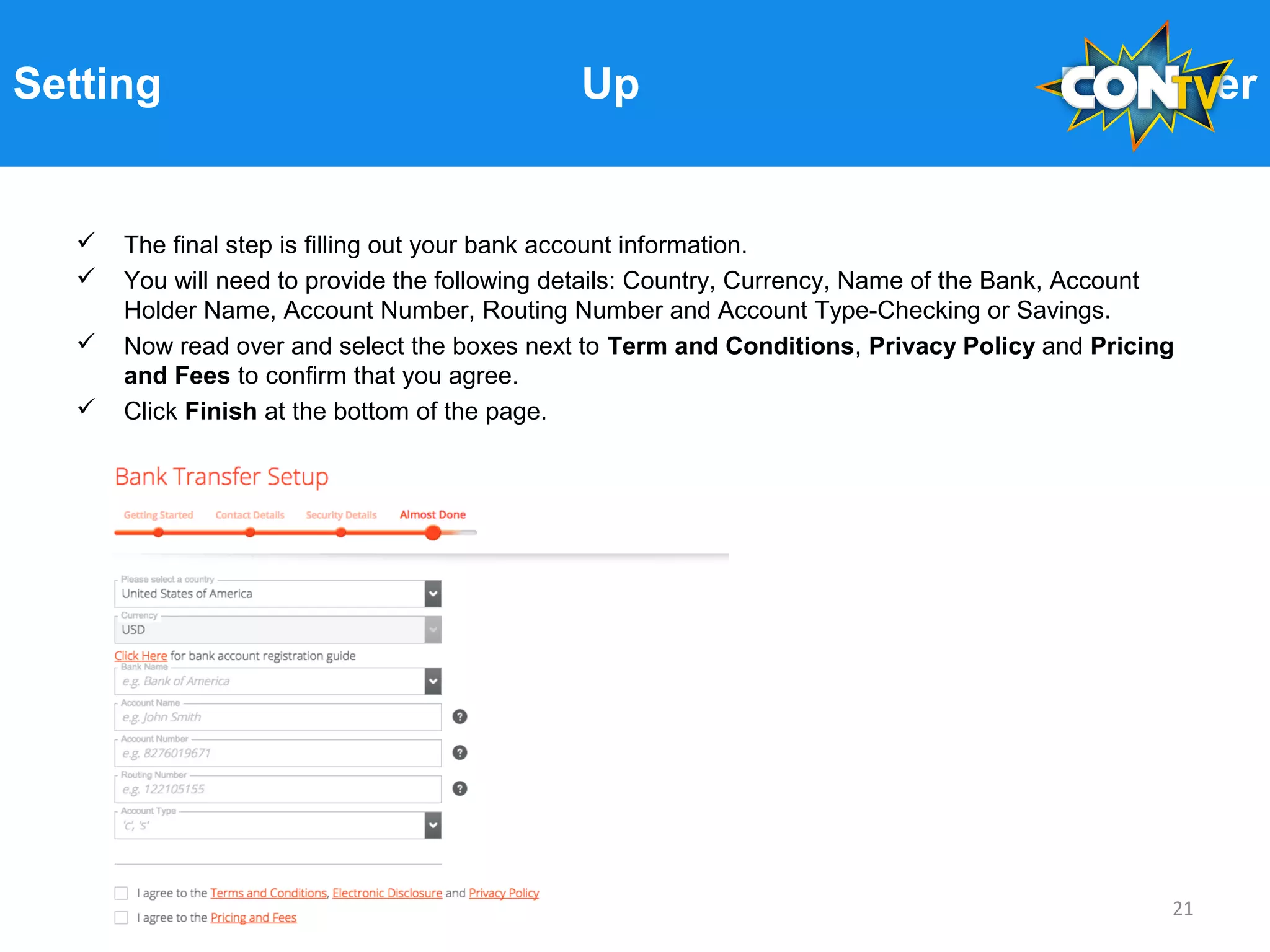
 The final step is filling out your bank account information.
 You will need to provide the following details: Country, Currency, Name of the Bank, Account
Holder Name, Account Number, Routing Number and Account Type-Checking or Savings.
 Now read over and select the boxes next to Term and Conditions, Privacy Policy and Pricing
and Fees to confirm that you agree.
 Click Finish at the bottom of the page.
21
Setting Up Payoneer - Awaiting Approval
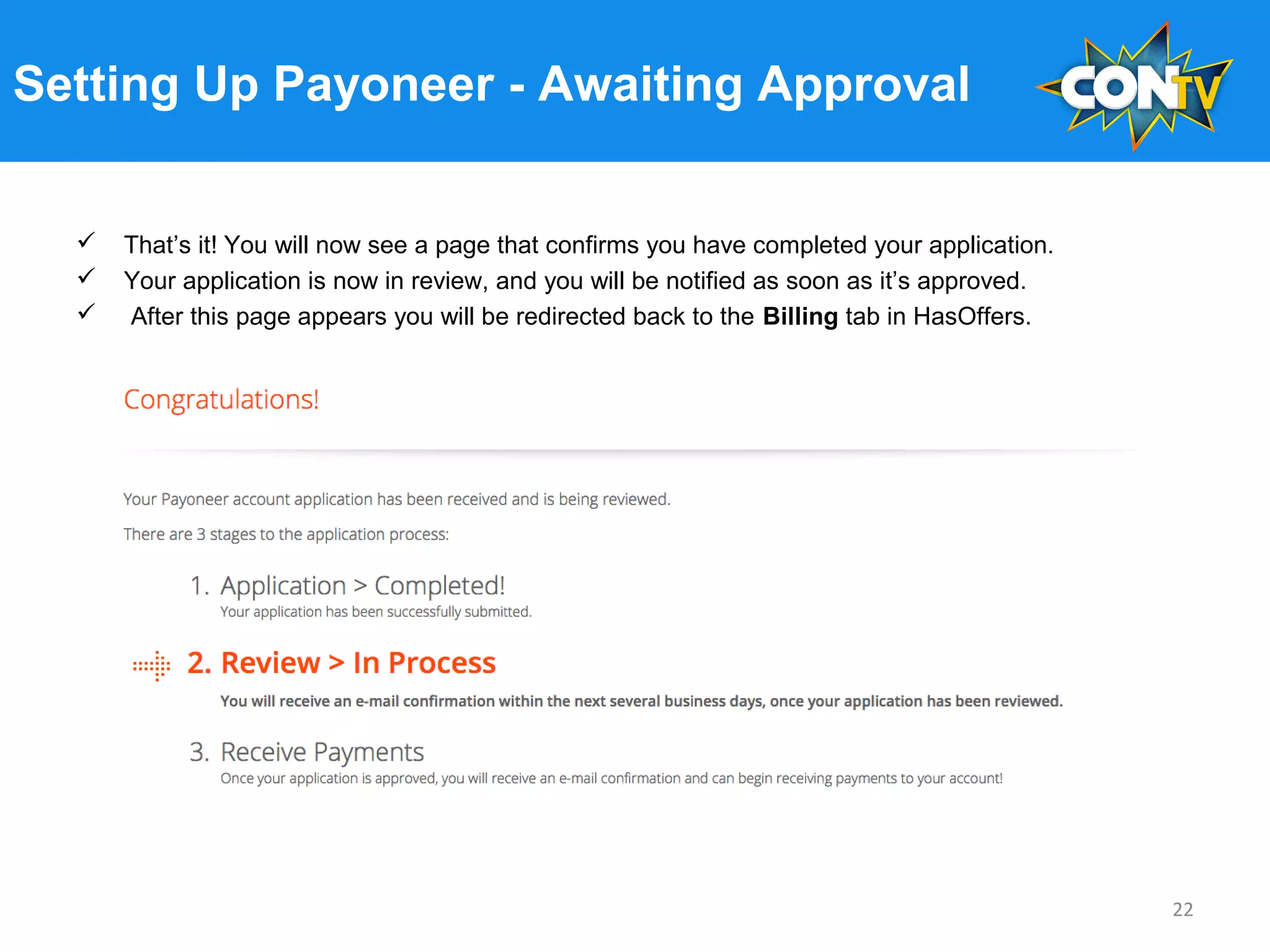
 That’s it! You will now see a page that confirms you have completed your application.
 Your application is now in review, and you will be notified as soon as it’s approved.
 After this page appears you will be redirected back to the Billing tab in HasOffers.
22
Setting Up Payoneer – Getting Paid
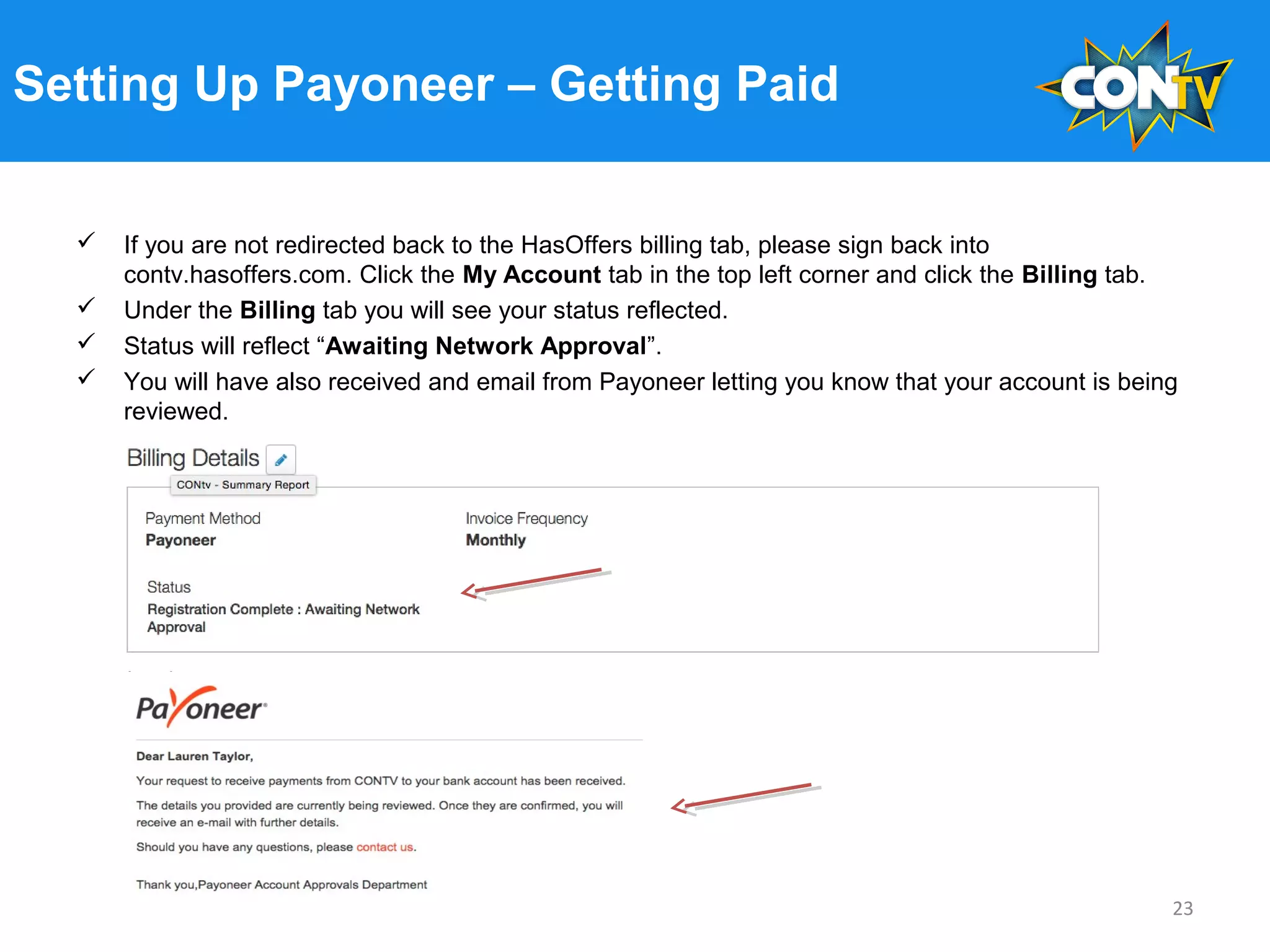
 If you are not redirected back to the HasOffers billing tab, please sign back into
contv.hasoffers.com. Click the My Account tab in the top left corner and click the Billing tab.
 Under the Billing tab you will see your status reflected.
 Status will reflect “Awaiting Network Approval”.
 You will have also received and email from Payoneer letting you know that your account is being
reviewed.
23
Setting Up Payoneer – Getting Paid
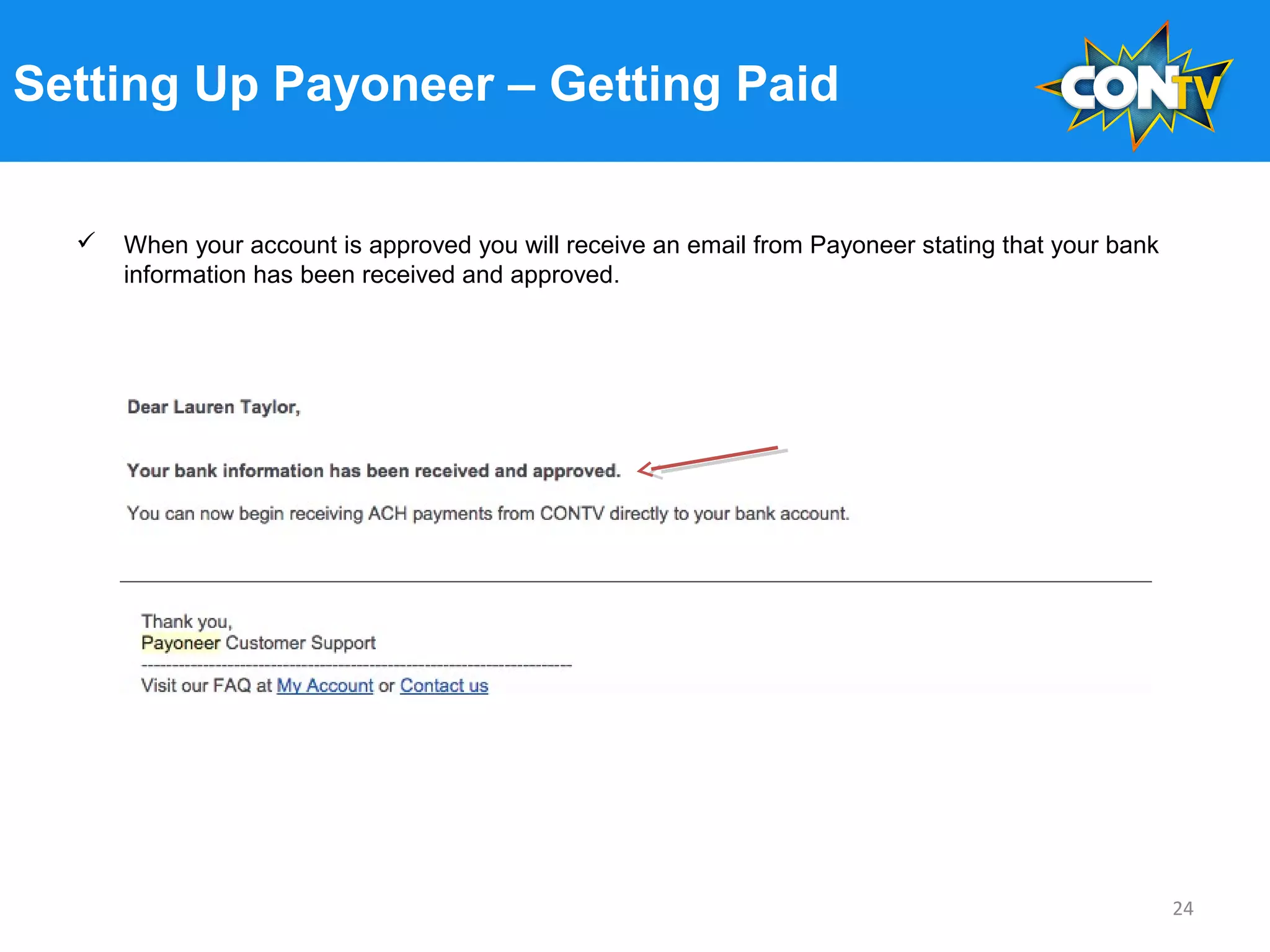
 When your account is approved you will receive an email from Payoneer stating that your bank
information has been received and approved.
24
Setting Up Payoneer - Success!
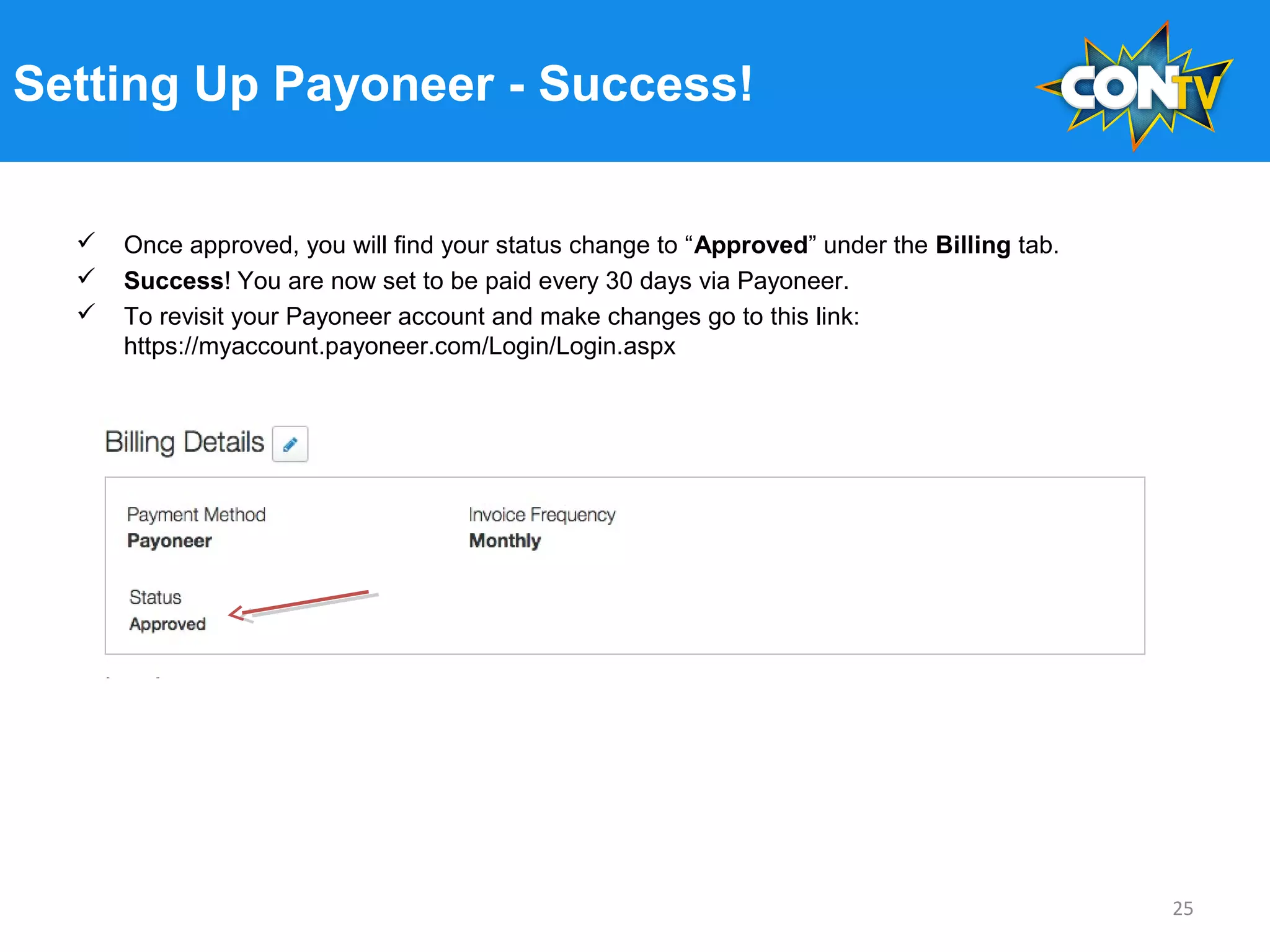
 Once approved, you will find your status change to “Approved” under the Billing tab.
 Success! You are now set to be paid every 30 days via Payoneer.
 To revisit your Payoneer account and make changes go to this link:
https://myaccount.payoneer.com/Login/Login.aspx
25
Setting Up Payoneer - Questions
If you are having trouble signing up or you have further questions please send us an email at
affiliates@contv.com.
We look forward to working with you!
26

Getting Started with the CONtv Affiliate Program

  • 1.
    July 2015 Affiliate WelcomeKit: A Step by Step Guide to Get you Started 1
  • 2.
    Welcome to theCONtv Affiliate Program!  Demo: 18-45 years old characterized as voracious content consumers & early adopters of technology.  Distribution: Browser, tablet, mobile, set-top box, gaming consoles and connected TV’s.  Business Model: Freemium model with both ad-supported free version and premium paid tier ($6.99/mo).  Original Programming: 8-10 new original series annually.  Live Events: Full online availability of 250+ live panels and events annually from Comic Cons nationwide.  Catalogue Content: 1,200+ hours of catalogue film, TV & webisode content at launch, adding 200+ hours of new content. CONtv is a partnership between Cinedigm, an industry leader in independent content distribution, and Wizard World, the largest Comic Con producer in the U.S. Launched in March 2015, CONtv is a new digital entertainment network that offers access to thousands of hours of original programming, elusive cult films, television shows, celebrated genre movies, and exclusive live coverage of Comic Con events nationwide. 2
  • 3.
    Affiliate Marketing Snapshot CONtv’saffiliate program allows individuals, companies and organizations an opportunity to earn a commission for each registered user or paid subscriber they bring to the platform. Simple Commission Plans: •$0.50 for every free registration sign-up. •$10 CPA (cost per acquisition) for every paid subscriber sign-up. 3
  • 4.
    Sign-Up Process 1. Visithttp://contv.hasoffers.com/signup. 2. Complete and submit the online form. 3. You will receive a confirmation email from our team with HasOffers log-in instructions. 4. Log-in to your HasOffers account and choose the offer(s) you want to use to promote CONtv. Keep an eye out for newsletters providing you with exclusive offers, vanity codes, sponsorship opportunities, bonuses and competitions to maximize your results. 4
  • 5.
    Setting Up YourAccount - Log-In  Go to contv.hasoffers.com.  Enter the email address and password sent to you from affiliates@contv.com.  Login to proceed. 5
  • 6.
    Setting Up YourAccount - Dashboard  Now that you are approved and logged in, the first screen you will see is your dashboard.  Your dashboard is where you can navigate to Offers, Reports, My Account and Notifications. 6
  • 7.
    Setting Up YourAccount - Offers To find an offer hover over the Offers tab on the sidebar and select Browse/Search. Review the offers and select the best suited to promote to your audience. Then click on the name of the offer to see your unique tracking links and banner. 7
  • 8.
    Setting Up YourAccount - Offers After you’ve clicked on the offer name, you will see a page that includes unique tracking links and banners with tracking code. Copy and paste the unique tracking link in the box that reads “Your Tracking Link”. You will place this link with unique tracking on your website and in your emails when you promote CONtv. 8
  • 9.
    Setting Up YourAccount - Offers  Scroll down to find your favorite banners.  To preview the banners click Download.  Decide on the banner style and size you prefer for your site.  Click Get Code to get your banner HTML.  The HTML code will contain the image and unique tracking link ready to copy and paste right into to your site! 9
  • 10.
    Setting Up YourAccount - Offers How does a unique tracking link work? •By placing this unique tracking link on your site, you will be able to track the number of users you drive to the CONtv site. You will also be able to track how many of these users sign-up or subscribe to the service. •When a user clicks through your unique tracking link to CONtv a click will register on the CONtv HasOffers platform. •Within 30 days of the user’s first click, if they register to the free CONtv service or subscribe to the paid service you will earn a payout. •When a user registers or subscribes this will be referred to as a conversion. •Each conversion you drive for the free registration will earn you $0.50 and each conversion you drive for the paid subscription will earn you $10.00. 10
  • 11.
    Setting Up YourAccount - Reports  To track performance, hover over the Reports tab.  Select either the Performance or Conversion Report for different sets of data.  The Performance Report will give you insight on your overall campaign, including impressions, clicks, conversions, payouts and more customizable options.  The Conversion Report will give you more detailed insight into your conversions and payout. 11
  • 12.
    Setting Up YourAccount - Notifications  The Mail icon is your notifications tab where you will find program updates, expiring offers, new creative assets, billing and payment notifications. 12
  • 13.
    Setting Up YourAccount - Billing  Finally, hover over the My Account tab in the sidebar and select Billing.  Billing will allow you to see your balance and pending payments.  Under billing you will also need to set up your payment method.  Please see the Step by Step Guide to Setting up your Payoneer Account for full details on how to do this. 13
  • 14.
    Now You’re Readyto Promote! Congratulations! You’ve made it through the CONtv HasOffers program set up and you are ready to be a part of our affiliate program. Start promoting CONtv offers today with our custom affiliate banners featuring Hellboy, Bruce Campbell, Godzilla and more! Get your CONtv Free Registration Offer with tracking links and banners. OR: Get your Paid Subscriber CPA Offer with tracking links and banners. If you need further assistance or if you have questions please send us an email at affiliates@contv.com. We look forward to working with you! 14
  • 15.
    July 2015 Step byStep Guide to Setting Up Your Payoneer Account 15
  • 16.
    Setting Up YourPayments - Payoneer  Login to contv.hasoffers.com.  Hover over My Account and click the Billing tab.  Scroll down to Billing Details.  You will be paid through a service called “Payoneer”. To do this, click on the Register for Payoneer button.  You will be redirected to the Payoneer site to set up your Payoneer account. 16 CONGRATULATIONS! We are excited to welcome you to the CONTv Affiliate Marketing Program and look forward to working with you! In order to get paid for your converted subscribers, please follow the steps on the following pages to set up your Payoneer Account. Let’s get started.
  • 17.
    Setting Up Payoneer Once you are redirected to the Payoneer site you will be prompted to enter the country where your bank is located.  Click Sign Up and proceed. 17
  • 18.
    Setting Up Payoneer To set up the bank transfer on Payoneer fill out the following fields as an individual or as a company.  Individual: First Name, Last Name, Email Address, Date of Birth.  Company: Company Name, Type of Business, Contact’s Full Name, Email Address and Date of Birth.  Click Next and proceed. 18
  • 19.
    Setting Up Payoneer Next fill in your address: Country, State, Street Address, City and Postal Code.  Select Mobile or Landline and fill in the appropriate contact phone number. 19
  • 20.
    Setting Up Payoneer You’re almost done! Next fill out the password and security details for your Payoneer account.  The username should be your email, followed by a password you will remember and a security question with corresponding answer.  Please take note of your username, login and security questions as you will need these to log back into your Payoneer account. 20
  • 21.
    Setting Up Payoneer The final step is filling out your bank account information.  You will need to provide the following details: Country, Currency, Name of the Bank, Account Holder Name, Account Number, Routing Number and Account Type-Checking or Savings.  Now read over and select the boxes next to Term and Conditions, Privacy Policy and Pricing and Fees to confirm that you agree.  Click Finish at the bottom of the page. 21
  • 22.
    Setting Up Payoneer- Awaiting Approval  That’s it! You will now see a page that confirms you have completed your application.  Your application is now in review, and you will be notified as soon as it’s approved.  After this page appears you will be redirected back to the Billing tab in HasOffers. 22
  • 23.
    Setting Up Payoneer– Getting Paid  If you are not redirected back to the HasOffers billing tab, please sign back into contv.hasoffers.com. Click the My Account tab in the top left corner and click the Billing tab.  Under the Billing tab you will see your status reflected.  Status will reflect “Awaiting Network Approval”.  You will have also received and email from Payoneer letting you know that your account is being reviewed. 23
  • 24.
    Setting Up Payoneer– Getting Paid  When your account is approved you will receive an email from Payoneer stating that your bank information has been received and approved. 24
  • 25.
    Setting Up Payoneer- Success!  Once approved, you will find your status change to “Approved” under the Billing tab.  Success! You are now set to be paid every 30 days via Payoneer.  To revisit your Payoneer account and make changes go to this link: https://myaccount.payoneer.com/Login/Login.aspx 25
  • 26.
    Setting Up Payoneer- Questions If you are having trouble signing up or you have further questions please send us an email at affiliates@contv.com. We look forward to working with you! 26

Editor's Notes

  • #5 Step 1 Fix - Step 5 fix
  • #16 By reviewing this document you will be reviewing xyz. Conclusions for Payonner and Has Offers part