Getting started with Rhapsody in ADA
Setup Rhapsody in Ada with AdaCore GPL
Frank Braun,
Managing Partner EVOCEAN Deutschland GmbH
2 - © EVOCEAN www.evocean.com
Let’s get started – Rhapsody in Ada
In this session we show you how to:
• 1) Select and install an appropriate Ada Compiler.
• 2) Install Setup IBM Rational Rhapsody 8.2 in Ada.
• 3) Build an initial Hello World Example.
1) Select and install Ada Compiler
4 - © EVOCEAN www.evocean.com
Rhapsody 8.2 Ada Compiler support
 The Rhapsody in Ada Code generator has been tested against the following
Ada compilers:
• GNAT 3.15p (freely available, however outdated: GCC 2.8.1)
• AdaCore’s GNAT Pro (commercial)
• AONIX ObjectAda Enterprise Edition (commercial )
 Not officially supported but a good alternative is the free-of-charge and
fully-featured GNAT GPL 2016 EDITION which is based on GCC 4.9.4.
 This edition is available for students and free Software developers from
http://libre.adacore.com/download and consists of:
• The GNAT Ada 95, Ada 2005 and Ada 2012 development environment.
• AdaCore’s GNAT Programming Studio IDE (GPS).
• A license suitable to develop Free Software (www.fsf.org).
5 - © EVOCEAN www.evocean.com
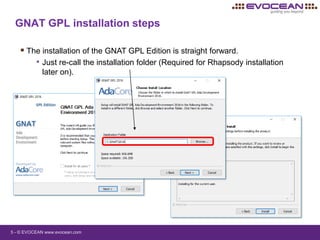
GNAT GPL installation steps
 The installation of the GNAT GPL Edition is straight forward.
• Just re-call the installation folder (Required for Rhapsody installation
later on).
2.1) Install IBM Rational Rhapsody 8.2 in Ada
7 - © EVOCEAN www.evocean.com
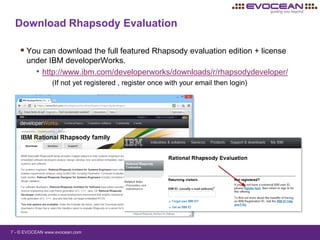
Download Rhapsody Evaluation
 You can download the full featured Rhapsody evaluation edition + license
under IBM developerWorks.
• http://www.ibm.com/developerworks/downloads/r/rhapsodydeveloper/
(If not yet registered , register once with your email then login)
8 - © EVOCEAN www.evocean.com
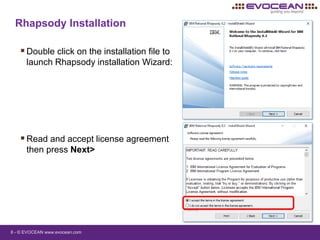
Rhapsody Installation
Double click on the installation file to
launch Rhapsody installation Wizard:
Read and accept license agreement
then press Next>
9 - © EVOCEAN www.evocean.com
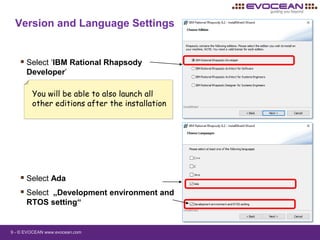
Version and Language Settings
 Select ‘IBM Rational Rhapsody
Developer’
 Select Ada
 Select „Development environment and
RTOS setting“
You will be able to also launch all
other editions after the installation
10 - © EVOCEAN www.evocean.com
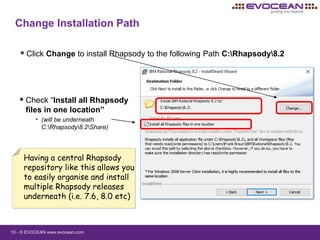
Change Installation Path
 Click Change to install Rhapsody to the following Path C:Rhapsody8.2
Having a central Rhapsody
repository like this allows you
to easily organise and install
multiple Rhapsody releases
underneath (i.e. 7.6, 8.0 etc)
 Check “Install all Rhapsody
files in one location”
• (will be underneath
C:Rhapsody8.2Share)
11 - © EVOCEAN www.evocean.com
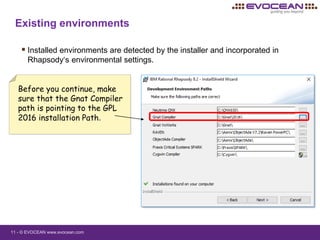
 Installed environments are detected by the installer and incorporated in
Rhapsody‘s environmental settings.
Existing environments
Before you continue, make
sure that the Gnat Compiler
path is pointing to the GPL
2016 installation Path.
12 - © EVOCEAN www.evocean.com
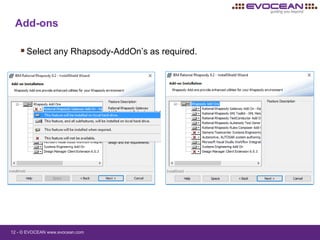
Add-ons
Select any Rhapsody-AddOn’s as required.
13 - © EVOCEAN www.evocean.com
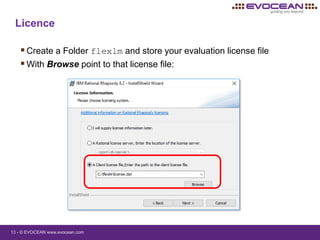
Licence
Create a Folder flexlm and store your evaluation license file
With Browse point to that license file:
14 - © EVOCEAN www.evocean.com
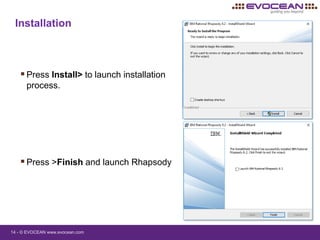
Installation
Press Install> to launch installation
process.
Press >Finish and launch Rhapsody
2.2) Setup IBM Rational Rhapsody 8.2 in Ada
16 - © EVOCEAN www.evocean.com
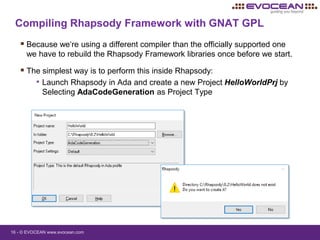
Compiling Rhapsody Framework with GNAT GPL
 Because we‘re using a different compiler than the officially supported one
we have to rebuild the Rhapsody Framework libraries once before we start.
 The simplest way is to perform this inside Rhapsody:
• Launch Rhapsody in Ada and create a new Project HelloWorldPrj by
Selecting AdaCodeGeneration as Project Type
17 - © EVOCEAN www.evocean.com
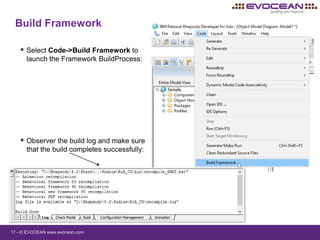
Build Framework
 Select Code->Build Framework to
launch the Framework BuildProcess:
 Observer the build log and make sure
that the build completes successfully:
3.) Hello World Project
19 - © EVOCEAN www.evocean.com
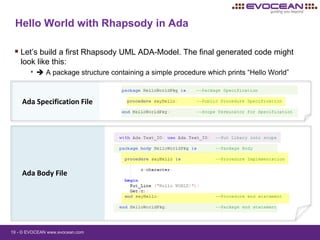
Hello World with Rhapsody in Ada
 Let’s build a first Rhapsody UML ADA-Model. The final generated code might
look like this:
•  A package structure containing a simple procedure which prints “Hello World”
Ada Specification File
Ada Body File
20 - © EVOCEAN www.evocean.com
 Rhapsody Project and configuration structure
 Generating Code from Model Elements
 Adding own Code
 Round Trip – To keep model and code in sync
 Customize Code Generation
 Generate and Build Component, Configuration, Packages Code
What you will learn
21 - © EVOCEAN www.evocean.com
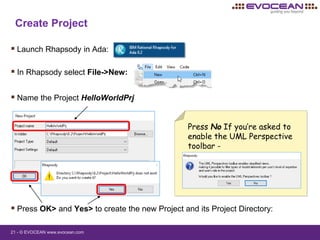
Create Project
 Launch Rhapsody in Ada:
 In Rhapsody select File->New:
 Name the Project HelloWorldPrj
 Press OK> and Yes> to create the new Project and its Project Directory:
Press No If you’re asked to
enable the UML Perspective
toolbar -
22 - © EVOCEAN www.evocean.com
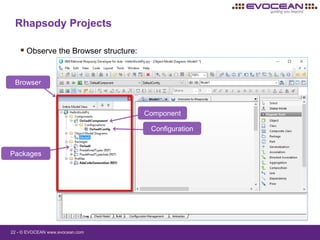
Rhapsody Projects
 Observe the Browser structure:
Browser
Component
Packages
Configuration
23 - © EVOCEAN www.evocean.com
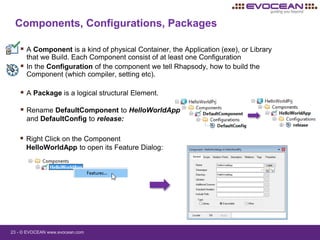
 Rename DefaultComponent to HelloWorldApp
and DefaultConfig to release:
Components, Configurations, Packages
 A Component is a kind of physical Container, the Application (exe), or Library
that we Build. Each Component consist of at least one Configuration
 In the Configuration of the component we tell Rhapsody, how to build the
Component (which compiler, setting etc).
 A Package is a logical structural Element.
 Right Click on the Component
HelloWorldApp to open its Feature Dialog:
24 - © EVOCEAN www.evocean.com
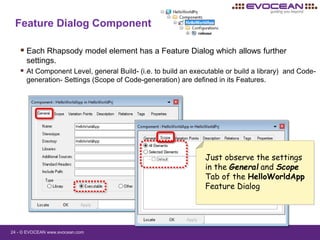
Feature Dialog Component
 Each Rhapsody model element has a Feature Dialog which allows further
settings.
 At Component Level, general Build- (i.e. to build an executable or build a library) and Code-
generation- Settings (Scope of Code-generation) are defined in its Features.
Just observe the settings
in the General and Scope
Tab of the HelloWorldApp
Feature Dialog
25 - © EVOCEAN www.evocean.com
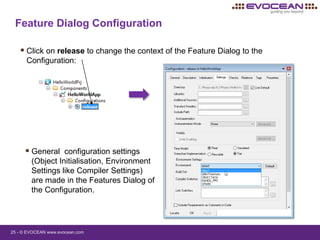
Feature Dialog Configuration
 Click on release to change the context of the Feature Dialog to the
Configuration:
 General configuration settings
(Object Initialisation, Environment
Settings like Compiler Settings)
are made in the Features Dialog of
the Configuration.
26 - © EVOCEAN www.evocean.com
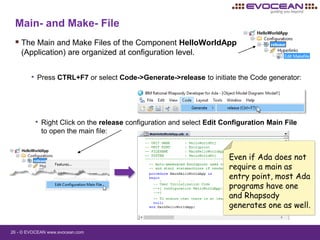
Main- and Make- File
 The Main and Make Files of the Component HelloWorldApp
(Application) are organized at configuration level.
• Press CTRL+F7 or select Code->Generate->release to initiate the Code generator:
• Right Click on the release configuration and select Edit Configuration Main File
to open the main file:
Even if Ada does not
require a main as
entry point, most Ada
programs have one
and Rhapsody
generates one as well.
27 - © EVOCEAN www.evocean.com
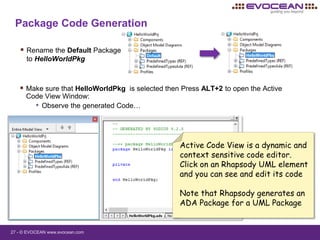
Package Code Generation
 Rename the Default Package
to HelloWorldPkg
 Make sure that HelloWorldPkg is selected then Press ALT+2 to open the Active
Code View Window:
• Observe the generated Code…
Active Code View is a dynamic and
context sensitive code editor.
Click on an Rhapsody UML element
and you can see and edit its code
Note that Rhapsody generates an
ADA Package for a UML Package
28 - © EVOCEAN www.evocean.com
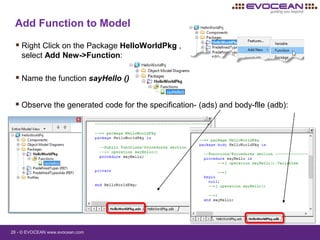
Add Function to Model
 Right Click on the Package HelloWorldPkg ,
select Add New->Function:
 Name the function sayHello ()
 Observe the generated code for the specification- (ads) and body-flle (adb):
29 - © EVOCEAN www.evocean.com
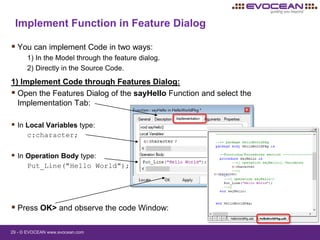
 You can implement Code in two ways:
1) In the Model through the feature dialog.
2) Directly in the Source Code.
1) Implement Code through Features Dialog:
 Open the Features Dialog of the sayHello Function and select the
Implementation Tab:
 In Local Variables type:
c:character;
 In Operation Body type:
Put_Line("Hello World");
 Press OK> and observe the code Window:
Implement Function in Feature Dialog
30 - © EVOCEAN www.evocean.com
Implement Function in Code Editor
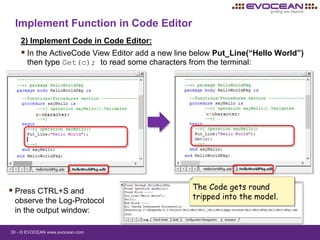
2) Implement Code in Code Editor:
 In the ActiveCode View Editor add a new line below Put_Line(“Hello World”)
then type Get(c); to read some characters from the terminal:
 Press CTRL+S and
observe the Log-Protocol
in the output window:
The Code gets round
tripped into the model.
31 - © EVOCEAN www.evocean.com
Rhapsody Properties
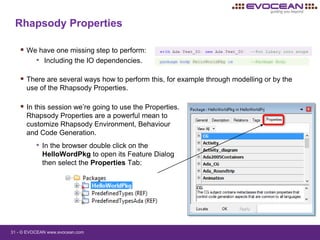
 We have one missing step to perform:
• Including the IO dependencies.
 There are several ways how to perform this, for example through modelling or by the
use of the Rhapsody Properties.
 In this session we’re going to use the Properties.
Rhapsody Properties are a powerful mean to
customize Rhapsody Environment, Behaviour
and Code Generation.
• In the browser double click on the
HelloWordPkg to open its Feature Dialog
then select the Properties Tab:
32 - © EVOCEAN www.evocean.com
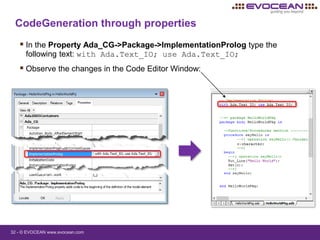
CodeGeneration through properties
 In the Property Ada_CG->Package->ImplementationProlog type the
following text: with Ada.Text_IO; use Ada.Text_IO;
 Observe the changes in the Code Editor Window:
33 - © EVOCEAN www.evocean.com
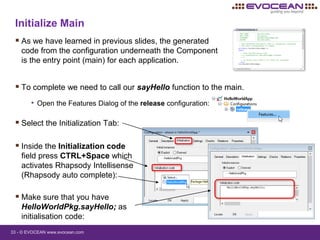
Initialize Main
 As we have learned in previous slides, the generated
code from the configuration underneath the Component
is the entry point (main) for each application.
 Inside the Initialization code
field press CTRL+Space which
activates Rhapsody Intellisense
(Rhapsody auto complete):
 To complete we need to call our sayHello function to the main.
• Open the Features Dialog of the release configuration:
 Select the Initialization Tab:
 Make sure that you have
HelloWorldPkg.sayHello; as
initialisation code:
34 - © EVOCEAN www.evocean.com
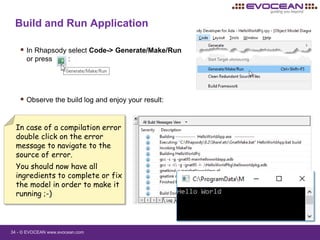
Build and Run Application
 In Rhapsody select Code-> Generate/Make/Run
or press :
 Observe the build log and enjoy your result:
In case of a compilation error
double click on the error
message to navigate to the
source of error.
You should now have all
ingredients to complete or fix
the model in order to make it
running ;-)
35 - © EVOCEAN www.evocean.com
Thank you - Do you want more ?
We periodically run the following Training Courses:
• IBM Rhapsody in C and C++ Training Course with UML (4 days)
• EVOCEAN Rhapsody in C++ Training Course with RaspberryPi (3 days)
• Rhapsody for System Engineers with SysML (4 days)
• Rhapsody MDSE with SysML ToolTraining (2 days)
 Visit: www.evocean.com/events
World-
Wide !
Project Support, In-house Trainings / Trainings in
Rhapsody in Autosar, Ada or Java , Design Manager ?
 Send request to : info@evocean.com
36 - © EVOCEAN www.evocean.com
THANK YOU
Are you interested in a specific topic ?
Just send an Email to:
Rhapsody@evocean.com
or send “Newsletter” to
Info@evocean.com to receive our
newsletter

Getting started with IBM Rational Rhapsody in Ada

  • 1.
    Getting started withRhapsody in ADA Setup Rhapsody in Ada with AdaCore GPL Frank Braun, Managing Partner EVOCEAN Deutschland GmbH
  • 2.
    2 - ©EVOCEAN www.evocean.com Let’s get started – Rhapsody in Ada In this session we show you how to: • 1) Select and install an appropriate Ada Compiler. • 2) Install Setup IBM Rational Rhapsody 8.2 in Ada. • 3) Build an initial Hello World Example.
  • 3.
    1) Select andinstall Ada Compiler
  • 4.
    4 - ©EVOCEAN www.evocean.com Rhapsody 8.2 Ada Compiler support  The Rhapsody in Ada Code generator has been tested against the following Ada compilers: • GNAT 3.15p (freely available, however outdated: GCC 2.8.1) • AdaCore’s GNAT Pro (commercial) • AONIX ObjectAda Enterprise Edition (commercial )  Not officially supported but a good alternative is the free-of-charge and fully-featured GNAT GPL 2016 EDITION which is based on GCC 4.9.4.  This edition is available for students and free Software developers from http://libre.adacore.com/download and consists of: • The GNAT Ada 95, Ada 2005 and Ada 2012 development environment. • AdaCore’s GNAT Programming Studio IDE (GPS). • A license suitable to develop Free Software (www.fsf.org).
  • 5.
    5 - ©EVOCEAN www.evocean.com GNAT GPL installation steps  The installation of the GNAT GPL Edition is straight forward. • Just re-call the installation folder (Required for Rhapsody installation later on).
  • 6.
    2.1) Install IBMRational Rhapsody 8.2 in Ada
  • 7.
    7 - ©EVOCEAN www.evocean.com Download Rhapsody Evaluation  You can download the full featured Rhapsody evaluation edition + license under IBM developerWorks. • http://www.ibm.com/developerworks/downloads/r/rhapsodydeveloper/ (If not yet registered , register once with your email then login)
  • 8.
    8 - ©EVOCEAN www.evocean.com Rhapsody Installation Double click on the installation file to launch Rhapsody installation Wizard: Read and accept license agreement then press Next>
  • 9.
    9 - ©EVOCEAN www.evocean.com Version and Language Settings  Select ‘IBM Rational Rhapsody Developer’  Select Ada  Select „Development environment and RTOS setting“ You will be able to also launch all other editions after the installation
  • 10.
    10 - ©EVOCEAN www.evocean.com Change Installation Path  Click Change to install Rhapsody to the following Path C:Rhapsody8.2 Having a central Rhapsody repository like this allows you to easily organise and install multiple Rhapsody releases underneath (i.e. 7.6, 8.0 etc)  Check “Install all Rhapsody files in one location” • (will be underneath C:Rhapsody8.2Share)
  • 11.
    11 - ©EVOCEAN www.evocean.com  Installed environments are detected by the installer and incorporated in Rhapsody‘s environmental settings. Existing environments Before you continue, make sure that the Gnat Compiler path is pointing to the GPL 2016 installation Path.
  • 12.
    12 - ©EVOCEAN www.evocean.com Add-ons Select any Rhapsody-AddOn’s as required.
  • 13.
    13 - ©EVOCEAN www.evocean.com Licence Create a Folder flexlm and store your evaluation license file With Browse point to that license file:
  • 14.
    14 - ©EVOCEAN www.evocean.com Installation Press Install> to launch installation process. Press >Finish and launch Rhapsody
  • 15.
    2.2) Setup IBMRational Rhapsody 8.2 in Ada
  • 16.
    16 - ©EVOCEAN www.evocean.com Compiling Rhapsody Framework with GNAT GPL  Because we‘re using a different compiler than the officially supported one we have to rebuild the Rhapsody Framework libraries once before we start.  The simplest way is to perform this inside Rhapsody: • Launch Rhapsody in Ada and create a new Project HelloWorldPrj by Selecting AdaCodeGeneration as Project Type
  • 17.
    17 - ©EVOCEAN www.evocean.com Build Framework  Select Code->Build Framework to launch the Framework BuildProcess:  Observer the build log and make sure that the build completes successfully:
  • 18.
  • 19.
    19 - ©EVOCEAN www.evocean.com Hello World with Rhapsody in Ada  Let’s build a first Rhapsody UML ADA-Model. The final generated code might look like this: •  A package structure containing a simple procedure which prints “Hello World” Ada Specification File Ada Body File
  • 20.
    20 - ©EVOCEAN www.evocean.com  Rhapsody Project and configuration structure  Generating Code from Model Elements  Adding own Code  Round Trip – To keep model and code in sync  Customize Code Generation  Generate and Build Component, Configuration, Packages Code What you will learn
  • 21.
    21 - ©EVOCEAN www.evocean.com Create Project  Launch Rhapsody in Ada:  In Rhapsody select File->New:  Name the Project HelloWorldPrj  Press OK> and Yes> to create the new Project and its Project Directory: Press No If you’re asked to enable the UML Perspective toolbar -
  • 22.
    22 - ©EVOCEAN www.evocean.com Rhapsody Projects  Observe the Browser structure: Browser Component Packages Configuration
  • 23.
    23 - ©EVOCEAN www.evocean.com  Rename DefaultComponent to HelloWorldApp and DefaultConfig to release: Components, Configurations, Packages  A Component is a kind of physical Container, the Application (exe), or Library that we Build. Each Component consist of at least one Configuration  In the Configuration of the component we tell Rhapsody, how to build the Component (which compiler, setting etc).  A Package is a logical structural Element.  Right Click on the Component HelloWorldApp to open its Feature Dialog:
  • 24.
    24 - ©EVOCEAN www.evocean.com Feature Dialog Component  Each Rhapsody model element has a Feature Dialog which allows further settings.  At Component Level, general Build- (i.e. to build an executable or build a library) and Code- generation- Settings (Scope of Code-generation) are defined in its Features. Just observe the settings in the General and Scope Tab of the HelloWorldApp Feature Dialog
  • 25.
    25 - ©EVOCEAN www.evocean.com Feature Dialog Configuration  Click on release to change the context of the Feature Dialog to the Configuration:  General configuration settings (Object Initialisation, Environment Settings like Compiler Settings) are made in the Features Dialog of the Configuration.
  • 26.
    26 - ©EVOCEAN www.evocean.com Main- and Make- File  The Main and Make Files of the Component HelloWorldApp (Application) are organized at configuration level. • Press CTRL+F7 or select Code->Generate->release to initiate the Code generator: • Right Click on the release configuration and select Edit Configuration Main File to open the main file: Even if Ada does not require a main as entry point, most Ada programs have one and Rhapsody generates one as well.
  • 27.
    27 - ©EVOCEAN www.evocean.com Package Code Generation  Rename the Default Package to HelloWorldPkg  Make sure that HelloWorldPkg is selected then Press ALT+2 to open the Active Code View Window: • Observe the generated Code… Active Code View is a dynamic and context sensitive code editor. Click on an Rhapsody UML element and you can see and edit its code Note that Rhapsody generates an ADA Package for a UML Package
  • 28.
    28 - ©EVOCEAN www.evocean.com Add Function to Model  Right Click on the Package HelloWorldPkg , select Add New->Function:  Name the function sayHello ()  Observe the generated code for the specification- (ads) and body-flle (adb):
  • 29.
    29 - ©EVOCEAN www.evocean.com  You can implement Code in two ways: 1) In the Model through the feature dialog. 2) Directly in the Source Code. 1) Implement Code through Features Dialog:  Open the Features Dialog of the sayHello Function and select the Implementation Tab:  In Local Variables type: c:character;  In Operation Body type: Put_Line("Hello World");  Press OK> and observe the code Window: Implement Function in Feature Dialog
  • 30.
    30 - ©EVOCEAN www.evocean.com Implement Function in Code Editor 2) Implement Code in Code Editor:  In the ActiveCode View Editor add a new line below Put_Line(“Hello World”) then type Get(c); to read some characters from the terminal:  Press CTRL+S and observe the Log-Protocol in the output window: The Code gets round tripped into the model.
  • 31.
    31 - ©EVOCEAN www.evocean.com Rhapsody Properties  We have one missing step to perform: • Including the IO dependencies.  There are several ways how to perform this, for example through modelling or by the use of the Rhapsody Properties.  In this session we’re going to use the Properties. Rhapsody Properties are a powerful mean to customize Rhapsody Environment, Behaviour and Code Generation. • In the browser double click on the HelloWordPkg to open its Feature Dialog then select the Properties Tab:
  • 32.
    32 - ©EVOCEAN www.evocean.com CodeGeneration through properties  In the Property Ada_CG->Package->ImplementationProlog type the following text: with Ada.Text_IO; use Ada.Text_IO;  Observe the changes in the Code Editor Window:
  • 33.
    33 - ©EVOCEAN www.evocean.com Initialize Main  As we have learned in previous slides, the generated code from the configuration underneath the Component is the entry point (main) for each application.  Inside the Initialization code field press CTRL+Space which activates Rhapsody Intellisense (Rhapsody auto complete):  To complete we need to call our sayHello function to the main. • Open the Features Dialog of the release configuration:  Select the Initialization Tab:  Make sure that you have HelloWorldPkg.sayHello; as initialisation code:
  • 34.
    34 - ©EVOCEAN www.evocean.com Build and Run Application  In Rhapsody select Code-> Generate/Make/Run or press :  Observe the build log and enjoy your result: In case of a compilation error double click on the error message to navigate to the source of error. You should now have all ingredients to complete or fix the model in order to make it running ;-)
  • 35.
    35 - ©EVOCEAN www.evocean.com Thank you - Do you want more ? We periodically run the following Training Courses: • IBM Rhapsody in C and C++ Training Course with UML (4 days) • EVOCEAN Rhapsody in C++ Training Course with RaspberryPi (3 days) • Rhapsody for System Engineers with SysML (4 days) • Rhapsody MDSE with SysML ToolTraining (2 days)  Visit: www.evocean.com/events World- Wide ! Project Support, In-house Trainings / Trainings in Rhapsody in Autosar, Ada or Java , Design Manager ?  Send request to : info@evocean.com
  • 36.
    36 - ©EVOCEAN www.evocean.com THANK YOU Are you interested in a specific topic ? Just send an Email to: Rhapsody@evocean.com or send “Newsletter” to Info@evocean.com to receive our newsletter