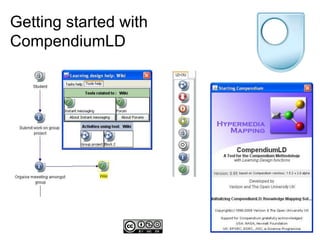
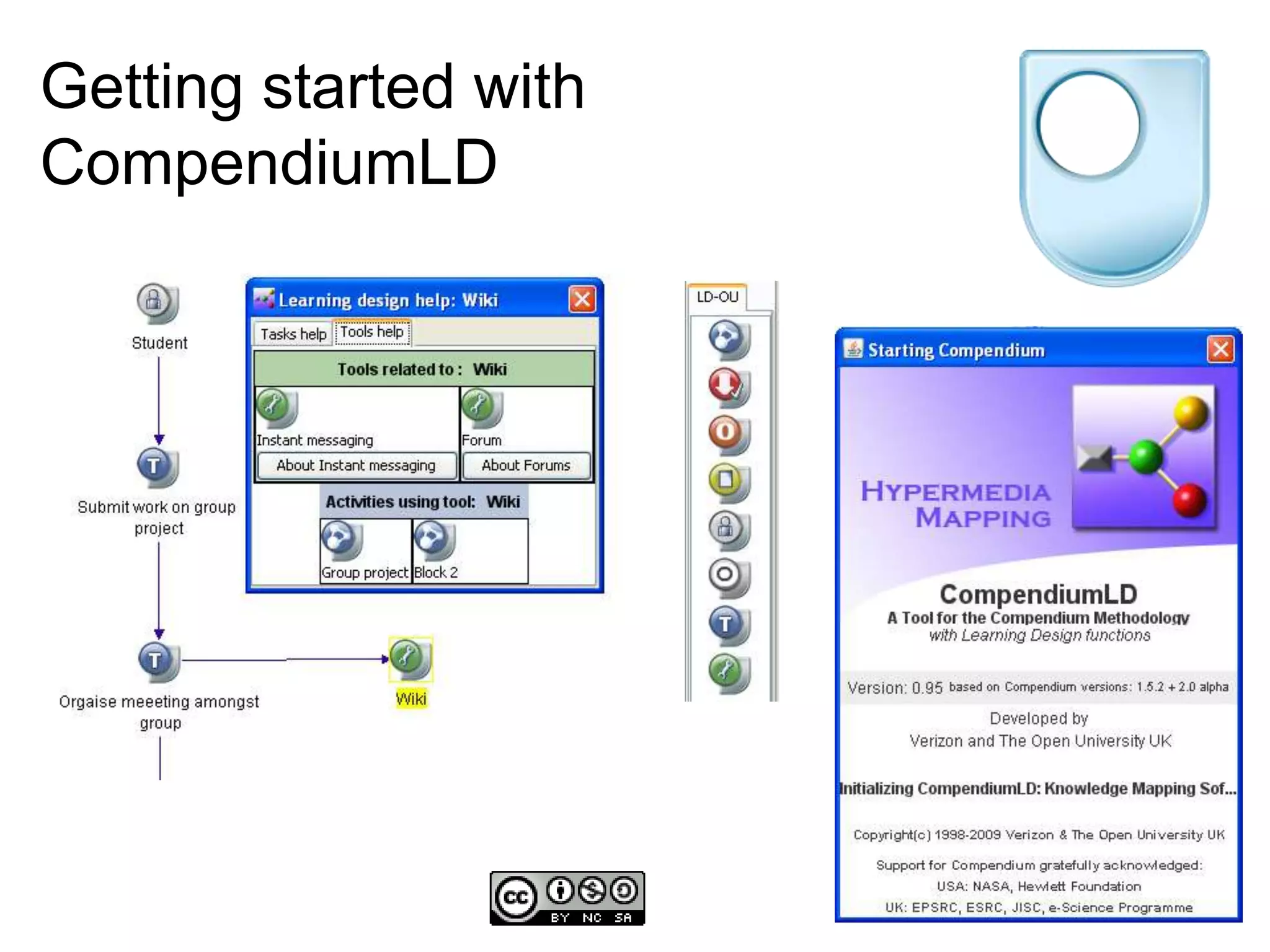
Getting started with CompendiumLD
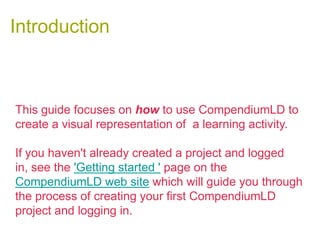
IntroductionThis guide focuses on howto use CompendiumLD to create a visual representation of  a learning activity. If you haven't already created a project and logged in, see the 'Getting started ' page on the CompendiumLD web site which will guide you through the process of creating your first CompendiumLD project and logging in.
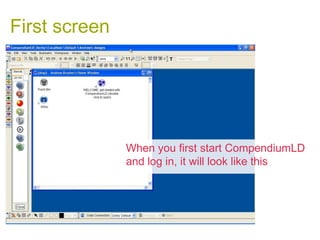
First screenWhen you first start CompendiumLD and log in, it will look like this
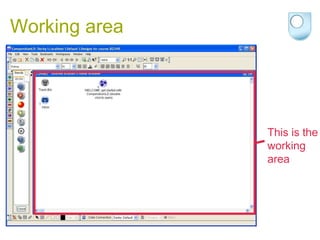
Working areaThis is the working area
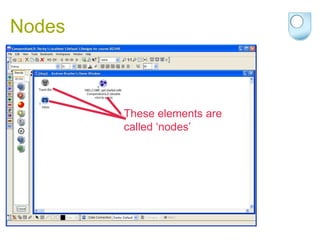
NodesThese elements are called ‘nodes’
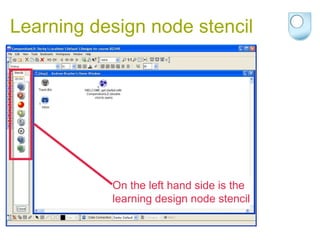
Learning design node stencilOn the left hand side is the learning design node stencil
Basic operationFollowing this slide is a short video ( < 2 minutes long) showing you how to carry out some basic functions in CompendiumLD.This video shows how to create, edit and link nodes and is best viewed in full screen.It shows version 0.75 of CompendiumLD but the principles remain the same in this version
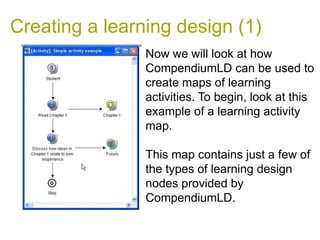
Creating a learning design (1)Now we will look at how CompendiumLD can be used to create maps of learning activities. To begin, look at this example of a learning activity map.This map contains just a few of the types of learning design nodes provided by CompendiumLD.
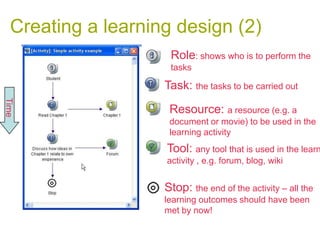
Creating a learning design (2)Role: shows who is to perform the tasksTask: the tasks to be carried outTimeResource: a resource (e.g. a document or movie) to be used in the learning activityTool: any tool that is used in the learning activity , e.g. forum, blog, wikiStop: the end of the activity – all the learning outcomes should have been met by now!
Creating a learning designThe next video shows how to design learning activities using CompendiumLD ( < 4 minutes long)
Other roles and relationshipsThis simple example shows how interactions between learners and tutors may be modelled.
Doing more with CompendiumLDThere is another slideshow which illustrates additional things you can do with CompendiumLD includingAdding timing infoIncluding documents and web pagesSaving and sharinghttp://www.slideshare.net/andrew_x/doing-more-with-compendium-ld
More informationCompendiumLD web sitehttp://compendiumld.open.ac.uk/Open University Learning Design Initiativehttp://ouldi.open.ac.uk/

Getting Started With CompendiumLD (version 1)

  • 1.
  • 2.
    IntroductionThis guide focuseson howto use CompendiumLD to create a visual representation of  a learning activity. If you haven't already created a project and logged in, see the 'Getting started ' page on the CompendiumLD web site which will guide you through the process of creating your first CompendiumLD project and logging in.
  • 3.
    First screenWhen youfirst start CompendiumLD and log in, it will look like this
  • 4.
    Working areaThis isthe working area
  • 5.
    NodesThese elements arecalled ‘nodes’
  • 6.
    Learning design nodestencilOn the left hand side is the learning design node stencil
  • 7.
    Basic operationFollowing thisslide is a short video ( < 2 minutes long) showing you how to carry out some basic functions in CompendiumLD.This video shows how to create, edit and link nodes and is best viewed in full screen.It shows version 0.75 of CompendiumLD but the principles remain the same in this version
  • 8.
    Creating a learningdesign (1)Now we will look at how CompendiumLD can be used to create maps of learning activities. To begin, look at this example of a learning activity map.This map contains just a few of the types of learning design nodes provided by CompendiumLD.
  • 9.
    Creating a learningdesign (2)Role: shows who is to perform the tasksTask: the tasks to be carried outTimeResource: a resource (e.g. a document or movie) to be used in the learning activityTool: any tool that is used in the learning activity , e.g. forum, blog, wikiStop: the end of the activity – all the learning outcomes should have been met by now!
  • 10.
    Creating a learningdesignThe next video shows how to design learning activities using CompendiumLD ( < 4 minutes long)
  • 11.
    Other roles andrelationshipsThis simple example shows how interactions between learners and tutors may be modelled.
  • 12.
    Doing more withCompendiumLDThere is another slideshow which illustrates additional things you can do with CompendiumLD includingAdding timing infoIncluding documents and web pagesSaving and sharinghttp://www.slideshare.net/andrew_x/doing-more-with-compendium-ld
  • 13.
    More informationCompendiumLD websitehttp://compendiumld.open.ac.uk/Open University Learning Design Initiativehttp://ouldi.open.ac.uk/