QuickBooks Data Conversion
or Migration
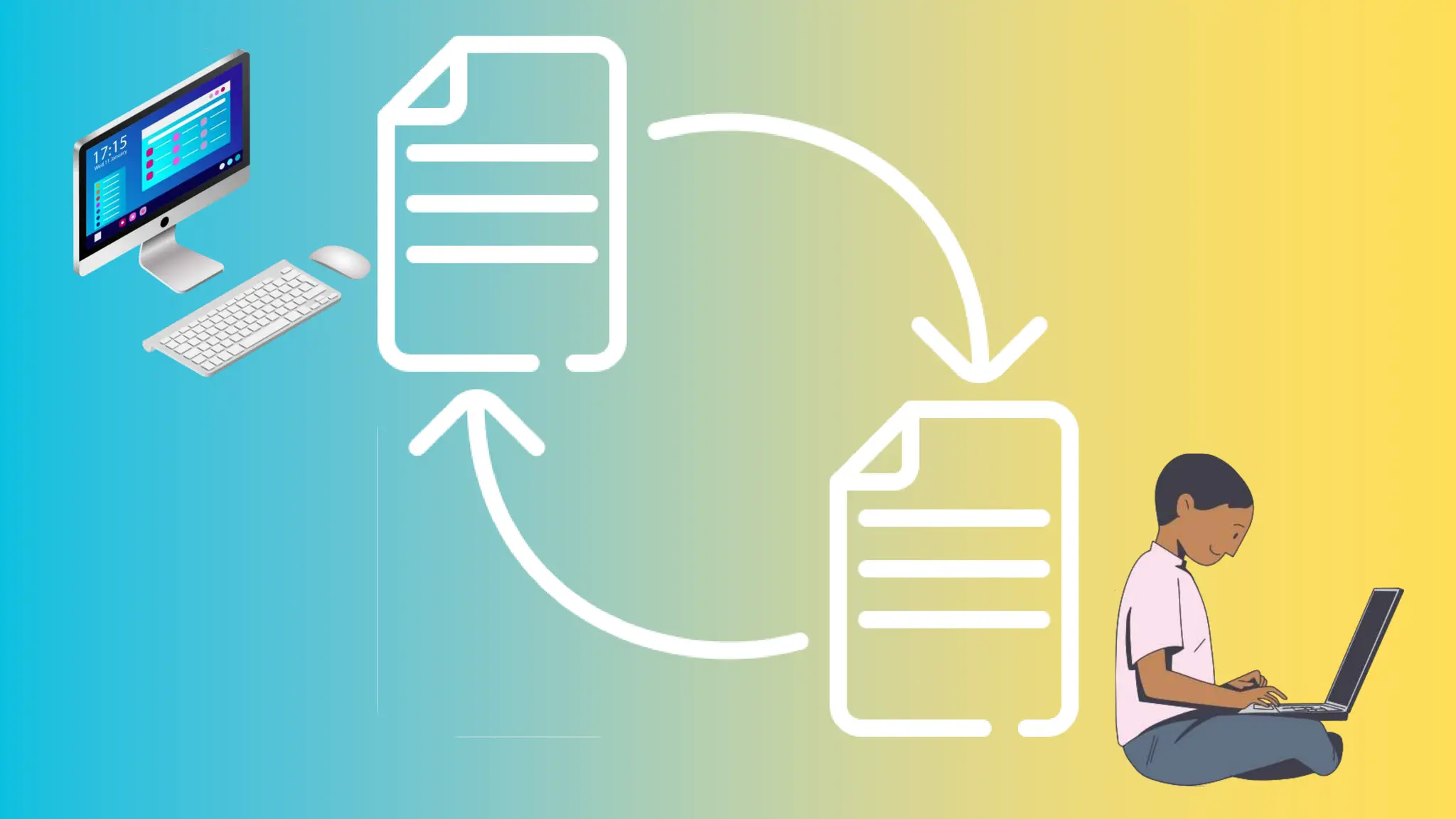
QuickBooks Desktop to Online
Converting from QuickBooks Desktop to QuickBooks
Online involves exporting your data files from the desktop
platform, converting them using the QuickBooks Desktop
software, and importing the converted files. This process
ensures the continuity of your financial records and can be
managed with careful attention to detail or professional
assistance.
Move your QuickBooks Desktop File to
QuickBooks Online
Easily transition your financial data by moving the
QuickBooks Desktop file to QuickBooks Online. Streamline
your accounting process with cloud-based access, real-
time collaboration, and automatic updates. Follow simple
steps to migrate your data seamlessly and unlock
enhanced features for efficient financial management.
Experience improved flexibility and convenience today
Convert QuickBooks Enterprise to
QBO
Why Convert from QuickBooks Desktop to
QuickBooks Online
• One of the most compelling reasons to convert from QuickBooks
Desktop (QB Desktop) to QuickBooks Online (QBO) is the ability to
access your financial data from anywhere, at any time.
• QBO facilitates real-time collaboration among team members and
accountants.
• With QBO, you no longer have to worry about manually installing
software updates or maintaining hardware.
• QBO offers seamless integration with a wide range of third-party
applications.
• While the subscription model of QBO might seem more expensive
compared to the one-time purchase of QB Desktop.
When to Move from QuickBooks Desktop to
QuickBooks Online
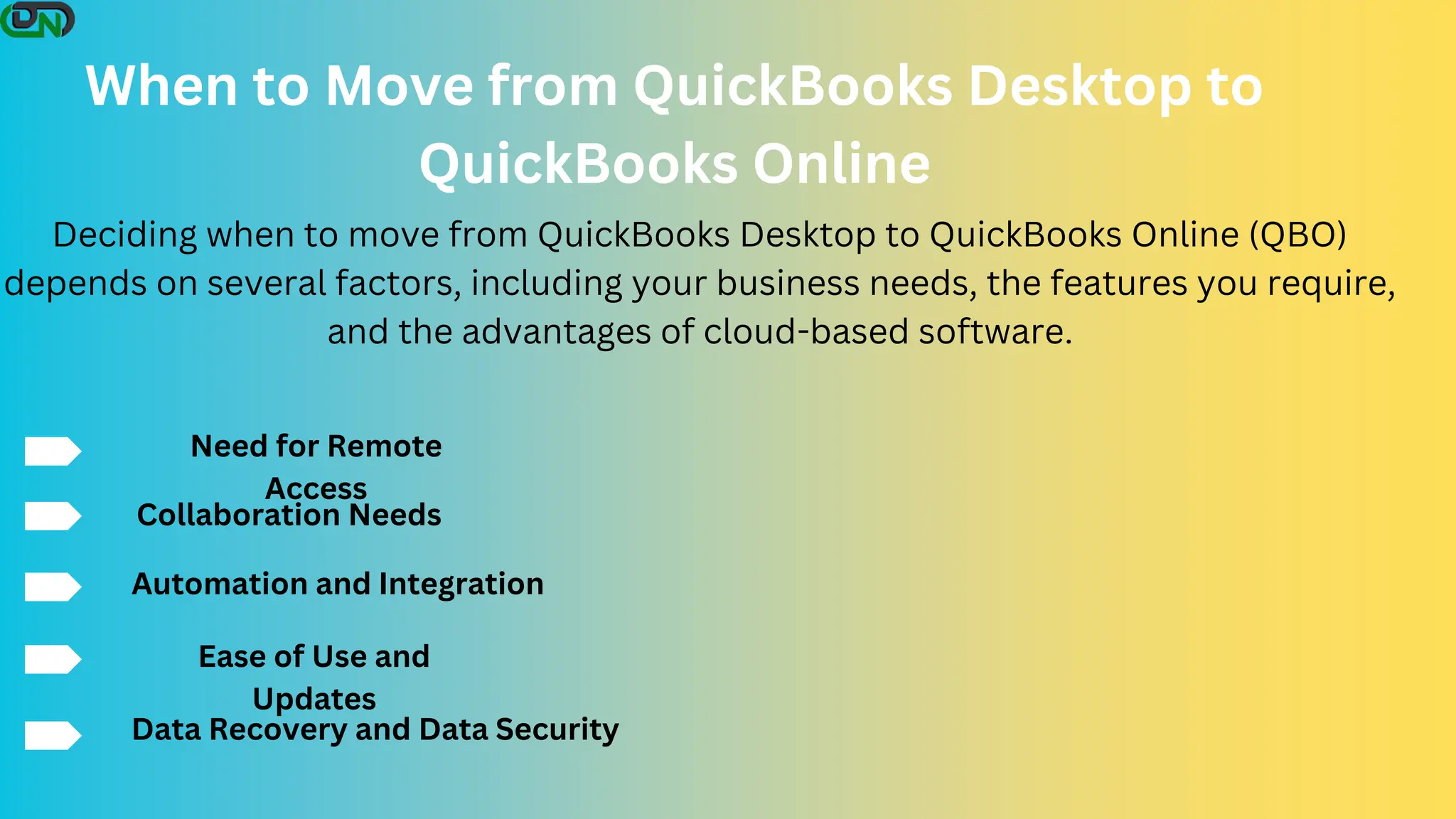
Deciding when to move from QuickBooks Desktop to QuickBooks Online (QBO)
depends on several factors, including your business needs, the features you require,
and the advantages of cloud-based software.
Need for Remote
Access
Collaboration Needs
Automation and Integration
Ease of Use and
Updates
Data Recovery and Data Security
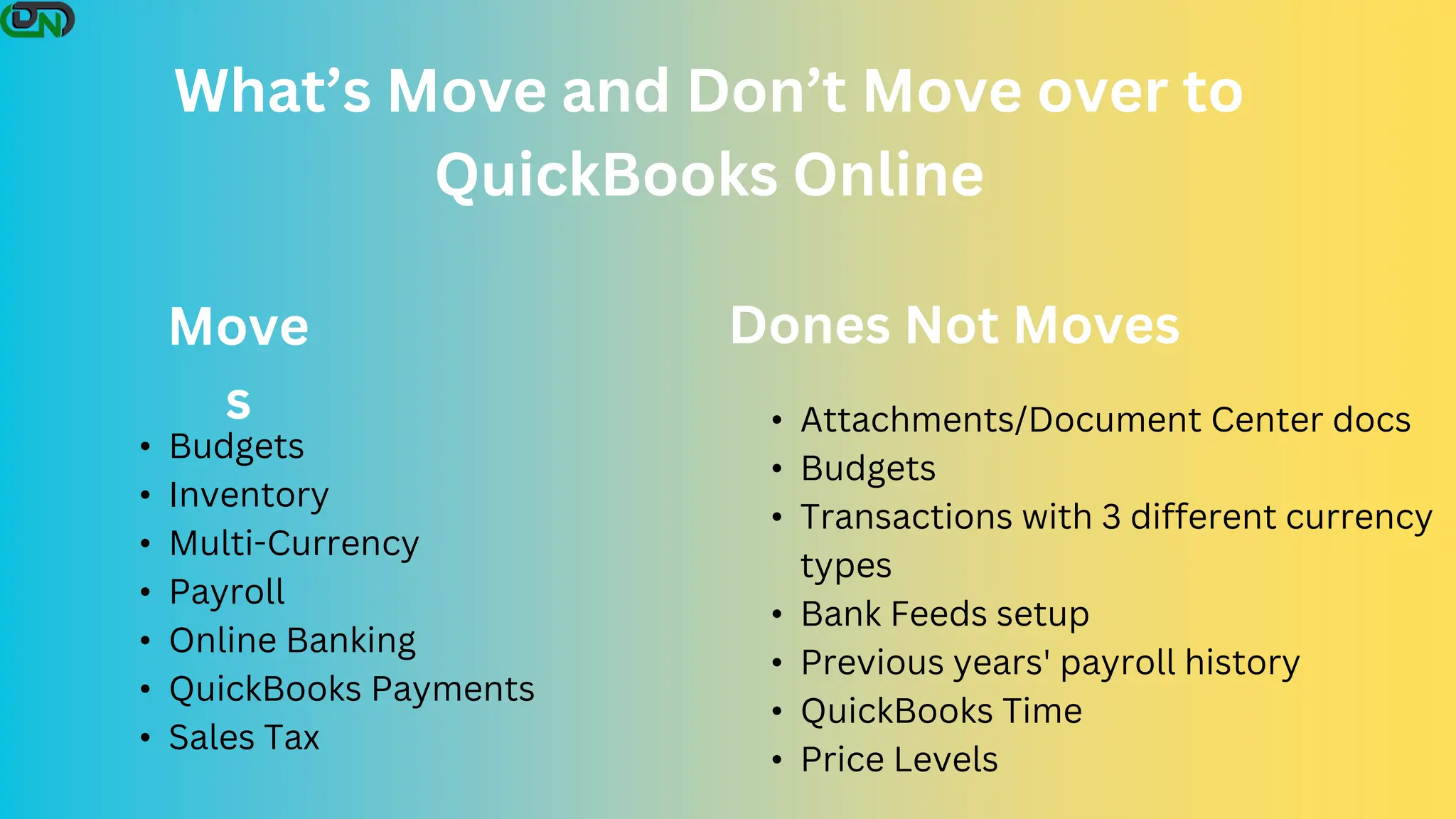
What’s Move and Don’t Move over to
QuickBooks Online
Move
s
• Budgets
• Inventory
• Multi-Currency
• Payroll
• Online Banking
• QuickBooks Payments
• Sales Tax
Dones Not Moves
• Attachments/Document Center docs
• Budgets
• Transactions with 3 different currency
types
• Bank Feeds setup
• Previous years' payroll history
• QuickBooks Time
• Price Levels
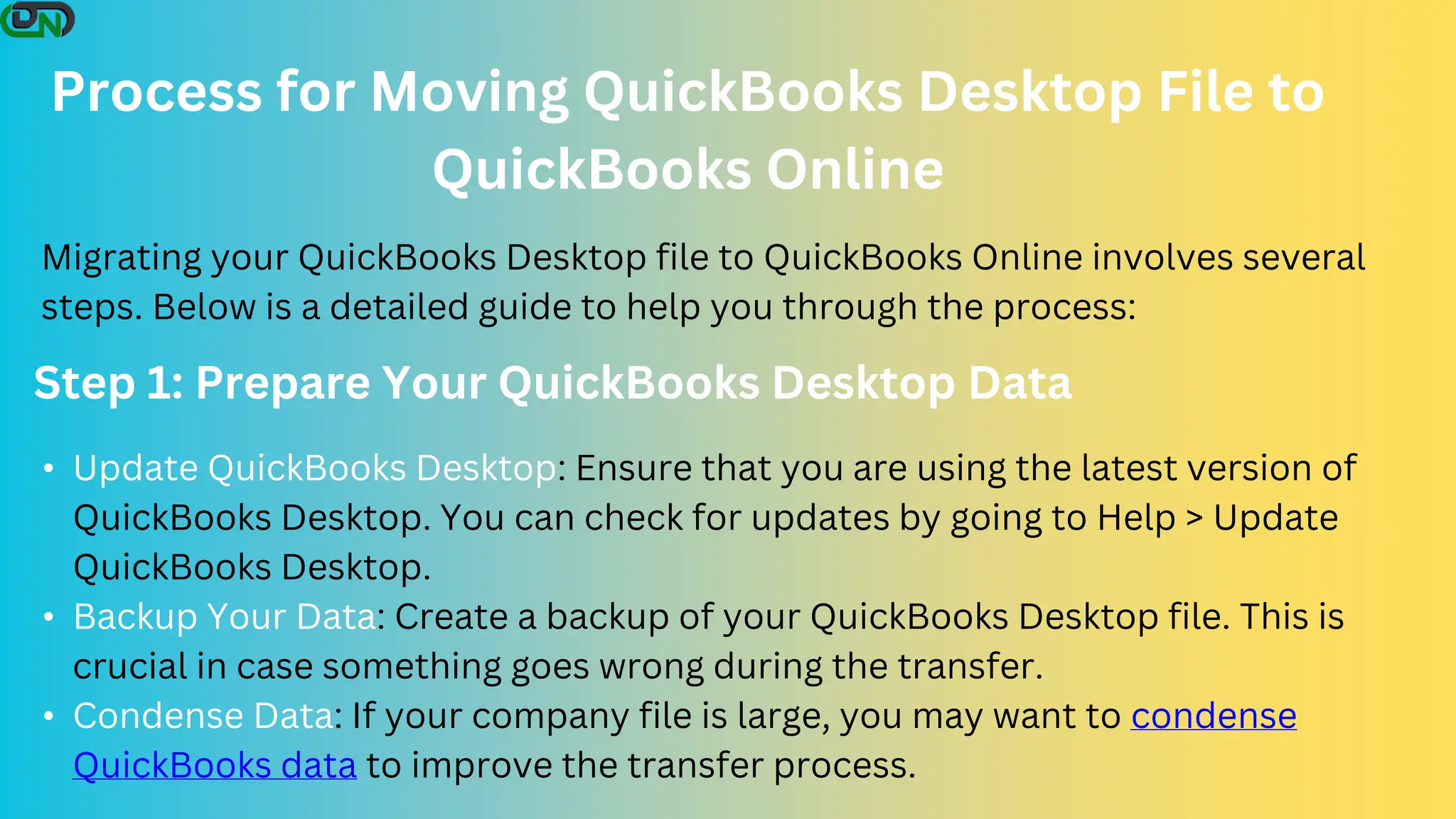
Process for Moving QuickBooks Desktop File to
QuickBooks Online
Migrating your QuickBooks Desktop file to QuickBooks Online involves several
steps. Below is a detailed guide to help you through the process:
Step 1: Prepare Your QuickBooks Desktop Data
• Update QuickBooks Desktop: Ensure that you are using the latest version of
QuickBooks Desktop. You can check for updates by going to Help > Update
QuickBooks Desktop.
• Backup Your Data: Create a backup of your QuickBooks Desktop file. This is
crucial in case something goes wrong during the transfer.
• Condense Data: If your company file is large, you may want to condense
QuickBooks data to improve the transfer process.
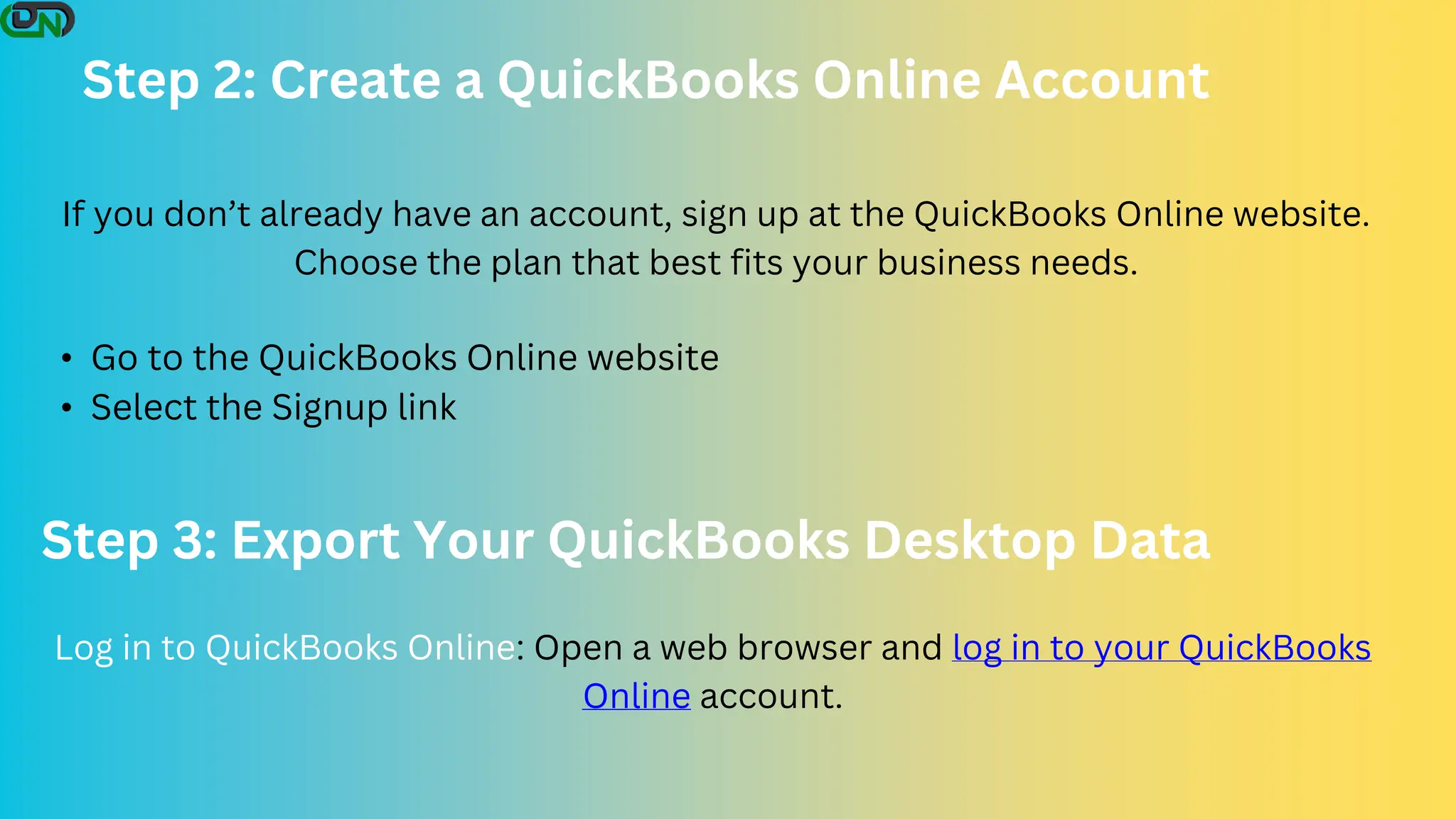
Step 2: Create a QuickBooks Online Account
• Go to the QuickBooks Online website
• Select the Signup link
If you don’t already have an account, sign up at the QuickBooks Online website.
Choose the plan that best fits your business needs.
Step 3: Export Your QuickBooks Desktop Data
Log in to QuickBooks Online: Open a web browser and log in to your QuickBooks
Online account.
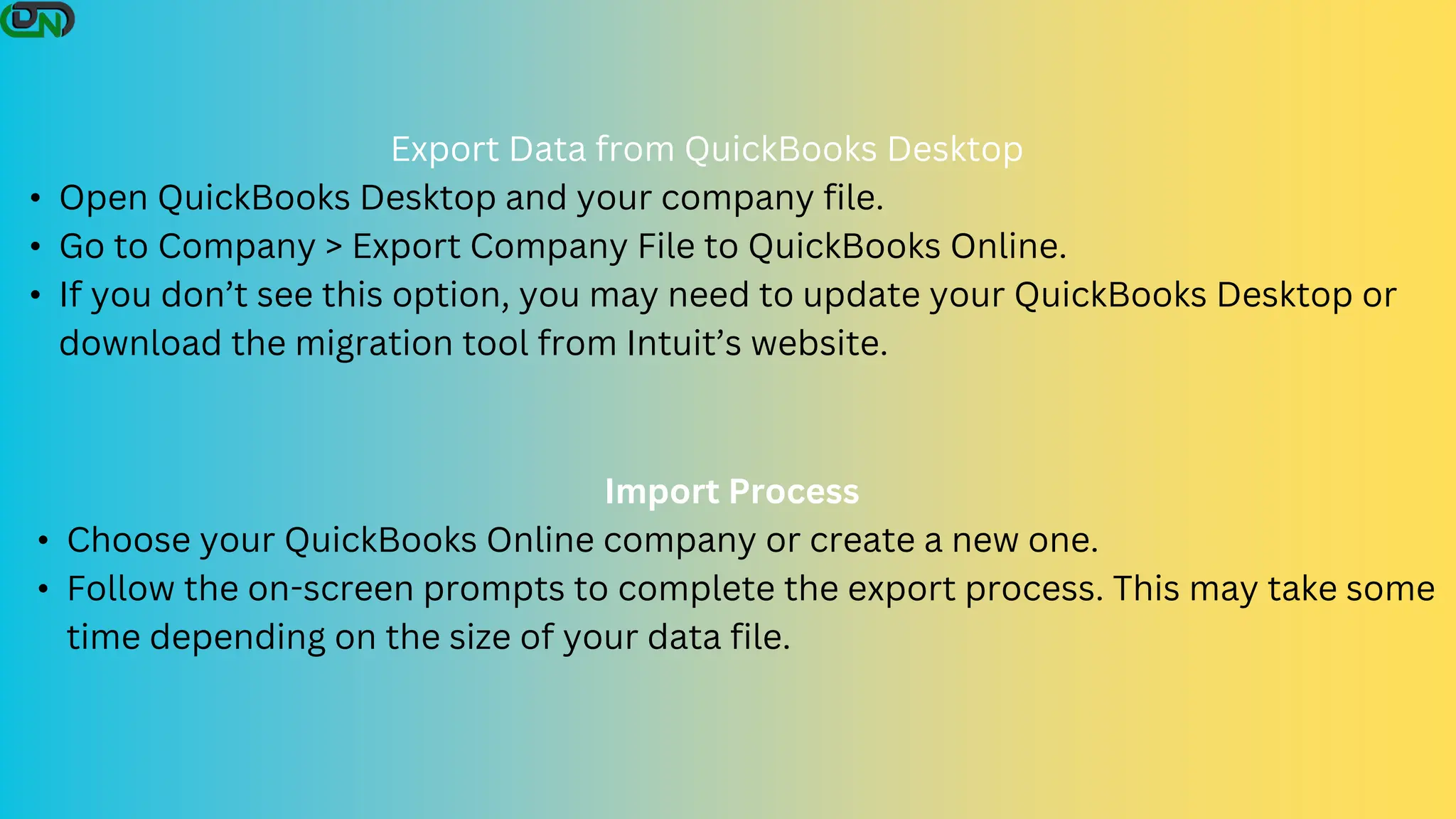
Export Data from QuickBooks Desktop
• Open QuickBooks Desktop and your company file.
• Go to Company > Export Company File to QuickBooks Online.
• If you don’t see this option, you may need to update your QuickBooks Desktop or
download the migration tool from Intuit’s website.
Import Process
• Choose your QuickBooks Online company or create a new one.
• Follow the on-screen prompts to complete the export process. This may take some
time depending on the size of your data file.
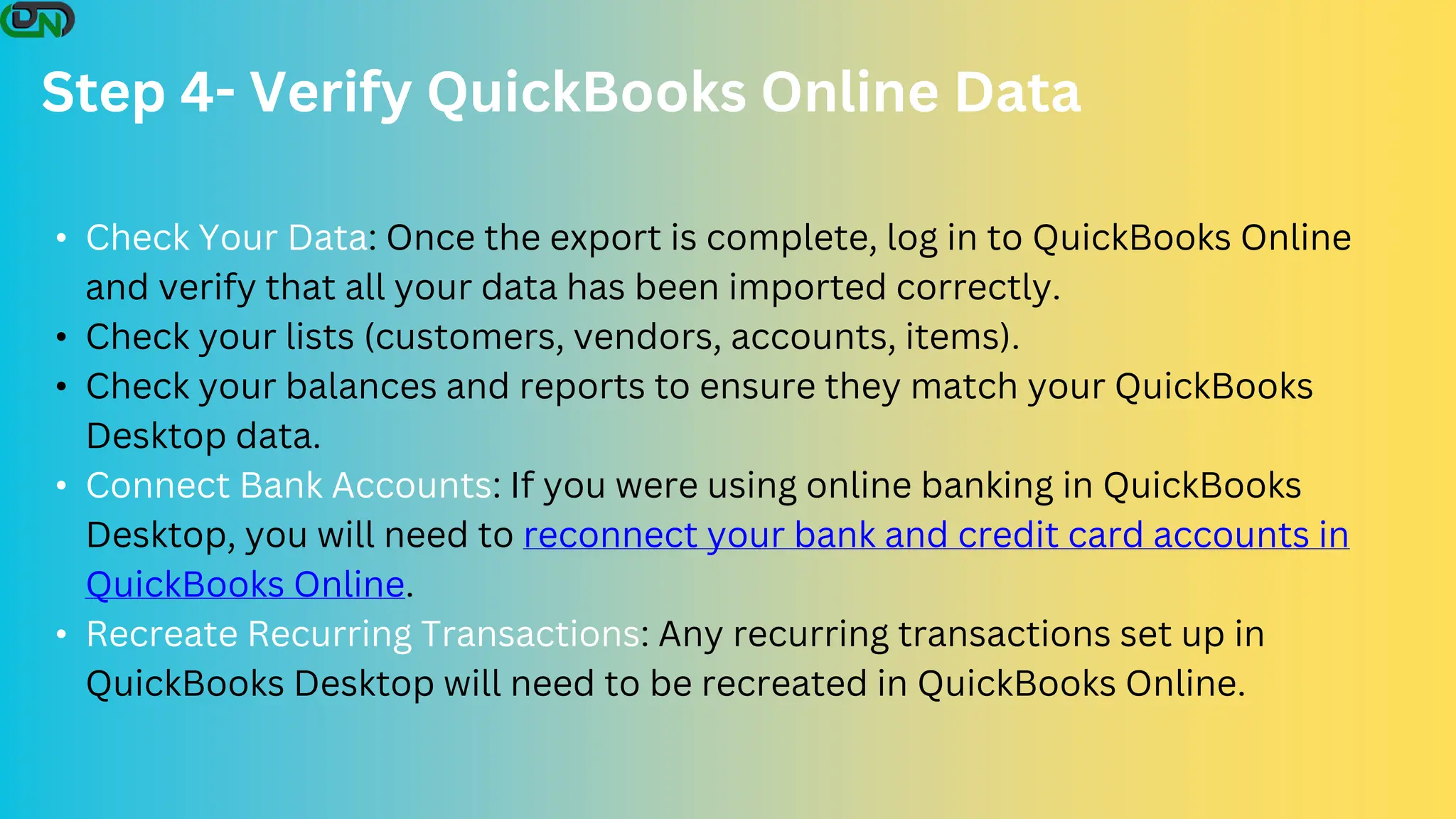
Step 4- Verify QuickBooks Online Data
• Check Your Data: Once the export is complete, log in to QuickBooks Online
and verify that all your data has been imported correctly.
• Check your lists (customers, vendors, accounts, items).
• Check your balances and reports to ensure they match your QuickBooks
Desktop data.
• Connect Bank Accounts: If you were using online banking in QuickBooks
Desktop, you will need to reconnect your bank and credit card accounts in
QuickBooks Online.
• Recreate Recurring Transactions: Any recurring transactions set up in
QuickBooks Desktop will need to be recreated in QuickBooks Online.
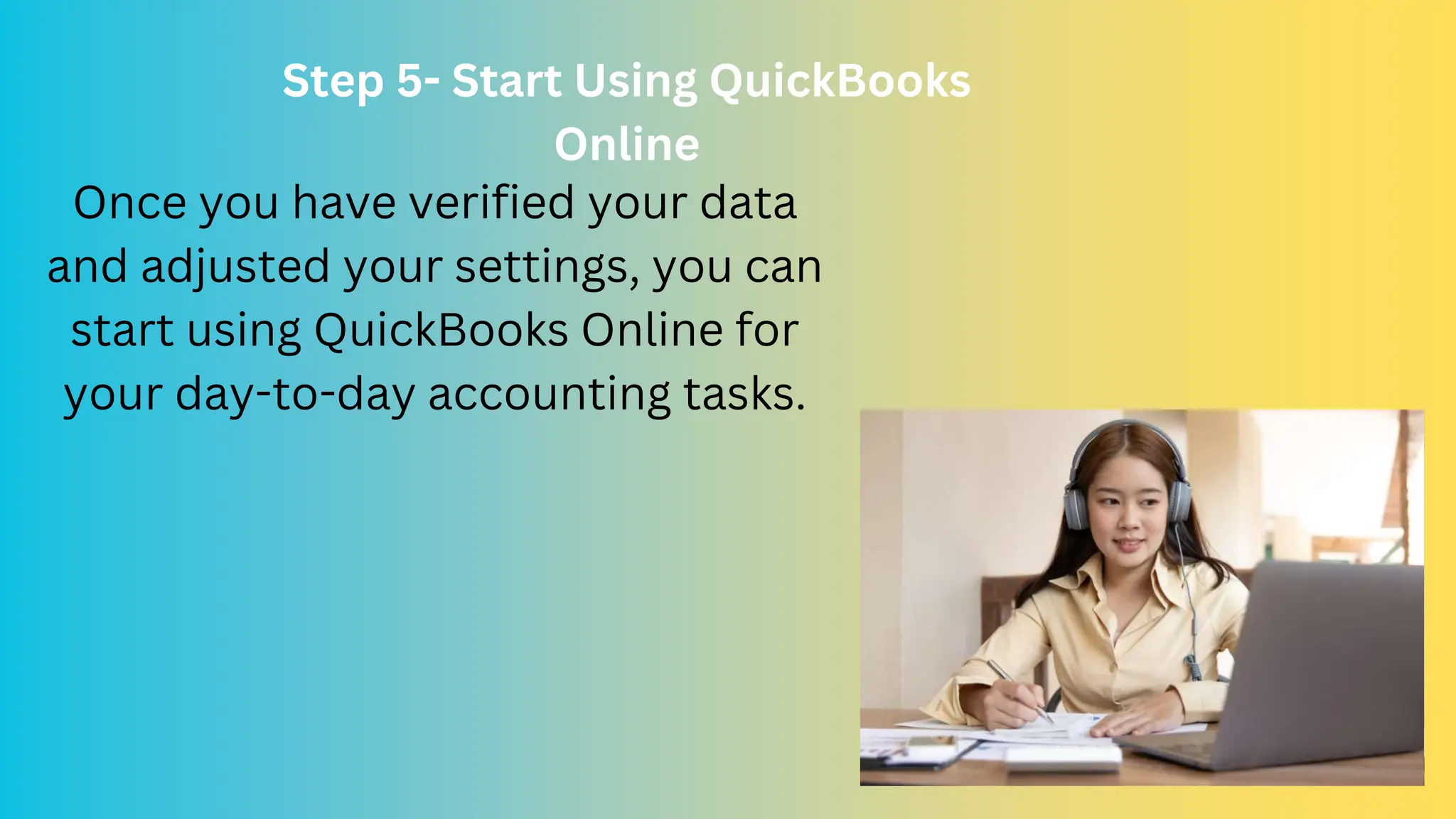
Step 5- Start Using QuickBooks
Online
Once you have verified your data
and adjusted your settings, you can
start using QuickBooks Online for
your day-to-day accounting tasks.
Call- +1-800-596-0806
Email- support@dancingnumbers.com
Website- www.dancingnumbers.com

From QuickBooks Desktop to Online- Move QBDT Data

  • 1.
  • 2.
    QuickBooks Desktop toOnline Converting from QuickBooks Desktop to QuickBooks Online involves exporting your data files from the desktop platform, converting them using the QuickBooks Desktop software, and importing the converted files. This process ensures the continuity of your financial records and can be managed with careful attention to detail or professional assistance.
  • 3.
    Move your QuickBooksDesktop File to QuickBooks Online Easily transition your financial data by moving the QuickBooks Desktop file to QuickBooks Online. Streamline your accounting process with cloud-based access, real- time collaboration, and automatic updates. Follow simple steps to migrate your data seamlessly and unlock enhanced features for efficient financial management. Experience improved flexibility and convenience today Convert QuickBooks Enterprise to QBO
  • 4.
    Why Convert fromQuickBooks Desktop to QuickBooks Online • One of the most compelling reasons to convert from QuickBooks Desktop (QB Desktop) to QuickBooks Online (QBO) is the ability to access your financial data from anywhere, at any time. • QBO facilitates real-time collaboration among team members and accountants. • With QBO, you no longer have to worry about manually installing software updates or maintaining hardware. • QBO offers seamless integration with a wide range of third-party applications. • While the subscription model of QBO might seem more expensive compared to the one-time purchase of QB Desktop.
  • 5.
    When to Movefrom QuickBooks Desktop to QuickBooks Online Deciding when to move from QuickBooks Desktop to QuickBooks Online (QBO) depends on several factors, including your business needs, the features you require, and the advantages of cloud-based software. Need for Remote Access Collaboration Needs Automation and Integration Ease of Use and Updates Data Recovery and Data Security
  • 7.
    What’s Move andDon’t Move over to QuickBooks Online Move s • Budgets • Inventory • Multi-Currency • Payroll • Online Banking • QuickBooks Payments • Sales Tax Dones Not Moves • Attachments/Document Center docs • Budgets • Transactions with 3 different currency types • Bank Feeds setup • Previous years' payroll history • QuickBooks Time • Price Levels
  • 9.
    Process for MovingQuickBooks Desktop File to QuickBooks Online Migrating your QuickBooks Desktop file to QuickBooks Online involves several steps. Below is a detailed guide to help you through the process: Step 1: Prepare Your QuickBooks Desktop Data • Update QuickBooks Desktop: Ensure that you are using the latest version of QuickBooks Desktop. You can check for updates by going to Help > Update QuickBooks Desktop. • Backup Your Data: Create a backup of your QuickBooks Desktop file. This is crucial in case something goes wrong during the transfer. • Condense Data: If your company file is large, you may want to condense QuickBooks data to improve the transfer process.
  • 10.
    Step 2: Createa QuickBooks Online Account • Go to the QuickBooks Online website • Select the Signup link If you don’t already have an account, sign up at the QuickBooks Online website. Choose the plan that best fits your business needs. Step 3: Export Your QuickBooks Desktop Data Log in to QuickBooks Online: Open a web browser and log in to your QuickBooks Online account.
  • 11.
    Export Data fromQuickBooks Desktop • Open QuickBooks Desktop and your company file. • Go to Company > Export Company File to QuickBooks Online. • If you don’t see this option, you may need to update your QuickBooks Desktop or download the migration tool from Intuit’s website. Import Process • Choose your QuickBooks Online company or create a new one. • Follow the on-screen prompts to complete the export process. This may take some time depending on the size of your data file.
  • 12.
    Step 4- VerifyQuickBooks Online Data • Check Your Data: Once the export is complete, log in to QuickBooks Online and verify that all your data has been imported correctly. • Check your lists (customers, vendors, accounts, items). • Check your balances and reports to ensure they match your QuickBooks Desktop data. • Connect Bank Accounts: If you were using online banking in QuickBooks Desktop, you will need to reconnect your bank and credit card accounts in QuickBooks Online. • Recreate Recurring Transactions: Any recurring transactions set up in QuickBooks Desktop will need to be recreated in QuickBooks Online.
  • 13.
    Step 5- StartUsing QuickBooks Online Once you have verified your data and adjusted your settings, you can start using QuickBooks Online for your day-to-day accounting tasks.
  • 15.